
Alto 7+ - Soundbar TCL - Free user manual and instructions
Find the device manual for free Alto 7+ TCL in PDF.


| Product Type | Soundbar with built-in subwoofer |
| Model | Alto 7+ |
| Brand | TCL |
| Dimensions (LxWxH) | 95 x 10 x 6 cm |
| Weight | 2.5 kg |
| Power Supply | AC 100-240 V, 50/60 Hz |
| Power Consumption | 30 W |
| Standby Power | < 0.5 W |
| Bluetooth Version | 5.0 |
| Audio Inputs | HDMI ARC, Optical, USB, 3.5 mm aux |
| Audio Output | Built-in subwoofer, 2.1 channel |
| Total Power Output | 120 W |
| Remote Control | Included (battery CR2025) |
| Mounting Options | Tabletop or wall mount (brackets included) |
| Wireless Connectivity | Bluetooth 5.0, Wi-Fi (optional) |
| Supported Audio Formats | Dolby Digital, DTS, PCM, MP3, AAC |
| Cleaning Instructions | Wipe with soft dry cloth. Do not use liquid cleaners. |
| Safety Precautions | Keep away from moisture and heat. Do not block vents. |
| Spare Parts Available | Remote control, power cord, mounting brackets |
| Repairability Index | 6.5/10 (user replaceable remote battery, power cord) |
| Included Accessories | Soundbar, remote control, power cord, wall mount kit, user manual |
Frequently Asked Questions - Alto 7+ TCL
User questions about Alto 7+ TCL
0 question about this device. Answer the ones you know or ask your own.
Ask a new question about this device
Download the instructions for your Soundbar in PDF format for free! Find your manual Alto 7+ - TCL and take your electronic device back in hand. On this page are published all the documents necessary for the use of your device. Alto 7+ by TCL.
USER MANUAL Alto 7+ TCL
2.1 Channel Home Theater Sound Bar
Alto 7+
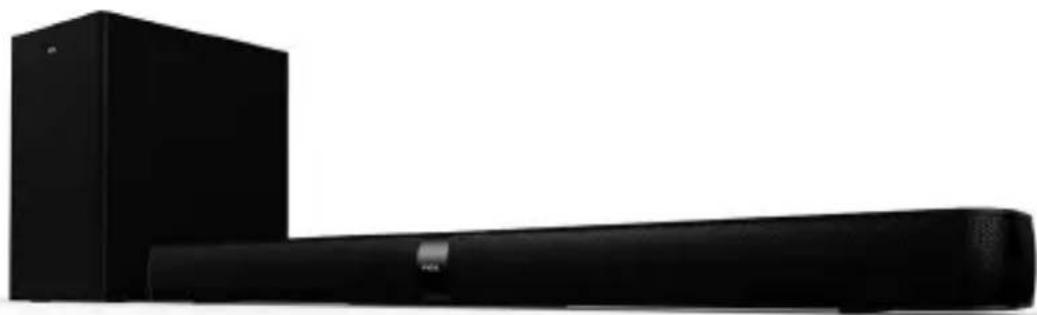
natural_image
Black audio streaming device with a rectangular speaker and a rectangular sound block (no visible text or symbols)User manual
Product Registration
Please register your purchase on-line at www.tclusa.com or www.tclcanada.com. It will make it easier to contact you should it ever be necessary. Registration is not required for warranty coverage.
Product Information
Keep your sales receipt to obtain warranty parts and service and for proof of purchase. Attach it here and record the serial and model numbers in case you need them. These numbers are located on the product.
Model No. ____
Purchase Date ____
Serial No. ____
Dealer/Address/Phone ____
Contents
1 Important safety instructions 3
Important information 3
Important safety instructions 5
2 Welcome 10
What's in the box 10
Overview of the Sound Bar main unit 12
Overview of the wireless subwoofer 14
Overview of the remote control 15
Set up your Sound Bar system 17
3 Connect your Sound Bar system 21
Connect with the supplied HDMI cable 21
Connect with the supplied optical cable 23
Connect with the supplied 3.5mm-to-3.5mm audio cable 25
Connect your Sound Bar to power supply 26
Connect the Sound Bar with your Bluetooth device 27
Connect your wireless subwoofer to the Sound Bar 29
Connect the IR pass-through cable 31
4 Use your Sound Bar system 32
Use your Sound Bar with the top panel or remote control 32
Sound settings 33
Control the Sound Bar with your TCL Roku TV remote control 34
Listen to music from your Bluetooth device 36
Use the USB cable or device for music playback 37
5 Specifications 39
6 Notice 40
Compliance notice 40
Disposal of your old product and battery 43
Trademarks 44
7 FAQ 45
1 Important safety instructions
Important information

natural_image
Black triangular warning symbol with a white lightning bolt inside, indicating electrical hazard (no text)CAUTION
RISK OF ELECTRIC SHOCK DO NOT OPEN

natural_image
Black triangular warning symbol with exclamation mark (no text or numbers)CAUTION: TO REDUCE THE RISK OF ELECTRIC SHOCK, DO NOT REMOVE COVER (OR BACK). NO USER-SERVICEABLE PARTS INSIDE. REFER SERVICING TO QUALIFIED SERVICE PERSONNEL.

The lightning flash with arrowhead symbol, within an equilateral triangle is intended to alert the user to the presence of uninsulated dangerous voltage within the
product's enclosure that may be of sufficient magnitude to constitute a risk of electric shock.

The exclamation point within an equilateral triangle is intended to alert the user to the presence of important operating and maintenance (servicing) instructions in the literature accompanying the product.

This symbol indicates that this product incorporates double insulation between hazardous main voltage and user accessible parts. When servicing, use only identical replacement parts.
Warnings
- To reduce the risk of fire or electric shock, do not expose this product to rain or moisture. This product should not be exposed to dripping or splashing. No objects filled with liquids, such as vases, should be placed on or near the product.
- The product is unstable if it is not properly placed or mounted to the wall. Be sure to follow the wall mounting instructions provided in this user manual to ensure your safety.
- Do not expose batteries to excessive heat such as sunshine, fire, and so forth.
Important safety instructions
- Read these instructions - Read all the safety and operating instructions before operating the product.
- Retain these instructions - Retain the safety and operating instructions for future reference.
- Heed all warnings - Adhere to all warnings on the product and in the operating instructions.
- Follow all instructions - Follow all operating and use instructions.
- Do not use this apparatus near water - The appliance should not be used near water or moisture - for example, in a wet basement or near a swimming pool and the like
- Clean only with a dry cloth.
- Do not block any ventilation openings. Install in accordance with the manufacturer's instructions.
- Do not install near any heat sources such as radiators, heat registers, stoves, or other apparatus (including amplifiers) that produce heat.
- Do not defeat the safety purpose of the polarized or grounding-type plug. A polarized plug has two blades with one wider than the other. A grounding type plug has two blades and a third grounding prong. The wide blade or the third prong are provided for your safety. If the provided plug does not fit into your outlet, consult an electrician for replacement of the obsolete outlet.
- Protect the power cord from being walked on or pinched particularly at plugs, convenience receptacles, and the point where it exits from the product.
- Use only attachments/accessories specified by the manufacturer.
- Use only with the cart, stand, tripod, bracket, or table specified by the manufacturer, or sold with the apparatus. When a cart is used, use caution when moving the cart/apparatus combination to avoid injury from tip-over.

- Unplug this apparatus during lightning storms or when unused for long periods of time.
- Refer all servicing to qualified service personnel. Servicing is required when the apparatus has been damaged in any way, such as power-supply cord or plug damaged, liquid has been spilled or objects have fallen into the apparatus, the apparatus has been exposed to rain or moisture, does not operate normally, or has been dropped.
Cautions
- To prevent electric shock, match wide blade of plug to wide slot, fully insert
- The product shall not be exposed to dripping or splashing.
- Do not place any sources of danger on the product (for example. liquid filled objects, lighted candles).
- Disconnect the power cord to shut off when find trouble or not in use. The power cord shall be readily operable.
- Use of controls or adjustments or performance of procedures other than those described herein, may result in hazardous radiation exposure or other unsafe operation.
- To reduce the risk of fire or electric shock, do not expose this apparatus to rain or moisture. The apparatus must not be exposed to dripping or splashing and objects filled with liquids, such as vases, must not be placed on apparatus.
- The power cord/appliance coupler is used as the disconnect device, the disconnect device must remain readily operable.
Battery caution and disposal information
• Install only new batteries of the same type in your product.
- Failure to insert batteries in the correct polarity, as indicated in the battery compartment, may shorten the life of the batteries or cause batteries to leak.
- Do not mix old and new batteries.
- Do not use rechargeable (Nickel Cadmium) or (Nickel Metal Hydride) batteries.
- Do not mix alkaline, standard (Carbon-Zinc) or rechargeable (Nickel Cadmium) or (Nickel Metal Hydride) batteries.
- Do not dispose of batteries in fire or water.
- Recycle or dispose of batteries as per state and local guidelines.
- Danger of explosion if battery is incorrectly replaced. Replace only with the same or equivalent type.
- When the remote control is not to be used for a long time (more than a month), remove the battery from the remote control to prevent it from leaking.
- If the batteries leak, wipe away the leakage inside the battery compartment and replace the batteries with new ones.
- Keep away the batteries from heat or moisture.
- Do not carry or store batteries with other metallic objects. Doing so could cause batteries to short circuit, leak or explode.
- Do not carry or store batteries with other metallic objects. Doing so could cause batteries to short circuit, leak or explode.
- Never recharge a battery unless it is confirmed to be a rechargeable type.
Installation location
- This product is designed to sit on a firm, flat surface. Do not place the product on built-in installation such as a bookcase or rack because the ventilation slots around the product will be blocked, resulting in reduced lifetime from overheating. To assure adequate ventilation for this product, maintain a spacing of 7.8 inches (20cm) or more around the product.
- Make sure the product on the furniture is of adequate size and strength to prevent it from being accidentally tipped over, pushed off, or pulled off. This could cause personal injury and/or damage to the product.
- Installation of wall mount must be carried out by qualified personnel only. Incorrect assembly can result in severe personal injury and property damage (if you intend to install this product yourself, you must check for installations such as electrical wiring and plumbing that may be buried inside the wall). It is the installer's responsibility to verify that the wall will safely support the total load of the product and wall mount brackets.
2 Welcome
Congratulations on the purchase of your new TCL Sound Bar! After it is set up and connected, you can experience a superb sound quality and state-of-the-art design to best fit your home entertainment system. You are recommended to read through this user manual which helps you set up, connect and operate the product easily and properly. For more information, visit www.tclusa.com or www.tclcanada.com
Let's get started.
What's in the box
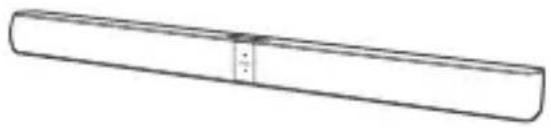
natural_image
Simple line drawing of a cylindrical object with a central hole and two small dots, no text or symbols present.Sound Bar main unit
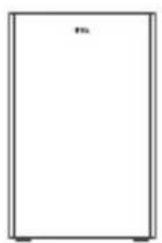
natural_image
Simple line drawing of a rectangular container with a small label 'm' on the top (no other text or symbols)Wireless subwoofer
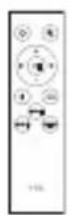
Remote control
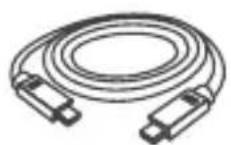
HDMI cable
natural_image
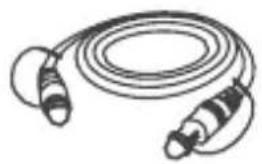
Illustration of a coiled cable with two connectors (no text or symbols)Optical cable
natural_image
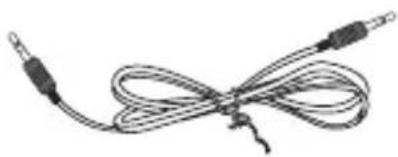
Coiled black cable with two connectors, no text or symbols visible3.5mm-to-3.5mm audio cable
natural_image
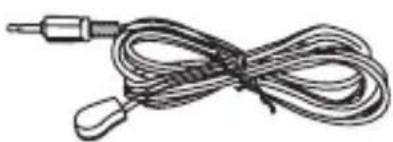
Coiled cable with a metallic connector and earplush (no text or symbols visible)IR pass-through cable
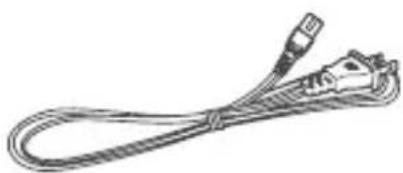
natural_image
Line drawing of a straight cord with two connectors (no text or symbols)AC power cord x 2

Wall mount template
Quick start guide
User manual
Warranty card
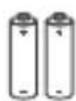
AAA battery x 2
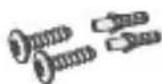
Wall screw (M3.6) x 2
Wall anchor x 2
Overview of the Sound Bar main unit
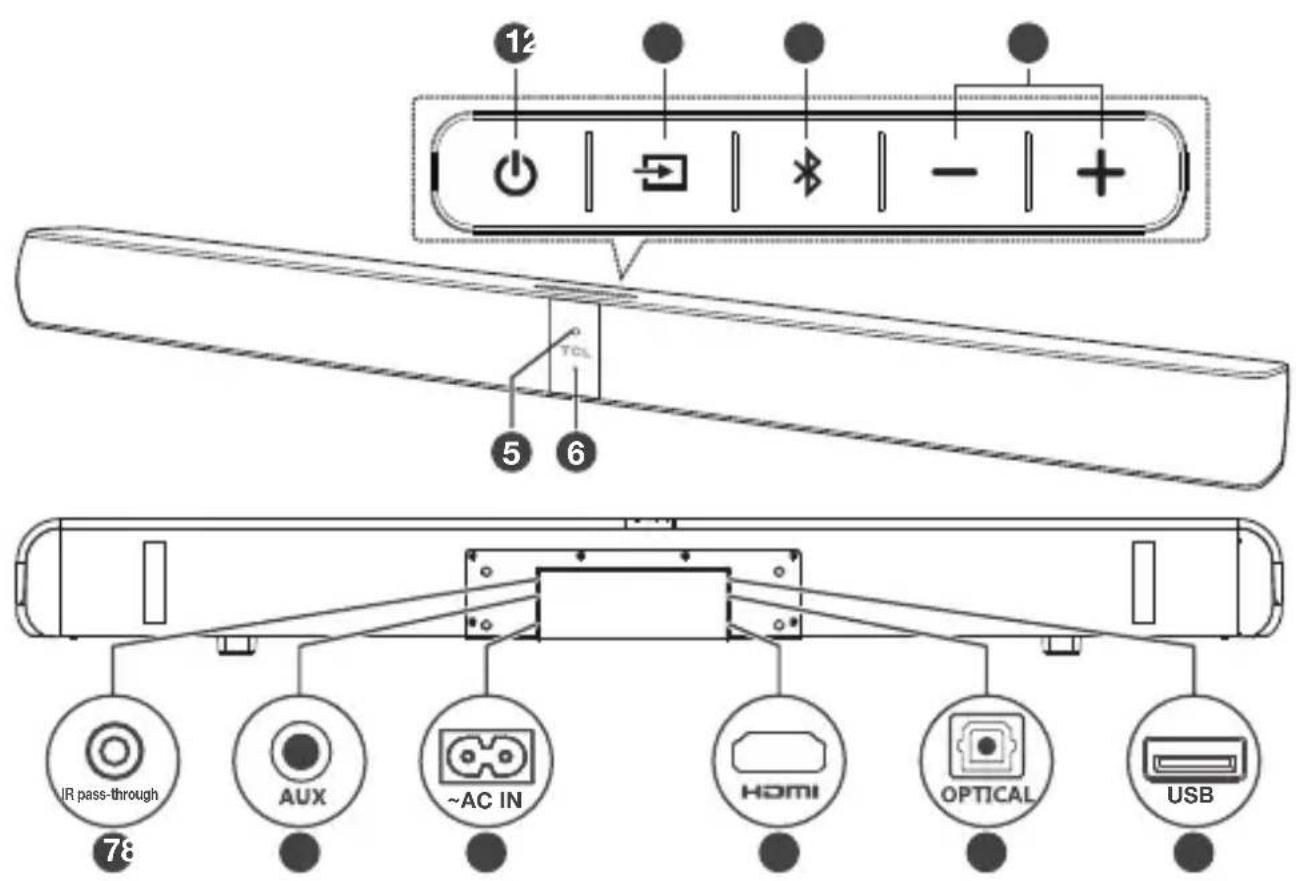
1
Press to turn the Sound Bar main unit on or to standby mode.
2
Press to switch the audio source among HDMI/USB/AUX/Bluetooth/Optical modes.
3
Press to select the Bluetooth function.
4 +/-
Press to increase or decrease the volume level.
5 Remote control sensor
Receive signals from the remote control.
6 LED indicator
Red: in standby mode.
Purple: in HDMI mode.
Green: in AUX mode.
Blue: in Bluetooth mode.
Yellow: in Optical mode.
White: in USB mode.
7 IR pass-through cable connector
8 AUX input connector
9 AC input power connector
10 HDMI ARC connector
11 Optical input connector
12 USB Type A connector (only for music playback)
Overview of the wireless subwoofer
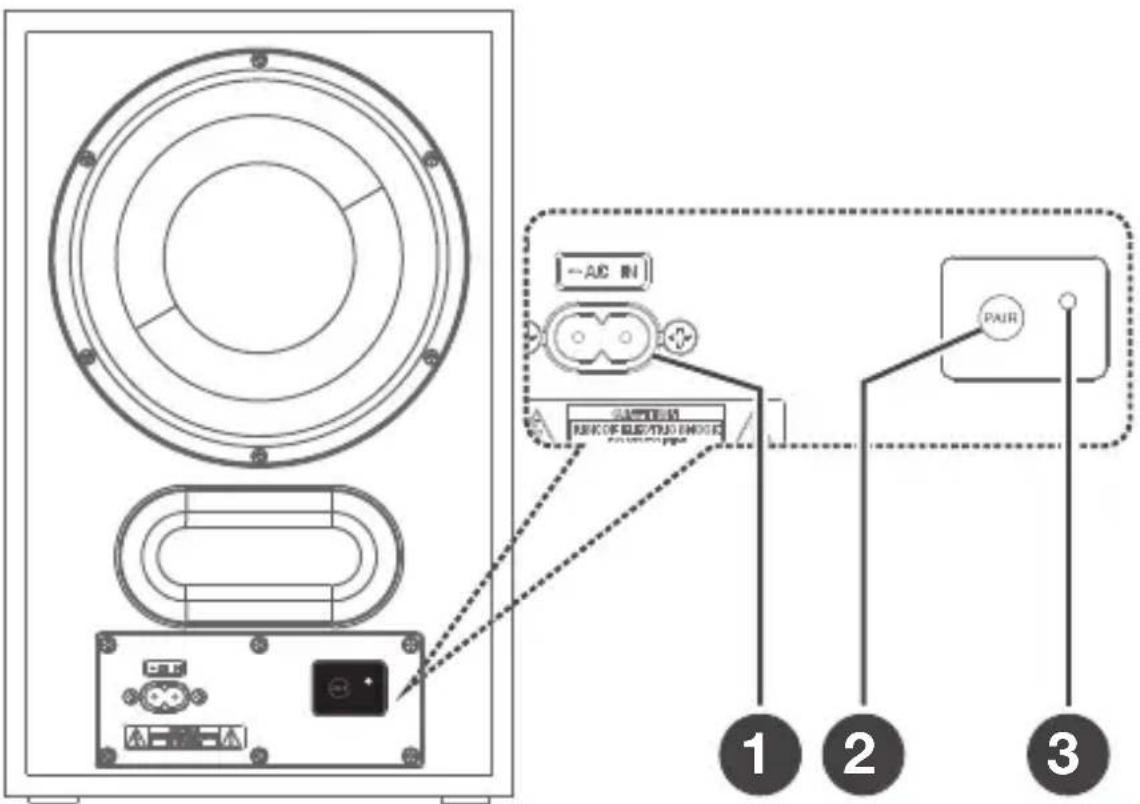
1 AC input power connector
2 PAIR
Press to activate pairing with the Sound Bar main unit.
3 Blue LED indicator
- flashes slowly when the subwoofer is in standby mode.
• flashes slowly when pairing is in progress.
• remains on solidly when pairing is successful.
Overview of the remote control
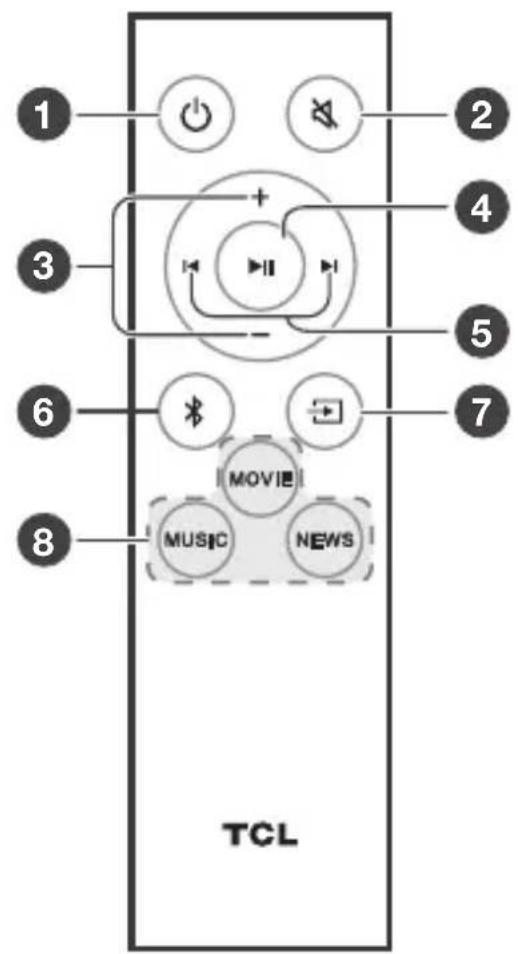
1
Press to turn the Sound Bar on or to standby mode.
2
Press to mute or unmute the sound.
3 +/-
Press to increase or decrease the volume level.
4
Play/pause/resume playback in Bluetooth/USB mode. Press and hold for 3 seconds to disconnect the Bluetooth function.
5 /
Press to skip to previous or next track in Bluetooth/USB mode.
6 \*
Press to switch the audio source to Bluetooth mode.
7
Press to switch the audio source among HDMI/USB/AUX/Bluetooth/Optical modes.
8 NEWS/MOVIE/MUSIC
Press to select the equalizer (EQ) effect when you are watching news or movies or listening to music.
Set up your Sound Bar system
Notes
- Make sure you read all the safety information before you mount the Sound Bar main unit on the wall. (see ‘Important safety instructions’ on page 5).
- Make sure you use screws provided or specified by the authorized manufacturer.
- TCL Corporation bears no responsibility for accidents or damage caused by improper wall mounting and screws installation or insufficient wall strength, etc.
- Additional tools (not supplied) are required for installation.
Mount your Sound Bar main unit on the wall
You can choose to place your Sound Bar main unit below the center of your TV or mount it on the wall.
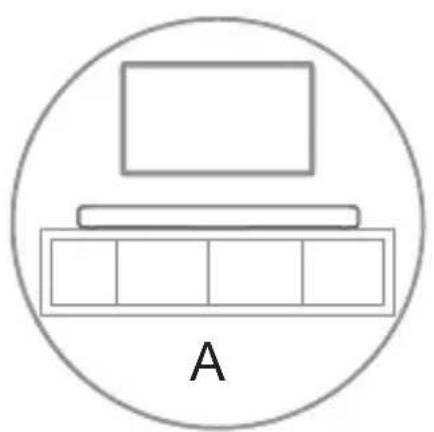
natural_image
Simple diagram of a laptop above a grid, enclosed in a circle labeled A (no text or symbols on the diagram itself)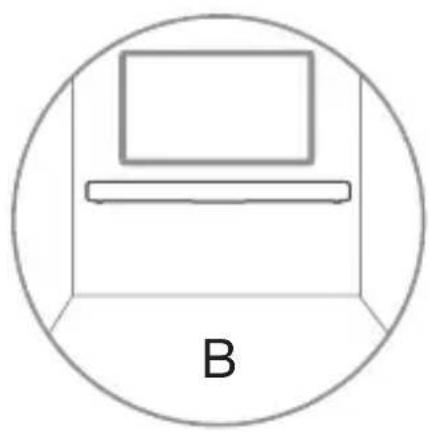
natural_image
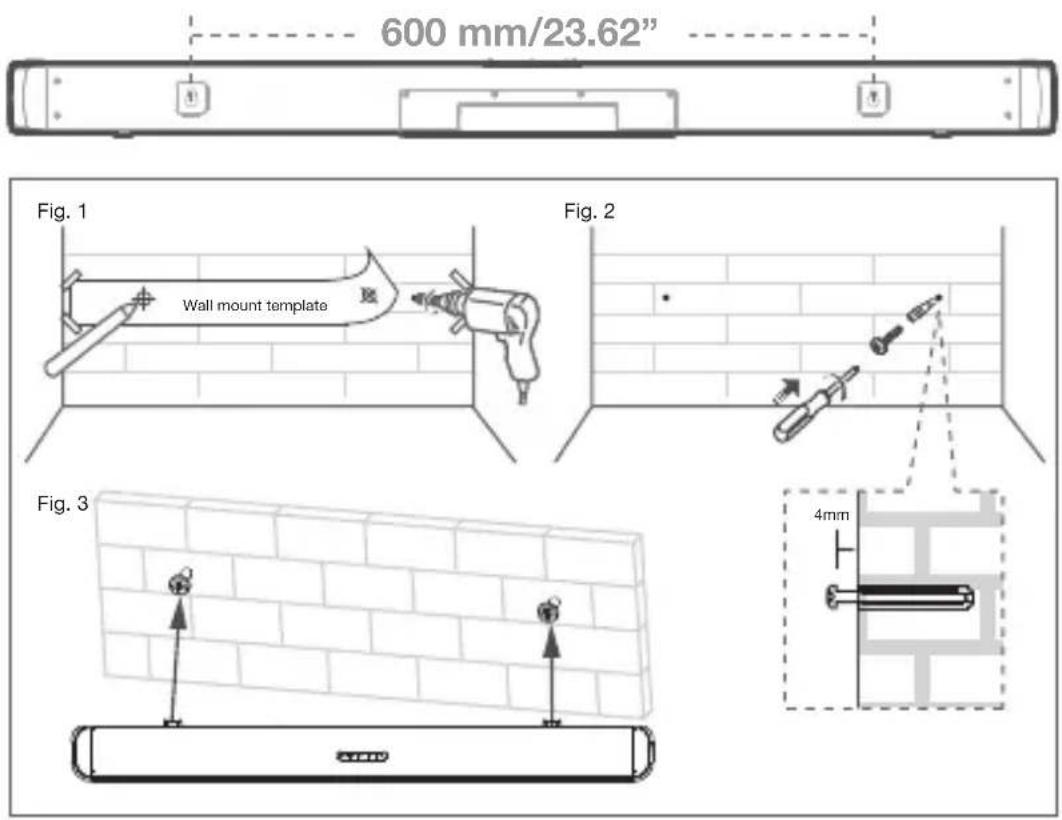
Simple line drawing of a laptop inside a circular frame, labeled 'B' below (no text or symbols on the diagram itself)1 Place the supplied wall mount template on the wall. Make sure the wall mount template is at least 2 inches (5cm) below the center of the TV.
2 Use a level to make sure the Sound Bar is positioned accurately.
3 Use the tape to stick the wall mount template firmly on the wall.
4 Mark on the wall using each marking on the template through the mounting holes (Fig.1).
5 Take away the wall mount template.
6 Drill a screw hole at each marking on the wall.
7 Insert the supplied wall anchors into 2 screw holes on the wall (Fig. 1).
8 Insert the supplied screws into the wall anchors. Leave 0.16 inch (4mm) between the screw heads and the wall (Fig. 2).
9 Fix and tighten the screws on the wall (Fig. 3).
10 Hang the Sound Bar main unit on the screws (Fig. 3).
Notes
- Check the installation location before you mount the Sound Bar on the wall (see ‘Installation location’ on page 9).
- You may consider to connect the cables first before mounting the Sound Bar on the wall.
Position your subwoofer
The distance between the subwoofer and the Sound Bar main unit should be within 3 meters (9.8 feet).
Install/replace the remote control batteries
Warnings
- Danger of explosion if battery is incorrectly replaced. Replace only with the same or equivalent type.
Caution
- The battery contains perchlorate material, handle it with care. For information, refer to www.dtsc.ca.gov/hazardous waste/perchlorate.
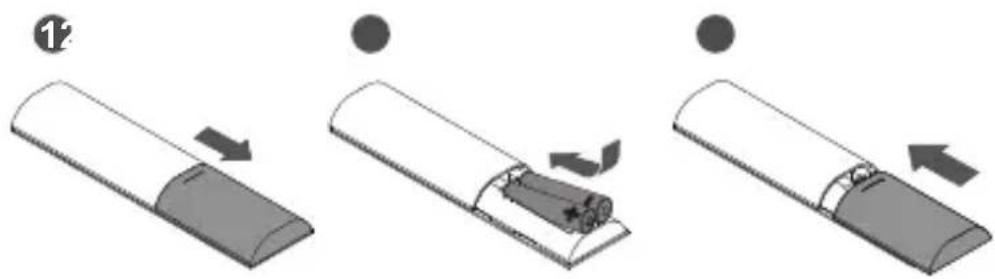
1 Open the battery compartment, remove the old batteries if necessary.
2 Place two new AAA batteries into the battery compartment with the correct polarity (+/-).
3 Close the battery compartment.
natural_image
Three-step diagram showing a device being processed, with arrows indicating motion (no text or symbols)3 Connect your Sound Bar system
After you have fixed the position of the Sound Bar main unit, you can start connecting it to your TV or other devices and listen to the audio through your Sound Bar. Make sure you have muted the audio of your TV or device. For information, check the user manual of your TV or device.
Connect with the supplied HDMI cable
Note
- Make sure your TV or device supports the HDMI ARC feature. For information, check the user manual of your TV or device.
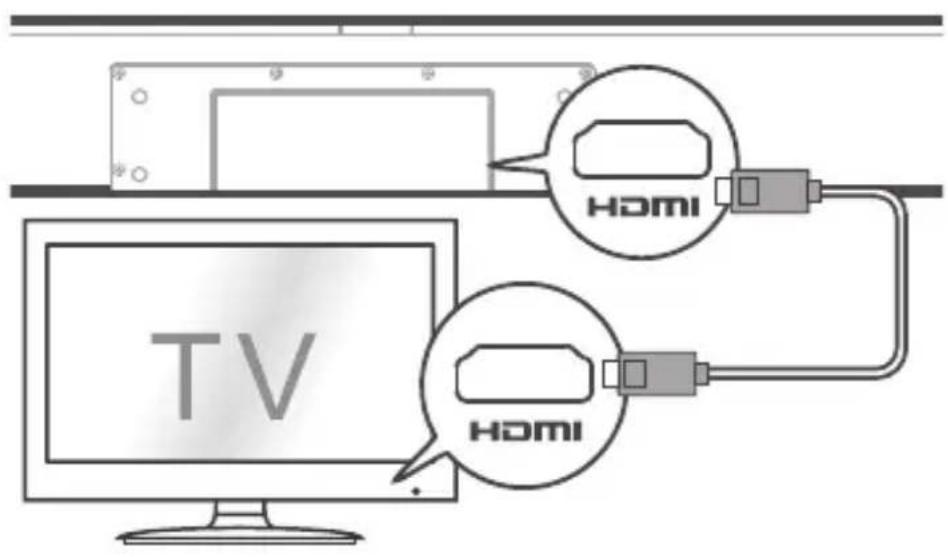
Connect one end of the HDMI cable to the HDMI ARC input connector on your Sound Bar main unit and another end to the HDMI ARC output connector of your TV or device.
To get the best possible audio experience using HDMI cable, follow below given steps:
- Press Home button on your TCL Roku TV remote.
- Navigate to Audio Options under Settings.
-
Check the "TV speaker enabled" option.
-
Under S/PDIF and ARC, select Auto Detect
-
To enable CEC control, follow below given steps:
a. Press Home button on your TCL Roku TV remote.
b. Navigate to Settings menu
c. Navigate to System menu
d. Navigate to Control other devices(CEC)
e. Check four options:
i. ARC
ii. System audio control
iii. 1-touch play
iv. System standby
Connect with the supplied optical cable
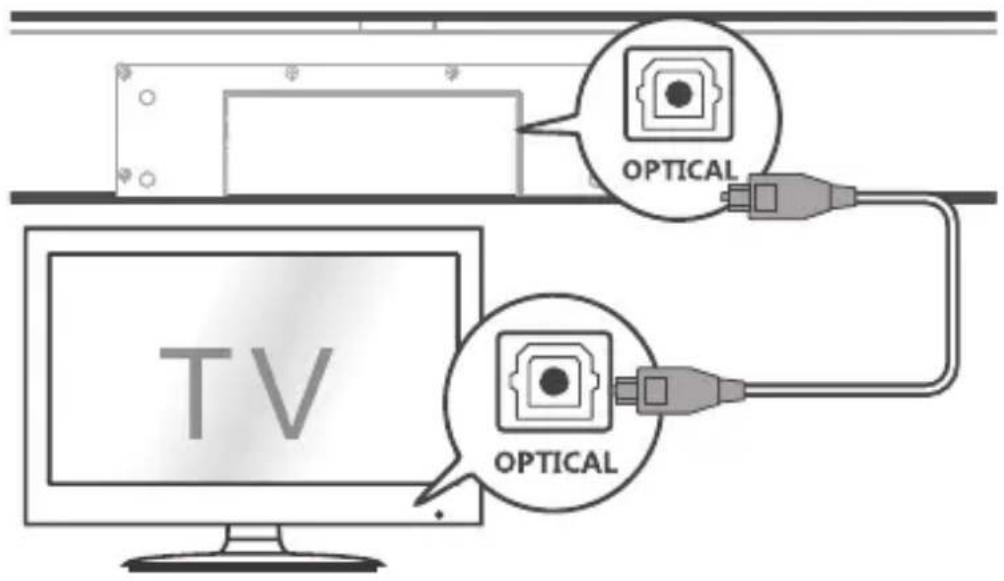
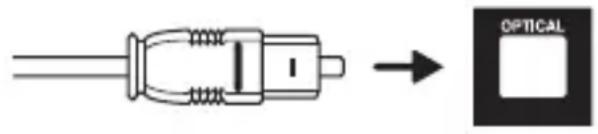
1 Remove the protective caps from the optical cable.
2 Connect one end of the optical cable to the optical input connector on your Sound Bar main unit and another end to the optical output connector of your TV or device.
Note
- If there is no sound output from the Sound Bar main unit and the yellow LED flashes rapidly, try to activate the PCM signal output on your TV or device. PCM is used to convert analog audio signals into digital audio signals in most devices. For more information of how to activate the PCM signal output, check the user manual of your TV or device.
Directions for setting up your Sound Bar using an optical cable

Do not bend or kink the optical cable (SPDIF) as it is fragile and can easily get damaged and broken.
To get the best possible audio experience using optical cable:
- Press the Home button on your TCL TV Remote.
- Navigate to Audio option under Settings.
- Uncheck the "TV speaker enabled" option.
- Under S/PDIF and ARC, select PCM-Stereo.
Notes
• Different devices may have different menu options.
• Devices such as Blu-ray players, set-top boxes, etc. are also applicable.
Connect with the supplied 3.5mm-to-3.5mm audio cable
You can either:
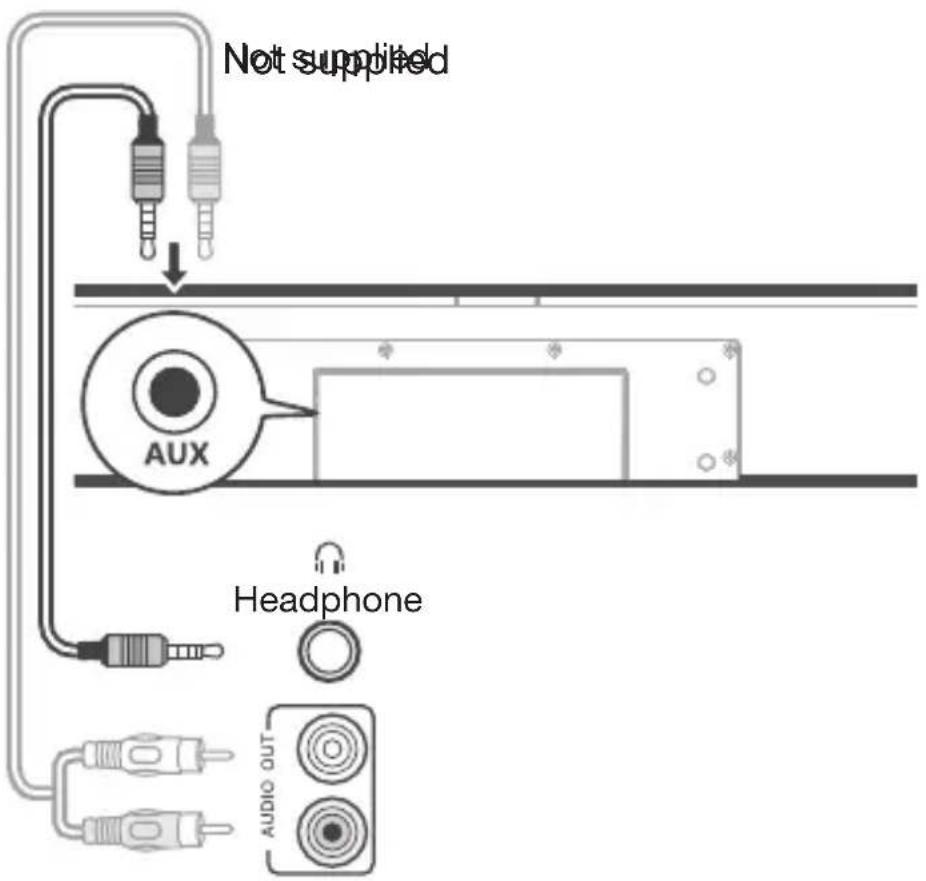
- connect one end of the supplied 3.5mm-to-3.5mm audio cable to the AUX input connector on your Sound Bar main unit and another end to the headphone or audio output connector on your TV or device. This will disable the sound of your TV built-in speakers; or
- connect one end of an RCA-to-3.5mm audio cable (not supplied) to the AUX input connector on your Sound Bar main unit and other ends to the TV's audio output connectors.
Connect your Sound Bar to power supply
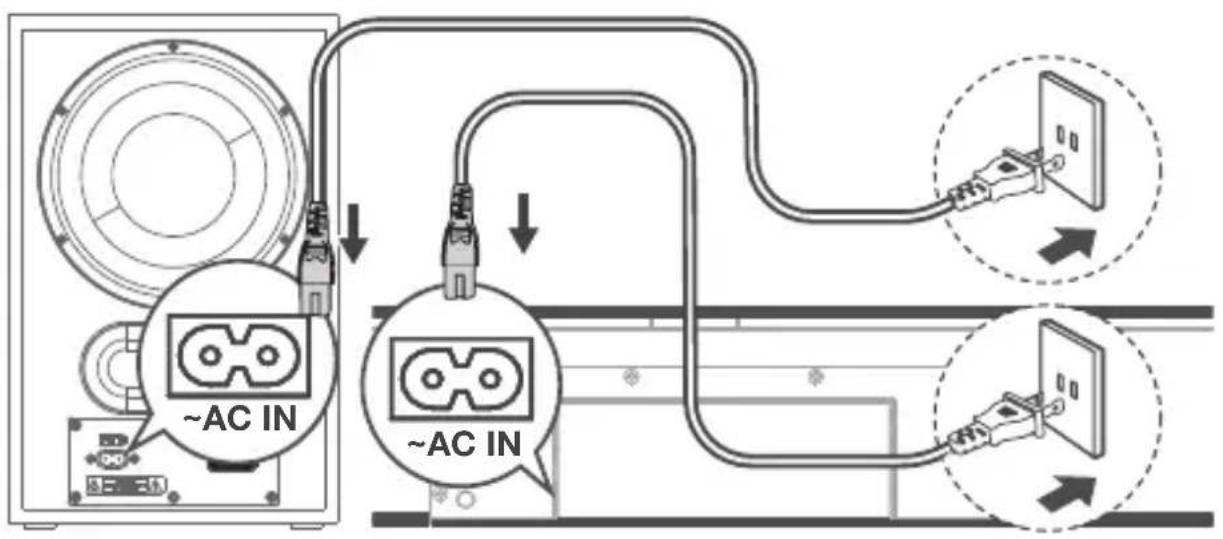
1 Make sure that you have completed all other connections before connecting the Sound Bar to power supply.
2 Make sure the power supply voltage complies with your country's safety standards (see ‘Specifications’ on page 39).
3 Connect one end of another supplied AC power cord to the AC input connector on your subwoofer and another end to the power socket on the wall.
4 Connect one end of a supplied AC power cord to the AC input connector on your Sound Bar main unit and another end to the power socket on the wall.
Connect the Sound Bar with your Bluetooth device
Notes
- Make sure your wireless device supports the Bluetooth function.
- The operational range between the Sound Bar main unit and your Bluetooth device is approximately 10 meters (without any obstacle between the Bluetooth device and Sound Bar main unit).
1 Press ☐ on the top panel of your Sound Bar main unit or remote control to power on the Sound Bar.
2 Press *on the top panel of your Sound Bar main unit or remote control.
→ The blue LED flashes slowly. The Sound Bar is ready to pair.
3 Power on your Bluetooth device and activate its Bluetooth function.
4 Select TCL Alto 7+ on the pairing list of your Bluetooth device.
→ You hear distinct double beep sound.
→ The blue LED remains on solidly when pairing is successful.
Tip
- If you cannot find the model name TCL Alto 7+ on your Bluetooth device, press and hold ▶ on the remote control. You will see the blue LED flashes rapidly. Now the Sound Bar main unit is entering the pairing mode.
Your Sound Bar system is now set up and ready to use.
5 To disconnect the Bluetooth function, you can:
- press on the Sound Bar main unit or remote control to switch to another source; or
• disable the Bluetooth function on your device; or - press and hold▶ on the remote control for 3 seconds.
Connect your wireless subwoofer to the Sound Bar
When the wireless subwoofer is connected, you can enjoy powerful deep bass sounds and a truly immersive audio experience.
Auto pairing
Make sure both the Sound Bar and wireless subwoofer are connected to the power supply and are turned on.
→ The Sound Bar will pair with the subwoofer automatically.
→ The blue LED will flash when pairing is in progress.
→ The blue LED will remain on solidly when pairing is successful.
Note
- Do not press PAIR at the back of the wireless subwoofer during auto pairing.
Manual pairing
1 Make sure the Sound Bar and wireless subwoofer are properly connected to the power supply.
2 Press PAIR at the back of the wireless subwoofer until the blue LED on the subwoofer flashes slowly.
→ The wireless subwoofer is ready to pair.
3 Press ⚙ on the top panel of your Sound Bar main unit or the remote control to power on your Sound Bar main unit.
→ The Sound Bar and wireless subwoofer will pair automatically.
→ Pairing is successful. The blue LED remains on solidly.
Note
- If the blue LED at the back of the subwoofer still flashes after pairing, it means pairing is not successful. Disconnect the AC power cord from the wireless subwoofer and then connect again after 3 minutes. Then repeat steps 1 to 3.
Connect the IR pass-through cable
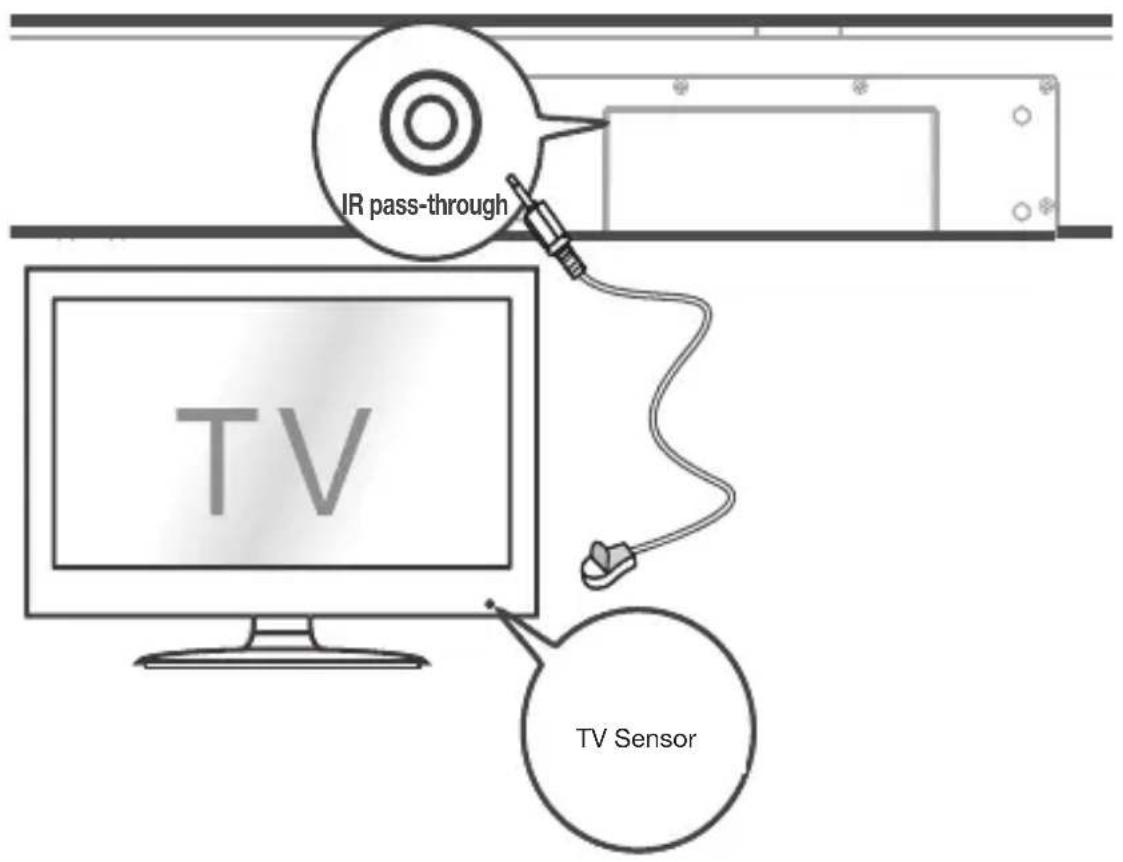
If the Sound Bar blocks the IR receiver of the TV when placing directly in front of it, you can connect the Sound Bar and TV with the supplied IR pass-through cable so that it can receive signal from the remote control of your TV. Connect one end of the IR pass-through cable to the IR pass-through cable connector on your Sound Bar main unit. Then, place another end with the IR blaster close to the TV sensor. For information, check the user manual of your TV.
4 Use your Sound Bar system
Use your Sound Bar with the top panel or remote control
1 Make sure the Sound Bar is properly connected to the power supply and sources.
2 Press on the top panel of your Sound Bar main unit or remote control to power on the Sound Bar.
→ The Sound Bar will pair with the subwoofer automatically. If pairing is not successful, pair your Sound Bar with the subwoofer manually (see ‘Connect your wireless subwoofer to the Sound Bar’ on page 29).
3 Press at the top panel of your Sound Bar main unit or remote control to switch to the correct source.
LED behaviors under different source modes
| LED indicators Source mode |
| The red LED is on solidly. in standby mode |
| The purple LED is on solidly. in HDMI ARC mode |
| The green LED is on solidly. in AUX mode |
| The blue LED is on solidly. in Bluetooth mode |
The blue LED flashes slowly. ready to pair
The blue LED flashes slowly. pairing in progress
The yellow LED is on solidly. in optical mode
The white LED is on solidly. in USB mode
Tip
- You can use more advanced functions on the remote control (see ‘Overview of the remote control’ on page 15).
Sound settings
You can enjoy your movies or music with your ideal sound.
- Press +/- to adjust the volume.
- Press ✗ on the remote control to mute the sound. Press ✗ again to unmute the sound.
- Press the EQ buttons (NEWS/MOVIE/MUSIC) on the remote control to select the equalizer (EQ) effect when you are watching news or movies or listening to music.
| Operation LED indicators | |
| Adjust the volume. The white LED flashes quickly and goes back to the source LED. | |
| Mute the Sound Bar. The red LED keeps flashing. | |
| Unmute the Sound Bar. The red LED flashes and goes back to the source LED. | |
| Maximum or minimum volume level is reached. | The red LED is on for 2 seconds and goes back to the source LED. |
| Select the equalizer (EQ) effect). | Movie: The white LED flashes once. Music: The green LED flashes once. News: The yellow LED flashes once. |
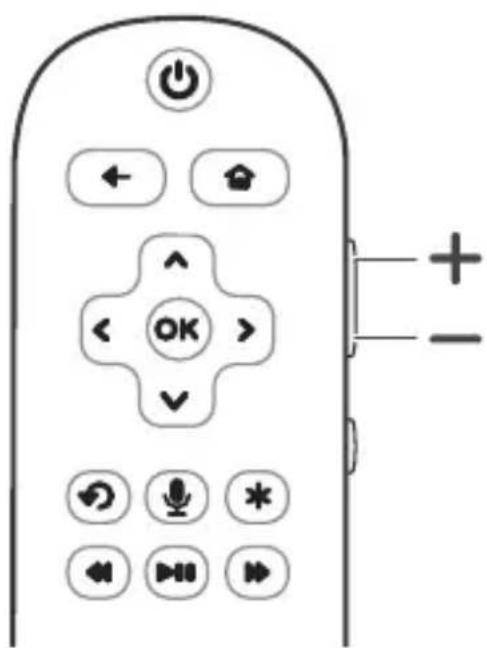
Control the Sound Bar with your TCL Roku TV remote control
Turn on the Sound Bar
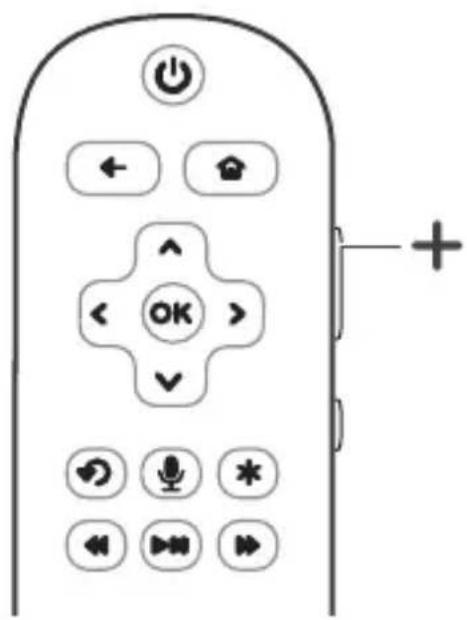
When the sound bar is in standby mode, pressing the volume up (+) button of your TCL Roku TV remote control will turn on the Sound Bar.
Control the Sound Bar volume
When the sound bar is on, pressing the volume up or down button of your TCL Roku TV remote control will turn the Sound Bar volume up (+) or down (-).
Listen to music from your Bluetooth device
1 Make sure that your device supports A2DP and/or AVRCP. For information, check the specification of your device.
2 Pair your Bluetooth device with the Sound Bar main unit (see ‘Connect the Sound Bar with your Bluetooth device’ on page 27).
3 Start listening to music stored in your Bluetooth device through the Sound Bar.
- If your Bluetooth device supports A2DP, you can listen to music, but you cannot control the playback.
- If your Bluetooth device supports AVRCP, you can listen to music and control music playback with the remote control. Press ▶to pause or resume music playback. Press ▶/ ▶to skip to the previous/next track.
Note
- The operational range between the Sound Bar main unit and your Bluetooth device is approximately 10 meters (without any obstacle between the Bluetooth device and Sound Bar main unit).
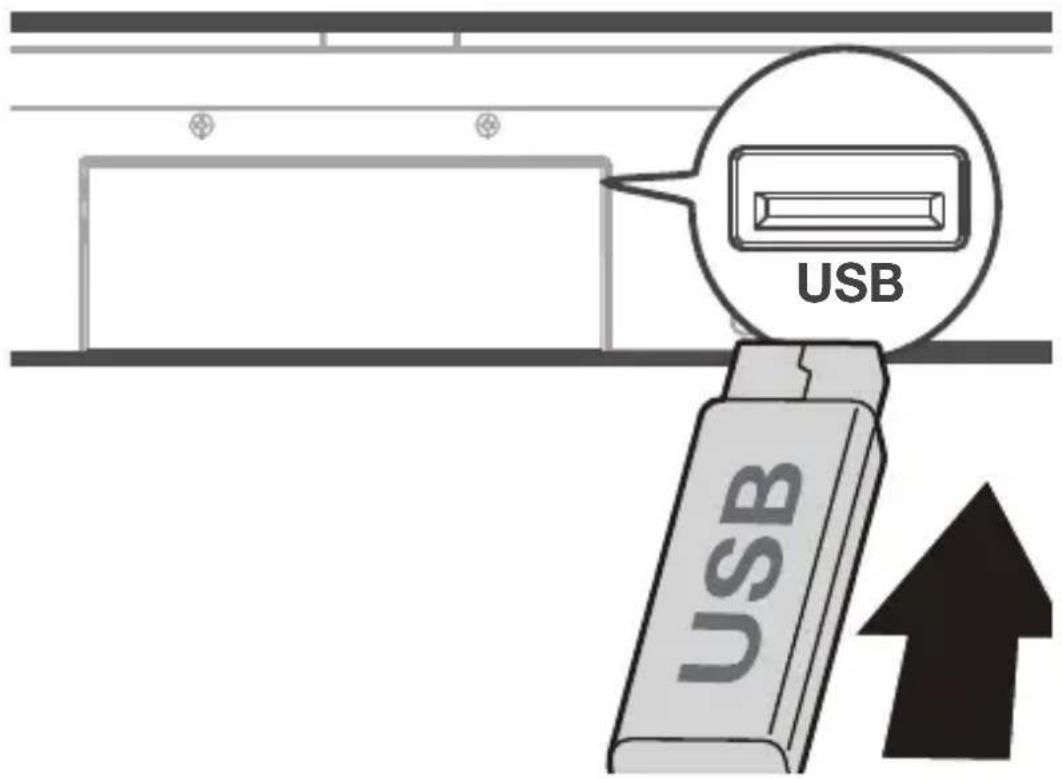
Use the USB cable or device for music playback
1 Connect the USB device to the USB Type A connector on your Sound Bar main unit.
2 Press on the Sound Bar main unit or remote control. until the white LED is on.
3 You can now listen to music through the Sound Bar.
- To pause or resume music, press ▶ on the remote control.
- To skip to the previous or next track, press ▶ or ▶ on the remote control.
| Operation LED indicators | |
| Listen to music. The white LED is on. | |
| Press ▶to pause the music. | The white LED keeps flashing. |
| Press ▶or ▶to skip to the previous/next track | The white LED flashes quickly and goes back to the source LED. |
Tip
- This Sound Bar can support USB devices of up to 32GB memory and the supported file formats are MP3, WAV, FLAC.
5 Specifications
Sound Bar main unit
• Power adapter: AC\~100-240V, 50/60Hz
• Power consumption: 25W
• Power consumption at standby mode: ≤ 0.5W
- Impedance: 6 Ω
• Frequency response: 150 Hz-20 kHz
• Dimensions (W x D x H): 920 x 98 x 64 mm
• Weight: 2.48 kg
• Operating temperature: 0°C - 45°C
Wireless subwoofer
• Power adapter: AC\~100-240V, 50/60Hz
• Power consumption: 25W
• Power consumption at standby mode: ≤ 2.0W
• Frequency response: 40 Hz-120 Hz
• Frequency range: 2402 Mhz – 2480 Mhz
• Max transmitting power: 2.85dBm
• Dimensions (W x D x H): 210 x 248 x 328 mm
• Weight: 3.6 kg
Bluetooth
- Bluetooth version: 4.2, Bluetooth profile - Bluetooth stereo supported (Advanced Audio Distribution Profile - A2DP; Audio Video Remote Control Profile - AVRCP)
• Frequency range: 2402 Mhz – 2480 Mhz
• Max transmitting power: 3.587dBm
Remote control
• Distance/Angle: 6m/30°
- Battery type: 1.5V AAA battery x 2, user replaceable.
6 Notice
Compliance notice
Notice for US
FCC Information
Warning
- Changes or modifications to this unit not expressly approved by the party responsible for compliance could void the user's authority to operate the equipment.
Note
- This equipment has been tested and found to comply with the limits for a Class B digital device, pursuant to Part 15 of the FCC Rules. These limits are designed to provide reasonable protection against harmful interference in a residential installation. This equipment generates, uses and can radiate radio frequency energy and, if not installed and used in accordance with the instructions, may cause harmful interference to radio communications. However, there is no guarantee that interference will not occur in a particular installation.
If this equipment does cause harmful interference to radio or television reception, which can be determined by turning the equipment off and on, the user is encouraged to try to correct the interference by one or more of the following measures:
• Reorient or relocate the receiving antenna.
- Increase the separation between the equipment and receiver.
- Connect the equipment into an outlet on a circuit different from that to which the receiver is connected.
- Consult the dealer or an experienced radio/TV technician for help.
To assure continued compliance, any changes or modifications not expressly approved by the party responsible for compliance could void the user's authority to operate this equipment. (Example- use only shielded interface cables when connecting to computer or peripheral devices).
This set complies with the FCC rules, Part 15 and with 21 CFR 1040.10. Operation is subject to the following two conditions:
1 This device may not cause harmful interference, and
2 This device must accept any interference received, including interference that may cause undesired operation.
FCC Radiation Exposure Statement: This equipment complies with FCC radiation exposure limits set forth for an uncontrolled environment. This transmitter must not be co-
located or operated in conjunction with any other antenna or transmitter.
WARNING: Changes or modifications made to this equipment not expressly approved by TCL Corporation may void the FCC authorization to operate this equipment.
Caution
- The manufacturer is not responsible for any radio or TV interference caused by unauthorized modifications to this equipment. Such modifications could void the user authority to operate the equipment.
Notice for Canada
Class B Clause
This digital apparatus does not exceed the Class B limits for radio noise emissions from digital apparatus as set out in the Radio Interference Regulations of the Canadian Department of Communications.
This Class B digital apparatus complies with Canadian ICES-003
This device complies with Industry Canada licence-exempt RSS standard(s). Operation is subject to the following two conditions: (1) this device may not cause harmful interference, and (2) this device must accept any interference received, including interference that may cause undesired operation.
CAN ICES-3(B)/NMB-3(B)
IC Radiation Exposure Statement
This equipment complies with Canada radiation exposure limits set forth for uncontrolled environments. This transmitter must not be co-located or operating in conjunction with any other antenna or transmitter.
Caution: The user is cautioned that changes or modifications not expressly approved by the party responsible for compliance could void the user's authority to operate the equipment.
Disposal of your old product and battery
Your product is designed and manufactured with high quality materials and components, which can be recycled and reused.
This product may contain lead and mercury. Disposal of these materials may be regulated due to environmental considerations. For disposal or recycling information, please contact your local authorities.
This product contains non-removable batteries:
- Do not incinerate. Batteries may explode if overheated.
- For disposal or recycling information, please contact your local authorities.
Trademarks
Bluetooth
Bluetooth®
The Bluetooth® word mark and logos are registered trademarks owned by Bluetooth SIG, Inc. and any use of such marks by TCL Corporation under license. Other trademarks and trade names are those of their respective owners.
Dolby Audio

DOLBY AUDIO™
Manufactured under license from Dolby Laboratories. Dolby, Dolby Audio, and the double-D symbol are trademarks of Dolby Laboratories. Copyright 1992-2015 Dolby Laboratories. All rights reserved.
HDMI

HIGH-DEFINITION MULTIMEDIA INTERFACE
HDMI, and HDMI logo and High-Definition Multimedia Interface are trademarks or registered trademarks of HDMI licensing LLC.
7 FAQ
No power
- Make sure the AC power cord and AC input connector are connected properly.
- Make sure there is power supply.
- Make sure the Sound Bar has turned on.
No sound
- Make sure the audio cable is connected to the Sound Bar and your device.
- Make sure you have selected the correct source.
- Press + to increase the volume level.
- Make sure the Sound Bar is not muted.
The remote control does not work.
- Make sure you have selected the correct source.
- Make sure the distance of remote control and the Sound Bar main unit is within operational range.
- Make sure the battery is correctly inserted and is working.
- Make sure the remote control is close to the remote control sensor of the Sound Bar main unit.
I hear distorted sound.
- Make sure all cables are properly connected.
- Make sure you have selected the correct source.
- Make sure the TV is muted if you play audio from the TV.
I cannot find the Bluetooth name of this Sound Bar on my Bluetooth device.
- Make sure the Bluetooth function is activated on your Bluetooth device.
- Make sure the Sound Bar has paired with your Bluetooth device.
The LED indicator of the subwoofer is off.
- Reset the subwoofer by disconnecting the power supply and reconnecting after 2 minutes.
For further support, visit www.tclusa.com/support or www.tclcanada.com/support
DO NOT RETURN TO STORE
WE ARE
READY TO
HELP
contact us first with any questions

TOL SUPPORT:
www.tcl.com/support or
www.tclcanada.com/support
1-877-300-9223

TAKE CARE WHEN
REMOVING THE SOUNDBAR
- Channel Home Theater Sound Bar
- User manual
- Product Registration
- Product Information
- Contents
- Important safety instructions
- Important information
- CAUTION
- Warnings
- Important safety instructions
- Cautions
- Battery caution and disposal information
- Installation location
- Welcome
- What's in the box
- Overview of the Sound Bar main unit
- Overview of the wireless subwoofer
- Overview of the remote control
- 4
- /
- \*
- 7
- NEWS/MOVIE/MUSIC
- Set up your Sound Bar system
- Notes
- Mount your Sound Bar main unit on the wall
- Position your subwoofer
- Install/replace the remote control batteries
- Connect your Sound Bar system
- Connect with the supplied HDMI cable
- Note
- Connect with the supplied optical cable
- Directions for setting up your Sound Bar using an optical cable
- Connect with the supplied 3.5mm-to-3.5mm audio cable
- You can either:
- Connect your Sound Bar to power supply
- Connect the Sound Bar with your Bluetooth device
- Tip
- Connect your wireless subwoofer to the Sound Bar
- Auto pairing
- Manual pairing
- Connect the IR pass-through cable
- Use your Sound Bar system
- Use your Sound Bar with the top panel or remote control
- LED behaviors under different source modes
- Sound settings
- Control the Sound Bar with your TCL Roku TV remote control
- Turn on the Sound Bar
- Control the Sound Bar volume
- Listen to music from your Bluetooth device
- Use the USB cable or device for music playback
- Specifications
- Sound Bar main unit
- Wireless subwoofer
- Bluetooth
- Remote control
- Notice
- Compliance notice
- Warning
- Notice for Canada
- IC Radiation Exposure Statement
- Disposal of your old product and battery
- Trademarks
- Bluetooth®
- DOLBY AUDIO™
- FAQ
- No power
- No sound
- DO NOT RETURN TO STORE
- WE ARE
- READY TO
- HELP
Brand : TCL
Model : Alto 7+
Category : Soundbar