
RangerX - Tablet Xplore - Free user manual and instructions
Find the device manual for free RangerX Xplore in PDF.


| Product Type | Tablet |
| Brand | Xplore |
| Model | RangerX |
| Display Size | 7 inches (estimated) |
| Processor | Quad-core (estimated) |
| RAM | 2 GB (estimated) |
| Internal Storage | 16 GB (estimated) |
| Battery Capacity | 4000 mAh (estimated) |
| Operating System | Android (estimated) |
| Connectivity | Wi-Fi 802.11 b/g/n, Bluetooth 4.0 |
| Dimensions | 200 x 130 x 15 mm (estimated) |
| Weight | 500 g (estimated) |
| Main Functions | Web browsing, media playback, e-reading, light productivity |
| Care and Cleaning | Wipe with a soft, dry cloth; avoid liquids and abrasives |
| Safety | Do not expose to extreme temperatures or moisture; keep away from children |
| Spare Parts and Repairability | Contact customer service for authorized repairs; no user-serviceable parts |
| General Information | User manual available in PDF format on the manufacturer's website |
Frequently Asked Questions - RangerX Xplore
User questions about RangerX Xplore
0 question about this device. Answer the ones you know or ask your own.
Ask a new question about this device
Download the instructions for your Tablet in PDF format for free! Find your manual RangerX - Xplore and take your electronic device back in hand. On this page are published all the documents necessary for the use of your device. RangerX by Xplore.
USER MANUAL RangerX Xplore

RANGERX USER'S HANDBOOK
Table of Contents
Disclaimer....4
Trademarks....4
Copyright 4
Publication information 4
Declaration of conformity 5
Warranty information....5
Important safety information....5
Welcome
8
About your computer....9
Package contents 10
Optional accessories....11
Contacting Xplore – service and questions....12
Getting Started
13
Introduction....13
Description 13
Back view....14
Right side view....15
Left side view....16
Bottom view....17
LED indicators....18
Quick-start guide....20
First time Operation. 20
Turning On/Off and Suspend/Resume 21
Input Operation....23
Maintaining the Tablet
Caring for the tablet....24
Checking power cords and connectors....24
Protecting the computer from damage....24
Storing the computer 25
Caring for the display screen 25
Protecting the display screen 25
A Troubleshooting 27
B Hardware Specifications 29
C Angency Notices 32
D Environmental 37
Environmental Policy....37
Take back and Recycling Program....38
Environmental and Sustainability Corporate Report 39
Disclaimer
Xplore Technologies® has made every effort to ensure the accuracy and completeness of this document; however, because ongoing development efforts are made to continually improve the capabilities of our products, we cannot guarantee the accuracy of the contents of this document. We disclaim liability for errors, omissions, or future changes herein.
Trademarks
Xplore and the Xplore logo are registered trademarks of Xplore Technologies Corp. of America; iX104, iX104C5, RangerX, iX104C5 Lite, and iX104C5 Dual Mode are trademarks of Xplore Technologies Corp. Kensington and MicroSaver are registered trademarks of the Kensington Technology Group. Android™ is trademark of Google Inc. MicroSD is registered trademark of the Personal Computer Memory Card International Association. Wi-Fi is a trademark of the Wireless Ethernet Compatibility Alliance (WECA). HDMI is a trademark of “” All other brands, product names, company names, trademarks and service marks used herein are property of their respective companies.
Copyright
Copyright © 2003-2013 Xplore Technologies Corp. All rights reserved. No part of this publication may be copied, reproduced, or translated, without the prior written consent of Xplore Technologies. No part of this publication may be stored or transmitted in any electronic form without the prior consent of Xplore Technologies. Any unauthorized use is a violation of copyright laws.
Publication information
PN: 95-01208
March 2013

Declaration of conformity
DECLARATION OF CONFORMITY according to FCC Part 15, IC ICES-003, and RTT&E directives Responsible Party Name: Xplore Technologies Corp.
Address: 14000 Summit Drive, Suite 900, Austin, Texas 78728
Telephone: 512.336.7797
Declares that product: Model Series: RangerX complies with Part 15 of the FCC Rules. This device complies with Part 15 of the FCC rules. Operation is subject to the following two conditions: (1) This device may not cause harmful interference, and, (2) This device must accept any interference received, including interference that may cause undesired operation.
WARNING
Changes or modifications to this unit not expressly approved by the party responsible for compliance may void the user's authority to operate this equipment. For more information about FCC, IC, and EU rules and their applicability to the RangerX, see Appendix E, "Agency Notices."
Warranty information
The RangerX is backed by a standard 36-month International Limited Warranty. An extended International Limited Warranty is available. Check the service kit included with your computer for warranty terms and conditions.
Important safety information
Before you use the RangerX (referred to as the tablet), read these safety instructions and the operation instructions in this handbook.
Failure to observe all these instructions voids the Limited Warranty and may lead to suspension or denial of services to the offender, or legal action, or both.
Follow any special regulations governing the use of the tablet and, if radio-enabled, always switch it off in areas where radio devices are forbidden or when the radio device can cause interference or danger.
Always follow any safety laws and regulations pertaining to the use of cell phones and two-way radios, because these laws and regulations typically apply to the use of the wireless-enabled tablet.
Observe all restrictions on the use of radio equipment in fuel depots (fuel storage and distribution areas), chemical plants, and wherever blasting operations are in progress or in any area in which restrictions on radio transmissions are imposed.
Switch off the tablet when in an aircraft. The tablet is not FAA-approved for use on aircraft. The effect of the use of the tablet in aircraft is unknown. Using the tablet in an aircraft may affect aircraft instrumentation, communication, and performance; may disrupt the network; and may be illegal.
Operating the wireless-enabled tablet may interfere with the functioning of inadequately protected medical devices such as pacemakers. Consult a physician or the manufacturer of the medical device if you have any questions.
Radio signals from your tablet will not affect the operation of most modern equipment, but certain electronic equipment, including automotive systems, may not be shielded against radio signals from your tablet. Check with the manufacturer of your motor vehicle or the manufacturer's representative to determine whether using the tablet will present any safety issues. Avoid using the tablet in any environment that requires your full attention, such as when driving a vehicle. If you need to use your tablet while driving, have a passenger use it for you or find a safe location to halt your vehicle.
WARNING BATTERIES
Use only battery types specified in this handbook. Using any other type of battery can be dangerous and can disable the tablet. Do not drop or mishandle the batteries, immerse them in water, or subject them to high heat. Doing so could increase the risk of explosion or leakage, and possibly cause injury. The lithium-ion batteries used in this equipment contain material that is hazardous to your health. If battery contents come in contact with the eyes, IMMEDIATELY flush the affected area with clean water for 15 minutes and have someone else summon medical attention for you. Unaffected persons should assist the affected individual in the vital first flushing of the eyes. RECHARGING THE BATTERY MUST ONLY BE CARRIED OUT IN ANON-HAZERDOUS AREA USING THE SUPPLIED ac ADAPTOR. The definition of hazardous areas can be found in Standard EN 60079-10.
WARNING
When operating the tablet in a known explosive environment do not remove or replace the battery while the circuit is live. Before removing the battery verify that the area is known to be free of ignitable concentrations of flammable substances. EXPLOSION HAZARD – DO NOT DISCONNECT WHILE CIRCUIT IS LIVE UNLESS AREA IS KNOWN TO BE NON-HAZERDOUS.
AVERISSEMENT - RISQUE D'EXPLOSION. NE PAS DÉBRANCHER TANT QUE LE CIRCUIT EST SOUS TENSION, À MOINS QU'IL NE S'AGISSE D'UN EMPLACEMENT NON DANGEREUX.
WARNING
Do not use any dock or any other accessory or attachment that is not manufactured or supplied by Xplore or an authorized Xplore accessories supplier. Use of any accessory or attachment that is not supplied or approved for use with the tablet by Xplore is not permitted because it may cause hazards.
Operate the tablet only from the type of power source indicated on the marking label. (See page 54 for more information about the battery and power supply.) Route power supply cords so that they are not likely to be walked on or pinched by items placed upon or against them. Pay particular attention to cords at plugs and convenience receptacles, and at the point where cords exit from the tablet or its dock. Do not overload wall outlets, extension cords, or integral convenience receptacles because this can cause fire or electric shock.
Unplug the tablet and refer the tablet and dock for service to qualified service personnel if any of the following conditions occur:
• The power supply cord or plug is damaged.
- The tablet or dock does not operate normally when you follow the instructions in this book.
- The tablet or dock exhibits a distinct change in performance.
Adjust only controls for which there are instructions in this book. An improper adjustment of other controls can result in damage and may require extensive work by a qualified technician to restore the tablet or dock to normal operation.
CAUTION
Avoid prolonged physical contact with the exposed metal surfaces on the front and back of the tablet. While the tablet may not feel hot to the touch, if you maintain physical contact with the tablet for a long time (for example, if you rest the tablet on your lap for a long time), your skin may suffer low-heat injury. In addition, be careful when you remove a PC card that has been used for a long time, because the card may be hot.
Welcome
Welcome to the Xplore Technologies® RangerX™ tablet, the rugged tablet designed, tested, and manufactured to meet the environmental and physical real-world challenges faced by today's mobile workers. Based on years of experience in rugged mobile applications, the RangerX is designed to withstand the abuses of everyday wear and tear. Advanced technology, innovative design, and a rugged case are just a few highlights of your RangerX system.

Note: This handbook assumes that you have basic experience using Anroid 4.2, Jelly Bean.
Welcome
About Your Computer
The RangerX is a high-performance tablet that runs on Android 4.2, Jelly Bean. The method you use to control the tablet is as follows:
Tablet Model
iX101T1
Touchscreen
Projected Capacitive Touch (PCT)
Control Method
• Special, enhanced pen (Optional with the tablet)
• One or two fingers
•Glove Touch
Note: In this handbook, all information applies to all models unless otherwise noted.
Welcome
All RangerX tablets have been engineered and tested to meet Military Standards for Environmental Extremes (MIL STD 810G). Your tablet includes the following features that make it exceptionally rugged and durable:
• Durable, long-lasting, plastic enclosure
• Interior magnesium alloy frame
- Bumper system and gasket protection mechanisms
• Solid State storage memory
- Integrated, protected wireless LAN and WAN antennas for dual mode operation
• Chemically treated rugged Display Glass
Package Contents
Check to make sure your package includes the following items:
- Quick Start Guide
- AC adapter
- RangerX tablet
• Warranty information kit
Welcome
Package Contents
Optional Accessories
Your package may also include any optional accessories you ordered.
Docking Options
• Vehicle Docking Station
Carrying Cases
- Carrying handle with Stylus and Shoulder Strap
• Tablet backside hand-strap
Memory
- Internal "User secure" SD memory expansion up to 160GB
Additional Accessories
• CAC reader expansion bay
• HDMI-IN and 1Gb Ethernet expansion bay
• Auto adapter (cigarette lighter adapter)
Welcome
Contacting Xplore-Service and Questions
Note: To troubleshoot problems (including wireless and GPS problems), before you call, read the FAQ page of the Xplore Technologies Web site. Go to http://www.xploretech.com; then select Customer Support; then FAQ.
If you purchased your tablet from an authorized Xplore dealer, contact the dealer for service and support. If you purchased your tablet directly from Xplore, use any of the following methods to contact Xplore for service and support:
Web site: http://www.xploretech.com
E-mail: customersupport@xploretech.com
Toll free: 1-866-296-8541, extension 222
Fax: 1-512-336-7791
Before you contact Xplore, have the following information ready so that the customer support representative can quickly provide a solution:
Product name: RangerX
Product serial number
Conditions under which the problem occurred
Any error messages that were displayed
Type of device connected, if any
The serial number is on the back of the tablet
RangerX User's Handbook
Getting Started
This chapter gives you an overview of your tablet and includes a quick-start guides.
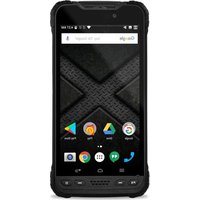
Front View
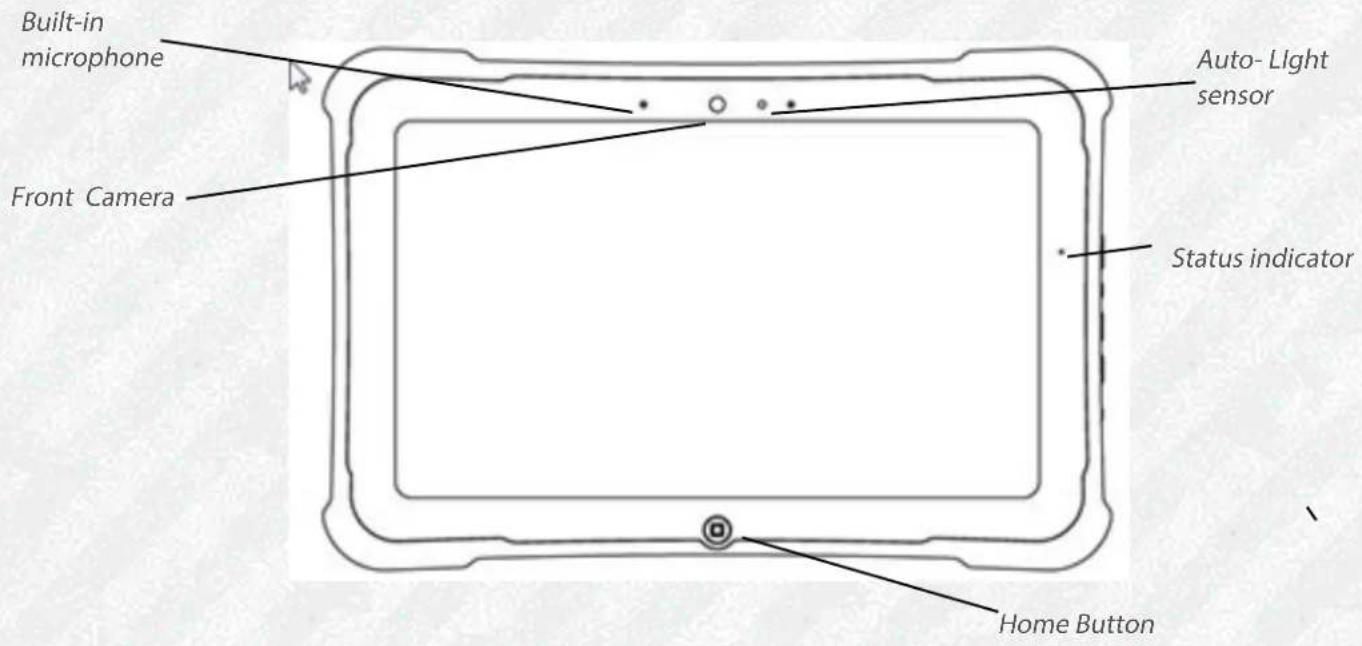
Built-in microphone Enables you to input mono audio
Front Camera HD Video front facing camera for video conferencing, video capture or still picture capture.
Status indicator Indicates the computer status (on, off, charging)
Home Button Home Button for easy navigation within the Android environment.
Auto Light Sensor Detects ambient light conditions
RangerX User's Handbook
Getting Started
Back View
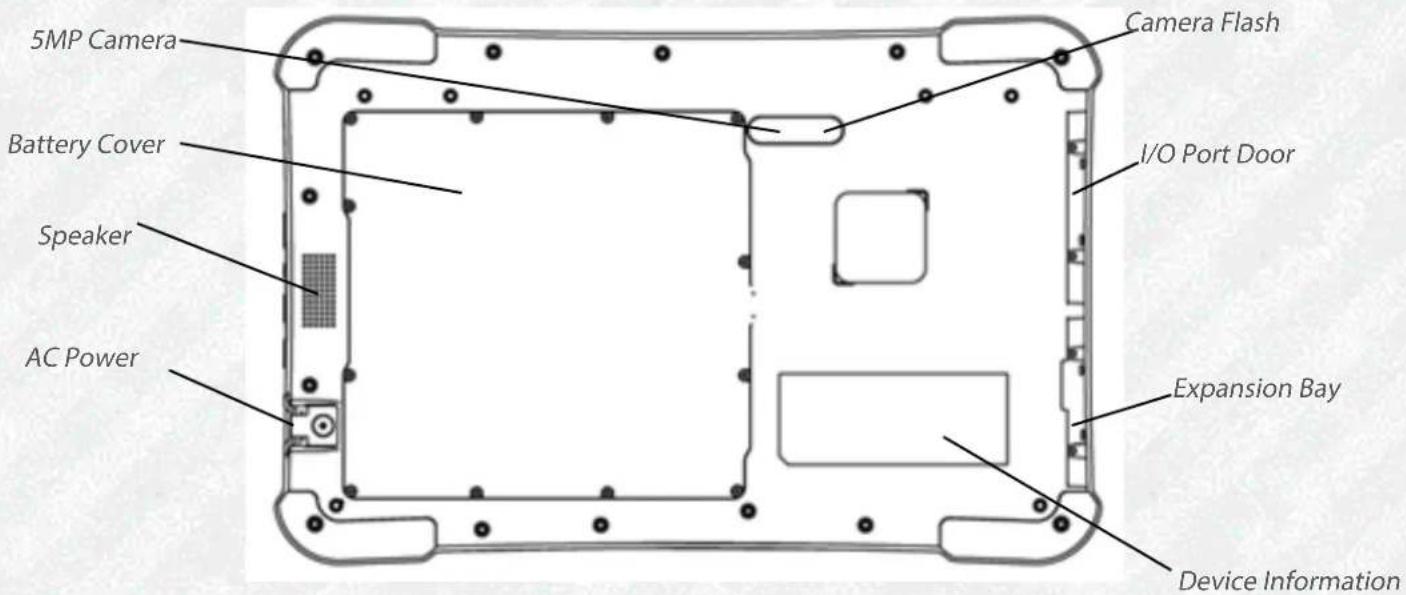
Speaker Integrated Speaker for Audio Playback
AC Power Powers the commuter when connected to AC power supply.
Battery Cover Provides access to the battery.
Rear 5MP Camera 5MegaPixel rear facing camera for High Quality still photography or HD Video
Rear 5MP Camera Flash Flash light for the rear facing camera for dim light conditions
RangerX User's Handbook
Getting Started
Right side view

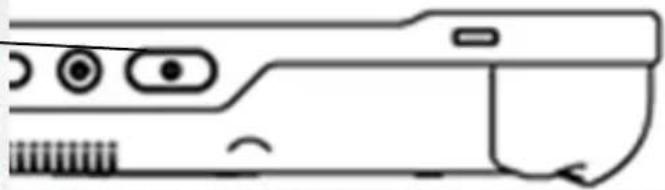
Power (On/Off)/ Press to power computer, press and hold for 4 seconds to force power off use Suspend (On/ Off) Momentarily depress to enter/exit Suspend mode.
Screen Orientation lock Locks the screen in current position regardless of tablet orientation when pressed. Press again to un-lock screen orientation.
Volume Up/ Down Press top of rocker button to increase Audio volume Press bottom of rocker button to decrease Audio volume
AC Power connector Pull back cover to expose connector Jack for AC power supply
Getting Started
Left side view

Audio connector Headset connector for Android compatible earphones and microphone
USB 2.0 Ports One Universal Serial Bus (compliant with USB Standard Revision 2.0) HOST and One Micro-B
OTG connector.
HDMI Output HDMI Micro connector for connection to External Monitor or HDTV device
WAN SIM Slot Wireless Data Provider SIM card (insert contacts facing up).
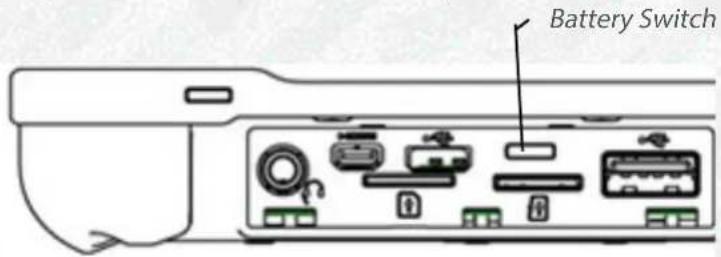
Battery Enable Switch Power Safety Switch to isolate Battery during shipping. It must be on (thrown toward tablet top) for the device to operate. See First time operation section.
SD Card Slot microSD memory card slot for user memory expansion (insert contacts facing up)
(Optional) LAN Connector RJ45 for Ethernet LAN data connection.
(Optional) HDMI Input HDMI Mini connector for Input of Video1080i/720p content from a Set-top box or DVD player
Optional) CAC Reader Conditional Access Card reader slot
RangerX User's Handbook
Getting Started
Bottom view
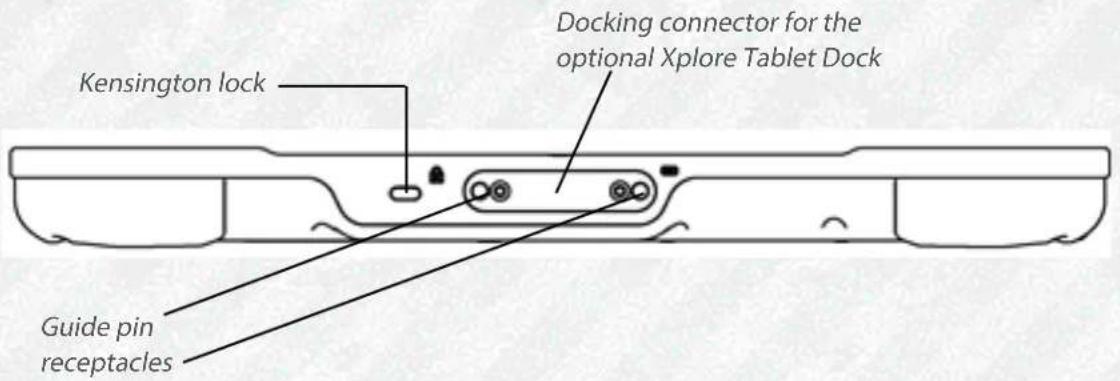
Dock Connector Enables you to connect the optional xStand Desktop Docking Station or xDock Vehicle Docking Stations.
Guide pin receptacles Help assure a secure connection of the optional xStand or xDock. Note: See "Optional accessories" on page 16.
Kensington lock slot Connector for the optional Kensington MicroSaver™ or equivalent compatible Security cable Note: Contact your reseller for information regarding the Kensington security cable.
Getting Started
LED Status Indicator
The LED Status indicator lights show the status of system functions

The following table defines the various LED states
Table 1: Status LED Indicator
| Model/ | State | LED | State | Meaning |
| On state | green, continuous | The computer is on, ready for use, and functioning | ||
| On Charging | green blinking | The AC adapter is plugged in and the battery is charging. | ||
| Off state | off (no light) | The computer is off | ||
| Off Charging | Red blinking | The computer is off and the battery is charging | ||
RangerX User's Handbook
Getting Started
LED Status Indicator (Continued)
| Table 1: Status LED Indicator (Continued) | ||||||||
| Model/ | State | LED | State | Meaning | ||||
| On | red blinking The computer is powered on, running on battery power, and the charge level in the battery has computer into an AC/DC power source or install a | reached | a | minimum | warning | state. | ||
| charged | battery | |||||||
| On | red continuous The computer is on, running on battery power, and the charge level in the battery has reached a critical state. Plug the computer into an AC/DC power | source | or | install | a | charged | batte | |
| Or: | ||||||||
| The computer has encountered a fault and is not | operating personnel, | normally. such | as | contact your | your help | compu de | ||
RangerX User's Handbook
Getting Started
Quick-start guide
First time turning on the computer
- Find and Turn the Battery switch ON. A small screwdriver or paperclip may be used for this purpose. For Safety reasons the tablet is shipped with the Battery switch OFF and the tablet will not operate if this step is not taken. It is not necessary to turn the Battery switch of the device ON or OFF during normal device operation so this operation is only needed on initial device operation.
Battery Switch is ON when thrown toward the top side of the tablet.
-
Make sure the battery is charged or that the computer is plugged into an external power source.
-
Press the Power On/Off/Suspend/Resume button.
Power On/ Of Display Toggle and Suspend/Resume button
- Xplore Technologies Logo should display. Allow device to finish boot-up and follow configuration instructions on your screen
Using the Tablet
Turning On/Off the computer
First time turning on the computer
- Press the Power On/Off/Suspend/Resume button

- Drag


- Or Drag


Turning off the computer
- If the computer is in Suspend mode, press the Power On/Off/Suspend/Resume button to resume operation.

- Make sure the battery is charged or that the computer is plugged in to an external power source.
- Save your work.
- Press and hold Power ON/OFF button for 3 seconds then release.
- When Dialog box is shown press OK.
Using the Tablet
Suspend Operation
To conserve battery power when you do not want to turn off the computer, put the computer into Suspend mode. (You can suspend operation without closing any apps.). The default configuration at time of purchase is for the system to enter suspend mode automatically after 5 minutes of no activity.
To manually enter suspend mode press the Power switch briefly and release. The display should switch off, without any confirmation menu being presented.
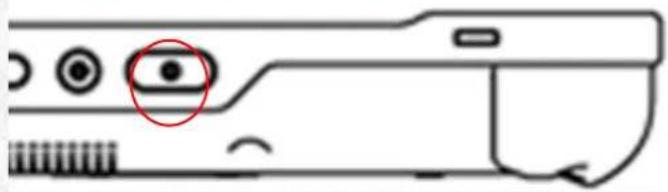
Resume Operation
To resume tablet operation from Suspend mode follow the same procedure as turning the tablet on.
- Press the Power On/Off/Suspend/Resume button


If this is not successful the battery on the tablet may have fully discharged. Plug the tablet into AC power and repeat the procedure
Using the Tablet
Screen Input Operation

Touch- Select Item or option
Touch and Hold- Open Special

Drag- Scroll the screen
Flick- Scroll the screen quickly
Drag and drop- Move an item
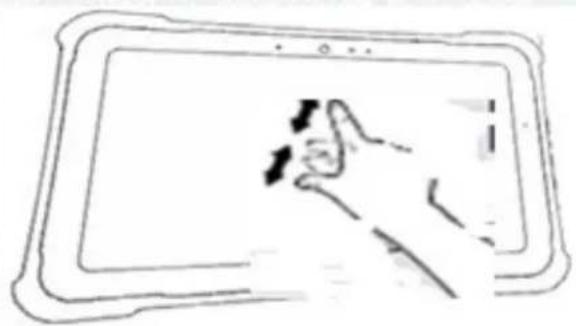
Pinch-Zoom
Maintaining the Tablet
Caring for the Tablet
This section provides information about how to keep your tablet in top working condition.
Checking power cords and connectors
Check AC and DC power cords and power connectors periodically for damage. Replace the power cord immediately if you find any damage.
Protecting the computer from damages
- Your computer is designed to sustain a multiple-axis drop to anonyielding surface. Do not intentionally drop the computer, because the cumulative effects of multiple drops may damage thecomputer.
- Do not place heavy objects on the computer.
- Do not disassemble the computer.
- Keep the computer at least 5 inches (13 centimeters) away from any electrical appliance that generates a strong magnetic field, such as a motor, magnet, TV, refrigerator, or large audio speakers.
Maintaining the Tablet
Caring for the Tablet
Storing the Computer
You can store the computer in the Off state for about 30 days with a fully charged battery installed. After this period, recharge the battery or replace it with a charged battery.
Caring for the display screen
To clean the display screen, dampen a soft cotton cloth with water and gently wipe the screen surface.
Note: Do not use isopropyl alcohol to clean the screen. Alcohol may damage the surface of the screen.
Protecting the computer from damages
The screen protector is a durable, replaceable writing surface that protects the display screen from abrasion.
To obtain screen protectors, check with your reseller, or go to the Xplore Web site at www.xploretech.com for ordering information. Additional information about installation is included with the screen protectors.
Maintaining the Tablet
Caring for the Tablet
Removing the Screen Protector
Slide your fingernail under the edge of the screen protector and pull the protector away from the screen.
Installing a new screen protector
Follow the instructions included with your screen protector replacement kit.
Note: If a screen protector is already installed on the display screen, remove it before installing the new screen protector.
Troubleshooting
Table 7 contains solutions to some problems. If you cannot solve the problem by taking the actions described, contact your local help desk or your reseller for further assistance.
Table 7 Troubleshooting
| Problem | Possible | causes | and | solution |
| Computer will not start - The battery may be defective or discharged to a critically low level. Connect an external power supply (such as the AC adapter) or install a charged battery. See "Using the battery" on page 54. - Internal components may be above or below the acceptable operating range (below -20°C or above 60°C). After the temperature returns to safe operating range the computer will start. | ||||
| The Computer will not resume operation -The battery may be defective or discharged to a critically low level. When the battery reaches a critically low level, the computer is forced into Suspend- to-RAM mode to avoid a total system power failure. Connect an external power supply (such as the AC adapter) or install a charged battery. See "Using the battery" on page 54. -The computer may be at the critical thermal limit. To avoid damage to heat-sensitive components, the computer enters Suspend-to-RAM mode when the computer operates above 60°C. Operation automatically resumes when the computer cools to below 60°C. Move the computer to a cooler location after being suspended | ||||
The Status LED is red, continuous - The computer is on, running under battery power, and the charge
level in the battery has reached a critical level. Plug the computer into an AC/DC power source or install a charged battery.
- The system has encountered a fault and is preventing normal
operation.
Contact
your
local
help
desk.
The Status LED is red, blinking The computer is powered on, running under battery power, and the
charge level in the battery is at a minimum warning level. Plug the
computer into an AC/DC power source or install a charged battery.
RangerX User's Handbook
Troubleshooting
Table 7 Troubleshooting (continued)
| Problem | Possible | causes | and | solution |
| Display screen is blank or difficult to read Confirm that the computer is on (the Power icon is displayed continuously in the Status area).The brightness may be set too low, causing the screen to appear too dark. To change system brightness, press Settings Icon, Display,Brightness.The video time-out may have expired. Tap the display screen to reactivate the display.Note: This is a normal, power-saving | ||||
Headphone or speaker volume is too low. The volume may be in Mute mode or set too low. Follow the Instruction to adjust headphone or speaker volume.
Make sure the volume control in your audio software is set to an audible level.
An external device is not working with the The device may need to be enabled in the computer's configurator computer program. Contact your local help desk or reseller.
Hardware Specifications
Physical
| Dimensions 11.1" x 7.2" x .85" (W x H x D) | |
| Weight 2.2lbs (.99 kgs)* | |
Processing
| Chip Set OMAP4470 Dual core ARM A9 | |
| Processor Speed Up to 1.5 GHz* |
*Varies according to you computers configuration
Memory/ storage
| Main RAM 2GB LPDDR2 | |
| RAM Options None | |
| L2 Cache 1MB cache | |
| Storage 32GB eMMC | |
| Storage Expansion -up to 160 GB | -One User accessible micro SD- One internal non User accessible microSD |
Display
| Display Color LCD | Projected Capacitative Touch Panel10.1 TFT WVGA (1366x768), 16M colorsBrightness:up to 500 nitsViewing Angle: Horizontal 89 degrees Vertical 10 degrees (min)Contrast Ratio:Typ. 500:1, Min 100:1 |
| Graphics Powerful Imagination Power VR | SX544 Graphics processor for low-power, high-performance 3D/2D graphics, video, and display capabilities. |
RangerX User's Handbook
Hardware Specifications
Interface
| Wireless Radio • One internal WiFi 80 | 2.11 abgnOne Bluetooth radioOne FM Transmitter |
| Integrated Interfaces • DC-in | • USB (2) 2.0Headset and Microphone JackHDMI outputmicroSD Card slotWAN SIM slotLAN (RJ-45 optional)CAC Reader (optional)HDMI input (optional) |
| KeyPad/ User Controls • Application | buttons with primary and secondary functionsPower On/Off/Suspend/Resume button |
Power
| Main Battery • Serviceable Lithium Ion | • 3.7V @ 9600mAh (35.52 Whr)• Recharge Time: 3.5 hours (90%)• Life: Up to 10 hours. (Battery life is dependent on operating system, power management, and applications in use.)• Suspend Life: Min. 5 days |
| AC Adapter Auto-sensing 100-240V, supplying 12 VDC, with a current of 2 A |
Hardware Specifications
Environmental
| Temperature • Operating: | -4 0 to 140 0 F (-20 0 to 60 0 C)• Storage:-4 0 to 158 0 F (-20 0 to 75 0 C) |
| Humidity 95% non-condensing | |
| Shock/ Drop Four-foot drop to plywood, operating on all surfaces, edges and corners | |
| Vibration -0.04g^2/Hz, 20 Hz - 1000 Hz-6dB/octave 1000 Hz - 2000 Hz |
Agency Approvals
| EMC/RF 47CFR Part 15 subpart B, 470 | FR Part 15subpart C, 47CFR Part 15 subpart E, 47CFRPart22, 4CFR Part 24, 47CFR Part 27, ICES-003: 2004 Issue4, RSS-210 Issue 8, EN55022/EN55024, IEC 61000-3-2, IEC61000-3-3, ETSI301-537, ETSI 301-489-1, ETSI301-893, ETSI300-328 |
| Safety UI60980, IEC60980, EN 60980 |
Operating System
| Operating Systems • Google Android | 4.2.2 Jelly Bean |
Agency Notes

FCC notices
This device complies with Part 15 of the FCC Rules. Operation is subject to the following two conditions: (1) this device may not cause harmful interference, and (2) this device must accept any interference received, including interference that may cause undesired operation.
Modifications not expressly approved by Xplore Technologies could void this user's authority to operate the equipment.
Note: This equipment has been tested and found to comply with the limits for a Class B digital device, pursuant to Part 15 of the FCC Rules.. These limits are designed to provide reasonable protection against harmful interference in a residential installation. This equipment generates, uses and can radiate radio frequency energy and, if not installed and used in accordance with the instructions, may cause harmful interference to radio communications. However, there is no guarantee that interference will not occur in a particular installation. If this equipment does cause harmful interference to radio or television reception, which can be determined by turning the equipment off and on, the user is encouraged to try to correct the interference by one or more of the following measures:
- Reorient or relocate the receiving antenna.
- Increase the separation between the equipment and receiver.
- Connect the equipment into an outlet on a circuit different from that to which the receiver is connected.
- Consult the dealer or an experienced radio/TV technician for help.
WLAN: (Wi-Fi)
Please note that 5150-5250MHz (ch. 36-48) is restricted to indoor-use only in many countries including the United States.
RF Exposure
Tests for SAR are conducted using standard operating positions specified by the FCC with the tablet PC transmitting at its highest certified power level in all tested frequency bands. Although the SAR is determined at the
Agency Notes
Before a tablet PC model is available for sale to the public, it must be tested and certified to the FCC and IC that it does not exceed the limit established by the government-adopted requirement for safe exposure. The tests are performed in positions and locations (e.g., next to body/lap) as required by the FCC for each model. (next to body/lap measurements may differ among tablet PC models, depending upon available accessories and FCC and IC requirements). While there may be differences between the SAR levels of various tablet PCs and at various positions, they are all required to meet the government regulations for safe exposure.
This device was evaluated and shown to comply with FCC and IC SAR RF exposure requirements.
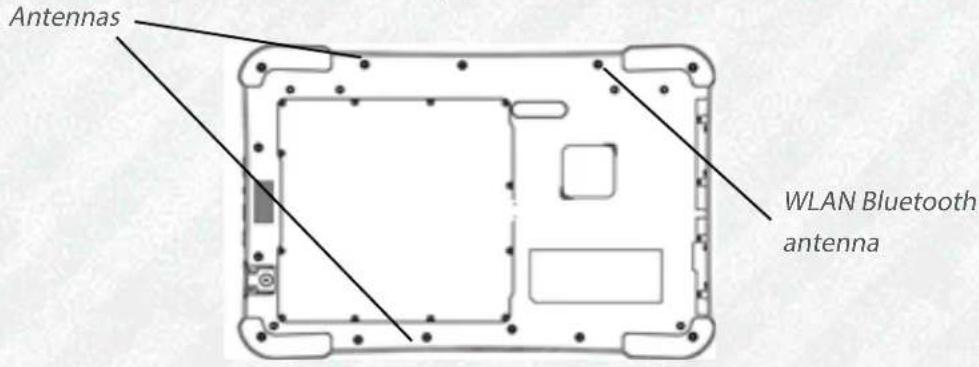
Avoid covering or holding antennas when transmitting. Antenna locations are shown in the following figure.
Health and Safety Information
Exposure to Radio Frequency (RF) Signals
Your wireless tablet PC is a radio transmitter and receiver. It is designed and manufactured not to exceed the emission limits for exposure to radio frequency (RF) energy set by the Federal Communications Commission of the U.S. Government as well as the RTT&E directive. These limits are part of comprehensive guidelines and establish permitted levels of RF energy for the general population.
The guidelines are based on the safety standards previously set by both U.S. and international standards bodies:
• American National Standards Institute (ANSI) IEEE. C95.1-1992
• National Council on Radiation Protection and Measurement (NCRP). Report 86.1986
• International Commission on Non-Ionizing Radiation Protection (ICNIRP) 1996
Agency Notes
- Ministry of Health (Canada), Safety Code 6. The standards include substantial safety margin designed to assure the safety of all persons, regardless of age and health.
• European Union RTT&E Directive for SAR The exposure standard for wireless mobile tablet PCs employs a unit of measurement known as the Specific Absorption Rate, or SAR. The SAR limit set by the FCC is 1.6W/kg. The SAR limit set by the RTT&E is 2.0W/kg.
Note: In the U.S. and Canada, the SAR limit for mobile tablet PCs used by the public is 1.6 watts/kg (W/kg) averaged over one gram of tissue. In Europe the SAR limit for mobile tablet PCs used by the public is 2.0 watts/kg (W/kg) averaged over 10 grams of tissue. The standard incorporates a substantial margin of safety to give additional protection for the public and to account for any variations.
DOC (Industry Canada Notices) Notice to Users of Radio and Television
This unit requires an AC adapter to operate. Use only UL Listed
Class 2 Adapters with an output rating of 12 VDC, with a current of 2.0 A.
AC Adapter output polarity:

For authorized repair technicians only
WARNING
For continued protection against risk of fire, replace only with the same type and rating fuse.
WARNING
Danger of explosion if Lithium (clock) battery is incorrectly replaced.
Replace only with the same equivalent type recommended by the manufacturer. Dispose of used batteries according to the manufacturer's instruction.

System disposal
In the event of system disposal, observe the following information regarding proper procedures in the State of Vermont.
The liquid crystal display (LCD) lamps used in this system contain mercury. In the event of system disposal, be sure to follow local guidelines.

xplore technologies
Declaration of Conformity
Xplore Technologies, Corp. hereby declares under our sole responsibility that the product
√ Name: RangerX
Model: iX101T1
To which this declaration relates, is in compliance with all the applicable essential requirements, and other provisions of the European Council Directives listed. The conformity assessment procedure used for this declaration is Annex IV of Directive 1999/5/EC. This product will bear the CE Mark label (CE I)
DIRECTIVES:
• Directive 2004/108/EC (EMC Directive)
• Directive 2006/95/EC (Low Voltage Directive)
• Directive 1999/5/EC (Radio and Telecommunications Terminal Equipment) (R&TTE Directive)
• Directive 2002/96/EC (Waste of Electrical and Electronic Equipment) (WEEE Directive)
• Directive 2002/95/EC (Restriction of Hazardous Substances) (RoHS Directive)
• Directive 278/2009/EC (Energy Related Products) (ErP Directive)
Product compliance has been demonstrated on the basis of: STANDARDS:
• EN 55022: 2010 (Class B)
• EN 55024: 2010
• EN 61000-3-2:2006+A2:2009
• EN 61000-3-3:2008
• EN 60950-1:2006+A11:2009, +A1:2010+A12:2011
• EN 50564:2011
• ETSI EN 301 357-1 (FM Trans)
• ETSI EN 301 357-2 V 1.3.1
• ETSI EN 301 489-1 V1.9.2
• IEC 62209-2: 2010
• ETSI EN 300 328 V1.7.1 (WLAN/BT)
• ETSI EN 301 893 V1.1.1

David J Ball
Senior Regulatory and Compliance Specialist
The technical construction file is kept available at:
Xpkore Technologies Corp.
14000 Summit Dr. Ste 900
Austin, TX 76728
USA 888-44-XPLORE, FAX: 512-336-7791, www.xpkorstech.com
7 June 2013
Date
Austin, TX, USA
Place

PN 95-01207 Rev A
Environmental
Environmental Policy
Xplore Technologies is committed to managing health, safety and environmental (HS&E) matters as an integral part of our business. In particular, it is our policy to assure the HS&E integrity of our processes and facilities at all times and at all places. We will do so by adhering to the following principles:
Compliance
We will comply with applicable laws and regulations and will implement programs and procedures to assure compliance. Compliance with HS&E standards will be a key ingredient in the training, performance reviews, and incentives of all employees.
Risk Reduction and Prevention Management
We will seek opportunities, beyond compliance requirements, for reducing risk to human health and the environment, and we will establish and meet our own HS&E quality standards where appropriate.
We will employ management systems and procedures specifically designed to prevent activities and/or conditions that pose a threat to human health, safety, or the environment. We will look for ways to minimize risk and protect our employees and the communities in which we operate by employing clean technology, including safe technologies and operating procedures, as well as being prepared for emergencies.
We will strive to minimize releases to the air, land, or water through use of cleaner technologies and the safer use of chemicals. We will minimize the amount and toxicity of waste generated and will ensure the safe treatment and disposal of waste. We will manage scarce resources, such as water, energy, land, and forests in an environmentally sensitive manner..
Communication
We will communicate our commitment to HS&E quality to our employees, vendors, and customers. We will solicit their input in meeting our HS&E goals and in turn will offer assistance to meet their goals.
Environmental
Continuous Improvement:
We will measure our progress as best we can. We will review our progress at least on an annual basis. We will continuously seek opportunities to improve our adherence to these principles, and will periodically report progress to our stakeholders
Take back and Recycling Program
Send us your unwanted Xplore products and/or batteries, or find a recycling center near you. If you're old Xplore product and/or batteries have no value or you want to recycle in a socially and environmentally responsible manner, go to http://www.xploretech.com/contact and submit a technical support request. Select "Technical support" in the drop down menu under "Reason". Fill in the remaining fields. Under "Message" type in "I want to recycle my product". Click "Submit" and an Xplore Technologies specialist will contact you with shipping instructions.
Alternatively customers can choose to drop their unwanted Xplore products at a local recycling center. For batteries Xplore Technologies has partnered with Call2Recycle® (http://www.call2recycle.org/). Call2Recycle® is a program of the Rechargeable Battery Recycling Corporation (RBRC) promoting environmental sustainability by providing free battery and cell phone recycling in North America. RBRC is a 501(c)4 nonprofit public service organization.
For the return of any other Xplore Product (excluding batteries) Xplore Technologies has partnered with R2 Solutions (http://www.r2solutions.org/). R2 Solutions (R2S) is a non-profit organization established to house the R2 Practices for proper recycling practices and provide. To find a location near you please go to R2 certified recycler locations (http://asoft552.accrisoft.com/certified/electronic-recyclers-with-r2-certified-facilities/). If you prefer to have Xplore Technologies recycle your battery packs please submit a technical support request as described above.
If you do not have access to the internet please contact our technical support at (866) 296-8541 ext 222.
Environmental
Environmental and Sustainability Corporate Report
As the manufacturer of the world's most advanced ruggedized tablet PC, and peripherals, Xplore Technologies is recognized in the efficient design and manufacturing of it products. In this inaugural Corporate Environmental Responsibility Report we outline our plans and aspirations to sustain our environment. As you review this report, we welcome your candid feedback. We know that CSER is a journey and your input will help us along the way.
In 2011, Xplore Technologies Corporation of America established the Xplore Technologies Environmental committee to proactively work with stakeholders including customers, nongovernmental organizations (NGOs), and other interested groups on environmental issues. As a result of the committee's work, we have implemented initiatives to improve our performance across the spectrum of corporate environmental responsibility issues. Our progress on implementing these issues is outlined in this report.
While the Xplore Technologies Environmental committee has only been active since 2012 we have always cared for the environment and this has been a core value since Xplore Technologies was founded more than fifteen years ago. We are proud of our accomplishments to date and, we are committed to continuously improve in the future
Publishing this report is a significant step toward the goal of becoming an environmental sustaining leader of our industry. Going forward, we will persist to perfect our environmental performance and transparency. We will also leverage our role as an industry leader and actively support international organizations and industry associations working to improve environmental conditions.
The Xplore Technologies 2012 Environmental and sustainability corporate report is located at http://www.xploretech.com//environment. To obtain the report please click on "Environmental Sustainability Report 2012". Feel free to save this to your personal files. If you do not have access to the internet please call technical support at (866) 296-8541 ext 222 and request a digital copy be sent to your email.

- RANGERX USER'S HANDBOOK
- TABLE OF CONTENTS
- WELCOME
- GETTING STARTED
- MAINTAINING THE TABLET
- A TROUBLESHOOTING 27
- B HARDWARE SPECIFICATIONS 29
- C ANGENCY NOTICES 32
- D ENVIRONMENTAL 37
- DISCLAIMER
- TRADEMARKS
- COPYRIGHT
- PUBLICATION INFORMATION
- DECLARATION OF CONFORMITY
- WARNING
- WARRANTY INFORMATION
- IMPORTANT SAFETY INFORMATION
- WARNING BATTERIES
- CAUTION
- ABOUT YOUR COMPUTER
- TABLET MODEL
- TOUCHSCREEN
- CONTROL METHOD
- PACKAGE CONTENTS
- DOCKING OPTIONS
- CARRYING CASES
- MEMORY
- ADDITIONAL ACCESSORIES
- CONTACTING XPLORE-SERVICE AND QUESTIONS
- FRONT VIEW
- LED STATUS INDICATOR
- QUICK-START GUIDE
- FIRST TIME TURNING ON THE COMPUTER
- USING THE TABLET
- TURNING ON/OFF THE COMPUTER
- TURNING OFF THE COMPUTER
- SUSPEND OPERATION
- RESUME OPERATION
- SCREEN INPUT OPERATION
- CARING FOR THE TABLET
- CHECKING POWER CORDS AND CONNECTORS
- PROTECTING THE COMPUTER FROM DAMAGES
- STORING THE COMPUTER
- CARING FOR THE DISPLAY SCREEN
- REMOVING THE SCREEN PROTECTOR
- INSTALLING A NEW SCREEN PROTECTOR
- TROUBLESHOOTING
- HARDWARE SPECIFICATIONS
- AGENCY NOTES
- FCC NOTICES
- WLAN: (WI-FI)
- RF EXPOSURE
- HEALTH AND SAFETY INFORMATION
- EXPOSURE TO RADIO FREQUENCY (RF) SIGNALS
- DOC (INDUSTRY CANADA NOTICES) NOTICE TO USERS OF RADIO AND TELEVISION
- SYSTEM DISPOSAL
- XPLORE TECHNOLOGIES
- DIRECTIVES
- ENVIRONMENTAL
- ENVIRONMENTAL POLICY
- COMPLIANCE
- RISK REDUCTION AND PREVENTION MANAGEMENT
- COMMUNICATION
- CONTINUOUS IMPROVEMENT
- TAKE BACK AND RECYCLING PROGRAM
- ENVIRONMENTAL AND SUSTAINABILITY CORPORATE REPORT
Brand : Xplore
Model : RangerX
Category : Tablet