Bobcat iX101B1 - Tablet Xplore - Free user manual and instructions
Find the device manual for free Bobcat iX101B1 Xplore in PDF.


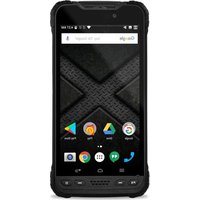
| Product Type | Rugged Tablet PC |
| Brand | Xplore |
| Model | Bobcat iX101B1 |
| Dimensions (W x H x D) | 11.05 in x 7.07 in x 0.86 in (28.1 cm x 18.0 cm x 2.2 cm) |
| Weight | 2.4 lbs (1.09 kg) |
| Display | 10.1" WXGA (1366x768) IPS LCD, 500 nits, multi-touch, glove touch, auto light sensor |
| Processor | Intel Bay Trail E3485 Quad Core @ 1.9 GHz |
| Memory (RAM) | 4 GB DDR3L 1333 |
| Storage | 128 GB SSD; micro SDXC expansion |
| Operating System | Windows 8.1 Pro or Windows 7 Pro (32/64-bit) |
| Battery | 7.4V Li-Ion, up to 8 hours life, recharge 3.5h (90%), user-replaceable |
| AC Adapter | 100-240V, 19VDC/3.42A |
| Connectivity | Wi-Fi 802.11ac, Bluetooth 4.0, GPS, Gigabit LAN (RJ45) |
| Ports | 2x USB 3.0, micro HDMI-out, micro SIM, RS-232, headset jack, DC-in |
| Camera | Front HD webcam, Rear 5 MP |
| Audio | Built-in microphone, speaker |
| Environmental | Operating -20°C to 60°C, storage -30°C to 70°C, IP65, 5 ft drop (MIL-STD-810G) |
| Safety Certifications | FCC, IC, CE, UL |
| Warranty | 36-month International Limited Warranty |
| Cleaning Instructions | Use damp soft cloth; do not use alcohol on display |
| Spare Parts | Screen protectors, batteries, charging accessories available from Xplore |
| Repairability | Contact Xplore support or authorized dealer for service |
Frequently Asked Questions - Bobcat iX101B1 Xplore
User questions about Bobcat iX101B1 Xplore
0 question about this device. Answer the ones you know or ask your own.
Ask a new question about this device
Download the instructions for your Tablet in PDF format for free! Find your manual Bobcat iX101B1 - Xplore and take your electronic device back in hand. On this page are published all the documents necessary for the use of your device. Bobcat iX101B1 by Xplore.
USER MANUAL Bobcat iX101B1 Xplore
Bobcat User's Handbook

Table Of Contents
TABLE OF CONTENTS......2
DISCLAIMER....4
TRADEMARKS 4
COPYRIGHT 4
PUBLICATION INFORMATION......4
DECLARATION OF CONFORMITY 4
WARRANTY INFORMATION 5
IMPORTANT SAFETY INFORMATION 5
WELCOME......8
ABOUT YOUR COMPUTER 9
PACKAGE CONTENTS 10
CONTACTING XPLORE: SERVICE & QUESTIONS 11
GETTING STARTED....12
FRONT VIEW 12
BACK VIEW 13
RIGHT SIDE VIEW 14
LEFT SIDE VIEW....15
BOTTOM VIEW.... 16
LED STATUS INDICATOR 17
QUICK START GUIDE....18
USING THE TABLET....19
SUSPEND OPERATION....19
RESUME OPERATION....19
HEALTH AND SAFETY INFORMATION 28
DOC (INDUSTRY CANADA NOTICES) 28
UL NOTICE.... 30
SYSTEM DISPOSAL 30
ENVIRONMENT....31
ENVIRONMENTAL POLICY.... 31
TAKE BACK AND RECYCLING PROGRAM 32
ENVIRONMENTAL AND SUSTAINABILITY CORPORATE REPORT 32
Disclaimer
Xplore Technologies® has made every eort to ensure the accuracy and completeness of this document; however, because ongoing development eorts are made to connually improve the capabilities of our products, we cannot guarantee the accuracy of the contents of this document. We disclaim liability for errors, omissions, or future changes herein.
Trademarks
Xplore and the Xplore logo are registered trademarks of Xplore Technologies Corp. of America; iX104, iX104C5, BOBCAT, iX104C5 Lite, and iX104C5 Dual Mode are trademarks of Xplore Technologies Corp. Kensington and MicroSaver are registered trademarks of the Kensington Technology Group. Android is a registered trademark of Google Corporaon. MicroSD is registered trademark of the Personal Computer Memory Card Internaonal Associaon. Wi-Fi is a trademark of the Wireless Ethernet Compatibility Alliance (WECA). HDMI is a trademark of “” All other brands, product names, company names, trademarks and service marks used herein are property of their respective companies.
Copyright
Copyright © 2003-2014 Xplore Technologies Corp. All rights reserved. No part of this publicaon may be copied, reproduced, or translated, without the prior written consent of Xplore Technologies. No part of this publicaon may be stored or transmied in any electronic form without the prior consent of Xplore Technologies. Any unauthorized use is a violaon of copyright laws.
Publication Information
PN: 95-01211
February 2014
Declaration of Conformity
DECLARATION OF CONFORMITY according to FCC Part 15, IC ICES-003, and RTT&E directives Responsible Party Name: Xplore Technologies Corp.
Address: 14000 Summit Drive, Suite 900, Ausn, Texas 78728
Telephone: 512.336.7797
Declares that product: Model Series: BOBCAT complies with Part 15 of the FCC Rules. This device complies with Part 15 of the FCC rules. Operaon is subject to the following two conditions: (1) This device may not cause harmful interference, and, (2) This device must accept any interference received, including interference that may cause undesired operaon.
WARNING
Changes or modicaons to this unit not expressly approved by the party responsible for compliance may void the user's authority to operate this equipment. For more informaon about FCC, IC, and EU rules and their applicability to the BOBCAT, see, "Agency Notes" on page 24.
Warranty Information
The BOBCAT is backed by a standard 36-month Internaonal Limited Warranty. An extended Internaonal Limited Warranty is available. Check the service kit included with your computer for warranty terms and conditions.
Important Safety Information
Before you use the BOBCAT (referred to as the tablet), read these safety instrucons and the operaon instrucons in this handbook.
Failure to observe all these instrucons voids the Limited Warranty and may lead to suspension or denial of services to the oender, or legal acon, or both.
Follow any special regulaons governing the use of the tablet and, if radio-enabled, always switch it o in areas where radio devices are forbidden or when the radio device can cause interference or danger.
Always follow any safety laws and regulaons pertaining to the use of cell phones and two-way radios, because these laws and regulaons typically apply to the use of the wireless-enabled tablet.
Observe all restricons on the use of radio equipment in fuel depots (fuel storage and distribuon areas), chemical plants, and wherever blasng operaons are in progress or in any area in which restricons on radio transmissions are imposed. Switch o the tablet when in an aircra. The tablet is not FAA-approved for use on aircra. The eect of the use of the tablet in aircra is unknown. Using the tablet in an aircra may aect aircra instrumentaon, communicaon, and performance; may disrupt the network; and may be illegal.
Operang the wireless-enabled tablet may interfere with the functioning of inadequately protected medical devices such as pacemakers. Consult a physician or the manufacturer of the medical device if you have any quesons.
Radio signals from your tablet will not act the operaon of most modern equipment, but certain electronic equipment, including automove systems, may not be shielded against radio signals from your tablet. Check with the manufacturer of your motor vehicle or the manufacturer's representave to determine whether using the tablet will present any safety issues.
Avoid using the tablet in any environment that requires your full aenon, such as when driving a vehicle. If you need to use your tablet while driving, have a passenger use it for you or nd a safe locaon to halt your vehicle.
WARNING BATTERIES
Use only baery types specified in this handbook. Using any other type of baery can be dangerous and can disable the tablet. Do not drop or mishandle the baeries, immerse them in water, or subject them to high heat. Doing so could increase the risk of explosion or leakage, and possibly cause injury. The lithium-ion baeries used in this equipment contain material that is hazardous to your health. If baery contents come in contact with the eyes, IMMEDIATELY ush the aected area with clean water for 15 minutes and have someone else summon medical aenon for you. Unaected persons should assist the aected individual in the vital rst ushing of the eyes. RECHARGING THE BATTERY MUST ONLY BE CARRIED OUT IN A NON-HAZERDOUS AREA USING THE SUPPLIED AC ADAPTOR. The denion of hazardous areas can be found in Standard EN 60079-10.
WARNING
When operang the tablet in a known explosive environment do not remove or replace the baery while the circuit is live. Before removing the baery verify that the area is known to be free of ignitable concentraons of ammable substances. EXPLOSION HAZARD – DO NOT DISCONNECT WHILE CIRCUIT IS LIVE UNLESS AREA IS KNOWN TO BE NON-HAZERDOUS.
AVERISSEMENT – RISQUE D'EXPLOSION. NE PAS DÉBRANCHER TANT QUE LE CIRCUIT EST SOUS TENSION, À MOINS QU'IL NE S'AGISSE D'UN EMPLACEMENT NON DANGEREUX.
WARNING
EXPLOSION HAZARD - DO NOT REPLACE THE BATTERY UNLESS POWER HAS BEEN SWITCHED OFF OR THE AREA IS KNOWN TO BE NON-HAZARDOUS;
AVERTISSEMENT - RISQUE D'EXPLOSION - COUPER LE COURANT OU S'ASSURER QUE L'EMPLACEMENT EST DESIGNE NON DANGEREUX AVANT DE REPLACER LE BATTERY
WARNING
EXPLOSION HAZARD - SUBSTITUTION OF COMPONENTS MAY IMPAIR SUITABILITY FOR CLASS I, DIVISION 2; AVERTISSEMENT - RISQUE D'EXPLOSION - LA SUBSTITUTIOND E COMPOSANTSP EUTR ENDRE CE MATERIEL INACCEPTABLE POUR LES EMPLACEMENTS DE CLASSE I, DIVISION 2;
WARNING
EXPLOSION HAZARD - DO NOT DISCONNECT EQUIPMENT UNLESS POWER HAS BEEN SWITCHED OFF OR THE AREA IS KNOWN TO BE NON-HAZARDOUS
AVERTISSEMENT - RISQUE D'EXPLOSION - AVANT DE DECONNECTER L'EQUIPEMENT, COUPER LE COURANT OU S'ASSURER QUE L'EMPLACEMENT EST DESIGNE NON DANGEREUX.
WARNING
Do not use any dock or any other accessory or aachment that is not manufactured or supplied by Xplore or an authorized Xplore accessories supplier. Use of any accessory or aachment that is not supplied or approved for use with the tablet by Xplore is not permitted because it may cause hazards.
Operate the tablet only from the type of power source indicated on the marking label. (See page 54 for more informaon about the baery and power supply.) Route power supply cords so that they are not likely to be walked on or pinched by items placed upon or against them. Pay parcular aenon to cords at plugs and convenience receptacles, and at the point where cords exit from the tablet or its dock. Do not overload wall outlets, extension cords, or integral convenience receptacles because this can cause re or electric shock.
Unplug the tablet and refer the tablet and dock for service to qualified service personnel if any of the following conditions occur:
- The power supply cord or plug is damaged.
- The tablet or dock does not operate normally when you follow the instrucons in this book.
- The tablet or dock exhibits a disnct change in performance.
Adjust only controls for which there are instrucons in this book. An improper adjustment of other controls can result in damage and may require extensive work by a qualified technician to restore the tablet or dock to normal operaon.
CAUTION
Avoid prolonged physical contact with the exposed metal surfaces on the front and back of the tablet. While the tablet may not feel hot to the touch, prolonged physical contact with the tablet surface may cause low-heat injury. In addition, be careful when removing a PC card that has been used for an extended me, as the card may be hot.
Welcome
Welcome to the Xplore Technologies Bobcat tablet, the rugged tablet designed, tested, and manufactured to meet the environmental and physical real-world challenges faced by today's mobile workers. Based on years of experience in rugged mobile applicaons, the BOBCAT is designed to withstand the abuses of everyday wear and tear. Advanced technology, innovave design, and a rugged case are just a few highlights of your BOBCAT system.

Note: This handbook assumes that you have basic experience using Microso Windows 7 or Microso Window 8.1.
About Your Computer
The BOBCAT is a high-performance tablet that runs on Microso Windows operang system. The method you use to control the tablet is as follows:
Tablet Model
BOBCAT
Touchscreen
Projected Capacive Touch (PCT)
Control Method
- Pen (standard with the tablet)
- Mul-nger touch
Note: In this handbook, all informaon applies to all models unless otherwise noted.
All BOBCAT tablets have been engineered and tested to meet Military Standards for Environmental Extremes (MIL STD 810G). Your tablet includes the following features that make it exceptionally rugged and durable:
• Durable, long-lasng, plasc enclosure
• Interior magnesium alloy frame
- Bumper system and gasket protecon mechanisms
• Solid State storage memory
- Integrated, protected wireless LAN and WAN antennas for dual mode operaon
• Chemically treated rugged Display Glass
Package Contents
Check to make sure your package includes the following items:
- Quick Start Guide
- AC adapter
- BOBCAT tablet
- Warranty informaon kit
Optional Accessories
Your package may also include any oponal accessories you ordered.
Docking Opons
• Vehicle Docking Staon
Carrying Cases
- Carrying handle with Stylus and Shoulder Strap
- Tablet backside hand-strap
Memory
- SD memory
Additional Accessories (Oponal)
• CAC reader expansion bay
• 1D2D bar code scanner
• Auto adapter (cigaree lighter adapter)
Contacting Xplore: Service & Questions
Note: To troubleshoot problems (including wireless and GPS problems), before you call, read the FAQ page of the Xplore Technologies Web site. Go to hp://www.xploretech.com; then select Customer Support; then FAQ.
If you purchased your tablet from an authorized Xplore dealer, contact the dealer for service and support.
If you purchased your tablet directly from Xplore, use any of the following methods to contact Xplore for service and support:
Website: hp://www.xploretech.com
E-mail: customersupport@xploretech.com
Toll free: 1-866-296-8541, extension 222
Fax: 1-512-336-7791
Before you contact Xplore, have the following informaon ready so that the customer support representave can quickly provide a soluon:
Product name: BOBCAT
Product serial number
- The serial number is on the back of the tablet
Condions under which the problem occurred
Any error messages that were displayed
Type of device connected, if any
Getting Started
This chapter gives you an overview of your tablet and includes a quick-start guide.
Front View

| Built-In Microphone | Enables you to input mono audio |
| Front Camera | HD Video Front Facing Camera for video conferencing, video capture or sll picture capture |
| Status Indicator | Indicates the computer status (on, o, charging) |
| Home Buon | Home Buon for easy navigaon within the Microso Windows environment. |
| Auto Light Sensor | Detects ambient light condions |
Back View

| Speaker | Integrated Speaker for Audio Playback |
| Input Power Port | Powers the commuter when connected to external power supply. |
| Baery Cover | Provides access to the baery. |
| Rear 5MP Camera | 5 MegaPixel rear facing camera for High Quality sll photography or HD Video environment. |
Right Side View

| Power (On/O) | Press to power computer, press and hold for 4 seconds to force power o use |
| Suspend (On/O) | Momentarily depress to enter/exit Suspend mode. |
| Screen Orientaon lock | Locks the screen in current posion regardless of tablet orientaon when pressed. Press again to un-lock screen orientaon. |
| Volume Up/ Down | Press top of rocker buon to increase Audio volume Press boom of rocker buon to decrease Audio volume |
| 19V dc Power Input | Pull back cover to expose connector Jack for AC power supply |
| LAN Connector | RJ45 for Ethernet LAN data conncon. |
| Serial Port | RS232 Serial port expansion area – uses dongle cable for full serial device interface |
Left Side View
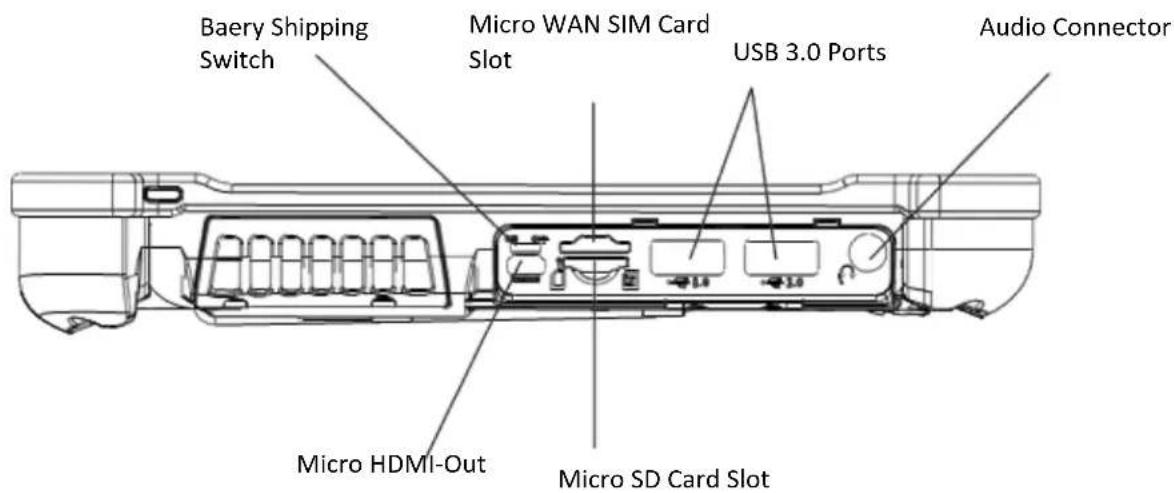
| Audio connector | Headset connector for smartphone compatible earphones and microphone |
| USB Ports | Two full size USB 3.0 |
| HDMI Output | Micro HDMI out connector for conneccon to External Monitor or HDTV device |
| Micro WAN SIM Slot | Wireless Data Provider SIM card (insert contacts facing up). |
| Baery Shipping Switch | Safety Switch to isolate Baery during shipping. It must be turned on (thrown toward tablet top) for the device to operate. See First me operaon secon. |
| Micro SD Card Slot | MicroSDXC memory card slot for user memory expansion (insert contacts facing up) |
Bottom View
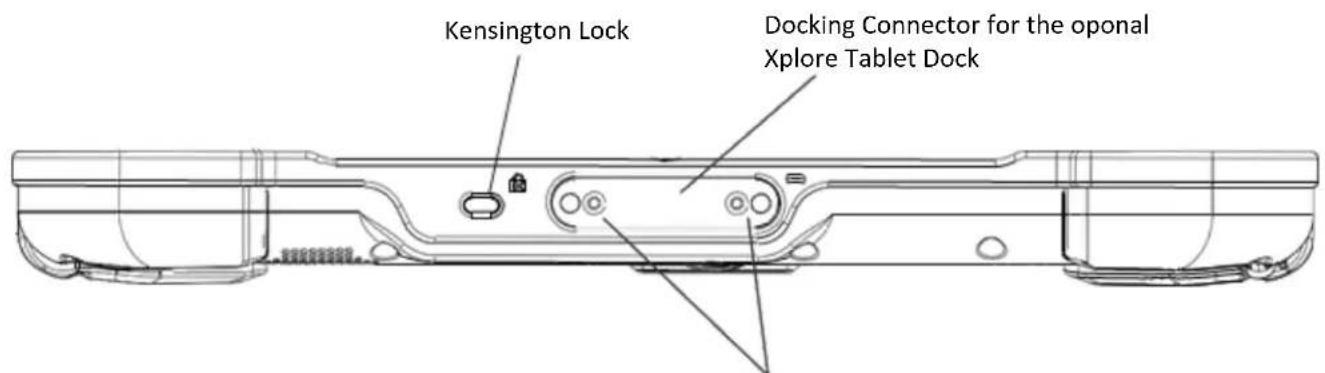
Guide Pin Receptacles
| Dock Connector | Enables you to connect the G2 xDock Vehicle Docking Staons. |
| Guide Pin Receptacles | Help assure a secure conncon of the oponal xDock.Note: See “Oponal accessories” on page 16. |
| Kensington Lock Slot | Connector for the oponal Kensington MicroSaverTM or equivalent compatible Security cableNote: Contact your reseller for informaon regarding the Kensington security cable. |
LED and Camera Status Indicator Table

Bobcat LED Prole
LED / Camera Status Indicators
System State
| Power Source | OFF | ON | Sleep | Error |
| External | Orange | Green | Green Slow Blink | Red Fast Blink |
| Baery Charge | Orange Blink | Orange Blink | Orange Blink | Red Fast Blink |
| Baery Power | OFF | Green | Green Slow Blink | Red Fast Blink |
| Baery Low <15% | OFF | Red Blink | Red Blink | Red Fast Blink |
| Baery Crical Low <8% | OFF | Red | Red | Red Fast Blink |
| System On + Camera On | OFF | Blue | Green Slow Blink | Red Fast Blink |
| System On + Camera On Baery Low <15% | OFF | Blue | Green Slow Blink | Red Fast Blink |
| System On + Camera On Baery Crical Low <8% | OFF | Blue | Green Slow Blink | Red Fast Blink |
Quick Start Guide
First Time Turning On the Computer
- Find and Turn the Baery switch ON. A small screwdriver or paperclip may be used for this purpose. For Safety reasons the tablet is shipped with the Baery switch OFF and the tablet will not operate if this step is not taken. It is not necessary to turn the Baery switch of the device ON or OFF during normal device operaon so this operaon is only needed on initial device operaon.
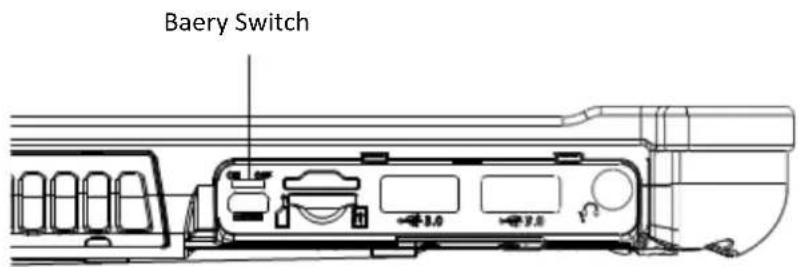
Baery Switch is ON when thrown toward the top side of the tablet.
- Make sure the baery is charged or that the computer is plugged into an external power source.

- Press the Power On/O/Suspend/Resume buon.
- Xplore Technologies Logo should display. Allow device to finish boot-up and follow configuraon instrucons on your screen
Using The Tablet
Suspend Operation
To conserve baery power when you do not want to turn o the computer, put the computer into Suspend mode. (You can suspend operaon without closing any apps.). The default conguraon at me of purchase is for the system to enter suspend mode automacally aer 5 minutes of no acvity.
To manually enter suspend mode press the Power switch briefy and release. The display should switch o, without any conrmaon menu being presented.
Power On/O Display Toggle and Suspend/Resume Buon

Resume Operation
To resume tablet operaon from Suspend mode follow the same procedure as turning the tablet on.
- Press the Power On/O/Suspend/Resume buon
Power On/O Display Toggle and Suspend/Resume Buon

If this is not successful the baery on the tablet may have fully discharged. Plug the tablet into AC power and repeat the procedure
Screen Input Operation

Touch- Select Item or Opon
Touch and Hold- Open Special

Drag- Scroll the screen
Flick- Scroll the screen quickly
Drag and drop- Move an item
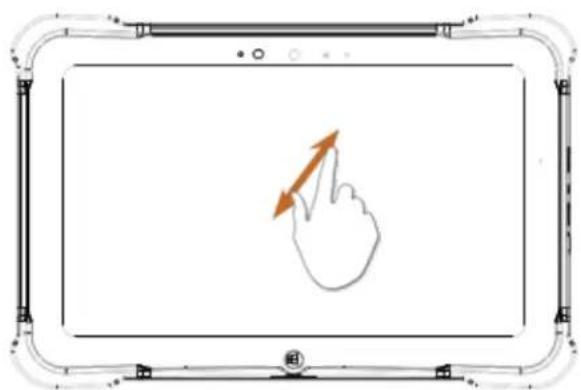
Pinch - Zoom
Maintaining the Tablet
Caring for the Tablet
This secon provides informaon about how to keep your tablet in top working condion.
Checking Power Cords and Connectors
Check AC and DC power cords and power connectors periodically for damage. Replace the power cord immediately if you nd any damage.
Protecting the Computer from Damages
- Your computer is designed to sustain a mulple-axis drop to anon-yielding surface. Do not intentionally drop the computer because the cumulative eects of mulple drops may damage the computer.
- Do not place heavy objects on the computer.
- Do not disassemble the computer.
- Keep the computer at least 5 inches (13 cenmeters) away from any electrical appliance that generates a strong magnec eld, such as a motor, magnet, TV, refrigerator, or large audio speakers.
Storing the Computer
You can store the computer in the O state for about 30 days with a fully charged baery installed. Aer this period, recharge the baery or replace it with a charged baery.
Caring for the Display Screen
To clean the display screen, dampen a so coon cloth with water and gently wipe the screen surface.
Note: Do not use isopropyl alcohol to clean the screen. Alcohol may damage the surface of the screen.
Protecting Computer from Damages
The screen protector is a durable, replaceable wring surface that protects the display screen from abrasion.
To obtain screen protectors, check with your reseller, or go to the Xplore Web site at www.xploretech.com for ordering informaon. Additional informaon about installaon is included with the screen protectors.
Removing the Screen Protector
Slide your ngernail under the edge of the screen protector and pull the protector away from the screen.
Installing a New Screen Protector
Follow the instrucons included with your screen protector replacement kit.
Note: If a screen protector is already installed on the display screen, remove it before installing the new screen protector.
Troubleshooting
Table 7 contains solutions to some problems. If you cannot solve the problem by taking the acons described, contact your local help desk or your reseller for further assistance.
Table 7: Troubleshooting
| Problem | Possible causes and soluon |
| Computer will not start | The baery may be defective or discharged to a crically low level. Connect an external power supply (such as the AC adapter) or install a charged baery. See “Using the baery” on page 54.Internal components may be above or below the acceptable operang range below -20°C or above 60°C). Aer the temperature returns to safe operang range the computer will start. |
| The Computer will not resume operaon | The baery may be defective or discharged to a crically low level. When the baery reaches a crically low level, the computer is forced into Suspend- to-RAM mode to avoid a total system power failure. Connect an external power supply (such as the AC adapter) or install a charged baery. See “Using the baery” on page 54.The computer may be at the crical thermal limit. To avoid damage to heat-sensitive components, the computer enters Suspend-to- RAM mode when the computer operates above 60°C. Operaon automatically resumes when the computer cools to below 60°C. Move the computer to a cooler locaon aer being suspended |
| The Status LED is red, connuous | The computer is on, running under baery power, and the charge level in the baery has reached a crical level. Plug the computer into an AC/DC power source or install a charged baery.The system has encountered a fault and is prevenng normal operation. Contact your local help desk. |
| The Status LED is red, blinking | The computer is powered on, running under baery power, and the charge level in the battery is at a minimum warning level. Plug the computer into an AC/DC power source or install a charged baery. |
| Display screen is blank or dicult to read | Conrm that the computer is on (the Power icon is connuously displayed in Status area).The brightness may be set too low, causing the screen to appear too dark. To change system brightness, press Sengs Icon, Display, Brightness.The video me-out may have expired. Tap the display screen to reacvate the display.Note: This is a normal, power-saving feature. |
| Headphone or speaker volume is too low | The volume may be in Mute mode or set too low. Follow the instrucon to adjust headphone or speaker volume.Make sure the volume control in your audio soware is set to an audible level. |
| An external device is not working with the computer | The device may need to be enabled in the computer's congrurator program. Contact your local help desk or reseller. |
Hardware Specifications
| Physical | |
| Dimensions | 11.05" (28.1cm) x 7.07" (18cm) x 0.86" (2.2cm) (W x H x H) |
| Weight | 2.4lbs (1.09 kgs) |
| Processing | |
| Dimensions | Intel Bay Trail E3485 Quad Core |
| Processor Speed | 1.9 GHz |
| Memory/ Storage | |
| Main RAM | 4GB DDR3L 1333 |
| RAM Opons | None |
| Storage | 128GB SSD |
| Storage Expansion | One User accessible micro SDXC |
| Display | |
| Display | 10.1" WXGA (1366x768) 16:9 Rugged IPS LCD backlit display500 NITS direct bonded screen178 degree viewing cone (89 degree o axis)Contrast rao 800:1 aspect raoAutomac light sensor (ALS)Mul touchGlove touch |
| Graphics | Intel Integrated Mobile Gen 7 |
| Interface | |
| Integrated Communicaons | Wireless LAN: 802.11ac Bluetooth 4.0GPS 2.5 meter accurateLAN: 10/100/1000 Gigabit Ethernet (RJ45) |
| Integrated Interfaces | DC-in2 USB 3.0Micro SDXC Micro HDMI-out• Micro SIM Card Reader RS-232 Serial Ready port• Headphones/Speaker mini-Jack Stereo, smartphone compatible |
| KeyPad/ User Controls | Applicaon buonsPower On/O/Suspend/Resume buon |
| Power | |
| Main Baery | • 7.4V Serviceable Lithium Ion• Recharge Time: 3.5 hours (90%)• Life: Up to 8 hours. (Baery life is dependent on operang system, power Management and applicaons in use.)• Suspend Life: Min. 5 days |
| AC Adapter | Auto-sensing 100-240V, supplying19 VDC, with a current of 3.42 A |
| Environmental | |
| Temperature | Operang: -4° to 140° F (-20° to 60° C)Storage: -22° to 158° F (-30° to 70° C) |
| Humidity | 95% non-condensing |
| Shock/ Drop | Operang 5' (1.52 meter) direct to plywood over concrete. 26 drops per Mil Std 810. Externalbaery is not installed. |
| Vibraon | Minimum integrity. Vehicle vibraon. US highway truck |
| IEC Ingress tesng | IEC (60529) Ingress tested to an IP65 standard |
| Agency Approvals | |
| Emissions and Immunity | Immunity: CISR 22, EN 55024 CB scheme (US, CAN, EU)Emissions: EN 55022, CISPR 22, Cfr 47 Part 15, Subpart B, Ices-003 for Class B (US, CAN, Eu27), CEC, Regulatory bullen No 110915.02B (BCS), ERP direcve |
| Safety | IEC 60950 CB Scheme (US, CAN, EU) |
| Operating System | |
| Operang Systems | Windows 8.1 Pro, 32, 64 bitWindows 7 Pro, 32, 64 bit |
Agency Notes
FCC Notices
This device complies with Part 15 of the FCC Rules .Operaon is subject to the following two conditions: (1) this device may not cause harmful interference, and (2) this device must accept any interference received, including interference that may cause undesired operaon. Modicaons not expressly approved by Xplore Technologies could void this user's authority to operate the equipment.

Note: This equipment has been tested and found to comply with the limits for a Class B digital device, pursuant to Part 15 of the FCC Rules. These limits are designed to provide reasonable protecon against harmful interference in a residential installaon. This equipment generates uses and can radiate radio frequency energy and, if not installed and used in accordance with the instrucons, may cause harmful interference to radio communicaons. However, there is no guarantee that interference will not occur in a parcular installaon. If this equipment does cause harmful interference to radio or television recepon, which can be determined by turning the equipment o and on, the user is encouraged to try to correct the interference by one or more of the following measures:
- Reorient or relocate the receiving antenna.
- Increase the separaon between the equipment and receiver.
- Connect the equipment into an outlet on a circuit dierent from that to which the receiver is connected.
- Consult the dealer or an experienced radio/TV technician for help.
WLAN: (Wi-Fi)
Please note that 5150-5250MHz (Ch. 36-48) is restricted to indoor-use only in many countries including the United States.
RF Exposure
Tests for SAR are conducted using standard operang posions specied
By the FCC with the tablet PC transming at its highest cered power level in all tested frequency bands.
Although the SAR is determined at the highest cered power level, the actual SAR level of the tablet PC while operang can be well below the maximum value. This is because the tablet PC is designed to operate at mulple power levels so as to use only the power required to reach the network. In general, the closer you are to a wireless base staon antenna, the lower the power output.
Before a tablet PC model is available for sale to the public, it must be tested and cered to the FCC and IC that it does not exceed the limit established by the government-adopted requirement for safe exposure. The tests are performed in posions and locaons (e.g., next to body/lap) as required by the FCC for each model. (Next to body/lap measurements may dier among tablet PC models, depending upon available accessories and FCC and IC requirements). While there may be dierences between the SAR levels of various tablet PCs and at various posions, they are all required to meet the government regulaons for safe exposure.
This device was evaluated and shown to comply with FCC and IC SAR RF exposure requirements.
Avoid covering or holding antennas when transming. Antenna locaons are shown in the following gure.

Health and Safety Information
Exposure to Radio Frequency (RF) Signals
Your wireless tablet PC is a radio transmier and receiver. It is designed and
Manufactured not to exceed the emission limits for exposure to radio frequency (RF) energy set by the Federal Communicaons Commission of the U.S. Government as well as the RTT&E direcve. These limits are part of comprehensive guidelines and establish permied levels of RF energy for the general population.
The guidelines are based on the safety standards previously set by both U.S. and internaonal standards bodies:
• American Naonal Standards Instute (ANSI) IEEE. C95.1-1992
• Naonal Council on Radiaon Protecon and Measurement (NCRP). Report 86. 1986
- Internaonal Commission on Non-Ionizing Radiaon Protecon (ICNIRP) 1996
- Ministry of Health (Canada), Safety Code 6. The standards include substantial safety margin designed to assure the safety of all persons, regardless of age and health.
• European Union RTT&E Directive for SAR
The exposure standard for wireless mobile tablet PCs employs a unit of Measurement known as the Specific Absorpon Rate, or SAR. The SAR limit set by the FCC is 1.6W/kg. The SAR limit set by the RTT&E is 2.0W/kg.
Note: In the U.S. and Canada, the SAR limit for mobile tablet PCs used by the public is 1.6 was/kg (W/kg) averaged over one gram of ssue. In Europe the SAR limit for mobile tablet PCs used by the public is 2.0 was/kg (W/kg) averaged over 10 grams of ssue. The standard incorporates a substantial margin of safety to give additional protecon for the public and to account for any variaons.
DOC (Industry Canada Notices)
Notice to Users of Radio and Television
This device complies with Industry Canada license-exempt RSS standard(s). Operaon is subject to the following two conditions:
(1) this device may not cause interference, and
(2) this device must accept any interference, including interference that may cause undesired operaon of the device.
The device could automatically disconnue transmission in case of absence of informaon to transmit, or operational failure. Note that this is not intended to prohibit transmission of control or signaling informaon or the use of repeve codes where required by the technology. The device for the band 5150-5250 MHz is only for indoor usage to reduce potential for harmful interference to co-channel mobile satellite systems; the maximum antenna gain permied (for devices in the bands 5250-5350 MHz and 5470-5725 MHz) to comply with the e.i.r.p. limit; and The maximum antenna gain permied (for devices in the band 5725-5850 MHz) to comply with the e.i.r.p. limits specified for point-to-point and non-point-to-point operation as appropriate, as stated in secon A9.2(3). In addition, High-power radars are allocated as primary users (meaning they have priority) of the band 5250-5350 MHz and this radar could cause interference and/or damage to LE-LAN devices.
IC radiaon exposure statement
This EUT is compliance with SAR for general population/uncontrolled exposure limits in IC RSS-102 and had been tested in accordance with the measurement methods and procedures specified in IEEE 1528
Intel® Dual Band Wireless-AC 7260/AC3160 Country-specific Compliance Statements
Hereby, Xplore Technologies declares that the Intel® Dual Band Wireless-AC 7260/3160 complies with the essenal requirements and other relevant provisions of Direcve 1999/5/EC. This equipment is marked with the CE symbol and can be used throughout the European community.
Sierra EM7355/7305 Country-specific Compliance Statements
Hereby, Xplore Technologies declares that the Sierra EM7355/3705 complies with the essenal requirements and other relevant provisions of Direcve 1999/5/EC. This equipment is marked with the CE symbol and can be used throughout the European community.
UL Notice
This unit requires an AC adapter to operate. Use only UL Listed Class 2 Adapters with an output range of 19 VDC, with a current of 3.42 A. AC Adapter output polarity:
![graph LR A["◇"] --> B["●"] B --> C["+"]](/content/2026/05/881812/images/92aab3af87963e36b571e1d778ae2d5e12f1da6c00528900e9a571b5327fc368.jpg)
For authorized repair technicians only
WARNING
For connued protecon against risk of re, replace only with the same type and rang fuse.
WARNING
Danger of explosion if Lithium (clock) baery is incorrectly replaced.
Replace only with the same equivalent type recommended by the manufacturer. Dispose of used baeries according to the manufacturer's instrucon.
System Disposal
In the event of system disposal, observe the following informaon regarding proper procedures in the State of Vermont.
The liquid crystal display (LCD) lamps used in this system contain mercury. In the event of system disposal, be sure to follow local guidelines.

Environmental Policy
Xplore Technologies is commied to managing health, safety and environmental (HS&E) maers as an integral part of our business. In particular, it is our policy to assure the HS&E integrity of our processes and facilities at all mes and at all places. We will do so by adhering to the following principles:
Compliance
We will comply with applicable laws and regulaons and will implement programs and procedures to assure compliance. Compliance with HS&E standards will be a key ingredient in the training, performance reviews, and incentives of all employees.
Risk Reduction and Prevention Management
We will seek opportunities, beyond compliance requirements, for reducing risk to human health and the environment, and we will establish and meet our own HS&E quality standards where appropriate.
We will employ management systems and procedures specifically designed to prevent advies and/or conditions that pose a threat to human health, safety, or the environment. We will look for ways to minimize risk and protect our employees and the communities in which we operate by employing clean technology, including safe technologies and operang procedures, as well as being prepared for emergencies.
We will strive to minimize releases to the air, land, or water through use of cleaner technologies and the safer use of chemicals. We will minimize the amount and toxicity of waste generated and will ensure the safe treatment and disposal of waste. We will manage scarce resources, such as water, energy, land, and forests in an environmentally sensitive manner.
Communication
We will communicate our commitment to HS&E quality to our employees, vendors, and customers. We will solicit their input in meeng our HS&E goals and in turn will oer assistance to meet their goals.
Continuous Improvement
We will measure our progress as best we can. We will review our progress at least on an annual basis. We will connuously seek opportunities to improve our adherence to these principles, and will periodically report progress to our stakeholders
If you do not have access to the internet please contact our technical support at (866) 296-8541 ext 222.
Take Back and Recycling Program
Send us your unwanted Xplore products and/or baeries, or nd a recycling center near you. If you're old Xplore product and/ or baeries have no value or you want to recycle in a socially and environmentally responsible manner, go to hp://www.xploretech.com/contact and submit a technical support request. Select "Technical support" in the drop down menu under "Reason". Fill in the remaining elds. Under "Message" type in "I want to recycle my product". Click "Submit" and an Xplore Technologies specialist will contact you with shipping instrucons.
Alternatively customers can choose to drop their unwanted Xplore products at a local recycling center. For baeries Xplore Technologies has partnered with Call2Recycle® (hp://www.call2recycle.org/). Call2Recycle® is a program of the Rechargeable Baery Recycling Corporaon (RBRC) promong environmental sustainability by providing free baery and cell phone recycling in North America. RBRC is a 501(c)4 nonprot public service organizaon.
For the return of any other Xplore Product (excluding baeries) Xplore Technologies has partnered with R2 Soluons (hp://www.r2soluons.org/). R2 Soluons (R2S) is a non-prot organizaon established to house the R2 Pracces for proper recycling pracces and provide. To nd a locaon near you please go to R2 cered recycler locaons (hp://aso552.accriso.com/ cered/electronic-recyclers-with-r2-cered-facilies/). If you prefer to have Xplore Technologies recycle your baery packs please submit a technical support request as described above.
Environmental and Sustainability Corporate Report
As the manufacturer of the world's most advanced ruggedized tablet PC, and peripherals, Xplore Technologies is recognized in the ecient design and manufacturing of it products. In this inaugural Corporate Environmental Responsibility Report we
outline our plans and aspiraons to sustain our environment. As you review this report, we welcome your candid feedback. We know that CSER is a journey and your input will help us along the way.
In 2011, Xplore Technologies Corporaon of America established the Xplore Technologies Environmental commiee to proacvely work with stakeholders including customers, nongovernmental organizaons (NGOs), and other interested groups on environmental issues. As a result of the commiee's work, we have implemented iniaves to improve our performance across the spectrum of corporate environmental responsibility issues. Our progress on implementing these issues is outlined in this report.
While the Xplore Technologies Environmental commiee has only been acve since 2012 we have always cared for the environment and this has been a core value since Xplore Technologies was founded more than een
years ago. We are proud of our accomplishments to date and, we are committed to connuously improve in the future
Publishing this report is a significant step toward the goal of becoming an environmental sustaining leader of our industry. Going forward, we will persist to perfect our environmental performance and transparency. We will also leverage our role as an industry leader and actively support internaonal organizations and industry associations working to improve environmental conditions.
The Xplore Technologies 2012 Environmental and sustainability corporate report is located at hp://www.xploretech.com// environment. To obtain the report please click on “Environmental Sustainability Report 2012”. Feel free to save this to your personal les. If you do not have access to the internet please call technical support at (866) 296-8541 ext 222 and request a digital copy be sent to your email.

- BOBCAT USER'S HANDBOOK
- TABLE OF CONTENTS
- TABLE OF CONTENTS......2
- WELCOME......8
- GETTING STARTED....12
- USING THE TABLET....19
- ENVIRONMENT....31
- DISCLAIMER
- TRADEMARKS
- COPYRIGHT
- PUBLICATION INFORMATION
- DECLARATION OF CONFORMITY
- WARNING
- WARRANTY INFORMATION
- IMPORTANT SAFETY INFORMATION
- WARNING BATTERIES
- CAUTION
- WELCOME
- ABOUT YOUR COMPUTER
- TABLET MODEL
- TOUCHSCREEN
- CONTROL METHOD
- PACKAGE CONTENTS
- OPTIONAL ACCESSORIES
- CONTACTING XPLORE: SERVICE & QUESTIONS
- GETTING STARTED
- FRONT VIEW
- BACK VIEW
- RIGHT SIDE VIEW
- LEFT SIDE VIEW
- BOTTOM VIEW
- LED AND CAMERA STATUS INDICATOR TABLE
- QUICK START GUIDE
- FIRST TIME TURNING ON THE COMPUTER
- USING THE TABLET
- SUSPEND OPERATION
- RESUME OPERATION
- SCREEN INPUT OPERATION
- MAINTAINING THE TABLET
- CARING FOR THE TABLET
- CHECKING POWER CORDS AND CONNECTORS
- PROTECTING THE COMPUTER FROM DAMAGES
- STORING THE COMPUTER
- CARING FOR THE DISPLAY SCREEN
- PROTECTING COMPUTER FROM DAMAGES
- REMOVING THE SCREEN PROTECTOR
- INSTALLING A NEW SCREEN PROTECTOR
- TROUBLESHOOTING
- HARDWARE SPECIFICATIONS
- AGENCY NOTES
- FCC NOTICES
- WLAN: (WI-FI)
- RF EXPOSURE
- HEALTH AND SAFETY INFORMATION
- EXPOSURE TO RADIO FREQUENCY (RF) SIGNALS
- DOC (INDUSTRY CANADA NOTICES)
- NOTICE TO USERS OF RADIO AND TELEVISION
- IC RADIAON EXPOSURE STATEMENT
- INTEL® DUAL BAND WIRELESS-AC 7260/AC3160 COUNTRY-SPECIFIC COMPLIANCE STATEMENTS
- SIERRA EM7355/7305 COUNTRY-SPECIFIC COMPLIANCE STATEMENTS
- UL NOTICE
- SYSTEM DISPOSAL
- ENVIRONMENTAL POLICY
- COMPLIANCE
- RISK REDUCTION AND PREVENTION MANAGEMENT
- COMMUNICATION
- CONTINUOUS IMPROVEMENT
- TAKE BACK AND RECYCLING PROGRAM
- ENVIRONMENTAL AND SUSTAINABILITY CORPORATE REPORT
Brand : Xplore
Model : Bobcat iX101B1
Category : Tablet