
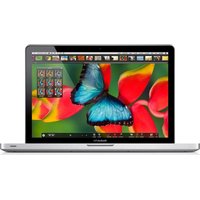
MacBook Pro - Laptop APPLE - Free user manual and instructions
Find the device manual for free MacBook Pro APPLE in PDF.


| Product Type | Laptop |
| Brand | Apple |
| Model | MacBook Pro |
| Dimensions | 0.61 x 11.97 x 8.36 in (1.56 x 30.41 x 21.24 cm) |
| Weight | 3.0 lb (1.4 kg) |
| Operating System | macOS |
| Processor | Apple M1 chip with 8-core CPU |
| Memory (RAM) | 8 GB unified memory |
| Storage | 256 GB SSD |
| Display | 13.3-inch Retina display with True Tone |
| Battery | Up to 20 hours (58.2 Wh lithium-polymer) |
| Connectivity | Two Thunderbolt 3 (USB-C) ports, 3.5 mm headphone jack |
| Camera | 720p FaceTime HD camera |
| Touch Bar and Touch ID | Touch Bar with integrated Touch ID sensor |
| Trackpad | Force Touch trackpad |
| Wireless | Wi-Fi 6 (802.11ax), Bluetooth 5.0 |
| Power Adapter | 61W USB-C Power Adapter |
| Maintenance and Cleaning | Wipe with a dry, lint-free cloth. Avoid liquids and abrasives. Keep vents clear. |
| Safety | Read all safety instructions in the manual. Do not expose to extreme temperatures. |
| Spare Parts and Repairability | Battery, screen, and other components replaceable by Apple or authorized service providers. |
| General Information | 1-year limited warranty. Support at apple.com/support. |
Frequently Asked Questions - MacBook Pro APPLE
User questions about MacBook Pro APPLE
0 question about this device. Answer the ones you know or ask your own.
Ask a new question about this device
Download the instructions for your Laptop in PDF format for free! Find your manual MacBook Pro - APPLE and take your electronic device back in hand. On this page are published all the documents necessary for the use of your device. MacBook Pro by APPLE.
USER MANUAL MacBook Pro APPLE
Welcome to your MacBook Pro
MacBook Pro starts up automatically when you lift the lid. Setup Assistant helps get you up and running.
Thunderbolt 3 (USB-C)
Charge your MacBook Pro and connect external storage or a display.

Touch Bar
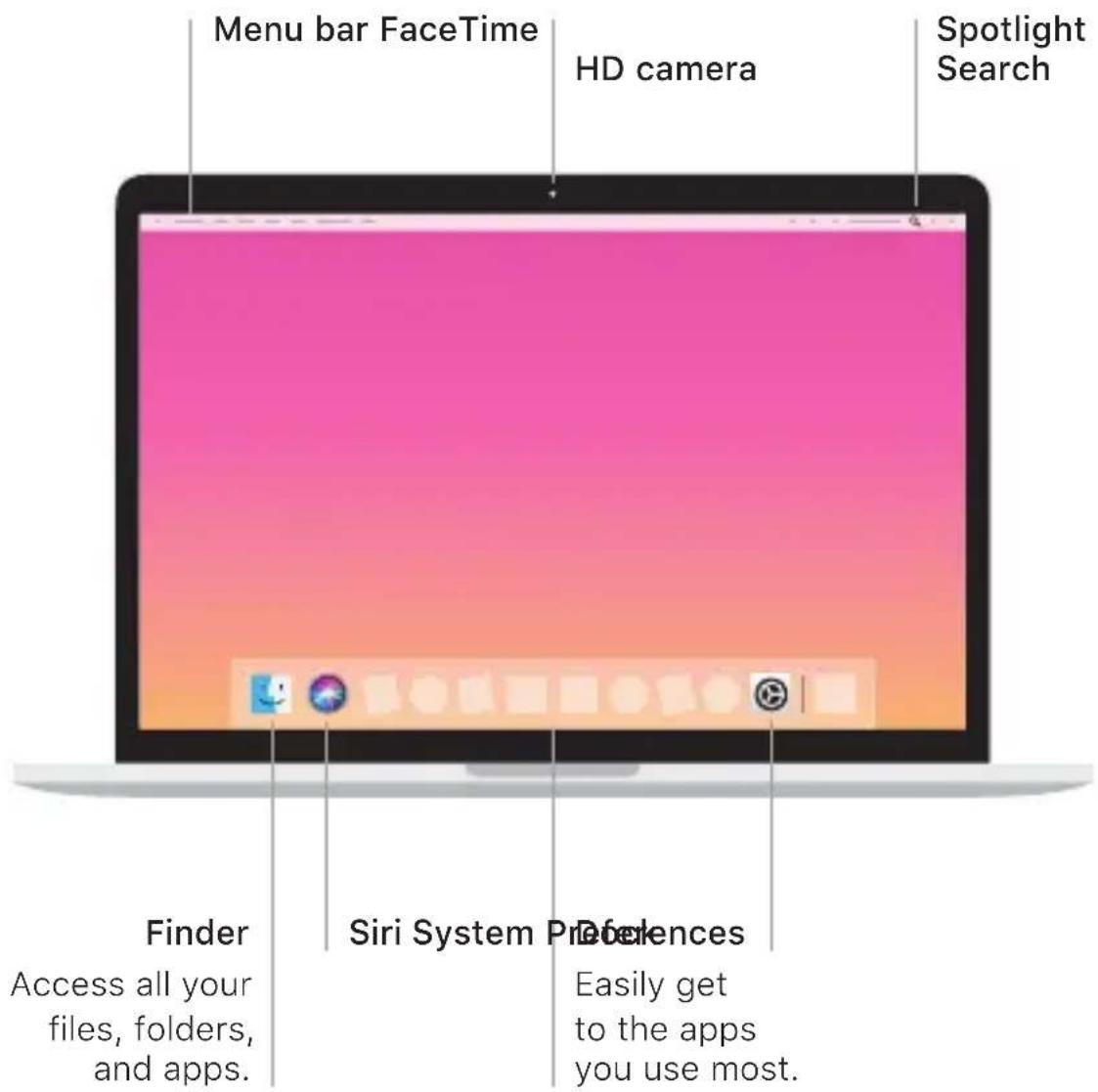
The Touch Bar changes based on your current application and activity. Use the Control Strip on the right side to adjust frequently used controls like volume and brightness. Tap ☑ to expand the Control Strip. Tap ⊗ on the left to close it.
Touch ID
Your fingerprint can unlock MacBook Pro and make purchases from the App Store, the iTunes Store, Apple Books, and websites using Apple Pay.
Multi-Touch trackpad gestures
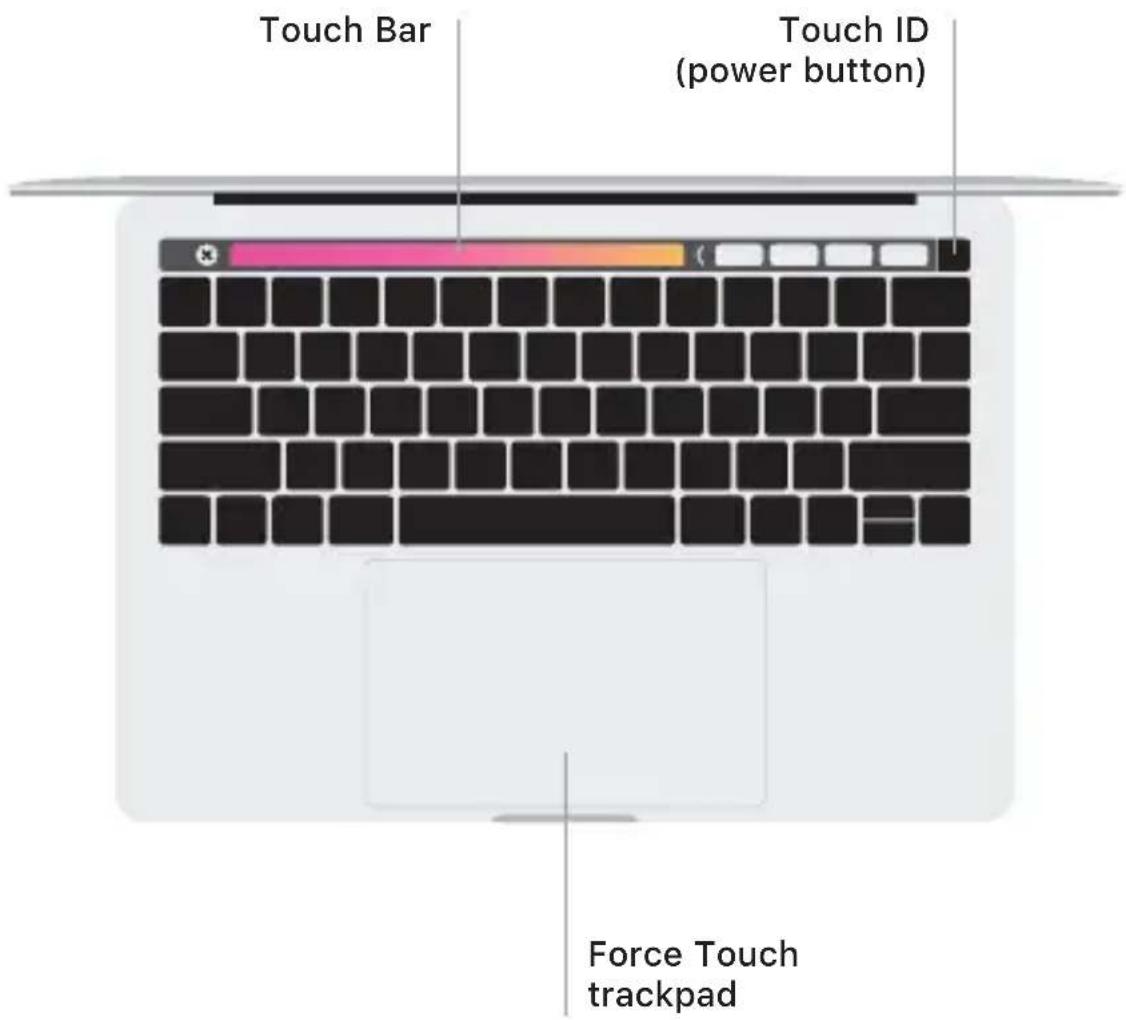
Brush with two fingers on the trackpad to scroll up, down, or sideways. Swipe with two fingers to flip through web pages and documents. Click with two fingers to right-click. You can also click and then press deeper on the trackpad to Force click and reveal more information. To learn more, choose System Preferences in the Dock, then click Trackpad.
Get the MacBook Pro Essentials guide
Learn more about setting up and using your MacBook Pro in the MacBook Pro Essentials guide. To view the guide, go to help.apple.com/macbookpro.
Support
For detailed information, go to www.apple.com/support/macbookpro. To contact Apple, go to support.apple.com/contact.


Brand : APPLE
Model : MacBook Pro
Category : Laptop