
MX Anywhere 3 - Mouse LOGITECH - Free user manual and instructions
Find the device manual for free MX Anywhere 3 LOGITECH in PDF.
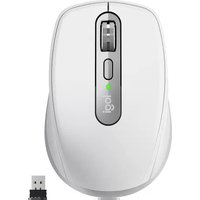


| Product Type | Wireless Mouse |
| Model | MX Anywhere 3 |
| Brand | Logitech |
| Connectivity | Bluetooth Low Energy, Logi Bolt USB Receiver |
| Sensor | Darkfield™ High Precision (4000 DPI) |
| Buttons | 6 Programmable Buttons |
| Scroll Wheel | MagSpeed Electromagnetic |
| Dimensions (HxWxD) | 100.5 x 61.5 x 34.5 mm |
| Weight | 99 g |
| Battery | Rechargeable Li-Po (500 mAh), USB-C Charging |
| Battery Life | Up to 70 days on full charge |
| Compatible Systems | Windows, macOS, iPadOS, Chrome OS, Linux |
| Software | Logitech Options+ (Customization) |
| Warranty | 1-Year Limited Hardware Warranty |
| Maintenance | Wipe with soft, dry cloth. Clean sensor with cotton swab. |
| Safety | Avoid exposure to liquids. Do not disassemble. |
| Spare Parts & Repairability | Battery not user-replaceable. Contact Logitech support for repairs. |
| General Information | Designed for portability; works on any surface including glass (≥4 mm). |
Frequently Asked Questions - MX Anywhere 3 LOGITECH
User questions about MX Anywhere 3 LOGITECH
0 question about this device. Answer the ones you know or ask your own.
Ask a new question about this device
Download the instructions for your Mouse in PDF format for free! Find your manual MX Anywhere 3 - LOGITECH and take your electronic device back in hand. On this page are published all the documents necessary for the use of your device. MX Anywhere 3 by LOGITECH.
USER MANUAL MX Anywhere 3 LOGITECH
MX ANYWHERE 3 FOR MAC
GETTING STARTED
QUICK SETUP
Go to the interactive setup guide for quick interactive setup instructions.
If you want more in-depth information, go to the 'Detailed Setup' below.
DETAILED SETUP
1. Make sure the mouse is turned on
The On/Off switch is located on the bottom of the mouse.

The number 1 LED on the bottom of the mouse should be blinking fast.
NOTE: If the LED is not blinking fast, do a long press of three seconds on the Easy-Switch button on the bottom of the mouse.
2. Connect via Bluetooth
Open the Bluetooth settings on your Mac to complete the pairing.
Search for new devices and click on MX Anywhere 3 for Mac to connect.
Click here for more details on how to do this on your computer.
If you experience issues with Bluetooth, click here for Bluetooth troubleshooting.
3. Install Logitech Options software
Download Logitech Options to customize your mouse and benefit from advanced shortcuts and all the possibilities this mouse has to offer. To download and learn more about the full range of features, go to logitech.com/options.
LEARN MORE ABOUT YOUR PRODUCT
Product Overview


1 - MagSpeed scroll wheel
2 - Mode shift button for the scroll wheel - shift between line-by-line scrolling and free-spinning
3 - Battery status LED
4 - Silicone side grips
6 - On/Off button
7 - Darkfield 4000DPI sensor
8 - Easy-Switch and connect button
9 - Back/Forward buttons
YOU CAN PAIR TO A SECOND COMPUTER WITH EASY-SWITCH
Your mouse can be paired with up to three different computers using the Easy-Switch button to change the channel.
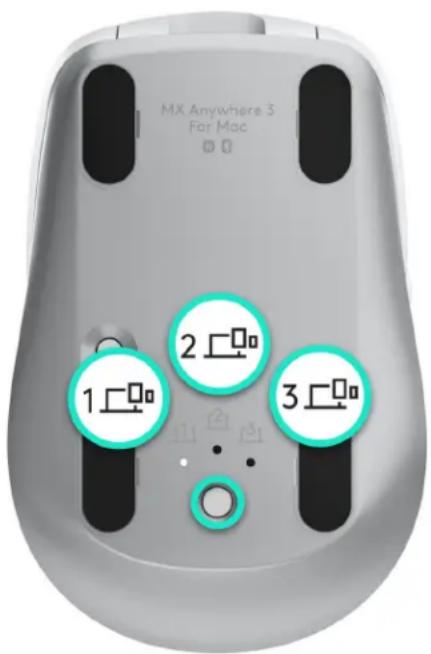
- A short press on the Easy-Switch button will let you switch channels (from one computer to another). Select the channel you want and go to the next step.
- Press and hold the Easy-Switch button for three seconds. This will put the mouse in discoverable mode so that it can be seen by your computer. The LED will start blinking fast.
- Bluetooth: Open the Bluetooth settings on your computer to complete the pairing. More details here.
NOTE: Your MX Anywhere 3 for Mac is also compatible with the Logitech Unifying receiver. The Unifying wireless receiver is a USB dongle accessory that allows you to connect the mouse to the computer using USB. It can be useful if you prefer to avoid or cannot use the direct Bluetooth Low Energy connection. It can be purchased here on the Logitech website or in selected retailers.
MagSpeed adaptive scroll-wheel with SmartShift

The speed-adaptive scroll wheel shifts between two scrolling modes automatically. As you scroll faster, it will automatically shift from line-by-line scrolling to free-spinning.
- Line-by-line (ratchet) mode — ideal for precise navigation of items and lists
- Hyper-fast (free-spin) mode — near-frictionless spinning, letting you fly through long documents and web pages.


Switch modes manually
You can also manually switch between modes by pressing the mode shift button.

By default, mode shift is assigned to the button on top of the mouse.
In Logitech Options software, you can decide to disable SmartShift if you prefer to stay in one scrolling mode and always shift manually. You can also adjust the SmartShift sensitivity, which will change the speed required to automatically shift into free spinning.

Horizontal Scroll

You can scroll horizontally with your MX Anywhere 3 for MAC!
This is done with a two button combination: Press and hold one of the side buttons and scroll with the wheel simultaneously.
NOTE:
- The horizontal scroll is ON by default in your Logitech Options software. You can customize this feature in the Point & Scroll tab in Logitech Options.
For more detailed information on Horizontal scroll, click here.
Back/Forward buttons
The back and forward buttons enhance navigation and simplify tasks.

To move back and forward:
- Press the back or forward button to navigate web or document pages, depending on the location of the mouse pointer.
NOTE: On Mac, enabling the back/forward buttons requires installation of Logitech Options software.
In addition to enabling the buttons for use with Macs, Logitech Options software lets you assign other useful functions to the buttons, including undo/redo, OS navigation, volume up/down, and more.
App-Specific Settings
Your mouse buttons can be assigned to perform different functions for different applications. For instance, you can assign the side buttons to control volume in Spotify, copy/paste in Microsoft Excel, or undo/redo in Adobe Photoshop.
When you install Logitech options, you can install predefined app-specific settings that will adapt the mouse button behavior to the selected applications.
Here are the app specific settings we have created for you:

| 1 | 2 | ||
| Default settings | Middle Button | Back | Forward |
| Browser (Chrome, Edge, Safari) | Open link in a new tab | Back | Forward |
| Zoom | Middle Button | Mute/Unmute Microphone | Start/Stop Video |
| Microsoft Excel | Pan (Hold and move the mouse) | Undo | Redo |
| Microsoft Word | Pan (Hold and move the mouse) | Undo | Redo |
| Microsoft PowerPoint | Pan (Hold and move the mouse) | Undo | Redo |
| Adobe Photoshop | Pan (Hold and move the mouse) | Undo | Redo |
| Adobe Premiere Pro | Pan(Hold and move the mouse) | Undo | Redo |
| Apple Final Cut Pro | Pan(Hold and move the mouse) | Undo | Redo |
With these settings, the wheel mode-shift button retains the same functionality across all applications.
Each of these settings can be customized manually, for any application.

Adjust the feel of the scroll wheel
When you scroll in Ratchet mode, you can adjust the feel of your scroll wheel on the "Point & Scroll" tab in Logitech Options.
A lower force will make the ratchet very subtle and smooth. A higher force will make every ratchet very firm and precise.

Assign gestures to the top button
If you want more advanced functionality, you can assign the top button of the mouse to the "Gesture Button". This will transform your top button into a powerful multi-function button allowing you to use gestures for desktop navigation, app management, pan, zoom, and more.
On the "Mouse" tab, select the top button below the wheel and click on "Gesture Button".

By default, the gesture buttons will allow you to navigate between windows and desktops.
| Gesture button | Hold the gesture button while moving the mouse. | |
| RECOMMENDED ○ Wheel mode shift ○ Middle button ● Gesture button ○ Mute ○ Mission Control ○ Change pointer speed ○ Keystroke assignment NAVIGATION ○ App Expose ○ Show desktop ○ Desktop (left) LESS | ● Windows navigation ○ Media control ○ Pan ○ App navigation ○ Zoom/Rotate ○ Custom | Mission Control Switch between desktops App Expose ○ Mission Control Click the gesture button. LEARN MORE > |
In order to perform the gestures, you will need to hold the button while you move the mouse.
Flow between two computers
You can work on multiple computers with a single MX Anywhere 3 for MAC
With Logitech Flow, you can use the mouse cursor to move from one computer to the next. You can even copy and paste between computers, and if you have a compatible Logitech keyboard, such as MX Keys, the keyboard will follow the mouse and switch computers at the same time.

You will need to install Logitech Options software on both computers and follow these instructions.
Charging MX Anywhere 3 for MAC
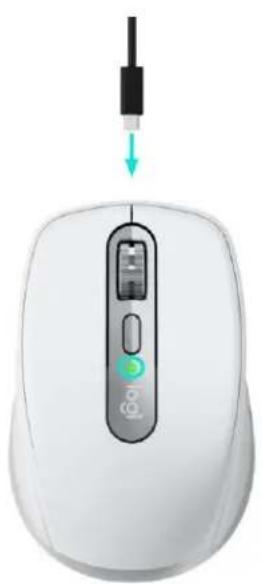
- Connect one end of the provided charging cable to the USB-C port on the mouse and the other end to a USB power source.
A minimum of a three-minute charge gives you enough power for a full day of use. Depending on how you use the mouse, a full charge can last up to 70 days*.
* Battery life may vary depending on user and operating conditions.
Check Battery Status
The LED on the top of the mouse indicates battery status.

You can install Logitech Options software to receive battery status notifications, including low-charge warnings.
| LED Color | Indications |
| Green | From 100% to 10% charge |
| Red | 10% charge or below |
| Pulsing green | While charging |


- MX ANYWHERE 3 FOR MAC
- GETTING STARTED
- QUICK SETUP
- DETAILED SETUP
- MAKE SURE THE MOUSE IS TURNED ON
- CONNECT VIA BLUETOOTH
- INSTALL LOGITECH OPTIONS SOFTWARE
- LEARN MORE ABOUT YOUR PRODUCT
- YOU CAN PAIR TO A SECOND COMPUTER WITH EASY-SWITCH
- MAGSPEED ADAPTIVE SCROLL-WHEEL WITH SMARTSHIFT
- SWITCH MODES MANUALLY
- HORIZONTAL SCROLL
- NOTE
- BACK/FORWARD BUTTONS
- APP-SPECIFIC SETTINGS
- ADJUST THE FEEL OF THE SCROLL WHEEL
- ASSIGN GESTURES TO THE TOP BUTTON
- FLOW BETWEEN TWO COMPUTERS
- CHECK BATTERY STATUS
Brand : LOGITECH
Model : MX Anywhere 3
Category : Mouse