
EP-N5200 - Mobile Device Charger SAMSUNG - Free user manual and instructions
Find the device manual for free EP-N5200 SAMSUNG in PDF.


 FR
FR
 BG
BG
 CS
CS
 DA
DA
 DE
DE
 EL
EL
 EN
EN
 ES
ES
 ET
ET
 FI
FI
 HU
HU
 IT
IT
 KK
KK
 KO
KO
 LT
LT
 LV
LV
 NL
NL
 NO
NO
 PL
PL
 PT
PT
 RO
RO
 RU
RU
 SK
SK
 SL
SL
 SV
SV
 TR
TR
 UK
UK
 ZH
ZH
| Product type | Wireless charger |
| Brand | Samsung |
| Model | EP-N5200 |
| Charging technology | Qi wireless charging |
| Maximum output power | 15 W (fast charging) |
| Input voltage | 5V/2A or 9V/1.67A |
| Dimensions | 100 × 100 × 10 mm |
| Weight | 80 g |
| Indicator light | Charging LED |
| Main functions | Wireless charging, fast charging, foreign object detection |
| Compatibility | Qi-compatible devices (Samsung, Apple, etc.) |
| Maintenance and cleaning | Clean with a soft dry cloth. Do not use liquid. |
| Safety instructions | Overheating, overcurrent, and short-circuit protection |
| Spare parts and repairability | No spare parts available. In case of failure, replace the device. |
| Warranty | 2 years (according to local legislation) |
Frequently Asked Questions - EP-N5200 SAMSUNG
User questions about EP-N5200 SAMSUNG
0 question about this device. Answer the ones you know or ask your own.
Ask a new question about this device
Download the instructions for your Mobile Device Charger in PDF format for free! Find your manual EP-N5200 - SAMSUNG and take your electronic device back in hand. On this page are published all the documents necessary for the use of your device. EP-N5200 by SAMSUNG.
USER MANUAL EP-N5200 SAMSUNG
Please read this manual before using the device to ensure safe and proper use.
- Images may differ in appearance from the actual product. Content is subject to change without prior notice.
- Before using the wireless charger, make sure it is compatible with your device.
Instructional icons

Warning: situations that could cause injury to yourself or others

Caution: situations that could cause damage to your device or other equipment

Notice: notes, usage tips, or additional information
Getting started
Package contents
Check the product box for the following items:
- Wireless charger
- USB power adaptor
- USB cable
- Quick start guide

- Wireless charging covers are sold separately.
- The items supplied with the device and any available accessories may vary depending on the region or service provider.
- The supplied items are designed only for this device and may not be compatible with other devices.
- Appearances and specifications are subject to change without prior notice.
- You can purchase additional accessories from your local Samsung retailer. Make sure they are compatible with the device before purchase.
- Use only Samsung-approved accessories. Using unapproved accessories may cause performance problems and malfunctions that are not covered by the warranty.
- Availability of all accessories is subject to change depending entirely on manufacturing companies. For more information about available accessories, refer to the Samsung website.
Device layout
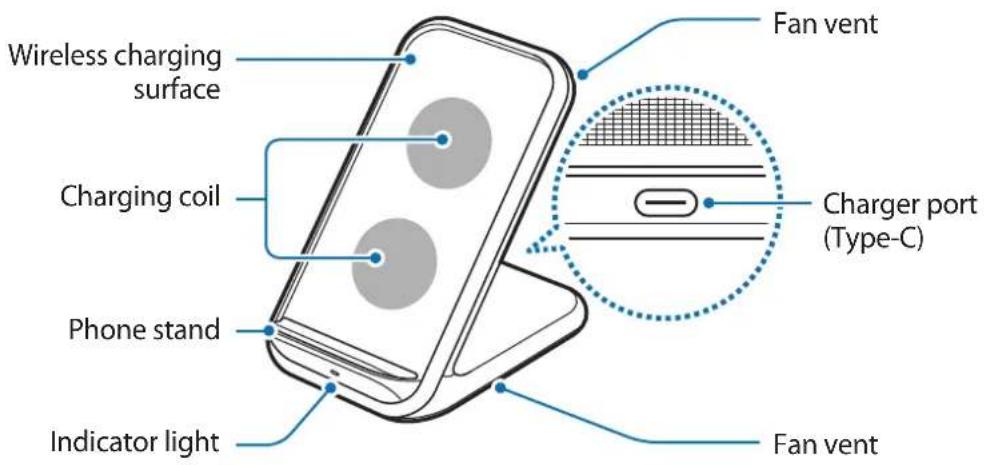
Using the wireless charger
Charging your mobile device
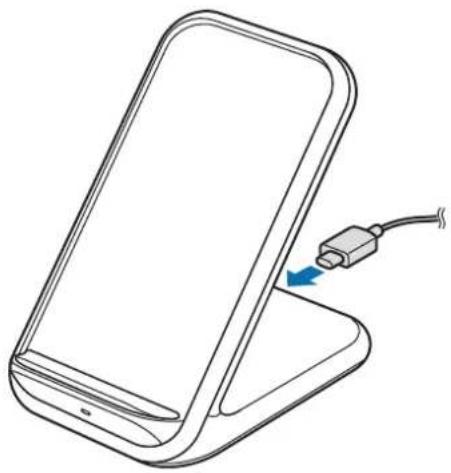
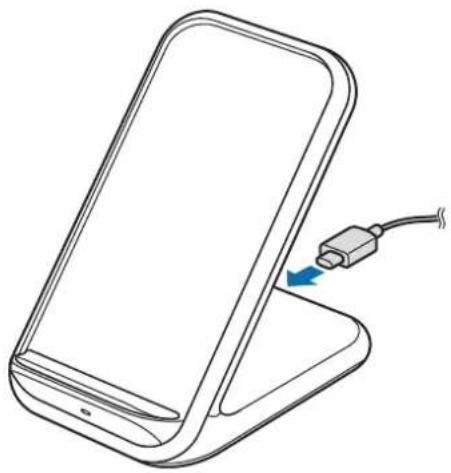
1 Connect the charger to the wireless charger.
When the charger is correctly connected to the wireless charger, the indicator light flashes red, green, and orange, and then turns off.

Use only Samsung-approved chargers (9.0 V/2.77 A) provided with the wireless charger.
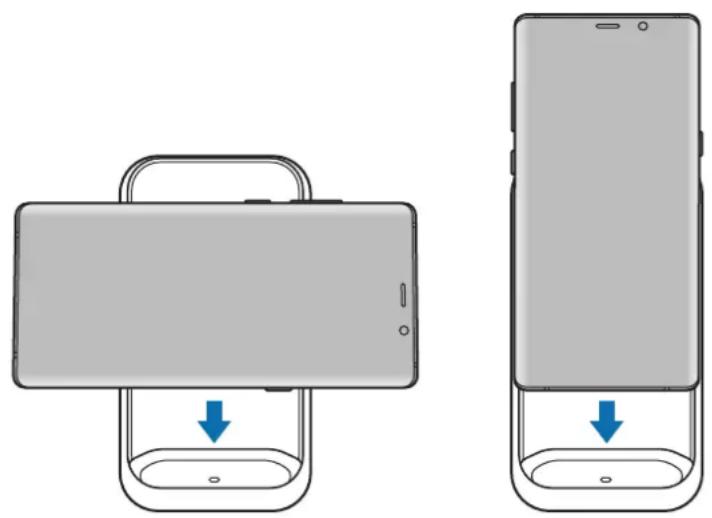
2 Place a supported mobile device on the phone stand.
- Charging will begin when the wireless charging surface comes into contact with the mobile device's wireless charging coil.
- Check the charging icon displayed on the mobile device's screen for the charging status.
- To begin fast wireless charging, place a mobile device that supports fast wireless charging on the wireless charger. For more information, refer to the mobile device's user manual.
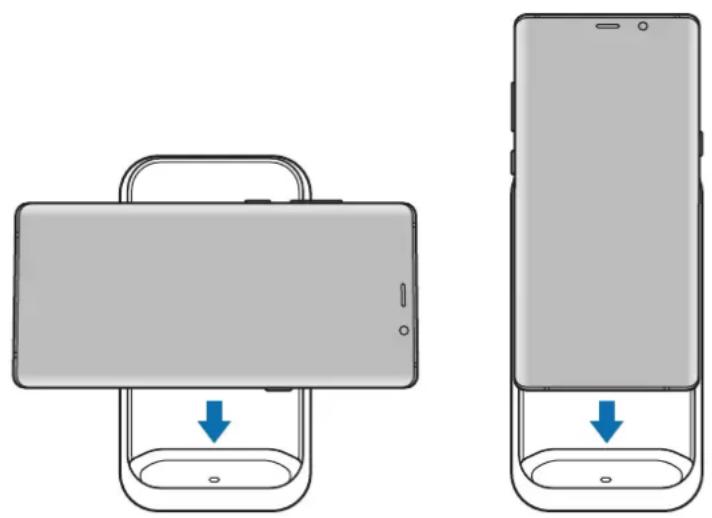
3 When the mobile device is fully charged, remove the mobile device from the wireless charger.

Precautions for mobile device charging
- Do not place the mobile device on the wireless charger with a credit card or radio-frequency identification (RFID) card (such as a transportation card or a key card) placed between the back of the mobile device and the mobile device cover.
- Do not place the mobile device on the wireless charger when conductive materials, such as metal objects and magnets, are placed between the mobile device and the wireless charger.
The mobile device may not charge properly or may overheat, or the mobile device and the cards may be damaged.

- You may need to purchase a charger separately depending on the wireless charger you bought.
- Depending on the location of the mobile device's wireless charging coil, your mobile device may not charge properly.
- Wireless charging may not work properly if you have attached a thick case to your mobile device. If your case is thick, remove it before placing your mobile device on the wireless charger.
- If you connect a charger to the mobile device during wireless charging, the wireless charging feature will be unavailable.
- If you use the wireless charger in areas with weak network signals, you may lose network reception.
- The fan inside the wireless charger may produce noise during fast wireless charging. When you deactivate the fast wireless charging feature, the fan noise will be reduced. To see how to deactivate the fast wireless charging feature, refer to the mobile device's user manual.
- To save energy, unplug the charger when not in use. The charger does not have a power switch, so you must unplug the charger from the electric socket when not in use to avoid wasting power. The charger should remain close to the electric socket and easily accessible while charging.
Indicator light identification
The indicator light alerts you to the wireless charger's status.
| Colour Status | |
| Red → Green → Orange | When connected to a power outlet |
| Red | When charging |
| Green | When fully charged |
| Flashing red | When not charging properly due to a general error |
| Off | When the mobile device is removed from the wireless charger or when the wireless charger is not connected to a power outlet |

- If the indicator light does not work as described, disconnect the charger from the wireless charger and reconnect it.
- The indicator light may work differently depending on the mobile device or the wireless charging cover.
Copyright
Copyright © 2019 Samsung Electronics
This manual is protected under international copyright laws.
No part of this manual may be reproduced, distributed, translated, or transmitted in any form or by any means, electronic or mechanical, including photocopying, recording, or storing in any information storage and retrieval system.
Trademarks
• SAMSUNG and the SAMSUNG logo are registered trademarks of Samsung Electronics. - All other trademarks and copyrights are the property of their respective owners.
This manual is protected by international copyright laws.
No part of this manual may be reproduced, distributed, translated, or transmitted in any form or by any means, electronic or mechanical, including photocopying, recording, or storage in any information storage and retrieval system.
Trademarks
- SAMSUNG and the SAMSUNG logo are registered trademarks of Samsung Electronics.
- All other trademarks and copyrights are the property of their respective owners.
Read first
This manual is protected by international copyright laws.
2 Place the supported mobile device on the phone stand.
2 Place a supported mobile device on the phone stand.
© 2019 Samsung Electronics
Copyright © 2019 Samsung Electronics
Copyright © 2019 Samsung Electronics
Copyright © 2019 Samsung Electronics
Copyright © 2019 Samsung Electronics
Copyright © 2019 Samsung Electronics
© Samsung Electronics, 2019.
© Samsung Electronics, 2019
Copyright © 2019 Samsung Electronics
Please read this manual before using the device to ensure safe and proper use.
- Images may differ in appearance from the actual product. Content is subject to change without prior notice.
- Before using the wireless charger, make sure it is compatible with your device.
Instructional icons

Warning: situations that could cause injury to yourself or others

Caution: situations that could cause damage to your device or other equipment

Notice: notes, usage tips, or additional information
Getting started
Package contents
Check the product box for the following items:
- Wireless charger
- USB power adaptor
- USB cable
- Quick start guide

- Wireless charging covers are sold separately.
- The items supplied with the device and any available accessories may vary depending on the region or service provider.
- The supplied items are designed only for this device and may not be compatible with other devices.
- Appearances and specifications are subject to change without prior notice.
- You can purchase additional accessories from your local Samsung retailer. Make sure they are compatible with the device before purchase.
- Use only Samsung-approved accessories. Using unapproved accessories may cause performance problems and malfunctions that are not covered by the warranty.
- Availability of all accessories is subject to change depending entirely on manufacturing companies. For more information about available accessories, refer to the Samsung website.
Device layout
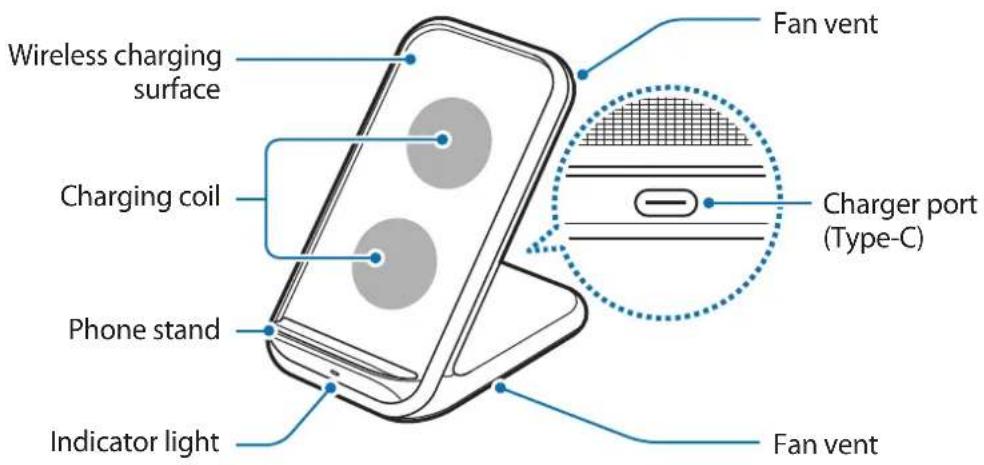
Using the wireless charger
Charging your mobile device
1 Connect the charger to the wireless charger.
When the charger is correctly connected to the wireless charger, the indicator light flashes red, green, and orange, and then turns off.

Use only Samsung-approved chargers (9.0 V/2.77 A) provided with the wireless charger.
2 Place a supported mobile device on the phone stand.
- Charging will begin when the wireless charging surface comes into contact with the mobile device's wireless charging coil.
- Check the charging icon displayed on the mobile device's screen for the charging status.
- To begin fast wireless charging, place a mobile device that supports fast wireless charging on the wireless charger. For more information, refer to the mobile device's user manual.
3 When the mobile device is fully charged, remove the mobile device from the wireless charger.

Precautions for mobile device charging
- Do not place the mobile device on the wireless charger with a credit card or radio-frequency identification (RFID) card (such as a transportation card or a key card) placed between the back of the mobile device and the mobile device cover.
- Do not place the mobile device on the wireless charger when conductive materials, such as metal objects and magnets, are placed between the mobile device and the wireless charger.
The mobile device may not charge properly or may overheat, or the mobile device and the cards may be damaged.

- You may need to purchase a charger separately depending on the wireless charger you bought.
- Depending on the location of the mobile device's wireless charging coil, your mobile device may not charge properly.
- Wireless charging may not work properly if you have attached a thick case to your mobile device. If your case is thick, remove it before placing your mobile device on the wireless charger.
- If you connect a charger to the mobile device during wireless charging, the wireless charging feature will be unavailable.
- If you use the wireless charger in areas with weak network signals, you may lose network reception.
- The fan inside the wireless charger may produce noise during fast wireless charging. When you deactivate the fast wireless charging feature, the fan noise will be reduced. To see how to deactivate the fast wireless charging feature, refer to the mobile device's user manual.
- To save energy, unplug the charger when not in use. The charger does not have a power switch, so you must unplug the charger from the electric socket when not in use to avoid wasting power. The charger should remain close to the electric socket and easily accessible while charging.
Indicator light identification
The indicator light alerts you to the wireless charger's status.
| Color Status | |
| Red → Green → Orange | When connected to a power outlet |
| Red | When charging |
| Green | When fully charged |
| Flashing red | When not charging properly due to a general error |
| Off | When the mobile device is removed from the wireless charger or when the wireless charger is not connected to a power outlet |

- If the indicator light does not work as described, disconnect the charger from the wireless charger and reconnect it.
- The indicator light may work differently depending on the mobile device or the wireless charging cover.
Copyright
Copyright © 2019 Samsung Electronics
This manual is protected under international copyright laws.
No part of this manual may be reproduced, distributed, translated, or transmitted in any form or by any means, electronic or mechanical, including photocopying, recording, or storing in any information storage and retrieval system.
Trademarks
• SAMSUNG and the SAMSUNG logo are registered trademarks of Samsung Electronics. - All other trademarks and copyrights are the property of their respective owners.
Copyright © 2019 Samsung Electronics
2 Place the supported mobile device on the phone holder.
2 Place the supported mobile device on the phone holder.
Copyright © 2019 Samsung Electronics
This manual is protected by international copyright laws.
© Samsung Electronics, 2019.
- INSTRUCTIONAL ICONS
- GETTING STARTED
- PACKAGE CONTENTS
- DEVICE LAYOUT
- USING THE WIRELESS CHARGER
- CHARGING YOUR MOBILE DEVICE
- PLACE A SUPPORTED MOBILE DEVICE ON THE PHONE STAND
- WHEN THE MOBILE DEVICE IS FULLY CHARGED, REMOVE THE MOBILE DEVICE FROM THE WIRELESS CHARGER
- PRECAUTIONS FOR MOBILE DEVICE CHARGING
- INDICATOR LIGHT IDENTIFICATION
- COPYRIGHT
- TRADEMARKS
- READ FIRST
- PLACE THE SUPPORTED MOBILE DEVICE ON THE PHONE STAND
- PLACE THE SUPPORTED MOBILE DEVICE ON THE PHONE HOLDER
Brand : SAMSUNG
Model : EP-N5200
Category : Mobile Device Charger