
SMLM 807 A1 - Music SILVERCREST - Free user manual and instructions
Find the device manual for free SMLM 807 A1 SILVERCREST in PDF.


| Product type | Wireless multimedia laser mouse |
| Brand | SilverCrest |
| Model | SMLM 807 A1 |
| Dimensions (mouse) | 125 x 82 x 40 mm |
| Weight (without battery) | 115 g |
| Weight (with battery) | 138 g |
| Power supply | 1 AA 1.5 V battery |
| Sensor resolution | 800/1600 cpi (switchable) |
| Technology | Class 1 laser, 2.4 GHz radio |
| Wireless range | Up to 5 m |
| Number of buttons | 8 (of which 7 programmable) |
| Scroll wheel | 4-way tilt, hyper-fast scrolling |
| Multimedia functions | Play/pause, next/previous tracks, volume, mute |
| Required systems | Windows XP/Vista/7, USB 2.0 port |
| Maintenance | Clean with a dry cloth, do not use corrosive liquids |
| Safety | Do not expose to water, direct heat or magnetic fields |
| Warranty | 3 years |
| Package contents | Mouse, nano USB receiver, AA battery, driver CD, manual |
| Laser class | 1 (safe) |
Frequently Asked Questions - SMLM 807 A1 SILVERCREST
User questions about SMLM 807 A1 SILVERCREST
0 question about this device. Answer the ones you know or ask your own.
Ask a new question about this device
Download the instructions for your Music in PDF format for free! Find your manual SMLM 807 A1 - SILVERCREST and take your electronic device back in hand. On this page are published all the documents necessary for the use of your device. SMLM 807 A1 by SILVERCREST.
USER MANUAL SMLM 807 A1 SILVERCREST
User manual and service
information
IAN 75831
IAN 75831
CH

Deutsch....2
Français....24
Italiano 46
English....68
Inhalt
Einleitung....3
natural_image
Symbol of a trash bin with crossed lines indicating no waste, and a solid black rectangle below (no text or labels)Interface radio....30
Copyright....31
natural_image
Simple line drawing of a trash bin with crossed x's and no text or symbolsnatural_image
Symbol of a trash bin with crossed x and y lines, no text or numbers presentSystem Requirements ....71
Important Safety Instructions ....72
Operating Environment 73
Children and Persons with Disabilities....74
Batteries 74
R/F Interface 74
Copyright....75
Storing When Not Using the Product....75
Overview....76
Before Getting Started....77
Inserting the Battery 77
Connecting the USB Nano Receiver....79
Software Installation 80
Getting Started 82
Toggling between Operating Modes 82
Configuration 82
Maintenance / Cleaning 84
Environmental Considerations and Recycling 84
Conformity Notice....85
Troubleshooting 86
Warranty Information 87
Introduction
Thank you for purchasing this SilverCrest SMLM 807 A1 wireless multimedia laser mouse. In addition to the 3 standard buttons, this wireless laser mouse is equipped with five special buttons that enable access to frequently used functions. The scroll wheel is a 4-way fast scroll wheel that enables both vertical and horizontal scrolling. The fast scroll wheel also allows hyper-fast scrolling. With the special CPI button (4) you can toggle between a resolution of 800 cpi and 1600 cpi or between standard and media functionality. This wireless laser mouse also features an automatic standby function. If the wireless laser mouse is not used for a certain time it will power off. Press any button on the wireless laser mouse to power it back on.
Intended Use
This wireless multimedia laser mouse, consisting of a wireless laser mouse and USB nano receiver, is an IT device. The device may not be used outdoors or in tropical climates. This product has not been designed for corporate or commercial (e.g. office) applications. Use the product in domestic environments for private applications only. This device fulfils all that relates to CE Conformity, relevant norms and standards. Any modifications to the equipment other than recommended changes by the manufacturer may result in these directives no longer being met. The manufacturer is not liable for any damage or interference caused by unauthorized modifications. Only use the accessories recommended by the manufacturer. Any use other than that mentioned above does not correspond to the intended use.
Please observe the regulations and laws in the country of use.
Package Contents
Please check the completeness of package contents using the following list:
- Wireless Multimedia Laser Mouse SMLM 807 A1
- USB nano receiver (inserted into the wireless laser mouse)
- 1 AA brand-name battery, 1.5V
- Driver CD
- User's Manual
If you find any items missing or damaged, please phone our hotline. You will find the corresponding phone number in the last chapter "Warranty Information".
Technical Data
- Wireless multimedia laser mouse with USB nano receiver
- Laser Class 1
- 8 buttons, 7 of which are programmable
- Tilt wheel for vertical and horizontal scrolling and hyper-fast scrolling
- Selectable resolution: 800 cpi or 1600 cpi
- Smart Link (no complicated connection process required for receiver and wireless laser mouse)
- Radio frequency: 2.4 GHz
-
Power supply: 1 AA battery, 1.5 V
70 - English -
Toggling between Media Player and Office Mode (standard operation) by simple key operation
- Range: up to 5m
- Dimensions of wireless mouse: 125 mm x 82 mm x 40 mm (LxWxH)
- Dimensions of USB nano receiver: 15,5 mm x 7 mm x 18 mm (LxWxH)
- Weight of the wireless laser mouse: 115 g without battery / 138 g with battery
- Weight of USB nano receiver: 2 g
System Requirements
- Intel ^ Pentium ^ III / AMD Athlon ^TM or higher
- 1 free USB 2.0 port
- Microsoft ^® Windows ^® XP, Windows Vista ^® or Windows ^® 7
- CD-ROM drive or DVD drive for installing the software
Important Safety Instructions
Before you use this device for the first time, please read the following notes in this manual and heed all warnings, even if you are familiar with handling electronic devices. Keep this manual safe for future reference. If you sell the device or pass it on, it is essential you hand over this manual also.

This icon denotes important information for the safe operation of the product and for the user's safety.

This icon alerts about a strong light source.

This symbol denotes further information on the topic.
Warning: Laser Radiation! Laser Class 1
Avoid damage to your eyes! Never look into the laser beam. Never point the laser beam directly at people or animals!
Operating Environment
Position the wireless laser mouse on a stable, flat surface and do not place any objects on the device. The device is not for use in environments with a high temperature or humidity (e.g. bathrooms), and must be kept free of dust. Operating temperature and operating humidity: 5°C to 40°C, max. 90% RH.

Always make sure that:
- no direct heat sources (e.g. heating) can affect the device;
- no direct sunlight or artificial light reaches the device;
- contact with spray, dripping water and corrosive liquids must be avoided and the device should never be operated near water, and it must especially never be immersed (do not place any objects filled with liquids such as vases or drinks near the device);
- the device is never placed in the immediate vicinity of magnetic fields (e.g. loudspeakers);
- no fire sources (e.g. burning candles) are placed on or near the device;
- no foreign bodies are introduced into the device;
- the device should not be subject to any sharp temperature changes;
- the device is not subject to excessive shocks and vibrations;

Children and Persons with Disabilities
Electrical appliances do not belong in the hands of children. Also people with disabilities shall use electrical devices accordingly. Do not allow children or persons with disabilities to use electrical devices when not under supervision. These people may not comprehend the presence of potential risks. Batteries and small parts represent potential choking hazards. Keep the batteries out of reach. If a battery is swallowed, seek medical help immediately. Keep the packaging away from children and persons with disabilities too. as there is danger of suffocation.

Batteries
Insert the battery with the correct polarity. Never throw the battery into the fire. Remove the battery if the device is not going to be used for a long time. Non-intended use may cause explosion and danger to life.

R/F Interface
Please switch off the appliance in airplanes, hospitals, operating theatres and in the vicinity of medical electronic system. The radio waves transmitted could impair the functionality of sensitive appliances.
Observe a minimum distance of 20 cm between the appliance and any pacemaker as the radio waves could impair the function of the pacemaker.
The transmitted radio waves may create interference noises in hearing aids.
Do not allow the appliance to be introduced in the vicinity of inflammable gases or in environments subject to a risk of explosion (e.g. paint shops) as
74 - English
long as the radio component is switched on, because the transmitted radio waves could trigger an explosion or fire.
The coverage/range of the radio waves varies depending on the surrounding and environmental conditions.
In any data exchange via wireless connections, unauthorized third parties are also able to receive the data. Targa GmbH is not liable for any radio or television interference caused by unauthorized modifications of this appliance. Targa furthermore accepts no liability for the replacement or exchange of connection cables and appliances not specified by Targa GmbH. The user is solely responsible for the elimination of interferences caused by such an unauthorized modification, as well as for the replacement or exchange of the appliances concerned.
Copyright
The entire content of this User's Manual is copyrighted and is provided to the reader for information purposes only.
Copying data and information without the prior written and explicit authorization from the author is strictly forbidden. This also applies to any commercial use of the contents and information.
All texts and figures are up-to-date as per the date of print release. We assume no liability for any changes.
Storing When Not Using the Product
If the wireless laser mouse is going to be left unused for a long period of time, remove the battery. Remove the USB nano receiver from your computer's USB port and insert it into the storage compartment of the wireless laser mouse. Also make sure that the storage temperature is maintained between 5 °C and 40 °C. Humidity must not exceed 90% RH.
Overview
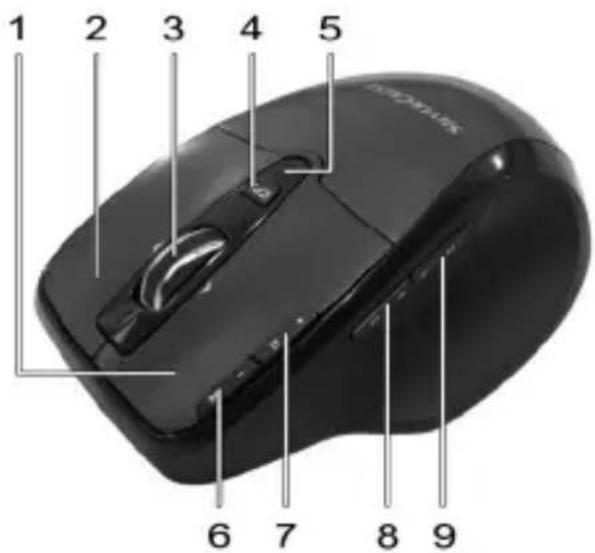
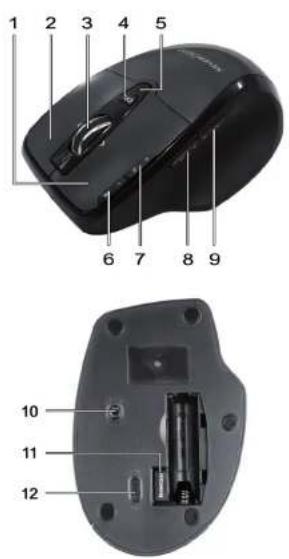
1 Left mouse button
2 Right mouse button
3 Tilt wheel (4-way fast scroll wheel) Volume control and mute (media mode)
4 800/1600 cpi toggle switch (press briefly) Standard / media mode toggle switch (keep pressed for 3 seconds)
5 Battery level indicator
6 Zoom - (default mode) Play / Pause (media mode)
7 Zoom + (default mode) Launch Media Player (media mode)
8 Back (default) Previous title (media mode)
9 Forward (default) Next title (media mode)
76 - English
Before Getting Started
Inserting the Battery
Insert the supplied battery into the wireless laser mouse.
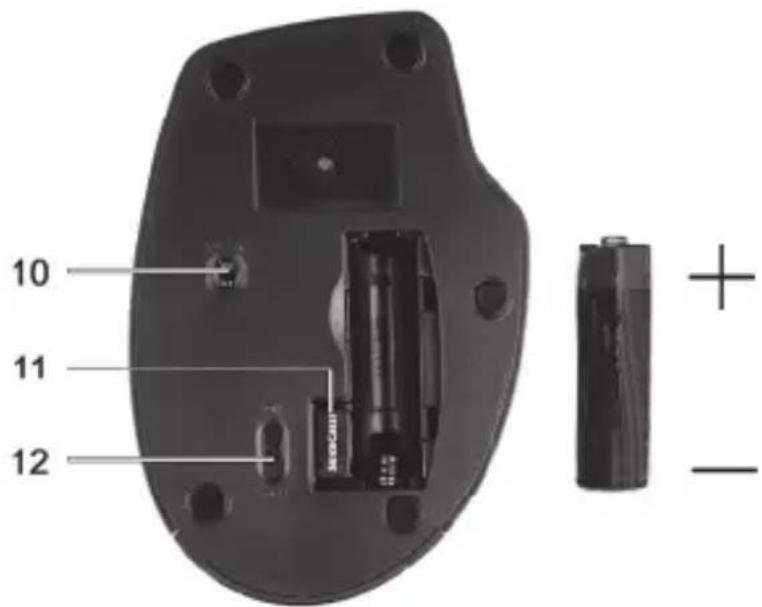
10 Laser sensor
11 Inserted USB nano receiver
12 On/Off button
- Open the battery compartment on the bottom of the wireless laser mouse.
- Insert the supplied battery (size AA) into the wireless laser mouse with the correct polarity (+ and -); see the illustration.
- Remove the USB nano receiver.
- Close the battery compartment.
English - 77
- Press the On/Off button (12) on the bottom of the wireless laser mouse to power it on.

If the indicator light (5) on the upper side of the wireless laser mouse lights up orange, the battery is depleted. When this happens, replace the battery with a new battery of the same type.

Should the wireless laser mouse fail to work, power it off and back on. Sometimes removing and re-inserting the battery will also help.

After inserting a rechargeable battery into the wireless laser mouse or after powering the wireless laser mouse on, the indicator (5) will flash several times during automatic synchronisation with the receiver. When the synchronisation is completed, the status indicator will stop lighting.
Connecting the USB Nano Receiver
If your previous mouse is still connected to the computer, please shut down the computer, disconnect the appliance and then restart the computer.
Connect the USB Nano Receiver (12) to a free USB port of computer.
The operating system will automatically recognize the new hardware and install the required drivers. Depending on the operating system installed, the following screen messages may appear:
Windows® XP
When the receiver is connected for the first time, the operating system displays the message „New hardware detected“. Wait until the message „The new hardware has been installed and is now ready for use“ is displayed before using your wireless laser mouse.
Windows Vista ^® , Windows ^® 7
When the receiver is connected for the first time, the operating system displays the message „Installation of appliance driver software“. Wait until the message „The appliances are ready for use now“ appears. The wireless laser mouse is now operational and ready to be used.
Software Installation
If you would like to use all of the functions of your wireless laser mouse you need to install the software included. Insert the included CD-ROM in the CD-ROM drive of your computer. The installation process should start automatically, failing that, start the CD-ROM file "setup.exe" manually by double-clicking it.
Only with the operating system Windows ^® 7, Windows Vista ^® will the installation initially be stopped by the user account control function with the message: "An unidentified program is attempting to access the computer". Click on "OK" to continue with the installation.
The following installation illustrations correspond to the operating system Windows ^® 7. The windows shown in the operating systems Windows ^® XP/Vista are slightly different, but their content is the same.
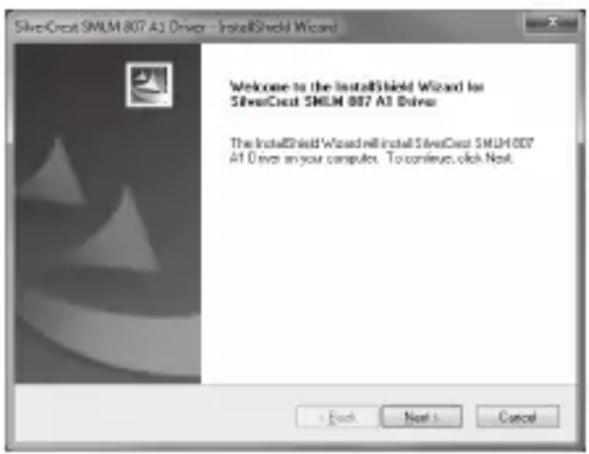
Click on Next to start the installation.
Here you can select the target file for the installation via the Change button or use the suggested file. Click on Next to proceed with the installation.
![SilverCrest SMLM 807 A1 Driver - InstallShield Wizard Choose Destination Location Select risks where setup will install risks. Install SilverCrest SMLM 807 A1 Driver: C:\Program Files\SilverCrest SMLM 807 A1 Driver Change [OK] Next Cancel](/content/2026/05/873314/images/40dcf6765c9ac999ba3784a457ecb07e27acb0cd457a6efcd77041dc6e297def.jpg)
Click Finish to finish the setup programme.
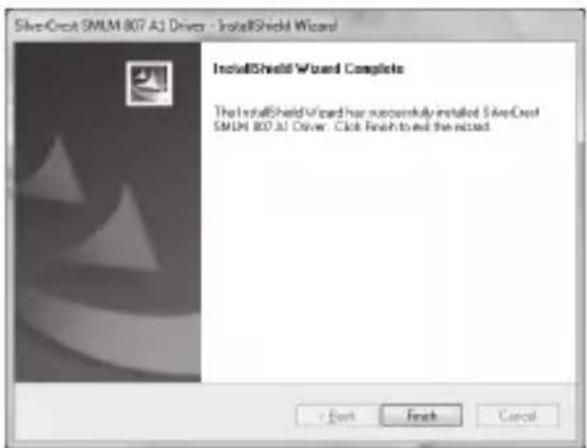

If you are prompted to restart your computer, restart it before using the software.
Getting Started
Toggling between Operating Modes
The CPI button (4) puts you in a position to toggle between the optical scan resolutions of 800 cpi und 1600 cpi. The scanning is more precise at 1600 cpi and the mouse cursor will move faster given the same movements.
If you would like to toggle between standard operation and media operation, press the CPI button (4) and keep it pressed for a minimum of 3 seconds until the power control lamp (5) briefly lights up.
When switching to 1600 cpi resolution, the control light (5) will blink fast. When switching to 800 cpi resolution, the control light will blink slowly.
Please see the list on page 76 for information on the functions available in the media operation mode.
Configuration
Double-click on the 📄 icon in the task bar (lower-right corner on your screen, near the system clock). Or right-click on the 🔊 icon and select "Open" from the context menu. The mouse configuration menu will appear.
Here you can specify functions for selected mouse buttons. Simply click on the selection switch next to the corresponding mouse button and select a function from the menu by clicking on it with the left mouse button.
You can restore the mouse to its original state by clicking on the „Restore to default“ button.
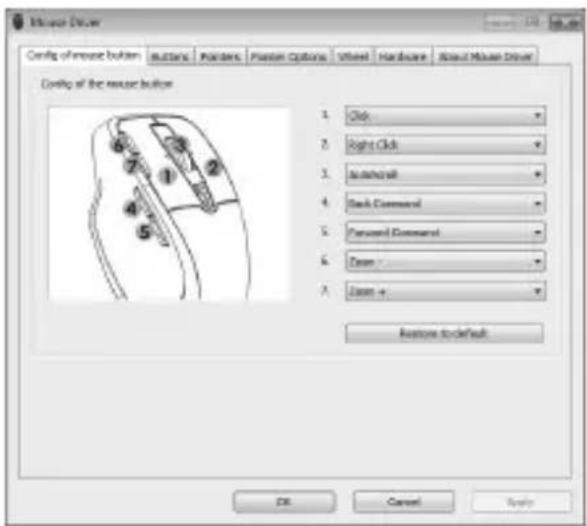

All selected options apply to the default mode. The button assignments for media mode cannot be modified.
If you would like to apply your changes, please click on the „Apply“ button (the window will still stay open) or the „OK“ button (the window will close).
Tip for users of Microsoft® Windows® 7, Windows Vista® (Windows® XP does not include this function):
You can also adjust the horizontal scrolling of the tilt wheel in the system control of the operating system in the submenu „Mouse“. The configuration menu of the mouse driver needs to be closed in order to access the system control menu.
Maintenance / Cleaning
Repairs are required when this device has been damaged in any way, for example, when liquid has entered the product, when the product has been exposed to rain or moisture, when the product does not work normally or if the product has been dropped. If smoke, unusual noises or smells are noticed, power off the device immediately. In this case the device should not be used further and should be inspected by authorized service personnel. Please contact qualified personnel when repair is needed. Never open the housing of the device, or the accessories. Only use a clean, dry cloth for cleaning. Never use any corrosive liquids.
Environmental Considerations and Recycling

natural_image
Symbol of a trash bin with crossed lines indicating no waste, and a solid black rectangle below (no text or labels)Devices marked with this symbol are subject to the European Directive 2002/96/EC. All electric and electronic devices must be disposed of separately from household waste at established bodies. The USB nano receiver is also an electronics device and must be properly disposed of.
Avoid hazards to the environment and dangers to your personal health by disposing of the device properly. For further information about proper disposal, contact your local government, disposal bodies or the shop where you bought the device.
Respect the environment. Old batteries do not belong in with domestic waste. They must be handed in to a collection point for old batteries. Please note that batteries must be disposed of fully discharged at appropriate collection points for old batteries. If disposing of batteries which are not fully discharged, take precautions to prevent short circuits.
Also recycle the packaging material properly. Cardboard packaging can be taken to paper recycling containers or public collection points for recycling. Any films or plastic contained in the packaging should be taken to your public collection points.
Conformity Notice
CE
The wireless laser mouse has been tested and approved for compliance with the basic and other relevant requirements of the R&TTE Directive 1999/5/EC. The corresponding Declaration of Conformity can be found at the end of this User's Manual.
Troubleshooting
If the wireless laser mouse is not being recognized following installation or does not respond to input, please check the following:
☑ Please check the polarity of the battery.
☑ Please check if the wireless laser mouse is switched on.
☑ Check whether the miniature USB receiver is properly connected to the computer; see page 79 - Connecting the USB Receiver).
√ Try another USB port.
√ Check the charging level of the battery and if necessary insert a new battery.
☑ Please note that you need to use a mat (e.g. mouse pad) if you intend to use the wireless laser mouse on a glass surface or glossy surface.
Warranty Information
Warranty of Targa GmbH
This device is sold with three years warranty from the date of purchase. Please keep the original receipt in a safe place as proof of purchase. Before using your product for the first time, please read the enclosed documentation or online help. Should any problems arise which cannot be solved in this way, please call our hotline. Please have the article number and, if available, the serial number to hand for all enquiries. If it is not possible to solve the problem on the phone, our hotline support staff will initiate further servicing procedures depending on the fault. Within the warranty period the product will be repaired or replaced free of charge as we deem appropriate. No new warranty period commences if the product is repaired or replaced. Consumables such as batteries, rechargeable batteries and lamps are not covered by the warranty.
Your statutory rights towards the seller are not affected or restricted by this warranty.
Service

Phone: 0207 - 36 50 744
E-Mail: service.GB@targa-online.com

Phone: 01 - 242 15 83
E-Mail: service.IE@targa-online.com

Phone: 800 - 62 175
E-Mail: service.MT@targa-online.com

Phone: 800 - 92 496
E-Mail: service.CY@targa-online.com
IAN: 75831

Manufacturer
TARGA
GmbH
Postfach 22 44
D-59482 Soest
www.targa.de
88 - English
CE
EC - Declaration of Conformity
Address: Targa GmbH Lange Wende 41 59494 Soest, Germany
Product: RF PC Laser Mouse Model: SilverCrest SMLM 807 A1
The product complies with the requirements of the following European directives:
1999/5/EC R&TTE
2011/65/EU
Compliance was proved by the application of the following standards:
RF: EN 300 440-2 V 1.4.1
EMC: EN 301 489-1 V 1.8.1:2008-04 EN 301 489-3 V 1.4.1:2002-08
Safety: EN 60950-1: 2006 +A11:2009
Human exposure: EN 50371:2002-03
Year of CE marking: 2012

natural_image
Abstract sketch of a stylized bird or wing (no text or symbols)Soest, 2 ^nd of July 2012
Authorised signature
Matthias Klauke, Managing Director
- Inhalt
- Introduction
- Intended Use
- Package Contents
- Technical Data
- System Requirements
- Important Safety Instructions
- Warning: Laser Radiation! Laser Class 1
- Operating Environment
- Always make sure that:
- Children and Persons with Disabilities
- Batteries
- R/F Interface
- Copyright
- Storing When Not Using the Product
- Overview
- Before Getting Started
- Inserting the Battery
- Connecting the USB Nano Receiver
- Software Installation
- Getting Started
- Toggling between Operating Modes
- Configuration
- Maintenance / Cleaning
- Environmental Considerations and Recycling
- Conformity Notice
- CE
- Troubleshooting
- Warranty Information
- Warranty of Targa GmbH
- Service
- Manufacturer
- EC - Declaration of Conformity
Brand : SILVERCREST
Model : SMLM 807 A1
Category : Music