USER MANUAL GMINI 402 ARCHOS
English Language User Manual
Gmini™
402
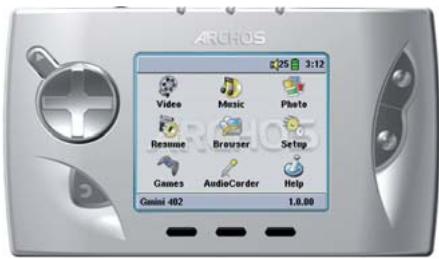
Pocket Music / Photo / Video
- MPEG-4 Video Player • MP3 & WMA Music Player
- Photo Viewer
- USB 2.0 Hard Disk
User Manual for ARCHOS™ Gmini™ 402
Version 1.8
Please visit our website to download the most recent manual and software for this product.
Table of Contents
1 INTRO - Buttons and Connections 6
2 INTRO - First Time Usage 8
2.1 Plugging in the AC Adapter 8 2.2 Turning on the Gmini™ 402 8 2.3 Shutting off the Gmini™ 402 and Battery saving features 8 2.4 Changing the Language 9 2.5 Foreign Character Sets 9 2.6 Charging the Batteries 9 2.7 Caring for the Gmini™ 402 10 2.8 Hardware Reset 10
3 MUSIC - Playing Music Files 11
3.1 Button Control 11 3.2 Playing Through your Stereo System 12 3.3 Artist, Album, Title ... ID3 Tags 13 3.4 The ARCLibrary (Browsing by Album, Artist, or Song name) 13 3.5 Setting a Bookmark 14 3.6 The Resume Function 14
4 MUSIC - Playlists 15
4.1 Playing a Playlist 15 4.2 Creating a Playlist 16 4.3 Saving a Playlist 16 4.4 Adding songs to a Playlist while listening to Music 17
5 MUSIC - Recording Music 18
5.1 Cable Connections for Audio Recording 18 5.2 Recording Procedure 19
Microphone 20 Analog Line-In 20 Incremental Recording 20 5.3 Where is the Recording Saved? 20 5.4 Audio Editing 21
6 MUSIC – Putting Music onto your Gmini™ 402 23
6.1 Synchronizing Music from Windows Media® Player to the Gmini™ 402 23 6.2 Comparison of Windows Media Player 10 to Windows Media Player 9 24 6.3 Transferring your CD collection to the Gmini™ 402 24 6.4 Installing Windows Media® Player 9 (WMP9) 25 6.5 Installing Windows Media® Player 10 (WMP10) 25
7 MUSIC - Using iTunes™ with your Gmini™ 402 26
8 VIDEO - Playing Video Files 27
8.1 Setting a Bookmark 28 8.2 The Resume Function 28 8.3 Display Format Settings 29 8.4 Playing Video Files from the Internet 29 Protected Internet Video content 29
Non Protected Internet Video Content 29
9 VIDEO - Creating MPEG4 video files with your computer 31
How to create an MPEG-4 video file 31
PC Tools 31
9.1 Installing the PC Software 31 MPEG-4 codec (Compression/Decompression) 32 Virtual Dub™ 32 MPG4 Translator 32 MP3 Sound Codec 32 9.2 Using MPG4 Translator 33 Select Source & Destination Files 33 Change Settings 34 Target & Priority 34 Start 34
10 PHOTO - Viewing Photos 36
10.1 Viewing Photos 36 Magnifying Photos 37 10.2 Viewing a slideshow 37 10.3 Transferring photos to your Gmini™ 402 38
11 Games - Playing Mophun® Games 40
11.1 Downloading Games 40 Copy to Gmini™ 402 root 40 11.2 Playing a Game 41
12 BROWSER - Using the Browser 42
12.1 Navigating the Directory Structure 42 12.2 File and folder operations 43 File Operations 43 Folder Operations 43 Copying and Moving Files and Folders 44 12.3 Using the Virtual Keyboard 45
13 Connecting/Disconnecting the Gmini™ 402 to/from your PC 46
13.1 USB Connection Type ('Hard Drive' or 'Windows Device') 46 13.2 Connecting the Gmini™ 402 46 Windows® XP 46 Windows™ ME and 2000 47 Macintosh™ OS X 47 13.3 Disconnecting the Gmini™ 402 from your Computer 48 Windows Device Mode 48 Hard Drive Mode 48 Hard Drive Mode & Windows® 48 Hard Drive Mode & Macintosh® 49
14 Connecting Devices to the USB Host Port 50
15 SETTINGS 51
15.1 Sound Settings 51 15.2 Play Mode Settings 52 15.3 Clock Settings 54
15.4 Display Settings 54 15.5 Power Settings 56 15.6 System Settings 57
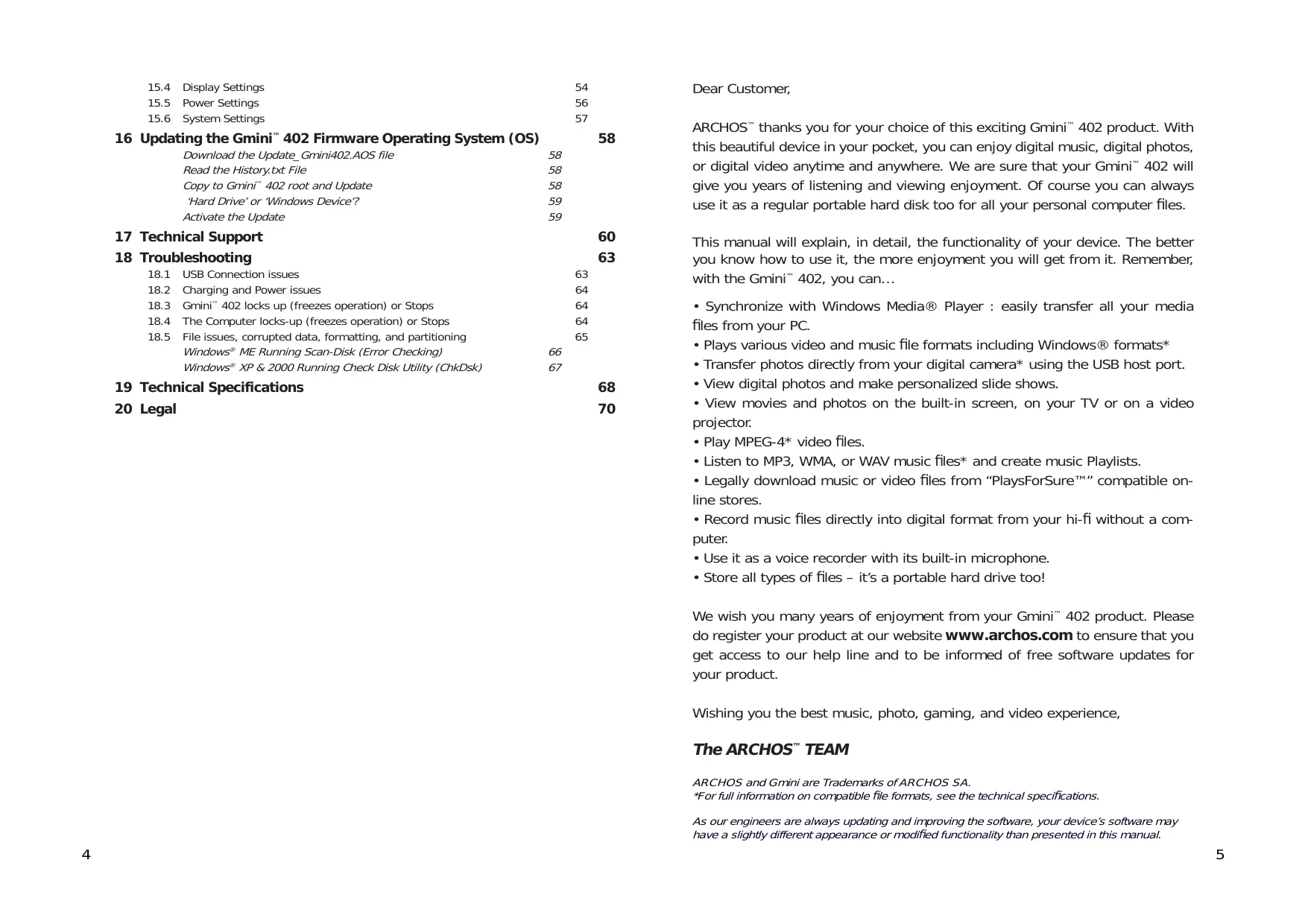
16 Updating the Gmini™ 402 Firmware Operating System (OS) 58
Download the Update_Gmini402.AOS file 58
Read the History.txt File 58
Copy to Gmini™ 402 root and Update 58
'Hard Drive' or 'Windows Device'? 59
Activate the Update 59
17 Technical Support 60
18 Troubleshooting 63
18.1 USB Connection issues 63 18.2 Charging and Power issues 64 18.3 Gmini™ 402 locks up (freezes operation) or Stops 64 18.4 The Computer locks-up (freezes operation) or Stops 64 18.5 File issues, corrupted data, formatting, and partitioning 65
Windows® ME Running Scan-Disk (Error Checking) 66
Windows® XP & 2000 Running Check Disk Utility (ChkDsk) 67
19 Technical Specifications 68
20 Legal 70
Dear Customer,
ARCHOS™ thanks you for your choice of this exciting Gmini™ 402 product. With this beautiful device in your pocket, you can enjoy digital music, digital photos, or digital video anytime and anywhere. We are sure that your Gmini™ 402 will give you years of listening and viewing enjoyment. Of course you can always use it as a regular portable hard disk too for all your personal computer files.
This manual will explain, in detail, the functionality of your device. The better you know how to use it, the more enjoyment you will get from it. Remember, with the Gmini™ 402, you can...
- Synchronize with Windows Media® Player: easily transfer all your media files from your PC.
- Plays various video and music file formats including Windows® formats*
- Transfer photos directly from your digital camera* using the USB host port. • View digital photos and make personalized slide shows.
- View movies and photos on the built-in screen, on your TV or on a video projector.
- Play MPEG-4* video files.
- Listen to MP3, WMA, or WAV music files* and create music Playlists.
- Legally download music or video files from "PlaysForSure™" compatible online stores.
- Record music files directly into digital format from your hi-fi without a computer.
- Use it as a voice recorder with its built-in microphone.
- Store all types of files – it's a portable hard drive too!
We wish you many years of enjoyment from your Gmini™ 402 product. Please do register your product at our website www.archos.com to ensure that you get access to our help line and to be informed of free software updates for your product.
Wishing you the best music, photo, gaming, and video experience,
The ARCHOS™ TEAM
ARCHOS and Gmini are Trademarks of ARCHOS SA.
*For full information on compatible file formats, see the technical specifications.
As our engineers are always updating and improving the software, your device's software may have a slightly different appearance or modified functionality than presented in this manual.
1
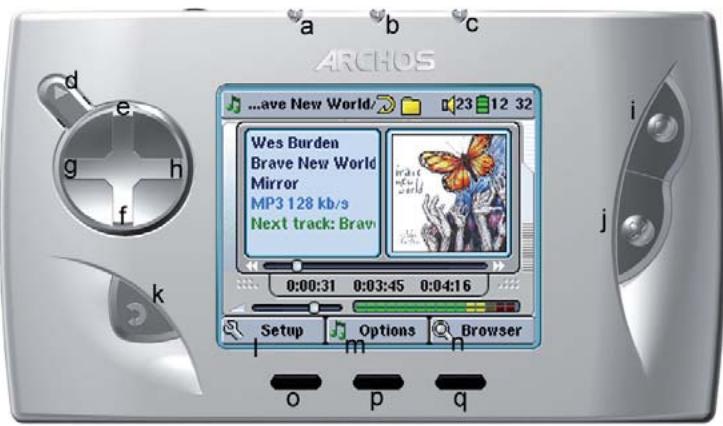
a Hard disk activity indicator (red)
b On indicator (green)
c Battery charger indicator (green) – blinks when the battery is fully charged
d On/Enter/Play/Go ▶ – Hold for 3 seconds to turn on the Gmini™ 402
e Move UP (also increases volume during media playback)
f Move DOWN (also decreases volume during media playback)
g Move LEFT (also plays previous song or fast reverse through a song or video)
h Move RIGHT (also plays next song or fast forward through a song or video)
i Game Control 1 (Function depends on game) [acts as Enter/Play when not in game mode]
j Game Control 2 (Function depends on game) [acts as Escape/Stop when not in game mode]
k Escape/Stop/Go back/Off - Hold for 3 seconds to turn off device
I F1 command or function
m F2 command or function
n F3 command or function
o Function button F1 – activates the on-screen function or command above it (I)
p Function button F2 – activates the on-screen function or command above it (m)
Long press to switch display between built-in screen and external TV
q Function button F3 – activates the on-screen function or command above it (n)
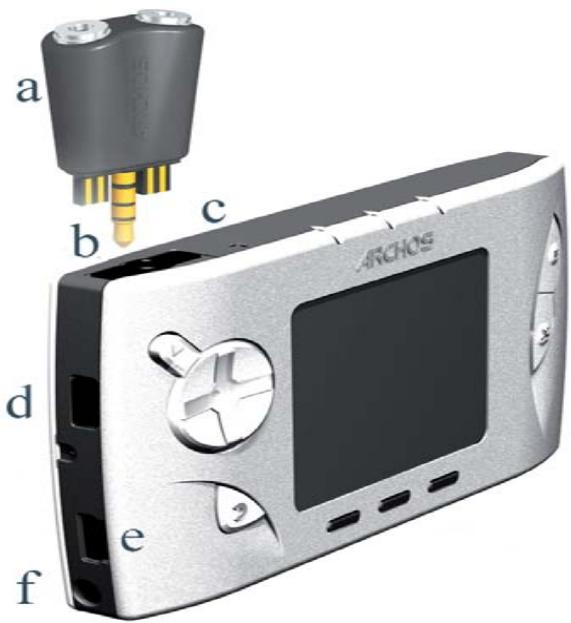
a Multiconnect adapter – allows for an analog audio input (Line In)
b Multi-connect jack – for headphones, AV cable, or FM Remote control (optional accessory)
c Microphone – for making digital voice recordings
d USB Host port
e USB 2.0 port (USB 1.1 compatible) to connect the Gmini™ 402 to your computer
f Power Connector (Use only the supplied ARCHOS™ power charger/adapter)
INTRO - First Time Usage
Please take the time to read through this manual. There are many things that this device can do that you may not be aware of.
2.1 Plugging in the AC Adapter
- Use only the included ARCHOS™ charger/adapter.
- Before using for the first time, charge the batteries completely.
- You may use the ARCHOS™ Gmini™ 402 while its battery is charging, but it will then take longer before the battery is completely charged.
2.2 Turning on the Gmini™ 402
- Hold the PLAY/ON button ▶ for 4 seconds. The green "On" indicator light will turn on. Be patient, it will take a few seconds for the operating system to boot up.
- If the unit shuts off after holding the ON button for several seconds, plug in the ARCHOS™ adapter/charger to make sure the batteries get charged.
2.3 Shutting off the Gmini™ 402 and Battery saving features
To shut off the unit, press and hold the STOP/ESC/OFF button for 3 seconds.
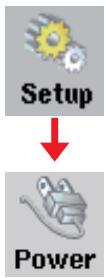
In the Power menu [Setup →Power: Battery Operation] there is a Power Off parameter. It is factory set to 2 minutes. Thus, if your Gmini™ 402 is idle for 2 minutes, it will shut off. This setting can be changed from one to nine minutes or to 'never'. In the Power menu [Setup →Power: Battery Operation] there is a Backlight Off parameter to save battery power (the lighting of the screen consumes a lot of the battery power). It is factory set to 30 seconds. That is, if there are no buttons pressed, the screen will shut off in order to save battery life.
To turn the screen back on, just click once on any button. See the Power section 1 in the Settings chapter for a complete explanation.
2.4 Changing the Language
The Gmini™ 402 interface can be set to English (default), French, German, Spanish or Russian.
- To change the language, move the cursor to Setup and then click PLAY/ENTER ▶.
- Then move with the joystick to Display and click PLAY/ENTER ▶.
- Highlight the Language parameter.
- Use the Right or Left button to choose the desired language.
- Choose French, German, Spanish, Russian or English.
- The language displayed will change immediately.
- Click on the STOP/ESC button to exit this screen.
![graph TD A["Setup"] --> B["Display"] B --> C["Language"] B --> D["English"]](/content/2025/01/86954/images/5c7d1710c79f3380086191ad9c1f60edbce6e25e93f04e0351e38491d473932a.jpg)
2.5 Foreign Character Sets
You have the possibility to display your file names, folder names, and MP3 ID3 tags in various character sets (ex: Korean, Japanese, Simplified Chinese, etc.). You can find the language files CodePage_name.4FZ in the font folder under /Data on the Gmini™ 402 hard disk or on the ARCHOS™ website under the heading Software. If, for example, you would like to have the Korean language display, then you would copy the file CP949.4FZ into the folder /system on the Gmini™ 402 and shut down and restart the Gmini™ 402. File names, folder names, and ID3 tags written using the Microsoft® codepage for the language will now be displayed in that character set. Only one .4FZ can be used at a time, thus you should only put one .4FZ file into the /system folder. When an .4FZ language file is used, the interface language will be set to English.
2.6 Charging the Batteries
Use ONLY an ARCHOS™ charger/adapter that is specified for the Gmini™ 402. Other chargers or adapters may damage the Gmini™ 402. The
green CHARGE indicator lights up to indicate that the external adapter is connected. The batteries will charge automatically when the AC adapter/charger is plugged in. Once the batteries are fully charged, this light will blink, indicating that you can disconnect the charger/adapter. Once charged, you can get up to 10 hours* of MP3 music playback time and up to 3 hours* of AVI video playback time (on the built-in screen) from the batteries. The Gmini™ 402 is made with integrated batteries which are designed to last for the life of the Gmini™ 402. This means that you will not have to change them. If, in the exceptional case, the batteries need changing, this should only be done by an ARCHOS™ technician.
* depending on how you use it (start/stop/writing, etc.)
2.7 Caring for the Gmini™ 402
The ARCHOS™ Gmini™ 402 is an electronic product that needs to be treated with more care than typical consumer electronic products.
• Do not subject it to shock. - Do not subject it to heat. Keep it ventilated (especially when connected to a computer). - Keep the Gmini™ 402 away from water and excessively humid areas. - Keep the Gmini™ 402 away from high electromagnetic fields. - Keep any connected cords to the Gmini™ 402 neatly arranged. This light product could fall if a cord is accidentally pulled by a child. - Do not open up the Gmini™ 402. There are no user serviceable parts inside. Opening will void your warranty.
2.8 Hardware Reset
In the event that your Gmini™ 402 freezes operation (due to electrostatic phenomena for example), you can actuate a hardware reset by holding down on the STOP/ESC button for 10 seconds. In normal operation, the STOP/ESC button will shut down the Gmini™ 402 after being held down for 3 seconds.
3 MUSIC - Playing Music Files

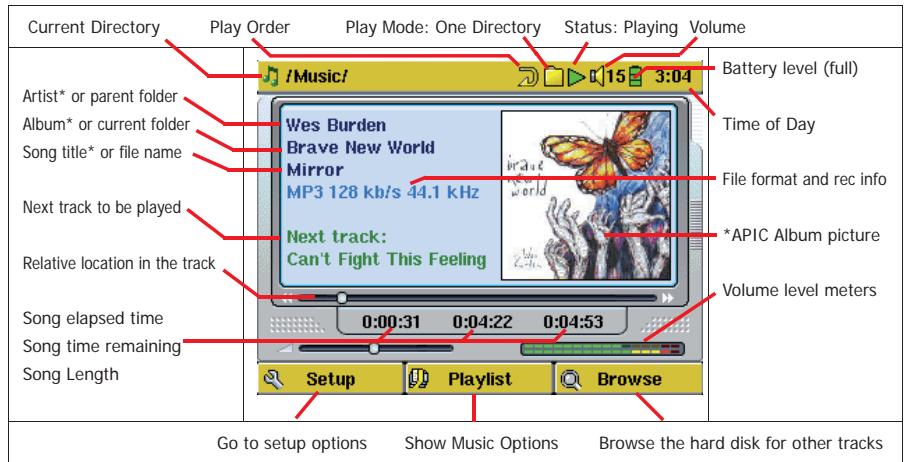
When you click on this icon in the main screen, you will be sent directly to the Music folder. Use the direction buttons to highlight one of the factory installed music selections and then click on PLAY ▶. If you hear nothing at first, make sure you have adjusted the volume control on the headphone cord. By clicking on the Music icon in the main menu screen, you will enter into a 'music only' mode. Other file types that may be in this folder are only listed if you enter the folder via the Browser.
*If the file contains these tag data
| Play/pause/resume song | Increase the Volume |
| Click once: Play the previous song in the folder or playlist (during first 5 seconds of song) otherwise go to the beginning of the song.Hold: Fast reverse through the song. | 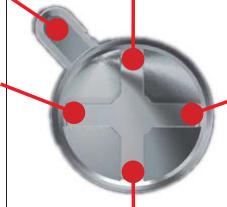 | Click once: Play the next song in the folder or playlist.Hold: Fast forward through the song. |
Stop Song  | Decrease the Volume | |
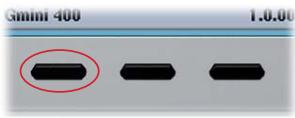
To lock the Gmini™ 402 buttons, press and hold the left function button for three seconds. The Gmini™ 402 will display the message "Buttons locked!" on the bottom of the screen. Press this again for three seconds to unlock the buttons.
What the Icons indicate
| Status | Play Order | Play Mode |
| [BTXT] Stopped | - no icon - Play once | See the Play mode section in the Settings chapter |
| [GCCKX] Blinks while playing a track | Repeat playing | |
 Current track is paused Current track is paused | Shuffle (random) track selection | |
| [6DS7] Recording a track | Playing a playlist | |
3.2 Playing Through your Stereo System
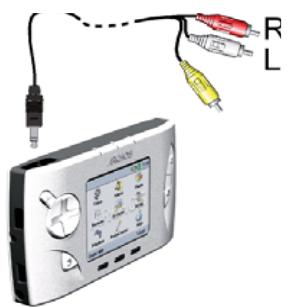
On your HiFi there are two RCA type connectors that are labeled Aux in, CD in, or Line-in. Typically they are color coded white and red for left and right stereo channels respectively. Just take the included A/V cable and plug it into the Gmini™ 402 headphone jack. Plug the red and white connectors into the Aux in, CD in, or line-in of your stereo system. Do not plug the yellow (video) connector into anything. On the front of your stereo, select the corresponding
auxiliary input or CD input that you plugged into on the back of your HiFi system. Press Play and then adjust the Gmini™ 402 volume (UP/DOWN buttons) in order to supply your stereo system with a signal that is neither too weak nor too strong. If the sound is distorted, you will need to reduce the Gmini™ 402's volume.
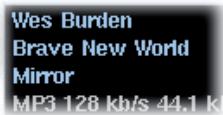
ID3 Tags are information about the recording which found inside of an MP3 music file. When someone creates an MP3 music file, he or she has the option of adding information to it. This information can include, among other things, the name of the artist (Wes Burden), the album name
(Brave New World), the title of the song (Mirror), and a small image of the album cover (only jpeg images not progressive jpeg). If these data are present, the Gmini™ 402 will display them on the screen when it plays the file. If they are not present, then the Gmini™ 402 will display in order, the name of the parent folder, the name of the current folder, and then the name of the file.
Other tag information may include year and genre of music. These other tag data are not displayed by the Gmini™ 402, but are used to index your music in the ARCLibrary (see next section). WMA files also have tags and these are displayed as well when the file is played.
3.4 The ARCLibrary (Browsing by Album, Artist, or Song name)
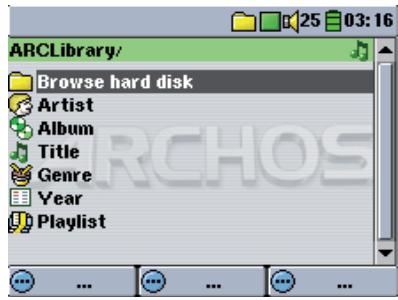
The ARCLibrary is your Gmini™ 402's music library. It is a system for indexing your music by album, artist, song title, etc. When you synchronize music files from your PC using Windows Media® Player to the Gmini™ 402, the ARCLibrary will get updated to include the new songs you have added. As shown in this screen capture, you can select your music by Artist, Album, Song Title, Genre, or Year.
All music files that you purchase have internal 'tags' which identify the artist, the album, and the song title. If your music files do not have internal tags (ex: WAV file format or untagged WMA or MP3 files) then the ARCLibrary will put them under the category (Unknown). Audio files created with the Gmini™ 402 from analog sources are indexed as Artist = (ARCHOS) and Album = (Audio Recordings).
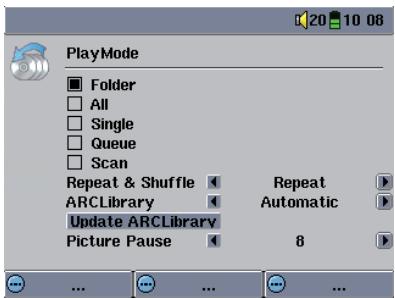
You can reach the PlayMode settings screen from Setup > PlayMode. The play mode determines how your music is played (just the current folder of music, all music, one file, etc.). See Playmode in the section Settings above for a description of how each one works.
3.5 Setting a Bookmark

If you are listening to a song, or perhaps a long recording, and would like to place a bookmark in it in order to pick up from this point at another time, you can use the Bookmark function. You simply click on the center function button labeled Options, then choose Set Bookmark. This will set a bookmark in the audio file at the current position. You can
only set one bookmark per file. When you look at the file in your browser, it will have a yellow check mark on its icon indicating that this file has a bookmark set within it. You can have a maximum of 16 files bookmarked. Setting more bookmarks will then start to erase the oldest bookmarks. The next time you play the audio file, you will be presented with three options:
Resume: Start playing from the bookmarked position.
Ignore: Keep the bookmark but start playing from the very beginning.
Clear: Clear the bookmark from this file and start playing from the very beginning.
3.6 The Resume Function

When you turn on your Gmini™ 402 you will sometimes notice that the icon which is highlighted on the main screen is not the Browser but rather the Resume icon. This icon is highlighted when the Gmini™ 402 can resume the last played audio or video file.
4 MUSIC - Playlists
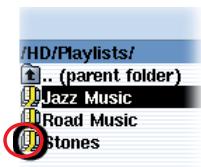
A Playlist is a list of songs that the Gmini™ 402 will automatically play one after the other. The Gmini™ 402 can load one playlist at a time into its internal memory. You can create new playlists, add or delete songs from a playlist, or Save a playlist as a file (file type .m3u) to be used another time. There is no limit to the number of playlists you can save on the Gmini™ 402 hard disk. Playlists are indicated by a special list icon (circled icon to the left).
4.1 Playing a Playlist
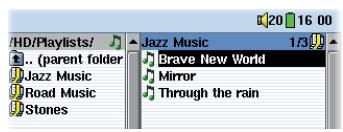
To play a Playlist, simply scroll to the Playlist, such as 'Jazz Music' shown to the left, and click on PLAY ▶. The list of songs will be loaded into the internal memory of the Gmini™ 402 and then be displayed in a separate panel.
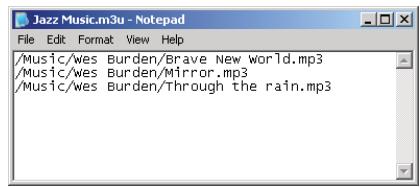
Click on PLAY ▶ and the songs will be played in the order shown. To shuffle the music entries in a random order, you can click on Playlist (F1), then choose Shuffle. You can open a Playlist file (Playlistname.m3u) on your computer with a text editor such as Notepad, and you will see that it is merely a list of files to be played along with the hard disk path to find them. If you delete a Playlist from your Gmini™ 402, you are only deleting the list and not the music itself.
Example of the contents of the .m3u Playlist file 'Jazz Music'.
4.2 Creating a Playlist
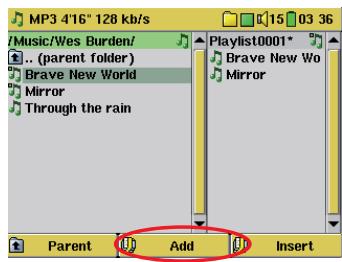
To create a Playlist, press the RIGHT button while you are in the Music browser. A second window will open on the right side to display the Playlist contents. You can now start adding songs to the current Playlist. In the left window, search for the songs you would like to add to your Playlist. Once the song is highlighted, click on the Add function
button to add it to the Playlist. The song will be added to the Playlist and a small mark next to the music icon will be made to indicate that it is in the Playlist. Continue searching and adding songs in this manner until you are satisfied. You can also click the Add or Insert button when highlighting a folder. All the contents of the folder and its subfolders will be added or inserted into the current playlist.
You can jump back and forth between the browser and the playlist by clicking on the LEFT and RIGHT buttons. A Playlist can have a maximum of 5000 songs. We recommend that you save your Playlists.
4.3 Saving a Playlist
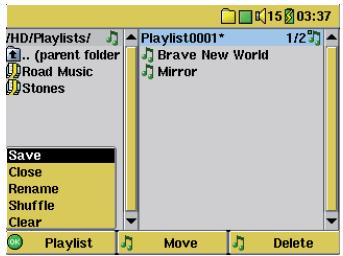
It is recommended that each time you create a Playlist, you save it to a separate folder called Playlists. These lists take very little space on your hard disk and if well named, give you easy access to your favorite songs. Go to the Playlist by selecting Music from the main menu and then click on the RIGHT button. You will then see the list of songs in the current
Playlist. Click the function button F1 then choose Save.
ATTENTION: Make sure that your left window is the Playlists folder, because the open window on the left is the location the Gmini™ 402 will be saving your Playlist to. You will need to update the ARCLibrary in order to see newly added Playlists.
Save – Saves the current playlist to the folder open in the left window. The * next to the playlist name indicates that this playlist has not been saved.
Close – Closes the windows and returns to the main menu screen.
Rename – Renames the current playlist.
Shuffle – Randomly shuffles the order of the songs in the current playlist.
Clear – Clears the contents of the current playlist.
Button Move – Allows you to change the place in the list of the highlighted song. Click on Move and then click on UP or DOWN to move the song up or down the list. Click OK when finished.
Button Delete – Will delete the highlighted song from the Playlist. It will not delete the actual song itself from your hard disk, just from the current Playlist.
Important: Once you save a Playlist it is important that you do not move or rename the actual MP3 files as the Playlist searches in the original file location. If you need to move your MP3 files to a different folder, you'll have to recreate your Playlist.
4.4 Adding songs to a Playlist while listening to Music
This can only be done if you have entered your Music folder via the Music icon and not by the general browser. To add the song you are listening to or any other song to the current Playlist, do the following:
![graph TD A["Edit Playlist\nSet Bookmark"] --> B["Options"] B --> C["Add"]](/content/2025/01/86954/images/f37ace5b5d0438714be7ac96aec23df7343c552b7075ad7338a0da391ef2f2c9.jpg)
- While playing a song, click on Options and choose Edit Playlist. A browser window and the Playlist will open.
- Click on the LEFT button to go to the hard disk browser window.
- Select the song or folder of songs to add, then click the button Add.
- Click ESC to return to the playing screen.
5
MUSIC - Recording Music
With the Gmini™ 402 series, you do not need a computer to create digital music files. It is capable of recording from the built-in microphone or an analog line source (ex: HiFi system, Boombox, CD Player, etc) into a standard Windows® WAV format, either PCM (uncompressed) or ADPCM (compressed).
5.1 Cable Connections for Audio Recording
Plug the multi-connect adapter into the Gmini™ 402 and then plug the included AV cable into the side marked Line-In as shown here. Connect the Red (Right) and White (Left) connectors to the audio output of your Hifi or other audio device that you are recording from. Do not plug the yellow connector to anything.
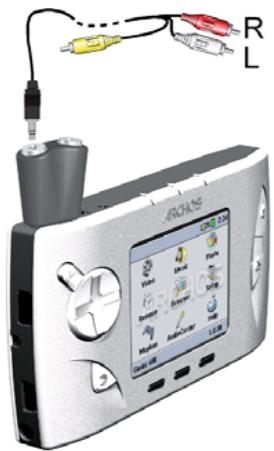
To the outputs of your audio device.
5.2 Recording Procedure
Before the actual audio recording begins, there is a pre-recording screen which will allow you to adjust your recording settings.
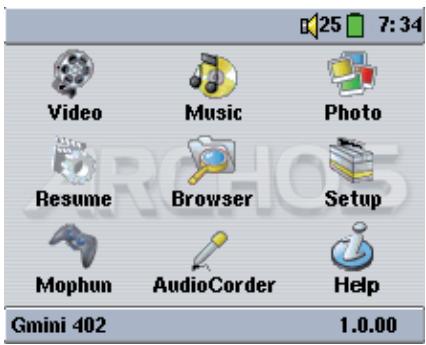
- From the home screen, select Audio-Corder then click on ENTER/GO ▶.
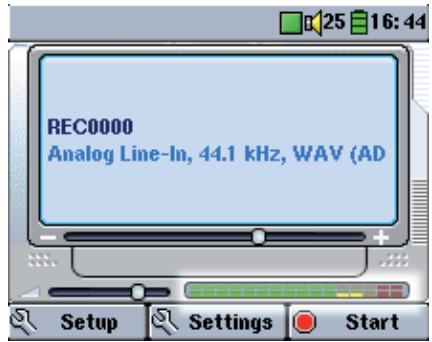
- In the pre-recording screen, adjust the recording level* by clicking on the LEFT and RIGHT buttons. Click on the F3 Start button to start recording. Attention, the first time recording you should adjust your Settings.
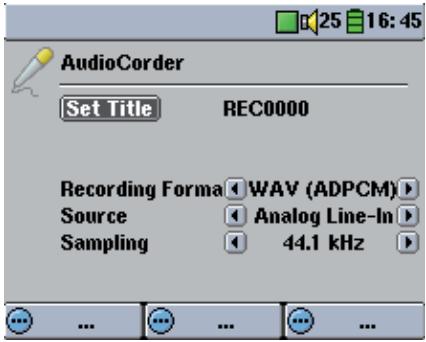
- Click on Settings to reveal the recording parameters screen as shown above. Be sure to set the correct Source. You will hear silence during recording and playback if the incorrect source is chosen.
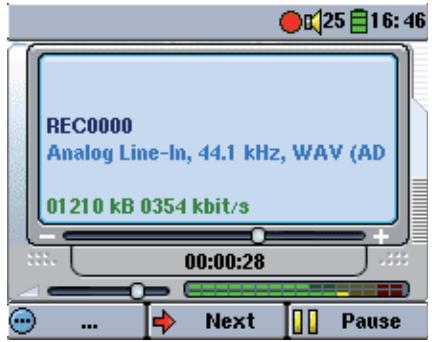
- Once you have clicked on the Start button, you can pause the recording by clicking the same function button (now labelled Pause), or stop the recording by clicking on the STOP/ESC button.
* (Analog recordings only) You should try some test recordings before deciding on which recording level gives the best sound quality. Don't be tricked by the volume of the headphones which can be adjusted independently with the UP and DOWN buttons.
Microphone
The built-in microphone is located on the top of the Gmini™ 402 unit next to the headphone jack. Make sure that you have selected Microphone as the input source in the pre-recording Settings screen. The microphone level is preset.
Analog Line-In
In order to record from a line-level audio source, you will need to use the multi-connect adapter plug provided. This plug makes it possible to enter a stereo audio signal (for example, from your stereo system or cassette player) into the Gmini™ 402 directly. Make sure that you select the Analog Line-In as the input source in the pre-recording Setup screen. Be careful that the source audio is supplying a line level and not an amplified signal (turning down the volume on the player will work if you are using the headphone out signal of your audio device). An amplified signal will make for a terribly distorted recording. You can also use a high quality pre-amplified microphone, such as the one ARCHOS™ sells as an option.
Incremental Recording
While recording, you will notice the center function button labeled Next. This allows you to create incremental recordings. That is, the current

recording stops and a new recording instantly begins. The next recording has an additional number appended to its name. Thus if you create multiple incremental recordings, you might, for example, have files names of REC0000_01, REC0000_02, etc. This is good for recording old cassettes and old vinyl records. You can click on the Next button during the blank space between each song. That way, each song of the vinyl disk or audio cassette will be one single audio file.
5.3 Where is the Recording Saved?
The default location for audio recordings is the folder called Music. If you click on the Music icon in the main menu, you will go to this folder. Notice that the right function button is labeled Record. Each time you use this button to record audio instead of the AudioCorder button on the main menu, you set the recording default location to the current folder. For example, let's say you have a folder called /Music/Voice/Lectures. If you go to this folder and then make a recording using the right function button Record, you will set the default record location to this folder. Now, each
time you use the AudioCorder icon to start a recording, your recording will be saved in the folder /Music/Voice/Lectures.
5.4 Audio Editing
Audio files (microphone recordings / analog recordings / FM Remote Control (optional)) can be modified by deleting the sections you do not wish included. If you would like to edit an audio recording, you have the possibility to "crop out" the exact section of the recording you would like to save. For example, you have recorded a lecture of 33 minutes and 22 seconds in length. You would like to cut out and save just one particular important section from 12 minutes and 15 seconds to 21 minutes and 5 seconds. The diagram below illustrates the situation.

To keep just this section (cropping it), you will:
- locate this file from the Browser mode
- Select Edit from the File menu in order to enter the edit mode
- In the edit mode, set the cut-IN point (12:15 in our example)
- Next, set the cut-OUT point (21:05 in our example – note that the actual position will now be earlier in the file as the first 12:05 minutes have been cut!)
- Save the edit
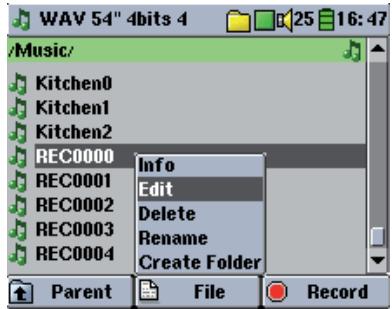
Highlight the file to edit and select Edit from the file menu. Only files which have been created with the Gmini™ 402 recording function will show Edit in the file menu. Files created from CDs or downloaded cannot be edited. Once you enter the edit mode, the audio file will play in a continuous loop so that you will be able to hear how your edit sounds.
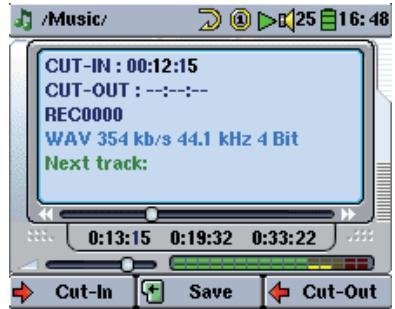
Use the fast-reverse and fast-forward buttons (LEFT/RIGHT buttons) to locate the points you want the new file to start and end. These are the cut-IN and cut-OUT points. Once you have set these points, you can save the edit. In this example, a new file REC0000.wav will be made. Your original file is left untouched. You will notice that your Cut-IN and Cut-OUT times are marked just above the file name.
6 MUSIC – Putting Music onto your Gmini™ 402

Your Archos™ product is a certified PlaysForSure™ digital device which means that wherever you find music for sale or for subscription on the Internet with this symbol, you can be certain that it will 'Play for sure' on your Gmini™ 402*.
The Gmini™ 402 is designed to work seamlessly with Windows Media® Player (WMP) versions 9 and 10. The Windows Media® Player software is used to download digital media content from the Internet to your computer and organizing it. You will also use it to synchronize (copy) the contents of your Windows Media® Player media library to your Archos™ device. See the comparison chart below for an explanation of the different features available when running Windows Media Player 9 and 10 or check out the web site www.playsforsure.com.
*Subscription services require you to be running Windows Media® Player 10.
The Synchronize button in Windows Media® Player (WMP) is a one way 'sync' button. That is, it will add music, video, and photo files to your Gmini™ 402 so that you have the same digital media on your Gmini™ 402 as you have in your Windows Media® Player media library. Of course, you can choose to sync only certain songs, videos, or photos, or sync your entire library. On WMP10, you can click the button Set up Sync in the Sync tab and
then check the box labeled Synchronize Device Automatically. This is the auto-sync advantage of WMP10. If this box is checked, then each time you connect your Gmini™ 402 to your PC, Windows Media® Player will automatically start up and check to see if there are any new music, videos, or photos in your media library, and if so, will then copy them to your Gmini™ 402. You also have the possibility to decide what types of media automatically sync when you connect your Gmini™ 402. For example, you may only want music files to be synchronized. On the other hand, with Windows Media® Player 9, you have to tell it what you want to sync, WMP9 cannot synchronize automatically when you connect your Gmini™ 402 to your computer.
Note for WMP10 users: Files added to your Gmini™ 402 from another computer or files which are recorded from an analog source cannot be added to the Windows Media® Player Library when you connect your Gmini™ 402 to the computer. Songs which have been added, will however, be listed in the device's ARCLibrary.
Windows® Media Player 10 is only available for Windows® XP (service Pack 1) and newer operating systems. It is worth your while to upgrade to Windows® XP (home or professional) and to Windows® Media Player 10. The list below shows the advantages.
| Functionality | WMP9 | WMP10 |
| Auto-synchronize the WMP library to ARCHOSTMGminiTM 402 on connecting to PC | no* | yes |
| Can synchronize subscription music ('to go'services) to your GminiTM 402 | no | yes |
| Carefree USB disconnection (no special greenarrow unmount procedure) | no | yes |
| Will convert video files** to play on your GminiTM 402if not in correct format | no | yes |
| Supports protected Internet video downloads | no | yes |
PlaysForSureTM audio content |  |  |
* Must use WMP9 manual sync function to copy purchased music to the Gmini™ 402. ** Microsoft reserves the right to limit which video file formats it will convert with WMP10
6.3 Transferring your CD collection to the Gmini™ 402
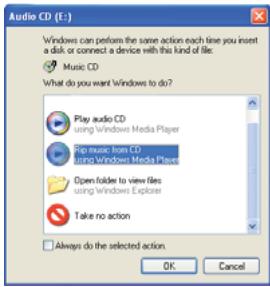
The process of transferring music from a CD into music files for your Gmini™ 402 is known as 'ripping'. It is actually a re-encoding process, taking the CDA (CD Audio) format and converting it to WMA or MP3 format which the Gmini™ 402 can read. There are many music ripping programs on the market, but ARCHOS™ recommends that you use Windows Media® Player to do it. In fact, when you place a music CD in your computer, Windows® will ask you if you would like to rip it. Depending on the power
of your computer, to rip a 60 minute CD, it will take anywhere from 10 minutes to 60 minutes. Once this is done, the album will become part of your music library. Connect your Gmini™ 402 to your computer with the supplied USB cable. Now, you go to the Sync tab and tell Windows Media® Player to synchronize that album to your Gmini™ 402. It will then transfer that album to your Gmini™ 402.
Note: Some music CDs have a special copy protection system that will not allow Windows Media® Player to make music files from them.
If you have Windows® ME or Windows® 2000, you should use Windows Media® Player 9. You can visit the Microsoft® Website to download the very latest version, or install the version found on the Gmini™ 402 itself.
You must be running Windows® XP (Service Pack 1 or higher) in order to install Windows Media® Player 10. Please visit the Microsoft® Website www.playsforsure.com to download and install the very latest version.
MUSIC - Using iTunes™ with your Gmini™ 402

The easiest way to transfer music files between a Macintosh® computer and your Gmini™ 402 is to use the Macintosh Finder™ to drag and drop the files to and from your Macintosh®.
However, for Macintosh® users who do want to use the Gmini™ 402 with iTunes®, ARCHOS™ has developed a special i-Tunes® plug-in. You will find it in the folder /Data/i-Tunes Plug-in on the Gmini™ 402 hard disk or from the ARCHOS™ website. In this folder you will find a .sit compressed file. Uncompress it and open the folder for your operating system. You will find a JPEG image illustrating where you need to copy the plug-in to. Once this is done, iTunes™ will recognize the Gmini™ 402 as a 'Device'.
To make your user experience as easy as possible, please keep in mind the following.
1) Music purchased at Apple's online music store is copy protected with a proprietary encryption system. The ARCHOS™ device will not be able to play this purchased music. It will happily play MP3 format files without problem. 2) When you create your Playlists with iTunes® (you can only create Playlists from songs that have been copied to your Gmini™ 402), your Macintosh® will save these Playlists to the root directory of your Gmini™ 402. It will not save them to the Gmini™ 402 Playlists directory. It would be best to use the Gmini™ 402 itself to make Playlists (See section Creating a Playlist in chapter Music – Playlists) and then save these Playlists in your Playlists folder. 3) When you drag and drop MP3 files from your iTunes® library to your Gmini™ 402, the iTunes® program will look at the ID3 tag information (See section Music – Playing music files of this manual for an explanation of ID3 tags) of the MP3 file, and create a folder on the root of your Gmini™ 402 using the name of the Artist as the folder name. Then it will take the Album name ID3 tag, and create a subfolder with that album as its name. Finally, it will take the MP3 song itself and place it into that album subfolder. Thus, although it is a clean structure of artists and albums, iTunes® does not follow the Gmini™ 402 convention of placing the music into the Music folder first.
VIDEO - Playing Video Files
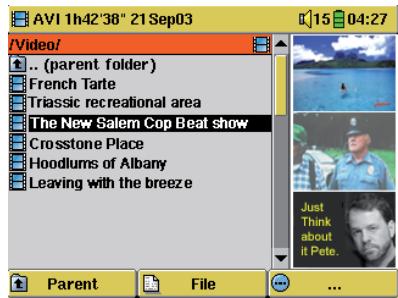
Like a music file, you simply highlight the video file and then click on PLAY/GO ▶. The thumbnail images on the right side will show you a frame from the highlighted video file (center) as well as a frame from the file above and the file below the highlighted one. By clicking on the Video icon in the main menu, you will enter into a display 'video only' mode. Other file types that may be in this folder are only
listed if you enter the folder via the Browser.
To watch your videos on a television, you must hold down the F2 function button (the center function button) for three seconds. The Gmini™ 402 screen will go black and the video will be sent out to your connected television. Switch your television to auxiliary video input (often found just below channel 1 – sometimes called L1 or L2). If you don't see a clear color image, you may have to set your
Gmini™ 402 to your local television standard (NTSC or PAL) in the Setup > Display settings menu.
- Use the PLAY/GO ▶ button to pause/resume the video.
- Use the UP/DOWN buttons to control the volume.
- Hold down the RIGHT/LEFT buttons to fast forward or fast reverse through the video.
- Click the right function button to Hide/Show the overlaid video time information.
- Click the Options function button to set a bookmark, change the screen presentation. Long press to switch between built-in video and external video.
- Click on the left function button to put the video into slow-motion view. You can cycle through the values Normal, 1/2, 1/4, and 1/8 speed. The sound is muted when in slow motion. While in slow mode
and paused, you can step image per image with the RIGHT button.
8.1 Setting a Bookmark

If you are watching a video and would like to place a bookmark in it in order to continue from this point at another time, you
can use the Bookmark function. You simply click on the center function button labeled Options, then choose Set Bookmark. This will set a bookmark in the video file at the current position. You can only set one bookmark per file. When you look at the file in your browser, it will have a yellow check mark on its icon indicating that this file has a bookmark set within it. You can have a maximum of 16 files bookmarked. Setting more bookmarks will then start to erase the oldest bookmarks. The next time you play this video file, you will be presented with three options:
Resume: Start playing from the bookmarked position.
Ignore: Keep the bookmark but start playing from the very beginning.
Clear: Clear the bookmark from this file and start playing from the very beginning.
8.2 The Resume Function

When you turn on your Gmini™ 402 you will sometimes notice that the icon which is highlighted on the main screen is not the Browser but rather the Resume icon. This icon is highlighted when the Gmini™ 402 can resume the last played audio or video file.
You will notice in the Options button (center function button), that you have a number of display format options. In certain cases, depending on how the original video was recorded, you may want to use these adjustments.
 | Default mode : Adjusts the video size to best adapt to the LCD screen. |
 | 4/3 aspect: Enlarge the image to fill the screen (usually a vertical fill) and then cut the sides to completely fill a television screen. |
 | 16/9 aspect: Send out a TV signal without the black horizontal bars. |
 | No Overscan: Picture will not pass into the overscan area. Entire picture will always be seen on all televisions. Will not be cropped on the LCD. |
8.4 Playing Video Files from the Internet
When using Windows Media® Player 10, you will have the advantage of being able to download protected video content from the Internet. When you see the PlaysForSure™ symbol on a web site for Windows® Portable Media Center (PMC), then these protected downloads will be playable on your Gmini™ 402.
Protected Internet Video content
If you check the PlaysForSure™ website (www.playsforsure.com) you will find web retailers who offer rental, subscription, or purchasable video content. Remember, web sites must carry the PlaysForSure™ symbol in order for their videos to play on the Gmini™ 402.
Non Protected Internet Video Content
The Gmini™ 402 plays .AVI files that are encoded in MPEG-4 format. It can play such video files at a maximum size of 720 x 576 pixels (25 frames/second). It can also play .WMV files (WMV9 SP) up to a maximum size of 352 x 288**. The Gmini™ 402 will not directly play files of type .mov, .mpg, or .mpeg.
The number of encoding and compression schemes currently used to create video files is very extensive and seems to change on a weekly
basis. There are so many standards and formats that it is very possible that the video file you download from the Internet will not play right away on your device. Due to certain “variations”, even when video files are formatted in “MPEG-4” they may not play right away.
If you have some video files that do not play directly on your Gmini™ 402, they will have to be converted first. Windows Media® Player 10 (Available only for Windows XP) will convert your video file automatically when you sync the file that is on your PC to the Gmini™ 402. It will display a little message 'converting'.
You can also use the software MPEG-4 Translator included on the Gmini™ 402 hard drive to re-encode your video files into the proper MPEG-4 SP format that the Gmini™ 402 can play. See the chapter Video – creating MPEG-4 video files with your computer for more details.
* MPEG-4: ISO standard by Moving Picture Experts Group ; AVI: audio/video file container by Microsoft . MPEG-4 SP with B-frames AVI up to 704x480@30f/s NTSC or 720x576@25f/s PAL.
** Microsoft WMV9 SP up to 352x288@30f/s and 800 kb/s ; supports WM DRM.
VIDEO - Creating MPEG4 video files with your computer
How to create an MPEG-4 video file
Please understand that video re-encoding is not always a simple one button process. Video segments that come from your digital camcorder or which are freely available on the Internet are encoded in many different ways. If not already in the proper MPEG4 Simple Profile format, transforming these videos into this format readable by the Gmini™ 402 requires use of the below mentioned software tools. This is due to the relatively new nature of the ISO (International Standards Organization) MPEG4 video format. Unlike its predecessors MPEG1 and MPEG2, there are a number of levels in this format and thus not all MPEG4 video files will work on all MPEG4 players, and older MPEG1 and MPEG2 files must be re-encoded into this format. Although you may have a bit of a learning curve in the initial re-encoding of video files, once you have the process down, it is just a matter of letting your PC or Mac go to work and create video files for playing on your Gmini™ 402.
The Gmini™ 402 is delivered with two Windows® based programs that allow you to create "MPEG4 Simple Profile .AVI" video files. They are the MPG4 Translator and Virtual Dub™. The MPG4 Translator will call the Virtual Dub program and give it the correct parameters to encode your video from its original format, .avi or .mpg (mpeg 1), and then encode it into an MPEG4 SP .AVI file. The file will be scaled in order to be played back properly. If you would like to have your sound track in MP3 format, you may have to download this audio codec (available freely on the Internet) if it is not already on your computer.
9.1 Installing the PC Software
If your video file is not an MPEG4 Simple Profile .avi file of the proper size, you will need to re-encode it using the following utilities. For the Gmini™ 402, you will need to create an AVI file that is MPEG4 Simple Profile with a maximum resolution of 720 x 576 (depending on frame rate) and a sound track that is stereo MP3 or WAV. Run the program SETUP.EXE (the ARCHOS™ Installation Utility) found on the Gmini™ 402 hard drive in / Data/PC Installation. Please install the programs in the following order.
MPEG-4 codec (Compression/Decompression)
In order for MPEG4-Translator to compress the video in a file of the format MPEG-4 SP that the Gmini™ 402 can read, it requires an MPEG-4 codec to be installed on your computer. If you do not have the appropriate codec installed, MPEG-4 Translator will tell you on start up which codec it requires. You will be able to download it for free from the Internet.
Virtual Dub™
A utility for transcoding one video file into another. This is a general purpose transfer and cleanup utility which has many options allowing for even the most difficult video translations. When you install it with the ARCHOS™ Installation Utility, it will automatically unzip. It will prompt you to save it to C:\Program Files\VirtualDub. You should use this default directory location. Otherwise you will have to instruct the MPG4 translator program where to find it.
MPG4 Translator
This program, developed by Archos, is a "Front-end" for the Virtual Dub program. It has a simple interface which you use and it then tells Virtual Dub how to process the video file. It sets all the parameters for Virtual Dub specifically to create a video file in the right size and format to be read by the Gmini™ 402. When you run it for the first time, the MPG4 Translator will need to locate the Virtual Dub program. If you did not install Virtual Dub in the default location, you will have to show the program where Virtual Dub is.
MP3 Sound Codec
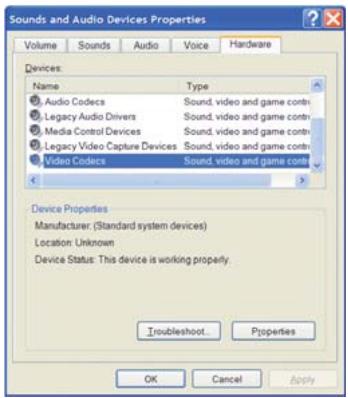
If MPG4 Translator detects a suitable MP3 codec on your PC, it will use it, and your video file sound track will be MP3. Otherwise, it will use the standard IMA ADPCM codec. There are MP3 encoders (usually packaged together as an encoder and decoder) available on the Web for you to download. If you choose to use the LAME codec, make sure that you have a version built with the ACM front-end. You can find other MP3 codecs on the web by using the search terms ACM, MP3 and CODEC in your
favorite web search engine. Once this MP3 codec is installed into your system, MPG4 Translator will be able to create final video files with MP3 sound, even if the source video file does not have an MP3 sound track.
If you are unsure what codecs (audio and/or video) have been installed on your computer, you can see the list by going to the following location. For Windows XP, click on Start > Settings > Control Panel > Sounds and Audio Devices Properties > Hardware > choose Audio Codecs, then click on Properties. You will find a list here of all the audio codecs that are installed on your computer. Decoding of MPEG 2 video files is currently not supported by MPG4 Translator. These are usually .mpg or .mpeg format files, not the required AVI file. There are other tools found on the Internet (FlaskMPEG, Rippack, etc.) that may be downloaded in order to help you with these file types. A good starting place is the website www.digital-digest.com.
9.2 Using MPG4 Translator
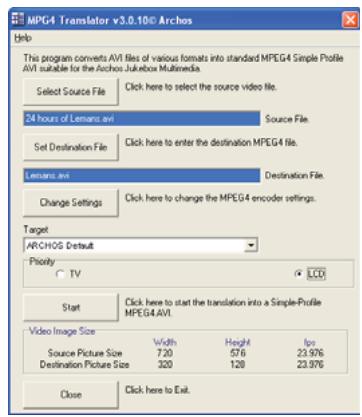
Here you see the image of the main MPG4 Translator program. When you first run the program, if the required codec has not been installed yet, you will be notified. You should download the codec and install it on your computer. If the Virtual dub program has not been installed, you will also be notified, and you should install it (either with the ARCHOS™ Installation Utility or the Virtual Dub website). If you have placed the Virtual Dub program in a folder other than the installation default folder, it will ask you to locate the file.
Select Source & Destination Files
In the example above, a source file 24 hours of Lemans.avi has been selected as the source video. You can see on the bottom of the window its original characteristics (width 720, height 576, frame rate 25). Next, you must then tell the program where to place (Set Destination file) the newly recorded version of the file (don't worry, it will not erase the original). You should give it a new descriptive name, such as shown above Lemans_Gmini402.avi. Make sure you add the .avi extension.
Change Settings
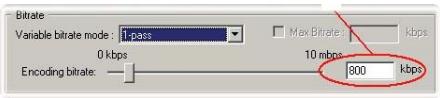
Next, you can change the parameters (Change Settings) of the encoder to adjust the level of quality of the final image. Like MP3 music, the higher the bit rate
The higher the setting, the better the quality of the music or video you will get. However, this will also take up more space on your hard disk. A setting of 900 kbps will give you a nice looking image for viewing on a television. For near DVD quality, you can set it up to 1200 kbps. If you do not use the standard version, uncheck the bidirectional encoding in your codec property page.
Target & Priority
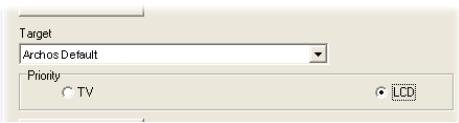
You should select the target as Gmini™ 402. You will see a Priority box appear. This control allows you to select which feature of the video to be guarded. If for
example you are re-encoding a video file that is 800x600 in resolution and 30 frames per second, this is beyond the maximum resolution that the Gmini™ 402 can play. Thus, the MPG4 Translator program will have to decrease the resolution. Choosing LCD optimizes the final video format for viewing on the built-in LCD screen. Choosing the TV option will optimize the movie to keep the highest possible frame rate. You can see what the size and frame rate will be by looking at the Video Image Size: Destination parameters. When choosing TV, it is understood that the output will be optimized for a television, and not the built-in screen.
Start
Click on Start and the program will call Virtual Dub to start processing the video. Depending on the power and speed of your computer, this could take real time (a 60 minute long video re-encoded in about 60 minutes) or much longer. As shown to the left, you will see the progress as it processes the video file. If the Start button is grayed out, it would be for one of two reasons. 1) The source file is not a true AVI file. Even if the file name ends with .avi,
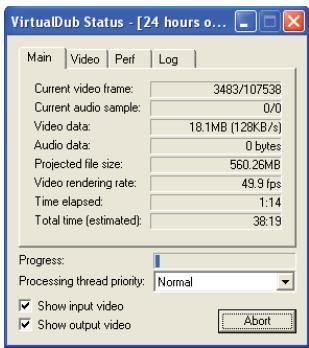
the internal file data determines if it is truly an AVI file. 2) The Virtual Dub program was not located when MPG4 Translator was started up. Close the program, restart it, and make sure you locate the Virtual Dub program.
10
PHOTO - Viewing Photos

The Gmini™ 402 series support the viewing of JPEG (.jpg) and Bitmap (.bmp) image formats. Progressive JPEG images are not supported. The Gmini™ 402 will resize the image to fit on the built-in screen or on a television screen if you choose the television output. The yellow bar above the list of files indicates that you are in the 'Photo Only' mode, meaning that only files of type JPEG or BMP will be visible in the directory. The three images on the right are thumbnail sized pictures of the highlighted file (center) and the picture just before
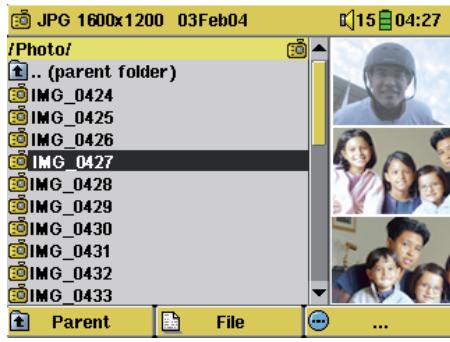
and just after the highlighted file. If you are viewing photos on a television (long press on F2 to switch to external video), it is recommended that you set the Image Display setting to Progressive to eliminate any possible screen flicker. You will find this in the menu Setup > Display.
10.1 Viewing Photos
When you click Enter ▶ on a highlighted image file, the Gmini™ 402 will display the image in the carousel, either alone, within a group of 4 images, or within a group of 9 images. A red rectangle will surround the selected photo. Click on Enter ▶ again to display the image in full screen. Once it is displayed as a full screen image, you can rotate it, magnify it, or set it as the Gmini™ 402 screen background (Wallpaper).
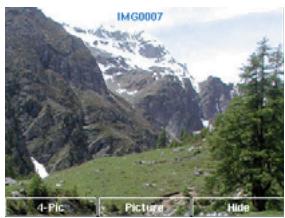
1 x 1 image
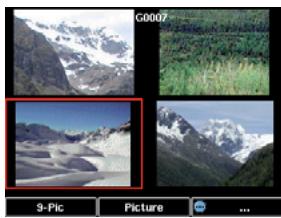
2 x 2 images
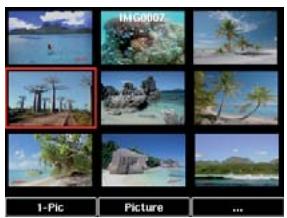
3 x 3 images
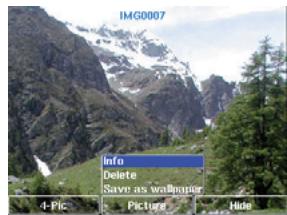
Rotate picture 90° left
Rotate picture 90° right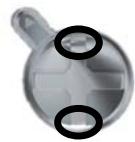
View next photo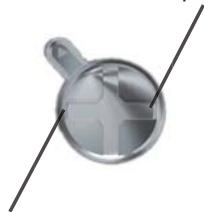
View previous photo
- Click the left function button #-Pic to change the number of photos in the carousel view.
- Click the center function button Picture to display the picture options.
- Click on the right function button Hide to hide the picture name and function buttons.
Magnifying Photos
Once the picture is displayed in full screen, clicking the PLAY/GO button ▶ will magnify the image up to three levels. Each successive click of the PLAY/GO button will magnify the picture one more level. You can use your direction buttons to move the picture around in order to see the desired magnified area. The small + signs on the bottom left of the screen indicate the level of magnification, either +, ++, or +++. Click on STOP/ESC to go back to an unmagnified view.
10.2 Viewing a slideshow
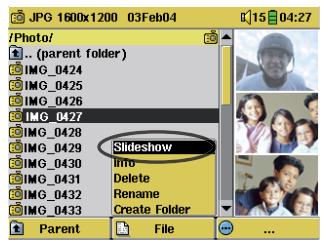
By clicking on Slideshow, the Gmini™ 402 will present each picture in the current folder for a set amount of time and then go on to the next picture. You can set the amount of time that each picture stays on the screen under Setup > PlayMode > Picture Pause. This parameter is the number of seconds each picture displays on the screen.
The Gmini™ 402 is equipped with a USB host port. This port, along with the USB Host adapter cable, will allow you to connect USB Mass Storage Class (MSC) devices to your Gmini™ 402 and transfer files from that device to your Gmini™ 402. Many cameras produced today are MSC type devices. Thus, you can often plug your camera directly into the Gmini™ 402's USB Host port and copy your photos with the ARCHOS™ browser. If you do not have an MSC type camera, you can use a USB card reader and plug this into the Gmini™ 402's USB host port (via the USB host adapter cable). Finally, if neither of these solutions is available to you, you can always copy the photos to your computer and then copy them from your computer to the connected Gmini™ 402.
3 methods to copy photos to your Gmini™ 402
1) Connect your Mass Storage Class camera to the USB Host port (via USB host adapter cable). 2) Use a stand-alone USB card reader with the USB host adapter cable. 3) Copy photos to your computer and then copy (or sync with Windows Media® Player 10) to the Gmini™ 402.
Method 1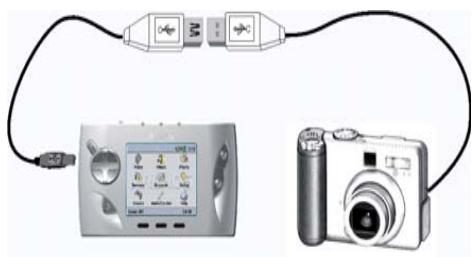
Once you plug an MSC type device into the USB host port (via the host adapter cable), the browser's left panel will show the contents of your external USB device, and the right panel will show the contents of your Gmini™ 402's hard drive. Navigate to the panel which contains your
photos (in this example /DCIM/113CANON). Move to the right panel (action) and navigate to the folder you would like to save your photos to (you can create a new folder if you need to by selecting the corresponding action icon). See the screen images on the next page.
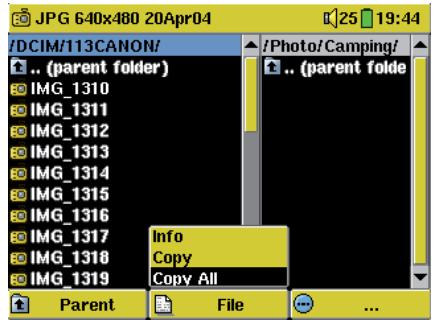
Photos from camera on the left, and your Gmini™ 402 hard disk on the right. Choose destination folder then choose File > Copy All.
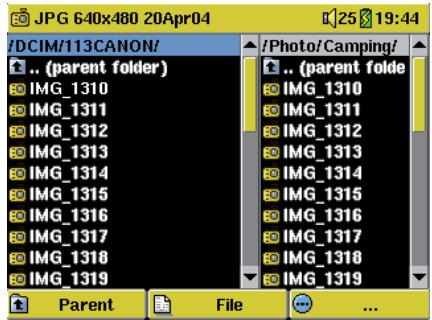
Your files will be copied to the folder on the right side of the screen. You can now pull out the camera from the Gmini™ 402.
If your image files are not seen in the left panel, you may have to select the Show all files icon (Settings > System > Show all files). Once selected, all file types, regardless of their extension (.txt, .raw, .pdf, etc.) which are on your external device will be visible in the left browser screen.
Games - Playing Mophun® Games
Your Gmini™ 402 has a built-in Mophun® game engine. What that means is that it can run games created for the Mophun® gaming platform. You will find game demos on your Gmini™ 402.
11.1 Downloading Games
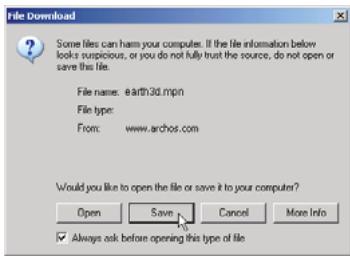
To see a complete list of games for sale, go to the Gmini™ 402 presentation page on the Archos website (www.archos.com) and click on the Gmini™ 402 Games link. Once you purchase the game, you will be presented with a download message box. Your browser may warn you that the contents of the download may harm your computer. This is because the Windows®
The system does not know what a .MPN file is. Be assured that Archos has made every effort to ensure that the file does not contain viruses. Click on the option Save to download this file to a convenient place, such as My documents, in order to later copy this file to your Gmini™ 402.
Copy to Gmini™ 402 root
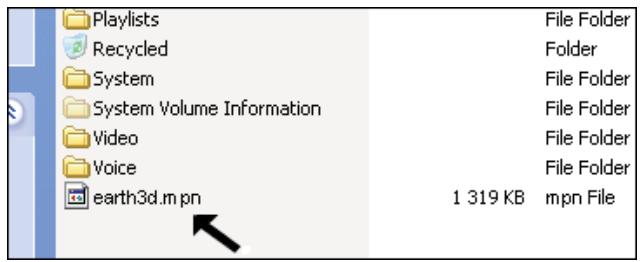
Connect your Gmini™ 402 to your computer, and then copy the .MPN game file to the root directory of the Gmini™ 402. The root directory is the top most level of
the directory hierarchy. Just drag this .MPN file onto the Gmini™ 402 Hard disk in your file manager and it will place it in the top most directory (outside any folder). Once this file is copied, safely disconnect the Gmini™ 402 from the computer.
Once disconnected from your computer, the Gmini will notice that there is a new game file on the root directory and will install the game automatically. It will then erase the .MPN file that you copied to the root directory. It is a good idea to keep a copy of the installation file on your PC. Even if that file gets lost, you can always go back to the Archos website and re-download your purchased game free of charge.
You may notice that there is a folder on your Gmini™ 402 hard drive called Mophun. You should not delete this folder nor copy any files into it. Purchased games will install themselves into this folder.
11.2 Playing a Game
Just highlight the Games icon in the main screen and click the Go button. You can choose from the list of games presented. Once selected, follow the on-screen instructions.
12
BROWSER - Using the Browser

The browser is used to navigate the file system on the Gmini™ 402. The file system is FAT32, the same type of file system that is found on Windows® based computers. That is, it is a hierarchical system which includes folders and subfolders. Because you will be putting hundreds of files on your Gmini™
402, it is STRONGLY ADVISED that you keep a neat and orderly file structure. Otherwise, you will be spending time searching for files and not listening or watching them. We suggest that on the first level of your file structure, you include the folders: Data, Music, Playlists, Photo and Video.


The folders Music, Photo and Video are special folders in that the icons on the main screen lead to these folders and then places you directly in that folder. If these folders are deleted, you will be placed at the root level (highest level) of the directory hierarchy.
12.1 Navigating the Directory Structure
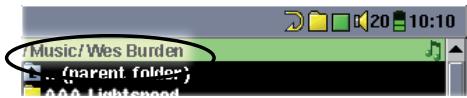
Just below the top status bar, you can see the path to the directory you are currently viewing.
To navigate the directory structure you will use:
| ENTER ▶ Open the highlighted folder (directory) or Play the highlighted file. | 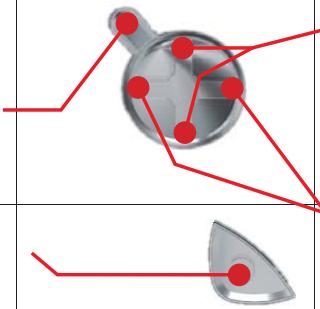 | Move the cursor up and down to the previous or next file or folder. |
| ESC/STOP Go back to the main menu. | Move back and forth between panels in the double browser. |
Go to the parent directory (go back up one level). Example: Go from folder /Music/Wes Burden/ to /Music.
12.2 File and folder operations
Depending on where you are in the directory system, you will have the option to manipulate files and folders. From the main menu, click on Browser. Attention, there is a setting in the Setup > System menu called Show all files. If this is set to Off, the Gmini™ 402 will only display file types .mp3, .jpg, .avi, etc. That is, it displays only the file types that it knows how to play. To see all your files, including ones it cannot play, change the Show all files system setting to On. Files that it cannot play will be preceded by the unknown file type icon 📋.
File Operations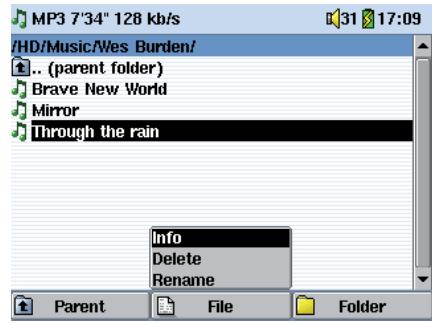
Folder Operations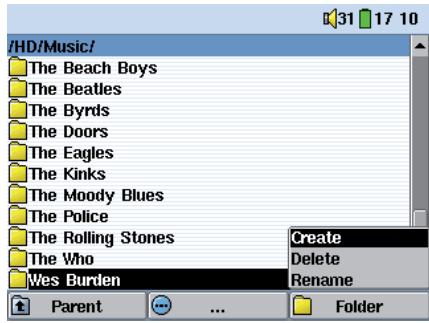
Info: Show file information such as song length, video length, photo size, number of kilobytes used of hard disk space, date file was made, etc.
Delete: Delete the file permanently from the Gmini™ 402. (Before it is deleted, the Gmini™ 402 will ask "Delete file: xxxxx ?". Use the function keys to reply Yes or No. For folder, it will delete the entire contents of the folder. It will ask "Delete folder: xxxxx and all files therein?". Use the function keys to reply Yes or No.
Rename: Change the name of the file or folder to something new. You will be sent to the virtual keyboard (see next section) to enter the new file or folder name.
Create: Create a new folder in the current level of the directory. You will be sent to the virtual keyboard (see next section) to enter the new folder name.
Copying and Moving Files and Folders
By using the unique ARCHOS™ double browser system, you can copy or move files from one location in the file structure to another (1000 files per folder maximum). You simply click on the RIGHT button, and a second browser window will open. The double browser can be used in:
Photo View: If you have connected a compatible USB device to the Master Connection USB host port, the left panel shows the stored files and right panel the Gmini™ 402 hard disk.
Music View: Left panel is the Gmini™ 402 hard disk and right panel the music Playlist.
Browser View: Two browser panels to browse two different parts of the Gmini™ 402 hard disk.
In the Browser mode, you can jump between the two panels using the LEFT and RIGHT buttons. Where the cursor is highlighting a file or folder, that panel is the source for the copy. The destination folder will be the other window. For example, we want to copy the file Project X.doc from the HD/Data/Files from Work folder to the HD/Data/Backed up Files folder. We must start from the main screen Browser browser mode.
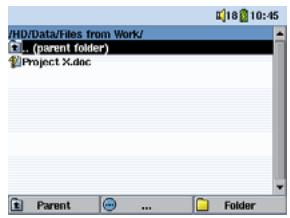
1) Locate the file to copy.
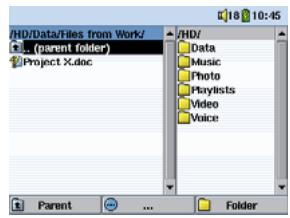
2) Click the RIGHT button to open a new browser window.
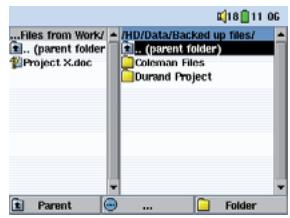
3) Click the RIGHT button again to move the cursor to the right browser and find the desired destination folder.
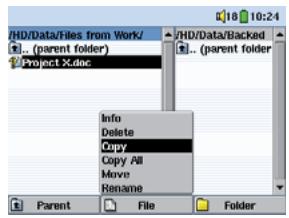
4) Move back to the left browser (LEFT button), highlight the file to copy, and select copy from the file menu. The file will be copied to the folder in the right browser. Entire folders can also be copied or moved in this same manner.
12.3 Using the Virtual Keyboard
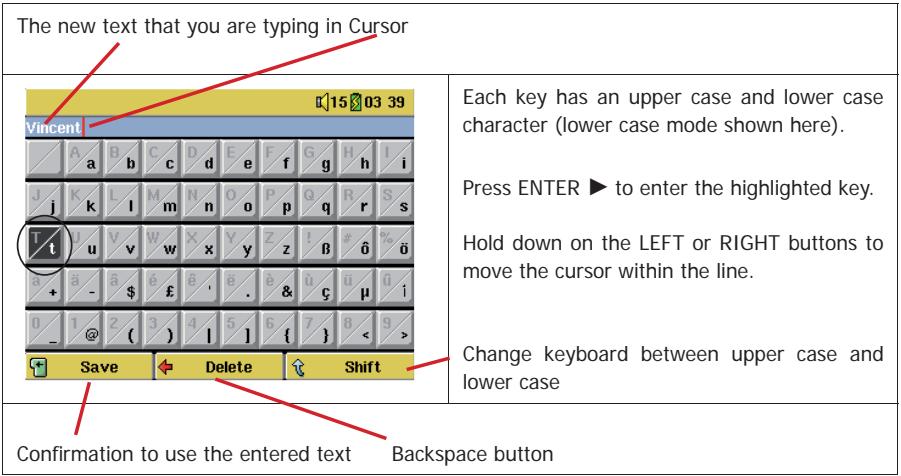
It is recommended that you create folders and rename files or folders from your computer when it is connected to the Gmini™ 402. The computer keyboard is much easier. Often times, however, you are not near your computer and you must enter the text directly with the Gmini™ 402. For this, the virtual keyboard screen will appear.
13
Connecting/Disconnecting the Gmini™ 402 to/from your PC
Note that when the Gmini™ 402 is connected to a computer, it will use more energy than usual. Your battery power will be consumed at a higher rate than normal. If the Gmini™ 402 looses power while connected to your computer you could damage your directory structure and/or loose data. Thus, you should always use the AC adapter when connected to your computer. Be careful to understand the disconnection procedure also since disconnecting incorrectly can lead to data loss or computer/Gmini freeze up. The Gmini™ 402 is not compatible with Windows® NT, Windows® 95, or Windows® 98. While connected as a hard disk to your computer, the Gmini™ 402 buttons are blocked and are no longer functional.
13.1 USB Connection Type ('Hard Drive' or 'Windows Device')
Your device comes configured as a Windows® Device and will be immediately recognized by your computer if you are running Windows® XP (with Service Pack 1 minimum) and Windows Media® Player 10. If you have another version of Windows®, not sure what version of Windows® XP you have, or if you are using a Macintosh®, then you will need to change the USB (Universal Serial Bus) Port setting on the Gmini™ 402. You will do this by going to System and USB Port and change it to 'Hard Drive'.
13.2 Connecting the Gmini™ 402
Connection order: See the sections below for your particular computer's operating system.
1) Connect the power adapter to the Gmini™ 402. 2) With your computer running, plug the USB cable into your computer. 3) With the Gmini™ 402 off, plug in the other end of the USB cable to the Gmini™ 402 USB Device port. 4) Turn on the Gmini™ 402. (If your computer asks to install a new driver for the new hardware, then you must unplug it and change the USB Port to Hard Drive.)
Windows® XP
Please verify* that you have Windows® XP and it is updated to at least Service Pack 1. You must also have Windows Media® Player 10 (WMP10) installed on your computer. This way, you can take advantage of
connecting it as a 'Windows Device'. Connect it to your PC as enumerated above and you can then see the Gmini™ 402 in Windows® Explorer and WMP10. Without Windows® XP Service Pack 1 (a free update) or Windows Media® 10, you cannot use it as a Windows® recognized 'Device' and will have to follow the instructions for Windows® ME & 2000 below.
* Right-click on 'My Computer', select 'Properties', and then look in the tab labeled 'General'. It should say "Service Pack 1" or higher.
Windows™ ME and 2000
Attention: Before connecting the Gmini™ 402 to your computer with the USB cable, go to System and USB Port and change it to 'Hard Drive'.
When connected to your computer, the Gmini™ 402 will be recognized as an external Hard Drive and display automatically within a few
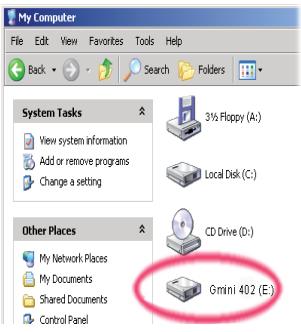
seconds of being connected. You will see a new drive letter, such as E: in My Computer. You can now use the hard drive called Gmini 402 like any other external hard drive. Simply access it using Windows™ Explorer to drag and drop files to and from the Gmini™ 402's hard drive. If the Gmini™ 402 is not automatically recognized and displayed as an external hard drive, please refer to the troubleshooting section at the back of this manual.
Macintosh™ OS X
If you have OS X, you must update to version 10.3.9 or newer. You must also change the Gmini™ 402's USB Port setting to 'Hard Drive'. From the main menu, go to System and USB Port and change it to 'Hard Drive'.
You will now simply plug the Gmini™ 402 into your Macintosh® as enumerated above, and within a few seconds, the Gmini™ 402 will be recognized as a mass storage device (Hard Drive) and mount on the desktop. You can now use the hard drive called Gmini 402 like any other external hard drive.
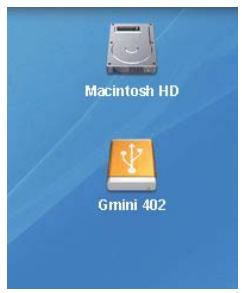
13.3 Disconnecting the Gmini™ 402 from your Computer
Windows Device Mode
If the Gmini™ 402 is connected to your computer as a Windows Device, verify that no data is being transferred between your Gmini™ 402 and your computer (the HDD light on your Gmini™ 402 is not flickering). You can now safely unplug the USB cable from your Gmini™ 402 and/or computer.
Hard Drive Mode
If the Gmini™ 402 is connected to your computer as a hard drive, DO NOT SIMPLY PULL OUT THE USB CABLE AT ANY TIME! WARNING: You must properly remove (unmount) your Gmini™ 402 from the computer before disconnecting the USB cable to avoid loss of data or freezing the computer and/or the Gmini™ 402.
Hard Drive Mode & Windows®
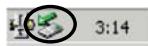
To safely disconnect the Gmini™ 402 hard drive, click on the system tray remove icon (green arrow as shown below) and follow the instructions. Wait until you get a message saying that you can safely unplug the device before disconnecting the USB cable.
Attention: The operating system will not allow you to safely disconnect the Multimedia Gmini™ 402 if you have an open file from it in a running application. You will have to close all open Gmini™ 402 files in any running application. Sometimes, even when files are closed in an application, you will have to shut down the application. Using the green disconnect arrow in the system tray will then allow you to safely disconnect the Gmini™ 402.
- The safe remove icon is in the system tray next to the clock.
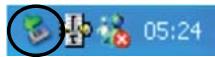
Windows® XP
Windows® 2000 & Windows® ME
- Click on the icon to eject (unmount) the Gmini™ 402 from the computer and select the 'Safely remove' message.

Windows® XP & 2000
- There will be a message indicating that it is now safe to disconnect the Gmini™ 402. You can now go ahead and unplug the USB cable from the Gmini™ 402 and/or computer.

Safe To Remove Hardware

The 'USB Mass Storage Device' device can now be safely removed from the system.
Note: Hitachi_DK23DA-20 only indicates the type of hard disk used inside of the Gmini™ 402.
Hard Drive Mode & Macintosh®
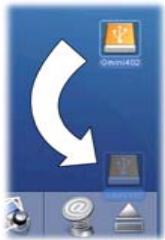
Drag the Gmini™ 402 hard drive icon towards the trashcan, the trashcan will become a big arrow as shown in the screen shot to the left. Drop the hard drive icon onto the arrow. The hard drive icon will disappear from the desktop. You can now safely unplug the USB cable from your Gmini™ 402 and/or computer.
14 Connecting Devices to the USB Host Port
Thanks to the USB Host port, you can connect USB Mass Storage Class (MSC) devices such as many digital cameras and external hard drives in order to transfer pictures or data to your Gmini™ 402. Non Mass Storage Class devices such as printers, Ethernet adapters, mice, keyboards, etc. are not supported. To connect an MSC device, use the included short USB host adapter.
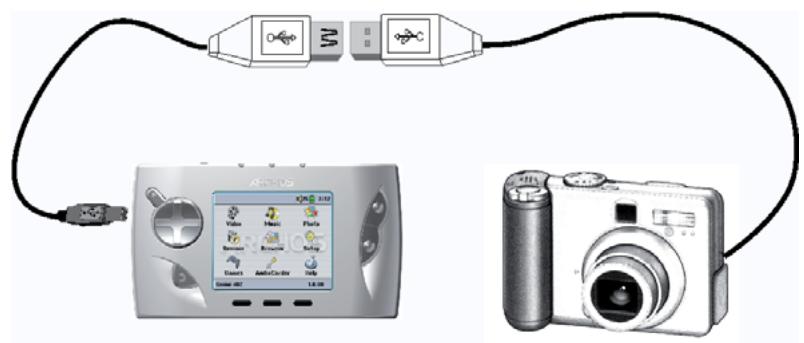
If your camera follows the Mass Storage Class (MSC) standard for USB connection, then your camera will show up in the file browser as the folder /External USB. If you look in this folder you will see your photos or files. See the chapter on the File Browser for instructions on how to copy files.
15 SETTINGS
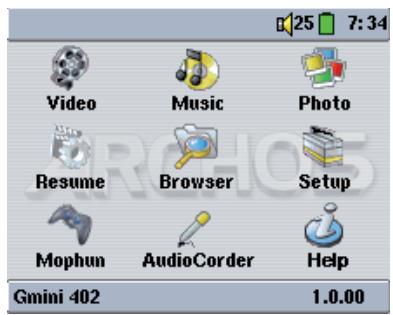
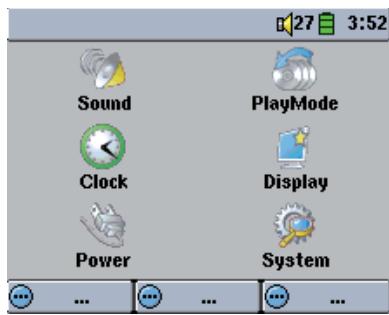
From the home screen, select the Setup option to reveal the menu options for various settings.
15.1 Sound Settings

If you would like to customize the sound quality, you can adjust the Bass, Treble, and other audio settings to suit your particular taste. Normally you will do this while listening to music so that you can hear the changes you make. Simply click on the LEFT function button Setup while listening to music.
- Once in the Setup screen, move over to the Sound icon and click again on ENTER ▶. Use LEFT and RIGHT to change a parameter's value. You will hear these changes instantly.
- Use the UP and DOWN buttons to select a different parameter.
- Click on STOP/ESC when finished. You will return to the Setup screen.
- Click on STOP/ESC again and you will return to the music playing screen.
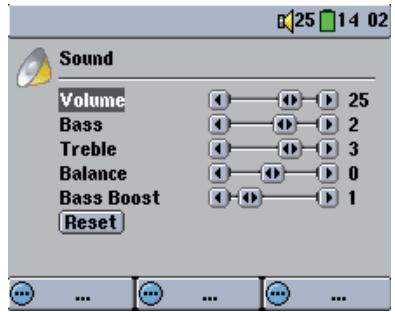
The Sound Parameters
| Parameter | Description |
| Volume | 32 levels of volume (0-31). |
| Bass | 10 levels. Decreases or Increases the low frequencies. |
| Treble | 10 levels. Decreases or Increases the high frequencies. |
| Balance | 10 levels. Favors the right or left channel of the Stereo signal |
| Bass Boost | 10 levels. Increases the very low frequencies |
| Reset button | Readjusts all settings to their default values |
15.2 Play Mode Settings

If you would like the Gmini™ 402 to play through an entire folder of songs, play songs at random (shuffle), or any of the other playing options, you can set these parameters in the PlayMode settings.
- Click on STOP/ESC to return to the Gmini™ 402 main menu and click on Setup. Or, while listening to a song click the LEFT function button Setup.
- Once in the Setup screen, move over to PlayMode and click again on ENTER.
- Highlight one of the five PlayModes and click on ENTER to check that option.
- With the Repeat & Shuffle setting, choose if the songs are to be played in order, repeated or shuffled. • See section The ARCLibrary in the chapter Music – Playing music files for details on using the ARCLibrary
- Picture Pause sets the amount of time paused between pictures in the slideshow mode. See the Photo chapter for more details.
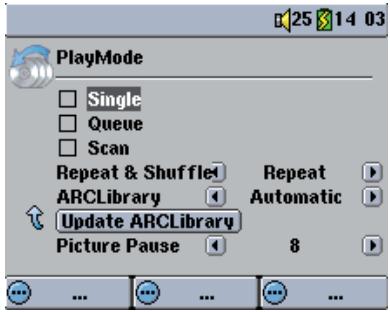
| Play Mode |
 | GminiTM 402 is currently playing from a Playlist |
 | Folder: Play all tracks in the current directory |
 | All: Play all tracks on GminiTM 402 |
 | Single: Play a single track then stop |
| [TSAD] | Queue: User can queue the next track to be played † |
 | Scan: GminiTM 402 plays first 15 seconds of each track†† |
†Queue Mode: While the current song is playing, click on Navigate, find the next song you want to play, then click Play. This is your queued song. You can only queue one song at a time. See the Playlist section to prepare multiple songs to play. Once the current track is finished playing, your queued track will be played. If you do not queue another track at this time, the Gmini™ 402 will play the next song in the directory.
††Scan Mode: Each track in the directory is played for 15 seconds. This allows a quick sample of each song. If you want to play the whole song, click on the Play button during those first 15 seconds. The Gmini™ 402 will then revert to folder mode and play the rest of the songs in the folder without scanning.
15.3 Clock Settings
Clock
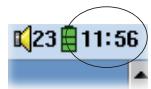
The Gmini™ 402 has an internal real time clock. The time of day is shown on the top right of the screen in either 24 hour or 12 hour display mode. To set it, go to Setup then select Clock.
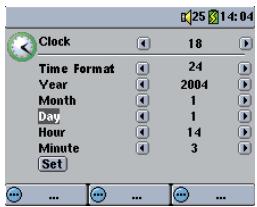
Choose parameter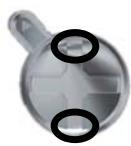
Choose Value for highlighted parameter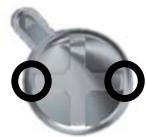
When finished setting the parameters, move down to the Set button, then click on the ENTER/GO button. The clock time and date are now set. Click on the STOP/ESC button to go back to the main settings menu.
15.4 Display Settings
Display
These settings regulate the interface language and the presentation of the screen.
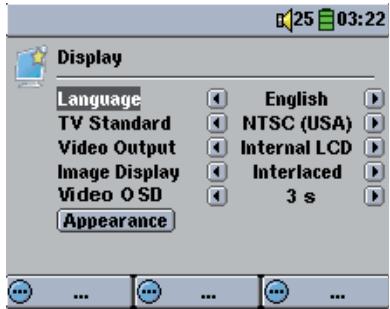
| Setting | Description |
| Language | The GminiTM 402 can be set to English (default), French, German or Spanish. |
| TV Standard | NTSC (USA), PAL (Europe). In order to view images or videos on an external television, select one option to send the video signal compatible with your country's television system. Countries other than European or American will use one of these two systems. |
| Video Output | Internal LCD or External TV. To display via the built-in LCD screen or to view the display via an external television. Holding the F2 function button for three seconds will also alternate between these two options. Be sure your television is selecting the correct external input. |
| Image Display | Interlaced, Progressive. This is the way the video output will be sent to the television. When viewing still images (JPEG and BMP) on a television screen, set this to Progressive to reduce possible flickering in the image. |
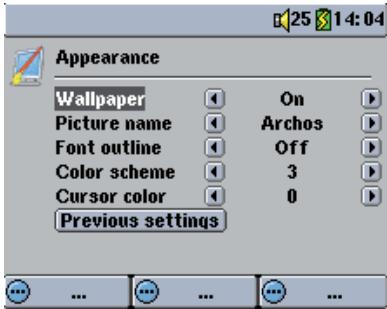
| Appearance | Change the interface appearance |
| Setting | Description |
| Wallpaper | On, Off. When set to On, the selected picture (next item) will be displayed as the GminiTM 402 screen background. |
| Picture name | This option will display the names of the JPEG images in the GminiTM 402's System folder that can be used for screen backgrounds (Wallpaper). You can add your own JPEG images to the System folder by dragging and dropping a JPEG file from your computer. You should use JPEG images with small dimensions, ideally 320 x 240 pixels (large files slow down the display). |
| Font Outline | If your screen background is a dark color, it will be difficult to see the black text on the screen. Set Outlined font to On to have a more visible white outlined font. |
| Color scheme | Allows you to choose what color you would like to have for the status bar above and the screen buttons below. |
| Cursor color | Allows you to change the color of the cursor. |
| Previous settings | Click this button to return to the settings last set. |

Power
These settings will help you to save battery power thus allowing a longer battery autonomy.
You can set the Gmini™ 402 to conserve power for both modes of operation (when it is powered from the battery, or when it is connected to the AC charger/adapter (DC-Power operation).
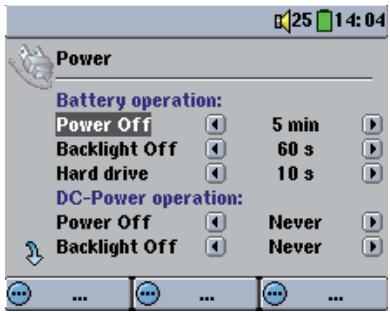
| Parameter | Description |
| Power Off | 1-9 minutes (and Never for DC operation). The number of minutes of user inactivity (no buttons pressed) before the GminiTM 402 shuts off. During the playback of MP3 and AVI files, this setting takes effect only after the files are finished playing. |
| Backlight Off | 10-90 seconds, Never. The time of user inactivity (no buttons pressed) before the GminiTM 402 turns off the screen to conserve power. During playback of slideshows and AVI files, this setting only takes effect once it is finished playing. |
| Hard disk | 10-90 seconds. The number of seconds from the time of the last file access before the GminiTM 402 tells the internal hard disk to stop spinning. The longer this time is set, the more often the hard disk is turning and the quicker the response time when accessing files. However, as it is set longer, it will quickly consume your battery. The default value is 60s. Caution: This setting should only be changed by experienced users. |
A typical use of these settings is to set the power off, screen off, and hard disk to low values when used in battery mode. When the power adapter is plugged in, you do not need to conserve energy and thus keeping the Power on and the Backlight on makes using the Gmini™ 402 more agreeable. Increasing the hard disk value beyond the default may actually discharge the battery even when the Charger/adapter is plugged in. Note also that your unit will run hotter when the backlight and hard disk are on for long periods of time.
15.6 System Settings

System
The System settings allow you control over the low level parameters of the Gmini™ 402.
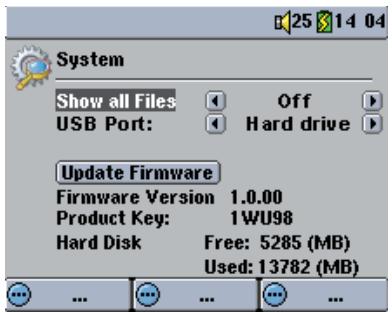
| Parameter | Description |
| Show all files | Off (default), On. If set to Off, the Jukebox will only display the file names of file types, with their corresponding icons, that it knows how to play. If set to On, the Jukebox will display the names of ALL the files on the hard disk (using a ? icon for unknown types), even if they cannot be viewed or played, such as .tiff or .pdf for example. Setting it to ON will allow the Jukebox to transfer all the files from a connected Mass Storage Class (MSC) Device such as certain digital cameras regardless of file type. If set to OFF, it will only display file types that the GminiTM 402 is capable of playing. |
| Update Firmware | Used to update the GminiTM 402 to a new version of the Operating System. See chapter Updating the GminiTM 402 Firmware/Operating System. |
| Firmware Version | Displays the current version of the Operating System (OS). |
USB Port Gmini 402 Gmini 402 | Windows Device (default), Hard drive.When set to Windows Device, your GminiTM 402 will use the MTP (Media Transport Protocol) whenever it is connected to a Windows XP (SP1 or higher) operating system with Windows Media® Player 10 installed. It will be seen as the GminiTM 402 ‘Device’ in Windows® Explorer. WARNING: This will not work for earlier Windows® operating systems or MacIntosh® computers. |
 Gmini 402 Gmini 402 | When set to Windows Device, your GminiTM 402 will use the MTP (Media Transport Protocol) whenever it is connected to a Windows XP (SP1 or higher) operating system with Windows Media® Player 10 installed. It will be seen as the GminiTM 402 ‘Device’ in Windows® Explorer. |
| Product Key | Each GminiTM 402 device has a unique product key number. It is an ID needed for plug-ins. |
| Hard Disk | Displays the amount of free and used space on the GminiTM 402's hard disk. The total is less than 20 GB due to space taken by formatting. |
16
Updating the Gmini™ 402 Firmware Operating System (OS)
ARCHOS™ periodically updates the Operating System (OS) and makes it available for free download on the ARCHOS™ website (www.archos.com). Updates to the Operating System include new features, feature improvements, and bug fixes. You should check to make sure that you are running the most recent version of the OS. Each time the Gmini™ 402 starts up, the OS version is displayed on the screen (example: OS Version 1.1) on the bottom right. You will find the most recent version of the OS and its version number at the ARCHOS™ website (www.archos.com) under the category Software.
Download the Update_Gmini402.AOS file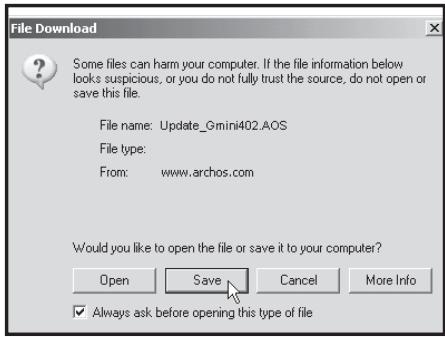
When you click on the link to download the new OS file (the file name is Update_Gmini402.AOS), your browser may warn you that the contents of the download may harm your computer. This is because the Windows® system does not know what a .AOS file is. Be assured that ARCHOS™ has made every effort to ensure that the file does not contain viruses. Click on the option Save to download this file to a convenient place, such as My Documents, in order to later copy this file to your Gmini™ 402. If your Gmini™ 402 is connected to your PC, you can even save it directly to the Gmini™ 402.
Read the History.txt File
You will also find next to the firmware download, a text file which details the list of changes from the previous version of the OS.
Copy to Gmini™ 402 root and Update
When updating your Operating System, you must keep the AC charger/adapter plugged into the Gmini™ 402 so that it will not shut down due to low batteries while you are performing the update. Connect your Gmini™
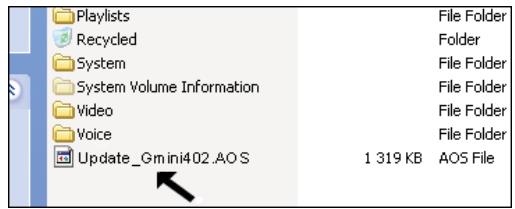
402 to your computer (see the Connecting/Disconnecting the Gmini™ 402 to/from your PC chapter), and then copy the Update_Gmini402.AOS file to the root directory of the Gmini™ 402. The root directory is the top most level of the directory hierarchy. Just drag this .AOS file onto the Gmini™ 402 Hard disk in your file manager and it will place it in the top most directory (outside any folder). If there is already an older version of the Update_Gmini402.AOS file on your Gmini™ 402, Windows® will ask if you want to overwrite the current file. Click on Yes. Once this file is copied, safely disconnect (see the Connecting/Disconnecting the Gmini™ 402 to/from your PC chapter) the Gmini™ 402 from the computer.
'Hard Drive' or 'Windows Device'?
Gmini 402
If your Gmini™ 402 is seen as a hard drive, then you simply need to drag the Update_Gmini402.AOS file onto this icon, and Windows® will place the file into the top most directory (root) of the Gmini™ 402. It should not be placed inside any folder within your Gmini™ 402. Once this file is copied, safely disconnect (refer to the chapter on Connecting/Disconnecting) the Gmini™ 402 from the computer.
Gmini 402
If your Gmini™ 402 is seen as a Windows® Device, then you will have to open the Gmini™ 402 Device in Windows® Explorer and drop the Update_Gmini402.AOS into the Data folder (not the Media folder). If there is already an older version of the Update_Gmini402.AOS file on your Gmini™ 402, Windows® will ask if you want to overwrite the current file. Click on Yes. Disconnect the Gmini™ 402 from your computer.
Activate the Update
Update Firmware
Next, go to the System parameters under Setup and then scroll down to Update Firmware and click on it. The Gmini™ 402 will search for the .AOS file and will ask you to click Yes, to start the update. Follow the on-screen instructions. When completed, the Gmini™ 402 will restart itself and you will see the new OS version displayed on the bottom right of the screen.
17
Technical Support
In case you should encounter any technical difficulties using your product, we suggest you go through these steps in order to resolve any issues as efficiently as possible:
1) Please read carefully through the appropriate sections of this manual. Some subject areas may be treated in two different chapters depending on how the device is being used. 2) Look at the Troubleshooting section at the back of this manual. In this section, we have included answers to some commonly asked questions. 3) Look at our Support section on the website (www.archos.com). Here, you will find Frequently Asked Questions (FAQ) for our different products, and there is a chance that somebody else has already asked your question. 4) If these steps did not help you in resolve your technical difficulty, you can always contact us either via email or by calling the helpline. Telephone support will be provided in the language of the countries listed below. For other countries, please use email technical support. - For warranty and services purposes, keep your sales receipt for proof of purchase. The serial number for the Gmini™ 402 model can be found in the battery compartment. - If technical support (Telephone or E-mail) determines that your product needs to be returned, please contact the place of purchase to have your product repaired or replaced (depending on problem type).
DO NOT USE phone or e-mail support for marketing and sales questions. These numbers are to aid those who have technical difficulties / malfunctions.
| Telephone SupportAssistance téléphonique - Telefonische Kundenunterstützung - Asistencia telefónica - Assistenza telefonica - Telefonische ondersteuning |
| Canada | 877-300-8879 (toll free) | Nederland | 020-50 40 510 |
| Danmark | 35 25 65 67 | Norge | 22 57 77 71 |
| Deutschland | 069-6698-4714 | Schweitz/Suisse | 442 004 111 |
| España | 09-1745-6224 | Suomi | 09 2311 3434 |
| France | 01 70 20 00 30 | Svenska | 08 579 290 80 |
| Ireland | 01-601-5700 | UK | 0207-949-0115 |
| Italia | 02-4827-1143 | USA | 877-300-8879 (toll free) |
| E-mail SupportAssistance par e-mail - Adresse des ARCHOS-Kundendienstes - Asistencia por e-mail - Assistenza tramite posta elettronica - E-mailondersteuning |
| www.archos.com/support |
WWW.ARCHOS.COM
| Worldwide Offices |
| United States & Canada | Europe & Asia |
| ARCHOSTM Technology3, Goodyear - Unit AIrvine, CA 92618 USAPhone: 1 949-609-1483Fax: 1 949-609-1414 | ARCHOSTM S.A.12, rue Ampère91430 IgnyFrancePhone: +33 (0) 169 33 169 0Fax: +33 (0) 169 33 169 9 |
| United Kingdom | Germany |
| ARCHOSTM (UK) LimitedPO Box 1420SouthamptonSO15 1WFUnited KingdomPhone: +44 (0) 1264 366022Fax: +44 (0) 1264 366626 | ARCHOSTM DeutschlandGmbHBusiness Park VierwindenKonrad-Zuse-Str. 2241516 GrevenbroichGermanyTel: +49 21 82 – 570 41-0Fax: +49 2182/57041-70 |
Problem: I cannot get my Gmini™ 402 to be recognized by the computer.
Solutions:
- Shut off and reboot the computer and the Gmini™ 402 and then try connecting again in the preferred order mentioned in the section Connecting/Disconnecting the Gmini™ 402.
- If using a USB hub, try connecting without using the hub (some hubs are not powered and may not work with the Gmini™ 402).
- If using a USB port in the front of your computer, try a USB port in the back. Front USB ports are often from non-powered hubs.
- Do not connect to a USB port repeated through a keyboard.
- On old computers, the USB driver software on your computer may be out of date. Find your USB chipset type by going to My Computer > Properties > Device Driver > Universal Serial Bus (USB) Controllers > Host Controller. You may have a chipset VIA, Intel, SIS or another. It is possible that you do not have the latest software drivers for these chipsets. For VIA updates, check out www.viaarena.com. For Intel check out www.intel.com. For SIS, uninstall the driver and reinstall the Windows default USB controller drivers.
- If using a laptop computer and a docking station, try connecting without the docking station.
- If Macintosh® OS 10.1.x says it cannot mount the volume, you can use Disk Utility to reformat the Jukebox hard disk to type MS DOS FAT32. However, files will only be readable from a Macintosh®, not a Windows® machine. You should update to version 10.3.9 or better.
- On older computers, make sure in your system BIOS the USB port is checked "ON" not "Off". Usually this just happens on old machines.
- If the Files Allocation Table (FAT) gets corrupted, the Gmini™ 402 may not show up in Windows XP for over one minute, and then it comes up as a local drive. Use the DOS utility ChkDsk as shown below.
- Windows® XP may recognize the Gmini™ 402 hard disk but not assign a drive letter to it. Right-click on My Computer and select Manage. Then select Storage, then Disk Management. Within this window
you may see the hard drive and be able to assign a drive letter by right-clicking on the hard disk and selecting the option 'Change drive letter and paths...'
Problem: What do I do if I try to disconnect via the green arrow but keep getting "The device 'Generic Volume' cannot be stopped now. Try stopping the device again later."
Answer: Shut off any program that might be accessing data on the Gmini™ 402, including Windows® Explorer. If this does not work, shut down all programs, wait 20 seconds, then try the green arrow one or two times again. If this does not work, you should shut down the computer and disconnect the USB cable once the computer is off.
18.2 Charging and Power Issues
You do not need to fully discharge the batteries before recharging them.
Problem: A full battery charge does not last as long as the specifications suggest.
Answer: The specifications are under the condition that the screen backlight goes off after 30 seconds (for MP3 music) and the user does not access the machine; it just sits and plays. If you get significantly less time from a full charge, call our technical support hotline.
18.3 Gmini™ 402 Locks Up (Freezes Operation) or Stops
Problem: The Gmini™ 402 locks up. None of the buttons work.
Solution: If the lock buttons are set, none of the buttons respond. Hold down the F1 function button for three seconds to turn off the lock buttons function. A freeze-up could also be caused by electrostatic phenomena. That is, static electricity has temporarily knocked out the Gmini™ 402. Hold down the STOP/OFF button for 15 seconds and the Gmini™ 402 will shut off. Restart it normally now.
18.4 The Computer Locks Up (Freezes Operation) or Stops
Problem: The computer locks up.
Answer: Most likely because you did not use the green 'safely remove hardware' icon in the system tray to remove the Gmini™ 402 from your computer.
Problem: On the Gmini™ 402, I find new file names and folder names that I never created or they have strange gibberish names.
Answer: Most likely, the Gmini™ 402's file allocation table (FAT) has been corrupted. This could have been due to the Gmini™ 402 shutting down (due to low battery power) while reading or writing to your computer via the USB connection. To fix a corrupted FAT problem, you should use the Error Checking utility or the Check Disk utility explained at the end of this section.
Attention: Windows and Macintosh often write extra files to the hard disk such as finder.def or System volume info. These are normal and will not harm the Gmini™ 402.
Problem: I have been using my Gmini™ 402 to transfer files back and forth between different computers. Will defragmenting the Gmini™ 402 hard disk do any harm to it?
Answer: Defragmenting the Gmini™ 402 hard disk may be useful after having transferred many files to and from the Gmini™ 402. It is never harmful to use the defragmenter on the Gmini™ 402. Make sure no other program is running while using the Windows® defragmenter utility. Make sure you power the Gmini™ 402 with the external power adapter during this procedure.
Problem: I have copied files to my Gmini™ 402 via USB from my computer, but now I cannot see these files on the device.
Answer: You have probably transferred a file which the Gmini™ 402 cannot play, for example a PDF, MOV, or DOC file. Go to the System Settings under Setup on the main screen and you will find a parameter called Show all files. If you set it to on, the Gmini™ 402 will show all files, even if it cannot play the file (you must browse via the browser mode from the main menu screen). The browser will show a ? icon indicating that it is not one of the standard file types that it can play.
Problem: I want to reformat the Gmini™ 402's hard disk.
Answer: You can do this, but it will erase ALL of the data on your Gmini™ 402. Sometimes this may be necessary if your FAT (File Allocation Table) becomes so corrupted that nothing seems to fix your file problems. First, as explained below, you should run ScanDisk or the DOS chkdsk (Check Disk) program to try to fix your problem. If this doesn't fix your problem and you are sure you must reformat the Gmini™ 402 hard disk, then go to
the screen Setup > System and press and hold the Right function button for three seconds. A button "Format HD" will appear. Use this button to format the Gmini™ 402's hard drive. Remember, doing this will erase all the data on the hard disk!!!
Problem: I would like to partition the Gmini™ 402 hard disk.
Answer: If you know how to partition a hard disk, this is OK. The Gmini™ 402 will, however, only recognize a FAT32 partition. Thus it will just see and use that partition of the hard disk which is a FAT32 partition.
Problem: My files have disappeared from the Gmini™ 402.
Answer: To see all your files, make sure the setting Show all files is set to ON. Also make sure that you browse your files via the Browser mode and not a filtered view such as Photo, Music, or Video.
Windows® ME Running Scan-Disk (Error Checking)
- Quit all running applications.
- Properly connect the Gmini™ 402 to your computer as explained in the chapter Connecting/Disconnecting the Gmini™ 402 to/from your PC.
- Make sure external AC adapter is powering the Gmini™ 402.
- Right click on the Gmini™ 402 hard disk in Windows® Explorer and select Properties.
- Select the Tools option and run the Error checking program.
- Make sure you check the box to automatically fix errors.
- Be patient, this may take a while. Windows® may ask you to restart the computer to make certain Windows files available. This is OK, click on Yes.
Windows® XP & 2000 Running Check Disk Utility (ChkDsk)
If you still have problems with the file system on your Gmini™ 402 you can try to fix it using the DOS utility, check disk (chkdsk). Do the following:
- Make sure external AC adapter is powering the Gmini™ 402.
- Quit all running applications.
- Properly connect the Gmini™ 402 to your computer as explained in chapter 13.
- Wait patiently (up to 5 minutes) for Windows XP to show the local drive as mounted.
- Open a DOS window. Programs > Accessories > Command Prompt.
- At the prompt, type chkdsk e: /f. Use e: or f: or whatever drive letter is representing your Gmini™ 402. The /f argument tells the program to automatically fix errors.
- Be patient, this may take a while.
- When it is finished, exit the DOS Window and properly disconnect the Gmini™ 402 from your computer.
| ARCHOS VIDEO GminiTM 402 series |
| Storage Capacity | 20 GB*Store up to 80 hours of videos1, 200 000 photos1 or 10 000 songs1. |
| Computer Interface | Slave: High Speed USB 2.0 (compatible USB 1.1), PC & Mac.Master: USB 1.1 port3 |
| Image Playback | JPEG (except progressives) or BMP.Download photos from computer through USB 2.0 port.Transfer photos from digital camera2 through USB host port. |
| Audio Playback | Stereo MP3 decoding @ 30-320 kb/s CBR & VBR, WMA, WMA protected files, WAV (PCM & ADPCM). PlaysForSureTM Audio. |
| Audio Recording | Stereo sound in WAV (PCM & ADPCM) format. |
| Video Playback | MPEG-4 SP with B-Frames2 and stereo sound. Near DVD quality up to 720x480 @ 30 f/s (NTSC), 720x576 @ 25 f/s (PAL), AVI file format.WMP9 SP@LL, SP@ML and MP@LL up to 352x288 @ 30 f/s and 800 Kbits/s (including protected WMDRM). PlaysForSureTM Video. |
| Screen | 2.2" TFT LCD 220x176 pixels, 262 000 colors. |
| Television | Video output in PAL (EU) or NTSC (US) standard |
| Playback Autonomy** | Up to 10 hours audio and up to 4 hours video |
| Scalability | Download firmware updates from www.archos.com |
| AV Connections | Stereo analog Line In (via adapter included). Earphones. Audio and Video line Out (TV output). Built-in microphone. |
| Power source | Internal: Rechargeable Li-Ion Batteries.External: AC charger/adaptor. Use ONLY the specified Archos adapter/charger supplied with this product. |
| Physical Dimensions | Approx. 106 x 60,3 x 17,4 mm/4.17» x 2.37» x 0.69".Approx. 160 g (5.64 oz). |
| Temperature Range | 5 °C to 35 °C running; -20 °C to 45 °C storage |
| System Requirements | PC:Windows ME, 2000, XP Pentium II 266MHz with 64MB ramMac: OS 9.2 or X (10.3.9), iMac, G3 or higher |
*1 GB = 1 billion bytes, formatted capacity is less. **Depending on usage (stop/start/writing)**
DVD quality 1500 Kbits/s or more recommended), on JPEG, VGA.
(2) DivX: has not been certified by DivX, Inc., may not read all DivX® 4.0& 5.0 files; does not read Divx® 3.11 & 6.0 files. MPEG-4: ISO standard by Moving Picture Experts Group ; AVI: audio/video file container by Microsoft. MPEG-4 SP with B-frames AVI up to 704x480@30f/s NTSC or 720x576@25f/s PAL. (3) Only cameras compatible with Mass Storage Class USB.
All brands and product names are registered trademarks and the property of their respective owners. Specifications are subject to change without notice. Errors or omissions excepted. Images and illustrations may not always match contents. Copyright® 2005. ARCHOS. All rights reserved.
20 Legal
Warranty and Limited Liability
This product is sold with a limited warranty and specific remedies are available to the original purchaser in the event the product fails to conform to the limited warranty. Manufacturer's liability may be further limited in accordance with its sales contract. In general, the manufacturer shall not be responsible for product damages caused by natural disasters, fire, static discharge, misuse, abuse, neglect, improper handling or installation, unauthorized repair, alteration or accident. In no event shall the manufacturer be liable for loss of data stored on disk media.
ARCHOS™ licensor(s) makes no warranties, express or implied, including, without limitation, the implied warranties of merchantability and fitness for a particular purpose, regarding the licensed materials. ARCHOS's licensor(s) does not warrant, guarantee or make any representations regarding the use or the results of the use of the licensed materials in terms of its correctness, accuracy, reliability, correctness or otherwise. The entire risk as to the results and performance of the licensed materials is assumed by you. The exclusion of implied warranties is not permitted by some jurisdictions. The above exclusion may not apply to you.
In no event will ARCHOS's licensor(s), and their directors, officers, employees or agents (collectively ARCHOS' licensor) be liable to you for any consequential, incidental or indirect damages (including damages for loss of business profits, business interruption, loss of business information, and the like) arising out of the use or inability to use the licensed materials even if ARCHOS' licensor has been advised of the possibility of such damages. Because some jurisdictions do not allow the exclusion or limitation of liability for consequential or incidental damages, the above limitations may not apply to you.
Please see your sales contract for a complete statement of warranty rights, remedies and limitation of liability.
Furthermore, warranty does not apply to:
- Damages or problems resulting from misuse, abuse, accident, alteration or incorrect electrical current or voltage.
- Any product tampered-with or damaged warranty seal or serial number label.
- Any product without a warranty or serial number label.
- Batteries and any consumable items delivered with or in the equipment.
The end user is required to use this product only in conformity with its original purpose and is strictly forbidden to make any technical modifications that could potentially impinge on the rights of third parties. Any modification to the hardware, software, or physical enclosure of the product must be approved in writing by ARCHOS™. Non approved modified products are subject to the withdrawal of any or all guarantee clauses.
Warnings and Safety Instructions
CAUTION
To prevent risks of electric shock, this unit must only be opened by qualified service personnel. Power off and disconnect the power supply cable before opening the unit.
WARNING
To prevent fire or shock hazard, do not expose the unit to rain or moisture.
Use of this product is for personal use only. Copying CDs or loading music, video, or picture files for sale or other business purposes is or may be a violation of copyright law. Copyrighted materials, works of art, and/or presentations may require authorization to be fully or partially recorded. Please be aware of all such applicable laws concerning the recording and use of such for your country and jurisdiction.
SAFETY
For driving safety, only a passenger should operate the device when the car is in motion and not the driver. Laws governing the usage of electronic devices by the driver may be applicable in your jurisdiction and/or country.
FCC Compliance Statement
FCC Compliance
This equipment has been tested and found to comply with limits for a Class B digital device, pursuant to Part 15 of the FCC Rules. These limits are designed to provide reasonable protection against harmful interference in a residential installation. This equipment generates, uses and can radiate radio frequency energy and, if not installed and used in accordance with instructions, may cause harmful interference to radio communications. However, there is no guarantee that interference will not occur in a particular installation. If this equipment does cause harmful interference to radio or television reception, which can be determined by turning the equipment off and on, the user is encouraged to try to correct the interference by one or more of the following measures:
- Reorient or relocate the receiving antenna.
- Increase the separation between the equipment and receiver.
- Connect the equipment into an outlet on a circuit different from that to which the receiver is connected.
- Consult the dealer or an experienced radio/TV technician for help.
CAUTION: Modifications not authorized by the manufacturer may void users authority to operate this device.
FCC Part 15 - Operation is subject to the following two conditions:
- This device may not cause harmful interference;
- This device must accept any interference received including interference that may cause undesired operation.
Electrostatic Discharge
Normal functioning of the product may be disturbed by ESD. If so, simply reset the product to resume normal operation by following the instruction manual. During file transmission, please handle with care and operate in a static-free environment.
Copyright Notice
Copyright ARCHOS™ 2005 All rights reserved.
This document may not, in whole or in part, be copied, photocopied, reproduced, translated, or reduced to any electronic medium or machine-readable form without prior written consent from ARCHOS. All brand and product names are registered trademarks and the property of their respective owners. Specifications are subject to change without notice. Errors and omissions excepted. Images and illustrations may not always match the contents. Copyright © ARCHOS. All rights reserved.
Disclaimer of warranty: to the extent allowed by applicable law, representations and warranties of non-infringement of copyrights or other intellectual property rights resulting from the use of the product under conditions other than those specified above are hereby excluded.
LCD Pixel Policy
The LCD screen on your ARCHOS™ Gmini™ 402 unit has been manufactured to rigorous standards to provide a high-quality viewing experience. Nevertheless, your LCD screen may have slight imperfections. This is not particular to the ARCHOS™ screen, but to all devices that have LCD screens, regardless of the original manufacturer of the LCD. Each product vendor guarantees that his screen will contain no more than a certain number of defective pixels. Each screen pixel contains three dot elements (Red, Blue, and Green). One or all of the dots in a given pixel may be stuck on or stuck off. A single dot stuck off is the least noticeable. All three dots of a pixel stuck on is the most noticeable. ARCHOS™ guarantees that its Gmini™ 402 screen will have no more than 1 defective pixel (regardless of whether that pixel has one or more defective dots). This means that during the warranty period for your country or jurisdiction, if the screen on your product has two or more defective pixels, ARCHOS™ will repair or replace your Gmini™ 402 product at its cost. Thus, one defective pixel is not grounds for replacement or repair of the product.
Avoiding Hearing Damage
This product complies with current regulations for limiting the output volume of consumer audio devices to a safe level. By listening to your device with headphones or earbuds at high volumes, you run the risk of permanent damage to your ears. Even if you get used to listening at high volumes and it seems normal to you, you still risk the possibility of damaging your hearing. Reduce the volume of your device to a reasonable level to avoid permanent hearing damage. If you hear ringing in your ears, reduce the volume or shut off your device. This device has been tested with the ARCHOS™ supplied earphones. Other manufacturers' earphones may produce volume levels higher or lower than the ARCHOS™ delivered earphones.
Environmental Considerations
Protection of the environment is an important concern to ARCHOS™. In order to put this concern into tangible actions, ARCHOS™ has consciously included a set of methods that favor a respect for the environment into the entire cycle of its products; from fabrication to consumer usage, to final disposal.
Batteries: If your product contains a detachable battery pack, you should only dispose of it in a designated collection point for used batteries.
The Product: The crossed-out garbage can symbol on your product signifies that it falls into the category of electric/electronic equipment. Products of this type contain substances that are potentially dangerous to the environment and to human health. Therefore, you should not dispose of the ARCHOS electronic device in a regular trash. As such, the current European directives ask that this device be collected:
- At places of distribution in the case of a purchase of a similar electronic product.
- At locally created disposal areas (waste disposal centers, sorted trash system, etc.)
By doing this, you are actively participating in the reuse and recycling of disposed electronic and electric equipment that could have potential effects on the environment and human health.