
704 TV - Portable media player ARCHOS - Free user manual and instructions
Find the device manual for free 704 TV ARCHOS in PDF.
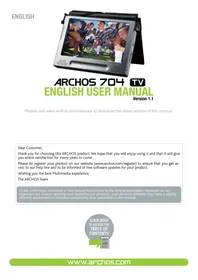


| Product type | Portable multimedia player with built-in TV tuner |
| Brand | ARCHOS |
| Model | 704 TV |
| Screen | LCD TFT 7 inches (diagonal) |
| Screen resolution | 480 × 234 pixels |
| Weight | Approximately 400 g |
| Dimensions (L × H × D) | 200 × 120 × 20 mm |
| Power | Rechargeable lithium-ion battery (included) or 5 V mains adapter |
| Battery life | Up to 4 hours of video playback |
| Storage capacity | Internal 40 GB hard drive |
| Connectivity | USB 2.0, TV output (composite), 3.5 mm headphone jack, TV antenna input |
| Supported audio formats | MP3, WMA, WAV, OGG |
| Supported video formats | AVI, MPEG-4, DivX, XviD |
| Supported photo formats | JPEG, BMP, GIF |
| Main functions | Audio/video playback, TV recording, photo viewing, FM radio |
| Care and cleaning | Wipe with a soft, dry cloth. Do not use abrasive products. |
| Safety | Do not expose to moisture, shocks, or extreme temperatures. |
| Spare parts and repairability | Battery, mains adapter, USB cable, remote control (subject to availability). |
| General information | Portable device with analog TV tuner (PAL/SECAM) and ability to record programs. |
Frequently Asked Questions - 704 TV ARCHOS
User questions about 704 TV ARCHOS
0 question about this device. Answer the ones you know or ask your own.
Ask a new question about this device
Download the instructions for your Portable media player in PDF format for free! Find your manual 704 TV - ARCHOS and take your electronic device back in hand. On this page are published all the documents necessary for the use of your device. 704 TV by ARCHOS.
USER MANUAL 704 TV ARCHOS
ARCHOS 704 TV ENGLISH USER MANUAL
Version 1.1
Please visit www.archos.com/manuals to download the latest version of this manual.
Dear Customer,
Thank you for choosing this ARCHOS product. We hope that you will enjoy using it and that it will give you entire satisfaction for many years to come.
Please do register your product on our website (www.archos.com/register) to ensure that you get access to our help line and to be informed of free software updates for your product.
Wishing you the best Multimedia experience,
The ARCHOS Team
All the information contained in this manual was correct at the time of publication. However, as our engineers are always updating and improving our products, your device's software may have a slightly different appearance or modified functionality than presented in this manual.
CLICK HERE TO ACCESS THE TABLE OF CONTENTS

TABLE OF CONTENTS
INTRODUCTION 4
ARCHOS DEVICE DESCRIPTION 4
2.1 BROWSING THROUGH YOUR MUSIC FILES. 14
5.2 WATCHING DIGITAL TV 31
5.3 RECORDING DIGITAL TV 34
5.3 DISCONNECTING THE FLAP ANTENNAS 35
6. USB CONNECTIONS 36
6.1 COMPUTER CONNECTION 36
6.2 USB HOST CONNECTION 38
- SETUP SCREEN 40 7.1 LANGUAGE SETTINGS. 40 7.2 DISPLAY SETTINGS. 40 7.3 APPEARANCE SETTINGS 41 7.4 CLOCK SETTINGS 42 7.5 POWER SETTINGS. 42 7.6 TV CONTROL SETTINGS 43 7.7 SYSTEM SETTINGS 43 7.8 UPDATING THE FIRMWARE. 45
- OPTIONAL FUNCTIONALITIES 46
8.1 DVR STATION & DVR TRAVEL ADAPTER PRESENTATION 46 8.2 RECORDING VIDEO (EXTERNAL SOURCE) 46 8.3 EDITING VIDEO FILES 49 8.4 SETTING THE SCHEDULER FOR DVR RECORDINGS 50 8.5 THE INFRARED EMITTER 52 8.6 RECORDING AUDIO (EXTERNAL SOURCE) 54
TECHNICAL SPECIFICATIONS 56
TECHNICAL SUPPORT INFORMATION. 58
INTRODUCTION
ARCHOS DEVICE DESCRIPTION
BUTTONS
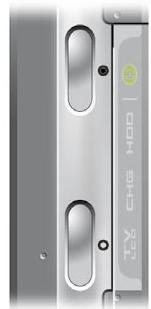
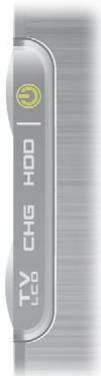
On the left side of the device:

Press and hold to switch on/off.

Press once to switch the display of the image between TV and built-in LCD screen. Press and hold to lock the touchscreen of your ARCHOS device.
CONNECTORS
Underneath the device are several connectors:
DVR Record external video and/or audio via the optional DVR Station or DVR Travel Adapter, available from www.archos.com (see Optional Functionalities).
Connect your ARCHOS device to your computer (see Computer Connection). Connect a compatible external device to your ARCHOS (see USB Host Connection).

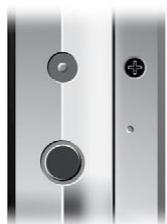
On the left side of the device:
Power: charge the battery of your ARCHOS device (see Battery Charge).
AV Out Jack:
Audio: plug in headphones. - Video: plug in the ARCHOS AV cable to connect to your TV, hi-fi, etc.

A/V
On top of the device:
Antenna connector for Digital TV: connect the supplied flap antenna system.
See: Digital TV.

LED INDICATORS

ON/OFF indicator
Hard Disk Drive activity indicator:
HDD - the light flickers when the hard drive is active (playing/transferring files).
Battery charge indicator:
CHG - light on: the battery is charging. - flashing: the battery is fully charged.

Video display indicator:
- the light is on when the image is displayed on an external display.
BUILT-IN LOUDSPEAKERS

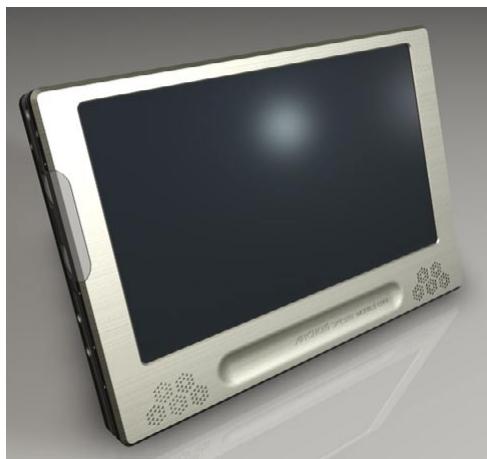
The built-in stereo loudspeakers are on the front of the device, on both sides below the screen.
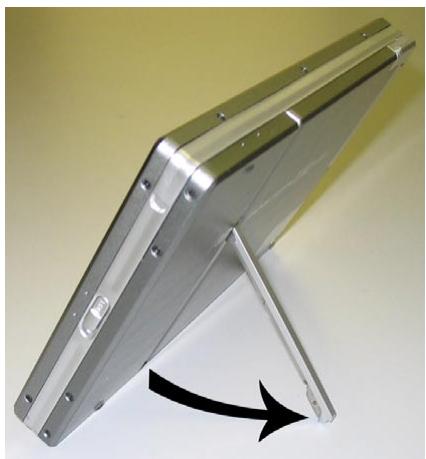
LEG STAND
REMOTE CONTROL
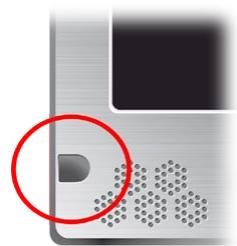
- The ARCHOS 704 TV has an infrared receiver located on the front of the device, in the bottom left corner.
- Point the supplied remote control towards the infrared receiver to control your ARCHOS device.
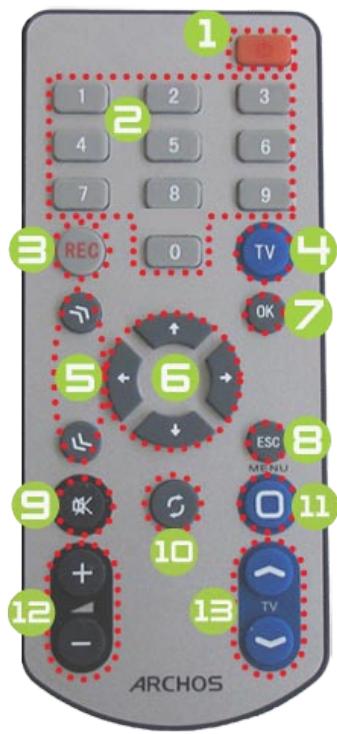
1 standby/on (when the charger/adapter is connected) or power off. change the Digital TV channel. record Digital TV or start an external video/audio recording with optional DVR Station or DVR Travel Adapter (Start recording menu item on screen). switch between built-in screen and an external screen (TV button). Accelerator buttons: high-speed fast forward, reverse, or list scrolling. Navigation buttons: move from an item to another. (◇/◇ and ◊/◇ buttons on screen). Enter/Accept and Pay/Pause/Resume button. Escape/Back/Stop button (× button on screen). mute sound. tab between available screens ( button on screen). 11 Menu button: display a text description of the available menu icons (Menu button on screen). increase/decrease volume. change Digital TV channels.
Your ARCHOS 704 TV device is equipped with a touchscreen.
Most screen areas will react when you tap on them using the included stylus or your fingernail.
Below is a description of the main tactile screen areas and a few tips on how to use the touchscreen.
INTERFACE DESCRIPTION & TACTILE SCREEN AREAS
Status Bar
- In the top right corner of the screen, the status bar indicates the volume, the battery level, the current time, the playback status of your device, etc.
- This area is not tactile, except for the cross, which may appear at the right end of the status bar for you to exit the current screen.
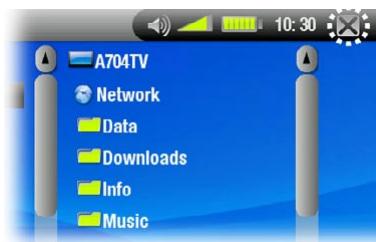
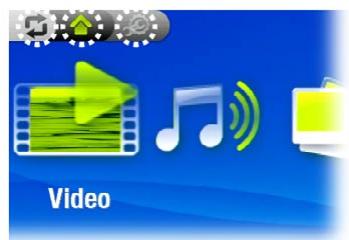
Tabs
- In the top left corner of the screen, the tabs area shows other available applications and screens (Setup Screen, Home Screen, etc.). They vary, depending on where you are in the interface.
- You can tap on the icon to switch between the available screens.
- You can also tap directly on one of the tabs to access the corresponding screen.
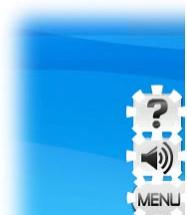
Contextual Menu
- In the lower right corner of the screen, the contextual menu area shows the menu icons: the available options will vary, depending on where you are in the interface.
- To execute a menu icon's function, simply tap on it. In order to display a text description of the icon, tap on the MENU word.
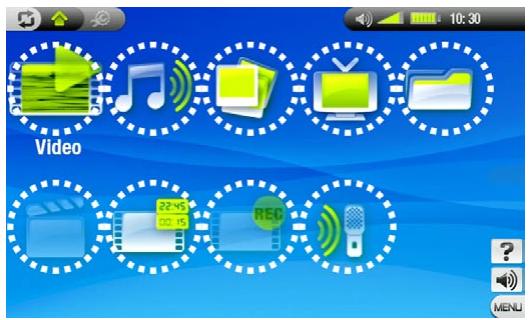
Home Screen
- This is the main screen of your ARCHOS device, showing its main functions.
- In the Home Screen or in the Setup Screen, you can tap directly on an icon to select it. Tap a second time to launch the application.
- In a browser window, in the ARCLibrary, or in the photo wall, you can tap twice on a file, song or video to launch it.
Other Touchscreen Actions

- When watching a video or listening to music, you can tap on the progression bar to go directly to a different location in the video or song. You can also drag the cursor in the progression bar to another location in the video or song.

- In the screens where it appears, the volume bar can be dragged in the same way.
- In the Archos file browser, you can drag the scroll bar up and down to scroll the file list up and down. You can also scroll faster by tapping above or below the cursor in the scroll bar.
- In the PDF viewer, you can scroll up and down by tapping on the page and dragging it up or down (be careful not to tap on a link!).
Note: in this manual, reactive areas will be surrounded with red dots on screenshots showing touchscreen controls.
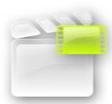
The Resume Icon
- Sometimes the Resume icon is highlighted in the Home Screen when you turn on the ARCHOS. This means that you can resume the last-played music or video file, if it was interrupted before the end.
- If the Resume icon is grayed out, it means that no music or video file playback can be resumed.
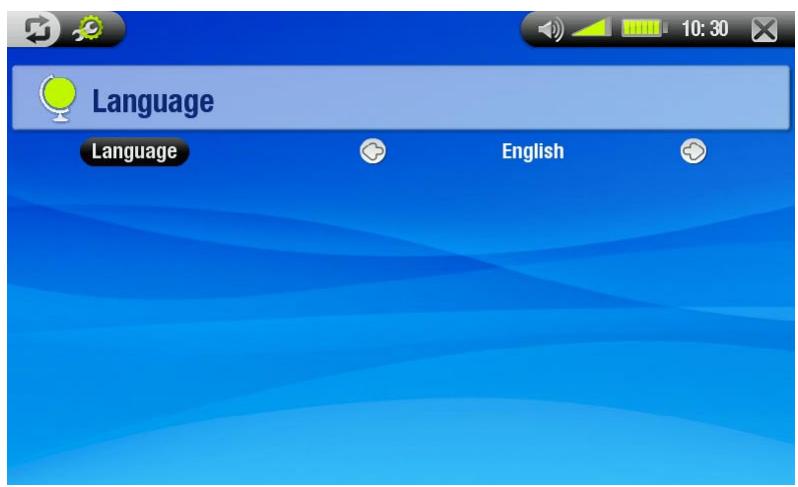
INTERFACE LANGUAGE
CHANGING THE LANGUAGE

- The interface of your ARCHOS device is available in various languages.
- If your language is not available, go to the ARCHOS website (www.archos.com/firmware) and download and install the latest version. New languages are included in the firmware as they become available. See Updating the Firmware.
To change the system's language:
- From the Home Screen, tap on to access the Setup Screen.
- Tap on the Language icon to display the Language Settings screen.
- Select a different language using the < > / < > buttons (your settings are saved instantly).
- Tap on × to exit. Tap on ⊡ to return to the Home Screen.
BATTERY
BATTERY CHARGE
- Before using your ARCHOS device for the first time, charge the battery until the CHG light starts blinking.
- Simply plug the ARCHOS Charger/Adapter into the power jack. The ARCHOS device will turn on and start charging, and a lightning bolt symbol will flash over the battery icon in the status bar:
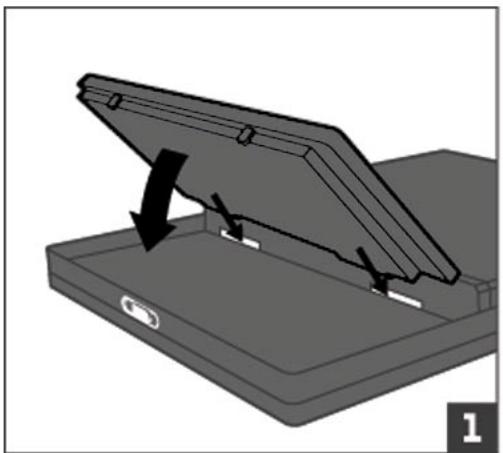
REPLACING THE BATTERY
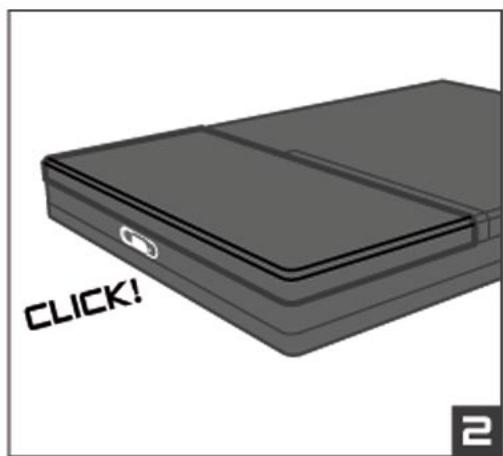
The ARCHOS has a removable battery. You can purchase extra batteries from www.archos.com.
Caution: if the battery is incorrectly replaced or short-circuited, this could result in damage to the product and/or serious injuries to the user. Replace only with an original Archos battery.
To replace the battery, follow these steps:
PRODUCT CARE
CARING FOR YOUR ARCHOS DEVICE
Your ARCHOS device is an electronic product that needs to be treated with care:
- Do not subject it to unnecessary shock or vibration.
- Do not subject it to heat, keep it ventilated (especially when connected to a computer).
- Keep it away from water and excessively humid areas.
- Keep it away from high electromagnetic fields.
- Keep any connected wires neatly arranged: the device could fall if a cable is accidentally pulled by a child.
- Do not open it up. There are no user-serviceable parts inside. Opening will void your warranty.
- In order to keep your touchscreen in good condition, and to avoid damaging the screen surface, you should use only the included stylus or your finger.
RESETTING YOUR ARCHOS DEVICE
- In the event that your ARCHOS device freezes operation (due to electrostatic phenomena, for example), you can reset it by pressing the bullet button for 15 seconds.
- If this does not work, you can also use the master reset function by removing the battery (See: Replacing the battery) and pressing the master reset button as shown below:
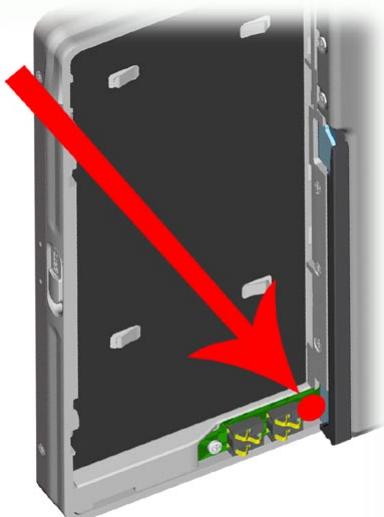
Note: Resetting your Archos will not erase any data from your device.
SYSTEM RECOVERY
- If your ARCHOS device does not respond correctly, or does not show certain songs or videos that you have copied to it, try using the repair and format tools (see: System Settings).
- If once turned on, the ARCHOS does not show the Home Screen, you can try a system recovery. It allows you to repair the hard drive, format it, or force the touchscreen calibration when you cannot access the touchscreen settings (see: Display Settings).
- Press the button to turn on your device.
- Immediately press and hold the TV until the Recovery mode screen appears.
Since the system recovery mode is activated, the touchscreen is currently disabled. To move from an option to another, press the TV button. To validate an option, press and hold the TV button until the line flashes, and release it.
The system recovery mode gives you four options:
No
-cancels the system recovery.
Repair Disk
- attempts to repair the file structure on the hard drive. does not erase any data.
Format Disk
-formats the hard drive. - all data (music, photos, videos, etc.), licenses and settings are erased.
Force Touchscreen Calibration
- use this option if the touchscreen does not respond correctly and if you cannot access the touchscreen settings (see: Display Settings).
- Follow the instructions on the screen.
1. PLAYING VIDEO
In the Home Screen, tap on the Video icon to highlight it, then tap on it again to enter the Video mode.
1.1 BROWSING THROUGH YOUR VIDEOS
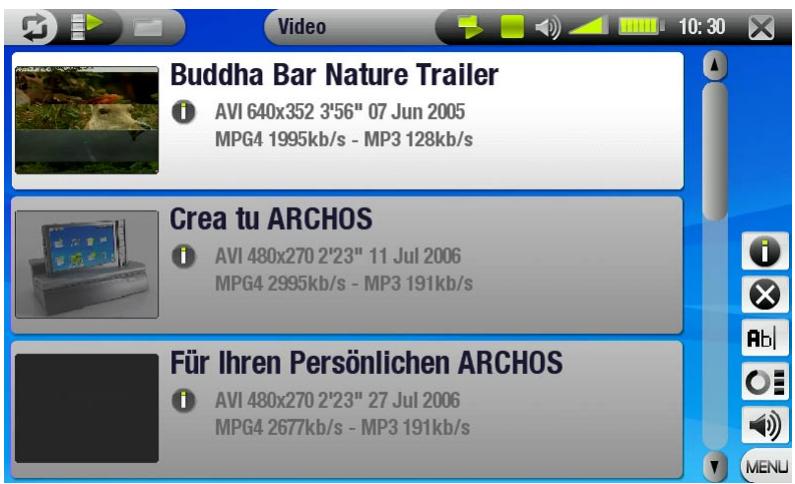
There are two types of views for you to browse through your videos: the Video List and the Video Browser. - You can switch between the two views by tapping on at any time while browsing in video mode. - When browsing in video mode, only video files are shown.
THE VIDEO LIST
- The Video List (default view) only shows the video files in the Video folder of the ARCHOS hard drive (it does not show videos located in sub folders).
- To view videos from a different folder, tap on → to switch to the Video Browser view, and navigate to another folder.
THE VIDEO BROWSER
- The Video Browser allows you to navigate to other folders within the Video folder. It is based on the ARCHOS File Browser. See: Using the Browser.
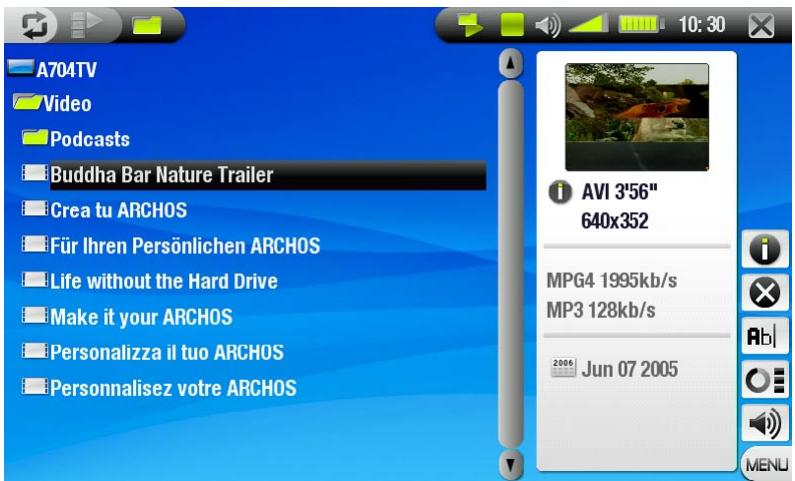
Both views display a motion thumbnail of the highlighted video as well as various information about the video file.
VIDEO LIST & BROWSER MENU ITEMS
Info

- Displays a message box with all the available information about the highlighted video file.
- Tap on × to close the Info screen.

- allows you to delete the highlighted video file. A confirmation screen will pop up.
Rename

- allows you to change the name of the highlighted video file using the virtual keyboard.
- see: Using the Virtual Keyboard.
Resume video

- will resume playing the highlighted video from the bookmark.
Clear bookmark

- will remove the bookmark from the highlighted video file.

Resume video and Clear bookmark only appear in the menu when a bookmarked video file is highlighted.
Reset thumbnails

- will delete all user-defined thumbnails and restore the default thumbnails.
Sound

- will display the Sound settings screen (see: Sound Settings).
- tap on × to return to the Video mode.
1.2 VIDEO PLAYBACK
Use the scroll bar to browse through the list of videos. Tap on a video file to highlight it, then tap on the selected file again to play it. The menu overlay will disappear automatically after a few seconds. To display it again, tap once anywhere on the screen. To make it disappear again, tap on the bullet icon.
Stop video / exit playback status icon, current play mode icon, video file name, current audio track (if the video file contains more than one audio track). Tap on this to change the audio track. Current display format, volume level, video progression bar, play/pause button.
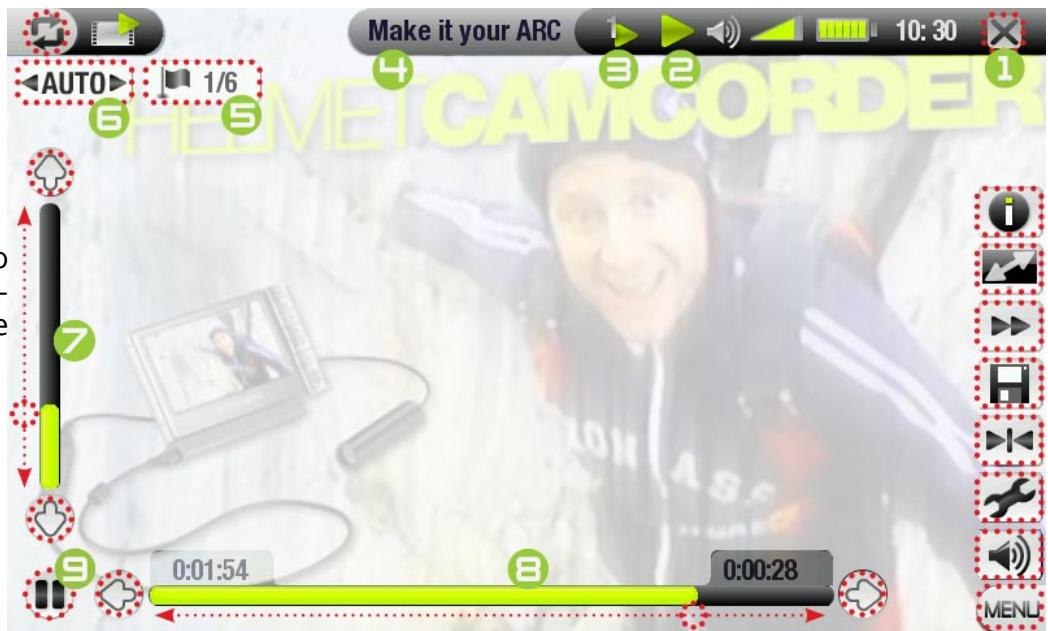
- Displays a message box with all the available information about the current video file. Tap on the X to close the Info screen.
Format

- Allows to change the way the image is displayed.
- Auto: adjusts the video size to best adapt to the built-in screen or TV.
- Full Screen: enlarges the picture to fill the screen and cuts some of the image.
- Maximized: enlarges the picture to fill the screen, considering the image is encoded in 2.35 format with black bands at the top and bottom.
- Original: displays the entire picture in its original format.
Speed

- Will play the current video in slow motion or high speed. While paused in slow motion, you can advance frame by frame, using the left and right arrow keys.
Save frame as...

- Thumbnail: saves the current image as a new thumbnail for this file (overwrites the previously set thumbnail, if any).
- Wallpaper: the current image will be defined as your device's background image.
Set bookmark

- Sets a bookmark at the current spot in the video. Only one bookmark per file is allowed. You can bookmark up to 32 files.
- Video files with a bookmark appear with the icon in the Video Browser.
- To resume playing a video from a bookmark, go to the Video List, highlight the bookmarked video file and select the Resume video menu item (Clear bookmark will remove the bookmark from the video).
Settings

- Will display the Video settings screen (see next section). Tap on × to exit this screen.
Sound

- Will display the Sound settings screen (see: Sound Settings). Tap on × to exit this screen.
1.3 VIDEO SETTINGS
- You can access the Video Settings screen via the Settings menu item while playing a video file.
- Tap on the ⊗ / ⊗ buttons to select a different setting for a parameter.
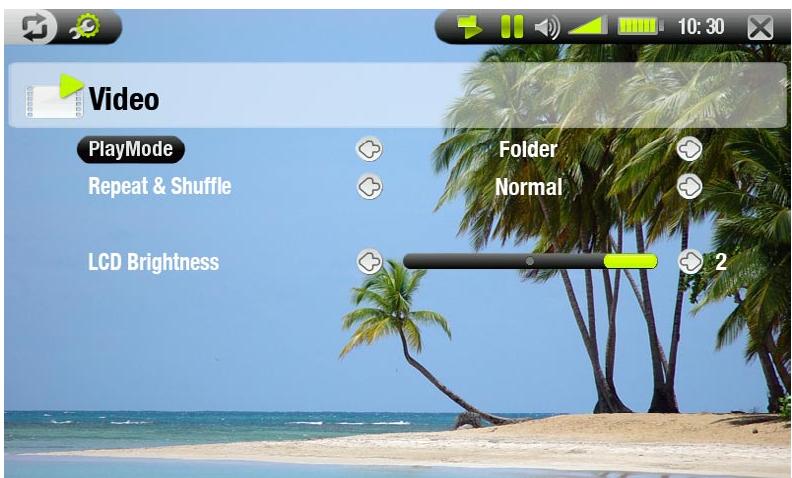
PlayMode (a status bar icon shows the current mode)

- Single: plays only one video file and stops.

- Folder: plays all video files in the current folder.
Repeat & Shuffle (a status bar icon shows the current mode)
- Normal: plays the video selection once and stops.

- Repeat: plays the video selection repeatedly

- Shuffle: plays videos in a random order
LCD Brightness
- adjusts the level of brightness of the built-in screen
1.4 PUTTING VIDEOS ONTO YOUR ARCHOS DEVICE
There are two main methods to transfer your own videos onto the ARCHOS:
- Synchronize your videos with Windows Media® Player 10 or 11.
This method requires your ARCHOS USB connection to operate in 'Windows Media Device' mode (see: System Settings). Windows Media Player 10 or 11 will copy the videos you have selected directly into the Video folder of the ARCHOS.
- Copy and Paste your video files from your computer into the Video folder of your ARCHOS (see: Computer Connection for details on how to connect your ARCHOS device to your computer).
CREATINGCompatible Video Files WITH YOUR COMPUTER
If some of your videos don't play on your ARCHOS device, you may need to transcode them to a compatible format.
- The easiest way to do this is by using Windows Media Player 10 or 11 to transfer videos to your ARCHOS in 'Windows Media Device' mode. Windows Media Player 10 or 11 will automatically convert most formats to the WMV format that your device can play.
- If you don't want to use Windows Media Player 10 or 11, a search on the Internet should allow you to find suitable utility programs to do this job.
- If you would like to simply copy and paste DVD video files onto your ARCHOS without converting them to WMV format, you can purchase the 'cinema' plug-in from the ARCHOS website (www.archos.com). The same is also true for video podcasts in the H-264 format. In this case, purchase the 'podcast' plug-in.
1.5 RECORDING VIDEO
- To record Digital TV, see Recording Digital TV.
- Your ARCHOS device can also record other external sources, via the VideoCorder function.
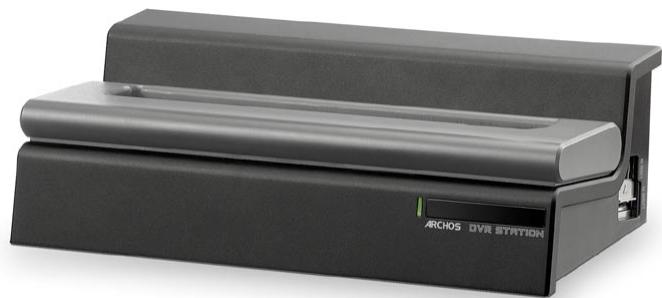
- You will need the optional DVR Station or DVR Travel Adapter to record external video.
- See: Recording Audio (External Source) to learn more about this feature.
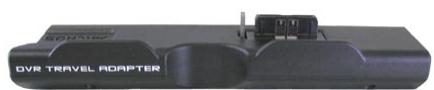
DVR TRAVEL ADAPTER
DVR STATION
2. PLAYING MUSIC
In the Home Screen, tap on the Music icon to highlight it, then tap on it again to enter the Music mode.
2.1 BROWSING THROUGH YOUR MUSIC FILES
- There are two types of views for you to browse through your songs: the ARLibrary and the Music Browser.
- When browsing through your music, only music files are shown.
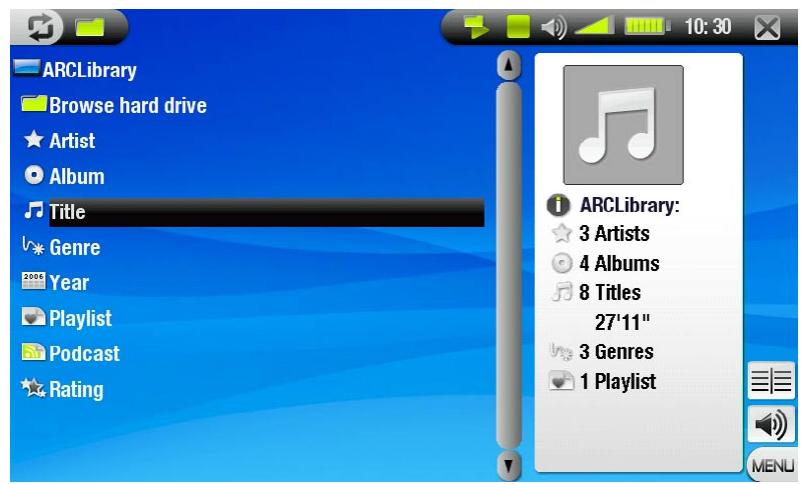
THE ARCLIBRARY
- The ArcLibrary (default view) shows your music sorted in categories (Artist, Album, Title, Genre, etc.) if your music files contain these tags.
- When new music is added to the Music folder of the ARCHOS, the ARCLibrary will be updated automatically.
- If some of your music files do not contain tags, they will be classified as (Unknown) in the ARCLibrary.
THE MUSIC BROWSER
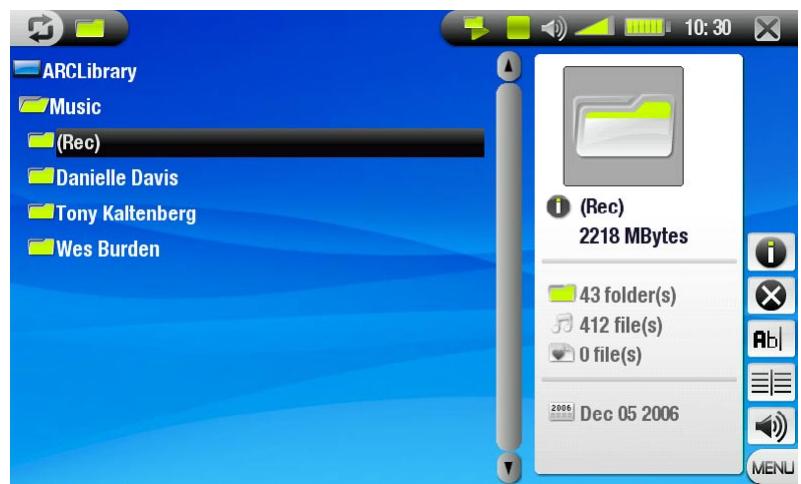
- The music browser allows you to navigate the Music folder of your device's hard drive. It is based on the ARCHOS File Browser.
- To use it, select Browse Hard Drive in the initial ArcLibrary view. See: Using the Browser.
ARCLIBRARY* AND MUSIC BROWSER MENU ITEMS
Info

- displays a message box with all the available information about the highlighted music file. -tap on × to close the Info screen.
Delete

- allows you to delete the highlighted music file. A confirmation screen will pop up.
Rename

- allows you to change the name of the highlighted music file using the virtual keyboard.
-see:Using the Virtual Keyboard.
Resume song

- will resume playing the highlighted music file from the bookmark.
Clear bookmark

- will remove the bookmark from the highlighted music file.

Resume song and Clear bookmark only appear in the menu when a track with a bookmark is highlighted.
Show playlist

- opens a playlist edition window on the right (see: Playlists).
Sound

- will display the Sound settings screen (see: Sound Settings).
-tap on × to return to the Music mode.
- in the ArcLibrary, only the Show playlist and Sound menu items are available.
2.2 MUSIC PLAYBACK
Use the scroll bar to browse through the list of audio tracks. Tap on a track to highlight it, then tap on the selected track again to play it.
stop song and exit playback status icon current play mode icon(s) previous track song title, artist name, album title and track number 6 next track play / pause button progression bar (with remaining time and elapsed time) volume level
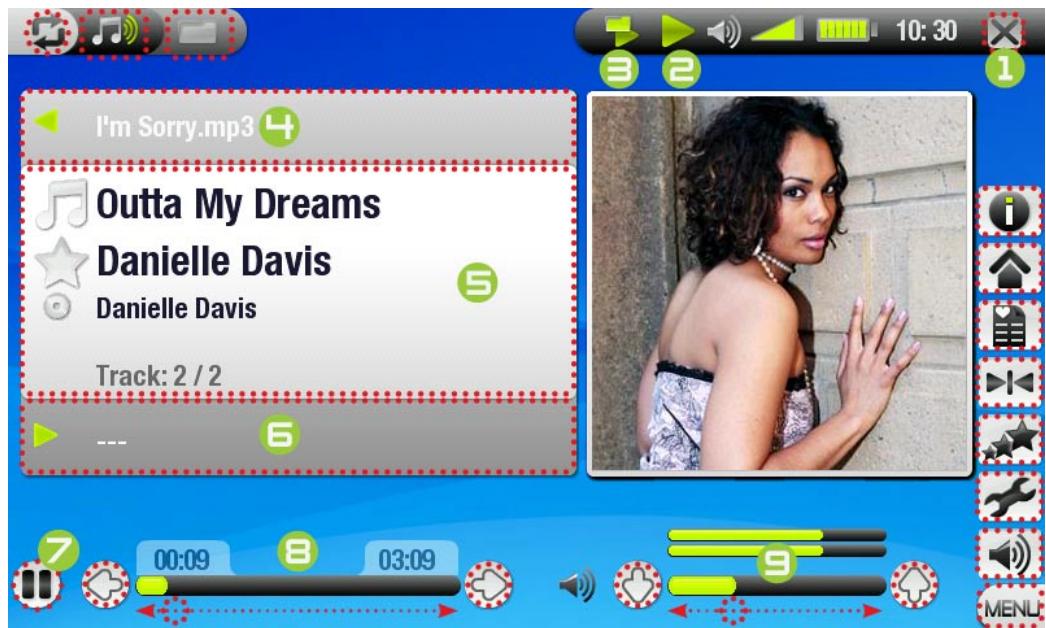
To browse through your songs while listening to music, simply tap on . This will take you to the ARCLibrary or browser screen that you launched the current song from.
PLAYBACK STATUS ICONS
Status bar icons tell you if your ARCHOS is:
playing
paused
stopped
- displays a message box with all the available information about the current music file. -tap on × to close the info screen.
Home

- allows you to go back to the Home Screen while playing music, in order to browse your hard drive, play a photo slideshow, read a PDF file, etc.
Playlist

- opens the playlist editor (see: Playlists).
Set bookmark

- sets a bookmark at the current spot in the audio file. Only one bookmark per file is allowed. You can bookmark up to 32 files.
- music files with a bookmark appear with the icon.
- to resume playing a song from a bookmark, go to the ArcLibrary or the Music Browser, highlight the bookmarked music file and select the Resume song menu item (Clear bookmark will remove the bookmark from the video).
Set rating

- allows to give a rating to the current song (1-5) or to remove the rating (none).
Settings

- will display the Music settings screen (see next section).
Sound

- will display the Sound settings screen (see: Sound Settings).
-tap on × to exit this screen.
2.3 MUSIC SETTINGS
- You can access the Music Settings screen via the Settings menu item while playing a song.
- Tap on the ⊗ / ⊗ buttons to select a different setting for a parameter.
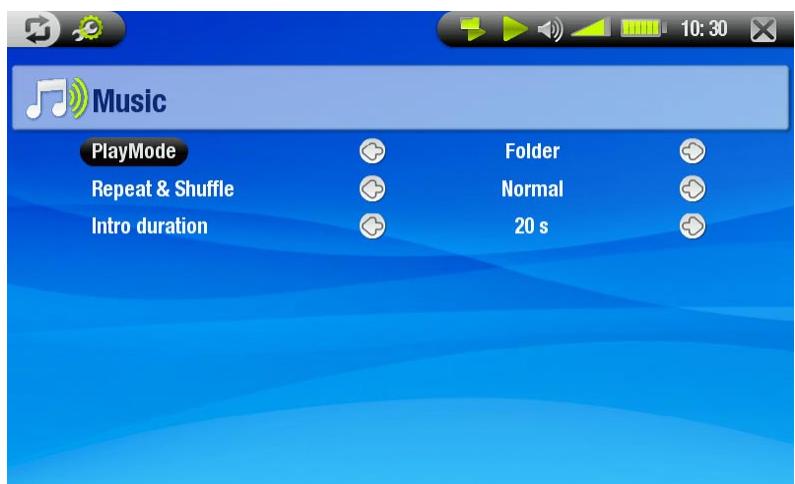
PlayMode (a status bar icon shows the current mode)

- Single: plays only one music file and stops.

- Folder: plays all music files in the current folder or album.

- All: plays all music files in the ARCHOS device.

- Queue: allows you to select a track to be played after the current one is finished.

- while a track is playing, tap on to switch to the browser window and tap on a track to select it: this is your queued track, and the status bar icon will change.
-you can only queue one track at a time. - if you do not select a song to queue before the end of the current track, the ARCHOS will play the next track in the folder or album.

- Scan: plays the first few seconds of each track. You can define the length to play in Intro duration.
- If you want to play the whole song, tap on it while its intro is playing; the music player will then revert to the Folder play mode.
Repeat & Shuffle (a status bar icon shows the current mode)

- Normal: plays the track selection once and stops.

- Repeat: plays the track selection repeatedly.

- Shuffle: plays random tracks from the selection.
Intro duration
- Defines for how long each track will be played in the Scan play mode.
2.4 SOUND SETTINGS
- You can access the Sound Settings screen via the Sound menu item.
- This screen allows you to adjust the sound settings of your ARCHOS device to your personal taste.
- Tap on the / buttons to select a different setting for a parameter.
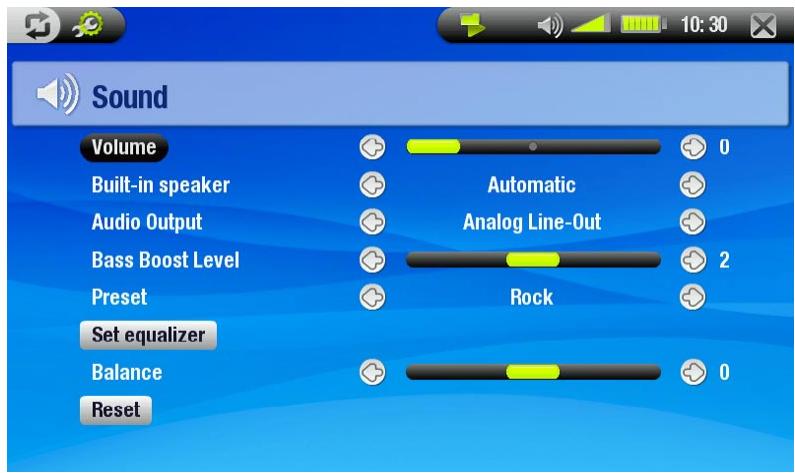
Volume
- Adjusts the output volume.
Built-in speaker
- ON/OFF: the built-in speaker remains on or off regardless if headphones are attached.
- Automatic: the built-in speaker automatically turns off when you plug in headphones or an AV Cable.
Audio Output
- defines whether the audio signal is sent out via the Analog Line-Out or the SPDIF interface when connected to a DVR Station.
Bass Boost Level
- adjusts the bass boosting level.
Preset
- allows you to quickly select a sound profile.
Set equalizer
- allows you to use a custom sound profile. Tap on this button to enter the equalizer screen (see next section).
Balance
- allows you to balance the sound between the left and right speakers.
Reset
-highlight and tap on it to reset sound parameters to the default values.
EQUALIZER SCREEN
- Your ARCHOS device features a 5-band equalizer.
- Tap directly on a band (Bass, Mid. bass, Mid. range, Mid. treble or Treble) to highlight it, then tap on the © / © buttons to change the gain level for these frequency ranges.
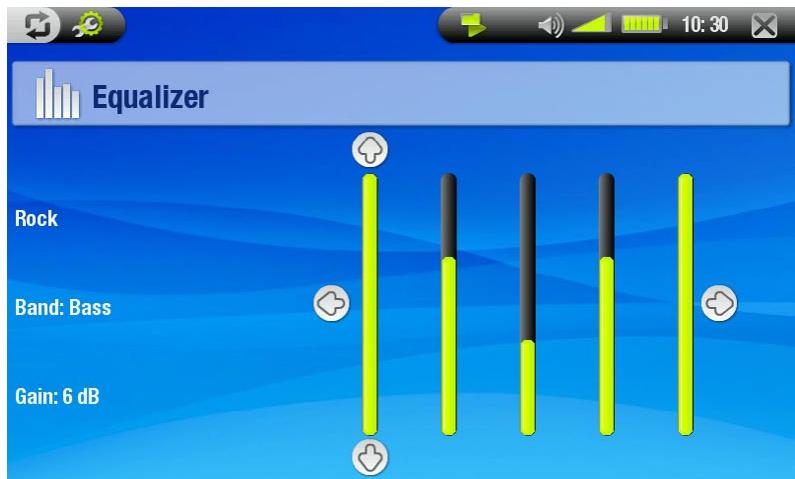
It is advised that you change these settings while listening to music, in order to be able to appreciate the sound changes.
2.5 PLAYLISTS
- A playlist is a list of audio tracks that the music player will automatically play one after the other.
- On your ARCHOS device, you can play, create and edit as many playlists as you want.
- In the ARCHOS Browser, playlists are the files with the icon.
- When playing a playlist, the icon will appear in the status bar.
Note: when you delete a playlist, you are only deleting the list and not the music itself.
PLAYING A PLAYLIST
- In the ARCLibrary, tap on the Playlist line to highlight it, then tap on it again to open it.
- Tap on a playlist to highlight it, then tap on it again. A panel showing the contents of the playlist will open on the right.
- Tap on the first item in the playlist to start playing from the first track.
- You may want to play the tracks in a different order: select the Shuffle menu item to randomly shuffle the order of the songs in the current playlist.
CREATING A PLAYLIST
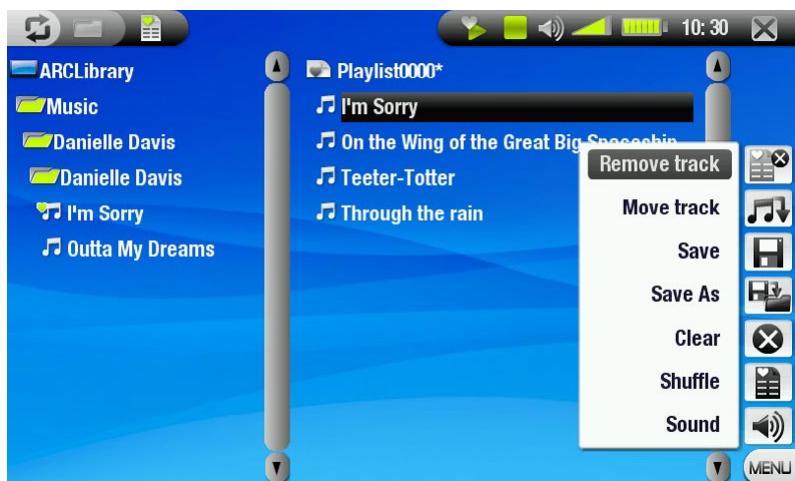
- Select the Show playlist menu item while you are in the Music browser. A playlist panel will open on the right: you can now start adding songs to the current playlist.
- In the left panel, locate the songs you would like to add to your playlist. Tap on a song to add it to the playlist (the song's icon in the left panel will change to a checkmark, indicating that it is part of the current playlist).
- Repeat this operation with all the tracks you want.
Another way to add songs or the content of an entire folder, artist, album, etc. to a playlist is by using the Add to playlist or Insert in playlist menu items:
Add to playlist
- will add the highlighted track, folder, artist or album at the end of the playlist.
Insert in playlist
- will insert the highlighted track, folder, artist or album before the selected item in the playlist.
To jump back and forth between the left and right panels, tap on or tap directly on the panel that you want to highlight.
See the next section to learn how to save your playlists.
PLAYLIST PANEL MENU ITEMS
These menu items appear when the focus is on the right panel:
Remove track

- deletes the highlighted track from the playlist.
Move track

- allows you to change the position of the highlighted track within the playlist.
- tap on a track to highlight it, then choose the Move track menu item. Now tap on the position to which you want to move the track, and tap on the track again to validate.
Save

- saves the current playlist to the Playlists folder.
Save As

-same as Save, but it also allows you to give a personalized name to the playlist.
-see:Using the Virtual Keyboard.
Clear

- clears and closes the current playlist.
Shuffle

- randomly shuffles the order of the songs in the current playlist.
Sound

- will display the Sound settings screen (see: Sound Settings).
- Tap on × to exit this screen.
EDITING A PLAYLIST
To edit an existing playlist:
- Highlight the playlist and use the Show playlist menu item.
- You can now add, shuffle, move or remove tracks within the playlist, using the appropriate menu items.
- An asterisk (*) appears after the playlist's name in the right panel to indicate that modifications were made to the playlist and that it is unsaved.
- After you have made the changes you want, save the playlist with the Save menu item, or with the Save As menu item if you wish to give it a different name.
ADDING SONGS TO A PLAYLIST WHILE LISTENING TO MUSIC
While playing a song, choose the Playlist menu item. - A new window will open with two panels, the music files on the left and the playlist on the right. - Tap on to focus on the left panel and select the song or folder of songs to add, then choose the Add to playlist or Insert in playlist menu item to add them to the playlist. - Tap on × to return to the playback screen.
Please note: this can only be done if you have entered the Music folder via the Music icon on the Home Screen and not via the Browser icon.
2.6 PUTTING MUSIC ONTO YOUR ARCHOS DEVICE
There are two main methods to transfer your own music onto the ARCHOS:
- Synchronize your music with Windows Media® Player 10 or 11
This method requires your ARCHOS USB connection to operate in 'Windows Media Device' mode (see: System Settings). Windows Media Player 10 or 11 will copy the music files you have selected directly into the Music folder of the ARCHOS.
- Copy and Paste your music files from your computer into the Music folder of your ARCHOS (see Computer Connection for details on how to connect your ARCHOS device to your computer).
- In order for the ARCLibrary to recognize your songs' tags efficiently, it is advised that you keep an orderly structure for your music files, for instance by making a folder for each artist, containing a folder for each of their albums, inside which are placed individual songs.
You can easily create audio content with your computer by using Windows Media Player 10 or 11 to convert your own CDs to MP3 or WMA format. Check the laws and regulations in your country or jurisdiction to know if private copy of your CDs for your own use is authorized.
2.7 RECORDING AUDIO
- Your ARCHOS device can record audio, via its AudioCorder function.
- You will need the optional DVR Station or DVR Travel Adapter to record audio from an analog source (see Optional Functionalities to learn more about this feature).
3. VIEWING PHOTOS
In the Home Screen, tap on the Photo icon to highlight it, then tap on it again to enter the Photo viewer.
3.1 BROWSING THROUGH YOUR PHOTOS
- There are three types of views for you to browse through your photos: the Photo Wall, the PhotoLibrary and the Photo Browser.
- When browsing through your photos, only picture files are shown.
You can switch between the three views by tapping on at any time while browsing through your photos.
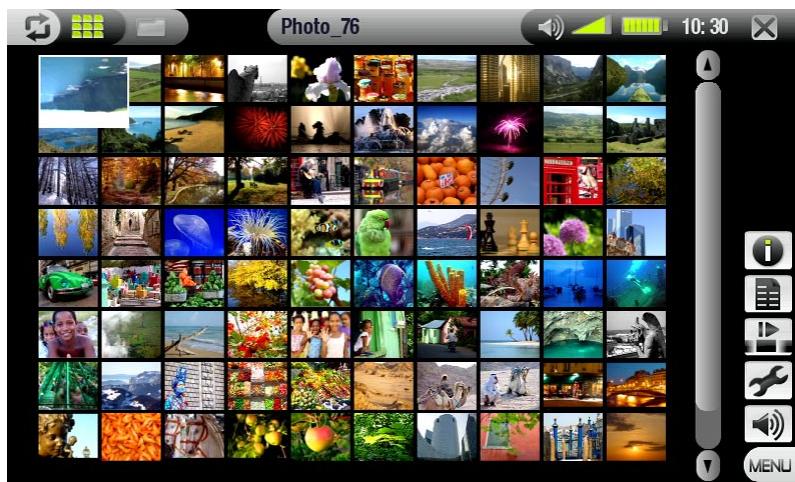
THE PHOTO WALL
- The Photo Wall (default view) shows thumbnails of your photos. It shows all picture files in the Pictures folder sorted by date.
- To view pictures from a different folder, tap on → to switch to the PhotoLibrary view and browse by folder. See: Using the Browser.
- You can tap on a file name and start viewing photos in that folder. You can also tap on to go back to the Photo Wall which will show all the photos from that folder.
THE PHOTOLIBRARY
- The PhotoLibrary displays your photos sorted by date, name, etc. (if your picture files contain these EXIF data).
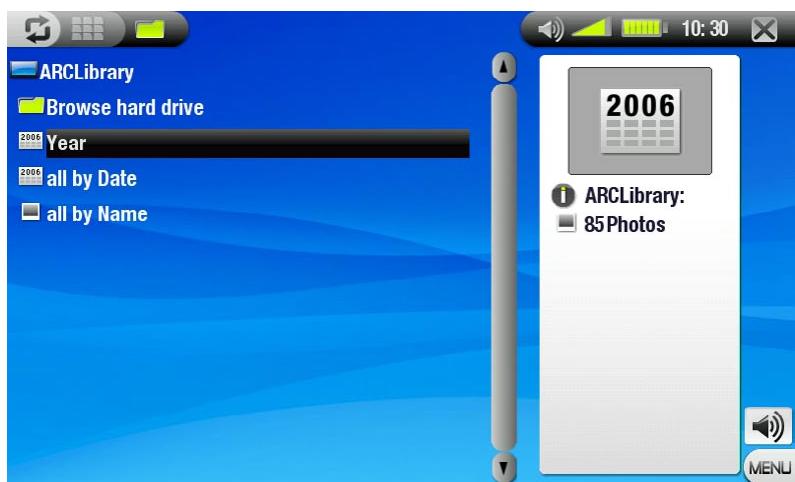
THE PHOTO BROWSER
- The Photo Browser allows you to navigate the Pictures folder of your device's hard drive. It is based on the ARCHOS File Browser.
- To use it, select Browse Hard Drive in the PhotoLibrary view. See: Using the Browser.
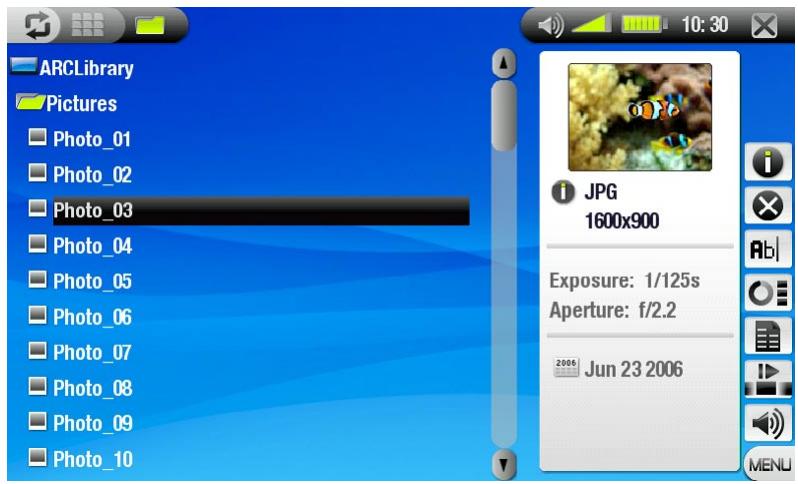
PHOTO WALL, PHOTOLIBRARY AND PHOTO BROWSER MENU ITEMS
Info

- displays a message box with all the available information about the highlighted picture. -tap on × to close the Info screen.
Delete*

- allows you to delete the highlighted picture file. A confirmation screen will pop up.
Rename*

- allows you to change the name of the highlighted picture file using the virtual keyboard. -see:Using the Virtual Keyboard.
Reset thumbnails*

- will delete all user-defined thumbnails and restore the default thumbnails.
* Delete, Rename and Reset thumbnails only appear in Photo Browser view.
Set as wallpaper

- defines the current picture as your ARCHOS device's background image.
Slideshow

- starts a slideshow from the highlighted image.
- the Pause slideshow menu item will appear, allowing you to pause the slideshow.
Settings (only appears in Photo Wall view)

- will display the Photo settings screen (see Photo Settings).
Sound

- will display the Sound settings screen (see: Sound Settings). Tap on × to exit this screen.
- You may want to access these settings if you are listening to music while browsing through your photos.
3.2 PHOTO VIEWER
Tap on a picture file, then tap again to view it. The menu overlay will disappear automatically after a few seconds.
PHOTO VIEWER SCREEN AND TOUCHSCREEN CONTROLS
- To display the menu overlay, tap once anywhere in the picture (to make it disappear again, tap on).
- To display the next/previous picture, use ○ / ○ .
- Another way to go to the next picture is to tap anywhere on the screen and drag the stylus from left (point 'A') to right (point 'B'). Drag from right ('B') to left ('A') to go back one picture (see screenshot).
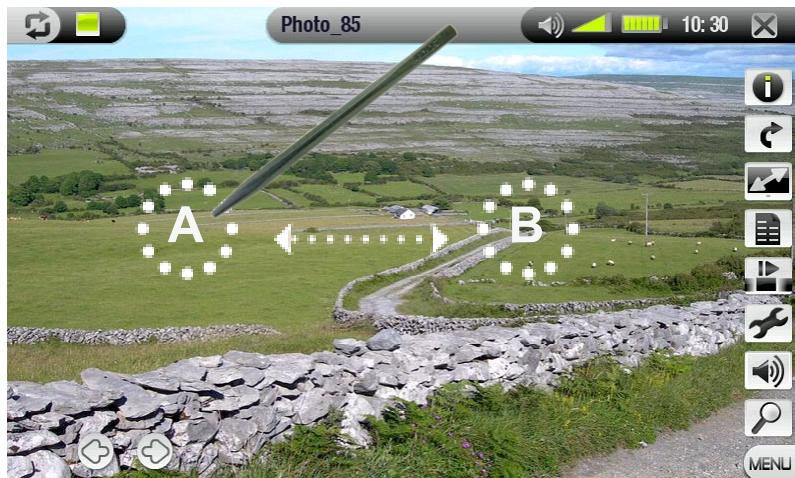
PHOTO VIEWER MENU ITEMS
Info

- Displays a message with all the available information about the current picture. Tap anywhere on the screen to close the Info message.
Rotate

- Choose Left to rotate the picture 90° counterclockwise (or tap anywhere on the screen and drag the stylus from bottom to top).
- Choose Right to rotate the picture 90° clockwise (or tap anywhere on the screen and drag the stylus from top to bottom).
Format

- Allows to change the way the picture is displayed.
- Original: Displays the entire picture in its original format.
- Full Screen: Enlarges the picture to fill the screen and cuts some of the image.
Set as wallpaper

- Defines the current picture as your ARCHOS device's background image.
Start slideshow

- Starts a slideshow from the current image.
- The Pause slideshow menu item will appear, allowing you to pause the slideshow.
Settings

- will display the Photo settings screen (see next section).
Sound

- will display the Sound settings screen (see: Sound Settings). Tap on × to exit this screen.
- You may want to access these settings if you are listening to music while browsing through your photos.
Zoom

- use the slider to magnify/demagnify the current picture.
3.3 PHOTO SETTINGS
You can access the Photo Settings screen via the Settings menu item while viewing pictures. Tap on the buttons to select a different setting for a parameter.
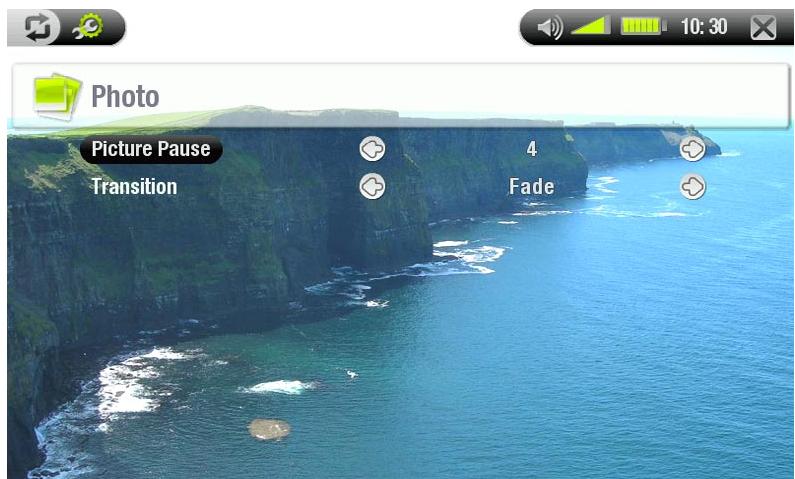
Picture Pause
- defines the time that each picture will be displayed during a slideshow.
Transition
- defines the transition effect to be used between two pictures. There are several cool effects that you can choose from.
3.4 PLAYING A SLIDESHOW
- To view a slideshow, highlight a picture file in the Photo Wall, Photo Library, or Photo Browser and choose the Slideshow menu item.
- You can also start a slideshow while viewing photos: choose the Start slideshow menu item. While a slideshow is playing, you can pause it at any time by selecting the Pause slideshow menu item.
- You can define the time that each picture is displayed and the transition effects in the Photo Settings (see: Photo Settings).
3.5 VIEWING PHOTOS WHILE LISTENING TO MUSIC
You can view photos and play slideshows while listening to music:
- Choose the Home menu item while playing a song.
- In the Home Screen, tap on the Photo icon to highlight it, then tap on it again to enter the Photo viewer.
- Browse through your photos or start a slideshow as normal (see: Playing a Slideshow).
- You can go back to the Music playback screen at any time using
If you go back to the Music playback screen while playing a slideshow, your slideshow will be paused. When you come back to it, simply resume the slideshow.
3.6 PUTTING PHOTOS ON TO YOUR ARCHOS DEVICE
There are several methods for you to transfer your own photos to the Pictures folder of the ARCHOS:
- Connect your ARCHOS device to your computer and copy the pictures from your computer's hard drive to the ARCHOS (see: Computer Connection), or sync them using Windows Media Player 10 or 11 (in 'Windows Media Device' mode only).
- Connect a digital camera, USB card reader, or external hard drive to your ARCHOS device via the included USB Host Adapter Cable (see: USB Host Connection). (Also see: Copying and moving files and folders).
4. USING THE BROWSER

The ARCHOS File Browser gives you the possibility to navigate the file system of your ARCHOS device's hard drive.
In the Home Screen, tap on the Browser icon to highlight it, then tap again on it to enter the File Browser.
You will see two panels:
- the one on the left is the panel that you usually use to navigate through your device's hard drive,
- the panel on the right is the one you will use when you want to copy or move files and folders (see: Copying and moving files and folders).
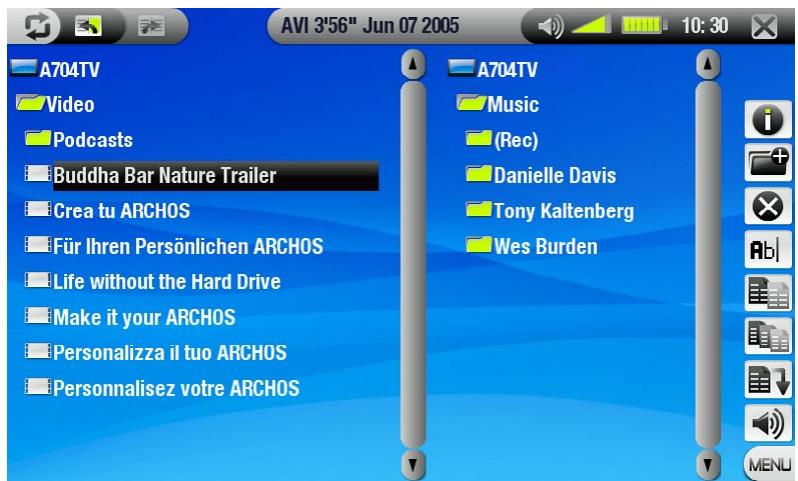
About your ARCHOS device's hard drive
ARCHOS recommends that you keep the original folders: Music, Pictures, Video, Playlists. The icons on the Home Screen lead directly to some of these folders (Video, Music, Photo...) and they may no longer work correctly if the folders are deleted or renamed.
4.1 NAVIGATION
- Tap on a file or folder to highlight it, then tap again to enter it.
- Tap on × at any time to leave the Browser and go back to the Home Screen.
- Tap on if you need to jump between the left and right panels.
BROWSER MENU ITEMS
Info

- displays a message box with all the available information about the highlighted file. -tap on × to close the Info screen.
Create folder

- creates a folder in the current location.
- you will have to enter the folder's name with the virtual keyboard (see: Using the Virtual Keyboard).
Delete

- allows you to delete the highlighted file or folder (and all its contents). A confirmation screen will pop up.
Rename

- allows you to change the name of the highlighted file or folder using the virtual keyboard. -see: Using the Virtual Keyboard.
Copy

- allows you to copy the highlighted file or folder to the location defined in the other browser panel.
Copy all files

- allows you to copy all the files in the current folder to the location defined in the other browser panel.
Move

- allows you to move the highlighted file or folder to the location defined in the other browser panel.
Sound

- will display the Sound settings screen (see: Sound Settings). Tap on × to exit this screen.
- You may want to access these settings if you are listening to music while browsing through your files.
Note that some of the above menu items may not appear if they are not available for the highlighted file or folder.
COPYING AND MOVING FILES AND FOLDERS
- In the left panel, highlight the file or folder that you want to copy or move.
- Tap on to focus on the right panel.
- Navigate to the location where you wish to copy or move the file or folder that you highlighted in the left panel.
- Tap on to go back to the left panel.
- Choose the Copy, Copy all files or Move menu item, depending on the action that you want to carry out.
4.2 USING THE VIRTUAL KEYBOARD
The virtual keyboard is an interface that allows you to type in text, for instance to rename a file or folder, or when you want to give a title to a playlist that you have just created.
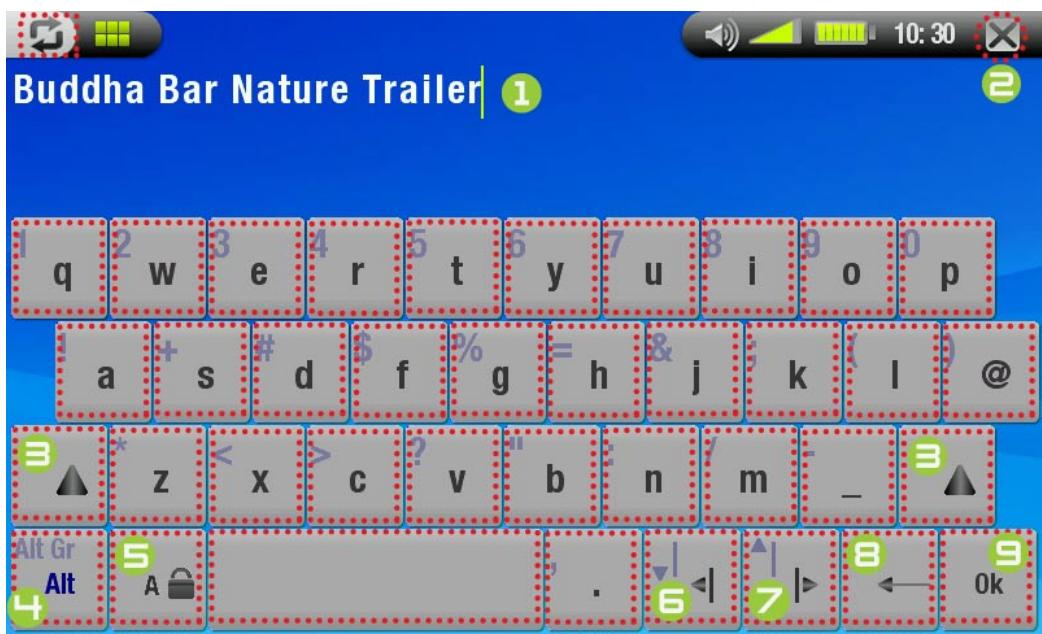
1 current name of the file/folder close keyboard without saving Shift button Alt/Alt Gr button: enable/ disable the keys' secondary functions Caps Lock button move cursor one character to the left move cursor one character to the right delete character before cursor save the name
4.3 USING THE PDF READER
- Your ARCHOS device features a PDF reader with hyperlink support.
- In the Browser, PDF files are displayed with this icon:
- To open a PDF document, tap on the PDF document in the File Browser and tap again.
FOLLOWING HYPERLINKS
- Some PDF documents have hyperlinks (for instance, a table of contents, links to an external website, etc.).
- Links are surrounded by a blue outline. A highlighted link (active link) is surrounded by a red outline.
- To follow a link, highlight the link (red outline) and tap again.
- If you want to go back to the previous page (where you ' clicked' the link), select the Link back menu item.
Note that hyperlinks referring to an external document or to a URL may not work.
PDF READER MENU ITEMS
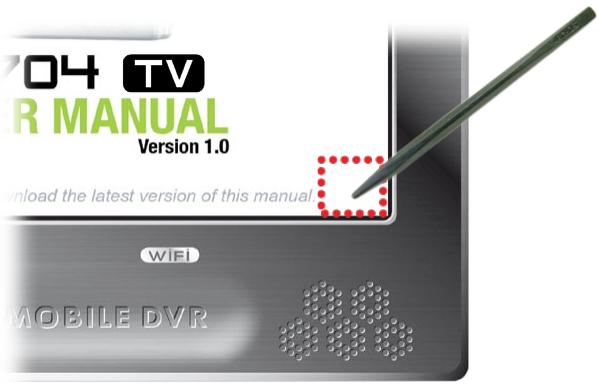
To display the menu overlay while viewing a PDF document, tap once in the bottom right corner of the screen (see following picture).
Hide text overlay

- will hide all overlaid graphics (status bar, menu items, etc.) to only show the PFD document.
Home

- allows you to go back to the Home Screen.
Zoom in

-magnifies the document.
Zoom out

- will take you back to the page that you came from.
- only appears when you have previously followed a link.
Go to page...

- allows you to select a specific page.
-use ↑ / ↓ to select a page number. -tap on Ok to go to this page.
Previous page
- goes to the previous page in the document.
Next Page
-goes to the next page in the document.
5. DIGITAL TV
5.1 FIRST TIME USAGE: TUNING DIGITAL TV CHANNELS
Before you can use your ARCHOS 704 TV to watch Digital TV for the first time, you will need to tune it to receive the available programs in your area. You may also need to do this when you enter a different coverage area, for instance when you travel a long distance.
CONNECTING THE ANTENNAS
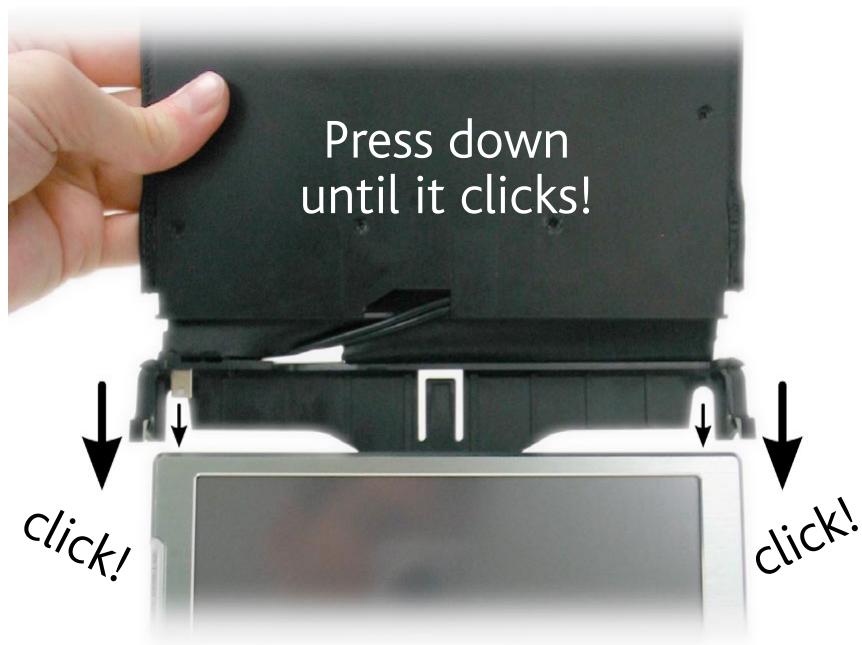
- Your ARCHOS 704 TV comes with a flap antenna system. Inside the flap, there are two amplified antennas. All these elements are mounted together in one piece and cannot be separated.
- If it is not already connected, connect the flap antenna system to the antenna connector, located on top of your ARCHOS device:
SCANNING FOR CHANNELS
- In the Home Screen, tap on the Digital TV icon to highlight it, then tap on it again to enter the Digital TV mode. The first time, the "No list of channels available" message will appear.
- Tap on OK: the device will scan for the available channels in your coverage area (this can take a few minutes). Your tuning will be kept for next time. You can now watch TV!

- When you enter a different coverage area, for instance when you travel a long distance, you will need to scan for channels again.
- To do this, enter the Digital TV mode, select the Manage channel list menu item and then select Scan. Your device will scan through the available channels and the tuning will be kept for next time.
Note: to avoid losing these new settings the next time you scan for channels, you can save them as a preset (see Manage channel list in section Digital TV menu items).
POSITIONING THE ARCHOS 704 TV FOR BETTER RECEPTION
You should make sure that your ARCHOS 704 TV is in a position that allows for good reception.
- For an optimal reception, place your device as close as possible to a window. Try different orientations to determine which one offers the best reception (see 'Signal quality' icon further down).
- Place your device away from any electromagnetic source such as a TV or PC, and away from any metal surfaces (at least 30 cm / 12 inches).
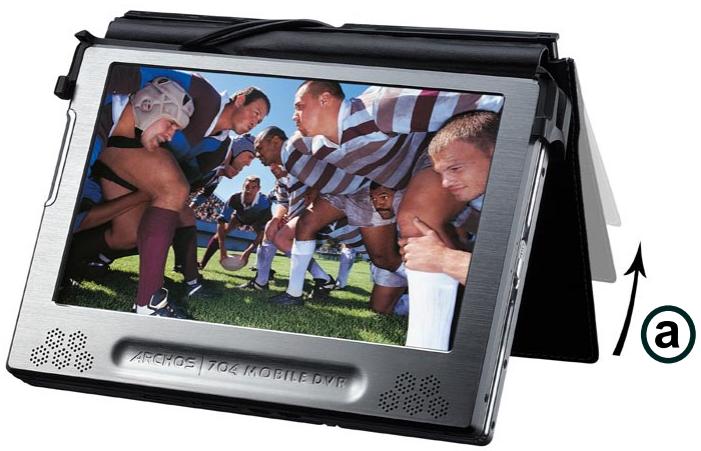
- In areas where the digital TV broadcasting signals are weak, the angle (a) of the flap antenna system can make a difference in the reception of some stations. Also, moving the device within the room can make a difference.
'Signal quality' icon:
- This icon is located in the status bar. The number of bars indicates the level of quality of the received signal. The icon is split in two parts, showing reception for the two antennas that are inside the flap. When you move the device, allow a few seconds for the icon to show the changes.
- Please note that if you use your home antenna and the supplied Antenna Adapter Cable, it is normal that only the left side of the icon will show signal quality.
- To keep the Signal Quality icon fixed on the screen while searching for the best reception, go to the channel list (Menu > Display Channel List).

5.2 WATCHING DIGITAL TV
In the Home Screen, tap on the Digital TV icon to highlight it, then tap on it again to enter the Digital TV mode. You can then browse through the available channels.
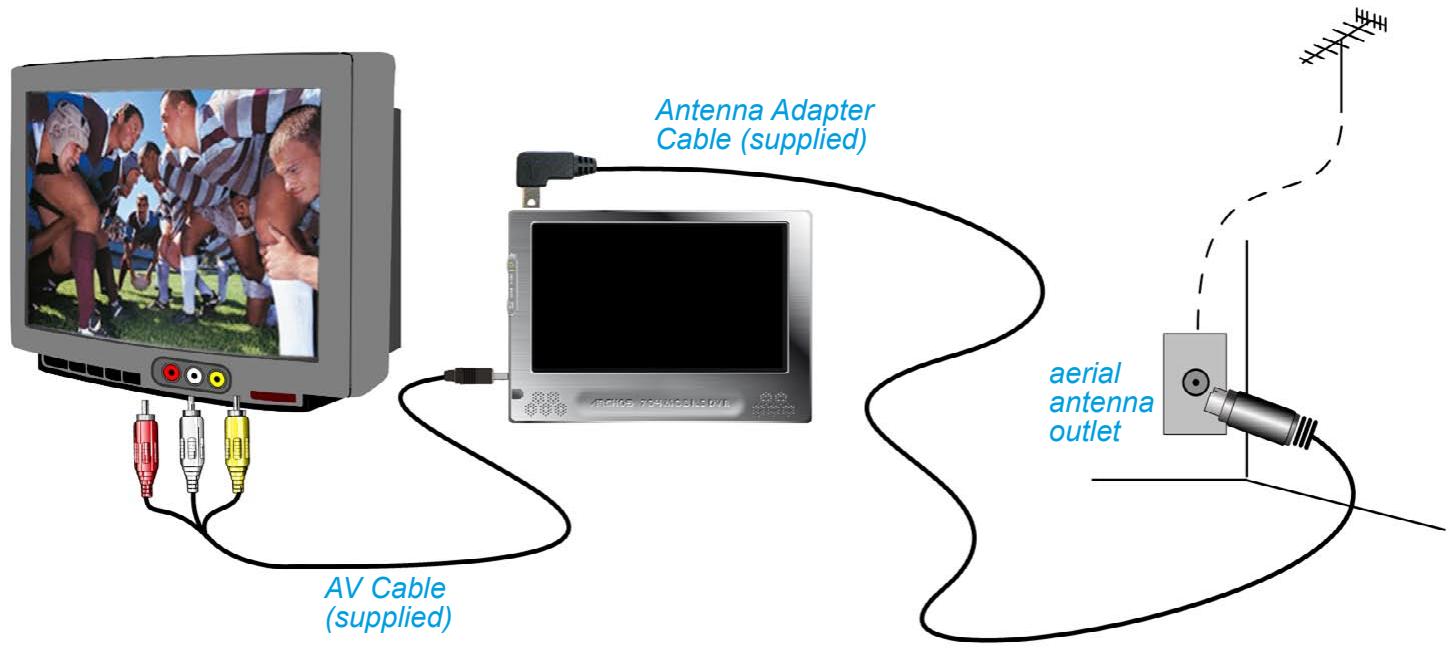
Note: you can use the ARCHOS 704 TV as a Digital TV tuner at home and connect the ARCHOS 704 TV to your home antenna using the supplied Antenna Adapter Cable (IMPORTANT: use only the ARCHOS supplied cable, and connect only to a regular aerial antenna outlet, not a cable TV service outlet).
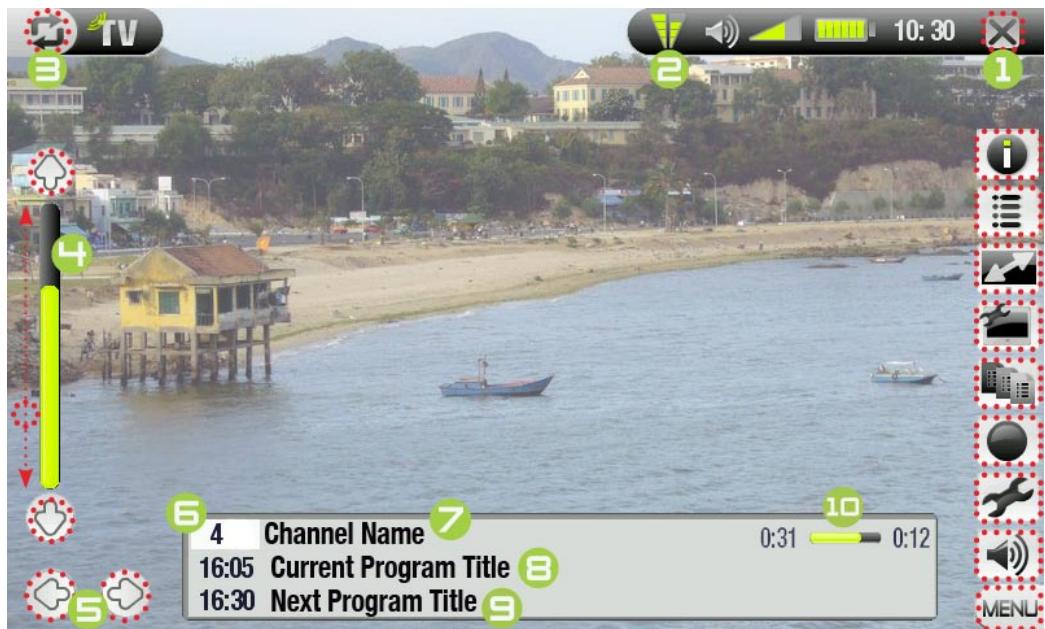
DIGITAL TV SCREEN AND TOUCHSCREEN CONTROLS
The menu overlay will disappear automatically after a few seconds. To display it, tap anywhere on the screen. To make it disappear again, simply tap on •.
stop and exit Θ 'signal quality' status icon ③ hide overlaid graphics (status bar, menu items, etc.) volume level 5 go to the previous/next channel Θ channel number channel name current program start time and title Θ next program start time and title current program timeline
DIGITAL TV MENU ITEMS
Info

- displays a message with all the available information about the program you're viewing, its duration, and potentially other programming information.
- note that this information is provided by the TV stations themselves and may not always be available.
- tap anywhere on the screen to close the Info message.
Display channel list

- displays the list of available channels. You can then select a channel to watch by tapping on it.
- Alternatively, you can also go directly to a channel by typing its number on the supplied remote control (see: Remote Control).
Format

- Allows you to change the way the image is displayed.
- Auto: adjusts the video size to best adapt to the built-in screen or TV.
- Full Screen: enlarges the picture to fill the screen and cuts some of the image.
- Maximized: enlarges the picture to fill the screen, considering the image is encoded in 2.35 format with black bands at the top and bottom.
- Original: displays the entire picture in its original format.
Manage channel list

- Scan: will search for available channels (see: First Time Usage: Tuning Digital TV Channels).
- Save: saves the current set of channels as a preset. Use this option before scanning in a new area in order to save the local Digital TV settings as preset 1, 2, 3, 4 or 5.
- Sort: will open the list of current channels and allow you to sort them to a different order and to delete the ones that you don't want to keep.
Preset selection (only available if at least one preset has been saved)

- Preset 1-5: Selecting one of these presets will change the set of currently available channels to the ones you have previously preset.
Start recording

- This will start recording the channel you're watching (see: Recording Digital TV).
- You can also press the red REC button on the remote control to start a recording.
Settings

- This will display 2 parameters: Auto Stop Rec (sets the limit for the amount of time to record) and LCD brightness. Tap on × to exit this screen.
Sound

- Will display the Sound settings screen (see: Sound Settings). Tap on × to exit this screen.
WATCHING DIGITAL TV IN YOUR CAR

Watch Digital Terrestrial TV in your car!
If you purchase the optional Car Kit which includes specialized antennas for the car, you will have the possibility to watch Digital TV on the move. So don't wait any longer and take this opportunity to travel like you never have before! Available on the ARCHOS website: www.archos.com
Note: Viewing television in a car may be illegal. Check your local applicable laws.
5.3 RECORDING DIGITAL TV
- The ARCHOS 704 TV allows you to record your favorite TV programs very easily.
- While you're watching TV, all you have to do is select the Start recording menu item (or press the red REC button on the remote control) and the ARCHOS 704 TV will instantly start recording the program you're watching.
- It will continue to record until either you stop the recording manually or the Auto Stop Rec limit is reached.
- To stop the recording, simply select the Stop recording menu item (or press the ESC button on the remote control).
- Note that while recording Digital TV, you will not be able to change channels.
WHERE IS THE RECORDING SAVED?
The default location for Digital TV recordings is the folder called Video. Files recorded from Digital TV are named automatically from the program's title. To view a recording, go to the Home Screen and select the Video icon. You will see your recording here. Tap on to see all your videos in the browser mode (for example if some of them are inside sub folders of the Video folder).
SETTING THE SCHEDULER FOR DIGITAL TV RECORDINGS
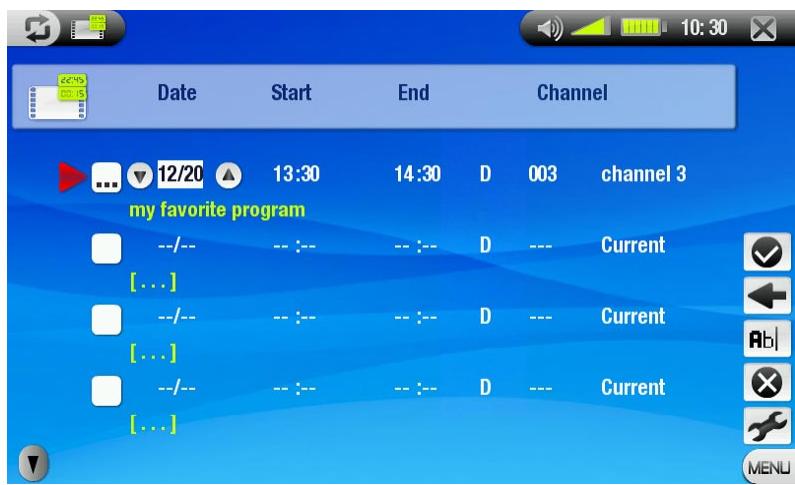
- If you would like to make a Digital TV recording for a future date or time, you can use the scheduler. You can program up to twenty different recordings up to one month in advance.
- From the Home Screen, tap on the TV Scheduler icon to highlight it and tap on it again to enter the Scheduler screen.
- Tap on the line you want to edit to highlight it, then tap on it again to start editing.
- Set each line to the desired date, time and channel.
Make sure that the letter before the channel number is D (D stands for Digital TV and A stands for Analog recording - see Setting the Scheduler for DVR Recordings).
- (Optional) Select the Edit program title menu item to define a title for your scheduled recording, (see Using the Virtual Keyboard).
- Select the Validate selected program menu item to save the changes for this program.
Note: Make sure the charger/adapter is connected to the device at the time of the scheduled recording. This way the ARCHOS will be in standby mode when the recording starts. If your ARCHOS is shut off and the charger/adapter not connected, the recording will not take place.
For further information about the scheduler (Settings, Automated Yahoo!® TV Recording Scheduler...), see Setting the Scheduler for DVR Recordings.
VIEWING DIGITAL TV RECORDINGS ON YOUR COMPUTER
If you want to view your Digital TV recordings on your computer, you will have to install software that can read videos in MPEG-2 TS format (.TS extension). One possibility is the VLC Player (www.videolan.org).
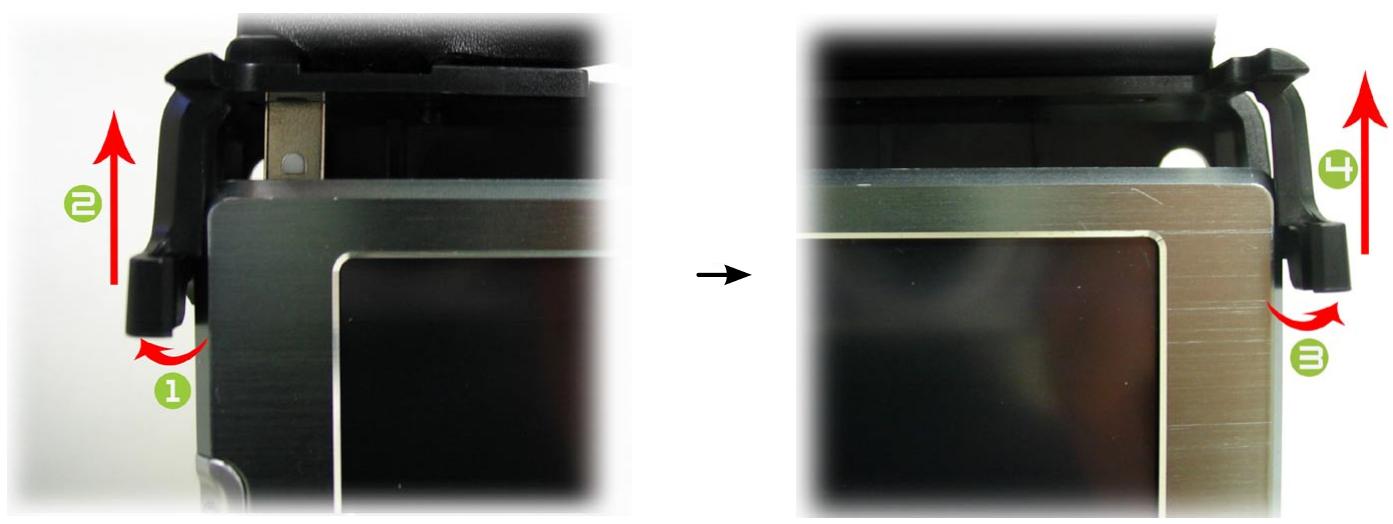
5.3 DISCONNECTING THE FLAP ANTENNAS
You might need to remove the flap antenna system, for example if you want to connect the car antennas or your home antenna to your ARCHOS.
- On the left side of the antennas, push the plastic tab outward and then up to disconnect the antenna connector.
- On the right side, push the plastic tab outward and then up, and remove the flap antenna system (see pictures below).
6. USB CONNECTIONS
6.1 COMPUTER CONNECTION
'WINDOWS MEDIA DEVICE' OR 'PC HARD DRIVE'
- There are two connection modes for your ARCHOS device to connect to your computer. When your ARCHOS device is turned on and you connect it to a computer, a screen will pop up on the ARCHOS asking you to choose the connection mode to be used for this connection (see next section).
- The ARCHOS can be connected as a 'Windows Media Device' if you have Windows Media Player 10 (WMP10) or higher installed on your computer. Otherwise, it can connect as a 'PC Hard Drive'.
- You can change your preferred USB connection mode in the System settings screen (see: System Settings). This means that your preferred connection mode will be highlighted by default when you connect your device to a computer. To access the System Settings screen, tap on from the Home Screen, then select the System icon.
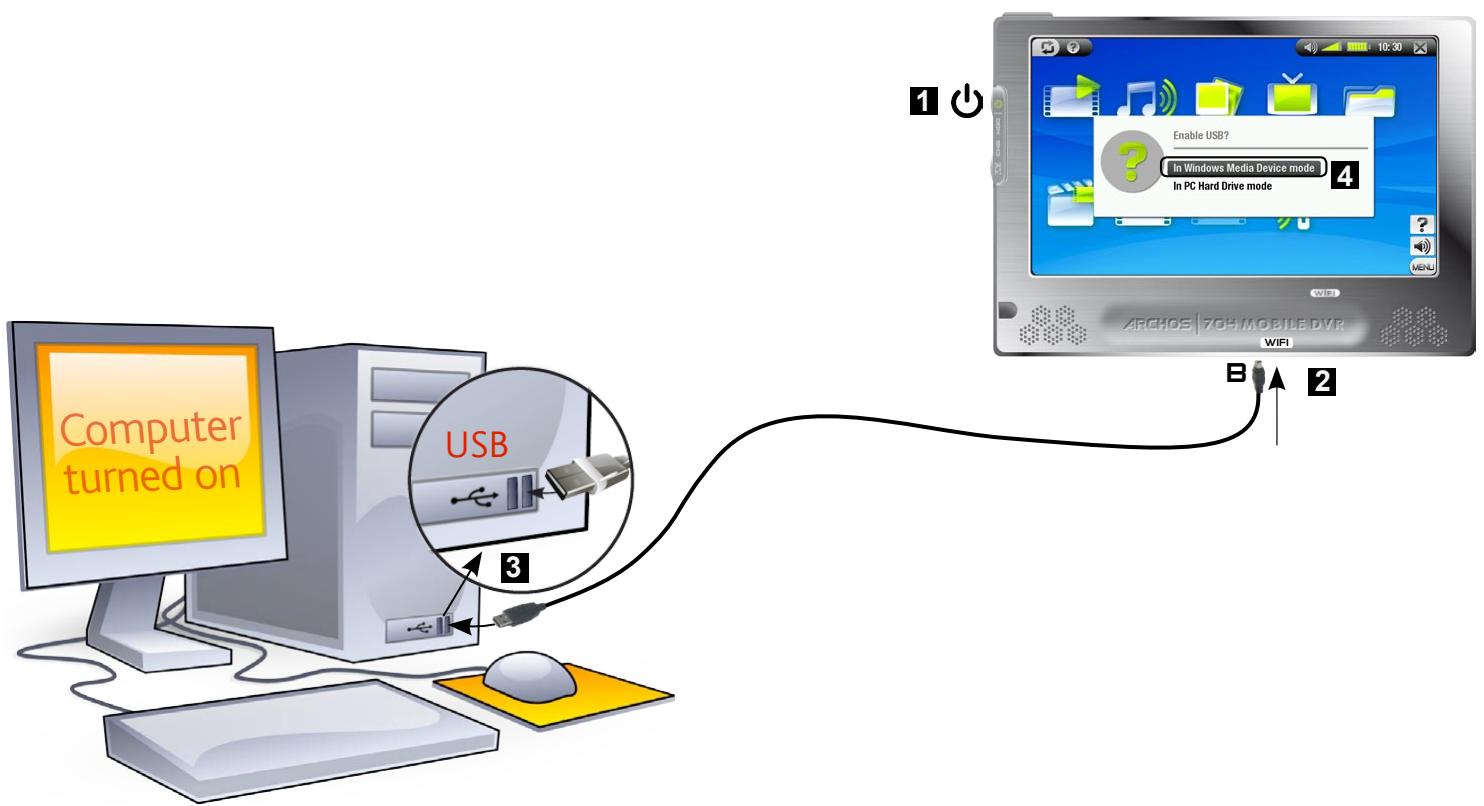
CONNECTION STEPS
- Turn on your ARCHOS device.
- Plug the supplied ARCHOS USB Cable into the ARCHOS device (B port).
- Plug the ARCHOS USB Cable into your running computer.
- Your ARCHOS device will ask you to choose the USB connection mode: select the one that you want to use and tap on it.
Refer to the following paragraphs for details on your particular operating system.
Windows® XP & WMP10 or Higher (Windows Media Device Mode)
- Follow the previous steps to connect the ARCHOS device, and select Windows Media Device as the connection mode.
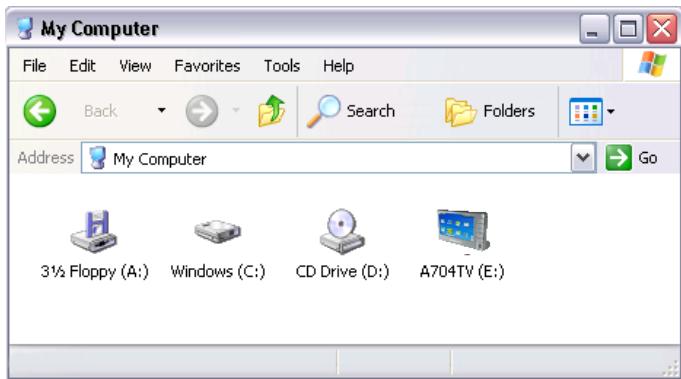
- The ARCHOS device will appear in My Computer.
- You can now put your own files onto the ARCHOS:
- Synchronize your music, videos or photos to the ARCHOS using Windows Media® Player 10 or higher.
- Copy your media files directly via Windows® Explorer into the Media, then Music, Video or Pictures folder.
If your computer asks for a driver or an installation CD when you connect your ARCHOS, then you must use the PC Hard Drive mode.
Windows® Me, 2000 and XP (PC Hard Drive Mode Only)
- Follow the previous steps to connect the ARCHOS device, and select PC Hard Drive as the connection mode.
- The ARCHOS will be recognized as a mass storage device (Hard Drive) and will appear in My Computer.
- You can now use the ARCHOS like any other external hard drive.
Mac® OS X (PC Hard Drive Mode Only)
Your OS X version must have Mass Storage device support.
- Follow the previous steps to connect the ARCHOS device, and select PC Hard Drive as the connection mode.
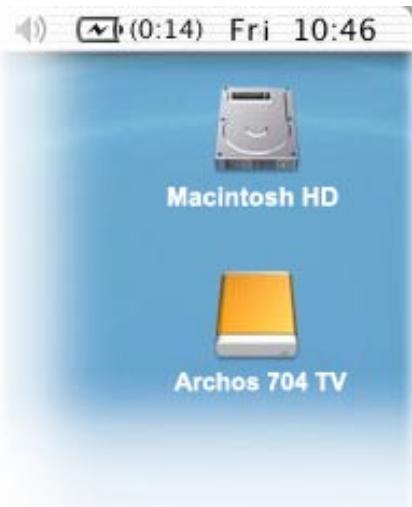
- The ARCHOS will be automatically recognized as a mass storage device (Hard Drive) and mounted on the desktop.
- You can now use the ARCHOS like any other external hard drive.
DISCONNECTION
Windows® XP & WMP10 or higher (Windows MEDIA Device Mode)
- Verify that no data are being transferred between your ARCHOS device and your computer (the HDD indicator on your ARCHOS device is not flickering).
- You can unplug the USB cable from your ARCHOS and/or computer.
Windows® Me, 2000 and XP (PC Hard Drive Mode Only)
DO NOT SIMPLY PULL OUT THE CABLE AT ANY TIME! You must remove/unmount the ARCHOS from the computer before disconnecting the USB cable to avoid loss of data or freezing.
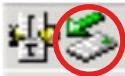
- Once all your transfers are finished, click on the 'safely remove' icon in the system tray, next to the clock.
3:14


05:24
Windows® 2000 / ME
WindowsXP
- Click on the 'safely remove' message.
Safely remove USB Mass Storage Device - Drive(E:)
2:39PM
- A message will pop up, telling you that it is now safe to disconnect the device*. You can now safely unplug the USB cable from your ARCHOS device and/or computer.

Safe To Remove Hardware

The 'USB Mass Storage Device' device can now be safely removed from the system.
- If you get a message saying that the device cannot be removed, close any computer program that may still be using data on your device, such as media players or Windows® Explorer.
Mac® OS X (PC Hard Drive Mode Only)
DO NOT SIMPLY PULL OUT THE CABLE AT ANY TIME!
You must remove/unmount the ARCHOS from the computer before disconnecting the USB cable to avoid loss of data or freezing.
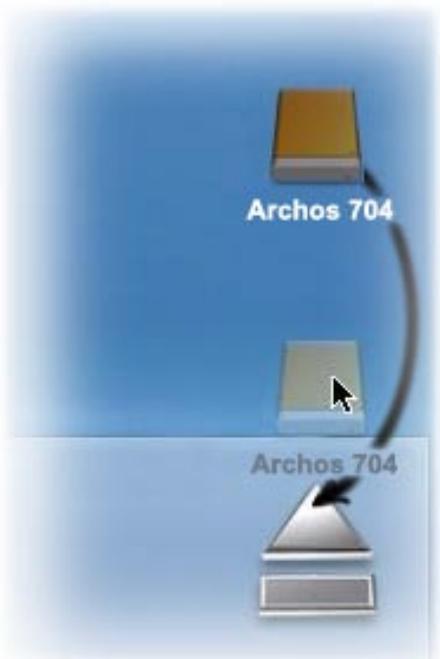
- On your desktop, drag the ARCHOS device's icon towards the trashcan, which will turn into a big eject symbol.
- Drop the icon onto this eject symbol: the ARCHOS hard drive will disappear from the desktop.
- You can now safely unplug the USB cable from your ARCHOS device and/or computer.
6.2 USB HOST CONNECTION
- Thanks to the USB Host port, you can connect compatible USB devices to the ARCHOS, in order to transfer files or pictures to your Archos.
- These devices can be Mass Storage Class (MSC) devices, such as digital cameras, card readers or external hard drives, or digital cameras using the Picture Transfer Protocol (PTP).
- Check your manufacturer's information to find out whether your device is an MSC or PTP device. Non Mass Storage Class devices such as printers, Ethernet adapters, mice, keyboards, etc. are not supported.
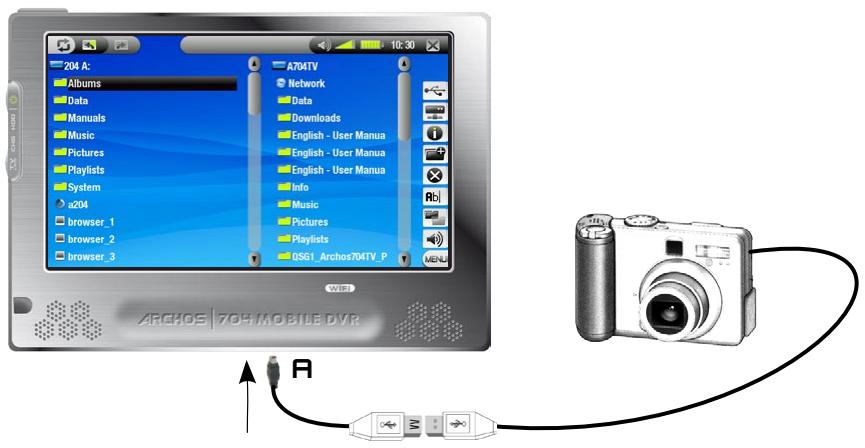
TO CONNECT A USB DEVICE TO YOUR ARCHOS DEVICE:
- Turn on your ARCHOS device.
- Plug the 'mini' end of the supplied USB host adapter into the ARCHOS device (R port).
- Connect the external USB device (use a standard USB cable if needed) to the other end of the supplied USB host adapter.
- Turn on the external USB device if needed (check the documentation of your external USB device).
- A double browser window will appear on the ARCHOS: the external USB device will appear in the left panel, and your ARCHOS device's hard drive in the right panel.
- Follow the instructions in the Copying and moving files section to copy your pictures or files to the ARCHOS.
TO DISCONNECT:
Make sure that no transfer is being made (the HDO light should not be flickering) and simply pull out the USB cable on either end.
Note 1: you may not always be able to copy files to your external USB device from your ARCHOS.
Note 2: you cannot connect your ARCHOS to a computer and connect an external device to your ARCHOS at the same time.
7. SETUP SCREEN
In the Home Screen, tap on to enter the Setup Screen (tap on if you want to go back to the Home Screen).
- Tap on one of the settings icons (Language, Display, Appearance, etc.) and tap on it again to enter the corresponding settings screen.
- Once you are in a settings screen:
- tap on a parameter to highlight it.
- use / to select a different setting.
- when you have finished adjusting your settings, tap on × to save them and go back to the main Setup Screen.
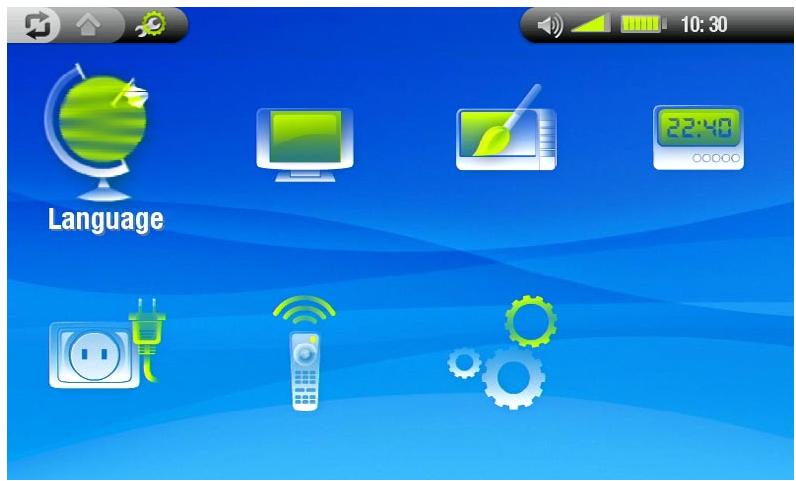
7.1 LANGUAGE SETTINGS
Language
- Choose a language.
- Visit www.archos.com to check the availability of other languages that you can download and install.
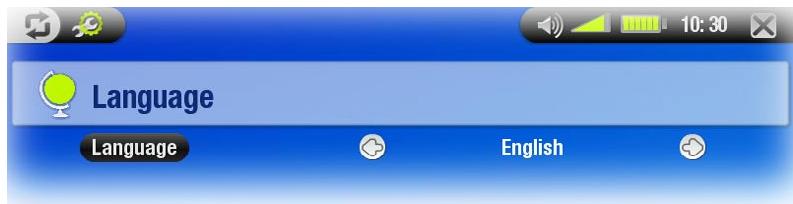
7.2 DISPLAY SETTINGS
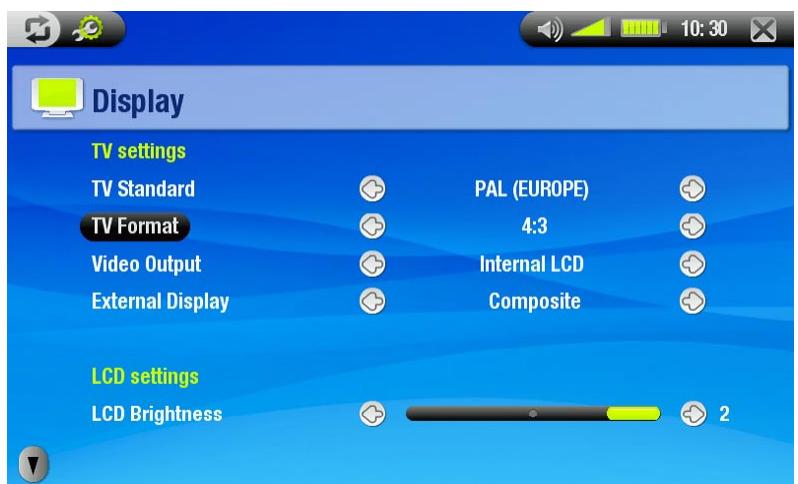
TV SETTINGS
TV Standard
- Choose between the NTSC (USA) and PAL (Europe) systems (select the one that is compatible with your country's television system).
TV Format
- 4:3 or 16:9 - the format used by your television set to display images.
- The option Wide screen becomes available when you set the TV standard parameter to PAL (Europe).
Video Output
- Choose between Internal LCD and External TV (to do this, you can also press the TV button on the device).
External Display
- Choose between Composite / S-Video / Component / RGB. Use this setting based on how you have cabled the video out of your DVR station to your television.
- For example, if you are using the yellow video connector as the video out, then select Composite.
LCD SETTINGS
LCD Brightness
- Adjusts the level of brightness of the built-in screen.
TOUCH-SCREEN SETTINGS
- If the touchscreen is not responding properly, use the arrows in the bottom left corner of the screen to view the Touch-screen settings.
- Tap on Calibration and follow the instructions on screen.
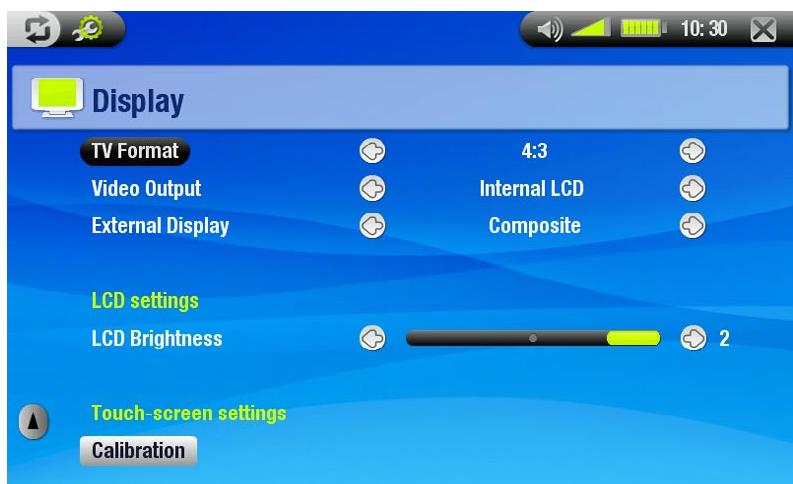
If this does not work or if you cannot access the touchscreen settings, you can force the touchscreen calibration (see: System Recovery).
7.3 APPEARANCE SETTINGS
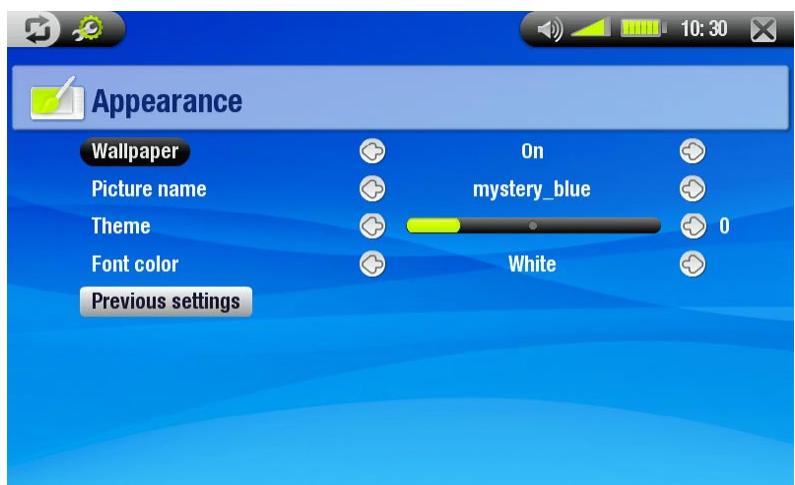
Wallpaper
- enables or disables the use of an image background.
Picture name
- allows you to select a picture to use as a background image.
- you can choose between all default backgrounds and images that you have previously set as wallpapers.
- you can also set a picture as wallpaper from the photo and video modes.
Theme
- defines the theme color for your icons (and for the background, if you have disabled use of a wallpaper).
Font color
-defines the font color.
Previous settings
- Tap on this to discard any changes you may have made since entering this screen.
7.4 CLOCK SETTINGS
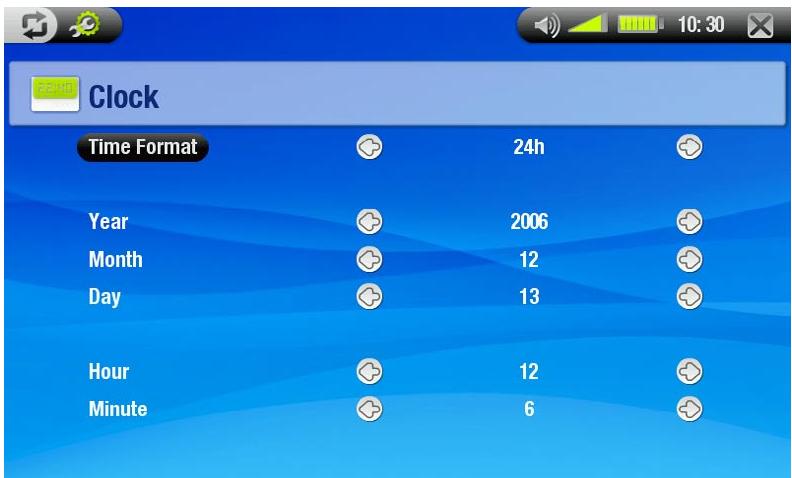
Time Format
- Choose between 12h or 24h mode.
Year, Month, Day, Hour, Minute
- Sets the current date & time.
If you use the optional DVR station to schedule video recordings on your TV system, make sure that the time and date are set correctly!
7.5 POWER SETTINGS
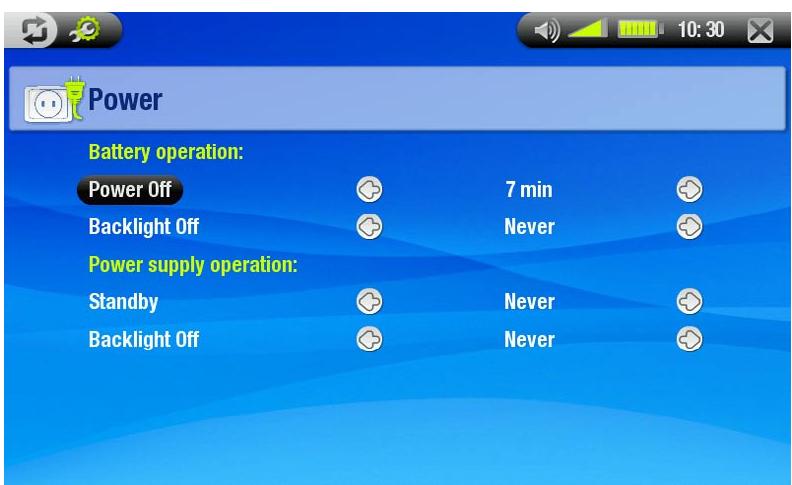
- These settings will help you save battery power, thus allowing a longer battery autonomy.
- You can adjust settings for both battery operation and power supply operation (when the ARCHOS is powered by the AV charger/adapter).
BATTERY OPERATION
Power Off
- The amount of time of user inactivity before the system shuts down.
- The system will not shut down during a slideshow, audio/video playback, audio/video recording, USB connection or while watching Digital TV.
Backlight Off
- the amount of time of user inactivity before the LCD display turns off.
- the display will not turn off while a video or slideshow is playing, or when you are watching Digital TV.
- the amount of time of user inactivity before the system goes into Standby mode.
Backlight Off
- the amount of time of user inactivity before the LCD display turns off.
- the display will not turn off while a video or slideshow is playing, or when you are watching Digital TV.
Your ARCHOS device will consume more power as these parameters are set to higher values. In battery operation, it is advised to set these parameters to lower values in order to save power.
7.6 TV CONTROL SETTINGS
See: The Infrared Emitter.
7.7 SYSTEM SETTINGS
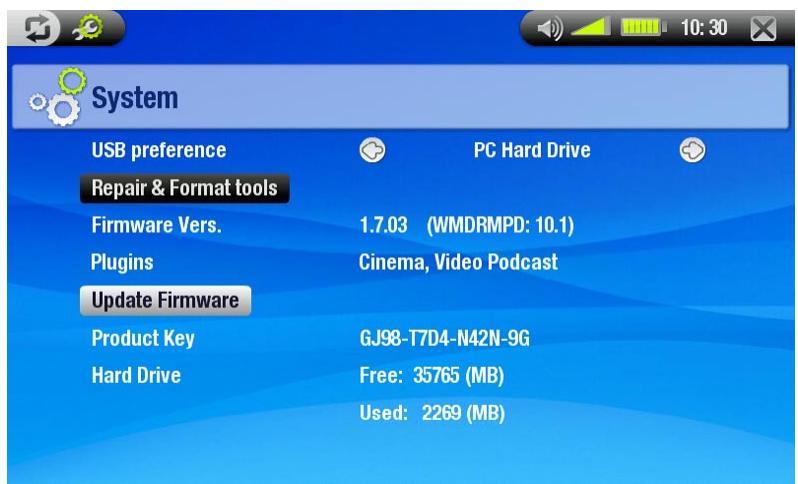
- This settings screen will give you access to several key items of your ARCHOS device, such as your preferred USB port mode, repair and format tools, firmware updates.
- It will also give you information about the current plugins and firmware version, the product key and the storage space that is currently used/available.
USB preference
Lets you choose your preferred USB connection mode, which will be highlighted by default each time you connect your ARCHOS device to a computer. The connection mode determines how your device interacts with your computer:
- Windows Media Device: the ARCHOS will use the Media Transfer Protocol (MTP) whenever it is connected to a PC with Windows® XP (SP1 or higher) and Windows Media® Player 10 or higher installed. You will be able to synchronize your media library automatically every time you connect your ARCHOS device to your computer.
- PC Hard Drive: the ARCHOS will act as an external hard drive (mass storage device) when connected to a computer. Use this mode for all non-Windows® XP operating systems.
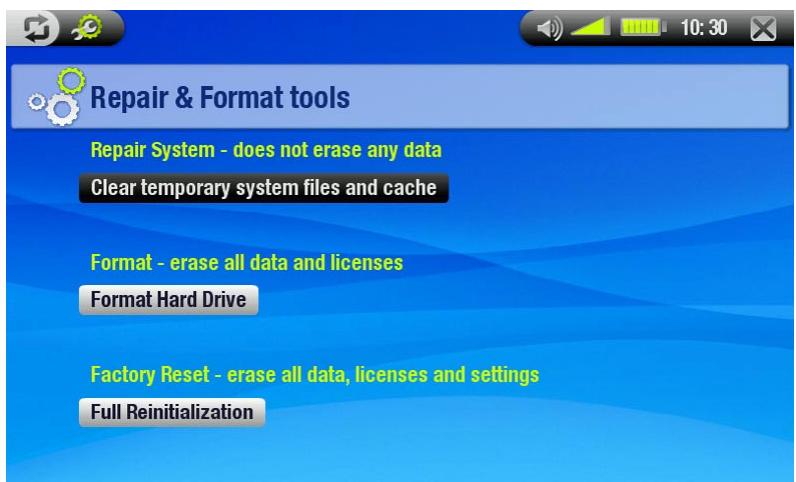
Repair & Format tools
- Tap on this to access the Repair & Format tools settings screen. This screen allows you to do the following actions:
- Clear temporary system files and cache (does not erase any data)
- Format Hard Drive (erase all data, media files, and licenses)
- Full Reinitialization (erase all data, media files, licenses and settings)
In the event that your ARCHOS device freezes operation (due to electrostatic phenomena, for example), try to reset it (see: Product Care).
If this does not work or if you cannot access the repair and format tools, you can try a system recovery (see: Product Care).
Firmware version
- Displays the current version of the firmware and Digital Rights Management system.
Plugins
- Displays the current plugins installed on your device.
Update Firmware
Tap on this to update the firmware. See Updating the Firmware to learn what to do before tapping on this button.
Product key
- each ARCHOS device has a unique number.
Hard Drive
- displays the amount of free and used space on the hard drive.
Note: reported number of megabytes is binary-based counting (1Kb=1024 bytes). Thus each reported Mb represents approximately 1.05 megabytes (decimal). Formatting also takes up space.
7.8 UPDATING THE FIRMWARE
- The firmware is the operating system (OS) of your ARCHOS device.
- It is periodically updated to bring new features, improvements and bug fixes.
- Firmware Updates are available for free from www.archos.com/firmware.
TO CHECK WHETHER YOU HAVE THE LATEST FIRMWARE VERSION:
- From the Home Screen, tap on to go to the Setup Screen.
- Highlight System and tap on it.
- The firmware version number is displayed on this screen.
- Compare it with the latest firmware version on www.archos.com/firmware. Firmware Vers.
1.7.02
TO INSTALL THE LATEST FIRMWARE:
- Download the AOS File (Archos Operating System):
- On the downloads page for your product on www.archos.com, click on the link to download the firmware update (ARCHOS firmware files have the .AOS extension).
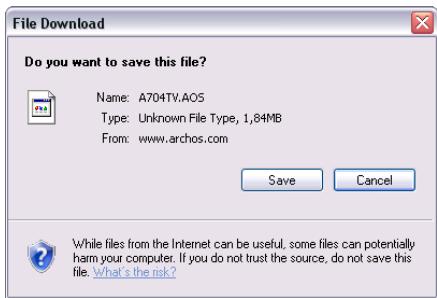
- Your Internet browser may warn you that the contents of this file may harm your computer. ARCHOS firmware files are safe: click on Save and choose a save location that you will remember (your desktop or My Documents).
- Copy the AOS File to your ARCHOS Device:
- Connect your ARCHOS as explained in this manual (see: Computer Connection) in 'PC Hard Drive' mode (see: System Settings).
- Cut the AOS file from your computer (right-click on the file > Cut).
- Paste the AOS file in your ARCHOS device:
- Simply drag and drop the AOS file onto the icon of your ARCHOS device in My Computer.
- If there is already an AOS file, Windows® will ask you if you want to overwrite the existing file: click on Yes.
- Disconnect the ARCHOS from your computer (see: Computer Connection).
- Activate the Update:
- Go to the System Settings screen of your ARCHOS device.
- Tap on Update Firmware.
Update Firmware
- Your ARCHOS device will ask you to plug in the charger/adapter. Do so and then tap on the screen to continue.
- The new firmware will be installed on your device.
8. OPTIONAL FUNCTIONALITIES
8.1 DVR STATION & DVR TRAVEL ADAPTER PRESENTATION
- You can record from an external video source if you use the optional DVR Station or DVR Travel Adapter.
- The ARCHOS DVR Station stays connected to your home entertainment system and allows you to quickly connect your ARCHOS to watch its contents on your TV, record from your satellite or cable box, etc.
- The ARCHOS DVR Travel Adapter allows you to record from an external video source (such as the ARCHOS Digital Mini-Cam) when you are on the move.
- An optional ARCHOS AV cable will allow you to connect your ARCHOS directly to a television from the headphone connector.
- You can purchase these optional accessories from www.archos.com.
8.2 RECORDING VIDEO (EXTERNAL SOURCE)
In the Home Screen, tap on the VideoCorder icon to highlight it and tap on it again to display the prerecording screen.
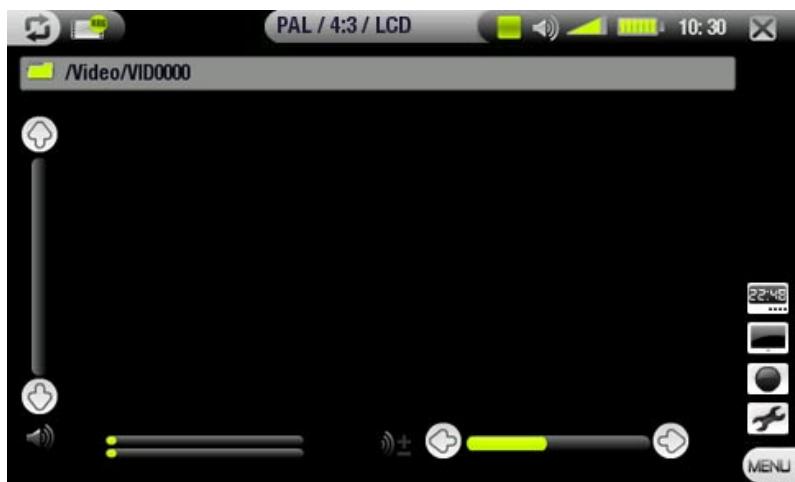
All video recordings made by your ARCHOS device are saved in the Video folder. If you wish to keep them in a different location, you can use the Move function of the ARCHOS file browser after recording (see: Using the Browser).
RECORDING PROCEDURE
- In the pre-recording screen, adjust the recording sound volume using the volume buttons (remember that the volume buttons only adjust the headphone volume).
- Select the Settings menu item. Adjust the video recording settings as you like (see next section). Tap on the exit button to exit the VideoCorder Settings screen.
- Select the Start recording menu item to start recording.
- Tap on the stop button to stop recording.
You can pause and restart your recording by tapping on their respective menu items.
PRE-RECORDING SCREEN MENU ITEMS
Open scheduler

- will take you directly to the Scheduler screen (see Setting the Scheduler for DVR Recordings). Tap on the back button to go back to the pre-recording screen.
Hide text overlay

- will hide all overlaid graphics (status bar, menu items, etc.) to only show the video image.
Start recording

- will start recording right away.
Settings

- will open the Videocorder settings screen (see next section).
- once you have finished adjusting your settings, tap on × to go back to the pre-recording screen.
VIDEOCORDER SETTINGS
- This screen allows you to adjust the video recording parameters to your personal taste.
- You can access the VideoCorder Settings screen via the Settings menu item in the pre-recording screen.
- Tap on a parameter to highlight it, then use / to select a different setting.
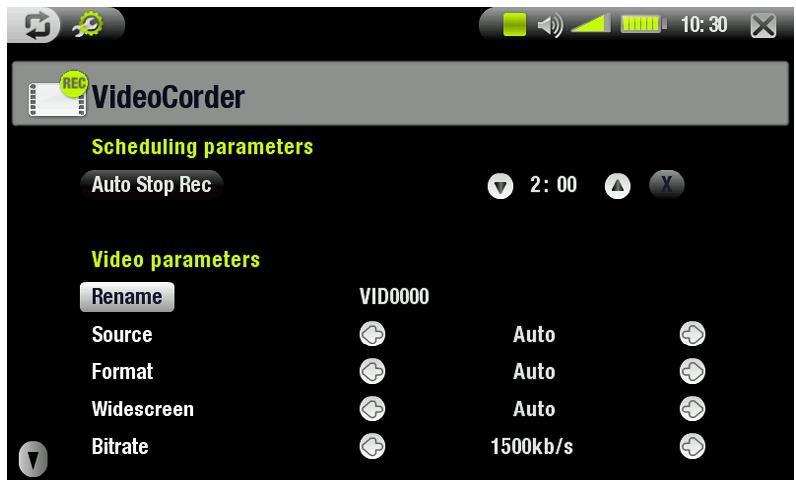
Scheduling Parameters:
Auto Stop Rec
- the duration of time after which the ARCHOS device will automatically stop recording.
- if you tap on × (Auto Stop Rec disabled), the recording will continue until you tap on × or until the entire hard drive fills up.
Video Parameters:
Rename
- allows you to define the filename before the recording begins, using the virtual keyboard. -see:Using the Virtual Keyboard.
Source
- options: Auto/Composite/S-Video.
- you can choose which video input you want the ARCHOS device to use. Normally, with a good video signal, you can set it to Auto and your ARCHOS will scan the DVR station inputs to see which one is receiving video.
Format
- options: Auto/4:3/5:3/16:9/2.35.
- this is the aspect ratio of the screen that the ARCHOS device will record. You can set this manually, but in most cases you can just leave it on Auto.
Widescreen
- options: Auto/On/Off.
- If your tuner (cable box, satellite receiver, etc.) outputs a video signal in widenscreen, you can force the ARCHOS to recognize this signal.
- This should be set to On if recordings show people that look unusually tall and thin. But in most cases you can just leave it on Auto.
Bitrate
- Options: 500kb/s, 1000kb/s, 1500kb/s, 2000kb/s, 2500kb/s. Use this to set the encoding quality.
- The higher the encoding rate, the higher the image quality, but also more hard drive space will be used.
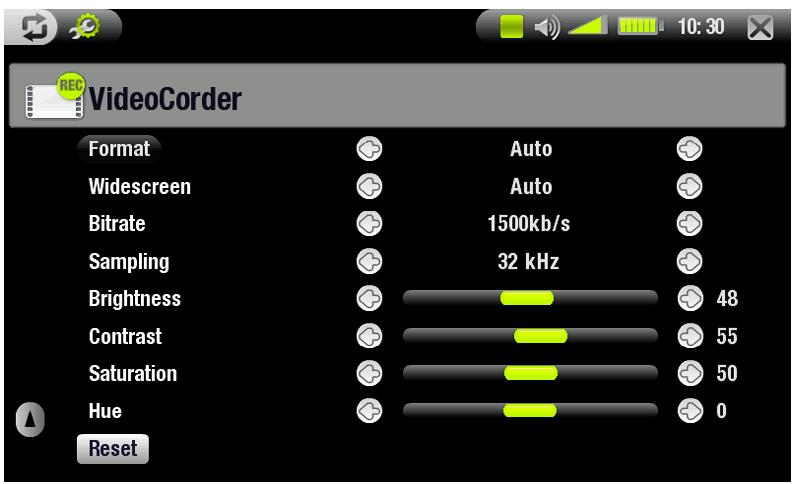
Sampling
- Options: 32kHz, 48kHz.
- The sound sampling rate. The higher value gives a higher quality sound but will take up more space on the hard drive.
Brightness
- Adjusts the recorded image brightness.
Contrast
- Adjusts the recorded image contrast.
Saturation
Use this to de-emphasize or saturate the colors in the recorded image.
Hue
- changes the color spectrum in the recorded image.
Reset
-changes the above settings to the default settings.
COPY PROTECTION
- The ARCHOS recording system is designed to respect the Macrovision™ copyright protection system.
- If the source of your video is copy-protected, the device will record in protected mode.
- You will see a 'P' icon on the recording screen (not during playback), indicating that the file will be a protected file.
- Protected files can only be played back on the ARCHOS device that created them, and not on a computer.
- The playback of protected files is also limited to the built-in LCD screen and cannot be displayed on an external television.
8.3 EDITING VIDEO FILES
- Video files recorded with the ARCHOS DVR Station or Travel Adapter can be edited by deleting the sections you do not wish included. The editing you can do is either cropping or cutting of particular segments of the video file.
- You will mark a segment of your video file, and then you will tell the ARCHOS to delete everything except the marked segment or to delete the marked segment from the video file. These operations can be done multiple times on the same video file.
- Once finished, you will have the option to save the edit marks with the video or to write a new video file. If you save your file with edit marks, you can always go back and change your edits at another time. The actual video information is not deleted. On the other hand, you can write a new file which will only include the video parts that you specified in the edit session. This file will be smaller but you can never un-edit it.
EXAMPLE 1
You have recorded a music video program and would like to keep one single music presentation. The rest of the television recording you do not care to keep.

- Open the video file you want to edit and pause it (See: Playing Video).
- In the progression bar, tap where the section you want to keep begins (a), and select the Set a mark-in here menu item.
- Forward to the end of the desired section (b), and select the Set a mark-out here menu item.
- Choose the Keep selected part menu item, which will delete everything except the designated section.
EXAMPLE 2
You have recorded a television program but would like to remove certain sections before the program started, parts during the program, and the program afterwards because you had recorded a little extra.

- Open the video file you want to edit and pause it (See: Playing Video).
- In the progression bar, tap where the first section you want to delete begins (a), and select the Set a mark-in here menu item. Forward to the end of the first undesired section (b), and select the Set a mark-out here menu item. Choose the Remove selected part menu item, and this part of the recording will be cut out.
- Tap where the second section you want to delete begins (c), and select the Set a mark-in here menu item. Forward to the end of the second undesired section (d), and select the Set a mark-out here menu item. Choose the Remove selected part menu item, and this section will be cut out.
- Do the same for the other section(s) that you want to cut out.
If you want to keep the edit points and be able to re-edit another time, choose the Save edit menu item. If you want to save the edited file as a new individual file, choose the Save edit as a new file menu item. A confirmation screen will pop up. If you want to cancel the edit points and restart editing, choose the Cancel changes and restart edit menu item.
8.4 SETTING THE SCHEDULER FOR DVR RECORDINGS
- If you would like to make a scheduled recording from a different video source connected to the optional DVR Station, you can use the normal scheduler screen. You can program up to twenty different recordings up to one month in advance.
- The specific device you will be recording from (cable box, satellite box, etc.) must first be setup (one time procedure) with the TV control Settings. See: The Infrared Emitter.
- From the Home Screen, tap on the TV Scheduler icon to highlight it and tap on it again to enter the Scheduler screen.
MAIN STEPS
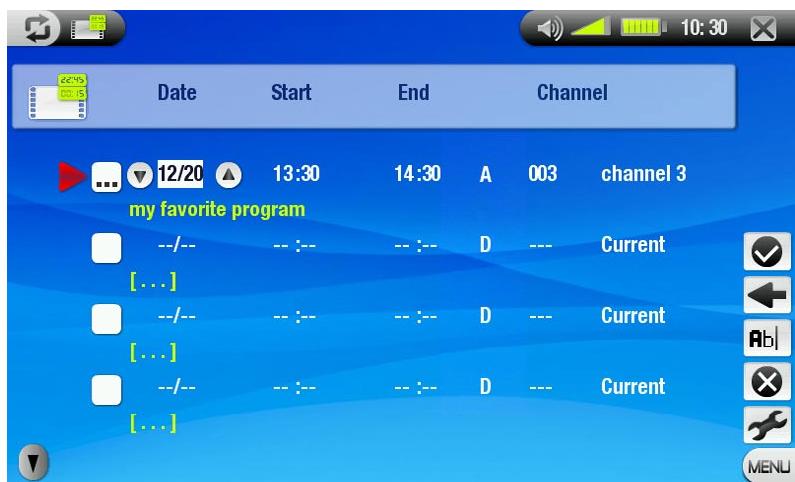
- Tap on the line you want to edit to highlight it, then tap on it again to start editing.
- Set each line to the desired date, time (and channel).
Make sure that the letter before the channel number is A (A stands for Analog recordings while connected to a DVR Station and D stands for Digital TV - see Setting the Scheduler for Digital TV Recordings).
- Select the Edit program title menu item to define a title for your scheduled recording, (see Using the Virtual Keyboard).
- Select the Validate selected program menu item to save the changes for this program.
- Do not turn off the ARCHOS device! Make sure the ARCHOS is in stand-by mode at the scheduled time for the recording (connected to the DVR station or to the DVR Travel Adapter and a wall outlet).
NOTES ABOUT THE SCHEDULER
- The scheduler automatically reorganizes the recording events chronologically.
- In order for a scheduled recording to start, you must leave the ARCHOS device on the main menu screen or leave it in stand-by mode. If you are listening to music, watching a video or looking at photos with the device, it will not interrupt you to make the scheduled recording.
- When the ARCHOS user interface is set to English, the date format is set to Month/Day.
- If the end time is earlier than the start time, it is assumed that you start recording on the start date, and the recording ends on the following day at the end time.
- Once scheduled recording has been made, or the date of a recording has been passed, without the recording having been made (the ARCHOS was not connected to the DVR Station or was not in standby mode), the schedule entry will be erased from the scheduler.
- When you set the scheduler, the ARCHOS device will create a text file in the System folder (DVRTimer.txt), you should not erase this file.
AUTOMATED YAHOO!® TV RECORDING SCHEDULER
- If you have a My Yahoo!® account and use the calendar feature to schedule TV programs, you can use your ARCHOS device to read the TV programs scheduled into your personal calendar and transfer these to its own Scheduler.
- If you do not have an account, you can create one and learn how to use the My Yahoo!® TV and calendar functions at the Yahoo!® Website (www.yahoo.com).
- Please note: Using the scheduler is particularly useful when you have the optional DVR Station and you have set up the Infrared emitter to control your tuner device.
You must do the following:
- Connect your ARCHOS device to your computer.
- Go to your personal Yahoo!® calendar which has your TV programs scheduled.
- Choose the Week view – starting with the current day as the beginning of the week.
- Click on Printable View to show a cleaner printable version.
- From your browser menu click on File > Save As... to save the file.
- Do not change the File Name, but do change the Save as Type to Web page, HTML only. Now save the file to the System folder on your ARCHOS device.
- When you disconnect your ARCHOS from your computer, the ARCHOS device will automatically update its scheduler with the newly saved TV programs from your My Yahoo! calendar. If the ARCHOS encounters a television station name that it does not know the channel number for (was never set), it will indicate so, and direct you to go to the scheduler to manually assign a channel to the station name.
Notes:
- If the TV programs from your personal calendar do not seem to be correctly copied to the ARCHOS scheduler, go to www.archos.com/firmware to make sure that you have the latest firmware version (see Updating the Firmware)
- If you change your Yahoo!® personal calendar by deleting some TV programs and adding new ones, only the new programs will be added to the ARCHOS scheduler when you save the HTML file to the ARCHOS device. If you want to delete scheduled items, you must do this in the ARCHOS scheduler itself.
- Missed recordings (because you did not have the ARCHOS connected to the DVR Station at the record time) will be deleted from the scheduler.
- If a personal calendar recording event does not find the station name in your list of channels, it will put the event into the scheduler and mark it with a ?, indicating that you must assign a channel number to the name. Tap on the line containing the ? and select the Set Channel menu item. You can now scroll through the channel numbers and assign a number to the station name for that event. You only have to do this once. Your ARCHOS device will keep the station name and its channel number.
SPECIAL YAHOO!® EPG SETTINGS
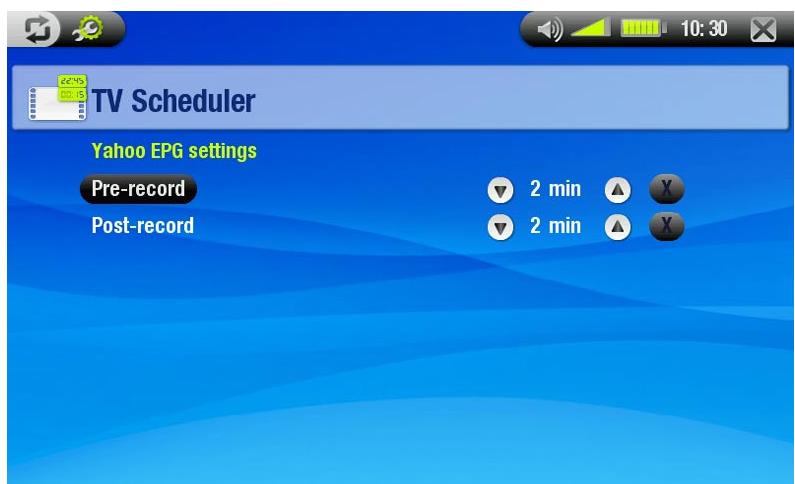
Pre-record
- This is a safety margin added to the beginning of a scheduled recording which was set via the My Yahoo!® TV scheduler of your personal Yahoo!® calendar. It affects ONLY these recordings. This is just in case the clocks between your ARCHOS device and the broadcast station are different or if the broadcast station starts earlier than expected.
Post-record
- This is a safety margin added to the end of a scheduled recording which was set via the My Yahoo!® TV scheduler of your personal calendar. It affects ONLY these recordings. This is just in case the clocks between your ARCHOS device and the broadcast station are different or if the broadcast station runs overtime.
8.5 THE INFRARED EMITTER
- The DVR Station has a high-powered infrared LED at the front. It allows your ARCHOS device to communicate with your tuner (VCR, cable or satellite box), so that it can turn it on and off, and change channels on it.
- This is a one time step to set your ARCHOS device to send the correct infrared codes to control your tuner. If you do not plan on making scheduled recordings, then you do not need to set the infrared emitter code.
- Before beginning this procedure of setting the emitter code, your device must be connected to the DVR Station, which must be powered with the charger/adapter.
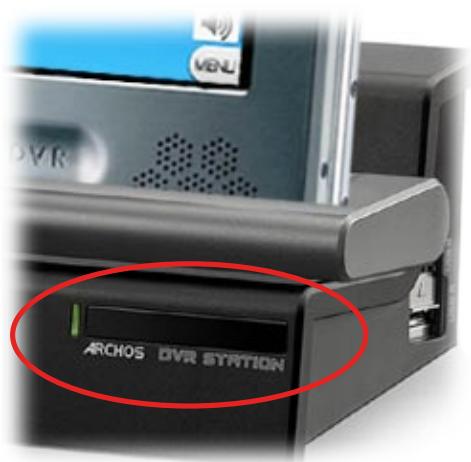
- The infrared control works through the reflection of the infrared signal within a room.
- In order to improve the reception of this infrared signal on your tuner (VCR, cable or satellite box), you could rearrange the position of the DVR Station and/or the tuner such that there are more reflective surfaces (furniture, a wall, etc. - see diagram).
- Good communication between the DVR Station and your tuner also depends on the sensitivity of your tuner's IR receiver.
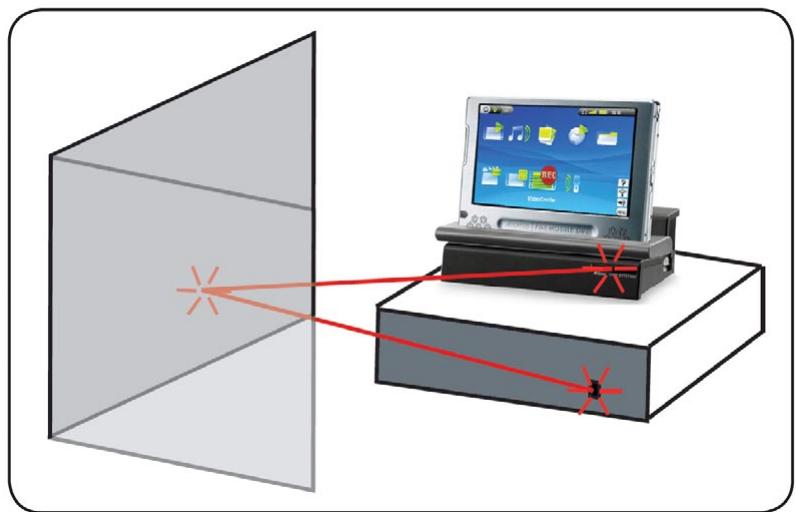
SETTING THE IR EMITTER CODE
From the Home Screen, tap to access the Setup Screen. Tap on the TV Control icon to highlight it, then tap on it again to display the TV Control Settings screen.
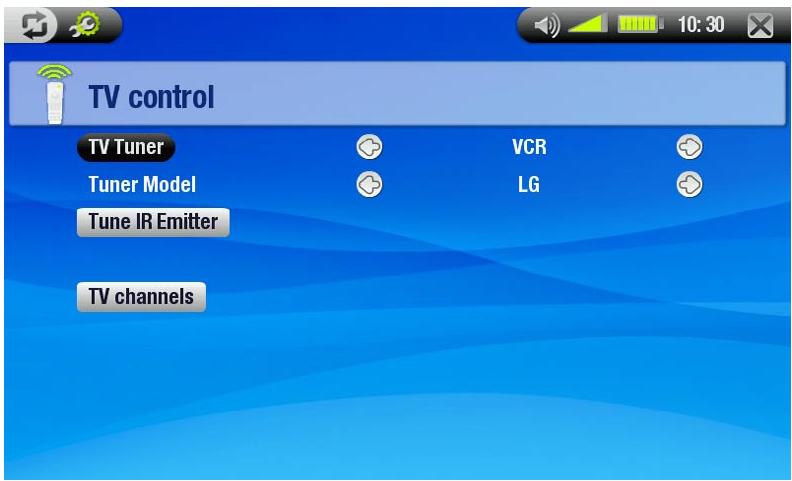
Part 1: Choose your Device and Brand
- Select the type of device that you want to control with the IR Emitter.
- Select the brand of your device.
The TV Channels button allows you to give names to each channel. For example, if channel 6 is CNN where you live, then you can give channel 6 that name in this screen. Or, if you use the My Yahoo! personal calendar to set your recording scheduler, the ARCHOS device will allow you to assign a channel number to a station name given from your scheduled TV programs.
Part 2: Finding the Right Emitter Codes
- Tap on the Tune IR Emitter button to display the Tune IR Emitter Settings screen.
- This screen allows you to correctly set the codes and parameters to allow the Infrared emitter to correctly control your tuner (VCR, cable box, or satellite receiver).
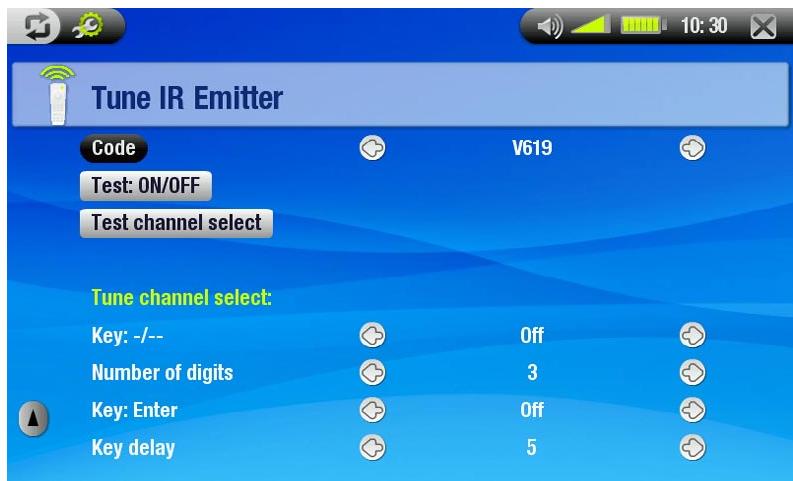
Tune device Code (one code available)
- Some manufacturers use only one code for all of their products. The code does not change from one model to another or from one year to another.
- In this case, there will only be one single code available. You can now test the channel select.
Tune device Code (multiple codes available)
- Some makers of video equipment don't use the same set of control codes for all of their products. They have various code sets for various models and various years.
- You will have to try each of the codes to find out which code works with your device. In the example screen, you see the code V619. If this code does not work when doing the Test channel select, advance it to the next code and then test to see if that next code works.
Test ON/OFF
- When you tap on the Test On/Off button, the ARCHOS device will send a signal to the infrared emitter and turn your device on or off. Tap this test button again and your device should change from on to off or off to on.
- If tapping on this button does not turn your device on or off, try the next code for your device: see Tune device Code (multiple codes available).
- If none of the codes work, check that the DVR Station is positioned in a way that allows the IR signal to reach your tuner device's receiver. Note: In some rare cases the ON/OFF functionality may not work.
Test channel select
- When you tap on the Test channel select button, the ARCHOS device will send a signal through the DVR Station's infrared emitter and change the channel on your tuner (VCR, cable box, or satellite receiver).
- If the Number of digits parameter is set to three, it will try to select channel 123. If that parameter is set to 2, it will send the code for channel 12. If your tuner does not change channels when you tap on this test button, try the next code for your device: see Tune device Code (multiple codes available).
Key:--
- Set this to On if normally, you have to press this same key on your device's remote control in order to select a channel.
Number of digits
- Set the number of digits that your device can recognize for a channel. Example: Set to 3 if you need to choose a channel greater than channel 99.
Key: Enter
- Set this to On if normally, you have to press the OK button on your device's remote control after you enter the channel number. Example: If you normally press 1, 3, OK for channel 13, then you would need to set this parameter to On.
Key Delay
- Change the delay between the emission of each digit of a channel. You may need to adjust this if the ARCHOS device seems to send only half the digits of a channel or more digits of a channel. Example: Adjust the key delay and retest channel select if it sends channel 2 instead of 12 or sends 112 instead of 12.
These last four parameters (Tune channel select) usually do not need to be set. Keep the default values to start with.
8.6 RECORDING AUDIO (EXTERNAL SOURCE)
You can record audio from an external line-level analog source if you use the optional DVR Station or DVR Travel Adapter.
In the Home Screen, tap on the AudioCorder icon to highlight it, then tap again on it to display the pre-recording screen.
- All audio recordings made by your ARCHOS device are saved in the Music/(Rec) folder. If you wish to keep them in a different location, you can use the Move menu item of the ARCHOS file browser after recording (see: Using the Browser). The icon appears in the status bar while recording. Audio files recorded by your ARCHOS device will be tagged as follows: Artist = (Archos: Audio Recordings), Album = (Rec).
AUDIOCORDER SETTINGS SCREEN
- You can access the AudioCorder Settings screen via the Settings menu item.
- This screen allows you to adjust audio input settings for your recordings.
- Tap on the / buttons to select a different setting for a parameter.
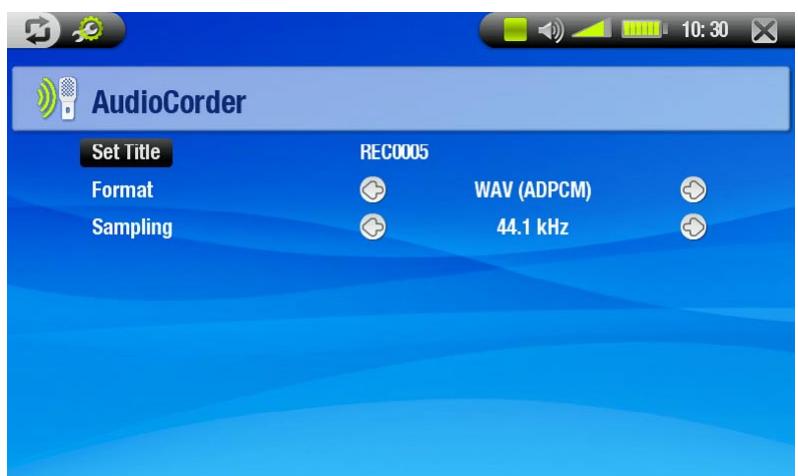
Set Title
- allows you to give a personalized title to the recording (See: Using the Virtual Keyboard).
Format
- you can choose between PCM (uncompressed) and ADPCM (compressed) WAV format.
Sampling
- choose the sample rate for your recording (a higher rate gives higher sound quality but a larger file).
RECORDING PROCEDURE
Connect the AV cable to an audio source (hi-fi, turntable, boombox, etc.) and then the other end to the IN connector of the DVR Station or DVR Travel Adapter.
- In the pre-recording screen, adjust the recording level using the up/down buttons (the up/down buttons only adjust the headphones' volume, not the recording volume).
- Choose the Start recording menu item to start recording.
- You can pause and resume your recording at any time.
- Tap on the stop button to stop recording.
You can also start recording to a new file directly by choosing the Save file and start a new recording menu item while you are recording.
Be careful that the source audio is supplying a line-level and not an amplified signal (turning down the volume of the player will work if you are using the headphone out signal of your audio device). A signal that is amplified too much will result in a terribly distorted recording.
TECHNICAL SPECIFICATIONS
CAPACITY:
- 40GB* Hard Drive to store up to 50 Movies (1), 400,000 photos (1) or 20,000 songs (1).
- Record up to 20 hours (2) of digital terrestrial TV programming.
DISPLAY:
- 7" TFT Touchscreen (800x480 pixels), 260,000 colors.
DIGITAL TV:
- Built-in DTT (Digital Terrestrial TV) diversity receiver UHF frequency 474 to 858 MHz - with built-in antennas (inside cover flap).
VIDEO PLAYBACK**
- With optional software plug-ins (available on www.archos.com):
- Recorded MPEG-2 TS(2).
- MPEG-4 (ASP@L5 AVI, up to DVD resolution). WMV (MP@ML, up to DVD resolution).
- H.264 up to DVD resolution and AAC sound.
- MPEG-2 MP@ML up to 10 Mbps (up to DVD resolution) and AC3 stereo sound.
AUDIO PLAYBACK**
- Stereo MP3 decoding @ 30-320 Kbits/s CBR & VBR, WMA, Protected WMA, WAV (PCM/ADPCM).
- With optional software plug-ins (available on www.archos.com):
- AAC (4) stereo audio files.
- AC3 stereo sound files.
PHOTO VIEWER
- JPEG, BMP, PNG.
- Transfer photos directly from your digital camera.
PDF VIEWER
- Reads PDF documents. May not implement all PDF features.
VIDEO RECORDING
From built-in digital TV tuner MPEG-2 TS format PAL/NTSC/SECAM sources with optional DVR Station or DVR Travel Adapter in MPEG-4 SP and stereo audio, optimized resolution for TV up to 640x480 @ 30 f/s, in AVI format.
AUDIO RECORDING:
- Via the optional DVR Travel Adapter or DVR Station: stereo line-in, WAV (IMA ADPCM or PCM) format.
INTERFACES:
- USB 2.0 High-Speed Device (compatible USB 1.1): Mass Storage Class (MSC) and Media Transport Protocol (MTP).
- USB 2.0 Host: Mass Storage Class (MSC) and Picture Transfer Protocol (PTP).
CONNECTIONS:
- 3.5 mm mini jack for headphones or TV output (PAL & NTSC).
- DC-in to connect power adapter/charger.
- Mini B for USB 2.0 computer connection.
- Mini A for USB 2.0 host connection.
- Docking connectors to connect optional DVR Station (records from composite and S-video sources).
- Infrared port for remote control.
- Antennas connector.
BATTERY LIFE:
Music playback time: up to 25 hours (6). Video playback time: up to 4.5 hours (6) on built-in LCD.
POWER SOURCE:
- Internal: Removable Lithium-Ion Polymer battery.
- External: Power adapter/charger.
SCALABILITY:
- Download firmware updates from www.archos.com.
DIMENSIONS & WEIGHT
- Approx. 182 × 128 × 20 mm; 7.05" × 4.96" × 7.75". Approx. 644 g; 22.71 oz.
PACKAGE INCLUDES
- ARCHOS 704 TV, headphones, USB 2.0 cable, USB 2.0 host adapter, DVR Station saddle, 2 styli, A/V cable, remote control, cable for home antenna, power adapter/charger, flap with 2 built-in antennas, protective pouch, Quick Start Guide, legal and safety notice.
MINIMUM SYSTEM REQUIREMENTS
For Computer: PC with Windows® ME, 2000, XP, Vista, Media Center. - Macintosh® OS X or higher (with USB Mass Storage Class support). Linux (with mass storage device support), USB port. To Receive Digital TV UHF Frequency (474 to 858 MHz): must be in a geographic DVB®-T reception zone. - To record from an external video source (TV, VCR, satellite receiver, DVD player (5)), use the optional DVR Station or DVR Travel Adapter.
- 1GB = 1 billion bytes; actual formatted capacity is less. ** Certain bitrates, resolutions, and/or file variations may not be compatible.
*** Certain resolutions and file sizes may not be compatible.
(1) On average; based on 3.5 mins/song & 128 kbits/s WMA, on 500 kbits/s MPEG-4 audio/video encoding and 1h30/movie (for near DVD Quality 1500 Kbits/s encoding or more recommended), on JPEG, VGA. (2) On average, based on a video bitrate at 2500 Kbits/s in MPEG-2 TS. (3) (MPEG-4: ISO standard by Moving Picture Experts Group; AVI: audio/video file container by Microsoft) without GMC and Quarter Pixel and WMV (including protected WMV). (4) Does not read AAC protected files. (5) External video output disabled for Macrovision®-protected contents. (6) Rechargeable batteries have a limited number of charge cycles and may eventually need to be replaced. Battery life and number of charge cycles vary by use and settings.
LCD Pixel Policy
The LCD screen on your ARCHOS unit has been manufactured to rigorous standards to provide a high quality viewing experience. Nevertheless, your LCD screen may have slight imperfections. This is not particular to the ARCHOS screen, but to all devices which have LCD screens regardless of the original manufacturer of the LCD. Each product vendor guarantees that his screen will contain no more than a certain number of defective pixels. Each screen pixel contains three dot elements (Red, Blue, and Green). One or all of the dots in a given pixel may be stuck on or stuck off. A single dot stuck off is the least noticeable. All three dots of a pixel stuck on is the most noticeable. ARCHOS guarantees that this device's screen will have no more than 3 defective pixels (regardless if these pixels have one or more defective dots). This means that during the period of guarantee for your country or jurisdiction, if the screen on your product has four or more defective pixels, ARCHOS will repair or replace your product at its cost. Thus, three or less defective pixels is not grounds for replacement or repair of the product.
TECHNICAL SUPPORT INFORMATION
Need Help? You can find the information you need:
- On our Website: see the frequently asked questions section on www.archos.com/faq
- By asking our technical support team: visit www.archos.com/support for e-mail support. U.S. & Canada: Call 877-300-8879 (toll free).
- ARCHOS 704 TV ENGLISH USER MANUAL
- TABLE OF CONTENTS
- INTRODUCTION
- USB CONNECTIONS
- ARCHOS DEVICE DESCRIPTION
- BUTTONS
- ON THE LEFT SIDE OF THE DEVICE
- CONNECTORS
- UNDERNEATH THE DEVICE ARE SEVERAL CONNECTORS
- ON TOP OF THE DEVICE
- LED INDICATORS
- ON/OFF INDICATOR
- BUILT-IN LOUDSPEAKERS
- LEG STAND
- REMOTE CONTROL
- INTERFACE DESCRIPTION & TACTILE SCREEN AREAS
- STATUS BAR
- TABS
- CONTEXTUAL MENU
- HOME SCREEN
- OTHER TOUCHSCREEN ACTIONS
- THE RESUME ICON
- INTERFACE LANGUAGE
- CHANGING THE LANGUAGE
- BATTERY
- BATTERY CHARGE
- REPLACING THE BATTERY
- PRODUCT CARE
- CARING FOR YOUR ARCHOS DEVICE
- RESETTING YOUR ARCHOS DEVICE
- SYSTEM RECOVERY
- NO
- REPAIR DISK
- FORMAT DISK
- FORCE TOUCHSCREEN CALIBRATION
- PLAYING VIDEO
- BROWSING THROUGH YOUR VIDEOS
- THE VIDEO LIST
- THE VIDEO BROWSER
- VIDEO LIST & BROWSER MENU ITEMS
- INFO
- RENAME
- RESUME VIDEO
- CLEAR BOOKMARK
- RESET THUMBNAILS
- SOUND
- VIDEO PLAYBACK
- FORMAT
- SPEED
- SAVE FRAME AS
- SET BOOKMARK
- SETTINGS
- VIDEO SETTINGS
- PUTTING VIDEOS ONTO YOUR ARCHOS DEVICE
- CREATINGCOMPATIBLE VIDEO FILES WITH YOUR COMPUTER
- RECORDING VIDEO
- PLAYING MUSIC
- BROWSING THROUGH YOUR MUSIC FILES
- THE ARCLIBRARY
- THE MUSIC BROWSER
- ARCLIBRARY* AND MUSIC BROWSER MENU ITEMS
- DELETE
- RESUME SONG
- SHOW PLAYLIST
- MUSIC PLAYBACK
- PLAYBACK STATUS ICONS
- HOME
- PLAYLIST
- SET RATING
- MUSIC SETTINGS
- INTRO DURATION
- SOUND SETTINGS
- VOLUME
- BUILT-IN SPEAKER
- AUDIO OUTPUT
- BASS BOOST LEVEL
- PRESET
- SET EQUALIZER
- BALANCE
- RESET
- EQUALIZER SCREEN
- PLAYLISTS
- PLAYING A PLAYLIST
- CREATING A PLAYLIST
- ADD TO PLAYLIST
- INSERT IN PLAYLIST
- PLAYLIST PANEL MENU ITEMS
- REMOVE TRACK
- MOVE TRACK
- SAVE
- SAVE AS
- CLEAR
- SHUFFLE
- EDITING A PLAYLIST
- ADDING SONGS TO A PLAYLIST WHILE LISTENING TO MUSIC
- PUTTING MUSIC ONTO YOUR ARCHOS DEVICE
- RECORDING AUDIO
- VIEWING PHOTOS
- BROWSING THROUGH YOUR PHOTOS
- THE PHOTO WALL
- THE PHOTOLIBRARY
- THE PHOTO BROWSER
- PHOTO WALL, PHOTOLIBRARY AND PHOTO BROWSER MENU ITEMS
- DELETE, RENAME AND RESET THUMBNAILS ONLY APPEAR IN PHOTO BROWSER VIEW
- SET AS WALLPAPER
- SLIDESHOW
- SETTINGS (ONLY APPEARS IN PHOTO WALL VIEW)
- PHOTO VIEWER
- PHOTO VIEWER SCREEN AND TOUCHSCREEN CONTROLS
- PHOTO VIEWER MENU ITEMS
- ROTATE
- START SLIDESHOW
- ZOOM
- PHOTO SETTINGS
- PICTURE PAUSE
- TRANSITION
- PLAYING A SLIDESHOW
- VIEWING PHOTOS WHILE LISTENING TO MUSIC
- PUTTING PHOTOS ON TO YOUR ARCHOS DEVICE
- USING THE BROWSER
- NAVIGATION
- BROWSER MENU ITEMS
- CREATE FOLDER
- COPY
- COPY ALL FILES
- MOVE
- COPYING AND MOVING FILES AND FOLDERS
- USING THE VIRTUAL KEYBOARD
- USING THE PDF READER
- FOLLOWING HYPERLINKS
- PDF READER MENU ITEMS
- HIDE TEXT OVERLAY
- ZOOM IN
- ZOOM OUT
- GO TO PAGE
- DIGITAL TV
- FIRST TIME USAGE: TUNING DIGITAL TV CHANNELS
- CONNECTING THE ANTENNAS
- SCANNING FOR CHANNELS
- POSITIONING THE ARCHOS 704 TV FOR BETTER RECEPTION
- SIGNAL QUALITY' ICON
- WATCHING DIGITAL TV
- DIGITAL TV SCREEN AND TOUCHSCREEN CONTROLS
- DIGITAL TV MENU ITEMS
- DISPLAY CHANNEL LIST
- MANAGE CHANNEL LIST
- START RECORDING
- WATCHING DIGITAL TV IN YOUR CAR
- RECORDING DIGITAL TV
- WHERE IS THE RECORDING SAVED
- SETTING THE SCHEDULER FOR DIGITAL TV RECORDINGS
- VIEWING DIGITAL TV RECORDINGS ON YOUR COMPUTER
- DISCONNECTING THE FLAP ANTENNAS
- COMPUTER CONNECTION
- WINDOWS MEDIA DEVICE' OR 'PC HARD DRIVE
- CONNECTION STEPS
- WINDOWS® XP & WMP10 OR HIGHER (WINDOWS MEDIA DEVICE MODE)
- WINDOWS® ME, 2000 AND XP (PC HARD DRIVE MODE ONLY)
- MAC® OS X (PC HARD DRIVE MODE ONLY)
- DISCONNECTION
- SAFE TO REMOVE HARDWARE
- USB HOST CONNECTION
- TO CONNECT A USB DEVICE TO YOUR ARCHOS DEVICE
- TO DISCONNECT
- SETUP SCREEN
- LANGUAGE SETTINGS
- LANGUAGE
- DISPLAY SETTINGS
- TV SETTINGS
- TV STANDARD
- TV FORMAT
- VIDEO OUTPUT
- EXTERNAL DISPLAY
- LCD SETTINGS
- LCD BRIGHTNESS
- TOUCH-SCREEN SETTINGS
- APPEARANCE SETTINGS
- WALLPAPER
- PICTURE NAME
- THEME
- FONT COLOR
- PREVIOUS SETTINGS
- CLOCK SETTINGS
- TIME FORMAT
- YEAR, MONTH, DAY, HOUR, MINUTE
- POWER SETTINGS
- BATTERY OPERATION
- POWER OFF
- BACKLIGHT OFF
- TV CONTROL SETTINGS
- SYSTEM SETTINGS
- USB PREFERENCE
- REPAIR & FORMAT TOOLS
- FIRMWARE VERSION
- PLUGINS
- UPDATE FIRMWARE
- PRODUCT KEY
- HARD DRIVE
- UPDATING THE FIRMWARE
- TO CHECK WHETHER YOU HAVE THE LATEST FIRMWARE VERSION
- TO INSTALL THE LATEST FIRMWARE
- OPTIONAL FUNCTIONALITIES
- DVR STATION & DVR TRAVEL ADAPTER PRESENTATION
- RECORDING VIDEO (EXTERNAL SOURCE)
- RECORDING PROCEDURE
- PRE-RECORDING SCREEN MENU ITEMS
- OPEN SCHEDULER
- VIDEOCORDER SETTINGS
- SCHEDULING PARAMETERS
- AUTO STOP REC
- VIDEO PARAMETERS
- SOURCE
- WIDESCREEN
- BITRATE
- SAMPLING
- BRIGHTNESS
- CONTRAST
- SATURATION
- HUE
- COPY PROTECTION
- EDITING VIDEO FILES
- EXAMPLE
- SETTING THE SCHEDULER FOR DVR RECORDINGS
- MAIN STEPS
- NOTES ABOUT THE SCHEDULER
- AUTOMATED YAHOO!® TV RECORDING SCHEDULER
- YOU MUST DO THE FOLLOWING
- NOTES
- SPECIAL YAHOO!® EPG SETTINGS
- PRE-RECORD
- POST-RECORD
- THE INFRARED EMITTER
- SETTING THE IR EMITTER CODE
- PART 1: CHOOSE YOUR DEVICE AND BRAND
- PART 2: FINDING THE RIGHT EMITTER CODES
- TUNE DEVICE CODE (ONE CODE AVAILABLE)
- TUNE DEVICE CODE (MULTIPLE CODES AVAILABLE)
- TEST ON/OFF
- TEST CHANNEL SELECT
- KEY
- NUMBER OF DIGITS
- KEY: ENTER
- KEY DELAY
- RECORDING AUDIO (EXTERNAL SOURCE)
- AUDIOCORDER SETTINGS SCREEN
- SET TITLE
- TECHNICAL SPECIFICATIONS
- CAPACITY
- DISPLAY
- AUDIO PLAYBACK
- PDF VIEWER
- VIDEO RECORDING
- AUDIO RECORDING
- INTERFACES
- CONNECTIONS
- BATTERY LIFE
- POWER SOURCE
- SCALABILITY
- DIMENSIONS & WEIGHT
- PACKAGE INCLUDES
- MINIMUM SYSTEM REQUIREMENTS
- LCD PIXEL POLICY
- TECHNICAL SUPPORT INFORMATION
Brand : ARCHOS
Model : 704 TV
Category : Portable media player