
TC-656B - Speaker DAEWOO - Free user manual and instructions
Find the device manual for free TC-656B DAEWOO in PDF.


| Product Type | Music Cube with Docking Station |
| Brand | Daewoo |
| Model | TC-656B |
| Power Supply | AC-DC adaptor: DC 10V, 1400mA (included); Backup: 2 x AAA batteries (not included) |
| Frequency Range (FM) | 87.5 – 108 MHz (varies by region: 0.05 or 0.1 MHz step) |
| Frequency Range (AM/MW) | 520 – 1710 kHz (USA), 522 – 1620 kHz (EU), 522 – 1629 kHz (Japan) |
| Radio Presets | 10 AM + 10 FM |
| iPod Compatibility | iPod, iPod mini, iPod nano, iPod photo, iPod 3G/4G/5G (with adaptors included) |
| Audio Inputs | USB (MP3 player), AUX IN (3.5mm), iPod docking |
| Outputs | Stereo headphone jack (3.5mm) |
| Speakers | Built-in 2 high fidelity speakers |
| Display | Multi-function back-lit LCD (shows clock, date, radio frequency, etc.) |
| Clock Functions | Clock with year/month/date, 12/24 hour format, alarm with snooze, sleep timer |
| Alarm Sources | Buzzer, Radio, or iPod (with gradual volume increase) |
| Remote Control | Infrared remote with power, volume, function, alarm, sleep, and iPod controls |
| Dimensions | Approximately 30 x 15 x 10 cm (estimated) |
| Weight | Approximately 1.5 kg (estimated) |
| Cleaning | Use a damp cloth; never use solvents or detergents |
| Safety Features | Overload protection, automatic shut-off, non-use power disconnect recommendation |
| Accessories Included | AC adaptor, remote control, 5 iPod adaptors, dust cover, FM antenna wire |
Frequently Asked Questions - TC-656B DAEWOO
User questions about TC-656B DAEWOO
0 question about this device. Answer the ones you know or ask your own.
Ask a new question about this device
Download the instructions for your Speaker in PDF format for free! Find your manual TC-656B - DAEWOO and take your electronic device back in hand. On this page are published all the documents necessary for the use of your device. TC-656B by DAEWOO.
USER MANUAL TC-656B DAEWOO
iPod Player not included
Important Safety Instructions
When used in the directed manner, this unit has been designed and manufactured to ensure your personal safety. However, improper use can result in potential electrical shock or fire hazards. Please read all safety and operating instructions carefully before installation and use, and keep these instructions handy for future reference. Take special note of all warnings listed in these instructions and on the unit.
- Water and Moisture
The unit should not be used near water. For example: near a bathtub, washbowl, kitchen sink, laundry tub, swimming pool or in a set basement.
- Ventilation
The unit should be situated so that its location or position does not interfere with its proper ventilation. For example, it should not be situated on a bed, sofa, rug or similar surface that may block the ventilation openings. Also, it should not be placed in a built-in installation, such as a bookcase or cabinet, which may impede the flow of air through the ventilation openings.
3.Heat
The unit should be situated away from heat sources such as radiators, heat registers, stoves or other appliances (including amplifiers) that produce heat.
- Power Source
The unit should be connected to a power supply only of the type described in the operating instructions or as marked on the appliance.
- Power Cord Protection
Power supply cords should be routed so that they are not likely to be walked on or pinched by items placed upon or against them. It is always best to have a clear area from where the cord exits the unit to where it is plugged into an AC outlet.
6.Cleaning
The unit should be cleaned only as recommended. See the section "Care and Maintenance" of this manual for cleaning instructions.
7.Object and Liquid Entry
Care should be taken so that objects do not fall and liquids are not spilled into any openings or vents located on the product.
- Attachments
Do not use attachments not recommended by the product manufacturer.
- Lightning and Power Surge Protection
Unplug the unit from the wall outlet ouring lightning storms.
This will prevent damage to the product due to power-line surges.
-
Do not overload wall outlets, extension cords, or integral convenience receptacles as this can result in a risk of fire of electric shock.
-
Damage Requiring Service
This unit should be serviced by qualified service personnel when:
A. The power supply cord or plug has been damaged.
B. Objects have fallen into or liquid has been spilled into the enclosure.
C. The unit has been exposed to rain.
D. The unit has been dropped or the enclosure damaged.
E. The unit exhibits a marked change in performance or does not operate normally.
12.Antenna
Do not connect an external antenna to the unit (other than that provided).
13.Periods of Nonuse
If the unit is to be left unused for an extended period of time, such as a month or longer, the power cord should be unplugged from the unit to prevent damage or corrosion.
- Servicing
The user should not attempt to service the unit beyond those methods described in the user's operating instructions. Service methods not covered in the operating instructions should be referred to qualified service personnel.
Features
Thank you for purchasing the Universal MP3 player docking Music Cube. This system incorporates the following features :
iPod , ^ iPod ^ mini and iPod ^ nano Player / Re-charger
- Interchangeable iPod®Adaptors
- USB docking for playback of MP3 player
• Audio line-in for connecting CD player or other digital audio player
- AM(MW)/FM Stereo receiver with 10AM + 10FM presets, Digital Tuning and auto-search function
• Electronic Volume Control
• Built-in 2 High Fidelity Speakers
- Multi-function Back-lit LCD Display
- Clock and Year/Month/date function
- Wake up to Alarm (Buzzer), Radio or iPod® with Snooze function
- Sleep to Music Timer
- External FM Antenna connector for better reception
- Stereo Headphone jack connection for private listening
iPod ^® , iPod ^® mini and iPod ^® nano are trademarks of Apple Computer Inc., registered in the U.S. and other countries.
Installation
Clock and presets battery back-up
A backup battery compartment located at rear of the unit.
(1) Open the battery compartment door.
(2) For clock and settings backup, follow the polarity diagram shown inside the compartment and install 2 x AAA batteries (purchase separately).
(3) Close the battery compartment door.
FM Antenna Installation
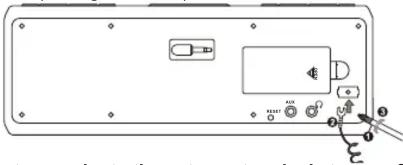
Connect the FM antenna wire to the FM Antenna terminal and extend it for the best reception (see figure below).
natural_image
Diagram of a device rear panel with buttons and a small component, no visible text or symbolsConnect FM antenna wire to the antenna terminal at rear of the main unit
AC-DC Adaptor Connection
The unit can be powered by an external AC-DC Adaptor, with a required output DC 10V 1400mA (included).
(1) Firmly and securely plug the adaptor's AC plug into AC main outlet.
(2) Connect the adaptor's DC output plug to the DC-in jack of the unit.
Description of Parts — Main Unit
Main Unit
Top view
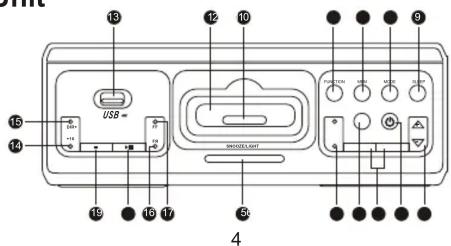
- FF button : Skip Forward
- PLAY/PAUSE▶ button
- STOP ■ button
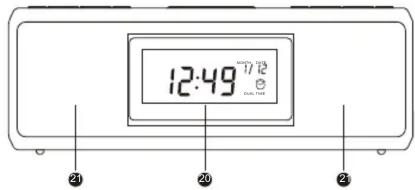
- LCD display
- Pair of Speakers
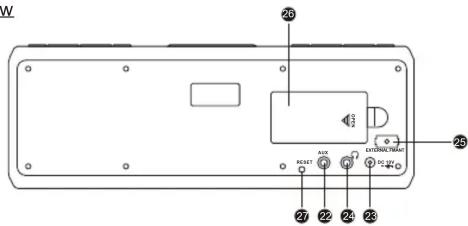
- AUX IN jack: Auxiliary audio signal input.
- DC-in jack : For the connection of external DC power supply
- Phones Jack
- FM Antenna terminal
- Battery Compartment
- RESET button: Resets the unit.
Description of Parts – Remote Control
Remote Control
- Infrared Transmitter
- POWER ON/OFF ⏻ button
- VOL +/- buttons
- FUNCTION button
- ALARM ON/OFF button
- SNOOZE / LIGHT button
- TUN Up/Down buttons:▶▶ for Up, ◀◀ for Down
- CH + / - buttons
- MEM button
- MODE button
- SLEEP button
- iPod Skip/Search Forward/Backward buttons:
▶▶ for Forward, ◀◀ for Backward. - iPod PLAY/PAUSE▶ button
- Battery Compartment
Description of Parts — iPod® adaptors
Five different adaptors are designed to suit any "dockable" iPod® model to the docking station. Before connecting your iPod® to the system, select and insert the proper adaptor for your iPod® model into the docking station first (refer to following iPod® adaptor table).
Front view
Rear view
- iPod ^® docking station
- iPod ^® docking connector
- POWER ON/OFF ⏻ button: To turn the unit on and off.
- VOLUME +/- buttons : Adjusts volume level up or down.
- SNOOZE / LIGHT button: Activates the snooze function; Turn LCD backlight ON/OFF.
- TUN +/- buttons : Tunes the radio channel frequency up or down.
- CH +/- buttons : Selects the preset radio stations.
- ALARM ON/OFF button : Switches the alarm on or off.
- SLEEP button : Selects the time duration of the sleep timer.
- MODE button : Enters the setting mode.
- MEM button: Save the radio preset stations; saves settings.
- FUNCTION button : Selects AM/FM radio, iPod ^® mode, AUX (auxiliary input) mode and USB mode.
- USB connector : Connection for MP3 player
- +10 button : To advance 10 Songs (files)
- DIR+ button : Advance to next directory
- FR button : Skip Backward
5
iPod® adaptor Table :
| iPod® Versions iPodCapacities Adapters | nano | mini | photo | 3G | 4G | 5G | ||||||||||
| 2GB | 4GB | 4GB | 6GB | 20GB | 30GB | 40GB | 60GB | 10GB | 15GB | 30GB | 40GB | 20GB | 40GB | 30GB | 60GB | |
| 4G iPod (20 GB) (30/30 GB) 3G iPod (16/16 GB) | ● | ● | ● | * | ||||||||||||
| 3G iPod (30/40 GB) (40 GB) | ● | ● | ||||||||||||||
| iPod photo (43/62 GB) | ● | |||||||||||||||
| iPod mini | ● | |||||||||||||||
| iPod nano | ● | |||||||||||||||
| Dust Cover | Install this "Docking Station Dust Cover" in the docking station if no iPod will be docked for an extended period of time. | |||||||||||||||
* For the 5G (fifth generation) 30GB and 60GB iPods with video capability. Please use the original adaptor from your 5G iPod® model at the time of purchase. No 5G adaptor is provided from this system.
Clock and Calendar Settings
When the unit is at the power off mode.
Set Clock
- Press the MODE button 3 times, the clock display flashes.
- To set the hour, press the TUN +/- button to set advance or reverse hour setting. Press and hold the button for fast advance / reverse value.
- To set the minute, press the VOLUME +/- button to set advance or reverse minute setting. Press and hold the button for fast advance / reverse value.
Set 12/24 Hour format
- Press the MODE button again to enter 12/24 hour format setting mode.
- To select 12/24 hour format, press either the TUN +/- button.
7
Set Year
-
Press the MODE button again to enter the year setting mode, the year reading flashes.
-
To set year, press the TUN +/ - button to set advance or reverse the year. Press and hold the button for fast advance / reverse value.
Set Month/Date
-
Press the MODE button again to enter the month/date setting mode, the month/date reading flashes.
-
To set Month, press the TUN+/- button to set advance or reverse the month. Press and hold the button for fast advance / reverse value.
-
To set Date, press the VOLUME +/- button to set advance or reverse date. Press and hold the button for fast advance / reverse value.
Exit setting mode
- To save all settings and exit the setting mode, press the MEM button.
Alarm Operations
Setting the Alarm time
When the unit is at the power off mode.
- Press the MODE button once. The alarm clock display flashes.
- To set the hour, press TUN + / - button to set advance or reverse hour setting. Press and hold the button for fast advance / reverse value.
- To set the minute, press the VOLUME +/- button to set advance or reverse minute setting.
Press and hold the button for fast advance / reverse value.
-
Press the MODE button again. The alarm source icon flashes.
-
Select "Wake to Buzzer" BUZ ▶ "Wake to Radio" ▶ RAD or "Wake to iPod" ▶ & iPod by pressing the VOLUME +/- button.
Note : - When “Wake to Radio” is selected, ensuring that your desired radio station is tuned and the proper volume level is set. - When “Wake to iPod®” is selected but your iPod® has not been docked, the alarm source will be redirected to the Buzzer automatically when the alarm time is reached.
-
To save all settings and exit the setting mode, press the MEM button or wait for around 10 seconds.
-
To activate the daily alarm, press the ALARM ON/OFF button. A "▶" indicator appears on LCD display.
-
When the current time matches the alarm setting, the alarm sounds from the selected source.
8
Sleep Timer Function
Sleep to Timer
This feature allows you to fall asleep to the radio or an USB dockable MP3 player for up to 60 minutes, and then the system shuts off automatically.
(1) Press the POWER ⏻ button to turn the unit on.
(2) Either in radio mode, tune to the desired radio station (see “Listening To The Radio” section in this manual) or in USB mode, playback music from the MP3 player (see “Listening To The MP3 Player” section in this manual).
(3) To select the sleep timer to turn the unit off after 15, 30, 45 or 60 minutes, press the SLEEP button 1, 2, 3 or 4 times, respectively. The unit plays for the selected length of time then automatically turns off.
(4) To turn the unit off before the sleep timer counts down to zero, press the POWER ⏻ button at any time.
Note : If you are falling asleep to music from an iPod or an external device connected to the Aux Input, the sleep timer will shut off the power to this system but it will not turn off those devices.
Listening To The Radio
FM Antenna
Connect the FM antenna wire to the FM Antenna terminal. Fully extend the FM antenna wire for maximum reception.
Radio Tuning
- Press the POWER ⏻ button to turn on the unit.
- To activate the radio, press the FUNCTION button to select AM(MW) or FM radio mode.
-
In FM radio mode, if necessary, press the MODE button to select STEREO (ST) or MONO FM reception.
-
To manually tune to a desired station, repeatedly press the TUN +/- button.
-
To automatically search for stations with strong signals, press and hold the TUN +/- button until the frequency reading on the display begins to scan then release the button. The tuner will stop on the first strong station signal it finds.
Notes:
- Use manual tuning to select weaker stations that might be bypassed during automatic tuning.
- If the automatic tuning does not stop on the exact frequency of the station, for example, it stops on 100.9 MHz instead of 100.8 MHz, use the manual tuning method to “fine tune” to the exact frequency of the desired station.
10
Wake to Buzzer
- When the alarm time is reached, the buzzer alarm will sound for one minute.
- After the 1^st alarm minute, it goes into Auto Snooze mode. The display shows the "SNOOZE" indicator. The buzzer turns off for the snooze time (around 10 minutes) then comes on again. This operation will be repeated 3 times. After the fourth alarm is finished, the alarm will shut off until the same alarm time on the next day.
- You may also activate the snooze function manually after the alarm sounds by pressing the SNOOZE button. The buzzer stops for the snooze time then comes again.
- The snooze operation (including auto snooze and manual snooze) can be repeated by three times.
- To stop the alarm immediately after the buzzer sounds, you can also press the ALARM ON/OFF button. It resets itself for the following day.
Wake to Radio
- When the alarm time is reached, the radio will automatically turn "ON". It starts softly and gradually becomes louder.
- It plays for 60 minutes then shuts off and resets itself for the following day.
- During the activation of the radio, you may press the SNOOZE button to activate the snooze function. The radio stops for the snooze time (around 10 minutes) then turns "ON" again. This manual snooze operation can be repeated three times. Each time the radio turns "ON", it plays for 60 minutes (without pressing the snooze button).
- To stop the alarm immediately after the radio sounds, you may also press the ALARM ON/OFF button. It resets itself for the following day.
Wake to iPod®
- Your docked iPod ^® will automatically switch on when the alarm time is reached. It starts softly and becomes gradually louder.
- The iPod® playback will keep for 60 minutes and then automatically shut off.
- To stop the iPod ^ playback immediately, press the ALARM On/Off button once.
- When the alarm sounds, it can be temporarily stopped by pressing the SNOOZE button. The display will show the indicator "SNOOZE".
- The alarm will be delayed for 10 minutes and then come again.
- This manual snooze operation can be repeated only three times.
9
Radio Preset Stations
The unit allows you to store up to 10 AM(MW) and 10 FM stations in the tuner preset memories for easy recall at any time.
- Press the POWER button to turn on the unit.
- To activate the radio, press the FUNCTION button to select AM(MW) or FM band.
- Tune to a radio station you want to store in memory using the TUN +/- button.
- Press the MEM button. The preset channel number "01" AND MEM icon flash on display.
- To select desired preset station number, press the CH +/- button.
- To confirm preset location, press the MEM button.
- To store up to 10 AM and 10 FM station presets, repeat steps 3 to 6 above.
Radio Broadcast System Selection
In case the unit is moved to different country with slightly different radio broadcast system, the unit allows you to select USA, EU and Japan systems. For the use in Australia, please use EU's radio broadcast system.
- When the unit is in power off mode.
- Press the MODE button repeatedly until the display shows the flashing "USA", "EU" or "JP" indicator.
- Press the TUN +/ - button to select one of the broadcasting systems.
USA's Radio Broadcast System
AM 520 – 1710 kHz, 10kHz tuning step FM 87.5 – 108 MHz, 0.1MHz tuning step
EU's Radio Broadcast System
AM 522 – 1620 kHz, 9kHz tuning step FM 87.5 – 108 MHz, 0.05MHz tuning step
Japan's Radio Broadcast System
AM 522 – 1629 kHz, 9kHz tuning step FM 76.0 – 108 MHz, 0.1MHz tuning step
- To save the setting and exit the setting mode, press the MEM button.
11
Listening To The iPod®
This model provides 5 different iPod ^® adaptors for different dockable iPod ^® models. If no iPod ^® will be docked for an extended period of time, it is recommended to cover the dock connector by the “Dust Cover” (included).
-
Select the suitable iPod ^® adaptor for your iPod ^® model, see the “iPod ^® adaptor table” in a previous section of this manual.
-
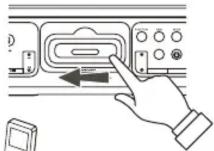
For docking iPod ^® Nano, slide the dock connector to the left. For other iPod ^® models, slide the dock connector to the right. Plug the iPod ^® adaptor on the iPod ^® docking area.
-
Insert your iPod ^® with its Dock Connector faced downward to the Dock connector of this unit.
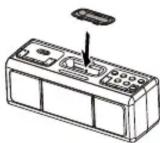
Plug the iPod® adaptor to the docking area
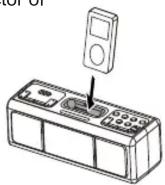
Insert iPod ^® to the docking station
- Press the POWER ⏻ button to switch on the unit.
- Press the FUNCTION button repeatedly until the "iPod" indicator shows on the display then switch ON your iPod ^ .
- Press the PLAY/PAUSE ▶ button from your iPod ^® to pause or resume iPod ^® playback.
- Press the VOLUME +/- button on this unit to adjust your desired volume level.
NOTE: The Volume level cannot be adjusted by the volume control of your iPod ^® after being docked. - If necessary, select other feature by operating those controls from your iPod® as usual. For example, you may select other file (song) by pressing the ◀◀ or ▶▶ button from your iPod®, depress and hold the ◀◀ or ▶▶ button of your iPod® for fast-rewinding or fast-forwarding during playback.
- To remove the iPod ^® from the unit, press and hold the PLAY/PAUSE ^® button of your iPod ^® for three seconds to switch it off and then gently take it out from the docking station.
12 13
- Connect an audio cable (not included) with 3.5 mm stereo plug to the AUX IN Jack located at rear of the unit.
- Connect the other end of the cable to a Line Out Jack or Headphone Jack of your external audio device.
- Turn on the external audio device.
- To select auxiliary audio input, press the FUNCTION button repeatedly until AUX mode is reached. The display will show the "AUX" indicator.
- The volume level can now be controlled through the main unit. Operate all other functions on the auxiliary device as usual.
NOTE:
(1) If you connected the Line Out Jack of your external device then you only need to adjust the volume control of this unit. If you connected the Headphone Jack of your external device then you may need to adjust both the volume control of your external device and the volume control of this unit to find the most desirable volume setting.
(2) Press the POWER ⏻ button to turn off the unit when you finish listening. Don't forget to switch off the power of your external device as well.
Specifications
Power Supply
Power Adaptor :
Input:
AC 120V \~ 60 Hz
(For USA)
AC 230V \~ 50 Hz
(For EU)
AC 100V \~ 50/60 Hz
(For Japan)
AC 240V \~ 50Hz
(For Australia)
Output:
DC 10V / 1400mA
[Non-Text]
Battery Back-up for Clock: DC1.5V "AAA" (UM-4) Battery x 2 (not included)
Frequency Range
USA's Radio Broadcast System AM 520 – 1710 kHz, 10kHz tuning step FM 87.5 – 108 MHz, 0.1MHz tuning step
EU's Radio Broadcast System AM 522 – 1620 kHz, 9kHz tuning step FM 87.5 – 108 MHz, 0.05MHz tuning step
Japan's Radio Broadcast System AM 522 – 1629 kHz, 9kHz tuning step FM 76.0 – 108 MHz, 0.1MHz tuning step
Australia's Radio Broadcast System Same as EU's system
Charging the iPod® Battery
With the AC-DC Adaptor powered to the unit, once your iPod ^® connected to the iPod ^® docking station, the unit recharges the iPod battery (not apply for the AM or FM radio mode).
Listening To The MP3 Player
This unit provides an USB docking station for the connection of your USB dockable MP3 player and playback the music through the speakers of this system.
- Insert the USB dockable MP3 player into the USB docking station.
- Press the POWER ⏻ button to switch on the unit.
- Press the FUNCTION button repeatedly until the "USB" indicator shows on the display.
- Press the PLAY/PAUSE ▶ button to start playback music.
- Press the VOLUME +/- button to adjust your desired volume level.
-
If necessary, you may operate the unit by pressing following buttons: (a) To select previous or next file (song) by pressing the ◀◀ or ▶▶ button. (b) Press the PLAY/PAUSE▶ button to pause or resume playback. (c) Press DIR+ button to advance to next directory. (d) Press +10 button to advance 10 songs (files).
-
To remove the MP3 player from the unit, press the STOP ■ button to stop playback then press the POWER ⏻ button to switch off the unit. Gently take out the MP3 player from the docking station.
Listening To An External Audio Source
The unit provides the auxiliary audio signal input for the connection of an external audio device. You may connect an audio cable (not included) with 3.5 mm stereo plug to the AUX IN Jack located at rear of the unit. Connect the other end of the cable to a Line Out Jack or Headphone Jack of your non-dockable MP3 player, CD player and older, non-dockable iPods then listen to your external source through the speakers of this system.
Care and Maintenance
- Do not subject the unit to excessive force, shock, dust or extreme temperature.
- Do not tamper with the unit's internal components.
- Clean your unit with a damp (never wet) cloth. Solvent or detergent should never be used.
- Avoid leaving your unit in direct sunlight or in hot, humid or dusty places.
- Keep your unit away from heating appliances and sources of electrical noise such as fluorescent lamps or motors.
Resetting the Unit
If the unit is subjected to a severe power surge or electric shock, it is possible that the internal microcontroller may “lock up” and the unit will not respond to any commands from the top panel controls.
-
In this event, unplug and then reconnect the AC power plug into the wall outlet.
-
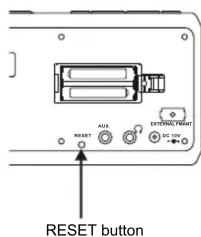
Use a straightened paper clip, toothpick, or similar blunt object to press the RESET button located at rear of the main unit (see figure below). The reset operation clears the system memory and all of your previous settings will be erased.
Caution: DO NOT use a sharp, pointed object to press the RESET button. It may damage the reset switch inside the unit.
THE SPECIFICATION AND EXTERNAL APPEARANCE OF THE SET ARE SUBJECT TO CHANGE WITHOUT PRIOR NOTICE.