
S-L8 - Hi-Fi System PIONEER - Free user manual and instructions
Find the device manual for free S-L8 PIONEER in PDF.


| Product Type | Hi-Fi System (Stereo CD Receiver with optional cassette deck and speakers) |
| Model | S-L8 (Part of XC-L77 / CT-L77 / S-L8 system) |
| Satellite Speaker Dimensions (W x H x D) | 123 mm x 240 mm x 70 mm |
| Satellite Speaker Weight | 0.6 kg (each) |
| Subwoofer Dimensions (W x H x D) | 150 mm x 340 mm x 304.5 mm |
| Subwoofer Weight | 4.7 kg |
| Power Supply | AC 230 V, 50/60 Hz |
| Power Consumption (ON mode) | 98 W |
| Power Consumption (Standby mode) | 0.9 W |
| Amplifier Output (Satellite, RMS) | 30 W + 30 W (1 kHz, 10% THD, 8 Ω) |
| Amplifier Output (Subwoofer, RMS) | 50 W (100 Hz, 10% THD, 4 Ω) |
| FM Tuner Frequency Range | 87.5 - 108 MHz |
| AM Tuner Frequency Range | 531 kHz - 1,602 kHz (9 kHz step) / 530 kHz - 1,700 kHz (10 kHz step) |
| CD Player Frequency Response | 4 Hz - 20 kHz |
| CD Player Signal-to-Noise Ratio | 110 dB (EIAJ) |
| Cassette Deck Frequency Response (Type I tape) | 20 Hz - 16,000 Hz ± 6 dB |
| Cassette Deck Wow and Flutter | 0.08% WRMS ±0.14% (DIN) |
| Satellite Speaker Impedance | 8 Ω |
| Subwoofer Impedance | 4 Ω |
| Satellite Speaker Frequency Response | 125 Hz - 20,000 Hz |
| Subwoofer Frequency Response | 22 Hz - 3,000 Hz |
| Cassette Deck Supported Tape Types | Type I (Normal) and Type II (High/CrO₂) |
| Dolby Noise Reduction | Dolby B NR |
| Remote Control Battery | Lithium CR2025 |
Frequently Asked Questions - S-L8 PIONEER
User questions about S-L8 PIONEER
0 question about this device. Answer the ones you know or ask your own.
Ask a new question about this device
Download the instructions for your Hi-Fi System in PDF format for free! Find your manual S-L8 - PIONEER and take your electronic device back in hand. On this page are published all the documents necessary for the use of your device. S-L8 by PIONEER.
USER MANUAL S-L8 PIONEER
S-L9-LRW S-L9-A-LRW S-L8-LRW
Stereo Cassette Deck
CT-L77
Operating Instructions
Thank you for buying this Pioneer product.
Please read through these operating instructions so you will know how to operate your model properly. After you have finished reading the instructions, put them away in a safe place for future reference.
In some countries or regions, the shape of the power plug and power outlet may sometimes differ from that shown in the explanatory drawings. However, the method of connecting and operating the unit is the same.
WARNING: TO PREVENT FIRE OR SHOCK HAZARD, DO NOT EXPOSE THIS APPLIANCE TO RAIN OR MOISTURE.
THE POWER SWITCH IS SECONDARY CONNECTED AND THEREFORE DOES NOT SEPARATE THE UNIT FROM MAINS POWER IN THE STANDBY POSITION.
This product complies with the Low Voltage Directive (73/23/EEC), EMC Directives (89/336/EEC, 92/31/EEC) and CE Marking Directive (93/68/EEC).
IMPORTANT 1
The lightning flash with arrowhead symbol, within an equilateral triangle, is intended to alert the user to the presence of uninsulated "dangerous voltage" within the product's enclosure that may be of sufficient magnitude to constitute a risk of electric shock to persons.
CAUTION
RISK OF ELECTRIC SHOCK DO NOT OPEN
CAUTION:
TO PREVENT THE RISK OF ELECTRIC SHOCK, DO NOT REMOVE COVER (OR BACK). NO USER-SERVICEABLE PARTS INSIDE. REFER SERVICING TO QUALIFIED SERVICE PERSONNEL.

The exclamation point within an equilateral triangle is intended to alert the user to the presence of important operating and maintenance (servicing) instructions in the literature accompanying the appliance.
IMPORTANT
FOR USE IN THE UNITED KINGDOM
The wires in this mains lead are coloured in accordance with the following code:
Blue : Neutral
Brown : Live
If the plug provided is unsuitable for your socket outlets, the plug must be cut off and a suitable plug fitted.
The cutoff plug should be disposed of and must not be inserted into any 13
amp socket as this can result in electric shock. The plug or adaptor of the distribution panel should be provided with a 5 amp fuse. As the colours of the wires in the mains lead of this appliance may not correspond with coloured markings identifying the terminals in your plug, proceed as follows:
The wire which is coloured blue must be connected to the terminal which is marked with the letter N or coloured black.
The wire which is coloured brown must be connected to the terminal which is marked with the letter L or
coloured red.
Do not connect either wire to the earth terminal of a three-pin plug.
NOTE
After replacing or changing a fuse, the fuse cover in the plug must be replaced with a fuse cover which corresponds to the colour of the insert in the base of the plug or the word that is embossed on the base of the plug, and the appliance must not be used without a fuse cover. If lost, replacement fuse covers can be obtained from your dealer.
Only 5 A fuses approved by B.S.I. or A.S.T.A. to B.S. 1362 should be used.

CAUTION
RISK OF ELECTRIC SHOCK DO NOT OPEN
ATTENTION
DANGER D'ELECTROCUTION NE PAS OUVRIR
These labels can be found on the unit's bottom panel.
[For Stereo CD Receiver XC-L77] CAUTION
This product contains a laser diode of higher class than 1. To ensure continued safety, do not remove any covers or attempt to gain access to the inside of the product.
Refer all servicing to qualified personnel.
The following caution label appears on your unit.
Location: Bottom of the unit.
CLASS 1 LASER PRODUCT
US and foreign patents licensed from Dolby Laboratories Licensing Corporation
These Operating Instructions describe the operating procedures of not only the XC-L77 Stereo CD Receiver but the CT-L77 Stereo Cassette Deck as well. However, the CT-L77 is sold separately.
INFRINGEMENT OF COPYRIGHT
Recording and playback of copyrighted material may require consent. See the Copyright Design and Patent Act 1988.
1 Before You Start
Before you Start 5
2 Installing and Connecting up
Finding a Suitable Location 7
Connecting Up the System 8
3 What's What
Front Panel.... 13
Remote Control 14
Display 15
4 Switching On
Switching On and Setting the Clock.... 16
Playing a Compact Disc 17
Adjusting the Sound.... 18
Listening to the Radio.... 19
Playing a Cassette Tape 20
5 Using the CD player
Using the Menu System.... 23
Programming the Track Order 24
Playing Things Again.... 25
Playing Tracks at Random 26
Changing the Display.... 26
6 Using the Tuner
The Tuner Menu....27
Memorizing Stations for Quick Recall 27
Listening to Memorized Stations 28
Giving a Station Memory a Name 28
An Introduction to RDS....29
Displaying RDS Information 30
Searching for a Programme Type.... 31
Changing the Display.... 32
7 Using the Tape Deck
Setting the Reverse Mode 33
Making Tape Recordings 33
Automatically Recording a CD 34
Automatically Recording an MD 35
Recording Other Sources 36
Resetting the Tape Counter.... 37
Changing the Display.... 37
8 Using the Timer
The Timer Menu 38
Setting the Wake Up Timer 38
Cancelling the Wake Up Timer 39
Setting the Sleep Timer 40
Setting Up a Future Recording 40
Cancelling the Record Timer 42
Setting Multiple Timers.... 42
9 Additional Information
Setting the Display Brightness 43
Switching Off the Demo Mode 43
Troubleshooting 44
Maintenance....46
Specifications 47
Feat
Elegant design
The X–LP77 looks as good it sounds. With a front panel almost completely free from the usual array of buttons and flashing lights, the X–LP77 has been designed to blend in elegantly with its surroundings rather than draw attention to itself. And since the CD receiver and optional tape deck and MD recorder are separate components, you can choose to place them side-by-side for a sleek, horizontal look, or on top of each other for a more conventional vertical arrangement. The compact, slim-line speakers also can be used vertically or horizontally to complement the layout of the system.
Display with detachable remote control
All the components in the X-LP77 share a single large fluorescent display and control panel. This control panel can easily be detached from the display, turning it into the system's infrared remote controller.
Direct play function
From standby mode to playing a CD or listening to a tape or the radio in a single button press: the direct play function intelligently switches on the system, changes to the desired function and starts playback.
Energy Saving Design
The X-LP77 has been designed to minimize power consumption when in standby mode (plugged in to the power supply, but with the unit switched off). Standby power consumption is just 1W, even when both the optional tape deck and MD recorder are connected.
Checking What's in the Box
Thank you for buying this Pioneer product. Before starting to set up your new stereo system, please check that you received the following supplied accessories in the XC-L77 Stereo CD Receiver box:
- AM loop antenna • FM wire antenna
- Power cable • Display unit connecting cable
• Lithium battery CR2025(for remote control) - Warranty card • This instruction manual
In the box that the speakers came in you should find the following accessories:
- Subwoofer connecting cable • Speaker cables (x2)
- Speaker stands (x2) • Screws (x4) (to attach speaker stands)
• Non skid pads (for satellite speakers (x8), for subwoofer (x4))
Using this manual
This manual is for the XC-L77 Stereo CD Receiver, CT-L77 Stereo Cassette Deck and S-L8/S-L9/S-L9-A speaker system. It is split into two broad sections; the first covers setting up, and the second, using the system. Set up, which starts here, shows you how to install and connect up the system.
In the second section of the manual, starting on page 13, you'll learn how to use every feature of the CD receiver/cassette deck system. The final part of the manual provides a troubleshooting section and technical specifications.
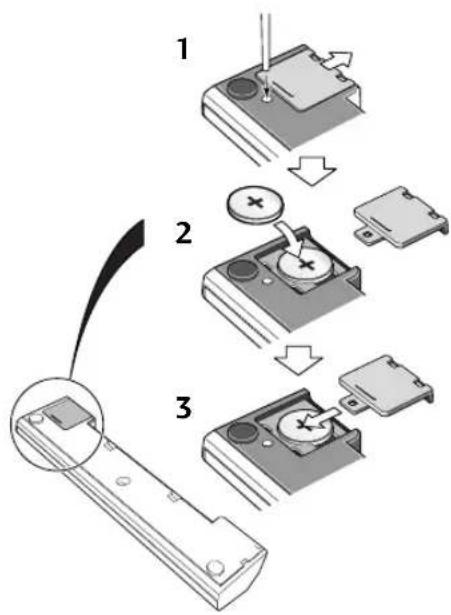
Putting the battery in the remote
1 Turn over the remote control. Push a ball-point pen into the hole to release the battery cover and slide it off.
2 Put in the supplied battery, taking care to match the plus and minus sides with the markings inside the compartment.
3 Slide the cover back on, and your remote is ready for use.
CAUTION:
- Remove the battery if the remote is not going to be used for a month or more.
- Remove dead batteries promptly—they can leak and damage the unit.
- If the remote is connected to the display, no battery is necessary for it to work. The battery is not recharged by connecting the remote to the display, however.
Using the remote control
Keep in mind the following when using the remote control unit:
• Make sure that there are no obstacles in between the remote and the remote sensor on the unit.
- Use within the operating range and angle, as shown in the diagram left.
- Remote operation may become unreliable if strong sunlight or fluorescent light is shining on the unit's remote sensor.
- Remote controllers for different devices can interfere with each other. Avoid using remotes for other equipment located nearby this unit.
- Replace the battery when you notice the operating range of the remote fall.
- On the rear of the remote there is a gold-coloured connector that links the remote with the display unit. Avoid touching this when using the remote separately.
CAUTION
Danger of explosion if battery is incorrectly replaced.
Replace only with the same or equivalent type recommended by the manufacturer. Discard used batteries according to the manufacturer's instructions.
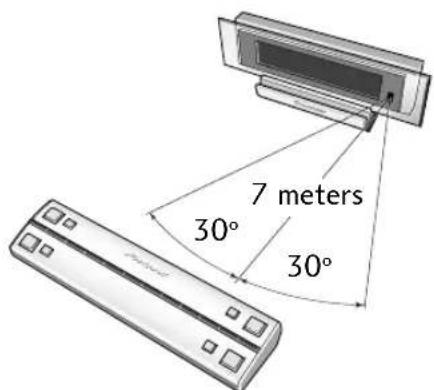
Operating range of the remote control unit
1 Before You Start
Handling discs
When holding CDs of any type, take care not to leave fingerprints, dirt or scratches on the disc surface. Hold the disc by its edge or by the center hole and edge. Damaged or dirty discs can affect playback and/or recording performance. Take care also not to scratch the label side of the disc. Although not as fragile as the recording side, scratches can still result in a disc becoming unusable.
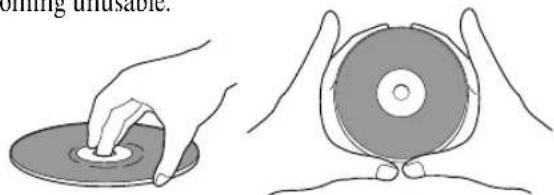
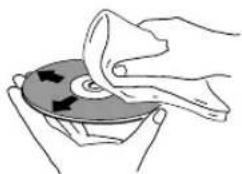
Should a disc become marked with fingerprints, dust, etc., clean using a soft, dry cloth, wiping the disc lightly from the center to the outside edge as shown in the diagram below. If necessary, use a cloth soaked in alcohol, or a commercially available CD cleaning kit to clean a disc more thoroughly. Never use benzine, thinner or other cleaning agents, including products designed for cleaning vinyl records.
natural_image
Illustration of hands cleaning a CD or DVD disc (no text or symbols visible)Wipe lightly from the center of the disc using straight strokes
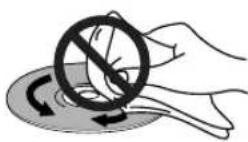
Don't wipe the disc surface using circular strokes
Storing discs
Although CDs are more durable than vinyl records, you should still take care to handle and store discs correctly. When you're not using a disc, return it to its case and store upright. Avoid leaving discs in excessively cold, humid, or hot environments (including under direct sunlight).
For more detailed care information see the instructions that come with discs.
Discs to avoid
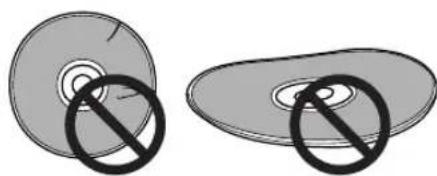
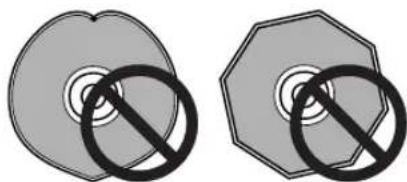
CDs spin at high speed inside the player during playback and recording. If you can see that a disc is cracked, chipped, warped, or otherwise damaged, don't risk using it in your CD player—you could end up damaging the unit.
natural_image
Two circular objects with a diagonal line and a crossed-out circle, no text or symbols present.This unit is designed for use with conventional, fully circular CDs only. Use of shaped CDs is not recommended for this product. Pioneer disclaims all liability arising in connection with the use of shaped CDs.
natural_image
Two identical gray circular objects with black prohibition symbols, no text or labels presentUsing cassette tapes
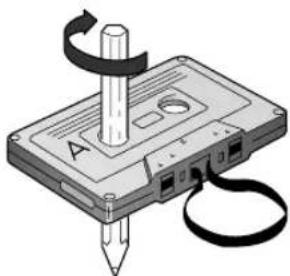
The tape of a cassette is quite easily damaged and loose tape can jam in the tape deck mechanism. If the tape has become
unwound, use a pen or pencil to wind it back on to the spool.
When not using cassettes, always store in the case. Store cassettes away from magnetic fields, excessive heat, humidity, dust or oil.
natural_image
Illustration of a cassette tape with a pencil and scroll, no text or symbols presentBefore recording on a tape,
wind the tape on past the leader tape (about the first 3 or 4 seconds of each side).
Avoid using tapes longer than 90 minutes.
Since tapes longer than 90 minutes are so thin, they are more susceptible to jamming in the tape deck mechanism and other trouble such as irregular winding.
Erase protection
You can protect an important recording against accidental erasure by breaking the erase-protect tab(s) with a small screwdriver.
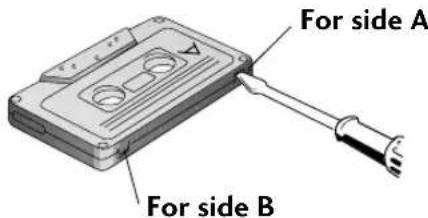
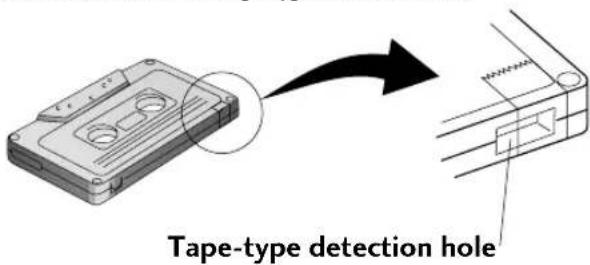
If you want to re-record on an erase-protected cassette, cover the space left by the broken tab with self-adhesive tape.
Note: If you're using Type II (High/GO2) tapes, make sure you don't also cover the tape-type detection holes.
Finding a Suitable Location
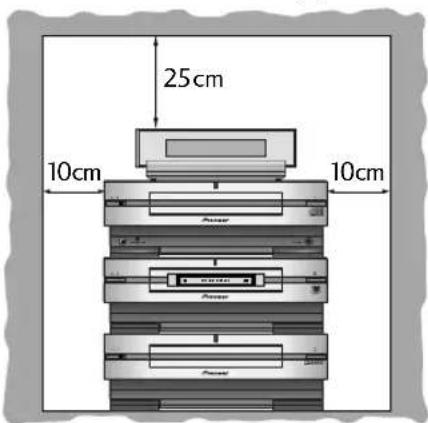
Be sure to leave enough space for proper ventilation above, either side and at the rear of the unit.
We want you to enjoy using your new stereo system for years to come, so please bear in mind the following points when choosing a suitable location for the system components and speakers:
Do...
√ Use in a well-ventilated room.
√ Place on a solid, flat, level surface, such as a table, shelf or stereo rack.
√ Leave at least 10cm either side of the unit, 15cm at the back, and 25cm overhead for proper ventilation.
Don't...
✗ Use in a place exposed to high temperatures or humidity, including near radiators and other heat-generating appliances.
✗ Place on a window sill or other place where any of the components or speakers will be exposed to direct sunlight.
✗ Use in an excessively dusty or damp environment.
✗ Place directly on top of any appliance which becomes hot in use.
✗ Use near a television or monitor as you may experience interference—especially if the television uses an indoor antenna.
✗ Use in a kitchen or other room where the unit may be exposed to smoke or steam.
✗ Place on an unstable surface, or one that is not large enough to support all four of the unit's feet, or the whole footprint of each speaker.
✗ Block the cooling fan on the rear of the unit. Don't cover the unit with cloth, or use on thick carpet, etc.
✗ Place the display unit on or very near a television, monitor or analog clock.
Avoiding condensation problems
Condensation may form inside the unit if it is brought into a warm room from outside, or if the temperature of the room rises quickly. Although the condensation won't damage the unit, it may temporarily impair its performance. For this reason you should leave it to adjust to the warmer temperature for about an hour before switching on and using.
CAUTION! Handling power cords
Always handle the power cord by the plug - don't pull out the plug from the wall socket by the wire. Avoid touching the plug or cord with wet hands. Do not place this unit, furniture, etc. on top of the power cord, and route it in such a way that it is unlikely to be stepped on or tripped over. Never tie the power cord together with other cords, or knot it in any way.
A damaged power cord can cause fire or give you an electric shock. Check the power cord occasionally—if it's damaged ask a Pioneer authorized service centre or your dealer for a replacement.
2 Installing and Connecting Up
Connecting Up the System
Ribbon cables
IMPORTANT: Never connect or disconnect the system ribbon cables while the power plug is connected to the wall outlet. Doing so may damage the unit.
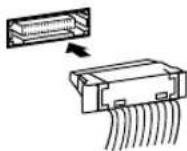
To insert, hold the connector and push firmly into the socket until you hear it click home.
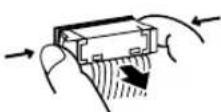
To remove, hold the connector securely on either side with thumb and forefinger and pull out from the socket.
Important: Before making or changing any rear panel connections, make sure that all the components are switched off and unplugged from the power supply.
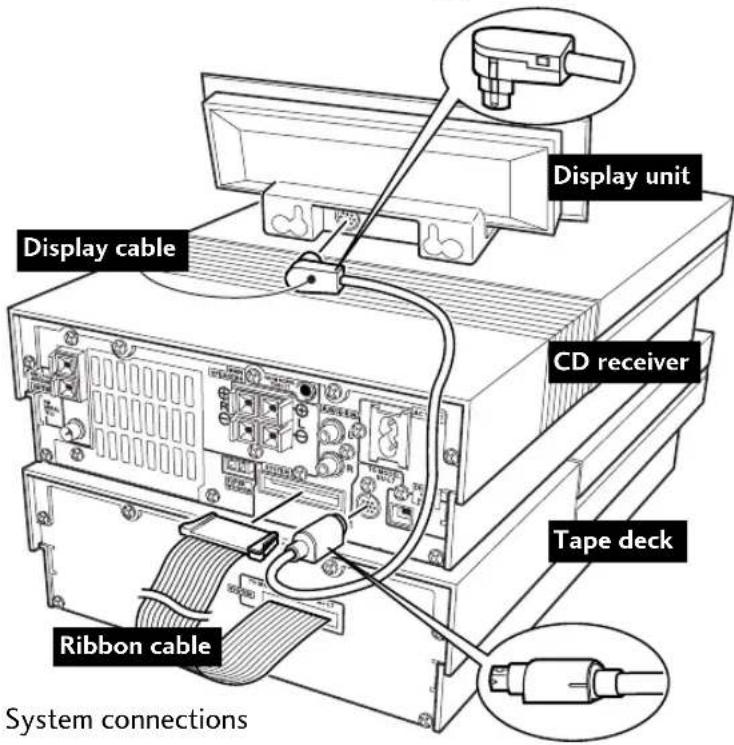
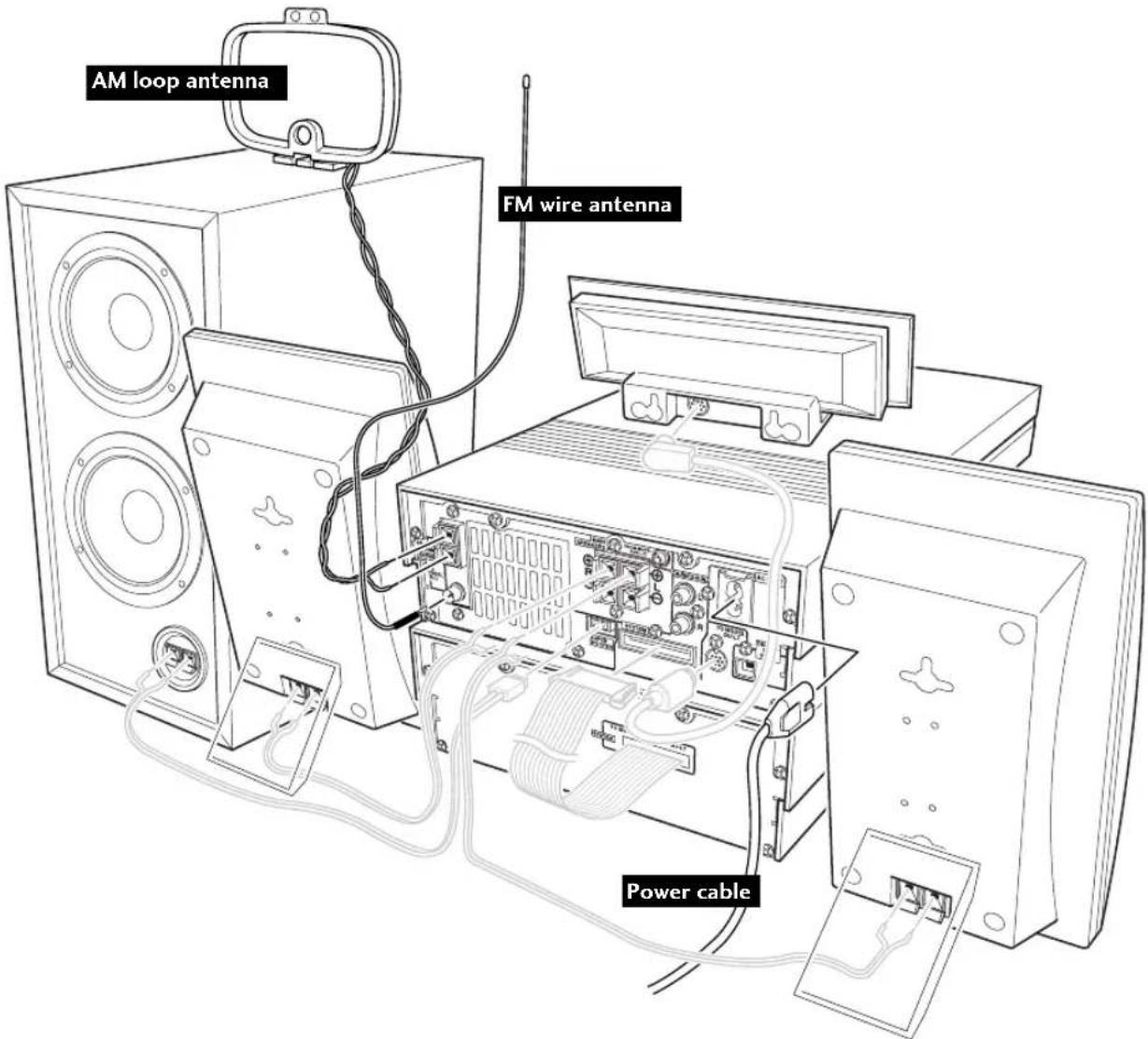
The CD receiver is the central component of the system: everything else connects to it. The diagram left shows the tape deck connected to the CD receiver, without the optional MD recorder or CD recorder. (If you bought either/both of these, see their respective instruction manuals for details of connecting them to the rest of the system.)
1 Connect the display cable between the CD receiver and display unit, taking care to connect the L-shaped connector to the display unit.
2 If you also have the tape deck:
Connect it up to the CD receiver using the ribbon cable attached to the rear of the tape deck. (See Ribbon cables, left, for important information on connecting/disconnecting these.)
It is possible to wall-mount the display unit using two screws (not supplied) securely fastened to a wall. Line the screws up with the holes on the rear side of the unit and hang the unit on the wall.
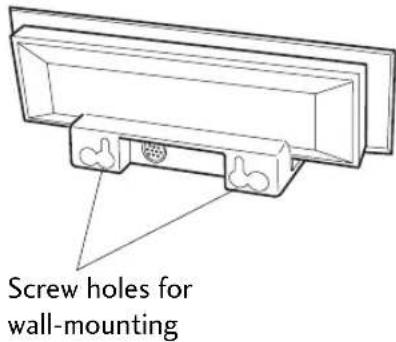
Note: Pioneer bears no responsibility for accidents resulting from faulty assembly or installation, insufficient mounting strength of walls or other building fixtures, misuse or natural disasters.
To use the remote and display as a single unit, connect the two as shown below. When correctly connected the four larger buttons light up blue.
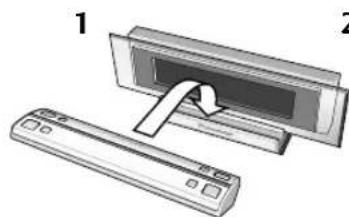
natural_image
Diagram showing a device being inserted into a panel, with no visible text or symbols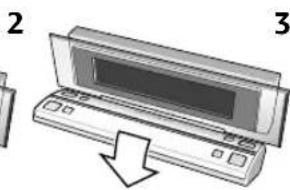
natural_image
Illustration of a computer monitor with a downward arrow indicating compression (no text or symbols)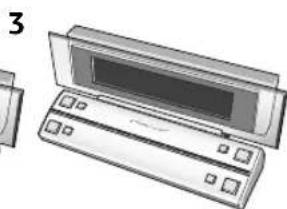
natural_image
Illustration of a computer monitor with a screen and keyboard, shown in 3D style (no text or symbols)2 Installing and Connecting Up
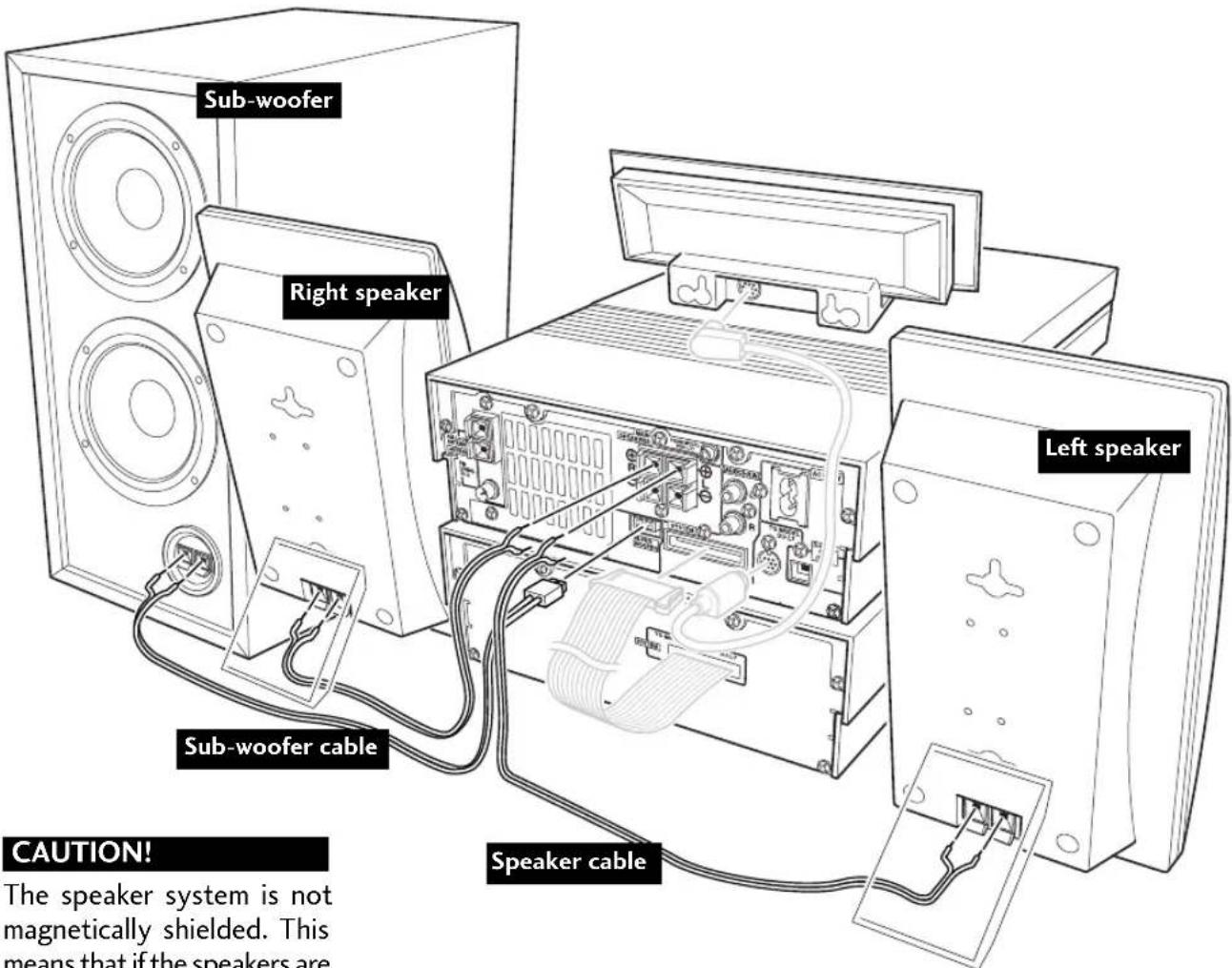
CAUTION!
The speaker system is not magnetically shielded. This means that if the speakers are placed very near a television set or monitor, you may see colour distortion in the picture. Move the speaker(s) further away from the television to solve the problem.
Do not connect any other amplifier to this system. In rare cases this may result in smoke or fire.
Do not block the port opening on the front of the subwoofer.
If you wish to connect speakers other than the ones supplied, use only speakers with a nominal impedance of between 6Ω and 16Ω (the subwoofer should be 4Ω). Refer to the instructions that came with your speakers if you are unsure of their impedance before connecting them and switching on.
Connecting the speakers
The S–L8/S–L9/S–L9-A speaker system consists of two compact satellite speakers that deliver the middle and treble frequencies, and a subwoofer that provides powerful bass. When connecting or disconnecting speakers, make sure that the power is switched off and the unit unplugged from the wall outlet.
To get the best sound from the system, it's important that the red (+) and black (−) speaker terminals on the CD receiver are connected to the corresponding terminals on each speaker. To help you match up the terminals correctly, the supplied speaker cable is colour coded: connect the white half of the cable to the black (−) terminals, and the grey striped half to the red (+) terminals.
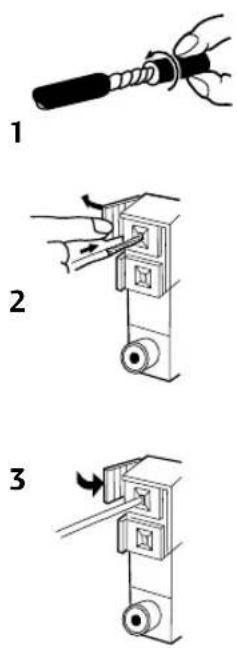
Speaker terminal connectors
Note: Make sure that the bare speaker wires cannot touch each other, or come into contact with other metal parts once the unit is switched on.
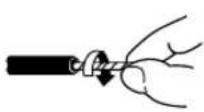
Twist the exposed wire strands together.
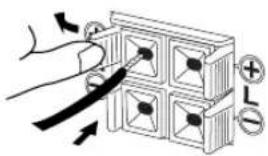
Pull open the tab and insert the twisted wire fully into the terminal.
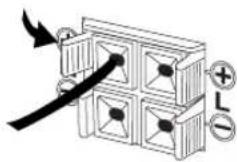
Snap the tab shut again to secure the speaker cable.
2 Installing and Connecting Up
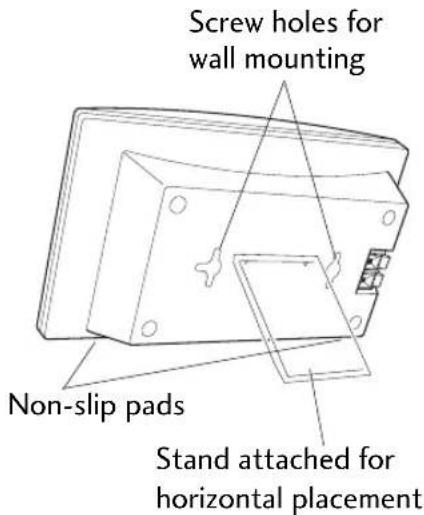
For S-L8 speakers: for correct balance, make sure that the speaker stands are fixed to the upper two screw holes when placing horizontally.
Note
Screws for wall mounting are not supplied. Use screws suitable for the type of material and strength of the wall or surface.
Mount the speakers only on a vertical wall or surface.
Pioneer bears no responsibility for accidents resulting from faulty assembly or installation, insufficient mounting strength of walls or other building fixtures, misuse, or natural disasters.
Placing the satellite speakers
The speakers come with stands that can be used if you plan to put the speakers on a shelf or table. It's possible to attach the stands so that the speakers stand upright (as shown in the illustration on the facing page, for example), or on their side—as shown in the diagram left. Attach a stand to each speaker using the supplied screws (two per stand). Next, fix two of the supplied non-slip pads to the underside of each speaker (it makes no difference which way up the speakers are when they are placed horizontally).
As an alternative to placing your speakers on a shelf or table, you may want to wall-mount them. The rear panel of each speaker has two screw holes for this purpose—use the single top one for vertical mounting, or both for horizontal mounting. Hang the speakers from screws in the wall as you would a picture. Screws and other mounting fixtures are not supplied. If you decide to wall-mount the speakers, make sure that the wall is capable of supporting the weight of the speakers.
Choosing a listening position
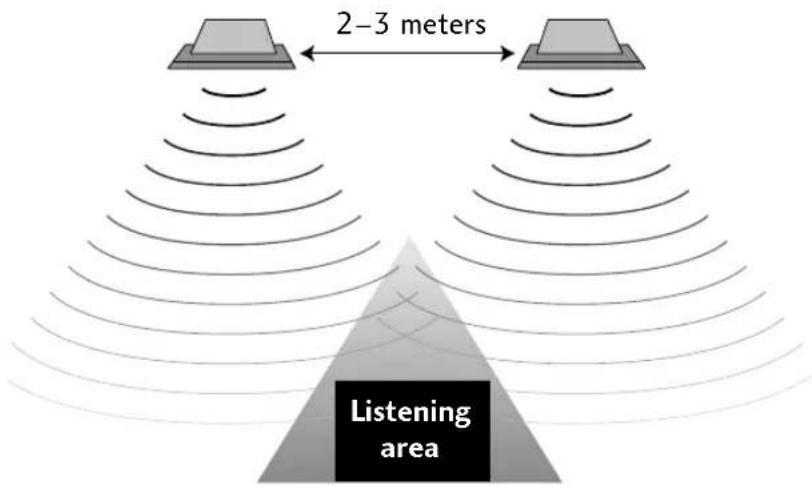
Ideally, the satellite speakers should be at about ear-level when you're listening to them. Putting the speakers on the floor, or mounting them very high on a wall is not recommended. For the best stereo effect, place the speakers 2–3 meters apart, and choose as your listening position a point within the shaded triangle below.
Placing the subwoofer
Placement of the subwoofer is not as critical as the satellite speakers because bass sounds are much less directional than middle and treble sounds. However, bear the following points in mind when choosing a suitable location:
The subwoofer's speakers are at the rear of the unit. Place the subwoofer at least 5cm away from a wall for best results.
As with other audio components, don't place the subwoofer near heaters, radiators or other appliances that generate heat.
Although you have some freedom in placement, experiment with different subwoofer locations—some will sound better than others from your usual listening position.
Note: Before placing the subwoofer, attach the four supplied non-slip pads to the underside of the unit. Avoid touching the actual speaker cones of the subwoofer unit when installing or moving it.
2 Installing and Connecting Up
Connecting the antennas
Connecting the supplied antennas will allow you to listen to both AM and FM radio broadcasts. If you find that reception quality is poor, an outdoor antenna should give you better sound quality—see the Connecting external antennas box on the following page for more on how to do this.
Before making or changing antenna connections, make sure that the power is switched off and the unit disconnected from the AC wall outlet.
1 Pull off the protective shields of both AM antenna wires.
2 Pull open both tabs and insert one wire fully into each terminal.
3 Snap the tabs shut to secure the AM antenna wires.
Place the AM antenna on a flat surface and point in the direction giving the best reception. If necessary, stabilize with a pen or pencil through the hole near the base. Avoid placing near computers, television sets or other electrical appliances (including the display unit of this system), and do not let it come into contact with metal objects. It's also possible to fix the AM antenna to a wall using two small screws or pins through the two holes at the top of the loop. Before fixing, make sure that the reception is satisfactory.
2 Installing and Connecting Up
natural_image
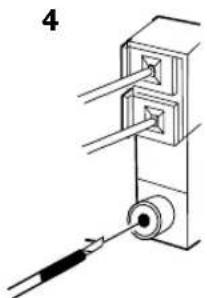
Technical line drawing of a mechanical assembly with a tool inserted (no text or symbols)4 Plug the supplied FM antenna into the FM antenna terminal.
For best results, extend the FM antenna fully and fix to a wall or door frame. Don't drape loosely or leave it coiled up. The supplied FM antenna is a simple means of receiving FM stations; using a dedicated, outdoor FM antenna will usually give you better reception and sound quality. See below for connection details.
Note: The signal earth ( _r ) is designed to reduce noise that occurs when an antenna is connected. It is not an electrical safety earth.
Connecting external antennas
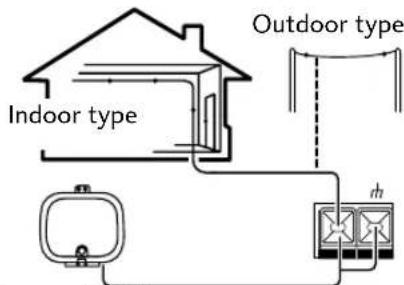
External AM antenna
Use 5–6 meters of vinyl-insulated wire and set up either indoors or outdoors. Leave the AM loop antenna connected.
natural_image
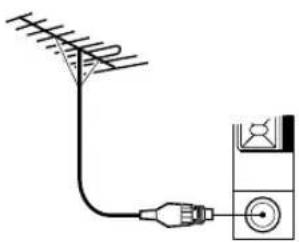
Diagram showing a cable with antenna connected to a device (no text or symbols present)External FM antenna
Use 75Ω coaxial cable with a PAL-type plug connector to hook up an external FM antenna.
Connecting other components
flowchart
graph TD
    A["Standard stereo audio lead (not supplied)"] --> B["AUX: CD-R IN"]
    B --> C["L"]
    C --> D["R"]
    D --> E["L"]
    E --> F["R"]
    F --> G["L"]
    G --> H["OUT (PLAY)"]
    H --> I["L"]
    I --> J["R"]
    J --> K["Recording"]
    K --> L["Digital OUT (OPT.)"]
    L --> M["Optical digital audio lead (not supplied)"]
    M --> N["An optical digital input, such as a DAT de to the CD receiver's optical digital out for optical leads with an LED output"]
    style A fill:#f9f,stroke:#333
    style B fill:#ccf,stroke:#333
    style C fill:#cfc,stroke:#333
    style D fill:#fcc,stroke:#333
    style E fill:#cff,stroke:#333
    style F fill:#ffc,stroke:#333
    style G fill:#cfc,stroke:#333
    style H fill:#fcc,stroke:#333
    style I fill:#cfc,stroke:#333
    style J fill:#fcc,stroke:#333
    style K fill:#cfc,stroke:#333
    style L fill:#fcc,stroke:#333
    style M fill:#cfc,stroke:#333
    style N fill:#fcc,stroke:#333
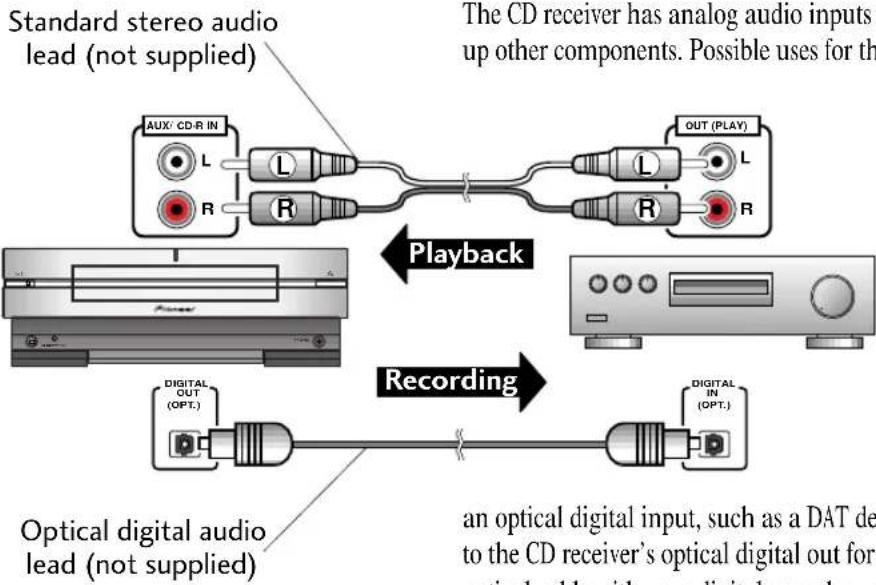
The CD receiver has analog audio inputs and an optical digital output for connecting up other components. Possible uses for the analog inputs include sound from a VCR
or satellite receiver, a file-type ('jukebox') CD player, or turntable (with suitable phono amplifier). Use a standard stereo audio cable (with RCA/phono plugs on either end) to connect the AUX/CD-R IN (auxiliary input) on the CD receiver to the AUDIO OUT sockets on the other component. Be sure to match the colour-coded plugs and sockets at both ends for best results.
If you have a digital recorder equipped with
an optical digital input, such as a DAT deck, CD-R or MD recorder, you can connect it to the CD receiver's optical digital out for digital recording of CDs. If you didn't get an optical cable with your digital recorder, you can buy one from any good audio dealer. Just above and to the left of the auxiliary inputs there is a socket labelled
FROM MODEL PDR-L77. This is for use with the optional CD-recorder only—see the CD-R manual for more information on this.
Plugging in to the mains
After making sure that the system components and speakers are all connected properly, plug in the power cable to the back of the CD receiver, and the other end to a mains power outlet.
If you have the optional MD recorder, this has a separate mains lead which must also be connected. In order to use the MD recorder, you must have both units plugged in.
Front Panel
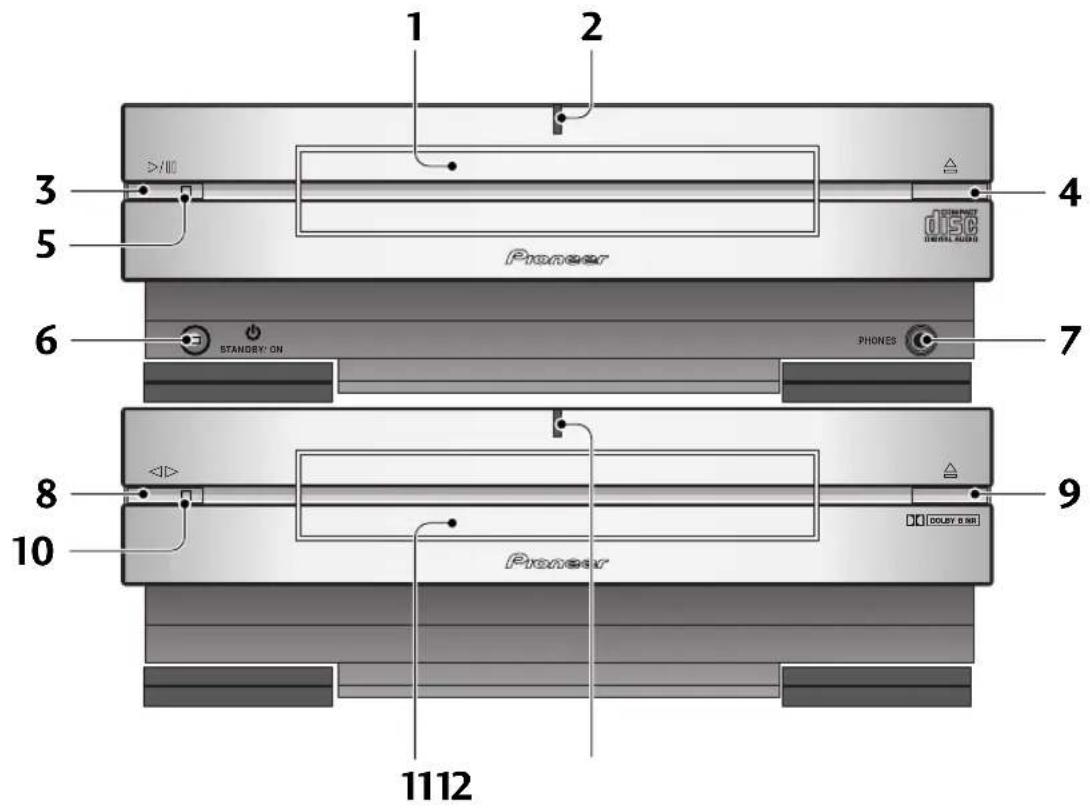
CD Receiver
1 CD tray
2 Power light – Lights when the unit is switched on.
3 ▷/□ button – Press to play a disc, or pause a disc that's already playing (press again to restart playback).
4 △ button – Press to open or close the CD tray.
5 Play light – Lights when a CD is playing
6 Standby/On button – Press to switch the unit between standby and on modes. Indicator lights in standby mode. Note: this unit consumes a small amount of electricity in standby mode (1W).
7 Phones socket – Connect a pair of headphones for private listening. When plugged in, the speakers are automatically switched off.
Tape deck
8 ◀ button – Press to play a tape in the current direction, or reverse the direction of a tape that's already playing.
9 △ button – Press to open or close the cassette tape tray.
10 Play light – Lights when a tape is playing
11 Cassette tape tray
12 Power light – Lights when the unit is switched on.
3 What's What
Remote Control
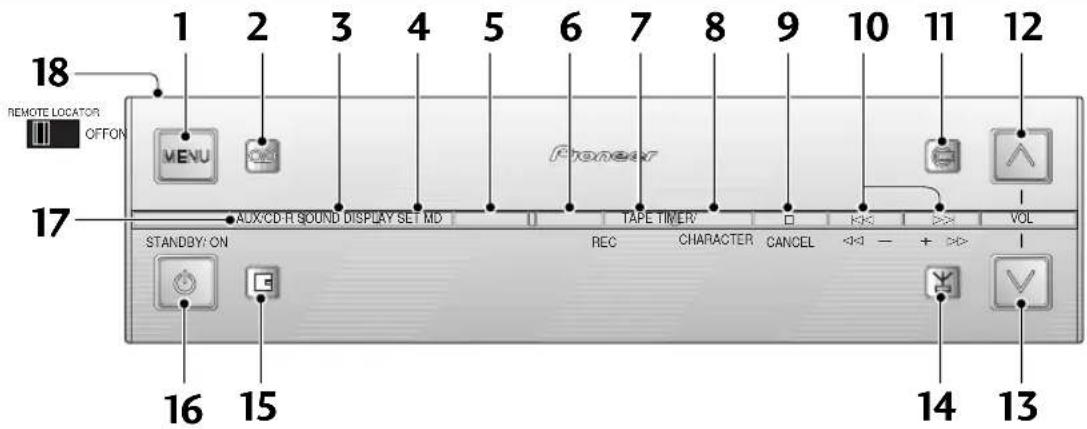
Remote Locator
This remote control has a feature that will allow you to locate it if you've mislaid it in the room. When remote locator is switched on, clapping at least three times within the space of about a second will cause the remote control to beep. This should help you to locate it.
Although a useful function, leaving the remote locator on all the time reduces the battery life of the remote. For this reason, an on/off slider switch is provided on the rear.
When switched on, the remote will sometimes beep if knocked or dropped—this is not a malfunction.
1 MENU – Press to access various features, including station memory naming, changing the tape reverse mode, and so on.
2 Tape deck mode – Press to switch the sound to tape deck and start the tape playing (if there's one loaded).
3 SOUND – Press to put the ◀◀◀ and ▶▶▶ buttons into tone, subwoofer level and balance control mode.
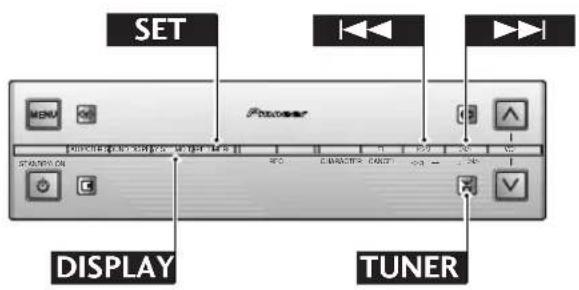
4 DISPLAY – Press to change the kind of information that the display shows. The choices available depend on the current function (CD, tape, etc.).
5 SET – Press to finish operations such as setting the clock, setting the reverse mode, and so on.
6 MD REC – Press to put MD recorder into record-pause mode.
7 TAPE REC – Press to put tape deck into record-pause mode.
8 TIMER/CHARACTER – Press to start setting the timer. Also use to select characters when naming tuner station memories, etc.
9 □ CANCEL – Press to stop playback (or recording) of the CD/MD/tape. Also use to cancel operations, such as setting the clock, before the SET button has been pressed (see 5 above).
10 ◀◀◀ ▷◀◀ buttons – Press to fast-reverse / fast-forward the CD/MD/tape.
11 CD mode – Press to switch the sound to CD and start the disc playing (if there's one loaded).
12 Up - Use to raise the volume.
13 Down - Use to lower the volume.
14 Tuner mode – Press to switch the sound to tuner, switch between AM and FM, and switch between preset station memories.
15 MD mode – Press to switch the sound to MD and start the disc playing (if there's one loaded).
16 Power – Press to switch the unit between standby and on modes.
Note: this unit consumes about 1W of electricity in standby mode.
17 AUX/CD-R mode - Press to switch the sound to the component connected to the AUX/CD-R inputs.
18 REMOTE LOCATOR – Use to switch on/off remote locator (see box, left).
Display
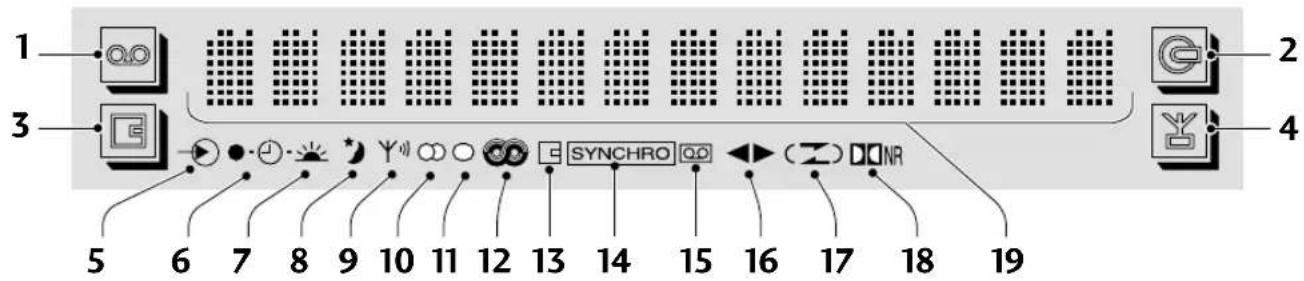
*
- Dolby noise reduction manufactured under license from Dolby Laboratories Licensing Corporation.
- "DOLBY", and the double-D symbol are trademarks of Dolby Laboratories Licensing Corporation.
1 Tape function – Highlights when in tape deck mode
2 CD function – Highlights when in CD player mode
3 MD function – Highlights when in MD recorder mode
4 Tuner function – Highlights when in tuner mode
5 Aux/CD-R function – Lights when in aux/CD-R mode
6 Record timer – Lights when setting the timer; flashes once set.
7 Wake up timer – Lights when the wake up timer is set; flashes during wake up timer playback.
8 Sleep timer – Lights when the sleep timer is set.
9 Tuned – Lights when the tuner is tuned to a broadcast.
10 Stereo – Lights when the tuner is receiving an FM stereo broadcast.
11 Mono – Lights when the tuner is set to the mono mode (applies only to FM broadcasts).
12 RDS – Lights when the tuner is in an RDS mode.
13 MD recording – Lights when MD is in record or record-pause mode.
14 SYNCHRO – Lights during automatic (synchro) recording.
15 Tape recording – Lights when tape deck is in record or record-pause mode.
16 Play direction – Indicates the current direction (side) of the tape.
17 Reverse mode - Indicates the current tape reverse mode.
18 Dolby NR* – Lights when Dolby NR is switched on.
19 Character display
4 Switching On
Switching On and Setting the Clock
If you've followed the manual to here, you should now have your system installed with everything connected up and plugged in. This chapter takes you through using the basic features: playing CDs and tapes, listening to radio stations, and adjusting the volume, tone and balance to get the sound you want.
First of all, we'll set the clock. This is mainly used for timer functions, such as the sleep timer, though you can also use the display as a clock. Unless you unplug the unit, or there's a power failure, you only need to set the clock once.
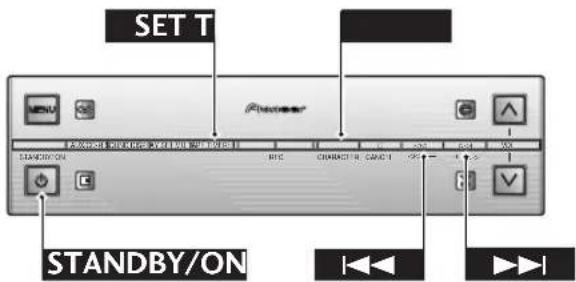

Display shows the CD player as the current function (no disc loaded)
1 Switch on.
You can use the STANDBY/ON button on either the remote control or the CD receiver unit to do this.
The display lights and briefly indicates the current volume level before showing the current function (e.g. CD).


day / month / year hour : minute
2 Press TIMER.
3 Press SET.
The display changes to show a date and time, with the day part of the date flashing to indicate that you can set it.

After setting the day, set the month
4 Use the ◀◀◀ and ▶▶◀ buttons to set the correct day of the month, then press SET.
Once you've pressed SET, the month will start flashing.

Correct time and date after setting
5 In the same way, set the rest of the date and time.
Each time you press SET, the next part of the date/time will start flashing. Adjust using the ◀◀◀ and ▷▶▶ buttons.
Pressing SET after setting the minute completes the clock setup.
Note: The time is in 24-hour clock format (i.e., 13:00 is 1pm).
Tip
Press DISPLAY in standby mode to show the day and time. The display remains until you hit the STANDBY/ON button.
Remember: If power is interrupted, the clock display will flash until you reset it to the correct time. To use the timer features, always set the clock to the correct time.
Playing a Compact Disc
Here, we'll run through the basics you need to play discs in the CD player/receiver. Other features of the CD player, such as programming the track order, are covered later—see pages 23 to 26 for complete instructions on all the CD player's features.
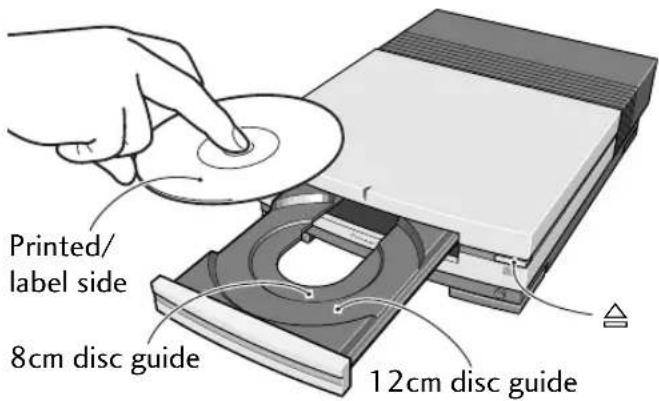
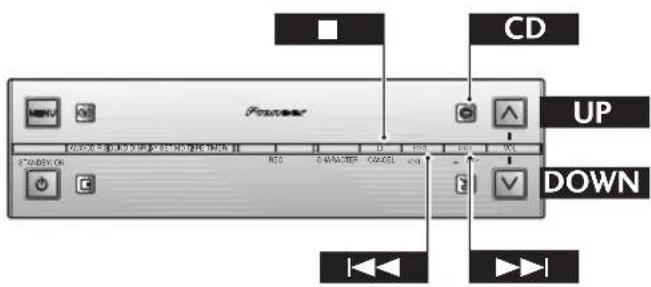
1 With the system switched on, press △ on the front panel of the CD receiver.
The disc tray ejects. Place a CD, with the label face up, on to the disc tray, making sure that it is seated properly in the disc guide.
Note: Do not use an adapter when playing 8cm CD-singles. The disc tray has guides for both 12cm and 8cm discs.

CD playing with the track number and track time elapsed shown in the display.
2 On the remote, press the CD button.
The disc tray closes and the disc starts playing from track 1.
You can also use the CD receiver's front panel controls:
▷/□□ closes the disc tray and starts the disc playing from the first track.
△ closes the disc tray without starting playback.

Tip
In step 2 above, pressing the CD button closed the disc tray and set the disc playing. In fact, pressing this button is always the quickest way to play a disc. If there's already a disc in the player, then pressing the CD button—even when the system is in standby mode—will switch the system on, switch to CD sound, and start the disc playing.
3 Use the UP and DOWN buttons to adjust the volume.
Press and hold for continuous adjustment. The display indicates the current volume level as you adjust it.
4 To pause playback, press the CD button.
To resume playback, press again.
You can also use the CD receiver's front panel controls:
Press ▷/□ once to pause playback; press again to resume.
5 To fast-reverse or fast-forward, press and hold ◀◀◀ or ▷▶◀.
You should hear snippets of sound to give you some idea of where you are in the track. Release the button to resume normal playback.
Continues
4 Switching On
6 To skip back or forward to another track, press (but don't hold) ◀◀◀ or ▷▶◀.
Pressing ▷▶▶ once skips to the start of the next track on the disc. Further presses take you to subsequent tracks.
Pressing ◀◀◀ once takes you to the beginning of the current track. Further presses skip to the start of previous tracks.
You can use the track skip buttons while the disc is paused, too. The track number changes while the disc remains paused.
7 To stop playback, press □.
If the disc was paused, then the pause mode is cancelled.
Adjusting the Sound
Tip
In step 3, if more than 5 seconds goes by without you pressing a button, the system assumes you're happy with the new level and sets it for you, without you having to press SET (step 4).
On the previous page, you may have adjusted the volume while the CD was playing. Volume is adjustable from zero (silence) to 36 (maximum volume) using the volume UP and DOWN buttons on the remote.
So that you can adjust the sound to your liking, you can also adjust the bass, treble, balance and subwoofer level. Start a disc playing before working through the steps below so that you can hear the effect of changes as you make them.
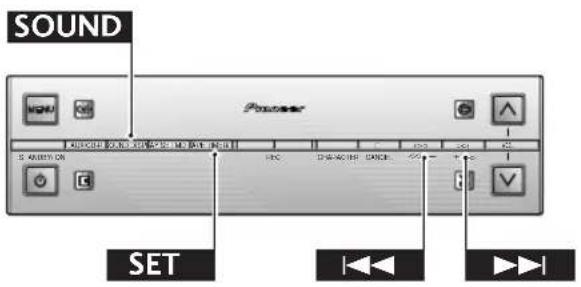
Choose BASS to control the low frequency sounds
1 Press SOUND.
Press repeatedly to switch between:
BASS - TREBLE - BALANCE - WOOFER LEVEL
Stop on the one you want to adjust.
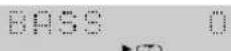
Display shows the current level
2 Press SET.
The display shows the current level.
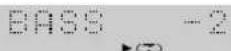
New level after adjusting
3 Use the ◀◀◀ and ▷▶◀ buttons to adjust the level.
The display indicates the level as you change it. (The subwoofer has just three settings: LOW, MEDIUM and HIGH.)
4 When you're happy with the level, press SET again.
Listening to the Radio
The tuner can receive both FM and AM broadcasts, and lets you memorize your favourite stations so you don't have to manually tune in every time you want to listen. Here we run through the basic tuner controls, including switching between AM and FM, and tuning to a station. Full instructions for all the tuner's other features can be found on pages 27 to 32.
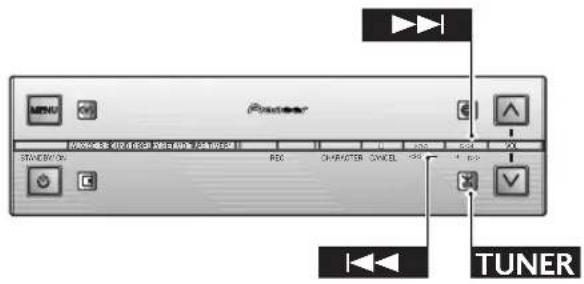
1 Press TUNER to switch to tuner mode.
Press repeatedly to switch between:
FM - AM - STATION
For now, choose either FM or AM—the STATION option is covered on page 27.

Receiving a stereo station on FM 87.50. The ‘tuned’ and ‘stereo’ indicators are lit.
2 Tune to a station.
There are three tuning modes—step, auto, and high-speed:
Step tuning: Press the ◀◀◀ or ▷▶▶ button repeatedly to step through the frequency band in either direction
Auto tuning: Press and hold the ◀◀◀ or ▷▶▶ button until the frequency display starts to move, then release. The tuner will stop on the next station it finds. Repeat to search for other stations.
High-speed tuning: Press and hold the ◀◀◀ or ▷▶◀ button until the frequency display starts to move rapidly. Keep the button held down until you reach the frequency you want. If necessary, fine tune the frequency using the step tuning method.
When you're tuned into a station, the tuned indicator lights in the display. If the station is FM stereo, the stereo indicator lights.
Improving poor FM reception
If you're listening to an FM station in stereo but the reception is weak, you can improve the sound quality by switching to mono:
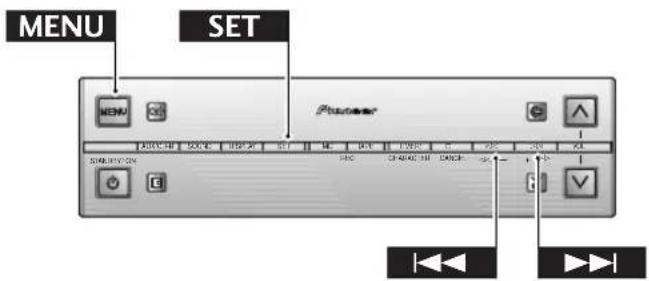
4 Switching On
1 Press MENU.
You're now in the tuner menu.

2 Press the ◀◀◀ or ▷▶◀ button repeatedly to select FM AUTO/MONO, then press SET.

3 Press the ◀◀◀ or ▶▶◀ button to select the FM MONO option.
(Press again to switch back to FM AUTO mode.)

-4 Press SET again to exit the menu.
The ‘mono’ indicator lights next to the ‘tuned’ symbol.
The mono indicator lights in the display.
Note: The FM MONO mode remains set until you change it back to FM AUTO mode.
Playing a Cassette Tape
The optional CT-L77 tape deck features auto-reverse, Dolby B NR (noise reduction) and auto tape select. The auto-reverse feature lets you play or record both sides of the tape without physically taking it out and turning it over. Dolby B NR reduces tape hiss on tapes recorded using Dolby NR (which includes almost all commercially recorded tapes). Auto tape select means that the deck automatically detects the type of tape you're playing—normal (type I) or high-position (type II)—so there's no need to check the tape type and switch manually. Here, we'll run through the basic tape deck controls; instructions for other features, such as recording, start on page 33.
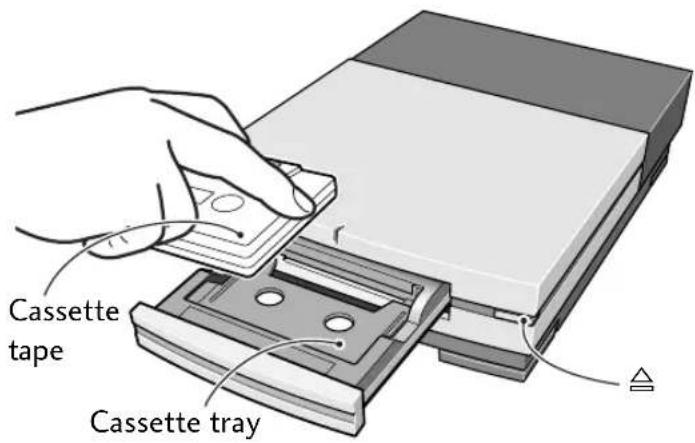
Note
Take care to place the cassette in the cassette tray the right way round—the exposed tape should face toward the deck as you put it in.
1 Press TAPE to switch to tape mode.
2 Press △ on the front panel to open the cassette tray.
TAPE 0028 FWD
Tape playing with tape counter shown in the display. Direction is ‘forward’
-3 Load a cassette tape then press TAPE to close the cassette tray and start playback.
Use a tape that's already recorded on so you can hear something in the following steps!
The side of the tape you'll hear is whichever is face-up in the tray when you load it. This is the 'forward' (▶) direction, while the other side is 'reverse' (◀). The forward indicator is shown in the display.
Pressing on the front panel also closes the cassette tray, but does not start playback.
TAPE 0028 REV
The direction indicator changes when the tape is reversed
4 To play the other side of the tape, press TAPE.
Each time you press TAPE during playback, the other side of the tape starts playing. Pressing TAPE when the tape is stopped starts playback on the side it was playing previously.
The current tape direction is indicated in the display.
TAPE HS P+02
Tape deck searching for the start of the track after next
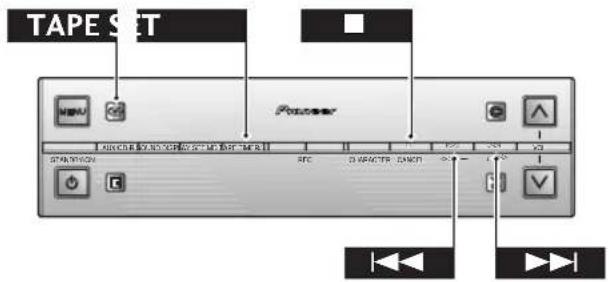
-5 To skip back or forward a track on the tape, press ◀◀◀ or ▷▶▶ while the tape is playing.
▷▷| searches for the next blank space between tracks on the side currently playing (in other words, to the start of the next track), then resumes playback.
searches for the previous blank space between tracks on the side currently playing (in other words, to the start of the current track), then resumes playback.
By pressing | or || more than once, the player will skip several tracks at once. For example, press || twice to skip forward two tracks.
Tip
In step 3 above, pressing TAPE closed the cassette tray and set the tape playing. In fact, pressing this button is always the quickest way to play a tape. If there's already a tape in the player, then pressing the TAPE button—even when the system is in standby mode—will switch the system on, switch to TAPE sound, and start the tape playing.
Note: Track search is unlikely to work reliably in the following cases:
◆ if the space between tracks is less than about 4 seconds
- if the recording is particularly noisy so the spaces are not recognized
◆ if the recording contains frequent silences, such as a language study tape.
- if the recording contains sections of very quiet material, such as some classical music recordings
6 To stop the tape, press □.
7 To rewind or fast forward the tape, press ◀◀◀ or ▷▶◀ while the tape is stopped.
To stop the tape, press □. Alternatively, press TAPE to start playback directly.
4 Switching On
Using Dolby NR.
For best sound quality, tapes that are recorded with Dolby NR should be played with Dolby NR switched on. This includes virtually all commercially produced tapes—look for the double-D symbol (☐☐) on the inlay card, or on the cassette tape itself. To switch Dolby NR on and off:
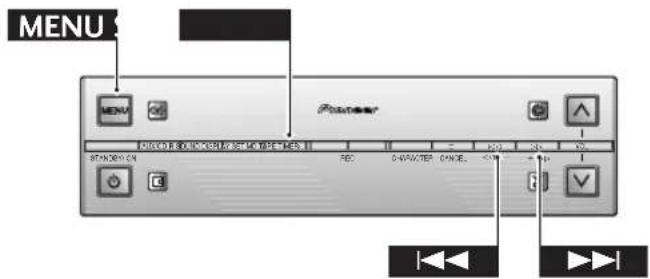
1 Press MENU.
The tape menu options are:

-2 Use ◀◀◀ or ▷▶◀ to select DOLBY NR, then press SET.
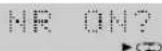
3 Press |◀◀ or ▷▶| to switch between Dolby NR on and off.

4 Press SET again to exit the menu.
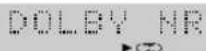
The Dolby NR indicator (☐☐ NR) lights in the display when Dolby NR is on.
The Dolby NR indicator lights when Dolby NR is switched on
- Dolby noise reduction manufactured under license from Dolby Laboratories Licensing Corporation.
- "DOLBY", and the double-D symbol are trademarks of Dolby Laboratories Licensing Corporation.
Using the Menu System
Access to many of the less commonly used functions of the system is via a menu system. Each component (CD player, tuner, tape deck, auxiliary, and MD recorder) has it's own set of menu options, but access to all of them is from the MENU button. If you worked through the last section, you'll have already used the menu system when you switched between mono and auto FM reception, or switched Dolby NR on/off.
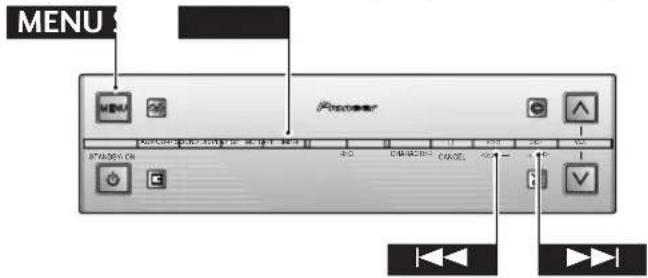
Pressing MENU displays the first menu option for the component you're currently using. You can display the next option by pressing ▷▶, or the previous one by pressing ◀◀. The menus 'wrap around', so once you get to the end of the list, pressing ▷▶ again takes you back to the first item.
To select the menu option currently displayed, press the SET button. This will take you to a further 'sub-menu', which may simply consist of two settings (like FM mono and auto, or Dolby NR on and off), or may have more choices. Either way, choose between different options with the ◀◀◀ and ▷▶◀ buttons, and select them by pressing SET.
If you make a mistake while in the menu system, simply press □ to cancel and exit.
The CD menu
The CD menu gives you access to the following functions:
CD PROGRAM - Specify the track order on a disc (page 24)
CD REPEAT MODE - Set the current track or disc to repeat play (page 25)
CD RANDOM PLAY - The player plays tracks in a random order (page 26)
The tuner menu
The tuner menu gives you access to the following functions:
STATION MEMORY - Memorize station frequencies for quick recall (page 27)
STATION NAME - Give station memories meaningful names (page 28) (You'll only see this option if you're in Station mode - see page 27.)
FM AUTO/MONO - Specify the FM reception mode (page 19) (You'll only see this option if you're in FM reception mode.)
The tape menu
The tape menu gives you access to the following functions:
REVERSE MODE - Play a single side, or both sides of a tape automatically (page 33)
COUNTER RESET - Set the tape counter to zero (page 37)
DOLBY NR - Switch the Dolby Noise Reduction on or off (page 21)
5 Using the CD Player
Programming the Track Order
This mode lets you program a sequence (a playlist) of up to 24 tracks to play. The order can be anything you choose. Tracks can appear more than once in the playlist, or can be left out entirely. The playlist applies only to the disc in the player at the time. Once you eject the disc (or switch the power into standby), the playlist is lost.
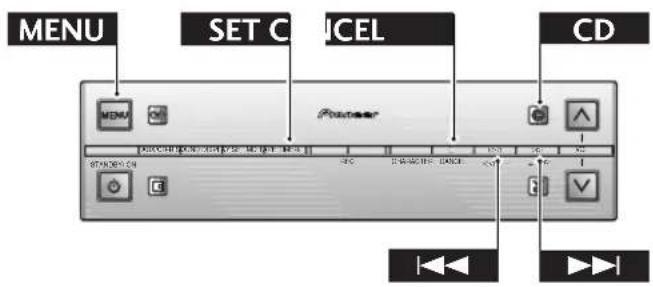

1 Press MENU and select CD PROGRAM.
Remember: switch between menu options using the ◀◀◀ and ▶▶◀◀ buttons; select the option by pressing SET.

2 Select a track to add to the playlist using the ◀◀◀ and ▶◀◀ buttons.
For example, to add track 3, press ▷▶▶ three times. Or, to add the last but one track, press ◀◀◀ twice.
Track 3 has been selected as the first track in the playlist. The track length is also shown.

3 Press SET to add the track to the playlist.
4 Repeat steps 2 and 3 to continue adding tracks to the playlist.
If you make a mistake, press CANCEL to delete the last (most recent) track programmed. (Delete multiple tracks by pressing CANCEL repeatedly.)
After pressing SET, the step is memorized.

5 When you're happy with the playlist, press MENU.
The playlist can be up to 24 tracks long.
After pressing MENU, the display shows the number of tracks in the playlist, and the total running time of the playlist.
6 Press CD button to start playback.
Checking the playlist order
You can only check the playlist order when the disc is stopped. Once stopped, you can step through the playlist using the ◀◀◀ and ▷▶▶ buttons. Each track number on the playlist is displayed together with the track length.
If you then press CANCEL, the total playing time of the playlist is displayed.
Deleting the playlist
If you want to delete the playlist without ejecting the disc, simply press CANCEL when the disc is stopped.
Playing Things Again
You can set the CD player to repeat either a single track over and over, or the whole disc.
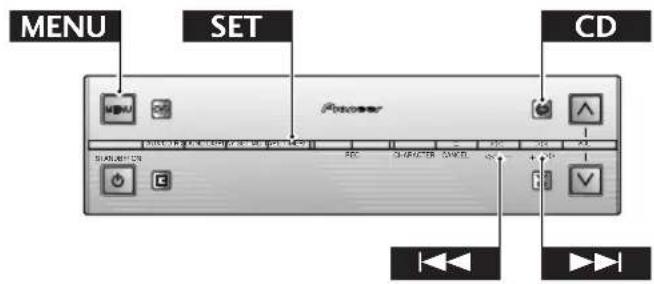

1 Press MENU and select CD REPEAT MODE.
Remember: switch between menu options using the ◀◀◀ and ▶▶◀ buttons; select the option by pressing SET.

2 Select a repeat mode.
One-track repeat mode

All-track repeat mode
Three options are available:

Remember: switch between menu options using the ◀◀◀ and ▶▶◀ buttons; select the option by pressing SET.

3 Start playback.
The repeat mode indicator stays lit during playback, too.
In one track repeat mode, any track you choose will repeat. If you jump to another track (using track skip or manual search), then the new track will start repeating.
Tip
You can use either of the repeat modes together with the program play mode.
Setting the repeat mode to REPEAT ALL plays the tracks in the playlist over and over. In repeat track mode, just the current track in the playlist repeats.
In all track repeat mode, whenever the end of the disc is reached, the player will jump back to the first track and continue playback. You're still free to skip tracks and use manual search.
Note: The repeat mode you set stays active until you:
- select another repeat mode, or switch repeat mode off using the menu.
◆ eject the disc.
◆ switch to standby mode.
5 Using the CD Player
Playing Tracks at Random
Tip
You can use either of the repeat modes together with the random play mode.
Setting the repeat mode to REPEAT ALL endlessly plays all the tracks on the disc at random. In REPEAT TRACK mode, just the current randomly selected track repeats.
To have the CD player play the tracks on a disc in a different order each time you play the disc, use the random play function. Each track will play just once, but the order will be random. When all tracks have been played, the disc stops.
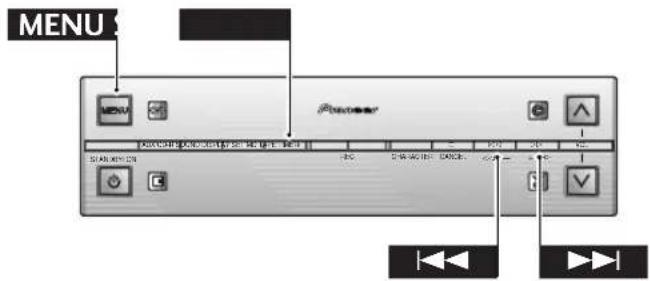

1 Press MENU and select CD RANDOM PLAY.
Remember: switch between menu options using the ◀◀◀ and ▷▶◀ buttons; select the option by pressing SET.

2 Playback begins automatically.
Pressing □ during random play stops playback, and random play mode is cancelled.
The random indicator lights during playback
You can use random and repeat play together to endlessly repeat all tracks on a disc in a random order.
Changing the Display

CD disc total display

Clock display

Calendar display

CD elapsed track time display

CD track remain display

CD disc remain display
You can choose to display various kinds of information during playback and stop modes. Switch between them by pressing the DISPLAY button.
When the disc is stopped
CD DISC TOTAL - displays the number of tracks and the total playing time of the disc CLOCK - displays the current time and date
CALENDAR - displays the current date
DIMMER SELECT - adjusts the display brightness (see page 43)
When the disc is playing
CD ELAPSED TRACK TIME - displays the track number and the time elapsed
CD TRACK REMAIN - displays the track number and track time still remaining
CD ALL REMAIN - displays the disc time still remaining
CLOCK - displays the current time and date
CALENDAR - displays the current date
DIMMER SELECT - adjusts the display brightness (see page 43)
* In random play mode, CD DISC REMAIN is not available.
The Tuner Menu
The tuner menu gives you access to the following functions:
STATION MEMORY - Memorize station frequencies for quick recall (p.27)
STATION NAME - Give station memories meaningful names (p.28) (You'll only see this option if you're in Station mode - see page 28.)
FM AUTO/MONO - Specify the FM reception mode (p.19) (You'll only see this option if you're in FM reception mode.)
Memorizing Stations for Quick Recall
You can store up to 24 station presets (memories) so that you always have easy access to your favourite stations without having to tune in manually each time. After you've set a station memory you can give it a name so you can remember which is which.
Note: The following instructions assume that you are already familiar with tuning into radio stations—turn back to page 19 for detailed tuning instructions.
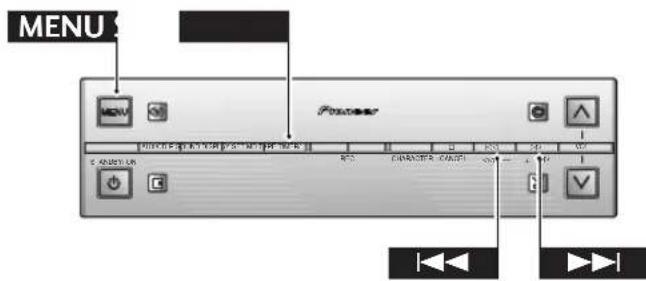

The tuner tuned to a station on FM 87.50MHz.


The station memory number—1 in the display—flashes as you change it

After pressing SET, the display reverts to the AM or FM frequency display
1 Tune into a radio station on either the AM or FM band.
See page 19 for detailed instructions on how to do this.
2 Press MENU and select STATION MEMORY.
Remember: switch between menu options using the ◀◀◀ and ▷▶◀ buttons; select the option by pressing SET.
3 Choose a station memory in which to store the station's frequency.
There are 24 memory locations; each can store one station. Use the ◀◀◀ and ▷◀◀ buttons to step through the locations available.
4 Press SET to store the station.
The display flashes to indicate that it's stored.
Note: Station presets remain memorized for several days if the system is disconnected from the mains power outlet. After this time, station presets are lost and you'll have to re-program them.
6 Using the Tuner
Listening to a Memorized Station
When using the tuner button to switch between FM and AM, you've probably noticed a third option. This is the station memory mode, in which you can listen to the stations you've previously memorized.
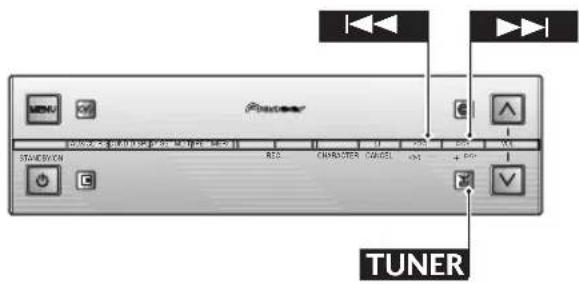

In station memory mode the display shows the station memory number and the frequency
1 Press TUNER repeatedly until the display looks something like the display left.
Remember: the TUNER button gives you access to FM and AM bands, as well as the station memories.

2 Use the ◀◀◀ and ▶▶◀ buttons to step through the station memories.
The tuner will jump immediately to the frequency in the station memory. Unless you've given the station memory a name (see below for how to do this), the display shows the station memory number and the frequency.
Giving a Station Memory a Name
If you've set up more than a couple of station memories, you'll probably want to give them names that are a little more memorable than "FM 98.70." Normally, of course, the name will be that of the radio station.
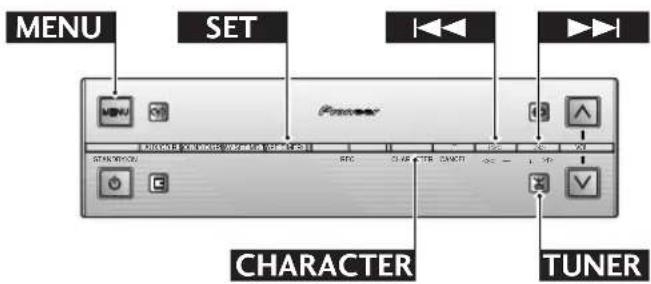

1 Recall the station memory you want to name.
See Listening to Memorized Stations above for detailed instructions on this.

2 Press MENU and select STATION NAME.
Remember: switch between menu options using the ◀◀◀ and ▷▶◀ buttons; select the option by pressing SET.

The display shows the station memory number and a flashing cursor

Display after inputting the first character
Tip
If you make a mistake, you can go back and correct the last character by pressing DISPLAY. To abort completely and start again, press CANCEL.
3 Enter a name for the current station
memory.
Names can be up to 9 characters long and can contain letters (upper and lower case), numbers, spaces and other symbols.
To select a character:
Use the CHARACTER button to switch between character lists:
Alphabet (uppercase) - Alphabet (lowercase) - numbers (0-9) & punctuation/symbols
Use the |◀◀ and ▷▶| buttons to select a character from the current list:
ABCDEFGHIJKLMNOPQRSTUVWXYZ . , '/
0123456789
$$ !" # \% \& ^ {\prime} () * +, -. /:; < = >? @ _ {_} < s p a c e > $$
Press SET to enter the character.
The cursor moves to the next character position ready for you to input another character.

Display showing the completed name
4 When you're happy with the station name, press MENU to exit.
An Introduction to RDS
Radio Data System, or RDS as it's usually known, is a system used by FM radio stations to provide listeners with various kinds of information—the name of the station and the kind of show they're broadcasting, for example. This information shows up as text on the display, and you can switch between the kind of information shown. Although you don't get RDS information from all FM radio stations, you do with most.
Probably the best feature of RDS is that you can search automatically by type of programme. So, if you felt like listening to jazz, you could search for a station that's broadcasting a show with the programme type, "JAZZ." There are around 30 such programme types, including various genres of music, news, sport, talk shows, financial information, and so on.
The XC-L77 receiver let's you display three different kinds of RDS information: Radio Text, Programme Service Name, and Programme Type.
Radio Text (RT) is messages sent by the radio station. These can be anything the broadcaster chooses—a talk radio station might give out its telephone number as RT, for example.
Programme Service Name (PS) is the name of the radio station.
Programme Type (PTY) indicates the kind of programme currently being broadcast.
6 Using the Tuner
The XC-L77 can search for and display the following programme types:
| Pop M Pop music | Sport | ||
| Rock M Rock music | Educate | Educational material | |
| M.O.R. M “Middle of the road”music | DramaCulture | ||
| Light M ‘Light’ classical music | Science | Science and technology | |
| Classics ‘Serious’ classical music | Varied | Usually talk-basedmaterial, such as quizshows or interviews. | |
| Jazz | |||
| Country Country music | |||
| Nation M Popular music in alanguage other thanEnglish | WeatherFinanceChildrenSocial AReligionPhone inTravel | Children’s entertainmentSocial affairs | |
| Oldies | Popular music from the‘50s | ||
| Folk M Folk music | |||
| Other M | Other music not fittingany of the abovecategories | ||
| News | Leisure | Holiday-type travel ratherthan traffic annouc-ments, etc. | |
| Affairs | Current affairs | Leisure interests andhobbies | |
| Info | General information | Document | Documentaries |
In addition, there is a programme type, ALARM!, used for exceptional emergency announcements. You can't search for this, but the tuner will switch automatically to any station that's broadcasting this RDS signal.
Displaying RDS Information
You have access to three kinds of RDS information, and can freely switch between them.
FN 87.50 MHz
1 Tune into an FM radio station.
Only FM stations broadcast RDS data, so you must be listening to a station in the FM band to display any RDS information.
For more detailed instructions on tuning to stations, see page 19.

Programme type is selected

The RDS indicator lights and the broadcast RDS information is displayed
-2 Press DISPLAY.
Press repeatedly and choose between:
RT - Radio Text
PS - Programme Service Name
PTY - Programme Type
Stop on the one you want, then press SET.
The display will show the RDS information, if there is any. If the station you're listening to is not transmitting any RDS information, you'll see the message NO DATA in the display.
If you selected PTY and the display shows NO TYPE, the display will revert automatically to the programme service name after about 5 seconds.
Searching for a Programme Type
One of the most useful features of RDS is the ability to search for a particular kind of radio programme. You can search for any of the programme types listed on page 30—this covers all kinds of music, as well as news, weather forecasts, sports programmes, and a variety of others.
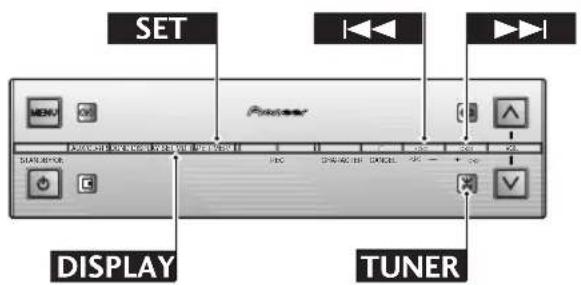

Select programme type search

Programme type "Jazz" selected

The tuner stops on any station that is broadcasting that programme type
1 Press DISPLAY and select PTY SEARCH.
Press DISPLAY repeatedly to switch between the options, then press SET.
2 Select the programme type.
Use the ◀◀◀ and ▷▶▶ buttons to change the programme type; select one by pressing SET.
The complete list is on the previous page.
3 The tuner starts searching for a matching station.
The tuner searches through the FM stations stored in the station memories. If the tuner finds a matching programme type, the tuner plays 5 seconds of the station. To listen to that station, press SET. (The tuner stops searching.) If you don't press SET during the 5 seconds, the tuner resumes the search.
Cancel the search by pressing □.
6 Using the Tuner
Changing the display
F11 97.50 HHS
Frequency display
RDS RADIO TEXT
RT display
RADIO ONE
PS display
JAZZ
PTY display
ST-6 FM 103:00
PTY SEARCH display
12 THU 15:20
Clock display
21/11/1999
Calendar display
You can choose to display various kinds of information when listening to the tuner.
Switch between them by pressing the DISPLAY button:
FREQUENCY - displays the current radio frequency
RT - displays RDS radio text information
PS - displays RDS programme service name information
PTY - displays RDS programme type information
PTY SEARCH - search for a particular programme type
CLOCK - displays the current time and date
CALENDAR - displays the current date
DIMMER SELECT - adjusts the display brightness (see page 43)
Setting the Reverse Mode
The tape deck can play both sides of a tape without you having to take the cassette out and turning it over by hand. This feature is called auto-reverse (because to play the other side of the tape, the tape travels in the opposite direction).
You can switch sides any time while playing a tape by pressing the TAPE button (see page 20 for how to use all the basic playback controls). The reverse mode, however, tells the deck what to do when it reaches the end of the tape on the side it's playing. There are three modes:
• ENDLESS – Play the tape round and round continuously: ↻
- ONE-WAY – Play one side, then stop: 二
- REVERSE – Play both sides then stop:
REVERSE MODE
Current reverse mode is 'endless'
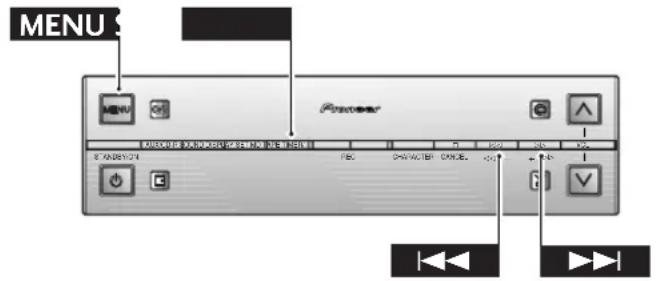
1 Press MENU and select REVERSE MODE.
Remember: switch between menu options using the ◀◀◀ and ▷▶◀1 buttons; select the option by pressing SET.
TAPE 0328 FWD
Tape playing in 'reverse' mode
-2 Select a reverse mode.
Three options are available:

Remember: switch between menu options using the ◀◀◀ and ▷▶◀I buttons; select the option by pressing SET.
Note: In endless mode, the deck only plays the tape through 16 times before it stops automatically. If you start playback in the reverse direction in reverse mode, the tape will stop after it reaches the end of that side (i.e., it won't play in the forward direction.)
Making Tape Recordings
You can make tape recordings from any other component in the system, and also from an external component connected to the AUX/CD-R inputs. If you're recording from CD or the optional MD recorder, it's usually most convenient to use the synchro-recording mode. This makes the process largely automatic with the system starting and stopping the recording for you. Detailed instructions for this are below. If you're recording from the tuner or from a component connected to the AUX/CD-R inputs, use the manual recording mode explained on page 36.
Once recording has started, you can't switch to another component until either the recording has stopped, or you pause the recording. So, for example, you can't switch over to the tuner while you're recording a CD.
7 Using the Tape Deck
Unlike some tape decks, there's no need to set recording levels—the deck sets the right level automatically. Also, when recording, the volume, tone and balance controls have no effect on the recording. This means that you can record something with the volume turned right down, if you want.
Before recording, check that the cassette erase tabs have not been broken, and that the tape is either a type I (normal position) or type II (high position/ CrO_2 )—you can't record on type IV (metal) tapes using this deck.
If you're recording from the start of a tape, it's a good idea to wind the tape on a little so that you don't accidentally start recording over the leader tape. You can either do this by hand, or load the tape into the deck and play the tape for 5–6 seconds.
Automatically Recording a CD
Tip
It's possible to syn-chro-record a CD onto both tape and MD simultaneously. Set up both the tape deck and the MD recorder ready for recording (steps 1–4), then press both REC buttons in step 8. See the MJ-L77 manual for more on MD recording.
This feature makes recording a CD as simple as possible by automatically starting and stopping the CD and tape together. There are two modes: 1 track synchro records just a single track, then stops; all tracks synchro records the whole disc.
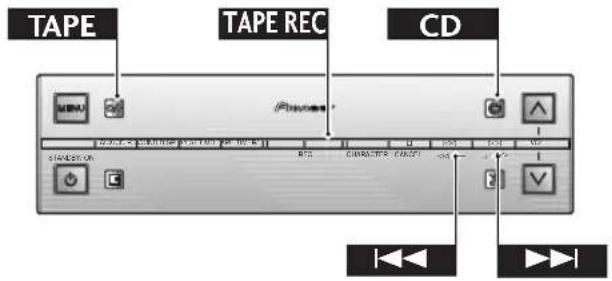
1 Load a cassette into the tape deck.
In order to follow these instructions more easily, place the cassette in the tray with side A face up.
TAPE 0000
The recording direction is set to 'forward'
-2 Check the recording direction.
If the tape direction indicator shows ▶, then recording will start from side A. If it shows ◀, then recording will start from side B.
If you need to change the direction, press TAPE twice, then □.
TAPE 0000
The reverse mode is set to 'reverse'
3 Set the auto-reverse mode.
If you set this to , then recording will stop after reaching the end of the current side. If it's set to or , then recording will continue onto the other side of the tape. However, if you start recording in the reverse direction, (◀) only that side of the tape will be recorded, whatever the reverse mode.
For detailed instructions on setting the reverse mode, see page 33.
TAPE 0000
Dolby NR switched on
4 Turn Dolby NR on or off as required.
Using Dolby NR improves the sound quality of tape recordings that are going to be played on Dolby NR equipped players. If the tape is not going to be played on a Dolby NR equipped player (or if you're not sure), you should leave Dolby NR off.
See page 22 for detailed instructions on switching Dolby NR on/off.
5 Press CD to switch to the CD player.

With the CD stopped, the display shows the number of tracks and the playing time
6 Load the CD you want to record.
See page 17 for detailed instructions on loading discs. If the disc has started playing, press □.
7 If you want to record just one track, select the track using the ◀◀◀ and ▶▶◀ buttons.

The synchro indicator lights and the recording indicator flashes
-8 Press TAPE REC.
The tape deck goes into record-pause mode, waiting for you to start the CD player.

After starting CD playback, the recording indicator lights steadily
9 Press CD to start the CD playing.
Recording starts automatically with the CD.
Once the track or disc has finished, the tape deck goes back into record-pause mode—press □ to fully stop recording.
Should you want to stop recording before the track/disc has finished playing, simply press □ any time during the recording.
Note: If the recorder has to switch the side of the tape half way through a track, recording will start again on the other side from the beginning of the same track. This means you don't get a single track spread over two sides of a tape.
Automatically Recording an MD
If you have the optional MD recorder, you can make synchro-recordings from MDs in the same way as from CDs. Setting up the tape deck to record (setting the record direction, reverse mode and Dolby NR) is exactly the same. The only difference comes in selecting the source to record.
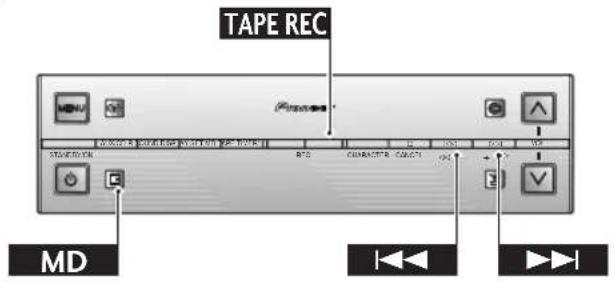

Cassette loaded and direction, reverse mode and Dolby NR all set up
-1 Follow steps 1–4 of Automatically Recording a CD above.
◆ Load a cassette
◆ Set the record direction
◆ Set the reverse mode
◆ Switch Dolby NR on/off.
Continues
7 Using the Tape Deck
2 Press MD to switch to the MD recorder.

With the MD stopped, the display shows the number of tracks and the playing time
-3 Load the MD you want to record.
See page 11 of the MD manual for detailed instructions on loading discs. If the disc has started playing, press □.
4 If you want to record just one track, select the track using the ◀◀◀ and ▶▶◀ buttons.

The synchro indicator lights and the recording indicator flashes
5 Press TAPE REC.
The tape deck goes into record-pause mode, waiting for you to start the MD recorder.

After starting MD playback, the recording indicator lights steadily
6 Press MD to start the MD playing.
Recording starts automatically with the MD.
Once the track or disc has finished, the tape deck goes back into record-pause mode—press □ to fully stop recording.
Should you want to stop recording before the track/disc has finished playing, simply press □ any time during the recording.
Note: If the recorder has to switch the side of the tape half way through a track, recording will start again on the other side from the beginning of the same track. This means you don't get a single track spread over two sides of a tape.
Recording Other Sources
Usually, when recording a CD or MD, the synchro-recording feature is the easiest way to do it. However, if you want to record from the tuner or from a component connected to the AUX/CD-R inputs, you'll need to start and stop the recording manually.
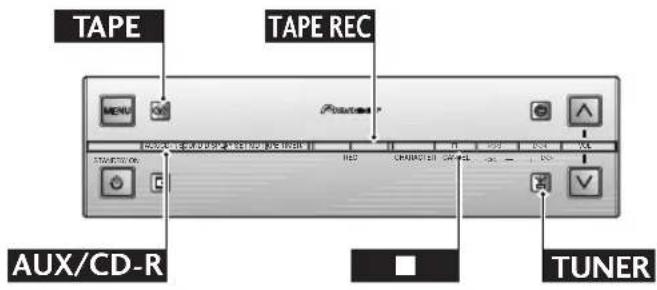

Cassette loaded and direction, reverse mode and Dolby NR all set up
1 Follow steps 1–4 of Automatically Recording a CD on page 34.
◆ Load a cassette
◆ Set the record direction
◆ Set the reverse mode
◆ Switch Dolby NR on/off.

The display shows the tuner tuned to station memory 12
2 Select the source you want to record.
For example, if you want to record from the tuner, press TUNER, and tune into a station.
If you are recording from another component, set it up ready for playback.

The recording indicator flashes
3 Press TAPE REC.
The recorder goes into record-pause mode.

Once recording starts, the recording indicator stops flashing and lights steadily
4 Press TAPE to begin recording.
If you're recording from a component that requires you to start playback (a turntable or another cassette deck, for example), start playback here.
To pause recording, press TAPE REC. To resume, press again.

The recording indicator disappears
5 When you want to finish the recording, press □.
Resetting the Tape Counter
The tape deck has a digital tape counter which resets to zero each time you load a cassette or switch the power off. You can reset the counter to zero at any other time from the menu.
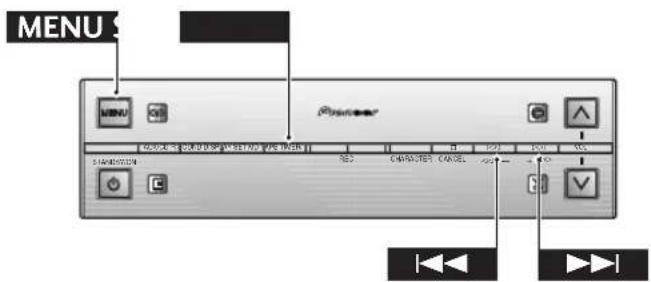


After pressing SET, the tape counter returns to zero
1 Press MENU and select COUNTER RESET.
Remember: switch between menu options using the ◀◀◀ and ▷▶▶ buttons; select the option by pressing SET.
Changing the Display
Tape 0000
Tape counter display
12 Thu 13:20
Clock display
21/11/1999
Calendar display
You can choose to display various kinds of when using the tape deck. Switch between them by pressing the DISPLAY button.
TAPE COUNTER - displays the tape counter
CLOCK - displays the current time and date
CALENDAR - displays the current date
DIMMER SELECT - adjusts the display brightness (see page 43)
8 Using the Timer
The Timer Menu
Using the timer features you can automatically record a programme from the tuner at a certain time, wake up to a CD playing, or fall asleep at night to
the radio. Access to these functions is from the TIMER menu, which is accessed by pressing the TIMER button. The menu has four options:
WAKE UP - Set the system to switch on and start playing at a certain time (for example, at the same time as your alarm clock goes in the morning).
TIMER REC - Set the tape deck or optional MD player to record a radio programme at a certain time.
SLEEP TIMER - Set the system to switch off at a certain time (for example, half an hour after you go to bed).
CLOCK ADJUST - Set the clock to the correct time (see page 16). Remember, the timer functions won't work properly unless you've set the clock!
Setting the Wake Up Timer
Once set, the wake-up timer will remain active (i.e., it will switch on the system every day) until you cancel it (see Cancelling the Wake Up Timer below). You can wake up to the sound of any component in the system, but not a component connected to the AUX/CD-R inputs. To set the wake up timer, you'll need to tell it which component to start playing, what time to start, and also what time to stop.
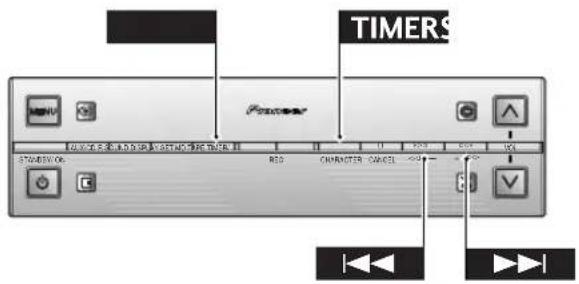
1 Select the component you want the timer to start playing.
For example, press the CD button and load a CD into the player (no need to start it playing). If you're using the tuner, tune in to a radio station.
Remember to set the volume at a suitable level (things sound louder first thing in the morning...)
WAKE-UP
2 Select WAKE-UP from the timer menu.
Remember: switch between timer menu options using the ◀◀◀ and ▷▶◀1 buttons; select the option by pressing SET.

The 'on' time is whatever was last set for the wake-up timer

Adjust it to what you want. Remember: the time is displayed as a 24-hour clock

The ‘off’ time is automatically set to an hour later than the ‘on’ time

Adjust it to what you want
3 Set the time to switch on.
First, set the hour:
Use the ◀◀◀ and ▷▶▶I buttons to change the flashing hour display, then press SET.
Next, set the minute:
Use the ◀◀◀ and ▷▶◀ buttons to change the flashing minute display, then press SET.
4 Set the switch off time.
Set the hour:
Use the ◀◀◀ and ▷▶▶ buttons to change the flashing hour display, then press SET.
Next, set the minute:
Use the ◀◀◀ and ▷▶◀ buttons to change the flashing minute display, then press SET.
After pressing SET, the display shows you the settings you've just made, including the switch on and off times, the component, and the volume level.
The clock and sunrise symbols in the display indicate that the wake up timer is active.
Note: for the wake-up timer to work, the system must be in standby mode, so remember to switch the system off before going to sleep. (In standby mode you can check the timer settings by pressing TIMER.)
Cancelling the Wake Up Timer
Tip
Although you can't directly edit the wake-up settings once they're made, if you cancel the wake-up timer then set it again, the previous settings will show up in the display.
The wake-up timer doesn't automatically cancel, since you may well want to have the system switch on every morning at the same time, for example.
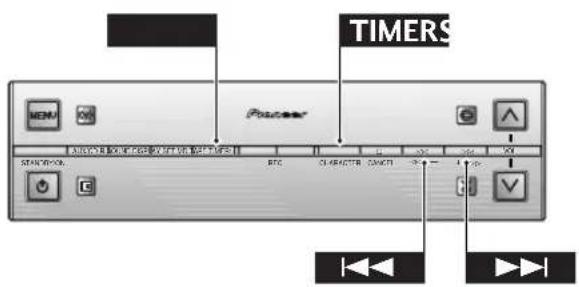

If the clock and sunrise indicators are lit, then when you press SET...
-1 Select WAKE-UP from the timer menu.
Remember: switch between timer menu options using the ◀◀◀ and ▷▶◀ buttons; select the option by pressing SET.
After pressing SET, the timer indicator in the display goes out.

...the wake-up timer is cancelled
8 Using the Timer
Setting the Sleep Timer
When setting the sleep timer, you only have to tell the system when to switch off.
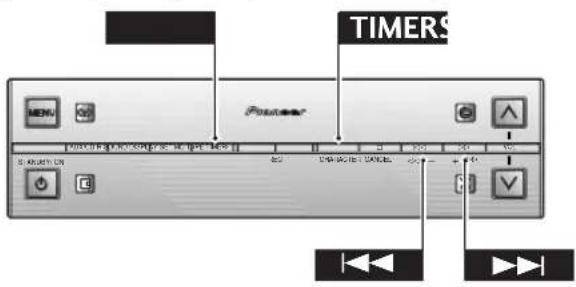
SLEEP TIMER
1 Select SLEEP TIMER from the timer menu.
Remember: switch between timer menu options using the ◀◀◀ and ▷▶◀ buttons; select the option by pressing SET.
SLEEP AUTO
After choosing one of the sleep options, the display dims
Tip
AUTO will not be available if a CD or MD is playing in repeat mode (see p.25), or if a tape is playing in endless mode (see p.33). If you select AUTO, then subsequently start playing something in repeat or endless mode, the sleep timer will change automatically to the 90 minute setting.
2 Select a time option:
Use the ◀◀◀ and ▷▶◀ buttons to switch between options, then press SET.
SLEEP AUTO SLEEP 90 - SLEEP 60 - SLEEP 30 - SLEEP OFF
AUTO plays the current CD, tape or MD out, then switches off the system.
90, 60 and 30 options switch off the system after 90, 60 and 30 minutes, respectively; OFF cancels the sleep timer if it was previously set.
The little moon indicator lights in the display to show the sleep timer is set and the display dims. To check how much time is left on the sleep timer, selectSLEEP TIMER from the timer menu, then press SET. The display shows the remaining time.
Setting Up a Future Recording
You can set the timer to record something from either the tuner or a component connected to the AUX/CD-R inputs. For example, you might want to record a programme on the radio that is broadcast while you're at work. If you're recording from an auxiliary component it must also be able to switch on at the time the recording starts—this system can't control it—or you have to leave it switched on until the recording has finished.
Timer recording works with either the tape deck or the optional MD recorder. During the actual recording, the volume is automatically set to minimum.
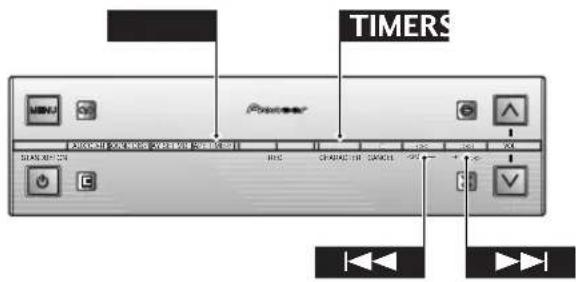

The tape deck is set up ready to record
1 Set up the tape deck/MD recorder.
If you're recording to tape:
Load a cassette tape, set the recording direction and reverse mode, and switch on/off Dolby NR as required.
If you're recording to disc:
Load an MD into the recorder.

The tuner is set up ready to be recorded
2 Set up the tuner/auxiliary component.
If you're recording from the tuner:
Switch to the tuner, and tune into the station (see page 19 for more detailed instructions on this).
If you're recording from the auxiliary component:
Switch to that component and set it up for playback.


The on time is whatever was last set for timer recording

Adjust it to what you want. Remember: the time is displayed as a 24-hour clock
3 Select TIMER REC from the timer menu.
Remember: switch between timer menu options using the ◀◀◀ and ▷▶◀ buttons; select the option by pressing SET.
4 Set the recording start time:
First, set the hour:
Use the ◀◀◀ and ▷▶▶I buttons to change the flashing hour display, then press SET.
Next, set the minute:
Use the ◀◀◀ and ▷▶▶I buttons to change the flashing minute display, then press SET.

The ‘off’ time is automatically set to an hour later than the ‘on’ time

Adjust it to what you want
5 Set the recording end time:
First, set the hour:
Use the ◀◀◀ and ▶▶▶I buttons to change the flashing hour display, then press SET.
Next, set the minute:
Use the ◀◀◀ and ▷▶◀ buttons to change the flashing minute display, then press SET.

Confirm that you're recording to tape
6 Select either tape or MD recording:
Use the ◀◀◀ or ▷▶◀ button to switch between options, then press SET.
TAPE REC - MD REC (only available if an MD recorder is connected)
After pressing SET, the display shows you the settings you've just made, including the switch on and off times, and the components you're recording to and from. The clock and record symbols in the display indicate that the record timer is set.
Be sure to switch the system into standby mode before timer recording starts. (In standby mode you can check the timer settings by pressing TIMER.)
After the recording has finished, the timer recording mode is automatically cancelled.
8 Using the Timer
Cancelling the Record Timer
Once the timer recording has finished, the timer is automatically cancelled. However, if you need to cancel it before the recording has started, (either because you made a mistake setting it, or simply because you no longer want to make the recording), here's how you do it.
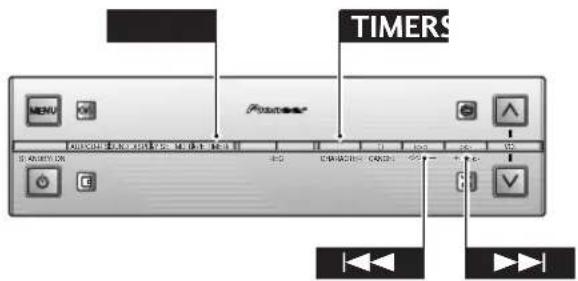
If the clock and record indicators are lit, then when you press SET...
1 Select TIMER REC from the timer menu.
Switch between timer menu options using the ◀◀◀ and ▷▶◀1 buttons; select the option by pressing SET.
After pressing SET, the timer indicator in the display goes out.

...the record timer is cancelled
Setting Multiple Timers
You can set more than one of the timers—to record a radio programme with the record timer, then later start playing a CD at the time set by the wake-up timer, for example. Be careful, however, to leave at least a minute between the end time for one timer and the start time of another. If the start and end times overlap or are the same, the later timer will not operate correctly.
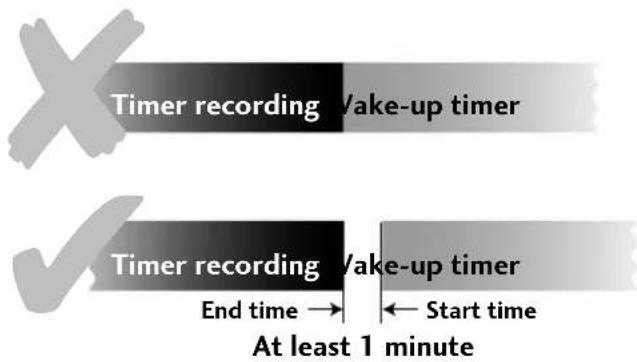
Setting the Display Brightness
You can adjust the brightness of the display to suit the lighting conditions of the room. For example, in a brightly lit room you'd probably want the display brighter than in a room with low lighting.
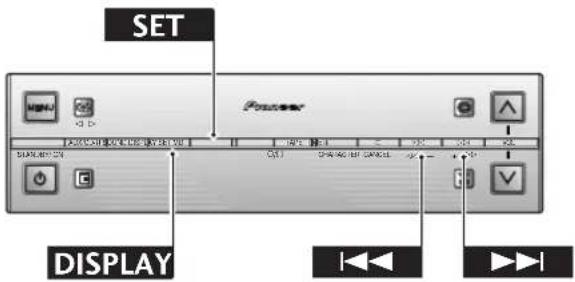
DIMMER SELECT
1 Choose DIMMER SELECT from the display menu.
Remember: Switch between the display menu options using the DISPLAY button; select the option by pressing SET.
DIMMER 4
2 Adjust the brightness using the ◀◀◀ and ▶◀◀ buttons.
There are five levels of brightness.
9 Additional Information
Troubleshooting
Incorrect operation can be mistaken for trouble or malfunction. If you think that there is something wrong with this component, check the points below. Sometimes the trouble may lie in another component. Investigate the other components and electrical appliances being used. If the trouble cannot be rectified even after exercising the checks below, ask your nearest Pioneer authorized service station to carry out repair work.
| Symptom | Likely Cause | Remedy |
| Power turns off abruptly during operation. | ·Cooling fan vent is blocked.·The CD receiver has been set on top of soft cloth or deep-pile rug, thus blocking the cooling vents. | ·Install so that the fan is not blocked.·Do not install the CD receiver on top of any surface that may block the vents. |
| No sound | ·Power plug is disconnected.·Not all connection cables are connected properly.·Unit is in demo mode. | ·Connect the power plug correctly.·Refer to the section on connections and make sure all connections are correct and secure.·To cancel the demo mode, press the power switch on either of the CD receiver, display unit, or remote control unit while the demo mode is operating. |
| Can’t switch between functions. | ·Cassette deck or MD recorder is currently recording. | ·You cannot change the function during recording. |
| Play doesn’t start when the play/pause button is pressed. | ·Disc has been inserted upside down.·Disc is dirty.·Disc has scratches. | ·Load discs with label side (printed surface) upwards.·Clean the disc.·Use another disc. |
| Can’t listen to broadcasts, or sound is distorted. | ·Antenna isn’t connected.·Antenna direction or position is poor.·An electrical appliance (fluorescent lamp, hair dryer, etc.), including the fluorescent display of this system, is being used in the near vicinity.·The frequency interval is incorrectly set. | ·Connect antennas properly.·Orient antenna to the proper direction and position.·Discontinue use of the appliance producing the noise, or move it farther away from the antenna.·Adjust the tuning frequency interval correctly (p.45). |
| Broadcast is in stereo, but sound from speakers is monaural. | ·Monaural indicator is lit in the display. | ·Use the MENU button to select “FM AUTO” (p.19). |
| Can’t record | ·Erasure-prevention tabs are broken out from the tape cassette. | ·Either replace the tape, or place cellophane tape over the erasure-prevention tabs (p.6). |
| Sound is muddy or distorted. When recording over a previous recording, the old recording can still be heard underneath. | ·Heads are dirty.·A type IV (Metal) tape is being used. | ·Clean the heads (p.46).·Use either a type I (Normal), or Type II (C r02) tape. |
| Symptom | Likely cause | Remedy |
| Playback sound is muddy or distorted; high frequency sounds are excessively emphasized. | The Dolby NR setting is not the same as that used during recording. | Set the Dolby NR system to the same setting as that used during recording (see p.22). |
| Timer doesn’t operate. | Clock isn’t set to the correct current time.Power interruption has caused the clock to be set to the incorrect time (when the clock display is flashing). | Reset the clock to the correct current time (see p.16).Reset the clock to the correct current time (see p.16). |
| Remote control unit doesn’t work. | Batteries are exhausted.A fluorescent lamp is located close to the remote control unit.The remote control unit is not pointed at the signal receiver on the display unit. | Load new batteries.Remove the fluorescent lamp from the area of the remote control unit.Point the remote control unit at the remote sensor (located on the right side of the display unit) when operating. |
| Power won’t turn on to the deck or CD receiver. | System cable connection is incorrect. | Connect the system cable correctly. |
| Remote Locator function doesn’t work | The microphone in the remote control is coveredThe remote control is too far away.The battery in the remote control is dead.The slide switch is in the OFF position.The interval between claps is too long or too short. | This is not a malfunction.Move to a different location and try again.Replace the battery.Slide the Remote Locator switch to the ON positionThe interval should be about a second. |
- When the system is installed near a television set, magnetic influence from the speakers may cause the television's picture to be distorted. This symptom frequently occurs when using an indoor antenna; in this event, install an outdoor antenna, or separate the system farther from the television.
- Static electricity and other outside electrical influences may cause the system to operate incorrectly. In such cases, unplugging and reconnecting the power cord may help correct the problem.
- More than one of the same kind of component (CD receiver, MD recorder, or cassette deck) cannot be connected at the same time.
NOTE
Setting the tuner's frequency interval:
FM broadcasts are normally tuned at 50kHz intervals and AM broadcasts at 9kHz intervals, but this setting can be changed to 100kHz (FM) and 10kHz (AM) if desired in the following way:
- Switch the unit into standby mode.
- Press MENU and choose TUNER F. STEP using the ◀◀◀ or ▷▶▶ button. Press SET to select it.
- Switch between AM 9K (FM 50K) and AM 10K (FM 100K) using the ◀◀◀ and ▷▶◀ buttons. Press SET to select.
9 Additional Information
Maintenance
Cleaning external surfaces
To clean the compact disc recorder, wipe with a soft, dry cloth. For stubborn dirt, wet a soft cloth with a mild detergent solution made by diluting one part detergent to 5 or 6 parts water, wring well, then wipe off the dirt. Use a dry cloth to wipe the surface dry. Do not use volatile liquids such as benzene and thinner which may damage the surfaces.
Moving the unit
If you need to move the unit, first switch it off and unplug from the wall outlet. Never lift or move the unit during playback or recording—CDs rotate at a high speed and may be damaged.
CD lens cleaner
The compact disc player's pickup lens should not become dirty in normal use, but if for some reason it should malfunction due to dirt or dust, consult your nearest Pioneer authorized service center. Although lens cleaners for compact disc recorders are commercially available, we do not recommend using them since some may damage the lens.
Tape head cleaner
To maintain the recording/playback quality of the tape deck, use a commercially available wet-type cassette head cleaner. Avoid using dry-type cassette head cleaners.
Be careful: Some cassette head cleaners are not designed to work with auto-reverse decks and may become jammed in the mechanism—ask your Pioneer authorized service centre for details.
After using the head cleaner, leave the unit for 2–3 minutes before playing a tape. This will give any excess cleaning fluid a chance to dry.
Demagnetizing the tape head
The recording/playback head in the tape deck gradually becomes magnetized after long periods of use. Playback and recording quality will suffer as a result, with a lack of treble and increased noise. To avoid the problem, we recommend using a head demagnetizer at regular intervals. These are available from any good audio dealer.
When using a head demagnetizer, be sure to turn the volume right down and unplug any headphones to avoid damaging the unit or the speakers. For further details, refer to the instructions that came with the head demagnetizer.
Specifications
Stereo CD Receiver: XC-L77
Amplifier Section
Continuous Power Satellite (RMS) ....30 W + 30 W (1 kHz, THD 10%, 8 Ω)
Continuous Power Subwoofer (RMS) 50 W (100 Hz, THD 10%, 4 Ω)
Continuous Power Satellite (DIN)....22 W + 22 W (1 kHz, THD 1%, 8 Ω)
Continuous Power Subwoofer (DIN)....40 W (100 Hz, THD 1%, 4 Ω)
Music Power Satellite (DIN) ....40 W + 40 W (1 kHz, THD 1%, 8 Ω)
Music Power Subwoofer (DIN) 70 W (100 Hz, THD 1%, 4 Ω)
FM Tuner Section
Frequency Range.... 87.5 - 108MHz Antenna .... 75 Ω, unbalanced
AM Tuner Section
Frequency Range.... 531 kHz - 1,602 kHz (9 kHz step); 530 kHz - 1,700 kHz (10 kHz step)
Antenna .... Loop antenna
Compact Disc Player Section
Type.... Compact disc digital audio system
Usable discs .... Compact discs Channels.... 2 (stereo)
Frequency Response ....4 Hz–20 kHz Signal-to-Noise Ratio.... 110 dB (EIAJ)
Wow and Flutter .... Limit of measurement (0.001%) or less (EIAJ)
Power Requirements ...... AC 230 V, 50/60 Hz
Power Consumption (ON mode).... 98 W Power Consumption (Standby mode).... 0.9 W
Dimensions....220 (W) x 75 (H) x 318 (D) mm Weight....4.0 kg
Accessories
Operating instructions .... 1
Warranty card.... 1
FM wire antenna .... 1 AM loop antenna .... 1
Lithium battery (CR2025) 1
AC power cable 1
Display unit connecting cable 1
Stereo Cassette Deck: CT-L77
System.... 4-track, 2-channel stereo Heads .... Recording/playback head x 1 Erase head x 1
Motor ...... DC Servo motor x 1
Frequency Response (−20dB recording) Type I (Normal) tape .... 20 Hz–16,000 Hz ± 6 dB Type II (High/CrO2) tape.... 20 Hz–16,000 Hz ± 6 dB
Signal-to-Noise Ratio.... 56 dB (EIAJ, peak recording level, audio compensation)
Noise Reduction Effect Dolby B-type NR ON ....More than 10 dB (at 5 kHz)
Wow and Flutter 0.08% WRMS ±0.14% (DIN)
Dimensions....220 (W) x 75 (H) x 310 (D) mm Weight....2.2 kg
Accessories
Supplementary Operating instructions ....1 Warranty card.... 1
Satellite Speaker System: S-L8-LR / S-L9-LR / S-L9-A-LR
Type..... Enclosed bookshelf type Speaker Elements ..... 70mm (cone type) Nominal impedance ..... 8 Ω
Frequency response .... 125 Hz–20,000 Hz Maximum input (Music Power DIN).... 30W
External dimensions (S-L8) .... 123(W)x240(H)x70(D)mm External dimensions (S-L9) .... 126(W)x250(H)x68.5(D)mm Weight (S-L9 LR / S-L9-A-LR).... 0.8 kg Weight (S-L8-LR).... 0.6 kg
Subwoofer Speaker System: S-L8-W / S-L9-W / S-L9-A-W
Type.... Phase-inversion (bass-reflex), bookshelf type Speaker Elements .... 10cm (cone type) x2 Nominal impedance .... 4 Ω
Frequency response .... 22 Hz–3,000 Hz Maximum input (Music Power DIN).... 50 W
External dimensions ..... 150 (W) x 340 (H) x 304.5 (D) mm Weight..... 4.7 kg
Accessories
Speaker cables .... 2 Subwoofer connecting cable .... 1 Speaker stands.... 2 Screws (for speaker stands) .... 4 Non skid pads (S-L8-LR) .... 8 Non skid pads (S-L9-LR / S-L9-A-LR).... 4
NOTE: Specifications and design subject to possible modification without notice, due to improvements.
Switching Off the Demo Mode
The CD receiver has a demonstration display mode which operates when the system is plugged in. This mode is meant primarily for store displays, and you'll probably want to turn it off. If you unplug the unit, or there's a power cut, the demo mode will be set to on again once power is restored.
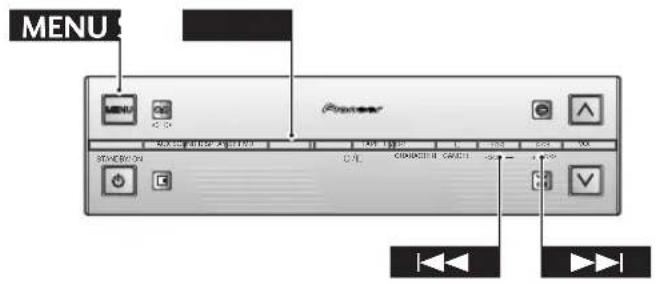
1 In standby mode, press MENU and select DEMO MODE.
Remember: Switch between menu options using the ◀◀◀ and ▷▶▶I buttons; select the option by pressing SET.
2 Press either ◀◀◀ or ▷▶◀ to select DEMO OFF.
3 Press SET.
Published by Pioneer Electronic Corporation. Copyright © 1999 Pioneer Electronic Corporation. All rights reserved.