P535 - Mobile Phone ASUS - Free user manual and instructions
Find the device manual for free P535 ASUS in PDF.


User questions about P535 ASUS
0 question about this device. Answer the ones you know or ask your own.
Ask a new question about this device
Download the instructions for your Mobile Phone in PDF format for free! Find your manual P535 - ASUS and take your electronic device back in hand. On this page are published all the documents necessary for the use of your device. P535 by ASUS.
USER MANUAL P535 ASUS
natural_image
Line drawing of a ASUS mobile phone with control buttons and display screen (no text or symbols on device body)E2755
First Edition
November 2006
Copyright © 2006 ASUSTeK Computers, Inc. All Rights Reserved.
No part of this manual, including the products and software described in it, may be reproduced, transmitted, transcribed, stored in a retrieval system, or translated into any language in any form or by any means, except documentation kept by the purchaser for backup purposes, without the express written permission of ASUS Telecom ("ASUS").
Product warranty or service will not be extended if: (1) the product is repaired, modified or altered, unless such repair, modification of alteration is authorized in writing by ASUS; or (2) the serial number of the product is defaced or missing.
ASUS PROVIDES THIS MANUAL “AS IS” WITHOUT WARRANTY OF ANY KIND, EITHER EXPRESS OR IMPLIED, INCLUDING BUT NOT LIMITED TO THE IMPLIED WARRANTIES OR CONDITIONS OF MERCHANTABILITY OR FITNESS FOR A PARTICULAR PURPOSE. IN NO EVENT SHALL ASUS, ITS DIRECTORS, OFFICERS, EMPLOYEES OR AGENTS BE LIABLE FOR ANY INDIRECT, SPECIAL, INCIDENTAL, OR CONSEQUENTIAL DAMAGES (INCLUDING DAMAGES FOR LOSS OF PROFITS, LOSS OF BUSINESS, LOSS OF USE OR DATA, INTERRUPTION OF BUSINESS AND THE LIKE), EVEN IF ASUS HAS BEEN ADVISED OF THE POSSIBILITY OF SUCH DAMAGES ARISING FROM ANY DEFECT OR ERROR IN THIS MANUAL OR PRODUCT.
SPECIFICATIONS AND INFORMATION CONTAINED IN THIS MANUAL ARE FURNISHED FOR INFORMATIONAL USE ONLY, AND ARE SUBJECT TO CHANGE AT ANY TIME WITHOUT NOTICE, AND SHOULD NOT BE CONSTRUED AS A COMMITMENT BY ASUS. ASUS ASSUMES NO RESPONSIBILITY OR LIABILITY FOR ANY ERRORS OR INACCURACIES THAT MAY APPEAR IN THIS MANUAL, INCLUDING THE PRODUCTS AND SOFTWARE DESCRIBED IN IT.
Products and corporate names appearing in this manual may or may not be registered trademarks or copyrights of their respective companies, and are used only for identification or explanation and to the owners' benefit, without intent to infringe.
Table of Contents
P535 specifications 8
Package contents 9
Chapter 1: Getting started
Getting to know your P535 12
Layout 12
Device components description 14
Getting your device ready.... 16
Installing the SIM card and battery.... 16
Charging the battery.... 18
Starting up.... 19
Powering your device 19
Using the stylus 19
Calibrating P535....20
Locking the keys and buttons.... 20
The Today screen 21
Status indicators.... 22
Screen orientation 25
Start menu.... 26
Chapter 2: Entering data
Using the Input Panel 28
Using the Block Recognizer....28
Using the On-screen keyboard 29
Using the Letter Recognizer....30
Using the Transcriber 31
Writing and drawing on the screen.... 32
Recording voice.... 33
Using ActiveSync™ 35
Synchronizing via mini-USB....37
Synchronizing with Exchange Server.... 38
Setting the synchronization schedule....40
Searching information.... 41
Getting Help 42
Chapter 3: Phone features
Using phone.... 44
Phone pad 44
Using flight mode 44
Adjusting the device volume 45
Making a call 46
Using the phone pad 46
Making calls from Contacts 48
Making calls from Call History 48
Using the Speed Dial 49
Using Voice Command.... 50
Receiving a call....51
Chapter 4: Wireless features
Using the Wireless Manager....54
Using Bluetooth ^® 55
Overview 55
Activating Bluetooth in your device 55
Configuring Bluetooth 56
Using WLAN (IEEE 802.11b/g) 62
Introduction 62
Activating WLAN in your device 62
Configuring WLAN 63
Setting a GPRS connection 65
Connecting GPRS 68
Disconnecting GPRS 69
Using the GPRS Tool 70
Chapter 5: My Secrets
Using My Secrets....72
Enabling My Secrets 72
Unlocking My Secrets 74
Locking My Secrets 75
My Secrets setting....76
Disabling My Secrets 79
Chapter 6: Multimedia features
Using the camera....84
Launching the camera....84
Navigation button functions in camera mode 85
Camera mode screen....87
Taking photos 95
Video mode screen 96
Recording videos 102
Viewing pictures and video 104
Viewing pictures and video 104
Chapter 7: Other features
WorldCard Mobile....106
Using the WorldCard Mobile 107
Remote Presenter....109
Using the Remote Presenter 109
Setting ring tone 115
Adding ring tone to selection 115
Changing the ring tone 116
Wake-up setting....117
Mode switcher....118
System information....119
Restoring default factory settings 120
Chapter 8: Device component status
ASUS status icon.... 122
CPU mode setting 123
USB setting 123
LCD Brightness 124
Battery 124
Memory 125
Storage card memory.... 125
Programs running in memory 126
Settings 126
Appendix
Notices....128
Contact information.... 132
P535 specifications
| Processor Intel XScale | ®processor, 520MHz |
| Operating System Microsoft | ®Windows MobileTM 5.0Pocket PC Phone Edition |
| Memory 256 MB NAND Flash ROM | 64 MB SDRAM |
| Display 2.8-inch, 65, 536-color, 240 x 320-resolution, TFT touch screen LCD | |
| Frequency band Tri-band GSM (900/1800/1900 MHz) | |
| GPRS Class B, Multislot class 10 | |
| Camera 2.0 mega-pixel CMOS camera with Auto-Focus (AF) and built-in flash | |
| Connectivity WLAN : 802.11b/gBluetooth : V2.0 + EDRUSB : USB Client 1.1 | |
| Battery capacity 1300 mAh Lithium Ion | |
| Expansion slot MiniSD card slot | |
| Audio 2.5 mm audio port | Built-in microphone and speaker |
| Weight 145g (with battery) | |
| Dimension 109 x 59 x 19 mm | |
| GPS Built-in SiRF III GPS chipset | |
| Talk time* | 4~5 hrs (*vary with different networking environment and scenario) |
| Standby time* | 150~200 hrs (*vary with different networking environment and scenario) |
NOTE: Specifications are subject to change without notice.
Package contents
Check your P535 package for the following items:
√ ASUS P535 device
√ Battery
√ AC Adapter
√ Mini-USB cable
√ Headset
√ Stylus
√ Car cell phone charger*
√ Car Kit (PDA holder and windshield suction pedestal)*
√ Protection case
√ Getting Started CD
√ User Manual
√ Quick Start Guide
√ Warranty Card
* optional
NOTE:
If any of the above items is damaged or missing, contact your retailer.
CAUTION:
- To reduce risk of fire, use only correct battery type. Refer to "Installing the SIM card and battery" section for details.
- Do not attempt to disassemble the battery pack.
- Dispose of used batteries properly. Inquire from local authorities for proper disposal of battery.
| 10 |
Chapter

Getting started
• Getting to know your P535
• Getting your device ready
- Starting up
• The Today screen
Getting to know your P535
Layout
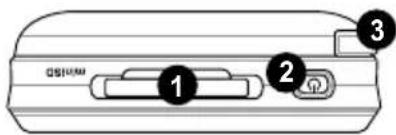
Top features

Left side features
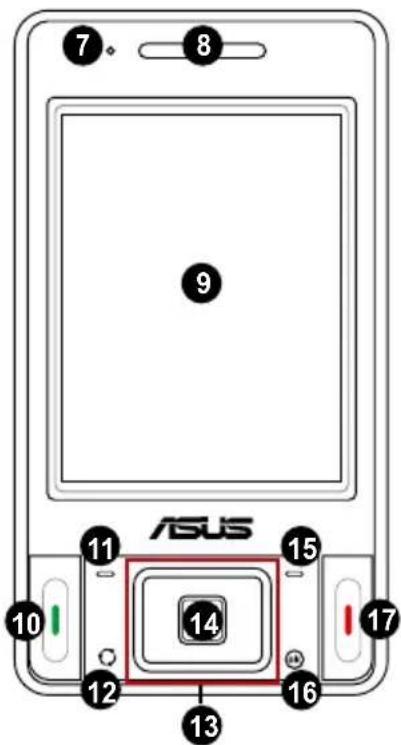
Front features
Components:
1 MiniSD slot
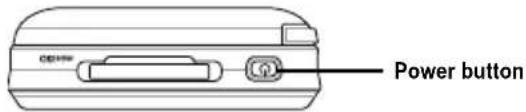
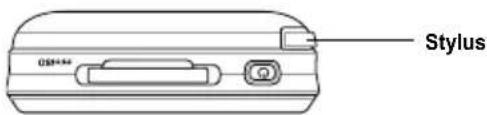
2 Power button
3 Stylus
4 Camera button
5 Volume controller
6 Reset button
7 Notification LED
8 Earpiece receiver
9 LCD touch screen
10Call key
11 Left Soft key
12 Mode/Task switcher button
13Navigation buttons
14Action button
15Right Soft key
16 OK or Close button
17End key
Getting to know your P535
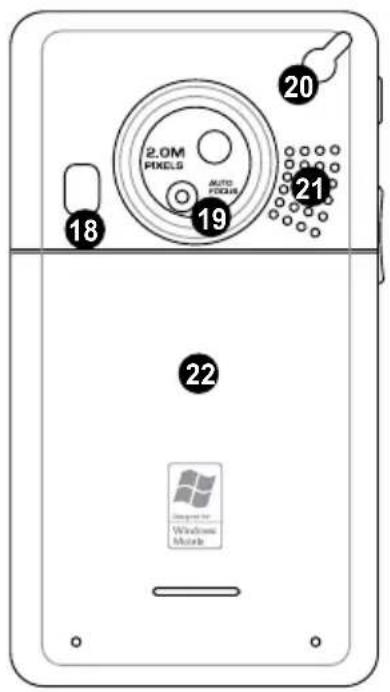
Rear features
Right side features
Bottom features
Components:
18 Camera flash light
19Camera lens
20GPS antenna connector
21Speaker
22 Battery compartment
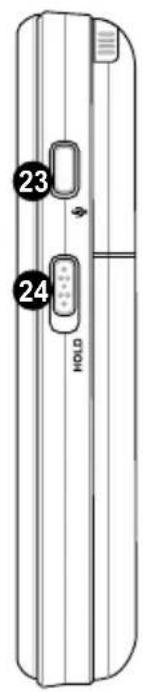
23/Voice recorder button
24Hold button
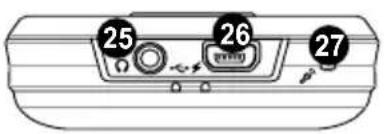
25 Earphone slot
26 Mini-USB connector
27Mic
Device components description
| No. | Item Description | |
| 1 | MiniSD slot Allows you to insert a | MiniSD storage card. |
| 2 | Power button Press once to set | suspend mode or to wake device from sleep mode.Press and hold to turn the power ON or OFF. |
| 3 | Stylus Use the stylus to write, draw, or select items on the touch screen. | |
| 4 | Camera/Shutter button Press to launch the camera. In camera mode, half-press to auto-focus then full-press to take a picture. In video mode, full-press to start recording video and press again to stop. | |
| 5 | Volume controller Press the arrow buttons to adjust the volume. | |
| 6 | Reset button Using the stylus, press reset button to soft-reset your device. | |
| 7 | Notification LED This multi-color LED notifies the following:Green - Phone fully charged.Flashing green - Network detected.Red - Phone is charging.Flashing red - Event notification.Flashing blue - Bluetooth® or WLAN(IEEE 802.11b/g) ON.Flashing blue and green - GPS is ON. | |
| 8 | Earpiece receiver Allows you to listen to incoming/outgoing calls. | |
| 9 | LCD touch screen This 2.8-inch, 65536-color, 240 x 320-resolution, touchscreen TFT LCD allows you to write, draw, or make selections using the stylus. | |
| 10 | Call key Press to receive an incoming call or make a call. | |
| 11 | Left Soft key | Performs the command indicated above the button. |
| 12 | Mode/Task switcher button | Allows you to switch applications and tasks.Press and hold this button to turn on/off the flashlight. |
| 13 | Navigation buttons | Use to move through menus. Press the center to run an application or in camera mode, press to take a picture. |
Device components description
| No. | Item Description | |
| 14 | Action button Press to carry out | the task of selected item. |
| 15 | Right Soft key Performs the task indicated above the button. | |
| 16 | Ok or Close button Press to confirm a command or press to close/exit an open application. | |
| 17 | End button Press to end a call. | |
| 18 | Camera flashlight | Allows you to capture images in a dim environment. Press and hold the mode switcher button to turn this flashlight on/off. |
| 19 | Camera lens This 2-megapixel camera comes with Auto-Focus (AF) lens and flash light features. | |
| 20 | GPS antenna connector Allows you to install an external GPS antenna for better signal reception. | |
| 21 | Speaker Allows you to listen audio media and phone calls. | |
| 22 | Battery compartment Contains the battery that supplies power to the device. | |
| 23 | Voice recorder button Press to launch the record application to record voice. | |
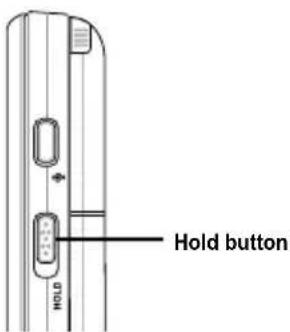
| 24 | Hold button Slide to enable or disable all keys including the LCD touch screen. | |
| 25 | Earphone port Plug headset accessory to this port. | |
| 26 | Mini-USB connector | Use this connector to synchronize your data or to charge the battery. |
| 27 | Mic | Used to make or receive phone calls, record sounds, record voice, or say voice commands. |
Getting your device ready
Installing the SIM card and battery
Before you can make a phone call using your P535, you need to install a Subscriber Identity Module (SIM) card. A SIM card contains your phone number, subscriber details, phonebook, and additional phone memory.
Your P535 comes with a rechargeable Lithium-Ion battery.
New batteries come partially discharged and should be fully charged before using them. They generally do not reach their rated capacity until they have been charged and discharged at least four (4) times. We recommend that new batteries be charged overnight even though they may indicate that the charge is complete after a few hours. Sometimes charging may stop during the initial charge and it is necessary to remove the battery for approximately fifteen (15) minutes and then put it back on charge.
CAUTION:
Use only an ASUS qualified battery.
To install a SIM card and battery:
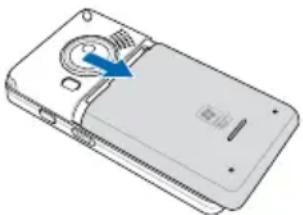
- Remove the battery compartment cover.
NOTE:
When turned on, the device automatically turns off after you open the battery compartment to prevent data loss.
natural_image
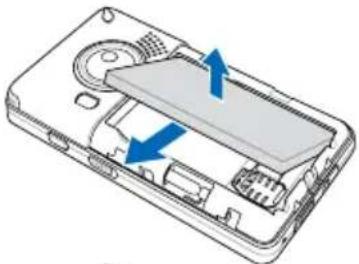
Illustration of a handheld device with a blue arrow pointing to the left side (no text or symbols present)- Remove the battery.
- Insert the SIM card with its gold contacts facing down and the notched corner oriented to the upper left corner of the slot as shown.
- Replace the battery into the compartment with its copper contacts properly aligned to the copper conductor on the device.
- Replace battery compartment cover.
natural_image
Diagram of a device showing internal components with blue arrows indicating movement or flow (no text or symbols present)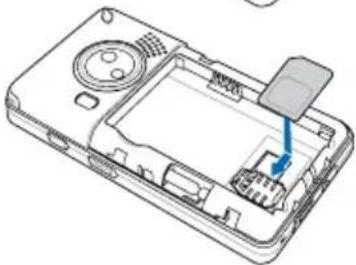
natural_image
Line drawing of a smartphone internal component with a blue arrow indicating a specific area (no text or symbols present)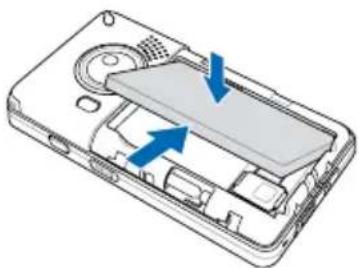
natural_image
Diagram of a device showing internal components with blue arrows indicating flow or movement (no text or symbols present)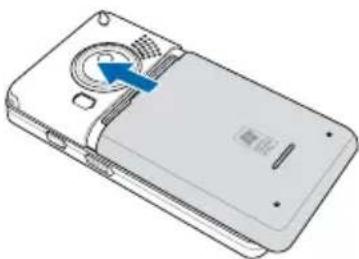
natural_image
Illustration of a smartphone with a blue arrow pointing to the screen (no text or symbols present)Charging the battery
The bundled battery pack is shipped partially charged. Charge the battery up to four (4) hours before using for the first time.
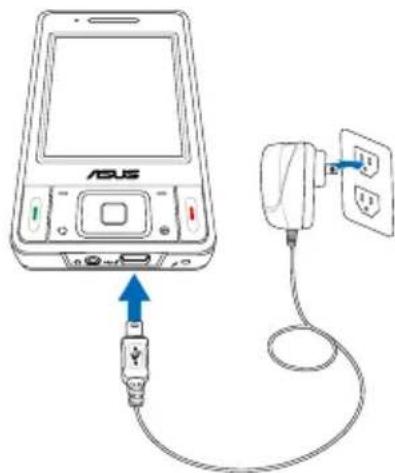
To charge battery:
- Connect the AC adapter plug to the mini-USB connector at the bottom of the device.
- Connect the AC power plug to a grounded wall socket or power strip.
NOTE:
- The notification LED turns red and charging battery icon appears on the status bar indicating that the battery is charging.
- If your battery gets totally discharged, you need to recharge it for at least twenty minutes before you can turn it back on.
Starting up
Powering your device
Make sure that your P535 is fully-charged before starting the device for the first time.
To turn on power:
- Press and hold the power button.
- Follow onscreen instructions to align screen and set the local time zone.
Using the stylus
The stylus is a pen-like device found behind the upper right corner of your P535.
- Use the stylus to write, draw, select, or drag an item on the screen.
- Single-tap an item to select it.
- Tap and hold an item to see a menu.
Calibrating P535
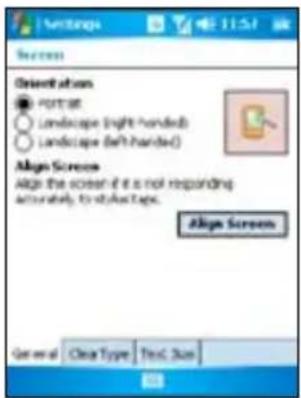
Calibrating your device ensures that the item you tap on the screen is activated. This involves tapping in the center of targets that appear in various coordinates on the screen.
To calibrate your screen:
- Tap Start > Settings > System tab then tap Screen icon.
- On the General tab tap Align Screen then follow succeeding calibration screen instructions.
You can also invoke the calibration screen by simultaneously pressing the Mode and Clear buttons.
Locking the keys and buttons
You can lock the keys and buttons of your device to avoid inadvertently dialing numbers or launching any application. To lock the keys and buttons:
- Locate the Hold button on the right side of your device.
- Slide the hold button downward to lock.
- To unlock, slide the hold button upward.
The Today screen
The Today screen displays information useful to you. You can configure the Today screen to have all the important information you need.
• To access the Today screen, tap Start > Today.
- To personalize the Today screen, tap Start > Settings > Personal tab > Today.
The following describes the common information found on the today screen:
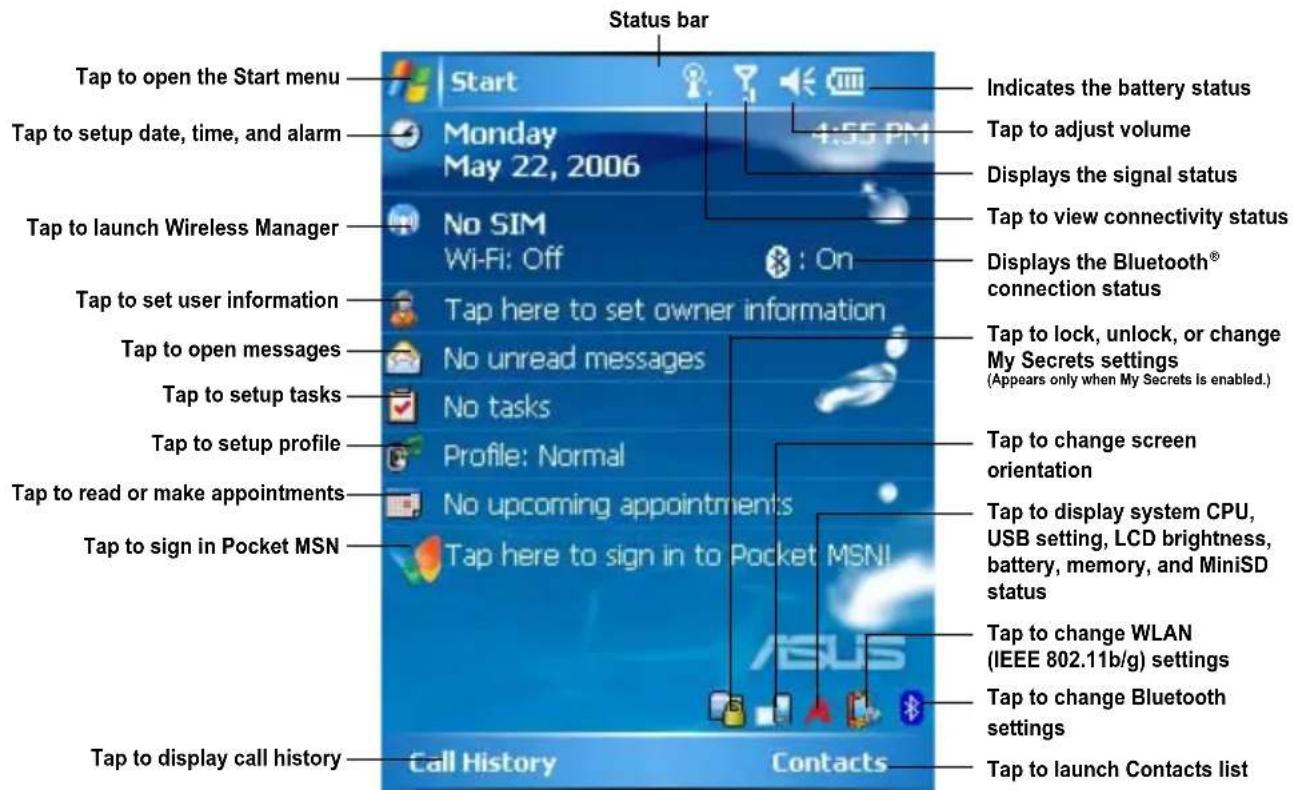
Status indicators
Refer to the table below for the Today screen icon status indicators.
| Icon Description | |
 | General Packet Radio Services (GPRS) available. |
 | Connecting via GPRS. |
 | Connected via GPRS. |
 | Connecting with ActiveSync |
 | ActiveSync connection not active. |
 | ActiveSync synchronization in progress. |
 | Synchronization error. |
| [BY6D] | Call forwarded. |
 | Call in progress. |
 | Call on hold. |
 | Missed call. |
 | New message. |
Status indicators
| Icon Description | |
 | New voice mail. |
 | No cellular phone service. |
| [5XST] | No signal. |
 | Searching for cellular phone service. |
 | Indicates signal strength. |
 | Sound OFF. |
 | Sound ON. |
 | Battery low. |
 | Battery extremely low. |
 | Battery partially charged. |
 | Battery charging. |
 | Battery fully charged. |
Status indicators
| Icon Description | |
 | Searching Wi-Fi connection. |
| Central | Wi-Fi active. |
| Sentinel | Roaming service. This icon appears only if you have international roaming feature. |
| Sentinel | Vibrate or silent mode on. |
| Sentinel | Bluetooth headset connected. |
| Sentinel | Bluetooth head connected with sound. |
| Sentinel | Appears when you set the alarm |
| Sentinel | No SIM installed. |
| Sentinel | Notice indicator. Tap to view notice. |
| Sentinel | Pocket MSN service notification. |
| Sentinel | Pocket MSN chat is online. |
Screen orientation
You can set the screen to three different orientations:
- Portrait
- Landscape (right-handed)
- Landscape (left-handed)
Set to Portrait mode to get a better view or better operation of certain applications on your device. Set to Landscape when viewing pictures, video or viewing longer text files.
To change the screen orientation, tap Start > Setting > System tab > Screen then select the orientation you want.
You can also change the orientation by tapping the icon.
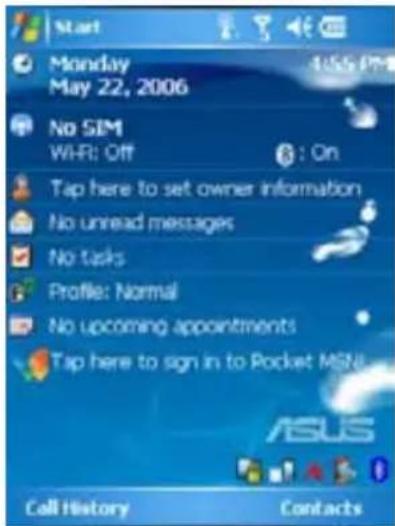
Portrait mode
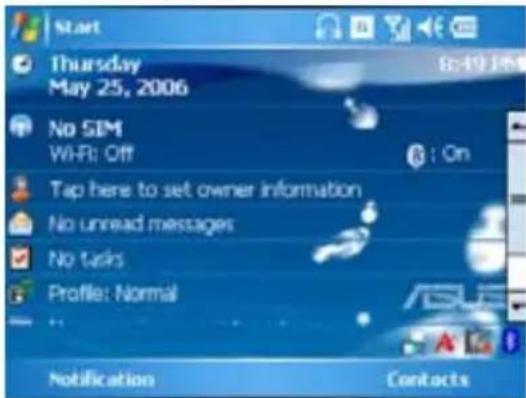
Landscape mode
Start menu
The Start menu contains various programs and applications that you commonly use. Tap Start to display the start menu items:
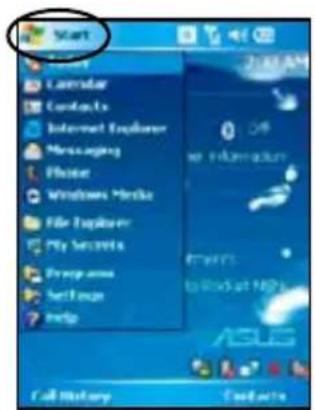
Portrait mode
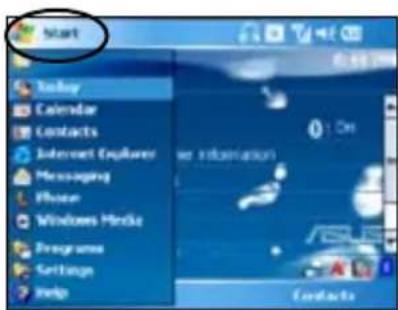
Landscape mode
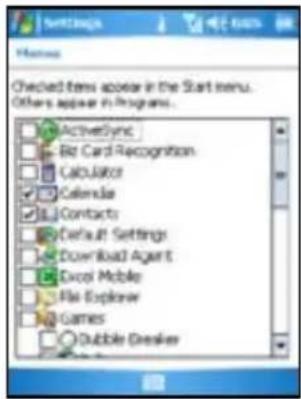
You can also customize the items that appear in the Start menu.
To do this:
- Tap Start > Settings > Personal tab > Menus.
- Select the check boxes of the items you want to appear in the Start menu. You can select up to seven (7) items.
Chapter

Entering data
• Using the Input Panel
• Writing and drawing on the screen
- Recording voice
• Using ActiveSync™
- Synchronizing with Exchange Server
- Searching information
- Getting Help
Using the Input Panel
When you start an application or select a field that requires text, symbols, or numbers, the Input Panel icon appears on the menu bar. The Input Panel allows you to select various input methods including: Block Recognizer, Keyboard, Letter Recognizer, and Transcriber.
Using the Block Recognizer
The Block Recognizer allows you to use a single stroke to write letters, numbers, symbols, or punctuations, which are converted into typed text.
To use the Block Recognizer:
- In an application, tap the Input Panel arrow, then tap Block Recognizer.
- Write letters, numbers, symbols, or punctuations in the designated writing area.
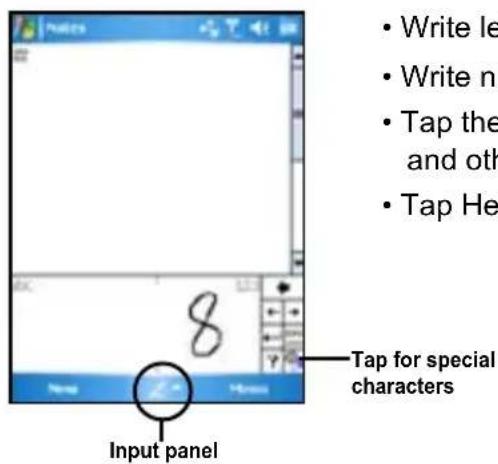
- Write letters on the abc (left) area of the box.
- Write numbers on the 123 (right) area of the box.
- Tap the special symbols button to key in symbols, punctuations and other special characters.
- Tap Help “?” button for help on how to write characters.
Using the On-screen keyboard
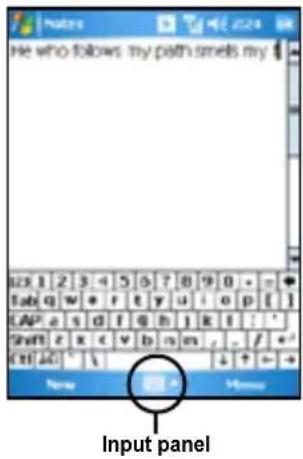
With the on-screen keyboard, you can key in text, symbols, numbers, or other special characters when input is possible.
To input text using the on-screen keyboard:
- In an application, tap the Input Panel arrow, then tap Keyboard.
- Key in text by tapping keys on the on-screen keyboard.
To enlarge the on-screen keyboard:
- Tap the Input Panel arrow, then tap Option.
- Select Keyboard from the Input Method list.
- Tap Large Keys.
Using the Letter Recognizer
With the Letter Recognizer you can write individual letters, numbers, or special characters, which are converted into typed text.
To use the Letter Recognizer:
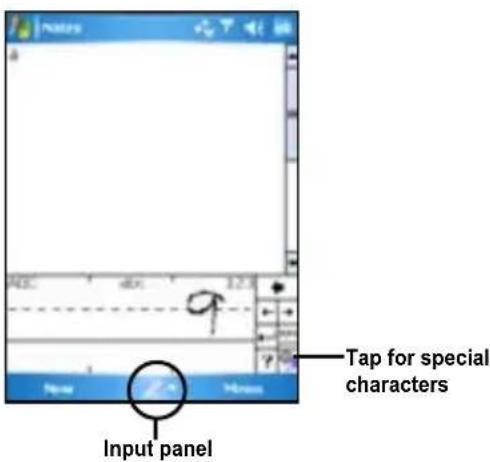
- In an application, tap the Input Panel arrow, then tap Letter Recognizer.
- Write letters, numbers, symbols, or punctuations in the designated writing area.
• Write capital letters on the ABC (left) area of the box. - Write lower case letters on the abc (middle) area of the box.
• Write numbers on the 123 (right) area of the box. - Tap the special symbols button to key in symbols, punctuations and other special characters.
- Tap Help “?” button for help on how to write characters.
Using the Transcriber
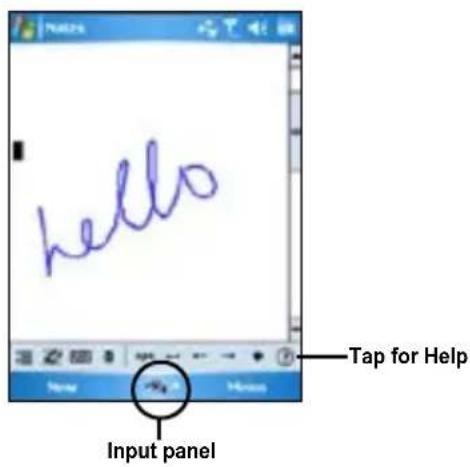
Transcriber is a handwriting recognition program that allows you to write in cursive, print, or mixed styles. It reliably recognizes not only written text but also numbers and symbols. Make sure to write legibly. See Help for more information on the Transcriber.
To use the Transcriber:
- Start an application that accepts user input, such as Notes or Word Mobile.
- Tap the Input Panel arrow, then tap Transcriber.
To write using Transcriber (using Notes):
- Tap screen to position the cursor where you want the text to appear.
- Use the stylus to write on the screen. The handwriting will be converted to text after you lift the stylus from the screen.
To edit text:
- Draw a line across the text you want to edit. After you lift the stylus from the screen, the line will disappear and the selected text will be highlighted.
- You can now rewrite the text or use the Transcriber gestures to edit your selected text. See Help for the Transcriber gestures.
Writing and drawing on the screen
You can write or draw directly on the screen and save notes in your own handwriting. If you prefer to use your own handwriting or use drawings in your notes, set the default input mode to Writing. If you prefer text, set the default mode to Typing.
To set the default input mode for Notes:
- Tap Start > Programs > Notes.
- From the Notes list, tap Menu > Options.
-
In the Default mode: box, tap the down arrow and select any of the following:
-
Writing - if you want to draw or enter handwritten text in a note.
-
Typing - if you want to create a typed note.
-
Set the other options according to your preference.
- Tap when finished.
To write a note:
- Tap Start > Programs > Notes.
- From the Notes list, tap New.
- Write your text on the screen.
- When finished, tap to return to the Notes list.
Recording voice
At any time, whether you phone is on stand-by or active mode, you can record sound, voice, or add a recording to a note while using your device.
To start a voice recording:
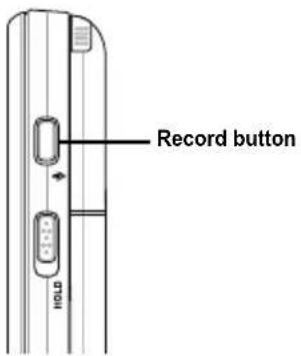
- Press Record button to launch voice recorder application.
- Tap the record icon to begin recording.
- Place the receiver near your mouth or source of sound.
-
Tap the stop icon when finished recording. A recording icon appears on the note.
-
Tap ok
To create a voice recording using Notes:
- Tap Start > Programs > Notes.
- From the Notes list, tap New.
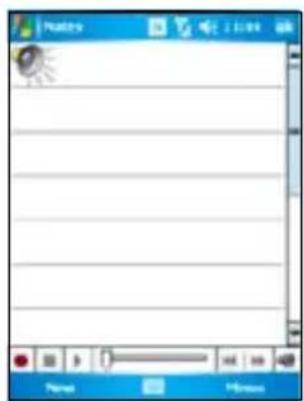
- If you do not see the recording toolbar, tap Menu > View Recording Toolbar.
- Tap the record icon to begin recording.
- Place the receiver near your mouth or source of sound.
-
Tap the stop icon when finished recording. A recording icon appears on the note.
-
Tap ok
To add a recording to a saved note:
- Tap Start > Programs > Notes.
- From the Notes list, tap to open a saved note.
- If you do not see the recording toolbar, tap Menu > View Recording Toolbar.
- Tap the record icon to begin recording.
- Place the receiver near your mouth or source of sound.
-
Tap the stop icon when finished recording. A recording icon appears on the note.
-
Tap ok
Using ActiveSync™
ActiveSync™ allows you to synchronize data in your device with data in your computer. ActiveSync can also synchronize over a wireless or cellular network with Microsoft Exchange Server, provided that your cellular phone service or company is running Microsoft Exchange Server with Exchange ActiveSync. When synchronized directly with Exchange Server, you can stay up to date even when your PC is turned off.
During synchronization, ActiveSync compares the data in your device with the data in your computer or Exchange Server, and updates all data with recent changes.
You can select and synchronize data in the following locations using ActiveSync:
- Contacts
- Calendar
- Tasks
- Notes
- Favorites
- Files
• Media
You can also exchange data between your computer and device without synchronizing.
ActiveSync is already installed in your device, but before you can synchronize data with your computer, you must first install ActiveSync in your computer. Install ActiveSync from the Microsoft Getting Started CD that came with your device package.
After you have installed ActiveSync, set up a sync relationship between your device and your computer. ActiveSync recognizes your device and automatically transfers the synchronization settings you have in your device.
If you wish to synchronize your device with Exchange Server through your company or service provider, obtain the name of the Exchange Server, user name, password, and domain name from your network administrator before starting the Sync Setup Wizard.
To install and configure ActiveSync in your computer:
- Insert the Microsoft Getting Started CD that came with your device package.
- Follow succeeding screen instructions.
- After the setup is complete, the Sync Setup Wizard automatically starts when you connect your device to your computer. Follow screen instructions to complete the wizard.
-
From the Sync Setup Wizard, you can:
-
Configure an Exchange Server connection to synchronize directly with an Exchange Server. Acquire from your network administrator the required parameters for input.
-
Create a synchronization relationship between your computer and your device.
-
Select the information type that you want to synchronize.
-
After you finish the wizard, ActiveSync automatically synchronizes your device. You can disconnect the device after the synchronization is complete.
NOTE:
- When connected, your device is automatically synchronized with your computer. ActiveSync synchronizes every time you make a change on either the device or computer.
- You cannot use WLAN to synchronize database.
- Refer to your Windows® Mobile Help, for more information about ActiveSync synchronization.
Synchronizing via mini-USB
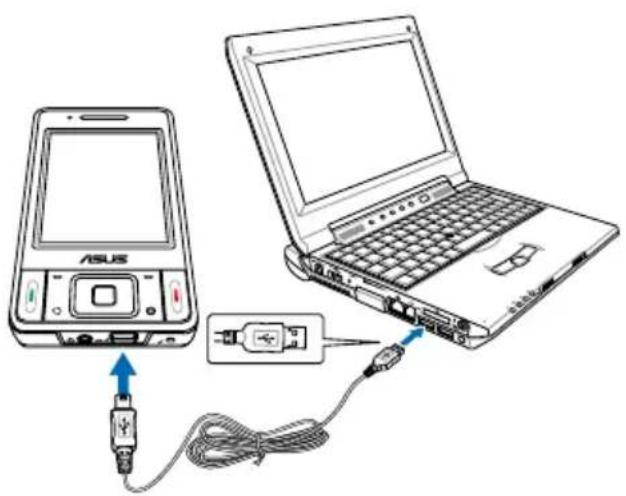
You can connect to your device using the bundled mini-USB cable to synchronize to your computer.
To synchronize your device via mini-USB:
- After installing ActiveSync to your computer, connect the mini-USB plug to the mini-USB connector at the bottom of the device.
- Connect the other end of the USB cable to your computer. Upon connection, ActiveSync automatically synchronizes your device.
Synchronizing with Exchange Server
To synchronize your device with Exchange Server:
- From the ActiveSync menu, tap Menu > Add Server Source.
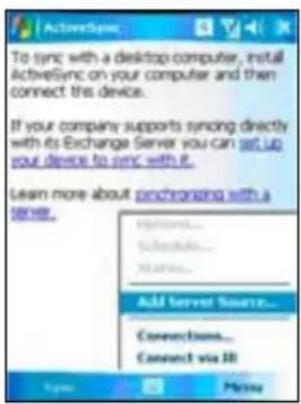
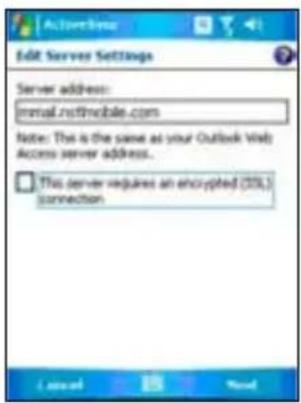
- In theServer Address field, input the name of the server running Exchange Server then tap Next. If necessary, tap the check box This server requires an encrypted (SSL) connection.
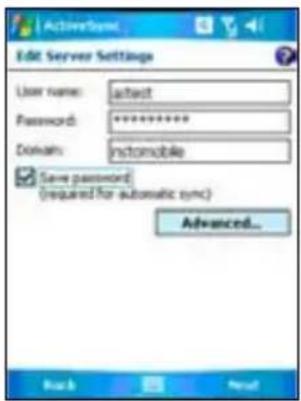
- Input your name, password, and domain then tap Next.
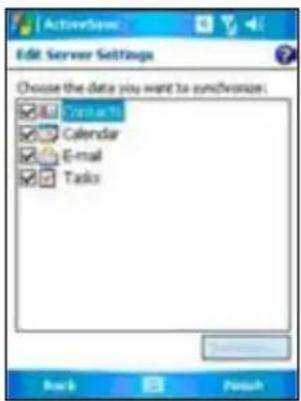
- Tap the check boxes to select the data items that you want to synchronize with Exchange Server. To change the available synchronization settings, select a data item then tap Settings. Tap Finish when done.
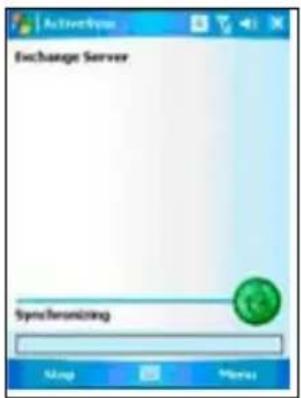
- Start the sync process.
Setting the synchronization schedule
To set the synchronization with Exchange Server:
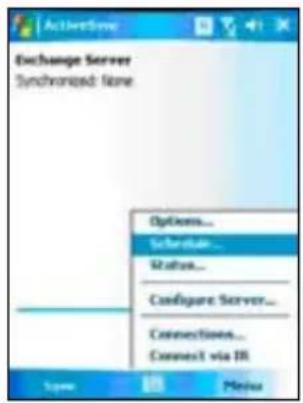
- From the ActiveSync screen, tap Menu > Schedule.
- Refer to the table for input details.
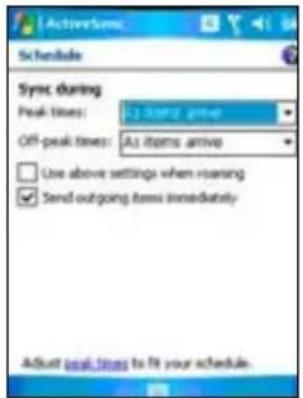
| Volume Recommended setup | |
| High Select a shorter interval in the Peak times list. | |
| Low | Select As items arrive option or a longer interval in the Off-peak times list. |
| While roaming Check | Use above settings while roaming. |
| Sending messages Check | Send outgoing items immediately. |
Searching information
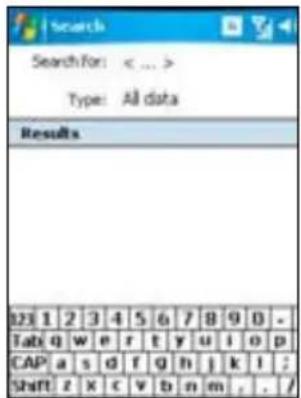
Using the search tool, you can search for files and other items stored in your device or the external MiniSD card. You can search by file name or by words located in various applications including the Calendar, Contacts, Excel Mobile, Word Mobile, Outlook Mobile, Help, Messages, Notes, and Tasks. You can also filter your search to files larger than 64 KB.
To search for a file or an item:
- Tap Start > Programs > Search.
- In Search for field, input the file name, word, or other information you want to search.
- In Type field, select the data type to help you filter your search.
- Tap Search. Found items are listed in Results.
- In the Results list, tap the item with the information you need.
Getting Help
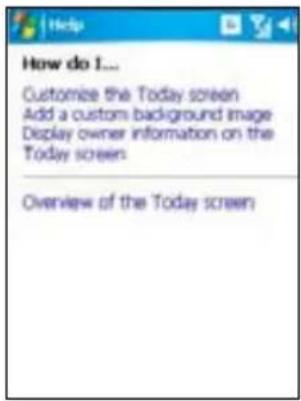
You can easily find Help for using any program on the device.
To get help for a program:
- From the Today screen or program, tap Start > Help. A page will open with links to topics that explain how to use the program.
Chapter

Phone features
• Using the phone
- Making a call
- Receiving a call
Using phone
Like a standard cellular phone, you can use your P535 to make and receive calls. You can also keep a history of calls made and received, send SMS or MMS messages, take notes while talking, call from Contacts, and copy data from installed SIM card to your device.
Phone pad
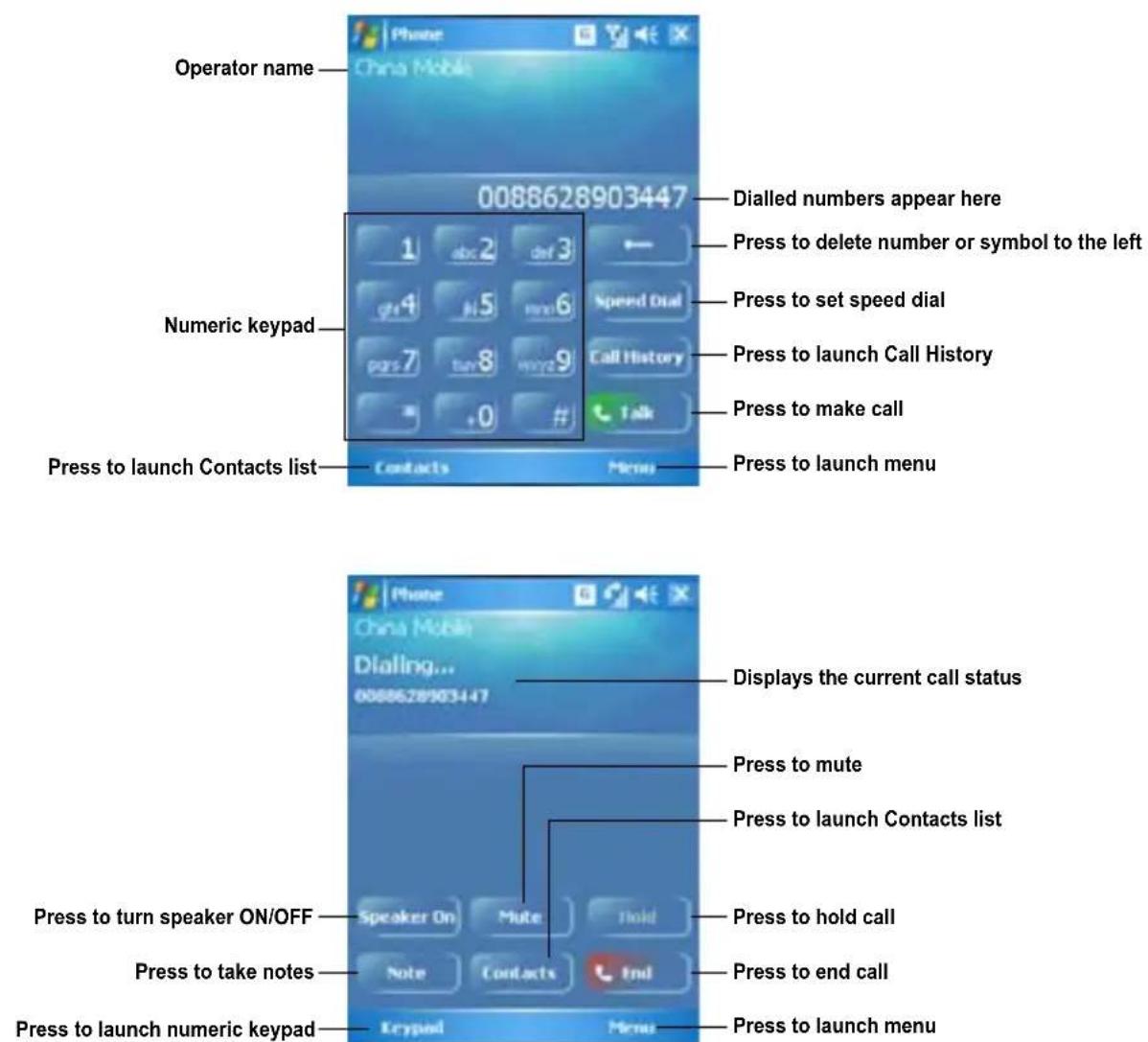
The phone pad allows you to easily dial and access the Contacts, Call History, Speed Dial, and Phone settings. To launch the Phone pad, do any of the following:
- Tap Start > Phone.
- Press the talk button.
Using flight mode
Generally, you are required to turn off your cellular phone onboard an aircraft during take-off and landing. Flight mode enables you to turn off the phone function but keep your device turned on to use other functions.
To use flight mode:
- Tap the signal icon when tap Turn on flight mode.
• To resume phone function, tap the signal icon 📋 then tap Turn off flight mode.
Adjusting the device volume
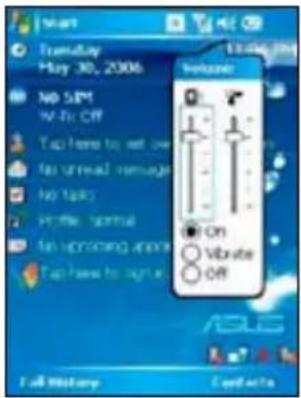
To adjust the device volume:
- Tap the speaker icon.
-
From the volume menu, you can:
-
Adjust the phone volume or device volume by moving the slider to the desired volume level.
- Tap On, Vibrate, or Off to change the system and ringer volume settings.
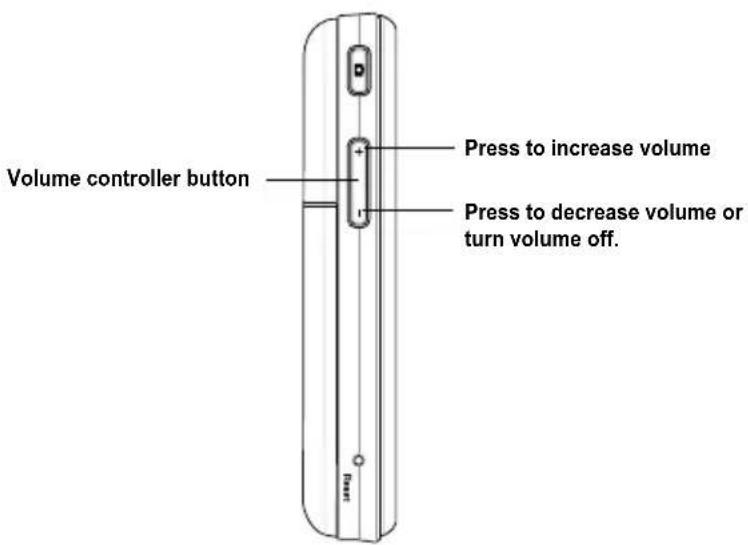
You can also adjust the device volume by pressing the volume controller keys at the left side of the device.
Making a call
You can make a phone call using the phone pad. You can also make calls directly from the Contacts, Call History, Speed Dial, or Voice Commander.
Using the phone pad
To make a call using the phone pad:
- Tap Start > Phone.
- From the phone screen, tap the number of the party you want to call then tap
If you tapped the wrong number, tap the back arrow to erase number to the left. - Talk to the called party when connected.
- When finished, tap to end the call.
You can also launch the phone pad by pressing the Call key.
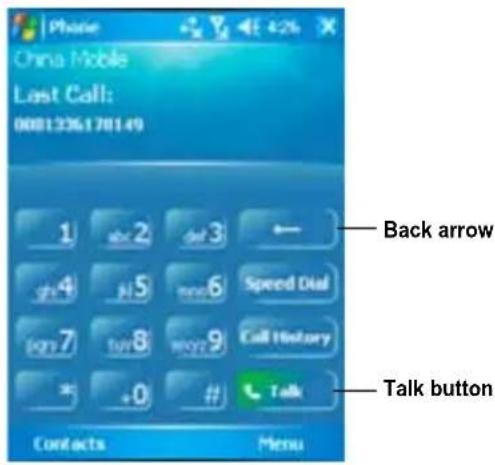
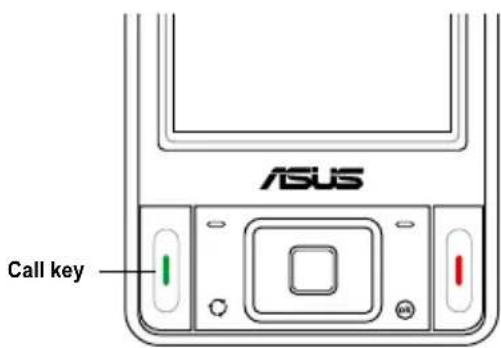
Phone pad features
Making calls from Contacts
To make a call directly from Contacts:
- Tap Start > Phone.
- From the Phone pad, tap Contacts or press the Left soft key.
You can also launch Contacts from the Today screen by tapping Contacts on the menu bar or pressing the Right soft key.
-
You can do any of the following to make a call:
-
Tap to select a contact, then from the Contacts list, tap Call.
- Tap to select a contact, then press
- Select a contact then press twice. Once to send the number to the Phone pad, and once to dial the number.
- You can also tap and hold the contact, and on the shortcut menu tap Call.
- Tap Enter a name or number then input the name or number you want to call from Contacts. Tap Call or press the Left Soft Key to dial the selected item.
Making calls from Call History
To make a call from the call history:
- Tap Start > Phone.
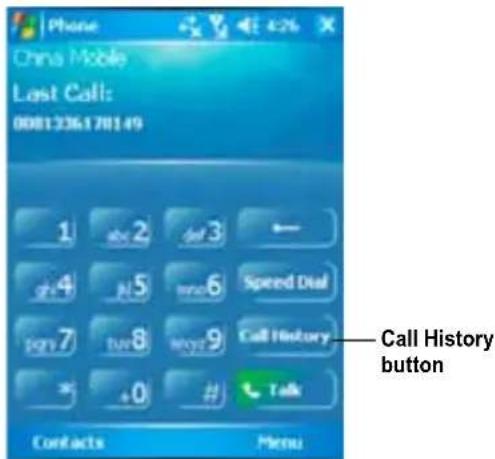
- On the Phone pad, tap the Call History button.
- Scroll to the desired contact or phone number, then tap Call.
To look for more numbers in other categories, tap Menu > Filter and tap a category.
You can also launch Call History from the Today screen by pressing the Left Soft Key.
Using the Speed Dial
With Speed Dial you can call frequently dialled numbers in a single tap. For example, if you assign a contact to the number 2 button in Speed Dial, you can simply tap and hold on the Phone pad to dial the contact's number.
To create a Speed Dial entry:
- Make sure that the entry you want to create is already in the Contacts list.
- Tap Start > Phone.
- On the Phone pad, tap the Speed Dial button.
- Tap Menu > New.
- Tap a contact from the list then tap Select.
- In the Location box, select an available location for the new speed dial then tap OK.
To create a Speed Dial entry from Contacts:
- From the Contacts list, tap and hold a contact name.
- On the shortcut menu, tap Add to Speed Dial.
- Select an available key for the new Speed Dial.
To delete a Speed Dial entry:
- In the Speed Dial list, tap and hold the desired entry then tap Delete.
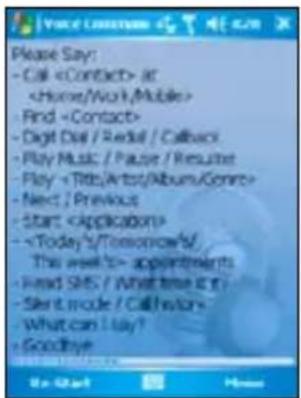
Using Voice Command
To make a phone call using voice command:
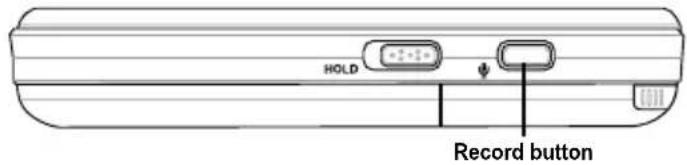
- Press the record button found on the right side of your device.
-
From the following screen, your device asks you to "Say command."
-
Audibly say "Call" then the name to call from your Contact list.
-
Say "Yes" or "No" after the confirmation question.
If you said "Yes", the voice command proceeds and dials the number; otherwise, it returns to the voice command menu.
- Say "Goodbye" or tap ✗ to exit voice command.