
P525 - Mobile Phone ASUS - Free user manual and instructions
Find the device manual for free P525 ASUS in PDF.


| Product Type | Smartphone |
| Brand | ASUS |
| Model | P525 |
| Operating System | Microsoft Windows Mobile 5.0 Pocket PC Phone Edition |
| Processor | Intel XScale 416 MHz |
| Memory | 128 MB Flash ROM, 64 MB SDRAM |
| Display | 2.8-inch, 65,536-color, 240x320 TFT touch screen |
| Network | Quad-band GSM (850/900/1800/1900 MHz), GPRS Class B |
| Camera | 2.0 MP CMOS with Auto-Focus and built-in flash |
| Connectivity | WLAN 802.11b, Bluetooth V2.0, Infrared (SIR), USB 1.1 |
| Battery | 1300 mAh Lithium-Ion, rechargeable |
| Expansion Slot | MiniSD card slot |
| Audio | 2.5 mm audio port, built-in microphone and speaker |
| Input Methods | Touch screen, stylus, 5-way joystick, numeric keypad, voice command |
| Dimensions (HxWxD) | 116.8 x 59 x 19 mm (4.6 x 2.32 x 0.75 in) |
| Weight | 160 g (5.64 oz) with battery |
| Notifications | Multi-color LED (green, red, blue) for charging, network, events |
| Security | My Secrets folder, key lock (Hold button), SIM lock |
| Maintenance | Clean with dry cloth; avoid liquid; use only ASUS-qualified battery |
| Package Contents | Device, battery, AC adapter, USB cable, stylus, protection case, headset, CDs, manual |
Frequently Asked Questions - P525 ASUS
User questions about P525 ASUS
0 question about this device. Answer the ones you know or ask your own.
Ask a new question about this device
Download the instructions for your Mobile Phone in PDF format for free! Find your manual P525 - ASUS and take your electronic device back in hand. On this page are published all the documents necessary for the use of your device. P525 by ASUS.
USER MANUAL P525 ASUS
Copyright © 2006 ASUSTeK COMPUTER INC. All Rights Reserved.
No part of this manual, including the products and software described in it, may be reproduced, transmitted, transcribed, stored in a retrieval system, or translated into any language in any form or by any means, except documentation kept by the purchaser for backup purposes, without the express written permission of ASUSTeK COMPUTER INC. ("ASUS").
Product warranty or service will not be extended if: (1) the product is repaired, modified or altered, unless such repair, modification of alteration is authorized in writing by ASUS; or (2) the serial number of the product is defaced or missing.
ASUS PROVIDES THIS MANUAL “AS IS” WITHOUT WARRANTY OF ANY KIND, EITHER EXPRESS OR IMPLIED, INCLUDING BUT NOT LIMITED TO THE IMPLIED WARRANTIES OR CONDITIONS OF MERCHANTABILITY OR FITNESS FOR A PARTICULAR PURPOSE. IN NO EVENT SHALL ASUS, ITS DIRECTORS, OFFICERS, EMPLOYEES OR AGENTS BE LIABLE FOR ANY INDIRECT, SPECIAL, INCIDENTAL, OR CONSEQUENTIAL DAMAGES (INCLUDING DAMAGES FOR LOSS OF PROFITS, LOSS OF BUSINESS, LOSS OF USE OR DATA, INTERRUPTION OF BUSINESS AND THE LIKE), EVEN IF ASUS HAS BEEN ADVISED OF THE POSSIBILITY OF SUCH DAMAGES ARISING FROM ANY DEFECT OR ERROR IN THIS MANUAL OR PRODUCT.
SPECIFICATIONS AND INFORMATION CONTAINED IN THIS MANUAL ARE FURNISHED FOR INFORMATIONAL USE ONLY, AND ARE SUBJECT TO CHANGE AT ANY TIME WITHOUT NOTICE, AND SHOULD NOT BE CONSTRUED AS A COMMITMENT BY ASUS. ASUS ASSUMES NO RESPONSIBILITY OR LIABILITY FOR ANY ERRORS OR INACCURACIES THAT MAY APPEAR IN THIS MANUAL, INCLUDING THE PRODUCTS AND SOFTWARE DESCRIBED IN IT.
Products and corporate names appearing in this manual may or may not be registered trademarks or copyrights of their respective companies, and are used only for identification or explanation and to the owners' benefit, without intent to infringe.
Table of Contents
P525 specifications 8
Package contents 9
Chapter 1: Getting started
Getting to know your P525 12
Layout 12
Device components description 14
Getting your device ready.... 16
Installing the SIM card and battery.... 16
Charging the battery.... 18
Starting up.... 19
Powering your device 19
Using the stylus 19
Calibrating P525.... 20
Locking the keys and buttons.... 20
The Today screen 21
Status indicators.... 22
Screen orientation 25
Start menu....26
Chapter 2: Entering data
Using the Input Panel 28
Using the Block Recognizer....28
Using the on-screen keyboard 29
Using the Letter Recognizer....30
Using T9 input 31
Using the Transcriber 32
Writing and drawing on the screen.... 33
Recording voice.... 34
Using ActiveSync™ 36
Synchronizing via USB....38
Synchronizing via Bluetooth....39
Synchronizing via Infrared (IR)....39
Synchronizing with Exchange Server.... 40
Setting the synchronization schedule.... 42
Searching information.... 43
Getting Help 44
Chapter 3: Phone features
Using phone 46
Phone pad 46
Using flight mode 46
Adjusting the device volume 47
Making a call 48
Using the keypad 48
Using the phone pad 48
Making calls from Contacts 50
Making calls from Call History 50
Using the Speed Dial 51
Using Voice Command.... 52
Receiving a call....53
Chapter 4: Wireless features
Using Bluetooth ^® 56
Overview 56
Activating Bluetooth in your device 56
Configuring Bluetooth 57
Using WLAN (IEEE 802.11b) 63
Introduction 63
Activating WLAN in your device 63
Configuring WLAN 64
Using Infrared (IR) 66
Setting a GPRS connection 67
Connecting GPRS 70
Disconnecting GPRS 71
Using the GPRS Tool 72
Chapter 5: My Secrets
Using My Secrets....74
Enabling My Secrets 74
Unlocking My Secrets 76
Locking My Secrets 77
My Secrets setting....78
Disabling My Secrets 81
Chapter 6: Multimedia features
Using the camera....86
Launching the camera....86
Joystick functions in camera mode 87
Camera mode screen....89
Taking photos 97
Video mode screen 101
Recording videos 107
Viewing pictures and video 111
Viewing pictures and video 111
Chapter 7: Other features
Business Card Reader 114
Using the Business Card Reader ....114
Setting ring tone....117
Adding ring tone to selection 117
Setting ring tone ....118
Wake-up setting....119
Mode switcher.... 120
System information....121
Restoring default factory settings 122
Chapter 8: Device components status
ASUS status icon.... 124
CPU mode setting 125
USB setting 125
LCD Brightness 126
Battery 126
Memory 127
Storage card memory.... 127
Programs running in memory 128
Settings 128
Appendix
Notices....130
Contact information.... 134
P525 specifications
| Processor Intel | ® XScaleTM 416MHz application processor |
| Operating System Microsoft | ® Windows MobileTM 5.0Pocket PC Phone Edition |
| Memory 128 MB Flash ROM | 64 MB SDRAM |
| Display 2.8-inch, 65, 536-color, 240 x 320-resolution, transreflective TFT touch screen LCD | |
| Frequency band Quad-band GSM (850/900/1800/1900 MHz) | |
| GPRS Class B, Multislot class 10 | |
| Camera 2.0 mega-pixel CMOS camera with Auto-Focus (AF) and built-in flash | |
| Connectivity WLAN : 802.11b | Bluetooth : V2.0Infrared : SIRUSB : USB Client 1.1 |
| Battery capacity 1300 mAh Lithium Ion | |
| Expansion slots MiniSD card slot | |
| Audio 2.5 mm audio port | Built-in microphone and speaker |
| Weight 160g (with battery) | |
| Dimension 116.8 x 59 x 19 mm | |
NOTE:
Specifications are subject to change without notice.
Package contents
Check your P525 package for the following items:
• ASUS P525 device
• 1300 mAh Lithium-Ion battery
- AC Adapter
- USB Cable
- Stylus
- Protection case
- Headset
- Getting Started CD
- User Manual
- Quick Start Guide
NOTE:
If any of the above items is damaged or missing, contact your retailer.
CAUTION:
- To reduce risk of fire, use only correct battery type. Refer to "Installing the SIM card and battery" section for details.
- Do not attempt to disassemble the battery pack.
- Dispose of used batteries properly. Inquire from local authorities for proper disposal of battery.
Chapter

Getting started
• Getting to know your P525
• Getting your device ready
- Starting up
• The Today screen
Getting to know your P525
Layout
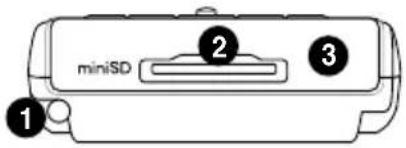
Top features
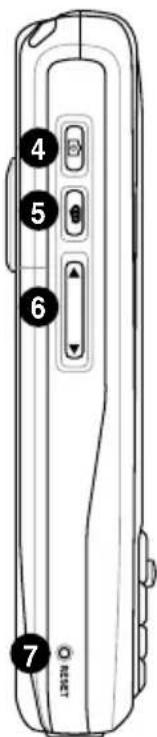
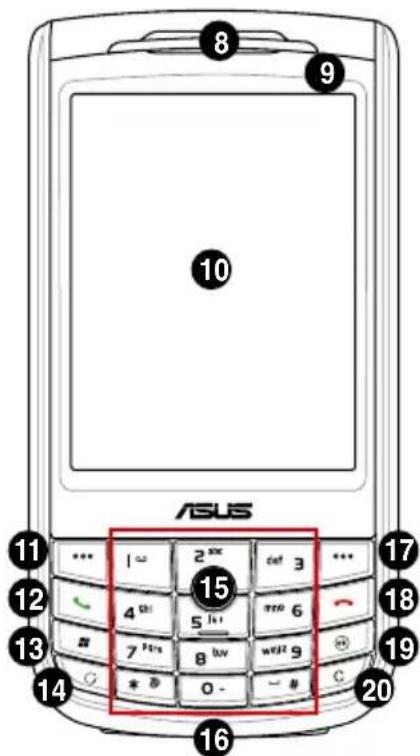
Left side features Front features
Components:
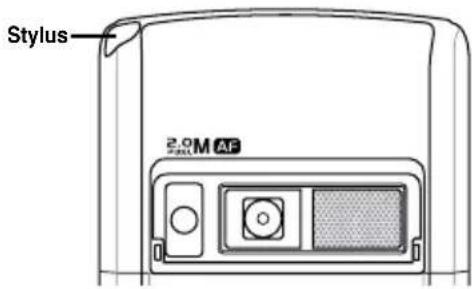
1 Stylus
2 Mini-SD slot
3 Infrared (IR) port
4 Camera button
5 Voice Command/Record button
6 Volume controller
7 Reset button
8 Earpiece receiver
9 Notification LED
10 LCD touch screen
11 Left Soft key
12Call key
13 Start button
14Mode/Task switcher button
15-5-way Joystick
16 Alpha-numeric keypad
17 Right Soft key
18End key
19OK or Close button
20 Clear button
Getting to know your P525
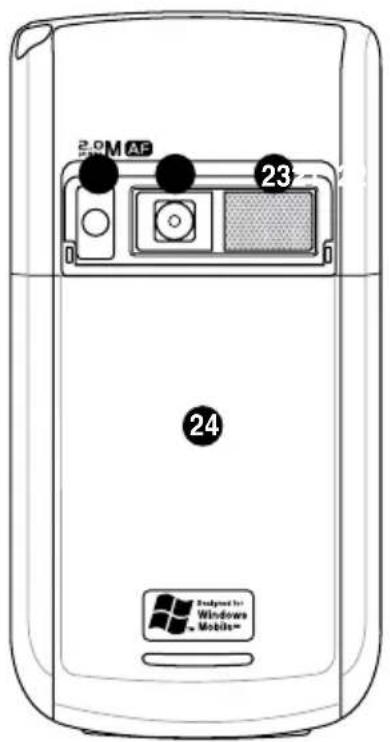
Rear features
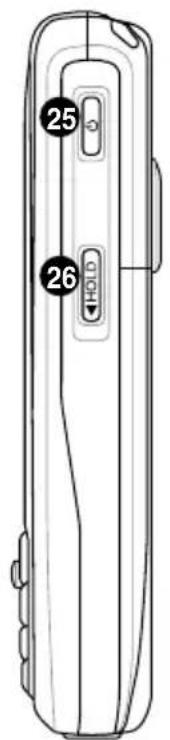
Right side features
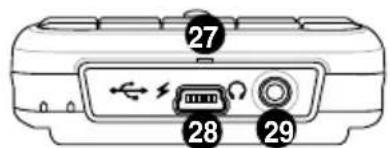
Bottom features
Components:
21Camera flash light
22Camera lens
23Speaker
24 Battery compartment
25Power button
26Hold button
27Mic
28Mini-USB connector
29 Earphone slot
Device components description
| No. | Item Description | |
| 1 | Stylus Use the stylus to write, draw, or select items on the touch screen. | |
| 2 | Mini-SD slot Allows you to insert a Mini-SD storage card. | |
| 3 | Infrared (IR) port Allows you to beam data to another device that has an infrared port. | |
| 4 | Camera/Shutter button Press to launch the camera. In camera mode, half-press to auto-focus then full-press to take a picture. In video mode, full-press to start recording video and press again to stop. | |
| 5 | Voice Command/Record button | Press to start voice command. Voice Command allows you to say commands to your device. You can also press and hold this button or tap the application record icon to record voice. |
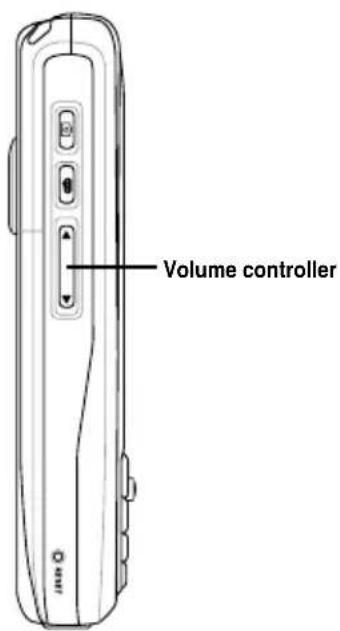
| 6 | Volume controller Press the arrow buttons to adjust the volume. | |
| 7 | Reset button Using the stylus, press reset button to soft-reset your device. | |
| 8 | Earpiece receiver Allows you to listen to incoming/outgoing calls. | |
| 9 | Notification LED This multi-color LED notifies the following:Green - Phone fully charged.Flashing green - Network detected.Red - Phone is charging.Flashing red - Event notification.Flashing blue - Bluetooth® or WLAN(IEEE 802.11b) ON. | |
| 10 | LCD touch screen | This 2.8-inch, 65536-color, 240 x 320-resolution, transreflective touchscreen TFT LCD allows you to write, draw, or make selections using the stylus. |
| 11 | Left Soft key Performs the command indicated above the button. | |
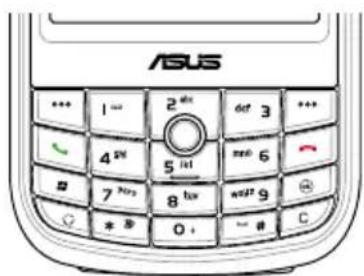
| 12 | Call key Press to receive an incoming call or make a call. | |
| 13 | Start button Launches the Windows Mobile ® start menu. | |
Device components description
| No. | Item Description | |
| 14 | Mode/Task switcher button Allows you to switch applications and tasks. | |
| 15 | 5-way Joystick This 5-way joystick is used to move through menus. Press the center to run an application or in camera mode, press to take a picture. | |
| 16 | Numeric keypad Allows easy dialing when making a phone call. | |
| 17 | Right Soft key Performs the task indicated above the button. | |
| 18 | End button Press to end a call. | |
| 19 | Ok or Close button | Press to confirm a command or press to close/exit an open application. |
| 20 | Clear button Press to delete a character or number to left. | |
| 21 | Camera flash light | Allows you to capture images in a dim environment. |
| 22 | Camera lens | This 2-megapixel camera comes with Auto-Focus (AF) lens and flash light features. |
| 23 | Speaker Allows you to listen audio media and incoming phone calls. | |
| 24 | Battery compartment Contains the battery that supplies power to the device. | |
| 25 | Power button | Press once to set suspend mode or to wake device from sleep mode. Press and hold to turn the power ON or OFF. |
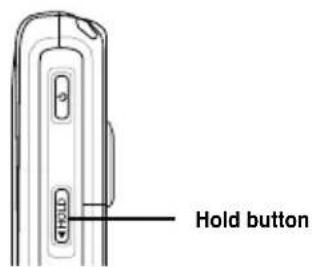
| 26 | Hold button | Press to disable all keys including the LCD touch screen. |
| 27 | Mic | Used to answer phone calls, say voice commands, and record sounds or voice. |
| 28 | Mini-USB connector | Use this connector to synchronize your data or to charge the battery. |
| 29 | Earphone port Plug headset accessory to this port. | |
Getting your device ready
Installing the SIM card and battery
Before you can make a phone call using your P525, you need to install a Subscriber Identity Module (SIM) card. A SIM card contains your phone number, subscriber details, phonebook, and additional phone memory.
Your P525 comes with a rechargeable Lithium-Ion battery.
New batteries come partially discharged and should be fully charged before using them. They generally do not reach their rated capacity until they have been charged and discharged at least four (4) times. We recommended that new batteries be charged overnight even though they may indicate that the charge is complete after a few hours. Sometimes charging may stop during the initial charge and it is necessary to remove the battery for approximately fifteen (15) minutes and then put it back on charge.
CAUTION:
Use only an ASUS qualified battery.
To install a SIM card and battery:
- Remove the battery compartment over.
NOTE:
If the device is on, it automatically turns off after you open the battery compartment.
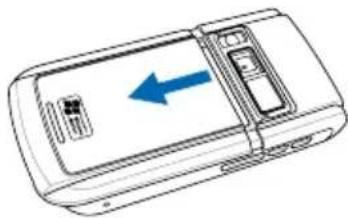
natural_image
Line drawing of a mobile phone with an arrow pointing to the screen (no text or symbols)- Remove the battery.
- Insert the SIM card with its gold contacts facing down and the notched corner oriented to the upper left corner of the slot as shown.
- Replace the battery into the compartment with its copper contacts aligned to the copper conductor on the device.
- Replace battery compartment cover.
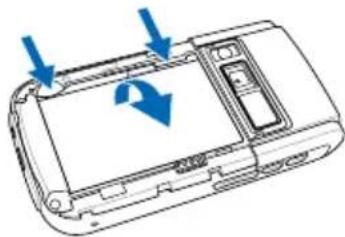
natural_image
Diagram of a mobile phone casing with blue arrows indicating directional movement (no text or symbols)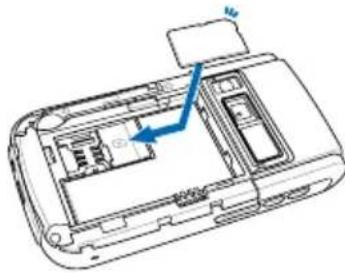
natural_image
Technical line drawing of a device casing with internal compartments and a blue arrow indicating direction (no text or symbols)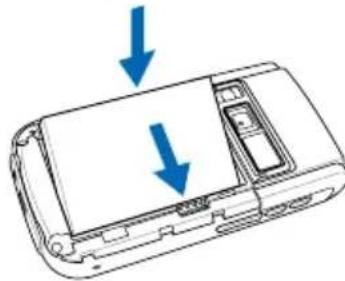
natural_image
Diagram of a device casing with two blue arrows indicating downward motion (no text or symbols)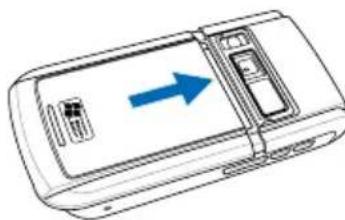
natural_image
Line drawing of a mobile phone casing with an arrow indicating direction (no text or symbols)Charging the battery
The bundled battery pack is shipped partially charged. Charge the battery up to four (4) hours before using for the first time.
To charge battery:
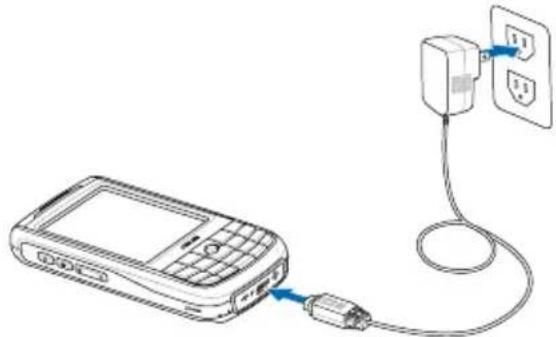
- Connect the AC adapter plug to the system connector at the bottom of the device.
- Connect the AC power plug to a grounded wall socket or power strip.
natural_image
Line drawing of a mobile phone connected to a wall socket (no text or symbols)NOTE:
- The notification LED turns red and charging battery icon appears on the status bar indicating that the battery is charging.
- If your battery gets totally discharged, you need to recharge it for at least twenty minutes before you can turn it back on.
Starting up
Powering your device
Make sure that your P525 is fully-charged before starting the device for the first time.
To turn on power:
- Press and hold the power button.
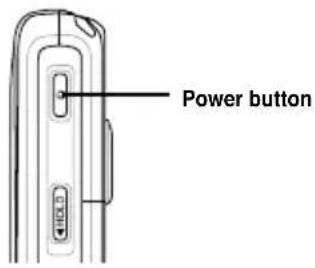
- Follow onscreen instructions to align screen and set the local time zone.
Using the stylus
The stylus is a pen-like device found behind the upper right corner of your P525.
- Use the stylus to write, draw, select, or drag an item on the screen.
- Single-tap an item to select it.
- Tap and hold an item to see a menu.
Calibrating P525
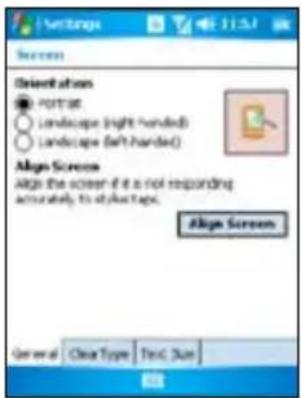
Calibrating your device ensures that the item you tap on the screen is activated. This involves tapping in the center of targets that appear in various coordinates on the screen.
To calibrate your screen:
- Tap Start > Settings > System tab then tap Screen icon.
- On the General tab tap Align Screen and follow succeeding calibration screen instructions.
You can also invoke the calibration screen by simultaneously pressing the Mode and Clear buttons.
Locking the keys and buttons
You can lock the keys and buttons of your device to avoid inadvertently dialing numbers or launching any application. To lock the keys and buttons:
- Locate the Hold button on the right side of your device.
- Slide the hold button downward to lock.
- To unlock, slide the hold button upward.
The Today screen
The Today screen displays information useful to you. You can configure the Today screen to have all the important information you need.
• To access the Today screen, tap Start > Today.
- To personalize the Today screen, tap Start > Settings > Personal tab > Today.
The following describes the common information found on the today screen:
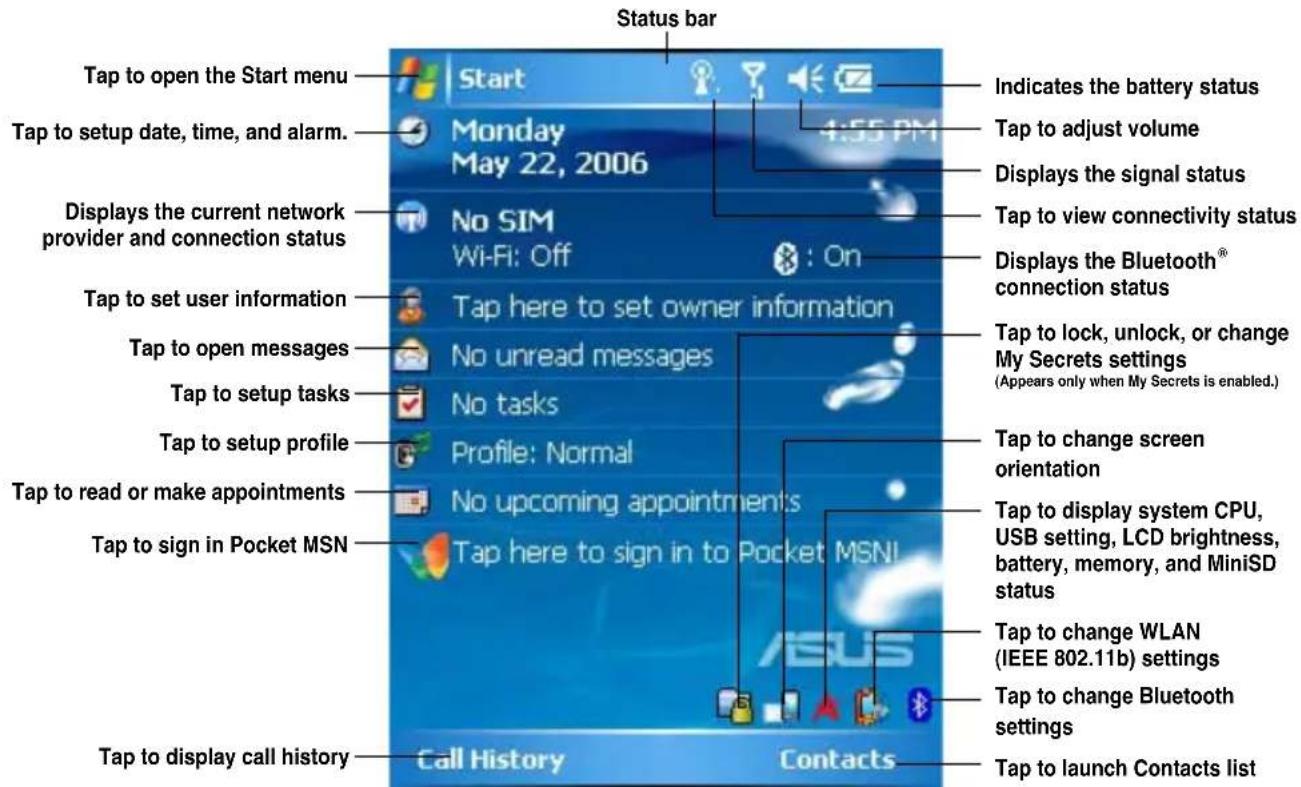
Status indicators
Refer to the table below for the Today screen icon status indicators.
| Icon Description | |
 | General Packet Radio Services (GPRS) available. |
 | Connecting via GPRS. |
 | Connected via GPRS. |
 | Connecting with ActiveSync |
 | ActiveSync connection not active. |
 | ActiveSync synchronization in progress. |
 | Call forwarded. |
 | Call in progress. |
 | Call on hold. |
 | Missed call. |
| [A8Y1] | New message. |
Status indicators
| Icon Description | |
 | New voice mail. |
 | No cellular phone service. |
 | No signal. |
 | Searching for cellular phone service. |
 | Indicates signal strength. |
 | Sound OFF. |
 | Sound ON. |
 | Battery low. |
 | Battery partially charged. |
 | Battery charging. |
 | Battery fully charged. |
Status indicators
| Icon Description | |
 | Searching Wi-Fi connection. |
| Wi-Fi active. | |
| Roaming. This icon appears only if you have international roaming feature. | |
| Vibrate or silent mode on. | |
| Bluetooth headset connected. | |
| Bluetooth head connected with sound. | |
| Appears when you set alarm | |
| Pocket MSN service notification. | |
| Pocket MSN chat is online. | |
Screen orientation
You can set the screen to three different orientations:
- Portrait
- Landscape (right-handed)
- Landscape (left-handed)
Set to Portrait mode to get a better view or better operation of certain applications on your device. Set to Landscape when viewing pictures, video or viewing longer text files.
To change the screen orientation, tap Start > Setting > System tab > Screen then select the orientation you want.
You can also change the orientation by tapping the icon.
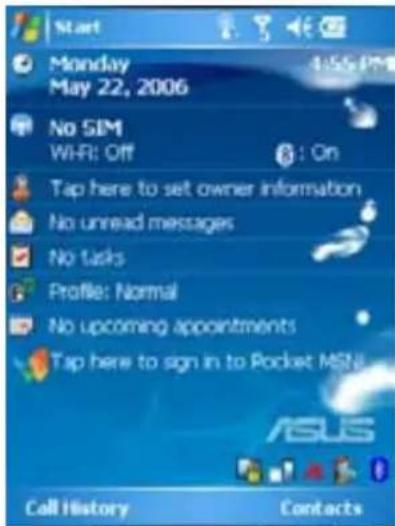
Portrait mode
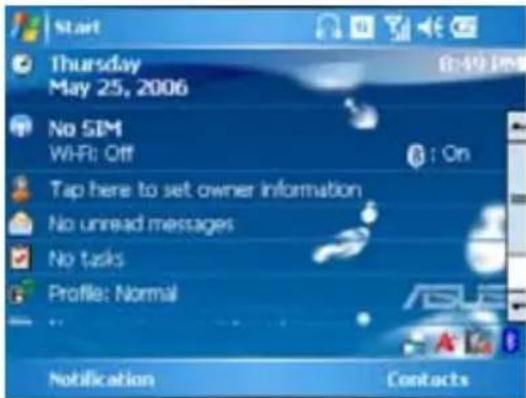
Landscape mode
Start menu
The Start menu contains various programs and applications that you commonly use. Tap Start to display the start menu items:
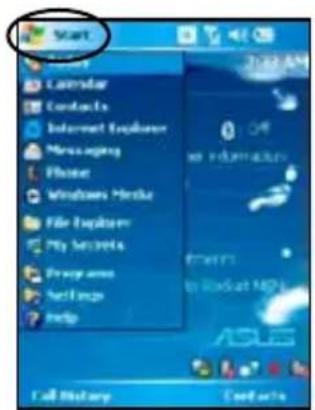
Portrait mode
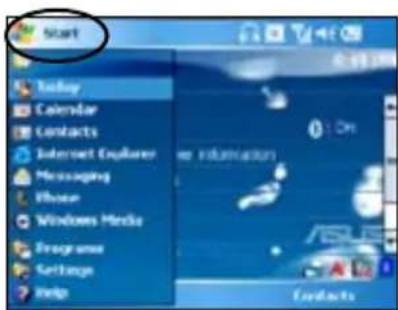
Landscape mode
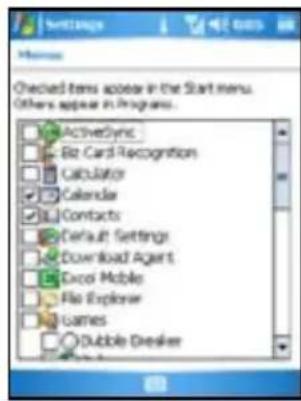
You can also customize the items that appear in the Start menu.
To do this:
- Tap Start > Settings > Personal tab > Menus.
- Select the check boxes of the items you want to appear in the Start menu. You can select up to seven (7) items.
Chapter

Entering data
• Using the Input Panel
• Writing and drawing on the screen
- Recording voice
• Using ActiveSync™
- Synchronizing with Exchange Server
- Searching information
- Getting Help
Using the Input Panel
When you start an application or select a field that requires text, symbols, or numbers, the Input Panel icon appears on the menu bar. The Input Panel allows you to select various input methods available on your device including: Block Recognizer, Keyboard, Letter Recognizer, T9, and Transcriber.
Using the Block Recognizer
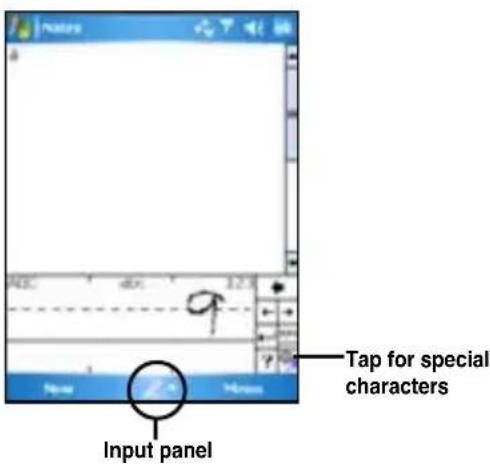
The Block Recognizer allows you to use a single stroke to write letters, numbers, symbols, or punctuations, which are converted into typed text.
To use the Block Recognizer:
- In an application, tap the Input Panel arrow, then tap Block Recognizer.
- Write letters, numbers, symbols, or punctuations in the designated writing area.
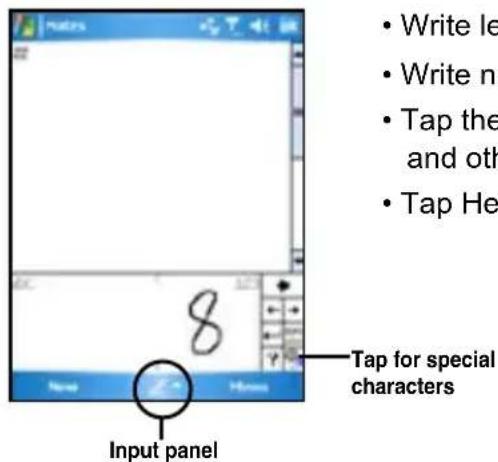
- Write letters on the abc (left) area of the box.
- Write numbers on the 123 (right) area of the box.
- Tap the special symbols button to key in symbols, punctuations and other special characters.
- Tap Help “?” button for help on how to write characters.
Using the on-screen keyboard
With the on-screen keyboard, you can key in text, symbols, numbers, or other special characters when input is possible.
To input text using the on-screen keyboard:
- In an application, tap the Input Panel arrow, then tap Keyboard.
- Key in text by tapping keys on the on-screen keyboard.
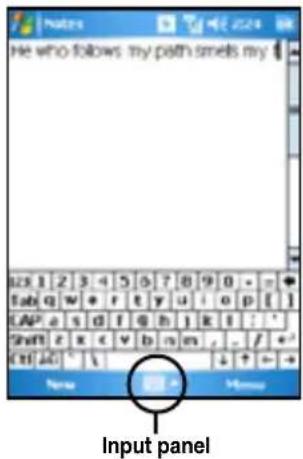
To enlarge the on-screen keyboard:
- Tap the Input Panel arrow, then tap Option.
- Select Keyboard from the Input Method list.
- Tap Large Keys.
Using the Letter Recognizer
With the Letter Recognizer you can write individual letters, numbers, or special characters, which are converted into typed text.
To use the Letter Recognizer:
- In an application, tap the Input Panel arrow, then tap Letter Recognizer.
- Write letters, numbers, symbols, or punctuations in the designated writing area.
• Write capital letters on the ABC (left) area of the box. - Write lower case letters on the abc (middle) area of the box.
• Write numbers on the 123 (right) area of the box. - Tap the special symbols button to key in symbols, punctuations and other special characters.
- Tap Help “?” button for help on how to write characters.
Using T9 input
T9 allows you to enter text in alpha-numeric format. As you key in alpha-numeric texts on the keypad, T9 automatically matches your input with most likely the completed word.
To switch to T9 input:
- In an application, tap the Input Panel arrow, then tap T9 or
- While you are editing a document and T9 is not your input method, long press key to switch to ASUS T9.
TIP:
- To switch between "Symbols", "123", Abc", and "T9 English" while using T9 input, long press key to display shortcut menu then use joystick to select your choice.
- While you are editing a document and T9 is not your input method, long press 🔊 key to switch to ASUS T9.
- After using T9 as input method, tap the Input icon to minimize the keypad or long press “*” key to switch to other input methods.
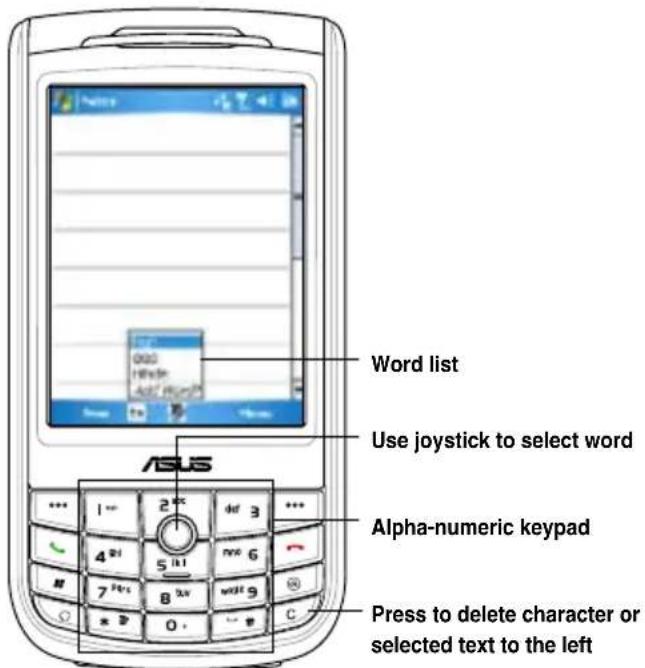
T9 input shortcuts
• To key in a word or number, tap the keys on the keypad.
• To insert a word or number from the word list:
a. Use joystick to move highlighted bar on word list.
b. Press joystick to add selected word or number.
c. Press c to delete previous character or highlighted text.
Using the Transcriber
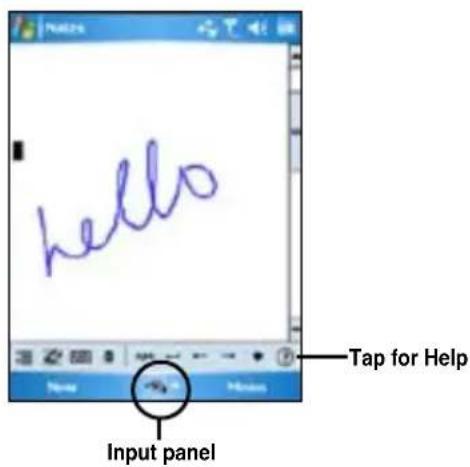
Transcriber is a handwriting recognition program that allows you to write in cursive, print, or mixed styles. It reliably recognizes not only written text but also numbers and symbols. Make sure to write legibly. See Help for more information on the Transcriber.
To use the Transcriber:
- Start an application that accepts user input, such as Notes or Word Mobile.
- Tap the Input Panel arrow, then tap Transcriber.
To write using Transcriber (using Notes):
- Tap screen to position the cursor where you want the text to appear.
- Use the stylus to write on the screen. The handwriting will be converted to text after you lift the stylus from the screen.
To edit text:
- Draw a line across the text you want to edit. After you lift the stylus from the screen, the line will disappear and the selected text will be highlighted.
- You can now rewrite the text or use the Transcriber gestures to edit your selected text. See Help for the Transcriber gestures.
Writing and drawing on the screen
You can write or draw directly on the screen and save notes in your own handwriting. If you prefer to use your own handwriting or use drawings in your notes, set the default input mode to Writing. If you prefer text, set the default mode to Typing.
To set the default input mode for Notes:
- Tap Start > Programs > Notes.
- From the Notes list, tap Menu > Options.
-
In the Default mode: box, tap the down arrow and select any of the following:
-
Writing - if you want to draw or enter handwritten text in a note.
-
Typing - if you want to create a typed note.
-
Set the other options according to your preference.
- Tap when finished.
To write a note:
- Tap Start > Programs > Notes.
- From the Notes list, tap New.
- Write your text on the screen.
- When finished, tap to return to the Notes list.
Recording voice
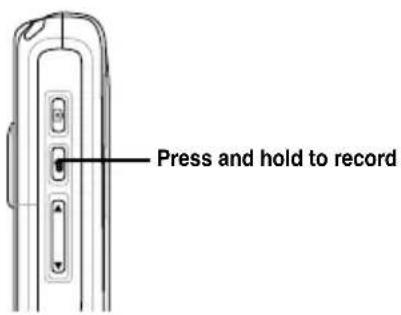
You can record sound, voice, or add a recording to a note using your device.
To start a voice recording:
- Press and hold the Record button while recording.
- Release to stop recording.
- Tap to close and exit.
To create a voice recording using Notes:
- Tap Start > Programs > Notes.
- From the Notes list, tap New.
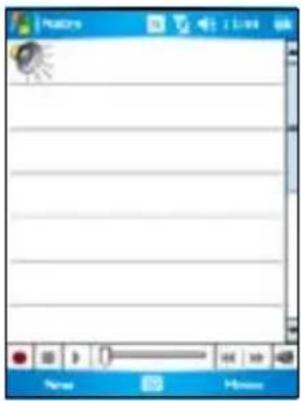
- If you do not see the recording toolbar, tap Menu > View Recording Toolbar.
- Tap the record icon to begin recording.
- Place the receiver near your mouth or source of sound.
- Tap the stop icon when finished recording. A recording icon appears on the note.
- Tap
To add a recording to a saved note:
- Tap Start > Programs > Notes.
- From the Notes list, tap to open a saved note.
- If you do not see the recording toolbar, tap Menu > View Recording Toolbar.
- Tap the record icon to begin recording.
- Place the receiver near your mouth or source of sound.
-
Tap the stop icon when finished recording. A recording icon appears on the note.
-
Tap ok
Using ActiveSync™
ActiveSync™ allows you to synchronize data in your device with data in your computer. ActiveSync can also synchronize over a wireless or cellular network with Microsoft Exchange Server, provided that your cellular phone service or company is running Microsoft Exchange Server with Exchange ActiveSync. When synchronized directly with Exchange Server, you can stay up to date even when your PC is turned off.
During synchronization, ActiveSync compares the data in your device with the data in your computer or Exchange Server, and updates all data with recent changes.
You can select and synchronize data in the following locations using ActiveSync:
- Contacts
- Calendar
- Tasks
- Notes
- Favorites
- Files
• Media
You can also exchange data between your computer and device without synchronizing.
ActiveSync is already installed in your device, but before you can synchronize data with your computer, you must first install ActiveSync in your computer. Install ActiveSync from the Microsoft companion CD that came with your device package.
After you have installed ActiveSync, set up a sync relationship between your device and your computer. ActiveSync recognizes your device and automatically transfers the synchronization settings you have in your device.
If you wish to synchronize your device with Exchange Server through your company or service provider, obtain the name of the Exchange Server, user name, password, and domain name from your network administrator before starting the Sync Setup Wizard.
To install and configure ActiveSync in your computer:
- Insert the Microsoft companion CD that came with your device package.
- Follow succeeding screen instructions.
- After the setup is complete, the Sync Setup Wizard automatically starts when you connect your device to your computer. Follow screen instructions to complete the wizard.
-
From the Sync Setup Wizard, you can:
-
Configure an Exchange Server connection to synchronize directly with an Exchange Server. Acquire from your network administrator the required parameters for input.
-
Create a synchronization relationship between your computer and your device.
-
Select the information type that you want to synchronize.
-
After you finish the wizard, ActiveSync automatically synchronizes your device. You can disconnect the device after the synchronization is complete.
NOTE:
- When connected, your device is automatically synchronized with your computer. ActiveSync synchronizes every time you make a change on either the device or computer.
- You cannot use WLAN to synchronize database.
- Refer to your Windows ^ Mobile Help, for more information about ActiveSync synchronization.
Synchronizing via USB
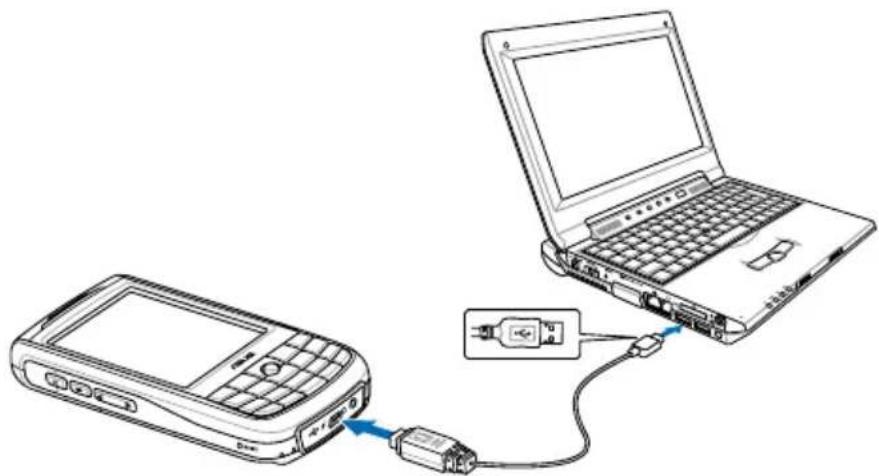
You can connect to your device using the bundled USB cable to synchronize to your computer. To synchronize your device via USB:
- After installing ActiveSync to your computer, connect the USB plug to the mini-USB connector at the bottom of the device.
- Connect the other end of the USB cable to your computer. Upon connection, ActiveSync automatically synchronizes your device.
natural_image
Line drawing of a mobile phone connected to a laptop via cable (no text or symbols)Synchronizing via Bluetooth
You can connect your device to your computer using the Bluetooth wireless technology.
To synchronize your device via Bluetooth:
- Configure Bluetooth in your computer to support ActiveSync. Refer to the ActiveSync Help in your computer for instructions.
- Turn on Bluetooth in your device. See "Using Bluetooth" section in Chapter 4 for details.
- On your device, tap Start > Programs > ActiveSync.
- From the ActiveSync screen, tap Menu > Connect via Bluetooth. Make sure your device is within Bluetooth range with your computer.
If this is the first time you connect to this computer via Bluetooth, perform the Bluetooth wizard in your device and setup a Bluetooth partnership between your device and computer. Refer to Chapter 4 for Bluetooth wireless connection settings.
Synchronizing via Infrared (IR)
You can connect your device to your computer using the built-in Infrared port.
To synchronize your device via Infrared (IR):
- Configure ActiveSync in your computer to receive infrared beams. Refer to the ActiveSync Help in your computer for instructions.
- On your device, tap Start > Programs > ActiveSync.
- From the ActiveSync, tap Menu > Connect via IR. Make sure that the IR port in your device is lined-up and in close range with the IR port of the computer.
- Tap Sync.
Synchronizing with Exchange Server
To synchronize your device with Exchange Server:
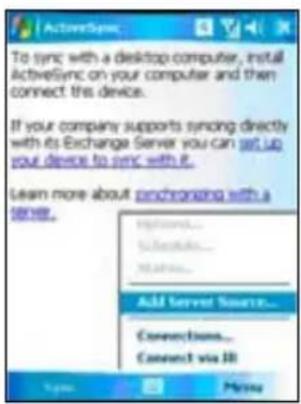
- From the ActiveSync menu, tap Menu > Add Server Source.
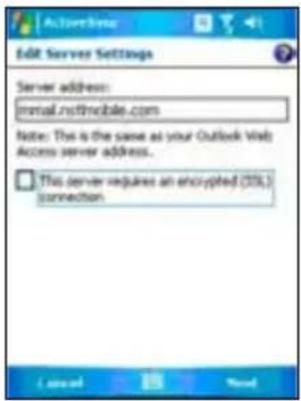
- In the Server Address field, input the name of the server running Exchange Server then tap Next. If necessary, tap the check box This server requires an encrypted (SSL) connection.
- Input your name, password, and domain then tap Next.
- Tap the check boxes to select the data items that you want to synchronize with Exchange Server. To change the available synchronization settings, select a data item then tap Settings. Tap Finish when done.
- Start the sync process.
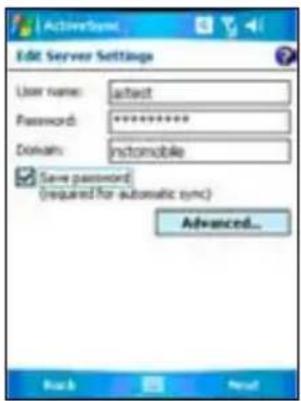
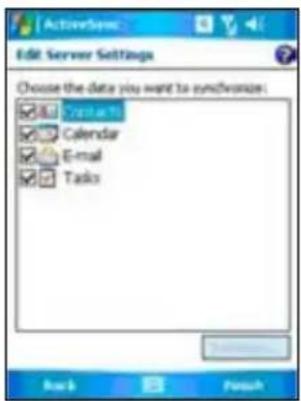
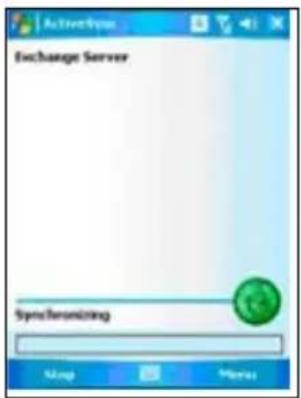
Setting the synchronization schedule
To set the synchronization with Exchange Server:
- From the ActiveSync screen, tap Menu > Schedule.
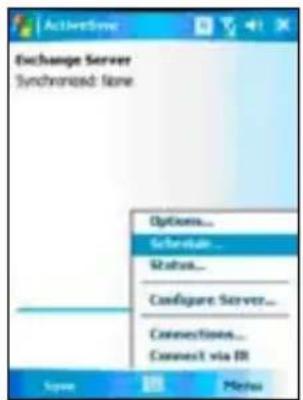
- Refer to the table for input details.
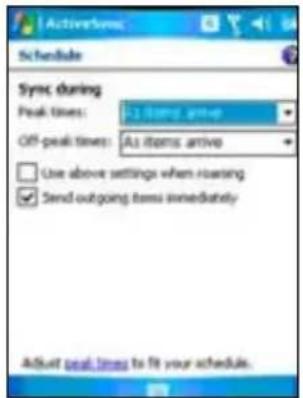
| Volume Recommended setup | |
| High Select a shorter interval in the Peak times list. | |
| Low Select As items arrive option or a longer interval in the Off-peak times list. | |
| While roaming Check Use above settings while roaming. |
Searching information
Using the search tool, you can search for files and other items stored in your device or the external MiniSD card. You can search by file name or by words located in various applications including the Calendar, Contacts, Excel Mobile, Word Mobile, Outlook Mobile, Help, Messages, Notes, and Tasks. You can also filter your search to files larger than 64 KB.
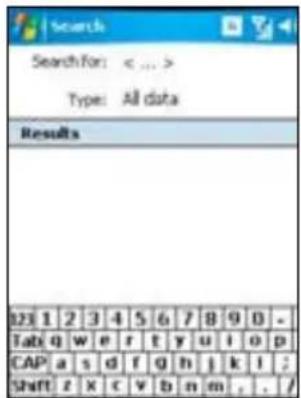
To search for a file or an item:
- Tap Start > Programs > Search.
- In Search for, input the file name, word, or other information you want to search.
- In Type, select the data type to help you filter your search.
- Tap Search. Found items are listed in Results.
- In the Results list, tap the item for which your need information.
Getting Help
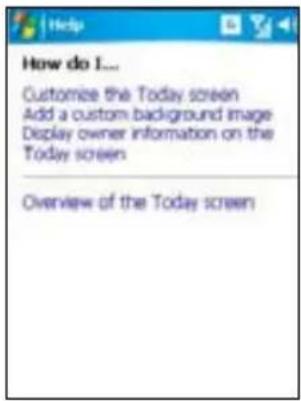
You can easily find Help for using any program on the device.
To get help for a program:
- From the Today screen or program, tap Start > Help. A page will open with links to topics that explain how to use the program.
Chapter

Phone features
• Using the phone
- Making a call
- Receiving a call
Using phone
Like a standard cellular phone, you can use your P525 to make and receive calls. You can also keep a history of calls made and received, send SMS or MMS messages, take notes while talking, call from Contacts, and copy SIM card contacts to your device.
Phone pad
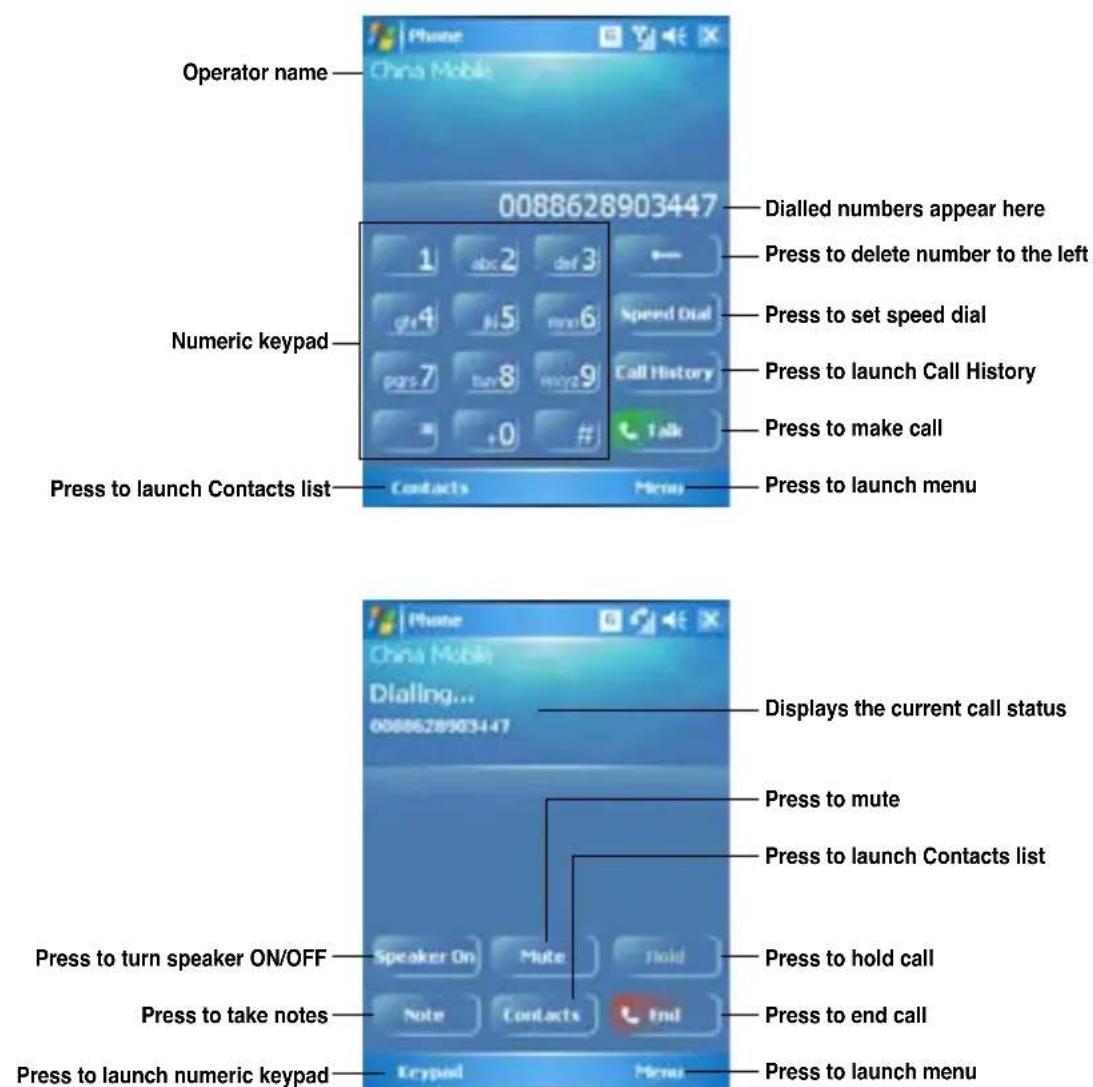
The phone pad allows you to easily dial and access the Contacts, Call History, Speed Dial, and Phone settings. To launch the Phone pad, do any of the following:
- Tap Start > Phone.
- Press the talk button.
- Directly dial the phone number you want to call using the numeric key pad.
• From the Today screen, press the left soft key.
Using flight mode
Generally, you are required to turn off your cellular phone onboard an aircraft during take-off and landing. Flight mode enables you to turn off the phone function but keep your device turned on to use other functions.
To use flight mode:
- Tap the signal icon then tap Turn on flight mode.
• To resume phone function, tap the signal icon 🚆 then tap Turn off flight mode.
Adjusting the device volume
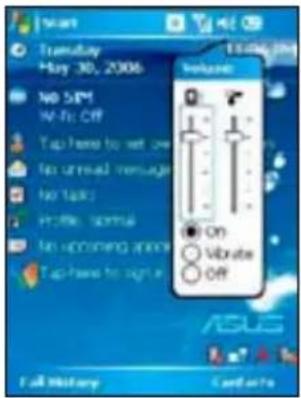
To adjust the device volume:
- Tap the speaker icon.
-
From the volume menu, you can:
-
Adjust the phone volume or device volume by moving the slider to the desired volume level.
- Tap On, Vibrate, or Off to change the system and ringer volume settings.
You can also adjust the device volume by pressing the volume controller keys at the left side of the device.
Making a call
You can make a phone call using either the key pad or phone pad. You can also make calls directly from the Contacts, Call History, Speed Dial, or Voice Commander.
Using the keypad
To make a call using the keypad:
- Enter the number of the party you wish
to call, then press

If you pressed the wrong number, press to erase number to the left.

- Talk to the called party when connected.
- When finished, press to end the call.
Using the phone pad
To make a call using the phone pad:
- Tap Start > Phone.
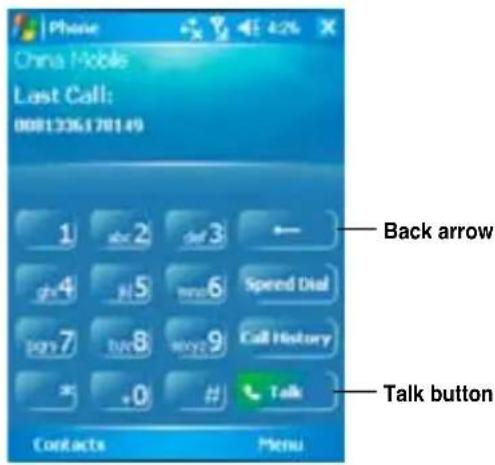
- From the phone screen, tap the number of the party you want to call then tap
If you tap the wrong number, tap the back arrow to erase number to the left.
- Talk to the called party when connected.
- When finished, tap to end the call.
Phone pad features
Making calls from Contacts
To make a call directly from Contacts:
- Tap Start > Phone.
- From the Phone pad, tap Contacts or press the Left soft key.
You can also launch Contacts from the Today screen by tapping Contacts on the menu bar or pressing the Right soft key.
-
You can do any of the following to make a call:
-
Tap to select a contact, then from the Contacts list, tap Call.
- Tap to select a contact, then press talk 🔊 Talk button.
- Select a contact then press the talk button twice. Once to send the number to the Phone pad, and once to dial the number.
- You can also tap and hold the contact, and on the shortcut menu tap Call.
Making calls from Call History
• To make a call from the call history:
- Tap Start > Phone.
- On the Phone pad, tap the Call History button.
- Scroll to the desired contact or phone number, and tap Call.
To look for more numbers in other categories, tap Menu > Filter and tap a category.
- You can also launch Call History in the Today screen by pressing the left soft key.
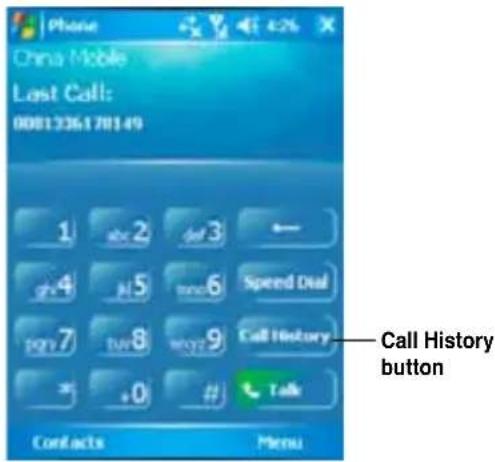
Using the Speed Dial
With Speed Dial you can call frequently dialled numbers in a single tap. For example, if you assign a contact to the number 2 button in Speed Dial, you can simply tap and hold on the Phone pad to dial the contact's number.
To create a Speed Dial entry:
- Make sure that entry you want to create is already in the Contacts.
- Tap Start > Phone.
- On the Phone pad, tap the Speed Dial button.
- Tap Menu > New.
- Tap a contact from the list then tap Select.
- In the Location box, select an available location for the new speed dial then tap OK.
To create a Speed Dial entry from Contacts:
- From the Contacts list, tap and hold a contact name.
- On the shortcut menu, tap Add to Speed Dial.
- Select an available location for the new Speed Dial.
To delete a Speed Dial entry:
- In the Speed Dial list, tap and hold the desired entry and tap Delete.
Using Voice Command
To make a phone call using voice command:
-
Press the voice command button on the left side of your device.
-
From the following screen, your device asks you to "Say command."
-
Audibly say "Call" then the name to call from your Contact list.
-
Say "Yes" or "No" after the confirmation question.
If you said "Yes", the voice command proceeds and dials the number; otherwise, it returns to the voice command menu.
- Say "Goodbye" to exit voice command.
![Please Say: - Call at - Find - Digit Dial / Redial / Callback - Play Music / Pause / Resume - Play - Next / Previous - Start <Application> - <Today's/Tomorrow's/ The week's > appointments - Read SMS / What time is it > - Silent mode / Call history - What can I say ? - Goodbye </details> <h1 id="notes">NOTES:</h1> <p>To use voice commander while using a headset, press the answer button on the headset then follow given instructions.</p> <h1 id="receiving-a-call">Receiving a call</h1> <p>When you receive a call, a message will appear, giving you the option to answer or ignore the incoming call.</p> <p>To answer or reject an incoming call:</p> <p>• To answer a call tap Answer, or press <br /> • To reject an incoming call, tapIgnore, or press</p> <p><img alt="" src="images/d41eadece8474b1cf0349d770368ecbe0a7a946f23047d0b244f701d8418502b.jpg" /></p> <p><img alt="" src="images/d47583f643f660cfa86f01b4df9762025cf343e0b5b70843244653f8a2a18633.jpg" /></p> <p>TIP:</p> <p>Long press to switch receiver to speakerphone mode..</p> <p>The following pop-up screen appears during an incoming call:</p> <p>• Tap Answer to receive call or</p> <p>- Tap Ignore to dismiss call.</p> <p>- Tap Answer to receive call or - Tap Ignore to dismiss call.</p> <p><img alt="" src="images/a7fdb7c68930430d243f5f14865e1442b2f9aa589e2f97bcb0a8e88c194f3204.jpg" /></p> <details> <summary>text_image</summary> Home - Incoming China Mobile Incoming Call (612) 838-88 Answer OK Signee </details> <p>To terminate a call:</p> <p>- Tap End or press on the device to terminate an incoming or outgoing call in progress.</p> <h1 id="chapter-4">Chapter</h1> <p><img alt="" src="images/b71f522533632ead39f1dcd2de8aeabbe6a77be7c74eb26cd551816fdf37d19e.jpg" /></p> <details> <summary>text_image</summary> 4 </details> <h1 id="wireless-features">Wireless features</h1> <ul> <li>Using Bluetooth® <br /> • Using WLAN (IEEE 802.11b) <br /> • Using Infrared (IR) </li> <li>Setting a GPRS connection</li> </ul> <h1 id="using-bluetooth">Using Bluetooth®</h1> <h1 id="overview">Overview</h1> <p>Bluetooth® is a short-range wireless communications technology that allows devices with Bluetooth capabilities to exchange data within a radius of about 10 meters (30 feet) without requiring a physical connection.</p> <p>With Bluetooth enabled in your device, you can:</p> <ul> <li>Connect and communicate (i.e. beam files, tasks, contacts) with other devices with Bluetooth features. </li> <li>Use Bluetooth service. After you connect to another device or computer using Bluetooth, you can use the services available on that device.</li> </ul> <h1 id="activating-bluetooth-in-your-device">Activating Bluetooth in your device</h1> <p>To activate (turn ON) Bluetooth in your device:</p> <ol> <li>Tap Start > Settings > Connections tab then tap the Bluetooth icon. </li> <li>From the Bluetooth screen, tap General tab. </li> <li>Tap Turn on button. The Bluetooth status is displayed above the Turn on/Turn off buttons.</li> </ol> <p>You can also turn Bluetooth On or Off from the Today screen.</p> <p>To do this:</p> <ol> <li>Find the Bluetooth icon at the botton right corner of the Today screen. </li> <li>Tap to display shortcut menu then tap Turn Bluetooth ON. <br /> The Bluetooth icon changes to <br /> if Bluetooth is turned Off.</li> </ol> <p><img alt="" src="images/95da78611772e57738e41c02fb448fd8dfd7d731620baae052002b06e7770328.jpg" /></p> <h1 id="configuring-bluetooth">Configuring Bluetooth</h1> <p>To configure Bluetooth in your device:</p> <ol> <li>Start > Settings > Connections tab then tap the Bluetooth icon. </li> <li> <p>From the Bluetooth screen, you can access the following tabs:</p> </li> <li> <p>General - allows you to set the user profile, turn Bluetooth on or off, displays the Bluetooth status, and provides a link to the Bluetooth Manager. </p> </li> <li>Accessibility - allows you to set the device name, see the Bluetooth Device Address, select remote device you want to connect, and set whether to allow remote devices to detect your device. </li> <li>Services - enable or disable available Bluetooth services, require authorization, set authentication passkey, and set to require encryption. You can also access advanced settings from this tab.</li> </ol> <p>The available service settings are enabled when you select a Bluetooth service. Select a service from the list to establish its settings.</p> <table><tr><td colspan="2">Bluetooth Service Description</td></tr><tr><td colspan="2">File Transfer Set the highest level directory on your device that remote devices can access.</td></tr><tr><td colspan="2">Information Exchange Sets the default business card.</td></tr><tr><td colspan="2">Serial Port Displays the port addresses. This cannot be changed.</td></tr><tr><td colspan="2">Personal Network Server Allows you to customise the service settings for your personal network server.</td></tr><tr><td colspan="2">Hands Free Enable telephone and/or audio profile.</td></tr><tr><td colspan="2">Dial-up Networking Server Allows you to enable or authenticate, or both, the connections to the dial-up network server.</td></tr></table> <h1 id="notes-2">NOTES:</h1> <p>The Bluetooth device setup instructions provided in this section may differ with other Bluetooth devices. If the instructions in this guide differs from the documentation that came with your Bluetooth-enabled device, follow the latter.</p> <h1 id="using-a-bluetooth-enabled-headset">Using a Bluetooth-enabled headset</h1> <h1 id="mono-headset-setup">Mono headset setup</h1> <ol> <li>Make sure that Bluetooth is enabled on your device. </li> <li>Tap on the Today screen then on the shortcut menu tap Bluetooth Manager.</li> </ol> <p><img alt="" src="images/2588a0ca2cf98442794090989ffd33de60c797c4315e65acd6311b2f844378cf.jpg" /></p> <details> <summary>text_image</summary> Start Sunday January 01, 2006 Chunghwa Wi-Fi Off Tap here to set owner information No Unread Messages No radio Profile: Normal No upcoming appointments Tap here to sign in to bracket keys Turn Bluetooth OFF Bluetooth Manager Bluetooth Settings Edit History Contacts </details> <ol> <li> <p>From the Bluetooth Manager, tapNew.</p> </li> <li> <p>From the Bluetooth Connection Wizard, tap Hands-free/Headset setup then tap Next.</p> </li> </ol> <p><img alt="" src="images/ea5411e0402c1e7a54698059d216a7164b5ed29caa63e4de46e1e3a6722eb02c.jpg" /></p> <details> <summary>text_image</summary> Bluetooth Connection Wizard Hands drive Headstart setup Send a Bluetooth Phone Tree or Headset to be used with your Aircraft... High Quality Audio setup Setup Bluetooth Headphones or Stereo Speakers to be used with your PocketPC... ActiveSync via Bluetooth Setup an ActiveSync partnership with a Bluetooth enabled computer... Browse files on a remote device Connect to a remote Bluetooth device. Cancel Next </details> <ol> <li> <p>Make sure that your headset device is in pairing mode and ready to receive incoming connection requests then tap Next.</p> </li> <li> <p>Tap the name of your Bluetooth-enabled headset device then tap Next.</p> </li> <li> <p>In Passkey, input the alphanumeric passkey of your headset device then tap. You can find this in the documentation that came with your headset device.</p> </li> <li> <p>TapFinish. You are now ready to use your headset device.</p> </li> </ol> <p><img alt="" src="images/740744ecd77d6e43da21f4b0b2defdacfa45a5e198c46f2559f1745bc6e4a9ce.jpg" /></p> <details> <summary>text_image</summary> Bluetooth Connection Wizard Hand-free/Headset setup Jabra 01:50 Show only Hands-free devices Cancel Back Next Onlyok View </details> <p><img alt="" src="images/9108b997f7ab834cac8a731de6642d9f44841808c35e956e60c31a849f8275bb.jpg" /></p> <details> <summary>text_image</summary> Bluetooth Connection Wizard Hands-free/Headset setup Hands-free / Headset setup Setup completed! You are now ready to connect the selected Hands-free device! After tapping "Finish" a connection will be established. For your convenience a connection shortcut has been created. To establish a connection in the future, tap the newly created connection shortcut in the Bluetooth Connection Manager. Finish </details> <h1 id="notes-3">NOTES:</h1> <p>If the connection between the device and a Bluetooth headset fails, press the device icon then choose "Re-connection", you do not have to pair the devices again</p> <h1 id="stereo-headset-setup">Stereo headset setup</h1> <p>P525 supports A2DP (Advanced Audio Distribution Profile), which is used by Bluetooth-enabled stereo headsets. Make sure that your stereo headset also supports A2DP.</p> <ol> <li> <p>Tap on the Today screen then on the shortcut menu tap Bluetooth Manager.</p> </li> <li> <p>From the Bluetooth manager screen, tap New then select High Quality Audio Setup.</p> </li> <li> <p>Make sure that your stereo headset device is in pairing mode and ready to receive incoming connection requests then tap Next.</p> </li> <li> <p>Tap the name of your stereo headset device then tap Next.</p> </li> </ol> <p>- If you want to create a shortcut, tap the check box Create a shortcut for this connection then input a connection name.</p> <p>- If you want to use a secure connections, tap the check box to Use a secure, encrypted connection.</p> <p><img alt="" src="images/df2ff6378f4cbdab7949252f15b7c5b8e3b5213dbb89ad0091286d1b7060b1d2.jpg" /></p> <details> <summary>text_image</summary> Bluetooth Connection Wizard Handle-free/Headset setup Setup a Bluetooth Hands-free or Headset to be used with your PocketFC... High Quality Arabic setup Setup a Bluetooth Handset system, or Windows Open to be used with your PocketFC... ActiveSync: via Bluetooth Setup an ActiveSync partnership with a Bluetooth enabled computer... Browse files on a remote device Connect to a remote Bluetooth device. Cancel Next </details> <p><img alt="" src="images/2e3c199a96a3373d9289a0c8fdb50a89331dd5f8fcddf97c0905abaaba068146.jpg" /></p> <details> <summary>text_image</summary> Bluetooth Connection Wizard High Quality Audio setup BES112 Show only Audio Devices Cancel Back Next Refresh View </details> <h1 id="5-tap-finish-to-initiate-connection">5. Tap Finish to initiate connection.</h1> <h1 id="notes-4">NOTES:</h1> <p>• To answer a phone call using your stereo headset, make sure that you have mono and stereo connection at the same time. <br /> - To use voice commander while using a headset, press the answer button on the headset then follow given instructions.</p> <p><img alt="" src="images/791b48c135dbcedae55cc4f50437ea059763f95d9b0c608a80dba9ed984cca2c.jpg" /></p> <details> <summary>text_image</summary> Bluetooth Connection Wizard High Quality Audio setup BE5112 Shortcut creation ✓ Create a shortcut for this connection Connection name: High Quality Audio on BE5112 ✓ Use a secure, encrypted connection Ready to connect You are now ready to connect to the selected device and start streaming high quality audio! Tap Finish! to initiate the connection. Cancel Back Finish </details> <p><img alt="" src="images/e7f1683a805d2662e53c104f1427a346d70e314bc6d0c17908978f76bd231b15.jpg" /></p> <p><img alt="" src="images/de2d1c0aa28f218ca1a4a1be3d855438b86cc0e81b38116366c521990be47d01.jpg" /></p> <details> <summary>text_image</summary> Bluetooth My Shortouts Hands-free connection... High Quality Audio on... My Shortouts Active Connections </details> <h1 id="using-a-bluetooth-enabled-gps">Using a Bluetooth-enabled GPS</h1> <p>To configure a Bluetooth-enabled GPS device:</p> <ol> <li>Make sure that Bluetooth is enable on your device. </li> <li>Tap on the Today screen then on the shortcut menu tap Bluetooth Manager. </li> <li>From the Bluetooth Manager, tapNew. </li> <li>Make sure that your GPS device is in pairing mode and ready to receive incoming connection requests. </li> <li>From the Connection Wizard, tap Explore a Bluetooth device then tap Next.</li> </ol> <p><img alt="" src="images/7d3661390fa5eca7ed046d8bf043e7f69bc9c6928484da36525a6544c2759c0a.jpg" /></p> <details> <summary>text_image</summary> Bluetooth Connection Wizard Exchange business cards Send, retrieve or exchange business cards with one or more Bluetooth enabled devices. Explore a Bluetooth device Describe the installed hardware devices offers and create a connection dustools for them. Connect to a keyboard Use a Bluetooth keyboard with the Pocket PC. Cancel Next </details> <ol> <li>Tap the name of your Bluetooth-enabled GPS device then tap Next. </li> <li> <p>SelectSPP Slave in the Service Selection list then tap Next.</p> </li> <li> <p>Tap Finish. </p> </li> <li> <p>Tap and hold the shortcut icon to display shortcut menu then tap Connect.</p> </li> <li> <p>In Passkey, input the alphanumeric passkey of your headset device then tap OK. You can find this in the documentation that came with your headset device.</p> </li> </ol> <p><img alt="" src="images/00d8cb920fc72e9bd8b7d8e75aee07a3b7cafd03bf5b6ccc6c09c4f961730290.jpg" /></p> <details> <summary>text_image</summary> Bluetooth Connection Wizard Explore a Bluetooth device CALIXN-HJ GSpace GS-R238 Jabra BT150 PS25 PS25 Cancel Back Forward View </details> <p><img alt="" src="images/43bffa3f17d59edaa1e7f27a2ce72db7fc51cd82bbe1051ce352f071a093b1bf.jpg" /></p> <details> <summary>text_image</summary> Bluetooth Connection Wizard Explore a Bluetooth device G5pace G5-R238 Shortcuts created Connection shortcut(s). For the service(s) you selected were successfully created. To connect: From the Bluetooth Manager "My Connections" screen, double-top the connection. Or tap-and-hold the connection icon and select "Connect" from the menu. Finish </details> <p><img alt="" src="images/b233c892f3a2db35d4e8f4cbd42d3e9f545dc14c1461fb4530de910a4916fd68.jpg" /></p> <details> <summary>text_image</summary> Bluetooth Manager My Shortcuts GSpace GS- R23b: SP... My Shortcuts Active Connections New More </details> <h1 id="using-wlan-ieee-80211b">Using WLAN (IEEE 802.11b)</h1> <h1 id="introduction">Introduction</h1> <p>WLAN (IEEE 802.11b), refers to certain types of wireless local area network (WLAN) that use specifications in the 802.11 family. Created by the Wi-Fi Alliance, a nonprofit international association to certify interoperability of wireless local area network products. Any device tested and approved by the Wi-Fi Alliance are certified as interoperable with each other even if they are from different manufacturers.</p> <h1 id="activating-wlan-in-your-device">Activating WLAN in your device</h1> <p>To activate WLAN in your device:</p> <ol> <li>Tap Start > Settings > Connections tab then tap the Wi-Fi Manager icon. </li> <li>From the Wi-Fi Manager screen, tap Menu then Turn Wi-Fi On.</li> </ol> <p>You can also turn Wi-Fi ON or OFF from the Today screen:</p> <ol> <li>Tap the Wi-Fi icon for on the status bar. </li> <li>From the pop-up callout, tap Turn on Wi-Fi.</li> </ol> <h1 id="note-5">NOTE:</h1> <ul> <li>When WLAN is used simultaneously with the GPRS, the latter will get signal priority. We recommend not to use WLAN and GPRS at the same time. <br /> • We recommend not to use WLAN and the Bluetooth function at the same time. Disturbance in data transmission is possible since both use the same wireless channel. </li> <li>The WLAN and USB connections can not be used at the same time. </li> <li>When the battery power is less than 20% the device prompts a warning message whether to continue using WiFi or not. Tap "Yes" to continue using or "No" to disconnect. In any case, we recommend that you plug the power adapter immediately to avoid losing data.</li> </ul> <h1 id="configuring-wlan">Configuring WLAN</h1> <p>To configure WLAN in your device:</p> <ol> <li>Start > Settings > Connections tab then tap the Wi-Fi Manager icon. </li> <li> <p>From the Wi-Fi Manager screen, you can access the following tabs:</p> </li> <li> <p>Wi-Fi Status </p> </li> <li>Setting <br /> • IP Info </li> <li>Site Survey</li> </ol> <p>NOTE:</p> <p>Tap ? for Wi-Fi Help.</p> <h1 id="wi-fi-status">Wi-Fi Status</h1> <p>Displays the Wi-Fi status, ESSID, BSSID, BSS mode, channel, data rate, IP Address, and signal strength.</p> <p><img alt="" src="images/a0b03586afa678ad529b8e1b2e29c136a780ed4972619a4f157875f70d34fc6e.jpg" /></p> <details> <summary>text_image</summary> Wi-Fi Manager Status: Connected ESSID: SWHWSF1 BSSID: 02-29-53-A4-80-AC ESS Mode: Adhoc Channel: 10ch Data Rate: Auto IP ADORA(S): 192-168.1-201 Signal Strength: -24 WiFi Status Setting IP Info Site Survey Home </details> <h1 id="setting">Setting</h1> <p>Allows you to set the Adhoc channel, preamble, data rate, enable or disable power save feature, set power strength, and enable or disable auto power off feature.</p> <p><img alt="" src="images/2abcb85d522bd0019ccae60faa7aa6e958b0a1f466c35d7ca03945545b161d6a.jpg" /></p> <details> <summary>text_image</summary> Wi-Fi Manager Adhoc Channel: 10 Preamble: Auto Data Rate: Auto Power Save: Disable Power Stengths: 50% Auto-Power off: Disable Set WiFi Status Setting JP Info Site Survey Home </details> <h1 id="note-6">NOTE:</h1> <p>The Power Save feature reduces data transmission rate but improves the battery life.</p> <h1 id="ip-info">IP Info</h1> <p>Displays the network information and allows you to renew or ping a network connection.</p> <p><img alt="" src="images/f0f5d263678d82d8763aae7a55f2640081004c40709127a5f8dc130b124adb9a.jpg" /></p> <details> <summary>text_image</summary> Networks WiFi Manager Content Value Domain Name: DNS Server: 192.158.22.1 IP Address: 190.160.1.204 Subset Mask: 255.255.255.0 Default Gateway: DHCP Enabled No DHCP Server: WINS Server: Review Ping WiFi Status Setting.IP Info Site Server Hmap </details> <h1 id="site-survey">Site Survey</h1> <p>Shows the available wireless networks in the area.</p> <p><img alt="" src="images/061ac99b7a84de2b8676cd28078e32183f91ae11af1767002398a4cf6b829f38.jpg" /></p> <details> <summary>text_image</summary> Wi-Fi Manager RISI-SD OH RISI- BSS R/ default1 1 00-15-F2- R/PAL 500JP 10 00-15-F2- Re Scan WiFi Status Setting IP Info Site Survey Honey </details> <h1 id="using-infrared-ir">Using Infrared (IR)</h1> <p>You can use your device to connect to another device with infrared capabilities.</p> <p>To connect to another device via infrared:</p> <ol> <li> <p>Setup the device you want to connect to receive infrared beams. Refer to the technical documentation that came with the device.</p> </li> <li> <p>Configure your device to receive infrared beams. Tap Start > Settings > Connections tab then tap Beam icon.</p> </li> <li> <p>Tap to check Receive all incoming beams.</p> </li> <li> <p>Tap ok</p> </li> <li> <p>Line up the infrared ports of both devices. Make sure that they are unobstructed and within range.</p> </li> <li> <p>Send data from the source device. Upon connection, your device prompts that data is being received. Tap Cancel if you want to stop transfer.</p> </li> <li> <p>When finished, tap Yes to accept and save data or tap No to discard data.</p> </li> </ol> <h1 id="setting-a-gprs-connection">Setting a GPRS connection</h1> <p>Your P525 allows you to connect via General Packet Radio Service (GPRS). GPRS is a wireless communication standard that runs at speeds of up to 115 kbps, compared to 9.6 kbps of the current Global System for Mobile Communications (GSM). It supports a wide range of bandwidths that allows sending and receiving small bursts of data, such as email and web browsing. To set a GPRS connection in your device:</p> <ol> <li>From the Today screen, tap on the status bar. </li> <li> <p>From the pop-up callout, tap Settings.</p> </li> <li> <p>From the Settings screen, select the Connections tab then tap Connections icon.</p> </li> </ol> <p><img alt="" src="images/174ee35755c88854b0bc1d46314433a9b75d5af5619bcd6b6e46383f0fe918bf.jpg" /></p> <details> <summary>text_image</summary> Start TransStar ConnectToPlay Data on Web to connect to either the internet or work, set up a new connection in Settings. Settings Note: No. 10x1 Profile: Normal To upcoming appointments To here to sign it, to market M25 ASOS Call History Contacts </details> <p>Pop-up callout</p> <p><img alt="" src="images/635039a201853bb6a0764e00b23b95fd24184b7147edcaae7db0147f039a202c.jpg" /></p> <details> <summary>text_image</summary> Network Settings Brain Bluetooth Connectors Network Cards USB Setting Wi-Fi Managers Personal System Connectors </details> <ol> <li>From the Connections screen, tap Add a new model connection.</li> </ol> <p><img alt="" src="images/203fea24215c403b7ad43360538d50d6862bf1e3a4906179b6237c9a5abeda01.jpg" /></p> <details> <summary>text_image</summary> Settings Continuous Connection My ISP Add a new mode connections Network assistance connections My Work Network Add a new mode connections Add a new WiFi server connection Set up our brand server Link: Advanced </details> <ol> <li>Input a unique name for the connection then select Cellular Line (GPRS) from the modem list.</li> </ol> <p><img alt="" src="images/b42b13f6dc995444cb2487a9c07675b11c2b48ce822f0a0bca8f6310f1a6c2d6.jpg" /></p> <details> <summary>text_image</summary> My GPS Enter a name for the connection: My GPS Line Select a node: Cellular Line (GPS) Cellular Line Cellular Line Genomic 3DA Native Bt Cancel Next </details> <ol> <li>Input the Access point name.</li> </ol> <p><img alt="" src="images/65a1c3c153e9205b11793287fcaad37fc645d0bde86f445dec4a5afe2888439a.jpg" /></p> <details> <summary>text_image</summary> My GPS Link Access point name: My ACCESSPOINT L1: 1 2 3 4 5 6 7 8 9 0 - m + Tab: q w e r t y u i o p [ ] LAP: a s d f g h i k l : * Reft: z x c v b n m , _ / * ? C11 A4 : \ Back Next </details> <ol> <li>Input your user name, password, and domain then tap Finish. Contact your network administrator for assistance.</li> </ol> <p><img alt="" src="images/897c84f4009a15b4a2ff49c46547701425d6136906e7f0def750bdf28f0084d5.jpg" /></p> <details> <summary>text_image</summary> My GPS Link User name: p525 Password: ********** Domain: * * If provided by UDP or network administrator. Advanced... L13 1 2 3 4 5 6 7 8 9 0 - v - Tab q w + r t y u i o p [ ] LAP a s d f g h i k l : . Shift x e v h n es , _ / * / Ctrl A0 * \ Back > Finish </details> <h1 id="note-7">NOTE:</h1> <p>The GPRS and USB connections can not be used at the same time.</p> <h1 id="connecting-gprs">Connecting GPRS</h1> <p>To connect GPRS:</p> <ol> <li>Tap Start > Settings > Connections tab then tap Connections icon. </li> <li> <p>From the Connections screen, tap Manage existing connections.</p> </li> <li> <p>Tap and hold on an existing connection then from the pop-up menu tap Connect.</p> </li> </ol> <p>Tap Delete if you want to delete selected connection setting.</p> <ol> <li>When connected, tap ok to exit.</li> </ol> <p><img alt="" src="images/8a3a61e552d84c26ae24e5624e50c0669f0678b1188dcfbfbf32206d3993ed65.jpg" /></p> <details> <summary>text_image</summary> Settings Connections SMART Internet Settings Add a new modem connection Set up my proxy server Manage existing connections My Work Network Add a new modem connection Add a new VPN server connection Edit my proxy server Manage existing connections </details> <p><img alt="" src="images/a87e1e8a04019f95a77a582688f1d9c8194461539a38b57597ad7bf4ef0a73de.jpg" /></p> <details> <summary>text_image</summary> Settings SMART Internet Settings Tap and hold on an existing connect more options. Name Value Number SMART GP Delete Connect </details> <p>If you have set a default GPRS connection, it automatically connects when you launch an application that connects to the Internet.</p> <ol> <li>Launch any application that connects to the Internet (e.g. Internet Explorer).</li> </ol> <p>The device will automatically connect your default GPRS connection. A pop-up callout appears to display the connection status.</p> <ol> <li>When connected, you can start browsing the Internet. If you're using Internet Explorer, the default site will be displayed.</li> </ol> <p><img alt="" src="images/aa53df21a0920160c45127be78ea6c5a81c0527b639e41abd1b6586808d36d48.jpg" /></p> <details> <summary>text_image</summary> Internet Explorer Photo-Window, new user Connecting... Connecting to: My Connection & Connecting to GPRS. Connects Cancel Help Products information Windows Mobile Connecting... Stop Home </details> <p>Pop-up callout</p> <h1 id="disconnecting-gprs">Disconnecting GPRS</h1> <p>To disconnect GPRS:</p> <ol> <li>Tap from the status bar. </li> <li>From the pop-up callout, tap Disconnect. </li> <li>Tap to exit.</li> </ol> <h1 id="note-8">NOTE:</h1> <ul> <li>If your ActiveSync is set to sync with Exchange Server automatically, synchronization will occur after you connect again. </li> <li>GPRS will automatically reconnect every time you launch an application that requires GPRS connection (e.g. Internet Explorer, Pocket MSN).</li> </ul> <p><img alt="" src="images/74b5b7413c53ba9d6ba46b8b3616745ce8d46ec9180be57df3ae5973d69575cb.jpg" /></p> <details> <summary>text_image</summary> Internet Explorer My Connection 1 (GPRS) Connected Settings Discreennt Hide Visit AV/20% at Computers Taipei 2008. 21 KB </details> <h1 id="using-the-gprs-tool">Using the GPRS Tool</h1> <p>The GPRS Tool allows you to conveniently select and connect to your GPRS service provider. To connect via GPRS Tool:</p> <ol> <li>TapStart > Settings > Connections tab then tap the Network Setting icon. You can also tap G on the status bar then tap Settings from the pop-up callout.</li> </ol> <p><img alt="" src="images/2ad353d965713b1b0e966c62769b8f534c160b9ab3180dbfda0ebfc90fdda0df.jpg" /></p> <details> <summary>text_image</summary> Settings Brain Bluetooth Connections Network Cards Windows Setting USB Setting Wi-Fi Manager Personal System Connectors </details> <ol> <li>From the Network Setting screen, select your GPRS provider from the list.</li> </ol> <p><img alt="" src="images/796eab3b9804ecd13034ce420700b95c2b0cc37ca5afa37b9aea9d179dd0bfc1.jpg" /></p> <details> <summary>text_image</summary> Network setting Operators SMART Globo BUN </details> <h1 id="chapter-5">Chapter</h1> <p><img alt="" src="images/3f718230d6a4a79a83f5a3c397d7eb088a36aa4522bcdda5b27fb104df475df2.jpg" /></p> <details> <summary>text_image</summary> 5 </details> <h1 id="my-secrets">My Secrets</h1> <p>• Using My Secrets</p> <h1 id="using-my-secrets">Using My Secrets</h1> <p>My Secrets is a secret archive to keep your classified documents, pictures and video. The items placed in the My Secrets folder are encrypted for protection. A user-defined password is required to unlock the folder or change the settings.</p> <h1 id="enabling-my-secrets">Enabling My Secrets</h1> <p>To enable My Secrets using Express Mode (recommended):</p> <ol> <li>Tap Start > Programs then tap My Secrets icon. </li> <li>Tap Express Mode (Recommended) then tap Next.</li> </ol> <p><img alt="" src="images/ffbd2e512e7749452c071e486ef6dd04f753b4e02e89129a507fee4835af866a.jpg" /></p> <details> <summary>text_image</summary> My Secrets Setup "Secret Archive" ● Express Mode (Recommend) ○ Advance Setting Cancel Next </details> <ol> <li>Key in a 4-digit password. </li> <li>When prompted, key in the same password again to confirm.</li> </ol> <h1 id="5-tap-finish">5. Tap Finish.</h1> <p>When finished, the My Documents\My Secrets becomes an encrypted folder. You can now start using this folder.</p> <h1 id="important">IMPORTANT:</h1> <ul> <li>When locked, the My Secrets folder is hidden. Use password to unlock folder and access files. </li> <li>You can tap the My Secrets icon on the Today screen to lock, unlock, and configure My Secrets. See next page for details.</li> </ul> <p><img alt="" src="images/6f0d469e49cec75dafadc24d88ae86fa2d5bf8daedc3bdda7f272039405262ab.jpg" /></p> <details> <summary>text_image</summary> My Secrets 3:31 Input Password 1 2 3 4 5 6 7 8 9 CLR 0 Back </details> <p><img alt="" src="images/da603b096d7ad516863d3ea230e17bf90e58cd0582c3393baa275a7db30ae48c.jpg" /></p> <details> <summary>text_image</summary> My Secrets My Secrets setup finish. "My Documents\My Secrets" will become the encrypted folder. You can tap the My Secrets icon on Today's taskbar to lock, unlock and config My Secrets Contacts File Explorer My Documents Business My Music My Pictures My Secrets Finish </details> <h1 id="unlocking-my-secrets">Unlocking My Secrets</h1> <p>To unlock My Secrets:</p> <ol> <li>Tap the My Secrets icon on the Today screen. </li> <li>From the shortcut menu, tap Unlock.</li> </ol> <p><img alt="" src="images/748008c7bcd068a5d9332724dac6d98a9905ccb68f79d93d3e437ee53cafc5dd.jpg" /></p> <details> <summary>text_image</summary> Start Tuesday May 30, 2006 No SIM Wi-Fi: Off Tap here to set owner information No unread messages. No tasks Profile: Normal No upcoming appointments Tap here to sign in to Pocket MSM Unlock My Secrets Setting Help About Call History </details> <ol> <li>Key in correct password. You can now use My Secrets folder.</li> </ol> <p><img alt="" src="images/e6b7544a926948db846ccbb89125157ba356064919876dd1d83cb27af7ea82bf.jpg" /></p> <details> <summary>text_image</summary> My Secrets Input Password 1 2 3 4 5 6 7 8 9 CLR 0 Cancel Menu </details> <h1 id="locking-my-secrets">Locking My Secrets</h1> <p>To lock My Secrets:</p> <ol> <li>Tap the My Secrets icon on the Today screen. </li> <li>From the shortcut menu, tap Lock.</li> </ol> <p>The My Secrets icon changes to indicating that the My Secrets folder is locked.</p> <p><img alt="" src="images/ad92a86919ff715cf600239fdcf1760da3f1605175c95c80da2cdaa5d61b2398.jpg" /></p> <details> <summary>text_image</summary> Start Tuesday May 30, 2006 No SIM WiFi: Off 8 Off Tap here to set owner information No unread messages No tasks Profile: Normal No upcoming appointments Tap here to sign in to Pocket MSG Lock My Secrets Setting Help About Call History </details> <h1 id="my-secrets-setting">My Secrets setting</h1> <p>To modify the My Secrets settings:</p> <ol> <li>Tap the My Secrets icon on the Today screen. </li> <li>From the shortcut menu, tap My Secrets Setting.</li> </ol> <p><img alt="" src="images/43aad4f4adecece876bd71f04f83909ab70be17ef793197dd00f67ca64b6c021.jpg" /></p> <details> <summary>text_image</summary> Start Tuesday May 30, 2006 No SIM Wi-Fi Off 8 Off Tap here to set owner information No unread messages No tasks Profile, Normal No upcoming appointments Tap here to sign in to Pocket MSG Lock My Secrets Setting Help About Call History </details> <ol> <li>Key in correct password.</li> </ol> <p>My Secrets Setting allows you to modify any of the following:</p> <ul> <li>Security setting </li> <li>Password </li> <li>Password Hint</li> </ul> <p><img alt="" src="images/f1f03e7b4d70bd68a1150ce744f874a2caf5cb65c88760f6daaa580521ad946c.jpg" /></p> <details> <summary>text_image</summary> My Secrets Input Password 1 2 3 4 5 6 7 8 9 CLR 0 Cancel Menu </details> <h1 id="security-setting">Security Setting</h1> <p>Security setting allows you to enable or disable autolock when the device enters sleep mode, lock the device now, or stop security.</p> <p><img alt="" src="images/4472624f84ec804ba26dad94f83837fd22317e62cf636ef3f8a7dab63d4cb902.jpg" /></p> <details> <summary>text_image</summary> My Secrets My Secrets Secret Archive is enabled. Check following label to change device security setting ✓ Autolock: when device enters sleep mode Lock Now Stop Security Security Setting Password Hint </details> <h1 id="password">Password</h1> <p>The Password tab allows you to change the password and password type.</p> <p><img alt="" src="images/8edce1a93f9b880f93c306f9919bfb97b17818e6b1c4787655430c8073ca643e.jpg" /></p> <details> <summary>text_image</summary> My Secrets My Secrets Password type: Simple 4 digit Password: ***** Confirm: ***** Change password Security Setting Password Hint </details> <h1 id="hint">Hint</h1> <p>Set a hint in case you forget your password.</p> <ul> <li>Tap check box to enable or disable use of hint to unlock the device. </li> <li> <p>Select one of the predefined questions then key in answer.</p> </li> <li> <p>Tap when finished.</p> </li> </ul> <p><img alt="" src="images/519b5fd7cebfbfe0ccf128033d623f8aa571d12d0c3c0b654afb136ff5f86b6b.jpg" /></p> <details> <summary>text_image</summary> My Secrets If you forget password, answer this question to reset password Enable hint to unlock device Select a question and input your answer 1. What's your favorite pet? And: Selbian white tiger Security Setting Password Hint </details> <h1 id="disabling-my-secrets">Disabling My Secrets</h1> <p>To disable My Secrets:</p> <ol> <li>From Today screen, tap Start > Programs > My Secrets or</li> </ol> <p>Tap the My Secrets 📋 icon on the Today screen and from the shortcut menu, tap My Secrets Setting.</p> <p><img alt="" src="images/82f4a192afb1a69c8679dfde26fb12b4db7e121fbc62b64a6422bb308c560e8a.jpg" /></p> <details> <summary>text_image</summary> Start Tuesday May 30, 2006 No SIM WiFi: Off 8 : Off Tap here to set owner information No unread messages No tasks Profile: Normal No upcoming appointments Tap here to sign in to Pocket MSh Lock My Secrets Setting Help About Call History </details> <ol> <li>Select Security Setting tab, then tap Stop Security.</li> </ol> <p><img alt="" src="images/a363732f8c2c52f7228286b1d00ce7d46d55faaa0b865b70497c27553dd81474.jpg" /></p> <details> <summary>text_image</summary> My Secrets Secret Archive is enabled. Check following label to change device security setting ✓ Autolock when device enters deep mode Lock Now Stop Security Security Setting Password Hint </details> <ol> <li>When prompted, tap Yes to confirm.</li> </ol> <p><img alt="" src="images/e309060dc545dc843580e57d35388593f25e0785ecf40caecef2a363c0057ef3.jpg" /></p> <details> <summary>text_image</summary> My Secrets Stop My Secrets Disable My Secrets will decrypt the encrypted data. Are you sure you want to disable it? Yes No Security Setting Password Hint </details> <ol> <li>Tap Next to stop all running programs.</li> </ol> <p><img alt="" src="images/b2131758f67871e3a9cb0a59421fd390be588078f11f2124c2bbef189c360943.jpg" /></p> <details> <summary>text_image</summary> Press Next to stop all running programs. This may take a while. </details> <ol> <li>Tap Next to start decrypting files in My Secrets folder.</li> </ol> <p><img alt="" src="images/688e0684a52440f65b476500e83a3494338e889bd5bd850e4d51fd01a90abb91.jpg" /></p> <details> <summary>text_image</summary> %My Documents\My Secrets Decrypt current selected folders now. It may spend a minute. </details> <ol> <li>Tap Done when finished.</li> </ol> <p><img alt="" src="images/664a418afb5dff5a3be440917ca8da05a8e789432d6f6d475fcaa234ff994908.jpg" /></p> <details> <summary>text_image</summary> My Secrets My Secrets decrypted finish. Press Done to finish. </details> <h1 id="chapter-6">Chapter</h1> <p><img alt="" src="images/9d521b2e13f143a2c9f1afb25eef1009b65967e89221f9d9107ffbaf92e4447f.jpg" /></p> <details> <summary>text_image</summary> 6 </details> <h1 id="multimedia-features">Multimedia features</h1> <p>• Using the camera <br /> • Viewing pictures and video</p> <h1 id="using-the-camera">Using the camera</h1> <p>The built-in two-megapixel camera allows you to take photos and record audio/video clips.</p> <h1 id="launching-the-camera">Launching the camera</h1> <p>To start using the camera:</p> <ul> <li>Tap Start > Programs > Pictures and Videos > Camera icon or </li> <li>Press the Camera button on the left side of your device.</li> </ul> <p><img alt="" src="images/791415138c309fa080ff4297aff4c56bd941c5e5190d0a0425fcb76fd8d8cd1b.jpg" /></p> <details> <summary>text_image</summary> Camera button </details> <p><img alt="" src="images/2bb5bc42adc648f3396718beb7cf00306339ab6d1ccaa6c01b06de8b69730e79.jpg" /></p> <details> <summary>text_image</summary> Camera/shutter button </details> <h1 id="note-9">NOTE:</h1> <ul> <li>By default, the preview screen is set to landscape. <br /> • After launching the camera, your device is set to camera mode by default. </li> <li>In camera mode, the camera button function as shutter button.</li> </ul> <p>To exit the Camera:</p> <p>- Tap the exit icon on the camera screen or press the button.</p> <h1 id="joystick-functions-in-camera-mode">Joystick functions in camera mode</h1> <p>The following describes the 5-way joystick functions in Camera mode:</p> <p><img alt="" src="images/184b60c317676ce07788393c547482d4fc8a941b7a1763e92a8a05c58c3859a7.jpg" /></p> <details> <summary>text_image</summary> Up BACKWARD Forward DOWN ENTER/ACTION Button </details> <table><tr><td>Up</td><td>In camera preview mode, press for video mode.In the camera or video option menu, press to select menu items.</td></tr><tr><td>Down</td><td>In video preview mode, press for camera mode.In the video or camera options menu, press to select menu items.</td></tr><tr><td>Backward</td><td>In camera mode and if the resolution is not 1600x1200, press to zoom in.</td></tr><tr><td>Forward</td><td>In camera mode and if the resolution is not 1600x1200, press to zoom out.</td></tr><tr><td>Enter/Action button</td><td>Press to take picture or start recording video. Press again to stop recording.Press to execute a selected menu item or to display more menu items.</td></tr></table> <h1 id="available-capture-modes">Available capture modes</h1> <p>Your device camera can be set to two capture modes:</p> <p>- Camera mode - Camera mode allows you to take photos, and save them to your device or MiniSD. You can also configure the camera to match an environment, set picture size select magnification, adjust the picture quality, apply effects, and modify other advanced settings.</p> <p>- Video mode - Video mode enables you to record audio/video clips. Like in camera mode, it also allows you to select the magnification, set the video size, enable macro mode, apply some effects, select target storage, and modify advanced video settings.</p> <h1 id="supported-formats">Supported formats</h1> <p>Using the camera mode or video mode, the images or video clip captured are stored in the following formats:</p> <p>- Still image (Camera mode) - JPEG (.jpg)</p> <p>• Video (Video mode) - 3GP (.3gp), MPEG-4 (.mp4)</p> <h1 id="camera-mode-screen">Camera mode screen</h1> <p>The following describes the screen icons in Camera mode:</p> <p><img alt="" src="images/f750301c30213ffc78699db5af78892c621ef035613f43bf3693f48a094ef8ec.jpg" /></p> <details> <summary>text_image</summary> Capture mode icon Picture quality icon Flash light status Macro mode status Default storage icon Scene mode icon Timer icon Burst mode status Effects icon Picture resolution Tap to close camera Tap to launch Pictures and Videos Number of available shots 283 Tap to zoom in Capture modes: Camera mode Video mode Tap to zoom out Tap to launch camera menu Menu </details> <h1 id="camera-mode-icons">Camera mode icons</h1> <ul> <li>Capture mode icon [ ] indicates the current capture mode. <br /> • Picture quality icon [ ]- indicates the picture quality used. </li> <li>Flash light status icon [17] indicates the camera flash status. </li> <li>Macro mode icon [S] - this icon appears when the camera is in macro mode. </li> <li>Default storage icon [ ] indicates default storage for captured images and videos clips. </li> <li>Scene mode icon [AUTO] indicates the scene mode used. </li> <li>Timer icon [ / ]- when the camera timer is enabled (5 seconds or 10 seconds), the corresponding timer icon appears. When you press the shutter button or the joystick to take a picture, the count down begins and picture is taken after the time set. </li> <li>Burst mode icon [√] - indicates the number of frames in burst mode. </li> <li>Effects icon [ / / ] - indicates the effects used. <br /> • Picture resolution [/ / 10 / ] shows the resolution used.</li> </ul> <p>When set to 1600x1200 resolution, the zoom in/zoom out function is disabled.</p> <ul> <li>Exit icon [ ] tap to exit camera. </li> <li>Zoom In [ ] tap to zoom in view of subject on screen. </li> <li>Zoom Out [ ] tap to zoom out view of subject on screen. </li> <li>Thumbnails [ ]Thumbnails: h Pictures and Video application and preview your images in thumbnails. </li> <li>Menu [Menu] to launch camera menu options. </li> <li>Delete [ ] - tap to delete picture. </li> <li>Remaining shots information - shows the remaining, available shots of pictures based on the current settings.</li> </ul> <h1 id="camera-options-menu">Camera options menu</h1> <p>The camera options menu allows you to change various camera and picture settings.</p> <p>To launch options menu:</p> <ol> <li>Tap Menu from the camera screen.</li> </ol> <p><img alt="" src="images/892e71ea5f2245a572303bf6bae2479b131a74b1d9de8bdf2887acb70c7aeaee.jpg" /></p> <details> <summary>natural_image</summary> Close-up photo of a purple sunflower with green leaves, displayed within a photo editing interface (no text or symbols on the flower itself) </details> <ol> <li>From the shortcut menu, tap an icon to display contents.</li> </ol> <p><img alt="" src="images/549f48560bb0ad847925302d3ab88c1db731bab9c2c5857fedfaf7ecaad81fe3.jpg" /></p> <details> <summary>text_image</summary> Select Change Mode Camera options shortcut menu </details> <h1 id="change-mode">Change Mode</h1> <p>The Change Mode option allows you to set capture mode into Camera or Video mode.</p> <p><img alt="" src="images/4555f453c4623c5b66d745be4f72cda5434453dc9b28599f4da57c2d1c59aad2.jpg" /></p> <details> <summary>text_image</summary> Change Mode Camera Mode Video Mode </details> <h1 id="scene">Scene</h1> <p>The Scene option allows you to select presets appropriate for a night scene or sports event. Select Auto to use best setting for any scene.</p> <p><img alt="" src="images/be253ba01494050ceeab2adf6ec0399d3ae61890c3ecaa3d6cede44539449f7a.jpg" /></p> <details> <summary>text_image</summary> Scene Auto Night Sports </details> <h1 id="picture-size">Picture Size</h1> <p>Allows you to set the frame size of picture.</p> <p><img alt="" src="images/b4b11188933143f0a231eb12567c92552072c2fc39400671dd89b4260384ed67.jpg" /></p> <details> <summary>text_image</summary> Done Picture Size 1600X1200 1280X960 640X480 320X240 160X120 80X60 </details> <h1 id="picture-quality">Picture Quality</h1> <p>This option provides three picture quality presets: Normal, Fine, and Super Fine. The picture quality is set to Super Fine by default.</p> <p><img alt="" src="images/6f86509c2ea9877178eea8f4784a3dda5f36a586e83813966b98981293cbdcef.jpg" /></p> <details> <summary>text_image</summary> Picture Quality Normal Fine Super Fine </details> <h1 id="flash-mode">Flash Mode</h1> <p>This option allows you to change the flash mode to suit a variety of lighting situations.</p> <p><img alt="" src="images/808b96d22d2162473c969d068f347b79ca1cb7febfdb8a076bfc61dddbccb7d2.jpg" /></p> <details> <summary>text_image</summary> Flash Mode Auto Forced Flash No Flash </details> <h1 id="macro-mode">Macro Mode</h1> <p>Enables or disables the macro photography feature.</p> <p><img alt="" src="images/02cb0105b15015421db4a8b54b774464c0857bc8340136733848cd3f2c3a7a74.jpg" /></p> <details> <summary>text_image</summary> Done Macro Mode On Off </details> <h1 id="zoom">Zoom</h1> <p>Allows you to change the maximum magnification allowed.</p> <h1 id="self-timer">Self-Timer</h1> <p>Sets the delay of shutter release to 5 or 10 seconds after you have pressed the camera/shutter button..</p> <h1 id="burst">Burst</h1> <p>Allows you to take 4 or 9 pictures in succession by pressing the camera/shutter button only once.</p> <p><img alt="" src="images/829a9e7954f440d2430751c824f0ae3383c61831519e5b987648a0f4a8b411c5.jpg" /></p> <details> <summary>text_image</summary> Zoom 1X 1.25X 1.5X 2X 2.5X Cancel </details> <p><img alt="" src="images/bd9cc7c351c567e153fd7c1cf164daeef2cf7848f71c9b5a941776016e7c85a6.jpg" /></p> <details> <summary>text_image</summary> Drive Self Timer Off 5 Seconds 10 Seconds </details> <p><img alt="" src="images/718bad661824e394df2b778ef129269ca200bcb6f932f72fb583c35b29f1f71f.jpg" /></p> <details> <summary>text_image</summary> Done Burst Off 4 Pictures 9 Pictures </details> <h1 id="frame">Frame</h1> <p>Allows you to set a frame.</p> <h1 id="effect">Effect</h1> <p>The Effect option allows you to apply some effects to the subject. Select from the following configuration options: Black-White, Negative, and Sepia. Set to Normal for no effect.</p> <h1 id="save-to">Save to</h1> <p>Allows you to select the default storage for captured pictures.</p> <h1 id="note-10">NOTE:</h1> <p>Prepare a MiniSD card before setting default storage to Storage Card.</p> <p><img alt="" src="images/2e30d2480ae1e9d4f5edbc3eb3c2a315b0dd98b64f3aabbf5dc6e1ff626efb5f.jpg" /></p> <details> <summary>text_image</summary> Select Frame Exit </details> <p><img alt="" src="images/552898150f8acac153d7c75cd22c09372cafd93408709b7ca21083186124ebf2.jpg" /></p> <details> <summary>text_image</summary> Effect Normal Black-White Negative Sepia </details> <p><img alt="" src="images/e48d29f802d10475c2973e80e36d84a2f653901a888d8390fd8a69950da00c6f.jpg" /></p> <details> <summary>text_image</summary> Done Save to Storage Card Main Memory </details> <h1 id="advanced">Advanced</h1> <p>This option allows you to set the following:</p> <ul> <li>Filename prefix format </li> <li>Filename prefix </li> <li>File number </li> <li>Date and time stamp </li> <li>Shutter sound </li> <li>Burst interval</li> </ul> <p><img alt="" src="images/ae0cc086cf17f8a90a2bb90d01ef24dc9cc7e53b2529a0d3269019ba0b89421c.jpg" /></p> <details> <summary>text_image</summary> Pictures & Video File Extension: JPG(JEPG) File Name Prefix Format: String File Name Prefix: IMG File Number: 6 Reset No. Date and Time Stamp: Off Shutter Sound: On Burst Interval: Normal Camera Video Color Adjustment General Done Cancel </details> <h1 id="taking-photos">Taking photos</h1> <p>After launching the camera, your device is set to Camera mode by default. If set otherwise, tap Menu > Change Mode > Camera Mode then tap Done.</p> <p>You can also set to camera mode by tapping the camera mode icon on the screen.</p> <p>To take a photo:</p> <ol> <li>Aim device to your subject then half-press camera/shutter button to auto-focus on subject. While camera/shutter button is half-pressed, you can see the auto-focus frame on the center of the screen. The frame turns green indicating the auto-focus is finished.</li> </ol> <p>Camera mode icon</p> <h1 id="important-2">IMPORTANT:</h1> <p>The auto-focus range is effective only at 8\~80 cm, if you want to skip this feature, press the joystick action button to take a picture.</p> <ol> <li>Full-press the camera/shutter button or press the joystick action button to capture image. </li> <li>Tap Camera or press the joystick action button again to go back to camera screen. </li> <li>Repeat steps 1 to 3 to take more photos.</li> </ol> <h1 id="note-11">NOTE:</h1> <p>The image is automatically saved to the default storage location and can be previewed using the Pictures and Videos application.</p> <p><img alt="" src="images/67d1f73ab266fa59a7894a4f09c7ee4d9da9e0267f0eb26ac5ba0fbbb1134148.jpg" /></p> <details> <summary>natural_image</summary> Close-up photo of a purple flower with green leaves, no visible text or symbols </details> <p>Auto-focus frame</p> <p><img alt="" src="images/4d001f82fc0b1e2d4cc4d602e45cb77e13d89c5854f148e3b8be88d26bc6f72f.jpg" /></p> <details> <summary>natural_image</summary> Close-up of a purple flower with a red center, partially visible in a camera interface (no text or symbols on the flower itself) </details> <h1 id="other-options">Other options</h1> <p>Tap Menu to access the following options:</p> <ul> <li>Save to Contact </li> <li>Send via MMS </li> <li>Send via e-mail</li> </ul> <p>- Send via BCR (Business Card Reader)</p> <p><img alt="" src="images/23ef736d949e5033b6bcdb06b63f165543a2ac380ff9819e0b39049e42aafacb.jpg" /></p> <details> <summary>text_image</summary> Done Menu Save to contact Send via MMS Send via E-mail Send to BOR </details> <h1 id="save-to-contact">Save to Contact</h1> <p>To save to contacts:</p> <ol> <li>Tap Menu then tap Save to contact. </li> <li>From the Contact screen, select contact where you want the image saved then tap Select.</li> </ol> <p><img alt="" src="images/42746a6fc49fbb3517c5936c34ec465711a19ff7b0ebe184fbb43609afc8ca23.jpg" /></p> <details> <summary>text_image</summary> Enter a name or number... #ab cde fgh jk lmn opq rst www xyz Harper, Dick +1883442267890 w Headquarters +886228943447 w House 0288091343 m Hsu, Vivian +886936806705 txt Huang, Lawrence +886920337718 m Huang, Steven +886918360290 m Ingrid +886917792092 m New Menu </details> <h1 id="send-via-mms">Send via MMS</h1> <p>To send image via MMS:</p> <ol> <li>Tap Menu then tap Send via MMS. </li> <li>Key in recipient or tap To to display contact list. </li> <li>Key in subject. </li> <li>Tap Send.</li> </ol> <p><img alt="" src="images/fd1536b894b3f5e57d480e9b24913bcb7425916602a4c871b75570539f8d00ff.jpg" /></p> <details> <summary>text_image</summary> To: Subject: Size: 290.42/300KB 1/1 123 1 2 3 4 5 6 7 8 9 0 - = Tab q w e r t y u i o p [ ] CAP a s d f g h j k l ; * Shift z x c v b n m , . / + ? Ctl äü \ Send Menu </details> <h1 id="send-via-email">Send via Email</h1> <p>To send image via electronic mail:</p> <ol> <li>Tap Menu then tap Send via E-mail. </li> <li>Key in recipient or tap To to display contact list. </li> <li>Key in subject. </li> <li>Key in message. </li> <li>Tap Send.</li> </ol> <p><img alt="" src="images/653446d02b4e64d427881f324353c72b09ef1c0eb47358d551503426a2ff394e.jpg" /></p> <details> <summary>text_image</summary> Outlook E-mail Cc: Prom: (Outlook E-mail) To: Subject: Attached: J15014.jpg (291K) </details> <h1 id="send-to-bcr">Send to BCR</h1> <p>To send image to BCR:</p> <ol> <li>Tap Menu then tap Send to BCR. </li> <li>From the BCRView screen, tap Recognize. </li> <li>When finished, the information details are displayed on screen. Tap Save to save the information to Contacts then tap on the confirmation screen. </li> <li>Tap again to close application. </li> <li>Tap ✗ to exit.</li> </ol> <h1 id="note-12">NOTE:</h1> <ul> <li>Send picture to BCR only if you used the camera to take picture of a business card. </li> <li>Refer to section "Using the Business Card Reader" on page 108 for details.</li> </ul> <p><img alt="" src="images/22a7f8b8d7ad96224701f7a542d5d8f7c7d9dd1c0329e6a89b85b8e081539242.jpg" /></p> <details> <summary>natural_image</summary> Black and white close-up photo of a flower with visible petals and stamens (no text or symbols) </details> <h1 id="delete-image">Delete image</h1> <p>To delete image:</p> <ol> <li>Tap Delete icon. </li> <li>Tap OK from the confirmation message.</li> </ol> <p><img alt="" src="images/b0065d3fdb478e6c8bd4aad809c4c2b7e6339d66d365fb6159d0b523b0ab2a15.jpg" /></p> <details> <summary>text_image</summary> Camera Are you sure you want to delete this picture? OK Cancel Menu </details> <h1 id="video-mode-screen">Video mode screen</h1> <p>The following describes the screen icons in Video mode:</p> <p><img alt="" src="images/d10991500dae6830c88bdd2b953aac82b61c39521cc403b41acdc1952371f6c8.jpg" /></p> <details> <summary>text_image</summary> Capture mode icon Remaining video recording time Default storage icon Video resolution Tap to close camera Tap to launch Pictures and Videos Recording indicator Green: Ready Red: Recording Capture mode icons: Camera mode Video mode Tap to zoom in Tap to zoom out Tap to launch video menu 67:18 67:18 176 144 Menu </details> <h1 id="video-mode-icons">Video mode icons</h1> <ul> <li>Capture mode icon [O] indicates the current capture mode. </li> <li>Flash light status icon [ ] - this icon appears when the flash light is enabled. </li> <li>Macro mode icon [S]- this icon appears when the video is in macro mode. </li> <li>Default storage icon [ ] indicates default storage for captured video clips. </li> <li>Effects icon [ / / ] - indicates the effects used. <br /> • Picture resolution [/ / 50] - shows the resolution used. </li> <li>Exit icon [ ] tap to exit video. </li> <li>Zoom In [ ] tap to zoom in view of subject on screen. </li> <li>Zoom Out [ Tap to zoom out view of subject on screen. </li> <li>Thumbnails [ ] -map to reach Pictures and Video application and play your video. </li> <li>Menu [Menu] step to launch video menu options. </li> <li>Delete [ ] - tap to delete video. </li> <li>Remaining video recording time information - shows the remaining, video recording time based on the current settings.</li> </ul> <h1 id="video-options-menu">Video options menu</h1> <p>The video options menu allows you to change various video and playback settings.</p> <p>To launch video options menu:</p> <ol> <li>Tap Menu from the video screen.</li> </ol> <p><img alt="" src="images/9fbbba5bc27e29d0c92d788e1bebb0a54fdc968c613ef377a0c273e0db4b75c3.jpg" /></p> <details> <summary>natural_image</summary> Photo of two pink flamingos standing in a lush green garden, with a 'Menu' button labeled (no other text or symbols) </details> <ol> <li>From the shortcut menu, tap an icon to display contents.</li> </ol> <p><img alt="" src="images/4fa7e2a74c0b0f462cf3300731dccf8607aaae9dde4035a690b87f5a24fd064f.jpg" /></p> <details> <summary>text_image</summary> Select 66:59 Change Mode Video options shortcut menu </details> <h1 id="change-mode-2">Change Mode</h1> <p>The Change Mode option allows you to set your device into Camera or Video capture mode.</p> <p><img alt="" src="images/76bb364781f3f6a365d4ed23085f79ec63083409910c486d112a6c570ac4e8f2.jpg" /></p> <details> <summary>text_image</summary> Done 66:49 Change Mode Camera Mode Video Mode Cancel </details> <h1 id="zoom-2">Zoom</h1> <p>Allows you to change the maximum magnification allowed.</p> <p><img alt="" src="images/6c038ec0e720689d05de1ba3bac64429e94f9e09ced241947840aa593e7f27c6.jpg" /></p> <details> <summary>text_image</summary> Done Zoom 1X 1.25X 1.5X 2X 2.5X Cancel </details> <h1 id="video-size">Video Size</h1> <p>Allows you to set the frame size of video.</p> <p><img alt="" src="images/d2841914cee07c66dc1cd2463315a82738ca1d8210de16f2161c589c1765abd7.jpg" /></p> <details> <summary>text_image</summary> Done 66:29 Video Size 176X144 128X96 </details> <h1 id="flash-mode-2">Flash Mode</h1> <p>This option allows you to change the flash mode to suit a variety of lighting situations.</p> <h1 id="macro-mode-2">Macro Mode</h1> <p>Enables or disables the macro photography feature.</p> <h1 id="save-to-2">Save to</h1> <p>Allows you to select the default storage location for captured pictures.</p> <h1 id="note-13">NOTE:</h1> <p>Prepare a MiniSD card before setting default storage to Storage Card.</p> <p><img alt="" src="images/b516f59679f1c1d4bb40d66bca4357d9ca122cc9d5482b973f19ae14a170a926.jpg" /></p> <details> <summary>text_image</summary> Done 66:19 Flash Mode On Off Cancel </details> <p><img alt="" src="images/f80cded06005798c066104b89a14d626cc3016b89bacabb5f4b9070076d1327b.jpg" /></p> <details> <summary>text_image</summary> Done 66:09 Macro Mode On Off </details> <p><img alt="" src="images/9fa5d248080665a460c41eb533dece1d59ba95cff57a200478a5d220c55c32fd.jpg" /></p> <details> <summary>text_image</summary> Done 65:59 Save to Storage Card Main Memory Cancel </details> <h1 id="effect-2">Effect</h1> <p>The Effect option allows you to apply some effects to the subject. Select from the following configuration options: Black-White, Negative, and Sepia. Set to Normal for no effect.</p> <p><img alt="" src="images/c6e638b15865a1b33762904e293806395bef13d36f8edbe631ffd5694da271af.jpg" /></p> <details> <summary>text_image</summary> Done 65:49 Effect Normal Black-White Negative Sepia Cancel Tap to display more options </details> <h1 id="advanced-2">Advanced</h1> <p>This option allows you to set the following:</p> <ul> <li>Video filetype </li> <li>Filename prefix format </li> <li>Filename prefix </li> <li>File number </li> <li>Enable or disable audio when recording</li> </ul> <p><img alt="" src="images/11b7a3b628fafa9ad095441ef2bbcdc7caaf519bc3a6b41934cc14e7776484fc.jpg" /></p> <details> <summary>text_image</summary> Select 65:40 Advanced TX Exit </details> <h1 id="recording-videos">Recording videos</h1> <p>Set the device to video capture mode to record videos.</p> <p>To set video mode:</p> <ul> <li>Tap Menu > Change Mode > Video Mode then tap Done. </li> <li>You can also set the video mode by tapping the video mode icon on the screen as shown.</li> </ul> <p>Video mode icon</p> <p><img alt="" src="images/01d81d288ef9b564f60b1c342f1146982ec3c35d35172ab4a0e2380630ccc645.jpg" /></p> <details> <summary>text_image</summary> Thumbnails 65:30 Menu </details> <p>To record video:</p> <ol> <li>Aim device to your subject then half-press camera/shutter button to auto-focus on subject. While camera/shutter button is half-pressed, the auto-focus frame appears on the center of the screen.</li> </ol> <p><img alt="" src="images/6c6979a10ed45cdd202c94fd4493da4b3e79fa43335f603c7214059bc9fe21a1.jpg" /></p> <details> <summary>text_image</summary> Thumbnails 65:20 Menu Auto-focus frame </details> <ol> <li>Full-press the camera/shutter button to begin recording.</li> </ol> <p>The record indicator turns from green to red while video is recording.</p> <ol> <li>Full-press the camera/shutter button again to stop recording.</li> </ol> <p><img alt="" src="images/26255d33dadb0a268547fa9c1b5fa1206f54d1bcac019e9572df4661b7067816.jpg" /></p> <details> <summary>text_image</summary> Stop 00:00:09 Record indicator </details> <ol> <li> <p>Tap Camera to go back to camera screen.</p> </li> <li> <p>Repeat steps 1 to 4 to record another video.</p> </li> </ol> <p><img alt="" src="images/6f474ca7863c7f7e16a87b0b0660954323c42579b5cc5699f26efb72e859b2c8.jpg" /></p> <details> <summary>natural_image</summary> Photo of a red and black parrot perched on an orange surface, with green foliage in the background (no text or symbols visible) </details> <h1 id="note-14">NOTE:</h1> <ul> <li>The video clip is automatically saved to the default storage location. </li> <li>Use Windows Media Player Mobile to playback video clip in your device. </li> <li>Use Apple® QuickTime™ player, if you wish to play video clips in your computer. You can download QuickTime™ installer from www.apple.com/quicktime.</li> </ul> <h1 id="other-options-2">Other options</h1> <p>Tap Menu to access the following options:</p> <ul> <li>Send via MMS </li> <li>Send via E-mail </li> <li>Play</li> </ul> <p><img alt="" src="images/686ed8daac189cf7dd27a7a207ebade4d5fc0c3b3d9faa9310ed4a16458f6b47.jpg" /></p> <details> <summary>text_image</summary> Done Menu Send via MMS Send via E-mail Play Cancel </details> <h1 id="send-via-mms-2">Send via MMS</h1> <p>To send video via MMS:</p> <ol> <li>Tap Menu then tap Send via MMS. </li> <li>Key in recipient or tap To to display contact list. </li> <li>Key in subject. </li> <li>Tap Send.</li> </ol> <p><img alt="" src="images/cbc47fda64a077ef5b885b60e0181a71b08edd67b6f3307f69046fc95c985487.jpg" /></p> <details> <summary>text_image</summary> Toc: Subject: Size: 66.94/300KB 1/1 MOV007.3gp 121 1 2 3 4 5 6 7 8 9 0 - = + Tab q w e r t y u i o p [ ] CAP a s d f g h j k i ; * Shift z x c v b n m , . / + ? Cti äü ` \ Send > Menu </details> <h1 id="send-via-email-2">Send via Email</h1> <p>To send video via electronic mail:</p> <ol> <li>Tap Menu then tap Send via E-mail. </li> <li>Key in recipient or tap To to display contact list. </li> <li>Key in subject. </li> <li>Key in message. </li> <li>Tap Send.</li> </ol> <p><img alt="" src="images/429fdbf25f5d95e772be6808fc7eece42b283652cbbcdf27bd2c133a5faea7e3.jpg" /></p> <details> <summary>text_image</summary> Outlook E-mail From: (Outlook E-mail) To: Subject: Attached: MCW006.3gp (775k) 121 1 2 3 4 5 6 7 8 9 0 - = ? Tab q w e r t y u i o p [ ] CAP a s d f g h j k i ; * Shift z x c v b n m , . / + Ctl äü ` \ Send Menu </details> <h1 id="play">Play</h1> <p>To play video:</p> <ol> <li>Tap Menu then tap Play. </li> <li>Tap to exit.</li> </ol> <p><img alt="" src="images/e6fe100dd300fe65b6432ab78cc054238fc29607ef0ee7a3c9f6665c9d3ed1ba.jpg" /></p> <details> <summary>text_image</summary> Windows Media MOV001 Playing 00:07 Now Playing 70% Menu </details> <h1 id="delete">Delete</h1> <p>To delete video:</p> <ol> <li>Tap Delete icon. </li> <li>Tap OK from the confirmation message.</li> </ol> <p><img alt="" src="images/78dd295b416e680028ba1d670dd4633a9241836b3a5f3d5e04b740a479458143.jpg" /></p> <details> <summary>text_image</summary> Camera Are you sure you want to delete this video? OK Cancel Menu </details> <h1 id="viewing-pictures-and-video">Viewing pictures and video</h1> <p>Use the Pictures and Video Application to preview stored images and playback video clips.</p> <h1 id="viewing-pictures-and-video-2">Viewing pictures and video</h1> <p>To view pictures and video:</p> <ol> <li>Tap Start > Programs > Pictures and Videos. </li> <li> <p>Tap the picture or video clip you want to see.</p> </li> <li> <p>To view pictures or launch video clips stored in MiniSD card, tap the folder list (labeled My Pictures), and tap MiniSD Card. </p> </li> <li>To view pictures stored in My Pictures folder on your device, tap My Pictures then tap picture thumbnail. </li> <li>To playback video clips in My Videos folder on your device, tap My Videos then tap video thumbnail.</li> </ol> <h1 id="chapter-7">Chapter</h1> <p><img alt="" src="images/1608a7bdccff21ca8b9b03dc2f4825e8464d9d53b667f285337104904bc4fe8e.jpg" /></p> <details> <summary>text_image</summary> 7 </details> <h1 id="other-features">Other features</h1> <p>• Business Card Reader <br /> - Setting ring tone <br /> - Wake-up setting <br /> - Mode switcher <br /> • System information <br /> - Restoring factory default settings</p> <h1 id="business-card-reader">Business Card Reader</h1> <p>The Business Card Reader is a character recognition tool that scans and identifies the printed text on a business card then automatically categorizes the information and sends it to your Contact list. Using a picture file of a business card, Business Card Reader analyzes the appearance of the details in the business card and converts them to editable text in your Contact list.</p> <h1 id="using-the-business-card-reader">Using the Business Card Reader</h1> <p>To process a saved business card picture file:</p> <ol> <li>Tap Start > Programs > Biz Card Recognition. </li> <li>Tap Menu > Select Picture. </li> <li>Tap the picture of the business card that you want to process. </li> <li>From the BCRView screen, tap Recognize.</li> </ol> <p><img alt="" src="images/7843a0aa4c3ddc05712997383d2cc062645efe4a6249d2594033e56b257a8a1a.jpg" /></p> <details> <summary>text_image</summary> ASUS Port Xu 12.800 MPa "Standard" None Microsoft Office ASUSTECH (SUZHOU) CO., LTD © 2006/5/31 00: XIAE F:\www.fujiy.com © 2006.94.2007 New Balance Software, 21/1/21 PSC © 2006.94.2007 Microsoft Office IMG015.jpg Fit to Screen 2006/5/31 266K Recognize Menu </details> <p>The process may take a few seconds.</p> <p><img alt="" src="images/7ccd83b6c8fa1099e4487ea77f43c5202728afd970f11b0614a1806a2fb59137.jpg" /></p> <details> <summary>text_image</summary> File===>IMG015.jpg Cancel IMG015.jpg Fit to Screen 2006/5/31 266K Recognize Menu </details> <ol> <li>When finished, the information details are displayed onscreen.</li> </ol> <p>Tap Save to save the information in Contacts then tap on the confirmation screen.</p> <ol> <li> <p>Tap again to close application.</p> </li> <li> <p>Tap to exit.</p> </li> </ol> <p><img alt="" src="images/bdb6968ae37f629925b6a527a2e2ed5a67c1c95c17a69c7b10352361f35aa3ad.jpg" /></p> <details> <summary>text_image</summary> 2006/5/30 IMG015.jpg 1/1 Name:Fox Xiu Company:ASUSTECH(xuizhou)CO.,LTD Department:IA R&D Dept.Technology Co Duty:Assistant Engineer Job Title: Work: Tel 1:6613887p3446 Work: Tel 2: Work: Tel 3: </details> <p>To process a business card using the camera:</p> <h1 id="important-3">IMPORTANT:</h1> <p>- Make sure to clean the camera lens and provide enough lighting before taking pictures for BCR. - Keep a "1280x960" resolution when taking pictures for BCR.</p> <ol> <li>Launch the camera and take a clear picture of the business card. </li> <li>From the camera menu, tap Menu then select Send to BCR. </li> <li>From the BCRView screen, tap Recognize. The process may take a few seconds. </li> <li>When finished, the information details are displayed onscreen.</li> </ol> <p>Tap Save to save the information in Contacts then tap on the confirmation screen.</p> <ol> <li>Tap again to close application. </li> <li>Tap to exit.</li> </ol> <p><img alt="" src="images/8a16114ac6ae68708a774ac1c9f2aea62a25c3d59426265f792ef1eb4ae0c119.jpg" /></p> <details> <summary>text_image</summary> Date ASUS For Xu It Stop Deps. Technology Owner Menu Save to contact Send via MMS Send via E-mail Send to BCR </details> <h1 id="setting-ring-tone">Setting ring tone</h1> <p>With P525 you can add and configure your favorite music as your phone ring tone. You can easily configure your favorite song our sound as your ring tone with the following compatible audio formats: .mp3, .wav, .wma, and .mid.</p> <h1 id="adding-ring-tone-to-selection">Adding ring tone to selection</h1> <p>To add ring tone to the selection category under phone setting:</p> <ol> <li>Tap Start > Settings > Personal > Ringtone icon. </li> <li>Select a specific file extension from the list box. </li> <li>Tap to check a ring tone file that you want to add.</li> </ol> <p>Tap ▶ to try ring tone sound and tap ■ to stop.</p> <p><img alt="" src="images/d20d146210785636235e8bc5d70e2da72fdda32212b8046f1a739b9dc1b02681.jpg" /></p> <details> <summary>text_image</summary> Add your favorite music to the ring tone list of the Phone setting. *.mp3 File Name Date Size Styx - Babe .mp3 06/27/2004 4.0M Steve Perry - Op... 04/01/2004 2.8M Dennis De Young ... 03/21/2004 5.5M Dennis De Young ... 08/21/2004 4.4M 01 House Of The ... 04/18/2005 4.1M 11 The Lion Sleep... 04/18/2005 2.4M </details> <h1 id="setting-ring-tone-2">Setting ring tone</h1> <p>To set the ring tone:</p> <ol> <li>Tap Start > Settings > Personal > Phone icon. </li> <li> <p>Select a ring tone from the Ring tone: list box. The songs or sounds that you added as ring tone appears on this list along with the default ring tones that came with the device. <br /> Tap ▶ to try ring tone sound and tap □ to stop.</p> </li> <li> <p>Tap when finished.</p> </li> </ol> <p><img alt="" src="images/8ef2bad93f9bb93c6ae805b9d138e669d7ee520a46d47983819af506da56df4c.jpg" /></p> <details> <summary>text_image</summary> Settings 11:34 Phone: Sounds Ring type: Vibrate and ring Ring tone: 11 house of the n Keypad: Short tones Security Require PIN when phone is used Change PIN Phone Services Network Auto answer </details> <h1 id="wake-up-setting">Wake-up setting</h1> <p>You can set the wake-up actions whenever your device is in sleep mode.</p> <p>To set the wake-up action:</p> <ol> <li>Tap Start > Settings > Personal > Wakeup source icon. </li> <li>Select from the available wake-up actions. <br /> Tap Select All to select all actions or tap Select None to deselect all available actions. </li> <li>Tap when finished.</li> </ol> <p><img alt="" src="images/4f2f74b02926d66ba699c86c1edd9530d540260bcccd6bd219514bd69f35e515.jpg" /></p> <details> <summary>text_image</summary> Settings 4:39 ik Wakeup Settings Selected actions will wake up device from sleep mode ✓ Program buttons pressed ✓ UMini SD card Inserted/Removed Select All Select None </details> <h1 id="mode-switcher">Mode switcher</h1> <p>Mode switcher allows you to easily switch between applications and tasks.</p> <p>To use the mode switcher, press the mode switcher button on your device keypad. Press again to shift between applications.</p> <p><img alt="" src="images/1da0421e2581947d1f96cdba8c548c10a87b7bd83e001a98656f9afa7cfb73c9.jpg" /></p> <details> <summary>text_image</summary> ASUS *** 1 sq 2 sqx def 3 *** 4 qh 5 in mm 6 <h1 id="7-pirs-8-tvw2-g">7 Pirs 8 tvw2 g</h1> * # 0 - - # Mode switcher button Return to Today Mode switcher pop-up menu </details> <p>You can configure the mode switcher and define the switcher type or select items to appear in the mode switcher pop-up menu.</p> <p>To define the switcher type:</p> <ol> <li>Tap Start > Settings > System > Mode Switcher icon. </li> <li>Tap the radio buttons to select the Switcher type. </li> <li>Tap and drag the handle bar to set the switch Waiting Time.</li> </ol> <p>To select items to appear in the switcher pop-up menu:</p> <ol> <li>Tap Start > Settings > System > Mode Switcher icon. </li> <li>Tap the Items tab. </li> <li>Select the items by tapping the check boxes.</li> </ol> <h1 id="system-information">System information</h1> <p>The System Information contains important device information including the current device settings and version.</p> <p>To launch the System Information:</p> <ol> <li>Tap Start > Settings > System > System Information icon. </li> <li>Tap the Device Info tab for device hardware information. </li> <li>TapVersion tab to display the ROM, Boot, Radio, MP and Battery version.</li> </ol> <p>Device Info <br /> <img alt="" src="images/af6a7eebfde045c94ec5477cd85b9bf054d79b2a18129a82efeb8e9b8f0f6b9a.jpg" /></p> <details> <summary>text_image</summary> Settings System Information Item Description Device name : P525 UUID : 00100106-2232-5108- 1800-0050BF7A6822 IME1 : 00499R010640000 Flash size : 120 MB RAM size : 64 MB Screen resolution : 240 x 320 Color : 68536 Device Info Version: </details> <p>Version <br /> <img alt="" src="images/57796c1e3e48a86e291cb522d4ef85e536b4137bf8c0b65fb1d7eea6e8e86a07.jpg" /></p> <details> <summary>text_image</summary> System Information Item Description ROM date : 2006/04/24 ROM version : V3.5.0 WWE Boot version : 060419184400 Radio version : a.3.0.3 MP version: V0.150 Battery version: 1.0 Device Info Version: </details> <h1 id="restoring-default-factory-settings">Restoring default factory settings</h1> <p>This option allows you to restore the default factory settings.</p> <p>To restore default settings:</p> <ol> <li>Tap Start > Programs > Default Settings. </li> <li>Input '1234' in the Password field to confirm that you want to restore to default settings. </li> <li>TapOk.</li> </ol> <p><img alt="" src="images/6556ee2ddddc2b293bdccf37e317d439a9da5533d52935438acb82b580116c44.jpg" /></p> <details> <summary>text_image</summary> Restore to default settings will delete all files stored in this device Password: Please input "1234" to make sure you want restoring to default settings. Ok Cancel </details> <h1 id="warning">WARNING:</h1> <p>This option will delete all files stored in this device.</p> <h1 id="chapter-8">Chapter</h1> <p><img alt="" src="images/b024caff4be3246e5297ef944eb07b01342d0627a31955326a76a135e99c519e.jpg" /></p> <details> <summary>text_image</summary> 8 </details> <h1 id="device-components-status">Device components status</h1> <p>- ASUS Status icon</p> <h1 id="asus-status-icon">ASUS status icon</h1> <p>The ASUS status icon allows you to easily check and see the current status of the following device components: CPU, USB, LCD Brightness, Battery power, Memory, MiniSD card, and storage.</p> <p>To check the status of these components, tap the ASUS Status icon on the Today screen.</p> <p><img alt="" src="images/daf9e7ad6ab549b0769a5d4b1c8da650275365a31e8e6d936d2f2abd2e4f3232.jpg" /></p> <details> <summary>text_image</summary> Start Monday May 22, 2006 4:55 PM No SIM Wi-Fi: Off Tap here to set owner information No unread messages No tasks Profile: No No upcoming Tap here CPU: Power Saving USB: High speed 100% 100% (AC-in) 24.93MB 56.85MB 31.17MB Call History Settings... CPU: Allows you to set the CPU mode. Set to Automatic Mode to automatically change the CPU speed according to the CPU loading. USB: Allows you to set the USB connection mode. Brightness: Tap to adjust the LCD brightness on battery power or external power. Power: Displays the remaining battery power and allows you to set advanced power saving features. Memory: Displays the total, currently used, and remaining memory available. Storage card memory: Displays the total, used, and remaining storage card memory. MiniSD card: Tap to display the contents of the miniSD card installed. Settings: Allows you to select the items to display in this ASUS Status pop-up menu. </details> <h1 id="cpu-mode-setting">CPU mode setting</h1> <p>Allows you to select the CPU mode (Turbo, Standard, Power Saving). Tap to check Automatic Mode to automatically change the CPU speed according to the CPU loading.</p> <p><img alt="" src="images/1ab4296e9e6e19ecd08287875cff907f603e8544b08e177b65732a4479ec204a.jpg" /></p> <details> <summary>text_image</summary> Settings CPU Mode Select the CPU Mode Automatic Mode Automatically changes CPU speed according to current CPU load Run Mode Turbo Mode Standard Mode Power Saving Mode </details> <h1 id="usb-setting">USB setting</h1> <p>Allows you to set the USB connection mode.</p> <p><img alt="" src="images/cb9b5ce3619d272f2a31b77bf7df737a8b8400a6d604a23abd2c2e9c84c742cb.jpg" /></p> <p><img alt="" src="images/fe93a6be9dae236fc37ab450e2c7b4b29b40bc1da6cae118fe1bc1984cf4c349.jpg" /></p> <details> <summary>text_image</summary> Settings USB Setting Select a USB connection mode ActiveSync (high speed) Recommended mode for ActiveSync. ActiveSync (low speed) Use this mode if the high speed one is unstable Mass storage device (card reader) Simulate this device as a card reader. </details> <h1 id="lcd-brightness">LCD Brightness</h1> <p>Adjusts the LCD brightness on battery power and external power.</p> <p><img alt="" src="images/973175117a210062cec5ab28758819791e688c33e1a2b4a1220aa120bc7faef4.jpg" /></p> <details> <summary>text_image</summary> Settings 11:33 Brightness Use this to adjust the display brightness. On battery power Dark Bright On external power Dark Bright Adjust backlight settings to conserve power. </details> <h1 id="battery">Battery</h1> <p>Displays the battery power status.</p> <p><img alt="" src="images/a700fced43ff301d2fcbbd0e277f2f2cdbb16cb62e5a7b9b6b152a619cab4e95.jpg" /></p> <details> <summary>text_image</summary> Settings 11:34 jnk Power Main battery: LiOn Battery power remaining: 0 100% Battery Advanced Adjust badlight settings to conserve power. Change beam settings to conserve power. </details> <p>The Advanced settings allows you to set a time when to turn-off the device if not used.</p> <p><img alt="" src="images/1e645193b35c9adada7181b4b5ba2ab1a3c4c3293bf82c41d608ce80033a0665.jpg" /></p> <details> <summary>text_image</summary> Settings 11:34 Power On battery power: Turn-off device if not used for 1 minute On-external power: Turn-off device if not used for 5 minutes Battery Advanced Adjust backlight settings to conserve power. Change beam settings to conserve power. </details> <h1 id="memory">Memory</h1> <p>Displays the total, in use and free memory.</p> <table><tr><td>Settings</td><td>6</td><td>€ 11:34</td><td>nk</td></tr><tr><td colspan="4">Memory</td></tr><tr><td>Storage</td><td></td><td>Program</td><td></td></tr><tr><td>Total:</td><td>65.53 MB</td><td>Total:</td><td>50.12 MB</td></tr><tr><td>In use:</td><td>8.68 MB</td><td>In use:</td><td>25.41 MB</td></tr><tr><td>Free:</td><td>56.85 MB</td><td>Free:</td><td>24.71 MB</td></tr></table> <p><img alt="" src="images/19fcbec88582351af70a3c485dac5be2c1a020b291bb0db2f5b402b3b91b2f9d.jpg" /></p> <details> <summary>text_image</summary> Main | Storage Card | Running Programs | Find large files using storage memory. </details> <h1 id="storage-card-memory">Storage card memory</h1> <p>Displays the total, in use, and available storage card memory.</p> <p><img alt="" src="images/ce6efbee799161e9c2dc2f75c8c0771c5752e76d91f962fd76f902ed11a3e9cc.jpg" /></p> <details> <summary>text_image</summary> Settings 11:34 Memory Total storage card memory: 240.24 MB In use: 209.29 MB Free: 30.95 MB MiniSD Card </details> <p><img alt="" src="images/cc829c70c9d9d88e46e5c34b702c8551ce3f43a2b034e5aae733e512871d1e61.jpg" /></p> <details> <summary>text_image</summary> Main Storage Card Running Programs Find large files using storage memory. </details> <h1 id="programs-running-in-memory">Programs running in memory</h1> <p>Allows you to activate or stop any program running on memory.</p> <h1 id="important-4">IMPORTANT:</h1> <p>When you exit a running program, you are actually only minimizing it and the program remains in the memory. You can stop these programs from running in the background using this option.</p> <h1 id="settings">Settings</h1> <p>Allows you to select the items to display in the ASUS Settings pop-up menu.</p> <p><img alt="" src="images/a9cbf7d0be526f58c09d7d92b8f6b634681b6c784e3a115818facc26354d8480.jpg" /></p> <details> <summary>text_image</summary> Settings Memory Running Programs List: Help Windows Media Tasks Text Messages VidyaScreen File Explorer ActiveSync Stop All Main Storage Card Running Programs Find large files using storage memory. </details> <p><img alt="" src="images/f2455c2a1d8cc3c1874473c548687de99afe855ea50fb5c04ca513dd59939bfd.jpg" /></p> <details> <summary>text_image</summary> ASUS Status Settings Show items: CPU Speed USB Brightness Battery Program Storage MiniSD Card Show type: Show text with bar Show screen rotation icon Show system status icon </details> <h1 id="appendix-2">Appendix</h1> <ul> <li>Notices </li> <li>Contact information</li> </ul> <h1 id="notices">Notices</h1> <h1 id="replaceable-batteries">Replaceable batteries</h1> <p>If an equipment is provided with a replaceable battery and if replacement by an incorrect type could result in an explosion (e.g. with some lithium batteries), the following applies:</p> <ul> <li>if the battery is placed in an OPERATOR ACCESS AREA, there shall be a marking close to the battery or a statement in both the operating and the servicing instructions; </li> <li>if the battery is placed elsewhere in the equipment, there shall be a marking close to the battery or a statement in the servicing instructions.</li> </ul> <p>The marking or statement shall include the following or similar text:</p> <h1 id="caution-3">CAUTION</h1> <p>RISK OF EXPLOSION IF BATTERY IS REPLACED</p> <p>BY AN INCORRECT TYPE.</p> <p>DISPOSE OF USED BATTERIES ACCORDING</p> <p>THE INSTRUCTIONS</p> <h1 id="operator-access-with-a-tool">Operator access with a tool</h1> <p>If a TOOL is necessary to gain access to an OPERATOR ACCESS AREA, either all other compartments within that area containing a hazard shall be inaccessible to the OPERATOR by the use of the same TOOL, or such compartments shall be marked to discourage OPERATOR access.</p> <p>An acceptable marking for an electric shock hazard is (ISO 3864, No. 5036).</p> <p>Equipment for restricted access locations</p> <p>For equipment intended only for installation in a RESTRICTED ACCESS LOCATION, the installation instructions shall contain a statement to this effect.</p> <h1 id="warning-2">WARNING</h1> <p>The user needs to switch off the device when exposed to areas with potentially explosive atmospheres such as petrol stations, chemical storage depots and blasting operations.</p> <h1 id="asus-2">ASUS</h1> <p>Address: 15 Li-Te Road, Peitou, Taipei, Taiwan</p> <p>Tel: 886-2-2894-3447; Fax: 886-2-2890-7698</p> <h1 id="declaration">Declaration</h1> <p>We declare that the IMEI codes for this product, P525, are unique to each unit and only assigned to this model. The IMEI of each unit is factory set and cannot be altered by the user and that it complies with the relevant IMEI integrity related requirements expressed in the GSM standards.</p> <p>Should you have any questions or comments regarding this matter, please have my best attention.</p> <p>Sincerely yours,</p> <p>Contact Person: Jonathan Wu</p> <p>Company: ASUSTeK COMPUTER INC.</p> <p>Tel: 886-2-2894-3447 Ext: 7225</p> <p>Fax: 886-2-2890-7698</p> <p>E-mail: http://vip.asus.com/eservice/techserv.aspx</p> <h1 id="contact-information">Contact information</h1> <h1 id="asustek-computer-inc-taiwan">ASUSTeK COMPUTER INC. (Taiwan)</h1> <p>Hotline: 0800-093-456 (Toll-Free call from Taiwan only)</p> <p>Fax: 886-2-2895-9254</p> <p>E-mail: http://vip.asus.com/eservice/techserv.aspx</p> <p>WWW: http://tw.asus.com</p> <h1 id="asustek-computer-inc-asia-pacific">ASUSTeK COMPUTER INC. (Asia-Pacific)</h1> <p>Hotline: 886-2-2894-3447</p> <p>Fax: 886-2-2890-7698</p> <p>E-mail: http://vip.asus.com/eservice/techserv.aspx</p> <p>WWW: http://www.asus.com</p> <h1 id="asus-computer-gmbh-germanyaustria">ASUS COMPUTER GmbH (Germany/Austria)</h1> <p>Hotline: MB/Others: +49-2102-9599-0</p> <p>Notebook: +49-2102-9599-10</p> <p>Fax: +49-2102-9599-11</p> <p>E-mail: http://www.asus.de/support/support.htm</p> <p>WWW: http://www.asus.de</p> <h1 id="asus-computer-china">ASUS COMPUTER (China)</h1> <p>Tel: +86-10-82667575</p> <p>E-Mail: http://vip.asus.com.cn/eservice/techserv.aspx.</p>](/content/2026/05/1038170/images/99a3d80bf114da142a79fdb2e3343fdd2d6026eaac3f340a35a9edd6b4cc7500.jpg)

- Table of Contents
- Chapter 1: Getting started
- Chapter 2: Entering data
- Using the Input Panel 28
- Writing and drawing on the screen.... 33
- Recording voice.... 34
- Using ActiveSync™ 36
- Synchronizing with Exchange Server.... 40
- Searching information.... 43
- Getting Help 44
- Chapter 3: Phone features
- Using phone 46
- Making a call 48
- Chapter 4: Wireless features
- Chapter 5: My Secrets
- Chapter 6: Multimedia features
- Chapter 7: Other features
- Chapter 8: Device components status
- Appendix
- Package contents
- NOTE:
- CAUTION:
- Chapter
- Getting started
- Getting to know your P525
- Components:
- Getting your device ready
- Installing the SIM card and battery
- Charging the battery
- Starting up
- Powering your device
- Using the stylus
- Calibrating P525
- Locking the keys and buttons
- The Today screen
- Status indicators
- Screen orientation
- Start menu
- Entering data
- Using the Input Panel
- Using the Block Recognizer
- Using the on-screen keyboard
- Using the Letter Recognizer
- Using T9 input
- TIP:
- T9 input shortcuts
- Using the Transcriber
- Writing and drawing on the screen
- Recording voice
- Using ActiveSync™
- Synchronizing via USB
- Synchronizing via Bluetooth
- Synchronizing via Infrared (IR)
- Synchronizing with Exchange Server
- Setting the synchronization schedule
- Searching information
- Getting Help
- Phone features
- Using phone
- Phone pad
- Using flight mode
- Adjusting the device volume
- Making a call
- Using the keypad
- Using the phone pad
- Making calls from Contacts
- Making calls from Call History
- Using the Speed Dial
- Using Voice Command
Brand : ASUS
Model : P525
Category : Mobile Phone