DDC400 - Camera DAEWOO - Free user manual and instructions
Find the device manual for free DDC400 DAEWOO in PDF.


| Product Type | Digital Camera |
| Brand | Daewoo |
| Model | DDC400 |
| Power Source | 3.0V AC Adapter or 2x AA Batteries (not specified) |
| Display | TFT-LCD with adjustable brightness |
| Lens Type | Optical zoom (Wide/Tele) |
| Flash Modes | Auto, Forced, Red-eye Reduction, Off |
| Shooting Modes | Auto, Landscape, Night, Movie Record |
| Focus System | Auto focus (S1 button) with green/red indicator |
| Self-Timer | Yes, selectable delay |
| Storage Media | SD card (external) and internal memory |
| Connectivity | USB for data transfer, AV out for TV |
| Playback Features | Single image, thumbnail, movie playback with sound |
| Firmware Update | Via SD card with file DC4345.bin |
| Safety Warnings | Do not cover, use specified batteries, avoid water |
| Care Instructions | Use lens-wiping paper for lens cleaning |
| Package Contents | USB cable, strap, AC adapter, pouch, CD-ROM, manual |
| Spare Parts Availability | Service parts list includes MCU board, lens, strobe, etc. |
| Repairability | Detailed troubleshooting and exploded diagram provided |
Frequently Asked Questions - DDC400 DAEWOO
User questions about DDC400 DAEWOO
0 question about this device. Answer the ones you know or ask your own.
Ask a new question about this device
Download the instructions for your Camera in PDF format for free! Find your manual DDC400 - DAEWOO and take your electronic device back in hand. On this page are published all the documents necessary for the use of your device. DDC400 by DAEWOO.
USER MANUAL DDC400 DAEWOO
: In this Manual, some parts can be changed for improving, their performance without notice in the parts list. So, if you need the latest parts information, please refer to PPL(Parts Price List) in Service Information Center.
Contents
Warning
Function Test
Troubleshooting
Explode diagram
Service Parts Lists
Packing Diagram
Firmware update procedure
2. Warning
If you are using AC power adapter, unplug the adapter from the AC power outlet after you have disconnected the camera.
Do not touch the power plug during a thunderstorm if you are using the AC power adapter. This may cause an electrical shock.
Do not insert or drop metallic or inflammable foreign objects into the camera through access points such as the memory card slot. This may cause a fire or an electrical shock.
If the camera has been dropped or if the camera case has been damaged, turn the camera off and then disconnected the power source (batteries or
AC power adapter). Do not continue to use the camera as this may cause a fire or an electrical shock.
Do not cover or wrap the camera or the AC power adapter with a cloth. This may cause heat to build up and distort the case and cause a fire. Always use the camera and its accessories in well-ventilated locations
Do not use batteries other than those specified for use with your camera. The use of unsuitable batteries may result in the batteries splitting or leaking and causing a fire, injury, or soiling of the battery compartment. If the batteries leak, clean and wipe the battery compartment carefully and install new batteries.
3. Function Test
TOOL/EQUIPMENT
SD card*2, TV, AC adapter, lens-wiping paper
USB cable, flower, accessory, computer
OPERATION DESCRIPTION
| ITEM | OPERATON | DESCRIPTION |
| Part I | ||
| 1 Take out the camera, open the battery cover and insert SD card. Camera cannot be powered on if insert the battery reversely. Insert battery rightly and power on. Check if can power on normally. Confirm if the FW version is correct during power on process. Enter capture mode and confirm if the battery icon is consistent with the real battery situation and if the memory icon on LCD is SD icon. | ||
| 2 Knock the camera on the desk slightly for three times (5cm distance between camera and the surface of desk, bottom down, do not scratch the cosmetic). Camera cannot come out any abnormality, for example, power breaks, SD card ejects, and etc. | ||
| 3 Take a photo in Auto mode and press Playback button to confirm the image. No abnormality can come out in the process of photography, storage and play. Power off; remove the battery and close battery cover. | ||
| 4 When all the above are ok, power off and put into the line. | ||
| Part II | ||
| A 1. Insert the 3.0 V AC adapter, power on in the Auto mode. View towards beyond and vicinity in capture mode respectively, and check if the images on LCD are clear and display is biased. Check LCD noise facing to dark place, and if the spoiling points accord to the standard. Check the LCD has feeder and brightness is normal. | ||
| 2. Revolve the dial for one circumference in the revolving mode, check if each mode on LCD's top left corner displays normally. Press Display button (OK button) twice to confirm if TFT-LCD operation is normal. | ||
| B | 1. Press W/T to stretch out to Tele, and then draw back to W segment, confirm if there is any abnormality of lens when stretch out and draw back. Take out the abnormal ones; take a photo to the flower with suppressed flash in Wide segment. | |
| 2. When view towards vicinity (about 1.0m) or beyond (over 2.5m) in Wide segment, press S1 to focus, and check if the focus is ok, which means focus frame displays green. Stretch out to T segment and repeat the focus action. That the focus frame displays red is NG. Take out and maintain. | ||
| 3. Press the cross button (Self-timer mode), TFT-LCD displays self-timer symbol and self-timer's time. Take a photo to the flower with 2s' forced flash. | ||
| C Make the spot test of 10 PCS from each section, trigger to take 30 pictures in forced flash mode and confirm if there is any abnormality, such as missing flash, hang on, power off automatically etc. | ||
| D Shift to landscape mode and take a piece of photo towards beyond (more than 3m) in flash off mode. Then switch to night and red-eye reduction mode, take a photo facing to the dark place under desk, and the camera must have flash and the pre-flash and main flash shall have clear differences before and after. | ||
| E Shifting to record mode, record symbol is displayed. Press Shutter button to record more than 5s, using the sound box to catch record. | ||
| F Connect TV and press playback button to enter into playback mode, view the pictures. There should not be NG pictures and the pictures should not have color aberration. Select the Movie document, press SET button to enter into movie play mode; The voice should not be abnormal or too low. Press Wide button and LCD displays nine-thumbail image; press direction button can select picture up, down, left and right. All the above operation should e normal. Take out the abnormal ones to maintain and pull out the TV wire. | ||
| G Draw out 10 PCS from each section, shift to SETUP mode, select LCD BRIGHTNESS and press OK button to enter into LCD brightness adjustment menu. Press left-right button to adjust LCD brightness to confirm if the LCD brightness changes regularly. | ||
| H Select format menu to format the internal memory of camera. After this, set to default to the camera. After all the above are ok, power off and confirm if the lens can retract. Pull out the power wire; put the OK products into production line. | ||
4. Troubleshooting
| Item NG point NG Analyzing solution | |
| ChargeTriggeringSystem | Charging failure 1>. Check if connectors TP45-TP50 of J401 are cold solder, no solder, insufficient solder, short-circuit, wrong solder, and etc. if there is any, remove the abnormality;2>. If (1) is normal, check if U401 and related components and voltage are normal, remove the abnormality;3>. If (1), (2) are normal, check if Q402 and T401 are normal, remove the abnormality;4>. If (1), (2), (3), check if D401, R401~ R406 and big capacitor are normal, remove the abnormality;5>. If above are normal, check if controlled pins of MCU board are normal, remove the abnormality. |
| Triggeringflash missing/ flash only once | |
| Lens system | Lens flexing issue 1>. Check if connecting board of lens is NG, cold solder or insufficient solder, remove the abnormality;2>. If (1) is normal, check if R84, R87, R89, R90 on MCU board are cold solder or insufficient solder, remove the abnormality;3>. If (1), (2) are normal, check if CN1 and CN2 contact well, remove the abnormality;4>. If above items are normal, check if U8 and related circuit are cold solder or insufficient solder, remove the abnormality.Aperture shift NG 1>. Check if lens connecting board contact NG, cold solder or insufficient solder, remove the abnormality;2>. If (1) is normal, check if R80, R81, R82, R83, R85, R86 are cold solder or insufficient solder, remove the abnormality;3>. If (1), (2) are normal, check if CN1 and CN2 contact well, remove the abnormality;4>. If above items are normal, check if U8 and related circuit are cold solder or insufficient solder, remove the abnormality. |
| Lens focus failure Check if lens and around components are normal; remove the abnormality. | |
| Lens resolution issue 1>. Check if CCD is assy well, remove the abnormality;2>. Check if lens is NG. Change lens | |
| Lens noise 1>. Check if lens is NG. Change lens2>. Check if the components around lens are cold solder or insufficient solder, remove the abnormality. | |
| Power and system | Power on failure (without current) 1>. Check if the connection between MCU panel and soft connecting panel of Shutter is NG, remove the abnormality;2>. Check if the fuse F1 on power board is broken, remove the abnormality;3>. Check if crystal Y3 is short-circuit, cold solder or no solder, remove the abnormality;4>. Check if the POWCTRL related circuit is cold solder, insufficient solder, short-circuit, component broken, and etc. Remove the abnormality;5>. Check if the related tube pins of U11 are cold soldered, insufficient solder, no solder, short circuit, and etc. Remove the abnormality. |
| Power on fail (with current) 1>. Check if the connection between MCU panel and soft connecting panel of Shutter is biased or NG, remove the abnormality;2>. Reuse the USB update FW, confirm if the camera can power on;3>. Check if U10 is cold solder, no solder or insufficient solder, remove the abnormality;4>. Record U10 again to confirm if the camera can power on;5>. Check if S3.3V is normal, remove the abnormality;6>. Check if inductance and audion on power board are cold solder or short circuit; remove the abnormality. | |
| Power on without sound/ with abnormal sound | 1>. Check if two poles of buzzer are cold solder or broken, remove the abnormality;2>. Check if buzzer is ok, remove the abnormality;3>. Check if R15, Q5, R8, R113 are cold solder, insufficient solder or NG, remove the abnormality. | |
| The shift between AC power and battery is NG. | 1>. Check if power connector is cold solder, insufficient solder, short circuit or NG, remove the abnormality;2>. Check if D15 is broken, short circuit or insufficient solder; remove the abnormality. | |
| Display and image system | TFT-LCD image unstable | Check if golden finger of CCD FPC and connector contact well. |
| TFT-LCD white image | 1>. Check if LCD interface is inserted to the bottom or the interface is cold solder, root of LCD FPC is broken, remove the abnormality;2>. Check if each group of power +5VD,+8.5VL, 3.3VD, -8.0VL of LCD are normal. | |
| TFT-LCD display menu without image | 1>. Check if switch of shutter is normal, remove the abnormality;2>. Check if CCD flex board assy well, remove the abnormality;3>. Check if output of CCD related components is OK, remove the abnormality;4>. Check if each group of voltage of CCD is OK; remove the abnormality. | |
| TFT-LCD color aberration/ color difference | 1>. Check if CCD flex board is OK or assy OK, remove the abnormality;2>. Check if soldering of CCD is short-circuit, insufficient solder or cold solder, remove the abnormality;3>. Check if capacitor C503, Q501 on CCD flex board are OK, remove the abnormality;4>. Check if U1 is cold solder, insufficient solder or broken, remove the abnormality. | |
| TFT-LCD no image but TV displays normally | 1>. Check if TV connector is OK, remove the abnormality;2>. Check if VIDEO_DET is OK; remove the abnormality. | |
| TV no image but LCD displays normally | 1>. Check if AV connector and related components are OK, remove the abnormality;2>. Check if VIDEO_DET is OK; remove the abnormality. | |
| Others | USB connecting failure or can not search the disk | 1>. Check if USB connector is OK, remove the abnormality;2>. Check if USB_DTC related circuit is OK, remove the abnormality;3>. Confirm if ASIC and related circuits are OK; remove the abnormality. |
| TV play/ no sound/ noise/ voice too low/ too high | 1>. Check if AV connector and R315, C181 are OK, remove the abnormality;2>. Check if wires of microphone are solder well, remove the abnormality;3>. Check if microphone is OK; remove the abnormality. |
This document cannot be modified and implemented without prior approval from Premier.
- Explode diagram
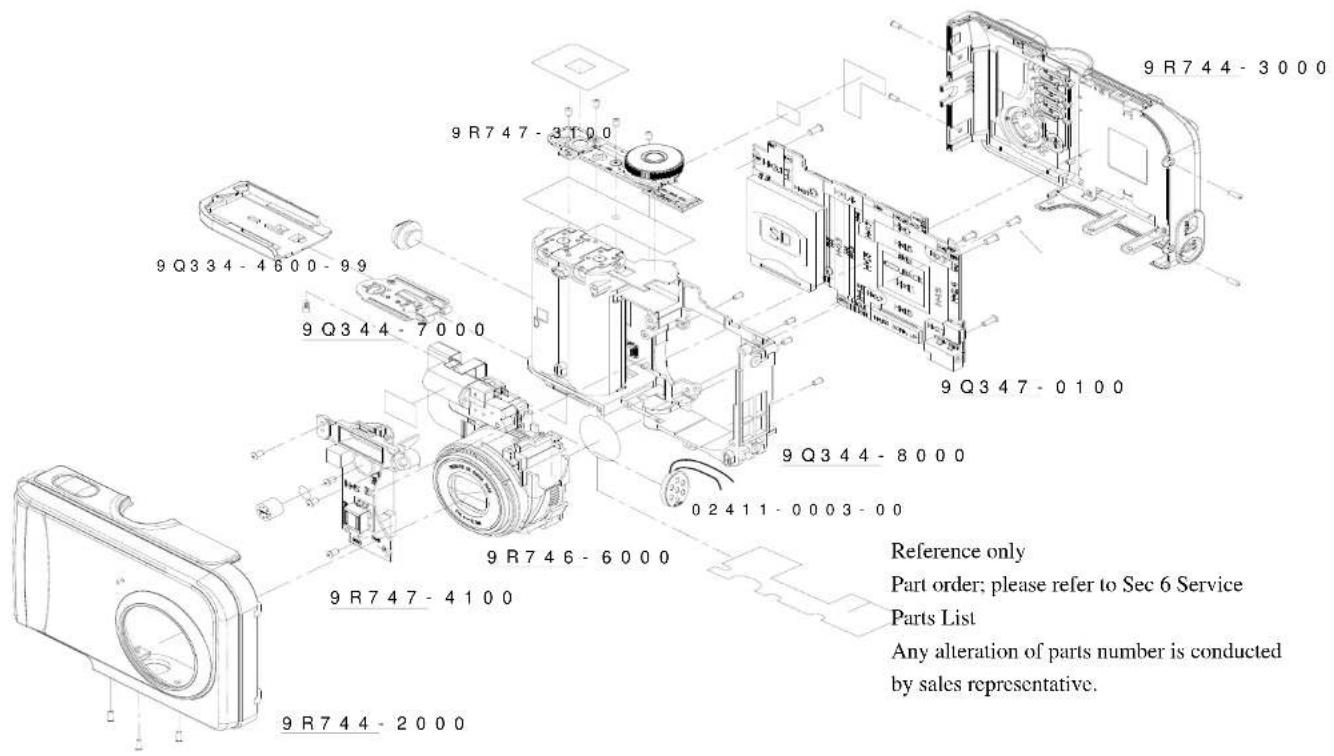
6. Service Parts List
| Item | Parts Name Pcs / set Premier P/N | Remark | ||
| 1 | MCU_DIP_PCB_ASY | 1 | 9Q347-0100 | |
| 2 | STROBE_DIP_PCB_ASY | 1 | 9R747-4100 | |
| 3 | SWITCH_DIP_PCB_ASY | 1 | 9R747-3100 | |
| 4 | LENS ASSY | 1 | 9R746-6000 | |
| 5 | BATTERY-HOLDER-SUB-ASM | 1 | 9Q344-8000 | |
| 6 | BATTERY-COVER | 1 | 9Q334-4600-99 | |
| 7 | FRONT-GRIP-SUB-ASM | 1 | 9R744-2000 | |
| 8 | BACK-GRIP-SUB-ASM | 1 | 9R744-3000 | |
| 9 | BATTERY-COVER-SUB-ASM | 1 | 9Q344-7000 | |
| 10 | BUZZER | 1 | 02411-0003-00 |
Packing Diagram
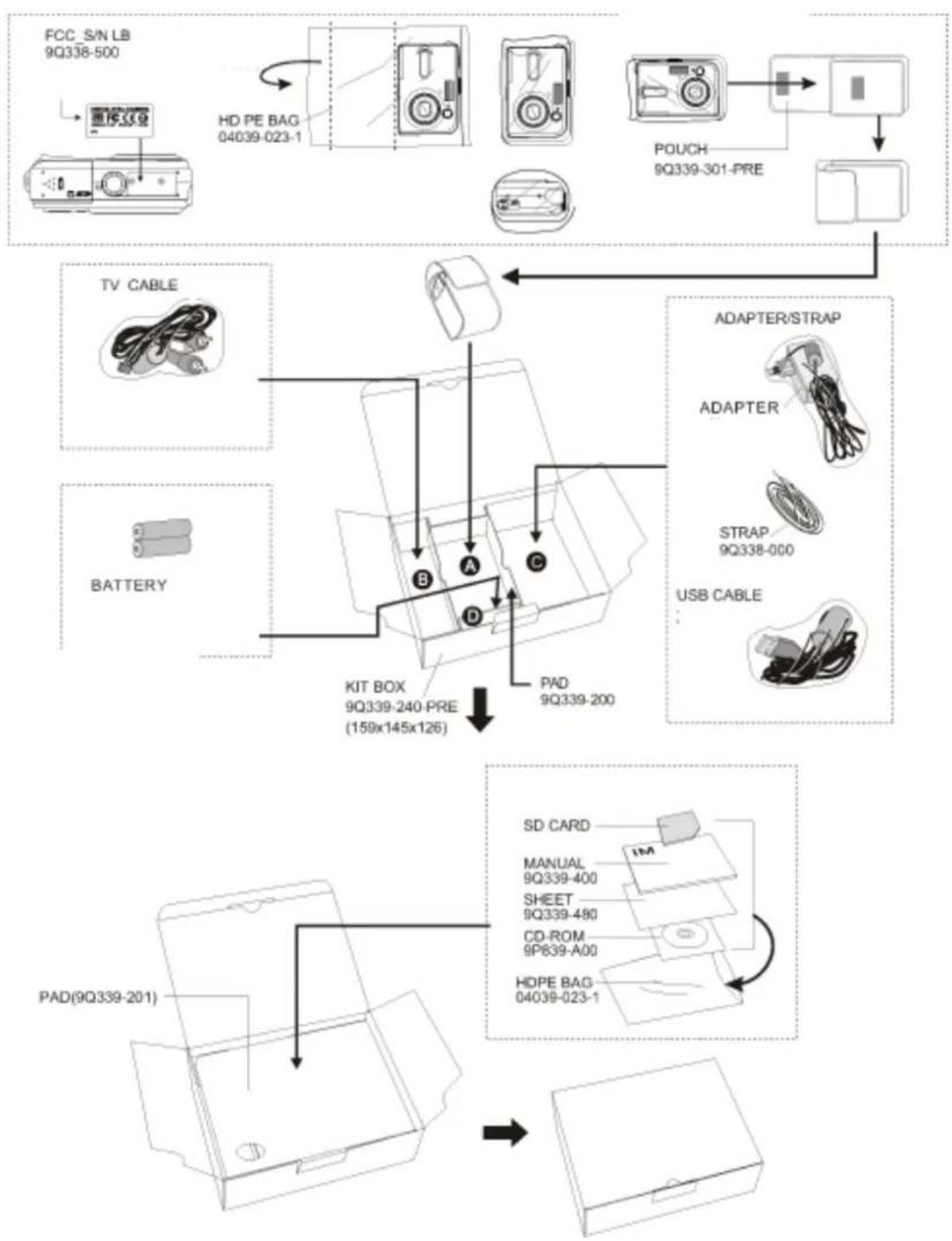
flowchart
graph TD
    A["FCC_S/N LB 9Q338-500"] --> B["HD PE BAG 04039-023-1"]
    B --> C["POUCH 9Q339-301-PRE"]
    C --> D["USB CABLE"]
    D --> E["ADAPTER/STRAP"]
    E --> F["STRAP 9Q338-000"]
    F --> G["ADAPTER"]
    G --> H["KIT BOX 9Q339-240-PRE (159x145x126)"]
    H --> I["BATTERY"]
    I --> J["SD CARD MANUAL 9Q339-400 SHEET 9Q339-480 CD-ROM 9P639-A00 HDPE BAG 04039-023-1"]
    J --> K["USB CABLE"]
    style A fill:#f9f,stroke:#333
    style B fill:#ccf,stroke:#333
    style C fill:#cfc,stroke:#333
    style D fill:#fcc,stroke:#333
    style E fill:#cff,stroke:#333
    style F fill:#ffc,stroke:#333
    style G fill:#fcc,stroke:#333
    style H fill:#ffc,stroke:#333
    style I fill:#cfc,stroke:#333
    style J fill:#cfc,stroke:#333
    style K fill:#fcc,stroke:#333
Packing Part List
| No | Part name Part number | |
| 1 | HDPE BAG | 04039-023-1 |
| 2 | LB ASSURANCE TAPE | 04238-765 |
| 3 | OUT_CTN | 9E539-602 |
| 4 | PAD, VIVITAR | 9E539-694 |
| 5 | PAD, VIVITAR | 9E539-695 |
| 6 | CD ROM | 9P839-A00 |
| 7 | STRAP | 9Q338-000 |
| 8 | KIT PAD | 9Q339-200 |
| 9 | PAD | 9Q339-201 |
| 10 | FCC LB | 9R738-5000-00 |
| 11 | KIT BOX | 9R739-2400-00 |
| 12 | SHEET | 9R739-4800-00 |
| 13 | IM | 9R739-4000-01 |
| 14 | POUCH | 9R739-3000-00 |
Firmware Update Procedure
To update this camera firmware, you will need to have
- The new firmware file from Premier.
- One SD card.
- One card reader.
Please follow the steps below to perform the update process:
- Change the update file name to "DC4345.bin";
- Insert a SD card with F/W to the card reader;
- Plug in the AC adapter into the camera;
- Press "S1" & "Playback" button at the same time and press "Power" button, then loosen "Power" button, LCD will display the image and camera enters update process automatically and LED blinks;
- When LED stops blinking, it means update ok;
- Pull out AC adaptor, remove SD card.
Note: Don't remove the power source during firmware update procedures.

Premier will not be responsible to any damage caused by end-users while updating firmware by themselves. Always come to Premier's service center for processing the updating.