
Femto Bolt - 3D Printer Orbbec - Free user manual and instructions
Find the device manual for free Femto Bolt Orbbec in PDF.


| Product Type | 3D Printer |
| Brand | Orbbec |
| Model | Femto Bolt |
| Printing Technology | Fused Deposition Modeling (FDM) |
| Build Volume | 220 x 220 x 250 mm |
| Layer Resolution | 50 - 300 microns |
| Nozzle Diameter | 0.4 mm (standard) |
| Max Nozzle Temperature | 260 °C |
| Max Bed Temperature | 100 °C |
| Filament Diameter | 1.75 mm |
| Supported Filaments | PLA, ABS, PETG, TPU |
| Connectivity | USB, SD card, Wi-Fi |
| Display | 3.5-inch color touchscreen |
| Dimensions (W x D x H) | 400 x 400 x 500 mm |
| Weight | 10 kg |
| Power Supply | 250W, 100-240V AC, 50/60Hz |
| Bed Leveling | Automatic (induction sensor) |
| Print Recovery | Power loss recovery |
| Maintenance | Clean nozzle, lubricate Z-axis, tighten belts |
| Safety Features | Thermal runaway protection, enclosed chassis |
| Spare Parts Availability | Replacement nozzles, heated bed, fans available |
Frequently Asked Questions - Femto Bolt Orbbec
User questions about Femto Bolt Orbbec
0 question about this device. Answer the ones you know or ask your own.
Ask a new question about this device
Download the instructions for your 3D Printer in PDF format for free! Find your manual Femto Bolt - Orbbec and take your electronic device back in hand. On this page are published all the documents necessary for the use of your device. Femto Bolt by Orbbec.
USER MANUAL Femto Bolt Orbbec
natural_image
White ORBSEC camera with lens and control buttons, set against a blue background (no text or symbols on device body)| Product Brief | 02 |
| Product Specifications | 03 |
| Product Information | 04 |
| SDK | 04 |
| Camera Setup and Operation | 05 |
| Installation Guide | 06 |
| Product Drawings | 07 |
| Field of View Illustration | 07 |
| Multi-Camera Synchronization | 08 |
| Safety and Handling | 08 |
| Glossary of Terms | 09 |
Developed with

Microsoft
1. Product Brief
Product Overview
Femto Bolt is a compact, high-performance device with multi-mode Depth and RGB cameras and USB-C connection for power and data. Its versatility and price make it attractive for AI-developers for 3D vision applications.
The depth camera uses Microsoft's industry proven ToF technology and has identical operating modes and performance to the Microsoft Azure Kinect and Orbbec Femto Mega.
Product Features
- Depth camera with 1 Mega Pixel ToF sensor and 120^ FOV
- 4K RGB with HDR
- IMU: 6DoF
• Data interfaces: USB Type-C 3.2 Gen 1 - Compact Form Factor: 115mm x 40mm x 65mm
• Power: USB Type-C/DC, 4.35W avg - Trigger/Sync Control
- SDK: Windows or Linux
- Operating temperature: 10^ 25^
Product Characteristics
Performance and Programmability
• High resolution and high accuracy across a wide range of operation
- Wide Field of View covers a large area
• HDR (High Dynamic Range) function for RGB preserves details
- Easy camera setup with a rich set of APIs for various applications
Ease of use for AI Developers and Commercial Applications
- Depth and RGB cameras and IMU in a single device
- Combined data and power with USB-C 3.2 connection
• High precision synchronization trigger control
2. Product Specifications
| Parameter Specifications | |
| Model F00364-152 | |
| VID/PID 0x2BC5/0x066B | |
| Technology iToF | |
| Shutter Type IR: Global | Shutter; Color: Rolling Shutter |
| Wavelength 850nm | |
| Mode | Resolution | FoV | FPS | Range | Format |
| WFOV Unbinned | 1024 x 1024 H | 120° x V 120° | 5, 15 0.25m | -2.21m Y16 | |
| WFOV Binned | 512 x 512 | 5, 15, 25, 30 | 0.25m -2.88m | ||
| NFOV Unbinned | 640 x 576 | H 75° x V 65° | 5, 15, 25, 30 | 0.5m - 3.86m | |
| NFOV Binned | 320 x 288 | 5, 15, 25, 30 | 0.5m - 5.46m | ||
| RGB | 3840 x 2160 | 16:9 H 80°x V 51° | 5, 15, 25, 30 | YUY2, MJPG, H.264, H.265 | |
| 2560 x 1440 | 5, 15, 25, 30 | ||||
| 1920 x 1080 | 5, 15, 25, 30 | ||||
| 1280 x 720 | 5, 15, 25, 30 | ||||
| 1280x960 | 4:3 H 65° x V 51° | 5, 15, 25, 30 | |||
| Depth typical systematic error (accuracy)* < 11 mm + 0.1% distanceDepth random error std. dev (precision)* ≤ 17 mm.Passive-IR mode supported*15% to 95% reflectivity at 850nm, 2.2 μW/cm2/nm without multi-path interference.Depending on object reflectivity, depth may be provided outside of the operating range indicated above. | |||||
| Parameter | Specifications |
| IMU | 6 DoF; Frequency range: 50-2,000Hz; Data format: float |
| Mirror Mode | Supported, non-mirror by default |
| Processing Host | |
| Data Connection | Type-C USB 3.2 Gen 1 |
| Trigger Sync | 8 Pin-Connector for multi-device sync |
| Power Mode | DC /USB Type-C |
| Power Input | DC 12V 2AType-C 5V 3A |
| Operating Modes DC Power + USB Type-C DataType-C Power + USB Type-C Data*1 Depth & IR mode support 640 x 576 and below, Y16 format.Color mode supports 1,920 x 1,080 and below, YUY2 and MJPG format | |
| Power Consumption | 4.35W average |
| Operating Environment | 10°C - 25°C, 8%RH ~ 90%RH (non-condensing), Indoor/Semi-Outdoor |
| Supported Functions | D2C, Multi-Camera Sync |
| Dimensions | 115mm x 40mm x 65mm |
| Weight | 335g |
| Certifications | ROHS, Reach, WEEE, CE, FCC, Class 1 Laser Product |
| Installation | Bottom: 1 x 1⁄4-20uncSides: 4 x M2.5 |
3. Product Information
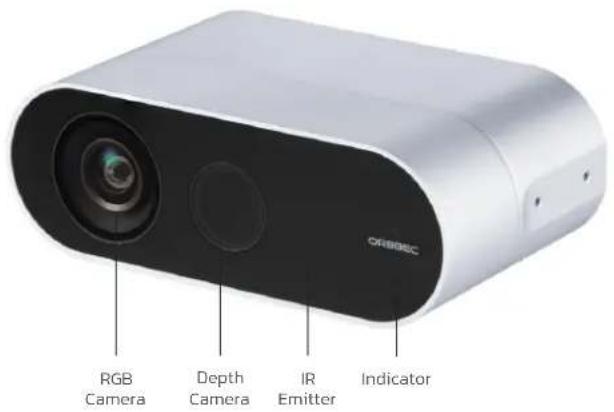
Femto Bolt front view showing components

Femto Bolt rear-view showing interfaces
4. Software Development Kit (SDK)
Orbbec SDK is a flexible and modular platform for easy camera setup that runs on Linux/Windows with a rich set of APIs. It supports camera access; device setup and configuration; data stream reading, processing, and viewing; RGB-D registration; and frame synchronization.
The functions include:
- Access and control of camera devices
• Control of frame synchronization and alignment
• Acquisition of point cloud data
• Orbbec Viewer for camera testing
Please check https://www.orbbec.com/developers/orbbec-sdk/ for the latest SDK.
5. Camera Setup and Operation
Packing List
• Orbbec Femto Bolt device
- USB Type-C to USB Type-C power + data cable
• AC to DC Power Supply/Adapter
Initialization and Operation
- Connect Femto Bolt via the cable to the host PC.
- Check both indicators on the camera and validate that all cameras are enumerated correctly in Windows device manager.
- Download the Orbbec SDK from https://www.orbbec.com/developers/orbbec-sdk/
- Validate that the cable can stream reliably on all sensors in the Orbbec Viewer, with the following settings:
• Depth camera: NFOV Unbinned
- RGB Camera: 2160p
- IMU enabled
- If the camera is not responding or not being detected for any reason, please remove all cables from the camera and replug to the host PC to reset the camera state.
Indicators
The indicator is ON by default while the device is operating and can be manually switched on/off through the SDK.
| State of Indicators | Meaning Next Steps | |
| Solid White Powered | ON and working correctly | Use the device |
| Flashing Amber The | device is in a faulty state | Unplug the power to reboot the camera |
Temperature sensor and recording
The temperature of camera core components — such as the laser temperature, IR sensor temperature, and IMU sensor temperature — can be obtained through API commands.
6. Installation Guide
Use outside of the specified conditions could cause the device to fail and/or function incorrectly. These conditions are applicable for the environment immediately around the device under all operational conditions. When used with an external enclosure, active temperature control and/or other cooling solutions are recommended to ensure that the device is maintained within these ranges.
6.1 Installation Recommendations
- When using an external housing around the camera for dust proofing, use foam inserts or rubber gaskets between the front of the camera and the external housing.
- Avoid the application of external forces to the camera chassis during the installation process.
- Disassembling the chassis and mounting brackets will void the warranty.
6.2 Heat Dissipation
- Avoid any direct heat sources around the camera.
- Maximizing the space inside the external housing may help lower the operating temperature.
6.3. Transmittance Requirements
Transmittance requirements for the front cover protection lens of Femto Bolt 3D camera are listed as follows:
$$ \begin{array}{l} 835\sim 865nm T_{min} > 85\% , \ 800\sim 960nm T_{ave} > 88 \% and \ 400\sim 700nm T_{ave} > 85\% \ \end{array} $$
-
RGB transmittance:
-
RX transmittance:
$$ 420\sim 680nm T_{\min} > 97\% $$
-
Flatness of front cover lens material: < 0.005mm.
-
Glass is recommended.
Any protective glass in front of the camera must meet the above requirements.
6.4 Cable Design Guide
It is recommended to use the included USB Type-C cable. If a longer cable is needed, please select a USB certified cable that supports both power and data (1–1.5m length is recommended).
7. Product Drawings

Front View

Side View

Bottom View
8. Field of View Illustration
The image below shows the depth and RGB camera field-of-view, or the angles that the sensors "see". This diagram shows the RGB camera in a 4:3 mode.
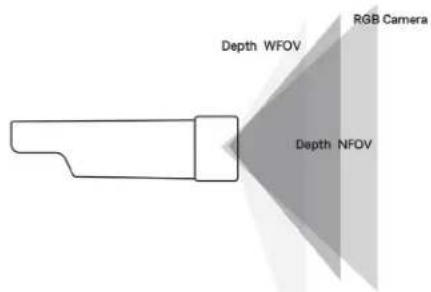
This image demonstrates the camera's field-of-view as seen from the front at a distance of 2000 mm. When depth is in NFOV mode, the RGB camera has better pixel overlap in 4:3 than 16:9 resolutions.

9. Multi-Camera Synchronization
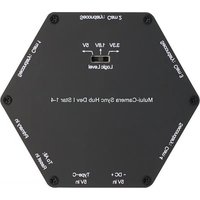
Multiple cameras are used to increase camera coverage, fill in occlusions where a single camera might have blind spots or blockage, capture multiple images of the same scene from different viewpoints or angles or increase the effective frame rate. Orbbec's Sync Hubs are available in two versions, the Sync Hub Dev and Sync Hub Pro, and are designed to reduce the complexity and cost of a multi-camera network of compatible Orbbec cameras and external sensors. The trigger voltage is switchable, and the number of secondary devices can be extended using multiple hubs.
The Developer edition, compact and flexible, uses a GPIO interface, perfectly meeting rapid prototyping needs during early-stage development. The Professional edition, designed for commercial use, employs a reliable RJ45 interface, guaranteeing a more stable and longer-range signal connection using standard CAT5 or better cables
When using a Star connection, the Primary device delivers the trigger pulse simultaneously to each secondary camera or device in the network. However, each camera with an overlapping Field of View will need to be programmed individually with a delay offset from the trigger to match its sequence in capturing.
To avoid possible interference when pointing at the same direction, the minimum delay recommended is 160us for compatible Orbbec cameras. To achieve the closest exposure between 2 devices, the first pulse of the second camera should fall in the first idle period of the first camera. Though the delay between the first and second cameras can be 125μs (the width of a pulse), the recommended minimum is 160μs. This will allow interleaving the exposure periods of a maximum of 8 cameras.
Synchronization Interfaces of Femto Bolt Camera
| Pin Definitions Description | ||
| Pin_1 GND Ground | ||
| Pin_2 TIME_SYNC_IN Hardware | timestamp Reset Signal Input | |
| Pin_3 VSYNC_IN Active high, used for the triggering/sync signal from primary device | ||
| Pin_4 RESET_IN Pulse signal, power down and POR | ||
| Pin_5 TIME_SYNC_OUT Pulse signal source, reset hardware timestamp of secondary devices | ||
| Pin_6 VSYNC_OUT | Active high. The high level provides the triggering signal for the secondary devices. | |
| Pin_7 GPIO_OUT | Active high. The high-level interval coincides with the IR exposure time. | |
| Pin_8 SYNC_VCC | Default Voltage is 1.8V. This voltage is sensed (3.3V or 5V) and used to set/sense the level of all signals. | |

*The Pin sequence is shown with camera placed in rear view
10. Safety and Handling
10.1 Safety Precautions
- Follow the camera operation instructions. Improper operation may cause damage to internal components.
- Do not drop or subject the camera to external force.
- Do not attempt to modify the camera. Modifications may cause permanent damage or inaccuracies.
- The camera temperature may increase during long periods of continuous usage.
- Do not touch the lens. Fingerprints on the lens may affect image quality.
- Keep the product beyond the reach of children or animals to avoid accidents.
- If the camera is not recognized by the computer, check if the cable meets the power/data transfer requirements and reinsert the USB for reconnection.
- This product uses a Class 1 laser. Looking at the laser for more than 20s is not recommended.
10.2 Cleaning
To clean the camera body, use a clean, soft cloth to wipe away dust and debris. To remove stains from the lens, use a lens cleaning solution and carefully wipe with a clean, soft, lint-free cloth.
- Do not use alcohol, gasoline, kerosene, or other corrosive or volatile solvents to clean the camera.
- Do not use pressure washers or hoses to spray the camera.
10.3 Storage
When not in use, store the camera in a cool, dry, and well-ventilated indoor location. Avoid leaving the camera outdoors for extended periods to prevent damage from rain, snow, or other harsh conditions.
- Disconnect the power supply before storing the camera.
- Do not point the lens directly at the sun; avoid exposing the lens to strong light sources for extended periods.
11. Glossary of Terms
| Term Definition | |
| D2C | Depth to Color function maps each pixel on a depth map to the corresponding color image according to the intrinsic and extrinsic parameters of depth camera and color camera. |
| Depth | Depth video streams are like color video streams except each pixel has a value representing the distance away from the sensor instead of color information. |
| Depth Camera | Includes the external interface and the depth imaging module, which is generally composed of the infrared projector, the infrared camera, and the depth computing processor. |
| FOV | Field of View (FoV) describes the angular extent of a given scene that is captured by a camera, which can be measured in horizontal, vertical, or diagonal. |
| I2C | I2C bus refers to a kind of simple bidirectional two-wire synchronous serial bus developed by Philips. It can be used for transferring information among devices connected to the bus with two wires. |
| IR Camera | Infrared camera. |
| IR Flood | IR floodlights are used to illuminate the environment. |
| ISP | Image signal processor, which is used for image post-processing. |
| MIPI | Mobile Industry Processor Interface (MIPI) is an open standard and specification formulated by the MIPI Alliance for mobile application processors. |
| PCBA | Circuit board that includes the depth computing processor, memory, and other electronic devices. |
| Point Cloud | A point cloud is a discrete set of data points in space. |
| SoC | System on Chip, an integrated circuit (IC) that integrates all components of a computing system. |
| TBD | To Be Determined. In the context of this document, information will be available in a later revision. |

natural_image
Abstract pattern of blue circles arranged in a symmetrical radial shape (no text or symbols)ORBBEC
Copyright 2023 Orbbec Inc. All rights reserved. The product described may contain defects or errors or deviation from published specifications. Contact your sales representative to obtain the latest Orbbec 3D product specifications. Orbbec is not responsible for any users infringing on third party copyright or other rights in use of Orbbec products. In addition, Orbbec does not assume any liability for damages or any losses resulting from the use of this product. All information provided here is subject to change without notice.

- Product Brief
- Product Overview
- Product Features
- Product Characteristics
- Performance and Programmability
- Ease of use for AI Developers and Commercial Applications
- Product Specifications
- Product Information
- Software Development Kit (SDK)
- The functions include:
- Camera Setup and Operation
- Packing List
- Initialization and Operation
- Indicators
- Temperature sensor and recording
- Installation Guide
- Installation Recommendations
- Heat Dissipation
- Transmittance Requirements
- Cable Design Guide
- Product Drawings
- Field of View Illustration
- Multi-Camera Synchronization
- Safety and Handling
- Safety Precautions
- Cleaning
- Storage
- Glossary of Terms
- ORBBEC
Brand : Orbbec
Model : Femto Bolt
Category : 3D Printer