
TwinVerti - Mouse Evolveo - Free user manual and instructions
Find the device manual for free TwinVerti Evolveo in PDF.


| Brand | Evolveo |
| Model | TwinVerti |
| Product Type | Wireless Ergonomic Mouse |
| Connectivity | 2x Bluetooth 4.2, 2.4GHz Wireless |
| Wireless Range | Up to 10 m |
| Resolution (DPI) | 800 / 1200 / 1600 (adjustable) |
| Number of Buttons | 7 (including two scroll wheels) |
| Scroll Wheel | Multifunctional with tilt function |
| LED Backlight | Multiple modes: off, breathing, snake |
| Power Supply | Built-in Li-Ion battery 500 mAh |
| Charging Interface | USB-C (Type-C) |
| Charging Cable | USB-A to USB-C, 1.5 m (included) |
| Dimensions (L×W×H) | 122 × 73 × 75 mm |
| Weight | 110 g (without nano receiver) |
| Nano Receiver Dimensions | 19 × 14 × 6 mm |
| Compatibility | Windows and macOS |
| SmartSwap | Switch between 3 paired devices |
| Pairing Method | Button on bottom for mode selection and pairing |
| Included Accessories | Mouse, USB nano receiver, charging cable |
| Warranty | Standard manufacturer warranty (battery capacity 6 months) |
Frequently Asked Questions - TwinVerti Evolveo
User questions about TwinVerti Evolveo
0 question about this device. Answer the ones you know or ask your own.
Ask a new question about this device
Download the instructions for your Mouse in PDF format for free! Find your manual TwinVerti - Evolveo and take your electronic device back in hand. On this page are published all the documents necessary for the use of your device. TwinVerti by Evolveo.
USER MANUAL TwinVerti Evolveo
natural_image
Black wired mouse with a curved head and control knob, no visible text or symbols on the device itself.CZ
SK
EN
HU
RO
DE
IT
SI
B
Copyright © Abacus Electric, s.r.o.
www.evolveo.com
www.facebook.com/EvolveoCZ
B
Copyright © Abacus Electric, s.r.o.
www.evolveo.com
www.facebook.com/EvolveoCZ
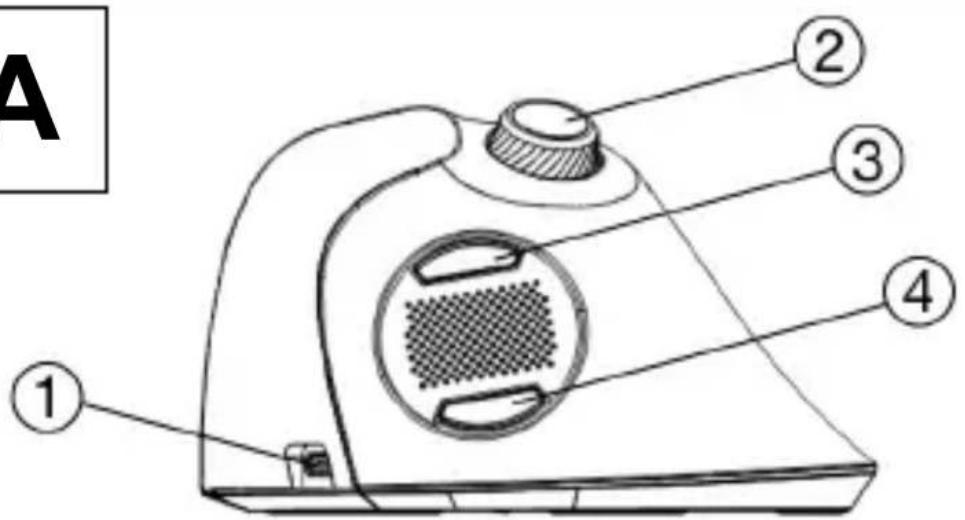
1) USB-C (Type-C) charging port
2) Multifunction wheel
3) Forward button
4) Reverse button
B
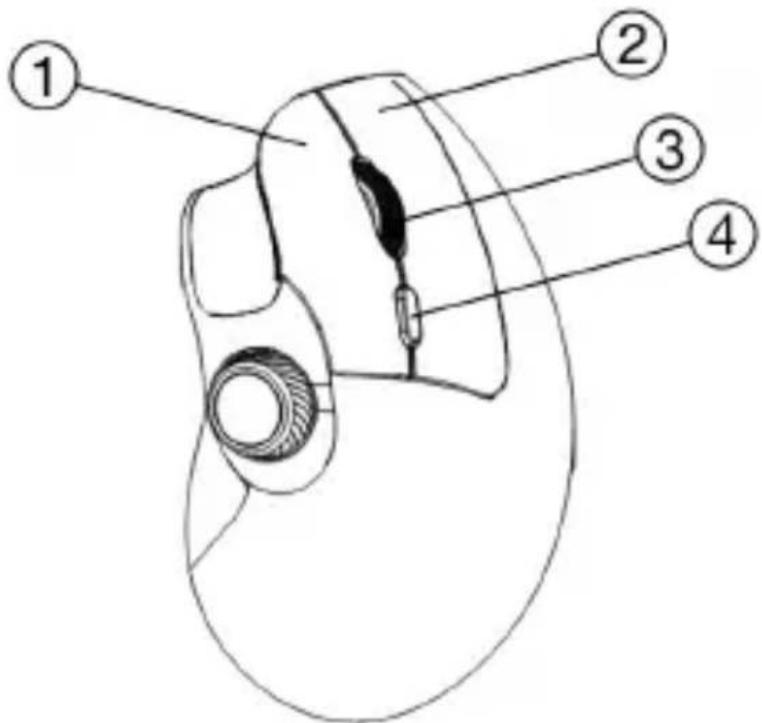
1) Left button
2) Right button
3) Scroll wheel
4) Button to change LED backlight
Technical Specifications
- Three wireless connectivity options (2x Bluetooth 4.2, Wireless 2.4GHz)
-
USB-A nano receiver for 2.4GHz connection
• Operating range up to 10 m
• Resolution 800/1200/1600 DPI -
7 buttons including 2 wheels
- Pow er supply: Li-Ion battery 500 mAh
- USB-A -> USB-C (Type C) charging cable included
• Charging cable length: 1,5 m - Mouse dimensions (l × h × w): 122 × 73 × 75 mm
- Di mensions of the USB nano receiver (I × h × w): 19 × 14 × 6 mm
- We ight without USB nano receiver: 110 g
- Dual compatibility (Windows & macOS)
Contents of delivery
- Mouse
- US\$ nano receiver
- USB-A -> USB-C (Type C) charging cable
Charging
The mouse comes with a built-in rechargeable with an accumulator. To charge it, use the supplied
USB cable to connect to either the USB-A port computer or to a USB-A network charger o voltage 5 V and current min. 300 mA.
Installation via 2.4 GHz connection:
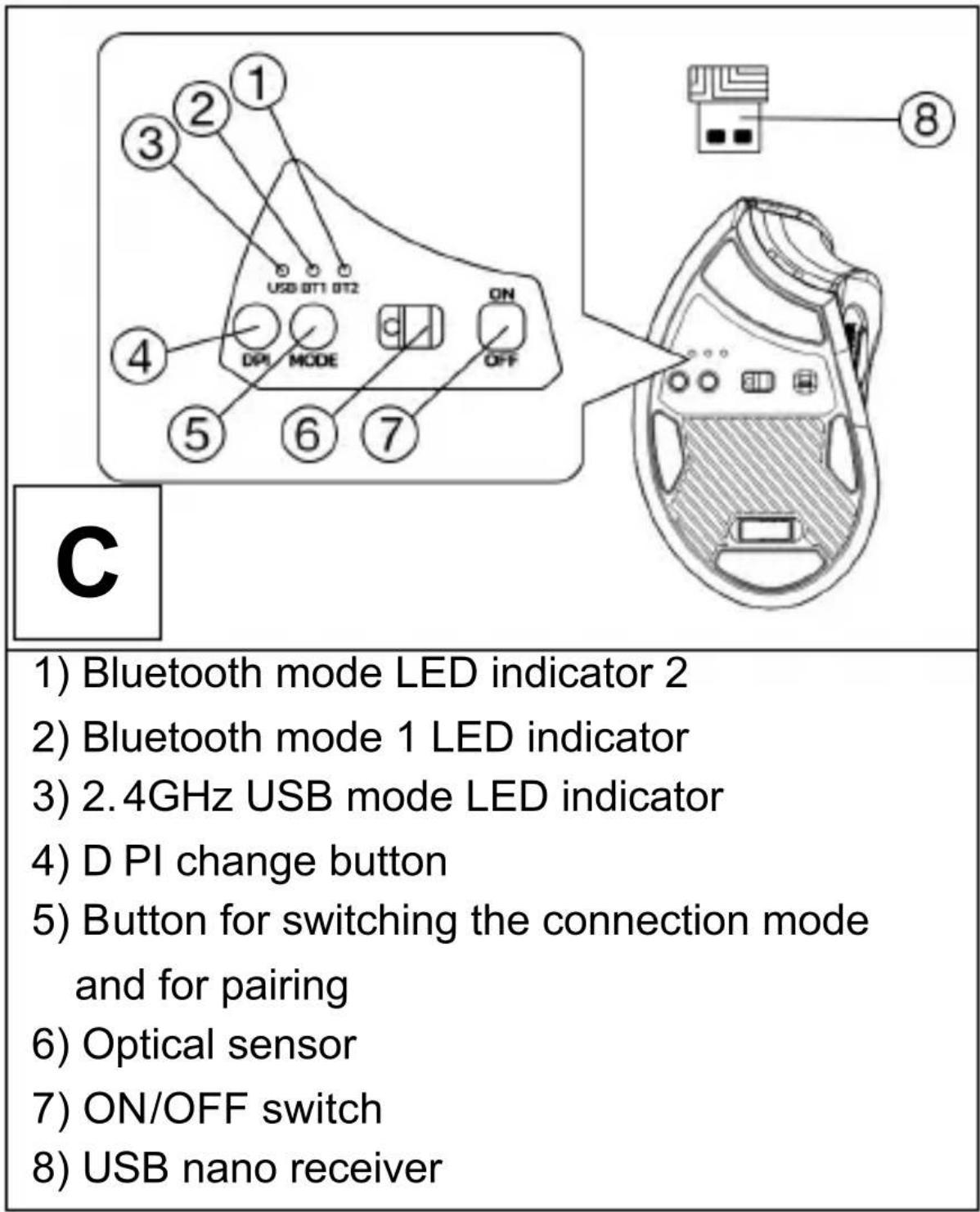
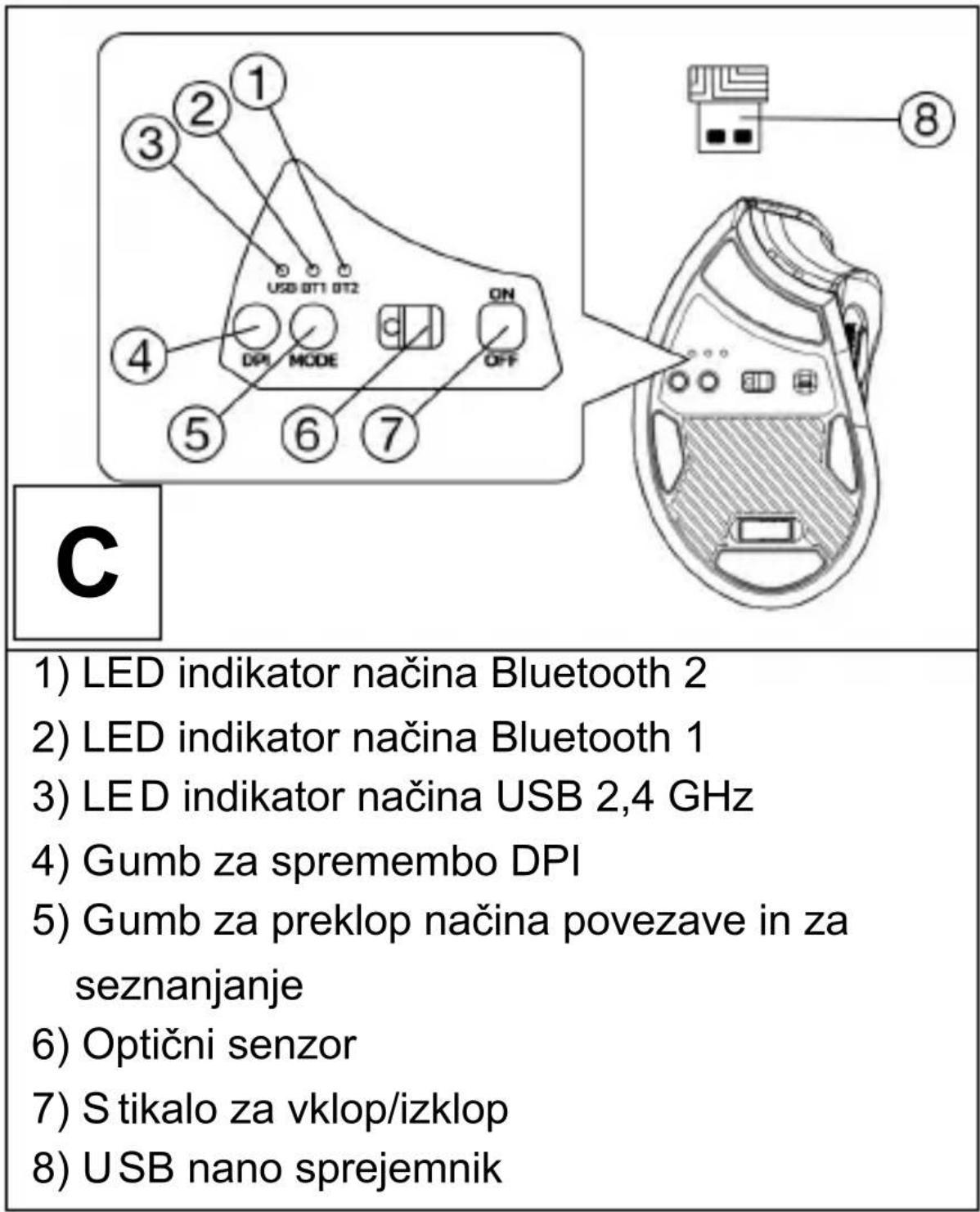
1) Remove the USB nano receiver C8 located at the bottom of the mouse and insert it into an available USB-A port on your laptop or computer.
2) Turn the mouse ON/OFF switch(C7) to the "ON" position.
3) Press the C5 button at the bottom of the mouse to select "USB" mode until the C3 light comes on.
4) Wait for the drivers to install automatically.
Warning: When plugging a USB nano receiver into a USB hub, make sure that your USB hub and the USB port on the laptop or computer to which it is connected is capable of supplying enough current to power all devices connected to that USB hub. Otherwise, we recommend using a USB hub with an external power supply.
Installation via Bluetooth connection
1) Turn the mouse ON/OFF switch (C7) to the "ON" position.
2) Use the C5 button at the bottom of the mouse to select the "BT1" or "BT2" mode until the C2 or C1 indicator lights up.
3) Hold down the C5 button at the bottom of the mouse for 5 seconds to start pairing with your laptop or computer.
4) Depending on the type of BT1 or BT2 connection selected, the C2 or C1 light will flash quickly and the mouse will enter pairing mode.
5) Turn on Bluetooth on your laptop or computer and search for the mouse under the name "EVOLVEO TwinVerti".
SmartSwap
This mouse has 3 connectivity options - Bluetooth 4.2 (BT1 mode), Bluetooth 4.2 (BT2 mode) and 2.4GHz (USB mode). The mouse can be paired with three devices at the same time using SmartSwap technology and switched between them using the C5 button at the bottom of the mouse.
Change the resolution (DPI)
To change the resolution, press the C4 button in the bottom of the mouse. Press this button repeatedly to gradually change the resolution:
The mouse backlight can be controlled with the B4 button.
Press this button repeatedly to switch gradually through these modes:
1) Backlight completely off (default mode).
2) Breathing in all colours.
3) Breathing in the green color.
4) Breathing in the pinkish-purple hue of the colours.
5) Fast snake of all colors.
Multifunctional wheel
The A4 multifunction wheel has two functions:
1) Turning the wheel... Tilt function to move the screen left and right.
2) Click on the wheel... to adjust the intensity of the colored LED backlight in front of the mouse.
Instructions in case of non-functioning (unpaired) USB nano receiver
1) Press the C5 button at the bottom of the mouse to select the "USB" mode until the C3 light comes on.
2) Now turn the mouse off by turning the ON/OFF switch(C7) to the "OFF" position.
3) Place the unpaired USB nano receiver C8 in close proximity to the mouse, but do not plug it into the computer.
4) T urn the mouse ON/OFF switch(C7) to the "ON" position.
5) Press and hold the left and right buttons(B1 and B2) and the B3 wheel simultaneously for 5 seconds.
6) The USB nano receiver C8 is re-paired with the mouse.
7) Plug the USB nano receiver C8 back into the USB-A port of your laptop or computer.
THE WARRANTY DOES NOT COVER:
- Electromechanical or mechanical damage to the mouse caused by improper use, damaged USB-C power port.
- Damage from natural influences such as fire, water, static electricity, high temperature.
- Failures caused by normal wear and tear.
- Damage caused by repairs carried out by an unqualified person.
- The battery if it does not retain its original capacity after 6 months or more (the battery capacity warranty is 6 months).
- Intentional damage.
WARRANTY AND POST-WARRANTY SERVICE
Repairs and servicing can only be carried out at an authorized service point for EVOLVEO products (more at www.evolveo.com), otherwise you may damage your mobile phone and lose your warranty.

Disposal: The crossed-out container symbol on the product, in the accompanying documentation or on the packaging means that in EU countries, all electrical and electronic equipment, batteries and accumulators must be disposed of separately at the end of their useful life as separated waste. Do not dispose of these products in unsorted municipal waste.
DECLARATION OF CONFORMITY
Abacus Electric, s.r.o. hereby declares that the EVOLVEO TwinVerti telephone meets the requirements of the standards and regulations that are relevant for the type of equipment.
The full text of the Declaration of Conformity can be found at http://ftp.evolveo.com/ce/
Importer/Manufacturer:
Abacus Electric, s.r.o.
Planá 2, 370 01, Czech Republic
Made in P.R.C.
Copyright © Abacus Electric, s.r.o.
www.evolveo.com
www.facebook.com/EvolveoCZ
All rights reserved.
The appearance and technical specifications of the product are subject to change without notice.
A
B
Copyright © Abacus Electric, s.r.o.
www.evolveo.com
www.facebook.com/EvolveoCZ
Minden jog fenntartva.
B
Copyright © Abacus Electric, s.r.o.
www.evolveo.com
www.facebook.com/EvolveoCZ
B
GARANTIE UND NACHGARANTIESERVICE
Copyright © Abacus Electric, s.r.o.
www.evolveo.com
www.facebook.com/EvolveoCZ
B
Copyright © Abacus Electric, s.r.o.
www.evolveo.com
www.facebook.com/EvolveoCZ
B
1) Levi gumb
2) Desni gumb
3) Kolesce za pomikanje
4) Gumb za spreminjanje osvetlitve LED
Copyright © Abacus Electric, s.r.o.
www.evolveo.com
www.facebook.com/EvolveoCZ
Vs e pravice pridržane.
- Technical Specifications
- Contents of delivery
- Charging
- Installation via 2.4 GHz connection:
- Installation via Bluetooth connection
- SmartSwap
- Change the resolution (DPI)
- Multifunctional wheel
- Instructions in case of non-functioning (unpaired) USB nano receiver
- THE WARRANTY DOES NOT COVER:
- WARRANTY AND POST-WARRANTY SERVICE
- DECLARATION OF CONFORMITY
- GARANTIE UND NACHGARANTIESERVICE
Brand : Evolveo
Model : TwinVerti
Category : Mouse