
Fighter F1 - Phone Accessories Evolveo - Free user manual and instructions
Find the device manual for free Fighter F1 Evolveo in PDF.


User questions about Fighter F1 Evolveo
0 question about this device. Answer the ones you know or ask your own.
Ask a new question about this device
Download the instructions for your Phone Accessories in PDF format for free! Find your manual Fighter F1 - Evolveo and take your electronic device back in hand. On this page are published all the documents necessary for the use of your device. Fighter F1 by Evolveo.
USER MANUAL Fighter F1 Evolveo
ŘEŠENÍ PROBLÉMŮ
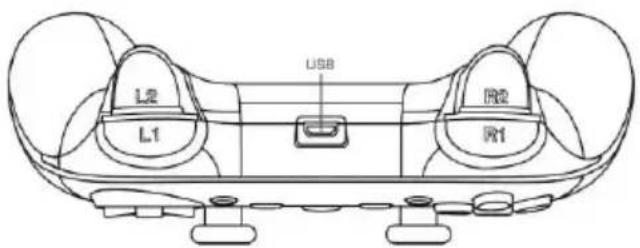
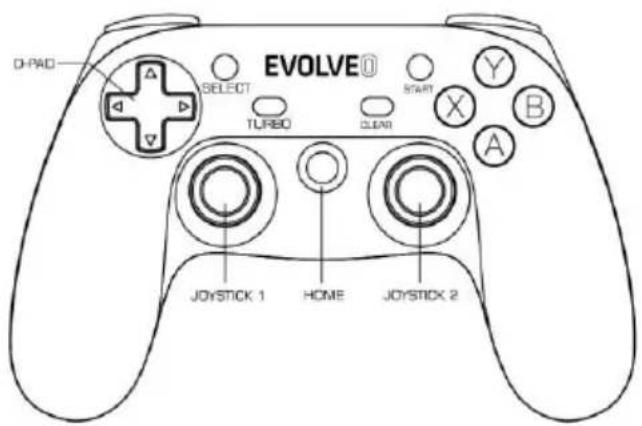
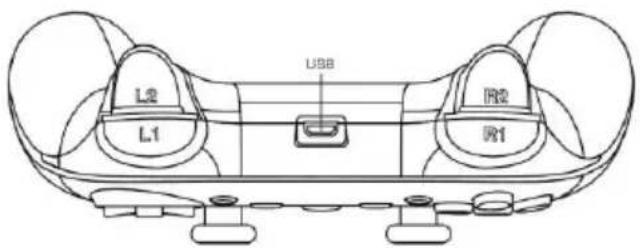
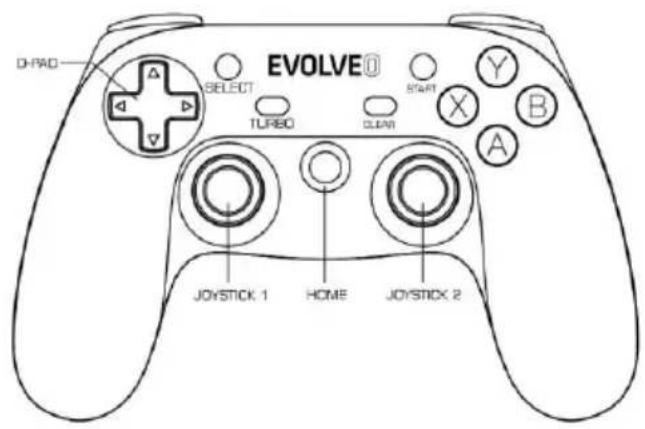
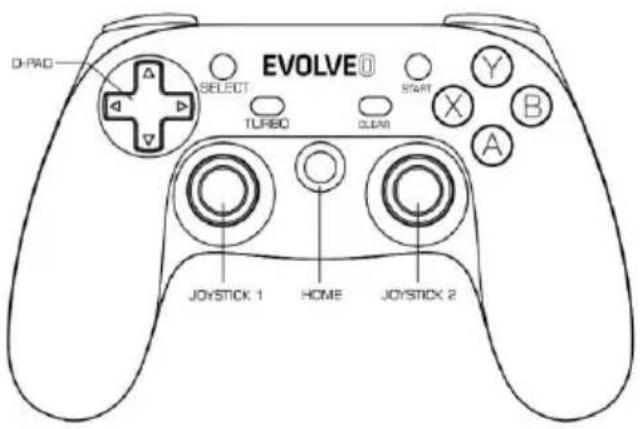
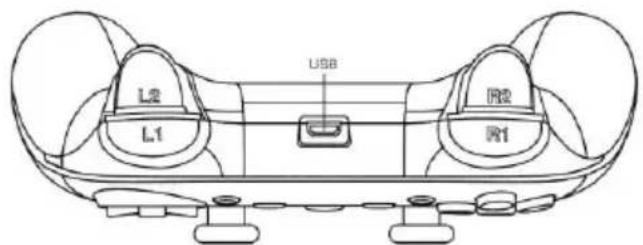
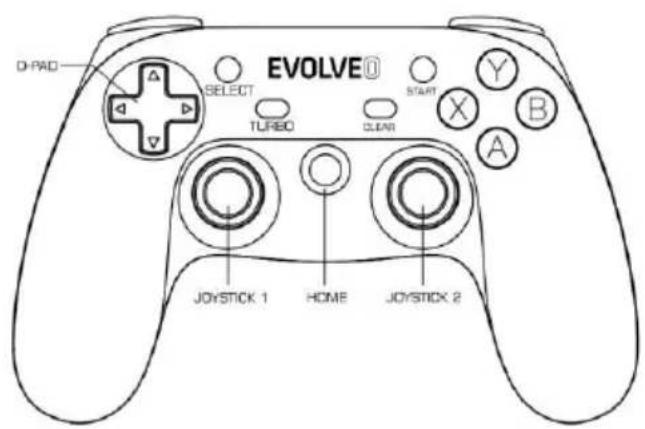
Turning on: press and hold the "HOME" button for 2 seconds
Turning off: press and hold the "HOME" button for 5 seconds
Low battery indication: "LED 4" diode flashes
EN
Charging indication
"LED 4" diode flashes after the power cable is connected, when the battery is fully charged, "LED 4" diode lights constantly. Once the gamepad is connected via USB cable to a Windows PC or PlayStation 3, the battery will automatically recharge itself.
Sleep function
Gamepad enters "Sleep" mode after 1 minute of disconnection
Gamepad enters "Sleep" mode after 5 minute of inactivity
Android smartphone/Android box
- Turn on the Bluetooth function on the Android phone
- Press and hold the "A" and the "HOME" button at the same time for 2 seconds
- "LED 1" will start flashing
- "EVOLVEO" will be displayed on your phone in the list of available Bluetooth devices
- Pair both devices
- If the "LED 1" diode lights constantly, both devices have been successfully paired
EN
Android box
- insert the 2.4 GHz transmitter into a USB port
- press and hold the "A" and the "HOME" button at the same time for 2 seconds
- "LED 1" will start flashing and the automating pairing will start
- if the "LED 1" diode lights constantly, both devices have been successfully paired
Windows (X-input mode)
- insert the 2.4 GHz transmitter into a USB port
- press and hold the "X" and the "HOME" button at the same time for 2 seconds
• "LED 1" and "LED 2" diodes will start flashing - if the "LED 1" and "LED 2" diodes light constantly, both devices have been successfully paired
Note: Bluetooth cannot be used for Windows OS
PlayStation 3
- insert the 2.4 GHz transmitter into a USB port
- press the "TURBO" and the "HOME" buttons at the same time to enter pairing mode
• "LED 1", "LED 2" and "LED 3" diodes will light up - it is also possible to use a USB cable
EN
Automatic connection
- Bluetooth is turned on and the gamepad is off:
press and hold the button "HOME" for 2 seconds and gamepad automatically reconnects - Bluetooth is turned off and the gamepad is on:
turn on Bluetooth on the device and the gamepad automatically reconnects - Bluetooth is turned off and the gamepad is off:
turn on Bluetooth on the device, press and hold the button "HOME" for 2 seconds and gamepad automatically reconnects - The device is connected via 2.4 GHz and the gamepad is off:
press and hold the button "HOME" for 2 seconds and gamepad automatically reconnects
TURBO function
It simulates a single or a multiple push of the button.
Settings
Press one or more buttons (except the D-pad, joystick, SELECT, START), and then press the TURBO button.
Cancelling
Press one or more buttons, and then press a button CLEAR.
EN
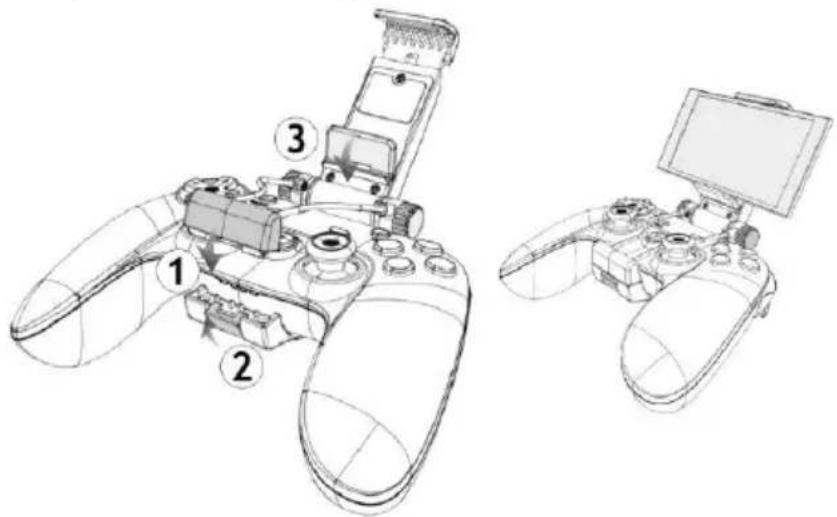
Removable and adjustable clip for smartphone
It is made of durable ABS plastic, yet caution should be exercised when installing it on the gamepad to avoid damage.
TROUBLESHOOTING
| Problem | Solution |
| Gamepad is not | 1. Make sure the USB port is fully functional |
EN
| detected by the computer | 2. The voltage in the USB port USB port is not sufficient3. Try another USB port |
| Gamepad does not work properly in the game | 1. The game does not support gamepad2. Set the gamepad buttons correctly |
| Gamepad does not vibrate | 1. The game does not support vibration2. Android games do not support vibration |
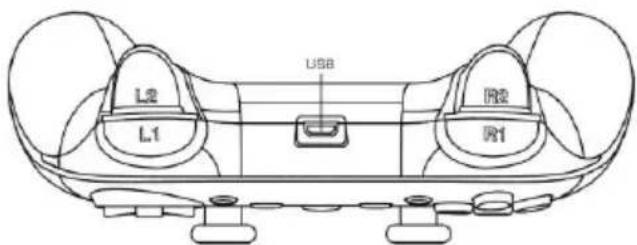
| Other problems | 1. If it is impossible to turn the gamepad on, the batteries may be flat, recharge them.2. If the gamepad got "frozen", disconnected or an incorrect behaviour appeared, reset the device to the factory settings by pressing the RESET button on the bottom of the gamepad and pair it again.3. Gamepad will not work properly if you want to pair via Bluetooth, but it has been paired via 2.4 GHz already and wise versa. It is always necessary to terminate the pairing, if you want to pair the device again. |
Do you still need advice after reading this manual?
Firstly, read the FAQ at www.evolveo.com/en/fighter-f1 or contact
EVOLVEO technical support at www.evolveo.com/en/support
EN
The warranty DOES NOT APPLY to:
- use of the device for other electromechanical purposes or a mechanical damage caused by improper use
- damage caused by natural elements such as fire, water, static electricity, power surges etc.
• damage caused by an unauthorized repair - unreadable serial number of the device
① C6 DECLARATION OF CONFORMITY
Hereby, the company ABACUS Electric, s.r.o. declares that the EVOLVEO Fighter F1 is in compliance with the requirements of the standards and regulations relevant for the given type of device.
Find the complete text of Declaration of conformity at ftp://ftp.evolveo.com/ce
Copyright © ABACUS Electric, s.r.o., all rights reserved.
RIEŠENIE PROBLÉMOV
ROZWIĄZANIE PROBLEMÓW
Problem
HIBAKERESÉS
- EN
- Charging indication
- Sleep function
- Android smartphone/Android box
- Android box
- Windows (X-input mode)
- PlayStation 3
- Automatic connection
- TURBO function
- Settings
- Cancelling
- Removable and adjustable clip for smartphone
- The warranty DOES NOT APPLY to:
- ① C6 DECLARATION OF CONFORMITY
- ROZWIĄZANIE PROBLEMÓW
- Problem
Brand : Evolveo
Model : Fighter F1
Category : Phone Accessories