
RoboStar iQ550 - Vacuum Cleaner TESLA - Free user manual and instructions
Find the device manual for free RoboStar iQ550 TESLA in PDF.


| Product Type | Robotic Vacuum Cleaner with Mopping |
| Brand | TESLA |
| Model | RoboStar iQ550 |
| Navigation System | Laser navigation (LDS) for smart mapping |
| Cleaning Modes | Auto, Spot (1.6x1.6 m), Scheduled (once daily) |
| Mopping Function | Yes, with water tank and microfiber cloth (3 water levels via app) |
| App Control | Smart Life app (Android & iOS) |
| Connectivity | Wi-Fi 2.4 GHz (WPA1/WPA2) |
| Battery Type | Rechargeable lithium-ion (built-in) |
| Charging Time | Approx. 4-6 hours (full charge) |
| Run Time | Approx. 120 minutes (typical) |
| Dust Tank Capacity | Approx. 0.5 L |
| HEPA Filter | Washable HEPA filter; replace every 6 months |
| Side Brushes | 2 included (replaceable) |
| Sensors | Anti-fall (6), cliff detection, impact sensor |
| Return to Charging Station | Auto return when battery low or via button/app |
| Safety Features | Do not use on wet floors or near water; avoid stairs without barriers |
| Package Contents | Robotic vacuum, charging station, side brushes (2), water tank, mopping cloth, user manual |
| Dimensions (approx.) | 34 cm diameter, 9 cm height |
| Weight (approx.) | 3.5 kg |
Frequently Asked Questions - RoboStar iQ550 TESLA
User questions about RoboStar iQ550 TESLA
0 question about this device. Answer the ones you know or ask your own.
Ask a new question about this device
Download the instructions for your Vacuum Cleaner in PDF format for free! Find your manual RoboStar iQ550 - TESLA and take your electronic device back in hand. On this page are published all the documents necessary for the use of your device. RoboStar iQ550 by TESLA.
USER MANUAL RoboStar iQ550 TESLA
ANDROID
iOS
natural_image
Line drawings of three different household appliances: a hand washing a small appliance, a water tap with a valve, and a vacuum cleaner (no text or symbols present)natural_image
Line drawings of various household appliances including a water tap, air vent, and fan (no text or labels)natural_image
Line drawings of a vacuum cleaner and a handheld device, both showing open and emitting particles (no text or symbols)natural_image
Line drawing of a hand holding a tool with a pliers (no text or symbols)ANDROID
vyhl'adajte výraz "Smart Life" v službe Google Play
iOS
vyhl'adajte "Smart Life" v obchode Apple Store
natural_image
Line drawings of three different household appliances: a hand holding a kitchen appliance, a water tap with a handle, and a vacuum cleaner (no text or symbols present)natural_image
Technical line drawings of various household appliances including a water tap, air vent, and fan (no text or labels)natural_image
Line drawings of a vacuum cleaner and a handheld device with a warning light, both without any text or symbols.natural_image
Line drawing of a hand holding a tool, no text or symbols presentthank you for choosing the TESLA RoboStar iQ550.
Before using the robotic vacuum cleaner, please read the rules of safe use carefully and follow all common safety rules.
IMPORTANT SAFETY WARNING
This is a complex electromechanical device, please pay attention to these instructions:
• The device is intended for indoor use at room temperature (max. 40°C) only.
• Make sure the dirt tray and filter are properly installed before use.
- Use only original accessories that are designed for this model.
• To recharge the battery, use only the charging station provided with this device.
- Do not touch parts that are connected to the mains if your hands are wet.
- Do not leave the device unattended in the presence of children, do not use it in a place where a small child sleeps.
- Do not open or repair the device, as this exposes you to the risk of electric shock and will void your warranty.
- Keep the device away from flammable and volatile substances.
- Do not use the device in excessively warm, dusty, or humid environments.
- Do not allow radiant heat to be applied to the plastic surface of the device.
- Do not use the device near objects with water that may damage it.
- Do not immerse the device in water, even partially, and do not clean it with water, it is not waterproof.
- Do not use the device on a wet floor.
- Do not pick up liquids, burning cigarettes, matches, flammable substances, shards, sharp objects, flour, cement, plaster, nails, loose materials, large pieces of paper, plastic bags, or other objects that may damage the device.
- The device is not intended to be used in elevated places without barriers - built-in floor, staircase, balcony, furniture and more. The device is equipped with anti-fall sensors, but there may be circumstances where the control system evaluates the situation incorrectly (dirty sensor, current sensor failure, light reflection, trapped dirt, etc.) and does not prevent (stop) the fall. In these cases, the seller cannot accept any claims of the buyer for damage to the equipment caused in this way.
- The manufacturer and importer to the European Union is not responsible for damage caused by the operation of the equipment, such as injury, scalding, fire, injury, deterioration of other things, etc.
PACKAGE CONTENT
Check carefully that you have unpacked all supplied accessories, we recommend that you keep the original paper box, user manual and packing material during the warranty period.
DESCRIPTION
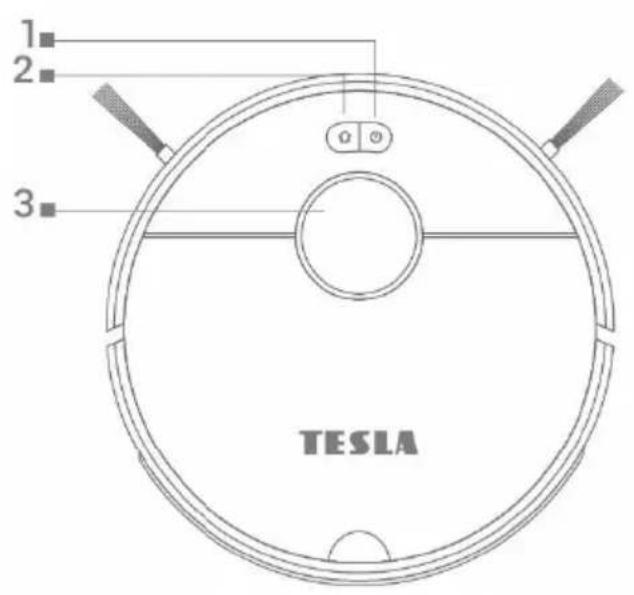
1 Power on/off
2 Return to Charging Station/Add to App
3 Laser Signal Transmitter
4 Sensors
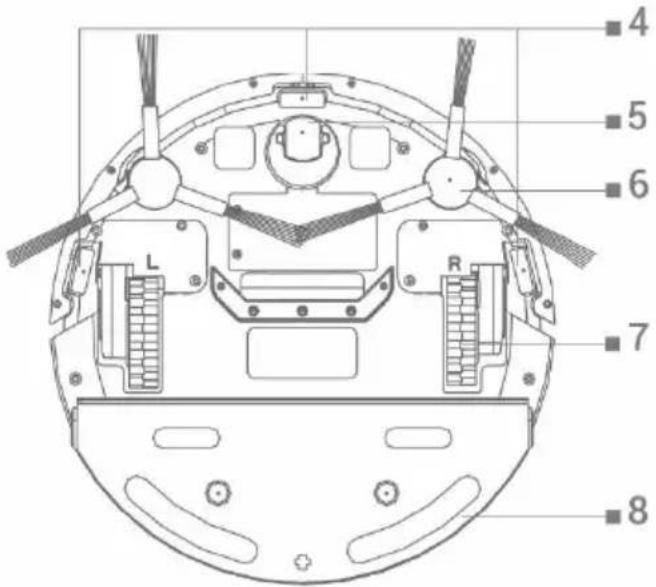
5 Front wheel
6 Side brush (2x)
7 Wheel (2x)
8 Water tank
BEFORE THE FIRST CLEANING
- Remove the two foam stops located on the side of the robotic vacuum cleaner's bumper.
• Fit the side cleaning brushes. - Charge the battery of the robotic vacuum cleaner.
- Before starting cleaning, prepare the room so that there are no objects on the floor that may interfere with the operation of the robotic vacuum cleaner (larger papers, cables, stickers, small objects, inappropriately placed carpet, etc.). Move chairs and other larger objects away so that the robotic vacuum cleaner can easily reach even inaccessible places. Also remove objects that can damage the robotic vacuum cleaner during operation.
- Direct sunlight may cause the infrared sensors of the robotic vacuum cleaner to be less sensitive, please avoid direct sunlight.
- Black furniture may not be properly detected due to the physical nature of infrared sensors. Therefore, a slight impact may occur, which will be dampened by the front bumper.
CHARGING THE BATTERY
There must be no obstacles in front of the front of the charging station up to a distance of 1.5 meters, on the sides up to a distance of 0.5 meters. In the area of the charging station 15 cm above the ground, a mirror or other objects with a strong reflection cannot be placed. The charging station should not be exposed to direct sunlight. Make sure the charging station is within range of a good and strong Wi-Fi signal so that it can connect to the Wi-Fi network while charging.
- Connect the charging station to a power outlet.
- Place the robotic vacuum cleaner in the charging dock so that the charging connectors lightly touch the contacts on the charging station. The battery of the robotic vacuum cleaner will start charging automatically and the button "2" will slowly flash yellow-green, and when the battery is
fully charged, it will glow solid green colour.
APPLICATION - CONTROL OF THE ROBOTIC VACUUM CLEANER WITH A PHONE
- Turn on Bluetooth on your phone.
- Install the robotic vacuum cleaner control app on your smartphone and follow the guide to connect your smartphone and robotic vacuum cleaner.

ANDROID
search for "Smart Life" in Google Play
iOS
search for "Smart Life" in the Apple Store
- Create your account in the "Smart Life" app and log in.
- Allow all permissions that the app requests:
ANDROID - allow the "Location" and "Nearby Devices" app permissions.
iOS - allow "Location", "Bluetooth" and "Local Network" app permissions.
- Switch on the robotic vacuum cleaner with the "1" button.
- After logging in to the "Smart Life" app, click the "+" icon on the top right and then click "Add Device".
- Select "Vacuum Cleaner (Wi-Fi)" in "Small Home Appliances" for your device.
- Enter the password for your Wi-Fi network to which you are connected and hold down the "2" button on the robotic vacuum cleaner for 5 seconds.
- The "1" and "2" buttons will start flashing green and click "Next" and the display will show "Reset the device". Click "Next" (only applicable to Android version, in iOS click "Confirmation light flashes"), the connection method will be displayed, click "EZ Mode" and the robotic vacuum cleaner will start connecting to the app.
- After successful pairing, a green icon will appear next to the name and your robotic vacuum cleaner "TESLA RoboStar iQ550" has been successfully added to the app.
- Click on "Finished", now it is possible to control selected functions of the robotic vacuum cleaner with your smartphone.
Due to the software demands of the operating system and Google/Apple's requirements for application security, it is also necessary to regularly adapt the functions of the application. Also, keep your phone's operating system updated to the latest version. The application requires the Android 10 operating system and higher, otherwise it is not possible to guarantee its functionality. The app is constantly evolving and features can be changed, added or removed at any time.
FIX PROBLEMS WITH THE APP
- Make sure that the Wi-Fi coverage for your smartphone and robotic vacuum cleaner is of good quality and strong enough. Do the first setup of the robotic vacuum cleaner near your Wi-Fi router.
• Make sure "Location" (GPS) is enabled on your smartphone. - Make sure that a third-party app (VPN, antivirus, firewall, etc.) is not blocking access to your smartphone.
- Try connecting to a different Wi-Fi router or Wi-Fi Hotspot on a different smartphone to rule out an error on the part of your internet connection.
- You have too many devices connected to your Wi-Fi router, or the ability to connect a new device to it is blocked.
- Reset your Wi-Fi router.
Note: Make sure the charging station is within range of a good and strong Wi-Fi signal so that it can connect to the Wi-Fi network while charging. The robotic vacuum cleaner also needs this Wi-Fi connection during its charging in order to be properly oriented and available to start cleaning. A Wi-Fi network operating at 2.4 GHz and WPA1 or WPA2 security are supported.
During the first cleaning, the TESLA robotic vacuum cleaner maps the rooms and saves a map of the cleaned area when the cleaning is complete. When starting cleaning, the robotic vacuum cleaner should always be in the charging station and its battery should be fully charged.
- Press the "1" button on the robotic vacuum cleaner to start Smart Cleaning (Auto), in which the TESLA robotic vacuum cleaner uses advanced laser navigation for optimized movement in space. It is the most widely used method of cleaning.
- This Smart Cleaning can also be started in the app, select the "Auto" mode and then click on the icon. To interrupt cleaning/stop the robotic vacuum cleaner, press the "1" button on the robotic vacuum cleaner or click the icon in the app.
SPOT CLEANING
Click on "Spot cleaning" in the app. Use your finger to select the location on the map that you want the robotic vacuum cleaner to clean. The robotic vacuum cleaner will go from the charging station to the designated location on the map and clean around the designated location with approximately dimensions of 1.6 x 1.6 meters. When cleaning is complete, the robotic vacuum cleaner returns to the charging station.
SCHEDULED CLEANING
Robotic vacuum cleaner can be programmed to clean automatically once a day at a specific time, even when no one is home. You can find this option in the "Settings" section of the app. If you switch off the robotic vacuum cleaner by pressing the button "1" on the robotic vacuum cleaner, the scheduled cleaning will not be performed and must be set again.
WIPING WITH WATER
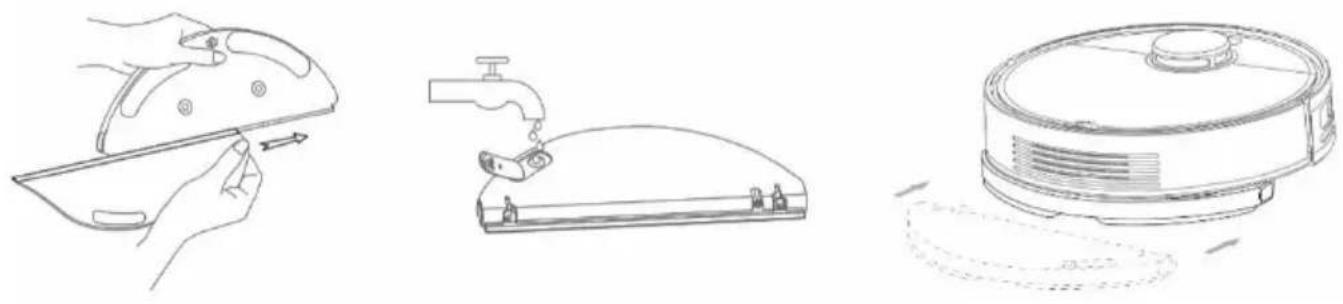
Place the robotic vacuum cleaner away from the charging station and press button "1" to turn it off.
natural_image
Line drawings of three different household appliances: a hand washing a small appliance, a water tap with a valve, and a vacuum cleaner (no text or symbols present)- Install the mopping cloth on the mop holder. Lightly moisten the mopping cloth with water for faster and smoother wiping with water. If the mopping cloth is dirty after cleaning, you can carefully wash it in lukewarm water.
- Open the plastic cap and scoop water into the reservoir. Only add water to the tank after removing the reservoir from the body of the robotic vacuum cleaner. When handling the tank, a slight leakage of residual water may occur. In this case, wipe the spilled area immediately with a dry cloth.
- Carefully slide the tray with the mopping cloth holder installed into the body of the robotic vacuum. Do not spill water on the robotic vacuum cleaner or its internal part, the robotic vacuum cleaner is not waterproof.
• In the phone app, three levels of cleaning can be set with water. - Do not leave the robotic vacuum cleaner unnecessarily standing in place without moving or with water residues in the water tank.
- Keep enough water in the water tank for wiping, or rinse the mop.
- When you have finished cleaning, always pour out the remaining water from the water tank, rinse it and dry the mopping cloth.
- We recommend wiping the floor with clean, lukewarm water, the cleaner may cause foaming and thus impair the dripping of water on the mopping cloth or cause streaks on the floor after it has dried.
- To get the best result when wiping with water, we recommend using this function in one room and then moving to the next room.
• For safety reasons, do not charge the battery with the water tank filled with water.
Pour only non-foaming floor cleaners into the water tank and follow the dilution according to the manufacturer's recommendations, do not use concentrated cleaners. Do not use perfumes, stain removers, or substances containing alcohol and chemicals.
RETURN TO THE CHARGING STATION
The robotic vacuum cleaner will search for the charging station by pressing the button "2" on the robotic vacuum cleaner or by clicking on the icon in the app. In standby mode, the robotic vacuum cleaner consumes very little power, so we recommend that you do not turn off the power supply to the charging station.
ROBOTIC VACUUM CLEANER FIRMWARE UPDATE
The robotic vacuum cleaner's firmware is continuously being improved. If a new firmware version is available, you will be offered the option to download the update in the app and install it on the robotic vacuum cleaner.
MAINTENANCE
ATTENTION! We recommend regular maintenance for the most effective cleaning.
LACK OF MAINTENANCE CAN LEAD TO DAMAGE TO THE ROBOTIC VACUUM CLEANER AND VOID THE WARRANTY.
Before carrying out cleaning and maintenance, switch off the robotic vacuum cleaner by pressing the "1" button. Wipe the top cover of the robotic vacuum cleaner with a soft, dry or slightly damp cloth. Do not use detergents to clean the surface of the robotic vacuum cleaner, as you may damage the surface.
DUST TANK - clean after each cleaning
natural_image
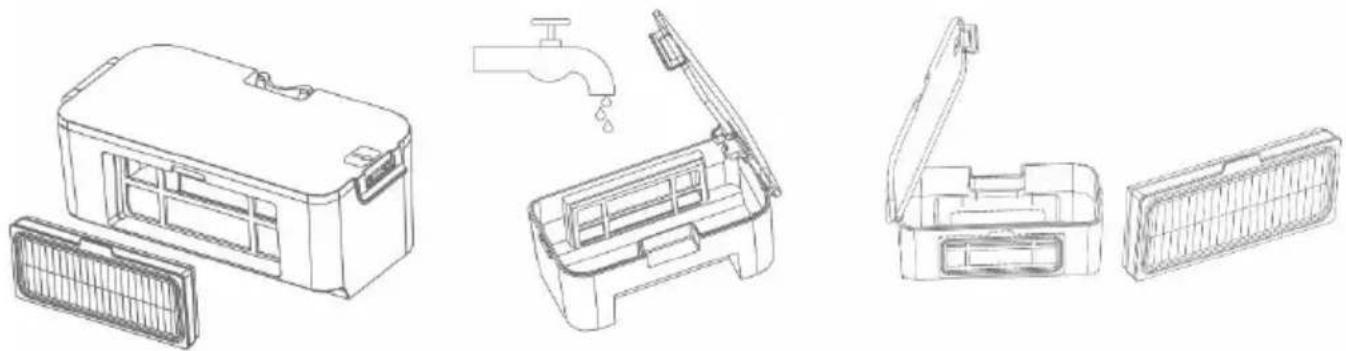
Line drawings of various household appliances including a water dispenser, faucet, and air vent (no text or labels)- The fullness of the dust tank significantly affects the suction power of the robotic vacuum cleaner and the quality of cleaning.
- If you wash the dust tank with water, dry it carefully before reinstalling it in the robotic vacuum cleaner.
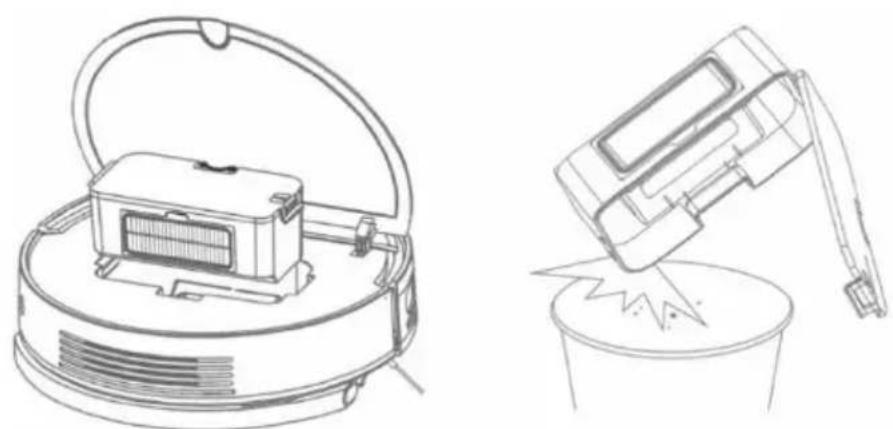
Press the release button to remove the dirt container, pour out the residual water and empty the dust tank into the trash can. We recommend washing the Dirt Tray with clean water every 14 days.
HEPA FILTER - cleaning 1 time a week
natural_image
Line drawings of a vacuum cleaner and a handheld device, both without any text or symbols- Do not clean the HEPA filter with your fingers or a brush, only with a stream of clean water (do not use cleaning agents) or vacuum it with a classic vacuum cleaner.
- Allow the HEPA filter to dry thoroughly, never install a HEPA filter in the robotic vacuum cleaner that is wet!
- Do not expose the primary filter and HEPA filter to sunlight.
- Vacuuming with a dirty HEPA filter or without a HEPA filter inserted can damage the robotic vacuum cleaner.
• We recommend replacing the HEPA filter every 6 months.
natural_image
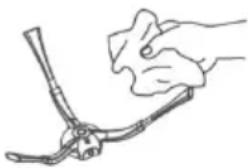
Line drawing of a hand holding a pliers (no text or symbols)Depending on the intensity of soiling, check the side cleaning brushes together with the air intake opening at least once a week and remove tangled hair and other debris.
Front wheel: Use a flathead screwdriver that you insert under the rubber wheel and move it upwards to remove it. After cleaning, put it back in until you hear a click. Also clean the axle of the wheel.
Floor sensors: Once a week, clean the six sensors on the bottom of the robotic vacuum cleaner with a soft, dry cloth. Verify that the front bumper, under which the impact sensor is located, is not blocked.
TROUBLESHOOTING
| Problem | Solution |
| After installing the app and pairing the mobile phone with the robotic vacuum cleaner, the vacuum cleaner is "Not connected". | Turn your Wi-Fi router on and off, remove your robotic vacuum cleaner in the app, and try pairing it again. We recommend that you always be close to the Wi-Fi router during pairing. |
| The robotic vacuum cleaner will not start cleaning. | The robotic vacuum cleaner has a low battery. Charge the battery to full capacity before starting cleaning.The battery is too hot. Use the robotic vacuum cleaner in temperatures of 0°C ~ 40°C. |
| The robotic vacuum cleaner cannot be charged. | The charging station is not connected to the mains. Make sure the power cord is plugged in properly.The charging electrodes have poor contact with the robotic vacuum cleaner. Clean the electrodes on the robotic vacuum cleaner and on the charging base. |
| The robotic vacuum cleaner will not return to the charging base. | Make sure there is enough space around the charging station and the detection zone of the charging station is clean. |
| The robotic vacuum cleaner is offline (not connected to the Wi-Fi router). | Make sure your Wi-Fi network is set up correctly and fully operational. The robotic vacuum cleaner should always be within range of a high-quality, strong Wi-Fi signal from your Wi-Fi router. |
| The vacuuming is very loud. | Clean the side brushes, castors, underside of the robotic vacuum cleaner and the front bumper. |
| Poor cleaning quality. | Empty the dirt tray. Clean or replace the HEPA filter. |
| The robotic vacuum cleaner will not start scheduled cleaning. | If the battery of the robotic vacuum cleaner is low, cleaning will not start. Please charge the battery to full capacity.Scheduled cleaning will not be properly synchronized between the robotic vacuum cleanerand your mobile phone if the robotic vacuum cleaner is disconnected from the Wi-Fi network. Therefore, keep the robotic vacuum cleaner within range of a high-quality and strong Wi-Fi signal from your Wi-Fi router at all times. |
| The vacuum cleaner battery cannot be charged | Make sure the charging contacts are properly connected when parked in the charging base.The charging base should be connected to the mains power supply at all times, do not turn it off. The vacuum cleaner is then always ready for the next cleaning with a fully charged battery. |
BATTERY CARE
- Switch off the robotic vacuum cleaner if you are going to transport it or not use it for a long time.
• Recharge the battery to full capacity after three months of non-use. - If you do not use the robotic vacuum cleaner for a long time, switch it off and also disconnect the charging station from the mains. Still, you should fully charge your vacuum cleaner once every three months to prevent the battery from running out completely.
TECHNICAL SUPPORT
Do you need help with setting up and operating your TESLA RoboStar iQ550?
Contact us at www.tesla-electronics.eu.
CONSUMABLES
Consumables (HEPA filter, microfiber mop, cleaning brushes and many others) can be purchased in the official store of the TESLA brand eshop.tesla-electronics.eu.
WARRANTY REPAIR
For warranty repair, contact the retailer where you purchased the TESLA product.
EXCLUSIONS FROM WARRANTY
- If the device or part of it has become worn out as a result of normal use. Typical wear and tear of the device or its part due to normal use includes, for example, discharging of the battery or reduction in the capacity of the battery or accumulator after the expiration of the usual service life of 6 months, wear and tear of the display parts of the device, mechanical wear of remote controls and their surfaces, wear of the filter, wear of supply cables, and more.
- Failure to follow the "Important Safety Instructions" in the user manual.
• Electromechanical or mechanical damage to the device caused by inappropriate use.
• Damage caused by natural elements such as water, fire, static electricity, power surges, etc. - Damage caused by unauthorized repair.
- Unreadable serial number of the device.
DECLARATION OF CONFORMITY
We, TESLA Electronics LTD, declare that this device is in compliance with the essential requirements and other relevant provisions of standards and regulations relevant to the type of equipment in question.

This product meets the requirements of the European Union.
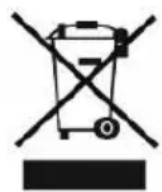
Please inquire about the local separate collection system for electrical and electronic products. Please follow local regulations and do not dispose of old products with normal household waste. Proper disposal of your old product helps prevent potential negative consequences for the environment and human health.
As the product is evolving and improving, we reserve the right to modify the user manual. The current version of this user manual can always be found on www.tesla-electronics.eu.
Design and specifications are subject to change without notice, printing errors reserved.
5 Vorderrad
6 Seitenbürste (2x)
7 Fahrrad (2x)
8 Wassertank
ANDROID
iOS
natural_image
Line drawings of three different household appliances: a kitchen appliance, a water dispenser, and a vacuum cleaner (no text or symbols present)natural_image
Line drawings of various household appliances including a water dispenser, faucet, and air vent (no text or labels)natural_image
Technical line drawings of a vacuum cleaner and a handheld device (no text or symbols)natural_image
Line drawing of a hand holding a tool or tool with a curved handle (no text or symbols)ANDROID
iOS
natural_image
Line drawings of three different household appliances: a hand holding a lid, a water tap with a handle, and a vacuum cleaner (no text or symbols present)natural_image
Line drawings of various household appliances including a water dispenser, faucet, and air vent (no text or labels)natural_image
Line drawings of a vacuum cleaner and a handheld device, both open and emitting particles from a cup (no text or symbols)natural_image
Line drawing of a hand holding a tool, no text or symbols presentANDROID
iOS
ROZWIĄZYWANIE PROBLEMÓW Z APLIKACJĄ
natural_image
Line drawings of three different household appliances: a hand washing a small appliance, a water tap with a drop, and a vacuum cleaner (no text or symbols present)natural_image
Line drawings of various household appliances including a water dispenser, faucet, and air vent (no text or labels)natural_image
Technical line drawings of a vacuum cleaner and its internal component, both without any text or symbolsnatural_image
Line drawing of a hand holding a tool with a pliers (no text or symbols)ANDROID
iOS
natural_image
Line drawings of three different household appliances: a hand washing a small appliance, a water tap with a drop, and a vacuum cleaner (no text or symbols present)natural_image
Line drawings of various household appliances including a water tap, faucet, and air vent (no text or labels)natural_image
Technical line drawings of a vacuum cleaner and a handheld device (no text or symbols)natural_image
Line drawing of a hand holding a tool, no text or symbols present
- IMPORTANT SAFETY WARNING
- PACKAGE CONTENT
- BEFORE THE FIRST CLEANING
- CHARGING THE BATTERY
- APPLICATION - CONTROL OF THE ROBOTIC VACUUM CLEANER WITH A PHONE
- FIX PROBLEMS WITH THE APP
- SPOT CLEANING
- SCHEDULED CLEANING
- WIPING WITH WATER
- RETURN TO THE CHARGING STATION
- ROBOTIC VACUUM CLEANER FIRMWARE UPDATE
- MAINTENANCE
- DUST TANK - clean after each cleaning
- HEPA FILTER - cleaning 1 time a week
- BATTERY CARE
- TECHNICAL SUPPORT
- CONSUMABLES
- WARRANTY REPAIR
- EXCLUSIONS FROM WARRANTY
- DECLARATION OF CONFORMITY
- ROZWIĄZYWANIE PROBLEMÓW Z APLIKACJĄ
Brand : TESLA
Model : RoboStar iQ550
Category : Vacuum Cleaner