
PrimeSound HQ-990 - Soundbar TESLA - Free user manual and instructions
Find the device manual for free PrimeSound HQ-990 TESLA in PDF.


| Product Type | Soundbar |
| Brand & Model | TESLA PrimeSound HQ-990 |
| Dimensions (Width) | 744 mm |
| Remote Control Battery | 1 x AAA/R03 1.5 V |
| Connectivity | HDMI eARC/ARC, Optical, USB, 3.5 mm AUX, Bluetooth |
| Audio Features | 3D Surround, Music/Movie/TV modes, Dynamic Best mode, Night mode, Treble/Bass adjustment, Sound delay adjustment |
| Supported Audio Formats | Dolby Atmos (via HDMI eARC) |
| Bluetooth Version | Standard Bluetooth (device name: TESLA PrimeSound HQ-990) |
| Display | LED display |
| Mounting Options | Wall mountable (brackets not included) |
| Power Supply | External AC/DC adapter (input: 100-240V AC, output: 12V DC, 2A - typical) |
| Care Instructions | Clean with soft, damp, lint-free cloth; do not use abrasives |
| Safety Precautions | Do not remove cover; avoid water, heat sources, and direct sunlight |
| Warranty | Contact dealer for warranty repair; excludes misuse, unauthorized repair, natural elements |
| Declaration of Conformity | Complies with EU standards |
Frequently Asked Questions - PrimeSound HQ-990 TESLA
User questions about PrimeSound HQ-990 TESLA
0 question about this device. Answer the ones you know or ask your own.
Ask a new question about this device
Download the instructions for your Soundbar in PDF format for free! Find your manual PrimeSound HQ-990 - TESLA and take your electronic device back in hand. On this page are published all the documents necessary for the use of your device. PrimeSound HQ-990 by TESLA.
USER MANUAL PrimeSound HQ-990 TESLA
Thank you for choosing the TESLA PrimeSound HQ-990 soundbar.
Keep this user manual, follow the rules in this manual, to reduce the risk of damage to the speaker or in case of personal injury.
IMPORTANT SAFETY NOTICE
- Never remove the device cover.
- Do not expose the device to direct sunlight or direct heat.
- Do not install near heat sources such as radiators, stoves, or other appliances (including amplifiers) that produce heat.
• Make sure you always have easy access to the power cord or adapter. - Do not use this device near water.
- Use only accessories recommended by the manufacturer.
Caring for your product
• Always unplug the device when not in use for a long time and before cleaning it.
- Clean the device with a soft, damp, lint-free cloth.
- Do not use abrasives or harsh cleaners.
Description
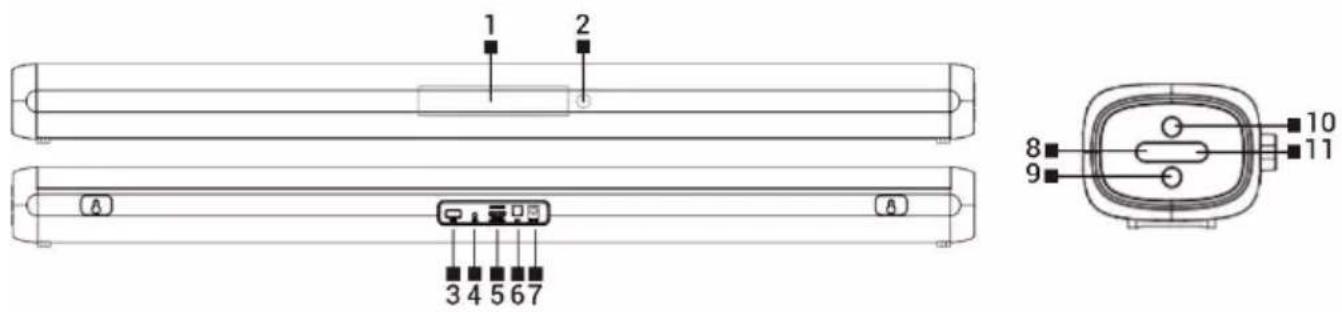
1 Display 7 Input for power supply
2 Remote control signal receiver 8 Volume -
3 USB port 9 Selecting the signal source
4 3.5 mm audio port 10 Turn the device On/Off
5 HDMI eARC/ARC port 11 Volume +
6 Optical output
Remote control
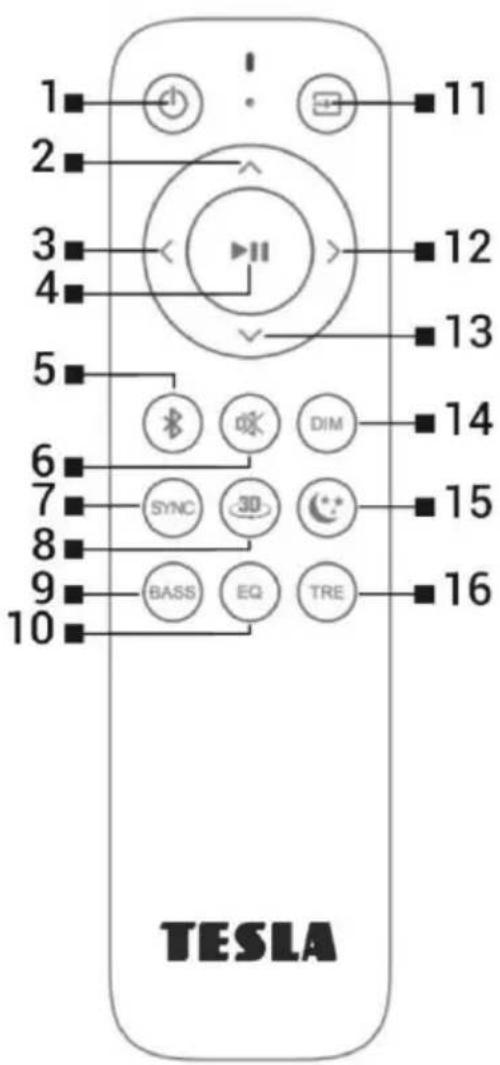
1 Turn the device on/off
2 Volume +
3 Switch to previous track (BT/USB)
4 Confirm/Play/Pause
5 Long press: disconnect the active Bluetooth connection and activate Bluetooth pairing
6 Sound Off/On
7 Short press: Sound setting, then short press button 2 or 13 to adjust. You can thus delay the sound output and minimize the time delay between the sound output and its display
8 3D Surround mode
9 Short press: Bass setting, then short press button 2 or 13 to adjust, short press to exit setting
10 Short press: to switch Music/Movie and TV mode Long press: to turn On/Off Best Dynamic mode (*) On and Off
11 Sound source
12 Switch to next track (BT/USB)
13 Volume -
14 Adjusting the brightness of the display
15 Turn On/Off night mode
16 Short press: Trebles setting, then short press button 2 or 13 to adjust, short press to exit setting
(*) Automatically adjusts the output power and dynamic range of the speaker based on the sound source.
Use AAA/R03 1.5 V battery for remote control.
CONNECTING THE SPEAKER TO THE TV
HDMI eARC/ARC
Connect the HDMI cable to the HDMI connector on the rear panel of the speaker, then connect the other end of the HDMI cable to the TV. If you want to use eARC/ARC mode, enable HDMI CEC in the TV settings if your TV supports it.
Optical cable
Connect the optical cable to the optical connector on the rear panel of the speaker, then connect the other end of the optical cable to the external device.
Bluetooth
Turn on the soundbar and select Bluetooth (BT) as the sound source. In the TV/mobile phone menu, find "Settings" - "Bluetooth" and then "Search". The soundbar will be detected as "TESLA PrimeSound HQ-990".
USB
Turn on the soundbar and select USB as the sound source. Connect the USB storage device to the USB connector on the rear panel of the speaker.
AUX cable
Connect 3.5 mm audio cable to the AUX connector on the rear panel of the speaker, then connect the other end of the 3.5 mm audio cable to the external device.
BD player/Game console, etc.
Connect the optical cable to the optical connector on the back panel of the soundbar, and then connect the other end of the optical cable to the device.
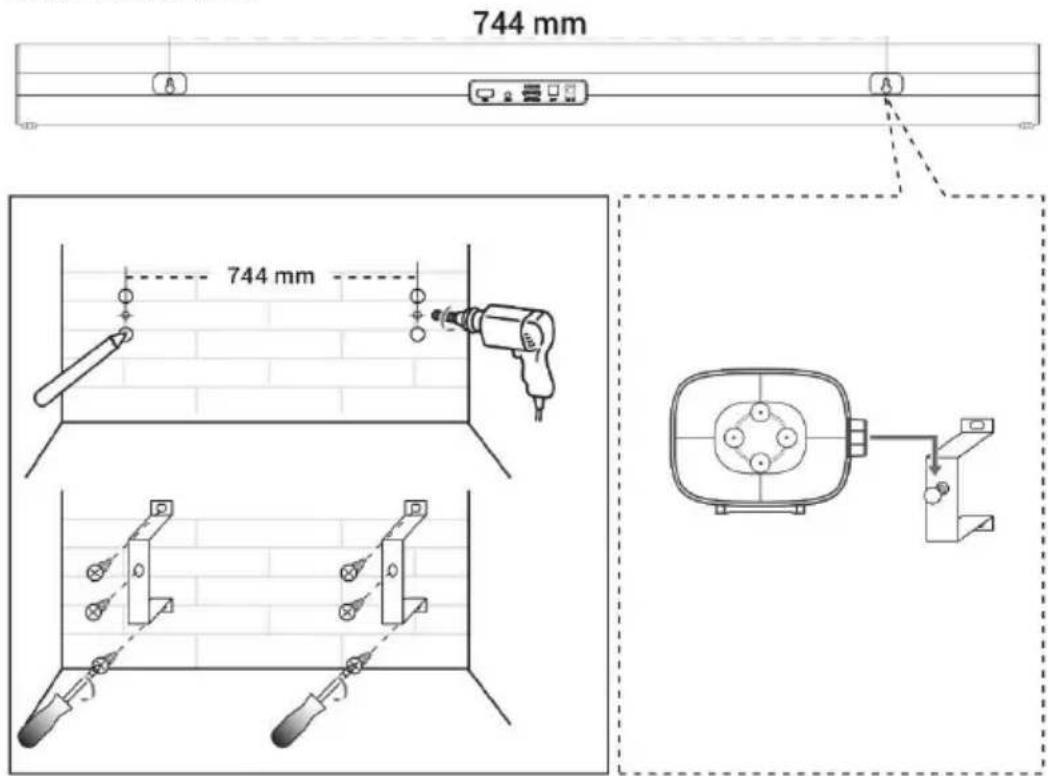
WALL MOUNTING
TECHNICAL SUPPORT
Need help setting up and operating the TESLA PrimeSound HQ-990?
Contact us at www.tesla-electronics.eu .
CONSUMABLES AND ACCESSORIES
Consumables can be purchased in the official TESLA eshop eshop.tesla-electronics.eu .
WARRANTY REPAIR
For warranty repair, contact the dealer where you purchased the TESLA product.
The warranty does NOT cover:
• using the device for other purposes
- failure to observe the "Important Safety Instructions" listed in the user manual
• electromechanical or mechanical damage caused by inappropriate use
• damage caused by natural elements such as water, fire, static electricity, overvoltage, etc.
• damage caused by unauthorized repair
- unreadable device serial number
DECLARATION OF CONFORMITY
We, TESLA Electronics LTD, declare that this equipment is in compliance with the essential requirements and other relevant provisions of the standards and regulations relevant to the type of equipment.

This product meets the requirements of the European Union.

Please inquire about your local separate collection system for electrical and electronic products. Please follow local regulations and do not dispose of old products in normal household waste. Proper disposal of the old product helps prevent potential negative consequences for the environment and human health.
DOLBY ATMOS®
Dolby, Dolby Atmos and the double-D symbol are registered trademarks of Dolby Laboratories Licensing Corporation. Manufactured under license from Dolby Laboratories.
Copyright© 2012-2024 Dolby Laboratories. All rights reserved.
HDMI™
The terms HDMI, HDMI High-Definition Multimedia Interface, HDMI Trade dress and the HDMI Logos are trademarks or registered trademarks of HDMI Licensing Administrator, Inc.
As the product is being developed and improved, we reserve the right to modify the user manual. You can always find the latest version of this user manual at www.tesla-electronics.eu.
Design and specifications are subject to change without notice, printing errors reserved.
GE
- IMPORTANT SAFETY NOTICE
- Caring for your product
- Description
- Remote control
- CONNECTING THE SPEAKER TO THE TV
- HDMI eARC/ARC
- Optical cable
- Bluetooth
- USB
- AUX cable
- BD player/Game console, etc.
- TECHNICAL SUPPORT
- CONSUMABLES AND ACCESSORIES
- WARRANTY REPAIR
- The warranty does NOT cover:
- DECLARATION OF CONFORMITY
- DOLBY ATMOS®
- HDMI™
- GE
Brand : TESLA
Model : PrimeSound HQ-990
Category : Soundbar