
TV-49S62T2S2SM - TV Vivax - Free user manual and instructions
Find the device manual for free TV-49S62T2S2SM Vivax in PDF.


| Product Type | Television |
| Brand | Vivax |
| Model | TV-49S62T2S2SM |
| Display Size | 49 inches (123 cm) |
| Display Resolution | 1920 x 1080 (Full HD) |
| Operating System | Android 9 |
| Processor | Quad Core 1GHz ARM Cortex CA55x4 |
| RAM | 1 GB |
| Internal Storage | 8 GB |
| Wi-Fi | Yes (802.11 b/g/n) |
| Ethernet (LAN) | Yes (RJ45) |
| Bluetooth | Yes |
| Tuner | DVB-T2/C/S2, Analog |
| Power Supply | AC 180-240V ~ 50/60Hz |
| Power Consumption | 115 W |
| Dimensions (with stand) | 109.8 x 20.6 x 67.7 cm |
| Weight (with stand) | 9.0 kg |
| Audio Output | 2 x 8W RMS |
| HDMI Inputs | 3 |
| USB Inputs | 2 |
| CI+ Slot | Yes |
| Remote Control | Included (AAA batteries) |
Frequently Asked Questions - TV-49S62T2S2SM Vivax
User questions about TV-49S62T2S2SM Vivax
0 question about this device. Answer the ones you know or ask your own.
Ask a new question about this device
Download the instructions for your TV in PDF format for free! Find your manual TV-49S62T2S2SM - Vivax and take your electronic device back in hand. On this page are published all the documents necessary for the use of your device. TV-49S62T2S2SM by Vivax.
USER MANUAL TV-49S62T2S2SM Vivax
Izvori (Source – Input Sharing) 30
Live TV izbornici (Sistem LiveTV Izbornika) 30
Picture (Slika) 31
Audio (Zvuk) 31
Tuning TV Channels (Ugađanje Kanala) 32
Function (Funkcije) 34
Time (Vrijeme) 35
Zaključavanje (Lock) 36
Ostale informacije 37
Rješavanje problema 37
Tehničke specifikacije 39
Odlaganje istrošenog uređaja 41
EU Izjava o suglasnosti 41
EPREL Informacijski list 41
Jamstvena izjava (na kraju uputa)
OSNOVNE KARAKTERISTIKE UREĐAJA
Poštovani korisniče Vivax TV prijamnika
Media player — Pristupite svojim muzičkim zapisima, slikama i video materijalima putem vašeg USB medija te ih pokrenite direktno na TV prijamniku.

Kontrolirajte sve funkcije pomoću jednog daljinskog upravljača. Priključite vaš televizor direktno na zemaljsku, ili kabelsku mrežu te uživajte u sadržajima u najvišoj kvaliteti.
Popis pribora uz uređaj
Prilikom otvaranja kutije i instalacije uređaja, provjerite da li ste uz vaš uređaj dobili sav potreban pribor:
- Korisnički priručnik s jamstvenom izjavom
- Daljinski upravljač
- Baterije x2
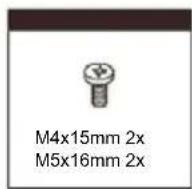
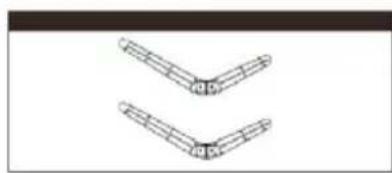
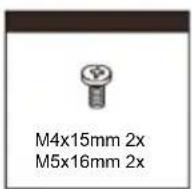
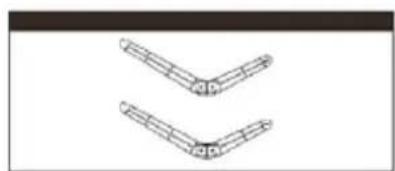
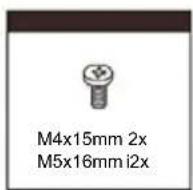
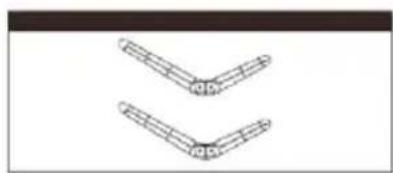
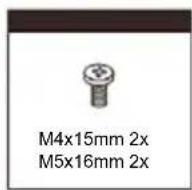
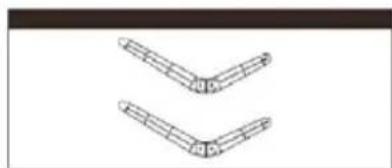
- Stalak i Vijci za stalak
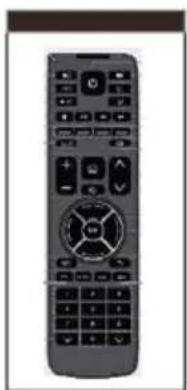
natural_image
Front view of a gray remote control with keypad and function buttons (no visible text or symbols)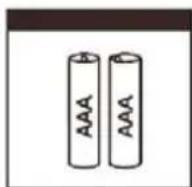
natural_image
Pure mechanical linkage diagram without any text, numbers, or symbolsSlike služe samo kao referenca i mogu se neznatno razlikovati od stvarnog proizvoda. Pri tome funkcionalnost ostaje ista.

Munja sa simbolom strelice unutar trokuta upozorava korisnika na prisutnosti opasnog neizoliranog napona unutar proizvoda, te koji može biti dovoljno jak da bi predstavljao rizik od strujnog udara ili ozljeda.

Uskličnik unutar trokuta upozorava korisnika o prisutnosti važnih uputa o rukovanju i održavanju u dokumentu priloženom u pakiranju.

OPREZ

RIZIK OD STRUJNOG UDARA NE OTVARAJTE UREĐAJ
natural_image
Symbolic illustration of a candle crossed with a flame, no text or labels presentnatural_image
Technical line drawing of two computer hardware units with mounting brackets and ventilation slots (no text or symbols)Prednja strana TV prijamnika
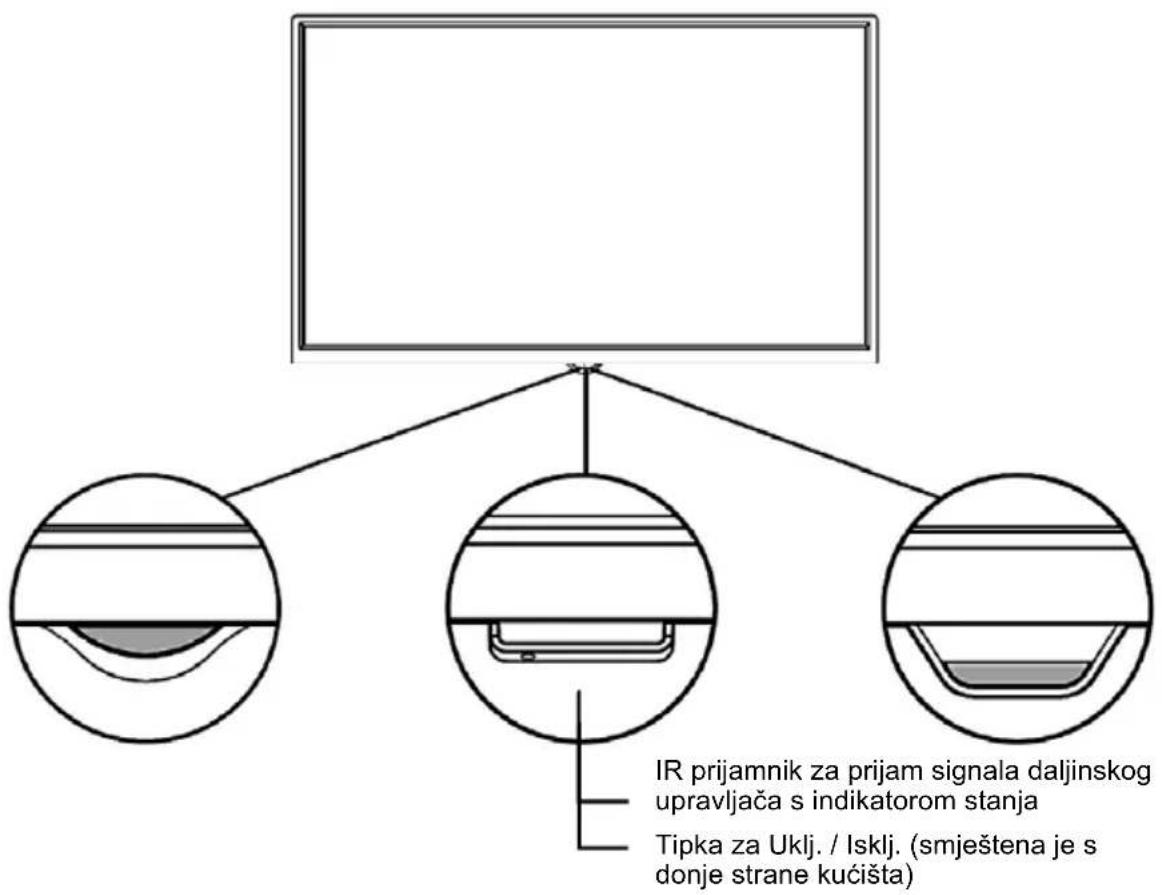
Priključite USB uređaj kao što je USB memorija ili USB tvrdi disk ili digitalnu kameru za pregledavanje fotografija, slušanje glazbe ili gledanje video materijala.
Ovaj ulaz koristi se i za nadogradnju software-a. Nadogradnja će se izvršiti automatski čim USB sa datotekama za nadogradnju bude umetnut u USB sučelje.
NAPOMENE
▶ COMMON INTERFACE (CI+ SUČELJE)

flowchart
graph LR
    A["TV JACK"] --> B["COMMON INTERFACE(CARD FACE FRONT)"]
    B --> C["CAM CARD"]
    C --> D["SMART CARD"]
    C -->|①| D
    C -->|②| B
Umetnite Cl+ modul za otvaranje kodiranih programa kao što su PAYTV ili HD PAYTV programi.
NAPOMENE
- Prije umetanja/uklanjanja CI modula osigurajte da je televizor isključen. Zatim umetnite CI karticu u CI modul u skladu sa uputama proizvođača.
- Nemojte učestalo umetati ili uklanjati CI modul pošto to može dovesti do oštećenja sučelja ili dovesti do kvara.
- CI modul i karticu morate dobaviti od pružatelja usluga za Programe koje želite gledati.
- Umetnite CI modul sa Smart Karticom u smijeru prikazanom na modulu i Smart kartici.
- Cl nije podržan u nekim državama i regijama; provjerite sa ovlaštenim distributerom.
▶ VGA (PC)
Priključite VGA i audio kabele između TV prijamnika i računala.
Napomena:
Slike u ovoj uputi su primjeri, samo za referencu, stvarni proizvod može se neznatno razlikovati od prikazanih slika. Tipke koje se ne spominju u uputi se ne koriste.
-
Power tipka: Pritisnite za uključ./isključ. TV-a
-
Source: Otvaranje izbornika za odabir ulaznog izvora
-
Mute tipka: Utišanje zvuka. Za ponovno uklj./isklj. zvuka, pritisnite tipku ponovo.
-
TXT: Prikaz teletexta u TV modu rada.
-
Screen Mirroring: Uključenje funkcije prikaza slike sa kompatibilnog vanjskog pametnog uređaja (smartphone) na TV zaslonu.
-
REC: Početak snimanja DVB kanala.
-
PVR: Prikaz liste snimljenih DVB kanala.
-
Stop: Pritisnite tipku za zaustavljanje reprodukcije medija.
-
Brzo naprijed: Pretraga zapisa prema naprijed
-
Play/ Pause: Reprodukcija ili pauza zapisa / Otvaranje Timeshift izbornika.
-
Brzo unatrag: Pretraga zapisa unatrag.
-
Obojene tipke: Aktivira funkcije označene u izborniku Crvenom/ Zelenom / Žutom/ Plavom tipkom.
-
Razmaknica: Omogućuje unos razmaka između slova i brojeva na tipkovnici zaslona.
-
Brisanje: Brisanje slova ili brojeva prilikom unosa tipkovnicom na zaslonu.
-
HOME: Otvara početnu Smart TV stranicu.
-
VOL +/-: Ugađanje jačine zvuka.
-
CH +/-: Promjena TV programa.
-
Mouse: Uključenje/ Isključenje navigacije mišem.
-
OK: Otvara listu kanala / potvrda.
-
Navigacijske tipke: Navigacija kroz izbornik.
-
Menu: Otvaranje izbornika.
-
EXIT: Izlaz iz aplikacije ili izbornika.
-
RECALL: Povratak na prethodni kanal.
-
FAV (Favourites): Lista omiljenih programa. Omogućava funkcije koje se odnose na tipke u boji.
-
EPG (Electronic Programme Guide): Prikaz EPG liste i izbornika.
-
Info: Prikaz informacija vezanih za sadržaj na ekranu.
-
Brojevne tipke: Pritiskom ovih tipki unose se brojevne znamenke. Direktno se biraju programi u ATV i DTV modu, te unose lozinke za roditeljsko zaključavanje
-
Podnaslovi: Prikazuje opcije podnaslova.
-
Audio Jezik: Prikazuje opcija jezika (audio language).
DALJINSKI UPRAVLJAČ (VER 2)
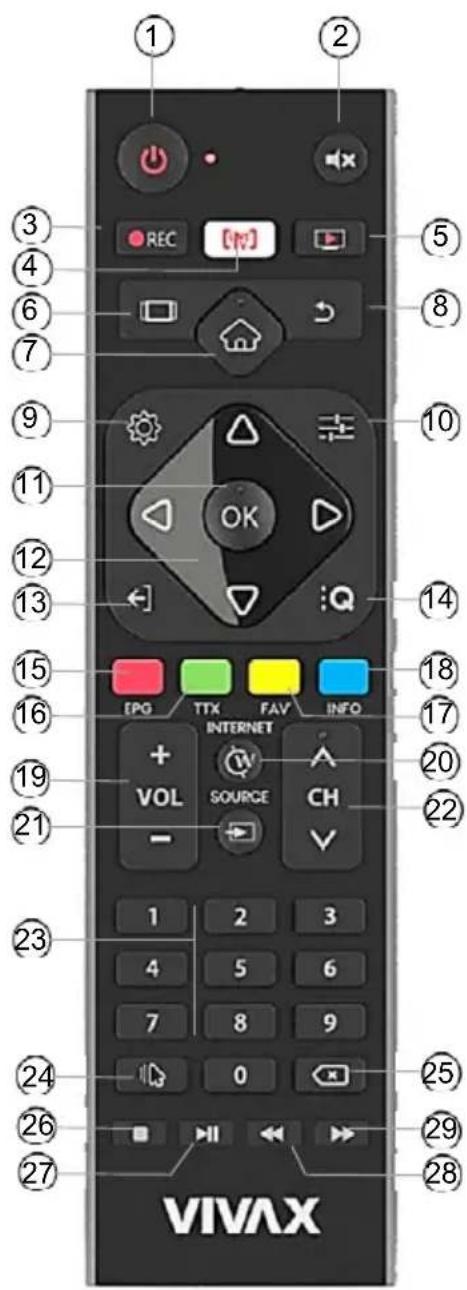
- POWER: Pritisnite za uključenje / isključenje TV-a (mod čekanja).
- MUTE: Utišanje zvuka. Za ponovno uklj./isklj. zvuka, pritisnite tipku ponovo
- REC: Početak PVR DVB snimanja.
- LIVE TV: Otvaranje TV Aplikacije za gledanje TV programa
- PVR: Reprodukcija snimljenih medija
- TABS: Prikaz rasploživih Aplikacija
- : Otvaranje SMART TV moda
- BACK: Povratak na prethodno gledani kanal.
- SETTINGS: Otvaranje izbornika postavki
- MENU: Otvaranje TV izbornika
- OK tipka: Otvaranje Liste kanala Mod izbornika: Potvrda unosa i odabir označene opcije
- Navigacijske tipke: Označavanje i navigacija stavki unutar izbornika.
- ← EXIT: Izlaz iz aplikacije i izbornika
- QUICK Menu: Otvaranje DTV izbornika
- EPG / CRVENA tipka: Prikaz EPG (Electronic program Guide) izbornika TXT mod: Biranje funkcije u korespodentnoj boji prikazane u okviru teleteksta.
- TTX / ZELENA tipka: Prikaz teleteksta na zaslonu TXT mod: Biranje funkcije u korespodentnoj boji prikazane u okviru teleteksta.
- FAV / ŽUTA tipka: Automatski ulaz u listu omiljenih kanala (FAV). TXT mod: Biranje funkcije u korespodentnoj boji prikazane u okviru teleteksta.
- INFO / PLAVA tipka: prikaz informacija o trenutnom kanalu ili izvoru TXT mod: Biranje funkcije u korespodentnoj boji prikazane u okviru teleteksta.
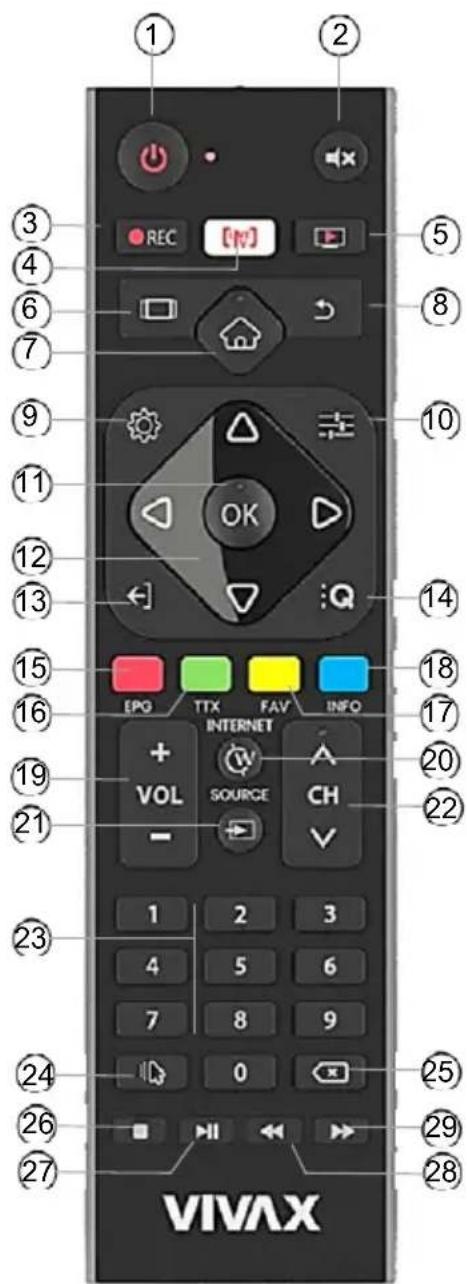
Napomena:
Slike u ovoj uputi su primjeri, samo za referencu, stvarni proizvod može se neznatno razlikovati od prikazanih slika.
Tipke koje se ne spominju u uputi se ne koriste.
- VOL +/-: Ugađanje jačine zvuka.
- INTERNET: Otvaranje Web pretraživača (Browser)
- SOURCE: Otvaranje izbornika za odabir izvora
- CH +/-: promjena TV programa (kanala)
- Brojčane tipke: Pritiskom ovih tipki unose se brojevne znamenke. Direktno se biraju programi u ATV i DTV modu, te unose lozinke za roditeljsko zaključavanje
- MIŠ: Funkcija navigacije mišem Uklj./Isklj.
- BRISANJE: Brisanje karaktera koji su upisani virtualnom tipkovnicom
- ■ STOP: Pritisnite tipku za zaustavljanje reprodukcije medija
- ▶ II PLAYBACK / PAUSE: Reprodukcija / Pauziranje reprodukcije medija zapisa / Otvaranje Time Shift izbornika
- ◀◀ tipka: Pretraga zapisa prema natrag
- ▶▶ tipka: Pretraga zapisa prema naprijed
▶ Umetanje baterija u daljinski upravljač
flowchart
graph TD
    A["Device with sensor icon"] --> B["Device with internal components"]
    B --> C["Device with internal components and directional arrows"]
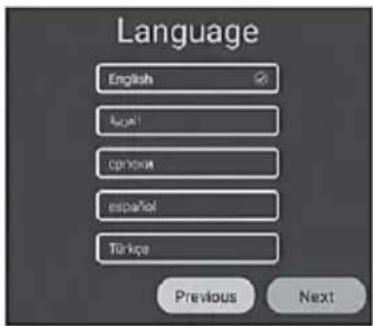
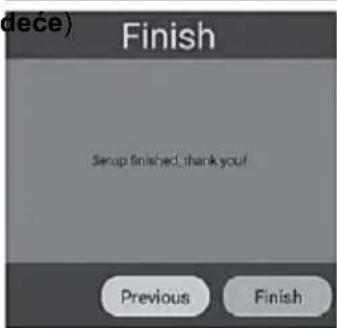
Čestitamo! Sada je vaš TV spreman za uporabu.
Sources (Izvori)
Omogućuje pristup izvorima dostupnim u aplikaciji Live TV.
Settings (Postavke,)
Set the Name of Your Appliance (Postavljanje imena uređaja)
Device Preferences (Postavke uređaja)
TV uređaj. Za izvršenje ovu operacije, morate biti povezani s internetskom mrežom.
Legal information
Reset
Pritisnite tipku „Reset" za vraćanje TV-a na tvorničke postavke. Obrisati će se sve aplikacije koje ste preuzeli, medijske datoteke spremljene u internu memoriju i spremljene TV kanale. Sve postavke biti će vraćene na tvornički zadane postavke.
Media
Video
Pritisnite tipke ◀ / ▶ za odabir Video zapisa u izborniku Video, a zatim pritisnite tipku OK za ulazak u izbornik.
Pritisnite tipku EXIT za povratak na prethodni izbornik.
Pritisnite ▼ / ▲ / ◀ / ▶ za odabir zapisa i tada pritisnite tipku OK za početak reprodukcije.
Pritisnite tipku EXIT za povratak na prethodni izbornik.
Pritisnite tipku ▶II za reprodukciju / pauziranje zapisa, pritisnite „■ili tipku EXIT da biste zaustavili reprodukciju.
Koristite "Žutu" tipku za otvaranje i zatvaranje upravljačke trake.
Koristite "Menu" tipku z apristup postavkama reproduktora.
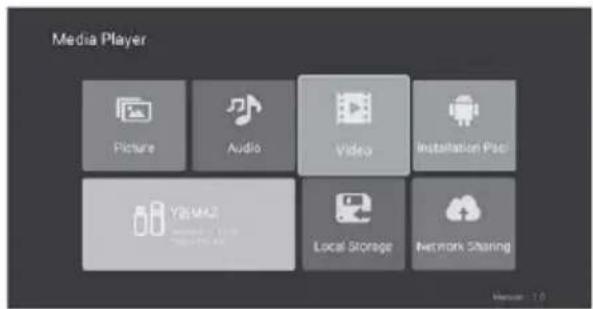
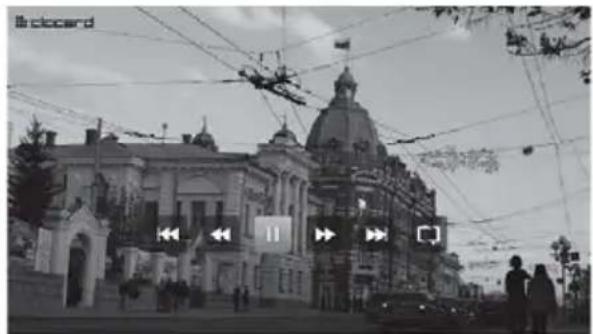
Installation Package (Instalacijski paketi)
Live TV Menu (Live TV Izbornik)
Svjetlinu, kontrast, boju, oštrinu možete postavljati samo kada je mod slike postavljen na User Define (Korisnički mod).
Sound mode (Mod Zvuka):
Pritisnite tipke ◀ / ▶ za odabir moda zvuka, a zatim pritisnite OK za ulazak u mod rada. (Dostupni modovi zvuka su:: Standard, Movie (Film), Dynamic (Dinamičan), User-defined (Korisnički).
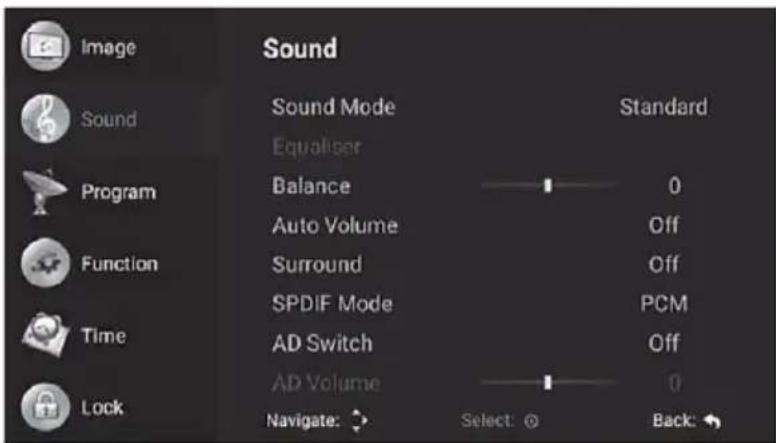
Postavke automatske pretrage razlikuju se ovisno o vrsti ATV / DTV tipa kanala, kao što je prikazano:
ATV - Analog TV
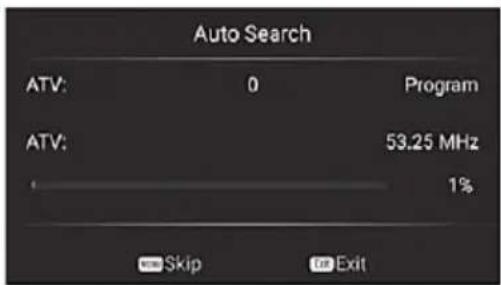
DVB-T - Digital TV
DVBC – Cable TV
DVBS – Satellite TV
DVB manual search (DVB ručna pretraga): Pritisnite ▼ / ▲ za odabir DVB ručne pretrage, a zatim pritisnite OK za početak pretrage ugođenog kanala.
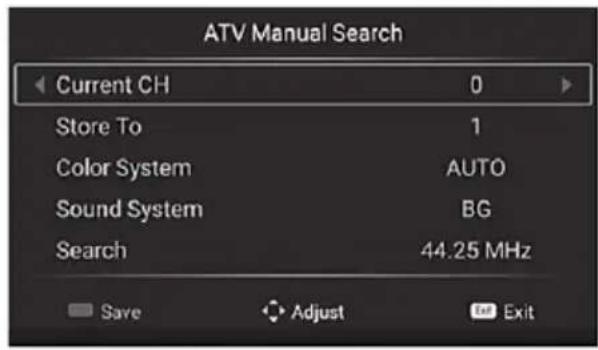
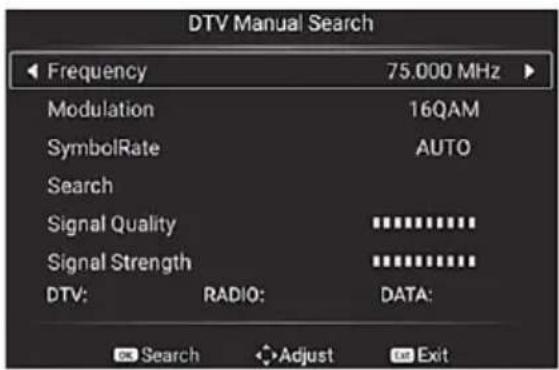
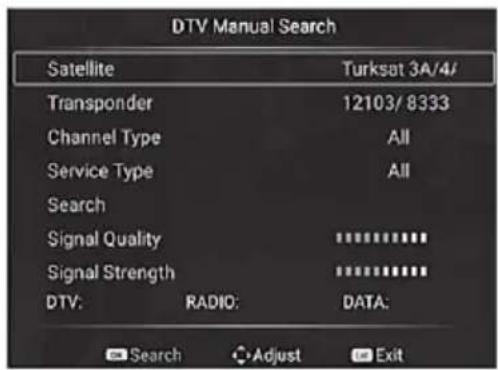
Postavke ručně pretrage razlikuju se prema vrsti ATV / DTV, kao što je prikazano u nastavku:
ATV – Analog TV DVB-T – Digital TV

DVBC - Cable TV
DVBS – Satellite TV
OSD timer (OSD vrijeme):
Za odabir OSD timera (vrijeme prikaza informacija na zaslonu) pritisnite tipke ◀ / ▶.
Pritisnite tipke ◀ / ▶ za odabir: Always (Stalni prikaz), 5 sek, 10 sek, 15 sek, 30 sek.
CEC:
HDMI CEC digitalno upravljanje nudi komunikaciju između uređaja povezanih putem HDMI kabela.
Pritisnite tiplu OK za ulazak u pod izbornik.
Pritisnite tipke ▼ / ▲ za odabir: HDMI control (HDMI kontrola) / Device auto turn-off (Automatsko isključenje vanjskog uređaja) / TV auto power on (Auto uključenje TV-a)/ CEC device list (Lista CEC uređaja) / Enable ARC items (Omogući CEC postavljanje), tada pritisnite OK tipku za ugađanje.
Audio language setting (Audio postavke):
Daje informacije o trenutnom zvučnom jeziku.
Audio language / Secondary audio language (Audio jezik / Drugi Audio jezik):
Automatic power-off (Auto isključenje):
Izvori (Source – Input Sharing) 30
Live TV menus (Sistem LiveTV meniji) 30
Picture (Slika) 31
Audio (Zvuk) 31
Tuning TV Channels (Podešavanje Kanala) 32
Function (Funkcije) 34
Time (Vreme) 35
Zaključavanje (Lock) 36
Ostale informacije 37
Rešavanje problema 37
Tehničke specifikacije 40
Odlaganje istrošenog uređaja 41
Izjava o usaglašenosti 41
Lista s podacima 41
Izjava o saobraznosti i Garancijska izjava (na kraju uputstava)
OSNOVNE KARAKTERISTIKE UREĐAJA
Poštovani korisniče Vivax TV prijemnika
Medija plejer — Pristupite svojoj muzici, slikama i filmovima preko mreže ili USB medija i pokrenite ih na televizoru.

Sve radi pomoću jednog daljinskog upravljača. Spojite televizor na antenu, satelitsku antenu ili kablovsku mrežu i uživajte u sadržajima, u visokom kvalitetu.
Popis pribora uz uređaj
Prilikom otvaranja pakovanja i instalacije uređaja, proverite da li ste uz vaš uređaj dobili sav potreban pribor:
- Korisničkauputstva s izjavom o sabraznosti
- Daljinski upravljač
- Baterije x2
- Stalak + Šrafi za stalak
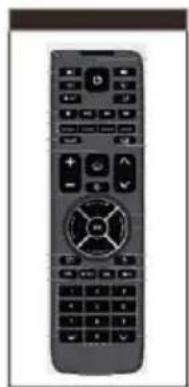
natural_image
Front view of a black remote control with keypad and buttons (no visible text or symbols)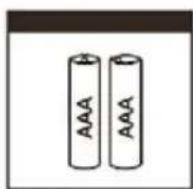
natural_image
Two identical line drawings of a bent mechanical component or bracket, no text or symbols present.Slike služe samo kao referenca i mogu da se neznatno razlikuju od stvarnog proizvoda. Pri tome funkcionalnost ostaje ista.

Munja sa simbolom strelice unutar trougla upozorava korisnika na prisutnosti opasnog neizolovanog napona unutar proizvoda koji može da bude dovoljno jak da bi predstavljao rizik od strujnog udara i ozleda.

Uzvičnik unutar trougla upozorava korisnika na uputstva o rukovanju i održavanju, priložena u pakovanju.

OPREZ

RIZIK OD STRUJNOG UDARA NE OTVARAJTE UREĐAJ
Ne otvarajte stražnji poklopac. Ni u kom slučaju korisniku nije dozvoljen rad unutar televizijskog seta. Samo kvalifikovani tehničar iz ovlašćenog servisa ima dozvolu za takav rad.

Glavni utikač koristi se za isključivanje TV prijemnika sa napajanja. Kada je utikač priključen na napajanje, uređaj će da bude u stanju mirovanja (standby).

Nepravilna zamena baterije, uključujući zamenu druge baterije sličnog ili istog tipa, može da dovede do rizika od izbijanja požara ili eksplozije. Ne izlažite baterije toploti, poput sunčeve svetlosti, vatri ili sličnim vremenskim nepogodama.

natural_image
Symbolic illustration of a candle crossed with a flame, representing fire or smoke (no text or labels)natural_image
Technical line drawing of two views of a computer rack unit with mounting brackets and ventilation slots (no text or symbols)PREDNJA STRANA TV PRIJEMNIKA
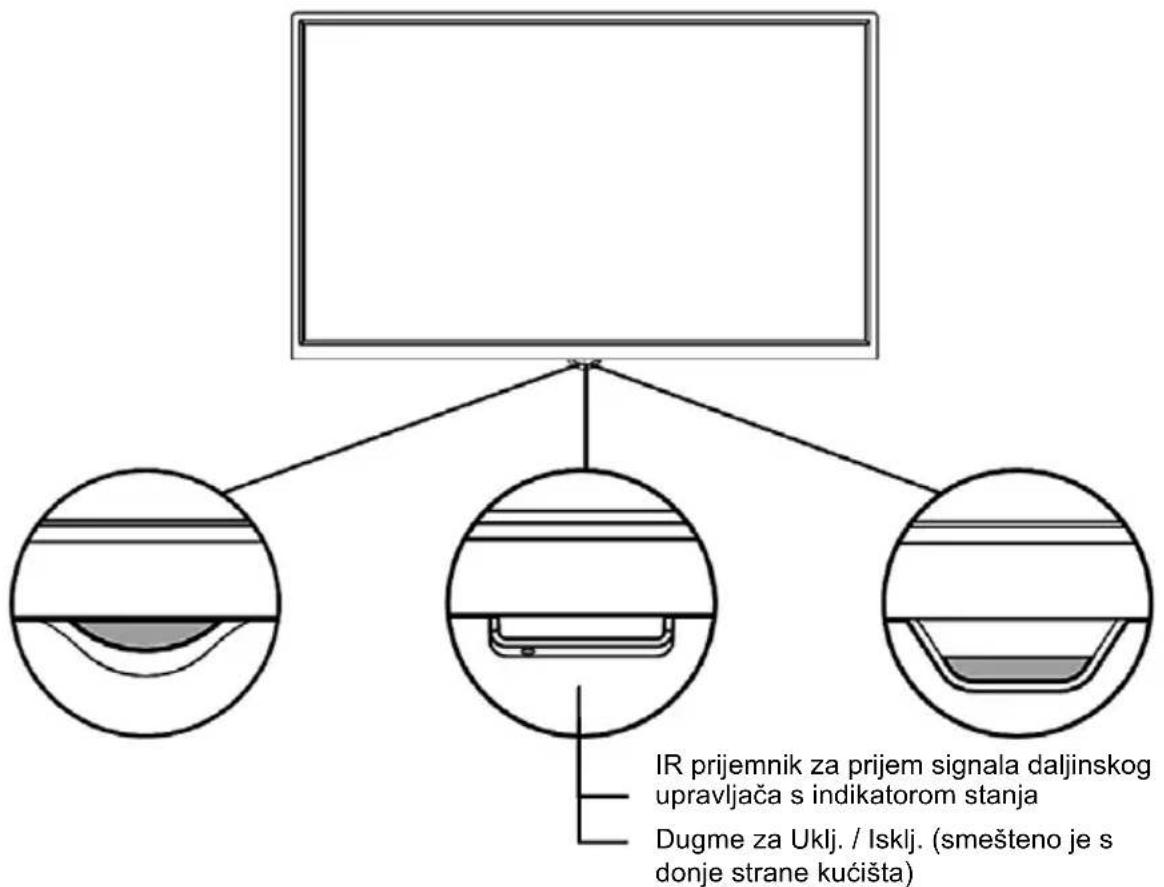
| Opis | ||
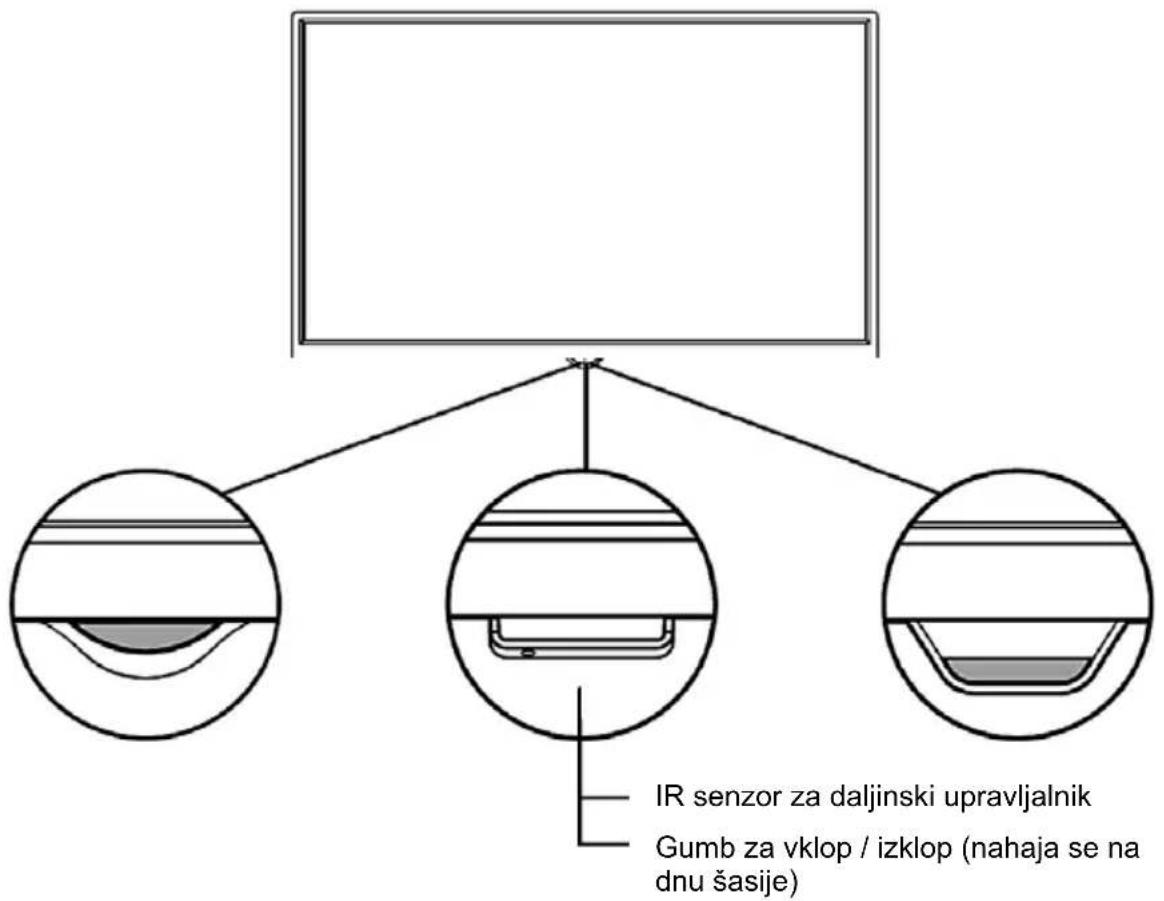
| 1 | IR senzor daljinskog upravljača | Prima signal iz daljinskog upravljača. Ne postavljajte nikakve prepreke između senzora pošto to može da utiče na ispravan rad i kontrolu uređaja putem daljinskog upravljača. |
| 2 | Indikator stanja | Crveno svetlo svetli u modu čekanja. Plavo svijetlo svijetli kada je televizor uključen. |
NAPOMENE
Spojite USB uređaj kao što je USB memorija ili USB tvrdi disk ili digitalnu kameru za pregledavanje fotografija, slušanje muzika ili gledanje video materijala.
Ovaj ulaz koristi se i za nadogradnju softvera. Nadogradnja će da se izvrši automatski čim USB sa datotekama za nadogradnju bude umetnut u USB ulaz.
NAPOMENE
- Prilikom spajanja tvrdog diska ili USB memorije uvek priključite adapter napajanja priključenog uređaja u izvor napajanja. Preopterečenje USB priključka može da dovede do oštećenja. Najveća dozvoljena potrošnja struje iznosi 500mA.
- TV prijemnik ne podržava samostalne, nestandardne tvrde diskove koji nemaju spoljno napajanje, ako je zahtevana struja jača ili jednaka 500mA. To može da dovede do oštećenja TV uređaja ili tvrdog diska.
- USB ulaz podržava napon od 5V.
- Maksimalna podržana veličina prostora za spremanje je 1T.
- Ako želite reproducirati DTV video, brzina prijenosa USB uređaja za pohranu ne smije biti manja od 5 MB/s.
▶ EARPHONE (SLUŠALICE)
▶ COMMON INTERFACE (CI+INTERFEJS)

flowchart
graph LR
    A["TV JACK"] --> B["COMMON INTERFACE(CARD FACE FRONT)"]
    B --> C["CAM CARD"]
    C --> D["SMART CARD"]
    C -->|②| B
    C -->|①| D
Umetnite CI modul za otvaranje kodiranih programa kao što su PAYTV ili HD PAYTV programi.
NAPOMENE
- Pre umetanja/uklanjanja CI modula obezbedite da je televizor isključen. Zatim umetnite CI karticu u CI modul prema uputstvima proizvođača modula.
- Nemojte stalno da umećete ili uklanjate CI modul pošto to može dovesti do oštećenja ili kvara.
- CI modul i karticu morate dobaviti od pružatelja usluga za Programe koje želite primati.
- Umetnite CI modul sa Smart Karticom u smeru prikazanom na modulu i Smart kartici.
- CI nije podržan u nekim državama i regijama; proverite sa ovlašćenim distributerom.
▶ PC
Napomena:
Slike u ovom uputstvu su primeri, samo za referencu, stvarni proizvod može se neznatno razlikovati od prikazanih slika. Tasteri koje se ne spominju u uputstvu se ne koriste.
- Powertaster: Pritisnite za uključenje / isključenje TV-a
- Source: Otvaranje menia za odabir izvora.
- Mute taster: Utišanje zvuka. Za ponovno uklj./isklj. zvuka, pritisnite taster ponovo.
- TXT: Prikaz teletexta.
- Screen Mirroring: Uključenje funkcije prikaza slike sa kompatibilnog spoljneg pametnog uređaja (smartphone) na TV ekran.
- REC: Početak snimanja DVB kanala.
- PVR: Prikaz liste snimljenih DVB kanala.
- Stop: Pritisnite taster za zaustavljanje reprodukcije medija.
- Fast Forward: Pretraga zapisa prema napred.
- Play/ Pause: Reprodukcija ili pauza zapisa / Otvaranje Timeshift menia.
- Fast rewind: Pretraga zapisa unazad.
- Color taster: Aktivira funkcije Crvenog/Zelenog/Žutog/Plavog gumba.
- Space tipke: Omogućava ukucavanje razmaka između slova i brojeva na tastaturi ekrana.
- Delete taster: Brisanje slova ili brojeva na tastaturi ekrana.
- HOME: Otvara Smart TV stranicu.
- VOL +/-: Ugađanje jačine zvuka.
- CH +/-: Promena TV programa.
- Mouse: Uključenje/ Isključenje navigacije mišem.
- OK: Otvara listu kanala.
- Navigation taster: Navigacija stavki kroz meni.
- Menu: Otvara izbornik.
- EXIT: Izlaz iz aplikacije i menia.
- RECALL: Povratak na prethodni kanal.
- FAV (Favourites): Omogućava funkcije koje se odnose na taster u boji.
- EPG (Electronic Programme Guide): Prikaz EPG menija.
- Info: Prikaz informacija vezanih za sadržaj na ekranu.
- Numeric tipke: Pritiskom ovih tastera unose se brojevne cifre. Direktno se biraju programi u ATV i DTV modu, te unose lozinke za roditeljsko zaključavanje
- Subtitle Language: Prikazuje opcije subtitlova.
- Audio Language: Prikazuje opcije zvukovnog jezika (audio language).
DALJINSKI UPRAVLJAČ (VER 2)
-
POWER: Pritisnite za uključenje / isključenje TV-a (režim čekanja).
-
MUTE: Utišanje zvuka. Kako biste ponovno uklj./isklj. zvuk, pritisnite taster ponovo
-
REC: Početak PVR DVB snimanja.
-
LIVE TV: Otvaranje TV Aplikacije za gledanje TV kanala
-
PVR: Reprodukcija snimljenih medija
-
TABS: Prikaz dostupnih Aplikacija
-
: Otvaranje SMART TV režima rada
-
BACK: Povratak na prethodno odabrani kanal.
-
SETTINGS: Otvaranje menija postavki
-
MENU: Otvaranje TV menija
-
OK taster: Otvaranje Liste kanala Meni režim: Potvrda unosa i odabir označene opcije
-
Navigacijski tasteri: Označavanje i navigacija stavki unutar menija.
-
EXIT: Izlaz iz aplikacije i menija
-
QUICK Menu: Otvaranje DTV menija
-
EPG / CRVENI taster: Prikaz EPG (Electronic program Guide) menija TXT režim: Biranje funkcije u korespodentnoj boji prikazane u okviru teleteksta.
-
TTX / ZELENI taster: Prikaz teleteksta na ekranu
TXT režim: Biranje funkcije u korespodentnoj boji prikazane u okviru teleteksta.
- FAV / ŽUTI taster: Automatski ulaz u listu omiljenih kanala (FAV).
TXT režim: Biranje funkcije u korespodentnoj boji prikazane u okviru teleteksta.
- INFO / PLAVI taster: prikaz informacija o trenutnom kanalu ili izvoru
TXT režim: Biranje funkcije u korespodentnoj boji prikazane u okviru teleteksta.
![1 2 3 4 5 REC [NO] 6 7 8 9 10 11 OK 12 13 14 15 16 18 17 INTERNET 20 VOL SOURCE CH 21 - - 1 2 3 4 5 6 7 8 9 23 24 25 26 27 VIVAX 28](/content/2026/05/851102/images/bf50590b86973b691441543ee69f444dd8a7e7f1ecd69619a5aaf40a4e571afe.jpg)
Napomena:
Slike u ovoj uputi su primjeri, samo za referencu, stvarni proizvod može se neznatno razlikovati od prikazanih slika. Tipke koje se ne spominju u uputi se ne koriste.
- VOL +/-: Podešavanje jačine zvuka.
- INTERNET: Otvaranje Web pretraživača (Browser)
- SOURCE: Otvaranje menija za odabir izvora
- CH +/-: promena TV programa (kanala)
- Brojevni tasteri: Pritiskom ovih tastera unose se brojevne znamenke. Direktno se biraju programi u ATV i DTV režimu rada, te unose lozinke za roditeljsko zaključavanje
- MIŠ: Funkcija navigacije mišem Uklj./Isklj.
- BRISANJE: Brisanje karaktera koji su upisani virtualnom tastaturom
- ■ STOP: Pritisnite taster za zaustavljanje reprodukcije medija
- ▶ II PLAYBACK / PAUSE: Reprodukcija / Pauziranje reprodukcije medija zapisa / Otvaranje Time Shift menija
- ◀◀ taster: Pretraga zapisa prema nazad
- ▶▶ taster: Pretraga zapisa prema napred
▶ Umetanje baterija u daljinski upravljač
Otvorite stražnji poklopac da bi otvorili odeljak za baterije daljinskog upravljača.
Umetnite dvije AAA baterije. Osigurajte da se (+) i (-) na bateriji poklapa sa (+) i (-) naznačenim na odeljku za baterije.
flowchart
graph TD
    A["Device with sensor icon"] --> B["Device with internal components"]
    B --> C["Device with internal components and directional arrows"]
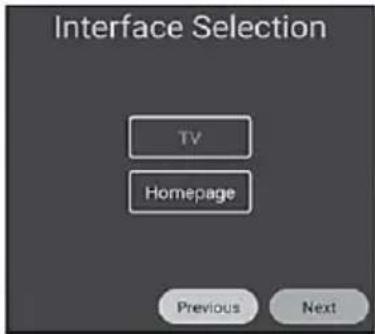
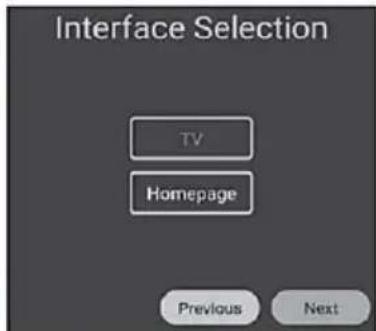
Interface Selection (Izbor početnog prikaza TV-a)
Izaberite način na koji će se uključivati vaš TV prijemnik, pritisnite ▲/▼ za izbor:
- TV
ili
- Homepage
Otvara se App za gledanje TV programa
Otvara se Smart TV Početna Stranica
Čestitamo! Sada je vaš TV spreman za upotrebu.
Pre nego što počnete koristiti TV, proverite da li je prikaz datuma i vremena tačan. Početnoj stranici možete pristupiti pritiskom na taster "HOME" na daljinskom upravljaču.
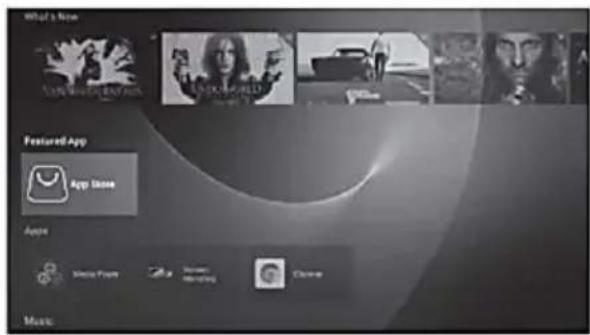
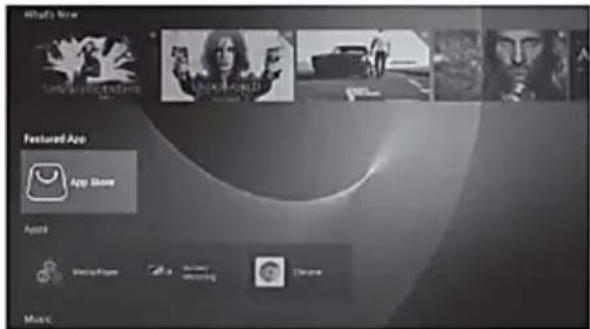
What a New (Šta je novo):
Prva linija početne stranice uključuje videosadržaje koji su u trendu. Video sadržaji će se ažurirati svakih nekoliko dana automatski. Pritisnite tipke ◀ / ▶ za izbor video zapisa, a zatim pritisnite taster OK za reprodukciju željenog videozapisa.
Napomena: Za reprodukciju ovih sadržaja mora biti instalirana aplikacija Youtube.
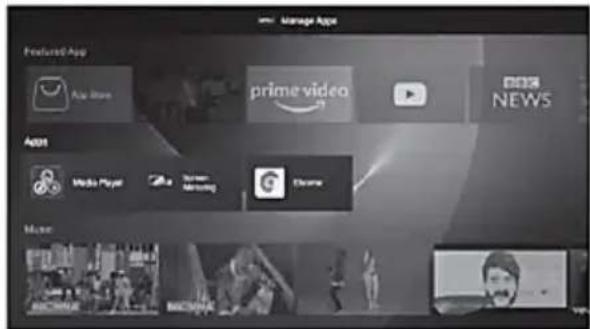
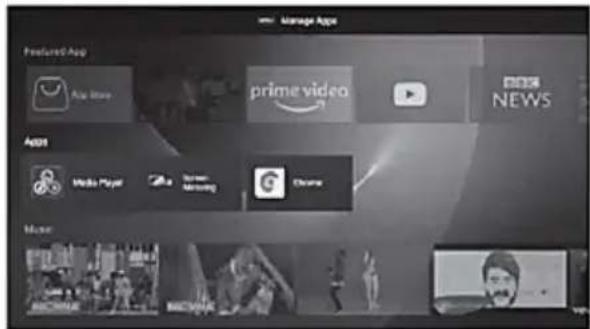
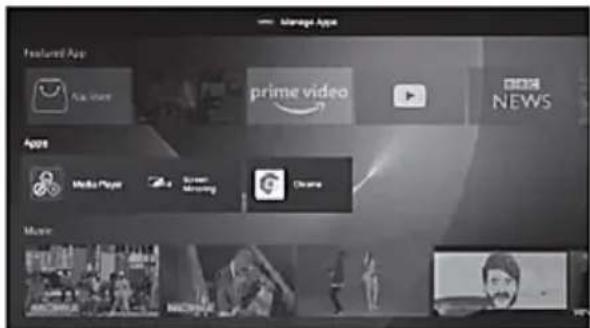
Featured App (Istaknute aplikacije)
Ovde su prikazane preporučene aplikacije za preuzimanje i pristup App Store-u (Prodavnici aplikacija).
Odaberite aplikaciju koju želite instalirati i pritisnite tipku OK za preuzimanje.
Takođe za preuzimanje više aplikacija koje nisu navedene u listi najpopularnijih, možete ući u App Store.
Sources (Izvori)
Omogućuje pristup izvorima dostupnim u aplikaciji Live TV.
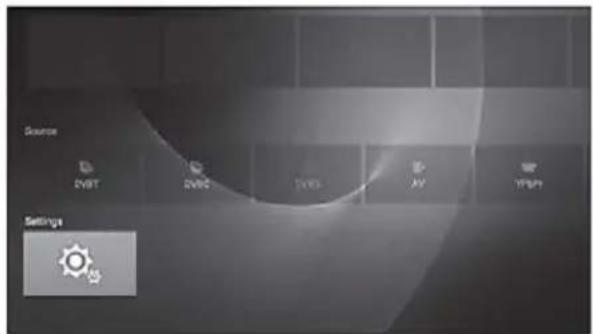
Settings (Podešavanja)
Početnoj stranici možete pristupiti pritiskom na taster "HOME" na daljinskom upravljaču. Pritisnite tastere ▼ / ▲ / ◀ / ▶ i OK za ulaz u opciju „Settings“ (Podešavanja).
Možete podešavati naziv uređaja (device name), podešavanja mreže (network settings), upravljati aplikacijama i podešavanjima uređaja i dobiti informacije o TV-u.
Set the Name of Your Appliance (Podešavanje imena uređaja)
Uređaju možete dati ime tako da ga lakše prepoznate tokom slanja informacija i povezivanja sa drugim uređajima.
Network & Internet (Mreža i Internet)
Za izbor mreže koju želite koristiti pritisnite tastere ◀ / ▶. Omogućite vezu unosom lozinke za bežičnu mrežu. Isto tako, ovde su prikazani podaci o žičnoj mrežnoj vezi.
Apps (Aplikacije)
Ovde su prikazane instalirane aplikacije i dozvole za pristup aplikacijama. Pritisnite OK na aplikaciji za zaustavljanje ili uklanjanje izabrane aplikacije, prateći uputstva na ekranu.
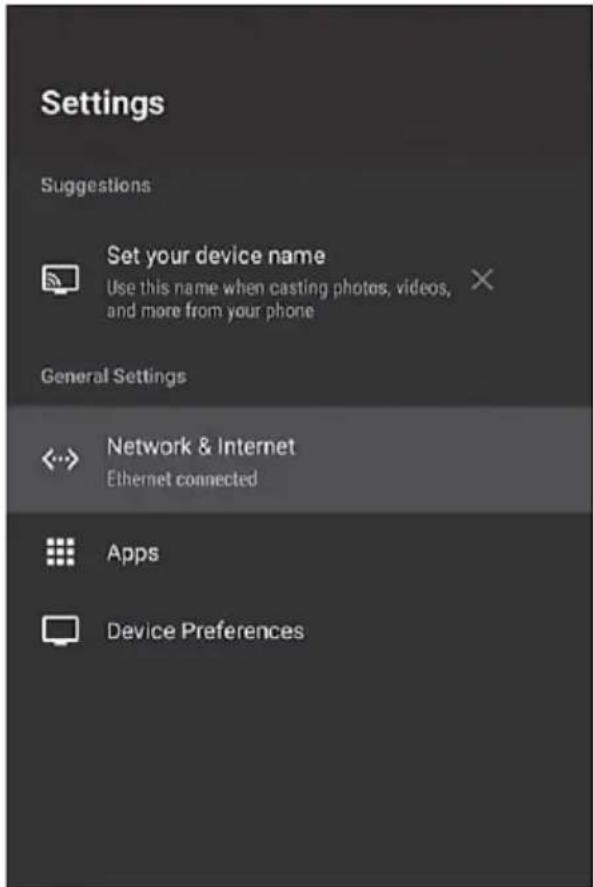
Device Preferences (Podešavanja uređaja)
Možete prilagoditi podešavanja sistema i uređaja kao što su: System Soft. Update (Nadogradnja sistema), Date&Time (Datum i Vreme), Language preferences (Podešavanja jezika), Keyboard (Tastatura), Sound (Zvuk), Storage (Čuvanje podataka), Google i Reset uređaja na početno fabričko podešavanje.
System update (Nadogradnja sistema)
Ovo je funkcija za pristup ažuriranjima sistema TV-a.
Na ovoj stranici možete zatražiti ažuriranje sistema i promeniti podešavanja za ažuriranje (ako je ažuriranje dostupno). Pritisnite taster OK kada izaberete opciju
"System Update" (Nadogradnja sistema) za proveru ažuriranju sistema. Na otvorenoj stranici prikazaće se informacije o postojanju novog ažuriranja (ukoliko postoji).
U slučaju dostupnosti novog software-a, možete ažurirati svoj TV uređaj. Za ovu operaciju morate biti povezani s internet mrežom.
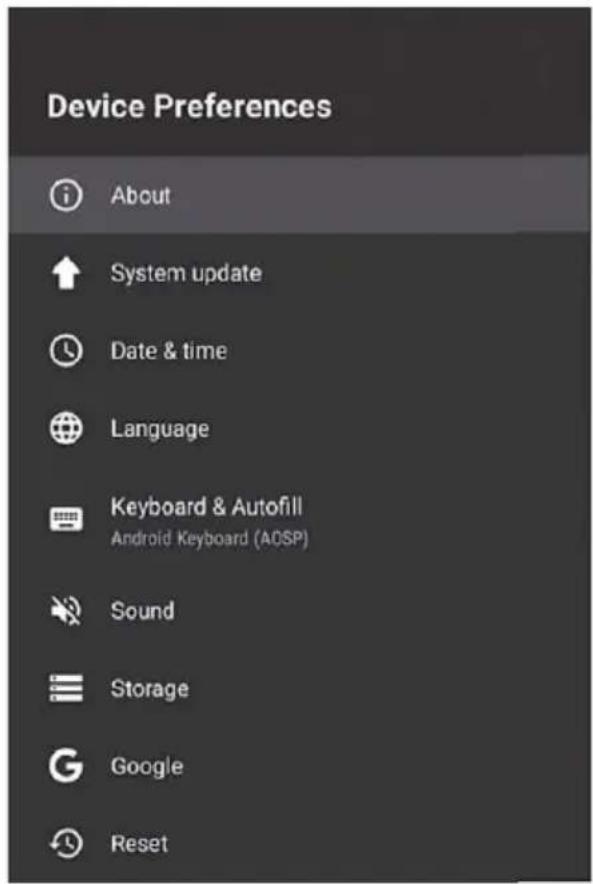
About (Informacije o uređaju)
Ovaj deo prikazuje informacije o sistemu TV-a.
System update (Nadogradnja
sistema): Pritisnite taster OK na opciji za ažuriranje sistema, za projeru dostupnosti nove verzije softvera. Ako je nova verzija softvera dostupna, prikazaće se odgovarajuće informacije o postojanju novog ažuriranja. Tada možete ažurirati svoj
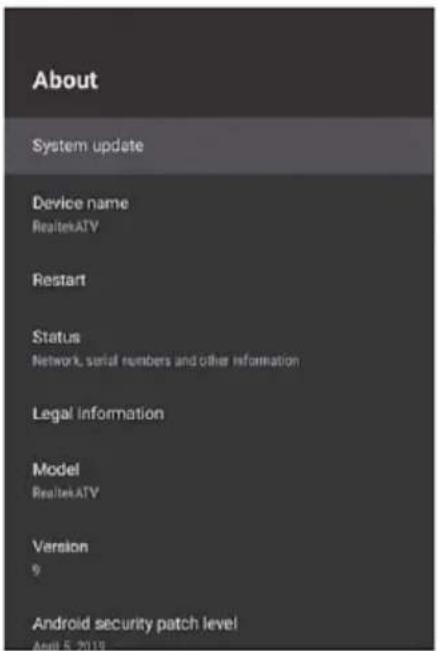
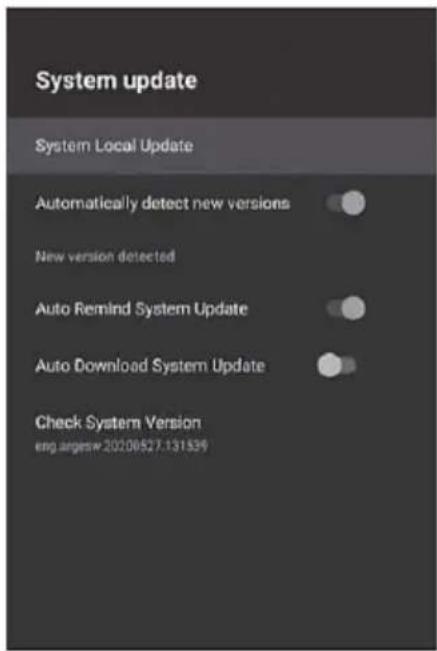
TV uređaj. Za izvršenje ovu operacije, morate biti povezani s internet mrežom.
Legal information
Storage
(Memorija):
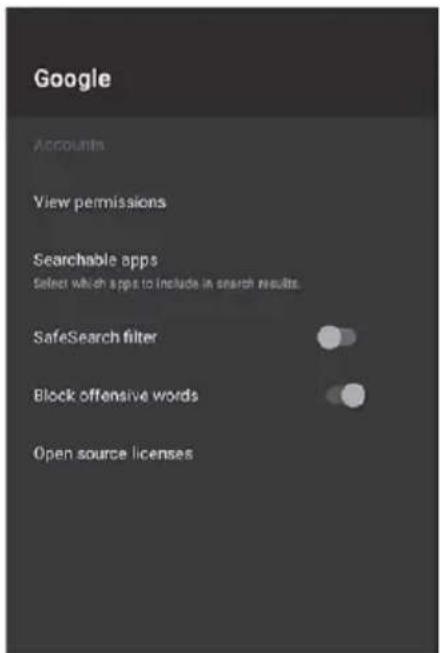
Google: Promena podešavanja internet pretraživanja.
Reset
Pritisnite „Reset" za vraćanje TV-a na fabričko podešavanje. Obrisaćete sve aplikacije koje ste preuzeli, datoteke i druge sadržaje sačuvane u internoj memoriji, kao i memorisane TV kanale.
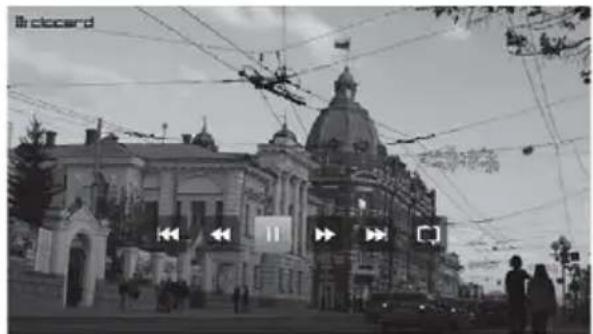
Video
Pritisnite tastere ◀ / ▶ za sadržaja u opciji Video, a zatim pritisnite OK za ulazak u Meni.
Pritisnite taster EXIT za povratak na prethodni Meni.
Pritisnite ▼ / ▲ / ◀ / ▶ za izbor zapisa i tada pritisnite OK za početak reprodukcije.
Pritisnite taster EXIT za povratak na prethodni Meni.
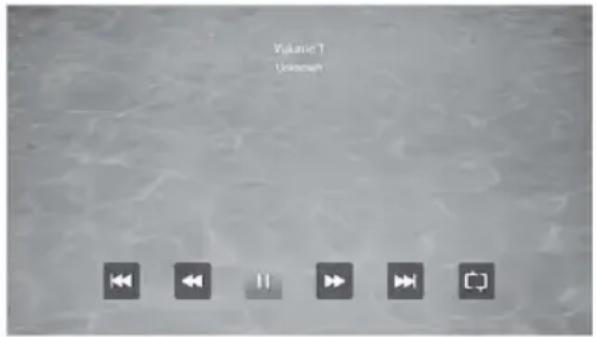
Pritisnite taster ▶II za reprodukciju / pauziranje zapisa, pritisnite „■ ili taster EXIT da biste zaustavili reprodukciju.
Koristite "Žuti" taster za otvaranje i zatvaranje upravljačke trake.
Koristite "Menu" taster za pristup podešavanjima plejera.
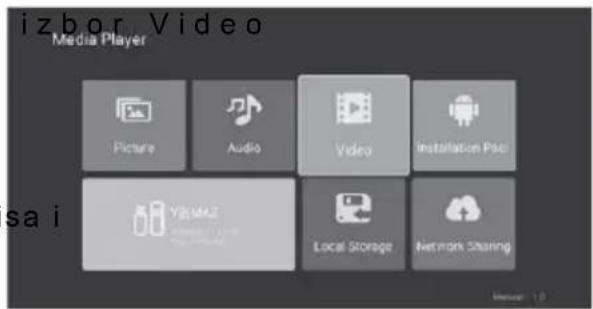
Installation Package (Instalacija aplikacija)
Opcijom Instalacija aplikacija možete instalirati spoljašnje aplikacije sa eksterne memorije na uređaj.
Local Storage (Lokalna memorija)
Omogućuje vam prikaz svih datoteka i zapisa na memoriji uređaja.
Network Sharing (Mrežno deljenje)
Omogućuje reprodukciju različitih video/audio/slikovnih sadržaja povezivanjem TV-a na spoljašnje uređaje, koji su povezani na istu bežičnu mrežu.
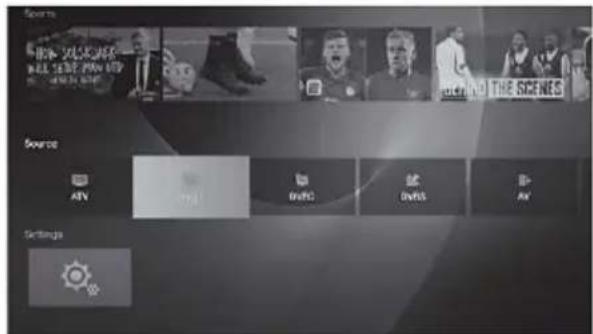
Source - Input Sharing (Izvor – Ulazno deljenje)
Iz liste izvora možete odabrati dostupne izvore: ATV, DVBT, DVBC, DVBS, AV, HDMI itd..
Pritisnite taster "SOURCE" za prikaz liste ulaznih izvora:
Za izbor ulaznog izvora koji želite gledati, pritisnite tastere ▼ / ▲;
Pritisnite taster OK za pokretanje izabranog izvora.
Live TV Menu (Live TV Meni)
Svetlost, kontrast, boju, oštrinu možete podešavati samo kada je mod slike podešen na User Define (Korisnički mod).
Surround:
Pritisnite tastere ◀ / ▶ za podešavanje Surround zvuka.
SPDIF mode (SPDIF mod):
Za izbor SPDIF digitalnog Audio izlaza pritisnite tastere ◀ / ▶. (Dostupne SPDIF funkcije: AUTO, PCM.OFF). Pritisnite tastere ◀ / ▶ za povratak na prethodni meni.
Audio narration (Audio dodatni opisi):
Pritisnite tastere ◀ / ▶ za izbor dodatnih audio opisa događaja na ekranu (ako se usluga emitira).
AD Volume adjustment (Podešavanje jačine zvuka dodatnih opisa):
Za podešavanje jačine zvuka audio opisa sadržaja, pritisnite tastere ◀ / ▶.
Program Setup (Podešavanje TV programa)
Pritisnite taster MENU z a prikaz glavnog menija.
Pritisnite tastere izbor opcije Program u glavnom meniju, a zatim pritisnite OK za ulazak.
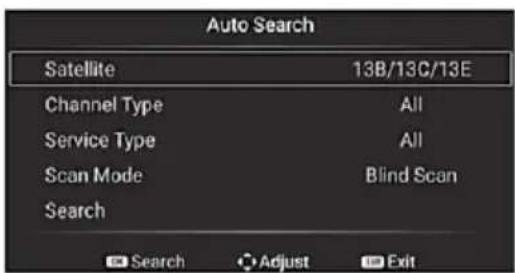
Automatic search (Auto pretraga): Pritisnite tastere ▼ / ▲ za izbor Auto Search (Automatsko pretraživanje), a zatim pritisnite OK za početak pretraživanja.
Podešavanja automatskog
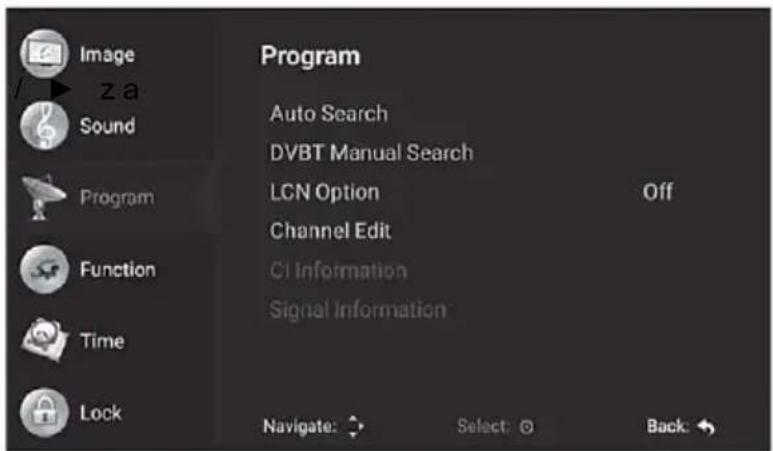
pretraživanja razlikuju u zavisnosti od ATV / DTV tipa kanala, kao što je prikazano:
ATV – Analog TV DVB-T – Digital TV
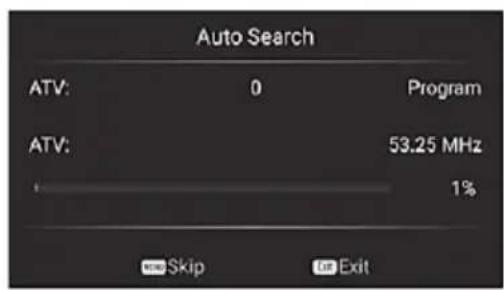
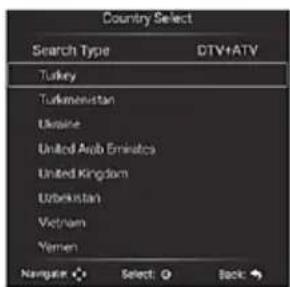
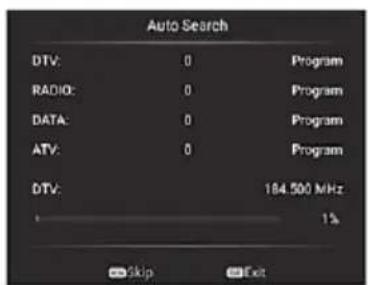
DVBC - Cable TV
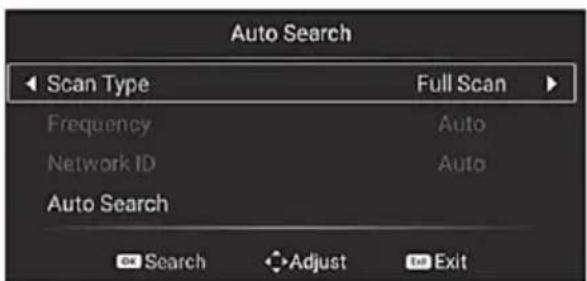
DVBS – Satellite TV
DVB manual search (DVB ručno pretraživanje): Pritisnite ▼ / ▲ za izbor DVB ručnog pretraživanja, a zatim pritisnite OK za početak pretraživanja podešenog kanala.
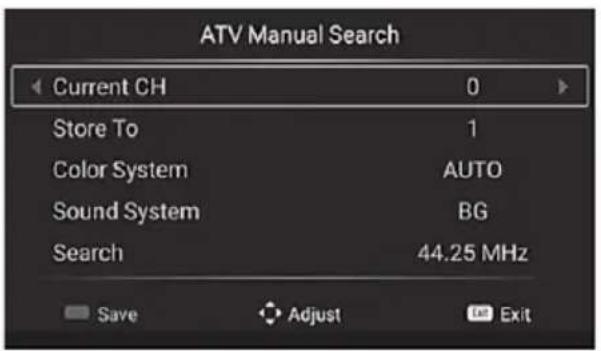
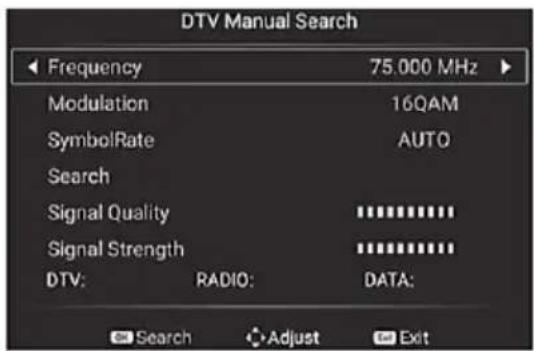
Podešavanje ručnog pretraživanja razlikuju se prema vrsti ATV / DTV, kao što je prikazano u nastavku:
ATV – Analog TV DVB-T – Digital TV
DVBC - Cable TV
DVBS – Satellite TV
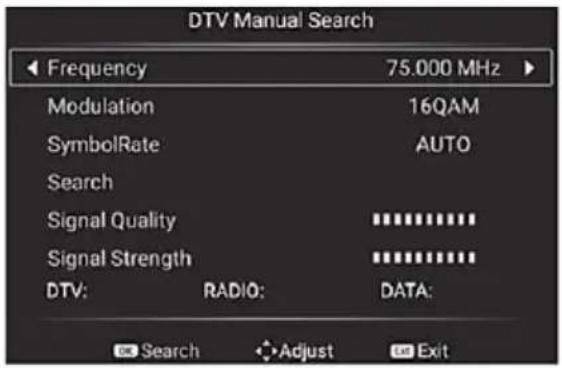
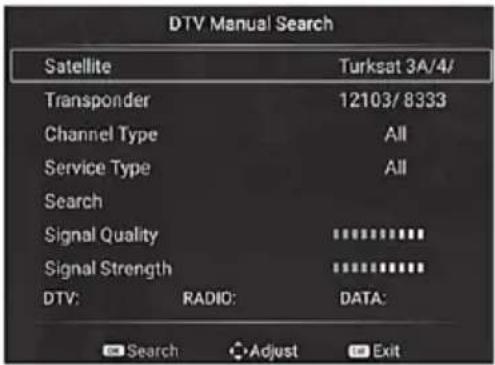
Pritisnite tastere ◀ / ▶ za izbor opcije koju želite podešavati, a zatim pritisnite OK za ulaz.
Nakon završetka pritisnite taster EXIT da bi ste sačuvali podešavanja i povratak na prethodni meni.
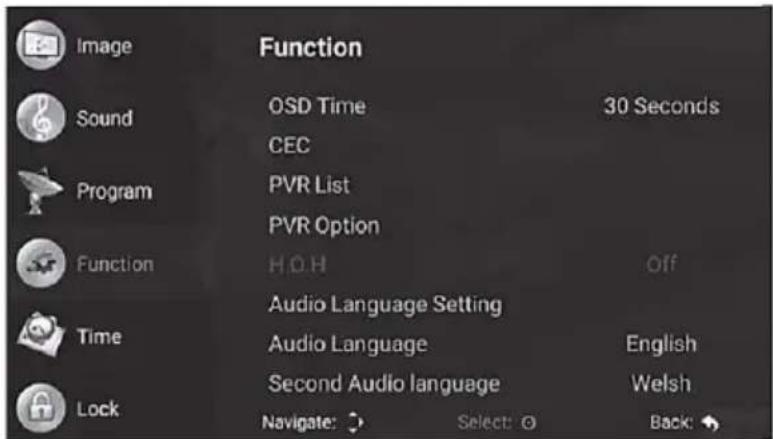
OSD timer (OSD vreme):
Za izbor OSD timera (vreme prikaza informacija na ekranu) pritisnite tastere ◀ /

Pritisnite tastere ◀ / ▶ za izbor: Always (Stalni prikaz), 5 sek, 10 sek, 15 sek, 30 sek.
Ovom opcijom podešavate vreme prikaza menija i informacija LiveTV aplikacije na ekranu.
CEC:
HDMI CEC digitalno upravljanje nudi komunikaciju između uređaja povezanih putem HDMI kabla.
Pritisnite OK za ulazak u podmeni.
Pritisnite tastere ▼/▲ za izbor: HDMI control (HDMI kontrola) / Device auto turn-off (Automatsko isključenje povezanog uređaja) / TV auto power on (Auto uključenje TV-a)/ CEC device list (Lista CEC uređaja) / Enable ARC items (Omogući ARC funkciju), tada pritisnite OK taster za podešavanje.
Pritisnite taster EXIT za povratak u prethodni meni.
Recording list (Lista snimanja) (DTV):
Otvaranje liste prethodno snimljenih DTV programa. Pritisnite taster OK za ulazak u podmeni, pritisnite tastere ◀ / ▶ za izbor stavki, a zatim pritisnite OK za podešavanje.
Recording option (Opcije snimanja DTV):
Ovom opcijom omogućuje se pristup podešavanjima diska i PVR snimanja. Pritisnite taster OK za ulaz u podmeni.
Automatic power-off (Auto isključenje):
Uređaj će se automatski postaviti u stanje čekanja (Standby) nakon podešenog vremena, ako u tom periodu nije pritisnuta ni jedna komanda na daljinskom upravljaču. Za podešavanje opcije pritisnite tastere ◀ / ▶.
natural_image
Front view of a black remote control with keypad and scroll (no visible text or symbols)
natural_image
Two identical isometric line drawings of a V-shaped structure with internal segments (no text or symbols)natural_image
Symbolic illustration of a candle crossed with a flame, representing fire or smoke (no text or numbers present)natural_image
Technical line drawing of a computer chassis showing front and side views (no text or symbols)Забелешка:
flowchart
graph TD
    A["Device with 3D sensor"] --> B["Device with internal components"]
    B --> C["Device with internal components and external connectors"]
ОСНОВНО КОРИСТЕЊЕ
Прво инсталирање
Apps (Апликации)
Reset
Видео
DVB-T – Дигитална ТВ
DVBC – Кабелска ТВ
OSD timer (OSD врeme):
CEC:
Sleep timer (Off timing)
natural_image
Front view of a black remote control with keypad and buttons (no visible text or symbols)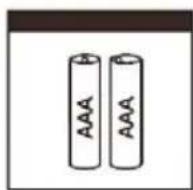
natural_image
Two identical line-drawn V-shaped structures with internal segments, no text or symbols presentnatural_image
Symbolic illustration of a candle crossed out by a diagonal line, representing heat or urgency (no text present)natural_image
Technical line drawing of two views of a server rack with ventilation slots and connectors (no text or symbols)ANA E PËRPARME E TELEVIZORIT
▶ SPDF DIGITAL COAX / OPTICAL AUDIO OUT (option)
flowchart
graph TD
    A["Device with arrow pointing to top panel"] --> B["Channel with internal components"]
    B --> C["Device with arrow pointing to bottom panel"]
PËRDORIMI THEMELOR
Operacionet (Settings)
Të preferuarat e pajisjes (Device Preferences)
Tingulli (Sound):
Video
natural_image
Exterior view of a historic building with ornate architecture and pedestrians (no visible signage or text)Pakoja e Instalimit (Installation Package)
Ndarja e rrjetit (Network Sharing)
(Standard), Dinamike (Dynamic), Natyrale (Natural), E definuar nga përdoruesi (User-defined).
Rrethuar (Surround):
Narracioni i zërit (Audio narration):
DVBC - Cable TV
DVB-T - Digital TV
DVBS – Satellite TV
Instalimi satelitor (Satellite Installation) (for DVB-S):
CEC:
Për të zgjedhur butonat: Fikni (Off) / 10 min / 20 min / 30 min / 60 min / 90 min / 120min / 180 min / 240 min., ◀/▶.
Kontrolli prindëror (Parental control):
Viri (Source – Input Sharing) 30
Live TV meniji (Sistem LiveTV menija) 30
Picture (Slika) 31
Audio (Zvok) 31
Tuning TV Channels (Nastavitev Kanalov) 32
Function (Funkcije) 32
Time (Čas) 33
Zaklepanje (Lock) 35
Druge informacije 36
natural_image
Front view of a black remote control with keypad and dials (no visible text or symbols)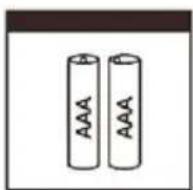
natural_image
Two identical V-shaped metal bracket designs with no text or symbolsSlike so samo za referenco:

natural_image
Technical line drawing of two computer hardware units with mounting brackets and ventilation slots (no text or symbols)SPREDNJA STRAN TV-SPREJEMNIKA
▶ SPDF DIGITAL COAX / OPTICAL AUDIO OUT
▶ COMMON INTERFACE (CI+ VMESNIK)

flowchart
graph LR
    A["TV JACK"] --> B["COMMON INTERFACE(CARD FACE FRONT)"]
    B --> C["CAM CARD"]
    C --> D["SMART CARD"]
    D -->|1| C
    C -->|2| B
Opomba:
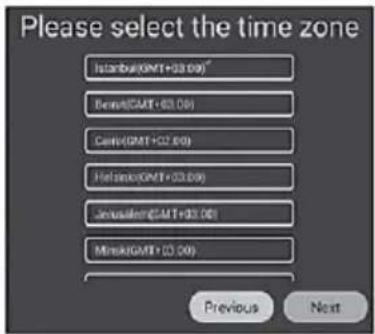
Pritisnite ▼ / ▲ tipko za izbiro omrežja WiFi, nato pa tipko OK gumb za izbiro.
Označitetipko "Next" (Naprej) na zaslonu in pritisnite "OK", da izberete naslednji korak.
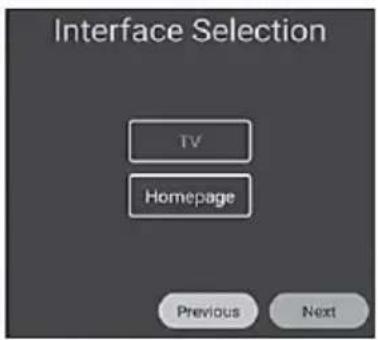
Izbira vmesnika (Interface Selection)
Izberite tipko, s katero želite vklopiti način SMART na televizorju.
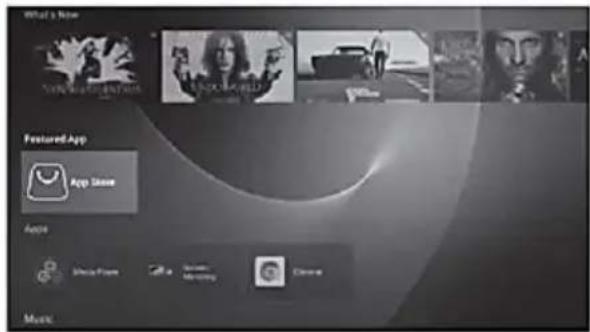
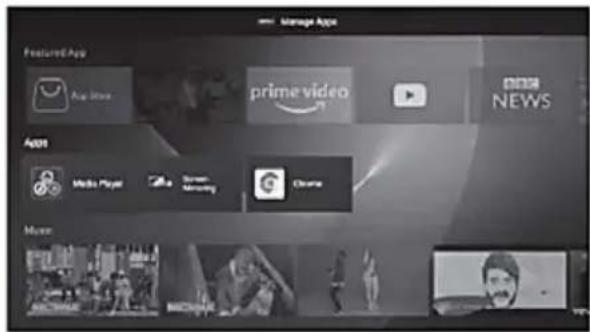
Viri (Sources)
Nastavitev imena naprave (Set the Name of Your Appliance)
Nastavitve naprave (Device Preferences)
by the transmitting streaming)", će želite pridobiti informacije iz televizijskega signala ali izberite "Izklopljeno (Off)", da ročno vnesete čas.
Če ste možnost nastavili na samodejni prenos, bodo možnosti "Izklopljeno" (Off), "Nastavi datum" (Set date), "Nastavi čas" (Set time), "Nastavite časovni pas" (Set time zone) na voljo.
Ponastavi (Reset)
Video
Pritisnite gumba ◀ / ▶, da v meniju Video izberete Video posnetek, nato pritisnite tipko OK za vstop v meni.
natural_image
Exterior view of a grand neoclassical building with a clock tower and decorative lighting, framed by people in the foreground (no visible text or symbols)Namestitveni paket (Installation Package)
Temperatura barve (Colour temperature):
Če želite prilagoditi barvno temperaturo, pritisnite tipki ◀ / ▶ . Pritisnite ◀ / ▶ za izbiro Običajno (Normal), hladno (Cold), toplo (Warm).
Zmanjšanje hrupa (Noise reduction):
Pritisnite tipki ◀ / ▶, da izberete možnost Zmanjšanje šuma (Noise reduction), nato pritisnite oOK za vhod v način. Pritisnite tipki ◀ / ▶ za izbiro: Izklopljeno (Off), nizko (Low), srednje (Medium), visoko (High), samodejno (Automatic).
Zvok (Sound)
S tipkama ◀ / ▶ izberite meni, ki ga želite prilagoditi v meniju Zvok (Sound)..
Način zvoka (Sound Mode) S tipkama ◀ / ▶ izberite Način zvoka, nato pritisnite OK za vstop v način delovanja. (Na voljo so načini zvoka:: Standardno (Standard), filmsko (Movie), dinamično (Dynamic), uporabniško določeno (User defined).
DVB-T - Digital TV
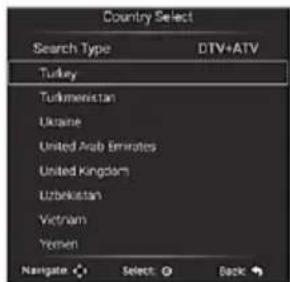
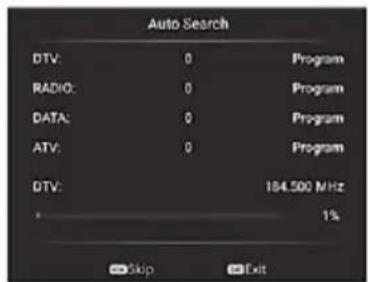
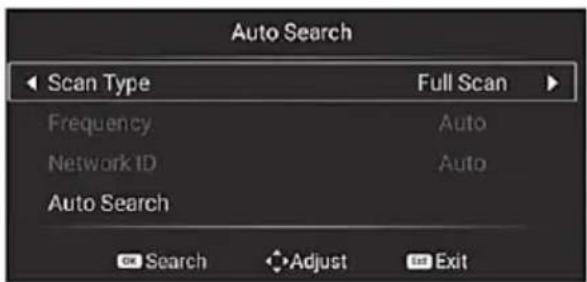
DVBC - Cable TV
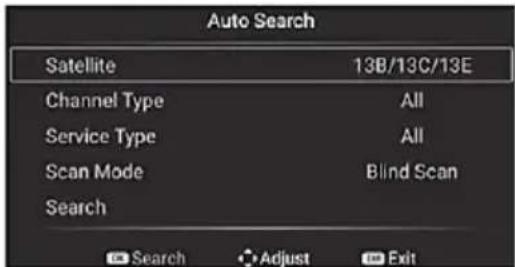
DVBS – Satellite TV
Ročno iskanje DVB (DVB manual search): Pritisnite ▼ / ▲ , da izberete ročno iskanje DVB, nato pritisnite OK , da začnete iskati nastavljeni kanal.
Urejanje kanalov (Channel editing):
Pritisnite tipki ▼ / ▲ za izbiro možnosti Edit Channels (Urejanje kanalov) in pritisnite tipko OK za vstop.
CEC:
Samodejni izklop (Automatic power-off):
Appliance features 3
Welcome 4
Important Safety Instructions 6
Installation 10
Stand Installation 10
T V F r o n t
Antenna and Power Connection 12
TV Rear 14
Connections 15
Remote Controller 21
Installing batteries in the Controller 23
Basic Features 24
The first installation 24
Sources 25
Settings 25
- Set the name of your Appliance 25
- Network 25
- Apps 25
- Device Preferences 26
Media 29
Picture 29
Sound 29
Video 30
Installation package 30
Local Storage 30
Network Sharing 30
Source – Input Sharing 30
Live TV Menu 31
Picture Setup 31
Audio Setup 31
Tuning TV Channels 32
Function Menu 33
Time settings 34
Lock Settings 35
Other Information 37
Trouble Shooting 37
Technical Specifications 40
Disposal of Waste Electrical & Electronic Equipment 41
EU Declaration of Conformity 41
Product Fiche 41
Warranty Declaration (at the end of the Manual)
APPLIANCE FEATURES
Dear customer
Please read the user manual carefully before proceeding.
The appliance has the following features:
• Full function remote control
- Smart Android 9
• 1GB / 8GB memory / Quad Core CPU / Wi-Fi and Ethernet (LAN) support
- Displaying all menus and commands for the operations performed on the screen (OSD).
- Multilanguage OSD menu support
• 100 analognih channel memory DVB-T2 / DVB-C 500 / DVB-S2 4000 channels
- Autoscan option
- Programmable Switch ON/OFF times
• Auto stand-by after the end of broadcast
• Auto display format (4:3 or 16:9) definition
- Fast teletext with 1000 pages of memory
• Digital Connection with HDMI Inputs
- Playing audio, picture and film files from USB input.
- CI+ CAM Module
- HDMI Inputs
- YPbPr Input
- AV Input
- Earphone
- SPDIF or Optical Digital Audio output
• VGA + PC Audio (49" only)
- Ethernet
• DVB T2 H.264, H.265 HEVC, HE-AAC, DVB-C, DVB-S2
WELCOME
This device lives up to the highest standards, innovative technology and high user comfort.

With this TV you can do it fast and simple, whilst in the comfort of your living room.

Media player — access your music, pictures and videos from your network or USB storage media and play them directly on your TV.

Everything works with one remote control now. Connect your TV directly to your terrestrial, satellite antenna or cable and enjoy contents in high quality without loss
The Accessories
When opening the box and installing the machine, make sure you have get all the necessary accessories:
- User manual with warranty declaration
- Remote Control
- Batteries x2
- Stand + Screws for stand
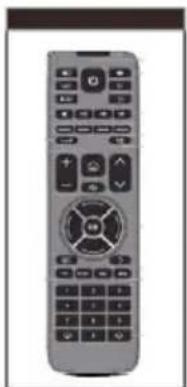
natural_image
Front view of a gray remote control with keypad and function buttons (no visible text or symbols)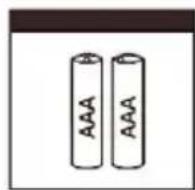
natural_image
Two identical line-drawn geometric shapes resembling folded paper or rods, with no text or symbols present.Images are for reference only

The flash with the symbol of arrowhead, inside an equilateral triangle alerts the user about the presence of a dangerous tension not isolated inside the product which can be sufficiently powerful to constitute a risk of electrocution.

The point of exclamation inside an equilateral triangle alerts the user about the presence of important operating instructions and maintenance in the document enclosed in the package.

CAUTION

RISK OF ELECTRIC SHOCK DO NOT OPEN
Do not open the back cover. In no case the user is allowed to operate inside the TV set. Only a qualified technician from the manufacture is entitled to operate.

Main plug is used as the disconnect device, the disconnect device shall remain ready for operating.

Incorrect replacement of the battery may lead to the risk, including the replacement of another similar or the same type. Do not expose batteries to heat such as sun or fire or something like that.

The device should not be exposed to dripping and spraying and it can not be placed under objects filled with liquids.
Please read the following safeguards for your TV and retain for future reference. Always follow all warnings and instructions marked on the television.
IMPORTANT SAFETY INSTRUCTIONS
1. Read, Retain, Follow All Instructions
Read all safeties and operations about the TV. Retain them safely for future reference. Follow all operations and instructions accordingly.
WARNING: People (including children) with reduced physical, nervous or mental disabilities or who lack experience and / or knowledge of safe use of the device do not allow the use of electrical devices unattended!
2. Heed Warnings
Adhere to all warnings on the appliance and in the operating instructions.
3. Cleaning
Unplug the TV from the wall outlet before cleaning. Do not use liquid, abrasive, or aerosol cleaners. Cleaners can permanently damage the cabinet and screen. Use a soft dampened cloth for cleaning.
4. Attachments and Equipment
Never add any attachment and/or equipment without approval of the manufacturer as such additions may result in the risk of fire, electric shock or other personal injury.
5. Water and Moisture
The apparatus shall not be exposed to dripping of splashing and that no objects filled with liquids, such as vases, shall be placed on the apparatus.
6. Setting
Do not place this TV on an unstable cart, stand or table. Placing the TV on an unstable base can cause the TV to fall, result in serious personal injuries as well as damage to the TV. Use only a cart, stand, bracket or table recommended by the manufacturer or salesperson.
7. Ventilation
Slots and openings in the cabinet are provided for ventilation and to ensure reliable operation for the TV and to protect it from overheating. Do not cover the ventilation openings in the cabinet and never place the set in a confined space such as built-in cabinet unless proper ventilation is provided. Leave a minimum 10 cm gap all around the unit.
8. Power Source
This TV should be operated only from the type of power source indicated on the marking label. If you are not sure of the type of power supplied to your home, consult your appliance dealer or local power company.
9. Grounding or Polarization

TV equipped with this sign have alternating current line plug. The unit has a double insulation (Class II Protection), and no need additional grounding. Do not defeat the safety purpose of the polarized plug. To check do you need Grounding socket, check rating plate on the unit back side. If you did not find this sign, than you need grounding socket!
10. Lightning
For added protection for this TV during a lightning storm, or when it is left unattended and unused for long periods of time, unplug it from the wall outlet and disconnect the antenna or cable system. This will protect the TV from damage due to lightning and power-line surge.
11. Power Lines and Antenna cables
An outside antenna system should not be located in the vicinity of overhead power lines or other electric light or power circuits, or where it can fall into such power lines or circuits. Where installing an outside antenna system, extreme care should be taken to keep from touching such power lines or circuits as contact with them might be fatal.
12. Overloading
Do not overload wall outlets and extension cords as this can result in a risk of fire or electric shock.
13. Object and Liquid Entry
Never push any kinds of object into this TV through openings as they may come up against dangerous voltage points or short-out parts that could result in fire or electric shock. Never spill any kinds of liquid on or into the TV.
14. Outdoor Antenna Grounding
If an outside antenna or cable system is connected with the TV, be sure the antenna or cable system is grounded so as to provide protection against voltage surges and built-up static charges. Section 810 of the National Electric Code, ANSI/NFPA No. 70-1984, provides information with respect to proper grounding of the mast and supporting structure, grounding of the lead in wire to an antenna discharge unit, connection to grounding electrodes, and requirements for the grounding electrode.
15. Servicing
Do not attempt to service this TV yourself as opening or removing covers may expose you to dangerous voltage or other hazards. Refer all servicing to qualified service personnel.
16. Damage Requiring Service
Unplug the TV from the wall outlet and refer servicing to qualified service personnel under the following conditions:
- When the power-supply cord or plug is damaged.
- If liquid has been spilled, or objects have fallen into the TV.
- If the TV has been exposed to rain or water.
- If the TV operates abnormally by following the operating instructions. Adjust only those controls that are covered by the operating instructions as an improper adjustment of other controls may result in damage and will often require extensive work by a qualified technician to restore the TV to its normal operation.
- If the TV has been dropped or the cabinet has been damaged.
17. Replacement Parts
When replacement parts are required, be sure the service technician has used replacement parts specified by the manufacturer or have the same characteristics as the original part. Unauthorized substitutions may result in fire, electric shock or other hazards.
18. Safety Check
Upon completion of any service or repair to the TV, ask the service technician to perform safety checks to determine that the TV is in safe operating condition.
19. Heat

The product should be situated away from heat sources such as radiators, heat registers, stoves, or other products (including amplifiers) that product heat.
The TV should not be placed near open flames and sources of intense heat.
20. Earphones use - Attention

Excessive sound pressure from earphones and headphones can cause hearing loss. If you notice any disturbance or hum noise in your ears, stop using the headset or earphones. To prevent possible hearing damage, do not listen at high volume levels for long periods.
-
Power cord and Plug should be easily accessible. Do not put a TV or furniture on the power cord. A damaged power cord or plug can cause fire or electric shock. Do not bend or squeeze the power cord. Unplug your TV from main supply to hold the plug and pull it from the power outlet. Never pull the power cord. Never touch a power cord / plug with wet hands, it could cause a short circuit or electric shock. Never make a knot in the cord or tie it with other cables
-
The instructions for installation or use provided with non-floor standing televisions likely to be used in the home and weighing over 7 kg shall contain the following information or equivalent:
WARNING
Never place a television set in an unstable location. A television set may fall, causing serious personal injury or death. Many injuries, particularly to children, can be avoided by taking simple precautions such as:
- Using cabinets or stands recommended by the manufacturer of the television set.
- Only using furniture that can safely support the television set.
- Ensuring the television set is not overhanging the edge of the supporting furniture.
- Not placing the television set on tall furniture (for example, cupboards or bookcases) without anchoring both the furniture and the television set to a suitable support. -Not placing the television set on cloth or other materials that may be located between the television set and supporting furniture.
- Educating children about the dangers of climbing on furniture to reach the television set or its controls.
If your existing television set is being retained and relocated, the same considerations as above should be applied.
- This appliance is not intended for use by persons (including children) with reduced physical, sensory or mental capabilities, or lack of knowledge and experience to use the appliance, unless they are supervised by a person who is responsible for their safety or you're not received training on the use of appliances
Children do not always correctly recognize possible danger situations.
Swallowing batteries can be fatal. Keep batteries out of the reach of small children. If the battery is swallowed, immediate contact medical help.
Packaging equipment and protective bags keep away from children. There is a risk of suffocation.
LED Panel
Materials used when generating this product are made up of fragile elements. Therefore, product can be broken when in cases of falling over or bumps. LED panel is a high tech product and offers you high detailed images. From time to time, a few inactive pixels on screen can appear in blue, green or red steadily. This hes no effect over the product performance.
Positioning the TV set
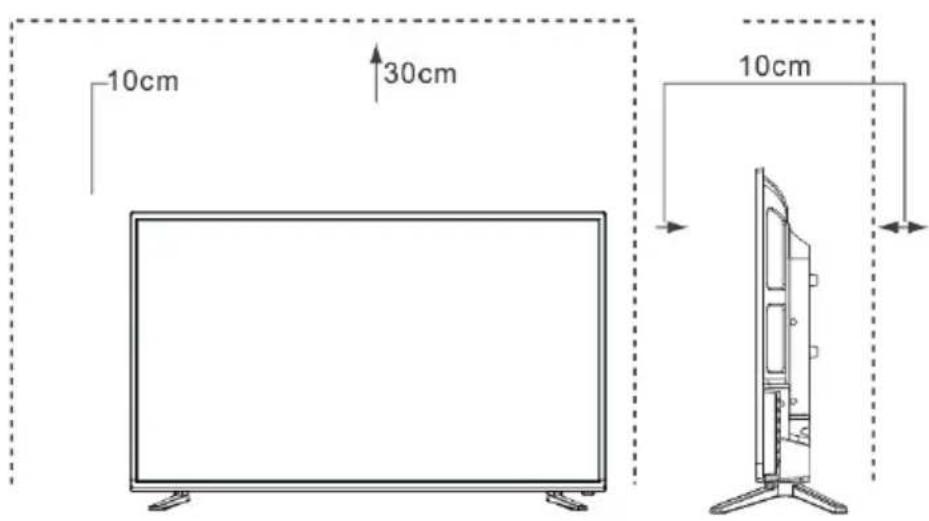
Place the TV set on a firm and flat surface, leaving a space of at least 10cm around the set and 30cm from the top of the set to the wall.
STAND INSTALLATION
Notes
- The TV screen is very fragile, and must be protected at all times when removing the base stand. Be sure that no hard or sharp object, or anything that could scratch or damage the screen, come into contact with it. DO NOT exert pressure on the front of the TV at any time because the screen could crack.
- For tabletop use, the TV must be attached to the provided stand as shown on this page.
- Product images are only for reference, actual product may vary in appearance
WARNING! Be sure to disconnect the AC power cord before installing a stand or wall-mount brackets.
CAUTION!
Carefully place your TV facedown on a soft, cushioned surface to prevent damage to the TV or scratching to the screen.
Follow the illustrations and textual instructions below to complete the installation steps:
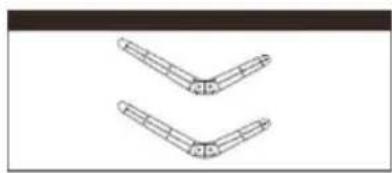
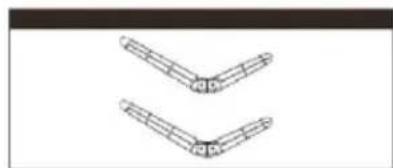
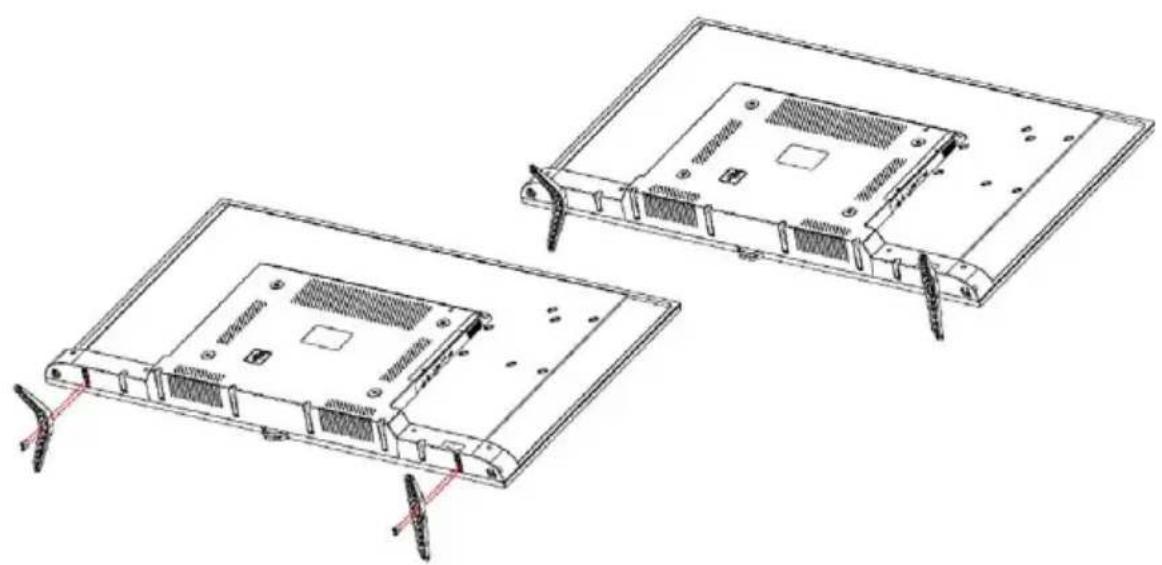
- Attach the stand to the TV set as shown in the picture.
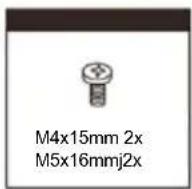
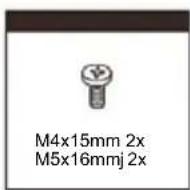
- Use the screws (2x M4x15 and 2x M5x16) to fix the stand tightly.
natural_image
Technical line drawing of two views of a computer chassis showing front and side views (no text or symbols)TV FRONT
| Description | ||
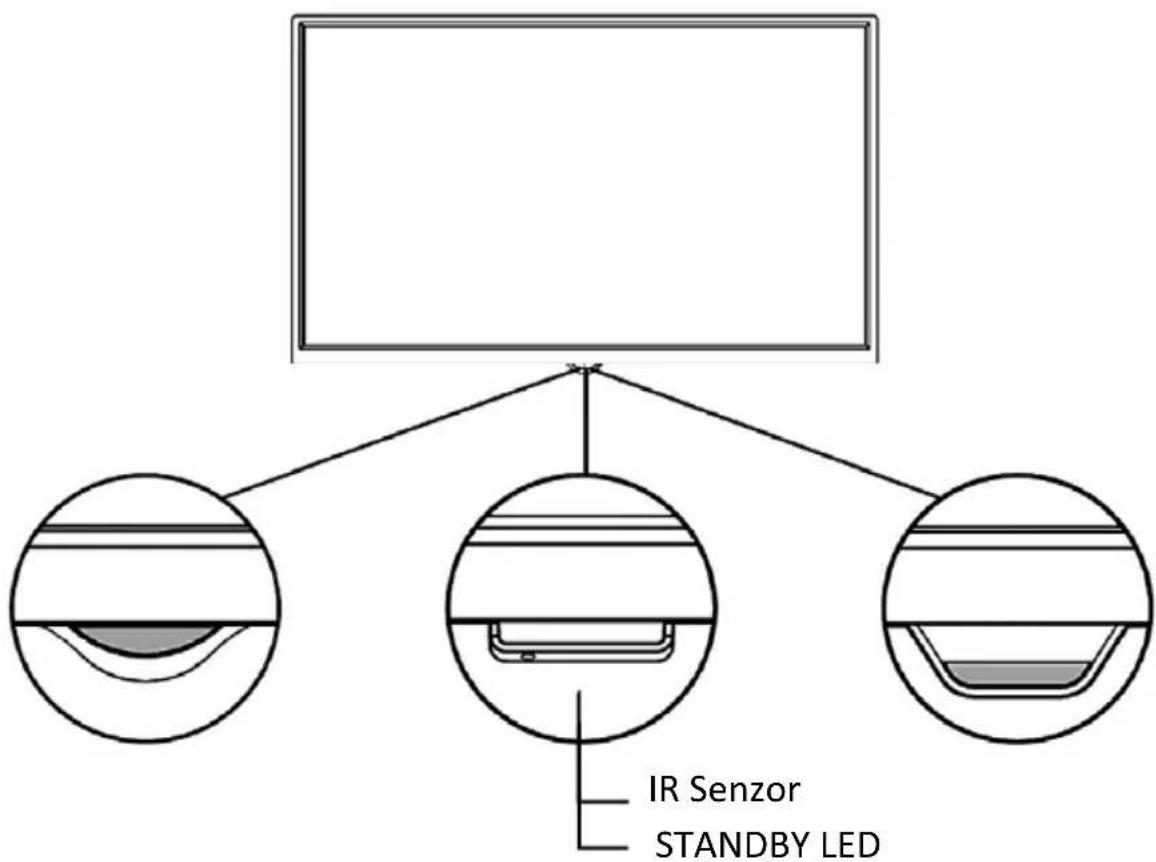
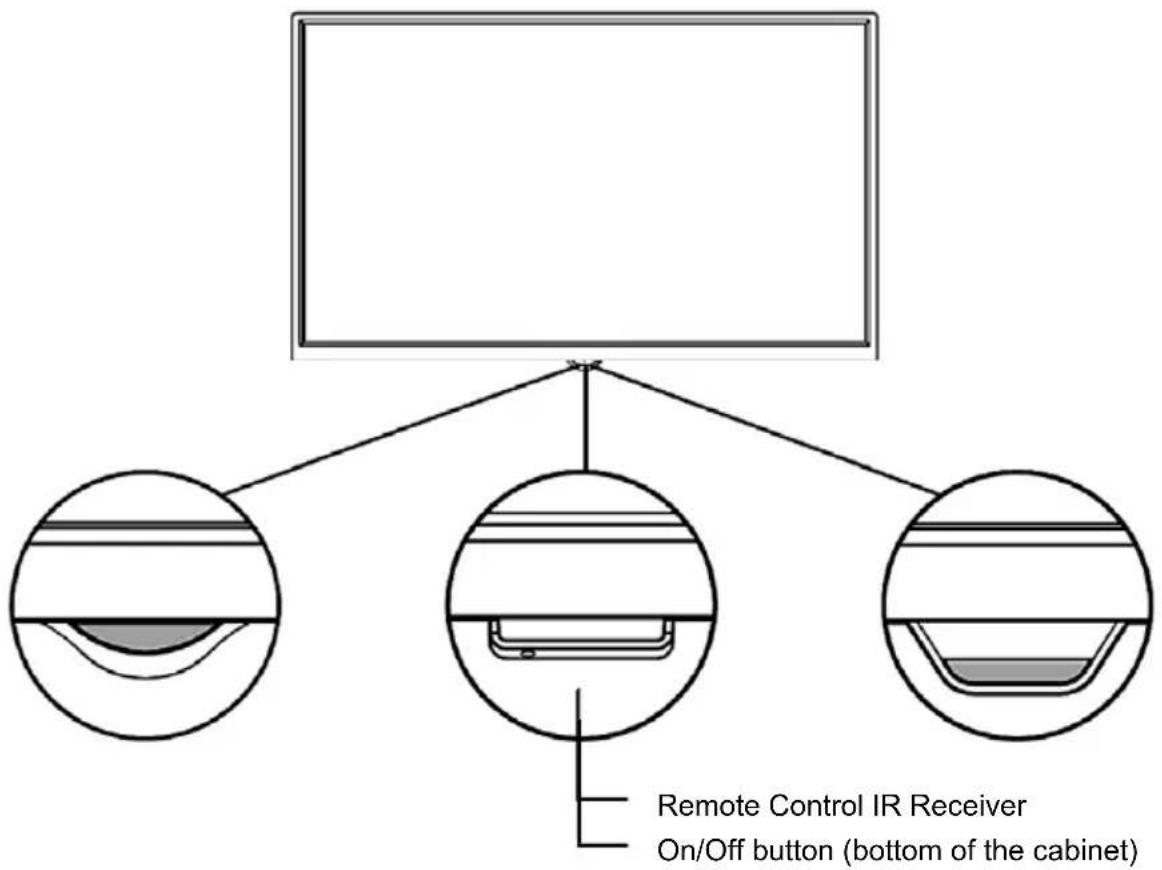
| 1 IR Remote Sensor | Receive remote signals from the remote control.Do not put anything near the sensor, as its function may be affected. | |
| 2 Remote Indicator Red light up in standby mode. | ||
NOTES
The Picture is Only for Reference.
Powering on the TV requires several seconds to load program.
Do not rapidly turn the TV off as it may cause the TV to work abnormally.
ANTENNA AND POWER CONNECTION
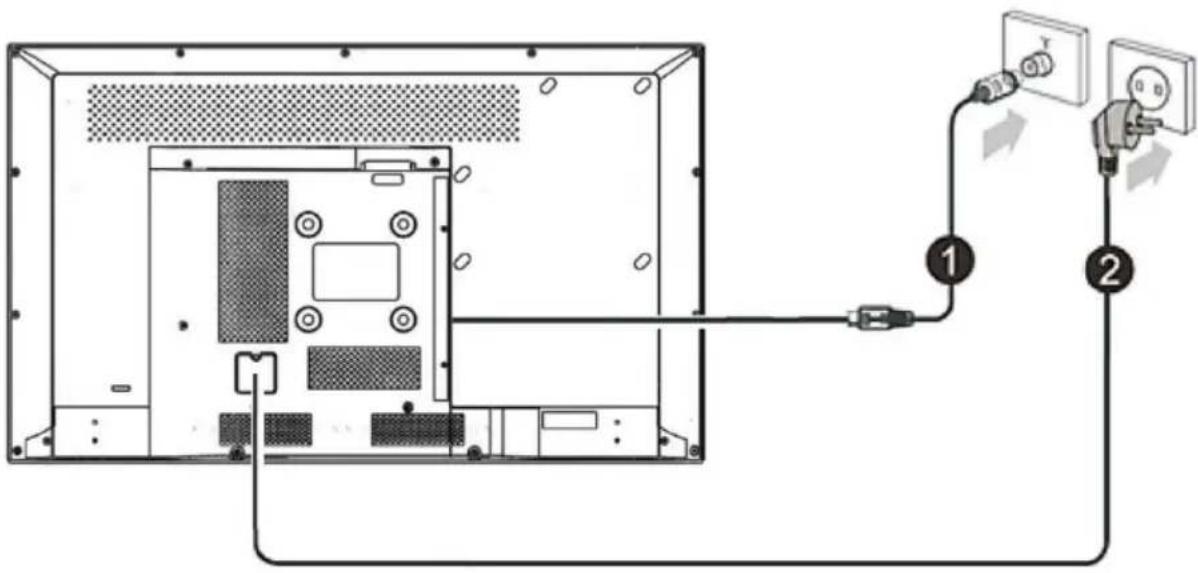
- Connect the antenna cable into the antenna input terminal at the rear panel and wall antenna socket.
- Connect the Power Plug into the wall outlet.
NOTES
The Picture is Only for Reference.
Check the jacks for position and type before making any connections. Loose connections can result in image or color problems. Make sure that all connections are tight and secure.
Not all A/V devices have the ability to connect to a TV, please refer to the user's manual of your A/V device for compatibility and connections procedure.
Before connecting external equipment, remove the mains plug from the wall socket. This may cause electric shock.
TV REAR
43" model:
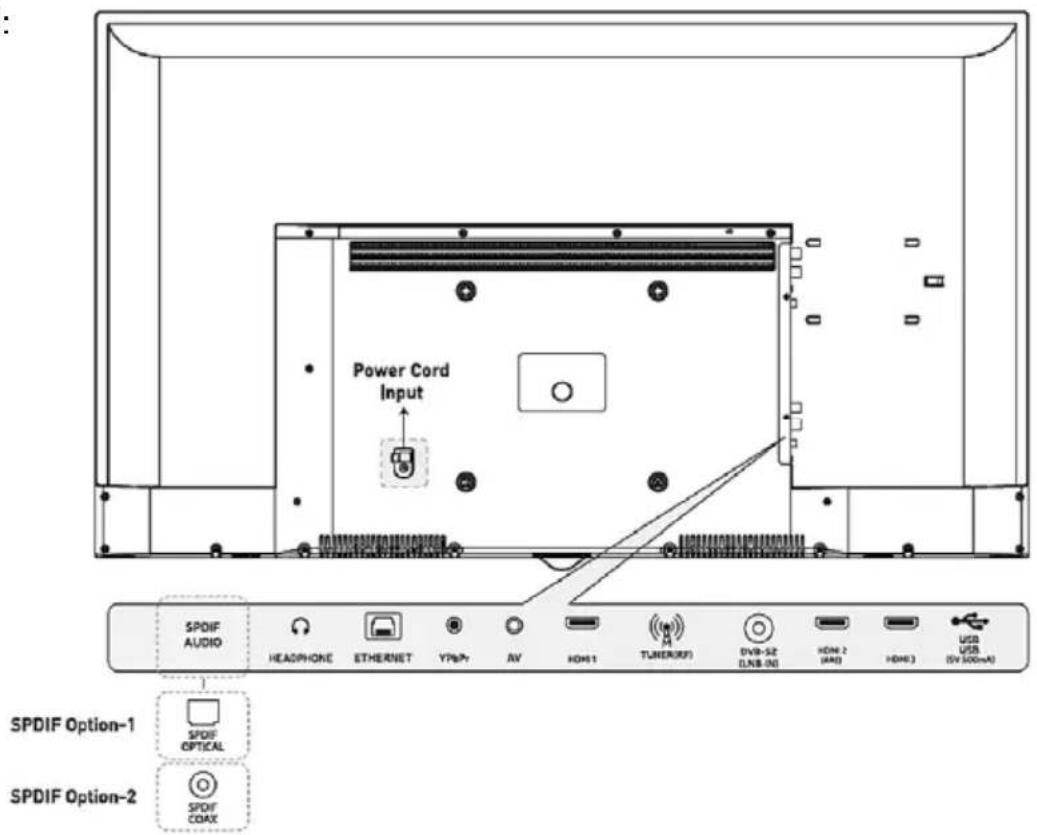
49" model:
![del: Power Cord Input SPDIF AUDIO SPDIF OPTICAL SPDIF COAX ETHERNET VGA [VIDEO] LV (R) TUNER(RF) DVD-SE LAD-IN SPDIF Option-1 SPDIF Option-2](/content/2026/05/851102/images/921526c1d6f5c02b3abb01c87583b70226919693af1b775524256c5618d4d1e5.jpg)
▶ CONNECTIONS
▶ TUNER RF: Connect (ATV/DVB-T2) an outdoor VHF/UHF antenna or cable
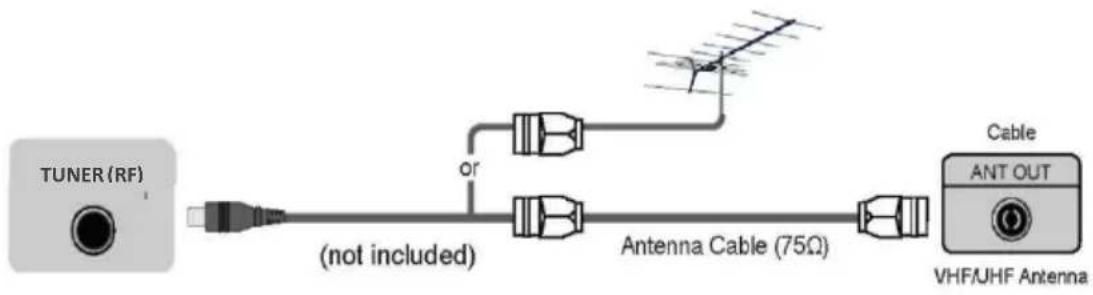
flowchart
graph LR
    A["TUNER (RF)"] --> B["+"]
    B --> C["(not included)"]
    C --> D["Antenna Cable (75Ω)"]
    D --> E["VHF/UHF Antenna"]
    F["Cable"] --> G["ANT OUT"]
    style A fill:#f9f,stroke:#333
    style E fill:#ccf,stroke:#333
▶ DVB S2: Connect (DVB-S2) an outdoor Satellite dish or Sat. Cable convection. (option, only models with Satellite Tuner)
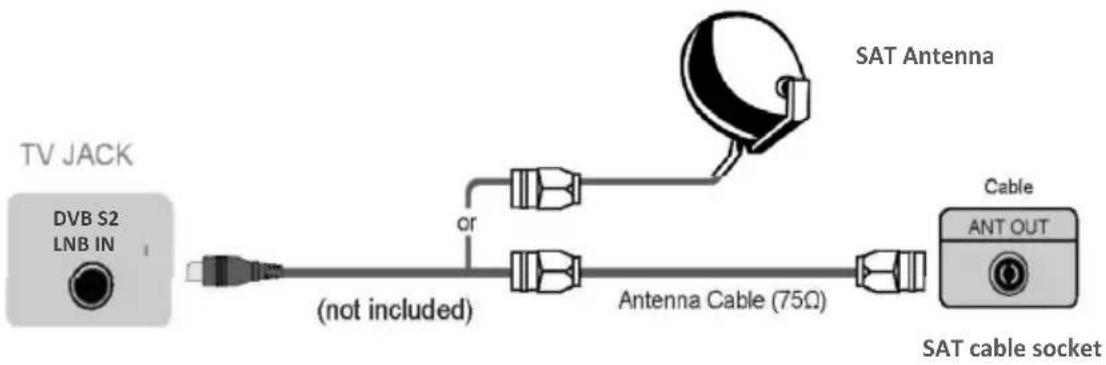
flowchart
graph LR
    A["TV JACK"] --> B["DVB S2 LNB IN"]
    B --> C["analog cable"]
    C --> D["(not included)"]
    D --> E["Antenna Cable (75Ω)"]
    E --> F["Cable ANT OUT"]
    F --> G["SAT cable socket"]
    H["SAT Antenna"] --> I["Analog cable"]
    style H fill:#f9f,stroke:#333
    style I fill:#ccf,stroke:#333
▶ HDMI1, HDMI2, HDMI3 Digital connection

Connect an HDMI cable from an external A/V equipment.
Some devices such as DVD player require HDMI signal to be set to output in the device's settings.
Please consult your device user manual for instructions. Please note that the HDMI connector provides both video and audio signals, it's not necessary to connect an audio cable.
- Press [SOURCE] button, when the list of Input Source appears, press [▲/▼] to select the source [HDMI], then press [OK] to connect.
▶ SPDIF COAX / OPTICAL AUDIO OUT (option)
Connect to an external digital audio device.
Before connecting a digital audio system to the SPDIF DIGITAL AUDIO jack, you should decrease the volume of both the TV and the system to avoid that the volume suddenly become bigger.
TV SOCKET DIGITAL AUDIO
Audio Amplifier

▶ USB

Connect the USB devices such as hard drives, USB sticks and digital cameras for browsing photos, listening music and watching recorded movies. At the same time update is also an easy thing and will be done just by plugging the USB with the updating files into the same interface
NOTES
- When connecting a hard disk or a USB hub, always connect the mains adapter of the connected device to the power supply. Exceeding a total current consumption may result in damage. The maximum current consumption is 500mA.
- For individual non-standard high-capacity mobile hard disk, if it's impulse current is greater than or equal 500mA, it may cause TV-rebooting or self-locking. So the TV does not support it.
- The USB port supports a voltage of 5V.
- The maximum supported storage space of the hard disk is 1T.
- If you want to play the video streaming of a DTV program, the transfer rate of the USB storage device must not be less than 5MB/s.
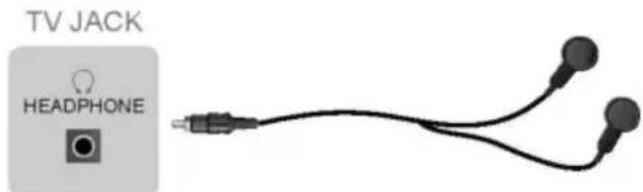
▶ EARPHONE
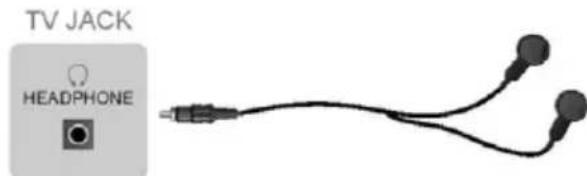
Connect Headphone for audio out of the TV.
Headpones (not include into accessories)
▶ COMMON INTERFACE

flowchart
graph LR
    A["TV JACK"] --> B["COMMON INTERFACE(CARD FACE FRONT)"]
    B --> C["CAM CARD"]
    C --> D["SMART CARD"]
    C -->|②| B
    C -->|①| D
Insert the CI module for watching scrambled services like pay-tv channels or some HD channels
NOTES
Before you insert/remove the CI module, ensure that the TV is switched off. Then insert the CI card into the CI module in accordance with the Service Provider's instructions.
- Do not repeatedly insert or remove the Common Access Module as this may damage the interface and cause a malfunction.
- You must obtain a CI module and card from the service provider of the channels you want to watch.
- Insert the CI module with the SmartCard in the direction marked on the module and SmartCard.
- CI is not supported in some countries and regions; check with your authorized dealer.
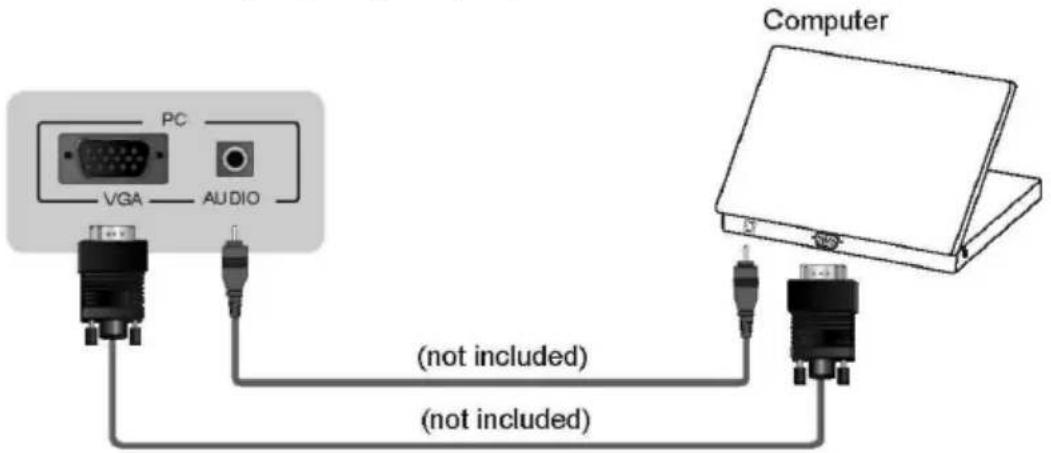
▶ VGA (PC) (49" model only)
Connect a VGA cable and an audio cable from the PC.
- Press [SOURCE] button, when the list of Input Source appears, press [▲/▼] to select the source [PC] and press [OK] to connect.
▶ YPbPr IN
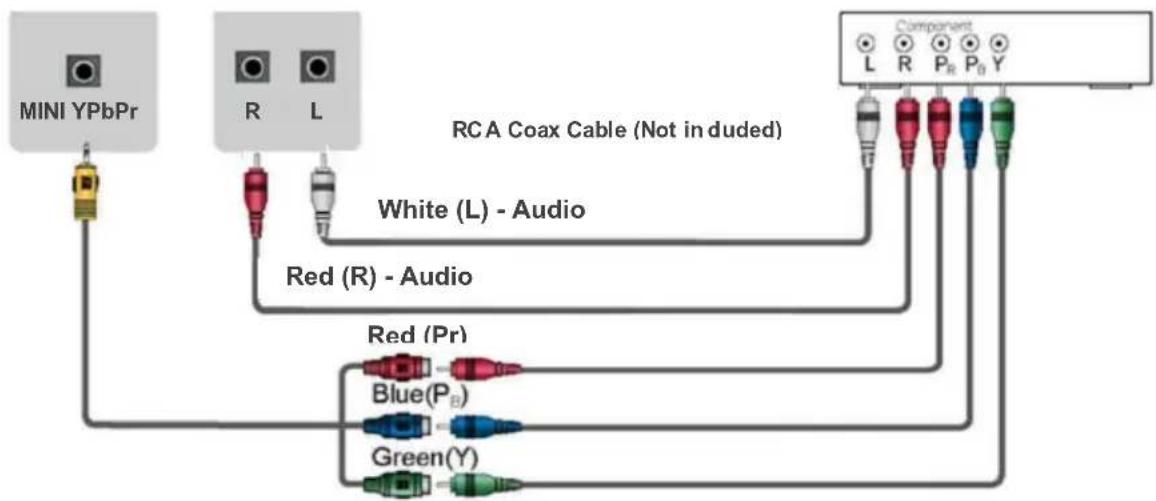
Connect a component cable and an audio cable from an external A/V Device. The component output ports Y, PB and PR on the VCD or DVD can sometimes be identified as Y, CB and CR.
Press [SOURCE] button, when the list of Input Source appears, press [▲/▼] to select the source [YPbPr] and press [OK] to connect.
flowchart
graph TD
    A["MINI YPbPr"] --> B["Red (R) - Audio"]
    C["RCA Coax Cable (Not in duded)"] --> D["Red (Pr)"]
    E["Component"] --> F["Blue(P_B)"]
    E --> G["Green(Y)"]
    B --> H["White (L) - Audio"]
    D --> I["Red (Pr)"]
    F --> J["Blue(P_B)"]
    G --> K["Green(Y)"]
AV
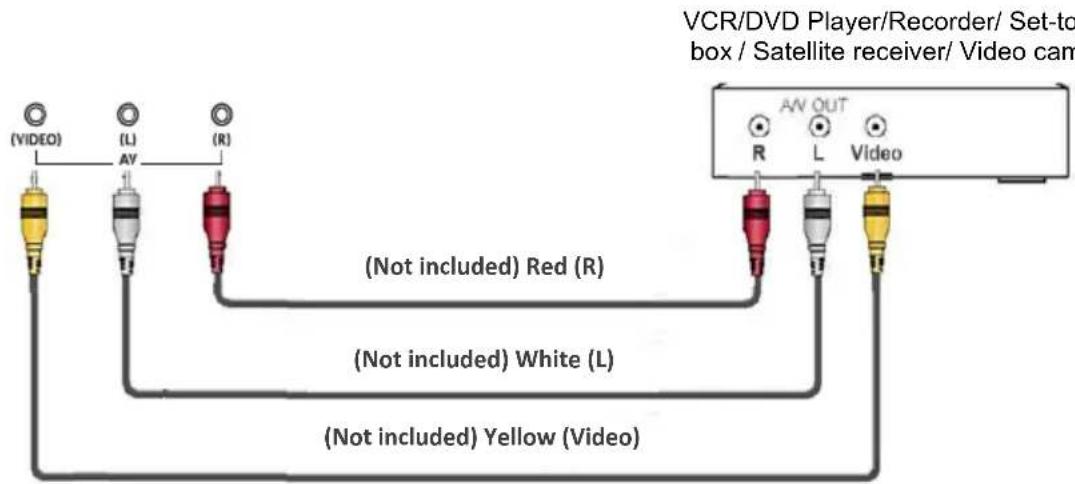
Connect the Composite cable from an external A/V Device.
Use the audio and video cables to connect the external A/V device's composite video/audio jacks to the TV's jacks. (Video = yellow, Audio Left = White, and Audio Right = Red)
- Press [SOURCE] button, when the list of Input Source appears, press [▲/▼] to select the source [AV] and press [OK] to connect.
RCA Cables (Not included) in set Red (R)
▶ RJ45 LAN INPUT
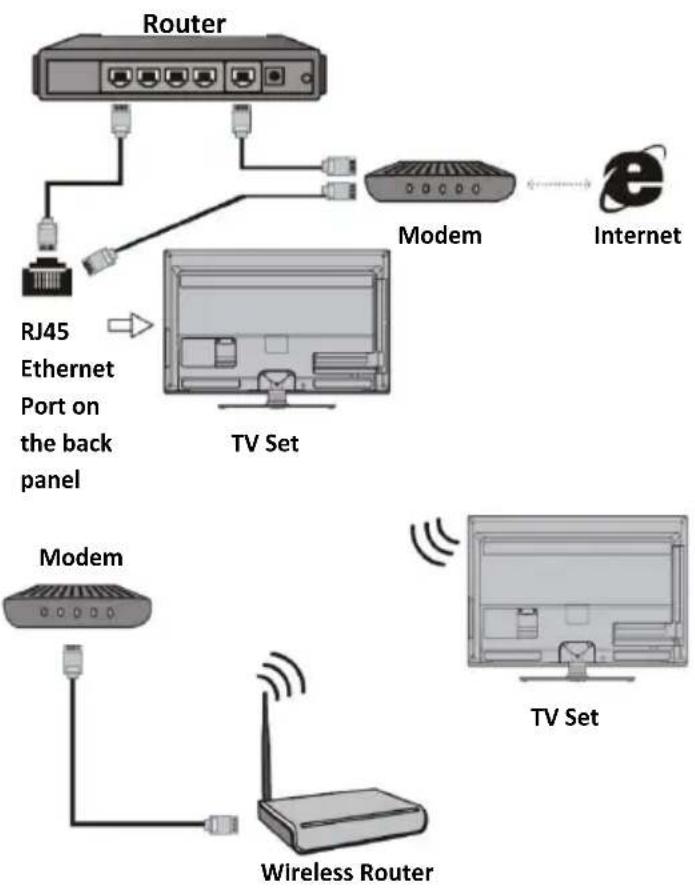
Connect the RJ45 LAN (Local Area network) cable for connecting to external modem or network access equipment.
Your TV will require an internet connection to operate all functions. Data usage charges may apply.

To access the internet, you must subscribe high speed broadband internet service from your internet service provider.
Your TV can be connected to your home network in two ways:
- Wired: Using the RJ45 (LAN) connector on the back panel.
- Wireless: Using the internal wireless or external wireless USB adapter and your home wireless network.
Note: The following instructions are just the usual ways to connect your TV to the wired or wireless network. The connection method may be different depending on your actual network configuration. If you have any questions about your home network, please refer to your ISP (Internet Service Provider)
Connecting to a wired network:
-
Ensure you have:
-
An ethernet cable long enough to reach your TV
- A router or modem with an available Ethernet port
- A high-speed inte-rnet connection
-
An Ethernet (LAN) port on the back of the TV
-
Connect your ethernet cable to the router and to the Ethernet port on the back of the TV.
-
Use the Network Settings to configure the TV.
flowchart
graph TD
    A["Router"] --> B["Modem"]
    B --> C["Internet"]
    D["RJ45 Ethernet Port on the back panel"] --> E["TV Set"]
    F["Modem"] --> G["TV Set"]
    H["Wireless Router"] --> I["TV Set"]
    style A fill:#f9f,stroke:#333
    style B fill:#ccf,stroke:#333
    style C fill:#cfc,stroke:#333
    style D fill:#fcc,stroke:#333
    style E fill:#ffc,stroke:#333
    style F fill:#fcc,stroke:#333
    style G fill:#cfc,stroke:#333
    style H fill:#fcc,stroke:#333
    style I fill:#cfc,stroke:#333
Connecting to a wireless network:
To connect to a wireless network
-
Ensure you have:
-
A router broadcasting a high-speed wireless signal
-
A high-speed internet connection
-
Use the Network Settings to configure the TV.
REMOTE CONTROLLER (VER 1)
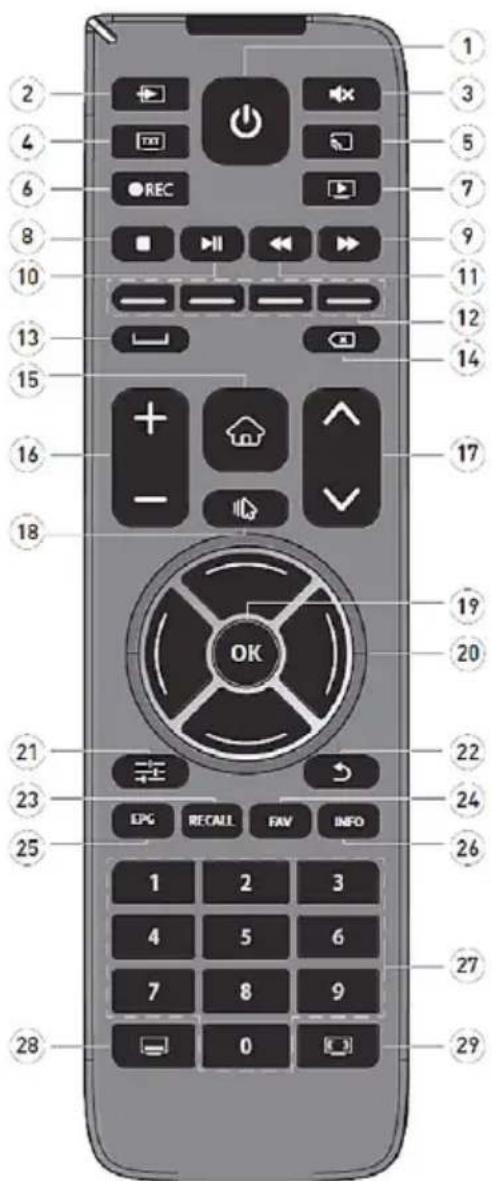
Note: All picture in this manual are examples, only for reference, actual product may differ from the pictures.
The buttons not mentioned here are not used.
-
Power button: Press for turning the TV On / Off.
-
Source: Opens the Source Page.
-
Mute: Button with crossed-speakers: press the button to restore volume
-
TXT: Displays the Teletext.
-
Screen Mirroring: Allows the display of the compatible screen (such as a smartphone) on TV.
-
REC: Starts the PVR recording.
-
PVR: Opens the recording playback page.
-
Stop: Stopping media files.
-
Fast Forward: Fast forwards the media.
-
Play/ Pause: Plays or pauses the media/ Opens the time shift menu.
-
Fast rewind: Fast rewinds the media.
-
Color keys: Activates the functions related with Red/ Green/ Yellow/ Blue icons.
-
Space Keys: Performs space between characters and words on the on-screen keyboard.
-
Delete button: Deletes the characters written on the screen keyboard.
-
HOME: Opens the Smart TV page.
-
VOL +/-: Adjusts volume level.
-
CH +/-: Changes channels.
-
Mouse: Turns the mouse on/ off.
-
OK: Opens the channel list.
-
Navigation buttons: Performs navigation in menus.
-
Menu: Opens the menu.
-
EXIT: Exits the application and menu.
-
RECALL: Switches to previous channel.
-
FAV (Favourites ch, list): Performs the operation regarding the coloured keys.
-
EPG (Electronic Programme Guide): Displays the electronic programme guide.
-
Info: Displays information about the content on the screen.
-
Numeric buttons: Changes channels, enters a number in a text box on the screen.
-
Subtitle Language: Shows the subtitle option.
-
Audio Language: Shows the audio language option.
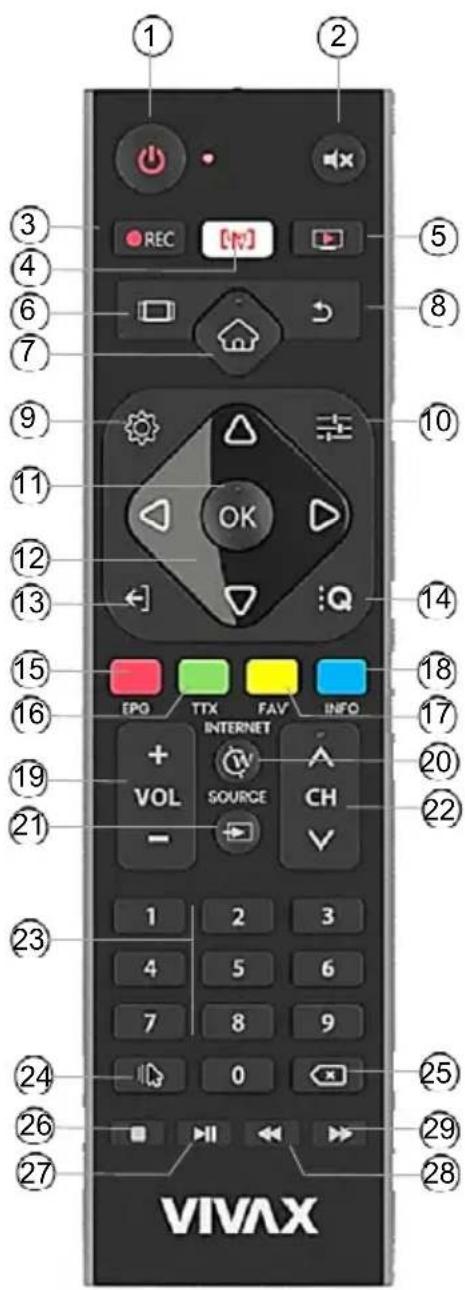
REMOTE CONTROLLER (VER 2)
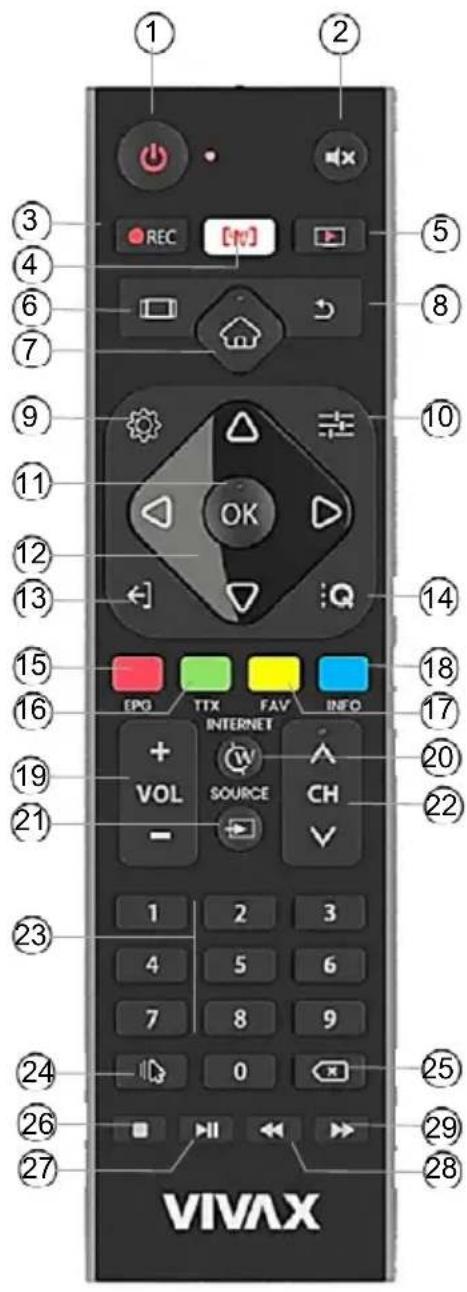
-
POWER: Press for turning the TV On / Off.
-
MUTE: Button with crossed-speakers: press the button to restore volume
-
REC: Starts the PVR DVB recording.
-
LIVE TV: Opens the TV Application
-
PVR: Play recorded media
-
TABS: Displays the available Apps
-
: Opens the SMART TV page
-
BACK: Back to previous channel.
-
SETTINGS: Opens the Settings menu
-
☐ MENU: Opens TV menu
-
OK button: Opens the Channel list Menu mode: To confirm the entry on display when highlighted or bold
-
Navigation buttons: Performs navigation in menus.
-
← EXIT: Exit from the application and Menu
-
QUICK Menu button: Opens the DTV Settings menu
-
EPG / RED button: Displays the electronic programme guide TXT mode: In corresponding mode, press the button to run the function corresponding with color.
-
TTX / GREEN button: Show teletext on the screen TXT mode: In corresponding mode, press the button to run the function corresponding with color.
-
FAV / YELLOW button: Automatic switch to favorite program list. TXT mode: In corresponding mode, press the button to run the function corresponding with color.
-
INFO / BLUE button: To display infomation about current channel or entry TXT mode: In corresponding mode, press the button to run the function corresponding with color.
-
VOL +/-: Adjusts volume level.
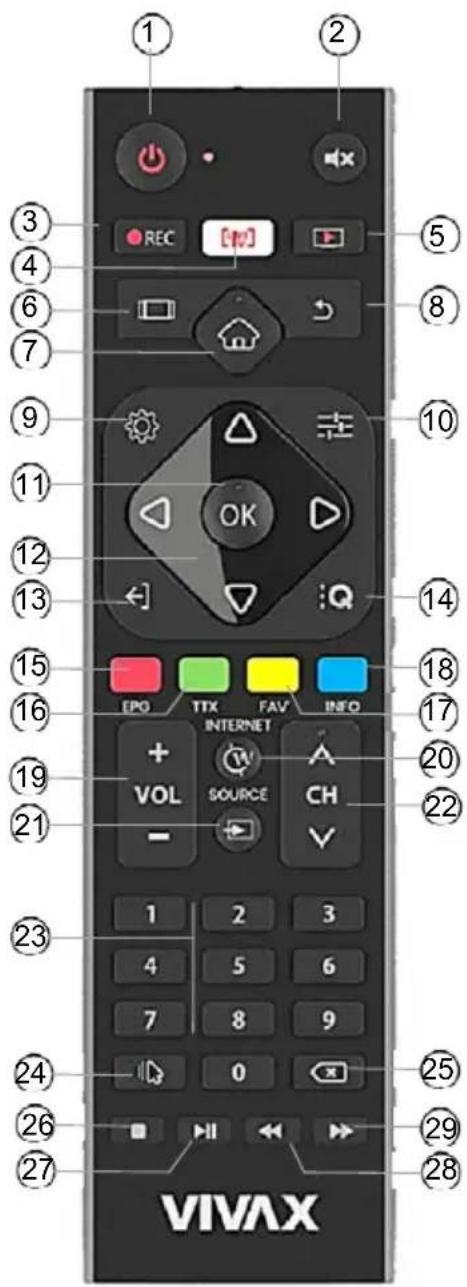
Note: All picture in this manual are examples, only for reference, actual product may differ from the pictures. The buttons not mentioned here are not used.
- INTERNET: Opens the Web Browser
- SOURCE: Opens the Source page
- CH +/-: Changes channels
- Numeric buttons: Changes channels, enters a number in a text box on the screen
- MOUSE: Mouse function On/Off
- DELETE: Deletes the characters which are written on the onscreen keyboard
- ■ STOP: Stopping playback media files
- ▶|| PLAYBACK / PAUSE: Plays or pauses the media / Opens the Time Shift menu
- ◀◀button: Rewind media files
- ▶▶button: Forward media files
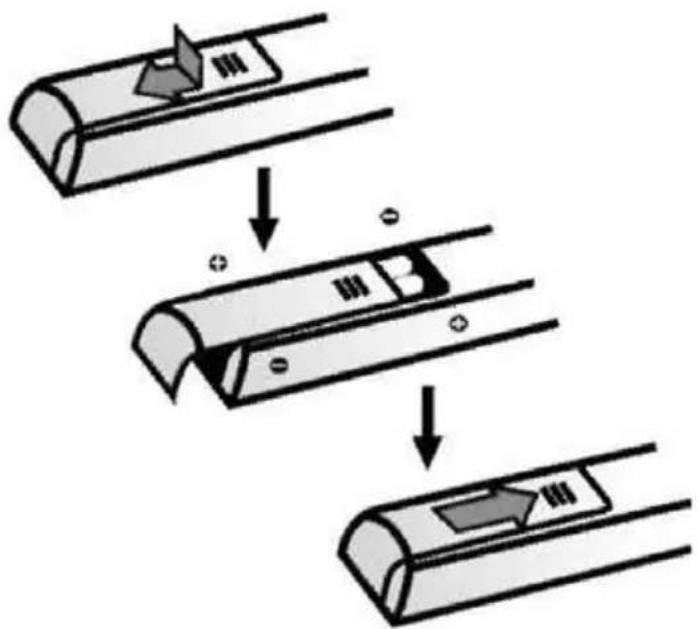
▶ Installing Batteries in the Remote Control
Slide the back cover to open the battery compartment of the remote control.
Insert two AAA size batteries. Make sure to match the (+) and (-) ends of the batteries with the (+) and (-) ends indicated in the battery compartment.
Close the battery compartment cover.
(1) Gently open battery cover
(2) Insert the batteries
(3) Gently push cover back
NOTES
Product image is only for reference, actual product may vary in appearance.
Dispose of your batteries in a designated disposal area. Do not throw the batteries into a fire.
Do not mix battery types or combine used batteries with new ones.
Remove depleted batteries immediately to prevent battery acid from leaking into the battery compartment.
flowchart
graph TD
    A["Device with sensor icon"] --> B["Process Step"]
    B --> C["Device with internal components and directional arrows"]
If you do not intend to use the remote control for a long time, remove the batteries.
Batteries should not be exposed to excessive heat, such as sunshine, heat registers, or fire.
Battery chemicals can cause a rash. If the batteries leak, clean the battery compartment with a cloth. If chemicals touch your skin, wash immediately.
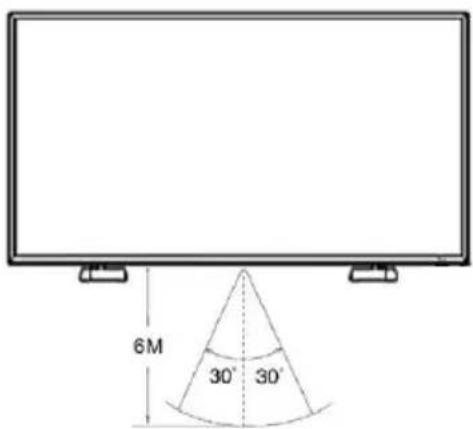
Remote Control Operation Range
Point the remote control at the TV within no more than 5 metres from the remote control sensor on the TV and within 60^ in front of the TV.
The operating distance may vary depending on the brightness of the room.
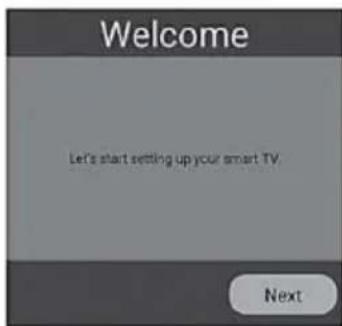
BASIC FEATURES
First time installation
Connect an RF cable from the Tv's input called "TUNER RF" and to your TV Aerial socket.
Press POWER button on the remote or on TV to Turn ON your TV set.
TV will start to boot, please wait. After booting is completed, First Installation menu will come to screen.
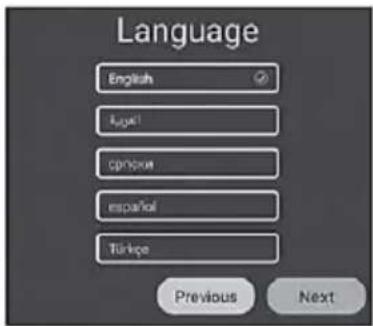
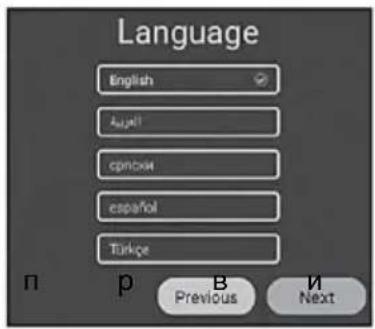
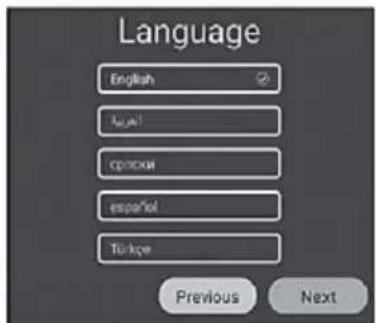
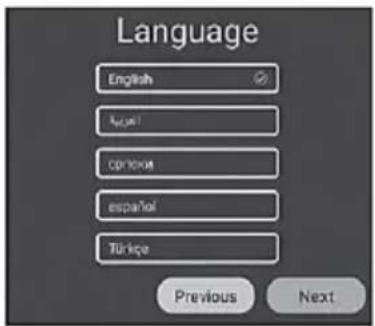
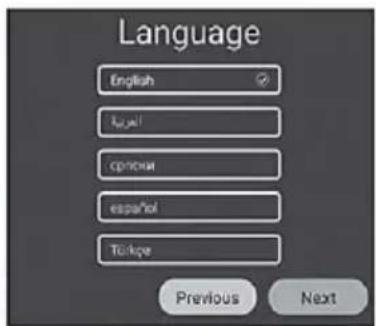
Language
Press ▼ / ▲ and OK button to select the language to be used for menus and messages. Select "Next" button and press OK to go for next step.
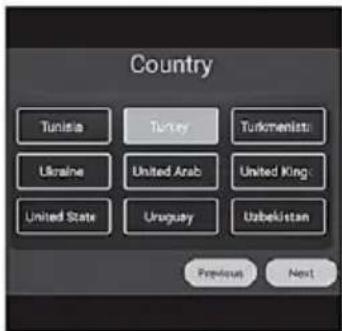
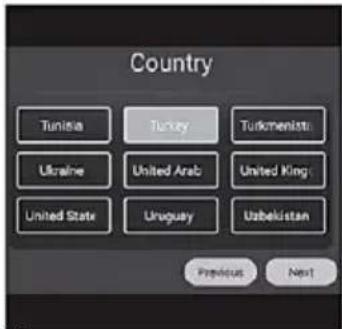
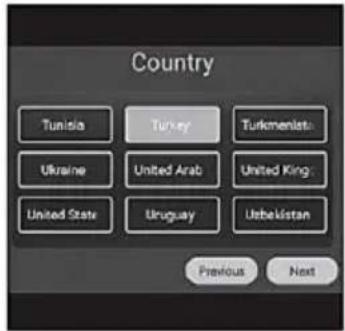
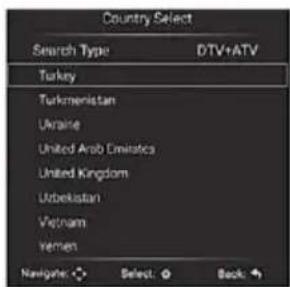
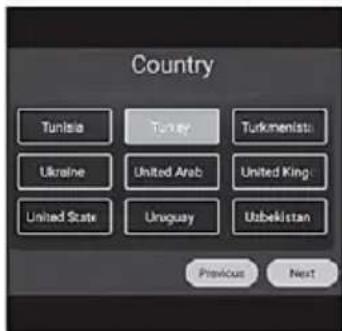
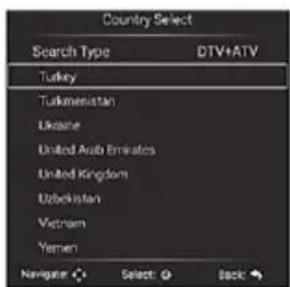
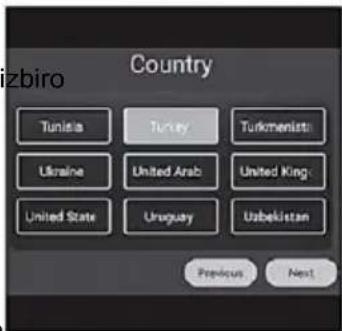
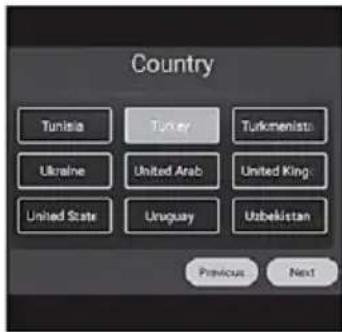
Country
Press ▼ / ▲ / ◀ / ▶ to select the country/region of installation.
Select „Next“ button and press OK to go for next step.
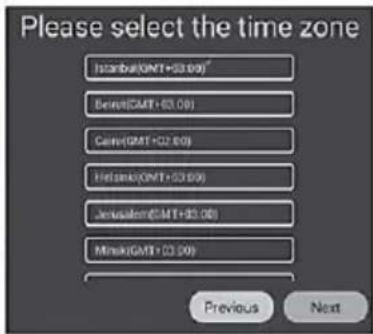
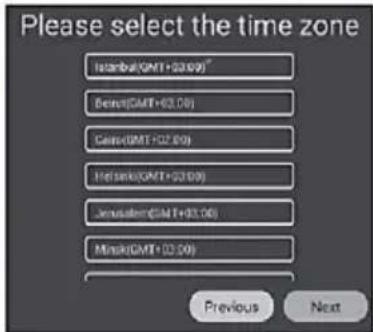
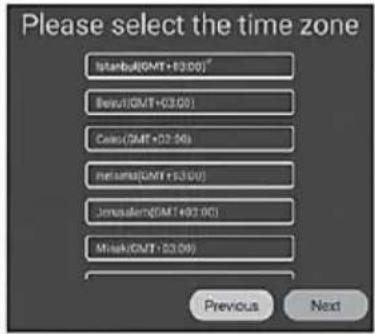
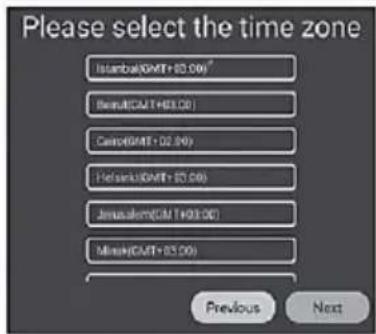
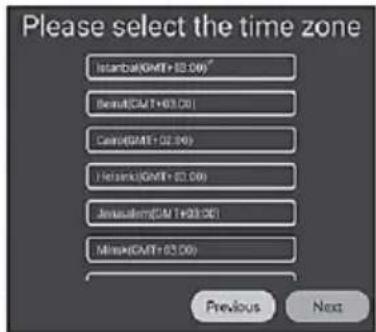
Time zone
Press ▼ / ▲ and OK button to select Time zone in which TV receiver is installed. Select "Next" button and press OK to go for next step.
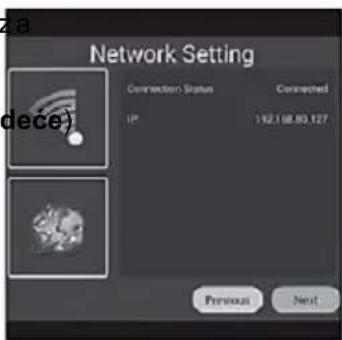
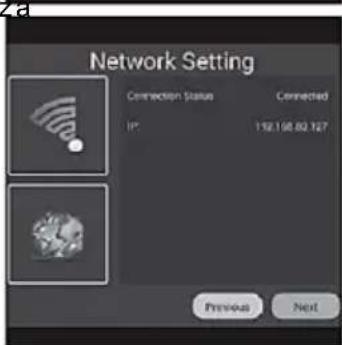
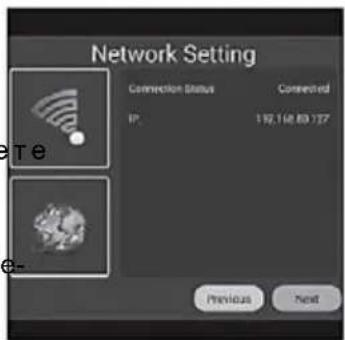
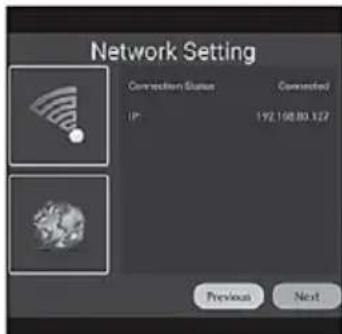
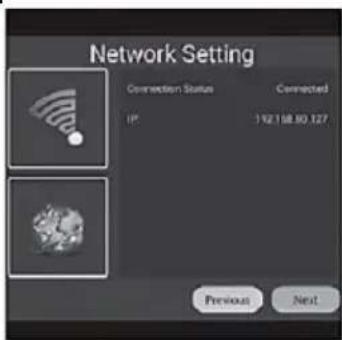
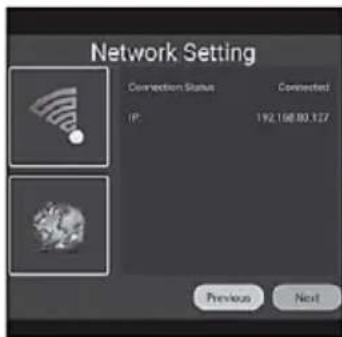
Network settings
Displays the current wired network information. In case that you don't have wirred Internet connection, the following screen will appear to adjust wireless connection.
Press OK button to start Wi-Fi settings. Press "Next" button to proceed to the next step.
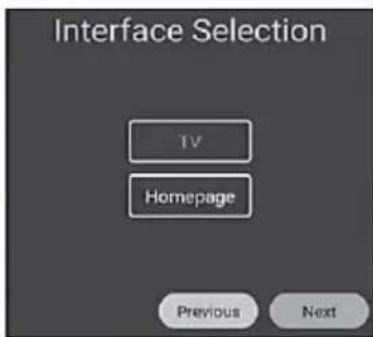
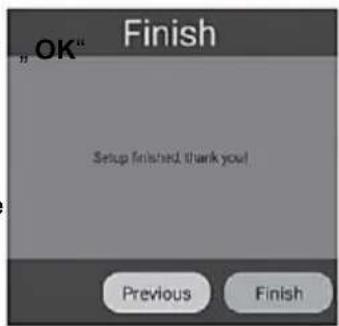
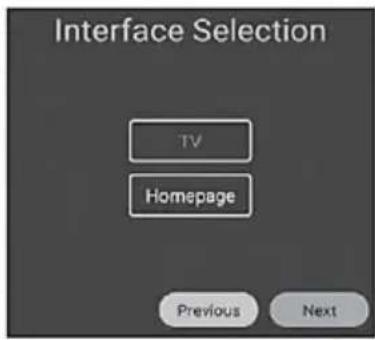
Interface Selection
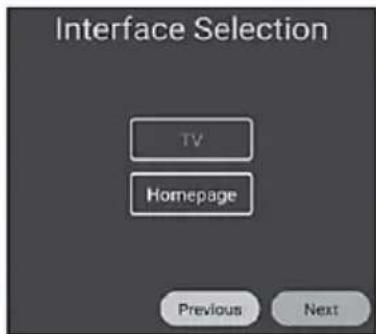
Choose which button you want to use to turn on your Smart Television.
You can Press ▲/▼ button to select:
- Start TV
Open Live-TV app to watch TV channels
or
- Start Launcher
Open the Smart TV Home Page
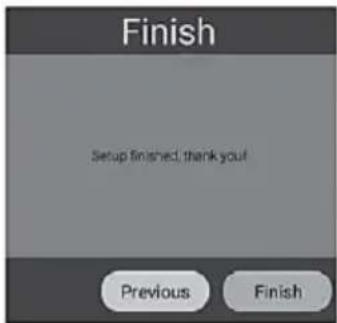
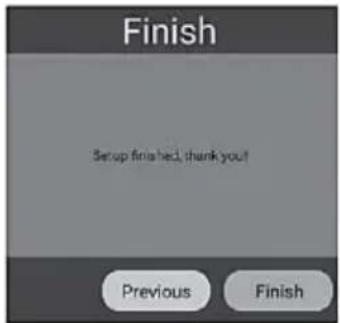
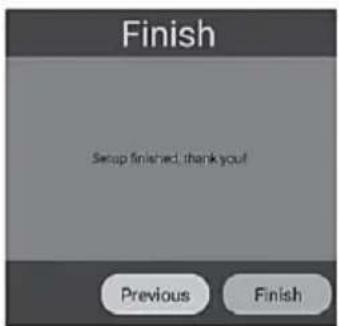
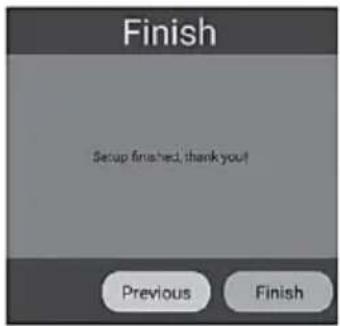
Congratulations!
Now, your TV is ready to use.
Before you start using the TV, make sure that the time and date are correct. You can access the home page by pressing the "HOME" button on the remote control.
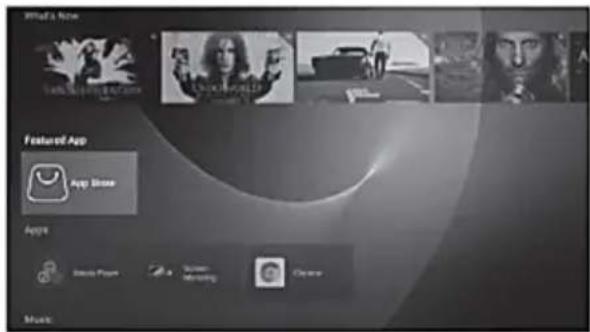
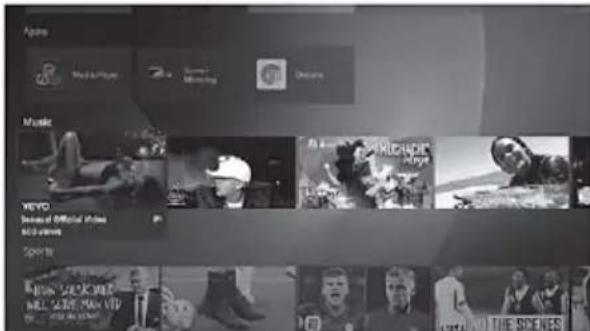
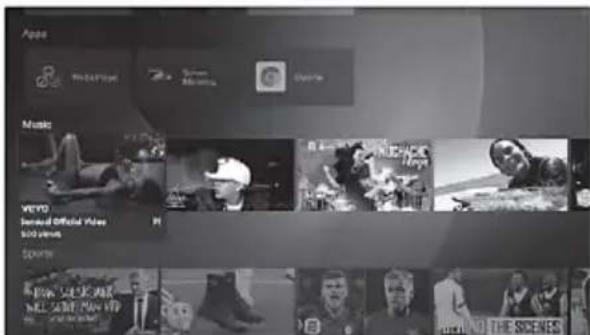
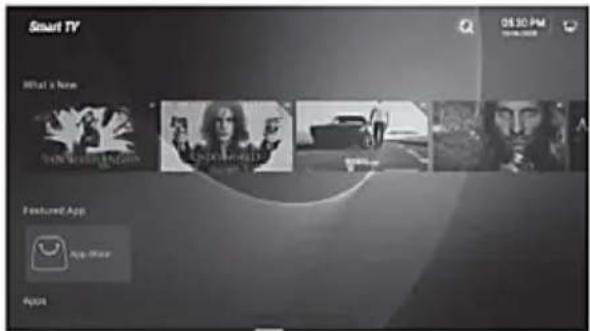
What a New:
The first Line of the homepage includes videos that are newly trending. Videos will be updated every few days. Press the ◀ / ▶ buttons to select the video and then press the OK button to play the desired video
Note: Youtube application must be installed to play these videos.
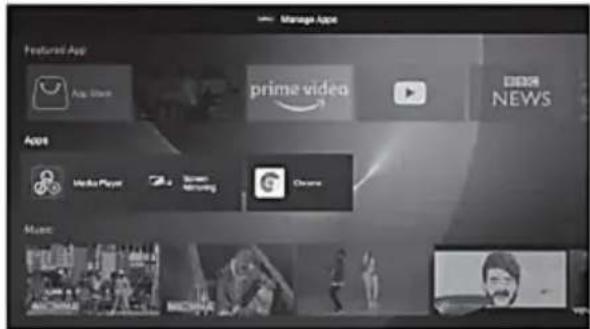
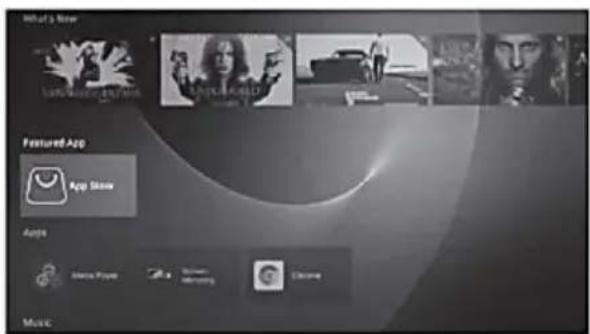
Featured App
These are the recommended applications to download and Application Store.
Select App which you want install and press OK button to download.
You can also enter the App Store to download more applications.
Note: Vivax can not guarantee that all applications will be able to be installed and that all installed applications will work properly. It primarily depends on the App publisher and App Store service provider.
This problem is not considered as device failure and it is not covered by the warranty.
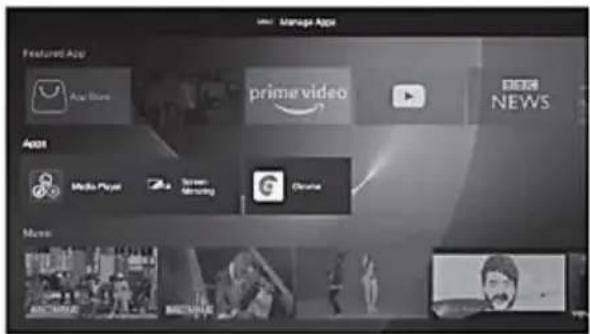
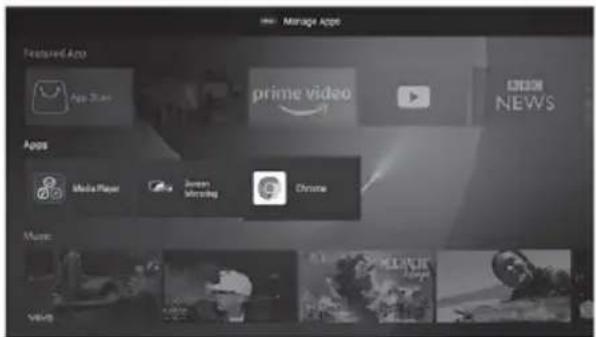
Apps (Applications)
This section includes pre-installed and user-installed apps.
Press ◀ / ▶ buttons to select a Application, then press OK button to start the application.
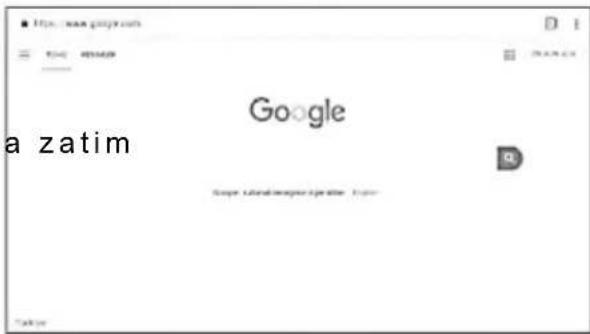
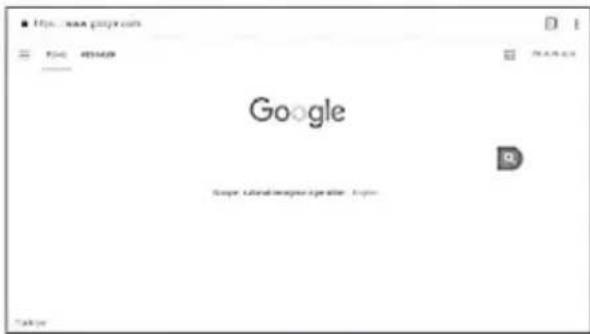
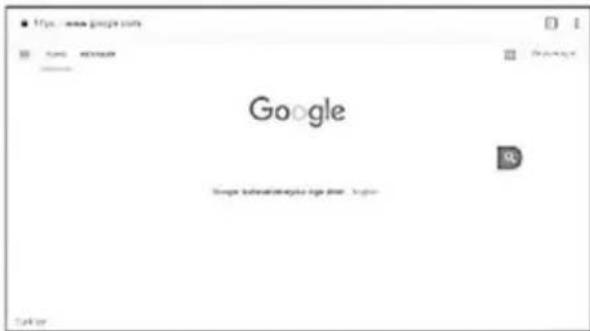
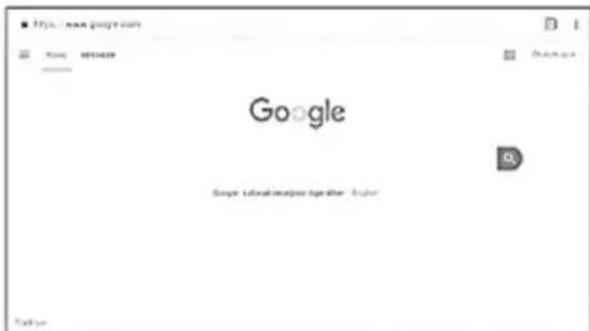
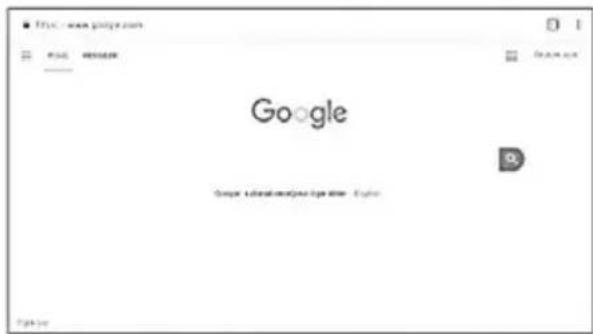
Browser
The user can access the internet via the browser application (The browser must be downloaded and installed).
After installing the browser; it can be accessed by pressing the "HOME" button on the remote control.
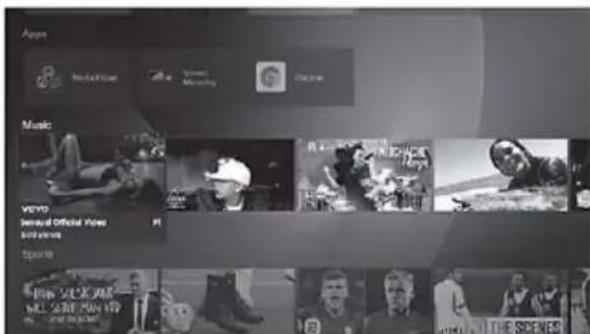
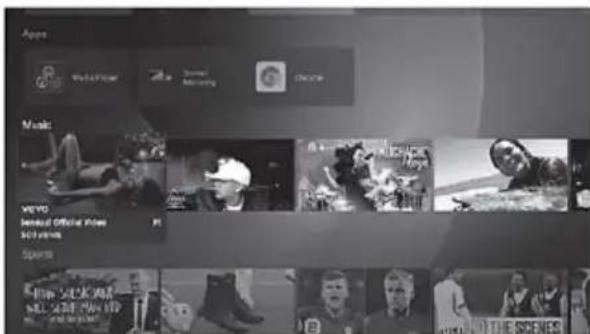
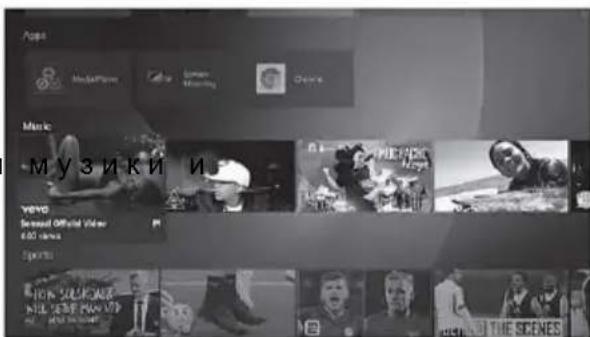
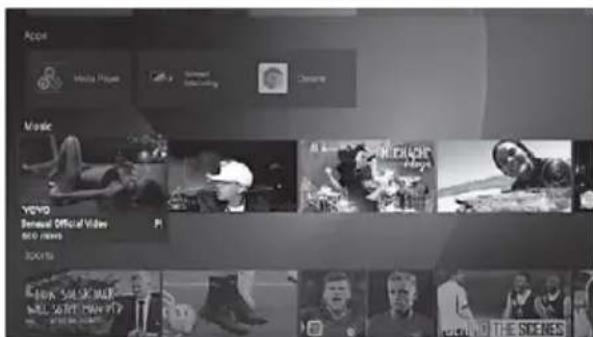
Sports & Music
This line includes trending music and sports videos.
Press the ◀ / ▶ buttons to select the video and press the OK button to play it
Note: YouTube application must be installed to play these videos.
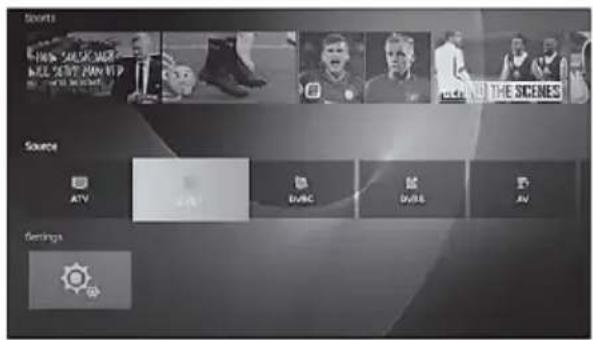
Sources
Provides access to resources available in the Live TV app. Press ◀ / ▶ buttons to select a Source, then press OK button to switch to that source.
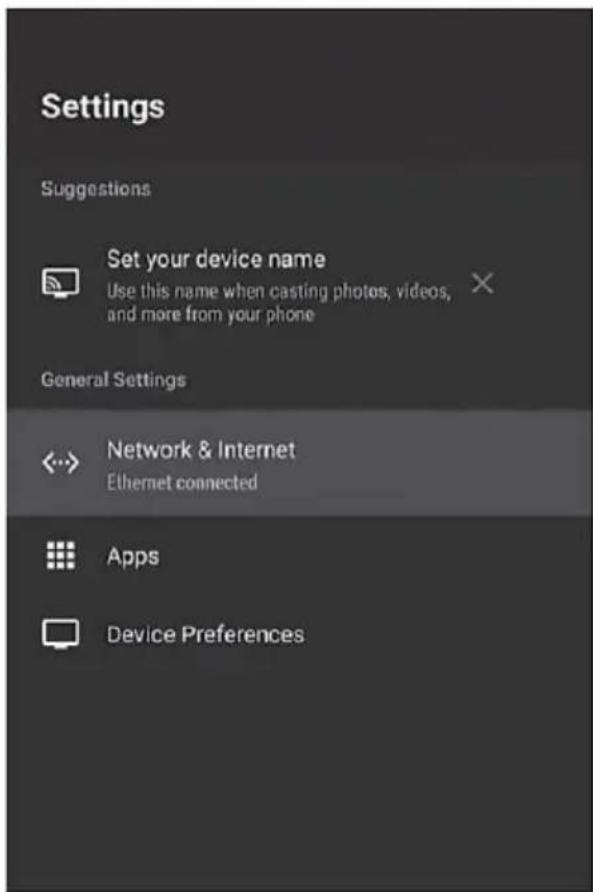
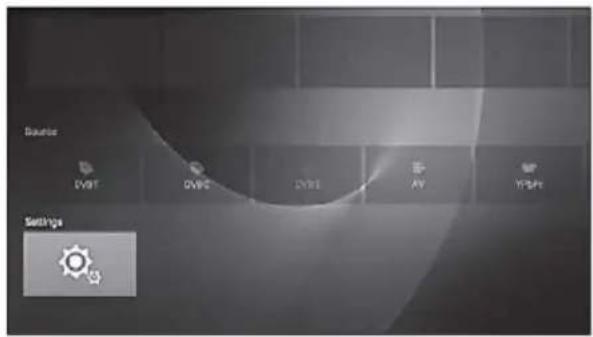
Settings
You can access the home page by pressing the "HOME" button on the remote control. Press ▼ / ▲ / ◀ / ▶ buttons and OK button to switch to SETTINGS.
You can set device name, network setting, manage applications, manage all device preferences and get information about TV over the Settings menu.
Set the Name of Your Appliance
You can give your device a name that will help you recognize it while streaming or connecting from other devices.
Network & Internet
To select the network you want to use, press ◀/▶ buttons. Provide a connection by entering the wireless network password. Displays the current wired network connection information.
Apps (Applications)
Displays installed apps and app permissions. Press the OK button on the application to "Stop" and "Remove" the current applications and follow the opened page.
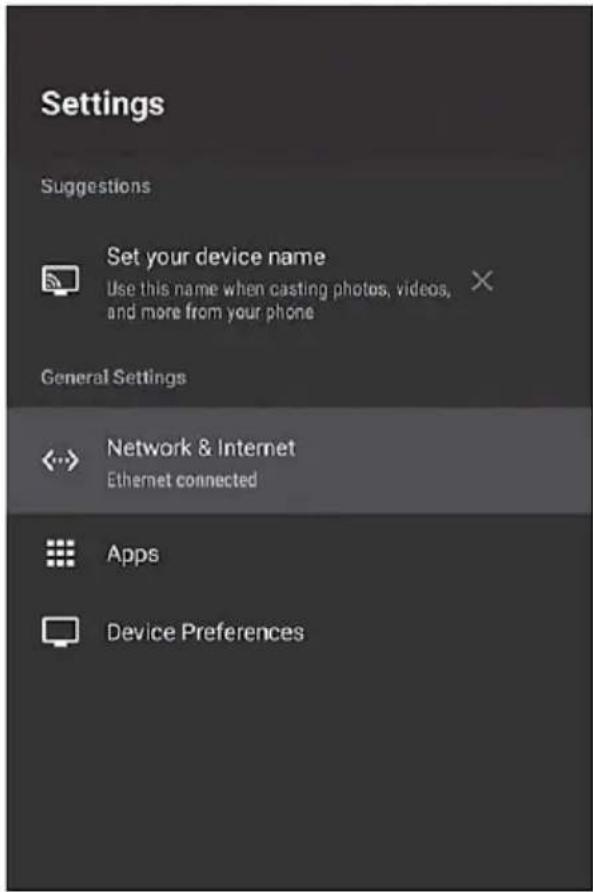
Device Preferences
You can adjust System and Device preferences such as: System Soft. Update, Date&Time, Language preferences, keyboard, Sound, Storage, Google and Reset unit on factory settings.
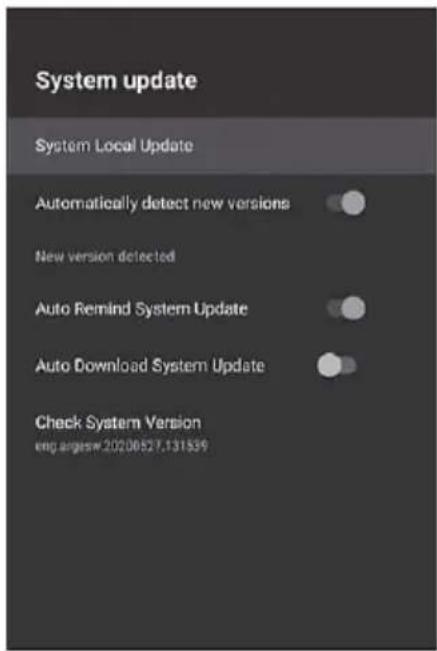
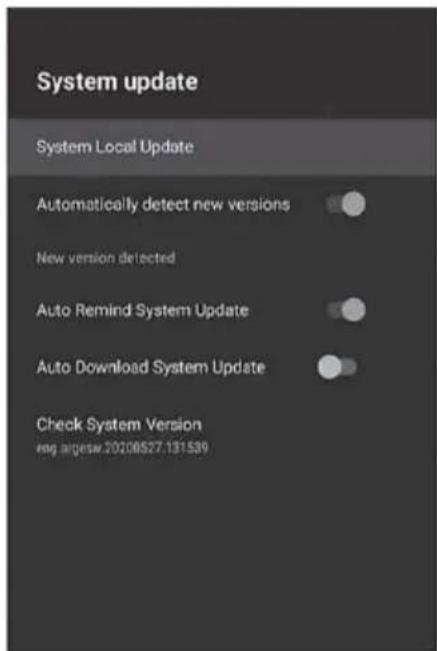
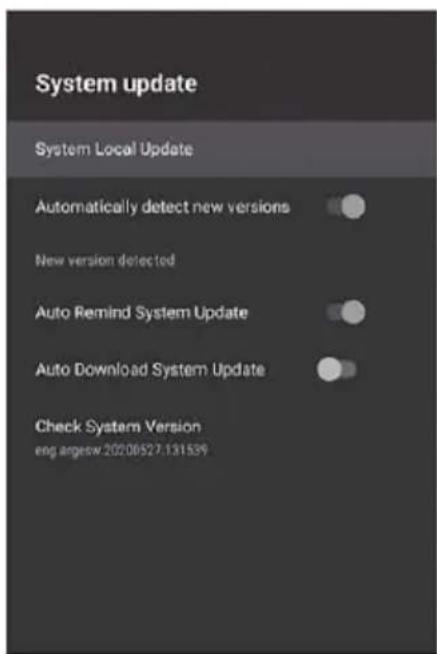
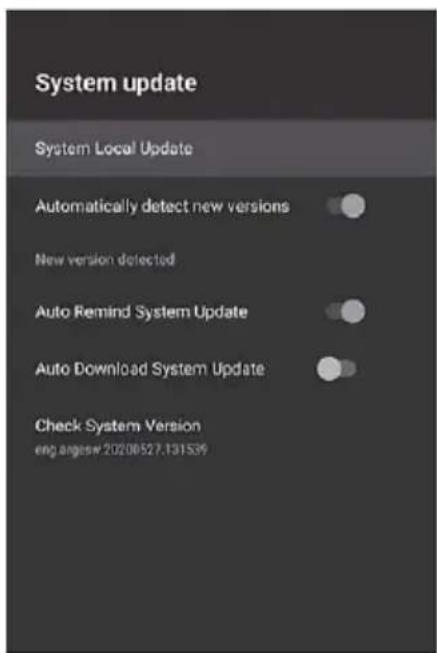
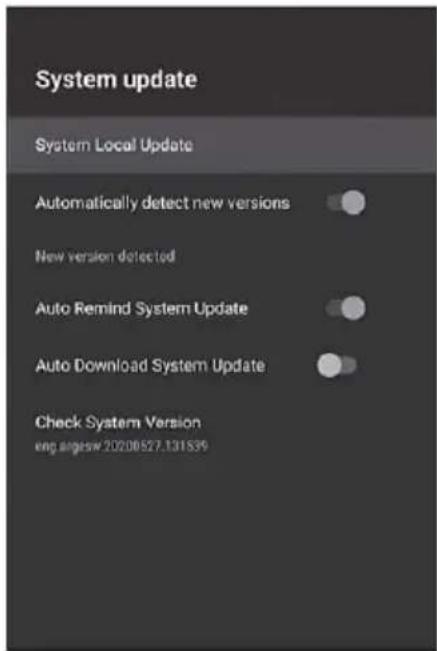
System update
This is the Local System update page of your TV manufacturer.
You can query the system update and change the system update settings on this page. Press the OK button on the "System Update" for system update inquiry. Information on whether there is a new update on the opened page will be presented to you.
In case of an update, you can update your device. You must be connected to the Internet network to perform this operation.
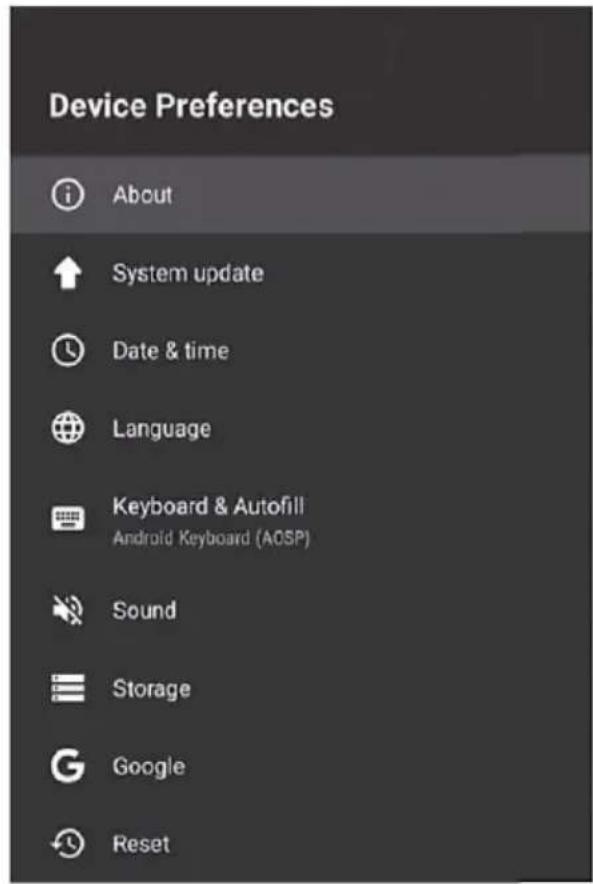
About
This section displays the system information.
System update:
Press the OK button on the system update option for system update inquiry. Information on whether there is a new update on the opened page will be presented to you. In case of an update, you can update your device. You must be connected to the Internet Network to perform this operation.
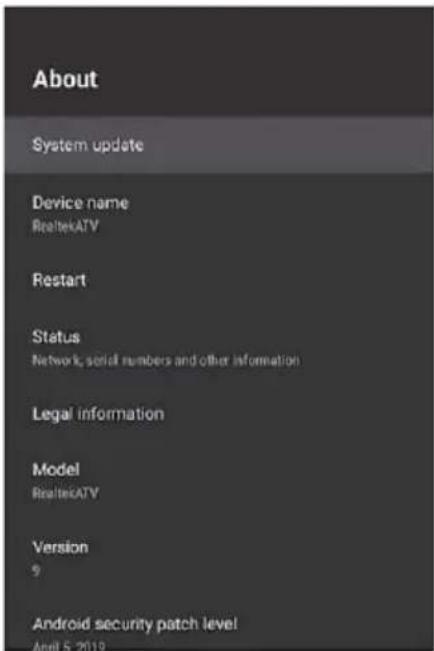
Device name:
You can change the name of your device.
Restart:
You can reboot your device using the reboot option.
Status:
Using the Status option, you can access information.on your device's IP Address, MAC Address, Bluetooth Address, Serial Number, and running time.
Legal information:
You can access the license information of the device using the legal information option.
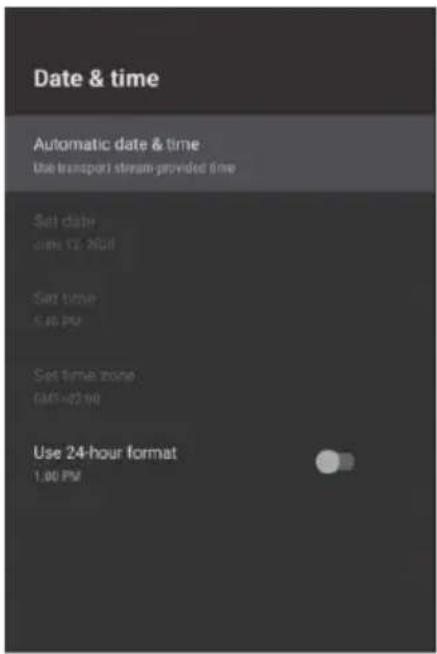
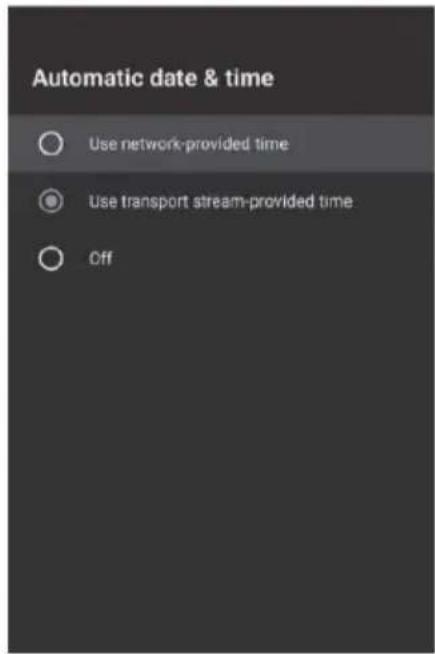
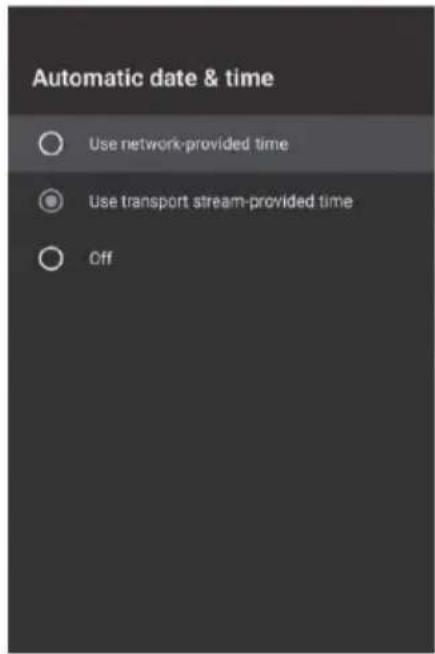
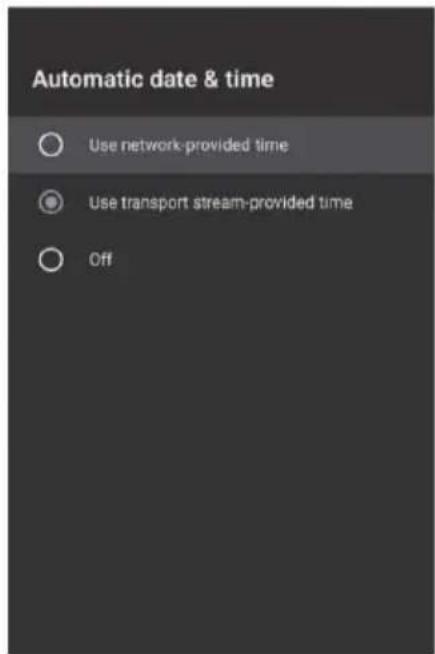
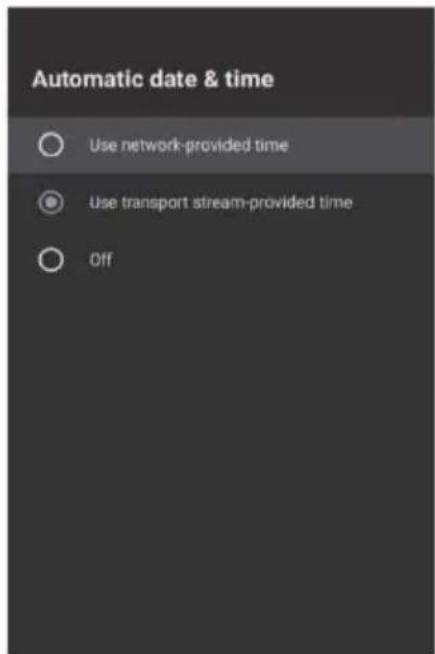
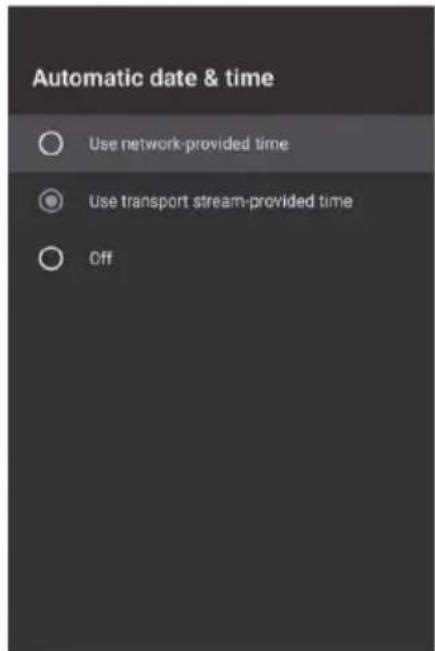
Date&time
You can choose how to get the time information in the automatic date and time option.
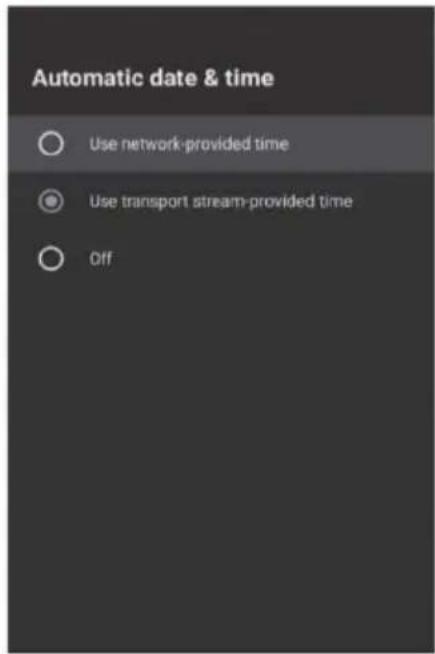
Select "Use the time provided by the network" to get the time information over the Internet, "Use the time provided by the transmitting streaming" to get the time information over the broadcast source, and select "Off" to enter the time information manually.
After automatic date and time are set to "Off", "Set date", "Set time", "Set time zone" options will be active.
You can choose either 24-hour or 12-hour formats with the option to use 24-hour clock.
Language
Press ◀ / ▶
buttons to select the system language you want and press
OK button to confirm.
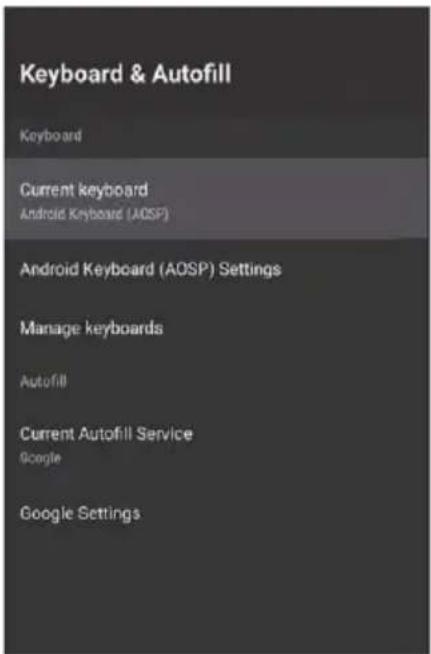
Keyboard and autofill:
You can select the keyboard and change the keyboard settings.
Sound:
You can set system sounds to off.
Storage:
You can find information about device storage space.
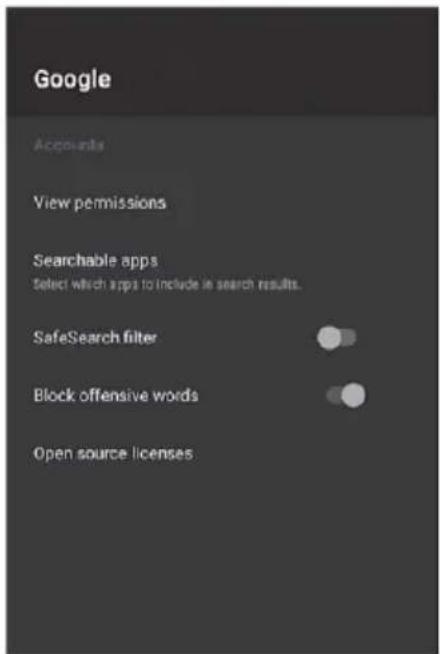
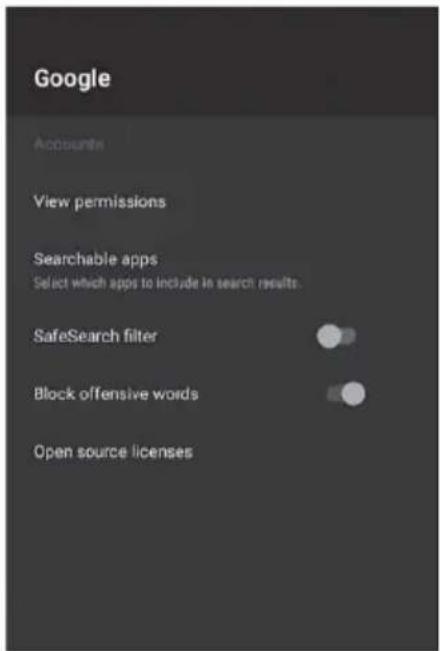
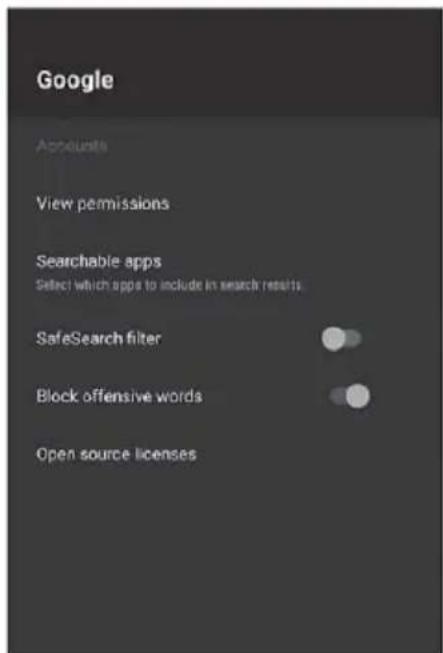
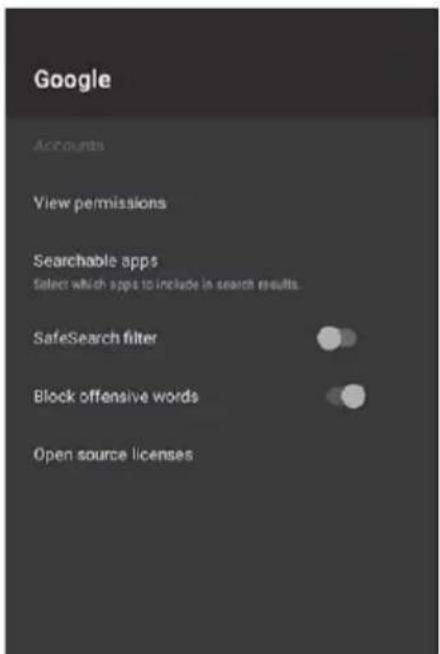
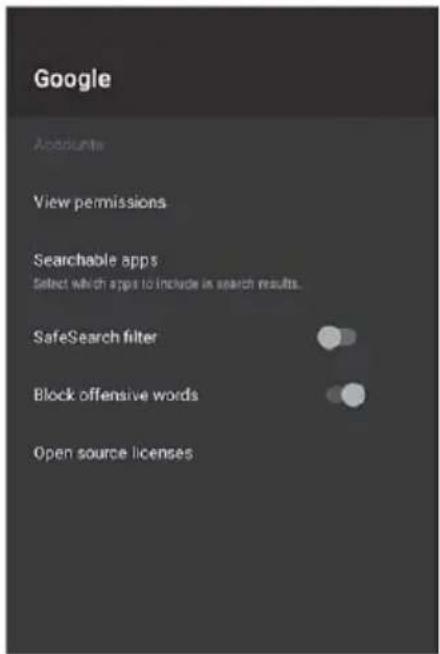
Google:
You can change the search setting.
Reset
Click the „Reset" button to reset the TV to its factory default settings, all applications you have downloaded, media files saved in the internal memory and channels you have uploaded on ATV/DTV will be deleted. In addition, all settings will revert to factory default settings.
Media
You can access the home page by pressing the "HOME" button on the remote control.
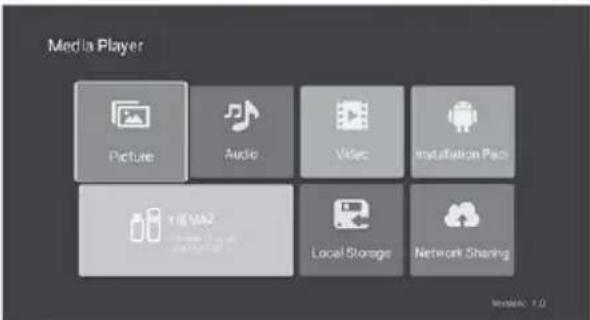
Press the ▼ / ▲ / ◀ / ▶ buttons to select the Media Player on the Home Page, then press OK button to enter that menu.
Picture
Press ◀ / ▶ buttons to select the Photos in the Media menu and press OK button to enter that menu.
Press the EXIT button to return to the previous menu.
You can see the information of the currently displayed photo by pressing the blue button. Press the ▶II button to Play or Pause the slide show.
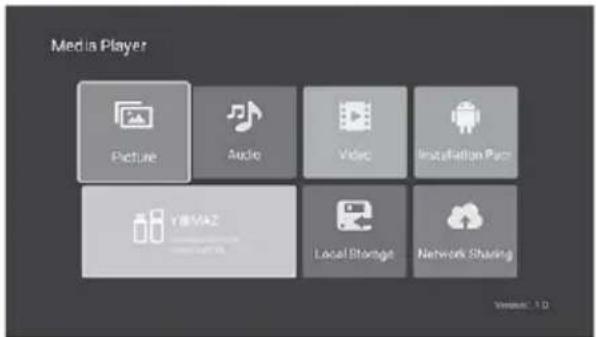
Press ▼ / ▲ buttons to rotate the picture.
Press the ◀ / ▶ buttons to view the Next/Previous photo. Use the "Red" button to zoom in, use the "Green" button to zoom out.
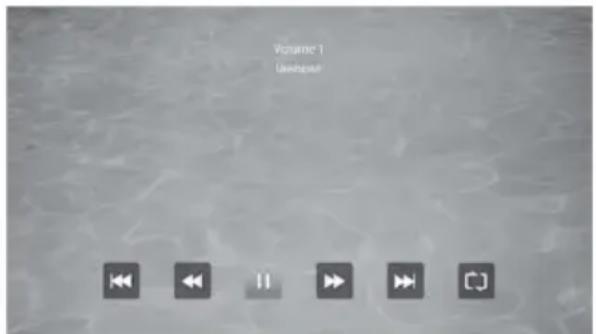
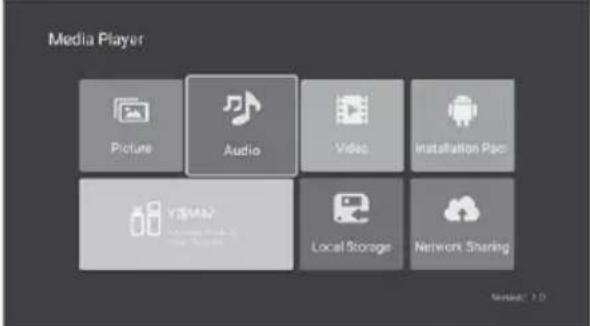
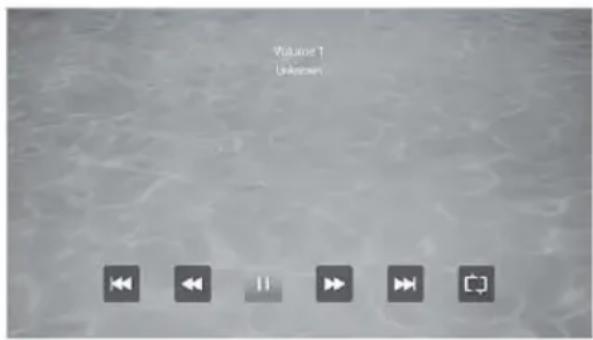
Audio
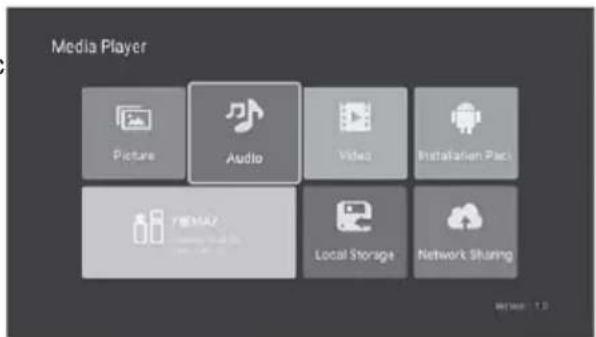
Press ◀ / ▶ buttons to select the Music item in the Media menu and press OK button to enter that menu.
Press the EXIT button to return to the previous menu.
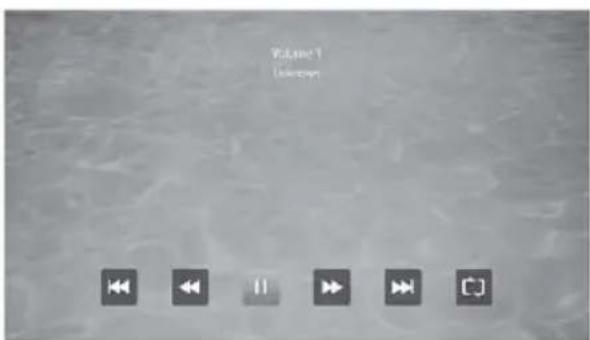
Press ▼ / ▲ / ◀ / ▶ buttons to select the song you want to listen to, then press OK button to play it.
Press the EXIT button to return to the previous menu.
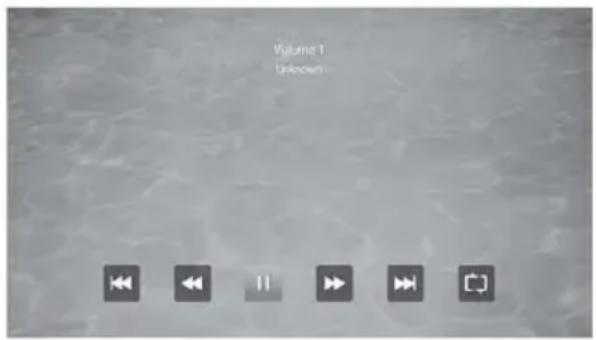
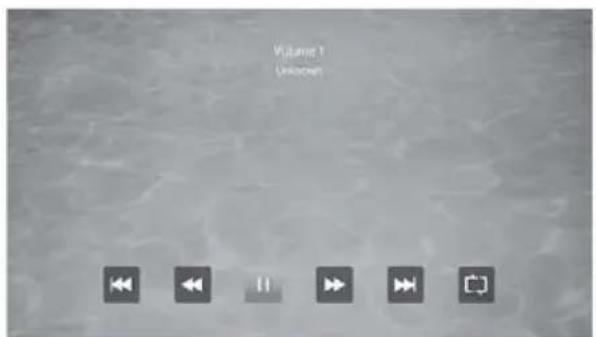
Press the ▶II tutton to play/pause the music, press the „■“ or the EXIT button to stop the playback.
Use the "Yellow" Key to open and close the control bar.
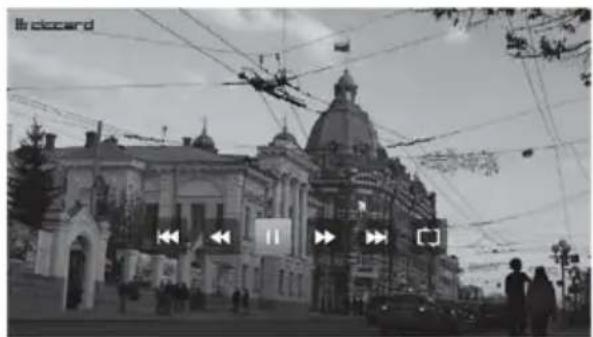
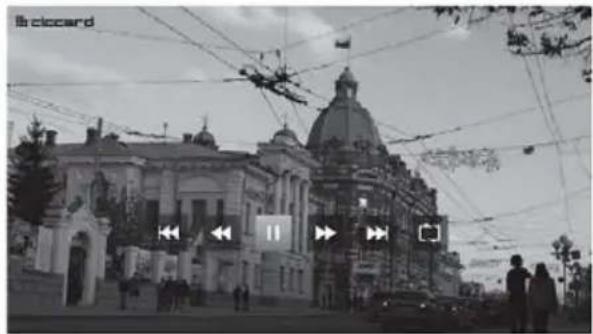
Video
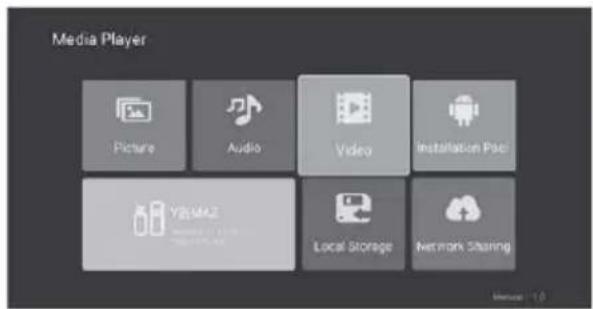
Press ◀ / ▶ buttons to select the Video item in the Media menu and press OK button to enter that menu.
Press the EXIT button to return to the previous menu.
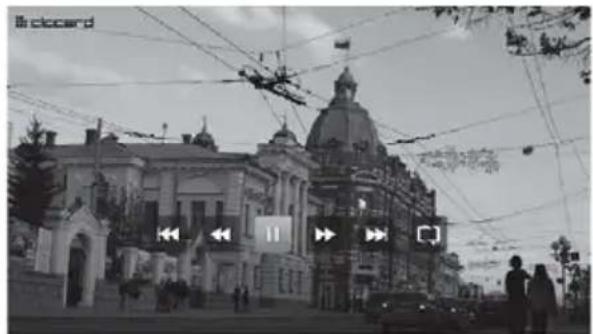
Press ▼ / ▲ / ◀ / ▶ buttons to select the folder or video file you want, then press OK button to play it.
Press the EXIT button to return to the previous menu.
Press the ▶II button to Play/Pause the video, press the „■ or the EXIT button to stop the playback.
Use the "Yellow" Key to open and close the control bar.
Use the "Menu" button for the Player Settings page.
Installation Package
With the installation package option, you can install external applications in External Memory on your device.
Local Storage
Allows you to view all the files in External Memory.
Network Sharing
Allows you to play content by connecting to devices with the same media player on the same network.
Source - Input Sharing
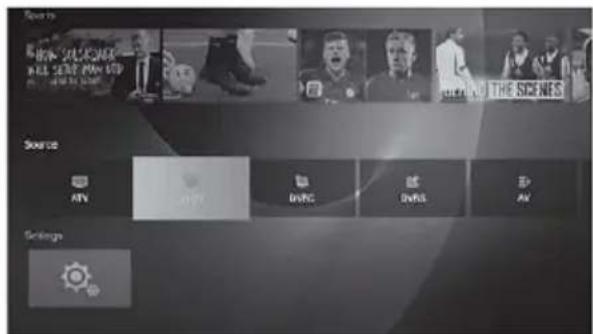
In Source list you can choose available TV sorces as: ATV, DVBT, DVBC, DVBS, AV, HDMI etc.
Press the "SOURCE" button to display the input source List;
To select the input source you want to watch, press the ▼ / ▲ buttons;
Press the OK button to enter the input source.
Live TV Menu
Press the "MENU" button to display OSD main menu.
To select the desired sub menu, press ▼ / ▲ buttons.
You can select the desired settings by pressing the ▼ / ▲ keys, press the OK to enter and press EXIT to save and return to the previous menu. You can fully exit this menu by pressing the EXIT button.
Image Setup
Press the ◀ / ▶ buttons to select the option you want to set in the picture menu.
Picture mode: Press ◀ / ▶ buttons to select the Picture Mode, then press OK button to enter the mode. (Available Picture Modes: Standard, Dynamic, Natural, User-defined)
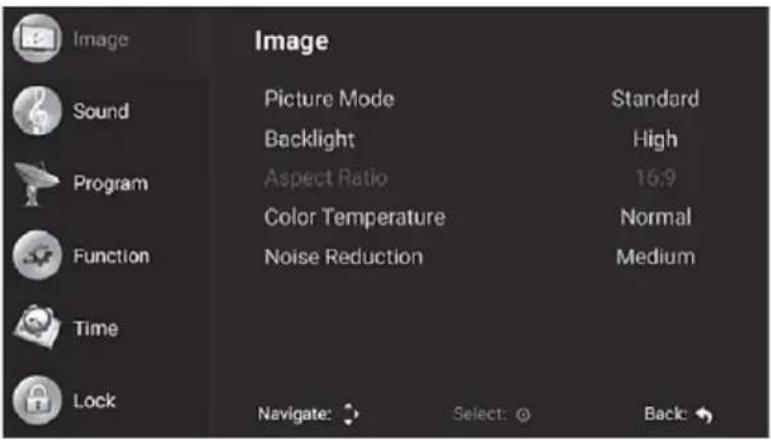
You can only adjust the Brightness, Contrast, Colour, Sharpness values when the picture is in User mode.
Backlight:
To select Backlight setting, press ◀ / ▶ buttons.
Picture format:
You can change the aspect ratio with the picture format. Press the ◀ / ▶ buttons to change the picture format.
Colour temperature:
To select Colour Temperature, press ◀ / ▶ buttons. Press the ◀ / ▶ buttons to select Normal, Cold, Warm.
Noise reduction:
Press ◀ / ▶ buttons to select the Noise Reduction option, then press OK button to enter the mode. Press the ◀ / ▶ buttons to select Off, Low, Medium, High, Automatic.
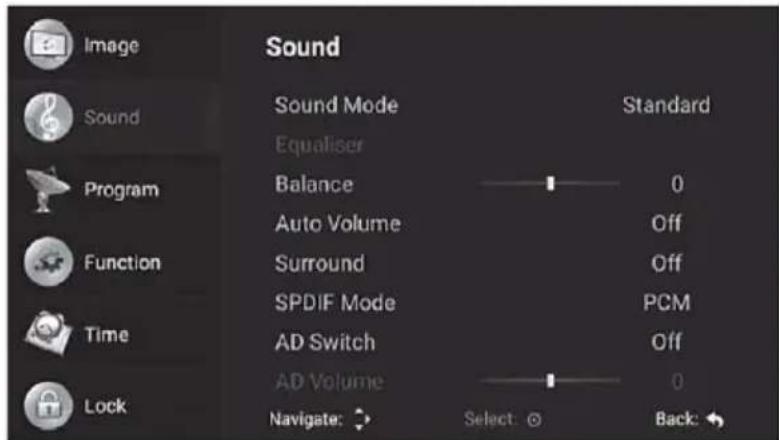
Audio Setup
Press the ◀ / ▶ buttons to select the option you want to set in the Sound menu, then press the OK button to enter.
Sound mode:
Press the ◀ / ▶ buttons to select the sound mode and then press the OK button to confirm. (Available sound modes: Standard, Movie, Dynamic, User-defined) You can adjust the bass and treble values when the sound is in User mode.
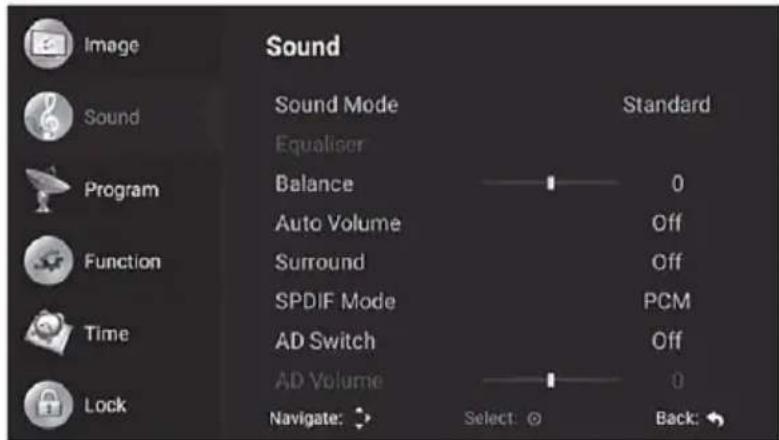
Balance: Press ◀ / ▶ buttons to adjust. Press the EXIT button to return to the previous menu
AVL:
AVL function is used to avoid volume disequilibrium when toggled between channels. Press the ◀ / ▶ button to set the AVL feature.
Surround:
Press the ◀ / ▶ buttons to adjust Surround Sound.
SPDIF mode:
To select SPDIF Output, press ◀ / ▶ buttons. (Available SPDIF modes: AUTO, PCM, OFF). Press the ◀ / ▶ button to return to the previous menu.
Audio narration:
Press the ◀ / ▶ buttons to set the voice narration.
AD Volume adjustment:
To select Volume adjustment, press ◀ / ▶ buttons.
Tuning TV Channels - Program
Press the MENU button to display the Main menu.
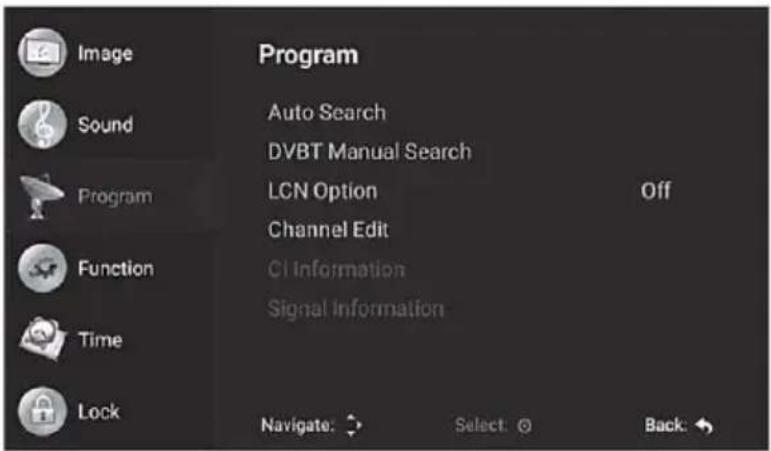
Press the ▼ / ▲ buttons to select Program in the main menu, then press the OK button to enter.
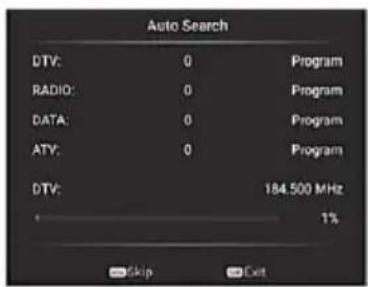
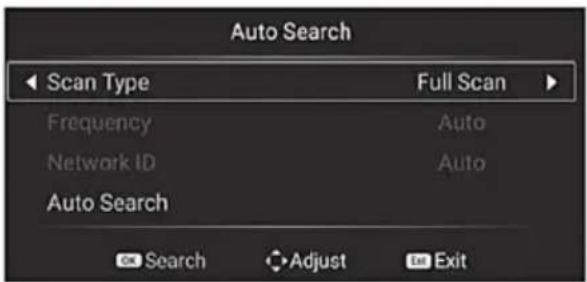
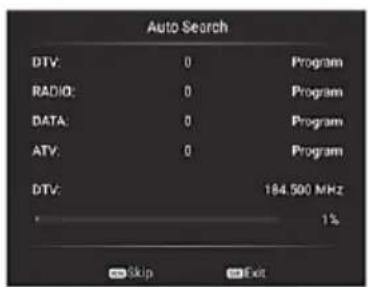
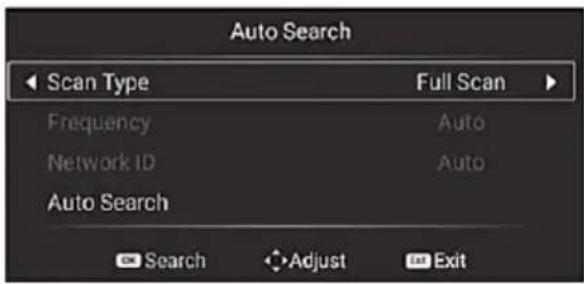
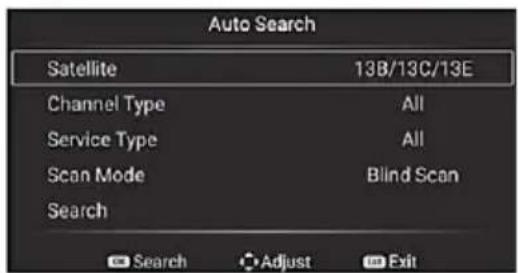
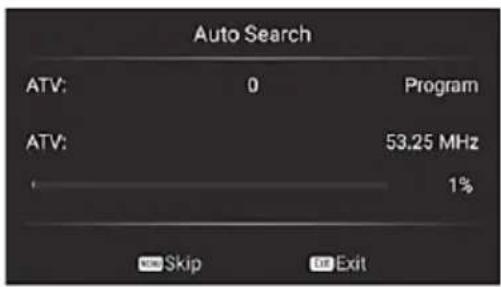
Automatic search: Press the ▼ / ▲ buttons to select Auto Search and then press the OK button to search automatically.
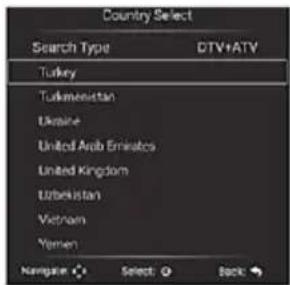
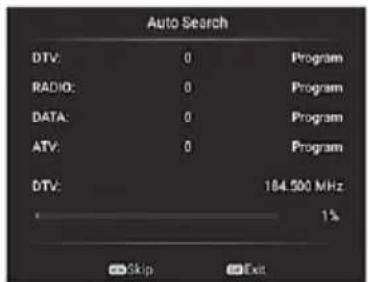
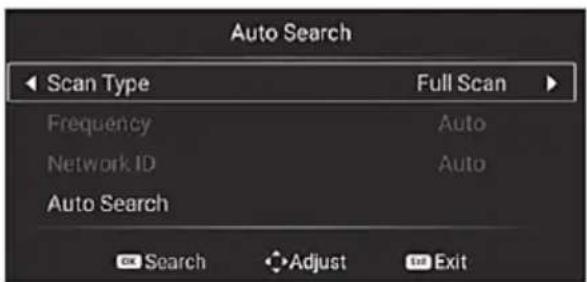
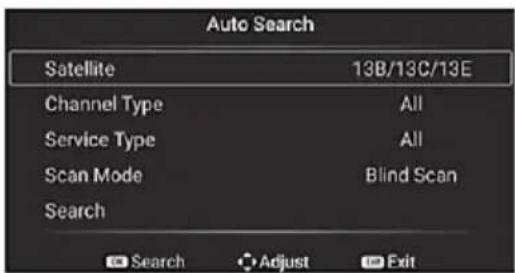
Auto Search settings differ according to the ATV/DTV type as shown below:
ATV – Analog TV DVB-T – Digital TV
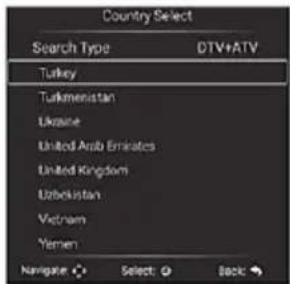
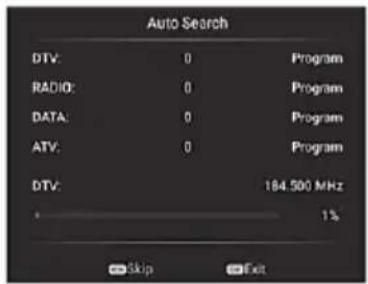
DVBC – Cable TV
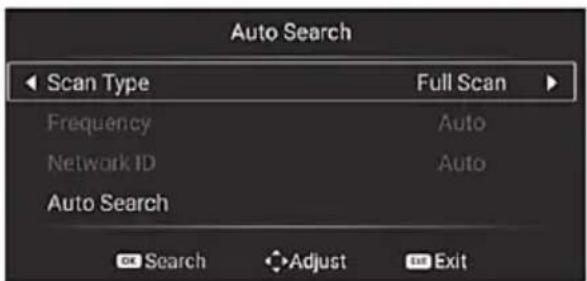
DVBS – Satellite TV
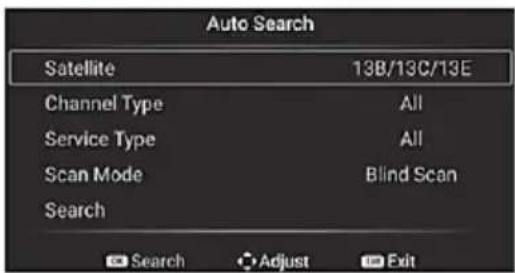
DVBS manual search: Press the ▼ / ▲ buttons to select DVBS manual search, and then press the OK button to search automatically.
DVBS manual search settings differ according to the ATV/DTV type as shown below:
ATV - Analog TV DVB-T - Digital TV
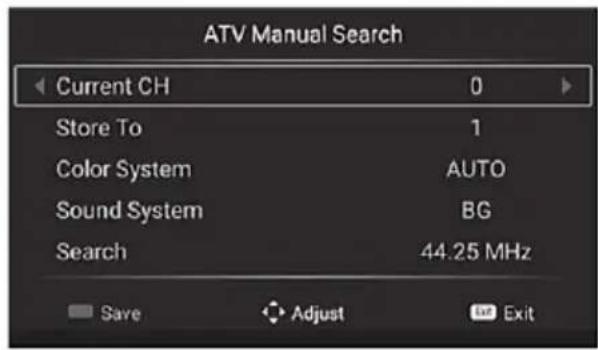
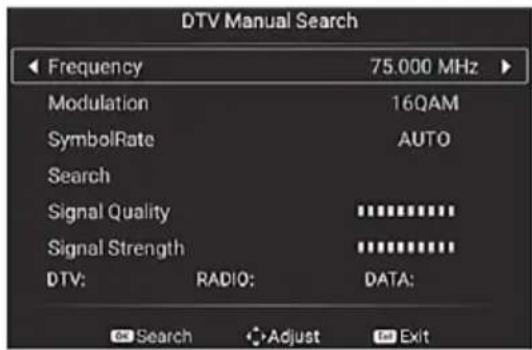
DVBC - Cable TV
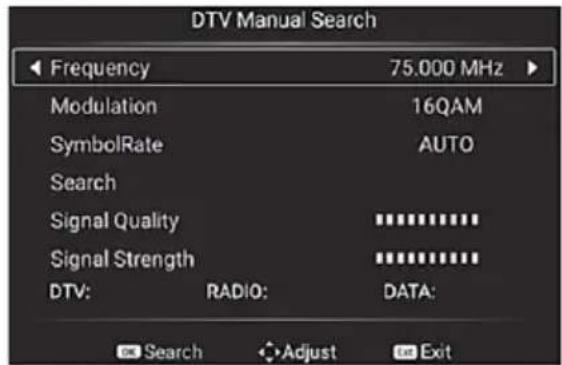
DVBS – Satellite TV
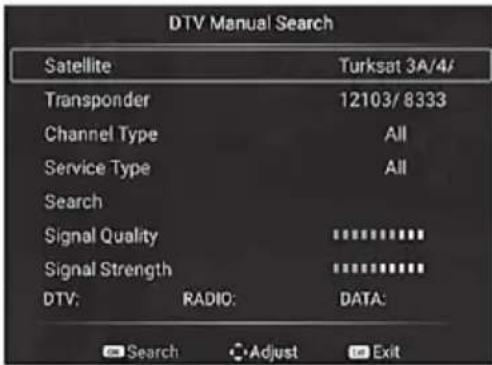
Press the ▼ / ▲ buttons to select the option you want to adjust in the Tuning menu, then press the OK to enter.
After finishing the adjustment, press the EXIT button to save and return to the previous menu.
You can fully exit this menu by pressing the EXIT button.
Channel editing: Press the ▼ / ▲ buttons to select the Edit Channel option and press the OK button to enter, you can perform the Delete / Skip / Move / Favorite selections using the Red, Green, Blue and Mouse buttons.
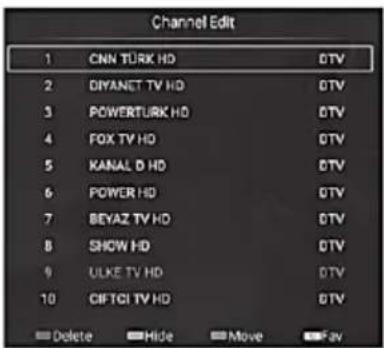
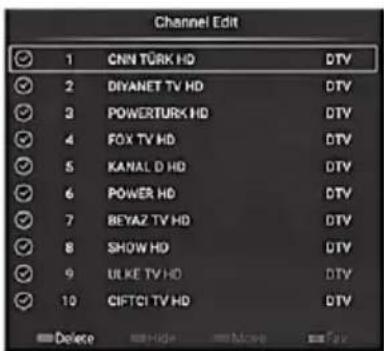
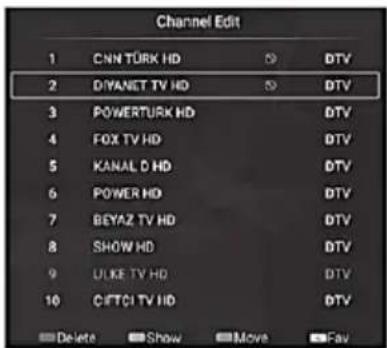
Satellite Installation (for DVB-S):
Press the ▼ / ▲ buttons select the desired satellite, then press the OK button to select.
Press the ◀ / ▶ buttons to select the setup parameters.
After selecting a satellite and setting all the scan parameters, press the blue button to enter the Channel Search OSD.
Supported Scan Modes: Standard Search / Full Scan / Network Search.
Press the OK button to start the scan.
CI information (for DTV):
Press the ▼ / ▲ buttons to select the Common Interface item and press OK button to enter that menu.
You can check CAM/CI card information via this menu.
Signal info:
Contains the broadcast's signal information.
Function
OSD timer:
To select OSD timer, press ◀ / ▶ buttons.
Press the ◀ / ▶ buttons for Always, 5 seconds, 10 seconds, 15 seconds, 30 seconds selections. These times indicate the duration the LiveTv menu remains on the screen.
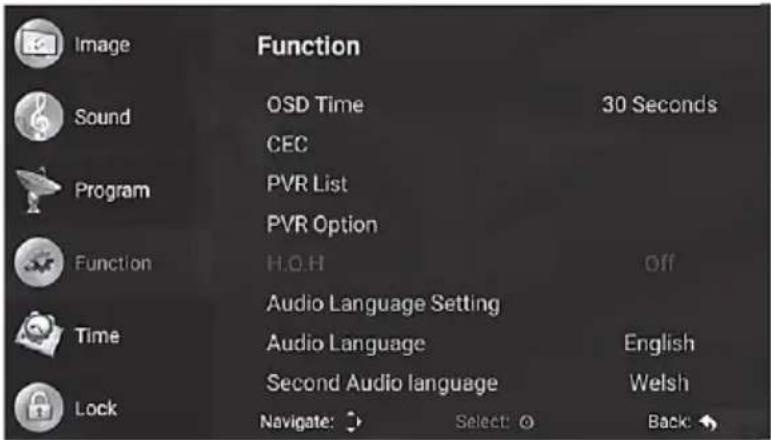
CEC:
HDMI CEC control offer unit communication and control from outer device through HDMI cable.
Press the OK button to enter the sub menu, press the ▼ / ▲ buttons to select HDMI control /Device auto turn-off/TV auto power on / CEC device list /Enable ARC items, then press the OK button to change.
Press EXIT button to go back.
Recording list (for DTV):
Opens the list of previously recorded programs. Press the OK button to enter the sub-menu, press the ▼ / ▲ buttons to select items, and then press the OK button to adjust.
Recording option (for DTV):
Provides access to disk and PVR settings to be used for PVR. Press the OK button to enter the sub-menu, press the ▼ / ▲ buttons to select items, and then press the OK button to adjust.
Hearing impaired:
Ensures the use of these in programs with information letters for people with hearing impairment. Press ◀ / ▶ buttons to adjust.
Audio language setting:
Gives information about the current audio language.
Audio language / Secondary audio language:
You can select the default audio language 1/ language 2 by pressing the ◀ / ▶ and OK buttons.
Press EXIT button to go back.
Subtitle setting / Subtitle language:
Provides access to subtitle settings.
Press the OK button to enter the sub menu, press the ▼ / ▲ buttons to select items, and then press the OK button to set.
You can select the default subtitle option 1 by pressing the ◀ / ▶ and OK buttons.
Press EXIT button to go back.
Reset:
Restores all menu changes made to their initial factory state.
You can select it by using the OK button.
Time Settings
Date:
Displays the current date.
Current time:
Displays the current time.
Sleep timer (Off timing):
To select the Sleep Timer., press ◀ / ▶ buttons.
To select Off / 10 min / 20 min / 30 min / 60 min / 90 min / 120min / 180 min / 240 min., ◀ / ▶ buttons.
Press EXIT button to go back.
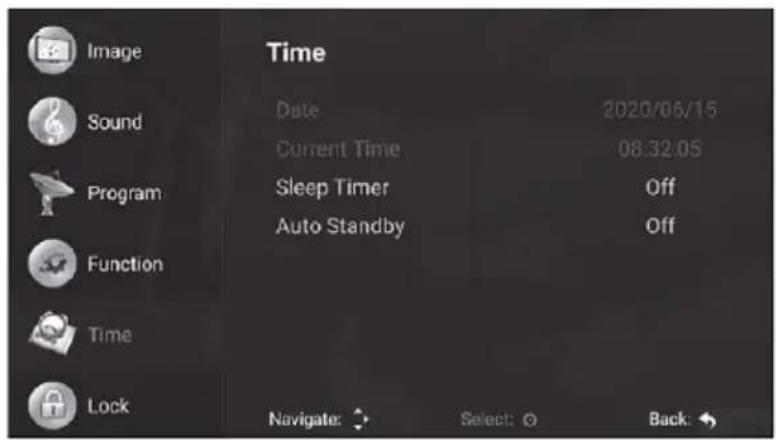
Automatic power-off:
To select Automatic power-off, press ◀ / ▶ buttons.
Press the ◀ / ▶ buttons to select Off / 1 hour / 2 hours / 3 hours / 4 hours.
Press EXIT button to go back.
Lock Settings
System lock:
Press the OK button to enter the sub-menu, enter the default PIN number "0 0 0 0".
To select the System lock, press ◀ / ▶ buttons.
Press EXIT button to go back.
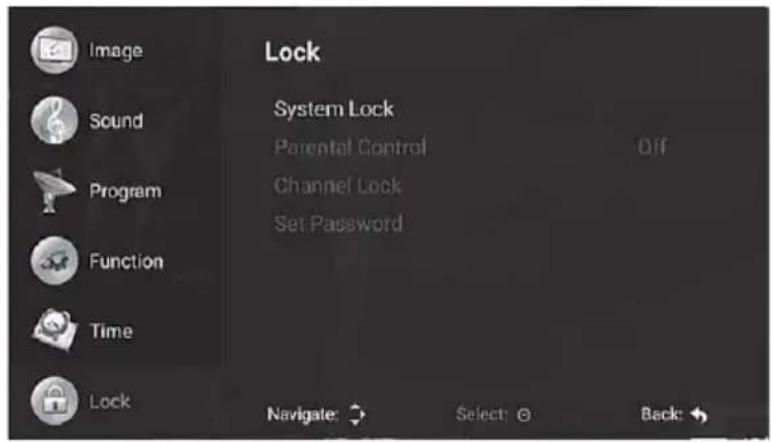
Parental control:
To select the parental control age, press ◀ / ▶ buttons.
Press EXIT button to go back
Channel lock:
Press the OK button to enter the sub menu.
To lock the channel, hover over the channel using the ▼ / ▲ buttons and press the "Blue" button.
Press EXIT button to go back.
Setting a password:
You can create a new password by entering the old and new passwords info.
Note: Please remember your password, because if the system lock is active, changing the parameters and adjusting the TV without entering the correct password will not be possible!
If you forget your password, you will need to reload the software into your TV and all data stored in memory will be deleted.
For this procedure, please contact an authorized service center.
Such service interventions are not covered by the warranty!!
Other Information
Troubleshooting
If the TV does not operate as usual or appears to be faulty please read carefully this section. Many operational issues can be resolved by users.
It is also advisable to unplug the TV from the AC socket on the wall for 60 seconds or more, then reconnect and start again. This simple procedure helps in restoring stable conditions for electric circuits and firmware of the unit.
Please contact Manufacturer Customer Care if the problem is unresolved or you have other concerns.
| SYMPTOMS | POSSIBLE SOLUTIONS |
| No sound or picture. | Check if the power cord is plugged into a powered AC outlet.A power switch on the right side bottom edge of the front panel must be turned on. Press the [POWER] button in the remote control to activate the unit from Standby.Check to see if LED light is either red or blue. If illuminated, power to TV is OK. |
| I have connected an external source to my TV and I get no picture and/or sound. | Check for the correct output connection on the external source and for the correct input connection on the TV.Make sure you have made the correct selection for the input mode for the incoming signal. |
| When I turn On my television, there is a few second delay before the picture appears. Is this normal? | Yes, this is normal. That is the TV searching for previous setting information and initializing the TV. |
| Picture is normal, but no sound. | Check the volume settings.Check if Mute mode is set "on". |
| Sound but no picture or black and white picture. | If black and white picture first unplug TV from AC outlet and re-plug after 60 seconds.Check that the Colour is set to 50 or higher.Try different TV channels. |
| Sound and picture distorted or appear wavy. | An electrical appliance may be affecting TV set.Turn off any appliances, if interference goes away, move appliance farther away from TV.Insert the power plug of the TV set into another power outlet. |
| Sound and picture is blurry or cuts out momentarily. | If using an external antenna, check the direction, position and connection of the antenna.Adjust the direction of your antenna or reset or fine tune the channel. |
| Horizontal/vertical stripe on picture or picture is shaking. | ·Check if there is interfering source nearby, such as appliance or electric tool. |
| The plastic cabinet makes a "clicking" type of sound. | ·"Click" sound can be caused when the temperature of the television changes. This change causes the television cabinet to expand or contract, which makes the sound. This is normal and the TV is OK.. |
| Remote control does not work. | ·Confirm that TV still has power and is operational.·Change the batteries in the remote control.·Check if the batteries are correctly installed. |
playable format list
| Media File Ext. Codec | Remark | |||
| Video Audio | ||||
| .mpg MPEG-1, MPEG-2 | AAC, AC3*,PCM | Max Resolution: 3840x2160 | ||
| MJPEG | Max Data Rate: 40 Mbps | |||
| MOVIE | .avi | Max Resolution: 3840x2160 Max Data Rate: 20 Mbps | ||
| MPEG-2, .ts H.264,AV | VS*,AVS+ | MP3, WMA | ||
| HEVC | ||||
| MOVIE | .mov.mkv | MPEG-4 SP/ASP, H.263/H.264, H.265 HEVC | ||
| .dat | ||||
| MPEG-4 SP | P/ASP, | H.263/H.264, H.265 HEVC | ||
| .mp4 | ||||
| MPEG-1, MPEG-2 | Max Resolution: 720x576 | |||
| .vob | MPEG-2 | Max Data Rate: 40 Mbps | ||
| .rm*/.rmvb* | RV30/RV40 | COOK, MP2 | Max Resolution: 3840x2160 | |
| MUSIC | .mp3 -- MP3 | Sample Rate:8K~48KHz Bit Rate:32K~320Kbps | ||
| .m4a/.aac -- AAC | Sample Rate:16K~48KHzBit Rate:32K~442KbpsChannel: Mono/Stereo | |||
| PHOTO | .jpg/ Progressive JPEG Max Resolution: | 1024x768 | ||
| .jpeg Base | ine JPEG Max Resolution: | 15360x8640 | ||
| .bmp BMP | Max Resolution: | 9600x6400 | ||
| Pixel Depth:1/4/8/16/24/32 bpp | ||||
| .png Non-in | interlaced Max Resolution: | 9600x6400 | ||
| Interlaced | Max Resolution:1280x800 | |||
| SUBTITLE | .srt | SubRip | ||
| .ssa/.ass | SubStation Alpha | |||
| .smi | SAMI | |||
| .sub SubVi | ewer MicroDVDDVDSubtitleSystemSubldx(VobSub) | SubViewer 1.0 & 2.0 Only | ||
| .txt | TMPlayer | |||
If the media codec is not supported by the player, a warning will be given.
REMARK:
It may happen that due to different versions of the 'Codec' version and file format, the device may not support some of above formats. If this happens, convert your record to another compatible format. The manufacturer is not responsible for the incompatibility of the device and your records and the possible loss of the contents of your files.
Technical Specifications
| Model TV-49S62T2S2SM TV-4 | 3S61T2S2SM | |
| Size with stand (cm) 109,8 x 20 | 6 x 67,7 97,1 x 20,6 x 60,9 | |
| Size without stand (cm) 109,8 | x 8,5 x 63,4 97,1 x 8,6 x 56 | 7 |
| Weight with stand (kg) 9,0 7,0 | ||
| Weight without stand (kg) 8,8 | 6,8 | |
| Display Size 49 inches / 123cm | 43 inches / 110cm | |
| Display resolution 1920 x 1080 | ||
| Audio power (RMS) 8 W + 8 W | ||
| IC Core / Android / Mem. | Quad Core 1GHz ARM Cortex CA55x4 / Android 9 / 1,0GB / 8GB | |
| Wi-Fi / MiraCast | Yes / Yes | |
| Rating Power | 115 W | 85 W |
| Power supply | AC 180-240V ~ 50/60Hz | |
| AV Color System | PAL SECAM | |
| Television System | PAL/SECAM-B/G, D/K, I, L, NICAM/A2DVB-T2+C+S2 DVB-T2 H.264/H.265 HEVC | |
| Working conditions | Temperature: 5°C - 45°C Humidity: 20% - 80% RHAtmosfere pressure: 86 kPa - 106 kPa | |
| Component mode | 480i, 480p, 576i, 576p, 720p, 1080i, 1080p, 2160p / 60Hz | |
| HDMI mode | 480i, 480p, 576i, 576p, 720p, 1080i, 1080p, 2160p | |
Note: !
The TV has App Store.
The Store name is „App Store“ located in the SMART TV Reccomend page, when you select the App Store icon.
Vivax can not guarantee that all applications will be able to be installed and that all installed applications will work properly.
It primarily depends on the App publisher and App Store service provider.
This problem is not considered as device failure and it is not covered by the warranty.
*Android is a trandmark of Google LLC.
HDMI, the HDMI logo and High-Definition Multimedia Interface are trademarks or registered trademarks of HDMI Licensing LLC.

"CI Plus" logo is a trademark and a trademark of CI Plus LLP company.

Information on Disposal for Users of Waste Electrical & Electronic Equipment (private households)

This symbol on the product(s) and / or accompanying documents means that used electrical and electronic products should not be mixed with general household waste. For proper treatment, recovery and recycling, please take this product(s) to designated collection points where it will be accepted free of charge. Alternatively, in some countries you may be able to return your products to your local retailer upon purchase of an equivalent new product. Disposing of this product correctly will help save valuable resources and prevent any potential negative effects on human health and the environment, which could otherwise arise from inappropriate waste handling. Please contact your local authority for further details of your nearest designated collection point. Penalties may be applicable for incorrect disposal of this waste, in accordance with your national legislation.
Disposal of waste batteries

Check local regulations for disposal of waste batteries or call your local customer service in order to get instructions on the disposal of old and used batteries. The batteries in this product should not be disposed of with household waste. Be sure to dispose of old batteries in special places for disposal of used batteries that are found in all retail shops where you can buy batteries.
EU Declaration of Conformity
Hereby, M SAN Grupa d.d. declares that the radio equipment type TV set is in compliance with Directive 2014/53/EU (RED Directive).

The full text of the EU declaration of conformity is available at the following internet address: www.msan.hr/dokumentacijaartikala
Product Information sheet
Information sheet data entered into the EPREL database".
For more info and Product Fiche, please scan QR code on the Energy label or visit Vivax web site:
www.vivax.com

TV-49S62T2S2SM
TV-43S61T2S2SM
POŠTOVANI!
Zahvaljujemo na kupnji Vivax uređaja i nadamo se da ćete biti zadovoljni odabirom. Ako u jamstvenom roku bude potreban popravak proizvoda, molimo savjetujte se sa ovlaštenim prodavačem koji Vam je proizvod prodao ili nas kontaktirajte na dolje navedene brojeve i adrese. MOLIMO VAS DA PRIJE UPORABE PROIZVODA PAŽLJIVO PROČITATE UPUTE PRILOŽENE UZ PROIZVOD!
JAMSTVENI LIST HR
VIVAX
MODEL UREĐAJA
SERIJSKI BROJ
DATUM PRODAJE
BROJ RAČUNA PRODAVATELJA
POTPIS I PEČAT PRODAVATELJA
POTPIS I PEČAT PRODAVATELJA
GARANCIJSKA IZJAVA
- Ovom garancijom garantira proizvođač proizvoda, preko KIM TEC d.o.o., kao uvoznika i davatelja garancije u Republici Bosni i Hercegovini besplatan popravak istog u skladu s važećim propisima i u skladu s uvjetima opisanim u ovom garantnom listu. Ovom garancijom garantiramo da će predmet ove garancije raditi bez greške uzrokovane eventualnom lošom izradom i lošim materijalom izrade. Svi eventualno nastali kvarovi biti će besplatno otklonjeni u ovlaštenom servisu u garantnom roku.
UVJETI GARANCIJE:
Garantni rok počinje teći od dana kupnje proizvoda i traje 12 mjeseci, osim za Vivax Imago televizore za koje garancija traje 24 mjeseca
- U slučaju kvara na proizvodu koji je predmet ove garancije, obavezujemo se da ćemo isti popraviti u najkraćem mogućem roku, a najkasnije u roku od 30 dana. Ako se proizvod ne može popraviti ili se ne popravi u roku od 30 dana, biti će zamijenjen novim. Ako popravak proizvoda traje duže od 10 dana, garancija se produljužuje za vrijeme trajanja popravka.
- Garancija se priznaje samo uz račun o kupnji, te uz ovaj garantni list koji mora biti ispravno popunjen odnosno mora sadržavati datum prodaje, pečat i potpis prodavatelja.
- Davalac garancije osigurava servis i rezervne dijelove 7 godina od datuma kupnje.
GARANCIJA NE OBUHVAĆA:
POTPIS I PEČAT PRODAVCA
- Ovom izjavom o saobraznosti proizvođač proizvoda, preko KIM TEC CG d.o.o., kao uvoznika i davaoca prava u Crnoj Gori besplatan popravak istog u skladu s vazećim propisima i u skladu s uslovima opisanim u ovoj izjavi o saobraznosti. Ovom izjavom o saobraznosti istićemo da će predmet ovog prava raditi bez greške uzrokovane eventualnom lošom izradom i lošim materijalom izrade. Svi eventualno nastali kvarovi biće besplatno otklonjeni u ovlašćenom servisu u predviđenom roku za reklamaciju.
- USLOVI REKLAMACIJE: Rok za reklamaciju počinje teći od dana kupovine proizvoda i traje 24 mjeseca.
- U slučaju kvara na proizvodu koji je predmet reklamacije, obavezujemo se da ćemo isti popraviti u najkraćem mogućem roku, a najkasnije u roku od 15 dana. Ako se proizvod ne može popraviti ili se ne popravi u roku od 15 dana, biće zamijenjen novim.
- Pravo na reklamaciju se priznaje uz fiskalni račun o kupovini, ili uz ovu izjavu o saobraznosti koji mora biti ispravno popunjen odnosno mora sadržati datum prodaje, pečat i potpis prodavca.
- Davalac izjave o saobraznosti osigurava servis i rezervne djelove 7 godina od datuma kupovine.
- PRAVO NA REKLAMACIJU NE OBUHVATA
- Izvori (Source – Input Sharing) 30
- Live TV izbornici (Sistem LiveTV Izbornika) 30
- Ostale informacije 37
- Jamstvena izjava (na kraju uputa)
- OSNOVNE KARAKTERISTIKE UREĐAJA
- Popis pribora uz uređaj
- OPREZ
- RIZIK OD STRUJNOG UDARA NE OTVARAJTE UREĐAJ
- Prednja strana TV prijamnika
- NAPOMENE
- ▶ COMMON INTERFACE (CI+ SUČELJE)
- ▶ VGA (PC)
- Napomena:
- DALJINSKI UPRAVLJAČ (VER 2)
- ▶ Umetanje baterija u daljinski upravljač
- Čestitamo! Sada je vaš TV spreman za uporabu.
- Sources (Izvori)
- Settings (Postavke,)
- Set the Name of Your Appliance (Postavljanje imena uređaja)
- Device Preferences (Postavke uređaja)
- Legal information
- Reset
- Media
- Video
- Installation Package (Instalacijski paketi)
- Live TV Menu (Live TV Izbornik)
- OSD timer (OSD vrijeme):
- CEC:
- Audio language setting (Audio postavke):
- Automatic power-off (Auto isključenje):
- Live TV menus (Sistem LiveTV meniji) 30
- Izjava o saobraznosti i Garancijska izjava (na kraju uputstava)
- PREDNJA STRANA TV PRIJEMNIKA
- ▶ EARPHONE (SLUŠALICE)
- ▶ COMMON INTERFACE (CI+INTERFEJS)
- ▶ PC
- Interface Selection (Izbor početnog prikaza TV-a)
- Čestitamo! Sada je vaš TV spreman za upotrebu.
- What a New (Šta je novo):
- Featured App (Istaknute aplikacije)
- Settings (Podešavanja)
- Set the Name of Your Appliance (Podešavanje imena uređaja)
- Network & Internet (Mreža i Internet)
- Apps (Aplikacije)
- Device Preferences (Podešavanja uređaja)
- System update (Nadogradnja sistema)
- About (Informacije o uređaju)
- System update (Nadogradnja
- Storage
- (Memorija):
- Installation Package (Instalacija aplikacija)
- Local Storage (Lokalna memorija)
- Network Sharing (Mrežno deljenje)
- Source - Input Sharing (Izvor – Ulazno deljenje)
- Live TV Menu (Live TV Meni)
- Surround:
- SPDIF mode (SPDIF mod):
- Audio narration (Audio dodatni opisi):
- Program Setup (Podešavanje TV programa)
- OSD timer (OSD vreme):
- Recording list (Lista snimanja) (DTV):
- Recording option (Opcije snimanja DTV):
- Забелешка:
- ОСНОВНО КОРИСТЕЊЕ
- Прво инсталирање
- Apps (Апликации)
- Видео
- OSD timer (OSD врeme):
- Sleep timer (Off timing)
- ANA E PËRPARME E TELEVIZORIT
- ▶ SPDF DIGITAL COAX / OPTICAL AUDIO OUT (option)
- PËRDORIMI THEMELOR
- Operacionet (Settings)
- Të preferuarat e pajisjes (Device Preferences)
- Tingulli (Sound):
- Pakoja e Instalimit (Installation Package)
- Ndarja e rrjetit (Network Sharing)
- Rrethuar (Surround):
- Narracioni i zërit (Audio narration):
- Instalimi satelitor (Satellite Installation) (for DVB-S):
- Kontrolli prindëror (Parental control):
- Viri (Source – Input Sharing) 30
- Live TV meniji (Sistem LiveTV menija) 30
- Druge informacije 36
- SPREDNJA STRAN TV-SPREJEMNIKA
- ▶ SPDF DIGITAL COAX / OPTICAL AUDIO OUT
- ▶ COMMON INTERFACE (CI+ VMESNIK)
- Opomba:
- Izbira vmesnika (Interface Selection)
- Viri (Sources)
- Nastavitev imena naprave (Set the Name of Your Appliance)
- Nastavitve naprave (Device Preferences)
- Ponastavi (Reset)
- Namestitveni paket (Installation Package)
- Temperatura barve (Colour temperature):
- Zmanjšanje hrupa (Noise reduction):
- Zvok (Sound)
- Urejanje kanalov (Channel editing):
- Samodejni izklop (Automatic power-off):
- Appliance features 3
- Basic Features 24
- APPLIANCE FEATURES
- WELCOME
- The Accessories
- CAUTION
- RISK OF ELECTRIC SHOCK DO NOT OPEN
- IMPORTANT SAFETY INSTRUCTIONS
- Read, Retain, Follow All Instructions
- Heed Warnings
- Cleaning
- Attachments and Equipment
- Water and Moisture
- Setting
- Ventilation
- Power Source
- Grounding or Polarization
- Lightning
- Power Lines and Antenna cables
- Overloading
- Object and Liquid Entry
- Outdoor Antenna Grounding
- Servicing
- Damage Requiring Service
- Replacement Parts
- Safety Check
- Heat
- Earphones use - Attention
- WARNING
- LED Panel
- Positioning the TV set
- STAND INSTALLATION
- Notes
- WARNING! Be sure to disconnect the AC power cord before installing a stand or wall-mount brackets.
- CAUTION!
- TV FRONT
- ANTENNA AND POWER CONNECTION
- TV REAR
- ▶ CONNECTIONS
- ▶ SPDIF COAX / OPTICAL AUDIO OUT (option)
- ▶ VGA (PC) (49" model only)
- ▶ YPbPr IN
- AV
- ▶ RJ45 LAN INPUT
- Connecting to a wired network:
- Connecting to a wireless network:
- REMOTE CONTROLLER (VER 1)
- REMOTE CONTROLLER (VER 2)
- ▶ Installing Batteries in the Remote Control
- Remote Control Operation Range
- BASIC FEATURES
- First time installation
- Language
- Country
- Time zone
- Network settings
- Interface Selection
- Congratulations!
- Now, your TV is ready to use.
- What a New:
- Featured App
- Apps (Applications)
- Browser
- Sports & Music
- Sources
- Settings
- Set the Name of Your Appliance
- Network & Internet
- Device Preferences
- System update
- About
- System update:
- Device name:
- Restart:
- Status:
- Legal information:
- Date&time
- Keyboard and autofill:
- Sound:
- Storage:
- Google:
- Picture
- Audio
- Installation Package
- Local Storage
- Network Sharing
- Source - Input Sharing
- Live TV Menu
- Image Setup
- Backlight:
- Picture format:
- Colour temperature:
- Noise reduction:
- Audio Setup
- Sound mode:
- AVL:
- SPDIF mode:
- Audio narration:
- AD Volume adjustment:
- Tuning TV Channels - Program
- Satellite Installation (for DVB-S):
- CI information (for DTV):
- Signal info:
- Function
- OSD timer:
- Recording list (for DTV):
- Recording option (for DTV):
- Hearing impaired:
- Audio language setting:
- Audio language / Secondary audio language:
- Subtitle setting / Subtitle language:
- Reset:
- Time Settings
- Date:
- Current time:
- Sleep timer (Off timing):
- Automatic power-off:
- Lock Settings
- System lock:
- Parental control:
- Channel lock:
- Setting a password:
- Other Information
- Troubleshooting
- REMARK:
- Note: !
- Information on Disposal for Users of Waste Electrical & Electronic Equipment (private households)
- Disposal of waste batteries
- EU Declaration of Conformity
- Product Information sheet
- POŠTOVANI!
- JAMSTVENI LIST HR
- VIVAX
- MODEL UREĐAJA
- SERIJSKI BROJ
- DATUM PRODAJE
- BROJ RAČUNA PRODAVATELJA
- POTPIS I PEČAT PRODAVATELJA
- GARANCIJSKA IZJAVA
- UVJETI GARANCIJE:
- GARANCIJA NE OBUHVAĆA:
- POTPIS I PEČAT PRODAVCA
Brand : Vivax
Model : TV-49S62T2S2SM
Category : TV