
ZS2940 - Monitor Emos - Free user manual and instructions
Find the device manual for free ZS2940 Emos in PDF.


| Product Type | Monitor |
| Brand | Emos |
| Model | ZS2940 |
| Display Size | 27 inches |
| Resolution | 1920 x 1080 (Full HD) |
| Panel Type | IPS |
| Refresh Rate | 60 Hz |
| Response Time | 5 ms |
| Brightness | 250 cd/m² |
| Contrast Ratio | 1000:1 |
| Viewing Angles | 178° / 178° |
| Connectivity | HDMI, VGA, Audio Out |
| Built-in Speakers | 2 x 2W |
| VESA Mount | 100 x 100 mm |
| Stand Adjustability | Tilt only |
| Power Consumption | 30 W (typical), <0.5 W (standby) |
| Power Supply | Internal, AC 100-240V |
| Dimensions (with stand) | 24.1 x 17.7 x 7.9 inches |
| Weight (with stand) | 11.5 lbs (5.2 kg) |
| Energy Efficiency Class | A+ |
| Warranty | 2 years |
Frequently Asked Questions - ZS2940 Emos
User questions about ZS2940 Emos
0 question about this device. Answer the ones you know or ask your own.
Ask a new question about this device
Download the instructions for your Monitor in PDF format for free! Find your manual ZS2940 - Emos and take your electronic device back in hand. On this page are published all the documents necessary for the use of your device. ZS2940 by Emos.
USER MANUAL ZS2940 Emos
GB | LED Floodlight SMD + PIR SENSOR
LED reflector is designed for indoor and outdoor use to be mounted on a firm ground. Ingress Protection IP54 – for outdoor use
PIR sensor - specification:
Time-delay: min. 10 s ±5 s – max. 10 min ±1 min Detection angle: 120° Ambient light: 5 lux -> 2 000 lux (adjustable) Detection distance: 5–10 m Detection motion speed: 0.6–1.5 m/s
PIR sensor setting:
Detection field is possible to be set by moving the motion sensor switch to the left and to the right.
Adjustment of the ambient light
(sensitivity)
You can choose at what luminosity will the sensor go on by a button A (see picture no. 4).
Time-delay
You can set the time-delay of the lamp by a button B (see picture no. 4)
Detection range
The distance at which the sensor responds to movement can be set using the control C.
Mounting
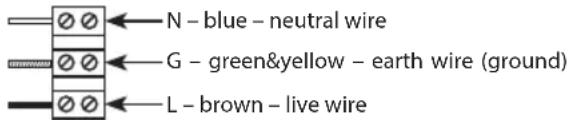
Mount the lamp firmly onto a solid basis, for example a wall (fig. 1, 2, 3). Installation height 2.3–3 m. Direct the reflector as shown on fig. 1 and 2. Connect a 220–240 V\~ power cable to the respective terminals of the terminal strip.
Maintenance instructions:
Before maintenance, switch off the lamp and wait until it is cooled.
Clean it with a soft moistened cloth. Never submerge the lamp in water or other liquids.
During maintenance, observe general rules for occupational safety, and be very careful.
WARNING
- The reflector is designed entirely for firm mounting.
- Before connecting to the 220–240 V\~ make sure that the connecting wire is not under voltage. This operation can be carried out only by an authorized person.
- Respect a minimum distance of 1 m between the appliance and the object or surface which you wish to lighten.
- If you place the reflector below the roof, keep the minimum 0.2m distance measured from the upside of the reflector to the bottom of the roof.
- Do not use the reflector without the protection glass.
- The protection from dangerous contact voltage is ensured by "earthing".
• No cord supplied with floodlight - The lights source of this luminaire is not replaceable; when the light source reaches its end of life the whole luminaire shall be replaced.
- Caution, risk of electric shock

Do not dispose with domestic waste. Use special collection points for sorted waste. Contact local authorities for information about collection points. If the electron-
ic devices would be disposed on landfi II, dangerous substa- noes may reach groundwater and subsequently food chain, where it could affect human health.
EMOS spol s.r.o. declares that the LED Floodlight SMD + PIR SENSOR is in compliance with the essential requirements and other relevant provisions of Directive. The device can be freely operated in the EU. The Declaration of Conformity can be found at http://www.emos.eu/download.


Brand : Emos
Model : ZS2940
Category : Monitor