
M3P20V2 - Security Camera iGET - Free user manual and instructions
Find the device manual for free M3P20V2 iGET in PDF.


| Product Type | Security Camera |
| Brand | iGET |
| Model | M3P20V2 |
| Resolution | 1920 x 1080 (Full HD) |
| Night Vision | Up to 10m with IR LEDs |
| Field of View | 90° diagonal |
| Connectivity | Wi-Fi 802.11 b/g/n, 2.4 GHz |
| Power Supply | DC 5V/1A (USB adapter included) |
| Power Consumption | 5W max |
| Battery | None (wired) |
| Storage | MicroSD slot (up to 128 GB) and cloud storage |
| Motion Detection | Yes, with push notifications |
| Audio | Two-way audio (built-in microphone and speaker) |
| Weatherproof | IP65 (indoor/outdoor use) |
| Dimensions | 70 x 70 x 110 mm |
| Weight | 180 g |
| Mounting | Wall or ceiling mount (bracket included) |
| Operating Temperature | -10°C to 50°C |
| Compatibility | iOS 9.0+ / Android 5.0+ |
| App | iGET Home (free) |
| Security | AES-128 encryption for video stream |
| Maintenance | Clean lens with soft dry cloth; avoid water contact |
| Spare Parts | Mounting kit and power adapter available from iGET support |
| Repairability | Not user-serviceable; contact support for repairs |
| Certifications | CE, RoHS |
Frequently Asked Questions - M3P20V2 iGET
User questions about M3P20V2 iGET
0 question about this device. Answer the ones you know or ask your own.
Ask a new question about this device
Download the instructions for your Security Camera in PDF format for free! Find your manual M3P20V2 - iGET and take your electronic device back in hand. On this page are published all the documents necessary for the use of your device. M3P20V2 by iGET.
USER MANUAL M3P20V2 iGET
Individual parameters, description by figures and design in the manual may differ depending on the version and updates. Printing errors reserved. The buyer is obliged to provide a serial number on the warranty card as well as in the delivery note and the proof of purchase. In this context, the buyer acknowledges that unless the serial number of goods is not marked on the proof of purchase, delivery note and in the warranty card and therefore it cannot be possible to compare this serial number marked on goods and its protective packaging with the serial number stated in the warranty card, delivery note and the proof of purchase and thus to verify that the goods runs from the seller, the service center is competent to claim such a goods automatically and reject it immediately. The buyer must instruct all persons to whom the goods would be subsequently sold. Product complaints do with your dealer if you are not on the web www.iget.eu indicated otherwise. For household use: The given symbol (crossed-out wheeled bin) on the product or at accompanying documents means that used electrical and electronic products should not disposed of with household waste. To ensure proper disposal of the product, hand it over to a designated collection point, where it will be accepted free of charge. The correct disposal of this product will help to save valuable natural resources and prevent any potential negative impacts on the environment and human health, which could otherwise be caused by inappropriate disposal of wastes. For more details, please, contact your local authorities or the nearest collection point. The improper disposal of this waste can be penalized in accordance with national regulations. Information for users to disposal of electrical and electronic devices (corporate and business use): For proper disposal of electrical and electronic devices, ask for details from your dealer or distributor. Information for users to disposal of electrical and electronic devices in other countries outside EU: The above mentioned symbol (crossed-out wheeled bin) is valid only in the countries of EU. For proper disposal of electrical and electronic devices, ask for details from your authorities or dealer. All is expressed by the symbol or crossed-out wheeled bin on product, packaging or in printed materials.
Set up the claim for warranty repair of device at your dealer. If you have technical questions or problems, contact your dealer. Follow the rules for working with electrical equipment. The user may not dismantle the device or replace any part of this. Opening or removing the covers poses the risk of electric shock.
Declaration of Conformity:
Company INTELEK spol. s r.o. hereby declares that all M3P15v2/M3P18v2/M3P20v2 devices are in compliance with essential requirements and other relevant provisions of Directive 2014/53/EU. The full text of the EU Declaration of Conformity is available on this website www.iget.eu.
The warranty period of the product is 24 months, unless stated otherwise.
This device can be used in the following countries:
RoHS: The components used in the device meet the requirements on the restriction of hazardous substances in electrical and electronic devices in accordance with Directive 2011/65/EU. The RoHS declaration can be downloaded from www.iget.eu.
Producer / Exclusive importer of iGET products to EU:
INTELEK spol. s r.o., Ericha Roučky 1291/4, 627 00 Brno - Černovice, CZ, web: http://www.iget.eu
SUPPORT: http://www.iget.eu/helpdesk
Copyright © 2018 Intelek spol. s r.o. All rights reserved.
| AT | BE | CY | CZ | DK | EE | FI | MT | NL | PL | PT | SK |
| SI | ES | DE | GR | HU | IE | IT | LV | LT | GB | IS | LI |
| NO | CH | BG | HR | RU | RO | FR | SE | LU | TR |

EN M3P15v2/M3P18v2/M3P20v2
iGET
Setting Up Camera M3P15v2/M3P18v2
Insert Lan Cable and Power Up
Please always connect Smart Camera with LAN before powering up when you first using it.
- Make sure the the settings like DHCP Server and UPNP are enabled on your router.
- Connect the power cable, the Smart Camera will run some diagnostic processes like rolling the camera. When it stops rolling, the startup is completed.
Pairing with system
Tap “+” Add accessory to scan QR codes printed on the back cover of the camera. Then name the camera for daily use. After that, you’ve successfully paired the camera with system.
Setting Up Camera M3P20v2
Power up
- Insert power cable into the Micro-USB slot on the round edge.
•The camera will power up you will hear the prompt voice to show you it is waiting to WiFi settings.
Pairing with system
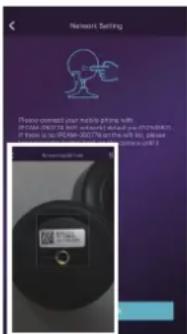
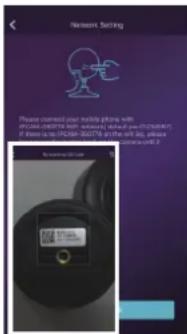
Tap “+” Add accessory to scan QR codes printed on the back cover of the camera, you will be guided to connect to Camera by connected the AP started with IPCAM-XXXXX.
WiFi Settings
- After switch back to App, you will have the page to set up WiFi of camera.
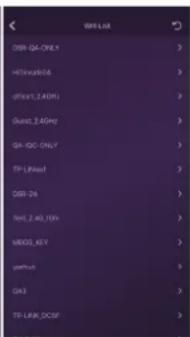
- Select your WiFi router in the list, then input Password and Save. - You will hear the camera play a special tone that means it was connected to the router successfully.
•Name it, then getting started to use camera.


FAQ
I've Already Connected My Camera to Internet, But I Can't Connect It in App.
Please make sure your router has successfully connected to Internet.
DHCP Server/Service should be Enable on the router. UPNP should be Enable too.
Your phone's data plan should be available. Some carriers restricts the p2p connection protocol, try using App in the same Wi-Fi with Smart Camera to figure out the problem. If you still can't connect it, try another router if possible. Some routers' build-in firewall also interfere the connection.
I Can't Save the Snapshots.
App will need to access to your phone's album for saving snapshots. The authorization might need you to approve while using the function for the first time in some phones. If you mis-click the 'No' option during the authorization, you might need to enable it in the system setting menu.
How to Reset My Camera?
PLEASE MAKE SURE YOU CLEARLY KNOW THE RESULT OF RESETING: ALL DATA WILL BE ERASED INCLUDING THE INTERNET SETTINGS.
Power up your Smart Camera, wait until the camera stops rolling. Hold the reset button for a while until the camera starts rolling again. Release the button then the Smart Camera would be reset.
Access live video and daily opeartion
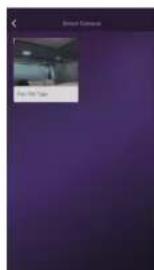

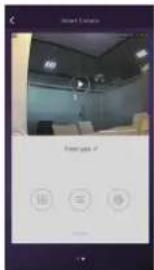
- Go to Camera list from the App, select the camera you would like to access.
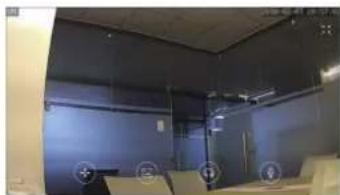
- Press play button on the snapshot of camera to access live video.
- Enter in or exit for the full screen mode.
natural_image
Interior view of a modern office or meeting room with blue walls and ceiling lighting (no visible text or symbols)Quick Actions for camera
Tap to entry quick actions page.
Easily use below buttons to move, snapshot, hear and talk.
: Move the camera by these buttons.
: Snapshot and save pictures to album.
: Hearing the audio from the camera.
: Talking to the camera.
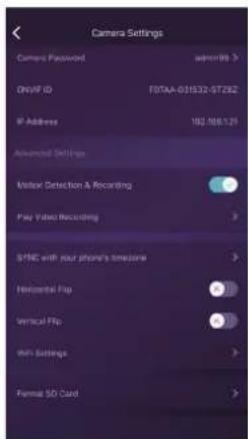


Camera settings
SYNC with phone's timezone:
SYNC with phone's timezone. Synchronize the timezone with your phone's.
Horizontal & Vertical Flip:
Flip the screen to view correctly when the Smart Camera was installed upside down.
WiFi Setting:
Set the WiFi for the camera.
Motion Detection & Recording:
Automatically record video when any motion is detected (5s before +15s after).
Format Your SD card:
Erase and make your SD card recordable.
Play Video Recording:
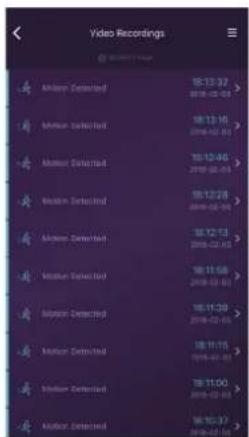
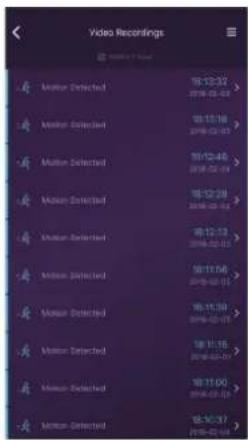
List all the recorded video on your SD card, can be sorted by date. Click to play.
Rename or delete the camera

Tap the name of the camera. Then re-name or delete the camera.


Change to another router by directly plugin the networking cable
Use TF Card for Video Recording
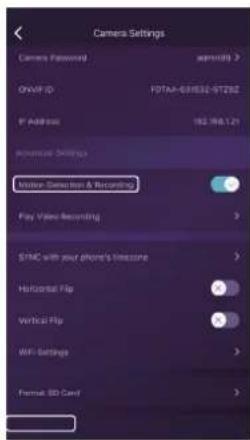
If the SD card is new or needs to be erased, please tap [Format SD Card] to make it available for recording. Switch on [Motion Detection Recording] to record videos when motion is detected by Smart Camera's lens. The video will be recorded as 640*480 and lasted 15s(3s pre-recorded not included). When the SD Card is full, the old files will be automatically deleted for recording the latest one.
MicroSD card inserting to outdoor camera M3P18v2:


natural_image
Interior view of a modern office or meeting room with dark walls and ceiling lights (no visible text or symbols)Rychlé ovládání


Nastavení kamery
SYNC with phone's timezone (Synchronizace s časem telefonu)


natural_image
Interior view of a modern office or meeting room with dark blue walls and ceiling lights (no visible text or symbols)Rýchle ovládanie


Nastavenie kamery
SYNC with phone's timezone (Synchronizace s časem telefonu) - Synchronizácia s časom v telefone.
natural_image
Technical line drawing of a mechanical device with a lever and handle (no text or symbols)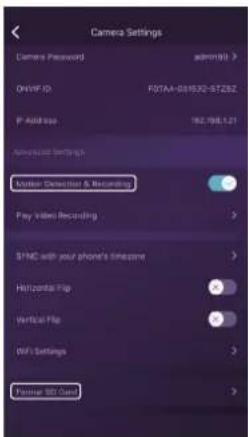


- Declaration of Conformity:
- Producer / Exclusive importer of iGET products to EU:
- EN M3P15v2/M3P18v2/M3P20v2
- Setting Up Camera M3P15v2/M3P18v2
- Insert Lan Cable and Power Up
- Pairing with system
- Setting Up Camera M3P20v2
- Power up
- WiFi Settings
- FAQ
- I've Already Connected My Camera to Internet, But I Can't Connect It in App.
- I Can't Save the Snapshots.
- How to Reset My Camera?
- Quick Actions for camera
- Camera settings
- Use TF Card for Video Recording
- Rychlé ovládání
- Nastavení kamery
- Rýchle ovládanie
- Nastavenie kamery
Brand : iGET
Model : M3P20V2
Category : Security Camera