
U3METALDOCK - Computer Accessories i-TEC - Free user manual and instructions
Find the device manual for free U3METALDOCK i-TEC in PDF.


| Product Type | USB-C Metal Docking Station |
| Brand | i-TEC |
| Model | U3METALDOCK |
| Dimensions (L x W x H) | 120 x 75 x 25 mm |
| Weight | 180 g |
| Material | Aluminum alloy |
| Input Interface | USB-C (Thunderbolt 3/4 compatible) |
| Output Ports | 3x USB-A 3.0, 1x HDMI 2.0, 1x USB-C PD, 1x SD card slot |
| Power Delivery | Up to 85W (laptop charging) |
| Video Output | HDMI 2.0 supporting 4K@60Hz |
| Data Transfer Speed | Up to 5 Gbps (USB 3.0) |
| Operating Temperature | 0°C to 45°C |
| Storage Temperature | -10°C to 60°C |
| Compatible Operating Systems | Windows, macOS, Linux, iPadOS |
| Power Supply | USB-C bus-powered or external 20V/5A adapter (not included) |
| Main Functions | Expand laptop ports, data sync, video output, charging |
| Maintenance & Cleaning | Wipe with dry cloth; do not use liquids |
| Safety | Overcurrent, overvoltage, and short-circuit protection |
| Spare Parts & Repairability | Not user-serviceable; contact support for issues |
| Package Contents | 1x U3METALDOCK, 1x USB-C cable, 1x user manual |
Frequently Asked Questions - U3METALDOCK i-TEC
User questions about U3METALDOCK i-TEC
0 question about this device. Answer the ones you know or ask your own.
Ask a new question about this device
Download the instructions for your Computer Accessories in PDF format for free! Find your manual U3METALDOCK - i-TEC and take your electronic device back in hand. On this page are published all the documents necessary for the use of your device. U3METALDOCK by i-TEC.
USER MANUAL U3METALDOCK i-TEC
natural_image
Exterior view of a silver rectangular electronic device (no visible text or symbols on body)Recommended products
i-tec USB 3.0 Metal Charging HUB 10 Port
P/N: U3HUBMETAL10
i-tec USB 3.0 Metal Charging HUB 7 Port
P/N: U3HUBMETAL7
i-tec USB 3.0 Metal Charging HUB 4 Port
P/N: U3HUBMETAL4
• 10x / 7x / 4x USB 3.0 port
• Compatible with USB 2.0 / 1.1
• USB charging detection mechanism for mobile devices for all 10 / 7 / 4 ports
- Plug & Play
• Power adapter

natural_image
White USB device with network ports and a logo, no visible text or symbols on the device body.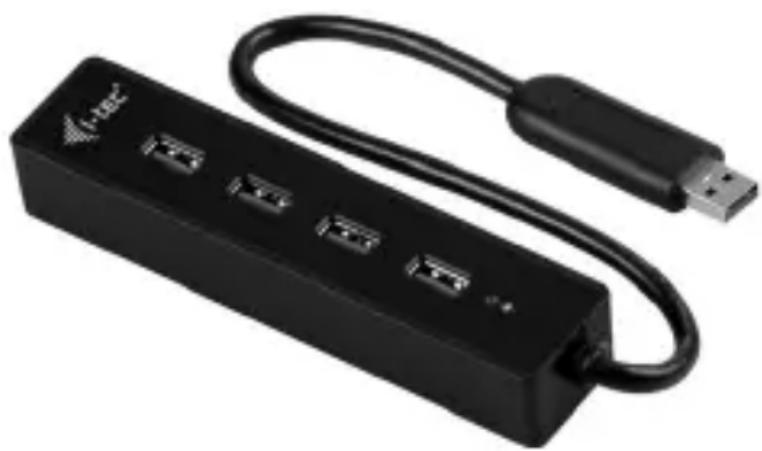
natural_image
Black USB drive with four ports and a USB cable (no text or symbols visible)i-tec USB 3.0 HUB 4 Port
P/N: U3HUB401
• 4x USB 3.0 port
• Compatible with USB 2.0 / 1.1
- Plug & Play
• Passive HUB without power adapter
i-tec Power Bank 5200 mAh Advance - white
P/N: PB5200
• A portable battery with a capacity of 5200 mAh
• For charging of mobile phones, GPS navigators, tablets, music players and other digital devices
• Ideal solution for travelling where you cannot recharge your devices from the mains
- 5 LED diodes indicating the current battery capacity level
• Control by a single ON/OFF button
• Supplied with 3-In-1 USB cable (Apple / Micro / Mini)

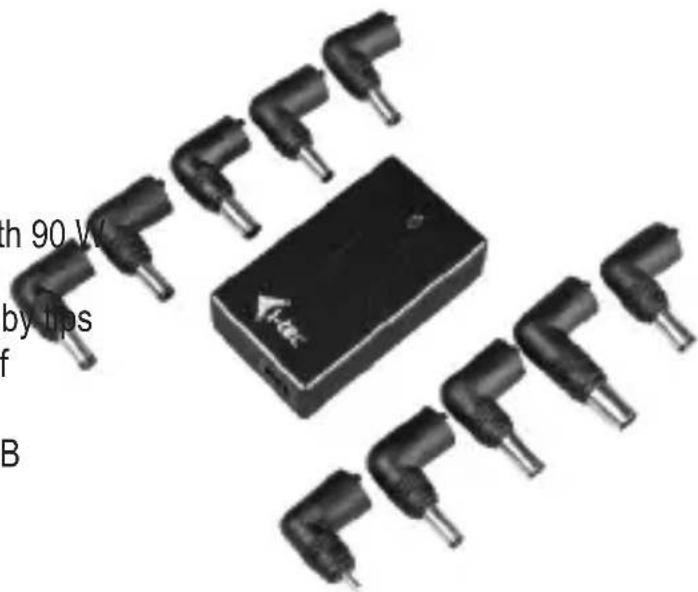
i-tec Advance Ultra Slim Power Adapter 90W
P/N: SLPA90W

natural_image
Electricity charger with attached cable and multiple L-shaped connectors (no visible text or symbols)• Universal power adapter with 90 W output
• Output voltage is set automatically by tips
• Ideal choice for the power supply of almost any notebook or other equipment
• The advantage is an integrated USB interface
• Supplied with 10 tips
i-tec Car Slim Metal Adapter 90W
P/N: CARPA90W
• Universal automatic car adapter with 90 W output
• Output voltage is set automatically by ups
• Ideal choice for the power supply of almost any notebook or other equipment
• The advantage is an integrated USB interface
• Supplied with 10 tips

natural_image
Exterior view of a mechanical device labeled 'Project Mechan' with visible internal components and a cable (no readable text beyond branding)i-tec Power Inverter 200 W 12/24 V
P/N: POWIN200
• Inverter transforms input DC voltage 12V/24 to output AC 230V / 50Hz with power up to 200W
• Input voltage is recognized automatically
• It is suitable to power you home appliance in your car, truck, caravan or boat or whenever electric network is not available
• Inverter can be used to power TV, video recorders, cell phone chargers, tablet/notebook chargers and other similar devices
EN
Read carefully the user manual before assembly - installation - commissioning. Protect yourself and avoid damaging your equipment.
DE
i-tec USB 3.0 Metal Docking Station
ENGLISH....05-08
DEUTSCH 09-12
ČESKY 13-16
POLSKI 17-20
SLOVENSKY....21-24
LIETUVOS....25-28
DECLARATION OF CONFORMITY 29
WEEE 30

INTRODUCTION
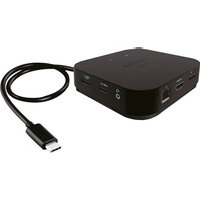
Thank you for purchasing the i-tec docking station that will enable you easy and fast connection of your favorite hardware equipment to your notebook / tablet / PC using a single USB cable.
The docking station is furnished with a DVI-I, a HDMI and a Display port for connecting of an external monitor or data projector. However, only two of these ports can be used simultaneously – the DVI-I and either the HDMI or the Display port. In case of simultaneous connection of monitors to the HDMI and the Display port the docking station will automatically give preference to the Display port and the HDMI port will be disconnected. This means that only the equipment connected to the Display port will be active / functional.
You can use modern plasma or LCD monitors and TV sets as the display equipment. The graphic chip, which makes the heart of the docking station, supports a resolution of 2560 x 1600 pixels for the Display port and the Full HD+ (2048 x 1152 pixels) resolution for the DVI / HDMI port.
You can use the USB 3.0 port for connecting a keyboard, a mouse, an external disk, a printer and other peripheries. All three USB 3.0 ports have a function of standard charging. Charging as per the BC 1.2 specification (for iPad and Samsung tablets) is possible only from the USB 3.0 port on the back panel of the docking station.
The Gigabit Ethernet port will allow you to connect internet modem / LAN Ethernet network for faster data transfer. The docking station is also equipped with input for headphones and microphone allowing connection of an audio system.
The docking station features a compact and elegant metallic design which was developed in accordance with the ultrabook line. It can be used also in the horizontal position as a notebook or tablet pad providing better circulation of air under these pieces of equipment. In this case you can stick two pieces of protective anti-slip strips that are included in the package on top of the docking station.
CONTENT OF THE PACKAGE
• i-tec USB 3.0 docking station
• Power adapter
- USB 3.0 cable (one end connector type A, the second end type B; 100 cm) – for connecting to a notebook / PC
• CD with the drivers and the manual
- Quick Start
SYSTEM REQUIREMENTS
- Hardware requirements: notebook / tablet with OS Win 8 / PC with a free port USB 3.0 / 2.0. If you have USB 2.0, the data transfer speed will be reduced. Procesor CPU 2.0 GHz Dual Core and higher Intel Pentium/Celeron or AMD, memory 2GB RAM.
• Operating system: Windows XP SP3 / Vista / 7 / 8 / 8.1 32/64 bit, Mac OS X. - For playing a DVD on an additional monitor the processor shall be at least Intel Pentium 2.0 and higher, 1 GB RAM and a screen resolution shall be 800x600 and 16 colors.
CAUTION!
Charging: The docking station supports charging of the connected USB mobile equipment such as smartphones, ebook readers, multimedia players, GPS navigations and tablets (e.g. Asus, Toshiba, Dell, GoClever, Prestigio, Emgeton, Sencor). Simply connect the equipment you want to charge using the original cable to the USB port of the docking station. The only exceptions are the Apple or Samsung tablets which are supported as well, but only on the USB port with the BC 1.2 specification on the back panel of the docking station. At the same time the docking station must be disconnected from the computer/notebook and the inclosed power adaptor must be connected.
USB 3.0: Before the installation on the USB 3.0 port make sure that you have the most recent drivers installed for this port (for the USB 3.0 controller into notebook / tablet / PC). Products with the USB 3.0 SuperSpeed technology have been used since 2010; however, the drivers for the supported equipment are still undergoing some fine tuning. Your notebook / tablet / PC needs to be equipped with the USB 3.0 interface so that you can utilize the advantages of the fast USB 3.0 equipment. Its problem free function is ensured by the chipset which needs to have the current drivers available.
Problems that you can encounter during the installation or use of our USB 3.0 equipment are very often caused by the installed outdated drivers for the USB 3.0 controller or chipset of your notebook / tablet / PC. Other problems can be caused by outdated firmware of the USB 3.0 port controller. Most frequently it is one of the following manufacturers: Intel, Renesas (former NEC), Via (VLI), AS Media, Fresco Logic, Etron.
You can find the most recent drivers for the i-tec products on our website www.i-tec-europe.eu in the „Download“ tab for the individual products. The „Problems with USB 3.0“ tab includes a more detailed description with links to the drivers and firmware for USB 3.0 controllers.
Note:
- The installation of audio ports, reader and the USB HUB (for USB 3.0 ports type A) is automatic from the system, the other ports need to be installed from the supplied CD.
- Before the first connection of the docking station to a notebook / tablet / PC it is necessary first to install the LAN and DVI-I / DP / HDMI port from the supplied CD and only then to connect the equipment to the docking station.
INSTALLATION OF DRIVERS IN WINDOWS XP SP3 / VISTA / 7 / 8 / 8.1 (32/64 BIT VERSION)
Before the first use do not connect the docking station to the notebook / tablet / PC, until you install the corresponding drivers for the LAN and DVI-I / DP / HDMI port from the supplied CD. The equipment drivers need to be installed only before the first use.
Insert the CD with the drivers to the CD drive or download the required software from our website www.i-tec-europe.eu from the „Download“ tab for this product. Install the drivers according to the following procedure:
For the LAN and DVI-I / DP / HDMI port select the installation from the Setup.exe file in the directory on the CD:/ or run the downloaded file, select the language of the installation and follow the instructions on the screen.
Note:
In Windows Vista / 7 / 8 / 8.1 install the DVI-I / DP / HDMI port as the „Administrator“. The monitor may be flashing during the installation of the drivers – this is a standard process. After the completion of the installation we recommend restarting the notebook / tablet / PC.
HARDWARE INSTALLATION (CONNECTING THE DOCKING STATION TO A NOTEBOOK / TABLET / PC)
1) Turn ON the notebook / tablet / PC and connect the power adapter to the docking station.
2) Connect the power adapter to the AC 110 V / 230 V mains.
3) Connect the USB 3.0 cable to the USB port type B on the back on all of the docking station.
4) Connect the USB 3.0 cable to a free USB 3.0 / 2.0 port of your notebook / tablet / PC.
5) Subsequently, the automatic installation of the ports in the individual systems will start.
6) After the completion of the installation restart the notebook / tablet / PC.
INSTALLATION OF DRIVERS IN MAC OS X
Before the first use do not connect the docking station to the MacBook / PC, until you install the corresponding drivers for the LAN and DVI-I / DP / HDMI port from the supplied CD. The equipment drivers need to be installed only before the first use.
i-tec USB 3.0 Metal Docking Station
Insert the CD with the drivers to the CD drive or download the required software from our website www.i-tec-europe.eu from the „Download“ tab for this product. Install the drivers according to the following procedure:
For the LAN and DVI-I / DP / HDMI port select the installation from the DisplayLink_MacOSX.dmg file in the directory on the CD:/ or run the downloaded file. Decompress the file on the desktop of your MacBook / PC as a virtual disc, select "Drivers" and then „DisplayLink Software Installer“. Then select the language of the installation and follow the instructions on the screen. Enter the user password if necessary.
The monitor may be flashing during the installation of the drivers – this is a standard process. After the completion of the installation restart the MacBook / PC.
HARDWARE INSTALLATION (CONNECTING THE DOCKING STATION TO A MACBOOK / PC)
1) Turn ON the MacBook / PC and connect the power adapter to the docking station.
2) Connect the power adapter to the AC 110 V / 230 V mains.
3) Connect the USB 3.0 cable to the USB port type B on the back panel of the docking station.
4) Connect the USB 3.0 cable to a free USB 3.0 / 2.0 port of your MacBook / PC.
5) Subsequently, the automatic installation of the ports in the individual systems will start.
6) After the completion of the installation restart the MacBook / PC.
FREQUENTLY ASKED QUESTIONS
Question: What are the primary graphics card requirements for DisplayLink chipsets in i-tec graphic adapters and docking stations
Answer: DisplayLink graphic chipsets are secondary displays. There currently needs to be a primary graphics card in the system. Windows XP: Under Windows XP, DisplayLink install their own virtual graphics adapters under device manager and Windows Display Properties. These are independent of the primary graphics card.
Windows Vista and later: Under windows Vista onwards, the DisplayLink graphics driver works closely with the primary graphic card. DisplayLink works with all Intel, NVidia, ATI/AMD, NVidia and VIA graphics cards. DisplayLink do not support the SiS or Matrox graphics cards. DisplayLink may not work if there are multiple graphics cards installed in the PC. DisplayLink does not support ATI crossfire or NVIDIA SLI configurations. NVIDIA GeForce Go 7700/7900 from v6.3 software. If using DisplayLink with these graphics card, please use an earlier software release.
Question: After installation of Windows 8.1 the equipment stopped functioning. In Windows 8 it worked without problems.
Answer: Please install the most recent drivers from our website that you can find in the „Download“ tab for the given product. Windows 8.1 is supported from the DisplayLink 7.4 version.
Question: After installation of Mac OS X 10.9 Mavericks the equipment stopped functioning. In the previous system version the equipment worked without problems.
Answer: Please install the most recent drivers from our website that you can find in the „Download“ tab for the given product. Mac OS X 10.9 Mavericks is supported from the DisplayLink 2.1 version.
Question: I am using Mac OS X and the audio output is not functioning.
Answer: The current drivers for Mac OS X do not support audio when the equipment is connected to the USB 3.0 port. Audio can be used only when the equipment is connected to the USB 2.0 port.
Question: The docking station is not functioning with a tablet and Windows 8.
Answer: Please install the most recent drivers 7.2 M0 or higher that can be downloaded from http://www.displaylink.com/support/index.php.
Question: I have a problem with detecting the USB 3.0 docking station in the USB 3.0 port of my notebook / tablet / PC.
Answer: The problem may be caused by outdated drivers for the USB 3.0 port of your notebook / tablet / PC. Please read the description and download the most recent drivers for the USB 3.0 chipset in your notebook / tablet / PC and installed them according to the instructions provided. The drivers can be downloaded from http://www.displaylink.com/support/ticket.php id=315.
Question: How to properly install the USB 3.0 docking station in Windows
Answer: Do not connect the USB 3.0 docking station to the USB port of your notebook / tablet / PC until you install the drivers. You need to install the most recent drivers for the DisplayLink (for internal chipset DL-3700) that you can download from http://www.displaylink.com/support/index.php. After you have installed the drivers and connected the USB 3.0 docking station to the USB port of your notebook / tablet / PC the remaining drivers will be installed automatically. The control utility will be activated only after connecting the monitor.
Question: Are there drivers for Windows 8 / 8.1 32/64 bit for the USB 3.0 docking station available
Answer: Yes, for the graphic part you need to install the most recent drivers for the DisplayLink (for internal chipset DL-3900) that you can download from http://www.displaylink.com/support/index.php. Do not connect the USB 3.0 docking station until you install these drivers. After you have installed the drivers and connected the USB 3.0 docking station to the USB port of your notebook / tablet / PC the remaining drivers will be installed automatically. The control utility will be activated only after connecting the monitor.
Question: Can I get more detailed information on troubleshooting for the USB 3.0 docking station
Answer: Of course, you can find useful information on the DisplayLink website at http://www.displaylink.com/support/knowledgebase.php on the FAQ tab or you can contact our technical support.
Question: The equipment will not charge an Apple / Samsung tablet.
Answer: Charging is supported only on one USB 3.0 port on the back panel of the docking station with the BC 1.2 specification. At the same time the docking station must be disconnected from the computer / notebook and the included power adaptor must be connected to the docking station.
If some of the accessories specified on the carton is missing in the package, please contact us with a request for delivering the missing accessory by e-mail at info@comdis.cz, and indicate the delivery address.
For more information, please refer to the User's Manual on the provided CD-ROM.
EINLEITUNG
i-tec USB 3.0 Metal Docking Station
INSTALACJA STEROWNIKA DO MAC OS X
i-tec USB 3.0 Metal Docking Station
i-tec USB 3.0 Metal Docking Station
Declaration of Conformity
declares that this product
i-tec USB 3.0 Metal Docking Station
Model, Model, Model, Model:
U3METALDOCK / DU3700_DU3701
Určení, Určenie, opcje, determination:
Product is determined for using in PC as equipment.
splňuje tyto požadavky Directive 2004/108/EC, LVD Directive 2006/95/EC:
spíňa tieto požadavky Directive 2004/108/EC, LVD Directive 2006/95/EC:
meets the essential requirements according to Directive 2004/108/EC, LVD Directive 2006/95/EC:
Pro Rádiové parametry, pre Rádiové parametre, dla parametrów Radiowych, for Radio parameters:
EN 55022:2010 ClassB ; EN61000-3-2:2006+ A1:2009+A2:2009; EN61000-3-3:2013
and that it is safety under conditions of standard application.
natural_image
Pure electrical circuit lines without any symbolsEuropean Union Only
Note: Marking is in compliance with EU Directive 2002/96/EC and EN50419
English
This equipment is marked with the above recycling symbol. It means that at the end of the life of the equipment you must dispose of it separately at an appropriate collection point and not place it in the normal domestic unsorted waste stream. This will benefit the environment for all. (European Union only)
Deutsch

- Recommended products
- i-tec Advance Ultra Slim Power Adapter 90W
- i-tec Car Slim Metal Adapter 90W
- i-tec Power Inverter 200 W 12/24 V
- EN
- DE
- i-tec USB 3.0 Metal Docking Station
- INTRODUCTION
- CONTENT OF THE PACKAGE
- SYSTEM REQUIREMENTS
- CAUTION!
- Note:
- INSTALLATION OF DRIVERS IN WINDOWS XP SP3 / VISTA / 7 / 8 / 8.1 (32/64 BIT VERSION)
- HARDWARE INSTALLATION (CONNECTING THE DOCKING STATION TO A NOTEBOOK / TABLET / PC)
- INSTALLATION OF DRIVERS IN MAC OS X
- HARDWARE INSTALLATION (CONNECTING THE DOCKING STATION TO A MACBOOK / PC)
- FREQUENTLY ASKED QUESTIONS
- EINLEITUNG
- INSTALACJA STEROWNIKA DO MAC OS X
- European Union Only
- English
- Deutsch
Brand : i-TEC
Model : U3METALDOCK
Category : Computer Accessories