
SR-135T - Calculator CITIZEN - Free user manual and instructions
Find the device manual for free SR-135T CITIZEN in PDF.


| Product Type | Scientific Calculator |
| Brand | Citizen |
| Model | SR-135T |
| Display | LCD, 10 digits |
| Power Source | Battery (LR44) + Solar panel |
| Dimensions | Approx. 150 x 80 x 15 mm |
| Weight | Approx. 100 g |
| Functions | Basic arithmetic, trigonometric, logarithmic, exponential, statistical, memory |
| Battery Life | Approx. 3 years with normal use |
| Auto Power Off | After approximately 7 minutes of inactivity |
| Operating Temperature | 0°C to 40°C |
| Cleaning | Wipe with a soft dry cloth; do not use solvents |
| Safety | Keep away from moisture and extreme temperatures; replace battery with same type |
| Spare Parts | Battery (LR44) readily available; no other user-serviceable parts |
| Repair | Contact authorized service center for repairs |
| Certification | CE, RoHS |
Frequently Asked Questions - SR-135T CITIZEN
User questions about SR-135T CITIZEN
0 question about this device. Answer the ones you know or ask your own.
Ask a new question about this device
Download the instructions for your Calculator in PDF format for free! Find your manual SR-135T - CITIZEN and take your electronic device back in hand. On this page are published all the documents necessary for the use of your device. SR-135T by CITIZEN.
USER MANUAL SR-135T CITIZEN
- Calculation order of priority.... 11
- Addition, subtraction, multiplication and division and constant calculations. 12
- Memory calculation.... 13
- Calculations with parenthesis. 14
- Coordinate conversion:.... 14
- Complex Calculation.... 15
- Statistical calculation. 16
SPECIFICATIONS ......17
AUTOMATIC POWER OFF ....17
REPLACING THE BATTERIES....17
FEATURES
(1) Normal operations.
Four operation (+, -, x, ÷) , x^y, [y]x , auto-constant, parenthesis, percentage.
(2) Memory calculation (X→M, MR, M+).
(3) General mathematical function:
Trigonometric (3) Arctrigonometric (3)
Logarithmic (2) Exponential (2)
Square Power
Square Root Cube Root
Root
Parenthesis Reciprocal
EXP +/ -
SCI Factorial
DEG, RAD, GRAD Degree, minute, second conversion (2)
FIX X↔Y
RND Coordinate conversion.
(4) Binary, octal, decimal and hexadecimal mode.
Mutual conversions and calculations of binary, octal, decimal, and hexadecimal numbers.
(5) Memory protection when power off.
(6) An automatic power off feature to preserve battery life.
(7) Statistics calculations.
• Number of sample (n).
• Total of square of all data ( x^2 ).
- Average ( ).
- 2 kinds of the standard deviation ( ^n-1, ^n ).
- Total of all data ( x ).
(8) 2-variable function polar-rectangular coordinate conversion.
THE KEYBOARD AND OPERATING CONTROLS
(1) SD [ON/C] : 1. Power on and clear an error condition.
- Set and clear the statistics mode.
(2) [C^x!E] : 1. Clear entry key.
- Factorial function (x!).
$$ x! = n \times (n - 1) \times (n - 2) \times (n - 3) \times \dots .. x 2 \times 1 $$
(3) [OFF]: Power off key.
(4) [SHIFT] : This is the key for specifying the second function. When this key is pressed, the special display "SHIFT" lights. When this key press twice continuously, the second function mode releas.
(5) DRG▶: a. Pressing this key will change the mode of angle unit sequentially DEG-RAD GRAD and display it on LCD.
b. Pressing this key after [SHIFT] key shall change the mode of angle and shall convert the displayed data.
$$ \mathrm{DEG} \rightarrow \mathrm{RAD}: \mathrm{RAD} = \mathrm{DEG} \times \pi / 1 8 0 $$
$$ \mathrm{RAD} \rightarrow \mathrm{GRAD}: \mathrm{GRAD} = \mathrm{RAD} \times 2 0 0 / \pi $$
$$ \mathrm{GRAD} \rightarrow \mathrm{DEG}: \mathrm{DEG} = \mathrm{GRAD} \times 1 8 0 / 2 0 0 $$
(6) [0] \~ [9]: Press these keys in their logical sequence to enter numbers.
(7) RND [•]: a. Use to set the decimal point when entering numbers.
b. When press as the first number, it is regarded as [0] and [•] keys are pressed.
c. Random as a second function.
Pressing this key shall display the random number.
The range of random number is 0.000\~0.999.
(8) [+/-]: a. In setting data in the mantissa section, this key reverse code in the mantissa section similarly for exponent section, it reverse code in the exponent section.
b. For the operation result, this key reverse code in the mantissa section.
(9) [+], [-], [x], [÷], [ ( ], [ )]
a. When the key operations are performed by these keys according to a numerical expression, a result of operation is obtained according to mathematical priorities. Priorities discriminated are:
1) 1-variable function.
2) Expression in "()"; (The most inner expression has priority in case of multiple parenthesis)
3) x^y, [y]x
4) x, ÷
5)+,-
b. Whenever the key is operated, the calculator discriminates the above priorities and holds the data and operation keys pending as required.
This pending action is possible up to 6 times, and 15 levels or more pending become error.
c. [ ( ] key is accepted only immediately after [CE], [+], [ -], [x], [÷], [x^y], [ √x ], [=], [ ( ] keys can not accepted in all other cases. When this key is accepted, the displayed data is cleared to 0. When [ ( ] key is first accepted, the special display “( )” illuminates.
When a parenthesis expression is completed [ ) ] and [=] key or When it is cleared by the [ON/C] key, etc. or when errors are generated, the special display “( )” goes out.
d. If it is within the allowable range of pending, [ ( ] can be input into any place in an expression as many times as desired. However, if the key is pressed continuously 16 times or more, it becomes error.
e. From a viewpoint of numerical expression when the corresponding “)” key is not pressed, the operation is not executed even if the “(” key is pressed. On the other hand, When the “(” key is pressed and the “=” key is the pressed without pressing the corresponding “)” key, the operation is also completed according to the priority.
(10) [X M] , [MR] , [M+] Memory calculation
a. The memory register "M" used by these keys is a completely independent single memory.
b. Display data is added to "M" (memory register) by [M + ] key. If data overflows at this time, the proceeding data is hold.
c. Display data is stored in "M" by [X M] key.
d. Contents of "M" is displayed by [MR] key.
e. When any data except for 0 is stored in "M", the special display "M" illuminates.
(11) [EXP] : 1. Exponent select key.
- This key display a rounded value : 3.141592654.
(12) % [ = ] : Calculation
a. When any arithmetic functions constant mode has been set, the displayed number is converted from a percentage to a decimal.
Example: 61.5%
Key Input
Display
[6] [1] [•] [5] [SHIFT] [%]
0.615
b. When [=] key is pressed after [%] following arithmetic function will be executed.
| CALCULATION EXAMPLE | KEY OPERATION LCD | DISPLAY |
| WHAT IS 30% OF 450? | 450 [x] 30 [SHIFT] [%] [=] | 0.3135. |
| WHAT PERCENTAGE OF 600 IS 120?(120÷600×100=20) | 120 [÷] 600 [SHIFT] [%] [=] | 6.20. |
| WHAT 25% OF 400 IS AN EXTRA?(400+(400×25/100)=500) | 400 [+] 25 [SHIFT] [%] [=] | 100.500. |
| WHAT 25% OF 400 IS A DISCOUNT?(400-(400×25/100)=300) | 400 [-] 25 [SHIFT] [%] [=] | 100.300. |
(13) Trigonometric and arctrigonometric function / Hyperbolic and arc hyperbolic trigonometric function (1-variable)
([sin], [cos], [tan], [sin ^-1 ], [cos ^-1 ], [tan ^-1 ]).
These function are calculated according to respective defined areas and accuracy shown in behind chart, any displayed result of operation can become operators.
(14) Exponential and Logarithmic functions (1-variable).
([In], [Log], [e ^x ], [10 ^x ]) Same as Trigonometric functions.
(15) Reciprocal, Square, Square Root, and Cube Root.
([1 / x], [x ^2], [1, [[3]1 ]) same as Trigonometric functions.
(16) o', [o', a. These keys convert degrees, minutes, seconds, into decimal degree and decimal degrees into degree minutes, and seconds.
b. On the “0” format, the integer part of display data is regarded as degree, 2 digits below the decimal point as minutes and the 3rd digit and below as seconds.
Example:
$$ \begin{array}{l l}&[ \rightarrow 0 ^ {\prime \prime \prime} ]\2. 1 1 1 1 1 1 1 1 1&\rightarrow 0 ^ {\prime} [ S H I F T ] [ \quad 0 6 \quad 3 9 9 9\&(3 9. 9 9 \text {seconds})\end{array} $$
(17) Binary mode ([SHIFT], [÷] , [0], [1]).
a. Data input and output are both binary integers in a maximum of 10 digits.
b. A negative number is expressed in binary of two's complement.
c. The range of internal operation is as shown below and if the result of the operation exceeds the range, it becomes an error (overflow).
| Binary Number Decimal Number | ||
| Outside the operation range | — | 512 ≤ DATA |
| BinaryPositiveInteger | 111111111 | 511 |
| 111111110 | 510 | |
| 111111101 | 509 | |
| : | : | |
| : | : | |
| 10 | 2 | |
| 1 | 1 | |
| 0 | 0 | |
| BinaryNegativeInteger(Complement) | 111111111 | -1 |
| 111111110 | -2 | |
| 111111101 | -3 | |
| : : | : | |
| : : | : | |
| 1000000001 | -511 | |
| 1000000000 | -512 | |
| Outside the operation range | DATA ≤ -512 | |
(18) Octal mode ([SHIFT], [x]^OCT , [0] \~ [7]).
a. Data input and output are both octal integers with a maximum of 10 digits.
b. A negative number is expressed in the octal number display of two's complement.
c. The range of internal operation is as shown below and if the result of the operation exceeds the range, it becomes an error (overflow).
| Octal Number Decimal Number | ||
| Outside the operation range | — | 536870912≤ DATA |
| Octal | 3777777777 | 536870911 |
| 3777777776 | 536870910 | |
| Positive | : | : |
| Integer | : | : |
| 10 | 10 | |
| OctalNegativeInteger(Complement) | 77777777777777777776111111101: :40000000014000000000 | -1-2::-536870911-536870912 |
| Outside the operation range | DATA≤-536870913 | |
(19) Hexadecimal Mode ([SHIFT], [HEX], [0] \~ [9], [A] \~ [F]).
a. Data input and output are both hexadecimal integer with a maximum of 10 digits.
b. A negative number is expressed in a hexadecimal number of two's complement.
c. The range of internal operation is as shown below and if the result of operation exceed the range, it becomes an error (overflow).
| Hexadecimal Number Decimal Number | ||
| Outside the operation range | — | 1 × 10^10 ≤ DATA |
| Hexadecimal Positive Integer | 2 5 4 0 B E 3 F F2 5 4 0 B E 3 FE⋮⋮10 | 99999999999999999999998⋮⋮10 |
| Hexadecimal Negative Integer (Complement) | FFFFFFFFFFFFFFFFFFFFFFFFFFFFFFFFFFFFFFFFFFFFFFFFFFFFFFFFFFFFFFFFFFFFFFFFFFFFFFFFFFFFFFFFFFFFFFFFFFFFFFFFFFFFFFFFFFFFFFFFFFFFFFFFFFFFFFFFFFFFFFFFFFFFFFFFFFFFFFFFFFFFFFFFFFFFFFFFFFFFFFFFFFFFFFFFFFFFFFFFFFFFFFFFFFFFFFFFFFFFFFFFFFFFFFFFFFFFFFFFFFFFFFFFFFFFFFFFFFFFFFFFFFFFFFFFFFFFFFFFFFFFFFFFFFFFFFFFFFFFFFFFFFFFFFFFFFFFFFFFFFFFFFFFFFFFFFFFFFFFFFFFFFFFFFFFFFFFFFFFFFFFFFFFFFFFFFFFFFFFFFFFFFFFFFFFFFFFFFFFFFFFFFFFFFFFFFFFFFFFFFFFFFFFFFFFFFFFFFFFFFFFFFFFFFFFFFFFFFFFFFFFFFFFFFFFFFFFFFFFFFFFFFFFFFFFFFFFFFFFFFFFFFFFFFFFFFFFFFFFFFFFFFFFFFFFFFFFFFFFFFFFFFFFFFFFFFFFFFFFFFFFFFFFFFFFFFFFFFFFFFFFFFFFFFFFFFFFFFFFFFFFFFFFFFFFFFFFFFFFFFFFFFFFFFFFFFFFFFFFFFFFFFFFFFFFFFFFFFFFFFFFFFFFFFFFFFFFFFFFFFFFFFFFFFFFFFFFFFFFFFFFFFFFFFFFFFFFFFFFFFFFFFFFFFFFFFFFFFFFFFFFFFFFFFFFFFFFFFFFFFFFFFFFFFFFFFFFFFFFFFFFFFFFFFFFFFFFFFFFFFFFFFFFFFFFFFFFFFFFFFFFFFFFFFFFFFFFFFFFFFFFFFFFFFFFFFFFFFFFFFFFFFFFFFFFFFFFFFFFFFFFFFFFFFFFFFFFFFFFFFFFFFFFFFFFFFFFFFFFFFFFFFFFFFFFFFFFFFFFFFFFFFFFFFFFFFFFFFFFFFFFFFFFFFFFFFFFFFFFFFFFFFFFFFFFFFFFFFFFFFFFFFFFFFFFFFFFFFFFFFFFFFFFFFFFFFFFFFFFFFFFFFFFFFFFFFFFFFFFFFFFFFFFFFFFFFFFFFFFFFFFFFFFFFFFFFFFFFFFFFFFFFFFFFFFFFFFFFFFFFFFFFFFFFFFFFFFFFFFFFFFFFFFFFFFFFFFFFFFFFFFFFFFFFFFFFFFFFFFFFFFFFFFFFFFFFFFFFFFFFFFFFFFFFFFFFFFFFFFFFFFFFFFFFFFFFFFFFFFFFFFFFFFFFFFFFFFFFFFFFFFFFFFFFFFFFFFFFFFFFFFFFFFFFFFFFFFFFFFFFFFFFFFFFFFFFFFFFFFFFFFFFFFFFFFFFFFFFFFFFFFFFFFFFFFFFFFFFFFFFFFFFFFFFFFFFFFFFFFFFFFFFFFFFFFFFFFFFFFFFFFFFFFFFFFFFFFFFFFFFFFFFFFFFFFFFFFFFFFFFFFFFFFFFFFFFFFFFFFFFFFFFFFFFFFFFFFFFFFFFFFFFFFFFFFFFFFFFFFFFFFFFFFFFFFFFFFFFFFFFFFFFFFFFFFFFFFFFFFFFFFFFFFFFFFFFFFFFFFFFFFFFFFFFFFFFFFFFFFFFFFFFFFFFFFFFFFFFFFFFFFFFFFFFFFFFFFFFFFFFFFFFFFFFFFFFFFFFFFFFFFFFFFFFFFFFFFFFFFFFFFFFFFFFFFFFFFFFFFFFFFFFFFFFFFFFFFFFFFFFFFFFFFFFFFFFFFFFFFFFFFFFFFFFFFFFFFFFFFFFFFFFFFFFFFFFFFFFFFFFFFFFFFFFFFFFFFFFFFFFFFFFFFFFFFFFFFFFFFFFFFFFFFFFFFFFFFFFFFFFFFFFFFFFFFFFFFFFFFFFFFFFFFFFFFFFFFFFFFFFFFFFFFFFFFFFFFFFFFFFFFFFFFFFFFFFFFFFFFFFFFFFFFFFFFFFFFFFFFFFFFFFFFFFFFFFFFFFFFFFFFFFFFFFFFFFFFFFFFFFFFFFFFFFFFFFFFFFFFFFFFFFFFFFFFFFFFFFFFFFFFFFFFFFFFFFFFFFFFFFFFFFFFFFFFFFFFFFFFFFFFFFFFFFFFFFFFFFFFFFFFFFFFFFFFFFFFFFFFFFFFFFFFFFFFFFFFFFFFFFFFFFFFFFFFFFFFFFFFFFFFFFFFFFFFFFFFFFFFFFFFFFFFFFFFFFFFFFFFFFFFFFFFFFFFFFFFFFFFFFFFFFFFFFFFFFFFFDBFBF41C02FDABF41C01 | -1-2⋮⋮-99999999998-99999999999 |
| Outside the operation range | DATA ≤ -1 × 10^10 | |
(20) FIX [SCI] 1. Used to switch between display mode.
- Used to set the number of digits display after the decimal point. Example:
Key
input
displ.
$$ [ 2 ] \div ] [ 3 ] [ = ] 0. 6 6 6 6 6 6 6 6 6 $$
[
$$ [ \text {SHIFT} ] \begin{array}{c} \text {FIX} \ [ \text {SCI} ] \end{array} [ 5 ] \quad 0. 6 6 6 6 7 $$
$$ \begin{array}{c} \text {FIX} \ [ \text {SCI} ] \end{array} $$
6.66667-01
$$ [ \text {SHIFT} ] \begin{array}{c} \text {FIX} \ [ \text {SCI} ] \end{array} [ \cdot ] 6. 6 6 6 6 6 6 6 - 0 1 $$
(21) [X Y] : Exchange key.
Used to exchange the displayed number with the contents of an internal register.
(22) [a], [b], [R→P], [P→R]: Coordinate conversion.
a. These keys convert the rectangular coordinate into the polar coordinate and the polar coordinate into the rectangular coordinate. The range units that have been set by the [DRG] key follow.
b. Respective defined areas and accuracy are as shown in behind chart however, the range of obtained by R P in degree is as follows:
1st Quadrant 0^ ≤ ≤ 90^
2nd Quadrant 90^ ≤ ≤ 180^
3rd Quadrant -180^ ≤ ≤ -90^
4th Quadrant -90^ ≤ ≤ 0^
c. Input of 2 variable is performed by setting x or r pressing [a] key and y or pressing [b] key.
d. The operation result of x or r is obtained in the display register or by pressing [a] key and y or by pressing [b] key.
| Input Data | Result | |||
| a | b | a | b | |
| R→P(Rectangular→Polar) | x | y | r | θ |
| P→R(Polar→Rectangular) | r | θ | x | y |
$$ (\rightarrow r, \theta) r = \sqrt {x ^ {2} + y ^ {2}}, \theta = \tan^ {- 1} y / x $$
$$ (\rightarrow x, y) x = r \cos \theta , y = r \sin \theta $$
e. (R→P Conversion)
([x, y] [r, ])
f. (P→R Conversion)
([r,] [x,y])
Key operation Display Key operation Display
(23) Statistical calculation mode ([SHIFT] [ON/C]).
a. When you calculate the calculation of statistics, pressing [SHIFT] SD [ON/C] keys for statistics mode ("SD" sign). When you clear to statistics mode, press the same keys ([SHIFT] SD [ON/C]).
b. You can't perform the memory calculation, parenthesis calculation or conversion of coordinates.
c. [DATA] : Data entry key. [DEL] : Data clear key.
d. you can calculate the following statistical volume in this calculator.
-
n : Number of data (Number of sample).
-
x : Total of datum.
- x^2 : Total of square of each data.
- : Average of datum.
- ^n-1 : The sample standard deviation of the data.
- ^n : The population standard deviation of the data.
$$ \overline {{x}} = \frac {\sum_ {i} ^ {n} X _ {i}}{n} = \frac {\Sigma x}{n} $$
$$ \sigma n - 1 = \sqrt {\frac {\sum_ {i = 1} ^ {n} \left(X _ {i} - \overline {{x}}\right) ^ {2}}{n - 1}} = \sqrt {\frac {\Sigma x ^ {2} - \frac {(\Sigma x) ^ {2}}{n}}{n - 1}} $$
$$ \sigma n = \sqrt {\frac {\sum_ {i = 1} ^ {n} (X i - \bar {x}) ^ {2}}{n}} = \sqrt {\frac {\sum x ^ {2} - \frac {(\sum x) ^ {2}}{n}}{n}} $$
(24) CPLX [▶] : Digit erase / Complex number mode key. When exponential portion is not specified:
[▶]: Upon pressing this key immediately after the value is entered, displayed value is shifted to the right and the last digit is erased.
| Example: | Entry | Display |
| 123456 | → | 123456. |
| [▶]→ | 12345. | |
| [▶][▶]→ | 123. | |
| 456→ | 123456. |
When exponential portion is entered: Numbers in exponential potential portion are shifted right and last digit is erased. At this point, 0 replaces the first digit in the exponential.
| Example: | Entry | Display |
| 5 [EXP] 24 → | 5. 24 | |
| [▶] → | 5. 02 | |
| [▶] → | 5. 00 | |
| 42 → | 5. 42 |
[SHIFT] [CPLX]: Setting and clearing of complex number mode are executed alternately.
(25) [x]x : Power / Root key
[X]: Press any number [X], [X], any number [y], and [=] to raise y to the x power.
[SHIFT] [ [y]x ] : Press any number [x] [SHIFT] [ [y]x ] , any number [y], and [=] to display the y root x.
DISPLAY
- Display style
012345678986DEF
- Special display
SHIFT HYP DEG RAD GRAD () BIN OCT HEX CPLX SD

- Floating of -6000 1/x; FIX =7
-0.000 1667
• Same as above, engineering display
-16666667-04
- Error display
DEG
E
0.
CALCULATION
1. Calculation order of priority.
Because there is automatic priority of operations Logic the calculations, may be performed as expressed in the equation. (Calculation order of priority).
- Function calculations.
- Calculation in ().
- Power and Root calculation.
- Multiplication and division.
- Addition and subtraction.
(Where the priority of two operations are the same they are performed in the order in which they appear).
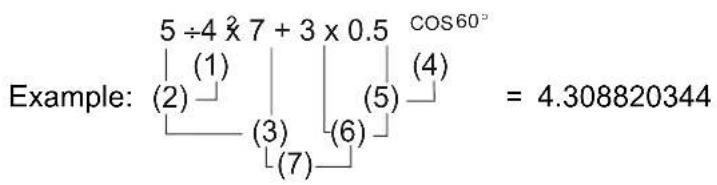
Key Input Display
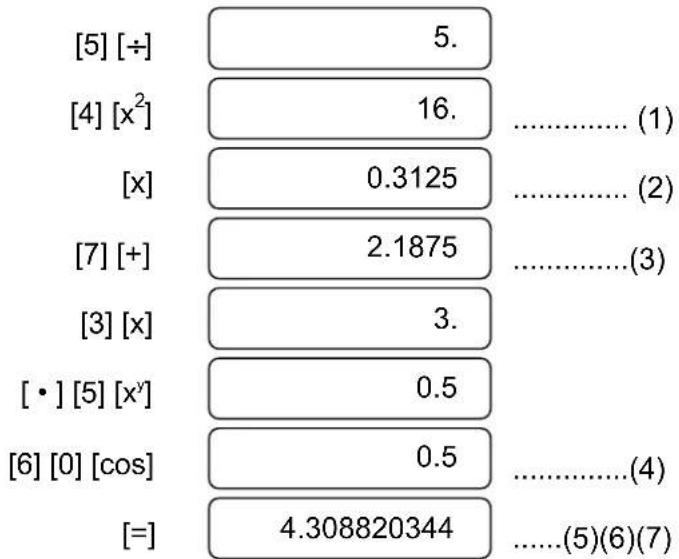
other
| Label | Value | |---|---| | [5] [÷] | 5. | | [4] [x²] | 16. | | [x] | 0.3125 | | [7] [+] | 2.1875 | | [3] [x] | 3. | | [•] [5] [x^y] | 0.5 | | [6] [0] [cos] | 0.5 | | [=] | 4.308820344 | ......(1) ..........(2) ..........(3) ..........(4) ..........(5)(6)(7)When execution starts with high priority calculations it is necessary to save low priority calculation, and for that reason there are 6 internal storage levels supplied.
These storage levels are also used in calculations involving parenthesis, therefore as long as priority operations involving parenthesis do not exceed 15 levels the calculations may be performed as they appear in the equation.
2. Addition, subtraction, multiplication and division and constant calculations.
The added in addition, subtracted in subtraction, multiplicand in multiplication, the divisor in division and the x value in power (x) and Root ( ). Calculations takes on the value of constant.
Example:
$$ \begin{array}{l} 1. 1 2 3 + 4 5 6 \quad \underline {{\quad}} = 7. 1 2 3 \quad \underline {{\quad}} \div 4 = \ 2. 7 8 9 + 4 5 6 = 8. \underline {{4 5 6}} \quad \div 4 = \ 3. \quad - 4 5 6 = 1 2 3 7 ^ {4} = \ 4. \quad - 4 5 6 = 7 8 9 0. 8 ^ {4} = \ 5. \quad 1 2 3 \times 4 5 6 = \sqrt [ 5 ]{1 2 7} \neq 1. \ \end{array} $$
- ____ 123 × 78910242.=
NO.
Key
Input
Display
- [1] [2] [3] [+] [4] [5] [6] [=]
579.
- [7] [8] [9] [=]
1245.
Input and output the independent memory is done by pressing [X M] , [MR] , [M+]
Example: 123 x 2
| 456 | x | 3 | |
| 789 | x | 4 | |
| +) | 1470 | ||
| Total | 6240 |
Key Input
[ON/C] [X→M]
Display
0.
[1] [2] [3] [x] [2] [M+]
M
246.
[4] [5] [6] [x] [3] [M+]
M
1368.
4. Calculations with parenthesis.
Parenthesis are used when it is desired to perform calculations in a first priority that usually followed for the +,-,x,÷,x^y,[y]x , operations. In other words the “(” “)” force those prior operations it to be pending until the calculation inside the parenthesis are performed.
Parenthesis may be used in a chained calculation as long as the total of levels ending due to the automatic priority Logic and parenthesis does not exceed 15.
Example: 6+ [(5-3.6+5)x0.8-6] x3.2 =
| Key | Input |
| [6] [+] [ ( ) [ ( ] | 0. |
| [5] [-] [3] [ • ] [6] [+] [5] [ ) ] | 6.4 |
| [x] [ • ] [8] [-] [6] [ ) ] | - 0.88 |
| [x] [3] [ • ] [2] [=] | 3.184 |
5. Coordinate conversion:
(1) polar → rectangular
Example:
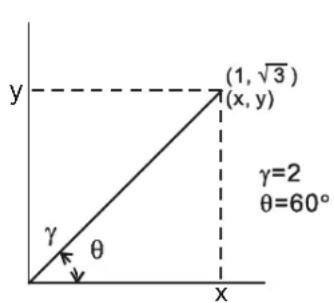
Key Input Display
[2] [a]
[60] [b]
[SHIFT] [P→R]
[b]
2.
60.
1.
1.732050808
(2) rectangular → polar
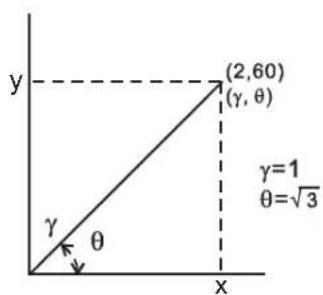
Key Input Display
![[1] [a] 1. [3] [√] [b] 1.732050808 [SHIFT] [R→P] 2. [b] 60.](/content/2026/05/846934/images/2d2a3455efe0c9a896e43f503ca7a30563e4e49473402ee6475ca2c674863b18.jpg)
- Complex Calculation
| EXAMPLE KEY | INPUT DISPLAY | ||
| (5 + 4i) + (6 + 3i)= 11 + 7i | [SHIFT] [CPLX] | DEG | CPLX0. |
| 5 [a] | DEG | CPLX5. | |
| 4 [b] | DEG | CPLX4. | |
| [+] | DEG | CPLX0. | |
| 6 [a] | DEG | CPLX6. | |
| 3 [b] | DEG | CPLX3. | |
| [b] | DEG | CPLX11. | |
| [=] | DEG | CPLX7. | |
| EXAMPLE KEY | INPUT DISPLAY | ||
| 6 x (7 - 9i) x (-5 x 8i) = 222 + 606i | [ON/C] | DEG | CPLX0. |
| 6 [a] [x] | DEG | CPLX0. | |
| 7 [a] 9 [+/-] [b] | DEG | CPLX-9. | |
| [x] | DEG | CPLX0. | |
| 5 [+/−] [a] 8 [b] | DEG | CPLX8. | |
| [=] | DEG | CPLX222. | |
| [b] | DEG | CPLX606. | |
7. Statistical calculation.
Example:
(1) What is the average and standard deviation?
Data: 55, 53, 57, 54, 51, 56, 55, 52
Key Input Display Note
SD
[SHIFT] [SD] 0 set statistics mode
[5] [5] [DATA] 1 display the volume
[5] [3] [DATA] 2 of input data
[5] [7] [DATA] 3
[5] [4] [DATA] 4
[5] [1] [DATA] 5
[5] [6] [DATA] 6
[5] [5] [DATA] 7
[5] [2] [DATA] 8
[ ] 54.125 Average of datum
[SHIFT] [Σx] 433 Total of datum
[SHIFT] [ x^2] 23465 Total of square of datum
[n] 8 Number of input data
[^n-1] 2.031009601 Standard deviation of samples (σn-1)
[x^2] 4.125 Unbiased of variance
[SHIFT] [σn] 1.899835519 Standard deviation of population (σn)
[SHIFT] [SD] 0 Clear the statistics mode ("SD" clear)
(2) Recorrect of data
Key Input Display Note
[SHIFT] [SD] 0 Set statistics mode
[5] [0] [DATA] 1
[6] [0] [DATA] 2 Input the incorrect data (60)
- E16 -
[6] [0] [SHIFT] [DEL] 1 Clear the incorrect data (60)
[5] [6] [DATA] 2 Input the correct data (56)
[5] [4] [x] [3] [DATA] 5 Input the incorrect data (54x3)
[5] [4] [x] [3] [SHIFT] [DEL] 2 Clear the incorrect data (54x3)
[5] [8] [x] [3] [DATA] 5 Input the correct data (58x3)
[5] [2] [x] [4] [DATA] 9 Input the incorrect data (52x4)
[5] [5] [DATA] 10 Input the correct data (55)
[5] [2] [x] [4] [SHIFT] [DEL] 6 Clear the incorrect data (52x4)
[SHIFT] [SD] 0 Clear the statistics mode ("SD" clear)
SPECIFICATIONS
Display capacity : 10 digits full-floating or Mantissa 8 digits with Exponent 2 digits plus 2 negative code digits.
Components : CMOS / LSI
Display : Liquid crystal (FEM type)
Power supply : 3V (DC) GP76Ax2 Approx. 1500 hours when used 2 hours a day.
Power consumption : 0.15mw
Operation Temperature : 0°C \~ 40°C (32°F \~ 104°F)
Size : 141mm (L) x 76mm (W) x 9mm (H)
Weight : 86g
AUTOMATIC POWER OFF
If any key is not pressed for about 7.5 minutes, the power is automatically shut off.
REPLACING THE BATTERIES
Your calculator is powered by two alkaline-manganese batteries. When the display dims, replace the batteries.
-
Unscrew the two screws on the back of the calculator.
-
Insert a flat bladed screwdriver into the slot between the upper and lower case then carefully twist it to separate the case.
-
Remove both batteries and dispose of them properly. Never allow
children to play with batteries.
- Wipe off the new batteries with a dry cloth to maintain good contact.
- Insert the two new batteries with their flat sides (plus terminals) up.
- Align the upper and lower cases then snap them to close together.
- Tighten the screws.
- SPECIFICATIONS ......17
- AUTOMATIC POWER OFF ....17
- REPLACING THE BATTERIES....17
- FEATURES
- THE KEYBOARD AND OPERATING CONTROLS
- DISPLAY
- CALCULATION
- Calculation order of priority.
- Addition, subtraction, multiplication and division and constant calculations.
- Calculations with parenthesis.
- Coordinate conversion:
- Statistical calculation.
- SPECIFICATIONS
- AUTOMATIC POWER OFF
- REPLACING THE BATTERIES
Brand : CITIZEN
Model : SR-135T
Category : Calculator