
SV-871 - Lecteur vidéo cassette DAEWOO - Free user manual and instructions
Find the device manual for free SV-871 DAEWOO in PDF.


| Type | Video cassette recorder (VHS) |
| Model | SV-871 |
| Brand | Daewoo |
| Dimensions (W x H x D) | 360 x 91 x 280 mm |
| Weight | 3.3 kg |
| Power supply | 200V–240V, 50/60 Hz |
| Power consumption (HiFi) | 16 W |
| Power consumption (Mono) | 14 W |
| Stand-by power consumption | 4.3 W |
| Video system | PAL B/G |
| Channel range | VHF 2–12, UHF 21–69, CATV S1–S41, Hyperband |
| Channel locations | 99 + AUX |
| RF output channel | UHF CH 21–69 (default 52) |
| Tape speeds | SP (standard play), LP (long play) |
| Hi-Fi audio | Frequency response 20 Hz–20 kHz, dynamic range >80 dB, S/N >60 dB |
| Timer | 1 month, 8 programs |
| Connections | RF in/out, 2 SCART sockets (AV1 in/out, AV2 in), audio L/R phono, front AV inputs |
| Special features | ShowView, VPS/PDC, NTSC playback, MESECAM playback, index scan, variable speed search & slow motion, 16:9 widescreen, CM skip, auto repeat, child lock, OSD on/off |
| Operating temperature | 5°C to 35°C |
| Humidity | < 80% |
| Accessories supplied | Remote control, RF cable, batteries, instruction manual |
Frequently Asked Questions - SV-871 DAEWOO
User questions about SV-871 DAEWOO
0 question about this device. Answer the ones you know or ask your own.
Ask a new question about this device
Download the instructions for your Lecteur vidéo cassette in PDF format for free! Find your manual SV-871 - DAEWOO and take your electronic device back in hand. On this page are published all the documents necessary for the use of your device. SV-871 by DAEWOO.
USER MANUAL SV-871 DAEWOO
Please keep the video's guarantee sheet and receipt for your video in a safe place.
Precautions
- Read this booklet carefully.
- Make sure the rating of your household electricity supply matches that shown on the back of the video recorder.
- Read this page and the chapter and the "Setting up your video" to help you set up and adjust your video recorder.
- Do not put the video recorder in a hot or humid place (to avoid the risk of fire and electric shock).
- Do not open the video recorder. Get a qualified technician to carry out any repairs.
- Do not connect the video recorder to the power supply if you have just moved it from a cold environment to a warm room. This can lead to condensation inside the video which can seriously damage the video and cassettes. Wait around two hours to allow it to reach room temperature.
- Make sure the video is placed at least 10cm apart from other home appliances or obstacles to get sufficient ventilation.
- This apparatus shall not be exposed to dripping or splashing and no objects filled with liquids, such as vases, shall be placed on top of the video.
- Put the video on a steady, flat surface.
- Only clean the video with a soft, lint-free cloth. Do not use harsh or alcohol-based cleaning agents.
Disposal of Used Electrical & Electronic Equipment

The meaning of the serial on the product, its necessary or packaging indicates that this product shall not be treated as household waste. Please dispose of this equipment at your applicable collection port for the recycling of electrical & electronic equipments waste. In the European Union and Other European countries which there are superior collection systems for waste electrical and electronic products. By ensuring the correct disposal of this product, you will also prevent potentially hazardous to the environment and to human health, which could otherwise be caused by unsuitable waste handling of this product. The recycling of materials will help constructive natural resources. Please do not therefore dispose of your basic electrical and electronic equipment with your household waste. For more detailed information about recycling of this product, please contact your local city office, your household waste disposal service or the shop where you purchased the product.
For your own safety!

- There are no components in this video recorder you can service or repair yourself.
Do not open the case of the video recorder. Only allow a qualified engineer to repair or service your video.
This video recorder is designed to work continuously. Switching it off (onto stand-by) does not disconnect it from the mains. To disconnect it from the mains, you have to unplug it. - Batteries contain chemical substances, so they should be disposed properly. Please observe the local regulations regarding the disposal of packaging materials, exhausted batteries and old equipment.

Before you do anything with the video, please read the chapter "Setting up the video".
Contents
Setting up the video
Connecting your video through RF lead, Connecting your video through a scart lead .... 2
Connecting your video to the satellite system or DVB receiver, Connecting your video to the hi-fi system (Option 1), Connecting your video to the hi-fi system (Option 2)....3
How to connect your video to another video, How to connect your video to a camcorder .... 4
Tuning your video to the TV using an antenna cable (RF cable) 5
What to do if you get picture interference when using RF lead 6
Tuning your video recorder to the television 7
2nd scart socket....8
Tuning in new stations
Manual tuning....9
Station names....10
Sorting programme locations, Clearing programme locations 11
Front panel controls....12
Playing cassettes
Play 13
Still, Variable picture search, Variable slow motion, Finding new recordings (index scan) 14
16.9 Wide Screen format....15
CM skip (commercial skip), Auto Repeat, Child lock 16
OSD | On Screen Display| On/Off, Setting time and date.... 17
Recording cassettes
Recording cassettes, Simple recording, One touch recording-OTR 18
Timer recording using ShowView 19
Normal timer recording 20
Timer review – changing and erasing record settings....22
More functions
Clock and counter display. Remaining time and cassette length, Finding the counter zero position 23
Resetting the counter to zero, Cassettes, Power-saving features, Language select 24
The hi-fi system 25
Appendix
Index, Technical information 26
Problem-solving guide 28
QUICK START GUIDE FOR SORTING CHANNELS ON THE VCR 29
Quick-start guide .... back cover

- On the following pages, the pictures show the buttons you need to press on the remote control and what you should see on the television screen or video display.
Put the batteries into the remote control. Make sure the (+) and (-) signs on the batteries agree with the (+) and (-) signs in the battery compartment.
Setting up your video (Option 1) - Connecting your video through RF lead
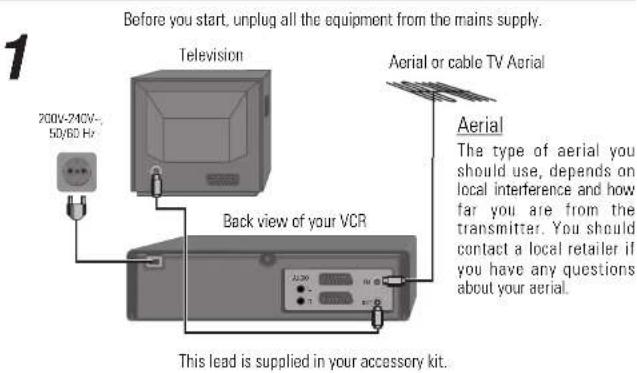
If you have connected your video as shown in option 1, turn to page 6.
Setting up your video (Option 2) - Connecting your video through a scart lead
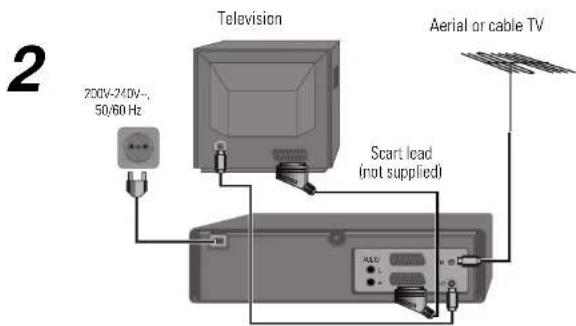
You will get better pictures and sound quality if you connect your video with a scart lead.
If you have connected your video as shown in option 2, turn to page 8.
Connecting your video through extra equipment
Connecting your video to the satellite system or DVB receiver
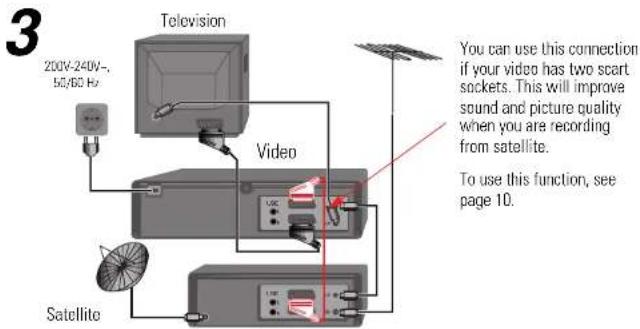
Connecting your video to the hi-fi system - Option 1
![4 200V 240V~ 50/60 Hz Television Hi-Fi Aerial Video Plug a phono cable into the 'Audio L/R' sockets on the back panel and into the audio sockets on any audio amplifier, if needed. If your video does not have this connection, see below [Option 2]](/content/2026/05/846713/images/8f5fd4d31b407bc7fda444333e22aeb2b04462a5cbe37465b4cde0618c504b1c.jpg)
- Two scart connection or Audio L/R-output is only available on some models.
Connecting your video to the hi-fi system - Option 2
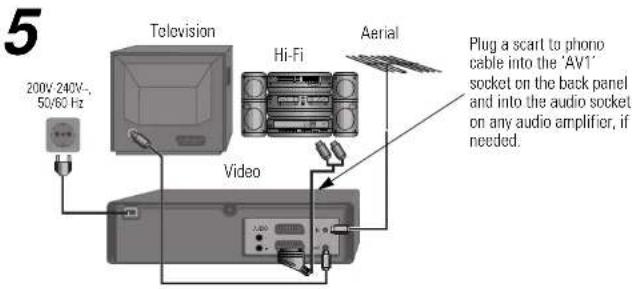
How to connect your video to another video
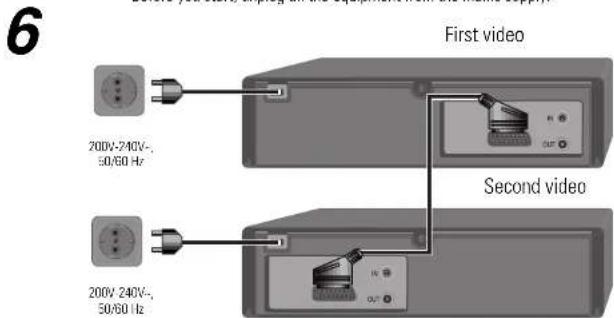
1) Insert the tape you wish to record on into the first video and press AV until 'AV1' appears on the front display.
2) Insert the tape you wish to copy from into the second video. Press the play button on the second video.
3) Press the record button on the first video
The video will start recording.
If your video has two scart sockets, you can use the other socket 'AV2' to connect other equipment.
How to connect your video to a camcorder
Before you start, unplug all the equipment from the mains supply.
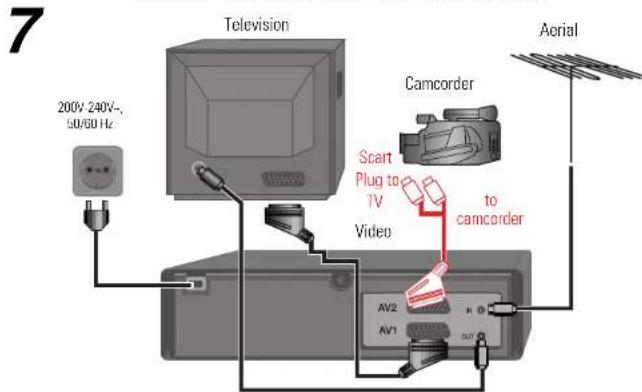
If you have connected your camcorder in this way, you can also connect a scart lead from 'AV1' on the back panel of the video to the television. To use this function, see page 10.
You can also connect the camcorder by using a phono cable if your video has front input sockets. Check the front of your video for this connection, see page 10.

Tuning your video to the TV using an antenna cable (RF cable)
If you have connected your video through the scart connection (diagram 2 on page 2), go to page 7.
Use the following method to tune your video in if you have connected it through RF cable (as shown in diagram 1 on page 2)
Once you have carried out the steps in 'Setting up your video' (diagram 1 on page 2), switch on your TV.
1
RF 52

Press the remote control and RF52 will be displayed on the front of your video.
2
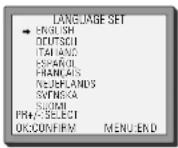
Select the wanted language and country with PR+ or PR- button. Press OK to confirm. Tune the TV, using the pre-set functions on your TV as described in its manual, until you see a blue CH search screen. Store this setting on the TV and go to page 8.
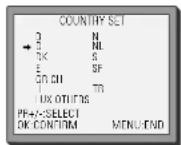
For selecting the country, refer to the followings.
B: Belgium
N: Norway
D: Germany
NL: Netherlands
DK: Denmark
S: Sweden
E: Spain
SF: Finland
GR: Greece
CH: Switzerland
I: Italy
TR: Turkey
LUX: Luxembourg
You can also call a test-picture in the Videorecorder: press OK on the remote control more than 5 seconds. Please search the test-picture of videorecorders with the broadcasting-setting of your TV. Refer to operation manual. When you find the test-picture, memorise it on the program place. Press OK on the remote control more than 5 seconds to exit the test-picture.
6
What to do if you get picture interference when using RF lead

The RF output can be adjusted from 21 to 69, this video is defaulted to RF52. If other broadcasts are close to RF 52 they may cause picture interference, you can change the RF output until your television has a noise-free channel for your video.
Option 1
If other stations are positioned on or near the current RF OUTPUT CH, the following guide message appears automatically.
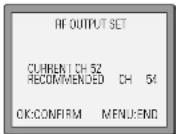
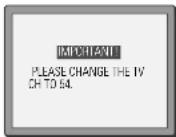
Press OK to confirm. Press MENU to end.
Option 2
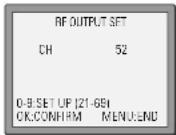
Change the RF output from 52 using the remote control. Press MENU. Select 'VCR Set Up' by pressing PR- twice then OK. Select 'RF Output Set Up' by pressing PR- twice then OK. Change the channel number using buttons 0-9. Press OK to confirm. Press MENU to end.
If there is still picture interference repeat option2.
Option 3
Buy a scart lead from your local electrical shop. Connect the scart lead as shown on page 2, diagram 2.
If you want to change the RF output in the future due to new broadcasting stations or equipment and so on, press and hold the OK button on the remote control until RF 52 is displayed on the front of the video. Then go to option 2 above.
Tuning your video recorder to the television
If you already set the language and country set, you can see the followings.
1
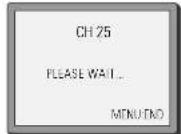
If you do not see this picture, check that the video is connected properly.
Press OK for 'Auto Set' or 'Auto Search'.
2
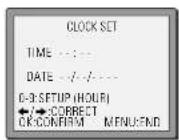
Unless you are living in an area with poor reception, 'Auto Set' or 'Auto Search' tunes in all the stations you can receive in your country.
See page 12, 13 and page 29 if you need to change any of the automatic settings. You should finish the auto set before you go to page 12, 13 or page 29.
3
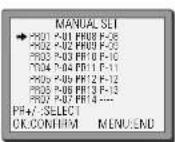
The clock is also set automatically. If the clock has not been set, the clock setting screen will appear.
Please see "Setting time and date" on page 9.
If you want to change the station names, see page 12.
If you want to change the programme locations see page 13.
Press MENU to end.

Important: If you switch the video off at the mains supply overnight, you do not have to return the video. Simply press 🔒 and then MENU on the remote control to restore all the program settings. See page 9 to set the time and date.
Setting time and date
1
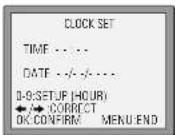
If the 'CLOCK SET' display is not already on the screen press MENU.
Choose 'VCR SET UP' by pressing PR- twice, then OK.
Choose 'CLOCK SET' then press OK.
2
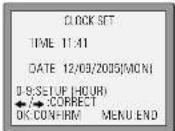
Once the 'CLOCK SET' display is on the screen, move to the position you want to change by pressing ← or →.
Use the number buttons 0 to 9 on the remote control to enter the correct time and date.
Press OK to confirm the settings, and press MENU to end.
OSD (On Screen Display) ON & OFF
This VCR is set to "OSD (On Screen Display) ON" mode at the factory, but you can change it to OFF mode. When a function is changed at the front display or remote control the change will be displayed on the screen.
1
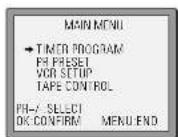
Press MENU.
Choose "VCR SETUP"
And press OK.
2
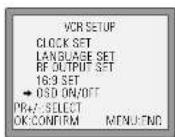
Choose "OSD ON/OFF".
3
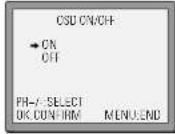
If you want OSD OFF mode, press PR- and press OK.
OSD characters will not be displayed in the normal picture at the start of each mode change.
2nd scart socket
If your video has the AV2 output, shown in the diagram below, you can connect other equipment as seen on pages 3, 4 and 5.
2nd scart INPUT ONLY
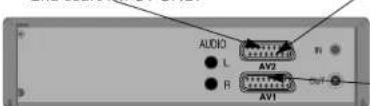
INPUT+OUTPUT

When connecting other equipment please refer to their manuals for further information. This video manual recommends the set up as shown on page 3 diagram 3. When connected by this method if the equipment is turned off the video behaves as normal, but if the equipment is turned on the video will automatically switch over to AV2 mode and displays the channel of the other equipment, channel selection can only be performed by the other equipment, the video PR+/PR-buttons have no effect.
To return to normal video use the other equipment must be turned off.
When the program is encoded (and you have a decoder connected to socket EURO AV2), you must set in OSD menu (PR PRESET/MANUAL SET) with “DECODER” to “ON”.
Recording from other Equipment.
Simple recording can be performed (refer to page 18), ensure the equipment is turned on and is displaying the correct channel.
Timer recording (refer to page 19), set the video to perform a timed recording ensuring AV1 is selected as the channel to be recorded. Some equipment may have a timer which allows it to be powered on to the correct channel, if this feature is not available the other equipment should be left powered on.
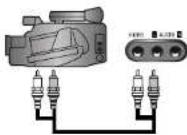
Front AV
If the video has front input sockets, it is possible to connect devices such as a camcorder to the video. To watch a camcorder tape the video must be in AVF mode. Recordings of this input are the same as described on page 5.
Manual tuning
Manual tuning allows you to tune in new stations or equipment such as a satellite receiver and so on.
1
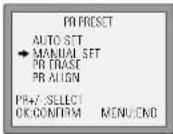
Press MENU
Choose 'PR Preset' by pressing PR- then OK.
Choose 'Manual Set' by pressing PR- then OK.
2
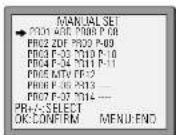
Press PR+ or PR- to select any programme number that is not being used, for example '----' or 'P-xx'.
Press OK to confirm.
3
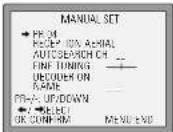
Set the station you want:
• the programme location number.
- the broadcast system you want (Aerial|CH) or Cable(CCII).
- You can directly enter the real channel number with the 0 to 9 buttons, or search by pressing
- The fine tuning you can adjust, by pressing /← →.
- When the program is encoded (and you have a decoder connected to socket EURO AV2), press the ← or → select ON or OFF,
4
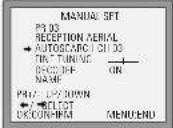
If DECODER mode does not appear on the screen, it is not available on your video.
- Change or create the station name. Refer to page 10.
5
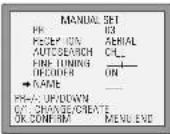
Press OK to store the picture you want.
Tune in other stations (by following step 3 onwards) or press MENU to leave the tuning mode.
Your video has 99 available channel slots. It will only store programmes that are available in your area. You can tune in other stations in any channel slot that is not already being used.
Station names
If your video is showing no station name or is showing a station name incorrectly, you can change this.
1
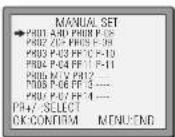
Press MENU
Choose 'PR Preset' by pressing PR- then OK.
Choose 'Manual Set' by pressing PR- then OK
Select the channel to be renamed by pressing PR- then OK.
2
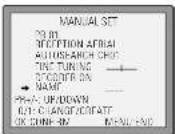
Select NAME position.
EITHER
Press the 0 button to change the given name.
By pressing the button this will select preset station names.
3
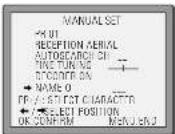
Or press the 1 button to create the station name.
Change the letters with the PR +/- buttons, move to the next letter with the ←/→ buttons.
4
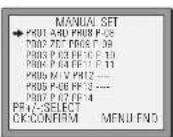
Press OK to confirm and
MENU to end.

Should you wish to tune in all the channels available in your region, please refer to page 6.
Sorting programme locations
Sorting programme locations allows you to put the video programme in the same order as your TV.
1
Press MENU
Choose 'PR Preset' by pressing PR- then OK
Choose 'PR Align' by pressing PR+ then OK.

2
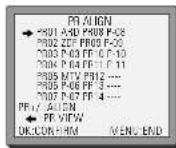
Press PR+ or PR- to select the programme you want to swap. Confirm by pressing the OK button.
Press PR+ or PR- to move the station to the program number you want to store it on. Confirm with the OK button.
Press MENU to end.
Clearing programme locations
Clearing programme locations allows you to erase any stored programmes you no longer want.
1
Press MENU.
Choose 'PR Preset' by pressing PR- then OK.
Choose 'PR Erase' by pressing PR+ twice and then OK.
These buttons are used on the following two pages.
2
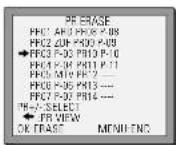
Press PR+ or PR- to select the station you want to clear.
Press and hold ← to watch the picture.
If you want to erase the station, press OK.
Press MENU to end.
If you don't want to erase the station, press MENU.
Front panel controls
The following buttons are on the front of your video.
○ STANDBY/ON
stand-by/power on
■ STOP/EJECT ▲
Stop and eject
VIDEO ① AUDIO
front input sockets for connecting a stereo camcorder (left and right channels)
(This is only available on some models. Check the front of your video to see if this connection is available.)
Change the station


Rewind or fast forward a cassette from stop, or picture search backwards or forwards if the video is playing a cassetto.

Play
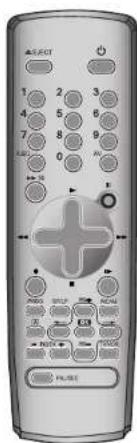

; this button is not available for this set

power on/off
Sets the record timer using ShowView numbers (optional)
number buttons to select programmes (stations) or to type in numbers
TV or video viewing selection (with the SCART connection, page 2)
a button for selecting input sources for recording: TV stations – input sockets. You can select the external line by using "00", "AV", or "PR+/-" button. (refer to page 10)
clock/counter on-screen display
CM skip button to cue the tape for 30 seconds

pause (record), still (playback)
playback start
stop
rewinding/fast forwarding a cassette from stop, or picture search backwards/forwards from playback mode

the record or OTR button |One Touch Recording means: each time you
press the button recording is extended by 30 minutes)
to eject the cassetto
a button that doubles the maximum recording time for very long recordings
the menu controls, programme (station) selection (PR +/-)
the variable slow motion button
to search the beginnings of records (index)
to select the sound output (this function is only in 6 head HiFi models available).
PLAYING cassettes
Play
Push the cassette smoothly and squarely into the cassette bay, with its windows pointing up.
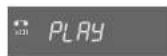

Start playback.
A.Sel is only available on some models. If this screen does not appear when you press the button, A.Sel is not available on your video.
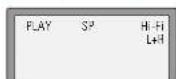

If you hear an unclear or mixed sound output in different languages, select one of the sound options, see page 26.
The screen will only appear if you use a hi-fi tape or play a hi-fi or NICAM recording.
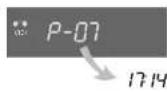

Stop playback.


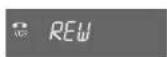

Fast forward or rewind the cassette from stop.
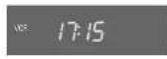

Eject the cassette.

- When you load a protected cassette such as pre-recorded film (see page 25) playback will start automatically.
- When you are playing tapes of poor quality or tapes which have been recorded on another machine, you can use the PR+ or PR- buttons while the cassette is playing to reduce horizontal interferences stripes.
- Playing NTSC tapes on PAL TV: If you play cassettes which have been recorded on the NTSC colour system (as used in the USA), you can watch the pictures on most PAL TVs.
On older TVs, some black lines may appear at the top and bottom of the screen. The picture may
also roll up or down. To prevent these problems adjust the V-HULD knob on your television.
NTSC : National Television Systems Committee.
Still
There must be a cassette in the video.


Still picture from playback.
Each press of the button moves the picture on one frame.
Press the play button to switch back to normal playback.
After approximately five minutes on still, the cassette will automatically switch to normal playback. If the still picture is jumping, you can steady it by using the PR+ and PR- button.
Variable picture search
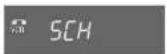

Keep pressing ▶▶ to vary the forward search speed.


Keep pressing ◀ to vary the rewind search speed. Pressing the above buttons will vary the search speed in two speeds.
Press ▶ to switch back to normal playback.
Variable slow motion


Starting from playback you can keep pressing ▶ to control slow motion speed in six steps.
Press ▶ to switch back to normal playback.
Finding new recordings (index scan)
The video index search system allows you to find the beginning of any recording you have made on your video. Your video automatically records index marks on the tape whenever a recording is started.
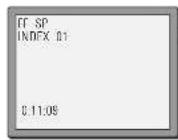

Press INDEX + or INDEX – to search forwards or backwards.
The video will now wind to the beginning of a recording, play it for about 6 seconds, then wind on to the next one.
When you see the recording you want to watch, press PLAY.
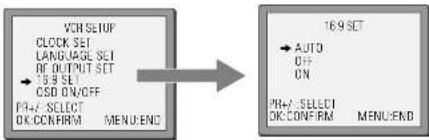
16:9 Wide-screen format
16:9 Wide-screen format is only available through wide-screen broadcasts. Your TV must have 16:9 function. You must connect your TV to the video using an A/V scart lead and the video must be in VCR mode. (See page 2, diagram 2.)
1
Choose '16:9 set' by pressing MENU. Press PR- twice to 'VCR Set Up' then OK. Press PR+ three times then OK.

2
flowchart
graph LR
    A["VCH-SLUP"] --> B["169 SET"]
    B --> C["169 SET"]
    style A fill:#f9f,stroke:#333
    style B fill:#ccf,stroke:#333
    style C fill:#cfc,stroke:#333
Press PR- to choose the setting you want, for example, -AUTO, -ON or -OFF. Confirm the setting with OK.
• 16:9 Set
-Auto: This video automatically detects the program format (16:9 or 4:3) and records or plays this program in the same format.
3
-ON : The video will play or record all broadcasts in 16:9 format. 4:3 broadcasts will be converted to 16:9 format.
-OFF : The video will play or record all broadcasts in 4:3 format only.

For the above formats to work your TV must be able to automatically detect a 16:9 broadcast. In the case of turning 16:9 format off, your TV may override this decision and display the picture in 16:9 format.
CM Skip

If you press [CM Skio] button on the remote control during playback mode, tape advances for 30 seconds segment.
Auto Repeat

If you press the PLAY button for 5secs during playback mode, REP should appear on your display, the video goes into Auto repeat mode. This video repeatedly plays the tape from beginning to end.
To release this mode, press any mode operation button such as PLAY, FF, REW or STOP.
Child lock
You can only set the child lock with your remote control.


Press the button for about 5 seconds.
No buttons of front panel can be operated now and LOCK INDICATOR ("SAFE") will be displayed momentarily on LED display. Keep your remote control in a safe place.
To release child lock, press any button of the remote control.
Recording cassettes
- If you want to use the video's timer to record a programme, the clock, date and stations must be set correctly.
- Load a cassette with its safety tab in place (see page 25) and with enough free tape for the recording.
Simple recording
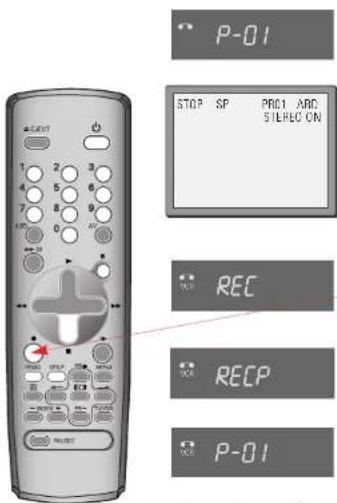
Load a cassette with its safety tab in place (see page 25).
Press PR+ or PR- to choose the station you want to record.
Press SP/LP if you wish to double the length of the cassette's recording time. For example, on an E-240 cassette you can record for up to four hours when SP is displayed, or up to eight hours when LP is displayed.
Press● to start your recording.
Press ■ if you want to stop the recording for a short while.
Press ● to continue recording.
Press ■ to stop your recording.
One-touch recording-OTR
These buttons are used on the following two pages.

Press PR+ or PR- to choose the station you want to record.
Every time you press ●, the recording time will increase by 30 minutes. It is possible to record for up to 10 hours if there is enough room on the cassette.

- To cancel OTR press and hold the STOP button for about five seconds until the video stops recording.
- If you want to record from other equipment that is connected to your video, see pages 3, 4, 5 and 10.
Timer recording using ShowView
ShowView is an automatic system which makes it easier to set the timer.
1
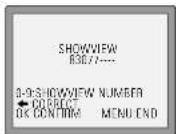
Press PROG. to select the ShowView screen. (If ShowView mode does not appear on the screen, it is not available on your video. Go to page 21).
ShowView numbers are shown in TV guides.
From your current TV guide, type in the number next to the programme you want to record using the number buttons 0-9. Press OK to confirm.
2
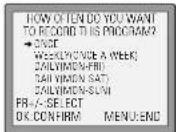
Press PR+ or PR- to select how often you want to make the recording, for example, once, weekly and so on.
Press OK to confirm.
3
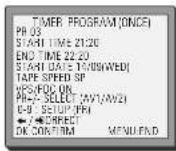
If you wish to change any details:
Move to the details you want to change using the ←/→ buttons.
Change the setting using the PR+ or PR- or number buttons 0-9.
If all the settings are correct, press OK. The on screen display will remind you to enter a cassette and turn the video off.
Press 🔒 to switch your video off. Your video will not record unless you do this.
4

You can switch the video on again if you want to set the timer to record another programme. Remember to switch the video off when you have finished setting the timer.
If VPS/PDC does not appear on the screen, it is not available on your video.
VPS=Video Programming System PDC=Programme Delivery Control
- VPS/PDC sets your video to adjust the start times of your timed recording. This happens even if a programme starts earlier or later than advertised.
VPS/PDC works when the broadcaster sends a signal, but the signal is not always sent.
If you are not sure the signal will be sent, it is best to switch VPS/PDC off.
- If there is no programme number displayed under 'PR' in the change menu, the video doesn't yet know the number for the programme you want. Type it in and this will be stored for later recordings.
- If you wish to record from a satellite receiver, select under 'PR' the satellite programme or AV (depending whether the video is connected with the antenna cable or the scart-cable). Leave the satellite tuner switched on and set the programme you want to record.
- The video will warn you if you have set the timer to start recording a second programme before the first recording has finished.
-
To stop the recording after it has already started, press and hold the STOP button for about five seconds until the video stops recording.
• ShowView and ShowView code are trademarks of Gemstar Development Corporation. ShowView system is manufactured under license from Gemstar Development Corporation. -
For timer recordings, clock, date, and stations must be set correctly.
- Load a cassette with its safety tab in place (see page 25) and with enough free tape for the recording.
Normal timer recording
1
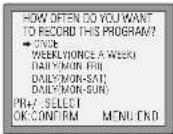
Press MENU.
Choose "Timer Program" by pressing OK.
There are positions for eight timer programs.
Press PR+ or PR- to select an unused program, for example '----' then press OK to confirm.
Press PR+ or PR- to select how often you want to make the recording, for example, once, weekly and so on. Press OK to confirm.
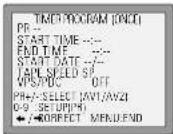
- PR: Use PR+ if you want to choose the AV channel (see page 9) or 0 to 9 for other channels.
- Start time: Use buttons 0 to 9 to enter the start time.
- End time: Use buttons 0 to 9 to enter the end time.
- Start date: Use buttons 0 to 9 to enter the date.
♦ Tape Speed : Use PR+ if you want to choose LP (see page 19). - VPS/PDC : Use PR+ if you want to switch VPS/PDC on (see page 20). If VPS/PDC does not appear on the screen, it is not available on your video.
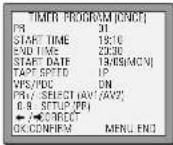
If you want to change any of the details. Move to the details you want to change using the ← and → buttons.
Change the setting using the PR+ or PR- or number buttons 0 to 9.
If you want to change any of the details. Move to the details you want to change using the ← and → buttons.
Change the setting using the PR+ or PR- or number buttons 0 to 9.

2
20
3
4
If all the settings are correct, press OK to confirm.
The on screen display will remind you to enter a cassette and turn the video off.
5

Switch your video off by pressing the ⏻ button.
You can switch your video on again if you want to set the timer to record another programme. Remember to switch the video off when you have finished.
- The video will warn you if you have set the timer to start recording a second programme before the first programme has finished. If you don't adjust the times, the video will record the first programme completely, then start to record the second one.
- If there is not enough free space for the recording on the cassette the video will automatically switch to 'LP' to double the recording time left on the cassette.
- The recorder will eject cassettes which have the safety tab removed (page 25)
- To stop a recording which has already started, press and hold the STOP button for about five seconds until the video stops recording.
Timer review - changing and erasing record settings
1
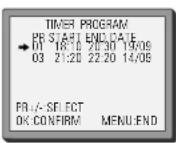
Press MENU.
Choose "Timer Program" then press OK.
2
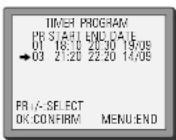
Select the program you want to change or erase by pressing PR+ or PR-.
Press OK to confirm.
3a
3b
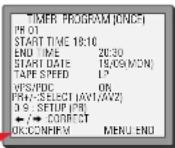
Changing a setting
Select the details you want to change by pressing or .
Use the number buttons 0 to 9 to change the settings. Use PR+ to select the AV channel, to change the tape speed and to switch VPS/PDC on and off.
When you have made all the changes, press ← or → until you see 'OK : confirm' on the bottom line of the screen. Press OK.
Remember to load a cassette and switch the video off by pressing ⏻.
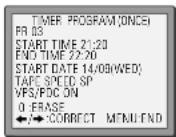
Erasing a setting
Press the number 0.
Press OK to confirm.
Press MENU twice to end.
- The counter counts in real time from when you load the cassette. This does not have to be at the beginning of the cassette. The counter does not count unrecorded parts of the cassette.
If you rewind the cassette, the counter will count backwards, if you rewind beyond the zero position, the counter counts in negative values for example. -0.01:15.
Clock and counter display
This display will only appear when there is a cassette in the video.
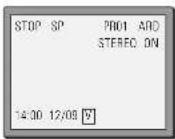
Press ☑ce to display the time and date.
Press ☐ice to display the counter time and how long is left to the end of the cassette.
Press three times to clear the screen.
If didn't wind tape (PLAY), it doesn't appear the tape remain time.
During fast forward or backward, the tape remain time can be displayed only in "VCR mode". To change between VCR- and TV mode, press TV/VCR button.
Remaining time and cassette length
This display will only appear when there is a cassette in the video. Press MENU and choose 'Tape Control' by pressing PR+ and then OK.

These buttons are used on the following three pages.
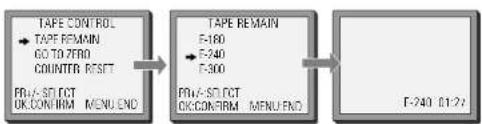
flowchart
graph LR
    A["TAPE CONTROL<br>→ TAPE REMAIN<br>GO TO ZERO<br>COUNTER RESET<br>FRU-SOCT<br>OK/CONIRM MENU END"] --> B["TAPE REMAIN<br>F-180<br>→ F-240<br>F-300"]
    B --> C["TAPE REMAIN<br>F-240 01/27"]
Choose 'Tape Remain' by pressing OK.
Press PR+ or PR- to select the length of your current cassette.
Press OK to confirm. The display will show how long is left to the end of the cassette.
This will be displayed for several seconds only.
Finding the counter zero position
This display will only appear when there is a cassette in the video.
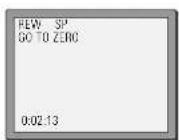
Press MENU and choose 'Tape Control' by pressing PR+ and then OK.
Choose 'Go to Zero' by pressing PR- and then OK.
The video will wind to the position 0:00:00 and stop.
Resetting the counter to zero
This display will only appear when there is a cassette in the video.
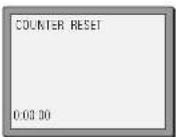
Press MENU and choose 'Tape Control' by pressing PR+ and then OK.
Choose 'Counter Reset' by pressing PR- twice and then OK. The video will reset the counter to zero.
Cassettes
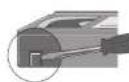
Use only good-quality cassettes with the VHS logo.
- Keep cassettes away from moisture or dust, magnetic and electrical fields (for example, loudspeakers and computer monitors).
- Always rewind cassettes to the beginning when you have finished using them. Stand cassettes up with the full spool at the bottom. Always keep cassettes in their cases.
You can protect your precious recordings from being recorded over by breaking off the safety tab on the side of the cassette (some cassettes have a slide). When you have removed the tab your video will eject the cassette if ever you try to record onto it.
If you want to record onto the cassette after removing the tab, cover the hole with sticky tape.
We advise you to use a head - cleaning cassette every six months to keep your video in perfect working order.
Power - saving features
Dimmer
Your video recorder's display will go dim when the video is on stand-by.
Auto power off
If your video is connected through RF, it will switch to stand-by when no station is received for more than five minutes.
Language Select
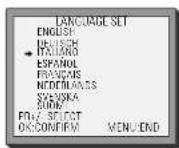
Press MENU.
Select „VCR SETUP“ by pressing PR- twice, then press OK. Choose „LANGUAGE SET“ by pressing PR-, then press OK. Use PR+ or PR- to select the wanted language and press OK.
Press MENU to confirm
Please note: If you want to enjoy HiFi-stereo sound, please connect your VCR via SCART cable to your TV unit.
The hi-fi system
If this screen does not appear when you press the A.SEL button, this function is not available on your video.
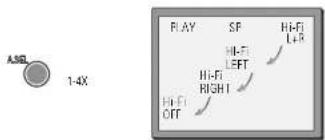
As well as the normal mono sound track of VHS video recorders, your video has a high-quality hi-fi sound system.
This means you can enjoy the following.
• Films with excellent stereo sound
• Films of full-length concerts in high quality stereo
• Films with impressive surround sound using extra surround-sound equipment
• VHS cassettes with hi-fi stereo sound and also VHS cassette with normal sound.
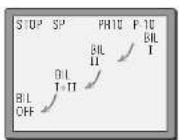
While a bilingual performance is being broadcast
First press: the on-screen display of sound output appears and the main language (original sound track) is selected.
Second press: the video selects the sub-language.
Third press: the video selects both main language and the sub-language.
Fourth press: the video returns to the original soundtrack.
For mono sound performance there is no choice available.
Index
Aerial 2,6
Bilingual....15,26
Cassette length 24
Channel 7-8, 11-13
Child lock 18
CM Skip 18
Condensation ...... Precautions
Counter 25
Euro AV 10
Location number 7-8,13
LP (long play) 19-21
Mains 2-5, 27
Mesecam 15
NTSC 15
OSD ON/OFF 9
OTR (One Touch Recording) 19
Technical information
Dimensions
Width x height x depth 360 x 91 x 280 mm
Weight 3.3 kg
Power supply
Voltage 200V-240V - 50/60Hz
Power consumption HiFi :16 Watts
Mono; 14Watts
Stand-by power consumption 4.3 Watts
System
Video PAL-B/G
Channel range VHF 2 - 12,
UHF 21 - 69,
CATV S1 - S41, x, y, z
[Hyperband]
Channel locations 99 + AUX
RF Out UHF CH 21 - 69 (52)
PDC (Programme Delivery Control) ...... 20
Protected cassette 25
Remaining time 24
RF out 7-8
Satellite 3,10
Scart socket 2-5,10
ShowView 20
SP (standard play) 19-21
Stand-by ____ Precautions
Station 7-8,12
Still-frame adjustment 16
TV/VCR button 2
VPS 20
16:9 Set 17
Video
System VHS
Speeds
Short play and long
play
Hi-Fi
Frequency response 20 Hz to 20 KHz
Dynamic range > 80dB
Signal-to-Noise-Ratio > 60dB
General
Temperature range 5°C to 35°C
Humidity range < 80 %
Timer 8
1 month
These technical details may change.
Problem-solving guide
The video has the time or - - - - on the display
If while you are setting up the video, the timer or - - - is in the display, the video is switched off or has already gone through the autoset procedure (OK has already been pressed). In this case, please turn to page 6 and carry out step 2 until you see the manual tuning screen.
A blue screen is displayed when you switch the video on
If a blue screen appears when you switch the video on, the AV button has been pressed. Press AV on the remote control until P-_ _ appears on the display of the video, or until a TV picture is displayed.
The timer light stays on the display, even though the recording has finished
If the timer light stays on even though the recording has finished, this is because VPS/PDC takes into account a delay in recording for up to 24 hours.
The TV/VCR button on the video remote control will not work
This button will only work if the TV has the appropriate internal switch and a scart lead is connecting the TV and video.
The television will not change channel when the video is turned on
If the television will not change channel while the video is on, check whether a scart lead has been connected. (See page 2 option 2)
If a scart lead has been connected, you need to press the TV/VCR button on the video remote control. When the small VCR symbol appears on the display, you can only change channel by using the video remote control.
If the TV/VCR button on the video remote control does not work, read the instruction book for the TV to find out about an audio video button.
The video has a number other than 52 when RF appears
A number other than 52 might be displayed on the video when RF is flashing in the display. This means that the number has been adjusted in the past.
The TV needs to be tuned in to get the blue auto set or auto search screen. (Refer to page 6)
QUICK START GUIDE FOR SORTING CHANNELS ON THE VCR
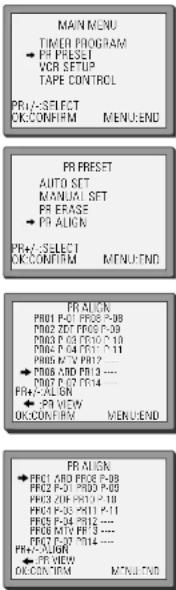
Once the 'Auto Set' function has been completed the On Screen Display will show a list of the channels which it has found, displayed in the order it found them.
It is unlikely, that they will be in the correct oder ie. ARD as PR01 and ZDF as PR02.
Therefore, it will be necessary to Sort the channels displayed, into the correct order.
Please follow the following procedure.
1 Press the [MENU] button.
2 Select the 'PR PRESET' using [PR+] or [PR-] button and press the [OK] button.
3 Select the 'PR ALIGN' using [PR+] or [PR-] button and press the [OK] button.
4 Select the channel that needs to be moved and press the [OK] button.
5 Press the [OK] button in order to select the 'PR' number which you want to place the current selected channel using [PR+] or [PR-] buttons. ie. PR01 ARD. And press the [OK] button to confirm.
Repeat above 4-5 steps to align the other channels.
Quick-start guide
Please follow the guide from the beginning to the end. Before you connect the video equipment make sure all equipment is switched off at the plug.
Stage 1. Connecting the video to your TV
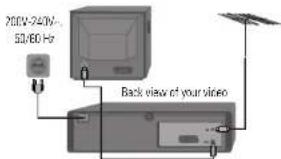
A Fit the batteries into the remote control. Make sure that the (+) and (-) marks on the batteries agree with the (+) and (-) marks inside the battery compartment.
B Plug your aerial into the ANT IN socket of the video.
C Connect the black aerial lead provided from the ANT OUT socket of the video to your TV aerial socket.
D Plug the video into the mains and turn it on by pressing the POWER button. RF 52 will now be displayed on the front of your video.
There are more details, including how to connect extra equipment, on pages 2 to 5.
Stage 2. Tuning in your TV
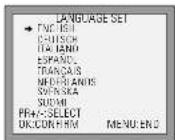
A Tune a spare channel of your TV until you see the blue 'Language Set' screen. Select the wanted language and country with PR+ or PR-button. Press OK to confirm. Store this setting on your TV.
B If there is any distortion (lines, flickering and so on), the video usually recommends a new 'RF' number during the next stage (auto set or auto search). Press OK to confirm the new number. Should the video not recommend a new number, see option 2 or 3 on page 7.
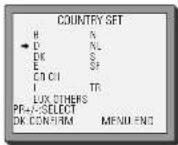
*For selecting the country, refer to the followings.
| B: Belgium | I: Italy | SF: Finland |
| D: Germany | LUX: Luxembourg | CH: Switzerland |
| DK: Denmark | N: Norway | TR: Turkey |
| E: Spain | NL: Netherlands | |
| GR: Greece | S: Sweden |
Stage 3. If you already set the language and country set, you can see the followings.
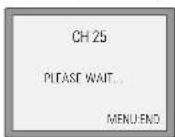
A Point the remote control at the video and press OK.
B The video is now tuning all the television stations available in your area.
C if 'Clock Set' appears on the TV screen, please enter the time and date. Use the number buttons 0 to 9 on the remote control. Press OK to confirm.
D When 'Manual Set' appears on the TV screen, press MENU to end.
F Your video is now set up. If you want to change station names or the programmes they are stored on see pages 12 and 13.
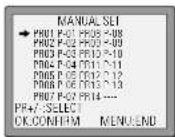
Important: If you switch your video off at the mains overnight you do not have to return the settings. You will lose the time and date, these will have to be reset (see page 9). If you have had any problems setting up your video, please read the problem-solving guide on page 28.
DAEWOO
ELECTRONICS

INSTRUCTION MANUAL
Video recorder
For model number, see the front display of your video
SV-871

The following standard functions are available on this set.
NTSC playback See page 15
MESECAM tape playback See page 15
Index scan See page 16
Wide-screen format See page 17
Commercial skip See page 18
High-speed rewind
See back cover for quick-start guide