
Supreme UC MS - Headphones JABRA - Free user manual and instructions
Find the device manual for free Supreme UC MS JABRA in PDF.


| Product Type | Bluetooth Headset |
| Model | Supreme UC MS |
| Dimensions (L x W x H) | 89.7 mm x 29.9 mm x 21.9 mm |
| Weight | 18 g |
| Battery Talk Time | Up to 6 hours |
| Battery Standby Time | Up to 15 days |
| Charging Time | Approximately 2 hours |
| Power Source | Rechargeable battery via USB or AC charger |
| Bluetooth Version | Bluetooth 3.0 EDR & eSCO |
| Supported Bluetooth Profiles | HFP, HSP, A2DP, PBAP |
| Wireless Range | Up to 10 m (33 ft) |
| Noise Cancellation | Noise Blackout™ 3.0 dual microphones and Active Noise Cancellation |
| Voice Control | Jabra Voice Control for hands-free calls and commands |
| Voice Guidance | Jabra Voice Guidance for pairing and caller announcements |
| Multi-Device Connection | Advanced MultiUse™ connects up to 2 Bluetooth devices simultaneously |
| Wearing Style | Over-ear with adjustable ear hook (left or right) |
| Main Functions | Answer/end calls, reject call, redial, voice dial, mute, volume control, music streaming |
| PC Compatibility | Includes Jabra LINK 360 adapter for softphone use; Jabra PC Suite software |
| Encryption | Up to 128-bit encryption |
| Operating Temperature | -10°C to 45°C (14°F to 113°F) |
Frequently Asked Questions - Supreme UC MS JABRA
User questions about Supreme UC MS JABRA
0 question about this device. Answer the ones you know or ask your own.
Ask a new question about this device
Download the instructions for your Headphones in PDF format for free! Find your manual Supreme UC MS - JABRA and take your electronic device back in hand. On this page are published all the documents necessary for the use of your device. Supreme UC MS by JABRA.
USER MANUAL Supreme UC MS JABRA
User manual
www.jabra.com
CONTENTS
WELCOME 2
ABOUT YOUR JABRA SUPREME UC 2
WHAT YOUR HEADSET CAN DO....3
PAIRING A PHONE/DEVICE TO YOUR HEADSET ....4
WEARING STYLE 4
TURNING YOUR HEADSET ON AND OFF....4
PAIR A NEW OR SECOND DEVICE .... 5
RE-PAIRING THE JABRA LINK 360 ADAPTER....5
USING YOUR HEADSET....6
JABRA VOICE CONTROL 8
JABRA VOICE GUIDANCE....9
STATUS DISPLAY 10
ADDITIONAL FEATURES 10
JABRA PC SUITE....11
CHARGING THE HEADSET....12
TROUBLESHOOTING/FAQ 13
HOW TO CARE FOR YOUR HEADSET 14
NEED MORE HELP?......15
WELCOME
Thank you for purchasing the Jabra SUPREME UC headset. We hope you enjoy it!
ABOUT YOUR JABRA SUPREME UC
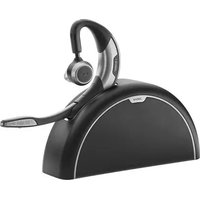
A. Volume up (+)
B. Micro USB charging connector
C. Volume down (-)
D. Answer/end button
E. Status Display
F. On/Off flip boom arm
G. Jabra Voice Control button
H. Jabra LINK 360 adapter
I. Jabra LINK 360 status LED

WHAT YOUR HEADSET CAN DO
- Jabra Voice Control enables you to make calls, answer calls and more, using your voice (phone dependent)
- Jabra Voice Guidance guides you through using the Jabra SUPREME UC, and will announce who is calling you
- Last number redialing and last number call back
- Mobile phone voice commands compatibility (e.g. Siri TM voice recognition software)
- Three way calling
- Advanced MultiUse™ allows two active Bluetooth devices to connect at the same time
Specifications:
- Up to 6 hours of talk time and 15 days of standby time
- Rich sound and ambient noise reduction by Active Noise Cancellation
- Noise Blackout TM 3.0 dual microphones technology provides outstanding background noise reduction
- Digital sound enhancements via DSP technology
- Clear wireless streaming of you r favorite multimedia: Music, GPS, podcasts, video, etc. (from A2DP enabled devices*)
- Bluetooth technology – Easy pairing with Bluetooth 3.0 EDR & eSCO
- Supported Bluetooth profiles: HFP, HSP, A2DP, PBAP
- Up to 128-bit encryption
- Rechargeable battery with charging option from AC charger or PC using the supplied USB cable
- Operating range up to 10 m (33 feet)
- Weight 18 grams
- Size: 89.7 mm x 29.9 mm x 21.9 mm
PAIRING A PHONE/DEVICE TO THE HEADSET
Please follow these steps before using the Jabra SUPREME UC:
- Charge the Jabra SUPREME UC using the supplied AC charger or USB cable.
PC setup
-
Insert the Jabra LINK 360 adapter into any available USB slot on your PC.
-
Setup softphone*. Set the Jabra LINK 360 as speaker and microphone in the audio configuration section of your soft-phone software.
Mobile phone setup
- Press and hold the Answer/end button and open the flip boom arm. Release the button when you hear "Welcome, you are now ready for pairing". You will be voice guided through the pairing process. Follow the instructions, and when pairing is complete you will hear an announcement that you are connected. You are now ready to start using your Jabra SUPREME UC.
Note: If voice guidance has been disabled go to the Bluetooth menu on your device and search for new Bluetooth devices. Select Jabra SUPREME UC. If asked for a passcode or key use 0000 (four zeros).
* For extra functionality (e.g. Answer/end softphone) download Jabra PC Suite from jabra.com/pcsuite
WEARING STYLE
The Jabra SUPREME UC is ready for right ear wearing. If you prefer left ear wearing, remove the ear hook, turn it and re-attach it to the Jabra SUPREME UC from the opposite side. The ear cushions come in two different styles to fit any ear. Furthermore the earhook can be shaped to optimize the fit and comfort.
TURNING THE HEADSET ON AND OFF
Flip the boom arm to turn on (open position) or turn off (closed position).
PAIR A NEW OR SECOND DEVICE
- Ensure that the Jabra SUPREME UC is turned on.
- Tap the Voice Control button on the Jabra SUPREME UC until you are prompted to "Say a command".
- Say "Pair new device" and follow the pairing instructions.
NOTE: If you have disabled Voice Guidance and Control you can put Jabra SUPREME UC in pairing mode manually by holding the Answer/end button while flipping the boom arm to On position. The Status Display will flash blue to indicate that you are in pairing mode.
RE-PAIRING THE JABRA LINK 360 ADAPTER
- Remove the Jabra LINK 360 adapter from the PC, and turn off the Jabra Supreme UC and other headsets.
- Put the Jabra Supreme UC in pairing mode by press and holding the Answer/end button and opening the flip boom arm. Release the button when you hear "Welcome, you are now ready for pairing".
- Put the Jabra LINK 360 adapter into the PC to begin pairing automatically. It can take up to 1 minute to pair. The Jabra LINK 360 status LED will flash blue. When the status LED turns steady blue, the pairing is complete.
TIP: For extra functionality download and install Jabra PC Suite from www.jabra.com/setup, and run Jabra Control Center.
USING YOUR HEADSET
ANSWER CALL
- Say "Answer" after the caller is announced.
- Tap the Answer/End button.
- Flip open the boom arm if the Jabra SUPREME UC is off (flipped shut.
END CALL
- Tap the Answer/End button
REJECT/IGNORE CALL
- Say "Ignore" after the caller is announced (phone dependent)
- Double Tab the Answer/End button. Depending on your phone settings, the person who called you will either be forwarded to voice mail or hear the busy signal.
MAKE CALL
- Start a call with your PC or phone. The call will automatically transfer to the headset.
- Press and hold (2 secs) the Answer/end button on the headset to make a call using your phone's voice activation (e.g. Siri™).
LAST NUMBER REDIAL
- Double tap the Answer/End button (phone dependent)
ACTIVATE HEADSET VOICE COMMANDS
- To activate the headset voice commands tap the Voice Control button on the Jabra SUPREME UC. You will be asked to "Say a command":
Say "What can I say?" for a full list of voice commands.
Say "Pair new device" to put the Jabra SUPREME UC in pairing mode.
Say "Battery" to hear the current battery level.
Say "Cancel" to exit the voice commands menu, or tap the Voice Control button.
ACTIVATE MOBILE PHONE VOICE COMMANDS
- Press and hold (2 secs) the Answer/end button on the headset to activate the phones voice commands (e.g. Siri™).
MUTE/UN-MUTE
- During a call, tap the Voice Control button. To un-mute tap the Voice Control button again.
ADJUST VOLUME
- Tap the Volume up (+) or Volume down (-) buttons to adjust the headset speaker volume.
BATTERY STATUS
- Tap the Voice Control button (when not on a call) and say "Battery" to hear the current battery level.
THREE WAY CALLING
- To put the first call on hold and accept an incoming call, press and hold (2 secs) the Answer/end button. To switch between the two active calls, press and hold (2 secs) the Answer/end button again.
PLAY MUSIC, PODCASTS OR GPS
- Audio played on a connected device will automatically transfer to the Jabra Supreme UC (device dependent).
ANSWER INCOMING CALL WHEN PLAYING MUSIC
- If there is an incoming call while listening to music on the Jabra SUPREME UC, the music will pause and you will hear your ringtone or caller ID. You can choose to answer or ignore the call. When the call is ended the music will automatically play again, or may need to be manually resumed.
JABRA VOICE CONTROL
Jabra Voice Control allows you to speak to instruct the headset, using a variety of voice commands. To activate the headset voice commands tap the Voice Control button on the Jabra SUPREME UC. You will be asked to "Say a command":
HEADSET VOICE COMMANDS
| Voice command What it does | |
| "Answer" Answers an incoming call | |
| "Ignore" Rejects an incoming call | |
| "Pair new device" Puts the | Jabra SUPREME UC into pairing mode |
| "Redial"(last device paired*) | Redials the last outgoing call made on the device (phone dependent) |
| "Call back"(last device paired*) | Calls back the last incoming call received on the Jabra SUPREME UC |
| "Phone commands" Activates your device's voice dialing feature (phone dependent) | |
| "Battery" Will tell you the current battery level | |
| "What can I say?" Will tell you a full list of voice commands | |
| "Cancel" Cancels the current operation and closes the voice menu | |
*Redial and Call back only function with the device that was paired last.
MOBILE PHONE VOICE COMMANDS
To access your movile phone's voice commands (e.g. Sir TM ) press and hold (2 secs) the Answer/end button on the Jabra SUPREME UC.
Jabra Voice Guidance guides you through using your headset.
| Voice guidance What it means | |
| "Welcome! You are now ready for pairing. Go to the Bluetooth menu on your phone.Turn on or enable Bluetooth.Search for devices and select your Jabra hands free device. Select pair or OK. If asked for a PIN code enter 0000" | The Jabra SUPREME UC is in pairing mode. |
| "Pairing failed" Pairing failed | |
| "Connected" Jabra SUPREME UC is connected to a phone/device | |
| "Two devices connected" Jabra SUPREME UC is connected to two phones/devices | |
| "Disconnected" A connected phone/device is turned off, is out of range, or has Bluetooth disabled while in range | |
| "Battery level is low" The Jabra SUPREME UC battery level is below 10% | |
| "Call from"Incoming call on phone/device that supports caller ID (PBAP) | Incoming call on phone/device that supports caller ID (PBAP) |
STATUS DISPLAY
| LED light Description | |
 shing blue shing blue | Bluetooth pairing mode |
| [2800] Solid blue | Bluetooth connected.Calls or music are not active |
 Solid Green Solid Green | Bluetooth connected.Calls or music are active |
ADDITIONAL FEATURES
PLAY MUSIC, PODCASTS, OR GPS
Music, podcasts or GPS on your phone/device will automatically transfer to the Jabra SUPREME UC. Any incoming calls will pause the audio, and the call can be answered or ignored. The audio will resume after the call has ended (phone dependent).
USING TWO DEVICES WITH THE HEADSET (ADVANCED MULTIUSE®)
When two devices (e.g. your PC and your phone) are connected to the headset you can place and answer calls on both devices and switch between the two. In this state the primary device (the device paired last) will be used for voice dialing, last number redial and call back. If you receive a second call when you are already on a call, you will be alerted by a tone. You can then:
- To put the first call on hold and accept the incoming call, press and hold (2 secs) the Answer/end button.
- To switch between the two active calls, press and hold (2 secs) the Answer/end button again.
- Tap the Answer/end button once to end the first call and accept the incoming call. Some phones may require a second tap of the Answer/end button to accept the incoming call.
JABRA PC SUITE
Jabra PC Suite is a collection of software designed to support the Jabra SUPREME UC. For full functionality and management, it is highly recommended to install Jabra PC Suite.
Jabra PC Suite consists of:
Jabra Control Center
Settings management and monitoring of the Jabra SUPREME UC.
Jabra Device Service
Manages the interaction between the Jabra SUPREME UC and Jabra Control Center and softphone drivers.
Jabra Firmware Updater
Updates Jabra SUPREME UC firmware.
Online Help
Searchable help for Jabra PC Suite.
Jabra PC Suite additionally includes drivers for various softphones. For a list of supported softphones, visit the Jabra website at www.jabra.com/pcsuite
INSTALL JABRA PC SUITE
To install Jabra PC Suite download the latest version from the Jabra website at www.jabra.com/pcsuite.
SET JABRA SUPREME UC AS SPEAKER AND MICROPHONE
Before first time use of the Jabra SUPREME UC with a softphone, it is important to set the Jabra SUPREME UC as speaker and microphone in the audio configuration section of your softphone software (e.g. Skype). Refer to specific softphone documentation for assistance in setting audio configurations.
UPDATE FIRMWARE
Firmware updates improve performance, or add new functionality, to your Jabra SUPREME UC. To update the firmware, either:
- Download the latest firmware and additional languages from jabra.com/supremeuc
- Launch the Jabra Firmware Updater installed with Jabra PC Suite, and follow the Firmware Updater wizard, or
- Check for the latest version via Jabra Control Center > Help > Check for Updates.
CHARGING THE HEADSET
Use the USB cable to connect the Jabra SUPREME UC to any available USB port on your PC, or use the AC charger. The battery indicator light will flash green while charging. A full charge takes approximately two hours, and the light will stop flashing when complete.
Only use the AC charger provided. Do not use chargers from other devices as this may damage the headset.
TIP: The headset battery life will be significantly reduced if the headset is left uncharged for a long period. It is recommended to recharge the headset at least once a month.
TROUBLESHOOTING/FAQ
I hear crackling noises
- Check that the headset and the phone/device are within 10 meters (33 feet) of each other, and that there are no obstructions between the two.
I cannot hear anything in my headset
- Increase the volume in the headset.
- Ensure that the headset is paired to a device.
- Ensure your phone is connected to the headset by tapping the Answer/End button.
I am having pairing problems
- You may have deleted your headset pairing connection in your mobile phone/device. Follow the pairing instructions to pair it again.
I want to reset the pairing list in my headset
- The headset registers a list of up to 7 mobile phones. To clear the pairing list and reset the Jabra SUPREME UC to factory settings, turn on the Jabra SUPREME UC while simultaneously holding the Volume Up (+) and Answer/end button for 6 seconds. The next time the headset is turned on it will automatically enter pairing mode.
Will the Jabra SUPREME UC work with other Bluetooth devices?
- The Jabra SUPREME UC is designed to work with Bluetooth mobile phones/devices supporting a headset, hands-free and/or advance audio distribution profile, and compliant with Bluetooth version 1.1 or higher.
I cannot use Reject call, call on hold, Redial or voice dialing
- These features are dependent on the ability of your phone/device to support a hands-free profile. Even if the handsfree profile is implemented reject call, call hold and voice dialing are optional features which are not supported by all phone/devices. Please consult your phone/device manual for details.
Please note some features can only be operated from the primary device e.g. voice dial using Jabra SUPREME UC with 2 mobile phones.
My headset does not announce the caller names during
incoming calls
- Ensure that your phone supports the Bluetooth® phonebook access profile (PBAP) and that the name of the caller is in you phonebook.
Please note on some Android phones a warning message about the phonebook transfer appears in the top left corner. You must select this message and agree to the connection in order to get caller ID to function properly.
My headset says it is disconnected. What does this mean?
The headset announcing that it has disconnected can mean several things:
- The connected phone/device has been turned off.
- The connected phone/device is out of range of the headset.
- Bluetooth has been disabled on the connected phone/device.
Will the Jabra Supreme UC work with my Mac?
Yes. The Jabra Supreme UC will work with limited functionality with a Mac.
HOW TO CARE FOR YOUR HEADSET
- Always store the Jabra SUPREME UC with the power off and safely protected.
- Avoid storage at extreme temperatures (above 45° C/113°F – including direct sunlight – or below -10° C/14°F). This can shorten battery life and may affect operation. High temperatures may also degrade performance.
- Do not expose the Jabra SUPREME UC to rain or other liquids.
NEED MORE HELP?
Web: www.jabra.com/supremeuc
E-mail:
Deutsch support.de@jabra.com
English support.uk@jabra.com
Español support.es@jabra.com
New Zealand support.nz@jabra.com
Singapore support.sg@jabra.com
Phone:
Belgique/Belgie 00800 722 52272
Danmark 70 25 22 72
New Zealand +64 92806301
Singapore 800 1012329
North America Support:
U.S phone 1 (800) 327-2230
Canada phone 1 (800) 489-4199
Email techsupp@jabra.com
Twitter twitter.com/jabra_US
Web http://www.jabra.com/mobilesupport

Dispose of the product according to local standards and regulations.
www.jabra.com/weee
Jabra®
DISCOVER FREEDOM
A BRAND BY
GN Netcom
© 2011 GN Netcom US, Inc. All rights reserved. Jabra® is a registered trademark of GN Netcom A/S. All other trademarks included herein are the property of their respective owners. The Bluetooth® word mark and logos are owned by the Bluetooth SIG, Inc. and any use of such marks by GN Netcom A/S is under license. (Design and specifications subject to change without notice).
© 2011 GN Netcom A/S. All rights reserved. Jabra® is a registered trademark of GN Netcom A/S. All other trademarks included herein are the property of their respective owners. The Bluetooth® word mark and logos are owned by the Bluetooth SIG, Inc. and any use of such marks by GN Netcom A/S is under license. (Design and specifications subject to change without notice).
MADE IN CHINA


Bluetooth
- CONTENTS
- WELCOME
- ABOUT YOUR JABRA SUPREME UC
- WHAT YOUR HEADSET CAN DO
- SPECIFICATIONS
- PAIRING A PHONE/DEVICE TO THE HEADSET
- PC SETUP
- MOBILE PHONE SETUP
- WEARING STYLE
- TURNING THE HEADSET ON AND OFF
- PAIR A NEW OR SECOND DEVICE
- RE-PAIRING THE JABRA LINK 360 ADAPTER
- USING YOUR HEADSET
- ANSWER CALL
- END CALL
- REJECT/IGNORE CALL
- MAKE CALL
- LAST NUMBER REDIAL
- ACTIVATE HEADSET VOICE COMMANDS
- ACTIVATE MOBILE PHONE VOICE COMMANDS
- MUTE/UN-MUTE
- ADJUST VOLUME
- BATTERY STATUS
- THREE WAY CALLING
- PLAY MUSIC, PODCASTS OR GPS
- ANSWER INCOMING CALL WHEN PLAYING MUSIC
- JABRA VOICE CONTROL
- MOBILE PHONE VOICE COMMANDS
- STATUS DISPLAY
- ADDITIONAL FEATURES
- PLAY MUSIC, PODCASTS, OR GPS
- USING TWO DEVICES WITH THE HEADSET (ADVANCED MULTIUSE®)
- JABRA CONTROL CENTER
- JABRA DEVICE SERVICE
- JABRA FIRMWARE UPDATER
- ONLINE HELP
- INSTALL JABRA PC SUITE
- SET JABRA SUPREME UC AS SPEAKER AND MICROPHONE
- UPDATE FIRMWARE
- CHARGING THE HEADSET
- I HEAR CRACKLING NOISES
- I CANNOT HEAR ANYTHING IN MY HEADSET
- I AM HAVING PAIRING PROBLEMS
- I WANT TO RESET THE PAIRING LIST IN MY HEADSET
- WILL THE JABRA SUPREME UC WORK WITH OTHER BLUETOOTH DEVICES
- I CANNOT USE REJECT CALL, CALL ON HOLD, REDIAL OR VOICE DIALING
- MY HEADSET DOES NOT ANNOUNCE THE CALLER NAMES DURING
- INCOMING CALLS
- MY HEADSET SAYS IT IS DISCONNECTED. WHAT DOES THIS MEAN
- WILL THE JABRA SUPREME UC WORK WITH MY MAC
- PHONE
- NORTH AMERICA SUPPORT
- JABRA®
- DISCOVER FREEDOM
Brand : JABRA
Model : Supreme UC MS
Category : Headphones