
AC-1300 - Video camera DENVER - Free user manual and instructions
Find the device manual for free AC-1300 DENVER in PDF.


| Product Type | Video Camera |
| Brand | Denver |
| Model | AC-1300 |
| Dimensions (approx.) | 120 x 70 x 50 mm |
| Weight | 300 g (with battery) |
| Power Source | Rechargeable lithium-ion battery, 5V USB charging |
| Recording Resolution | 1080p Full HD |
| Memory | MicroSD card slot (up to 128 GB, not included) |
| Lens Aperture | F2.0 |
| Field of View | 120 degrees |
| Main Features | Motion detection, night vision, loop recording, time stamp |
| Connectivity | USB 2.0, AV output |
| Battery Life (approx.) | 2 hours continuous recording |
| Cleaning Instructions | Wipe with a soft, dry cloth. Do not use abrasive cleaners. |
| Safety Warnings | Do not expose to water, extreme temperatures, or direct sunlight. Keep away from children. |
| Spare Parts and Repairability | Battery and USB cable are replaceable. Contact Denver support for repairs. |
| General Information | Indoor and outdoor use (not waterproof). Suitable for surveillance or action recording. |
Frequently Asked Questions - AC-1300 DENVER
User questions about AC-1300 DENVER
0 question about this device. Answer the ones you know or ask your own.
Ask a new question about this device
Download the instructions for your Video camera in PDF format for free! Find your manual AC-1300 - DENVER and take your electronic device back in hand. On this page are published all the documents necessary for the use of your device. AC-1300 by DENVER.
USER MANUAL AC-1300 DENVER
- Black and white digital screen
- MODE key
- Shutter
- Power
- Microphone

- Lens
- Reset
- USB port
- TV port
- TF card slot
2.Key Functions and Indictors
| Key/Indicator | Function |
| Power Power On/Off | |
| Shutter | Video recording mode, Recording/StopCapture mode, taking picturesReplay mode; after connecting to TV, short press to play the recorded video; long press to enter shortcut for deletion; short press to confirm file deletion. |
| MODE key | Switchover of video recording and capture mode in circle and change image size;In capture mode, long press MODE key to format TF card;Replay mode: after connecting to TV, it is used for next or previous photo, or exit from deletion mode. |
3.Start Operation
Battery
This camera uses the original packaged built-in rechargeable 3.7V lithium battery.
Battery disassembly is prohibited.
Memory card installation
Following instructions by the card slot, it is plug the TF memory card into the card slot with metal pins inwards.
To take the memory card out, please press the TF card downward and take it out.
Power-on
Press and hold power key for 2 seconds and release it for power-on of the camera.
Mode switchover
After power-on, the camera enters the default mode of video recording at a default size of Lo. In video recording mode at Lo size, click MODE key to switch the size to HI; in video recording mode at HI size, click MODE key to enter capture mode at Lo size, and in capture mode at Lo size, click MODE key to return to video recording mode at Lo size.
Video recording
In video recording mode, click Shutter key to start video recording and click it again to stop recording.
Capture
In capture mode, press Shutter key to take pictures.
TV output
When output of image and audio from the camera to TV is needed, please plug common end of TV cable into TV port of the camera. The yellow port is for video input, and the red/white port is for audio.
Replay
After connecting to TV, the camera enters the replay mode. In replay mode, press MODE key to select photo or recorded video. After selecting recorded video file, press Shutter key to play the file. During playing the recorded video, press Shutter key to stop playing.
In replay mode, long press Shutter key to enter shortcut deletion prompt, press Shutter key to confirm deletion, and press MODE key to exit from deletion.
Power-off
In power-on mode, long press Power key to power the camera off.
Connection to computer
Firstly power the camera on, and then connect the camera with attached USB cable to USB port of the computer. After connecting
to the computer, the camera automatically enters portable disc mode.
4. Advanced Operation
Video recording, capture mode
( With maximum 29 minutes video recording per sequence) After power-on, the camera automatically enters video recording mode. In video recording mode at Lo size, click MODE key to switch the size to HI; in video recording mode at HI size, click MODE key to enter capture mode at Lo size, and in capture mode at Lo size, click MODE key to return to video recording mode at Lo size.
In video recording mode, press Shutter key to start recording and press it again to stop recording, press MODE key to switch to Lo size. In capture mode, press Shutter key to start shooting, and press MODE key to switch to Lo size.
◆ In video recording mode, information are displayed on the screen as below:
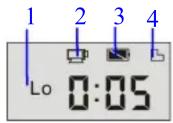


| No. | Icon | Description |
| 1 | Video recording HI | Indicates high resolution in current video recording mode |
| 2 | Video recording icon | Indicates currently in video recording mode (Flashing icon means in the process of video recording) |
| 3 | Battery level | Indicates level of battery |
| 4 | TF card | Indicates a memory card available |
| 5 | Recording Lo | Indicates low resolution in current video recording mode |
| 6 | Time left for recording | Indicates time left in FT card for video recording |
| 7 | Capture mode | Indicates currently in capture mode |
| 8 | Capture HI | Indicates high resolution in current capture mode |
| 9 | Photo to be captured | Indicates quantity of photos to be captured in current internal memory |
| 10 | Capture Lo | Indicates low resolution in current capture mode |
Replay Mode
After power-on and connecting to TV, the camera enters the replay mode. In replay mode, press MODE key to select photo and recorded video. After selecting video file, press Shutter key to play it. During playing, press Shutter key to Stop playing. In replay mode, long press Shutter key to enter file deletion mode. In file deletion mode, press Shutter key to confirm deletion, and press MODE key to exit from deletion.
◆ In replay mode, information are displayed on the screen as below:

| No. | Icon | Description |
| 1 | Replay mode | Indicates reply mode |
| 2 | File quantity | Indicates there are total 31 files, and the 19th file is being browsed currently. |
| 3 | TF card | Indicates a memory card available |
| 4 | Icon for video recording | Indicates the current file is a video recording file. |
File Deletion
After connecting to TV, the camera enters the replay mode. In replay mode, long press Shutter key to enter file deletion mode, press Shutter key to confirm deletion, and press MODE key to exit from deletion.
Delete This file?
Enter
MODE Back
Warning
• Lithium battery inside!
- Do not try to open the product!
- Do not expose to heat, water, moisture, direct sunlight!
- Only charge with the original adaptor supplied with this product!

CAUTION!
ALL RIGHTS RESERVED, COPYRIGHT
DENVER ELECTRONICS A/S
DENVER®
www.denver-electronics.com

Electric and electronic equipment and included batteries contains materials, components and substances that can be hazardous to your health and the environment, if the waste material (discarded electric and electronic equipment and batteries) is not handled correctly.
Electric and electronic equipment and batteries is marked with the crossed out trash can symbol, seen below. This symbol signifies that electric and electronic equipment and batteries should not be disposed of with other household waste, but should be disposed of separately.
As the end user it is important that you submit your used batteries to the appropriate and designated facility. In this manner you make sure that the batteries are recycled in accordance with legislature and will not harm the environment.
All cities have established collection points, where electric and electronic equipment and batteries can either be submitted free of charge at recycling stations and other collection sites, or be collected from the households. Additional information is available at the technical department of your city.
Imported by:
DENVER ELECTRONICS A/S
Stavneagervej 22
DK-8250 Egaa
Denmark
www.facebook.com/denverelectronics


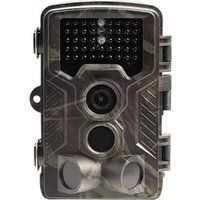
Brand : DENVER
Model : AC-1300
Category : Video camera