Silentband 3 GPS - Smartwatch Armodd - Free user manual and instructions
Find the device manual for free Silentband 3 GPS Armodd in PDF.


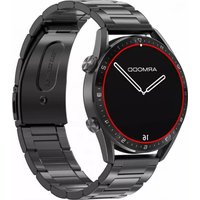
| Product Type | Smartwatch |
| Brand | Armodd |
| Model | Silentband 3 GPS |
| Display | Touch screen |
| Water Resistance | IP67 |
| Battery Type | Built-in rechargeable lithium-ion battery |
| Charging Time | Maximum 2 hours |
| Charging Voltage | 5 V |
| Bluetooth Version | 5.0+ |
| Operating System Compatibility | Android 5.1+ / iOS 9.0+ |
| Required App | SMART – TIME PRO |
| GPS | Built-in GPS with AGPS support |
| Heart Rate Monitor | Yes |
| Blood Pressure Monitor | Yes (illustrative only) |
| SpO2 Monitor | Yes (illustrative only) |
| Sleep Tracking | Automatic |
| Music Control | Yes (via phone) |
| Remote Camera Shutter | Yes |
| Notifications | Call, SMS, app notifications |
| Watch Faces | Customizable via app |
| Frequency Band | 2402–2480 MHz |
| Max RF Output Power | 1.06 dBm |
| Manufacturer | SMARTOMAT s.r.o. |
Frequently Asked Questions - Silentband 3 GPS Armodd
User questions about Silentband 3 GPS Armodd
0 question about this device. Answer the ones you know or ask your own.
Ask a new question about this device
Download the instructions for your Smartwatch in PDF format for free! Find your manual Silentband 3 GPS - Armodd and take your electronic device back in hand. On this page are published all the documents necessary for the use of your device. Silentband 3 GPS by Armodd.
USER MANUAL Silentband 3 GPS Armodd
For other
languages scan
Obsah
Popis produktu 5
Android

iOS

Bočné tlačidlo
Nabíjacie kontakty

Nabíjanie a Zapnutie
Android

iOS

Przycisk boczny
Złącza ładowania

Czujnik
Android

iOS

Oldalsó gomb
Töltőérintkezők

Android

iOS

Charging and Switching On 64
Pairing the smart band with a mobile phone 64
Smart band controls 66
Language settings 66
Change the watch face 67
Customise the watch face 67
Messages 68
Display activation by twisting the wrist 68
List of functions 68
Sports 68
GPS 69
Heart rate, Blood pressure, SpO2 69
Music player 69
Sleep 70
Weather 70
Remote camera shutter 70
Important notes, recommendations and FAQs 71
Video tutorial

Thank you for purchasing our product.
Please read these instructions before use.
The manufacturer is not liable for any damage caused by improper use.
Product description

Charging and Switching On
- The smart band must be fully charged before first use. Always use the original charging cable supplied with the smart band. Always charge for no more than 2 hours and do not move the smart band while it is being charged.
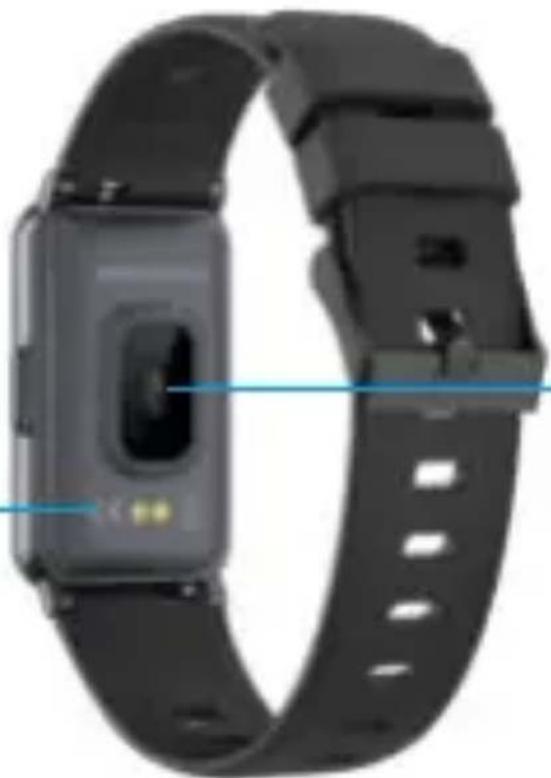
- Connect the charging cable to the USB port of your laptop (it must be plugged in) or conventional mobile phone adapters (5 V) and attach the magnetic connectors at the opposite end of the cable to the charging contacts of the smart band. While charging, the magnetic connectors of the charging cable must not come into contact with the strap or metal components. It could result in the charger short-circuiting or in damage to the strap. Therefore, always charge the smart band only with the strap undone.
- If the smart band display does not activate by itself after charging, press and hold (at least for 10 seconds) the side button.
Pairing the smart band with a mobile phone
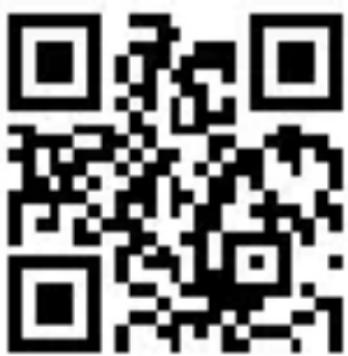
For setting the smart band, the current time and date and their proper operation, the smart band must be paired with a mobile phone via the recommended SMART – TIME PRO app. Do not pair the smart band to your mobile phone just via your phone’s Bluetooth; always use the app! You can download the app using the QR code below or find it in Google Play or the App Store.

Android

iOS


The images here depict the Android OS. The appearance in iOS may differ.
- During installation, we recommend that you allow all authorisations that you are requested, including running the app in the background.
- Depending on your mobile phone model, we also recommend checking setting authorisations in the app management in your phone, especially location tracking.
- Before pairing, activate Bluetooth (make sure it is visible for all devices for an unlimited time) and GPS in your phone. Do not pair the smart band using the Bluetooth menu of the phone!
- Open the SMART – TIME PRO app. It is recommended that you create an account.
- The smart band should be as close as possible to the phone during pairing.
- Click on the Device icon in the app (in the bottom bar) and then on "Add device". (Fig. 1)
- Select your device from the list of the devices shown
(Fig. 2) and confirm the pairing request on the smart band.
- Once the devices have been paired, set the required smart band functions in the app. (Fig. 3)
- To allow more precise measurements, it is recommended that you fill in your personal profile in the app.
Smart band controls
Press and hold the side button to turn the smart band on/off.
Press the side button briefly to activate the display or to return to the watch face.
Press the side button briefly while the watch face is displayed to show an overview of the smart band functions.
Swipe from top to bottom to show "Quick settings" menu. (Fig. 4)
Swipe from bottom to top to show the messages and notifications page.
Swipe from right to left or from left to right to show the daily menu and favourite menu. (Fig. 5)
Activate the functions by tapping on the specific icon.

Fig. 4
Language settings
Tap on the “Settings” icon in the smart band and then on the “Language” icon and select the desired language.
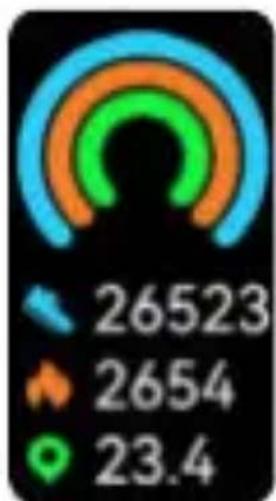
Fig. 5
Change the watch face
You may change it using several methods, both in the smart band and using the app. For a successful setting of the watch face, the smart band and phone need to be sufficiently charged.
Hold your finger on the display to show an overview of watch faces that you can select from by swiping from right to left and back. Tap on the watch face of your choice to select it.
Other watch faces can be added directly from the app. In the app, tap on the “Change the watch face” (Fig. 3) and select from the gallery the desired watch face to be transferred to the smart band.
Customise the watch face
In the app, tap on “Change the watch face” (Fig. 3), then on “Adjust watch face”. Tap on “Adjust watch face” again and then on the “Background” icon. Then tap on “Customise background” and select whether you want to add an image from the Camera or the phone Gallery. You can then edit the image in the viewport and in the next menu. To transfer the image to the smart band, tap on “Sync”.
In the event of an error message during the upload, please check whether the size of the image is suitable and whether the phone and smart band are charged sufficiently. Then repeat the process.
Messages
Tap on a message to open. Tap on the recycling bin icon to delete it. To receive messages and notifications, your smart band must be paired with your phone, and the receipt of messages and notifications must be allowed in the SMART – TIME PRO app (Fig. 3). Furthermore, you must allow the app access to messages and notifications in the settings of your phone. (This is typically done during installation.)
Display activation by twisting the wrist
Allow and set it up in the SMART - TIME PRO app in your phone (Fig. 3).
List of functions
Sports, Daily menu, Heart Rate, Blood Pressure, SpO2, Music player, Notifications, Alarms, Breathing training, Sleep, Weather, Notifications for events, Remote camera shutter, Stopwatch, Timer, Find phone, Settings, QR code for downloading the app.
This list may vary depending on the specific version of the smart band and app.

Sports
There are many sports activities on offer. If your GPS is turned on for the sport, wait in an open space for the GPS to load. (If AGPS is not updated, it may take up to 5 minutes.)
After your activity, sync your smart band with your phone to save the data to the app.
GPS
- The accuracy of determining your position is affected by atmospheric conditions, weather, sunlight, electromagnetic influences, high-rise buildings, signal reflection from obstacles, etc. It depends on the number of searched satellites and their signal quality. Due to that, there may be deviations in the recorded route and in some measurements.
- After pairing the smart band with the app, updating the AGPS in the app is recommended. (Fig. 3) It will enable faster search of GPS signal.
- When GPS is on, the battery life significantly reduces, and if it is turned on for a long time, the battery can run flat even within a few hours.


Heart rate, Blood pressure, SpO2
After activation, wait for the measurement to begin and end. The smart band must be in the correct position on your wrist.

Music player
Tap to enter the music player menu. Tap to play/stop, skip one track forward or backward. The audio output goes from the phone; the smart band must be paired with the phone, and the player must be turned on in the phone.

Sleep
This function monitors your sleep automatically (at night), as long as you have your smart band on. The sleep data will be displayed the following morning in the app as well as on the smart band.

Weather
The data in the smart band is updated according to the weather data in the phone app.

Remote camera shutter
Open the SMART – TIME PRO app and tap on “Shutter” on the phone (Fig. 3). Tap on “Shutter” on the smart band to take a photo. The phone must always be paired with the smart band when taking photos.
Other possible functions must be set and allowed in the app and their operation depends on both the setting of the phone and the current version of the smart band. These are, for example, notifications of incoming calls, vibrations, alarm clock, “Do not disturb” mode (DND mode), continuous heart rate measurement(takes place automatically in the set interval) and others.
Important notes, recommendations and FAQs
-
To save the values measured, the current date and time, make sure you synchronise the smart band with the app on your phone daily. During the night, the values measured by the smart band may reset.
-
This product is not a medical device. Neither the smart band nor the app are intended for the diagnosis, treatment or prevention of illnesses and symptoms thereof. The values measured are just illustrative and may differ from values measured by certified medical devices depending on the method of measurement and tightness of the strap. The sensor on the reverse side of the smart band must be in contact with the hand, and the strap must be sufficiently tight. If the strap is loose and the sensors dirty, the precision of measurements will be compromised.
-
In order to ensure correct date and time settings, the smart band must be paired with a phone. Then the date and time will be set automatically.
-
The smart band has the IP67 degree of protection. We recommend avoiding contact of the smart band with water under pressure, fast and rapidly flowing water, spraying and hot water and steam, because when using the smart band, due to wear and tear of the case or its mechanical damage and microscopic cracks in the seal, water can penetrate into the smart band and cause damage.
-
You have stopped receiving incoming calls or SMS notifications – check that the smart band is paired with your phone and the notifications are allowed in the app – “Notifications” (Fig. 3) and in the settings of your phone, and that the do-not-disturb mode has not been activated in the app. Make sure Bluetooth is on in your phone. Do not pair the smart band via the phone’s Bluetooth menu.
-
The smart band cannot be paired with a phone – possible solutions:
-
make sure the smart band and phone are charged sufficiently
- check that your phone has GPS and Bluetooth on and the phone settings allow location tracking for the app
- place the smart band and the phone next to each other
- check the system updates in your phone
- uninstall and re-install the app
- restart your phone and switch the smart band off and then back on
-
make sure your phone meets the technical requirements (Android 5.1+, iOS 9.0+, Bluetooth 5.0+)
-
Sensor light is blinking – data measurement or transfer is underway.
-
The sensor light blinks even when the smart band is not being worn – it is not a flaw.
-
To ensure the correct functioning of the smart band, we recommend restarting or resetting the smart band occasionally and, where a newer version is available, updating firmware in the app. Make sure you always have the most recent version of the app.
-
Always charge the smart band for no more than 2 hours (at no more than 5 V). Improper charging reduces the capacity and useful life of the battery. Battery life depends on the ambient temperature and the number of functions actively running. Running some functions may discharge the battery within several hours. Over time the capacity of the battery will reduce naturally. If the smart band is not used, do not leave it uncharged for a long time and charge it occasionally.
-
Protect the smart band from falls or impact; do not expose it to extreme temperatures or direct sunlight. These conditions may cause malfunctions, or they can cause irreparable damage. Keep the smart band at room temperature.
-
The smart band has a built-in battery. Do not expose it to flames or extreme temperatures due to risk of explosion.
-
Do not disassemble the smart band or its accessories.
-
Do not use the product in close proximity to explosives and chemicals.
- Keep the product out of reach of children. It may contain small parts posing risk of inhalation.
- The smart band software and the application are innovated on a continuous basis. Therefore, the manufacturer reserves the right to amend the instructions and individual functions without prior notice.
- We do not recommend exposing the smart band to sudden changes in pressure (e.g. diving, some water sports, etc.) or to liquids other than fresh water. Never use the buttons if the case is in contact with water. Water could penetrate into it and damage the smart band. Upon coming into contact with water, immediately dry the smart band thoroughly.
- Should you have any questions, do not hesitate to contact the manufacturer.
Note
All images and descriptions of functions may differ based on your version of the product and the app and are used for illustrative purposes only.

Safe disposal
Do not dispose of the product in general waste as it may contain substances harmful to the environment.
Battery removal instructions
The product contains a built-in battery that may contain substances harmful to the environment and, as such, should not be disposed of in general municipal waste. You can remove the battery and hand it in for safe disposal.
If you have decided to remove the battery, we recommend that you contact a qualified expert. In any case, let the battery run out completely and then use a knife to remove the back cover carefully. One by one, snip the wires to the battery and remove the battery carefully so as to avoid damage to the battery and electrolyte leakage. Use the proper PPE and follow the applicable occupational health and safety rules to avoid injuries.
Electronic waste
Leave the product at a dedicated electronic waste collection facility where its recycling or safe disposal is ensured. Contact your local municipality for a list of waste collection sites, or you can leave the used product with the seller.
Frequency band: 2402–2480 MHz
Max. performance: 1.06 dBm
Declaration of conformity
SMARTOMAT s.r.o. hereby declares that the ARMODD Silentband 3 GPS device complies with Directive 2014/53/EU. The full version of the EU declaration of conformity is available at this website:
www.armodd.com
TECHNICAL SUPPORT
Do you have any questions regarding your product? Do not hesitate to contact us. email: info@armodd.com www.armodd.com
Manufacturer
SMARTOMAT s.r.o., 1.máje 97, 460 02 Liberec, Czech Republic
Inhaltsverzeichnis
Seitentaste
Ladekontakte
Android

iOS

iOS

Android

fig. 1 fig. 2 fig. 3
Android

iOS

fig. 1 fig. 2 fig. 3



- OBSAH
- NABÍJANIE A ZAPNUTIE
- CHARGING AND SWITCHING ON
- PAIRING THE SMART BAND WITH A MOBILE PHONE
- SMART BAND CONTROLS
- LANGUAGE SETTINGS
- CHANGE THE WATCH FACE
- CUSTOMISE THE WATCH FACE
- MESSAGES
- DISPLAY ACTIVATION BY TWISTING THE WRIST
- LIST OF FUNCTIONS
- SPORTS
- GPS
- HEART RATE, BLOOD PRESSURE, SPO2
- MUSIC PLAYER
- SLEEP
- WEATHER
- REMOTE CAMERA SHUTTER
- IMPORTANT NOTES, RECOMMENDATIONS AND FAQS
- NOTE
- SAFE DISPOSAL
- BATTERY REMOVAL INSTRUCTIONS
- ELECTRONIC WASTE
- DECLARATION OF CONFORMITY
- TECHNICAL SUPPORT
- MANUFACTURER
- INHALTSVERZEICHNIS
Brand : Armodd
Model : Silentband 3 GPS
Category : Smartwatch