
WS-300M - Voice recorder OLYMPUS - Free user manual and instructions
Find the device manual for free WS-300M OLYMPUS in PDF.


| Product type | Digital voice recorder |
| Brand | OLYMPUS |
| Model | WS-300M |
| Dimensions (approx.) | 108 × 40 × 15 mm |
| Weight (with batteries) | Approx. 50 g |
| Power supply | 2 AAA (LR03) batteries |
| Battery life (recording) | Up to 17 h (LP mode) |
| Internal memory | 2 GB (flash) |
| Recording formats | MP3 (HQ, SP, LP) |
| Max recording time | Up to 140 h (LP mode) |
| Microphone | Built-in microphone (stereo) |
| Speaker | Built-in speaker (mono) |
| Interface | USB 2.0 (micro-USB) |
| Main functions | Recording, playback, stop, VOR, noise reduction, indexing |
| Display | Backlit LCD screen |
| External microphone input | 3.5 mm jack |
| Headphone output | 3.5 mm jack |
| Compliance | CE, WEEE, Class B (Canada) |
| Maintenance | Clean with a dry, soft cloth |
| Precautions | Do not expose to humidity or magnetic fields |
| Spare parts | AAA batteries, USB cable, carrying case (optional) |
| Repairability | Not user-serviceable (contact customer support) |
Frequently Asked Questions - WS-300M OLYMPUS
User questions about WS-300M OLYMPUS
0 question about this device. Answer the ones you know or ask your own.
Ask a new question about this device
Download the instructions for your Voice recorder in PDF format for free! Find your manual WS-300M - OLYMPUS and take your electronic device back in hand. On this page are published all the documents necessary for the use of your device. WS-300M by OLYMPUS.
USER MANUAL WS-300M OLYMPUS
Thank you for purchasing an Olympus
Digital Voice Recorder.
Please read these instructions for information
about using the product correctly and safely.
Keep the instructions handy for future reference.
To ensure successful recordings, we recommend that
you test the record function and volume before use.
EN
Table of Contents
Table of Contents ...... 2
Safe and Proper Usage 4
General Precautions 4
1 Getting Started
Main Features....6
Identification of Parts 8
Inserting Battery 10
Power Supply 11
Setting Time/Date (Time&Date) ...... 12
Switching Between the Voice Recorder and Music Player 14
2 When Using the Recorder as a Voice Recorder
Recording 15
Using the Variable Control Voice Actuator (VCVA) .... 18
Recording Modes (Rec Mode) ...... 20
Microphone Sensitivity (Mic Sense) ...... 21
Recording from External Microphone or Other Devices 22
Playing 24
Continuous Playback (All Play) 28
Repeat Playback 29
Auto Backspace Review (Back Space) ..... 31
Index Marks 32
Locking Files (Lock) 34
LCD Display Information 36
Menu List (VOICE mode) 38
3 Using the Recorder on Your PC
Saving Files in Your PC 40
Operating Environment 41
Connecting to Your PC 42
4 Using the Recorder as a Music Player
Using the Recorder as a Music Player ... 44
Using Windows Media Player 44
Window Names 45
Copying Music from CD 47
Transferring Music File to the Recorder .... 48
About the Music Folders .... 51
Music Playback 53
Selecting Play Mode (Play Mode) ..... 58
Repeat Playback (Repeat) 59
Random Playback (Random) 60
Increasing the WOW Effect (WOW) ...... 61
Moving the Tracks (Move) 66
Menu List (MUSIC mode) 68
5 Feature Common to the Voice Recorder and Music Player
Erasing....70
Hold 73
Menu Setting Method 74
System Sounds (Beep) 76
Backlight (Backlight) 77
LCD Contrast Adjustment (Contrast) ..... 78
Formatting the Recorder (Format) ...... 79
6 Other Practical Use Methods
Using as External Memory
of the Computer 81
7 Other Information
Alarm Message List 82
Troubleshooting 83
Accessories (optional) 84
Specifications 85
Technical Assistance and Support ...... 87
1
2
3
4
5
6
7
Safe and Proper Usage
Before using your new recorder, read this manual carefully to ensure that you know how to operate it safely and correctly. Keep this manual in an easily accessible location for future reference.
- The warning symbols indicate important safety related information. To protect yourself and others from personal injury or damage to property, it is essential that you always read the warnings and information provided.
General Precautions
- Do not leave the recorder in hot, humid locations such as inside a closed automobile under direct sunlight or on the beach in the summer.
- Do not store the recorder in places exposed to excessive moisture or dust.
- Do not use organic solvents such as alcohol and lacquer thinner to clean the unit.
- Do not place the recorder on top of or near electric appliances such as TVs or refrigerators.
● Avoid recording or playing back near cellular phones or other wireless equipment, as they may cause interference and noise. If you experience noise, move to another place, or move the recorder further away from such equipment.
● Avoid sand or dirt. These can cause irreparable damage.
● Avoid strong vibrations or shocks. - Do not disassemble, repair or modify the unit yourself.
ecautions
- Do not operate the unit while operating a vehicle (such as a bicycle, motorcycle, or car).
- Keep the unit out of the reach of children.
Recorded content in memory may be destroyed or erased by operating mistakes, unit malfunction, or during repair work.
It is recommended to back up and save important content to other media such as a computer hard disk.
Battery
Warning
- Battery should never be exposed to flame, heated, short-circuited or disassembled.
- Do not attempt to recharge alkaline, lithium or any other non-rechargeable battery.
- Never use any battery with a torn or cracked outer cover.
- Keep battery out of the reach of children.
- If you notice anything unusual when using this product such as abnormal noise, heat, smoke, or a burning odor.
① remove the battery immediately while being careful not to be injured.
② call your dealer or local Olympus representative for service.

natural_image
Two horizontal grayscale color swatches with a central crosshair target (no text or symbols)1 Getting Started
1
Main Features
Main Features
This product is equipped with the following features.
- Dual function recorder as a Digital Voice Recorder and a Digital Music Player. (P.15,44)
- Connecting this recorder directly to the USB port links up with your PC. The data can be transferred or saved without USB cable or driver software. (P.42)
- This USB storage class support recorder can be utilized as external memory to read and save the data. (P.81)
- By connecting the computer with the USB, pictures, text data, etc. can be saved, and utilized to carry data.
- It has a backlight full-dot display (LCD display screen). (P.9)
Main Features of the Digital Voice Recorder
The recorder stores highly compressed WMA format voice messages in integrated flash memory. (P.15)
- By using the built-in stereo microphone, a stereo recording mode, which is ST HQ (Stereo High Quality), and 3 types of monaural recording modes, which are HQ (High Quality), SP (Standard Playback), and LP (Long Playback) can be selected. (P.20)
Recording time
- WS-320M (1 GB) ^*1
| ST HQ mode: | 35 hours 25 minutes |
| HQ mode: | 70 hours 50 minutes |
| SP mode: | 139 hours 30 minutes |
| LP mode: | 277 hours 20 minutes |
- WS-310M (512 MB) ^*1
| ST HQ mode: | 17 hours 40 minutes |
| HQ mode: | 35 hours 20 minutes |
| SP mode: | 69 hours 30 minutes |
| LP mode: | 138 hours 15 minutes |
| ST HQ mode: | 8 hours 45 minutes |
| HQ mode: | 17 hours 30 minutes |
| SP mode: | 34 hours 35 minutes |
| LP mode: | 68 hours 45 minutes |



The five folders can hold 199 files each, for the maximum of 995 recordings. (P.15)
It has a built-in Variable Control Voice Actuator (VCVA) function. (P.18)
- You can insert or delete index marks.*2 (P.32)
The playback speed can be controlled as preferred. (P.25)
Main Features of the Digital Music Player
- You can play back music files in WMA and MP3 format. (P.53)
Playback time
| WS-320M (1 GB): | 13 hours 20minutes to 45hours 20 minutes |
| WS-310M (512 MB): | 6 hours 40minutes to 22hours 40 minutes |
| WS-300M (256 MB): | 3 hours 20minutes to 11hours 20 minutes |
- Has built-in WOW. (P.61)
- You can change the playback equalizer settings. (P.63)
*1 Available recording time may be shorter if many short recordings are made. (The displayed available recording time and recorded time are approximate indications.)
*2 For WMA files, these functions are only available for files recorded with this recorder or the IC recorders from Olympus.
IBM and PC/AT are the trademarks or registered trademarks of International Business Machines Corporation.
Microsoft, Windows and Windows Media are registered trademarks of Microsoft Corporation.
WOW, SRS and (●) symbol are trademarks of SRS Labs, Inc.
WOW technology is incorporated under license from SRS Labs, Inc.
MPEG Layer-3 audio coding technology licensed from Fraunhofer IIS and Thomson.
Other product and brand names mentioned herein may be the trademarks or registered trademarks of their respective owners.



natural_image
Two horizontal grayscale color swatches with a central crosshair target (no text or symbols)Identification of Parts
1
Identification of Parts
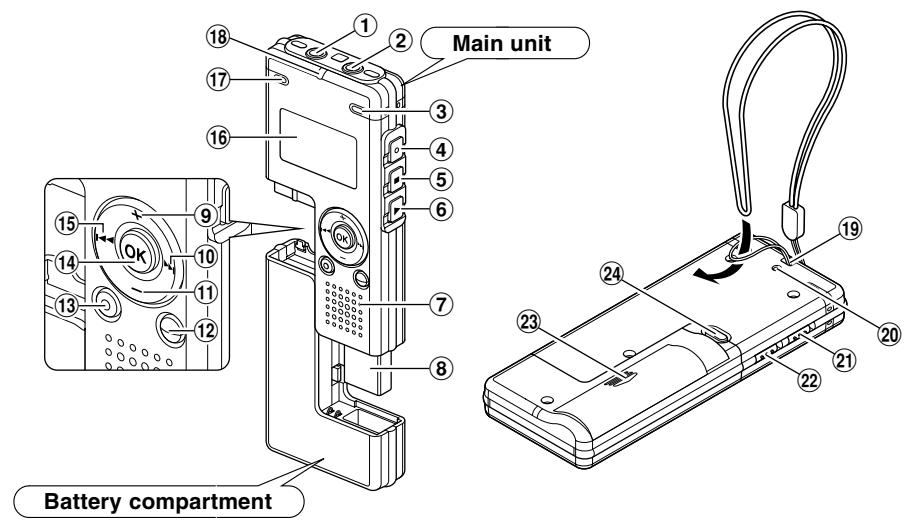
① EAR (Earphone) jack
② MIC (Microphone) jack
③ Built-in stereo microphone (R)
④ REC (Record) button
⑤ STOP button
⑥ PLAY button
⑦ Built-in speaker
⑧ USB terminal
⑨ VOL (+) button
⑩ ▶▶▶ I button
⑪ VOL (−) button
⑫ FOLDER/INDEX button
⑬ ERASE button
⑭ OK button
⑮ ◀◀ button
⑯ Display (LCD panel)
⑰ Built-in stereo microphone (L)
⑱ Record/Play indicator light
⑲ Strap hole
⑳ USB access indicator light
②1 HOLD switch
⑳ Mode (VOICE/MUSIC) switch
⑳ Battery cover
⑳ RELEASE (Release) button

natural_image
Two horizontal bar designs with grayscale shades and a central crosshair (no text or symbols)Display (LCD Panel)
VOICE mode display
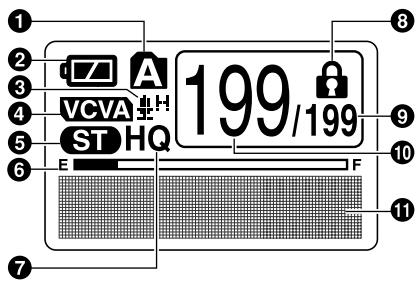
The display appears when recording.
MUSIC mode display
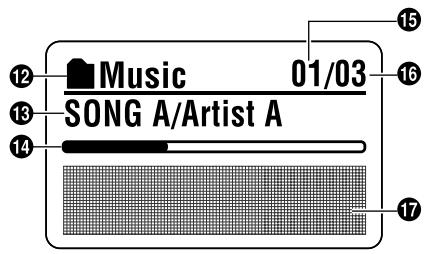
The display appears when indicating a file.

① Folder indicator
② Battery indicator
③ Microphone sensitivity indicator
④ VCVA (Variable Control Voice Actuator) indicator
⑤ Stereo indicator
⑥ Memory remaining indicator (E/F bar)
⑦ Record mode indicator
⑧ Erase lock indicator
⑨ Total number of recorded files in the folder
10 Current file number
⑪ Character information display
⑫ Folder name indicator
⑬ Title and artist name indicator
14 Play position bar indicator
15 Current music file number
16 Total number of recorded music files in the folder
⑰ Character information display

natural_image
Two horizontal grayscale color swatches with a central crosshair overlay (no text or symbols)Inserting Battery
1
Inserting Battery
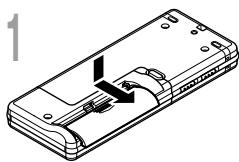
natural_image
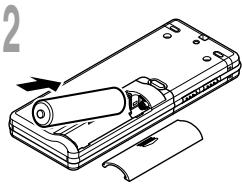
Isometric line drawing of a device with internal components and a labeled section (no text or symbols)Lightly press down on the arrow and slide the battery cover open.
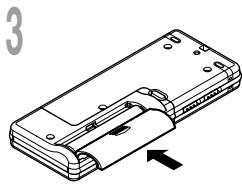
2 Insert size-AAA alkaline battery, observing the correct polarity.
3 Close the battery cover completely.
Replacing the Battery
The battery indicator on the display changes as the battery loses power.
natural_image
Line drawing of a mobile phone with scroll and cable, showing mechanical components (no text or symbols)
natural_image
Technical line drawing of a mechanical component with an arrow indicating direction (no text or symbols)When it appears on the display, replace the battery as soon as possible. When the battery is too weak, the recorder shuts down and “Battery Low” appears on the display. AAA alkaline battery is recommended.
Ni-MH Rechargeable Battery
An optional Ni-MH rechargeable battery from Olympus can be used for the recorder (P.84).
Notes
- Be sure to stop the recorder before replacing the battery. Unloading the battery while the recorder is in use may corrupt the file. If you are recording into a file and the battery runs out, you will lose your currently recorded file because the file header will not be able to close. It is crucial to change the battery once you see only one hash mark in the battery indicator.
- If it takes longer than 1 hour to replace the dead battery, you may have to reset the time when you load a fresh battery (P.12).
- Remove the battery if you are not going to use the recorder for an extended period of time.

natural_image
Two horizontal grayscale color swatches with a central crosshair target (no text or symbols)Power Supply
When the recorder is not used, setting it to HOLD turns off the recorder, suppressing the consumption of the battery to a minimum.
Even if the power is turned off, the existing data, settings of each mode, and clock setting will be maintained. To turn the power on, cancel the HOLD switch.
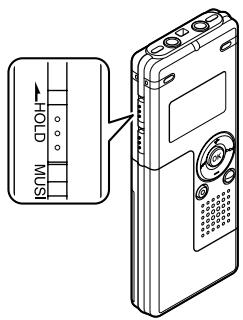
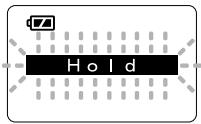
Turning Off the Power
Move the HOLD switch to the HOLD position while the recorder is not in operation.
After “Hold” is displayed, flashing for 2 seconds, the display will turn off.
Turning On the Power
Release the HOLD switch of the recorder.
Standby Mode and Display Shut Off
If the recorder is stopped/not used for over 5 minutes after it is turned on, it goes into standby (power-save) mode, and the display shuts off. To exit standby mode and turn on the display, press any button.

natural_image
Two horizontal bar patterns with grayscale shades and a central crosshair (no text or symbols)
Setting Time/Date (Time&Date)
1
If you set the date and time beforehand, the information when the file is recorded is automatically stored for each file. Setting the date and time beforehand enables easier file management.
Setting Time/Date (Time&Date)
The hour indicator will flash automatically when you load a battery before using the recorder for the first time, or after the recorder hasn't been used for a long time. Proceed from step 1.
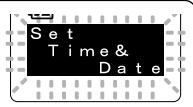
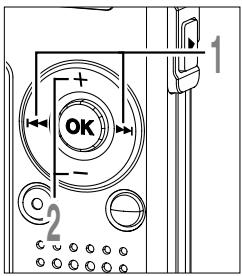
1 Press the ▶▶▶ or ◀◀◀ button to select the item to set.
Select the item from “hour”, “minute”, “year” “month” and “day” with a flashing point.
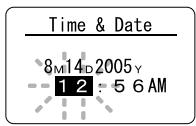
Press the + or - button to set.
Follow the same steps by pressing the ▶▶▶▶ or ▶◀◀ button to select the next item, and press the + or - button to set.
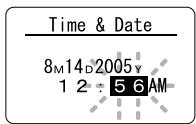
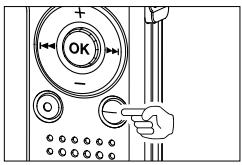
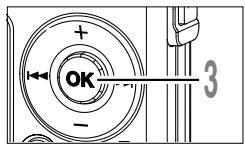
3 Press the OK button to complete the setup screen.
The clock will start from the set date and time. Press the OK button according to the time signal.
- You can choose between 12 and 24 hour display by pressing the FOLDER/INDEX button while setting the hour and minute.
Example: 5:45 P.M. 5:45 PM 17:45 (Initial setting)



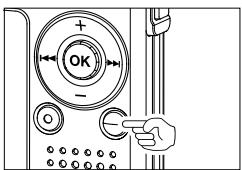
- You can choose the order of the year, month, day by pressing the FOLDER/INDEX button while setting them.
Example: August 14, 2005

flowchart
graph LR
    A["8M 14D 2005Y"] --> B["14D 8M 2005Y"]
    B --> C["2005Y 8M 14D"]
    D["(Initial setting)"] --> A
4 Press the STOP button to close the menu.
Note
- If you press the OK button during the setup operation, the recorder will save the items that were set to that point..

Changing the Time/Date
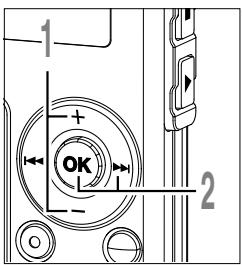
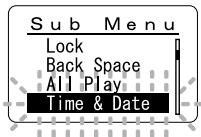
1 Press the + or - button in the sub menu screen, and select the "Time&Date".
See P.38, 68, 75 regarding the sub menu.
Press the OK or ▶▶▶I button.
The Time/Date screen appears. The hour indicator flashes, indicating the start of the Time/Date setup process.
Follow the same steps starting at step 1 in "Setting Time/Date" (P.12).
1
Switching Between the Voice Recorder and Music Player
Switching Between the Voice Recorder and Music Player
This device can be used as a voice recorder or as a music player.
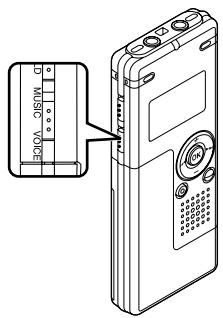
Using the mode switch, choose between VOICE and MUSIC option.
VOICE: For recording or playing back voice files.
MUSIC: For listening to music files.
Meaning of icons in this manual

Set the mode switch to VOICE before operating the recorder.

Set the mode switch to MUSIC before operating the recorder.

Convenient features that can be used with both the Voice Recorder and Music Player.
2
When Using the Recorder as a Voice Recorder

Recording
The recorder provides five folders, A, B, C, D and E, and each message recorded in a folder is saved as a Windows Media Audio (WMA) file. These five folders can be selectively used to distinguish the kind of recording; for example, Folder A might be used to store private information, while Folder B might be dedicated to holding business information. Up to 199 messages can be recorded per folder.
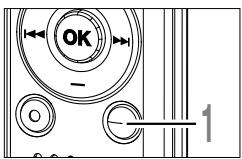
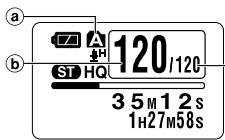
1 Press the FOLDER button to choose a folder.
a Current folder
⑥ Current file number
© Total number of recorded files in the folder
2
Recording
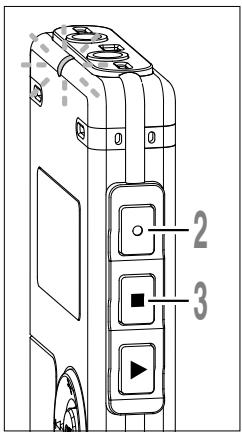
2 Press the REC button to start recording.
The record/play indicator light glows red. Turn the built-in stereo microphone in the direction to be recorded. The display changes depending on the recording mode (P.20).
(d) Current recording mode
(e) Recording time
f Memory remaining indicator (E/F bar) (The bar indicates remaining memory)
⑨ Level meter (varies according to the sound volume being recorded)
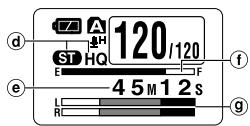
Display in the stereo recording mode
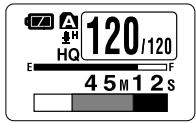
Display in the monaural recording mode
3 Press the STOP button to stop recording.
You can change the display patterns (P.36). The displays indicated in this manual are default.
2
Recording

natural_image
Two horizontal grayscale color swatches with a central crosshair target (no text or symbols)Recording
Notes
- To ensure recording from the beginning, start speaking after you see the red record/play indicator light on.
- A beep will sound when remaining recording time reaches 60 seconds, 30 seconds, and 10 seconds while recording.
- When remaining recording time is less than 60 seconds, the record/play indicator light starts flashing in red. When the recording time is decreasing to 30 or 10 seconds, the light flashes faster.
- “Memory Full” or “Folder Full” will be displayed when the memory or folder capacity is full. Delete any unnecessary files before recording any further (P.70).
Pause
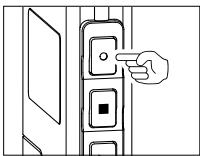
Press the REC button while recording.
→ "Rec Pause" will flash on the display.
- The recorder will time out after 1 hour when left in "Rec Pause".
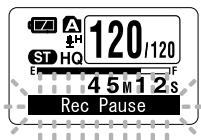
Resume Recording
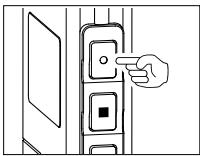
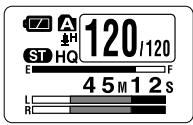
Press the REC button again.
→ Recording will resume at the point of interruption.



Listening While Audio is Recorded (Recording Monitor)
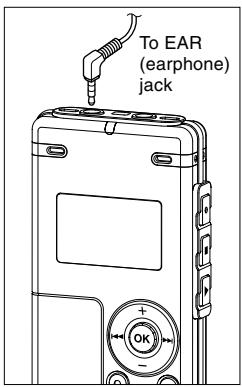
If you start recording after inserting the earphone into the EAR jack on the recorder, you can hear the sound being recorded. The sound volume on the recording monitor can be adjusted by pressing the VOL (+) or VOL (−) button.
Connect the earphone to the EAR jack on the recorder
→ After recording is started, you can hear the sound being recorded through the earphone. If the earphone is connected, no sound will come from the speaker.
Notes
- Recording level cannot be controlled using the volume button.
- When using the earphones, do NOT set the volume too high. Listening at very high volume may lead to hearing loss.
2
Using the Variable Control Voice Actuator (VCVA)

Using the Variable Control Voice Actuator (VCVA)
When the microphone senses that sounds have reached a preset threshold volume level, the built-in Variable Control Voice Actuator (VCVA) starts recording automatically, and stops when the volume drops below the threshold level.
The VCVA feature extends recording time and conserves memory by stopping recording during silent periods, which helps the playback to be more efficient.
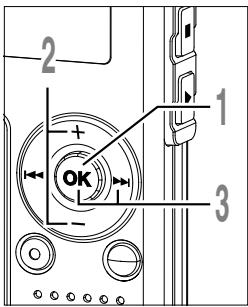
1 Press and hold the OK button for 1 second or longer.
The menu opens (P.38, 74).
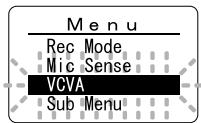
2 Press the + or - button to choose "VCVA".
3 Press the OK or ▶▶▶ button.
The VCVA setup process begins.
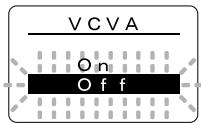
4 Press the + or - button to choose between "On" and "Off".
On: Will start recording in VCVA mode.
Off: Will resume recording in normal mode.
5 Press the OK or ◀◀ button to complete the setup screen.
6 Press the STOP or ◀◀◀ button to close the menu.
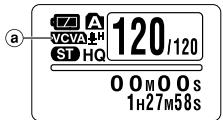
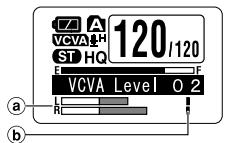
When “On” is selected, a VCVA indication will be displayed on the screen.
(a) VCVA (Variable Control Voice Actuator) indicator
e Actuator
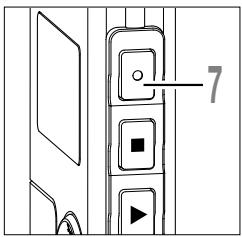
7 Press the REC button to start recording.
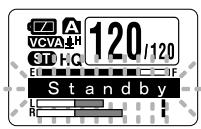
When the sound volume is lower than the preset threshold sound level, recording automatically stops after 1 sec approximately, and “Standby” flashes on the display. The record/play indicator light glows red when recording starts and flashes when recording pauses.
Adjust the Start/Stop Actuation Level
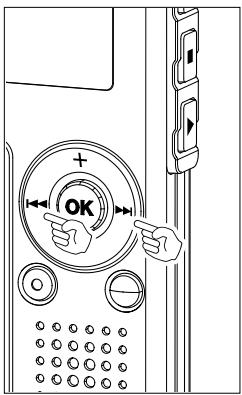
Press the ▶▶▶ or ◀◀◀ button to adjust the pause sound level during recording.
The VCVA level can be set to any of 15 different values. The higher the value, the more sensitive the recorder to sounds. At the highest value, even the faintest sound will activate recording.
The VCVA pause sound level can be adjusted according to the ambient (background) noise.
① Level meter (varies according to the sound volume being recorded)
⑥ Start level (moves to the right/left according to the set level)
Notes
- The start/stop actuation level also varies depending on the selected microphone sensitivity mode (P.21).
- If the starting level is not adjusted within 2 seconds, the display will return to the previous.
- If the surrounding noise is loud, the starting sensitivity of the VCVA can be adjusted according to the recording situation.
- To ensure successful recordings, prior testing and adjustment of the start/stop actuation level is recommended.

natural_image
Two horizontal bar charts with grayscale shades and a central crosshair (no text or symbols)
Recording Modes (Rec Mode)
The recording mode can be chosen from ST HQ (stereo high quality sound recording), HQ (high quality sound recording), SP (standard recording), and LP (long-term recording).
2
Recording Modes (Rec Mode)
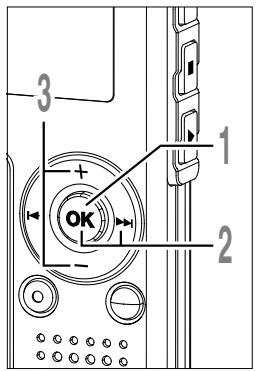
1 Press and hold the OK button for 1 second or longer.
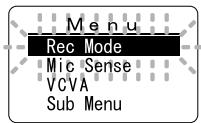
"Rec Mode" will be displayed on the screen (P.38, 74).
2 Press the OK or ▶▶▶I button.
The recording mode setup process begins.
3 Press the + or - button to choose from "ST HQ", "HQ", "SP" and "LP".
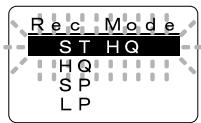
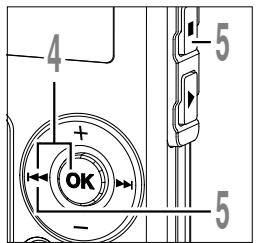
4 Press the OK or I◀◀ button to complete the setup screen. 5 Press the STOP or I◀◀ button to close the menu.
a Record mode indicator
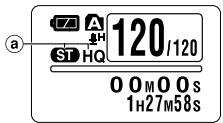
Notes
- When a meeting and lecture is to be recorded clearly, set other than LP mode to record.
- When the monaural microphone is inserted into the microphone jack in ST HQ mode, the sound will be recorded only in the L channel.

Microphone Sensitivity (Mic Sense)
Microphone sensitivity is adjustable to meet recording needs.
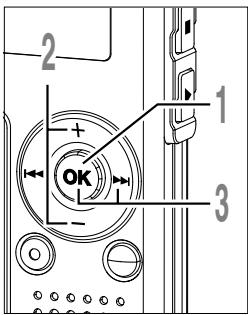
1 Press and hold the OK button for 1 second or longer.
The menu opens (P.38,74).
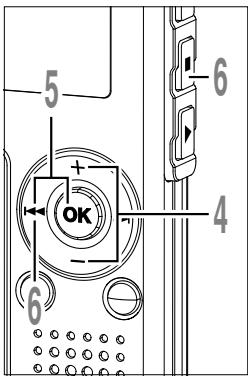
2 Press the + or - button to choose "Mic Sense".
3 Press the OK or ▶▶▶I button.
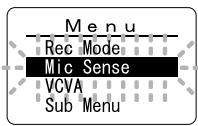
The microphone sensitivity setup process begins.
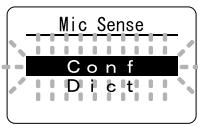
4 Press the + or — button to choose between “Conf” and “Dict”.
Conf: High-sensitivity mode that records sounds in all directions.
Dict: Low-sensitivity mode suited for dictation.
5 Press the OK or I◀◀ button to complete the setup screen.
6 Press the STOP or I◀◀ button to close the menu.
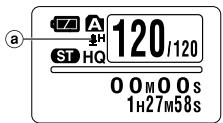
① Microphone sensitivity display
2
Microphone Sensitivity (Mic Sense)
Notes
- When the speakers voice is to be recorded clearly, set to Dict (dictation) mode and move the built-in stereo microphone close to the speaker's mouth (5 to 10 cm / 2 to 4 inches) and record.
- If the ambient (background) noise is too loud to get a clear recording even in Dict (dictation) mode, we recommend that you use an ME12 single directional microphone (sold separately).

Recording from External Microphone or Other Devices
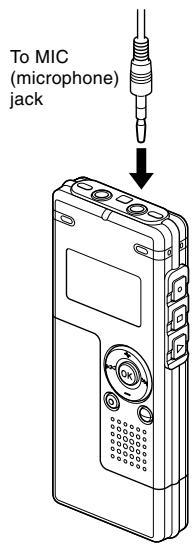
The external microphone and other devices can be connected and the sound can be recorded. Connect as follows by the device to be used.
Recording with External Microphone
Connect the external microphone to the microphone jack of the recorder.
When the external microphone is connected to the microphone jack of the recorder, the built-in microphone will not operate.
Applicable External Microphones (optional)
● Noise-cancellation monaural microphone: ME12 (Dictation microphone)
This microphone is used to record your own voice while minimizing surrounding noise and suits for voice recognition.
● Tie clip microphone: ME15 (monaural)
Small concealing microphone with a tie-clip.
- Telephone pickup: TP7 (monaural)
Earphone type microphone can be plugged into your ear while phoning. The voice or conversation over the phone can be clearly recorded.
- Stereo microphone: ME51S
The high fidelity of the recording, which only stereo can perform. Furthermore, it gives clear sound quality with less noise. Stereo recording is possible only when it is set to ST HQ mode.
ophone
To MIC
(microphone)
jack
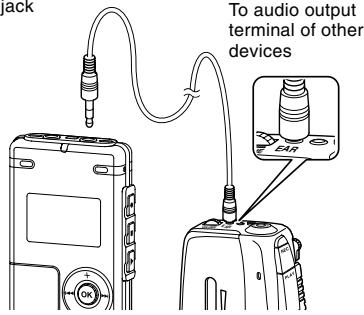
Recording the Sound of Other Devices with This Recorder
The sound can be recorded when connecting to the audio output terminal (earphone jack) of the other device, and the microphone jack of the recorder with the connecting cord (optional KA333)(P.84) for dubbing.
To audio input terminal of other devices
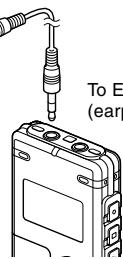
Recording the Sound of This Recorder with Other Devices
The sound of this recorder can be recorded to other devices when connected to the audio input terminal (microphone jack) of other devices and the earphone jack of this recorder, with the connecting cord (optional KA333) for dubbing.
Notes
- The input level cannot be adjusted on this recorder. When you connect the recorder to an external device, execute a test recording and adjust the output level of the external device.
- A microphone with plug-in power, which receives the power supply from this recorder, can be used.
- Please do not insert/remove the cord to/from the jack of this recorder while recording.
- When the external stereo microphone is inserted while set in HQ, SP, and LP modes, it enables recording only with the L channel microphone.
- When the monaural microphone is inserted into the microphone jack in ST HQ mode, the sound will be recorded only in the L channel.
2
Playing

Playing
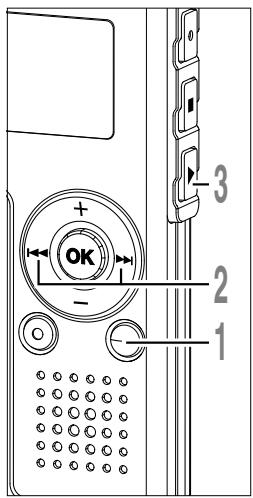
1 Press the FOLDER button to choose a folder.
2 Press the ▶▶▶ or ◀◀◀ button to choose the file that you want to play.
If you keep pressing the ▶▶▶ or ◀◀◀ button in stop mode, the recorder continuously skips to the beginnings of files.
3 Press the PLAY button to start playback.
The record/play indicator light glows green.
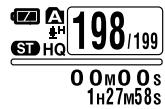
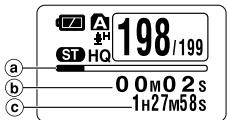
① Play position bar indicator
b Current playback time
© Total recording time of the file being played
4 Press the + or - button to select the proper sound volume.
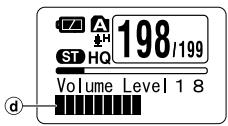
The display shows the volume level. You can choose between 0 and 30.
(d) Volume level meter
5 Press the STOP button at any point you want to stop the playback.
Resume playback by pressing PLAY button again.
You can change the display patterns (P.36). The displays indicated in this manual are default.

natural_image
Two horizontal bar designs with grayscale shades and a central crosshair (no text or symbols)Changing Playing Speed (Slow Playback/Fast Playback)
natural_image
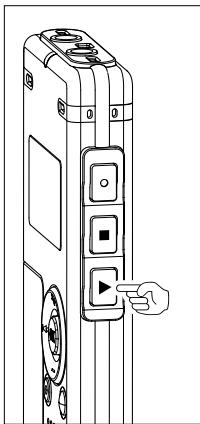
Line drawing of a handheld electronic device with control buttons and a hand pointing to the button (no text or symbols)Press the PLAY button once while playing a file. → You can change the playing speed.

flowchart
graph LR
    A["Normal speed"] --> B["Slow Playback (-25%)"]
    B --> C["Fast Playback (+50%)"]
- As in normal playback, operations such as playback stop, file cueing, and index mark (P.32) insertion are possible in slow playback and fast playback.
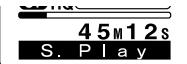
- When the slow playback mode is selected, the "S.Play" appears and, for the fast playback mode, "F.Play" appears on the display while the recorder is playing back.
- The recorder stops playing when you press the STOP button while playing back in the slow/fast mode, or when it reaches to the end of the file. If you press the STOP button once and start playback again, the recorder will play back files in normal speed as well.
- During fast playback/slow playback, it will be played back in monaural even though the file was recorded in ST HQ mode.
2
Playing
Forwarding and Rewinding
Fast Forward
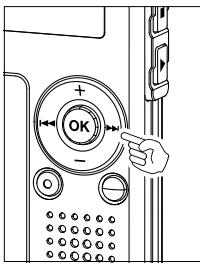
Press and hold the ▶▶▶I button while playing a file.
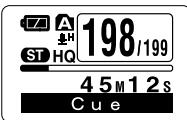
When you release the ▶▶I button, the recorder will resume normal playback.
- When the index mark is shown in the middle of a file, it will stop temporarily in the position of the index mark.
- The recorder stops when it reaches the end of the file. Continue pressing the ▶▶I button to proceed with the cue from the beginning of the next file.

natural_image
Two horizontal bar designs with grayscale shades and a central crosshair (no text or symbols)Playing
2
Playing
Rewind
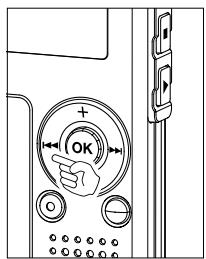
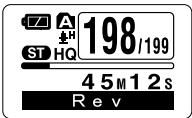
Press and hold the ◀◀◀ button while playing a file.
When you release the ◀◀◀ button, the recorder will resume normal playback.
- When the index mark is shown in the middle of a file, it will stop temporarily in the position of the index mark.
- The recorder stops when it reaches the beginning of the file. Continue pressing the ◄◀◀ button to proceed with the review from the end of the previous file.
Locating the Beginning of the File

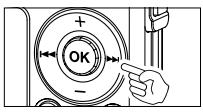
Press the ▶▶I button during playback, slow playback, or fast playback.
The next file is cued and playback starts at the original speed.
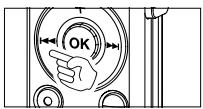
Press the ◀◀◀ button during playback, slow playback, or fast playback.
The file being played is cued and playback starts at the original speed.*
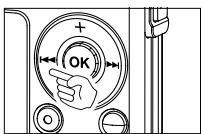
Press the ◀◀◀ button 2 times during playback, slow playback or fast playback.
The previous file is cued, and playback starts at the original speed.*
- When the index mark is shown in the middle of a file, playback starts at the position of the index mark.
* If the previous playback is set (P.31), the recorder will playback in reverse skip for the set time.

natural_image
Two horizontal bar designs with grayscale shades and a central crosshair (no text or symbols)When Playing Back or Fast Forwarding to the End of the Last File
When it reaches to the end of the last file, “End” will flash for 5 seconds, and stops at the starting position of the last file. While “End” is flashing, the following operation can be executed.
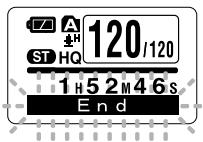
- If you press the ◄◀ button, the recorder will start playback in reverse skip returning to whichever closer, the starting position of the last file or the index mark. When the previous playback is set to “On”, it will be played in reverse skip only for the set time of the previous playback.
- If you press and hold the I◄◄ button, the recorder will start fast rewind from the end of the last file, and start playback from the point the button is released.
- If you press the ▶▶I button, the recorder will skip to the starting position of the head file and stop.
- If you press and hold the ▶▶▶I button, the recorder will skip to the starting position of the head file, and stop at the position the button is released.

Playback Through Earphone
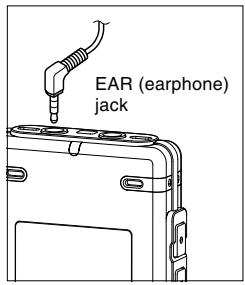
An earphone can be connected to the EAR jack of the recorder for listening.
When the earphone is used, the recorder speaker will be switched-off.
Notes
- To avoid irritation to the ear, insert the earphone after turning down the volume level.
- When you listen with the earphone during playback, do not raise the volume too much. It may cause hearing impairment and decrease in hearing ability.

natural_image
Two horizontal bar patterns with grayscale shades and a central crosshair (no text or symbols)
Continuous Playback (All Play)
This function allows you to listen to all your recordings of one folder in one go without any stop between the files.
2
Continuous Playback (All Play)
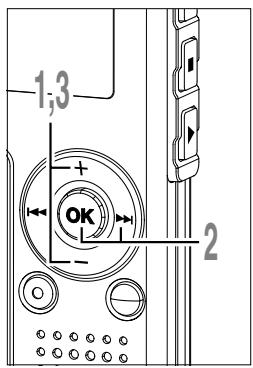
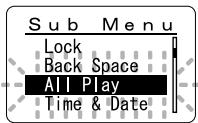
1 Press the + or — button in the sub menu screen, and select the “All Play”.
See P.38, 75 regarding the sub menu.
2 Press the OK or ▶▶▶I button. The continuous playback setup process begins.
3 Press the + or — button to choose between “On” and “Off”.
On: Continuous playback. Off: Returns to playback with stop between single files.
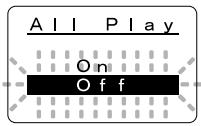
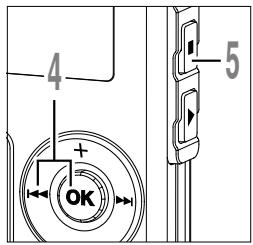
4 Press the OK or ◀◀ button to complete the setup screen.
5 Press the STOP button to close the menu.
Note
- After playback of last file in the folder, "End" appears on the screen and playback stops automatically.

Repeat Playback
This function enables repeated playback of part of the file being played.
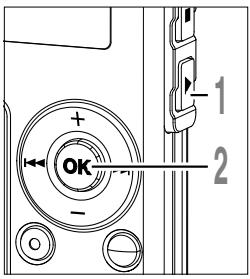
1 Choose the file for Repeat Playback, and press the PLAY button.
File playback begins.
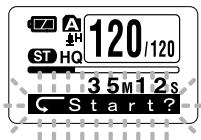
2 Press and hold the OK button for 1 second or longer.
"Start?" will flash on the display.
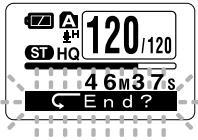
3 Press the OK button briefly at the point you want to start Repeat Playback.
"End?" will flash on the display.
Even while “◀ Start?” and “◀ End?” are flashing, changing the playback speed (◀ P.25), fast forward and rewind (◀ P.25) can be executed the same as during normal playback, and it can be advanced quickly to the start or end position.
When it reaches to the end of the file while “◀ End?” is flashing, the point will become the end position, and repeat playback will start.
2
Repeat Playback

2
Repeat Playback

natural_image
Two horizontal grayscale color swatches with a central crosshair target (no text or symbols)Repeat Playback
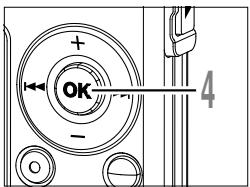
4 Press the OK button briefly again at the position you want repeat playback to end.
The recorder repeatedly plays back the section between the start and the end positions until you cancel repeat playback.
The playback speed (P.25) can be set during repeat playback as well as normal playback. If an index mark (P.32) is inserted or deleted during repeat playback, repeat playback will be cancelled and return to the normal playback.
Cancel the Continuous Playback Function
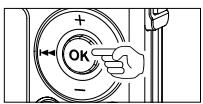
Press the OK button.
→ Pressing the OK button will release repeat playback and continue playback.
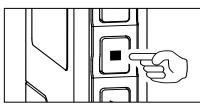
Press the STOP button.
→ Pressing the STOP button will release repeat playback and stop playback.
Press the ▶▶I button.
→ Pressing the ▶▶I button will release repeat playback and fast forward and cue to the beginning of the next file.
Press the ◀◀ button.
→ Pressing the ◀◀◀ button will release repeat playback and rewind and reverse to the beginning of the current file.

Auto Backspace Review (Back Space)
To ease the reviewing of a voice file you can set an auto backspace for either 1 or 2 seconds, so you will listen to the last phrase repeatedly.
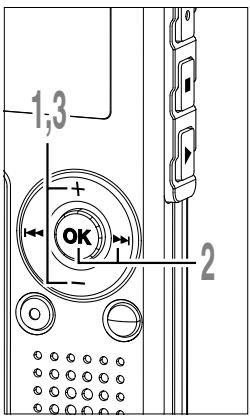
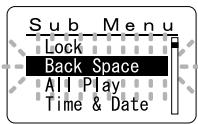
1 Press the + or — button in the sub menu screen, and select the “Back Space”.
See P.38, 75 regarding the sub menu.
Press the OK or ▶▶▶I button.
The auto backspace review setup process begins.
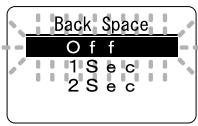
3 Press the + or - button to choose from "Off", "1 Sec" and "2 Sec".
Off: Perform normal cueing.
1 Sec: Start playback from 1 second before.
2 Sec: Start playback from 2 seconds before.
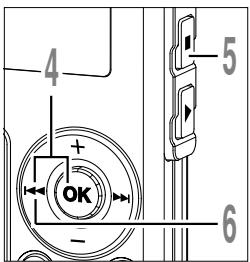
4 Press the OK or ◀◀ button to complete the setup screen.
5 Press the STOP button to close the menu.
6 Press the ◀◀◀ button while the file is being replayed.
Playback starts at the set point of seconds before.
2
Note
- If "1 Sec" or "2 Sec" is set at the previous playback, and even though the I◀◀ button is pressed, it does not reverse skip to the cue or the index mark position. Reverse skip is executed for only the set time (1 or 2 seconds).

natural_image
Two horizontal grayscale color swatches with a central crosshair overlay (no text or symbols)
Index Marks
Index marks can be placed in a file during recording or playback to provide a quick and easy way of keeping track of important sections in the file.
2
Index Marks
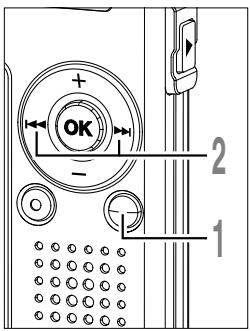
Setting an Index Mark
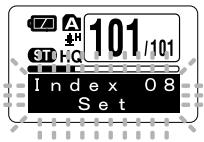
1 Press the INDEX button during recording or playback to set an index mark. An index number appears on the display.
Locating an Index Mark
2 Hold the ▶▶▶ or ◀◀◀ button while playing a file. The recorder stops for 1 second when it reaches the index mark.
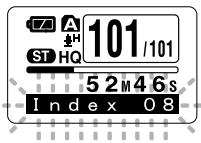
Clearing an Index Mark
3 Locate the index mark you want to clear. 4 Press the ERASE button while the index number appears for approximately 2 seconds on the display. The index mark is erased.
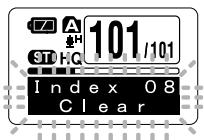

natural_image
Two horizontal bar designs with grayscale shades and a central crosshair (no text or symbols)Notes
- Up to 16 index marks can be set in a file. Attempting to set more index marks will cause "Index Full" to appear on the display.
- Index marks cannot be set or cleared in a locked file (P.34).
- The index marks can only be placed in WMA files recorded with OLYMPUS recorder.
- If the I◀◀ button is pressed in the set status of “1 Sec” or “2 Sec” in the previous playback, it will reverse skip for only the set time.

natural_image
Two isolated crosshair targets on a plain background, no text or symbols present
natural_image
Two horizontal bar patterns with grayscale shades and a central crosshair (no text or symbols)
Locking Files (Lock)
Locking a file keeps important data from being accidentally erased.
Locked files are not erased when you choose to erase all files from a folder (P.71).
2
Locking Files (Lock)
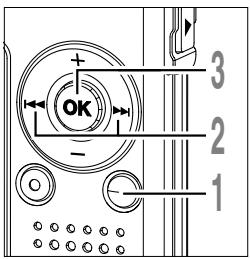
1 Press the FOLDER button to choose a folder.
2 Press the ▶▶▶ or ◀◀◀ button to choose the file you want to lock.
3 Press and hold the OK button for 1 second or longer.
The menu opens (P.38,74).
4 Press the + or - button to choose "Sub Menu".
5 Press the OK or ▶▶▶ button. "Lock" will be displayed on the screen.
6 Press the OK or ▶▶▶I button. The file locking setup process begins.
7 Press the + or - button to choose between "On" and "Off".
On: Locks the file and prevents it from being erased.
Off: Unlocks the file and allows it to be erased.
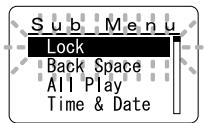
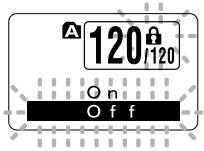

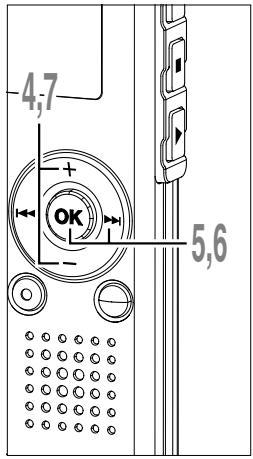
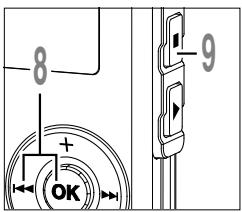
8 Press the OK or ◀◀ button to complete the setup screen.
9 Press the STOP button to close the menu.
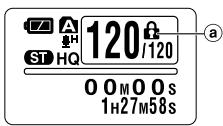
① Erase lock indicator
2
Locking Files (Lock)

LCD Display Information
You can select an option for the display of the recorder. This helps review and confirm different recorder settings and file information.
While in Stop or Playback Mode
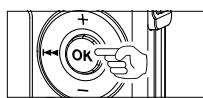
Press the OK button.
Each time the OK button is pressed, the recorder will display ① to ③ repeatedly. If there is no file, remaining recording time will be displayed.
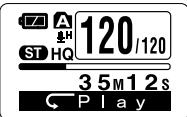
① File length
(Count up indicator) Indicates the length of the file and playback elapsed time with the bar and counting up.
② File length
(Count down indicator) Indicates the length of the file and the remaining playback time with the bar and counting down.
③ Time stamp
Shows the time that the file was recorded.

flowchart
graph LR
    A["120/120 timer"] --> B["120/120 timer"]
    B --> C["120/120 timer"]
    C --> D["Rec Time 12M31D 12:56M"]
    A -->|3 5M 1 2s 1H27M58s| E
    B -->|52M 46s 1H27M58s| F
    C -->|ST HQ| G
    D -->|ST HQ| H
While in Stop Mode
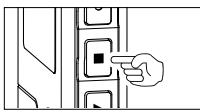
Press and hold the STOP button.
While the STOP button is being pressed down, ① and ② will be alternately displayed every second and will return to the previous display when the STOP button is released.
① Memory remaining
(Remaining time indicator) Displays the remaining time available for recording with the numbers and remaining memory E/F bar.
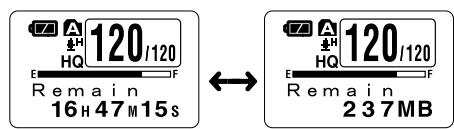
② Memory remaining
(Remaining memory indicator)
Displays the remaining memory available for recording with the numbers and remaining memory E/F bar.



While in Record Mode
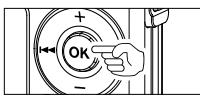
Press the OK button.
Each time the OK button is pressed, ① and ② will be alternately displayed.
① Recording level meter
(Count up indicator) Displays the audio input level with the meter at the bottom, remaining memory with the E / F bar and recording elapsed time with the counter.
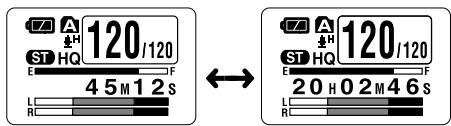
Display in the stereo recording mode
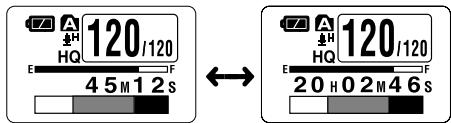
Display in the monaural recording mode
② Recording level meter
(Count down indicator) Displays the audio input level with the meter at the bottom, remaining memory with the E / F bar and remaining recording time with the count down.
While in Recording in VCVA Mode
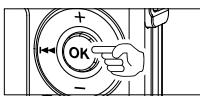
Press the OK button.
Each time the OK button is pressed, ① and ② will be alternately displayed.
① VCVA recording level meter
(Count up indicator) Displays the audio input level and start level with the meter at the bottom, remaining memory with the E/F bar and recording elapsed time with the counter. (Displays in "Standby" if it has not reached to the VCVA start level).
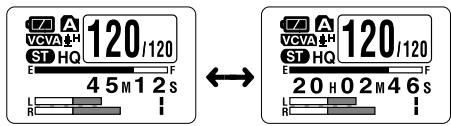
Display in the stereo recording mode
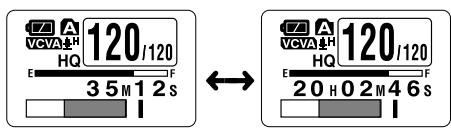
Display in the monaural recording mode
② VCVA recording level meter
(Count down indicator) Displays the audio input level and start level with the meter at the bottom, remaining memory with the E/F bar and remaining recording time with the count down. (Displays in "Standby" if it has not reached to the VCVA start level).

natural_image
Two horizontal grayscale color swatches with a central crosshair target (no text or symbols)
Menu List (VOICE Mode)
Menu
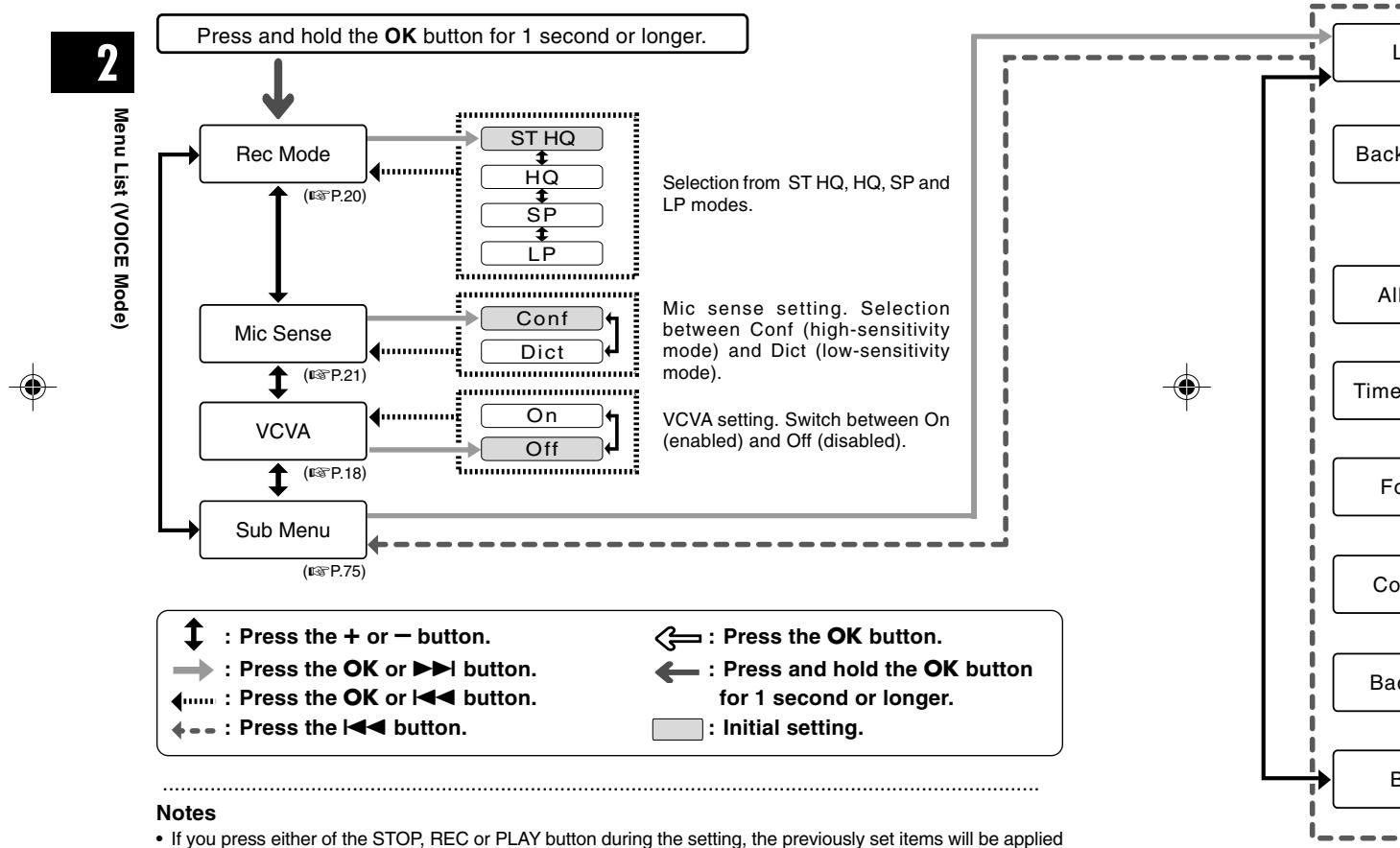
flowchart
graph TD
    A["Press and hold the OK button for 1 second or longer."] --> B["Rec Mode"]
    B --> C["ST HQ"]
    C --> D["HQ"]
    D --> E["SP"]
    E --> F["LP"]
    B --> G["Mic Sense"]
    G --> H["Conf"]
    G --> I["Dict"]
    H --> J["On"]
    I --> K["Off"]
    J --> L["Sub Menu"]
    K --> L
    L --> M["Sub Menu Mode"]
    M --> N["Menu List (VOICE Mode)"]
    N --> O["Rec Mode"]
    O --> P["(€P.20)"]
    P --> Q["ST HQ"]
    Q --> R["HQ"]
    R --> S["SP"]
    S --> T["LP"]
    N --> U["(€P.21)"]
    U --> V["Conf"]
    V --> W["Dict"]
    W --> X["On"]
    X --> Y["Off"]
    N --> Z["(€P.18)"]
    Z --> AA["Sub Menu Mode"]
    AA --> AB["(€P.75)"]
    AB --> AC["Sub Menu Mode"]
    AC --> AD["Lack"]
    AD --> AE["Back"]
    AE --> AF["All"]
    AF --> AG["Time"]
    AG --> AH["Forward"]
    AH --> AI["Back"]
    AI --> AJ["Batch"]
Notes
- If you press either of the STOP, REC or PLAY button during the setting, the previously set items will be applied and enters into the stop mode.
- The recorder will stop if you leave it idle for 3 minutes during a menu setup operation, when a selected item is not applied.
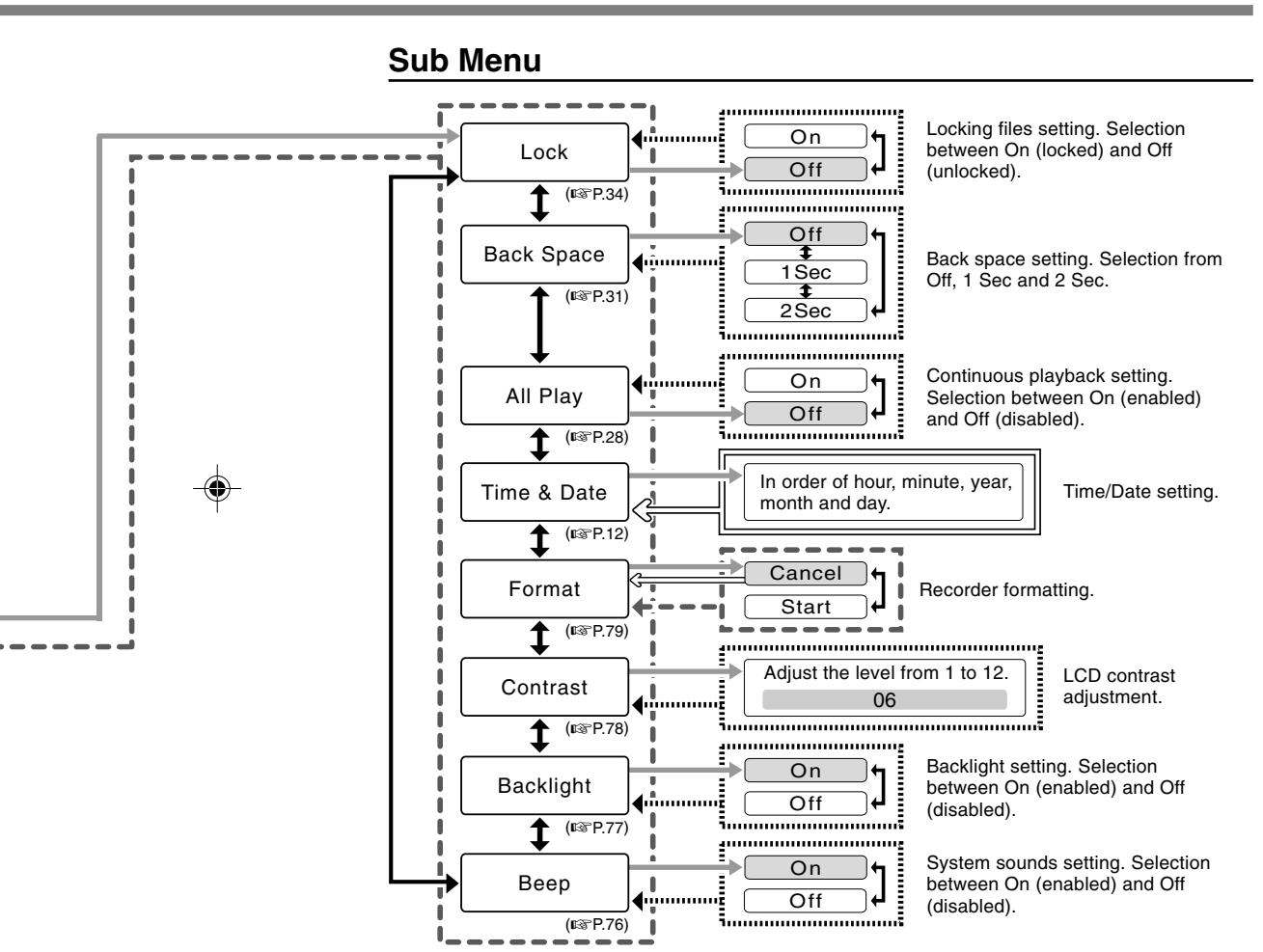
flowchart
graph TD
    A["Lock"] --> B["Back Space"]
    B --> C["All Play"]
    C --> D["Time & Date"]
    D --> E["Format"]
    E --> F["Contrast"]
    F --> G["Backlight"]
    G --> H["Beep"]
    H --> I["Locking files setting. Selection between On (locked) and Off (unlocked)."]
    I --> J["On"]
    I --> K["Off"]
    J --> L["Back space setting. Selection from Off, 1 Sec and 2 Sec."]
    K --> M["1 Sec"]
    K --> N["2 Sec"]
    L --> O["Continuous playback setting. Selection between On (enabled) and Off (disabled)."]
    M --> P["On"]
    M --> Q["Off"]
    D --> R["In order of hour, minute, year, month and day."]
    R --> S["Cancel"]
    R --> T["Start"]
    S --> U["LCD contrast adjustment."]
    T --> V["Adjust the level from 1 to 12.06"]
    U --> W["Backlight setting. Selection between On (enabled) and Off (disabled)."]
    V --> X["System sounds setting. Selection between On (enabled) and Off (disabled)."]
    style A fill:#f9f,stroke:#333
    style H fill:#f9f,stroke:#333
    style I fill:#ccf,stroke:#333
2
Menu List (VOICE Mode)

3 Using the Recorder on Your PC
Saving Files in Your PC
By being connected to a PC, the recorder enables you to do the following:
- You can save (back-up) the files stored in the recorder on your PC. Also, you can transfer the files from your PC to the recorder.
- Playback voice files on your PC.
The voice file recorded by this recorder can be played on your PC using the Windows Media Player or the simplified playback software, DSS Player - Lite, which can be downloaded for free from the website of the Olympus. Using the DSS Player – Lite enables you to search the index marks that are marked on the voice files. Also, using the Windows Media Player, the stored WMA or MP3 files on your PC can be transferred and played back on this recorder.
OLYMPUS homepage : http://www.olympus.com/
Precautions on Using the Recorder Connected to a PC
- When you are downloading a file from the recorder or uploading a file to the recorder, do not remove the USB connector even if the screen is indicating you can. Data is still being transferred while the record/play indicator light and USB access indicator light are blinking in red. When removing the USB connector, be sure to follow the description in P.43. If the USB connector is removed before the drive is stopped, data may not be successfully transferred.
- On a PC, do not format the drive of the recorder. Initialization is not successfully achieved on a PC. For initialization, follow the instructions in the Sub Menu screen of the recorder (P.79).
- Never make an operation such as deleting, moving or changing the name of this recorder's 5 voice folders (DSS_FLDA to DSS_FLDE), music folders (Music) or management files in each folder using the file management tool such as "Explorer".
The order of files may be changed or files may become unrecognizable.



Operating Environment
● Data can be written or uploaded to the recorder even though the attribute of the recorder drive is shown as read only by the operating system of the PC.
● As the noise may cause adverse effects on electronics devices nearby the recorder, unplug the external microphone and earphone when you connect the recorder to a PC.
PC: IBM PC/AT compatible PC Operating System: Microsoft Windows Me/ 2000 Professional/XP Professional, Home Edition
USB port: One free port
Others: Internet environment when accessing to the music information site.
Note
- USB ports are not supported on PCs running Windows 95, 98 or that have been upgraded from Windows 95, 98 to any other OS.
natural_image
Technical line drawing of a mechanical component with arrows indicating assembly or movement (no text or symbols)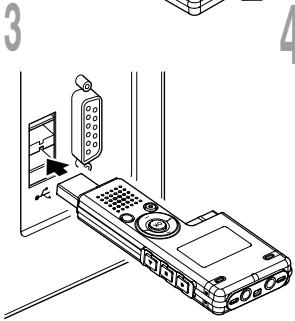
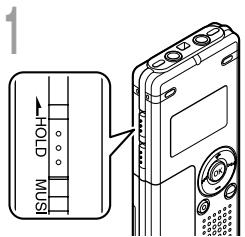
1 Slide the HOLD switch to the hold side, turn the recorder off. The display will turn off.
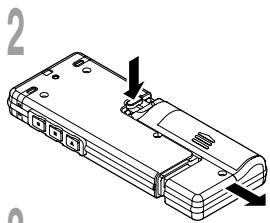
2 Detach the battery compartment pressing the RELEASE button of the rear side.
3 Connect the recorder's USB terminal to a PC USB port or USB hub.
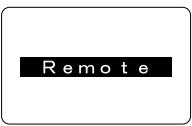
"Remote" is displayed on recorder if the USB is connected. Launch My computer, in the window, the recorder will appear as a removable disk.
4 Transfer the audio files to your computer.
The 5 folders of this recorder are displayed as "DSS_FLDA", "DSS_FLDB", "DSS_FLDC", "DSS_FLDD" and "DSS_FLDE", and the recorded voice files are saved in WMA format in these files.
You can copy them to any folder on your computer. While transmitting data, “Busy” is displayed, and the record/play indicator light and USB access indicator light flashes red. If you double-click on the file, Windows Media Player will be launched and playback will start.
Busy
Note
- If you are using Windows 2000, Windows Media Player must be installed on the PC.
Disconnecting to Your PC
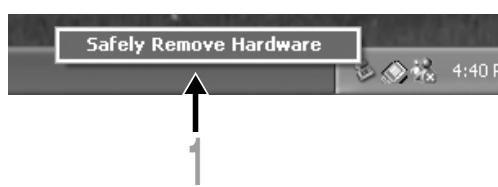
1 Click the 📋 on the task bar located at the lower-right corner of the screen. Click [Safely Remove Hardware].
It will read [Stop USB Disk-Drive] for Windows Me. The drive letter will differ depending on the computer being used.
2 When the safe to remove hardware window appears, click [OK].
3 Make sure that the display is turned off, disconnect the USB.
Notes
- NEVER disconnect the USB while the record/play indicator light and USB access indicator light are flashing in red. If you do so, the data may be destroyed.
• Refer to the user's manual for your PC regarding the USB port or USB hub on your PC. - Be sure to push the USB connector all the way in. Otherwise, the recorder may not operate properly.
- Use the supplied USB extension cable depending on situations.
4 Using the Recorder as a Music Player
Using the Recorder as a Music Player
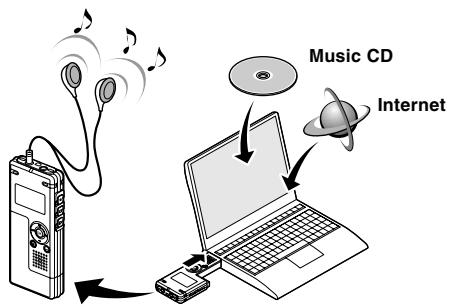
The recorder supports music files in WMA and MP3 formats, which can be transferred from the PC to the corresponding music folder of the recorder.
Using Windows Media Player
By using Windows Media Player, music files from music CDs can be converted (ripped) (P.47) and music files that you have bought from any music distribution sites can be easily transferred to the recorder (P.48).
Copyright and Copyright Protection Feature (DRM)
By the Copyright Act, any voice/music files and music CDs downloaded from the Internet without the copyright holder's permission may not be reproduced, distributed, publicized/re-publicized on the Internet, or converted into WMA or MP3 files for the purpose of commercial business or sale.
A WMA file may be provided with DRM (Digital Right Management) for copyright protection. DRM limits the file to copy or distribute music files that are converted (ripped) from a music CD or downloaded from music distribution services. To transfer a WMA file with DRM to the recorder, you need to use appropriate methods such as Windows Media Player. Copying the music files with DRM purchased from online music distribution service to a portable device such as this recorder may be restricted.
Note
- This recorder is compatible with Microsoft Corporation PD-DRM, but not with JANUS.

Window Names
Windows Media Player 10
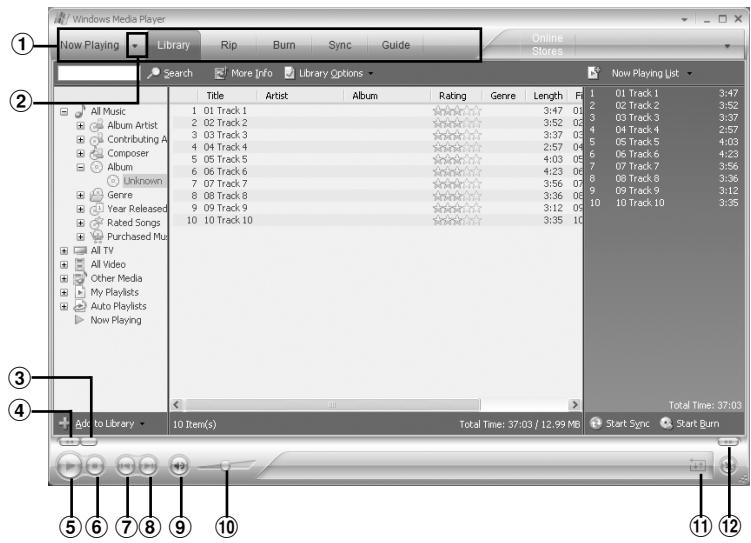
① Features taskbar
② Quick Access Pannel button
③ Seek slider
④ Rewind button
⑤ Play button
⑥ Stop button
⑦ Previous button
⑧ Next button
⑨ Mute button
⑩ Volume slider
⑪ Shuffle/Repeat button
⑫ Fast Forward button

natural_image
Two horizontal bar designs with grayscale shades and a central crosshair (no text or symbols)Window Names
Windows Media Player 9
4
Window Names
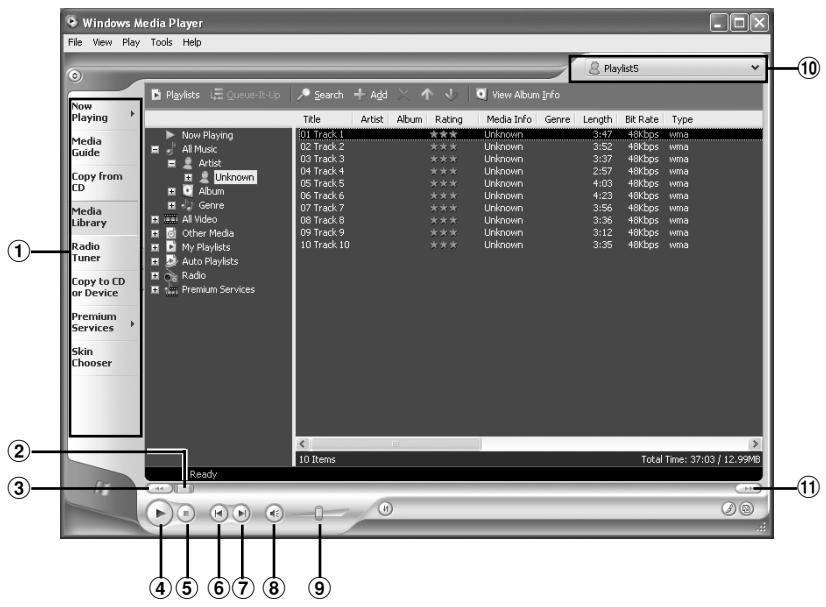
① Features taskbar
② Seek slider
③ Rewind button
④ Play button
⑤ Stop button
⑥ Previous button
⑦ Next button
⑧ Mute button
⑨ Volume slider
⑩ Quick Access box
⑪ Fast Forward button
Copying Music from CD
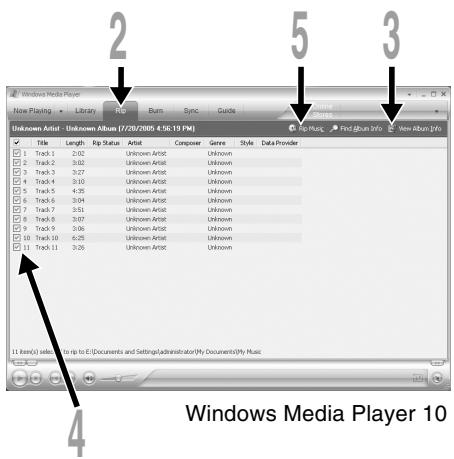
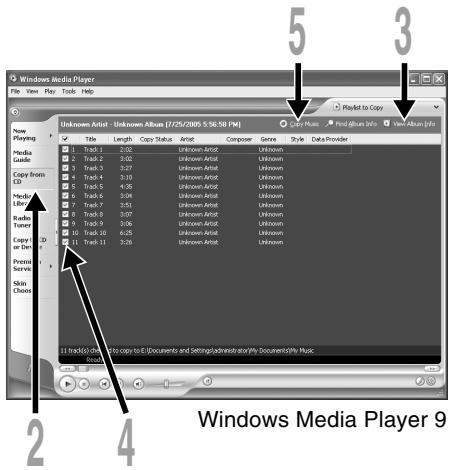
1 Insert CD into the CD-ROM drive and start Windows Media Player.
2 From the Features taskbar, click the [Rip] menu.
For Windows Media Player 9
From the Features taskbar, click the [Copy from CD] menu.
Click the [View Album Info].
If Internet connectivity is available, CD information is searched.
4 Put a check mark on the music file that you want to copy.
5 Click the [Rip Music].
For Windows Media Player 9 Click the [Copy Music].
Files copied to a PC are stored in WMA format. Music files copied are categorized by artist, album, genre, etc. and added to the play list.
4
Copying Music from CD
Transferring Music File to the Recorder
You can transfer the music files saved in your PC to this recorder. For how to copy the music files from the CD to your PC, see “Copying Music from CD” (P.47).
Windows Media Player 10
1 Connect the recorder to a PC and start Windows Media Player.
2 From the Features taskbar, click the [Sync].
3 From the pull down menu on the left side window, select the play list to be transferred to the recorder and put the check marks on the music file that you want to transfer.
The order of music pieces can be changed by Drag & Drop of the music file in the play list displayed.
4 From the pull down menu on the right side window, select the drive corresponding to the recorder.
The recorder is recognized as a Removable Disk.
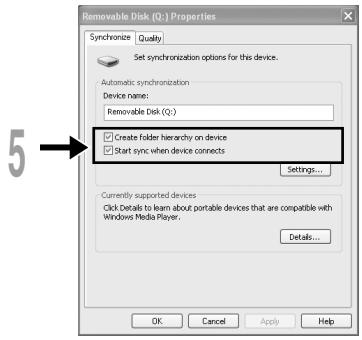
5 Click ☑ on the upper right corner and set the synchronization options.
Click on the [Create folder hierarchy on device] to check.*
The folder with artist name or album name is automatically created. This will make you find the file you want to listen to more easily.
* If [Create folder hierarchy on device] is checked by default, click to uncheck the box once, and click it again to check.
![6 2 4 Music" to "Disposable Disk (Q.1)" Start Sync Edit Playback Set-up Sync Title Status Size Track 1 Ready for 0 bytes 1.93 MB Track 2 Ready for 0 bytes 1.35 MB Track 3 Ready for 0 bytes 1.27 MB Track 4 Ready for 0 bytes 1.03 MB Track 5 Ready for 0 bytes 1.42 MB Track 6 Ready for 0 bytes 1.53 MB Track 7 Ready for 0 bytes 1.38 MB Track 8 Ready for 0 bytes 1.26 MB Track 9 Ready for 0 bytes 1.12 MB Track 10 Ready for 0 bytes 1.26 MB 10 Items(1), Total Time: 165.99 MB 5 Reversible Disk (Q.) Title Size H: DOS_PLDA H: DOS_RLD H: DOS_RLC H: DOS_PLDD H: DOS_RLC 10 Bytes / [24.93 MB] (5.57 MB free space) Ready](/content/2025/01/84072/images/c7b4a4e90be852044907c7f7a832e74ce92107031f026e676b6578eef170c8ad.jpg)


natural_image
Two horizontal bar designs with grayscale shades and a central crosshair (no text or symbols)6 Click the [Start Sync].
The file is transferred to the recorder. The music file transferred to the recorder is displayed in Item on Device.
After transferring a language-learning file to the music folder, if you further transfer or copy the file to your desired voice folder (DSS_FLDA to DSS_FLDE) using a software like "Explorer", you can use the functions such as partial repeat, fast playback, slow playback, and previous playback.
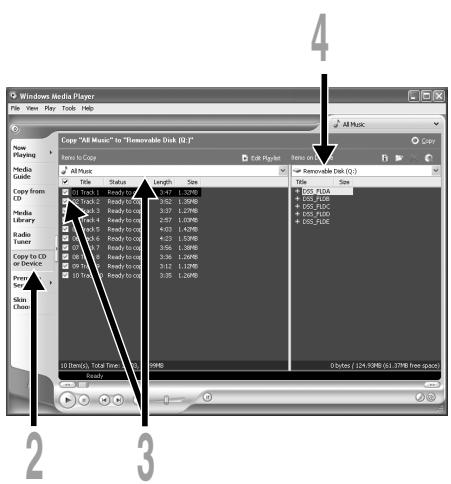
Windows Media Player 9
1 Connect the recorder to a PC and start Windows Media Player.
2 From the Features taskbar, click the [Copy to CD or Device] menu.
3 Select the play list to be transferred to the recorder and put the check marks on the music file that you want to transfer.
The order of music pieces can be changed by Drag & Drop of the music file in the play list displayed.
4 From Item on Device, select the drive corresponding to the recorder.
The recorder is recognized as a removable disk.

natural_image
Two horizontal bar patterns with grayscale shades and a central crosshair (no text or symbols)Transferring Music File to the Recorder
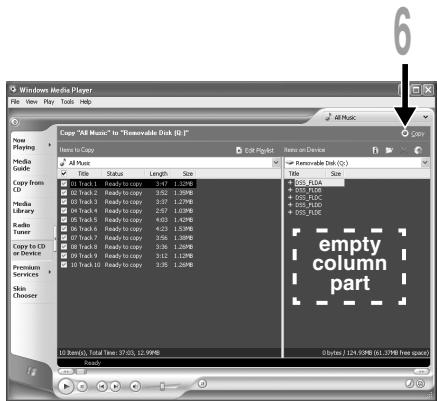
5 Select the destination folder.
To transfer to "Root" folder
The empty column part of the item on the device (Root of the drive) is selected.
To transfer to "Music" folder
Select the “Music” folder. Creating the “Artist name” folder or “Album name” folder beforehand will make the file management easier (The folders can be created in up to 2 layers in the “Music” folder.) (P.51).
To transfer to the voice folder
Select a folder from DSS_FLDA to DSS_FLDE. (Functions such as partial repeat, fast playback, slow playback and auto backspace review, available. They are useful for learning languages.)
6 Click the [Copy].
The file is transferred to the recorder. The music file transferred to the recorder is displayed in Item on the window.
Notes
- Copying the music files with DRM purchased online music distribution service to a portable device such as this recorder may be restricted.
- Refer to the online help of Windows Media Player for details.
- If the music files are transferred to the recorder until it reaches to the maximum memory, the message “Cannot make the system file. Connect to PC and delete unnecessary file” may appear on this recorder’s display. In such a case, erase the files to make free space (hundreds of KB to dozens of MB depending on the music file sizes) for the management file. (The more capacity for the management file will be necessary as the number of the music files increases.)

natural_image
Two horizontal bar designs with grayscale shades and a central crosshair (no text or symbols)
About the Music Folders
This recorder can save the music files (WMA, MP3 files) transferred from the PC in the 2 music folders, the original “Root” folder and its subsidiary “Music” folder.
Also, this recorder can create the folders in up to 2 layers within the “Music” folder. It is convenient to manage the multiple albums with the same artist name. Up to 199 files can be saved in each folder.
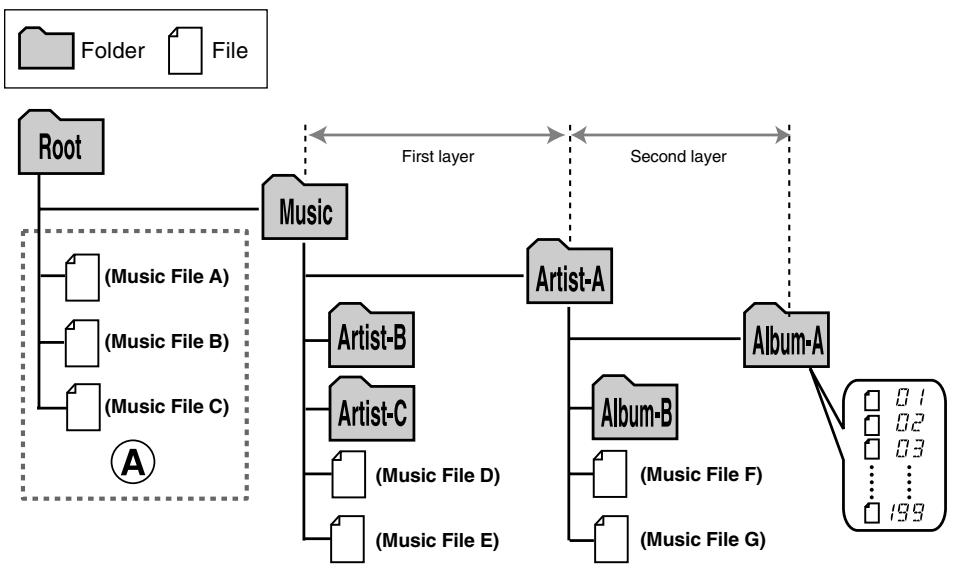
flowchart
graph TD
    A["Root"] --> B["(Music File A)"]
    A --> C["(Music File B)"]
    A --> D["(Music File C)"]
    B --> E["Music"]
    C --> E
    D --> E
    E --> F["Artist-A"]
    F --> G["Album-A"]
    G --> H["(Music File F)"]
    G --> I["(Music File G)"]
    style A fill:#f9f,stroke:#333
    style H fill:#ccf,stroke:#333
    style I fill:#ccf,stroke:#333
4
About the Music Folders
Notes
- Up to 128 folders including “Root” and “Music” folders can be operated on this recorder.
- When using Windows Media Player 10, click [Start Sync] instead of setting the synchronization options. All the files will be transferred to the part Ⓐ above (ε ^5 P.48).

About the Music Folders
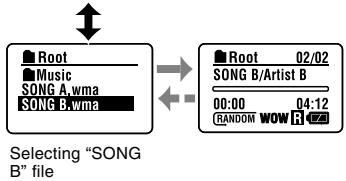
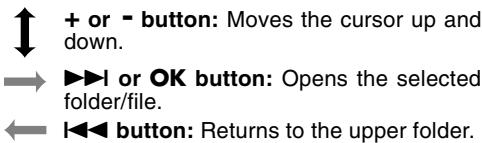
Selecting the Folders and Files
List display
The folders and files recorded in this recorder are displayed.
Upper (selected)
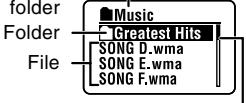
Scroll bar
(appears when the whole contents
cannot be displayed)
File display
Information of the selected file is displayed. Enters in playback standby mode.
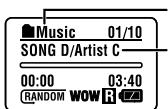
Upper (selected) folder
Title (name of the file)/Artist
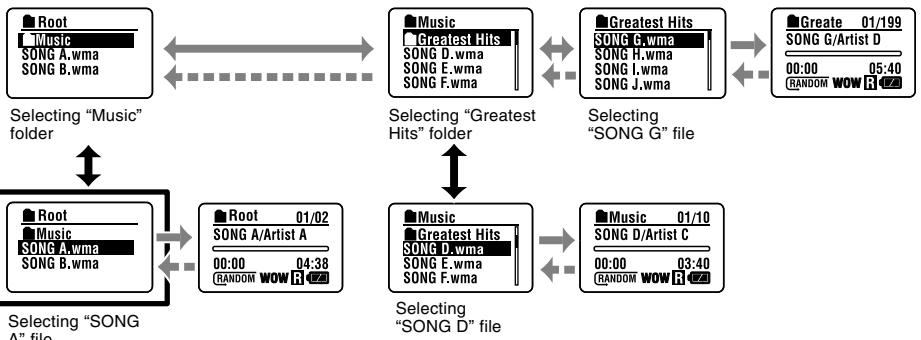
flowchart
graph TD
    A["Root"] --> B["Music"]
    B --> C["SONG A.wma"]
    C --> D["SONG B.wma"]
    D --> E["Selecting "Music" folder"]
    E --> F["Root"]
    F --> G["SONG A./Artist A"]
    G --> H["00:00 04:38"]
    H --> I["Selecting "SONG A" file"]
    I --> J["Root 01/02"]
    J --> K["SONG D/wma"]
    K --> L["00:00 04:38"]
    L --> M["Selecting "SONG B.wma"]
    M --> N["Music 01/10"]
    N --> O["SONG D./Artist C"]
    O --> P["00:00 03:40"]
    P --> Q["Selecting "SONG D" file"]
    Q --> R["Music 01/199"]
    R --> S["SONG G./Artist D"]
    S --> T["00:00 05:40"]
    T --> U["Selecting "Greatest Hits" folder"]
    U --> V["Music Greatest Hits"]
    V --> W["SONG D/wma"]
    W --> X["SONG E/wma"]
    X --> Y["SONG F/wma"]
    Y --> Z["Selecting "Greatest Hits" folder"]
    Z --> AA["SONG G/wma"]
    AA --> AB["SONG H/wma"]
    AB --> AC["SONG I/wma"]
    AC --> AD["SONG J/wma"]
    AD --> AE["Selecting "SONG G" file"]
    AE --> AF["Music 01/199"]


Music Playback
This recorder supports WMA and MP3 formats. To playback the music files using the music player, you need to transfer (copy) the corresponding music files from the PC to this recorder's folders for music (P.48).
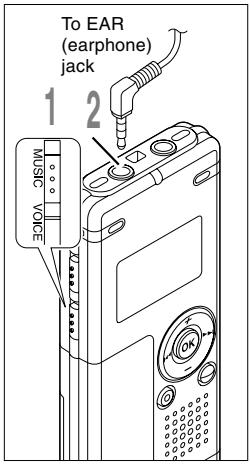
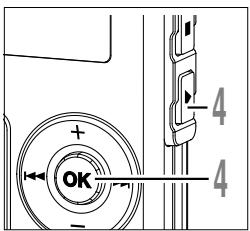
1 Set the Mode switch to MUSIC. The folder list or file list is displayed.
2 Insert the stereo earphone into the EAR (earphone) jack of the recorder.
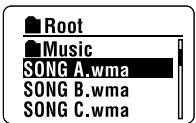
3 Select the music file that you want to play.
On the list display, place the cursor on the file you want to play, or change to the file display.
If you press and hold the ▶▶▶ or ◀◀◀ button in the file display, the files within the current folder are cued continuously.
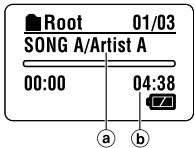
(a) File being selected
⑥ Length of the file being selected
To return to the list display from the file display, or to return to the upper folder from the list display, press the FOLDER button.
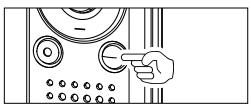
4 Press the PLAY or OK button to start playback.
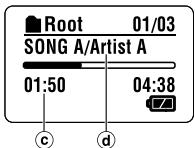
The title/artist name that cannot be displayed in one line is displayed scrolling to the left.
© Play time of the file being played
(d) Title and artist name of the file being played
4
Music Playback




Music Playback
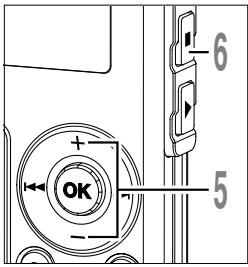
5 Press the + or - button to select the proper sound volume.
The display shows the volume level. You can choose between 0 and 30.
6 Press the STOP button at any point you want to stop the playback.
Resume playback by pressing PLAY or OK button again.
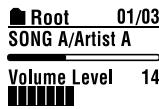
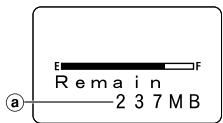
The next track will automatically start once the track being played is finished. Press and hold the STOP button while this recorder is in stop mode to display the remaining memory.
(a) Remaining memory indicator
4
Music Playback

- When the Playback Reaches to the End of the Last File
When the playback reaches to the last file in the current folder, it returns to the starting position of the head file and stops. If you select "All" in "Play Mode"(P.58), all the files in this recorder can be played continuously.
Notes
- The proper bit rate for playback on the recorder is 5 kbps to 256 kbps for both the WMA and MP3 format.
- It is possible to play back MP3 files with different bit rates (converting the bit rate within one file); however, the displayed time may not be accurate.
- When using the earphones, do NOT set the volume too high. Listening at very high volume may lead to hearing loss.
- It is possible to listen to music without the earphones, using the internal speakers; however, the sound will be in mono, not stereo.
- Up to 40 characters per track can be used to list title and artist name.

natural_image
Two horizontal bar designs with grayscale shades and a central crosshair (no text or symbols)Forwarding and Rewinding
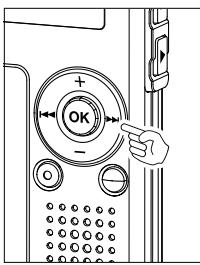
Fast Forward
Press and hold the ▶▶▶ button while playing a file.
When you release the ▶▶I button, the recorder will resume normal playback.
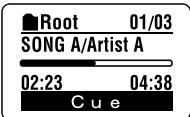
- The recorder stops when it reaches the end of the file. If you press and hold the ▶▶I button, it continues fast forwarding within the playback range selected in the “Play Mode”(E P.58). While “Random” (E P.60) is set to “On”, it continues fast forwarding of files randomly.
Rewind
Press and hold the ◀◀◀ button while playing a file.
When you release the ◀◀◀ button, the recorder will resume normal playback.
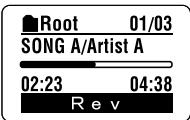
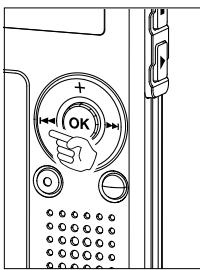
- Once it reaches back to the starting position of the file, it stops. If you press and hold the ◄◀◀ button, it continues rewinding within the playback range selected in the “Play Mode”. While “Random” is set to “On”, it continues the rewinding of files randomly.
Music Playback
Skip a Music File While Playing It
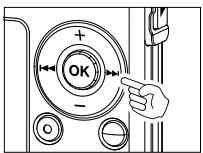
Press the ▶▶I button while playing a file.
→ The recorder skips to the beginning of the next track and starts playing it.
- It cues within the playback range selected in "Play Mode" (P.58). If "Random" (P.60) is "On", it cues the next file randomly.
4
Music Playback
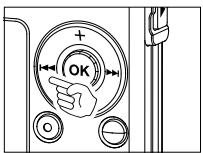
Press the ◀◀ button while playing a music file.
The recorder skips to the beginning of the current track and starts playing it.
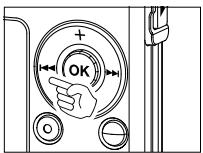
Press the ◀◀ button 2 times during playback.
The previous file is cued, and playback starts at the original speed.
- If “Random” is “On”, the files will be cued randomly.
When the Playback or Fast Forward Reaches to the End of the Last File
When the playback reaches to the end of the last file, it returns to the starting position of the head file and stops. If “Random” is “On”, it returns to the starting position of the file that is randomly played and stops.

natural_image
Two horizontal bar designs with grayscale shades and a central crosshair (no text or symbols)Menu Setting During Playback
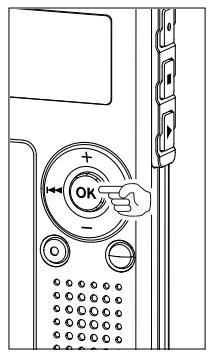
In music mode, the following functions relating playback are available. They can be set during playback.
Press the OK button while playing a file.
→ You can enter the menu setting while continuing playback, and set the following relating playback. For how to set each menu, see the reference pages.
- During the setting, if you press the PLAY button or there is no operation made for 8 seconds, menu setting will be finished.
Play Mode: Folder/All (P.58) Repeat: Off/On/Single (P.59) Random: On/Off (P.60) WOW: Functions (P.61) EQ: Functions (P.63)
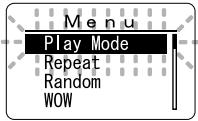

4
Selecting Play Mode (Play Mode)

Selecting Play Mode (Play Mode)
You can set 2 kinds of play modes.
You can select either playing the tracks in a folder or playing all the tracks recorded in this recorder.
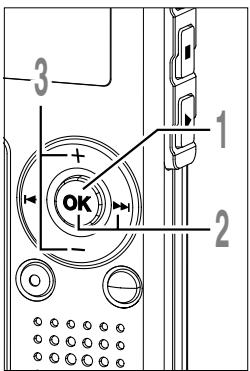
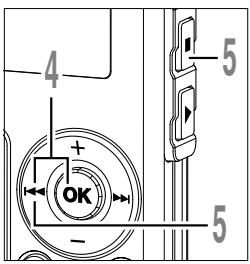
1 Press and hold the OK button for 1 second or longer.
"Play Mode" will be displayed on the screen (P.68, 74).
Press the OK or ▶▶▶I button.
The play mode setup process begins.
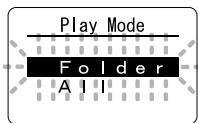
3 Press the + or — button to choose between “Folder” and “All”.
Folder: Plays the music files within the folder.
All: Plays all the music files recorded in the recorder.
4 Press the OK or ◀◀ button to complete the setup screen.
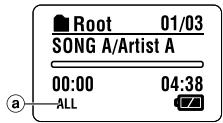
If you select "All", "ALL" will appear on the display.
① Play mode indicator
5 Press the STOP or ◀◀ button to close the menu.
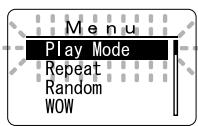
Notes
- If no operation is made for 3 minutes during the setting, it will return to the stop status.
- If "All" is selected, it plays the files within the folder, then starts playing the files in the next folder.

Repeat Playback (Repeat)
You can set the repeat playback of the music files within the range set in "Play Mode" (P.58).
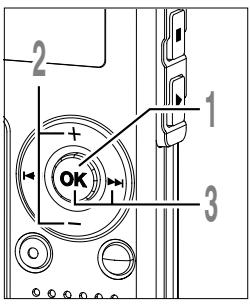
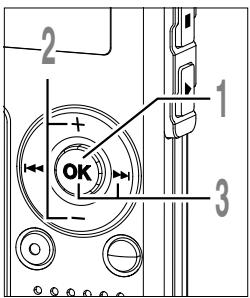
1 Press and hold the OK button for 1 second or longer.
The menu opens (P.68, 74).
2 Press the + or - button to choose "Repeat".
3 Press the OK or ▶▶▶I button. The repeat setup process begins.
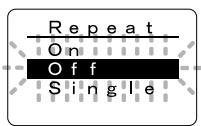
4 Press the + or - button to choose from "On", "Off" and "Single".
On: Repeats playback of the music files within the range set in "Play Mode".
Off: Cancels the setting.
Single: Repeats playback of the selected one file.
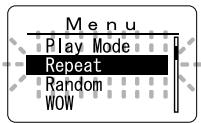
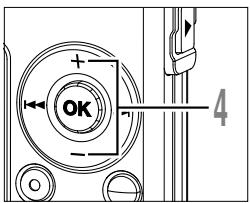
5 Press the OK or ◀◀ button to complete the setup screen.
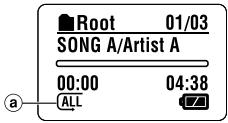
An icon appears on the display according to the setting.
a Repeat playback indicator
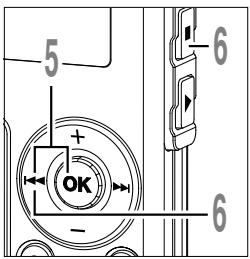
6 Press the STOP or ◀◀ button to close the menu.
Notes
- If no operation is made for 3 minutes during the setting, it will return to the stop status.
- If both “Repeat” and “Random” are set to “On”, it repeats playback randomly.
4
Random Playback (Random)

Random Playback (Random)
You can set the random playback of the music files within the range set in "Play Mode" (P.58).
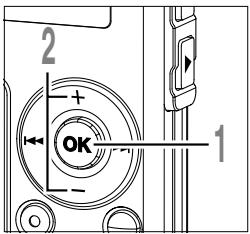
1 Press and hold the OK button for 1 second or longer.
The menu opens (P.68, 74).
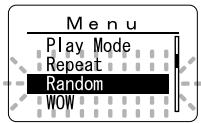
2 Press the + or - button to choose "Random".
3 Press the OK or ▶▶▶I button. The random setup process begins.
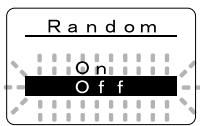
4 Press the + or - button to choose between "On" and "Off".
On: Plays the music files within the range set in "Play Mode" randomly.
Off: Cancels the setting.
5 Press the OK or ◀◀ button to complete the setup screen.
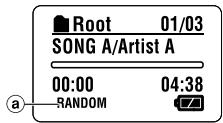
An icon appears on the display according to the setting.
① Random playback indicator
6 Press the STOP or ◀◀◀ button to close the menu.
Notes
- If no operation is made for 3 minutes during the setting, it will return to the stop status.
- If “All” is selected in “Play Mode”, all files in a folder are randomly played, then another folder will be randomly selected, and the files in the folder will be randomly played.
- If both “Repeat” and “Random” are set to “On”, it repeats playback randomly.

Increasing the WOW Effect (WOW)
The recorder has WOW, an audio processing technology that increases sound clarity and bass quality. The level of the surround effect (SRS 3D) and the bass effect (TruBass) may be individually adjusted through three levels of processing or turned off.
Surround effect (SRS 3D): Increases the sound-expansion effect and sound clarity.
Bass effect (TruBass): Enriches the low sounds.
1 Press and hold the OK button for 1 second or longer.
The menu opens (P.68, 74).
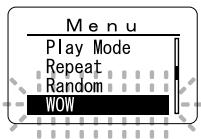
2 Press the + or — button to choose "WOW".
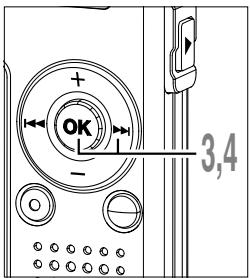
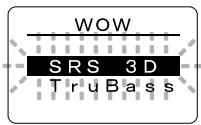
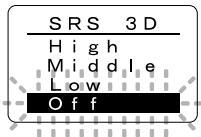
3 Press the OK or ▶▶▶ button. “SRS 3D” will be displayed on the screen.
4 Press the OK or ▶▶I button again. The surround effect setup process begins (SRS 3D).
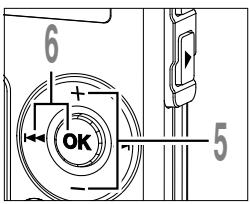
5 Press the + or — button to select the surround level.
6 Press the OK or ◀◀ button to save your setting.
Returns to the “SRS 3D” or “TruBass” selection display.
4
Increasing the WOW Effect (WOW)

4
Increasing the WOW Effect (WOW)
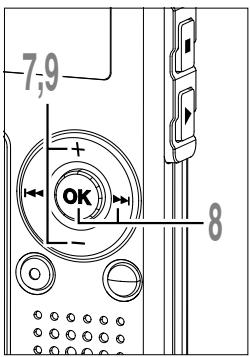
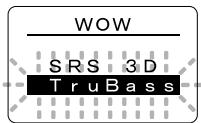
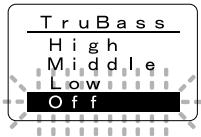
7 Press the + or - button to choose "TruBass".
8 Press the OK or ▶▶▶I button.
The bass effect setup process begins (TruBass).
9 Press the + or — button to select the bass effect level.
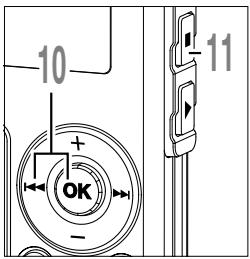
10 Press the OK or I◄◄ button to save your setting.
Returns to the "SRS 3D" or "TruBass" selection display.
11 Press the STOP button to close the menu.
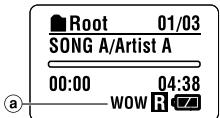
① WOW indicator
Notes
- If no operation is made for 3 minutes during the setting, it will return to the stop status.
- Both the surround effect and bass effect are Off as the WOW default settings.
- “WOW” will be displayed on the screen if the surround effect or the bass effect is set.
- The WOW effect will be weakened if the bit rate for any music file is less than 32 kbps.
- Depending on the song, the WOW effect will be heightened, and may sound like noise. If this happens, adjust the WOW effect.

If you change the equalizer setting, you can enjoy the music with your favorite sound quality.
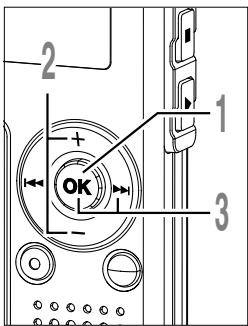
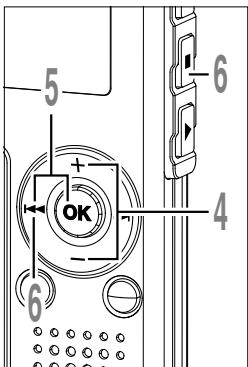
1 Press and hold the OK button for 1 second or longer.
The menu opens (P.68, 74).
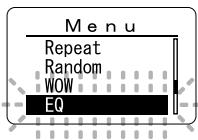
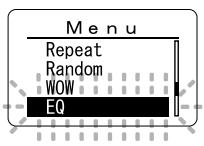
2 Press the + or - button to choose "EQ".
3 Press the OK or ▶▶▶I button. The equalizer setup process begins.
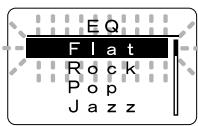
4 Press the + or — button to select the desired equalizer characteristics.
Flat ↔ Rock ↔ Pop ↔ Jazz ↔ User If you select "User", repeat the procedures from step 5 in P.64.
5 Press the OK or ◀◀ button to complete the setup screen.
6 Press the STOP or ◀◀◀ button to close the menu.
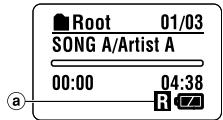
(a) Equalizer indicator
Notes
- If no operation is made for 3 minutes during the setting, it will return to the stop status.
- The equalizer default setting is Flat.

natural_image
Two horizontal bar designs with grayscale shades and a central crosshair (no text or symbols)When Changing the User Equalizer
You can customize your own equalizer by changing the User settings.
1 Press and hold the OK button for 1 second or longer.
The menu opens (P.68, 74).
2 Press the + or - button to choose "EQ".
3 Press the OK or ▶▶l button. The equalizer setup process begins.
4 Press the + or - button to choose "User".
The user setup process begins.
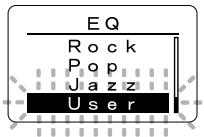
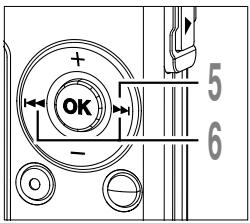
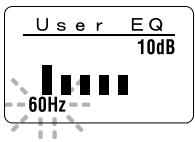
5 Press the ▶▶▶I button. Select the frequency band.
6 Press the ▶▶l or l◀◀ button to select the frequency band.

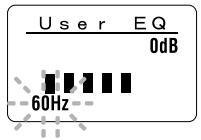



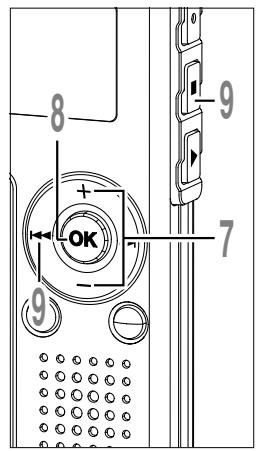
7 Press the + or - button to select the equalizer level.
You can select the equalizer level from -10dB to 10dB in 1dB increments. The higher the decibel value, the louder the sound. The default setting is 0dB.
To change the settings again, press the ▶▶▶ or ◀◀◀ button and repeat the procedure from step 6.
8 Press the OK button to complete the setup screen.
9 Press the STOP or ◀◀◀ button to close menu.
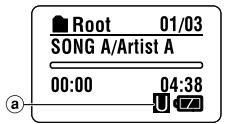
(a) User equalizer indicator
Notes
- If no operation is made for 3 minutes during the setting, it will return to the stop status.
- Your equalizer settings will be retained in memory even when you change the battery.
4
Moving the Tracks (Move)

Moving the Tracks (Move)
You can change the playback order of music files on the recorder. Select the folder (file) of the tracks that you want to move beforehand.
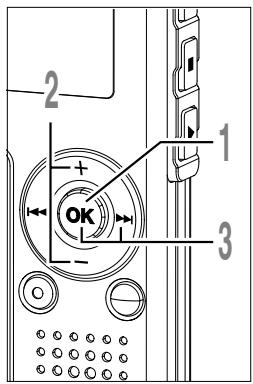
1 Press and hold the OK button for 1 second or longer.
The menu opens (P.68, 74).
2 Press the + or - button to choose "Move".
3 Press the OK or ▶▶I button.
Lists up the files in the current folder.
4 Press the + or - button to choose the file.
5 Press the OK or ▶▶▶I button.
The cursor flashes and the target file to move is fixed.
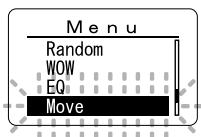
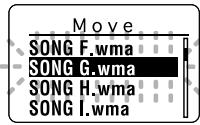
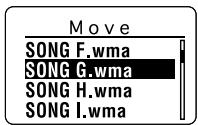



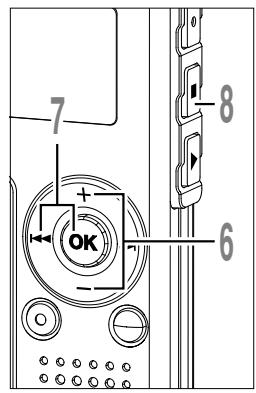
6 Press the + or - button to select the place to move.
7 Press the OK or ◀◀ button.
If there are more files you want to move, repeat the procedures from step 4 to step 7.
8 Press the STOP button to close the menu.
If you press and hold the OK button for 1 second or longer, moving will be completed and it returns to the "Move" display.
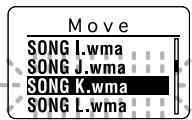
Note
- If no operation is made for 3 minutes during the setting, it will return to the stop status.

natural_image
Two horizontal bar designs with grayscale shades and a central crosshair (no text or symbols)
Menu List (MUSIC mode)
Menu
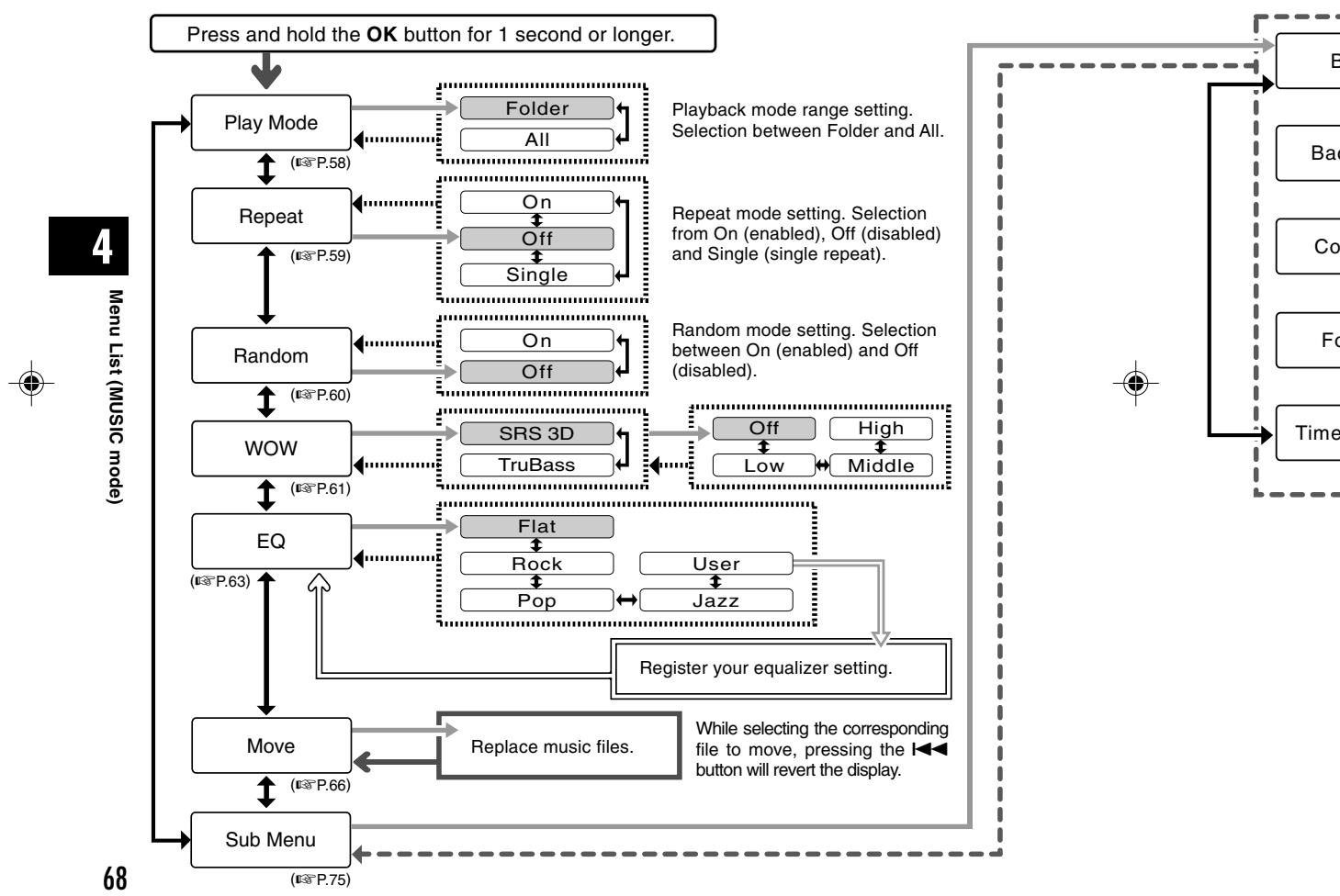
flowchart
graph TD
    A["Press and hold the OK button for 1 second or longer."] --> B["Play Mode"]
    B --> C["Folder"]
    B --> D["All"]
    B --> E["Repeat"]
    E --> F["On"]
    E --> G["Off"]
    E --> H["Single"]
    B --> I["Random"]
    I --> J["On"]
    I --> K["Off"]
    B --> L["WOW"]
    L --> M["SRS 3D"]
    L --> N["TruBass"]
    M --> O["Off"]
    M --> P["High"]
    M --> Q["Low"]
    M --> R["Middle"]
    L --> S["EQ"]
    S --> T["Flat"]
    S --> U["Rock"]
    S --> V["Pop"]
    S --> W["User"]
    S --> X["Jazz"]
    S --> Y["Register your equalizer setting."]
    S --> Z["Move"]
    Z --> AA["Replace music files."]
    Z --> AB["While selecting the corresponding file to move, pressing the button will revert the display."]
    Z --> AC["Sub Menu"]
    AC --> AD["Back menu"]
    AD --> AE["Time to press"]
    style A fill:#f9f,stroke:#333
    style AE fill:#ccf,stroke:#333
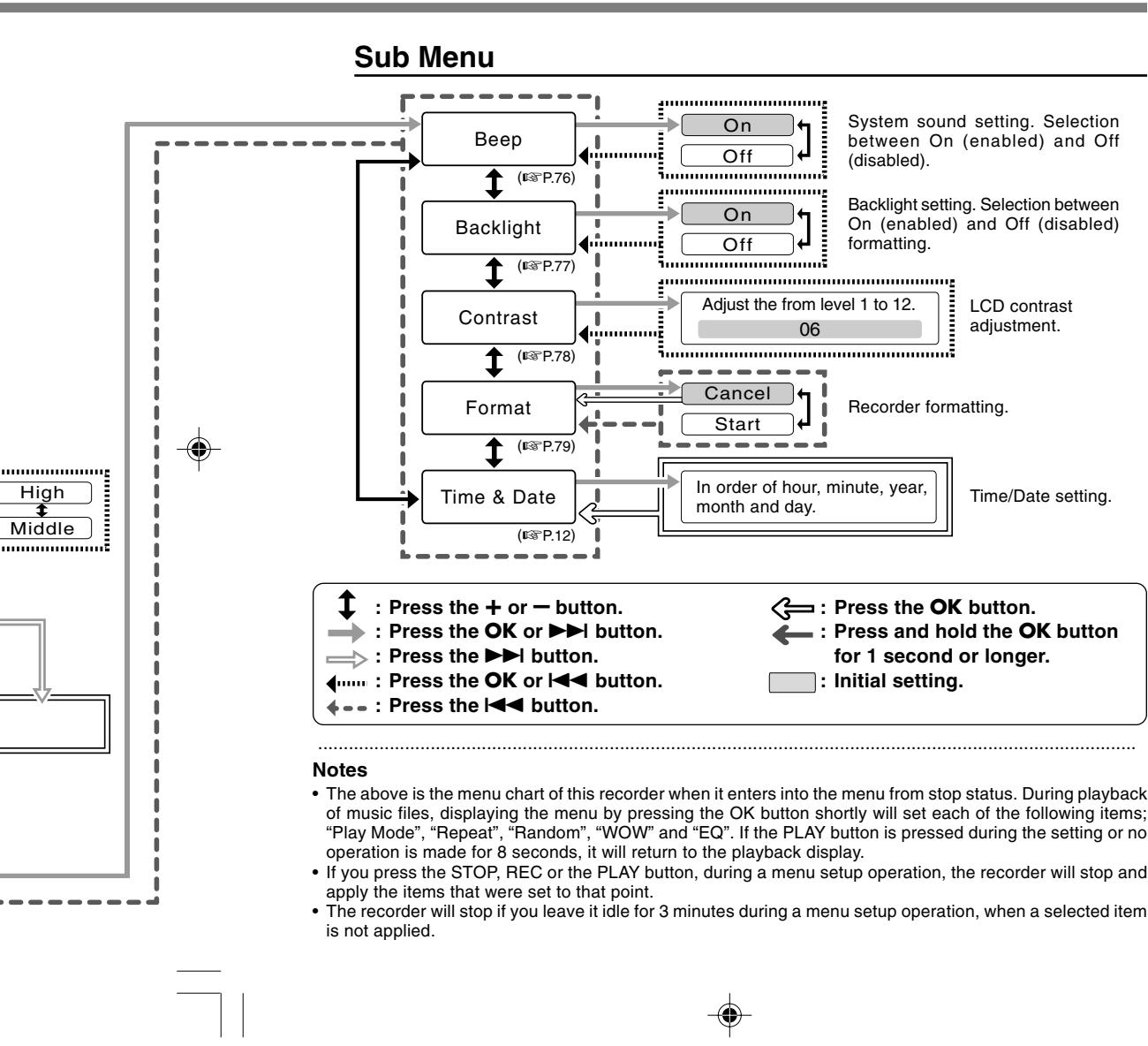
flowchart
graph TD
    A["Beep"] --> B["On"]
    A --> C["Off"]
    D["Backlight"] --> E["On"]
    D --> F["Off"]
    G["Contrast"] --> H["Adjust the from level 1 to 12. 06"]
    I["Format"] --> J["Cancel"]
    I --> K["Start"]
    L["Time & Date"] --> M["In order of hour, minute, year, month and day."]
    N["High"] --> O["Middle"]
    P["Low"] --> Q["High"]
    R["Note"] --> S["Press the + or - button."]
    R --> T["Press the OK or ▶▶▶ button."]
    R --> U["Press the ▶▶▶ button."]
    R --> V["Press the OK or ◀◀◀ button."]
    R --> W["Press the ◀◀◀ button."]
    X["System sound setting. Selection between On (enabled) and Off (disabled)."] --> Y["Backlight setting. Selection between On (enabled) and Off (disabled) formatting."]
    Z["LCD contrast adjustment."] --> AA["Adjust the from level 1 to 12. 06"]
    AB["Recorder formatting."] --> AC["Cancel"]
    AD["Time/Date setting."] --> AE["In order of hour, minute, year, month and day."]
    AF["Press the OK button."] --> AG["Press and hold the OK button for 1 second or longer."]
    AH["Initial setting."] --> AI["Press the OK or ◀◀◀ button."]

natural_image
Two horizontal bar designs with grayscale shades and a central crosshair (no text or symbols)5 Features Common to the Voice Recorder and Music Player

Erasing
Erasing One File at a Time
A selected file can be erased from a folder.
5
Erasing
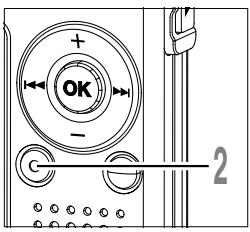
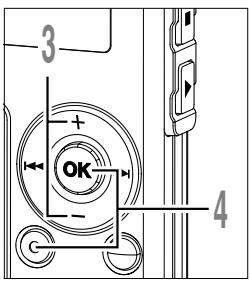
1 Select the file you want to delete.
In the stop status, display the file or place the cursor on the file in the list display.
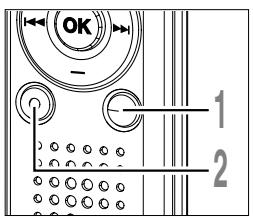
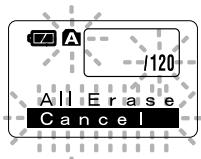
2 Press the ERASE button. The "Cancel" indicator flashes.
3 Press the + or — button to choose "Erase".
4 Press the ERASE or OK button. The display changes to "File Erase!" and erasing will start.
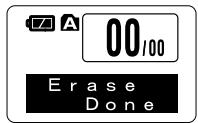
"Erase Done" is displayed when the file is erased. File numbers will be reassigned automatically.
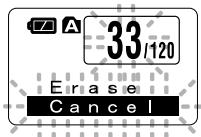
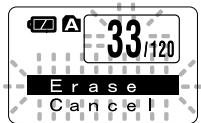
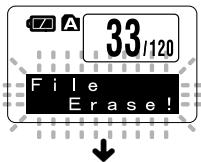
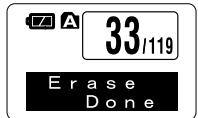
Erase All Files from a Folder
All files in a folder can be erased simultaneously.
The locked files (P.34) and the files set to read-only on the PC will not be erased.
1 Select the folder in which you want to erase all files.
2 Press the ERASE button for 3 seconds or longer.
The "Cancel" indicator flashes.
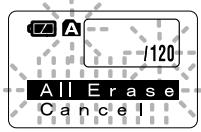
3 Press the + or - button to choose "All Erase".
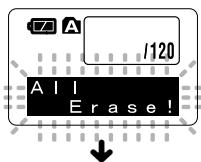
4 Press the ERASE or OK button. The display changes to "All Erase!" and erasing will start.
“Erase Done” is displayed when the files are erased. The locked files and read-only files are reassigned the file numbers in ascending order, starting from “1”.
5
Erasing




Erasing
Notes
- An erased file cannot be restored.
- The locked files and the files that are set to read-only will not be erased (P.34).
- If the ERASE button or the OK button is not pressed within 8 seconds after the erase mode display flashes, the recorder will return to the stop status.
- Completion of erasing may take about over 10 seconds. Never do anything during this period because data may be corrupted.

natural_image
Two horizontal bar designs with grayscale shades and a central crosshair (no text or symbols)
Hold
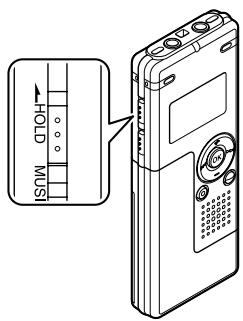
Setting the HOLD switch to the HOLD position.
If you set the recorder to HOLD status by sliding the HOLD switch in the direction of the arrow, the current conditions will be preserved, and all buttons and switches except the HOLD switch will be disabled. This feature is useful when the recorder has to be carried in a bag or pocket.
Remember to reset the HOLD switch when using the recorder.
Notes
- If you switch to the Hold mode during stop status, the display will be turned off. Pressing any button during this status will make the clock display flash for 2 seconds, but will not operate the recorder.
- If HOLD is applied during playback (recording), operation is disabled with the playback (recording) state unchanged. (When playback has ended and the recording has ended due the remaining memory being used up, it will be in the stop state.)

Menu Setting Method
Each item of the menu list (P.38, 68) can be set by the following method.
Menu Setting
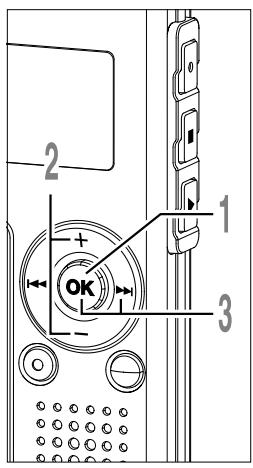
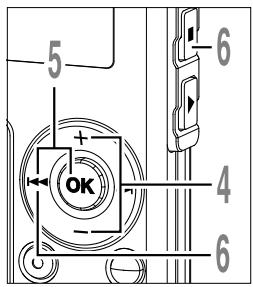
1 Press and hold the OK button for 1 second or longer.
The menu opens (P.38, 68).
2 Press the + or - button to move to the item to be set.
3 Press the OK or ▶▶▶ button.
Moves to the setting of the selected item. When Sub Menu is selected, move to the item of the sub menu (P.38, 68, 75).
Press the ◀◀◀ button to return to the previous page.
4 Press the + or - button to change the setting.
5 Press the OK or ◀◀ button to complete the setup screen.
6 Press the STOP or ◀◀ button to close the menu.
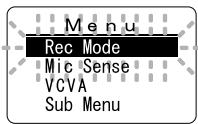
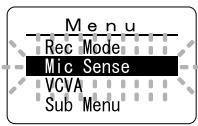
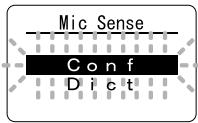
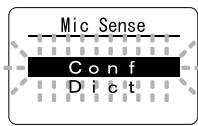
Sub Menu Setting
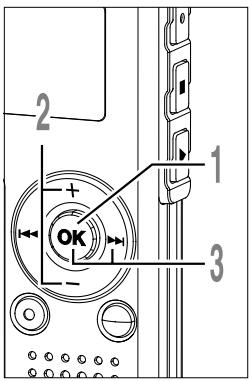
1 Press and hold the OK button for 1 second or longer.
The menu opens (P.38, 68, 74).
2 Press the + or - button to choose "Sub Menu".
3 Press the OK or ▶▶▶I button.
The sub menu opens.
4 Press the + or - button to move to the item to be set.
5 Press the OK or ▶▶▶ button.
Moves to the setting of the selected item.
Press the ◀◀◀ button to return to the previous page.
6 Press the + or - button to change the setting.
7 Press the OK or ◀◀ button to complete the setup screen.
8 Press the STOP button to close the menu.
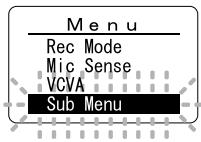
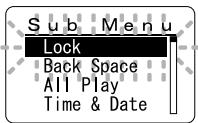
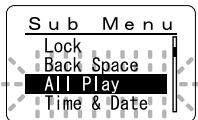
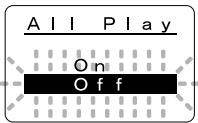
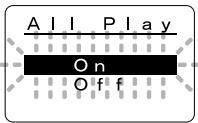
5
System Sounds (Beep)
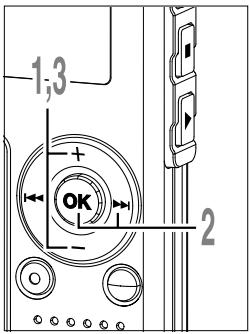
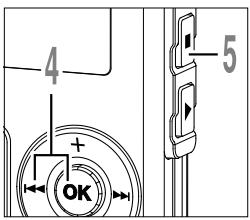
System Sounds (Beep)

The recorder beeps to alert you to button operations or warn you of errors. System sounds may be turned off.
1 Press the + or — button in the sub menu screen, and select the "Beep".
See P.38, 68, 75 regarding the sub menu.
2 Press the OK or ▶▶▶ button.
The system sound setup process begins.
3 Press the + or — button to choose between “On” and “Off”.
4 Press the OK or ◀◀ button to complete the setup screen.
5 Press the STOP button to close the menu.
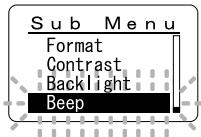
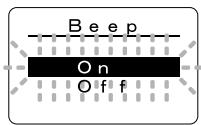

Backlight (Backlight)
The recorder display backlight is On by default. The display will remain lit for about 10 seconds when a button on the recorder is pressed.
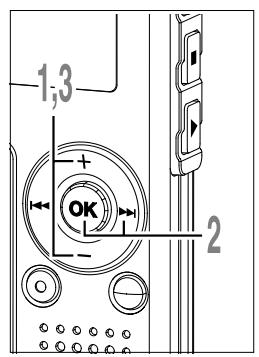
1 Press the + or - button in the sub menu screen, and select the "Backlight".
See P.38, 68, 75 regarding the sub menu.
2 Press the OK or ▶▶▶ button. The backlight setup process begins
3 Press the + or — button to choose between “On” and “Off”.
On: Backlight is enabled.
Off: Backlight is disabled.
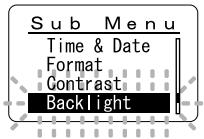
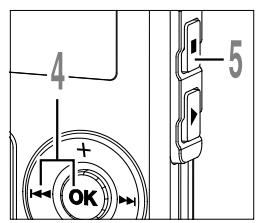
4 Press the OK or ◀◀ button to complete the setup screen.
5 Press the STOP button to close the menu.
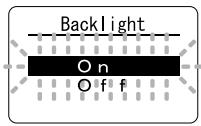
5
Backlight (Backlight)

LCD Contrast Adjustment (Contrast)
Display contrast can be adjusted in 12 levels.
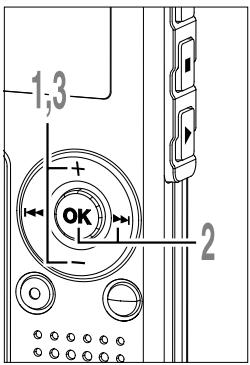
1 Press the + or - button in the sub menu screen, and select the "Contrast".
See P.38, 68, 75 regarding the sub menu.
Press the OK or ▶▶▶I button.
The LCD display contrast setup process begins.
3 Press the + or - button to set the contrast level.
You can adjust the LCD display contrast level from 1 to 12.
4 Press the OK or ◀◀ button to complete the setup screen.
5 Press the STOP button to close the menu.
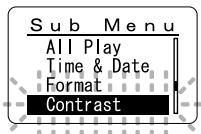
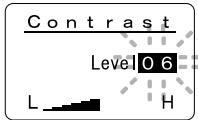

Formatting the Recorder (Format)
If you format the recorder, all function settings will return to their defaults*.
All files** stored in the recorder will be deleted.
If you have important files that you want to save, connect the recorder to a computer and transfer those files from the recorder to the computer before formatting the device.
* Date and time settings will not be cleared, so you won't need to set them again.
** Locked files will also be deleted.
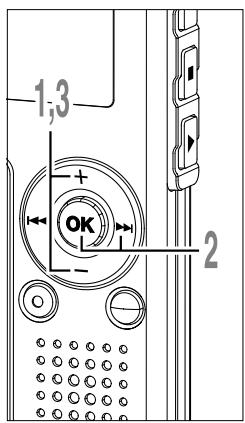
1 Press the + or - button in the sub menu screen, and select the "Format".
See P.38, 68, 75 regarding the sub menu.
Press the OK or ▶▶▶I button.
The "Cancel" indicator flashes.
3 Press the + or - button to choose "Start".
The "Start" indicator flashes.
Press the OK button.
After "Data Will Be Cleared" flashes for 2 seconds, "Cancel" flashes.
5 Press the + or - button again to choose "Start".
The "Start" indicator flashes.
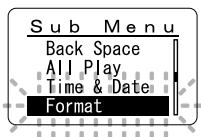
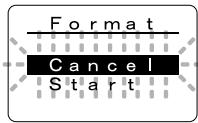
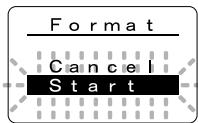
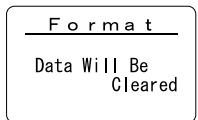
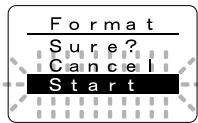



Formatting the Recorder (Format)
Press the OK button.
Formatting begins and an indicator flashes on the display.
"Format Done" displays when formatting ends.
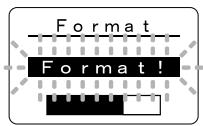
↓
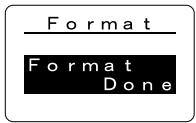
5
Formatting the Recorder (Format)
Notes
- While formatting, do not remove the battery. It may take about 10 seconds or more for the erasing to end.
- Never format the recorder from a PC.
• After formatting, the first file name is 0001. - Once the recorder is formatted, the music files with DRM may not be transferred to the recorder again.
- When the recorder is formatted, all the saved data, including locked files and read-only files, are erased.
Other Practical Use Methods
Using as External Memory of the Computer
With the recorder connected to your PC, you can download data from the memory to your PC and upload data stored on your PC to the memory.
Example: Copying Data from PC to Recorder using Explorer, etc.
1 Start Windows.
2 Connect the recorder to your PC.
For the connection procedure, refer to “Connecting to Your PC” (P.42).
3 Open the Explorer window.
The recorder will appear as a removable drive icon.
4 Copy the data.
While the data is being written or copied, the record/play indicator light and USB access indicator light on the recorder will flash in red.
Note
- NEVER disconnect the USB while the record/play indicator light and USB access indicator light are flashing in red. Otherwise data may be damaged.
7 Other Information
Alarm Message List
| Message | Meaning | Explanation | Action |
| Battery Low | Low battery power | Battery power is getting low. | Replace with new battery (P.10). |
| File Protected | Erase-locked | Tried to delete a locked file. | Unlock the file (P.34). |
| Index Full | Index full | The file is full of index marks (maximum of 16 marks). | Erase index marks that are no longer required (P.32). |
| Index Can’t Be Entered | File not supporting index | Tried to incorporate WMA file index marks into the music files or the files not recorded with the recorder. | You can incorporate index marks into the voice files recorded with the recorder or IC recorders from Olympus only. |
| Folder Full | Folder full | The folder is full of files (maximum of 199 files). | Erase unnecessary files (P.70). |
| Memory Error | Error in the internal flash memory | Error in the internal memory. | This is a malfunction, so go to the store where you purchased the recorder or an Olympus service station for repair (P.87). |
| Licence Mismatch | Illegally copied file | The music files copied illegally. | Delete the file (P.70). |
| Memory Full | Zero remaining memory | No remaining internal memory. | Erase unnecessary files (P.70). |
| No File | No file | No files were found in the folder. | Select another folder. |
| Format Error | Formatting error | There was an error while formatting the recorder's memory. | Reformat the memory (P.79). |
| Read Only File | This file is read-only | Tried to erase the file that is set to read-only on the PC. | Cancel the read-only setting of the file on the PC. |
Troubleshooting
| Symptom | Probable cause | Action |
| Nothing appears on the display | The battery is not loaded properly. | Verify polarity is correct. |
| The battery is dead. | Replace with new battery (P.10). | |
| The recorder is in HOLD mode. | Release the recorder from HOLD (P.11, 73). | |
| Won't start | The recorder is in HOLD mode. | Release the recorder from HOLD (P.11,73). |
| The battery is dead. | Replace with new battery (P.10). | |
| Unable to record | Low remaining internal flash memory. | Erase unnecessary files (P.70). |
| The maximum number of files has been reached. | Check another folder. | |
| MUSIC mode is active. | Switch to VOICE mode (P.14). | |
| No playback tone heard | The earphone is connected. | Unplug the earphones to use the internal speaker. |
| The VOL(+ or -) button is set to 0. | Adjust the VOL(+ or -) button (P.24). | |
| Unable to erase | The file is locked. | Unlock the file (P.34). |
| The file is read-only. | Cancel the read-only setting of the file on the PC. | |
| Noise heard during playback | The recorder was shaken during recording. | — |
| The recorder was placed near a cell phone or fluorescent light while recording or during playback. | Move the recorder. | |
| Recording level too low | The microphone sensitivity is too low. | Set the microphone sensitivity to “Conf” mode and try again (P.21). |
| Unable to set index marks | The maximum number of index marks (16) has been reached. | Erase unnecessary index marks (P.32). |
| The file is locked. | Unlock the file (P.34). | |
| The file is read-only. | Cancel the read-only setting of the file on the PC. | |
| Cannot find the downloaded file | The destination folder for downloading was other than the Root folder or Music folder. | Copy the music file into the Root folder or Music folder. |
| VOICE mode is active. | Switch to MUSIC mode (P.14). | |
| Cannot find the recorded voice | MUSIC mode is active. | Switch to VOICE mode (P.14). |
| Wrong folder. | Switch to the right folder. |

natural_image
Two horizontal grayscale color swatches with a central crosshair target (no text or symbols)Accessories (optional)
Stereo microphone: ME51S
The high fidelity of the recording, which only stereo can perform. Furthermore, it gives clear sound quality with less noise.
Noise-cancellation monaural microphone: ME12
(Dictation microphone)
Used to get crisp recordings of your own voice by reducing the effects of ambient noise.
This is useful microphone and suits for voice recognition.
Ni-MH rechargeable battery and charger set: BC400 (Europe only)
BC400 comes with an Ni-MH rechargeable battery charger(BU-400) and 4 Ni-MH rechargeable batteries (BR401) as a pack. This charger can quick charge Olympus AA or AAA Ni-MH rechargeable batteries.
Ni-MH rechargeable battery: BR401
High-efficiency rechargeable long life batteries.
Tie clip microphone: ME15
(Monaural)
Small concealing microphone with a tie-clip.
Telephone pickup: TP7
Earphone type microphone can be plugged into your ear while phoning. The voice or conversation over the phone can be clearly recorded.
Connecting cord: KA333
Connecting cord which has stereo mini-plugs ( 3.5 ) with resistance at both ends. Use to connect from the earphone jack output of the recorder to the microphone input jack when recording. Converting plug adapters (PA331/PA231) which convert to the monaural mini plug ( 3.5 ) or monaural mini mini plug ( 2.5 ) are also enclosed.
Specifications
For the Digital Voice Recorder
Recording format
WMA (Windows Media Audio)
Input level -70 dBv
Sampling frequency
ST HQ mode: 44.1 kHz
HQ mode: 44.1 kHz
SP mode: 22 kHz
LP mode: 8 kHz
Overall frequency response
ST HQ mode: 100Hz to 15 kHz
HQ mode: 100Hz to 12 kHz
SP mode: 100Hz to 5 kHz
LP mode: 100Hz to 3 kHz
Recording time
WS-320M (1 GB)
ST HQ mode: Approx. 35 hours 25 minutes
HQ mode: Approx. 70 hours 50 minutes
SP mode: Approx. 139 hours 30 minutes
LP mode: Approx. 277 hours 20 minutes
WS-310M (512 MB)
ST HQ mode: Approx. 17 hours 40 minutes
HQ mode: Approx. 35 hours 20 minutes
SP mode: Approx. 69 hours 30 minutes
LP mode: Approx. 138 hours 15 minutes
WS-300M (256 MB)
ST HQ mode: Approx. 8 hours 45 minutes
HQ mode: Approx. 17 hours 30 minutes
SP mode: Approx. 34 hours 35 minutes
LP mode: Approx. 68 hours 45 minutes
Alkaline battery life
Recording:
Approx. 11 hours (Stereo)
Approx. 15 hours (Monaural)
Playback:
Approx. 7 hours (Stereo)
Approx. 7 hours (Monaural)
Ni-MH rechargeable battery life
Recording:
Approx. 9 hours (Stereo)
Approx. 12 hours (Monaural)
Playback:
Approx. 6 hours (Stereo)
Approx. 6 hours (Monaural)
For the Digital Music Player
Compatible data format
WMA, MP3 format
Sampling frequency
44.1 kHz
Frequency band
20Hz to 20kHz
Playback time
WS-320M (1 GB)
Approx. 13 hours 20 minutes to 45 hours
20 minutes
WS-310M (512 MB)
Approx. 6 hours 40 minutes to 22 hours
40 minutes
WS-300M (256 MB)
Approx. 3 hours 20 minutes to 11 hours
20 minutes
(Time may vary depending on the bit rate
of the music data.)
Maximum headphone output
5mW + 5mW (at load of 22 Ω)
Alkaline battery life
WMA: Approx. 14 hours
MP3: Approx. 16 hours
Ni-MH rechargeable battery life
WMA: Approx. 11 hours
MP3: Approx. 12 hours



Specifications
Common Specifications
Recording medium
Built-in NAND FLASH memory
1 GB (WS-320M)
512 MB (WS-310M)
256 MB (WS-300M)
Speaker
Built-in ø18 mm round dynamic speaker
MIC jack
∅3.5, impedance 2kΩ
EAR jack
∅3.5, impedance 8Ω or more
Maximum working output (3 V DC)
70 mW or more (8 Ω speaker)
Input power requirement
Rated voltage: 1.5 V
Batteries: AAA battery (LR03, R03 or
ZR03) or Ni-MH rechargeable
battery
External dimensions
94.8 x 38.2 x 11 mm
(without protrusions)
Weight
46 g (including alkaline battery)
* Specifications and design are subject to change without notice.
* Battery life is measured by Olympus. It varies greatly according to the type of batteries used and the conditions of use.

natural_image
Two horizontal grayscale color swatches with a central crosshair target (no text or symbols)Technical Assistance And Support
The following is contact information for technical support for Olympus recorders and software only.
◆ Technical Hotline Number in the U.S. and Canada 1-888-553-4448
◆ User Support E-mail address in the U.S. and Canada distec@olympus.com
◆ Technical Hotline Number in Europe
Toll free number
00800 67 10 83 00
available for Austria, Belgium, Denmark, Finland, France, Germany, Italy, Luxemburg, Netherlands, Norway, Portugal, Spain, Sweden, Switzerland, United Kingdom
Charged numbers for the Rest of Europe
+49 180 567 1083
+49 40 23773 899
◆ User Support E-mail address in Europe dss.support@olympus-europa.com
OLYMPUS®
OLYMPUS IMAGING CORP.
Shinjuku Monolith, 3-1 Nishi-Shinjuku 2-chome, Shinjuku-ku, Tokyo 163-0914, Japan. Tel. 03-3340-2111
OLYMPUS IMAGING AMERICA INC.
Two Corporate Center Drive, PO BOX 9058 Melville, NY 11747-9058, U.S.A. Tel. 1-800-622-6372
OLYMPUS IMAGING EUROPA GMBH
(Premises/Goods delivery) Wendenstrasse 14-18, 20097 Hamburg, Germany. Tel. 040-237730
(Letters) Postfach 10 49 08. 20034 Hamburg. Germany.
OLYMPUS UK LTD.
2-8 Honduras Street, London EC1Y OTX, United Kingdom, Tel. 020-7253-2772
http://www.olympus.com/
For customers in North and South America
Declaration of Conformity
Model Number:
Trade Name:
Responsible Party:
Address:
Telephone Number:
WS-320M/WS-310M/WS-300M
2 Corporate Center Drive, PO BOX 9058 Melville, NY 11747-9058, U.S.A.
800-622-6372
This device Complies with Part 15 of the FCC Rules. Operation is subject to the following two conditions: (1) This device may not cause harmful interference, and (2) this device must accept any interference received, including interference that may cause undesired operation.

Tested To Comply
With FCC Standards
FOR HOME OR OFFICE USE
Canadian RFI
This digital apparatus does not exceed the Class B limits for radio noise emissions from digital apparatus as set out in the Radio Interference Regulations of the Canadian Department of Communications.
For customers in Europe

“CE” mark indicates that this product complies with the European requirements for safety, health, environment and customer protection.

This symbol [crossed-out wheeled bin WEEE Annex IV] indicates separate collection of waste electrical and electronic equipment in the EU countries. Please do not throw the equipment into the domestic refuse.
Please use the return and collection systems available in your country for the disposal of this product.
Applicable Product : WS-320M/WS-310M/WS-300M

natural_image
Pure graphical design with no text, numbers, or symbols- Table of Contents
- Getting Started
- When Using the Recorder as a Voice Recorder
- Using the Recorder on Your PC
- Using the Recorder as a Music Player
- Feature Common to the Voice Recorder and Music Player
- Other Practical Use Methods
- Other Information
- Safe and Proper Usage
- General Precautions
- ecautions
- Battery
- Warning
- 1
- Main Features
- Main Features of the Digital Voice Recorder
- Main Features of the Digital Music Player
- Identification of Parts
- Display (LCD Panel)
- Inserting Battery
- Replacing the Battery
- Ni-MH Rechargeable Battery
- Notes
- Power Supply
- Turning Off the Power
- Turning On the Power
- Standby Mode and Display Shut Off
- Setting Time/Date (Time&Date)
- Note
- Changing the Time/Date
- Switching Between the Voice Recorder and Music Player
- Meaning of icons in this manual
- 2
- When Using the Recorder as a Voice Recorder
- Recording
- Press the FOLDER button to choose a folder.
- Press the REC button to start recording.
- Press the STOP button to stop recording.
- Pause
- Resume Recording
- Listening While Audio is Recorded (Recording Monitor)
- Connect the earphone to the EAR jack on the recorder
- Using the Variable Control Voice Actuator (VCVA)
- e Actuator
- Press the REC button to start recording.
- Adjust the Start/Stop Actuation Level
- Press the ▶▶▶ or ◀◀◀ button to adjust the pause sound level during recording.
- Recording Modes (Rec Mode)
- Microphone Sensitivity (Mic Sense)
- Recording from External Microphone or Other Devices
- Recording with External Microphone
- Applicable External Microphones (optional)
- ophone
- Recording the Sound of Other Devices with This Recorder
- Recording the Sound of This Recorder with Other Devices
- Playing
- Changing Playing Speed (Slow Playback/Fast Playback)
- Forwarding and Rewinding
- Fast Forward
- Rewind
- Locating the Beginning of the File
- When Playing Back or Fast Forwarding to the End of the Last File
- Playback Through Earphone
- Continuous Playback (All Play)
- Repeat Playback
- Cancel the Continuous Playback Function
- Auto Backspace Review (Back Space)
- Index Marks
- Setting an Index Mark
- Locating an Index Mark
- Clearing an Index Mark
- Locking Files (Lock)
- LCD Display Information
- While in Stop or Playback Mode
- Press the OK button.
- ① File length
- ② File length
- ③ Time stamp
- While in Stop Mode
- Press and hold the STOP button.
- ① Memory remaining
- ② Memory remaining
- While in Record Mode
- ① Recording level meter
- ② Recording level meter
- While in Recording in VCVA Mode
- ① VCVA recording level meter
- ② VCVA recording level meter
- Menu List (VOICE Mode)
- Menu
- Saving Files in Your PC
- Precautions on Using the Recorder Connected to a PC
- Operating Environment
- Disconnecting to Your PC
- Using the Recorder as a Music Player
- Using Windows Media Player
- Copyright and Copyright Protection Feature (DRM)
- Window Names
- Windows Media Player 10
- Windows Media Player 9
- 4
- Copying Music from CD
- Transferring Music File to the Recorder
- Select the destination folder.
- Click the [Copy].
- About the Music Folders
- Selecting the Folders and Files
- List display
- File display
- Music Playback
- - When the Playback Reaches to the End of the Last File
- Skip a Music File While Playing It
- When the Playback or Fast Forward Reaches to the End of the Last File
- Menu Setting During Playback
- Press the OK button while playing a file.
- Selecting Play Mode (Play Mode)
- Repeat Playback (Repeat)
- Random Playback (Random)
- Increasing the WOW Effect (WOW)
- When Changing the User Equalizer
- Press the + or - button to select the equalizer level.
- Press the OK button to complete the setup screen.
- Press the STOP or ◀◀◀ button to close menu.
- Moving the Tracks (Move)
- Menu List (MUSIC mode)
- Features Common to the Voice Recorder and Music Player
- Erasing
- Erasing One File at a Time
- Erase All Files from a Folder
- Hold
- Setting the HOLD switch to the HOLD position.
- Menu Setting Method
- Menu Setting
- Sub Menu Setting
- System Sounds (Beep)
- Backlight (Backlight)
- LCD Contrast Adjustment (Contrast)
- Formatting the Recorder (Format)
- 5
- Other Practical Use Methods
- Using as External Memory of the Computer
- Example: Copying Data from PC to Recorder using Explorer, etc.
- Accessories (optional)
- Stereo microphone: ME51S
- Noise-cancellation monaural microphone: ME12
- Ni-MH rechargeable battery and charger set: BC400 (Europe only)
- Ni-MH rechargeable battery: BR401
- Tie clip microphone: ME15
- Telephone pickup: TP7
- Connecting cord: KA333
- Specifications
- For the Digital Voice Recorder
- For the Digital Music Player
- Common Specifications
- Recording medium
- Speaker
- MIC jack
- EAR jack
- Maximum working output (3 V DC)
- Input power requirement
- External dimensions
- Weight
- Technical Assistance And Support
- OLYMPUS®
- For customers in North and South America
- Canadian RFI
- For customers in Europe
Brand : OLYMPUS
Model : WS-300M
Category : Voice recorder