
KRC-PS978R - Car stereo KENWOOD - Free user manual and instructions
Find the device manual for free KRC-PS978R KENWOOD in PDF.


| Product type | Car stereo with cassette player and external CD changer control |
| Brand | KENWOOD |
| Model | KRC-PS978R |
| Dimensions (W x H x D) | 182 x 53 x 161 mm |
| Weight | 1700 g |
| Supply voltage | 14.4 V (11 - 16 V allowable) |
| Current consumption | 10 A |
| FM tuner frequency range | 87.5 - 108.0 MHz (50 kHz spacing) |
| MW tuner frequency range | 531 - 1611 kHz (9 kHz spacing) |
| LW tuner frequency range | 153 - 281 kHz |
| RDS functions | AF, REG, PTY, TI, News, Alarm, Enhanced Other Network |
| Cassette player | Dolby B/C NR, DPSS, Blank Skip, Music Repeat, automatic reverse |
| Sound control | Bass, Treble, Balance, Fader, Loudness, Attenuator, Non-Fading Output |
| Sound coordinate system | KEX/ec4/dB with frequency and bass Q adjustments |
| Filters | Front/rear high-pass (Through, 40-220 Hz), low-pass for NF output (50-120 Hz) |
| Removable faceplate | Yes, with angle adjustment and anti-theft function (Mask Key) |
| Display | LCD with selectable backlight (green/red), spectrum analyzer |
| Preamp output level | 4500 mV/10 kΩ (KRC-PS978R) |
| Maximum output power | 45 W x 4 |
| Maintenance and cleaning | Clean terminals with a dry cloth; clean cassette head with a cleaning cassette |
| Safety | Replacement fuse of same rating; do not use screws not provided; disconnect battery before installation |
| Repairability | Consult an authorized KENWOOD dealer for repairs; reset button |
| Supplied accessories | Mask (Mask Key), rubber frame, removal tools, screws, wiring harness |
Frequently Asked Questions - KRC-PS978R KENWOOD
User questions about KRC-PS978R KENWOOD
0 question about this device. Answer the ones you know or ask your own.
Ask a new question about this device
Download the instructions for your Car stereo in PDF format for free! Find your manual KRC-PS978R - KENWOOD and take your electronic device back in hand. On this page are published all the documents necessary for the use of your device. KRC-PS978R by KENWOOD.
USER MANUAL KRC-PS978R KENWOOD
Faceplate Angle Adjustment. 8
Switching Display (KRC-778R/RV only) 9
Switching Display (KRC-PS978R/878R only) 9
Non-Fading Output 9
TEL Mute 10
Removing the Faceplate 10
Audio Control Setting. 10
Mobile Preset. 14
Tuner features
Tuning 15
Station Preset Memory 15
Kenwood intelligent Twin IF (K2I) 15
Switching Display for Tuner 16
RDS features
RDS (Radio Data System) 17
Enhanced Other Network 17
Alarm. 17
Presetting Volume for Traffic Information/News 17
Radio Text Scroll 18
Programme Type (PTY) Function 18
Traffic Information Function 18
Cassette player features
Playing Cassette Tapes 20
Fast Forwarding and Rewinding Cassette Tapes 21
Using Dolby B/C Noise Reduction 21
Switching Tape Types 21
Tape counter display. 21
Using DPSS (Direct Programme Search System) 22
Blank Skip 22
Music Repeat. 22
External disc control features
Playing Disc mode 24
Switching Display for Discs 24
Fast Forwarding and Reversing Disc Play 24
Track Search 25
Disc Search 25
Track / Disc Repeat. 25
Track Scan. 26
Disc Scan 26
Random Play 26
Magazine Random Play 26
Text / Title Scroll 27
Preseting Disc Names (DNPS) 28
Menu setting
Menu System 29
Calendar Adjusting 30
Calendar Mode 30
Memo Mode 30
Automatic Time Adjustment 31
Touch Sensor Tone 31
Manual Time Adjustment 31
Mask Key 32
Selectable Illumination 32
Contrast Adjustment 32
Dimmer 33
Switching Graphic Display 33
Black Mask. 33
Time setting for removing the faceplate 33
Switching preout 33
KEX/ec4/dB (Sound Cooydinate system) 33
External Amp Control. 33
Dual Zone System 34
Manual Open Button Setting 34
News Bulletin Function with PTY News Timeout Setting 34
Local Seek Function 35
Selecting Tuning Mode 35
Auto Memory Entry 35
AF (Alternative Frequency) Function. 36
Restricting RDS Region (Region Restrict Function) 36
Auto TP Seek Function 36
Monaural Reception 36
Text Scroll 36
Basic operations of setting remote control. 37
Installation
Accessories 39
Installation Procedure 39
Connecting Cables to Terminals 40
Installation 41
Removing the Unit 42
Locking the faceplate to the unit. 43
43
Troubleshooting guide 44
Specifications 47
WARNING
To prevent injury and/or fire, take the following precautions:
- Insert the unit all the way until it is fully locked in place. Otherwise it may fly out of place during collisions and other jolts.
- When extending the ignition, battery or ground cables, make sure to use automotive-grade cables or other cables with an area of 0.75mm^2 (AWG18) or more to prevent cable deterioration and damage to the cable coating.
- To prevent short circuits, never put or leave any metallic objects (e.g., coins or metal tools) inside the unit.
- If the unit starts to emit smoke or strange smells, turn off the power immediately and consult your Kenwood dealer.
- Make sure not to get your fingers caught between the faceplate and the unit.
- Be careful not to drop the unit or subject it to strong shock.
The unit may break or crack because it contains glass parts.
- Do not touch the liquid crystal fluid if the LCD is damaged or broken due to shock. The liquid crystal fluid may be dangerous to your health or even fatal.
If the liquid crystal fluid from the LCD contacts your body or clothing, wash it off with soap immediately.
CAUTION
To prevent damage to the machine, take the following precautions:
Make sure to ground the unit to a negative 12V DC power supply.
- Do not open the top or bottom covers of the unit.
- Do not install the unit in a spot exposed to direct sunlight or excessive heat or humidity. Also avoid places with too much dust or the possibility of water splashing.
- Do not subject the faceplate to excessive shock, as it is a piece of precision equipment.
- When replacing a fuse, only use a new one with the prescribed rating. Using a fuse with the wrong rating may cause your unit to malfunction.
- To prevent short circuits when replacing a fuse, first disconnect the wiring harness.
- Do not place any object between the faceplate and the unit.
- During installation, do not use any screws except for the ones provided. The use of improper screws might result in damage to the main unit.
- Do not apply excessive force to the moving faceplate. Doing so will cause damage or malfunction.
- Do not apply excessive force to the open faceplate or place objects on it. Doing so will cause damage or breakdown.
IMPORTANT INFORMATION
You cannot connect the unit directly to the following CD automatic changers. For users who want to use older changers with the unit, follow the directions below according to the type of changer you own:
KDC-C200 / KDC-C300 / KDC-C400
Use the extension cable and the control box attached to the CD changer, and the optional CA-DS100 converter cable.
- KDC-C301 / KDC-C600 / KDC-C800 / KDC-C601 / KDC-C401
Use the extension cable attached to the CD changer, and the optional CA-DS100 converter cable.
- KDC-C100 / KDC-C302 / C205 / C705 / non-Kenwood CD changers
Cannot be used with this model.
CAUTION
You can damage both your unit and the CD changer if you connect them incorrectly.
NOTE
If you experience problems during installation, consult your Kenwood dealer.
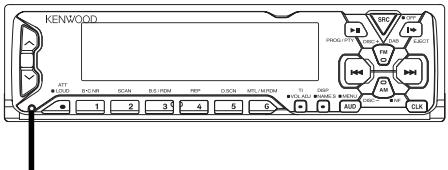
- If the unit fails to operate properly, press the RESET button. When the faceplate controls are not visible, press the left part at the upper side of the faceplate (as illustrated on p.8) for as many times as you have preset to make the faceplate controls appear. The unit returns to factory settings when the RESET button is pressed. After you press the reset button, the Mask Key will be needed to restart the unit. If the unit still fails to operate properly after the RESET button has been pressed, contact your local KENWOOD dealer for assistance.
- Press the reset button if the CD auto changer is first controlled and operates incorrectly. The original operating condition
Reset button
will return.
-
Characters in the LCD may become difficult to read in temperatures below 41^ ( 5^ ).
-
The illustrations of the display and the panel appearing in this manual are examples used to explain more clearly how the controls are used. Therefore, what appears on the display in the illustrations may differ from what appears on the display on the actual equipment, and some of the illustrations on the display may represent something impossible in actual operation.
- The functions that can be used and the information that can be displayed will differ depending on the external disc players being connected.
Dolby noise reduction manufactured under license from Dolby Laboratories Licensing Corporation.
"DOLBY" and the double-D symbol are trademarks of Dolby Laboratories Licensing Corporation.
Mask key
If you have transmitted the Mask Key's signal once to the unit in advance, you will have to transmit it once again if the unit has been removed from the battery. This function helps prevent theft.
When using the unit for the first time: In order to deactivate the demonstration mode, be sure to press the transmit button to transmit the Mask Key's signal. If this procedure is not carried out, the control panel of the unit will re-open in two seconds even with your vehicle's ignition turned off.
CAUTION
Do not loose the "Mask Key". If power is disconnected from the unit, correct operation can only be restored by the "Mask Key's" signal. The "Mask Key" will also be required for service repair.
NOTE
If you send products in for repair that include a mask key, make sure to present the unit together with the mask key.
Cleaning the Faceplate Terminals
If the terminals on the unit or faceplate get dirty, wipe them with a dry, soft cloth.
Cleaning the Unit
If the front panel gets dirty, turn off the power and wipe the panel with a dry silicon cloth or soft cloth.
CAUTION
Do not wipe the panel with a stiff cloth or a cloth dampened by volatile solvents such as paint thinner and alcohol. They can scratch the surface of the panel and/or cause the indicator letters to peel off.
Cleaning the Tape Head
After you have used the tape player many times over a long period, magnetic powder from the tapes and dust accumulates on the tape head, causing noise and a deterioration in sound quality. Clean the tape head using a cleaning tape or cleaning kit designed for use in car audio systems.
Handling Cassette Tapes
- Do not play a cassette whose tape has gone slack. In such a case, wind it tight using a pencil or the like in one of the spools. Playing slack cassette tapes can result in the tape tangling around the capstan and/or pinch rollers, causing trouble.
- Do not play a deformed cassette or one whose label is starting to come off, as it can cause the unit to malfunction.
- Do not leave tapes in hot places, such as above the fascia panel (dashboard) and other spots exposed to direct sunlight, or near heater outlets. They can deform the cassette.
- Avoid using extremely long cassette tapes, such as 100-minute-long tapes. Such tapes are very thin, and can tangle easily around the pinch rollers or other parts inside the unit, causing unit failure.
- Remove a cassette tape from the unit when not listening to it for a whilst. If you leave a tape in the unit too long, it may stick to the tape head and cause unit malfunction.
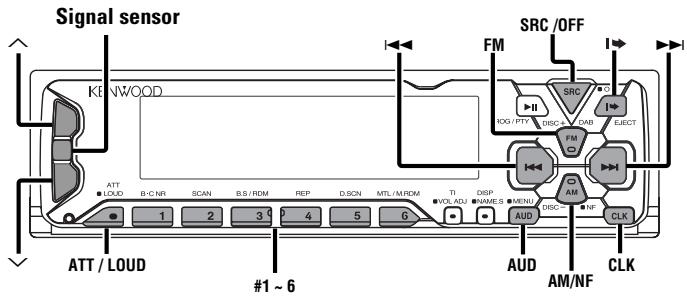
KRC-PS978R/878R
KRC-778R/778RV
Power
You can help prevent theft of the unit by reversing the faceplate so that the control panel cannot be seen, hiding the unit, and shutting off the audio.
Power ON/OFF:
When you turn your vehicle's ignition on, the unit's power will also turn on, with the faceplate reversing to show the control panel.
When you turn your vehicle's ignition off, the faceplate will reverse to hide the control panel after a period of time which you have set in the "Time setting for removing the faceplate" in the menu. The unit's power will turn off.
Alternatively, you can remove the faceplate during that period. For details, refer to the "Removing the faceplate" (page10).
NOTE
- After installation of your Mask unit, be sure to transmit the "Mask Key's" signal to deactivate the demonstration mode. If this procedure is not carried out, the control panel of the unit will re-open in two seconds even with your vehicle's ignition turned off.
- When the control panel of the faceplate is hidden, the unit will be locked by the sleeve, making it more difficult to remove the unit.
- When the moving faceplate is hit by an object, it will stop and return to its original state. Remove the object and repeat the action.
CAUTION Using the Unit in Vehicles with Covered Consoles
- Make sure the console is uncovered whilst the faceplate is reversed.
- Do not exert any excess force on the movable parts of the unit, including the faceplate, as it can cause failure in the unit's mechanism.
Switching Modes
Switching Modes:
Each time you press the SRC button, the mode switches as follows:
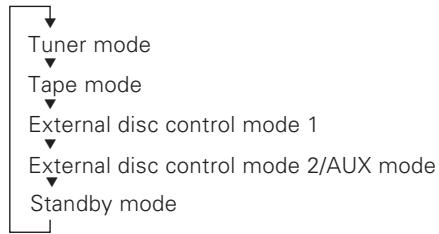
Selecting the standby mode:
Press the SRC button repeatedly to select to "ALL OFF". When "ALL OFF" is displayed, the standby mode is turned on. The standby mode turns all functions off although leaving the unit's power on. Use this mode when you want to have the display illuminated but do not want to listen to anything.
NOTE
- The mode switches to the next mode from any mode which cannot be used.
- The external disc control mode will differ depending on the unit that is connected.
- The AUX mode is available only when the changer / AUX switching adapter (KCA-S210A or CA-C1AX) or CD changer (KDC-CPS85, KDC-CX85, KDC-CPS82 or KDC-CX82) is connected to this unit. During the AUX mode, "AUX" / AUX-name will show in the display. When the CA-C1AX is being used, the AUX Mode will replace the External Disc Control Mode.
NOTE Presetting AUX-name
In the AUX mode, press the NAME.S button for two seconds or more. "NAME SET" is display and AUX-name mode is entered. Input the characters, referring to the section on "Presetting Disc Names (DNPS)" (page28).
Volume
Increasing Volume:
Press the button to turn up the volume.
Decreasing Volume:
Press the button to turn down the volume.
Attenuator
This function allows you to turn down the volume quickly.
Turning Attenuator On/Off:
Press the ATT button to switch the attenuator on and off.
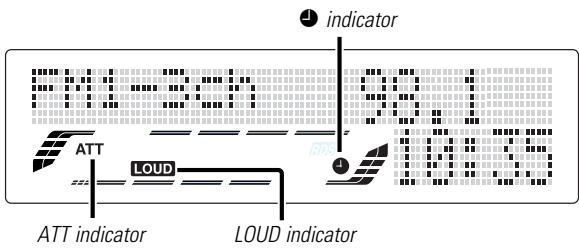
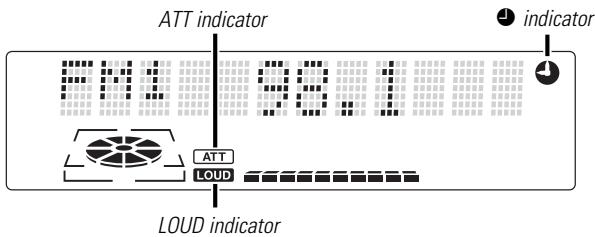
When the attenuator is on, the ATT indicator blinks.
When the attenuator is off, the volume returns to the original level.
NOTE
Turning the volume up, or turning it all the way down deactivates the attenuator function.
Loudness
This function amplifies low and high tones when the volume is turned down.
The LOUD indicator lights up, when the loudness function is on.
Turning Loudness On/Off:
Hold down the LOUD button for one second or more to switch the loudness on and off.
NOTE
The loudness function does not affect non-fading pre-out.
Forced Closing
This function prevents tampering with the unit your car is being serviced etc.
Hiding the unit with the ignition turned on (forced closing):
Hold down the SRC button for one second or more.
The faceplate will slide open. When the period of time which you have set in the "Time setting for removing the faceplate" in the menu has passed, the faceplate automatically reverses to hide the control panel. However, you can remove the faceplate during that period. For details, refer to the "Removing the faceplate" (page10).
NOTE
- When the closing faceplate is hit by an object, the unit will turn off without the faceplate closing all the way. Remove the object and press the SRC button to turn the unit back on, then turn it off again to make it close properly.
- Whilst the control panel is moving, pressing the buttons will not have any effect. Do not try to press the buttons on the control panel as the faceplate is moving, as excessive force may damage the unit.
- During the forced closing of the unit (i.e., having the unit left closed whilst ignition is turned on), the faceplate will not open no matter how often the ignition is turned on or off, unless "Manual Open button" at the rear of the faceplate is pressed in order to open it. You can prevent tampering of the unit when letting someone else drive your car by keeping it closed this way.
To cancel the forced closing of unit and open control panel:
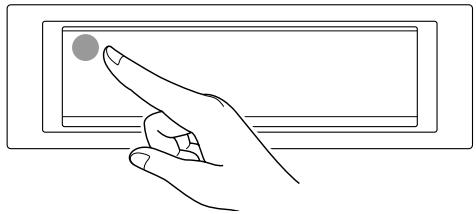
Press the left part at the upper side of the faceplate for as many times as you have preset in the "Manual Open Button Setting" (OPEN SW #) in the menu. The faceplate will open and show the control panel.
NOTE
When you set the Manual Open Button setting to 2 or 3, press the upper left part of the faceplate without pausing. If you do not press that part without pausing, the command cannot be verified correctly.
Faceplate Angle Adjustment
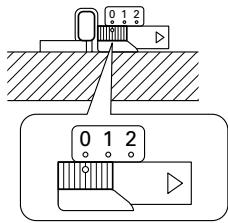
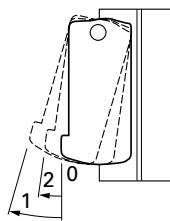
You can adjust the faceplate angle for easy viewing.
Adjusting faceplate angle:
Press the (EJECT) button to make the faceplate slide open, and then adjust the faceplate angle using the angle adjustment switch.
Adjustment may be made from 0 to 2.
NOTE
- Firmly slide the switch until it clicks.
- Do not apply excessive force to the faceplate under settings 1 or 2.
- Set the angle adjustment switch to "0" before removing the faceplate.
Switching Display
You can change the display in each mode.
Changing the Display:
Each time you press the CLK button, the display switches as follows:
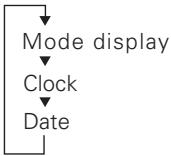
NOTE
The indicator lights whilst the clock is displayed.
Function of the KRC-PS978R/KRC-878R
Switching Spectrum Analyzer Display
You can change the display in each mode.
Changing the Display:
Each time you press the CLK button, the display switches as follows:
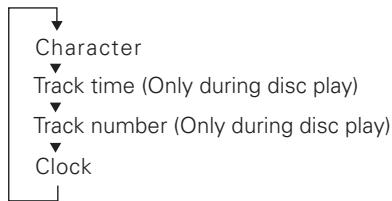
NOTE
The indicator lights whilst the clock is displayed.
Non-Fading Output
You can turn the non-fading output on and off whilst the preout is switched to the non-fading preout.
Turning non-fading output On/Off :
Hold down the NF button for one second or more to set the function ON or OFF.
"NF ON" is displayed when the non-fading output is set ON.
TEL Mute
Shut down the audio system temporarily whenever an incoming call is received.
NOTE
The function will not work if a cable is not connected to the car phone.
When the telephone rings:
When a call is received, "CALL" is displayed and all the unit functions are temporarily interrupted.
Restoring Original Unit Source During Phone Call:
Press the SRC button.
"CALL" disappears from the display, and the volume of the original source is restored gradually.
Turning TEL Mute Function Off After Phone Call:
Hang the phone up.
"CALL" disappears from the display.
The original source (i.e., the one used before the phone call) is returned to automatically, and the volume restored gradually.
Removing the Faceplate
The faceplate can be detached from the unit, helping to deter theft.
Removing the faceplate:
1 Choose the way from among the following and open the faceplate. Turn the ignition off, hold down the SRC button for one second or more, or press the left part at the upper side of the faceplate (as illustrated on p.8) for as many times as you have preset in the "Manual Open Button Setting" (OPEN SW #) in the menu when the control panel has been hidden.
2 Set the faceplate's angle adjustment switch to "0" to set the faceplate angle to the vertical. For details, refer to "Faceplate Angle Adjustment" (page 8).
NOTE
If the faceplate's angle adjustment switch is not set to "0" when mounting the faceplate on the faceplate bracket, it may be difficult to mount the faceplate or the faceplate may not be securely attached and could fall off.
Set the angle adjustment switch to "0" before removing the faceplate.
3 Slide the faceplate lock switch to the left during the period which you have set in the "Time setting for removing the faceplate" in the menu.
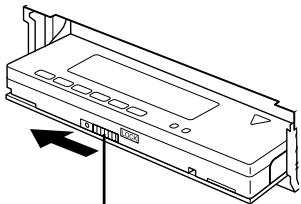
Faceplate lock switch
4 Holding the centre part of the faceplate, pull it out. The faceplate bracket will automatically close.
CAUTION
- When removing the faceplate, pull it out only when it is fully open. The detachment of the faceplate whilst it is moving might result in damage to the unit.
- Do not apply excessive force to the faceplate bracket without attaching the faceplate. Doing so will cause the faceplate bracket to be deformed.
- Do not touch the connector on the faceplate bracket after removing the faceplate. Touching the connector may cause damage to the unit.
- Do not touch two metal parts on both sides of the faceplate bracket. Touching those parts may injure you.
NOTE
-
Sliding the faceplate lock switch cause the unit's power to turn off. If you want to operate the unit again, remove the faceplate from the faceplate bracket completely and then reattach it.
-
The faceplate is a precision piece of equipment and can be damaged by shocks or jolts. For that reason, keep the faceplate in its special storage case whilst detached.
- Do not expose the faceplate or its storage case to direct sunlight or excessive heat or humidity. Also avoid places with too much dust or the possibility of water splashing.
Reattaching the Faceplate:
1 Hold the faceplate so that the control panel faces the front toward you and set the left side of the faceplate in the faceplate bracket.
CAUTION
Do not set the right side of the faceplate in the faceplate bracket first, when reattaching the faceplate. Doing so may cause the connector on the faceplate bracket to malfunction.
2 Press the right side of the faceplate until it locks.
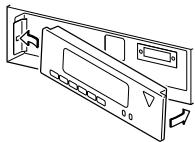
NOTE
If the faceplate bracket's angle was not set to the vertical when the faceplate was mounted, check that the faceplate is securely attached to the faceplate bracket by holding its right side and pulling it gently towards you.
Audio Control Setting
Adjust various parameters of sound quality.
1 Press the AUD button to enter the control mode.
2 Selecting mode
Press either the FM or AM button.
Each time the button is pressed, the adjustment mode will change.
Please refer to the following for the contents of the adjustment modes.
NOTE Source tone memory
Each source (tape, CD, FM, AM, and disc changer) has its own memory in which to store the bass, treble and N-F level settings. The settings made for a particular source are then recalled automatically whenever you use that source (e.g., FM mode uses the tone settings made for FM, AM for AM, etc.).
3 Adjust each mode
Press the I▶ button.
Look at the table to adjust the mode being displayed.
4 Press the AUD button to end the control mode.
"Kex"/"ec4"/"dB": Recalling the kenwood preset sound setting
Press the preset buttons (#1-6).
Settings: #1; Flat, #2; Rock, #3; Pops/Top40, #4; Jazz, #5; Easy, #6; Scan of #1-5
NOTE
- This mode is available only when the Sound coordinate system is on. (page33)
- You can call the following settings with this function; bass centre frequency, bass level, bass quality factor, bass extension, treble centre frequency, and treble level setting. Their setting values are different depending on the setting of the mobile preset plan mode.
General features
"Bas F/Bass F": Adjust the centre frequency of the bass.
Setting values: 60 / 70 / 80 / 100 (Only when the bass quality factor is set to 1.00, 1.25 or 1.50) / 150 (Only when the bass quality factor is set to 2.00) Hz
NOTE
This mode is available only when the Sound coordinate system is on. (page33)
"Bas/Bass": Adjust the bass level.
Setting values: -8 + 8
"Bas Q/Bass Q": Adjust the Bass quality factor.
Setting values: 1.00 / 1.25 / 1.50 / 2.00
NOTE
This mode is available only when the Sound coordinate system is on. (page33)
"Bas EXT/Bass EXT": Switch the Bass Extend mode on/off.
Setting values: ON / OFF
(When the bass extend mode is set to on, low frequency response is extended by 20% .)
NOTE
This mode is available only when the Sound coordinate system is on. (page33)
"Tre F ": Adjust the centre frequency of the treble.
Setting values: 10.0 / 12.5 / 15.0 / 17.5 kHz
NOTE
This mode is available only when the Sound coordinate system is on. (page33).
"Tre/Trble": Adjust the treble level.
Setting values: -8 - +8
"Balance": Adjust the balance level.
Setting values: Left 15 - Right 15
"Fader": Adjust the fader level.
Setting values: Front 15 - Rear 15
Function of the KRC-PS978R/KRC-878R
"NF LVL": Adjust the Non-fading output level.
Setting values: -15 - +15
NOTE
- This mode is available only when the non-fading output function is set to on.( page9).
- Not available during the Dual zone system is on.
Function of the KRC-PS978R/KRC-878R
"HPF F": Adjust the frequency of the High-pass filter for front output.
Setting values: Through / 40Hz / 60Hz / 80Hz / 100Hz / 120Hz / 150Hz / 180Hz / 220Hz
NOTE
- You can separately set the high-pass filter for front and rear output, including preouts.
- The high-pass filter does not affect the non-fading preout (KRC-PS978R only).
- The high-pass filter works except during non-fading preout when switching to non-fading.(KRC-878R only)
- The factory default settings for front output and rear output are "Through".
Function of the KRC-PS978R/KRC-878R
"HPF R": Adjust the frequency of the High-pass filter for rear output.
Setting values: Through / 40Hz / 60Hz / 80Hz / 100Hz / 120Hz / 150Hz / 180Hz / 220Hz
NOTE
- You can separately set the high-pass filter for front and rear output, including preouts.
- The high-pass filter does not affect the non-fading preout (KRC-PS978R only).
- The high-pass filter works except during non-fading preout when switching to non-fading.(KRC-878R only)
- The factory default settings for front output and rear output are "Through".
Function of the KRC-PS978R/KRC-878R
"LPF": Adjust the frequency of the Low-pass filter for Non-Fading output.
Setting values: 50Hz / 80Hz / 120Hz Through
NOTE
- This mode is available only when the non-fading output function is set to on.( page9)
- Not available during the Dual zone system is on.
Function of the KRC-PS978R/KRC-878R
"NF PHS": Adjust the phase for Non-Fading output.
Setting values: NOR (0^) / RVE (180^)
NOTE
- This mode is available only when the non-fading output function is set to on.( page9)
- Not available during the Dual zone system is on.
"V OFFSET": Set the sound level of the each source selected by adjusting the level difference between the basic sound level and the required level.
Setting values: -8 - 0
Storing your sound settings:
Hold down a preset button (#1-6) for two seconds or more.
NOTE
- This setting can be made only when the Sound coordinate system is on.( page33)
- The settings you can preset are, bass centre frequency, bass level, bass quality factor, bass extension, treble centre frequency, and treble level.
Recalling your sound settings:
Press a preset button (#1-6) except during the bass center frequency, bass level, bass quality factor, bass extension, treble center frequency, and treble level adjust mode.
NOTE
This mode is available only when Sound coordinate system is on. (page33)
General features
Mobile Preset
This function allows you to adjust the setting that is recalled with the sound coordinate system, according to types of speakers.
1 Press the SRC button repeatedly to select the standby mode. "ALL OFF" is displayed when the standby mode is selected.
2 Press the AUD button to enter the mobile preset plan mode.
3 Press either the 1 or 2 button to select the type of speaker. The setting switches as follows. OFF / For the OEM speaker / For 6/6x9 in. speaker / For 5/4 in. speaker
4 Press the AUD button to end the mobile preset plan mode.
NOTE
- This mode is available only when the Sound coordinate system is on. (page33)
- When you change the setting of type of speaker, the bass and treble tone settings are returned to original levels.
Tuner features
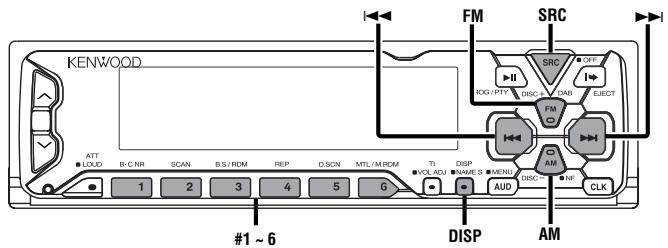
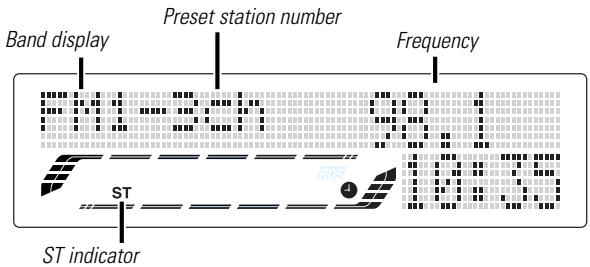
KRC-PS978R/878R
KRC-778R/778RV
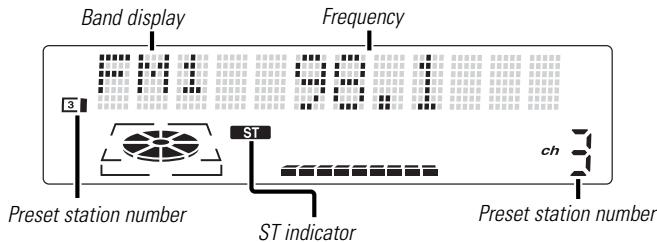
Tuning
1 Press the SRC button repeatedly until the tuner mode is obtained. "TUNER" is displayed only when the tuner mode is selected.
2 Press either the FM or AM button to select the band. Each time you press the FM button, the band switches between the FM1, FM2 and FM3. Press the AM button to select the MW and LW bands.
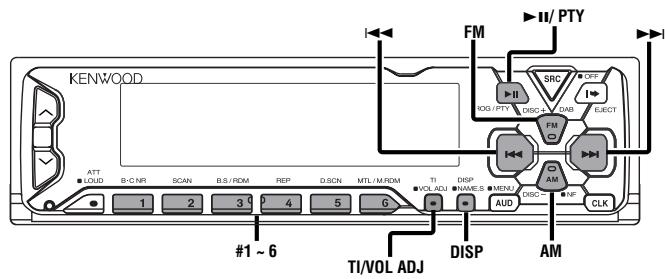
3 • Auto Seek Tuning Press the button to seek increasing frequencies. Press the button to seek decreasing frequencies. Preset station seek tuning Press the button to move to the next preset station (i.e., the one with the next highest number), and the button to move to the last preset station (i.e., the one with the next lowest number).
NOTE
If the frequencies stored at the preset numbers receive stations which were not originally memorized when traveling long distances, the preset number is not displayed. In such cases, pressing the 1 button to use preset station seek will receive channel 1.
- Manual Tuning
- Press the button to increase the frequency by one step.
- Press the button to decrease the frequency by one step.
NOTE
- The ST indicator lights up when stereo broadcasts are being received.
- Please see the menu settings about selecting tuning mode. (page35)
Station Preset Memory
Store the frequency of the station currently being listened to. You can then recall that station with a single touch of a button.
1 Select the band/ station that you want to have stored.
2 Hold down the button (#1-6) that you want to use for the station, for two seconds or more. The button number blinks once in the display to indicate that the data has been stored.
Recalling a Preset Station:
Press the preset station button (#1-6) for the desired station. The number of the recalled station is displayed.
NOTE
You can store 6 stations in each of the FM1, FM2, FM3, and AM (MW and LW) bands.
Kenwood intelligent Twin IF (K2l)
When the frequency of another station is too close to that of the station currently being listened to, interfering with proper reception, this function automatically narrows the range of received frequencies to prevent such interference.
Switching Display for Tuner
You can change the display used when listening to the radio.
Switching the Display:
Pressing the DISP button switches the display as follows. Select the Radio Text Display mode.
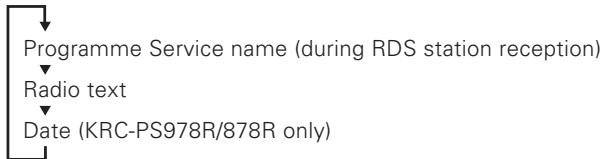
Displaying Frequencies:
Hold down the DISP button for one second or more. The frequency for the RDS station will be displayed for five seconds instead of the station name.
NOTE
- If the RDS station currently tuned to is transmitting no text whilst the Radio Text Display mode is turned on, "NO TEXT" will appear in the display. Whilst awaiting reception, "WAITING" will be displayed.
WARNING
To prevent accidents, drivers should not look at the display whilst on the road.
RDS features
KRC-PS978R/878R
KRC-778R/778RV
RDS (Radio Data System)
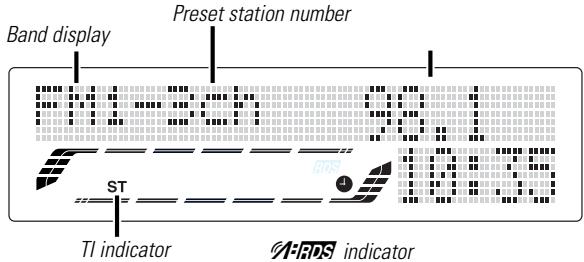
RDS is a digital information system that lets you receive signals besides those of regular radio programmes, such as network information being transmitted from radio stations. When listening to an RDS station (ie, a station with RDS capability), the programme service name of the station is displayed along with the frequency, advising you quickly which station is being received.
RDS (Radio Data System) stations also transmit frequency data for the same station. When you are making long trips, this function automatically switches to the particular frequency with the best reception for the particular network of stations that you want to listen to. The data is automatically stored, allowing you to switch quickly to another RDS stations, broadcasting the same programme, that has better reception. These include stations stored in the station preset memory that you often listen to.
Enhanced Other Network
Stations that offer
Alarm
When an emergency transmission (announcing disasters, etc.) is sent, all current functions are interrupted to allow the warning to be received.
Presetting Volume for Traffic Information/News
Preset the volume level to be used for traffic information and news broadcasts.
1 Tune into the station for which you want to set the volume.
2 Adjust the volume to the desired level.
3 Hold down the TI VOL ADJ button for two seconds or more. The volume level blinks once in the display to indicate that the data has been stored. Future traffic information/news broadcasts are heard at the preset level.
NOTE
- The volume cannot be lowered by this function during tuner reception. The volume is only set when it is louder than the listening volume of the tuner.
- You can arrange only to listen to traffic information or news bulletins with at preset volume with the volume set at minimum.
Radio Text Scroll
This function permits the text to be scrolled and the entire text to be displayed. The scrolling method differs depending on the setting of scrolling in the menu.
To scroll manually:
1 Press the DISP button to display the Radio Text.
2 Holding down the DISP button for one second or more results in one scrolling display of the text.
To scroll automatically:
Press the DISP button to display the Radio Text. The text will be displayed in one scrolling display.
2 Holding down the DISP button for one second or more results in one scrolling display of the text.
NOTE
Please see the menu settings (page36) about switching between manual scrolling and automatic scrolling.
Programme Type (PTY) Function
Conduct auto seek tuning only on those stations with selected kinds of programmes.
1 Press the (PTY) button.
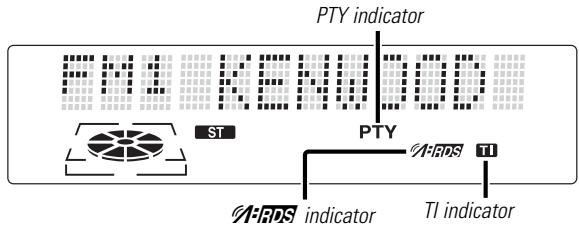
"PTY" is displayed, and the Programme Type Selection (PTY) Mode entered.
If you make no key input in 30 seconds, the mode will automatically turn off.
NOTE
You cannot use this function whilst the traffic bulletin is received.
NOTE
Changing the Display Language to French, German, or Swedish
In the PTY mode, press the DISP button to display the name of the language currently used.
If you want to change the language, press the preset button for the desired language and then the DISP button.
English is #1, French is #2, German is #3, and Swedish is #4.
2 Select the type of programme to be received
- Press either the FM or AM buttons repeatedly until the type of programme you want to listen to.
The selection includes:
| Programme type | KRC-PS978R/878R | KRC778R/778RV |
| Speech | (All Speech) | (Speech) |
| Music | (All Music) | (Music) |
| 1. News | (News) | (News) |
| 2. Current Affairs | (Current Affairs) | (Affairs) |
| 3. Information | (Information) | (Info) |
| 4. Sports | (Sport) | (Sport) |
| 5. Education | (Education) | (Educate) |
| 6. Drama | (Drama) | (Drama) |
| 7. Culture | (Cultures) | (Culture) |
| 8. Science | (Science) | (Science) |
| 9. Varied | (Varied Speech) | (Varied) |
| 10. Pop Music | (Pop Music) | (Pop M) |
| 11. Rock Music | (Rock Music) | (Rock M) |
| 12. Easy Listening Music | (Easy Listening) | (Easy M) |
| 13. Light Classical | (Light Classics M) | (Light M) |
| 14. Serious Classical | (Serious Classics) | (Classics) |
| 15. Other Music | (Other Music) | (Other M) |
| 16. Weather | (Weather& Metr) | (Weather) |
| 17. Finance | (Finance) | (Finance) |
| 18. Children's programmes | (Children's Progs) | (Children) |
| 19. Social Affairs | (Social Affairs) | (Social A) |
| 20. Religion | (Religion) | (Religion) |
| 21. Phone In | (Phone In) | (Phone In) |
| 22. Travel | (Travel & Touring) | (Travel) |
| 23. Leisure | (Leisure & Hobby) | (Leisure) |
| 24. Jazz Music | (Jazz Music) | (Jazz) |
| 25. Country Music | (Country Music) | (Country) |
| 26. National Music | (National Music) | (Nation M) |
| 27. Oldies Music | (Oldies Music) | (Oldies) |
| 28. Folk Music | (Folk Music) | (Folk M) |
| 29. Documentary | (Documentary) | (Document |
| (Speech......1~9,16~23, 29, Music......10~15, 24~28) | ||
-
You can select the type of programme directly by pressing a preset button. The buttons are factory-set to the following type of programmes:
-
Music
-
Other Music
-
Speech
-
News
-
Serious Classical
-
Varied
NOTE Changing the Preset Button Settings for Programme Type
After selecting the type of programme to be stored in a certain preset button, press that button for at least two seconds.
The previously stored data for that button are erased and the new programme type is stored.
3 Seeking the selected programme type
Press the I or button to make a seek of frequencies with your selected type of programme.
The display blinks and the seek starts.
"PTY" blinks in the display for about 30 seconds.
If you make no key input in 30 seconds, the PTY selection mode will turn off automatically.
NOTE
If no programme can be found, "NO PTY" is displayed.
If you want to select another type of programme, repeat steps 2 and 3 above.
Switching to Other Stations with the Same Type of Programme:
When "PTY" is blinking in the display, perform auto seek tuning.
The tuner scans for another station with the same type of programme.
Cancelling Programme Type Function During Its Operation:
Press the (PTY) button.
When the function is on, the TI indicator is turned on.
When none is being received, the TI indicator will blink on and off. When a traffic information station is being received, the TI indicator will turn on.
When a traffic bulletin begins to be broadcast, "TRAFFIC INFO/TRFFIC" will be displayed, and reception will begin at the preset volume.
If you are listening to a tape or disc when a traffic bulletin begins, they will automatically be turned off. When the bulletin ends or poor reception is experienced, the tape or disc will begin playing again.
NOTE
Pressing the TI button whilst in the MW/LW band automatically switches reception to the FM band. However, the MW/LW band is not returned to when the TI button is pressed again.
Switching to a Different Traffic Information Station:
Use the 1 / 2 buttons to make an auto seek of the TI stations in a certain band.
NOTE
- When you are listening to a tape or disc, you cannot change to another TI station.
- When the auto TP seek function is turned on and reception starts to weaken, the tuner automatically seeks traffic information stations with better reception.
- If you are tuned to a station that is not a traffic information station itself but which provides
services, you can still have traffic information received. - Holding the TI button down for one second or more when the TI function is on in the disc control mode results in a change to the frequency display of the traffic information station for five seconds.
Traffic Information Function
You can listen to traffic information. If you are listening to tapes or discs, they will continue playing until a traffic bulletin is broadcast.
Turning TI function On/Off:
Press the TI button to turn the function on and off.
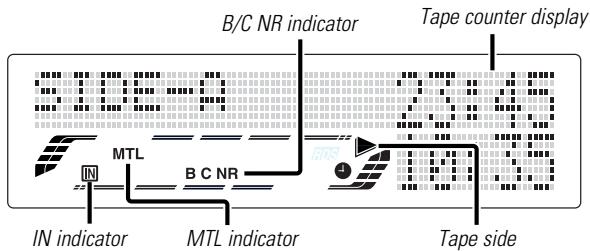
KRC-PS978R/878R
KRC-778R/778RV
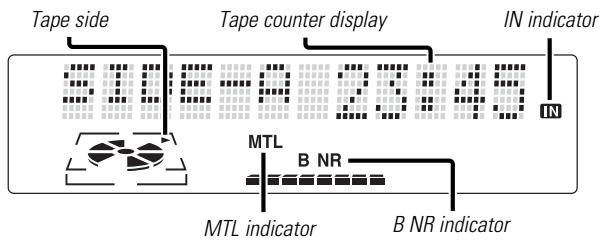
Playing Cassette Tapes
Loading and Playing Cassettes:
Press the (EJECT) button to slide open the faceplate, showing the cassette (insertion) slot. Holding the cassette with the tape exposed to the right, insert it in the slot. The faceplate will close, and the tape will start playing. The IN indicator lights up when a cassette has been loaded.
Playing Cassettes Already Loaded:
Press the SRC button repeatedly until the tape mode is obtained. "TAPE" is displayed when the tape mode has been selected.
The tape will start playing.
Listening to the other side:
Press the PROG button.
Tape play switches to the other side.
Eject:
Press the (EJECT) button to stop tape play. The faceplate will slide to eject the tape. Press the (EJECT) button to close the faceplate.
CAUTION
When the faceplate has been slid open, it might interfere with the gear lever or something else. If this happens, pay attention to safety and move the gear lever or take an appropriate action, then operate the unit.
NOTE
- The sound will be temporarily muted whilst the faceplate is moving.
- The only buttons that will work during the eject state are the (EJECT), SRC, TI and ATT buttons, as well as the volume control button.
- Remove a cassette from the unit when not listening to it for a whilst. If you leave it in the unit too long, the tape may stick to the tape head and cause the unit to malfunction.
Fast Forwarding and Rewinding Cassette Tapes
Fast Forwarding Tapes:
Press the FM button.
Rewinding Tapes:
Press the AM button.
Cancelling:
Press the PROG button.
NOR tape play returns.
Using Dolby B/C Noise Reduction
Listen to tapes recorded using the Dolby B or C NR system.
Turning Dolby NR On/Off:
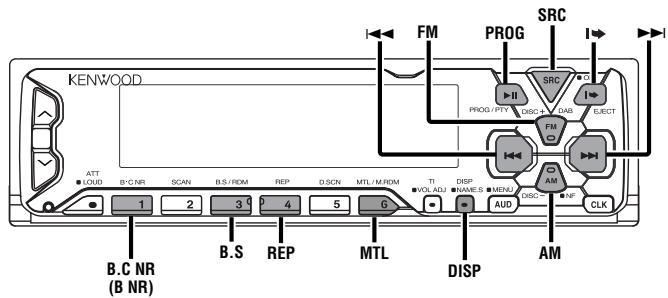
Press the B-C NR button repeatedly to switch the Dolby NR selection as follows.
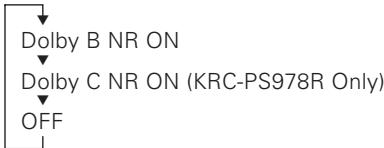
The B NR indicator lights up when Dolby B NR is turned on, and the C NR indicator when Dolby C NR is turned on.
Switching Tape Types
Select type of tape being played.
Switching Tape Types:
Press the MTL button to switch the MTL indicator on and off and to select the tape type.
Turn the MTL indicator off for normal tape (Type I) playback.
Turn the MTL indicator on for the following tape types:
CrO_2 (Type II) FeCr (Type III) Metal (Type IV) Selecting the wrong tape type may cause sound quality to suffer.
Tape counter display
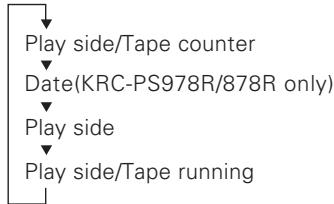
Switching the Tape display :
Each time you press the DISP button, the display during tape play switches as follows:
NOTE
The tape counter is not exact, but only represents an approximation of the elapsed time.
Using DPSS (Direct Programme Search System)
Skip forwards or backwards to other tracks during playback.
Skipping to Beginning of Current Track or to Previous Tracks (Rewind DPSS):
Press the 1 button.
Press once to rewind to the beginning of the current track, twice to rewind to the beginning of the previous track, and so forth.
You can skip up to 9 tracks this way.
Playback is continued after the tape is rewound by the indicated number of tracks.
Skipping to Later Tracks (Fast Forward DPSS):
Press the button.
Press once to fast forward to the next one track, twice to fast forward to the track after that, and so forth.
Up to 9 tracks can be skipped.
Playback is continued after the tape is fast forwarded by the indicated number of tracks.
NOTE
- During the first 5 seconds of each track, the previous track is considered the "current" track (i.e., the "0" track). If you press the button during that period, the tape rewinds to the beginning of the previous track and not the one you are listening to.
- The DPSS function "knows" where a track begins by detecting the blank space preceding it (i.e., the space between tracks). However, when the blank space lasts for less than 4 seconds or contains noise, DPSS may not operate correctly.
Furthermore, quiet intervals within a song are detected as "blank spaces" if they last for 4 seconds or more.
Cancelling DPSS During Its Operation:
Press the PROG button.
Blank Skip
Automatically fast forwards to the beginning of the next track when long blank spaces (10 seconds or more) are detected, continuing tape playback. This function is on, when unit is first powered on.
Turning Blank Skip Function On/Off:
Press the B.S button to switch the blank skip function on and off.
"Blank Skip/B.Skip ON" is displayed when the blank skip function is turned on.
NOTE
- If the blank space contains hiss noise, the blank skip function may not work correctly.
- Sections recorded at low levels may trigger the blank skip function if they last for 10 seconds or more.
Music Repeat
Repeatedly plays the current track.
Turning Music Repeat Function On/Off:
Press the REP button to switch the music repeat function on and off.
"Repeat ON" is displayed when music repeat is turned on.
Cancelling Music Repeat Function:
Press either the REP or PROG button.
NOTE
The music repeat function "knows" where a track begins by detecting the blank space preceding it (i.e., the space between tracks). However, when the blank space lasts for less than 4 seconds or contains noise, this function may not operate correctly. Furthermore, sections recorded at low levels may trigger the function if they last for 4 seconds or more.
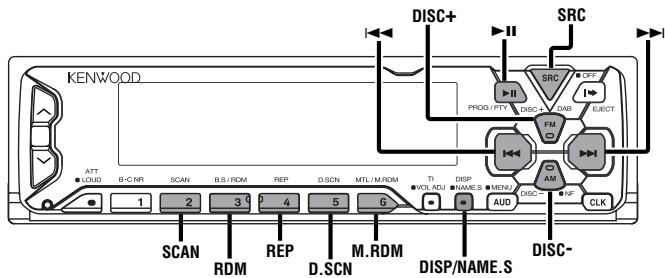
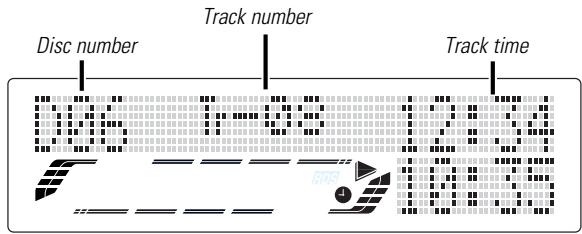
KRC-PS978R/878R
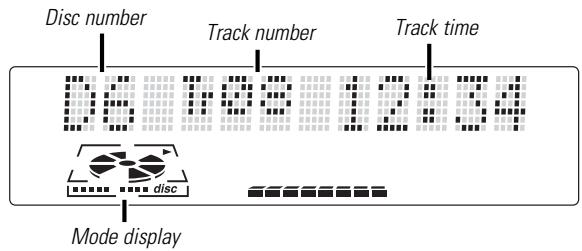
KRC-778R/778RV
■ When a unit equipped with an O-N switch is to be connected, please also see the instruction manual of this unit.
Set the O-N switch to "N". "N"-operation will be set.
"N"-operation:
- The disc title and track title of the CD text can be displayed.
- The disc name will be displayed when the name has been registered to any connected unit with the Presetting Disc Names function, or when the playing unit contains a disc to which the disc title has been recorded.
"O"-operation:
- CD text cannot be displayed.
- Regardless of the control unit, the characters that can be registered with the Presetting Disc Names function are "A~Z 0~9 /, +, -, *, =, <, >, [ , ]".
- The disc name will be displayed when the name has been registered to the playing unit with the Presetting Disc Names function.
NOTE
The CD text, Presetting Disc Names, and Disc Name Preset Play functions may not be operational depending on the unit.
Playing Disc mode
This functor permits the connection of optional players and the playing of discs.
Playing Discs:
Press the SRC button repeatedly to select the external disc control mode.
The disc will start playing.
NOTE
The external disc control mode will differ, depending on the unit that is connected.
Mode Display Examples
- "CD" ...when a CD player is connected
"DISC" ...when a disc changer is connected - "DISC-1", "DISC-2" ...when two disc changers are connected
Pausing and Restarting Disc Play:
Press the button to make the disc pause.
Press the same button again to start play again.
NOTE
- When one disc has finished playing its last track, the next disc in the changer starts playing. When the last disc in the changer has finished, the player returns to the first disc and starts playing it.
- Disc #10 is displayed as "0". (KRC-778R/778RV only)
Switching Display for Discs
Switch the display that appears whilst discs are playing.
Switching Display for Discs:
Each time you press the DISP button, the display during disc play switches as follows.
Track time
Disc name (DNPS)
Disc title (Units featuring CD text/MD only)
Track title (Units featuring CD text/MD only)
Date (KRC-PS978R/878R)
NOTE
- You can give names to discs through the presetting disc name function (see p28).
Note that depending on the unit, display may not be possible. - If you try to display the name of a disc that does not have one, "NO NAME" is displayed instead.
- When there is an attempt to display the title of a disc for which the disc title/track title has not been recorded, "NO TEXT" is displayed for CD and "NO TITLE/NO NAME" is displayed for MD.
- Depending on the type of characters of the CD Text, some characters may not be displayable.
Fast Forwarding and Reversing Disc Play
Fast Forwarding Disc Play:
Hold down on the button.
Release your finger to play the disc at that point.
Reversing Disc Play:
Hold down on the 1 button.
Release your finger to play the disc at the point.
NOTE
You cannot use reverse play between tracks depending on the model being connected. Instead, the reverse play function is
cancelled when it reaches the beginning of a track, at which point normal play automatically resumes.
Track Search
Search forwards or backwards through the tracks on the disc until you reach the one that you want to listen to.
Making a RVE Track Search:
Press the 口 button to display the desired track number.
Press once to search back to the beginning of the current track, twice to search back to the beginning of the previous track, and so forth.
Play starts at the beginning of the displayed track number.
NOTE
Pressing the 1 button whilst listening to track 1 only searches back to the beginning of that track. The reverse search is not "recycled" to the last track on the disc.
Making a Forward Track Search:
Press the button to display the desired track number.
Press once to fast forward to the next track, twice to fast forward to the track after that, and so forth.
Play starts at the beginning of the displayed track number.
NOTE
You cannot make a forward track search when listening to the last track on a disc.
Disc Search
(Function of disc changers)
Search forwards or backwards through the discs in a disc changer until you reach the one that you want to listen to.
Making a RVE Disc Search:
Press the DISC-- button to display the desired disc number.
Each time the button is pressed, the displayed disc number decreases by one.
Play starts at the beginning of the displayed disc.
Making a Forward Disc Search:
Press the DISC+ button to display the desired disc number.
Each time the button is pressed, the displayed disc number increases by one.
Play starts at the beginning of the displayed disc.
NOTE
"LOAD" is displayed when discs are being exchanged on the disc changer.
Track / Disc Repeat
Repeat playing the current track or disc.
Turning Repeat Play Function On/Off:
Press the REP button to switch the repeat play function on and off as follows :
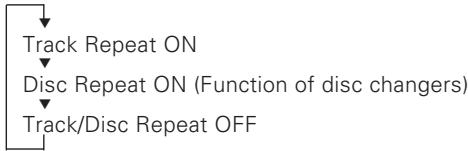
"Track Repeat/T-Repeat/Repeat ON" is displayed and the track number blinks in the display when track repeat is on.
"Disc Repeat/D-Repeat ON" is displayed and the disc number blinks in the display when disc repeat is on.
NOTE
Repeat play is cancelled when you eject the disc.
Track Scan
Successively play the beginning of each track on a disc until you find the track that you want to listen to.
Starting the Track Scan:
Press the SCAN button. "Track Scan/T-Scan/Scan ON" is displayed and the first 10 seconds of each track are played, and the tracks are played in order. The track number currently being heard blinks in the display.
Stopping to Listen to the Track Being Scanned:
Press the or SCAN button again to stop the scan and keep on listening to a track normally.
NOTE
- The track scan function is cancelled when you eject the disc.
- The track scan function only scans each track on a disc once.
Disc Scan
(Function of disc changers)
Successively play the beginning of each disc on a changer until you find the one that you want to listen to.
Starting the disc scan:
Press the D.SCN button. "Disc Scan/D-Scan ON" is displayed and the first 10 seconds of each disc are played, in the order in which they are loaded on the changer. The disc number currently being heard blinks in the display.
Stopping to Listen to the Disc Being Scanned:
Press the or D.SCN button again to stop the scan and keep on listening to the disc normally.
NOTE
- The disc scan function is cancelled when you eject the disc.
- The disc scan function only scans each disc on the changer once.
- "LOAD" is displayed when discs are being exchanged on the disc changer.
Random Play
Play all the tracks on the current disc in random order.
1 Press the RDM button to switch the random play function on and off.
"Random ON" is displayed when random play is turned on.
The display of the track number changes continuously as the next track is being selected.
When the track has been selected, play starts.
The selected track number blinks in the display as it is being played.
NOTE
When all the tracks on a certain disc have been played using the random play function, the next disc on the changer starts playing (with the random play function still turned on).
2 To change the track being heard, press the button. Another track is selected and played.
NOTE
Random play is cancelled when you eject the disc.
Magazine Random Play
(Function of disc changers)
Play the tracks on all the discs in the disc changer in random order.
1 Press the M.RDM button to switch the magazine random play function on and off.
"M-Random ON" is displayed when magazine random play is turned on.
The display of the disc and track numbers change continuously as the next track is being selected.
When the disc/track has been selected, play starts.
The selected disc/track number blinks in the display as it is being played.
NOTE
This function is not available with the following models:
KDC-C200/C300/C400/C301/C401
2 To change the track being heard, press the button. Another disc/track is selected and played.
NOTE
- Magazine random play is cancelled when you eject the disc.
- The time needed for random selection depends on the number of discs loaded in the disc magazine.
Text / Title Scroll
This function permits the text to be scrolled and the entire text to be displayed. The scrolling method differs depending on the setting of scrolling in the menu.
To scroll manually:
1 Press the DISP button to display the disc title or the track title.
2 Holding down the DISP button for one second or more results in one scrolling display of the titles.
To scroll automatically:
1 Press the DISP button to display the disc title or the track title. The titles will be displayed in one scrolling display.
NOTE
When the disc or track to be played changes, the title is displayed in one scrolling display.
2 Holding down the DISP button for one second or more results in one scrolling display of the titles.
NOTE
Please see the menu settings (page 28) about switching between manual scrolling and automatic scrolling.
Presetting Disc Names (DNPS)
Store the names of discs to be displayed when played.
1 Play the disc whose name you want to preset.
NOTE
- This function is not available for disc changers that do not feature the Disc Name Preset function.
- This procedure is not to be used to store the disc and track titles for MDs that you record.
- The disc name preset function cannot be used when a disc title name or track title is displayed.
2 Hold down the NAME.S button for two seconds or more. "NAME SET" is displayed and the disc name preset mode is entered.
The cursor blinks in the position where character input can be made.
3 Press either the 1 or 2 button to move the cursor to the desired position.
The button moves the cursor to the left, and the button to the right.
4 Each time the button is pressed, the characters to be entered change as listed below.
Press the DISC+ or DISC- button to display the desired character.
Characters that can be displayed are as follows.
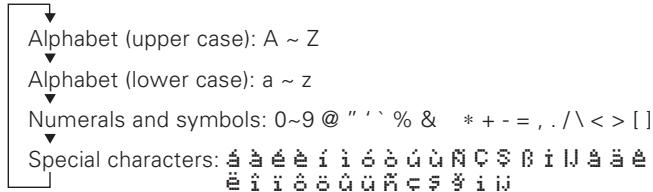
NOTE
The operation and characters that can be entered may change as listed below, depending on the unit that is connected.
A press of the button exits the disc name preset mode.
Operations can be followed again from Step 2 at a time such as this, and the characters to be input are selected using the procedure described below.
Press the DISC+ or DISC- button to display the desired character. Besides the alphabet (capital letters only) and numbers, you can choose the following characters: /, , ± , * , = , < , > , [and].
5 Continue steps 3 and 4 until all the characters are chosen for the name.
6 Press the NAME.S button.
The disc name is stored and the disc name preset mode is cancelled.
If you make no entry in a 10-second period, the name will be stored with the characters input so far.
NOTE
- The number of characters and discs whose names can be stored will differ depending on the disc changer that is connected. Please see your disc changer manual for details.
- Discs are identified by their total length and number of tracks. If another disc happens to have the same specifications as one that you have already stored a name for, the name will be displayed for it, too.
- If you want to change the name of a disc, repeat steps 1 and 2 to display the name, and then repeat steps 3 and 4 to input the changes.
- Pressing the reset button does not erase the disc names stored in a disc changer.
KRC-PS978R/878R
KRC-778R/778RV
Menu System
You can set the defaults for additional functions in the menu mode.
Make a setting for each function, referring to the following operations.
1 Enter the menu mode
Hold down the MENU button for one second or more.
"MENU" is displayed when the menu mode is entered.
The function that you can adjust is indicated with the current settings displayed.
2 Selecting function to set
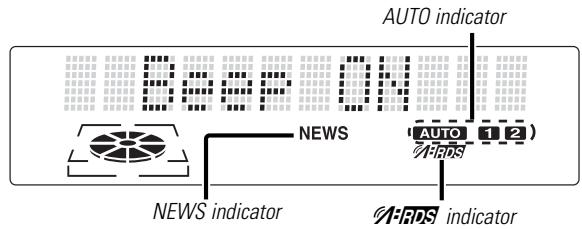
Press the FM button to search through the functions until you see the one you want to adjust in the display.
Press the AM button to search through the functions backward.
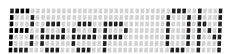
Example: If you want to switch the setting of the touch sensor tone function from on to off, first search through the functions until you see "Beep ON" in the display.
3 Changing setting for currently displayed function
Press either the 1 or 2 button.
The setting will change for each function.
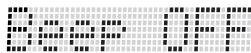
Example: The setting of the touch sensor tone will switch from on to off, and "Beep OFF" is displayed.
4 Ending the menu mode
Press the MENU button.
NOTE
Make sure to end the menu mode when finished.
If you fail to end the menu mode, several functions may not operate properly, including the Traffic Information function and the Alarm function.
Calendar Adjustment
Adjust the date for the unit so that you can use the calendar function.
Display and setting:
1 Select the display "Date Adjust" during the selecting function in the menu system.
2 Hold down either the 1 or button for two seconds or more to enter the Calendar adjustment mode. The date display will blink.
3 Selecting the item (day, month, or year) to adjust Press the I or button. The item blinking in the display can be adjusted.
4 Adjusting the date Press the FM or AM button. The item of the date blinking in the display will change.
5 Press the MENU button to end the menu mode.
Calendar Mode
You can set the date formats of the calendar function.
Display and setting:
1 Select the display "Date Mode" during the selecting function in the menu system.
2 Press the 1 and 2 button to select the date format you want to show in the display. The sample of the date format for today is displayed.
Memo Mode
You can input the text to be displayed and set the date when that text will appear in the display with the calendar function.
Display and setting:
1 Select the display "Memo Mode" during the selecting function in the menu mode.
2 Hold down either the 1 or button for two seconds or more to enter the Memo mode. The date display will blink.
3 Selecting the set of the date and text to be displayed
Press the FM and AM button.
If you want to input a new text, select the blank display.
4 Entering the month or day setting mode
Press the I and button to enter the month or day setting mode.
The month display will blink enter the month setting mode, the day display will blink enter the day setting mode.
5 Changing the month or day
Press the FM and AM button.
6 Entering the text input mode
Press the button to enter the text input mode.
The cursor blinks in the position where character input can be made.
7 Inputting / Changing the text
- Moving the cursor
Press the 1 and 2 button.
- Changing the type of characters Press the button.
Each time the button is pressed, the type of characters switches as follows.
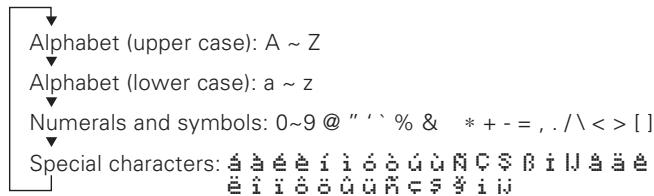
- Selecting the character
Press the FM and AM button.
8 Press the MENU button to end the menu mode.
NOTE
- The text you selected automatically appears on the date you set when the unit's power is first turned on. (Calendar function) Pressing the DISP button for one second or more scrolls the display once, regardless of the text scroll setting. Pressing a button other than the DISP button will cause the text to disappear from the display.
- You can enter up to 32 characters for each text.
- The calendar function can be set up to 30 cases.
- To delete the date and text setting, set both the month and day of the date to "00" or set all of the text to blanks.
Automatic Time Adjustment
With automatic time adjustment, you can set the clock time automatically according to time data sent from RDS stations (after receiving RDS signals for several minutes). You can also set the time manually if the automatic time adjustment function is turned off. The factory default is automatic time adjustment.
Display and setting:
"SYNC ON": Automatic time adjustment
"SYNC OFF": Manual time adjustment
Adjusting Time Automatically:
Tune into an RDS station for 3 or 4 minutes.
The time adjusts automatically to the correct local time.
NOTE
The time is not adjusted when the RDS station you are tuned to is not transmitting a time signal. Choose another RDS station in such a case.
Touch Sensor Tone
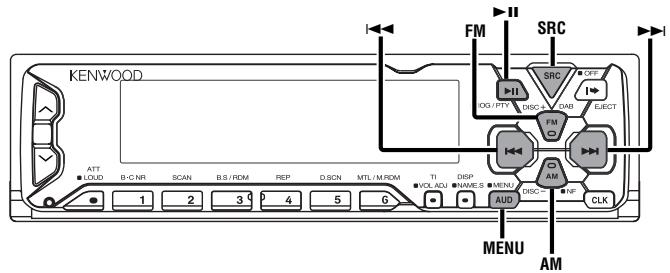
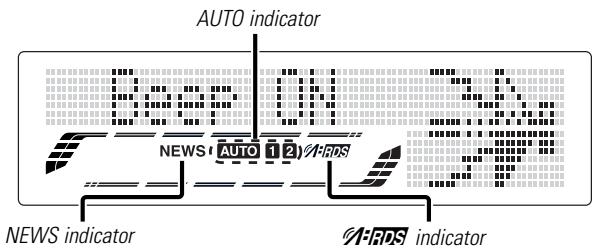
This function produces a beep sound that accompanies button operation. It can be switched on or off.
Display and setting:
"Beep ON": Beep setting is on.
"Beep OFF": Beep setting is off.
NOTE
The beep sound is not output from the preout jacks.
Manual Time Adjustment
Adjust the time manually.
NOTE
This adjustment is available only when the automatic time adjustment is set to off. (page31)
Display and setting:
1 Select the display "CLK Adjust" during the selecting function in the menu system.
2 Hold down either the 1 or 2 button for two seconds or more to enter the Manual time adjustment mode.
The time display will blink.
3 Adjusting the hours Press the FM button to advance the hours, or press the AM button to make the hours go back.
Adjusting the minutes
Press the button to advance the minutes, or press the button to make the minutes go back.
4 Press the MENU button to end the menu mode.
Mask Key
If you have transmitted the Mask Key's signal once to the unit in advance, you will have to transmit it once again if the unit has been removed from the battery. This function helps prevent theft.
When using the unit for the first time:
In order to deactivate the demonstration mode, be sure to press the transmit button to transmit the Mask Key's signal. If this procedure is not carried out, the control panel of the unit will re-open in two seconds even with your vehicle's ignition turned off.
1 Press the SRC button repeatedly to select the standby mode. "ALL OFF" is displayed when the standby mode is selected.
2 Hold down the MENU button for one second or more. "MENU" is displayed and the menu mode is turned on.
3 Press the FM button repeatedly until the "Mask key" appears in the display. Press the AM button to search in the other direction.
4 Hold down either the 1 or 2 button for two seconds or more. "TRANSMIT 1" will appear in the display, indicating the setting mode has been entered.
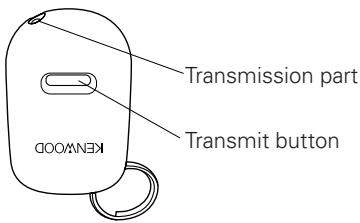
5 Hold down the transmit button on the Mask key until the full transmit level indicator lights up in the display. "TRANSMIT 2" will be displayed.
NOTE
- Keep the Mask Key close to the signal sensor when you
transmit the Mask Key's signal.
- If the Mask Key's signal does not be received correctly, the display will return to "TRANSMIT 1". In this case, repeat the procedure in step 5.
6 Hold down the transmit button on the Mask key again until the full transmit level indicator lights up in the display. "APPROVED" will appear in the display, with the Mask key function turning on.
If you press the RESET button or remove the battery:
The first time you turn the unit on again, "TRANSMIT 1" will appear in the display, indicating the setting mode has been entered. Repeat steps 5 and 6 above, and transmit the signal. You can start operating the unit again when "APPROVED" appears in the display.
Selectable Illumination
You can switch the colour of the button illumination between green and red.
Display and setting:
"Color Green": The colour of the illumination is green.
"Color Red": The colour of the illumination is red.
Contrast Adjustment
This adjustment permits easy viewing of the display.
Display and setting:
"Contrast 0" - "Contrast 10"
NOTE
The initial setting value is "5".
Dimmer
You can dim the display.
NOTE
The dimmer function is not available for units if the dimmer cable is not connected.
Display and setting:
"Dimmer ON": The dimmer setting is on.
"Dimmer OFF": The dimmer setting is off.
Switching Graphic Display
You can turn the movement of graphic display on and off. The initial setting is ON.
Display and setting:
"Graphic ON": The graphic display works.
"Graphic OFF": The graphic display does not work.
Black Mask
This function allows you to turn off the lower part of the display if there is too much information in the display.
Display and setting:
"BLK MSK/BLK MASK ON": The display will turn on by using only the part for letter display.
"BLK MSK/BLK MASK OFF": The display will turn on by using the whole part of the display.
Time setting for removing the faceplate
You can set the interval during which the open control panel cannot reverse to be hidden. During the period you have set, the faceplate can be removed from the faceplate bracket.
Display and setting:
"OFF WAIT": 0s / 3s / 5s / 10s / 15s / 20s / 25s (s=sec.)
NOTE
If you do not slide the faceplate lock switch during the period which you have set, the unit's power turns off after the control panel is automatically hidden.
Function of the KRC-878R
Switching preout
Switch the preout between the rear and non-fading. When you switch to non-fading, you can adjust the volume separately. The factory default is rear preout.
Display and setting:
"SWPRE Rear": Rear preout
"SWPRE N-Fad": Non-fading preout
NOTE
You cannot use the high-pass filter with non-fading preout.
KEX/ec4/dB (Sound Coordinate system)
When this system is set to on, the sound coordinate factors (Bass frequency, Bass quality, Bass extension, and Treble frequency) appear during the audio control mode.
Display and setting:
"Kex/ec4/dB set ON": The sound coordinate factors appear and can be adjusted.
"Kex/ec4/dB set OFF": The sound coordinate factors are not appeared.
External Amp Control
Adjust the bass boost level of the external amplifier using the main unit.
Display and setting:
"AMP BAS/AMP BASS FLT": Bass boost level is flat.
"AMP BAS/AMP BASS +6": Bass boost level is low (+6dB).
"AMP BAS/AMP BASS +12": Bass boost level is high (+12dB).
NOTE
As of December 1999, the power amplifiers controllable by the main unit are as follows:
KAC-X501F/PS501F/X401M/PS401M/X301T/PS301T/X201T/PS201T
Function of the KRC-PS978R/KRC-878R
Dual Zone System
The following operation allows separate sound sources to control the output of the front and rear speakers. The Dual zone system can only be switched on or off when the source is set to the AUX mode.
Display and setting:
"Zone 2 ON": The dual zone system function is on.
"Zone 2 OFF": The dual zone system function is off.
NOTE
- You must purchase the optional KCA-S210A/CA-C1AX/KDC-CPS82/KDC-CX82/KDC-CPS85/KDC-CX85 device before you can use this function.
- You can choose to send the AUX input through the rear channel, and the unit's tuner or tape source through the front channel.
- The Bass, Treble and Loudness adjustments do not affect the rear channel.
- When the Dual zone system is turned on, the External disc control features cannot be used.
- When you set the Dual zone system to on whilst the non-fading preout is switched on, the sound of the non-fading preout does not be outputted.
Manual Open Button Setting
By pressing the button hidden behind the upper left part of the faceplate during forced closing, you can open the faceplate. Follow the directions below to preset the number of times that this button needs to be pressed in order to open the faceplate.
Display and setting:
"OPEN SW 1" - "OPEN SW 3"
NOTE
The initial setting value is "1".
News Bulletin Function with PTY News Timeout Setting
You can arrange to have news bulletins interrupt your current listening source, including other radio stations. When the News Bulletin function is on, the PTY News Timeout setting allows you to set the interval during which further news interruption cannot take place. You can adjust the PTY news interruption period from 10 to 90 minutes for each journey.
Display and setting:
: When you select the news interruption timeout interval, the News function turns on and the NEWS indicator lights up. When a news bulletin is received, "NEWS" will be displayed and reception will begin at the preset volume.
NOTE
- If you choose the "20min" setting, further news bulletins will not be received for 20 minutes once the first news bulletin is received.
- This function is only available if the desired station sends PTY-code for news bulletin or belongs to
-Network sending PTY-code for news bulletin. - If you turn on the news bulletin function in the MW/LW band, the band is switched automatically to the FM band. However, the MW/LW band is not returned to when you turn off the function.
Local Seek Function
With the local seek function turned on, auto seek tuning skips stations with relatively poor reception.
Display and setting:
"Local.S ON": The local seek function is on.
"Local.S OFF": The local seek function is off.
Selecting Tuning Mode
You can choose from three tuning modes: auto seek, preset station seek, and manual. The "AUTO 1" indicator lights up when auto seek tuning is selected, and the "AUTO 2" indicator lights when preset station seek tuning is selected.
Display and setting:
"AUTO 1": Auto seek tuning mode
"AUTO 2": Preset station seek tuning mode
"Manual": Manual tuning mode
Auto Memory Entry
You can automatically store all the receivable frequencies in the band currently being listened to, and then recall them with the touch of a button later. This function is especially useful when you are travelling and do not know what stations are available. Up to 6 frequencies can be stored this way.
Display and setting:
1 Select the display "Auto-Memory" during the selecting function in the menu system.
2 Hold down either the 1 or 2 button for two seconds or more to start auto memory function. The numbers of the preset station buttons showed in order. When all the stations in a certain band are stored in the preset memory, the auto memory entry stops. The tuner then plays the last station received.
NOTE
- When the AF function is turned on whilst auto memory entry takes place, only RDS stations (i.e., stations with RDS capability) are stored. RDS stations that have been preset for FM1 cannot also be preset in FM2 or FM3.
- When the local seek function is turned whilst auto memory entry takes place, stations with poor reception are not stored.
- When the Traffic Information function is on, only the local traffic information station frequency will be stored.
Cancelling Auto Memory Entry During Its Operation:
Press the MENU button whilst auto memory entry is taking place to stop the process.
Recalling a Preset Station:
Press the preset station button (#1-6) for the desired station. The number of the recalled station is displayed.
AF (Alternative Frequency) Function
When poor reception is experienced, automatically switch to another frequency broadcasting the same programme in the same RDS network with better reception.
The indicator lights up when the AF function is turned on.
Display and setting:
"AF ON": The AF function is on.
"AF OFF": The AF function is off.
NOTE
- When no other stations with stronger reception are available for the same programme in the RDS network, you may hear the incoming broadcast in bits and snatches. Turn off the AF function in such a case.
- The AF function can be turned on or off even when the standby mode has been turned on. If the power is on, the AF function tunes in to stations that offer good reception.
Restricting RDS Region (Region Restrict Function)
You can choose whether or not to restrict the RDS channels, received with the AF function for a particular network, to a specific region. When the Region Restrict Function is on, the region is restricted.
Display and setting:
"REG/Regional ON": The Region Restrict Function is on.
"REG/Regional OFF": The Region Restrict Function is off.
NOTE
Sometimes stations in the same network broadcast different programmes or use different programme service names.
Auto TP Seek Function
When the TI function is on and poor reception conditions are experienced when listening to a traffic information station, another traffic information station with better reception will be searched for automatically. This function is on, when unit is first powered on.
Display and setting:
"ATPS ON": The Auto TP Seek Function is on.
If the traffic information station you are tuned to experiences poor reception, this function automatically seeks another TP station.
"ATPS OFF": The Auto TP Seek Function is off.
Monaural Reception
When poor stereo reception is experienced, this function will reduce noise and improve listening conditions.
Display and setting:
"MONO ON": The monaural reception is on.
"MONO OFF": The monaural reception is off.
Text Scroll
This function permits the CD text, MD title, and Radio text, to be scrolled and the entire text to be displayed. Switching Switching between manual scrolling and automatic scrolling is permitted. The factory default is manual scrolling.
Display and setting:
"Scroll Auto": Automatic scrolling
"Scroll Manu": Manual scrolling
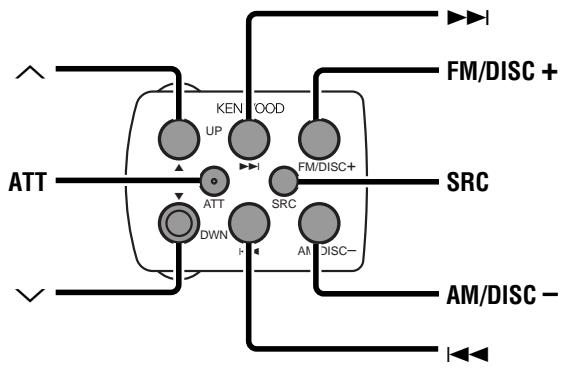
WARNING
To prevent accidents, do not attempt to use the steering remote control whilst turning the steering wheel.
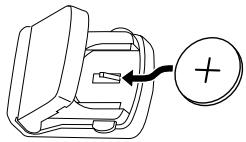
Loading and Replacing the Lithium Battery:
Use one lithium battery (CR2025).
Insert the battery with the + and - poles aligned properly, following the illustration.
WARNING
Store unused lithium batteries out of the reach of children. Contact a doctor immediately if the battery is accidentally swallowed.
Basic operations
- SRC button
Each time you press the SRC button, the mode switches as follows:
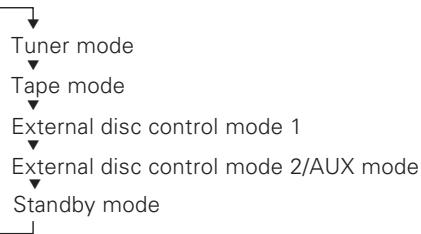
NOTE
- The mode switches to the next mode from any mode which cannot be used.
- The external disc control mode will differ depending on the unit that is connected.
- The AUX mode is available only when the changer / AUX switching adapter (KCA-S210A or CA-C1AX) or CD changer (KDC-CPS85, KDC-CX85, KDC-CPS82 or KDC-CX82) is connected to this unit.
During the AUX mode, "AUX" / AUX-name will show in the display.
When the CA-C1AX is being used, the AUX Mode will replace the External Disc Control Mode.
VOLUME buttons
Press the button to turn the volume up.
Press the button to turn the volume down.
- ATT button
Turns down the volume quickly. To return the volume to its original level, press the button again. Turning the volume up, or turning it all the way down deactivates the attenuator function.
Tuner features
TUNE buttons
Press the 口 button to make decreasing seeks (using the preset tuning mode).
Press the button to make increasing seeks (using the preset tuning mode).
FM button
Selects and switches between the FM1, FM2 and FM3 bands.
- AM button
Selects the MW and LW bands.
Cassette player features
- 14/→按钮
Press the 口 button once for each track (including the current track) you want to skip backwards.
Press the button once for each track you want to skip forwards.
- AM/DISC-/FM/DISC+ buttons
Press the AM/DISC- button to rewind the tape.
Press the FM/DISC+ button to fast forward the tape.
External disc control features
DISC buttons
Press the AM/DISC- button to search through the discs backwards.
Press the FM/DISC+ button to search through the discs forwards.
- TRACK buttons
Press the button to search through the tracks backwards.
Press the button to search through the tracks forwards.
Accessories
External view
Number of items
①
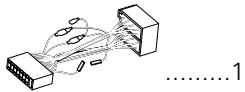
External view
Number of items
(6)
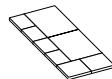
1
②
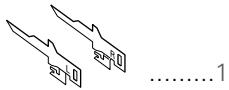
⑦
1
(3)

1
8
1
(4)

1
(9)

1
(5)
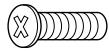
1
⑥ ⑨ ...KRC-PS978R/878R only
CAUTION
The use of any accessories except for those provided might result in damage to the unit. Make sure only to use the accessories shipped with the unit, as shown above.
Installation Procedure
- To prevent short circuits, remove the key from the ignition and disconnect the terminal of the battery.
- Make the proper input and output cable connections for each unit.
- Connect the cable on the wiring harness.
-
Take Connector B on the wiring harness and connect it to the speaker connector in your vehicle.
-
Take Connector A on the wiring harness and connect it to the external power connector on your vehicle.
- Connect the wiring harness connector to the unit.
- Install the unit in your car.
- Reconnect the terminal of the battery.
CAUTION
- If your car is not prepared for this special connection-system, consult your KENWOOD dealer.
- Only use antenna conversion adapters (ISO-JASO) when the antenna cord has an ISO plug.
- Make sure that all cable connections are securely made by inserting jacks until they lock completely.
- If your vehicle's ignition does not have an ACC position, or if the ignition cable is connected to a power source with constant voltage such as a battery cable, the power will not be linked with the ignition (i.e., it will not turn on and off along with the ignition). If you want to link the unit's power with the ignition, connect the ignition cable to a power source that can be turned on and off with the ignition key.
- If the fuse blows, first make sure that the cables have not caused a short circuit, then replace the old fuse with one with the same rating.
- Do not let unconnected cables or terminals touch metal on the car or anything else conducting electricity. To prevent short circuits, also do not remove the caps on the ends of the unconnected cables or the terminals.
- Connect the speaker cables correctly to the terminals to which they correspond. The unit may receive damage or fail to work if you share the cables and/or ground them to any metal part in the car.
- After the unit is installed, check whether the brake lamps, indicators, wipers, etc. on the car are working properly.
- Insulate unconnected cables with vinyl tape or other similar material.
- Some disc changers need conversion cables for connection. See the section on "Safety Precautions" for details.
- If the console has a lid, make sure to install the unit so that the faceplate does not hit the lid when closing and opening.
Connecting Cables to Terminals
| Connector Function Guide | ||
| Pin Numbers for ISO Connectors | Cable Colour | Functions |
| External Power Connector | ||
| A-4 | Yellow | Battery |
| A-5 | Blue/White | Power Control |
| A-6 | Orange/White | Dimmer |
| A-7 | Red | Ignition (ACC) |
| A-8 | Black | Earth (Ground) Connection |
| Speaker Connector | ||
| B-1 | Purple | Rear Right (+) |
| B-2 | Purple/Black | Rear Right (-) |
| B-3 | Gray | Front Right (+) |
| B-4 | Gray/Black | Front Right (-) |
| B-5 | White | Front Left (+) |
| B-6 | White/Black | Front Left (-) |
| B-7 | Green | Rear Left (+) |
| B-8 | Green/Black | Rear Left (-) |
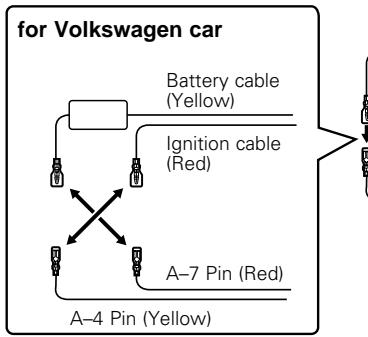
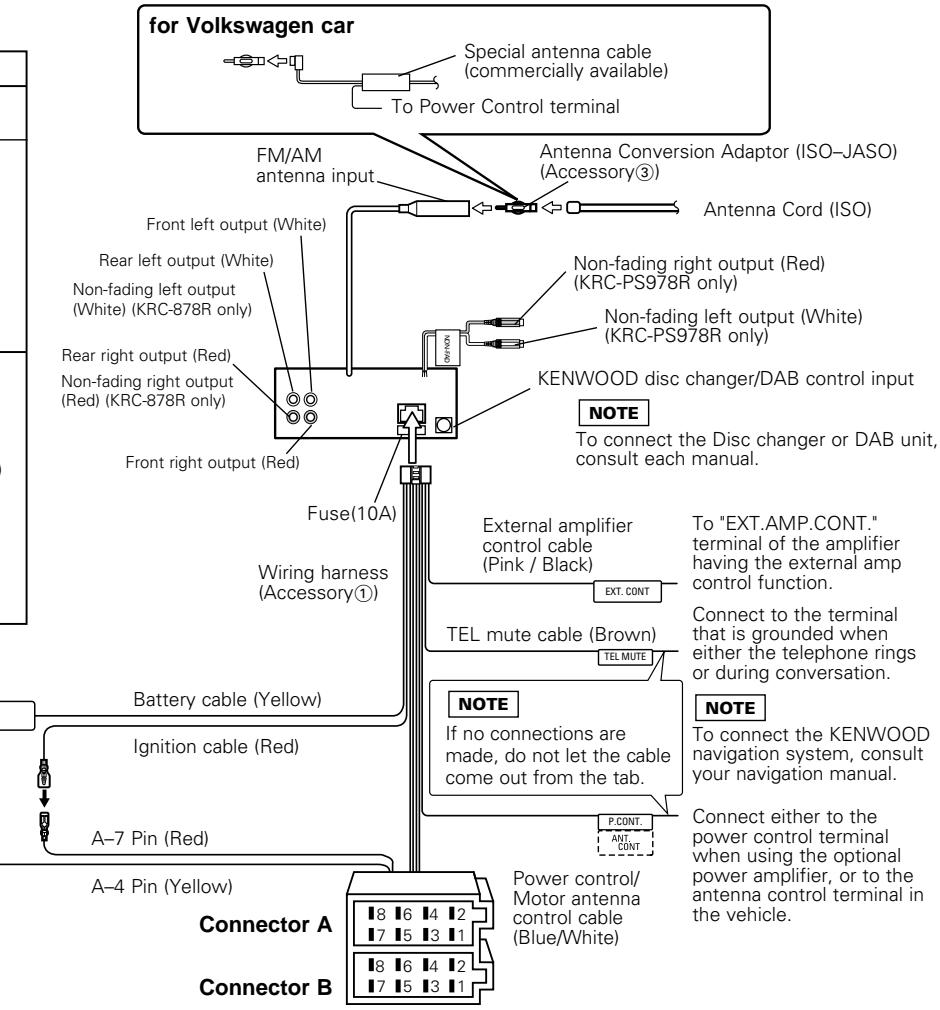
Connecting Cables to Terminals
WARNING
Connecting the ISO Connector (see p.40)
The pin arrangement for the ISO connectors depends on the type of vehicle you drive. Make sure to make the proper connections to prevent damage to the unit.
The default connection for the wiring harness is described in 1 below. If the ISO connector pins are set as described in 2 or 3, make the connection as illustrated.
1 (Default setting) The A-7 pin (red) of the vehicle's ISO connector is linked with the ignition, and the A-4 pin (yellow) is connected to the constant power supply.
Unit
Vehicle
Ignition cable (Red) → A-7 Pin (Red)
Battery cable (Yellow) → A-4 Pin (Yellow)
2 The A-7 pin (red) of the vehicle's ISO connector is connected to the constant power supply, and the A-4 pin (yellow) is linked to the ignition.
Unit
Vehicle
Ignition cable (Red) → A-7 Pin (Red)
Battery cable (Yellow) A-4 Pin (Yellow)
3 The A-7 pin (red) of the vehicle's ISO connector is not connected to anything, whilst the A-4 pin (yellow) is connected to the constant power supply (or both the A-7 (red) and A-4 (yellow) pins are connected to the constant power supply).
Unit
Vehicle
Ignition cable (Red) Connect to a power source that can be turned on and off with the ignition key.
Battery cable (Yellow) A-4 Pin (Yellow)
Installation
Installation
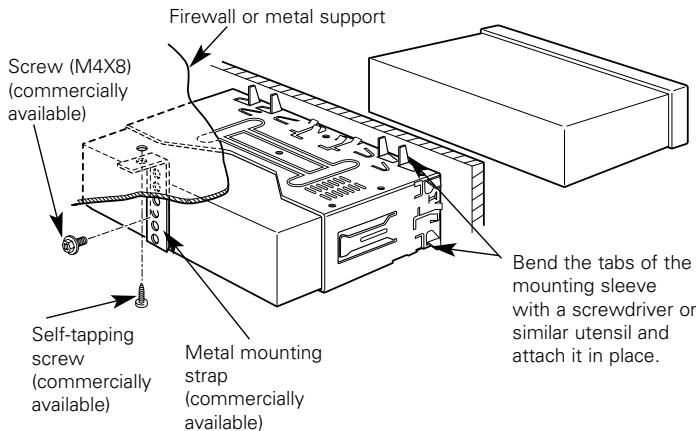
NOTE
Make sure that the unit is installed securely in place. If the unit is unstable, it may malfunction (eg, the sound may skip).
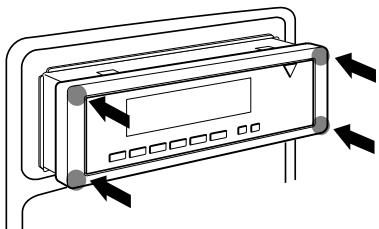
CAUTION
To attach this unit, make sure the front of the control panel faces you and fit it into the mounting sleeve by pressing the four corners of the hard rubber frame at the same time.
Do not apply strong pressure to other sections than the corners; otherwise troubles such as the impossibility of opening or closing the panel may result.
Removing the Unit
Removing the hard rubber frame
Insert the removal tool into the indentations in the hard rubber frame, and pull it gently until the lock is released.
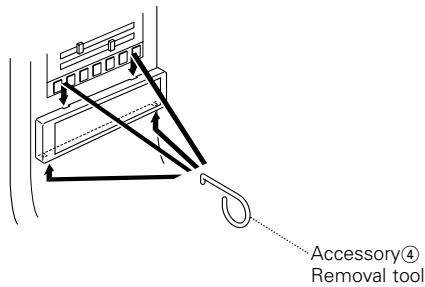
Removing the Unit
1 Make the faceplate control panel appear.

When the control panel of the faceplate is hidden, the unit will be locked by the sleeve, making it more difficult to remove the unit.
2 Refer to the section "Removing the hard rubber frame" and then remove the hard rubber frame.
3 Remove the screw (M4× 8) on the back panel.
4 Insert the removal tool deeply, as illustrated, with the L on the left and the R on the right.
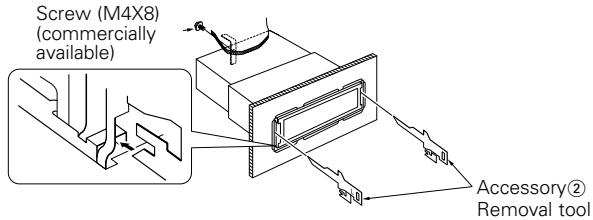
5 Push upward the both tools, as shown, and pull the unit toward you until it is halfway out. The unit may drop if you pull it out completely.
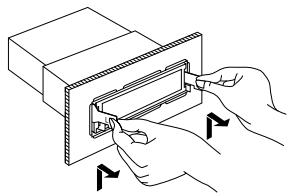
6 Pull the unit all the way out with your hands, being careful not to drop it.
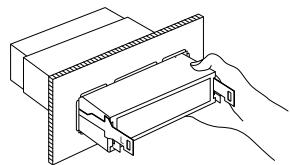
Locking the faceplate to the unit
Locking the faceplate to the unit
If you want to lock the faceplate to the unit so that it does not fall off, follow the directions below.
1 Refer to the function "Removing the faceplate" (page 10) and remove the faceplate.
2 Insert the provided screw into the hole at the centre of the bottom side of the faceplate which you have removed from the unit.
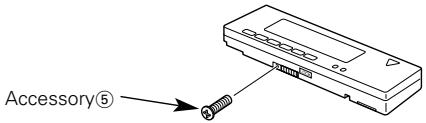
3 Refer to the section "Removing the faceplate (page 10)" and then reattaching the faceplate.
CAUTION
Never insert the taptite screws ( 2× 6mm) in any other screw holes than the one specified. If you insert it in another hole, it will contract and may cause damage to the mechanical parts inside the unit.
Attaching Steering Remote Control (Optional for the KRC-778R/778RV)
Mounting Example
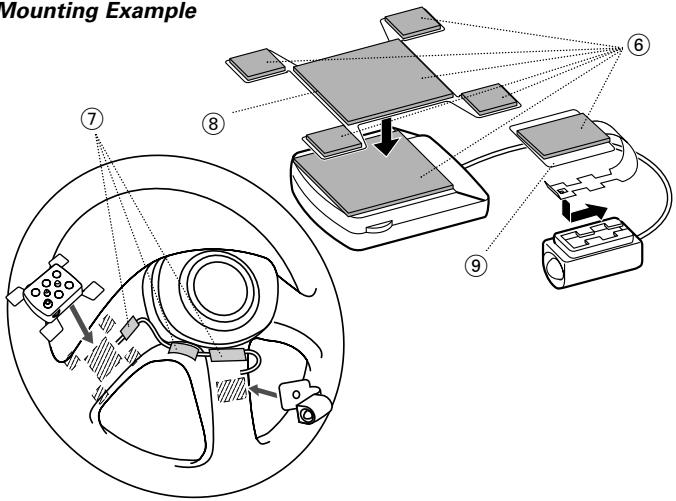
Attach the operation section and the light emitting section of the Steering Remote Control as shown above.
Be sure to attach them to positions that can ensure proper operation.
CAUTION
- Clean dirt and oil from the positions where the Steering Remote Control sections are to be attached.
- If the attached position is cold, warm it before attaching.
- The position should be selected so that the product does not come in the way of steering operation.
- Do not attach anything on the surface of a steering wheel incorporating an air bag.
- Before finally affixing the transmitter, check various angles to find an orientation that provides faithful operation.
Troubleshooting Guide
What might appear to be a malfunction in your unit may just be the result of slight misoperation or miswiring. Before calling service, first check the following table for possible problems.
PROBLEM
POSSIBLE CAUSE
SOLUTION
| The power does not turn on. | The fuse has blown. | After checking for short circuits in the cables, replace the fuse with one having the same rating. |
| No ACC position on vehicle ignition. | Connect the same cable to the ignition as the battery cable. | |
| No sound can be heard, or the volume is low. | The Attenuator function is turned on. | Turn off the Attenuator function. |
| The fader and/or balance settings are set all the way to one side. | Reset the fader and/or balance settings. | |
| The input/output cables or wiring harness are connected incorrectly. | Reconnect the input/output cables and/or the wiring harness correctly. See the section on "Connecting Cables to Terminals". | |
| The cassette tape is bad. | Try playing another cassette tape. If no problem is experienced, the first tape was bad. | |
| The values of "V OFFSET" are low. | Increase the values of "V OFFSET". (see p. 13) | |
| The tape does not go in. / No sound can be heard even though the tape display is made. | The car ignition was turned off during tape eject; or the tape was pulled out during loading, switching the mode to tape mode even though no tape is in. | Press the Eject button. |
| Nothing happens when the buttons are pressed. | The computer chip in the unit is not functioning normally. | Press the reset button on the unit (see page 4). |
| The sound quality is poor or distorted. | The tape head is dirty. | Clean the tape head, referring to the section on "Cleaning the tape head" (see page 5). |
| A speaker cable may be pinched by a screw in the car. | Check the speaker wiring. | |
| The speakers are not wired correctly. | Reconnect the speaker cables so that each output terminal is connected to a different speaker. | |
| Radio reception is poor. | The car antenna is not extended. | Pull out the antenna all the way. |
| The antenna control cable is not connected. | Connect the cable correctly, referring to the section on "Connecting Cables to Terminals". | |
| The memory is erased when the ignition is turned off. | The battery cable has not been connected to the proper terminal. | Connect the cable correctly, referring to the section on "Connecting Cables to Terminals". |
| The ignition and battery cable are incorrectly connected. | Connect the cable correctly, referring to the section on "Connecting Cables to Terminals". |
Troubleshooting Guide
| PROBLEM | POSSIBLE CAUSE | SOLUTION |
| The faceplate does not open or close. | The faceplate is incorrectly attached.a | Reattach the faceplate correctly, See the section on "Rremoving the Faceplate".(page.10) |
| The TEL mute function does not work. | The TEL mute cable is not connected properly. | Connect the cable correctly, referring to the section on "Connecting Cables to Terminals". |
| The TEL mute function turns on even though the TEL mute cable is not connected. | The TEL mute cable is touching a metal part of the car. | Pull the TEL mute cable away from the metal part of the car. |
CD/External disc control mode
| PROBLEM | POSSIBLE CAUSE | SOLUTION |
| The disc control mode cannot be selected. | No cable has been connected to the disc changer input terminal on the unit. | Connect the cable to the disc changer input terminal on the unit. |
| The specified disc does not play, but another one plays instead. | The specified CD is very dirty. | Clean the CD. |
| The CD is upside-down. | Load the CD with the labelled side up. | |
| The disc is loaded in a different slot from that specified. | Eject the disc magazine and check the number for the specified disc. | |
| The disc is severely scratched. | Try another disc instead. | |
| The sound skips. | Something is touching the disc changer. | Remove whatever is touching it. |
| The CD is scratched or dirty. | If skipping happens at the same place when the car is stopped, something is wrong with the CD. Clean the CD. | |
| The display shows that the changer is being played, but no sound can be heard. | The computer chip in the unit is not functioning normally. | Press the reset button on the unit (see page 4). |
| The specified track does not play. | Random play or magazine random play has been selected. | Turn off the random play or magazine random play function. |
| Track repeat, disc repeat, track scan, disc scan, random play, and magazine random play start by themselves. | The setting is not cancelled. | The settings for these functions remain on until the setting to off or the disc ejected, even if the power is turned off or the source changed. |
If the following situations, consult your nearest service centre:
- Even though the disc changer is connected, the Disc Changer Mode is not on, with "AUX" showing in the display during the Changer Mode.
Even though no device (KCA-S210A, CA-C1AX, KDC-CPS85, KDC-CX85, KDC-CPS82 or KDC-CX82) is connected, the AUX Mode is entered when switching modes.
Troubleshooting Guide
The following messages are displayed when certain problems are occurring in your system. Take the recommended actions.
EJECT No disc magazine has been loaded in the changer. The disc magazine is not completely loaded.
Load the disc magazine properly.
No CD in the unit.
Insert the CD.
NO DISC No disc has been loaded in the disc magazine.
Load a disc into the disc magazine.
E-04 No disc has been loaded in the disc magazine.
Load a disc into the disc magazine.
The CD is very dirty. The CD is upside-down. The CD is scratched a lot.
Clean the CD and load it correctly.
BLANK Nothing has been recorded on the MD.
NO TRACK No tracks are recorded on the MD, although it has a title.
NO PANEL The faceplate of the slave unit being connected to this unit has been removed.
Replace it.
E-77 The unit is malfunctioning for some reason.
Press the reset button on the unit. If the "E-77", code does not disappear, consult your nearest service centre.
E-99 Something is wrong with the disc magazine. Or the unit is malfunctioning for some reason.
Check the disc magazine. And then, press the reset button on the unit. If the "E-99" code does not disappear, consult your nearest service center.
HOLD The protective circuit in the unit activates when the temperature inside the automatic disc changer exceeds 60^ (140°F), stopping all operation.
Cool down the unit by opening the windows or turning on the air conditioner. As the temperature falls below 60^ (140°F), the disc starts playing again.
IN If this indicator continues blinking, it is possible that the tape has become jammed or tangled.
Contact the Kenwood dealer if the tape cassette cannot be ejected.
Specifications
Specifications subject to change without notice.
FM tuner section
Frequency Range (50 kHz Space) .87.5 MHz - 108.0 MHz
Usable Sensitivity (S/N: 26dB) .0.7 V/75 Ω
Quieting Sensitivity (S/N: 46dB) 1.6 μV/75 Ω
Frequency Response (±3.0dB) 30 Hz-15 kHz
Signal to Noise ratio .65 dB (MONO)
Selectivity (DIN) 80 dB (±400 kHz)
Stereo Separation. 35 dB (1kHz)
MWtuner section
Frequency Range (9 kHz space) 531 kHz - 1611 kHz
Useable Sensitivity (S/N: 20dB) 25 V
LW tuner section
Frequency Range 153 kHz-281 kHz
Useable Sensitivity (S/N: 20dB) 45 μV
Cassette player section
Tape Speed 4.76 cm/sec.
Wow & Flutter .0.08 % (WRMS)
Frequency response (±3 dB) 30 Hz - 18 kHz (70 μs)
Separation 43 dB (1 kHz)
Signal to Noise ratio
Dolby NR OFF. 57 dB
Dolby B NR ON. 65 dB
Dolby C NR ON (KRC-PS978R only). 73 dB
Audio section
Preout Level(mV)/Load (KRC-PS978R; with CD changer) 4500 mV/10 kΩ
(KRC-878R/778R/778RV) 1800 mV/10 kΩ
Preout Impedance (KRC-PS978R). 80 Ω
(KRC-878R/778R/778RV) 600Ω
Maximum output power 45 W x 4
Full Bandwidth Power (DIN45324, +B=14.4 V) 28 W x 4
Tone action Bass 100 Hz ±10 dB
Treble 10 kHz ±10 dB
General
Operating voltage (11 - 16V allowable) .14.4 V
Current Consumption 10 A
Installation Size (W x H x D) 182 x 53 x 161 mm
Weight 1700 g