KM2209 - Smart Home Krüger&Matz - Free user manual and instructions
Find the device manual for free KM2209 Krüger&Matz in PDF.


| Product Type | Smart Home Hub / Controller |
| Model | KM2209 |
| Brand | Krüger&Matz |
| Dimensions (W x H x D) | 120 mm x 25 mm x 80 mm |
| Weight | 150 g |
| Power Supply | 5V DC, 1A (USB-C) |
| Wireless Connectivity | Wi-Fi 2.4 GHz, Zigbee 3.0 |
| Supported Protocols | Zigbee, Z-Wave (via dongle), Wi-Fi |
| Maximum Number of Devices | Up to 100 compatible devices |
| Voice Control | Works with Amazon Alexa, Google Assistant |
| Mobile App | KM Smart Home (iOS & Android) |
| Main Functions | Home automation, scheduling, remote control, scene creation |
| Operating Temperature | 0°C to 40°C |
| Storage Temperature | -20°C to 60°C |
| Humidity Range | 10% to 90% non-condensing |
| LED Indicators | Power, Network, Device status |
| Reset Button | Yes (pinhole reset) |
| Spare Parts & Repairability | USB cable included; no user-serviceable parts inside |
| Maintenance | Wipe with a soft, dry cloth; avoid liquids |
| Safety Certifications | CE, RoHS |
| Package Contents | Hub, USB cable, power adapter, user manual |
Frequently Asked Questions - KM2209 Krüger&Matz
User questions about KM2209 Krüger&Matz
0 question about this device. Answer the ones you know or ask your own.
Ask a new question about this device
Download the instructions for your Smart Home in PDF format for free! Find your manual KM2209 - Krüger&Matz and take your electronic device back in hand. On this page are published all the documents necessary for the use of your device. KM2209 by Krüger&Matz.
USER MANUAL KM2209 Krüger&Matz
KM2207 / KM2207-1 KM2208 KM2209
IP Wi-Fi security camera
Extended manual
NÁVOD KOBSLUZE
CS
BEDIENUNGSANLEITUNG
DE
OWNER'S MANUAL
EN
INSTRUKCJA OBSŁUGI
PL
MANUAL DE UTILIZARE
RO
Krüger&Matz
KM2205, KM2206, KM2207
KM2207-1, KM2208, KM2209
Krüger&Matz
Please scan the QR code from 15 to 20 cm away

KM2207 / KM2207-1 / KM2209

Reset kamery
KM2207-1 / KM2208 / KM2209

Nastavení kamery



Krüger&Matz



Delete Home


Cancel


Krüger&Matz
invites you to join"Test"
App. Please download Tuva
Cancel
a

CS

< Join a home

Please contact with the administrator to get an invitation (Home Settings > Add Member)


KM2205, KM2206, KM2207
KM2207-1, KM2208, KM2209
Please scan the QR code from 15 to 20 cm away.

DE
KM2207 / KM2207-1 / KM2209


Kamera zurücksetzen
KM2207-1 / KM2208 / KM2209

Kameraeinstellungen
Krüger&Matz
Bedienungsanleitung
Bedienungsanleitung
Krüger&Matz
Webbrowser-Zugang


Krüger&Matz
Delete Home

Automatisch

Cancel

DE


Manuel
![Share App account Messages Copy More Cancel Invitation code: invites you to join"Test" App. Please download [Tuva]](/content/2026/05/836676/images/bc134a75cc889ab91364e24a316fd46c1cac3a4d4235232c6299cd13d7d8de43.jpg)


26
27
Krüger&Matz
Bedienungsanleitung
Owner's manual
Krüger&Matz
SAFETY INSTRUCTIONS
- Before the installation make sure to read up on local restrictions about recording and surveillance systems.
- Protect the device from exposure to high or low temperatures.
- Protect the device from water and other liquids. Do not handle this device with wet hands.
- Do not use the device where it is prohibited to use 2,4 GHz band.
- Use memory cards of class 10 or higher.
- Before cleaning the device, make sure that is is unplugged from power.
- Clean this device regularly, with soft, dry cloth, without any abrasive agents.
- Do not disassemble or try to repair the device. In case of damage or malfunction, contact authorized service point.
CONNECTING
KM2205, KM2206, KM2207
- Connect the microUSB of the provided cable to the camera's plug. Connect the USB plug to the provided power adapter.
- Connect the power adapter to a power supply socket.
- After a while, the camera will turn on. The starting sound will play, and the camera will rotate the lens in all directions.
- If this is the first time the camera is used, the camera will be playing the pairing sound.
KM2207-1, KM2208, KM2209
- Connect the power adapter to the power socket of the camera.
- After a while, the camera will turn on. The starting sound will play, and the camera will rotate the lens in all directions.
- If this is the first time the camera is used, the camera will be playing the pairing sound.
INSTALLATION
- Download and run the TuyaSmart app from Play Store or AppStore. Attention: screenshots shown may be different from current version of the app.
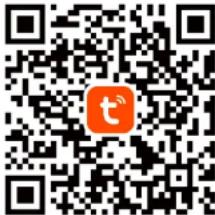
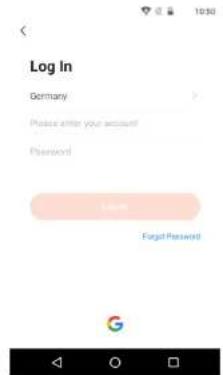
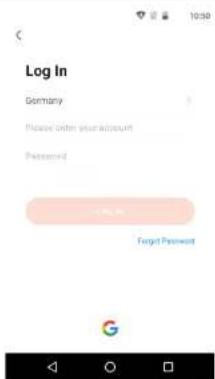
- Sign up and/or login to the Tuya app. It is possible to use the app without an account, however it is necessary to set up a home and add family members.
Krüger&Matz
Owner's manual

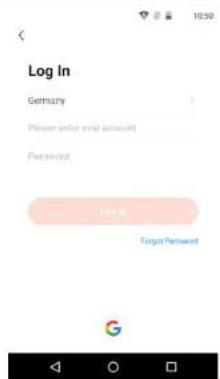
- Press the Add new device button.

- Go to the Security & Video Surveillance category and select the Smart Camera option.
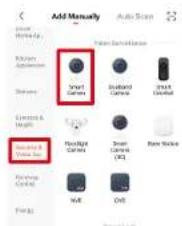
- Check the mark and press the Next button.

Owner's manual
Krüger&Matz
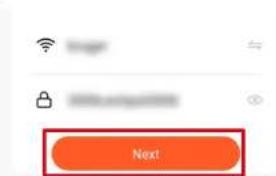
- Select a network and input the password.
Attention: make sure that the router is working on 2,4 GHz band (5 GHz is not supported).
-
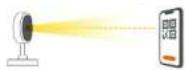
Show the QR code to the camera. Make sure that the distance between the camera and the phone is around 15-20 cm, and the camera is pointing directly at the phone. The camera will play a chime, once it establishes the connection. Attention: if the camera will not detect the QR code, try turning the camera by 180°.
-
Press the I Heard a Prompt button. Wait until the app add the camera.

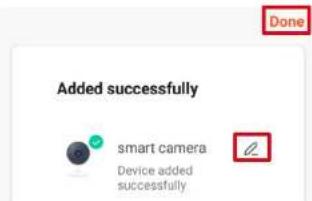
- Ready! The camera has been added. If you want to change the name of the camera, press the Edit button and input the name. Press the Done button.
EN
30
31
Krüger&Matz
Owner's manual
Owner's manual
Krüger&Matz
- On the main screen, press the camera to view the details.
a. Live view
b. Mute sound from the camera
c. Switch the image quality
d. Switch full screen
e. Signal level
f. Camera settings
g. Make a screenshot
h. Press and talk, and the camera will play your voice
i. Record video to phone storage
j. Play the saved recordings on a memory card
k. Open the gallery of recordings saved on the phone
I. Theme change
m. Private mode (temporarily turn off the camera)
n. Automatic night mode
o. Motion detection
p. Sound detection
q. Switching on the siren

Memory card installation
The camera can record continuously on a memory card. Installation of a memory card;
KM2205 / KM2206
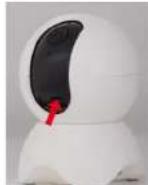
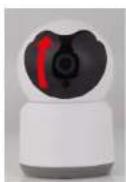
- Move the lens to the top, until you see the memory card slot.
- Slide a memory card to the slot, until it clicks.


KM2207 / KM2207-1 / KM2209
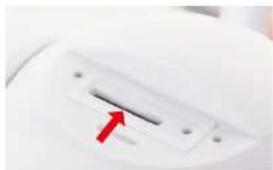
- Unscrew two screws securing the cover.
- Lift the cover
- Slide a memory card to the slot, until it clicks.
- Close the cover and screw the security screws.

EN
EN
32
33
Krüger&Matz
Owner's manual
Owner's manual
Krüger&Matz
KM2208
- Unscrew two screws securing the cover.
- Lift the cover. Caution: There is a speaker on the cover! Do not lift the cover all the way out!
- Slide a memory card to the slot, until it clicks.
- Close the cover and screw the security screws.


Resetting the camera
If the camera has stopped responding or you want to disconnect it from the app, do the reset.
KM2205
- Move the lens to the top, until you see the reset button.
- Slide a thin object (ex. a paper clip) to the button hole.
- Press and hold the button for 5 seconds (while still connected to the power supply).
KM2206
- Move the lens to the top, until you see the reset button.
- Press and hold the button for 5 seconds (while still connected to the power supply).
KM2207
- Unscrew two screws securing the cover.
- Lift the cover.
- Slide a thin object (ex. a paper clip) to the button hole.
- Press and hold the button for 5 seconds (while still connected to the power supply).
34
KM2207-1 / KM2208 / KM2209
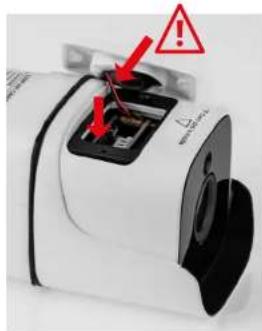
- Open the reset button cover.
- Press and hold the reset button for 5 seconds (while still connected to the power supply).
Multiple camera view
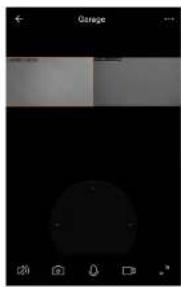
To view the feed from multiple cameras (up to 4), press the button on the main screen. Orange frame around the view indicates the camera, that you can move with buttons below.


EN
35
Krüger&Matz
Owner's manual
Owner's manual
Krüger&Matz
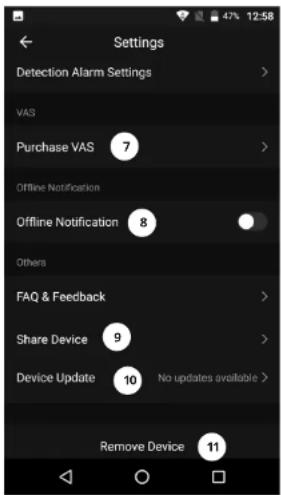
Camera settings
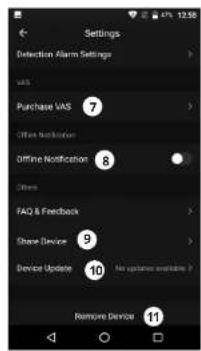
- Change the name and icon of the camera
- Basic Information about the device
- Tap-to-Run Automation
- Link with the voice assistant
- Private mode
- Basic settings (flip the view and set the talk mode)
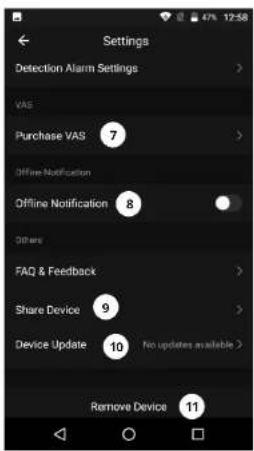
- Purchase cloud storage
- Offline notifications
- Share the device
- Firmware update
- Remove the device

Creating a home
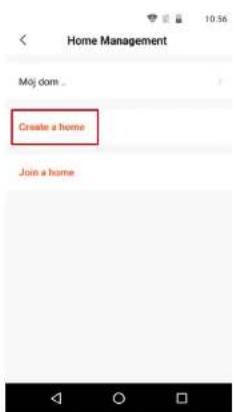
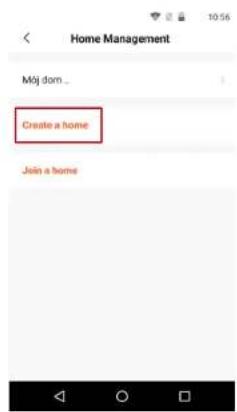
- From main screen go to the Me menu.
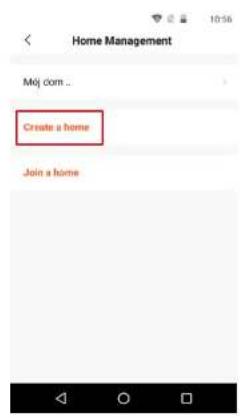
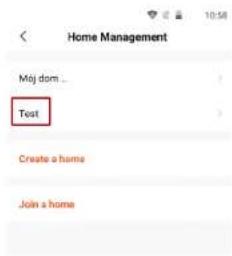
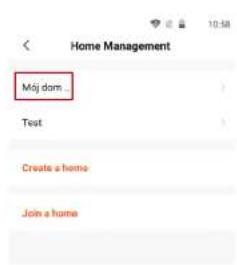
- Press the Home management button.
- Press the Create a home button, or select an existing home to edit it.
- Set the home name.
Optional: set the localization of the home. - Select the rooms, that are in the home, or add your own.
- Press the Save button.
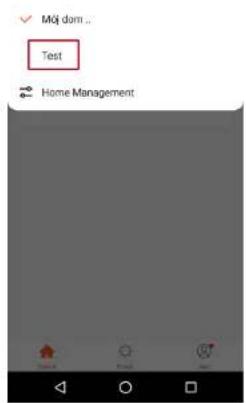
- Go back to "Home" menu and select your home from the list.
- All devices and rooms will be shown.
- To add a device to a room, select the room and press the Add device button.
- Repeat the steps 3-10 from Connecting paragraph. Before clicking the Done button, select a room, in which you want to add the socket.



Krüger&Matz
Owner's manual
Owner's manual
Krüger&Matz
Web browser access
Feed from the camera is available only in Google Chrome.
- Open the browser and type ipc-eu.ismartlife.me/login in the address bar.
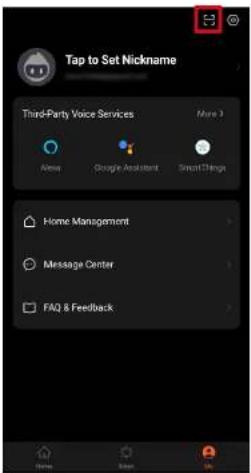
- Open the Tuya app on your smartphone.
- Go to the "Mé" menu
- Press the icon in the top right.
- Scan the QR code from the browser.
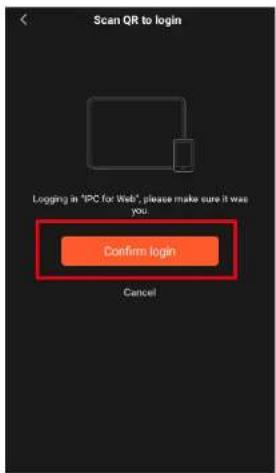
- Press the button, to authorize the login.
- The feed from the camera will be shown in the browser.

Adding family members
Attention: adding family members requires to be logged in on all devices (main device and members devices).
-
Go to the Me menu and select Home Management.
-
Select your home and press the Add Member button.
• Automatically:
a. Select the App account option.
b. Input members name. In the Account, input the email address, that is registered in the app on members device.
c. After a moment, there will be a notification in the app on members device, about being added to the home. Confirm it.
d. Ready. Now the member can control devices that are added to the home.
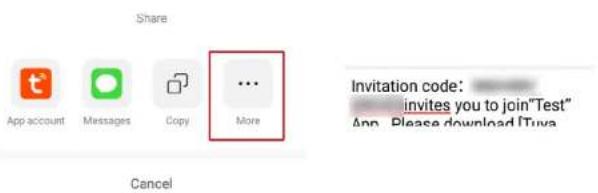
- Manual:
a. Select the More option. The invitation code will be shown.
b. On the members device, go to the Me menu and go to the Home management menu.
c. Select the join a home option.
d. In the Invitation code field, input the invitation code from the main device. Press the Next button.
e. Ready. Now the member can control devices that are added to the home.


Krüger&Matz
Owner's manual
Owner's manual
Krüger&Matz

Delete Home

Automatically

Cancel


Manual


<


EN
40
41
Krüger&Matz
Owner's manual
Instrukcja obsługi
Krüger&Matz
KWESTIE BEZPIECZEŃSTWA
KM2205, KM2206, KM2207
KM2207-1, KM2208, KM2209
Lechpol Electronics Leszek Sp.k. hereby declares that the WI-FI security cameras KM2205-9 are consistent with directive 2014/53/UE.
Full text of the EU Declaration of Conformity is available at following Internet address: www.lechpol.pl.

English
Correct Disposal of This Product
(Waste Electrical & Electronic Equipment)

EN
(Applicable in the European Union and other European countries with separate collection systems) This marking shown on the product or its literature, indicates that it should not be disposed with other household wastes at the end of its working life. To prevent possible harm to the environment or human health from uncontrolled waste disposal, please separate this from other types of wastes and recycle it responsibly to promote the sustainable reuse of material resources. Household users should contact either the retailer where they purchased this product, or their local government office, for details of where and how they can take this item for environmentally safe recycling. Business users should contact their supplier and check the terms and conditions of the purchase contract. This product should not be mixed with other commercial wastes for disposal.
Made in China for LECHPOL ELECTRONICS Sp. z o.o. Sp.k., ul. Garwolińska 1, 08-400 Miętne.
INSTALACJA
Krüger&Matz
Instrukcja obsługi
PL
44
Instrukcja obsługi
Krüger&Matz
Make sure the indicator is lashing quickly or a prompt tone is heard


PL
45
Krüger&Matz
Instrukcja obsługi
Instrukcja obsługi
Krüger&Matz
KM2207 / KM2207-1 / KM2209

PL
PL
46
47
Krüger&Matz
Instrukcja obsługi
Instrukcja obsługi
Krüger&Matz
KM2208

Reset kamery
KM2207-1 / KM2208 / KM2209
48
49
PL
Krüger&Matz
Instrukcja obsługi
Instrukcja obsługi
Krüger&Matz
Ustawienia kamery

Ustawianie domu
PL


PL
54
55
Krüger&Matz
Instrukcja obsługi
Manual de utilizare
Krüger&Matz
INSTRUCTIUNI PRIVIND SIGURANTA
KM2205, KM2206, KM2207
KM2207-1, KM2208, KM2209
Manual de utilizare
Krüger&Matz
Krüger&Matz
Manual de utilizare
Manual de utilizare
Krüger&Matz
KM2207 / KM2207-1 / KM2209

Krüger&Matz
Manual de utilizare
Manual de utilizare
Krüger&Matz
KM2208

Resetarea camerei
KM2207-1 / KM2208 / KM2209

Krüger&Matz
Manual de utilizare
Manual de utilizare
Krüger&Matz
Setāri camerā
Krüger&Matz
Manual de utilizare Manual de utilizare
Krüger&Matz
Acces la browserul web


Krüger&Matz
Manual de utilizare
Manual de utilizare
Krüger&Matz

RO
1


RO
68
69
Krüger&Matz
Manual de utilizare
Manual de utilizare
Krüger&Matz
Manual
Share


Invitation code: invites you to join"Test" App. Please download [Tuva
Cancel


< Join a home

Please contact with the administrator to get an invitation (Home Settings > Add Member)


RO
Krüger&Matz is a registered trademark
- KM2207 / KM2207-1 KM2208 KM2209
- IP WI-FI SECURITY CAMERA
- EXTENDED MANUAL
- KRÜGER&MATZ
- RESET KAMERY
- NASTAVENÍ KAMERY
- A
- JOIN A HOME
- DE
- KAMERA ZURÜCKSETZEN
- KAMERAEINSTELLUNGEN
- BEDIENUNGSANLEITUNG
- WEBBROWSER-ZUGANG
- SAFETY INSTRUCTIONS
- CONNECTING
- INSTALLATION
- OWNER'S MANUAL
- MEMORY CARD INSTALLATION
- KM2208
- RESETTING THE CAMERA
- KM2205
- KM2206
- KM2207
- KM2207-1 / KM2208 / KM2209
- MULTIPLE CAMERA VIEW
- CAMERA SETTINGS
- CREATING A HOME
- WEB BROWSER ACCESS
- ADDING FAMILY MEMBERS
- KWESTIE BEZPIECZEŃSTWA
- INSTALACJA
- INSTRUKCJA OBSŁUGI
- USTAWIENIA KAMERY
- USTAWIANIE DOMU
- MANUAL DE UTILIZARE
- INSTRUCTIUNI PRIVIND SIGURANTA
- KM2205, KM2206, KM2207
- KM2207-1, KM2208, KM2209
- RESETAREA CAMEREI
- SETĀRI CAMERĀ
- ACCES LA BROWSERUL WEB
- MANUAL
Brand : Krüger&Matz
Model : KM2209
Category : Smart Home