
DDX7025 - Car stereo KENWOOD - Free user manual and instructions
Find the device manual for free DDX7025 KENWOOD in PDF.



| Product Type | Car stereo with touch screen and DVD player |
| Brand | KENWOOD |
| Model | DDX7025 |
| Dimensions (W x H x D) | 182 mm x 112 mm x 163 mm |
| Weight | 2.8 kg |
| Power Supply | 14.4 V DC (11 V – 16 V), rated current 15 A |
| Screen Type | Transparent TN LCD, active matrix TFT, 6.4 inches |
| Screen Resolution | 336,960 pixels (480 x 234 x RGB) |
| Playable Formats | DVD-Video, VIDEO-CD, CD-Audio, MP3, WMA |
| FM Tuner Section | Range 87.5 – 108 MHz, sensitivity 0.7 µV/75 Ω |
| AM (MW) Tuner Section | Range 531 – 1611 kHz, sensitivity 28 dBµ |
| LW Tuner Section | Range 153 – 281 kHz, sensitivity 28 dBµ |
| Maximum Audio Output Power | 50 W x 4 channels |
| Nominal Output Power (DIN) | 30 W x 4 channels |
| Main Functions | DVD/VCD/CD/MP3/WMA playback, RDS tuner, optional TV/DAB and navigation control, advanced audio settings (equalizer, DTA), AV input, rear view camera output |
| Maintenance and Cleaning | Clean with a soft dry cloth; do not use volatile products |
| Security | Anti-theft code (4 digits), SI function (anti-break-in alarm) |
| Spare Parts and Repairability | Remote control included (CR2025 battery), wiring; consult an authorized KENWOOD dealer |
| General Information | Manufacturer's warranty, technical support via the manual or the KENWOOD website |
Frequently Asked Questions - DDX7025 KENWOOD
User questions about DDX7025 KENWOOD
0 question about this device. Answer the ones you know or ask your own.
Ask a new question about this device
Download the instructions for your Car stereo in PDF format for free! Find your manual DDX7025 - KENWOOD and take your electronic device back in hand. On this page are published all the documents necessary for the use of your device. DDX7025 by KENWOOD.
USER MANUAL DDX7025 KENWOOD
Notes on playing MP3/WMA 7
DDX7025 Basic operations 8
Basic Operations of Remote Controller ....10
Switch Screen Mode....12
Control during DVD Video or Video CD Playback ....14
- Displaying the DVD/VCD Playback screen
- Displaying the Easy Control Panel
- Displaying the DVD/VCD Control screen
- DVD Disc Menu
• VCD Zoom Control
• Information Display
- Direct Search
Tuner Control....20
- Displaying the Easy Control Panel
- Displaying the Tuner Control screen
- Displaying the Tuner Menu screen
- Seek Mode
- Auto Memory
- Manual Memory
- Preset Select
- Direct Search
- Traffic Information
- Search for Program Type
- Radio Text
CD/MP3/WMA/Disc Changer Play Control......26
- Displaying the Easy Control Panel
- Displaying the CD/MP3/WMA/Disc Changer Control screen
- Displaying the CD/MP3/WMA/Disc Changer Menu screen
- Set Disc Name
- Directory List (during MP3/WMA play)
• ID3/WMA TAG Display (during MP3/WMA play)
• Disc Select (during play by disc changer)
- Direct Search
Mute Telephone 33
- Mute Telephone
TV Control ....34
- Displaying the TV Picture screen
- Displaying the Easy Control Panel
- Displaying the TV Control screen
- Displaying the TV Menu screen
- Seek Mode
- Auto Memory
- Manual Memory
- Preset Select
- Set Station Name
DAB Tuner control....38
- Displaying the Easy Control Panel
- Displaying the DAB Tuner Control screen
- Displaying the DAB Tuner Menu screen
- Seek Mode
• Auto Ensemble Memory
• Service Preset Memory
- Service Select
- Language Filter
- Search for Program Type
- DAB Information
• DAB Announcement
Character Entry 44
- How To Use the Character Entry screen
Source Select......45
- Displaying the Control screen
- Displaying the Source Select screen
Adjusting the Monitor Display Position and Quality....46
- Displaying the Screen Control screen
- Displaying the Tilt Adjust screen
Setup Menu
Setup Menu 47
- Displaying the Control screen
- Displaying the Setup Menu screen
Audio Set Up 48
- Displaying the Audio Set Up screen
• Crossover Network Setup
Audio Set Up 50
- Displaying the Car Type Set Up screen
- Displaying the Speaker Set Up screen
- Displaying the Channel Level screen
- Channel Level
- DTA Setup
• High Pass Filter Setup
- Low Pass Filter Setup
DVD Setup 56
- Displaying the DVD SETUP 1 screen
- Displaying the DVD SETUP 2 screen
- Language Setup
- Parental Level Setup
System Setup 60
- Displaying the System Set Up 1 screen
- Displaying the System Set Up 2 screen
AV Interface 62
- Displaying the AV I/F 1 screen
- Displaying the AV I/F 2 screen
User Interface 64
- Displaying the User I/F 1 screen
- Displaying the User I/F 2 screen
- Touch Panel Adjust
- Clock
- Security Code Setup
TV Setup 70
- Displaying the TV1 Area Set Up screen
- Displaying the TV2 Area Set Up screen
RDS Setup 71
- Displaying the RDS Set Up 1 screen
- Displaying the RDS Set Up 2 screen
DAB Set Up 72
- Displaying the DAB Set Up screen
- Announcement Selection
AMP Control 74
- Displaying the AMP Control screen
Sound Effects Menu
Sound Effects Menu ....76
- Displaying the Control screen
- Displaying the Sound Effects Menu screen
Audio Control 77
- Displaying the Audio Control 1 screen
- Displaying the Audio Control 2 screen
Equalizer 78
- Displaying the Equalizer screen
- Tone curve setup
- Parametric Equalizer
Zone Control 82
Digital Effect 83
- Displaying the Zone Control screen
- Displaying the Digital Effect screen
Position 84
- Displaying the Position screen
Hands-Free Unit Control....86
GSM control 86
- Displaying the Control screen
- When called
- When dialing
- Calling by Phone Book
- Addition to Phone Book
- Editing the Phone Book
- Quick Dialing
- Hands Free Setup
- Reading the SMS (Short Message Service) messages
- Creating an SMS (Short Message Service) message
Glossary 94
Troubleshooting Guide....95
Specifications 100
▲WARNING
To prevent injury and/or fire, take the following precautions:
- Ensure that the unit is securely installed. Otherwise it may fly out of place during collisions and other jolts.
- When extending the ignition, battery or ground wires, make sure to use automotive-grade wires or other wires with an area of 0.75mm^2 (AWG18) or more to prevent cable deterioration and damage to the cable coating.
- To prevent short circuits, never put or leave any metallic objects (e.g., coins or metal tools) inside the unit.
- If the unit starts to emit smoke or strange smells, turn off the power immediately and consult your Kenwood dealer.
- Do not touch the liquid crystal fluid if the LCD is damaged or broken due to shock. The liquid crystal fluid may be dangerous to your health or even fatal. If the liquid crystal fluid from the LCD contacts your body or clothing, wash it off with soap immediately.
▲CAUTION
To prevent damage to the machine, take the following precautions:
- Make sure to ground the unit to a negative 12V DC power supply.
- Do not open the top or bottom covers of the unit.
- Do not install the unit in a spot exposed to direct sunlight or excessive heat or humidity. Also avoid places with too much dust or the possibility of water splashing.
- Do not subject the faceplate to excessive shock, as it is a piece of precision equipment.
- When replacing a fuse, only use a new one with the prescribed rating. Using a fuse with the wrong rating may cause your unit to malfunction.
- To prevent short circuits when replacing a fuse, first disconnect the wiring harness.
- Do not use any screws except for the ones provided. The use of improper screws might result in damage to the main unit.
- You cannot view video pictures whilst the vehicle is moving. To enjoy TV/video pictures, find a safe place to park and engage the parking brake.
NOTE
- If you experience problems during installation, consult your Kenwood dealer.
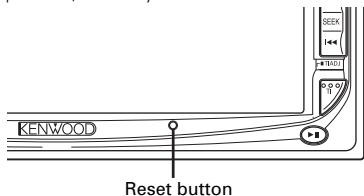
- If the unit does not seem to be working right, try pressing the reset button first. If that does not solve the problem, consult your Kenwood dealer.
Screen brightness during low temperatures
When the temperature of the unit falls such as during winter, the liquid crystal panel's screen will become darker than usual. Normal brightness will return after using the monitor for a whilst.
Audio units you can control from the DDX7025 Receiver (in November of 2003):
KDC-CPS89, KDC-CPS87, KDC-CPS85, KDC-C719, KDC-C717, KDC-C715, KDC-C669, KDC-C667, KDC-C665, KDC-C469, KDC-C467, KDC-C465, KDC-D301, KMD-D401, KTC-9090DAB, KDV-C820, KDC-C719MP, KCA-HF521, KPA-CP100, KTC-V500N/P/E (Set the "O-N" switch to "N" position if provided.)
Navigation units you can control from the DDX7025 Receiver (in November of 2003):
KNA-DV3200, KNA-DV2200
Loading and Replacing the battery
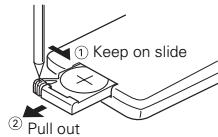
Use one lithium battery (CR2025). Insert the batteries with the and poles aligned properly, following the illustration inside the case.
▲WARNING
Store unused batteries out of the reach of children. Contact a doctor immediately if the battery is accidentally swallowed.

Do not set the remote on hot places such as above the dashboard.

- The provided batteries are intended for use in operation checking, and their service life may be short.
- When the remote controllable distance becomes short, replace both of the batteries with new ones.
Cleaning the panel and monitor
When the operator panel and monitor panels are dirty, wipe and clean them using a soft cloth (such as a commercially available silicon coated cloth). When contaminated excessively, clean them using a cloth dipped in a neutral detergent first, then remove the detergent using a dry cloth. Do not use a hard cloth and a volatile chemical (such as an alcohol). If used, the panel surface may be scratched or printed letters may be erased.
Cleaning the disc slot
As dust can accumulate in the disc slot, clean it occasionally. Your discs can get scratched if you put them in a dusty disc slot.
Lens Fogging
Right after you turn on the car heater in cold weather, dew or condensation may form on the lens in the disc player of the unit. Called lens fogging, discs may be impossible to play. In such a situation, remove the disc and wait for the condensation to evaporate. If the unit still does not operate normally after a whilst, consult your Kenwood dealer.
This Product is not installed by the manufacturer of a vehicle on the production line, nor by the professional importer of a vehicle into an EU Member State.
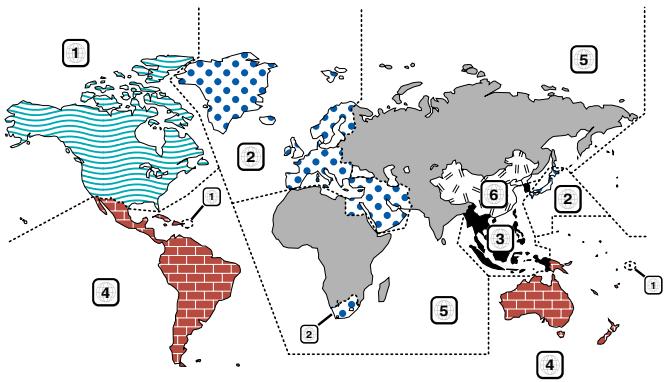
Region codes in the world
The DVD players are given a region code according to the country or area it is marketed, as shown in the following map.
Icons on the DVD discs
| Icon | Description |
 | Indicates the region code where the disc can be played. |
 | Number of voice languages recorded with the audio function. The number in the icon indicates the number of voice languages. (Max. 8 languages) |
 | Number of subtitle languages recorded with the subtitle function. The number in the icon indicates the number of subtitle languages. (Max. 32 languages) |
 | Number of angles provided by the angle function. The number in the icon indicates the number of angles. (Max. 9 angles) |
 | Aspect ratios that can be selected. "LB" stands for Letter Box and "PS" for Pan/Scan. In the example on the left, the 16:9 video can be converted into letter box video. |
Unplayable discs
This player cannot play back any of the following discs.
• DVD-ROM/DVD-RAM discs
- CDV discs (Only the audio part can be reproduced)
- Photo CD discs
- HQ-VCD discs
- CD-G/CD-EG/CD-EXTRA discs (Only the audio can be reproduced)
- DVD-Audio
Also, you cannot play back the DVD-R/RW and DVD+R/RW discs if not recorded in the DVD-Video format.
Restrictions due to difference between discs
Some DVD and VCD discs can be played only in certain playback modes according to the intentions of the software producers. As this player plays discs according to their intentions, some functions may not work as intended by you. Please be sure to read the instructions provided with each disc. When an inhibition icon is displayed on the monitor, it indicates that the disc being played is under the restriction as described above.

The illustrations of the display and the panel appearing in this manual are examples used to explain more clearly how the controls are used. Therefore, what appears on the display in the illustrations may differ from what appears on the display on the actual equipment, and some of the illustrations on the display may represent something impossible in actual operation.
Explanation of icons used on this manual

Indicates the key operation on the receiver.

Indicates the button you must touch.

Indicates the key or joystick operation on the remote controller.

The initial value of each setup is shown.

Gives an additional information or an operation advice.
Time is displayed on each control screen in the 12 hour clock display type (with AM/PM displayed) or in the 24 hour clock display type (without AM/PM displayed) depending on the sales area. The display type cannot be changed. In this instruction manual, screens of the 24 hour display type are used as examples.
Handling discs
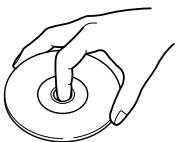
- Don't touch the recording surface of the disc.
natural_image
Line drawing of a hand holding a circular object with a pointed tip (no text or symbols)- CD-R/RW, DVD-R/RW, and DVD+R/RW are easier to damage than a normal music CD. Use a CD-R/RW, DVD-R/RW, or DVD+R/RW after reading the caution items on the package etc.
- Don't stick tape etc. on the disc. Also, don't use a disc with tape stuck on it.
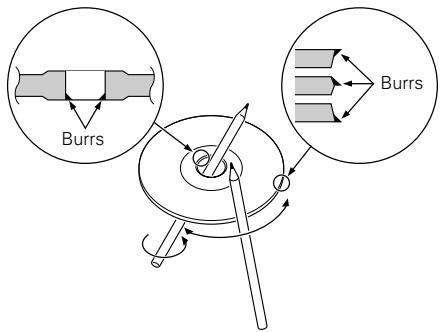
When using a new disc
If the disc center hole or outside rim has burrs, use it after removing them with a ball pen etc.
Disc accessories
Don't use disc type accessories.
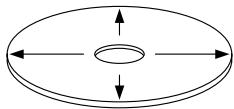
Disc cleaning
Clean from the center of the disc and move outward.
natural_image
Simple diagram of a circular ring with four directional arrows indicating rotation or flow (no text or symbols)Removing discs
When removing discs from this unit pull them out horizontally.
Discs that can't be used
- Discs that aren't round can't be used.

natural_image
Two abstract diagrams: a circular ring with concentric rings and a heart-shaped symbol enclosed in a circle (no text or symbols)- Discs with coloring on the recording surface or that are dirty can't be used.
- This unit can only play the CDs with disc disc disc. It may not correctly play discs which do not have the mark.
- A CD-R or CD-RW that hasn't been finalized can't be played. (For the finalization process refer to your CD-R/CD-RW writing software, and your CD-R/CD-RW recorder instruction manual.)
Disc storage
- Don't place them in direct sunlight (On the seat or dashboard etc.) and where the temperature is high.
- Store discs in their cases.
This unit can play MP3 (MPEG1 Audio Layer 3)/WMA. Note, however, that the MP3/WMA recording media and formats acceptable are limited. When writing MP3/WMA, pay attention to the following restrictions.
Acceptable media
The MP3/WMA recording media acceptable to this unit are CD-ROM, CD-R, and CD-RW.
When using CD-RW, do full format not quick format to prevent malfunction.
Acceptable medium formats
The following formats are available for the media used in this unit. The maximum number of characters used for file name including the delimiter (".") and three-character extension are indicated in parentheses.
• ISO 9660 Level 1 (12 characters)
• ISO 9660 Level 2 (31 characters)
• Joliet (64 characters)
• Romeo (128 characters)
Up to 170 characters can be displayed in the long file name format. For a list of available characters, see the instruction manual of the writing software and the section Entering file and folder names below.
The media reproducible on this unit has the following limitations:
• Maximum number of directory levels: 8
• Maximum number of files per folder: 255
• Maximum number of characters for folder name: 64
• Maximum number of folders: 100
MP3/WMA written in the formats other than the above may not be successfully played and their file names or folder names are not properly displayed.
Settings for your MP3/WMA encoder and CD writer
Do the following setting when compressing audio data in MP3/WMA data with the MP3/WMA encoder.
- Transfer bit rate: MP3: 8 —320 kbps
WMA: 48 —192 kbps
- Sampling frequency: MP3: 32, 44.1, 48 kHz
WMA: 32, 44.1, 48 kHz
When you use your CD writer to record MP3 up to the maximum disc capacity, disable additional writing. For recording on an empty disc up to the maximum capacity at once, check Disc at Once.

Play mode may not be possible when portions of the functions of Windows Media Player 9 or higher are used.
Entering ID3 tag
The Displayable ID3 tag is ID3 version 1.x.
For the character code, refer to the List of Codes.
$$ \begin{array}{ccccccccc}0 & 1 & 2 & 3 & 4 & 5 & 6 & 7 & 8 & A & B & C & D & E & F \ 0 & 1 & 0 & \circledast & P & p & & \mathbb{S}^{\star} & \ddot{A} & \ddot{B} & \dot{a} & \dot{d} & & \ 1 & & 1 & A & Q & a & q & & i & \pm & \dot{A} & \ddot{N} & \ddot{a} & \ddot{n} \ 2 & & 2 & " & R & b & r & & \phi & ^2 & \ddot{A} & \dot{O} & \ddot{a} & \ddot{o} \ 3 & # & 3 & C & S & c & s & & \xi & ^3 & \ddot{A} & \ddot{O} & \ddot{a} & \ddot{o} \ 4 & S & 4 & D & T & d & t & & 0 & ^3 & \ddot{A} & \ddot{o} & \ddot{a} & \ddot{o} \ 5 & \% & 5 & E & U & e & u & & \Psi & \mu & \ddot{A} & \dot{O} & \ddot{a} & \ddot{o} \ 6 & \& & 6 & F & V & l & & & ! & \mathbb{I} & \ddot{E} & O & \ddot{a} & \ddot{o} \ 7 & & 7 & G & W & g & w & & \S & * & \ddot{C} & \times & \ddot{C} & * \ 8 & ( & 8 & H & x & h & x & & \dagger & \dagger & E & o & e & o \ 9 & 1 & 9 & I & V & i & I & y & \oplus & E & U & e & u \ A & * & Z & - | K \ B + & +: K I k ( \ C , < , L , I I \ D - = M [ m ] \ E , > N ^ {A} n ~ - \ F / ? O _ {, - } O _ {, - } O _ {, - } = l / i l / i \ \end{array} $$
Entering file and folder names
The code list characters are the only file names and folder names that can be entered and displayed.
If you use any other character for entry, the file and folder names are not displayed correctly. They may neither be displayed correctly depending on the CD writer used.
The unit recognizes and plays only those MP3/WMA which have the MP3/WMA extension (.MP3/.WMA).

A file with a name entered with characters not on the code list may not play correctly.
Writing files into a medium
When a medium containing MP3/WMA data is loaded, the unit checks all the data on the medium. If the medium contains a lot of folders or non-MP3/WMA files, therefore, it takes a long time until the unit starts playing MP3/WMA. In addition, it may take time for the unit to move to the next MP3/WMA file or a File Search or Folder Search may not be performed smoothly.

Loading such a medium may produce loud noise to damage the speakers.
- Do no attempt to play a medium containing a non-MP3/WMA file with the MP3/WMA extension. The unit mistakes non-MP3/WMA files for MP3/WMA data as long as they have the MP3/WMA extension.
- Do not attempt to play a medium containing non MP3/WMA.
MP3/WMA playing order
When selected for play, Folder Search, File Search, or for Folder Select, files and folders are accessed in the order in which they were written by the CD writer.
Because of this, the order in which they are expected to be played may not match the order in which they are actually played. You may be able to set the order in which MP3/WMA are to be played by writing them onto a medium such as a CD-R with their file names beginning with play sequence numbers such as "01" to "99", depending on your CD writer.
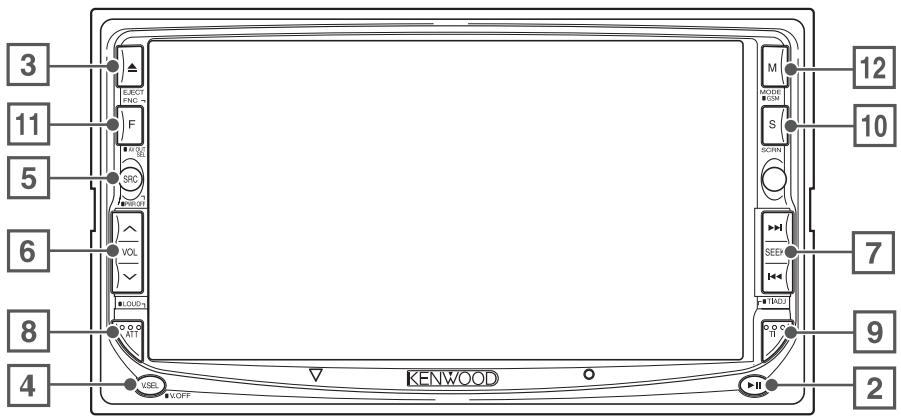
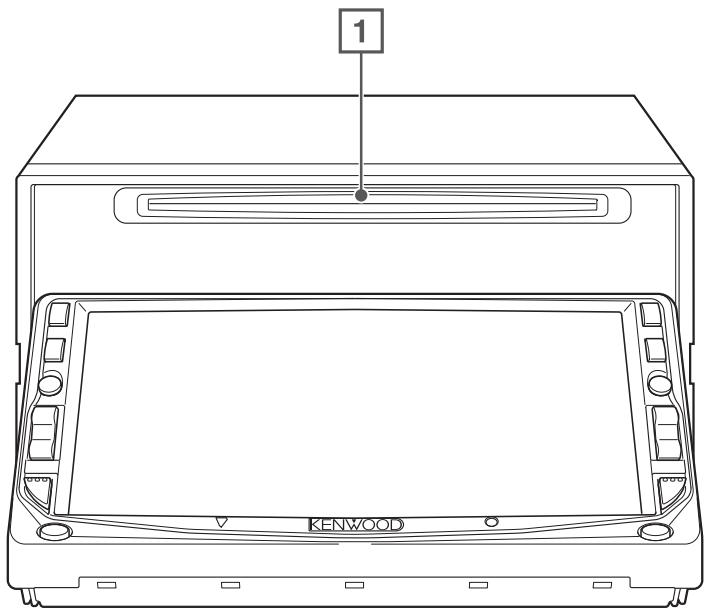
1 Play Disc
[Disc insertion slot]
A disc is played when you insert it.
2 Play/Pause
[▶II] key
Pauses and replays a disc.
3 Eject Disc
[EJECT] key
The disc is ejected.
4 Switch Video Sources
[V.SEL] key
The video sources are switched each time you press the key.
![KENWOOD DDX7025 - [V.SEL] key - 1](/content/2025/01/83594/images/8d7d7531bba167e495d5524d8331d9644ac9507588a34e9706f4e7d50227b1df.jpg)
flowchart
graph TD
    A["DVD / VCD"] --> B["TV* / Video"]
    B --> C["Navigation*"]
    C --> D["* Optional accessory"]
Clears the video image when pressed more than one second. When pressed again, the original image is redisplayed.
5 Switch Audio Source/Power Supply
[SRC] key
The audio sources are switched each time you press the key.
![KENWOOD DDX7025 - [SRC] key - 1](/content/2025/01/83594/images/557f060d3fe622ac4b395576b7da9070702b45ef3e550fef9bcf49a9abfc7291.jpg)
flowchart
graph TD
    A["DAB *"] --> B["TUNER (FM/AM broadcasting)"]
    B --> C["Built-in Disc Player"]
    C --> D["External Disc Player *"]
    D --> E["TV*/Video"]
    E --> F["External Disc Changer *"]
    F --> G["AUX"]
    G --> H["Standby Mode"]
    H --> I["* Optional accessory"]
Hold down more than 1 second to turn the power supply Off.
Push it again to turn power supply On.
6 Volume Controls
[VOL] key
7 Track/Station Selectors [SEEK] key
Selects a music or chapter, track, or frequency.
8 Attenuator/Loudness [ATT]/[LOUD] key
Attenuates the volume.
Press it again to cancel muting.
Press it for more than one second to turn the Loudness function on or off. (see page 77)
If turned on, high and low tones are enhanced during low volume.
9 Traffic Information [TI] key
Turns the Traffic Information function On or Off. (see page 24)
10 Screen Setup [SCRN] key
Displays the Screen Control or Tilt Control screen. (see page 46)
11 Function [FNC] key
The video sources are switched each time you press the key.
![KENWOOD DDX7025 - [VOL] key - 1](/content/2025/01/83594/images/9b9bf5e548e0ce67b89fd1f41f2d8be7383bc7f7967cbcd8cd77f78a58e6309e.jpg)
flowchart
graph TD
    A["Picture & Easy Control Panel"] --> B["Source Control"]
    B --> C["Picture"]
Switches the source that is output at the AV OUTPUT terminal when it is pressed more than 1 second.
12 Switch Screen Mode/GSM [MODE]/[GSM] key
The screen mode is switched. (see page 12)
The GSM Control screen appears when you hold down the key more than 1 second.
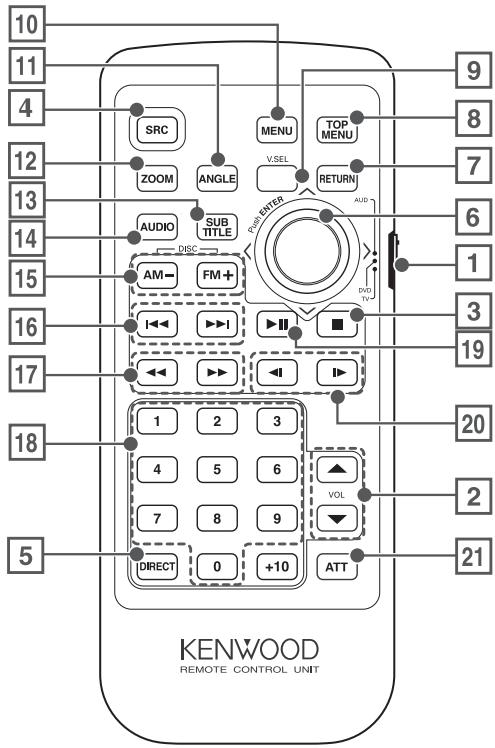
1 Remote Control Mode selector
Selects one of the following remote control modes.
TV: TV source
DVD: Built-in DVD/VCD/CD/MP3/WMA player source
AUD: Tuner source or attached disc changer/disc player source
2 Volume Control
Adjusts the volume.
3 [DISC]
Stops to play the built-in disc player.
4 Switches over the sound source each time it is pressed.
5 Selects the Direct Search mode.
(see page 19/24/33 for
6 Joystick
[DVD]
Enters your selection from the DVD Disc Menu.
7 [DVD] [VCD]
Returns to the previous screen when the DVD/VCD Disc Menu is used.
8 [DVD]
Calls the Top menu of DVD Disc Menu.
9 Switch Video Sources
[V.SEL] key (When 1 is set to "TV")
The video sources are switched each time you press the key.
![KENWOOD DDX7025 - [DISC] - 1](/content/2025/01/83594/images/1bfcb57235867bfb8a480f41cff4cff986ed0d33207bec23650394108e72c658.jpg)
flowchart
graph TD
    A["DVD / VCD"] --> B["TV*/Video"]
    B --> C["Navigation*"]
    C --> D["* Optional accessory"]
10 [DVD]
Calls the DVD Disc Menu.
11 [DVD]
Each time you press the button, the angle switches.
12 [DVD] [VCD]
Each time you press the button, the zoom ratio switches.
13 [DVD]
Switches a subtitle language.
14 [DVD]
Switches an audio language.
15 [DISC]
Select a folder or a disc.
[TV]
FM: Switches to TV1, TV2, or VIDEO.
[TUNER]
FM: Switches to the FM1, FM2, or FM3 band.
AM: Switches to the AM band.
16 [DISC]
Selects a chapter, a track or a song.
[TV]
Select a channel.
[TUNER]
Selects a station.
17 [DVD]
◀◀ : Fast Backward (Rewind). The speed changes each time it is pressed.
▶▶ : Fast Forward. The speed changes each time it is pressed.
18 [TV] [TUNER]
1 — 6 : Call the stations from memory.
19 [DISC]
Plays or pauses.
[TUNER]
Selects the Seek mode. (see page 22/40 for the
20 [DVD]
◀: Slow Backward.
▶: Slow Forward.
21 Attenuator
[ATT] key
Attenuates the volume.
Press it again to cancel muting.
[DVD]
: An operation during DVD playback
[VCD]
: An operation during VCD playback
[DISC]
: An operation during DVD, VCD, CD, MP3/WMA or MD playback
[TV]
: An operation during TV source
[TUNER]
: An operation during FM/AM broadcasting source
The Screen mode of the monitor changes each time the [MODE] key is pressed.
![[MODE] key KENWOOD](/content/2025/01/83594/images/e7c3807bc83ec390cd0ee8987ea1df2541b33bc376869e95ab2009d210437d53.jpg)
![KENWOOD DDX7025 - [DISC] - 3](/content/2025/01/83594/images/83b6850626a5f5f9983247d4243652085ca9ee1a3cc906a26be830b962eb84d2.jpg)
flowchart
graph TD
    A["Initial State"] --> B{Condition}
    B -->|Yes| C["Intermediate State"]
    B -->|No| D["Final State"]
    C --> E["Particle Distribution"]
    E --> F["Final State"]
Full picture mode [FULL]
Justify picture mode [JUST]
Cinema picture mode [CINEMA]
Zoom picture mode [ZOOM]
Normal picture mode [NORMAL]
![KENWOOD DDX7025 - [DISC] - 4](/content/2025/01/83594/images/6ebb8e2bf5c80501984bfcfafca885224e684cd0ab20cd6963d39f41ae15ab0d.jpg)
- When the Menu, Easy Control screen, or Navigation is selected, it is shown in the full-size display mode automatically. Their Screen mode cannot be changed.
- The Screen mode can be set for each of DVD/VCD, TV, and video images.
Control during DVD Video or Video CD Playback
Various control screens appear when you play back a DVD Video (DVD) or a Video
Displaying the DVD/VCD Playback screen
You can use the following operations when displaying DVD/VCD images.


Plays back the DVD or VCD.


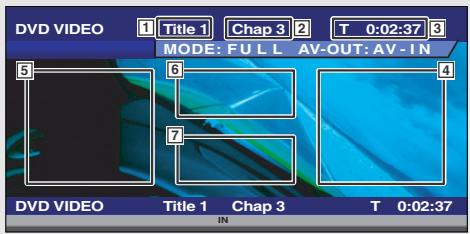
DVD playback screen
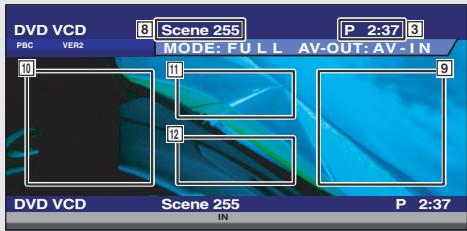
VCD playback screen

1 Title Number Display
2 Chapter Number Display
3 Play Time Display
4 Forward Chapter Search Area Selects the next chapter.
5 Backward Chapter Search Area Selects the previous chapter.
6 DVD Disc Menu Control Buttons Area
Displays the Disc Menu Control buttons (see page 18).
7 Information Display Button Area (see page 19)
8 Scene/Track Number Display
9 Forward Scene/Track Search Area
Selects the next scene (when PBC is On) or track (when PBC is Off).
10 Backward Scene/Track Search Area
Selects the previous scene (when PBC is On) or track (when PBC is Off).
11 Zoom Control Button Area
Displays the Zoom Control buttons (see page 19).
12 Information Display Button Area (see page 19)

- For DVD/VCD playback, DVD/VCD picture selection, or controller key operations, see
(see page 8). - The information display is cleared automatically after approximately 5 seconds. Also, the information can be displayed automatically when it is updated (see page 65).
CD (VCD) disc.
Displaying the Easy Control Panel
The Control Panel is displayed in a floating position of the DVD/VCD screen.
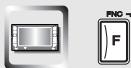
Display the Easy Control Panel
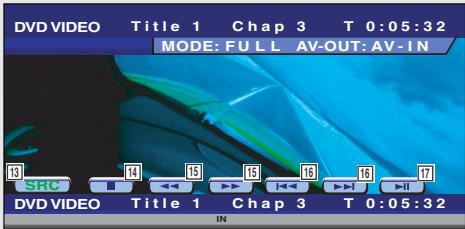

13 Switches the source.
14 Stops to play.
15 Rewinds or fast forwards.
16 Chapter Search (DVD)
Searches for a chapter.
Scene/Track Search (VCD)
Selects a scene (when PBC is On) or a track (when PBC is Off).
17 Plays or pauses.

The Easy Control Panel display is cleared when you touch the center of image display area.
Displaying the DVD/VCD Control screen
Plays a DVD/VCD using various functions.


DVD/VCD Control screen
flowchart
graph TD
    A["Audio 19"] --> B["Set Up 20"]
    B --> C["Direct SRL 21"]
    D["13:5"] --> E["26"]
    E --> F["24"]
    F --> G["25"]
    G --> H["22"]
    H --> I["22"]
    I --> J["27"]
    J --> K["PBC 28"]
    K --> L["REP 32"]
    L --> M["SCRL TIME 33"]
    M --> N["T0:05:20"]
    O["KENWOOD 18"] --> P["T-REP 35"]
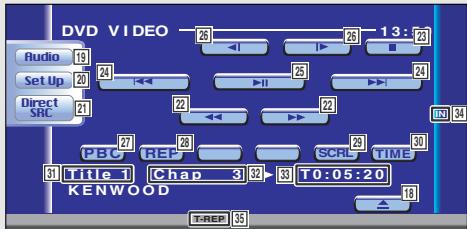
18 Ejects the disc from the built-in disc player.
19 Calls the Sound Effects Menu. (see page 76)
20 Calls the Setup Menu. (see page 47)
21 Displays the Source Select screen. (see page 45)
22 Fast Forwards or Rewinds.
23 Stops to play.
When pressed twice, the disc is played from its beginning when you play it in the next time.
24 Selects a chapter, a scene or a track. When the DVD is paused, touch this button to start single-frame stepping.
25 Plays or pauses.
26 Slow Forwards or Backwards. (during DVD playback only)
27 Turns the PBC function of VCD On or Off. (when VCD Ver 2.0 or SVCD is in use only)
28 Switches the Repeat Play operations in the following sequence.
DVD: Title Repeat, Chapter Repeat, Repeat Off
VCD: Track Repeat, Repeat Off (Available when the PBC is off)
29 Scrolls the display text.
30 Switches the play time display in the following sequence.
DVD: Title, chapter, remaining titles
VCD: Track, disc, remaining discs (Effective only when the PBC function is off)
31 Title Number Display (DVD)
32 Chapter/Scene/Track Number Display
33 Play Time Display
34 Appears when a disc is inserted.
35 Function Indicator
DVD Disc Menu
Selects an option from the DVD Disc Menu.
1 Displays the Disc Menu Control screen


DVD Disc Menu Control Buttons Area (page 14)
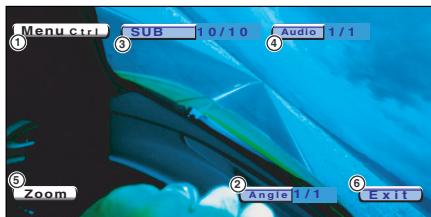
① Calls the Menu Control.
② Switches the picture angle. (during program playback only)
③ Switches the caption language. (during program playback only)
④ Switches the voice language. (during program playback only)
⑤ Displays the Zoom Control screen.
⑥ Clears the Disc Menu Control.
2 Select Disc Menu options
Disc Menu

Menu ctrl
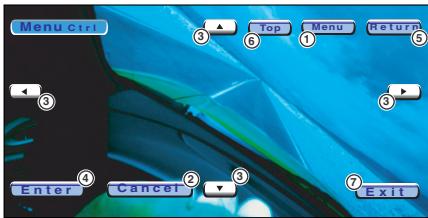
① Calls the Menu.
② Returns to the Disc Menu Control screen.
③ Selects a menu option.
④ Enters your menu selection.
⑤ Returns to the previous menu screen.
⑥ Displays the Top Menu.
⑦ Clears the Disc Menu Control.
Zoom Control

Zoom
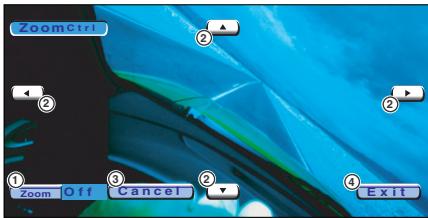
① Changes the zoom ratio at 4 levels (2 times, 3 times, 4 times, or off) each time you touch.
② Scrolls the screen in the direction you touch.
③ Returns to the Disc Menu Control screen.
④ Clears the Disc Menu Control.
VCD Zoom Control
Displays an enlarged VCD screen.
1 Displays the Zoom Control screen

11
Zoom Control Button Area (page 14)
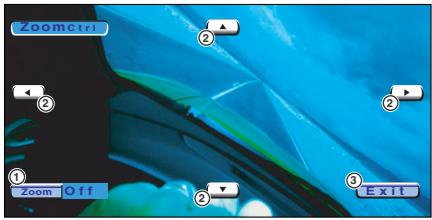
① Changes the zoom ratio at 4 levels (2 times, 3 times, 4 times, or off) each time you touch.
② Scrolls the screen in the direction you touch.
③ Clears the Zoom Control button.
Information Display
Displays the DVD and AV information.

7 12
Information Display Button Area (Page 14)
The information is displayed for 5 seconds.
Direct Search
You can search for a DVD/VCD chapter, scene or track by entering its number.
1 Selects the Direct Search mode

(DIRECT)
The following items can be searched directly each time it is pressed.
DVD: Title, Chapter, Time, Direct number
VCD (when PBC is On): Scene, Direct number
VCD (when PBC is Off): Track, Time
However, the direct search may not be supported for some discs.
2 Enter a number or time

0 - 9
3 | Search


The operation ends automatically if you do not operate within 10 seconds.
Tuner Control
Various control screens appear in the Tuner Source mode.
Displaying the Easy Control Panel
The Tuner Control Panel is displayed in a floating position of the selected picture.


Displaying the Easy Control Panel
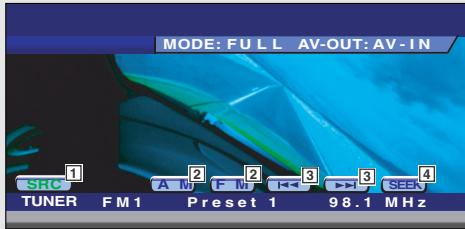

1 Switches the source.
2 Switches the band (to AM or FM1/2/3).
3 Tunes in a station
4 Switches the Seek mode.
(see page 22 for the

- For receiver key operations, see
(see page 8). - The Easy Control Panel display is cleared when you touch the center of image display area.
Displaying the Tuner Control screen
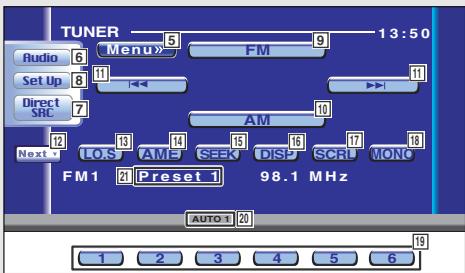
You can tune in a station using various functions.
Tuner Control screen

Displaying the Tuner Menu screen
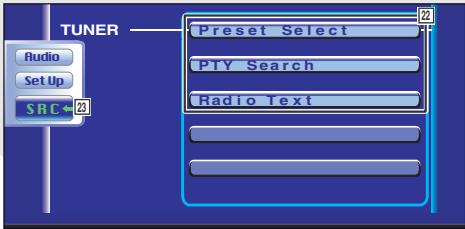
You can select menu options using various functions.

Tuner Menu screen
5 Calls the Tuner Menu.
6 Calls the Sound Effects Menu. (see page 76)
7 Displays the Source Select screen. (see page 45)
8 Calls the Setup Menu. (see page 47)
9 Switches to the FM1/2/3 band.
10 Switches to the AM band.
11 Tunes in a station.
Use the
12 Switches between 1 to 6 buttons and Function buttons to use.
13 Turns the Local seek function On or Off.
14 Selects the Auto Memory mode.
(See page 22 for the
15 Switches the Seek mode.
(see page 22 for the
16 Selects the Program Service Name or Radio Text mode for text display. (Only when receiving the FM broadcast)
17 Scrolls the display text.
18 Select the Monaural reception mode. (Only when receiving the FM broadcast)
19 When 1 to 6 buttons appear, you can call up the stations from memory.
For memory of broadcasting stations, see
20 Seek Mode Indicator
21 Memory Number Display
22 Selects options from various function menus.
23 Returns to the Tuner Control screen.

The available functions vary depending on the model used (the tuner specifications and the broadcasting system that can be received).
Seek Mode
Sets a station selection.

SEEK
If SEEK is not shown, touch Next ▼.
The mode is switched each time you touch the button.
Tunes in a station with good reception automatically.
AUTO 2
Tune in stations in memory one after another.
Switches to the next channel manually.
Auto Memory
Stores stations with good reception in memory automatically.
1 Select a band you wish to store in memory

FM
AM
2 Select the Auto Memory mode

AME
If (AME) is not shown, touch Next ▼.
3 Start Auto Memory

◀◀
▶▶
Touch or
Auto Memory terminates when 6 stations are stored or when all stations are tuned in.

The operation ends automatically if you do not operate within 10 seconds.
Manual Memory
Stores the current receiving station in memory.
1 Select a station you wish to store in memory


2 Store in memory

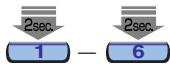
If 1 to 6 are not shown, touch Next.
Continue to touch until the memory number appears.
Preset Select
Lists and tunes in stations in memory one after the other.
1 Call the Tuner Menu

Menu»
2 Call the Preset Select Menu

Preset Select
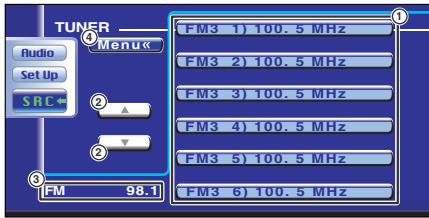
① Tunes in the displayed station.
② Switches the band of the displayed station list.
③ Band display.
④ Returns to the Tuner Menu.
Direct Search
Tunes in a station when its frequency is entered.
1 Select a band

2 Selects the Direct Search mode


3 Enter a frequency

When you enter them, signal reception starts.
Example: When you receive FM 92.1 MHz

Example: When you receive AM 810 kHz


The operation ends automatically if you do not operate within 10 seconds.
Traffic Information
When a traffic bulletin starts, any source is switched to the traffic information and it is displayed automatically.
When the traffic bulletin starts...
The Traffic Information screen appears automatically.
Traffic Information screen
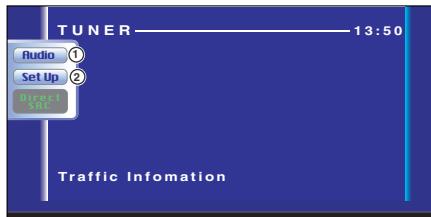
① Calls the Sound Effects Menu. (see page 76)
② Calls the Setup Menu. (see page 47)

During reception of traffic information the adjusted volume is automatically remembered, and the next time it switches to traffic information it's automatically the remembered volume.
Please note that if DSP unit (optional accessory) is connected, the volume will be preset by pressing the button for 2 seconds or more.
Search for Program Type
A program is tuned when you set its program type.
1 Call the Tuner Menu

Menu»
2 Call the PTY Search Menu

PTY Search
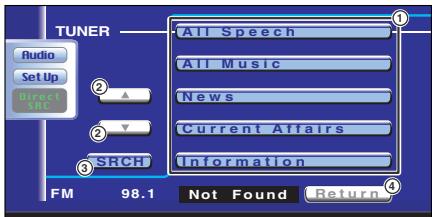
① Selects a program type.
② Scrolls the program type list.
③ Searches for the program type.
It is displayed when the Program Type is selected.
④ Returns to the Tuner Menu.
3 Select a program type

News etc.
4 Search for the program type

SRCH
Radio Text
You can display the radio text.
1 Call the Tuner Menu

Menu»
2 Display the Radio Text

Radio Text
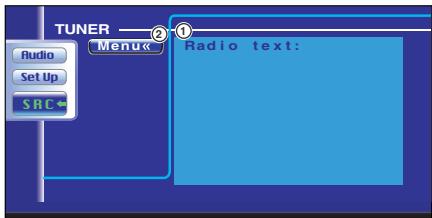
① Displays the Radio Text.
② Returns to the Tuner Menu.
CD/MP3/WMA/Disc Changer Play Control
You can call various control screens during CD/MP3/WMA/Disc Changer playback.
Displaying the Easy Control Panel
The CD/MP3/WMA/Disc Changer Play Control Panel is displayed in a floating position of the selected picture.


Display the Easy Control Panel During CD playback
During MP3/WMA playback

During playback on disc changer

During playback on CD player


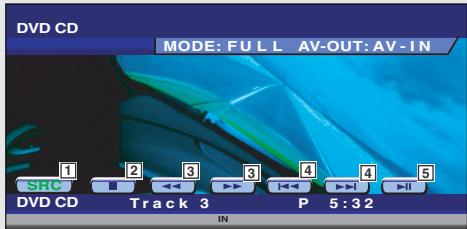
1 Switches the source.
2 Stops to play the built-in disc player.
3 When a CD is played back on the built-in disc player: Rewinds or fast forwards.
4 Selects a song.
5 Plays or pauses.
6 When an MP3/WMA is played back on the built-in disc player:
Selects a folder.
7 When a disc is played back on the disc changer: Selects a disc.

- For CD/MP3/WMA/Disc Changer playback and receiver key operations, see
- The Easy Control Panel display is cleared when you touch the center of image display area.
Displaying the CD/MP3/WMA/Disc Changer Control screen
You can play the CD/MP3/WMA/disc changer using various functions.
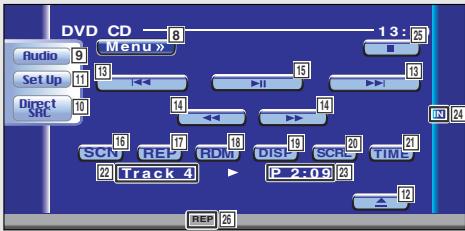
CD Control screen
flowchart
graph TD
    A["Audio"] --> B["Set Up"]
    B --> C["Direct SRC"]
    C --> D["SCN"]
    D --> E["Rel"]
    E --> F["RDM"]
    F --> G["DISH"]
    G --> H["SCRC"]
    H --> I["TIME"]
    I --> J["P 2:09"]
    J --> K["REPA"]
    K --> L["12"]
    L --> M["13:25"]
    M --> N["8"]
    N --> O["13:25"]
    O --> P["14"]
    P --> Q["15"]
    Q --> R["16"]
    R --> S["17"]
    S --> T["18"]
    T --> U["19"]
    U --> V["20"]
    V --> W["21"]
    W --> X["22"]
    X --> Y["Track 4"]
During CD playback
8 Calls the CD Menu.
9 Calls the Sound Effects Menu. (see page 76)
10 Displays the Source Select screen. (see page 45)
11 Calls the Setup Menu. (see page 47)
12 Ejects the disc from the built-in disc player.
13 Selects a track.
14 Fast Forwards or Rewinds.
15 Plays or pauses.
16 Starts or stops Scan Play (that plays the beginning of each song one after the other).
17 Repeats to play (the present track).
18 Starts or stops Random Play (to play songs in random order).
19 Selects the Disc Name (see
20 Scrolls the display text.
21 Switches the play time display between Track, Disc, and Disc Remaining Time.
22 Track Number Display
23 Play Time Display
24 Appears when a disc is inserted.
25 Stops to play the built-in disc player.
When pressed twice, the disc is played from its beginning when you play it in the next time.
26 Function Indicator
MP3/WMA Control screen
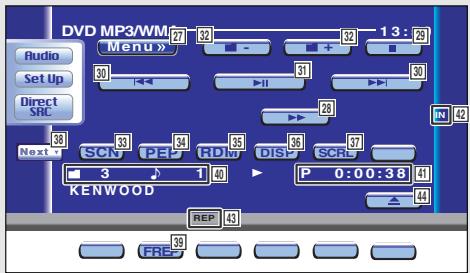
During MP3/WMA play
27 Calls the MP3/WMA Menu.
28 Fast Forwards.
29 Stops to play.
When pressed twice, the disc is played from its beginning when you play it in the next time.
30 Selects a song.
31 Plays or pauses.
32 Selects a folder.
33 Starts or stops Scan Play (that plays the beginning of each song one after the other).
34 Repeats to play (the present song).
35 Starts or stops Random Play (to play songs of the present folder in random order).
36 Selects the Folder name, File name, Title (ID3/WMA tag), Artist name (ID3/WMA tag), or Album name (ID3 tag) for text display.
37 Scrolls the display text.
38 Switches the button display.
39 Repeats to play the song of the present folder.
40 Folder and File Number Display
41 Play Time Display
42 Appears when a disc is inserted.
43 Function Indicator
44 Ejects a disc.
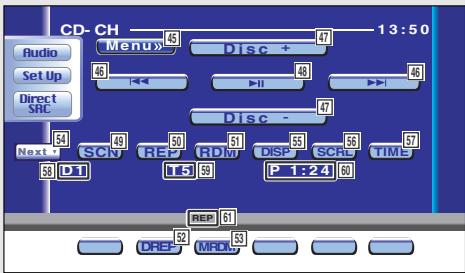
Disc Changer/CD player Control screen
flowchart
graph TD
    A["CD-CH"] --> B["Menu"]
    B --> C["Disc +"]
    C --> D["Direct SRC"]
    D --> E["Next"]
    E --> F["SCN"]
    F --> G["REP"]
    G --> H["CPM"]
    H --> I["DISP"]
    I --> J["SCR"]
    J --> K["TIME"]
    K --> L["P 1:24"]
    L --> M["60"]
    M --> N["DREP"]
    N --> O["MRDL"]
    O --> P["53"]
    P --> Q["52"]
    Q --> R["54"]
    R --> S["49"]
    S --> T["48"]
    T --> U["47"]
    U --> V["46"]
    V --> W["45"]
    W --> X["47"]
    X --> Y["13:50"]
During play by the disc changer/CD player
45 Calls the Disc Changer/CD player Menu.
46 Selects a track.
Starts Fast Forward or Fast Rewind when it is held down.
47 Selects a disc. (Function of Disc Changer)
48 Plays or pauses.
49 Starts or stops Scan Play (that plays the beginning of each song one after the other).
50 Repeats to play (the present track).
51 Starts or stops Random Play (to play songs in random order).
52 Repeats to play disc (the present disc). (Function of Disc Changer)
53 Starts or stops Magazine Random Play (to play songs of the disc changer in random order). (Function of Disc Changer)
54 Switches the button display.
55 Selects the Disc Name (see
56 Scrolls the display text.
57 Switches the play time display between Track, Disc, and Disc Remaining Time.
58 Disc Number Display (Function of Disc Changer)
59 Track Number Display
60 Play Time Display
61 Function Indicator

The functions that can be used and the information that can be displayed will differ depending on the models being connected.
Displaying the CD/MP3/WMA/Disc Changer Menu screen
You can select menu options using various functions.

Menu»
CD Menu screen
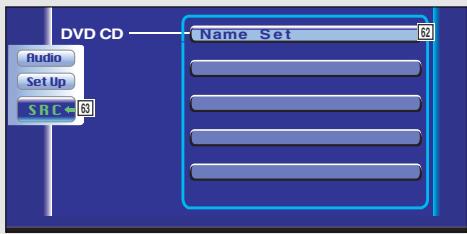
62 Selects options from various function menus.
63 Returns to the CD/MP3/WMA/Disc Changer Control screen.

The available functions vary depending on the source used.
Set Disc Name
Names a CD.
1 Play a CD you wish to name
2 Call the CD/Disc Changer Menu

Menu»
3 Select the Set Name mode

Name Set

The Name Set position varies depending on the disc you are playing.
4 Enter a name
For character entry details, see
5 Exit the Set Name mode

Ok

- You cannot name an MD or MP3/WMA disc.
- Number of discs that can be stored in memory Built-in disc player: 10
External CD changer/ player:
Varies depending on the CD changer/ player.
Refer to the CD changer/ player manual.
Directory List (during MP3/WMA play)
The directory of an MP3/WMA disc are listed for quick search.
1 Call the MP3/WMA Menu

Menu»
2 Start the Directory List

Directory List
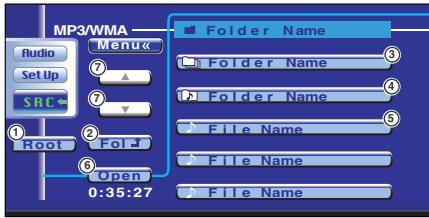
① Returns to the root directory.
② Displays the next higher level of hierarchy.
③ Displays a directory if the subdirectory has a directory. When you touch the directory, it opens.
④ Displays a directory if the subdirectory has files without a directory. When you touch the directory, it opens and songs in the directory are played.
⑤ Displays the MP3/WMA files. When you touch a file, its song is played back.
⑥ Plays the selected directory.
⑦ Scrolls the list.
3 Select a song

File Name
Display the desired song and touch the file display.
ID3/WMA TAG Display (during MP3/WMA play)
The ID3/WMA TAG information of MP3/WMA file is listed.
1 Call the MP3/WMA Menu

Menu»
2 Display the ID3/WMA TAG

Information
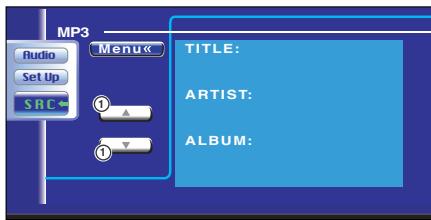
① Scrolls the list.
Disc Select (during play by disc changer)
The discs loaded on the disc changer are listed for quick disc selection.
1 Calls the Disc Changer Menu

Menu»
2 Call the Disc Select Menu

Disc Select
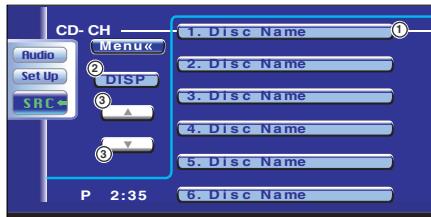
① Plays the displayed disc.
② Selects the Disc Name or Disc Text mode for text display.
③ Scrolls the list.
(It is not displayed when a disc changer having 6 or less discs is used.)
3 Select the desired disc

- Disc Name
Touch the desired disc display.
Direct Search
Searches for a disc or a song when its number is entered.
During play on the built-in disc player
1 Select the Direct Search mode

DIRECT
The following items can be searched directly each time it is pressed.
CD: Track number, Total play time
MP3/WMA: Folder, File
2 Enter a disc or track number

0 - 9
3 | Search
When searching for a song:


During play on an external in disc player or disc changer
1 Enter a disc or track number

0 - 9
2 | Search
When searching for a song:

◀◀◀
When searching for a disc:

AM- FM+

The operation ends automatically if you do not operate within 10 seconds.
Mute Telephone
When the telephone is called, the system is paused automatically.
When the telephone is called...
The Phone Call ("CALL") screen appears, and system is paused.
Phone Call ("CALL") screen
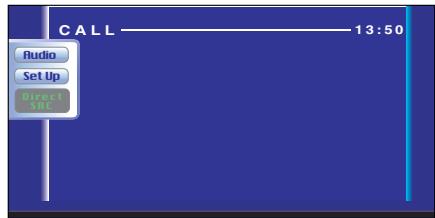
If you continue to listen the source audio during phone call...

SRC
The system restarts to play while the phone call is continued.
When the call ends...
Hang up the phone.
The system restarts to play.
TV Control (with the optional accessory TV Tuner connected only)
Various control screens appear in the TV Source mode.
Displaying the TV Picture screen
Various control screens appear in the TV Source mode.


Selects the TV Pictures.
TV Picture screen

Displaying the Easy Control Panel
The Control Panel is displayed in a floating position of the TV picture.


Displaying the Easy Control Panel

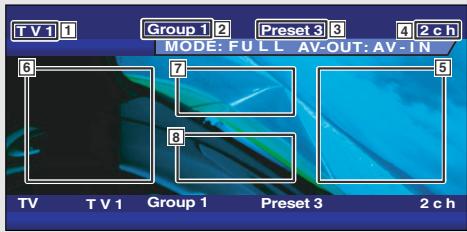
1 TV Band Number Display
2 TV Area Group Display (see page 70)
3 Memory Number Display
4 Channel Number Display
5 Channel Up Area Increase the channel.
6 Channel Down Area Decrease the channel.
7 Band/Video Switch Area
Switches to TV1, TV2, or VIDEO.
8 Information Display Button Area

- For TV picture selection and receiver key operations, see
(see page 8). - The information display is cleared automatically after approximately 5 seconds. Also, the information can be displayed automatically when it is updated (see page 65).
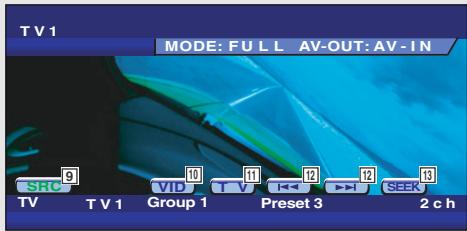
9 Switches the source.
10 Switches to Video (VIDEO).
11 Switches the TV band (to TV1 or TV2).
12 Calls up a channel.
13 Switches the Seek mode.
(see page 36 for the

The Easy Control Panel display is cleared when you touch the center of image display area.
Displaying the TV Control screen
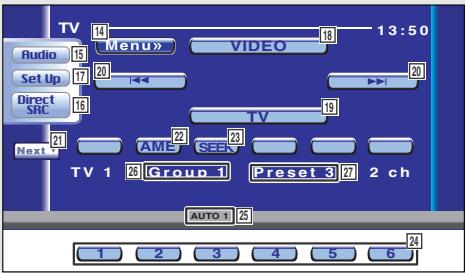
You can tune in a TV station using various functions.
TV Control screen

Displaying the TV Menu screen
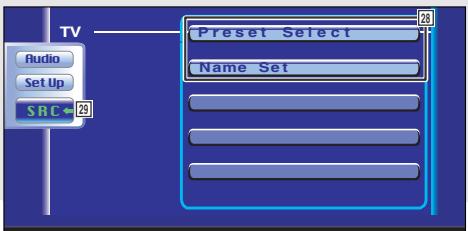
You can select menu options using various functions.

TV Menu screen
14 Calls the TV Menu.
15 Calls the Sound Effects Menu. (see page 76)
16 Displays the Source Select screen. (see page 45)
17 Calls the Setup Menu. (see page 47)
18 Switches to VIDEO.
19 Switches to TV1 or TV2.
20 Select a channel.
Use the
21 Switches between 1 to 6 buttons and Function buttons to use.
22 Selects the Auto Memory mode.
(see page 36 for the
23 Switches the Seek mode.
(see page 36 for the
24 When 1 to 6 buttons appear, you can call up the channels from memory.
For memory of broadcasting stations, see
25 Seek Mode Indicator
26 TV Area Group Display (see page 70)
27 Memory Number Display
28 Selects options from various function menus.
29 Returns to the TV Control screen.

The available functions vary depending on the model used (the tuner specifications and the broadcasting system that can be received).
Seek Mode
Sets a TV station selection.

SEEK
If SEEK is not shown, touch Next ▼.
The mode is switched each time you touch the button.
Tunes in a station with good reception automatically.
AUTO 2
Tune in stations in memory one after another.
Switches to the next channel manually.
Auto Memory
Stores stations with good reception in memory automatically.
1 Select a band you wish to store in memory


2 Select the Auto Memory mode


If (AME) is not shown, touch Next ▼.
3 Start Auto Memory


Touch or
Auto Memory terminates when 6 stations are stored or when all stations are tuned in.

The operation ends automatically if you do not operate within 10 seconds.
Manual Memory
Stores the current receiving channel in memory.
1 Select a channel you wish to store in memory

2 Store in memory

If 1 to 6 are not shown, touch Next.
Continue to touch until the memory number appears.
Preset Select
Lists and tunes in stations in memory one after the other.
1 Select a band you wish to call


2 Call the TV Menu


3 Call the Preset Select Menu


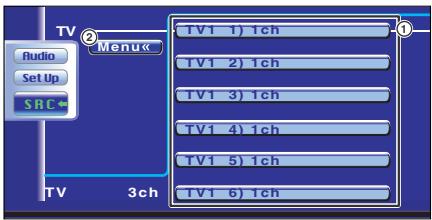
① Tunes in the displayed station.
If the station name is displayed if it has been set.
② Returns to the TV Menu.
Set Station Name
Names a station.
1 Select a station you wish to name

2 Call the TV Menu


3 Selects the Set Name mode


4 Enter a name
For character entry details, see
5 Exit the Set Name mode


- You can store up to 20 stations in memory.
- You can set a station name only after you have applied the parking brake.
DAB Tuner control (with the optional accessory DAB tuner connected only)
Various control screens appear in the DAB Tuner source mode.
Displaying the Easy Control Panel
The DAB Tuner Control Panel is displayed in a floating position of the selected picture.


Display the Easy Control Panel
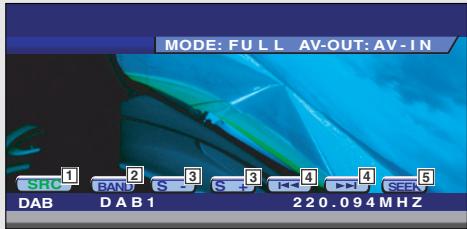

1 Switches the source.
2 Switches the band (to DAB1/2/3).
3 Selects a service.
4 Selects the Ensemble.
5 Switches the Seek mode.
(see page 40 for the

- For system key operations, see
(see page 8). - The Easy Control Panel display is cleared when you touch the center of image display area.
Displaying the DAB Tuner Control screen
You can select the Ensemble and services using various functions.
DAB Tuner Control screen
flowchart
graph TD
    DA["DA"] -->|6| Menu["Menu"]
    Menu --> Service["Service +"]
    Service --> Band["Band"]
    Band --> ServiceLabel["Service -"]
    ServiceLabel --> DAB1["DAB1"]
    DAB1 --> Preset2["Preset2"]
    Preset2 --> ServiceLabel["Service Label"]
    ServiceLabel --> AUTO1["AUTO1"]
    AUTO1 --> 1["1"]
    Auto1 --> 2["2"]
    Auto1 --> 3["3"]
    Auto1 --> 4["4"]
    Auto1 --> 5["5"]
    Auto1 --> 6["6"]
    Auto1 --> 7["7"]
    Auto1 --> 8["8"]
    Auto1 --> 9["9"]
    Auto1 --> 10["10"]
    Auto1 --> 11["11"]
    Auto1 --> 12["12"]
    Auto1 --> 13["13"]
    Auto1 --> 14["14"]
    Auto1 --> 15["15"]
    Auto1 --> 16["16"]
    Auto1 --> 17["17"]
    Auto1 --> 18["18"]

Displaying the DAB Tuner Menu screen
You can select menu options using various functions.

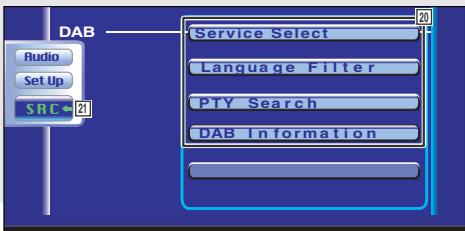
DAB Tuner Menu screen
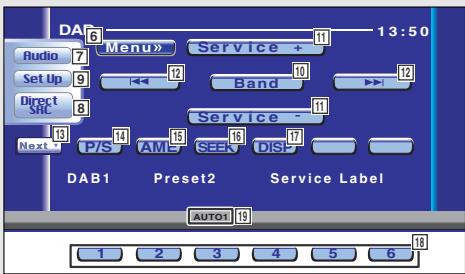
6 Calls the DAB Tuner Menu.
7 Calls the Sound Effects Menu. (see page 76)
8 Displays the Source Select screen. (see page 45)
9 Calls the Setup Menu. (see page 47)
10 Switches the band (to DAB1/2/3).
11 Selects a service.
12 Selects the Ensemble.
13 Switches between 1 to 6 buttons and Function button to use.
14 Selects the primary or secondary operation.
15 Selects the Auto memory mode. (see page 40 for the
16 Switches the Seek mode.
(see page 40 for the
17 Changes the display between Ensemble label, PTY label, Component label, Region label, and Audio quality.
18 When 1 to 6 buttons appear, you can call a service from memory.
19 Seek Mode Indicator
20 Selects options from various function menus.
21 Returns to the DAB Tuner Control screen.

For DAB Tuner function details, see the Instruction Manual of DAB Tuner (optional accessory).
Seek Mode
A service selection method can be set.


If SEEK is not shown, touch Next ▼.
The mode display is switched each time you touch the button.
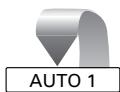
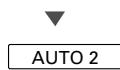
Tunes in an ensemble with good reception automatically.
Selects services in memory one after another.
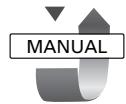
Switches to the next channel manually.
Auto Ensemble Memory
An ensemble with good reception is stored in memory automatically.
1 Select a band you wish to store in memory


2 Select the Auto Memory mode


If (AME) is not shown, touch Next ▼.
3 Start Auto Memory


Touch or
Auto Memory terminates when 6 ensembles are stored or when all ensembles are tuned in.
Service Preset Memory
The current receiving service is stored in memory.
1 Select a service you wish to store in memory


2 Store in memory

If 1 to 6 are not shown, touch Next.
Service Select
The service list of the currently receiving ensemble is displayed for your selection.
1 Call the DAB Tuner Menu

Menu»
2 Call the Service Select Menu

Service Select
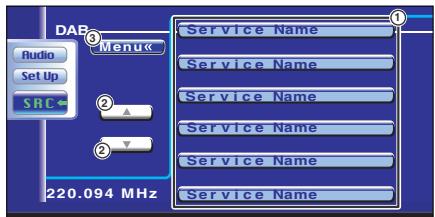
① Selects a service.
② Scrolls the service list.
③ Returns to the DAB Tuner Menu.
3 Select a service

Service Name
Language Filter
The languages are list for your selection.
1 Call the DAB Tuner Menu

Menu»
2 Call the Language Filter Menu

Language Filter
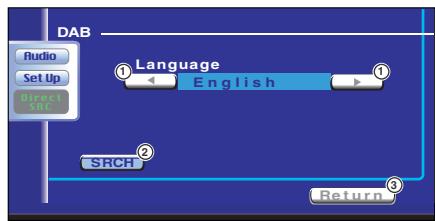
① Selects a language.
② Searches for the selected language.
③ Returns to the DAB Tuner Menu.
3 Select a language you wish to use


4 Search for the language

SRCH
Search for Program Type
The services are received when you set its program type.
1 Call the DAB Tuner Menu

Menu»
2 Call the PTY Search Menu

PTY Search
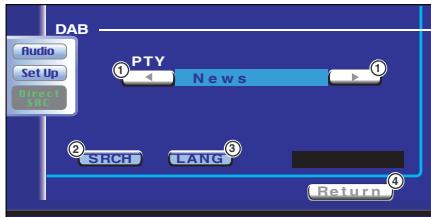
① Selects a program type.
② Searches for the program type.
③ Displays the Language select screen.
④ Returns to the DAB Tuner Menu.
3 Select a program type

◀ ▶
Select a Language
Display the Language select screen

LANG
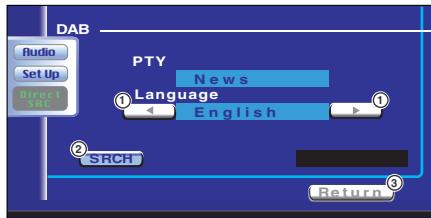
① Selects a Language.
② Searches for the program type.
③ Returns to the PTY Search Menu.
Select a Language

◀ ▶
4 Search for the program type

SRCH
DAB Information
The DAB information is displayed.
1 Call the DAB Tuner Menu

Menu»
2 Display the DAB Information screen

DAB Information
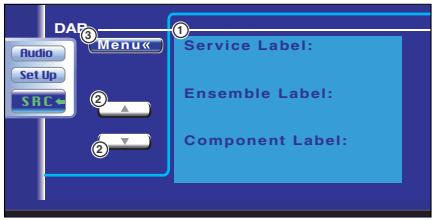
① Displays the DAB information (such as Service label, Ensemble label, Component label, Audio quality, Region label, and Dynamic label).
② Scrolls the information display.
③ Returns to the DAB Tuner Menu.
DAB Announcement
When the Announcement you have turned on starts, any source is switched to the Announcement automatically.
When the announcement starts...
The Announcement screen appears automatically.
Announcement screen
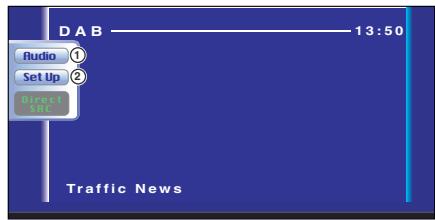
① Calls the Sound Effects Menu. (see page 76)
② Calls the Setup Menu. (see page 47)
How To Use the Character Entry screen
When you select the Set Disc Name mode or others, the following screen appears for character entry.
Character Entry screen
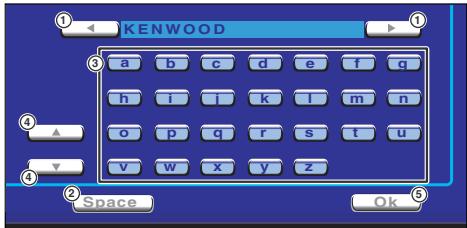
① Shifts the cursor.
② Enters a space.
If you erase a character, locate the cursor on it and touch this button.
③ Enters characters.
④ Scrolls up or down the character button display.
⑤ Exits the Character Entry mode and returns to the previous screen.

You can enter characters only after you have applied the parking brake.
Source Select
The source you wish to listen to can be selected quickly.
Displaying the Control screen
Press this key several times unit the Control screen appears.
Control screen
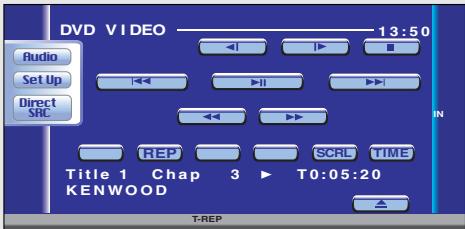

Displaying the Source Select screen

Source Select screen
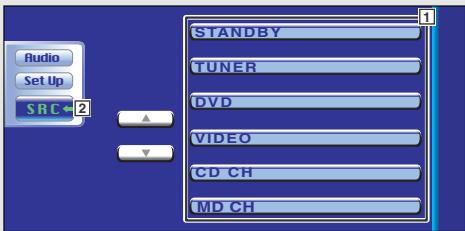
The Source Select screen can be displayed from the control screen of any source.
1 Select the source.
2 Returns to the Control screen previously displayed.
Adjusting the Monitor Display Position and Quality
You can adjust the position and picture quality of the monitor.
Displaying the Screen Control screen
You can adjust the picture quality using the following keys.
Screen Control screen
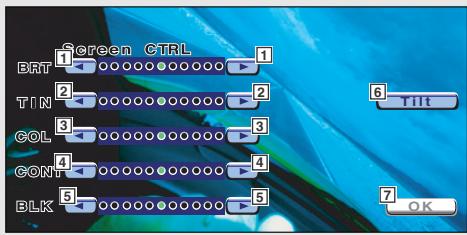

Displaying the Tilt Adjust screen
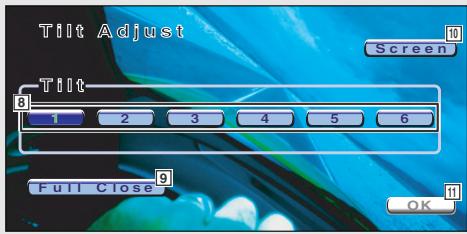
You can set the monitor tilt.

Tilt Adjust screen
1 Brightness Control
2 Tint Control
Displayed for an NTSC system image on TV or Video.
3 Color Control
Displayed on the TV and Video screen only.
4 Contrast Control
5 Black Level Adjustment
6 Displays the Adjust Monitor Position screen. (see
7 Returns to the previous screen.

The Screen Control screen is displayed only when you have applied the parking brake.
8 Monitor Tilt Adjustment
9 The monitor fully closes.
10 Returns to the Screen Control screen.
11 Returns to the previous screen.

If you turn the power off, the panel will close. However, if you turn the power back on, it will return to the adjusted tilt.
Setup Menu
You can set up various receiver parameters.
Displaying the Control screen
Press this key several times until the Control screen appears.
Control screen
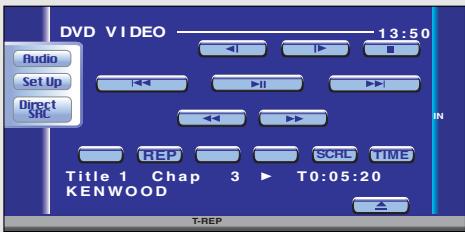

Displaying the Setup Menu screen

Setup Menu screen
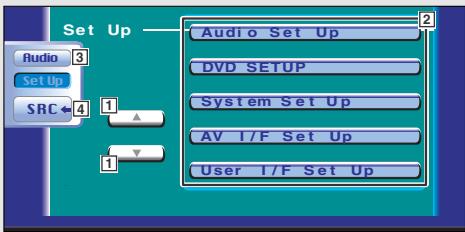

You can call the same Setup Menu for the Control screen of each source.
① Scrolls the Setup Menu.
2 Calls each Setup Menu.
3 Calls the Sound Effects Menu. (see page 76)
4 Returns to the Control screen of the previous source.

- Your setup on the
is adjusted automatically according to your - The available functions vary depending on the model used (the tuner specifications and the broadcasting system that can be received).
Audio Set Up
You can setup a speaker network, etc.
Displaying the Audio Set Up screen

Audio Set Up
Speaker setup screen
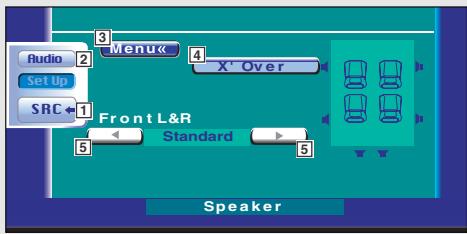
1 Returns to the Control screen of the previous source.
2 Calls the Sound Effects Menu. (see page 76)
3 Calls the Setup Menu.
4 Displays the X'Over setup screen. (see page 49)
5 Sets up the front speaker type to fine-tune for the optimal equalizer curves.
Standard: Setup for general diameter speakers
Narrow: Setup for small diameter speakers
Middle: Setup for small diameter woofer
Wide: Setup for large diameter woofer
Crossover Network Setup
You can set a crossover frequency of speakers.

X' Over (P48 4)
X'Over setup screen
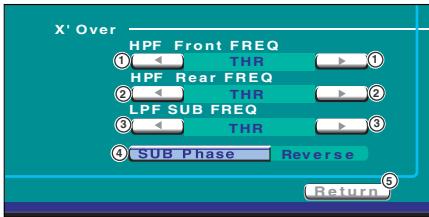
① Sets a Front High Pass Filter frequency.
You can select any of the following frequency.
Through, 40, 60, 80, 100, 120, 150, 180, 220 Hz
② Sets a Rear High Pass Filter frequency.
You can select any of the following frequency.
Through, 40, 60, 80, 100, 120, 150, 180, 220 Hz
③ Sets a Sub woofer Low Pass Filter frequency.
You can select any of the following frequency.
50, 80, 120, Through Hz
④ Sets the phase of subwoofer output.
The phase is reversed 180 degrees when set to "Reverse".
⑤ Returns to the Speaker setup screen.
Audio Set Up (with the optional accessory DSP unit connected only)
You can set up more detailed settings by connecting the optional accessory DSP
Displaying the Car Type Set Up screen
If your vehicle type is selected, the Digital Time Alignment is set automatically (for timing adjustment of sound output for each channel) to have the highest surround effects.

Audio Set Up
Car Type Set Up screen
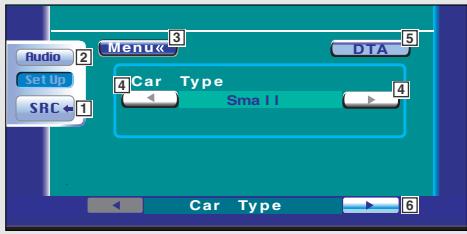

1 Returns to the Control screen of the previous source.
2 Calls the Sound Effects Menu. (see page 76)
3 Calls the Setup Menu.
4 Sets up the car type you use together with this unit.
5 Displays the DTA (Digital Time Alignment) Setup screen. (see page 52)
You can adjust the digital time alignment that was set automatically when you selected the car type.
6 Displays the Speaker Set Up screen.

You cannot set up "Car Type" when "Position Setting" (see page 84) is "All".
unit.
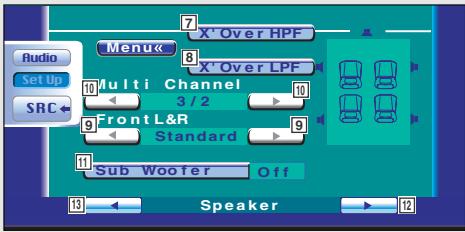
Displaying the Speaker Set Up screen
When the speaker type and size are set, the speaker crossover network and equalizer curve are set automatically.


Speaker Set Up screen

Displaying the Channel Level screen
You can set the volume at each setup position.


Channel Level screen

7 Displays the X'over (HPF) screen.
(See
8 Display the X'over (LPF) screen.
(See
9 Sets up the front speaker type to fine-tune for the optimal equalizer curves.
Standard: Setup for general diameter speakers
Narrow: Setup for small diameter speakers
Middle: Setup for small diameter woofer
Wide: Setup for large diameter woofer
10 Select the speakers for Multi-channel sounds. "3/2": Center speaker, Front speaker, Rear speaker
"2/2": Front speaker, Rear speaker
"3/0": Center speaker, Front speaker
"2/0": Front speaker
11 Set the use or no use of Sub Woofer.
12 Displays the Channel Level Setup screen.
13 Displays the Car Type Set Up screen.

- "X'Over HPF" and "X'Over LPF" can be set only when "Sub Woofer" is set to "On".
- To turn the Center speaker on in the "Multi channel" settings, turn "Dolby Pro Logic" (see page 83) on.
14 Selects a speaker to be set.
(see
15 Sets the speaker volume.
(see
16 Starts or stops test signal tone output for setup check.
17 Displays the Speaker Set Up screen.

- Your setup on the
We recommend you to complete the
You can fine-adjust the automatic set value by
- Stop the test signal tone if you have finished setting up the Channel Level. If you leave the test signal tone on, you may not be able to set up other settings.
Channel Level
Set the volume at each setup position.
1 Select a speaker you wish to adjust

Channel Level setup screen
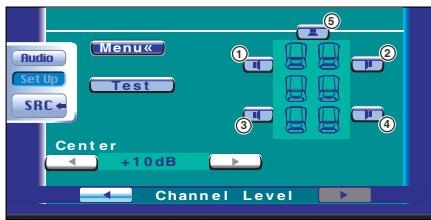
① Left front speaker
② Right front speaker
③ Left rear speaker
④ Right rear speaker
⑤ Center speaker
2 Adjust the volume

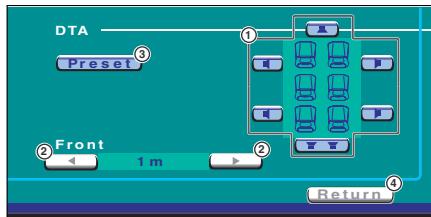
DTA Setup
Manually set the sound output timing of each channel.
1 Display the DTA Setup screen
DTA Setup screen
flowchart
graph TD
    A["DTA"] --> B["Preset"]
    B --> C["Front"]
    C --> D["1 m"]
    D --> E["Return"]
    style A fill:#f9f,stroke:#333
    style B fill:#ccf,stroke:#333
    style C fill:#cfc,stroke:#333
    style D fill:#fcc,stroke:#333
    style E fill:#ffc,stroke:#333
① Selects a speaker to be adjusted.
② Sets the distance between the selected speakers to adjust delay time.
③ Stores the adjusted status in memory or calls it from memory.
④ Returns to the Car Type Set Up screen.
2 Select a speaker you wish to adjust

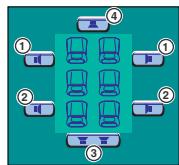
flowchart
graph TD
    A["1 Chair"] --> B["2 Chair"]
    B --> C["3 Chair"]
    C --> D["4 Chair"]
    style A fill:#f9f,stroke:#333
    style B fill:#bbf,stroke:#333
    style C fill:#bfb,stroke:#333
    style D fill:#ffb,stroke:#333
① Front speaker
② Rear speaker
③ Subwoofer
④ Center speaker
3 Set a delay time


The speakers are virtually moved to the desired distance.
When the values of center speaker and front speakers increase, they are virtually moved forward. When the values of rear speakers and subwoofer increase, they are virtually moved backward.
Store or call your setup into/from memory
To store your setup in memory

Continue to touch more than 2 seconds.
To call your setup from memory


High Pass Filter Setup
You can manually set a High Pass Filter of Crossover Network.

X' Over HPF (P51 7)
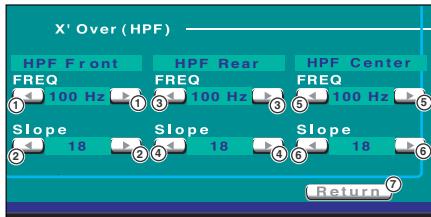
① Sets a crossover frequency of Front High Pass Filter.
② Sets a crossover slope of Front High Pass Filter.
③ Sets a crossover frequency of Rear High Pass Filter.
④ Sets a crossover slope of Rear High Pass Filter.
⑤ Sets a crossover frequency of Center High Pass Filter.
⑥ Sets a crossover slope of Center High Pass Filter.
⑦ Returns to the Speaker Set Up screen.

"HPF Center" can be set only when "Multi Channel" (see page 51) is set to "3/2" or "3/0".
Low Pass Filter Setup
You can manually set a Low Pass Filter of Crossover Network.

X' Over LPF (P51 8)
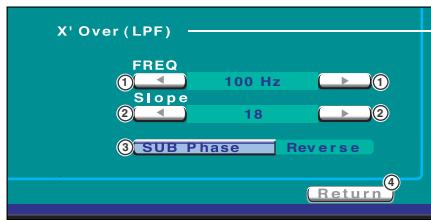
① Sets a crossover frequency of Low Pass Filter.
② Sets a crossover slope of Low Pass Filter.
③ Sets the phase of subwoofer output.
The phase is reversed 180 degrees when set to "Reverse".
④ Returns to the Speaker Set Up screen.
DVD Setup
You can set up the DVD play.
Displaying the DVD SETUP 1 screen

DVD SETUP
DVD SETUP 1 screen
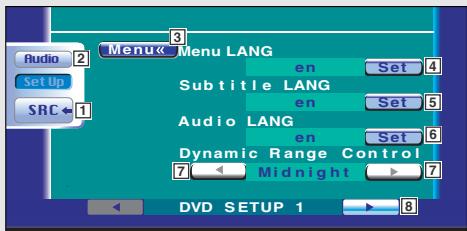

1 Returns to the Control screen of the previous source.
2 Calls the Sound Effects Menu. (see page 76)
3 Calls the Setup Menu.
4 Selects a disc menu language. ^1 (See
5 Selects a subtitle language. ^
6 Selects an audio language. ^1 (See
7 Sets the dynamic range. ^
8 Displays the DVD SETUP 2 screen.

If DVD SETUP is not shown, touch ▲ or ▼ to display it.
Displaying the DVD SETUP 2 screen


DVD SETUP 2 screen
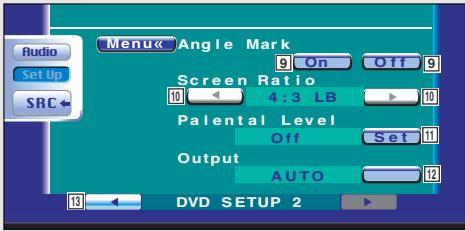
9 Sets an angle mark display. ( On)
10 Selects the screen display mode.*1 (16:9)
"16:9": Displays wide pictures.
"4:3 LB": Displays wide pictures in the Letter Box format (having black stripes at the top and bottom of screen).
"4:3 PS": Displays wide pictures in the Pan & Scan format (showing pictures cut at the right and left ends).
11 Displays the Parental Lock screen.*1 (OFF) (See
12 Keep "AUTO" to use.
13 Displays the DVD SETUP 1 screen.

*1 Disabled when a DVD is being played.
^*2 Disabled when the Zone function is On.
Language Setup
Select a language you use for the speech and menus.
1 Display the Language Setup screen
See
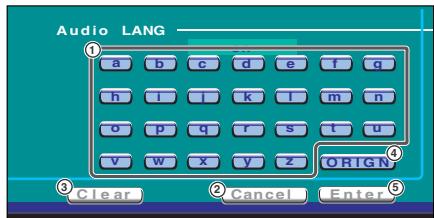
① Enters a language code.
② Cancels the language setup and returns to the DVD SETUP 1 screen.
③ Clears the language code.
④ Sets the original audio language.
(It appears during audio language setup.)
⑤ Sets the language and returns to the DVD SETUP 1 screen.
(It appears after you have entered a language code.)
2 Enter a language code
See the Language Code Table shown at right to select the desired language.
3 Set the language you use

Enter
Language Code Table
| Abbreviation | Language | Abbreviation | Language |
| aa | Afar | lv | Latvian, Lettish |
| ab | Abkhazian | mg | Malagasy |
| af | Afrikaans | mi | Maori |
| am | Amharic | mk | Macedonian |
| ar | Arabic | ml | Malayalam |
| as | Assamese | mn | Mongolian |
| ay | Aymara | mo | Moldavian |
| az | Azerbaijani | mr | Marathi |
| ba | Bashkir | ms | Malay |
| be | Byelorussian | mt | Maltese |
| bg | Bulgarian | my | Burmese |
| bh | Bihari | na | Nauru |
| bi | Bislama | ne | Nepali |
| bn | Bengali, Bangla | nl | Dutch |
| bo | Tibetan | no | Norwegian |
| br | Breton | oc | Occitan |
| ca | Catalan | om | (Afan) Oromo |
| co | Corsican | or | Oriya |
| cs | Czech | pa | Punjabi |
| cy | Welsh | pl | Polish |
| da | Danish | ps | Pashto, Pushto |
| de | German | pt | Portuguese |
| dz | Bhutani | qu | Quechua |
| el | Greek | rm | Rhaeto-Romance |
| en | English | rn | Kirundi |
| eo | Esperanto | ro | Romanian |
| es | Spanish | ru | Russian |
| et | Estonian | rw | Kinyarwanda |
| eu | Basque | sa | Sanskrit |
| fa | Persian | sd | Sindhi |
| fi | Finnish | sg | Sangho |
| fj | Fiji | sh | Serbo-Croatian |
| fo | Faroese | si | Singhalese |
| fr | French | sk | Slovak |
| fy | Frisian | sl | Slovenian |
| ga | Irish | sm | Samoan |
| gd | Scots Gaelic | sn | Shona |
| gl | Galician | so | Somali |
| gn | Guarani | sq | Albanian |
| gu | Gujarati | sr | Serbian |
| ha | Hausa | ss | Siswati |
| hi | Hindi | st | Sesotho |
| hr | Croatian | su | Sundanese |
| hu | Hungarian | sv | Swedish |
| hy | Armenian | sw | Swahili |
| ia | Interlingua | ta | Tamil |
| ie | Interlingue | te | Telugu |
| ik | Inupiak | tg | Tajik |
| in | Indonesian | th | Thai |
| is | Icelandic | ti | Tigrinya |
| it | Italian | tk | Turkmen |
| iw | Hebrew | tl | Tagalog |
| ja | Japanese | tn | Setswana |
| ji | Yiddish | to | Tongan |
| jw | Javanese | tr | Turkish |
| ka | Georgian | ts | Tsonga |
| kk | Kazakh | tt | Tatar |
| kl | Greenlandic | tw | Twi |
| km | Cambodian | uk | Ukrainian |
| kn | Kannada | ur | Urdu |
| ko | Korean | uz | Uzbek |
| ks | Kashmiri | vi | Vietnamese |
| ku | Kurdish | vo | Volapuk |
| ky | Kirghiz | wo | Wolof |
| la | Latin | xh | Xhosa |
| ln | Lingala | yo | Yoruba |
| lo | Laotian | zh | Chinese |
| lt | Lithuanian | zu | Zulu |
Parental Level Setup
Sets a parental level.
1 Display the Parental Level code number screen

Set (P57 11)
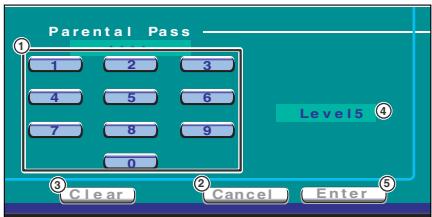
① Enters a code number.
② Cancels the current setup and returns to the DVD SETUP 2 screen.
③ Clears the code number.
④ Displays the present parental lock level.
⑤ Determines the code number and displays the Parental Level Setup screen.
2 Enter the code number

0 - 9

- The number you enter first is set as your code number.
- You can clear the code number by pressing the Reset button.
3 Display the Parental Level Setup screen

Enter

flowchart
graph TD
    A["Parental Level"] --> B["Level 5"]
    B --> C["Step 1"]
    B --> D["Step 2"]
    B --> E["Return 2"]
① Sets a parental level.
② Returns to the DVD SETUP 2 screen.
4 Set a parental level and a country code

◀ ▶
5 Enter the parental level setup

Return

- If a disc has a higher parental lock level, the audience needs to enter the code number.
- The parental lock level varies depending on a loaded disc.
- If a disc has no parental lock, any audience can play it back even when you have set the parental lock.
System Setup
You can set up the system parameters.
Displaying the System Set Up 1 screen

System Set Up
System Set Up 1 screen
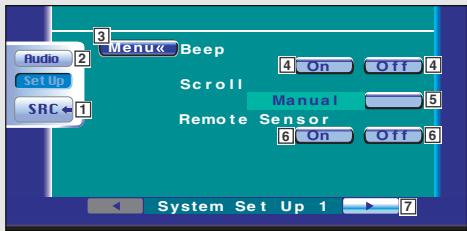

1 Returns to the Control screen of the previous source.
2 Calls the Sound Effects Menu. (see page 76)
3 Calls the Setup Menu.
4 Turns the key touch tone On or Off. (On)
5 Allows scrolling of text display on the Source Control screen. (Manual)
"Auto": Scrolls the screen automatically.
"Manual": Allows you to scroll the screen manually.
6 Selects a remote control signal. (On)
When turned "Off", the remote control of TV reception is rejected.
7 Displays the System Set Up 2 screen.

If System Set Up is not shown, touch ▲ or ▼ to display it.
Displaying the System Set Up 2 screen


System Set Up 2 screen
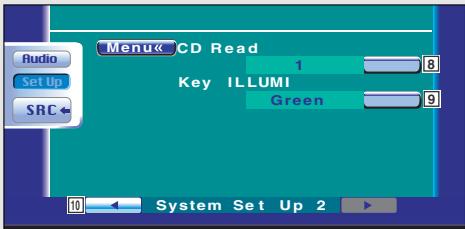
8 Sets a music CD playback. (☐ 1)
"1": Automatically recognizes and plays back an MP3/WMA disc, a DVD or a music CD.
"2": Forcibly plays back a disc as a music CD. Select "2" if you wish to play a music CD having a special format or if you cannot play a disc in the "1" position.

- You cannot play an MP3/WMA/VCD disc in the "2" position. Also, you may not play some music CDs in the "2" position.
- Your setup is disabled when the disc is being played.
9 Selects an illumination color of receiver keys.
(Red)
"Green": Green
"Red": Red
10 Displays the System Set Up 1 screen.
AV Interface
You can set audio and visual (AV) interface parameters.
Displaying the AV I/F 1 screen

AV I/F Set Up
AV I/F 1 screen
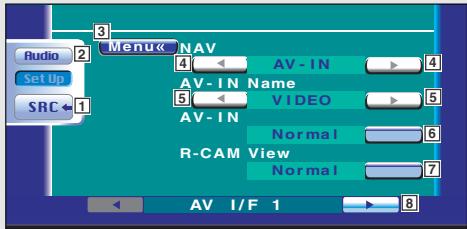

1 Returns to the Control screen of the previous source.
2 Calls the Sound Effects Menu. (see page 76)
3 Calls the Setup Menu.
4 Selects a navigation system connection. (RGB)
"RGB": Allows the Kenwood's Navigation System to connect via its interface cable.
"AV-IN": Allows a third-party navigation system to connect via the AV INPUT port.
"OFF": Must be used if no navigation system is connected. (The navigation display is cancelled when the AV source is switched.)
5 Sets a name to be displayed when you select a system that is connected via the AV INPUT port. (VIDEO)

If you have set the navigation system connection to "AV-IN", the display is fixed to "NAV".
6 Sets an image display of the system that is connected via the AV INPUT port. (Normal)
"Normal": When the image source is switched, an image entered via the AV INPUT port is displayed.
"AUTO": When an image signal is entered via the AV INPUT port, this image is displayed.
7 Sets how the rear camera image is displayed.
"Reverse": Displays with left and right reversed.
"Normal": Displays as it is.

"R-CAM View" can be set only when "AV-IN Name" is set to "R-CAM".
8 Displays the AV I/F 2 screen.

If AV I/F Set Up is not shown, touch ▲ or ▼ to display it.
Displaying the AV I/F 2 screen


AV I/F 2 screen
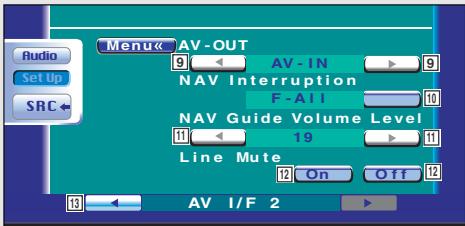
9 Selects an AV source to be output at the AV OUTPUT port. (AV-IN)

If you select DVD as a source when the optional accessory DSP unit is connected, no DVD sound is output to the AV output port.
10 Selects speakers used for voice guidance of the navigation system. (☑ F-Left)
"F-Left": Uses the front left side speaker for voice guidance.
"F-Right": Uses the front right side speaker for voice guidance.
"F-All": Uses both front speakers for voice guidance.
11 Adjusts the volume for voice guidance of the navigation system. (19)
12 Mutes the volume during voice guidance of the navigation system. (On) When turned "On", the volume level drops for voice guidance.
13 Displays the AV I/F 1 screen.
User Interface
You can set up user interface (IF) parameters.
Displaying the User I/F 1 screen

User I/F Set Up
User I/F 1 screen
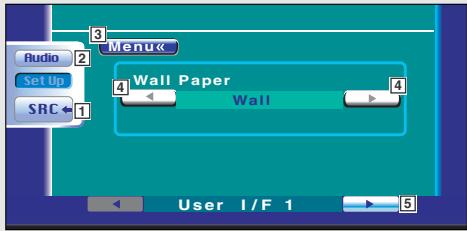

1 Returns to the Control screen of the previous source.
2 Calls the Sound Effects Menu. (see page 76)
3 Calls the Setup Menu.
4 Switches the wall paper.
5 Displays the User I/F 2 screen.

If User I/F Set Up is not shown, touch ▲ or ▼ to display it.
Displaying the User I/F 2 screen


User I/F 2 screen
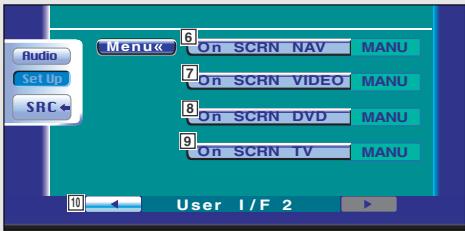
6 Sets an on-screen display of the navigation screen. (Auto)
If you set to "Auto", an information is displayed for 5 seconds when updated.
7 Sets an on-screen display of the video playback screen. (Auto)
If you set to "Auto", an information is displayed for 5 seconds when updated.
8 Sets an on-screen display of the DVD playback screen. (MANU)
If you set to "Auto", an information is displayed for 5 seconds when updated.
9 Sets an on-screen display of the TV screen.
(☑ Auto) (with the optional accessory TV tuner connected only)
If you set to "Auto", an information is displayed for 5 seconds when updated.
10 Displays the User I/F 1 screen.
Touch Panel Adjust
You can adjust the touch panel operations.
1 Display the Touch Panel Adjust screen

Touch Adjust
If Touch Adjust is not shown, touch
or to display it.
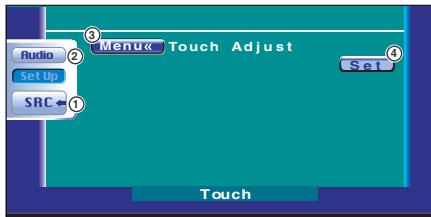
① Returns to the Control screen of the previous source.
② Calls the Sound Effects Menu. (see page 76)
③ Calls the Setup Menu.
④ Allows you to start touch panel adjustment.
2 Start to adjust the touch panel

Set
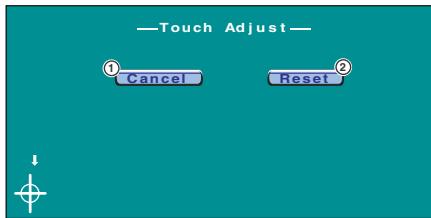
① Cancels the adjustment and returns to the Touch Panel Adjust screen.
② Resets to the initial status.
3 Adjustment


Touch the center of left lower and right upper when requested

Clock
Adjusts the clock time.
1 Display the Clock Screen

Clock Adjust
If Clock Adjust is not shown, touch
or to display it.
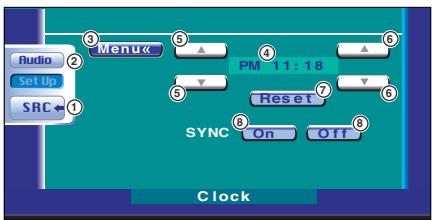
① Returns to the Control screen of the previous source.
② Calls the Sound Effects Menu. (see page 76)
③ Calls the Setup Menu.
④ Clock time display.
⑤ Adjusts hours.
⑥ Adjusts minutes.
⑦ Sets "00" minute.
Setup examples: 3:00\~3:29 → 3:00
3:30\~3:59 → 4:00
⑧ Sets the clock time in synchronous with the time data sent from the RDS station. (On)
When turned "On", the synchronous mode starts and the clock cannot be adjusted manually.
2 Adjust the clock time


Security Code Setup
You can set a security code to protect your receiver system against theft.

When the Security Code function is activated it can't be released.
Note, your Security Code is the 4 digit number entered in your "Car Audio Passport" in this package.
1 Display the Security Code Setup screen

Security Set Up

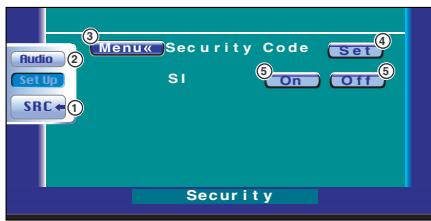
① Returns to the Control screen of the previous source.
② Calls the Sound Effects Menu. (see page 76)
③ Calls the Setup Menu.
④ Allows you to start security code registration.
⑤ Turns the SI function On or Off.
If turned "On", the burglar alarm lamp flashes when the vehicle ignition is off.

If you have already completed the code registration, the Set is not displayed.
2 Start the security code registration

Set
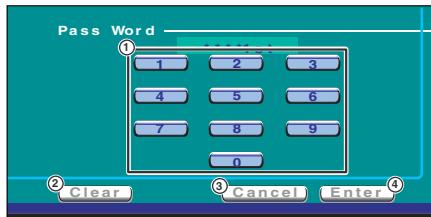
① Enters a security code.
② Clears your entry.
③ Cancels the registration and returns to the Security Code Setup screen.
④ Enters the security code.
3 Enter a security code

0 - 9
Input a four-digit number.
4 Register your security code

Enter
5 Reenter the security code
Reenter the same security code as that you have entered in Step 3 for confirmation.

If you enter a different security code, the screen returns to Step 3 (for the first code entry).
6 Register the security code again

Enter
Your security code has been registered. If you press the Reset button or if you disconnect your Receiver from the battery after the code registration, you need to enter the registered security code. See below for details.
If you have pressed the Reset button or if you have disconnected the Receiver from battery...
1 Enter the correct security code


You must enter the same security code as that you have entered in Step 3 above.
2 Enter the security code


Now, you can use your Receiver.

If you enter an incorrect security code, you cannot use your Receiver for a while.
| Incorrect entry count | Receiver inoperable time |
| 1 | — |
| 2 | 5 minutes |
| 3 | 1 hour |
| 4 or more | 24 hours |
TV Setup (with the optional accessory TV Tuner connected only)
The TV signal receiving areas can be set.
Displaying the TV1 Area Set Up screen

TV Set Up
TV1 Area Set Up screen
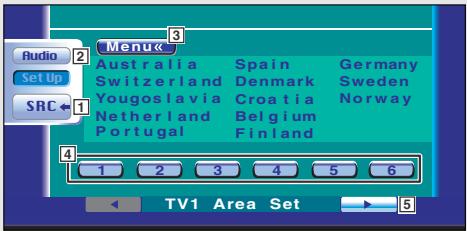

Displaying the TV2 Area Set Up screen

▶
TV2 Area Set Up screen
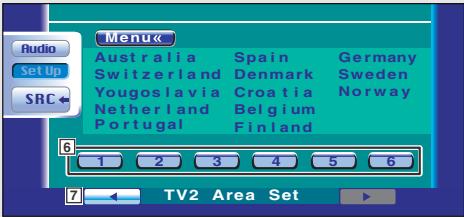
1 Returns to the Control screen of the previous source.
2 Calls the Sound Effects Menu. (see page 76)
3 Calls the Setup Menu.
4 Sets the present TV1 receiving area.
5 Displays the TV2 Area Set Up screen.

If TV Set Up is not shown, touch ▲ or ▼ to display it.
6 Sets the present TV2 receiving area.
⑦ Displays the TV1 Area Set Up screen.
RDS Setup
The related RDS parameters can be set.
Displaying the RDS Set Up 1 screen

RDS Set Up
RDS Set Up1 screen
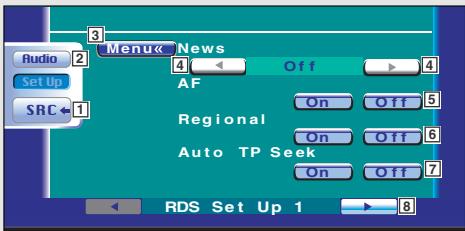

Displaying the RDS Set Up 2 screen


RDS Set Up2 screen
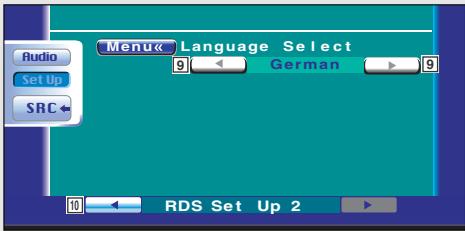
1 Returns to the Control screen of the previous source.
2 Calls the Sound Effects Menu. (see page 76)
3 Calls the Setup Menu.
4 Sets a news bulletin interrupt time.
5 Turns the Alternative Frequency function On or Off. (On)
6 Turns the Region Restriction function On or Off. (☑ On)
7 Turns the Auto TP Seek function On or Off. (On)
8 Displays the RDS Set Up 2 screen.

If RDS Set Up is not shown, touch ▲ or ▼ to display it.
9 Selects a display language for the PTY function.
10 Displays the RDS Set Up 1 screen.
DAB Set Up (with the optional accessory DAB Tuner connected only)
The DAB reception can be set.
Displaying the DAB Set Up screen

DAB Set Up
DAB Set Up screen
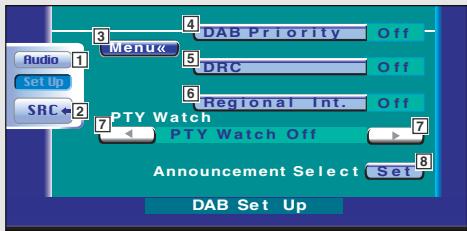
1 Calls the Sound Effects Menu. (see page 76)
2 Returns to the Control screen of the previous source.
3 Calls the Setup Menu.
4 Turns the DAB Priority On or Off.
5 Turns the Dynamic Range Control function On or Off.
6 Turns the Regional Announcement function On or Off.
7 Sets a program type to be selected automatically when the receiving ensemble starts.
8 Displays the Announcement Selection screen.

If DAB Set Up is not shown, touch ▲ or ▼ to display it.
Announcement Selection
Various announcement reception parameters can be set.
1 Displays the Announcement Selection screen

Set
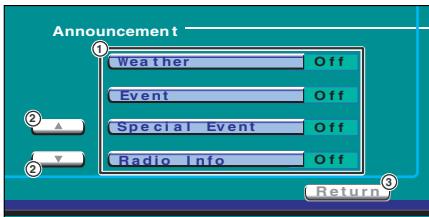
① Turns the Announcement Reception function On or Off.
② Scrolls the Announcement items.
③ Returns to the DAB Set Up screen.
2 Set the announcement parameters

Weather
etc.
Traffic News: Traffic information
Transport News: Time table information of public transportation services
Warning: Lower priority items than alarms (power failure, cutoff of water supply and others)
News: News flash
Weather: Weather forecasting
Event: Event information
Special Event: Undetermined event information
Radio Info: Programme information, advance notice
Sports news: Sports news
Financial news: Financial news
3 Terminate the setup

Return
AMP Control (with the optional accessory LX Power AMP connected only)
Sets the power amp connected via the LX bus.
Displaying the AMP Control screen

AMP Ctrl
AMP Control screen
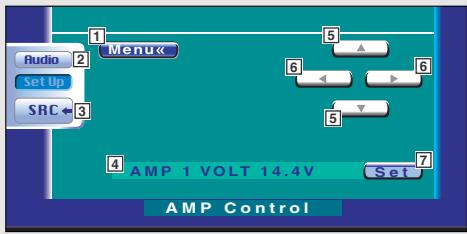
1 Calls the Setup Menu.
2 Calls the Sound Effects Menu. (see page 76)
3 Returns to the Control screen of the previous source.
4 Setup option and value display
5 Select a setup option.
6 Selects a set value.
7 Enters the set value.

- If AMP Ctrl is not shown, touch ▲ or ▼ to display it.
- For the model name of amp you can control from the system, see the amp's catalog.
- For the options and values you can change and for the amp's operation when changed, see the amp's instruction manual.
Sound Effects Menu
You can set up the receiver sound effects.
Displaying the Control screen
Control screen
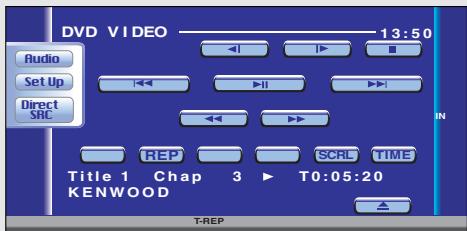

Displaying the Sound Effects
Menu screen
Sound Effects Menu screen
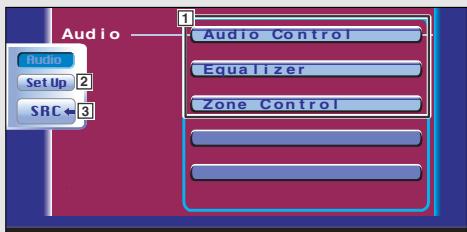

You can display the same Sound Effects Menu on the Control screen of any source.
① Calls the Sound Effects Menu.
2 Calls the Setup Menu. (see page 47)
3 Returns to the Control screen of the previous source.

- Your setup on the
is adjusted automatically according to your - Displayed items vary depending on the optional accessory connected.
Audio Control
You can adjust the front and rear and right and left audio balance.
Displaying the Audio Control 1 screen

Audio Control
Audio Control 1 screen
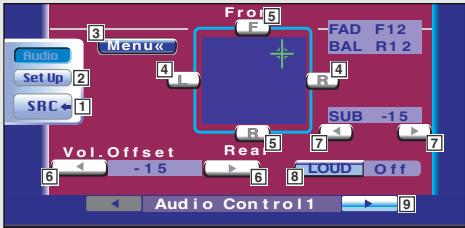
flowchart
graph TD
    A["Audio"] --> B["Set Up"]
    B --> C["SRC"]
    C --> D["Frot"]
    D --> E["R"]
    E --> F["Sub"]
    F --> G["Vo1. Offset"]
    G --> H["Real"]
    H --> I["LOUD"]
    I --> J["Off"]
    J --> K["Audio Control1"]
    style A fill:#f9f,stroke:#333
    style K fill:#f9f,stroke:#333

Displaying the Audio Control 2 screen


Audio Control 2 screen
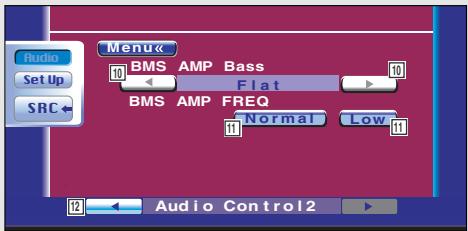
1 Returns to the Control screen of the previous source.
2 Calls the Setup Menu. (see page 47)
3 Calls the Sound Effects Menu.
4 Adjusts the right and left volume balance.
5 Adjusts the front and rear volume balance.
6 Adjusts the volume of the present source based on the difference level of original volume.
If you have increased the volume first, then reduced it using the "Vol. Offset", the big sound may suddenly be generated when you switch to another source.
7 Adjusts the subwoofer volume.
8 Turns the Loudness control function On or Off.
(Does not appear when the optional accessory DSP unit is connected.)
If turned "On", high and low tones are automatically enhanced during low volume. (☑ On)
9 Displays the Audio Control 2 screen.

10 Adjusts the bass boost of the B.M.S power amplifier (optional accessory).

You may not set some models of power amp boost to "+18". See the catalog or instruction manual of power amplifier.
11 Set the center frequency of bass boost you have set for the "AMP Bass". If you set it to "Low", the center frequency is dropped for 20 to 30%.
12 Displays the Audio Control 1 screen.
Equalizer
You can set up the equalizer.
Displaying the Equalizer screen

Equalizer
Equalizer screen
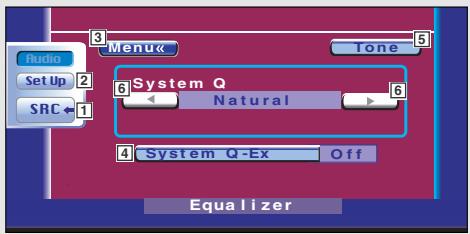
1 Returns to the Control screen of the previous source.
2 Calls the Setup Menu. (see page 47)
3 Calls the Sound Effects Menu.
4 Select the adjustment items for the Tone Curve setup. (Does not appear when the optional accessory DSP unit is connected.) If you set it to "Off", only "Level" can be set up for Tone Curve.
5 Tone : Displays the Tone curve setup screen. (see page 79)
P-EQ : Displays the Parametric Equalizer screen. (see
6 Selects an equalizer curve type.
You can select any of the following equalizer curves. System Q
- "Natural"
- "Rock"
• "Pops
- "Easy"
- "Top 40"
• "Jazz"
- "User" (when the tone curve (page 79) is set up)
KBS (with the optional accessory DSP unit connected)
- "Natural"
- "Top 40"
- "Rock"
- "Dance"
• "Vocal"
- "Classic"
- "User" (when Parametric Equalizer (page 80) is set up)
Tone curve setup
You can set a Tone curve.
1 Display the Tone setup screen

Tone
Tone setup screen
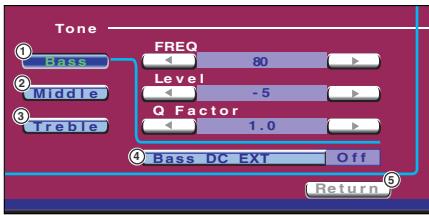
① Bass adjustment items are displayed.
② Middle adjustment items are displayed.
③ Treble adjustment items are displayed.
④ Bass DC Extend settings
If turned "On", it extends the bass center frequency to the low register by approximately 20%.
⑤ Returns to the Equalizer screen.

Tone curve can be set for each source.
2 Select a frequency band you wish to adjust

Bass Middle Treble
You can adjust the following frequency bands.
Bass: 60, 70, 80, 100/150 (When "Q Factor" is "2.00") Hz
Middle: 500, 1k, 1.5k, 2k Hz
Treble: 10k, 12.5k, 15k, 17.5k Hz
3 Set a center frequency

FREQ
◀ ▶
4 Set a level

Level
◀ ▶
5 Set a Q factor

Q Factor
◀ ▶
You can set it up only when Bass or Middle is adjusted.
6 Close the Tone setup screen

Return
Parametric Equalizer
You can Manually set the equalizer curve by adjusting the center frequency, gain and Q value. (with the optional accessory DSP unit connected)
1 Display the Parametric Equalizer screen

P-EQ
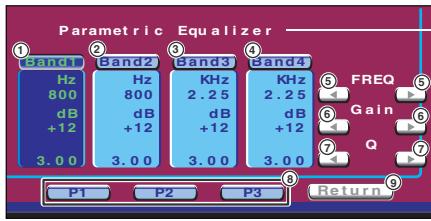
①②③④ Select a band to be adjusted.
⑤ Sets a frequency.
⑥ Sets a gain level.
⑦ Sets a Q value.
⑧ Store the present equalizer curve in memory, or calls it from memory.
⑨ Exits the Parametric Equalizer setup and returns to the Equalizer screen.
2 Select a frequency band you wish to adjust

Band1 — Band4
You can adjust the following frequency bands.
① 60, 80, 100, 120, 160, 200, 250 Hz
② 315, 400, 500, 630, 800, 1k Hz
③ 1.25k, 1.6k, 2k, 2.5k, 3.15k, 4k Hz
④ 5k, 6.3k, 8k, 10k, 12.5k, 16k Hz
3 Set a center frequency

FREQ
◀ ▶
4 Set a gain

Gain
◀ ▶
5 Set a Q value


Store or call the equalizer curve into/from memory
To store the equalizer curve in memory:

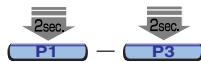
Continue to touch P1 to P3 more than 2 seconds.
To call the equalizer curve from memory:

P1 — P3
Touch P1 to P3 of the equalizer curve you wish to call from memory.
When you call an equalizer curve, its type is shown as "User".
6 Close the Parametric Equalizer screen

Return
Zone Control
You can set the front and rear audio source.
Displaying the Zone Control screen

Zone Control
Zone Control screen (when the Zone function is On)
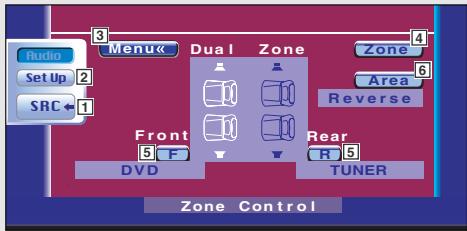
1 Returns to the Control screen of the previous source.
2 Calls the Setup Menu. (see page 47)
3 Calls the Sound Effects Menu.
4 Turns the Zone Function (that sets different source sounds for front and rear speakers) On or Off. When turned On, F and R are shown.
5 Sets the front and rear audio source separately. (This button appears when the Zone function is On.)

When the rear speaker sound is switched, the audio source that is output at the AV OUTPUT terminal is also switched to the same source. However, if you have set the "Area" to "Reverse", the audio source that is output at the AV OUTPUT terminal is switched depending on the front sound source.
6 Switches the front and rear audio sources. (This button appears when the Zone function is On.) Use "Reverse" to change over the front and rear audio sources.

If the zone function is turned on, the ☐ / ☐ button appears on each source control screen, with which you can adjust the volume balance between the front and rear sources.
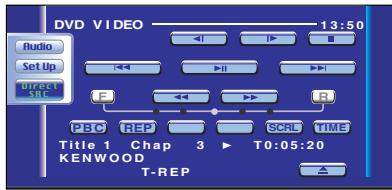
Digital Effect (with the optional accessory DSP unit connected only)
You can set up the Digital Effect.
Displaying the Digital Effect screen

Digital Effect
Digital Effect screen
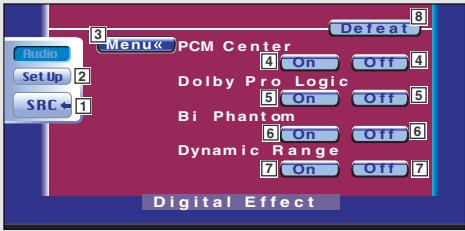
1 Returns to the Control screen of the previous source.
2 Calls the Setup Menu. (see page 47)
3 Calls the Sound Effects Menu.
4 PCM Center
If you set to "On", a sound is output from the center speaker.
5 Turns the Dolby Pro Logic function on or off.
6 Turns the Bi Phantom function on or off.
If you set to "On", the signal of the center channel is controlled so that it can be exactly positioned.
7 Sets up the dynamic range when the Dolby Digital sound is used.
If you set to "On", it compresses the dynamic range to control loud sounds.
8 The DSP unit settings return to default.

- The Dolby Pro Logic and PCM Center functions are effective when the 2ch PCM signal is used.
- You cannot set up "Bi Phantom" when "Dolby Pro Logic" is "Off".
- You cannot set up "PCM Center" when "Dolby Pro Logic" is "On".
Position (with the optional accessory DSP unit connected only)
You can adjust the sound effects according to your listening position.
Displaying the Position screen

Position
Position screen
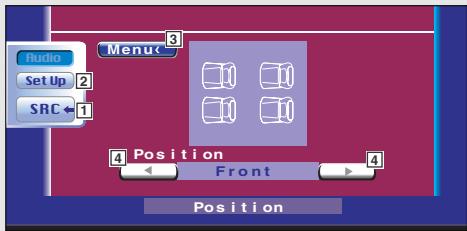
1 Returns to the Control screen of the previous source.
2 Calls the Setup Menu. (see page 47)
3 Calls the Sound Effects Menu.
4 Sets a listening position.
You can select any of "Front R" (Right front), "Front L" (Left front), "Front" (All front), "Rear" (All rear), and "ALL" (All) positions.

The final distance is adjusted to the total of Car Type Set Up value (see page 50) and Position Setup (both Position and Position Fine Control) value.
GSM control
You can call the following control screens if the GSM is connected to the system.
Displaying the Control screen
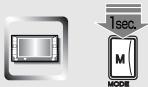
Or the telephone is called.
GSM Control screen
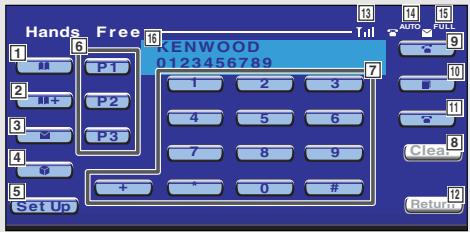
1 Displays the Search for Phone Book screen. (See the
2 Adds a number to the Phone Book.
(See the
3 Displays the Create a Mail screen.
(See the
4 Displays the SMS list.
(See the
5 Displays the Hands-Free Call Setup screen. (See the
6 Enter three phone numbers for quick dialing. (See the
7 Enters a phone number.
(See the
8 Clears the entered phone number.
All numbers you have entered are cleared if the button is pressed more than 1 second.
9 Starts the hands-free phone call.
10 Displays the previously called phone number.
11 Ends the hands-free phone call.
12 Returns to the previous screen.
13 Displays the radio wave intensity
14 Displays the present Auto Response status
When Auto Response is on: 📞 AUTO
When Auto Response is off: 📞
15 Indicates the SMS registration availability
16 Displays the calling and called phone numbers
If you have registered a phone number in the Phone Book, the destination person name is displayed.

For details on the hands-free phone calls, see the Instruction Manual of KCA-HF521 GSM Hands-Free Unit (optional accessory).
When called
When you are called, you can use the hands-free phone.
1 Respond to a phone call


When the telephone is called, the GSM Control screen appears automatically.
2 Terminate the phone call


The previous screen reappears.
When dialing
Originate a call by entering a phone number.
1 Enter a phone number


2 Originate a call


You can start talking when the destination responds.
3 Terminate the phone call


The previous screen reappears.
Calling by Phone Book
You can call a person using his/her phone number that you have registered in the Phone Book.
1 Display the Search for Phone Book screen


The Initial Input screen appears.
Initial Input screen
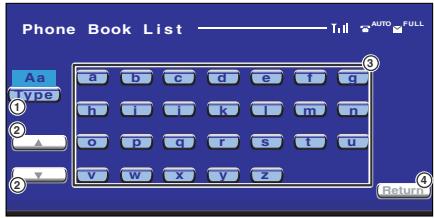
① Switches the character type.
② Scrolls the character array display.
③ Displays the Phone Book beginning with the name whose first character you have touched.
④ Returns to the GSM Control screen.
2 Select the initial character of a person name in memory


The Phone Book List screen appears.
Phone Book List screen
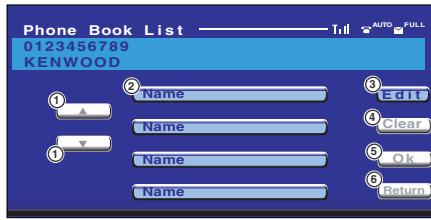
① Scrolls the list.
② Enters the destination (called party) name.
③ Displays the destination data edit screen. (See the
④ Clears the destination if this button is touched more than 2 seconds.
⑤ Enters the destination data and returns to the GSM Control screen.
⑥ Returns to the GSM Control screen.
3 Select a destination you wish to call

Name
4 Select a destination you wish to call

Ok
The GSM Control screen appears again. The selected destination data is displayed.
5 Originate a call

The provided image is a graphic icon, not text. It does not contain any chart or data points that can be extracted and converted into a markdown table.
You can start talking when the destination responds.
6 Terminate the phone call

The image contains a graphical icon of a telephone handset. There is no text or mathematical content to extract.
The previous screen reappears.
Addition to Phone Book
You can add a phone number to the Phone Book.
1 Enter a phone number you wish to register


2 Start phone number registration


Device Select screen
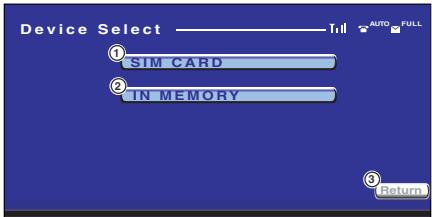
① Registers a phone number in the SIM card.
② Registers a phone number in the GSM system itself.
③ Returns to the GSM Control screen.
3 Select a memory device in which you wish to register phone data



When you select the device, the Name Edit screen appears.
Name Edit screen
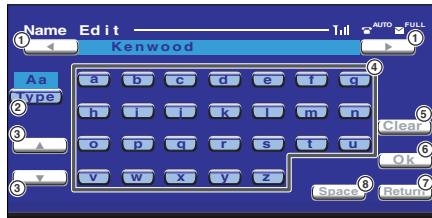
① Shifts the cursor.
② Switches the character type.
The digits, accent and extended code characters, and alphabets are switched each time it is pressed.
③ Scrolls the keyboard display.
④ Enters a character.
⑤ Clears the character.
All entry characters are cleared if this key is touched more than 1 second.
⑥ Enters the entry characters.
⑦ Returns to the Device Select screen.
⑧ Enters a space.

The extended code characters are displayed only when a cellular phone supporting the GSM alphabets is connected.
Each of extended code characters ( ^, , , , [,], , I, €) occupies a two-character memory space when registered.
4 Enter a name


etc.
5 Register the name


The name has been registered.
Editing the Phone Book
You can edit data you have registered in the Phone Book.
1 Select an item you wish to edit


See the
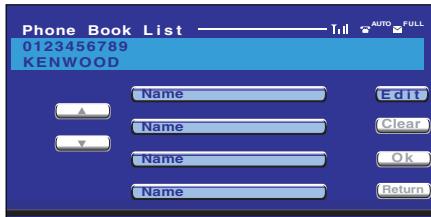
2 Start editing


The Edit Phone Number screen appears.
Edit Phone Number ("TEL Number Edit") screen
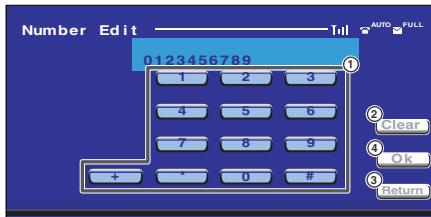
① Enters a phone number.
② Clears the input phone number.
All entry number are cleared if this key is touched more than 1 second.
③ Returns to the Phone Book List screen.
④ Enters the phone number.
3 Enter a phone number


4 Register the phone number


The phone number is registered, the Edit Name ("Name Edit") screen appears.
Edit Name ("Name Edit") screen
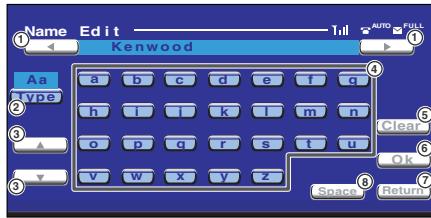
① Shifts the cursor.
② Switches the character type.
The digits, accent and extended code characters, and alphabets are switched each time it is pressed.
③ Scrolls the keyboard display.
④ Enters a character.
⑤ Clears the character.
All entry characters are cleared if this key is touched more than 1 second.
⑥ Enters the entry characters.
⑦ Returns to the Edit Phone Number ("TEL Number Edit") screen.
⑧ Enters a space.

The extended code characters are displayed only when a cellular phone supporting the GSM alphabets is connected. Each of extended code characters ( ^, , , , , [,] , , I, € ) occupies a two-character memory space when registered.
5 Enter a name


etc.
6 Register the phone number


The editing completes and the Phone Book data is updated.
Quick Dialing
You can register up to 3 phone numbers for quick dialing.
To register a phone number:
1 Display a phone number you wish to register
See the
2 Register the phone number


Continue to touch more than 2 seconds.
To call a phone number from memory:


Only a phone number can be registered for Quick Dialing. Therefore, the destination subscriber name and others are not displayed during dialing.
Hands Free Setup
The hands-free system can be set as follows.
Display the SMS Set Up screen

Set Up
Hands Free Set Up screen
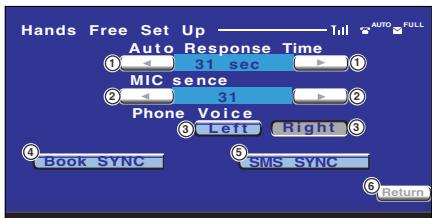
① Sets an automatic response time after call termination.
② Adjusts the microphone sensitivity.
③ Sets a ringing tone output position.
"Left": Outputs the tone from the front left-hand side speaker.
"Right": Outputs the tone from the front right-hand side speaker.
④ Synchronizes the GSM with the Phone Book of optional KCA-HF521 unit.
⑤ Synchronizes the GSM with the SMS of optional KCA-HF521 unit.
⑥ Returns to the GSM Control screen.

The "Phone Voice" of both "Left" and "Right" can be turned On at the same time. But they cannot be turned Off at the same time.
Reading the SMS (Short Message Service) messages
You can display messages received by the SMS.
1 Display the BOX Message List screen


BOX Message List screen
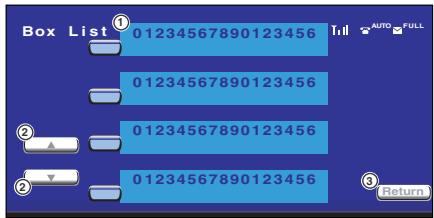
① Displays messages.
② Scrolls the message list.
③ Returns to the GSM Control screen.
2 Select a message you wish to display


The message is displayed on the Box Message screen.
BOX Message screen
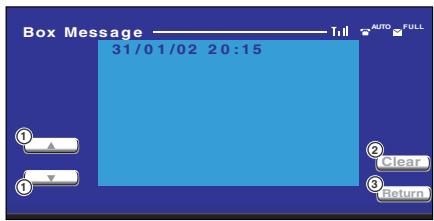
① Scrolls for a single message.
② Clears the message if this button is touched more than 2 seconds.
③ Returns to the BOX Message List screen.
Creating an SMS (Short Message Service) message
You can create a message to be sent by the SMS.
1 Enter the destination number where you wish to send an SMS message


2 Display the SMS Message Input screen


SMS Message Input screen
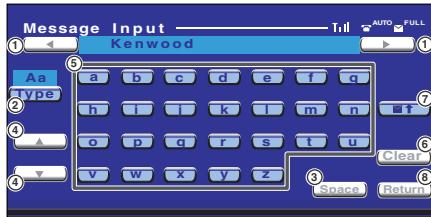
① Shifts the cursor.
② Switches the character type.
The digits, accent and extended code characters, and alphabets are switched each time it is pressed.
③ Enters a space.
④ Scrolls the keyboard display.
⑤ Enters a character.
⑥ Clears the character.
All entry characters are cleared if this key is touched more than 1 second.
⑦ Sends the created message.
⑧ Returns to the GSM Control screen.
3 Create a message


etc.
4 Send the message


Returns to the GSM Control screen.

The extended code characters are displayed only when a cellular phone supporting the GSM alphabets is connected.
Each of extended code characters ( ^, , , , , [,] , , €) occupies a two-character memory space when registered.
DVD: Digital Versatile Disc
A type of disc which contains recording of audio/video packaged media with high video and audio quality, such as a movie, featuring large recording capacity and digital signal processing capability.
VCD: VIDEO CD
A type of CD which contains the recording of moving images. It compresses image information by about 1/120 and audio information by about 1/6 and accommodates up to 74 minutes of recording in a disc with the same diameter as ordinary music CD of 12 cm. Some VCDs do not have the P.B.C. compatibility and are capable of playback only, while some are P.B.C.-compatible and are capable of various special playback control operations. This player can play both of these VCDs.
MPEG: Moving Picture Expert Group (DVD, VCD)
This is an international standard for digital video and audio compression and decompression in media.
Dolby Digital
This is a digital audio compression technology developed by Dolby Laboratories. It is compatible with 5.1-channel surround audio as well as normal stereo (2-channel) audio and can accommodate a large amount of audio data efficiently in a disc.
DTS
Name of a digital surround system developed by Digital Theater Systems, Inc.
Top menu/menu (DVD)
Some DVDs display more than one title in a screen. This screen is referred to as the top menu. The menu is the item display (menu screen) for use in setting operations. The menu can be recalled any time during playback to perform settings according to the current software, including the audio switching between Dolby Digital and PCM, switching of language used in the subtitles and spoken voice.
Title number (DVD)
The title is the largest unit of video and audio recorded in a DVD. It usually corresponds to a single movie of video software or an album (sometimes a piece of music) of music software. The numbers assigned to individual titles are referred to as the title numbers.
Chapter number (DVD)
The chapter is a section of video and audio recorded in a DVD. A title is composed of several chapters. The numbers assigned to individual chapters are referred to as the chapter numbers.
Subtitles (DVD)
Some DVD discs contains the recording of more than one subtitle language. This player allows you to select one of the recorded subtitle languages during playback.
Track number (CD, VCD)
A track is also a section of video and audio recorded in a disc. The numbers assigned to individual tracks are referred to as the track numbers. With most of music CDs, a track is assigned to a piece of music. However, with a VCD, the sections of the contents do not always correspond to the assigned tracks. As (special) playback functions such as skipping and programming of ordinary CDs are based on track number data, such playback functions are sometimes impossible with some VCDs.
P.B.C.: Play-Back Control (VCD)
When a VIDEO CD carries "Play Back Control capable" or similar message on the disc or jacket, desired scenes and information can be played back in an interactive manner using a hierarchical structure while viewing the menu screens displayed on the TV screen.
Some system functions are limited to control depending on your setup.
- The rear speakers of DTA cannot be set.
- The "Channel Level" of rear speakers cannot be set.

"Multi Channel" has been set to "2/0" or "3/0" (no rear speaker setting) on the Speaker Set Up screen (page 51).
- No signals can be set.
- The "Equalizer" cannot be set.
- The "Position" cannot be set.
- The "Car Type Setup" value cannot be set.
- The "Speaker Setup" value cannot be set.
- No crossover frequency can be set.
- The "Channel Level" (test signal output) cannot be set.

The Zone Control has been turned On (page 82).
- The center speaker for DTA cannot be set.
- The "Channel Level" of the center speaker cannot be set.

"Multi Channel" has been set to "2/0" or "2/2" (no center speaker setting) on the Speaker Set Up screen (page 51).
- The subwoofer of DTA cannot be set.
- The "Channel Level" of the subwoofer cannot be set.

"Sub Woofer" has been set to "Off" on the Speaker Set Up screen (page 51).
What might appear to be a malfunction in your unit may just be the result of slight misoperation or miswiring. Before calling service, first check the following table for possible problems.
General
The power does not turn on.
- The fuse has blown.
- After checking for short circuits in the wires, replace the fuse with one having the same rating.
The desired source is NOT selected although you pressed the SRC button.
- An optional unit required to listen to each source is not connected yet.
- The RESET button is not pressed yet although the optional unit has been connected to the system.
- The "O-N" switch of the optional unit is at the "O" position.
-
A disc changer not supported by the system is used.
-
A non-connected source is not selected. See
and connect the unit correctly. - Press the reset button (see page 4).
- Set the "O-N" switch to the "N" position.
- Use a disc changer supported by the system (see page 4).
Nothing happens when the buttons are pressed.
- The computer chip in the unit is not functioning normally.
- Press the reset button on the unit (see page 4).
No television/video image appears.
- The unit is not connected to the parking brake detection switch.
-
The parking brake is not engaged.
-
Make proper connections according to
. - For safety reasons no television/video images are displayed while the vehicle is moving. Engaging the parking brake will cause images to be displayed.
The screen is dark.
- The unit is in a location where temperature is low.
- If the temperature of the monitor unit drops, the screen may appear darker when power is first turned on due to the characteristics of a liquid crystal panel. Wait a while after turning power on for the temperature to rise. Normal brightness will return.
The screen does not darken when the vehicle's lights are turned on.
- The unit is set to auto dimmer.
-
The illumination wire has not been connected. (If manual dimmer is set)
-
When the unit is set to auto dimmer, it is not linked to the vehicle's light switch.
- Make proper connections according to
.
AM/FM radio reception is poor and/or there is noise.
- The TV antenna and vehicle's radio antenna are too close.
- Separate the two antennas as far as possible.
- Turn off the main unit.
The remote controller does not operate.
- The remote control mode selector is not set correctly.
- Switch the remote control mode selector according to the source you select (see page 10).
No sound can be heard, or the volume is low.
- Attenuator is turned on.
- The fader or balance settings are set all the way to one side.
-
The input/output wires or wiring harness are connected incorrectly.
-
Turn off Attenuator.
- Reset the fader and/or balance settings.
- Reconnect the input/output wires or the wiring harness correctly. See the section on
.
The sound quality is poor or distorted.
- One of the speaker wires is being pinched by a screw in the car.
-
The speakers are not wired correctly.
-
Check the speaker wiring.
- Reconnect the speaker wires so that each output terminal is connected to a different speaker.
Radio reception is poor.
- The car antenna is not extended.
-
The antenna control wire is not connected.
-
Pull the antenna out all the way.
- Connect the wire correctly, referring to the section on
.
The memory is erased when the ignition is turned off.
- The battery wire has not been connected to the proper terminal.
-
The ignition and battery wire are incorrectly connected.
-
Connect the wire correctly, referring to the section on
. - Connect the wire correctly, referring to the section on
.
The TEL mute function does not work.
- The TEL mute wire is not connected properly.
- Connect the wire correctly, referring to the section on
The TEL mute function turns on even though the TEL mute wire is not connected.
- The TEL mute wire is touching a metal part of the car.
- Pull the TEL mute wire away from the metal part of the car.
The sound/picture skips on a DVD/VCD/CD.
- The disc is scratched or dirty.
- Clean the disc, referring to the section on
A track will not play.
- Random play has been selected.
- Turn off random play.
A VCD cannot be played using menus.
- The VCD disc being played is not compatible with P.B.C.
- Menu playback is available only with VCD discs recorded with P.B.C.
The subtitle is not displayed.
- The DVD disc being played does not contain the recording of subtitles.
- The subtitle cannot be displayed when the DVD disc being played does not contain the recording of subtitles.
The voice (or subtitle) language cannot be changed.
- The DVD disc being played does not contain the recording of more than one audio (or subtitle) language.
- The voice (or subtitle) language cannot be changed when the DVD disc being played does not contain the recording of more than one voice (or subtitle) language.
The viewing angle cannot be changed.
- The DVD disc being played does not contain the recording of more than one angle.
- You are attempting to switch the angle in a DVD section where more than one angle is not recorded.
- The viewing angle cannot be changed when the DVD disc being played does not contain the recording of more than one angle.
- More than one viewing angle may be recorded only in limited sections in a disc.
Playback will not start even after a title is selected.
- A viewing restriction (RATING) has been set for the disc.
- Check the viewing restriction level (RATING) setting.
The voice or subtitle language selected in the initial setting is not played.
- The DVD disc being played does not contain the recording of the selected voice or subtitle language.
- Use a DVD disc containing the recording of the selected voice or subtitle language.
Disc source
The disc control mode cannot be selected.
- No wire has been connected to the disc changer input terminal on the unit.
- Connect the wire to the disc changer input terminal on the unit.
The specified disc does not play, but another one plays instead.
- The specified CD is quite dirty.
• The CD is upside-down. - The disc is loaded in a different slot from that specified.
-
The disc is severely scratched.
-
Clean the CD.
- Load the CD with the labeled side up.
- Eject the disc magazine and check the number for the specified disc.
- Try another disc instead.
The sound skips.
- Something is touching the disc changer.
-
The CD is scratched or dirty.
-
Remove whatever is touching it.
- If skipping happens at the same place when the car is stopped, something with the CD is wrong. Clean the CD.
The display shows that the changer is being played, but no sound can be heard.
- The computer chip in the unit is not functioning normally.
- Press the reset button on the unit (see page 4).
The specified track will not play.
- Random play or magazine random play has been selected.
- Turn off random play or magazine random play.
Track repeat, disc repeat, track scan, disc scan, random play, and magazine random play start by themselves.
- The setting is not cancelled.
- The settings for these functions remain on until the setting to off or the disc ejected, even if the power is turned off or the source changed.
Can't remove disc.
- The cause is that more than 10 minutes has elapsed since the vehicle ACC switch was turned OFF.
- The disc can only be removed within 10 minutes of the ACC switch being turned OFF. If more than 10 minutes has elapsed, turn the ACC switch ON again and press the Eject button.
MP3/WMA source
Cannot play an MP3/WMA.
- The media is scratched or dirty.
- Clean the media, referring to the CD cleaning of the section on
The sound skips when an MP3/WMA is being played.
• The media is scratched or dirty.
- Clean the media, referring to the CD cleaning of the section on
• The recording condition is bad.
- Record the media again or use another media.
The MP3/WMA track time isn't displayed correctly.
• ---
- There are times when it isn't displayed correctly according to the MP3/WMA recording conditions.
Can't display the ID3 tag information correctly.
- Record is not made in conformity with the ID3 tag version 1.x.
- Record in conformity with the ID3 tag version 1.x. Also, the display may be incorrect if an MP3 file uses the ID3 tag v1.x standard and if this standard has been expanded after production of the machine software.
The following messages are displayed when certain problems are occurring in your system. Take the recommended actions.
Hot Error
The protective circuit in the unit activates when the temperature inside the unit exceeds 60^ C ( 140^ F), stopping all operation.
→ Cool down the unit by opening the windows or turning on the air conditioner. As the temperature falls below 60^ C ( 140^ F), the disc will start playing again.
Hold Error
The protective circuit in the unit activates when the temperature inside the automatic disc changer exceeds 60^ C ( 140^ F), stopping all operation.
⇒ Cool down the unit by opening the windows or turning on the air conditioner. As the temperature falls below 60^ C ( 140^ F), the disc will start playing again.
Mecha Error
The disc player is malfunctioning.
⇒ Eject the disc and try inserting it again. Contact the Kenwood dealer if this indicator continues blinking or the disc cannot be ejected.
Disc Error
The unplayable discs is inserted.
Read Error
The disc is upside-down.
→ Load the disc with the labeled side up.
The disc is quite dirty.
Clean the disc, referring to the section on < Disc cleaning> (see page 6).
Region code Error
The DVD software encoded for other region code.
Parental level Error
The parental level is set to high levels.
Error 07 — 67
The unit is malfunctioning for some reason.
⇒ Press the reset button on the unit. If the "Error #" code does not disappear, consult your nearest service center.
Specifications subject to change without notice.
Monitor section
Picture size....6.4 inches wide 143.6(W)×77.1(H)mm
Display system ......Transparent TN LCD panel
Drive system......TFT active matrix system
Number of pixels....336,960 (480H×234V×RGB)
Effective pixels 99.99%
Pixel arrangement......RGB striped arrangement
Back lighting ....Cold Cathode Fluorescent Tube
DVD section
D/A Converter 24Bit
Decoder ....Linear PCM/Dolby digital/dts/MP3/WMA
Wow & Flutter ....Below Measurable Limit
Frequency response
(Sampling frequency;96k) 20\~44,000Hz
(Sampling frequency;48k) 20\~22,000Hz
(Sampling frequency;44.1k) 20\~20,000Hz
Total harmonic distortion (1k) 0.010%
Signal to Noise ratio....100dB (DVD 96k)
Dynamic range....100dB (DVD 96k)
DISC Format......DVD-Video/VIDEO-CD/CD-DA
Sampling frequency....44.1kHz/48kHz, 96kHz
Quantifying bit number 16/20/24bit
FM Tuner section
Frequency range (50kHz)....87.5\~108.0MHz
Usable sensitivity (S/N=26dB) 0.7μV/75Ω
Quieting sensitivity (S/N=46dB) 1.6μV/75Ω
Frequency response (±3.0dB) 30Hz\~15kHz
S/N (dB) (MONO) 66dB
Selectivity (±400kHz) ≥ 80dB
Stereo separation....39dB (1kHz)
LW Tuner section
Frequency range (9kHz) 153kHz\~281kHz
Usable sensitivity 28dBμ
MW Tuner section
Frequency range (9kHz) ....531kHz\~1611kHz
Usable sensitivity 28dBμ
Video section
Color system of external video input .....NTSC/PAL
External video input level (RCA jacks) .....1Vp-p/75Ω
External audio max input level (RCA jacks) .....1V/22kΩ
Analog RGB input 0.7Vp-p/75Ω
Audio section
Maximum Power (Front&Rear) 50W×4
Output power (Front&Rear) (DIN 45324, +B=14.4V) ....30W×4
Preout level (V) 2V/10kΩ
Preout impedance ....≤ 600Ω
Tone action Bass....100 Hz ±10 dB
Middle 1 kHz ±10 dB
Treble....10 kHz ±10 dB
General
Operating voltage....14.4V (11V\~16V)
Current consumption 15A
Dimensions (W×H×D) .....182mm×112mm×163mm
Operational temperature range ......-10°C\~60°C
Storage temperature range ....-20°C\~85°C
Weight 2.8kg
Although the effective pixels for the liquid crystal panel is given as 99.99% or more, 0.01% of pixels may not light or may light incorrectly.
The marking of products using lasers (Except for some areas)
CLASS 1 LASER PRODUCT
The label is attached to the chassis/case and says that the component uses laser beams that have been classified as Class 1. It means that the unit is utilizing laser beams that are of a weaker class. There is no danger of hazardous radiation outside the unit.

is a trademark of DVD Format/Logo Licensing Corporation registered in the U.S., Japan and other countries.
This product incorporates copyright protection technology that is protected by U.S. patents and other intellectual property rights. Use of this copyright protection technology must be authorized by Macrovision, and is intended for home and other limited viewing uses only unless otherwise authorized by Macrovision. Reverse engineering or disassembly is prohibited.
Manufactured under license from Dolby Laboratories.
"Dolby" and the double-D symbol are trademarks of Dolby Laboratories.
"DTS" and "DTS 2.0 + Digital Out" are trademarks of Digital Theater Systems, Inc.