
DDX491HD - Car Stereos KENWOOD - Free user manual and instructions
Find the device manual for free DDX491HD KENWOOD in PDF.


| Product type | DVD/CD receiver car stereo with touchscreen |
| Brand | Kenwood |
| Model | DDX491HD |
| Dimensions (W x H x D) | 178 x 100 x 160 mm (standard double DIN) |
| Weight | Approximately 1.5 kg |
| Power supply | 14.4 V DC (10.5 - 16 V), max current 10 A |
| Screen | 6.95 inch WVGA (800 x 480) capacitive touchscreen |
| Main functions | DVD/CD playback, USB, Bluetooth, RDS radio, rear camera input |
| Connectivity | Front USB, auxiliary input (AV-in), preamp output (front/rear/sub) |
| Supported formats | MP3, WMA, AAC, WAV, FLAC (via USB), MPEG-1/2, DivX (DVD) |
| Bluetooth | Hands-free, audio streaming, phone (HFP, A2DP, AVRCP) |
| Output power | 50 W x 4 channels (max), 22 W RMS x 4 |
| Maintenance and cleaning | Clean with a soft dry cloth; avoid solvents and abrasives |
| Safety | Use only specified fuses; do not immerse |
| Spare parts and repairability | Contact a qualified technician. No user-serviceable parts |
| General information | DVD/RW recorder compatibility; remote control included |
Frequently Asked Questions - DDX491HD KENWOOD
User questions about DDX491HD KENWOOD
0 question about this device. Answer the ones you know or ask your own.
Ask a new question about this device
Download the instructions for your Car Stereos in PDF format for free! Find your manual DDX491HD - KENWOOD and take your electronic device back in hand. On this page are published all the documents necessary for the use of your device. DDX491HD by KENWOOD.
USER MANUAL DDX491HD KENWOOD
Take the time to read through this instruction manual. Familiarity with installation and operation procedures will help you obtain the best performance from your new DVD-receiver.
For your records
Record the serial number, found on the back of the unit, in the spaces designated on the warranty card, and in the space provided below. Refer to the model and serial numbers whenever you call upon your Kenwood dealer for information or service on the product. Model DDX771/DDX491HD/DDX471HD/DDX371/DDX310BT/DDX3071BT/DDX271/DDX2071 Serial number
US Residents Only
Register Online
Register your Kenwood product at www.Kenwoodusa.com
CONTENTS
BEFORE USE. 2
How to reset your unit. 3
INITIAL SETTINGS 4
BASICS 6
Component names and functions.. 6
Common operations 7
Common screen operations.. 8
Selecting the playback source. 9
DISCS 10
USB. 14
iPod/iPhone 15
Pandora® (Only for DDX771/DDX491HD/
DDX471HD/DDX371/DDX310BT/DDX271) .......19
TUNER (Only for DDX771/DDX371/DDX310BT/
DDX3071BT/DDX271/DDX2071) 21
HD Radio™tuner
(Only for DDX491HD/DDX471HD)............23
SiriusXM® RADIO
(Only for DDX771/DDX491HD/DDX471HD/
Using external audio/video players—AV-IN 31
Using a rear view camera 31
BLUETOOTH
(Only for DDX771/DDX491HD/DDX471HD/
DDX371/DDX310BT/DDX3071BT) 32
SETTINGs. 40
Sound adjustment 40
Adjustment for video playback. 41
Changing display design. 43
Customizing the
Customizing the system settings 44
Setting menu items. 46
Notice/Caution on using Bluetooth device. 65
Specifications. 65
How to read this manual:
- Illustrations of DDX771 are mainly used for explanation. The displays and panels shown in this manual are examples used to provide clear explanations of the operations. For this reason, they may be different from the actual displays or panels.
- This manual mainly explains operations using the buttons on the monitor panel and touch panel. For operations using the remote controller (RC-DV340: supplied only for DDX3071BT/DDX2071), see page 49.
- < > indicates the various screens/menu/signalings/sections that appear on the touch panel.
- [ ] indicates the buttons on the touch panel.
- Indication language: English indications are used for the purpose of explanation. You can select the indication language from the
menu. (Page 48)
BEFORE USE
WARNINGS: (To prevent accidents and damage)
- DO NOT install any unit or wire any cable in a location where;
- it may obstruct the steering wheel and gearshift lever operations.
- it may obstruct the operation of safety devices such as air bags.
- it may obstruct visibility.
- DO NOT operate the unit while driving.
If you need to operate the unit while driving, be sure to look around carefully.
- The driver must not watch the monitor while driving.
For DDX3071BT/DDX2071:
The marking of products using lasers
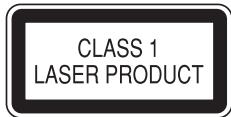
The label is attached to the chassis/case and says that the component uses laser beams that have been classified as Class 1. It means that the unit is utilizing laser beams that are of a weaker class. There is no danger of hazardous radiation outside the unit.
For DDX771/DDX491HD/DDX471HD/DDX371/ DDX310BT/DDX271:
CAUTION
Use of controls or adjustments or performance of procedures other than those specified herein may result in hazardous radiation exposure. In compliance with Federal Regulations, the following are reproductions of labels on, or inside the product relating to laser product safety.
JVC KENWOOD Corporation
2967-3, ISHIKAWA-MACHI, HACHIOJI-SHI, TOKYO, JAPAN
THIS PRODUCT COMPLIES WITH DHHS RULES 21CFR SUBCHAPTER J IN EFFECT AT DATE OF MANUFACTURE.
Location : Top plate
For DDX771/DDX491HD/DDX471HD/DDX371/ DDX310BT/DDX271: FCC WARNING
This equipment may generate or use radio frequency energy. Changes or modifications to this equipment may cause harmful interference unless the modifications are expressly approved in the instruction manual. The user could lose the authority to operate this equipment if an unauthorized change or modification is made.
FCC NOTE
This equipment has been tested and found to comply with the limits for a Class B digital device, pursuant to Part 15 of the FCC Rules. These limits are designed to provide reasonable protection against harmful interference in a residential installation.
This equipment may cause harmful interference to radio communications, if it is not installed and used in accordance with the instructions. However, there is no guarantee that interference will not occur in a particular installation. If this equipment does cause harmful interference to radio or television reception, which can be determined by turning the equipment off and on, the user is encouraged to try to correct the interference by one or more of the following measures:
- Reorient or relocate the receiving antenna.
- Increase the separation between the equipment and receiver.
- Connect the equipment into an outlet on a circuit different from that to which the receiver is connected.
- Consult the dealer or an experienced radio/TV technician for help.
Cautions on the monitor:
- The monitor built into this unit has been produced with high precision, but it may have some ineffective dots. This is inevitable and is not considered defective.
- Do not expose the monitor to direct sunlight.
- Do not operate the touch panel using a ball-point pen or similar tool with a sharp tip. Touch the buttons on the touch panel with your finger directly (if you are wearing a glove, take it off).
- When the temperature is very cold or very hot...
- Chemical changes occur inside, causing malfunction.
- Pictures may not appear clearly or may move slowly. Pictures may not be synchronized with the sound or picture quality may decline in such environments.
For safety...
- Do not raise the volume level too much, as this will make driving dangerous by blocking outside sounds, and may cause hearing loss.
- Stop the car before performing any complicated operations.
Temperature inside the car...
If you have parked the car for a long time in hot or cold weather, wait until the temperature in the car becomes normal before operating the unit.
How to reset your unit
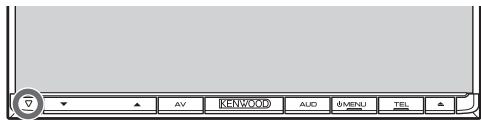
DDX771
DDX491HD/DDX471HD/DDX371/DDX310BT/ DDX3071BT/DDX271/DDX2071
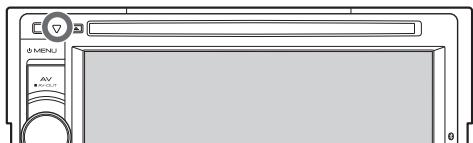
If the unit fails to operate properly, press the Reset button. The unit returns to factory settings when the Reset button is pressed (except the registered Bluetooth devices).
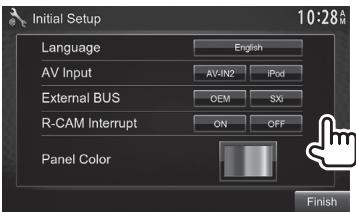
Initial setup
When you power on the unit for the first time or reset the unit, the initial setting screen appears.
- You can also change the settings on the
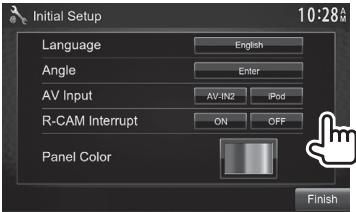
1 DDX771
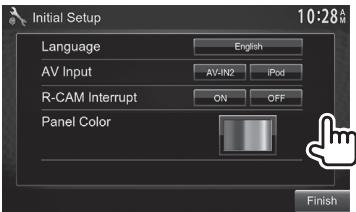
DDX491HD/DDX471HD/DDX371/DDX310BT/DDX3071BT/DDX2071
DDX271
- Set
to display the operation buttons and menu items in the selected language ([Local]: initially selected) or English ([English]).
(Page 7)
<External Select the component BUS 大 ^ 空 2 connected to EXT I/F input (Page 47) terminal—[OEM] for ADS adapter or [SXi] for SiriusXM
Connect Vehicle Tuner.
(Page 47)
(Page 43)
2 Finish the procedure.
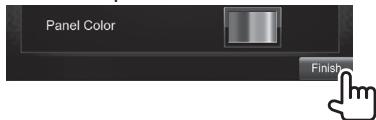
The
1 Only for DDX771.
2 Only for DDX271.
Activating the security function
You can activate the security function to protect your receiver system against theft.
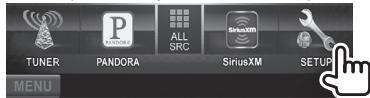
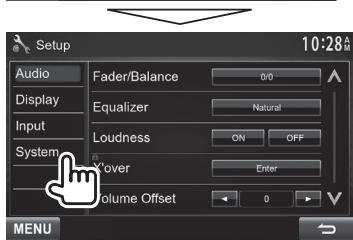
1 Display the
2 Display the
3
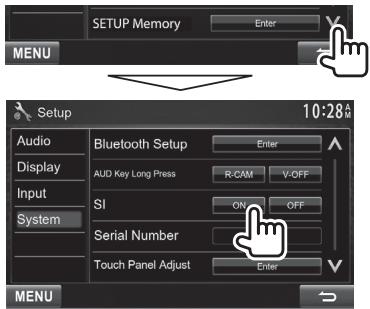
The security indicator on the monitor panel flashes when the vehicle ignition is off.
To deactivate the security function: Select [OFF] for < SI>
Clock settings
1 Display the
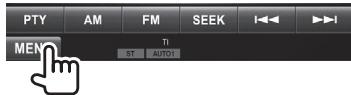
2 Display the
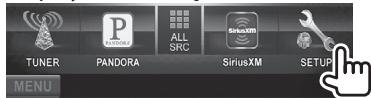
3 Display the
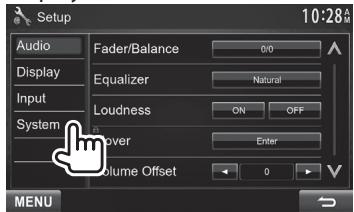
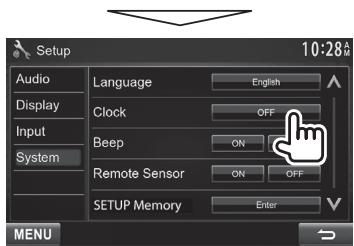
4 Set the clock time.
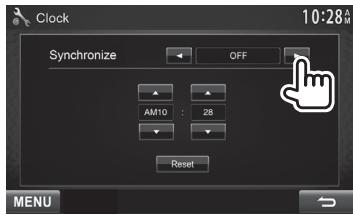
When selecting <OFF> :
Adjust the hour (①), then adjust the minute (②).
- Press [Reset] to set the minute to "00".
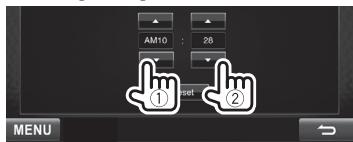
5 Finish the procedure.

Component names and functions
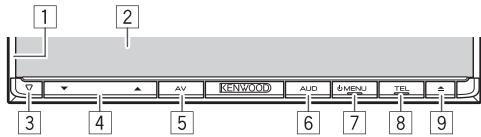
DDX771
Monitor panel*
Screen (touch panel)
3 Reset button/Power indicator/Security indicator
- Resets the unit. (Page 3)
- Lights up while the unit is turned on.
- Flashes when the security function is activated. (Page 4)
Volume / button
Adjusts the audio volume. (Page 7)
5 AV/AV OUT button
- Displays the current source screen. (Press)
- Selects the AV source for external monitor or amplifier. (Hold)
6 AUD/R-CAM button
- Displays the
screen. (Press) (Page 40) - The function of the button when held varies depending on the
setting. (Page 48)
7 MENU button
- Displays the
screen. (Press) (Page 8)
Turns off the power. (Hold) (Page 7)
Turns on the power. (Press) (Page 7)
TEL/VOLUME button
- Displays the
screen. (Press) (Page 35) - Activates voice dialing. (Hold) (Page 37)
9 (Eject) button
- Ejects the disc (Tilts the monitor panel fully).
- Opens/closes the monitor panel.
DDX491HD/DDX471HD/DDX371/DDX310BT/ DDX3071BT/DDX271/DDX2071
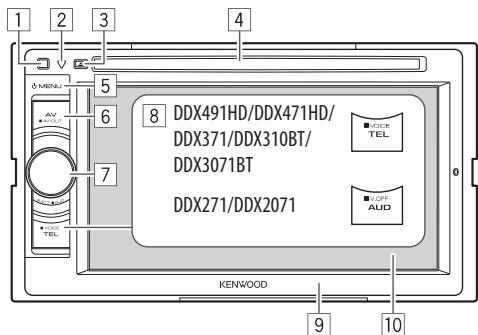
Remote sensor
2 Reset button/Power indicator/Security indicator
- Resets the unit. (Page 3)
- Lights up while the unit is turned on.
- Flashes when the security function is activated.
(Page 4)
3 (Eject) button
Ejects the disc.
4 Loading slot
5 MENU button
- Displays the
screen. (Press) (Page 8)
Turns off the power. (Hold) (Page 7)
Turns on the power. (Press) (Page 7)
6 AV/AV OUT button
- Displays the current source screen. (Press)
- Selects the AV source for external monitor or amplifier. (Hold)
7 For DDX491HD/DDX471HD/DDX371/ DDX310BT/DDX3071BT:Volume/ATT/AUD knob
Attenuates the sound. (Press) (Page 7)
- Adjusts the audio volume. (Turn) (Page 7)
- Displays the
For DDX271/DDX2071 Volume/ATT knob
Attenuates the sound. (Press) (Page 7)
- Adjusts the audio volume. (Turn) (Page 7)
8 For DDX491HD/DDX471HD/DDX371/DDX310BT/DDX3071BT: TEL/Voice button
- Displays the
screen. (Press) (Page 35) - The function of the button when held varies depending on the
setting. (Page 48)
For DDX271/DDX2071: AUD/V.OFF button
- Displays the
screen. (Press) (Page 40) - The function of the button when held varies depending on the
setting. (Page 48)
9 Monitor panel*
Screen (touch panel)
- You can change the color of the buttons on the monitor panel. (Page 43)
Caution on the volume setting:
Digital devices produce very little noise compared with other sources. Lower the volume before playing these digital sources to avoid damaging the speakers by sudden increase of the output level.
Common operations
□Turning on the power
DDX771 DDX491HD/DDX471HD/ DDX371/DDX310BT/ DDX3071BT/DDX271/DDX2071
□Turning off the power
DDX771 DDX491HD/DDX471HD/ DDX371/DDX310BT/ DDX3071BT/DDX271/DDX2071
Adjusting the volume
To adjust the volume (00 to 35)
DDX771
Press to increase, and press to decrease.
- Holding the button increases/decreases the volume continuously.
DDX491HD/DDX471HD/
DDX371/DDX310BT/
DDX3071BT/DDX271/DDX2071
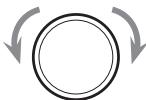
Turn to the right to increase, and turn to the left to decrease.
To attenuate the sound (only for DDX491HD/ DDX471HD/DDX371/DDX310BT/DDX3071BT/ DDX271/DDX2071)

The ATT indicator lights up.
To cancel the attenuation: Press the same button again.
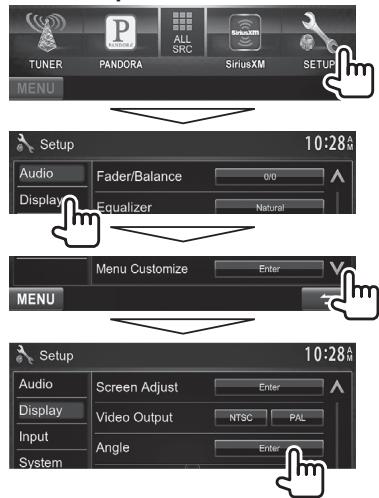
□Adjusting the panel angle (only for DDX771)
1 Display the
2 Select an angle (0 - 6)
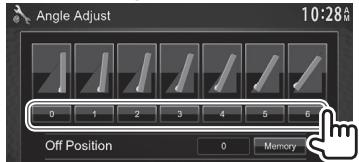
- To set the current position as the power off position, select [Memory].
□ Putting the unit in standby
1 Display all
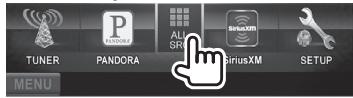
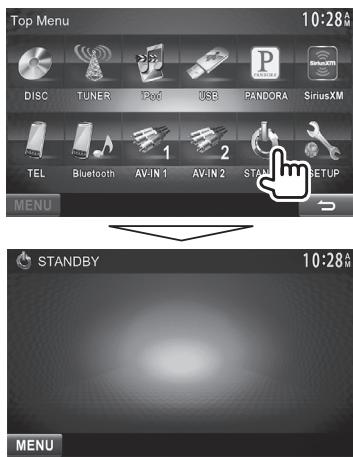
2
□Turning off the screen DDX771\*
DDX491HD/DDX471HD/ DDX371/DDX310BT/ DDX3071BT*2
DDX271/DDX2071*
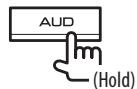
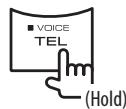
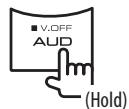
To turn on the screen: Press MENU on the monitor panel, or touch the display.
1 This operation works only when
Common screen operations
Common screen descriptions
You can display other screens any time to change the source, show the information, or change the settings, etc.
Source control screen
Performs source playback operations.
- The operation buttons vary depending on the selected source.
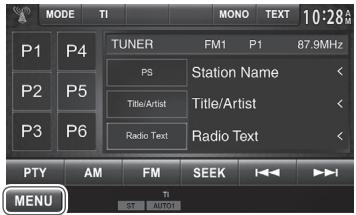
Common operation buttons:
[MENU]: Displays the
- Pressing MENU on the monitor panel also displays the
screen.
screen
Displays the source control screen and settings screen.
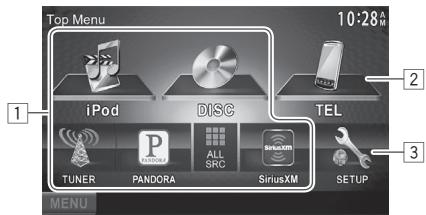
Common operating buttons:
1 Changes the playback source. (Page 9)
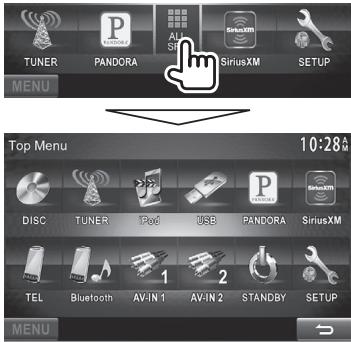
- Press [ALL SRC] to display all
- You can arrange the items to display on the
2 Displays the
3 Displays the
screen
Changes the detailed settings. (Page 46)
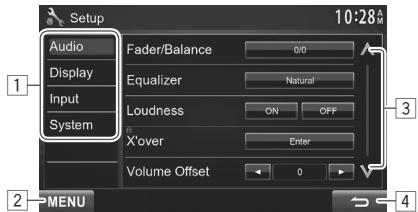
Common operating buttons:
1 Selects the menu category.
2 Displays the
Changes the page.
4 Returns to the previous screen.
Touch screen operations
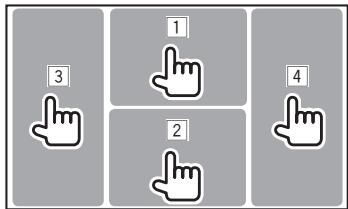
1 Displays the video control menu while playing a video.
2 Displays the source control screen while playing a video.
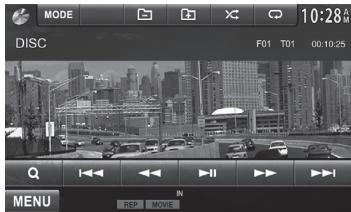
- The operation buttons disappear when the screen is touched or when no operation is done for about 5 seconds.
3 Goes to the previous chapter/track.
4 Goes to the next chapter/track.
- Not available for video from an external component.
Selecting the playback source
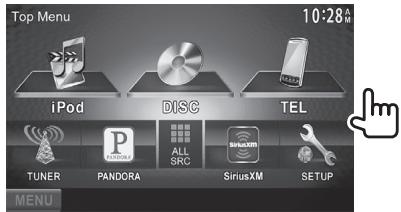
- You can change the items (other than [SETUP]) to display on the
screen. (Page 44)
[DISC] Plays a disc. (Page 10)
[HD Radio]*1 Switches to the HD Radio broadcast. (Page 23)
[TUNER]*2 Switches to the conventional radio broadcast. (Page 21)
[iPod] Plays an iPod/iPhone. (Page 15)
[USB] Plays files on a USB device. (Page 14)
[PANDORA]*3 Switches to the Pandora broadcast. (Page 19)
[SiriusXM]*3 Switches to the SiriusXM® radio broadcast. (Page 26)
[TEL]*4 Displays the
[Bluetooth]*4 Plays a Bluetooth audio player. (Page 39)
[AV-IN1][AV-IN2]*5 Switches to an external component connected to the AV-IN1 and iPod/ AV-IN2 input terminal. (Page 31)
[OEM Features]*6 Switches to the sources via connected ADS adapter. (Page 56)
1 Only for DDX491HD/DDX471HD.
2 Only for DDX771/DDX371/DDX310BT/DDX3071BT/DDX271/ DDX2071BT.
3 Only for DDX771/DDX491HD/DDX471HD/DDX371/DDX310BT/ DDX271.
4 Only for DDX771/DDX491HD/DDX471HD/DDX371/DDX310BT/ DDX3071BT.
5 Select an appropriate input setting in
To display all sources and items on the screen
Playing a disc
- If a disc does not have a disc menu, all tracks on it will be played repeatedly until you change the source or eject the disc.
- For playable disc types/file types, see page 59.
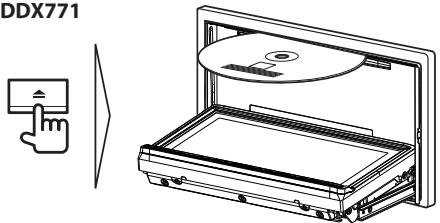
□Inserting a disc
Insert a disc with the label side facing up.
DDX771
DDX491HD/DDX471HD/DDX371/DDX310BT/ DDX3071BT/DDX271/DDX2071
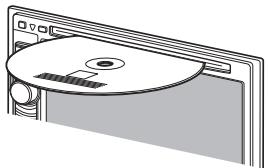
The source changes to "DISC" and playback starts.
-
The IN indicator lights up while a disc is inserted.
-
If “ ” appears on the screen, the unit cannot accept the operation you have tried to do.
- In some cases, without showing "O," operations will not be accepted.
- When playing back a multi-channel encoded disc, the multi-channel signals are downmixed to stereo.
Ejecting a disc
DDX771
DDX491HD/DDX471HD/
DDX371/DDX310BT/
DDX3071BT/DDX271/DDX2071


- When removing a disc, pull it horizontally.
- You can eject a disc when playing another AV source.
- If the ejected disc is not removed within 15 seconds, the disc is automatically inserted again into the loading slot to protect it from dust.
Closing the monitor panel (only for DDX771)
After removing the disc, press on the monitor panel. The monitor panel closes.
Playback operations
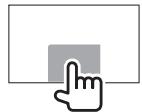
-
When the operation buttons are not displayed on the screen, touch the area shown on the illustration.
-
To change settings for video playback, see page 41.
□ Indications and buttons on the source control screen
For DVD/VCD/DivX/MPEG1/MPEG2/JPEG
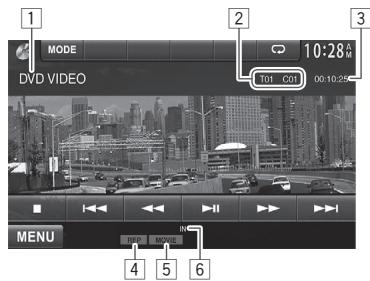
Playback information
Media type
2 Current playback item information
DVD Video: Title no./Chapter no.
DivX/MPEG1/MPEG2: Folder no./Track no.
- JPEG: Folder no./File no.
VCD: Track no.
3 Playing time
4Playback mode (Page 13)
File type (for DivX/MPEG1/MPEG2/JPEG)
6 IN indicator
Operation buttons
- Reverse/forward search during playback.*1
-
Plays back in slow-motion during pause.
-
For DVD-VR/VCD: Reverse slow-motion playback is not available.



Stops playback.
Displays the folder/track list. (See the far right column.)
Selects playback mode.
(Page 13)
Starts/pauses playback.
- Selects a chapter/track. (Press)
- Reverse/forward search.*1 (Hold)


Selects a folder.
Changes the settings for disc playback on the

Displays the
1 Search speed varies depending on the type of disc or file.
2 Appears only for DVD/VCD.
3 Does not appear for DVD/VCD.
4 Does not appear for DVD/JPEG.
*5 Does not appear for VCD.
For CD/MP3/WMA/WAV/AAC
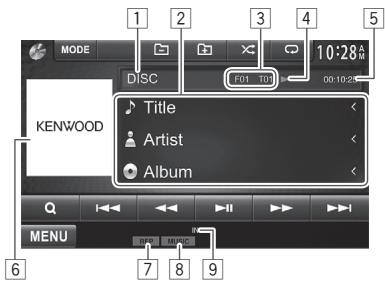
Playback information
Media type
2 Track/file information
- Pressing [<] scrolls the text if not all of the text is shown.
Current playback item information
- MP3/WMA/WAV/AAC: Folder no./Track no.
CD: Track no.
4 Playback status (▶: play/■: pause)
5 Playing time
6 Jacket picture (Shown while playing if the file has tag data that includes the jacket picture)
7Playback mode (Page 13)
8 File type
9 IN indicator
Operation buttons

Reverse/forward search.*1

Displays the folder/track list. (See the right column.)

Selects playback mode. (Page 13)

Starts/pauses playback.
Selects a track.


Selects a folder.

Changes the settings for disc playback on the

Displays the
1 Search speed varies depending on the type of disc or file.
2 Does not appear for CDs.
□ Selecting a folder/track on the list

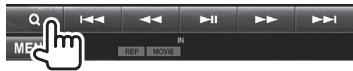
2 Select the folder (①), then the item in the selected folder (②).
- Repeat the procedure until you select the desired track.
- If you want to play all tracks in the folder, press [▶] on the right of the desired folder.
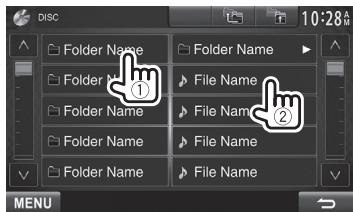
- You can change the page to display more items by pressing [] / [] .
- Press [F] to return to the root folder.
- Press [ ] to return to the upper layer.
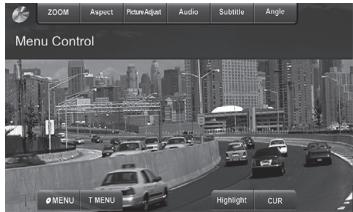
Video menu operations
You can display the video menu screen during video playback.
- Available items on the screen differ depending on the types of the loaded disc and playback files.
- The operation buttons disappear when the screen is touched or when no operation is done for about 5 seconds.
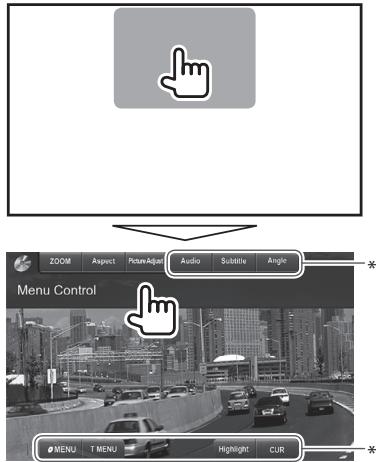
[ZOOM] Displays the picture size selecting screen. (Page 42)
[Aspect] Selects the aspect ratio. (Page 42)
[Picture] Displays the picture adjustment
Adjust] screen. (Page 41)
[Audio] Selects the audio type.
[Subtitle] Selects the subtitle type.
[Angle] Selects the view angle.
[ MENU] Displays the disc menu (DVD).
[T MENU]* Displays the disc menu (DVD).
[CUR]* Displays the menu/scene selecting screen.
- [▲] [▼] [◇] [►]: Selects an item.
- For DivX: [▲] [▷] skips back or forward by about 5 minutes.
- [Enter]: Confirms the selection.
- [Return]: Returns to the previous screen.
[Highlight]* Switches to the direct disc menu mode. Touch the target item to select.
-
To restore the screen, press AV on the monitor panel.
-
Does not appear for MPEG1/MPEG2.
For VCD
1
2
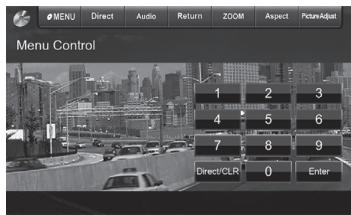
[Zoom] Displays the picture size selecting screen. (Page 42)
[Aspect] Selects the aspect ratio. (Page 42)
[Picture Displays the picture adjustment
[Adjust] screen. (Page 41)
[Audio] Selects the audio channel (ST: stereo, L: left, R: right).
[Return] Displays the previous screen or menu.
[MENU] Displays the disc menu.
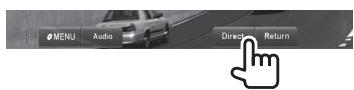
[Direct] Displays/ hides the direct selecting buttons. (See below.)
- To select a track directly, press [Direct] to display the direct selecting buttons, then...
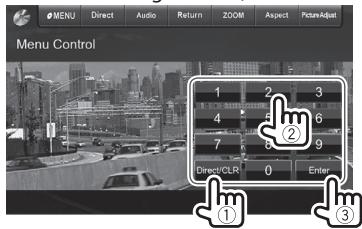
-
When you enter a wrong number, press [Direct/CLR] to delete the last entry.
-
To deactivate the PBC function, stop playback, then use the direct selecting buttons to select a track number.
□ Selecting playback mode


Selects Repeat playback mode.

Selects Random playback mode.
- For DVD: Repeat play is available.
For VCD (without PBC)/CD/DivX/MPEG1/MPEG2/ MP3/WMA/WAV/AAC: Repeat and Random play are available. - You cannot activate the repeat mode and the random mode at the same time.
Each time you press the button, the playback mode changes. (The corresponding indicator lights up.)
Available items differ depending on the types of loaded disc and playback file.
| C-REP | Repeats current chapter. |
| T-REP | Repeats current title/program. |
| REP | Repeats current track. |
| FO-REP | Repeats all tracks of the current folder. |
| FO-RDM | Randomly plays all tracks of the current folder, then tracks of the next folders. |
| RDM | Randomly plays all tracks. |
To cancel Repeat/Random playback: Press the button repeatedly until the indicator disappears.
Settings for disc playback

- The items shown on the
screen are different depending on the discs/files played back.
□ Setting items
| 选中播放的音频文件名 | Select the initial disc menu language. (Initial: English) (Page 61) |
| 选中播放的音频文件名 | Select the initial audio language. (Initial: English) (Page 61) |
| 选中播放的音频文件名 | Select the initial subtitle language or turn subtitles off (Off). (Page 61) ·Initial for DDX771/DDX491HD/ DDX471HD/DDX371/DDX310BT/ DDX271: Off, for DDX3071BT/ DDX2071: English |
| 选中播放的音频文件名 | When playing back a multi-channel disc, this setting affects the signals reproduced through the front and/or rear speakers. ·Dolby Surround: Select this to enjoy multi-channel surround sound by connecting an amplifier compatible with Dolby Surround. ·Stereo (initial): Normally select this. |
You can change the dynamic range while playing Dolby Digital software.
- Wide: Select this to enjoy a powerful sound at a low volume level with its full dynamic range.
- Normal: Select this to reduce the dynamic range a little.
- Dialog (initial): Select this to reproduce movie dialog more clearly.
Select the monitor type to watch a wide screen picture on the external monitor.
16:9
(Initial)
4:3 LB
4:3PS
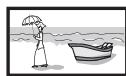

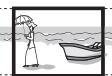
\*
Select the playback file type when a disc contains different types of files.
Audio: Plays back audio files.
- Still Image: Plays back JPEG files.
Video: Plays back DivX/MPEG1/ MPEG2 files.
- Audio&Video (initial): Plays back audio files and DivX/MPEG1/MPEG2 files.
- For playable file types, see page 59.
If the disc contains no files of the selected type, the existing files are played in the following priority: audio, video, then still picture.
Connecting a USB device
You can connect a USB mass storage class device such as a USB memory, Digital Audio Player etc. to the unit.
- For details about connecting USB devices, see page 56.
- You cannot connect a computer or portable HDD to the USB input terminal.
- For playable file types and notes on using USB devices, see page 60.
When a USB device is connected...
The source changes to "USB" and playback starts.
- All tracks in the USB device will be played repeatedly until you change the source.
To disconnect the USB device safely:
Press [▲], then disconnect the USB device after "No Device" appears.
Playback operations
-
When the operation buttons are not displayed on the screen, touch the area shown on the illustration.
-
To change settings for video playback, see page 41.
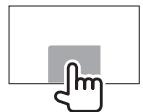
□ Indications and buttons on the source control screen
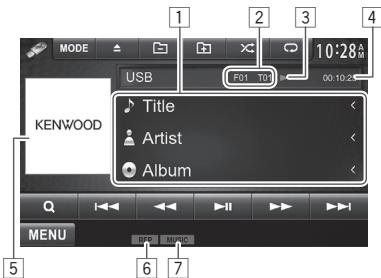
Playback information
Track/file information (for MP3/WMA/WAV/AAC)
- Pressing [<] scrolls the text if not all of the text is shown.
2 Current playback item information
- DivX*/MPEG1/MPEG2/MP3/WMA/WAV/AAC: Folder no./Track no.
- JPEG: Folder no./File no.
3 Playback status (▶: play/■: pause)
4 Playing time
5 Jacket picture (Shown while playing if the file has tag data that includes the jacket picture)
6Playback mode (See the right column.)
7 File type
- Only for DDX3071BT/DDX2071.
Operation buttons
[ \left[\triangleleft\right] \left[\triangleright\right] ] Reverse/forward search.*1

Displays the folder/track list. (Page 15)

Selects repeat playback mode.*2*3
- REP: Repeats the current track.
- FO-REP: Repeats all tracks in the current folder.

Selects random playback mode.*2*3
- FO-RDM: Randomly plays all tracks in the folder.
- RDM: Randomly plays all tracks.

Disconnects the USB device safely.

Starts/pauses playback.
Selects a track.

Selects a folder.

Changes the settings on the <USB
Mode>screen.(Page15)

Displays the
1 Search speed varies depending on the file type.
2 To cancel random or repeat mode, press the button repeatedly until the indicator disappears.
*3 You cannot activate the repeat mode and the random mode at the same time.
□ settings
Setting
[Audio] Plays back audio files.
[Still Image] Plays back JPEG files.
[Video] Plays back DivX*/MPEG1/MPEG2 files.
[Audio&Video] Plays back audio files and DivX*/
(Initial) MPEG1/MPEG2 files.
- For playable files, see page 60. If the USB device contains no files of the selected type, the existing files are played in the following priority: audio, video, then still picture.
Setting
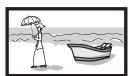
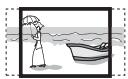
Select the monitor type to watch a wide screen picture on the external monitor.
[16:9] (Initial)
[4:3 LB]
[4:3 PS]

Setting
Press [Next]. Switches between internal memory and the memory source of the connected device (such as mobile phone).
- Only for DDX3071BT/DDX2071.
□ Selecting a folder/track on the list
1
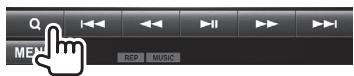
2 Select the folder (①), then the item in the selected folder (②).
- Repeat the procedure until you select the desired track.
- If you want to play all tracks in the folder, press [▶] on the right of the desired folder.
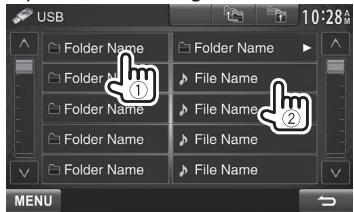
- You can change the page to display more items by pressing [] / [V] .
- Press [F] to return to the root folder.
- Press [ ] to return to the upper layer.
Preparation
□ Connecting iPod/iPhone
- For details about connecting iPod/iPhone, see page 56.
For playable iPod/Phone types, see page 60.
Connect your iPod/iPhone using the appropriate cable according to your purpose.
-
To listen to music: USB Audio cable for iPod/ iPhone—KCA-iP102 (optional accessory) or USB 2.0 cable (accessory of the iPod/iPhone)
To watch video and listen to music: USB Audio and Video cable for iPod/iPhone—KCA-iP202 (optional accessory) -
You cannot connect iPod nano (7th Generation)/ iPod touch (5th Generation)/iPhone 5 with KCA-iP202.
□ Selecting preference settings for iPod/ iPhone playback
When the source is "iPod"...
1

2
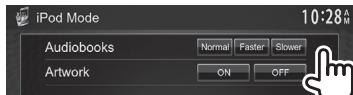
□Setting for iPod/iPhone playback
Select an appropriate input setting for
- You can change the setting only when [STANDBY] is selected on
1 Display the setting screen. On the
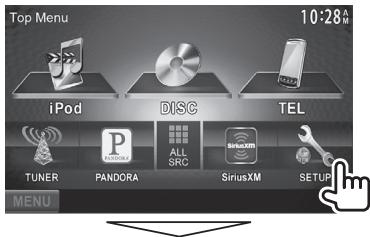
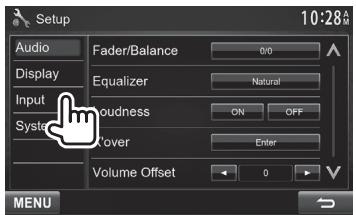
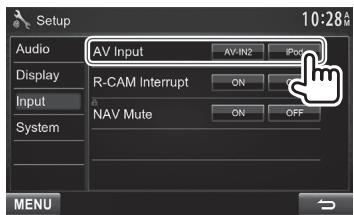
2
[AV-IN2] Select this when the iPod/iPhone is connected using KCA-iP102 (optional accessory) or the USB 2.0 cable (accessory of the iPod/iPhone).
[iPod] Select this when the iPod/iPhone is connected using KCA-iP202 (optional accessory).
Playback operations
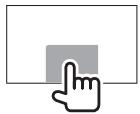
- When the operation buttons are not displayed on the screen, touch the area shown on the illustration.
- To change settings for video playback, see page 41.
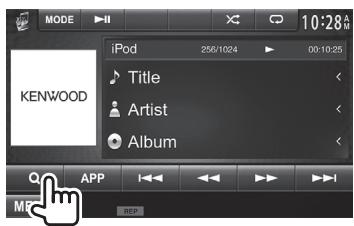
□ Indications and buttons on the source control screen
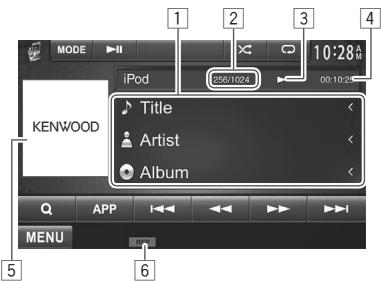
Playback information
Song/video information
- Pressing [<] scrolls the text if not all of the text is shown.
2 Track no./Total track number
3Playbackstatus ( :play/:pause)
4 Playing time
[5] Artwork (Shown if the song contains Artwork) To change the Artwork display, see page 15
⑥Playback mode (Page 17)
Operation buttons

Reverse/forward search.
[APP]
Select to control playback from iPod/ iPhone.*1

Displays the audio/video file list. (See the right column.)

Selects repeat playback mode.
- REP: Functions the same as "Repeat One."
ALL: Functions the same as "Repeat All."

Selects random playback mode.*2
- RDM: Functions the same as "Shuffle Songs."
A-RDM: Functions the same as "Shuffle Albums."

Starts/pauses playback.

Selects an audio/video file.*3

Changes the settings for iPod/iPhone playback on the

Displays the
1 When using iPod with video, you can control playback only from the unit.
2 To cancel random mode, press the button repeatedly until the indicator disappears.
*3 Resume playback is unavailable for video files.
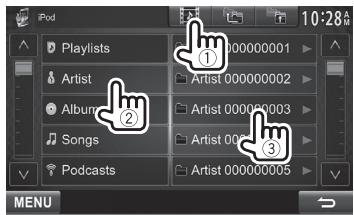
□ Selecting an audio/video file from the menu
1
2 Select the menu (a: audio or video) (①), a category (②), then a desired item (③).
- Select the item in the selected layer until a desired file starts playing.
- If you want to play all items in the layer, press [▶] on the right of the desired item.
Audio menu:
Video menu:
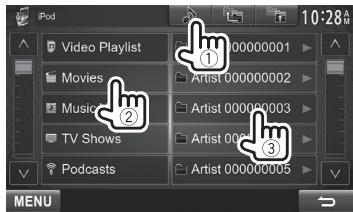
- You can change the page to display more items by pressing [] / [] .
-
Press [ ] to return to the top layer.
Press [ ] to return to the upper layer. -
Available categories differ depending on the type of your iPod/iPhone.
Controlling playback from the iPod/ iPhone
You can play back the audio/video files or use App by operating iPod/iPhone itself instead of the unit.
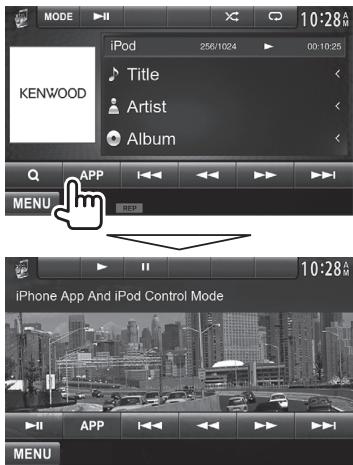
- When you are using Garmin StreetPilot® Onboard, the screen appears. For Garmin StreetPilot® Onboard for iPhone, visit the Garmin web site: www.garmin.com
Garmin App:
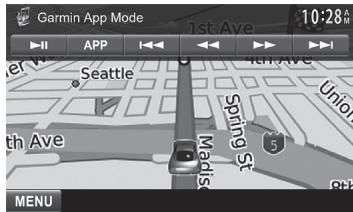
- The current position of your vehicle appears on the map. When the vehicle moves, the map scrolls.
- The screens of the iPhone and unit are not the same.
- To return to the normal mode, press [APP].
You can stream Pandora from iPod touch/ iPhone via a wired connection or from Android or BlackBerry devices through Bluetooth.
- Install the latest version of the Pandora application on your iPod touch/iPhone/Android/BlackBerry.
- Android/BlackBerry devices can only be used with DDX771/DDX491HD/DDX471HD/DDX371/DDX310BT.
Preparation
Connect the device, then start Pandora application.
For Android/BlackBerry
1 Pair the Android/BlackBerry device through Bluetooth. (Page 32)
2 Select "Pandora" as the source. (Page 9)
3 Connect the Android/BlackBerry device for using Pandora on the
"Connected" appears. Press [OK] to confirm the operation.
When the connection is established, the Pandora application is started and "Pandora" source control screen is displayed.
For iPod touch/iPhone
1 Connect the iPod touch/iPhone to the USB terminal using KCA-iP202, KCA-iP102 (optional accessory) or USB 2.0 cable (accessory of the iPod/iPhone). (Page 56)
2 Start the Pandora application on the connected iPod touch/iPhone. The "Pandora" source control screen is displayed.
- You can also display the "Pandora" source control screen by connecting the iPod touch/iPhone using KCA-iP202 after starting the Pandora application.
Playback operations
You can operate Pandora using the remote controller. Only playing, pausing, and skipping are available.
□Indications and buttons on the source control screen
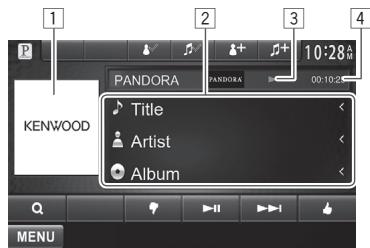
Playback information
Picture data (Shown if available from current content and when iPod touch/iPhone is connected via USB)
2 Track information
- Pressing [<] scrolls the text if not all of the text is shown.
3 Playback status (▶: play/■: pause)
4 Playing time
Operation buttons
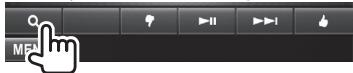
[Q] Displays the list selecting screen. (Page 20)
[ ] Thumbs down to the current track and skips to the next track.
[Starts/pauses playback.
[▶▶] Skips the current track.
Not available when the Pandora skip reaches its limit.
[ ] Registers the current track as a favorite.
[+] Adds the current artist to the Station List.
[+] Addsthe current track to the Station List.
Bookmarks the artist.
Bookmarks the current track.
[MENU] Displays the
□Selecting a station from the list
1 Display the list selecting screen.
2 Select the list type.
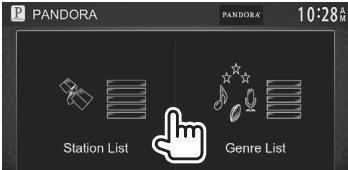
Selects from the station names (Station List).
Selects from the genre names (Genre List).
3 Select a station from the list. On the Station List
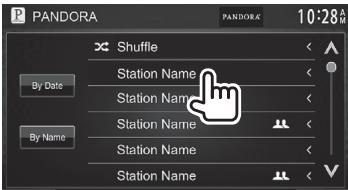
[Shuffle] Plays all the songs in the registered stations randomly.
[By Date] Sorts the list in reverse chronological order.
[By Name] Sorts the list in alphabetical order.
On the Genre List
Select a genre (①), then a station (②).
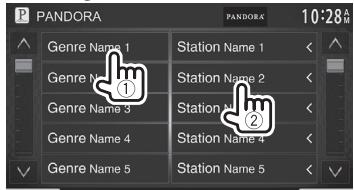
- You can change the page to display more items by pressing [] / [V] .
Requirements for Pandora
iPhone or iPod touch
- Install the latest version of the Pandora application on your iPhone or iPod touch. (Search for "Pandora" in the Apple iTunes App Store to find and install the most current version.)
- Connect iPod touch/iPhone to this unit with KCA-iP202, KCA-iP102 (optional accessory) or USB 2.0 cable (accessory of the iPod/iPhone).
Android™
- Visit Google play and search for Pandora to install.
-
Bluetooth must be built in and the following profiles must be supported.
-
SPP (Serial Port Profile)
- A2DP (Advanced Audio Distribution Profile)
BlackBerry
- Visit www.pandora.com from the built in browser to download the Pandora application.
-
Bluetooth must be built in and the following profiles must be supported.
-
SPP (Serial Port Profile)
- A2DP (Advanced Audio Distribution Profile)
NOTE
- Ensure you are logged in to your smartphone application. If you do not have a Pandora account, you can create one for free from your smartphone or at www.pandora.com.
- Pandora is available only in the U.S./Australia/New Zealand.
- Because Pandora is a third-party service, the specifications are subject to change without prior notice. Accordingly, compatibility may be impaired or some or all of the services may become unavailable.
- Some functions of Pandora cannot be operated from this unit.
- For issues using the application, contact Pandora at pandora-support@pandora.com
- Establish an Internet connection using LTE, 3G, EDGE, or WiFi.
Listening to the radio
□Indications and buttons on the source control screen
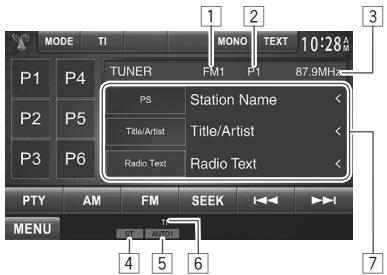
Tuner reception information
Band
2 Preset no.
3 The station frequency currently tuned in
4 ST/MONO indicator
- The ST indicator lights up when receiving an FM stereo broadcast with sufficient signal strength.
5 Seek mode
6 TI indicator
7 Text information
- Pressing [<] scrolls the text if not all of the text is shown.
- Pressing [Radio Text] switches the information between Radio Text, Radio Text Plus, and PTY code.
Operation buttons
[P1] - [P6]
- Selects a stored station. (Press)
Stores the current station. (Hold)
[MODE]
Stores the stations with strongest signals automatically on the <TUNER
Mode>screen.(See the right column.)
[TI]
Activates/deactivates TI standby reception mode. (Page 22)
[MONO]*
Activates/deactivates monaural mode for better FM reception. (Stereo effect will be lost.)
- The MONO indicator lights up while monaural mode is activated.
[TEXT]
Changes the display information. (See the right column.)
[PTY]*
Enters PTY search mode. (Page 22)
[AM]
Selects the AM band.
[FM]
Selects the FM band.

[SEEK]
Changes the seek mode.
- AUTO1: Auto Search
- AUTO2: Tunes in stations in the memory one after another.
- MANU: Manual Search
[←] [▶]
Searches for a station.
- The search method differs according to the selected seek mode. (See above.)
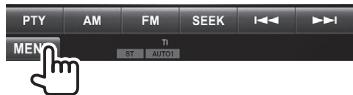
[MENU]
Displays the
Changing the display information
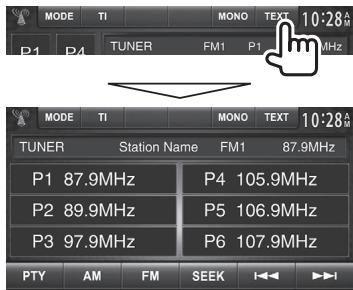
The preset list containing the station names for FM RBDS (when PS signal is coming in) is displayed.
- Pressing [TEXT] again to display the text information for the station currently being received.
Presetting stations
Storing stations in the memory
You can preset 6 stations for each band.
Automatic presetting—AME (Auto Memory)
1
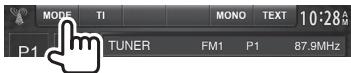
2
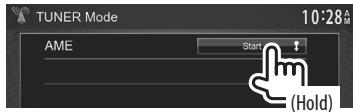
Local stations with the strongest signals are found and stored automatically.
Manual presetting
1 Tune in to a station you want to preset. (Page 21)
2 Select a preset number.
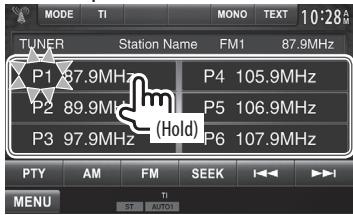
The station selected in step 1 is stored.
□Selecting a preset station
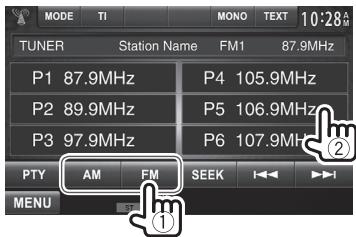
FM RBDS features
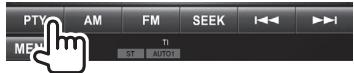
□ Searching for FM RBDS programs—PTY Search
You can search for your favorite programs being broadcast by selecting the PTY code.
1
2 Select a PTY code.
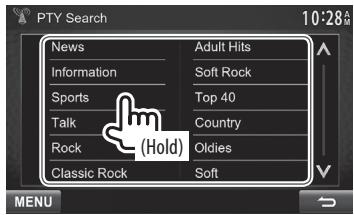
- You can change the page to display more items by pressing [] / [V] . PTY Search starts.
If there is a station broadcasting a program of the same PTY code as you have selected, that station is tuned in.
□Activating/deactivating TI Standby Reception
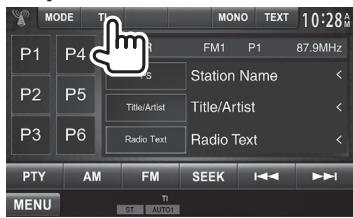
The unit is in standby to switch to Traffic Information (TI) if available. (The TI indicator lights up in white.)
- If the TI indicator is lit in orange, tune into another station providing RBDS signals.
To deactivate TI Standby Reception: Press [TI].
(The TI indicator goes off.)
- The volume adjustment for Traffic Information is automatically memorized. The next time the unit switches to Traffic Information, the volume is set to the previous level.
About HD Radio™ Technology

Radio
This HD Radio receiver enables:
PSD
HD2/HD3
Digital Sound
PSD
- Program Service Data provides song name, artist, station ID, and other relevant data streams
HD2/HD3
- Adjacent to traditional main stations are HD2/HD3 Channels, providing new original formats on the FM dial
Digital Sound
- HD Radio broadcasts deliver crystal clear, CD-like digital audio quality to consumers
Listening to the HD Radio™ broadcast
□ Indications and buttons on the source control screen
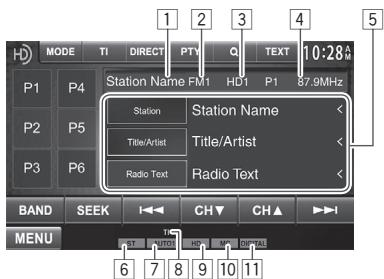
HD Radio reception information
1 Station name currently tuned in
Band
3 Channel no.
4 The station frequency currently tuned in
5 Text information
- Pressing [<] scrolls the text if not all of the text is shown.
- Pressing [Radio Text] switches the information between Radio Text, Message and PTY code.
ST indicator: Lights up when receiving an FM stereo broadcast with sufficient signal strength.
7 Seek mode
8 TI indicator
9 HD indicator: Lights up when receiving an HD Radio broadcast.
MC indicator: Lights up when receiving an HD Radio multicast channel.
11 HD Radio reception mode (Page 24)
-
When receiving digital signals, DIGITAL indicator lights up.
-
When receiving analog signals, ANALOG indicator lights up.
Operation buttons
[P1] - [P6] Selects a stored station. (Press) Stores the current station. (Hold
[MODE] Changes the settings for tuner reception on the
[TI] Activates/deactivates TI standby reception mode. (Page 22)
[DIRECT] Selects a HD Radio station by entering the frequency or the channel directly on the <10Key Direct> screen. (Page 24)
[PTY] Enters PTY search mode. (Page 25)
[Q] Displays the
[TEXT] Displays/ hides the information of the current station.
[BAND] Selects the band. FM1 FM2 FM3 AM
[SEEK] Changes the seek mode.
- AUTO1: Auto Search
- AUTO2: Tunes in stations in the memory one after another.
- MANU: Manual Search
[1] [1] Searches for a station.
- The search method differs according to the selected seek mode. (See above.)
[CH▼] Selects a sub-channel when receiving
[CH▲] an HD Radio multicast channel.
[MENU] Displays the
- Appears only when FM is selected as the source.
Changing the display information
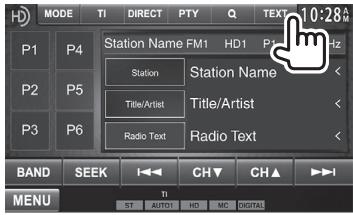
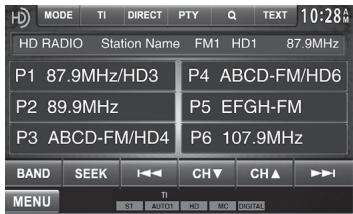
The preset list containing the station names is displayed.
- Pressing [TEXT] again to display the text information for the station currently being received.
□ Selecting a station/channel directly
1
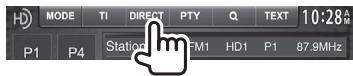
2 Select frequency ([FREQ]) or channel ([CH]) to select (①), enter the frequency or the channel number (②), then confirm the entry (③).
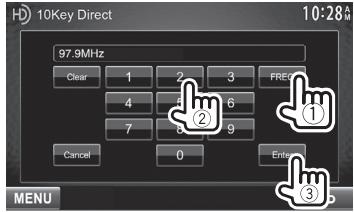
- To clear the entry, press [Clear].
- To cancel setting the code, press [Cancel].
□ Changing the HD Radio reception mode
While receiving an HD Radio broadcast, the unit tunes to digital or analog audio automatically according to the receiving condition.
1
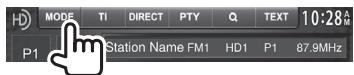
2
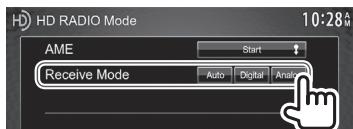
[Auto] Switch between digital and analog audio automatically.
[Digital] Select this to tune to digital audio only.
[Analog] Select this to tune to analog audio only.
□Activating/deactivating TI Standby Reception
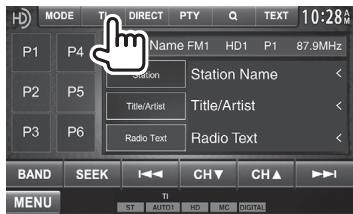
The unit is in standby to switch to Traffic Information (TI) if available. (The TI indicator lights up in white.)
- If the TI indicator is lit in orange, tune into another station.
To deactivate TI Standby Reception: Press [TI]. (The TI indicator goes off.)
- The volume adjustment for Traffic Information is automatically memorized. The next time the unit switches to Traffic Information, the volume is set to the previous level.
□Searching for FM HD Radio programs—PTY Search
You can search for your favorite programs being broadcast by selecting the PTY code.
1
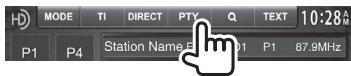
2 Select a PTY code.
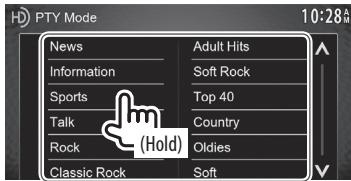
- You can change the page to display more items by pressing [] / [] .
PTY Search starts.
If there is a station broadcasting a program of the same PTY code as you have selected, that station is tuned in.
Presetting stations
Storing stations in the memory
You can preset 6 stations for each band.
Automatic presetting—AME (Auto Memory)
1
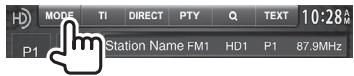
2
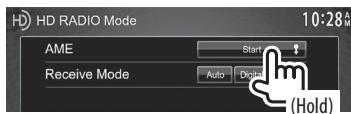
Local stations with the strongest signals are found and stored automatically.
Manual presetting
1 Tune in to a station you want to preset. (Page 23)
2 Select a preset number.
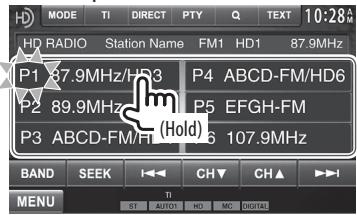
The station selected in step 1 is stored.
□ Selecting a preset station from the list
1
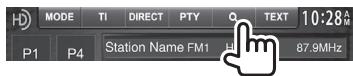
2 Select a station from the list.
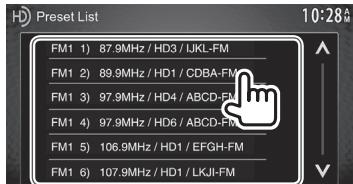
- You can change the page to display more items by pressing [] / [] .
Everything worth listening to is on SiriusXM, getting over 130 channels, including the most commercial-free music, plus the best sports, news, talk and entertainment. To start listening to the SiriusXM® Satellite Radio, a SiriusXM Connect Vehicle Tuner (commercially available) and subscription are required. For more information, visit www.siriusxm.com.
Activating subscription
1 Check your Radio ID. Radio ID is labeled on the casing of the SiriusXM Connect Vehicle Tuner or the bottom of the SiriusXM Connect Vehicle Tuner unit.
- You can also display the Radio ID on the screen by tuning in to Channel 0.
2 Activate the SiriusXM Connect Vehicle Tuner using one of the two methods below:
For users in U.S.A:
Online: Go to www.siriusxm.com/activatenow
- Phone: Call 1-866-635-2349
For users in Canada:
- Online: Go to www.xmradio.ca and click on "ACTIVATE RADIO" in the top right corner
- Phone: Call 1-877-438-9677
3 When the following screen appears, press [Enter].
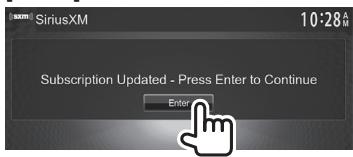
Listening to the SiriusXM® Radio
Only for DDX271
Preparation: Select
□ Indications and buttons on the source control screen
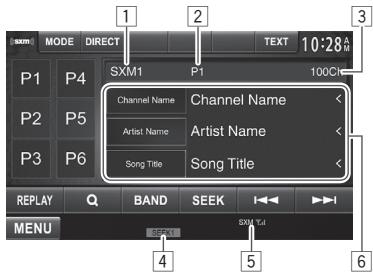
SiriusXM radio reception information
Band
2 Radio ID (or Preset number if the current station is preset)
- The Radio ID is displayed when the channel is set to 0.
3 Channel number
4 Seek mode
5 Signal strength indicator
6 Text information
- Pressing [<] scrolls the text if not all of the text is shown.
Operation buttons
[P1] - [P6] Selects a stored channel. (Press)
Stores the current channel. (Hold)
[Song Title] Changes the displayed information
[Content] each time this button is pressed.
[Info]
[Category]
[MODE]
Changes the settings for restrictions on the
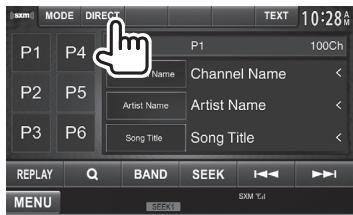
[DIRECT] Displays the <Direct Channel
Select>screen.(Page27)
[TEXT]
Displays/ hides the information of the current channel. (Page 27)
[REPLAY]
Displays the
Q]
Obtain information on channels or select a category and then a channel. (Page 28)
[BAND]
Selects the band.
SXM1 SXM2 SXM3 SXM4
[SEEK]
Changes the seek mode.
- SEEK1: Skip to another available channel.
SEEK2:Skip to another preset channel.
Seeks forward or backward (refer to the above for the seek mode).
[MENU]
Displays the
Changing the display information
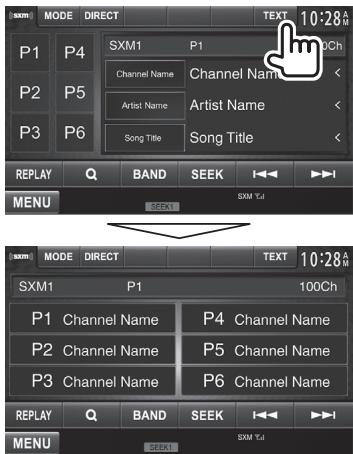
The preset list containing the channel names is displayed.
- Pressing [TEXT] again to display the text information for the station currently being received.
Presetting channels
Storing channels in the memory
You can preset 6 channels for each band.
1 Tune in to a channel you want to preset. (Page 26)
2 Select a preset number.
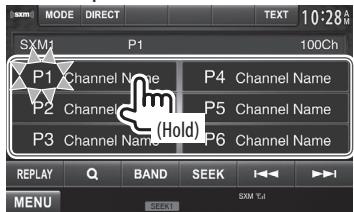
The channel selected in step 1 is stored.
□ Selecting a preset channel
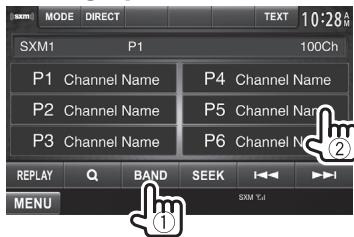
Selecting a channel
□ Selecting a channel directly
1
2 Enter a channel no. (①), and then confirm (②).
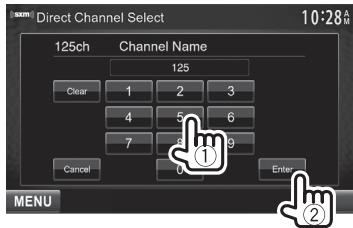
To clear the entry, press [Clear].
- To cancel setting the code, press [Cancel].
□Selecting a channel on the list
You can obtain information on channels or select a category and then a channel.
1
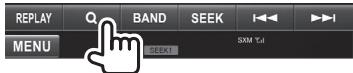
2 Select [Preset List] or [Channel List].
![KENWOOD DDX491HD - Select [Preset List] or [Channel List]. - 1](/content/2025/01/83584/images/bf6e4369188c27c5d5e11d4885b49810778f60399f15175345a121bea9670384.jpg)
3 Select a channel.
Preset List
Select a band (①), and then select a preset channel (②).
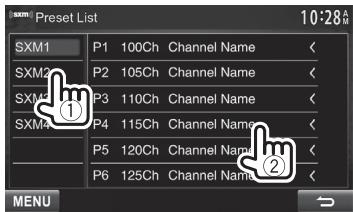
Channel List
Select a category (①), and then select a channel (②).
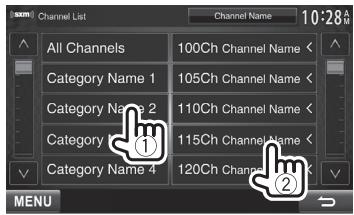
- You can change the page to display more items by pressing [] / [V] .
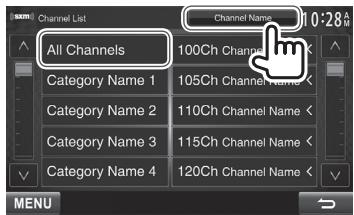
- To list all the channels, select [All Channels].
- Pressing the info change button above the list displays information in the following order: Channel Name, Artist Name, Song Title, Content Info
SiriusXM Replay™
You can pause, rewind and replay content from the currently tuned channel.
- The SiriusXM Connect Vehicle Tuner continually buffers up to 60 min of audio.
- If you change to another channel during playback, the Replay buffer content will be lost.
□Entering the Replay mode
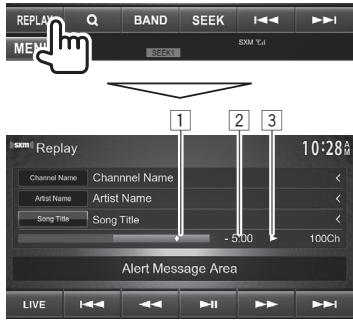
1Progress bar
Shows the remaining capacity (gray) and the amount of buffered content (blue). If the Replay buffer is full, the entire bar is indicated in blue.
- Updated every second.
Time code
Shows you the point in the Replay buffer you are listening to.
Example: -5:00
- You are listening to audio that is 5 minutes behind the current broadcast.
- Updated every second.
3 Playback status (▶: play/■: pause)
Operation buttons
[LIVE] Returns to the live position. The time code returns to -0:00
[1] Returns to the previous track if pressed within 2 seconds from the beginning of the current track/ segment.
- Returns to the beginning of the current track/segment if pressed after 2 seconds or more of the track have been replayed.
[←][→] Rewind/Fast forward
[Starts/Pauses playback.
[▶▶i] Skips the current track/segment.
Changing to the channel reception screen
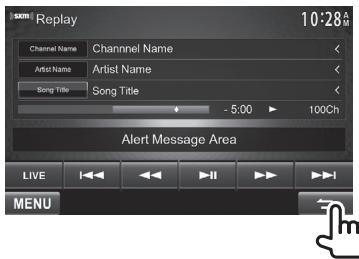
- When you are listening to Replay and switch to the channel reception screen, Replay still continues and [REPLAY] is highlighted.
Setting the reception restrictions
□ Setting the parental lock
You can set the parental lock in order to, for example, restrict children from receiving adult channels.
Setting/Changing the parental code
- The initial setting is "0000."
- Changing the code does not change the
/ / settings.
1 Display the
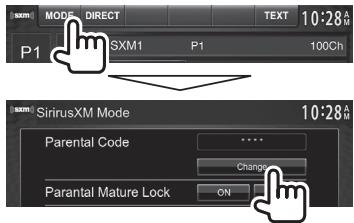
2 Enter a four-digit code (①), and then confirm (②).
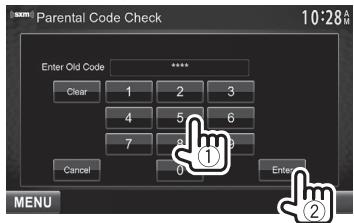
- To clear the entry, press [Clear].
- To cancel setting the code, press [Cancel].
3 Enter a new four-digit code (①), and then confirm (②).
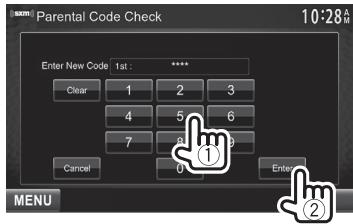
To clear the entry, press [Clear].
- To cancel setting the code, press [Cancel].
4 Enter the four-digit code and then press [Enter] again to confirm the code.
Activating/Deactivating the parental mature lock You can set the parental lock for all channels classified as "mature" by SiriusXM.
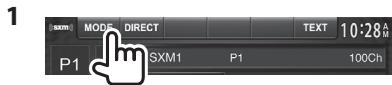
2 Press [ON] (to activate) or [OFF] (to deactivate).
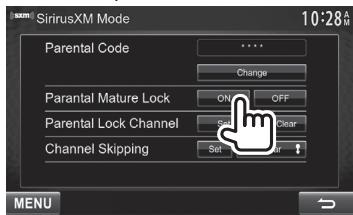
3 Enter the parental code to confirm your choice.
Activating the parental lock
This parental control option allows you to pick the channels to be locked by the parental control feature.
- When
is set to [ON], you cannot change the setting.
1
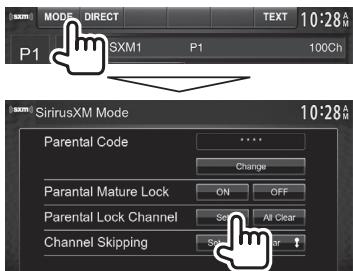
2 Enter the parental code.
3 Select a category (①) , and then a channel (②).
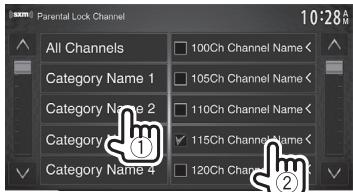
- You can change the page to display more items by pressing [] / [] .
- To list all the channels, select [All Channels].
- A checkmark appears beside the selected channel.
Repeat this step if you want to set the lock on multiple channels.
Deactivating the parental lock for all locked channels
1
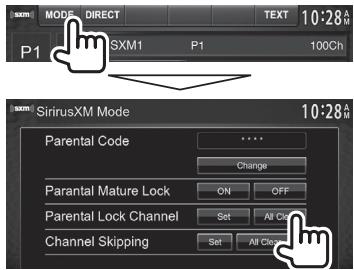
2 Enter the parental code number.
- Skipping unwanted channels
If you do not want to receive some channels, you can skip them.
Activating the channel skipping
1
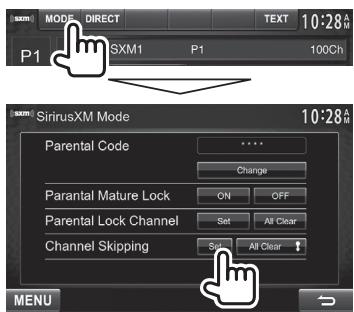
2 Select a category (①), and then select a channel (②)
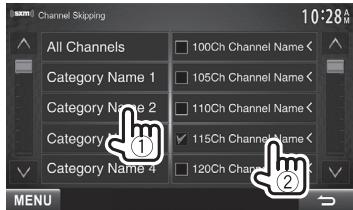
- You can change the page to display more items by pressing [] / [] .
- To list all the channels, select [All Channels].
- A checkmark appears beside the selected channel.
Repeat this step if you want to skip multiple channels.
Clearing the channel skipping for all skipped channels
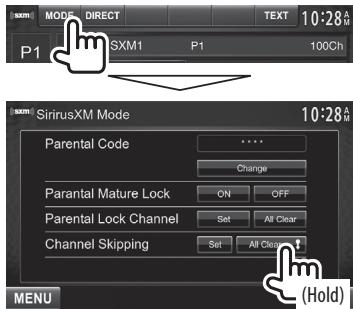
OTHER EXTERNAL COMPONENTS
Using external audio/video players—AV-IN
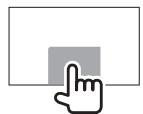
When the operation buttons are not displayed on the screen, touch the area shown on the illustration.
You can connect an external component to the AV-IN1 and iPod/AV-IN2 input terminals. (Page 56)
Preparation:
If you want to use "AV-IN2", select [AV-IN2] for
- No preparation is required for "AV-IN1".
□Indications and buttons on the source control screen
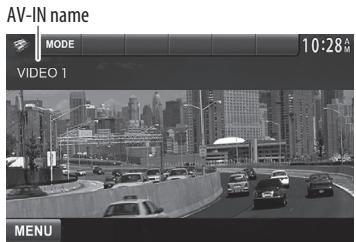
Operation buttons
[MODE] Changes the AV-IN name.
Press [or] to select an AV-IN name.
- This setting does not affect the source name "AV-IN 1"/"AV-IN 2" displayed on
[MENU] Displays the
Starting playback
1 Connect an external component to the AV-IN1 and iPod/AV-IN2 input terminals.
2 Select "AV-IN1" or "AV-IN2" as the source. (Page 9)
3 Turn on the connected component and start playing the source.
Using a rear view camera
- To use a rear view camera, a REVERSE lead connection is required. (Page 55)
□Activating the rear view camera
1 Display the setting screen. On the
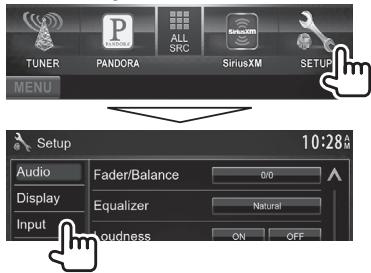
2

To deactivate: Select [Off] for <R -CAM Interrupt>.
Displaying the picture from the rear view camera
The rear view screen is displayed when you shift the gear to the reverse (R) position.
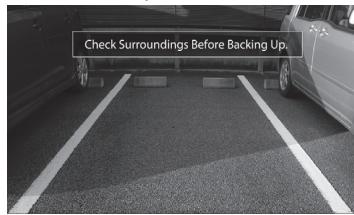
To erase the caution message, touch the screen.
To display the picture from the rear view camera manually
DDX771*
DDX491HD/DDX471HD/DDX3 DDX310BT/DDX3071BT*2
DDX271/ DDX2071*
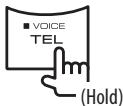
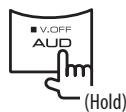
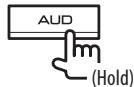
- When displaying the picture from the rear view camera manually, you can change the setting of the picture using [Zoom]/[Aspect]/[Adjust]. (Page 41)
To exit the rear view screen: Press and hold the same button again.
1 This operation works only when
Information for using Bluetooth® devices

Bluetooth®
Bluetooth is a short-range wireless radio communication technology for mobile devices such as mobile phones, portable PCs, and other devices. Bluetooth devices can be connected without cables and communicate with each other.
Notes
- While driving, do not perform complicated operations such as dialing numbers, using the phonebook, etc. When you perform these operations, stop your car in a safe place.
- Some Bluetooth devices may not connect to this unit depending on the Bluetooth version of the device.
- This unit may not work for some Bluetooth devices.
- Connecting conditions may vary depending on your environment.
- For some Bluetooth devices, the device is disconnected when the unit is turned off.
Connecting Bluetooth devices
Registering a new Bluetooth device
When you connect a Bluetooth device to the unit for the first time, pair the unit and the device. Pairing allows Bluetooth devices to communicate with each other.
- The pairing method differs depending on the Bluetooth version of the device.
- For devices with Bluetooth 2.1: You can pair the device and the unit using SSP (Secure Simple Pairing) which only requires confirmation.
- For devices with Bluetooth 2.0: You need to enter a PIN code both on the device and unit for pairing.
- Once the connection is established, it is registered in the unit even if you reset the unit. Up to 5 devices can be registered in total.
- Only one device for Bluetooth phone and one for Bluetooth audio can be connected at a time.
- To use the Bluetooth function, you need to turn on the Bluetooth function of the device.
- To use the registered device, you need to connect the device to the unit. (Page 34)
Pairing a Bluetooth device using SSP (for Bluetooth 2.1)
When the Bluetooth device is compatible with Bluetooth 2.1, a pairing request is sent from an available device.
1 Search "KENWOOD BT MM-8U2" from your Bluetooth device.
2 Confirm the request both on the device and the unit.
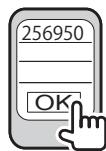
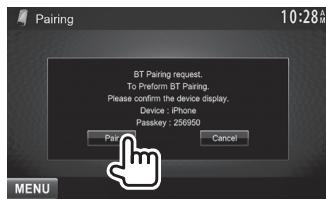
- Press [Cancel] to reject the request.
Pairing a Bluetooth device using a PIN code (for Bluetooth 2.0)
1 Display the
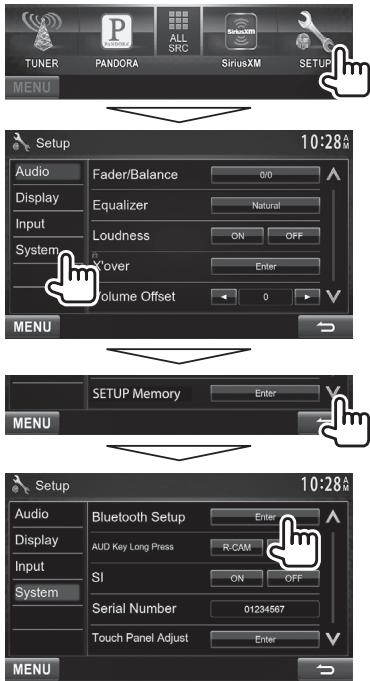
2 Change the PIN code.
- If you skip changing the PIN code, go to step 3.
- The PIN code is initially set to "0000".
- The maximum number of digits in the PIN code is 16.
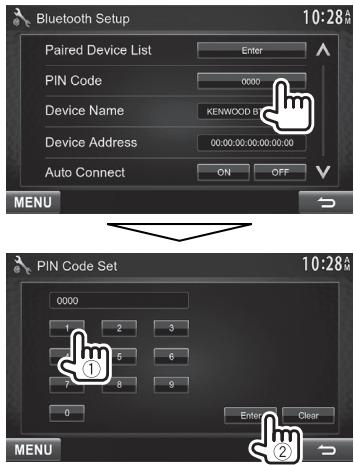
- Press [Clear] to delete the last entry.
3 Search "KENWOOD BT MM-8U2" from your Bluetooth device.
4 Select the "KENWOOD BT MM-8U2" for your Bluetooth device.
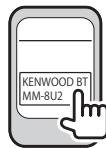
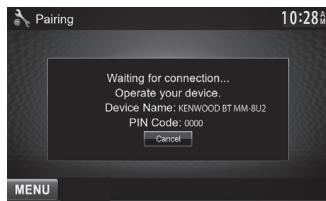
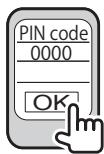
- If the PIN code is required, enter "0000" (initial).
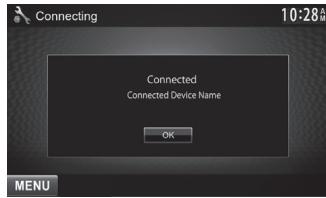
When pairing is complete, the device is listed on
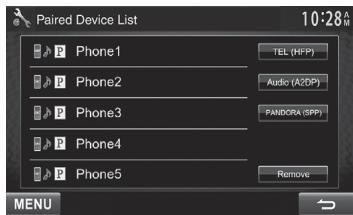
- To use the paired device, connect the device on
. (Page 34)
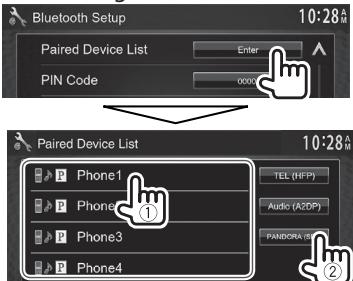
- Connecting a registered Bluetooth device
1 Display the
2

3 Select the device you want to connect (①), then select the usage of the device (②).
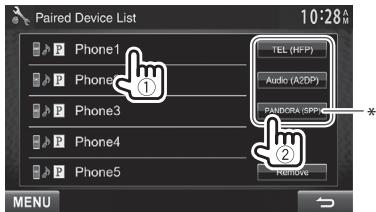
[TEL (HFP)]: for mobile phone
[Audio (A2DP)]: for Bluetooth audio player
[PANDORA (SPP)]: for Pandora*
- Selectable items depend on the device you are operating.
-
If you connect a device while another device is connected, the device previously connected is disconnected and the connection for the device recently connected is established.
-
[PANDORA (SPP)] appears only for DDX771/DDX491HD/ DDX471HD/DDX371/DDX310BT.
□ 删除 a registered Bluetooth device
1 Display the
2
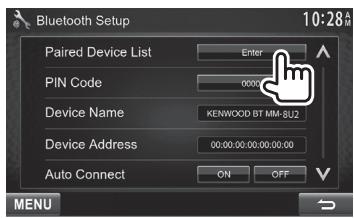
3 Select a device to delete (①), then delete the registration (②).
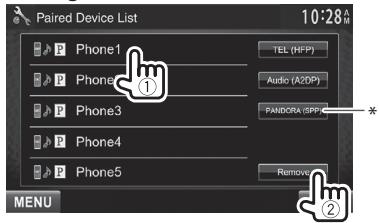
A confirmation message appears. Press [Yes].
- [PANDORA (SPP)] appears only for DDX771/DDX491HD/ DDX471HD/DDX371/DDX310BT.
Using the Bluetooth mobile phone
Receiving a call
When a call comes in...
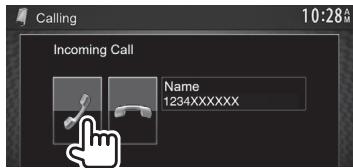
- Call information is displayed if acquired.
- Phone operation is not available while the picture from the rear view camera is displayed. (Page 31)
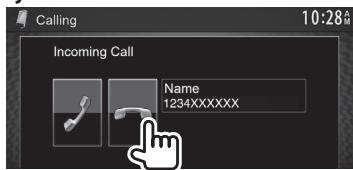
To reject a call
When
□Ending a call
While talking...
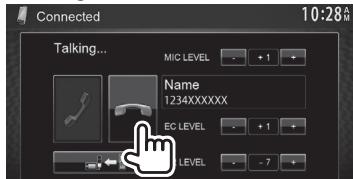
□Adjusting the volume of calls/earpiece/microphone
While talking...
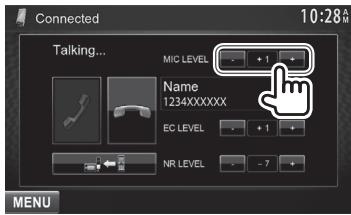
- You can adjust the volume level between -20 to +8 (initial: 0).
- This adjustment does not affect the volume level of the other sources.
- Use the monitor panel to adjust the call/earpiece volume. (Page 7)
Switching between handsfree mode and phone mode
While talking...
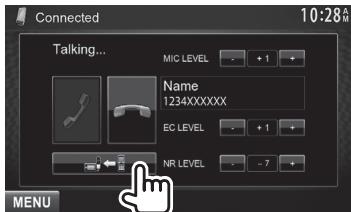
Each time you press the button, the talking method is switched ( : handsfree mode / : phone mode).
Notifying SMS reception
If the mobile phone is compatible with SMS (Short Message Service), the unit tells you a message has been received. (Page 39)
- To read a received message, operate the mobile phone after stopping the car in a safe place.
- You cannot read, edit, or send a message through the unit.
- For some mobile phones, the notification message may not be shown even if the SMS function is supported.
Reducing noise/adjusting the echo cancel level
While talking...
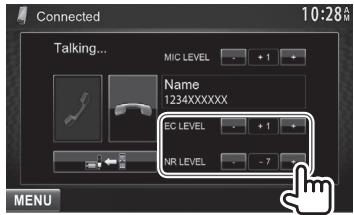
To adjust the echo volume (between 1 to 10, initial: 4): Adjust
- To adjust the noise reduction volume (between -5 to -20, initial: -7): Adjust
Making a call
1 Display the
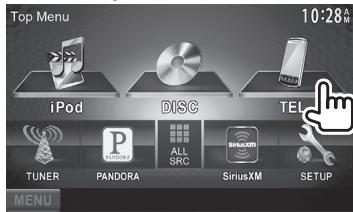
2 Select a method to make a call.
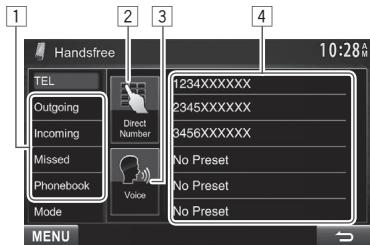
1 From the phone book/call lists
2 Direct number entry
3 Voice dialing
4 Preset list
- To preset, see page 37.
From the phone book/call lists
1
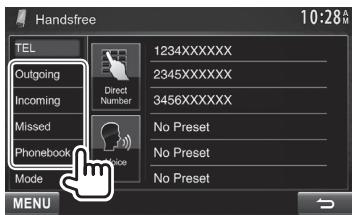
[Outgoing]
From the dialed call list
[Incoming]
From the received call list
[Missed]
From the missed call list
[Phonebook]
From the phone book
To copy the phone book, see page 37.
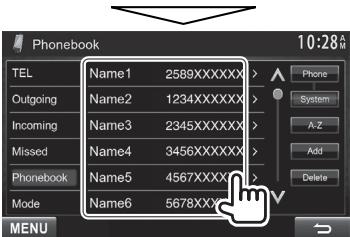
- You can change the page to display more items by pressing [] / [] .
2
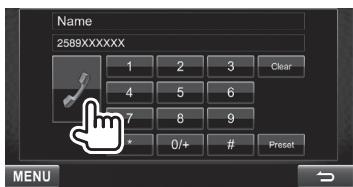
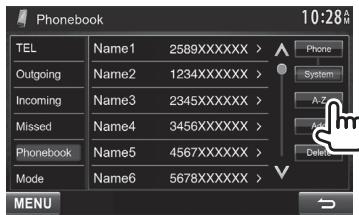
- To use the A to Z search on phone book: When the
screen is displayed, you can search by initial.
1
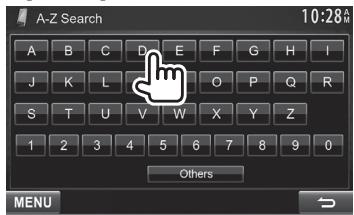
2 Select the initial.
- If the initial is not a letter or number, press [Others].
3 Select a phone number from the list.
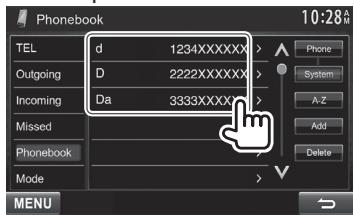
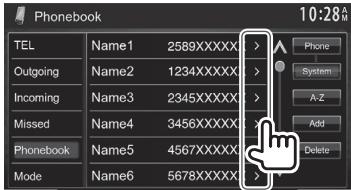
- To display the details of an entry: When the
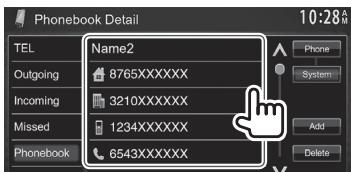
is displayed, you can display the details of an entry and select a phone number if several phone numbers are registered.
1 Display the details of the desired entry.
2 Select a phone number to call.
Direct number entry
You can enter up to 32 numbers.
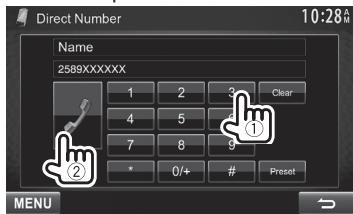
- Press [Clear] to delete the last entry.
- Press and hold [0 + ] to add "+" to the phone number.
- Press [Preset] to save the entered phone number onto the preset list. (See the far left column.)
Voice dialing
- Available only when the connected mobile phone has a voice recognition system.
1 Activate voice dialing.
On the
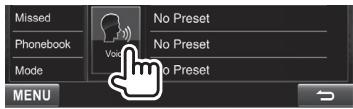
On the monitor panel:
DDX771
DX491HD/DDX471HD/
DDX371/DDX310BT/
DDX3071BT*
2 Say the name of the person you want to call.
- If the unit cannot find the target, the following screen appears. Press [Start], then say the name again.
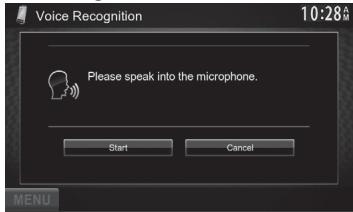
To cancel voice dialing: Press [Cancel].
- This operation works only when
is set to [Voice]. (Page 48)
□ Presetting phone numbers
You can preset up to 6 phone numbers.
1 Display the
2 Select an item from the phone book/call lists. (Page 36)
3 Select a phone number.
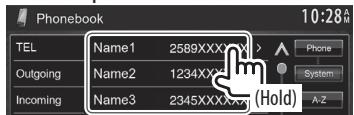
4 Select a preset number to store into.
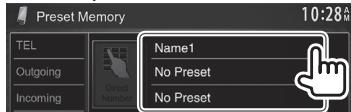
- You can also preset a phone number entered on the
screen by pressing [Preset]. (Page 36)
To delete the preset phone numbers: Initialize the settings from
□ Copying the phone book
You can copy the phone book memory of a mobile phone into the unit (up to 400 entries).
1 Display the
2
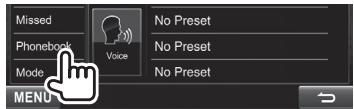
3
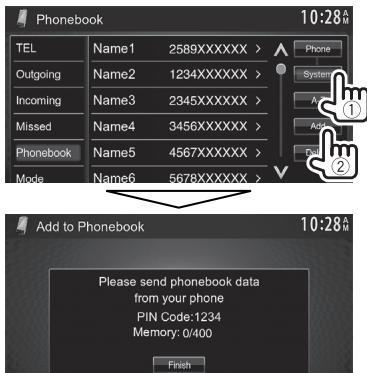
The PIN code (initial: 0000) necessary for copying the phonebook from the mobile phone and the numbers of the phone book entries copied are displayed.
4 Operatethe target mobile phone.
- Refer to the instruction manual supplied with your mobile phone.
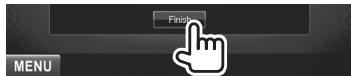
- To cancel the transfer, press [Finish].
5 Finish the procedure.
The phone book memory is copied from the mobile phone.
About mobile phones compatible with Phone Book Access Profile (PBAP)
If your mobile phone supports PBAP, you can display the phone book and call lists on the touch panel screen when the mobile phone is connected.
- Phone book: up to 5000 entries
- Dialed calls, received calls, and missed calls: up to 50 entries each
To display the phone book/call lists of the mobile phone or the unit
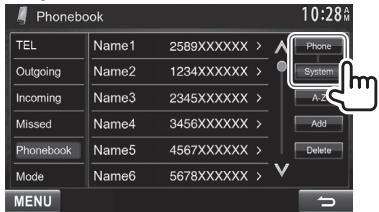
[Phone] Displays the phone book/call lists on the connected mobile phone.
[System] Displays the phone book/call lists copied to the unit.
□ 删除的 phone number entries in the unit
1 Display the phone book/call list you want to delete. (Page 36)
2
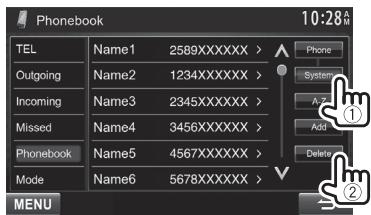
- You cannot delete data when [Phone] is selected.
3 Select the item you want to delete.
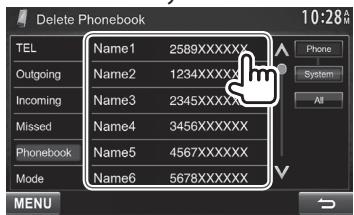
- Press [All] to delete all the numbers/names in the selected list.
A confirmation message appears. Press [Yes].
Settings for Bluetooth mobile phones
1 Display the
2
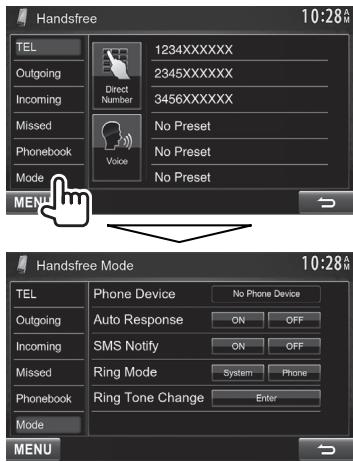
□ Setting items
| <Phone Device> | Shows the connected phone device name. |
| <Auto Response> | ON: The unit answers the incoming calls automatically in 5 seconds. OFF (Initial): The unit does not answer the calls automatically. Answer the calls manually. |
| <SMS Notify> | ON: The unit informs you of the arrival of a message by ringing and displaying “Receiving Message”. OFF (Initial): The unit does not inform you of the arrival of a message. |
| <Ring Mode> | System (Initial): The ring tone set on the unit is used. Phone: The ring tone set on the mobile phone is used. (This function may not work depending on the mobile phone.) |
| <Ring Tone Change> | When <Ring Mode> is set to <System>, press [Enter], then select the ring tone for received calls and SMS from <Tone1> (Initial), <Tone2>, <Tone3>. Call Tone: Selects the ring tone for phone calls. Message Tone: Selects the ring tone for SMS. |
Using the Bluetooth audio player
To register a new device, see page 32.
- To connect/disconnect a device, see page 34.
□ Indications and buttons on the source control screen
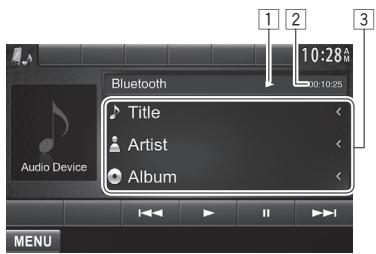
- The operation buttons, indications and information displayed on the screen differ depending on the connected device.
Playback information
Playback status ( : play/1: pause)*
2 Playing time
Tag data (current track title/artist name/album title)
- Pressing [<] scrolls the text if not all of the text is shown.
Operation buttons
[1] Pauses playback.
[+] Starts playback.
[144] [▶▶i] Selects a track. (Press) Reverse/forward search.* (Hold)
[MENU] Displays the
- Available only for the devices compatible with AVRCP 1.3.
Sound adjustment
Using the sound equalization
- The adjustment is memorized for each source until you adjust the sound again. If the source is a disc, the adjustment is stored for each of the following categories.
DVD/VCD
-CD
DivX/MPEG1/MPEG2/MP3/WMA/WAV/AAC
- You cannot adjust the sound when the unit is in standby.
Selecting a preset sound mode
1 Display the
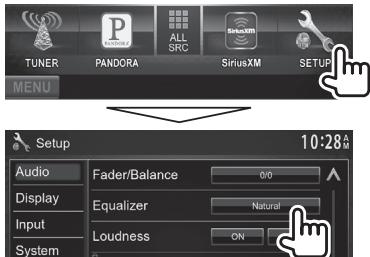
2 Select a sound mode.

- You can change the page to display more items by pressing [] / [] .
Storing your own adjustment—Customizing preset sound mode
1 Select a sound mode. (See the left column.)
2 Set
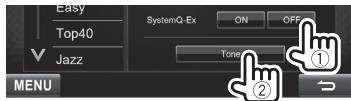
3 Select the band (①), adjust the level(②), then adjust the subwoofer level* (③).
- Repeat steps ① and ② to adjust the level of other bands.
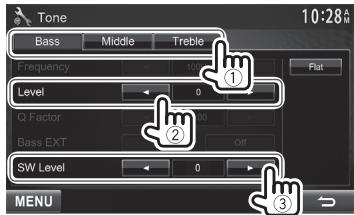
The adjustments are stored and
- You can also display the
screen by pressing AUD (for DDX771/DDX271/DDX2071) or by pressing and holding the Volume/ATT/AUD knob (for DDX491HD/DDX471HD/DDX371/DDX310BT/DDX3071BT) on the monitor panel. - Adjustable only when the subwoofer is activated. (Page 46)
Storing your own adjustment—Adjusting the sound precisely
1 Select a sound mode. (See the far left column).
2 Set
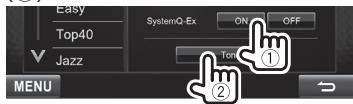
3 Select the band (①), then adjust the sound (②).
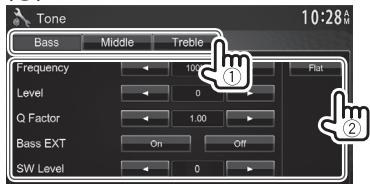
Adjusts the width of the frequency.
The adjustments are overwritten if the
- To make adjustment for other bands, repeat step 3.
- Adjustable only when the subwoofer is activated. (Page 46)
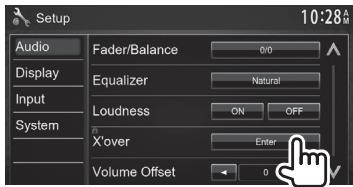
Adjusting the crossover frequency
1 Display the
On the
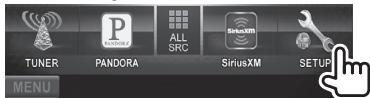
2 Select the item to adjust (①), then make adjustments (②).
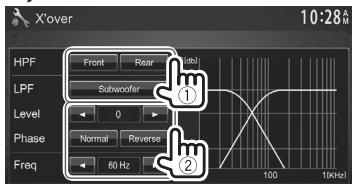
1 Adjustable only when the subwoofer is activated. (Page 46)
2 Not selectable when
Adjustment for video playback
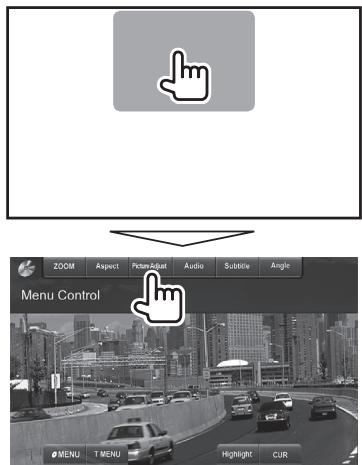
Adjusting the picture
You can adjust the picture quality.
1 Display the adjustment menu.
2 Select [DIM ON] (dimmer on) or [DIM OFF] (dimmer off).
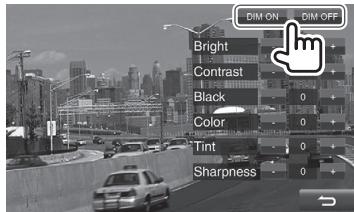
3 Adjust the picture (-15 to +15)
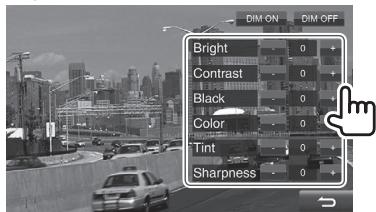
Changing the aspect ratio
You can change the aspect ratio for video playback.
1 Display the adjustment menu.
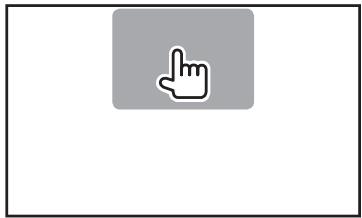
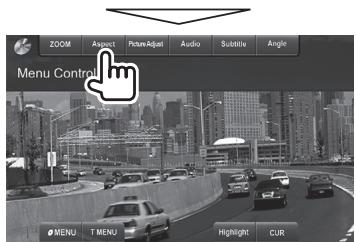
2 Select the aspect ratio.
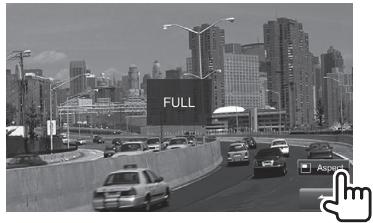
For 16:9 original pictures
4:3 signal
16:9 signal


For viewing 4:3 pictures naturally on the wide screen
4:3 signal
16:9 signal


For 4:3 original pictures
4:3 signal
16:9 signal


For "DISC"/"USB" only: The aspect ratio is automatically selected to match the incoming signals.
- While DivX is played back with
set to [16:9] (Page 13/for USB: Page 15), the aspect ratio is not set correctly.
Zooming the picture
You can zoom the picture (
- When
is set to or (see the left column), the picture is zoomed with the aspect ratio of the setting.
1 Display the adjustment menu.
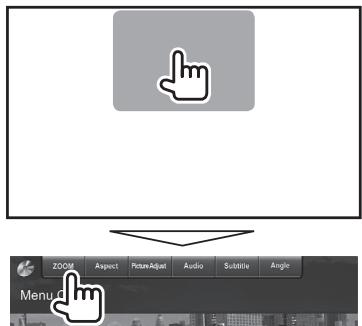
2 Change the magnification (①), then move the zooming frame (②).
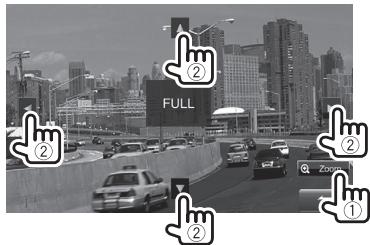
- The zoom function cannot be used for some video sources.
Changing display design
You can change the background and panel color.
1 Display the
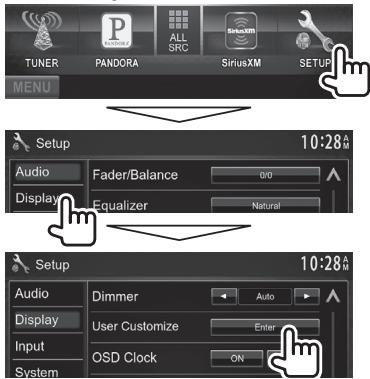
2 Select an item to change ([Background] or [Panel Color]).
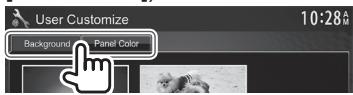
3 Select a background/panel color. To select a background
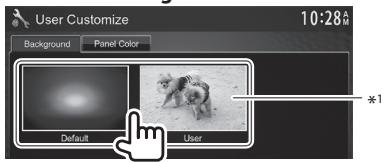
To select a panel color
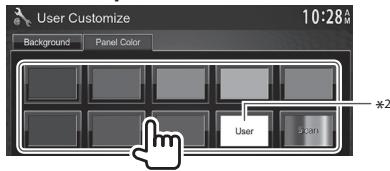
- Selecting [Scan] changes the illumination color gradually.
1 Store your own scene beforehand. (See the right column.)
2 Store your own color adjustment beforehand. (See below.)
Making your own color adjustment
1 Select [Panel Color] on the
2
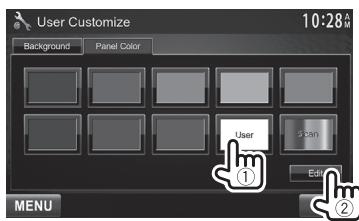
3 Select the dimmer setting for the color (①), then adjust the color (②).
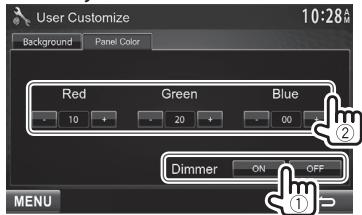
Storing your own scene for the background image
While playing a video or JPEG, you can capture an image and use the captured image as a background.
- You cannot capture copyrighted content and images from iPod/iPhone.
- When using a JPEG file as the background, make sure that the resolution is 800 × 600 pixels.
- The color of the captured image may look different from that of the actual scene.
1 Play a video or JPEG.
2 Display the
3
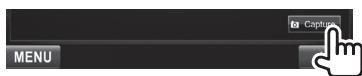
4 Adjust the image.
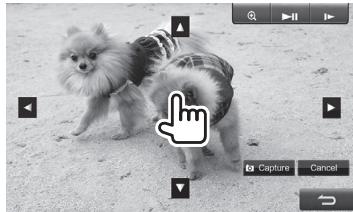
[Starts/pauses playback.
[1] * Advances scenes frame-by- frame.
[O] Magnifies the scene. (
[▲][▼][[4][▶] Moves the zooming frame.
To cancel the capture, press [Cancel].
5 Capture the image displayed on the screen.
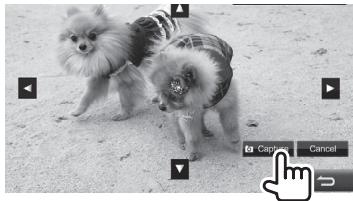
A confirmation message appears. Press [Yes] to store the newly captured image. (The existing image is replaced with the new one.)
-
Press [No] to return to the previous screen.
-
Not displayed when playing an external component connected to the AV-IN1 or iPod/AV-IN2 input terminal.
Customizing the screen
You can arrange the items to display on the
1 Display the