
YAMAHA Waves WSG-Y16 V2 - Uncategorized

Waves WSG-Y16 V2 - Uncategorized YAMAHA - Free user manual and instructions

Find the device manual for free Waves WSG-Y16 V2 YAMAHA in PDF.

📄 5 pages English EN Download 💬 AI Question 10 questions ⚙️ Specs
Notice YAMAHA Waves WSG-Y16 V2 - page 1
Pick your language and provide your email: we'll send you a specifically translated version.
Product Type SoundGrid I/O Interface Card for Yamaha Digital Consoles
Brand Yamaha
Model WSG-Y16 V2
Audio Channels 16x16 (16 inputs, 16 outputs)
Network Interface Gigabit Ethernet (1000BASE-T)
Sample Rates Supported 44.1 kHz, 48 kHz, 96 kHz
Compatible Consoles Yamaha CL/QL series and other consoles with WSG-Y16 slot
Power Supply Powered via console slot (no external power required)
Dimensions (Approx.) 140 mm x 80 mm x 20 mm (width x depth x height)
Weight (Approx.) 100 g
Supported Software Waves SoundGrid Studio, MultiRack SoundGrid, Waves Tracks Live
Driver Support Waves SoundGrid Driver for macOS and Windows (ASIO/Core Audio)
Maximum Cable Length (Ethernet) 100 meters (standard Cat5e/Cat6)
Firmware Update Via SoundGrid Studio or MultiRack application
Registration Required Yes, via Waves account for driver and license access
Multi-Card Support Yes, multiple WSG-Y16 cards can be used with a SoundGrid-compatible switch
Operating Temperature 0°C to 40°C (32°F to 104°F)
Operating Humidity 30% to 90% (non-condensing)

Frequently Asked Questions - Waves WSG-Y16 V2 YAMAHA

How do I register my WSG-Y16 V2 card?
Log into your Waves account at www.waves.com and follow the registration prompts. You will need the serial number from the card. Registration is required to obtain drivers and licenses.
What software do I need to use the WSG-Y16 V2?
You need the Waves SoundGrid Driver and a compatible host application such as SoundGrid Studio or MultiRack SoundGrid. The driver is available from the Waves Hardware Drivers page.
How do I connect the WSG-Y16 V2 to my computer?
Connect the card's Ethernet port directly to your computer's Gigabit Ethernet port using the supplied cable for a single card. For multiple cards or other devices, use a SoundGrid-compatible switch.
Why is the driver not appearing in my DAW?
Ensure the SoundGrid application (SoundGrid Studio or MultiRack) is running. The driver may appear before the application is launched, but the application must be open to configure the device. Also check that the correct network port is selected in the driver control panel.
Can I use multiple WSG-Y16 cards together?
Yes. Connect all cards to a SoundGrid-compatible switch and ensure the switch is connected to your computer. Configure each card in the SoundGrid Studio inventory. The system supports up to several cards for expanded I/O.
How do I update the firmware on my WSG-Y16 V2?
Firmware updates are initiated automatically when you run the SoundGrid Studio or MultiRack application for the first time, or manually via the Device Racks or SoundGrid Inventory window. Follow on-screen prompts.
What is the maximum audio sample rate supported?
The WSG-Y16 V2 supports sample rates up to 96 kHz. Ensure your console and DAW are set to a compatible sample rate.
Does the WSG-Y16 V2 work with any Yamaha console?
It is designed for Yamaha digital consoles that have a WSG-Y16 slot, such as the CL and QL series. Check your console's compatibility in the manual.
What type of Ethernet cable should I use?
Use a shielded Cat5e or Cat6 cable for reliable performance. The maximum cable length is 100 meters.
How do I change the audio buffer size for low latency?
In the SoundGrid Driver control panel on Windows, you can adjust the ASIO buffer size. On Mac, buffer size is set within your DAW. Lower values reduce latency but may cause instability; typical values range from 64 to 512 samples.

User questions about Waves WSG-Y16 V2 YAMAHA

0 question about this device. Answer the ones you know or ask your own.

Ask a new question about this device

The email remains private: it is only used to notify you if someone responds to your question.

No questions yet. Be the first to ask one.

Download the instructions for your Uncategorized in PDF format for free! Find your manual Waves WSG-Y16 V2 - YAMAHA and take your electronic device back in hand. On this page are published all the documents necessary for the use of your device. Waves WSG-Y16 V2 by YAMAHA.

USER MANUAL Waves WSG-Y16 V2 YAMAHA

WSG-Y16 (V1 and V2) Quick Setup Guide

Registration

You must register your WSG-Y16 card to obtain the software, the drivers, and any licenses needed.

To register your device, log into your Waves account at www.waves.com.

Software Download

Go to Waves.com > Downloads > Hardware Drivers, and select Yamaha.

Download the latest version for Mac or PC, as needed.

Run the installer and follow the onscreen instructions.

Connections

Insert the WSG-Y16 to your Yamaha console.

Connect the WSG-Y16 card to your computer.

If you are using just one WSG-Y16 card, connect it directly to your computer's Gigabit Ethernet port using the supplied cable.

If you are using several WSG-Y16 cards and/or multiple SoundGrid interfaces, computers, etc., connect them all to a SoundGrid-compatible switch and connect the switch to your computer's Ethernet port. See http://www.waves.com/hardware/soundgrid-switches for a list of approved switches.

Recording/Playback

Your Waves SoundGrid application (SoundGrid Studio or MultiRack SoundGrid) must be open at all times to configure the driver.

After installation, the Waves SoundGrid driver will appear as available in your DAW even before you launch the Waves SoundGrid application.

1. Recording/Playback with the SoundGrid Studio Application

If you choose to use the SoundGrid Studio Application as your setup application, refer to the following images for configuration.

The first time you run and configure your WSG-Y16 card, you may be prompted to update the firmware of your device. Follow the onscreen instructions.
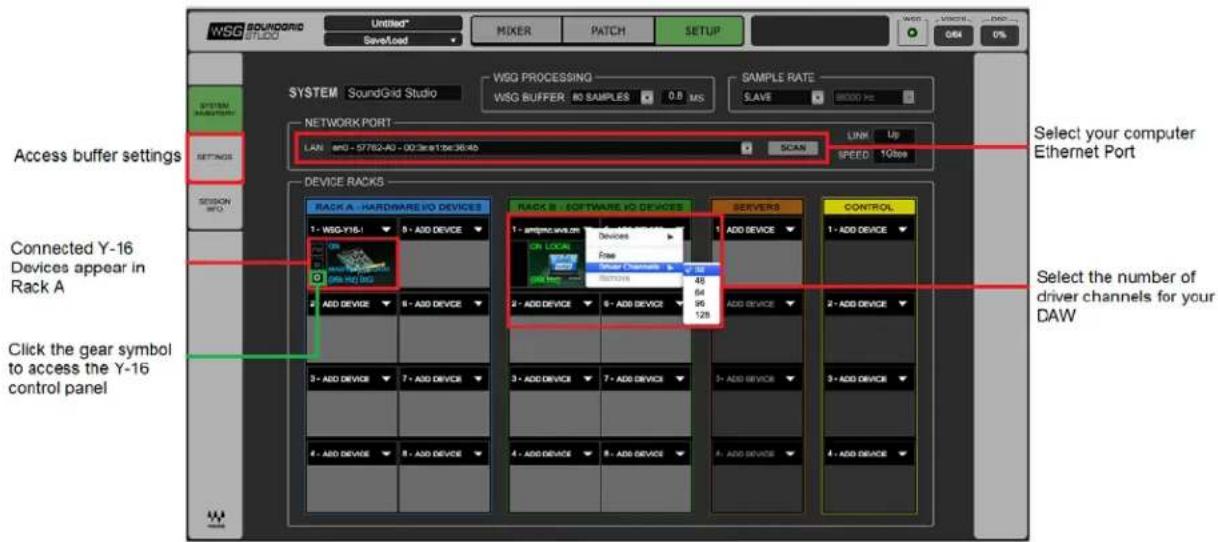
WSG SOUNDGRID STUDIO Untitled* SaveLoad MIXER PATCH SETUP WSG PROCESSING WSG BUFFER: 80 SAMPLES 0.8 ms SAMPLE RATE SAVE 8000 Hz SYSTEM SoundGrid Studio NETWORK PORT LAN: an0 - 5782-A0 - 003re12e364b SCAN LINK Up SPEED 1Qbox Access buffer settings SETTINGS SESSION WFO DEVICE RACKS RACK A - HARDWARE/IO DEVICES 1 - WSG-Y161 2 - ADD DEVICE 3 - ADD DEVICE 4 - ADD DEVICE 5 - ADD DEVICE 6 - ADD DEVICE 7 - ADD DEVICE 8 - ADD DEVICE 9 - ADD DEVICE 10 - ADD DEVICE ADD PROCESSED ADD PROCESSED ADD PROCESSED ADD PROCESSED ADD PROCESSED ADD PROCESSED ADD PROCESSED ADD PROCESSED ADD PROCESSED ADD PROCESSED ADD PROCESSED ADD PROCESSED ADD PROCESSED ADD PROCESSED ADD PROCESSED ADD PROCESSED ADD PROCESSED ADD PROCESSED ADD PROCESSED ADD PROCESSED ADD PROCESSEUTRAL ADD PROCESSEUTRAL ADD PROCESSEUTRAL ADD PROCESSEUTRAL ADD PROCESSEUTRAL ADD PROCESSEUTRAL ADD PROCESSEUTRAL ADD PROCESSEUTRAL ADD PROCESSEUTRAL ADD PROCESSEUTRAL ADD PROCESSEUTRAL ADD PROCESSEUTRAL ADD PROCESSEUTRAL ADD PROCESSEUTRAL ADD PROCESSEUTRAL Add Device 1 + Add Device 2 + Add Device 3 + Add Device 4 + Add Device 5 + Add Device 6 + Add Device 7 + Add Device 8 + Add Device 9 + Add Device 10 + Add Device 11 + Add Device 12 + Add Device 13 + Add Device 14 + Add Device 15 + Add Device 16 + Add Device 17 + Add Device 18 + Add Device 19 + Add Device 20 + Add Device 21 + Add Device 22 + Add Device 23 + Add Device 24 + Add Device 25 + Add Device 26 + Add Device 27 + Add Device 28 + Add Device 29 + Add Device 30 + Add Device 31 + Add Device 32 + Add Device 33 + Add Device 34 + Add Device 35 + Add Device 36 + Add Device 37 + Add Device 38 + Add Device 39 + Add Device 40 + Add Device 41 + Add Device 42 + Add Device 43 + Add Device 44 + Add Device 45 + Add Device 46 + Add Device 47 + Add Device 48 + Add Device 49 + Add Device 50 + Add Device 51 + Add Device 52 + Add Device 53 + Add Device 54 + Add Device 55 + Add Device 56 + Add Device 57 + Add Device 58 + Add Device 59 + Add Device 60 + Add Device 61 + Add Device 62 + Add Device 63 + Add Device 64 + Add Device 65 + Add Device 66 + Add Device 67 + Add Device 68 + Add Device 69 + Add Device 70 + Add Device 71 + Add Device 72 + Add Device 73 + Add Device 74 + Add Device 75 + Add Device 76 + Add Device 77 + Add Device 78 + Add Device 79 + Add Device 80 + Add Device 81 + Add Device 82 + Add Device 83 + Add Device 84 + Add Device 85 + Add Device 86 + Add Device 87 + Add Device 88 + Add Device 89 + Add Device 90 + Add Device 91 + Add Device 92 + Add Device 93 + Add Device 94 + Add Device 95 + Add Device 96 + Add Device 97 + Add Device 98 + Add Device 99 + Add Device 100 + SELECT your computer Ethernet Port Select the number of driver channels for your DAW

There are also built-in templates to assist you with configuration. Select the template that best meets your setup. For recording and playback, select 4x Y16 REC-PB Standalone.
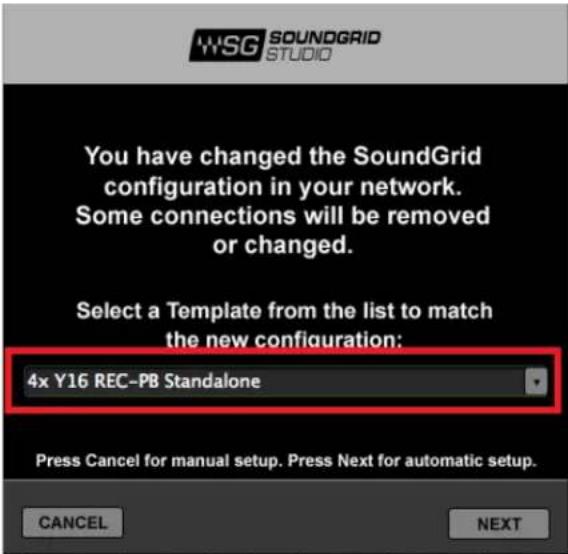
WSG SOUNDGRID STUDIO You have changed the SoundGrid configuration in your network. Some connections will be removed or changed. Select a Template from the list to match the new configuration: 4x Y16 REC-PB Standalone Press Cancel for manual setup. Press Next for automatic setup. CANCEL NEXT

Finally, check in the PATCH tab that your WSG-Y16 card is patched to the driver. If you've selected one of the preset templates, this should be all done. If you've adjusted the number of driver channels, you may need to patch additional channels.

2. Recording/Playback with MultiRack SoundGrid

(a) Open the SoundGrid Driver control panel here:

Mac: System HD /Applications /Waves /SoundGrid Windows: C:\Program Files\WavesSoundGridDriver

(b) Select the computer network port that is connected to the SoundGrid network.

Windows users – this is also where you can change the ASIO buffer size.
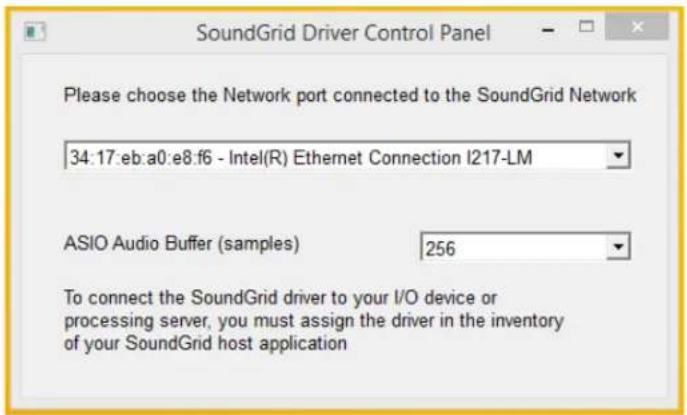
SoundGrid Driver Control Panel Please choose the Network port connected to the SoundGrid Network 34:17:eb:a0:e8:f6 - Intel(R) Ethernet Connection I217-LM ASIO Audio Buffer (samples) 256 To connect the SoundGrid driver to your I/O device or processing server, you must assign the driver in the inventory of your SoundGrid host application

Windows – SoundGrid ASIO Driver Control Panel
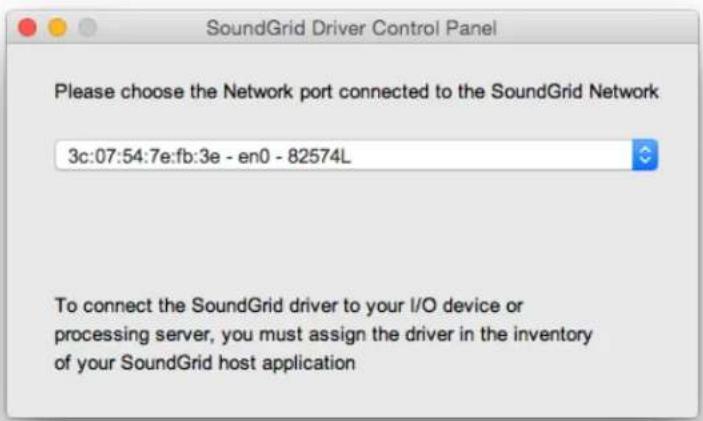
SoundGrid Driver Control Panel Please choose the Network port connected to the SoundGrid Network 3c:07:54:7e:fb:3e - en0 - 82574L To connect the SoundGrid driver to your I/O device or processing server, you must assign the driver in the inventory of your SoundGrid host application

Mac – SoundGrid Core Audio Driver Control Panel

(c) Launch MultiRack SoundGrid.
(d) Open the SOUNDGRID INVENTORY window (press F2 or open from the Audio > SoundGrid Inventory menu).
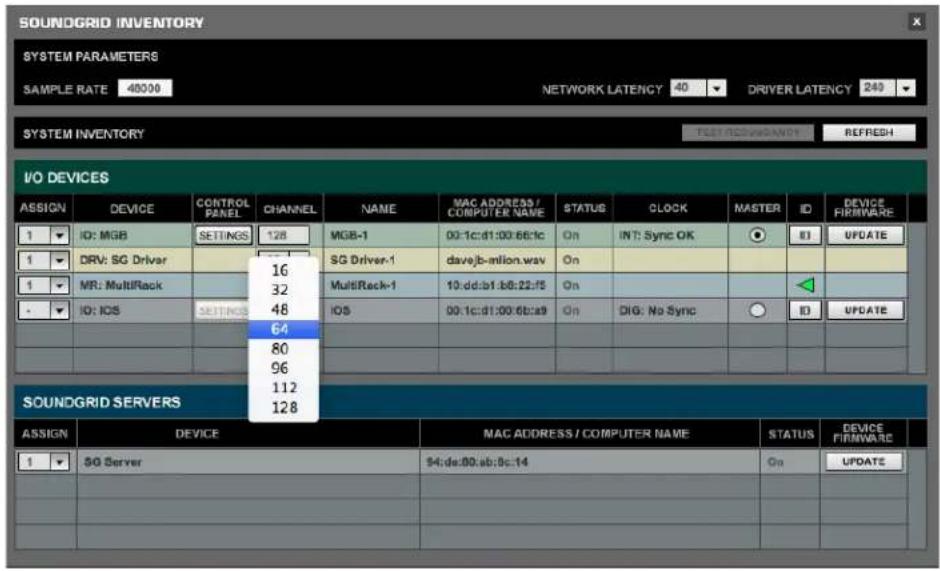
SOUNDGRID INVENTORY SYSTEM PARAMETERS SAMPLE RATE 48000 NETWORK LATENCY 40 DRIVER LATENCY 240 SYSTEM INVENTORY TEST RECOVERY REFRESH I/O DEVICES ASSIGN DEVICE CONTROL CHANNEL NAME MAC ADDRESS / COMPUTER NAME STATUS CLOCK MASTER ID DEVICE FIRMWARE 1 ID: MGB SETTINGS 128 MGB-1 02:1c:d1:00:66:c1c On INT: Sync OK B1 UPDATE 1 DRV: SG Driver 16 SG Driver-1 davejb-million.wav On 1 MR: MultiRack 32 MultiRack-1 10:dd:b1:b8:22:f5 On . IO: IOS SETTINGS 48 IOS 00:1c:d1:00:6b:e9 On DIG: No Sync O ID UPDATE 64 80 96 112 128 SOUNDGRID SERVERS ASSIGN DEVICE MAG ADDRESS / COMPUTER NAME STATUS DEVICE FIRMWARE 1 SG Server 94:de:80:ab:8c:14 On UPDATE 50

(e) Launch your DAW and set audio device to Waves SoundGrid Driver.
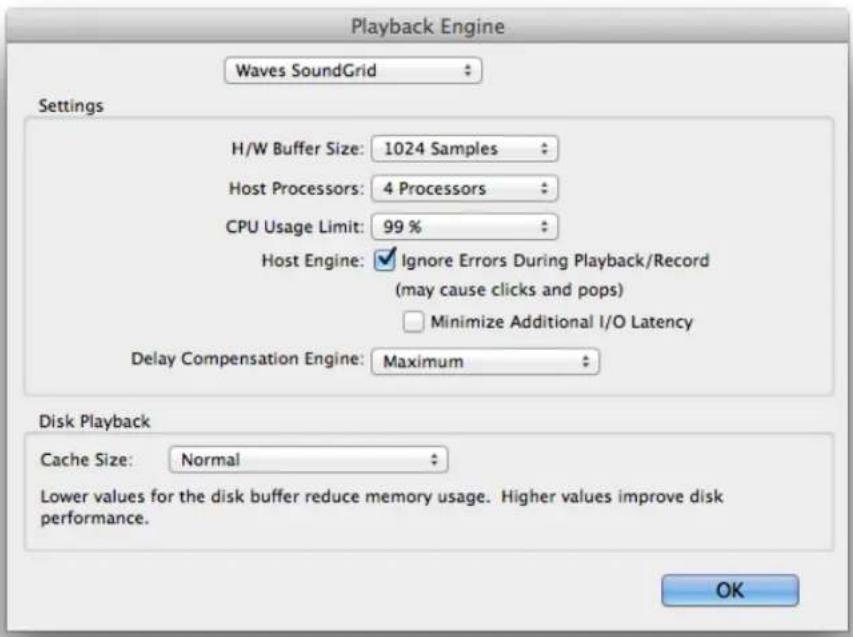
Playback Engine Waves SoundGrid Settings H/W Buffer Size: 1024 Samples Host Processors: 4 Processors CPU Usage Limit: 99 % Host Engine: ✓ Ignore Errors During Playback/Record (may cause clicks and pops) □ Minimize Additional I/O Latency Delay Compensation Engine: Maximum Disk Playback Cache Size: Normal Lower values for the disk buffer reduce memory usage. Higher values improve disk performance. OK

Manual assistant
Powered by Anthropic
Waiting for your message
Product information

Brand : YAMAHA

Model : Waves WSG-Y16 V2

Category : Uncategorized