
TP70A - Dehumidifier HONEYWELL - Free user manual and instructions
Find the device manual for free TP70A HONEYWELL in PDF.


| Product Type | Dehumidifier |
| Brand | Honeywell |
| Model | TP70A |
| Dimensions (H x W x D) | 24.4 x 15.0 x 11.3 inches |
| Weight | 45.2 lbs |
| Power Supply | 115V AC, 60Hz |
| Power Consumption | 620W (approx.) |
| Capacity | 70 pints per day (at 80°F, 60% RH) |
| Tank Capacity | 12.6 pints |
| Air Flow | 195 CFM (high speed) |
| Refrigerant Type | R-410A |
| Operating Temperature Range | 41°F to 95°F |
| Humidity Control Range | 30% to 80% relative humidity |
| Fan Speeds | High, Low, Auto |
| Timer | Programmable 24-hour timer |
| Continuous Drain Option | Yes (standard garden hose connection) |
| Auto-Restart | After power failure |
| Filter Type | Washable and reusable mesh filter |
| Filter Cleaning | Every 2 weeks; wash with water and mild detergent |
| Coil Cleaning | Annually; use a soft brush and vacuum |
| Bucket Cleaning | As needed; wipe with damp cloth |
| Safety Features | Auto shut-off when bucket is full; tip-over protection |
| Warranty | 1 year limited warranty, 5 years on sealed system |
Frequently Asked Questions - TP70A HONEYWELL
User questions about TP70A HONEYWELL
0 question about this device. Answer the ones you know or ask your own.
Ask a new question about this device
Download the instructions for your Dehumidifier in PDF format for free! Find your manual TP70A - HONEYWELL and take your electronic device back in hand. On this page are published all the documents necessary for the use of your device. TP70A by HONEYWELL.
USER MANUAL TP70A HONEYWELL
Read and save these instructions before use
natural_image
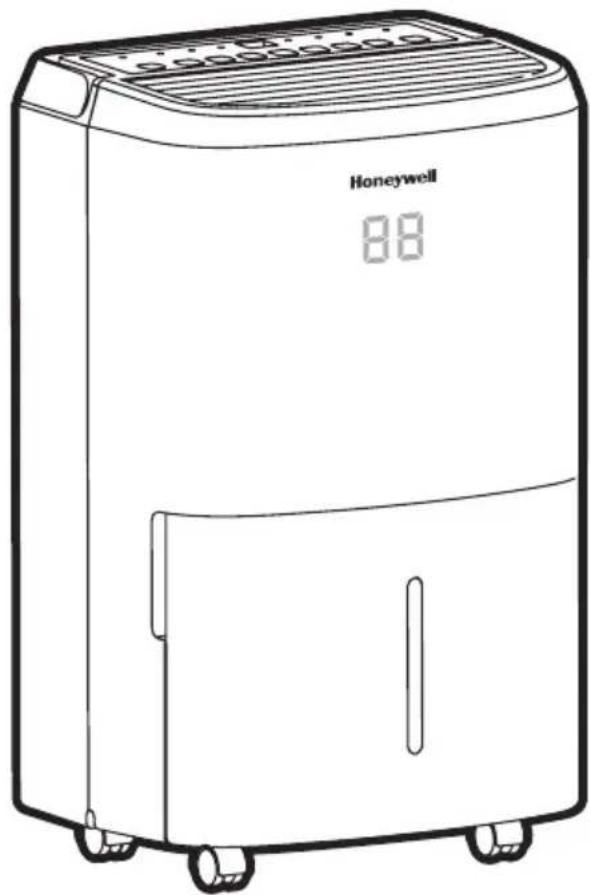
Line drawing of a Honeywell air purifier with control panel and wheels (no text or symbols on device body)Model:
TP30AWKN/ TP50AWKN/
TP70AWKN
Thank you for purchasing a Honeywell Dehumidifier. This User Manual is intended to provide you with important information needed to set up, operate, maintain and troubleshoot this product.
SAFETY RULES
WARNING -- READ AND SAVE THESE INSTRUCTIONS BEFORE USING THIS PRODUCT.
The use of electrical products may create hazards that include, but are not limited to injury, fire, electrical shock. Failure to follow these instructions may damage and/or impair its operation and void the warranty. In case there is any inconsistency or conflict between the English version and any other language version of the content of this material, the English version shall prevail.
When using electrical appliances, basic safety precautions should always be followed:
• DO NOT touch the dehumidifier or the electrical plug with wet hands.
- Check the household voltage to ensure it matches the appliance's specification.
- Before operating, remove all packaging material and check for any damage that may have occurred during shipping.
• DO NOT operate any product with a damaged cord or plug.
• DO NOT use an extension cord with this appliance.
- DO NOT run power cord under carpeting, or cover it with rugs or runners. Keep the cord away from areas where it may be tripped over.
• Always unplug the dehumidifier before emptying the water tank.
- The water collected in the tank must be discarded. The water should never be used for drinking.
- Always unplug the dehumidifier and remove the water from the water tank before cleaning, servicing or relocating the unit.
- Remove the power cord from the electrical receptacle by grasping and pulling on the power cord plug-end only, never pull the cord.
- This appliance has been manufactured for use in domestic environments and must not be used for other purposes.
- DO NOT use the product in areas where gasoline, paint or other flammable goods and objects are used or stored.
- This dehumidifier is designed for indoor residential applications only. It should not be used for commercial or industrial applications.
- DO NOT attempt to repair or adjust any electrical or mechanical functions of the dehumidifier, as this may cause danger and void the warranty.
• DO NOT cover the air inlet or outlet on the appliance as this may cause the unit to fail.
- DO NOT insert or allow objects to enter any ventilation or exhaust opening as this may damage the product and could cause electrical shock or fire.
• DO NOT let children play with this appliance, packaging or included plastic bag.
- If the unit is damaged or it malfunctions, do not continue to operate it. Unplug the product from the electrical outlet. Refer to the troubleshooting section and contact the customer support center.
• Always place the dehumidifier on a leveled floor.
- Never install the product near a bathtub or any water container.
- Store in a dry area, away from direct sunlight, when not in use.
- This appliance and its packaging materials are not intended for use by persons (including children or elderly) with reduced physical, sensory or mental capabilities, or lack of experience and knowledge, unless they have been given supervision or instructions concerning the use of the appliance by a person responsible for their safety.
- Always grip the top handle and keep the unit upright when transporting from room to room – DO NOT tilt the product on its side or upside-down.
- If the dehumidifier was transported tilted on its side, you must position it upright again and wait at least 4 hours before using it.
- WARNING: To reduce the risk of fire or electric shock, do not use this appliance with any solid state speed control device.
HOW A DEHUMIDIFIER WORKS
When the dehumidifier is switched ON, a fan pulls moisture-laden air into the dehumidifier where it passes through dehumidifying coils inside the unit. These coils condense moisture from the air and collect it in the water tank. The dry air is then exhausted from the dehumidifier. The air flows through the air vents of the dehumidifier into the room as dry, warm air.
IMPORTANT: The dehumidifier is designed to operate between 41^ F ( 5^ C) and 89^ F ( 32^ C). The dehumidifier's performance may be greatly reduced if room temperature is beyond this temperature range.
SELECTING A LOCATION - IMPORTANT
- Before using the dehumidifier, place the unit UPRIGHT for at least 1 hour before use to allow the refrigerant to stabilize. If the unit was tilted on its side or upside-down during transportation, set the unit upright for 4 hours before use.
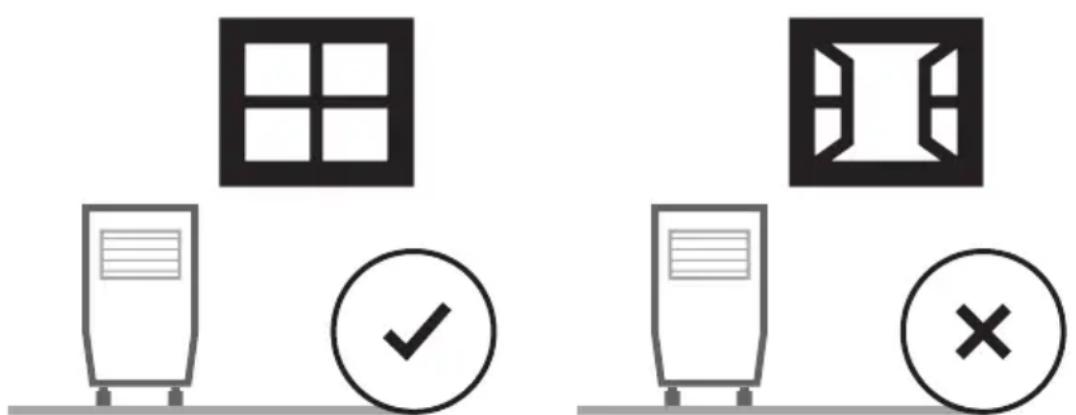
- For optimal efficiency, the dehumidifier must be operated in an enclosed area. Keep all doors, windows and other outside entrances to the room closed.
SELECTING A LOCATION - IMPORTANT (CONTINUED)
- Place the dehumidifier in an area where the temperature will not drop below 41^ (5°C)
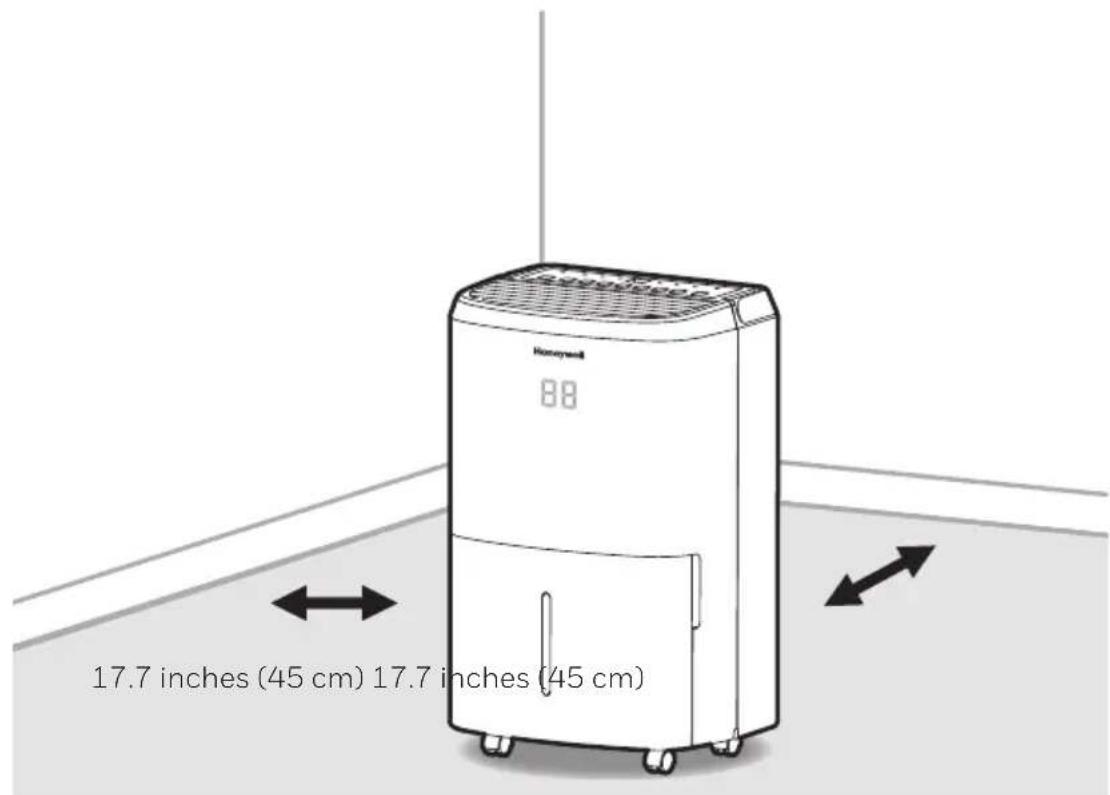
- Place the dehumidifier at least 17.7 inches (45 cm) away from other objects (e.g. curtains or furniture) that may restrict airflow from the back or through the air vents of the unit.
• The dehumidifier must be positioned on a level floor.
IMPORTANT: The effectiveness of the dehumidifier can be influenced by different factors. One factor is the rate at which new, moisture-laden air enters the room and the amount of air circulating in and out of the area to be dehumidified. For example, if a door to a basement is constantly opened, letting new, moisture-laden air into the room, dehumidification will take longer than if the door was kept closed. If the dehumidifier is in a room with a storage closet or cabinets, it will have little or no effect in drying the inside of the storage closet or cabinets unless there is adequate circulation of air in and out of these spaces. To dehumidify these spaces, open the storage door or cabinet doors to allow air circulation. You may find that installing a second dehumidifier may be required for larger enclosed areas.
UNPACKAGING THE DEHUMIDIFIER
- This Dehumidifier is packaged with a colored or transparent tape to secure some parts during transportation. Remove the colored or transparent packaging tape from the unit.
- Gently pull the water tank from out of the dehumidifier
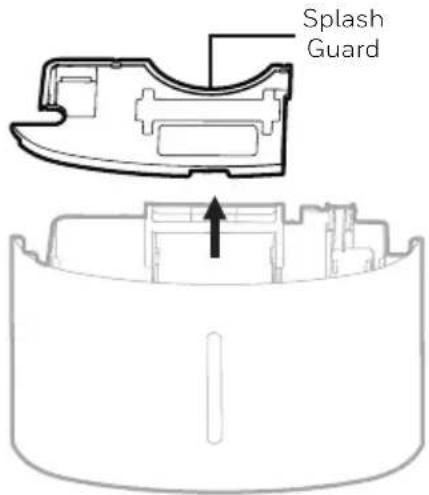
- Remove the splash guard from the top part of the water tank
- Take out the power plug, drain hose and other accessories, which is placed inside the tank of the dehumidifier.
- Once all accessories have been removed, replace the splash guard onto the top part of the water tank. Make sure that the tank is properly positioned.
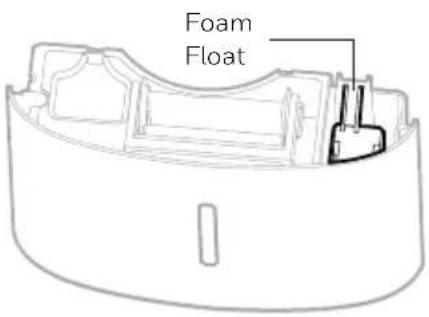
- There is a Foam Float inside the water tank that senses the water level to automatically stop dehumidification when the water tank is full. Make sure the Foam Float is positioned correctly inside the water tank by ensuring it lies level with the top edge of the water tank.
DO NOT REMOVE THIS FOAM FLOAT.
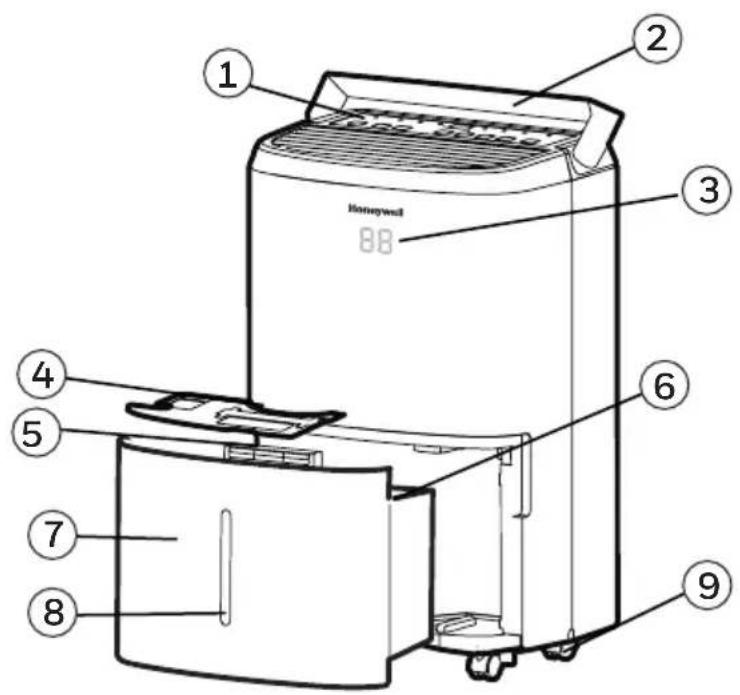
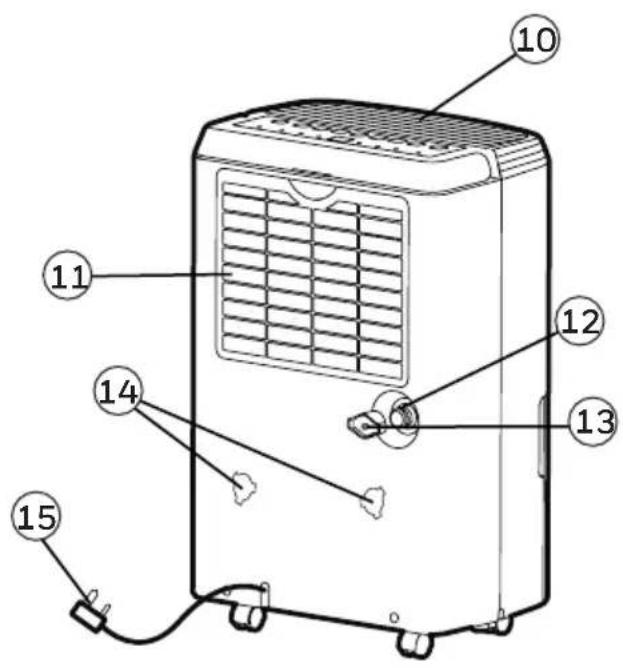
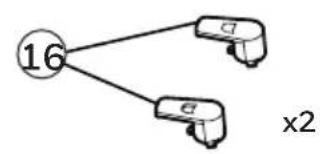
flowchart
graph TD
    A["16"] --> B[" "]
    A --> C[" "]
    style A fill:#fff,stroke:#000
    style B fill:#fff,stroke:#000
    style C fill:#fff,stroke:#000
    note right of B "x2"
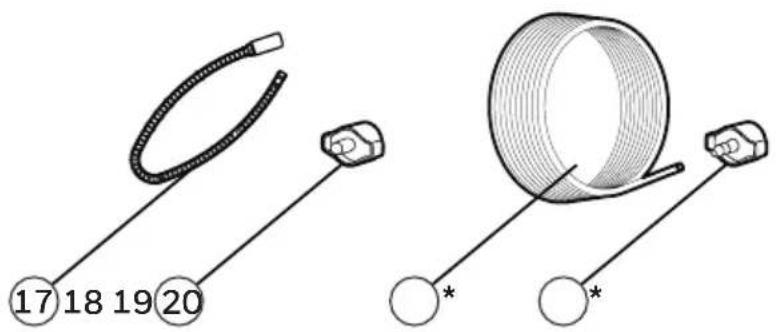
1) Control Panel 10) Dehumidified Air Exhaust Vent
2) Handle 11) Washable Dust Filter
3) LED Display 12) Direct Drain Outlet
4) Splash Guard 13) Direct Drain Cap
5) Water Tank Handle 14) Mounting Holes for Cord Winders
6) Foam Float 15) Power Cord & Plug
7) Water Tank 16) Cord Winders
8) Water Level Indicator 17) Continuous Water Drain Tube
9) Casters 18) Continuous Water Drain Cap
* THIS IS ONLY FOR MODEL TP70P / TP70PN WITH BUILT-IN DRAIN PUMP
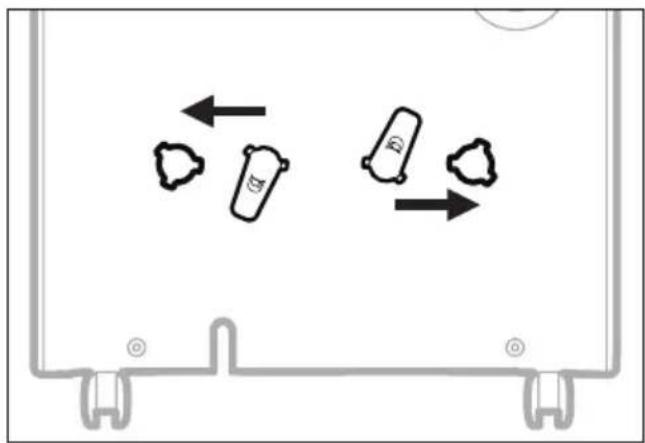
Once you have removed the cord winder accessories from the water tank - follow the steps below.
Step 1: Line up the cord winder pieces to the mounting holes.
natural_image
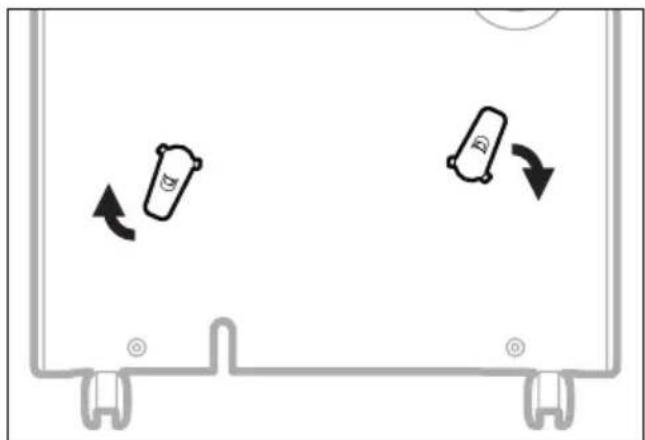
Diagram showing three cylindrical objects with arrows indicating movement or flow, enclosed in a rectangular frame (no text or symbols)Step 2: Rotate 45-degrees clock-wise.
natural_image
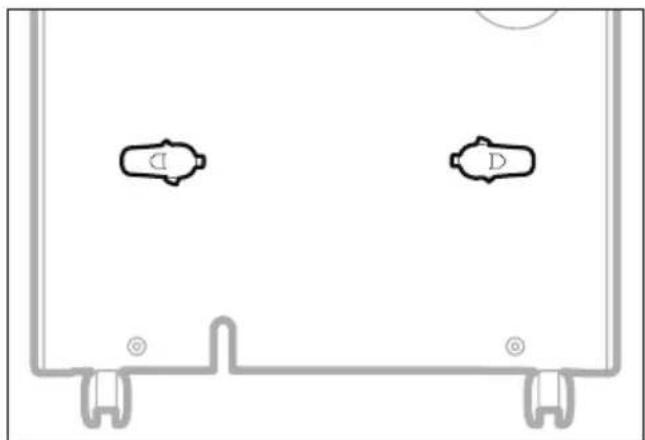
Diagram showing two cylindrical objects moving in a container with directional arrows indicating movement (no text or symbols)Step 3: Once you hear "click", then you know the cord winder is ready for use.
natural_image
Pure diagram of two identical mechanical components with mounting brackets and a circular symbol, no text or labels present.NOTE: Once the installation of the cord winder has been completed. The cord winder cannot be removed. The installation is permanent.
CONTROL PANEL
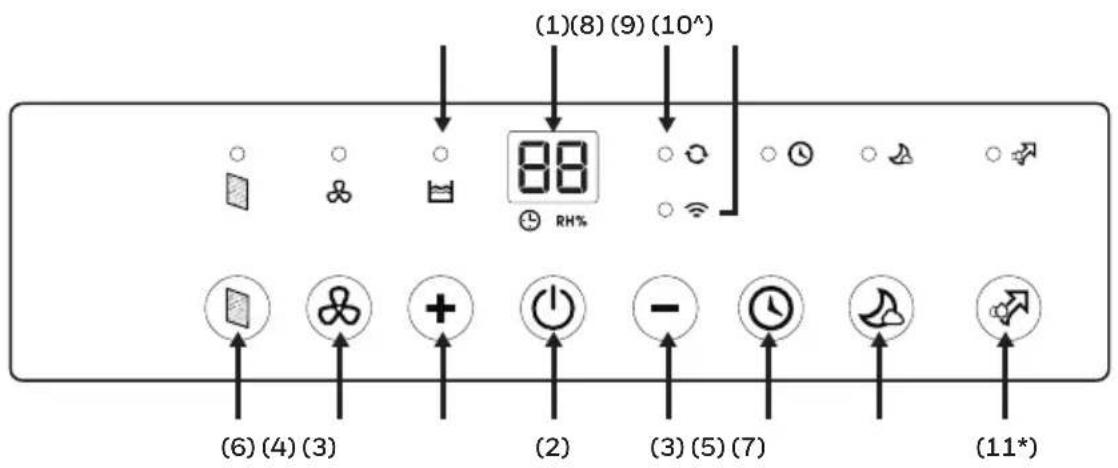
1) Display Screen 6) Filter Alert
2) Power Control 7) Sleep Mode
3) Humidity / Timer Set Controls 8) Water Full Indicator Light
4) Fan Speed Control 9) Continuous Operation Light
5) Timer Control
10^) Wi-Fi Connectivity and Voice Activated Control
^THIS IS ONLY FOR MODEL TP30A / TP50A / TP70A WITH WIFI SMART FEATURES
NOTE: For detailed instructions to set up your dehumidifier for connected operation from your smart phone or tablet, see page 24. or separate user manual can be downloaded at:

http://honeywellaircomfort.com/TP-SmartApp-Manual.pdf
11*) Auto Drain Pump Mode
*THIS IS ONLY FOR MODEL TP70P WITH BUILT-IN DRAIN PUMP
FUNCTION BUTTONS
POWER CONTROL

Press to switch the dehumidifier ON or OFF.
HUMIDITY CONTROL SETTING

RH%
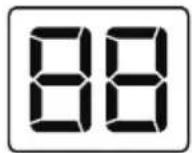
When the unit is switched ON, the Display Screen shows the current humidity percentage.
Press + or — to select your preferred humidity level. The humidity is adjusted in increments of 5% by pressing + or —. The adjustable Relative Humidity (RH) range is between 30% RH to 90% RH. Ten seconds after setting the preferred humidity setting, the display will revert back to displaying the current humidity.
Recommended Settings: It is recommended to leave the unit running at 30% humidity at High Fan Speed during the first 2 to 3 days until damp odors are removed. After a few days when the Relative Humidity has been reduced to a more comfortable level, press + or — to choose a higher RH% that maintains a comfortable humidity level thereafter. A recommended healthy humidity level is between 40% and 50%.
NOTE: The humidity sensor senses current humidity in the surrounding area. It is normal for a few degrees of variance to the humidity sensitivity from the sensor.
CONTINUOUS MODE
To activate the Continuous Mode, press the — button on the Display Screen until [O] appears. The ⬤ indicator light will be illuminated. The unit will run continuously.
WATER TANK FULL ALERT
When the Water Tank is full, the 📋 indicator will be illuminated. The unit will beep for 3 seconds. The compressor will shut off, and the fan will stop for a few minutes. To switch off the 📋 indicator light, empty the water tank and when replacing it ensure the tank is secured properly in place.
IMPORTANT: Do not place the Water Tank on the floor when full. In case of an uneven base which may cause the tank to spillover.
FUNCTION BUTTONS (CONTINUED)
TIMER CONTROL
The dehumidifier can be set to automatically switch ON or OFF for a selected period of time (between 0.5-24 hour intervals). The Timer hours selection is displayed on the Display Screen.
NOTE: Before setting the Timer control, make sure there is power to the unit.
Auto-Off Timer:
While the unit is running, press 🔒, the timer 🔒 indicator light will flash, press + or — to select the number of hours (0.5-24 hours) you want the unit to run before it switches off. In 5 seconds without the operation, the Timer start function, the timer 🔒 indicator light is illuminated. Timer must be set again after each use.
Auto-On Timer:
When unit is in Standby Mode, press 🔒, the timer 🔒 indicator light will flash, press + or — to select the number of hours (0.5-24 hours) until you want the unit to automatically start running. In 5 seconds without the operation, the Timer start function, the timer 🔒 indicator light is illuminated. The previous fan speed and humidity setting will be maintained. The unit will turn on and continue running until the water tank is full (unless the unit is set up for continuous draining) or until you switch it off manually. Timer must be set again after each use.
NOTE: To cancel any Timer settings, simply press 📁 again, and the timer 🔒 indicator light will disappear.
NOTE: The solid red Power light indicates the unit is on Standby Mode.
FAN SPEED CONTROL
There are two fan speeds - High and Low. When, the ✕ indicator light is illuminated, the unit is operating on High speed. When the ✕ indicator light is off, and the unit is on - the unit is operating on Low speed.
FILTER ALERT
When the Filter Alert Light is ON, it is time to clean the filter. Switch the unit OFF and carefully remove the filter from the unit and clean. Replace the filter and switch ON the unit.
The Filter Alert Light should not be illuminated until the filter requires cleaning again. The frequency of filter cleaning depends on room environment conditions. Some rooms may require changing more frequently than others.
FUNCTION BUTTONS (CONTINUED)
SLEEP MODE

The LED display brightness will be reduced when the unit is in Sleep Mode. Press the 🎨 to activate the Sleep Mode. When Sleep Mode is activated the 🎨 indicator light will be illuminated. There is a one-minute window period in which you can adjust the settings such as humidity and fan speed. After one minute has lapsed, the top display will shut off, except the 🎨 indicator light. Press any button to deactivate Sleep Mode.
WI-FI MODE^

When the Smart Dehumidifier is connected to the wifi function, the 📋 indicator light will be illuminated.
^THIS IS ONLY FOR MODEL TP30A / TP50A / TP70A WITH WI-FI SMART FEATURES
The Auto Drain Pump function helps to remove condensation vertically and horizontally. Press the to activate the Pump function, the indicator light will be illuminated.
*THIS IS ONLY FOR MODEL TP70P / TP70PN WITH BUILT-IN DRAIN PUMP
AUTO RESTART FUNCTION
IMPORTANT: For models with Auto Drain Pump, the Auto Drain Pump will not automatically restart after a power outage to prevent leakage in case the drain tube was disconnected during power failure. The Auto Drain Pump Mode button must be manually reactivated in the event of a power outage.
AUTOMATIC DEFROST
Frost may build up on the internal coils of the unit. When there is frost build up, the internal compressor will turn off and the fan will continue to run until the frost has melted. Once the internal coils have defrosted and dried, the compressor or fan will automatically restart and dehumidifying will resume.
DRAINING THE WATER

WARNING: Always drain and discard water collected from dehumidification. The water is not clean and cannot be used for drinking.
1. Draining water collected in the Water Tank
The condensed water can be collected directly into the water tank. When the water tank is full, the dehumidifier will automatically shut OFF and the 📋 indicator will illuminate on the control panel followed by a beeping sound.
IMPORTANT: Do not move the dehumidifier when the Water Tank is full as it will be heavy and can cause water spillage.
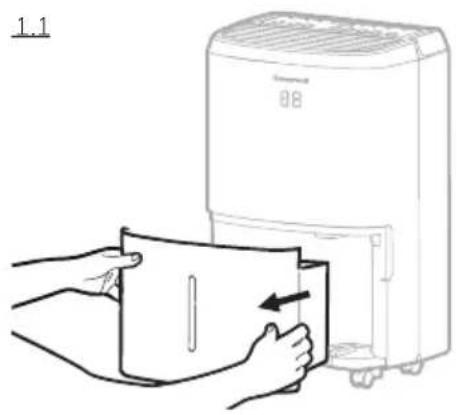
1.1 Locate the water tank at the front of the dehumidifier. Gently pull the water tank out.
1.2 Grip the handle inside the water tank and carry the water tank to a sink to empty.
1.3 Replace the empty water tank back into the front of the dehumidifier. Please make sure that the tank is properly positioned. The safety feature ensures that any misalignment of the tank and the unit will prevent the unit from turning back on.
IMPORTANT: Improper alignment or positioning of the water tank will cause the unit to pause operation, the warning light on top of the dehumidifier will illuminate followed by a beeping sound, until the water tank is fitted properly.
NOTE: There is a Foam Float inside the water tank that senses the water level to automatically stop dehumidification when the water tank is full. Make sure the Foam Float is positioned correctly inside the water tank by ensuring it lies level with the top edge of the water tank.
DO NOT REMOVE THIS FOAM FLOAT.
natural_image
Line drawing of hands holding a bag next to a portable air purifier (no text or symbols)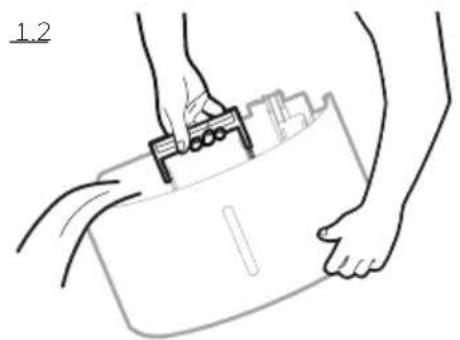
natural_image
Line drawing of hands holding a briefcase with a clip, no text or symbols present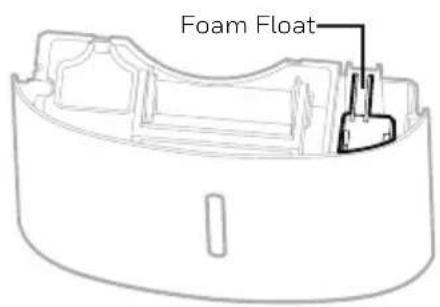
DRAINING THE WATER (CONTINUED)
2. Continuous Water Drainage – Using a Continuous Water Drain Tube
A continuous water drain tube is included with this unit. To activate the continuous water draining function, you will require a suitable water drain (e.g. sink or drain hole at floor level) near the dehumidifier.
Continuous Water Drain Tube 3.28 ft. (1 m)
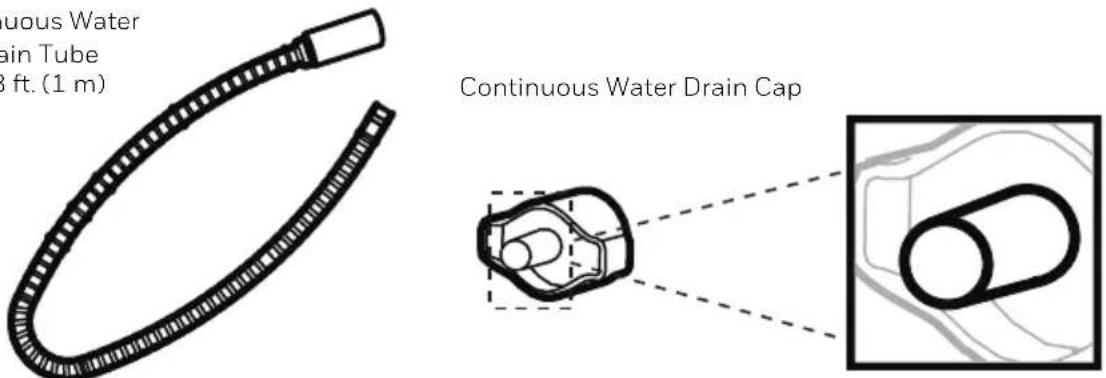
NOTE: The Continuous Drain Tube and Continuous Drain Cap come pre-installed.
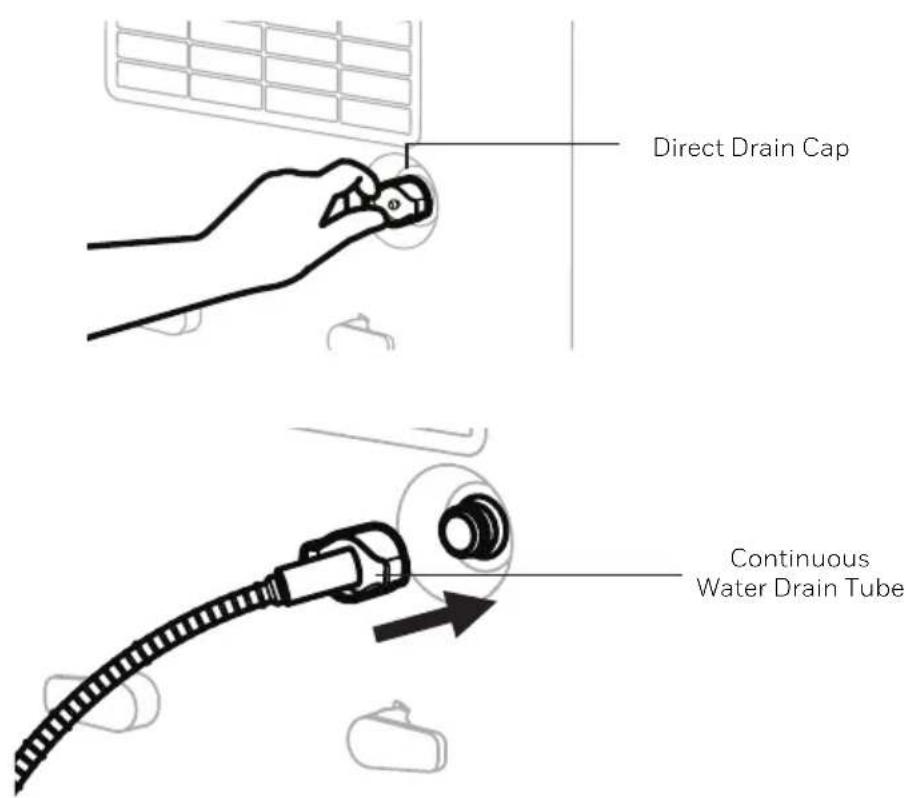
2.1 Locate the drain outlet at the back of the unit. Unscrew and remove the Direct Drain Cap. Insert and screw the Continuous Water Drain Tube into the Direct Drain Outlet.
DRAINING THE WATER (CONTINUED)
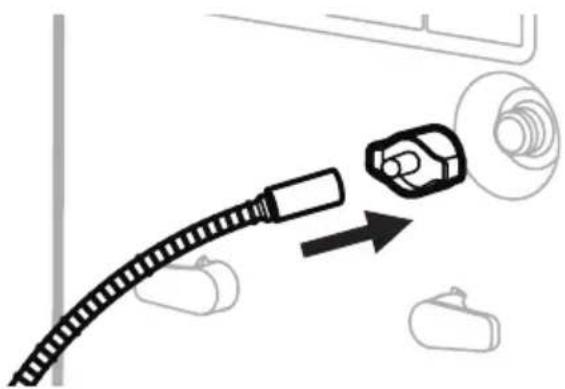
2.2 If there are leaks, the Continuous Water Drain Tube and Cap may have loosened and may not be connected properly. Disconnect, replace and tighten again.
natural_image
Diagram showing a cable connector with a magnified inset of a car body and a separate vehicle (no text or symbols)2.3 Position the other end of the Continuous Water Drain Tube in the sink or drain. Make sure the tube is not bent or kinked which might stop the water flow. Make sure the tube is secured over the drain and will not fall out of place causing unwanted water spillage.
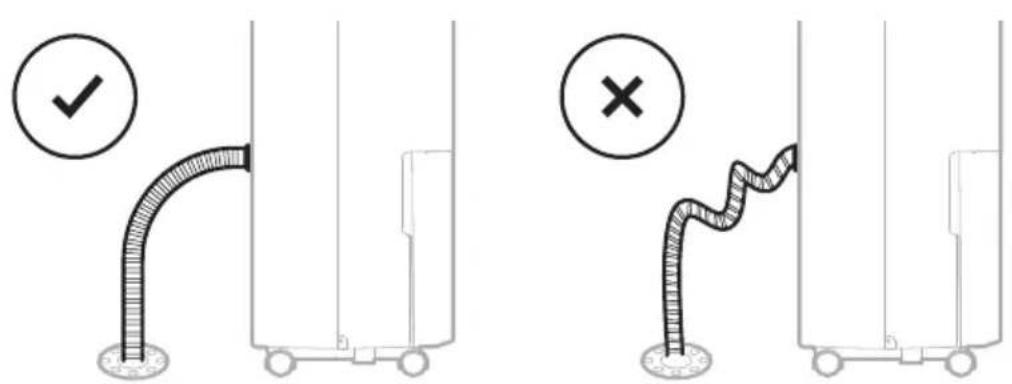
IMPORTANT: Make sure water can flow down the Continuous Water Drain Tube by keeping the tube angled down and free of bends or kinks.
IMPORTANT: If the unit is placed on uneven ground, or the Drain Tube is installed incorrectly, the water may fill the water tank and stop running. Please check whether the ground is uneven and reinstall the Drain Tube.
DRAINING THE WATER (CONTINUED)
3. Continuous Water Drainage – Using the Auto Drain Pump option
\*THIS IS ONLY FOR MODEL TP70P / TP70PN WITH BUILT-IN DRAIN PUMP
The Auto Drain Pump is available if you want to use the continuous drain function, but the drain is further away, or located above the dehumidifier. The Auto Drain Pump Tube can be attached to the Direct Drain Outlet located on the back side of the dehumidifier. When the water level in the water tank reaches a certain level, the drain pump will automatically pump the water out of the tank to the drain. This allows you to drain water condensation vertically or horizontally, even if the drain is located above the dehumidifier.
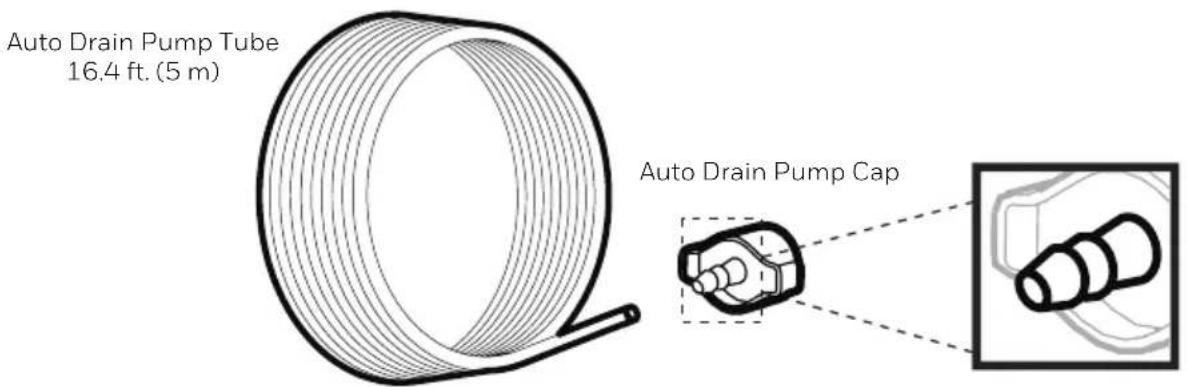
NOTE: The Auto Drain Pump Tube and Auto Drain Pump Cap come pre-installed.
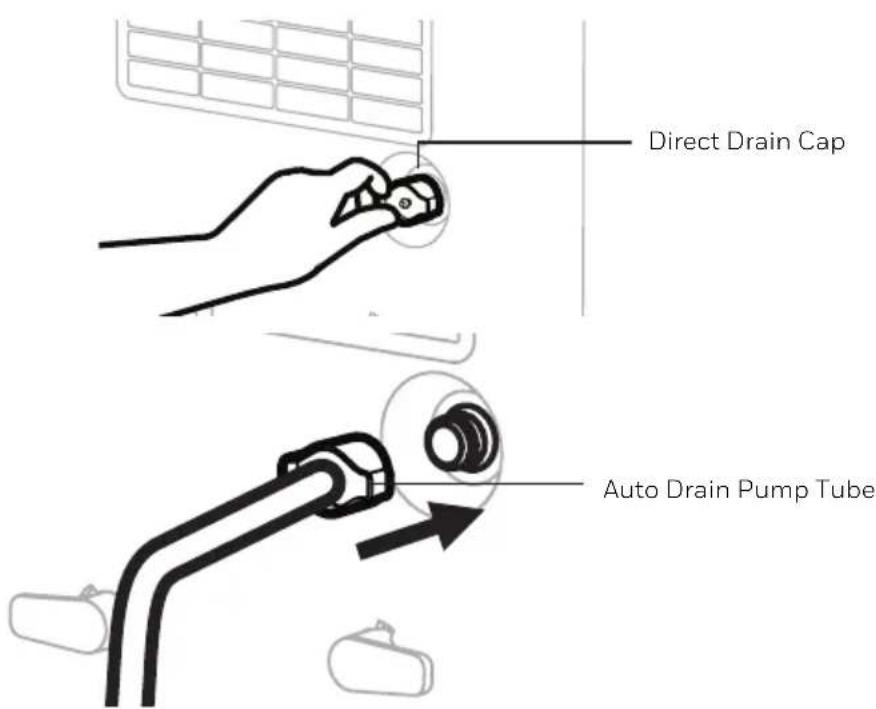
3.1 Locate the drain outlet at the back of the unit. Unscrew and remove the Direct Drain Cap. Insert and screw the Auto Drain Pump Tube into the Direct Drain Outlet.
DRAINING THE WATER (CONTINUED)
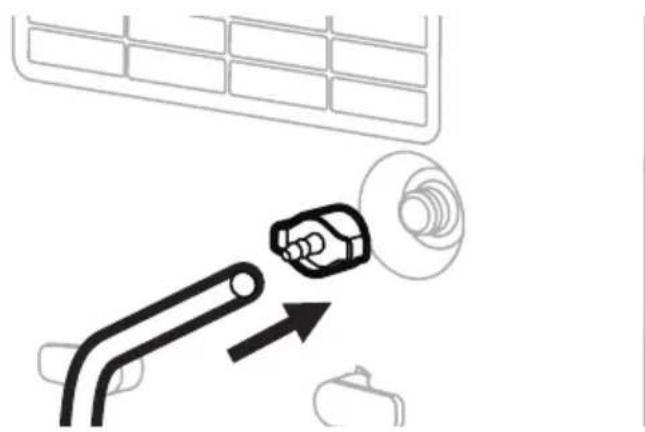
3.2 If there are leaks, the Auto Drain Pump Tube and Auto Drain Pump Cap may have loosened and may not be connected properly. Disconnect, replace and tighten again.
natural_image
Diagram showing a car air conditioner unit with a sensor and directional arrow (no text or symbols)3.3 To activate the Pump function, press the ↗ indicator. Once on, the ↗ indicator light will be illuminated.
3.5 Place the other end of the tube into the sink or drain. The water can be pumped up to 16.4 ft (5 m) vertically or horizontally.
NOTE: DO NOT use an alternative drain tube that is longer than the one provided with the unit.
IMPORTANT: The Auto Drain Pump button needs to be pressed to re-activate the auto drain pump function when there is a power failure. See section on "Auto Restart" Function of this user manual.
*Auto Drain Pump Tube is included in Dehumidifier models with Auto Drain Pump feature only.
CLEANING & MAINTENANCE
WARNING: Always switch OFF the dehumidifier and unplug it from the electrical outlet before attempting any cleaning or maintenance of this product.
Appliance Maintenance:
- Switch OFF the appliance before disconnecting the power supply.
- Only use a soft cloth to clean the appliance.
Dust Filter Maintenance:
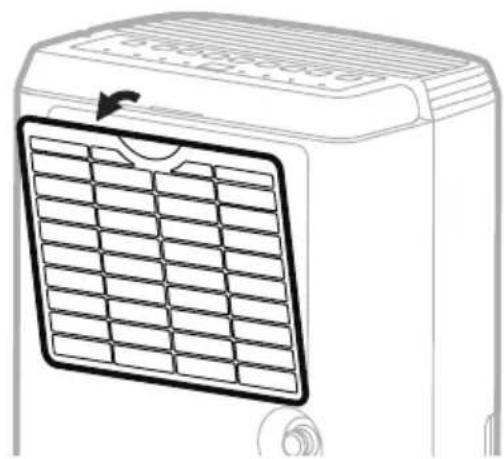
The Dust Filter located at the back of the unit helps to remove dust particles from the air. A dirty filter clogged by dust particles can reduce the efficiency of the dehumidifier. For optimum dehumidification, it is recommended to clean the dust filter every 2 weeks:
- Switch off and unplug the dehumidifier from the electrical outlet.
- Carefully pull out the dust filter from the dehumidifier.
- Rinse the dust filter under running water, or vacuum away the dust with a vacuum cleaner.
- After cleaning the dust filter, dry in a cool, shaded place, then carefully reinstall into the unit.
natural_image
Line drawing of a small air conditioner unit with a grid-patterned panel and ventilation slots (no text or symbols)End of Season Storage & Maintenance:
If the appliance will not be used for an extended period of time:
- Switch OFF the unit and unplug from the electrical power outlet.
- Empty the water tank and let it dry. If your dehumidifier is connected to the continuous drain hose, you must disconnect the hose, dry and then replace the drain cap back into the drain outlet.
- Remove the air filter and clean with water. Let the air filter dry and reinstall back into the unit.
• Make sure all parts of the dehumidifier and accessories are dry before storage. - Cover the dehumidifier with a cloth/ plastic bag before storage, to protect the surface from dust and scratches.
- It is recommended to coil the power cord and store it off the floor to ensure it is protected from bends and kinks.
- Store the unit upright in a dry location, away from direct sunlight.
The following troubleshooting guide addresses the most common problems. If problems persist, call customer service.
| PROBLEM POSSIBLE CAUSE SOLUTION | ||
| Dehumidifier does not start | No electricity. Check for power. | |
| The power cord is not properly plugged in. | Remove and reconnect the power cord. | |
| The safety switch activated on the electrical plug. | Reset the safety switch and wait for 3 minutes to pass. Contact customer service if problem persists. | |
| The water tank is not in the correct position. | Position the water tank correctly into the unit. Unit will not operate until the water tank is secure in place. | |
| Unit runs but the humidity level does not decrease | The humidity level setting is too high. | Decrease the humidity level setting. |
| A door or window is open, letting in new moisture. | Make sure all windows or doors to the outside are closed and tightly sealed. | |
| There are other sources of humidity in the room (e.g. boiling water in pot). | Switch on the dehumidifier when these sources are not present. | |
| The temperature in the room is too low. | The dehumidifier is designed to operate between 41°F (5°C) and 89°F (32°C). Moisture removal is greatly reduced if room temperatures exceed this temperature range. | |
| The dust filter is dirty/ blocked. | Clean the dust filter. | |
| Air outlet or intake is blocked. | Remove blockage. | |
| PROBLEM POSSIBLE CAUSE SOLUTION | ||
| Unit runs but the humidity level does not decrease | Insufficient time for the dehumidifier to remove moisture. | After initial installation, allow 24 hours to maintain desired dryness. |
| Dehumidifier runs constantly/does not stop | Area to be dehumidified is too large. | The capacity of your dehumidifier may not be adequate for the room it is used in. It is recommended to add an extra dehumidifier for large areas. |
| A door or window is open, letting in new moisture. | Make sure all windows or doors to the outside are closed and tightly sealed. | |
| Water Tank Full is illuminated and the unit is beeping | The water tank is full. Empty the water tank. | |
| The water tank is not in the correct position. | Position the water tank correctly into the unit. Unit will not operate until the water tank is secure in place. | |
| The unit is blowing cold air out of the top vent | The purpose of the top air vent is to distribute air into the room. | The temperature of the air from the vent depends on the room environment and other factors. It can fluctuate and this is normal. No action required. |
| Frost appears on the coils | Dehumidifier has been recently turned on in low room temperatures (usually below 41°F (5°C)). | This is normal. Frost will disappear in an hour or so after the dehumidifier is switched OFF. |
| Connected the continuous drain but the water condensation is not draining out the tube | Some floors may have an uneven surface which may affect the continuous drainage function | Raise the front of the Dehumidifier 1⁄2 to 1 inch (1.27 cm to 2.54 cm) from the floor. The water condensation will drain out the back hose and not into the bucket. |
TROUBLESHOOTING GUIDE (CONTINUED)
| PROBLEM POSSIBLE CAUSE SOLUTION | ||
| Water on the floor | The garden hose/ drain hose may be loose. | Check the connections between the hose and the drain outlet on the unit. See Continuous Water Drainage section. |
| You intended to use the water tank to collect water but the continuous drain hose is still connected. | Disconnect the hose and replace the rubber stopper and drain cap if using the water tank to collect water. See Continuous Water Drainage section. | |
| Noise | Fan is working. | Wind from the fan can create sounds during operation. This is a normal sound. |
| Compressor is working. | There is a sound when the compressor turns on. The compressor will activate periodically based on humidity settings. This is normal. | |
| CODE POSSIBLE CAUSE NOTE | ||
| P1 Water tank pull out | This only appears for model TP70P / TP70PN with Built-in Drain Pump. Position the water tank correctly into the unit. Unit will not operate until the water tank is secure in place. | |
| EH Humidity sensor failure Please contact the service center. | ||
| E1 / E2 | Temperature sensor failure | Please contact the service center. |
| E3 Gas leakage | If E3 appears, Please the check the ambient temperature range whether below 89.6°F (32°C).If the ambient temperature over 89.6°F (32°C) place the unit below 86°F (30°C) for 2 hours before running the Dehumidifier again.If the E3 appears again in 2 hours, please contact the service center. | |
FCC INTERFERENCE STATEMENT
This device complies with part 15 of the FCC Rules. Operation is subject to following two conditions:
(1) this device may not cause harmful interference, and
(2) this device must accept any interference received, including interference that may cause undesired operation.
This equipment has been tested and found to comply with the limits for a Class B digital device, pursuant to part 15 of the FCC Rules. These limits are designed to provide reasonable protection against harmful interference in a residential installation. This equipment generates, uses and can radiate radio frequency energy and, if not installed and used in accordance with the instructions, may cause harmful interference to radio communications. However, there is no guarantee that interference will not occur in a particular installation. If this equipment dose cause harmful interference to radio or television reception, which can be determined by turning the equipment off and on, the user is encouraged to try to correct the interference by one or more of the following measures:
- Reorient or relocate the receiving antenna.
- Increase the separation between the equipment and the receiver.
- Connect the equipment info an outlet on a circuit different from that to which the receiver is connected.
- Consult the dealer or an experienced radio/ TV technician for help.
This equipment complies with FCC radiation exposure limits set forth for an uncontrolled environment. This equipment should be installed and operated with minimum 20 cm between the radiator and your body. This transmitter must not be collocated or operating in conjunction with any other antenna or transmitter unless authorized to do so by the FCC.
Caution: Any changes or modifications not expressly approved by the party responsible for compliance could void the user's authority to operate the equipment.
INDUSTRY CANADA (IC) STATEMENT
This Class B digital apparatus complies with Canadian ICES-003.
This device complies with Industry Canada license-exempt RSS standard(s). Operation is subject to the following two conditions:
(1) this device may not cause interference, and
(2) this device must accept any interference, including interference that may cause undesired operation of the device.
The antenna (or antennas) must be installed so as to maintain at all times a distance minimum of at least 20 cm between the radiation source (antenna) and any individual. This device may not be installed or used in conjunction with any other antenna or transmitter.

Electrical products should be properly disposed of. Please recycle where facilities exist. Check with your local authority or retailer for recycling.
ENERGY STAR ^® qualified units remove moisture with less energy than conventional dehumidifiers.
USER MANUAL - HONEYWELL AIR COMFORT APP
Thank you for purchasing a Honeywell Smart Dehumidifier. This user manual is intended to provide you with important information needed to set up, operate, maintain and troubleshoot this product.
DOWNLOADING THE APP
The Smart Dehumidifier has added features to allow you to operate the dehumidifier remotely using a smart device, and to use voice commands through an Amazon Echo device, to control the unit.
Set up the Honeywell Air Comfort App on your smart phone or tablet to connect the Honeywell Smart Dehumidifier for WiFi and Voice control.
IMPORTANT: A 2.4 GHz Wi-Fi network is required for proper connection and operation between the Dehumidifier and the App.

Download on the
APP Store

Get it on
Google Play
iOS 8.0 or later Android 4.3 or later
flowchart
graph TD
    A[" "] --> B[" "]
    B --> C[" "]
    C --> D[" "]
    D --> E[" "]
    E --> F[" "]
    F --> G[" "]
    G --> H[" "]
    H --> I[" "]
    I --> J[" "]
    J --> K[" "]
    K --> L[" "]
    L --> M[" "]
    M --> N[" "]
    N --> O[" "]
    O --> P[" "]
    P --> Q[" "]
    Q --> R[" "]
    R --> S[" "]
    S --> T[" "]
    T --> U[" "]
    U --> V[" "]
    V --> W[" "]
    W --> X[" "]
    X --> Y[" "]
    Y --> Z[" "]

SEARCH "HONEYWELL AIR COMFORT" AND INSTALL
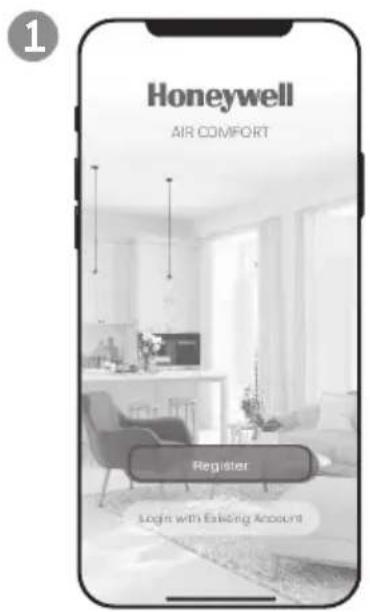
a. Open the app. b. Tap Register.
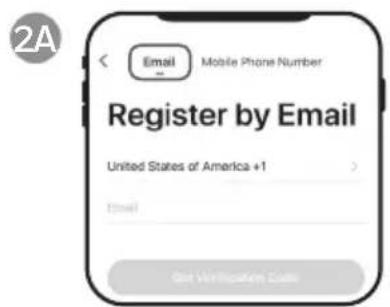
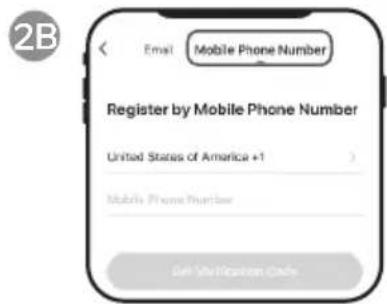
a. Enter your email* (2A) or mobile phone number (2B).
b. Tap Get Verification Code.
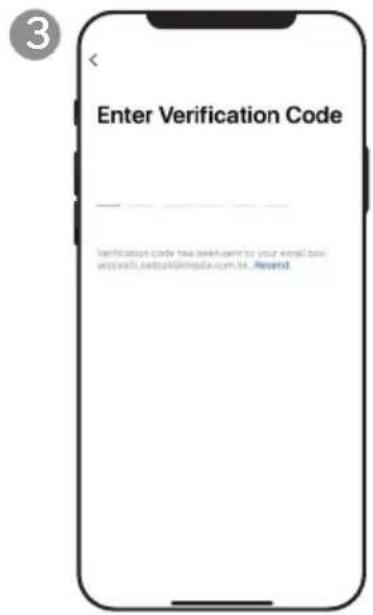
a. Enter the verification code. b. The verification code should be recieved & entered within 60 seconds. If time is exceeded, go back and get another code.
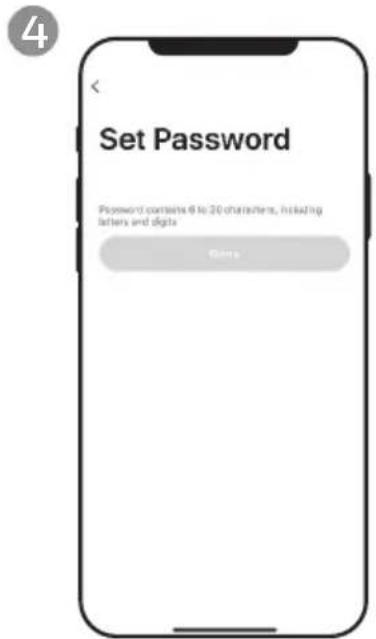
a. Set the password. b. Tap Done.
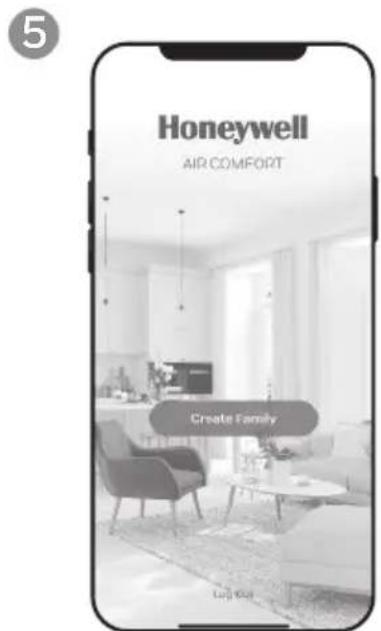
a. Tap Create Family.
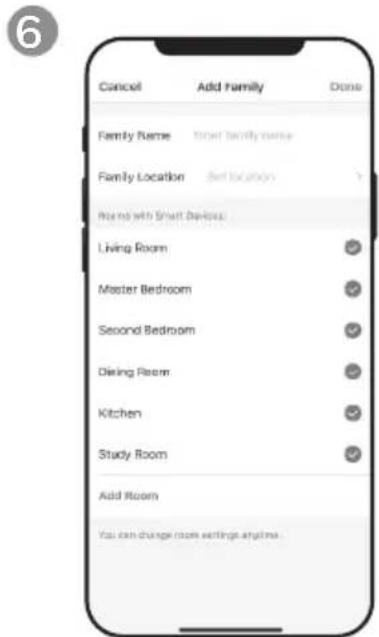
a. Set the Family Name and Family Location.
b. Mark the location of the dehumidifier.
c. Tap Done.
* The user will receive a verification email from "system.az@notice.2.ismartlife.me" with contact name "Honeywell Air Comfort" and subject title "Registration Verification Code". If email is not received in your inbox, check your junk or spam folders. If you didn't receive a verification email after 60 seconds, click the resend button.
CONNECTION METHODS FOR WI-FI SETUP
The Smart Dehumidifier has two different setup modes:
CF (Quick Connection): The CF mode is a quick and simple way to set the unit up.
AP (Access Point): The AP mode uses a direct local Wi-Fi connection between your phone and the dehumidifier to upload the network details.
Before starting the setup, please ensure that your Smart Dehumidifier is plugged in and turned OFF (in Standby Mode) for the connection type you are attempting. The display on the Dehumidifier will confirm the current connection mode during setup.
CONNECTING IN CF MODE
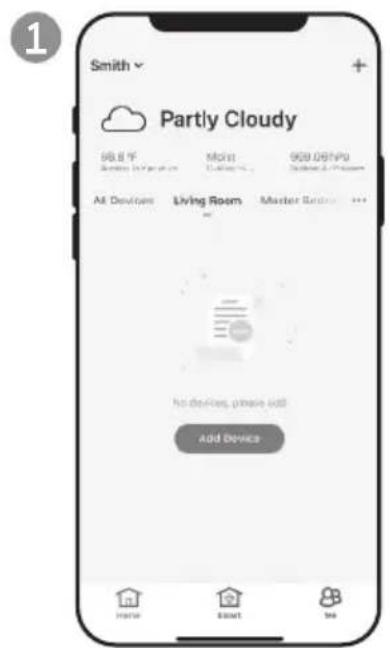
a. Tap Add Device.
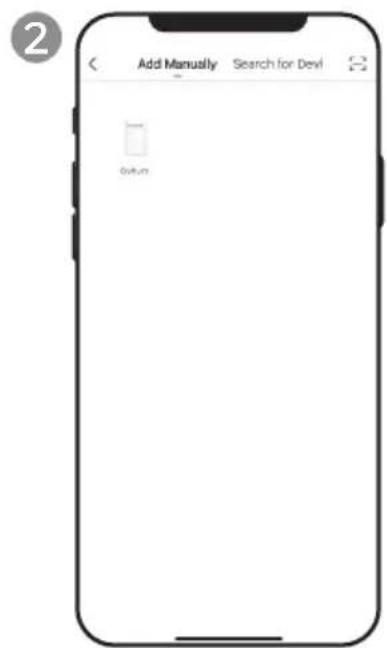
a. Tap Dehum icon.
CONNECTION METHODS FOR WI-FI SETUP (CONTINUED)
CONNECTING IN CF MODE (CONTINUED)
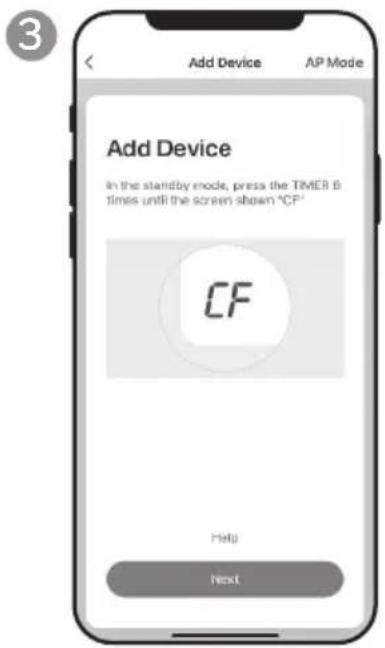
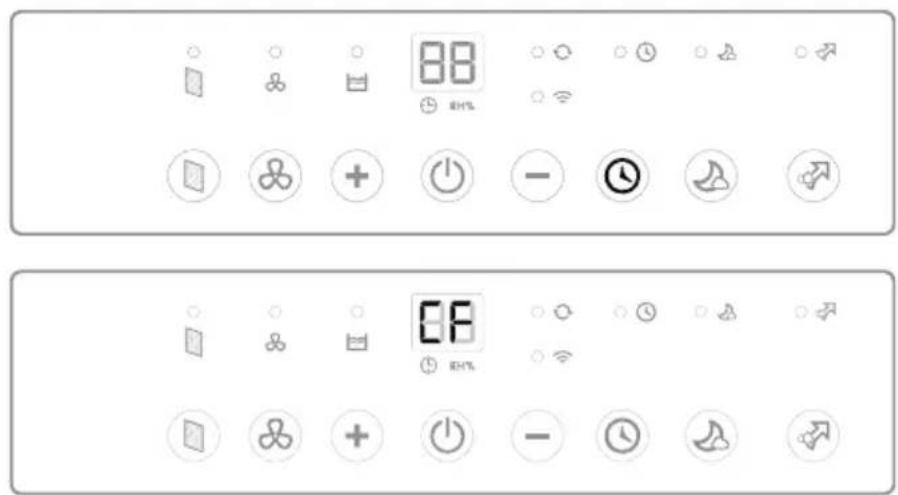
a. Switch on the dehumidifier.
b. On the Dehumidifier, Press the button 6 times until CF displays on the unit.
c. Tap Next.
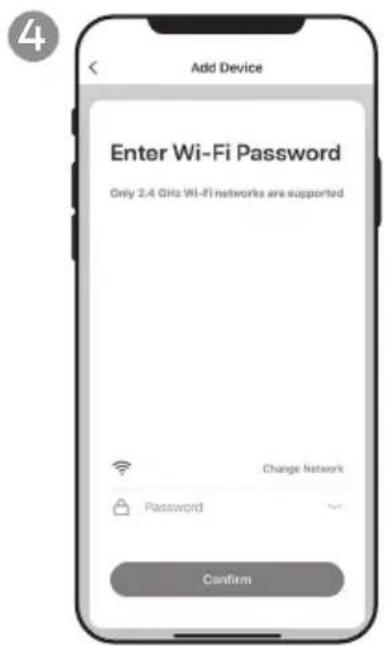
a. Choose the Wi-Fi network.
b. Enter the Wi-Fi password.
c. Tap Confirm.
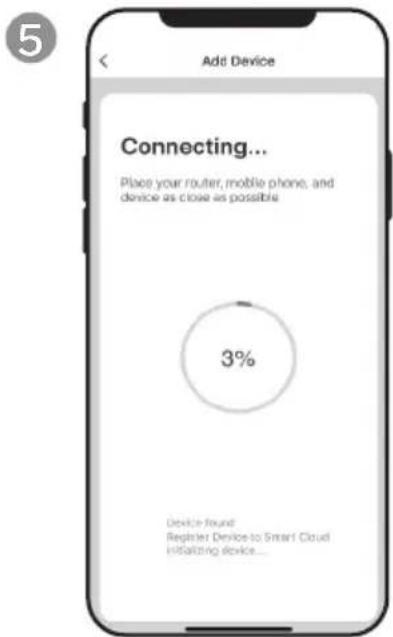
a. Wait until the connection is completed.
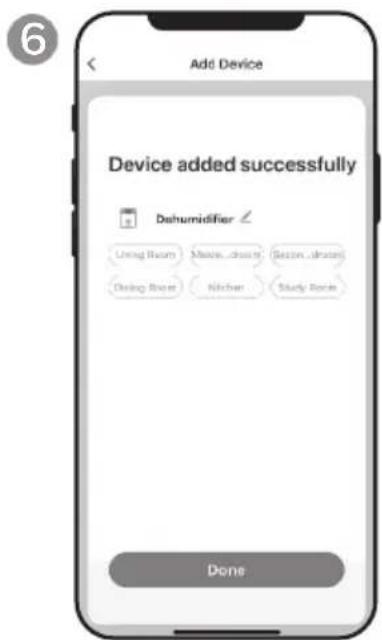
a. Tap Done.
CONNECTION METHODS FOR WI-FI SETUP (CONTINUED)
CONNECTING IN AP MODE
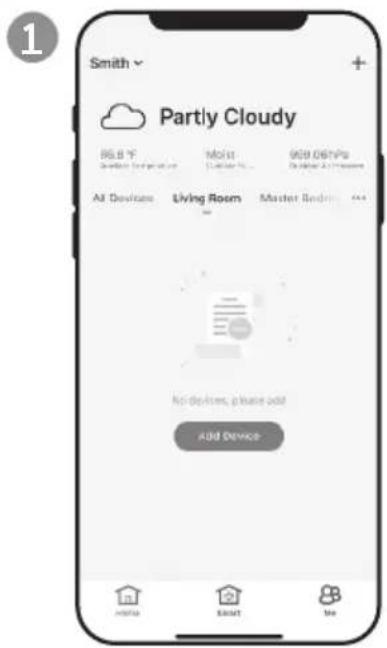
a. Tap Add Device.
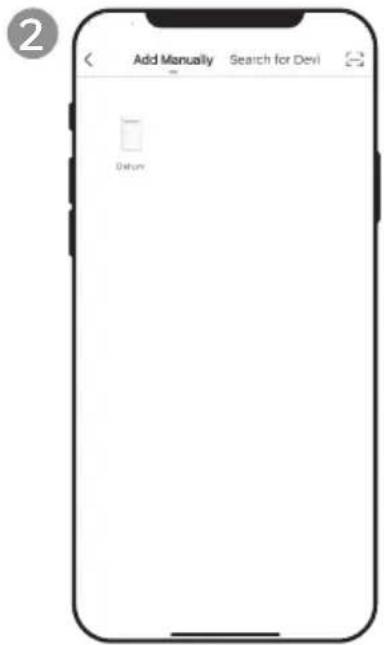
a. Tap Dehum icon.
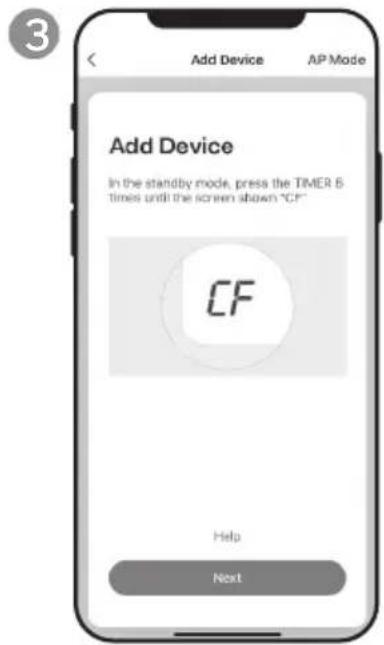
a. Tap AP Mode in the top right corner.
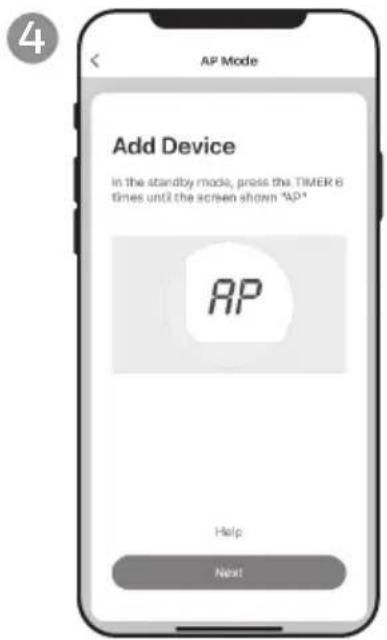
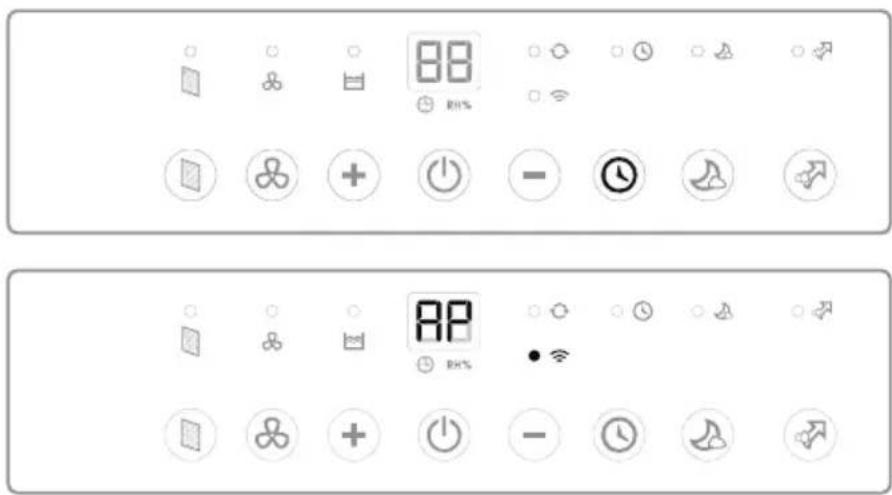
a. Switch on the dehumidifier.
b. On the Dehumidifier, press the button 6 times until RP displays on the unit.
c. Tap Next.
CONNECTING THE APP IN AP MODE (CONTINUED)
CONNECTING IN AP MODE (CONTINUED)
5
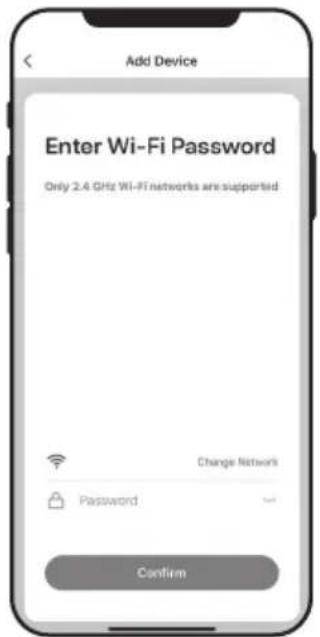
a. Choose the Wi-Fi network.
b. Enter the Wi-Fi password.
c. Tap Confirm.
6
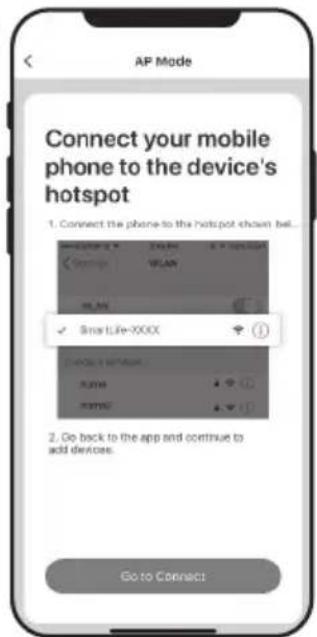
a. Tap Go to Connect.
7
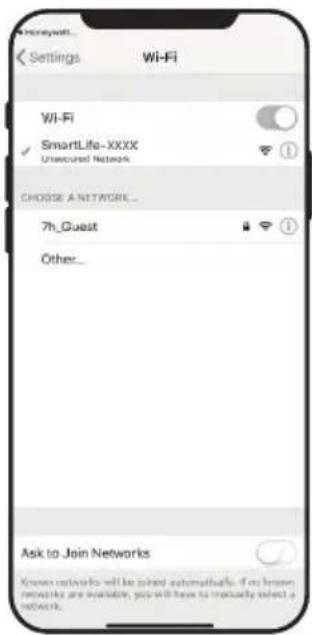
a. Tap the Smartlife-XXXX network (Wi-Fi board number).
b. Once connected, press the home/back button on your device and go back to the Honeywell Air Comfort App.
8
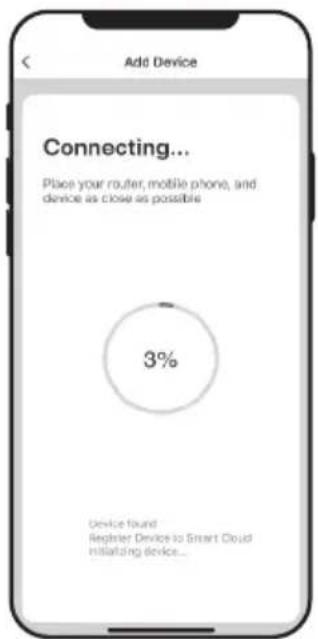
a. Wait until the connection is completed.
9
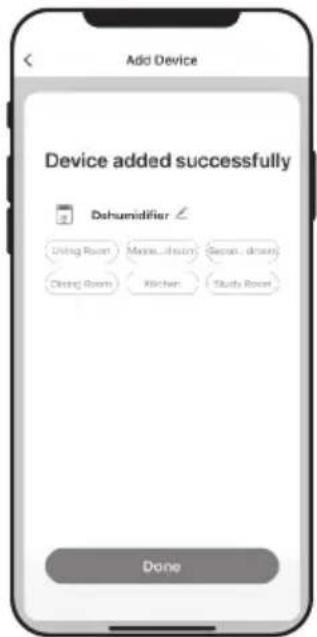
a. Tap Done.
MAIN SCREEN
1) Family (User) Settings
2) Current Weather Conditions
3) a. Current Outdoor Temperature
b. Outdoor Humidity
- Dry: 0-40%RH
- Comfortable: 40-70%RH
- Moist: above 70%RH
c. Outdoor Air Pressure
d. Outdoor Wind Speed
4) Connected Devices
5) Home Button
6) Smart Control Button
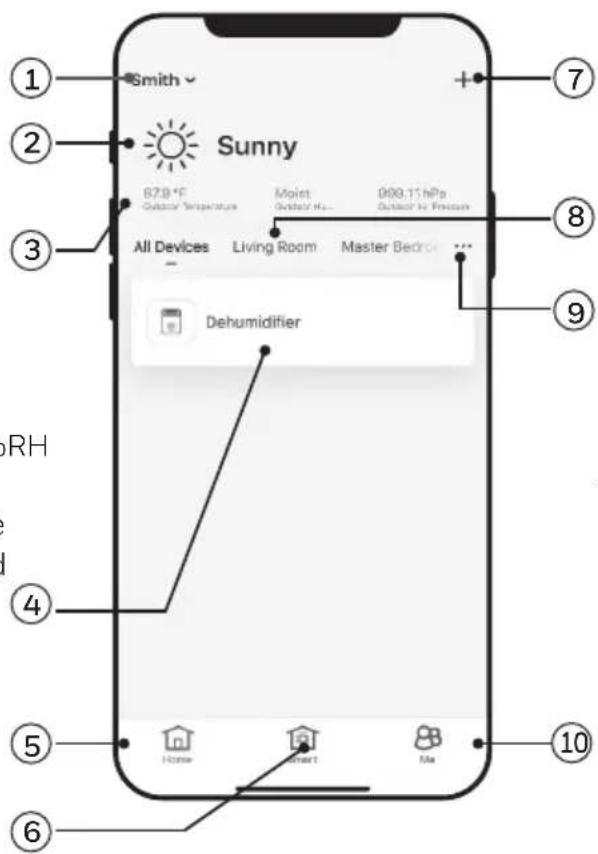
7) Adding a device
8) Room Locations
9) a. Device Sequence b. Room Management
10) a. Family/User Management b. Message Center c. Help Center d. Settings - Voice ON/OFF - Push Notifications ON/OFF - About - Clear Cache - Log Out
FAMILY SETTINGS
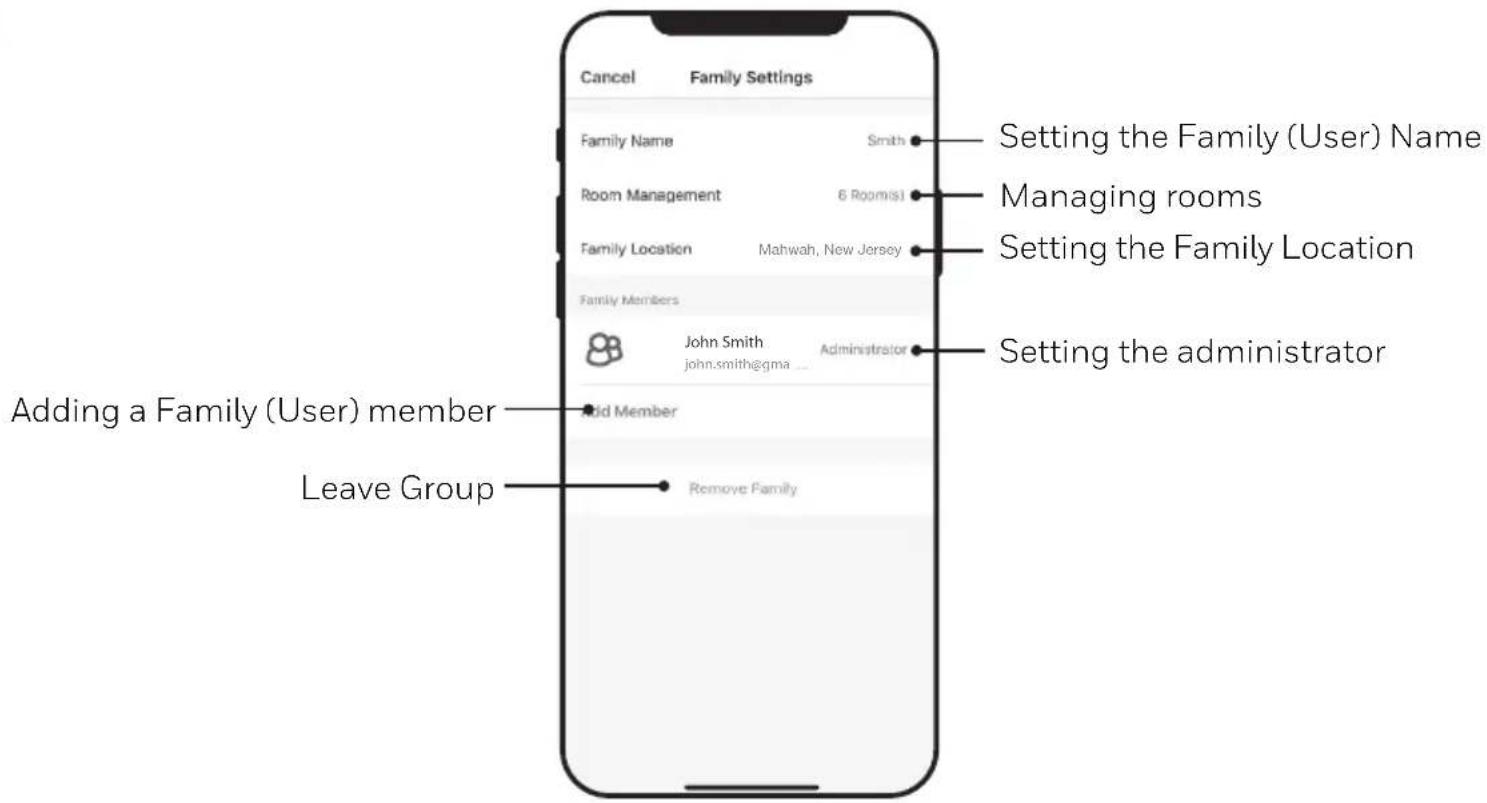
1
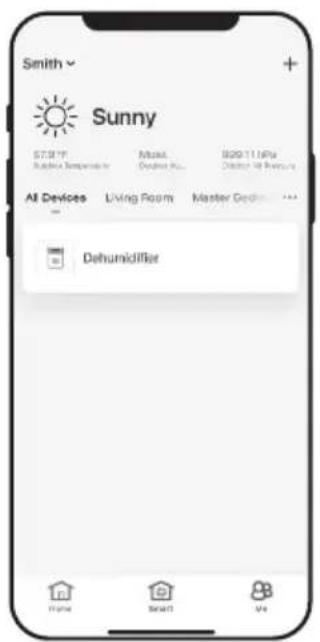
a. Tap Dehumidifier.
2
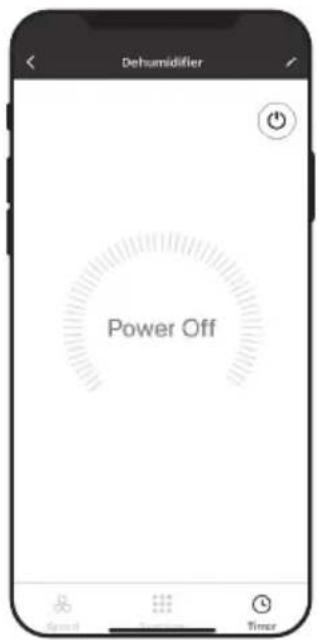
a. Tap to switch the dehumidifier on/off.
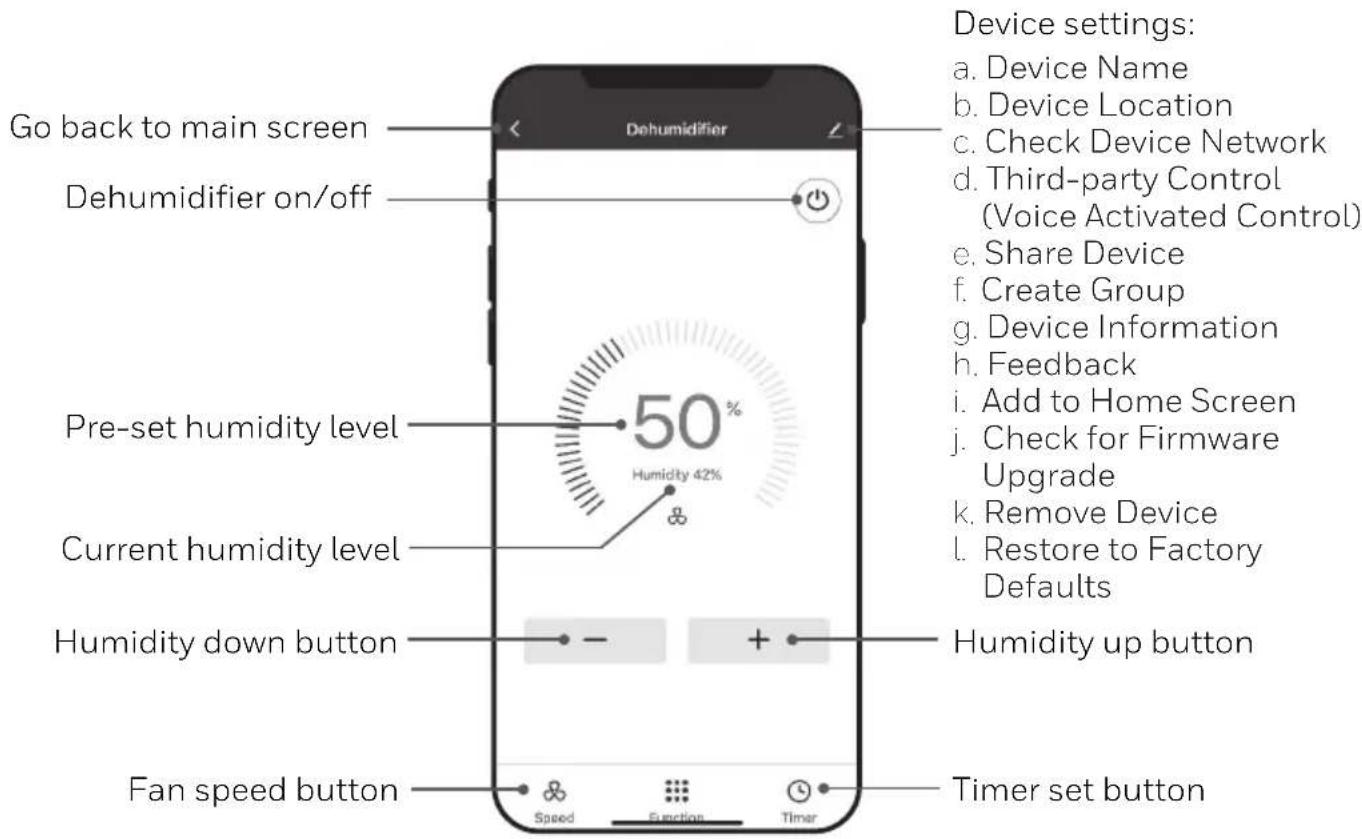
SETTING THE FAN SPEED
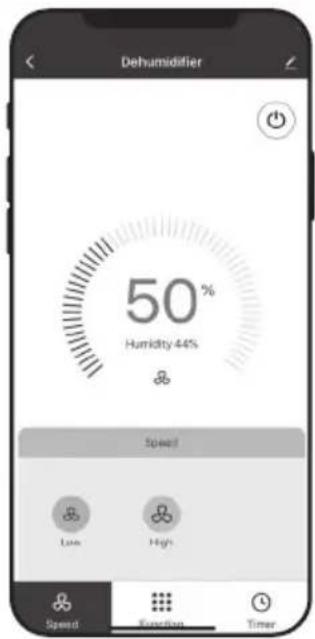
a. Tap fan speed button.
b. Select Low or High fan speed.
SETTING THE TIMER
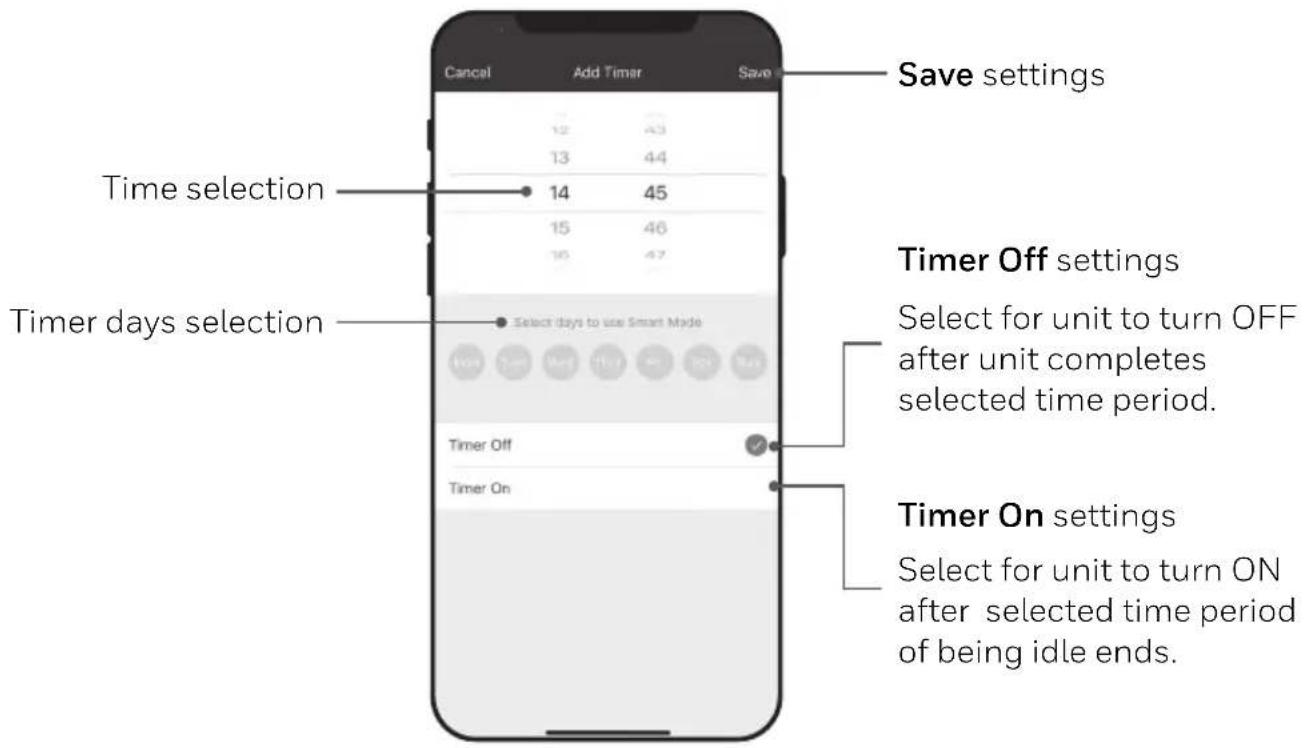
a. Tap Timer set button.
b. Tap Add Timer.
c. Set the timer(s).
d. When the timer is set, tap Save.
USING THE APP (CONTINUED)
ADDING A SCENARIO
The Scenario feature allows you to set up multiple Dehumidifiers under one Scenario and control them on one dashboard as needed. When you click on the Scenario, all Dehumidifiers will switch ON at the same time using previous settings.
E.g.: If you had set up a Dehumidifier in the Living Room and one in the Basement, you can create a “Scenario 1” to switch both dehumidifiers on at the same time.
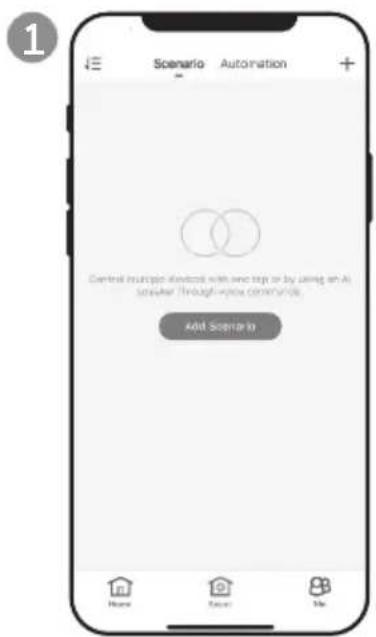
a. Tap Smart control button.
b. Tap Add Scenario.
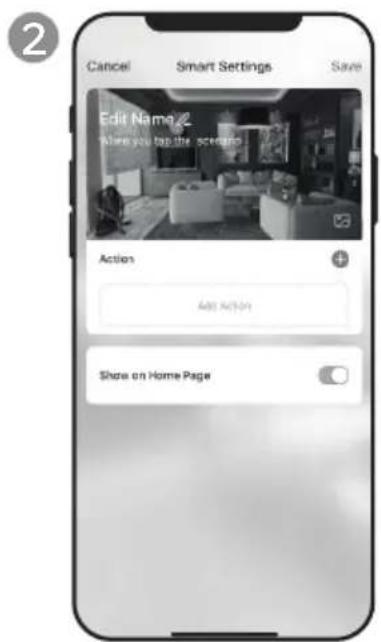
a. Tap Edit Name to set the name of the scenario.
b. Tap the background to set the background image of the scenario.
c. Tap Add Action to add action of the scenario.
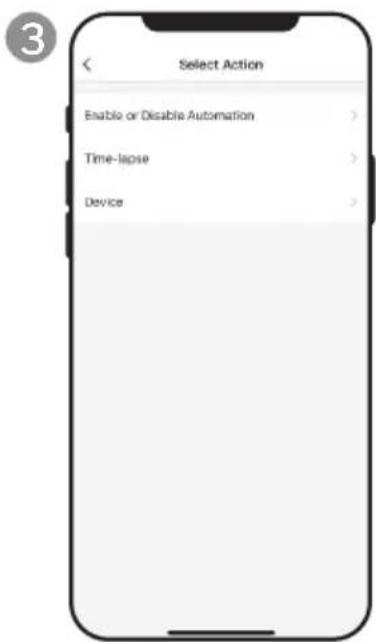
a. Select the Enable or Disable Automation.
Tap>.
b. Select the Time-Lapse of the action. Tap>
c. Select the Device and the action (on/off). Tap>.
d. Tap Switch. Select the action for the device to perform (on/off).
e. Tap Save and then Next.
f. Tap Save.
ADDING AN AUTOMATION SCENARIO
The Automation Scenario feature allows you to set up multiple dehumidifiers under one Scenario and it will automatically activate those dehumidifiers when there is a change in outdoor environment conditions.
Pre-Set Outdoor Humidity Conditions:
Dry: 0-40%RH
Comfortable: 40-70%RH
Moist: above 70%RH
When a change in outdoor condition is met, the pre-set Automation Scenario will switch ON or OFF all Dehumidifiers set up in that Automation Scenario.
E.g.: If you had set up a Dehumidifier in the Living Room and one in the Basement, you can create an “Automation Scenario 1” to switch both dehumidifiers on at the same time when outdoor humidity changes from “Comfortable” to “Moist”. When the outdoor humidity changes to “Moist” level, the dehumidifiers will automatically switch ON using previous settings. The Dehumidifiers will continue running until internal room humidity reaches previous desired humidity settings.
IMPORTANT: If environment conditions remain constant, for example, it stays “moist”, the Dehumidifier will not activate automatically unless it senses a change in the pre-set humidity conditions from “Dry” to “Comfortable” or “Comfortable” to “Moist”.
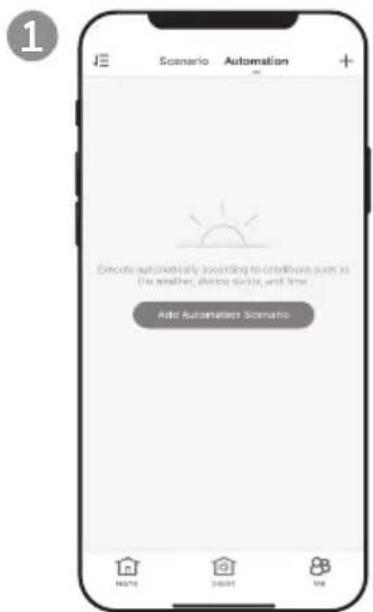
a. Tap Smart control button.
b. Tap Automation.
c. Tap Add Automation Scenario.
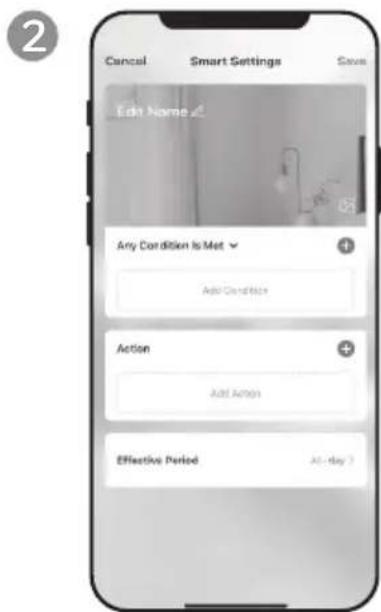
a. Tap Edit Name to set the name of the automation scenario.
b. Tap the background to set the background image of the automation scenario.
c. Tap Add Condition to add the condition of the automation scenario activation.
ADDING AN AUTOMATION SCENARIO (CONTINUED)
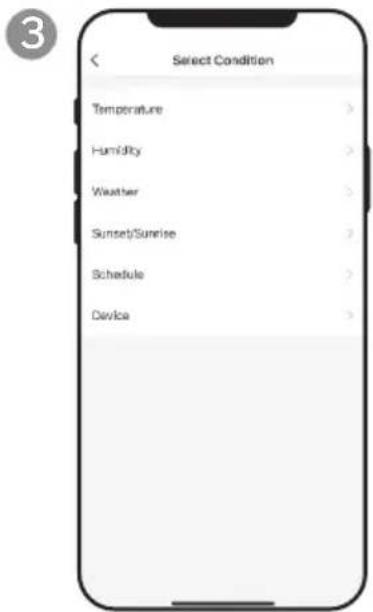
a. Tap Device.
b. Tap Dehumidifier.
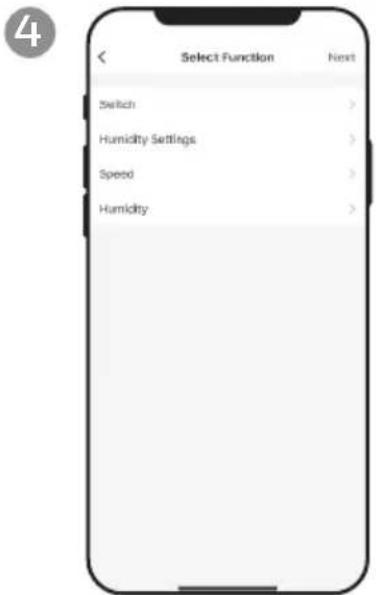
a. Select function(s) for the dehumidifier to perform, when the automation scenario condition(s) is/are met.
b. Tap Next.
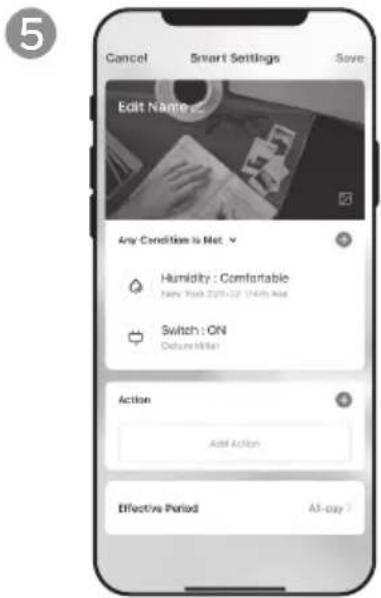
a. Tap Add Action to set the action to be performed when the automation scenario condition(s) is/are met.
b. Tap Next.
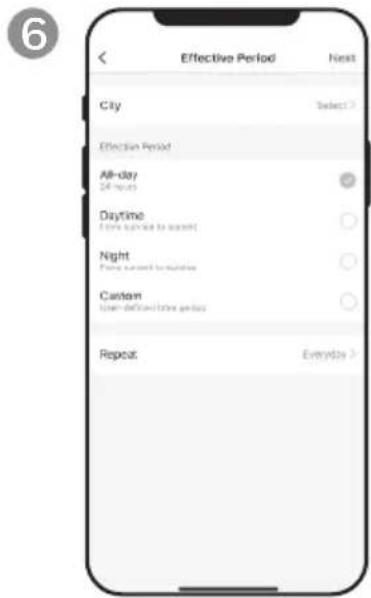
a. Tap Effective Period to select when the automation scenario should activate.
b. Tap Next.
c. Tap Save.
Connecting to an Amazon Echo Device:
NOTE: Ensure your Amazon Echo device is switched on and connected to the Wi-Fi network.
a. Open the "Amazon Alexa" app on your smart device.
b. Tap and then Skills & Games.
c. Tap Q and type "Honeywell Air Comfort". Tap the Honeywell Air Comfort skill.
d. Tap Enable To Use button.
e. Enter your Honeywell Air Comfort App login and password.
f. Tap Link Now and then tap Authorize.
g. Tap Done.
h. Tap Discover Device. Choose "Dehumidifier".
i. Tap Sst Up Device Choose a group for the device or tap Skip.
j. Choose "Dehumidifier".
k. Tap Done.
CONTROLLING THE DEHUMIDIFIER WITH ECHO
Switching On/Off:
Say: "Alexa, turn on/off dehumidifier".
Setting the Speed:
Say: "Alexa, set speed to XX percent."
(Low speed: XX = 0 to 50; High speed: XX = 51 to 99)
Setting the Target Humidity Level:
Say: "Alexa, set dehumidifier to XX percent."
Humidity Conditions:
Dry: 0-40%RH
Comfortable: 40-70%RH
Moist: above 70%RH
Switching the Scenario/ Automation Scenario On/Off:
Say: "Alexa, switch
| Problem Possible Cause Solution | ||
| Unable to register/login to an account. | Mobile smart device's Wi-Fi is switched off. | Switch on the mobile phone's Wi-Fi. |
| Wi-Fi signal is too weak. | Install a Wi-Fi extender (not included). | |
| Move the smart dehumidifier closer to the Wi-Fi router. | ||
| Dehumidifier cannot pair with the Honeywell Air Comfort App. | Dehumidifier is not connected to the the electrical outlet. | Connect the dehumidifier to the socket-outlet. |
| Wi-Fi signal is too weak. | Install a Wi-Fi extender (not included). | |
| Move the smart dehumidifier closer to the Wi-Fi router. | ||
| The default pairing mode does not work. | Pair the dehumidifier in AP mode (see section on “Connecting in AP Mode”) | |
| Wi-Fi connection frequency is incorrect. | Select a 2.4 GHz Wi-Fi network | |
| Wi-Fi password is incorrect. | Use a correct Wi-Fi password. | |
| Wi-Fi network is invisible. | Set the Wi-Fi network to visible. | |
| Wi-Fi name uses foreign characters. | Set the Wi-Fi name to use alphanumerical characters and numbers only. | |
| The encryption method of the router's wireless setting is wrong. | Set the encryption method of the router's wireless setting to “WPA2-PSK” and the authentication type to “AES”, or both are set as automatic.Note: “802.11n only” is not allowed in wireless mode. | |
TROUBLESHOOTING (CONTINUED)
| Problem Possible Cause Solution | ||
| Dehumidifier cannot pair with the Honeywell Air Comfort App. (Continued) | The number of connected devices reached the limit of the router. | Turn off the Wi-Fi functions of some of the connected devices. |
| Re-configure the router. | ||
| The router has enabled the wireless MAC address filter. | Remove the device from the MAC address filter on the router. | |
| Ensure the device is not prohibited by the router to connect to the network. | ||
Customer Support:
Assistance Au Client: