
One - Synthesizer Tiptop Audio - Free user manual and instructions
Find the device manual for free One Tiptop Audio in PDF.


| Product Type | Eurorack Synthesizer Module (Sample Player) |
| Module Width | 4 HP |
| Depth | 43 mm (1.69 in) |
| Weight | Approx. 80 g (estimated) |
| Power Consumption | +12V @ 80mA, -12V @ 8mA, +5V @ 0mA |
| Audio Output | 1/8" (3.5mm) mono jack, MixBus jumper output |
| Inputs | CV In (0-10V), Gate In (trigger/gate) |
| Supported Audio Formats | WAV, 16 or 24 bit, mono, sample rates 8-96 kHz |
| Max Files per SD Card | 256 |
| SD Card Compatibility | SDHC microSD up to 32GB, FAT32 (MBR) |
| Dynamic Range | 104 dB |
| THD+N | 0.0025% |
| Latency (Trigger Mode) | ~0.5ms at 48kHz, ~0.25ms at 96kHz |
| CV Modes | Quantized Pitch, Free Pitch, File Select |
| Playback Modes | Trigger, Gate, Fade, Loop |
| MixBus | Yes, jumper J13 to route to MixZ module |
| Firmware Update | Via SD card (image.hex file) |
| Custom Boot Configuration | Via config.txt on SD card |
| LED Indicators | Dual color (red/blue) for SD status and mode |
| Included SD Card | VCTRS by Glitchmachines (60 sounds) |
| Controls | PLAY button, FILE knob (yellow), PITCH knob (white) |
| Sample Pitch Range | Up to 3.5 octaves (depends on native sample rate) |
| Construction | Eurorack standard, 43mm deep |
| Maintenance | Clean with dry cloth; avoid liquids and moisture |
Frequently Asked Questions - One Tiptop Audio
User questions about One Tiptop Audio
0 question about this device. Answer the ones you know or ask your own.
Ask a new question about this device
Download the instructions for your Synthesizer in PDF format for free! Find your manual One - Tiptop Audio and take your electronic device back in hand. On this page are published all the documents necessary for the use of your device. One by Tiptop Audio.
USER MANUAL One Tiptop Audio
The ONE module was born out of a desire to bring the entire world of sampled sound into the modular system with a tight coupling to the beat. ONE combines the great audio quality of 24 bit and 96kHz files with high performance and ease of use. SD card media provides access to an unlimited palette of sounds from user created WAV files or commercially available cards crafted only for ONE. Each SD card can hold up to 256 sound files in 16/24bit mono WAV format. Files can range in length from under a second to over an hour long.
Manual Chapters:
Getting started
CV modes
Trigger/Gate/Fade/Loop modes
SD cards and your own samples
Sample Rate and Pitch
Custom Boot Options
Firmware Update
Getting started:
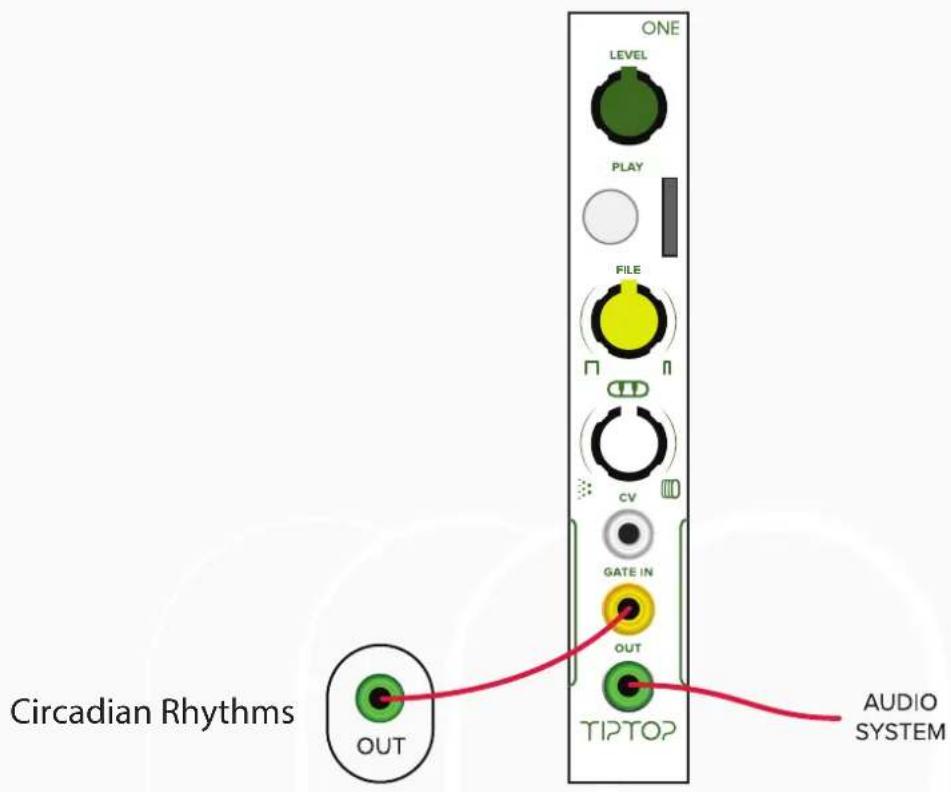
One is very simple to use. Install it in your system and insert the SD card with the VCTRS label facing the button side then power up. Plug the audio out of ONE to your audio system or set ONE on the same bus board as your MIXZ to have the output automatically routed to the MIXZ. Set level half way up, set the white pitch knob half way up, click on the PLAY button to hear the first sample play off the card. If you insert the card after power up you will need to click the button twice, once for telling ONE to load the card and second to trigger the sound. Now connect a trigger out from your Circadian Rhythms, Trigger Riot or other sequencer into the GATE IN, you should hear ONE triggered by the sequencer. Turn the yellow knob to switch sounds. Turn the white knob to change pitch.
Patch Tutorial 1
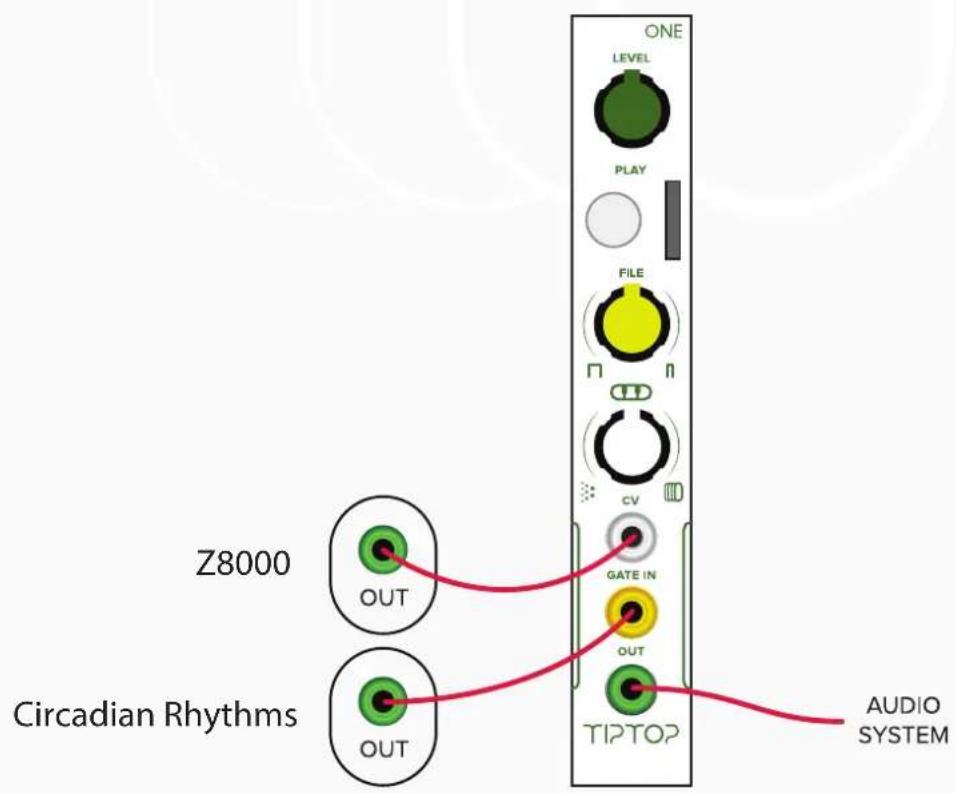
Turn the white pitch knob to minimum, now connect the CV out from the Z8000 or other sequencer into the CV IN, clock the Z8000 and listen how the Z8000 sequences the sample pitch.
CV Modes:
ONE has three modes for processing external CV.
1) Quantized Pitch. This is the default setting on ONE. CV select playback rates which correspond to the 12 tone equal temperament Western scale. The CV input is not 1V/Oct but since internal it already get quantized to pitch there is no need to use a Quantizer. The range is approximately 3.5 octaves and the native rate of the file determines how far up and down the file can be pitched. See section on sample rate and pitch for more on that. Naturally as the pitch lowers the attack part of the sound gets longer which results in delaying the initial part of the sound.
2) Free Pitch. In this mode playback rate is not quantized but covers a similar playback rate range (3.5 octaves) with finer resolution between rates. Same as above, as the pitch gets lower the attack part of the sound gets longer and the onset of the sound is delayed.
3) File Select. In this mode different files can be loaded with CV, CV points to a file in the card and a trigger pulse loads it. The file will play at the native rate of the sample. The CV in gets added to an offset created by the FILE select yellow knob. For example, if you select the 10th file using the FILE knob, the CV will select a range of 32 samples upwards from 10. Because changes apply only with a trigger a new level of CV can be set during the file playback without affecting the currently playing sound and the next trigger will activate it. Note that latency increases in this mode due to the access time needed for the SD card to find and load the file when changed. Please note that ONE performs a lot of operations in a short time to maintain minimal latency, a slow sequencer with unsynchronized Trigger/CV timing might not work well in this mode. We recommend the Z8000 with Circadian Rhythms or Trigger Riot for a reliable use of this mode.
Selecting CV Modes:
Remove any CV source connected to the CV in Jack and follow these steps:
- Hold the PLAY button down (best done with no file playing)
- Turn the white knob side to side, you will notice how the light switch from red to blue to flashing red, each one indicate a different mode. Upon releasing the button at a given light state will load that correspondent mode:
Solid RED - Free Pitch
Solid Blue - Quantized Pitch
Flashing Red - File Switching
Trigger/Gate/Fade/Loop modes:
ONE has four modes for handling a variety of audio material.
Trigger Mode - This is the default mode for ONE with the lowest latency and is highly recommended for use with percussive sequenced sounds. ONE detects the rising edge of a trigger and starts playing from the start of the file until the end. If a new trigger pulse is detected ONE will stop the currently playing sound and retrigger.
Fade Mode - similar to Trigger Mode only with a fade in/out at the trigger point to remove any clicks from audio discontinuities. This mode is most useful with smooth sounds that have a low content of high frequency harmonics where the 'click' is more obvious and distracting if not removed. Due to the nature of the fade process some latency is added to retriggering.
Gate Mode - ONE starts playing when a gate pulse comes in and only plays as long as the gate is high. This mode is good for processing very long samples that do not require tight timing. The audio is faded in and out to remove clicks. Note that the fade out takes at least 10ms (at 96k) and increases as the sample rate slows down - if the fade does not complete before the next trigger a click may still be heard.
Looping Mode - by pushing the PLAY button or sending a single trigger ONE will start playing a continuous loop. Re-triggers reset to the start of the audio file. Looping can be stopped by selecting a new file with the yellow knob. In addition to drum and sequencer loops this mode is great for turning ONE into a CV generator with LFO, noise or other waveforms.
Selecting Trigger/Gate/Fade/Loop modes:
Remove any CV source connected to the CV in Jack and follow these steps:
- Hold the PLAY button down (best done with no file playing)
-
Turn the FILE yellow knob step by step, you will notice how the light switch from red to blue to flashing red to flashing blue, each one indicate a different mode. Upon releasing the button at a given light state will load that correspondent mode:
-
Solid Red - Trigger mode
- Solid Blue - Gate mode
- Flashing Blue - Fade mode
- Flashing Red - Looping mode
SD cards and your own samples:
You can use ONE with your own samples or with the sample libraries available for ONE from various sound designers. The VCTRS library that come with ONE is made by Glicthmachines and can give you a taste of whats out there.
ONE relies heavily on the performance of the SD card and not all SD cards on the market work well. We had tested cards from SanDisk, Kingston, Fuji, Lexar, with mostly good results. Some other cards like Samsung and Apacer failed testing which results drops, pops and digital noise.
ONE comes with an SD card that had been tested. You can use this card with the supplied adapter as a start to add more samples to the VCTRS sample library it contain. You can also copy the VCTRS files to your computer, delete them from the card and load the card with other files and whenever you need the VCTRS samples just drop them back to the card.
Notes about WAV file compatibility:
The WAV file is not technically an audio specific but rather a RIFF format that can contain many additional elements like metadata, tempo info, images, video and even blank sections. ONE attempts to skip these sections and find the audio data, but in some cases there will be too much additional data or the structure of the WAV results in poor real-time performance and the file is not loaded.
To ensure maximum compatibility we recommend using the editor Audacity to export WAV files before moving them to a card. (The following steps are not mandatory, you can skip to File Info and just make sure the files are compatible)
Here is how to use Audacity to prepare your samples:
Download the free software Audacity
http://www.audacityteam.org
Open Audacity, go to ->
File -> Edit Chains
Add -> Type "ONE" -> ok
Insert -> Stereo to Mono
Insert -> ExportWave
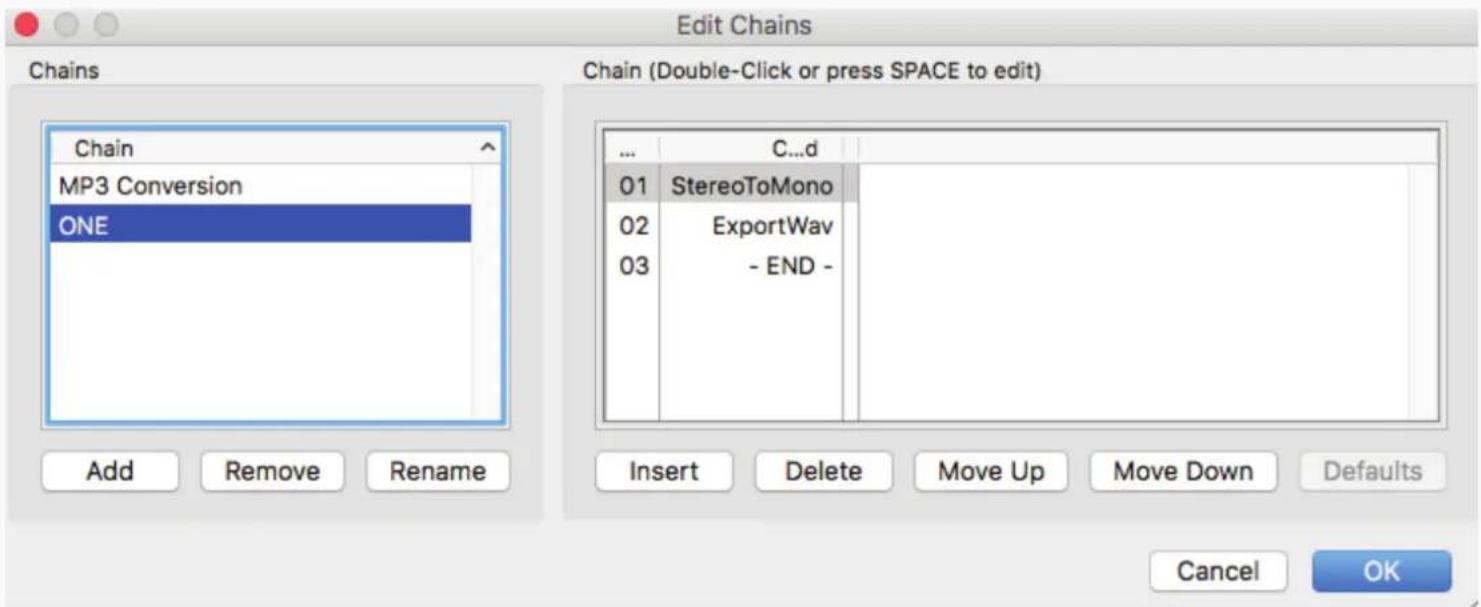
Close this window
Now Audacity is ready to process your file.
Go to->
File -> Apply Chains -> ONE
Apply to Files -> select all the files you want to process -> OK
Audacity will convert and clean your files one by one and save them in a folder called Cleaned located inside the folder with the original samples. (The only downside of using Audacity for this purpose is that the default bit rate is 16bit so even if your original files are 24bit Audacity will convert them to 16bit)
The next step is to rename the files. On a Mac highlight all the samples, right click and select Rename, follow this set up:
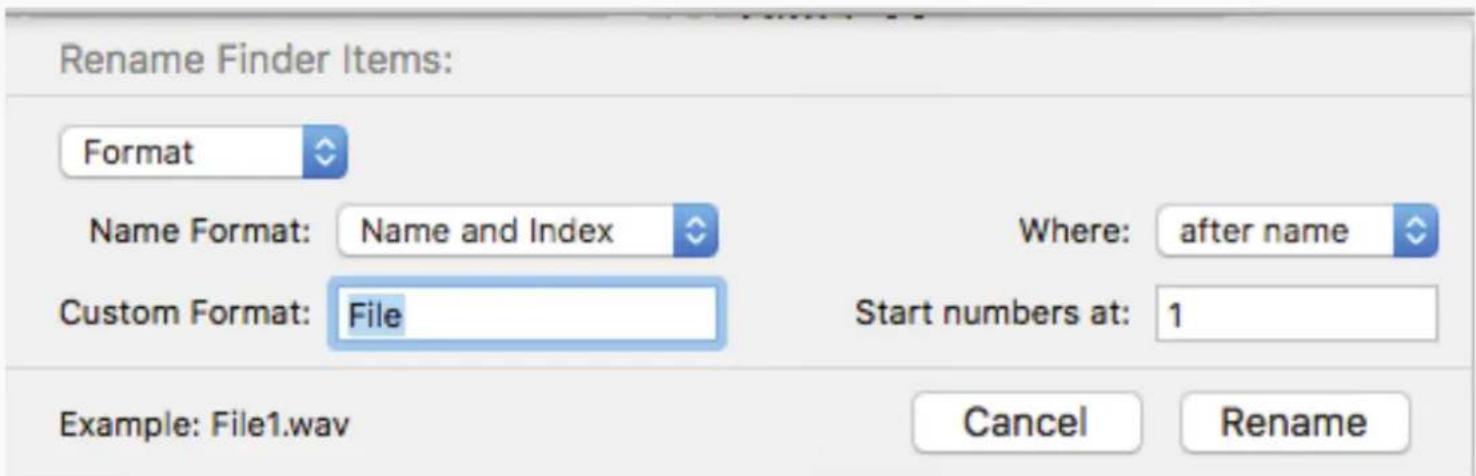
All files will now be numbered like:
File1.wav
File2.wav
File3.wav
(Windows has similar rename batch process, please google to search for an online example.)
Copy up to 256 files and drop them into the SD card. Load in to ONE and you should be ready to play them.
File Info:
ONE plays any mono WAV format file with a bit depth of 16 or 24 bits and a sample rate from 8 to 96 kHz. The native rates supported by ONE are 44.1, 48, 88.2 and 96 kHz and these can be correctly quantized to the Western 12 tone scale. Other rates will use 48k as their time base and be pitched up or down accordingly.
The file names can be any alphanumeric character (A-Z, 0-9) but are limited to 13 characters in length and the 13 characters includes the .wav extension.
ONE scans the microSD card for all compatible files on power up and makes a table of the files. ONE can store a maximum of 256 files in the table.
Formatting the SD card:
The SD card must be in a specific format for the ONE module to read:
- SDHC not high speed cards for video
- 32GB or less. Smaller cards usually perform better than larger
- FAT32 (or MS-DOS as it is called on the Mac)
- Master Boot Record (MBR)
Most SD cards come already formatted this way from the factory. If you need to reformat the card please follow these steps:
On a Mac, insert the SD card to your computer open Utilities -> Disk Utilities
Select Erase, set up the following settings:
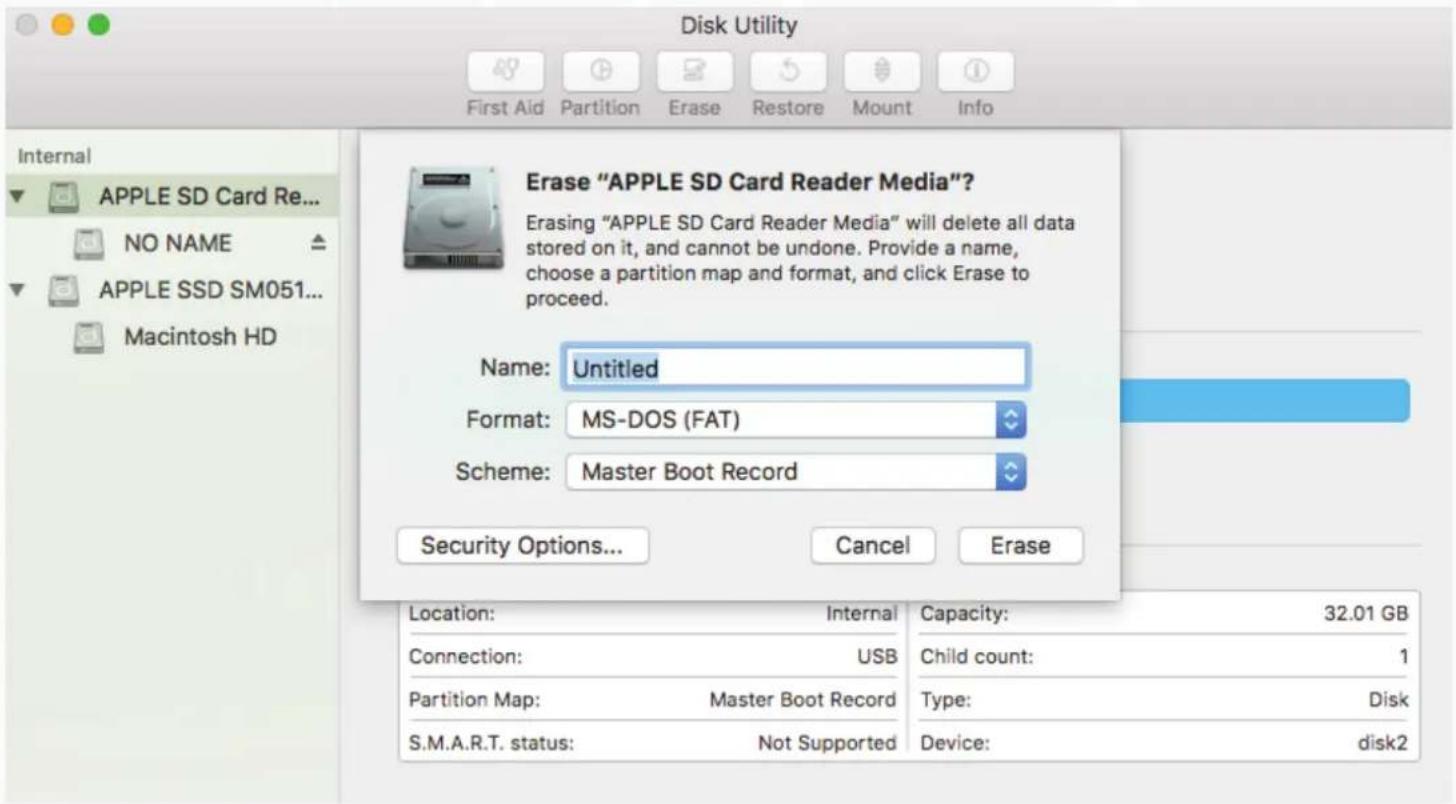
After formatting your card should be ready to have files copied to it.
Swapping SD cards:
ONE can handle removing SD cards during playback. To swap cards, remove the SD card, insert a new one and then either send a Trigger to ONE or press the PLAY button. The LED will flash Red indicating ONE is loading the new library.
When no card is inserted the LED slowly flashes Blue.
Please note that cards need to be removed and inserted firmly, and partial insertion might confuse the detecting circuit and cause an error.
Sample Rate and Pitch:
ONE can play back files using a set of quantized sample rates to give a 12 tone Western scale. The native sample rate of the file determines the range of the pitch up or down.
| Sample Rate | Upward Pitch | Downward Pitch |
| 48k | +12(octave) | -30 (2.5 octaves) |
| 96k | 0 | -42 (3.5 octaves) |
ONE changes the sample rate of the playback rate to the audio DAC so there is no interpolation of the sample data. This type of playback lowers the pitch as the rate slows just like a tape machine. At lower sample rates some aliasing noise may emerge at the higher frequencies depending on the audio file source.
ONE has two types of pitched playback - Quantized and Free. Quantized uses sample rate changes that correspond the the Western 12 tone scale. So if you load a sample of an acoustic instrument playing the note C4 at 48kHz, the playback range will be from about F1 to C5.
VCTRS and Commercial SD Cards:
ONE includes a card called VCTRS featuring 60 carefully chosen sounds from the 5 sound banks developed by Glitchmachines. We have included some of the most compelling material from each bank in order to showcase ONE's strengths and demonstrate the broad range of sounds available on the PERC, SBSTRT, KERNL, HYBRD and BENT cards which are available separately from Eurorack retailers.
VCTRS and the other Glitchmachines cards include the entire sound set sampled at 48kHz, 64 kHz and 96kHz. The 48k rate allows for easy pitching up of one octave, 64k offers some pitch upward while maintaining much of the fidelity of the 96k source and full 96k offers the purity of the source as well as the lowest latency possible for great performance.
Forthcoming cards from a wide array of sound designers, artists and producers will expand the range to include poly and mono synth tones, field recordings and even CV source material.
Custom Boot Options:
Some users might want ONE to boot up each card in a specific mode to match the material on it. A configuration file can be added to the SD card that tells ONE how it needs to boot up.
When ONE mounts any SD card it checks for a file called config.txt that contains data about how to set up functions for Trigger/Gate/Fade/Loop mode and CV mode. This is a basic text file that can be edited with any basic text editor on your computer. The file needs to be saved as .txt, not .rtf or .doc. with the following simple format:
- First line is a comment beginning with #
- Second line sets the Trigger Mode: Trigger, Gate, Looping and Fade are options
- Third line sets the CV mode: Free, Quantized or Select File
- Lines after this are ignored but can contain notes or comments
Note it is important to use an uppercase letter for the first letter in the settings.
<h1 id="example-configtxt-for-one">Example config.txt for ONE</h1>
Trigger
Quantize
#
<h1 id="anything-after-this-is-ignored">Anything after this is ignored</h1>
#
<h1 id="format">format:</h1>
<h1 id="first-line-is-comment">first line is comment</h1>
<h1 id="second-line-is-trigger-type-trigger-gate-loop-or-fade">second line is Trigger type - Trigger, Gate, Loop or Fade</h1>
<h1 id="third-line-is-cv-type-select-file-quantize-free">third line is CV type - Select File, Quantize, Free</h1>
<h1 id="parameters-must-have-capital-first-letter">parameters must have capital first letter!</h1>
Firmware Update:
ONE loads firmware off the SD card for easy updates.
- Unzip the firmware file if needed
- Copy the file image.hex to the SD card
- Power down the case
- Insert SD card into ONE
- Hold the button down on ONE
- Power on the case
- The button light will flash rapidly while loading the new firmware code
- ONE then boots normally
LED Indicators and Errors:
ONE uses the dual color LEDs to give feedback on the internal states of mounting and reading the SD card.
Flashing Red LED ONE is scanning the SD card for compatible files during boot
Flashing Blue LED ONE has not detected an SD card. Insert a compatible one.
During the boot sequence the SD card scanning can take a few moments if there are hundreds of files to check. After it is complete the LED alternates Blue and Red before turning off indicating ONE booted successfully.
MixBus Jumper:
The back circuit board has a 'MixBus' jumper (J13) which can route the output of the module to the same audio bus located on the power distribution board. This is the same bus used by Tiptop drum modules and the MixZ module can mix this audio with up to 8 other sources patched through the front panel.
Specifications:
- SDHC microSD card up to 32GB in size
- FAT32 file system
- WAV file format
- 16 or 24 bit depth
- Minimum sample rate 8kHz
- Maximum sample rate 96 kHz
- Latency (Pitch CV and Trigger Modes) at 48 kHz \~0.5ms
- Latency (Pitch CV and Trigger Modes) at 96 kHz \~ 0.25ms
- Dynamic Range 104 dB
-
THD+N 0.0025%
-
4 HP
-
43mm deep
-
+12V@80ma
- -12V@8ma
- +5V@0ma
Credits:
Hardware: Gur Milstein
Firmware: Chris Clepper
Graphic Design: Piero Fragola
Beta Testing: Ivo Ivanov, Konstantin Gervis

- Manual Chapters:
- Getting started:
- CV Modes:
- Selecting CV Modes:
- Trigger/Gate/Fade/Loop modes:
- Selecting Trigger/Gate/Fade/Loop modes:
- SD cards and your own samples:
- Notes about WAV file compatibility:
- Here is how to use Audacity to prepare your samples:
- File Info:
- Formatting the SD card:
- Swapping SD cards:
- Sample Rate and Pitch:
- VCTRS and Commercial SD Cards:
- Custom Boot Options:
- Firmware Update:
- LED Indicators and Errors:
- MixBus Jumper:
- Specifications:
- Credits:
Brand : Tiptop Audio
Model : One
Category : Synthesizer