
Mixed Reality AH501S - Virtual reality headset ACER - Free user manual and instructions
Find the device manual for free Mixed Reality AH501S ACER in PDF.


| Product Type | Virtual Reality Headset |
| Brand | Acer |
| Model | Mixed Reality AH501S |
| Display Technology | Dual LCD |
| Resolution per Eye | 1440 x 1440 pixels |
| Refresh Rate | 90 Hz |
| Field of View | ~100° |
| Tracking System | Inside-out via two front cameras |
| Connectivity | HDMI 2.0, USB 3.0 |
| Audio | Built-in headphones with 3.5mm jack |
| Microphone | Built-in |
| Cable Length | 4 meters |
| Weight | Approx. 350 g |
| Dimensions (W x H x D) | 195 x 95 x 125 mm |
| Minimum PC Requirements | Intel Core i5 / AMD Ryzen 5, 8 GB RAM, NVIDIA GTX 960 / AMD Radeon RX 480 |
| Platform | Windows Mixed Reality (Windows 10) |
| Comfort Features | Adjustable headband, soft face cushion |
| Cleaning | Use a soft, dry cloth. No solvents. |
| Storage Temperature | -20°C to 60°C |
| Operating Temperature | 10°C to 35°C |
Frequently Asked Questions - Mixed Reality AH501S ACER
User questions about Mixed Reality AH501S ACER
0 question about this device. Answer the ones you know or ask your own.
Ask a new question about this device
Download the instructions for your Virtual reality headset in PDF format for free! Find your manual Mixed Reality AH501S - ACER and take your electronic device back in hand. On this page are published all the documents necessary for the use of your device. Mixed Reality AH501S by ACER.
USER MANUAL Mixed Reality AH501S ACER
Mixed Reality Motion Controllers
Quick Start Guide
Quick Start Guide
Quick Start Guide
Quick Start Guide
- Trigger (Select)
- Thumb trigger (Grab)
- Battery / pairing button cover
- Wrist strap
- Thumbstick (Teleport / rotate)
- Touchpad
- Menu button
- Windows button (Start menu) Press and hold the Windows button to turn the controller on or off.
- 2x AA (LR6) batteries 10.Pairing button
Getting started
Two wireless motion controllers are provided, one for each hand.
Connecting your headset
See the instructions in the Acer Mixed Reality Headset Quick Start Guide for information about setting up your headset.
Note: If you are not prompted to set up your controllers, open the Mixed Reality app on your computer, select the More (...) icon, then Set Up Controllers.
Preparing your controllers
Slide open the battery compartment on each controller and insert two AA batteries; follow the battery orientation shown on the inside of each battery slot.
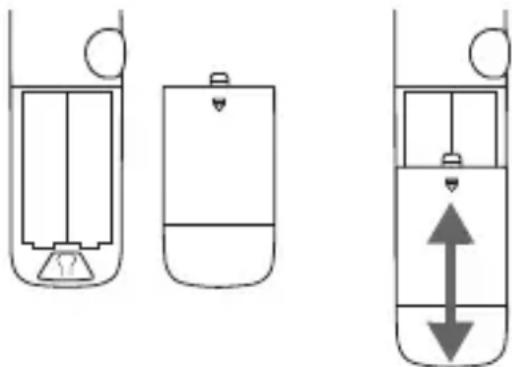
The controllers use two AA Alkaline batteries each.
Do not close the battery compartment until you have paired both controllers with your computer - Bluetooth pairing buttons are inside the compartment.
Powering on your controllers and Bluetooth pairing
The controllers use Bluetooth to connect to your headset/computer. When the headset is connected and Mixed Reality Portal shows up on the screen, press and hold the Windows button on each controller to turn them on. The controller vibrates and the LED lights turn on to show the controller is on, then the controllers will be automatically paired with the headset.
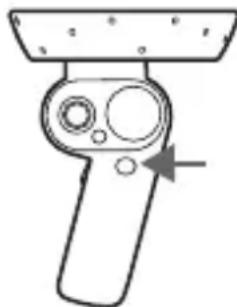
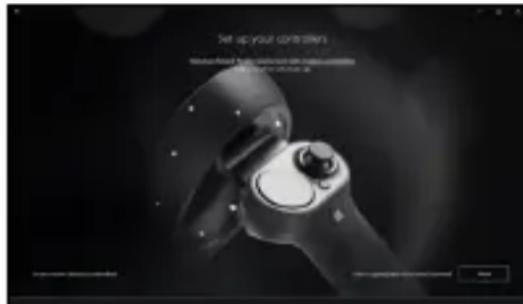
Or you can,
- Go to Windows Settings > Devices > Add Bluetooth or other devices > Bluetooth.
- Select Add Bluetooth or other device and see it starting to discover Bluetooth devices.
- Press and hold the Pairing button inside the battery compartment for each controller until the lights on the controller begin pulsing.
- Wait until the controller appears at the bottom of the list. Select to pair.
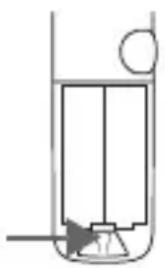
After the controllers are connected, close the battery compartments.
Continue with the Mixed Reality instructions to finish setting up your headset.
Important Health and Safety Information
Carefully read the following warnings and information before use of the product and follow all product safety and operating instructions. Failure to follow these instructions may cause injury and damage to your body, equipment and property.
[Warning] Be safe to use this product
- Consult your doctor before using the product if you have pre-existing serious medical conditions (such as a heart ailment), conditions that affect your ability to safely perform physical activities, psychiatric conditions (such as anxiety disorders or post-traumatic stress disorder), or if you are pregnant or elderly.
[Warning] Children
- Do not leave the product within the reach of young children or allow them to use or play with it. They can hurt themselves or others, or damage the product.
- The product may contain small parts with sharp edges that may cause an injury or which could become detached and create a choking hazard for young children. Consult your doctor immediately if any parts of the product or accessories are swallowed.
Use only in a safe environment
Always use the product in a clear and safe area.
• Take Care of the Controllers While using the hand controllers, always check that you have sufficient overhead and surrounding clearance to allow you to fully extend your arms outward and upwards. Hitting persons or objects may cause injury or damage. Hold the controllers firmly and always use the wrist straps. If released while using, the controller may cause injury or damage.
[Warning] Interference with medical devices
The product contains components that emit radio waves, which could affect the operation of nearby electronics, including cardiac pacemakers, hearing aids and defibrillators. If you have a pacemaker or other implanted medical device, do not use the controllers without first consulting your doctor or the manufacturer of your medical device. Maintain a safe distance between the product and your medical devices, and stop using if you observe a persistent interference with your medical device.
- Do not use your device in a hospital, on an aircraft, or in any automobile that can be affected by radio frequencies. Doing so may cause malfunctions of equipment and may result in injury or damage to property.
Precaution when using this device
- Keep the product away from excessive moisture and extreme temperatures. Do not leave the product in places such as on a car dashboard, window sill, or behind a glass that is exposed to direct sunlight or strong ultraviolet light for extended periods of time.
- Do not use the device if errors occur. Continued use of the device after errors occur may result in discomfort or personal injury.
- If you are allergic to the paint or metal parts on the device, you may experience itching, eczema, or swelling of the skin. If this happens, stop using the device and consult your physician.
[Warning] Repetitive Stress Injuries
- Operate the product in a comfortable posture. Do not grip the product too tightly. Press the buttons lightly. If you have tingling, numbness, stiffness, throbbing, or other discomfort, immediately stop using the product and consult your doctor.
- Prolonged use of this device and input devices (e.g., controllers) can make your muscles, joints, or skin hurt. If any part of your body becomes tired or sore while playing, or if you feel symptoms such as tingling, numbness, burning, or stiffness, stop and rest for several hours before playing again. If you continue to have any of the above symptoms or other discomfort during or after play, stop using this device and consult a physician.
General precautions
- Protect the product and use only approved accessories. Non-approved product or accessories may cause injury and damage.
- Use the device for its intended purpose only.
- Do not paint the product or its accessories.
- Avoid using the product after a dramatic change in temperature.
- NOTICE: When taking the product from low-temperature conditions into a warmer environment or from high-temperature conditions into a cooler environment, allow the product to acclimate to room temperature before turning on power.
- Do not drop or cause an impact to the device.
- Do not use or store your device in areas with high concentrations of dust or airborne materials. Dust or foreign materials can cause your device to malfunction.
- Do not bite or suck the device. Children or animals can choke on small parts.
- Do not insert the device or supplied accessories into the eyes, ears, or mouth.
- Do not expose the device to heavy smoke or fumes.
- Keep the product dry, humidity and liquids may damage the parts or short electronic circuits.
- Do not store your device in very hot or very cold areas. We recommend you use your device at temperatures from 0°C to 35°C .
- Do not use this product if it is cracked, broken, or its cable is damaged or wire is exposed.
- Do not attempt to disassemble, modify, or repair this product by yourself, repairs should be made by an authorized service agent.
- When cleaning your device, mind the following:
- Remove the batteries before cleaning. Use a damp cloth for cleaning, but NEVER use water to clean the product.
- Wipe the device and its lens with a clean, soft cloth or a cotton swab.
- Do not use chemicals or detergents. Doing so may discolor or corrode the outside of the device.
- Handle and dispose of the device with care.
- Never place the battery or device on or in heating devices, such as microwave ovens, stoves, or radiators.
- Never crush or puncture the device.
- Never place the battery or device on or in heating devices, such as microwave ovens, stoves, or radiators. - Never crush or puncture the device.
[Warning] Controller
- Use wrist straps with controllers to secure the controller to your wrist when in use.
- Do not install batteries backwards, charge, put in fire or mix with used or other battery types as this may result in battery damage or leak, causing injuries. Replace all batteries at the same time.
Environment
Temperature
- Operating: 5°C to 35°C • Non-operating: -20 °C to 60 °C
Humidity (non-condensing)
- Operating: 20% to 80% • Non-operating: 20% to 60%
Additional important regulatory information for your health and safety
You can download more information from the Acer support
website by going to:
http://go.acer.com/?id=17883


Federal Communications Commission Declaration of Conformity
This device complies with Part 15 of the FCC Rules. Operation is subject to the following two conditions: (1) this device may not cause harmful interference, and (2) this device must accept any interference received, including interference that may cause undesired operation.
This equipment has been tested and found to comply with the limits for a Class B digital device, pursuant to part 15 of the FCC rules. These limits are designed to provide reasonable protection against harmful interference in a residential installation.
This equipment generates, uses and can radiate radio frequency energy and, if not installed and used in accordance with the instructions, may cause harmful interference to radio communications. However, there is no guarantee that interference will not occur in a particular installation. If this equipment does cause harmful interference to radio or television reception, which can be determined by turning the equipment off and on, the user is encouraged to try to correct the interference by one or more of the following measures:
- Reorient or relocate the receiving antenna. - Increase the separation between the equipment and receiver. - Connect the equipment into an outlet on a circuit different from that to which the receiver is connected. - Consult the dealer or an experienced radio/TV technician for help.
You are cautioned that changes or modifications not expressly approved by the part responsible for compliance could void the user's authority to operate the equipment.
FCC RF Radiation Exposure Statement:
- This transmitter must not be co-located or operating in conjunction with any other antenna or transmitter.
- For body-worn operation, this device has been tested and meets FCC RF exposure guidelines. When used with an accessory that contains metal may not ensure compliance with FCC RF exposure guidelines.
This device contains licence-exempt transmitter(s)/receiver(s) that comply with Innovation, Science and Economic Development Canada's licence-exempt RSS(s). Operation is subject to the following two conditions:
- This device may not cause interference, and
- This device must accept any interference, including interference that may cause undesired operation of the device.
RF Radiation Exposure Statement:
For body worn operation, this device has been tested and meets RF exposure guidelines when used with an accessory that contains no metal. Use of other accessories may not ensure compliance with RF exposure guidelines.
The following local Manufacturer / Importer is responsible for this declaration:
Product: Motion Controllers
Brand: acer
Regulatory model number C701
Sku name AH10*
(* \text { is }" 0 - 9"," a - z"," A - Z"," -" o r b l a n k)
Name of responsible party: Acer America Corporation
Address of responsible party: 333 West San Carlos St., Suite 1500 San Jose, CA 95110, U. S. A.
Contact person: Acer Representative
Phone no.: 1-254-298-4000
Fax no.: 1-254-298-4147
October 31, 2018
Disposal instructions
Do not throw this electronic device into the trash when discarding. To minimize pollution and ensure utmost protection of the global environment, please recycle. For more information on the Waste from Electrical and Electronics Equipment (WEEE) regulations, visit www.acer-group.com/public/Sustainability
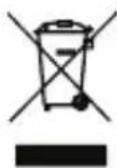


EU Declaration of Conformity
We,
Acer Incorporated
8F, 88, Sec. 1, Xintai 5th Rd., Xizhi, New Taipei City 221, Taiwan
Contact Person: Mr. RU Jan, e-mail:ru.jan@acer.com
And,
Acer Italy s.r.l
Via Lepetit, 40, 20020 Lainate (MI) Italy
Tel: +39-02-939-921, Fax: +39-02 9399-2913
www.acer.it
Product:
Motion Controllers
Trade Name:
acer
Regulatory model number: C701
Sku name:
AH10 * (* is A\~Z, a\~z, 0\~9, -, /, _ or blank)
We, Acer Incorporated, hereby declare under our sole responsibility that the product described above is in conformity with the relevant Union harmonization legislation: Directive 2014/53/EU on Radio Equipment, RoHS Directive 2011/65/EU. The following harmonized standards and/or other relevant standards have been applied:
Electromagnetic compatibility (Directive 2014/30/EU)
• EN 55032:2012/AC:2013 Class B
• EN 61000-3-2:2014 Class D
• EN 61000-3-3:2013
• EN 55024: 2010+A1:2015
Radio frequency spectrum usage (Directive 2014/53/EU)
• EN 300 328 V2.1.1
Healthy and Safety (Directive 2014/35/EU)
• EN 60950-1:2006/A11:2009/A1:2010/A12:2011/A2:2013
RoHS (Directive 2011/65/EU)
• EN 50581:2012
Operation frequency and radio-frequency power are listed as below: 2402-2480MHz < 10 dBm
Year to begin affixing CE marking 2018.
RU Jan / Sr. Manager
Acer Inc. (Taipei, Taiwan)
09,18,2018
Date
This product must be used in strict accordance with the regulations and constraints in the country of use. For further information, contact the local office in the country of use. Please see https://europa.eu/european-union/about-eu/countries_en for the latest country list. The device is restricted to indoor use only when operating in the 5120 to 5350 Mhz frequency range.
| AT | BE | BG | HR | CY | CZ | DK | |
| EE | FI | FR | DE | EL | HU | IE | |
| IT | LV | LT | LU | MT | NL | PL | |
| PT | RO | SK | SI | ES | SE | UK |
This device meets the EU requirements on the limitation of exposure of the general public to electromagnetic fields by way of health protection. The limits are part of extensive recommendations for the protection of the general public. These recommendations have been developed and checked by independent scientific organizations through regular and thorough evaluations of scientific studies. The unit of measurement for the European Council's recommended limit for mobile devices is the "Specific Absorption Rate" (SAR), and the SAR limit is 2.0 W/kg averaged over 10 grams of body tissue. It meets the requirements of the International Commission on Non-Ionizing Radiation Protection (ICNIRP).
For body worn operation, this device has been tested and meets the ICNIRP exposure guidelines and the European Standard, for use with dedicated accessories. Use of other accessories which contain metals may not ensure compliance with ICNIRP exposure guidelines. This equipment complies with the essential requirements of the European Union directive 2014/53/EU. See Statements of European Union Compliance, and more details refer to the attached Declaration of Conformity.

Overview
Indonesian
Right controller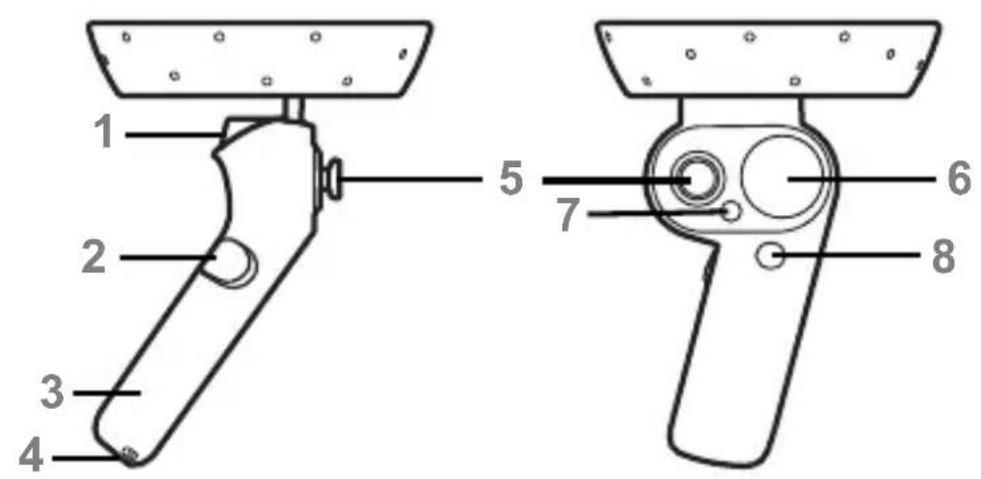
Left controller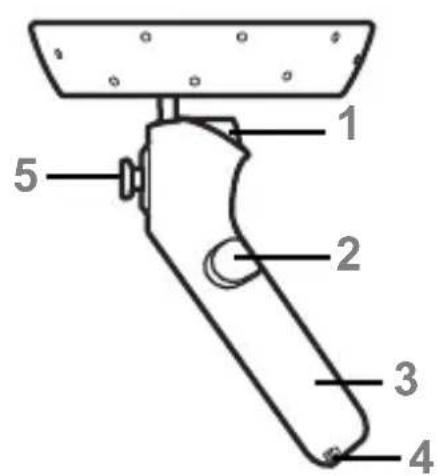
- Trigger (Select)
- Trigger thumb (Grab)
- Battery / attachment button cover
- Wrist strap
- Thumb stick (Teleport / rotate)
- Touchpad
Battery compartment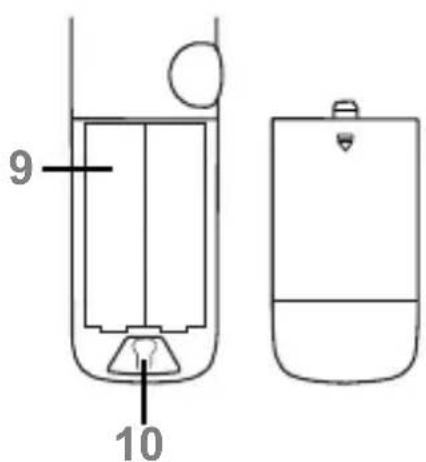
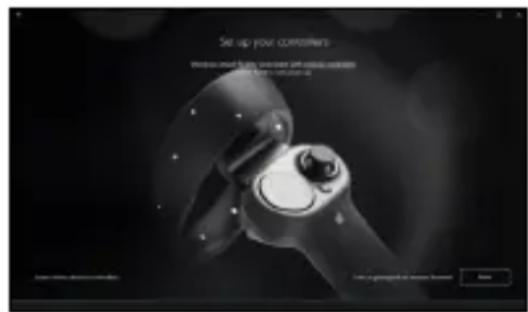
Or you can,
Each controller uses two AA alkaline batteries.
Or you can,
Important health and safety information
Each controller requires two AA alkaline batteries.
Or, you can also:
Or you can
Use only in a safe environment
- MIXED REALITY MOTION CONTROLLERS
- GETTING STARTED
- CONNECTING YOUR HEADSET
- PREPARING YOUR CONTROLLERS
- POWERING ON YOUR CONTROLLERS AND BLUETOOTH PAIRING
- IMPORTANT HEALTH AND SAFETY INFORMATION
- [WARNING] BE SAFE TO USE THIS PRODUCT
- [WARNING] CHILDREN
- USE ONLY IN A SAFE ENVIRONMENT
- [WARNING] INTERFERENCE WITH MEDICAL DEVICES
- PRECAUTION WHEN USING THIS DEVICE
- [WARNING] REPETITIVE STRESS INJURIES
- GENERAL PRECAUTIONS
- [WARNING] CONTROLLER
- ENVIRONMENT
- ADDITIONAL IMPORTANT REGULATORY INFORMATION FOR YOUR HEALTH AND SAFETY
- FEDERAL COMMUNICATIONS COMMISSION DECLARATION OF CONFORMITY
- EU DECLARATION OF CONFORMITY
- OVERVIEW
Brand : ACER
Model : Mixed Reality AH501S
Category : Virtual reality headset