
P6505 - Video projector ACER - Free user manual and instructions
Find the device manual for free P6505 ACER in PDF.


| Product Type | DLP Projector |
| Native Resolution | 1920 x 1080 (1080p) |
| Brightness (Typical) | 5,000 ANSI Lumens (estimated for 365W lamp) |
| Contrast Ratio | 20,000:1 (typical DLP) |
| Lamp Type | 365 W User-Replaceable Lamp |
| Lamp Life (Normal/ECO) | Up to 3,000 / 4,000 hours (typical) |
| Projection Lens | Manual Zoom (1.59x) and Manual Focus; F = 2.5 – 3.26, f = 20.91 – 32.63 mm |
| Lens Shift (Vertical) | Manual, -1% to +16% |
| Keystone Correction | ±30 Degrees (Vertical & Horizontal); 4-Corner Correction |
| Displayable Colors | 1.07 Billion Colors |
| Aspect Ratio | Full, 4:3, 16:9, L.Box |
| Built-in Speakers | 2 × 10 W |
| Supported 3D | DLP Link, Blu-ray 3D, nVidia 3DTV Play Ready |
| Connectivity | HDMI (MHL), HDMI, VGA In (2), VGA Out, Composite, S-Video, YPbPr, RS232, LAN, USB Mini (firmware), USB 5V Out, Audio In/Out, Mic In, 12V DC Out, HDBaseT (option) |
| Power Supply | AC 100 – 240 V, 50/60 Hz; Normal: 315 W, ECO: 260 W, Standby: < 0.5 W |
| Dimensions (W × D × H) | 373 × 223.4 × 100.5 mm (14.7 × 8.8 × 4.0 in) |
| Weight | 4.5 kg (9.92 lbs) |
| Operating Temperature | 0°C to 40°C (32°F to 104°F) |
| Additional Features | Acer LumiSense+, EcoProjection, Security (password), LAN Web Management, Cable Management |
Frequently Asked Questions - P6505 ACER
User questions about P6505 ACER
0 question about this device. Answer the ones you know or ask your own.
Ask a new question about this device
Download the instructions for your Video projector in PDF format for free! Find your manual P6505 - ACER and take your electronic device back in hand. On this page are published all the documents necessary for the use of your device. P6505 by ACER.
USER MANUAL P6505 ACER
Copyright © 2015. Acer Incorporated. All Rights Reserved.
Acer Projector User's Guide Original Issue: 08/2015
Changes may be made periodically to the information in this publication without obligation to notify any person of such revisions or changes. Such changes will be incorporated in new editions of this manual or supplementary documents and publications. This company makes no representations or warranties, either expressed or implied, with respect to the contents hereof and specifically disclaims the implied warranties of merchantability or fitness for a particular purpose.
Record the model number, serial number, purchase date and place of purchase information in the space provided below. The serial number and model number are recorded on the label affixed to your projector. All correspondence concerning your unit should include the serial number, model number and purchase information.
No part of this publication may be reproduced, stored in a retrieval system, or transmitted, in any form or by any means, electronically, mechanically, by photocopy, recording or otherwise, without the prior written permission of Acer Incorporated.
Model number: ____
Serial number: ____
Date of purchase: ____
Place of purchase: ____
Acer and the Acer logo are registered trademarks of Acer Incorporated. Other companies' product names or trademarks are used herein for identification purposes only and belong to their respective companies.
"HDMI™, the HDMI logo and High-Definition Multimedia Interface are trademarks or registered trademarks of HDMI Licensing LLC."
Information for your safety and comfort
Read these instructions carefully. Keep this document for future reference.
Follow all warnings and instructions marked on the product.
Turning the product off before cleaning
Unplug this product from the wall outlet before cleaning. Do not use liquid cleaners or aerosol cleaners. Use a damp cloth for cleaning.
Caution for plug as disconnecting device
Observe the following guidelines when connecting and disconnecting power to the external power supply unit:
• Install the power supply unit before connecting the power cord to the AC power outlet.
- Unplug the power cord before removing the power supply unit from the projector.
- If the system has multiple sources of power, disconnect power from the system by unplugging all power cords from the power supplies.
Caution for Accessibility
Be sure that the power outlet you plug the power cord into is easily accessible and located as close to the equipment operator as possible. When you need to disconnect power to the equipment, be sure to unplug the power cord from the electrical outlet.

Warnings!
- Do not use this product near water.
- Do not place this product on an unstable cart, stand or table. If the product falls, it could be seriously damaged.
- Slots and openings are provided for ventilation to ensure reliable operation of the product and to protect it from overheating. These openings must not be blocked or covered. The openings should never be blocked by placing the product on a bed, sofa, rug or other similar surface.
This product should never be placed near or over a radiator or heat register, or in a built-in installation unless proper ventilation is provided.
- Never push objects of any kind into this product through cabinet slots as they may touch dangerous voltage points or short-out parts that could result in a fire or electric shock. Never spill liquid of any kind onto or into the product.
iv
- To avoid damage of internal components and to prevent battery leakage, do not place the product on a vibrating surface.
- Never use it under sporting, exercising, or any vibrating environment which will probably cause unexpected short current or damage rotor devices, lamp.
Using electrical power
- This product should be operated from the type of power indicated on the marking label. If you are not sure of the type of power available, consult your dealer or local power company.
- Do not allow anything to rest on the power cord. Do not locate this product where people will walk on the cord.
- If an extension cord is used with this product, make sure that the total ampere rating of the equipment plugged into the extension cord does not exceed the extension cord ampere rating. Also, make sure that the total rating of all products plugged into the wall outlet does not exceed the fuse rating.
- Do not overload a power outlet, strip or receptacle by plugging in too many devices. The overall system load must not exceed 80% of the branch circuit rating. If power strips are used, the load should not exceed 80% of the power strip's input rating.
- This product's AC adapter is equipped with a three-wire grounded plug. The plug only fits in a grounded power outlet. Make sure the power outlet is properly grounded before inserting the AC adapter plug. Do not insert the plug into a non-grounded power outlet. Contact your electrician for details.

Warning! The grounding pin is a safety feature. Using a power outlet that is not properly grounded may result in electric shock and/or injury.

Note: The grounding pin also provides good protection from unexpected noise produced by other nearby electrical devices that may interfere with the performance of this product.
- Use the product only with the supplied power supply cord set. If you need to replace the power cord set, make sure that the new power cord meets the following requirements: detachable type, UL listed/CSA certified, VDE approved or its equivalent, 4.5 meters (15 feet) maximum length.
Product servicing
Do not attempt to service this product yourself, as opening or removing covers may expose you to dangerous voltage points or other risks. Refer all servicing to qualified service personnel.
Unplug this product from the wall outlet and refer servicing to qualified service personnel when:
•the power cord or plug is damaged, cut or frayed
- liquid was spilled into the product
•the product was exposed to rain or water
•the product has been dropped or the case has been damaged
•the product exhibits a distinct change in performance, indicating a need for service
•the product does not operate normally after following the operating instructions

Note: Adjust only those controls that are covered by the operating instructions, since improper adjustment of other controls may result in damage and will often require extensive work by a qualified technician to restore the product to normal condition.

Warning! For safety reasons, do not use non-compliant parts when adding or changing components. Consult your reseller for purchase options.
Your device and its enhancements may contain small parts. Keep them out of the reach of small children.
Additional safety information
- Do not look into the projector's lens when the lamp is on. The bright may hurt your eyes.
- Turn on the projector first and then signal sources
-
Do not place the product in following environments:
-
Space that is poorly ventilated or confined. At least 50cm clearance from walls and free flow of air around the projector is necessary.
- Locations where temperatures may become excessively high, such as inside of a car with all windows rolled up.
- Locations where excessive humidity, dust, or cigarette smoke may contaminate optical components, shortening the life span and darkening the image.
- Locations near fire alarms.
- Locations with an ambient temperature above 40^ / 104^ .
- Locations where the altitudes are higher than 10000 feet.
- Unplug immediately if there is something wrong with your projector. Do not operate if smoke, strange noise or odor comes out of your projector. It might cause fire or electric shock. In this case, unplug immediately and contact your dealer.
- Do not keep using this product to break or drop it. In this case contact your dealer for inspection.
- Do not face the projector lens to the sun. It can lead to fire.
vi
- When switching the projector off, suggest to ensure the projector completes its cooling cycle before disconnecting power.
- Do not frequently turn off the main power abruptly or unplug the projector during operation. The best way is to wait for the fan to turn off before turning main power off.
- Do not touch air outlet grille and bottom plate which becomes hot.
- Clean the air filter frequently if have. The temperature inside may rise and cause damage when the filter/ventilation slots clogged with dirt or dust.
- Do not look into the air outlet grille when projector is operating. It may hurt your eyes.
• Always open the lens shutter or remove the lens cap when the projector is on.
- Do not block the projector lens with any object when the projector is under operation as this could cause the object to become heated and deformed or even cause a fire. To temporarily turn off the lamp, press HIDE on the remote control.
- The lamp becomes extremely hot during operation. Allow the projector to cool for approximately 45 minutes prior to removing the lamp assembly for replacement.
- Do not operate lamps beyond the rated lamp life. It could cause it to break on rare occasions.
- Never replace the lamp assembly or any electronic components unless the projector is unplugged.
- The product will detect the life of the lamp itself. Please be sure to change the lamp when is showing warning message.
- When changing the lamp, please allow unit to cool down, and follow all changing instructions.
- Reset the "Lamp Hour Reset" function from the Onscreen display "Management" menu after replacing the lamp module.
- Do not attempt to disassemble this projector. There are dangerous high voltages inside which may hurt you. The only user serviceable part is the lamp which has its own removable cover. Refer servicing only to suitable qualified professional service personnel.
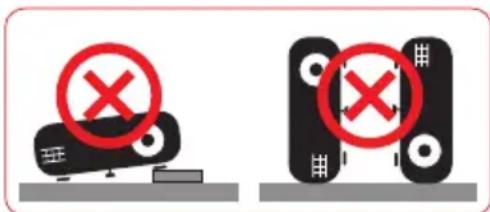
- Do not stand the projector on end vertically. It may cause the projector to fall over, causing injury or damage.
- This product is capable of displaying inverted images for ceiling mount installation. Only use acer ceiling mount kit for mounting the projector and ensure it is securely installed.
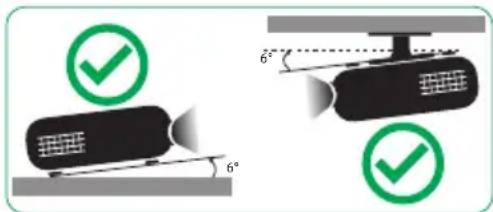
- The projector should be placed in a horizontal way by means of desktop or ceiling mount mode only, and its tilt angles should not exceed 6 degrees, otherwise it would cause dramatical decrease of lamp life or severe safety concern of system malfunction.
Caution for Listening
To protect your hearing, follow these instructions.
- Increase the volume gradually until you can hear clearly and comfortably.
- Do not increase the volume level after your ears have adjusted.
- Do not listen to music at high volumes for extended periods.
- Do not increase the volume to block out noisy surroundings.
•Decrease the volume if you can't hear people speaking near you.
Disposal instructions
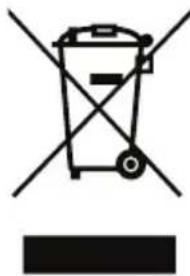
Do not throw this electronic device into the trash when discarding. To minimize pollution and ensure utmost protection of the global environment, please recycle. For more information on the Waste from Electrical and Electronics Equipment (WEEE) regulations, visit http://www.acer-group.com/public/Sustainability/sustainability01.htm
natural_image
Symbol of a trash bin crossed with no text or labels, accompanied by a black rectangle below (no readable text or symbols)Mercury advisory
For projectors or electronic products containing an LCD/CRT monitor or display:

"Lamp(s) contain Mercury, Dispose Properly."
Lamp(s) inside this product contain mercury and must be recycled or disposed of according to local, state or federal laws. For more information, contact the Electronic Industries Alliance at www.eiae.org. For lamp-specific disposal information, check www.lamprecycle.org
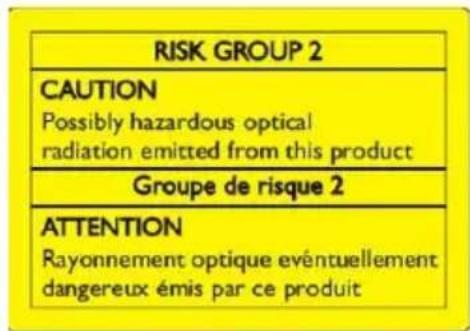
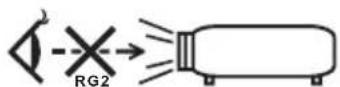
Do not stare into the beam, RG2
"As with any bright source, do not stare into the direct beam, RG2 IEC 62471-5:2015"
viii
First things first
Usage Notes
Do:
- Turn off the product before cleaning.
- Use a soft cloth moistened with mild detergent to clean the display housing.
- Disconnect the power plug from AC outlet if the product is not being used for a long period of time.
Don't:
- Block the slots and openings on the unit provided for ventilation.
- Use abrasive cleaners, waxes or solvents to clean the unit.
- Use under the following conditions:
•In extremely hot, cold or humid environments.
•In areas susceptible to excessive dust and dirt.
- Near any appliance that generates a strong magnetic field.
- Place In direct sunlight.
Precautions
Follow all warnings, precautions and maintenance as recommended in this user's guide to maximize the life of your unit.

Warning:
- Do not look into the projector's lens when the lamp is on. The bright light may hurt your eyes.
• To reduce the risk of fire or electric shock, do not expose this product to rain or moisture. - Please do not open or disassemble the product as this may cause electric shock.
- When changing the lamp, please allow unit to cool down, and follow all changing instructions.
- This product will detect the life of the lamp itself. Please be sure to change the lamp when it shows warning messages.
- Reset the "Lamp Hour Reset" function from the Onscreen display "Management" menu after replacing the lamp module.
- When switching the projector off, please ensure the projector completes its cooling cycle before disconnecting power.
- Turn on the projector first and then the signal sources.
- Do not use lens cap when projector is in operation.
- When the lamp reaches the end of its life, it will burn out and may make a loud popping sound. If this happens, the projector will not turn back on until the lamp module has been replaced. To replace the lamp, follow the procedures listed under "Replacing the Lamp".
Information for your safety and comfort iii
First things first viii
Usage Notes viii
Precautions viii
Introduction 1
Product Features 1
Package Overview 3
Projector Overview 4
Projector Outlook 4
Control Panel 6
Remote Control Layout 7
MHL (Mobile High-Definition Link) Control 9
Getting Started 10
Connecting the Projector 10
Turning the Projector On/Off 12
Turning on the Projector 12
Turning the projector off 13
Adjusting the Projected Image 14
Adjusting the Height of Projected Image 14
How to optimize image size and distance 15
How to get a preferred image size by adjusting distance and zoom 18
How to get a preferred image position by adjusting lens shift 21
User Controls 23
Installation menu 23
Onscreen Display (OSD) Menus 25
Color 26
Image 28
Setting 30
Management 32
Audio 33
3D 34
Language 34
Acer LAN webpage management 35
How to login in 35
Home 36
Control Panel 36
Network Setting 37
Alert Setting 37
Logout 38
Appendices 39
Troubleshooting 39
LED & Alarm Definition Listing 43
How to install cable management 44
Cleaning and replacing the dust filters 45
Replacing the Lamp 46
Ceiling Mount Installation 48
Specifications 51
Compatibility modes 53
Regulations and safety notices 58
Introduction
Product Features
This product is a single-chip DLP ^® projector. Outstanding features include:
•DLP ^® technology
•P6200/F211/PM-X01/P6200S/F211S/PM-X01S series: Native 1024 x 768 XGA resolution P6500/P6505/F251/PM-801 series: 1920x1080 1080p resolution P6600/P6605/F261/PM-WU01 series: True 1920x1200 WUXGA resolution Full/4:3/16:9/L.Box aspect ratio supported
- Enables projecting 3D content via DLP Link Technology: Blue-Ray 3D supported and nVidia 3DTV Play Ready
- Acer ColorBoost technology delivers nature's true colors for vivid, life-like images
•High brightness and contrast ratio
- Acer LumiSense+ technology can intelligently optimize the brightness and color saturation of projected image based on actual ambient light.
- Versatile display modes (Bright, Presentation, Standard, Video, User) enable optimum performance in any situation
•NTSC / PAL / SECAM compatible and HDTV (720p, 1080i, 1080p) supported
- Lower power consumption and economy (ECO) mode extend lamp life
•Acer EcoProjection Technology delivers Intelligent power management approach and physical efficiency improvement
• Equipped with HDMI™ & MHL connection supporting HDCP
•Support HDMI CEC function
• Advanced digital keystone and 4-corner correction optimizes presentations
- Smart detection delivers quick, intelligent source detection
- Multi-language onscreen display (OSD) menus
- Manual focus projection lens zooms up to 1.36x / 1.59x
- 2x digital zoom and pan function
•Microsoft ^® Windows ^® 2000, XP, Vista ^® , Windows 7, Windows 8, Macintosh ^® OS compliant
•Support MHL V2.0 signal display
•Support LumiSense+
•Built-in Two 10 Watts speaker
- Manual lens vertical shift adjustment
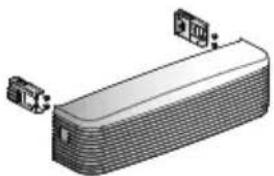
•Cable management

Note: Functions vary depending on model definition.
Package Overview
This projector comes with all the items shown below. Check to make sure your unit is complete. Contact your dealer immediately if any thing is missing.
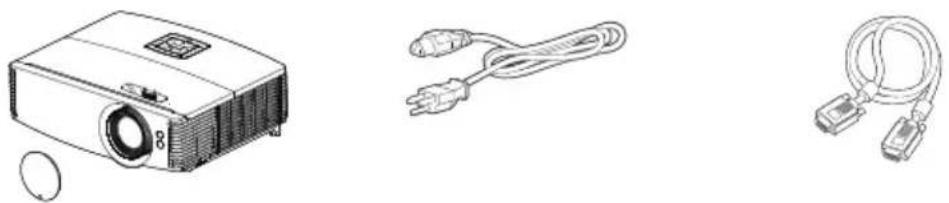
Projector Power cord VGA cable
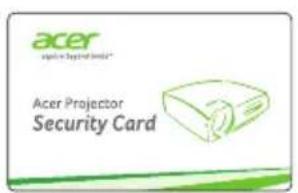
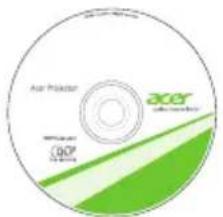

Security card User's guide Quick start guide
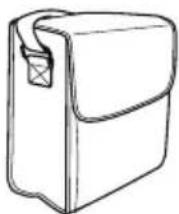
Carrying case Dust filters
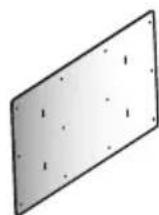
(option)
natural_image
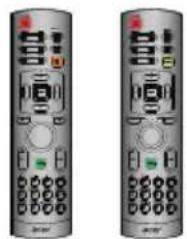
Two identical remote control phones with black and white buttons, no visible text or symbols on the device surfaces.Remote control
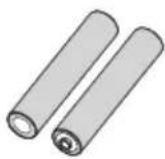
2 x Batteries (option)
natural_image
3D illustration of a rectangular electronic device with two small components attached (no text or symbols visible)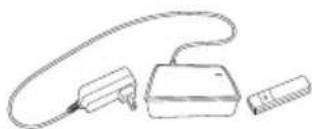
natural_image
Simple line drawing of a medical or electrical device with a coiled cable, rectangular box, and bulb (no text or symbols)Cable management cover WirelessHD-Kit (option)
natural_image
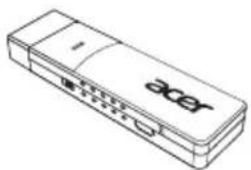
Line drawing of a macOS remote control device (no text or symbols visible)WirelessCAST (option)
Projector Overview
Projector Outlook
Front / upper side
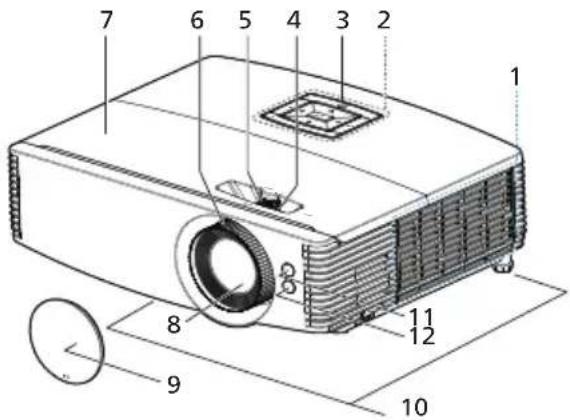
| # Description # Description | ||
| 1 Dust filter cover 7 Lamp cover | ||
| 2 Control panel 8 Projection lens | ||
| 3 Power button 9 Lens Cap | ||
| 4 Zoom lever 10 Tilt adjusting wheels | ||
| 5 Lens shift control ring 11 Ambient light sensor | ||
| 6 Focus ring 12 Remote control receiver |
Right / Rear side
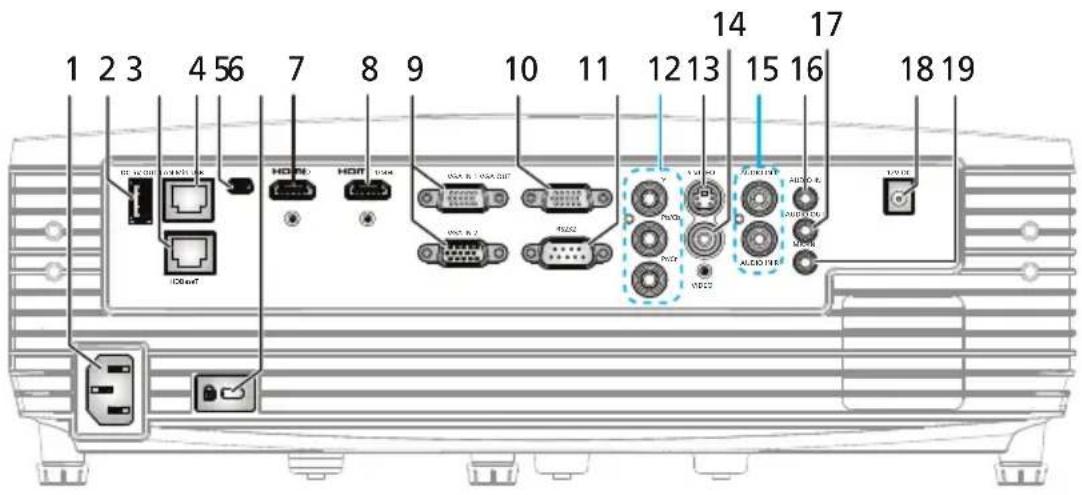
| # Description # Description | ||
| 1 Power socket 11 RS232 connector | ||
| 2 5V DC output connector 12 YPbPr/YCbCr input connector | ||
| 3 HD BaseT 13 S-Video input connector | ||
| 4 LAN (RJ45 Port for 10/100M Ethernet) 14 Composite video input connector | ||
| 5 Mini USB Ctrl connector (for firmware upgrade and USB display) | 15 | Audio in connector (RCA) |
| 6 K nsingtonTM lock port 16 Audio in connector | ||
| 7 HDMI 2 connector 17 Audio out connector | ||
| 8 HDMI/MHL connector (HDMI/MHL, HDMI 1/MHL) | 18 12V DC output connector | |
| 9 PC analog signal/HDTV/component video input connector (VGA, VGA IN, VGA IN 1, VGA IN 2) | 19 3.5mm Microphone Input | |
| 10 Monitor loop-through output connector (for VGA IN 1 only) | ||

Note: Functions vary depending on model definition.
Control Panel
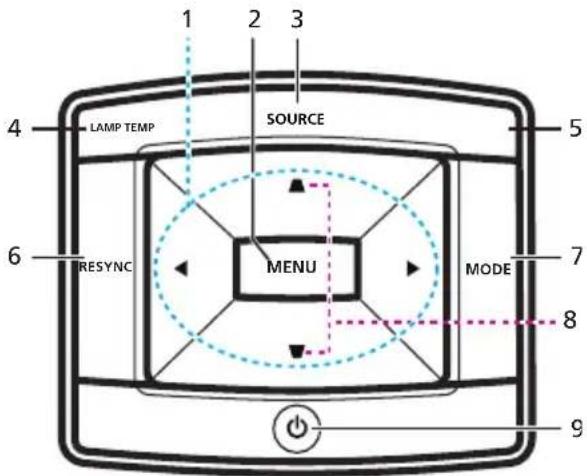
| # Icon Function Description | |||
| 1 Four directional select keys | Use ▲to▼select items or make adjustments to your selection. | ||
| 2 | M E | • N Press "MENU" to launch the Onscreen display (OSD) menu, back to the previous step for the OSD menu operation or exit the OSD menu.•Confirm your selection of items. | |
| 3 SOURCE Changes the active source. | |||
| 4 LAMP Lamp Indicator LED | |||
| 5 TEMP Temp Indicator LED | |||
| 6 RESYNC A Automatically synchronizes the projector to the input source. | |||
| 7 | M O | Press "MODE" F to select the display mode. | |
| 8 Keystone Adjusts the image to compensate for distortion caused by tilting the projector. | |||
| 9 | P O | • Power Indicator LED R• See the contents in "Turning the Projector On/Off" section. | |

Note: Functions vary depending on model definition.
Remote Control Layout
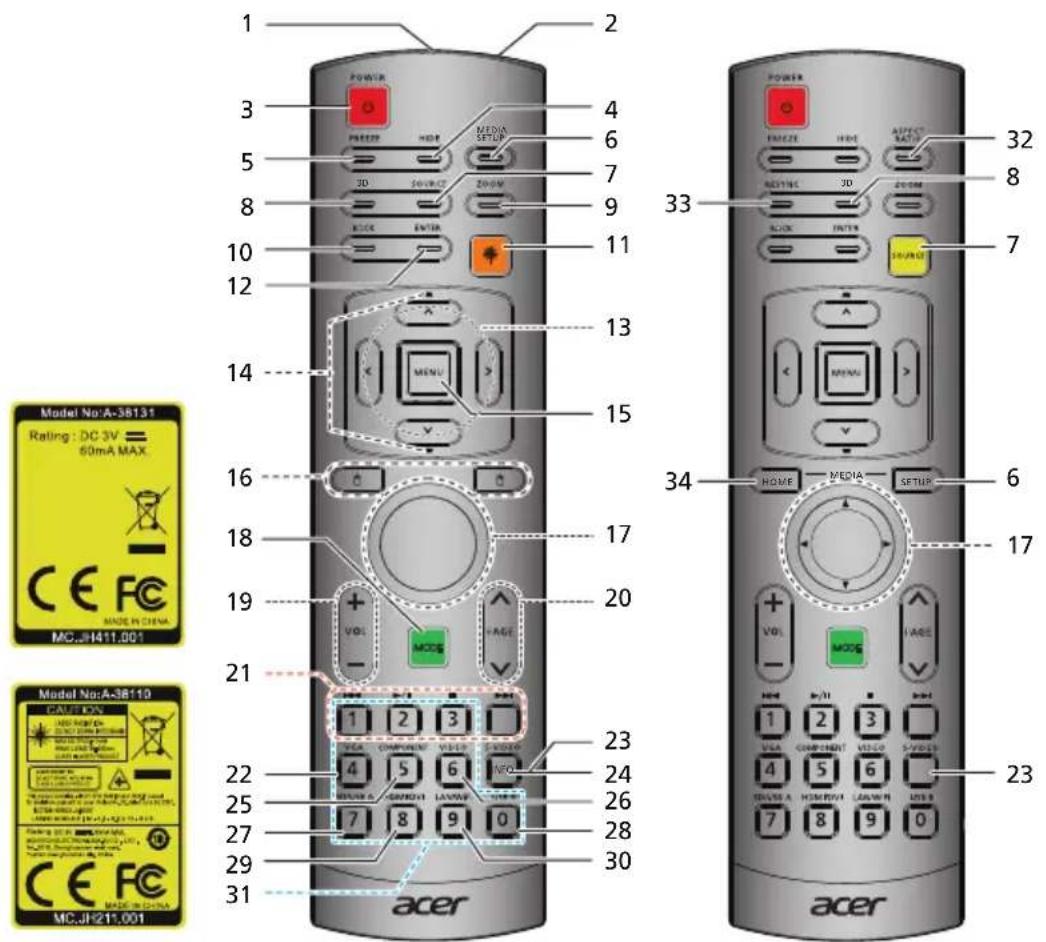
| # Icon Function Description | |||
| 1 Infrared | transmitter | Sends signals to the projector. | |
| 2 | Laser pointer Aim | the remote at the viewing screen. | |
| 3 | POWER | Please see "Turning the Projector On/Off" section. | |
| 4 | HIDE | Temporarily turns off the video. Press "HIDE" to hide the image, press again to display the image. | |
| 5 | FREEZE Pause the | screen image. | |
| 6 | MEDIA | SETUP No function. | |
| 7 SOURCE Changes the active source. | |||
| 8 3D Press "3D" to select 3D models. | |||
| 9 ZOOM Zooms the projector display in or out. | |||
| 10 BACK Press "BACK" to go back one menu step. | |||
| 11 | Laser button | Aim the remote at the viewing screen, press and hold this button to activate the laser pointer.This function is not supported in Japanese market. | |
| 12 Enter | No function. | ||
| 13 Four-directionalselect keys | Use up, down, left, right buttons to select items or make adjustments to your selection. | ||
| 14 KEYSTONE Adjusts the image to compensate for distortion caused by tilting the projector (± 30 degrees). | |||
| # | Icon | Function | Description |
| 15 MENU | Press "MENU" to launch the Onscreen display (OSD) menu, back to the previous step for the OSD menu operation or exit the OSD menu.Confirm your selection of items. | ||
| 16 MOUSE | Left/Right Click | Left-/right-click buttons are on the left and right, respectively; the center button works as a multidirectional pointer stick. To enable this function, an USB cable must be connected to projector from your PC. | |
| 17 MOUSE | Four directional select keys | ||
| 18 MODE | Press "MODE" to select the display mode. | ||
| 19 VOLUME | +/- Increases/decreases the volume. | ||
| 20 PAGE For computer mode only. Use this button to select the next or previous page. This function is only available when connected to a computer via a USB cable. | |||
| 21 Prev No function. | |||
| ▶▶I | Next No function. | ||
| ▶/II | Play/Pause No function. | ||
| ■ | Stop No function. | ||
| 22 | VGA | Press "VGA" to change source to the VGA connector. This connector supports analog RGB, YPbPr (480p/576p/720p/1080i), YCbCr (480i/576i) and RGBsync. | |
| 23 S-VIDEO | To change source to S-Video. | ||
| 24 INFO No function. | |||
| 25 | COMPONENT | Press "COMPONENT" to change source to Component video. This connection supports YPbPr (480p/576p/720p/1080i) and YCbCr (480i/576i). | |
| 26 VIDEO To change source to COMPOSITE VIDEO. | |||
| 27 SD/USB A No function. | |||
| 28 USB B For USB control and firmware upgrade. | |||
| 29 | HDMI ^TM /DVI | Press "HDMI ^TM /DVI" to change source to HDMI ^TM (no DVI function). | |
| 30 | LAN/WiFi | Press "LAN/WiFi" to display the image which is wire or wirelessly transmitted from the PC to the projector via the "Acer LAN webpage management" utility. | |
| 31 | KeyPad 0~9 | Press "0~9" to input a password in the "Security". | |
| 32 ASPECT RATIO Choose the desired aspect ratio. | |||
| 33 RESYNC | Automatically synchronizes the projector to the input source. | ||
| 34 MEDIA_HOME No function. | |||

Note: Functions vary depending on model definition.
MHL (Mobile High-Definition Link) Control
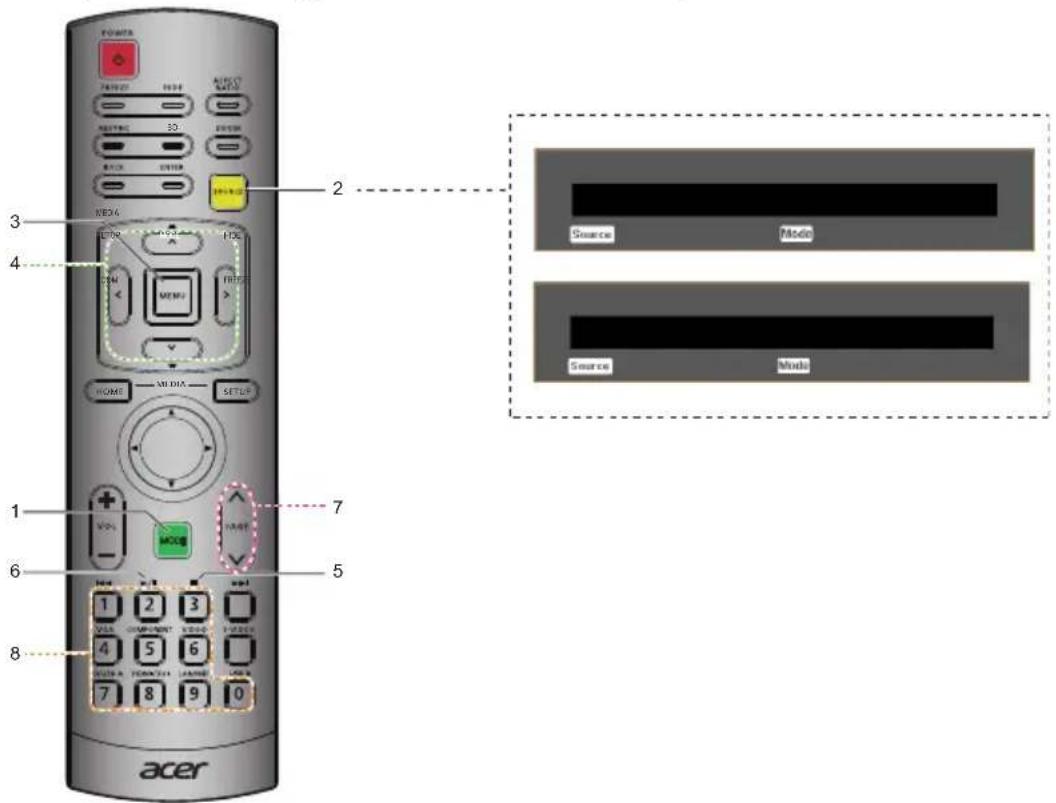
| # Icon Component Description | |||
| 1 | M | @Press "MODE"Dbutton for oneEsecond to activate the MHL Control Mode.•To exit, press the "MODE" button again. | |
| 2 SOURCE Press the "SOURCE" | button to toggle between Navigation or Numeric mode. | ||
| 3 MENU Press to launch the root memu.(only for Navigation mode) | |||
| 4 Direction Keys Use up, down. | left, right buttons to select items or make adjustments to your selection.(only for Navigation mode) | ||
| 5 | ENTER▶/II | Select | To select the file. (only for Navigation mode) |
| 6 Exit To exit the file. (only for Navigation mode) | |||
| 7 PgUp/PgDn | Use the button to select the next or previous page. (only for Navigation mode) | ||
| 8 KeyPad 0~9 Number buttons. (only for Numeric mode) | |||

Note: Functions vary depending on model definition.
Getting Started
Connecting the Projector
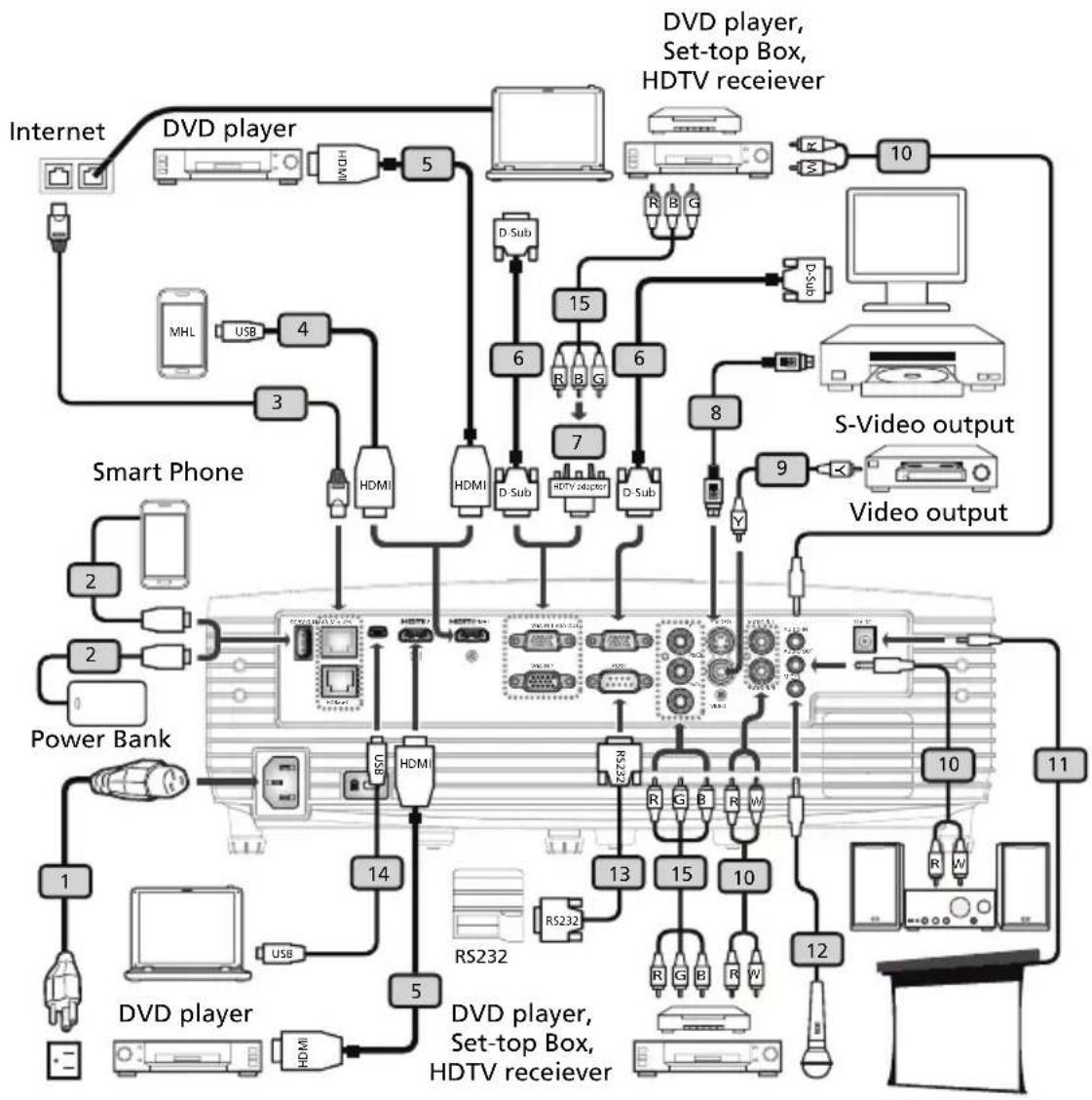
flowchart
graph TD
    A["Smart Phone"] --> B["Internet"]
    A --> C["DVD player"]
    A --> D["HDMI"]
    A --> E["Power Bank"]
    A --> F["DVD player"]
    A --> G["HDMI"]
    B --> H["5"]
    C --> I["6"]
    D --> J["7"]
    E --> K["8"]
    F --> L["9"]
    G --> M["10"]
    H --> N["15"]
    I --> O["16"]
    J --> P["17"]
    K --> Q["18"]
    L --> R["19"]
    M --> S["20"]
    N --> T["21"]
    O --> U["22"]
    P --> V["23"]
    Q --> W["24"]
    R --> X["25"]
    S --> Y["26"]
    T --> Z["27"]
    U --> AA["28"]
    V --> AB["29"]
    W --> AC["30"]
    X --> AD["31"]
    Y --> AE["32"]
    Z --> AF["33"]
    AA --> AG["34"]
    AB --> AH["35"]
    AC --> AI["36"]
    AD --> AJ["37"]
    AE --> AK["38"]
    AF --> AL["39"]
    AG --> AM["40"]
    AH --> AN["41"]
    AI --> AO["42"]
    AJ --> AP["43"]
    AK --> AQ["44"]
    AL --> AR["45"]
    AM --> AS["46"]
    AN --> AT["47"]
    AO --> AU["48"]
    AP --> AV["49"]
    AQ --> AW["50"]
    AR --> AX["51"]
    AS --> AY["52"]
    AT --> AZ["53"]
    AU --> BA["54"]
    AV --> BB["55"]
    AW --> BC["56"]
| # Description # Description | ||
| 1 Power cord 9 Composite video cable | ||
| 2 USB cable for charging device 10 Audio cable Jack/RCA | ||
| 3 LAN cable 11 12V DC cable | ||
| 4 MHL cable (MicroUSB to HDMI) 12 Microphone cable | ||
| 5 HDMI cable 13 RS232 cable | ||
| 6 VGA cable 14 USB cable | ||
| 7 VGA to component/HDTV adapter 15 3 RCA component cable | ||
| 8 S-Video cable | ||

Note: To ensure the projector works well with your computer, please make sure the timing of the display mode is compatible with the projector.
Note: Functions vary depending on model definition.
Note: USB cable needs powered extender if the length is over 5 m.
Note: Some smartphones require a converter (supplied by smartphone maker) to enable the MHL function.
Note: Before connecting the projector, remove the cable management, refer to "Removing the cable management" section.
Note: DC 12V out connector support 12V/100mA power for screen control only.
Note: USB DC 5V out connector support 5V/1.5A power output for power bank charging only when MHL source is not detected.
Turning the Projector On/Off
Turning on the Projector
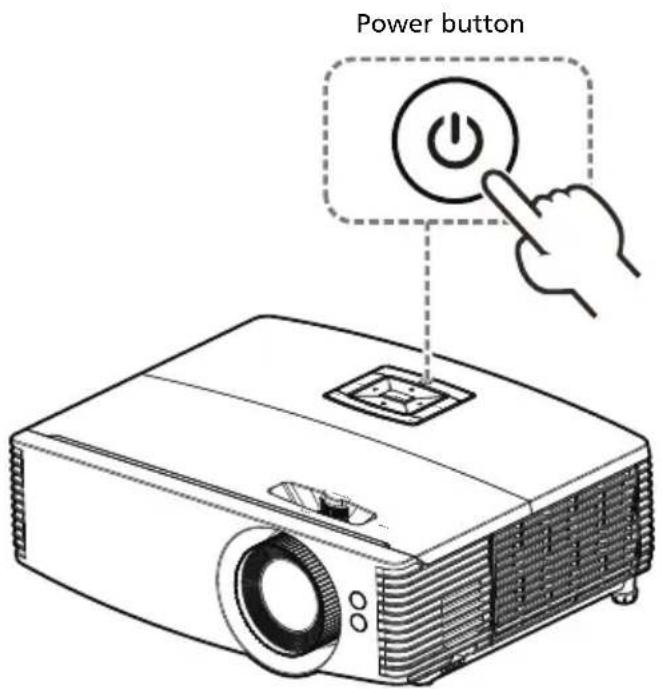
1 Ensure that the power cord and signal cable are securely connected. The Power indicator LED will flash red.
2 Turn on the projector by pressing "Power" button on the control panel or remote control, and the Power indicator LED will turn blue.
3 Turn on your source (computer, notebook, video player, etc.). The projector will detect your source automatically.
- If the screen displays "Lock" and "Source" icons, it means the projector is locked onto a specific source type and there is no such type of input signal detected.
- If the screen displays "No Signal", please make sure the signal cables are securely connected.
- If you connect to multiple sources at the same time, use the "Source" button on either control panel or the remote control or direct source key on the remote control to switch between inputs.
Turning the projector off
1 To turn the projector off, press and hold the power button. This message appears: "Please press the power button again to complete the shutdown process." Press the power button again.
2 The LED power indicator will turn RED and blink rapidly after the projector is turned off, and the fan(s) will continue to operate for about 2 minutes to ensure that the system cools properly. (only supported under "Instant Resume" mode)
3 As long as the power cord remains plugged in, you can press the power button to turn the projector immediately back on anytime during the 2-minute shutdown process. (only supported under "Instant Resume" mode)
4 Once the system has finished cooling, the LED power indicator will stop blinking and turn solid red to indicate standby mode.
5 It is now safe to unplug the power cord.

Warning indicators:
- "Projector Overheated. Lamp will automatically turn off soon." This onscreen message indicates that the projector has overheated. The lamp with automatically turn off, the projector will automatically shut down, and the LED temp indicator will turn solid red. Contact your local dealer or service center.
- "Fan failed. Lamp will automatically turn off soon." This onscreen message indicates that the fan has failed. The lamp will automatically turn off, the projector will automatically shut down, and the LED temp indicator will blink. Contact your local dealer or service center.

Note: Whenever the projector automatically shuts down and the LED lamp indicator turns solid red, contact your local reseller or service center.
Note: Functions vary depending on model definition.
Attention! The projector will enter a two minute cool down period to ensure continued optimal lamp operation.
Adjusting the Projected Image
Adjusting the Height of Projected Image
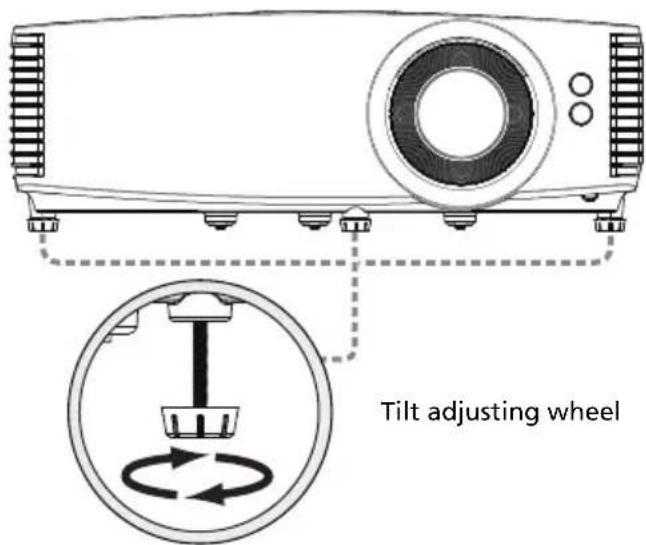
The projector is equipped with elevator feet for adjusting the height of image.
To raise/lower the image:
Use Tilt adjusting wheel to fine-tune the display angle.
How to optimize image size and distance
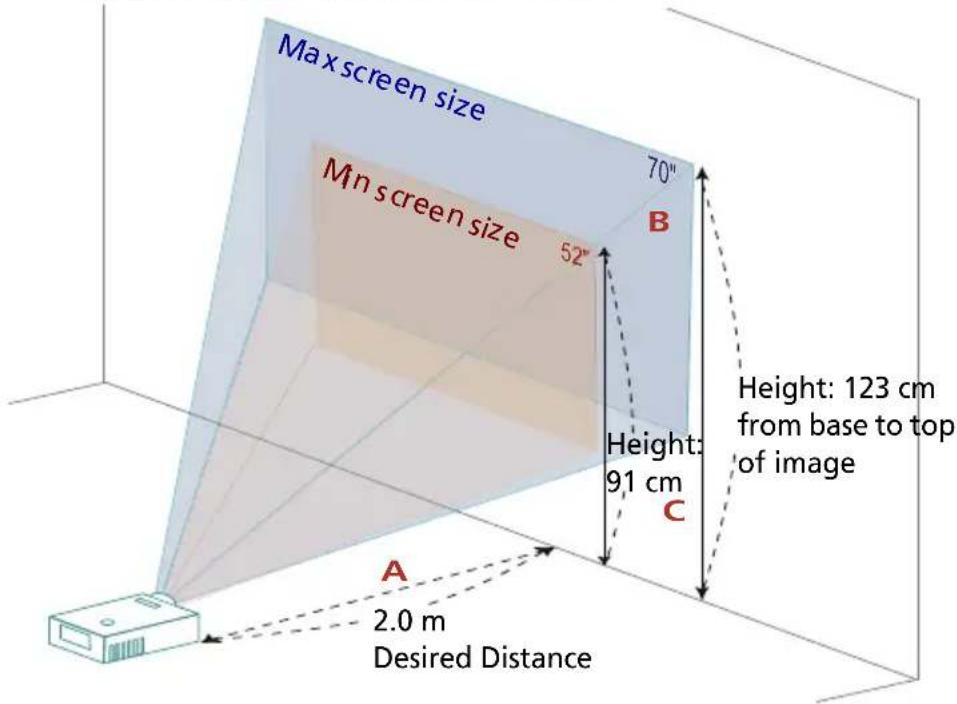
Consult the table below to find the optimal image sizes achievable when the projector is positioned at a desired distance from the screen.
•XGA series
If the projector is 2.0 m from the screen, good image quality is possible for image sizes between 52" and 70".

Note: Remind as below figure, the space of 123 cm height is required when located at 2 m distance.
| Desired Distance (m) | Screen size | Top | Screen size | Top | ||
| (Min zoom) (Max zoom) | ||||||
| Diagonal (inch) | W (cm) x H (cm) | From base to top of image (cm) | Diagonal (inch) | W (cm) x H (cm) | From base to top of image (cm) | |
| 1.0 26 | 52 x 39 45 | 35 71 x 53 61 | ||||
| 1.5 39 | 79 x 59 68 | 53 107 x 80 | 92 | |||
| 2.0 52 | 105 x 79 9 | 1 70 143 x 10 | 7 123 | |||
| 2.5 65 | 131 x 98 | 113 | 88 178 x | 134 154 | ||
| 3.0 | 78 | 157 x 118 | 136 | 105 | 214 x 160 | 184 |
| 3.5 | 90 | 184 x 138 | 158 | 123 | 249 x 187 | 215 |
| 4.0 | 103 | 210 x 157 | 181 | 140 | 285 x 214 | 246 |
| 4.5 | 116 | 236 x 177 | 204 | 158 | 321 x 241 | 277 |
| 5.0 | 129 | 262 x 197 | 226 | 175 | 356 x 267 | 307 |
| 6.0 | 155 | 315 x 236 | 272 | 210 | 428 x 321 | 369 |
| 7.0 | 181 | 367 x 276 | 317 | 246 | 499 x 374 | 430 |
| 8.0 | 207 | 420 x 315 | 362 | 281 | 570 x 428 | 492 |
| 8.6 | 222 | 451 x 339 | 389 | 302 | 613 x 460 | 529 |
Zoom Ratio: 1.36x
•1080p series
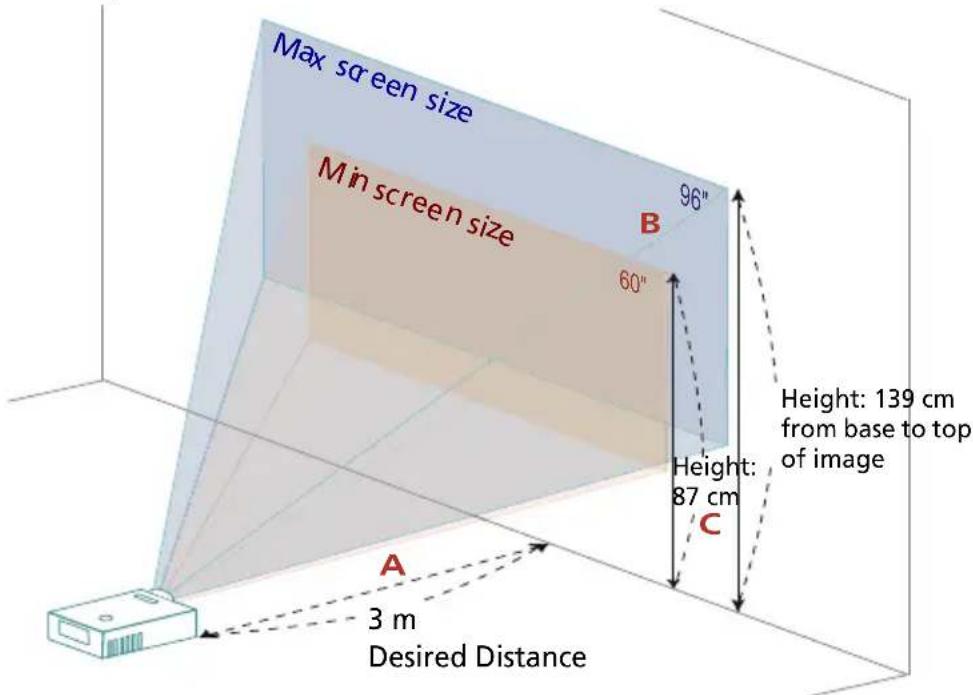
If the projector is 3 m from the screen, good image quality is possible for image sizes between 60" and 96".

Note: Remind as below figure, the space of 139 cm height is required when located at 3 m distance.
| Desired Distance (m) | Screen size | Top | Screen size | Top | ||
| (Min zoom) (Max zoom) | ||||||
| Diagonal (inch) | W (cm) x H (cm) | From base to top of image (cm) | Diagonal (inch) | W (cm) x H (cm) | From base to top of image (cm) | |
| 1.0 20 | 45 x 25 29 | 32 71 x 40 46 | ||||
| 1.5 30 | 67 x 38 44 | 48 106 x 60 | 69 | |||
| 2.0 40 | 89 x 50 58 | 64 142 x 80 | 93 | |||
| 2.5 50 | 112 x 63 73 | 80 177 x 100 | 116 | |||
| 3.0 60 | 134 x 75 87 | 96 213 x 120 | 139 | |||
| 3.5 71 | 156 x 88 | 102 | 112 | 248 x 140 | 162 | |
| 4.0 | 81 | 179 x 100 | 117 | 128 | 284 x 160 | 185 |
| 5.0 | 101 | 223 x 126 | 146 | 160 | 355 x 199 | 231 |
| 6.0 | 121 | 268 x 151 | 175 | 192 | 426 x 239 | 278 |
| 7.0 | 141 | 313 x 176 | 204 | 224 | 496 x 279 | 324 |
| 8.0 | 161 | 357 x 201 | 233 | 256 | 567 x 319 | 370 |
| 9.0 | 181 | 402 x 226 | 262 | 288 | 638 x 359 | 416 |
| 9.4 | 190 | 420 x 236 | 274 | 301 | 667 x 375 | 435 |
Zoom Ratio: 1.59x
•WUXGA series
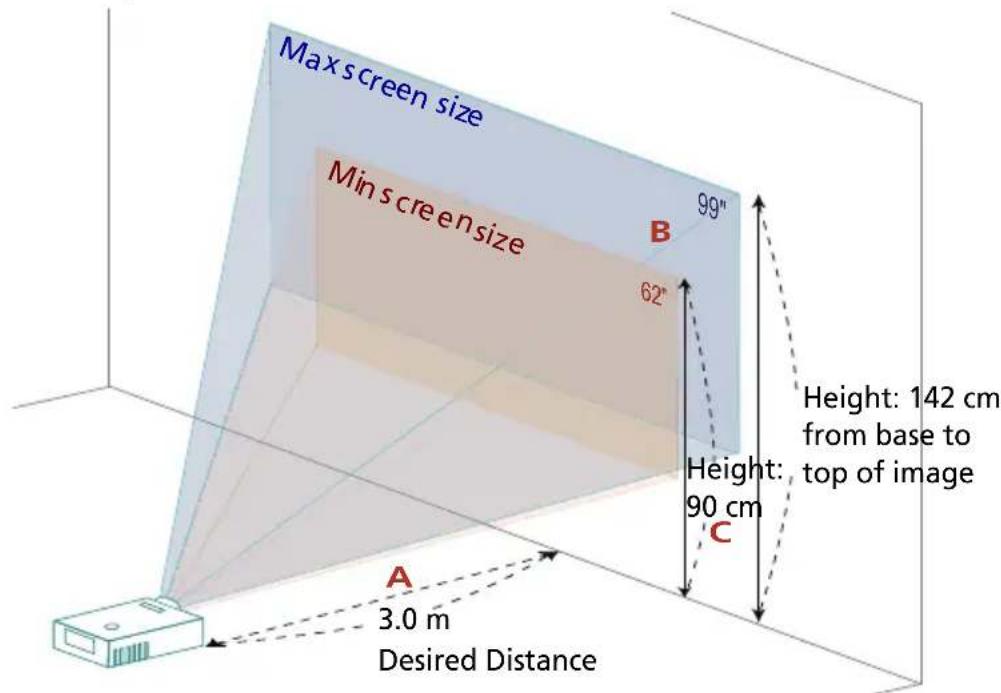
If the projector is 3.0 m from the screen, good image quality is possible for image sizes between 62" and 99".

Note: Remind as below figure, the space of 142 cm height is required when located at 3.0 m distance.
| Desired Distance (m) | Screen size Top Screen size Top | |||||
| (Min zoom) (Max zoom) | ||||||
| Diagonal (inch) | W (cm) x H (cm) | From base to top of image (cm) | Diagonal (inch) | W (cm) x H (cm) | From base to top of image (cm) | |
| 1.0 21 | 45 x 28 30 | 33 71 x 44 47 | ||||
| 1.5 31 | 67 x 42 45 | 49 106 x 66 71 | ||||
| 2.0 41 | 89 x 56 60 | 66 142 x 89 95 | ||||
| 2.5 52 | 112 x 70 7 | 5 82 177 x 111 119 | ||||
| 3.0 62 | 134 x 84 9 | 0 99 213 x 133 142 | ||||
| 3.5 73 | 156 x 98 1 | 04 115 248 x 155 166 | ||||
| 4.0 83 | 179 x 112 | 119 132 284 x 177 190 | ||||
| 5.0 104 | 223 x 140 | 149 165 355 x 222 237 | ||||
| 6.0 124 | 268 x 167 | 179 198 426 x 266 285 | ||||
| 7.0 145 | 313 x 195 | 209 230 496 x 310 332 | ||||
| 8.0 166 | 357 x 223 | 239 263 567 x 355 379 | ||||
| 9.0 187 | 402 x 251 | 269 296 638 x 399 427 | ||||
| 9.2 191 | 411 x 257 | 275 303 652 x 408 436 | ||||
Zoom Ratio: 1.59x
How to get a preferred image size by adjusting distance and zoom
The table below shows how to achieve a desired image size by adjusting either the position or the zoom ring.
•XGA series
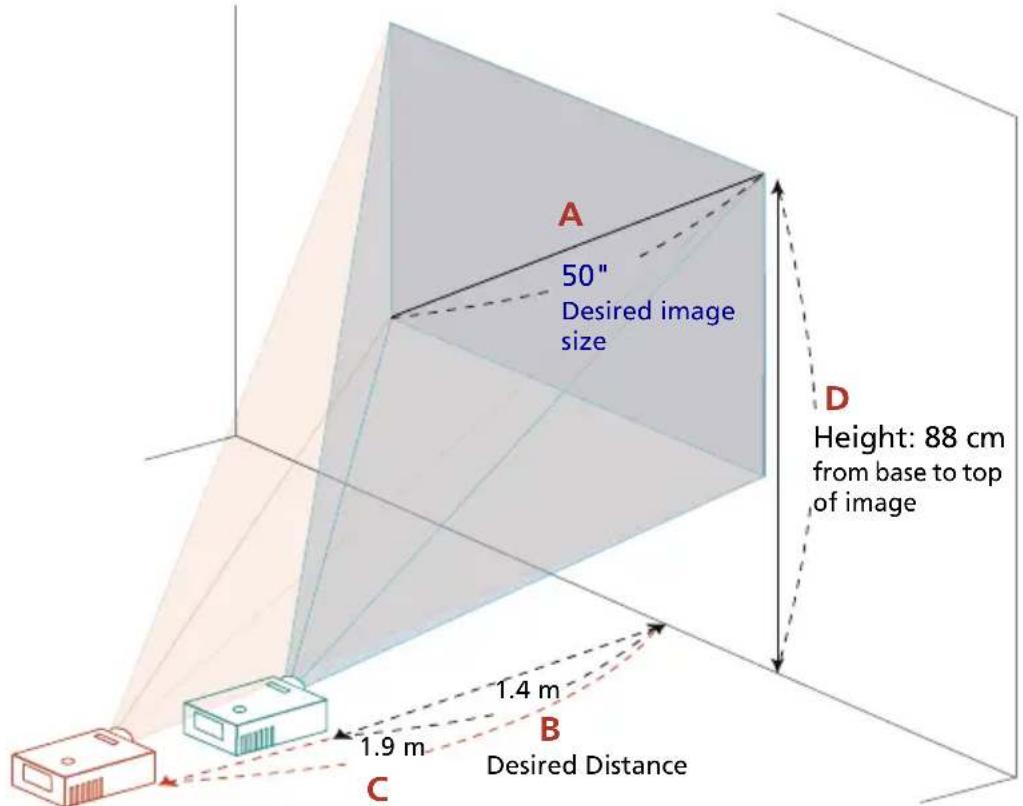
To obtain an image size of 50" set the projector at a distance 1.4 m and 1.9 m from the screen.
| Desired Image Size Distance (m) Top (cm) | ||||
| Diagonal (inch) | W (cm) x H (cm) | Max zoom | Min zoom | From base to top of image |
| 20 53 x 40 | 1.0 46 | |||
| 40 81 x 61 | 1.1 1.5 70 | |||
| 50 102 x 76 | 1.4 1.9 88 | |||
| 60 122 x 91 | 1.7 2.3 105 | |||
| 70 142 x 107 | 2.0 2.7 123 | |||
| 80 163 x 122 | 2.3 3.1 140 | |||
| 90 183 x 137 | 2.6 3.5 158 | |||
| 100 203 x 152 | 2.9 3.9 175 | |||
| 120 244 x 183 | 3.4 4.6 210 | |||
| 150 305 x 229 | 4.3 5.8 263 | |||
| 180 366 x 274 | 5.1 7.0 315 | |||
| 200 406 x 305 | 5.7 7.7 351 | |||
| 250 508 x 381 | 7.1 9.7 438 | |||
| 300 610 x 457 | 8.6 526 | |||
Zoom Ratio: 1.36x
•1080p series
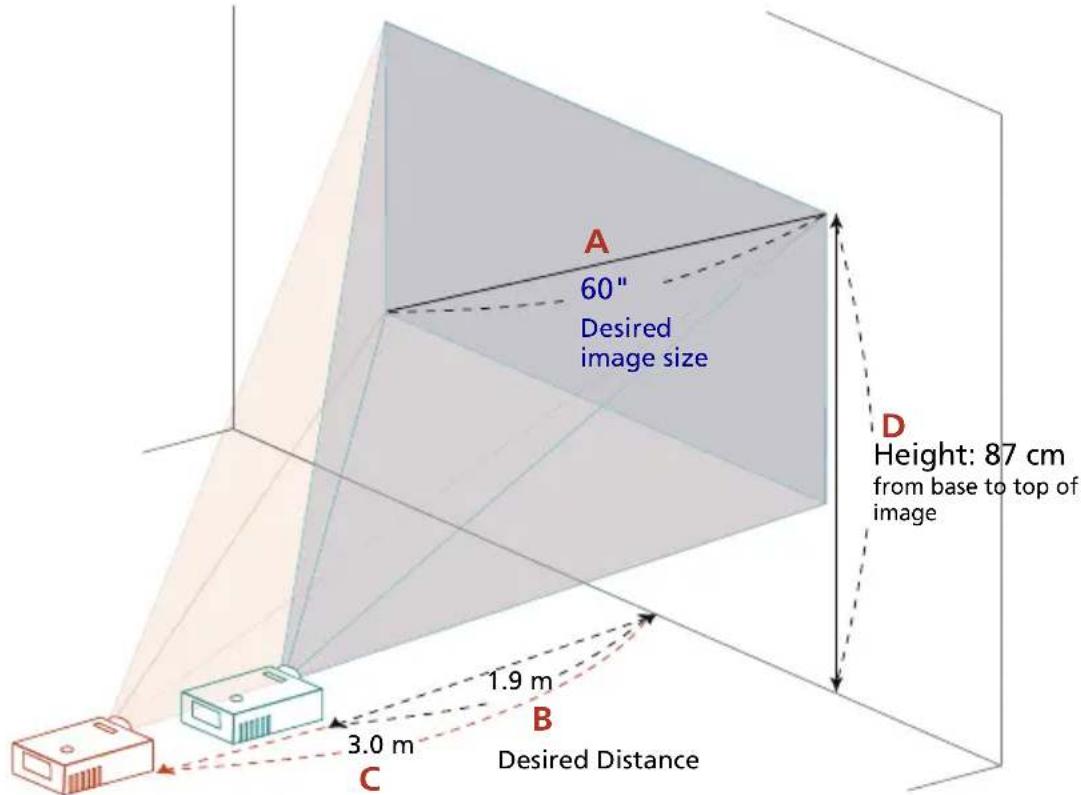
To obtain an image size of 60" set the projector at a distance 1.9 m and 3.0 m from the screen.
| Desired Image Size Distance (m) Top (cm) | ||||
| Diagonal (inch) | W (cm) x H (cm) | Max zoom | Min zoom | From base to top of image |
| 20 44 x 25 | 1.0 29 | |||
| 40 89 x 50 | 1.2 2.0 58 | |||
| 50 111 x 62 | 1.6 2.5 72 | |||
| 60 133 x 75 | 1.9 3.0 87 | |||
| 70 155 x 87 | 2.2 3.5 101 | |||
| 80 177 x 100 | 2.5 4.0 116 | |||
| 90 199 x 112 | 2.8 4.5 130 | |||
| 100 221 x 125 | 3.1 5.0 144 | |||
| 120 266 x 149 | 3.7 6.0 173 | |||
| 150 332 x 187 | 4.7 7.4 217 | |||
| 180 398 x 224 | 5.6 8.9 260 | |||
| 200 443 x 249 | 6.2 9.9 289 | |||
| 250 553 x 311 | 7.8 12.4 | 361 | ||
| 300 664 x 374 | 9.4 | 433 | ||
Zoom Ratio: 1.59x
•WUXGA series
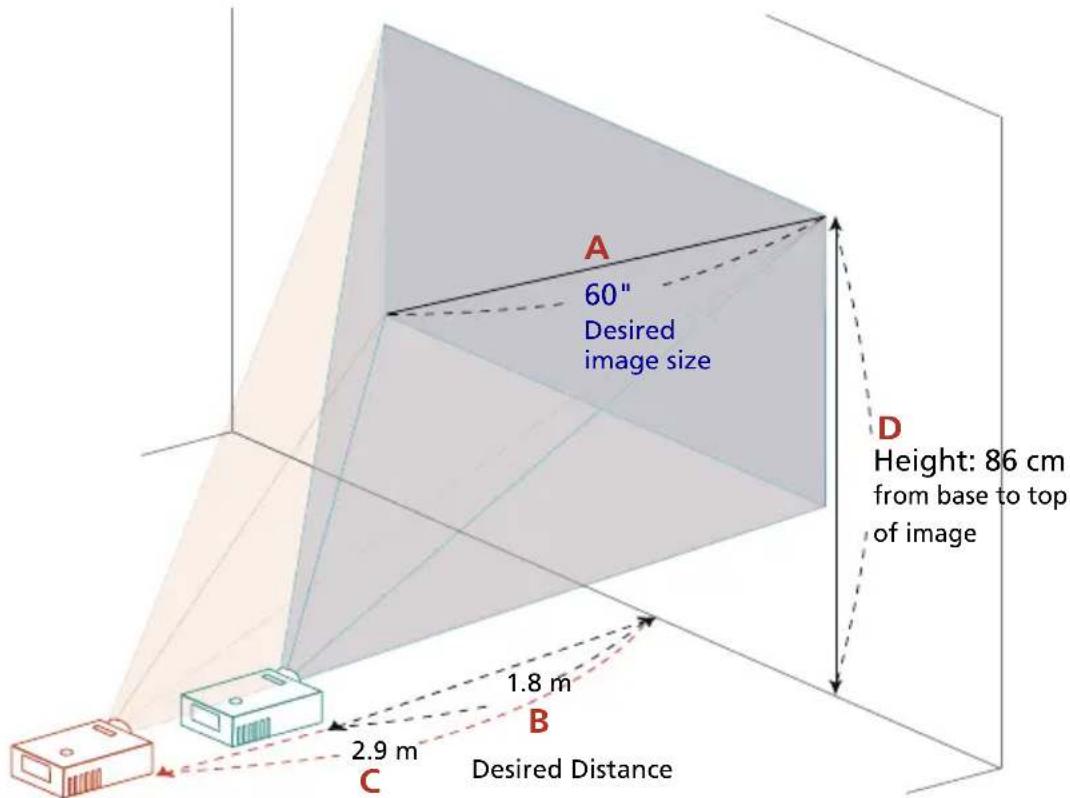
To obtain an image size of 60" set the projector at a distance 1.8 m and 2.9 m from the screen.
| Desired Image Size Distance | (m) Top (cm) | |||
| Diagonal (inch)<A> | W (cm) x H (cm) | Max zoom<B> | Min zoom<C> | From base to top of image<D> |
| 20 43 x 27 | 1.0 29 | |||
| 40 86 x 54 | 1.2 1.9 58 | |||
| 50 108 x 67 | 1.5 2.4 72 | |||
| 60 129 x 81 | 1.8 2.9 86 | |||
| 70 151 x 94 | 2.1 3.4 101 | |||
| 80 172 x 108 | 2.4 3.9 115 | |||
| 90 194 x 121 | 2.7 4.3 130 | |||
| 100 215 x 135 | 3.0 4.8 144 | |||
| 120 258 x 162 | 3.6 5.8 173 | |||
| 150 323 x 202 | 4.6 7.2 216 | |||
| 180 388 x 242 | 5.5 8.7 259 | |||
| 200 431 x 269 | 6.1 9.6 288 | |||
| 250 538 x 337 | 7.6 12.1 | 360 | ||
| 300 646 x 404 | 9.1 | 432 | ||
Zoom Ratio: 1.59x
How to get a preferred image position by adjusting lens shift
The projector is equipped with lens shift for adjusting the position of projected image up and down without requiring you to physically move the projector.
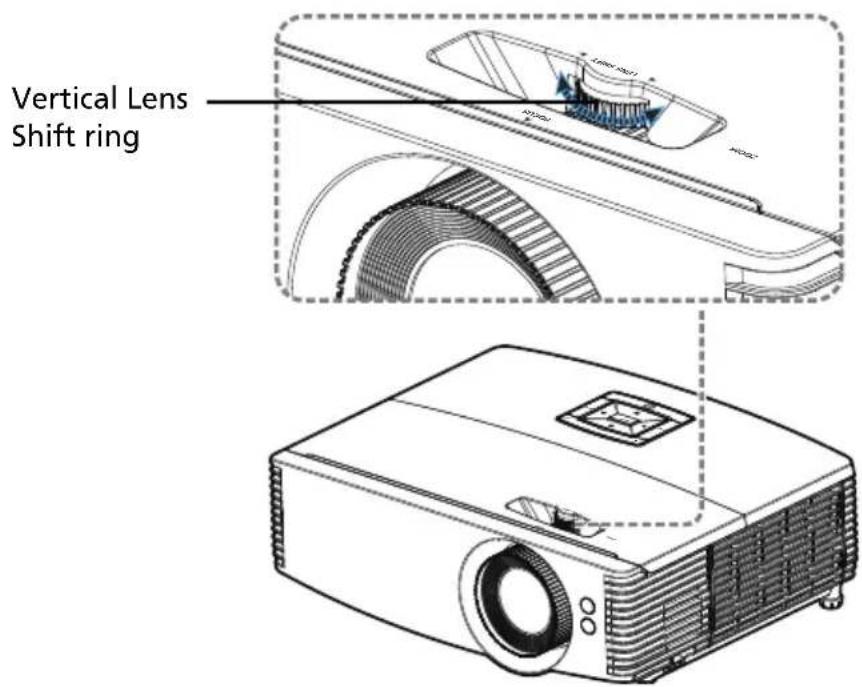

Note: The figures shown in this section are for reference only not approximate value. The figures between units can be different due to assembly tolerance.
P6200/P6200S Series:
The vertical height can be adjusted between -2% and 15% of the image height. (The typical vertical image offset is fixed at 15% of the image height above the center of the projector lens.)
P6500/P6505 Series:
The vertical height can be adjusted between -1% and 16% of the image height. (The typical vertical image offset is fixed at 16% of the image height above the center of the projector lens.)
P6600/P6605 Series:
The vertical height can be adjusted between -6% and 7% of the image height. (The typical vertical image offset is fixed at 7% of the image height above the center of the projector lens.)
![Offset max=V x [A] H V V Offset min=V x [B]](/content/2026/05/824992/images/1ff742dcaed54e1fed31206843f1f698499531e25e145f0d265020d20835c29a.jpg)
| Offset | P6200/P6200S P6500/P6505 P6600/P6605 | |||||
| max [A] min [B] max [A] min [B] max [A] min [B] | ||||||
| V 15% -2 | % 16% -1% 7 | % -6% | ||||
User Controls
Installation menu
The installation menu provides an onscreen display (OSD) for projector installation and maintenance. Use the OSD only when the message "No signal input" is displayed on the screen.
The menu options include settings and adjustments for screen size and distance, focus, keystone correction and more.
1 Turn on the projector by pressing "Power" button on the control pad.
2 Press the "MENU" button on the remote control to launch the OSD for projector installation and maintenance.
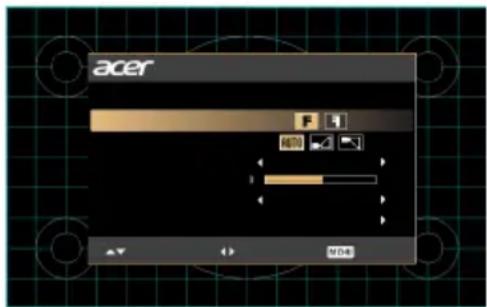
3 The background pattern acts as a guide to adjusting the calibration and alignment settings, such as screen size and distance, focus and more.
4 The Installation menu includes the following options:
- Projection method
- Projection
- Projection Location
•Auto Keystone settings - Manual Keystone settings
•H. Keystone
•V. Keystone
•LAN/WiFi
•LAN
• LAN IP/Mask
•Wireless HD dongle settings - Language settings
- DC 5V Out (Standby)
- Reset to factory default function
Use the up and down arrow keys to select an option, the left and right arrow keys to adjust selected option settings, and the right arrow key to enter a submenu for feature setting. The new settings will be saved automatically upon exiting the menu.
5 Push the MENU button anytime to exit the menu and return to the Acer welcome screen.

Note: Functions vary depending on model definition.
Onscreen Display (OSD) Menus
The projector has multilingual OSD that allows you to make image adjustments and change a variety of settings.
Using the OSD menus
- To open the OSD menu, press "MENU" on the remote control or control panel.
- When the OSD is displayed, use the keys to select any item in the main menu. After selecting the desired main menu item, press to enter submenu for feature setting.
- Use the keys to select the desired item and adjust the settings by using the keys.
- Select the next item to be adjusted in the submenu and adjust as described above.
- Press "MENU" on the remote control or control panel, the screen will return to the main menu.
- To exit OSD, press "MENU" on the remote control or control panel. The OSD menu will close and the projector will automatically save the new settings.
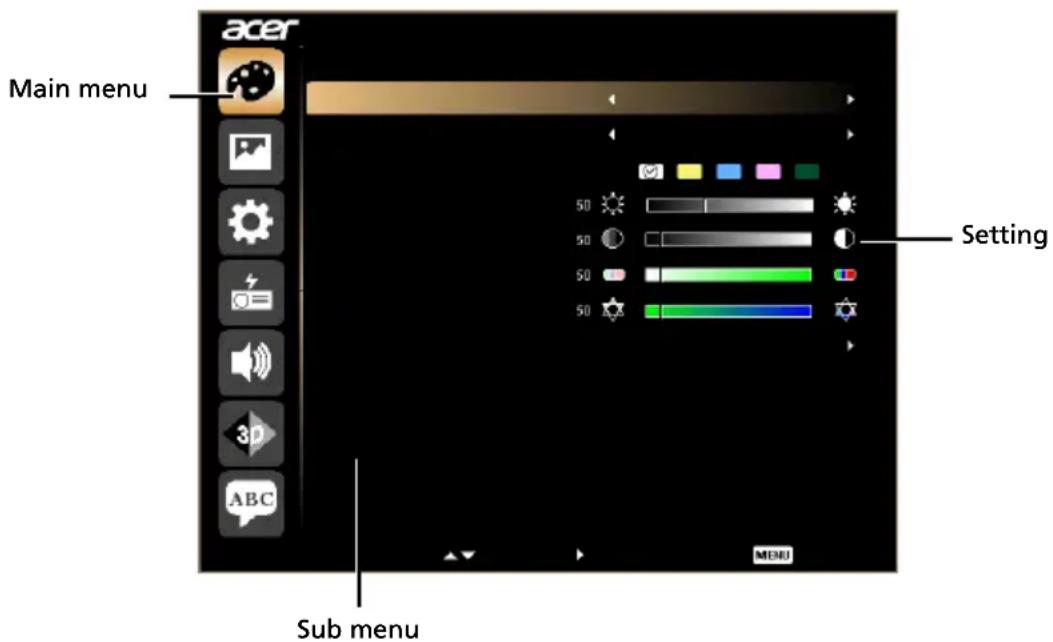

Note: Some of the following OSD settings may not be available. Please refer to the actual OSD of your projector.
Note: Functions vary depending on model definition.
Color
| LumiSense+ | The light sensor of LumiSense+ technology can intelligently optimize the brightness and color saturation of projected image based on actual ambient light. The feature greatly enhances dark detail visibility and color saturation.•Off: For normal mode. (ambient light sensor is off)•Auto Bright: Light sensor is on to automatically detect ambient light and optimize the brightness and color saturation of projected image.•Dynamic Black:automatically optimize the display of dark movie scenes enabling them to be shown in incredible detail. |
| Display Mode | There are many factory presets optimized for various types of images.•Bright: For brightness optimization.•Presentation: For meeting presentation.•Standard: For common environment.•Video: For playing video in a bright environment.•Game: For game content.•Education: For education environment.•Movie: For brighter and general movie/video/photo playing.•Dark Cinema: For dark movie content.•Sport: For sport picture.•User: Memorize user's settings. |
| Wall color | Use this function to choose a proper color according to the wall. There are several choices, including white, light yellow, light blue, pink, dark green. It will compensate the color deviation due to the wall color to show the correct image tone. |
| Brightness | Adjust the brightness of the image.•Press to darken the image.•Press to lighten the image. |
| Contrast | "Contrast" controls the difference between the lightest and darkest parts of the picture. Adjusting the contrast changes the amount of black and white in the image.•Press to decrease the contrast.•Press to increase the contrast. |
| Saturation | Adjusts a video image from black and white to fully saturated color.•Press to decrease the amount of color in the image.•Press to increase the amount of color in the image. |
| Tint | Adjusts the color balance of red and green.•Press to increase the amount of green in the image.•Press to increase the amount of red in the image. |
| Color Temperature | ModeUse this function to choose CT1, CT2 (Native), CT3, User mode. |
| R GainAdjusts the red gain for color temperature optimization. | |
| G GainAdjusts the green gain for color temperature optimization. | |
| B GainAdjusts the blue gain for color temperature optimization. | |
| R BiasAdjusts the red bias for color temperature optimization. | |
| G BiasAdjusts the green bias for color temperature optimization. | |
| B BiasAdjusts the blue bias for color temperature optimization. | |
| Gamma | Effects the representation of dark scenery. With greater gamma value, dark scenery looks brighter. |

Note: "Saturation" and "Tint" functions are not supported under computer or HDMI mode.
Note: Functions vary depending on model definition.
Image
| Projection | Front-Desktop: The factory default setting.Rea-Desktop: When you select this function, the projector reverses the image so you can project from behind a translucent screen.Rea-Ceiling: When you select this function, the projector reverses and inverts the image at same time. You can project from behind a translucent screen with ceiling mounted projection.Front-Ceiling: When you select this function, the projector inverts the image for ceiling-mounted projection. |
| Aspect Ratio Use this function to choose your desired aspect ratio.Auto: Keep the image with original width-higth ratio and maxi mize the image to fit native horizontal or vertical pixels.Full: Resize image to fit full screen by width (1280 pixels) and height (800 pixels).4:3: The image will be scaled to fit the screen and displayed using a 4:3 ratio.16:9: The image will be scaled to fit the width of the screen and the height adjusted to display the image using a 16:9 ratio.L.Box: Keep original signal aspect ratio and zoom in by 1.333 times. | |
| H./V. Keystone Auto V. KeystoneAutomatically adjusts vertical image. | |
| 4 Corner Correction | Manually adjusts the shape and size of an image that is unevenly rectangular on all sides. Press "MODE" repeatedly to select the corner that you wish to adjust. Press four directional selection keys to adjust the image shape.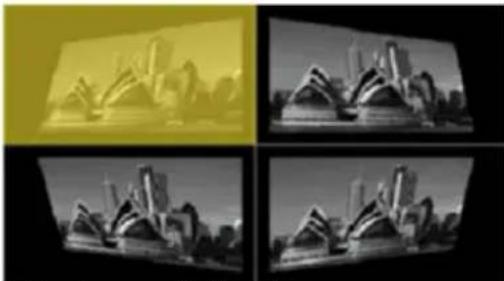 The function is unavailable when H./ V. Keystone is adjusted. The function is unavailable when H./ V. Keystone is adjusted. |
| Sharpness Adjusts the sharpness of the image.Press to decrease the sharpness.Press to increase the sharpness. | |
| H. Position (Horizontal position) | •Press to move the image left.•Press to move the image right. |
| V. Position (Vertical position) | •Press to move the image down.•Press to move the image up. |
| Frequency "Frequency" changes the projector's refresh rate to match the frequency of your computer's graphics card. If you can see a vertical flickering bar in the projected image, use this function to make the necessary adjustments. | |
| Tracking Synchronizes the signal timing of the projector with the graphics card.If you experience an unstable or flickering image, use this function to correct it. | |
| HDMI Color Range | Adjust the color range of the HDMI image data to correct color display error.•Auto: Automatically adjust by information from player.Limited Range: Prosess the input image as limited color range data.Full Range: Prosess the input image as full color range data. |
| HDMI Scan Info Adjust the overscan ratio of the HDMI image on screen.•Auto: Automatically adjust by information from player.Underscan: Always no overscan on HDMI image.Overscan: Always keep overscan on HDMI image. | |

Note: "H. Position", "V. Position", "Frequency" and "Tracking" functions are not supported under HDMI or Video mode.
Note: "HDMI Color Range" and "HDMI Scan Info" functions are only supported under HDMI mode.
Note: Functions vary depending on model definition.
Setting
| Startup Screen Use th | is function to select your desired startup screen. If you change the setting, the changes will take effect when you exit the OSD menu.Acer: The default startup screen of your Acer projector.User: Use memorize picture from "Screen Capture" function. |
| Screen Capture | Use this function to customize the startup screen. To capture the image that you want to use as the startup screen, follow the instructions below.Notice:Before proceeding with the following steps, make sure that the "Keystone" is set to the default value 0 and the aspect ratio is set to 4:3. For details, refer to the "Image" section.Change the "Startup Screen" from the default setting "Acer" to "User".Press "Screen Capture" to customize the startup screen.A dialog box appears to confirm the action. Choose "Yes" to use the current image as your customized startup screen. The capture range is the red rectangular area. Choose "No" to cancel the screen capture and exit the onscreen display (OSD).A message appears, stating that the screen capture is in progress.When the screen capture is finished, the message disappears and the original display is shown.The customized startup screen, as shown below, takes effect when there is a new input signal or when you restart the projector. |
| Source Lock When Source Lock is turned "Off", the projector will search for other signals if the current input signal is lost. When Source Lock is turned "On", it will "lock" the current source channel unless you press "Source" button on the remote control for the next channel. | |
| Closed Caption | Selects a preferred closed captioning mode from CC1, CC2, CC3, CC4, (CC1 displays captions in the primary language in your area). Select "Off" to turn off the captioning feature. This function is only available when a composite video or S-Video input signal is selected and its system format is NTSC.Set your screen aspect ratio to 4:3. This function is not available when the aspect ratio is "16:9" or "Auto". |
| Auto Screen Default is "On", the down/up move of electronic screen will be related with power on/off of the projector. | |
| VGA OUT (Standby) Default is "Off". Choose "On" to enable VGA OUT connection. | |
| DC 5V Out (Standby) Default is "Off". Choose "On" to enable DV 5V OUT connection during standby mode. | |
| HDMI CEC Default is "Off". Select "On" to enable HDMI CEC function. | |
| Reset | •Press the button and choose "Yes" to return the parameters on all menus to the factory default settings. |
| Security Security | This projector provides a useful security function for the administrator to manage usage of the projector. Press change the "Security" setting. If the security function is enabled, your must enter the "Administrator Password" first before changing the security settings. Select "On" to enable the security function. The user has to enter a password to operate the projector. Please refer to the "User Password" section for details. If "Off" is selected, then the user can turn on the projector without password. |
| Timeout(Min.) Once "Security" is activated to "On", the administrator can set timeout function. Press or to select the timeout interval. The range is from 10 minute to 990 minutes. When the time is up, the projector will prompt the user to enter the password again. The factory default setting of "Timeout(Min.)" is "Off". Once the security function is enabled, the projector will request user to enter password when switch on the projector. Both "User Password" and "Administrator Password" can be accepted for this dialogue. | |
| User Password Press to setup or change the "User Password". Press number keys to set your password on the remote control and press "MENU" to confirm. Press to delete character. Enter the password when you see "Confirm Password" displayed. The password should be between 4 and 8 characters long. If you select "Request password only when plugging the power cord in.", the projector will prompt the user to enter the password every time the power cord is plugged. If you select "Always request password while projector turns on.", the user has to enter the password every time when the projector is turned on. | |
| Administrator Password The "Administrator Password" can be used in both the "Enter Administrator Password" and "Enter Password" dialog boxes. Press to change the "Administrator Password". The factory default of "Administrator Password" is "1234". If you forgot your administrator password, do the following to retrieve the administrator password: An unique 6-digit "Universal Password" which is printed on the Security Card (please check accessory in the box). This unique password is the number which will be accepted by projector anytime no matter what the Administrator Password is. If losing this security card and number, please contact with an Acer service center. | |
| Lock to user startup screenDefault Lock User Startup Screen is "Off". If lock user startup screen is "On", users cannot change startup screen anymore and avoid other users change that arbitrarily. Choose "Off" to unlock startup screen. | |
| LAN LAN | Default is "Off". Choose "On" to enable LAN connection.If users want to do LAN control under standby mode, change VGA OUT (Standby) from Off to On. |
| LAN IP/MaskIdentify IP and Mask address. | |
| LAN ResetReset LAN function. | |
| Control ChannelDefault is "RS232/LAN". Choose "HDBaseT" to enable HDBaseT connection | |
| HDBaseT IR CarrierDefault is "Off", Choose "On" to enable HDBaseT IR Carrier function. | |

Note: Functions vary depending on model definition.
Management
| ECO Mode Choose "On" to dim the projector lamp which will lower power consumption, extend the lamp life and reduce noise. Choose "Off" to return normal mode. | |
| High Altitude Choose | "On" to turn on High Altitude mode. Operate the fans at full speed continuously to allow for proper high altitude cooling of the projector. |
| Turn Off Mode | •Instant Off: Shuts down the projector without fan cooling.•Instant Resume: Resumes the system when the Power button is pressed again within 2 minutes. |
| Auto Shutdown The project | projector will automatically shutdown when there is no signal input after the allocated time. (default is 120 minutes) |
| AC Power On Choose | "On" to power on projector while AC power plug in. |
| Lamp Hour Elapse Displays the lamp's elapsed operating time (in hours). | |
| Lamp Reminding Activate this function to display a reminder to change the lamp 30 hours before its expected end-of-life. | |
| Lamp Hour Reset | Press the button and choose "Yes" to turn the lamp hour counter to 0 hours. |

Note: Functions vary depending on model definition.
Audio
| Volume | •Press to decrease the volume.•Press to increase the volume. |
| MIC Volume Adjust the | volume from "MIC IN" connector. |
| Mute | •Choose "On" to mute the volume.•Choose "Off" to restore the volume. |
| Power On/Off Volume Select this function to adjust the notification volume when turning the projector on/off. | |
| Alarm Volume Select the function to adjust the volume of any warning notifications. | |

Note: Functions vary depending on model definition.
3D
| 3D Choose "On" to enable DLP 3D function.•On: Choose this item while using DLP 3D glasses, 120Hz 3D capable graphics cards and HQFS format file or DVD with corresponding SW player.•Off: Turn off 3D mode. |
| 3D Format If the 3D content is not displayed correctly, you can select a 3D format that suits the 3D content you are viewing and obtain the best result. |
| 24P 3D Choose "96Hz" or "144Hz" to compatible with 3D glasses. |
| 3D L/R Invert If you see a discrete or overlapping image while wearing DLP 3D glasses, you may need to execute "Invert" to get best match of left/right image sequence to get the correct image (for DLP 3D). |
| 3D Warning Message Choose "On" to display the 3D warning message. |

Note: It needs correct settings on graphic card 3D application program for correct 3D display.
Note: The SW players, such as Stereoscopic Player and DDD TriDef Media Player can support 3D format files. You can download these three players on web page below,
- Stereoscopic Player (Trial):
http://www.3dtv.at/Downloads/Index_en.aspx
- DDD TriDef Media Player (Trial):
http://www.tridef.com/download/TriDef-3-D-Experience-4.0.2.html
Note: "3D L/R Invert" is only available when 3D is enabled.
Note: There has reminder screen if 3D still enable when power on projector. Please adjust setting depended on your purpose.
Note: WUXGA model 24P 3D cannot be scaling due to TI ASIC buffer memory limitation, and once detect 24P 3D (96Hz or 144Hz) inputs, Aspect Ratio / HDMI Scan Info will be gray out, also HIDE will be not supported.
Language
| Language | Choose the multilingual OSD menu. Use the or key to select your preferred menu language.•Press to confirm the selection. |
Acer LAN webpage management
How to login in
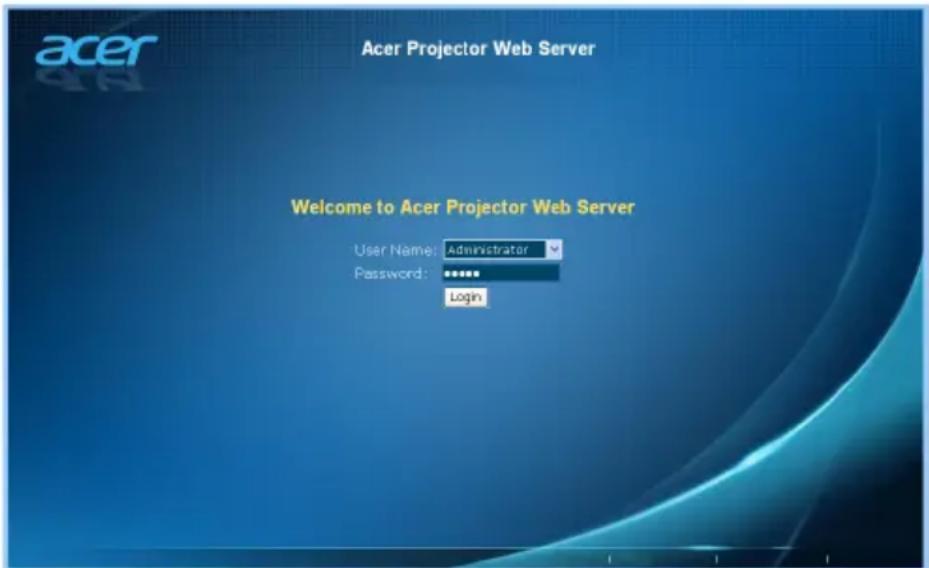
Open browser and enter the Server IP address by 192.168.100.10 to find below homepage of acer LAN webpage management. A password is needed to login in before using.
Select a user. Administrator is with high authority that can process more operations such as network setting and alert setting. Default password of administrator is "admin". And User is with normal authority with default password by "user". Click Login button to enter into homepage with correct password.
Home
Home page shows connection status and you can find three main functions listed, Control Panel, Network Setting and Alert Setting.
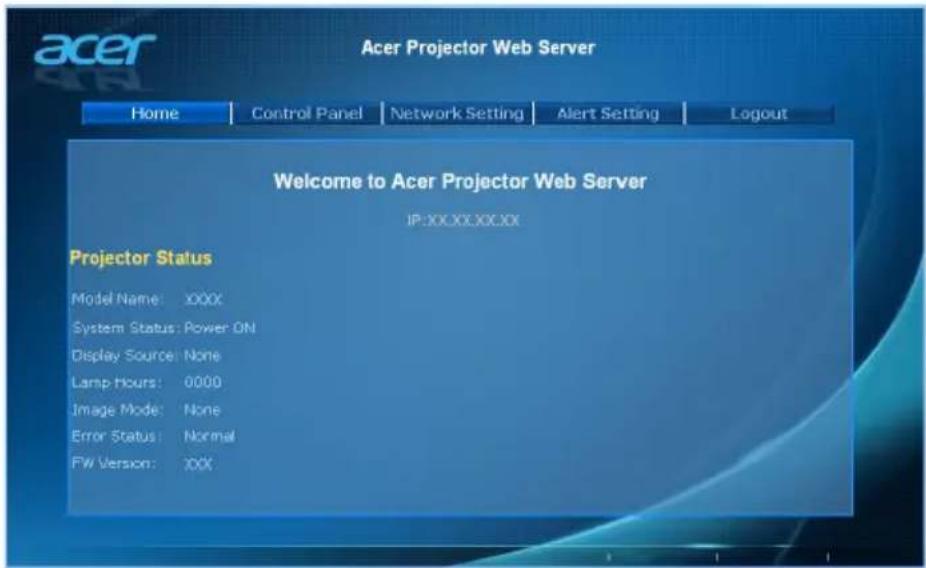

Note: Control Panel and Network Setting are only for Administrator account.
Control Panel
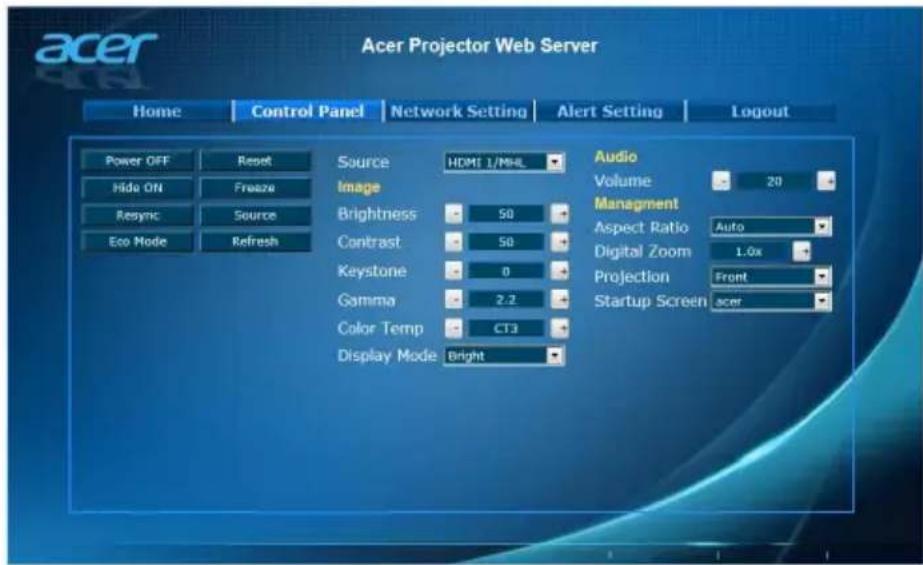
Enduser can control and adjust projector setting value via this page.
Network Setting
Enduser can set IP address, group name and password as wish. After change network configurations or password, projector will reboot automatically after press "Apply".
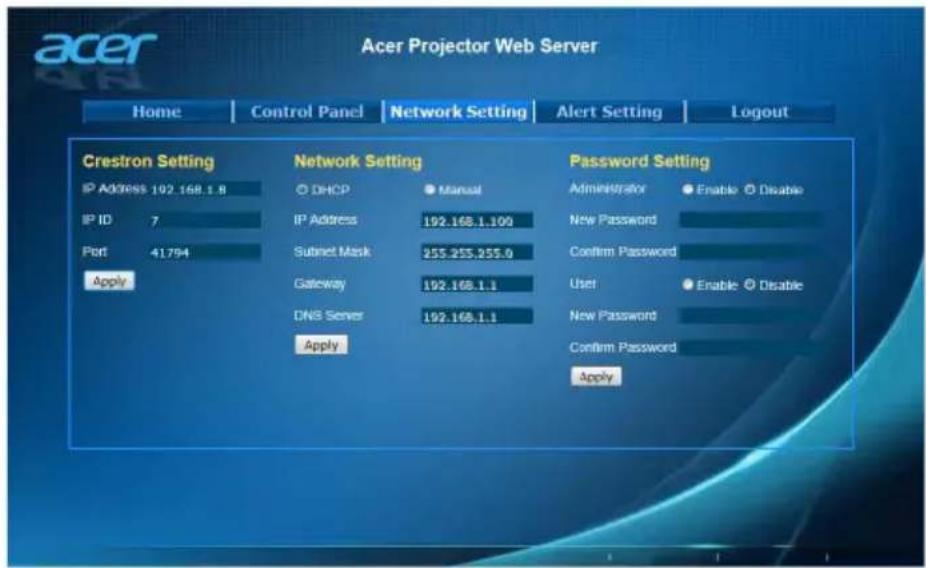

Note: Group Name and projector Name must be less then 32 characters.
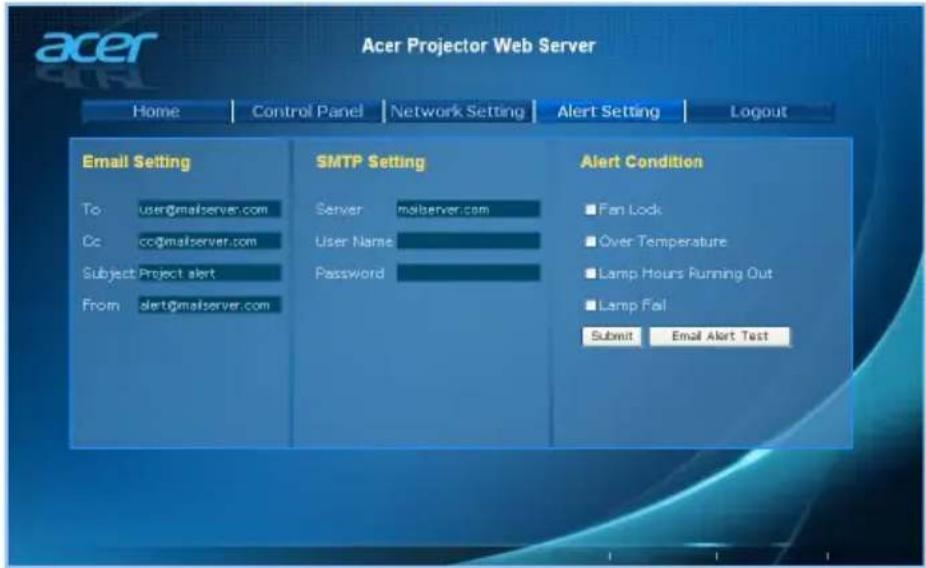
Alert Setting
Enduser can send mail with error message right away if projector has problem.
Logout
After tap Logout, you will return to login page within 5 seconds.

Note: Functions vary depending on model definition.
Appendices
Troubleshooting
If you experience a problem with your Acer projector, refer to the following troubleshooting guide. If the problem persists, please contact your local reseller or service center.
Image Problems and Solutions
| # Problem Solution | |
| 1 No image appears onscreen | Connected as described in the "Getting Started" section.Ensure none of the connector pins are bent or broken.Check if the projector lamp has been securely installed. Please refer to the "Replacing the Lamp" section.Make sure you have removed the lens cap and the projector is switched on. |
| 2 Partial, scrolling or incorrectly displayed image (for PC (Windows 2000/XP/Vista/ Windows 7/ Windows 8)) | Press "RESYNC" on the control panel.For an incorrectly displayed image:Open "My Computer", open the "Control Panel", and then double-click the "Display" icon.Select the "Settings" tab.Verify that your display resolution setting is lower than or equal to WUXGA-RB (1920 x 1200).Click the "Advanced Properties" button.If the problem still appears, change the monitor display you are using and follow the steps below:Verify that the resolution setting is lower than or equal to WUXGA-RB (1920 x 1200).Click the "Change" button under the "Monitor" tab.Click "Show all devices". Next, select "Standard monitor types" under the SP box, and choose the resolution mode you need under the "Models" box.Verify that the resolution setting of the monitor display is lower than or equal to WUXGA-RB (1920 x 1200). |
| 3 Partial, scrolling or incorrectly displayed image (For notebooks) | •Press "RESYNC" on the control panel.•For an incorrectly displayed image:•Follow the steps for item 2 (above) to adjust the resolution of your computer.•Press the toggle output settings. Example: [Fn]+[F4], Compaq [Fn]+[F4], Dell [Fn]+[F8], Gateway [Fn]+[F4], IBM [Fn]+[F7], HP [Fn]+[F4], NEC [Fn]+[F3], Toshiba [Fn]+[F5]•If you experience difficulty changing resolutions or your monitor freezes, restart all equipment including the projector. |
| 4 The screen of the notebook computer is not displaying your presentation | •If you are using a Microsoft ® Windows® based notebook: Some notebook PCs may deactivate their own screens when a second display device is in use. Each has a different way to be reactivated. Refer to your computer's manual for detailed information.•If you are using an Apple ® Mac® OS based notebook: In System Preferences, open Display and select Video Mirroring "On". |
| 5 Image is unstable or flickering | •Adjust the "Tracking" to correct it. Refer to the "Image" section for more information.•Change the display color depth settings on your computer. |
| 6 Image has vertical flickering bar | •Use "Frequency" to make an adjustment. Refer to the "Image" section for more information.•Check and reconfigure the display mode of your graphics card to make it compatible with the projector. |
| 7 Image is out of focus | •Make sure the lens cap is removed.•Adjusts the focus ring on the projector lens.•Make sure the projection screen is within the required distance of 3.3 to 28.1 feet (1.0 to 8.6 meters) (XGA series) / 3.3 to 30.7 feet (1.0 to 9.4 meters) (1080p series) / 3.3 to 29.9 feet (1.0 to 9.1 meters) (WUXGA series) from the projector. Refer to the "How to get a preferred image size by adjusting distance and zoom" section for more information. |
| 8 Image is stretched when displaying a "widescreen" DVD title | When you play a DVD encoded in anamorphic or 16:9 aspect ratio you may need to adjust the following settings:If you play a 4:3 format DVD title, please change the format to 4:3 in the projector OSD.If the image is still stretched, you will also need to adjust the aspect ratio. Set up the display format to 16:9 (wide) aspect ratio on your DVD player.If you play an Letterbox (LBX) format DVD title, please change the format to Letterbox (LBX) in the projector OSD. |
| 9 Image is too small or too large | Adjust the zoom lever on the top of the projector.Move the projector closer to or further from the screen.Press "MENU" on the remote control. Go to "Image -> Aspect Ratio" and try different settings or press "ASPECT RATIO" on the remote control to adjust directly. |
| 10 Image has slanted sides | If possible, reposition the projector so that it is centered on the screen.Press the "Keystone / " button on the remote control until the sides are vertical. |
| 11 Image is reversed | Select "Image --> Projection Mode" on the OSD and adjust the projection direction. |
OSD Messages
| # Condition Message Reminder | |
| 1 Message | •Fan Fail - the system fan is not working. |
| •Projector Overheated - the projector has exceeded its recommended operating temperature and must be allowed to cool down before it may be used. Please check the following message. | |
| Please also check the dust filters if they are installed. If the dust filter is clogged with dust, please clean it. Please refer to "Cleaning and replacing the dust filters" for details. | |
| •Replace the lamp - the lamp is about to reach its maximum lifetime. Prepare to replace it soon. | |
Problems with the Projector
| # Condition Solution | |
| 1 The projector stops responding to all controls | If possible, turn off the projector, then unplug the power cord and wait at least 30 seconds before reconnecting power. |
| 2 Lamp burns out or makes a popping sound | When the lamp reaches the end of its useful life, it will burn out and may make a loud popping sound. If this happens, the projector will not turn on until the lamp module has been replaced. To replace the lamp, follow the procedures in the "Replacing the Lamp" section. |
LED & Alarm Definition Listing
LED Messages
| Message | Lamp_LED Temp | Temp_LED Power LED | ||
| Red Red Red Blue | ||||
| Input power plug Flash ON to OFF 100ms | Flash ON to OFF 100ms | Flash ON to OFF 100ms | -- | |
| Standby -- -- ON -- | ||||
| Power button ON -- -- -- ON | ||||
| Lamp retry -- -- -- Quick | Flashing | |||
| Power off (Cooling state) -- -- Quick | Flashing | -- | ||
| Power button OFF (cooling completed; standby mode) | -- -- ON -- | |||
| Error (thermal failure) -- | ON -- ON | |||
| Error (fan lock) | -- | Quick Flashing | -- ON | |
| Error (lamp breakdown) | ON | -- -- ON | ||
| Error (color wheel fail) | Quick Flashing | -- -- ON | ||
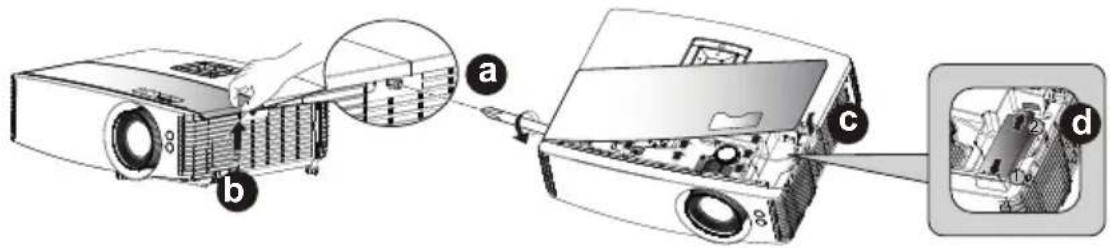
How to install cable management
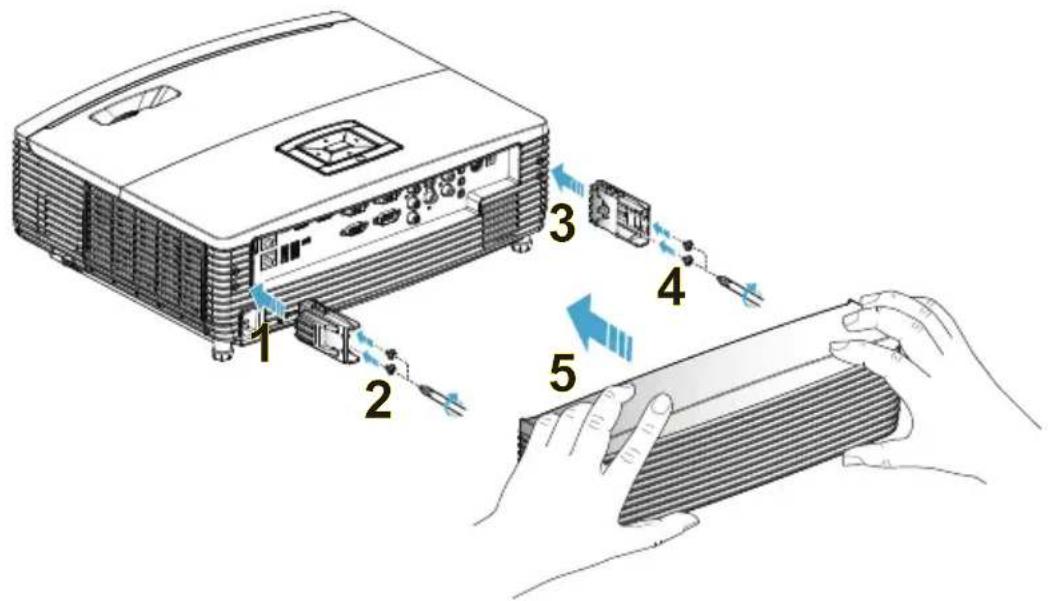
I. Ceiling Mount Scenario
1 Plug in power cord and other cables you need.
2 Install two support base and tighten the screws.(Illustration #1,2,3,4)
3 Push the cable management. (Illustration #5)
4 If you need to install Acer Dongle
(WirlessHD-Kit/WirelessAndroid-Kit/WirelessCAST), follow the below steps:
(A) Use a screwdriver to remove the screw from the cover.
(B) Push up the cover.
(C) Remove the cover.
(D) Connect dongle to HDMI extension cable port; Connect to HDMI port on projector.
5 Disassembly the cable management cover firmly to projector, and tighten the screw. (Illustration #5,4,3,2,1)
Cleaning and replacing the dust filters
Cleaning the dust filters
Clean the dust filters after every 1000 hours of use. If they are note cleaned periodically, they can become clogged with dust, preventing proper ventilation. This can cause overheating and damage the projector.
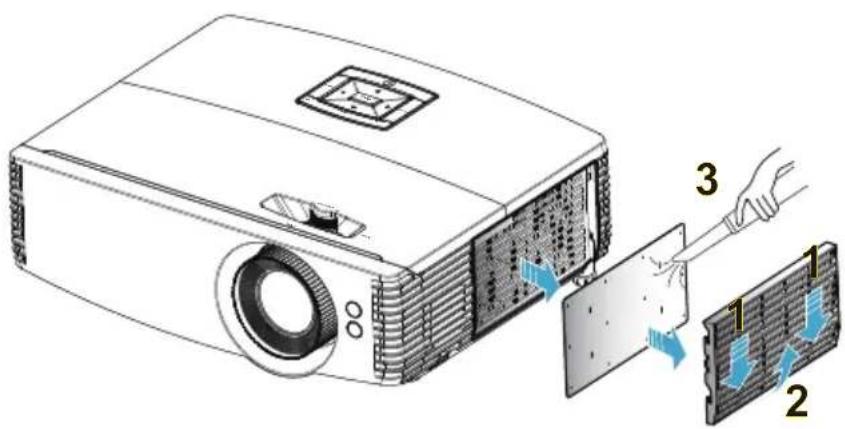
Follow these steps:
1 Turn the projector off. Wait for the Power LED to stop flashing then unplug the power cord.
2 Allow the projector at least 30 mins to cool down.
3 Pull out the dust filter. (Illustration #1, #2)
4 To clean the dust filters, use a small vacuum cleaner designed for computers and other office equipment. (Illustration #3)
5 If the dirt is difficult to remove or the filter is broken, please contact your local dealer or service center to obtain a new filter.
Replacing the Lamp
Use a screwdriver to remove the screw(s) from the cover, and then pull out the lamp.
The projector will detect the lamp life. You will be shown a warning message "Lamp is approaching the end of its useful life in full power operation.
Replacement suggested!" When you see this message, change the lamp as soon as possible. Make sure the projector has been cooling down for at least 30 minutes before changing the lamp.

Warning: The lamp compartment is hot! Allow it to cool down before changing the lamp.
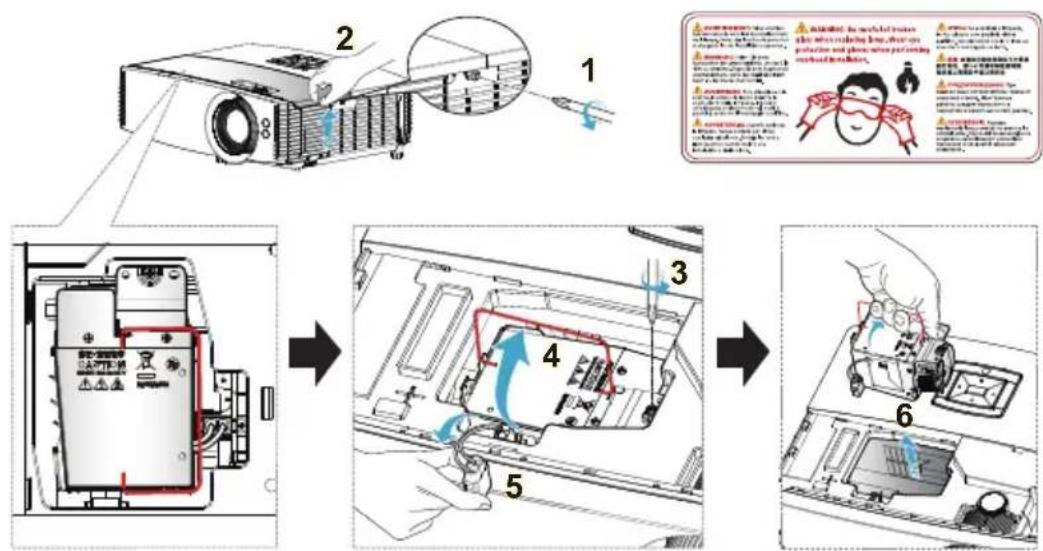
To Change the Lamp
Turn off the projector by pressing the Power button.
Allow the projector at least 30 minutes to cool down.
Disconnect the power cord.
1 Use a screwdriver to remove the screw from the cover. (Illustration #1) Push up and remove the cover. (Illustration #2)
2 Remove the screw that secure the lamp module. (Illustration #3) Lift the handle so that it stands up. (Illustration #4) Pull out the lamp plug. (Illustration #5)
3 Lift the handle so that it stands up. Pull out the lamp module by force. (Illustration #6)
To replace the lamp module, use a new lamp and reverse the above steps.

Warning: To reduce the risk of personal injury, do not drop the lamp module or touch the lamp bulb. The bulb may shatter and cause injury if it is dropped.
Ceiling Mount Installation
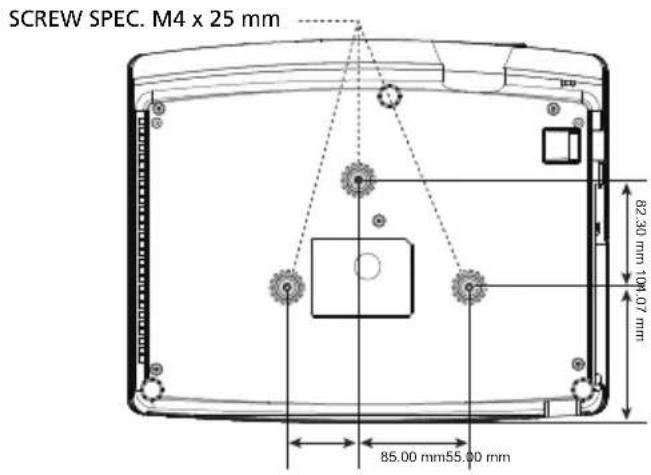
If you wish to install the projector using a ceiling mount, please refer to the steps below:
1 Drill four holes into a solid, structural ceiling member, and secure the ceiling mount base to the ceiling.
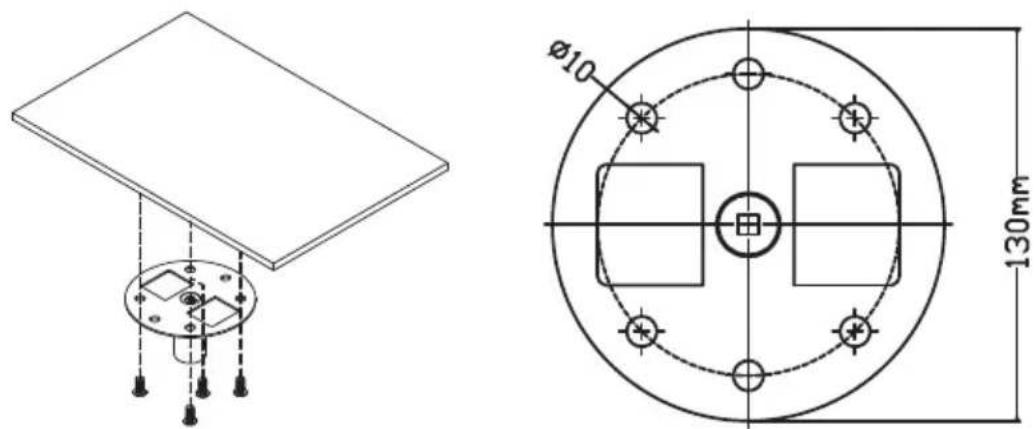
2 Choose the length combination based on actual environment. (CM-01S doesn't include Type 2 and Type 3.)
Type 1 Type 2 Type 3
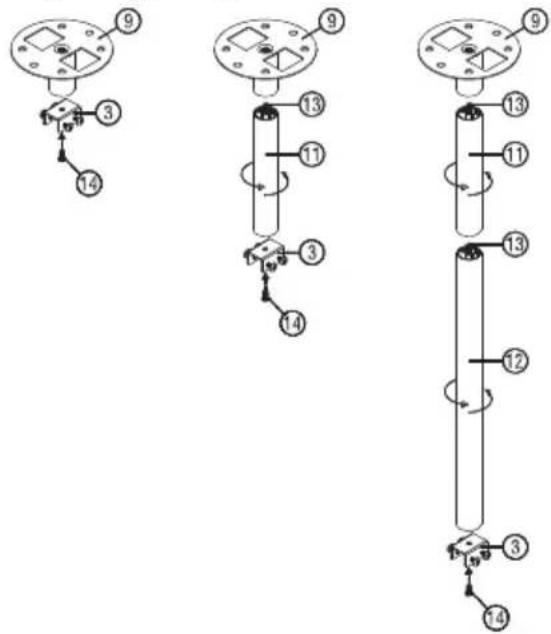
flowchart
graph TD
    A["Motor 1"] --> B["Component 3"]
    B --> C["Component 14"]
    D["Motor 2"] --> E["Component 13"]
    E --> F["Component 11"]
    F --> G["Component 3"]
    G --> H["Component 14"]
    I["Motor 3"] --> J["Component 13"]
    J --> K["Component 11"]
    K --> L["Component 12"]
    L --> M["Component 3"]
    M --> N["Component 14"]
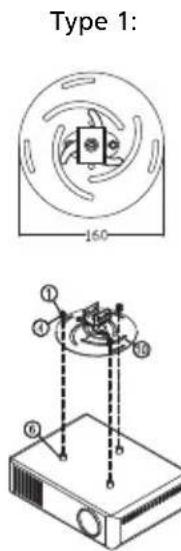
3 Type 1:
For the standard size use three bracket screws to mount the projector to the ceiling mount bracket.
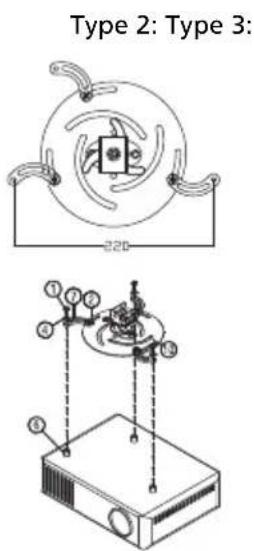
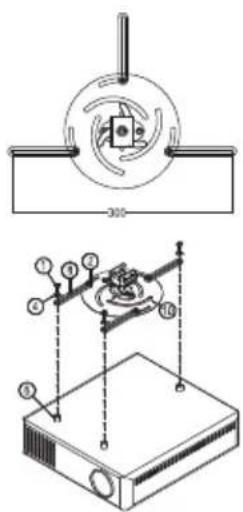
Type 2 and Type 3:
Alternatively, for the larger size, use the sliding extensions for more supports.
natural_image
Technical diagram showing mechanical components with no visible text or symbols
Note: It is recommended that you keep a reasonable space between the bracket and the projector to allow for proper heat distribution.
4 Connect the main body connector to the projector bracket (illustration 1), and then screw up four screws (illustration 2).
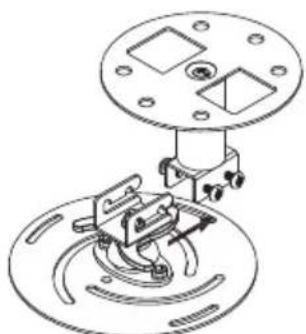
natural_image
Technical line drawing of a mechanical assembly with circular components and mounting holes (no text or symbols)Illustration 1
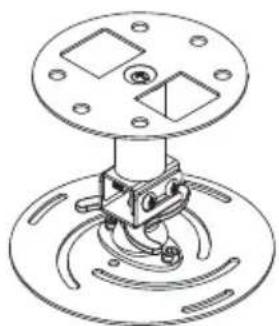
natural_image
Technical line drawing of a mechanical assembly with mounting flanges and internal components (no text or symbols)Illustration 2
5 Adjust the angle and positioning as necessary.
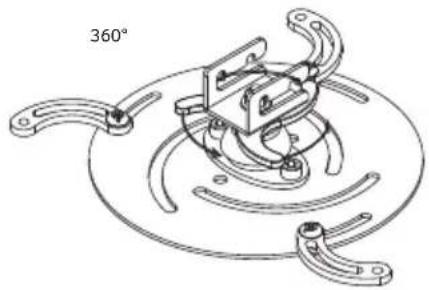
natural_image
Technical line drawing of a mechanical clamp or bracket assembly with angular annotation (360°), no readable text or symbols present.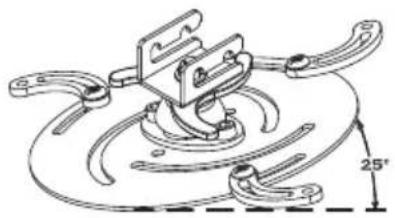
natural_image
Technical line drawing of a mechanical clamp or bracket assembly with a 25° angle标注 (no text or symbols beyond the angle marker)| Screw Type B Washer Type | |||
| Diameter (mm) Length (mm) Large Small | |||
| 4 | 2 | 5 | V |
V
Specifications
The specifications listed below are subject to change without notice. For final specs, please refer to Acer's published marketing specifications.
| Projection system | DLP® |
| Resolution | •P6200/F211/PM-X01/P6200S/F211S/PM-X01S series: Native 1024 x 768 XGA resolution•P6500/P6505/F251/PM-801 series: 1920x1080 1080p resolution•P6600/P6605/F261/PM-WU01 series: True 1920x1200 WUXGA resolution•Maximum: UXGA (1600 x 1200), WSXGA+ (1680x1050), 1080p(1920x1080), WUXGA-RB (1920 x 1200) |
| Computer compatibility IBM PC and compatibles, Apple Macintosh, iMac and VESA standards: SXGA, XGA, VGA, SVGA, SXGA+, WXGA, WXGA+, WSXGA + | |
| Video compatibility NTSC (3.58/4.43), PAL (B/D/G/H/I/M/N), SECAM (B/D/G/K/K1/L), HDTV (720p, 1080i, 1080p), EDTV (480p, 576p), SDTV (480i, 576i) | |
| Aspect ratio Full, 4:3, 16:9, L.Box | |
| Displayable colors 1.07 billion colors | |
| Projection lens | •P6200/F211/PM-X01/P6200S/F211S/PM-X01S series: F = 2.5 ~ 2.93, f = 15.98mm ~ 21.42mm, 1:1.36 Manual Zoom and Manual Focus•P6500/P6505/F251/PM-801/P6600/P6605/F261/PM-WU01 series: F = 2.5 ~ 3.26, f = 20.91mm ~ 32.63mm, 1:1.59 Manual Zoom and Manual Focus |
| Projection screen size (diagonal) | •P6200/F211/PM-X01/P6200S/F211S/PM-X01S series: 26" (66cm) ~ 300" (762cm)•P6500/P6505/F251/PM-801 series: 20" (51cm) ~ 300" (762cm)• P6600/P6605/F261/PM-WU01 series: 21" (53cm) ~ 300" (762cm) |
| Projection distance | •P6200/F211/PM-X01/P6200S/F211S/PM-X01S series: 3.3' (1.0m) ~ 28.1' (8.6m)•P6500/P6505/F251/PM-801 series: 3.3' (1.0m) ~ 30.7' (9.4m)•P6600/P6605/F261/PM-WU01 series: 3.3' (1.0m) ~ 29.9' (9.1m) |
| Throw ratio | •P6200/F211/PM-X01/P6200S/F211S/PM-X01S series: 70"@2m (1.40 ~ 1.91:1)•P6500/P6505/F251/PM-801 series: 64"@2m (1.41 ~ 2.24:1)•P6600/P6605/F261/PM-WU01 series: 66"@2m (1.41 ~ 2.24:1) |
| Horizontal scan rate 15 - 100 kHz | |
| Vertical refresh scan rate 24 - 120 Hz | |
| Lamp type | •P6200/F211/PM-X01/P6200S/F211S/PM-X01S series: 310 W user-replaceable lamp•P6500/P6505/F251/PM-801/P6600/P6605/F261/PM-WU01 series: 365 W user-replaceable lamp |
| Keystone correction ±30 degrees | |
| Audio Internal speaker with 10 W x 2 output | |
| Weight 4.5 Kg (9.92 lbs) | |
| Dimensions (W x D x H) 373 mm X 223.4 mm X 100.5 mm (14.7" x 8.8" x 4.0") | |
| Digital Zoom 2X | |
| Power supply AC input 100 - 240 V auto-switching power supply | |
| Power consumption Normal mode: 315W ± 10% @ 110VACECO mode: 260W ± 10% @ 110VACStandby mode < 0.5W | |
| Operating temperature 0°C to 40°C / 32°F to 104°F | |
| I/O connectors | •Power socket x1•VGA input x2•VGA output x1•Composite input x1•S-Video input x1•YPbPr/YCbCr input x1•HDMI (MHL) x1•HDMI x1•RS232 x1•Mini USB x 1: (for firmware upgrade)•Audio input x1•Microphone input x1•Audio input (RCA) x1•Audio output x 1•USB DC 5V out x1•DC 12V out x 1•RJ45 LAN input x 1•HDBaseT input x 1 (only for P6600/P6605/F261/PM-WU01 series) |
| Standard package contents | •AC power cord x1•VGA cable x1•Remote control x1•Battery x2 (for remote control) (option)•User's guide (CD-ROM) x1•Quick start guide x1•Security card x1•Cable management cover x1•Dust filters x1 (option)•Carrying case x1 (option) |

Note: Design and specifications are subject to change without notice.
Compatibility modes
A. VGA Analog
1 VGA Analog - PC Signal
| Modes | Resolution | V.Frequency [Hz] | H.Frequency [KHz] |
| VGA 640x480 | 60 31.5 | ||
| 640x480 72 37.9 | |||
| 640x480 75 37.5 | |||
| 640x480 85 43.3 | |||
| 640x480 120 61.9 | |||
| SVGA 800x600 | 56 35.1 | ||
| 800x600 60 37.9 | |||
| 800x600 72 48.1 | |||
| 800x600 75 46.9 | |||
| 800x600 85 53.7 | |||
| 800x600 120 77.4 | |||
| XGA 1024x768 | 60 48.4 | ||
| 1024x768 70 56.5 | |||
| 1024x768 75 60.0 | |||
| 1024x768 85 68.7 | |||
| 1024x768 120 99.0 | |||
| SXGA 1152x864 | 70 63.8 | ||
| 1152x864 75 67.5 | |||
| 1152x864 85 77.1 | |||
| 1280x1024 60 64.0 | |||
| 1280x1024 72 77.0 | |||
| 1280x1024 75 80.0 | |||
| 1280x1024 85 91.1 | |||
| QuadVGA 1280x960 | 60 60.0 | ||
| 1280x960 75 75.2 | |||
| SXGA+ 1400x1050 | 60 65.3 | ||
| UXGA 1600x1200 | 60 75.0 | ||
| PowerBook G4 | 640x480 60 31.4 | ||
| PowerBook G4 | 640x480 | 66.6(67) | 34.9 |
| PowerBook G4 | 800x600 60 37.9 | ||
| PowerBook G4 | 1024x768 60 48.4 | ||
| PowerBook G4 | 1152x870 75 68.7 | ||
| PowerBook G4 | 1280x960 75 75.0 | ||
| i Mac DV (G3) | 1024x768 75 | 60.0 |
2 VGA Analog - Extended Wide timing
| Modes | Resolution | V.Frequency [Hz] | H.Frequency [KHz] |
| WXGA 1280x768 60 47.8 | |||
| 1280x768 75 60.3 | |||
| 1280x768 85 68.6 | |||
| 1280x720 60 44.8 | |||
| 1280x720 120 92.9 | |||
| 1280x800 60 49.6 | |||
| *1920x1200 60 74 | |||
| 1440x900 60 59.9 | |||
| WSXGA+ 1680x1050 60 65.3 | |||
| 1920x1080(1080P) | 60 67.5 | ||
| 1366x768 60 47.7 | |||
| WUXGA *1920x1200-RB 59.94 | 74.04 | ||
3 VGA Analog -Component Signal
| Modes | Resolution | V.Frequency [Hz] | H.Frequency [KHz] |
| 480i | 720x480(1440x480) | 59.94 (29.97) | 15.7 |
| 576i | 720x576(1440x576) | 50(25) | 15.6 |
| 480p | 720x480 | 59.94 | 31.5 |
| 576p | 720x576 | 50 | 31.6 |
| 720p 1280x | 720 60 45.0 | ||
| 720p 1280x | 720 50 37.5 | ||
| 1080i | 1920x1080 | 60(30) | 33.8 |
| 1080i | 1920x1080 | 50(25) | 28.1 |
| 1080p | 1920x1080 | 23.97/24 | 27.0 |
| 1080p | 1920x1080 | 60 | 67.5 |
| 1080p | 1920x1080 | 50 | 56.3 |
B. HDMI Digital
1 HDMI - PC Signal
| Modes | Resolution | V.Frequency [Hz] | H.Frequency [KHz] |
| VGA | 640x480 | 60 | 31.5 |
| 640x480 | 72 37.9 | ||
| 640x480 | 75 37.5 | ||
| 640x480 | 85 43.3 | ||
| 640x480 120 | 61.9 |
| SVGA 800x600 56 35.1 | ||
| 800x600 60 37.9 | ||
| 800x600 72 48.1 | ||
| 800x600 75 46.9 | ||
| 800x600 85 53.7 | ||
| 800x600 120 77.4 | ||
| XGA 1024x768 60 48.4 | ||
| 1024x768 70 56.5 | ||
| 1024x768 75 60.0 | ||
| 1024x768 85 68.7 | ||
| 1024x768 120 99.0 | ||
| SXGA 1152x864 70 63.8 | ||
| 1152x864 75 67.5 | ||
| 1152x864 85 77.1 | ||
| 1280x1024 60 64.0 | ||
| 1280x1024 72 77.0 | ||
| 1280x1024 75 80.0 | ||
| 1280x1024 85 91.1 | ||
| QuadVGA 1280x960 60 60.0 | ||
| 1280x960 75 75.2 | ||
| SXGA+ 1400x1050 60 65.3 | ||
| UXGA 1600x1200 60 75.0 | ||
| PowerBook G4 640x480 60 31.4 | ||
| PowerBook G4 640x480 66.6(67) 34.9 | ||
| PowerBook G4 | 800x600 60 37.9 | |
| PowerBook G4 | 1024x768 60 48.4 | |
| PowerBook G4 | 1152x870 75 68.7 | |
| PowerBook G4 | 1280x960 75 75.0 | |
| i Mac DV (G3) 1024x768 75 | 60.0 |
2 HDMI - Extended Wide timing
| Modes | Resolution | V.Frequency [Hz] | H.Frequency [KHz] |
| WXGA 1280x768 60 | 47.8 | ||
| 1280x768 75 | 60.3 | ||
| 1280x768 85 | 68.6 | ||
| 1280x720 60 | 44.8 | ||
| 1280x720 120 | 92.9 | ||
| 1280x800 60 | 49.6 | ||
| *1280x800-RB | 119.909 | 101.6 | |
| 1440x900 60 | 59.9 | ||
| *1920x1200 | 60 | 74 | |
| WSXGA+ 1680x1050 60 65.3 | |||
| 1920x1080(1080P) | 60 67.5 | ||
| 1366x768 60 47.7 | |||
| WUXGA *1920x1200-RB 59.94 74.04 | |||
3 HDMI - Video Signal
| Modes Resolution | V.Frequency [Hz] | H.Frequency [KHz] | |
| 480i | 720x480(1440x480) | 59.94 (29.97) | 15.7 |
| 576i 720x57 | 6(1440x576) 50(25) | 15.6 | |
| 480p | 720x480 | 59.94 | 31.5 |
| 576p | 720x576 | 50 | 31.6 |
| 720p | 1280x720 | 60 | 45.0 |
| 720p | 1280x720 | 50 | 37.5 |
| 1080i | 1920x1080 | 60(30) | 33.8 |
| 1080i | 1920x1080 | 50(25) | 28.1 |
| 1080p | 1920x1080 | 23.97/24 | 27.0 |
| 1080p | 1920x1080 | 60 | 67.5 |
| 1080p | 1920x1080 | 50 | 56.3 |
| 1080p | *1920x1200 | 59.94 | 74.04 |
4 HDMI - 1.4a 3D Timing
| Modes | Resolution | V.Frequency [Hz] | H.Frequency [KHz] |
| 720p (Frame Packing) | 1280 x 720 | 50 | 37.5 |
| 720p (Frame Packing) | 1280 x 720 | 60 | 45.0 |
| 1080p (Frame Packing ) | 1920 x1080 | 24 | 27.0 |
| 720p (Frame Packing) | 1280 x 720 | 50 | 37.5 |
| 720p (Frame Packing) | 1280 x 720 | 60 | 45.0 |
| 1080i (Top and Bottom) | 1920 x1080 | 50 (25) | 28.1 |
| 1080i (Top and Bottom) | 1920 x1080 | 60 (30) | 33.8 |
| 1080p (Top and Bottom) | 1920 x1080 | 24 | 27.0 |
| 1080p (Top and Bottom) | 1920 x1080 | 50 | 56.3 |
| 1080p (Top and Bottom) | 1920 x1080 | 60 | 67.5 |
| 720p (Side by Side (Half)) | 1280 x 720 | 60 | 45.0 |
| 1080i (Side by Side (Half)) | 1920 x1080 | 50 (25) | 28.1 |
| 1080i (Side by Side (Half)) | 1920 x1080 | 60 (30) | 33.8 |
| 1080p (Side by Side (Half)) | 1920 x1080 | 50 | 56.3 |
| 1080p (Side by Side (Half)) | 1920 x1080 | 60 | 67.5 |
| Graphic source monitor range limits | Horizontal scan rate: | 15k-100kHz |
| Vertical scan rate: | 24-120 Hz | |
| Max. pixel rate: | 165 MHz |
C. MHL Digital
| Modes Resolution | V.Frequency [Hz] | H.Frequency [KHz] | |
| VGA *640x480 | 59.94/60 31.5 | ||
| 480i *720x480 | (1440x480) 59.94/60 15.7 | ||
| 576i *720x576 | (1440x576) 50(25) 15.6 | ||
| 480p *720x480 | 59.94/60 31.5 | ||
| 480p_2x *1440x480 | 59.94/60 31.5 | ||
| 576p *720x576 | 50 31.3 | ||
| 576p_2x *1440x576 | 50 31.3 | ||
| 720p *1280x720 | 59.94/60 45.0 | ||
| 720p *1280x720 | 50 37.5 | ||
| 1080i *1920x1080 | 60(30) 33.8 | ||
| 1080i *1920x1080 | 50(25) 28.1 | ||
| 1080p | *1920x1080 | 23.97/24 | 27.0 |
| 1080p | *1920x1080 25 28.1 | ||
| 1080p | *1920x1080 | 29.97/30 33.8 | |
| Graphic source monitor range limits | Horizontal scan rate: | 15k-50 kHz | |
| Vertical scan rate: | 24-60 Hz | ||
| Max. pixel rate: | Digital: 75 MHz | ||

Note: * Functions vary depending on model definition.
Regulations and safety notices
FCC notice
This device has been tested and found to comply with the limits for a Class B digital device pursuant to Part 15 of the FCC rules. These limits are designed to provide reasonable protection against harmful interference in a residential installation. This device generates, uses, and can radiate radio frequency energy and, if not installed and used in accordance with the instructions, may cause harmful interference to radio communications.
However, there is no guarantee that interference will not occur in a particular installation. If this device does cause harmful interference to radio or television reception, which can be determined by turning the device off and on, the user is encouraged to try to correct the interference by one or more of the following measures:
- Reorient or relocate the receiving antenna.
- Increase the separation between the device and receiver.
- Connect the device into an outlet on a circuit different from that to which the receiver is connected.
- Consult the dealer or an experienced radio/television technician for help.
Notice: Shielded cables
All connections to other computing devices must be made using shielded cables to maintain compliance with FCC regulations.
Notice: Peripheral devices
Only peripherals (input/output devices, terminals, printers, etc.) certified to comply with the Class B limits may be attached to this equipment. Operation with non-certified peripherals is likely to result in interference to radio and TV reception.
Caution
Changes or modifications not expressly approved by the manufacturer could void the user's authority, which is granted by the Federal Communications Commission, to operate this device.
Operation conditions
This device complies with Part 15 of the FCC Rules. Operation is subject to the following two conditions: (1) this device may not cause harmful interference, and (2) this device must accept any interference received, including interference that may cause undesired operation.
Notice: Canadian users
This Class B digital apparatus complies with Canadian ICES-003.
Declaration of Conformity for EU countries
Acer hereby declares that this projector series is in compliance with the essential requirements and other relevant provisions of Directive 1999/5/EC.
Compliant with Russian regulatory certification


001
Radio device regulatory notice

Note: The regulatory information below is for models with wireless LAN and/or Bluetooth only.
General
This product complies with the radio frequency and safety standards of any country or region in which it has been approved for wireless use. Depending on configurations, this product may or may not contain wireless radio devices (such as wireless LAN and/or Bluetooth modules).
Canada — Low-power license-exempt radio communication devices (RSS-247)
a Common information
Operation is subject to the following two conditions:
- This device may not cause interference, and
- This device must accept any interference, including interference that may cause undesired operation of the device.
b Operation in 2.4 GHz band
To prevent radio interference to the licensed service, this device is intended to be operated indoors and installation outdoors is subject to licensing.
List of applicable countries
This device must be used in strict accordance with the regulations and constraints in the country of use. For further information, please contact the local office in the country of use. Please see http://ec.europa.eu/enterprise/rtte/implem.htm for the latest country list.
Declaration of Conformity
We,
Acer Incorporated
8F, 88, Sec. 1, Xintai 5th Rd., Xizhi, New Taipei City 221, Taiwan
Contact Person: Mr. RU Jan, e-mail: ru.jan@acer.com
And,
Acer Italy s.r.l
Via Lepetit, 40, 20020 Lainate (MI) Italy
Tel: +39-02-939-921, Fax: +39-02 9399-2913
www.acer.it
Declare under our own responsibility that the product:
Product:
DLP Projector
Trade Name:
Acer
Model Number:
DWU1503/D1P1504/DNX1506/DNX1509
P6600/P6605/F261/PM-WU01/P6500/P6505/F251/PM-801/
P6200/F211/PM-X01/P6200S/F211S/PM-X01S
To which this declaration refers conforms to the relevant standard or other standardizing documents:
• EN55022:2010 Class B; EN 55024:2010
• EN61000-3-2:2006+A1:2009+A2:2009, Class A
• EN61000-3-3:2008
• EN 60950-1:2006/A11:2009/A1:2010+A12:2011
• Regulation (EC) No. 1275/ 2008; EN 62301:2005
• EN50581:2012
We hereby declare above product is in compliance with the essential requirements and other relevant provisions of EMC Directive 2004/108/EC, Low Voltage Directive 2006/95/EC and RoHS Directive 2011/65/EU and Directive 2009/125/EC with regard to establishing a framework for the setting of ecodesign requirements for energy-related product.
Year to begin affixing CE marking 2015.
RU Jan / Sr. Manager
Regulation, Acer Inc.
Oct., 21, 2015
Date
Suite 1500
San Jose, CA 95110
U.S.A.
Fax: 254-298-4147
www.acer.com
Tel: 254-298-4000

Federal Communications Commission Declaration of Conformity
This device complies with Part 15 of the FCC Rules. Operation is subject to the following two conditions: (1) this device may not cause harmful interference, and (2) this device must accept any interference received, including interference that may cause undesired operation.
The following local Manufacturer / Importer is responsible for this declaration:
Product:
DLP Projector
Model Number:
DWU1503/D1P1504/DNX1506/DNX1509
Machine Type:
P6600/P6605/F261/PM-WU01/P6500/P6505/F251/ PM-801/ P6200/F211/PM-X01/P6200S/F211S/ PM-X01S
Name of Responsible Party:
Acer America Corporation
Address of Responsible Party:
333 West San Carlos St.
Suite 1500
San Jose, CA 95110
U.S.A.
Contact Person:
Acer Representative
Phone No.:
254-298-4000
Fax No.:
254-298-4147