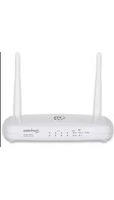
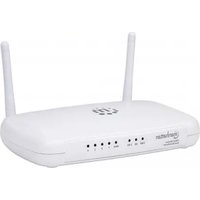
MANHATTAN 154109 - Router

154109 - Router MANHATTAN - Free user manual and instructions

Find the device manual for free 154109 MANHATTAN in PDF.

📄 12 pages English EN Download 💬 AI Question 10 questions ⚙️ Specs
Notice MANHATTAN 154109 - page 2
Pick your language and provide your email: we'll send you a specifically translated version.
Product Type USB Modem (Dial-up)
Model 154109
Brand Manhattan
Interface USB 1.1/2.0 (USB A male)
Phone Line Connector RJ11
Downstream Speed Up to 56 kbps (V.92/V.90)
Upstream Speed Up to 48 kbps (V.92) or 33.6 kbps (V.90)
Fax Speed Up to 14.4 kbps
Data Compression V.44, V.42bis, MNP 5
Error Correction V.42 LAPM, MNP 2-4
TAM Support Yes (Digital Telephone Answering Machine)
Caller ID On-Hook and Off-Hook with Call Waiting
Modem Controller Hardware-based (Conexant chipset)
Dimensions 178 × 25.5 × 19 mm (7 × 1 × 0.75 in)
Weight 31.2 g (1.1 oz)
Power Source USB bus-powered (5V DC)
Operating Systems Windows 98SE/Me/2000/XP/Vista/7/8; Linux compatible
Package Contents USB Modem, Driver CD, Quick Install Guide, User Manual
Warranty Lifetime limited warranty (see manhattan-products.com/warranty)
Maintenance Keep dry and clean; no moving parts require minimal care
Spare Parts & Repairability Not user-serviceable; contact support for issues

Frequently Asked Questions - 154109 MANHATTAN

How do I install the drivers for the Manhattan 154109 modem?
Insert the included driver CD and run the autorun program. Select Driver Installation and follow the on-screen instructions. If the CD does not auto-start, browse the CD and run Setup.exe. For operating systems without a CD drive, download drivers from Manhattan's support page.
Is the Manhattan 154109 compatible with Linux?
Yes, the modem is listed as Linux compatible. However, Linux may require manual driver installation or use a generic CDC ACM driver. Check community forums for specific distribution guidance.
What is the maximum download speed?
The modem supports download speeds up to 56 kbps (V.92/V.90 standards). Actual speed depends on line quality and ISP support.
Why is my computer not detecting the modem?
Ensure the modem is properly connected to a USB port. If using Windows, open Device Manager and look for unrecognized devices under Other Devices or Modems. Install the correct driver from the CD or manually update the driver.
Can I use this modem with a digital phone line (VoIP)?
The modem is designed for analog phone lines (PSTN). It may not work reliably with VoIP or digital phone services due to signal incompatibility.
How do I set up a dial-up connection on Windows 7?
Go to Control Panel > Network and Sharing Center > Set up a new connection or network > Connect to the Internet > Dial-up. Enter your ISP's phone number, username, and password provided by your ISP.
Does the modem support Caller ID?
Yes, it supports both on-hook and off-hook Caller ID detection, including Call Waiting Caller ID during data mode (V.92/V.90/V.34/V.32).
What should I do if the OH LED does not light up?
Check that the USB cable is securely connected and the computer is powered on. The OH LED lights during dial-up and connection. If it remains off, ensure the modem is properly installed and the phone line is connected.
Is the modem compatible with Windows 10?
The manual lists compatibility up to Windows 8. Windows 10 may work with Vista/7 drivers, but official support is not guaranteed. Try installing the Windows 7 or 8 driver in compatibility mode.
Can I use the modem fax feature?
Yes, the modem supports fax send and receive at up to 14.4 kbps with ITU-T V.17, V.29, V.27ter, and V.21 channel 2. Use fax software like Windows Fax and Scan.

User questions about 154109 MANHATTAN

0 question about this device. Answer the ones you know or ask your own.

Ask a new question about this device

The email remains private: it is only used to notify you if someone responds to your question.

No questions yet. Be the first to ask one.

Download the instructions for your Router in PDF format for free! Find your manual 154109 - MANHATTAN and take your electronic device back in hand. On this page are published all the documents necessary for the use of your device. 154109 by MANHATTAN.

USER MANUAL 154109 MANHATTAN

USB MODEM USER MANUAL

MODEL 154109
MANHATTAN 154109 - USB MODEM USER MANUAL - 1

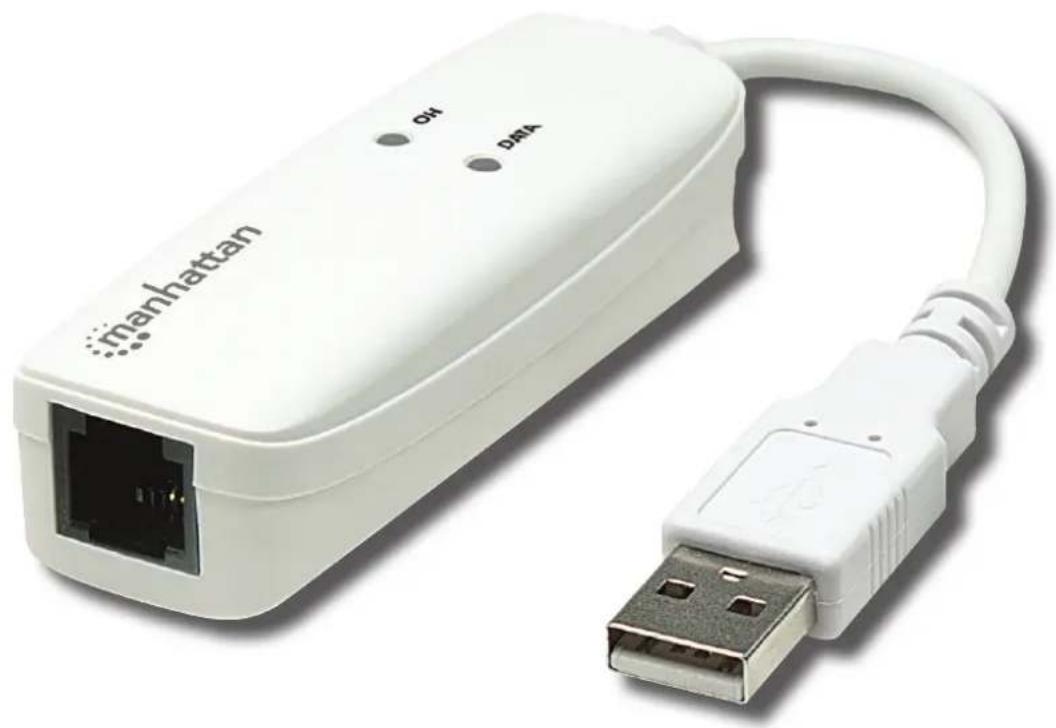
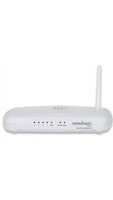
natural_image White Manhattan Ethernet device with USB cable and port, no visible text or symbols on the device body

manhattan® Life just got easier.™

INTRODUCTION

Thank you for purchasing the Manhattan® USB Modem, Model 154109. Just plug the modem into a USB port for the fastest and easiest route to the Web using a standard phone line, then enjoy these popular features:

  • Quick Connect, auto dial/answer, tone/pulse dialing, improved download speeds
    • Supports Digital Telephone Answering Machine (TAM)
  • Downstream speeds up to 56 kbps
  • Lifetime Warranty (For a complete list of country-specific warranties, go to manhattan-products.com/warranty.)

SPECIFICATIONS

Data Mode Capabilities

  • ITU-T V.92 data mode with receive rates up to 56 kbps; transmit rates up to 48 kbps
  • ITU-T V.90 data mode with receive rates up to 56 kbps; transmit rates up to 33.6 kbps
    • ITU-T V.44, V.42 vis and MNP 5 data compression
    • ITU-T V.42 LAPM and MNP 2.4 error correction
    • ITU-T v.34, V.32bis, V.32, V.23, V.22bis, V.22, V.21; Bell 212A and Bell 103

FAX Mode Capabilities

  • Fax mode with send and receive rates up to 14.4 kbps
    • ITU-T V.17, V.29, V.27 ter and V.21 channel 2
    • EIA/TIA 578 Fax Class 1 or T.31 Fax Class 1.0 commands

TAM

  • 8-bit U-Law/A-Law coding (G.711) and 8-bit/16-bit linear coding; 8 kHz sample rate
    • TAM supports with concurrent DTFM Detect, Ring Detect and Caller ID

Caller ID

  • Caller ID detect
  • On-Hook Caller ID detection
  • Off-Hook Call Waiting, Caller ID detection during data mode in V.92, V.90, V.34, V.32
  • Hardware-based modem controller and DSP

Hardware

  • RJ11 port
    • USB A-type male connection
    • Weight: 31.2 g (1.1 oz.)
  • Dimensions: 178 × 25.5 × 19 ~mm (7 x 1 x 0.75 in.)

Operating System Requirements

- Windows 98SE/Me/2000/XP/Vista/7/8; Linux compatible

Package Contents

- USB Modem, driver CD with user manual, quick install guide

DEVICE INSTALLATION

C D B A manhattan

  1. Connect the modem to an active USB port on the computer (A).
  2. Connect your RJ11 phone jack to the modem (B). When the Welcome to the Found New Hardware Wizard screen displays, click "Cancel."

• The OH LED (C) lights during dial-up and connection; off when disconnected.

• The Data LED (D) flashes while receiving/transmitting.

Found New Hardware Wizard Welcome to the Found New Hardware Wizard Windows will search for current and updated software by looking on your computer, on the hardware installation CD, or on the Windows Update Web site (with your permission). Read our privacy policy. Can Windows connect to Windows Update to search for software? ○ Yes, this time only ○ Yes, now and every time I connect a device ○ No, not this time Click Next to continue. < Back Next > Cancel

DRIVER INSTALLATION

  1. Load the included Driver Installation CD. It will automatically activate the autorun instillation program and display the menu screen below. Click "Driver Installation."
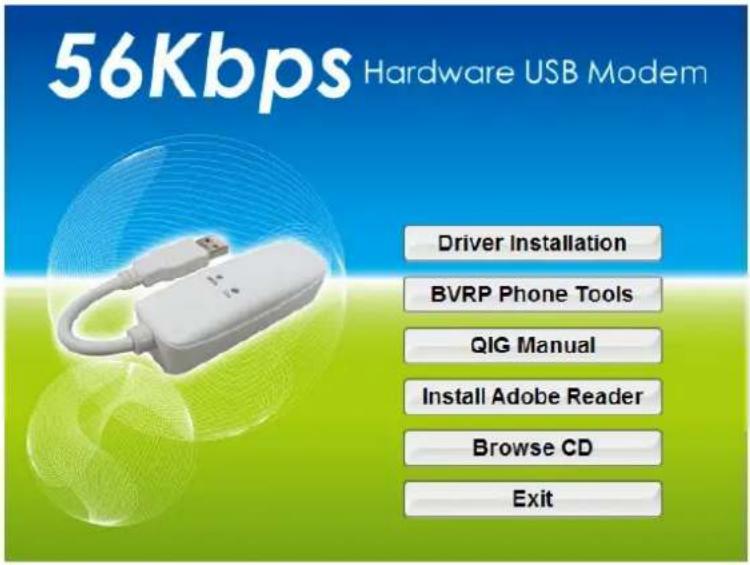
56Kbps Hardware USB Modem Driver Installation BVRP Phone Tools QIG Manual Install Adobe Reader Browse CD Exit

  1. Select/click your operating system.

56Kbps Hardware USB Modem Windows 7 32 Windows 7 64 Windows Vista 64 Windows Vista 32 Windows XP64 Windows 2k_XP Windows 98SE Windows ME MAIN MENU

  1. When the Welcome screen displays, click "OK."

Device driver installation wizard Welcome to the device driver installation wizard. Click OK to install device drivers for ALL devices listed below. Click CANCEL to quit installation. Device Task Conexant UCM92 Data Fax RTAM USB Modem INSTALL OK CANCEL

  1. Click "Continue Anyway."

Device driver installation wizard The software you are installing for this hardware: Conexant UCM92 Data Fax RTAM USB Modem has not passed Windows Logo testing to verify its compatibility with Windows XP. (Tell me why this testing is important.) Continuing your installation of this software may impair or destabilize the correct operation of your system either immediately or in the future. Microsoft strongly recommends that you stop this installation now and contact the hardware vendor for software that has passed Windows Logo testing. Continue Anyway STOP Installation

  1. When the driver installation is complete, click "OK."
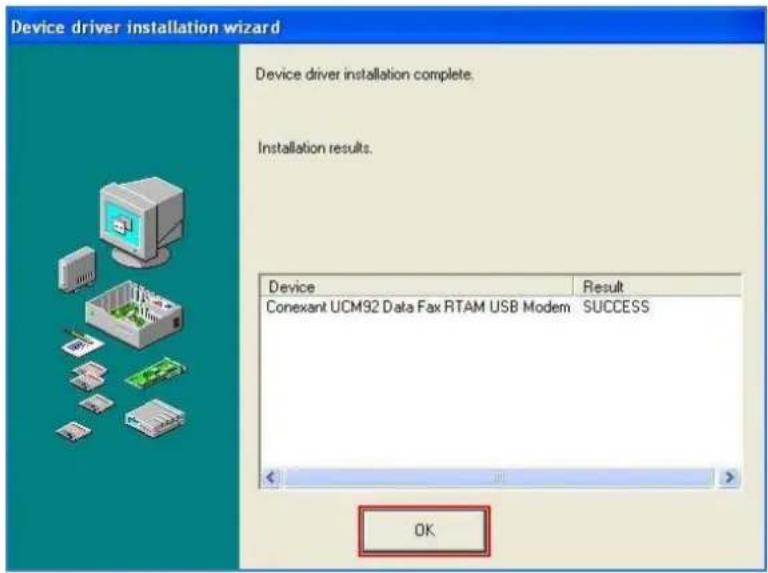
Device driver installation wizard Device driver installation complete. Installation results. Device Result Conexant UCM92 Data Fax RTAM USB Modem SUCCESS OK

MANUAL DIAL-UP CONNECTION SETTINGS

  1. On the Control Panel, go to Network Connections and click "Create a new connection."
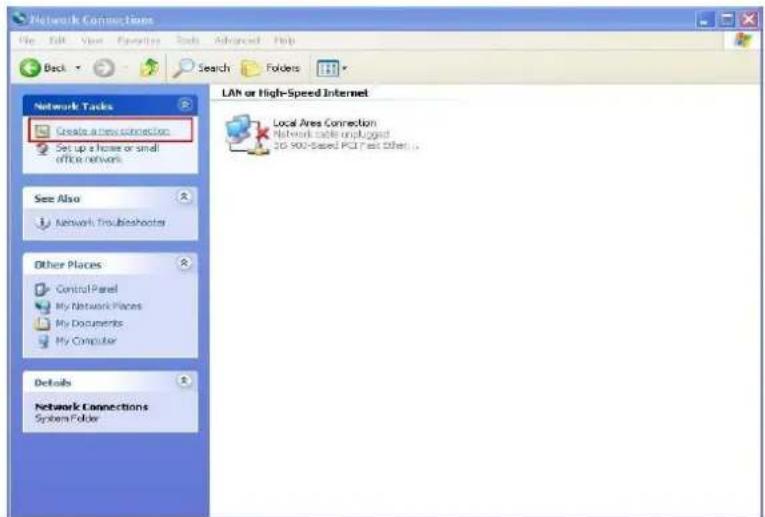
Network Connections File Edit View Favorites Tools Advanced Help Back Search Folders Network Tasks Create a new connection Set up a home or small office network See Also Network Troubleshoots Other Places Control Panel My Network Places My Documents My Computer Details Network Connections System Folder LAN or High-Speed Internet Local Ares Connection Network scales unplugged 3D 900-Speed PCI Next Other...

  1. When the Welcome to the New Connection Wizard screen displays, click "Next."

New Connection Wizard Welcome to the New Connection Wizard This wizard helps you: • Connect to the Internet. • Connect to a private network, such as your workplace network. • Set up a home or small office network. To continue, click Next. < Back Next > Cancel

  1. When the Network Connection Type screen displays, select "Connect to the Internet" and click "Next."
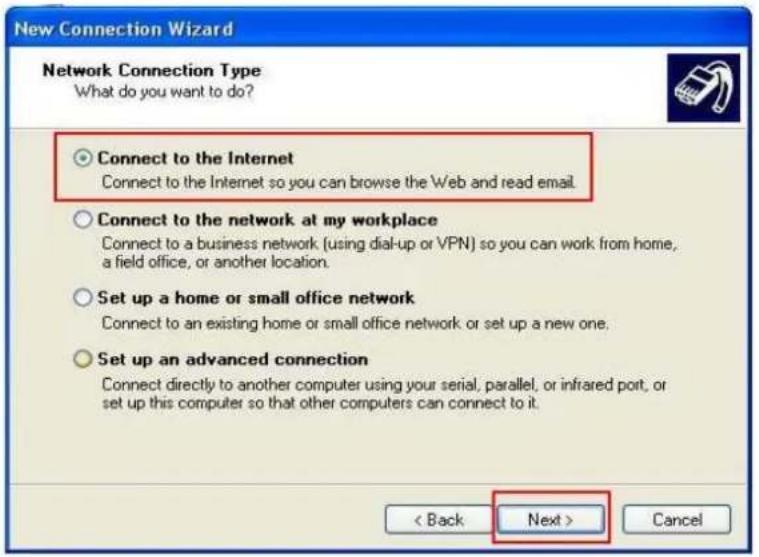
New Connection Wizard Network Connection Type What do you want to do? Connect to the Internet Connect to the Internet so you can browse the Web and read email. Connect to the network at my workplace Connect to a business network (using dial-up or VPN) so you can work from home, a field office, or another location. Set up a home or small office network Connect to an existing home or small office network or set up a new one. Set up an advanced connection Connect directly to another computer using your serial, parallel, or infrared port, or set up this computer so that other computers can connect to it. < Back Next > Cancel

  1. When the Setting Ready screen displays, select "Set up my connection manually" and click "Next."

New Connection Wizard Getting Ready The wizard is preparing to set up your Internet connection. How do you want to connect to the Internet? ○ Choose from a list of Internet service providers (ISPs) ● Set up my connection manually For a dial-up connection, you will need your account name, password, and a phone number for your ISP. For a broadband account, you won't need a phone number. ○ Use the CD I got from an ISP < Back Next > Cancel

  1. When the Internet Connection screen displays, select "Connect using a dial-up modem" and click "Next."

New Connection Wizard Internet Connection How do you want to connect to the Internet? Connect using a dial-up modem This type of connection uses a modem and a regular or ISDN phone line. Connect using a broadband connection that requires a user name and password This is a high-speed connection using either a DSL or cable modem. Your ISP may refer to this type of connection as PPPoE. Connect using a broadband connection that is always on This is a high-speed connection using either a cable modem, DSL or LAN connection. It is always active, and doesn't require you to sign in. < Back Next > Cancel

  1. When the Connection Name screen displays, enter the name of your Internet service provider in the ISP Name field and click "Next."

New Connection Wizard Connection Name What is the name of the service that provides your Internet connection? Type the name of your ISP in the following box. ISP Name The name you type here will be the name of the connection you are creating. < Back Next > Cancel

  1. When the Internet Account Information screen displays, enter your information in the text fields and select "Use this account name and password when anyone connects to the Internet from this computer." Click "Next."

New Connection Wizard Internet Account Information You will need an account name and password to sign in to your Internet account. Type an ISP account name and password, then write down this information and store it in a safe place. (If you have forgotten an existing account name or password, contact your ISP.) User name: Password: Confirm password: ✓ Use this account name and password when anyone connects to the Internet from this computer Make this the default Internet connection Turn on Internet Connection Firewall for this connection < Back Next > Cancel

  1. When the Completing the New Connection Wizard screen displays, click "Finish" to complete the manual dial-up connection.

New Connection Wizard Completing the New Connection Wizard You have successfully completed the steps needed to create the following connection: kimo • Share with all users of this computer • Use the same user name & password for everyone The connection will be saved in the Network Connections folder. □ Add a shortcut to this connection to my desktop To create the connection and close this wizard, click Finish. < Back Finish Cancel

  1. When the final screen displays, click "Dial" to connect to the Internet.

Connect User name: Password: [To change the saved.password, click here] ✓ Save this user name and password for the following users: ○ Me only ● Anyone who uses this computer Dial: Dial Cancel Properties Help

WARRANTY INFORMATION

ENGLISH: For warranty information, go to manhattan-products.com/warranty.
Manual assistant
Powered by Anthropic
Waiting for your message
Product information

Brand : MANHATTAN

Model : 154109

Category : Router