
PowerTel 57 - Telephone Amplicom - Free user manual and instructions
Find the device manual for free PowerTel 57 Amplicom in PDF.


| Product Type | Corded Telephone |
| Brand | Amplicom |
| Model | PowerTel 57 |
| Power Supply | Input: 230VAC 50Hz, Output: 12VDC 670mA |
| Dialing Mode | Tone (DTMF) / Pulse |
| Ringer Volume Levels | 5 levels + Off |
| Ringer Melodies | 10 melodies |
| Earpiece Volume | 5 levels + 35dB Boost |
| Handsfree | Yes |
| Headset Compatibility | Yes (via headset socket) |
| Phonebook Capacity | Up to 200 names and numbers |
| Quick Dial Memory | 6 keys (M1-M6) |
| Calls List Capacity | 30 entries (with Caller ID service) |
| Boost Memory | Yes (remembers last boost setting) |
| Read Number (Voice Announcing) | Yes (toggle on/off) |
| Display Languages | English, German, French, Spanish, Italian |
| Display Contrast Levels | 5 levels |
| Indoor Use Only | Yes (dry, flat surface) |
| Cleaning Instructions | Soft, fluff-free cloth; no solvents |
| Guarantee Period | 24 months from date of purchase |
| Compliance | CE (EU Directive 1999/5/EC) |
Frequently Asked Questions - PowerTel 57 Amplicom
User questions about PowerTel 57 Amplicom
0 question about this device. Answer the ones you know or ask your own.
Ask a new question about this device
Download the instructions for your Telephone in PDF format for free! Find your manual PowerTel 57 - Amplicom and take your electronic device back in hand. On this page are published all the documents necessary for the use of your device. PowerTel 57 by Amplicom.
USER MANUAL PowerTel 57 Amplicom
natural_image
Black office telephone with digital keypad and keypad (no visible text or symbols)At a glance
Please open this page for an 'At a glance' guide to your PowerTel 57

mplicomms
Distributed by: Audioline GmbH, D-41460 Neuss AUG 10 - ISSUE 1.
CE
AT A GLANCE
PowerTel 57 corded phone base
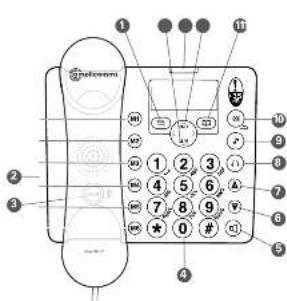
① Menu'OK
② Quick dial memories/User profiles
3 35dB Boost (under handset)
4 Keypad
5 Handsfree
Volume down
⑦ Volume up
B Headset
9 Equaliser
Mute/Delete
iPhonebook
12 Up/Redial/Pause
⑬ Incoming call light
14 Down/Calls list/Recall
Helpline 0844 800 6503 (See page 54 for costs and hours of operation)
2 Helpline 0844 800 6503 (See page 54 for costs and hours of operation)
CONTENTS
Getting started ....7
Check box contents 8
Set up your phone 9
Connect your corded phone base ..... 9
Display icons explained.... 11
Phone menu guide.... 12
How to use your phone menu display .... 12
Basic guide ...... 12
Making and receiving calls ...... 15
Make a call 16
End a call 16
Take a call 16
Redial a number 16
Call back a previous caller .... 17
Dial a number in your phone book ... 17
Dial a number using the quick dial buttons 18
Adjust the earpiece volume ..... 18
Boost the handset earpiece volume . 18
Handsfree feature 19
Use handsfree calling 19
Adjust the tone....19
See call length 19
Use a headset (not included) ...... 20
Mute....20
Power failure – what to do .....20
Using your menu 21
Priority/Default Setting ......22
User Profiles 22
Change the profile name .....22
Change a profile's handset volume .. 23
Change a profile's boost setting ..... 23
Change a profile's tone ('equaliser') setting....24
Choosing which profile to use ..... 25
Change ringer melody 25
Change ringer volume ......26
Switch key tone on or off 26
Change display language 27
Helpline 0844 800 6503 (See page 46 for costs and hours of operation)

CONTENTS
Remember boost ....28
Read number 28
Change to upper or lower case...... 29
Change date/time ....30
Change clock hours to 12- or 24-hour format display ....30
Reset to default settings 31
Using your phone book ....32
How to use the keypad when using your phone book ....32
Enter a name and number in your phone book ....33
Edit a phone book entry ....33
Delete a phone book entry ....34
Delete all phone book entries .....35
Using your quick dial memory .....36
Store a quick dial name and number 36
Edit a quick dial entry ....36
Delete a quick dial entry ....37
Using your calls list 38
Store numbers from your calls list to the phonebook or quick dial memory (M1, M2, M3, M4, M5, M6) ....39
Delete a single calls list entry ...... 39
Delete all calls list entries ....40
Use on a private branch exchange .. 41
To set the recall time ....42
Insert a dialling pause ....42
Using additional services ....43
Set the dial mode ....43
Help and support ....45
Troubleshooting guide ....46
General information ....49
Safety information ....50
Disposal....52
Technical details ....53
Default settings ....54
Maintenance and guarantee .....55
Declaration of conformity .....56
Index 57
CONTENTS
Helpline 0844 800 6503 (See page 46 for costs and hours of operation)
Getting started
Helpline 0844 800 6503 (See page 46 for costs and hours of operation)

GETTING STARTED
Getting started
Important: please make sure you've read the safety information on page 50 before you set up your phone system.
Check box contents
You should have:
• 1 corded phone base
• 1 handset and handset cable
• 1 power adapter
• 1 telephone cable
Important: use only the power adapter and telephone line cord supplied with your PowerTel 57 otherwise your phone may not work.
Set up your phone
Connect your corded phone base
- Plug the power adapter into the socket marked 📌 on the back of your phone base and the other end into the mains power wall socket and switch on.
- Plug the telephone cable into the socket marked 📞 on the back of your phone base and the other end into the phone wall socket.
- Plug one end of the handset cable into the handset and the other end into the side of the base.

Important: use only the power adapter and telephone line cord supplied with your PowerTel 57 otherwise your phone may not work.
Helpline 0844 800 6503 (See page 46 for costs and hours of operation)

GETTING STARTED
Private exchanges: if your phone is going to use a private exchange (for example, if you have to dial '9' to get an outside line, please follow the steps on page 42).
Your PowerTel 57 phone is now ready for use!
Display icons explained
The following icons appear in your corded base display to indicate:

Phone book mode

Ringer off

Handsfree mode

Call in progress

Boost receiver volume is on (Icon will flash)

Mute handset microphone

You have new calls

New calls in the calls list

Old calls in the calls list
Helpline 0844 800 6503 (See page 46 for costs and hours of operation)

GETTING STARTED
Phone menu guide
Use this section to find your way around the menu display on your phone.
How to use your phone menu display
When you've set up your phone and everything's connected, use your menu display to do things with your phone – from making and receiving calls to setting up user profiles and saving phone numbers.
Basic guide
Open main menu: press
Browse sub menu: open your main menu and then press ⬤/P or ?#/R.
Select sub menu item: scroll using ⬤/P or ?#/R until the item you're looking for is highlighted and then press ≡.
Browse a function: open your sub menu and then press ⬤/P or ?#/R
Select a function: scroll using ⬤/P or “until the function you’re looking for is highlighted and then press ≡”.
GETTING STARTED

Enter digits or letters: use your keypad.
Confirm or save an entry or action: press ≡.
Cancel and return to standby: press ⓧ.
Note: if you don't do anything, your phone will automatically go on standby after 20 seconds.
Making and receiving calls
Helpline 0844 800 6503 (See page 46 for costs and hours of operation)

MAKING AND RECEIVING CALLS
Making and receiving calls
Make a call
As you enter each number to be dialled it will be announced to you. For this feature to work you must have the Read number feature set to On, see page 28.
- Enter the number you wish to call using your base keypad.
- If you make a mistake, press Ⓧ to delete the last digit.
- Dial the number by picking up the handset or pressing 📄.
- End your call by putting the handset back in its cradle.
End a call
Simply put the handset back in its base cradle.
Take a call
Simply lift the handset or press to answer in handsfree mode.
Redial a number
Your phone stores the last five numbers you've dialled (max. 24 digits each).
- Open the redial list by pressing ⬤/P.
- Scroll through the redial list using the ⬤/P or ?#/R buttons until the number you wish to redial is highlighted. To dial the number simply lift the handset or press 🔒 to dial in handsfree mode.
Helpline 0844 800 6503 (See page 46 for costs and hours of operation)
Note: each phone number will be announced as you scroll through the redial list provided the Read Number feature is enabled. See page 28, "Read number" for details.
Call back a previous caller
Your phone stores the last 30 incoming calls.
- Open the incoming calls list by pressing ?/R
- Scroll to find the number you want to call back using ⬤/P or √ then lift your handset or press 🔒 to call in handsfree mode.
Note: each phone number will be announced as you scroll through the incoming calls list provided the Read Number feature is enabled. See page 28, "Read number" for details.
Dial a number in your phone book
To store a phone number in your phone book, see page 33.
- Open your phone book by pressing 📄.
- Scroll to find your number using Ⓗ/P or “then lift your handset or press Ⓞ to dial in handsfree mode.
Helpline 0844 800 6503 (See page 46 for costs and hours of operation)

MAKING AND RECEIVING CALLS
Note: each phone number will be announced as you scroll through your phone book provided the Read Number feature is enabled. See page 28, "Read number" for details.
Dial a number using the quick dial buttons
To store phone numbers under your quick dial memory buttons, see page 36.
- Choose your quick dial number by pressing M1, M2 M3 M4, M5, or M6.
- Lift your handset or press 📋 to dial in handsfree mode.
Note: the quick dial number you've selected will be announced when you press the quick dial button provided the Read Number feature is enabled. See page 28, "Read number" for details.
Adjust the earpiece volume
Your handset earpiece volume is louder than a standard phone. But you can still increase or decrease the volume to suit you.
To adjust the volume while you're making a call, press ⚠ or ▼
Boost the handset earpiece volume
To boost the handset earpiece volume while you're making a call, press 35dB An image of an ear will flash in the display to show that boost is on.
MAKING AND RECEIVING CALLS
Handsfree feature
Use the handsfree feature to talk to your caller without holding the handset or to let other people in the room listen to the conversation.
Use handsfree calling
To switch handsfree mode on and off, simply press
To adjust handsfree volume, press ⚠r (there are 5 levels).
Note: you can't boost volume using 📞 when using handsfree calling.
Adjust the tone
To adjust the tone while you're making a call, press ⏻ then use the < or > buttons until it's right for you.
Note: adjusting the tone can affect volume level – you may need to adjust the volume level after you've adjusted the tone.
See call length
You can see the call time on your display.
Helpline 0844 800 6503 (See page 46 for costs and hours of operation)

MAKING AND RECEIVING CALLS
Use a headset (not included)
Simply plug your headset into the headset socket marked ⏻ on the back of the base and press the ⏻ button.
Mute
During a call you can mute the microphone so your caller cannot hear you.
To switch off the microphone, simply press Ⓧ. Mute will be displayed.
To switch it on again, simply press Ⓧ again. The display will show Unmute.
Power failure – what to do
If your mains power fails, you can still use your phone to make and receive calls – though the incoming call light won't work, your caller's details won't be stored, and the display will only show when you lift the handset.
You can still also:
• View and dial numbers using your phone book or the M1, M2, M3, M4, M5 and M6 keys
• Dial out using Recall (Flash) and pause
- Adjust the earpiece volume
- Mute the microphone
Using your menu
Helpline 0844 800 6503 (See page 46 for costs and hours of operation)

USING YOUR MENU
Using your menu
For information on your phone book, please go to page 32.
Priority/Default Setting
If you are the main user of this telephone you should change the settings in the menu so that they are just right for you. These settings will be memorised automatically whenever you wish to make or answer a call.
The user profile feature can be used by others in the household whose preferences for volume, boost and equaliser will also be memorised and applied as indicated below.
User Profiles
You can store 6 different user profiles, each with different settings for the 'Volume', 'Boost' and 'Equaliser' features. You can also personalise each Profile by naming it (Max 10 letters).
Change the profile name
-
Open your menu by pressing ≡, then scroll using ⬤/P or ?#/R until you highlight Profile and press ≡.
-
Scroll using ⬆/P or ?#/R until you highlight Profile 1, 2, 3, 4, 5 or 6 and press ≡.
22 Helpline 0844 800 6503 (See page 46 for costs and hours of operation)
- Scroll using ⬆/P or ?#/R until you highlight Name and press ≡.
- Delete the current name by pressing Ⓕ.
- Enter a new name (up to ten letters) and press ≡.
Change a profile's handset volume
You have a choice of five volume levels.
- Open your menu by pressing ≡, then scroll using or until √?R you highlight Profile and press ≡.
- Scroll using /P or ? until you highlight 1, 2, 3, 4, 5 or 6 and press ≡.
- Scroll using ⬤/P or ?#/R until you highlight Volume and press ≡.
- You'll see the current volume level (e.g. 4).
- Change the volume level using or and press.
Change a profile's boost setting
- Open your menu by pressing ≡, then scroll using ⬤/P or ?#/R until you highlight Profile and press ≡.

NG YOUR MENU
- Scroll using ⬤/P or ?#/R until you highlight Profile 1, 2, 3, 4, 5 or 6 and press ≡.
- Scroll using ⬆/P or ?#/R until you highlight Boost and press ≡.
- You'll see the current boost setting (i.e. On or Off).
- Change the boost setting using or and press.
Change a profile's tone ('equaliser') setting
- Open your menu by pressing ≡, then scroll using ⬤/P or ?#/R until you highlight Profile and press ≡.
- Scroll using /P or · until you highlight Profile 1, 2, 3, 4, 5 or 6 and press ≡.
- Scroll using ⬤/P or ?#/R until you highlight Equaliser and press ≡.
- You'll see the current tone setting.
- Change the tone setting using ⬤/P or ?/R and press ≡.
Note: when you finish changing any profile settings, press Ⓧ to put the base back to standby.
Choosing which profile to use
Before you answer an incoming call, press M1, M2, M3, M4, M5 or M6 – depending on which profile you want to use. The display will confirm your choice and you can answer the call as normal.
Note: you can't choose a profile using handsfree mode.
When you want to make a call and before you dial the number, press and hold M1, M2, M3, M4, M5 or M6 – depending on which profile you want to use. The display will confirm your choice and you can now make your outgoing call as normal.
Note: once you've selected a profile to use when making a call, you have about 30 seconds to dial the call under that profile before the system will return to its default settings.
Change ringer melody
You have a choice of ten ringer melodies.
- Open your menu by pressing ≡, then scroll using or until √?#/R you highlight Ringer Tone and press ≡.
- Scroll ⬤/P or ?#/R to highlight EXT Melody and press ≡.
- You'll see and hear the current setting (i.e. Melody 8).
- Scroll using ⬤/P or ?!/R until you highlight and hear the ringer tone you want to use and press ≡.
Helpline 0844 800 6503 (See page 46 for costs and hours of operation)

USING YOUR MENU
Change ringer volume
You have a choice of five volume levels plus Ring Off.
- Press the ⚠ or ▼ buttons to adjust the ringer volume level. You’ll hear and see the volume levels on the display (e.g. Ring Vol 5) as you press the buttons. If you want to switch the ringer volume off choose the Ring off option.
Switch key tone on or off
This is the tone you hear when you press a button.
- Open your menu by pressing ≡, then scroll using ⬤/P or ?#/R until you highlight Key Tone and press ≡.
- You'll see the current key tone setting (i.e. On or Off).
- Change the key tone on or off using or and press.
Change display contrast
You have a choice of five screen contrast levels.
- Open your menu by pressing ≡, then scroll using ⬤/P or ?#/R until you highlight Display and press ≡.
- Scroll using ⬆/P or ?#/R until you highlight Contrast and press ≡.
- You'll see the current contrast setting (e.g. 4).
- Change the contrast setting using ⬤/P or ?#/R and press .
Change display language
You have a choice of five languages to use on your handsets: English, German, French, Spanish and Italian.
- Open your menu by pressing ≡, then scroll using or until?#/R you highlight Display and press ≡.
- Scroll using ⬆/P or ?#/R until you highlight Language and press ≡.
- You'll see the current language setting (e.g. English).
- Change the language setting using ⬤/P or ?&/R and press .

USING YOUR MENU
Remember boost
When this feature is set to On and you use the 35dB button, the handset you're using will remember and use your last boost setting for each of your calls.
- Open your menu by pressing ⓞ, then scroll using ⬇/P until ?#/R you highlight Settings and press ⓞ.
- Scroll using ⬤/P or ?!/R until you highlight Boost Mem and press ≡.
- You'll see the current boost memory setting (e.g. Off).
- Change the boost memory setting using or and press.

Read number
When this feature is set to On: as you enter each number or press a quickdial button to make a call, or when you scroll through your phonebook entries, your redial list or calls list (if you subscribe to a Caller Display/Caller ID service) the telephone numbers will be announced to you. A quarterly fee may be payable for Caller Display/Caller ID. See page 38 for further information.
-
Open your menu by pressing ≡, then scroll using or until √?#/R you highlight Settings and press ≡.
-
Scroll using ⬆/P or ?#/R until you highlight Read number and press ≡.
USING YOUR MENU
-
You'll see the current read number setting (e.g. On).
-
Change the read number setting using /P or ?A/R and press.

Change to upper or lower case
- Open your menu by pressing ☐, then scroll using ⬤/P or ?#/R until you highlight Settings and press ≡.
- Scroll using ⬆/P or ?#/R until you highlight Change case and press ≡.
- You'll see the case setting (e.g. ABC).
- Change the case setting using ⬤/P or ?&/R and press ≡.
For information on dial mode, please go to page 43.
For information on recall, please go to page 42.

NG YOUR MENU
Change date/time
- Open your menu by pressing ☐, then scroll using ⬤/P or ?#/R until you highlight Time and press ☐.
- Scroll using ⬆/P or ?#/R until you highlight Date & Time and press ≡.
- Enter the day, month and year and press ≡.
- Enter the hours (your handset has a 24-hour clock) and press ≡.
Note: it's also possible to use the < and > keys to move backward and forward to make changes.
Change clock hours to 12- or 24-hour format display
- Open your menu by pressing, then scroll using or /P ?/R until you highlight Time and press ≡.
- Scroll using ⬆/P or ?#/R until you highlight Format and press ≡.
- You'll see the current time format setting (e.g. 24 hour).
- Change the time format using ⬆/P or ?&/R and press .
Reset to default settings
You can easily reset your phone to its default settings. The default settings are listed on page 54.
Note: your phone book, calls and redial lists and any answering machine messages and memos will be deleted if you do this.
- Open your menu by pressing ≡, then scroll using or until?#/R you highlight Reset and press ≡.
- Enter the system PIN (default = 0000) and press ≡ to confirm or ⓣ to cancel.

NG YOUR PHONE BOOK
Using your phone book
You can store, alphabetically, up to 200 names and their phone numbers in your phone book. To quickly find a phone book entry, simply enter the first letter of the name you've stored.
Note: each phone book entry allows for up to 16 letters for any name and up to 24 digits for any phone number.
Important: please remember to also enter the area code for each phone number you enter in your phone book.
How to use the keypad when using your phone book
You'll see that the keys on your keypad have letters as well as numbers. If you press a chosen key a number of times it'll show you all the numbers and letters it represents.
Here are some keys you may find useful when entering names and phone numbers in your phone book:
- press① for a space
- press Ⓧ to delete a number or letter you've entered
- press① for certain special characters
32
Helpline 0844 800 6503 (See page 46 for costs and hours of operation)
Note: to enter the same letter twice, simply enter the letter and then wait until the cursor moves to after the letter you've entered, before entering it again.
Enter a name and number in your phone book
- Press and hold 📁 for about 2 seconds until the display shows Enter Name and a flashing cursor.
- Enter the name you want to store using the keypad and press.
- Enter the phone number you want to store and press Ⓥ.
- Scroll using Ⓗ or to choose a ringer melody for this name and number and press ≡. The display will show Saved.
Edit a phone book entry
- Press .
- Scroll using or to find the entry you want to edit.
- Open options by pressing ≡ and then scroll using 🔒 until you highlight Edit and press ≡.
Helpline 0844 800 6503 (See page 46 for costs and hours of operation)

USING YOUR PHONE BOOK
- Edit the name using or to move the cursor and enter the new letters and press ☐.
- Edit the phone number using or to move the cursor and enter the new digits and press ☐.
- Scroll using ⚙ or to choose a ringer melody for this name and number and press ≡. The display will show Saved.
Delete a phone book entry
- Press

- Scroll using or to find the entry you want to delete.
- Open options by pressing ≡ and then scroll using ⚙ until you highlight Delete and press ≡.
- You'll see Delete? on your display. Press ≡ to confirm the deletion or ✉ to cancel.
Delete all phone book entries
- Press
- Open options by pressing ≡ and then scroll using 🔒 until you highlight Delete All and press ≡.

- You'll see Delete All? on your display. Press ≡ to confirm the deletion or ⓧ to cancel.

Using your quick dial memory
You can store a name (max. 16 characters) and telephone number (max. 24 digits) under each of the quick dial memory buttons: M1, M2, M3, M4, M5 and M6.
Store a quick dial name and number
- Choose the quick dial button under which you want to store a name and number by pressing either M1, M2, M3, M4, M5 and M6.
- Press ≡ twice.
- Enter the name you want to store using the keypad and press ≡.
- Enter the phone number you want to store and press ≡.
- Scroll ⬤/P or ?&/R to choose a ringer melody for this name and number and press ≡. The display shows Saved.
Edit a quick dial entry
- Choose the quickdial entry you want to edit by pressing either Ⓜ1, Ⓜ2, Ⓜ3, Ⓜ4, Ⓜ5 or Ⓜ6.
- Press ≡. Edit is displayed, press ≡ again.
Delete a quick dial entry
- Choose the quick dial entry you want to delete by pressing either Ⓜ1, Ⓜ2, Ⓜ3, Ⓜ4, Ⓜ5 or Ⓜ6.
- Press ≡. Press ?/R to highlight Delete and press ≡.
- You'll see Delete? on your display. Press ≡ to confirm or ☒ to cancel.

NG YOUR CALLS LIST
Using your calls list
Note: you must subscribe to your network provider's Caller Display/Caller ID service for this feature to work. A quarterly fee may be payable.
Incoming call telephone numbers should appear in your calls list. If you have the caller's number stored in your phonebook the name will be displayed instead. A total of 30 incoming calls can be stored in the calls list (16 letters per name and 23 digits per number). The number of new calls received will be shown in the display with the flashing 📞 icon. If the number doesn't appear, this is because the caller's identification (Call Line ID) has been withheld by the caller.
You can open and view your calls list by pressing ?#/R. To scroll through your calls list simply press ⬤/P or ?#/R
Here are some things you may see on your calls list display:
- WITHHELD NUMBER – caller has withheld their number, or this information isn't available
- INTERNATIONA – caller is calling from another country or using an internet service
• PAYPHONE – caller is calling from a public payphone
• OPERATOR – caller is a telephone network operator
Store numbers from your calls list to the phonebook or quick dial memory (M1, M2, M3, M4, M5, M6)
It's easy to store incoming call numbers to your phone book or quick dial list.
- Press ?/R to open your calls list at the most recent entry.
- Scroll using or to find the entry you want to store.
- Open options by pressing ≡ and then scroll using or until √?#/R you highlight Save to PB or M1, M2, M3, M4, M5 or M6 and press ≡.
- Using your keypad, enter a name for this stored number and press ⏱.
- Edit the number for this name, if needed, and press ≡.
- Scroll using ⬆/P or to choose a ringer melody for the entry and press ≡.
Delete a single calls list entry
- Press to open your calls list at the most recent entry.
- Scroll using or to find the entry you want to delete.
- Open options by pressing ≡ and then scroll using or until √?/R you highlight Delete and press ≡.
- You'll see Delete? on your display. Press ≡ to confirm or Ⓧ to cancel.
Helpline 0844 800 6503 (See page 46 for costs and hours of operation)

USING YOUR CALLS LIST
Delete all calls list entries
- Press to open your calls list at the most recent entry.
- Scroll using ▲ or ▼ to select an entry.
- Open options by pressing ≡ and then scroll using ▲r until you highlight Delete All and press ≡.
- You'll see Delete All? on your display. Press ≡ to confirm or Ⓧ to cancel.
Use on a private branch exchange
Helpline 0844 800 6503 (See page 46 for costs and hours of operation)

ON A PRIVATE BRANCH EXCHANGE
Use on a private branch exchange
If your phone's on an exchange (e.g. you need to dial 9 to get an outside line), you can transfer calls and use call back by using the R button. You'll need to check your private exchange manual to find out which timing to use for your exchange. You can choose two recall timings: 100ms (Short) and 300ms (Long).
To set the recall time
- Open your menu by pressing ≡, then scroll using ⬤/P or ?#/R until you highlight Settings and press ≡.
- Scroll using /P or ?/R until you highlight Recall and press ≡.
- You'll see the current recall timing setting (e.g. Short).
- Choose the recall timing setting you want (Short or Long) using OR/P and press ≡
Insert a dialling pause
If you have to dial a number for an outside line and it takes a while to connect, you can insert a pause so you don't have to wait to hear the dialling tone.
To insert a dialling pause, simply enter the number you usually dial for an outside line and then press /P . A P on your display will show dialling pause is active.
Note: you can also insert a dialling pause with a phone number in your phone book.
Using additional services
Your phone should be able to support services such as call waiting and conference calls. You'll need to check with your telephone network provider for further information on these services.
Set the dial mode
You have a choice of two dialling modes: tone and pulse. The default setting is TONE and this is the correct setting for use within Europe.
- Open your menu by pressing ≡, then scroll using OR/P until √?#/R you highlight Settings and press ≡.
- Scroll using ⬤/P or ?#/R until you highlight Dial Mode and press ≡.
- You'll see the current dial mode setting (e.g. Tone).
- Choose the dial mode setting you want (Tone or Pulse) using ⬤/P or √?&/R and press ≡.
Help and support
Helpline 0844 800 6503 (See page 46 for costs and hours of operation)

P AND SUPPORT
Help and support
If you need some help and you're in the UK, please first check and see if your problem can be solved using the troubleshooting guide below. If it can't, please call us on 0844 800 6503 (using a UK landline, at the time of going to print: calls cost 6p for connection charge and then 5p a minute. Mobile costs may vary). Lines are open Monday to Friday, 9am to 5pm, excluding public holidays. If you've a claim on your 2-year guarantee, please contact your supplier.
Some issues may simply be resolved by disconnecting the power to the unit. In such instances the power to the main base station should be switched off for about 20 minutes. After which reconnect everything to determine if this has resolved the issue.
Troubleshooting guide
I can't make phone calls
- Make sure the phone cable is connected properly. If it is, there may be a fault. Please make sure you're using the phone cable that came with your phone.
- Check the power's plugged in, switched on and working.
- Test the phone line and socket by using another phone.
The phone system isn't responding
You may need to reset to default settings. Please see page 31.
Caller's identification (Call Line ID) isn't working
- Check you have this service on your phone line. Please call your network provider.
- The caller may have withheld their phone number.
My phone doesn't ring
Check that the ringer is on. See page 26.
There is interference in the earpiece and/or internet connection is very slow when using the phone
You must plug the phone into the wall socket via an ADSL filter if you have broadband internet on your phone line.
General information
Helpline 0844 800 6503 (See page 46 for costs and hours of operation)

GENERAL INFORMATION
Safety information
Please make sure you read this User Guide carefully.
Intended use
This phone is suitable for use on a public telephone network. Any other use is considered unintended use. Unauthorised modification or reconstruction isn't permitted. Do not open the device and attempt any repair work yourself.
Phone location
Make sure your phone:
• is on a dry, flat and stable surface
- isn't a trip hazard with its power cable
• isn't obstructed by furniture
• is at least one metre from other electrical appliances
- isn't exposed to smoke, dust, vibration, chemicals, moisture, heat and direct sunlight.
Power supply
Important: use only the power adapter supplied with your PowerTel 57.
If you have a mains power failure you can still use your phone to make and receive calls, see page 20.
Helpline 0844 800 6503 (See page 46 for costs and hours of operation)
GENERAL INFORMATION

Energy efficient power adapter
The included mains adapter meets the eco-design requirements of the European Union (Directive 2005/32/EG). Thus, its power consumption is considerably lower, both in operated as well as in non-operated mode, compared with the mains adapter of previous design.

- Energiesparend - Economisant l'énergie - A risparmio di energia - Energy efficient
Medical equipment
Do not use your phone:
• near emergency or intensive care medical equipment
• during an electrical storm
It is recommended that if you have a pacemaker fitted you check with a medical expert or your health adviser before using this product
Hearing aid compatibility
You phone works with most popular hearing aids. However, given the wide range of hearing aids available, we can't guarantee that your phone will function fully with every hearing aid.
Important: your phone can produce very high sound when Boost is switched on. Please take care if the phone is used by others.
Helpline 0844 800 6503 (See page 46 for costs and hours of operation)

GENERAL INFORMATION
Disposal
You are obliged to dispose of consumable goods properly in accordance with the applicable legal regulations.
The symbol on this product indicates that electrical and electronic apparatus and batteries must be disposed of separately from domestic waste at suitable collection points provided by the public waste authorities. Batteries can also often be disposed of at the point of sale. Packaging materials must be disposed of according to local regulations.
Technical details
Power supply (base station) Input: 230VAC 50Hz
Output: 12VDC 670mA
Dialling mode
Tone
(DTMF)
Pulse
Optimum ambient temperature 0°C to 45°C
Optimum relative humidity 20% to 80%
Recall 100, 300 ms

GENERAL INFORMATION
Default settings
To reset to default settings, please see page 31.
Language
English
Time format 24 Hour
Ringing volume 5
Ringer melody 8
Key tone On
Contrast
4
Boost memory Off
Read number On
Recall time 100ms
Dialling mode Tone
PIN code 0000
Maintenance and guarantee
Maintenance
- Please clean your equipment's surfaces with a soft, fluff-free cloth.
• Never use cleaning agents or solvents.
Guarantee
amplicomms equipment is produced and tested according to the latest production methods. The implementation of carefully chosen materials and highly developed technologies ensure trouble free functioning and a long service life. The terms of the guarantee do not apply where the cause of the equipment malfunction is the fault of the telephone network operator or any interposed private branch extension system. The terms of the guarantee do not apply to the rechargeable batteries or power packs used in the products. The period of guarantee is 24 months from the date of purchase.
All deficiencies resulting from material of production faults which occur during the period of guarantee will be eliminated free of charge. Rights to claims under the terms of guarantee are annulled following intervention by the purchaser or third parties. Damage caused as a result of improper handling or operation, incorrect positioning or storing, improper connection or installation, Acts of God or other external influence are not covered by the terms of guarantee.

GENERAL INFORMATION
In the case of complaints, we reserve the right to repair or replace defect parts or provide a replacement device. Replacement parts or devices become our property.
Rights to compensation in the case of damage are excluded where there is no evidence or intent or gross negligence by the manufacturer.
If your equipment shows signs of defect during the period of guarantee, please return to the sales outlet in which you purchased the amplicomms equipment together with the purchase receipt. All rights to claims under the terms of guarantee in accordance with this agreement must be asserted exclusively with regard to your sales outlet.
Two years after the purchase of our products, claims under the terms of guarantee can no longer be asserted.
Declaration of conformity
This device fulfils the requirements stipulated in the EU directive:
1999/5 EU directive on radio equipment and telecommunications terminal equipment and the mutual recognition of their conformity.

Conformity with the above mentioned directive is confirmed by the CE symbol on the device.
To view the complete Declaration of Conformity, please refer to the free download available on our website www.amplicomms.com
Helpline 0844 800 6503 (See page 46 for costs and hours of operation)
Index
Helpline 0844 800 6503 (See page 46 for costs and hours of operation)

A
Adjusting the handsfree volume 19
Adjusting the earpiece volume 18
B
Boost memory 28
Boosting the earpiece volume 18
C
Calling back missed calls 17
Call length 19
Calls list 38-40
Change case 29
Check the contents of the box 8
Connecting the base 9
Contrast 27
D
Date/time 30
Declaration of Conformity 56
Default settings 54
Dial mode 43
Dialling pause 42
Dialling phone numbers from the phone book 17
Dialling phone numbers from
a quickdial button 18
Display contrast 27
Display icons 11
Display language 27
Displaying calls list entries 38
E
Earpiece volume 18
End a call 16
Entering a name in the phonebook 33
Equaliser 24
G
Guarantee 55
H
Handsfree 19
Headset use 20
Help 46
|
Icons in the display 11
K
Keytone on/off 26
INDEX
L
Language 27, 42
M
Maintenance 55
Making a call 16
Melody 25
Menu guide 12-13
Muting the microphone 20
N
Navigating the menu 12
P
Pause 42
Phone book 17, 32
Power failure 20
Private branch exchanges 42
Profiles 22-25
Q
Quickdial 18, 36-37
R
Recall 42
Read number 28
Record your outgoing message 43
Redial 16
Remember boost 28
Reset to default settings 31
Ringer melody 25
Ringer volume 26
S
Safety information 50-52
Setting the recall time 42
Storing a phonebook entry 33
Storing a quickdial entry 36
T
Take a call 16
Talk time display 19
Technical details 53
Tone control 19

INDEX
U
User profiles 22-25
Using a headset 20
Using the menu 22
V
Volume 18, 19, 26
- AT A GLANCE
- CONTENTS
- Getting started ....7
- Making and receiving calls ...... 15
- Using your menu 21
- Using your phone book ....32
- Using your calls list 38
- Use on a private branch exchange .. 41
- Help and support ....45
- General information ....49
- Index 57
- Getting started
- Check box contents
- Set up your phone
- Connect your corded phone base
- Display icons explained
- Phone menu guide
- How to use your phone menu display
- Basic guide
- Making and receiving calls
- Make a call
- End a call
- Take a call
- Redial a number
- Call back a previous caller
- Dial a number in your phone book
- Dial a number using the quick dial buttons
- Adjust the earpiece volume
- Boost the handset earpiece volume
- Handsfree feature
- Use handsfree calling
- Adjust the tone
- See call length
- Use a headset (not included)
- Mute
- Power failure – what to do
- Using your menu
- Priority/Default Setting
- User Profiles
- Change the profile name
- Change a profile's handset volume
- Change a profile's boost setting
- NG YOUR MENU
- Change a profile's tone ('equaliser') setting
- Choosing which profile to use
- Note: you can't choose a profile using handsfree mode.
- Change ringer melody
- Change ringer volume
- Switch key tone on or off
- Change display contrast
- Change display language
- Remember boost
- Read number
- Change to upper or lower case
- Change date/time
- Change clock hours to 12- or 24-hour format display
- Reset to default settings
- NG YOUR PHONE BOOK
- Using your phone book
- How to use the keypad when using your phone book
- Enter a name and number in your phone book
- Edit a phone book entry
- Delete a phone book entry
- Delete all phone book entries
- Using your quick dial memory
- Store a quick dial name and number
- Edit a quick dial entry
- Delete a quick dial entry
- NG YOUR CALLS LIST
- Using your calls list
- Store numbers from your calls list to the phonebook or quick dial memory (M1, M2, M3, M4, M5, M6)
- Delete a single calls list entry
- Delete all calls list entries
- Use on a private branch exchange
- ON A PRIVATE BRANCH EXCHANGE
- To set the recall time
- Insert a dialling pause
- Using additional services
- Set the dial mode
- Help and support
- P AND SUPPORT
- Troubleshooting guide
- I can't make phone calls
- The phone system isn't responding
- Caller's identification (Call Line ID) isn't working
- My phone doesn't ring
- There is interference in the earpiece and/or internet connection is very slow when using the phone
- General information
- Safety information
- Intended use
- Phone location
- Power supply
- Important: use only the power adapter supplied with your PowerTel 57.
- Energy efficient power adapter
- Medical equipment
- Hearing aid compatibility
- Disposal
- Technical details
- Default settings
- Maintenance and guarantee
- Maintenance
- Guarantee
- Declaration of conformity
- Index
- A
- B
- C
- D
- E
- G
- H
- |
- K
- L
- M
- N
- P
- Q
- R
- S
- T
- U
- V
Brand : Amplicom
Model : PowerTel 57
Category : Telephone