
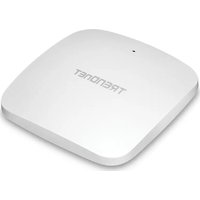
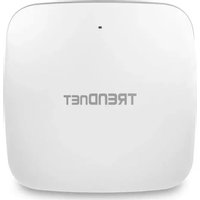
TEW-650AP - Access Point TRENDNET - Free user manual and instructions
Find the device manual for free TEW-650AP TRENDNET in PDF.


| Product Type | Wireless Access Point |
| Brand | TRENDnet |
| Model | TEW-650AP |
| Wireless Standard | IEEE 802.11b/g/n |
| Maximum Wireless Speed | 300 Mbps |
| Frequency Band | 2.4 GHz |
| Antennas | 2 x 2 dBi external antennas |
| Ports | 1 x Fast Ethernet (10/100 Mbps), PoE capable |
| Power Supply | 12V DC 1A or PoE (802.3af) |
| Power Consumption | 5.5W (max) |
| Dimensions (W x D x H) | 160 x 120 x 30 mm (6.3 x 4.7 x 1.2 in) |
| Weight | 200 g (7.1 oz) |
| Operating Modes | Access Point, Repeater, Bridge, WDS |
| Wireless Security | WEP, WPA/WPA2-PSK, WPA2-AES |
| Management | Web-based UI, SNMP, Telnet |
| Mounting | Desktop or wall mount (kit included) |
| Operating Temperature | 0°C to 40°C (32°F to 104°F) |
| Humidity | 10% to 90% (non-condensing) |
| Certifications | FCC, CE, RoHS |
| Package Contents | TEW-650AP, Power adapter, Ethernet cable, Quick installation guide, CD-ROM with manual |
| Cleaning Instructions | Wipe with a dry cloth; do not use liquid cleaners |
| Spare Parts Availability | Power adapter can be ordered separately |
Frequently Asked Questions - TEW-650AP TRENDNET
User questions about TEW-650AP TRENDNET
0 question about this device. Answer the ones you know or ask your own.
Ask a new question about this device
Download the instructions for your Access Point in PDF format for free! Find your manual TEW-650AP - TRENDNET and take your electronic device back in hand. On this page are published all the documents necessary for the use of your device. TEW-650AP by TRENDNET.
USER MANUAL TEW-650AP TRENDNET
User's Guide
TEW-650AP
1.01
Federal Communication Commission Interference Statement
This equipment has been tested and found to comply with the limits for a Class B digital device, pursuant to Part 15 of the FCC Rules. These limits are designed to provide reasonable protection against harmful interference in a residential installation. This equipment generates uses and can radiate radio frequency energy and, if not installed and used in accordance with the instructions, may cause harmful interference to radio communications. However, there is no guarantee that interference will not occur in a particular installation. If this equipment does cause harmful interference to radio or television reception, which can be determined by turning the equipment off and on, the user is encouraged to try to correct the interference by one of the following measures:
● Reorient or relocate the receiving antenna.
- Increase the separation between the equipment and receiver.
- Connect the equipment into an outlet on a circuit different from that to which the receiver is connected.
- Consult the dealer or an experienced radio/TV technician for help.
FCC Caution: Any changes or modifications not expressly approved by the party responsible for compliance could void the user's authority to operate this equipment.
This device complies with Part 15 of the FCC Rules. Operation is subject to the following two conditions: (1) This device may not cause harmful interference, and (2) this device must accept any interference received, including interference that may cause undesired operation.
IMPORTANT NOTE:
FCC Radiation Exposure Statement:
This equipment complies with FCC radiation exposure limits set forth for an uncontrolled environment. This equipment should be installed and operated with minimum distance 20cm between the radiator & your body.
This transmitter must not be co-located or operating in conjunction with any other antenna or transmitter.
The availability of some specific channels and/or operational frequency bands are country dependent and are firmware programmed at the factory to match the intended destination. The firmware setting is not accessible by the end user.
Europe – EU Declaration of Conformity
This device complies with the essential requirements of the R&TTE Directive 1999/5/EC. The following test methods have been applied in order to prove presumption of conformity with the essential requirements of the R&TTE Directive 1999/5/EC:
- EN60950-1:2006+A11:2009
Safety of Information Technology Equipment - EN50385 : (2002-08)
- Product standard to demonstrate the compliance of radio base stations and fixed terminal stations for wireless telecommunication systems with the basic restrictions or the reference levels related to human exposure to radio frequency electromagnetic fields (110MHz - 40 GHz) - General public
- EN 300 328 V1.7.1: (2006-10)
- Electromagnetic compatibility and Radio spectrum Matters (ERM); Wideband Transmission systems; Data transmission equipment operating in the 2,4 GHz ISM band and using spread spectrum modulation techniques; Harmonized EN covering essential requirements under article 3.2 of the R&TTE Directive
- EN 301 489-1 V1.8.1: (2008-04)
- Electromagnetic compatibility and Radio Spectrum Matters (ERM); ElectroMagnetic Compatibility (EMC) standard for radio equipment and services; Part 1: Common technical requirements
- EN 301 489-17 V2.1.1 (2009-05)
- Electromagnetic compatibility and Radio spectrum Matters (ERM); ElectroMagnetic Compatibility (EMC) standard for radio equipment; Part 17: Specific conditions for Broadband Data Transmission Systems
This device is a 2.4 GHz wideband transmission system (transceiver), intended for use in all EU member states and EFTA countries, except in France and Italy where restrictive use applies.
In Italy the end-user should apply for a license at the national spectrum authorities in order to obtain authorization to use the device for setting up outdoor radio links and/or for supplying public access to telecommunications and/or network services.
This device may not be used for setting up outdoor radio links in France and in some areas the RF output power may be limited to 10 mW EIRP in the frequency range of 2454 – 2483.5 MHz. For detailed information the end-user should contact the national spectrum authority in France.
CE0560!
| Cs Česky [Czech] | TRENDnet, Inc tímto prohlašuje, že tento TEW-650AP je ve shodě se základními požadavky a dalšími příslušnými ustanoveními směrnice 1999/5/ES. |
| da Dansk [Danish] | Undertegnede TRENDnet, Inc] erklærer herved, at følgende udstyr TEW-650AP overholder de væsentlige krav og øvrige relevante krav i direktiv 1999/5/EF. |
| de Deutsch [German] | Hiermit erklärt TRENDnet, Inc, dass sich das Gerät TEW-650AP in Übereinstimmung mit den grundlegenden Anforderungen und den übrigen einschlägigen Bestimmungen der Richtlinie 1999/5/EG befindet. |
| et Eesti [Estonian] | Käesolevaga kinnitab TRENDnet, Inc seadme TEW-650AP vastavust direktiivi 1999/5/EÜ põhinõuetele ja nimetatud direktiivist tulenevatele teistele asjakohastele sätetele. |
| en English | Hereby, TRENDnet, Inc, declares that this TEW-650AP is in compliance with the essential requirements and other relevant provisions of Directive 1999/5/EC. |
| es Español [Spanish] | Por medio de la presente TRENDnet, Inc declara que el TEW-650AP cumple con los requisitos esenciales y cualesquiera otras disposiciones aplicables o exigibles de la Directiva 1999/5/CE. |
| el Eλληνική [Greek] | ME THN ΠΑΡΟΥΣΑ TRENDnet, Inc ΔΗΛΩΝΕΙ OTI TEW-650AP ΣΥΜΜΟΡΦΩΝΕΤΑΙ ΠΡΟΣ ΤΙΣ ΟΥΣΙΩΔΕΙΣ ΑΠΑΙΤΗΣΕΙΣ ΚΑΙ ΤΙΣ ΛΟΙΠΙΕΣ ΣΧΕΤΙΚΕΣ ΔΙΑΤΑΞΕΙΣ ΤΗΣ ΟΔΗΓΙΑΣ 1999/5/EK. |
| fr Français [French] | Par la présente TRENDnet, Inc déclare que l'appareil TEW-650AP est conforme aux exigences essentielles et aux autres dispositions pertinentes de la directive 1999/5/CE. |
| it Italiano [Italian] | Con la presente TRENDnet, Inc dichiara che questo TEW-650AP è conforme ai requisiti essenziali ed alle altre disposizioni pertinenti stabilite dalla direttiva 1999/5/CE. |
| Latviski [Latvian] | Ar šo TRENDnet, Inc deklarē, ka TEW-650AP atbilst Direktīvas 1999/5/EK būtiskajām prasībām un citiem ar to saistītajiem noteikumiem. |
| Lietuvių [Lithuanian] | Šiuo TRENDnet, Inc deklaruoja, kad šis TEW-650AP atitinka esminius reikalavimus ir kitas 1999/5/EB Direktyvos nuostatas. |
| nl Nederlands [Dutch] | Hierbij verklaart TRENDnet, Inc dat het toestel TEW-650AP in overeenstemming is met de essentiële eisen en de andere relevante bepalingen van richtlijn 1999/5/EG. |
| nt Malti [Maltesc] | Hawnheckk, TRENDnet, Inc, jiddikjara li dan TEW-650AP jikkonforma mal-ħtiġijict essenzjali u ma provvedimenti oħrajn relevanti li hemm fid-Dirrettiva 1999/5/EC. |
| hu Magyar [Hungarian] | Alulírott, TRENDnet, Inc nyilatkozom, hogy a TEW-650AP megfelel a vonatkozó alapvetõ követelményeknek és az 1999/5/EC irányelv egyéb előírásainak. |
| pl Polski [Polish] | Niniejszym TRENDnet, Inc oświadcza, že TEW-650AP jest zgodny z zasadniczymi wymogami oraz pozostałymi stosownymi postanowieniami Dyrektywy 1999/5/EC. |
| nt Português [Portuguese] | TRENDnet, Inc declara que este TEW-650AP está conforme com os requisitos essenciais e outras disposições da Directiva 1999/5/CE. |
| sl Slovensko [Slovenian] | TRENDnet, Inc izjavlja, da je ta TEW-650AP v skladu z bistvenimi zahtevami in ostalimi relevantnimi določili direktive 1999/5/ES. |
| Slovensky [Slovak] | TRENDnet, Inc týmto vyhlasuje, že TEW-650AP spĺňa základné požiadavky a všetky príslušné ustanovenia Smernice 1999/5/ES. |
| fi Suomi [Finnish] | TRENDnet, Inc vakuuttaa täten että TEW-650AP tyyppinen laite on direktiivin 1999/5/EY oleellisten vaatimusten ja sitä koskevien direktiivin muiden ehtojen mukainen. |
| Svenska [Swedish] | Härmed intygar TRENDnet, Inc att denna TEW-650AP står I överensstämmelse med de väsentliga egenskapskrav och övriga relevanta bestämmelser som framgår av direktiv 1999/5/EG. |
Contents
Package Contents 7
Minimum System Requirements....7
Introduction......8
Features 8
Hardware Overview 9
Installation Considerations....11
Getting Started 12
Access Point Mode.... 14
AP Client Mode....19
Using the Configuration Menu 24
Operation Mode Setting 25
Access Point....25
AP Client 26
Network LAN Setting 27
LAN Connection Type 27
Wireless 27
Wireless Basic - Access Point 28
Wireless Advanced....33
Wireless MAC Filter 34
Wireless Security 35
Wireless WPS....36
Wireless Station List 37
Wireless Basic – AP Client 38
Wireless settings.... 39
Profile....39
Site Survey 40
Statistics 41
Advance Setting 41
QoS 43
WPS 44
Administrator 45
System Management 45
Upload Firmware 46
Settings Management....46
Status 47
Glossary 48
Specifications....58
Limited Warranty 59
Package Contents
- TEW-650AP wireless n AP
- CAT-5 Ethernet Cable (the TEW-650AP's Ethernet ports is Auto-MDIX)
● Power Adapter (12.0V, 0.5A) - CD-ROM with Manual & Wizard
- Quick Installation Guide

Using a power supply with a different voltage than the one included with your product will cause damage and void the warranty for this product.
Minimum System Requirements
Installation Requirements
- Web Browser: Internet Explorer (6 or higher) Mozilla or Safari.
- A computer with a network adapter or wireless adapter properly installed.
- CD-ROM drive
- A router with an available network LAN port.
• A RJ-45 network cable.
Introduction
The 150Mbps Wireless N Access Point, model TEW-650AP, is designed to create a scalable high speed wireless n network or connect a wired device to an existing wireless network. Use multiple 150Mbps Wireless N Access Points together to expand your network using Access Point, Wireless Distribution System (WDS), Repeater, and AP Client modes.
Expand a wireless network without new cabling by connecting multiple access points wirelessly with Wireless Distribution Service (WDS) technology. Use AP Client mode to connect devices such as game consoles, computers, and digital video recorders (DVR) to your wireless network. Advanced encryption protects valuable data and WMM® Quality of Service (QoS) technology prioritizes video and audio packets. Create up to four separate wireless networks (SSIDs) with their own respective security and access thresholds. A convenient on/off power switch protects the access point when powering down.
FEATURES
- Compact high performance wireless n access point
• 1 x 10/100Mbps Auto-MDIX LAN port - 1 x detachable antenna
- WPS button
- On/off power switch
• High-speed data rates of up to 150Mbps with IEEE 802.11n*
• Functions in Access Point or Access Point (AP) Client (wireless adapter) mode - In Access Point mode: expand a wireless network using Repeater mode (listed as AP Mode Support) or Wireless Distribution System (WDS)
• Wireless Distribution System (WDS) mode for wireless bridging applications - Based on IEEE 802.11n (draft 2.0) technology and compliant with IEEE 802.11b/g standards
• Wi-Fi Protected Setup (WPS) connects wireless clients at the push of a button
• Wi-Fi Multimedia (WMM) Quality of Service (QoS) supported
• MAC filter feature for added security (AP mode) - Broadcast up to 4 SSIDs with different wireless encryption
• Supports 64/128-bit WEP, WPA/WPA2-RADIUS (AP mode only) and WPA/WPA2-PSK
• Quick and easy setup wizard supports Windows 7/Vista/XP Operating Systems - Indoor coverage up to 100 meters (328ft.)*
- Outdoor coverage up to 300 meters (984ft.)*
• 3-year limited warranty
HARDWARE OVERVIEW
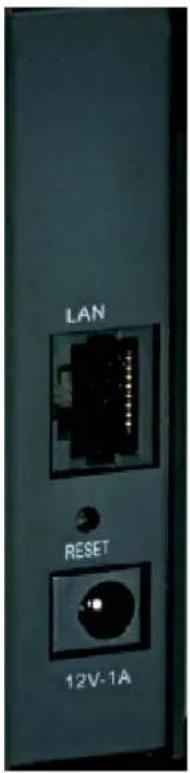
| Rear View | Auto MDI/MDIX 10/100Mbps LAN PortsThis port automatically senses the cable type when connecting to Router. |
| Reset ButtonPressing the reset button restores the AP to its original factory default settings. | |
| Power Switch (EU version)On/off Switch | |
| DC-INThe DC power input connector is a single jack socket to supply power to the TEW-650AP. Please use the Power Adapter provided on the TEW-650AP package. |
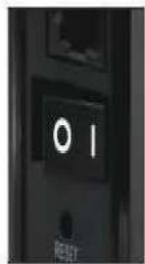
Power Switch
EU Version
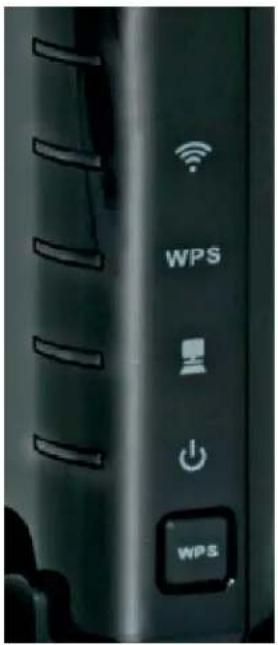
| Front View | WLAN LEDA solid light indicates that the wireless segment is ready. This LED blinks green during wireless data transmission. |
| WPS LEDThis LED blinks green during WPS function is enabled. | |
| LAN LEDA solid light indicates a connection to a Router on the LAN port. This LED blinks green during data transmission | |
| POWER LEDA solid green light indicates a proper connection to the power supply | |
| WPS ButtonPress the button to enable WPS function. |
INSTALLATION CONSIDERATIONS
There are a number of factors that can impact the range of wireless devices.
- Adjust your wireless devices so that the signal is traveling in a straight path, rather than at an angle. The more material the signal has to pass through the more signal you will lose.
- Keep the number of obstructions to a minimum. Each obstruction can reduce the range of a wireless device. Position the wireless devices in a manner that will minimize the amount of obstructions between them.
- Building materials can have a large impact on your wireless signal. In an indoor environment, try to position the wireless devices so that the signal passes through less dense material such as dry wall. Dense materials like metal, solid wood, glass or even furniture may block or degrade the signal.
- Antenna orientation can also have a large impact on your wireless signal. Use the wireless adapter's site survey tool to determine the best antenna orientation for your wireless devices.
- Interference from devices that produce RF (radio frequency) noise can also impact your signal. Position your wireless devices away from anything that generates RF noise, such as microwaves, radios and baby monitors.
- Any device operating on the 2.4GHz frequency will cause interference. Devices such as 2.4GHz cordless phones or other wireless remotes operating on the 2.4GHz frequency can potentially drop the wireless signal. Although the phone may not be in use, the base can still transmit wireless signal. Move the phone's base station as far away as possible from your wireless devices.
If you are still experiencing low or no signal consider repositioning the wireless devices or installing additional access points. The use of higher gain antennas may also provide the necessary coverage depending on the environment.
Getting Started
For a typical wireless setup at home or office, please do the following:
- Insert Setup Wizard CD into your CD-ROM drive.
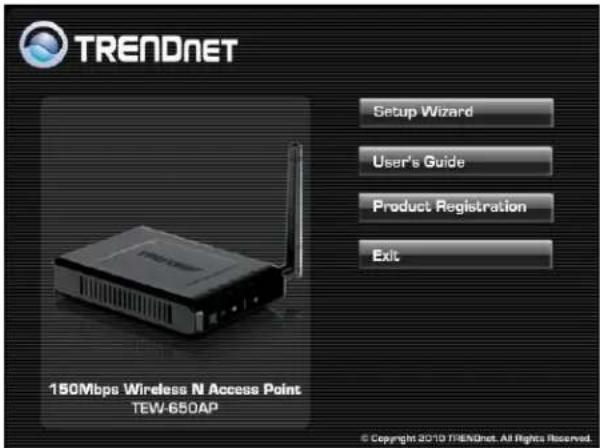
- The Welcome screen appears on your monitor. Click Setup Wizard button.
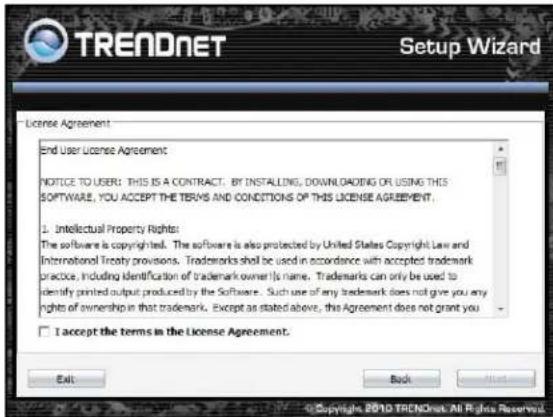
- Read the License Agreement and click Next to continue the installation.
- Connect an Ethernet cable from the LAN port on your Router to the LAN port on the TEW-650AP, click Next button to continue.
![TRENDNET Setup Wizard 150Mbps Wireless N Access Point [TEW-650AP] LAN Connect an Ethernet cable from the LAN port on your Router to the LAN port on the TEW-650AP 4-Port Router Exit Back Next Copyright 2010 TRENDNET All Rights Reserved](/content/2026/05/819393/images/331911ba4b15677288aae757f0f607619386dc3c73a58931bb85882f862ee1e3.jpg)
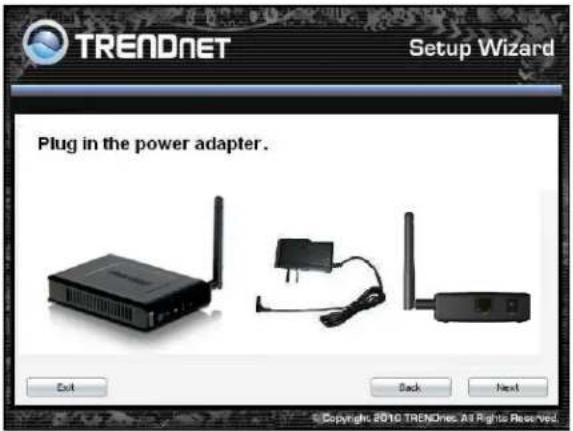
- Plug in the power adapter of the TEW-650AP and plug in the device that you will be connecting together. Verify the Power & Ethernet LEDs are light. EU Version please make sure the power switch is on the On position
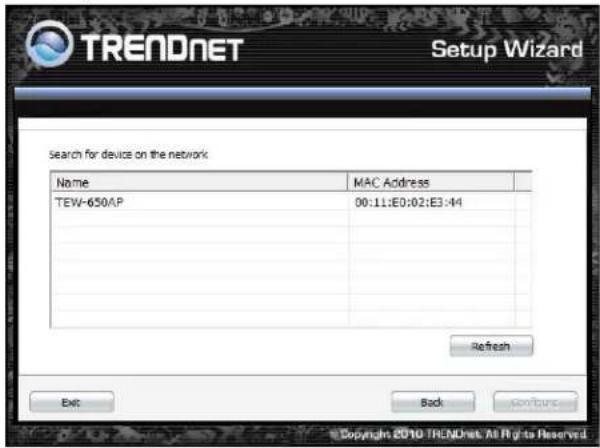
- Your computer will detect TEW-650AP and the Device List screen appears on your monitor. Click Configure button to continue (default TEW-650AP IP Address is 192.168.10.100).
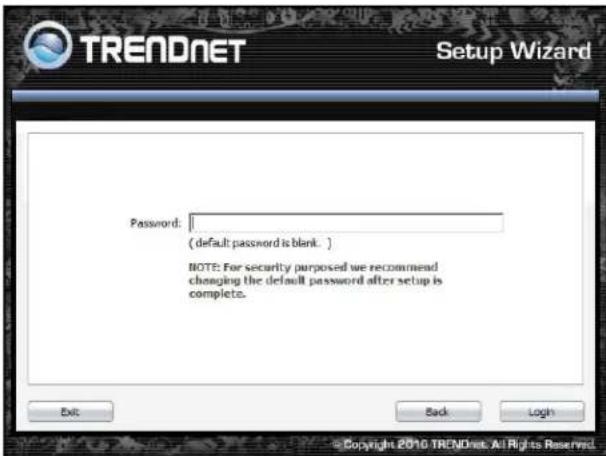
- Enter password for the Access Point. The default password is "admin". Click Login button to continue.
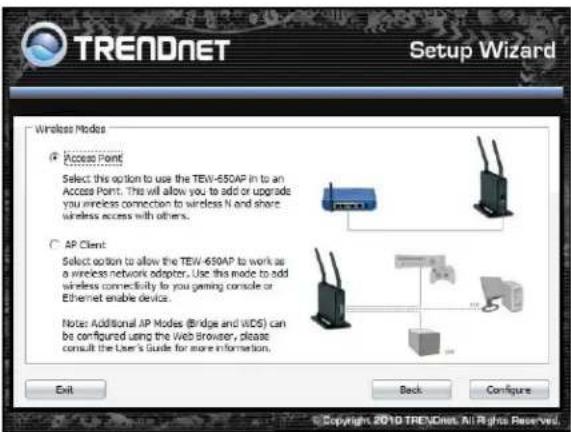
ACCESS POINT MODE
- To setup TEW-650AP or add/connect your wireless client to this AP, please select "Access Point" and click Next to continue
- To attain an IP address automatically, you can select "Dynamic IP address configuration"; to change IP address, you can select "Static IP address configuration" and click Next button to continue.
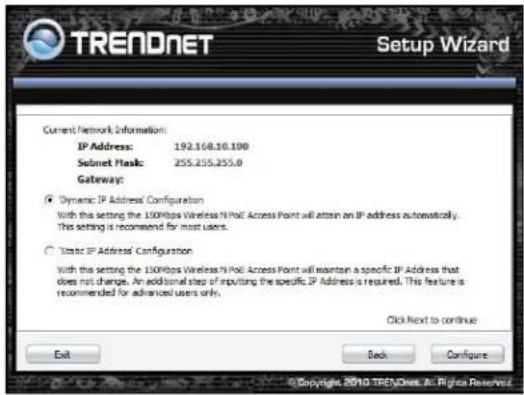
- The default IP address is 192.168.10.100, you can choose to obtain network setting automatically, or set the IP address manually. After setting, click Next to continue.

- Select Wi-Fi Protected Setup to connect your wireless client device to this AP, and click Next button.
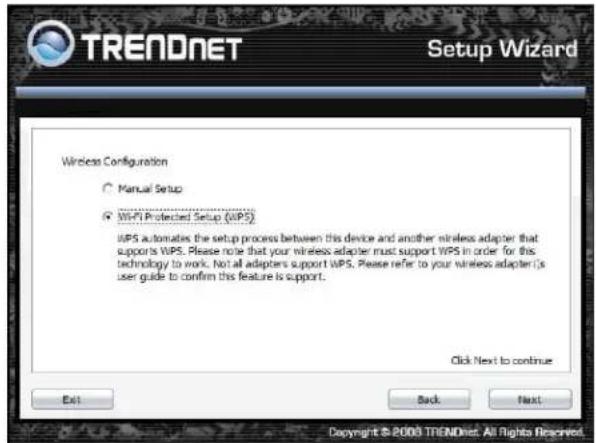
- Use Push Button Method, click Connect button to continue. You also need to enable WPS function of the wireless client device to make connection.
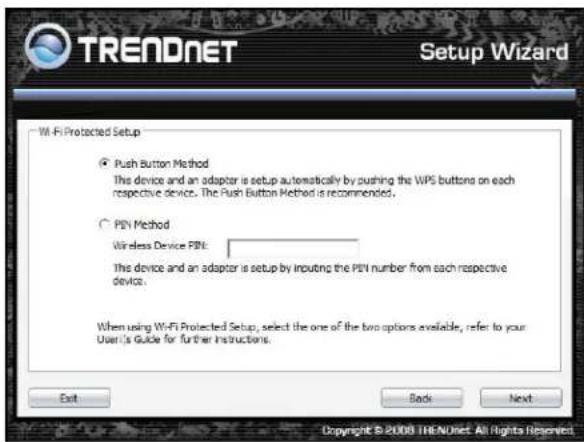
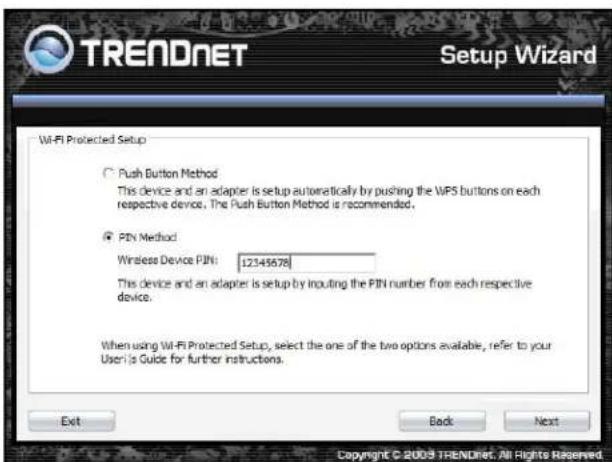
- Use PIN Method and enter your wireless client PIN number on Wireless Device PIN, and then click Connect button to make wireless connection.
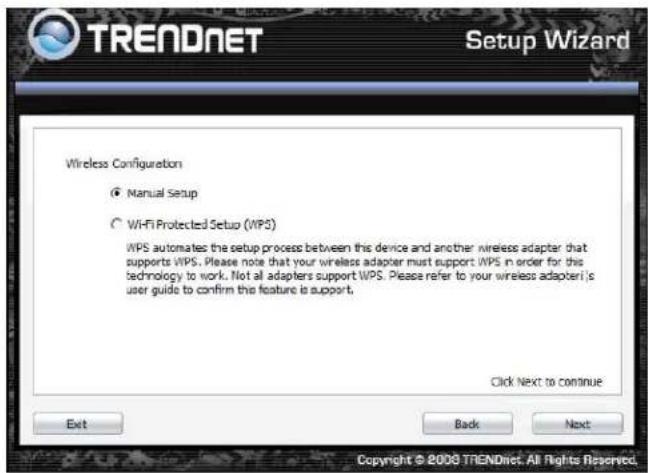
- To set TEW-650AP security, select Manual setup and click Next button
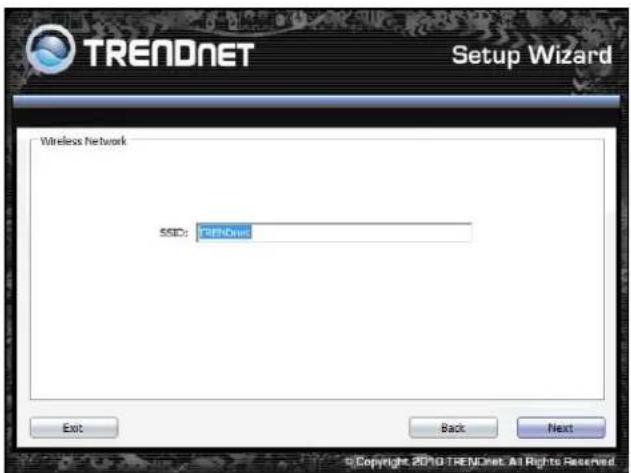
- Enter SSID of TEW-650AP, click Next button.
- Choice Wireless Mode.
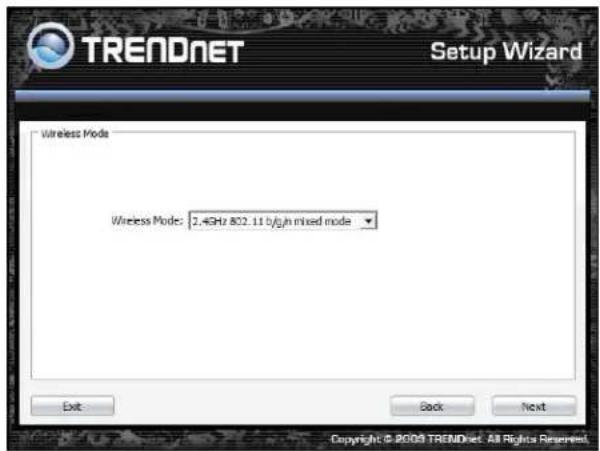
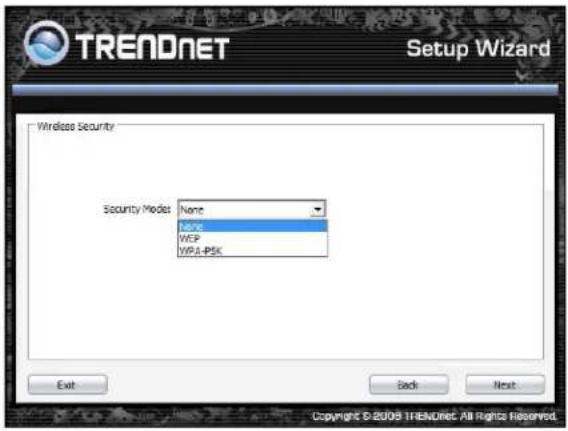
- To disable Security Mode, select None and click Next button.
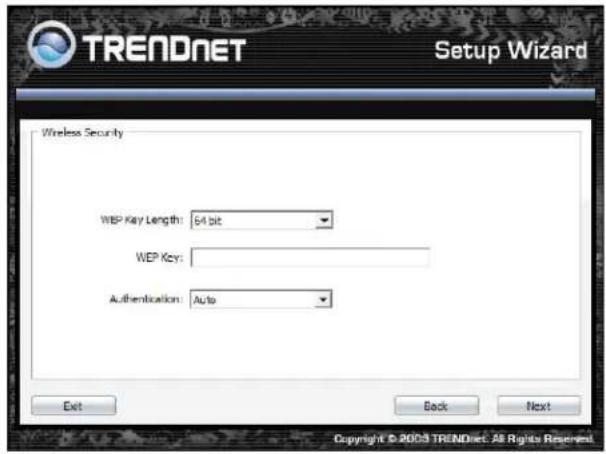
- To use WEP security, select WEP and click Next button. Select 64-bit or 128-bit WEP key length, and enter your WEP key. For 64-bit encryption, enter 10 hexadecimal characters, For 128-bit encryption, enter 26 hexadecimal characters. Click Next to continue the setting.
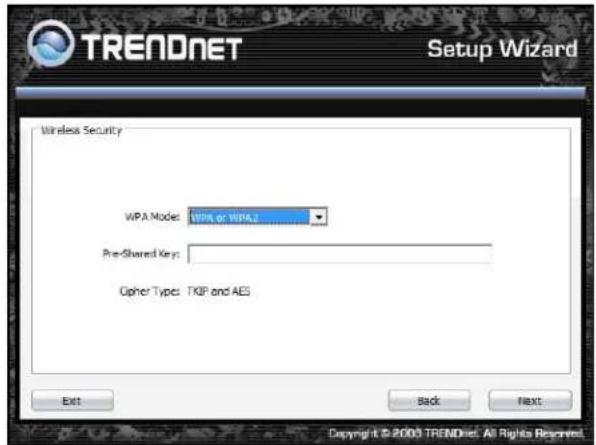
- To use WPA or WPA2 security, select WPA or WPA2 and click Next button. Select WPA Mode: WPA Only, WPA2 Only, WPA or WPA2, and set Pre-Shared Key by entering 8 \~ 63 characters. Click Next to continue the setting.
- Confirm your new settings. It is recommended that you save or print your wireless settings with the Save or Print buttons. Once finished, click Configure to continue.
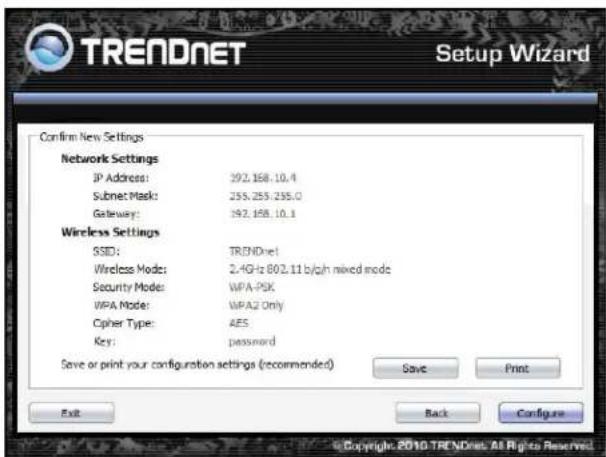
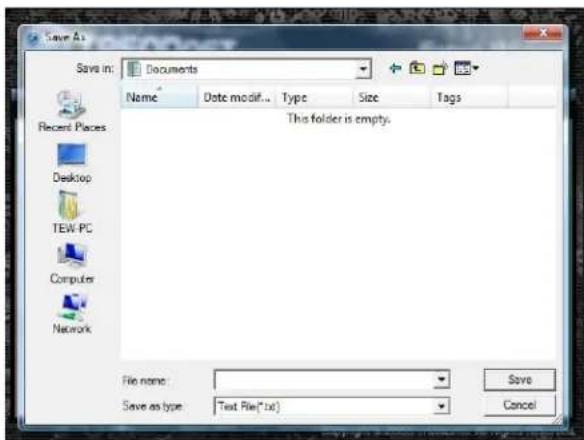
- Save you setting to a text file in a desired location.
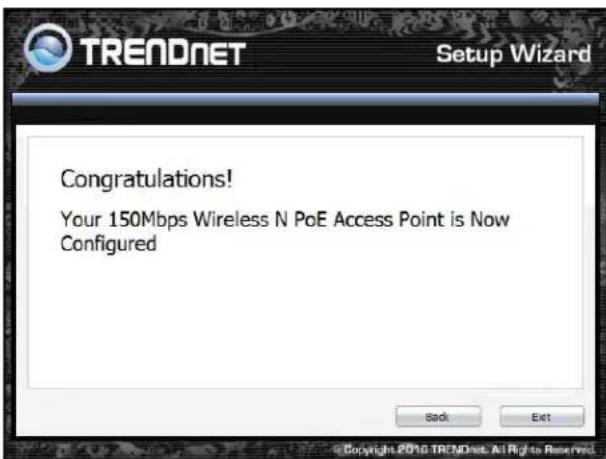
- Congratulations you have configured you TEW-650AP.
AP CLIENT MODE
For a typical wireless setup at home, please do the following:
- Insert Setup Wizard CD into your CD-ROM drive.
- The Welcome screen appears on your monitor. Click Setup Wizard button.
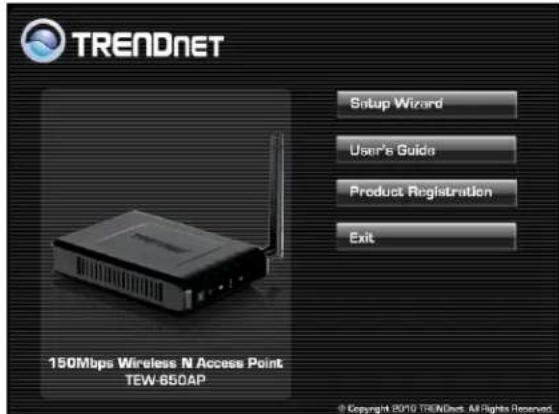
- Read the License Agreement and click Next to continue the installation.
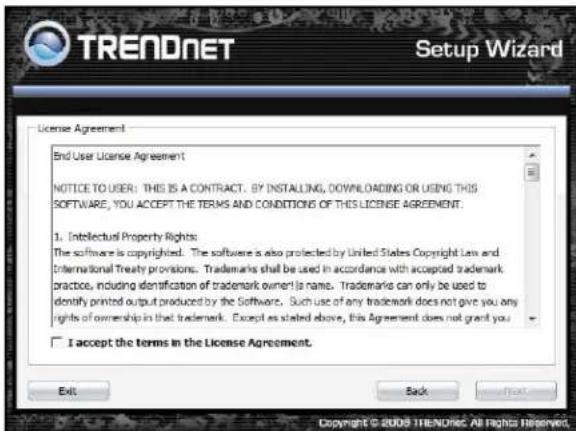
- Connect an Ethernet cable from the LAN port on your Router to the LAN port on the TEW-650AP, click Next button to continue.
![TRENDNET Setup Wizard 150Mbps Wireless N Access Point [TEW-850AP] LAN Connect an Ethernet cable from the LAN port on your Router to the LAN port on the TEW-850AP 4-Port Router Exit Back Next © Copyright 2010 TRENDNET All Rights Reserved](/content/2026/05/819393/images/c8b965795019ae85067e934794e6a8dbe43f1b4c3b790bcba7d6d7a2752a692a.jpg)
- Plug in the power adapter of the TEW-650AP and plug in the device that you will be connecting together. Verify the Power & Ethernet LEDs are light. EU Version please make sure the power switch is on the On position
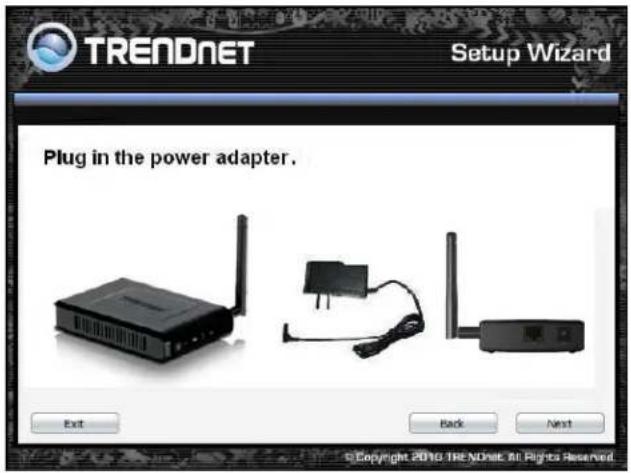
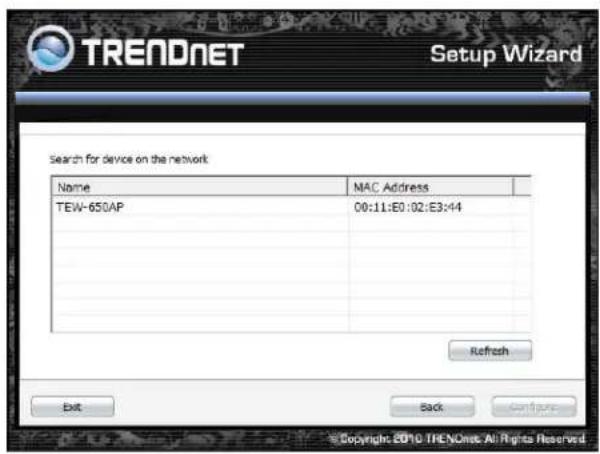
- Your computer will detect TEW-650AP and the Device List screen appears on your monitor. Click Configure button to continue (default TEW-650AP IP Address is 192.168.10.100).
- Enter password for the Access Point. The default password is "admin". Click Login button to continue.

- Select "AP Client" option to allow the TEW-650AP to work as a wireless network adapter. Click Next button to continue.
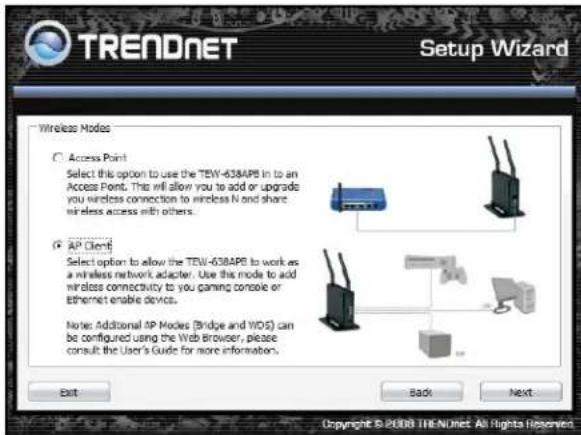
- Press Refresh and select the Access Point you would like to connect and click Connect.
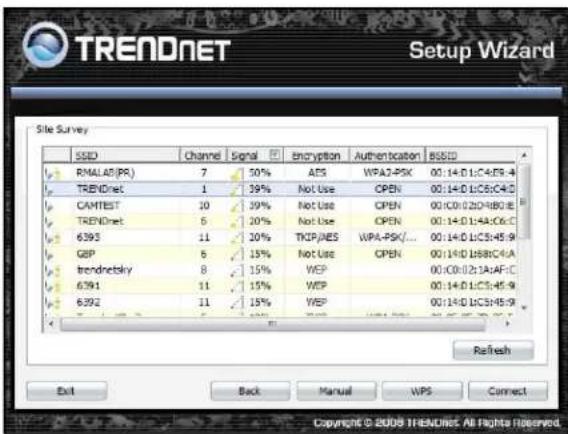
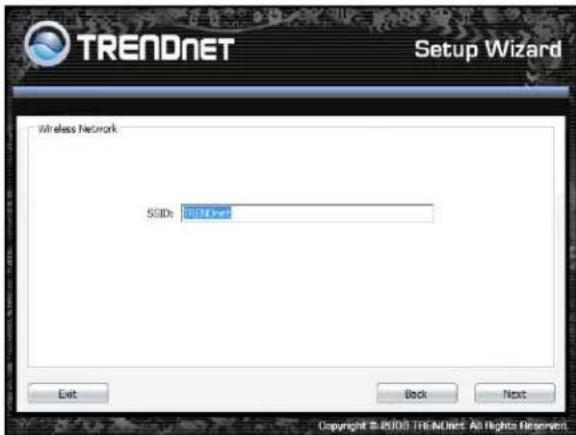
- Verify the SSID selected is correct and click Next
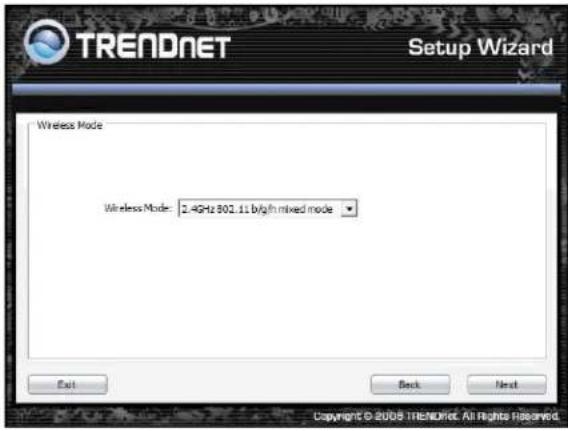
- Select the 802.11 mode you would like to connect with and click Next.
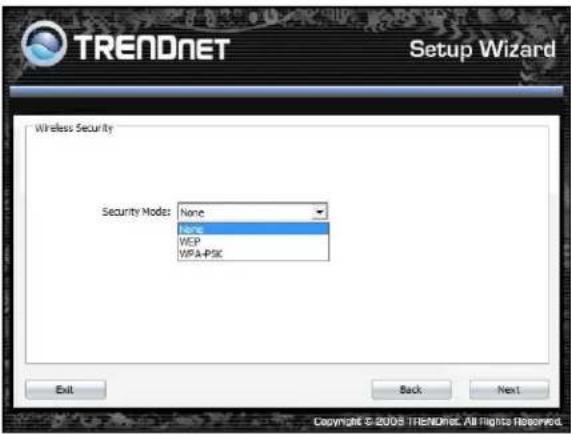
- Select the wireless encryption set on the access point you are connecting to.
- Confirm your new settings. It is recommended that you save or print your wireless settings with the Save or Print buttons. Once finished, click Continue to continue.
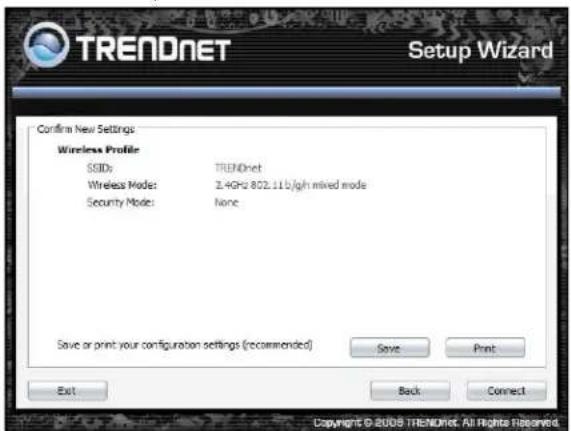
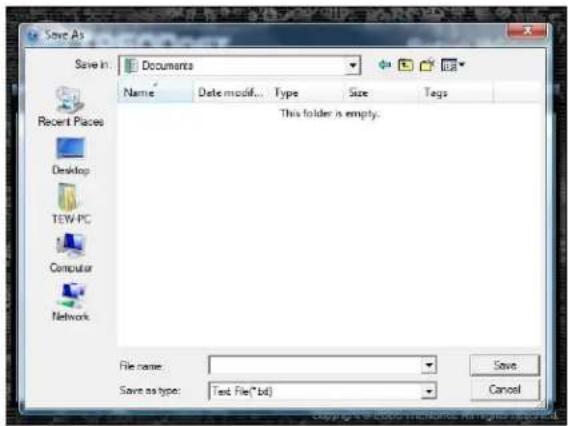
- You can also save your setting to a text file in a desired location.
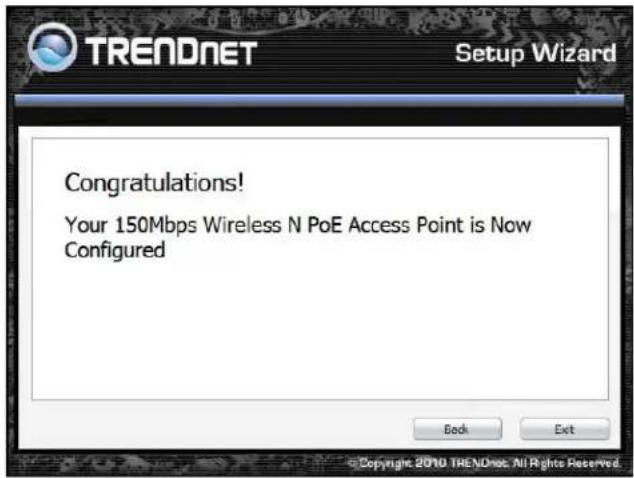
- Congratulations you have configured you TEW-650AP.
Using the Configuration Menu
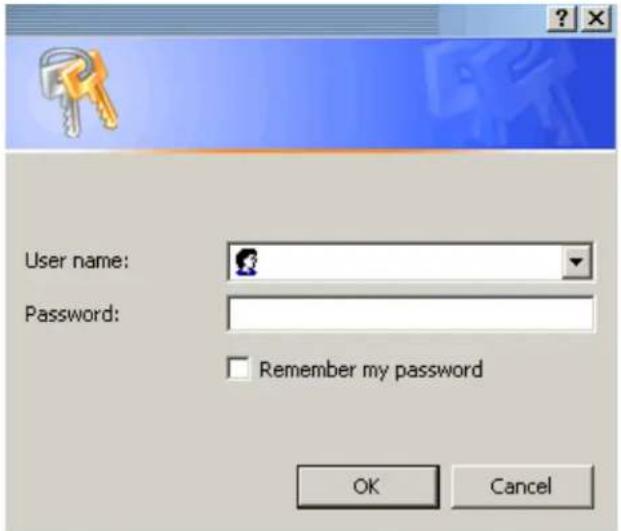
Whenever you want to configure your TEW-650AP, you can access the Configuration Menu by opening the Web-browser and typing in the IP Address of the TEW-650AP.
▶ Open the Web browser.
Type in the current IP Address of the AP (i.e. http://192.168.10.100).

NOTE
If you have changed the default IP Address assigned to the TEW-650AP (192.168.10.100), make sure to enter the correct IP Address.
Type admin in the User Name field.
The Password is admin.
Click Login In.
Access Point
This mode setting allows the TEW-650AP to work as an Access Point. This will allow for wireless connectivity from this device to other wireless clients. This mode also includes the use of the AP mode to connect Local Area Networks (LAN) together (Point to Point bridging) and extend the wireless coverage with Wireless Distribution System (WDS).
![graph TD subgraph Access Point Mode A["Internet"] --> B["Cable/DSL Modem"] B --> C["4-Port Gigabit Firewall Router (TWG-BRF114)"] D["LAN A"] --> C C --> E["Router"] E --> F["Workstation with Wireless N USB Adapter"] G["Notebook with Wireless N PC Card"] --> H["Computer"] I["AP Mode Support (Repeat)"…](/content/2026/05/819393/images/4aacf9424e26d7de13c2a60d07ac547db38ca012f3d417d477a4b26a1df6fb3f.jpg)
![graph LR A["Cable/DSL Modem"] --> B["4-Port Gigabit Firewall Router (TWG-BRF114)"] B --> C["Bridge Mode"] C --> D["8-Port 10/100Mbps Switch (TE100-S8)"] E["Internet"] --> B F["LAN A"] --> B G["LAN B"] --> D](/content/2026/05/819393/images/fbdbe3538f23fc8f6619250b748b6f3b079fe6893edbe67bebfd9815fd6f3a4b.jpg)
AP WDS Mode (Point to Point)
![graph TD A["Internet"] --> B["Cable/DGL Modem"] B --> C["4-Port Gigabit Firewall Router (TWG-BRF114)"] C --> D["LAN A"] C --> E["LAN B"] C --> F["LAN C"] D --> G["LAN 1"] E --> H["LAN 2"] F --> I["LAN 3"]](/content/2026/05/819393/images/2d11d83594254e5b6aab31d232453e3a334a417180db44851fee0b5e6e3fb055.jpg)
AP WDS Mode (multi point)
AP Client
This mode setting allows the TEW-650AP to work just like a wireless adapter. By using AP Client mode, the TEW-650AP can connect to any device that has an Ethernet port (RJ-45 connector) and support for TCP/IP protocol. Devices like Network storage, network enable printers, and gaming consoles can now be wirelessly enable by connect the TEW-650AP in the AP Client mode.
![graph LR A["Cable/DSL Modem"] --> B["Wireless N Router"] B --> C["AP Client"] C --> D["Game Console"] C --> E["Workstation"] C --> F["2-Bay SATA I/II Network Storage Enclosure (TS-S402)"] style A fill:#f9f,stroke:#333 style B fill:#ccf,stroke:#333 style C fill:#cfc,stroke:#333 style D fill:#fcc,stro…](/content/2026/05/819393/images/d7cfd6f09374df3b24d79b134254fdd5324a449f15f8c872389eb06d6bde664d.jpg)
After selecting the operation mode click on Apply to save the setting at the bottom of the window.
NETWORK LAN SETTING
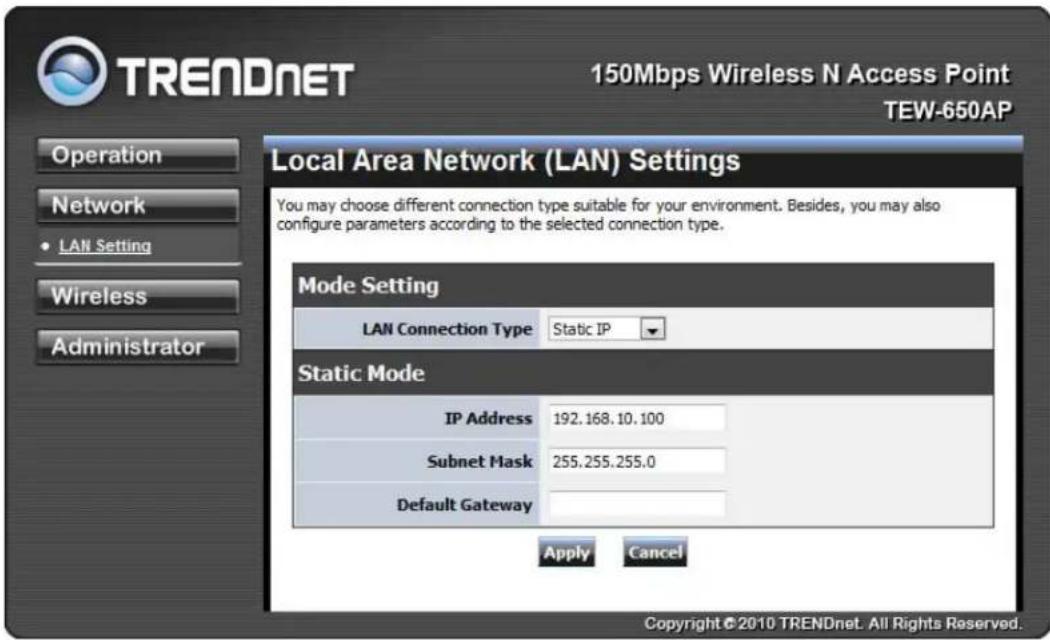
These are the settings of the LAN (Local Area Network) interface for the Access Point. The Access Point's local network (LAN) settings are configured based on the IP Address and Subnet Mask assigned in this section. The IP address is also used to access this Web-based management interface.
LAN Connection Type
Choose "Static IP (fixed IP)" if your router does not support DHCP or if for any other reason you need to assign a fixed address to the AP. In this case, you must also configure the following fields.
IP Address
The IP address of the AP on the local area network. Assign any unused IP address in the range of IP addresses available for the LAN. For example, 192.168.10.100.
Subnet Mask
The subnet mask of the local area network.
Default Gateway
The IP address of the router on the local area network.
Choose "DHCP (Auto Config)" if your router supports DHCP and you want the router to assign an IP address to the AP.
WIRELESS
The wireless section is used to configure the wireless settings for your Access Point. Note that changes made in this section may also need to be duplicated on wireless clients that you want to connect to your wireless network.
To protect your privacy, use the wireless security mode to configure the wireless security features.
The Wireless tab provides the following configuration options: Basic, Advanced, MAC Filter, Security, WPS and Station List.
Wireless Basic - Access Point
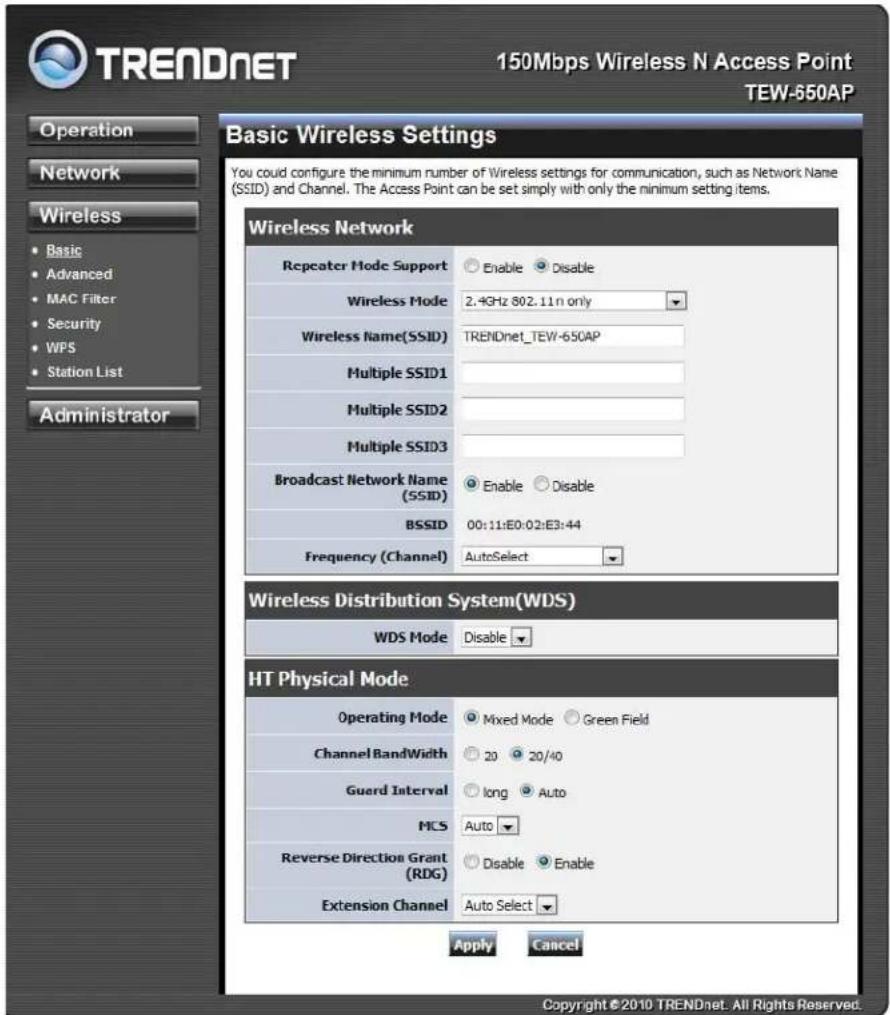
AP Mode Support
AP Mode Support allows you to "repeat" a wireless signal from an existing access point.
Select the radio button to enable or disable "AP Mode Support". When enabled you have the option of defining the specific access point to repeat off of by entering in the remote access points or wireless router's wireless MAC address into the "AP MAC Addr. (Optional)" field. You must also configure the TEW-638AP with the same SSID, channel and wireless encryption settings of the remote access point.
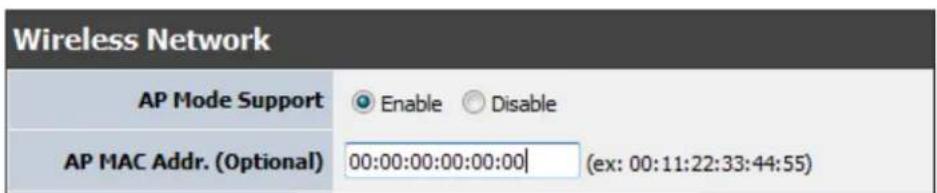
AP Mode Support enabled
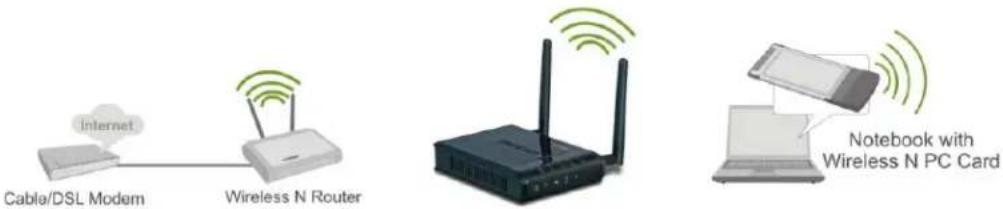
Wireless Mode
If all of the wireless devices you want to connect with this Access Point can connect in the same transmission mode, you can improve performance slightly by choosing the appropriate "Only" mode. If you have some devices that use a different transmission mode, choose the appropriate "Mixed" mode.
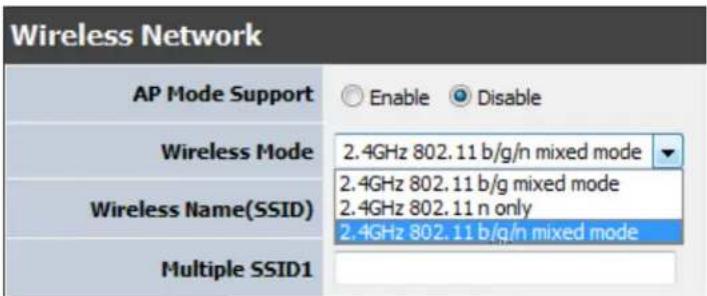
Wireless Modes
802.11b/g mixed mode (2.4GHz) - This wireless mode works in the 2.4GHz frequency range and will allow both wireless b and wireless g client to connect and access the TEW-650AP at 11Mbps for wireless b, at 54Mbps for wireless g and share access at the same time. Although the wireless b/g operates in the 2.4GHz frequency, it will allow the use of other 2.4GHz client devices (Wireless n/g @ 54Mbps) to connect and access at the same time.
802.11n only (2.4GHz) - This wireless mode works in the 2.4GHz frequency range and will only allow the use of wireless n client devices to connect and access the TEW-650AP up to 300Mbps*. Although the wireless n operates in the 2.4GHz frequency, this mode will only permit wireless n client devices to work and will exclude any other wireless mode and devices that are not wireless n only.
802.11b/g/n mixed mode (2.4GHz) - This wireless mode works in the 2.4GHz frequency range and will only allow the use of wireless g client devices to connect and access the TEW-650AP at 11Mbps for wireless b, 54Mbps for wireless g and up to 300Mbps* for wireless n and share access at the same time. Although the wireless b/g/n operates in the same 2.4GHz frequency, it will allow the use of other 2.4GHz client devices (Wireless b/g/n) to connect and access at the same time.
Wireless Name (SSID)
When you are browsing for available wireless networks, this is the name that will appear in the list (unless Broadcast Network Name is set to Disable, see below). This name is also referred to as the SSID. For security purposes, it is highly recommended to change from the pre-configured network name. Add up to three additional SSIDs to create virtual wireless networks from one wireless Access Point.
Multiple SSID #
This Access Point support multiple SSID function, you can assign three more SSID for the TEW-650AP. Create virtual SSID wireless networks (WLAN) with different type of wireless security for each virtual WLAN that is created. When using the wireless adapter wireless site survey tool, there will be additional wireless network to connect with once the feature is enabled.
![graph LR A["Cable/DSL Modem"] --> B["4-Port Gigabit Firewall Router (TWG-BRF114)"] B --> C["Router"] C --> D["Virtual SSID WLAN 1"] C --> E["Virtual SSID WLAN 2"] C --> F["Virtual SSID WLAN 3"] C --> G["Notebook with Wireless N PC Card"] H["Internet"] --> B](/content/2026/05/819393/images/530932e0e6738a5b3bf9818a9a29fce2dbd2b309930395bcfea5a6358a2326a8.jpg)
Multiple SSID (Virtual WLANs)
Add Additional Wireless Network Name (SSID)
To add additional Wireless Network Names simply add the name to the Multiple SSID field and click on apply at the bottom of the page. When finished, go to the Security section in this Users Guide for wireless security configuration.
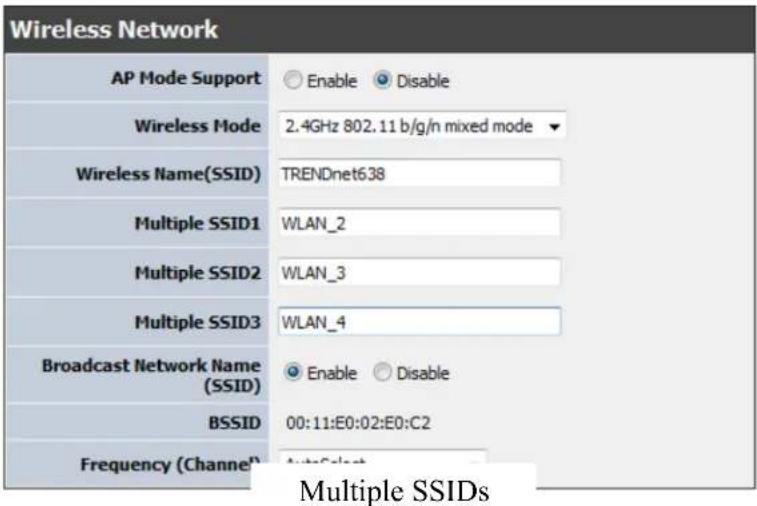
Broadcast Network Name (SSID)
This option allows you to hide your wireless network. When this option is set to enable, your wireless network name is broadcast to anyone within the range of your signal. If you're not using encryption then they could connect to your network. When this mode is disabled, you must enter the Wireless Network Name (SSID) on the client manually to connect to the network.
Frequency (Channel)
A wireless network uses specific channels in the wireless spectrum to handle communication between clients. Some channels in your area may have interference from other electronic devices. Choose the clearest channel to help optimize the performance and coverage of your wireless network.
WDS Mode
When WDS is enabled, this access point functions as a wireless bridge and is able to wirelessly communicate with other access points via WDS links. A WDS link is bidirectional; both end points must support WDS and each access point must know the MAC Address of the other. Each access point will be configured with the remote access point's MAC address and vice versa. Make sure all access points are configured with the same SSID, channel and wireless encryption settings.
![graph TD A["Internet Cable/DSL Modern"] --> B["4-Port Gigabit Firewall Router (TWG-BRF114)"] B --> C["LAN 1"] B --> D["LAN 2"] B --> E["LAN 3"] C --> F["Wireless Device"] D --> G["Wireless Device"] E --> H["Wireless Device"]](/content/2026/05/819393/images/aaff24b94c7f0c30cfcc9bd3336917f7692fb7ff2640af7771f7d428f2708342.jpg)
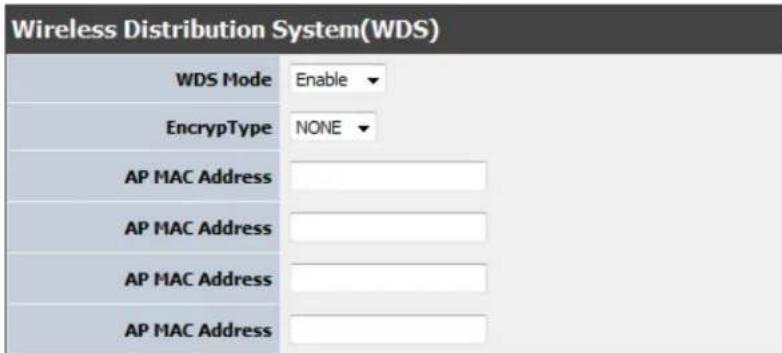
WDS configuration option enabled
Operating Mode
If you have both wireless g and wireless n client devices included on your wireless network at the same time, you should choose Mixed Mode. And if you only have wireless n client devices on your wireless network, you can choose Green Field to enjoy high throughput.
Channel Bandwidth
The "20/40" MHz option is usually best. The other option is available for special circumstances.
Guard Interval
Using "Auto" option can increase throughput. However, it can also increase error rate in some installations, due to increased sensitivity to radio-frequency reflections. Select the option that works best for your installation.
MCS
The Modulation and Coding Scheme (MCS) is a value that determines the modulation, coding and number of spatial channels. This parameter represents transmission rate. By default (Auto) the fastest possible transmission rate will be selected. You have the option of selecting the speed if necessary.
Fix MCS rate for HT rate 0-15
Reserve Direction Grant (RDG)
Disable or enable reserve direction grant. Default is enabled.
Extension Channel
When 20/40 channel bandwidth has been chosen, you should select extension channel to get higher throughput.
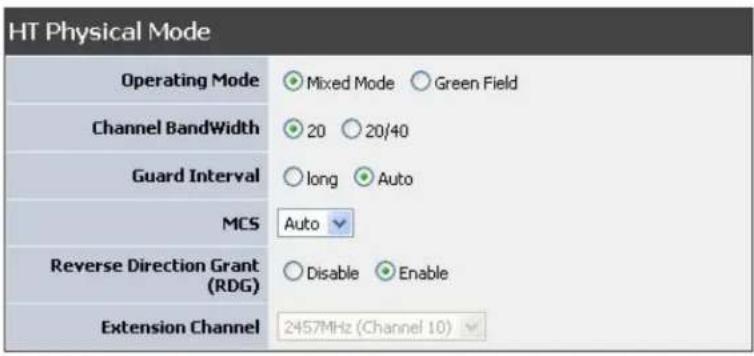
Wireless Advanced
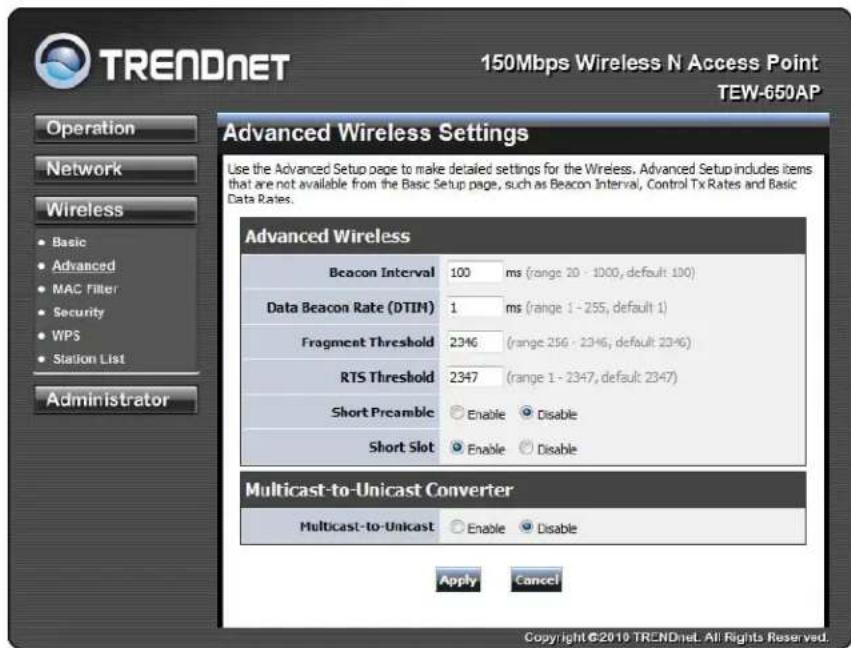
Beacon Interval
Beacons are packets sent by a wireless Access Point to synchronize wireless devices. Specify a Beacon Period value between 20 and 1000. The default value is set to 100 milliseconds.
Data Beacon Rate (DTI M)
A DTIM is a countdown informing clients of the next window for listening to broadcast and multicast messages. When the wireless Access Point has buffered broadcast or multicast messages for associated clients, it sends the next DTIM with a DTIM Interval value. Wireless clients detect the beacons and awaken to receive the broadcast and multicast messages. The default value is 1. Valid settings are between 1 and 255.
Fragment Threshold
This setting should remain at its default value of 2346. Setting the Fragmentation value too low may result in poor performance.
RTS Threshold
This setting should remain at its default value of 2347. If you encounter inconsistent data flow, only minor modifications to the value are recommended.
Short Preamble
Use to synchronize communication timing between devices on a network. Disable by default.
Short Slot
Enable or disable short slot. Default is enabled.
Tx Burst
Enable or disable Tx burst. Default is enabled.
Pkt_Aggregate
Enable or disable Pkt aggregate. Default is enabled.
*Maximum wireless signal rates are referenced from IEEE 802.11 theoretical specifications. Actual data throughput and coverage will vary depending on interference, network traffic, building materials and other conditions
Wireless MAC Filter
The MAC address filter section can be used to filter network access by machines based on the unique MAC addresses of their network adapter(s). It is most useful to prevent unauthorized wireless devices from connecting to your network. A MAC address is a unique ID assigned by the manufacturer of the network adapter.
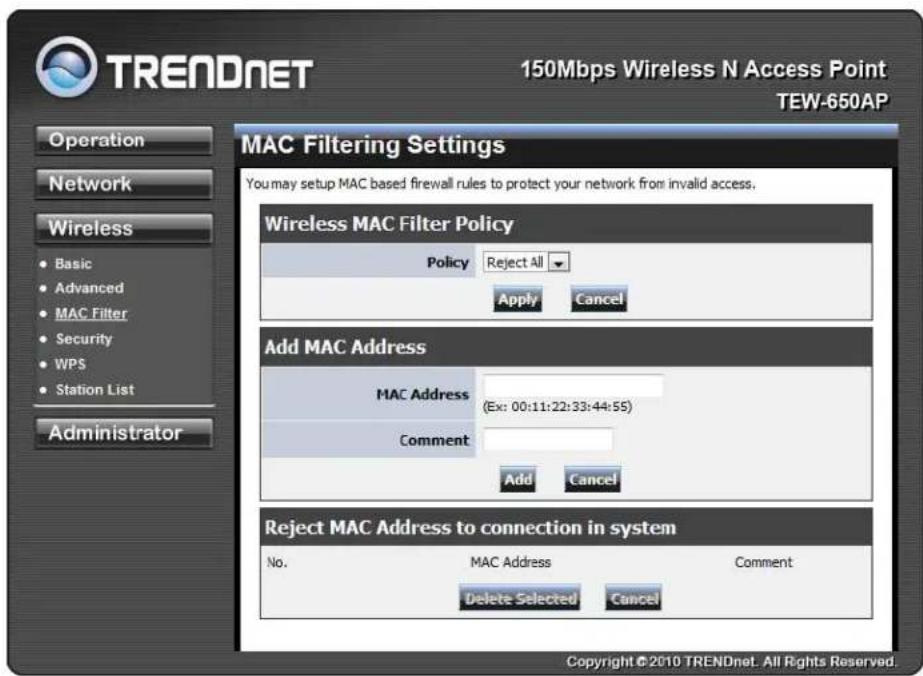
Policy
Three policies can be selected - Disable, Allow All & Reject All.
MAC Address
Add MAC Address to follow Policy setting
Wireless Security
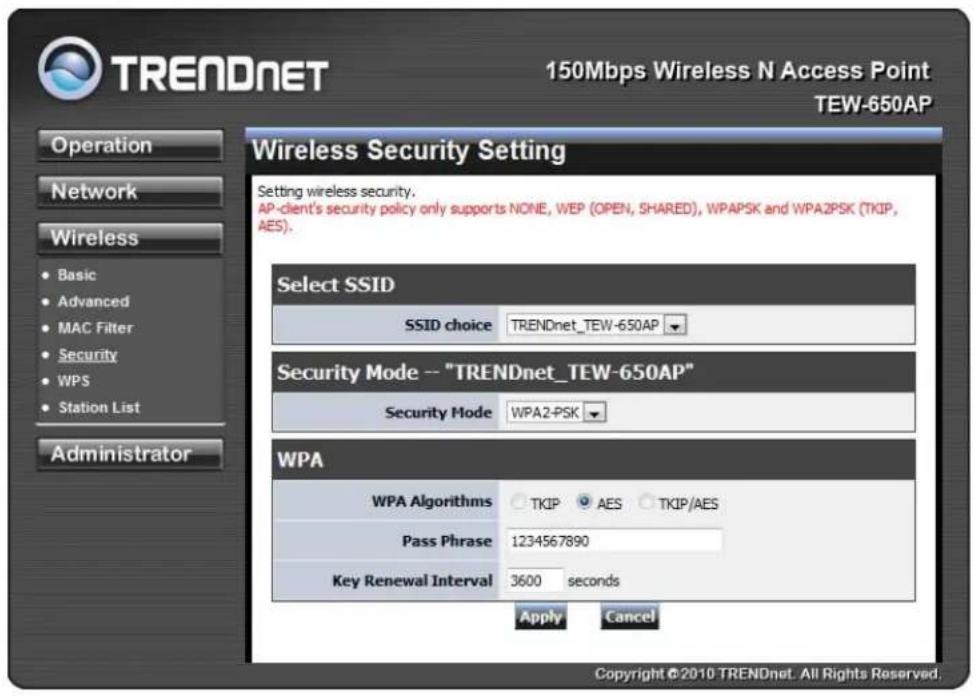
SSI D choice
Choose the SSID which need to implement security.
Security Mode
You can disable security mode, or you can choose following modes to enable security – Disable, WEP-OPEN, WEP-SHARED, WEP-AUTO, WPA, WPA-PSK, WPA2, WPA2-PSK, WPA-PSK/WPA2-PSK, WPA/WPA2
Wireless WPS
You can setup security easily by choosing PIN or PBC method to do Wi-Fi Protected Setup.
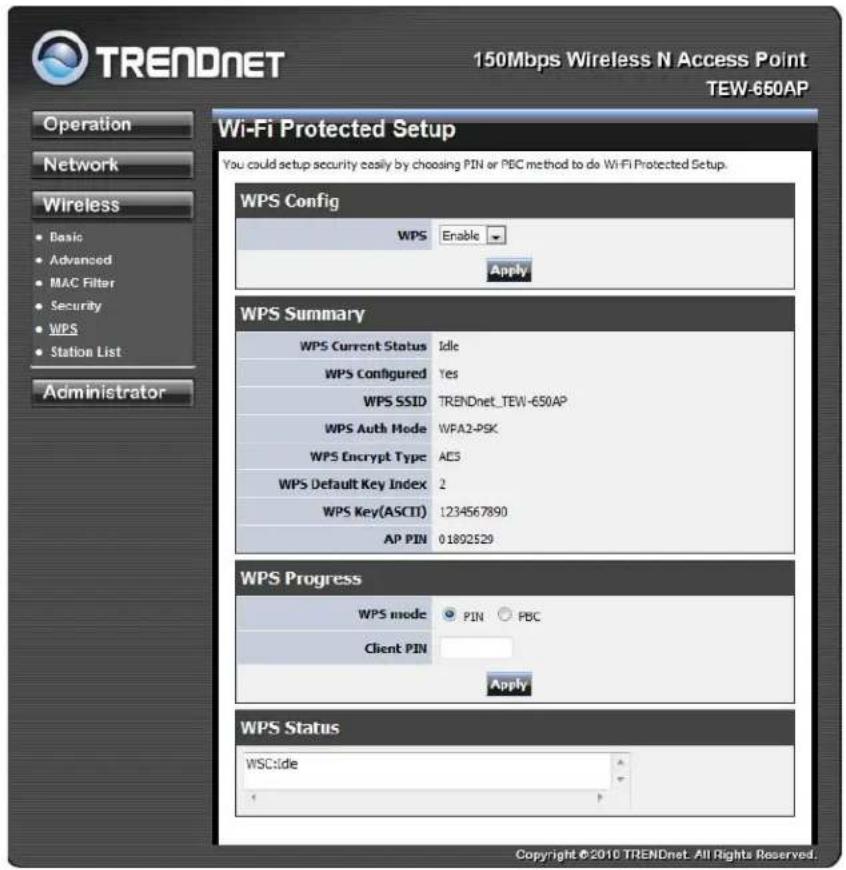
WPS mode
Two WPS modes can be selected – PIN & PBC. If PIN is selected, you should enter PIN code of your wireless client device to get wireless connection with this AP.
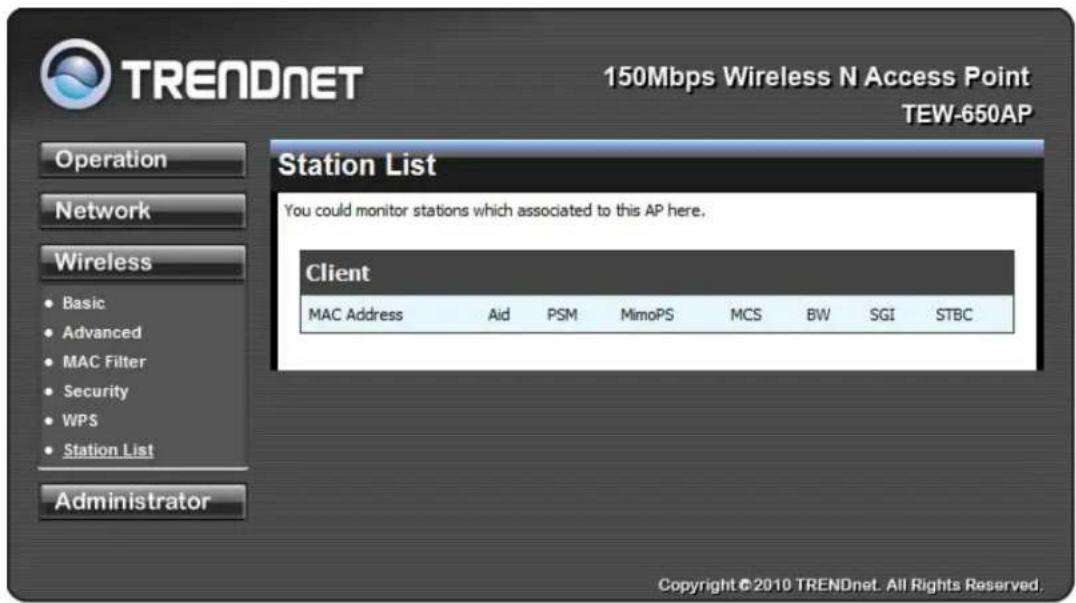
Wireless Station List
You can monitor stations which associated to this AP.
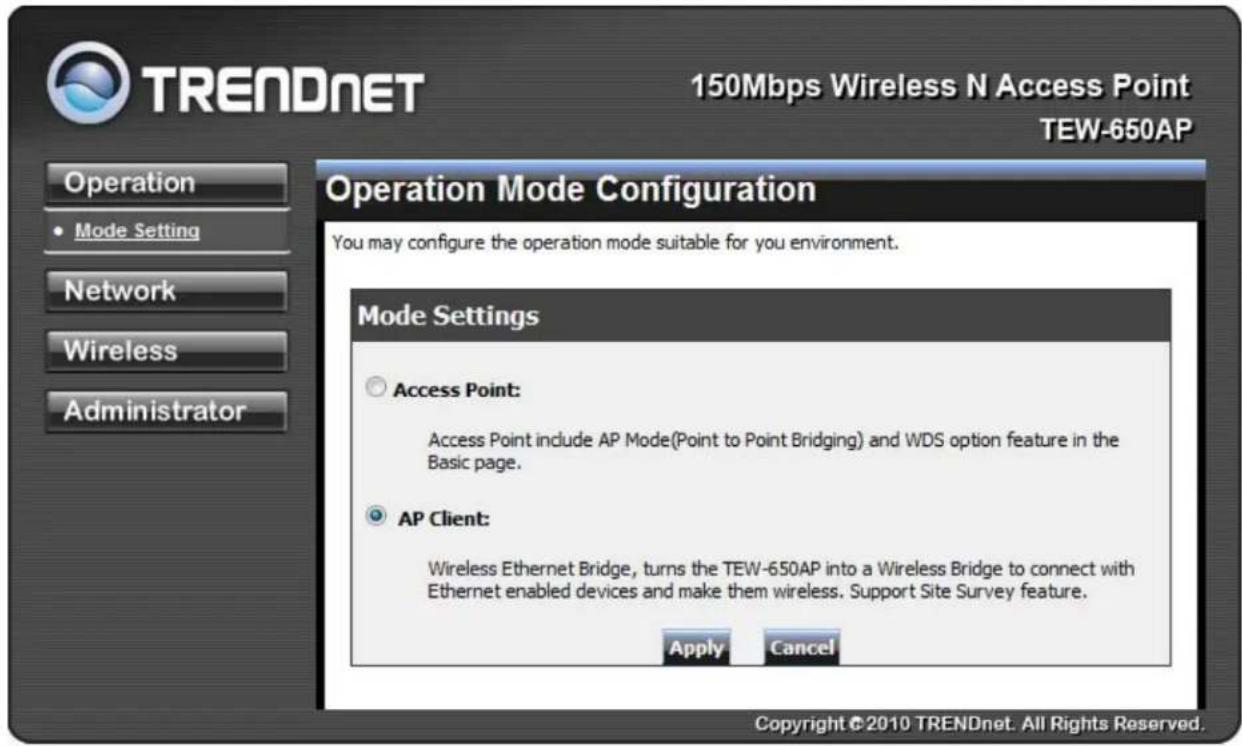
WIRELESS BASIC - AP CLIENT
Select the AP Client option to use the TEW-650AP as a wireless network adapter. Use this feature to connect other Ethernet devices and allow them to become wirelessly enabled. Select the option AP Client and apply the setting at the bottom of the window.
![graph LR A["Cable/DSL Modem"] --> B["Wireless N Router"] B --> C["AP Client"] C --> D["Game Console"] C --> E["Workstation"] C --> F["2-Bay SATA I/II Network Storage Enclosure (TS-S402)"] D --> G["OR"] E --> H["OR"] F --> I["OR"]](/content/2026/05/819393/images/9a84bf33ca87a68ba67651f61c9eb68ad92a012ba6d16f4c82b1852f297bd58e.jpg)
AP Client allows Ethernet enabled devices to become wirelessly enabled.
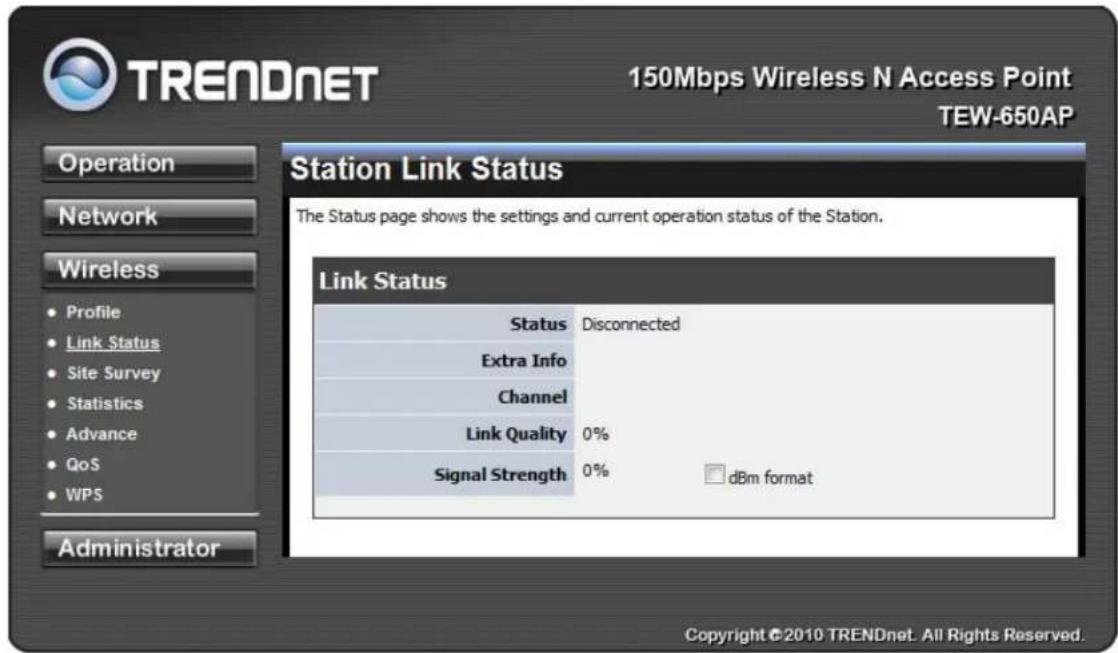
Wireless settings
View the current Link Status of the TEW-650AP in AP Client mode.
Profile
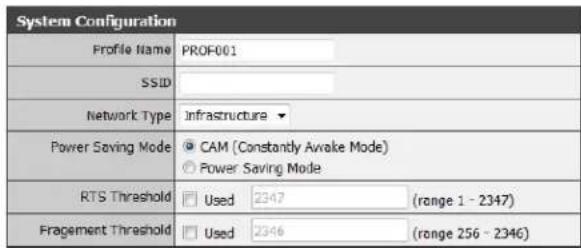
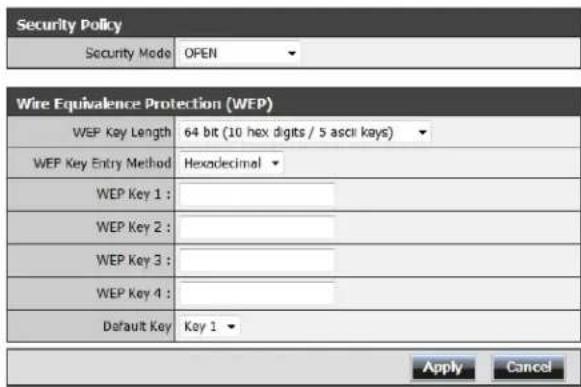
Create a custom connection to a specific wireless network. Use this option to make custom profiles and store new profile for later use.
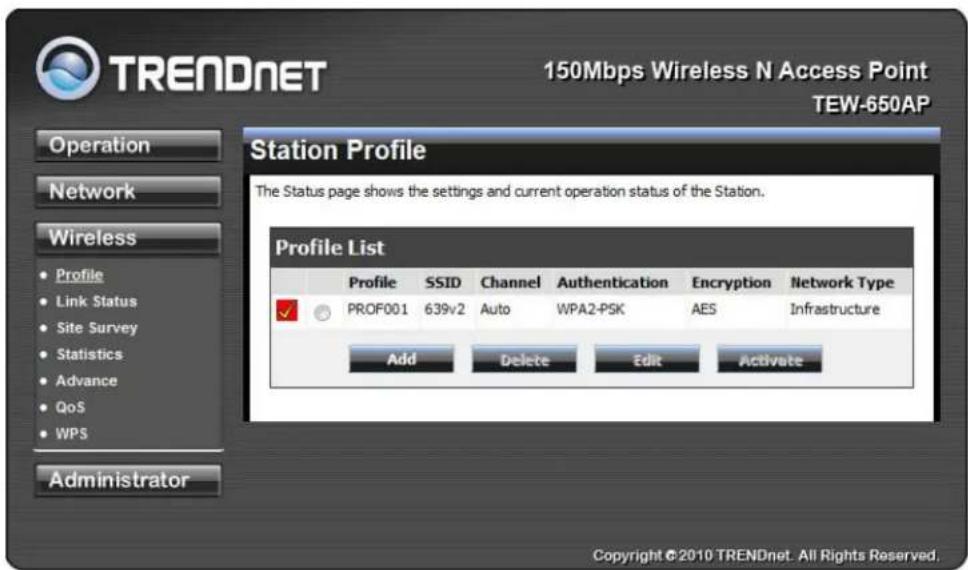
Configure the setting to connect to a wireless network, selection option for network type, SSID, and wireless security. The profile can be edited, deleted and made active from this option.
Site Survey
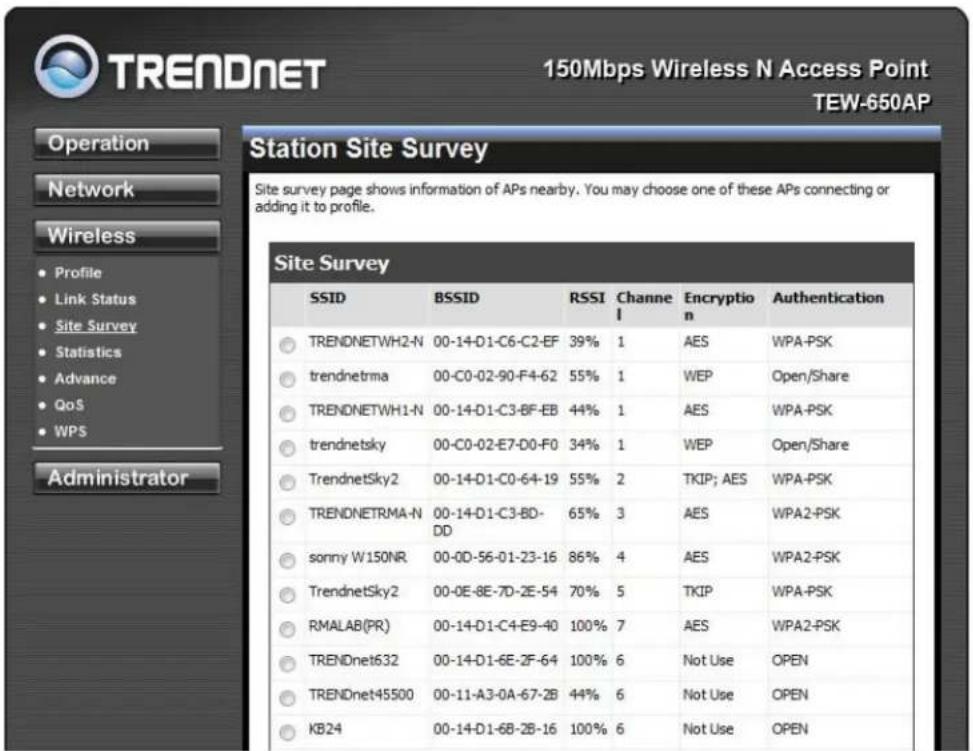
Use the Site Survey tool to search for wireless networks in the TEW-650AP area. Click on the Scan button to search for wireless networks to join. From this window, you can also add your profile to use with the TEW-650AP. Click on the Connect button to join a wireless network from this site survey window.
Statistics
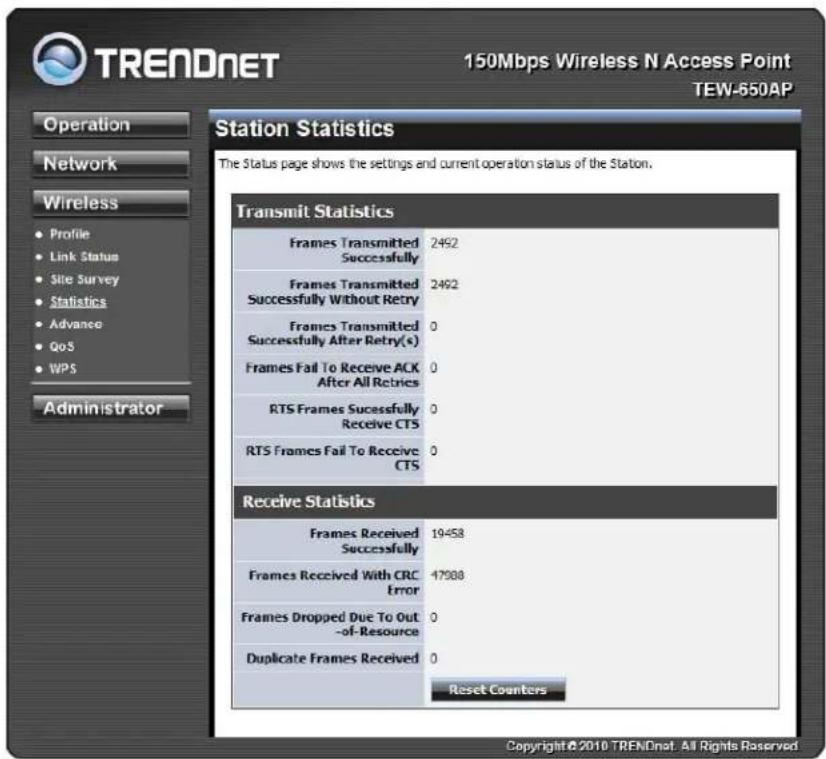
View the current operating status of the TEW-650AP, see the Transmit and Receive data.
Advance Setting
Use this setting to adjust the wireless environment.
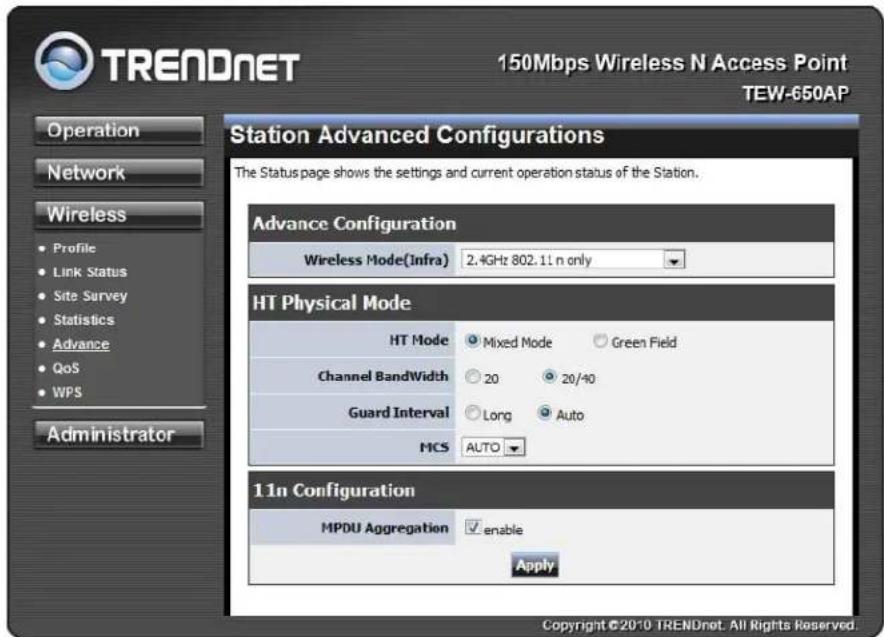
In Advance Configuration, select the Wireless Mode for the TEW-650APto match the speed of the Access Point or wireless Router that will be connecting with. Select the following from the drop down list.
802.11b/g mixed mode (2.4GHz) - This wireless mode works in the 2.4GHz frequency range and will allow both wireless b and wireless g client to connect and access the TEW-650AP at 11Mbps for wireless b, at 54Mbps for wireless g and share access at the same time. Although the wireless b/g operates in the 2.4GHz frequency, it will allow the use of other 2.4GHz client devices (Wireless n/g @ 54Mbps) to connect and access at the same time.
802.11n only (2.4GHz) - This wireless mode works in the 2.4GHz frequency range and will only allow the use of wireless n client devices to connect and access the TEW-650AP up to 300Mbps*. Although the wireless n operates in the 2.4GHz frequency, this mode will only permit wireless n client devices to work and will exclude any other wireless mode and devices that are not wireless n only.
802.11b/g/n mixed mode (2.4GHz) - This wireless mode works in the 2.4GHz frequency range and will only allow the use of wireless g client devices to connect and access the TEW-650AP at 11Mbps for wireless b, 54Mbps for wireless g and up to 300Mbps* for wireless n and share access at the same time. Although the wireless b/g/n operates in the same 2.4GHz frequency, it will allow the use of other 2.4GHz client devices (Wireless b/g/n) to connect and access at the same time.
TX Rate option is only available with 802.11 b/g mixed and 802.11 b/g/n modes, wireless n does not use this setting. Select the throughput transmission from the drop down list (1Mbps\~54Mbps).
HT Physical Mode is used to configure the wireless n settings.
Mixed Mode If you have both wireless g and wireless n client devices included on your wireless network at the same time, you should choose.
Green Field if you only have wireless n client devices on your wireless network, you can choose to enjoy high throughput.
Channel Bandwidth
The "20/40" MHz option is usually best. The other option is available for special circumstances.
Guard Interval
Using “Auto” option can increase throughput. However, it can also increase error rate in some installations, due to increased sensitivity to radio-frequency reflections. Select the option that works best for your installation.
MCS
The Modulation and Coding Scheme (MCS) is a value that determines the modulation, coding and number of spatial channels. This parameter represents transmission rate. By default (Auto) the fastest possible transmission rate will be selected. You have the option of selecting the speed if necessary.
11n Configuration is an aggregation process of packing multiple together to reduce the overheads and average them over multiple frames, thus increasing the data rate.
QoS
Use this setting to give the TEW-650AP priority over other wireless networking devices.
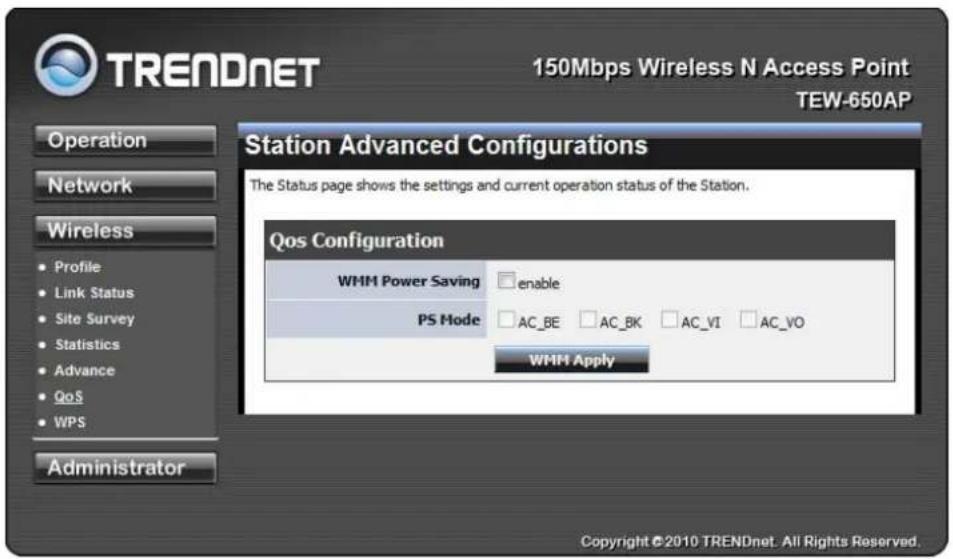
WMM (Wireless Multi-Media) use this feature allows wireless devices to take advantage of the wireless environment over other wireless devices.
WMM Power Saving is an option that allows wireless clients such as notebooks or Laptops to save battery life by sending less transmission during idle times. Add a check mark to enable this option.
PS Mode is used for specific application when using WMM Power Saving mode is enabled, use this feature to help with Quality of Service (QoS) settings; these settings are polled by the priority given to the option in this section.
AC_BE=Best Effort
AC_BK=Background
AC_VI=Video
AC_VO=Voice
WPS
You can setup security easily by choosing PIN or PBC method to do Wi-Fi Protected Setup.
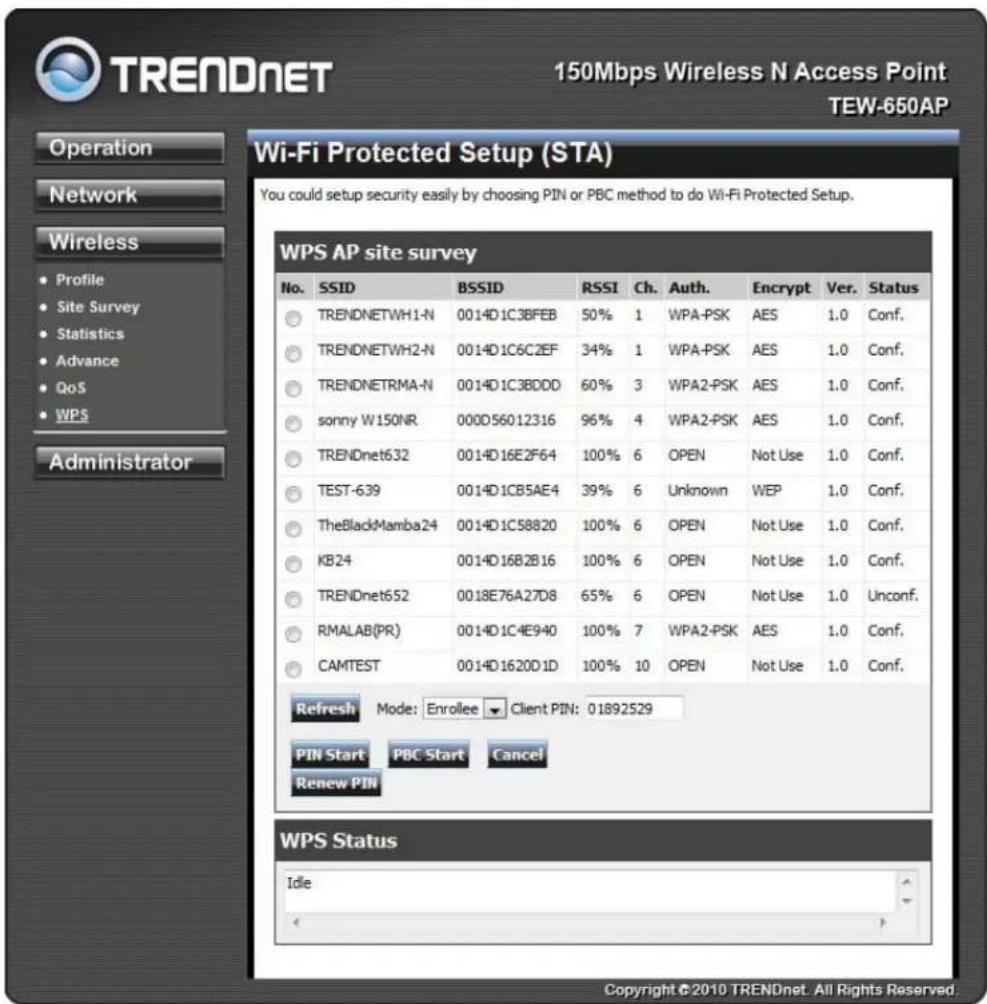
Two WPS modes can be selected – PIN & PBC. If PIN is selected, you should enter PIN code of your wireless client device to get wireless connection with this AP.
ADMINISTRATOR
This Administrator section is used to set password for access to the Web-based management, also provide function of firmware upgrade.
The Administrator tab provides the following configuration options: Management, Upload Firmware, settings, Management and Status.
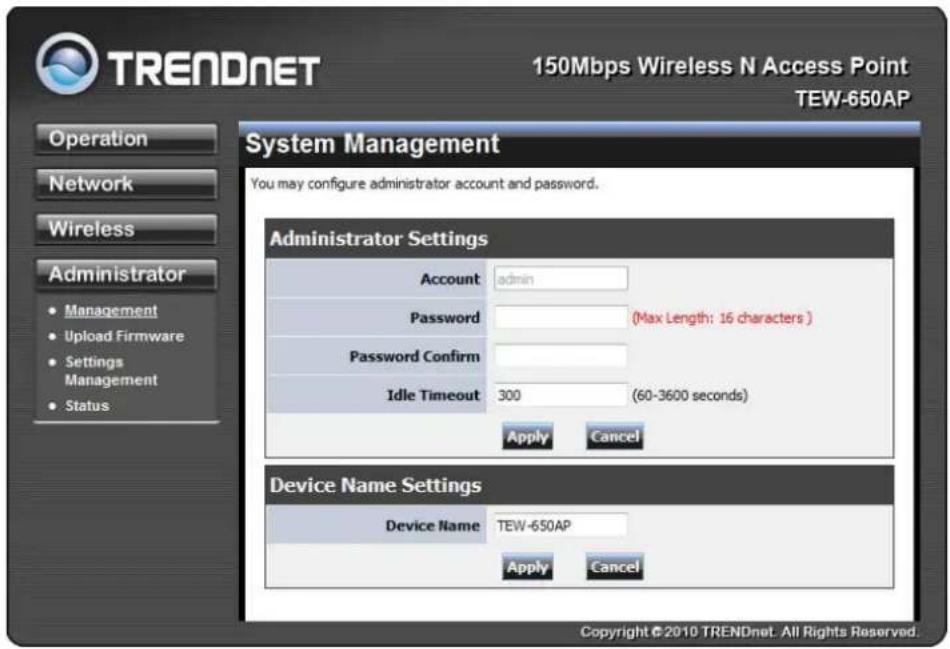
System Management
At this page, you can configure administrator account and password.
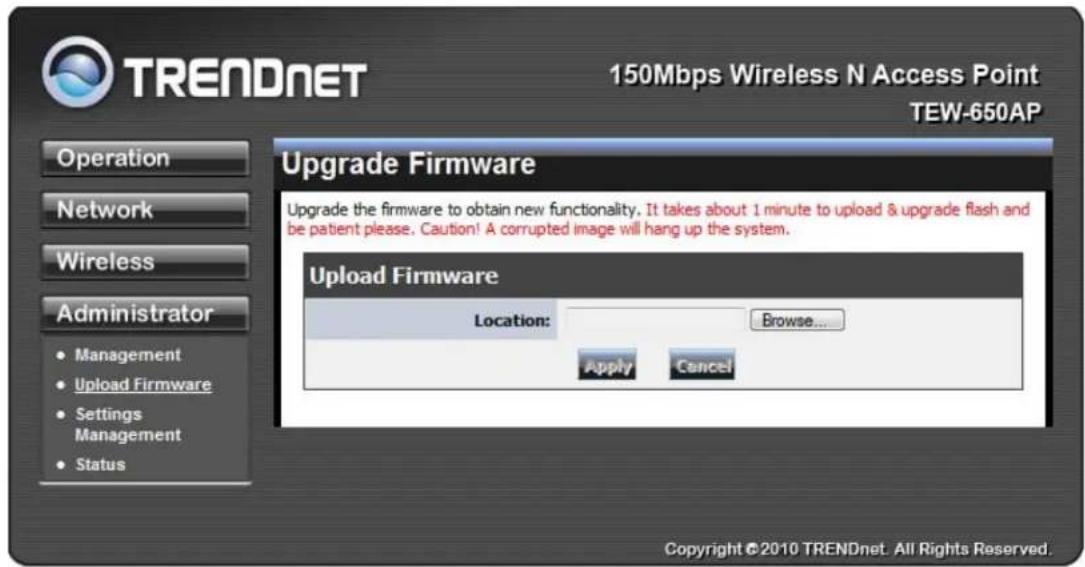
Upload Firmware
By assigning firmware location, you can upload firmware at this page.
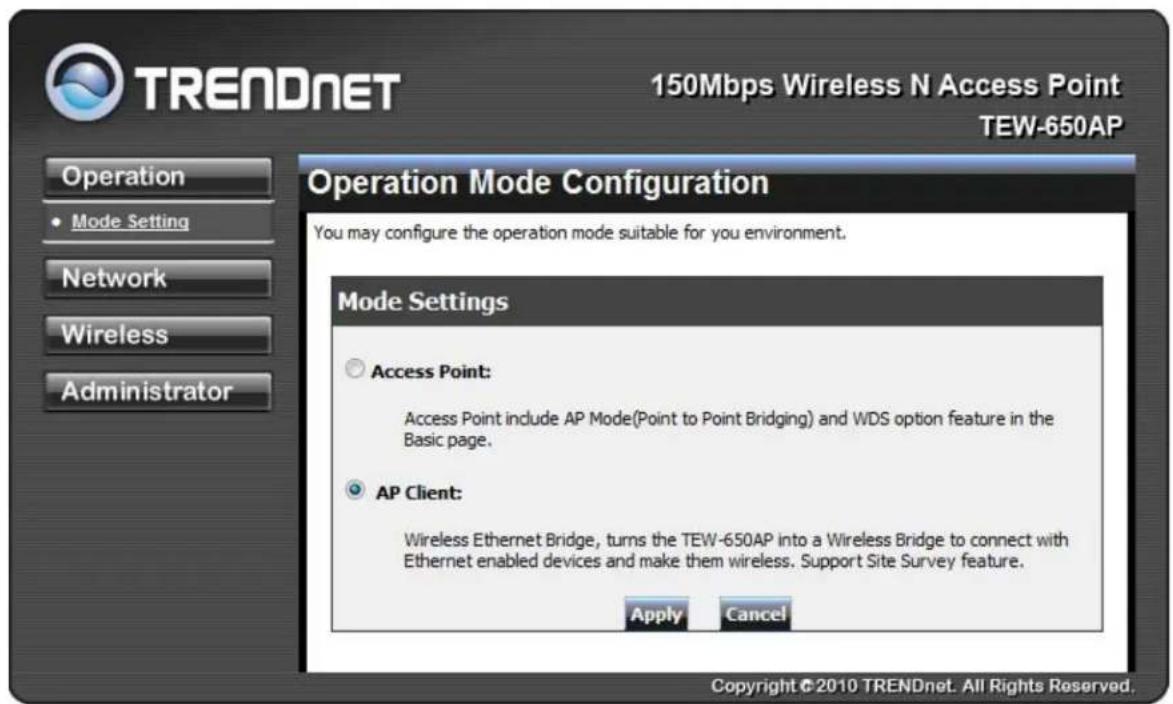
Settings Management
You can save system settings by exporting them to a configuration file, restore them by importing the file, or reset them to factory default.
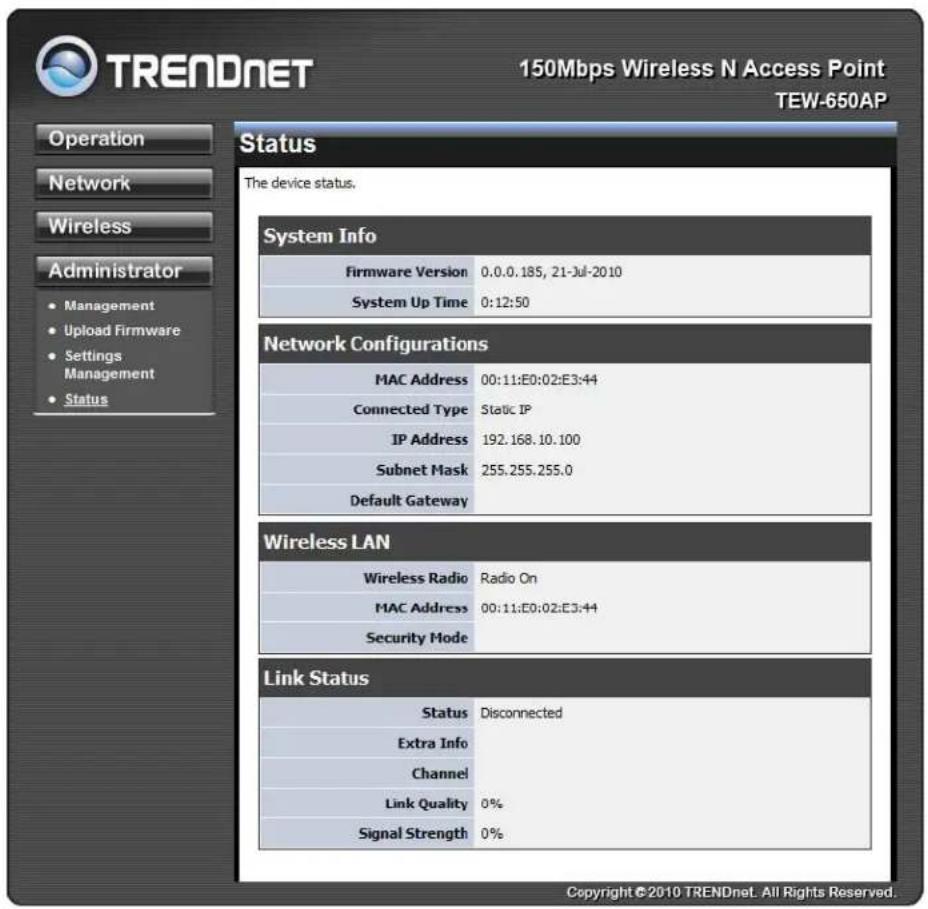
Status
You can check system information and network configurations on this page.
Glossary
A
Access Control List
ACL. This is a database of network devices that are allowed to access resources on the network.
Access Point
AP. Device that allows wireless clients to connect to it and access the network
Ad-hoc network
Peer-to-Peer network between wireless clients
Address Resolution Protocol
ARP. Used to map MAC addresses to IP addresses so that conversions can be made in both directions.
Advanced Encryption Standard
AES. Government encryption standard
Alphanumeric
Characters A-Z and 0-9
Antenna
Used to transmit and receive RF signals.
ASCII
American Standard Code for Information Interchange. This system of characters is most commonly used for text files
Attenuation
The loss in strength of digital and analog signals. The loss is greater when the signal is being transmitted over long distances.
Authentication
To provide credentials, like a Password, in order to verify that the person or device is really who they are claiming to be
Automatic Private IP Addressing
APIPA. An IP address that that a Windows computer will assign itself when it is configured to obtain an IP address automatically but no DHCP server is available on the network
B
Backward Compatible
The ability for new devices to communicate and interact with older legacy devices to guarantee interoperability
Bandwidth
The maximum amount of bytes or bits per second that can be transmitted to and from a network device
Beacon
A data frame by which one of the stations in a Wi-Fi network periodically broadcasts network control data to other wireless stations.
Bit rate
The amount of bits that pass in given amount of time
Bit/sec
Bits per second
BOOTP
Bootstrap Protocol. Allows for computers to be booted up and given an IP address with no user intervention
Broadcast
Transmitting data in all directions at once
Browser
A program that allows you to access resources on the web and provides them to you graphically
C
CAT 5
Category 5. Used for 10/100 Mbps or 1Gbps Ethernet connections
Client
A program or user that requests data from a server
Collision
When do two devices on the same Ethernet network try and transmit data at the exact same time.
Cookie
Information that is stored on the hard drive of your computer that holds your preferences to the site that gave your computer the cookie
D
Data
Information that has been translated into binary so that it can be processed or moved to another device
Data-Link layer
The second layer of the OSI model. Controls the movement of data on the physical link of a network
dBd
Decibels related to dipole antenna
dBi
Decibels relative to isotropic radiator
dBm
Decibels relative to one milliwatt
Decrypt
To unscramble an encrypted message back into plain text
Default
A predetermined value or setting that is used by a program when no user input has been entered for this value or setting
DHCP
Dynamic Host Configuration Protocol: Used to automatically assign IP addresses from a predefined pool of addresses to computers or devices that request them
Digital certificate:
An electronic method of providing credentials to a server in order to have access to it or a network
Direct Sequence Spread Spectrum
DSSS: Modulation technique used by 802.11b wireless devices
DNS
Domain Name System: Translates Domain Names to IP addresses
Domain name
A name that is associated with an IP address
Download
To send a request from one computer to another and have the file transmitted back to the requesting computer
Duplex
Sending and Receiving data transmissions at the sane time
Dynamic IP address
IP address that is assigned by a DHCP server and that may change. Cable Internet providers usually use this method to assign IP addresses to their customers.
E
EAP
Extensible Authentication Protocol
Encryption
Converting data into cyphertext so that it cannot be easily read
Ethernet
The most widely used technology for Local Area Networks.
F
File server
A computer on a network that stores data so that the other computers on the network can all access it
File sharing
Allowing data from computers on a network to be accessed by other computers on the network with different levels of access rights
Firewall
A device that protects resources of the Local Area Network from unauthorized users outside of the local network
Firmware
Programming that is inserted into a hardware device that tells it how to function
Fragmentation
Breaking up data into smaller pieces to make it easier to store
FTP
File Transfer Protocol. Easiest way to transfer files between computers on the Internet
Full-duplex
Sending and Receiving data at the same time
G
Gain
The amount an amplifier boosts the wireless signal
Gateway
A device that connects your network to another, like the internet
Gbps
Gigabits per second
Gigabit Ethernet
Transmission technology that provides a data rate of 1 billion bits per second
GUI
Graphical user interface
H
Half-duplex
Data cannot be transmitted and received at the same time
Hashing
Transforming a string of characters into a shorter string with a predefined length
Hexadecimal
Characters 0-9 and A-F
Hop
The action of data packets being transmitted from one AP to another
Host
Computer on a network
HTTP
Hypertext Transfer Protocol is used to transfer files from HTTP servers (web servers) to HTTP clients (web browsers)
HTTPS
HTTP over SSL is used to encrypt and decrypt HTTP transmissions
Hub
A networking device that connects multiple devices together
I
ICMP
Internet Control Message Protocol
IEEE
Institute of Electrical and Electronics Engineers
IGMP
Internet Group Management Protocol is used to make sure that computers can report their multicast group membership to adjacent APs
IIS
Internet Information Server is a WEB server and FTP server provided by Microsoft
Infrastructure
In terms of a wireless network, this is when wireless clients use an Access Point to gain access to the network
Internet
A system of worldwide networks which use TCP/IP to allow for resources to be accessed from computers around the world
Internet Explorer
A World Wide Web browser created and provided by Microsoft
Internet Protocol
The method of transferring data from one computer to another on the Internet
Internet Protocol Security
IPsec provides security at the packet processing layer of network communication
Internet Service Provider
An ISP provides access to the Internet to individuals or companies
Intranet
A private network
Intrusion Detection
A type of security that scans a network to detect attacks coming from inside and outside of the network
IP
Internet Protocol
IP address
A 32-bit number, when talking about Internet Protocol Version 4, that identifies each computer that transmits data on the Internet or on an Intranet
IPsec
Internet Protocol Security
IPX
Internetwork Packet Exchange is a networking protocol developed by Novel to enable their Netware clients and servers to communicate
ISP
Internet Service Provider
J
Java
A programming language used to create programs and applets for web pages
K
Kbps
Kilobits per second
Kbyte
Kilobyte
L
LAN
Local Area Network
Latency
The amount of time that it takes a packet to get from the one point to another on a network. Also referred to as delay
LED
Light Emitting Diode
Legacy
Older devices or technology
Local Area Network
A group of computers in a building that usually access files from a server
LPR/LPD
"Line Printer Requestor"/"Line Printer Daemon". A TCP/IP protocol for transmitting streams of printer data.
L2TP
Layer 2 Tunneling Protocol
M
MAC address
A unique hardware ID assigned to every Ethernet adapter by the manufacturer.
Mbps
Megabits per second
MDI
Medium Dependent Interface is an Ethernet port for a connection to a straight-through cable
MDIX
Medium Dependent Interface Crossover, is an Ethernet port for a connection to a crossover cable
MIB
Management Information Base is a set of objects that can be managed by using SNMP
Modem
A device that Modulates digital signals from a computer to an analog signal in order to transmit the signal over phone lines. It also Demodulates the analog signals coming from the phone lines to digital signals for your computer
MPPE
Microsoft Point-to-Point Encryption is used to secure data transmissions over PPTP connections
MTU
Maximum Transmission Unit is the largest packet that can be transmitted on a packet-based network like the Internet
Multicast
Sending data from one device to many devices on a network
N
NAT
Network Address Translation allows many private IP addresses to connect to the Internet, or another network, through one IP address
NetBEUI
NetBIOS Extended User Interface is a Local Area Network communication protocol. This is an updated version of NetBIOS
NetBIOS
Network Basic Input/Output System
Netmask
Determines what portion of an IP address designates the Network and which part designates the Host
Network Interface Card
A card installed in a computer or built onto the motherboard that allows the computer to connect to a network
Network Layer
The third layer of the OSI model which handles the routing of traffic on a network
Network Time Protocol
Used to synchronize the time of all the computers in a network
NIC
Network Interface Card
NTP
Network Time Protocol
0
OFDM
Orthogonal Frequency-Division Multiplexing is the modulation technique for both 802.11a and 802.wireless g
OSI
Open Systems Interconnection is the reference model for how data should travel between two devices on a network
OSPF
Open Shortest Path First is a routing protocol that is used more than RIP in larger scale networks because only changes to the routing table are sent to all the other APs in the network as opposed to sending the entire routing table at a regular interval, which is how RIP functions
P
Password
A sequence of characters that is used to authenticate requests to resources on a network
Personal Area Network
The interconnection of networking devices within a range of 10 meters
Physical layer
The first layer of the OSI model. Provides the hardware means of transmitting electrical signals on a data
carrier
Ping
A utility program that verifies that a given Internet address exists and can receive messages. The utility sends a control packet to the given address and waits for a response.
PoE
Power over Ethernet is the means of transmitting electricity over the unused pairs in a category 5 Ethernet cable
Port
A logical channel endpoint in a network. A computer might have only one physical channel (its Ethernet channel) but can have multiple ports (logical channels) each identified by a number.
PPP
Point-to-Point Protocol is used for two computers to communicate with each over a serial interface, like a phone line
PPPoE
Point-to-Point Protocol over Ethernet is used to connect multiple computers to a remote server over Ethernet
PPTP
Point-to-Point Tunneling Protocol is used for creating VPN tunnels over the Internet between two networks
Preamble
Used to synchronize communication timing between devices on a network
Q
QoS
Quality of Service
R
RADIUS
Remote Authentication Dial-In User Service allows for remote users to dial into a central server and be authenticated in order to access resources on a network
Reboot
To restart a computer and reload it's operating software or firmware from nonvolatile storage.
Rendezvous
Apple's version of UPnP, which allows for devices on a network to discover each other and be connected without the need to configure any settings
Repeater
Retransmits the signal of an Access Point in order to extend it's coverage
RIP
Routing Information Protocol is used to synchronize the routing table of all the APs on a network
RJ-11
The most commonly used connection method for telephones
RJ-45
The most commonly used connection method for Ethernet
RS-232C
The interface for serial communication between computers and other related devices
RSA
Algorithm used for encryption and authentication
S
Server
A computer on a network that provides services and resources to other computers on the network
Session key
An encryption and decryption key that is generated for every communication session between two computers
Session layer
The fifth layer of the OSI model which coordinates the connection and communication between applications on both ends
Simple Mail Transfer Protocol
Used for sending and receiving email
Simple Network Management Protocol
Governs the management and monitoring of network devices
SIP
Session Initiation Protocol. A standard protocol for initiating a user session that involves multimedia content, such as voice or chat.
SMTP
Simple Mail Transfer Protocol
SNMP
Simple Network Management Protocol
SOHO
Small Office/Home Office
SPI
Stateful Packet Inspection
SSH
Secure Shell is a command line interface that allows for secure connections to remote computers
SSID
Service Set Identifier is a name for a wireless network
Stateful inspection
A feature of a firewall that monitors outgoing and incoming traffic to make sure that only valid responses to outgoing requests are allowed to pass though the firewall
Subnet mask
Determines what portion of an IP address designates the Network and which part designates the Host
Syslog
System Logger -- a distributed logging interface for collecting in one place the logs from different sources.
Originally written for UNIX, it is now available for other operating systems, including Windows.
T
TCP
Transmission Control Protocol
TCP/IP
Transmission Control Protocol/Internet Protocol
TCP Raw
A TCP/IP protocol for transmitting streams of printer data.
TFTP
Trivial File Transfer Protocol is a utility used for transferring files that is simpler to use than FTP but with less features
Throughput
The amount of data that can be transferred in a given time period
Traceroute
A utility displays the routes between you computer and specific destination
U
UDP
User Datagram Protocol
Unicast
Communication between a single sender and receiver
Universal Plug and Play
A standard that allows network devices to discover each other and configure themselves to be a part of the network
Upgrade
To install a more recent version of a software or firmware product
Upload
To send a request from one computer to another and have a file transmitted from the requesting computer to the other
UPnP
Universal Plug and Play
URL
Uniform Resource Locator is a unique address for files accessible on the Internet
USB
Universal Serial Bus
UTP
Unshielded Twisted Pair
V
Virtual Private Network
VPN: A secure tunnel over the Internet to connect remote offices or users to their company's network
VLAN
Virtual LAN
Voice over IP
Sending voice information over the Internet as opposed to the PSTN
VoIP
Voice over IP
W
Wake on LAN
Allows you to power up a computer though it's Network Interface Card
WAN
Wide Area Network
WCN
Windows Connect Now. A Microsoft method for configuring and bootstrapping wireless networking hardware (access points) and wireless clients, including PCs and other devices.
WDS
Wireless Distribution System. A system that enables the interconnection of access points wirelessly.
Web browser
A utility that allows you to view content and interact with all of the information on the World Wide Web WEP
Wired Equivalent Privacy is security for wireless networks that is supposed to be comparable to that of a
wired network
Wi-Fi
Wireless Fidelity
Wi-Fi Protected Access
An updated version of security for wireless networks that provides authentication as well as encryption
Wide Area Network
The larger network that your LAN is connected to, which may be the Internet itself, or a regional or corporate network
Wireless ISP
A company that provides a broadband Internet connection over a wireless connection
Wireless LAN
Connecting to a Local Area Network over one of the 802.11 wireless standards
WISP
Wireless Internet Service Provider
WLAN
Wireless Local Area Network
WPA
Wi-Fi Protected Access. A Wi-Fi security enhancement that provides improved data encryption, relative to WEP.
X
xDSL
A generic term for the family of digital subscriber line (DSL) technologies, such as ADSL, HDSL, RADSL, and SDSL.
Y
Yagi antenna
A directional antenna used to concentrate wireless signals on a specific location
802.11
A family of specifications for wireless local area networks (WLANs) developed by a working group of the Institute of Electrical and Electronics Engineers (IEEE).
Specifications
| Hardware | |
| Standards | IEEE 802.11n draft 2.0, IEEE 802.11b, IEEE 802.11g, and 802.11e |
| Interface | 1 x 10/100Mbps Auto-MDIX LAN port |
| LED Indicators | Power, LAN, WPS, and Wireless |
| Buttons | Reset button – restores factory default settingsWPS button- enables WPS function |
| Power Supply | 12 V DC 0.5A external power adapter |
| Dimensions(LxWxH) | 119 x 25 x 85 mm (4.6 x 1.0 x 3.3 in.) |
| Weight | 113.4 g (4 oz) |
| Temperature | Operating: 0° ~ 40°C (32° ~ 104°F), Storage: -20°C ~ 60°C (-4° ~ 140°F) |
| Humidity | Max. 90% non-condensing |
| Wireless | |
| Modulation | 802.11n: BPSK, QPSK, 16QAM, 64QAM with OFDM802.11g: OFDM with BPSK, QPSK and 16/64-QAM sub-Carrier802.11b: CCK (11 and 5.5Mbps), DQPSK (2Mbps), DBPSK (1Mbps)modulations |
| WDS | Enable/disable Wireless Distribution System support |
| Repeater Mode | Enable/disable AP Mode Support |
| Antenna | 1 x 2dBi detachable antenna |
| Frequency | 2.412 - 2.462 GHz (North America)2.412 - 2.472 GHz (Europe) |
| Media Access Protocol | IEEE 802.11 |
| Data Rate (Auto Fallback) | 802.11n: up to 150Mbps802.11g: up to 54Mbps802.11b: up to 11Mbps |
| Output Power | 802.11n: 11dBm (typical) @ 150Mbps802.11g: 15dBm (typical) @ 54Mbps802.11b: 18dBm (typical) @ 11Mbps |
| Receiving Sensitivity | 802.11n: -68dBm (typical) @ 150Mbps802.11g: -72dBm (typical) @ 54Mbps802.11b: -84dBm (typical) @ 11Mbps |
| Encryption | 64/128-bit WEP (HEX & ASCII), WPA/WPA2 RADIUS (AP mode only),WPA/WPA2-PSK |
| Channels | 1-11 (FCC), 1-13 (ETSI) |
*Maximum wireless signal rates are referenced from IEEE 802.11 theoretical specifications. Actual data throughput and coverage will vary depending on interference, network traffic, building materials and other conditions.
Limited Warranty
TRENDnet warrants its products against defects in material and workmanship, under normal use and service, for the following lengths of time from the date of purchase.
TEW-650AP - 3 Years Warranty
AC/DC Power Adapter, Cooling Fan, and Power Supply carry 1 year warranty.
If a product does not operate as warranted during the applicable warranty period, TRENDnet shall reserve the right, at its expense, to repair or replace the defective product or part and deliver an equivalent product or part to the customer. The repair/replacement unit's warranty continues from the original date of purchase. All products that are replaced become the property of TRENDnet. Replacement products may be new or reconditioned. TRENDnet does not issue refunds or credit. Please contact the point-of-purchase for their return policies.
TRENDnet shall not be responsible for any software, firmware, information, or memory data of customer contained in, stored on, or integrated with any products returned to TRENDnet pursuant to any warranty.
There are no user serviceable parts inside the product. Do not remove or attempt to service the product by any unauthorized service center. This warranty is voided if (i) the product has been modified or repaired by any unauthorized service center, (ii) the product was subject to accident, abuse, or improper use (iii) the product was subject to conditions more severe than those specified in the manual.
Warranty service may be obtained by contacting TRENDnet within the applicable warranty period and providing a copy of the dated proof of the purchase. Upon proper submission of required documentation a Return Material Authorization (RMA) number will be issued. An RMA number is required in order to initiate warranty service support for all TRENDnet products. Products that are sent to TRENDnet for RMA service must have the RMA number marked on the outside of return packages and sent to TRENDnet prepaid, insured and packaged appropriately for safe shipment. Customers shipping from outside of the USA and Canada are responsible for return shipping fees. Customers shipping from outside of the USA are responsible for custom charges, including but not limited to, duty, tax, and other fees.
WARRANTIES EXCLUSIVE: IF THE TRENDNET PRODUCT DOES NOT OPERATE AS WARRANTED ABOVE, THE CUSTOMER'S SOLE REMEDY SHALL BE, AT TRENDNET'S OPTION, REPAIR OR REPLACE. THE FOREGOING WARRANTIES AND REMEDIES ARE EXCLUSIVE AND ARE IN LIEU OF ALL OTHER WARRANTIES, EXPRESSED OR IMPLIED, EITHER IN FACT OR BY OPERATION OF LAW, STATUTORY OR OTHERWISE, INCLUDING WARRANTIES OF MERCHANTABILITY AND FITNESS FOR A PARTICULAR PURPOSE. TRENDNET NEITHER ASSUMES NOR AUTHORIZES ANY OTHER PERSON TO ASSUME FOR IT ANY OTHER LIABILITY IN CONNECTION WITH THE SALE, INSTALLATION MAINTENANCE OR USE OF TRENDNET'S PRODUCTS.
TRENDNET SHALL NOT BE LIABLE UNDER THIS WARRANTY IF ITS TESTING AND EXAMINATION DISCLOSE THAT THE ALLEGED DEFECT IN THE PRODUCT DOES NOT EXIST OR WAS CAUSED BY CUSTOMER'S OR ANY THIRD PERSON'S MISUSE, NEGLECT, IMPROPER INSTALLATION OR TESTING, UNAUTHORIZED ATTEMPTS TO REPAIR OR MODIFY, OR ANY OTHER CAUSE BEYOND THE RANGE OF THE INTENDED USE, OR BY ACCIDENT, FIRE, LIGHTNING, OR OTHER HAZARD.
LIMITATION OF LIABILITY: TO THE FULL EXTENT ALLOWED BY LAW TRENDNET ALSO EXCLUDES FOR ITSELF AND ITS SUPPLIERS ANY LIABILITY, WHETHER BASED IN CONTRACT OR TORT (INCLUDING NEGLIGENCE), FOR INCIDENTAL, CONSEQUENTIAL, INDIRECT, SPECIAL, OR PUNITIVE DAMAGES OF ANY KIND, OR FOR LOSS OF REVENUE OR PROFITS, LOSS OF BUSINESS, LOSS OF INFORMATION OR DATE, OR OTHER FINANCIAL LOSS ARISING OUT OF OR IN CONNECTION WITH THE SALE, INSTALLATION, MAINTENANCE, USE, PERFORMANCE, FAILURE, OR INTERRUPTION OF THE POSSIBILITY OF SUCH DAMAGES, AND LIMITS ITS LIABILITY TO REPAIR, REPLACEMENT, OR REFUND OF THE PURCHASE PRICE PAID, AT TRENDNET'S OPTION. THIS DISCLAIMER OF LIABILITY FOR DAMAGES WILL NOT BE AFFECTED IF ANY REMEDY PROVIDED HEREIN SHALL FAIL OF ITS ESSENTIAL PURPOSE.
Governing Law: This Limited Warranty shall be governed by the laws of the state of California.
Some TRENDnet products include software code written by third party developers. These codes are subject to the GNU General Public License ("GPL") or GNU Lesser General Public License ("LGPL").
Go to http://www.trendnet.com/gpl or http://www.trendnet.com Download section and look for the desired TRENDnet product to access to the GPL Code or LGPL Code. These codes are distributed WITHOUT WARRANTY and are subject to the copyrights of the developers. TRENDnet does not provide technical support for these codes. Please go to http://www.gnu.org/licenses/gpl.txt or http://www.gnu.org/licenses/lgpl.txt for specific terms of each license.
PWP05202009v2

TRENDNET®
Product Warranty Registration
Please take a moment to register your product online. Go to TRENDnet's website at http://www.trendnet.com/register
- FEDERAL COMMUNICATION COMMISSION INTERFERENCE STATEMENT
- IMPORTANT NOTE
- FCC RADIATION EXPOSURE STATEMENT
- EUROPE – EU DECLARATION OF CONFORMITY
- CONTENTS
- PACKAGE CONTENTS
- MINIMUM SYSTEM REQUIREMENTS
- INTRODUCTION
- FEATURES
- HARDWARE OVERVIEW
- INSTALLATION CONSIDERATIONS
- GETTING STARTED
- ACCESS POINT MODE
- AP CLIENT MODE
- USING THE CONFIGURATION MENU
- ACCESS POINT
- AP CLIENT
- NETWORK LAN SETTING
- LAN CONNECTION TYPE
- IP ADDRESS
- SUBNET MASK
- DEFAULT GATEWAY
- WIRELESS
- AP MODE SUPPORT
- WIRELESS MODE
- WIRELESS NAME (SSID)
- MULTIPLE SSID
- ADD ADDITIONAL WIRELESS NETWORK NAME (SSID)
- BROADCAST NETWORK NAME (SSID)
- FREQUENCY (CHANNEL)
- WDS MODE
- OPERATING MODE
- CHANNEL BANDWIDTH
- GUARD INTERVAL
- MCS
- RESERVE DIRECTION GRANT (RDG)
- EXTENSION CHANNEL
- WIRELESS ADVANCED
- BEACON INTERVAL
- DATA BEACON RATE (DTI M)
- FRAGMENT THRESHOLD
- RTS THRESHOLD
- SHORT PREAMBLE
- SHORT SLOT
- TX BURST
- PKT_AGGREGATE
- WIRELESS MAC FILTER
- POLICY
- MAC ADDRESS
- WIRELESS SECURITY
- SSI D CHOICE
- SECURITY MODE
- WIRELESS WPS
- WPS MODE
- WIRELESS STATION LIST
- WIRELESS BASIC - AP CLIENT
- WIRELESS SETTINGS
- PROFILE
- SITE SURVEY
- STATISTICS
- ADVANCE SETTING
- QOS
- WPS
- ADMINISTRATOR
- SYSTEM MANAGEMENT
- UPLOAD FIRMWARE
- SETTINGS MANAGEMENT
- STATUS
- GLOSSARY
- A
- ACCESS CONTROL LIST
- AD-HOC NETWORK
- ADDRESS RESOLUTION PROTOCOL
- ADVANCED ENCRYPTION STANDARD
- ALPHANUMERIC
- ANTENNA
- ASCII
- ATTENUATION
- AUTHENTICATION
- AUTOMATIC PRIVATE IP ADDRESSING
- B
- BACKWARD COMPATIBLE
- BANDWIDTH
- BEACON
- BIT RATE
- BIT/SEC
- BOOTP
- BROADCAST
- BROWSER
- C
- CAT 5
- CLIENT
- COLLISION
- COOKIE
- D
- DATA
- DATA-LINK LAYER
- DBD
- DBI
- DBM
- DECRYPT
- DEFAULT
- DHCP
- DIGITAL CERTIFICATE
- DNS
- DOMAIN NAME
- DOWNLOAD
- DUPLEX
- DYNAMIC IP ADDRESS
- E
- EAP
- ENCRYPTION
- ETHERNET
- F
- FILE SERVER
- FILE SHARING
- FIREWALL
- FIRMWARE
- FRAGMENTATION
- FTP
- FULL-DUPLEX
- G
- GAIN
- GATEWAY
- GBPS
- GIGABIT ETHERNET
- GUI
- H
- HALF-DUPLEX
- HASHING
- HEXADECIMAL
- HOP
- HOST
- HTTP
- HTTPS
- HUB
- I
- ICMP
- IEEE
- IGMP
- IIS
- INFRASTRUCTURE
- INTERNET
- INTERNET EXPLORER
- INTERNET PROTOCOL
- INTERNET PROTOCOL SECURITY
- INTERNET SERVICE PROVIDER
- INTRANET
- INTRUSION DETECTION
- IP
- IPSEC
- IPX
- ISP
- J
- JAVA
- K
- KBPS
- KBYTE
- L
- LAN
- LATENCY
- LED
- LEGACY
- LOCAL AREA NETWORK
- LPR/LPD
- L2TP
- M
- MBPS
- MDI
- MDIX
- MIB
- MODEM
- MPPE
- MTU
- MULTICAST
- N
- NAT
- NETBEUI
- NETBIOS
- NETMASK
- NETWORK INTERFACE CARD
- NETWORK LAYER
- NETWORK TIME PROTOCOL
- NIC
- NTP
- 0
- OFDM
- OSI
- OSPF
- P
- PASSWORD
- PERSONAL AREA NETWORK
- PHYSICAL LAYER
- PING
- POE
- PORT
- PPP
- PPPOE
- PPTP
- PREAMBLE
- Q
- R
- RADIUS
- REBOOT
- RENDEZVOUS
- REPEATER
- RIP
- RJ-11
- RJ-45
- RS-232C
- RSA
- S
- SERVER
- SESSION KEY
- SESSION LAYER
- SIMPLE MAIL TRANSFER PROTOCOL
- SIMPLE NETWORK MANAGEMENT PROTOCOL
- SIP
- SMTP
- SNMP
- SOHO
- SPI
- SSH
- SSID
- STATEFUL INSPECTION
- SYSLOG
- T
- TCP
- TCP/IP
- TCP RAW
- TFTP
- THROUGHPUT
- TRACEROUTE
- U
- UDP
- UNICAST
- UNIVERSAL PLUG AND PLAY
- UPGRADE
- UPLOAD
- UPNP
- URL
- USB
- UTP
- V
- VIRTUAL PRIVATE NETWORK
- VLAN
- VOICE OVER IP
- VOIP
- W
- WAKE ON LAN
- WAN
- WCN
- WDS
- WEB BROWSER
- LIMITED WARRANTY
- TRENDNET®
- PRODUCT WARRANTY REGISTRATION
Brand : TRENDNET
Model : TEW-650AP
Category : Access Point