
Kraken Tournament Edition - Headphones RAZER - Free user manual and instructions
Find the device manual for free Kraken Tournament Edition RAZER in PDF.


| Product Type | Gaming Headset |
| Weight | 322 g (0.71 lbs) |
| Driver Size | 50 mm with Neodymium magnets |
| Frequency Response (Headphones) | 12 Hz – 28 kHz |
| Impedance | 32 Ω @ 1 kHz |
| Sensitivity (Headphones) | 118 dB @ 1 kHz |
| Input Power | 30 mW (Max) |
| Microphone Frequency Response | 100 Hz – 10 kHz |
| Microphone Sensitivity | -38 ± 3 dB @ 1 kHz |
| Microphone Pick-up Pattern | Unidirectional ECM Boom |
| Connectivity | 3.5 mm Analog Combo Jack, USB Audio Controller |
| Cable Length (Headset) | 1.3 m (4.27 ft) |
| Cable Length (USB Dongle) | 2.0 m |
| Surround Sound | THX Spatial Audio (requires Razer Synapse) |
| Controls (Analog In-Line) | Volume Wheel, Mic Mute Toggle |
| Controls (USB Audio Controller) | Vol+/-, Bass+/-, THX Spatial On/Off, Mic Mute, Game/Chat Balance |
| Ear Cushions | Cooling Gel-Infused, Oval, Full-Ear Coverage |
| Microphone | Retractable, Unidirectional |
| Operating Temperature | 0°C to 40°C (32°F to 104°F) |
| Maintenance | Clean monthly with soft cloth and warm water; avoid liquids and harsh agents |
| Warranty | 1 Year Limited Manufacturer's Warranty |
Frequently Asked Questions - Kraken Tournament Edition RAZER
User questions about Kraken Tournament Edition RAZER
0 question about this device. Answer the ones you know or ask your own.
Ask a new question about this device
Download the instructions for your Headphones in PDF format for free! Find your manual Kraken Tournament Edition - RAZER and take your electronic device back in hand. On this page are published all the documents necessary for the use of your device. Kraken Tournament Edition by RAZER.
USER MANUAL Kraken Tournament Edition RAZER
natural_image
Abstract white line drawing of a stylized creature or serpent on a solid green background (no text or symbols)RAZER KRAKEN TOURNAMENT EDITION
MASTER GUIDE
Equipped with a USB audio controller, the Razer Kraken Tournament Edition gaming headset delivers a high-fidelity experience along with full controls for audio personalization. The built-in Digital-to-Analog Converter (DAC) delivers crisp, clear details while THX Spatial Audio immerses you in next-gen surround sound—all perfectly paired with large 50 mm drivers. Further fine-tune your audio with adjustments for the enhanced bass, volume and game/chat balance.
CONTENTS
- PACKAGE CONTENTS / SYSTEM REQUIREMENTS ....3
- REGISTRATION / TECHNICAL SUPPORT....4
- TECHNICAL SPECIFICATIONS ....5
- DEVICE LAYOUT....6
- SETTING UP YOUR RAZER KRAKEN TOURNAMENT EDITION ....7
- USING YOUR RAZER KRAKEN TOURNAMENT EDITION....10
- INSTALLING RAZER SYNAPSE 3 FOR YOUR RAZER KRAKEN TOURNAMENT EDITION ....15
- CONFIGURING YOUR RAZER KRAKEN TOURNAMENT EDITION....16
- SAFETY AND MAINTENANCE....25
- LEGALESE....26
1. PACKAGE CONTENTS / SYSTEM REQUIREMENTS
PACKAGE CONTENTS
■ Razer Kraken Tournament Edition gaming headset
■ USB Audio Controller
■ Important Product Information Guide
SYSTEM REQUIREMENTS
HARDWARE REQUIREMENTS
■ Devices with a USB port
■ Devices with a 3.5mm combo port
RAZER SYNAPSE 3 REQUIREMENTS
■ Windows® 7 64-bit (or higher)
■ Internet connection
■ 500 MB of free hard disk space
2. REGISTRATION / TECHNICAL SUPPORT
REGISTRATION
Register your product online at razerid.razer.com/warranty to get real-time information on your product's warranty status.
If you haven't registered for a Razer ID yet, register now at razerid.razer.com to get a wide range of Razer benefits.

Your product's serial number can be found underneath the leatherette cushion, as shown
TECHNICAL SUPPORT
What you'll get:
- 1 year limited manufacturer's warranty.
■ Free online technical support at support.razer.com.
3. TECHNICAL SPECIFICATIONS
HEADPHONES
■ Frequency response: 12 Hz – 28 kHz
■ Impedance: 32 Ω @ 1 kHz
■ Sensitivity (@1 kHz): 118 dB
■ Input power: 30 mW (Max)
■ Drivers: 50 mm, with Neodymium magnets
- Inner ear cup diameter: 56 mm / 2.2 in
■ Connection type: Analog 3.5 mm
■ Ultra-durable Kevlar™ reinforced cable
■ Cable length: 1.3 m / 4.27 ft.
■ Approx. weight: 322 g / 0.71 lbs
- Oval ear cushions: Designed for full-ear coverage with cooling gel, perfect for long-wearing comfort
MICROPHONE
■ Frequency response: 100 Hz – 10 kHz
■ Signal-to-noise ratio: > 55 dB
■ Sensitivity (@1 kHz): -38 ± 3 dB
- Pick-up pattern: Unidirectional ECM boom
IN-LINE CONTROL
■ Analog volume control wheel
■ Microphone quick mute toggle
USB DONGLE
Controls: Vol up/down, Bass up/down, THX Spatial On/Off*, Mic mute, Game/Chat balance*
■ Cable length: 2.0m
*Only available with Razer Synapse 3.0
4. DEVICE LAYOUT
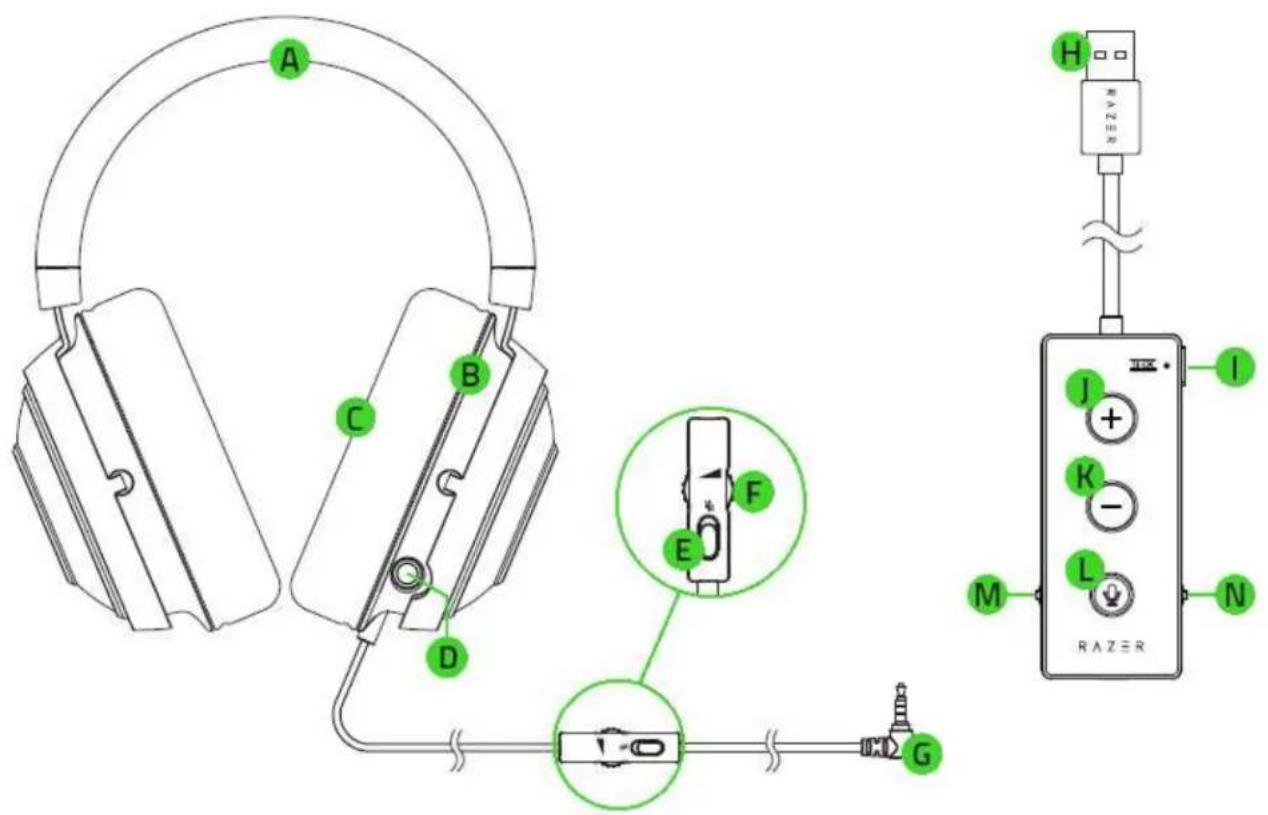
A. Adjustable padded headband
B. Circumaural ear cup design
C. Cooling gel-infused ear cushions
D. Retractable mic
E. Mic mute toggle
F. Volume wheel
G. 3.5 ~mm audio + mic jack
H. USB Audio Controller
I. THX Spatial Audio button
J. Volume up button
K. Volume down button
L. Mic mute button
M. Bass control wheel
N. Game/Chat balance
5. SETTING UP YOUR RAZER KRAKEN TOURNAMENT EDITION
CONNECTING TO YOUR PC
- Plug your Razer Kraken Tournament Edition to the USB Audio Controller, and then to your PC.

- Right-click on the sound icon on the system tray, and then select Sounds.

- On the Playback tab, select Razer Kraken Tournament Edition - Chat from the list, and then set it as the Default Communication Device.

- On the Playback tab, select Razer Kraken Tournament Edition - Game from the list, and then set it as the Default Device.

- In the Recording tab, select Razer Kraken Tournament Edition - Chat from the list and click the 'Set Default' button.

CONNECTING TO OTHER DEVICES VIA USB PORT
Plug your Razer Kraken Tournament Edition to the USB Audio Controller, and then to your device. Make sure your Razer Kraken Tournament Edition is the default input and output audio device.

Disclaimer: Some features for the USB Audio Controller may not be compatible with these devices.
CONNECTING TO DEVICES VIA 3.5MM COMBO PORT
If your device has a 3.5mm audio + mic combined port, simply plug the 3.5 mm audio + mic jack from your headset to your device's audio port.

natural_image
Diagram showing a pair of headphones connected to a smartphone and a handheld device via cable (no text or symbols present)6. USING YOUR RAZER KRAKEN TOURNAMENT EDITION
USING THE RETRACTABLE MIC
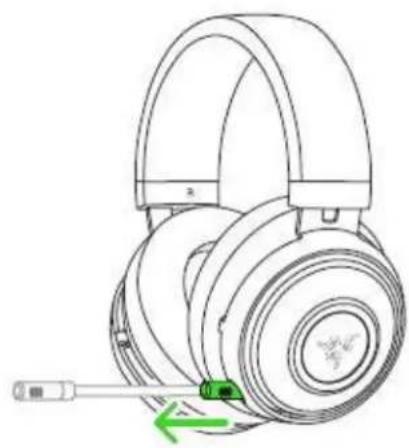
Pull the tip of the mic until it is fully extended.
natural_image
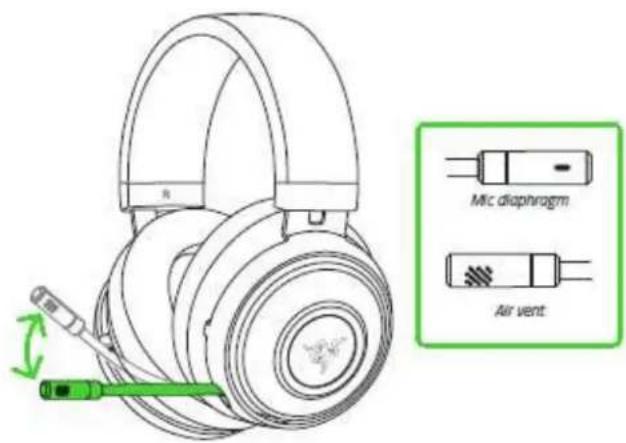
Line drawing of a pair of R360 headphones with a green tool inserted, no text or symbols presentBend the mic until it is parallel to your mouth, then adjust the length as preferred. Make sure the mic diaphragm is in front and the air vent is facing away from your mouth.
USING THE VOLUME CONTROL
Rotate the volume wheel on the in-line control to increase or decrease the volume.


If you are using the USB Audio Controller, you may set the in-line volume to maximum then adjust the volume using the USB Audio Controller.

natural_image
Pure electrical circuit lines without any symbols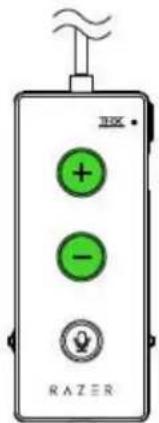
USING THE MIC MUTE
Slide the mic mute toggle to mute or unmute the mic.
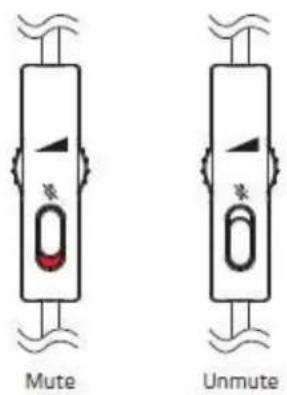
If you are using the USB Audio Controller, you may keep the mic mute toggle unmuted then then use the mic mute button on the USB Audio Controller.

USING THE THX SPATIAL AUDIO BUTTON\*
When using the USB Audio Controller with Razer Synapse, press the THX Spatial Audio button to enable or disable the function.

*Requires Razer Synapse installation
USING THE BASS CONTROL WHEEL
When using the USB Audio Controller, rotate the bass control wheel to increase or decrease the low frequency range of your headset.
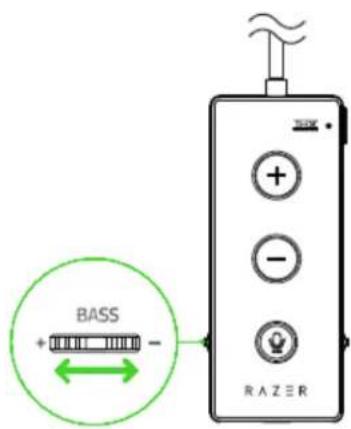
When using the USB Audio Controller, rotate the game/chat balance to increase the in-game volume and decrease the voice chat volume or vice versa.

We recommend stretching the headset gently apart before placing them over your head to minimize headband stress. However, please avoid overstretching the headset beyond its technical limits.

natural_image
Line drawing of a pair of headphones with a green bidirectional arrow indicating speed (no text or symbols)7. INSTALLING RAZER SYNAPSE 3 FOR YOUR RAZER KRAKEN TOURNAMENT EDITION

Step 1: Make sure your Razer device is connected to the USB port of your computer.
Step 2: Install Razer Synapse 3 when prompted* or download the installer from razer.com/synapse.
Step 3: Create your Razer ID or log in using an existing account.
*Applicable for Windows 8 or later.
8. CONFIGURING YOUR RAZER KRAKEN TOURNAMENT EDITION
Disclaimer: The features listed here require you to log in to Razer Synapse. These features are also subject to change based on the current software version and your Operating System.
SYNAPSE TAB
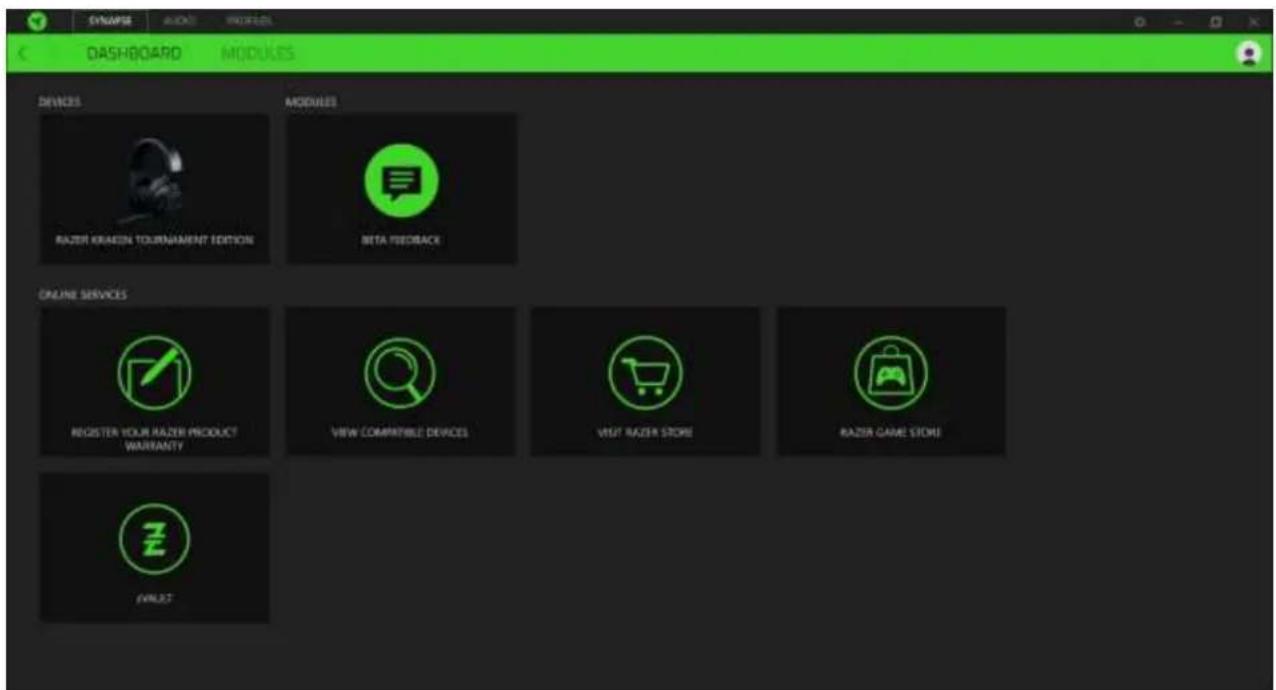
The Synapse tab is your default tab when you first launch Razer Synapse 3. This tab allows you to navigate the Dashboard subtab.
DASHBOARD
The Dashboard subtab is an overview of your Razer Synapse 3 where you can access all your Razer devices, modules, and online services.
AUDIO TAB
The Audio tab is the main tab for your Razer Kraken Tournament Edition. From here, you can customize your device's settings to unleash its full potential. Changes made under this tab are automatically saved to your system and cloud storage.

SOUND
The Sound subtab is for modifying your device's sound properties.

Profile
Profile is a data storage for keeping all your Razer peripheral's settings. By default, the profile name is based on your system's name. To add, rename, duplicate, or delete a profile, simply press the Miscellaneous button (●).
Sound Properties
Clicking the link will launch the Windows sound properties window.
MIXER
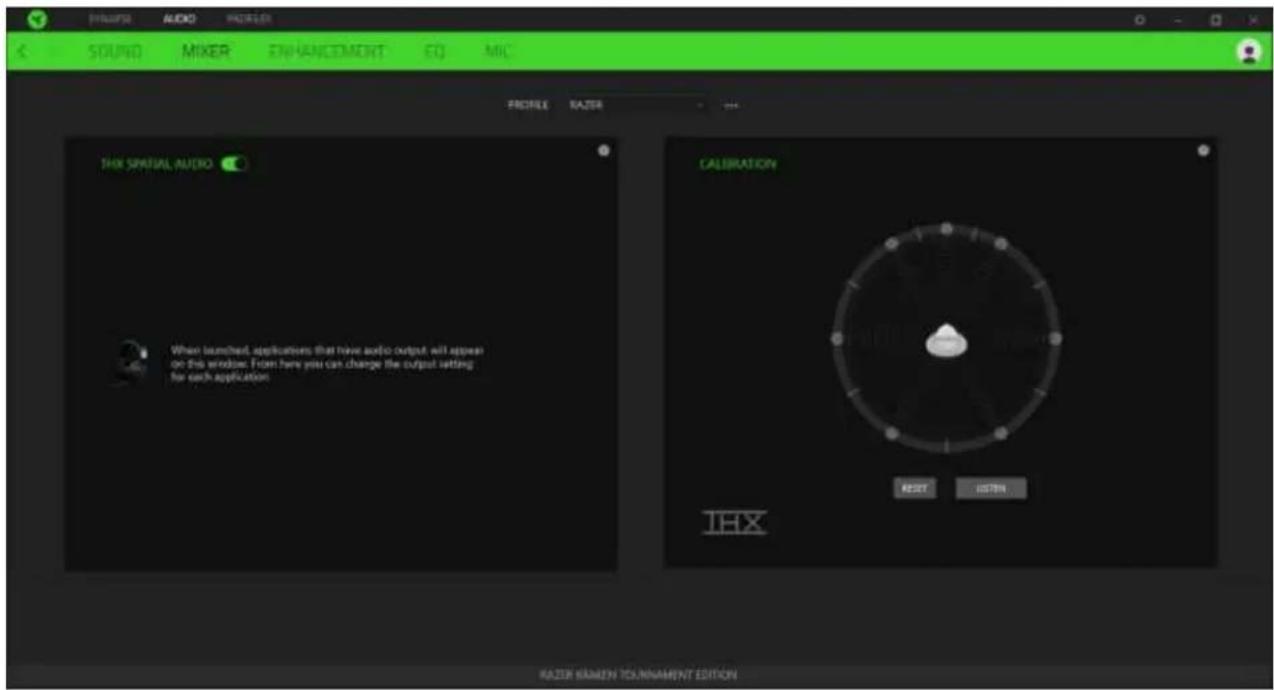
The Mixer subtab allows you to enable/disable the THX Spatial Audio, as well as calibrate the audio positioning.
ENHANCEMENT
The Enhancement subtab is for customizing the incoming voice audio settings.
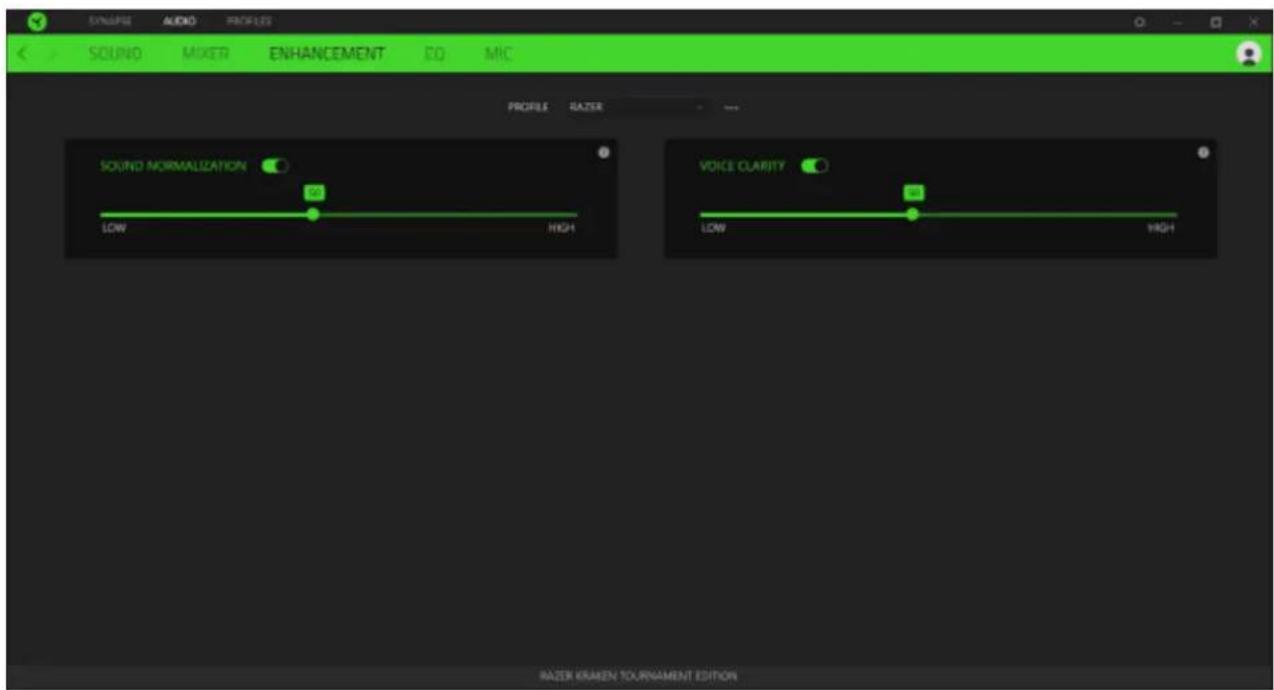
Sound Normalization
Reduces the loudest audio received to avoid sudden and unpleasant increase in volume from effects such as shouting or explosions.
Voice Clarity
Improves the quality of incoming voice conversations by filtering the sound to improve clarity and adjusts the volume.
EQ
With the EQ subtab, you can alter the frequency response of your audio system.

MIC
The Mic subtab enables you to change the settings for all outgoing mic audio.

Mic Volume
Adjusts the microphone input or mutes the mic when the function is disabled.
Mic Sensitivity
Changes the microphone's sensitivity so that it cuts out background noises and isolate your voice.
Sidetone
Monitors the microphone's raw audio input through the headset with an additional option to increase or decrease the volume.
Enhancements
Improves the quality of the microphone input by:
■ reducing the variation of loudness via Volume Normalization
■ decreasing environmental noise through Ambient Noise Reduction
■ emphasizing the voice frequency by means of Vocal Clarity
PROFILES TAB
The Profiles tab is a convenient way of managing all your profiles and linking them to your games and applications.
DEVICES
View which Razer device is using a specific profile using the Devices subtab. To create a new profile within the selected device, simply click the add button (+). To rename, duplicate, or delete a profile, simply press the Miscellaneous button (•). Each profile can be set to automatically activate when you run an application using the Link Games option.

LINKED GAMES
The Linked Games subtab gives you the flexibility to add games, view peripherals that are linked to games, or search for added games. You can also sort games based on alphabetical order, last played, or most played. Added games will still be listed here even if it is not linked to a Razer device.

SETTINGS WINDOW
The Settings window, accessible by clicking the ( ) button on Razer Synapse 3, enables you to configure the startup behavior, change language, view your Razer device's master guide, or perform factory reset on any connected Razer device.
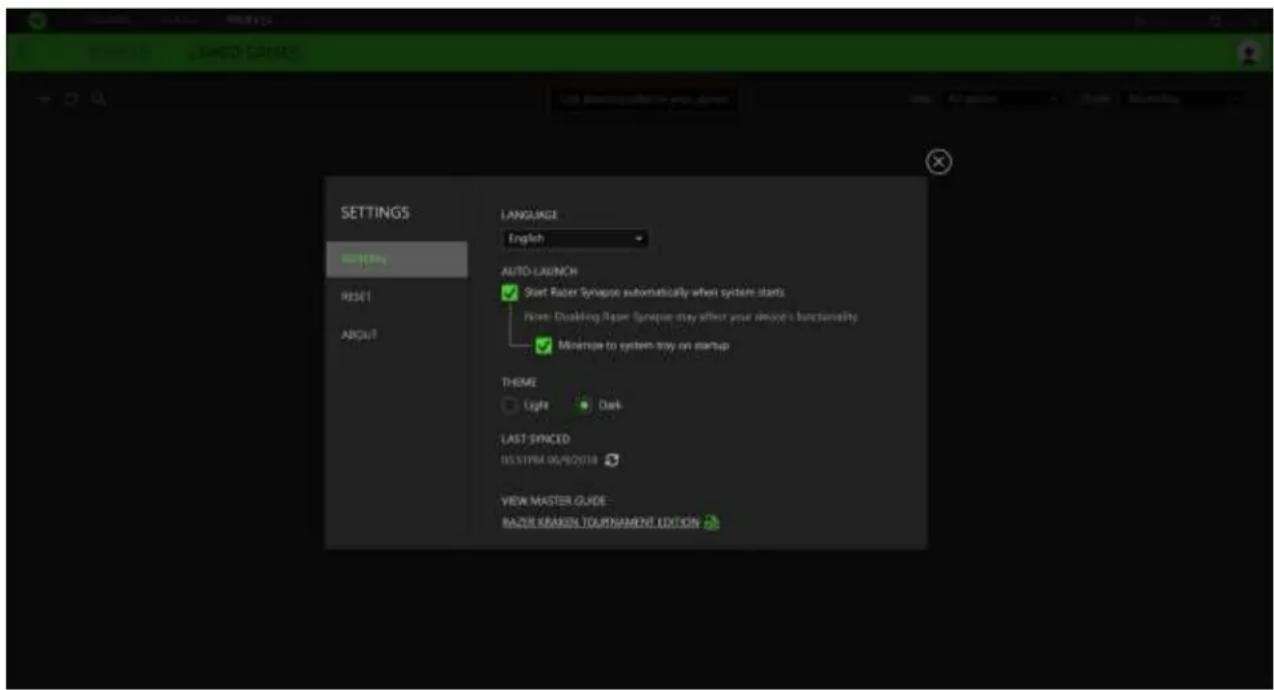
GENERAL
The default tab of the Settings window, The General tab enables you to change the software's display language and start-up behavior, or view the master guide of all connected Razer devices.
RESET
The Reset tab allows you to perform a factory reset on all connected Razer devices with on-board memory. All profiles stored on the selected device's on-board memory will be erased.
Note: Performing a factory reset on devices without on-board memory will only create a new profile for your device on Razer Synapse 3 using the default settings.
ABOUT
The About tab displays brief software information, its copyright statement, and also provides relevant links for its terms of use. You may also use this tab to check for software updates, or as a quick access to Razer's social communities.
9. SAFETY AND MAINTENANCE
SAFETY GUIDELINES
In order to achieve maximum safety while using your Razer Kraken Tournament Edition, we suggest that you adopt the following guidelines:
Should you have trouble operating the device properly and troubleshooting does not work, unplug the device and contact the Razer hotline or go to support.razer.com for assistance.
Do not take apart the device (doing so will void your warranty) and do not attempt to operate it under abnormal current loads.
Keep the device away from liquid, humidity or moisture. Operate the device only within the specific temperature range of 0^ C ( 32^ F) to 40^ C ( 104^ F). Should the temperature exceed this range, unplug and/or switch off the device in order to let the temperature stabilize to an optimal level.
The device isolates external ambient sounds even at low volumes, resulting in lowered awareness of your external surroundings. Please remove the device when engaging in any activities that requires active awareness of your surroundings.
Listening to excessively loud volumes over extended periods of time can damage your hearing. Furthermore, legislation of certain countries permits a maximum sound level of 86db to affect your hearing for 8 hours a day. We therefore recommend that you reduce the volume to a comfortable level when listening for prolonged periods of time. Please, take good care of your hearing.
MAINTENANCE AND USE
The Razer Kraken Tournament Edition requires minimum maintenance to keep it in optimum condition. Once a month we recommend you unplug the device from the computer and clean it using a soft cloth or cotton swab with a bit of warm water to prevent dirt buildup. Do not use soap or harsh cleaning agents.
10. LEGALESE
COPYRIGHT AND INTELLECTUAL PROPERTY INFORMATION
©2018 Razer Inc. All rights reserved. Razer, the triple-headed snake logo, Razer logo, “For Gamers. By Gamers.”, and “Powered by Razer Chroma” logo are trademarks or registered trademarks of Razer Inc. and/or affiliated companies in the United States or other countries. All other trademarks and trade names are the property of their respective owners and other company and product names mentioned herein may be trademarks of their respective companies.
Windows and the Windows logo are trademarks of the Microsoft group of companies.
THX and the THX logo are trademarks of THX Ltd., registered in the U.S. and other countries.
Razer Inc. ("Razer") may have copyright, trademarks, trade secrets, patents, patent applications, or other intellectual property rights (whether registered or unregistered) concerning the product in this guide. Furnishing of this guide does not give you a license to any such copyright, trademark, patent or other intellectual property right. The Razer Kraken Tournament Edition (the "Product") may differ from pictures whether on packaging or otherwise. Razer assumes no responsibility for such differences or for any errors that may appear. Information contained herein is subject to change without notice.
LIMITED PRODUCT WARRANTY
For the latest and current terms of the Limited Product Warranty, please visit: razer.com/warranty.
LIMITATION OF LIABILITY
Razer shall in no event be liable for any lost profits, loss of information or data, special, incidental, indirect, punitive or consequential or incidental damages, arising in any way out of distribution of, sale of, resale of, use of, or inability to use the Product. In no event shall Razer's liability exceed the retail purchase price of the Product.
GENERAL
These terms shall be governed by and construed under the laws of the jurisdiction in which the Product was purchased. If any term herein is held to be invalid or unenforceable, then such term (in so far as it is invalid or unenforceable) shall be given no effect and deemed to be excluded without
invalidating any of the remaining terms. Razer reserves the right to amend any term at any time without notice.


- CONTENTS
- PACKAGE CONTENTS / SYSTEM REQUIREMENTS
- PACKAGE CONTENTS
- SYSTEM REQUIREMENTS
- HARDWARE REQUIREMENTS
- RAZER SYNAPSE 3 REQUIREMENTS
- REGISTRATION / TECHNICAL SUPPORT
- REGISTRATION
- TECHNICAL SUPPORT
- TECHNICAL SPECIFICATIONS
- HEADPHONES
- MICROPHONE
- IN-LINE CONTROL
- USB DONGLE
- DEVICE LAYOUT
- SETTING UP YOUR RAZER KRAKEN TOURNAMENT EDITION
- CONNECTING TO YOUR PC
- CONNECTING TO OTHER DEVICES VIA USB PORT
- CONNECTING TO DEVICES VIA 3.5MM COMBO PORT
- USING YOUR RAZER KRAKEN TOURNAMENT EDITION
- USING THE RETRACTABLE MIC
- USING THE VOLUME CONTROL
- USING THE MIC MUTE
- USING THE THX SPATIAL AUDIO BUTTON\*
- USING THE BASS CONTROL WHEEL
- INSTALLING RAZER SYNAPSE 3 FOR YOUR RAZER KRAKEN TOURNAMENT EDITION
- CONFIGURING YOUR RAZER KRAKEN TOURNAMENT EDITION
- SYNAPSE TAB
- DASHBOARD
- AUDIO TAB
- SOUND
- Profile
- Sound Properties
- MIXER
- ENHANCEMENT
- Sound Normalization
- Voice Clarity
- EQ
- MIC
- Mic Volume
- Mic Sensitivity
- Sidetone
- Enhancements
- PROFILES TAB
- DEVICES
- LINKED GAMES
- SETTINGS WINDOW
- GENERAL
- RESET
- ABOUT
- SAFETY AND MAINTENANCE
- SAFETY GUIDELINES
- MAINTENANCE AND USE
- LEGALESE
- COPYRIGHT AND INTELLECTUAL PROPERTY INFORMATION
- LIMITED PRODUCT WARRANTY
- LIMITATION OF LIABILITY
Brand : RAZER
Model : Kraken Tournament Edition
Category : Headphones