
Kraken 7.1 - Headphones RAZER - Free user manual and instructions
Find the device manual for free Kraken 7.1 RAZER in PDF.


| Product Type | Gaming Headset |
| Model | Kraken 7.1 |
| Brand | Razer |
| Connectivity | Wired (USB) |
| Driver Size | 50 mm |
| Frequency Response | 20 Hz – 20 kHz |
| Impedance | 32 Ω at 1 kHz |
| Microphone Type | Retractable unidirectional |
| Microphone Frequency Response | 100 Hz – 10 kHz |
| Surround Sound | 7.1 virtual surround (via Razer Synapse) |
| Ear Cushion Material | Memory foam with leatherette |
| Headband Material | Adjustable stainless steel |
| Dimensions (W x H x D) | Approx. 205 x 100 x 190 mm |
| Weight | Approx. 340 g (12 oz) |
| Cable Length | 2.0 m / 6.6 ft (braided) |
| Power Source | USB powered (no batteries required) |
| Software | Razer Synapse (for sound customization) |
| Maintenance | Wipe with a soft dry cloth; avoid liquids |
| Safety | Use at moderate volumes to prevent hearing damage |
| Spare Parts / Repairability | Replaceable ear cushions and cable (if applicable) |
Frequently Asked Questions - Kraken 7.1 RAZER
User questions about Kraken 7.1 RAZER
0 question about this device. Answer the ones you know or ask your own.
Ask a new question about this device
Download the instructions for your Headphones in PDF format for free! Find your manual Kraken 7.1 - RAZER and take your electronic device back in hand. On this page are published all the documents necessary for the use of your device. Kraken 7.1 by RAZER.
USER MANUAL Kraken 7.1 RAZER
Get the complete 7.1 surround sound gaming experience with the Razer Kraken 7.1 USB gaming headset. This headset adopts the comfortable form factor of the Razer Kraken Pro, tested by numerous professional gamers to determine the opmal ergonomics for extended gaming sessions.
The full potenal of the Razer Kraken 7.1 is unleashed by its advanced 7.1 virtual surround sound engine. Driven by Razer's powerful Synapse 2.0 unied conguraon soware, this highly customizable engine modulates sound to simulate a 360^ surround sound experience, allowing you to precisely pinpoint direconal audio to know exactly where your enemies are. The headset's 40mm neodymium magnet drivers power a sound signature that features deep bass, warm mids and crystal-clear highs, for total gaming immersion.
Featuring a retractable microphone hidden in the le ear cup when not in use, the Razer Kraken 7.1 maintains a sleek form factor, all while protecng the microphone during transportaon and storage. This exible, omnidireconal digital microphone comes equipped with an optimized algorithm, promising a prisne voice quality unachievable through tradional analog microphones. Boasng an impressive signal-to-noise rao and an extended wideband frequency response, the digital microphone ensures a clear, natural sounding voice reproducon with minimal noise.
Feast your ears on full blooded gaming audio with the Razer Kraken 7.1 surround sound gaming headset.
TABLE OF CONTENTS
- PACKAGE CONTENTS / SYSTEM REQUIREMENTS....2
- REGISTRATION / TECHNICAL SUPPORT.... 2
- TECHNICAL SPECIFICATIONS.... 3
- DEVICE LAYOUT....4
- USING YOUR RAZER KRAKEN 7.1 .... 5
- INSTALLING YOUR RAZER KRAKEN 7.1....7
- CONFIGURING YOUR RAZER KRAKEN 7.1....8
- SAFETY AND MAINTENANCE .... 18
- LEGALESE 19
1. PACKAGE CONTENTS / SYSTEM REQUIREMENTS
PACKAGE CONTENTS
- Razer Kraken 7.1
- Quick Start Guide
SYSTEM REQUIREMENTS
• PC/Mac with USB port
- Windows® 8 / Windows® 7 / Windows Vista® / Mac OS X (10.6-10.8)
- Internet conneccon (for driver installaon)
- At least 100MB of free hard disk space
2. REGISTRATION / TECHNICAL SUPPORT
REGISTRATION
Please visit www.razerzone.com/registraon for online product registraon.
TECHNICAL SUPPORT
What you'll get:
- 1 year limited manufacturer's warranty.
• Free online technical support at www.razersupport.com.
3. TECHNICAL SPECIFICATIONS
HEADPHONES
- Drivers: 40mm neodymium magnets
• Frequency Response: 20Hz - 20kHz - Impedance: 32
• Sensitivity @ 1kHz: 112dB
• Output Power: 30mW - Connector: Gold plated USB
• Cable Length: 2m / 6.56 braided USB cable
• Approximate Weight: 340g
MICROPHONE
• Frequency response: 100Hz –12kHz
• Sensitivity @ 1kHz: -40dB ± 4dB
• Signal-to-noise rao: 63 dB
• Pick-up paern: Omnidireconal
4. DEVICE LAYOUT

A. Adjustable Padded Headband
B. Foldable Ear Cup Design
C. Circumaural, Leatheree Ear Cushions
D. Razer Logo Lighng
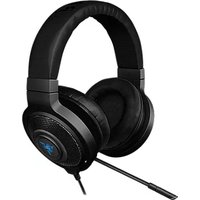
E. Retractable Microphone
F. Microphone Mute/Unmute LED
G. Microphone Mute/Unmute buon
H. Gold plated USB connector
5. USING YOUR RAZER KRAKEN 7.1
USING THE RETRACTABLE MICROPHONE

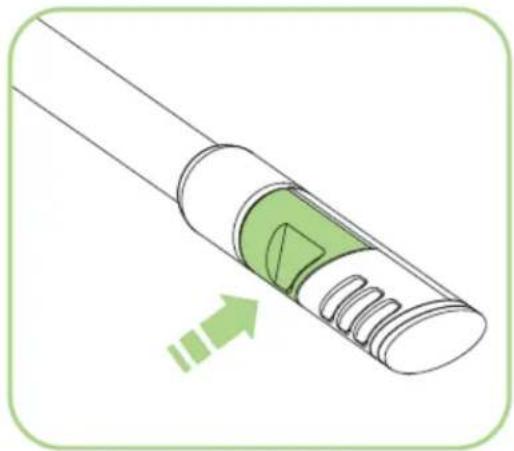
Press the buon to mute/unmute the microphone. The microphone LED will light up when toggled unmute.
natural_image
Diagram of a mechanical component with internal green section and directional arrow (no text or symbols)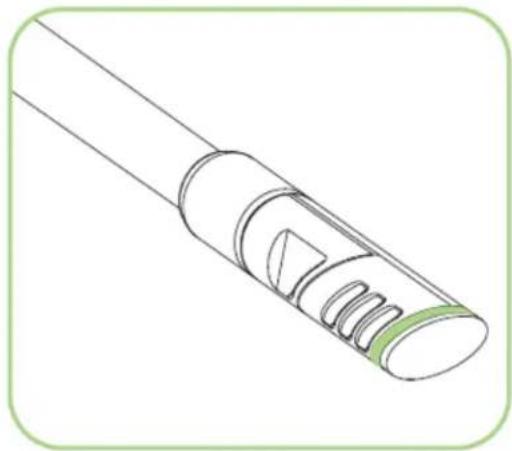
natural_image
Technical line drawing of a cylindrical mechanical component with internal grooves and a green base (no text or symbols)EXTENDING YOUR HEADPHONE'S LIFESPAN

natural_image
Illustration of a pair of headphones with headband and ear connector, no text or symbols presentWe recommend stretching the headphones gently apart before placing them over your head to minimize headband stress. However, please avoid overstretching the headphones beyond its technical limits.
6. INSTALLING YOUR RAZER KRAKEN 7.1

flowchart
graph LR
    A["Apple"] -->|Data Link| B["USB"]
    B --> C["Server"]
    D["Laptop"] -->|Data Link| B
    B --> E["Laptop"]
Note: You may skip Steps 2-4 if you already have Razer Synapse 2.0 installed with an exisng account.
Step 1: Plug the Razer Kraken 7.1 into the USB port of your computer.
Step 2: Download the Razer Synapse 2.0 installer from www.razerzone.com/synapse2.
Step 3: Run the installer and follow the on-screen instrucons.
Step 4: Register for a Razer Synapse 2.0 account and conrm your new account.
Step 5: Open Razer Synapse 2.0 and login to your account.
Step 6: Wait unl the soware automacally downloads and installs.
Note: By default, the Razer Kraken 7.1 headset works out of the box as a 2.0 (stereo) headset. To achieve 7.1 surround sound, please install Synapse 2.0 to set up virtual 7.1 surround sound.
7. CONFIGURING YOUR RAZER KRAKEN 7.1
Disclaimer: The features listed here require you to log in to Razer Synapse 2.0. These features are also subject to change based on the current soware version and your Operang System.
Your Razer Kraken 7.1 headset is equipped with various soware customizable features to unleash its full power.
CALIBRATION TAB
A 3 step calibraon wizard helps you set up your Razer Kraken 7.1 for virtual 7.1 surround sound. If you are seng up your audio device for the rst me, we recommend using this wizard for a step by step guide on the calibraon process.

Click START to launch the wizard.
Step 1 of 3
This step introduces the calibraon process. Read the instrucons carefully and ensure that you are in a quiet environment in order to hear the audio prompts properly.
In this gure, the mannequin represents your posion. The green arrows on each segment represent the target direcon of the audio playback for that parcular segment. Each orange line represents the last saved calibraon sengs congured on Razer Surround.

Click Calibrate Now once you are ready to begin the calibraon.
Step 2 of 3
Posion yourself according to the point of reference indicated by the mannequin. The calibraon process is divided into a series of segments. An audio prompt will be played for each segment.
For the rst segment, the sound should be perceived as coming from the direcon marked by the green target arrow, roughly North-East of your point of reference. Your aim is to move the sound you hear such that you perceive it to be coming from this target direcon. To achieve this,
- Listen carefully to the audio prompt
- The sound you hear will change direcon as you move the mouse scroll wheel or the up/down arrow keys.
- Connue changing the direcon of the sound unl you perceive it to come from the North-East posion or as close to the green target arrow as possible.
Note: The orange line indicates the relave change to the previously saved alignment seng. It does not act your current calibraon, as it serves merely as a change indicator.
Click Next to connue to the next segment. Repeat the above, using the green target arrow for each segment as the target direcon and connue unl you complete the circle.

Once all segments are calibrated, click Next to go to the next step.
Step 3 of 3
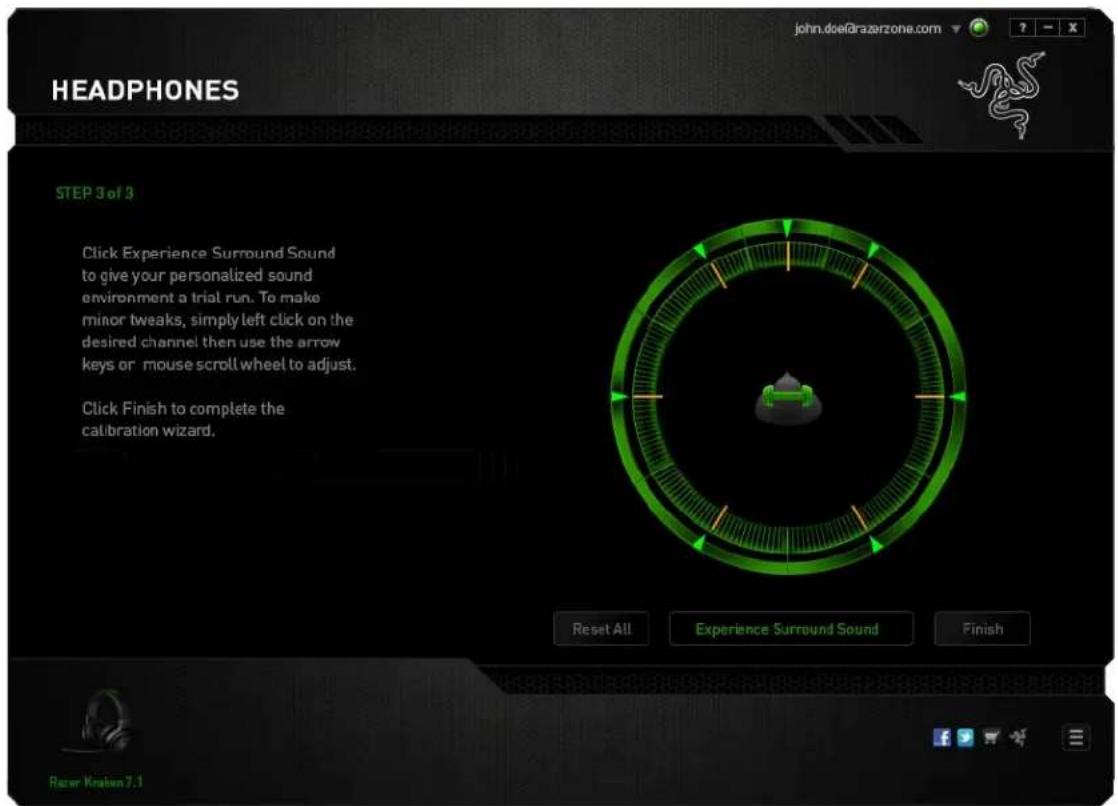
Click Experience Surround Sound to test your personalized sound environment. To tweak a parcular secon, simply click it to play its audio prompt and adjust the sengs as desired. To reset the enre conguraon, click Reset All. Otherwise, click Finish to conrm the sengs.
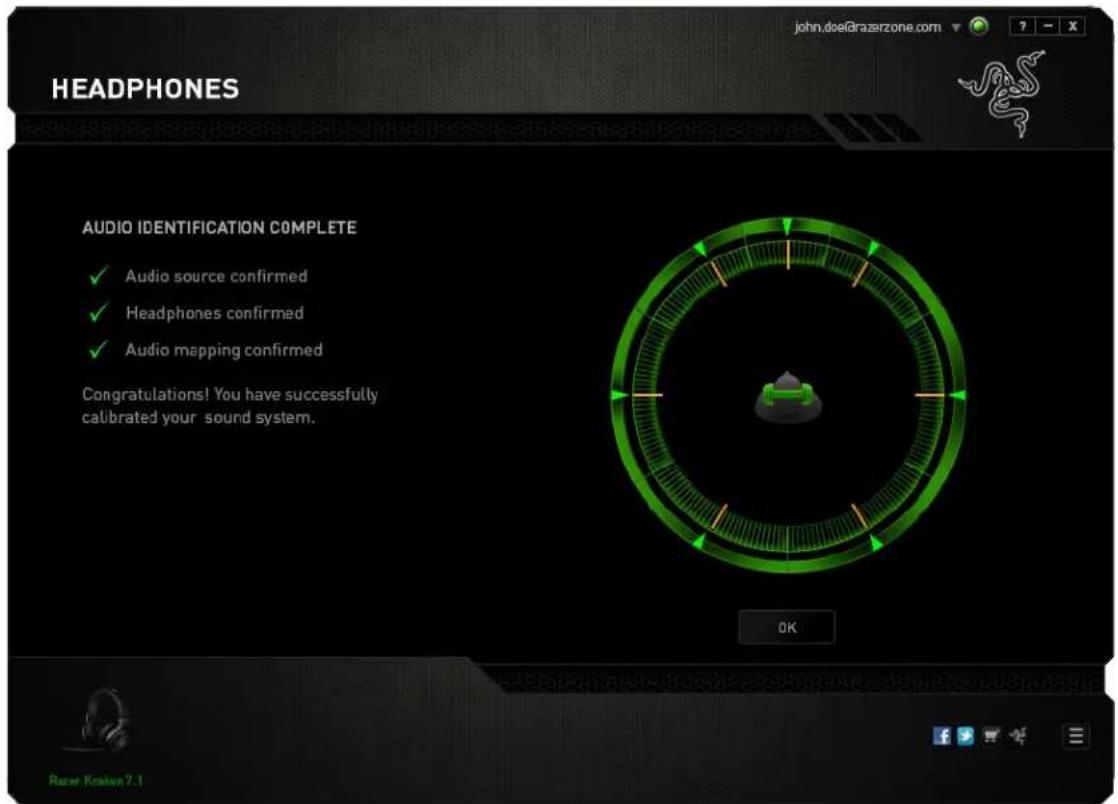
A conrmaon screen will be displayed. Click OK to save and exit the wizard.
AUDIO TAB
The Audio Tab lets you control various opons related to the audio you hear from your headset.
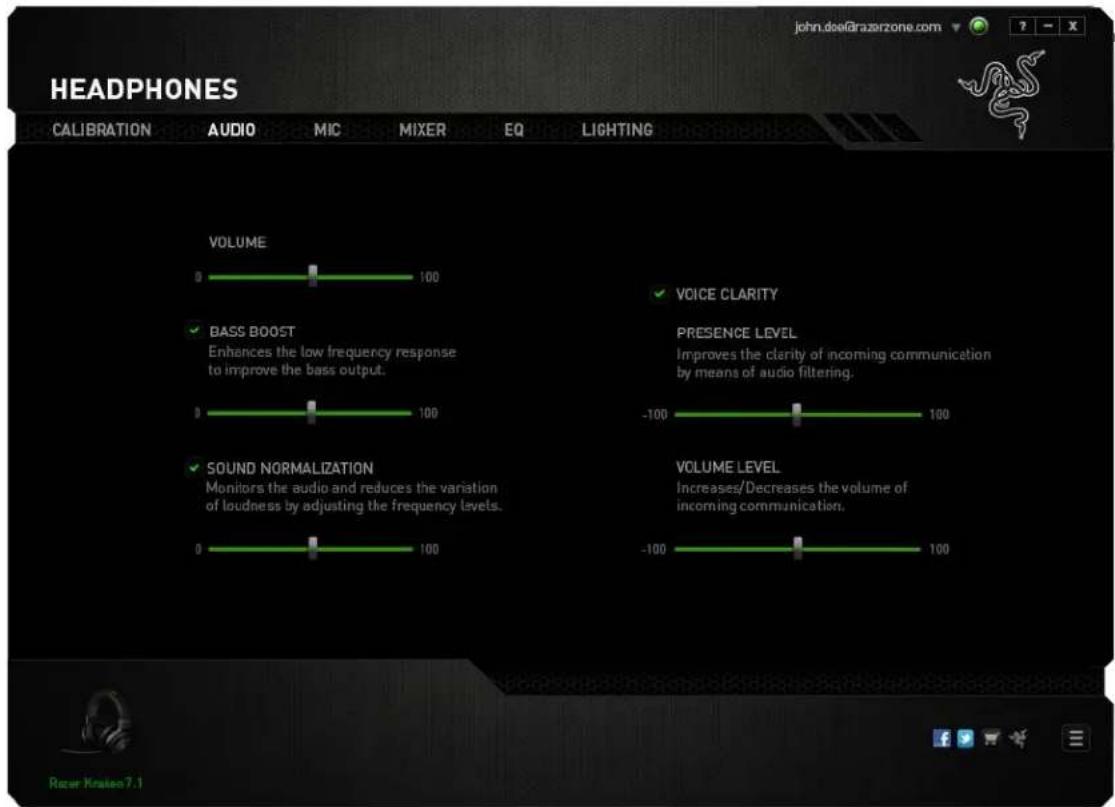
Using the various sliders, you can:
- Adjust the overall volume of your headset
- Improve the bass output of your headset
- Normalize the loudness of audio played to avoid sudden and unpleasant increase in volume from eects such as explosions
- Enable voice clarity adjustments to improve the quality of incoming voice conversaons. Voice Clarity adjustments includes both clarity (Presence Level) and volume (Volume Level) of incoming voice conversaons.
MIC TAB
The Mic Tab lets you control various opons related to how your headset handles voice input via its microphone.
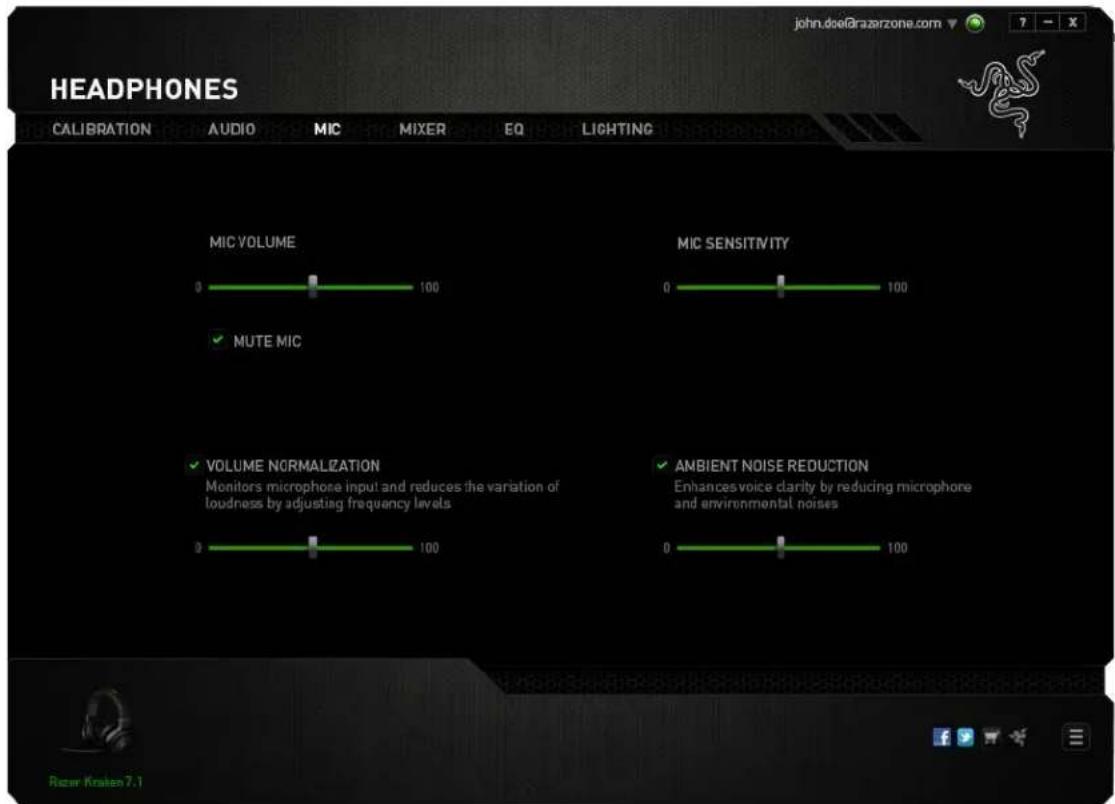
Using the various sliders and opons you can:
- Adjust the microphone input volume. You can also choose to mute your microphone.
- Adjust volume normalizaon level for microphone input
- Adjust the microphone's sensitivity so it cuts out background noises and only picks up your voice.
- Enhance the clarity of microphone input by reducing ambient noise. Use the slider to determine the level of noise reducon desired.
MIXER TAB
The Mixer Tab allow you to adjust the volume for programs currently running on your system individually.
Note: The Mixer Tab is not available for Mac OS systems.

Customize the volume of audio for each program using the sliders.
EQ TAB
The EQ Tab lets you iter various audio frequencies, controlling the overall tone of your audio output.
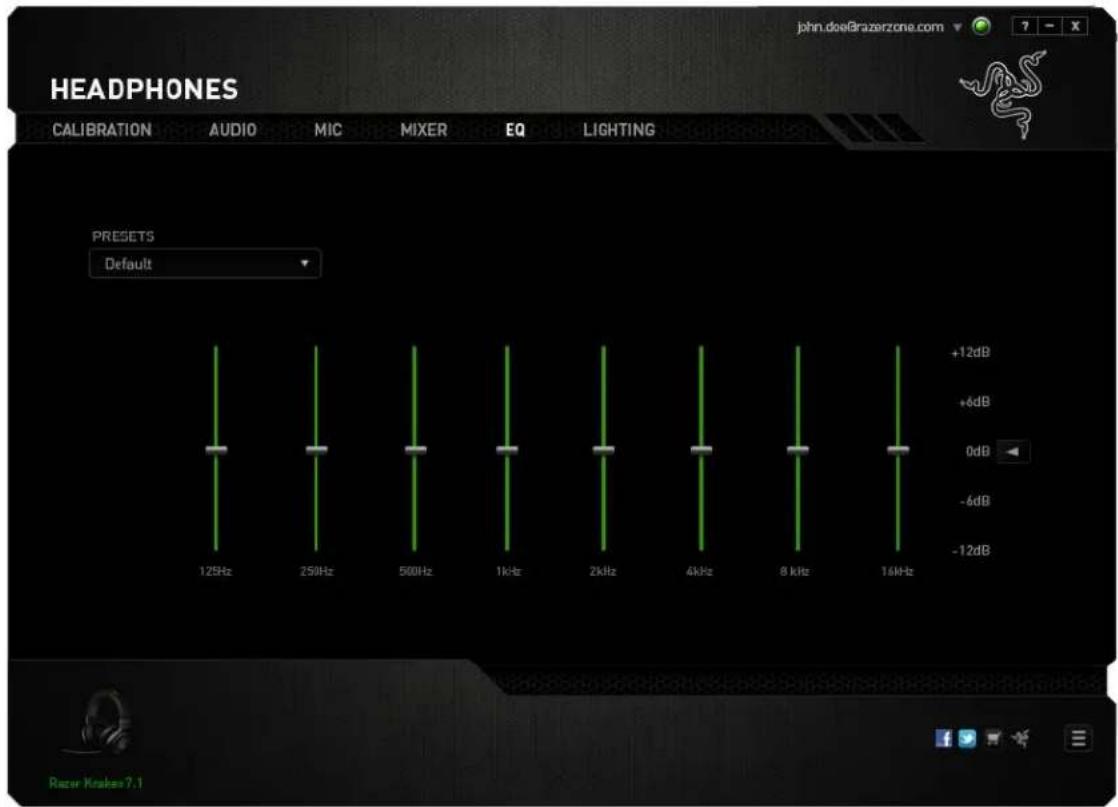
A list of preset equalizer sengs can be selected from the drop down menu, giving you easy access to various commonly used audio tones. You can also manually adjust each audio frequency using the sliders.
LIGHTING TAB
The Lighng Tab allows you to congregate the LEDs of your Razer Kraken 7.1. Simply toggle the ON or OFF opons to enable or disable Logo lighng. Check the checkbox to turn Logo lighng o when your system display goes into idle mode.

8. SAFETY AND MAINTENANCE
SAFETY GUIDELINES
In order to achieve maximum safety while using your Razer Kraken 7.1, we suggest that you adopt the following guidelines:
- Should you have trouble operang the device properly and troublesomeong does not work, unplug the device and contact the Razer hotline or go to www.razersupport.com for support. Do not aempt to service or x the device yourself at any me.
- Do not take apart the device (doing so will void your warranty) and do not aempt to service it yourself or operate it under abnormal current loads.
- Keep your device away from liquid, humidity or moisture. Operate your device only within the specied temperature range of 0^ C ( 32^ F) to 40^ C ( 104^ F). Should you operate it in a temperature that is beyond this range, unplug and switch o the device in order to let the temperature stabilize within the opmal temperature range.
- The device isolates external ambient sounds even at low volumes, resulting in lowered awareness of your external surroundings. Please remove the device when engaging in any advies that requires acve awareness of your surroundings.
- Listening to excessively loud volumes over extended periods of me can damage your hearing. Furthermore, legislaon of certain countries permits a maximum sound level of 86db to aect your hearing for 8 hours a day. We therefore recommend that you reduce the volume to a comfortable level when listening for prolonged periods of me. Please, take good care of your hearing.
MAINTENANCE AND USE
The Razer Kraken 7.1 requires minimum maintenance to keep it in opmum condion. Once a month we recommend you unplug the device and clean it using a so cloth or coon swab with a bit of warm water to prevent dirt buildup. Do not use soap or harsh cleaning agents.
9. LEGALESE
COPYRIGHT AND INTELLECTUAL PROPERTY INFORMATION
Copyright ©2013 Razer Inc. All Rights Reserved. Razer, the Razer Triple-Headed Snake logo, the Razer distressed word logo and other trademarks contained herein are trademarks or registered trademarks of Razer Inc Ltd and/or its aliated or associated companies, registered in the United States and/or other countries. Windows and the Windows logo are trademarks of the Microso group of companies. Mac OS, Mac and the Mac logo are trademarks or registered trademarks of Apple. All other trademarks are the property of their respective owners.
Razer Inc (“Razer”) may have copyright, trademarks, trade secrets, patents, patent applicaons, or other intellectual property rights (whether registered or unregistered) concerning the product in this guide. Furnishing of this guide does not give you a license to any such copyright, trademark, patent or other intellectual property right. The Razer Kraken 7.1 (the “Product”) may dier from pictures whether on packaging or otherwise. Razer assumes no responsibility for such dierences or for any errors that may appear. Informaon contained herein is subject to change without noce.
LIMITED PRODUCT WARRANTY
For the latest and current terms of the Limited Product Warranty, please visit www.razerzone.com/warranty.
LIMITATION OF LIABILITY
Razer shall in no event be liable for any lost prots, loss of informaon or data, special, incidental, indirect, punive or consequential or incidental damages, arising in any way out of distribuon of, sale of, resale of, use of, or inability to use the Product. In no event shall Razer's liability exceed the retail purchase price of the Product.
COSTS OF PROCUREMENT
For the avoidance of doubt, in no event will Razer be liable for any costs of procurement unless it has been advised of the possibility of such damages, and in no case shall Razer be liable for any costs of procurement liability exceeding the retail purchase price of the Product.
GENERAL
These terms shall be governed by and construed under the laws of the jurisdicon in which the Product was purchased. If any term herein is held to be invalid or unenforceable, then such term (in so far as it is invalid or unenforceable) shall be given no eect and deemed to be excluded without invalidang any of the remaining terms. Razer reserves the right to amend any term at any me without noce.


- TABLE OF CONTENTS
- PACKAGE CONTENTS / SYSTEM REQUIREMENTS
- PACKAGE CONTENTS
- SYSTEM REQUIREMENTS
- REGISTRATION / TECHNICAL SUPPORT
- REGISTRATION
- TECHNICAL SUPPORT
- TECHNICAL SPECIFICATIONS
- HEADPHONES
- MICROPHONE
- DEVICE LAYOUT
- USING YOUR RAZER KRAKEN 7.1
- USING THE RETRACTABLE MICROPHONE
- EXTENDING YOUR HEADPHONE'S LIFESPAN
- INSTALLING YOUR RAZER KRAKEN 7.1
- CONFIGURING YOUR RAZER KRAKEN 7.1
- CALIBRATION TAB
- Step 1 of 3
- Step 2 of 3
- Step 3 of 3
- AUDIO TAB
- MIC TAB
- MIXER TAB
- EQ TAB
- LIGHTING TAB
- SAFETY AND MAINTENANCE
- SAFETY GUIDELINES
- MAINTENANCE AND USE
- LEGALESE
- COPYRIGHT AND INTELLECTUAL PROPERTY INFORMATION
- LIMITED PRODUCT WARRANTY
- LIMITATION OF LIABILITY
- COSTS OF PROCUREMENT
- GENERAL
Brand : RAZER
Model : Kraken 7.1
Category : Headphones