
Alienware 13 R3 - Laptop DELL - Free user manual and instructions
Find the device manual for free Alienware 13 R3 DELL in PDF.


| Product Type | Gaming Laptop |
| Model | Alienware 13 R3 |
| Dimensions (Approx.) | 12.9 x 10.8 x 1.2 in (328 x 274 x 30 mm) |
| Weight (Approx.) | 4.5–5.0 lb (2.0–2.3 kg) |
| Power Adapter | 180 W AC adapter |
| Battery | Lithium-ion, 76 Wh (removable) |
| Processor | Intel Core i7-7700HQ (Quad-Core, 2.8 GHz up to 3.8 GHz) |
| Memory | Up to 32 GB DDR4 2400 MHz (2 slots, user-replaceable) |
| Storage | M.2 PCIe NVMe SSD (up to 2 TB, user-replaceable) |
| Display | 13.3 inch OLED QHD (2560x1440) or FHD (1920x1080) IPS |
| Graphics | NVIDIA GeForce GTX 1060 (6 GB) or GTX 1070 (8 GB) |
| Ports | 1x USB-C (Thunderbolt 3), 3x USB 3.0, HDMI 2.0, Mini DisplayPort, Headphone/Mic, SD Card Reader |
| Wireless | Killer 1535 802.11ac, Bluetooth 4.2 |
| Keyboard | RGB backlit keyboard (Alienware TactX) |
| Audio | 2.1 stereo speakers (2W x 2), subwoofer (2W) |
| Operating System | Windows 10 Home/Pro (64-bit) |
| Serviceability | User-upgradeable RAM, SSD, wireless card, battery; service manual provided |
| Safety Precautions | Disconnect power, ground yourself, avoid touch on heat sink surfaces |
| Cleaning | Use a soft dry cloth; avoid liquids on internal components |
| Spare Parts Availability | System board, display assembly, battery, keyboard, palm rest, etc. available via Dell support |
Frequently Asked Questions - Alienware 13 R3 DELL
User questions about Alienware 13 R3 DELL
0 question about this device. Answer the ones you know or ask your own.
Ask a new question about this device
Download the instructions for your Laptop in PDF format for free! Find your manual Alienware 13 R3 - DELL and take your electronic device back in hand. On this page are published all the documents necessary for the use of your device. Alienware 13 R3 by DELL.
USER MANUAL Alienware 13 R3 DELL
Alienware 13 R3 Service Manual
Notes, cautions, and warnings

NOTE: A NOTE indicates important information that helps you make better use of your product.

CAUTION: A CAUTION indicates either potential damage to hardware or loss of data and tells you how to avoid the problem.

WARNING: A WARNING indicates a potential for property damage, personal injury, or death.
Copyright © 2016 Dell Inc. or its subsidiaries. All rights reserved. Dell, EMC, and other trademarks are trademarks of Dell Inc. or its subsidiaries. Other trademarks may be trademarks of their respective owners.
2016 - 12
Rev. A01
Contents
Before working inside your computer.... 10
Before you begin 10
Safety instructions....10
Recommended tools.... 11
Screw list....12
After working inside your computer.... 14
Removing the base cover....15
Procedure....15
Replacing the base cover....17
Procedure....17
Removing the wireless card....18
Prerequisites....18
Procedure....18
Replacing the wireless card.... 20
Procedure....20
Post-requisites....21
Removing the solid-state drive.... 22
Prerequisites.... 22
Procedure....22
Replacing the solid-state drive.... 24
Procedure....24
Post-requisites.... 25
Removing the memory modules....26
Prerequisites....26
Procedure....26
Replacing the memory modules....28
Procedure....28
Post-requisites.... 29
Removing the rear-I/O cover....30
Prerequisites.... 30
Procedure....30
Replacing the rear-I/O cover.... 32
Procedure....32
Post-requisites....32
Removing the computer base....33
Prerequisites....33
Procedure.... 33
Replacing the computer base....36
Procedure....36
Post-requisites....36
Removing the coin-cell battery....37
Prerequisites....37
Procedure.... 37
Replacing the coin-cell battery....39
Procedure....39
Post-requisites....39
Removing the heat-sink assembly....40
Prerequisites....40
Procedure....40
Replacing the heat-sink assembly.... 42
Procedure....42
Post-requisites....42
Removing the battery....43
Prerequisites.... 43
Procedure....43
Replacing the battery....45
Procedure....45
Post-requisites.... 45
Removing the touch pad.... 46
Prerequisites....46
Procedure....46
Replacing the touch pad....50
Procedure....50
Post-requisites....50
Removing the system board....51
Prerequisites....51
Procedure....52
Replacing the system board....55
Procedure....55
Post-requisites.... 56
Removing the speakers.... 57
Prerequisites....57
Procedure....57
Replacing the speakers....59
Procedure....59
Post-requisites....59
Removing the power-adapter port....60
Prerequisites....60
Procedure....60
Replacing the power-adapter port....62
Procedure....62
Post-requisites....62
Removing the power-button board....63
Prerequisites....63
Procedure....63
Replacing the power-button board....65
Procedure....65
Post-requisites....65
Removing the keyboard....66
Prerequisites....66
Procedure....66
Replacing the keyboard....69
Procedure....69
Post-requisites....69
Removing the display assembly.... 71
Prerequisites....71
Procedure....71
Replacing the display assembly....74
Procedure....74
Post-requisites....74
Removing the palm rest....76
Prerequisites....76
Procedure....76
Replacing the palm rest....78
Procedure....78
Post-requisites....78
Removing the display bezel....79
Prerequisites....79
Procedure....79
Replacing the display bezel.... 82
Procedure....82
Post-requisites....82
Removing the camera cable.... 83
Prerequisites....83
Procedure....83
Replacing the camera cable.... 85
Procedure....85
Post-requisites....85
Removing the camera....86
Prerequisites....86
Procedure....86
Replacing the camera....88
Procedure....88
Post-requisites....88
Removing the display panel....89
Prerequisites....89
Procedure....89
Replacing the display panel.... 92
Procedure....92
Post-requisites....92
Removing the display hinges.... 94
Prerequisites....94
Procedure....94
Replacing the display hinges.... 98
Procedure....98
Post-requisites....98
Removing the display back-cover and antenna assembly.... 100
Prerequisites....100
Procedure....101
Replacing the display back-cover and antenna assembly....102
Procedure....102
Post-requisites....102
BIOS overview....103
Entering the BIOS setup program....103
Timing key sequences.... 103
System setup options.... 103
Clearing forgotten passwords.... 109
Clearing CMOS settings.... 109
Flashing the BIOS....110
Boot menu....110
Boot menu enhancements....111
Diagnostics....112
Flashing the BIOS....114
Getting help and contacting Alienware....115
Self-help resources....115
Contacting Alienware....115
Before working inside your computer

NOTE: The images in this document may differ from your computer depending on the configuration you ordered.
Before you begin
1 Save and close all open files and exit all open applications.
2 Shut down your computer.
The shut-down instruction varies depending on the operating system installed on your computer.
- Windows 10: Click Start → ⏻ Power → Shut down.
- Windows 8.1: On the Start screen, Click the power icon ⏻ → Shut down.
- Windows 7: Click Start → Shut down.

NOTE: If you are using a different operating system, see the documentation of your operating system for shut-down instructions.
3 Disconnect your computer and all attached devices from their electrical outlets.
4 Disconnect all attached network devices and peripherals, such as keyboard, mouse, and monitor, from your computer.
5 Remove any media card and optical disc from your computer, if applicable.
6 Close the display and turn the computer over.
Safety instructions
Use the following safety guidelines to protect your computer from potential damage and ensure your personal safety.

WARNING: Before working inside your computer, read the safety information that shipped with your computer. For more safety best practices, see the Regulatory Compliance home page at www.dell.com/regulatory_compliance.
WARNING: Disconnect all power sources before opening the computer cover or panels. After you finish working inside the computer, replace all covers, panels, and screws before connecting to the electrical outlet.
CAUTION: To avoid damaging the computer, ensure that the work surface is flat and clean.
CAUTION: To avoid damaging the components and cards, handle them by their edges, and avoid touching pins and contacts.
CAUTION: You should only perform troubleshooting and repairs as authorized or directed by the Dell technical assistance team. Damage due to servicing that is not authorized by Dell is not covered by your warranty. See the safety instructions that shipped with the product or at www.dell.com/regulatory_compliance.
CAUTION: Before touching anything inside your computer, ground yourself by touching an unpainted metal surface, such as the metal at the back of the computer. While you work, periodically touch an unpainted metal surface to dissipate static electricity, which could harm internal components.
CAUTION: When you disconnect a cable, pull on its connector or on its pull tab, not on the cable itself. Some cables have connectors with locking tabs or thumb-screws that you must disengage before disconnecting the cable. When disconnecting cables, keep them evenly aligned to avoid bending any connector pins. When connecting cables, ensure that the ports and connectors are correctly oriented and aligned.
CAUTION: Press and eject any installed card from the media-card reader.
Recommended tools
The procedures in this document may require the following tools:
- Phillips screwdriver
- Plastic scribe
Screw list
Table 1. Screw list
| Component Secured to Screw type Quantity Screw | image | ||
| Wireless card Computer base M2x3 1 |  | ||
| Solid-state drive | Computer base M2x3 1 |  | |
| Rear-I/O cover | Palm-rest assembly | M2.5x6L 2 |  |
| Computer base | Palm-rest assembly | M2x3 1 |  |
| Computer base | Palm-rest assembly | M2.5x6L 11 |  |
| Computer base | Palm-rest assembly | M2.5x6L 2 |  |
| Heat-sink assembly | System board M2x3 7 |  | |
| Touch-pad bracket | Palm-rest assembly | M2x3 5 |  |
| System board | Palm-rest assembly | M2.5x6L 2 |  |
| Speaker Palm-rest assembly | M2x3 1 |  | |
| Power-button board | Palm-rest assembly | M2x3 2 |  |
| Keyboard bracket | Palm-rest assembly | M2x3 8 |  |
| Display assembly | Palm-rest assembly | M2.5x6L 4 |  |
| Display panel | Display back-cover and antenna assembly | M1.6x2 4 |  |
| Display hinges | Display back-cover and antenna assembly | M2.5x2.0L 8 |  |
| USB Type-C port bracket | System board M2.5x6L 2 |  | |
After working inside your computer

CAUTION: Leaving stray or loose screws inside your computer may severely damage your computer.
1 Replace all screws and ensure that no stray screws remain inside your computer.
2 Connect any external devices, peripherals, or cables you removed before working on your computer.
3 Replace any media cards, discs, or any other parts that you removed before working on your computer.
4 Connect your computer and all attached devices to their electrical outlets.
5 Turn on your computer.
Removing the base cover

WARNING: Before working inside your computer, read the safety information that shipped with your computer and follow the steps in Before working inside your computer. After working inside your computer, follow the instructions in After working inside your computer. For more safety best practices, see the Regulatory Compliance home page at www.dell.com/regulatory_compliance.
Procedure
1 Loosen the five captive screws that secure the base cover to the computer base.
2 Using a plastic scribe, gently pry the base cover to release the tabs on the base cover from the slots on the computer base.
3 Lift the base cover off the computer base.
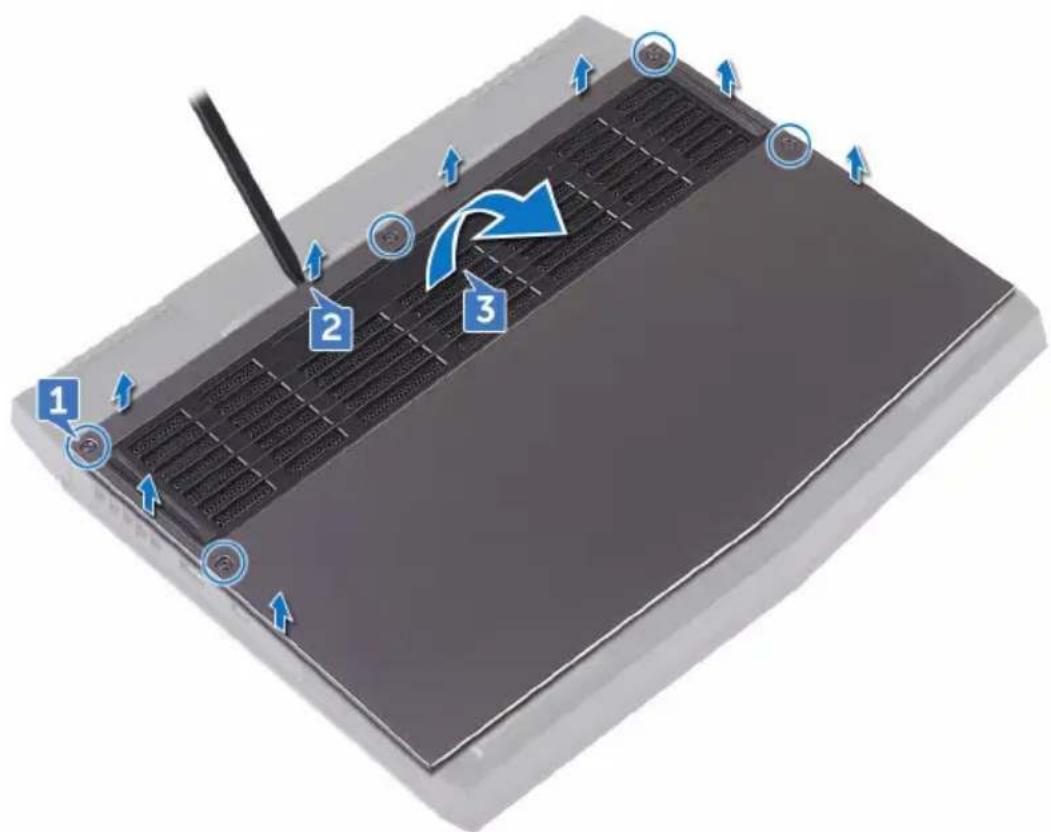
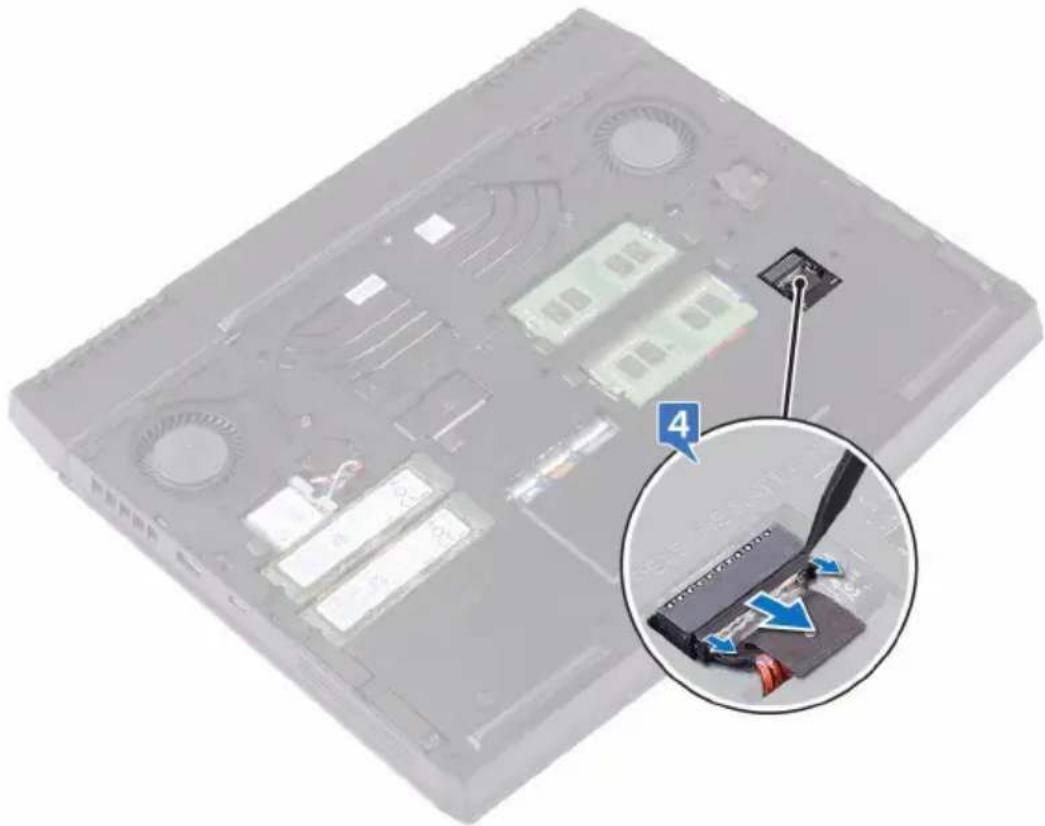
4 Using a plastic scribe, disconnect the battery cable from the system board.
natural_image
Close-up of a computer motherboard with an inset showing a close-up of a cable connector (no text or symbols visible)5 Press and hold the power button for five seconds to ground the system board.
Replacing the base cover

WARNING: Before working inside your computer, read the safety information that shipped with your computer and follow the steps in Before working inside your computer. After working inside your computer, follow the instructions in After working inside your computer. For more safety best practices, see the Regulatory Compliance home page at www.dell.com/regulatory_compliance.
Procedure
1 Connect the battery cable to the system board.
2 Slide the tabs on the base cover into the slots on the computer base and snap the base cover into place.
3 Tighten the five captive screws that secure the base cover to the computer base.
Removing the wireless card

WARNING: Before working inside your computer, read the safety information that shipped with your computer and follow the steps in Before working inside your computer. After working inside your computer, follow the instructions in After working inside your computer. For more safety best practices, see the Regulatory Compliance home page at www.dell.com/regulatory_compliance.
Prerequisites
Remove the base cover.
Procedure
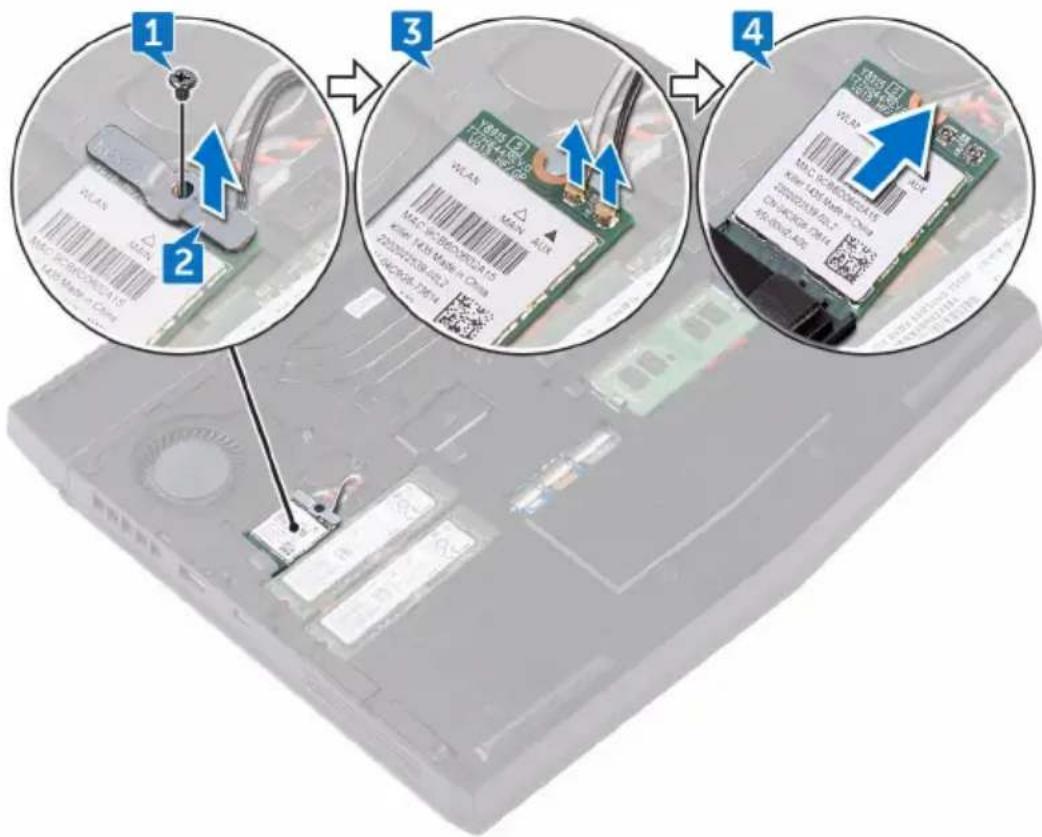
1 Remove the screw (M2x3) that secures the wireless card and bracket to the computer base.
2 Lift the wireless-card bracket off the wireless card.
3 Disconnect the antenna cables from the wireless card.
4 Lift and slide the wireless card out of the wireless-card slot.
Replacing the wireless card

WARNING: Before working inside your computer, read the safety information that shipped with your computer and follow the steps in Before working inside your computer. After working inside your computer, follow the instructions in After working inside your computer. For more safety best practices, see the Regulatory Compliance home page at www.dell.com/regulatory_compliance.
Procedure

CAUTION: To avoid damaging the wireless card, do not place any cables under it.
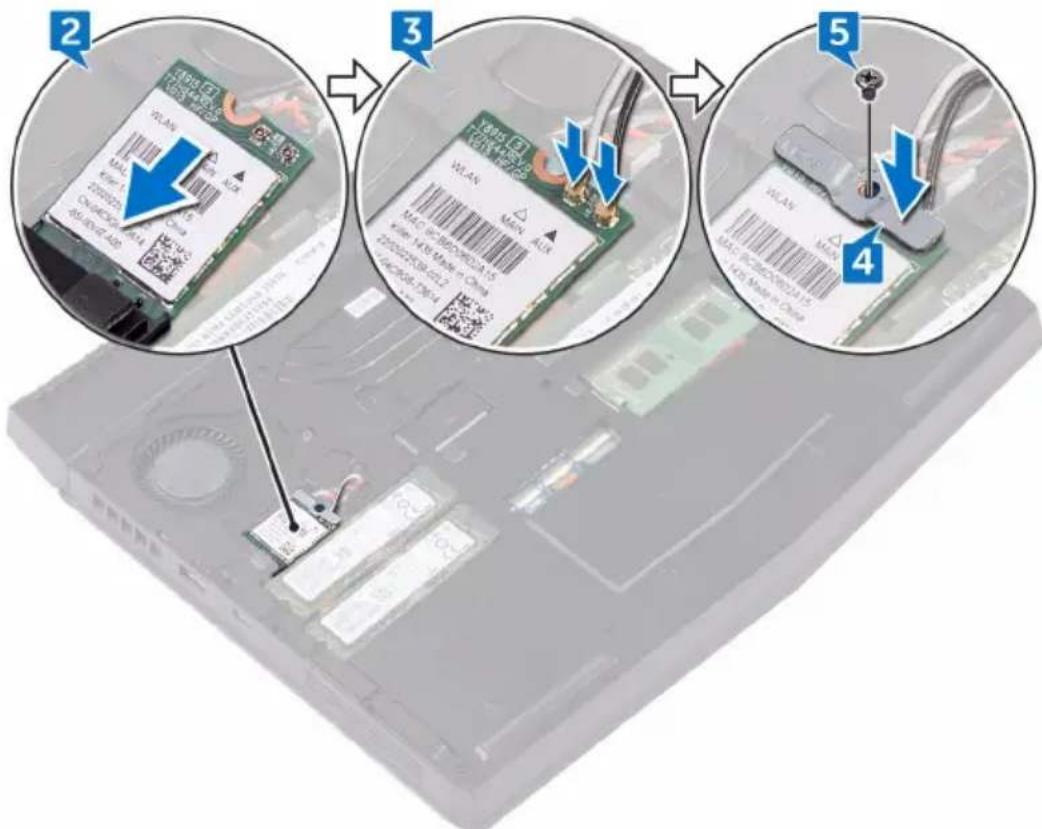
1 Align the notch on the wireless card with the tab on the wireless-card slot.
2 Slide the wireless card at an angle into the wireless-card slot.
3 Connect the antenna cables to the wireless card.
The following table provides the antenna-cable color scheme for the wireless card supported by your computer.
Table 2. Antenna-cable color scheme
Connectors on the wireless card Antenna cable color
| Auxiliary (black triangle) Black |
| Main (white triangle) White |
4 Align the screw hole on the wireless-card bracket with the screw hole on the wireless card and the computer base.
5 Replace the screw (M2x3) that secures the wireless-card bracket to the wireless card and the computer base.
Post-requisites
Replace the base cover.
Removing the solid-state drive

WARNING: Before working inside your computer, read the safety information that shipped with your computer and follow the steps in Before working inside your computer. After working inside your computer, follow the instructions in After working inside your computer. For more safety best practices, see the Regulatory Compliance home page at www.dell.com/regulatory_compliance.

CAUTION: Solid-state drives are fragile. Exercise care when handling the solid-state drive.

CAUTION: To avoid data loss, do not remove the solid-state drive while the computer is in sleep or on state.
Prerequisites
Remove the base cover.
Procedure
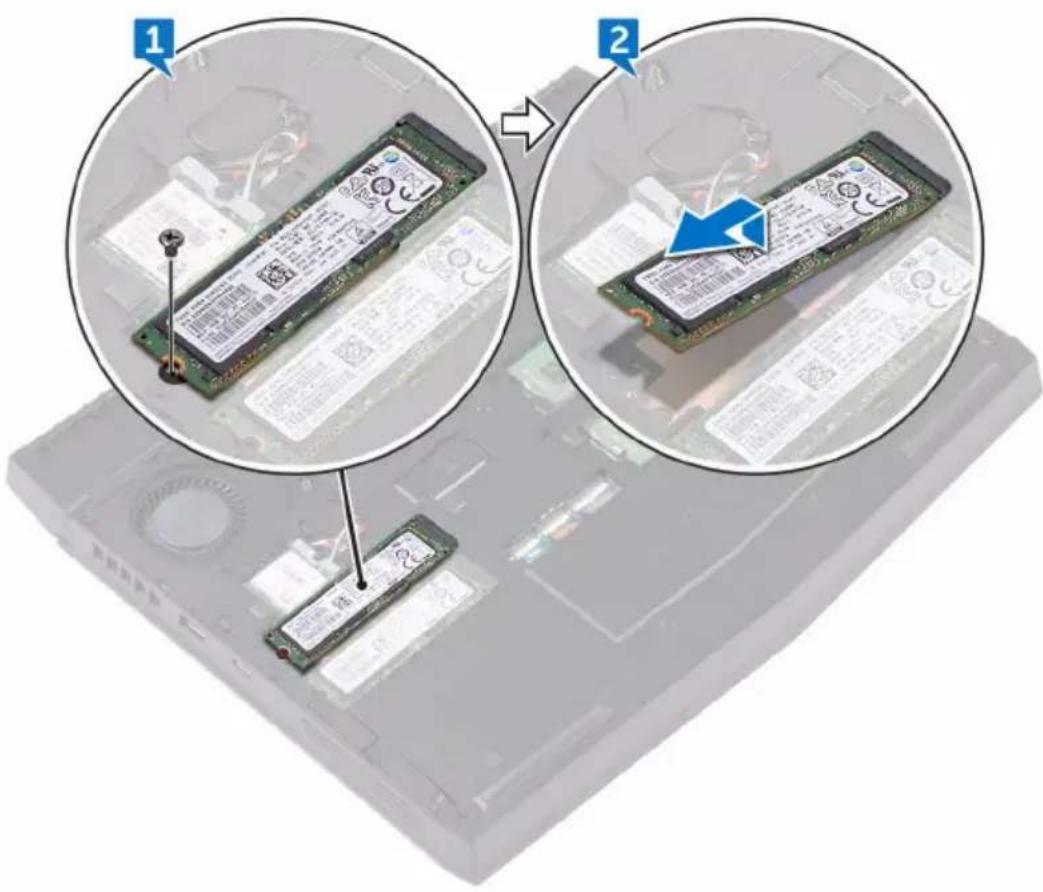
1 Remove the screw (M2x3) that secures the solid-state drive to the computer base.
2 Lift and slide the solid-state drive from the solid-state drive slot.
Replacing the solid-state drive

WARNING: Before working inside your computer, read the safety information that shipped with your computer and follow the steps in Before working inside your computer. After working inside your computer, follow the instructions in After working inside your computer. For more safety best practices, see the Regulatory Compliance home page at www.dell.com/regulatory_compliance.

CAUTION: Solid-state drives are fragile. Exercise care when handling the solid-state drive.
Procedure

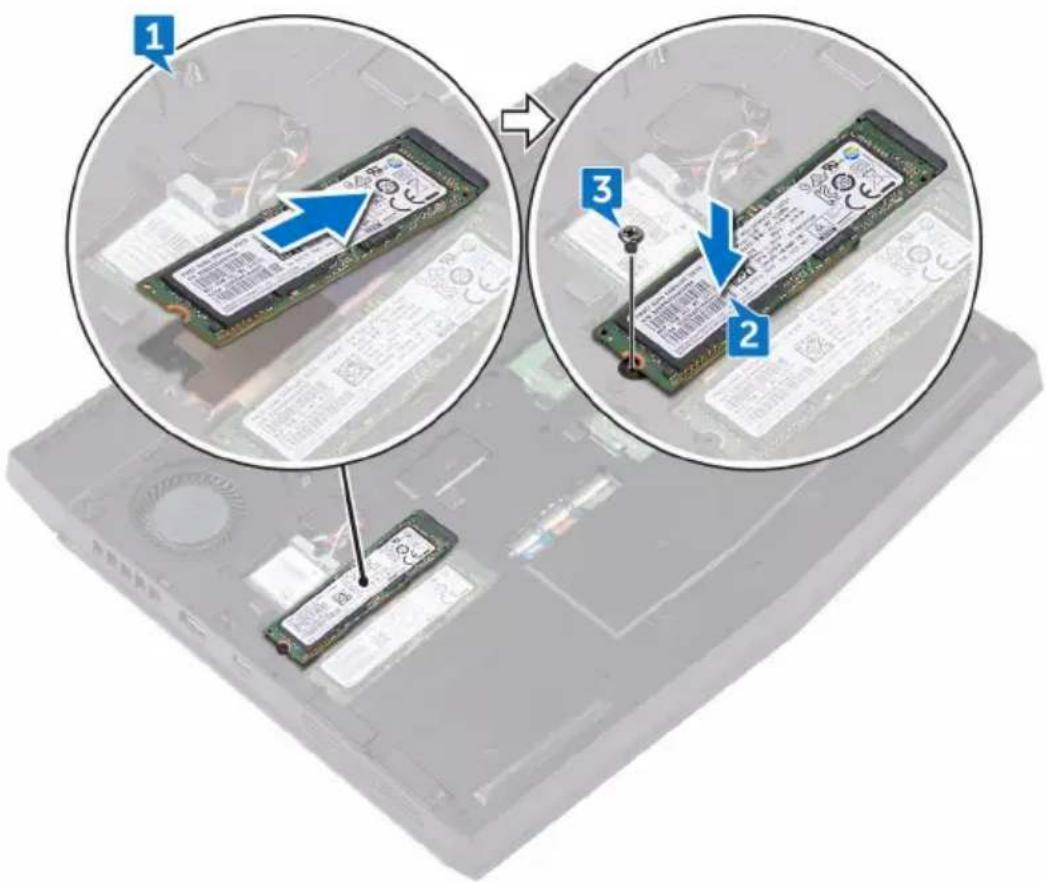
NOTE: Adhere the thermal pad on the copper foil area, if the thermal pads are shipped with the solid-state drive.
1 Align the notch on the solid-state drive with the tab on the solid-state drive slot and slide the solid-state drive into the solid-state drive slot.
2 Press the other end of the solid-state drive to align the screw hole on the solid-state drive with the screw hole on the computer base.
3 Replace the screw (M2x3) that secures the solid-state drive to the computer base.
Post-requisites
Replace the base cover.
Removing the memory modules

WARNING: Before working inside your computer, read the safety information that shipped with your computer and follow the steps in Before working inside your computer. After working inside your computer, follow the instructions in After working inside your computer. For more safety best practices, see the Regulatory Compliance home page at www.dell.com/regulatory_compliance.
Prerequisites
Remove the base cover.
Procedure
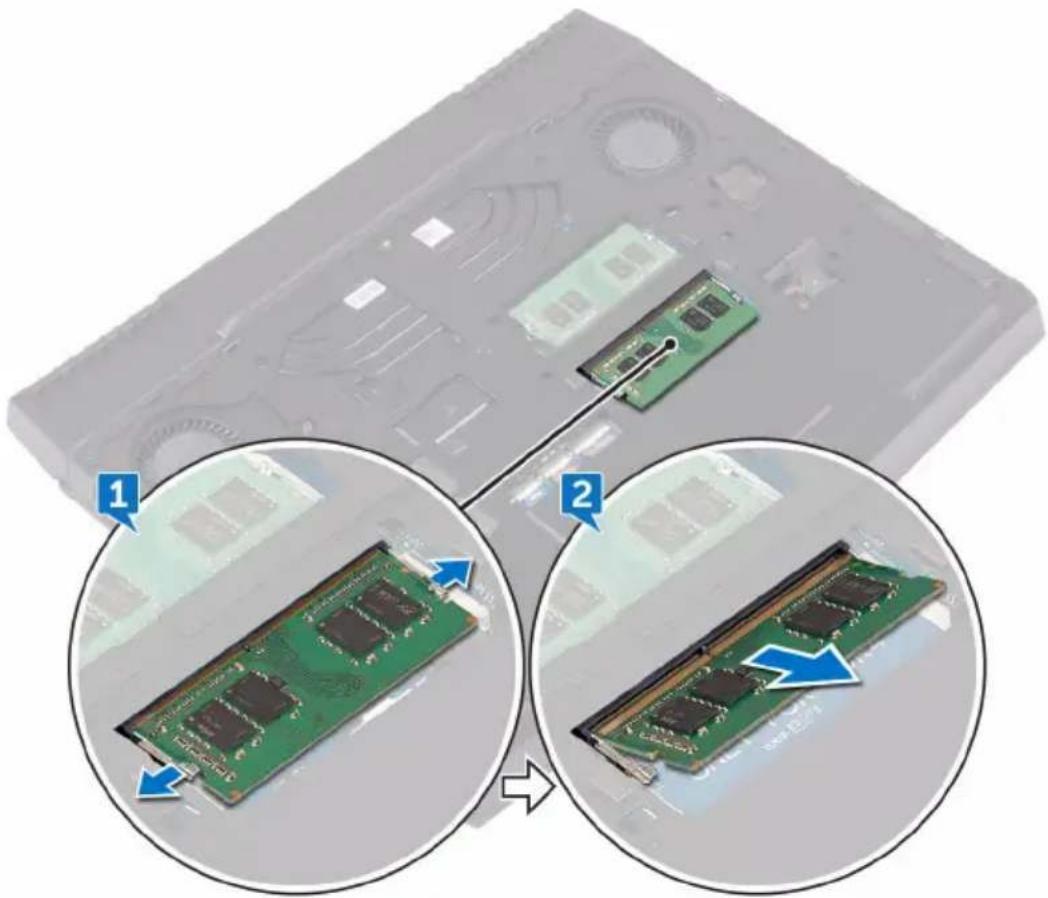
1 Using your fingertips, carefully spread apart the securing clips on each end of the memory-module slot until the memory module pops up.
2 Slide and remove the memory module from the memory-module slot.
natural_image
Close-up of a computer RAM module being inserted into a case, showing two views (1 and 2) with arrows indicating process flow (no text or symbols on the main image area)Replacing the memory modules

WARNING: Before working inside your computer, read the safety information that shipped with your computer and follow the steps in Before working inside your computer. After working inside your computer, follow the instructions in After working inside your computer. For more safety best practices, see the Regulatory Compliance home page at www.dell.com/regulatory_compliance.
Procedure
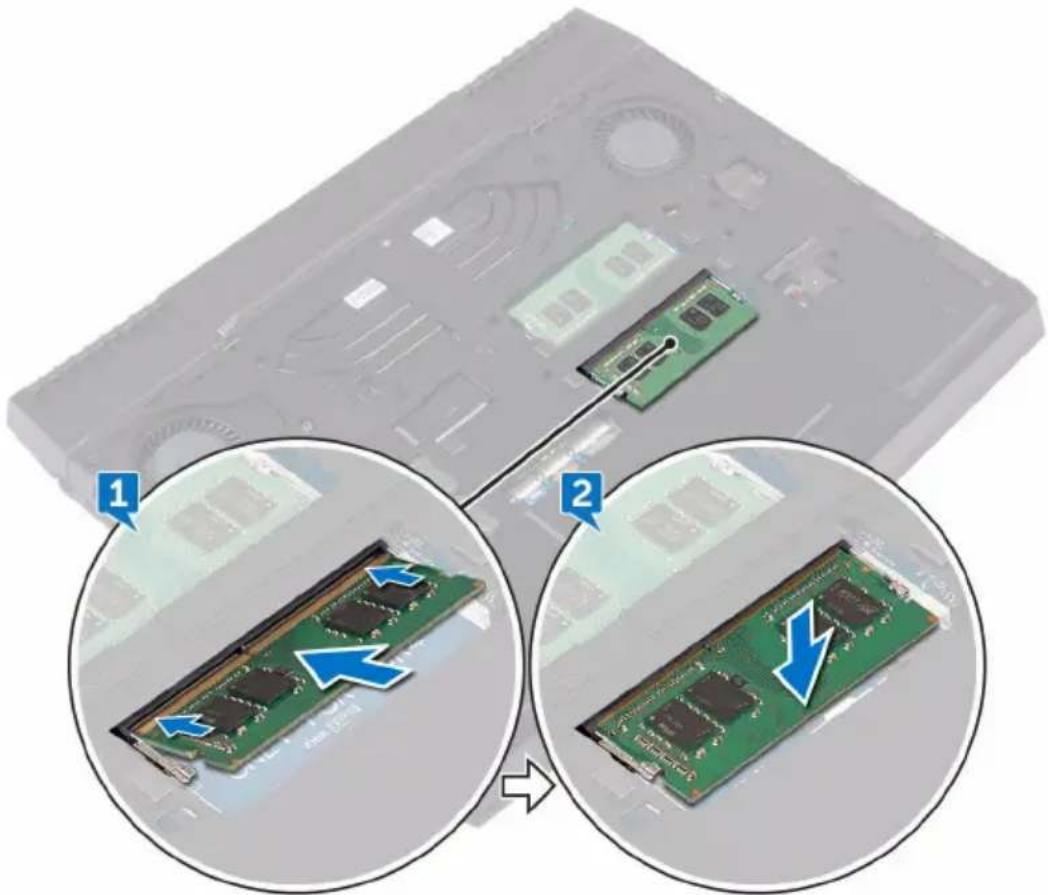
1 Align the notch on the memory module with the tab on the memory-module slot and slide the memory module firmly into the slot at an angle.
2 Press the memory module down until it clicks into place.

NOTE: If you do not hear the click, remove the memory module and reinstall it.
Post-requisites
Replace the base cover.
Removing the rear-I/O cover

WARNING: Before working inside your computer, read the safety information that shipped with your computer and follow the steps in Before working inside your computer. After working inside your computer, follow the instructions in After working inside your computer. For more safety best practices, see the Regulatory Compliance home page at www.dell.com/regulatory_compliance.
Prerequisites
Remove the base cover.
Procedure
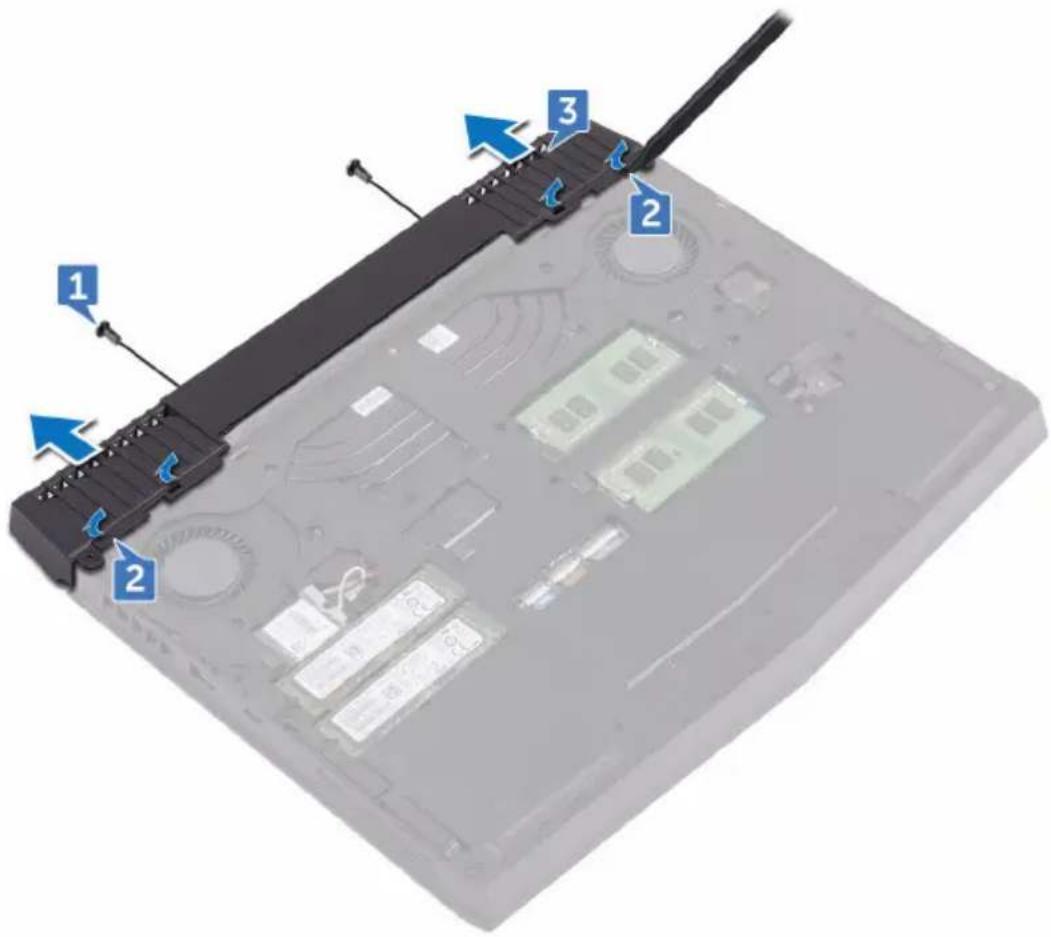
1 Remove the two screws (M2.5x6L) that secure the rear-I/O cover to the palm-rest assembly.
2 Using a plastic scribe, gently release the tabs that secure rear-I/O cover to the computer base.
3 Slide and remove the rear-I/O cover from the computer base.
Replacing the rear-I/O cover

WARNING: Before working inside your computer, read the safety information that shipped with your computer and follow the steps in Before working inside your computer. After working inside your computer, follow the instructions in After working inside your computer. For more safety best practices, see the Regulatory Compliance home page at www.dell.com/regulatory_compliance.
Procedure
1 Slide the rear-I/O cover into the slots on the computer base and snap the rear-I/O cover into place.
2 Replace the two screws (M2.5x6L) that secure the rear-I/O cover to the palm-rest assembly.
Post-requisites
Replace the base cover.
Removing the computer base

WARNING: Before working inside your computer, read the safety information that shipped with your computer and follow the steps in Before working inside your computer. After working inside your computer, follow the instructions in After working inside your computer. For more safety best practices, see the Regulatory Compliance home page at www.dell.com/regulatory_compliance.
Prerequisites
1 Remove the base cover.
2 Remove the solid-state drive.
3 Remove the wireless card.
4 Remove the rear-I/O cover.
Procedure
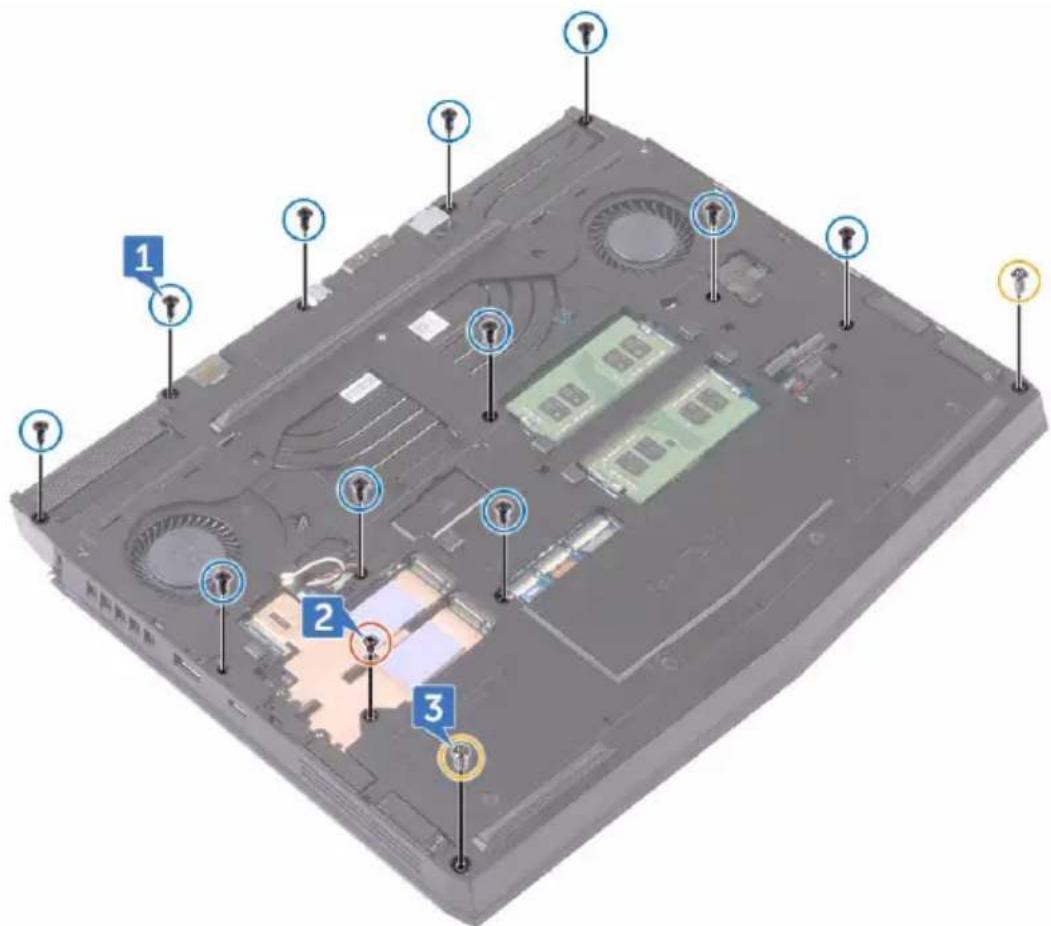
1 Remove the eleven (M2.5x6L) screws that secure the computer base to the palm-rest assembly.
2 Remove the (M2x3) screw that secures the computer base to the palm-rest assembly.
3 Remove the two (M2.5x6L) screws that secure the computer base to the palm-rest assembly.
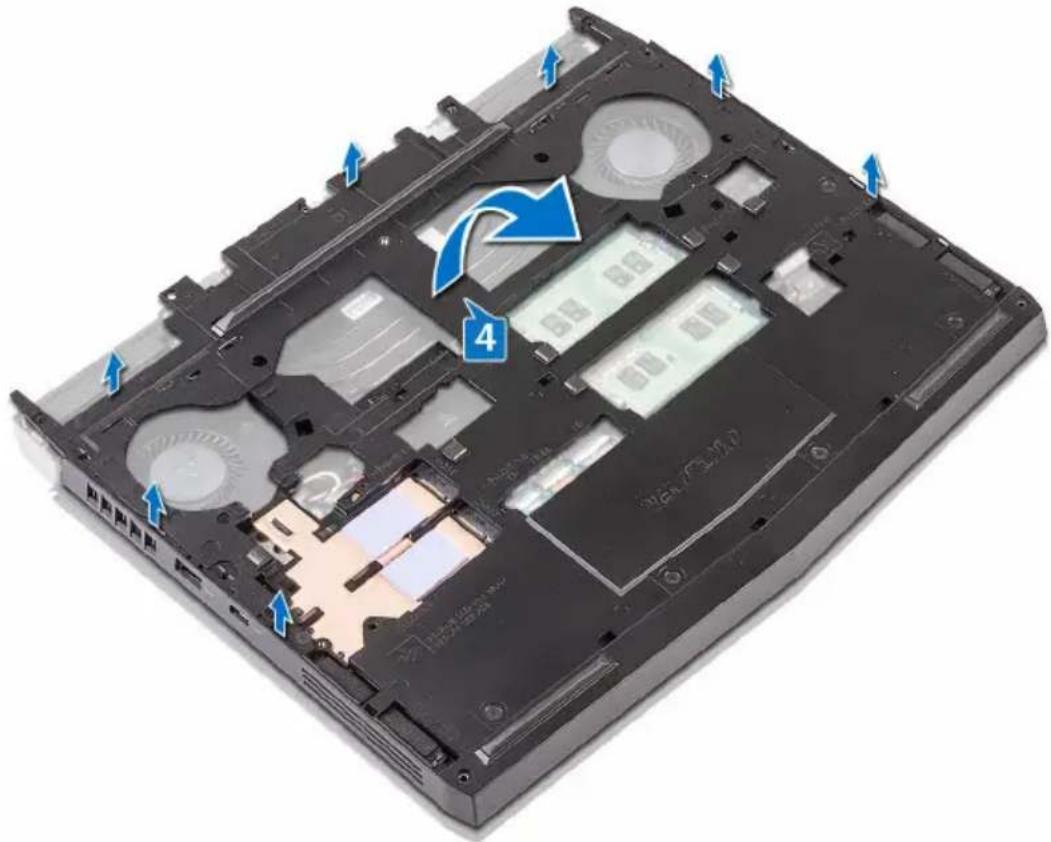
4 Lift the computer base from the palm-rest assembly.
Replacing the computer base

WARNING: Before working inside your computer, read the safety information that shipped with your computer and follow the steps in Before working inside your computer. After working inside your computer, follow the instructions in After working inside your computer. For more safety best practices, see the Regulatory Compliance home page at www.dell.com/regulatory_compliance.
Procedure
1 Align the screw holes on the computer base with the screw holes on the palm-rest assembly.
2 Replace the two (M2.5x6L) screws that secure the computer base to the palm-rest assembly.
3 Replace the (M2x3) screw that secures the computer base to the palm-rest assembly.
4 Replace the eleven (M2.5x6L) screws that secure the computer base to the palm-rest assembly.
Post-requisites
1 Replace the rear-I/O cover.
2 Replace the wireless card.
3 Replace the solid-state drive.
4 Replace the base cover.
Removing the coin-cell battery

WARNING: Before working inside your computer, read the safety information that shipped with your computer and follow the steps in Before working inside your computer. After working inside your computer, follow the instructions in After working inside your computer. For more safety best practices, see the Regulatory Compliance home page at www.dell.com/regulatory_compliance.

CAUTION: Removing the coin-cell battery resets the BIOS setup program's settings to default. It is recommended that you note the BIOS setup program's settings before removing the coin-cell battery.
Prerequisites
1 Remove the base cover.
2 Remove the wireless card.
3 Remove the solid-state drive.
4 Remove the rear-I/O cover.
5 Remove the computer base.
Procedure
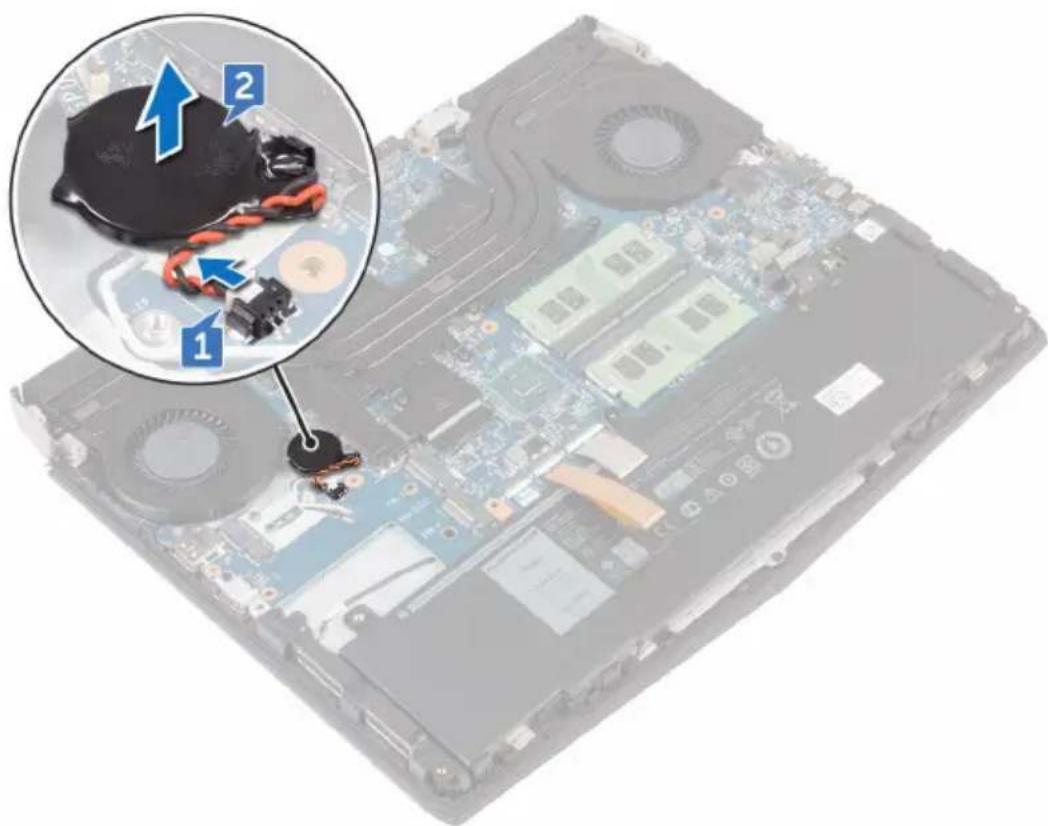
1 Disconnect the coin-cell battery cable from the system board.
2 Gently peel off the coin-cell battery along with its cable off the palm-rest assembly.
Replacing the coin-cell battery

WARNING: Before working inside your computer, read the safety information that shipped with your computer and follow the steps in Before working inside your computer. After working inside your computer, follow the instructions in After working inside your computer. For more safety best practices, see the Regulatory Compliance home page at www.dell.com/regulatory_compliance.
Procedure
1 Adhere the coin-cell battery to the palm-rest assembly.
2 Connect the coin-cell battery cable to the system board.
Post-requisites
1 Replace the computer base.
2 Replace the rear-I/O cover.
3 Replace the solid-state drive.
4 Replace the wireless card.
5 Replace the base cover.
Removing the heat-sink assembly

WARNING: Before working inside your computer, read the safety information that shipped with your computer and follow the steps in Before working inside your computer. After working inside your computer, follow the instructions in After working inside your computer. For more safety best practices, see the Regulatory Compliance home page at www.dell.com/regulatory_compliance.

WARNING: The heat sink may become hot during normal operation. Allow sufficient time for the heat sink to cool before you touch it.

CAUTION: For maximum cooling of the processor, do not touch the heat transfer areas on the heat sink. The oils in your skin can reduce the heat transfer capability of the thermal grease.
Prerequisites
1 Remove the base cover.
2 Remove the wireless card.
3 Remove the solid-state drive.
4 Remove the rear-I/O cover.
5 Remove the computer base.
Procedure
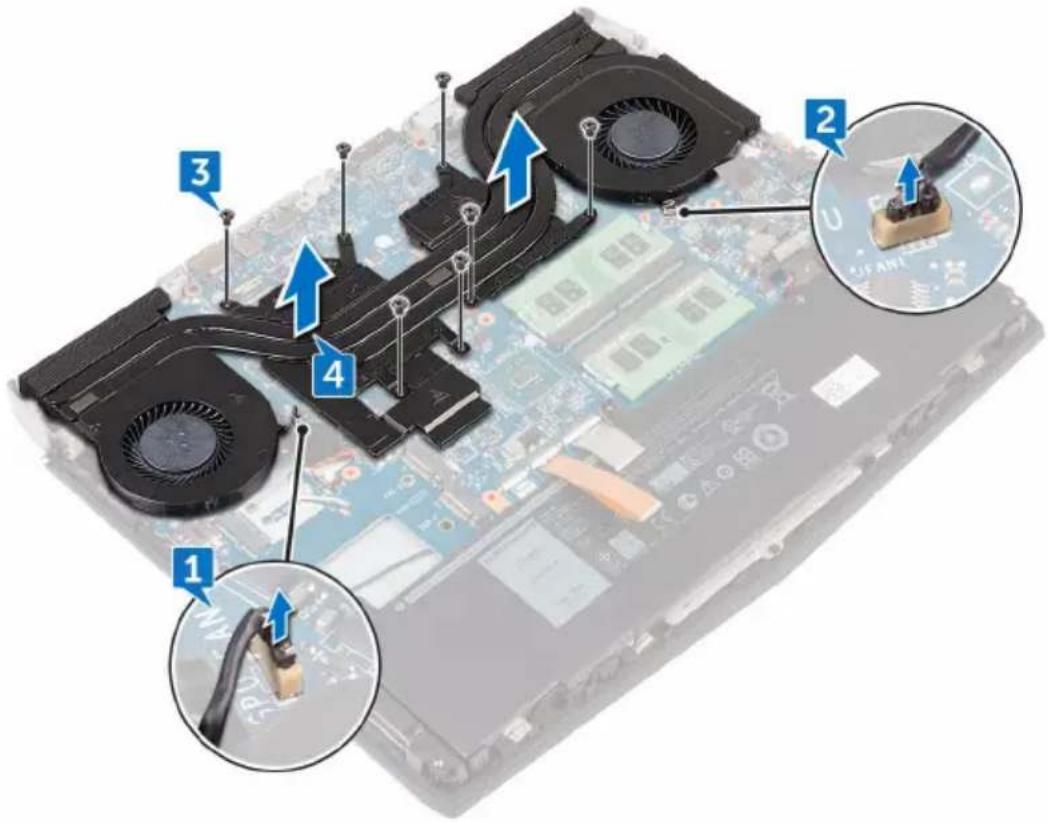
1 Disconnect the left-fan cable from the system board.
2 Disconnect the right-fan cable from the system board.
3 In sequential order (as indicated on the heat-sink assembly), remove the seven screws (M2x3) that secure the heat-sink assembly to the system board.
4 Lift the heat-sink assembly off the system board.
Replacing the heat-sink assembly

WARNING: Before working inside your computer, read the safety information that shipped with your computer and follow the steps in Before working inside your computer. After working inside your computer, follow the instructions in After working inside your computer. For more safety best practices, see the Regulatory Compliance home page at www.dell.com/regulatory_compliance.

CAUTION: Incorrect alignment of the heat sink can damage the system board and processor.

NOTE: The original thermal grease can be reused if the original system board and fan are reinstalled together. If either the system board or the fan is replaced, use the thermal pad provided in the kit to ensure that thermal conductivity is achieved.
Procedure
1 Align the screw holes on the heat-sink assembly with the screw holes on the system board.
2 In sequential order (indicated on the heat-sink assembly), replace the seven screws (M2x3) that secure the heat-sink assembly to the system board.
3 Connect the right-fan cable to the respective connector on the system board.
4 Connect the left-fan cable to the respective connector on the system board.
Post-requisites
1 Replace the computer base.
2 Replace the rear-I/O cover.
3 Replace the solid-state drive.
4 Replace the wireless card.
5 Replace the base cover.
Removing the battery

WARNING: Before working inside your computer, read the safety information that shipped with your computer and follow the steps in Before working inside your computer. After working inside your computer, follow the instructions in After working inside your computer. For more safety best practices, see the Regulatory Compliance home page at www.dell.com/regulatory_compliance.
Prerequisites
1 Remove the base cover.
2 Remove the wireless card.
3 Remove the solid-state drive.
4 Remove the rear-I/O cover.
5 Remove the computer base.
Procedure
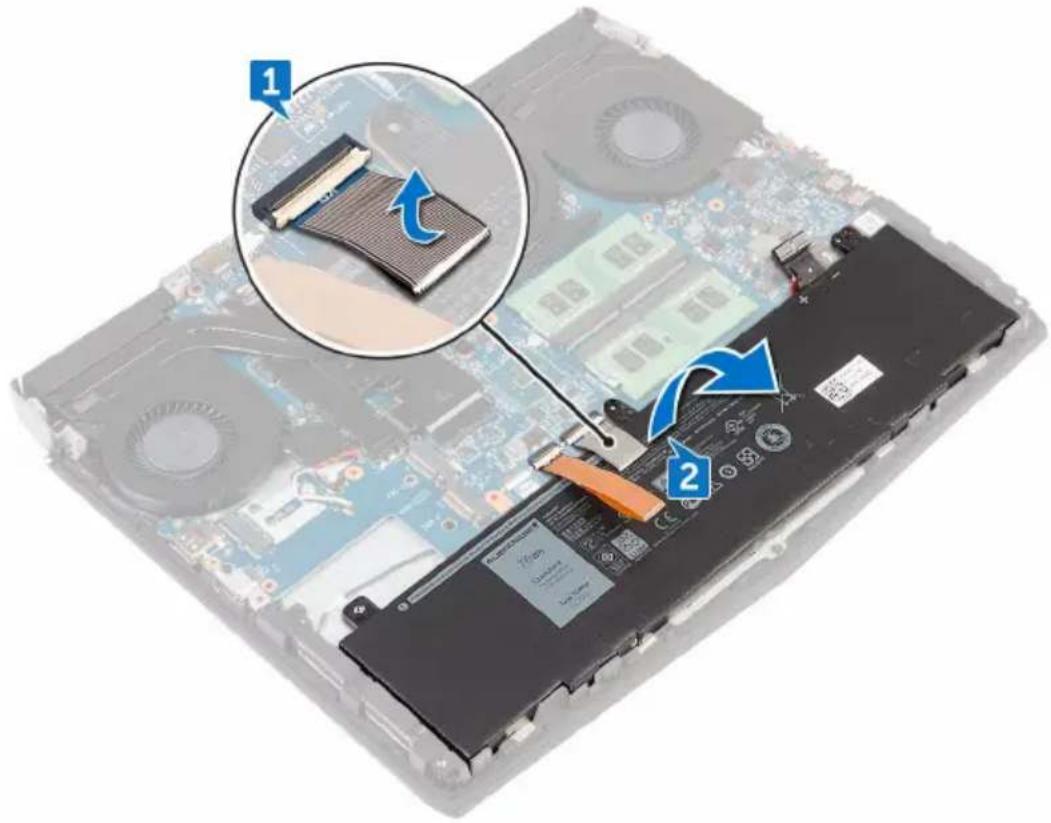
1 Peel off the keyboard connector from the battery.
2 Lift the battery off the palm-rest assembly.
Replacing the battery

WARNING: Before working inside your computer, read the safety information that shipped with your computer and follow the steps in Before working inside your computer. After working inside your computer, follow the instructions in After working inside your computer. For more safety best practices, see the Regulatory Compliance home page at www.dell.com/regulatory_compliance.
Procedure

CAUTION: Ensure the keyboard and keyboard-backlit cables are not under the battery.
1 Using the alignment post, place the battery on the palm-rest assembly.
2 Adhere the keyboard connector that secures the battery to the palm-rest assembly.
Post-requisites
1 Replace the computer base.
2 Replace the rear-I/O cover.
3 Replace the solid-state drive.
4 Replace the wireless card.
5 Replace the base cover.
Removing the touch pad

WARNING: Before working inside your computer, read the safety information that shipped with your computer and follow the steps in Before working inside your computer. After working inside your computer, follow the instructions in After working inside your computer. For more safety best practices, see the Regulatory Compliance home page at www.dell.com/regulatory_compliance.
Prerequisites
1 Remove the base cover.
2 Remove the wireless card.
3 Remove the solid-state drive.
4 Remove the rear-I/O cover.
5 Remove the computer base.
6 Remove the battery.
Procedure
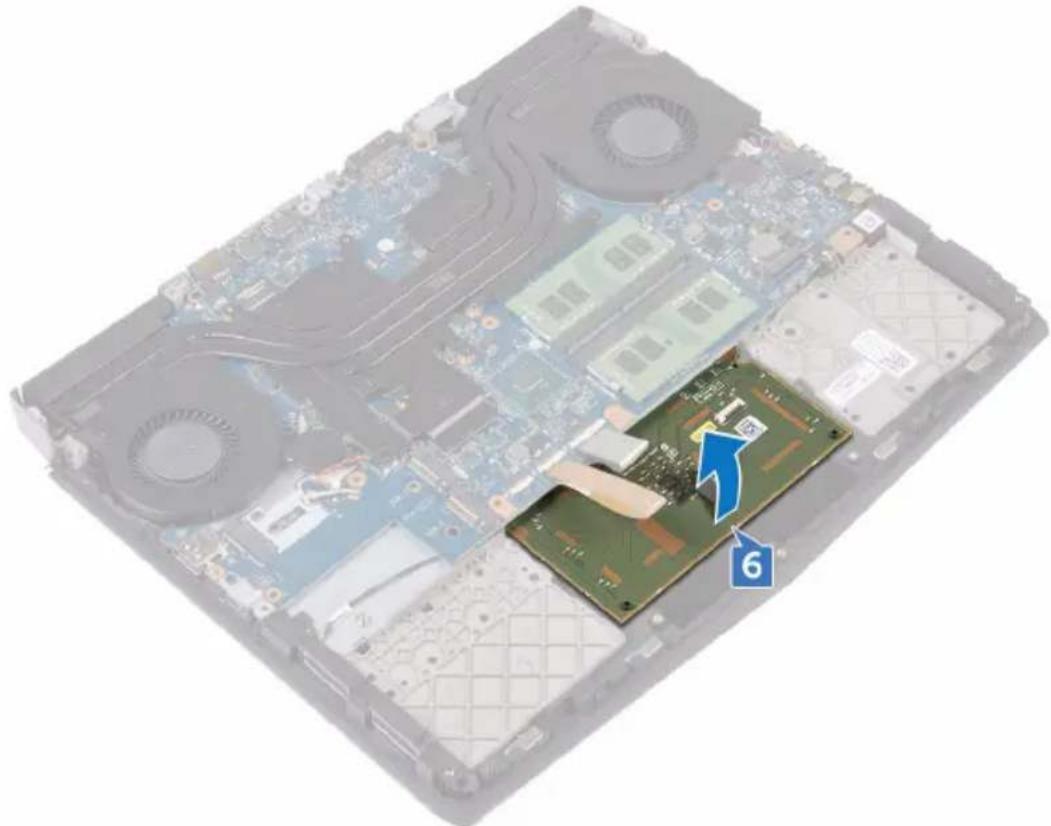
1 Open the latches and disconnect the touch-pad cable from the system board and touch pad.
2 Peel off the touch-pad cable from the touch-pad bracket.
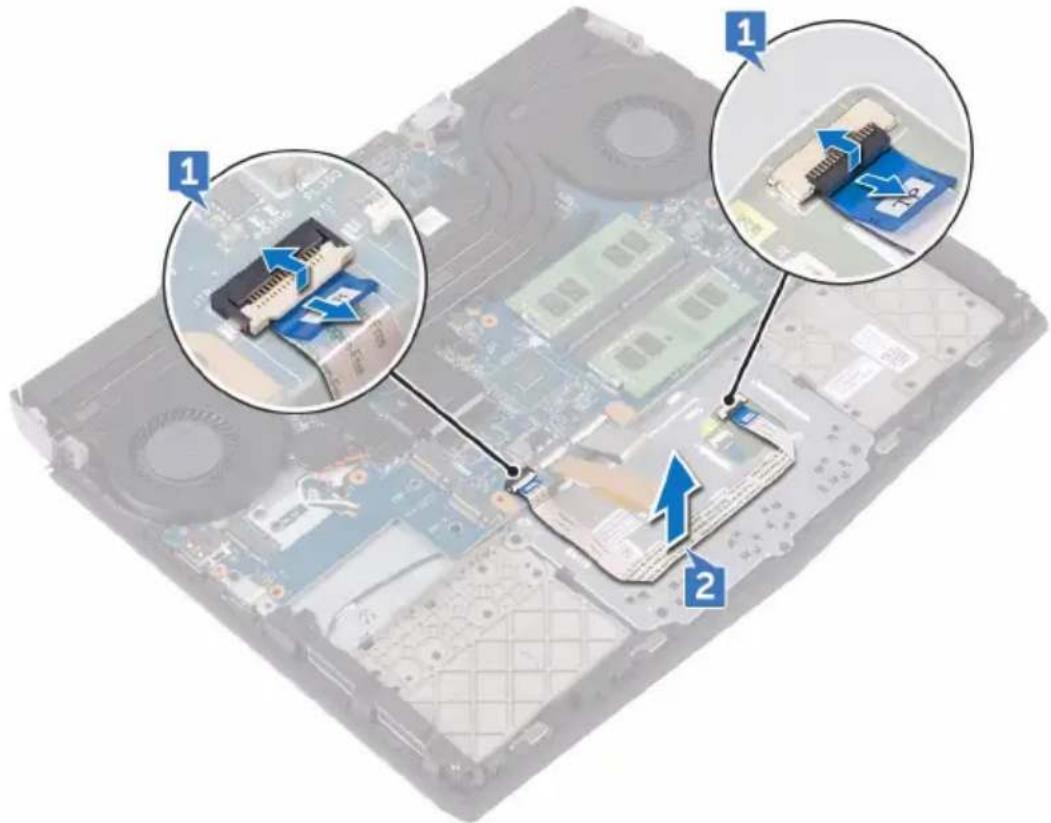
3 Open the latch and disconnect the touch-pad buttons cable from the touch pad.
4 Remove the five screws (M2x3) that secure the touch-pad bracket to the palm-rest assembly.
5 Using a plastic scribe, lift the touch-pad bracket off the palm-rest assembly.
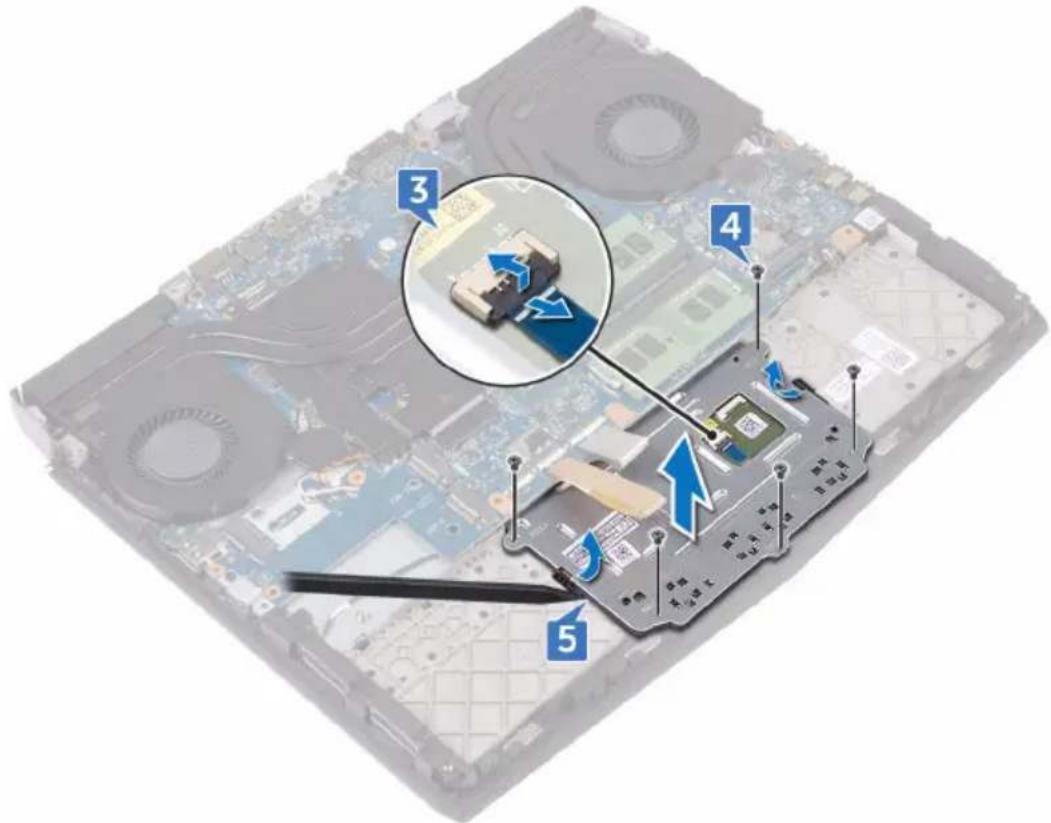
6 Lift the touch pad off the palm-rest assembly.
natural_image
Interior view of a computer with visible CPU socket, motherboard, and a highlighted circuit board (no text or symbols)Replacing the touch pad

WARNING: Before working inside your computer, read the safety information that shipped with your computer and follow the steps in Before working inside your computer. After working inside your computer, follow the instructions in After working inside your computer. For more safety best practices, see the Regulatory Compliance home page at www.dell.com/regulatory_compliance.
Procedure

CAUTION: Ensure the keyboard and keyboard-backlit cables are not under the touch pad.
1 Using the alignment posts on the palm-rest assembly, place the touch pad on the palm-rest assembly.
2 Align the screw holes on the touch-pad bracket with the screw holes on the palm-rest assembly.
3 Replace the five screws (M2x3) that secure the touch-pad bracket to the palm-rest assembly.
4 Slide the touch-pad buttons cable into the respective connector on the touch pad and close the latch to secure the cable.
5 Slide the touch-pad cables into their respective connectors on the system board and touch pad, and close the latches to secure the cable.
Post-requisites
1 Replace the battery.
2 Replace the computer base.
3 Replace the rear-I/O cover.
4 Replace the solid-state drive.
5 Replace the wireless card.
6 Replace the base cover.
Removing the system board

WARNING: Before working inside your computer, read the safety information that shipped with your computer and follow the steps in Before working inside your computer. After working inside your computer, follow the instructions in After working inside your computer. For more safety best practices, see the Regulatory Compliance home page at www.dell.com/regulatory_compliance.

NOTE: Your computer's Service Tag is stored in the system board. You must enter the Service Tag in the BIOS setup program after you replace the system board.

NOTE: Replacing the system board removes any changes you have made to the BIOS using the BIOS setup program. You must make the appropriate changes again after you replace the system board.

NOTE: Before disconnecting the cables from the system board, note the location of the connectors so that you can reconnect the cables correctly after you replace the system board.
Prerequisites
1 Remove the base cover.
2 Remove the wireless card.
3 Remove the solid-state drive.
4 Remove the memory modules.
5 Remove the rear-I/O cover.
6 Remove the computer base.
7 Remove the coin-cell battery.
8 Remove the battery.
9 Remove the heat-sink assembly.
Procedure

CAUTION: Place the computer on a clean, flat surface.
1 Turn the computer over.
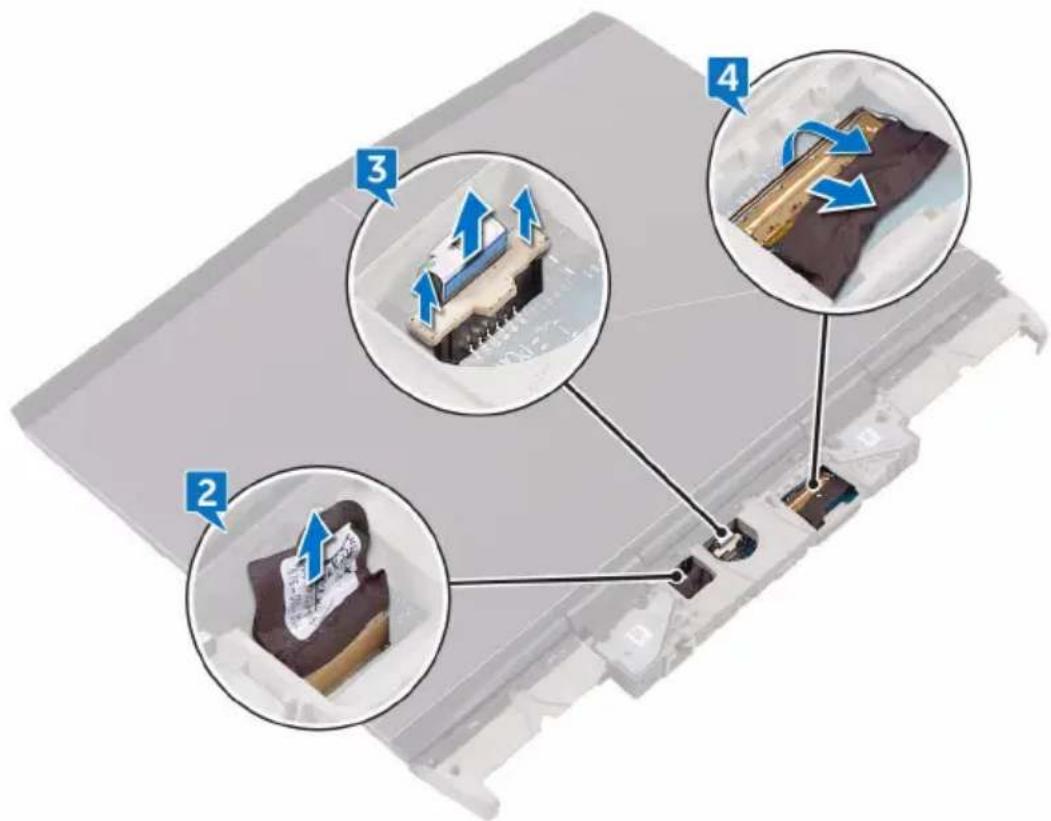
2 Disconnect the logo-board cable from the system board.
3 Using the pull-tab, disconnect the power-button board cable from the system board.
4 Open the latch and disconnect the display cable from the system board.
5 Turn the computer over.
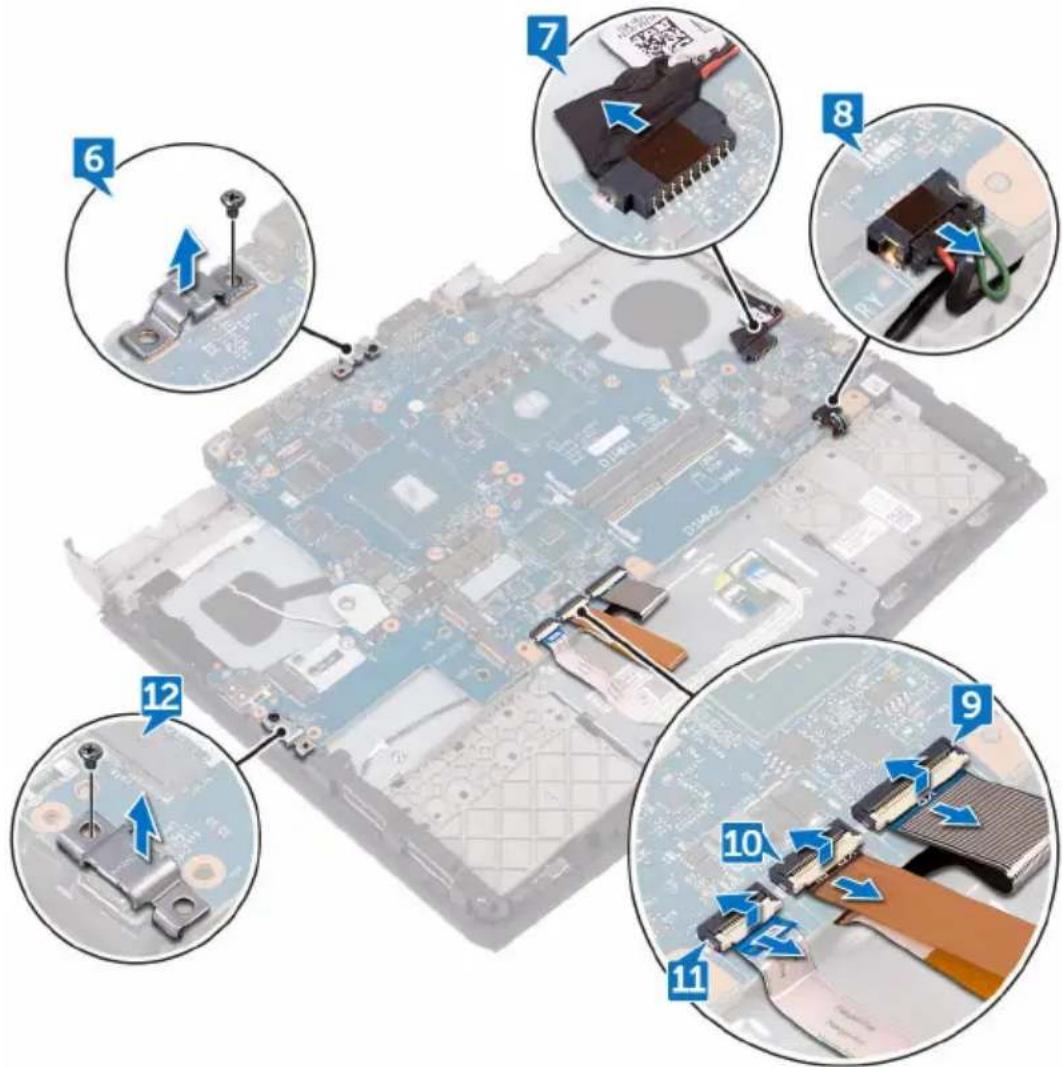
6 Remove the screw (M2.5x6L) that secures the USB Type-C port bracket to the system board and lift the USB Type-C port bracket off the system board.
7 Disconnect the power-adapter port cable from the system board.
8 Disconnect the speaker cable from the system board.
9 Open the latch and disconnect the keyboard cable from the system board.
10 Open the latch and disconnect the keyboard-backlight cable from the system board.
11 Open the latch and disconnect the touch-pad cable from the system board.
12 Remove the screw (M2.5x6L) that secures the USB Type-C port bracket to the system board and lift the USB Type-C port bracket off the system board.
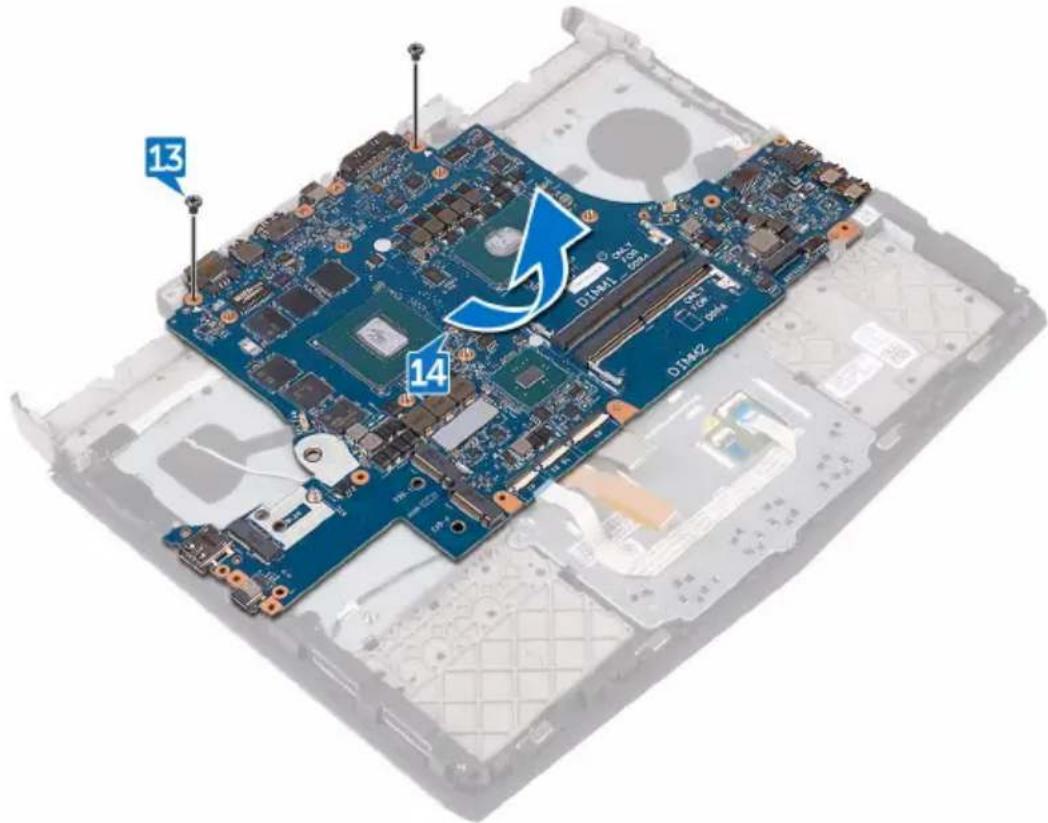
13 Remove the two screws (M2.5x6L) that secure the system board to the palm-rest assembly.
14 Lift the system board off the palm-rest assembly.
Replacing the system board

WARNING: Before working inside your computer, read the safety information that shipped with your computer and follow the steps in Before working inside your computer. After working inside your computer, follow the instructions in After working inside your computer. For more safety best practices, see the Regulatory Compliance home page at www.dell.com/regulatory_compliance.

NOTE: Your computer's Service Tag is stored in the system board. You must enter the Service Tag in the BIOS setup program after you replace the system board.

NOTE: Replacing the system board removes any changes you have made to the BIOS using the BIOS setup program. You must make the appropriate changes again after you replace the system board.
Procedure

CAUTION: Ensure that no cables are under the system board.
1 Align the screw holes on the system board with the screw holes on the palm-rest assembly.
2 Replace the two screws (M2.5x6L) that secure the system-board to the palm-rest assembly.
3 Align the screw hole on the USB Type-C port bracket with the screw hole on the system board on the back and right side of your computer.
4 Replace the screw (M2.5x6L) that secures the USB Type-C port bracket to the system board on the back and right side of your computer.
5 Slide the touch-pad cable into the connector on the system board and close the latch to secure the cable.
6 Slide the keyboard-backlight cable into the connector on the system board and close the latch to secure the cable.
7 Slide the keyboard cable into the connector on the system board and close the latch to secure the cable.
8 Connect the speaker cable to the system board.
9 Connect the power-adapter port cable to the system board.
10 Turn the computer over.
11 Slide the display cable into the connector on the system board and close the latch to secure the cable.
12 Connect the power-button board cable to the system board.
13 Connect the logo-board cable to the system board.
Post-requisites
1 Replace the heat-sink assembly.
2 Replace the battery.
3 Replace the coin-cell battery.
4 Replace the computer base.
5 Replace the rear-I/O cover.
6 Replace the memory modules.
7 Replace the solid-state drive.
8 Replace the wireless card.
9 Replace the base cover.
Removing the speakers

WARNING: Before working inside your computer, read the safety information that shipped with your computer and follow the steps in Before working inside your computer. After working inside your computer, follow the instructions in After working inside your computer. For more safety best practices, see the Regulatory Compliance home page at www.dell.com/regulatory_compliance.
Prerequisites
1 Remove the base cover.
2 Remove the wireless card.
3 Remove the solid-state drive.
4 Remove the memory modules.
5 Remove the rear-I/O cover.
6 Remove the computer base.
7 Remove the coin-cell battery.
8 Remove the battery.
9 Remove the heat-sink assembly.
10 Remove the system board.
Procedure
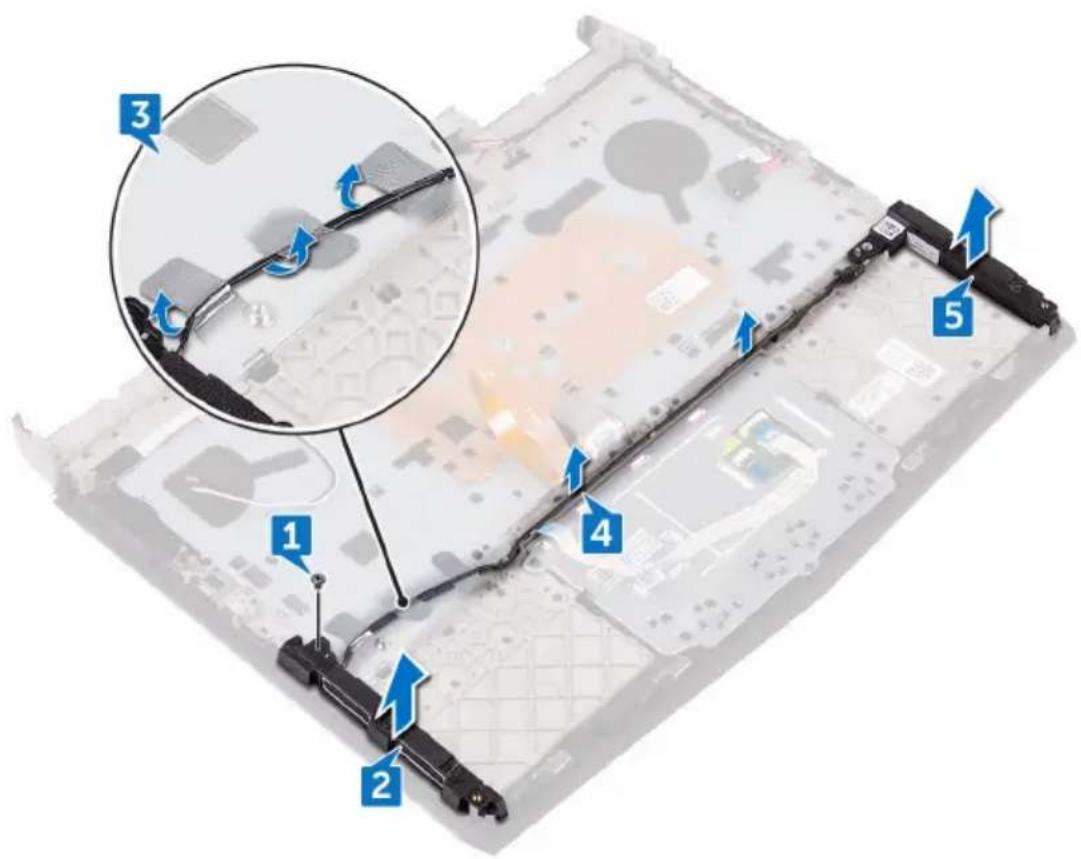
1 Remove the screw (M2x3) that secures the speaker to the palm-rest assembly.
2 Lift the left speaker off the palm-rest assembly.
3 Peel off the tape that secures the speaker cable to the palm-rest assembly.
4 Remove the speaker cable from the routing guides on the palm-rest assembly.
5 Lift the right speaker off the palm-rest assembly.
Replacing the speakers

WARNING: Before working inside your computer, read the safety information that shipped with your computer and follow the steps in Before working inside your computer. After working inside your computer, follow the instructions in After working inside your computer. For more safety best practices, see the Regulatory Compliance home page at www.dell.com/regulatory_compliance.
Procedure
1 Using the alignment posts, place the right speaker on the palm-rest assembly.
2 Route the speaker cable through the routing guides on palm-rest assembly.

NOTE: Move the keyboard and keyboard-backlit cables out of the way.
3 Using the alignment posts, place the left speaker on the palm-rest assembly.
4 Adhere the tape that secures the speaker cable to the palm-rest assembly.
5 Replace the screw (M2x3) that secures the speaker to the palm-rest assembly.
Post-requisites
1 Replace the system board.
2 Replace the heat-sink assembly.
3 Replace the battery.
4 Replace the coin-cell battery.
5 Replace the computer base.
6 Replace the rear-I/O cover.
7 Replace the memory modules.
8 Replace the solid-state drive.
9 Replace the wireless card.
10 Replace the base cover.
Removing the power-adapter port

WARNING: Before working inside your computer, read the safety information that shipped with your computer and follow the steps in Before working inside your computer. After working inside your computer, follow the instructions in After working inside your computer. For more safety best practices, see the Regulatory Compliance home page at www.dell.com/regulatory_compliance.
Prerequisites
1 Remove the base cover.
2 Remove the wireless card.
3 Remove the memory modules.
4 Remove the solid-state drive.
5 Remove the rear-I/O cover.
6 Remove the computer base.
7 Remove the coin-cell battery.
8 Remove the heat-sink assembly.
9 Remove the battery.
10 Remove the system board.
Procedure
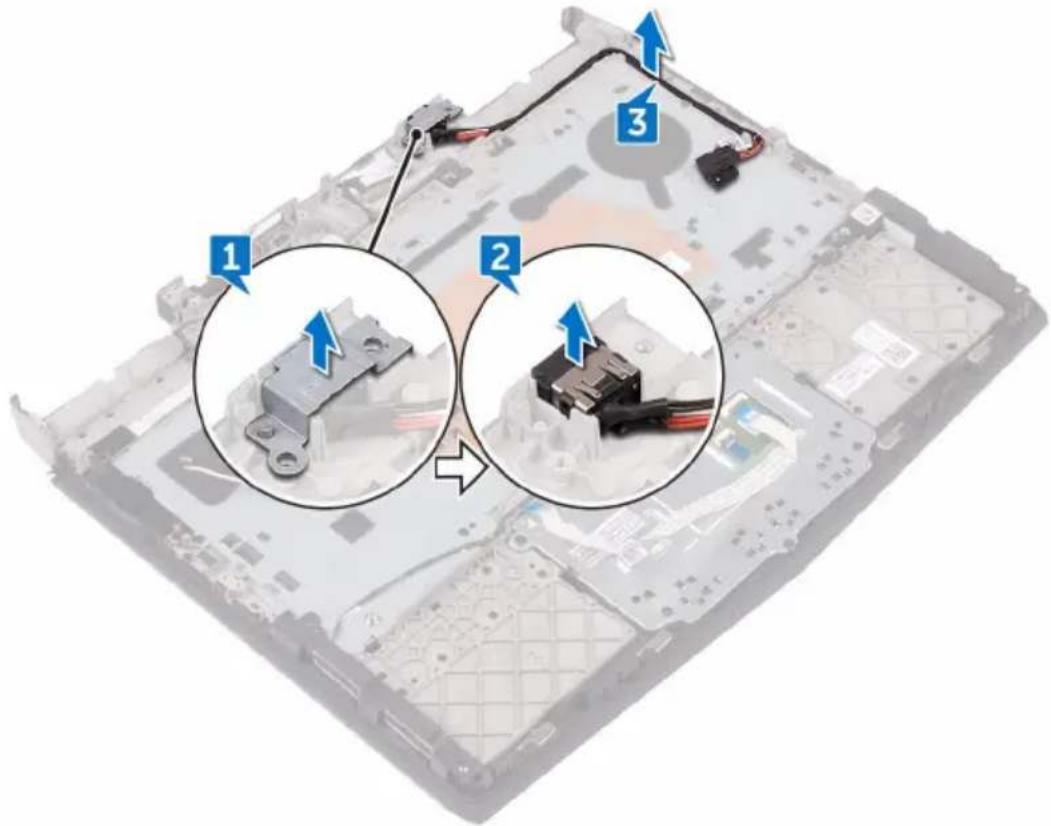
1 Lift the power-adapter port bracket off the power-adapter port.
2 Lift the power-adapter port off the palm-rest assembly.
3 Remove the cable from the routing guides on the palm-rest assembly.
Replacing the power-adapter port

WARNING: Before working inside your computer, read the safety information that shipped with your computer and follow the steps in Before working inside your computer. After working inside your computer, follow the instructions in After working inside your computer. For more safety best practices, see the Regulatory Compliance home page at www.dell.com/regulatory_compliance.
Procedure
1 Slide the power-adapter port into the slot on the palm-rest assembly.
2 Place the power-adapter port bracket on the power-adapter port.
3 Route the power-adapter port cable through the routing guides on the palm-rest assembly.
Post-requisites
1 Replace the system board.
2 Replace the battery.
3 Replace the heat-sink assembly.
4 Replace the coin-cell battery.
5 Replace the computer base.
6 Replace the rear-I/O cover.
7 Replace the solid-state drive.
8 Replace the memory modules.
9 Replace the wireless card.
10 Replace the base cover.
Removing the power-button board

WARNING: Before working inside your computer, read the safety information that shipped with your computer and follow the steps in Before working inside your computer. After working inside your computer, follow the instructions in After working inside your computer. For more safety best practices, see the Regulatory Compliance home page at www.dell.com/regulatory_compliance.
Prerequisites
1 Remove the base cover.
2 Remove the wireless card.
3 Remove the memory modules.
4 Remove the solid-state drive.
5 Remove the rear-I/O cover.
6 Remove the computer base.
7 Remove the coin-cell battery.
8 Remove the heat-sink assembly.
9 Remove the battery.
10 Remove the system board.
Procedure
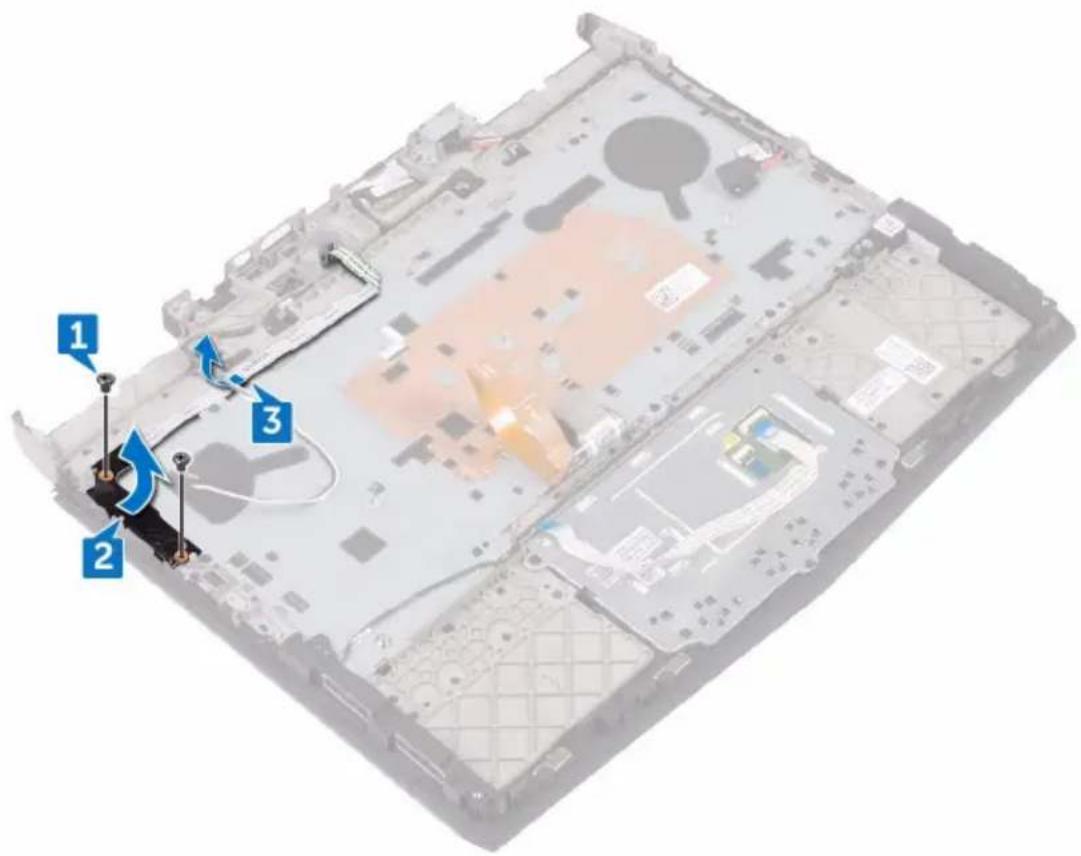
1 Remove the two screws (M2x3) that secure the power-button board to the palm-rest assembly.
2 Lift the power-button board, along with its cable, off the palm-rest assembly.
3 Peel the power-button board cable from the palm-rest assembly.
Replacing the power-button board

WARNING: Before working inside your computer, read the safety information that shipped with your computer and follow the steps in Before working inside your computer. After working inside your computer, follow the instructions in After working inside your computer. For more safety best practices, see the Regulatory Compliance home page at www.dell.com/regulatory_compliance.
Procedure
1 Using the alignment posts, place the power-button board on the palm-rest assembly.
2 Adhere the power-button board cable to the palm-rest assembly.
3 Align the screw holes on the power-button board with the screw holes on the palm-rest assembly.
4 Replace the two screws (M2x3) that secure the power-button board to the palm-rest assembly.
Post-requisites
1 Replace the system board.
2 Replace the battery.
3 Replace the heat-sink assembly.
4 Replace the coin-cell battery.
5 Replace the computer base.
6 Replace the rear-I/O cover.
7 Replace the solid-state drive.
8 Replace the memory modules.
9 Replace the wireless card.
10 Replace the base cover.
Removing the keyboard

WARNING: Before working inside your computer, read the safety information that shipped with your computer and follow the steps in Before working inside your computer. After working inside your computer, follow the instructions in After working inside your computer. For more safety best practices, see the Regulatory Compliance home page at www.dell.com/regulatory_compliance.
Prerequisites
1 Remove the base cover.
2 Remove the wireless card.
3 Remove the solid-state drive.
4 Remove the memory modules.
5 Remove the rear-I/O cover.
6 Remove the computer base.
7 Remove the coin-cell battery.
8 Remove the heat-sink assembly.
9 Remove the battery.
10 Remove the system board.
11 Remove the speakers.
12 Remove the power-button board.
Procedure
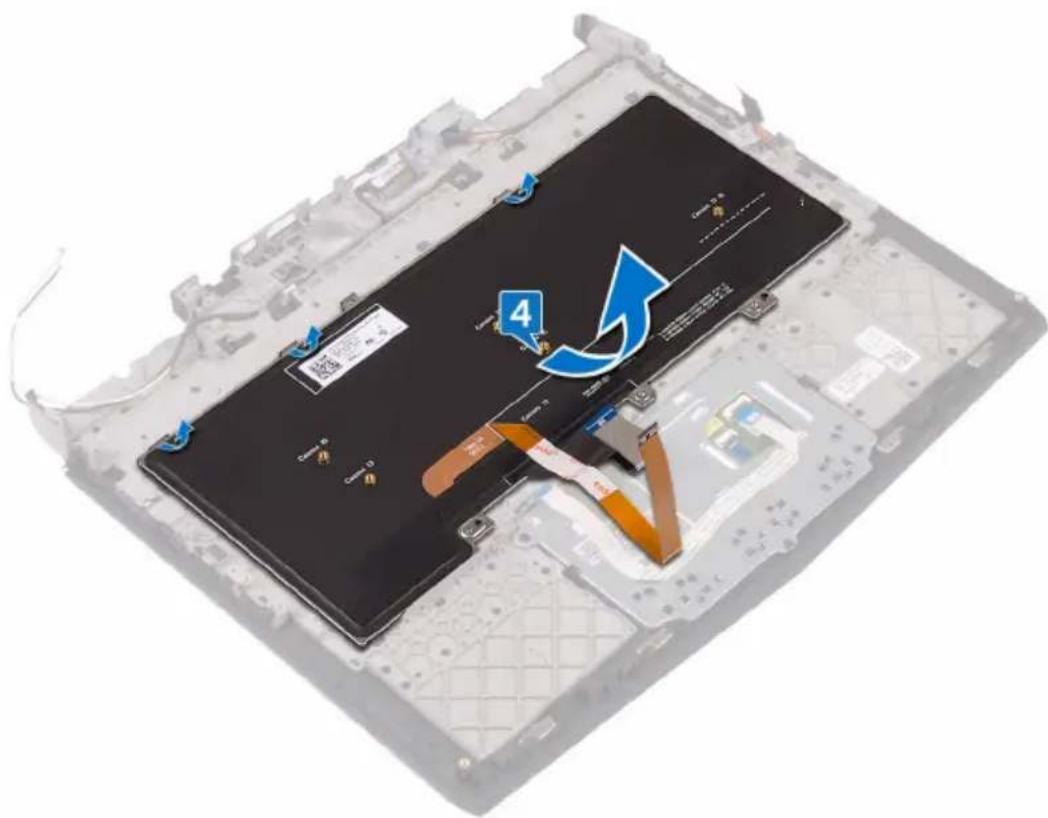
1 Remove the eight screws (M2x3) that secure the keyboard bracket to the palm-rest assembly.
2 Using a plastic scribe, pry the keyboard bracket off the palm-rest assembly.
3 Lift the keyboard bracket off the palm-rest assembly.
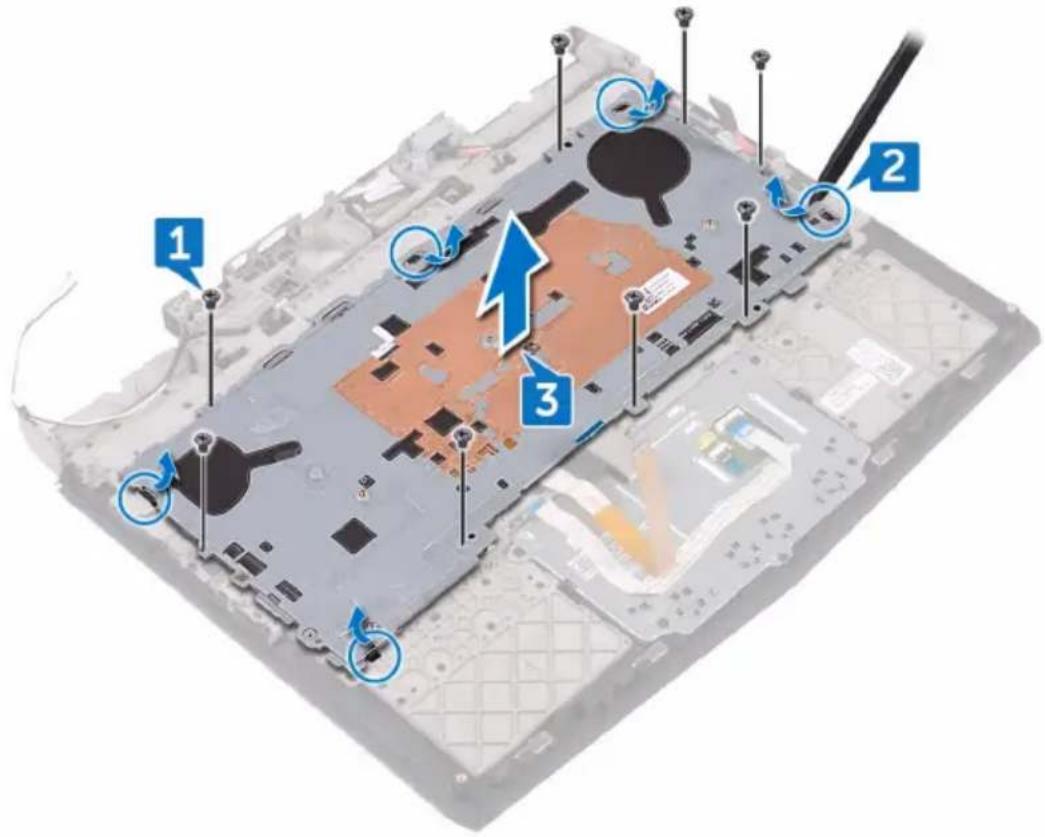
4 Lift the keyboard at an angle and remove it from the tabs on the palm-rest assembly.
natural_image
Laptop chassis with visible battery cover and cable assembly, no text or symbols presentReplacing the keyboard

WARNING: Before working inside your computer, read the safety information that shipped with your computer and follow the steps in Before working inside your computer. After working inside your computer, follow the instructions in After working inside your computer. For more safety best practices, see the Regulatory Compliance home page at www.dell.com/regulatory_compliance.
Procedure

CAUTION: To avoid damaging the keyboard, do not place any cables under it.
1 Insert the tabs on the keyboard into the slots on the palm-rest assembly.
2 Align the tabs on the palm-rest assembly to the slots on the keyboard bracket and snap into place.
3 Align the screw holes on the keyboard bracket with the screw holes on the palm-rest assembly.
4 Replace the eight screws (M2x3) that secure the keyboard bracket to the palm-rest assembly.
Post-requisites
1 Replace the power-button board.
2 Replace the speakers.
3 Replace the system board.
4 Replace the battery.
5 Replace the heat-sink assembly.
6 Replace the coin-cell battery.
7 Replace the computer base.
8 Replace the rear-I/O cover.
9 Replace the memory modules.
10 Replace the solid-state drive.
11 Replace the wireless card.
12 Replace the base cover.
Removing the display assembly

WARNING: Before working inside your computer, read the safety information that shipped with your computer and follow the steps in Before working inside your computer. After working inside your computer, follow the instructions in After working inside your computer. For more safety best practices, see the Regulatory Compliance home page at www.dell.com/regulatory_compliance.
Prerequisites
1 Remove the base cover.
2 Remove the wireless card.
3 Remove the solid-state drive.
4 Remove the memory modules.
5 Remove the rear-I/O cover.
6 Remove the computer base.
7 Remove the coin-cell battery.
8 Remove the heat-sink assembly.
9 Remove the battery.
10 Remove the system board.
Procedure
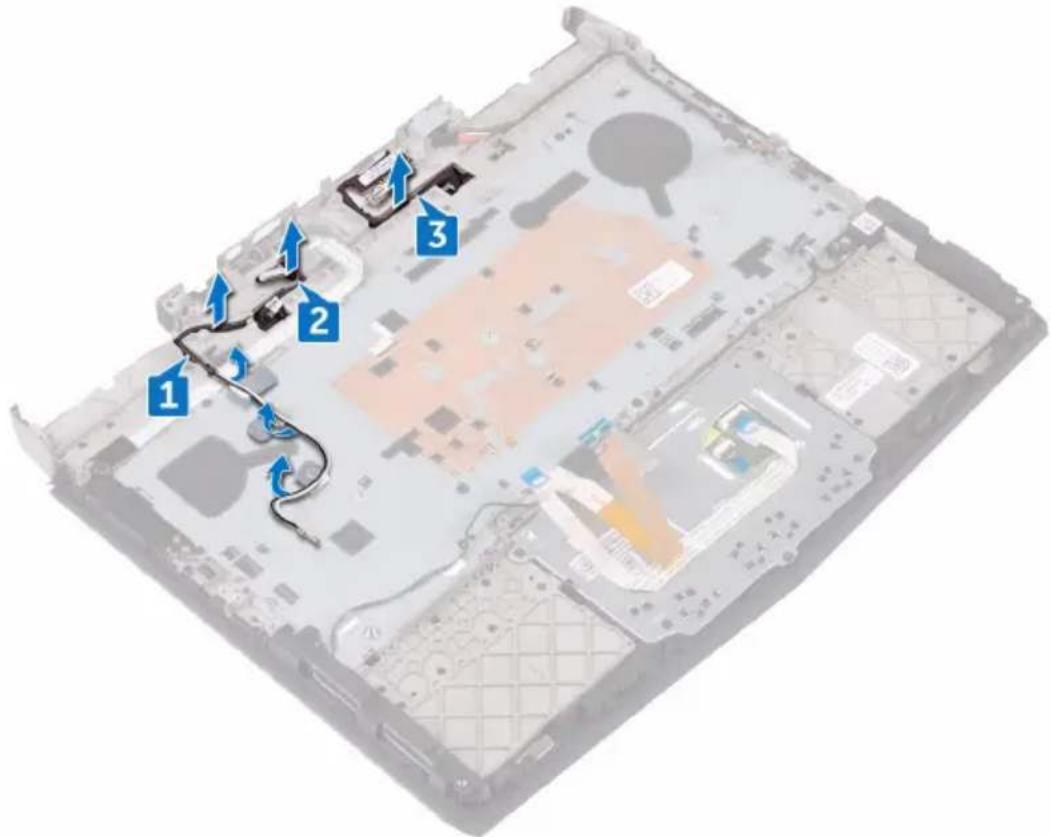
1 Remove the antenna cables from the routing guides on the palm-rest assembly.
2 Remove the logo-board cable from the routing guides on the palm-rest assembly.
3 Remove the display cable from the routing guides on the palm-rest assembly.

CAUTION: Place the computer on a clean, flat surface.
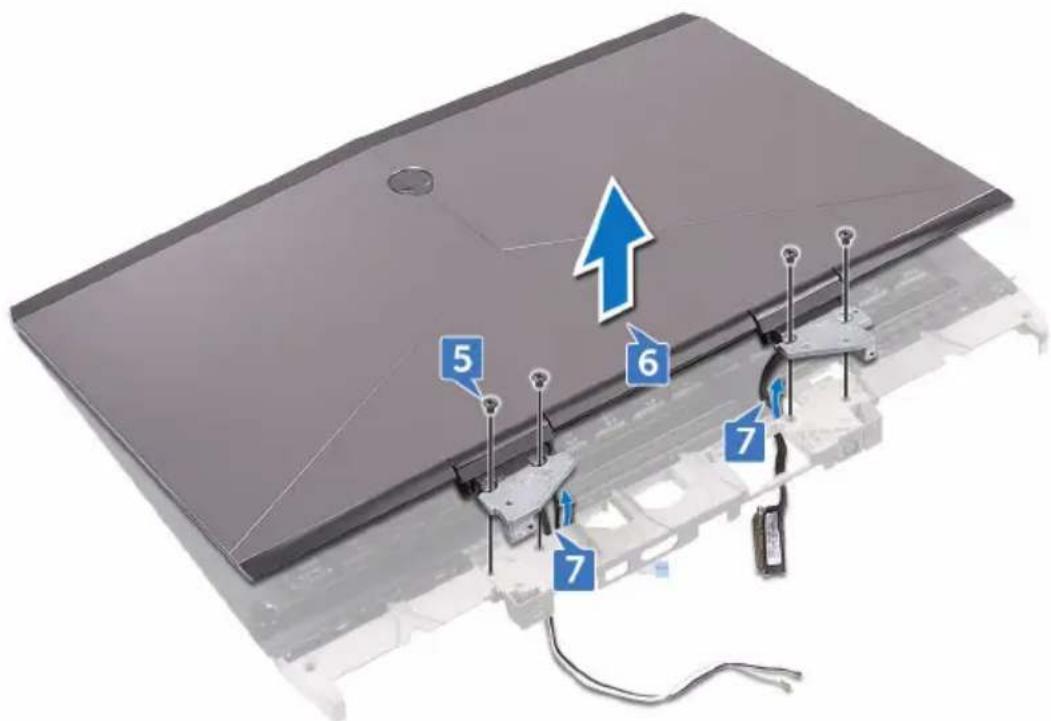
4 Turn the computer over.
5 Remove the four screws (M2.5x6L) that secure the display assembly to the palm-rest assembly.
6 Lift the display assembly off the palm-rest assembly.
7 Remove the cables from the routing holes on the palm-rest assembly.
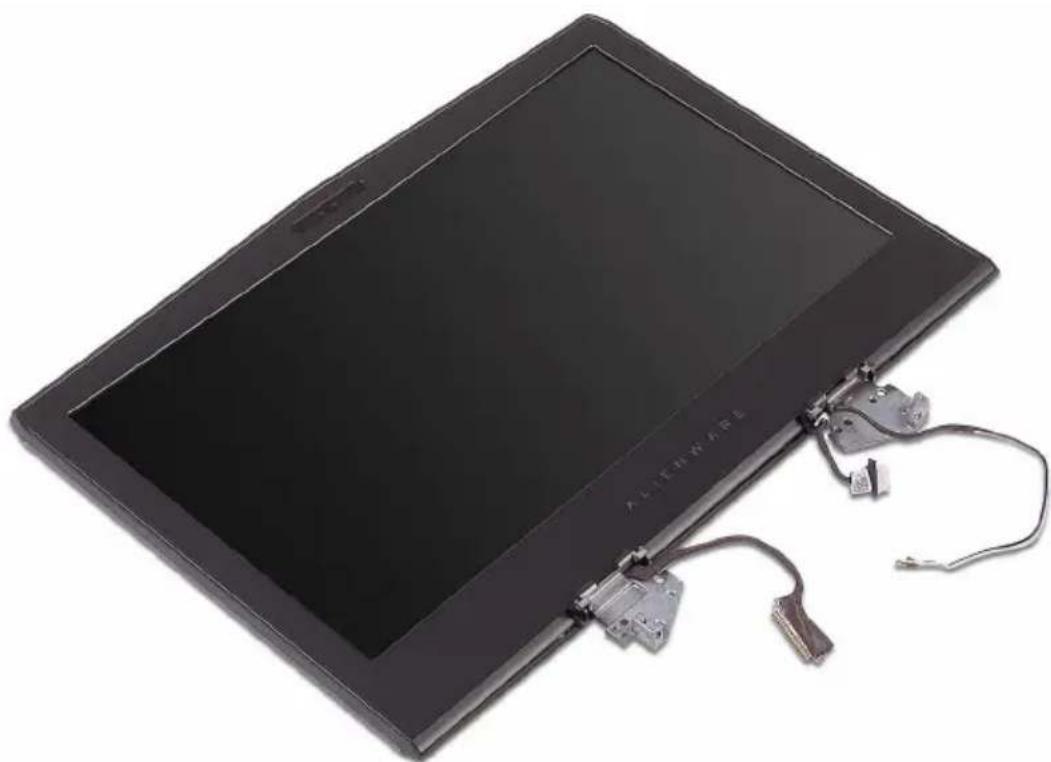
8 Place the display assembly on a clean, flat surface.
natural_image
Black rectangular electronic device with attached cables and connectors (no visible text or symbols)Replacing the display assembly

WARNING: Before working inside your computer, read the safety information that shipped with your computer and follow the steps in Before working inside your computer. After working inside your computer, follow the instructions in After working inside your computer. For more safety best practices, see the Regulatory Compliance home page at www.dell.com/regulatory_compliance.
Procedure
1 Route the cables through the routing holes on the palm-rest assembly.
2 Align the screw holes on the display hinges with the screw holes on the palm-rest assembly.
3 Replace the four screws (M2.5x6L) that secure the display assembly to the palm-rest assembly.
4 Turn the computer over.
5 Route the display cable through the routing guides on the palm-rest assembly.
6 Route the logo-board cable through the routing guides on the palm-rest assembly.
7 Route the antenna cables through the routing guides on the palm-rest assembly.
Post-requisites
1 Replace the system board.
2 Replace the battery.
3 Replace the heat-sink assembly.
4 Replace the coin-cell battery.
5 Replace the computer base.
6 Replace the rear-I/O cover.
7 Replace the memory modules.
8 Replace the solid-state drive.
9 Replace the wireless card.
10 Replace the base cover.
Removing the palm rest

WARNING: Before working inside your computer, read the safety information that shipped with your computer and follow the steps in Before working inside your computer. After working inside your computer, follow the instructions in After working inside your computer. For more safety best practices, see the Regulatory Compliance home page at www.dell.com/regulatory_compliance.
Prerequisites
1 Remove the base cover.
2 Remove the wireless card.
3 Remove the solid-state drive.
4 Remove the memory modules.
5 Remove the rear-I/O cover.
6 Remove the computer base.
7 Remove the coin-cell battery.
8 Remove the heat-sink assembly.
9 Remove the battery.
10 Remove the system board.
11 Remove the speakers.
12 Remove the touch pad.
13 Remove the display assembly.
14 Remove the keyboard.
15 Remove the power-adapter port.
16 Remove the power-button board.
Procedure
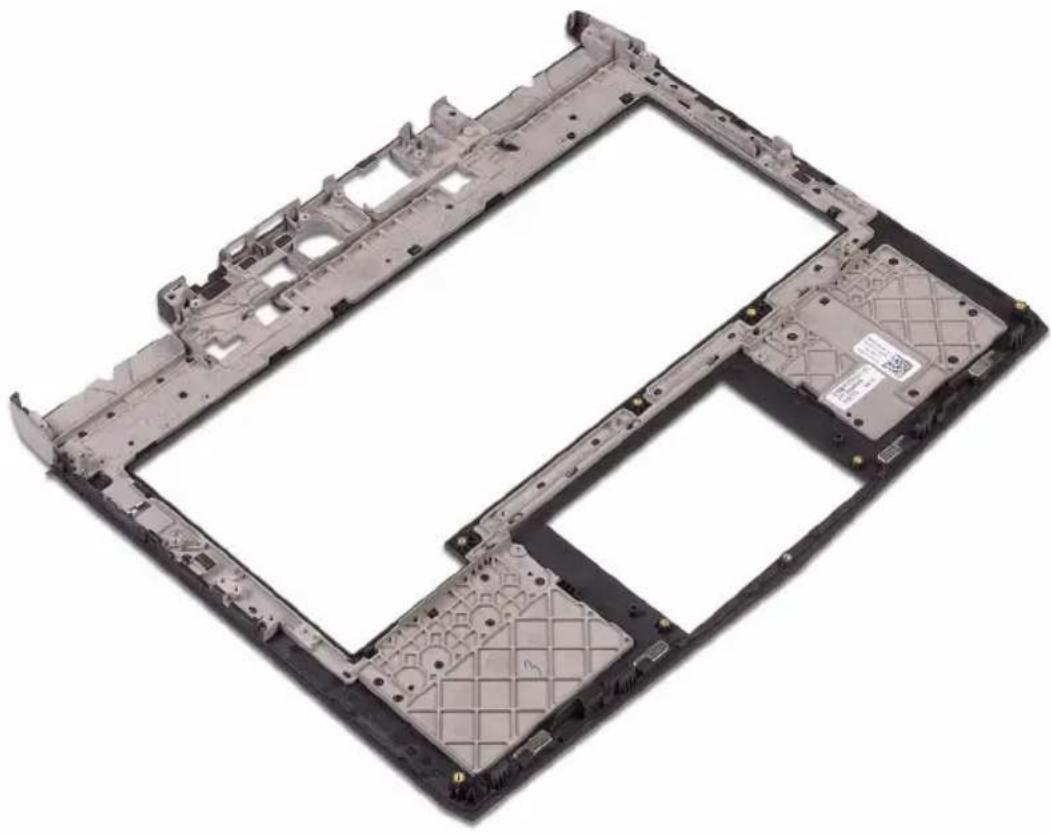
After performing all the prerequisites, we are left with the palm rest.
natural_image
Exterior view of a computer motherboard showing internal components and mounting holes (no text or symbols)Replacing the palm rest

WARNING: Before working inside your computer, read the safety information that shipped with your computer and follow the steps in Before working inside your computer. After working inside your computer, follow the instructions in After working inside your computer. For more safety best practices, see the Regulatory Compliance home page at www.dell.com/regulatory_compliance.
Procedure
Place the palm rest on a flat surface.
Post-requisites
1 Replace the power-button board.
2 Replace the power-adapter port.
3 Replace the keyboard.
4 Replace the display assembly.
5 Replace the touch pad.
6 Replace the speakers.
7 Replace the system board.
8 Replace the battery.
9 Replace the heat-sink assembly.
10 Replace the coin-cell battery.
11 Replace the computer base.
12 Replace the rear-I/O cover.
13 Replace the memory modules.
14 Replace the solid-state drive.
15 Replace the wireless card.
16 Replace the base cover.
Removing the display bezel

WARNING: Before working inside your computer, read the safety information that shipped with your computer and follow the steps in Before working inside your computer. After working inside your computer, follow the instructions in After working inside your computer. For more safety best practices, see the Regulatory Compliance home page at www.dell.com/regulatory_compliance.
Prerequisites

NOTE: These instructions are applicable only for laptops with a non-touch screen display.
1 Remove the base cover.
2 Remove the wireless card.
3 Remove the solid-state drive.
4 Remove the memory modules.
5 Remove the rear-I/O cover.
6 Remove the computer base.
7 Remove the coin-cell battery.
8 Remove the battery.
9 Remove the heat-sink assembly.
10 Remove the system board.
11 Remove the display assembly.
Procedure
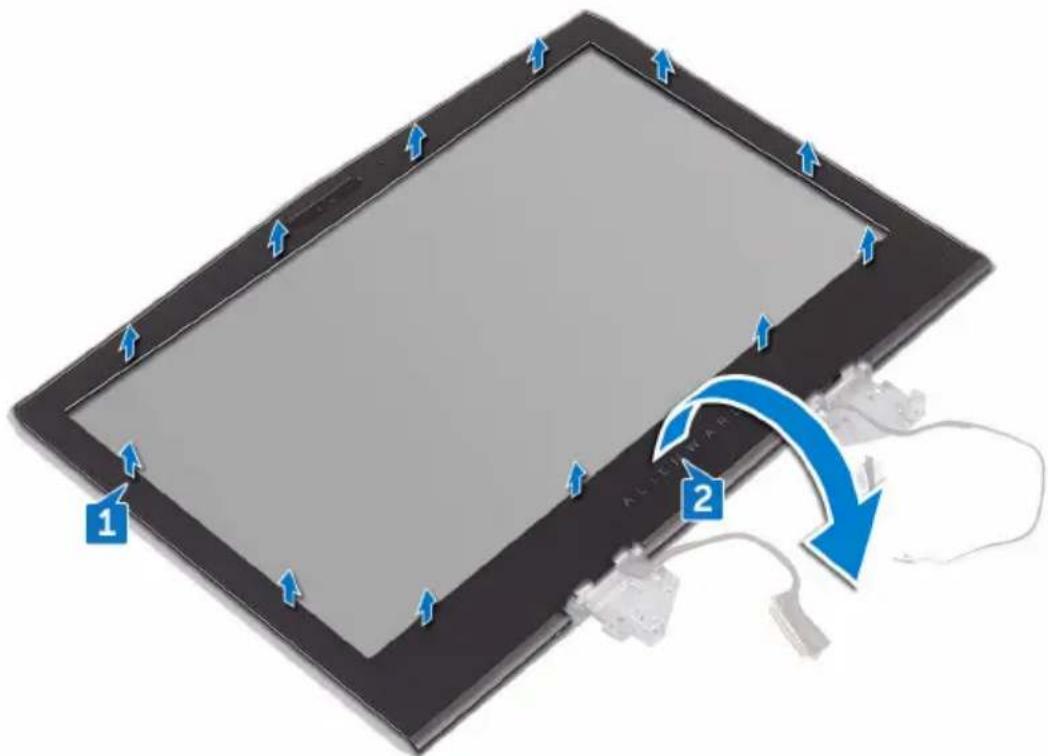
1 Using your fingertips, carefully pry up the inside edges of the display bezel.
2 Carefully lift the display bezel and turn it over.
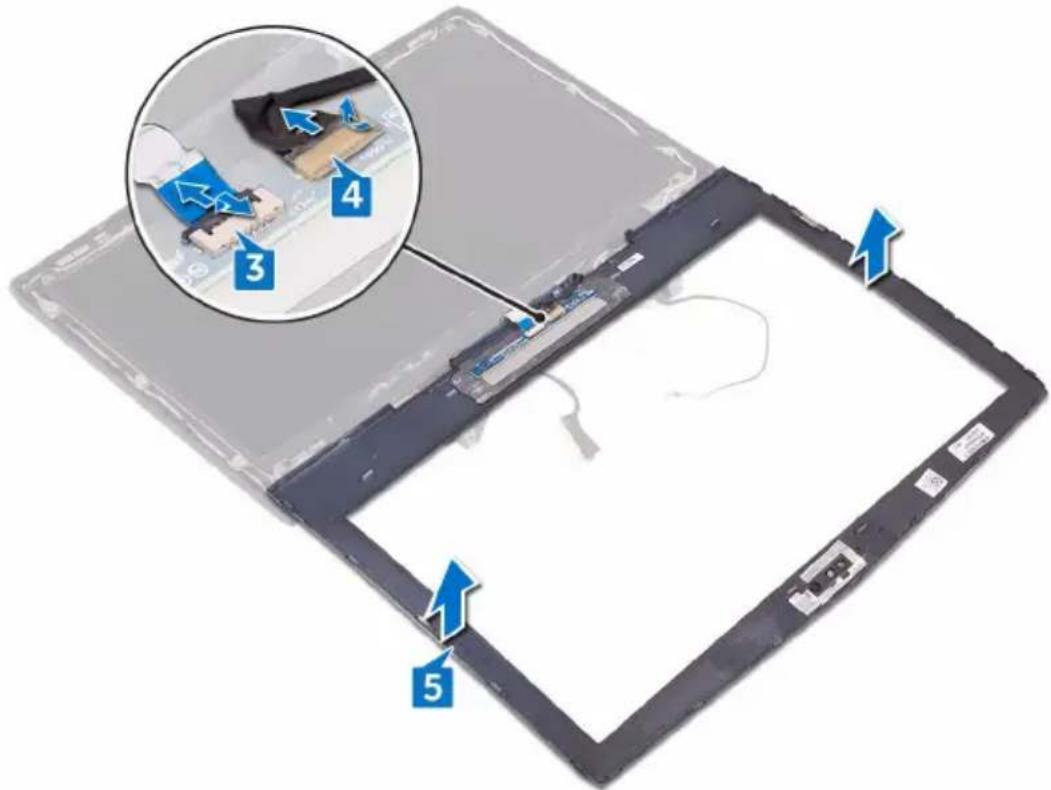
3 Open the latch and disconnect the alien head logo-board cable from the logo board.
4 Peel off the tape that secures the logo-board cable to the logo board and disconnect the logo-board cable from the logo board.
5 Lift the display bezel off the display assembly.
Replacing the display bezel

WARNING: Before working inside your computer, read the safety information that shipped with your computer and follow the steps in Before working inside your computer. After working inside your computer, follow the instructions in After working inside your computer. For more safety best practices, see the Regulatory Compliance home page at www.dell.com/regulatory_compliance.
Procedure
1 Place the display assembly on a clean and flat surface.
2 Connect the logo-board cable to the logo board.
3 Adhere the tape that secures the logo-board cable to the logo board.
4 Slide the alien head logo-board cable into the logo board and close the latch to secure the cable.
5 Carefully turn the display bezel over.
6 Align the display bezel with the display back-cover and antenna assembly and gently snap the display bezel into place.
Post-requisites
1 Replace the display assembly.
2 Replace the system board.
3 Replace the heat-sink assembly.
4 Replace the battery.
5 Replace the coin-cell battery.
6 Replace the computer base.
7 Replace the rear-I/O cover.
8 Replace the memory modules.
9 Replace the solid-state drive.
10 Replace the wireless card.
11 Replace the base cover.
Removing the camera cable

WARNING: Before working inside your computer, read the safety information that shipped with your computer and follow the steps in Before working inside your computer. After working inside your computer, follow the instructions in After working inside your computer. For more safety best practices, see the Regulatory Compliance home page at www.dell.com/regulatory_compliance.
Prerequisites

NOTE: These instructions are applicable only for laptops with a non-touch screen display.
1 Remove the base cover.
2 Remove the wireless card.
3 Remove the solid-state drive.
4 Remove the memory modules.
5 Remove the rear-I/O cover.
6 Remove the computer base.
7 Remove the coin-cell battery.
8 Remove the heat-sink assembly.
9 Remove the battery.
10 Remove the system board.
11 Remove the display assembly.
12 Remove the display bezel.
13 Remove the display panel.
14 Remove the display hinges.
Procedure
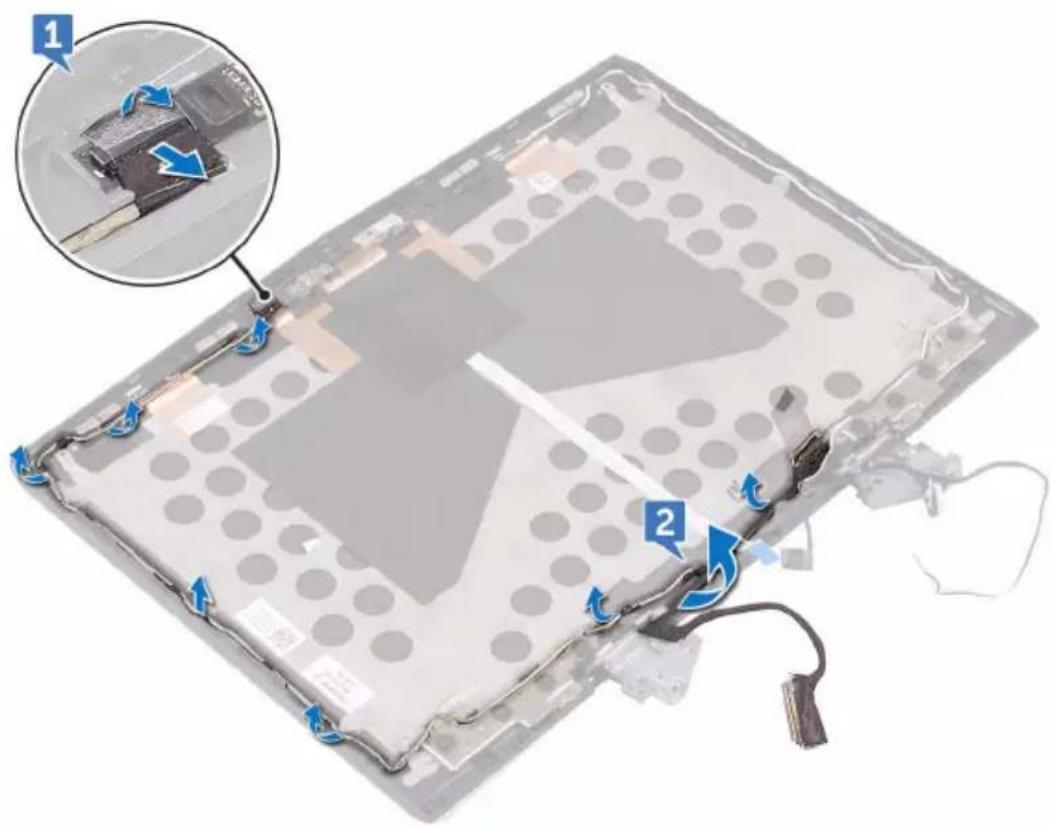
1 Peel the tape that secures the camera cable to the camera module and disconnect the camera cable from the camera module.
2 Note the camera cable routing and remove the cable from the routing guides on the display back-cover and antenna assembly.
Replacing the camera cable

WARNING: Before working inside your computer, read the safety information that shipped with your computer and follow the steps in Before working inside your computer. After working inside your computer, follow the instructions in After working inside your computer. For more safety best practices, see the Regulatory Compliance home page at www.dell.com/regulatory_compliance.
Procedure
1 Route the camera cable through the routing guides on the display back-cover and antenna assembly.
2 Connect the camera cable to the camera module.
Post-requisites
1 Replace the display hinges.
2 Replace the display panel.
3 Replace the display bezel.
4 Replace the display assembly.
5 Replace the system board.
6 Replace the battery.
7 Replace the heat-sink assembly.
8 Replace the coin-cell battery.
9 Replace the computer base.
10 Replace the rear-I/O cover.
11 Replace the memory modules.
12 Replace the solid-state drive.
13 Replace the wireless card.
14 Replace the base cover.
Removing the camera

WARNING: Before working inside your computer, read the safety information that shipped with your computer and follow the steps in Before working inside your computer. After working inside your computer, follow the instructions in After working inside your computer. For more safety best practices, see the Regulatory Compliance home page at www.dell.com/regulatory_compliance.
Prerequisites

NOTE: These instructions are applicable only for laptops with a non-touch screen display.
1 Remove the base cover.
2 Remove the wireless card.
3 Remove the memory modules.
4 Remove the solid-state drive.
5 Remove the rear-I/O cover.
6 Remove the computer base.
7 Remove the coin-cell battery.
8 Remove the battery.
9 Remove the system board.
10 Remove the display assembly.
11 Remove the display bezel.
Procedure
1 Using a plastic scribe, pry the camera module from the display back-cover and antenna assembly.
2 Peel the tape that secures the camera cable to the camera module and disconnect the camera cable from the camera module.
3 Lift the camera module from the display back-cover and antenna assembly.
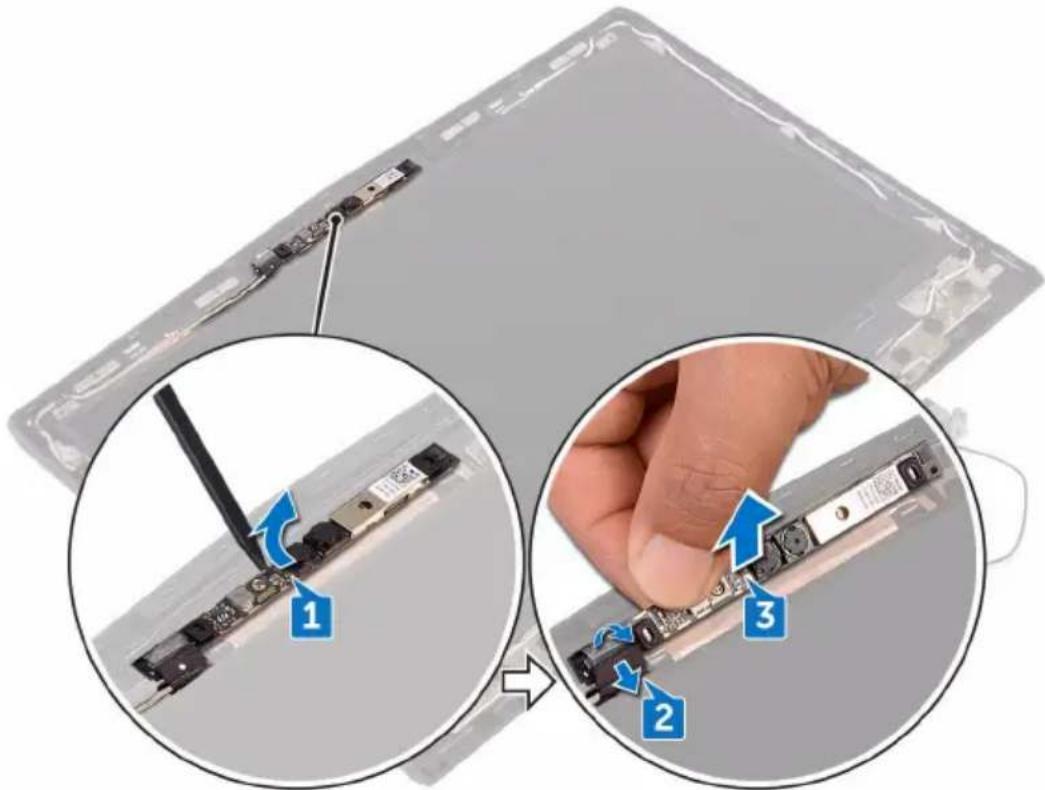
4 Follow the procedure in step 2 in Removing the display back-cover and antenna assembly to remove the camera cable.
Replacing the camera

WARNING: Before working inside your computer, read the safety information that shipped with your computer and follow the steps in Before working inside your computer. After working inside your computer, follow the instructions in After working inside your computer. For more safety best practices, see the Regulatory Compliance home page at www.dell.com/regulatory_compliance.
Procedure
1 Using the alignment posts, adhere the camera module to the display back-cover and antenna assembly.
2 Connect the camera cable to the camera module.
3 Adhere the tape that secures the camera cable to the camera module.
Post-requisites
1 Replace the display bezel.
2 Replace the display assembly.
3 Replace the system board.
4 Replace the battery.
5 Replace the coin-cell battery.
6 Replace the computer base.
7 Replace the rear-I/O cover.
8 Replace the solid-state drive.
9 Replace the memory modules.
10 Replace the wireless card.
11 Replace the base cover.
Removing the display panel

WARNING: Before working inside your computer, read the safety information that shipped with your computer and follow the steps in Before working inside your computer. After working inside your computer, follow the instructions in After working inside your computer. For more safety best practices, see the Regulatory Compliance home page at www.dell.com/regulatory_compliance.
Prerequisites

NOTE: These instructions are applicable only for laptops with a non-touch screen display.
1 Remove the base cover.
2 Remove the wireless card.
3 Remove the solid-state drive.
4 Remove the memory modules.
5 Remove the rear-I/O cover.
6 Remove the computer base.
7 Remove the coin-cell battery.
8 Remove the heat-sink assembly.
9 Remove the battery.
10 Remove the system board.
11 Remove the display assembly.
12 Remove the display bezel.
13 Remove the camera.
Procedure
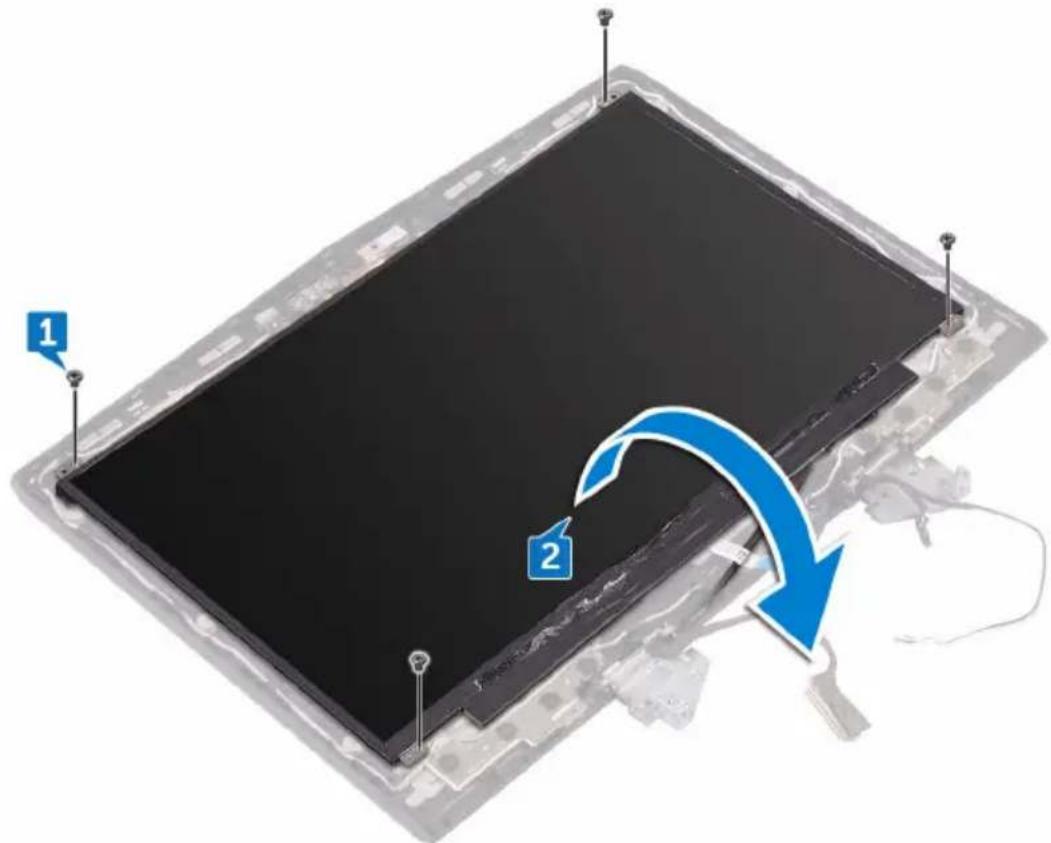
1 Remove the four screws (M1.6x2) that secure the display panel to the display back-cover and antenna assembly.
2 Gently lift the display panel and turn it over.
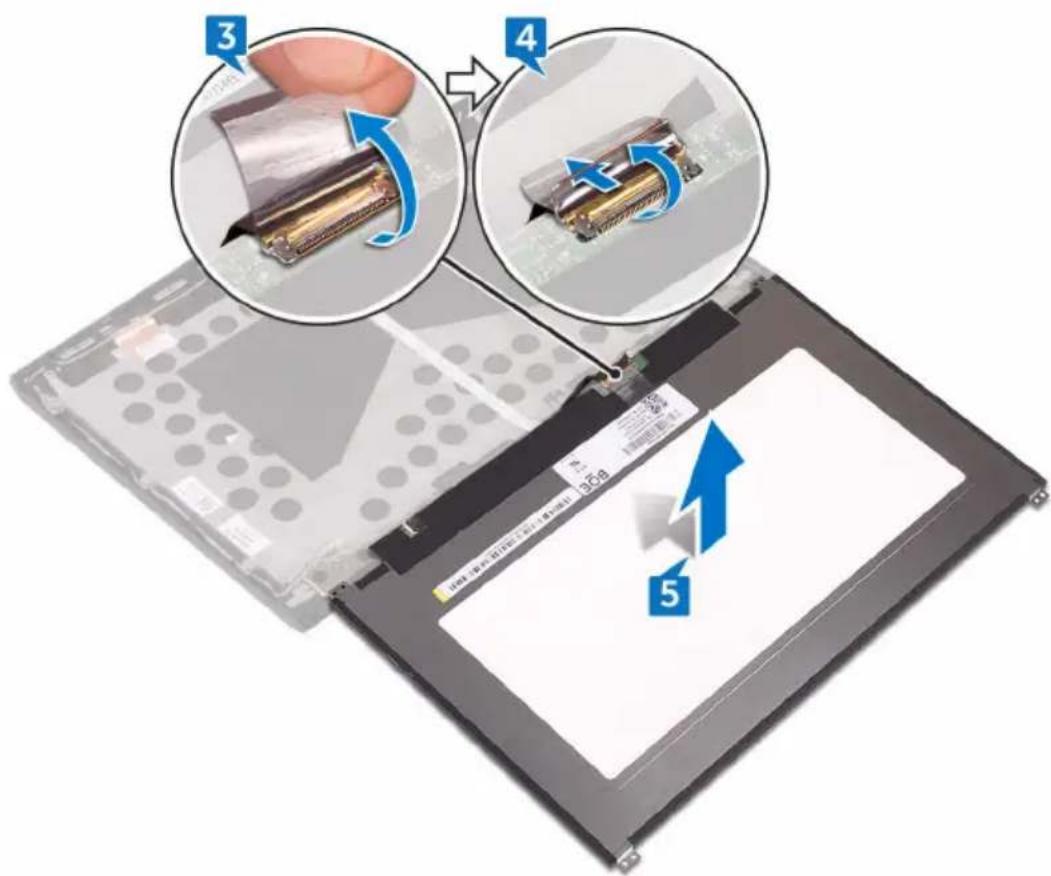
3 Peel the tape that secures the display cable to the display panel.
4 Open the latch and disconnect the display cable from the display panel.
5 Lift the display panel off the display back-cover.
Replacing the display panel

WARNING: Before working inside your computer, read the safety information that shipped with your computer and follow the steps in Before working inside your computer. After working inside your computer, follow the instructions in After working inside your computer. For more safety best practices, see the Regulatory Compliance home page at www.dell.com/regulatory_compliance.
Procedure
1 Slide the display cable into the connector on the display panel and close the latch to secure the cable.
2 Adhere the tape that secures the display cable to the display panel.
3 Turn the display panel over and gently place it on the display back-cover.

CAUTION: Ensure that no cables are under the display panel.
4 Align the screw holes on the display panel with the screw holes on the display back-cover and antenna assembly.
5 Replace the four screws (M1.6x2) that secure the display panel to the display back-cover and antenna assembly.
Post-requisites
1 Replace the camera.
2 Replace the display bezel.
3 Replace the display assembly.
4 Replace the system board.
5 Replace the battery.
6 Replace the heat-sink assembly.
7 Replace the coin-cell battery.
8 Replace the computer base.
9 Replace the rear-I/O cover.
10 Replace the memory modules.
11 Replace the solid-state drive.
12 Replace the wireless card.
13 Replace the base cover.
Removing the display hinges

WARNING: Before working inside your computer, read the safety information that shipped with your computer and follow the steps in Before working inside your computer. After working inside your computer, follow the instructions in After working inside your computer. For more safety best practices, see the Regulatory Compliance home page at www.dell.com/regulatory_compliance.
Prerequisites

NOTE: These instructions are applicable only for laptops with a non-touch screen display.
1 Remove the base cover.
2 Remove the wireless card.
3 Remove the solid-state drive.
4 Remove the memory modules.
5 Remove the rear-I/O cover.
6 Remove the computer base.
7 Remove the coin-cell battery.
8 Remove the heat-sink assembly.
9 Remove the battery.
10 Remove the system board.
11 Remove the display assembly.
12 Remove the display bezel.
13 Remove the display panel.
Procedure
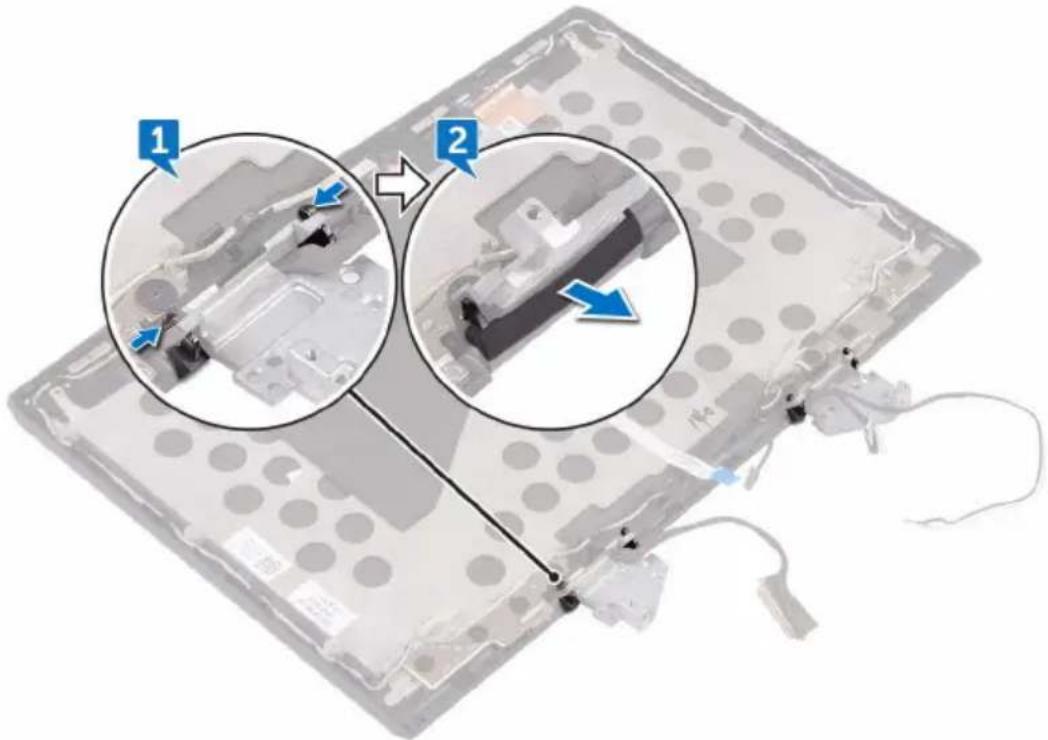
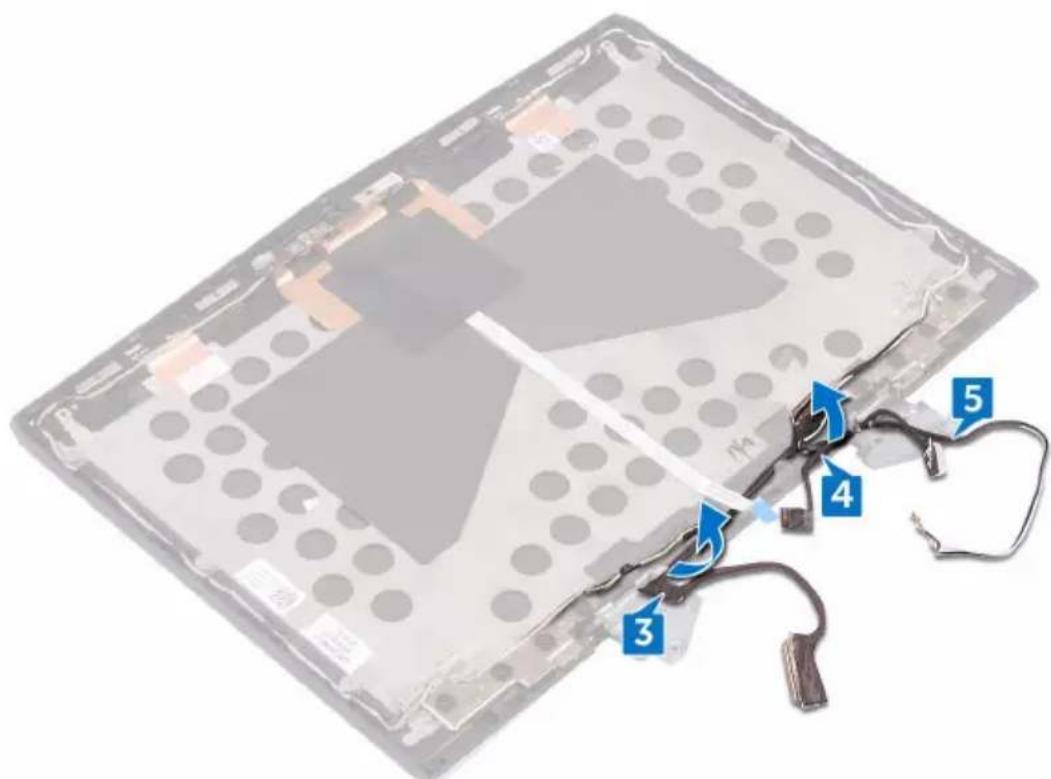
1 Press the hinge caps on both the edges to release the hinge caps from the hinge.
2 Remove the hinge caps off the hinges.
3 Remove the display cable from the routing guide on the display back-cover and antenna assembly.
4 Remove the logo-board cable from the routing guide on the display back-cover and antenna assembly.
5 Remove the antenna cables from the routing guide on the display back-cover and antenna assembly.
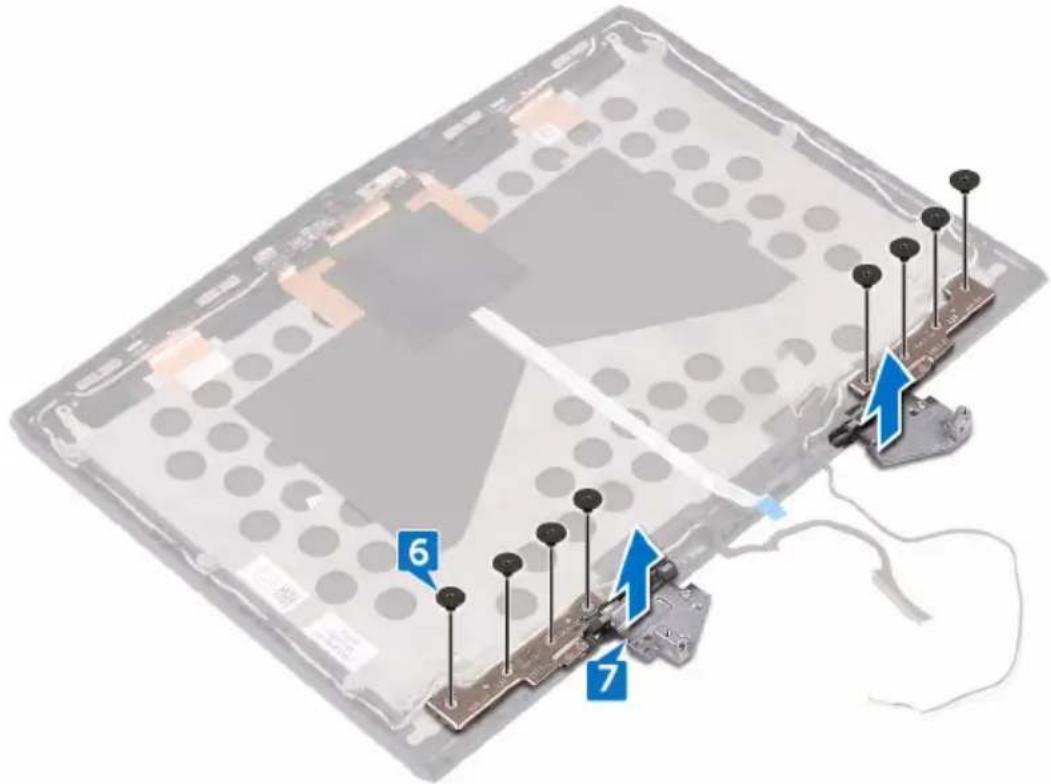
6 Remove the eight screws (M2.5x2.0L) that secure the hinges to the display back-cover and antenna assembly.
7 Lift the hinges from the display back-cover and antenna assembly.
Replacing the display hinges

WARNING: Before working inside your computer, read the safety information that shipped with your computer and follow the steps in Before working inside your computer. After working inside your computer, follow the instructions in After working inside your computer. For more safety best practices, see the Regulatory Compliance home page at www.dell.com/regulatory_compliance.
Procedure
1 Align the screw holes on the display hinges with the screw holes on the display back-cover and antenna assembly.
2 Replace the eight screws (M2.5x2.0L) that secure the display hinges to the display back-cover and antenna assembly.
3 Route the antenna cables through the routing guides on the display back-cover and antenna assembly.
4 Route the logo-board cable through the routing guides on the display back-cover and antenna assembly.
5 Route the display cable through the routing guides on the display back-cover and antenna assembly.
6 Place the hinge caps on the display hinges and press down to snap them into place.
Post-requisites
1 Replace the display panel.
2 Replace the display bezel.
3 Replace the display assembly.
4 Replace the system board.
5 Replace the battery.
6 Replace the heat-sink assembly.
7 Replace the coin-cell battery.
8 Replace the computer base.
9 Replace the rear-I/O cover.
10 Replace the memory modules.
11 Replace the solid-state drive.
12 Replace the wireless card.
13 Replace the base cover.
Removing the display back-cover and antenna assembly

WARNING: Before working inside your computer, read the safety information that shipped with your computer and follow the steps in Before working inside your computer. After working inside your computer, follow the instructions in After working inside your computer. For more safety best practices, see the Regulatory Compliance home page at www.dell.com/regulatory_compliance.
Prerequisites

NOTE: These instructions are applicable only for laptops with a non-touch screen display.
1 Remove the base cover.
2 Remove the wireless card.
3 Remove the solid-state drive.
4 Remove the memory modules.
5 Remove the rear-I/O cover.
6 Remove the computer base.
7 Remove the coin-cell battery.
8 Remove the heat-sink assembly.
9 Remove the battery.
10 Remove the system board.
11 Remove the display assembly.
12 Remove the display bezel.
13 Remove the display panel.
14 Remove the display hinges.
15 Remove the camera cable.
16 Remove the camera.
Procedure
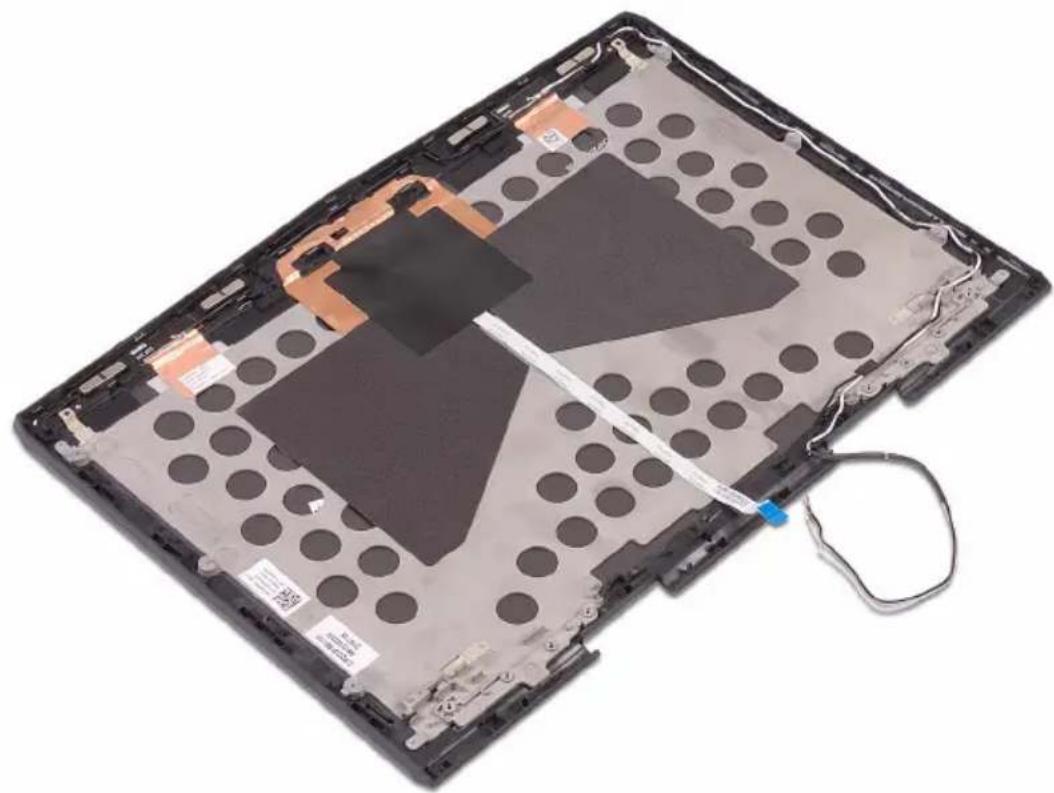
After performing the steps in prerequisites we are left with the display back-cover and antenna assembly.
natural_image
Top-down view of a computer monitor chassis showing internal components and a cable (no text or symbols visible)Replacing the display back-cover and antenna assembly

WARNING: Before working inside your computer, read the safety information that shipped with your computer and follow the steps in Before working inside your computer. After working inside your computer, follow the instructions in After working inside your computer. For more safety best practices, see the Regulatory Compliance home page at www.dell.com/regulatory_compliance.
Procedure
Place the display back-cover and antenna assembly on a clean and flat surface.
Post-requisites
1 Replace the camera.
2 Replace the camera cable.
3 Replace the display hinges.
4 Replace the display panel.
5 Replace the display bezel.
6 Replace the display assembly.
7 Replace the system board.
8 Replace the battery.
9 Replace the heat-sink assembly.
10 Replace the coin-cell battery.
11 Replace the computer base.
12 Replace the rear-I/O cover.
13 Replace the memory modules.
14 Replace the solid-state drive.
15 Replace the wireless card.
16 Replace the base cover.
The BIOS manages data flow between the computer's operating system and attached devices such as the hard disk, video adapter, keyboard, mouse, and printer.
Entering the BIOS setup program
1 Turn on or restart your computer.
2 Press F2 when the Dell logo is displayed on the screen to enter the BIOS setup program.
You can change the user-definable settings in BIOS setup program.
Timing key sequences
The keyboard is not the first device initialized by the BIOS setup program. As a result, if you press a keystroke too early, the keyboard is locked out. In such cases, a keyboard error message is displayed on the screen, and you cannot restart your computer with the Ctrl+Alt+Del key combination.
To prevent the keyboard from locking, wait until the keyboard is initialized completely. The keyboard is initialized if one of the following occurs:
- The keyboard lights flash.
- The F2=Setup prompt appears at the top-right corner of the screen during boot.
System setup options

NOTE: Depending on this computer and its installed devices, the items listed in this section may or may not appear.
Table 3. Main tab
| Main | |
| System Time Displays the current time in hh:mm:ss format. | |
| System Date Displays the current date in mm/dd/yyyy format. | |
| BIOS Version Displays the BIOS version. | |
| Product Name Displays the model number of your computer. | |
| Service Tag Displays the service tag of your computer. | |
| Asset Tag Displays the asset tag of your computer. | |
| CPU Type Displays the processor type. | |
| CPU Speed Displays the processor speed. | |
| CPU ID Displays the processor identification code. | |
| CPU L1 Cache Displays the processor L1 cache size. | |
| CPU L2 Cache Displays the processor L2 cache size. | |
| CPU L3 Cache Displays the processor L3 cache size. | |
| Integrated Graphics Displays the integrated graphics. | |
| Discrete Graphics 1 Displays the first discrete graphics installed on your computer. | |
| First HDD Displays the type of hard drive installed. | |
| Second HDD Displays the type of secondary hard-drive installed. | |
| Third HDD Displays the type of third hard-drive installed. | |
| Fourth HDD Displays the type of fourth hard-drive installed. |
Main
M.2 PCIe SSD-1 Displays the type of primary SSD installed.
M.2 PCIe SSD-2 Displays the type of secondary SSD installed.
M.2 PCIe SSD-3 Displays the type of third SSD installed.
Table 4. Advanced tab
Advanced
Intel(R) SpeedStep Technology Allows you to enable or disable Intel (R) Speedstep Technology.

NOTE: If enabled, the processor clock speed and core voltage are adjusted dynamically based on the processor load.
Default: Enabled
Virtualization Allows you to enable or disable the Intel Virtualization technology. Default: Enabled
VT for Direct I/O Specify whether a Virtual Machine Monitor (VMM) can utilize the additional hardware capabilities provided by Intel Virtualization Technology for Direct I/O.
Integrated NIC Allows you to enable or disable the on-board LAN controller. Default: Enabled
USB Emulation Allows you to enable or disable the USB emulation feature. This feature defines how the BIOS, in the absence of a USB-aware operating system, handles USB devices. USB emulation is always enabled during POST.
Advanced

NOTE: You cannot boot any type of USB device (floppy, hard drive, or memory key) when this option is off.
Default: Enabled
USB PowerShare Allows you to charge USB devices
when the computer is turned off or in standby mode.
Default: Enabled
USB Wake Support Allows you to enable USB devices to
wake the computer from standby or to disable the USB wake support feature.

NOTE: If USB PowerShare is enabled, a device connected to the USB PowerShare connector may not wake the computer.
Default: Disabled
SATA Operation Allows you to configure the operating
mode of the integrated SATA hard drive controller.
Default: AHCI
Adapter Warnings Allows you to choose if the computer
should display warning messages when you use AC adapters that are not supported by your computer.
Default: Enabled
Function Key Behavior Allows you to set function key or
multimedia key as the default function key behavior.
Default: Function key
Express Charge Allows you to charge your computer
battery using Standard Charge or Express Charge mode.
Default: Express Charge
Advanced
Touchpad Backlight Allows you to configure the touchpad backlight option.
Battery Health Displays the battery health.
Intel Software Guard Extensions Allows you to enable of disable the Intel Software Guard Extensions Default: Disabled
BIOS Recovery Enable the user to recover from certain corrupted BIOS conditions from a recovery file on the user primary hard drive Default: Enabled
Performance Options
SupportAssist System Resolution
Auto OS Recovery Threshold Control the automatic boot flow for SupportAssist System Resolution Console and for Dell OS Recovery tool.
Table 5. Security tab
| Security | |
| Unlock Setup Status Displays if the setup status is unlocked. | |
| Admin Password Status Displays if the administrator password is clear or set.Default: Not set | |
| System password Status Displays if the system password is clear or set.Default: Not set | |
| HDD password Status Displays if the HDD password is clear or set.Default: Not set | |
| Admin Password Allows you to set the administrator password. The administrator password |
Security
controls access to the system setup utility.
System Password Allows you to set the system
password. The system password controls access to the computer at boot.
HDD password Allows you to set, change or delete
the hard-disk drive password.
Password Change Allows you to permit or deny system
password or HDD password changes.
Default: Permitted
Computrace Enable or disable the BIOS module
interface of the optional Computrace
Service from Absolute Software.
Firmware TPM
UEFI Capsule Firmware Updates Enable or disable BIOS updates
through UEFI capsule update
packages.
Table 6. Boot tab
Boot
Boot List Option Displays the available boot options.
File Browser Add Boot Option Allows to add the boot options.
File Browser Del Boot Option Allows to delete the boot options
Secure Boot Enable or disable the secure boot feature.
Legacy Option ROMs Enable or disable the Legacy Option ROMs.
Boot Option Priorities Displays the boot sequence.
Boot Option #1 Displays the available first boot option.
Boot
Boot Option #2 Displays the available second boot option.
Boot Option #3 Displays the available third boot option.
Table 7. Exit tab
| Exit | |
| Save Changes and Reset Allows you to exit system setup and save your changes. | |
| Discard Changes and Reset Allows you to exit system setup and load previous values for all system setup options. | |
| Restore Defaults Allows you to restore default values for all system setup options. | |
| Discard Changes Allows you to load previous values for all system setup options. | |
| Save Changes Allows you to save the changes for all system setup options. |
Clearing forgotten passwords
Contact Dell technical support to clear the forgotten passwords, see www.dell.com/contactdell.
Clearing CMOS settings
1 Remove the base cover.
2 Remove the wireless card.
3 Remove the solid-state drive.
4 Remove the rear I/O cover.
5 Remove the computer base.
6 Remove the battery.
7 Remove the coin-cell battery.
8 Wait for one minute.
9 Replace the coin-cell battery.
10 Replace the battery.
11 Replace the computer base.
12 Replace the rear I/O cover
13 Replace the solid-state drive.
14 Replace the wireless card.
15 Replace the base cover.
Flashing the BIOS
You may need to flash (update) the BIOS when an update is available or when you replace the system board. To flash the BIOS:
1 Turn on your computer.
2 Go to www.dell.com/support.
3 Click Product support, enter the Service Tag of your computer, and then click Submit.

NOTE: If you do not have the Service Tag, use the auto-detect feature or manually browse for your computer model.
4 Click Drivers & downloads → Find it myself.
5 Select the operating system installed on your computer.
6 Scroll down the page and expand BIOS.
7 Click Download to download the latest version of the BIOS for your computer.
8 After the download is complete, navigate to the folder where you saved the BIOS update file.
9 Double-click the BIOS update file icon and follow the instructions on the screen.
Boot menu
This computer includes a one-time boot menu. By using this feature, you can change the sequence of devices that your computer attempts to boot from, for example, CD-ROM, hard drive, or network.
Boot menu enhancements
The boot menu enhancements are as follows:
- Easier access — Press F12 to access the boot selection menu.
- User prompting — The user is prompted to use the keystroke on the BIOS screen.
- Diagnostics options — The boot menu includes the ePSA diagnostic options.
Diagnostics
Power and battery-status light: Indicates the power and battery-charge status.
Solid amber - Computer is running on battery and the battery has less than 10 percent charge.
User-defined color (AC mode) – Power adapter is connected and the battery is fully charged.
User-defined color (Battery mode) – Computer is running on battery and the battery has more than 10 percent charge.
User-defined color (Breath) - Computer is in sleep state.
Off - Computer is in hibernation, or turned off.
The power and battery-status light blinks red and blue along with beep codes indicating failures.
For example, the power and battery-status light blinks red two times followed by a pause, and then blinks blue three times followed by a pause. This 2,3 pattern continues until the computer is turned off indicating no memory or RAM is detected.
The following table shows different light patterns and what they indicate.
Table 8. Diagnostics
| Light Pattern Problem description |
| 2,1 CPU failure |
| 2,2 System board: BIOS and ROM failure |
| 2,3 No memory or RAM detected |
| 2,4 Memory or RAM failure |
| 2,5 Invalid memory installed |
| 2,6 System board or chipset error |
| 2,7 LCD failure |
| 3,1 CMOS battery failure |
| 3,2 PCI/video card failure |
| 3,3 Recovery image not found |
Light Pattern Problem description
3,4 Recovery image found but invalid
Camera status light: Indicates whether the camera is in use.
- Solid white – Camera is in use.
- Off – Camera is not in use.
Caps Lock status light: Indicates whether Caps Lock is enabled or disabled.
- Solid white – Caps Lock enabled.
- Off – Caps Lock disabled.
Network port light: Indicates network connectivity.
- Off – No network connection.
- Solid green – 10 Mbps connection.
- Solid orange – 100 Mbps connection.
- Solid yellow – 1000 Mbps connection.
- Flicker yellow – Network activity.
You may need to flash (update) the BIOS when an update is available or when you replace the system board. To flash the BIOS:
1 Turn on your computer.
2 Go to www.dell.com/support.
3 Click Product support, enter the Service Tag of your computer, and then click Submit.

NOTE: If you do not have the Service Tag, use the auto-detect feature or manually browse for your computer model.
4 Click Drivers & downloads → Find it myself.
5 Select the operating system installed on your computer.
6 Scroll down the page and expand BIOS.
7 Click Download to download the latest version of the BIOS for your computer.
8 After the download is complete, navigate to the folder where you saved the BIOS update file.
9 Double-click the BIOS update file icon and follow the instructions on the screen.
Getting help and contacting Alienware
Self-help resources
You can get information and help on Alienware products and services using these online self-help resources:
Table 9. Alienware products and online self-help resources
Information about Alienware products and services www.alienware.com
Dell Help & Support app

Get started app
Get started app

Accessing help In Windows search, type Help and
Support, and press Enter.
Online help for operating system www.dell.com/support/windows www.dell.com/support/linux
Troubleshooting information, user manuals, setup instructions, product specifications, technical help blogs, drivers, software updates, and so on
www.alienware.com/gamingservices
VR Support www.dell.com/VRsupport
Videos providing step-by-step instructions to service your computer
www.youtube.com/alienwareservices
Contacting Alienware
To contact Alienware for sales, technical support, or customer service issues, see www.alienware.com.
NOTE: Availability varies by country and product, and some services may not be available in your country.
NOTE: If you do not have an active internet connection, you can find contact information on your purchase invoice, packing slip, bill, or Dell product catalog.