
Slate PC 7 - Graphic tablet SAMSUNG - Free user manual and instructions
Find the device manual for free Slate PC 7 SAMSUNG in PDF.


| Type de produit | Graphic tablet / Slate PC |
| Marque | Samsung |
| Modèle | Slate PC 7 |
| Système d'exploitation | Windows 7 |
| Écran | Écran tactile LCD |
| Caméra | Avant et arrière (en option) |
| Connectivité | Wi-Fi, Bluetooth (clavier en option) |
| Ports (via station d'accueil) | HDMI, USB, Ethernet, prise casque |
| Entrée | Écran tactile, stylet numériseur, bouton Accueil, boutons de volume, verrouillage d'orientation |
| Alimentation | Adaptateur secteur, batterie |
| Fonctions principales | Touch Logon, Easy Settings, Touch Launcher, Touch Supporter, rotation automatique de l'écran, réglage du volume, appareil photo |
| Accessoires inclus | Stylet numériseur (pièces de rechange comprises) |
| Accessoires en option | Clavier Bluetooth, station d'accueil |
| Entretien et nettoyage | Non spécifié dans la notice |
| Sécurité | Non spécifié dans la notice |
| Pièces détachées et réparabilité | Non spécifié dans la notice |
| Informations générales | Guide utilisateur disponible au format PDF |
Frequently Asked Questions - Slate PC 7 SAMSUNG
User questions about Slate PC 7 SAMSUNG
0 question about this device. Answer the ones you know or ask your own.
Ask a new question about this device
Download the instructions for your Graphic tablet in PDF format for free! Find your manual Slate PC 7 - SAMSUNG and take your electronic device back in hand. On this page are published all the documents necessary for the use of your device. Slate PC 7 by SAMSUNG.
USER MANUAL Slate PC 7 SAMSUNG
Before Reading This Guide
Before Reading This Guide
This guide describes the general functions provided with Samsung Slate PC. Some functions and devices may not be provided or the version may differ depending on the product.
Please note that the descriptions in this guide may not match your computer's environment exactly.
The images on the cover and the main content of this guide are images of representative Samsung Slate PC models and may differ from your actual product.
Copyright
© 2011 Samsung Electronics Co., Ltd.
This guide is the property of Samsung Electronics Co., Ltd. and is protected by copyright.
No information contained herein may be distributed or copied in any form whatsoever without the prior written consent of Samsung Electronics Co., Ltd.
Information in this guide is subject to change due to functional enhancements of the product and other reasons without prior notice.
CONTENTS
V

Getting Started
Overview ▶ Turning the Slate PC On and Off Using the Touch Logon LCD (Touch Screen) Brightness-Control Using the Home Button Using the Easy Settings

Using the Touch Feature
Using the Basic Gestures, Using the Applied Gestures, Screen Calibration, Entering Letters Using the Touch Screen, Using the Touch Launcher, Using the Touch Supporter, Using the Digitizer Pen

Using the Slate PC
Using the Auto Screen Rotation Function, Adjusting the Volume, Wireless Network, Using the Camera, Using the Bluetooth Keyboard, Using the Slate PC Dock
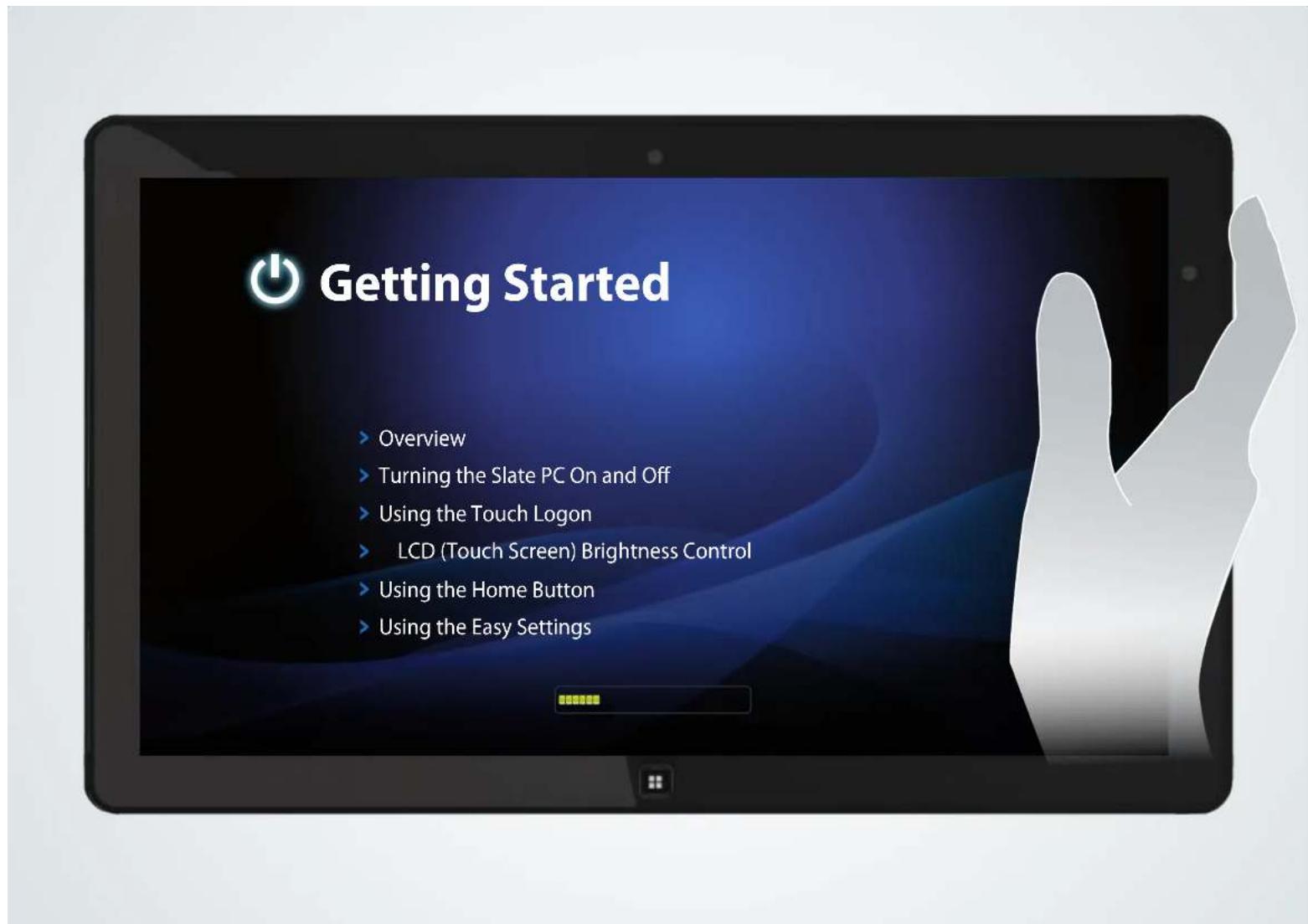

Getting Started
Overview, Turning the Slate PC On and Off, Using the Touch Logon, LCD (Touch Screen) Brightness Control, Using the Home Button, Using the Easy Settings
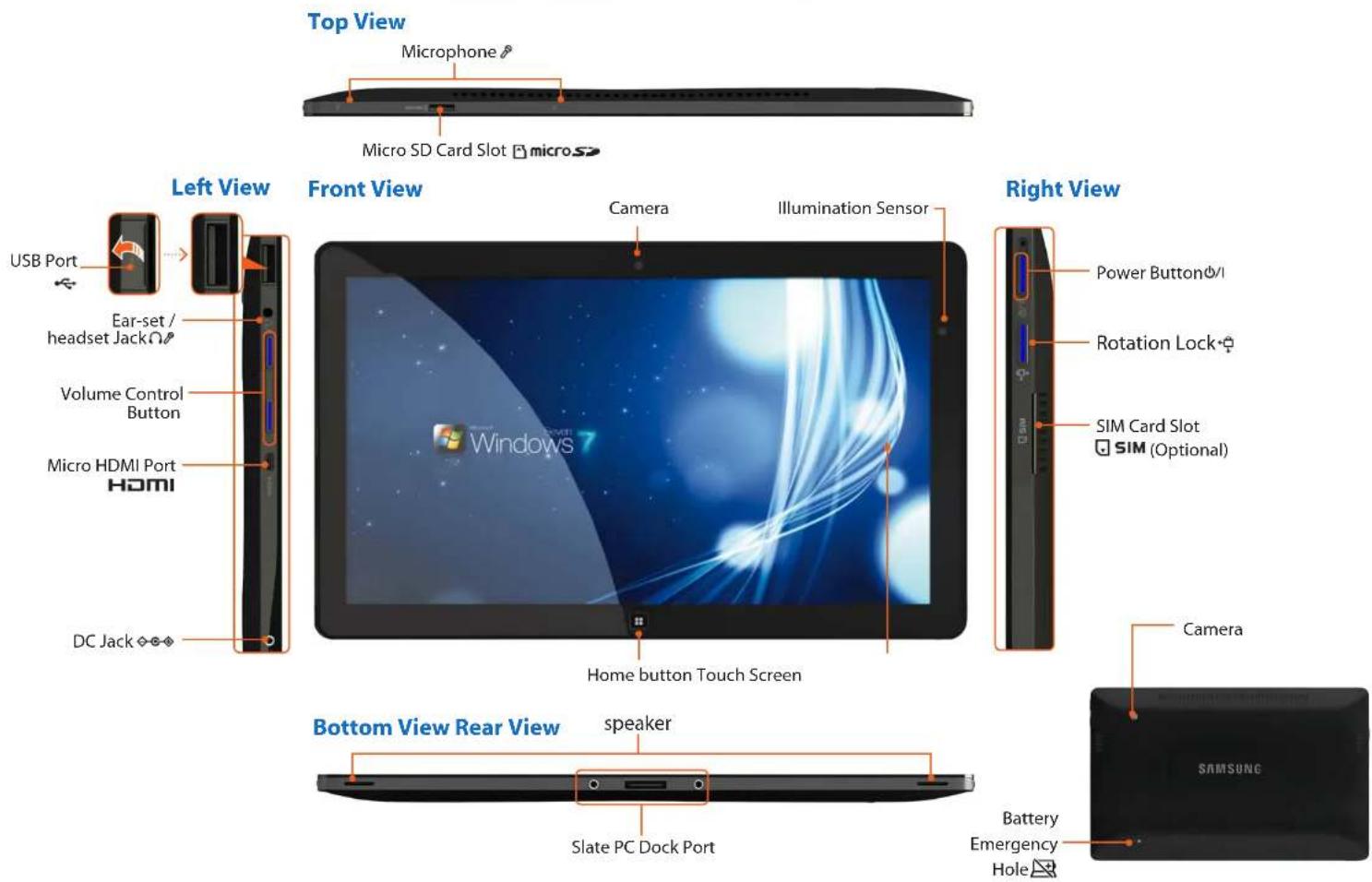
Overview
Getting Started
Turning the Slate PC On and Off
Getting Started
Turning the computer on
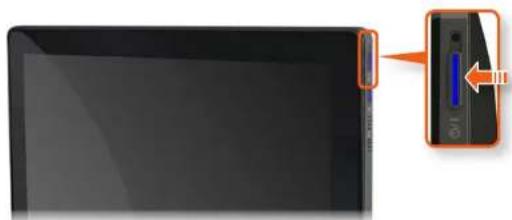
1. Connect the AC adapter. 2. Press the Power button to turn the computer on.
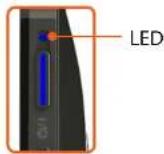
3. The Power button LED is lit while the computer is turned on.
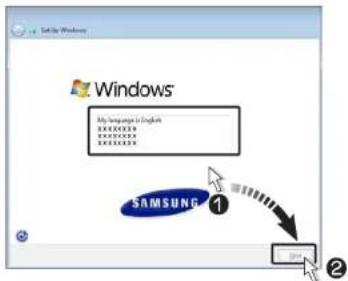
Setting up the Windows
When you use the computer for the first time, you have to set up Windows.
Turn the computer on and follow the setup procedures according to the instructions on the Windows screen.
1. Turn the computer on. 2. Confirm your country and region, the time and currency, the keyboard type, and click Next. 3. Follow the activation procedures according to the instructions on the screen.
Turning the Slate PC On and Off
Getting Started
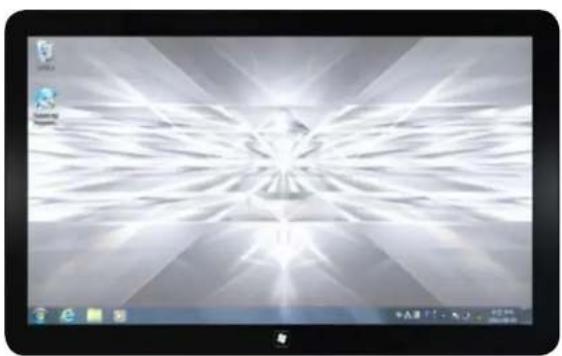
4. Once the Windows setup is complete, you can use the computer.
Entering Sleep mode
When the computer is turned on, press the computer's power button once briefly.
To wake the computer up, briefly press the Power button of the computer again.
Turning the computer off
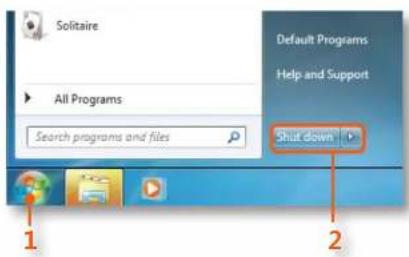
Click Start > Shut down mode Shut down to shut down the computer.
Using the Touch Logon
Getting Started
Using the Touch Logon program, you can easily log on using your fingers.
Configuring the Touch Logon program
To use the Touch Logon function, you have to set up the Touch Logon function on the Windows Logon screen.
1. Click Start > All Programs > Samsung > Touch Logon > Touch Logon Options. 2. Select Use Touch Logon.
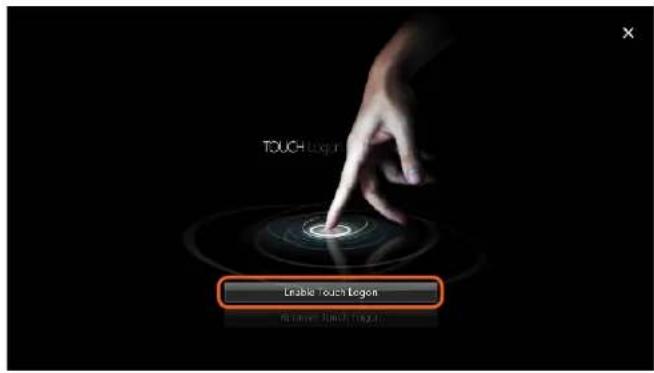
3. Choose the Touch Logon background screen. Select a background screen by touching it and touch Next.
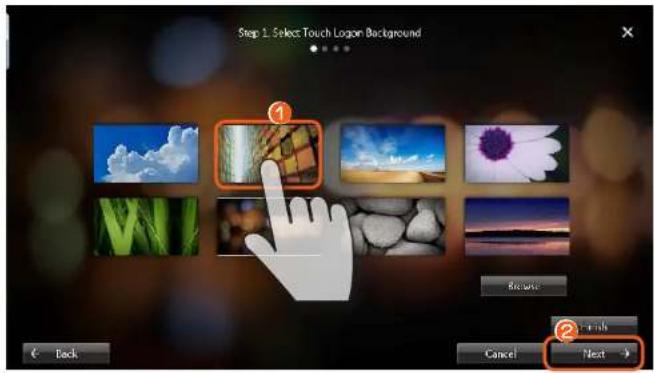
If you haven't set a Windows password, the Touch Logon settings are finished at this stage. If you have set a Windows password, proceed to the next step.
Using the Touch Logon
Getting Started
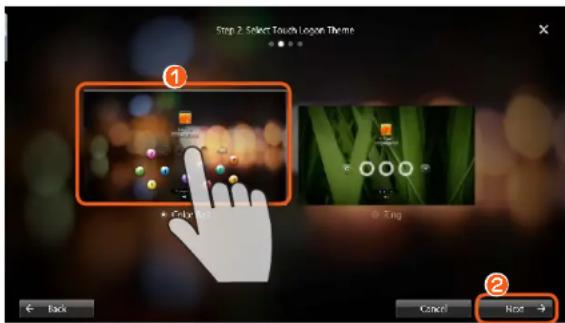
4. Choose a Touch Logon theme.
If you touch a theme, you can view a video that shows you how to use the theme to log on. Select a theme and touch Next.
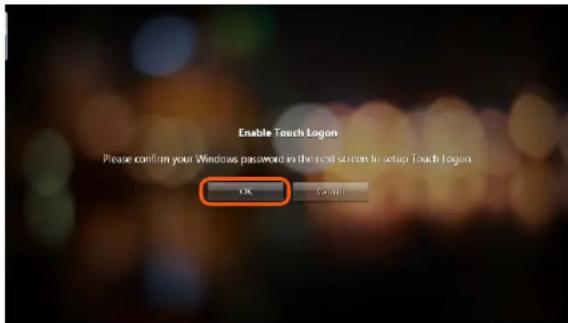
5. Touch OK and enter the previously configured Windows password.
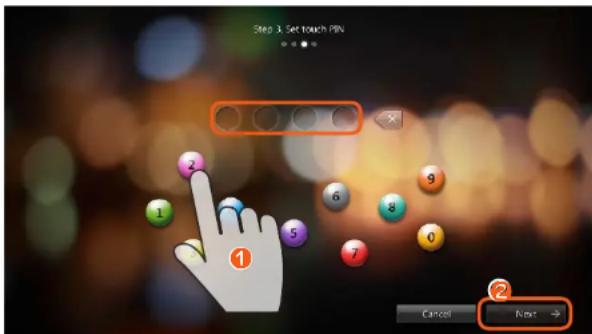
6. Set a Touch Logon password.
Set a Touch Logon password according to the method of the corresponding theme and touch Next.
E.g., when the Color Ball theme is selected.
7. Confirm the Touch Logon password you entered in the previous step.
Touch the password that you have entered again by touching each letter of the password in sequence. When entering the password is complete, touch Next.
The Touch Logon settings have been completed.
Now you can use the Touch Logon function from your next logon.
Using the Touch Logon
Getting Started
Using the Touch Logon function
To log on by touch at the Windows logon screen
1. Press the Power button to turn the computer on. 2. When the Windows logon screen appears, touch your account to log on. 3. When the following screen appears, touch the icon at the bottom of the screen and drag it to the top while keeping your finger in contact.
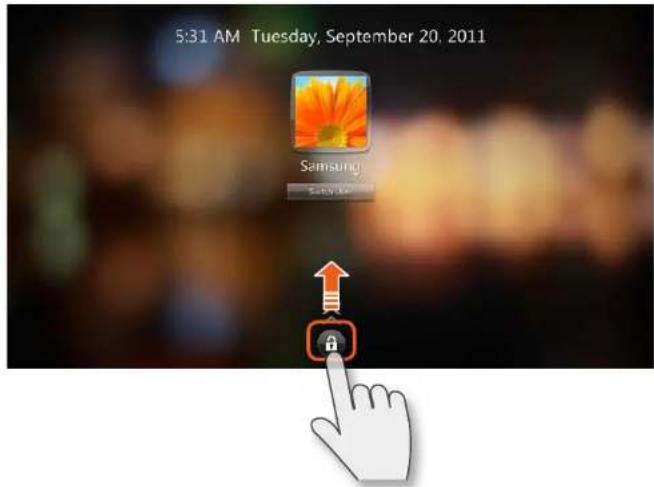
4. Touch each letter of the configured Touch Logon password in sequence.
For example, when the Color Ball theme is set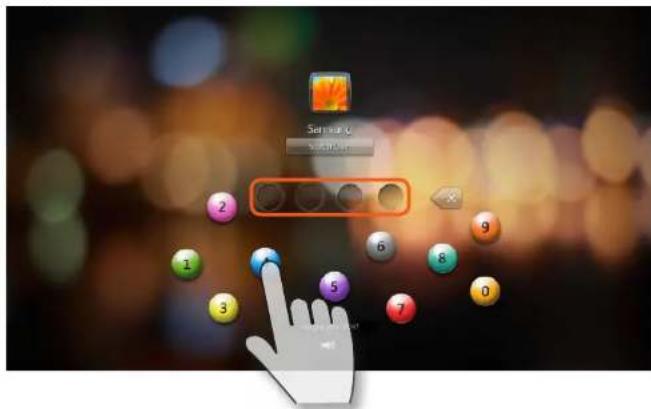

If there is no configured Windows account password, it will be unlocked immediately without requiring the password.
Using the Touch Logon
Getting Started
Changing the Touch Logon Settings / Removing Touch Logon
1. Click Start > All Programs > Samsung > Touch Logon > Touch Logon Options. 2. You can change the Touch Logon settings or remove the Touch Logon function according to the instructions on the screen.
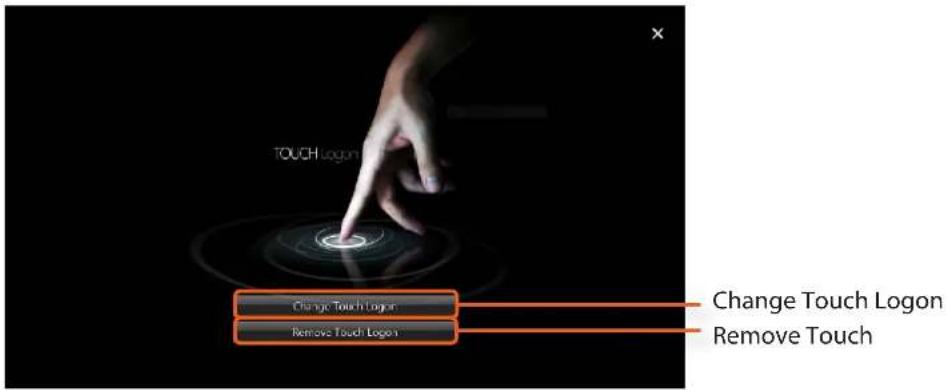

If you change the Windows password in Control Panel > User Accounts, the Touch Logon function is deactivated.
LCD (Touch Screen) Brightness Control
Getting Started
The LCD brightness is automatically controlled using the illumination sensor. You can manually control the LCD brightness as follows.
1. Launch Easy Settings.
2. Click Display > Screen Brightness and set the brightness level.


- Maintaining the changed LCD brightness even after turning the computer on again
To maintain the LCD brightness set by using the brightness control keys or through the Power Options, follow the procedures below.
For Windows 7
- Click Control Panel > Hardware and Sound > Power Options
- Click Change the settings of the currently configured mode.
- Adjust the display brightness adjustment menu bar and click the Save the changes button.

When the computer runs on battery power, the touch screen is dark.
The screen brightness is set to dark when the computer is running on battery power to extend the battery use time. In Easy Settings, set the level of the screen brightness.
Using the Home Button
Getting Started
Using the Home button, you can conveniently execute the Touch Launcher or switch to the Windows Desktop screen.
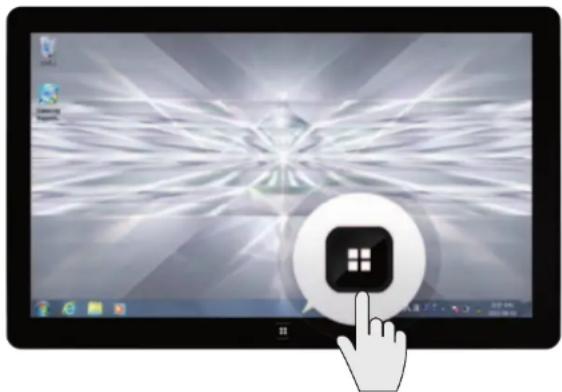
| Touching Once | Launches the Touch Launcher. |
| Touching and holding | shows the Windows Desktop screen. |
| Touching Twice | performs the role of the Win + Tab key combination. |
Using the Easy Settings
Getting Started
Easy Settings is the integrated Samsung software control program.
1. Click Start > All Programs > Samsung > Easy Settings.
2. To configure a function, select the corresponding item.
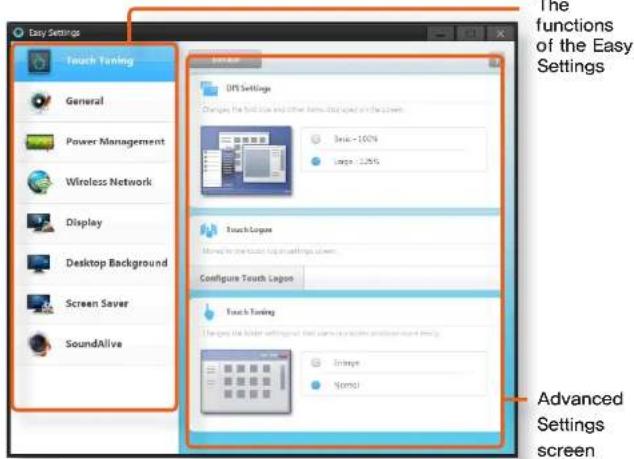
The functions of the Easy Settings
| [0W7Z] | Touch calibration | The Touch Logon setting and the screen text font size setting. |
| [X2DK] | General | Fast Start setting, silent mode and user account. |
| [000Z] | Power | You can configure the Power Plan (high-performance, power-saving, Samsung optimal mode), the power-saving settings and the display settings. |
| [H0CD] | Wireless Network | You can configure whether to use the Airplane mode and Wi-Fi options. |
| [X0CA] | Display | You can configure external display devices, and the screen brightness/color. |
 | Desktop Background / Screen Saver | You can configure the Desktop background and the screen saver. |
| [S2AX] | Sound Alive | You can configure the sound mode (Music, Movie, Speech, Silver Mode etc.). |

Using the Touch Feature
Using the Basic Gestures
Using the Applied Gestures, Screen Calibration, Entering Letters Using the Touch Screen, Using the Touch Launcher, Using the Touch Supporter, Using the digitizer pen


Learning basic touch screen operations
| Touch Operation Function | |||
| Single-tap (click) |  |  | To select an item, tap over the item with your finger. This is the same as left-clicking once with a mouse. |
| Double-tap (double-click) |  |  | To run an item, quickly tap the item twice with your finger. This is the same as double-clicking once. |
| Moving (drag) |  |  | To drag an item, place your finger over the item and drag it to the new location. This is the same as dragging using a mouse. |
| Press and take off (mouse right-click) |  |  | If you press and hold the screen for approximately 3 seconds, the pop-up menu appears. This is the same as right-clicking with the mouse. |
| Tapping two fingers in succession (mouse right-click) |  | Tap with one finger and then tap with another finger while holding down the first finger. A pop-up menu appears.This is equivalent to right-clicking a mouse. | |
| Moving finger (scroll) |  | Move your finger up and down, left or right to move on the screen accordingly.This is the scroll function of the mouse.[823] This operation may perform a different function depending on the application program. | |
Using the Applied Gestures
Using the Touch Feature
| Touch Operation Function | ||
| Drag two fingers apart / together (zoom-in/zoom-out) |  | Drag apart or together two fingers to zoom-in or -out of a picture or image. |
| Flick one finger fast (page move) |  | Flick one finger quickly to the left or right in order to move to the previous or next page. |
| Quickly draw with two fingers (this runs the Touch Launcher) |  | By quickly drawing a line from top to bottom with two fingers, the Touch Launcher program is launched. |
| Tapping three fingers (Launching the Touch Supporter) |  | Tapping three fingers simultaneously launches the touch supporter program. |
| Tapping five fingers (Launching the keyboard program) |  | Tapping fi ve fingers simultaneously launches the keyboard program. |

Learning about touch operations
Select Start > Control Panel > Hardware and Sound > Pen and Touch > Flicks tab and select Practice using flicks to learn about the various touch operations.
Screen Calibration
Using the Touch Feature
When you use the touch screen for the first time or the pointer on the screen does not precisely match the points you touch, calibrate the touch screen using the Tablet PC Settings menu.
Screen Calibration
The calibration process for the touch screen may differ depending on the operating system and may not be available in some operating systems. The following descriptions assume the Windows 7 operating system.
1 Click Start > Control Panel > Hardware and Sound > Tablet PC Settings > Display > Calibrate.
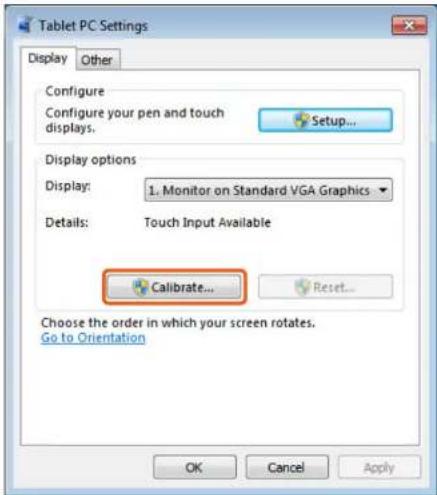
2 Select the screen type to calibrate. If the Calibration screen appears, touch the point represented by the "+" mark and then remove your finger.
The "+" mark appears sequentially from the top left to the bottom right of the screen.
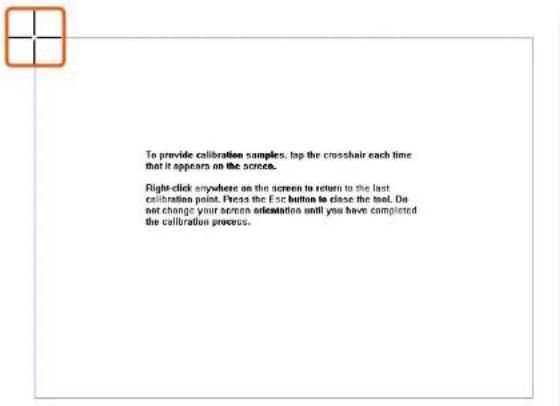
3 When the Do you want to save the calibration data? window appears, click Yes. The touch screen input points are calibrated.
Entering Letters Using the Touch Screen
Using the Touch Feature
You can enter letters using either the Tablet PC input panel.
Launching the Tablet PC Input Panel
If you touch the touch screen with your finger, the Tablet PC Input Panel tab appears with the cursor at the bottom left on the Desktop.
If you touch the Tablet PC Input Panel tab, the Tablet PC Input Panel appears.

Are you unable to find the Tablet PC Input Panel tab?
Click Start > Control Panel > Hardware and Sound > Tablet PC Settings > Other tab and select [Go to Input Panel Settings], select the "Use the Input Panel tab" in the Options window and then click OK.
Let's learn how to enter letters in Notepad.
1. Launch Notepad. 2. If you touch the Notepad screen with your finger, the cursor appears on the Notepad. 3. If you touch the cursor with your finger, the Tablet PC Input Panel appears.
![Writing Pad Mode Touch keyboard Tools Close Esc 1 2 3 4 5 6 7 8 9 0 = Bksp Tab q w e r t y u i o p [ ] Del Caps a s d f g h j k l . — Shift z x c v b n m < . ? / Shift Ctrl # Alt Alt Ctrl Fn](/content/2026/05/818050/images/ee2d405efe3acbee5f0548f4b3e17c428be95c4abe487e78eeebb22892365868.jpg)
Entering Letters Using the Touch Screen
Using the Touch Feature
Entering Letters Using the Touch Screen
Using the touch keyboard, you can enter letters by touching the corresponding keys on the keyboard that is displayed on the screen, just as you would with a normal keyboard.
1. In the Tablet PC input panel, touch the touch keyboard icon. 2. Enter letters by touching the corresponding keys on the screen.
![Untitled - Notepad File Edit Format View Help SAMSUNG ESC 1 2 3 4 5 6 7 8 9 0 = Bksp Tab q w e r t y u i o p [ ] Del Caps a s d f g h j k l . Shift z x c v b n m / Shift Ctrl # Alt Alt F Ctrl Fn](/content/2026/05/818050/images/291dc50819b4d4ae6be12f9348b9aca6b04225281864acd66efeb52d450686e4.jpg)
Entering letters with the writing pad (handwriting input mode)
On the touch screen, you can enter letters by directly writing them with your finger on the writing pad input panel.
1. In the Tablet PC input panel, touch the writing pad icon.

2. Write a letter in the input area of the writing pad on the touch screen and wait for a moment. Then the letter is converted to the most likely letter.

3 If you touch the Insert button, the converted letter is entered.

Modifying a letter
Over-write a new letter over an incorrectly recognized letter or touch the above the letter and select a letter.
Using the Touch Launcher
Using the Touch Feature
Touching the Launcher program enables you to easily play music and video files and operate downloaded applications by touching the screen with your finger on models with a touch screen.
Touch Launcher Functions
On the touch screen, drag two fingers from top to bottom quickly. Alternatively, Click Start > All Programs > Samsung > Play Touch and select Touch Launcher to launch it.
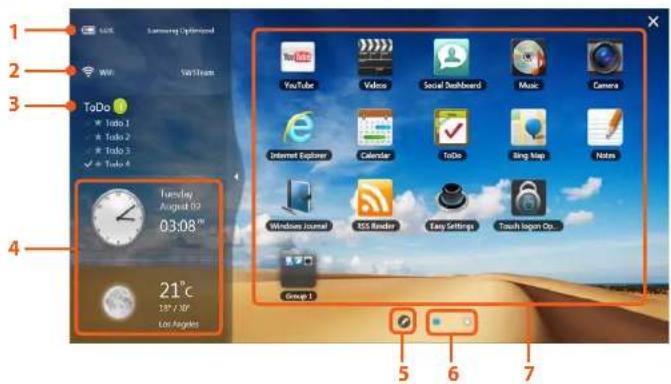
To exit the Touch Launcher, touch ✗
| No. Function Description | ||
| 1 | Power Option | Shows the remaining battery charge and the currently configured battery mode. |
| 2 WiFi | Shows the Wi-Fi connection status. If the computer is connected to Wi-Fi, the connected AP name is displayed. | |
| 3 | ToDo(Things to do) | Creates/Displays the ToDo listYou can create a list of things to do. |
| 4 Clock / Weather | Shows the time and weather information for the configured region. | |
| 5 Edit Mode | You can move the program icons, add groups, add/remove programs as well as change the Desktop background. | |
| 6 Page Indicator | Shows the position of the current page. To navigate the pages, click the Page Indicator or drag the screen to the left or the right. | |
| 7 | Program area | Shows the program list. To launch a program, click the program icon. |
Using the Touch Launcher
Using the Touch Feature
Launching a Program
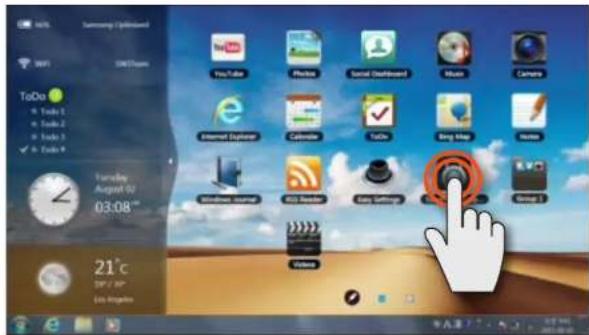
To launch a program added to the Touch Launcher, quickly touch a program icon twice.
Navigating Pages
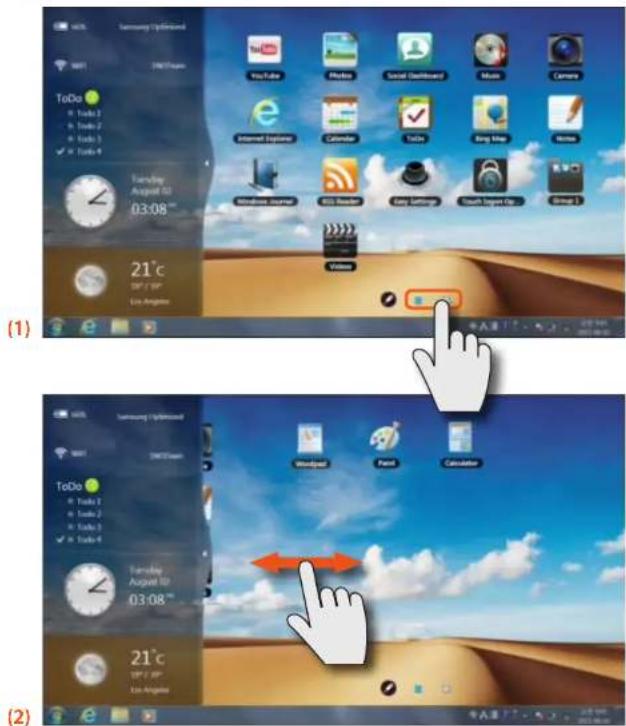
To navigate pages in the Touch Launcher (1), touch the page icon or (2) flick one finger to the left or right.
Using the Touch Launcher
Using the Touch Feature
Editing Program Icons
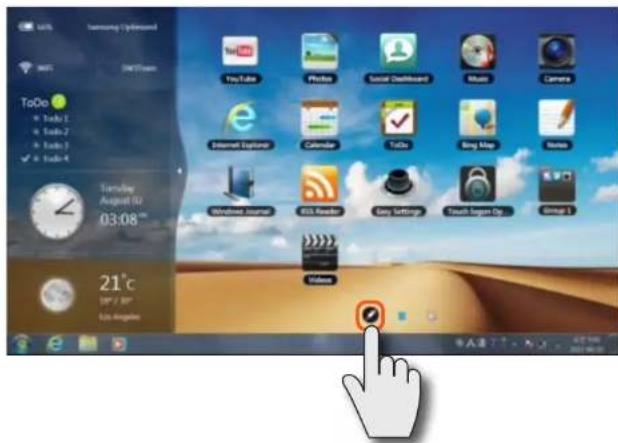
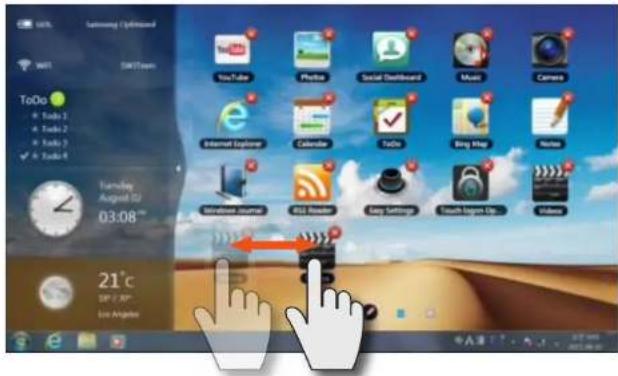
In Edit mode, you can add or remove a program, add a group, move a program icon, and change the background image.
To edit program icons
1. Touch the Edit mode icon.
2. If the program icon changes to Edit mode, move the icon to the new location.
3. To exit Edit mode, touch the Edit mode icon again.
Using the Touch Supporter
Using the Touch Feature
This program helps you to use functions that cannot be easily used with touch operations more easily.
Using the Touch Supporter
If you touch the screen with three fingers simultaneously, the touch support program is launched.
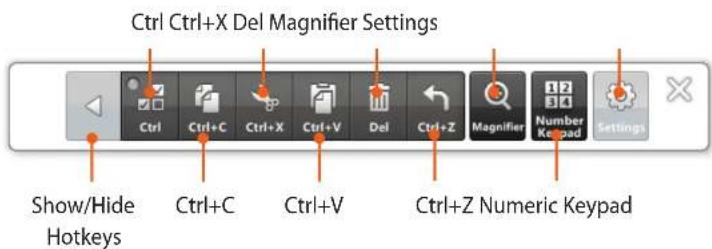
To exit the Touch Supporter, click ✗ or touch the screen with three fingers again.

What does the Ctrl key do (multiple selection mode)?
The icon performs the same function as the Ctrl key on the keyboard. If you touch the Ctrl button, the button indicator is turned on. While the Ctrl (multiple selection mode) icon is selected and you touch various files with your finger sequentially, all the touched files are selected.
Using the Numeric Keypad
The Numeric Keypad is to use numeric and direction keys only.
1 Touch the Numeric Keypad on the screen.
2 If you touch the buttons on the Numeric Keypad, the corresponding number or symbol is entered on the screen.
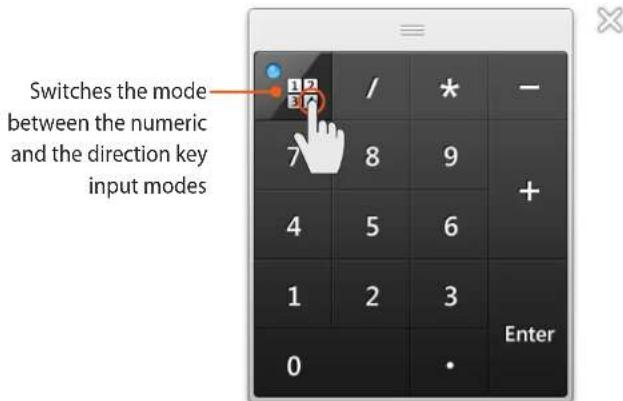
To select direction key input mode, touch To select numeric key input mode, touch
Using the digitizer pen
Using the Touch Feature
If a digitizer pen is supplied with the product, you can operate the computer with the pen instead of your fingers. You can use the digitizer pen as you would use your fingers.
Digitizer pen structure and functions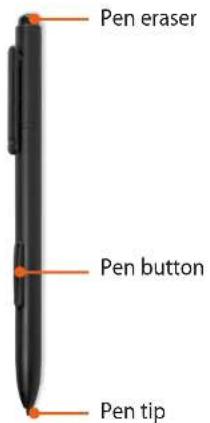
| Pen tip | This performs the function of your finger tip when you touch the screen. |
| Pen button | If you press the pen button when the digitizer pen tip is on the screen, circles appear around the pointer on the screen. Touch the screen with the digitizer pen while holding down the pen button.This performs the right-click function. |
| Pen eraser | Erases letters with the top end of the digitizer Pen.This performs the function of an eraser. |
Using the digitizer pen
Using the Touch Feature
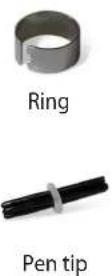
Replacing the pen tip
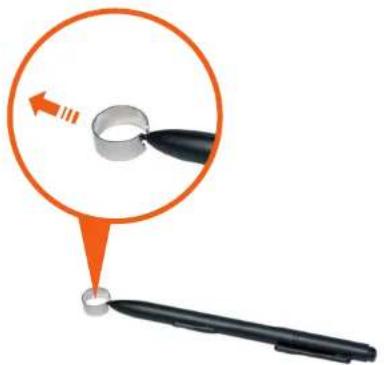
If the pen tip is damaged, you can replace the pen tip as follows:
1 Hold the pen tip by inserting it into the hole of the ring and remove the tip by pulling it out.
2 Insert the new pen tip into the digitizer pen.
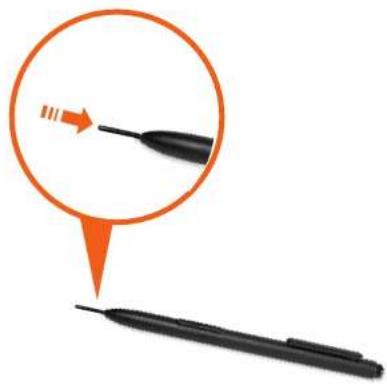

Take care so that the pen tip does not spring out when taking it out.

Using the Slate PC
Using the Auto Screen Rotation Function
Adjusting the Volume Wireless Network Using the camera Using the Bluetooth keyboard Using the Slate PC Dock
Using the Auto Screen Rotation Function
Using the Slate PC
If the Auto Screen Rotation function is activated, the screen orientation automatically changes as the computer is rotated.
To disable the Auto Screen Rotation function
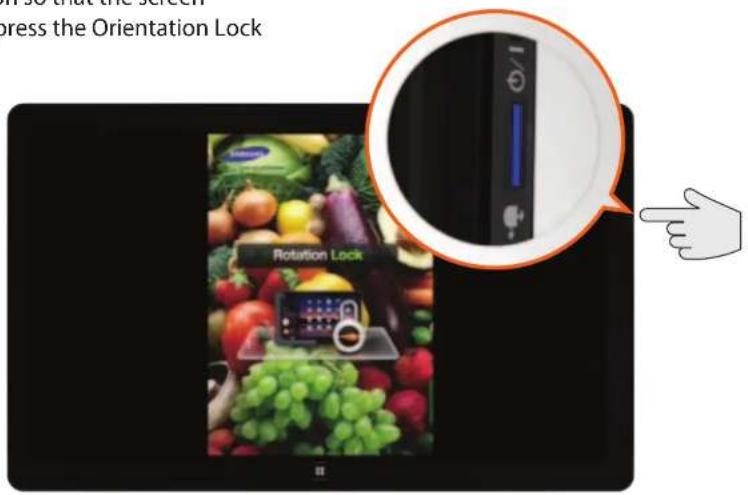
Press the Orientation Lock button. If the Orientation Lock function is activated, the screen orientation does not change regardless of the rotation of the computer.
To release the Orientation Lock function so that the screen orientation is automatically changed, press the Orientation Lock button again.
Adjusting the Volume
Using the Slate PC
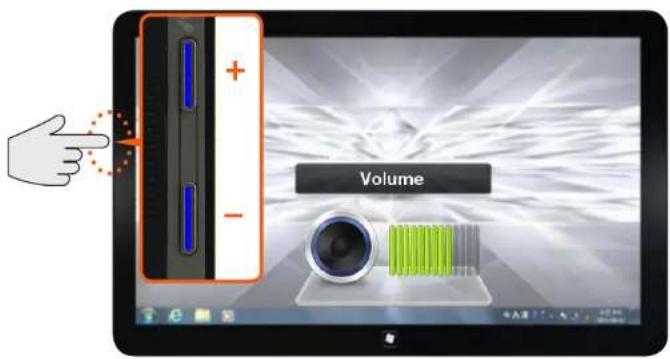
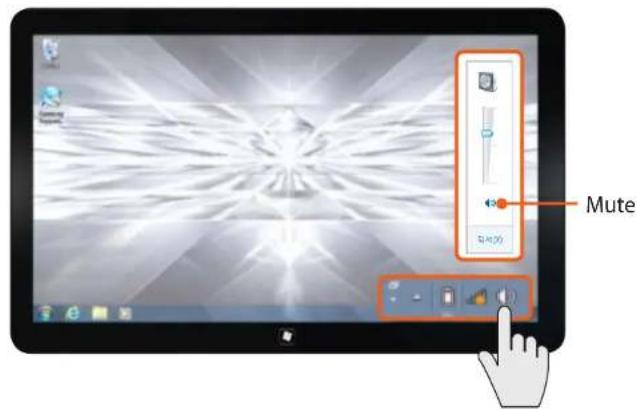
You can control the volume using the volume control buttons or the volume control program.
Method 1 Adjusting the volume with the buttons
You can control the volume by pressing the volume control button on the left side of the computer.
Method 2: Adjusting the Volume using the Volume Adjustment Program
Click the Volume icon on the taskbar and slide the volume control bar to adjust the volume.
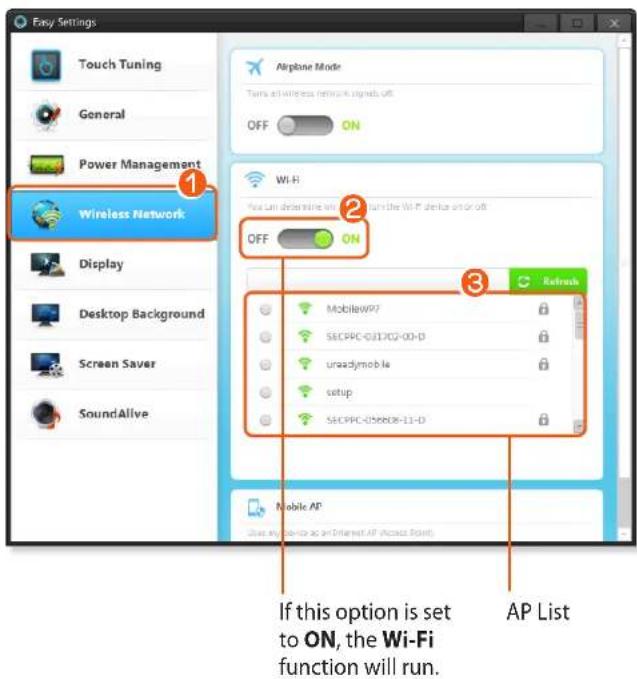
If there is a nearby AP (Access Point), you can easily connect to a wireless LAN using the Easy Settings.
Connecting to a Wireless LAN through Easy Settings
1. Click Start > All Programs > Samsung > Easy Settings. 2. Configure the Wireless Network and set the Wi-Fi device to ON. Touch an AP in the AP list. If the computer is properly connected to the wireless network, the wireless LAN icon appears in the system tray.
Using the camera
Using the Slate PC
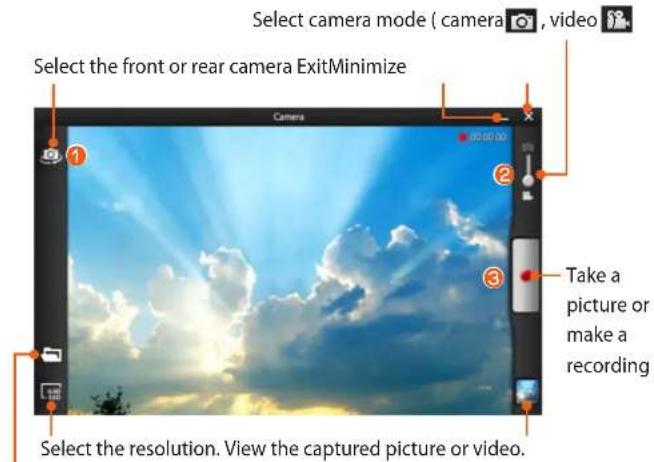
This product has 2 cameras (Optional). One is at the front and the other is at the back. Using the touch camera program, you can conveniently take a picture or record a video using touch operations.
Using the Camera program
Click the Touch Launcher and launch the Camera.
Open the folder to save the file with Explorer.
1. Touch the Select Front/Rear Camera to select either the front or the rear camera that you will use. 2. To take a picture, select camera mode. To record a video, select video mode. 3. Touch the Take a Picture/Record to take a picture or record a video. 4. You can view the picture or recorded video through the Preview function or the Open the saved folder with Explorer.
Using the Bluetooth keyboard
Using the Slate PC
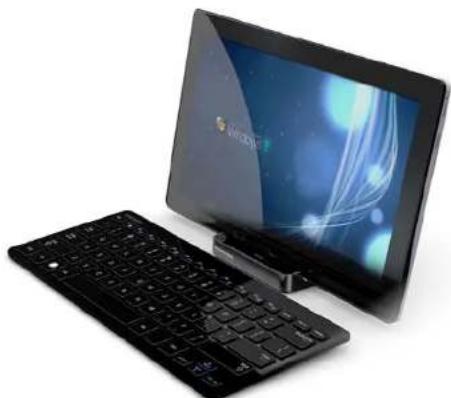
You can connect and use an external keyboard. Now let's look at how to connect the Bluetooth wireless keyboard (optional) provided by Samsung Electronics.

What is Bluetooth?
Bluetooth is wireless communications technology that allows access to nearby devices such as another computer, a cell phone, printer, keyboard, mouse, etc. without a cable connection.
Using the Bluetooth Wireless Keyboard
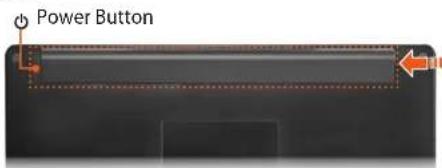
1. Remove the battery compartment cover at the back of the computer.
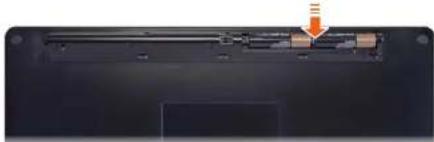
2. Install the battery and close the cover.
Using the Bluetooth keyboard
Using the Slate PC
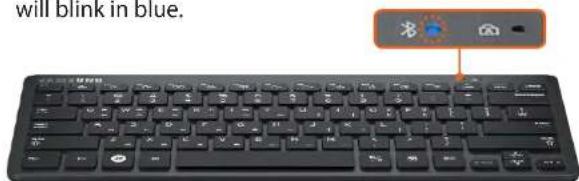
3. If you press and hold the keyboard power button for 3 seconds after starting the computer, the Bluetooth LED will blink in blue.
4. Click > Bluetooth Devices > Add a Device.
5. Select the keyboard to be connected and click Next.
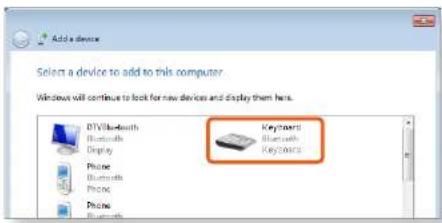
6. Enter the number displayed on the screen and press Enter. This will connect the keyboard. When the keyboard is connected, the blue Bluetooth LED of the keyboard is turned off.
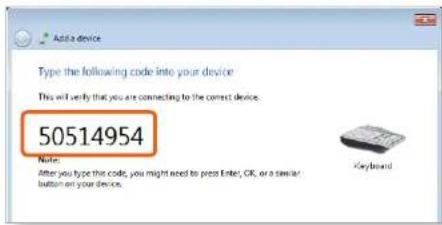
Now you can use the keyboard.
Using the Slate PC Dock
Using the Slate PC
By connecting the computer to the Slate PC Dock, you can use various types of ports.
Installing/Removing the Dock

Before installing a computer to the docking station, make sure to disconnect all the cables connected to the computer. Installing and separating the Slate PC Dock after turning the computer off is recommended.
Installing the Slate PC onto the Dock
1 Insert your finger into the groove on the side of the Slate PC Dock to open the top cover of the Slate PC Dock.

2 Align the computer connector of the Slate PC Dock and the Slate PC Dock port at the bottom of the computer and connect them.
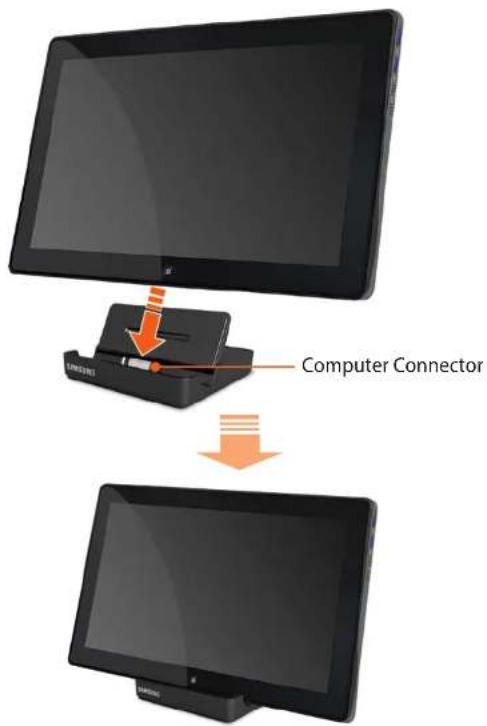
Ports Provided by the Dock
The back of the Dock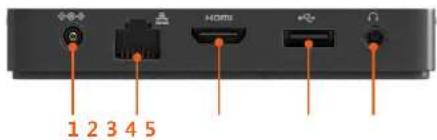
| 1 | DC Jack◇◇◇ | A jack to connect the AC adapter that supplies power to the computer. |
| 2 | Wired LAN Port [IMAGE] | Connect the Ethernet cable to this port. |
| 3 | Digital Video/Audio Port (HDMI) HDMI | You can connect an HDMI cable to this port. Using this port, you can enjoy digital video and audio on the TV. |
| 4 | USB Port [IMAGE] | You can connect USB devices to the USB port such as a keyboard/mouse, digital camera, etc. |
| 5 | Headphone Jack [IMAGE] | A jack used to connect the headphones. |
Connecting headphones to the Dock
Using the Headphone jack
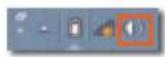
1 Right-click over the Volume Control icon in the notification area at the bottom right of the Desktop and select Playback Devices. (Alternatively, click the Control Panel > Hardware and Sound > Sound > Playback tab.)
2 Select the Speakers(USB audio), click Set Default and click OK.
Using the computer's built-in speaker when the computer is installing on the Dock
When the Dock is connected, the audio is output to the headphone jack of the Dock. To use the computer's built-in speaker when the Dock is connected, configure it as follows.
1 Right-click over the Volume Control icon in the notification area at the bottom right of the Desktop and select Playback Devices. (Alternatively, click the Control Panel > Hardware and Sound > Sound > Playback tab.) 2 Select the Speakers (Realtek High Definition Audio), click Set Default and click OK.
SAMSUNG
Rev 1.00


- BEFORE READING THIS GUIDE
- COPYRIGHT
- CONTENTS
- GETTING STARTED
- USING THE TOUCH FEATURE
- USING THE SLATE PC
- OVERVIEW
- TURNING THE SLATE PC ON AND OFF
- TURNING THE COMPUTER ON
- SETTING UP THE WINDOWS
- ENTERING SLEEP MODE
- TURNING THE COMPUTER OFF
- USING THE TOUCH LOGON
- CONFIGURING THE TOUCH LOGON PROGRAM
- USING THE TOUCH LOGON FUNCTION
- CHANGING THE TOUCH LOGON SETTINGS / REMOVING TOUCH LOGON
- LCD (TOUCH SCREEN) BRIGHTNESS CONTROL
- USING THE HOME BUTTON
- USING THE EASY SETTINGS
- USING THE APPLIED GESTURES
- SCREEN CALIBRATION
- ENTERING LETTERS USING THE TOUCH SCREEN
- LAUNCHING THE TABLET PC INPUT PANEL
- LET'S LEARN HOW TO ENTER LETTERS IN NOTEPAD
- ENTERING LETTERS WITH THE WRITING PAD (HANDWRITING INPUT MODE)
- MODIFYING A LETTER
- USING THE TOUCH LAUNCHER
- TOUCH LAUNCHER FUNCTIONS
- LAUNCHING A PROGRAM
- NAVIGATING PAGES
- EDITING PROGRAM ICONS
- USING THE TOUCH SUPPORTER
- WHAT DOES THE CTRL KEY DO (MULTIPLE SELECTION MODE)
- USING THE NUMERIC KEYPAD
- USING THE DIGITIZER PEN
- REPLACING THE PEN TIP
- USING THE AUTO SCREEN ROTATION FUNCTION
- TO DISABLE THE AUTO SCREEN ROTATION FUNCTION
- ADJUSTING THE VOLUME
- METHOD 1 ADJUSTING THE VOLUME WITH THE BUTTONS
- METHOD 2: ADJUSTING THE VOLUME USING THE VOLUME ADJUSTMENT PROGRAM
- CONNECTING TO A WIRELESS LAN THROUGH EASY SETTINGS
- USING THE CAMERA
- USING THE CAMERA PROGRAM
- USING THE BLUETOOTH KEYBOARD
- WHAT IS BLUETOOTH
- USING THE BLUETOOTH WIRELESS KEYBOARD
- USING THE SLATE PC DOCK
- INSTALLING/REMOVING THE DOCK
- INSTALLING THE SLATE PC ONTO THE DOCK
- PORTS PROVIDED BY THE DOCK
- CONNECTING HEADPHONES TO THE DOCK
- USING THE COMPUTER'S BUILT-IN SPEAKER WHEN THE COMPUTER IS INSTALLING ON THE DOCK
- SAMSUNG
Brand : SAMSUNG
Model : Slate PC 7
Category : Graphic tablet