
MEGA Player 536 - Media player MSI - Free user manual and instructions
Find the device manual for free MEGA Player 536 MSI in PDF.


| Product Type | Portable Digital Audio/Video Player & Photo Browser |
| Brand | MSI |
| Model | MEGA Player 536 |
| Dimensions (W x D x H) | 88.5 x 50 x 15.6 mm |
| Weight | 95 g (with built-in battery) |
| Display | 1.8-inch CSTN LCD, 128x160 pixels |
| Storage | Built-in 1-inch HDD (varies by model, e.g., 5GB shown) |
| Audio Formats Supported | MP3, WMA, WMA with DRM |
| Video Formats Supported | M-JPEG (up to 320x240 pixels) |
| Photo Formats Supported | JPEG (with slideshow and rotation) |
| FM Radio | Optional module (receive and record) |
| Recording | Voice (built-in mic), FM radio, Line-in (MP3/WAV) |
| Battery | Li-ion rechargeable; up to 8 hours audio playback; 80% charge in ~3h, full in ~5h |
| Audio Features | SRS WOW enhancement, EQ (Normal, Pop, Rock, Jazz, Classical) |
| Playback Modes | Normal, Repeat One, Repeat All, Shuffle, Shuffle Repeat |
| Language Learning | A-B repeat function for section looping |
| File Browser | Manage files on internal HDD and SD/MMC card (copy, delete) |
| Connectivity | USB 2.0 (Host and Slave), Line-in, Earphone, SD/MMC slot |
| Supported OS | Windows ME/2000/XP, Mac OS 9 and above |
| Power Supply | AC adapter (included) or USB power (no charging via USB) |
| Hold Switch | Prevents accidental button presses |
| Reset | Physical reset button on back (pin required) |
| Accessories | Earphone, USB cables (regular & host), power adaptor, driver CD, quick guide, line-in cable |
Frequently Asked Questions - MEGA Player 536 MSI
User questions about MEGA Player 536 MSI
0 question about this device. Answer the ones you know or ask your own.
Ask a new question about this device
Download the instructions for your Media player in PDF format for free! Find your manual MEGA Player 536 - MSI and take your electronic device back in hand. On this page are published all the documents necessary for the use of your device. MEGA Player 536 by MSI.
USER MANUAL MEGA Player 536 MSI
Safety Instructions ....4
Chapter 1. Introduction......5
How to Use This Guide....6
Unpack....7
Chapter 2. Getting Started ....8
Overview 8
LCD Display....10
Main Menu....10
Normal Playback Mode.... 11
Li-ion Battery Recharge 12
Battery Consuming Reference....12
Hold Switch....12
Chapter 3. Utility Installation ...... 13
Connect MEGA PLAYER 536 to Your Computer....13
Install Utilities 13
Copy songs with Windows Media Player 9....14
Synchronize songs with Windows Media Player 10....15
Firmware Recovery or Updating 16
Safety Remove MEGA PLAYER 536 from Computer ....17
Chapter 4. Basic Usage....19
Using Touch Button....19
Using Navigation Buttons 20
Using Exit/Submenu Button 20
Power On....20
Power Off 20
Music/Voice Playback 21
Adding songs to Playlist....22
Deleting songs in Playlist 22
Setting SRS(WOW) Enhancement Effect 23
Setting EQ 24
Setting Repeat Mode 24
Viewing Photos....25
Slideshow 26
Rotating Photos 26
Playing Video 27
FM Radio Mode (Optional)....28
File Browser 29
Setting....31
Setting Record Quality 31
Setting Record File Type 32
Setting Slide Interval 33
Setting Slide Repeat ....33
Setting Power Off 34
Setting Backlight Off....35
Setting Language....36
Setting Date and Time 36
Setting Brightness....37
Resetting to original setting....38
Device Information....39
Encoding MP3 Directly from CD....39
Microphone Recording....40
Radio Broadcast Recording (Option) 41
Language Learning Function....42
Reset Button 43
Appendix A. Specifications....44
Appendix B. Utility CD......45
Install Firmware Recovery Utility....45
Install Windows Media Player Plug-In....45
Install Adobe Acrobat Reader....45
Read MEGA PLAYER 536 User Manual....45
Safety Instructions
- Always read the safety instructions carefully.
- Keep this User's Guide for future reference.
- Keep this equipment away from humidity.
- Never pour any liquid into the opening that could damage or cause electrical shock.
- If any of the following situations arises, get the equipment checked by a service personnel:
- Liquid has penetrated into the equipment.
- The equipment has been exposed to moisture.
- The equipment has not worked well or you can not get it work according to User's Guide. • The equipment has been dropped and been damaged.
- If any failure occurred to MEGA PLAYER 536, use a clip or a pin to click the Reset button on the back side, and then slide the Power switch once to power on the system.
- Do not change the default folders in the MEGA PLAYER 536, or the device might function abnormally.
- Do not format the built-in hard disk.
Chapter 1. Introduction
Congratulations on becoming a new user of MEGA PLAYER 536. The new MEGA PLAYER 536 will improve the convenience of listening to music, viewing photos and videos, and sharing data. We are proud to tell our users that MEGA PLAYER 536 is thoroughly tested and certified by our reputation for unsurpassed dependability and customer satisfaction.
MEGA PLAYER 536 is a high-performance portable digital audio/video player and photo browser that enables users not only to play MP3, WMA, WMA with DRM audio files or M-JPEG video files, show JPEG graphic files, listen to FM radio broadcasts (FM radio is an optional function), and record voice, FM programs, or directly record whenever needed, but also to store personal data in the memory of this device.
Here are the major features:
■ Digital Audio Player – supports MP3, WMA, and WMA with DRM audio file playback. ■ Video Player – supports M-JPEG format and video files up to 320x240 pixels. ■ Photo Browser – supports JPEG graphic files and provides a slideshow function. ■ FM Radio (optional) – the FM Radio module, while optional, adds FM Radio reception capability to MEGA PLAYER 536. ■ Voice Recorder – provides synchronous recording function for voice. ■ Radio Program / CD Direct Recording – provides synchronous recording function for FM or directly from a CD player; recorded files will be stored in MP3 or WAV format.
■ Language Learning Function – enables users to repeat a particular section during normal playback. With this function, users will be able to pay attention to the repeated playback to learn a language. ■ EQ and SRS effect – you are able to select SRS effect or one of the EQ modes to enjoy your music listening. ■ SD/MMC Card – supports SD/MMC cards; plug the card into the slot to read the files inside. ■ Photo Bank – you can transfer data from a digital camera to the internal HDD. Especially when your digital camera memory is full and you want to free up space, this is a helpful function. ■ USB Flash Disk – allows users to store data needed in MEGA PLAYER 536. (The capacity depends on the model you bought.)
How to Use This Guide
This User's Guide provides instructions and illustrations on how to install and operate your MEGA PLAYER 536. We assume that users whose operating system is at least Windows ME / 2000 / XP are familiar with their OS and are capable of following the step-by-step instructions to install the driver of MEGA PLAYER 536. For users who are not able to manage the operating system properly, it is suggested to learn more about Microsoft Windows by referring to your Microsoft Windows manual before installing the provided utility.
Chapter 1, Introduction, tells you the descriptions of all the accessories of MEGA PLAYER 536. Please check if you have all the accessories included when you open the packing box. If any item is damaged or missing, please contact the vendor where you purchased MEGA PLAYER 536 directly.
Chapter 2, Getting Started, introduces the function keys on MEGA PLAYER 536, the LCD Display status in different modes.
Chapter 3, Utility Installation, describes how to install MEGA PLAYER 536 and the specially designed utility for your new MEGA PLAYER 536.
Chapter 4, Basic Usage, describes how to use MEGA PLAYER 536 in various ways. It is recommended to read this chapter carefully before using MEGA PLAYER 536.
Appendix A, Specification, provides the specification and accessories of MEGA PLAYER 536.
Appendix B, Utilities CD
Unpack
Please unpack your MEGA PLAYER 536 and check that the following accessories are complete with nothing missing.
MEGA PLAYER 536 (Portable Digital Audio Player)
Earphone
USB Regular Cable
USB Host Cable
Driver Disk (User's Manual included)
Quick Starting Guide
Power Adaptor
Line-in Cable
Chapter 2. Getting Started
Overview
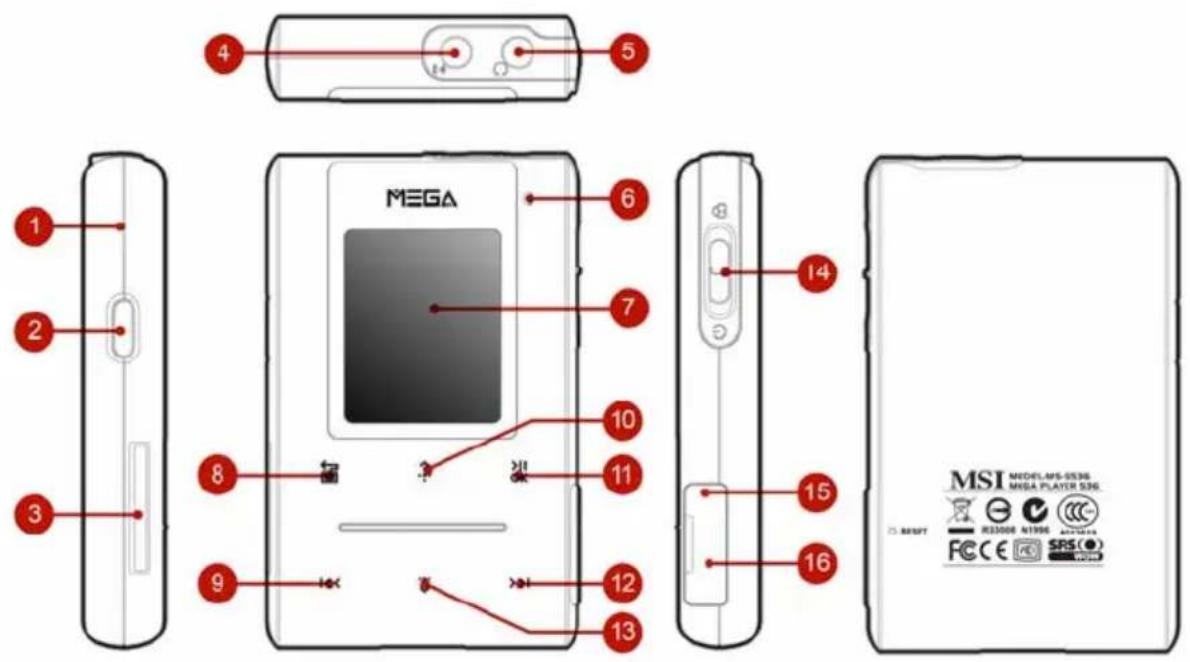
- MIC
Internal
Microphone.
- Record/Repeat A->B
Press to record voice or enable the A to B repeat function.
- SD/MMC Card Slot
Plug SD or MMC card to read and manage the files.
- Line-In Jack
Plug the external Line-In device here.
- Earphone Jack
Plug the supplied earphone here.
- LED Indicator
Indicate the device status.
- Display Window
Read status and information at this window.
- Exit/Submenu Button
Press it to exit from menu.
Press and hold it for two seconds to display the
options available.
9. Left/Previous/Rewind Button
Press it to go to the previous track.
Press and hold to move back within a track.
10. Up/Volume Up Button
Press it to select menu items.
Press it to increase volume level.
11. OK Play/Pause/Enter Button
Press it to play the selected track. While playing, press the button to pause and press it again to resume the track.
Press it to confirm the item selection.
12. >>| Right/Forward Button
Press it to go to the next track.
Press and hold to fast-forward within a track.
13. Down/Volume Down Button
Press it to select menu items.
Press it to decrease the volume level.
14. Power/Hold Push to Power position to power on.
Push and hold to Power position to power off.
Switch to hold position to prevent any accidental touches while MEGA PLAYER 536 is recording or playing. Switch to the middle to unlock the prevention.
15. USB Connector Connect one end of the supplied USB extension cable here.
- Connect USB Host cable to DSC or USB flash drives.
- Connect regular USB cable to computers.
- DC Connector
Connect to the power adapter.
LCD Display
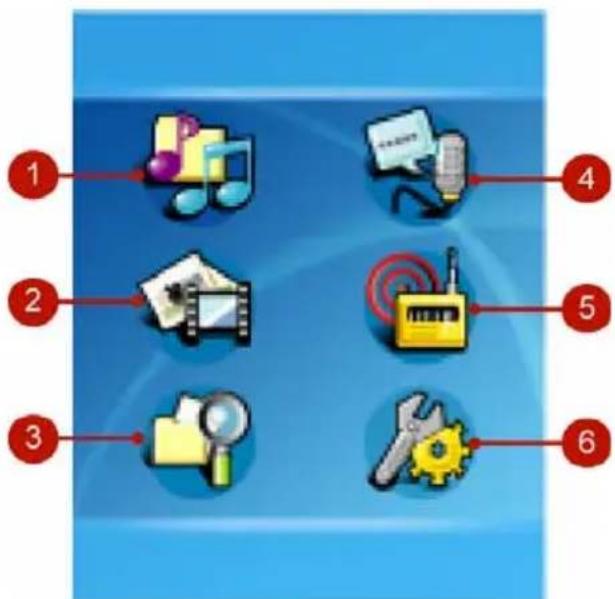
Main Menu
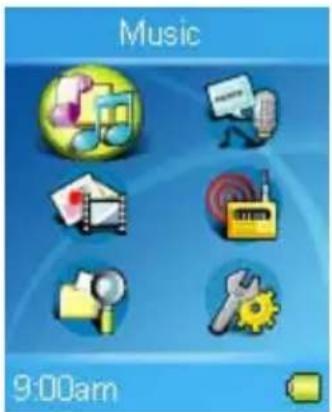
- Music: Play music
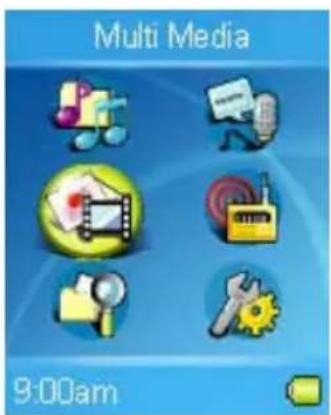
- Multi-Media: Play multimedia files
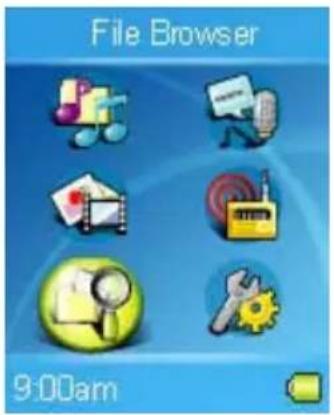
- File Browser: Manage files
- Record: Play recorded voice, music, and radio.
- Radio: Listen to the radio (Optional)
- Setting: Adjust setting values of the device
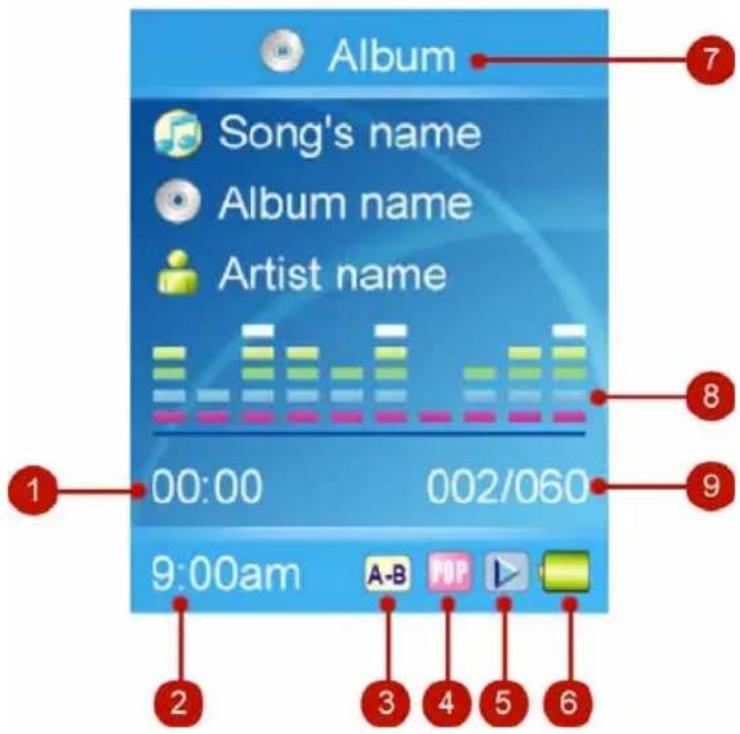
Normal Playback Mode
- Track Timer: Displays the ongoing timer of the current playback file.
- Clock: Displays current local time.
- Repeat/A-B: Indicates when A to B Section Repeat function is enabled.
- EQ/SRS Indicates SRS(●) WOW status or the EQ mode settings that include Normal, Classical, POP, Rock, and Jazz.
- Play/Pause/Stop Displays the music or voice files playback status.
- Battery Indicates the Battery Status.
- Info of music Indicates Title, Artist and Album Title.
- Equalizer Shows the equalizer bar of current playback.
- Track Number Display the current playback number and the total number of sound tracks.
Li-ion Battery Recharge
MEGA PLAYER 536 comes with a Li-ion rechargeable battery. To use the device for the very first time, remember to charge the Li-ion battery. Follow the instructions below:
- Open the rubber cover of MEGA PLAYER 536 USB/DC port, you will see a DC input port inside.
- Connect MEGA PLAYER 536 to the adapter, and plug it to AC power outlet.
- While recharging is on going, the LED will be light in orange color. If the LED changes to green, the battery is full of power. The built-in battery is 80-percent charged in about three hours, and fully charged in about five hours.
- To stop recharging, disconnect cable from MEGA PLAYER 536.
Note: The built-in battery will not be recharged when MEGA PLAYER 536 is connected to the computer with the supplied USB cable.
Battery Consuming Reference
MEGA PLAYER 536 comes with a Li-ion rechargeable battery.
Note: Before using for the first time, we recommend eight hours for a full battery charge.
Hold Switch
MEGA PLAYER 536 has a Hold Switch, which is located on the side of the device for preventing any accidental operation while MEGA PLAYER 536 is recording or playing. Once the Hold Switch is slide to the lock position, all function keys on MEGA PLAYER 536 will be disabled instantly.
Chapter 3. Utility Installation
Connect MEGA PLAYER 536 to Your Computer
- Open the rubber cover of MEGA PLAYER 536 USB/DC port, you will see a mini USB (AB-type) port inside.
- Plug one end of the supplied USB regular cable to MEGA PLAYER 536, and plug the other end to your computer.
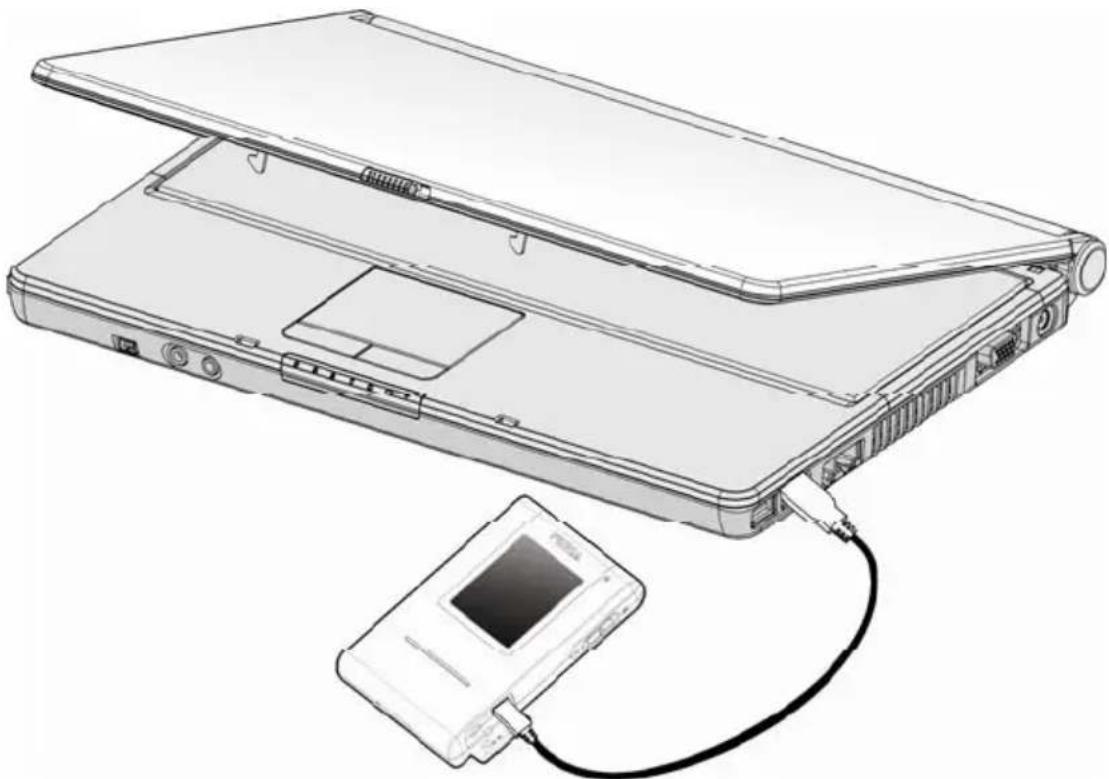
- Once MEGA PLAYER 536 is connected to computer, it should be detected by the operating system automatically.
Install Utilities
The supplied Driver CD includes a MEGA PLAYER 536 specialized utility. It is recommended to install even if your operating system is Windows ME, 2000
or XP. Then, your system can recognize and fully support this device. The driver program includes a Windows Media Player plug-in function. Simply insert the supplied disk into the CD drive, and then follow the on-screen instructions to complete the installation.
Copy songs with Windows Media Player 9
Once you installed the MEGA PLAYER 536 utility, you will be able to update and synchronize songs and information of songs with Windows Media Player.
Note: Requires Windows Media Player 9 or higher
- Connect MEGA PLAYER 536 to your computer.
- Start Windows Media Player 9.
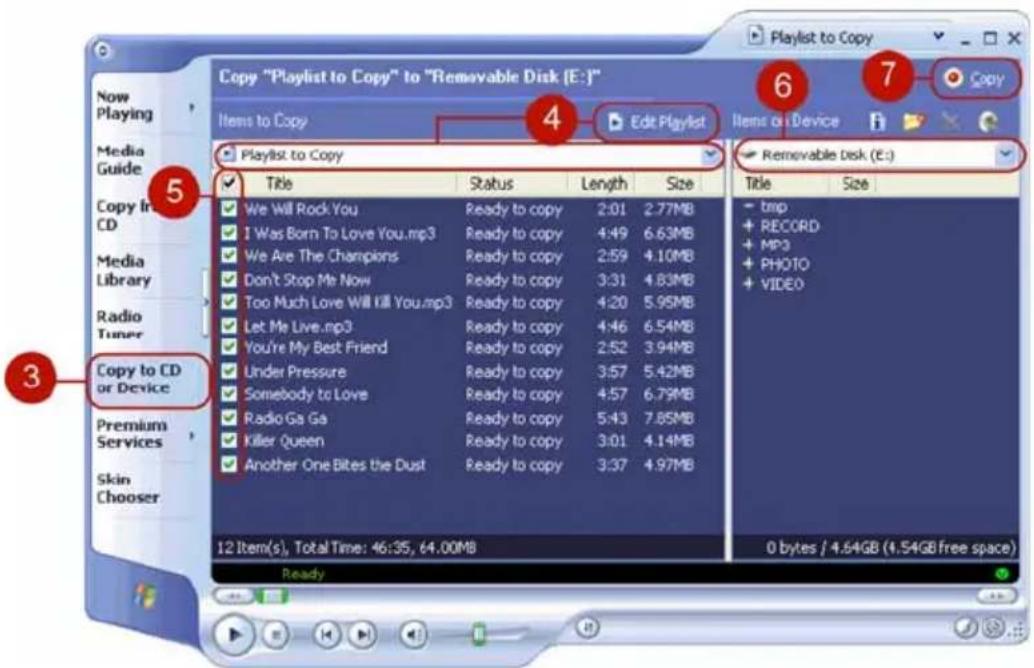
- Click "Copy to CD or Device".
- In the Items to Copy pane, in the drop-down list, click the playlist, category, or other item that you want to copy.
- Clear the check boxes next to any files you do not want to copy.
- In the Items on Device pane, in the drop-down list, click the device Portable Digital Player.
- Click the Copy button.
- When an item is copied to MEGA PLAYER 536, the Status column in the Items to Copy pane displays the following information for each item:
- Inspecting. Windows Media Player verifies that there is enough storage space on the portable device, and inspects the selected files for errors.
- Converting/Converted (includes the percentage of conversion done). If necessary, each file is converted to the selected quality level or compression rate.
- Copying (includes the percentage of copy done). The file is being copied.
- Complete. The copy is done.
Synchronize songs with Windows Media Player 10
- Connect MEGA PLAYER 536 to your computer.
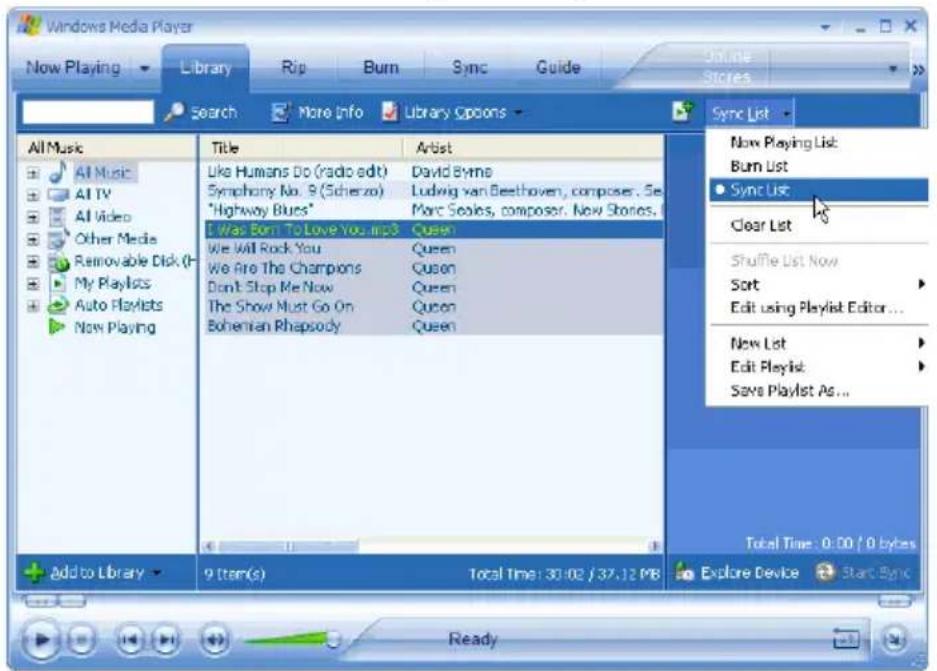
- Start Windows Media Player 10.
- In the Library feature, in the Playlist pane, click List, and then click Sync List.
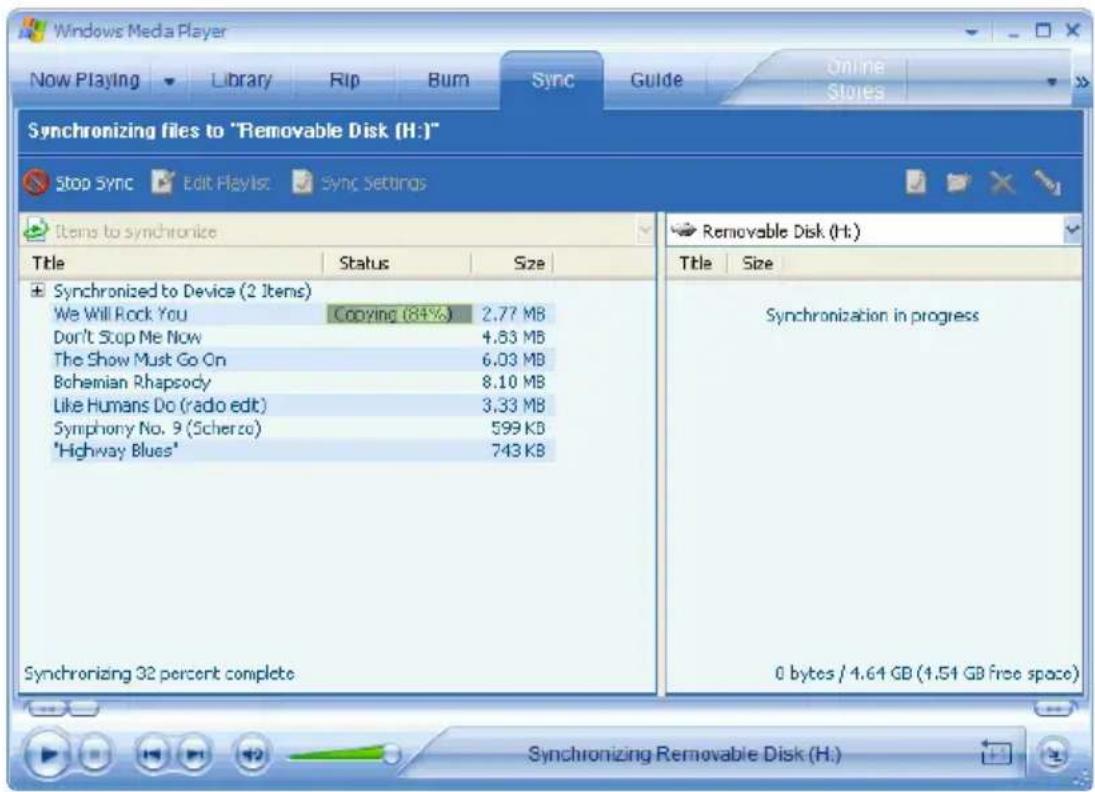
- In the Items on Device pane, select Portable Digital Player.
- Click the Start Sync button in the List pane.
- Once you installed the MEGA PLAYER 536 utility, you will be able to update and synchronize songs and information of songs with Windows Media Player.
Firmware Recovery or Updating
NOTE: THIS IS AN ADVANCED OPERATION. NORMAL USERS ARE NOT RECOMMENDED TO PERFORM THIS OPERATION!
To recover or update the firmware, download the latest firmware from the MSI website or from the supplied CD, and then unpack the file. After the data is unpacked, a folder will be created containing the files required for the firmware update.
- Connect MEGA PLAYER 536 to your computer.
- Double-click the "Firmware Recovery Utility" icon included in the folder
where the files were unpacked.
- Click "Update"; it will take a few seconds.
Note: If you update the firmware, the data and files stored inside may be all erased! Make sure you have a backup before you update.
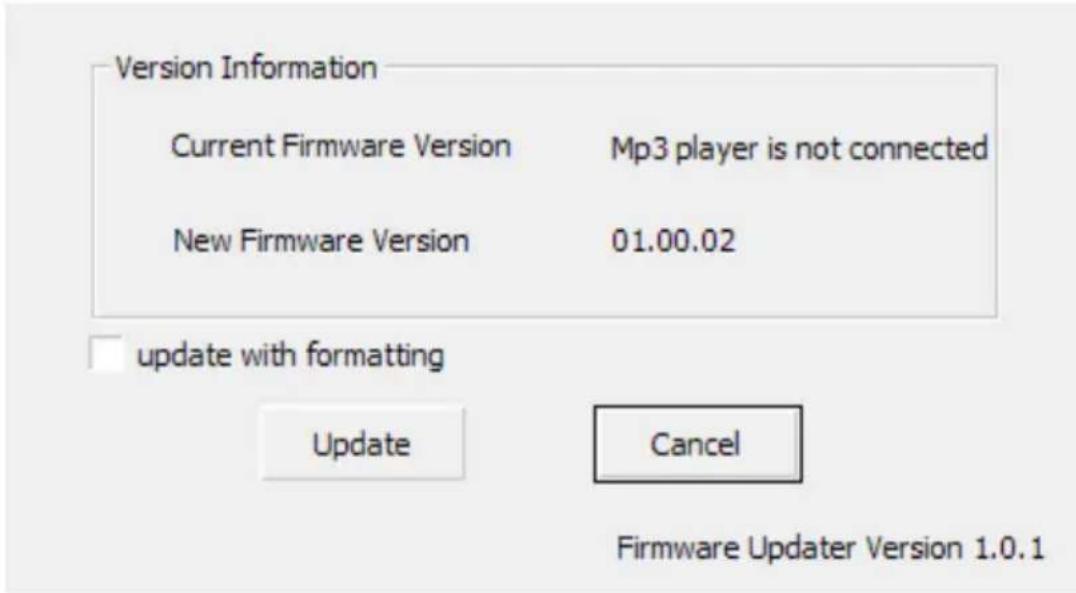
- Turn the device off, and then disconnect the USB cable from the device.
Safely Remove MEGA PLAYER 536 from Computer
After managing the files or updating the firmware, you have to follow the steps to safely remove the MEGA PLAYER 536, to prevent system or device corruption:
- While a USB device is connected to the computer, there will be an icon on the taskbar. Double-click the icon to bring up the Safely Remove Hardware dialog box. You can find all the devices connected on the display. To remove MEGA PLAYER 536, close all the programs related to it, and click USB Mass Storage Device and the Stop button.
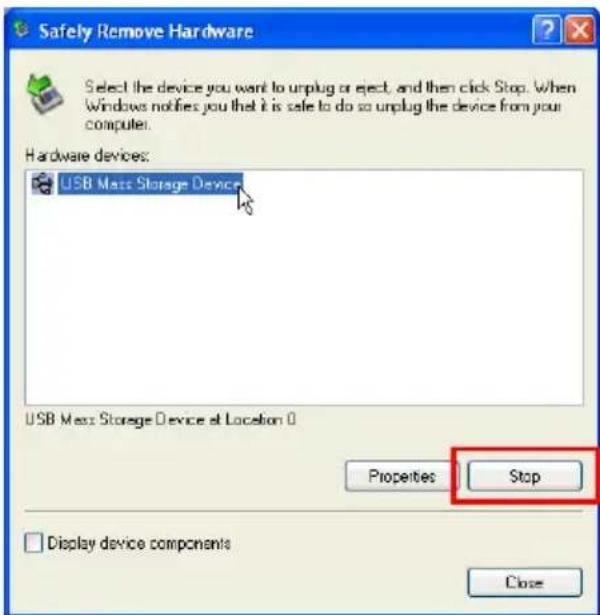
2. Click USB Mass Storage Device and OK
There will be the following message, and you can remove the device now.
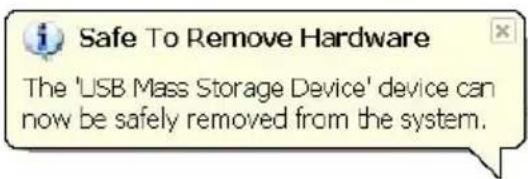
Chapter 4. Basic Usage
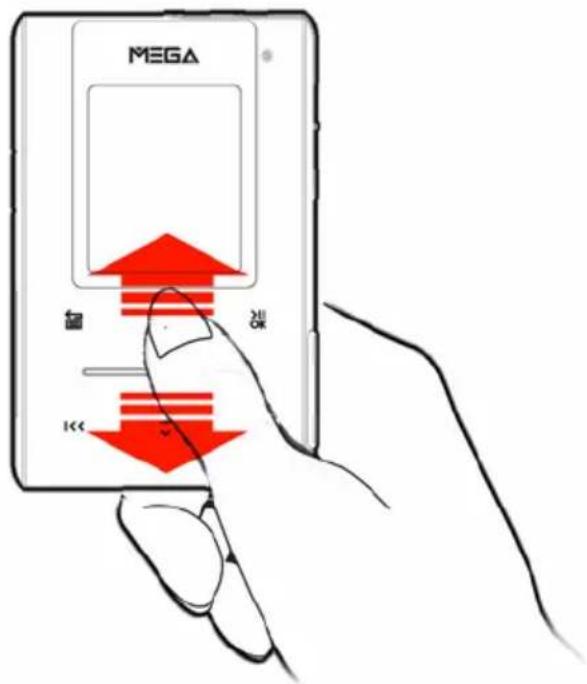
Using Touch Button
Press and hold the + or button to scroll through menu items rapidly.
Note: when you touch the button, the blue LED under the panel should light up automatically.
Lightly tap a button to select an item.
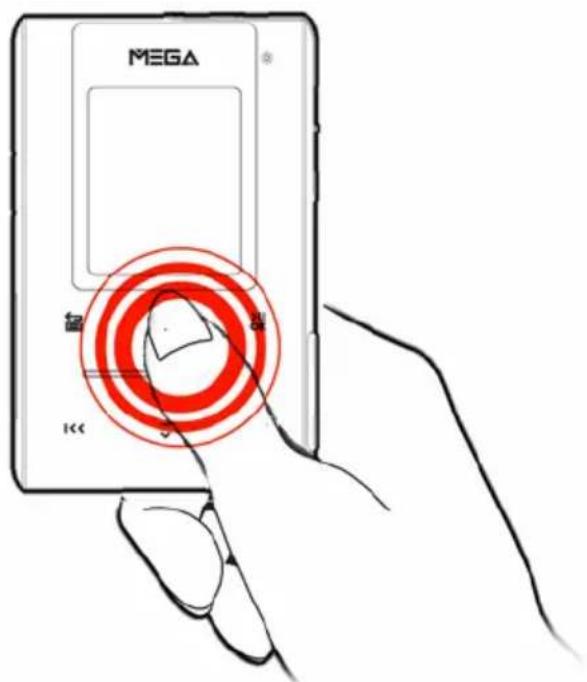
Using Navigation Buttons
Use Navigation Buttons to navigate through menus, play music, play video, browse photos, and arrange files. In this document, we will use the term,
"Select", to mean that you should lightly tap the + / - / |<< / >>| button to browse through options, and then select the option by lightly tapping the button. You can adjust volume levels with the + / - button. Tap the + button to increase volume, - to decrease volume. Also, pause during music or video playback with the button, and then tap the button again to resume.
Using Exit/Submenu Button
Use the ☑ button to exit from folders, menus, or call submenu. In this document, we will use the term, "Call submenu", to mean that you should press and hold the ☑ button for two seconds to display the available options.
Power On
- Slide the Power Switch once.
- The screen will display the last mode. Note: The Start Logo will be displayed at the first time power on.
Power Off
Slide the Power switch and hold for two seconds.
Music/Voice Playback
- To play music stored on the built-in hard disk or SD card, select the Music item in the Main Menu. To play recorded voice, select the Record item.
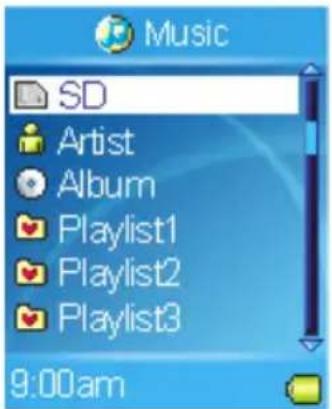
- Select a music file to play or select a Playlist item to play music files according to the play list.
Note:
- To play music from the SD card which is installed in the SD card slot, select the SD item, and then select a music file.
- To play all of your music by the same artist/album, select the Artist/Album item.
- Please refer to Chapter 2 Synchronizing music with Windows Media Player. Otherwise, the playlist of Artist or Album might not be updated.
Adding songs to Playlist
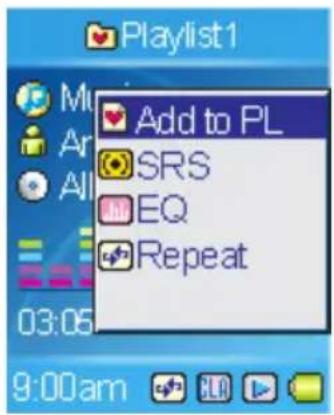
- In playback mode, call submenu.
- Select the Add to PL item.
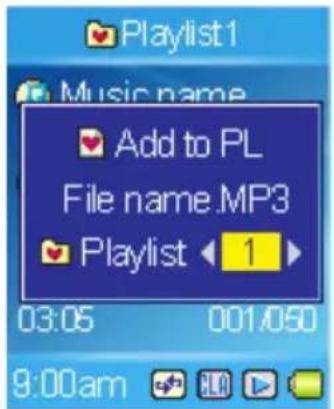
- Select a Playlist number you want to add to.
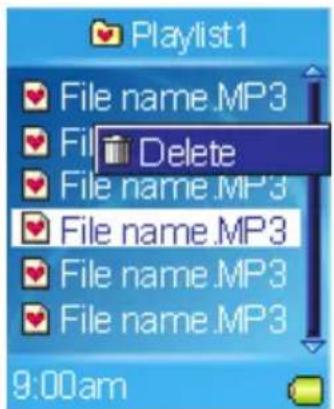
Deleting songs in Playlist
- Select the Music item in Main Menu.
- Select the Playlist you want edit.
- Use the + or down arrow button to scroll to the song you want to delete, and then call submenu.
- Select Delete in the submenu.
Setting Enhancement Effect
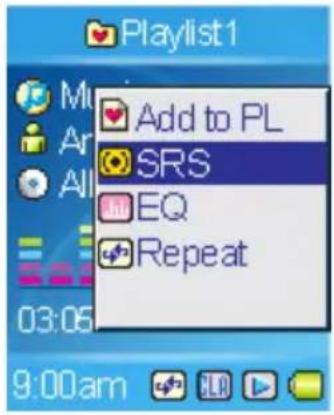
WOW is a special combination of SRS audio technologies that creates a thrilling experience with deep rich bass from the sound source. Note that once SRS is enabled, the EQ settings will be disabled at the same time.
- In playback mode, call the submenu.
- Select the SRS item.

is a trademark of SRS Labs, Inc.
WOW technology is incorporated under license from SRS Labs, Inc.
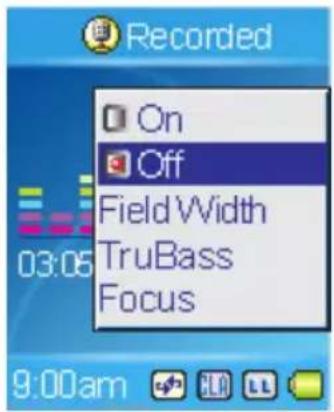
- Select On to enable the SRS (WOW) effect. Select Off to disable the SRS (WOW) effect.
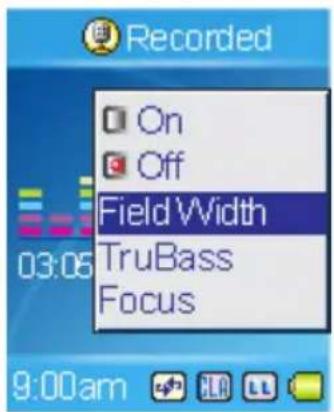
- You can also select other sound effects such as Field Width, TruBass, or Focus and then adjust the values.
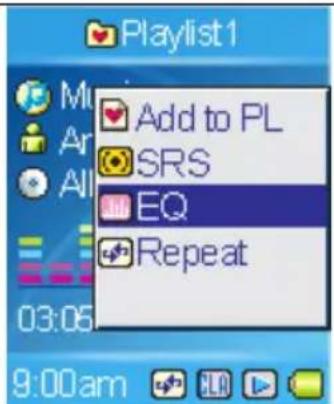
Setting EQ
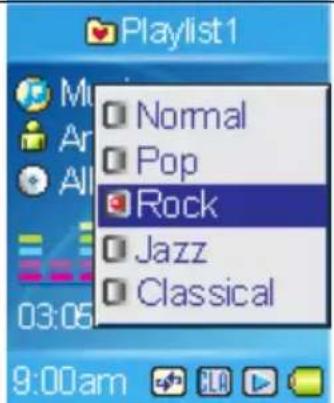
MEGA PLAYER 536 provides various EQ modes, such as POP, Rock, Jazz, and Classical, for users to choose from as per the following steps to increase the enjoyment of listening to music and to meet personal needs or habits.
- In playback mode, call the submenu.
- Select the EQ item.
- Select Normal, POP, Rock, Jazz, or Classical.
Note: Once EQ is enabled, the SRS (WOW) settings will be disabled at the same time.
Setting Repeat Mode
- In playback mode, call up the submenu.
- Select the Repeat item.
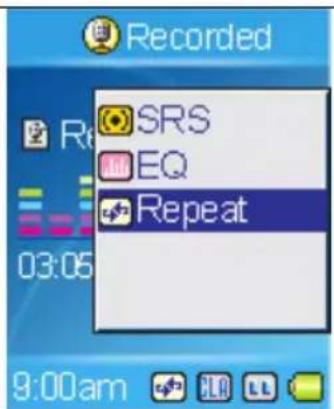
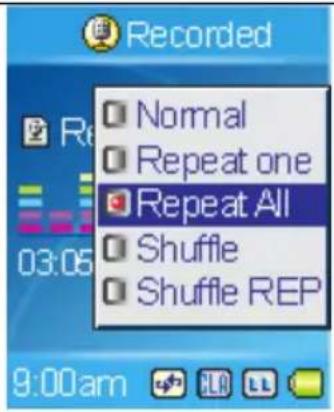
- Select one of the following items in the Repeat mode screen.
a. Normal: Plays user-selected tracks in sequential order.
b. Repeat One: Repeats the current track.
c. Repeat All: Repeats all selected tracks.
d. Shuffle: Plays all selected tracks in random order, once only.
e. Shuffle REP: Plays and repeats all selected tracks in random order.
Viewing Photos
- To view photos stored on the built-in hard disk or SD card, select the Multi Media item in the Main Menu.
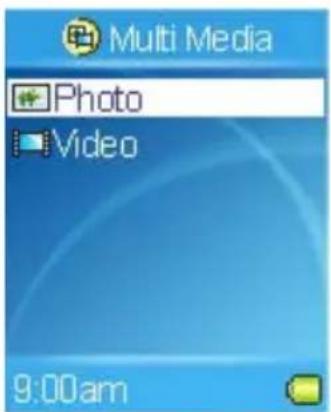
- Select the Photo item in the Multi Media menu.
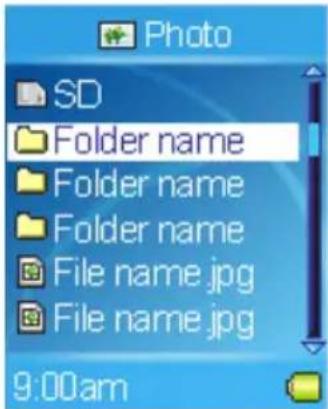
- Select a photo file to view in the Browser Menu.
Note:
- To view photos from the SD card installed in the SD card slot, select the SD item, and then select a photo file.
Slideshow
To play slideshow, tap button while viewing photos. You can set how long each image is displayed, please refer to Setting Slide Interval.

Rotating Photos
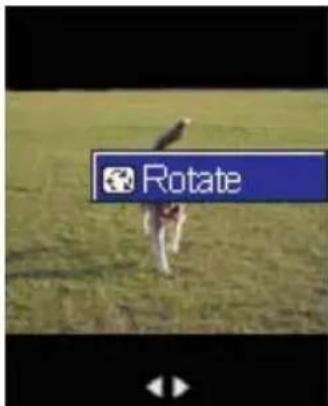
To rotate photos, call submenu while viewing photos, and then select the Rotate item.
Playing Video
- To play video stored on the built-in hard disk or SD card, select the Multi Media item in Main Menu.
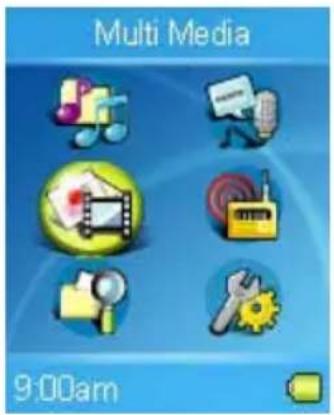
- Select Video item in Multi Media menu.
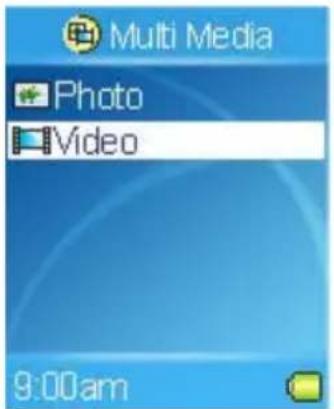
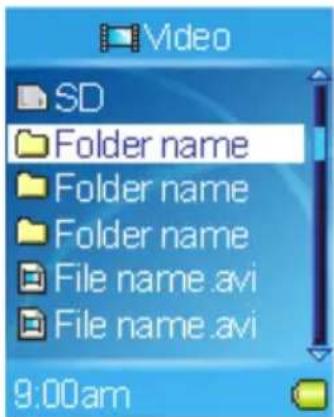
- Select a video file to play in Browser Menu.
- You can tap the OK button to pause or resume the video.
Note:
- To play video from the SD card which is installed in the SD card slot, select the SD item, and then select a video file.
FM Radio Mode (Optional)
- To listen to the radio broadcast, select the Radio item in Main Menu.
- When the radio frequency appears on the LCD screen, tap the >>1 or I< || OK button. also you can hold down the buttons to adjust faster.
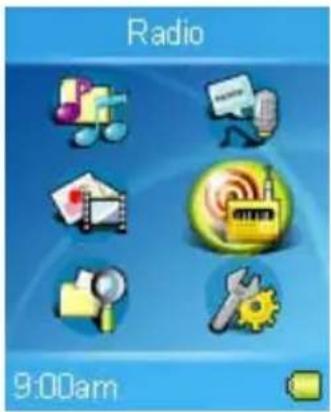
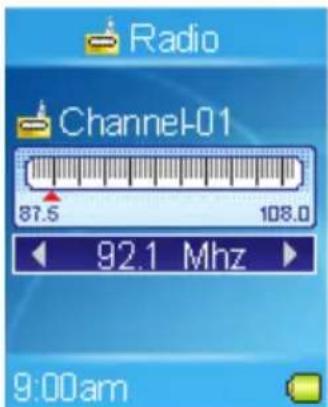
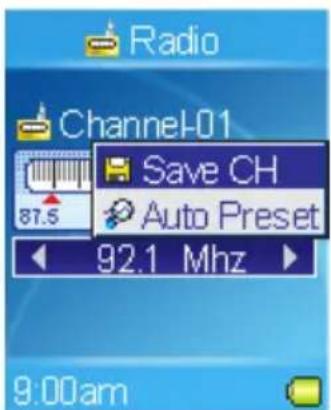
To save the frequency in a channel, call submenu, select the Save CH item. Select a CH(Channel), and then use left button to select "Yes".
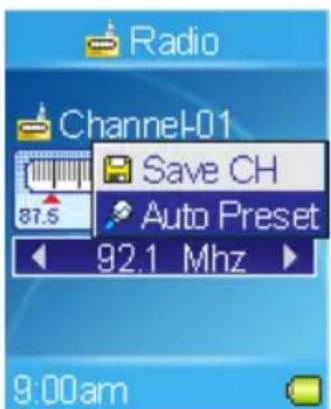
To automatically scan and save radio stations, open the submenu and select the Auto Preset option.
File Browser
MEGA PLAYER 536 provides easy access to file management. The File Browser can organize files stored on the SD card and the built-in hard disk. To read files from the SD card, please insert the SD card first.
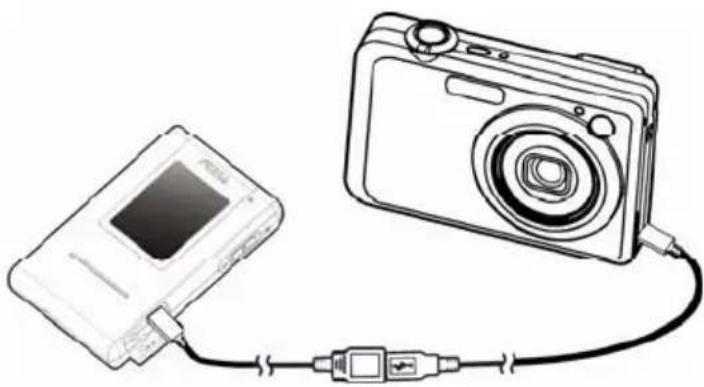
Additionally, MEGA PLAYER 536 can back up data as a data/photo bank from portable disks and digital cameras.
To manage files on a USB device or back up data to it, first connect one end of the USB Host cable to the
MEGA PLAYER 536 USB
port, and the other end to the
proprietary cable of the USB device, such as a digital camera or USB stick, then follow the steps below.
Note: The USB device should be powered on before connection, otherwise it will not be detected by MEGA PLAYER 536.
Note: Some outdated USB drives or digital cameras may not be supported.
Note: We strongly recommend using MEGA PLAYER 536's power adapter when connecting to a USB device. If MEGA PLAYER 536 is in low battery status, connecting a power-consuming USB device may cause system power insufficiency and result in automatic shutdown.
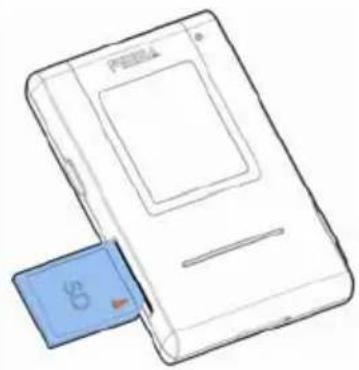
- Select the File Browser option in the Main Menu.
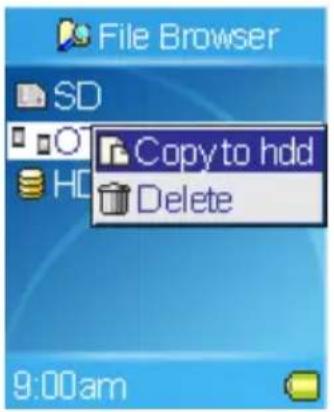
- Select the file you want to copy or delete.
- Open the submenu and select one of the following options.
a. Copy to hdd: Copy the file to MEGA PLAYER 536 built-in hard disk. b. Copy to usb: Copy the file to the USB device. c. Delete: Select Delete and then select YES to confirm and remove the file.
Note: You can only use File Browser to delete files on the SD card, therefore the Copy item is not available for SD submenu.
- When the file is copying or deleting, a percentage pop-up window will appear on the screen.
- When it is complete, the "Finish" message will show on the screen.
Note: Please do not remove the SD card or turn off the device until it is completed.
Setting
MEGA PLAYER 536's setting can be adjusted to suit your needs.
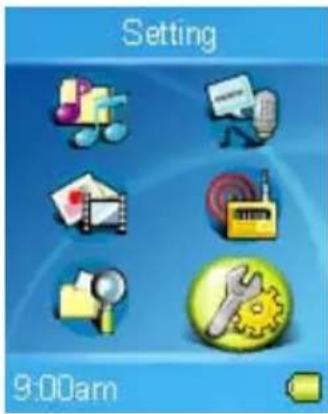
Setting Record Quality
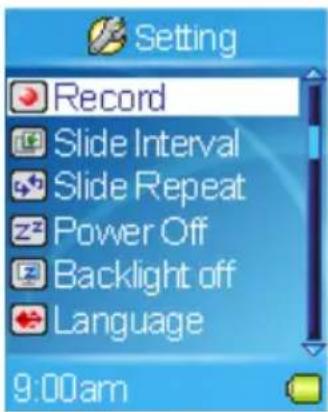
- Select the Setting item in Main Menu.
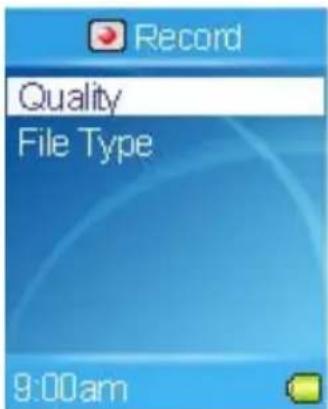
- Select Record.
- Select the Quality item.
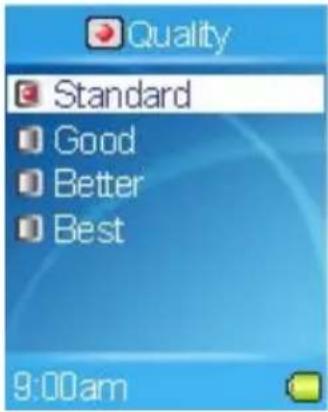
- Select one of the items you want in the Quality selection screen.
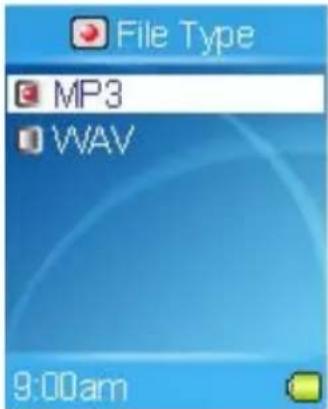
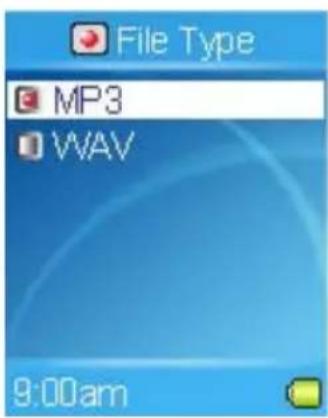
Setting Record File Type
This function can encode the audio source to MP3 format files directly when users are recording.
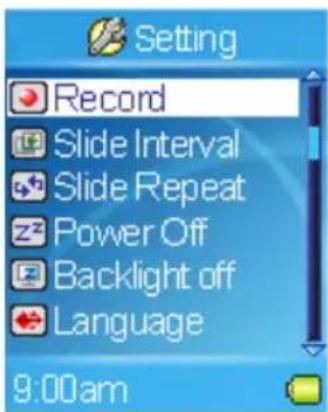
- Select the Setting item in Main Menu.
- Select the Record item.
- Select the File Type item.
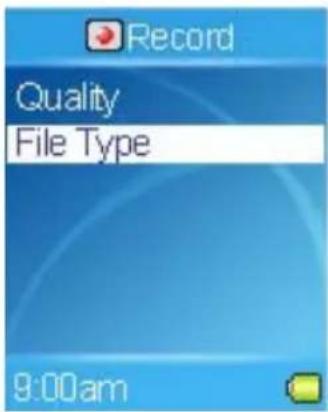
- Select the File Type setting that you want.
Setting Slide Interval
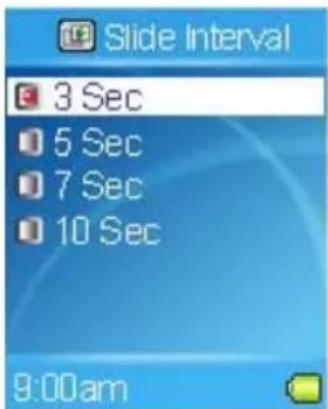
You can set how long each image is displayed.
- Select the Setting item in Main Menu.
- Select the Slide Interval item.
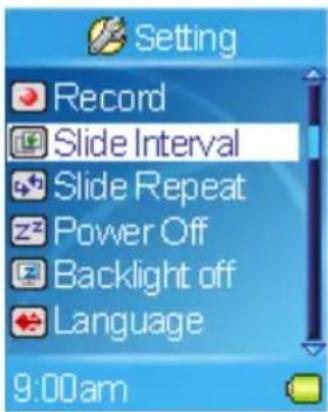
- Select a Slide Interval setting that you want.
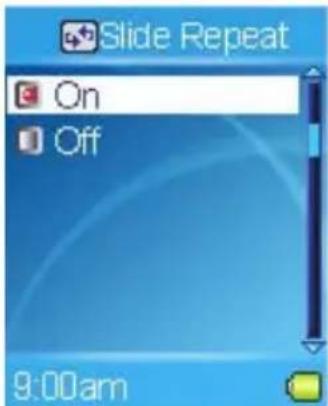
Setting Slide Repeat
You can repeat to play photo slideshow.
- Select the Setting item in Main Menu.
- Select the Slide Repeat item.
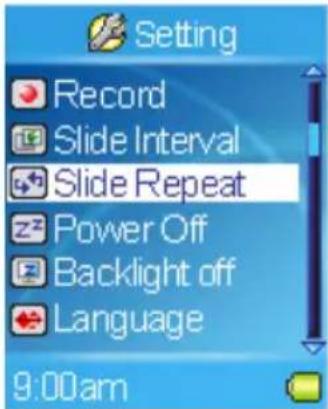
- Select On to repeat slideshow. Select Off to play the slideshow only once.
Setting Power Off
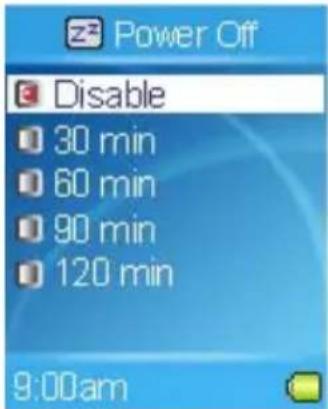
You can set the timer under Power Off setting to turn off MEGA PLAYER 536 automatically when it is playing or recording for a certain time.
- Select the Setting item in Main Menu.
- Select the Power Off item.
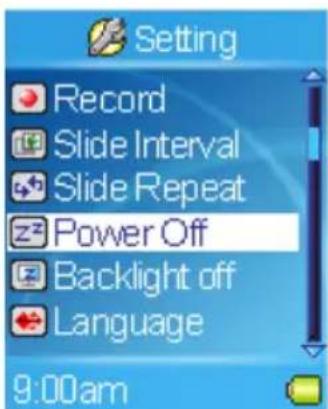
- Select the Power Off setting you want.
Setting Backlight Off
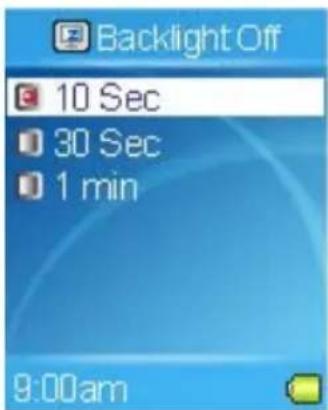
Backlight timer program can save the power. After having been idle for few seconds, the device will run the Backlight timer program automatically and cease the backlight, you can press any button to wake the backlight up.
- Select the Setting item in Main Menu.
- Select the Backlight Off item.
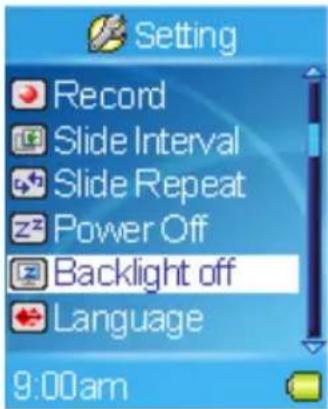
- Select the Backlight Off setting that you want.
Setting Language
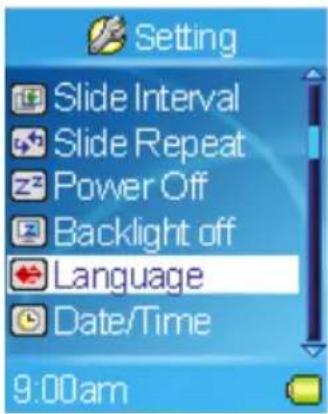
- Select the Setting item in Main Menu.
- Select the Language item.
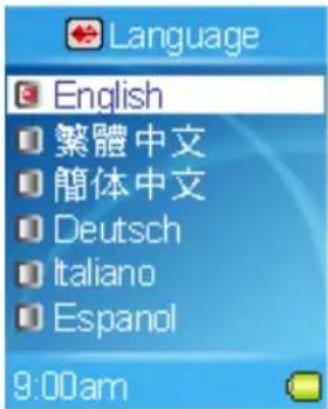
- Select a language you want to use.
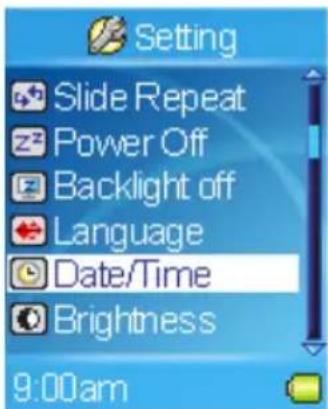
Setting Date and Time
- Select the Setting item in Main Menu.
- Select the Date/Time item.
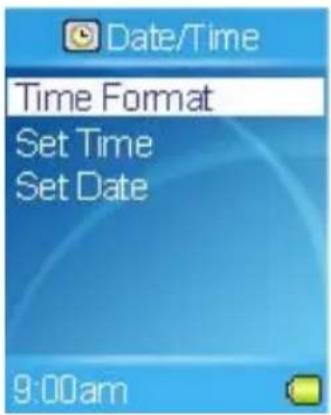
- To adjust how the time is displayed, select the Time Format item, and then select 12 hour or 24 hour.
- Select Set Time or Set date to change the time or date settings.
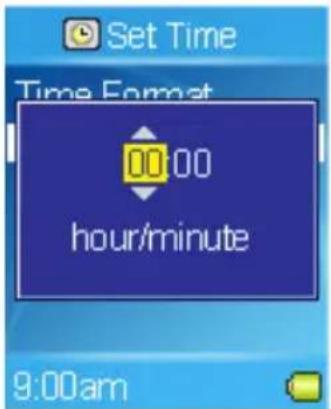
- The current time or date is displayed.
- Set the time or date, and then tap the OK button to confirm and exit.
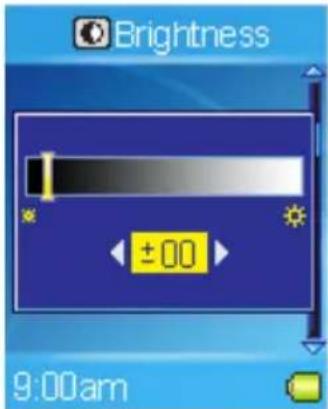
Setting Brightness
- Select the Setting item in Main Menu.
- Select the Brightness item.
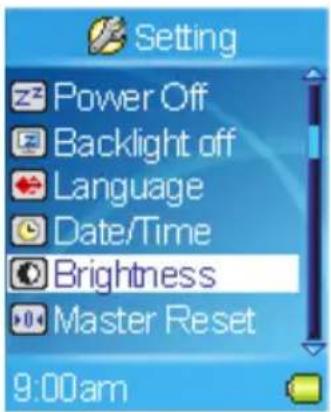
- Adjust the brightness setting, and then tap the button to confirm and exit.
||OK
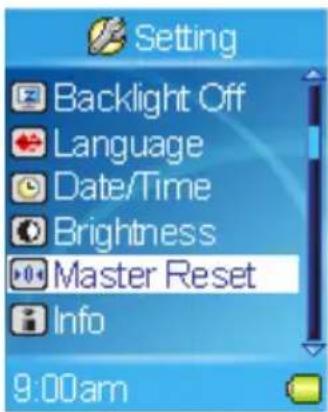
Resetting to original setting
- Select the Setting item in Main Menu.
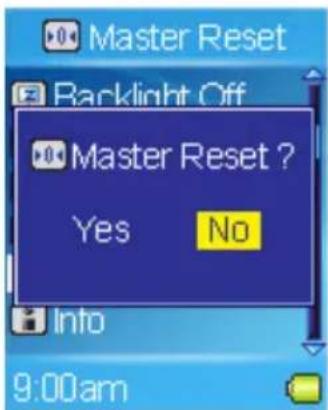
- Select the Master Reset item.
- Select the Yes item.
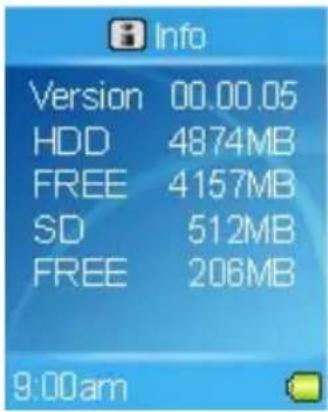
Device Information
- Select the Setting item in Main Menu.
- Select the Info item.
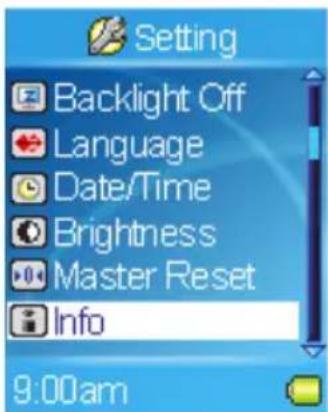
- You can read device information on the screen.
Encoding MP3 Directly from CD
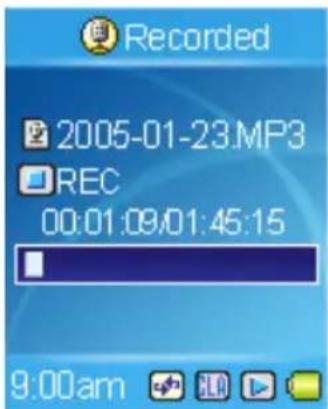
MEGA PLAYER 536 has a built-in CD-to-MP3 encoder, that's able to record via Line-In.
- Connect to a Walkman, Computer, Radio, TV, and Audio Equipment or plug a Microphone.
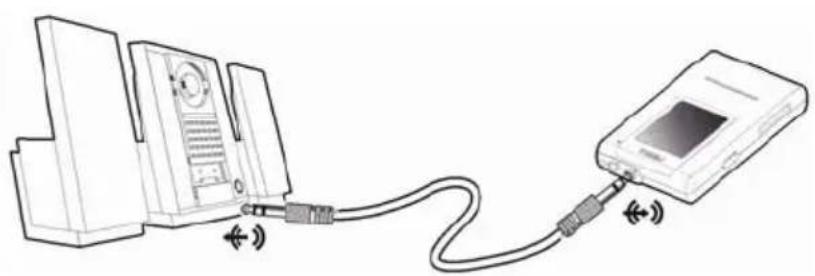
- Set Setting -> Record -> File Type to MP3. (Please refer to Setting Record File Type in Chapter 4)
- Press the A→B/REC button to start recording and then play music from the audio source.
- On the Display, a recording file should be generated and placed under the folder of [/RECORD/ ]. The file name sequence starts from [LineIn001.mp3], and then [LineIn002.MP3], and so forth.
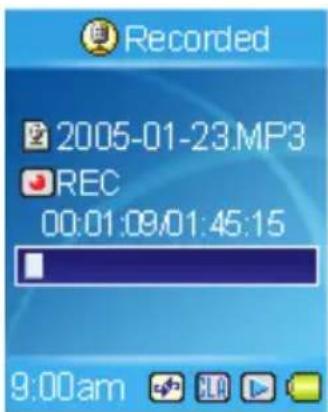
- Press the A→B/REC button again to stop recording, and you will see the status jump to the file list in the RECORD folder.
Microphone Recording
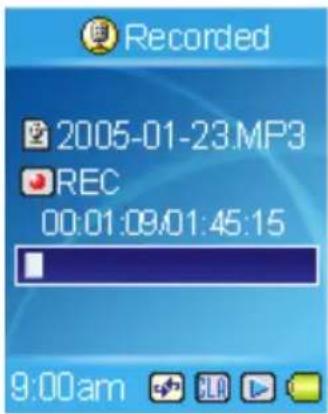
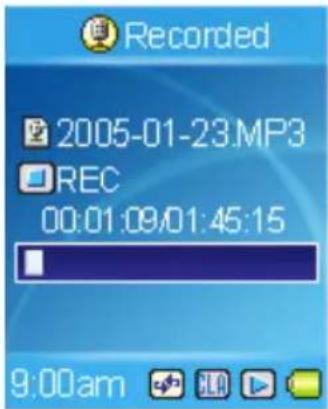
MEGA PLAYER 536 also works as a synchronizing recorder. You are allowed to use it for Microphone Recording. In other words, you can use it to record your own voice, an interview, or a speech via the internal microphone. To do the
- Press the A→B/REC button to start recording.
- On the display, a recording file should be generated and placed under the folder [/RECORD/]. The file name sequence starts from [LineIn001.mp3], then [LineIn002.mp3], and so forth.
- Press the A→B/REC button again to stop recording. It will be encoded to an MP3 format file and saved in the RECORD folder in the MEGA PLAYER 536 automatically, and you will see the status jump to the file list in the RECORD folder.
Radio Broadcast Recording (Option)
- Select a radio broadcast channel that you want to record.
- Press the A→B/REC button to start recording.
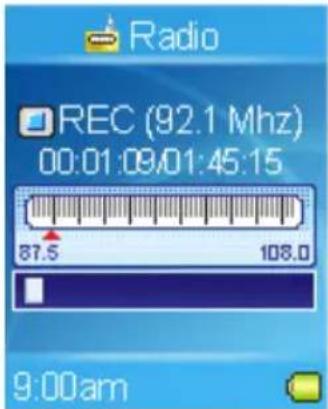
- On the display, a recording file should be generated and placed under the folder [/RECORD/]. The file name sequence starts from [FM01.MP3], then [FM02.MP3], and so forth.
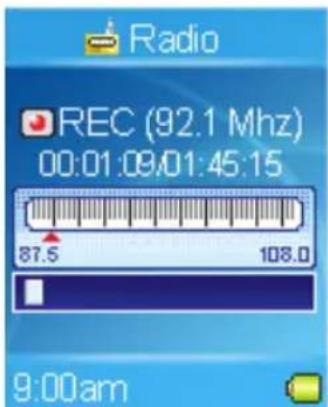
- Press the A→B/REC button again to stop recording, and you will see the status return to the previous status.
Language Learning Function
MEGA PLAYER 536 enables users to listen to a particular section repeatedly during music or voice playback. With this function, users will be able to pay attention to the repeated section and to achieve the result of language learning. During music playback:
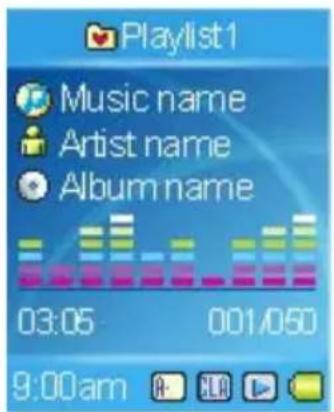
- Press the A→B/REC button to set the starting point when playback. The A- icon will appear on the middle bottom of the screen.
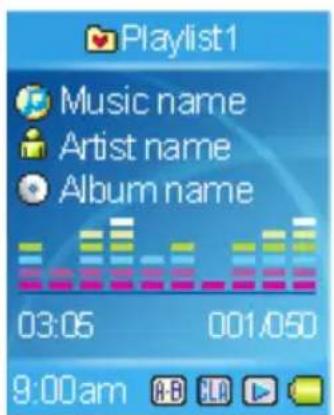
- Press the A→B/REC button again to set the terminal point. The A-B icon will appear on the screen. You will hear the repeating playback that you have set previously again and again.
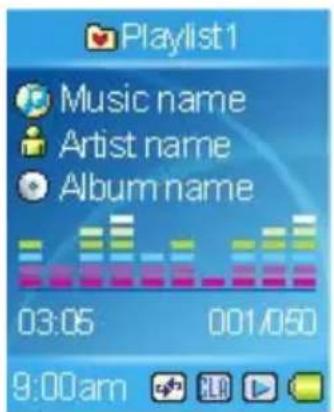
- Press the A→B/REC button again back to the normal playback. Meanwhile the A-B icon will disappear on the screen.
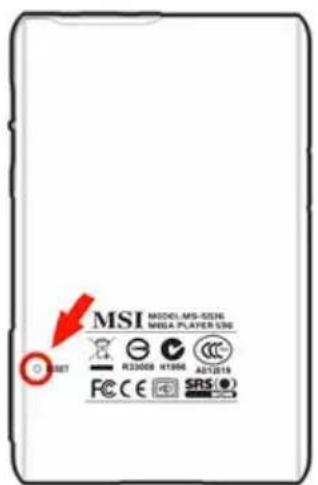
Reset Button
NOTE: THIS IS AN ADVANCED OPERATION. NORMAL USERS ARE NOT RECOMMENDED TO PERFORM THIS OPERATION!
MEGA PLAYER 536 provides a Reset Button on the back side of device. Please note that you only need to use this button if the device does not response for several minutes. The button is like a power down button of the device. You can turn off the device by using a reset tip, such as a straightened paper clip with diameter of 1.2mm. Once you Press reset button, the adjustments you made during last operation will be gone.
Appendix A. Specifications
| MEGA PLAYER 536 | |
| Dimension 88.5 (W) x | 50 (D) x 15.6 (H) mm |
| Weight 95g (with built-in battery) | |
| Operating Temperature | 0°C ~ 45°C |
| Storage Temperature 0°C ~ +60°C | |
| Audio Spec Max Output: 36mW rms (18mW / channel), supportSRS function.Frequency: 20 to 20K HzSNR: >90dB | |
| LCD module 1.8” CSTN 128x160 pixels module | |
| Line-In / Voice / FM Recording | Record format: MP3, WAV |
| USB Flash Disk 1. Meets USB specification revision 2.02. Supports OS: Windows ME, Windows 2000,Windows XP Home/ Pro, Mac OS 9 and above | |
| Built-in HDD 1”HDD | |
| I/O Input 1. Stereo Audio-out, 3.5mm2. Stereo line-in jack, 3.5mm3. USB port for USB Slave and USB Host. | |
| EMI and Safety FCC Class B, CE ,BSMI, CB | |
| Interface Language Supports up to more than 10 languages which may vary from country to country. | |
| Earphone | Stereo output: 30mW rms (15mW / channel) |
| Battery Life | Up to 8hrs audio playback. |
Appendix B. Utility CD
Insert the supplied CD disk into the CD drive.
■ Install Firmware Recovery Utility
Recover the firmware of the device.
■ Install Windows Media Player Plug-In
This plug-in allows you to synchronize data of songs with Windows Media Player 9 series or higher.
■ Install Adobe Acrobat Reader
A free software for viewing and printing Portable Document Format (PDF) files. To read the MEGA PLAYER 536 User Manual, you also have to install the Adobe Acrobat Reader.
■ Read MEGA PLAYER 536 User Manual
This PDF document is packed in the CD, click on the button to read.

- SAFETY INSTRUCTIONS
- CHAPTER 1. INTRODUCTION
- CHAPTER 2. GETTING STARTED
- CHAPTER 3. UTILITY INSTALLATION
- CHAPTER 4. BASIC USAGE
- HOW TO USE THIS GUIDE
- UNPACK
- OVERVIEW
- LEFT/PREVIOUS/REWIND BUTTON
- UP/VOLUME UP BUTTON
- OK PLAY/PAUSE/ENTER BUTTON
- RIGHT/FORWARD BUTTON
- DOWN/VOLUME DOWN BUTTON
- POWER/HOLD PUSH TO POWER POSITION TO POWER ON
- USB CONNECTOR CONNECT ONE END OF THE SUPPLIED USB EXTENSION CABLE HERE
- LCD DISPLAY
- MAIN MENU
- NORMAL PLAYBACK MODE
- LI-ION BATTERY RECHARGE
- BATTERY CONSUMING REFERENCE
- HOLD SWITCH
- CONNECT MEGA PLAYER 536 TO YOUR COMPUTER
- INSTALL UTILITIES
- COPY SONGS WITH WINDOWS MEDIA PLAYER
- NOTE: REQUIRES WINDOWS MEDIA PLAYER 9 OR HIGHER
- SYNCHRONIZE SONGS WITH WINDOWS MEDIA PLAYER
- FIRMWARE RECOVERY OR UPDATING
- NOTE: THIS IS AN ADVANCED OPERATION. NORMAL USERS ARE NOT RECOMMENDED TO PERFORM THIS OPERATION
- SAFELY REMOVE MEGA PLAYER 536 FROM COMPUTER
- CLICK USB MASS STORAGE DEVICE AND OK
- USING TOUCH BUTTON
- USING NAVIGATION BUTTONS
- USING EXIT/SUBMENU BUTTON
- POWER ON
- POWER OFF
- MUSIC/VOICE PLAYBACK
- ADDING SONGS TO PLAYLIST
- DELETING SONGS IN PLAYLIST
- SETTING ENHANCEMENT EFFECT
- SETTING EQ
- SETTING REPEAT MODE
- VIEWING PHOTOS
- SLIDESHOW
- ROTATING PHOTOS
- PLAYING VIDEO
- FM RADIO MODE (OPTIONAL)
- FILE BROWSER
- MEGA PLAYER 536 USB
- SETTING
- SETTING RECORD QUALITY
- SETTING RECORD FILE TYPE
- SETTING SLIDE INTERVAL
- SETTING SLIDE REPEAT
- SETTING POWER OFF
- SETTING BACKLIGHT OFF
- SETTING LANGUAGE
- SETTING DATE AND TIME
- SETTING BRIGHTNESS
- RESETTING TO ORIGINAL SETTING
- DEVICE INFORMATION
- ENCODING MP3 DIRECTLY FROM CD
- MICROPHONE RECORDING
- RADIO BROADCAST RECORDING (OPTION)
- LANGUAGE LEARNING FUNCTION
- RESET BUTTON
- APPENDIX A. SPECIFICATIONS
- APPENDIX B. UTILITY CD
- INSTALL FIRMWARE RECOVERY UTILITY
- INSTALL WINDOWS MEDIA PLAYER PLUG-IN
- INSTALL ADOBE ACROBAT READER
- READ MEGA PLAYER 536 USER MANUAL
Brand : MSI
Model : MEGA Player 536
Category : Media player