
FinePix REAL 3D V1 - Digital photo frame FUJIFILM - Free user manual and instructions
Find the device manual for free FinePix REAL 3D V1 FUJIFILM in PDF.


| Product Type | Digital Photo Frame |
| Brand | Fujifilm |
| Model | FinePix REAL 3D V1 |
| Display Type | 3D/2D Color LCD with Parallax Barrier |
| Screen Size | 8.0 inches |
| Resolution | 800 × 600 (2D), 400 × 600 × 2 (3D) |
| Aspect Ratio | 4:3 |
| Internal Memory | 512 MB |
| Supported Memory Cards | xD-Picture Card, SD/SDHC (up to 32 GB) |
| Supported File Formats | JPEG, MPO (Multi-Picture), AVI, 3D-AVI |
| Connectivity | USB Mini-B (device), USB Host, Infrared (IR) |
| Power Supply | AC Adapter (100-240V, 50/60 Hz) |
| Power Consumption | Approx. 15 W (3D), 9 W (2D) |
| Dimensions (W × H × D) | 216.0 × 162.0 × 30.9 mm (8.5 × 6.4 × 1.2 in.) |
| Weight | Approx. 630 g (22.2 oz.) including stand |
| Remote Control | Included, uses CR2025 battery |
| Stand Orientation | Wide (horizontal) for 3D, Tall (vertical) for 2D |
| 3D Viewing Distance | About 60 cm (2 ft.) |
| Music Playback | Built-in tracks and MP3 from memory card |
| Languages Supported | Multiple (English, French, Spanish, etc.) |
| Firmware Update | Via computer connection |
Frequently Asked Questions - FinePix REAL 3D V1 FUJIFILM
User questions about FinePix REAL 3D V1 FUJIFILM
0 question about this device. Answer the ones you know or ask your own.
Ask a new question about this device
Download the instructions for your Digital photo frame in PDF format for free! Find your manual FinePix REAL 3D V1 - FUJIFILM and take your electronic device back in hand. On this page are published all the documents necessary for the use of your device. FinePix REAL 3D V1 by FUJIFILM.
USER MANUAL FinePix REAL 3D V1 FUJIFILM
Thank you for your purchase of this product. This manual describes how to use your FUJIFILM FinePix REAL 3D V1 digital viewer and the supplied software. Be sure that you have read and understood its contents before using the viewer.
natural_image
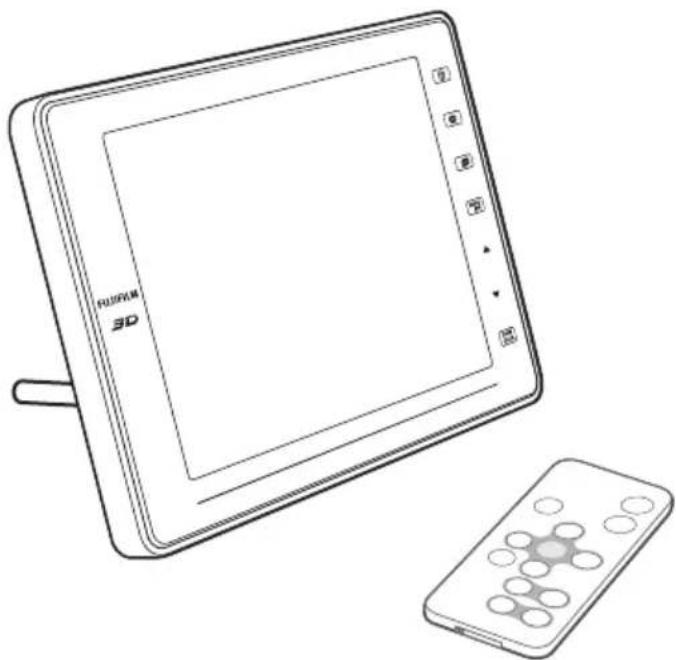
Line drawing of a digital tablet with a remote control and a 3D screen (no text or symbols)For information on related products, visit our website at http://www.fujifilm.com/products/index.html
Before You Begin
First Steps
Viewing Pictures
More Menu Options
Connections
Troubleshooting
Appendix
IMPORTANT SAFETY INSTRUCTIONS
- Read Instructions: All the safety and operating instructions should be read before the appliance is operated.
- Retain Instructions: The safety and operating instructions should be retained for future reference.
- Heed Warnings: All warnings on the appliance and in the operating instructions should be adhered to.
- Follow Instructions: All operating and use instructions should be followed.
Installation
Power Sources: This video product should be operated only from the type of power source indicated on the marking label. If you are not sure of the type of power supply to your home, consult your appliance dealer or local power company. For video products intended to operate from battery power, or other sources, refer to the operating instructions.
Grounding or Polarization: This video product is equipped with a polarized alternating-current line plug (a plug having one blade wider than the other). This plug will fit into the power outlet only one way. This is a safety feature. If you are unable to insert the plug fully into the outlet, try reversing the plug. If the plug should still fail to fit, contact your electrician to replace your obsolete outlet. Do not defeat the safety purpose of the polarized plug.
Alternate Warnings: This video product is equipped with a three-wire grounding-type plug, a plug having a third (grounding) pin. This plug will only fit into a grounding-type power outlet. This is a safety feature. If you are unable to insert the plug into the outlet, contact your electrician to replace your obsolete outlet. Do not defeat the safety purpose of the grounding type plug.
Overloading: Do not overload wall outlets and extension cords as this can result in a risk of fire or electric shock.
Ventilation: Slots and openings in the cabinet are provided for ventilation, to ensure reliable operation of the video product and to protect it from overheating, and these openings must not be blocked or covered. The openings should never be blocked by placing the video product on a bed, sofa, rug, or other similar surface.
This video product should not be placed in a built-in installation such as a bookcase or rack unless proper ventilation is provided or the manufacturer's instructions have been adhered to. This video product should never be placed near or over a radiator or heat register.
Attachments: Do not use attachments not recommended by the video product manufacturer as they may cause hazards.
Water and Moisture: Do not use this video product near water—for example, near a bath tub, wash bowl, kitchen sink, or laundry tub, in a wet basement, or near a swimming pool, and the like.
Power-Cord Protection: Power-supply cords should be routed so that they are not likely to be walked on or pinched by items placed upon or against them, paying particular attention to cords at plugs, convenience receptacles, and the point where they exit from the appliance.
Accessories: Do not place this video product on an unstable cart, stand, tripod, bracket, or table. The video product may fall, causing serious injury to a child or adult, and serious damage to the appliance. Use only with a cart, stand, tripod, bracket, or table recommended by the manufacturer, or sold with the video product. Any mounting of the appliance should follow the manufacturer's instructions, and should use a mounting accessory recommended by the manufacturer.
An appliance and cart combination should be moved with care. Quick stops, excessive force, and uneven surfaces may cause the appli- ance and cart combination to overturn.

Antennas
Outdoor Antenna Grounding: If an outside antenna or cable system is connected to the video product, be sure the antenna or cable system is grounded so as to provide some protection against voltage surges and built-up static charges. Section 810 of the National Electrical Code, ANSI/NFPA No. 70, provides information with respect to proper grounding of the mast and supporting structure, grounding of the lead-in wire to an antenna discharge unit, size of grounding conductors, location of antenna discharge unit, connection to grounding electrodes, and requirements for the grounding electrode.
EXAMPLE OF ANTENNA GROUNDING AS PER NATIONAL ELECTRICAL CODE
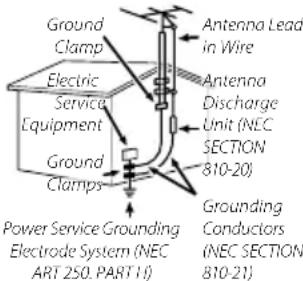
Power Lines: An outside antenna system should not be located in the vicinity of overhead power lines or other electric light or power circuits, or where it can fall into such power lines or circuits. When installing an outside antenna system, extreme care should be taken to from touching lines or circuits as contact with them might be fatal.
Use
Cleaning: Unplug this video product from the wall outlet before cleaning. Do not use liquid cleaners or cleaners. Use a damp cloth for cleaning.
Object and Liquid Entry: Never push objects of any kind into this video product through openings as they may touch dangerous voltage points or short out parts that could result in a fire or electric. Never spill liquid of any kind on the video product.
Lightning: For added protection for this video product receiver during a lightning storm, or when it is left unattended and unused for long periods of time, unplug it from the wall outlet and disconnect the antenna or cable system. This will prevent damage to the video product due to lightning and power-line surges.
Service
Servicing: Do not attempt to service this video product yourself as opening or removing covers may expose you to dangerous voltage or other hazards. Refer all servicing to qualified service personnel.
Damage Requiring Service: Unplug this video product from the wall outlet and refer servicing to qualified service personnel under the following conditions:
- When the power-supply cord or plug is damaged.
• If liquid has been spilled, or objects have fallen into the video product.
- If the video product has been exposed to rain or water.
- If the video product has been dropped or the cabinet has been damaged.
If the video product does not operate normally follow the operating instructions. Adjust only those controls that rare covered by the operating instructions as an improper adjustment of other controls may result in damage and will often require extensive work by a qualified technician to restore the video product to its normal operation power
When the video product exhibits a distinct change in performance—this indicates a need for service.
Replacement Parts: When replacement parts are required, be sure the service technician has used replacement parts specified by the manufacturer or have the same characteristics as the original part. Unauthorized substitutions may result in fire, electric shock or other hazards.
Safety Check: Upon completion of any service or repairs to this video product, ask the service technician to perform safety checks to determine that the video product is in proper operating condition.
Be sure to read these notes before use
Safety Notes
• Make sure that you use your viewer correctly. Read these safety notes and your Owner's Manual carefully before use.
• After reading these safety notes, store them in a safe place.
About the Icons
The icons shown below are used in this document to indicate the severity of the injury or damage that can result if the information indicated by the icon is ignored and the product is used incorrectly as a result.

This icon indicates that death or serious injury can result if the information is ignored.

This icon indicates that personal injury or material damage result if the information is ignored.
The icons shown below are used to indicate the nature of the instructions which are to be observed.

Triangular icons tell you that this information requires attention ("Important").

Circular icons with a diagonal bar tell you that the action indicated is prohibited ("Prohibited").

Filled circles with an exclamation mark indicate an must be performed ("Required").

WARNING

If a problem arises, turn the device off and disconnect and unplug the AC power adapter. Continued use of the device when it is emitting smoke, is emitting any unusual odor, or is in any other abnormal state can cause a fire or electric shock. Contact your dealer.

Do not allow water or foreign objects to enter the device. If water or foreign objects get inside the device, turn the device off and disconnect and unplug the AC power adapter. Continued use of the device can cause a fire or electric shock. Contact your FUJIFILM dealer.
Do not use the device in the bathroom or shower. This can cause a fire or electric shock.

Never attempt to change or take apart the device. (Never open the casing.) Do not use the device when it has been dropped or the casing is damaged. This can cause a fire or electric shock. Contact your FUJIFILM dealer.

Do not change, heat or unduly twist or pull the connection cord and do not place heavy objects on the connection cord. These actions could damage the cord and cause a fire or electric shock. If the cord is damaged, contact your FUJIFILM dealer.

Do not place the device on an unstable surface. This can cause the device to fall or tip over and cause injury.

Never attempt to view pictures while in motion. Do not use the device while you are walking or driving a vehicle. This can result in you falling down or being involved in a traffic accident.
| WARNING | |
| Do not touch any metal parts of the device during a thunderstorm. This can cause an electric shock due to induced current from the lightning discharge. | |
| Do not use the battery except as specified. Load the battery as shown by the indicator. | |
| Do not heat, change or take apart the battery. Do not drop or sub battery to impacts. Do not store the battery with metallic products. Any of these actions can cause the battery to burst or leak and cause fi re or injury as a result. | |
| Use only the AC power adapters specified for use with this device. Do not use voltages other than the power supply voltage shown. The use of other power sources can cause a fi re. | |
| If the battery leaks and fluid gets in contact with your eyes, skin or clothing, flush the affected area with clean water and seek medical attention or call an emergency number right away. | |
| When carrying the battery, install it in the remote control or keep it in a plastic case. When storing the battery, keep it in a plastic case. When disc-carding, cover the battery terminals with insulation tape. Contact with other metallic objects or batteries could cause the battery to ignite or burst. | |
| Keep memory cards out of the reach of small children. Because memory cards are small, they can be swallowed by children. Be sure to store memory cards out of the reach of small children. If a child swallows a memory card, seek medical attention or call an emergency number. | |
| JIFILM | CAUTION |
| Do not use this device in locations affected by oil fumes, steam, humidity ordust. This can cause a fi re or electric shock. | |
| Do not leave this device in places subject to extremely high tempDo not leave the device in locations such as a sealed vehicle or indirect sunlight. This can cause a fi re. | |
| Keep out of the reach of small children. This product could cause injury in the hands of a child. | |
| Do not place heavy objects on the device. This can cause the heavy object to tip over or fall and cause injury. | |
| Do not move the device while the AC power adapter is still connected. Do not pull on the connection cord to disconnect the AC power adapter. This can damage the power cord or cables and cause a fi re or electric shock. | |
| Do not cover or wrap the device or the AC power adapter in a cloth or blanket. This can cause heat to build up and distort the casing or cause a fi re. | |
| When you are cleaning the device or you do not plan to use the device for an extended period, disconnect and unplug the AC power adapter. Failure to do so can cause a fi re or electric shock. | |
| When a memory card is removed, the card could come out of the slot too quickly. Use your fi nger to hold it and gently release the card. | |
| Request regular internal testing and cleaning for the device. Build-up of dust in the device can cause a fi re or electric shock. Contact your FUJIFILM dealer to request internal cleaning every two years. Please note that this service is not free of charge. |
The Battery and Power Supply
The following describes the proper use of the battery and how to prolong its life. Incorrect use can shorten battery life or cause leakage, overheating, fire, or explosion.
Cautions: Handling the Battery
- Do not transport or store with metal objects such as necklaces or hairpins.
- Do not expose to flame or heat.
- Do not disassemble or modify.
- Dispose of used batteries promptly.
- Do not drop or subject to strong physical shocks.
- Do not expose to water.
- Keep the terminals clean.
- The battery and remote control may become warm to the touch after extended use. This is normal.
AC Power Adapters
Use only FUJIFILM AC power adapters designated for use with this device. Other adapters could damage the device.
• The AC power adapter is for indoor use only.
- Be sure the DC plug is securely connected to the device.
- Turn the device off before disconnecting the adapter. Disconnect the adapter by the plug, not the cable.
- Do not use with other devices.
- Do not disassemble.
- Do not expose to high heat and humidity.
- Do not subject to strong physical shocks.
- The AC power adapter may hum or become hot to the touch during use. This is normal.
- If the AC power adapter causes radio interference, reorient or relocate the receiving antenna.
Using the Device
Electrical Interference
This device may interfere with hospital or aviation equipment. Consult with hospital or airline staff before using the device in a hospital or on an aircraft.
Liquid Crystal
In the event that the monitor is damaged, care should be taken to avoid contact with liquid crystal. Take the urgent action indicated should any of the following situations arise:
- If liquid crystal comes in contact with your skin, clean the area with a cloth and then wash thoroughly with soap and running water.
- If liquid crystal enters your eyes, flush the affected eye with clean water for at least 15 minutes and then seek medical assistance.
- If liquid crystal is swallowed, rinse your mouth thoroughly with water. Drink large quantities of water and induce vomiting, then seek medical assistance.
NOTICES
To prevent fire or shock hazard, do not expose the unit to rain or moisture.
Please read the "Safety Notes" (pages iii–iv) and make sure you understand them before using the device.
Perchlorate Material—special handling may apply. See http://www.dtsc.ca.gov/hazardouswaste/perchlorate.
For Customers in the U.S.A.
Tested To Comply With FCC Standards
FOR HOME OR OFFICE USE
FCC Statement
This device complies with Part 15 of the FCC Rules. Operation is subject to the following two conditions: (1) This device may not cause harmful interference, and (2) this device must accept any interference received, including interference that may cause undesired operation.
CAUTION
This equipment has been tested and found to comply with the limits for a Class B digital device, pursuant to Part 15 of the FCC Rules. These limits are designed to provide reasonable protection against harmful interference in a residential installation. This equipment generates, uses, and can radiate radio frequency energy and, if not installed and used in accordance with the instructions, may cause harmful interference to radio communications. However, there is no guarantee that interference will not occur in a particular installation. If this equipment does cause harmful interference to radio or television reception, which can be determined by turning the equipment off and on, the user is encouraged to try to correct the interference by one or more of the following measures:
• Reorient or relocate the receiving antenna.
- Increase the separation between the equipment and receiver.
- Connect the equipment into an outlet on a circuit different from that to which the receiver is connected.
- Consult the dealer or an experienced radio/TV technician for help.
You are cautioned that any changes or modifications not expressly approved in this manual could void the user's authority to operate the equipment.
Notes on the Grant
To comply with Part 15 of the FCC Rules, this product must be used with a FUJIFILM-specified ferrite-core A/V cable, USB cable, and DC supply cord.
For Customers in Canada
CAUTION: This Class B digital apparatus complies with Canadian ICES-003.
EC Declaration of Conformity
We
Name: FUJIFILM Electronic Imaging Europe GmbH
Address: Benzstrasse 2, 47533 Kleve, Germany
declare that the product
Product Name: FUJIFILM DIGITAL VIEWER REAL 3D V1
Manufacturer's Name: FUJIFILM Corporation
Manufacturer's Address: 7-3, AKASAKA 9-CHOME, MINATO-KU, TOKYO 107-0052 JAPAN
conforms to the following Standards:
Safety: EN60950-1: 2006 + A11: 2009
EMC: EN55022: 1998 + A1: 2000 + A2: 2003 Class B
EN55024:1998+A1:2001+A2:2003
EN61000-3-2:2006
EN61000-3-3: 1995 + A1: 2001 + A2: 2005
following the provision of the EMC Directive (2004/108/EC) and Low Voltage Directive (2006/95/EC).

Kleve, Germany August 1, 2009
Place Date Signature, Managing Director
Disposal of Electrical and Electronic Equipment in Private Households
Disposal of Used Electrical and Electronic Equipment (Applicable in the European Union, Norway, Iceland and Liechtenstein)

This symbol on the product, or in the manual and in the warranty, and/or on its packaging indicates that this product shall not be treated as household waste. Instead it should be taken to an applicable collection point for the recycling of electrical and electronic equipment.
By ensuring this product is disposed of correctly, you will help prevent potential negative consequences to the environment and human health, which could otherwise be caused by inappropriate waste handling of this product.

This symbol on the batteries or accumulators indicates that those batteries shall not be treated as household waste.
If your equipment contains easy removable batteries or accumulators please dispose these separately according to your local requirements.
The recycling of materials will help to conserve natural resources. For more detailed information about recycling this product, please contact your local city office, your household waste disposal service or the shop where you purchased the product.
In Countries Outside the European Union, Norway, Iceland and Liechtenstein
If you wish to discard this product, including the batteries or accumulators, please contact your local authorities and ask for the correct way of disposal.
Notes on Copyright
Unless intended solely for personal use, images displayed on your digital viewer cannot be used in ways that infringe copyright laws without the consent of the owner. Note that some restrictions apply to the photographing of stage performances, entertainments, and exhibits, even when intended purely for personal use. Users are also asked to note that the transfer of memory cards containing images or data protected under copyright laws is only permissible within the restrictions imposed by those copyright laws.
Trademark Information
xD-Picture Card is a trademark of FUJIFILM Corporation. Microsoft, Windows, the Windows logo, Windows Vista and the Windows Vista logo are trademarks or registered trademarks of Microsoft Corporation in the United States and/or other countries. "Windows" is an abbreviation used in reference to the Microsoft Windows operating system. Adobe and Adobe Reader are either trademarks or registered trademarks of Adobe Systems Incorporated in the U.S.A. and/or other countries. The SDHC logo is a trademark. All other trade names mentioned in this manual are the trademarks or registered trademarks of their respective owners.
Note: The "Designed for Microsoft® Windows® XP" and " CERTIFIED FOR Windows Vista™" logos apply only to the viewer and viewer hardware driver.
Find items by task.
Viewing Pictures
| Question | Key phrase | See page |
| How do I view 3D pictures? | Viewing 3D images | 17 |
| How do I adjust parallax? | ||
| How do I view a lot of pictures at once? Multi-frame playback 16 | ||
| How do I find pictures? | Multi-frame playback 16 | |
| Image search 18 | ||
| Can I view my pictures in a slide show? Slide show 12 | ||
| Can I choose how long each slide is displayed? Slide show time/frame 22 | ||
| Can I select just one picture for display? Single image 14 | ||
| Can I enlarge part of a picture for display? | Playback zoom 15Can I choose the area | |
| How do I display pictures at their original size? | ||
| Can I rotate pictures? Orientation 22 | ||
| Can I display the time or date? | Clock/calendar 19 | |
Other Operations
| Question | Key phrase | See page |
| What are the parts of the viewer and remote control called? | Parts | 3 |
| How do I delete pictures? | Erase | 20 |
| How do I set the clock? | Date/time | 10 |
| How do I restore factory settings? | Reset | 22 |
| Can I copy pictures from a camera or other device via infrared? | Infrared (IR) | 23 |
| Can I connect to a computer and copy pictures via USB? | Connecting to a computer | 24 |
| How do I change viewer settings? | Setup | 21 |
Table of Contents
For Your Safety....ii
IMPORTANT SAFETY INSTRUCTIONS......ii
Safety Notes......iii
NOTICES iv
Viewer Q & A....vi
Viewing Pictures....vi
Other Operations ......vi
Before You Begin
Viewing 3D Images ....1
Getting Started....2
Symbols and Conventions....2
Package Contents....2
Parts of the Viewer and Remote Control....3
First Steps
Readying the Remote Control....5
Replacing the Battery 6
Attaching the Stand 7
Inserting Memory Cards......8
Turning the Viewer On 9
Basic Setup....10
Viewing Pictures
Slide Shows....12
Choosing a Slide Show Type....12
Displaying Selected Images....14
Playback Zoom 15
Multi-Frame Playback 16
Viewing 3D Images....17
More Menu Options
IMAGE SEARCH....18
CLOCK/CALENDAR 19
ERASE 20
SET-UP....21
Setup Menu Options 22
Connections
Copying Pictures via Infrared....23
Connecting to a Computer 24
Installing FinePixViewer....24
Copying Pictures to the Viewer 25
Troubleshooting
Troubleshooting....26
Appendix
Glossary....28
Memory Cards....29
Specifications 30
FUJIFILM Worldwide Network 31
Viewing 3D Images
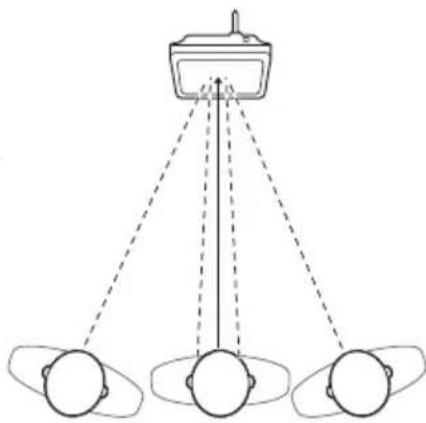
The FinePix REAL 3D V1 displays 3D photographs taken with cameras such as the FinePix REAL 3D W1 (pg. 17). 3D images are best viewed from a position directly in front of the screen (or, if more than one person is present, slightly to one side) at a distance of about 60 cm (2 ft.).
natural_image
Diagram showing three human heads with dashed lines indicating distance or alignment, no text or symbols present
3D Display
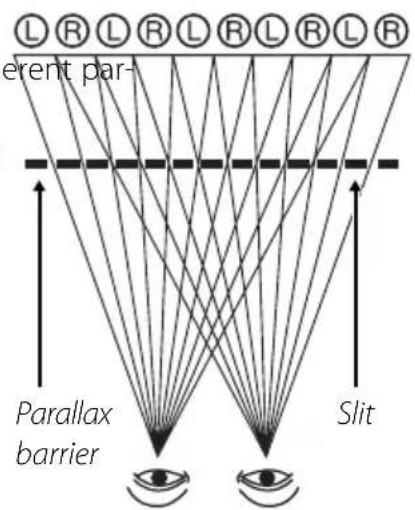
The FinePix REAL 3D V1 uses a parallax barrier consisting of a series of slits placed over a pair of images with diff allax displayed in a series of alternating strips, allowing each eye to see a different image and creating the illusion of depth when the screen is viewed at the proper angle and distance. A consequence of this is that the 3D effect is only visible from certain angles.

Caution: Using the FinePix REAL 3D V1
2D display is recommended for young children (up to the age of about six) whose visual system is still maturing and for individuals with notable differences in vision between their two eyes, who may find it difficult or impossible to observe the 3D effect. The 3D effect is only visible from certain angles and may not be visible at high magnifications. Should you experience fatigue or discomfort while viewing 3D images, cease use immediately. A ten-minute break is recommended about once every half hour. Switch to 2D immediately if 3D images still appear double after you have adjusted parallax. Individuals with a history of photosensitive epilepsy or heart disease or who are unwell or suffering from fatigue, insomnia, or the effects of alcohol should refrain from viewing 3D images. Viewing 3D images while in motion may cause fatigue or discomfort.
Getting Started
Before using the FinePix REAL 3D V1 digital viewer, read the warnings on pages ii–v and take a few minutes to familiarize yourself with the terms and conventions used in this manual. For information on specific topics, consult the sources below.
√ Viewer Q & A (pg. vi)
Know what you want to do know the name for it? Find the answer in "Viewer Q & A."
√ Table of Contents (pg. vii)
b The "Table of Contents" gives an overview of the entire manual. The principal digital viewer operations are listed here.
√ Troubleshooting (pg. 26)
Having a specific problem with the digital viewer? Find the answer here.
√ Glossary (pg. 28)
The meanings of some technical terms may be found here.
Symbols and Conventions
The following symbols are used in this manual:
Caution: This information should be read before use to ensure correct operation.
Note: Points to note when using the device.
Tip: Additional information that may be helpful when using the device.
Menus and other text in the display are shown in bold. In the illustrations in this manual, the display may be simplified for explanatory purposes.
Package Contents
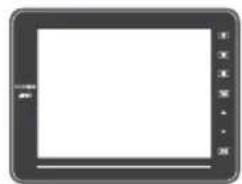
Before using the viewer, confirm that the package contains these items:
natural_image
Front view of a tablet device with blank screen and control buttons (no text or symbols visible)FinePix REAL 3D V1 digital viewer
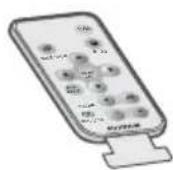
Remote control
(ships with battery installed)
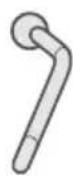
Stand
natural_image
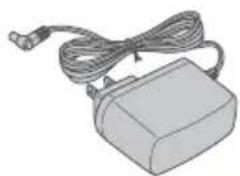
Illustration of a rectangular electronic device with a coiled cable and connector (no text or symbols)AC power adapter Software CD

- USB cable
- Warranty
- Owner's Manual (this manual)
Memory Cards
This product supports xD-Picture Card, and SD and SDHC memory cards. In this manual, these are referred to as "memory cards." For more information, see page 29.
Parts of the Viewer and Remote Control
The same numbers are used for controls that appear both on the viewer and the remote. Unless otherwise noted, the controls on the remote perform the same functions as those on the viewer; the descriptions in this manual generally refer to the remote.
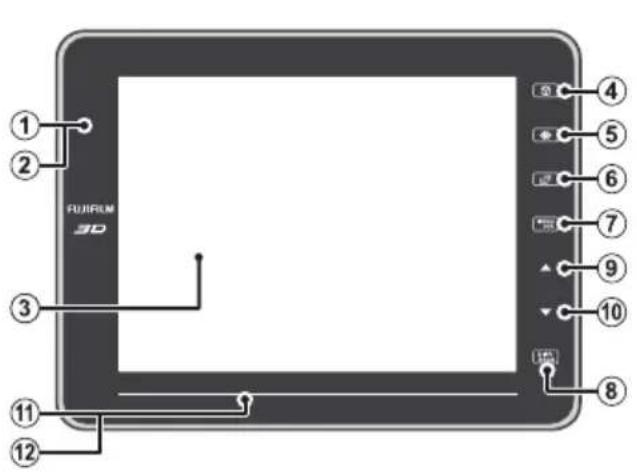
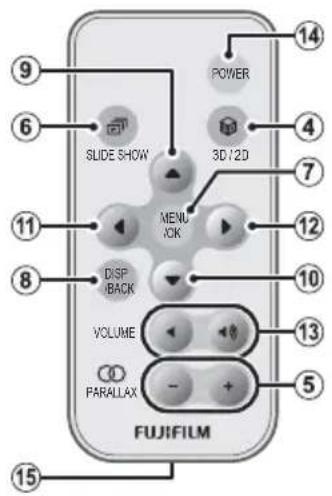
| No. | Viewer (front view) | Remote control | Page |
| 1 | Infrared receiver (for remote control) — 5 | ||
| 2 | Infrared data port (for data transfer) — 23 | ||
| 3 | Display — — | ||
| 4 | (3D/2D) button | 3D/2D button | 17 |
| 5 | (parallax) button | PARALLAX (+/-) buttons | 17 |
| 6 | (slide show) button | SLIDE SHOW button | 12 |
| 7 | MENU / OK button MENU/OK button 10 | ||
| 8 | DISP/BACK button | DISP/BACK button | 15 |
| 9 | ▲ button | ▲ button | 10 |
| 10 | ▼ button | ▼ button | |
| 11 | Touch bar (left/right) | ▲ button | |
| 12 | ▲ button | ||
| 13 | — | VOLUME (//·) buttons | — |
| 14 | (See back view) | POWER button | 9 |
| 15 | — | Battery holder | 6 |
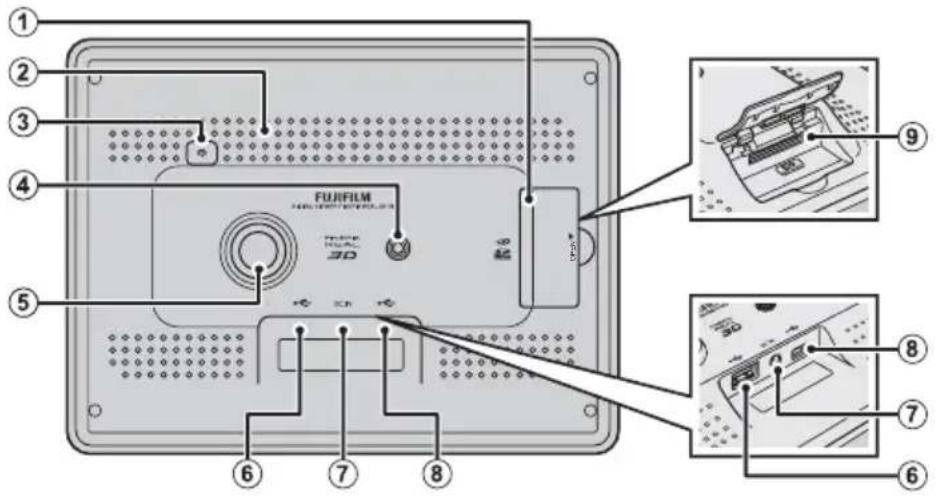
| No. | Viewer (back view) | Page |
| 1 | Memory card slot cover 8 | |
| 2 | Stereo speakers — | |
| 3 | ( power ) button | 9 |
| 4 | Tripod mount 7 | |
| 5 | Hole for stand 7 | |
| 6 | USB host connector — | |
| 7 | Connector for AC power adapter 9 | |
| 8 | Mini-B USB connector 25 | |
| 9 | Memory card slot 8 |
Readying the Remote Control
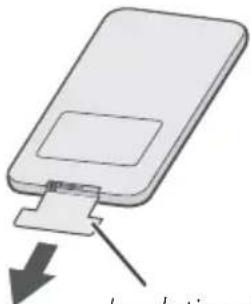
A battery is inserted in the remote control at shipment. Before using the remote control, remove the plastic insulating sheet from the battery chamber.

Note
The battery supplied with the remote control is intended for trial use only. Replace the battery as described on page 6 if the remote control does not function as expected.
natural_image
Diagram of a device with a download arrow and label 'Novelating' (no other text or symbols)Insulating sheet

Using the Remote
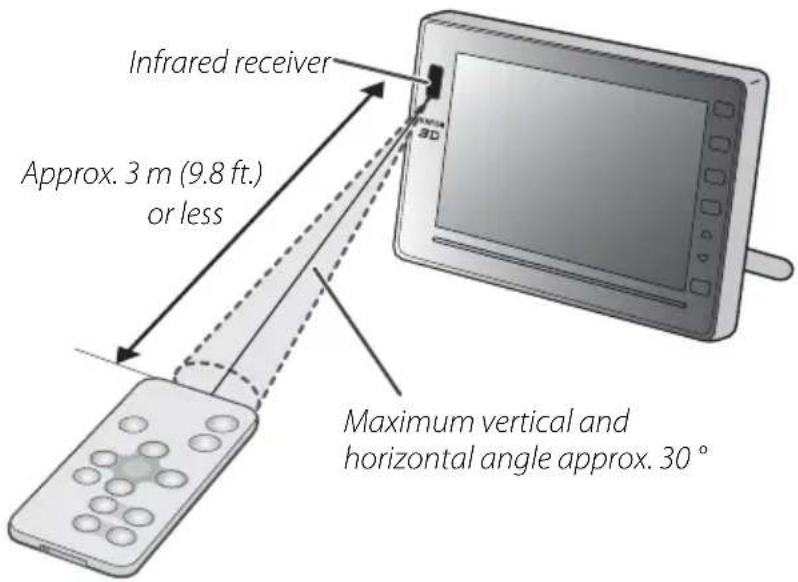
Point the remote at the infrared receiver on the digital viewer.

Caution
Do not place stickers or other obstructions over the infrared receiver.
Replacing the Battery
If the remote control does not function as expected, replace the battery with a fresh CR2025 battery (available separately from third-party suppliers).
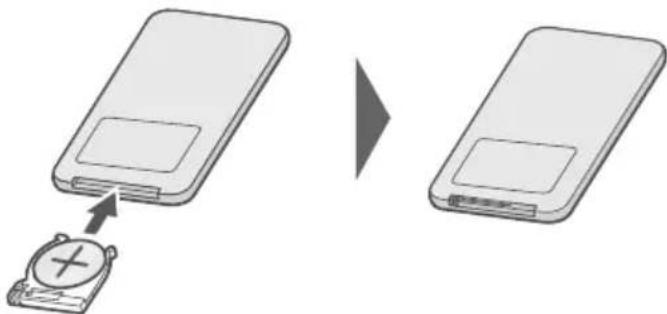
1 Turn the remote control over and remove the battery holder.
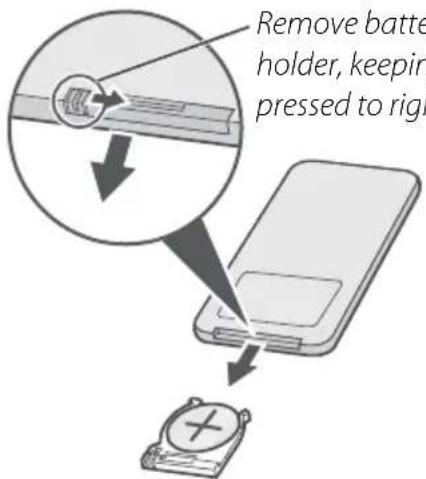
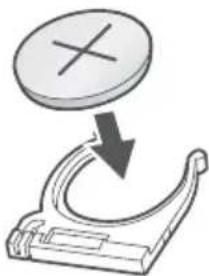
2 Remove the old battery from the holder and insert a fresh battery as shown, with the "+" indicator uppermost.
natural_image
Diagram showing a circular object with an 'X' symbol above a curved mechanical component (no text or labels)Caution
Insert the battery in the correct orientation.
3 Slide the holder into the remote control until the latch clicks into place.
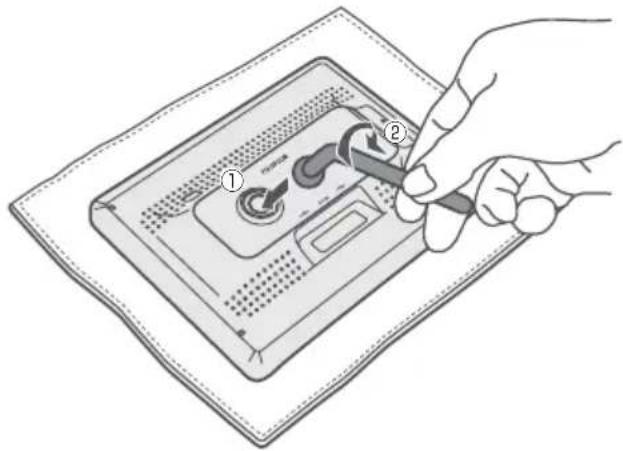
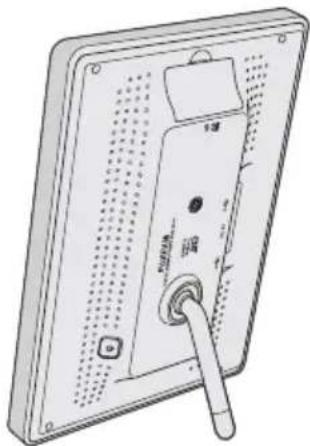
Attach the stand to the frame.
1 Place a towel or other soft cloth on a level surface such as a table and place the viewer face down on the cloth.
2 Gently screw the stand into the hole on the back of the viewer as shown.
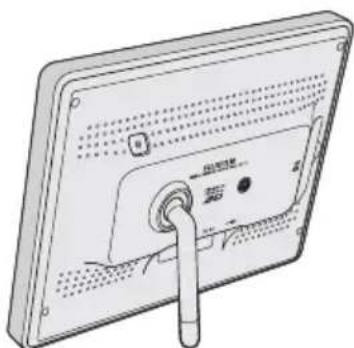
3 Stand the viewer as shown.
natural_image
Diagram of a flat-screen monitor with a cable inserted into the front panel (no text or symbols visible)Wide orientation Tall orientation
natural_image
Back view of a flat-screen electronic device with a USB port and indicator lights (no text or symbols visible)Note
The stand can be used in tall orientation when viewing 2D images, but must be in wide orientation to provide a 3D effect with 3D images. Tall orientation pictures can be rotated for display in wide orientation using the ORIENTATION option in the setup menu.
Caution
The viewer should only be used on a table or other fl at horizontal surface; do not hang the viewer from a picture hook or mount it on a wall or other vertical surface using double-faced tape.
Tip: The Tripod Mount
The viewer can also be placed on a tripod using the tripod mount.
Inserting Memory Cards
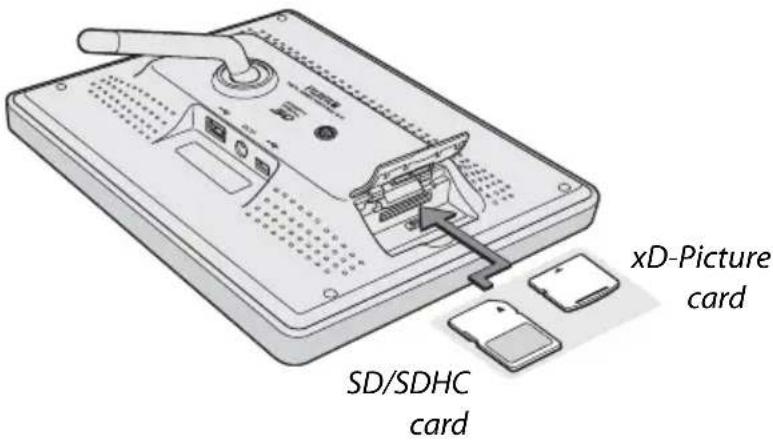
The viewer can be used with the memory cards listed on page 29 (for information on supported file formats, see page 30). Before inserting memory cards into the viewer, be sure to copy any important files to a computer. To insert a memory card:
1 Open the card slot cover.
Note
The viewer turns off automatically when the cover is opened.
2 Holding the memory card as shown by the indicator next to the memory card slot, slide the card in until it clicks into place.
Caution
Be sure the card is in the correct orientation; do not insert it at an angle or use force.
Note
The viewer may be unable to display fi les that have been modifi ed with a computer.
Removing Memory Cards
Open the card slot cover, gently press the card in, and release it slowly.
Caution
The memory card may spring out if you remove your finger immediately after pushing the card in.
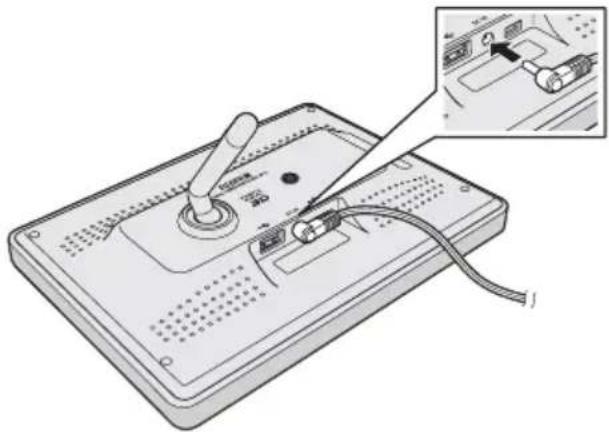
Connect the supplied AC power adapter and turn the viewer on.
1 Connect the AC power adapter to the viewer as shown and then plug the adapter into a power outlet.
natural_image
Illustration of a handheld electronic device with a scroll wheel and cable, showing internal components (no text or symbols)Caution
Use only the supplied AC power adapter. Do not use the viewer with other power adapters.
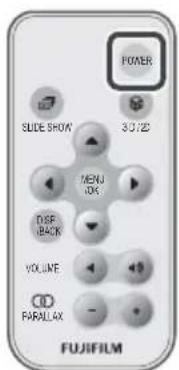
2 Press the power button to turn the viewer on. A welcome screen will be displayed and then a slide show will begin automatically, accompanied by background music.
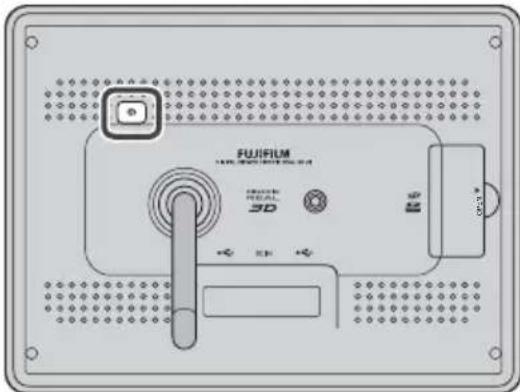
Notes
- If no pictures are available when the viewer is turned on, either because the memory card inserted in the viewer contains no pictures or there are no pictures in internal memory when no memory card is inserted, the main menu (pg. 10) will be displayed.
• To turn the viewer off, press the power button again.
Demo Images and Background Music
The viewer ships with a slide show in internal memory consisting of demo images illustrating some of the product's key features and accompanied by a background track. If no memory card is inserted when the viewer is turned on, the demo slide show will begin automatically (if a memory card is inserted, the viewer will instead display the images on the memory card). The sound track can be turned off by selecting OFF for MUSIC in the SLIDE SHOW menu (pg. 13); the images in the demo slide show can be deleted as described on page 20.
Before using the viewer for the first time, choose a language and set the clock. Setting the clock to the correct time and date makes it possible to use the clock calendar display (pg. 19).
1 Press MENU/OK to display the main menu.
| Option | Description |
| SLIDE SHOW View slide shows (pg. 12). | |
| SINGLE IMAGE Display a selected picture (pg. 14). | |
| IMAGE SEARCH Find pictures (pg. 18). | |
| CLOCK/CALENDAR Choose a clock calendar display (pg. 19). | |
| EDIT Delete pictures (pg. 20). | |
| SET-UP Adjust viewer settings (pg. 21). | |
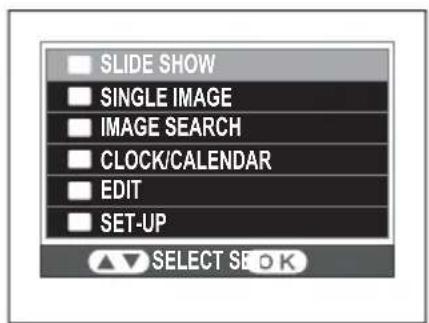
2 Press ▲ or ▼ to highlight SET-UP and press MENU/OK.
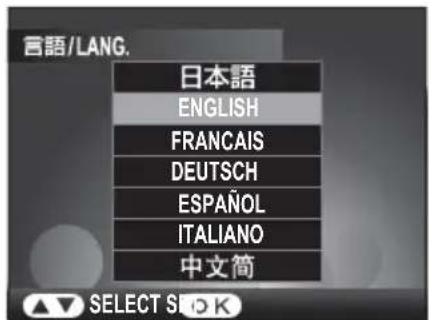
3 Press ▲ or ▼ to highlight 言語/LANG. and press MENU/OK to display the options shown at right.
4 Press ▲ or ▼ to highlight the desired language and press MENU/OK to return to the setup menu.
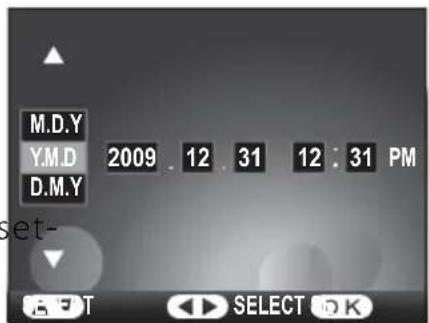
5 Press ▲ or ▼ to highlight DATE/TIME and press MENU/OK to display the options shown at right.
6 Press ◀ or ▶ to highlight the year, month, day, hour, minute, or date format and press ▲ or ▼ to change. Press MENU/OK to return to the setup menu when tings are complete.
7 Press DISP/BACK once to exit the setup menu and again to exit the main menu.
Tip: Viewing the Time and Date
The current date and time are displayed in the viewer when an option other than OFF is selected for CLOCK in the CLOCK/CALENDAR menu (pg. 19).
Note
The clock will be reset if the viewer is without power for an extended period.
Slide Shows
A slide show will begin automatically when the viewer is turned on (pg. 9). If no memory card is inserted, the pictures in internal memory will be displayed (a demo slide show will be displayed if internal memory contains no other pictures); if a memory card is inserted, the pictures on the memory card will be displayed. A slide show can also be displayed by pressing the ▶ button on the viewer or remote control or by selecting PLAYBACK for SLIDE SHOW in the main menu.
Note
The length of time each slide is displayed can be selected using the SLIDESHOW TIME/FRAME option in the setup menu (pg. 22).
Choosing a Slide Show Type
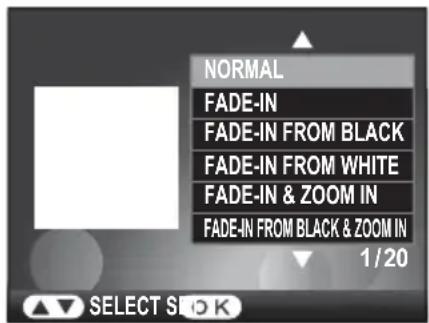
The type of show can be changed by pressing ☑ while a slide show is in progress.
1 Press the ☑ button while a slide show is in progress. A mode selection menu will be displayed.
2 Press ▲ or ▼ to highlight TYPE and press MENU/OK. The options shown at right will be displayed.
3 Press ▲ or ▼ to highlight the desired type and press MENU/OK to restart the slide show.
Note
The slide show type can also be selected using the SLIDE SHOW option in the main menu.

Choosing a Background Track
The viewer ships with a selection of pre-recorded music tracks in internal memory and can also play MP3 files stored on memory cards. To play custom tracks while viewing a slide show of the pictures on a memory card, copy MP3 files to the card before inserting the card in the viewer. The pre-recorded tracks in internal memory will be used only if no memory card is inserted. The music played during a slide show can be selected using the SLIDE SHOW > MUSIC option in the main menu.
| Option | Description |
| OFF Background music off. | |
| ALL Play all tracks in order. | |
| SHUFFLE Play all tracks in random order. | |
| SINGLE SONG Play a selected track. | |

Note
Other than the background tracks that are installed at shipment, music files can not be stored in internal memory. Music tracks can not be copied from a memory card to internal memory.
Displaying Selected Images
To use the viewer as a picture frame displaying one or more selected images in place of a slide show, select SINGLE IMAGE in the main menu. You can enlarge images and choose the area displayed (pg. 15) or display several pictures at once (pg. 16).
1 Press MENU/OK to display the main menu.
2 Press ▲ or ▼ to highlight SINGLE IMAGE and press MENU/OK.
3 A picture will be displayed in the viewer. Press ◀ or ▶ to scroll through the images on the memory card (or, if no memory card is inserted, the images in internal memory) until the desired picture is displayed.

natural_image
Black-and-white photo of a smiling child wearing a cap, outdoors with blurred foliage background (no text or symbols visible)Tip: Playback Options
To enlarge the current image (pg. 15), press ▲. Press DISP/BACK to view smaller thumbnails of multiple images (pg. 16). To return to the main menu (pg. 10), press MENU/OK. If a 3D image is displayed, you can adjust parallax by pressing the ∞ (+/-) buttons (pg. 16).
Playback Zoom
Press ▲ to zoom in on the picture currently displayed in the viewer; press ▼ to zoom out.
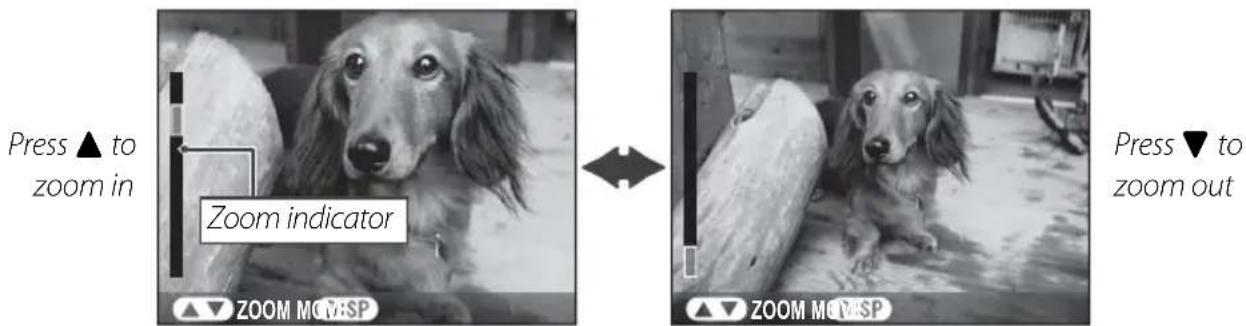
To view areas of the image not currently visible in the display, press DISP/BACK and use the ▲, ▼, ◀, and ▶ buttons to scroll the image. The navigation window shows the portion of the image currently visible in the viewer. Press DISP/BACK as necessary to switch back and forth between scroll and zoom.
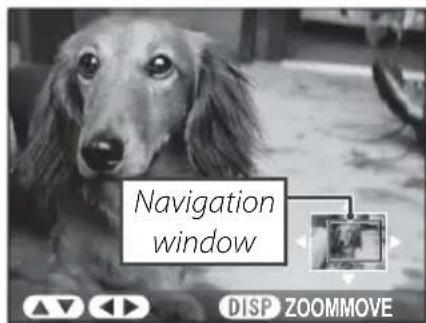
Press MENU/OK to exit zoom.
Multi-Frame Playback
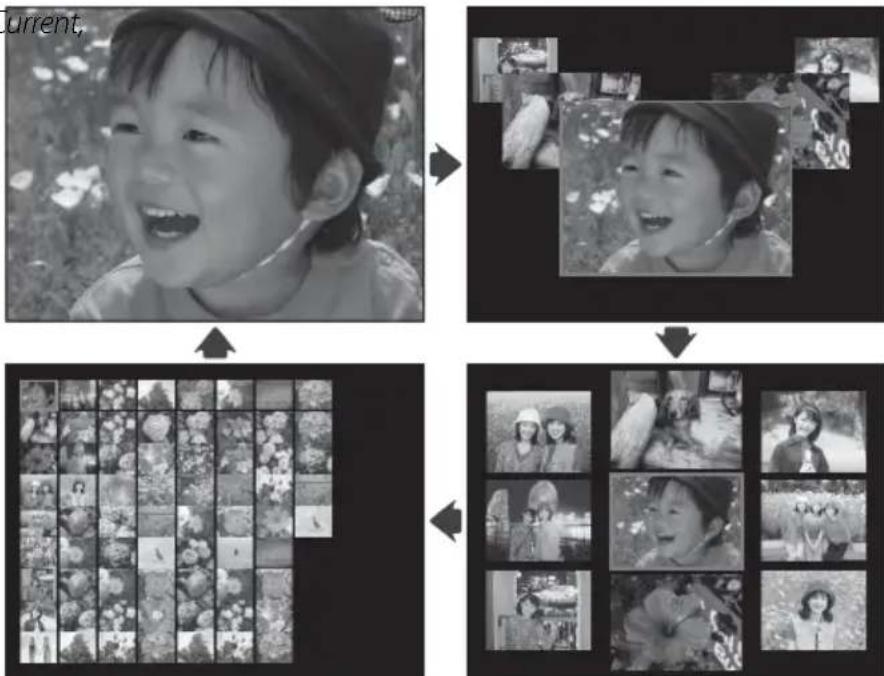
Press DISP/BACK to choose the number of images displayed. The number of images changes each time the DISP/BACK button is pressed.
Single frame Current,
flowchart
graph TD
    A["Current, bright child"] --> B["Image 1: a smiling child with flowers"]
    B --> C["Image 2: a smiling child with flowers"]
    C --> D["Image 3: a sequence of portrait images"]
    D --> E["Final Output: multiple portrait images with varying visual densities"]
previous, and next frames
Nine frames
One hundred frames
Use the ▲, ▼, ◀, and ▶ buttons to highlight images and press MENU/OK to view the highlighted image full frame.
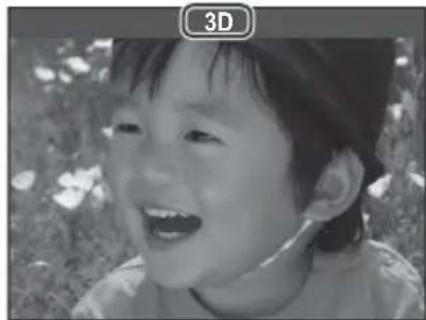
Press the 📄 button to switch between 3D and 2D. In 3D mode, 3D is displayed in the monitor and 3D images are displayed in 3D (2D pictures will still be displayed in 2D). The 3D effect is only visible when the viewer in wide orientation (horizontal).
natural_image
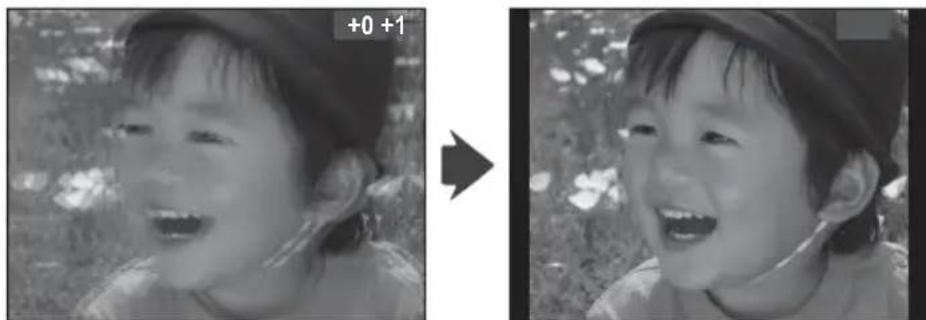
Black-and-white photo of a smiling child outdoors, no visible text or symbolsTo adjust parallax for 3D images, press the Ⓐ (+/-) buttons on the remote control. Note that adjusting parallax reduces horizontal frame coverage; the new crop is shown by black borders in the display.
natural_image
Black-and-white photo sequence showing a smiling child in outdoor setting, no text or symbols presentCautions
- Switch to 2D if 3D images still appear double after you have adjusted parallax.
- The 3D effect is only visible from certain angles (pg. 1). Too much parallax may make it impossible to perceive the 3D effect.
Note
3D display is available with pictures taken with FUJIFILM 3D cameras only. 3D images created with other devices will be displayed in 2D.
Search for pictures by date, subject, scene, folder, or fi le type. This option can be used to help find a specific picture for picture frame display or to create slide shows consisting only of pictures that match your search conditions.
1 Press MENU/OK to display the main menu.
2 Press ▲ or ▼ to highlight IMAGE SEARCH and press MENU/OK.
3 Press ▲ or ▼ to highlight one of the following options and press MENU/OK to select:
| Option | Description |
| ALL View all pictures. | |
| BY DATE View all pictures taken on a selected date. | |
| BY_SCENE | View all photos taken at a specifi ed scene (SP) setting (see the camera manual for details). |
| BY_FOLDER View all pictures in a selected folder. | |
| BY_TYPE View all pictures of a specifi ed fi le type. | |
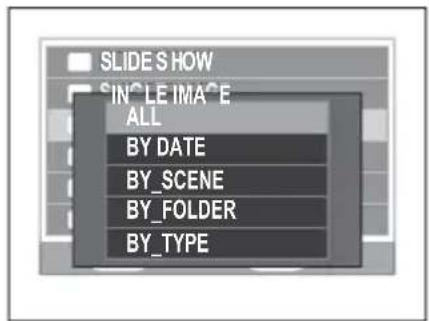
4 Press ▲ or ▼ to select the desired search conditions.
5 To select a specific image for picture frame display, press ◀ or ▶ to highlight the desired picture and press MENU/OK (to change the search conditions, press ▲ or ▼). To display all the images that match the search conditions in a slide show, press the button.
Choose the type of clock or calendar displayed in the viewer during slide shows or in single-frame playback. Note that the clock calendar can not be rotated for display when the viewer is in tall (vertical) orientation.
1 Press MENU/OK to display the main menu.
2 Press ▲ or ▼ to highlight CLOCK/CALENDAR and press MENU/OK.
3 Press ◀ or ▶ to highlight the clock or calendar and press ▲ or ▼ to choose a display format for the selected item.
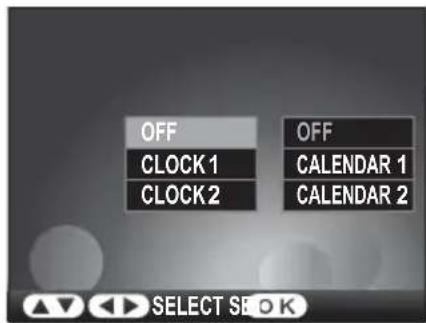
4 Press MENU/OK to preview your selection in the display.
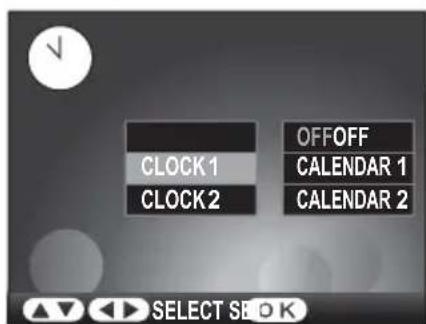
5 Press MENU/OK to return to the main menu.
Note
For information on setting the clock to the correct time and date, see page 10. To choose the position in which the time and date are displayed, use the SET CLOCK/CALENDAR POSITION item in the setup menu (pg. 22).
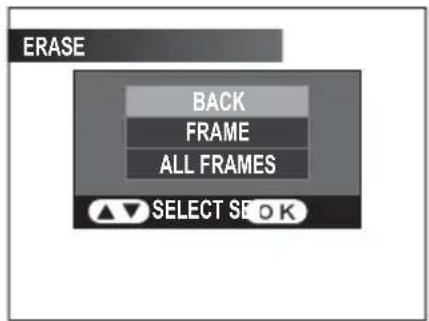
To delete pictures from internal memory or a memory card, select EDIT in the main menu. Note that deleted pictures can not be recovered. Copy important pictures to computer or other storage device before proceeding.
1 Press MENU/OK to display the main menu.
2 Press ▲ or ▼ to highlight EDIT and press MENU/OK.
3 Press ▲ or ▼ to highlight one of the following options and press MENU/OK to select:
• FRAME: Delete the current picture.
- ALL FRAMES: Delete all pictures.
Tip: Deleting Pictures
When a memory card is inserted, pictures will be deleted from the memory card; otherwise, pictures will be deleted from internal memory.
Adjust a variety of viewer settings.
1 Press MENU/OK to display the main menu.
2 Press ▲ or ▼ to highlight SET-UP and press MENU/OK.
3 Press ▲ or ▼ to highlight an item and press MENU/OK to select.
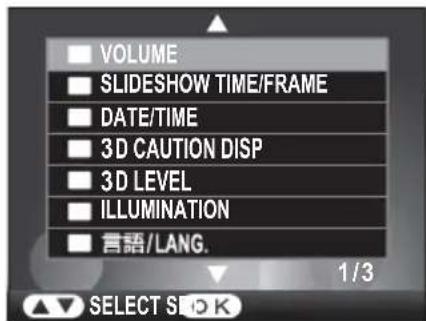
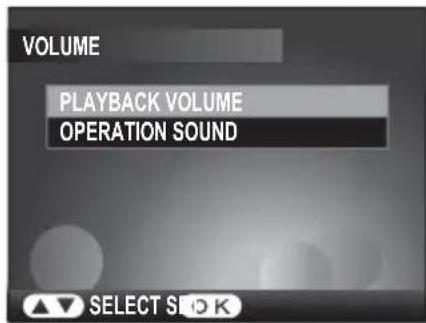
4 Press ▲ or ▼ to highlight an option or adjust settings and press MENU/OK to return to the setup menu.
Setup Menu Options
| Menu item | Description | Default |
| VOLUME Adjust volume. | 7/♪1 | |
| SLIDESHOW TIME/FRAME | Choose how long each slide is displayed during a slide show. | 3 SEC |
| DATE/TIME Set the clock (pg) | 10). — | |
| 3D CAUTION DISP | Disable 3D to prevent fatigue or display a warning after prolonged use. Choose 30 MIN to display a warning after 30 minutes of continuous 3D display (measured from when this option is selected or the start of 3D display), NOT 3D to disable 3D, or OFF to enable 3D with no warning after prolonged use. | 30 MIN |
| 3D LEVEL | Choose the amount of 3D effect in the setup menu. | LEVEL2 |
| ILLUMINATION | Choose whether the viewer controls are illuminated. | OPERATING ONLY |
| 言語/LANG. | Choose a language (pg. 10). ENGLISH | |
| LCD BRIGHTNESS | Adjust display brightness. | 0 |
| CONTRAST Adjust contrast. | 0 | |
| SATURATION | Adjust the saturation (vividness) of colors. | 2 |
| COLOR | Adjust hue. | 0 |
| GAMMA | Adjust display gamma. | 0 |
| DISP. SETTING | Choose the aspect ratio at which photos with a 16:9 aspect ratio are displayed when FULL SCREEN is selected for 3 DISP. SETTING (if IMAGE SIZE is selected for 3 DISP. SETTING, photos with a 16:9 aspect ratio will be displayed in letter-box format). Choose FULL IMAGE to fit the image to the screen, FILL SCREEN to magnify the image so that the center fills the screen and the right and left sides are cropped out. | FULL IMAGE |
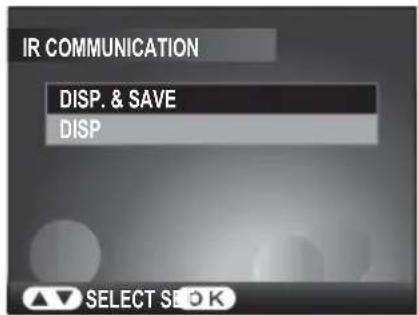
| IR COMMUNICATION | Choose the action performed when an image is received via infrared. | DISP |
| FIRM. VERSION Display the current firmware version. — | ||
| SET CLOCK/CALENDAR POSITION | Choose the position of the clock and calendar in the display (pg. 10). | CLK: UPPER LEFT CAL: UPPER RIGHT |
| ORIENTATION | Rotate "tall" images. | STD |
| AUTO ROTATE PB | Use the image orientation information in image files to automatically display pictures in the correct orientation. | ON |
| DISP. SETTING | Automatically enlarge images to fill the viewer. | IMAGE SIZE |
| SORTING TYPE | Choose the order in which images are listed. | DATE CREATED, ASCENDING |
| RESET | Reset all settings except DATE/TIME to default values. | — |
Copying Pictures via Infrared
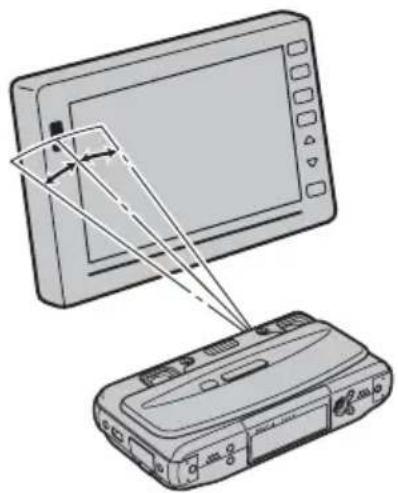
Pictures can be copied to internal memory from compatible devices when the viewer is in single-image display mode. The viewer will automatically receive pictures transferred from the device; no other operation is required.
1 Place the viewer about 5 to 20 cm (2 to 8 in.) from the other device with the infrared ports pointing directly at each other. The ports should be at no more than a 15^ angle.
2 Transmit pictures from the other device (see the manual supplied with the device for details). The viewer will display a message stating that it is receiving data via infrared and pictures will be displayed in the viewer as they are received.
natural_image
Illustration of a computer monitor and a desktop device with cables, no text or symbols presentCaution
If no pictures are received, make sure that there are no obstacles between the two devices and that the infrared ports are correctly aligned and are not in direct sunlight or directly under a fluorescent light. Remote controls and other infrared devices and equipment that generates electrical noise may interfere with transmission.
Saving Transferred Pictures
If DISP. & SAVE is selected for IR COMMUNICATION in the setup menu (pg. 22), transferred pictures will automatically be saved in internal memory after being displayed in the viewer.
Connecting to a Computer
The supplied FinePixViewer software can be used to copy pictures between the viewer and a computer. It can also be used to view, organize, and print pictures stored on the computer, to create two JPEG images from a multi-picture file, or to create a multi-picture file from two JPEG images. Before proceeding, install FinePixViewer as described below. Do not connect the viewer to the computer before installation is complete.
Installing FinePixViewer
1 Confirm that the computer meets the following system requirements:
| OS | Preinstalled versions of Windows Vista, Windows XP Home Edition (Service Pack 2), or Windows XP Professional (Service Pack 2) |
| Other Built-in USB port recommended. Operation is not guaranteed with other USB ports. | |
Caution
For information about Windows 7, visit http://www.fujifilm.com/support/download/camera/software/. Other versions of Windows are not supported. Operation is not guaranteed on home-built computers or computers that have been upgraded from earlier versions of Windows.
2 Start the computer. Log in to an account with administrator privileges before proceeding.
3 Exit any applications that may be running and insert the installer CD in a CD-ROM drive.
Windows Vista
If an AutoPlay dialog is displayed, click SETUP.exe. A "User Account Control" dialog will then be displayed; click Allow.
The installer will start automatically; click Installing FinePixViewer and follow the on-screen instructions to install FinePixViewer. Note that the Windows CD may be required during installation.
4 When prompted, remove the installer CD from the CD-ROM drive and click Restart to restart the computer. Store the CD in a dry location out of direct sunlight in case you need to re-install the software. The version number is printed at the top of the CD label for reference when updating the software or contacting customer support.
Copying Pictures to the Viewer
1 Turn the viewer off and connect the supplied USB cable as shown, making sure the connectors are fully inserted (the orientation and location of the computer connector may differ from that shown; consult the computer manual for details). Connect the viewer directly to the computer; do not use a USB hub or keyboard.
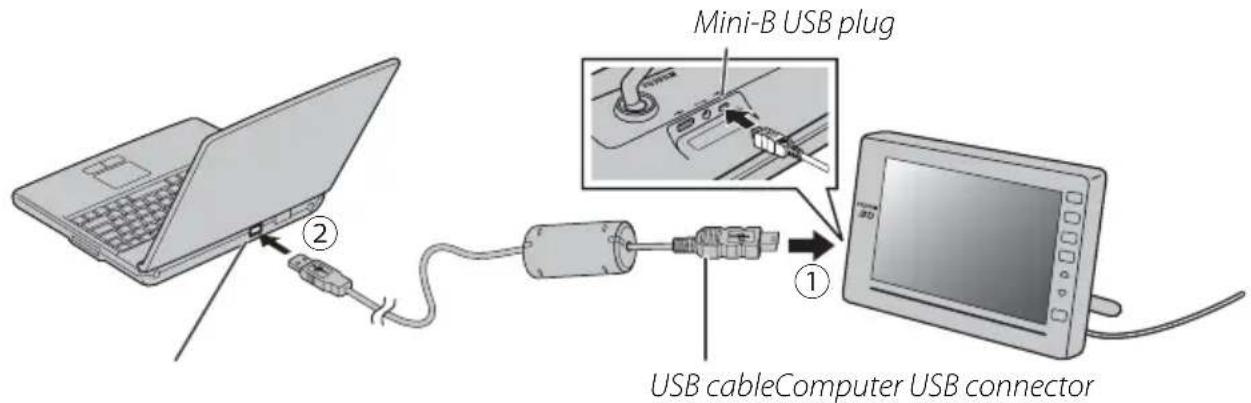
Caution
Do not connect the cable while the viewer is on.
2 Turn the viewer on and follow the on-screen instructions to copy pictures.
Notes
- The computer may require some time to register the viewer with the system the first time it is connected.
- Viewer controls can not be used while the viewer is connected to a computer.
3 When transfer is complete, follow the on-screen instructions to turn the viewer off and disconnect the USB cable.
Caution
Do not disconnect the cable during transfer. Failure to observe this precaution could result in loss of data.
Uninstalling FinePixViewer
Only uninstall FinePixViewer before reinstalling the software or when it is no longer required. After quitting FinePixViewer and disconnecting the viewer, open the control panel and use "Programs and Features" (Windows Vista) or "Add or Remove Programs" (other versions of Windows) to uninstall FinePixViewer, FinePix Resource, and FinePix Studio. One or more confirmation dialogs may be displayed; read the contents carefully before clicking OK.
Troubleshooting
Power
| Problem | Possible cause | Solution | Page |
| The viewer does not turn on. | The AC power adapter is not correctly connected. | Check the connection. 9 | |
| The viewer turns off unexpectedly. | The memory card slot cover is open. Close the memory card slot cover. 8 |
■ Viewing Pictures
| Problem | Possible cause | Solution | Page |
| No pictures are displayed. | The memory card is not correctly inserted. | Insert the memory card in the correct orientation. | 8 |
| The memory card or internal memory contain no pictures. | Insert a memory card containing pictures or copy pictures to the viewer via USB or infrared. | 8, 23–25 | |
| Unsupported image file format. Use a supported format. 30 | |||
| The pictures have been modified on a computer. | Pictures that have been modified on a computer may not display correctly. | 8 | |
| Cannot find picture. | The picture has been modified on a computer. | The viewer may fail to read files that have been modified on a computer. | 8 |
■ Copying Pictures
| Problem | Possible cause | Solution | Page |
| Cannot copy data to or from memory card. | Pictures can not be copied directly between internal memory and a memory card inserted in the viewer. | — | — |
■ Connections
| Problem | Possible cause | Solution | Page |
| Computer can not detect internal memory. | The USB cable is not correctly connected. | Check the connection. | 25 |
| The computer does not meet the system requirements for FinePixViewer. | Use a computer that meets the system requirements. | 24 |
Miscellaneous
| Problem | Possible cause | Solution | Page |
| Remote control has no effect. | The battery is exhausted. Insert a fresh battery. 6 | ||
| Clock has been reset. | Power has been interrupted for an extended period. | Connect the AC power adapter and reset the clock. | 9, 10 |
Glossary
Exif: A digital camera image file format that stores information on the time of recording, resolution, camera orientation, and the type of device used to record the image. The data recorded also include the thumbnails displayed in the viewer during multi-frame playback.
JPEG (Joint Photographic Experts Group): A compressed file format for color images. The higher the compression rate, the greater the loss of information and the more noticeable the drop in quality when the picture is displayed.
Multi-picture format: An image file format approved by the Camera and Imaging Products Association (CIPA) that allows multiple images to be stored in a single file. Multi-picture files have extension "*.MPO".
Parallax: Changes in the apparent position and orientation of a subject when viewed from different angles.
Slide show: A series of images (slides) displayed one after the other, sometimes with transition effects between slides.
Memory Cards
The following memory cards had been tested and approved for use with this viewer:
| Type | Capacity | |
| xD-Picture Card | Up to 2 GB | |
| Secure Digital (SD) | SD card | |
| SDHC card | Up to 32 GB | |
Cautions
• Operation is not guaranteed with all makes of the above memory cards.
- Do not use force when removing memory cards. Failure to observe this precaution could damage viewer or the memory card.
- Do not touch the memory card terminals with your fingers or metal objects.
- Do not remove a card from an adapter without first removing the card from the viewer. The viewer may not function as expected with only an adapter inserted.
- Do not remove memory cards while images are displayed. Failure to observe this precaution could result in loss of data or in damage to the viewer or memory card.
Specifications
| Display | Type | 3D/2D color LCD display; parallax barrier used for 3D display |
| Screen size 8.0 in. | ||
| Resolution 800×600 (3D display is 400×600×2 channels) | ||
| Aspect ratio 4:3 | ||
| Luminosity Approx. 250 cd/m ^2 (display alone) | ||
| Internal memory 512 MB | ||
| Interface USB Mini-B USB device connector | ||
| Memory card slot xD-Picture Card/SD/SDHC | ||
| Infrared ports· Infrared data port for data transferInfrared receiver for remote control | ||
| Supported file types | · Still images: JPEG, multi-picture format· Movies: AVI, 3D-AVI | |
| Power supply | AC 100V-240V, 50/60 Hz using supplied AC power adapter | |
| Power consumption (in use) | · 3D: Approx. 15 W· 2D: Approx. 9 W | |
| Dimensions (W×H×D) | Approx. 216.0×162.0×30.9 mm/8.5×6.4×1.2 in. (excluding stand and projections) | |
| Weight | Approx. 630 g/22.2 oz. (including stand) | |
Notices
- Specifications subject to change without notice. FUJIFILM shall not be held liable for damages resulting from errors in this manual.
- Although the display is manufactured using advanced high-precision technology, a small number of pixels (less than 0.01% ) may always be lit or may not light. This is normal for this type of display and does not indicate a malfunction; image data are unaffected.
Contact your local distributor (see list below) for repairs and technical support. Please present the warranty and purchase receipt when requesting repairs; refer to the warranty card for the conditions of the warranty. Technical support may not be available for models not handled by the local distributor. The following information is subject to change without notice.
| NORTH AMERICA | |||
| Canada | FUJIFILM Canada Inc. | Technical support | TEL 1-866-818-FUJI (3854) http://www.fujihelp.ca |
| Repair service TEL 1-800-263-5018 http://www.fujihelp.ca | |||
| U.S.A. | FUJIFILM U.S.A., Inc. | Technical support | TEL 800-800-3854 digitalinfo@fujifilm.com |
| Repair service TEL 800-659-3854 | |||
| CENTRAL AND SOUTH AMERICA | |||
| Argentina Imagen e informacion S.A. | Technical support & repairs | TEL +54-11-4836-1000 servtec@imageneinformacion.com.ar | |
| Bolivia Reifschneider Bolivia Ltda. | Technical support & repairs | TEL +591 33 44 1129 gciagral@bibosi.scz.entelnet.bo | |
| Brazil FUJIFILM do Brasil Ltda. Technical support & repairs | TEL 0800-12-8600 camarasdigitais@fujifilm.com.br | ||
| Chile Reifschneider SA Technical support & repairs | TEL 56-2-6781200 serviciotecnico@reifschneider.cl | ||
| Colombia | Animex de Colombia Ltda. | Technical support & repairs | TEL +57 1 338-0299 animex@etb.net.co |
| Ecuador | Espacri Cia Ltda | Technical support & repairs | TEL 593-72-835526 |
| Importaciones Espacri Cia. Ltda. | Technical support & repairs | TEL +593 783 5526 portiz@fujifilm.com.ec | |
| Mexico | Fujifilm de Mexico, S.A. de C.V. | Technical support | TEL (52-55) 5263-55000 eizquierdo@fujifilm.com.mx |
| Repair service TEL (52-55) 5366-5150/56/57 cpalma@fujifilm.com.mx | |||
| Paraguay | Errece S.R.L. | Technical support & repairs | TEL +595 21 444256 jmarbulo@fujifilm.com.py |
| Peru | Procesos de Color S.A. | Technical support & repairs | TEL +51 14 33 5563 jalvarado@fujifilm.com.pe |
| Uruguay | Fotocamara S.R.L. | Technical support & repairs | TEL +598-2-9002004 fotocam@adinet.com.uy |
| Kiel S.A. | Technical support & repairs | TEL (05982) 419 4542 kiel@fujifilm.com.uy | |
| Venezuela | C. Hellmund & Cia Sa | Technical support & repairs | TEL 0212-2022300 hellmund@hellmund.com |
EUROPE
| AustriaFuji Film Oesterreich Technical support & repairs | TEL 0043 1 6162606/51 or 52kamera.service@fujifilm.at | ||
| Belgium Belgian Fuji Agency Technical support & repairs | TEL 3210242090info@fuji.be | ||
| Croatia | I&I d.o.o. | Technical support | TEL 38512319060dsaravanja@fujifilm.hr |
| Repair service TEL 38512316228info@fujifilm.hr | |||
| Cyprus PMS IMAGING LTD Technical support & repairs | TEL 35722746746mariosashiotis@fujifilm.com.cy | ||
| TETL 35722314719dorosn@logosnet.cy.net | |||
| TETL 35722314719dorosn@logosnet.cy.net | |||
| TETL 35722314719dorosn@logosnet.cy.net | |||
| Czech Republic | Fujifilm Cz., s.r.o. | Technical support | TEL 00420 234 703 411petr.barta@fujifilm.cz |
| AWH servis | Repair service | TEL 00420 222 721 525awh@awh.cz | |
| Denmark | Fujifilm Danmark A/S | Technical support & repairs | TEL 0045 45662244fujifilm@fujifilm.dk |
| Finland | Fuji Finland Oy | Technical support & repairs | TEL +358 9 825951www.fuji.fi fuji@fuji.fi |
| France | FUJIFILM France | Technical support & repairs | direction.technique@pm2s.fr |
| Germany FUJIFILM Electronic Imaging Europe GmbH | Technical support & repairs | Tel 0180 / 589 89 80service@fujifilm-digital.com*0,14 EUR pro Minute aus dem deutschen Festnetz, abweichende Preise aus Mobilfunknetzen möglich,Stand bei Drucklegung. | |
| Greece | FUJIFILM HELLAS S.A. | Technical support & repairs | TEL 0030 210 9404100fujifilm@fujifilm.gr |
| Hungary | Fujifilm Hungary Ltd. | Technical support | TEL 3612389410fujifilm@fujifilm.hu |
| Repair service TEL 3613633777 | |||
| Iceland | Icephoto (Ljosmyndavorur) | Technical support & repairs | TEL 354 568 0450framkollun@fujifilm.is |
| Italy | FujiFilm Italia S.r.l. | Call center | TEL 039-0267978181info@fujifilm.it |
| Repair service TEL 039-6058294 FAX 039-6058295 | |||
| Lithuania | Fujifilm Lithuania | Technical support & repairs | TEL 370-5-2130121info@fujifilm.lt |
| Malta | Ciancio (1913) Co.Ltd. | Technical support & repairs | TEL 0356-21-480500info@fujifilm.com.mt |
| Norway | Fujifilm Norge AS | Technical support | TEL 0047-02273http://www.fujifilm.no/mailto:post@fujifilm.no |
| Repair service TEL 0047-55393880http://www.camera.no/mailto:service@camera.no | |||
| Poland Fujifilm Polska Distribution Sp. z o.o. | Technical support TEL +48-22-517-66-00fujifilm@fujifilm.pl | ||
| Repair service TEL +48-22-886-94-40 serwis@fujifilm.pl | |||
| Portugal | Fujifilm Portugal, Lda | Technical support | TEL (351) 226 194 237finepix@fujifilm.pt |
| Repair service TEL (351) 226 194 200cameras@fujifilm.pt | |||
| Romania CTS-Cardinal Top Systems Ltd | Technical support & repairs | TEL 4021-230-09-82cts_tirla@hotmail.com | |
| Russia | Fujifi Im Electronic Imaging Europe GmbH | Technical support & repairs | TEL 8 800 200 3854(Для бесплатных звонков из России)'Для звонков из других стран набирайте +7 800 200 3854http://www.fujifilm-digital.ru/info@fujifilm-digital.ru |
| Slovakia | Fujifilm Slovakia s.r.o. | Technical support | TEL 00421 2 33 595 107fujifilm@fujifilm.sk |
| Repair service TEL 00421 2 33 595 119servis@fujifilm.sk | |||
| Spain | Fujifilm España S.A. | Technical support & repairs | TEL 902012535http://www.fujifilm.es/soporte/tallersat@fujifilm.es |
| Sweden | Fujifilm Sverige AB | Technical support | TEL 46 8 506 141 45kamera@fujifilm.se |
| Repair service TEL 46 8 506 141 00kameraverkstaden@fujifilm.se | |||
| Switzerland / Liechtenstein | Fujifi Im (Switzerland) AG | Technical support & repairs | TEL +41 44 855 5154RepairCenter@fujifilm.ch |
| The Netherlands | FUJIFILM Electronic Imaging Nederland | Technical support | TEL +31(0)102812500helpdesk@fujifilm-digital.nl |
| Repair service TEL +31(0)102812520camerareparaties@fujifilm-digital.nl | |||
EUROPE
| Turkey Fujifi Im Turkiye SinfoA.S. | Technical support TEL +90 212 696 5090 csarp@fujifilm.com.tr | |
| Repair service TEL +90 212 696 5090 servis@fujifilm.com.tr | ||
| U.K. | FUJIFILM UK Ltd. | Technical support TEL +44 (0)8700 841310 fujitec@fuji.co.uk |
| Repair service TEL +44 (0)8700 841314 fujitec@fuji.co.uk | ||
| Ukraine Image Ukraine CJSC Technical support & repairs | TEL +380-44-4909075 d@fujifilm.ua | |
MIDDLE EAST
| Iran Tehran Fuka Co. Technical support | TEL (+98-21)2254810-19 fuka@neda.net& repairs | ||
| Israel | Shimone Group Ltd. | Technical support | TEL (+) 972 3 9250666 digital@fujifilm.co.il |
| Repair service TEL (+) 972 3 9250666 khaim@shimone.com | |||
| Jordan | Grand Stores Al- Abdali, Amman / Jordan | Technical support & repairs | TEL 009626-4646387 gstores@go.com.jo |
| Lebanon | Fototek S.A.R.L. | Technical support & repairs | TEL +961 1 252474 fototek@antakiholding.com |
| Qatar | Techno Blue | Technical support | TEL 00974 44 66 175 prabu@techno-blue.com |
| Saudi Arabia | Emam Distribution Co. Ltd. | Technical support | TEL 96626978756 service@fujifilm.com.sa |
| Syria | Film Trading Company | Technical support | TEL + 963 11 2218049 f.t.c@Net.SY |
| Repair service TEL + 963 21 4641903 filmtradin@Net.SY | |||
| U.A.E. | Grand Stores | Technical support & repairs | TEL + 971-4-2823700 photography@grandstores.ae |
| Yemen | Al-Haidary Trading | Technical support | TEL 00967-1-503980 |
| Repair service | TEL 00967-1-503977 | ||
AFRICA
| Egypt | Foto Express Egypt | Technical support & repairs | TEL (202) 7762062 fotoegypt@access.com.eg |
| Kenya | Fuji Kenya Ltd | Repair service | TEL (254-20)4446265-8 info@fujifilm.co.ke |
| South Africa | Cameratek CC. | Technical support & repairs | TEL +27 11 251 2400 www.cameratek.co.za |
OCEANIA
| Australia FUJIFILM Australia Pty Ltd | Technical support & repairs | TEL 1800 226 355 digital@fujifilm.com.au | |
| Fiji | Brijlal & Co. Ltd | Technical support & repairs | TEL (679)3304133 kapadia@connect.com.fj |
| New Caledonia | Phocidis SARL | Technical support & repairs | TEL (00 687) 25-46-35 phocidis@phocidis.nc |
| New Zealand | Fujifilm NZ Ltd | Technical support & repairs | TEL +64-9-4140400 glenn.beaumont@fujifilm.co.nz |
| Papua New Guinea | Oceania PNG Limited | Technical support | TEL +675 3256411 oceania@daltron.com.pg |
ASIA
| Hong KongFuji Photo Products Co., Ltd. | Technical support & repairs | TEL (852)2406 3287 rsd@chinahkphoto.com.hk | |
| IndonesiaPT.Modern Internasional, Tbk. | Technical support & repairs | TEL +62 021 45867187 assd_kmrsrv@modernphoto.co.id | |
| MalaysiaFUJIFILM (Malaysia) Sdn. Bhd. | Technical support | TEL 603-55698388 technical@fujifilm.com.my | |
| Repair service TEL 603-55698388 camera@fujifilm.com.my | |||
| Philippines YKL Development & Trdg. Corp. | Technical support | TEL 632-7436601~06info@yklcolor.com digital@yklcolor.com | |
| Repair service TEL 632-7436601~06 techop_services@yklcolor.com | |||
| Singapore FUJIFILM (Singapore) Pte Ltd | Technical support & repairs | TEL 65-6380 5557 service@fujifilm.com.sg | |
| South Korea | Korea Fujifilm Co., Ltd. | Technical support | TEL +82-2-3282-7363 photo@fujifilm.co.kr |
| Yonsan AS Center (Fujidigital) | Repair service TEL +82-2-701-1472 1bowl@hanmail.net | ||
| Kangnam AS Center (Digitalgallery) | Repair service TEL +82-2-2203-1472 nurijili@hanmail.net | ||
| Busan AS Center (Digital-Sewon) | Repair service TEL +82-51-806-1472 merahan@yahoo.co.kr | ||
| Taiwan Hung Chong Corp. Technical support & repairs | TEL 886-2-6602-8988 dah@mail.hungchong.com.tw | ||
| Thailand | FUJIFILM (Thailand) Ltd. | Technical support | TEL +662-2706000 ext. 751,752Dusit_Suriyong@fujifilm.co.th yaowarat@fujifilm.co.th |
| Repair service TEL +662-2706000 ext.761,762 warin@fujifilm.co.th | |||
| Vietnam International Minh Viet Co., Ltd. | Technical support & repairs | TEL +84-8-4135740 ext. 322 diep.phanthithanh@imv.com.vn | |
Memo
FUJIFILM

- IMPORTANT SAFETY INSTRUCTIONS
- Installation
- Antennas
- Use
- Service
- Be sure to read these notes before use
- Safety Notes
- About the Icons
- WARNING
- The Battery and Power Supply
- Cautions: Handling the Battery
- AC Power Adapters
- Using the Device
- Electrical Interference
- Liquid Crystal
- NOTICES
- For Customers in the U.S.A.
- FCC Statement
- CAUTION
- Notes on the Grant
- For Customers in Canada
- EC Declaration of Conformity
- Disposal of Electrical and Electronic Equipment in Private Households
- Disposal of Used Electrical and Electronic Equipment (Applicable in the European Union, Norway, Iceland and Liechtenstein)
- In Countries Outside the European Union, Norway, Iceland and Liechtenstein
- Notes on Copyright
- Trademark Information
- Table of Contents
- Before You Begin
- First Steps
- Viewing Pictures
- More Menu Options
- Connections
- Troubleshooting
- Appendix
- Viewing 3D Images
- 3D Display
- Caution: Using the FinePix REAL 3D V1
- Getting Started
- √ Viewer Q & A (pg. vi)
- √ Table of Contents (pg. vii)
- √ Troubleshooting (pg. 26)
- √ Glossary (pg. 28)
- Symbols and Conventions
- Package Contents
- Memory Cards
- Parts of the Viewer and Remote Control
- Readying the Remote Control
- Note
- Using the Remote
- Replacing the Battery
- Tip: The Tripod Mount
- Inserting Memory Cards
- Notes
- Demo Images and Background Music
- Tip: Viewing the Time and Date
- Slide Shows
- Choosing a Slide Show Type
- Choosing a Background Track
- Displaying Selected Images
- Tip: Playback Options
- Playback Zoom
- Multi-Frame Playback
- Cautions
- Tip: Deleting Pictures
- Copying Pictures via Infrared
- Saving Transferred Pictures
- Connecting to a Computer
- Installing FinePixViewer
- Windows Vista
- Copying Pictures to the Viewer
- Uninstalling FinePixViewer
- Glossary
- Specifications
- Memo
- FUJIFILM
Brand : FUJIFILM
Model : FinePix REAL 3D V1
Category : Digital photo frame