
RS-TX20 - VCR TOSHIBA - Free user manual and instructions
Find the device manual for free RS-TX20 TOSHIBA in PDF.


| Type | Digital Media Server with TiVo® service (VCR/DVD Recorder Combo) |
| Brand | Toshiba |
| Model | RS-TX20 |
| Dimensions (W x D x H) | 16.5 x 13.25 x 3.3 inches |
| Weight | Approximately 10 lbs (estimated) |
| Power | 120V AC, 60Hz, 59W |
| Storage | ATA/IDE Hard Drive (capacity varies, typically 40-80 GB) |
| Recording Media | Hard drive (TiVo) and DVD-R/RW |
| Playable Discs | DVD-Video, DVD-R/RW, Audio CD, CD-R/RW (MP3, JPEG) |
| Video Outputs | Composite A/V, S-Video, Component Video |
| Audio Outputs | Composite (stereo), Optical Digital Audio |
| Video Inputs | Composite A/V, S-Video |
| RF Connections | RF In (Cable/Antenna), RF Out (Bypass only) |
| Control Out | Serial (9-pin) and IR (3.5mm mini jack) |
| Phone Line | RJ-11 (for TiVo service connection) |
| USB Port | 2 USB ports (for network adapter) |
| Remote Control | 37-button universal remote (can control TV) |
| TiVo Service | TiVo Basic (included), upgradable to TiVo Plus |
| Operating Temperature | 15°C to 35°C |
| Operating Humidity | 5% to 80% (non-condensing) |
Frequently Asked Questions - RS-TX20 TOSHIBA
User questions about RS-TX20 TOSHIBA
0 question about this device. Answer the ones you know or ask your own.
Ask a new question about this device
Download the instructions for your VCR in PDF format for free! Find your manual RS-TX20 - TOSHIBA and take your electronic device back in hand. On this page are published all the documents necessary for the use of your device. RS-TX20 by TOSHIBA.
USER MANUAL RS-TX20 TOSHIBA
Setting up your Toshiba Digital Media Server Enjoying the TiVo® service
The On-Screen Menus and the Remote Control
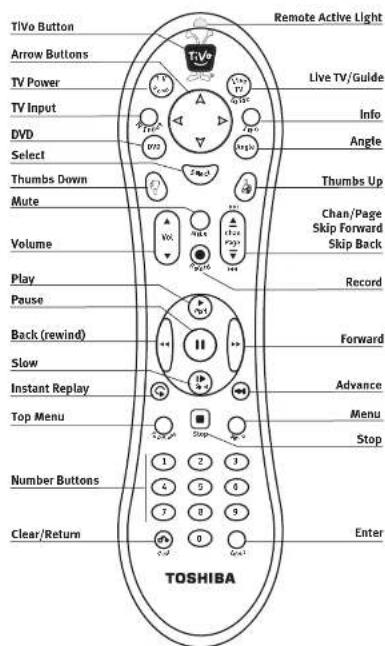
Arrow Buttons

To navigate the Digital Media Server's on-screen menus, use the arrow buttons on the remote to move the highlight bar onto an option, then press SELECT.
The LEFT arrow button often takes you to the previous screen.
Two Types of On-Screen Arrows
The arrows that appear beside or near the highlight bar show possible directions. For example, on this screen, you could press the RIGHT arrow to highlight Options or the DOWN arrow to highlight "Edit Category WishList."
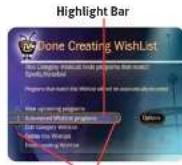
Arrows Near
Highlight Bar
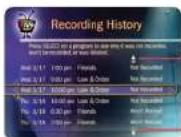
Page Up Arrow
When you see page up or page down arrows at the top or bottom of the screen (or a list), press the CHAN/PAGE button to jump an entire page at a time.
Page Down Arrow

CHAN/PAGE button
Programming the Remote Control
After you complete Guided Setup (see Chapter 2), you can program the TV POWER, VOL, and MUTE buttons to control your TV*:
- Find the four-digit codes for your TV brand. Press the TiVo button on the remote control to go to TiVo Central®. Select Messages & Setup, then Settings, then Remote Control & DMS Front, then Remote Control - TV (power, volume, mute).
- Prepare the remote control. Point the remote away from your Digital Media Server (DMS) and cover the front end with your hand. Press and hold the TV POWER button and TiVo button simultaneously for about 5 seconds (until the red light at the end of the remote control comes on, remains steady, then stays on when you release the buttons).
- Enter a code. Use the number buttons on the remote to enter a four-digit code (starting with the first code in the list on the screen). After you press the fourth digit of the code, the red light on the end of the remote control should flash three times and then go out.
- Test the code. Point the remote towards the TV and press the TV POWER button. If pressing the button turns the TV off, you're finished. If it does not work, repeat steps 2 and 3 using the next code in the list. If none of the codes work, see Chapter 6 of this guide for alternatives.
See Chapter 6 for more information about programming the DMS remote control.
Inserting Batteries into the Remote Control
Hold the remote with the battery door facing you. Place your thumb in the depression of the door and slide the door towards you.
Insert two AA batteries (supplied). Be sure to match the + and - marks on the batteries to the + and - marks in the compartment.
Replace the battery door by sliding it back into the case with the tabs towards the rear of the compartment. You'll hear a click when it's securely back in place.
Remote Control Tips
Press the TiVo button once to go to TiVo Central, or twice to go to the Now Playing list.
Press LIVE TV/GUIDE to watch live TV. Press it again to see the program guide.
Press FORWARD (▶) and BACK (◀◀) up to 3 times for 3 speeds. Press PLAY to resume normal play.
INSTANT REPLAY replays the last 8 seconds of a program.
CHAN UP/DOWN does more than change the channel—it also pages up or down through lists of programs or menu items. It skips to the next (or previous) chapter or track when playing a DVD or CD.
Press the DVD button to go to the DVD screen. Use TOP MENU and MENU to navigate a particular DVD's menus. (These may work differently for different DVDs.) Press RETURN to return to a previous DVD menu.
Press CLEAR to delete a title in a list (like the Now Playing list) or to hide things that aren't part of the program you're watching (like the channel banner).
INFO brings up the channel banner. Press the RIGHT arrow to switch among three versions of the banner, each with a different amount of information.
When you're watching "behind" live TV (for example, if you paused live TV and later resumed watching from the paused spot), ADVANCE catches you up to the live broadcast. In a recorded program, press it once to jump to the end of the program, then again to jump to the beginning.
If programmed, the TV POWER, VOLUME, MUTE, and TV INPUT buttons can control your TV and A/V equipment.
Welcome!
SDOC-00086-000 Rev.A
© 2004 Toshiba America Consumer Products, L.L.C and TiVo Inc. All rights reserved. Reproduction in whole or in part without written permission is prohibited. Printed in USA.
TOSHIBA is a registered trademark of Toshiba Corporation.
TiVo, the TiVo logo, TiVo Central, TiVolution, the TiVo and Smile Design, Ipreview, Overtime Scheduler, the Jump logo, and the Instant Replay logo are registered trademarks of TiVo Inc. Series2, Season Pass, WishList, the Thumbs Up logo and text, and the Thumbs Down logo and text are trademarks of TiVo Inc., 2160 Gold Street, P.O. Box 2160, Alviso, CA 95002-2160.
Product and service are covered by U.S. Pat. Nos. 5,241,428; 6,233,389; 6,327,418; 6,385,739; 6,490,722; 6,642,939; 6,643,798; 6,728,713; 6,757,837; 6,757,906; D424,061; D424,577; D435,561; and D445,801. Other patents pending.
DIRECTV is a registered trademark of DIRECTV Inc.
"Dolby" and the double-D symbol are trademarks of Dolby Laboratories.
All other trademarks are the properties of their respective owners.
▶▶ Welcome to the TiVolution®!
It's a revolution in television. We've pioneered an exciting new category that will forever change the way you watch TV. Your new Toshiba Digital Media Server with TiVo® service combines a TiVo® Digital Video Recorder (DVR) with a DVD recorder. It comes with TiVo Basic™ service, so you can immediately enjoy:
- Digital recording. Because it's all-digital, TiVo saves your recorded programs on a hard drive and lists them on-screen for instant playback.
- Controlling live TV. Pause, rewind, slow-mo, and instant replay any channel, anytime.
- Record from the program guide. An interactive program guide includes detailed program descriptions, ratings, and more, and lets you schedule recordings on the spot.
- Play DVDs/CDs & record DVDs. Play DVDs/CDs just as you would expect, and create DVDs of programs you record with the TiVo service, or with your video camera.
TiVo Basic is just the beginning! Upgrade to TiVo Plus™ service and enjoy the smart, automatic-recording features that made TiVo famous. TiVo Plus includes:
- Season Pass ^TM recordings. Automatically record every episode of your favorite series, all season long, even if the schedule changes.
- Smart Searching. Browse for shows by title, or search by actor, director or keyword using WishList™ searches.
- Home Media Features. Connect your DMS to a home network, and it becomes the hub of a digital entertainment center, with music, photos, and more.
Not sure? For a limited time, you can try TiVo Plus service simply by accepting our free trial once you get set up. You won't be charged a penny until you upgrade to TiVo Plus service (either online at the TiVo web site or by calling TiVo Customer Support).
Meanwhile, enjoy the ease and convenience of your Toshiba Digital Media Server!
TOSHIBA

Table of Contents
Using This Guide ...... vi
Chapter 1: Connecting Your Digital Media Server ....1
Getting Started 2
Cables and Accessories 3
Choosing a Setup Example 9
Watching One Channel & Recording Another 18
Chapter 2: Guided Setup ....21
Completing Guided Setup 22
TiVo Central ^® 26
Chapter 3: TiVo Basic™ Service in Five Short Tours .....27
Tour One: Play with Live TV 28
Tour Two: Find and Record Programs 30
Tour Three: Now Playing and Save To DVD 32
Tour Four: Playing a DVD or CD 34
Tour Five: Finding New Programs 36
Cool Things You Can Do 37
Chapter 4: Recording Programs and DVDs ....39
Recording Programs 40
To Do List 42
Record from a Video Camera or VCR 43
Recording a DVD 45
Compatibility and Copy Protected Material 48
Chapter 5: Watching Programs and Playing Discs .....49
Using the Control Buttons 50
The Status Bar 51
The Channel Banner 52
Watching Live TV 53
Watching Programs from Now Playing 55
Playing a DVD or CD 56
Disc Compatibility 63
Chapter 6: Messages & Setup....65
Messages 66
Settings 67
Remote Control & DMS Front Lights 76
Phone & Network Setup 82
System Information 87
Troubleshooting 88
Restart or Reset System 89
Standby 90
Chapter 7: Features of TiVo Plus™ Service .....91
Chapter 8: Connecting to a Home Network for Home Media Features .... 111
Chapter 9: Troubleshooting .... 129
Chapter 10: Privacy, Service, Warranty, and Licenses .... 153
Appendix A: Front and Back Panel Reference & Specifications 183
Index....189
Glossary of Icons.... Inside Back Cover

Throughout this guide, you will see important and helpful notes and
tips in this side column.
Using This Guide
Getting Started
- Connect your Toshiba Digital Media Server (DMS) using the Start Here poster and Chapter 1 of this guide.
- Complete Guided Setup following the steps provided in Chapter 2 of this guide.
When you've finished these two steps, you're ready to use the TiVo Basic™ service. Take the tours in Chapter 3 of this guide for an easy overview of the features.
Basic terms. These are terms used in this guide when we talk about the rest of the service:
DMS. The Toshiba Digital Media Server with TiVo® service combines a TiVo® Digital Video Recorder (DVR) with a DVD recorder. This guide uses "DMS" to refer to it.
Live TV. If you're watching a program as it's being broadcast, you're watching live TV. With the TiVo service, you can also watch recorded programs, or watch "behind" live TV (if you pause live TV, then come back later and watch from the paused spot).
Icons. These are graphic symbols used in the TiVo service to provide information and options you can select. You'll find the Glossary of Icons on the inside back cover.
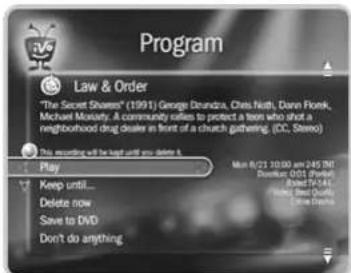
Program Information screen. When you select a program title from a list, you'll see this type of screen. From it, select actions and view the program description.
Service Terms. This guide refers to both the TiVo Basic and the TiVo Plus service. For purposes of convenience only, the term "TiVo service" is sometimes used to refer to information that applies to both TiVo Basic and TiVo Plus.
Connecting Your Digital Media Server
Getting Started 2
Cables and Accessories 3
Choosing a Setup Example 9
Watching One Channel & Recording Another 18 Another (Antenna or Cable)
▶ Getting Started
Television used to be so simple: all you needed was an antenna and a TV. The antenna captured audio and video signals and sent them to your TV over a wire.
As TVs have acquired more features, and new devices have been created to work with your TV, it may seem that everything has become more complex. You may have a VCR, a DVD player, and a game system connected to your TV, in addition to your Toshiba Digital Media Server with TiVo® service (DMS). However, one thing has remained the same: you still need to get audio and video (sound and pictures) from their source (an antenna, or a cable or satellite box) to your TV.
Sounds and pictures travel through cables. The choice of cables may seem overwhelming, but they all perform the same function: they transfer sounds and pictures to your TV at varying levels of quality.
Each piece of your audio/video (A/V) equipment has connectors—or jacks, to which cables can be connected. Some jacks are labeled “In” and some are labeled “Out.” Pictures and sounds enter A/V equipment through IN jacks and leave through OUT jacks.
When you connect your DMS to your TV and other A/V equipment, you are simply creating a path that starts at the wall, or your cable or satellite box, and goes in (through IN jacks) and out (through OUT jacks) of your A/V equipment until it reaches your TV.

Remember, always connect cables from the OUT jack of one device to
the IN jack of the next. Never connect an IN to an IN or an OUT to an OUT.

▶ Cables and Accessories
Inside the carton, you will find
your new Digital Media Server (DMS), the Remote Control, and two bags of cables (contents listed below), along with this Viewer's Guide and the Start Here poster.
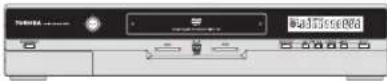
DMS
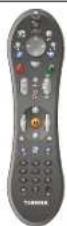
Remote Control
You may need to purchase additional items for some setups:

RF Coaxial cable splitter
Cable Bag Ⓐ
Audio, Video, Phone, and Power
These cables connect your DMS to your TV, power source, and your home phone line.


Composite A/V cables
RF Coaxial cable
25' Phone Cord

Phone Line Splitter

Component Video cable
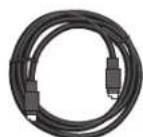
S-Video cable
Cable Bag Ⓑ
Channel Changing
These cables allow your DMS to change channels on a cable or satellite box. If you don't have a cable or satellite box, you won't use these cables.
If you have a DIRECTV® satellite box with a
9-pin Data connector, or a Motorola/GI DCT2000 series cable box, use this cable:

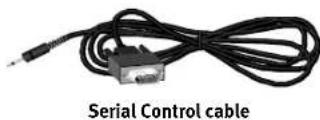
Serial (Data) Control cable
If you can't use the Serial Control cable with your satellite box or cable box, use this cable instead:
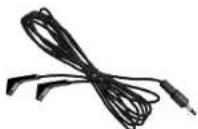
IR Control cable

Digital Audio cable
▶ Choosing audio and video cables
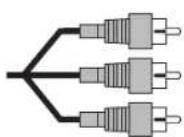
① Composite A/V cable & jacks (audio & video)
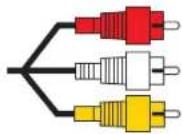
(red)
(white)
(yellow)


② S-Video cable & jack (video only)
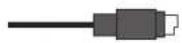

3 Component Video cable & jacks (video only)
(green)
(blue)
(red)


4 Optical Digital Audio cable & jack (audio only)


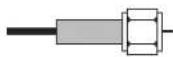
5 Coaxial RF cable & jack (audio & video)

Most TVs and other audio/video devices have jacks for Composite A/V cables (1). Composite A/V cables have three ends, two (white and red) for stereo audio (left and right), and one (yellow) for video. You can connect all three, or use just the red and white ends for stereo audio, and connect a separate cable for video (see below).
The Digital Media Server's back panel also has jacks for S-Video (2). S-Video provides a higher quality video signal than composite. If you have equipment that supports this connection, you can purchase an S-Video cable to use in place of the yellow video end of the Composite A/V cable. (Use the red and white ends for stereo audio.)
The DMS also has Component Video (3) output jacks. Component Video provides superior video quality by separating the video signal into three components, luminance (Y) and two color difference signals (Pb, Pr). If your TV has Component Video inputs, purchase a Component Video cable and use these jacks to connect your DMS to your TV.
The DMS sends digital audio through the Optical Digital Audio (4) jack. If you have an A/V receiver that supports Dolby Digital audio, you can purchase an Optical Digital Audio cable to connect to your DMS. Ordinarily, the DMS produces tones to indicate when certain buttons on the remote are pressed. If you use the Optical Digital Audio jack, you won't hear these tones when watching programs with Dolby Digital audio.
The DMS also has a Coaxial RF Out (5) jack, however this jack is used only to pass a cable or antenna signal through the DMS (see page 187 for details). You must connect your DMS to your TV using one of the video output jacks described above to see TiVo screens and watch DVDs. If your TV only has an RF In jack and no other A/V input jacks, you will not be able to connect the DMS to your TV.
▶ Choosing a Channel Changing Cable
If you don't have a cable or satellite box, your Digital Media Server does not need a channel changing cable. Skip to "Connecting to a Phone Line" on page 8.
Your DMS needs to be able to change channels in order to record programs and display live TV. If you are using a cable or satellite box, the DMS needs to send channel changing signals to it using either an IR (infrared) or a Serial (data) control cable. The following pages help you choose which control cable to use.
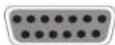
Serial/Data Control. You can use the Serial Control cable for channel changing if:
- You have a DIRECTV ^® satellite box with a 9-pin data connector like this:

- You have a Motorola/General Instruments DCT2000 series cable box, and your cable provider has enabled it for serial control.
Otherwise, use the IR Control cable (described on the next page).
Some DIRECTV ^® satellite boxes have other connections that you may be able to try. To use one of these connections, you will need to purchase an additional cable or accessory:
- If your DIRECTV ^ satellite box has a 15-pin connector like this: you can connect the Serial Control cable by using a 15-pin adapter.
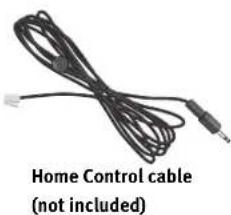
- Some satellite boxes for the DIRECTV ^® service have a Home Control connector like this: (similar to a phone jack, but slightly smaller).
To connect the Home Control cable, plug one end of the cable into the Home Control jack on your DIRECTV satellite box. This connector is sometimes labeled "Low Speed Data." (Don't try to connect a Home Control cable to the satellite box's phone jack.) Plug the other end into the Control Out/Serial jack on the DMS.
After setting up your DMS, including the control cable connection, you can change channels using only your DMS remote control.
15-pin adapter (not included)
natural_image
Coiled black cable with connectors, labeled 'Home Control cable (not included)' below (no other text or symbols)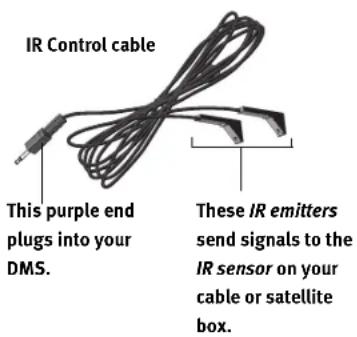
The small “bulbs” on the IR emitters do not visibly light up when they send an IR signal. If you find that channels are not changing, see page 136 for troubleshooting help. If channels change unreliably or inconsistently, try the tips on optimizing the IR Control connection (right).
IR (infrared) Control. The IR Control cable allows the DMS to change channels on any cable or satellite box with an IR sensor. See the Start Here poster for diagrams of common cable and satellite boxes, and where to find the IR sensor on each.
- Finding the IR sensor. To correctly position the IR Control cable, you need to find your cable box or satellite box's IR sensor. To locate the IR sensor, look for a tiny round bulb behind the dark, translucent plastic "window"—the IR window—on the front of your cable or satellite box. A flashlight might help you see it. Position the IR emitters so they are centered on the IR sensor and stick out about 1.5 inches.
- Choosing an IR code in Guided Setup. After setting up your DMS, you'll complete Guided Setup (see Chapter 2 for more information). During Guided Setup, you'll be asked to test and select an IR code. Each IR code signals a particular cable or satellite box model to change channels. If none of the codes changes the channel on your particular cable or satellite box, see page 136 for troubleshooting tips. If you find a code or codes that work, but none of the codes is reliable or consistent, try optimizing the IR Control connection (see below).
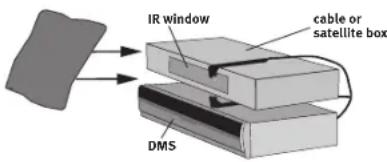
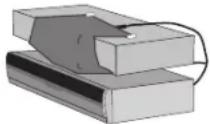
- Optimizing the IR Control connection. The IR Control cable works better if its emitters and the IR window on the cable or satellite box are shaded from other infrared signals. You can create an “IR tent” to decrease the interference from other signals. This solution may help if changing channels with an IR Control cable is unreliable or inconsistent, but not if channels don’t change at all.
Test whether an IR tent might be effective simply by draping a magazine, a towel, or a dark cloth over the front of cable or satellite box, including the IR emitters. (See the diagram on page 7.) Do not block the Digital Media Server's IR window. Try changing channels several times with the TiVo remote. If channels change more reliably this way, you may want to build an IR tent.
Building an IR Tent. The exact methods and materials you use to build the IR tent will depend on the shape of your cable or satellite box's IR window and the materials you have available. However, the general procedure described below will guide you.
1 Cover the area around the IR emitters and the cable or satellite box's IR window with a piece of thick fabric, such as black flannel. You could create a cover using cardboard or opaque tape instead. The important point is that the material you use fits snugly over the area around the translucent IR window and the IR Control cable's emitters.
If possible, cover the entire IR window on the cable or satellite box, because signal interference can enter from anywhere in the window. For some cable and satellite boxes, covering the entire IR window will include covering the controls on the front. In that case, you won't be able to use the controls, nor will you be able to control the cable or satellite box with its remote. However, we recommend using only your TiVo remote to change the channel. If you still need to access your cable or satellite box, use materials that are relatively easy to remove.
2 Secure the cloth, tape, or other material (with tape or by another method), making sure that it fits closely around the IR window and the IR Control cable's emitters.
1 Place a piece of opaque material—for example, cloth or tape—over the IR emitters (shown on opposite page) and the IR window of the cable or satellite box.
② Secure the material, making sure that it fits snugly.

Do not connect the DMS to a digital PBX phone system (these allow
many phones to share a single telephone number and are usually used in hotels and office buildings). Doing so may permanently damage the Digital Media Server's modem and can void your warranty.

If your cable or satellite box is also connected to your phone line, use
the provided phone line splitter so the DMS can share the same phone jack. Plug the splitter into the wall jack, then plug both phone cords into the splitter.
Connecting to a Phone Line
During Guided Setup, the Digital Media Server uses a standard phone line to connect to the TiVo® service (see Chapter 2). After Guided Setup, your DMS needs to make regular connections to the TiVo service, using either a phone line or a shared broadband Internet connection. When it connects to the TiVo service, the DMS may receive:
- Updated program information, including episode titles, plot descriptions, ratings, and schedule information.
- Any available updates to the TiVo service, including content for Showcases. (See page 36 for more information about Showcases.)
- Any recording requests you made using TiVo Central Online. (See page 100 for more information about Online Scheduling.)
Guided Setup Requires a Phone Line. Almost every household phone line is a standard analog line, which is what the DMS needs to complete Guided Setup. After Guided Setup, you can connect your DMS to a home network and use a shared broadband Internet connection instead of a phone line for regular connections to the TiVo service. See Chapter 8 for information.
If you don't have a home network with a shared broadband Internet connection, the DMS must use a standard analog phone line for regular connections to the TiVo service. You should leave the phone cord plugged in continuously in order to keep your Digital Media Server's program information up to date.
Phone Jack Location. If the phone jack isn't close to the DMS, you can use the 25-foot phone cord that comes with the DMS to connect it to a phone jack. Phone cords longer than 25 feet are readily available at most hardware or electronics stores.
▶ Choosing a Setup Example
The rest of this chapter provides examples for connecting your Digital Media Server to your program source (antenna, cable, or satellite) and your TV. From the list below, choose a setup based on your program source. Setups with more than one program source are only available with TiVo Plus ^TM service.
After you get your basic system working, connect other equipment (such as a VCR, DVD player, or game console) to additional inputs on your TV or A/V receiver.
Basic Setups: Connect your DMS to your Program Source and your TV
| Your program source is antenna or cable with no cable box. | Setup 1: Antenna or Cable (No Cable Box) | p. 10 |
| Your program source is either a cable or satellite box. (If you have both, see Setup 4, below.) | Setup 2: Cable or Satellite Box | p. 12 |
Advanced Setups: These setups require a subscription to TiVo Plus service
| You have two program sources: a satellite box and an antenna; or a satellite box and cable (no cable box). | Setup 3: Satellite Box & RF Program Source | p. 14 |
| You have two program sources: a satellite box and a cable box. | Setup 4: Cable Box and Satellite Box | p. 16 |
Setup Variations: Watching One Channel & Recording Another
| Your program source is antenna or cable (with or without a cable box) and you want to watch one channel while recording another. | Watching One Channel & Recording Another (Antenna or Cable) | p. 18 |

Before you begin:
Make sure all your equipment is turned off and the DMS is unplugged.

The DMS is not designed to support a heavy load, such as a TV. Your
DMS is only capable of supporting the weight of one or two common A/V components such as VCRs, DVD players, or A/V receivers (provided they have four good, broad, padded feet that distribute the weight near the corners of the DMS).
Also, avoid stacking your DMS on top of other electronic components—such as DVD players, A/V receivers—or the vents of your TV.

For this setup,
use cable bag Ⓐ.
The audio/video cables shown here are for example only. For help choosing cables, see page 4.

Other kinds of A/V equipment, such as a DVD player or game console, do
not connect to your DMS. You should connect your other devices to additional inputs on your TV or A/V receiver.
▶ Setup 1: Antenna or Cable (No Cable Box)
flowchart
graph TD
    A["Digital Media Server"] -->|4| B["Port 1"]
    A -->|3| C["Port 2"]
    A -->|2| D["Port 3"]
    A -->|1| E["Port 4"]
    F["Television"] --> G["Input"]
    F --> H["VIDEOR"]
    F --> I["Antenna In"]
    style A fill:#f9f,stroke:#333
    style F fill:#ccf,stroke:#333
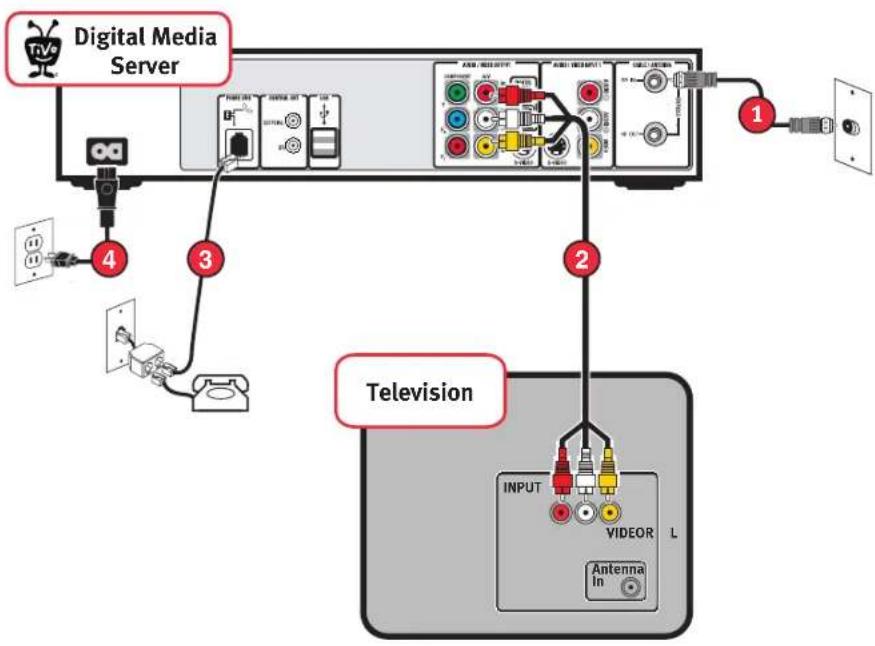
1 Connect the Coaxial RF cable coming from the wall to the Cable/Antenna-RF In jack on the DMS.
2 Connect a Composite A/V cable from the Audio/Video Output jacks on the DMS to the Audio/Video Input jacks on your TV.
3 Connect the phone cord (see page 8). After you complete Guided Setup, you can connect your DMS to a home network and use a broadband Internet connection instead of a phone line to connect to the TiVo service. See Chapter 8.
4 Plug in all power cords and turn on your TV.
Set your TV to display video from the input jacks you used in step ②. You may have to find the correct TV input setting by pressing the Input or TV/Video button on your TV's remote control until you see the Welcome screen. (For more help, see page 131.)
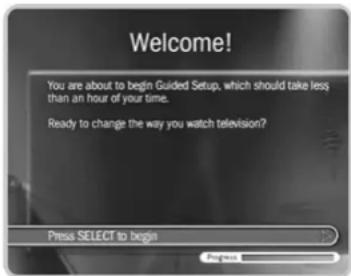
Once you see the Welcome screen, you're ready to complete Guided Setup. If you need help, see Chapter 2.
Chapter 1
For this setup,
use cable bags and .
The audio/video cables shown here are for example only. For help choosing cables, see page 4.
Other kinds of A/V equipment, such
as a DVD player or game console, do not connect to your DMS. You should connect your other devices to additional inputs on your TV or A/V receiver.
Setup 2: Cable or Satellite Box
Cable or
Satellite Box
RF In RF Out
PhoneSerial
AUDIO/VIDEO
OUT
Digital Media
Server
Television
INPUT
VIDEOR L
Antenna In
① Make sure the cable from the wall is connected to your cable or satellite box.
2 Connect a Composite A/V cable from the Audio/Video Output jacks on the cable or satellite box to the Audio/Video Input 1 jacks on the back of the DMS.
3 Connect a Composite A/V cable from the Audio/Video Output jacks on the DMS to the Audio/Video Input jacks on your TV.
4 Connect the phone cord (see page 8). After you complete Guided Setup, you can connect your DMS to a home network and use a broadband Internet connection instead of a phone line to connect to the TiVo service. See Chapter 8.
5 Connect a channel changing cable (see the diagrams to the right).
⑥ Plug in all power cords and turn on your TV.
Set your TV to display video from the input jacks you used in step 3. You may have to find the correct TV input setting by pressing the Input or TV/Video button on your TV's remote control until you see the Welcome screen. (For more help, see page 131.)
Once you see the Welcome screen, you're ready to complete Guided Setup. If you need help, see Chapter 2.
5 Connect a Channel Changing Cable (See page 5 for help choosing a channel changing cable.)
Serial Control cable: Plug
one end of the Serial Control cable into the Serial/Data connector on the cable or satellite box. Plug the other
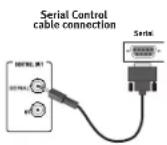
end into the Control Out-Serial connector (the upper mini jack) on the back of the DMS.
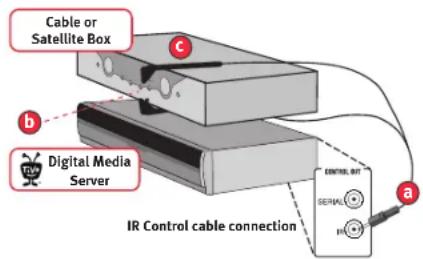
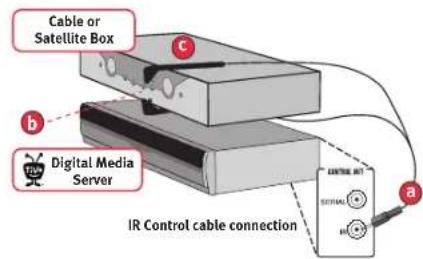
IR Control cable:
(a) Plug the purple end of the IR Control cable into the Control Out-IR connector (the lower mini-jack) on the DMS. (b) Locate the IR sensor (see page 6 for help). (c) Mount the IR emitters. Place one emitter on top of the cable/satellite box and the other underneath it. Be sure both emitters stick out about 1.5 inches directly in front of the IR sensor. Use the provided adhesive strips to hold the emitters in place.

For this setup,
use cable bags Ⓐ and Ⓑ.
The audio/video cables shown here are for example only. For help choosing cables, see page 4.

Other kinds of A/V equipment, such as a DVD player or game console, do
not connect to your DMS. You should connect your other devices to additional inputs on your TV or A/V receiver.
▶ Setup 3: Satellite Box & RF Program Source (Antenna or Cable)\*
*TiVo Plus service required. Setups with more than one program source like this one are only available after upgrading to TiVo Plus service. Visit www.tivo.com/upgrade.
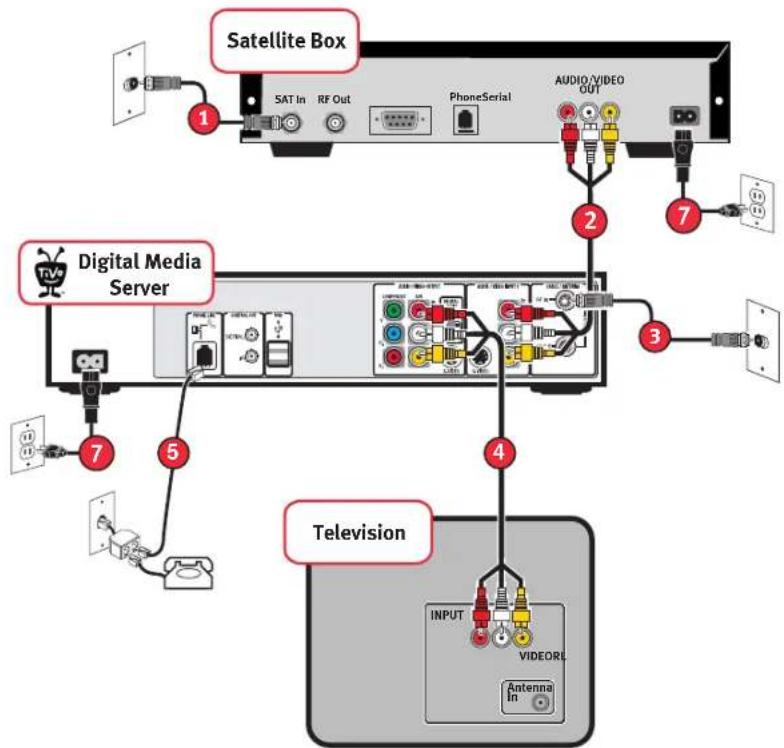
① Make sure the satellite cable from the wall is connected to your satellite box.
2 Connect a Composite A/V cable from the Audio/Video Output jacks on the satellite box to the Audio/Video Input 1 jacks on the back of the DMS.
3 Connect the Coaxial RF cable from your antenna or cable source to the Cable/Antenna-RF In jack on the DMS.
4 Connect a Composite A/V cable from the Audio/Video Output jacks on the DMS to the Audio/Video Input jacks on your TV.
5 Connect the phone cord (see page 8). After you complete Guided Setup, you can connect your DMS to a home network and use a broadband Internet connection instead of a phone line to connect to the TiVo service. See Chapter 8.
6 Connect a channel changing cable (see the diagrams to the right).
⑦ Plug in all power cords and turn on your TV.
Set your TV to display video from the input jacks you used in step 4. You may have to find the correct TV input setting by pressing the Input or TV/Video button on your TV's remote control until you see the Welcome screen. (For more help, see page 131.)
Once you see the Welcome screen, you're ready to complete Guided Setup. If you need help, see Chapter 2.
6 Connect a Channel Changing Cable (See page 5 for help choosing a channel changing cable.)
Serial Control cable: Plug one end of the Serial Control cable into the Serial/Data connector on the cable or satellite box. Plug the other
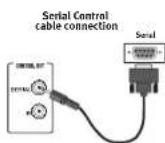
end into the Control Out-Serial connector (the upper mini jack) on the back of the DMS.
IR Control cable:
(a) Plug the purple end of the IR Control cable into the Control Out-IR connector (the lower mini-jack) on the DMS. (b) Locate the IR sensor (see page 6 for help). (c) Mount the IR emitters. Place one emitter on top of the cable/satellite box and the other underneath it. Be sure both emitters stick out about 1.5 inches directly in front of the IR sensor. Use the provided adhesive strips to hold the emitters in place.

For this setup,
use cable bags Ⓐ and Ⓑ.
The audio/video cables shown here are for example only. For help choosing cables, see page 4.

Other kinds of A/V equipment, such as a DVD player or game
console, do not connect to your DMS. You should connect your other devices to additional inputs on your TV or A/V receiver.
▶ Setup 4: Cable Box and Satellite Box\*
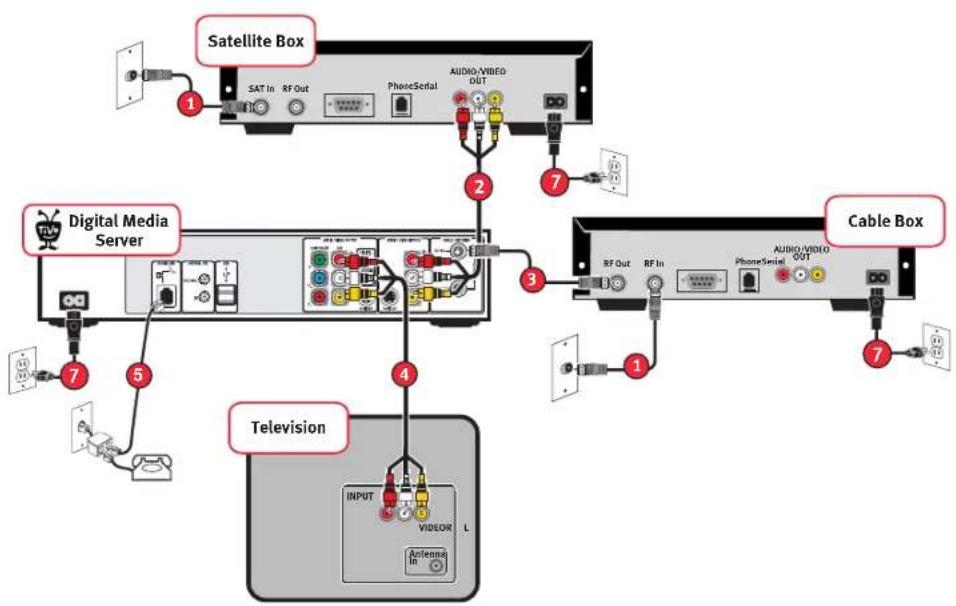
*TiVo Plus service required. Setups with more than one program source like this one are only available after upgrading to TiVo Plus service. Visit www.tivo.com/upgrade.
① Make sure the cables from the wall are connected to your cable and satellite boxes.
2 Connect a Composite A/V cable from the Audio/Video Output jacks on the satellite box to the Audio/Video Input 1 jacks on the back of the DMS.
3 Connect a Coaxial RF cable from the RF Out jack on the cable box to the Cable/Antenna-RF In jack on the DMS.
4 Connect a Composite A/V cable from the Audio/Video Output jacks on the DMS to the Audio/Video Input jacks on your TV.
5 Connect the phone cord (see page 8). After you complete Guided Setup, you can connect your DMS to a home network and use a broadband Internet connection instead of a phone line to connect to the TiVo service. See Chapter 8.
6 Channel changing cables: First, see page 5 to check whether you can use the Serial Control cable for either your satellite or cable box. If you can, connect it as shown in the diagram to the right. Then use the IR Control cable for the other box. If you can't use the Serial Control cable for either box, you can use the IR control cable for both. See the IR diagrams at the right.
⑦ Plug in all power cords and turn on your TV.
Set your TV to display video from the input jacks you used in step 4. You may have to find the correct TV input setting by pressing the Input or TV/Video button on your TV's remote control until you see the Welcome screen. (For more help, see page 131.)
Once you see the Welcome screen, you're ready to complete Guided Setup. If you need help, see Chapter 2.
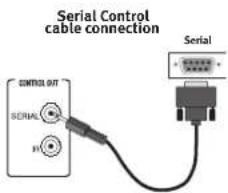
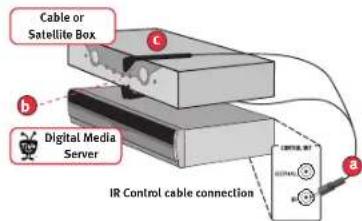
6 Connect Channel Changing Cables IR Control cable for one box:
(a) Plug the purple end of the IR Control cable into the Control Out-IR connector (the lower mini-jack) on the DMS. (b) Locate the IR sensor (see page 6 for help). (c) Mount the IR emitters. Place one emitter on top of the cable/satellite box and the other underneath it. Be sure both emitters stick out about 1.5 inches directly in front of the IR sensor. Use the provided adhesive strips to hold the emitters in place.
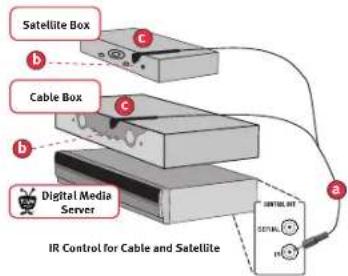
IR Control cable for both boxes:
Follow steps (a) and (b) as above. In step (c), mount the IR emitters on top of each box as shown.
flowchart
graph TD
    A["Satellite Box"] -->|b| B["Cable Box"]
    B -->|c| C["Digital Media Server"]
    C -->|a| D["IR Control for Cable and Satellite"]
    style A fill:#f9f,stroke:#333
    style B fill:#ccf,stroke:#333
    style C fill:#cfc,stroke:#333
    style D fill:#fcc,stroke:#333

For this setup, use cable bag Ⓐ.
The audio/video cables shown here are for example only. For help choosing cables, see page 4.

How do I watch one channel and record another?
To watch live TV on one channel while the DMS records another, put the DMS into Standby mode. To do this, press the ON/STANDBY button on the Digital Media Server's front panel. Then use your TV's remote to change channels. Because this signal simply passes through the DMS, it has no TiVo service functionality (so you can't pause or rewind live TV).
To watch video from your DMS again: First, press the TiVo button so that the DMS displays TiVo Central®. (This will not interrupt any recording in progress.) Then press the Input, or TV/Video button on your TV's remote until you see TiVo Central.
▶ Watching One Channel & Recording Another
Antenna or Cable with No Cable Box
flowchart
graph TD
    A["Digital Media Server"] --> B["Television"]
    B --> C["OUTPUT"]
    C --> D["VIDEOR L"]
    D --> E["Antenna In"]
    style A fill:#f9f,stroke:#333
    style B fill:#ccf,stroke:#333
    style C fill:#cfc,stroke:#333
    style D fill:#fcc,stroke:#333
    style E fill:#ffc,stroke:#333
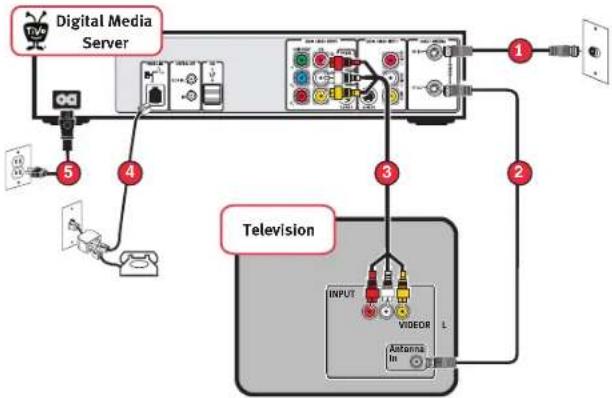
1 Connect the Coaxial RF cable coming from the wall to the RF In jack on the DMS.
2 Connect a Coaxial RF cable from the RF Out jack on the DMS to the Antenna/RF In jack on your TV.
3 Connect a Composite A/V cable from the Audio/Video Output jacks on the DMS to the Audio/Video Input jacks on your TV.
④ Connect the phone cord (see page 8).
5 Plug in all power cords and turn on your TV. You may have to find the correct TV input setting by pressing the Input or TV/Video button on your TV's remote control until you see the Welcome screen. (For more help, see page 131.)
Once you see the Welcome screen, you're ready to complete Guided Setup. If you need help, see Chapter 2.
▶ Cable with a Cable Box
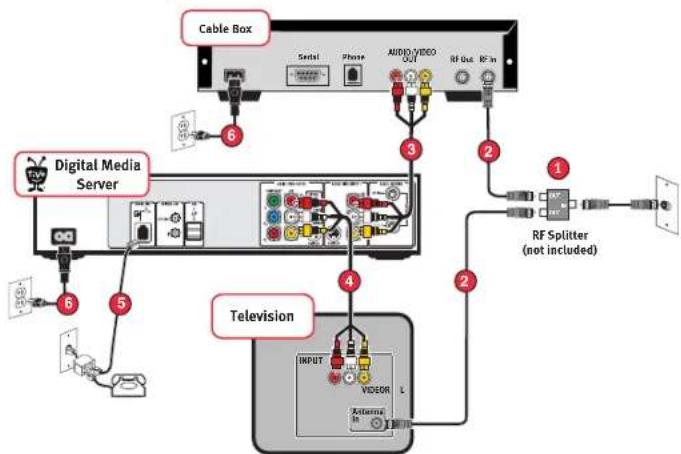
1 Connect the cable from the wall to the input jack of an RF splitter (not included).
2 Connect an RF Coaxial cable from one of the splitter's outputs to the RF In jack on your cable box. Connect another RF Coaxial cable from the splitter's other output to the Antenna/RF In jack on your TV.
3 Connect a Composite A/V cable from the Audio/Video Output jacks on the cable box to the Audio/Video Input 1 jacks on the back of the DMS.
4 Connect a Composite A/V cable from the Audio/Video Output jacks on the DMS to the Audio/Video Input jacks on your TV.
5 Connect the phone cord (see page 8). After you complete Guided Setup, you can connect your DMS to a home network and use a broadband Internet connection instead of a phone line to connect to the TiVo service. See Chapter 8.
For this setup, use cable bags Ⓐ and Ⓑ.
The audio/video cables shown here are for example only. For help choosing cables, see page 4.
This setup requires an RF splitter.
You can purchase one at a local electronics store.

6 Connect a Channel Changing Cable
(See page 5 for help choosing a channel changing cable.)
Serial Control cable:
Plug one end of the Serial Control cable into the Serial/Data connector on the cable box. Plug the
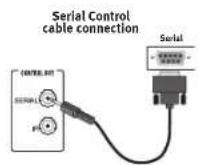
other end into the Control Out-Serial connector (the upper mini jack) on the back of the DMS.
IR Control cable:
(a) Plug the purple end of the IR Control cable into the Control Out-IR connector (the lower mini-jack) on the DMS. (b) Locate the IR sensor (see page 6 for help). (c) Mount the IR emitters. Place one emitter on top of the cable box and the other underneath it. Be sure both emitters stick out about 1.5 inches directly in front of the IR sensor. Use the provided adhesive strips to hold the emitters in place.
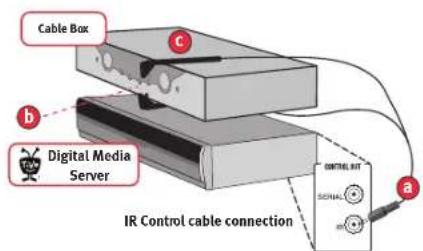
6 Connect a channel changing cable (see the diagrams to the left).
⑦ Plug in all power cords and turn on your TV.
Set your TV to display video from the input jacks you used in step 3. You may have to find the correct TV input setting by pressing the Input or TV/Video button on your TV's remote control until you see the Welcome screen. (For more help, see page 131.)
Once you see the Welcome screen, you're ready to complete Guided Setup. If you need help, see Chapter 2.
How do I watch one channel and record another?
In this setup, your cable signal is split and sent to two different devices: your cable box and your TV. Keep in mind that you can only receive basic cable channels on the signal that goes from the splitter to your TV.
- To watch live TV on one channel while the DMS records another, use your TV's remote to change channels. Because this signal does not pass through the DMS, it has no TiVo service functionality (so you can't pause or rewind live TV).
- To watch video from the DMS again, press the TiVo button on the DMS remote, then press the Input, Source, or TV/Video button on your TV remote or TV until you see TiVo Central®.
Guided Setup
Completing Guided Setup 22
TiVo Central®

If you need to use the phone during either of the setup phone calls, pick
up your telephone, then hang it up and wait about 45 seconds. The DMS will hang up, and the next time you pick the phone up there will be a dial tone. You can complete Guided Setup later.
▶ Completing Guided Setup
After you connect your Digital Media Server to your TV, its front panel displays "SETUP." You must complete Guided Setup before you can watch live TV or play and record DVDs. Guided Setup takes less than an hour.
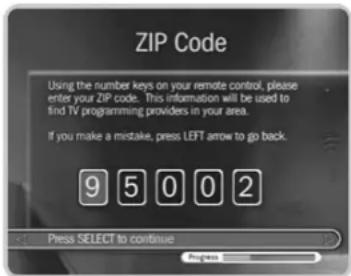
- Guided Setup is easy. The Guided Setup screens step you through the process. You can find tips and troubleshooting in this chapter. (You may not see all the screens described here, or you may see them in a different order, depending on your setup.) If you make a mistake during Guided Setup, press LEFT arrow to go back and fix it. You can also fix your setup information later in Messages & Setup. (See Chapter 6.)
- Guided Setup is intelligent. In Guided Setup, you tell your DMS about your program source (antenna, cable, or satellite) and equipment setup. You complete only the steps that apply to your particular setup.
- Guided Setup requires two phone calls. Try to complete Guided Setup when you don't need the phone for an hour or so. Later, you can use a broadband Internet connection instead of a phone line to connect to the TiVo service. See Chapter 8.
After completing Guided Setup, you can watch live TV, play DVDs and CDs, record DVDs, and use TiVo Basic™ service features to control live TV. You will have to wait a few hours while the DMS organizes information before you can schedule recordings.
Guided Setup Tips and Troubleshooting
ZIP Code. Your ZIP code helps the TiVo service determine the correct program information to send to your DMS.
E-mail Address. When you provide your e-mail address, you'll be notified about what's new at TiVo, including new features, tips and tricks, and TiVo exclusives. Your e-mail
address will not be sold, rented, loaned, or otherwise disclosed. For information on how TiVo safeguards your privacy, visit www.tivo.com/privacy.
Phone Dialing Options. If your phone system requires special dialing options, choose "Yes." Most people won't need to change the settings. See page 84 for more.
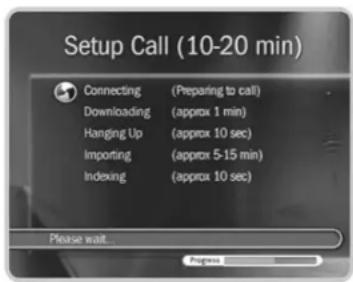
Setup Call. This toll-free call takes a few minutes to retrieve the dial-in numbers for your area code and the list of cable or satellite providers for your ZIP code. After hanging up, the DMS will take 5 to 15 minutes to organize the information. If the call doesn't succeed, see page 132 for troubleshooting steps.
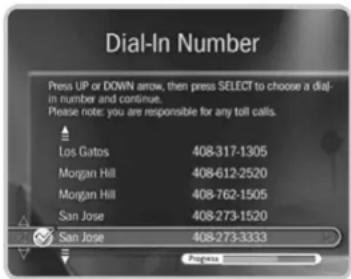
Dial-In Number. The DMS uses the number you choose for phone connections to the TiVo service. Press the DOWN arrow or CHAN DOWN to scroll down the list. In some areas, local and long distance toll charges may apply. You are responsible for any charges.
Dialing Format. Choose how you want the DMS to dial the dial-in number. (For example, should a “1” precede the area code?) In some areas, local numbers must be dialed using the area code.
Satellite Provider. If you subscribe to local channels for your city or a nearby city from your satellite provider, choose the appropriate option followed by the city name from which you get local channels (such as, DIRECTV-Sacramento, CA).
Cable Provider. Cable companies may have entries with very similar names. Check your channel lineup card (received during cable installation) or your cable bill. If you aren't sure, make your best guess. Later in Guided Setup, you can check the Channels You Receive screen (see page 24). If you still don't see your provider, verify that you entered the correct ZIP code.
Cable Lineups. A lineup is the type of subscription you purchased from your cable company. Lineups usually have names like “Basic” or “Extended Basic.” Your cable bill
Use the CHAN UP/DOWN button as a shortcut to go up or down a whole screen at a time.
If you upgrade to TiVo Plus service, you'll be able to use more than one program source with your DMS (such as satellite and cable together).
may have this information. If you still aren't sure, make your best guess. Later in Guided Setup, you can check your guess on the Channels You Receive screen (see page 24).
You may also see names like “Rebuild Basic” or “Rebuild Extended Basic.” “Rebuild” is a term used to refer to a revised lineup. If your best guess at a lineup choice was not correct, and a rebuild lineup with a similar name is available, try that one instead. If you have a cable A/B system, you must pick either A or B to watch with your DMS.
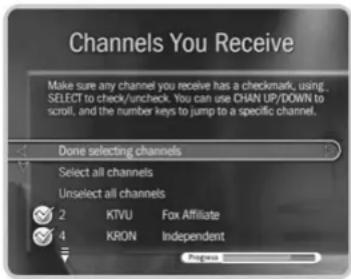
Channels You Receive. First, if you had to make a guess about your provider or lineup, verify that the channel numbers match the networks on this list. (For example, if you had the lineup pictured on the left, is channel 2 actually KTVU?) If you aren't sure, refer to the channel guide or quick-reference card from your cable or satellite company.
Next, add or remove check marks—so that the list reflects the channels you actually subscribe to—by highlighting a channel and pressing SELECT. (Some types of satellite boxes will get stuck on channels you don't receive if those channels are selected here, so be sure to de-select channels you don't receive.)
Finally, highlight Done Selecting Channels and press SELECT to continue. If you change your mind, you can easily make changes after you finish Guided Setup. (See page 68.)
Channel Changing. If you have a cable or satellite box, your DMS needs to send it a signal to change channels using an IR (infrared) or serial connection. Choose the type of cable you used to connect your cable or satellite box to your DMS. For help, see the Start Here poster and Chapter 1 of this guide. After Guided Setup, if your channels don't change, see troubleshooting steps on page 136.
Connection to DMS Screens. Use the UP/DOWN arrows until the picture of the DMS matches the cable connection you used to connect your satellite or cable box. When the video status below the picture says "Video OK," press SELECT to continue. If the status
says “No Video,” double-check that the video cable is firmly connected to the DMS and that you have selected the correct type of video cable.
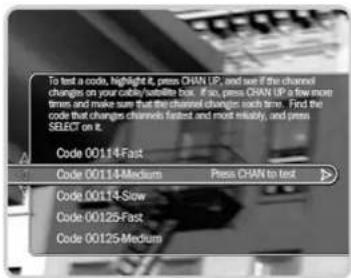
IR Code List. If you use an IR connection, the DMS will need to send a code to your cable or satellite box in order to change channels. You will need to test these codes to see which works best with your connection. Each code has a slow, medium, and fast version. First, test the slow codes by highlighting them and pressing the CHAN UP/DOWN button slowly several times. When you find a slow code that changes channels every time, try a faster speed for that code. (Slow may take longer, but fast may be too fast for your cable or satellite box.) You want to find the code with the fastest speed that changes the channel every time. When you find it, press SELECT to choose that code. If channels don't change at all, see page 136 for troubleshooting steps.
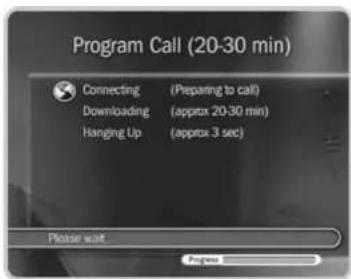
Program Call. During this call, the TiVo service downloads all your program information—which includes program titles, times, channels, and descriptions—for up to the next two weeks. If the call doesn't succeed, see page 132 for troubleshooting steps. If you need to use the phone during the program call, pick it up, then hang it up, then wait about 45 seconds. The DMS will hang up and you can make the program call later.
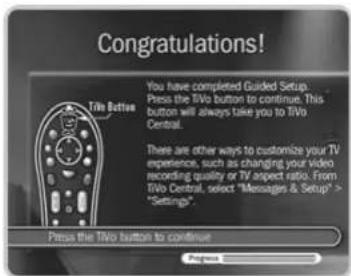
Congratulations! When Guided Setup is complete, your DMS has TiVo Basic™ service. You can immediately begin watching live TV and using your DMS to control live TV (pause, instant replay, slow motion). The DMS works behind the scenes for about four to eight hours to organize program information for the first time. After that, you'll be able to set up recordings and view information in the program guide.
Press the TiVo button on the DMS remote to go to TiVo Central ^® and begin enjoying the TiVo Basic service.
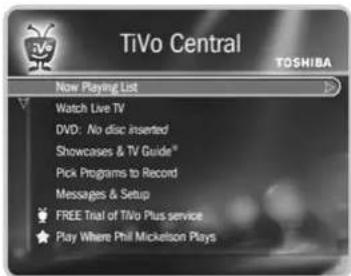
For a limited time, you can try TiVo Plus™ service simply by accepting the free trial at the bottom of TiVo Central.
TiVo Central®
Almost everything you do with the TiVo service starts from TiVo Central. You can schedule recordings, watch live TV or recorded programs, play DVDs or CDs, and more. To get to TiVo Central, press the TiVo button on your remote control.
Occasionally, you will notice special icons beside some options in TiVo Central.

This icon appears if you have Messages to read. See page 66 for more about Messages.

Choose the selection next to this icon to watch a special preview or visit a Showcase. See page 36 for more about Showcases.

This icon appears next to selections that contains special video content. Highlight the selection and press PLAY on your remote to play the video.

This icon indicates news or special offers from TiVo.
You can find a complete Glossary of Icons in the inside back cover of this guide.
Enjoy TiVo Basic™ Service
No activation or subscription is necessary to enjoy the features of TiVo Basic service:
• Control live TV. Pause, rewind, slow-mo, and instant replay any channel, anytime!
- Record from the program guide. An interactive program guide includes detailed program descriptions, ratings, and more, and lets you schedule recordings on the spot.
- Store hours of your favorite programs. All of your recorded shows appear in the Now Playing list. Just highlight what you want to watch and press PLAY.
Now you're ready to start enjoying TiVo Basic service! Check out the five short tours in Chapter 3 to learn more.
TiVo Basic™ Service in Five Short Tours
Tour One: Play with Live TV 28
Tour Two: Find and Record Programs 30
Tour Three: Now Playing and Save To DVD 32
Tour Four: Playing a DVD or CD 34
Tour Five: Finding New Programs 36
Cool Things You Can Do 37
Changing channels works just like you would expect it to: use the number buttons on the remote to enter a channel number, then press ENTER. Or, press the CHAN UP or CHAN DOWN buttons to surf one channel at a time.
▶ Tour One: Play with Live TV
In this tour, you'll learn how to control live TV. So turn on your TV and grab your Digital Media Server remote! To watch live TV, select Watch Live TV from TiVo Central®, or press the LIVE TV button on the remote.
⑪ First, press the PAUSE button—the program you're watching pauses. Now you can stand up and stretch, or go to the kitchen and get a snack. You can pause live TV for up to 30 minutes!
▶ But for now, press PLAY and the program resumes.
Next, press BACK—the program rewinds. Press BACK a second time—it goes faster! A third time—faster still! Both the FORWARD and BACK buttons have three speeds. Press BACK a fourth time (or press PLAY at any time) to return to normal speed.
+ Press PAUSE once more, then press FORWARD to move the picture a small step forward! Press BACK to move the picture a small step back. When your show is paused, FORWARD and BACK move the program forward or back in small steps. Press PLAY to resume watching at normal speed.
Try out the INSTANT REPLAY button. INSTANT REPLAY jumps you back 8 seconds—useful for when you miss a great sports play or a bit of dialog, or for when you fast forward too far.
Press INSTANT REPLAY again, then immediately press SLOW. You get your own slow-motion replay!
Finally, try the ADVANCE button. Presto! You're caught up to live TV.
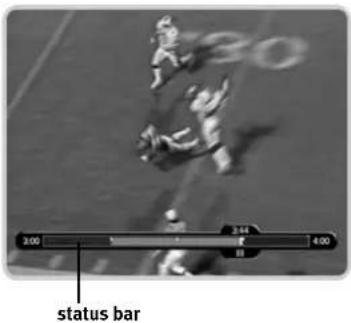
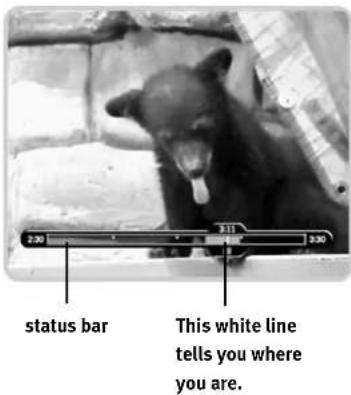
▶ Status Bar
Press PAUSE to make the status bar visible. It shows a one-hour period. The green segment is the portion of the current hour that has been saved by your DMS.
Look for the white line. It marks the part of the program you are currently watching. If the white line is anywhere back in the green segment you are "behind" real time (which is way better than being behind the times!).
Now press CHAN UP. When you change channels, the saved programming from the old channel is cleared, and the DMS starts to save what's showing on the new channel.
Channel Banner
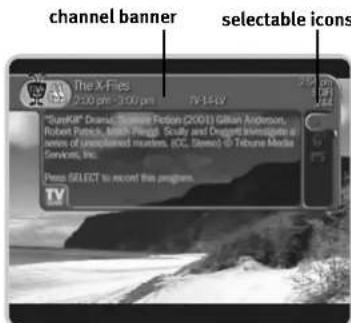
Press INFO to see the channel banner. (You can also press RIGHT arrow.) It's only there for a few seconds, but you can bring it back by pressing INFO again. While the banner is visible, press RIGHT arrow to switch from a small, to a medium, to a large banner. Note that each version has a different amount of information.
Keep pressing RIGHT arrow until you see the largest version of the channel banner. Notice the small icons on the right side. Each symbol represents a useful feature, like recording or Parental Controls. Press the UP and DOWN arrows to highlight different icons. Pressing SELECT while an icon is highlighted will take you to that feature. (For more on using these icons, see page 52.)
Finally, press the CLEAR button—the channel banner disappears. (CLEAR gets rid of things that aren't part of the program you're watching.)
Now go have fun playing with live TV, then come back for the next tour!
day and time selected channel
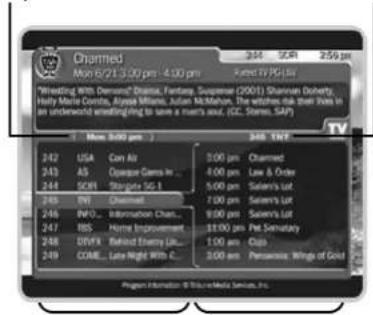
The left side shows a list of all programs during this time period.
The right side shows a list of what's coming up on the channel you have highlighted.

Be sure your DMS is connected to a phone line or a home network with a
shared Internet connection. This keeps it
connected to the TiVo service so you
always have up-to-date program
information.
▶ Tour Two: Find and Record Programs
Recording from Live TV
The quickest way to record a program is to just press the RECORD button while you are watching live TV. After the confirmation screen, the program begins recording, including however much of it has already been saved.
The Program Guide
Your Digital Media Server's program guide lets you see what's on up to three days in advance, change channels, schedule recordings, and more—all while you're watching live TV. Press the GUIDE button to see the program guide.
On the left side of the guide is a list of channels and current programs. A blue highlight shows you where you are in the guide. A description of the highlighted program appears at the top of the guide. To the right is a list of upcoming programs on the current channel.
Choosing a Program. See something you'd like to watch? Press the UP and DOWN arrows to move the highlight to a new channel. (Notice that the description at the top and the list on the right change.) Then press SELECT—the channel changes and the guide disappears. Press GUIDE again to bring the guide back.
Looking Ahead. While the highlight is on the left side of the guide, press the FORWARD ( ) button to see thirty minutes ahead. Press BACK ( ) to see thirty minutes back.
It's a quick and easy way to scan upcoming programs on a lot of channels at once.
Press RIGHT arrow to move the highlight to the right side of the guide, then press DOWN arrow a few times. UP and DOWN arrow move through the list of upcoming programs on the current channel. CHAN UP and CHAN DOWN jump quickly through the list.
Recording a Program. You can schedule a recording of any program you see in the guide by highlighting it and pressing RECORD. Yes, it's just that easy!
Creating a Manual Recording
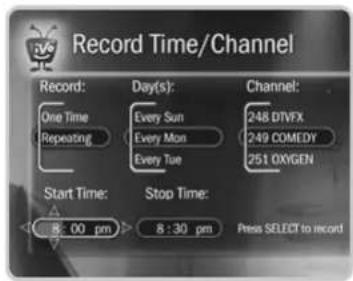
With TiVo Basic™ service, you can schedule a recording for a fixed time every week. This tour shows you how to schedule a recording for Mondays from 8:30 to 9:00 PM.
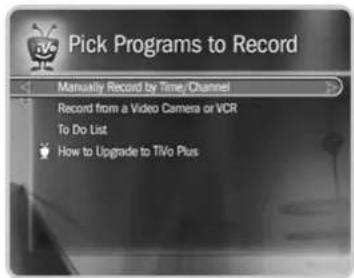
First, press the TiVo button to go to TiVo Central. Highlight Pick Programs to Record, then press SELECT. On the next screen, select Manually Record by Time/Channel.
To set the recording type, day, and channel, start by pressing DOWN arrow to highlight "Repeating," then press RIGHT arrow. Press DOWN arrow until "Every Mon" (for "Monday") is selected, then press RIGHT arrow again. Use the UP and DOWN arrows to select any channel (for this example, it doesn't matter which). Press RIGIIT arrow again.
Start and Stop time each have three parts: hour, minute, and AM or PM. At "Start time," press the UP or DOWN arrow to change the hour to 8, then press RIGHT to go to minutes. Use the UP/DOWN arrows again to set minutes to 30. Finally, use them to set AM/PM to PM. The "Stop time" is already a half-hour later, so press SELECT to see a confirmation.
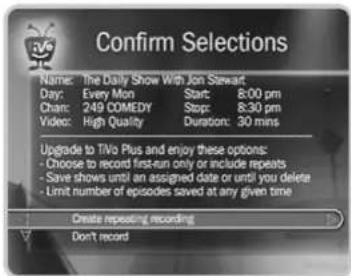
The confirmation screen shows the recording you requested. If the DMS has program information for the time you want to record, it uses a program name to label the recording. Since this is just an example, you can choose “Don’t record.”
That's it! You've learned how to schedule recordings from live TV, from the program guide, and by creating a manual recording. Now wouldn't it be useful to know how to watch those recordings? That, and more, is explained in the very next tour.
★ Get More with TiVo Plus™ service!
With TiVo Plus service you can search for programs by title, actor, director, or keyword, and get a Season Pass ^TM to automatically record every episode—even if the day or time changes! You can also choose to skip reruns, or extend the length of the recording with the Overtime Scheduler ^® . Check out the free trial of TiVo Plus on TiVo Central.
▶ Tour Three: Now Playing and Save To DVD
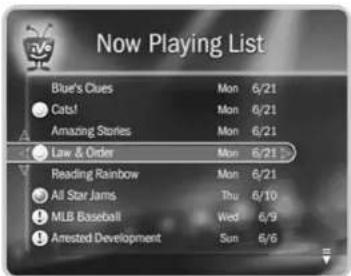
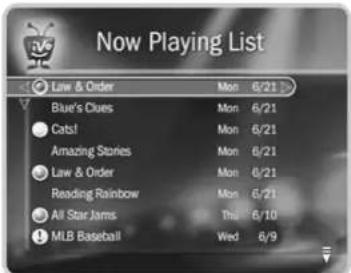
The last tour showed you how to find and record programs. Once a program has started recording, it appears in Now Playing—a list of all the programs stored on your Digital Media Server. To view your Now Playing list, press the TiVo button twice. Your new DMS may already have some entertaining short programs.
An icon like this next to a recording in Now Playing tells you the recording's current status (see the Glossary of Icons on the inside back cover).
Recordings you request appear in Now Playing the moment recording begins. You can watch any title in Now Playing—even one still being recorded. Just highlight it and press the PLAY (0) button.
Try it. Highlight a program and press PLAY ( ) all there are no programs in Now Playing, go to live TV and start a recording so you can complete this tour.)
Now for the cool part—watch the program for at least 5 minutes (or just fast forward through some of it), then press LEFT arrow button to go back to Now Playing. This time, press SELECT on the program title. On the Program Information screen that appears, select “Resume Playing.” The program starts from where you left it!
Keep until... By default, the oldest programs you record may be deleted to make room for new recordings you've scheduled (they are usually kept at least two days). However, you always have the option to keep a program for as long as you want.
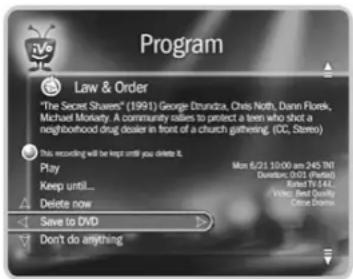
To change how long a program in Now Playing is saved, highlight it and press SELECT or RIGHT arrow. The Program Information screen appears. Select "Keep until...." On the next screen you can choose "Keep until 1 delete" or use the arrow buttons to highlight and change the date displayed. When you are done, press SELECT.
Saving a Program from Now Playing to a DVD
Your Digital Media Server not only records programs to Now Playing, it can also save recordings from Now Playing to a recordable DVD. The rest of this tour shows you how. If you don't want to create a disc with the programs currently in Now Playing, you can still complete this tour—just cancel before creating the disc.
Inserting a Disc. You can use either a “DVD-RW” disc, which can be recorded to, erased, and recorded to again, or a “DVD-R” disc, which can only be recorded once.
The DMS will not save to some DVD formats (such as those with a “+” sign), so make sure your blank disc is either DVD-RW or DVD-R. To insert a disc, press the OPEN/CLOSE button (▲ on the front of the DMS, place the disc in the tray with the blank, shiny side down, and then press OPEN/CLOSE (▲ again.
Select a Program. Go to Now Playing (if you are not there already, press the TiVo button twice), and highlight a program. Press SELECT to see the Program Information screen, then select “Save to DVD.” The next screen asks whether you want to save just the program you selected, or additional programs as well. For this tour, select “Save just this program.” The following screen suggests a name for the disc, and asks if you want to use it or enter your own. For this tour, just select “Yes” to use the suggested name.
Create the DVD. At this point, you see the Confirmation screen. This is your last chance to cancel the save, so if you do not want to record to the disc you have inserted, select “Don’t save,” otherwise select “Begin saving to DVD.”
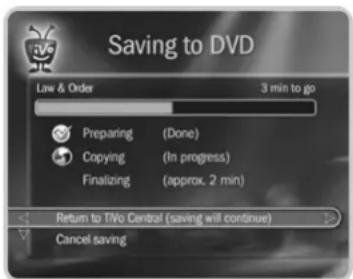
As you can see, there are more options than are covered here, but those are the basics. The next screen tells you how long it will take to save your program. When finished, you have a new DVD with your program on it! For further details, see page 45.

Some content may not be saved to DVD due to copy protection rights
over the material. For more details, see
"Copy Protected Material" on page 48.
DVD recordings that you make using this DMS are for your personal use only. You may not sell, lend, or rent them to others.
▶ Tour Four: Playing a DVD or CD
You must complete Guided Setup before you can play CDs, and play or record DVDs. For instructions, see "Completing Guided Setup" on page 22.
Playing a DVD or CD in the Digital Media Server does not interfere with recording TV programs. However, you cannot watch recordings or live TV while playing a DVD or CD.
Playing a Disc
Press the OPEN/CLOSE (▲) button on the front panel of the DMS to open the disc tray. Put in the disc with the label side facing up, using the disc tray guide to align it, then press OPEN/CLOSE again to close the disc tray. (For a full list of the different kinds of discs that are compatible with the DMS, see page 63.)
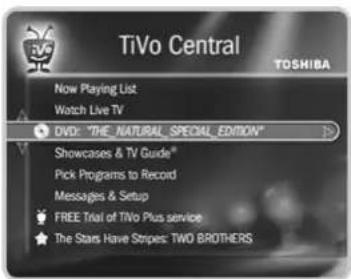
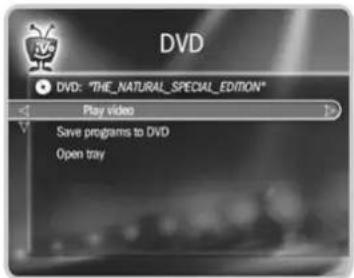
DVD Menu. TiVo Central now shows a disc has been inserted. Highlight the DVD and press PLAY to start the disc from the beginning. To view the DVD screen, highlight the DVD and press SELECT, or press the DVD button on the remote.
From the DVD screen, select Play to start the currently loaded disc. Go ahead and try it. (If you have a DVD disc in the tray and see a menu after you select Play, choose the option you want to view.)
Controlling Playback. While a disc is playing, you can press the PAUSE (") button, to pause the music or video, just as you would with live TV or with a program from Now Playing. Press PLAY ( ) restart the program. PAUSE, PLAY, FORWARD ( ) and BACK ( ) work with DVDs and CDs. In fact, while playing a DVD, all of the control buttons work as they would for live TV or a recorded program in Now Playing. (See Tour One for details.)
Finally, while a disc is playing, the CHAN/PAGE button has SKIP FORWARD (▶▶) and SKIP BACK (▶) functionality. Press SKIP FORWARD ( ) to go to the
beginning of the next chapter on a DVD or the next track on a CD. Press SKIP BACK (◀◀◀) once to go to the beginning of the current chapter or track; press it again to go to beginning of the previous chapter or track.
Stopping and Resuming. Press the STOP (■ button. The disc stops playing and the DMS returns to the DVD menu.
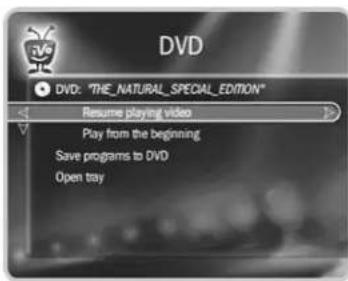
Notice the DVD menu now has an option to "Resume playing." If you want, you can go to Now Playing or live TV and watch something else. Then when you're ready, you can press the DVD button to return to this menu and select "Resume playing." Playback of the disc picks up right where you left off.
Removing the Disc. To remove the disc, just press the OPEN/CLOSE button ( ) on the front panel of the DMS once to open the tray. Remove the disc then press OPEN/CLOSE again to close the empty tray.
The DMS can record to DVD-R and DVD-RW discs. It can play most DVD-R and DVD-RW discs that contain video. It can also play audio CDs and most CD-R and CD-RW discs that contain MP3 files, and data CDs that contain photo files. Playback control (such as FORWARD, REWIND and INSTANT REPLAY) is not available for MP3 files larger than 10 megabytes that were recorded with VBR (variable bit rate). For more information, see “Compatibility and Copy Protected Material” on page 48.

▶ Tour Five: Finding New Programs
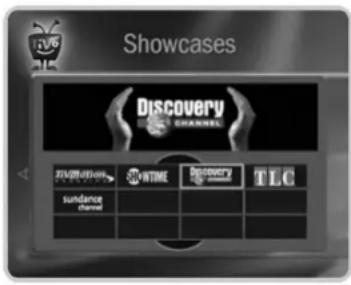
So far, you have seen ways to find, record, and copy programs you already know you like. With Showcases, the TiVo service helps you find the best programs you may not have heard of and often includes additional, exclusive content as well.
Showcases
Showcases is an interactive content area which often includes opportunities to schedule recordings of featured programs, or allows you to watch previews of upcoming movies or TV shows. The programs in Showcases are grouped in theme packages, giving you “one-stop shopping” convenience when browsing for programs to record. Packages may include exclusive content, the inside scoop on hit movies, exciting miniseries, special events, popular series, and shows featuring the biggest stars of the screen and stage.
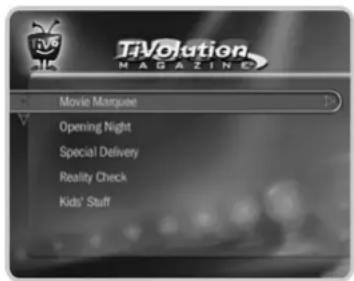
TiVolution® Magazine is one part of Showcases where you'll always find something fun and different. It's a guide to the best upcoming shows on television. Select a title to see the Program Information screen. If you get the channel on which the program airs, you can set up a recording here—it's that easy! Showcases and TiVolution Magazine are updated during your Digital Media Server's regular connection to the TiVo service.
Feel free to watch some programs from Now Playing—but come back for “Cool Things You Can Do” on page 37.
Cool Things You Can Do
You've already seen how cool TiVo Basic service is by taking the five tours. Here are some tips to help you enjoy your Digital Media Server even more.
- Never be late for your favorite shows. Stuck in traffic? Working late? Don't worry! If you've set up a recording, the program will be waiting for you in the Now Playing list. You can even start watching a program from the beginning even if it's still recording! You can also watch any program in Now Playing while another program is recording.
- Skip the parts you don't want to see. Use triple-speed fast-forward to breeze past the boring parts! When you see what you want to watch, press PLAY. If you went too far forward, use INSTANT REPLAY to jump back 8 seconds.
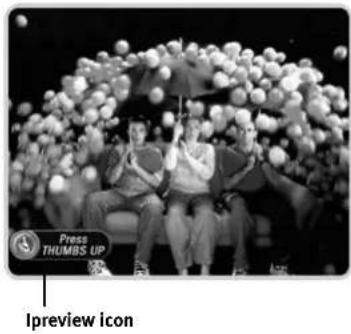
- See a good preview, record the show. If you're watching live TV and a promotion comes on for an upcoming program, you may see an lpreview™ icon like this
one: .The Fims MBS UP ^TM while the icon is visible to see options for recording for the program. You don't have to remember when it's on—it will be recorded! (If you accidentally fast-forwarded past the Ipreview icon, rewind until it's visible again.)
- Reduce remote control clutter. You can program your Digital Media Server's remote to control power, volume, mute, and input selection on your TV. That's one less remote on your coffee table! See page 76 for details.
- Use the CLEAR button. The CLEAR button hides the status bar, the program guide, channel banner, and anything else on the screen that is not part of the program. It clears text entered when using the letter grid. In the Now Playing list, press CLEAR to delete a program. In the To Do List, CLEAR cancels a recording.
★ Upgrade to TiVo Plus™ service
Things get even cooler when you upgrade to TiVo Plus. Here's just some of what you get:
- Skip reruns with a Season Pass ^TM recording. A Season Pass automatically records every episode of a series on a specific channel, even if the day and time changes. You can set a Season Pass to record every episode, or just the new ones.
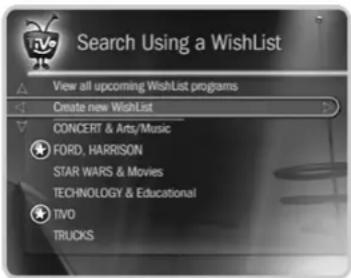
- Make your television wishes come true with a WishList™ search. Have a favorite actor? A favorite hobby or interest? How about a favorite sports team? If they're on TV, chances are a WishList search will find them.
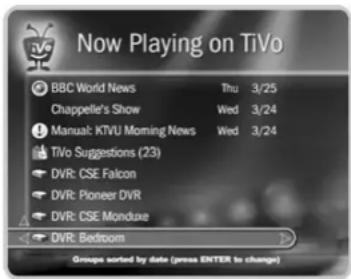
- Multi-Room Viewing. Record programs in the living room and watch them in the bedroom—or vice versa. If you have more than one DMS (or any TiVo Serics2™ DVR) connected to your home network, you can transfer programs between them. Other DVRs connected yto your home network appear at the bottom of Now Playing.
- Record programs at home—from your office! Use TiVo Central Online (www.tivo.com/tco) to schedule recordings on your DMS from anywhere you have web access.
- Looking for good movies? Kids' shows? Science fiction? With Search by Title, you can browse upcoming programs by category and find shows you didn't know were on.
- Use the Overtime Scheduler ^ (and don't miss overtime!). Programs sometimes start before they're supposed to, and often end later than scheduled. You can adjust your recording times to account for variations using the Overtime Scheduler.
For more about TiVo Plus features, see Chapter 7. To upgrade, visit the TiVo web site at www.tivo.com/upgrade or call TiVo Customer Support at 1-877-367-8486. You will need your TiVo service number, found on the System Information screen. Go to TiVo Central and select Messages & Setup, then System Information.
Recording Programs and DVDs
Recording Programs 40
To Do List 42
Record from a Video Camera or VCR 43
Recording a DVD 45
Compatibility and Copy Protected Material 48
Recording Programs
This section describes the different ways you can record a TV program with TiVo Basic™ service. (If you upgrade to TiVo Plus™ service, you'll have even more ways to find and record programs. See Chapter 7 for details.)
Recording From Live TV
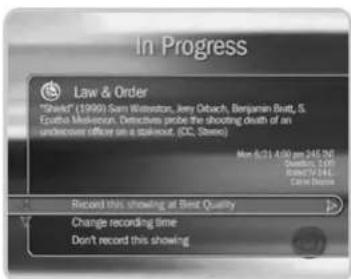
You can always record the program you're watching by pressing the RECORD button on your remote control. On the transparent screen that appears, select "Record this showing at Best Quality." As soon as the recording starts, the program will appear in Now Playing. Select "Change recording time" to modify the recording.
You can also record any program—even one in progress—by highlighting it in the program guide, then pressing RECORD.
Recording the Saved Portion. Up to 30 minutes of programming from the current channel is always being saved, even when you are not recording a program. When you change channels, the DMS clears what it has saved and starts saving again on the new channel. So, if the saved portion is important to you, record it or don't change the channel.
To record the saved portion—in addition to the rest of the program—you must select "Record this showing at Best Quality."
Stopping a Recording. Two ways to stop a recording are:
- Select the title in Now Playing, then select "Stop Recording," or
- Press the RECORD button in live TV, then select "Stop the current recording."
▶ Manually Record by Time/Channel
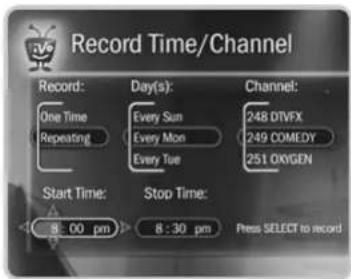
With TiVo Basic™ service, you can schedule a manual recording on a specific channel at a specific time (just as you would with a VCR). You can also create a manual repeating recording here by setting the recording to repeat every week, every day, or every weekday.
To create a manual recording:
-
Go to TiVo Central ^® , then select Pick Programs to Record, then Manually Record by Time/Channel.
-
Choose the recording type, using the UP and DOWN arrows to select "One Time" or "Repeating." Then press RIGHT arrow.
-
Choose the day(s) for the recording, using the UP and DOWN arrows to change the current selection. If you chose "Repeating," you can choose to repeat the recording on a specified day of the week (for example, "Every Tuesday") or several times a week (for example, "Every M - F" or "Every Day"). Then press RIGHT arrow.
-
Choose a channel using the UP and DOWN arrows (or by entering a number with the remote, then pressing ENTER). Press RIGHT arrow.
-
Set the hour, minute, and am/pm for the start and stop time, using the UP/DOWN arrows to change the current selection. Press RIGHT arrow to move to the next step, LEFT arrow to move back. If you think your program might start early or end late, adjust the start and stop times appropriately.
-
Schedule the recording by pressing SELECT. A confirmation screen appears. (The recording is named based on program guide listing for that time and channel. This will help you find your program later in the To Do List or in Now Playing.) When you're ready to schedule the recording, just press SELECT.
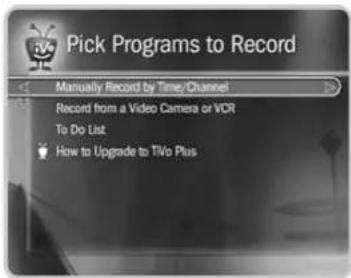

Here's a tip: Use a short Manual Repeating Recording to record things like the first fifteen minutes of a late night talk show so you can always catch the opening monologue.
To Do List
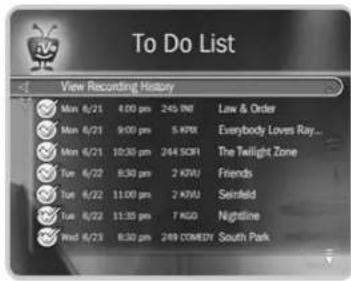
The To Do List shows all your scheduled recordings and lets you cancel or edit them. To view the To Do List, go to TiVo Central. Select Pick Programs to Record, then To Do List.
Individual recordings are marked with a single checkmark ( √ ). Manual repeating recordings have a double checkmark ( √ ) You can turn an individual recording into a repeating recording simply by selecting “Repeat this recording” from the Program Information screen of any scheduled recording on the To Do List.
To cancel a program or a repeating recording: Highlight the title and press CLEAR.
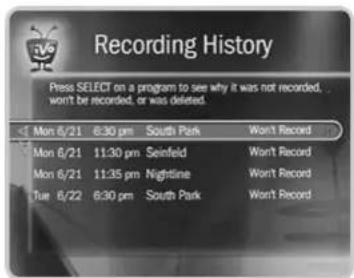
View Recording History
This is an advanced feature in the To Do List for those who really want all the details. Selecting this option takes you to a list of three types of programs:
Deleted. To find programs that were deleted, press the UP arrow or CHAN UP. (You will find these programs listed above the point where the highlight bar starts off.) Selecting a title will take you to a screen that tells you how and when the program was deleted.
Not Recorded. To find programs that were not recorded, press the UP arrow or CHAN UP. (You will find these programs listed above the point where the highlight bar starts off.) Selecting a title will take you to a screen that tells why it was not recorded.
Won't Record. To find programs that will not be recorded, press DOWN arrow or CHAN DOWN. (These programs are listed below where the highlight bar starts off.) Selecting a title will take you to a screen that tells you why the program will not be recorded.
★ Get More with TiVo Plus!
If you upgrade to TiVo Plus™ service, you'll have access to Recording Options, which allow you to View Upcoming Episodes. When a conflict occurs, use this feature to find an episode that doesn't conflict with other scheduled recordings. (For details, see page 94.)
Record from a Video Camera or VCR
In addition to recording your favorite TV programs, your Digital Media Server can also record from a video camera or VCR—the first step in transferring your old home movies to DVD. These recordings appear on the Now Playing List, with titles you choose.
Recordings you make from a video camera or VCR have much in common with recorded TV programs. For example, if the recording causes disk space conflicts or upcoming program schedule conflicts, you will be notified and given the option to continue or cancel. You can also set the recording quality, and specify how long the recording will be saved on the Now Playing list.
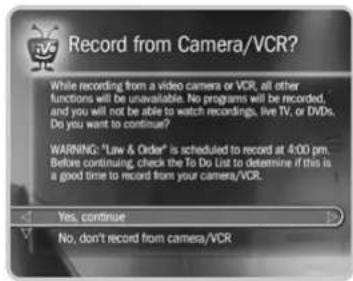
While recording from a video camera or VCR, all other DMS functions are unavailable. No TV programs will be recorded, and you cannot watch live TV, play DVDs or CDs, or watch other recordings from Now Playing.
Setting Up the Recording
- Connect your video camera or VCR to the DMS using the inputs on the front panel. Choose the best input(s) that will work with your video camera or VCR:
S-Video. If you use an S-Video cable to connect your video camera or VCR, you will also need to connect the red and white ends of a Composite A/V cable for audio.
Composite A/V. Use the yellow end of a Composite A/V cable for video, and the red and white ends for audio. If your video camera or VCR has only one audio out jack, use just the white end.
DV. If your video camera or VCR has a DV output jack, this is the best connection to use. A DV cable carries both audio and video.
- Go to TiVo Central ^® and select Pick Programs to Record, then “Record from a Video Camera or VCR.”

Some content may not be saved to
DVD due to copy protection rights
over the material. For more details, see
"Copy Protected Material" on page 48.
DVD recordings that you make using this
DMS are for your personal use only. You
may not sell, lend, or rent them to others.
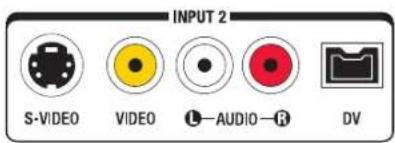
The Input 2 jacks are located behind a small door on the Digital Media Server's front panel.
- The DMS reminds you that all other functions are unavailable while recording from a video camera or VCR. Select "Yes, continue" to proceed.
- Select the front panel input you used to connect your video camera or VCR. If you used both S-Video and Composite A/V (for audio), select S-Video.
- Choose a name for your recording. Use the arrow buttons on the remote to highlight a character, and press SELECT to enter it. You can use the THUMB ^TM UP ^TM and THUMB ^TM DOWN ^TM buttons to change to uppercase or lowercase letters. Select "Done entering name" when you are finished.
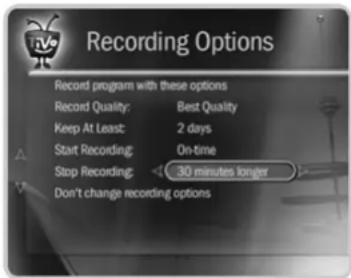
- On the Recording Options screen, specify the recording quality you want to use, and how long you want the recording to be saved on the Now Playing list.
If you used the DV input to connect your video camera or VCR, your Recording Quality choices are Best or High quality. - On the next screen, set the length of the recording. You can always press STOP to end the recording earlier than you estimated.
After setting the recording length, you will be notified of any recording conflicts, just as you would if you were scheduling any other recording. You can cancel any conflicting recordings, change your recording length, or choose “Don’t record from camera/VCR now.” - Choose the starting point for your recording by playing video from your camera or VCR, then pausing when you're ready to start recording.
- The Recorder gives you a 15 second countdown before recording begins. Press PLAY on your video camera or VCR when the countdown reaches zero.
When the recording is complete, you will find its title (the name you gave to the recording) on the Now Playing list.

You can play, pause, instant replay, and slow-motion recordings from a
video camera or VCR just like any other program on the Now Playing list. You can even save them to a DVD! See page 45 to learn how.
Recording a DVD
Your Digital Media Server can save programs from the Now Playing list to a recordable DVD. Some content may not be saved due to copy protection rights over the material. For more details, See “Copy Protected Material” on page 48. Saving to DVD does not interfere with recording TV programs or watching live TV.
What Can Be Saved to DVD
Only programs in Now Playing can be saved to a DVD. (Now Playing can contain content recorded from live TV, a video camera, or video tapes.) Programs must have completed recording to Now Playing before being saved to DVD. The following are reasons the Recorder may not be able to save a program to DVD:
- Some programs may not be copied due to copy protection rights over the material.
- Programs transferred to this DMS from a different kind of TiVo® DVR via the Multi-Room Viewing feature cannot be saved to DVD.
- If a recording is less than 2 minutes long, it cannot be saved to DVD.
Save Programs to DVD
There are two ways to save programs to DVD. One method is to select "Save to DVD" from a recording's Program Information screen. This is useful if you want only that single program on the DVD. See page 33 for instructions.
If you want to save several programs to the same DVD, follow these steps:
- From TiVo Central ^® , select DVD, then "Save programs to DVD."
- Insert a DVD-RW (rewritable) or a blank DVD-R (record once) disc. If you re-use a DVD-RW disc, all of the programs on it will be erased. For a complete list of compatible discs, see page 48.
Some content may not be saved to DVD due to copy protection rights over the material. For more details, see "Copy Protected Material" on page 48. DVD recordings that you make using this DMS are for your personal use only. You may not sell, lend, or rent them to others.
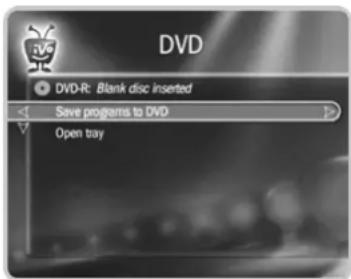
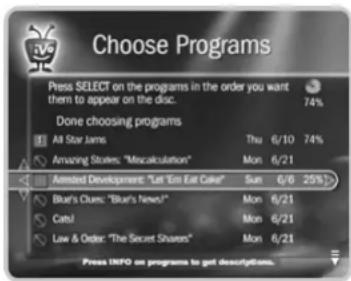
If you choose to record only one program and it is too large to fit on a single DVD, the DMS will attempt to save segments of it to multiple DVDs.
-
Choose the programs you want to save to the DVD. Programs in Now Playing that can be saved have an empty box next to them (☐); programs that cannot be saved have a red circle with a slash (☐). To choose a program, highlight it and press SELECT. A number appears in the box next to the program title: "1" for the first program you choose, "2" for second, and so on.
-
You can select as many programs as will fit on a DVD (several short programs or fewer longer ones), up to a maximum of 24. Programs that can be saved but will not fit on the disc with the other selected programs have a red “x” beside them (✗)
- Programs are recorded in the order you choose them. To change the order, remove programs from the list by highlighting them and pressing SELECT; then select them again in the order you want them to save.
-
The percentage wheel in the upper right-hand corner of the screen provides a close estimate of how much of the DVD would be filled by the selected programs.
-
When you are ready to continue, press RIGHT arrow, or select "Done choosing programs." If you are saving a single program that is too large to fit on a single DVD, you see the Choose Part to Save screen. You can use the RIGHT and LEFT arrows to change the part that will save. Press SELECT to continue.
- If you are saving only one program, the DMS suggests using that program's name for the DVD. You can use that name or choose to enter a name.
To name the DVD, use the arrow buttons on the remote to highlight a character, and press SELECT to enter it. You can use the THUMBS UP ^TM and THUMBS DOWN ^TM buttons to change to uppercase or lowercase letters. Select “Done entering name” when you are finished.
- Confirm your selections and start the saving process. While your DVD is being created, the current status is displayed. If you go to another screen, or to live TV, press the DVD button to return to the status screen. If saving to DVD causes disk space conflicts, you will be notified and given the option to continue or cancel.
You can cancel Save to DVD while it is in process. You will be notified whether the disc can be re-used (DVD-RW) or not (DVD-R).
Finalizing the Disc
All DVDs are automatically finalized at the end of the Save to DVD process.
Finalizing means:
- A title is created for each program saved. Chapter marks are placed every 5 minutes. You cannot turn chapter marks off.
- A DVD “Disc” menu is created that lists the title of each program on the disc.
- DVDs you create have no DVD Parental Controls rating, so they cannot be blocked by Parental Controls unless Parental Controls are set to block all DVDs. See page 71.
- The closed captioning of the original program is maintained.
After the DVD is finalized, you're done! To play your new DVD, press the DVD button on your remote, then press PLAY. For more about playing DVDs, see page 56.
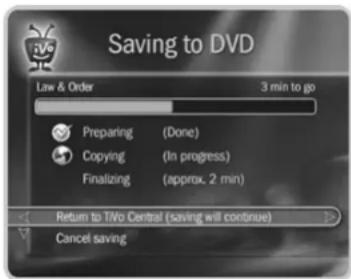

Some discs recorded using a DVD
recorder, CD recorder, or personal
computer may not be playable in this
Digital Media Server even though they
were made with software that is
compatible with the DMS. Some possible
reasons for this include:
- the type of disc used
- damage, dirt or condensation on either the disc or in the DMS disc drive
- other reasons related to specific formats; see the notes about individual formats in this section

Copy protected video includes
DVD-Video discs, and some satellite
and cable broadcasts.
When portions of a program are copy
protected, they cannot be saved to DVD.
The DMS will only save the portions of the
program that are not protected.
▶ Compatibility and Copy Protected Material
Recording Disc Compatibility
Size. The DMS can record video programming to 12 cm. discs, the standard for DVDs.
Format. The DMS can record to DVD-R and DVD-RW discs. (It does not record DVD+R or DVD+RW discs.) The blank DVD disc packaging should be marked with one of the logos pictured here:

DVD-R

DVD-RW
The DMS is compatible with DVD-RW Ver. 1.1 and Ver. 1.1/2x, and DVD-R Ver. 2.0 and Ver. 2.0/4x.
▶ Playback of Discs You Record
This DVD recorder records in Video Mode, which is the use of the DVD-Video format for recording on DVD-R and DVD-RW discs. DVD discs saved using this Digital Media Server can be played on regular DVD players, including computer DVD drives compatible with DVD-Video format. However, support for playback of DVD-R and DVD-RW discs is optional for manufacturers of DVD playback equipment, and there is DVD playback equipment that does not play DVD-R or DVD-RW discs recorded in the DVD-Video format.
▶ Copy Protected Material
You may use this Digital Media Server only to reproduce or save materials for which you own the copyright or have obtained permission to copy from the copyright owner, or for which you otherwise have a legal right to reproduce or copy. Unless you own the copyright or have obtained permission from the copyright owner or otherwise have a legal right to reproduce or copy, you may be breaking the law, including applicable copyright laws, and may be subject to payment of damages and other remedies.
Watching Programs and Playing Discs
Using the Control Buttons 50
The Status Bar 51
The Channel Banner 52
Watching Live TV 53
Watching Programs from Now Playing 55
Playing a DVD or CD 56
Disc Compatibility 63

Most of the control buttons on your remote work when playing audio
CDs too. See page 60 for details.

When you fast forward too far, press INSTANT REPLAY to jump back eight
seconds. Press it again if you really missed the mark.
▶ Using the Control Buttons
Part of the fun of watching programs with the Digital Media Server is the ability to control what you're watching. The best part is—the pause, instant replay, slow motion, and other control features work whether you're watching live TV, recorded programs or DVDs.

RECORD. Records a program when you're watching live TV or browsing the program guide.

PLAY. Plays a program at normal speed. Shows the Status Bar for three seconds.

PAUSE. Pause live TV for up to 30 minutes; pause a recorded program, DVD, or CD for as long as you want. To resume playing, press PAUSE again (or PLAY).

BACK. Rewinds a program. Press BACK once, twice, or three times to go backward fast, faster, or fastest. Press it a fourth time to return to normal speed.

FORWARD. Fast forwards a program. Press FORWARD once, twice, or three times to go forward fast, faster, or fastest. Press it a fourth time to return to normal speed.
Frame Forward or Back. Press PAUSE, then press the FORWARD or BACK button. The picture moves a small step forward or backward.

INSTANT REPLAY. Instantly jumps back eight seconds and resumes playing.

ADVANCE. In live TV, catches up to the live broadcast. When you are fast forwarding or rewinding in a recorded program, DVD, or CD, press ADVANCE to instantly jump ahead or back to the next tick mark. While playing a recording, DVD, or CD, press ADVANCE once to jump to the end of the recording, and again to jump to the beginning.

SLOW. Plays the program in slow motion.
The Status Bar
When you press PLAY, PAUSE, FORWARD, or BACK, the status bar appears at the bottom of the screen. Whether you're watching live TV, a DVD, a recorded program, or listening to a CD, the status bar shows where you are and what you're doing.
In live TV, the status bar represents one hour and the white tick marks are 15 minutes apart. In recorded programs and DVDs, the bar shows the program's length, and the tick marks are evenly spaced depending on the length of the program. A white vertical line shows where you are in the program.
In live TV, the green segment represents the part of the program saved by the DMS. the right edge of the green segment represents the current time. The DMS automatically saves up to 30 minutes of live TV.
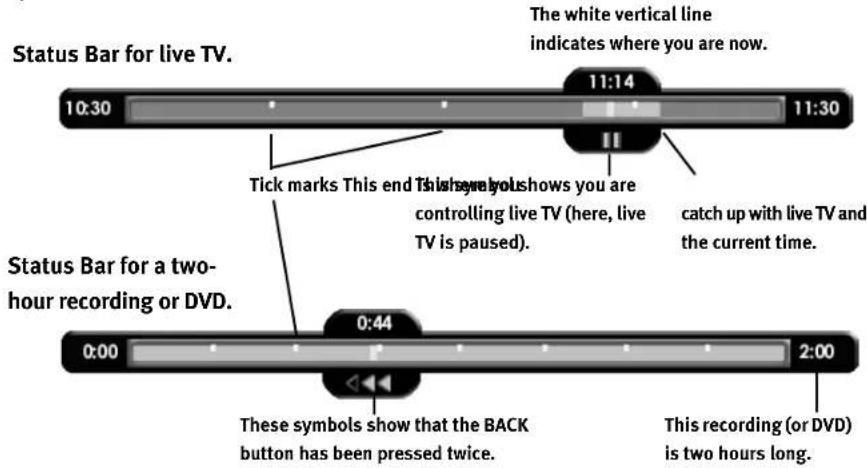
The CLEAR button hides the status bar, the program guide, the channel banner, and anything else that is not part of the program.

natural_image
Black-and-white photo of a bear peeking out from behind a wall, with no visible text or symbolsYou can only rewind live TV up to 30 minutes, or to the point where you last changed the channel (whichever is less). When you change the channel, you skip ahead to the current time on the new channel and start saving on that channel. If you are behind live TV and watching something you still want to see, you should not change the channel.

Pressing RIGHT arrow switches
among channel banner styles, from
small...

...to medium
...to large.
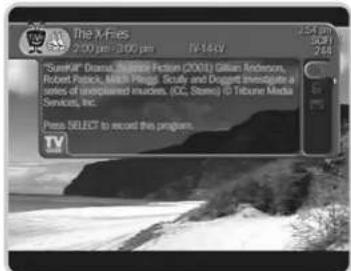
The Channel Banner
The channel banner appears at the top of the screen when you change channels, or press the INFO button or RIGHT arrow on your remote. This works when you're watching live TV, recorded programs or DVDs, or listening to a CD. The banner disappears after a few seconds. You can also hide the channel banner by pressing CLEAR or LEFT arrow.
There are three versions of the channel banner in live TV: small (with the current time and channel), medium (adds the title, running time and ratings), and large (adds a program description and icons). Press RIGHT arrow to switch among them. In recorded programs, only the medium and large versions are available.
When playing DVDs and CDs, the banner has different information and options. See "Playing a DVD or CD" on page 56.
Channel banner icons. In live TV and recorded programs, the large channel banner has three selectable icons on the right side. To use an icon, use the UP/DOWN arrows to highlight it, then press SELECT. (See the Glossary of Icons on the inside back cover.)

Record a program (or stop a current recording). If a recording is in progress, the icon appears bright.

Go to Parental Controls.
If Parental Controls are off, the lock appears unlocked and dim.
If they are on, it appears locked and bright (pictured here).
If they have been turned off temporarily, it appears unlocked and bright.

Read Messages. If the symbol is bright, you have new messages from the TiVo ^® service.
Watching Live TV
When you're watching a program as it's broadcast, you're watching live TV. To go to live TV at any time, press the LIVE TV/GUIDE button on your remote. You can also select Watch Live TV from TiVo Central®. If you've used the pause, rewind, slow, or instant replay features and are "behind" live TV, you can press ADVANCE to catch up.
Changing Channels
There are several ways to change channels:
- Use the Guide. Tired of channel surfing? Choose something to watch with the program guide. To see the guide, press the LIVE TV/GUIDE button. Then use the arrow buttons to highlight a program. To change the channel, press SELECT.
- Use the Number Pad. To go to a specific channel, use the numbers on your remote control, then press ENTER. (If you don't press ENTER, the channel changes automatically after a few seconds.) To clear the number before the channel changes, press CLEAR.
• Use ENTER. To jump back to the previous channel, press ENTER. - Use CHAN UP/DOWN. Of course, you can also still use the CHAN UP/DOWN button on your remote control. (CHAN UP/DOWN skips channels that are not on the channel list selected in Guide Options. For more information on channel lists, see page 68.)
★ Get More with TiVo Plus!
With TiVo Plus™ you can make a list of your Favorite Channels and set the guide to display only those channels. You can also use guide filtering to highlight types of programs you're looking for, such as cooking shows or comedy movies. For more about Guide Options available with TiVo Plus service, see page 98.
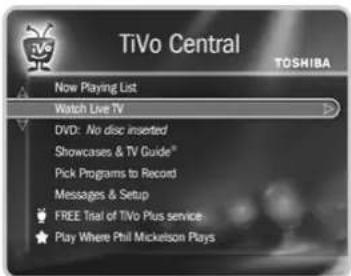
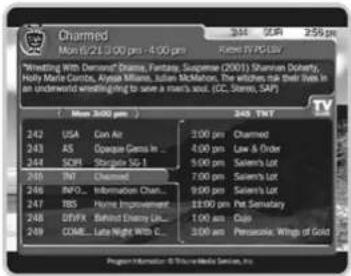
You can use your Digital Media Server's remote to control the
power, volume, mute, and TV input settings on your TV. For information on setting this up, see "Remote Control & DMS Front Lights" on page 76.
The Program Guide
The program guide displays program information in two side-by-side lists:
Left side. On its left side, the guide has a list of channels and the programs that are currently airing on them. If you want to watch a program in the list, highlight it, then press SELECT. This changes the channel.
Right side. The right side has a list of upcoming programs on the highlighted channel.
Moving Around the Guide:
- Press the UP and DOWN arrows to highlight channels or programs.
- Use the LEFT and RIGHT arrows to move between the left and right sides.
- Press CHAN UP/DOWN to quickly move up or down one page at a time.
- Press FORWARD and BACK to change the time displayed in half-hour increments.

While the highlight is on the left side of the guide, press the
FORWARD and BACK buttons to change the time in half-hour increments.
While the highlight is on the right side, press the FORWARD and BACK buttons to change the selected channel. Use CHAN UP/DOWN to page through the program listings.
Title, date, time the program airs, and rating
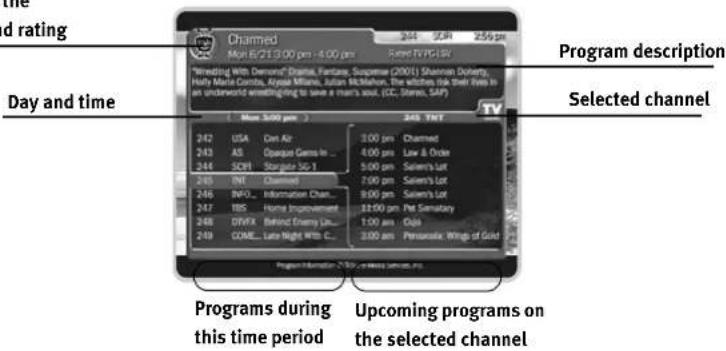
▶ Watching Programs from Now Playing
Programs you record with the DMS are listed in Now Playing. To go to Now Playing, press the TiVo button twice, or select Now Playing List from TiVo Central®.
As soon as a recording starts, the program's title appears in Now Playing. You can watch any program in Now Playing, even one that is still recording. Just highlight it and press PLAY. If you have watched part of the program already, it resumes from the point you stopped watching. When a program ends, you have the option to delete it. If you don't delete it, the program is available to watch again from the beginning in Now Playing.
Program Information Screen
When you select a program title from any list (such as the To Do List or the Now Playing List), you'll see its Program Information screen. This screen shows you the program description and other information about the recording. It also gives you these options:
• Play or Resume playing.
- Keep until... See below for more.
- Delete Now or Stop Recording (if recording is in progress)
- Save to DVD. See page 33 for information on using this feature.
Keep Until...
By default, programs you record are saved until space is needed for new recordings you request (this usually means for about two days). The oldest ones may be deleted to make room for new recordings you've scheduled. However, you always have the option to keep a program for as long as you want.
To change how long a program will be saved, select "Keep Until...." from the Program Information screen. On the next screen, choose "Keep until I delete" or use the arrow buttons to highlight and change the date displayed.

An icon to the left of each title in Now Playing tells you how long the
recording will be saved. See the Glossary of Icons on the inside back cover for details.
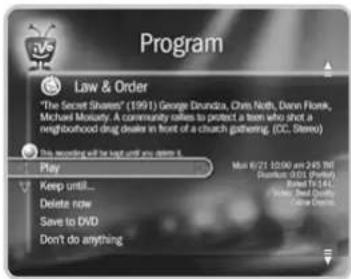

On a Program Information screen, press INFO to see Program Details,
which often has more about the program, such as actors, writers, producers, etc.
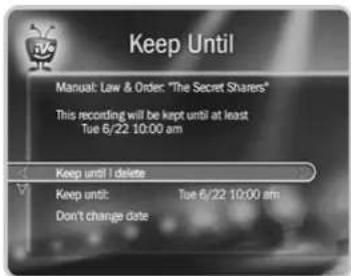
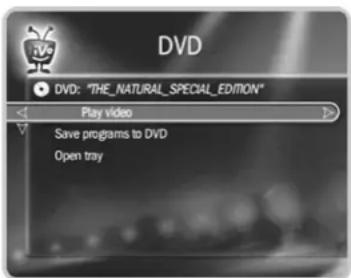
Playing a DVD or CD
You must complete Guided Setup before you can play CDs, and play or record DVDs. For instructions, see “Completing Guided Setup” on page 22.
If you finished “Tour Four: Playing a DVD or CD” on page 34, then you already know the basics of playing a DVD or CD with your Digital Media Server. This section provides a bit more detail and also describes some advanced playback features.
Inserting a Disc
To insert a disc, press the OPEN/CLOSE (▲) button on the Digital Media Server's front panel to open the disc tray. Put in the disc with the label side facing up, using the disc tray guide to align it, then press OPEN/CLOSE again to close the disc tray.
Press PLAY ( ) to play the disc.
The DVD Screen
After you insert a disc, you can simply highlight the DVD option on TiVo Central® and press PLAY to play the disc. For more options, go to the DVD screen. To view the DVD screen, highlight DVD on TiVo Central and press SELECT, or press the DVD button on the remote. The DVD screen may give options such as Resume Playing, if you have already been watching the DVD, or Search Disc options.
Front Panel Display
While playing a DVD, the Digital Media Server's front panel displays the title, chapter, and time elapsed in the current title. While playing MP3 files on CD, or while playing an audio CD, the front panel displays the number and elapsed time of the current track.
The DVD Menu Screen
If a DVD includes its own menu screen, you see this screen when you first play the DVD. To open or return to the DVD menu screen, press MENU or TOP MENU while the DVD is playing. (This may vary depending on how the DVD was created.)
To navigate a menu screen. Although individual DVD titles may differ, when a menu screen is displayed, use the UP/DOWN arrows to move around the options on the screen and use SELECT on the remote control to select options. Some DVDs also allow you to use the number buttons on the remote to select an option on a menu screen.
DVD Information and Playback Settings
DVD Banner. Press the INFO button while a video DVD is playing to show the DVD banner. You can hide the banner by pressing CLEAR or LEFT arrow. The DVD banner shows the time, the DVD title number and chapter number, and how far you are into the title and chapter. On the right side of the banner are selectable icons that let you change DVD settings. Use the UP and DOWN arrows to highlight an icon, then press SELECT to change one of the following settings:


Go To. Select to search for a title, chapter, or time. (See page 58.)
Repeat Setting. Select to choose a different repeat setting for the DVD. You can choose to repeat an individual chapter or a whole title.
Camera Angle. Selectable if you are watching a DVD with multiple camera angles. Select to change the camera angle.
Audio Track and Subtitle. Select to change audio track or subtitle language.
Video Format. Displays the DVD's format. The DMS automatically detects the video format used on a particular DVD. If the picture looks jagged, select this icon to change the method used to detect the DVD's format.

If you have turned on Parental
Controls for DVDs, you may need to
enter a password to watch some DVDs.
(See page 71 for details.)
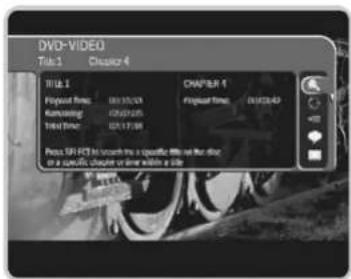
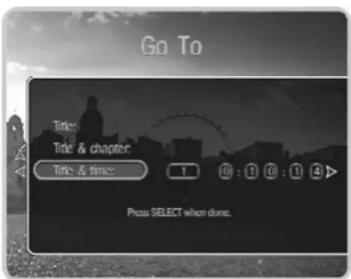
Searching for a Title, Chapter, Track, or Location on a Disc
CDs generally have multiple music tracks and DVDs are generally divided into one or more titles. A DVD's titles may be further subdivided into chapters. Your DMS offers different ways of accessing the information on a DVD or CD:
- Search for titles or chapters on a DVD-Video
- Search for tracks on a CD
- Select the point in time to start playback.
Search Via the Go To Screen. To search for a specific title on the disc or a specific chapter or time within a title, go to TiVo Central, select DVD, then select "Go to title, chapter, or time." From the Search Disc screen, select a title number, a title and chapter number, or a title number and time. Press SELECT when done.
Search Via Remote Control.
- DVD. Press the number buttons while the disc is stopped and the Recorder goes to that title. Press the number buttons while the disc is playing and the Recorder goes to that chapter of the current title.
- CD. Press the number buttons while playing a disc and the Recorder goes to that track. This does not work if "shuffle" is on. (See page 60.)
Changing the DVD Camera Angle
Some DVDs feature scenes shot from two or more angles. When you play a scene with multiple camera angles, an icon ( ) appears on the screen and in the DVD banner. The number in the icon tells you which of the available angles you are currently viewing. To change the camera angle:
- Press the ANGLE button while a scene with multiple angles is playing, or
- Press the INFO button to view the DVD banner. Use the DOWN arrow to highlight the angle icon, then press SELECT to change the angle.
If you don't want to see the angle indicator icon when watching DVDs, you can turn this feature off. See page 70 for details.
Control Buttons
The remote's control buttons control DVDs and CDs much the same way they control live TV and recorded programs. Some exceptions are listed below. For more on using the control buttons, see page 50.

SKIP FORWARD: Press SKIP FORWARD (the CHAN/PAGE UP button) to go to the beginning of the next chapter on a DVD or the next track on a CD.
SKIP BACK: Press SKIP BACK (the CHAN/PAGE DOWN button) once to go to the beginning of the current chapter on a DVD or track on a CD, press it again to go to the previous chapter or track.
- Buttons that are temporarily disabled. Some control buttons may be disabled during portions of DVD or CD. For example, control buttons are often disabled during the opening titles of a DVD. If you press a control button while it is disabled, a red circle with a slash ( ) appears on screen.
natural_image
Black-and-white photo of a tree branch with leaves and branches, no visible text or symbolsIf the DMS is playing an MP3 music file that is larger than 10 megabytes and that was recorded with a variable bit rate (VBR), control buttons such as BACK, FWD, and INSTANT REPLAY will not work. A special transparent version of the status bar (with no green segment) is also used for such MP3 files. Most MP3 recordings of popular music will not be this large.

The DMS does not produce
TiVo sound effects when playing an
audio CD.
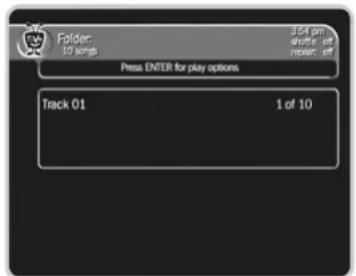
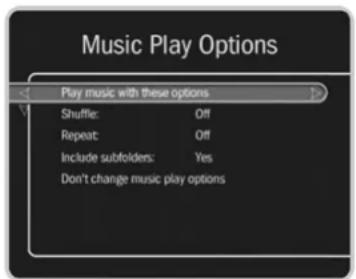
MP3, WMA, and Audio CD Information and Playback Settings
The DMS can play audio CDs as well as MP3 and WMA music files. It can also read music playlists that are in the most common format, M3U.
Browsing a Music Disc. Inserting a music CD makes a “Play music” option available on the DVD menu. Highlight “Play music” and press SELECT to browse the disc’s contents. Press ENTER while browsing to change the order in which the contents display.
Finding Information for Music. Press INFO while music is playing to see the music banner, which shows time and track information for the current disc. It disappears automatically after a few moments.
The DMS also shows a blue song info banner in the center of a black screen while music is playing. For audio CDs, the song info banner shows the current track number and the total number of tracks. If the files on a disc include tags with the song title, artist and album, the banner shows that information.
If you do not press a button on the remote or the front panel, the song info banner will change positions a few times every minute. Pressing CLEAR hides the song info banner and the music banner.
Changing the Play Order of Music. Press INFO to see the music banner, then press ENTER to see Music Play Options. Use the RIGHT and LEFT arrows to change them.
- Shuffle. (On, Off) When Shuffle is on, music tracks play in random order. When it is off (the default), they play in the order they are arranged on the CD or in the current playlist. Using SKIP FORWARD (▶) and SKIP BACK ( ) while Shuffle is on skips to the next or previous randomly selected track.
- Repeat. (One, All, None) Set Repeat to "One" to repeat an individual track, or to "All" to repeat the whole CD. If Repeat is set to None, the full disc plays once then stops.
Playing a Photo CD
You can use your Digital Media Server to view digital photos in JPEG format from a CD.
Browsing a Photo Disc. When you insert a photo CD, highlight "View photos" on the DVD screen and press SELECT to browse the contents of the disc. Photos and folders are displayed in a grid. Press ENTER while browsing to see the Photo Browsing Options:
- Sort. This option specifies how the photos and folders are sorted in the grid display. You can choose to sort the photos alphabetically, by date taken, or by date modified.
- Arrange by type. When this option is On, the DMS displays all the folders at the top of the list, and the photos beneath them. When this option is Off, the folders and photos are sorted together. When you play a slide show, photos appear in the order they are arranged in the grid.
Playing a slide show. When you insert a photo CD, there are a number of ways to start a slide show, beginning with the first photo in the first folder on the disc:
- From TiVo Central, highlight the “DVD: CD inserted” option and press PLAY.
- On the DVD screen, highlight "View photos" and press PLAY.
- From the Photos grid, highlight a folder or photo, and press PLAY.
You can use many of the remote's control buttons (PAUSE, PLAY, FORWARD, BACK) during a slide show. To view photos at your own pace, highlight a single photo inside a folder and press PLAY to display it. It will stay on the screen until you press FORWARD to see the next photo in the folder. Press BACK to see the previous photo.
When playing a slide show, you can also use the INSTANT REPLAY button ( ) to jump back one photo.
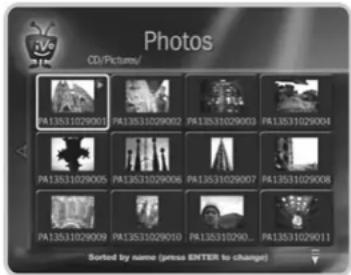
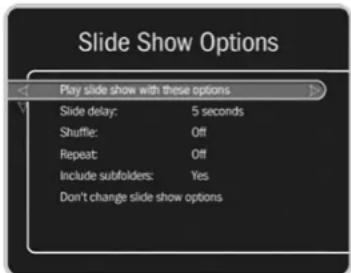
Slide Show Options. Highlight any photo and press SELECT to view details about that photo. Highlight "Play slide show," then "Options," and press SELECT.
- Slide delay. This option sets the time each photo is displayed before going to the next.
- Shuffle. This option displays the photos in the selected folder in random order.
- Repeat. This option repeats the slide show after the last photo is displayed.
- Include subfolders. Set this option to Yes, and the slide show will include photos in folders within the current folder. Set this option to No and the slide show displays only photos in the current folder.
Rotating a photo. If a photo appears incorrectly oriented on your TV, you can rotate it. Highlight any photo and press SELECT to view details about that photo. On the Photo screen, select "Rotate 90° clockwise." You may select this option more than once if the photo needs additional rotation.
When viewing a single photo, you can also use the INSTANT REPLAY button ( ) quickly rotate a photo 90° counter-clockwise.
▶ Disc Compatibility
The DMS can play standard DVDs, audio CDs, and MP3 music CDs. This section describes the Digital Media Server's compatibility with different kinds of discs and files.
▶ Playback Disc Compatibility
Size: The DMS can playback 8 cm. and 12 cm. discs.
Format. This DMS was designed and engineered to playback discs created by products bearing one or more of the logos shown at the left.
CD-R/RW. The DMS will play CD-R and CD-RW discs recorded in CD Audio format or recorded as CD-ROMs containing MP3 or WMA files, or digital photo files.
DVD-R/RW. The DMS will play DVD-R/RW discs that use DVD-Video format (Video Mode), and DVD-RW discs that use the Video Recording (VR) format.
PC-Created Discs. If you record a disc on a personal computer, even if it is in one of the compatible formats listed above, there is a small chance that settings of the software used to create the disk may prevent the DMS from playing it. If this happens, check with the publisher of the software used to create the disc for more information.
The DMS may not play discs with very complex directory structures (for example, large numbers of folders within folders), or with very large numbers of music playlists. While the specific number of playlists and the level of directory complexity required to make a disc unplayable depends on many factors, this should not be an issue for most discs created on a PC.
Some discs recorded using a different DVD recorder, CD recorder, or personal computer may not be playable in the Digital Media Server even though they were made with software that is compatible with the DMS. Some possible reasons for this include:
- the type of disc used - damage, dirt or condensation on either the disc or in the DMS's disc drive - other reasons related to specific formats; see the notes about individual formats in this section


The DMS can play discs created by products that bear any of these logos.

The DMS can play DVDs marked with the region code "1" or "ALL."


The "file name extension" is the last four characters of a file name. All
MP3 files should end with the file name extension ".MP3", as in "ASong.MP3".
Windows usually hides file name extensions; to make them visible, see the Help utility for your Windows operating system.
DVD Regions. DVDs and DVD players are manufactured for different regions of the world and are marked with corresponding “region codes.” To play a DVD, the DVD and the DVD player must have compatible region codes. Discs marked with the region code ALL will play in any DVD player.
A DVD's case should be marked with a logo that indicates the region(s) in which the disc is playable. This DMS has a region code of "1," which you can find on its back panel. Discs that do not have region code 1 or region code "ALL" will not play in this DMS.
Music and Other Audio Files
The DMS can play music and other audio files that are in MP3 or WMA format. It will attempt to play any file with an .MP3 or .WMA file name extension (upper or lowercase). Make sure the audio files on your discs are valid files and have one of those file name extensions. A file that is not an MP3 (or WMA) but has an MP3 (or WMA) file name extension may cause noise or unexpected results when you try to play it. Other kinds of content may cause a disc not to play, or to create noise, or distort the output.
The device used to create discs with MP3 or WMA files on them must be ISO 9660 Level 1 or 2 compliant, and the CDs must be created using physical format Mode1, or Mode2 XA Form1. The DMS is compatible with both Romeo and Joliet file systems.
Bit Rate. The DMS is designed to play MP3 files or WMA encoded at any bit rate. Audio encoded at 128Kbps should sound close to regular CD quality. The quality of the sound may become noticeably worse at lower bit rates.
Messages & Setup
Messages 66
Settings 67
Remote Control & DMS Front Lights 76
Phone & Network Setup 82
System Information 87
Troubleshooting 88
Restart or Reset System 89
Standby 90
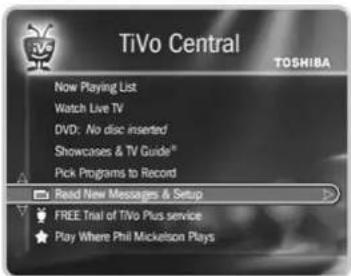
▶ Messages
Select Messages to read any messages from the TiVo service or internal alerts from your Digital Media Server. When you receive a new message, TiVo Central ^® will show the option, “Read New Messages & Setup.”
To read the messages:
- Go to TiVo Central, then select Read New Messages & Setup.
- Select Read New Messages. A list of all of your messages appears. Messages you have not yet read are marked with an envelope icon:
- Use the UP/DOWN arrows to highlight a message, then press SELECT to read it. CHAN UP/DOWN lets you page through a message if it doesn't fit on the screen.
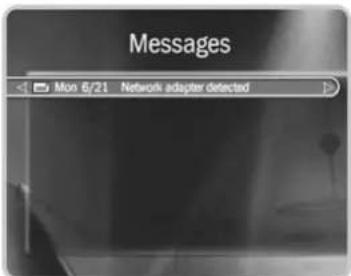
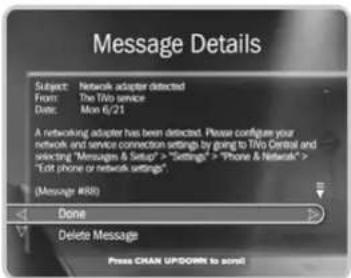
▶ Settings
With the options in Settings, you can make the Digital Media Server work more to your liking. Use these screens to set your default preferences for recording quality, Parental Controls, and more.
▶ Audio Settings
Your DMS can send an analog or digital audio signal to your TV or A/V receiver. To enjoy multichannel surround sound, you will need to connect the DMS to your A/V receiver using an Optical Digital Audio cable (not supplied). You should choose the audio settings below to match the capabilities of your A/V receiver.
96kHz PCM Output. PCM (Pulse Code Modulation) is the most common system of encoding digital audio. Sound can be turned into digital audio data at different sampling rates; the higher the rate, the better the quality. If your amplifier/receiver is compatible with 96kHz sampling rate audio, then choose "96kHz." Otherwise, leave it set to "96kHz to 48kHz" (the default). PCM soundtracks are mono or stereo only.
Audio DRC. When watching Dolby Digital DVDs at low volume, it's easy to lose low level sounds completely, including some of the dialog. Turning on Audio DRC (Dynamic Range Control) can help by making quiet sounds louder and loud sounds quieter. Audio DRC is not effective if Dolby Digital Output is set to "Dolby Digital" (see below). In that case, you must use your amplifier/receiver to adjust the dynamic range.
Dolby Digital Output. Dolby Digital audio soundtracks can be mono, stereo or contain up to 5.1 channels (surround sound). If your DMS is connected to an A/V receiver that has a built-in Dolby Digital decoder, choose "Dolby Digital" (the default). Otherwise, choose "Dolby Digital to PCM." If you choose "Dolby Digital," you won't hear TiVo sound
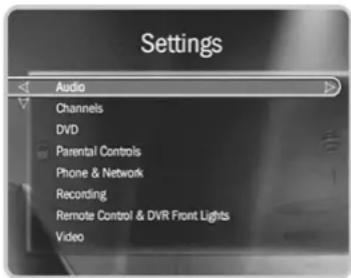
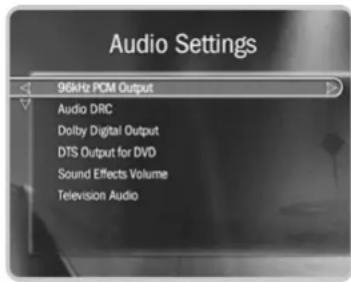
effects when playing Dolby Digital content. If you choose “Dolby Digital to PCM,” you won’t have 5.1 surround sound capabilities.
DTS Digital Output for DVD. DTS (Digital Theater Systems) is another 5.1 channel surround format sometimes used on DVD-Video discs. If your DMS is connected to an A/V receiver that has a built-in DTS decoder, choose "On." Otherwise, choose "Off" (the default). If this setting is off, you will not hear audio when playing a DVD with DTS.
Sound Effects Volume. You can change the volume or turn off the Digital Media Server's sound effects (the tones played when you press buttons on the remote control). The default setting is Medium.
Television Audio. This option lets you select the Digital Media Server's default audio output option. You can choose to have the default audio in stereo or mono, or have a secondary audio program (SAP) recorded when one is available.
Secondary audio programs are generally audio broadcasts in a language other than English. If you choose to record SAP and there is a secondary audio program, it will be recorded. The SAP may be in Spanish, French, Japanese or some other language.
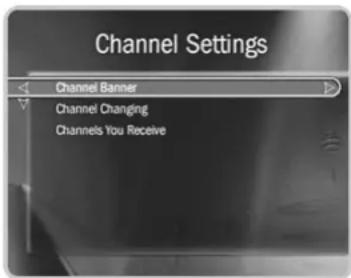
Channel Settings
Cable Lineup. (You won't see the "Cable Lineup" option if your program source is not cable.) Select this if you have changed your cable subscription, or if your channel lineup looks wrong in "Channels You Receive." On the next screen you'll be able to choose among available cable channel lineups based on your ZIP code.
Channel Banner. Normally, when you change channels, the channel banner is displayed for a few seconds. Use this setting to control how the channel banner is displayed. If you want the channel banner to disappear quickly, select “Clear banner quickly.”
Channel Changing. Use this setting to make changes to the way your DMS changes channels on your cable or satellite box. You should do this if:
- you change the type of control cable (IR or Serial) used to change channels on your cable or satellite box (see “Choosing a Channel Changing Cable” on page 5),
- your cable or satellite box is replaced by a new make or model,
- or if you are having trouble with channel changing (see page 136 for troubleshooting.)
Channels You Receive. The Channels You Receive list starts with all the channels included in your service package. It can be customized to include only channels you actually subscribe to and to reflect your viewing preferences. (For example, if you never watch a channel and don't plan to set up any recordings on it, or let the TiVo service search for programs on it, you can de-select it here.) Your DMS uses this customized "channel list" to display channels in the program guide.
To set up a custom channel list:
- From the Channel Settings screen, select Channels You Receive. A checkmark appears to the left of channels that are part of the selected list.
- To remove or add a channel, highlight it and press SELECT. (You can speed through the list with CHAN UP/DOWN. To go directly to a specific channel, press the number buttons, then press ENTER.)
Your changes are saved automatically. Press LEFT or RIGHT arrow to return to the Channel Settings screen.
★ Get More with TiVo Plus!
With TiVo Plus™, you'll also have access to Favorite Channels. The Favorite Channels list is for channels you watch frequently. Include only a few channels in this list, so that you can quickly browse them using the program guide. (See Guide Options on page 98.)

In the event that there is a change to your cable or satellite
subscription package, a TiVo message will let you know what the change is. You must then use Channel Settings to ensure that the Channels You Receive list reflects the change to your lineup.
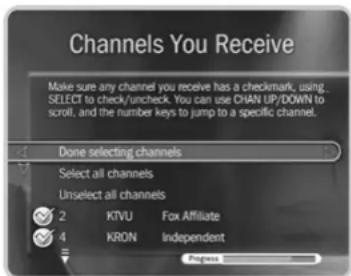
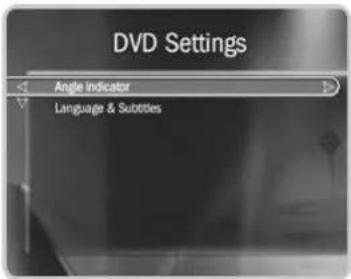
DVD Settings
There are two selections available in DVD Settings:
Angle Indicator. Some DVDs feature scenes shot from two or more angles. During those scenes, an angle indicator appears on the screen (1). If you do not want to see the angle indicator, select "Off."
Language & Subtitles. You can select the preferred audio and DVD menu languages (default is English). If that language is available on a DVD, the DMS will use it instead of any others. You can also change the subtitle settings:
- Subtitle language. (Default is English.)
- Subtitle display. On or Off. (Default is Off.)
▶ Parental Controls
Parental Controls allow you to set limits on movie and television ratings, to lock specific channels, and to prevent viewing of recorded programs that violate Parental Controls. The padlock icon shows the current state of Parental Controls:

Off. No password or controls set. Padlock appears unlocked and dark.

On. Password and controls set. Padlock appears locked and bright.

Temporarily off. Controls set, but password was entered to temporarily turn off. Padlock appears unlocked and bright.
While Parental Controls are on, you can watch a locked program or channel by pressing SELECT, then entering the password. This temporarily turns off Parental Controls.
To turn on Parental Controls and define a password ☐: Select "Turn on Parental Controls." Use the number buttons on the remote control to enter a four-digit password, then enter the same password again for confirmation.
To turn off Parental Controls (G): Select "Turn off Parental Controls," enter the password, and press SELECT. When Parental Controls are turned off, the password is deleted and anyone can view any programs or watch any channels.
To temporarily turn off Parental Controls (): Just enter the password to watch a program or channel. Or, select "Temporarily turn off Parental Controls" on the Parental Controls screen. When Parental Controls are temporarily turned off, any program or channel can be viewed, but the password is still required to change Parental Controls settings. To re-enable Parental Controls, select "Re-enable Parental Controls." Or, you can put the DMS into Standby mode, then take it out. To do this, select Messages & Setup, then Standby. Then press the TiVo or LIVE TV button.

The large version of the channel banner has a shortcut to Parental
Controls; see page 52 for details.
![Parental Controls Parental Controls are OFF. Turn on Parental Controls Rating Settings Channel Locks [No Locked Channels] DVD Country Setting [United States] Auto Re-lock [On]](/content/2026/05/817736/images/0119fbe3a7e672375bdccfee90456e46bbfb3a2a2eff1d86c2bfaafab77fe00b.jpg)
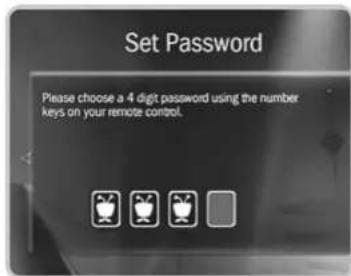

When you turn Parental Controls off, your password is deleted. You may to temporarily turn off Parental
Controls, so that another person in your household doesn't choose a new password.
![Parental Controls Parental Controls are ON. Temporarily turn off Parental Controls Rating Settings Channel Locks [No Locked Channels] DVD Country Setting [United States] Auto Re-lock [On] Change Password Turn off Parental Controls](/content/2026/05/817736/images/98ccaa7552c61a929bb37c77aed1fa2aca1168072cbf26c28c05c6ba9b600256.jpg)
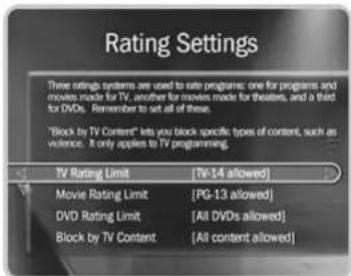
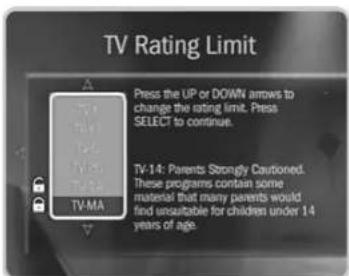
To change the Password (☐): To change the password for Parental Controls, Parental Controls must be on. Select "Change Password" on the Parental Controls screen. Enter a new password, then re-enter the new password to confirm.
Auto Re-lock Option. When Parental Controls are temporarily turned off, they re-lock automatically after four hours if you don't use your remote. Parental Controls won't re-lock in the middle of a show. By default, the Auto Rc-lock option is on.
DVD Country Setting. DVD ratings may differ from country to country. When Parental Controls are on, the DMS uses the rating system for the country you specify here.
Rating Settings for TV and Movies (☐). Movies originally meant for release to theaters have a different rating system from programs made for TV. You can use Parental Controls to set limits for both rating systems. You can also set limits for specific types of TV content that may be objectionable—such as sexual content or violence.
To set Rating Limits for TV and Movies: From Parental Controls, select "Rating Settings." Enter the password and select the kind of limit you want to change.
The next screen contains a box listing all potential ratings. Ratings shaded in green are not locked; those in red are locked. Use the UP and DOWN arrows to move the red shading and adjust which ratings are locked. Your changes are saved automatically. When you are done, press RIGHT or LEFT arrow to return to Parental Controls.
To set Rating Limits for Specific TV Content: From Parental Controls, select "Rating Settings," then enter the password and press SELECT. Select "Block by TV Content." A list of categories appears on the next screen. Select a category (for example, V-Violence).
A box containing all the possible ratings appears. Ratings in green are not locked; ratings in red are locked. (Ratings in gray do not apply to the category. For example, a TV-Y program would not have V-Violence content so there is nothing to block.)
Use the UP and DOWN arrows to adjust which ratings are locked or unlocked. The display to the right of the box will change to tell you exactly what ratings level you are allowing. Your changes are saved automatically. To return to the Parental Controls screen, press SELECT or RIGHT arrow.
Broadcasters are not required to provide ratings for specific types of content. If you want to be sure to block programs that do not include ratings for specific types of content, you will have to use age-based ratings to block content. See “Rating Limits for TV and Movies,” above.
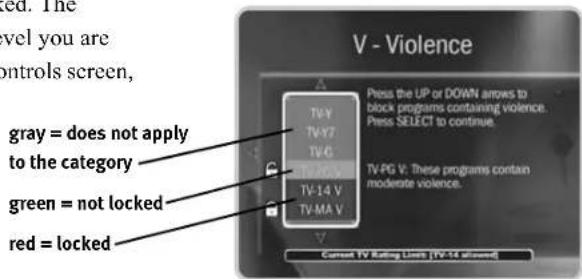
Movies and TV Programs with No Rating Information. Some movies and TV programs are broadcast with no rating information. From Rating Settings, select Block Unrated to choose how the Digital Media Server's Parental Controls will treat unrated movies and TV programs.
DVD Rating Limit. You can block playback of DVDs that exceed the rating limit you set using this screen.
Channel Lock for Live TV (💡). You can lock individual channels so that a password is required to view any program on those channels. To lock or unlock channels:
- From the Parental Controls screen, select "Channel Lock," and enter the password.
- A channel list appears with a padlock icon to the left of any locked channels. Highlight a channel and press SELECT to add or remove a padlock icon. Use CHAN UP/DOWN to move through the list quickly. You can highlight a specific channel by entering its channel number with the number buttons on the remote.
- When you are done, press RIGHT or LEFT to return to Parental Controls. Your changes are saved automatically.
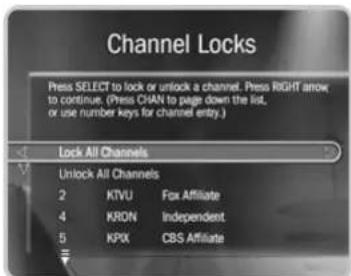

One hour of Best Quality equals about 3 hours of Basic Quality, 2
hours of Medium Quality, and 1.5 hours of High Quality.
Recording Settings
Recording Quality. You can increase the available recording time on your DMS by selecting a recording quality appropriate for the type of program you are recording. The DMS offers four levels of recording quality; set your default on this screen. The choice you make here will be used for all recordings.
The recording quality choices available are Best, High, Medium, and Basic. The factory default is High. Basic quality takes up about one-third the space of Best quality, so it gives you about three times the amount of space for programs. You may wish to experiment with different levels and then reset your default. Some quality settings are better suited for certain kinds of programs, but you should choose what looks best to you.
| Recording Quality Suggested use | ||
| Basic | News | |
| Medium | Daytime | Talk Show |
| High | Dramas, | |
| Best Sports, Action | Movies | |
Films
The DMS automatically uses Best Quality when displaying live TV. However, when it records a program, the DMS uses the Video Recording Quality you specified for that program. If that quality is not Best, you may notice the difference when recording starts.
★ Get More with TiVo Plus!
With TiVo Plus™ service, you'll have access to Recording Options. Each time you schedule a recording, you can specify which recording quality setting to use. For details, see page 94.
▶ Video Settings
Connection to DMS. If you change the cable you use to connect video from your cable or satellite box to the DMS, use this screen to inform the DMS of the change. The next screen you see depends on whether you have one or two video sources. For details on navigating the Connection to DMS screens, see page 24.
Progressive Output. This setting allows you to choose the type of video signal output by the DMS. Interlaced scan video is the standard method of displaying a picture on your TV. All TVs are compatible with Interlaced scan, and this is the default setting. Progressive scan video is a method of displaying a more stable, flicker-free picture on your TV. If your TV is compatible with progressive scan and it is connected to your DMS with a Component Video cable (not supplied; see page 4), choose Progressive.
3D Noise Reduction. (Appears if you set your video output to Progressive.) If your TV is compatible with progressive scan video, you can enable, disable, or change digital video noise reduction settings. To reduce the amount of noise in the video, choose "On."
RF Video. If you use a Coaxial RF cable as the video input to your DMS, this option is available. You can use the RF Video screen to smooth the video, which will decrease the static and improve the picture on these channels. However, it will cause images on all channels carried to your DMS on a Coaxial RF cable to lose some sharpness.
TV Aspect Ratio. You can select the image proportions for the type of TV you have: 16:9 (wide screen) or 4:3 (standard).
Wide Screen Format. If you set the TV Aspect Ratio to 4:3, use this setting to determine how the DMS displays wide screen content. Choose "Letterbox" to shrink the wide screen picture to fit on the TV screen with black bars at the top and bottom. Choose "Pan & Scan" to chop off the sides of the picture to fit on the screen without shrinking.

If you change video sources, for example, by changing from cable to
satellite service, you should repeat
Guided Setup (go to Messages & Setup, then Restart or Reset System, then
Repeat Guided Setup).
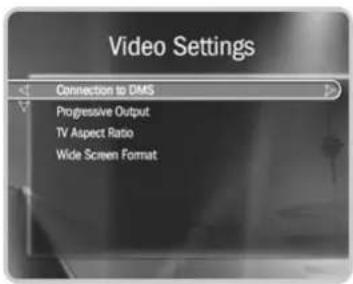
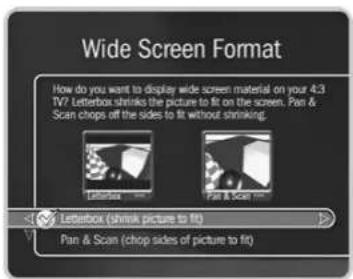
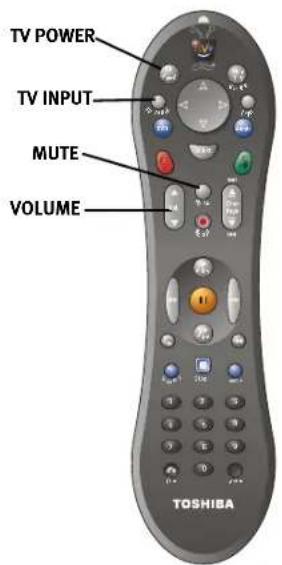

The TV INPUT button can control the video signal—or "input"—your
TV displays. Changing the input will change the source of the video displayed on your TV. TV inputs can include video from a VCR, DVD player, DVR, or a video camera.
▶ Remote Control & DMS Front Lights
To change the settings of the lights on the Digital Media Server's front panel, see page 81. For information about the individual buttons on the TiVo remote control, please refer to the Remote Control Tips on the inside front cover of this guide. Before programming the remote control, you must first insert the batteries and complete Guided Setup.
The TiVo remote will already work with your DMS. You can also program some buttons on the remote to control your TV and/or A/V receiver (your stereo system).
- Control TV power, volume, mute, and input settings. Complete the instructions starting on on page 77 using the first column in each of the tables (TV power, volume, and mute). Then repeat the instructions using the second column (TV input).
- Control TV and A/V receiver power & A/V receiver volume and mute. Complete the instructions starting on on page 77 using the first column in each of the tables. Then repeat the instructions using the third column (A/V receiver power, volume, and mute). In this case, the TV POWER button turns on/off the TV and the A/V receiver at the same time. The VOL and MUTE buttons control only the A/V receiver.
- Control TV power and A/V receiver volume and mute. Complete the instructions starting on on page 77 using the first column in each of the tables. Then repeat the instructions using the fourth column (A/V receiver volume and mute). The VOL and MUTE buttons control only the A/V receiver.
▶ Programming the TV POWER, VOLUME, and TV INPUT Buttons
| To Control: | TV power, volume, and mute | TV input A/V receiver | power, volume, and mute | A/V receiver volume and mute only |
| Choose: | Remote Control-TV (power, volume, mute) | Remote Control-TV (TV Input) | Remote Control-A/V Stereo System | Remote Control-A/V Stereo System |
- Go to the Remote Control screen. Press the TiVo button to go to TiVo Central ^® . Select Messages & Setup, then Settings, then Remote Control & DMS Front. Choose which device and/or functions you want to control:
- Select the brand of your device. Using the UP/DOWN arrows, highlight the brand of the device you wish to control, then press SELECT. (If you have been using a universal TV remote control, select your TV or A/V receiver's brand, not the brand of the universal remote.) Next you'll see a screen with four-digit codes.
- Prepare the remote control. Point the remote away from your DMS and cover the front end with your hand. Refer to the table below and determine which two buttons to press to prepare the remote. Press and hold the buttons simultaneously for about 5 seconds (until the red light at the end of the remote control lights up and stays on when you release the buttons).
| To Control: | TV power, volume, and mute | TV input A/V receiver | power, volume, and mute | A/V receiver volume and mute only |
| Press the: | TV POWER and TiVo buttons | TV INPUT and TiVo buttons | TV POWER and TiVo buttons | MUTE and TiVo buttons |
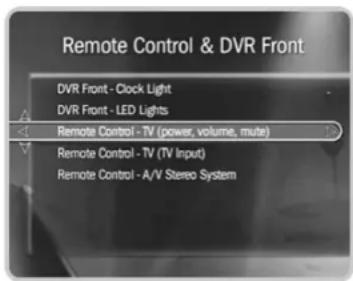
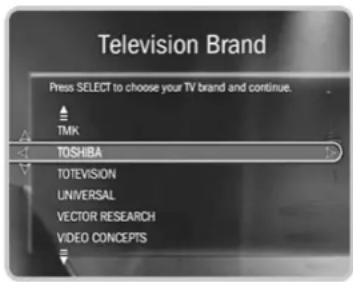
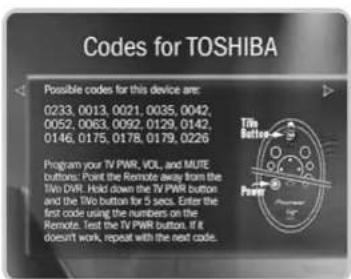
-
Enter a code. Use the number buttons on the remote control to enter a four-digit code (starting with the first code in the list on the screen). After you press the fourth digit of the code, the red light on the end of the remote control should flash. If it doesn't, try the next code.
-
Test the code. Point the remote towards the TV and test the button:
| To Test the: | TV power, volume, and mute | TV input A/V receiver | power, volume, and mute | A/V receiver volume and mute only |
| Press the: | TV POWER button TV | INPUT button TV POWER | MUTE button |
If pressing the button works (e.g., turns the TV or A/V receiver off, or changes the TV input), the code is correct. If it does not work, repeat steps 3 and 4 using the next code on the list. If none of the codes works, perform a code search (see below).
▶ Performing a Code Search
If none of the codes listed allows you to control your device, a code search may detect the correct code. Performing a code search can take up to 20 minutes.
- Prepare the remote control. Point the remote away from your DMS and cover the front end with your hand.
Refer to the table below and determine which two buttons to press to prepare the remote. Press and hold the buttons simultaneously for about 5 seconds (until the red light at the end of the remote lights up and stays lit when you release the buttons).
| To Control: | TV power, volume, and mute | TV input A/V receiver | power, volume, and mute | A/V receiver volume and mute only |
| Press the: | TV POWER and TiVo buttons | TV INPUT and TiVo buttons | TV POWER and TiVo buttons | MUTE and TiVo buttons |
- Enter the search code. Refer to the table below and use the number keys on your remote control to enter the appropriate code.
| To Test: | TV power, volume, and mute | TV input A/V receiver | power, volume, and mute | A/V receiver volume and mute only |
| Enter: | 0999 0999 1999 19 | 99 |
After you press the fourth digit of the code, the red light on the end of the remote control will flash twice, then remain on.
- Test the remote control. Point the remote control at the TV or A/V receiver. Press CHAN UP to test the first code. The test is successful if the TV or A/V receiver responds (by powering off, changing input, or muting, depending on the function you are trying to program). If there is no response, wait two or three seconds, then press CHAN UP again. Continue doing this until the TV or A/V receiver responds.
When the TV or A/V receiver does respond, press ENTER to select the current code. The red light at the end of the remote control will flash three times to indicate that the remote control is properly coded to control your device.
When the red light on the end of the remote control turns off, you have reached the end of the available codes.
Unfortunately, due to the great variety of TVs and A/V receivers, some makes and models are not compatible with your Digital Media Server's remote control. If you reach the end of the available codes without finding a code that works with your device, you will need to use your TV or A/V receiver's remote to turn it on and off, and control the volume.

By default, all TiVo DVRs and remote controls (including your
Digital Media Server) have a Remote Address of "0" (zero). A remote control with a Remote Address of "0" will control any TiVo DVR, even one with an assigned code. A DVR or DMS set to "0" will respond to any remote control, even one with an assigned code. This prevents you from becoming accidentally "locked out" of controlling your TiVo DVRs.
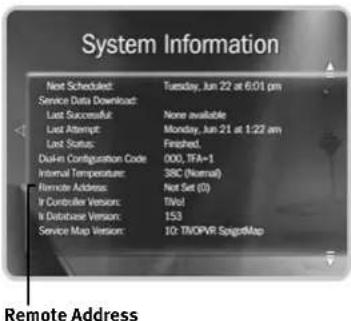
Setting the Remote Address
If you have more than one Digital Media Server in your home, or if you have another model of TiVo DVR in addition to your Digital Media Server, you can match a particular DMS with a particular remote so that each DMS will only respond to its own remote. You can do this by setting the Remote Address.
- If both Digital Media Servers are in the same room, start by covering the IR sensor window on one DMS using a cloth or thick piece of paper. This will prevent setting the Remote Address on both Digital Media Servers simultaneously.
- Go to the System Information screen. First, press the TiVo button, then highlight and select Messages & Setup, then System Information. On the System Information screen, scroll down until you see Remote Address.
- Hold down the PAUSE and TiVo buttons simultaneously for about five seconds (until the red light at the end of the remote control lights up and stays on when you release the buttons).
- Use the number keys to enter any digit from 1 to 9. Press the number you have chosen several times until you see the Remote Address change on the screen.
- Press the TiVo button to go to TiVo Central.
- Repeat these steps using your second DMS and remote control. Be sure to choose a different number (in Step 4) for the remote address of the second DMS.
Once you complete this process, each remote will control only the DMS to which it is assigned.
▶ Resetting the Programmable Buttons
If you make a mistake, or are having difficulty, you can reset the programmable buttons (TV POWER, VOLUME, MUTE, TV INPUT). All the remote's buttons will return to the unprogrammed state of a new remote.
- Prepare the remote control. Point the remote away from your DMS and cover the front end with your hand.
Press and hold the TV POWER button and TiVo button simultaneously until the red light at the end of the remote control comes on, remains steady, then stays on when you release the buttons.
Front Panel Lights
You can change the settings of the lights on the Digital Media Server's front panel.
DMS Front - Clock Light. You don't have to set the clock on the front of the DMS—the TiVo service sets it for you. (No more blinking "12:00"!). This setting lets you dim or turn off the clock.
DMS Front - LED Lights. The DMS has LED (light emitting diode) lights on its front panel to indicate when it is receiving power and when it is recording a program or a DVD. You can choose to turn off these lights.
Even if you choose to turn off the front panel lights, one of the LEDs on the front panel will flash briefly when a button on the remote is pressed. This indicates that the DMS is receiving a signal from the remote.

Your DMS should NOT be used with a digital PBX phone system. Doing
so may permanently damage your Digital Media Server's modem and can void your warranty. See Chapter 10 for warranty information.
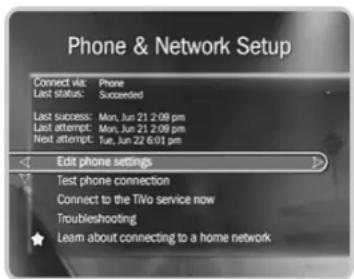
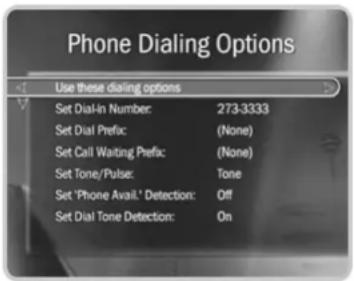
▶ Phone & Network Setup
The Digital Media Server makes regular connections to the TiVo service to get updates to the TiVo service, program information for the program guide, and updates to Showcases and TiVolution® Magazine. The connection usually lasts less than five minutes. You may receive service updates to your DMS from time to time. In such cases, it may last longer, but this happens rarely (a few times a year).
A phone connection is required for Guided Setup, but after you complete Guided Setup, you'll be able to connect your DMS to a home network and use a shared Internet connection instead of a phone line to make connections to the TiVo service.
On the Phone & Network Setup screen, you can see details, including the time of the last successful connection to the TiVo service and last connection attempt, as well as the status of the last connection.
The Phone & Network Setup screen has different selections depending on whether you have connected a network adapter to your DMS. If you haven't connected a network adapter, you will see these selections:
- Edit phone settings. This selection takes you to the Phone Dialing Options screen. Selections on this screen are explained in detail on page 84.
-
Test phone connection. When you select this, a test connection to the TiVo service will start automatically. You may wish to use this option for troubleshooting or other unusual circumstances. Test connections usually only take a couple of minutes. When the connection has finished, press SELECT to continue.
-
Connect to the TiVo service now. Normally, you do not need to connect to the TiVo service manually. However, for troubleshooting or other unusual circumstances, you may wish to use this option. After you start the connection, the status indicator reads "Starting Up" and will change as it goes through several stages. You can watch live TV, set up recordings, and search for programs while the connection is in progress.
- Troubleshooting. This selection takes you to the Troubleshooting screen, where you will find Phone Troubleshooting and Network Troubleshooting steps among other troubleshooting selections.
- Learn about connecting to a home network. Before you connect a network adapter to your DMS, the Phone & Network Setup screen will display this selection with a yellow star. See Chapter 8 for more information about connecting your DMS to a home network.
After you connect a network adapter to your DMS, you will no longer see “Learn about connecting to a home network.” You will have two new selections available:
- Change connection type. This allows you to change how the DMS connects to the TiVo service, by phone or using your home network's shared Internet connection.
- Edit phone or network settings. The Phone & Network Settings screen has selections for Phone Dialing Options (see below for details), TCP/IP Settings, and Wireless Settings. See Chapter 8 for more information about TCP/IP Settings and Wireless Settings.
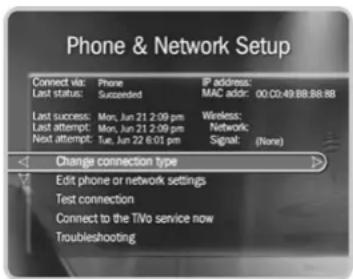
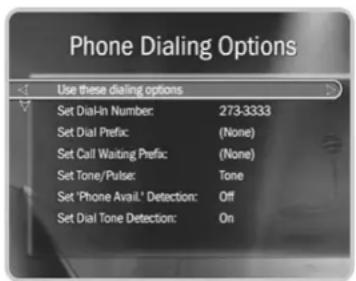

In some areas, local and long
distance toll charges may apply.
You are responsible for any telephone charges.
▶ Phone Dialing Options
Change Dialing Options. You can change the following settings (if you make a mistake while entering a change, use the BACK button to backspace):
Set Dial-In Number. Use this to change the number the DMS uses to make test calls and daily calls. To change it:
- Select "Set Dial-In Number." The Area Code screen appears.
- Use the number keypad on the remote to set the area code, then press SELECT. If you change the area code, or if the DMS has not made a daily call in the last twenty-four hours, the Update Numbers screen appears and the DMS calls the TiVo service to retrieve a list of local dial-in numbers. After the phone call, press SELECT. The Dial-In Number screen appears.
- Use the UP/DOWN arrow to choose one of the listed phone numbers. The DMS will use this number to connect to the TiVo service. Then press SELECT.
If your area code has no access numbers, press LEFT arrow to return to the Area Code screen and try a nearby area code. - The Dialing Format screen appears after you have chosen a dial-in number. You should use this screen to tell the DMS which dialing format to use. For example: should the dial-in number be preceded by your area code and should a "1" precede the area code? In some areas, even local numbers must be dialed using the area code. Press SELECT to return to the Phone Dialing Options screen.
To test your new dial-in number, select "Test Phone Connection Now." The Test Phone Connection screen appears and a test phone call begins. When the call
completes, you should see the message "Test Succeeded!" Press SELECT to return to Phone Dialing Options.
Set Dial Prefix. Use this option if you normally dial a prefix before making a phone call (for example, if you need to dial "9" to get an outside line). Use the number keys on the remote control to enter the prefix. Press the PAUSE button after you have entered the prefix. This will insert a comma, which will create a two second pause after the prefix is dialed.
Set Call Waiting Prefix. If you have call waiting, you may choose to disable it while the DMS is making a call, so that the call is not interrupted. If you do not disable it, the DMS may drop its call and allow the incoming call to ring through, depending on your phone system. The DMS will then try its call again later. The most common code that phone companies use to disable call waiting is *70 (check with your phone company to find out how to disable call waiting in your area). Press CLEAR to enter a star (*). Press the PAUSE button after you have entered the prefix to insert a comma, which creates a two second pause after the prefix is dialed.
Set Tone/Pulse. If your phone system uses pulse dialing, rather than tone dialing, you can change the setting to pulse here. (Today, most phone systems are tone.)
Set “Phone Avail.” Detection. When Set ‘Phone Avail.’ Detection is on, the DMS can determine whether the phone line is in use by detecting voltage on the line. This allows it to avoid disrupting a call in progress (such as another modem call).
This setting is off by default. With 'Phone Avail.' Detection turned off, if you are on the phone when the DMS tries to call, you may hear a click on the line. If you have another modem call in progress (on your computer or other device), that call may be disrupted if the DMS attempts to call the TiVo service. If you have a standard dial tone, and 'Phone Avail.' Detection is off, turn on Dial Tone Detection (below).

With Dial Tone Detection and
'Phone Avail.' Detection both turned
off, if you happen to be talking on the
phone when the DVR tries to call you will hear the modem dial and try to connect to the TiVo service.
If you are experiencing “Failed, Line unavailable” errors, or if the DMS is not making daily calls, you may have a low-voltage phone system that the DMS cannot detect. In this case, it’s best to have ‘Phone Avail.’ Detection off.
Set Dial Tone Detection. This setting is on by default. If you leave it on, the DMS will check for a dial tone before it starts dialing. However, if you have a non-standard dial tone, or a stuttering dial tone (as some voice messaging systems have), the DMS will be unable to detect the dial tone and will not make its call.
Restore previous options. The DMS must make a successful test phone call before it will accept changes to Phone Dialing Options. If you want to restore your previous dialing options and continue past this screen without making a test phone call, select “Restore previous options.”
▶▶ System Information
The System Information screen provides general information about your Digital Media Server, including its service number, manufacturer, model number, software version used, storage capacity, and information about recent connections to the TiVo® service. You'll need some of this information if you contact Customer Support. You can use the CHAN UP/DOWN button to see the rest of the information on the screen.
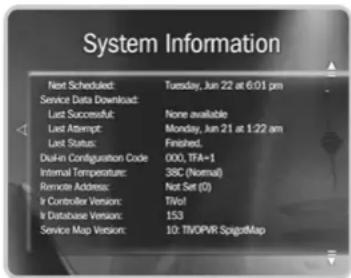
▶ Troubleshooting
If you're having trouble, or have any questions about your Digital Media Server, consult the troubleshooting steps available in Chapter 9 of this guide.
The Troubleshooting screens provide tips that may help you troubleshoot various problems. Use CHAN UP/DOWN to see all of the text on the screens.
- Parental Controls Troubleshooting provides instructions for using Parental Controls.
• Phone Troubleshooting can help if connections to the TiVo service are unsuccessful. - Channel Troubleshooting provides channel changing help if you are using a satellite or cable box. The tips at the top of the screen are for cable or satellite boxes that attach to the DMS through a serial connection. Use CHAN UP/DOWN to see the second set of tips, which deal with cable or satellite boxes using IR (infrared) connections to the DMS. You can also find tips in Chapter 9 and at www.tivo.com/support.
- Network Troubleshooting provides tips to help you with your Digital Media Server's network connection. See Chapter 8 for more information.
- Transfer Troubleshooting appears when you upgrade to TiVo Plus™ service. See Chapter 8 for more about Multi-Room Viewing.
▶ Restart or Reset System
You may need to restart the Digital Media Server as a routine troubleshooting step. Other options on this screen erase information or restore original factory settings. Selecting any of these displays a warning. Press THUMBS DOWN three times, then ENTER to proceed.
Restart the Digital Media Server. Shuts down the DMS and starts it up again. It will not affect recordings in Now Playing, upcoming Season Pass ^TM recordings, WishList ^TM searches, or TiVo Suggestions. Any recording in progress will be interrupted.
Repeat Guided Setup. You will have to repeat Guided Setup if you move or if you change your cable or satellite provider. Repeating Guided Setup will reset the Channels You Receive and Favorites channel lists to the factory settings. It will not affect recorded programs, Season Pass recordings, WishList searches, or TiVo Suggestions.
Clear Thumb Ratings. Removes all Thumbs Up ^TM and Thumbs Down ^TM ratings. With TiVo Plus ^TM service, this option also deletes the list of TiVo Suggestions.
Reset DVD Settings. Clears any DVD settings you made. See page 70 for details.
Clear program information & To Do List. Clears all program information, cancels all Season Pass recordings and everything in the To Do List, and removes all Thumbs Up and Thumbs Down ratings. It does not delete programs in the Now Playing List. The DMS acquires new program information during the next connection to the TiVo service. Completing this process may take over an hour.
Clear & delete everything. Clears all Season Pass recordings, WishList searches, Thumbs Up and Thumbs Down ratings, TiVo Suggestions, Now Playing List recordings, program information, the To Do List and setup information, including the Channels You Receive and Favorite Channels lists. It also clears the current password and resets Parental Controls to the factory specified default. Completing this process may take over an hour.
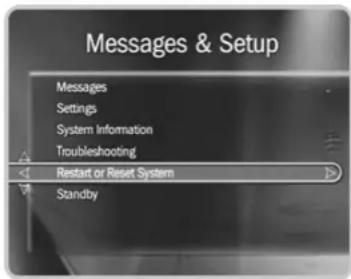
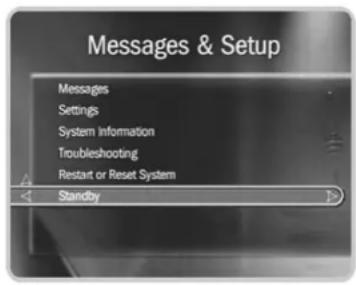
▶ Standby
You can put your Digital Media Server in Standby mode by selecting Standby in Messages & Setup, or by pressing the ON/STANDBY button on the front panel. To take your DMS out of Standby, press the TiVo button or the LIVE TV button on the remote, or the ON/STANDBY button on the front panel.
In Standby mode:
- Your TV shows a black screen and the lights on the front of the DMS go out.
- Programs that are being recorded or are scheduled to record will still be recorded. (If a program is being recorded, the red light will turn on.)
- Any antenna or cable signal connected to the Digital Media Server's RF In jack will continue to be passed through to the RF Out jack. There is no TiVo service functionality on any signal coming from the RF Out jack.
- The DMS will still connect to the TiVo ^ service. (If the DMS is connecting, the yellow light will turn on.)
- If you temporarily turned off Parental Controls, Standby mode re-enables them. (See page 71 for more on Parental Controls.)
- The DMS will continue to save a portion of live TV—up to 30 minutes of programming.
- If live TV was paused when Standby was selected, the DMS will remain paused for up to 30 minutes.
Features of TiVo Plus™ Service
Introduction 92
Season Pass, Recording Options, To Do List 93
Find Your Favorite Programs 98
Find Programs That Match Your Interests 103
Finding New Programs 108
Sorting & Grouping Programs 109
Save to VCR 110
Introduction
TiVo Plus™ is the service level that you've heard everyone talking about—the service level that features smart, automatic recording, but is still easy to use. This chapter gives you a full description of all of the features you'll enjoy when you upgrade to TiVo Plus service, including:
- Season Pass ^TM recordings. Automatically record every episode of your favorite series, all season long, even if the schedule changes.
-
WishList ^TM searches. Find and record programs by actor, director, sports team, etc.
-
Search by Title. Browse for shows by title, filter by genre (like "Comedy"), and more.
- Interactive 14-day program guide. Instantly schedule recordings from an on-screen guide that includes detailed show summaries, ratings, etc.
- Online Scheduling. Set up recordings on your DMS at home from anywhere you have a web browser.
★ Free Trial of TiVo Plus
For a limited time, you can try TiVo Plus service simply by accepting our free trial after you get set up. It's at the bottom of TiVo Central. You won't be charged a penny until you upgrade to TiVo Plus service.
How do I upgrade to TiVo Plus service? Visit the TiVo web site (www.tivo.com/upgrade) or call TiVo Customer Support at 1-877-367-8486. To upgrade to TiVo Plus service, you will need your TiVo service number, found on the System Information screen. Go to TiVo Central and select Messages & Setup, then System Information.
▶ Season Pass, Recording Options, To Do List
The TiVo Plus™ service gives you smart recording capabilities that can detect when a program's date or time slot has changed, can find the same program across multiple channels, and can even tell first run programs from repeats. In addition, with TiVo Plus you can set a different recording quality for each recording you schedule.
▶ Season Pass and Other Repeating Recordings
There are three types of recordings that repeat automatically:
- Sea s™ recordings. Records every episode of a series that airs on a certain channel—even if the day or time changes! It’s automatic and easy to set up. Just select a program (in the program guide, or search results) and choose “Get a Season Pass.”
- Manual Repeating Recording. Records on a specific channel at a specific time, just as you would with a VCR. See page 41 for more information.
- Auto-recording WishList ^TM search. Records all programs found by a WishList search. See page 107.
These three types of repeating recordings also have the following in common:
- No duplicates within 28 days. If you watch or delete a particular episode or showing, it will not be recorded automatically again for 28 days. This prevents Now Playing from filling up with shows you probably don't want. If you want to record duplicates, go to Recording Options, Show Type, and select "All (with duplicates)." You can also schedule a single duplicate recording for a particular program.
- Parental Controls. If Parental Controls are on when you schedule a repeating recording, the DMS checks its current program information to see if any upcoming program violates a Parental Control. If it does, the DMS requires the password to continue. See page 71 for more information.
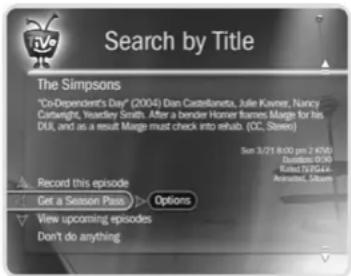

An exception to the 28-day rule may occur if the program wasn't watched
but was automatically deleted from Now
Playing to make room for another recording you requested—or if the program information describes it incorrectly.
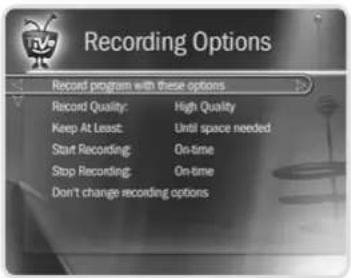
Recording Options: one-time recording
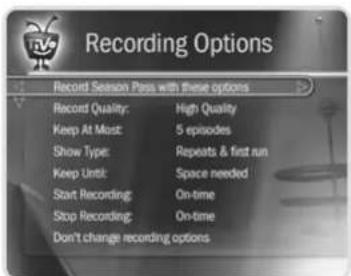
Recording Options: repeating recording
- Keep at Most. By default, five episodes of a repeating recording program are kept in Now Playing. You can change this setting; see page 95.
- Resolving conflicts. The TiVo service resolves scheduling conflicts between repeating recordings by comparing recording priorities. You can change recording priorities with the Season Pass Manager. (See page 95 for more details).
Recording Options
You can set Recording Options when you set up a recording, or any time later by selecting the program from the To Do List or the Season Pass Manager, and choosing "Options."
Setting Recording Options. The Program Information screen that appears when you select a program includes choices to "Record this episode" and "Get a Season Pass." When one of these recording actions is highlighted, "Options" appears to its right. To see the current Recording Options, use the arrow buttons to highlight "Options," then press SELECT.
To set your Recording Options:
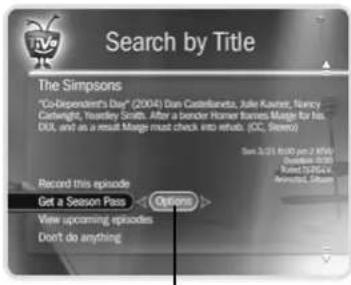
Recording Options
- Use the UP/DOWN arrows to highlight an option on the Recording Options screen.
- Use RIGHT and LEFT arrow to change the setting.
- When you are done, press SELECT or highlight "Record with these options."
- Press SELECT again to schedule the recording with the new options.
To cancel your changes, press LEFT arrow, or highlight "Don't change recording options" and press SELECT.
Recording Options include:
Record Quality. The choices for Recording Quality are Basic, Medium, High, and Best. The default setting is High. (Best looks great, but keep in mind that it takes up more space.) These settings are described on page 74. (This option is not available once a recording starts.)
Keep At Most. This option sets the maximum number of episodes to be saved—useful for keeping only the most recent nightly news or only a few of your kids' daily programs. The default setting is 5. (This option is available only for a repeating recording.)
Show Type. The choices are “Repeats & first run,” “First run only,” and “All (with duplicates).”
Keep Until. You can change this setting from "Space needed" (the default setting) to "Until I delete." (This option is available only for a repeating recording.)
Keep At Least. You can set the minimum amount of time the DVR keeps a recording. The default setting is “Until Space Needed.”
The Overtime Scheduler ^® consists of these two options:
Start Recording. You can choose to start recording up to ten minutes before a program begins. The default setting is “On-time.” (This option is not available once recording starts.)
Stop Recording. You can set a recording to continue—for a few minutes or up to three hours—after it’s scheduled to end. For example, you can extend a recording of a sports event and be sure to catch the whole game—even if it goes into overtime. You can change this setting when you set up the recording, or while the recording is in progress! The default setting is “On-time.”

Are two of your favorite programs on
at the same time? If you use
Recording Options, you can create two
Season Pass recordings for the same time. Set the first one to record only First Run episodes; set the second to record every episode. Use the Season Pass Manager (described on page 95) to give the first one higher priority than the second. Voilà! As long as the program information is correct, when reruns of the first program air, your DMS will ignore them and record episodes of the second program.
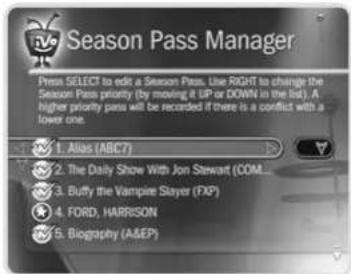
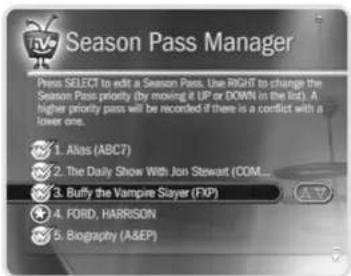
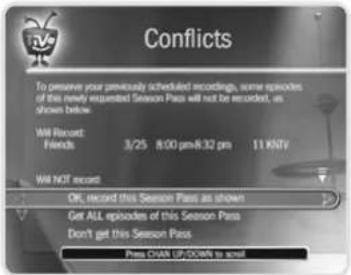
Season Pass Manager
Say you have a Season Pass to ER and an auto-recording WishList for movies with Julia Roberts. What if a Julia Roberts movie happens to air at the same time as ER? The DVR will check the priorities in the Season Pass Manager to decide which program to record. If the Julia Roberts WishList has a higher priority than the ER Season Pass, the Julia Roberts movie will be recorded, and ER will not.
Changing the priority order. If you don't change priorities in the Season Pass Manager, repeating recordings are prioritized by the order they were set up: the first has highest priority, and so on. To change the priority order:
- Use the UP/DOWN arrows to highlight one of your repeating recordings.
- Press RIGHT arrow to highlight the arrows to the right of the title.
- Use the UP/DOWN arrows to move the selected title up or down in the list.
Priorities and resolving conflicts. If a conflict occurs when you're setting up a new repeating recording, you'll be shown which programs are involved. You'll also be given options to resolve the conflict:
- Record only those programs that do not conflict with others previously scheduled to record. This gives the repeating recording the lowest priority.
- Record all programs requested. This gives the repeating recording the highest priority.
- Canceling a Season Pass. To cancel a Season Pass, just highlight the program's title in the Season Pass Manager and press CLEAR. Or, from a Program Information screen, select "Cancel/edit the Season Pass," then "Cancel this Season Pass."
▶ Improved To Do List
With TiVo Plus, the To Do List still has Recording History and lists all scheduled recordings in one place. You can also use it to change Recording Options (even for individual episodes of a repeating recording), and you can use "View upcoming" to look for alternate showings of programs you can't record because of scheduling conflicts. Individual recordings on the To Do List now have a checkmark ( ) to the left of the program title. Season Pass and manual repeat recordings have a double checkmark ( ) and auto-recording WishList searches have a star ( ). Any season Pass with no upcoming episodes appears at the bottom of the list.
Select a program on the To Do List if you want to:
- Change recording options. Highlight "Record as planned," then press RIGHT arrow and select "Options" to see the Recording Options screen. Changing Recording Options from the To Do List only makes changes for a single episode. Select "Cancel/edit the Season Pass" to make changes for all episodes.
- View upcoming episodes/showings. Displays a list of upcoming episodes/showings (up to two weeks into the future) of a selected program. Programs scheduled to record have a checkmark, double checkmark, or star. A comprehensive list appears, including episodes with showings on different channels and different time slots. The Program Information screen also includes an option for recording a particular program.
- Cancel this recording or Cancel only this episode/showing. Cancel a single recording or a single episode from a Season Pass.
- Cancel/edit the Season Pass/manual repeat recording. Cancel the Season Pass or manual repeat recording, view upcoming programs, or change recording options.
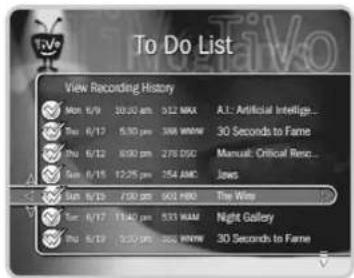
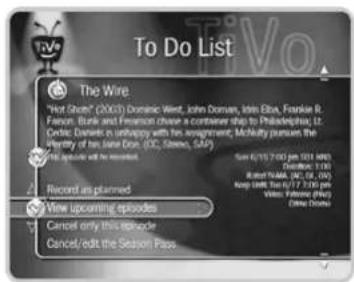
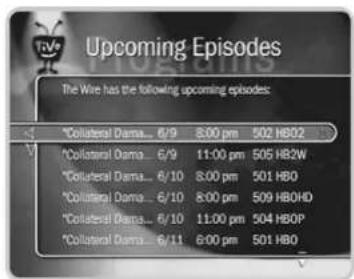
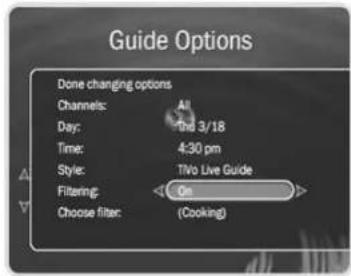
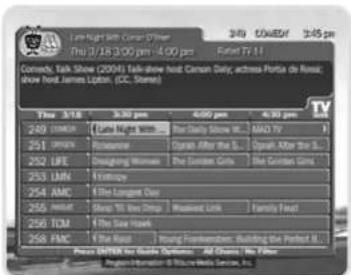
The Grid Guide style

When filtering is on, the guide will show only channels that have a
program in that category within six hours of the day and time selected. Programs that don't fit your category are grayed out.
▶ Find Your Favorite Programs
The TiVo Plus™ service provides many ways to search large numbers of TV programs, find your favorites, and schedule recordings. The following options are very useful if you already know what program you want to record. You can also use any of them to browse through TV listings for interesting programs.
Using Guide Options
With TiVo Plus, the program guide shows you current and upcoming programs airing up to two weeks into the future (instead of the three days you get with TiVo Basic). You can also quickly set up recordings, rate any program with a Thumbs Up or Thumbs Down, and customize the channels and types of programs shown in the guide.
The guide has options that let you quickly change what programs and channels it shows. To see Guide Options, press ENTER while the guide is displayed. Available options are:
Channels. Choose which channel list you want the guide to display. For details on how to customize these channel lists, see page 68. The three channel lists are:
- You Receive. This is the default list. It displays only the channels you have chosen in the Channels You Receive channel list.
- Favorites. This list shows only your favorite channels when browsing the guide.
- All. This list displays all of your cable or satellite provider's channels, even channels you don't subscribe to.
Day and Time. Sets the guide to show what's on at a particular day and time.
Style. Choose between the TiVo Live Guide and Grid Guide styles.
Filtering. Turns filtering on or off. (Choosing a filter is explained below.) When you want to see all channels and programs in the guide, turn filtering off.
Choose filter. Use the UP and DOWN arrows to highlight a category in the list, then press SELECT. Choose a subcategory. The guide displays only channels with programs in that subcategory.
Changing a guide option. Highlight the option, then press the LEFT or RIGHT arrow to change the selection displayed. Save your changes by pressing SELECT or GUIDE. To cancel your changes, press CLEAR.
Search by Title
If you know the name of the program you're looking for, or even the first part of the name, choose Search By Title from Pick Programs to Record. Then follow these steps:.
- If you wish, you can first narrow the search with a category and subcategory.
- The next screen has a grid with numbers and letters. Spell out the title using the arrow buttons to move, then pressing SELECT on each letter you want. (Skip "a," "an," or "the.") As you select letters, an alphabetical list of programs appears on the right. Keep selecting letters until you see your program.
You can use the remote for some functions too. The CLEAR button on the remote erases everything; BACK erases one letter at a time; FORWARD inserts a space. - When you see your program, press RIGHT arrow until the highlight is in the list. To move the highlight within the list, press the UP and DOWN arrows. To move quickly up or down the list one screen at a time, press CHAN UP/DOWN.
- Press SELECT when the title you want is highlighted. The Program Information screen will appear. Then you can view upcoming episodes, set up a Season Pass, or record an individual showing.
When using Search by Title, replace hyphens (-), slashes (/) and periods (.) with spaces. For example, use 20 20 to search for the title "20/20." Any other marks, such as
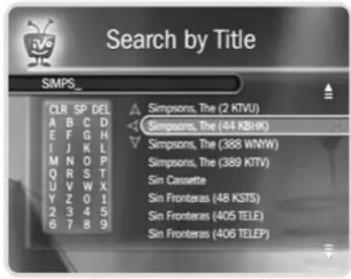

You can also use Search by Title to browse through programs in any
category and subcategory you choose.
Numbers come before letters, so to start from the top of the list, enter a zero.

Each time your DMS connects to the
TiVo service, it checks TiVo Central
Online and schedules any recording
requests you've made.

After scheduling a recording online,
you can choose to receive a
confirmation e-mail sent to the e-mail
address you provide.
apostrophes ('), asterisks (*) and ampersands (&) are ignored. For example, you would use 6 OCLOCK NEWS to search for the title "6 O'Clock News."
Using Online Scheduling to Find Programs (TiVo Central Online)
With TiVo Plus, you can schedule recordings on your Digital Media Server at home from any computer with Internet access and a standard web browser. Use TiVo Central Online at www.tivo.com/tco to search for shows by time, title, keyword, or actor/director. You can record a single episode or get a Season Pass, with all the recording options you have on your DMS at home. You can even set the program not to record if it conflicts with a scheduled recording that is already on your DMS.
Using Online Scheduling doesn't require any changes to your current setup. However, if your DMS is connected to a home network (see Chapter 8) that includes a broadband Internet connection, it will check the TiVo service for your recording requests much more often. With a broadband Internet connection, you can schedule a recording within an hour of its air-time from any place that you have access to the Internet!
To Use Online Scheduling:
- Go to www.tivo.com/tco and sign in.
- On the Welcome page of TiVo Central Online, select the name of the DMS for which you want to schedule recordings.
-
Use the simple or advanced search of your TV listings, or browse by channel.
-
From the list of search results, click the name of a program and choose:
Record this episode — to record the program and specify the priority and quality.
Get a Season Pass — to record this program every time it airs on this channel.
Browse by Time
Browse by Time lets you browse all programs on a particular day and time. With Browse by Time, you can filter the list to see only programs in a particular category. For example, you can browse all the movies airing on Saturday night.
To browse by time:
- Use the arrow buttons to highlight a category (for example, "Movies") to narrow the list of programs, then press SELECT.
- Use the arrow buttons to highlight a subcategory (for example, "Comedy") to narrow the list of programs, then press SELECT.
- Press the UP and DOWN arrows to select the date you want to see, then press RIGHT arrow to move the highlight to the time column.
- Press the UP and DOWN arrows to select a time.
- Press SELECT to show the list of programs without leaving the time selector, or press RIGHT arrow to bring up the list of programs and move to the list at the same time.
- When you find a program you want to record, highlight it, and press SELECT to bring up the Program Information screen. Then you can view upcoming episodes, get a Season Pass, or record an individual showing.
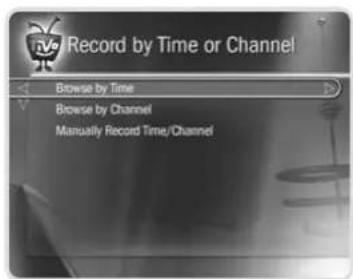
Browse by Channel
Browse by Channel lets you browse through programs on a particular channel. You can start with all channels or just your favorites.
To browse by channel:
- Highlight and select either "All Channels," which includes all the channels you receive, or "Favorite Channels," which includes just the channels you have selected as your favorites. (For information on customizing these channel lists, see page 68.)
- Press the UP and DOWN arrows to select the date you want to browse, then press RIGHT arrow to move the highlight to the channel column.
- Press the UP and DOWN arrows to select a channel. (You can also use the number buttons on the remote control to type in a channel, then press ENTER.)
- Press SELECT to bring up the list of programs without leaving the channel selector, or press RIGHT arrow to bring up the list of programs and move to the list at the same time.
- When you find a program you want to record, highlight it, and press SELECT to bring up the Program Information screen. Then you can view upcoming episodes, get a Season Pass, or record an individual showing.
▶ Find Programs That Match Your Interests
Try a WishList™ Search
If you know what you like, WishList searches are great! A WishList search automatically finds programs that match your interests, tastes, passions, and whims on any channel you receive. And it keeps on searching for as long as you keep the WishList. For example:
- You could create a Category Only WishList for the category “Movies” and subcategory “Comedy.” You could then use it occasionally to look at a list of all comedy movies airing in the next two weeks. The list is updated each time your DVR connects to the TiVo service.
- You could search for something more specific by creating an Actor WishList for Sean Connery, and then include the category "Movies," and subcategory "Action." This WishList would only find action movies starring Sean Connery.
- With a Keyword WishList, you can look for something very specific. For example, the Keyword WishList GIANTS with category “Football” would find Giants football (but not baseball) games for you.
Can a WishList Do More Than Search?
Yes it can! You can set a WishList to auto-record, and it will record every program the WishList finds, on any channel you receive. For example, with the Sean Connery Actor WishList, you would automatically collect Sean Connery action movies in Now Playing.
Some WishList searches are better suited to browsing than to auto-recording. For example, a Category Only WishList for the category "Documentary" would find every upcoming documentary. You might not want to record every documentary, but you could occasionally browse the WishList and choose the ones you do want to record. The more specific a WishList is, the better suited it is to auto-recording.
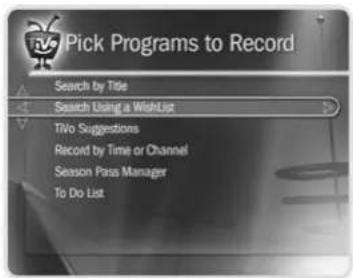
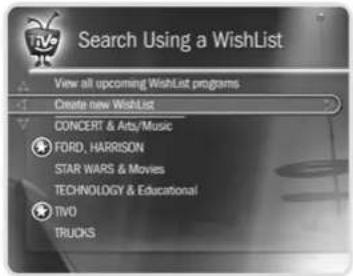
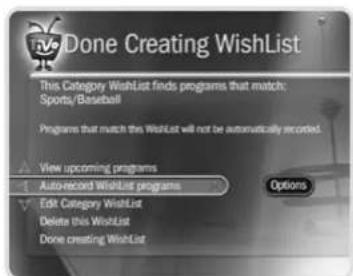
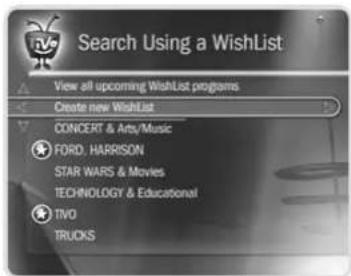
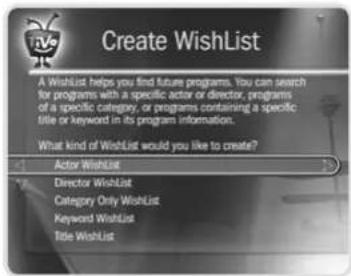
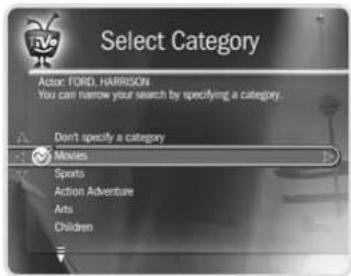
Creating a WishList Search
From Search Using a WishList, select "Create new WishList." Next, select the type of WishList: Actor, Director, Category Only, Keyword, or Title. For most WishList searches, you use the grid of letters on the next screen to spell out what you're looking for.
As the last step, you'll then be able to select a category and subcategory to narrow your search. For example, if you want movies with Harrison Ford, but not documentaries or talk shows, select "Movies." To search every category, select "Don't specify a category."
Category Only WishList. Use the UP and DOWN buttons to highlight a category, then press SELECT or RIGHT arrow. A subcategories list appears. Highlight a subcategory, then press SELECT or RIGHT arrow. To search all subcategories, you can also select "Don't specify a subcategory."
Actor or Director WishList. Spell the person's last name using the arrow buttons to move the selection box around the grid; press SELECT to enter a highlighted letter. As you select letters, a list of names appears to the right of the grid.
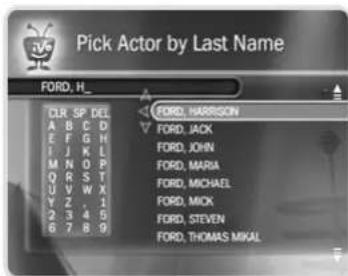
If you see the person's name, press RIGHT arrow until you move the highlight to a name in the list. Use the UP or DOWN arrow to highlight the name you want and press SELECT.
To search for a name that is not on the list, enter the name in the format: LAST NAME, FIRST NAME. You must match the spelling of the name exactly, and you must use a comma (available in the grid under the letter W).
Keyword or Title WishList. You can create a Keyword or Title WishList with one keyword or with several. For a Keyword WishList, the TiVo service checks for your keywords in the program or episode title, description, actor, director, year, and category information. A Title WishList works very similarly, but the TiVo service only searches program and episode titles.
Spell your keyword(s) using the arrow buttons to move around the grid; then press SELECT to enter the highlighted letter. You can enter as many characters as will fit on the screen. When you have finished, use RIGHT arrow to highlight "Done creating keywords," then press SELECT or RIGHT arrow.
Using * in WishList searches. To search for similar words in a Keyword or Title WishList, use the asterisk (*) as a special symbol that replaces the endings of words. For example, the keyword AIRP* would find shows containing “airport,” “airplane,” “airplanes,” as well as the movie “Airplane!” To enter an asterisk, press the SLOW (3rd) button on the remote.
The asterisk can be helpful when you're looking for a range of similar words, or if you're just not sure how something is spelled. Pop quiz: is it "irresistable" or "irresistible?" Use the keyword IRRESIST* and don't worry about it! Remember, when using the asterisk:
- It can only be used at the end of a keyword; it cannot be used to omit letters at the beginning or in the middle of a word. (For example, keywords like AIR^*NE or *PLANE will not work.)
- When using this symbol, be as specific as possible. For example, do not use keywords like TH^* . There will not be enough room to show all the results of a keyword that is too general.
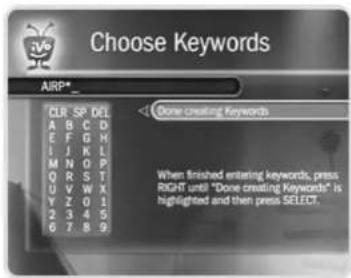
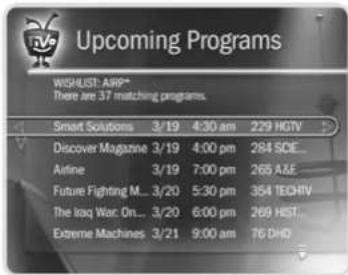

If you like music performances, try a keyword WishList for "Concert."
Choose the category "Arts" and the Sub-Category "Music."
Tips for entering keywords:
- To specify an exact phrase in a Keyword or Title WishList, surround a set of words with quotation marks (to enter quotation marks, press PAUSE ( ). For example, the keyword PAUL SIMON might also turn up a documentary about Simon Bolivar with a director whose name is Paul. Use “PAUL SIMON” to be certain you find only programs that feature Paul Simon.
- If you enter more than one keyword in a Keyword or Title WishList, it finds only programs that match all of your keywords (for example, "GEENA DAVIS" FLY).
- If you want to include an exact phrase and additional keywords, there should be a space between the final quotation mark and the beginning of the next word. You can enter a space by selecting SP on the grid of letters or by pressing FORWARD ( ▶ ).
- Replace hyphens (-), slashes (/) and periods (.) with spaces. For example, you would use the keyword 20 20 to search for the title “20/20.” For an Actor WishList for Catherine Zeta-Jones, use ZETA JONES, CATHERINE. You can enter a space by selecting SP on the grid of letters or by pressing FORWARD ()▶▶
- Any other marks, such as apostrophes (') and ampersands (&), are ignored. For example, you would use the keyword phrase 6 OCLOCK NEWS to search for the title "6 O'Clock News." (Note that commas (,) are also ignored, except in an actor or director WishList, where they are essential.)
- For dollar signs ( \) substitute the letter S. For example, to find "\100,000 Pyramid," use S100000. (In Search by Title, skip the dollar signs to find these titles.)
Browsing, Recording, and Editing a WishList
Browsing all WishList searches. Select "View all upcoming WishList programs." This selection displays a list of up to 10 upcoming programs from each of your WishList searches—and up to 200 programs total (so it may take a long time to display). To record a program, select its title; you will see the Program Information screen, where you can select "Record this episode" and other actions.
Browsing an individual WishList. Select the WishList you want to browse, then select "View upcoming programs" to see a list of up to 200 unique upcoming programs that match the WishList. To record a program, select its title to see the Program Information screen, then select "Record this episode."
Auto-recording WishList. When you create a WishList or select it, you can choose the action, "Auto-record WishList programs." This means every program the WishList finds will be automatically recorded.
Each auto-recording WishList and its upcoming recordings are marked with a star ( ). If you want to be sure that all the matches your auto-recording WishList finds are recorded, give the auto-recording WishList a high priority in the Season Pass Manager. (See page 95 for details.)
Editing a WishList. You can change a WishList—for example, to correct a misspelling, or to add a category or subcategory to narrow the results. Just select the WishList, then select "Edit WishList."
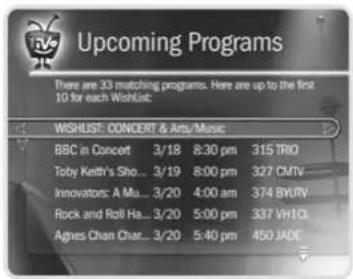
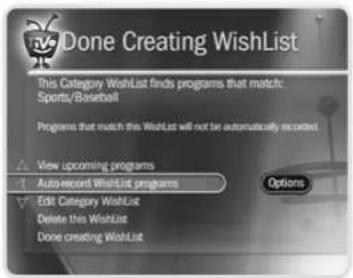

If you set up an auto-recording
Wishlist for sports, consider using
the Overtime Scheduler (described on
page 95) to make sure you don't miss the most exciting part of the game!

If other members of your household are pressing THUMBS UP on shows you don't care for, and vice versa, you may find that TiVo Suggestions is making some suggestions that you like, and some that are more appropriate for others in your household.
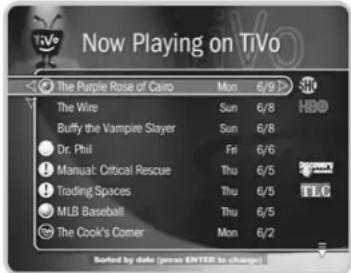

The TiVo icon to the left of the program title indicates that it was recorded as a TiVo Suggestion.

Your personal TV preferences are just that: personal. All that
information is stored in the Recorder, in your living room. For more information on the TiVo Privacy Policy, see Chapter 10 or visit www.tivo.com/privacy.
▶ Finding New Programs
TiVo Suggestions
TiVo Suggestions is a personalized list of shows selected to match your preferences. How is this magic possible? Any time you watch programs, live or pre-recorded, or browse programs with the Program Guide, in Showcases, or in TiVolution Magazine, you can rate them by pressing the THUMBS UP and THUMBS DOWN buttons ( 👍 👉 ). You can give a program up to three Thumbs Up or three Thumbs Down. Also, any time you choose to record a program, it automatically gets one Thumbs Up. Over time, the more shows you rate, the better TiVo Suggestions will be at finding programs you like.
Suggested programs based on your ratings appear in TiVo Suggestions in order of how closely they match your preferences. From TiVo Central, select Pick Programs to Record, then TiVo Suggestions. If you want to record a program, select it and the Program Information screen appears.
Auto-Recording TiVo Suggestions. As an added bonus, when the DMS has available space, it automatically records TiVo Suggestions. You will find recorded Suggestions on Now Playing, listed below programs you requested. Or, if you have Groups turned on (see page 109), Suggestions recordings will appear in their own group.
It's important to remember these characteristics of TiVo Suggestions recordings:
- TiVo Suggestions never replace shows you request, or prevent your requested shows from being recorded.
- TiVo Suggestions are always the first programs deleted to make room for recordings you request.
You can turn auto-recording of TiVo Suggestions on and off. Just go to TiVo Central, then select messages & Setup, then Settings, then Recording, then TiVo Suggestions.
▶ Sorting & Grouping Programs
With TiVo Plus ^™ , you can sort and group programs in the Now Playing list. While in Now Playing, press ENTER on the remote to see Now Playing Options. You can also Press 1 on the remote to change the sort order of Now Playing programs; or press 2 to turn groups on or off.
Sorting Programs. Choose how you want the programs in Now Playing to be listed:
- Alphabetically. Programs are listed alphabetically by title (from A to Z).
- By date recorded. Programs are listed by the date they were recorded, with the most recent at the top and the oldest at the bottom.
Grouping Programs. The Groups option lets you group like programs together to “tidy up” the screen. When you turn on Groups, a folder appears in Now Playing for:
• Each television series with more than one recorded episode;
• Each auto-recording WishList ^TM with a recorded program;
- TiVo Suggestions (if you have auto-recording of TiVo Suggestions turned on).
A program may fit in any or all of these categories, so it may appear in more than one group, even though only one copy of the program is actually recorded. For example, say you have an auto-recording WishList for an actor who also appears in a series, and you have a Season Pass ^™ for that series. Each episode of the series that records will appear in two folders—one for the WishList and one for the Season Pass. If you delete the program from one folder, it also disappears from the other.
A number in parentheses to the right of each folder shows how many programs it contains. If you delete a program from one folder, it will disappear from all folders.
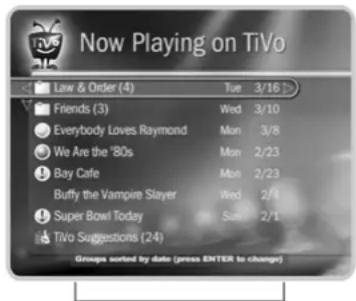
A note at the bottom of Now Playing tells you which sorting option you are using and whether groups are on.
Save to VCR
If you have a VCR, you can save a program from Now Playing to a videotape. Transfers to a VCR happen in real time. For example, if a program is two hours long, it will take two hours to save it. You will not be able to watch live TV or recordings while saving.
Most of the buttons on your remote that control live TV work as usual during Save to VCR—you can fast forward through the boring parts! The VCR will record the video exactly as it appears, including the status bar, channel banner, and any icons on the screen.
Using Save to VCR:
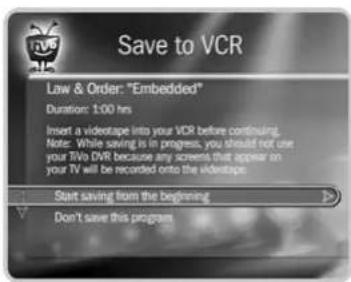
- Connect a Composite A/V cable from the Digital Media Server's A/V Output jacks to the A/V Input jacks your VCR. Your VCR's A/V Output should already be connected to your TV or A/V receiver (so you can watch video tapes). Make sure your TV or A/V receiver is set to display video from your VCR.
- Set the VCR to record input from your DMS (see your VCR's instructions for how to set its input), and insert a videotape.
- Go to Now Playing, highlight the show you want to save, then press SELECT.
- Select Save to DVD or VCR, then Save to VCR.
- Select "Start saving from the beginning."
- A title screen appears for ten seconds. When you see it, press your VCR's record button. When the program is over, press stop on your VCR.

You can cancel saving to VCR by pressing the LIVE TV or TiVo button on your remote. A videotape icon appears as a warning. Press the same button again and a confirmation screen appears giving you the option to resume
saving at a later time, or cancel saving to VCR. If you choose to cancel saving, be sure to press stop on your VCR as well.
Connecting to a Home Network for Home Media Features
Introduction to Home Media Features 112
Home Networks 116
Connecting to a Home Network Using a Wireless Network Adapter 117
Connecting to a Home Network Using Wired (Ethernet) 119
Completing the Network Settings 121

If you do not already have a home network and you want to learn how
to create one, try going to a popular search engine like Google (www.google.com) or Yahoo (www.yahoo.com) and typing the phrase, "setting up a home network," in the search field. You will obtain a number of search results (links) that supply guidance to help you set up your home network.
▶ Introduction to Home Media Features
This chapter shows you how to connect your Digital Media Server to a home network. Doing so gives you brand new ways to use your DMS as a digital home entertainment center. The following Home Media Features are available with TiVo Plus ^™ service.
- Multi-Room Viewing – Record programs in the living room and watch them in the bedroom—or vice versa. See page 113.
If you don't have a home network, you can connect two Series2 ^TM DVRs to each other for Multi-Room Viewing. (Your Digital Media Server is also a Series2 DVR.) This setup is described in the Home Media Features guide, available online at www.tivo.com/guides. - Digital Music Player – Use the home entertainment center in your living room to listen to the digital MP3 music collection stored on your computer. See page 114.
- Digital Photo Viewer – View slideshows of digital photos stored on your computer without huddling around a small computer monitor. See page 114.
These Home Media Features are included with TiVo Plus service. Connecting your DMS to a home network allows you to enjoy them. For more information about using these features, download the Home Media Features Guide at www.tivo.com/guides.
Connect to the TiVo service via broadband. If your home network includes a broadband Internet connection (for example, DSL or a cable modem), your DMS can use that connection, instead of a phone line, for regular connections to the TiVo service. (The DMS will still need a standard phone line connection for Guided Setup.)
In addition, with an always-on Internet connection, you can use Online Scheduling (see page 100) for any program airing more than an hour after you request it. (If your DMS is using a phone line, processing an Online Scheduling request can take up to 36 hours.)
Multi-Room Viewing
Multi-Room Viewing lets you transfer programs to and from your Digital Media Server to other TiVo ^® Series2 ^TM DVRs in your home. To use Multi-Room Viewing, you need at least two Series2 DVRs (or Digital Media Servers), and:
• Each DVR must have active TiVo service (or TiVo Plus ^TM service), and Multi-Room Viewing enabled at www.tivo.com/manage.
- The DVRs must be on the same TiVo service account. (The TiVo service subscription for each DVR must be owned by the same person.)
- The DVRs must be connected to the same home network. For more information, see "Home Networks" on page 116.
After you have connected the DVRs to your home network, the Now Playing list of each DVR will show the names of the others.
How to Transfer a Program
Using Multi-Room Viewing couldn't be easier. To transfer a program from one DVR within your home to another DVR:
- In Now Playing on the receiving DVR, select the DVR containing the program you want to transfer. This will be the sending DVR.
- Press SELECT on the name of a program you want to transfer. (You cannot transfer a program while it is recording on the sending DVR.) Then select "Watch on this TV."
- On the Getting Program screen, you can choose to watch the program as it is transferring, or continue browsing Now Playing on the sending DVR. If you watch the program as it is transferring, you might experience intermittent delays in the transfer. You may want to complete the transfer before viewing the program.

Your Toshiba Digital Media Server is also a TiVo Series2 Digital Video
Recorder (DVR).
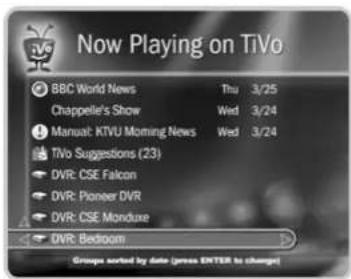

For more details about using these features, download the Home Media
Features Guide at www.tivo.com/guides.
Digital Music & Photos
The Digital Music Player and Digital Photo Viewer let you use your DMS to play MP3 music files and playlists, and view photos that are stored on a computer. Now you can enjoy your digital music collection on the best sound system in the house, or watch slideshows of digital photos in the comfort of your living room.
To use the Digital Music Player or Digital Photo Viewer, you need:
- A DMS with a subscription to TiVo Plus ^TM service.
- A computer connected to the DMS via a home network (see page 116).
- The TiVo Desktop application that makes music and photos on the computer available to a DMS.
TiVo Desktop
The TiVo Desktop application is a small, easy-to-use program for your computer that you can download from www.tivo.com/desktop. TiVo Desktop is available for the following operating systems:
• Windows 98, ME, 2000, XP
• Macintosh OS X v10.2 or later
Music File Types. TiVo Desktop plays music in the MP3 format, and supports playlists in the following formats used by common music players: M3U, PLS, ASX, and B4S. On a Mac, TiVo Desktop works with music organized by iTunes 3.0 or later.
Photo File Types. TiVo Desktop for Windows works with digital photos in these formats: BMP, DIB, GIF, JPG, PNG. TiVo Desktop for Mac works with digital photos organized by iPhoto 2.0 in these formats: JPG, GIF, BMP, TIFF, and PNG.
Playing Your Music and Viewing Your Photos
Using the Digital Music Player and Digital Photo Viewer is easy. You can find Music & Photos on TiVo Central ^® .
Listening to music on the DMS. On your computer, use the TiVo Desktop application to "publish" music that you want to access through your DMS. (Publishing is a process that makes digital music and photos available to your DMS. It is usually as simple as selecting music and clicking a Publish button.)
On your DMS, go to TiVo Central and select Music & Photos, then select the music option for your computer.
You should see a list of music you published with TiVo Desktop. Select the music you want to listen to and press the PLAY ( ) button. In a few seconds, the music plays.
Viewing photos on the DMS. On your computer, use the TiVo Desktop application to "publish" photos that you want to access through your DMS. (Publishing is a process that makes digital music and photos available to your DMS. It is usually as simple as selecting photos and clicking a Publish button.)
On your DMS, go to TiVo Central and select Music & Photos, then select the photos option for your computer.
You should see a list of the photos you published with TiVo Desktop. Select the photos you want to view and press the PLAY ( ) button. In a few seconds, the photos start to appear on your television screen.
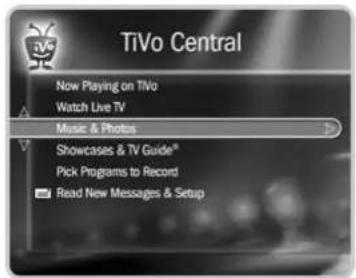
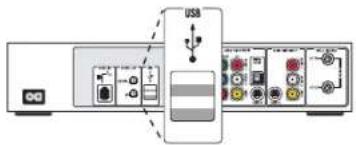
flowchart
graph TD
    A["Device"] --> B["USB Interface"]
    B --> C["Module 1"]
    B --> D["Module 2"]
    B --> E["Module 3"]
    B --> F["Module 4"]
    B --> G["Module 5"]
    B --> H["Module 6"]
    B --> I["Module 7"]
    B --> J["Module 8"]
    B --> K["Module 9"]
    B --> L["Module 10"]
The USB ports on the back of your DMS
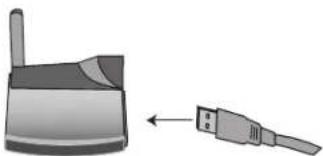
natural_image
Illustration of a device with a cable connector and a separate plug (no text or symbols)A USB Wireless network adapter (yours may look different)
An Ethernet USB network adapter (yours may look different)
TiVo has recommendations for compatible models of wireless and wired (Ethernet) network adapters. Be sure to check www.tivo.com/adapters for the latest information.
Home Networks
When we refer to a "home network," we mean two or more devices (probably computers), connected to a router.
USB Ports, Wireless and Wired Network Adapters
On the back of your Digital Media Server, you will see two USB ports that can be used to connect either a wireless or a wired (Ethernet) USB network adapter. Although you can use either of these ports, only one network adapter can be connected at a time.
USB network adapters let a DMS use a USB port to communicate with other networked devices. Whether you choose wireless or wired (Ethernet), you will need a network adapter for each DMS you wish to connect.
Choosing Wireless or Wired (Ethernet). You can connect your DMS to your home network using either a wireless or wired (Ethernet) connection. Here are some notes to help you choose which approach you want to use.
- Wired (Ethernet). Ethernet connections are generally faster, less expensive, more reliable and less susceptible to interference than wireless networks. To connect a DMS to a wired (Ethernet) network, see “Connecting to a Home Network Using Wired (Ethernet)” on page 119
- Wireless. Connecting your DMS wirelessly may be more convenient because you do not have to run a cable from your DMS to another device. However, wireless networks are typically more expensive and slower than Ethernet networks, and may be subject to interference from appliances such as microwaves and cordless phones. To connect a DMS to a home network wirelessly, see “Connecting to a Home Network Using a Wireless Network Adapter” on page 117.
Connecting to a Home Network Using a Wireless Network Adapter
Connecting to a Home Network Using a Wireless Network Adapter
Use this example if you have a home network that includes a wireless access point (WAP) or wireless router, or for each DMS in a wireless peer-to-peer network. You can leave your DMS plugged in while you connect a network adapter.
To connect a wireless network adapter to your DMS:

Do not use the CDs that are included
with your network adapters to set
up your DMS. These CDs are intended to
load drivers and network adapter software
on your personal computer.
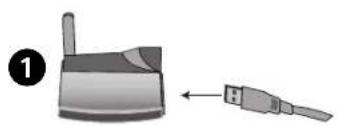
natural_image
Diagram showing a device with a bulb and connector, connected to an USB port (no text or symbols present)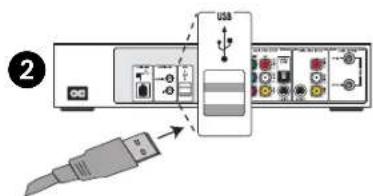
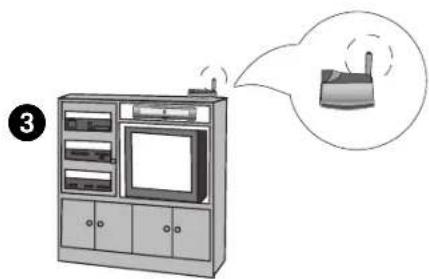
natural_image
Illustration of a server cabinet with an antenna emitting smoke, accompanied by a thought bubble showing a device emitting smoke (no text or symbols present)-
Connect to the adapter. If it is not already attached, connect one end of the USB cable that came with your wireless network adapter to the port located on the back of the adapter.
-
Connect to the DMS. Connect the other end of the USB cable to the USB port on the DMS. The power light on the wireless adapter may come on before the cable is completely inserted into the USB slot. Make sure you push the cable all the way into the USB slot.

The cable may already be attached
to your wireless network adapter.
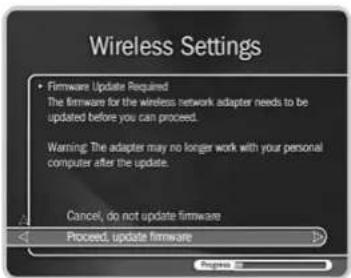
- Position the adapter. Position the adapter in an open location so that the signal is easily transmitted. For example, you might place the adapter on top of your entertainment center. Do not place the wireless adapter near the Digital Media Server's power supply or on a power strip or surge protector. Doing so can cause signal interference or reduce signal strength.
- Firmware update. When you first connect a wireless network adapter to your DMS, you may see a screen that says "Firmware Update Required." This means your DMS has a software update for the wireless network adapter you have connected. Select the option to update. This should not take more than a minute or two.
During the update, do not disconnect the network adapter wires or the power to the DMS. Either action might damage the adapter.
- Important message. The first time you press the TiVo button after connecting a network adapter, you will see an Important Message. Review it, then press SELECT on the remote control to go to TiVo Central.
- Next Step. Go to "Completing the Network Settings" on page 121.
Connecting to a Home Network Using Wired (Ethernet)
This example shows you how to connect a DMS to a network hub using a wired (Ethernet) network adapter. You can leave your DMS plugged in while you connect a network adapter.
To connect a wired (Ethernet) network adapter to your DMS and your network hub, follow these steps:

Do not use the CDs that are included
with your network adapters to set
up your DMS. These CDs are intended to
load drivers and network adapter software
on your personal computer.
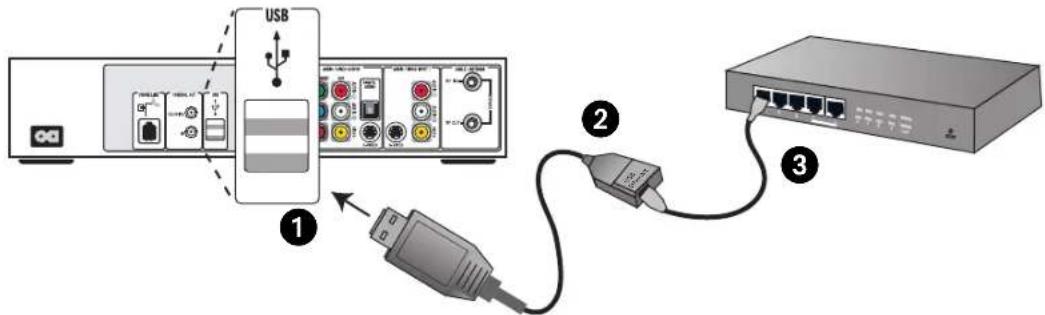
- Connect to the DMS. Connect the USB end of the Ethernet adapter to the USB port on the DMS.
- Connect Ethernet to the adapter. Plug one end of an Ethernet cable into the Ethernet adapter.
-
Connect Ethernet to the hub or router. Plug the other end of the Ethernet cable into your home network's hub or router.
-
Important message. The first time you press the TiVo button after connecting a network adapter, you will see an Important Message. Review it, then press SELECT on the remote control to go to TiVo Central.
- Next Step. If your home network has DHCP, wait for a few minutes for your DMS to automatically complete its network settings, and then you're done! If your network does not have DHCP, or you are having trouble establishing a network connection, go to "Completing the Network Settings" on page 121. (DHCP is described in "Basic TCP/IP Concepts" on page 125.)
▶ Completing the Network Settings
If your DMS is connected to a wired (Ethernet) network adapter, skip to "TCP/IP
Settings for a Home Network" on page 124.
Wireless Settings for a Home Network
If you have a wireless home network, and have connected a wireless network adapter to your DMS, as described on page 117, you are ready to complete Wireless Settings for a home network.
To get to Wireless Settings: press the TiVo button on the remote control to go to TiVo Central, then select Messages & Setup, then Settings, then Phone & Network Setup, then "Edit phone or network settings," then Wireless Settings.
Wireless Checklist. This is the first Wireless Settings screen you will see. It lists information you need to complete wireless settings. You can find all this information in the configuration settings of your network's wireless access point or router.
If your wireless network does not use encryption (WEP), then you only need to provide a wireless network name; you do not need to provide a password format or password.
When you are ready to continue, press SELECT on your remote control.
Wireless Connection and Wireless Network Name. You must now provide the name of your wireless network. Wireless networks have a network name (sometimes called an SSID for service set identifier). A wireless network may be open or closed. Open wireless networks broadcast their network names, allowing devices in their vicinity to identify them automatically. Closed wireless networks do not broadcast their network names, so they cannot be identified automatically.

Many of the screens you use to
complete Wireless Settings or
TCP/IP Settings have the same title.
However, they have different subtitles. In
this section, each screen is identified by
its subtitle.
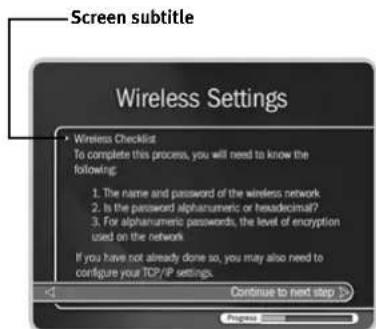
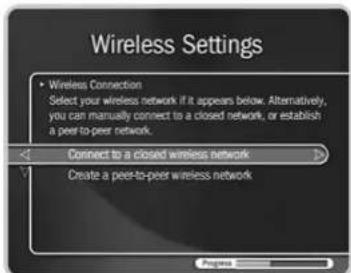
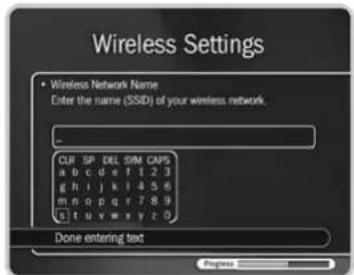
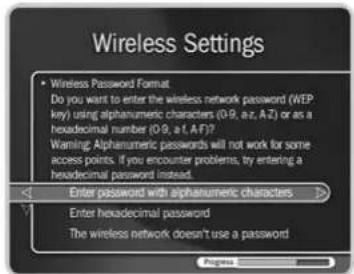
This screen lists the names of nearby wireless networks that your DMS has been able to identify. If you have a wireless router (or wireless access point) and you did not set a network name, your network is probably using a name supplied by the router's manufacturer.
If your network's name is listed, select it. (You may be able to see more names by pressing CHAN DOWN to scroll down the screen.)
Otherwise, select "Connect to a closed wireless network":
On the Wireless Network Name screen, enter the name of your network using the arrow buttons on your remote to highlight a character. Then press SELECT.
You must use capital and lowercase letters appropriately. For example, to find a network named "My Network" you must capitalize the "M" and "N"; entering "my network" would not work. Use THUMBS UP and THUMBS DOWN to change to uppercase or lowercase. Select "Done entering text" when you are finished.
If the DMS detects that your wireless network does not use encryption (WEP) you will see the Confirm Settings screen, described on page 124.
Wireless Password Format. You see the Wireless Password Format screen if there is a chance that your wireless network uses WEP encryption.
WEP. WEP is a kind of encryption used by wireless networks to improve their security. There are different levels of WEP encryption, typically called 40-, 64-, 104-, 128-, or 256-bit encryption. Encryption at higher levels offers better security. At the highest levels (104-bit or above), WEP encryption may slow down the transfer of programs from one DMS to another by a small amount. WEP is usually turned on or off through the configuration settings of a wireless access point or router. If your network uses WEP, then it has a password or "key."
To connect a DMS to a network that uses encryption, you need to provide:
- A wireless password format. WEP passwords may be hexadecimal (a combination of letters from A-F and numbers from 0-9), or alphanumeric (a combination of letters from A-Z and numbers from 0-9). If your network has both an alphanumeric and a hexadecimal password, we strongly recommend you use the hexadecimal password.
- A wireless password. It does not matter whether the letters of a hexadecimal password are uppercase or lowercase, but for alphanumeric passwords, capitalization is important. For example, if the password is "MyPassword," then entering "mypassword" will not work. Some hexadecimal passwords have only numbers.
- A level of wireless encryption. If you specify an alphanumeric password, you must also specify a level of wireless encryption. The DMS is compatible with 40, 64, 104, and 128-bit encryption; they are not currently compatible with 256-bit encryption.
Choose a format or select "The wireless network doesn't use a password." If you select "The wireless network doesn't use a password," you will see the Confirm Settings screen, described on page 124.
Wireless Password — Alphanumeric or Hexadecimal
- Hexadecimal (preferred). Enter a hexadecimal password using the arrow buttons on the remote to highlight a character. Then press SELECT. It does not matter if a letter is uppercase or lowercase. Some hexadecimal passwords contain only numbers.
- Alphanumeric. Enter an alphanumeric password using the arrow buttons on your remote to highlight a character. Then press SELECT. You must use capital and lowercase letters appropriately. For example, if your password is "MyPassword", entering "mypassword" will not work. Use THUMBS UP and THUMBS DOWN to change to uppercase or lowercase. Select "Done entering text" when you are finished.
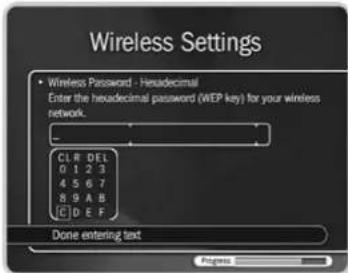

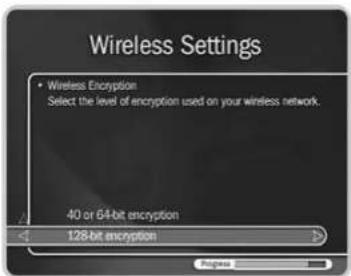
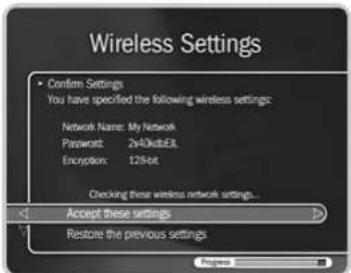
Wireless Encryption. If you entered an alphanumeric password, you will see this screen. Select the level of encryption used by your wireless network. If your network uses 104-bit encryption, select 128-bit encryption. The DMS is not currently compatible with 256-bit encryption.
Confirm Settings. Select "Accept these settings" if they are correct. For steps you can take to troubleshoot issues with your wireless connection, see "Questions About Networking" on page 149.
Change Connection Type. You see this screen if you are not using a shared Internet connection to connect to the TiVo service. If your network has access to an always-on broadband connection, select "Yes" to use it to connect to the TiVo service instead of a phone line.
Next Step. You have completed wireless settings. If your home network has DHCP, and you do not have a DHCP Client ID, the DMS will automatically complete network setup. We recommend that you confirm the DHCP settings of your network by continuing with "TCP/IP Settings for a Home Network," below.
If your home network does not have DHCP, or if you have a DHCP client ID, continue with "TCP/IP Settings for a Home Network."
TCP/IP Settings for a Home Network
You are ready to complete TCP/IP settings if:
- You are connecting your DMS to your home network wirelessly and have already completed “Wireless Settings for a Home Network” on page 121, or
- You have a wired (Ethernet) adapter connecting your DMS to your home network.
Basic TCP/IP Concepts
This section describes a few basic TCP/IP concepts. If you are familiar with home networking, you can skip to “Begin TCP/IP Settings” on page 126.
- IP Address. TCP/IP settings are used to manage IP addresses on a network. An IP address is a number that identifies a single device on a network (in much the same way that a home address identifies a single home in a town). IP addresses use four numbers separated by periods. Each number can be from 0 to 255. Some example IP addresses are: '192.168.0.1' and '10.8.3.25'.
- DHCP and Static IP Addresses. DHCP automatically assigns IP addresses to devices on a network. Most home networks include a router or home gateway that has DHCP. If your network has DHCP, or you are creating a peer-to-peer network, your DMS can obtain its IP address automatically. An IP address assigned by DHCP is called a dynamic IP address because it may change automatically as devices are added to or removed from the network.
If your network does not have DHCP, you must specify an IP address for your DMS. An IP address you specify is considered a static IP address, because it will not change until you specify a new one.
If you assign a static IP address to your DMS, remember that:
- The first three sets of numbers in the IP address usually must match the first sets of numbers in the IP address used by another device on the network (for example, a computer). The first three sets of numbers for IP addresses on a home network are usually: '192.168.0' or '192.168.1'.
- If the first three numbers match those of another IP address, the last number has to be unique. For example, two IP addresses for devices on the same network might be '192.168.1.5' and '192.168.1.6'.
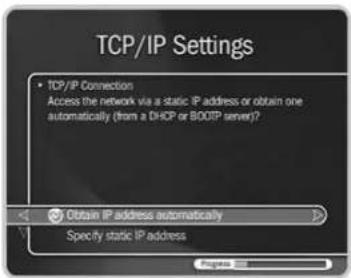
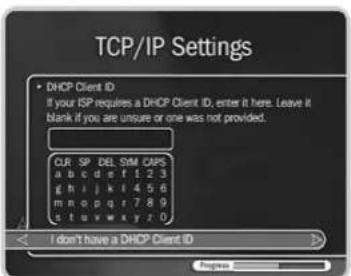
Begin TCP/IP Settings
To get to TCP/IP Settings: press the TiVo button on the remote control to go to TiVo Central, then select Messages & Setup, then Settings, then Phone & Network Setup, then "Edit phone or network settings," then TCP/IP Settings.
TCP/IP Connection. On the first screen in TCP/IP Settings you specify how your DMS gets an IP address. On this screen you can choose to:
- Obtain the IP address automatically. Use this option if your router or gateway has DHCP. Continue with "DHCP Client ID," below.
- Specify a static IP address if you don't have a DHCP server. Continue with "Static IP Address Checklist. If you do not have a DHCP server, you need to provide all of the following:" on page 127.
If you are not sure what to select, you can try "Obtain IP address automatically." This selection will work for most people. If it does not work, you can return to TCP/IP Settings later and make other selections. (A brief description of IP addresses is provided in "Basic TCP/IP Concepts" on page 125.)
DHCP Client ID. Unless you received a DHCP Client ID from your Internet service provider (ISP), you can select "I don't have a DHCP Client ID." This selection will work for most people.
If your ISP provided you with a DHCP Client ID, enter it using the arrow buttons on your remote to a highlight a character. Then press SELECT.
You must use capital and lowercase letters appropriately. For example, if your DHCP Client ID is "ID7343", entering "id7343" will not work. Use THUMBS UP and THUMBS DOWN to change to uppercase or lowercase. Select "Done entering text" when you are finished. Skip to "Confirm Settings. Review the settings and select "Accept these
settings" if they are correct. Congratulations, your DMS should now be connected to your home network!" on page 128.
Static IP Address Checklist. If you do not have a DHCP server, you need to provide all of the following:
• An IP address for your DMS.
• A Subnet Mask for your home network.
- An IP address for your home gateway or router.
- An IP address for a DNS (Name Server).
You will create a unique IP address for your DMS. The Subnet Mask, gateway or router IP address, and DNS IP address are usually provided by your Internet service provider (ISP). They are also usually available on the configuration screens of your home gateway or router.
If you have a computer on your home network, you may be able find the Subnet Mask, home gateway, or router IP address, and DNS IP address in the computer's TCP/IP settings. (If you are having trouble getting this information, contact your Internet service provider.) In addition, you can use your computer's IP address to help create an IP address for your DMS. For example, if your computer's IP address is '192.168.1.2' then your Digital Media Server's IP address should probably also start with '192.168.1' and end with a number other than 2.
IP Address. The first three sets of numbers in the IP address are usually the same as other devices on your home network. The final number is usually unique to a device on your home network. For example, with the IP address '192.168.1.12', the first part, '192.168.1', would be common to all devices on the network. The last part, '12', would be unique to a device on the network.
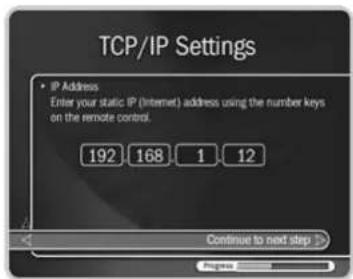
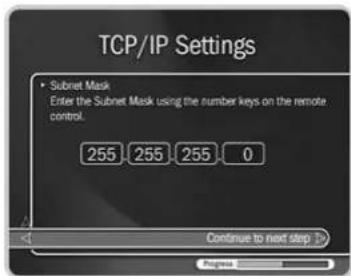
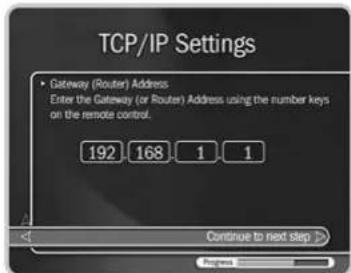
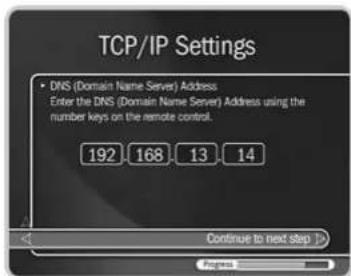
Subnet Mask. A subnet mask allows communication between a large network (such as the Internet) and a smaller sub-network (such as your home network). It uses the same format as an IP address and is usually provided by your Internet service provider (ISP). The subnet mask for a home network is usually '255.255.255.0'.
You may also be able to find the subnet mask by inspecting the IP settings of a computer on the same home network, or by contacting your Internet service provider.
Gateway (Router) Address. Enter the IP address of your home gateway or router. The IP address is usually available in the configuration screens for your gateway or router. Some common values for the gateway or router IP address on a home network are '192.168.0.1' and '192.168.1.1'. If you use a router supplied by your Internet service provider (ISP), your ISP should also have supplied the router's IP address.
You may also be able to find the home gateway or router IP address by inspecting the IP settings of a computer on the same home network.
DNS (Domain Name Server) Address. If your home network includes a broadband connection to the Internet, your Internet service provider (ISP) will have given you a DNS address. You may also be able to find the DNS address by inspecting the IP settings of a computer on the same home network.
Confirm Settings. Review the settings and select "Accept these settings" if they are correct. Congratulations, your DMS should now be connected to your home network!
For steps you can take to troubleshoot issues with your TCP/IP Settings, see "Questions About Networking" on page 149.
Change Connection Type. You see this screen if you are not using a shared Internet connection to connect to the TiVo service. If your network has access to an always-on broadband connection, select "Yes" to use it to connect to the TiVo service instead of a phone line.
Troubleshooting
Customer Support 130
Troubleshooting 131
▶ Customer Support
Toshiba and TiVo are dedicated to providing you with quality support and customer service. When you have a question:
- Use this chapter. It contains troubleshooting for questions about:
Getting Started....131
Connecting to the TiVo ^® Service 132
DVDs and CDs....134
Channels....136
Live TV....138
Recording Programs.... 139
Recording Conflicts 142
Now Playing 142
Parental Controls 144
Audio and Video....145
The TiVo Service 147
Networking 149
- Use the troubleshooting screens on your DMS. From TiVo Central, select Messages & Setup, then Troubleshooting.
- Contact Customer Support. Go online or give us a call. Refer to the contact information below.
| Toshiba Customer Support TiVo Customer Support | |
| Using TiVo BasicTM service featuresConnecting your DMS to your TV & other equipmentPhone calls and connecting to the TiVo serviceAudio and video, channel changing, and the remote control | Using TiVo PlusTM service featuresYour channel lineup and channel listsYour TiVo service account and billing issuesOnline scheduling and Home Media Features |
| www.tacp.toshiba.com/service1-800-631-3811 | www.tivo.com/support1-877-367-8486 |
Questions About Getting Started
I don't see the Welcome Screen when I plug in my DMS for the first time.
• Make sure cables are connected from the OUT jack of one device to the IN jack of another. Never connect OUT to OUT or IN to IN.
- Make sure your TV is displaying video from the input you used to connect your DMS to your TV. You may need to use the Input, Source, or TV/Video button on your TV's remote to change video sources. If you are having trouble changing the video source, refer to your TV's owner's manual.
- If you connected your DMS to a VCR (instead of directly to your TV), tune your TV the way you would to watch your VCR. Also, try turning your VCR on or off. If your VCR has multiple inputs, you may need to select the correct input on the VCR as well.
- If your DMS is connected to an A/V receiver, and you are having trouble finding the correct input, try connecting it directly to the TV instead.
- The cables you are using to connect your DMS to your TV or other equipment may be damaged or defective. Try exchanging the cables connected to the DMS with other cables that you know are working properly.
My phone jack isn't near the DMS.
• The DMS comes with a 25 foot phone cord. Phone cords longer than 25 feet are available at most hardware or electronics stores.
- After you complete Guided Setup, you can connect your DMS to a home network and use a broadband Internet connection instead of a phone line to connect to the TiVo service. See Chapter 8 for details.
My TiVo remote control doesn't control my TV's power, volume, etc.
- You can program the TiVo remote control to turn your TV on and off, and control its volume and mute functions. You can also program it to control volume and mute on an A/V receiver or stereo. See “Remote Control & DMS Front Lights” on page 76.

My TiVo remote control doesn't work with my DMS.
- Be sure you are using the TiVo remote, and that you hold it so that the TiVo button points toward the DMS.
- Press any button on the remote. Does the red light above the TiVo button on the remote flash?
If the red light does not flash, make sure the batteries are positioned correctly in the remote. If they are correctly positioned, try a new set of batteries. See the inside front cover of this guide for instructions on installing batteries.
If the red light on the remote does flash, watch the lights on the front of the DMS. Do the lights seem to respond (i.e., blink or flash) when you press any button on the remote? If lights on the front of the DMS do not respond to the remote, restart your DMS by unplugging it, waiting 15 seconds, then plugging it back in.
- You may not have the correct input selected on your TV. Use the Input, Source, or TV/Video button on your TV's remote to change the input. If you are passing the signal through your VCR, you may need to select the correct input on the VCR as well.
Questions About Connecting to the TiVo Service
Why does the DMS have to be connected to a phone line or the Internet?
- The DMS needs to be connected to the phone line or the Internet so that it can make periodic connections to the TiVo service. This connection downloads program information, which tells the DMS when programs are scheduled to air and on what channel. The connection may also retrieve additional information such as updates to the TiVo service, Showcases, and TiVolution Magazine.
In addition, the connection sends anonymous viewing information back to TiVo—that is, anonymous information about viewing choices, which do not identify you as an individual or household. TiVo has no way to access any of your personally identifiable viewing information from your DMS without your prior consent. Without your consent, the TiVo service has no way of knowing what shows you—as an individual or household—have watched or recorded. For more information, read the TiVo Privacy Policy on page 154.
Do I need to keep the phone connected all the time?
- We recommend you leave the DMS connected to the phone line all the time. The TiVo service will not interfere with other needs for the phone line, and periodic connections will keep the Digital Media Server's program information fully up to date.
- You can also use a broadband Internet connection to connect to the TiVo service instead of a phone line. See Chapter 8 for details.
The phone connection to the TiVo service is failing.
- First, verify that your phone line is working by connecting a phone to it, then listening for a dial tone. Make sure the phone cord is connected to both the DMS and the phone jack. If the phone line is working, continue with the troubleshooting here. If it is not working, contact your telephone service provider.
- The following tips require changing your Phone Dialing Options. To change Phone Dialing Options, go to TiVo Central, then select Messages & Setup, then Settings, then Phone & Network Setup, then "Edit phone or network settings," then Phone Dialing Options. After you change a Phone Dialing Option, the DMS will make a test connection to verify whether or not your problem was solved.
Phone Connection Troubleshooting Tips:
- Try another local dial-in number. Select “Set Dial-In Number.” Confirm your area code, then select a new number from the list of available numbers for your area.
- If you have voice mail on this phone line or use another non-standard dial tone, turn off “Dial Tone Detection.” (Select “Set Dial Tone Detection,” then select “Off.”)
- If you dial a prefix for outside lines, be sure it is entered on the Phone Dialing Options screen. To enter or change a prefix, select "Set Dial Prefix," then follow instructions on the screen. For example, if you must dial 9 to reach an outside line, select "Set Dial Prefix," then press "9" then the PAUSE ( 11 ) button. (This enters a 9, followed by a comma. The comma inserts a pause.)
- If you have call waiting, be sure it is disabled during the daily phone call. (Select “Set Call Waiting Prefix,” then enter the correct prefix, usually “*70.”). You would enter “*70,” by pressing CLEAR then “7” then “0” then the PAUSE ( ⑪ ) button.)
- Your phone line may have low voltage. Set 'Phone Avail.' Detection to "Off." (Select "Set Phone Avail. Detection," then select "Off.") If you have a cordless telephone, fax machine, or computer modem connected to the same line, try turning 'Phone Avail.'

Detection off, as well. When 'Phone Avail.' Detection is off, you may hear a click on the line when the DMS tries to call. This is the sound of the DMS picking up the line to see if it is free.
- If you use a wireless modem jack, try connecting the DMS directly to a standard wall jack.
- If you have a caller ID box, try removing it from the line, since some models interfere with the DMS's ability to make a call.
- If you have DSL, try installing a DSL filter on your phone line.
- It could be that you have too much line noise due to the length of the phone cord. Try a shorter cord, or you can buy a line noise filter at your local electronics store.
What if I need to use the phone while the DMS is connecting to the TiVo service?
- You can interrupt the connection. To do this, pick up the phone, then hang it up. Wait about 45 seconds. When you pick it up again, there should be a dial tone. Repeat this process if necessary.
What if my phone line is busy when the DMS tries to connect to the TiVo service?
- The DMS will continue to attempt to connect several times a day until it is successful. You can check the status of the connection on the Phone & Network Setup screen (from TiVo Central, select Messages & Setup, then Settings, then Phone & Network Setup). The status of the most recent connection is displayed near the top of the screen.
Am I charged for connections to the TiVo service?
- TiVo uses either a standard phone line or a broadband Internet connection to provide the TiVo service, and is available as a local call in most areas. In some areas, however, local and long distance toll charges may apply. You are responsible for any phone charges.
Questions About DVDs and CDs
I cannot play DVDs or CDs on the Digital Media Server.
- You must complete Guided Setup (see Chapter 2) before the DMS can play DVDs or CDs.
- Check that the disc is loaded properly (aligned in the disc tray with the label side up). See page 34 for an illustration of proper alignment.
- Remove the disc and clean it. Do not use discs that are damaged.
- Check that the disc has a region code compatible with the DMS. If one of the regional codes on the disc does not match the number on the back panel of the DMS (region code 1), the disc cannot be played. Discs marked ALL will play in any DVD player.
Regional restriction codes are built-in to DVD players and DVDs for each sales region.
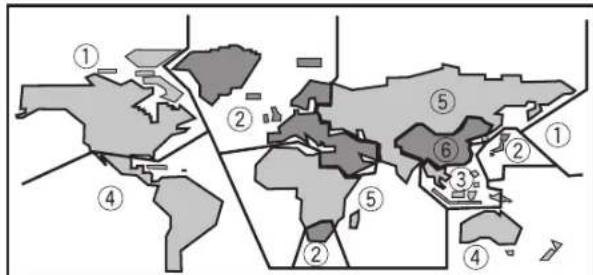
- There may be condensation in the player. Allow time for condensation to evaporate. Leave the DMS for an hour or so, then try again. If the DMS is near an air-conditioning unit, you should move it.
The Digital Media Server is not playing audio on a DVD.
- If playing a DTS DVD, the DMS must be connected to a DTS Receiver to receive audio.
The DVD did not record successfully.
- Check whether the source that you are trying to record is copy protected. You cannot record copy-protected material using this DMS. For more information, see “Compatibility and Copy Protected Material” on page 48.
- Check that there wasn't a power outage during the recording.
I can't play a DVD disc that I recorded using my Digital Media Server in another DVD player.
- Not all DVD players will play all discs, even if the disc has been finalized.

I can't save programs to a DVD disc I purchased.
- The DMS will only save to DVD-R and DVD-RW discs. It will not save to other disc formats (such as DVD+R or DVD+RW). For more information, see “Compatibility and Copy Protected Material” on page 48.
Questions About Channels
Can I watch one channel while recording from another?
- Yes. If you have cable with no cable box or an antenna, you can split the signal with an RF splitter. See “Watching One Channel & Recording Another” on page 18. (You will not have TiVo functionality on the channels you watch using an RF cable that goes directly to your TV.) You can always watch any program from the Now Playing list while the DMS is recording a program.
I can't get the channel to change.
If you use cable with no cable box:
- Be sure that you are using the TiVo remote and that you hold it so the TiVo button points toward the DMS.
- Press any button on the remote. Does the red light above the TiVo button flash? If not, make sure the batteries are positioned correctly in the remote. If they are, try a new set of batteries. If the red light on the remote does flash, do the lights on the front of the DMS seem to respond when you press any button on the remote? If they do not, restart your DMS by unplugging it, waiting 15 seconds, then plugging it back in.
If you have a cable or satellite box and used the IR Control cable:
- Make sure the cable or satellite box is turned on.
- Make sure you are using the DMS's remote control, and that you hold it so the TiVo button points toward the DMS, not at the cable or satellite box.
- Refer to page 6 to verify that the IR Control cable is positioned correctly in front of the IR sensor. Also, make sure the purple end of the cable is plugged into the Control Out-IR jack on the back of the DMS.
- You may consider optimizing the IR Control connection as described on page 9.
- Press the TiVo button to go to TiVo Central, then select Messages & Setup, then Cable/Satellite Box, then Control Cable Setup. Verify the IR code you chose during Guided Setup. See page 6 for more on choosing an IR code.
Try using the cable or satellite box's remote to change the channel. If it doesn't work, contact the manufacturer or service provider.
If you have a Motorola/General Instruments DCT2000 series cable box or a DIRECTV ^® satellite box and used the Serial Control cable:
- Make sure the cable or satellite box is turned on.
- Verify that the Serial Control cable is plugged into the data connector on the cable or satellite box and into the Control Out-Serial jack on the back of the DMS.
- Unplug the cable or satellite box's power cord, then plug it back in. Then try changing channels with the TiVo remote again.
Try using the cable or satellite box's remote to change the channel. If it doesn't work, contact the manufacturer or service provider. - Serial control of a Motorola/General Instruments DCT2000 series cable box may not be available for all customers. Check with your cable provider to find out if your cable box is enabled for serial control.
- Satellite Box Only: You may have incorrectly specified the type of program guide for your DIRECTV satellite box. There are two types of program guides: MPG (Master Program Guide) and APG (Advanced Program Guide).
To change this option: First, unplug the power cord for the satellite box, wait a few seconds, then plug it back in. Next, go to TiVo Central, then Message & Setup, then Settings, the TiVo DMS Setup, then Cable/Satellite Box, then Satellite Channel Changing and select "Satellite Box." On the Connection to Satellite screen, if you originally selected Serial-MPG, change your selection to Serial-APG. (If you originally selected Serial-APG, change it to Serial-MPG.) You can also check the manual for your satellite box (as well as the satellite box's system setup screen) for information on the type of program guide it uses.
I can't go to one of my channels.
- You may be using a channel list that does not include the channel you want. Use the numbers on the remote control to enter the channel number, then press ENTER. For more information on using a channel list, see page 68.
- The channel you want may be showing a program that exceeds a limit set with Parental Controls. In this case, you will see only a black screen with a notice that a limit has been exceeded. You will be able to tune to the channel if you use the Parental Controls password. (For more information on Parental Controls, see page 71.) If your cable or satellite box has a feature like Parental Controls, you may have to use the satellite or cable box's remote to disable it as well.
I can't find all the channels I receive in the Channels You Receive list.
- Have you changed your satellite or cable provider, or changed your subscription package? If you have, you should repeat Guided Setup to specify your current satellite or cable provider and lineup. From TiVo Central, select Messages & Setup, then Restart or Reset System, then Repeat Guided Setup. Press THUMBS DOWN three times, and then press ENTER. You may need to check all of the available selections to find the right one since cable providers often change their lineups. For complete instructions on Guided Setup, see Chapter 2 of this guide.
- If you have cable, and have not changed your cable provider, go to Messages & Setup, then Settings, then Channels, then Cable Lineup. Look at your cable or satellite bill, then check the Channels You Receive list. If the channels are incorrect, try another Cable Lineup. If that does not work, go to www.tivo.com/support.
Questions About Live TV
Can I watch a program while it is being recorded?
- Yes, you can watch a program as it is being recorded; you can even start watching from the beginning while the rest of the program is recorded! You can also watch any program stored in Now Playing while another program is being recorded.
The Channel Banner always says "To be announced."
- Your DMS probably does not have full program information. For details, see the question “I can’t find my program in Search by Title or Search Using a WishList, even though I know it’s on,” on page 139.
There aren't any shows listed in the program guide.
- Your DMS may not have program information. See “I can’t find my program in Search by Title or Search Using a WishList, even though I know it’s on,” on page 139.
- TiVo Plus only: If category filtering of the guide is turned on, but no upcoming programs in the next six hours match both your filter and your Favorite Channels list, no programs will appear in the guide. To view programs in the guide again, use the Guide Options to turn off filtering. (See page 98.)
I can't find my program in the guide, even though I know it's on.
- Occasionally the program information provided by the networks includes errors. We would like to hear of any inaccuracies you discover so that we can work with our providers to correct them. See the Customer Support contact information at the beginning of this chapter.
- TiVo Plus only: You can choose a channel list or filter to use with the guide. Not all programs or channels will be displayed if you have chosen to use a filter or the “Favorites” channel list. Press GUIDE to display the live guide, then ENTER to choose “Channels You Receive” or to turn off filters. You can also add and remove channels on the “Channels You Receive” and “Favorites” channel lists. (See page 68.)
Questions About Recording Programs
I can't find my program in Search by Title or Search Using a Wishlist, etc., even though I know it's on.
- The DMS uses the Channels You Receive list to search for programs in all the features under Pick Programs to Record. To check if you've selected the program's channel, go to Messages & Setup, then Settings, then Channels, then Channels You Receive. Does the channel have a check mark next to it? To give it one, highlight the channel and press SELECT. (For instructions on personalizing this list, see page 68.)
- Look on the Phone & Network Setup screen (from TiVo Central, select Messages & Setup, then Settings, then Phone & Network Setup) for the time of the last successful connection to the TiVo service. If it was more than 36 hours ago, your DMS may be having trouble connecting to the TiVo service. Select “Test connection” to test the current settings. If the test connection does not succeed, see page 132 for connection troubleshooting. Once you have made a successful test connection, start a regular connection by selecting “Connect to the TiVo service now.” If your connection is successful, new program information will be downloaded and organized, and become available to search in about 1 to 5 hours.
- Occasionally the program information provided by the networks includes errors. We would like to hear of any inaccuracies you discover so that we can work with our providers to correct them.
- TiVo Plus only: Is your TiVo service account up to date? Check your account status on the System Information screen (from TiVo Central, select Messages & Setup, then System Information). If your account is suspended or closed and you wish to re-activate it, go to www.tivo.com/manage, or refer to page 130 for Customer Support contact information and give us a call.
I cannot use features in Pick Programs to Record. The DMS says it is organizing program information.
- Your DMS may not have all its program information yet. The first time you go through Guided Setup, the DMS downloads program information from the TiVo service. The DMS then indexes this information in the background over the next 4-8 hours. As the program information gets indexed, more of it becomes available. After 8 hours, full information (for up to 2 weeks from the time of the last successful connection to the TiVo service) is available for you to use. Wait a few hours, then try to find your program again.
- If the DMS loses power while it is indexing program information, the indexing process will stop until the DMS makes a successful connection to the TiVo service, and then will start again. If your DMS lost power while it was indexing program information, you can get it to start indexing again by plugging it in and then starting a connection to the TiVo service. To do this, go to TiVo Central, then select Messages & Setup, then Settings, then Phone & Network Setup, then “Connect to the TiVo service now.”
What happens if a sports event I have scheduled to record goes into overtime?
- TiVo Plus only: The TiVo service cannot predict whether a sporting event might go into overtime, but we provide a feature that lets you add from one extra minute to three hours at the end of a recording just in case. We call the feature the Overtime Scheduler®. The Overtime Scheduler has two options: "Start Recording" and "Stop Recording." Both are available on the Recording Options screen. You can even use the Overtime Scheduler to change the scheduled end of a recording while the program is being recorded. You can use the Overtime Scheduler with any kind of program, not just sports. For more information on Recording Options, see page 94.
If you are watching a program while it's being recorded, you can record an overtime segment in a couple of ways. One way is to go into Now Playing, select the recording, then select "Change recording options." On the Recording Options screen that appears, select "Stop recording." Use RIGHT arrow to increase the length of the recording by anywhere from one minute to 3 hours. Alternatively, you could choose to press the RECORD button after the regularly scheduled part of the program has finished.
Is there a way to record a program that will not be aired for weeks or months?
- If you know the date, time, and channel on which the program will air, create a manual recording to record it. Go to TiVo Central, and select Pick Programs to Record, then Record by Time or Channel, then Manually Record Time/Channel. (See page 41.)
- TiVo Plus only: Create an auto-recording WishList search for programs that are not yet listed in the guide. See page 103 for details on WishList searches.
How do I set the clock so that my shows are recorded on time?
- The TiVo service sets your DMS's clock during every service connection. If you set your time zone and Daylight Savings Time correctly in Guided Setup, you never have to worry! If you move to a new time zone, change your DMS's time settings by repeating Guided Setup. To connect to the TiVo service at any time, go to TiVo Central, then select Messages & Setup, then Settings, then Phone & Network Setup, then "Connect to the TiVo service now."
- TiVo Plus only: If you are missing the beginning or end of a show, it usually means that the broadcaster is not starting or stopping the show on time. You can use the Overtime Scheduler, described on page 95, to compensate for this.
How do I record a Pay Per View event?
- From live TV, catch up to the present broadcast by pressing the ADVANCE button. Then, order the program from your cable or satellite provider as you normally would—by using your satellite or cable box remote, or by calling your cable/satellite provider. (If the program violates a Parental Control limit—or a feature like Parental Controls on your cable or satellite box—make sure to disable both TiVo Parental Controls and your satellite or cable box's Parental Controls.) To record the program, search for it in Browse by Time. If there are no listings for Pay Per View events, record the showing with the Manually Record Time/Channel option under TiVo Central, then Pick Programs to Record, then Record Time/Channel.
Some content may not be saved to DVD due to copy protection rights over the material. For more details, see “Copy Protected Material” on page 48.
Why wasn't my program recorded?
- TiVo Plus only: Check Recording History for an explanation of why the program did not record (from TiVo Central, select Pick Programs to Record, then To Do List, then View Recording History). Reasons why a program may not have recorded include:
- The program may have been canceled by the network.
-
If you had two Season Pass recordings that were on at the same time, only the Season Pass with the higher priority would be recorded. Priorities and the Season Pass Manager are described on page 96.
-
The program may have been deleted from Now Playing by someone else in your household.
- There may have been a conflict when requesting another program, and the proposed resolution was to delete the missing program earlier than planned. If you accepted that resolution, the program would have been deleted.
- There may have been a channel changing problem. See “Questions About Channels” on page 136.
Questions About Recording Conflicts
Can I record multiple programs simultaneously?
- No. You can watch any program in Now Playing while another is recording. However, you can only record one program at a time on your DMS, because it does not contain the necessary hardware to record two programs at once.
How can I record a program (or programs) when there is a conflict? –
- If a single episode of a repeating recording conflicts with another program, you can select that episode in the To Do List and change it independently of the rest of the repeating recording.
- TiVo Plus only: The DMS gives each repeating recording a priority. You can resolve some conflicts in favor of preferred programs using the Season Pass Manager to change priorities (see page 96.)
- TiVo Plus only: If you encounter a conflict for a single episode, use “View upcoming episodes” to see if the program or episode you want will air at a different time.
- TiVo Plus only: You can sometimes resolve recording conflicts by changing the “Stop Time” or “Start Time” Recording Options. (See page 94 for more about Recording Options.) If you set a program to start recording one minute early, it may conflict with a recording that airs right before it. To resolve such a conflict, change the “Start Time” back to “On Time” in Recording Options.
Questions About Now Playing
Can I recover a recorded program that was deleted?
- No. There is no way to bring back a program that has been deleted from Now Playing. You can choose to keep programs as long as you want (see page 55) or save programs recordable DVDs (see page 45).
Can I copy or archive programs to a Zip drive, or any other computer storage media?
• The TiVo Series2 DMS does not save or archive recordings to any device other than a VCR or its internal DVD recorder.
I haven't scheduled enough programs to fill my DMS, but when I try to schedule more programs, the DMS says there isn't room.
- The TiVo service includes smart scheduling features that track not only how much space you currently have on your DMS, but also how much space will be needed in the future to record all of the programs you have scheduled. If your DMS will be full at some point in the future, the TiVo service informs you and suggests options—such as allowing some programs to be deleted early—that will allow you to schedule additional recordings. With the TiVo service, you always have the final say over what gets recorded and how long it is kept.
- In addition, the amount of recording space the DMS needs varies from channel to channel and from show to show. In general, the more action you see on your screen, such as in fast-moving sports or action movies, the more recording space is required. Weaker video signals may also require more space. The amount of space required for each show you record affects the total hours of recording capacity in your DMS.
How can I fit more programs in Now Playing?
• To make space, delete some programs in Now Playing. You delete a program by highlighting its title, then pressing CLEAR.
- Lowering the default recording quality will allow you to fit more programs in Now Playing. See page 74 for details.
- TiVo Plus only: Set up Season Pass recordings with the Recording Option “First-run only.” You’ll collect only new episodes. You’ll also be less likely to run out of space in Now Playing and less likely to encounter conflicts.

What does it mean when my DMS says programs will be deleted earlier than planned?
- By default, all programs are kept until space is needed. After that, programs you have not set to save longer may be deleted to make room for other recordings you request. The TiVo service includes smart scheduling features that keep track of when programs become available to be deleted, and of how much free space will be available at any given time in the future. If space will not be available to record a program you request, the TiVo service gives you the option of deleting some programs early to make more room. However, you always have the final say on how long the DMS keeps programs. You can delete a program at any time, and you can always change how long it is saved. Just select the program in Now Playing, then select “Keep until...”
Questions About Parental Controls
My Parental Controls are not working.
- For Parental Controls to work, they must be on (and must not be temporarily turned off). When you enter your password to watch a program that violates Parental Controls, they are temporarily turned off. You can re-enable them on the Parental Controls screen (from TiVo Central, select Messages & Setup, then Settings, then Parental Controls), or by putting your DMS in Standby mode and then taking it out of Standby. You can put your DMS in Standby mode by going to TiVo Central and selecting Messages & Setup, then Standby. To return to normal mode from Standby, press either the TiVo button the or LIVE TV button. (On some remotes, there is a POWER button that puts the DMS in Standby mode and takes it back out.)
I disabled Parental Controls, but I still can't tune to the channel I want.
- If your cable or satellite box has a feature like Parental Controls, make sure you have disabled them with the satellite or cable box's remote. See your cable or satellite box's owner's manual for instructions.
- You may be using a channel list that does not include the channel you want. Use the number buttons on the remote control to enter the channel number, then press the ENTER/JUMP button. For more information on using a channel list see page 68.
Questions About Audio and Video
The audio and video are out of sync.
- The audio and video may re-sync if you change channels.
- You may be able to re-sync audio and video by pressing the INSTANT REPLAY button on the remote control.
- Press the TiVo button to go to TiVo Central, then press the LIVE TV button to return to live TV.
- You can also try restarting your DMS. From TiVo Central, select Messages & Setup, then Restart or Reset System, then Restart the DMS. On the Restart the DMS screen, press the THUMBS DOWN button three times, then press ENTER. You will see the Welcome screen and the system will restart within a few minutes.
My DMS was working, but now the picture does not move
- Try restarting your DMS. From TiVo Central, select Messages & Setup, then Restart or Reset System, then Restart the DMS. On the Restart the DMS screen, press the THUMBS DOWN button three times, then press ENTER. You will see the Welcome screen and the system will restart within a few minutes. You can also restart the DMS by unplugging it, waiting at least 15 seconds, then plugging it back in.
I don't get a picture now, even though I have been able to get one in the past.
- Someone in your household may have placed the DMS in Standby mode. To return to normal mode from Standby, press either the TiVo button or the LIVE TV button. (On some remotes, there is a POWER button that puts the DMS in Standby mode and takes it back out.)
- Your TV may not be set to the correct input. Most TVs have an input button that says either "TV/Video," "Input," or "Source." It may be on the TV or on the TV remote control. Look at your TV and TV remote and try changing the input for your TV.
- If you have your DMS connected to a VCR, the VCR may not be set to the correct input. Most VCRs have an input button that says either "TV/Video," "Input," or "Source." It may be on the VCR or on the VCR remote control. Look at your VCR and VCR remote and try changing the input for your VCR.

- Check to make sure all of the appropriate cables are firmly connected to your DMS, television and other audio/video equipment. For help with your cable connections, see the Start Here booklet and Chapter 1 of this guide.
My audio system is set up to play in stereo, but it is only playing mono.
- Make sure that “Main Audio Program (stereo)” is selected on the Television Audio screen (TiVo Central and select Messages & Setup, then Settings, then Audio, then Television Audio). And be sure you connected audio using the DMS’s L/R Audio Out jacks.
I can't select an alternate audio track.
- Secondary audio programs (SAP) are not available for all programs. If you set the SAP as the default audio, programs that have SAP will use it. Only one audio track is saved with recorded programs. If SAP is the default audio and a program you are recording has an SAP, the SAP will be the recorded program's only audio. You can set the default audio on the Television Audio screen (from TiVo Central, select Messages & Setup, then Settings, then Audio, then Television Audio).
- Recorded programs, such as those in Now Playing, always have only one audio track, the one they were recorded with.
- You cannot change the audio track if you are watching a live program, but are not caught up to live TV. Catch up to live TV by pressing the ADVANCE button. Changing the audio program will clear the saved part of the program you are watching, so you will only be able to rewind live TV to the point where you changed the audio program.
Programs are playing in the wrong language.
- You may have selected the secondary audio program (SAP) as the default audio on the Television Audio screen. Most programs with SAP use it to broadcast in an alternate language. To turn off the SAP, change the main audio program on the Television Audio screen (from TiVo Central, select Messages & Setup, then Settings, then Audio, then Television Audio).
When I turn on my TV, I see a blue screen with a TiVo logo.
Your DMS is having trouble tuning to the channel you are on. Follow these steps to restore the video:
- Try changing channels. If the blue screen appears on just a few channels, you may be tuned to a channel to which you do not subscribe, or you may be experiencing a weak signal on a channel to which you do subscribe. If you do not subscribe to the channel, you should take it off the “Channels You Receive” list. (For more information, see page 68.) If you do subscribe to the channel, wait 24 hours to see if the signal improves, or call your cable or satellite provider.
- If you have a satellite or cable box, go to Messages & Setup, Cable/Satellite Box, Connection to DMS. Verify that you chose the same cable on this screen that you used to connect your satellite or cable box to the DMS.
- If the blue screen appears on every channel, and you have a cable or satellite box, make sure it is turned on.
- You may be experiencing a temporary cable or satellite outage; check with your cable or satellite provider.
- Your video cable may have come loose. Make sure all the cable connections on the back of your DMS are secure.
- Verify that you are receiving a video signal by temporarily connecting the video source directly to the TV. If you still do not see any video, there may be a problem with your cable, satellite or antenna equipment.
- The cables you are using to connect your DMS to your TV or other equipment may be damaged or defective. Try exchanging the cables connected to the DMS with other cables that you know are working properly.
- Restart your DMS. (From TiVo Central, select Messages & Setup, then Restart or Reset System, then Restart the DMS. Press THUMBS DOWN three times, then press ENTER. You will see the Welcome screen, and the system will restart within about 45 seconds. You can also restart the DMS by unplugging it, waiting 15 seconds, then plugging it back in.
Questions About the TiVo® Service
Do I have to pay a subscription fee to use my Digital Media Server?
- No. The Digital Media Server comes with TiVo Basic ^TM service included. TiVo Basic does not require any subscription fee.
What is TiVo Basic service?
- TiVo Basic service allows you to control live TV (pause, fast forward, instant replay), and record programs from a specific channel at a specific time (much like a VCR) to Now Playing. It also includes an on-screen interactive program guide that provides information on your favorite shows. In addition, Showcases and TiVolution Magazine help you get more out of your TV time.
What is TiVo Plus service?
- With TiVo Plus ^TM service, you get the benefits of smart, automatic-recording technology. TiVo Plus brings you features such as:
- Season Pass ^TM recordings. Automatically record every episode of a series, all season long, even if the schedule changes.

- WishList ^TM searches. Find and record programs by actor, director, sports team, etc.
- Search by Title. Browse for shows by title, filter by genre (like “Comedy”), and more.
- Interactive 14-day program guide. Instantly schedule recordings from an on-screen guide that includes detailed program information, including show summaries and ratings, for up to 14 days of programming.
- More smart features. TiVo Plus skips reruns, tracks schedule changes, and more!
Will the Digital Media Server work without TiVo service?
- The Digital Media Server comes with TiVo Basic service included, so you will always be able to use TiVo Basic service features. The DMS was designed to be used with at least one level of TiVo service (such as TiVo Basic or TiVo Plus). The TiVo service is required for proper operation of the DMS. No functionality is represented, warranted or should be expected without TiVo service. The TiVo service provides the DMS with program information to record the programs you request. The TiVo service may also provide you with new Showcases and TiVolution Magazine content. The DMS must make periodic connections to the TiVo service to maintain its service level (such as TiVo Basic or TiVo Plus).
What happens if my DMS loses power temporarily?
- Everything is saved—including your Now Playing programs—regardless of the length of time the DMS is without power. The only thing you will miss is a recording that was scheduled to occur during the time the power was out.
Will the TiVo service collect information about my viewing habits?
- TiVo has designed its system and instituted policies to ensure that TiVo is unable to access any of your personally identifiable viewing information without your prior consent. TiVo does collect anonymous viewing information; that is, information about viewing choices made while using your DMS, which does not identify you as an individual or household. In other words, there is no contact information associated with the viewing information that could identify the viewing information as coming from you or your household. If you don't want even your anonymous viewing information used in any way, you may simply call and tell us, and we will stop collecting it. (See page 130 for our phone number.) For more information, see Chapter 10 or go to www.tivo.com/privacy.
How is information from the TiVo service delivered to my DMS?
- The DMS automatically makes regular connections to the TiVo service to download program information and other data. Information may also be delivered by a special TiVo program that is recorded late at night (when it does not conflict with any of your requested recordings).
Questions About Networking
I can't find "Edit phone or network settings."
- The menu item “Edit phone settings” will change to “Edit phone or network settings” after you connect a network adapter that the DMS recognizes to the DMS’s USB port. To see the Phone & Network Setup screen, press the TiVo button to go to TiVo Central, then select Messages & Setup, then Settings, then Phone & Network Setup. If you have attached an adapter and still see “Edit phone settings:”
- Make sure the USB cable between the adapter and the DMS is plugged firmly into both devices.
- Confirm that you are using a recommended adapter. Check the list online at www.tivo.com/adapters. You may need to use a different adapter.
My DMS is not connecting to the TiVo service.
- You can make the DMS connect to the TiVo service at any time. Press the TiVo button to go to TiVo Central, then select Messages & Setup, then Settings, then Phone & Network Setup, then “Connect to the TiVo service now.”
- Your DMS can connect to the TiVo service via a home network's always-on broadband Internet connection, or via a phone line. To change the type of connection your DMS uses to connect to the TiVo service, press the TiVo button to go to TiVo Central, then select Messages & Setup, then Settings, then Phone & Network Setup, then "Change connection type."
- If your DMS is having trouble connecting via a broadband Internet connection:
- Check that the Internet connection is available, then troubleshoot. There are two links in the chain between your DMS and the Internet: your Digital Media Server's connection to your home network, and your home network's connection to the Internet.

First, confirm that the connection between your home network and the Internet is working. Try to go online and browse a web site from a computer on the same network as your DMS. If you cannot browse the Internet, you must fix the connection from your network to the Internet. After you have fixed this connection, try again to make your DMS connect to the TiVo service.
(Press the TiVo button to go to TiVo Central, then select Messages & Setup, then Settings, then Phone & Network Setup, then "Connect to the TiVo service now.")
If you can browse the web, then see "My DMS is not connecting to my home network," below.
- If your DMS is having trouble connecting over a regular phone line:
- Use broadband. If you have a home network with a broadband Internet connection, try allowing your DMS to use it to connect to the TiVo service over the Internet. Doing this eliminates the Digital Media Server's need to use a phone line. See Chapter 8 for more details.
My DMS is not connecting to my home network.
Any of the steps below may fix a network connection; you probably will not have to complete each one. For additional steps for wireless networks, see “My DMS is not connecting to my wireless home network.” on page 152.
1. Check network adapter.
- The network adapter or cables could be defective. If you have another adapter or USB cable available, try that adapter or cable.
- The network adapter that you attached may not be supported. If your network adapter is compatible with your DMS, and functioning properly, a MAC address—an identifier unique to the network adapter you purchased—is visible on the Phone & Network Setup screen. To check, from TiVo Central, select Messages & Setup, then Settings, then Phone & Network Setup. The MAC address should be on the top right-hand side of the Phone & Network Setup screen. If you do not see a MAC address listed, your DMS is not recognizing the network adapter you installed. The adapter is either not compatible, not functioning properly, or not properly connected. If you do see a MAC address, the adapter you are using may or may not be compatible. For more information, see “USB Ports, Wireless and Wired Network Adapters” on page 116.
- Check connection to the network adapter. Unplug the USB cable from the back panel of your DMS and then plug it back in. Make sure the cable is pushed all the way in; sometimes lights on the adapter turn on before the USB cable is pushed all the way in. Unplug the side of the USB cable connected to the adapter and then plug it back in.
- Restart the DMS. Press the TiVo button on the remote control to go to TiVo Central, then select Messages & Setup, then Restart or Reset System, then Restart the DMS. Press THUMBS DOWN three times, then press ENTER.
- Check physical connections. Ensure that all network equipment is receiving power and all cable connections for routers, hubs, access points, and computers are working. Verify that the “connection” light is lit on devices connected to the network.
- Powercycle network devices. If you have a router or wireless access point, unplug it, wait a moment, and then plug it back in. This will temporarily halt your network's Internet connection. It may take a minute for your equipment to "restart" after you plug it in.
- Check your Network Settings. Verify that your Network Settings are correct. Complete TCP/IP Settings, even if you did not when you first connected your DMS. For more information, see “Completing the Network Settings” on page 121.
- Update router or home gateway firmware. If your home network includes using a router, home gateway, or wireless access point, it may need a firmware update. Firmware is a software program that is loaded onto a hardware device. You can usually find any updated firmware at the Customer Support web site for the manufacturer of your hardware. (For example, if you have a Linksys device, check http://www.linksys.com/download/) Older firmware may cause unpredictable results. It may be necessary to power-cycle your device before and after you reinstall the firmware.
- Check Static IP Address. If you assigned an IP address to your DMS, check that its IP address is unique on your network. Also, confirm that the first three sets of numbers of the Digital Media Server's IP address are the same as those of other devices on the network. (For example, if you computer's IP address starts with "192.168.1" then your Digital Media Server's IP address must also start with "192.168.1".)
- You may have assigned a static IP address on a network with a DHCP server. If your network includes a DHCP server (for example, as part of your router), you should not assign static IP addresses to devices on the network. Go to TiVo Central, then select Messages & Setup, then Settings, then Phone & Network Setup, then Edit phone or network settings, then TCP/IP Settings, then select “Obtain IP address automatically.”
If you have a wireless network, also try the following steps.

My DMS is not connecting to my wireless home network.
Connecting to the network access point may take several minutes once the problem is resolved. Be certain the Phone & Network Setup screen has had time to update to display the true network status before making any additional changes. To refresh the Phone & Network Setup screen, press LEFT arrow to go to the previous screen, and then press RIGHT arrow to return to Phone & Network Setup.
- Check power at wireless access point. Make sure the access point or router is receiving power and the "connection" light is on.
- Change password format. If you used an alphanumeric password for your wireless network, try using a hexadecimal password instead. You can find a hexadecimal password (sometimes referred to as a "Key" or "WEP Key") in the configuration settings for your wireless access point or wireless router. If more than one hexadecimal password is listed, always use the first one. To change the password format, follow the instructions for completing Wireless Settings on page 121.
-
Check signal strength. On the Phone & Network Setup screen (from TiVo Central, select Messages & Setup, then Settings, then Phone & Network Setup), check the wireless signal strength. The following tips may improve wireless signal strength:
-
Make sure the wireless adapter is placed well away from the Digital Media Server's power supply, or power strips, or surge protectors. Any of these may cause interference and reduce signal strength. Some household appliances, such as microwave ovens and 2.4 GHz cordless phones, may also reduce signal strength when they are in use.
- Verify that the wireless network adapter's antenna is fully extended.
- Move the wireless network adaptor to a higher position, or give it a better line of sight to your wireless gateway (router).
- Reduce the distance between the wireless network adapter and the wireless access point. Wireless networks typically have a range of 100 - 300 feet, but distances can vary based on walls, floors, and other obstructions. It may be necessary to adjust the location adapter of your wireless access point or router to be closer to the network adapter attached to your DMS.
-
Consider adding a signal booster to your network (available from some wireless equipment manufacturers).
-
Check network name. On the Wireless Settings screen (press the TiVo button to go to TiVo Central, then select Messages & Setup, then Settings, then Phone & Network Setup, then Edit phone or network settings, then Wireless Settings), check that the network name (SSID) for your network access point is listed correctly. To change the network name, follow the instructions for completing Wireless Settings on page 121. You can also try the steps in "My DMS is not connecting to my home network." on page 150.
Privacy, Service, Warranty, and Licenses
TiVo Privacy Policy 154
TiVo Basic™ Service Agreement 162
TiVo Plus™ Service Agreement 164
Toshiba Digital Media Server Limited Warranty 172
FCC Information 174
Safety Instructions 175
GNU General Public License 177
Linux and Other Important Information 182
TiVo Privacy Policy
PREAMBLE
TiVo Inc. ("TiVo") is committed to protecting the privacy of your personal information. The TiVo Privacy Policy is published on the World Wide Web at www.tivo.com/privacy. We have printed it here for your convenience, but we encourage you to check the web site or call us for a copy of the current Privacy Policy.
This Privacy Policy applies to your use of the TiVo service (also known as the TiVo Plus service) and/or the TiVo Basic service, as the case may be. For purposes of convenience only, the TiVo service (also known as the TiVo Plus service) and the TiVo Basic service are each referred to individually as the "TiVo service" in this Privacy Policy. Where the Privacy Policy differs depending on the type of service you have, that difference will be noted. Use of your TiVo® Digital Video Recorder (referred to in this Privacy Policy as your "TiVo DVR") with the TiVo service will signify your acceptance of this Privacy Policy. Thank you for using the TiVo service!
SUMMARY OF THE TIVO PRIVACY POLICY
TiVo knows how important personal privacy is to you, so we have designed our system and established strict policies to help protect the privacy of your Personally Identifiable Viewing Information. In summary, we want you to know that:
- The TiVo DVR collects certain types of information from its users, including Anonymous Viewing Information, Diagnostic Information, Commerce Information, and Service Information (each as defined below).
- TiVo has no way to access any of your Personally Identifiable Viewing Information (as defined below) from your TiVo DVR without your prior consent. Absent your consent, TiVo has no way of
knowing what shows you—as an individual or household—have watched, recorded, or rated with “Thumbs Up” or “Thumbs Down.” NOTE: If your TiVo DVR is receiving the TiVo Basic service, you may not be able to consent to TiVo’s collection of your Personally Identifiable Viewing Information from that TiVo DVR.
- TiVo does collect Anonymous Viewing Information; that is, information about viewing choices made while using your TiVo DVR, but that does not identify you as an individual or household. In other words, there is no personally identifiable information associated with your Anonymous Viewing Information that could identify the Anonymous Viewing Information as coming from you or your household.
- TiVo also collects Diagnostic Information from a small number of randomly sampled TiVo DVRs for quality control purposes. If you subscribe to the TiVo Plus service and don't want your Anonymous Viewing Information and Diagnostic Information used in any way, simply tell us by writing to us or calling us at 1-877-367-8486. NOTE: If your TiVo DVR is receiving the TiVo Basic service, you may not opt out of TiVo's collection of Anonymous Viewing Information or Diagnostic Information from that TiVo DVR; however, you are not required to provide TiVo with any Contact Information (as defined below) with respect to that TiVo DVR.
-
If you affirmatively elect to engage in a commercial transaction such as by responding to an advertisement or promotion, TiVo will collect and disclose your Commerce Information (as defined below) to the commerce partner fulfilling the transaction. NOTE: If your TiVo DVR is receiving the TiVo Basic service, you may not be able to engage in commercial transactions from that TiVo DVR.
-
If you affirmatively elect to use the Online Scheduling feature of the TiVo Plus service, TiVo will collect the Personally Identifiable Viewing Information associated with fulfillment of your individual request(s). Use of the Online Scheduling feature, however, does not change your privacy preferences with respect to viewing choices made in the privacy of your household. NOTE: If your TiVo DVR is receiving the TiVo Basic service, you may use the Online Scheduling feature on that TiVo DVR.
- TiVo intends to make available new services in the future. These services will be governed by the privacy policies of the respective service providers.
- NOTE TO TIVO BASIC SERVICE CUSTOMERS: If your TiVo DVR is receiving the TiVo Basic service, you may not (i) be able to opt out of our collection of Anonymous Viewing Information and Diagnostic Information from that TiVo DVR, (ii) opt out of your receipt of communications we send you in the event you provide us with Contact Information (though you are not required to provide us with any Contact Information as to that TiVo DVR), or (iii) be able to change your privacy preferences to allow TiVo to collect Personally Identifiable Viewing Information from that TiVo DVR.
- NOTE TO CUSTOMERS WITH MORE THAN ONE TIVO DVR: Generally, TiVo will cause all of all the TiVo DVRs on your account receiving the TiVo Plus service to have the same “opt” status. See Sec. 2.9 of the Privacy Policy for further details.
TIVO PRIVACY POLICY
Please read this Privacy Policy carefully. It provides important information on how your privacy is protected when using the TiVo service.
In order to provide you with a better, more satisfying television experience, TiVo Inc. ("TiVo") collects and uses certain types of information, as described in this Privacy Policy. The User Information
(defined below) you provide to the TiVo Digital Video Recorder (referred to in this Privacy Policy as your "TiVo DVR") in your house and to us at TiVo enables your TiVo DVR to select programs you want it to record and, if you are TiVo Plus service user, to suggest programs you might enjoy.
By using your TiVo DVR and the TiVo service, you consent to the provisions of this Privacy Policy including the privacy preferences set forth in Section 4.1. This Privacy Policy explains our commitments to your privacy in the following areas:
1 Our User Information Definitions. In discussing the kind of information TiVo collects, it is important to distinguish between anonymous information and other information that specifically identifies you or your household. Too often, people refer to “personal information” or “personally identifiable information” without really making clear what they mean. TiVo has developed the following definitions to help clarify this important issue. We use “User Information” as a general term that refers to any information relating to you or your use of the TiVo service. The following are more specific types of User Information.
1.1 "Account Information" means information about you and your TiVo DVR, including your Contact Information (defined below) and other information linked to your Contact Information such as the model and Service Number of your TiVo DVR, your ZIP code, software version used, your TV programming source (cable, satellite or an antenna), the type of cable hook-up (digital or analog) and level of TiVo service (TiVo Basic, TiVo Plus, premium services, etc.), privacy preferences, and the cable or satellite box model that you use. You provide us with this information when (a) you set up your TiVo DVR with TiVo Basic service or (b) when you register as a user of the TiVo Plus service. This Service Information (defined below) is sent to TiVo on an ongoing basis to enable TiVo to provide the TiVo
service to your TiVo DVR. Account Information also includes information we may receive about you in a communication from you or a third party. Account Information does not include any Personally Identifiable Viewing Information, or Anonymous Viewing Information, as defined below.
a "Contact Information
someone to identify or contact you, including, for example: your name, address, telephone number, and e-mail address. Contact Information is a subset of Account Information and is thus linked to your TiVo DVR's Service Number. Your ZIP code by itself, while part of your address, is not Contact Information because your ZIP code alone does not allow someone to identify or contact you. NOTE: If your TiVo DVR is receiving the TiVo Basic service, you are not required to provide TiVo with any Contact Information from that TiVo DVR.
b "Service Information" means information necessary for TiVo to provide service to your TiVo DVR. Examples of Service Information include your software version number, your TV programming source, level of service, and the success status of the last attempted service connection (e.g., periodic call). This information is always transmitted to TiVo when connected to the TiVo servers.
1.2 "Personally Identifiable Viewing Information" means information about the viewing choices that you and those in your household make while using your TiVo DVR, if that information is linked to or associated with your Account Information. Your TiVo DVR stores your viewing information so that it may recommend viewing choices and personalize your viewing experience. We have worked very hard to design our system to ensure that no Personally Identifiable Viewing Information may be sent to TiVo without your express consent. If you use the TiVo Plus service, you may choose to
consent to TiVo's collection of Personally Identifiable Viewing Information by changing your privacy preferences as provided in Section 4.1. NOTE: If your TiVo DVR is receiving the TiVo Basic service, you may not be able to consent to TiVo's collection of Personally Identifiable Viewing Information from that TiVo DVR.
1.3 "Anonymous Viewing Information" means information about viewing choices that you and those in your household make while using your TiVo DVR, but is not associated with or linked to any Contact Information. Your TiVo DVR sends Anonymous Viewing Information to TiVo on an ongoing basis. This information allows TiVo to know that a TiVo service user from a particular ZIP code watched certain programming but we are unable to associate those viewing choices with you. If you use the TiVo Plus service, you may request that TiVo block the collection of Anonymous Viewing Information from your TiVo DVR as described in Section 4.1. NOTE: If your TiVo DVR is receiving the TiVo Basic service, you may not opt out of TiVo's collection of Anonymous Viewing Information from that TiVo DVR.
1.4 "Diagnostic Information" means a log file containing detailed information about the operation of your TiVo DVR, such as memory consumption, user interface response time, disk space, enclosure temperature, and enclosure fan speed. Diagnostic Information logs contain your TiVo DVR's Service Number and are thus associated with your Account Information. If you use the TiVo Plus service, you may request that TiVo block the collection of Diagnostic Information logs from your TiVo DVR as described in Section 4.1. NOTE: If your TiVo DVR is receiving the TiVo Basic service, you may not opt out of TiVo's collection of Diagnostic Information from that TiVo DVR.
1.5 "Commerce Information" means personally identifiable information that enables a commerce partner to fulfill your request to
participate in a promotion or transaction. From time to time, TiVo may present special offers and/or enable you to purchase goods and services from TiVo, or third party advertisers or promoters. You would be informed of such offers on screen while using the TiVo Plus service. Should you decide to take advantage of such an offer or engage in a transaction, TiVo will collect and communicate your relevant Contact Information and your interest in a specific offer or transaction to the commerce partner sponsoring the promotion or transaction. In addition to fulfilling your request, that commerce partner may also use your Commerce Information to send you other information in which you might be interested consistent with its own privacy policies. This information is collected and disclosed by TiVo only upon your affirmative response to an offer. NOTE: Depending on your level of TiVo service and the model of your TiVo DVR, such features may not be available to you.
1.6 "Feature-Generated Request Information" means personally identifiable information about television programming or other content that you request your TiVo DVR to record or identify using a feature offered by TiVo, such as Online Scheduling, or a third party content delivery service. Should you decide to use such a feature or service, TiVo will collect the Personally Identifiable Viewing Information associated with the fulfillment of your recording (or scheduling conflict) request. TiVo may use this Personally Identifiable Viewing Information as described in Section 2.2. If the feature or service is offered by a third party, TiVo will communicate to the third party the necessary Personally Identifiable Viewing Information to complete the transaction. The use of this information will be governed by the privacy policy of the respective third party service provider. TiVo collects this information only upon your affirmative choice to use a particular feature. NOTE: Depending on your level of TiVo service and the model of your TiVo DVR, such features may not be available to you.
2 Use of User Information
2.1 Account Information. We use your Account Information to establish and provide you with your TiVo service, provide the necessary resources to your TiVo DVR, offer you new services when they are available, and other legitimate business purposes. For example, we use your e-mail address to communicate with you regarding new services, and to exclude you from offers for services you may already have. If you use the TiVo Plus service, we also use such information to create your account with TiVo and to bill you for the TiVo Plus service. Knowing your ZIP code, programming source, and information about your cable or satellite box model allows us to determine which programming information (e.g., times and channels of programs) to send to your TiVo DVR.
We use your Account Information to communicate with you about upcoming features in the TiVo service or promotions that might interest you. If you use the TiVo Plus service, you may opt not to receive communications in the future as explained in Section 4.1. We also use your Account Information in aggregate form (i.e., excluding any Contact Information) to generate demographic profiles of our users as a whole to assist us to, for example, identify future users of the TiVo service or other services. NOTE: If your TiVo DVR is receiving the TiVo Basic service, and you choose to provide us with Contact Information, you may not opt out from receiving communications in the future. However, you are not required to provide us with any Contact Information so long as that TiVo DVR is receiving the TiVo Basic service.
2.2 Personally Identifiable Viewing Information. Your TiVo DVR uses your viewing information to tune, schedule, and record programs. If you have the TiVo Plus service, your TiVo DVR also uses your viewing information to recommend programs for you. Your TiVo DVR may also use this viewing information to select
advertisements or other promotions for you that you may be interested in. TiVo does not receive the Personally Identifiable Viewing Information stored on your TiVo DVR without your consent. Absent your consent, no "tag" is added to the Anonymous Viewing Information transmitted from your TiVo DVR to TiVo that would enable TiVo to identify the TiVo DVR from which it came. If you expressly choose to allow TiVo to collect your Personally Identifiable Viewing Information, TiVo may use this information for surveys, audience measurement, and other legitimate business purposes. NOTE: If your TiVo DVR is receiving the TiVo Basic service, you may not be able to allow TiVo to collect your Personally Identifiable Viewing Information from that TiVo DVR.
2.3 Anonymous Viewing Information. We use Anonymous Viewing Information to develop reports and analyses about what programs, advertisements, and types of programming our users (as a whole or in subgroups) watch or skip, for other programming or advertising research, and for any other legitimate business purpose. For example, we use Anonymous Viewing Information to develop inferences that people who watch show X also watch show Y. We also use Anonymous Viewing Information to help with the investigation of technical issues with our systems.
2.4 Diagnostic Information. TiVo collects Diagnostic Information logs from a small number of randomly sampled TiVo DVRs for quality control and technical troubleshooting purposes.
2.5 Commerce Information. TiVo uses Commerce Information as described in Section 1.5.
2.6 Feature Generated Requests Information. TiVo uses Feature Generated Request Information for the purposes described in Section 1.6.
2.7 Activating the TiVo Plus Service. When you activate a TiVo DVR that was receiving TiVo Basic service to receive the TiVo Plus service, and it is the only TiVo DVR on your account receiving the TiVo Plus service, your TiVo DVR will provide Anonymous Viewing Information and Diagnostic Information to TiVo. You may opt in to the collection of Personally Identifiable Viewing Information or opt out of TiVo's collection of Anonymous Viewing Information and Diagnostic Information pursuant to the terms and conditions of this Privacy Policy.
2.8 Reverting to the TiVo Basic Service. If you decide to terminate your TiVo Plus service, and your TiVo DVR is eligible to receive the TiVo Basic service, that TiVo DVR will retain the opt status that it had when the TiVo Plus service is terminated. NOTE: Your TiVo DVR may not be eligible to receive the TiVo Basic service. Consult your User's Guide to determine if your TiVo DVR is eligible to receive the TiVo Basic service.
2.9 TiVo Customers with Multiple TiVo DVRs. TiVo will cause all of the TiVo DVRs on your account to have the same "opt" status. This means that if you opt out of our collection of Anonymous Viewing Information and Diagnostic Information from one TiVo DVR, we will not collect Anonymous Viewing Information and Diagnostic Information from any of the TiVo DVRs. If you request that TiVo collect your Personally Identifiable Viewing Information from one TiVo DVR, TiVo will collect Personally Identifiable Viewing Information from all of the TiVo DVRs on your account.
3 Disclosure of User Information
3.1 Generally. We disclose aggregated Account Information and aggregated Anonymous Viewing Information and any reports or analyses derived therefrom, to third parties including advertisers, broadcasters, consumer and market research companies and other organizations.
3.2 Manufacturing and Service Provider Partners. In certain instances we will disclose to our hardware manufacturing partners and service provider partners (for example DIRECTV) the Account Information of users who have a DVR made by that manufacturing partner or receive a service from that service provider partner. However, TiVo contractually binds our manufacturing and service provider partners to comply with the provisions of this Privacy Policy. Our manufacturing and service provider partners are legally liable for misuse of User Information.
3.3 Contractors and Third Party Service Providers. We use contractors to help with some of our operations. Some of these contractors will have access to our databases of User Information on a temporary basis for specific tasks. TiVo also uses third parties to help with certain aspects of its operations, which may require disclosure of your User Information to them. For example, TiVo may use a third party to communicate with you (via telephone, e-mail, or letter) about your TiVo service or upcoming features or services, to mail rebate checks, to generate demographic profiles based on User Information of current TiVo service users, and to perform other work that we may need to outsource. If you are a TiVo Plus service user, TiVo may additionally use a third party to process and collect payment for your TiVo Plus service via your credit card. TiVo contractually binds these contractors and third parties to use your User Information only as necessary to perform the services they are asked to perform. Such contractors and third parties are legally liable for misuse of User Information.
3.4 The “Corporate Family.” Although TiVo currently does not have a parent company, any subsidiaries (other than TiVo International, Inc. and TiVo UK Ltd., which provides TiVo service in the United Kingdom), joint ventures, or other companies under a common control (collectively, “affiliates”), it may in the future. TiVo may
share some or all of your User Information with these affiliates, in which case TiVo will require its affiliates to honor this Privacy Policy. If another company acquires TiVo, or acquires assets of TiVo that comprise or include your User Information, that company will possess the User Information collected by TiVo and it will assume the rights and obligations regarding your User Information as described in this Privacy Policy.
3.5 Commerce Partners. When you elect to participate in a special offer or engage in a transaction with TiVo or a third party advertiser or promoter, TiVo will collect and disclose your Commerce Information to the commerce partner sponsoring and/or fulfilling the promotion. In addition to fulfilling your request, that commerce partner may also use your Commerce Information to send you other information in which you might be interested consistent with its own privacy policies. This information is disclosed only upon your affirmative response to an offer. NOTE: Depending on your level of TiVo service and the model of your TiVo DVR, such features may not be available to you.
3.6 Factors Beyond Our Control. Your privacy is very important to us. Due to factors beyond our control, however, we cannot fully ensure that your User Information will not be disclosed to third parties. For example, we may be legally obligated to disclose User Information to local, state or federal governmental agencies or third parties under certain circumstances (including in response to a subpoena), or third parties may circumvent our security measures to unlawfully intercept or access your User Information.
4 Your Choices Regarding User Information
4.1 Limits on TiVo's Collection, Use, and Disclosure of User Information. The default privacy preferences, to which you hereby consent, do not allow TiVo to collect Personally Identifiable Viewing
Information, but do allow TiVo to collect, use, and disclose Anonymous Viewing Information and Diagnostic Information logs, in addition to Account Information, in manners consistent with this Privacy Policy. Commerce Information is collected, used, and disclosed only upon your affirmative response to an offer. Feature-Generated Request Information is collected, used, and disclosed only upon your affirmative choice to use a particular feature. NOTE: Depending on your level of TiVo service and the model of your TiVo DVR, such features may not be available to you.
Even though Anonymous Viewing Information and Diagnostic Information do not include any Contact Information, if your TiVo DVR is receiving the TiVo Plus service, you may request that TiVo block the collection of Anonymous Viewing Information and Diagnostic Information from your TiVo DVR. If your TiVo DVR is receiving the TiVo Plus service, you may further opt not to receive communications that we send to you based on your Account Information; provided, however, that we will still send you communications TiVo deems important regarding your TiVo Plus service. If you make this choice, you understand that we will not be able to inform you about any upcoming features, improvements, or promotions regarding your TiVo Plus service. In all cases, however, we will collect and use your Account Information (including Service Information) to enable us to provide your TiVo DVR with the TiVo Basic service and the TiVo Plus service. If your TiVo DVR is receiving the TiVo Plus service, you may choose to change your privacy preferences to allow TiVo to collect Personally Identifiable Viewing Information from your TiVo DVR.
If you are a TiVo Plus customer and you would like to change your privacy preferences, you must either (a) send TiVo a signed written request at the address set forth in Section 8.3, or (b) call us at 1-877-367-8486 to request a change. NOTE: Please see Sections 2.7, 2.8,
and 2.9 above for important provisions if you have a TiVo DVR eligible to receive the TiVo Basic service and if you have multiple TiVo DVRs.
4.2 Review and Update of Account Information. We believe you have a right to know your Contact Information, billing information, and privacy preferences collected and stored by TiVo and to update or change such information you believe is incorrect. You may make a request by telephone, mail, or via the web (if and when available) to review such information and we will mail you a printout of such information. If you request that certain parts of such information be changed, we will make the changes to the extent commercially practicable. In addition, we will take commercially reasonable steps to propagate those changes to third parties with whom we may have shared such information pursuant to this Privacy Policy.
4.3 How to Delete Information. Should you decide to discontinue your TiVo Plus service, you may make that request by telephone or mail and we will suspend billing for the TiVo Plus service. After you discontinue the TiVo service, TiVo will maintain your Account Information only as long as necessary for business purposes. In addition, although we delete your Account Information from our "live" database, your Account Information may remain in our archives and records until they are destroyed. NOTE: If your TiVo DVR is eligible to receive the TiVo Basic service then upon termination of the TiVo Plus service you may elect to continue receiving the TiVo Basic service. In such a case, TiVo may maintain your TiVo Plus service Account Information until such time as your TiVo Basic service is terminated. Consult your User's Guide to determine if your TiVo DVR is eligible to receive the TiVo Basic service.
5 Comment Regarding Children. TiVo feels strongly about protecting the privacy of children and encourages parents to be
involved in the television viewing of their minor children by, for example, limiting the types of content minor children can watch.
6 Separate Rules for the TiVo Web Site. We have a separate privacy policy that covers activities on our web site. However, if you register for TiVo service on the Web, or log in to your account preferences page (when available) to make changes to your account or request services, this Privacy Policy will apply to the User Information you provide to us in those instances. If you use the TiVo web site to access certain features or services such as Online Scheduling, we may institute amendments and modifications to this Privacy Policy addressing the handling of your information in providing you such features or services to which you must agree if you wish to use such features or services.
7 Security of User Information. When you contact us by e-mail or phone regarding your TiVo service, we ask you for certain Account Information—in order to verify your identity—before accepting requests to make changes to your TiVo service. We take these steps to ensure that only you or a household member who knows your Account Information will be able to access or change your User Information.
TiVo uses industry-standard methods such as encryption to secure the communication of viewing information from your TiVo DVR to TiVo. In addition, TiVo uses industry-standard methods of securing its databases of User Information, including the use of firewalls. Except as provided elsewhere in this Privacy Policy, TiVo limits access to User Information databases to those persons in the TiVo organization who have a business need for such access, including servicing your account, informing you of service news and special TiVo offers, or aggregating Account Information or Anonymous Viewing Information for the purpose of conducting research, and targeting new users. However, you should know that no company,
including TiVo, can fully eliminate security risks associated with User Information.
8 General
8.1 Future Features, Services, and Amendments to this
Privacy Policy. We may add to or upgrade the TiVo service to provide you with new features on an ongoing basis. We may also make available new services in the future. New services will be governed by the privacy policies of the respective service provider. To the extent that any new features or services may require amendments to this Privacy Policy to describe the treatment of User Information, these amendments are effective upon notice to you. In the event that we make a substantial and material change to our treatment of User Information, such as a change in the way that we collect, use, or disclose Personally Identifiable Viewing Information, we will notify you of such planned change and offer you the opportunity to alter your privacy preferences.
8.2 Technical Problems. Even though TiVo has taken significant steps to ensure that your User Information is never collected, used, or disclosed by TiVo except as set forth by this Privacy Policy, technical mistakes are possible. If such a mistake takes place, we will take commercially reasonable steps to correct it.
8.3 Contact TiVo. Our intention is to be diligent in protecting your privacy by strictly following our Privacy Policy. If you would like to make suggestions or find out more about our privacy practices, please call us at 1-877-367-8486 or send us a letter. Our mailing address is TiVo Inc., ATTN: Privacy Policy, 2160 Gold Street, P.O. Box 2160, Alviso CA 95002-2160.
8.4 Entire Agreement. The term “including” in this Privacy Policy shall mean “including without limitation.” This Privacy Policy supplements and is incorporated into the TiVo Basic Service
Agreement, the TiVo Plus Service Agreement, and any other TiVo service Agreements. This Privacy Policy constitutes the entire agreement, and replaces and supersedes all prior agreements, between you and TiVo concerning the subject matter discussed in this Privacy Policy. Use of your TiVo DVR with TiVo service will signify your acceptance of this Privacy Policy.
BY USING THE TIVO SERVICE, I REPRESENT THAT I HAVE READ AND UNDERSTOOD THIS ENTIRE PRIVACY POLICY AND I AGREE TO ALL THE TERMS OF THIS PRIVACY POLICY AS STATED ABOVE.
TiVo Service Privacy Policy v20040602
TiVo Basic™ Service Agreement
Welcome to TiVo and the TiVo Basic service! This agreement explains the terms and conditions that will apply to your use of the TiVo Basic service and constitutes a legally binding agreement between you and TiVo Inc. (“TiVo”). By using the TiVo Basic service, you agree to all the terms and conditions in this agreement (“Agreement”).
THE TIVO BASIC SERVICE AND THE PRIVACY POLICY
1 Terms of Service. The TiVo logo on your Pioneer DVD Recorder with TiVo and Toshiba Digital Media Server (referred to in this TiVo Basic Service Agreement as your "TiVo DVR") means that it can receive the TiVo Basic service offered and provided by TiVo for personal, non-commercial use. Your activation and continued use of the TiVo Basic service is subject to the terms and conditions of this Agreement. TiVo may at its discretion change the terms of this Agreement. Such changes shall be effective upon notification by TiVo. We encourage you to check www.tivo.com/privacy or call us for a copy of the current TiVo Basic service agreement.
2 The TiVo Basic Service
limited program guide information and the following features: (a) hard disk drive recording, (b) manual recording by time & channel, and (c) controlling live TV. Each of these features is part of the "TiVo Basic service." The "TiVo Basic service" means these features and
any additional features and functionality that TiVo may at its discretion and from time to time offer.
3 Changes to Your TiVo Basic Service. TiVo may at its discretion and from time to time change, add or remove features and functionality of the TiVo Basic service or the TiVo DVR without notice. TiVo reserves the right to discontinue one, some, or all of the features of the TiVo Basic service you receive at any time at its discretion. TiVo may at its discretion discontinue the provision of software updates to certain TiVo DVRs. This means that while other TiVo DVRs may receive continued software updates and functionality; TiVo is not required to provide such updates to your TiVo DVR. Additionally, the level of service TiVo provides may not be the same on each TiVo DVR; a given TiVo DVR may support different features and functionality, and TiVo is under no obligation to provide all features and functionality to your TiVo DVR.
4 TiVo's Privacy Policy. You must provide us with accurate and complete information when you activate your TiVo Basic service. The TiVo Basic service consists of TiVo reserves the right to terminate your account if you give TiVo inaccurate or incomplete information. TiVo respects the privacy of your User Information (as defined in TiVo's Privacy Policy) and will not disclose any of your User Information except as permitted in TiVo's Privacy Policy. A copy of TiVo's Privacy Policy is included in
the product manual and the latest version can always be found via our web site at www.tivo.com/privacy. Please read it carefully before using the TiVo Basic service. By using the TiVo Basic service, you agree to the terms and conditions of our Privacy Policy and affirm that you understand the options TiVo provides to you with regard to your User Information. TiVo will notify you of any substantial and material changes to the Privacy Policy and the latest Privacy Policy can always be accessed through our web site at www.tivo.com/privacy.
5 NOTE: THE PROVISION OF SECTIONS 4 AND 5 OF PLUS SERVICE AGREEMENT ARE PART OF THIS AGREEMENT AND ARE HEREBY EXPRESSLY INCORPORATED BY REFERENCE. ANY REFERENCE TO "TIVO PLUS" IN SUCH SECTIONS IS REPLACED WITH "TIVO BASIC" FOR PURPOSES OF THIS AGREEMENT. THESE ARE MATERIAL PROVISIONS AFFECTING YOUR RIGHTS.
USING THE TIVO BASIC SERVICE
6 NOTE: THE PROVISIONS OF SECTIONS 7, 9 AND 1 TIVO PLUS SERVICE AGREEMENT ARE PART OF THIS AGREEMENT AND ARE HEREBY EXPRESSLY INCORPORATED BY REFERENCE. ANY REFERENCE TO "TIVO PLUS" IN SUCH SECTIONS IS REPLACED WITH "TIVO BASIC" FOR PURPOSES OF THIS AGREEMENT. THESE ARE MATERIAL PROVISIONS AFFECTING YOUR RIGHTS.
7 Using the TiVo Basic Service. You may access and use the TiVo Basic service only with a TiVo DVR that is authorized to receive the TiVo Basic service and you agree not to tamper with or otherwise modify your TiVo DVR. The TiVo Basic service is provided for your personal, non-commercial use, and may not be resold, in whole or in part. You may not transfer the TiVo Basic service to another DVR. By using the TiVo Basic service, you agree to receive all software
updates and upgrades that TiVo sends to your TiVo DVR. If your TiVo DVR accesses the TiVo Basic service, you acknowledge and agree that you are a user of the TiVo Basic service and are bound by the terms of this Agreement.
8 Termination of Service. Notwithstanding anything to the contrary in this Agreement, TiVo retains the absolute right to immediately suspend or terminate your use of the TiVo Basic service, and terminate this Agreement, if you breach any provision in this Agreement, if you misuse the TiVo Basic service, and/or if you alter E TiVo Our TiVo DVR or use the TiVo Basic service in such a manner as to infringe upon the intellectual property rights of TiVo or any third party. In addition, TiVo reserves the right to terminate your use of the TiVo Basic service and this Agreement for any other reason or no reason if TiVo gives you at least 30 days advance notice of such termination.
9 The TiVo Plus Service. If you choose to activate the TiVo Plus service, this Agreement shall terminate immediately upon such activation and the terms and conditions of the TiVo Plus service agreement shall apply.
OWNERSHIP, OPEN SOURCE SOFTWARE, DISCLAIMERS AND LIABILITY LIMITATIONS
10 NOTE: THE PROVISIONS OF SECTIONS 16, 17, 18, 19 AND 20 OF THE TIVO PLUS SERVICE AGREEMENT ARE PART OF THIS AGREEMENT AND ARE HEREBY EXPRESSLY INCORPORATED BY REFERENCE. ANY REFERENCE TO "TIVO PLUS" IN SUCH SECTIONS IS REPLACED WITH "TIVO BASIC" FOR PURPOSES OF THIS AGREEMENT. WITH RESPECT TO INCORPORATED SECTION 20, "THE AGGREGATE AMOUNT YOU PAID TO TIVO IN THE PRECEDING TWELVE MONTHIS" IS REPLACED BY "THE
AGGREGATE AMOUNT OF FIFTY DOLLARS (US\$50.00)". THESE ARE MATERIAL PROVISIONS AFFECTING YOUR RIGHTS.
GENERAL
11 Miscellaneous. This Agreement will be governed by the laws of the State of California as such laws apply to agreements between California residents performed entirely within California. The United Nations Convention on Contracts for the International Sale of Goods does not apply to this Agreement. You and TiVo agree to submit to the exclusive personal jurisdiction of the courts located within the county of Santa Clara, California. If any provision of this Agreement is invalid or unenforceable under applicable law, such provision will be deemed modified to the extent necessary to render such provision valid and enforceable and the other provisions of this Agreement will remain in full force and effect. The official text of this Agreement or notice submitted hereunder shall be in English. In the event of any dispute concerning the construction or meaning of this Agreement,
TiVo Plus™ Service Agreement
Welcome to TiVo and the TiVo Plus service! This agreement explains the terms and conditions that will apply to your use of the TiVo Plus service and constitutes a legally binding agreement between you and TiVo Inc. ("TiVo"). By using the TiVo Plus service, you agree to all the terms and conditions in this agreement ("Agreement").
THE TIVO PLUS SERVICE AND THE PRIVACY POLICY
1 Terms of Service. The TiVo logo on your Pioneer DVD Recorder with TiVo and Toshiba Digital Media Server (referred to in this TiVo Plus Service Agreement as your "TiVo DVR") means that it can receive the TiVo Plus service offered and provided by TiVo for
reference shall be made only to this Agreement as written in English and not to any translation into another language. This document represents the entire agreement governing your use of the TiVo Basic service and supersedes any prior or contemporaneous written or oral statements by TiVo or its representatives or resellers. TiVo's failure to enforce any of the terms of this Agreement shall not constitute a waiver or relinquishment of TiVo's right to do so at any time. Sections 6 (but only with respect to incorporated Section 10 of the TiVo Plus Service Agreement), 7 ("Using the TiVo Basic Service"), 10 and 11 ("Miscellaneous") of this Agreement shall survive any termination or expiration of this Agreement.
BY USING THE TIVO BASIC SERVICE, I REPRESENT THAT I HAVE READ AND UNDERSTOOD THIS ENTIRE AGREEMENT AND I AGREE TO ALL THE TERMS OF THIS AGREEMENT AS STATED ABOVE.
TiVo Basic Service Agreement v20040608
personal, non-commercial use on a subscription basis. Your activation and continued use of the TiVo Plus service is subject to the terms and conditions of this Agreement. TiVo may at its discretion change the terms of this Agreement. Such changes shall be effective upon notification by TiVo. We encourage you to check www.tivo.com/privacy or call us for a copy of the current TiVo Plus service agreement. If you are dissatisfied with any changes to this Agreement, you may cancel your use of the TiVo Plus service as provided in Section 14 (“Termination of Service”).
2 TiVo's Privacy Policy. You must provide us with accurate and complete information when you activate your TiVo Plus service.
TiVo reserves the right to terminate your account if you give TiVo inaccurate or incomplete information. TiVo respects the privacy of your User Information (as defined in TiVo's Privacy Policy) and will not disclose any of your User Information except as permitted in TiVo's Privacy Policy. A copy of TiVo's Privacy Policy is included in the product manual and the latest version can always be found via our web site at www.tivo.com/privacy. Please read it carefully before using the TiVo Plus service. By using the TiVo Plus service, you agree to the terms and conditions of our Privacy Policy and affirm that you understand the options TiVo provides to you with regard to your User Information. TiVo will notify you of any substantial and material changes to the Privacy Policy and the latest Privacy Policy can always be accessed through our web site at www.tivo.com/privacy.
3 The TiVo Plus Service. The TiVo Plus service consists of program guide information and the following features: (a) Season Pass™ — automatically finds and records every episode of a series all season long; (b) WishList™ — finds and records programs that feature your favorite actor, director, team or even topic; (c) Smart Recording — automatically detects program line-up changes for your cable/satellite provider and adjusts recording times so you don't have to worry about the details; (d) TiVo Suggestions — TiVo can be programmed to suggest and auto-record programs that may match your interests; and (e) Parental Controls-lock channels or set ratings limits based on content. Each of these features is part of the “TiVo Plus service.” The “TiVo Plus service” means these features and any additional features and functionality that TiVo may at its discretion and from time to time offer.
3.1 Network-Enabled Features (includes former Home Media Option features). You must have a network-enabled TiVo DVR to use any network-enabled features. (A network-enabled TiVo DVR
has an established network connection through the TiVo DVR's built-in USB port, Ethernet, or wireless adapter; is running a TiVo software version that supports home networking; and is subscribed to the TiVo Plus service.) Some features require a personal computer and installation of the TiVo Desktop application (www.tivo.com/desktop) on your networked computer. Some features require a broadband connection to the Internet through the home network. Multi-Room Viewing requires two network-enabled TiVo DVRs that are enabled for the Multi-Room Viewing feature.
Not all TiVo DVRs are able to use network-enabled features. Moreover, even among Series2 DVRs, the multi-room viewing feature may not permit particular DVRs to transfer content among one another due to incompatibility issues among manufacturers or copy protection mechanisms. Please visit our TiVo Home Media Features FAQs at www.tivo.com/mediafaq for details.
The TiVo Plus service enables you to schedule recordings on your network-enabled TiVo DVR by using the Internet. The terms and conditions governing the use of the Online Scheduling feature are contained in the TiVo Website Terms and Conditions, available at www.tivo.com/webpolicy. Please note that when you purchase a TiVo Plus service subscription, the Online Scheduling feature is always turned on. The Online Scheduling feature cannot be turned off unless this Agreement is terminated. This means that if you purchase your network-enabled TiVo DVR with Product Lifetime Service from another individual, the seller will be able to schedule recordings to the DVR until you contact TiVo and have the TiVo Plus service subscription for the DVR transferred to your own account.
3.2 Multi-Room Viewing. You must have at least two (2) TiVo Series2 DVRs each with a TiVo Plus service subscription to take advantage of the Multi-Room Viewing feature. The Multi-Room
Viewing feature is intended solely to enable the transfer of content among DVRs within a single household. You may transfer content only among DVRs on the same TiVo account and only among DVRs on the same network subnet. For example, if one DVR in your home resides on your network at 192.168.1.5, any DVR used for Multi-Room Viewing must reside on that same network, having an IP address of 192.168.1.x. Any DVR that resides on a different network, such as a DVR with an IP address of 192.168.2.5, is not permitted to participate in Multi-Room Viewing.
In addition, you may only transfer content among ten (10) DVRs on a single TiVo account within your household. Unauthorized transfers or distribution of copyrighted works outside of your home may constitute an infringement of the rights of copyright holders. TiVo reserves the right to terminate the TiVo Plus service accounts of users who transfer or distribute content in violation of this Agreement – either to an unauthorized device or otherwise.
Please note that when you subscribe to the TiVo Plus service, the Multi-Room Viewing feature is turned on by default. You may turn this feature off by using Manage My Account at www.tivo.com/manage.
3.3 Access to PC-based Media. Access to PC-based media via your TiVo is enabled through the TiVo Desktop application that is available at www.tivo.com/desktop.
The TiVo Desktop application itself does not contain any security mechanisms. If your home network has Internet access but does not include a firewall, information on your home network can be easily seen by anyone on the Internet. Most firewall products stop all traffic originating from the Internet, protecting your systems from malicious network attacks or curious browsers interested in the files you have on your computer. A firewall can be installed to protect an individual
computer or to protect a whole home network. Because the TiVo Desktop application makes media you publish to your DVR available on your home network, TiVo recommends that you install a firewall that protects your home network. If your network does not include a firewall, Internet users may be able to access media on your network or even information on your computer, such as personal financial data. TiVo strongly suggests you take steps to protect your home network from unwanted intruders. Routers and home gateways, available at most electronics stores, may include a firewall meant to protect your home network.
Some third-party PC-based applications may also enable access to PC-based media through your TiVo. Such applications may or may not include built-in security mechanisms. TiVo is not responsible for and does not warrant the use, behavior, or performance of such applications.
Network-enabled features are intended solely to enable you to access media that resides on your home computer for personal, noncommercial use. The feature is not intended to be used for listening to or viewing music, photographs, video, or other media from third party sources including, but not limited to, Internet streaming, webcasting, peer-to-peer or any other form of transmission of content. Viewing or listening to media from third party sources could subject your DVR and/or home computer to harm and may infringe the copyrights of third parties.
3.4 Note About Privacy and TiVo Desktop Application. Please review TiVo's Privacy Policy located at www.tivo.com/privacy, which is incorporated herein by reference. Unless you have changed your privacy preferences, when you use the features enabled by the TiVo Desktop application, TiVo collects anonymous information about the use of these features, but that does not identify you as an
TiVo Plus™ Service Agreement
individual or household. This anonymous information is treated the same as Anonymous Viewing Information under TiVo's Privacy Policy. In other words, there is no personally identifiable information associated with this data that could identify the data as coming from you or your household.
4 We Don't Control Third-Party Content! The TiVo Plus service gives you the ability to access audio, video, and other media over which TiVo exercises no editorial or programming control ("Third Party Content"). You understand that: (a) TiVo does not guarantee the access to or the ability to record, display, or transfer any particular program; (b) programming is not under TiVo's control; (c) programming providers may restrict or limit the ability to record, display, view or transfer particular programs by using a variety of copy protection mechanisms; (d) content providers may restrict or revoke access to their content at any time; (e) TiVo is not responsible for and has no editorial control over any Third Party Content; and (f) TiVo has no control over the distribution of such content. You agree that TiVo will have no liability to you, or anyone else who uses your account and TiVo DVR, with regard to any Third Party Content.
5 Third Party Content Is Copyrighted. You also understand that the Third Party Content is the copyrighted material of the third party that supplies it, is protected by U.S. copyright law and other applicable laws, and may not be reproduced, used to prepare derivative works, distributed, performed publicly or displayed publicly without the written permission of the third party that supplied it, except to the extent allowed under the “fair use” provisions of the U.S. copyright laws, other limitations on exclusive copyrights in the U.S. copyright laws, or comparable provisions of foreign laws. You hereby agree and declare that any and all Third Party Content accessed using your TiVo DVR or TiVo software are for personal, non-commercial use and that the TiVo DVR or TiVo
software will not be used for Third Party Content to be copied or displayed before a public audience without authorization from the appropriate rights holder. Unauthorized copying or distribution of copyrighted works may constitute an infringement of the copyright holders' rights. TiVo reserves the right to terminate the accounts of users of any TiVo software who infringe the copyrights of others.
6 Changes to Your TiVo Plus Service. TiVo may at its discretion and from time to time change, add, or remove features and functionality of the TiVo Plus service or the TiVo DVR without notice. If you are dissatisfied with any such changes to the TiVo Plus service, you may immediately cancel your use of the TiVo Plus service as provided in Section 14 ("Termination of Service"). TiVo reserves the right to discontinue one, some, or all of the features of the TiVo Plus service you receive at any time at its discretion. TiVo may at its discretion discontinue the provision of software updates to certain TiVo DVRs. This means that while other TiVo DVRs may receive continued software updates and functionality; TiVo is not required to provide such updates to your TiVo DVR. Additionally, the level of service TiVo provides may not be the same on each TiVo DVR; a given TiVo DVR may support different features and functionality, and TiVo is under no obligation to provide all features and functionality to your TiVo DVR.
ACTIVATING AND USING THE TIVO PLUS SERVICE
7 Eligible Subscribers assume the responsibilities of this Agreement. Minors may use the TiVo Plus service only if one of their parents or legal guardians assumes the responsibilities of this Agreement and thereby assumes full responsibility for the minor's use of the TiVo Plus service.
8 Subscription Fees. You agree to pay your subscription fee in advance. Your subscription fee will cover the TiVo Plus service received via a TiVo DVR authorized by TiVo to enable the TiVo Plus
service. You have a choice of subscription payment options that may change over time. You may switch payment options at the end of each period. If for any reason you need to reactivate your subscription, you may be charged a reactivation fee. If you are signing up for the TiVo Plus service under a promotional subscription fee, some additional restrictions may apply. If you have multiple TiVo or TiVo Plus service subscriptions under the same account information, additional terms and conditions may apply. Whatever your subscription payment option, your subscription fee does not include any services, features or functionality other than the TiVo Plus service.
9 Telephone Access and Possible Charges. The TiVo Plus service is accessed through a standard telephone line and is available as a local call in most areas. In some areas, local and long-distance toll charges may apply. The TiVo Plus service may also be available through the Internet with a broadband connection. However, TiVo does not make any assurances about the availability or functionality of the TiVo Plus service over a broadband connection. Firewall protection is strongly advised for any broadband Internet connections to protect your TiVo DVR from viruses and other harmful things. You are responsible for any telephone or broadband service charges incurred as a result of using or accessing the TiVo Plus service and acknowledge and agree that you shall be solely responsible for all disputes with any telephone company or Internet service provider related to the same.
10 Payment Authorization. If you choose a subscription option with recurring payments, you agree that TiVo may automatically charge the subscription fee to your credit or charge card at the beginning of each period. Your TiVo Plus service access will not be established until TiVo has verified that the credit card information you provide us for payment is accurate and that your credit card account is in good standing. TiVo may, as necessary, extend the expiration date of your credit card in order to ensure continued service. TiVo may, at its
discretion, change the TiVo Plus service fees from time to time, and charge fees (which TiVo may also change) for features and functionalities that are not a part of the TiVo Plus service. TiVo will notify you 30 days in advance of any fee changes or new fees; you may obtain the fees currently in effect at any time by contacting TiVo Customer Support at 1-877-367-8486. TiVo reserves the right to suspend or terminate your TiVo Plus service without notice upon rejection of any credit card charges or if your card issuer (or its agent or affiliate) seeks return of payments previously made to TiVo when TiVo believes you are liable for the charges. You agree to pay a late charge on all amounts due which remain unpaid for 30 days. The late charge will equal 1.5% of the past due amount, or the highest rate allowed by law, per month until paid. Such rights are in addition to and not in lieu of any other legal right or remedies available to TiVo. TiVo reserves the right to refer your account to a third party for collection in the event of an ongoing default.
11 Using the TiVo Plus Service. You may access and use the TiVo Plus service only with a TiVo DVR that is authorized to receive the TiVo Plus service and you agree not to tamper with or otherwise modify your TiVo DVR. Among other things, this means that you may access and use the program guide information only on a TiVo DVR that is authorized to receive it. The TiVo Plus service is provided for your personal, non-commercial use, and may not be resold, in whole or in part. Except as expressly provided in this Agreement, you may not transfer the TiVo Plus service. By using the TiVo Plus service, you agree to receive all software updates and upgrades that TiVo sends to your TiVo DVR. If your TiVo DVR accesses the TiVo Plus service (regardless of your payment or subscription status), you acknowledge and agree that you are a user of the TiVo Plus service and are bound by the terms of this Agreement.
12 Advertising and Promotions. The TiVo Plus service is advertiser supported. The hard disk drive of your TiVo DVR contains reserved
space in addition to the advertised recording capacity. TiVo reserves the right to send content (including advertising and promotional material) to such reserved portions of your TiVo DVR's hard disk drive as part of the TiVo Plus service. In order to send such content, you agree that TiVo may tune your TiVo DVR to a particular channel at a particular time.
13 Definition of Product Lifetime Subscription. A “Product Lifetime Subscription” to the TiVo Plus service covers the life of the TiVo DVR you buy — not the life of the subscriber. The Product Lifetime Subscription accompanies the TiVo DVR in case of ownership transfer. The subscription remains in effect if the TiVo DVR needs to be repaired or replaced due to a malfunction (see manufacturer or retailer warranty details) or even if you upgrade your TiVo DVR to increase storage capacity (though such upgrades, if not performed by a TiVo-authorized third party, will void the warranty on your TiVo DVR and constitute a breach of this Agreement). Because a Product Lifetime Subscription is linked to a particular TiVo DVR, you may not transfer it to any other TiVo DVR unless all the following conditions apply: (a) the TiVo DVR is being replaced pursuant to the manufacturer’s or retailer’s warranty; and (b) the TiVo DVR being replaced is of the same make and model as the replacement TiVo DVR; and (c) you provide us with a proof of replacement by the manufacturer or retailer. TiVo reserves the right to charge you a fee to transfer Product Lifetime Service from a TiVo DVR being replaced to a replacement TiVo DVR. Each TiVo DVR purchased requires its own TiVo Plus service subscription and activation. Of course, hardware products don’t last forever and their lifespan will vary. TiVo makes no warranties or representations as to the expected lifetime of the TiVo DVR (aside from the manufacturer’s or retailer’s warranty).
14 Termination of Service. You may terminate your account, this Agreement, and your right to use the TiVo Plus service, at any time and for any reason or no reason, by contacting TiVo Customer Support at 1-877-367-8486. The TiVo Plus service will be terminated within 24 hours after your call and unused subscription fees are nonrefundable. Notwithstanding anything to the contrary in this Agreement, TiVo retains the absolute right to immediately suspend or terminate your account, and terminate this Agreement, if the charges to your credit card for the fees described in Section 8 (“Subscription Fees”) and Section 10 (“Payment Authorization”) are refused for any reason, if you breach any provision in this Agreement, if you misuse the TiVo Plus service, and/or if you alter your TiVo DVR or use the TiVo Plus service in such a manner as to infringe upon the intellectual property rights of TiVo or any third party. In addition, TiVo reserves the right to terminate your account and this Agreement for any other reason or no reason if TiVo gives you at least 30 days advance notice of such termination. Upon any such termination of your account, you will remain obligated to pay all outstanding fees and charges relating to your use of the TiVo Plus service before termination.
15 The TiVo Basic Service. Your TiVo DVR may be eligible to receive the TiVo Basic service. If your TiVo DVR is eligible to receive the TiVo Basic service and you choose to terminate your TiVo Plus service, this Agreement shall terminate immediately upon such termination and the terms and conditions of the TiVo Basic service agreement shall apply. NOTE: Your TiVo DVR may not be eligible to receive the TiVo Basic service, in which case only Section 14 (“Termination of Service”) applies to you and this section does not. Consult your User’s Guide to determine if your TiVo DVR is eligible to receive the TiVo Basic service.
OWNERSHIP, OPEN SOURCE SOFTWARE, DISCLAIMERS AND LIABILITY LIMITATIONS
16 Title to Software and Intellectual Property. You may need to use certain software programs to use or have full access to certain features of the TiVo Plus service. You received certain software with the purchase of the TiVo DVR and other software programs may be provided to you by TiVo from time to time, which you are obligated to accept. Your use of such software is subject to the terms of this Agreement. TiVo retains title to and ownership of all the TiVo software and certain intellectual property rights in the TiVo DVR. TiVo also retains ownership of all TiVo copyrights and trademarks. In the case of third party software delivered by TiVo to the TiVo DVR, the applicable third party retains title to and ownership of its software, copyrights and trademarks. Any attempt to disassemble, decompile, create derivative works of, reverse engineer, modify, sublicense, distribute or use for other purposes either the TiVo DVR or software of this system is strictly prohibited, except as expressly set forth in Section 17 (“Open Source Software”).
17 Open Source Software. Certain components of the TiVo software are subject to the GNU General Public License or other so-called open source licenses (“Open-Source Software”). Open Source Software is not subject to the restrictions in the last sentence of Section 16 (“Title to Software and Intellectual Property”), and is subject to the GNU General Public License (“GPL”) or other license terms, as applicable. In compliance with the terms of the GPL, TiVo makes its modifications to Open Source Software that TiVo uses, modifies and distributes pursuant to the GPL available to the public in source code form at www.tivo.com/source. You are free to use, modify and distribute Open Source Software that is subject to the GPL so long as you comply with the terms of the GPL (available in the product manual or at www.gnu.org/copyleft/gpl.html).
18 Indemnity. YOU AGREE TO DEFEND, INDEMNIFY AND HOLD HARMLESS TIVO FROM AND AGAINST ANY AND ALL CLAIMS, PROCEEDINGS, INJURIES, LIABILITIES, LOSSES, COSTS AND EXPENSES (INCLUDING REASONABLE ATTORNEYS' FEES), INCLUDING, BUT NOT LIMITED TO, CLAIMS ALLEGING NEGLIGENCE, COPYRIGHT INFRINGEMENT AND/OR TRADEMARK INFRINGEMENT AGAINST TIVO OR THE TIVO PLUS SERVICE, RELATING TO OR ARISING OUT OF YOUR BREACH OF ANY TERM OF THIS AGREEMENT, YOUR MISUSE OF THE TIVO PLUS SERVICE, OR YOUR UNAUTHORIZED MODIFICATION OR ALTERATION OF THE TIVO DVR OR RELATED SOFTWARE (OTHER THAN AS EXPRESSLY SET FORTH IN SECTION 17 ("OPEN SOURCE SOFTWARE").
19 Warranty Disclaimer. YOU UNDERSTAND AND AGREE THAT THE TIVO PLUS SERVICE IS PROVIDED ON AN "AS IS" AND "AS AVAILABLE" BASIS. TIVO MAKES NO WARRANTY THAT THE TIVO PLUS SERVICE WILL MEET YOUR REQUIREMENTS, ALLOW YOU TO RECORD OR VIEW ANY PARTICULAR PROGRAMMING, OR THAT USE OF THE TIVO PLUS SERVICE WILL BE UNINTERRUPTED, TIMELY, SECURE, OR ERROR-FREE; NOR DOES TIVO MAKE ANY WARRANTY AS TO THE ACCURACY OR RELIABILITY OF ANY INFORMATION OBTAINED THROUGH THE TIVO PLUS SERVICE (INCLUDING THIRD PARTY CONTENT), THAT ANY DEFECTS IN THE TIVO PLUS SERVICE WILL BE CORRECTED OR THAT THE TIVO DVR OR TIVO PLUS SERVICE WILL BE COMPATIBLE WITH ANY OTHER SPECIFIC HARDWARE OR SERVICE. FURTHER, TIVO DOES NOT WARRANT THAT THE TIVO PLUS SERVICE OR THE TIVO SERVERS THAT PROVIDE YOU WITH DATA AND
CONTENT ARE FREE OF VIRUSES OR OTHER HARMFUL COMPONENTS. YOU (AND NOT TIVO) ASSUME THE ENTIRE COST OF ALL NECESSARY MAINTENANCE, REPAIR OR CORRECTION. TIVO ALSO ASSUMES NO RESPONSIBILITY, AND SHALL NOT BE LIABLE FOR ANY DAMAGES TO, OR VIRUSES THAT MAY INFECT YOUR TIVO DVR, TIVO SOFTWARE, OR OTHER HARDWARE. TIVO AND ITS SUPPLIERS DISCLAIM ALL WARRANTIES OF ANY KIND, WHETHER EXPRESS, IMPLIED, OR STATUTORY, REGARDING THE TIVO PLUS SERVICE OR TIVO SOFTWARE, INCLUDING ANY IMPLIED WARRANTY OF TITLE, MERCHANTABILITY, FITNESS FOR A PARTICULAR PURPOSE, OR NON- INFRINGEMENT OF THIRD PARTY RIGHTS. Because some jurisdictions do not permit the exclusion of implied warranties, the last sentence of this section may not apply to you.
20 Limitations of TiVo's Liability. IN NO EVENT WILL TIVO OR ITS SUPPLIERS BE LIABLE TO YOU OR ANY THIRD PARTY FOR ANY LOST PROFITS, USE OF USER INFORMATION, LOSS OF DATA, BUSINESS INTERRUPTION, OR OTHER INDIRECT, CONSEQUENTIAL, SPECIAL, OR INCIDENTAL DAMAGES OF ANY NATURE ARISING FROM OR RELATING TO YOUR USE OF THE TIVO PLUS SERVICE OR USE OF THE TIVO PLUS SERVICE THROUGH YOUR ACCOUNT BY ANYONE ELSE, EVEN IF TIVO HAS BEEN ADVISED OF THE POSSIBILITY OF SUCH DAMAGES. IN NO CASE WILL TIVO'S TOTAL CUMULATIVE LIABILITY TO YOU AND ANYONE WHO USES THE TIVO PLUS SERVICE THROUGH YOUR ACCOUNT, FOR ANY AND ALL CLAIMS UNDER ANY THEORY OF LAW, EXCEED THE AGGREGATE AMOUNT YOU PAID TO TIVO IN THE PRECEDING TWELVE MONTHS.
YOU UNDERSTAND THAT THESE LIMITATIONS OF TIVO'S AND TIVO'S SUPPLIERS' LIABILITY ARE A FUNDAMENTAL PART OF THIS AGREEMENT. Some states do not allow the exclusion or limitation of incidental or consequential damages, so the above limitation or exclusion may not apply to you. Additionally, this provision is not intended to limit TiVo's liability in the event of TiVo's willful or intentional misconduct. Moreover, if TiVo mistakenly or wrongfully overcharges your account, this section does not limit TiVo's obligation to refund such mistakenly or wrongfully overcharged amounts.
GENERAL
21 Miscellaneous. This Agreement will be governed by the laws of the State of California as such laws apply to agreements between California residents performed entirely within California. The United Nations Convention on Contracts for the International Sale of Goods does not apply to this Agreement. You and TiVo agree to submit to the exclusive personal jurisdiction of the courts located within the county of Santa Clara, California. If any provision of this Agreement is invalid or unenforceable under applicable law, such provision will be deemed modified to the extent necessary to render such provision valid and enforceable and the other provisions of this Agreement will remain in full force and effect. The official text of this Agreement or notice submitted hereunder shall be in English. In the event of any dispute concerning the construction or meaning of this Agreement, reference shall be made only to this Agreement as written in English and not to any translation into another language. This document represents the entire agreement governing your use of the TiVo Plus service and supersedes any prior or contemporaneous written or oral statements by TiVo or its representatives or resellers. TiVo's failure to enforce any of the terms of this Agreement shall not constitute a waiver or relinquishment of TiVo's right to do so at any time.
Sections 8 ("Subscription Fees"), 9 ("Telephone Access and Possible Charges"), 10("Payment Authorization"), 11 ("Using the TiVo Plus Service"), 16 ("Title to Software and Intellectual Property"), 17 ("Open Source Software"), 18 ("Indemnity"), 19 ("Warranty Disclaimer"), 20 ("Limitations of TiVo's Liability"), and 21 ("Miscellaneous") shall survive any termination or expiration of this Agreement.
BY USING THE TIVO PLUS SERVICE, I REPRESENT THAT I HAVE READ AND UNDERSTOOD THIS ENTIRE AGREEMENT AND I AGREE TO ALL THE TERMS OF THIS AGREEMENT AS STATED ABOVE.
TiVo Plus Service Agreement v20040608
▶ Toshiba Digital Media Server Limited Warranty
LIMITED UNITED STATES WARRANTY FOR TOSHIBA RS-TX20/60 DIGITAL MEDIA SERVER
Toshiba America Consumer Products, L.L.C. ("TACP") makes the following limited warranties to original consumers in the United States. THESE LIMITED WARRANTIES EXTEND TO THE ORIGINAL CONSUMER PURCHASER OR ANY PERSON RECEIVING THIS DIGITAL MEDIA SERVER AS A GIFT FROM THE ORIGINAL CONSUMER PURCHASER AND TO NO OTHER PURCHASER OR TRANSFEREE.
PRODUCTS PURCHASED IN THE U.S.A. AND USED IN CANADA ARE NOT COVERED BY THESE WARRANTIES.
PRODUCTS PURCHASED IN CANADA AND USED IN THE U.S.A. ARE NOT COVERED BY THESE WARRANTIES.
LIMITED NINETY (90) DAY WARRANTY
TACP warrants this Digital Media Server ("DMS") against defects in materials or workmanship for a period of ninety (90) days after the date of original retail purchase of the DMS. DURING THIS PERIOD, TACP WILL, AT TACP'S OPTION, REPAIR OR REPLACE A DEFECTIVE DMS WITH A NEW OR REFURBISHED DMS WITHOUT CHARGE TO YOU FOR PARTS OR LABOR. YOU MUST DELIVER THE ENTIRE DMS TO AN AUTHORIZED TACP SERVICE STATION.
YOU MUST PAY FOR ALL TRANSPORTATION AND INSURANCE CHARGES FOR THE DMS TO AND FROM THE SERVICE STATION.
LIMITED ONE (1) YEAR WARRANTY
TACP further warrants the parts contained in this Digital Media Server ("DMS") against defects in materials or workmanship for a period of one (1) year after the date of original retail purchase of the DMS. DURING THIS PERIOD, TACP WILL, AT TACP'S OPTION, REPAIR OR REPLACE A DEFECTIVE DMS WITH A NEW OR REFURBISHED DMS WITHOUT CHARGE TO YOU, EXCEPT THAT IF A DEFECTIVE PART IS REPLACED AFTER NINETY (90) DAYS AFTER THE DATE OF ORIGINAL RETAIL PURCHASE, YOU MUST PAY ALL LABOR CHARGES INVOLVED WITH SUCH PART REPLACEMENT. YOU MUST DELIVER THE ENTIRE DMS TO AN AUTHORIZED TACP SERVICE STATION. YOU MUST PAY FOR ALL TRANSPORTATION AND INSURANCE CHARGES FOR THE DMS TO AND FROM THE SERVICE STATION.
RENTAL UNITS
The warranty for rental units begins on the date of first rental or thirty (30) days from the date of shipment to the rental firm, whichever comes first.
COMMERCIAL UNITS
DMS units sold and used for commercial use have a limited warranty for all parts and labor, which limited warranty begins on the date of original retail purchase and ends ninety (90) days thereafter.
OWNER'S MANUAL AND PRODUCT REGISTRATION CARD
Read this owner's manual thoroughly before operating this DMS. Complete and mail the enclosed product registration card or register your DMS on-line at www.tacp.toshiba.com/service as soon as possible. By registering your DMS, you will enable TACP to bring you new products specifically designed to meet your needs and help us to contact you in the unlikely event a safety notification is required under the Consumer Product Safety Act. Failure to complete and return the product registration card does not diminish your warranty rights.
YOUR RESPONSIBILITY
THE ABOVE WARRANTIES ARE SUBJECT TO THE FOLLOWING CONDITIONS:
1 You must provide your bill of sale or other proof of purchase.
2 All warranty servicing of this DMS must be performed by an Authorized TACP Service Station. You must deliver the entire DMS to an authorized TACP Service Station. You must pay for all transportation and insurance charges for the DMS to and from the Service Station.
3 These warranties from TACP are effective only if the DMS is purchased and operated in the U.S.A. or Puerto Rico.
4 Labor charges for installation, setup, adjustment of customer controls, and installation or repair of antenna systems are not covered by these warranties. Reception problems caused by inadequate antenna systems are your responsibility.
5 Warranties extend only to defects in materials or workmanship as limited above, and do not extend to any DMS units or parts that have been lost or discarded by you or to damage to the DMS or parts caused by fires, misuse, accident, Acts of God (such as lightning or fluctuations in electric power), improper installation, improper maintenance, or use in violation of instructions furnished by TACP; use or malfunction through simultaneous use of this DMS and connected equipment; or to units that have been modified or had the serial number removed, altered, defaced, or rendered illegible.
HOW TO OBTAIN WARRANTY SERVICES
If, after following all of the operating instructions in this manual and checking the "Troubleshooting" section, you find that service is needed:
1 To find the nearest TACP Authorized Service Station: For DMS units purchased in the United States, visit TACP's web site at www.tacp.toshiba.com/service, or call toll free 1-800-319-6684.
2 Present your bill of sale or other proof of purchase to the Authorized Service Station, together with the entire DMS.
ALL WARRANTIES IMPLIED BY THE LAW OF ANY STATE OF THE U.S.A., INCLUDING THE IMPLIED WARRANTIES OF MERCHANTABILITY AND FITNESS FOR A PARTICULAR PURPOSE, ARE EXPRESSLY LIMITED TO THE DURATION OF THE LIMITED WARRANTIES SET FORTH ABOVE. WITH THE EXCEPTION OF ANY WARRANTIES IMPLIED BY THE LAW OF ANY STATE OF THE U.S.A. AS HEREBY LIMITED, THE FOREGOING WARRANTY IS EXCLUSIVE AND IN LIEU OF ALL OTHER WARRANTIES, GUARANTEES, AGREEMENTS, AND SIMILAR OBLIGATIONS OF TACP WITH RESPECT TO THE REPAIR OR REPLACEMENT OF ANY PARTS. IN NO EVENT SHALL TACP BE LIABLE FOR CONSEQUENTIAL OR INCIDENTAL DAMAGES (INCLUDING, BUT NOT LIMITED TO,
LOST PROFITS, BUSINESS INTERRUPTION, OR MODIFICATION OR ERASURE OF RECORDED DATA CAUSED BY USE, MISUSE OR INABILITY TO USE THIS PRODUCT).
No person, agent, distributor, dealer, or company is authorized to change, modify, or extend the terms of these warranties in any manner whatsoever. The time within which action must be commenced to enforce any obligation of TACP arising under this warranty or under any law of the United States or of any state thereof is hereby limited to 90 days from the date you discover, or should have discovered, the defect. This limitation does not apply to implied warranties arising under the law of any state of the U.S.A.
THIS WARRANTY GIVES YOU SPECIFIC LEGAL RIGHTS, AND YOU MAY ALSO HAVE OTHER RIGHTS, WHICH MAY VARY FROM STATE TO STATE IN THE U.S.A. SOME STATES OF THE U.S.A. DO NOT ALLOW LIMITATIONS ON THE DURATION OF AN IMPLIED WARRANTY, LIMITATIONS ON THE TIME WITHIN WHICH AN ACTION MAY BE BROUGHT, OR THE EXCLUSION OR LIMITATION OF INCIDENTAL OR CONSEQUENTIAL DAMAGES; THEREFORE, THE ABOVE LIMITATIONS OR EXCLUSIONS MAY NOT APPLY TO YOU UNDER SUCH CIRCUMSTANCES.
FCC Information
This equipment complices with Part 68 of the FCC Rules and the requirements adopted by ACTA. On the back of this equipment is a label that contains a product identifier in the format US:AAAEQ##TXXXX. If requested, this information must be provided to your telephone company.
A plug and jack used to connect this equipment to the premises wiring and telephone network must comply with the applicable FCC Part 68 rules and requirements adopted by ACTA. A compliant telephone cord and modular plug is provided with this product. It is designed to be connected to a compatible modular jack that is also compliant. See installation instructions for details.
The REN is used to determine the number of devices that may connect to a telephone line. Excessive RENs on a telephone line may result in the devices not ringing in response to an incoming call. In most but not all areas, the sum of the RENs should not exceed five (5.0). To be certain of the number of devices that may be connected to a line, as determined by the total RENs, contact your local telephone company. For product approved after July 23, 2001, the REN for this product is part of the
product identifier that has the format US:AAAEQ##TXXXX. The digits represented by ## are the REN without the decimal point (e.g., 03 is a REN of 0.3). For earlier products, the REN is separately shown on the label.
If your Toshiba Digital Media Server causes harm to the telephone network, the telephone company will notify you in advance that temporary discontinuance of service may be required. But if advance notice isn't practical, the telephone company will notify the customer as soon as possible. Also, you will be advised of your right to file a complaint with the FCC if you believe it is necessary.
The telephone company may make changes in its facilities, equipment, operations or procedures that could affect the proper functioning of your equipment. If they do, you will be notified in advance in order for you to make necessary modifications to maintain uninterrupted service.
If trouble is experienced with this unit, for repair or warranty information, please contact customer service at the address and phone listed below. If the equipment is causing harm to the network, the telephone company
may request that you disconnect the equipment until the problem is resolved.
DO NOT DISASSEMBLE THIS EQUIPMENT. It does not contain any user serviceable components.
We recommend the installation of an AC surge arrester in the AC outlet to which this equipment is connected. Telephone companies report that
Safety Instructions
This product was designed and manufactured to meet strict quality and safety standards. There are, however, some installation and operation precautions of which you should be particularly aware. Please read these instructions before operating the equipment and save them for future reference.
- Read Instructions—All the safety and operating instructions should be read and understood before the appliance is operated.
- Retain Instructions—The safety and operating instructions should be retained for future reference.
- Heed Warnings—All warnings on the appliance and in the operating instructions should be followed.
- Follow Instructions—All operating and use instructions should be followed.
- Water and Moisture—The appliance should not be used near water for example, near a bathtub, washbowl, kitchen sink, laundry tub, in a wet basement or near a swimming pool, etc.
- An appliance and cart combination should be moved with care. Quick stops, excessive force, and uneven surfaces may cause the appliance and cart combination to overturn.
electrical surges, typically lighting transients, are very destructive to customer terminal equipment connected to AC power sources.
Toshiba America Consumer Products, L.L.C.
1420 Toshiba Dr.
Lebanon, TN 37087
- Tilt/Stability—All televisions must comply with recommended international global safety standards for tilt and stability properties of their cabinet design. Do not compromise these design standards by applying excessive pull force to the front, or top, of the cabinet, which could ultimately overturn the product. Also, do not endanger yourself, or children, by placing electronic equipment/toys on top of the cabinet. Such items could unexpectedly fall from the top of the set and cause product damage and/or personal injury.
- Ventilation—The appliance should be situated so that its location or position does not interfere with its proper ventilation. For example, the appliance should not be situated on a bed, sofa, rug, or similar surface that may block the ventilation openings; or, placed in a built-in installation, such as a bookcase or cabinet that may impede the flow of air through the ventilation openings.
- Heat—The appliance should be situated away from heat sources such as radiators, heat registers, stoves, or other appliances (including amplifiers) that produce heat.
-
Power Cord Protection—Power supply cords should be routed so that they are not likely to be walked on or pinched by items placed upon or against them, paying particular attention to cords and plugs, convenience receptacles, and the point where they exit from the appliance.
-
Object and Liquid Entry—Never push objects of any kind into this product through cabinet slots, as they may touch dangerous voltage points or short the parts, resulting in the risk of fire or electric shock. Never spill liquid of any kind on this product.
- Damage Requiring Service—The appliance should be serviced by qualified service personnel when:
A. THE POWER SUPPLY CORD OR PLUG IS DAMAGED OR FRAYED;
B. LIQUID HAS SPILLED INTO THE PRODUCT;
C. THE PRODUCT HAS BEEN EXPOSED TO RAIN OR WATER;
D. THE PRODUCT DOES NOT OPERATE NORMALLY WHEN YOU FOLLOW THE OPERATING INSTRUCTIONS (ADJUST ONLY THOSE CONTROLS THAT ARE DISCUSSED IN THIS GUIDE, AS IMPROPER ADJUSTMENT OF OTHER CONTROLS MAY RESULT IN DAMAGE, OFTEN REQUIRING EXTENSIVE WORK BY A QUALIFIED TECHNICIAN TO RESTORE THE PRODUCT TO NORMAL PERFORMANCE);
E. THE PRODUCT HAS BEEN DROPPED OR THE CABINET DAMAGED;
F. THE PRODUCT EXHIBITS A DISTINCT CHANGE IN PERFORMANCE.
-
Servicing—The user should not attempt service to the appliance beyond that described in the Troubleshooting section of this guide. All other servicing should be referred to qualified service personnel.
-
Cleaning—Unplug this product from the wall outlet before cleaning. Do not use liquid cleaners or aerosol cleaners; use a damp cloth for cleaning. If the product comes in contact with any liquid, unplug the phone line and the power adapter and let the unit dry thoroughly before plugging it back in.
-
Power Source—This product should be operated only from the type of power source indicated on the marking label or in this guide. If you are not sure of the type of power supply to your home, consult your dealer or local power company.
- Overloaded Power Outlets—do not overload wall outlets and extension cords, as this can result in the risk of fire or electric shock.
- Electric Shock—To reduce the risk of electric shock, do not disassemble this product. Take it to a qualified service person when service or repair work is required. Opening or removing covers may expose you to dangerous voltage or other risks. Incorrect reassembly can cause electric shock when this product is subsequently used.
- Telephone Usage When using your telephone equipment, basic safety precautions should be always followed to reduce the risk of fire, electric shock and injury to persons. To reduce the risk of fire, use only No. 26 AWG or larger telecommunication line cord.
- Moving—Avoid moving the unit while it is plugged in to avoid accumulative shock and vibration damage to the internal hard disk drive.
- CAUTION—Danger of explosion if battery is incorrectly replaced. Replace only with the same or equivalent type recommended by the manufacturer. Dispose of used batteries according to the manufacturer's instructions.
▶ GNU General Public License
Version 2, June 1991
Copyright (C) 1989, 1991 Free Software Foundation, Inc.
59 Temple Place, Suite 330, Boston, MA 02111-1307 USA
Everyone is permitted to copy and distribute verbatim copies of this license document, but changing it is not allowed.
PREAMBLE
The licenses for most software are designed to take away your freedom to share and change it. By contrast, the GNU General Public License is intended to guarantee your freedom to share and change free software--to make sure the software is free for all its users. This General Public License applies to most of the Free Software Foundation's software and to any other program whose authors commit to using it. (Some other Free Software Foundation software is covered by the GNU Library General Public License instead.) You can apply it to your programs, too.
When we speak of free software, we are referring to freedom, not price. Our General Public Licenses are designed to make sure that you have the freedom to distribute copies of free software (and charge for this service if you wish), that you receive source code or can get it if you want it, that you can change the software or use pieces of it in new free programs; and that you know you can do these things.
To protect your rights, we need to make restrictions that forbid anyone to deny you these rights or to ask you to surrender the rights. These restrictions translate to certain responsibilities for you if you distribute copies of the software, or if you modify it.
For example, if you distribute copies of such a program, whether gratis or for a fee, you must give the recipients all the rights that you have. You must make sure that they, too, receive or can get the source code. And you must show them these terms so they know their rights.
We protect your rights with two steps: (1) copyright the software, and (2) offer you this license which gives you legal permission to copy, distribute and/or modify the software.
Also, for each author's protection and ours, we want to make certain that everyone understands that there is no warranty for this free software. If the software is modified by someone else and passed on, we want its recipients to know that what they have is not the original, so that any problems introduced by others will not reflect on the original authors' reputations.
Finally, any free program is threatened constantly by software patents. We wish to avoid the danger that redistributors of a free program will individually obtain patent licenses, in effect making the program proprietary. To prevent this, we have made it clear that any patent must be licensed for everyone's free use or not licensed at all.
The precise terms and conditions for copying, distribution and modification follow.
GNU GENERAL PUBLIC LICENSE
Terms and conditions for copying, distribution and modification.
- This License applies to any program or other work which contains a notice placed by the copyright holder saying it may be distributed under the terms of this General Public License. The "Program", below, refers to any such program or work, and a "work based on the Program" means either the Program or any derivative work under copyright law: that is to say, a work containing the Program or a portion of it, either verbatim or with modifications and/or translated into another language. (Hereinafter, translation is included without limitation in the term "modification".) Each licensee is addressed as "you".
Activities other than copying, distribution and modification are not covered by this License; they are outside its scope. The act of running the Program is not restricted, and the output from the Program is covered only if its contents constitute a work based on the Program (independent of having been made by running the Program). Whether that is true depends on what the Program does.
- You may copy and distribute verbatim copies of the Program's source code as you receive it, in any medium, provided that you conspicuously and appropriately publish on each copy an appropriate copyright notice and disclaimer of warranty; keep intact all the notices that refer to this License and to the absence of any warranty; and give any other recipients of the Program a copy of this License along with the Program.
You may charge a fee for the physical act of transferring a copy, and you may at your option offer warranty protection in exchange for a fee. - You may modify your copy or copies of the Program or any portion of it, thus forming a work based on the Program, and copy and distribute such modifications or work under the terms of Section 1 above, provided that you also meet all of these conditions:
a) You must cause the modified files to carry prominent notices stating that you changed the files and the date of any change.
b) You must cause any work that you distribute or publish, that in whole or in part contains or is derived from the Program or any part thereof, to be licensed as a whole at no charge to all third parties under the terms of this License.
c) If the modified program normally reads commands interactively when run, you must cause it, when started running for such interactive use in the most ordinary way, to print or display an announcement including an appropriate copyright notice and a notice that there is no warranty (or else, saying that you provide a warranty) and that users may redistribute the program under these conditions, and telling the user how to view a copy of this License. (Exception: if the Program itself is interactive but
does not normally print such an announcement, your work based on the Program is not required to print an announcement.)
These requirements apply to the modified work as a whole. If identifiable sections of that work are not derived from the Program, and can be reasonably considered independent and separate works in themselves, then this License, and its terms, do not apply to those
sections when you distribute them as separate works. But when you distribute the same sections as part of a whole which is a work based on the Program, the distribution of the whole must be on the terms of this License, whose permissions for other licensees extend to the entire whole, and thus to each and every part regardless of who wrote it.
Thus, it is not the intent of this section to claim rights or contest your rights to work written entirely by you; rather, the intent is to exercise the right to control the distribution of derivative or collective works based on the Program.
In addition, mere aggregation of another work not based on the Program with the Program (or with a work based on the Program) on a volume of a storage or distribution medium does not bring the other work under the scope of this License.
- You may copy and distribute the Program (or a work based on it, under Section 2) in object code or executable form under the terms of Sections 1 and 2 above provided that you also do one of the following:
a) Accompany it with the complete corresponding machine-readable source code, which must be distributed under the terms of Sections 1 and 2 above on a medium customarily used for software interchange; or,
b) Accompany it with a written offer, valid for at least three years, to give any third party, for a charge no more than your cost of physically performing source distribution, a complete machine-readable copy of the corresponding source code, to be distributed under the terms of Sections
1 and 2 above on a medium customarily used for software interchange; or,
c) Accompany it with the information you received as to the offer to distribute corresponding source code. (This alternative is allowed only for noncommercial distribution and only if you received the program in object code or executable form with such an offer, in accord with Subsection b above.)
The source code for a work means the preferred form of the work for making modifications to it. For an executable work, complete source code means all the source code for all modules it contains, plus any associated interface definition files, plus the scripts used to control compilation and installation of the executable. However, as a special exception, the source code distributed need not include anything that is normally distributed (in either source or binary form) with the major components (compiler, kernel, and so on) of the operating system on which the executable runs, unless that component itself accompanies the executable.
If distribution of executable or object code is made by offering access to copy from a designated place, then offering equivalent access to copy the source code from the same place counts as distribution of the source code, even though third parties are not compelled to copy the source along with the object code.
- You may not copy, modify, sublicense, or distribute the Program except as expressly provided under this License. Any attempt otherwise to copy, modify, sublicense or distribute the Program is void, and will automatically terminate your rights under this License.
However, parties who have received copies, or rights, from you under this License will not have their licenses terminated so long as such parties remain in full compliance.
-
You are not required to accept this License, since you have not signed it. However, nothing else grants you permission to modify or distribute the Program or its derivative works. These actions are prohibited by law if you do not accept this License. Therefore, by modifying or distributing the Program (or any work based on the Program), you indicate your acceptance of this License to do so, and all its terms and conditions for copying, distributing or modifying the Program or works based on it.
-
Each time you redistribute the Program (or any work based on the Program), the recipient automatically receives a license from the original licensor to copy, distribute or modify the Program subject to these terms and conditions. You may not impose any further restrictions on the recipients' exercise of the rights granted herein. You are not responsible for enforcing compliance by third parties to this License.
-
If, as a consequence of a court judgment or allegation of patent infringement or for any other reason (not limited to patent issues), conditions are imposed on you (whether by court order, agreement or otherwise) that contradict the conditions of this License, they do not excuse you from the conditions of this License. If you cannot distribute so as to satisfy simultaneously your obligations under this License and any other pertinent obligations, then as a consequence you may not distribute the Program at all. For example, if a patent license would not permit royalty-free redistribution of the Program by all those who receive copies directly or indirectly through you, then the only way you could satisfy both it and this License would be to refrain entirely from distribution of the Program.
If any portion of this section is held invalid or unenforceable under any particular circumstance, the balance of the section is intended to apply and the section as a whole is intended to apply in other circumstances.
It is not the purpose of this section to induce you to infringe any patents or other property right claims or to contest validity of any such claims; this section has the sole purpose of protecting the integrity of the free
software distribution system, which is implemented by public license practices. Many people have made generous contributions to the wide range of software distributed through that system in reliance on consistent application of that system; it is up to the author/donor to decide if he or she is willing to distribute software through any other system and a licensee cannot impose that choice.
This section is intended to make thoroughly clear what is believed to be a consequence of the rest of this License.
-
If the distribution and/or use of the Program is restricted in certain countries either by patents or by copyrighted interfaces, the original copyright holder who places the Program under this License may add an explicit geographical distribution limitation excluding those countries, so that distribution is permitted only in or among countries not thus excluded. In such case, this License incorporates the limitation as if written in the body of this License.
-
The Free Software Foundation may publish revised and/or new versions of the General Public License from time to time. Such new versions will be similar in spirit to the present version, but may differ in detail to address new problems or concerns.
Each version is given a distinguishing version number. If the Program specifies a version number of this License which applies to it and "any later version", you have the option of following the terms and conditions either of that version or of any later version published by the FreeSoftware Foundation. If the Program does not specify a version number of this License, you may choose any version ever published by the Free Software Foundation.
- If you wish to incorporate parts of the Program into other free programs whose distribution conditions are different, write to the author to ask for permission. For software which is copyrighted by the Free Software Foundation, write to the Free Software Foundation; we sometimes make exceptions for this. Our decision will be guided by the
two goals of preserving the free status of all derivatives of our free software and of promoting the sharing and reuse of software generally.
NO WARRANTY
- Because the program is licensed free of charge, there is no warranty for the program, to the extent permitted by applicable law, except when otherwise stated in writing the copyright holders and/or other parties provide the program "as is" without warranty of any kind, either expressed or implied, including, but not limited to, the implied warranties of merchantability and fitness for a particular purpose. The entire risk as to the quality and performance of the program is with you. Should the program prove defective, you assume the cost of all necessary servicing, repair or correction.
- In no event unless required by applicable law or agreed to in writing will any copyright holder, or any other party who may modify and/or redistribute the program as permitted above, be liable to you for damages, including any general, special, incidental or consequential damages arising out of the use or inability to use the program (including but not limited to loss of data or data being rendered inaccurate or losses sustained by you or third parties or a failure of the program to operate with any other programs), even if such holder or other party has been advised of the possibility of such damages.
End of terms and conditions.
HOW TO APPLY THESE TERMS TO YOUR NEW PROGRAMS
If you develop a new program, and you want it to be of the greatest possible use to the public, the best way to achieve this is to make it free software which everyone can redistribute and change under these terms.
To do so, attach the following notices to the program. It is safest to attach them to the start of each source file to most effectively convey the exclusion of warranty; and each file should have at least the "copyright" line and a pointer to where the full notice is found.
Copyright (C)
This program is free software; you can redistribute it and/or modify it under the terms of the GNU General Public License as published by the Free Software Foundation; either version 2 of the License, or (at your option) any later version.
This program is distributed in the hope that it will be useful, but WITHOUT ANY WARRANTY; without even the implied warranty of MERCHANTABILITY or FITNESS FOR A PARTICULAR PURPOSE. See the GNU General Public License for more details.
You should have received a copy of the GNU General Public License along with this program; if not, write to the Free Software Foundation, Inc., 59 Temple Place, Suite 330, Boston, MA 02111-1307 USA
Also add information on how to contact you by electronic and paper mail.
If the program is interactive, make it output a short notice like this when it starts in an interactive mode:
Gnomovision version 69, Copyright (C) year name of author
Gnomovision comes with ABSOLUTELY NO WARRANTY; for details type 'show w'.
This is free software, and you are welcome to redistribute it under certain conditions; type 'show c' for details.
The hypothetical commands `show w' and `show c' should show the appropriate parts of the General Public License. Of course, the commands you use may be called something other than `show w' and `show c'; they could even be mouse-clicks or menu items--whatever suits your program.
You should also get your employer (if you work as a programmer) or your school, if any, to sign a "copyright disclaimer" for the program, if necessary. Here is a sample; alter the names:
Yoyodyne, Inc., hereby disclaims all copyright interest in the program 'Gnomovision' (which makes passes at compilers) written by James Hacker.
Ty Coon, President of Vice
This General Public License does not permit incorporating your program into proprietary programs. If your program is a subroutine library, you may consider it more useful to permit linking proprietary applications with the library. If this is what you want to do, use the GNU Library General Public License instead of this License
Linux and Other Important Information
LINUX SOURCE NOTICE
TiVo Digital Video Recorders (DVRs) are powered by the Linux operating system. The machine-readable copy of the corresponding source code is available for the cost of distribution. Please visit www.tivo.com/linux for more information.
MACROVISION COPYRIGHT PROTECTION
The TiVo Digital Video Recorder incorporates copyright protection technology that is protected by U.S. patents and other intellectual property rights. Use of this copyright protection technology must be authorized by Macrovision, and is intended for home and other limited consumer uses only unless otherwise authorized by Macrovision. Reverse engineering or disassembly is prohibited.
TELEPHONE LINE INTERRUPTION
Periodically, the TiVo Digital Video Recorder dials in to the TiVo service via your telephone line. If you pick up your telephone during the time information is being transferred, you will hear static noise. If you would like to use your telephone while the information is being transferred, you can hang up, wait about 45 seconds, and pick up your telephone again. The DVR will disconnect, and allow you to place your call. You can also interrupt the transfer at any time by temporarily unplugging the phone line from the DVR. If the transfer is interrupted, it will resume at a later time.
INTERACTIVE PROGRAM GUIDE
The interactive program guide (“IPG”) features of this device are covered by the following United States patents: 4,706,121.
MPEG LA
Any use of this product other than consumer personal use in any manner that complies with the MPEG-2 standard for encoding video information for packaged media is expressly prohibited without a license under applicable patents in the MPEG-2 patent portfolio, which license is available from MPEG LA, L.L.C., 250 Steele Street, Suite 300, Denver, Colorado 80206.
DOLBY LABORATORIES
This product contains one or more programs protected under international and U.S. copyright laws as unpublished works. They are confidential and proprietary to Dolby Laboratories. Their reproduction or disclosure, in whole or in part, or the production of derivative works therefrom without the express permission of Dolby Laboratories is prohibited. Copyright 1992-1997 by Dolby Laboratories, Inc. All rights reserved.
Front and Back Panel Reference & Specifications
Front Panel Reference 184
Back Panel Reference 186
Specifications 188
Front Panel Reference
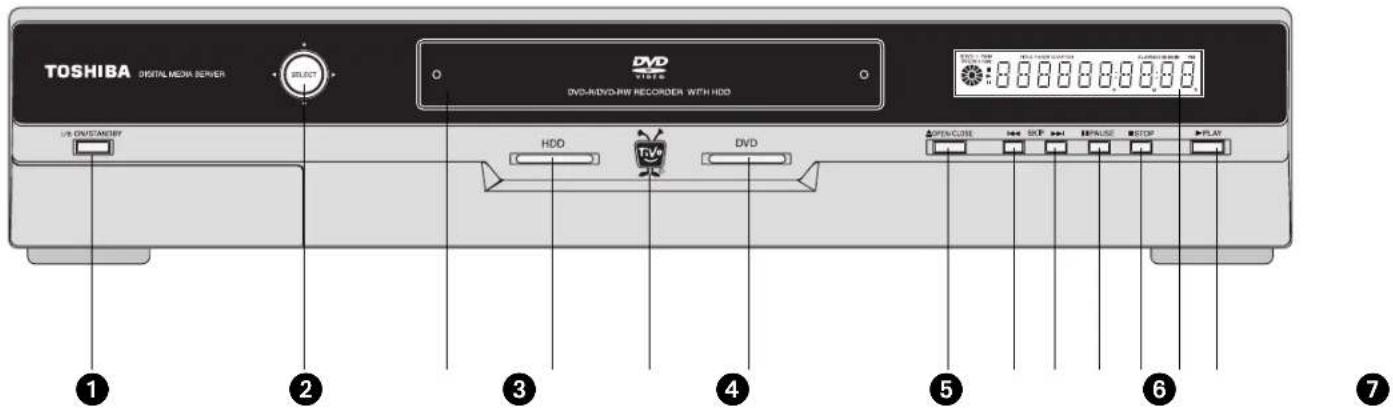
1 ON/STANDBY. Use this button to put the Digital Media Server into Standby mode, or to take it out of Standby mode. See page 90 for more information about Standby.
② SELECT. This button corresponds to the directional arrows and SELECT button on the DMS remote. Move the button up, down, left, and right to highlight items on a screen. Press the button to select an item.
3 Disc Tray. Place DVDs and CDs in the disc tray with the label side facing up.
4 HDD indicator light. A red light indicates that a program is recording to the Now Playing list. A yellow light indicates the DMS is responding to the remote or front panel buttons.
5 TiVo button. Press once to go to TiVo Central ^® , twice to go to the Now Playing list.
6 DVD indicator light. A red light indicates that a Save to DVD is in progress. A yellow light indicates that a connection to the TiVo® service is in progress.
⑦ OPEN/CLOSE. This button opens and closes the dic tray.
8 SKIP BACK. While playing a DVD or CD, the SKIP BACK button skips to the previous chapter or track.
⑨ SKIP FORWARD. While playing a DVD or CD, the SKIP FORWARD button skips to the next chapter or track.
10 PAUSE. While playing a DVD or CD, press PAUSE to temporarily stop playback.
11 STOP. While playing a DVD or CD, press STOP to halt playback.
12 Status Display. Information or messages about the the Digital Media Server's activity are shown on the status display. While playing a DVD or CD, title, track, and chapter information is displayed, along with elapsed or remaining time. While watching live TV or recorded programs, the current time is displayed. You can change the brightness of the display, or turn it off. See “Front Panel Lights” on page 81.
13 PLAY. Press PLAY to play a DVD or CD.

You don't need to set the Digital
Media Server's clock—the TiVo
service does it for you!
Back Panel Reference
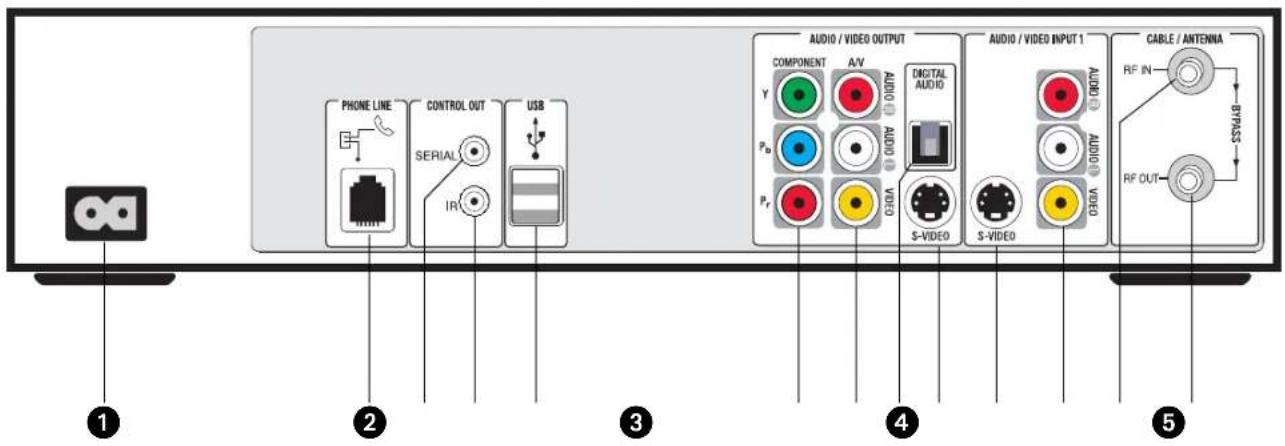
1 AC \~ In. (Connects to A/C power.) Use only the power cord supplied with your Digital Media Server.
② Phone Jack. (Connects to phone cord.) The DMS uses the phone line to get program information and other data from the TiVo service.
3 Control Out/Serial. Connects to cable or satellite box; not available on all cable or satellite boxes.) This allows the DMS to change channels on a cable or satellite box.
4 Control Out/IR. (Connects to cable or satellite box; IR stands for infrared.) This connection allows the DMS to change channels on your cable or satellite box. The
purple end of the IR Control cable plugs into the DMS. The two emitters on the other end of the cable are placed in front of the IR sensor on the cable and/or satellite box.
5 USB. (Universal Serial Bus.) For connecting a USB network adapter. Connecting your DMS to a home network gives you access to additional features and eliminates the need to connect the DMS to a phone line. (A phone line is still required for Guided Setup.) See “Home Networks” on page 116.
6 Component Video Output. (Connects to TV.) This is the Digital Media Server's highest quality video output. Use a Component Video cable (not supplied).
7 Composite A/V Output. (Connects to TV or VCR.) The yellow jack sends video, and the red and white jacks send stereo audio. Use a Composite A/V cable (supplied).
8 Digital Audio Output. (Connects to A/V receiver.) Use an Optical Digital Audio cable (not supplied) to connect the DMS to a Dolby Digital compatible A/V receiver.
9 S-Video Output. (Connects to TV or VCR.) If you use an S-Video cable (not supplied) for video, you will need to connect a separate cable for audio.
10 S-Video Input. (Connects to cable or satellite box.) The DMS can receive video from a cable or satellite box with an S-Video output. Use an S-Video cable (not supplied).
11 Composite A/V Input. (Connects to cable or satellite box.) The DMS can receive audio and video from a cable or satellite box with Composite A/V output jacks.
12 RF In. (Connects to cable without a box, or antenna.) Use this jack to connect cable from the wall, or a rooftop or set-top antenna, to your DMS.
13 RF Out (Bypass Only). Signals entering the DMS at the RF In jack are passed through the DMS to this jack. No TiVo® service functionality is available from this jack.


CAUTION: TO PREVENT ELECTRICAL
SHOCK, MATCH WIDE BLADE OF
PLUG TO WIDE SLOT, AND FULLY INSERT.
Specifications
RF Bypass Out: F-Connector Female
Expansion Port: USB (2)
Telephone: RJ-11 female, 2-wire
Control Out: 3.5mm mini jack sockets (2)
Power: 120VAC, 60Hz, 59W
Ambient (external)
Operating Temperature: 15C to 35C
Operating Humidity: 5% to 80%

Actual recording capacity depends
on signal quality and the type of
programming being recorded.
Dimensions: 16.5" w X 13.25" d X 3.3" h
Remote Control: 37 Buttons
Storage: ATA/IDE Hard Drive
Index
Index
Numerics
3D noise reduction 75
A
A/V components, stacking on DMS 9
A/V receiver
programming remote to control 77
accessories
carton contents 3
not included 3
adapters
USB network 116
wired (Ethernet) 116
wireless 116
ADVANCE button 50
audio
secondary audio program (SAP) 68
troubleshooting 145
Audio Settings screen 67
auto-recording WishList
repeating recording features and 93
auto-recording WishList search 107
B
BACK button 50
back panel reference 184, 186
browse by channel 102
browse by time 101
C
cable box
including in setup 5
why to connect 5
cable lineup
Guided Setup and 23
setting 68
cables
carton contents 3
choosing a video cable 4
not included 3
cables and jacks, the basics 2
call waiting prefix 86
cancel
recordings 97
Season Pass 97
changing
recording options 97
channel banner 68
icons and 52
viewing 52
channel changing settings 69
channel lists
customizing 69
setting up 69
Channel Settings screen 68
channels
Guide Options and 98
locking channels with Parental
Controls 73
troubleshooting 136
Channels You Receive
customize channels and 69
Guided Setup and 24
code search, performing 79, 82
Composite A/V cables, when to choose 4
Composite Video Input jacks 187
conflicts
priorities and 96
questions about 142
connection to DMS
setting 75
control buttons
using the 50
creating a manual recording 41
custom channel list 69
Customer Support 130
D
DHCP Client ID 126
dial prefix
setting 86
dial tone detection
setting 87
dial-in number
changing 85
Guided Setup and 23
Digital Media Server (DMS)
back panel reference 184, 186
specifications 188
stacking things on top 9
warranty 172
DNS address 128
Dolby Digital output, setting the 67
DRC (Dynamic Range Control) 67
DTS (Digital Theater Systems) output, setting 68
duplicates
repeating recordings and 93
DVD settings 70
Dynamic Range Control (DRC) 67
F
Favorite Channels
See also Guide Options.
forward
fast forward 50
FORWARD button 50
frame forward 50
front panel lights
turning on and off 82
G
gateway address 128
GNU General Public License 177
GPL (General Public License) 177
guide
Guide Options and 98
Guide Options 98
channels 98
Channels You Receive and 98
day and time 98
Favorite Channels and 98
filtering 98
guide style 98
guide options
using 98
Guided Setup
cable lineup and 23
cable providers and 23
Channels You Receive and 24
choosing TR code and 6
dial-in number and 23
dialing format and 23
introduction to 22
IR Test screen and 6
repeating 89
satellite providers and 23
setup call and 23
tips and troubleshooting 22
H
home network
connecting 116
settings 121
troubleshooting 149
|
icons
See inside back cover.
INSTANT REPLAY button 50
IP address 127
IR code
what it does 6
IR tent
building an IR tent 7
optimizing IR control 6
K
Keep Until... 55
L
lights
on the DMS front panel 82
Linux 182
live TV
recording from 40
troubleshooting 138
M
Macrovision 182
manual recording, creating 41
manual repeating recording
repeating recording features and 93
Messages
reading messages from TiVo 66
Multi-Room Viewing 113
music
file types 114
playing 115
Music & Photos 114
MUTE button, programming 78
N
networking
troubleshooting 149
Now Playing
tour 36
troubleshooting 142
watching programs from 55
0
ON/STANDBY button 90
Index
Online Scheduling 100
open source 177
operating temperature 188
Overtime Scheduler ^® . See Recording Options.
P
Parental Controls
auto-relock 72
channel lock 73
DVD country setting 72
DVD ratings 73
movies and TV shows with no rating 73
repeating recordings and 93
troubleshooting 144
turning on and off 71
Parental Controls screen 71
PAUSE button 50
PCM output, setting 67
performing a code search 79, 82
Phone & Network Setup 83
phone avail. detection setting 86
phone dialing options 85–87
phone jack
what if it's not close by 8
phone line 8
photos
file types 114
viewing 115
Pick Programs to Record
See also Season Pass Manager.
See also To Do List.
troubleshooting 139
PLAY button 50
Privacy Policy 162
Program Information screen, definition of vi
programmable buttons
resetting 82
programs
transferring between DVRs 113
progressive output, setting 75
R
Rating Settings
Movies and 72
TV Content and 72
TV Movies and 72
RECORD button 50
recording capacity, actual 188
Recording History 42
Recording Options 94
Keep At Least 95
Keep At Most 95
Keep Until 95
list of 95
Overtime Scheduler 95
setting 94
Show Type 95
Start Recording 95
Stop Recording 95
recording options
changing 97
recording quality
setting the default 74
recordings
cancel 97
remote control
incompatibility with some makes and models 80
not working with TV 131
performing a code search 79, 82
programming 77
resetting the programmable buttons 82
setting the Remote Address 81
using with your TV and A/V receiver 77
repeating recordings 93
Restart or Reset System 89
restarting the DMS 89
RF Coaxial cable, when to choose 4
RF splitter 18
RF Video 76
router address 128
S
SAP (secondary audio program) 68
Save to VCR 110
Season Pass ^TM
cancel 97
cancelling a Season Pass 96
repeating recording features and 93
using the Season Pass Manager 96
Serial Control cable, when to connect 5
Service Agreement 162, 164
service number where to find 88
Settings
audio 67
cable lineup 68
channel banner 68
channel changing 69
channels 68
connection to DMS 75
DVD 70
Parental Controls 71
recording quality 74
RF Video 76
sound effects volume and 68
television audio 68
video 75
Settings screen 67
setup example
choosing 9
Showcases 36
SLOW button 50
sound effects volume 68
specifications 188
splitting the signal 18
stacking objects on DMS 9
Standby 90
Start Recording. See Recording Options.
status bar 51
Stop Recording. See Recording Options.
storage 188
subnet mask 128
S-Video cable, when to choose 4
System Information screen 88
T
TCP/IP settings 124
television audio 68
time
how the DMS's clock is set 141
TiVo Central Online 100
TiVo Desktop application 114
TiVo Plus ^TM service 147
TiVo Privacy Policy 162
TiVo ^® service
questions about 147
TiVo Service Agreement 162, 164
TiVo Suggestions 108
TiVolution® Magazine 36
To Do List 42
tone/pulse setting 86
troubleshooting screens 88
TV aspect ratio 76
TV INPUT button, programming 78
TV POWER button, programming 78
U
upcoming episodes
viewing 97
USB 185
using
guide options 98
V
VCR, saving programs to 110
video
troubleshooting 145
Video Recording Quality
Recording Options and 95
Video Settings screen 75
View Recording History 42
view upcoming episodes 97
VOLUME button, programming 78
volume, sound effects and 68
W
warranty 172
weight, supporting of on DMS 9
WEP 122
wide screen format 76
wireless passwords 123
WishList searches 103
keyword tips 106
Glossary of Icons

These appear when you press THUMBS UP ^™ or THUMBS DOWN ^™ . You can give a program up to three THUMBS UP or three THUMBS DOWN.

Ipreview™ icons appear when an option—such as automatically scheduling an upcoming program or watching an additional program segment—is available. Press SELECT or THUMBSP UP to choose the option.

The image is too blurry to recognize any text content.

。
TiVo Central, DVD, or Showcases

Indicates a selection that has some special video content.

Select to watch a special preview or visit a Showcase.

Indicates news or a special promotional offer from TiVo.

Indicates a playable DVD or photo CD is inserted.

Indicates a playable music CD is inserted.

(Orange with black border) Indicates a DVD is currently recording.
To Do List and View Upcoming Episodes
(These icons appear beside programs scheduled to be recorded.)

Program is an individual recording (not part of a Season Pass ^™ or WishList ^™ ). In other places, it means an item has been selected.

Program will be recorded as part of a Season Pass.

Program will be recorded as part of a WishList.
Channel Banner
(These icons appear in the large channel banner.)

(Red with black border) Select to start or stop a recording.

Select to display or turn on Parental Controls.

Select to read new messages.
Save to VCR

Appears as a warning if a remote button is pressed during "Save to VCR."
Now Playing

(Green) This program will be saved until you delete it.

(Yellow) In less than one day, this program may be deleted to make room for other recordings you have requested, but only if space is needed.

(Yellow with exclamation mark) At any time, this program may be deleted to make room for other programs you have requested.

(Red with black border) This program is currently being recorded or transferred.

This program is a TiVo ^® Suggestion. TiVo Suggestions are recorded only if space is available, and are the first to be deleted when space is needed.

"Plain" folder – contains more than one episode of the same series.

Folder with red dot – for any group that includes a program that is currently recording or transferring.

Folder with blue star – contains one or more programs recorded by a WishList™ search.

Folder with Thumbs Up ^TM – contains all programs recorded as TiVo Suggestions.

DVR – for a DVR on your network.
DVD Banner

Select to search for a title, chapter, or time on a DVD.

Select to change the repeat setting on a DVD.

Select to change the camera angle for DVD scenes with multiple camera angles.

Select to change the audio track or subtitle language on a DVD.

Select to change how the DMS detects a DVD's format.
Toshiba and TiVo are dedicated to providing you with quality support and customer service. If you have questions or difficulties, we would like to hear from you.
Troubleshooting
Check the Troubleshooting chapter of this guide. It has detailed answers to the most common questions, and solutions for typical troubleshooting issues.
Contact Customer Support
You can find complete Customer Support contact information in the Troubleshooting chapter of this guide.
Online Customer Support
Check the Toshiba support site or the TiVo support site:
Toshiba Customer Support
• Using TiVo Basic™ service features
- Connecting your DMS to your TV & other equipment
• Recording DVDs or playing DVDs and CDs
• Audio and video, channel changing, remote control
www.tacp.toshiba.com/service
TiVo Customer Support
• Using TiVo Plus™ service features
- Your channel lineup and channel lists
- Your TiVo service account and billing issues
• Online scheduling and Home Media features
www.tivo.com/support