
W 701 - VCR TOSHIBA - Free user manual and instructions
Find the device manual for free W 701 TOSHIBA in PDF.


| Product Type | VHS Video Cassette Recorder (VCR) |
| Brand | Toshiba |
| Model | W-701 |
| Power Supply | 120 V AC, 60 Hz |
| Power Consumption | 19 W |
| Dimensions (W x H x D) | 430 x 96.5 x 281 mm |
| Weight | 3.8 kg |
| Video System | NTSC |
| Recording Format | VHS (SP, SLP) |
| Playback Format | VHS (SP, LP, SLP) |
| Tape Speed (SP) | 33.4 mm/s |
| Tape Speed (SLP) | 11.1 mm/s |
| Max Recording Time (T-160) | SP: 160 min, SLP: 480 min |
| Fast Forward Time (T-120) | Approx. 80 s |
| Rewind Time (T-120) | Approx. 54 s |
| Tuner Channels | VHF 2-13, UHF 14-69, CATV 1-125 |
| Audio | Hi-Fi stereo, 20 Hz - 20 kHz, SNR 90 dB |
| Inputs | RF IN, LINE IN (Audio/Video) |
| Outputs | RF OUT, LINE OUT (Audio/Video) |
| Remote Control | Multi-brand (TV code setting) |
| Timer Recording | Up to 6 programs, 1 month advance |
| Special Features | Auto Set Up, Shuttle Dial, Variable Speed Playback, Index Search, Auto Tracking, 19µ Head |
| Safety | Polarized plug, moisture condensation protection, overload protection |
| Accessories Included | Antenna cable, remote control, 2x AAA batteries |
| Warranty | 90 days labor, 1 year parts |
| Maintenance | Use a damp cloth; do not use liquid cleaners; clean video heads with cleaning tape |
| Spare Parts and Repairability | Use manufacturer-specified replacement parts; servicing by qualified personnel only |
Frequently Asked Questions - W 701 TOSHIBA
User questions about W 701 TOSHIBA
0 question about this device. Answer the ones you know or ask your own.
Ask a new question about this device
Download the instructions for your VCR in PDF format for free! Find your manual W 701 - TOSHIBA and take your electronic device back in hand. On this page are published all the documents necessary for the use of your device. W 701 by TOSHIBA.
USER MANUAL W 701 TOSHIBA
SAFETY PRECAUTIONS
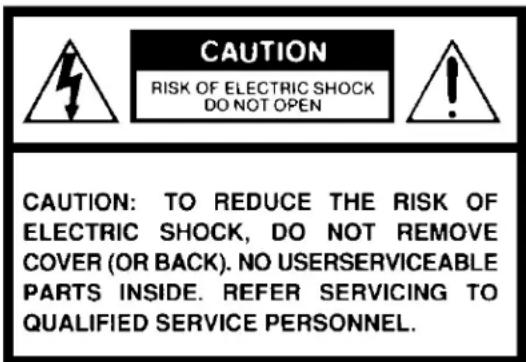


The lightning flash with arrowhead symbol, within an equilateral triangle, is intended to alert the user to the presence of uninsulated “dangerous voltage” within the product’s enclosure that may be of sufficient magnitude to constitute a risk of electric shock to persons.
The exclamation point within an equilateral triangle is intended to alert the user to the presence of important operating and maintenance (servicing) instructions in the literature accompanying the appliance.
WARNING: TO REDUCE THE RISK OF FIRE OR ELECTRIC SHOCK, DO NOT EXPOSE THIS APPLIANCE TO RAIN OR MOISTURE. DANGEROUS HIGH VOLTAGES ARE PRESENT INSIDE THE ENCLOSURE. DO NOT OPEN THE CABINET. REFER SERVICING TO QUALIFIED PERSONNEL ONLY.
CAUTION: TO PREVENT ELECTRIC SHOCK, MATCH WIDE BLADE OF PLUG TO WIDE SLOT, FULLY INSERT.
Product Name: Video Cassette Recorder Model Number: W-708/W-701
FCC Notice: "Declaration of Conformity"
This device complies with part 15 of the FCC Rules. Operation is subject to the following two conditions: (1) This device may not cause harmful interference, and (2) this device must accept any interference received, including interference that may cause undesired operation.
Contact: Toshiba America Consumer Products, Inc. Address: 1420 Toshiba Drive, Lebanon, TN37087 Telephone: 615-449-2360
User Installer Caution: Changes or modification made to this equipment not expressly approved by Toshiba Corporation or parties authorized by Toshiba Corporation could void the user's authority to operate the equipment.
Note to CATV system installer:
This reminder is provided to call the CATV system installer's attention to Article 820-40 of the NEC that provides guidelines for proper grounding and, in particular, specifies that the cable ground shall be connected to the grounding system of the building, as close to the point of cable entry as practical.
IMPORTANT PRECAUTIONS
Save Original Packing Materials
The original shipping carton and packing materials will come in handy if you ever have to ship your VCR. For maximum protection, repack the set as it was originally packed at the factory.
Avoid Volatile Liquid
Do not use volatile liquids, such as an insect spray, near the unit.
Do not leave rubber or plastic products touching the unit for a long time. They will mar the finish.
Moisture Condensation
Never operate this unit immediately after moving it from a cold location to a warm location. When the VCR is exposed to such a change in temperature, moisture may condense on the cylinder inside, one of its most crucial internal parts. To prevent the VCR from possible damage, do not use the unit for at least 2 hours when there is an extreme or sudden change in temperature.
Compatibility
This video cassette recorder (VCR) is compatible with any other VCR bearing the VHS mark. HQ VHS equipment is also compatible with existing, non-HQ VHS equipment.
Copyright
It is permissible to record television programs, film, video tapes and other material only in the event that third party copyrights and other rights are not violated.

As an ENERGY STAR ^® Partner, TOSHIBA has determined that this product or product model meets the ENERGY STAR ^® guidelines for energy efficiency.
In the spaces provided below, record the Model and Serial No. located at the rear of your video cassette recorder.
Model No. Serial No.
Retain this information for future reference.
IMPORTANT SAFETY INSTRUCTIONS
CAUTION: PLEASE READ AND OBSERVE ALL WARNINGS AND INSTRUCTIONS GIVEN IN THIS OWNER'S MANUAL AND THOSE MARKED ON THE UNIT. RETAIN THIS BOOKLET FOR FUTURE REFERENCE.
This set has been designed and manufactured to assure personal safety. Improper use can result in electric shock or fire hazard. The safeguards incorporated in this unit will protect you if you observe the following procedures for installation, use and servicing. This unit is fully transistorized and does not contain any parts that can be repaired by the user. DO NOT REMOVE THE CABINET COVER, OR YOU MAY BE EXPOSED TO DANGEROUS VOLTAGE. REFER SERVICING TO QUALIFIED SERVICE PERSONNEL ONLY.
- Read owner's manual
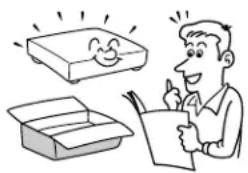
After unpacking this product, read the owner's manual carefully, and follow all the operating and other instructions.
- Power Sources
This product should be operated only from the type of power source indicated on the marking label. If you are not sure of the type of power supply to your home, consult your product dealer or local power company. For products intended to operate from battery power, or other sources, refer to the operating instructions.
- Grounding or Polarization
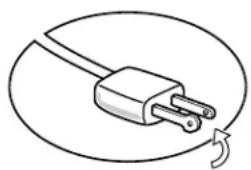
This product may be equipped with a polarized alternating current line plug (a plug having one blade wider than the other). This plug will fit into the power outlet only one way. This is a safety feature. If you are unable to insert the plug fully into the outlet, try reversing the plug. If the plug should still fail to fit, contact your electrician to replace your obsolete outlet. Do not defeat the safety purpose of the polarized plug.
- Ventilation
Slots and openings in the cabinet are provided for ventilation and to ensure reliable operation of the product and to protect it from overheating, and these openings must not be blocked or covered. The openings should never be blocked by placing the product on a bed, sofa, rug or other similar surface. This product should not be placed in a built-in installation such as a bookcase or rack unless proper ventilation is provided or the manufacturer's instructions have been adhered to.
- Heat
The product should be situated away from heat sources such as radiators, heat registers, stoves, or other products (including amplifiers) that produce heat.
natural_image
Illustration of a man reading a document with an open box and a smiling rectangular device (no text or symbols present)
natural_image
Simple line drawing of a plug with a circular arrow indicating rotation (no text or symbols)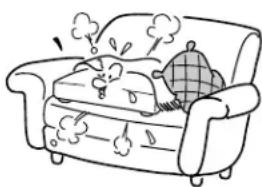
natural_image
Cartoon illustration of a person lying on a sofa with smoke and vapor effects (no text or symbols)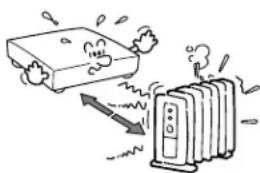
natural_image
Illustration of a toaster emitting exhaust smoke from a box (no text or symbols)6. Water and Moisture
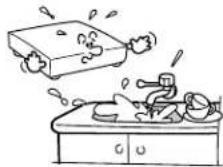
Do not use this product near water - for example, near a bath tub, wash bowl, kitchen sink, or laundry tub; in a wet basement; or near a swimming pool and the like.
7. Cleaning
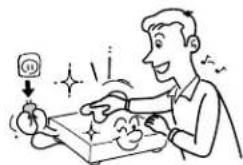
Unplug this product from the wall outlet before cleaning. Do not use liquid cleaners or aerosol cleaners. Use a damp cloth for cleaning.
8. Power-Cord Protection
Power-supply cords should be routed so that they are not likely to be walked on or pinched by items placed upon or against them, paying particular attention to cords at plugs, convenience receptacles, and the point where they exit from the product.
9. Overloading
Do not overload wall outlets; extension cords, or integral convenience receptacles as this can result in a risk of fire or electric shock.
10. Outdoor Antenna Grounding
If an outside antenna or cable system is connected to the product, be sure the antenna or cable system is grounded so as to provide some protection against voltage surges and built-up static charges. Article 810 of the National Electrical Code, ANSI/NFPA 70, provides information with regard to proper grounding of the mast and supporting structure, grounding of the lead-in wire to an antenna discharge unit, size of grounding conductors, location of antenna-discharge unit, connection to grounding electrodes, and requirements for the grounding electrode.
natural_image
Illustration of a person interacting with a box and clock, showing motion lines (no text or symbols)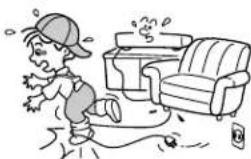
natural_image
Cartoon illustration of a person running with a device, no text or symbols present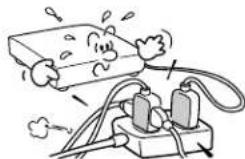
natural_image
Illustration of a battery connected to an electrical plug, showing electric shock and power lines (no text or symbols)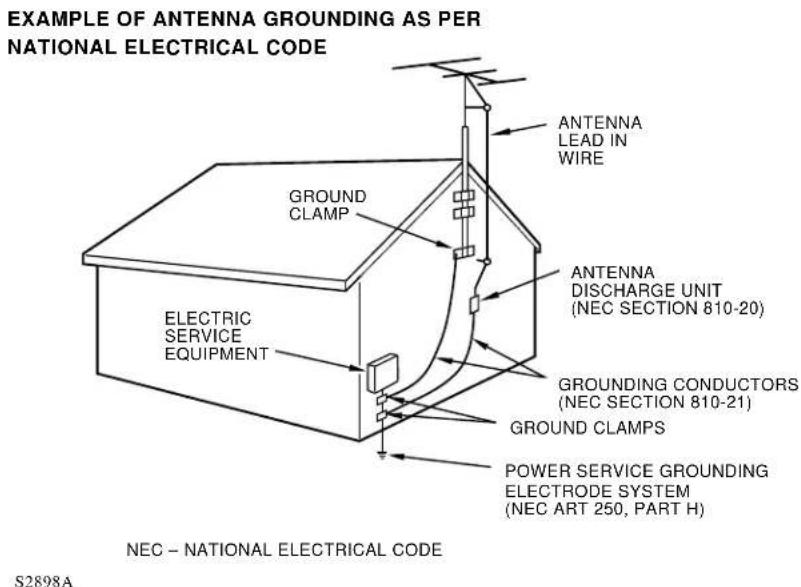
11. Power Lines
An outside antenna system should not be located in the vicinity of overhead power lines or other electric light or power circuits, or where it can fall into such power lines or circuits. When installing an outside antenna system, extreme care should be taken to keep from touching such power lines or circuits as contact with them might be fatal.
IMPORTANT SAFETY INSTRUCTIONS
12. Lightning
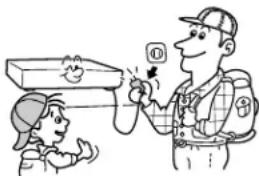
For added protection for this product during storm, or when it is left unattended and unused for long periods of time, unplug it from the wall outlet and disconnect the antenna or cable system. This will prevent damage to the product due to lightning and power-line surges.
natural_image
Illustration of a child and adult interacting with a small object, no text or symbols present13. Object and Liquid Entry
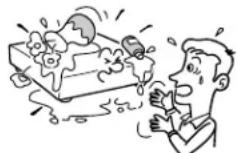
Never push objects of any kind into this product through openings as they may touch dangerous voltage points or short-out parts that could result in a fire or electric shock. Never spill liquid of any kind on the product.
14. Attachments
Do not use attachments not recommended by the product manufacturer as they may cause hazards.
15. Accessories
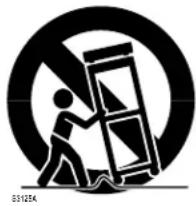
Do not place this product on an unstable cart, stand, tripod, bracket, or table. The product may fall, causing serious injury to a child or adult, and serious damage to the product. Use only with a cart, stand, tripod, bracket, or table recommended by the manufacturer, or sold with the product. Any mounting of the product should follow the manufacturer's instructions, and should use a mounting accessory recommended by the manufacturer.
natural_image
Silhouette of a person pushing a large mechanical component within a circular frame (no text or symbols)A product and cart combination should be moved with care. Quick stops, excessive force, and uneven surfaces may cause the product and cart combination to overturn.
16. Damage Requiring Service
Unplug this product from the wall outlet and refer servicing to qualified service personnel under the following conditions:
a) When the power-supply cord or plug is damaged.
b) If liquid has been spilled, or objects have fallen into the product.
c) If the product has been exposed to rain or water.
d) If the product does not operate normally by following the operating instructions. Adjust only those controls that are covered by the operating instructions as an improper adjustment of other controls may result in damage and will often require extensive work by a qualified technician to restore the product to its normal operation.
e) If the product has been dropped or damaged in any way.
f) When the product exhibits a distinct change in performance - this indicates a need for service.
17. Servicing
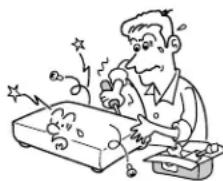
Do not attempt to service this product yourself as opening or removing covers may expose you to dangerous voltage or other hazards. Refer all servicing to qualified service personnel.
natural_image
Cartoon illustration of a person using a handheld device with sparkles and a computer (no text or symbols)18. Replacement Parts
When replacement parts are required, be sure the service technician has used replacement parts specified by the manufacturer or have the same characteristics as the original part. Unauthorized substitutions may result in fire, electric shock, or other hazards.
19. Safety Check
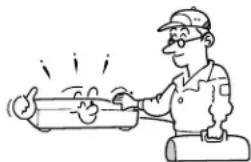
Upon completion of any service or repairs to this product, ask the service technician to perform safety checks to determine that the product is in proper operating condition.
natural_image
Cartoon illustration of a worker using a tool to interact with a smiling face (no text or symbols)Contents
INTRODUCTION
Provides important notes and general explanation of the VCR, including names of the buttons, jacks, etc.
SAFETY PRECAUTIONS ...... 2
IMPORTANT PRECAUTIONS...... 3
IMPORTANT SAFETY
INSTRUCTIONS 4
Contents 7
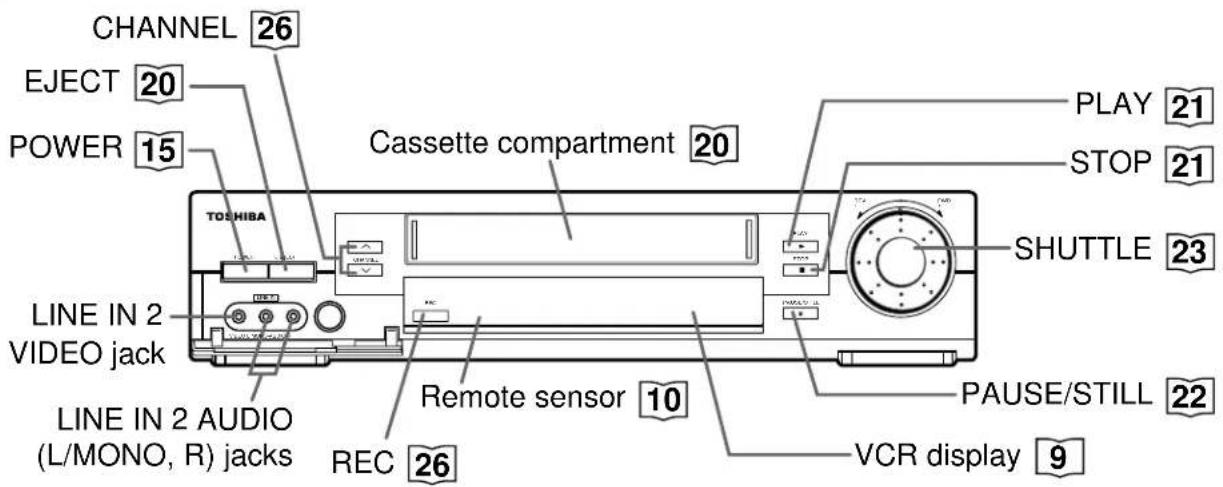
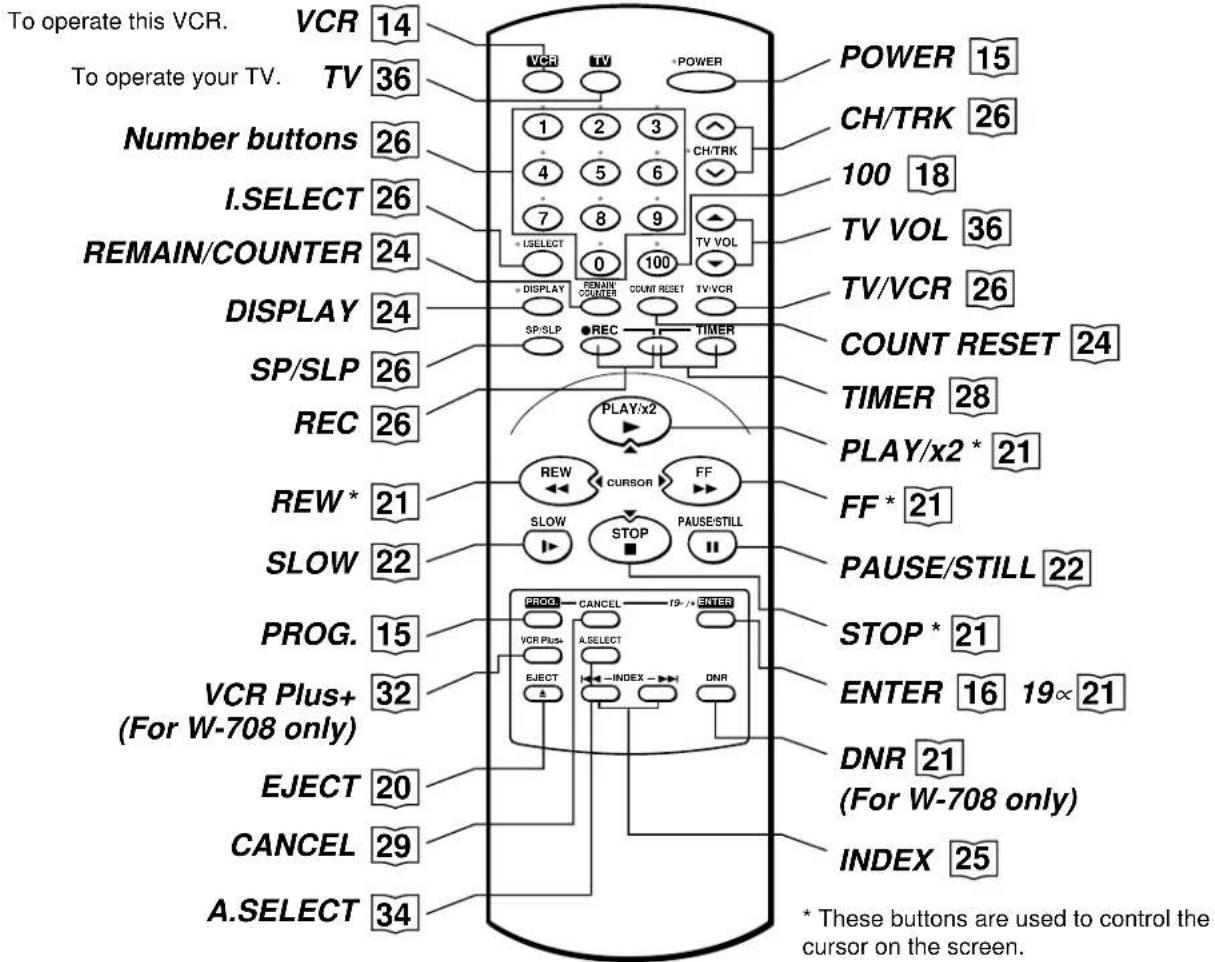
Identification of Controls 8
- Front Panel
- Remote Control
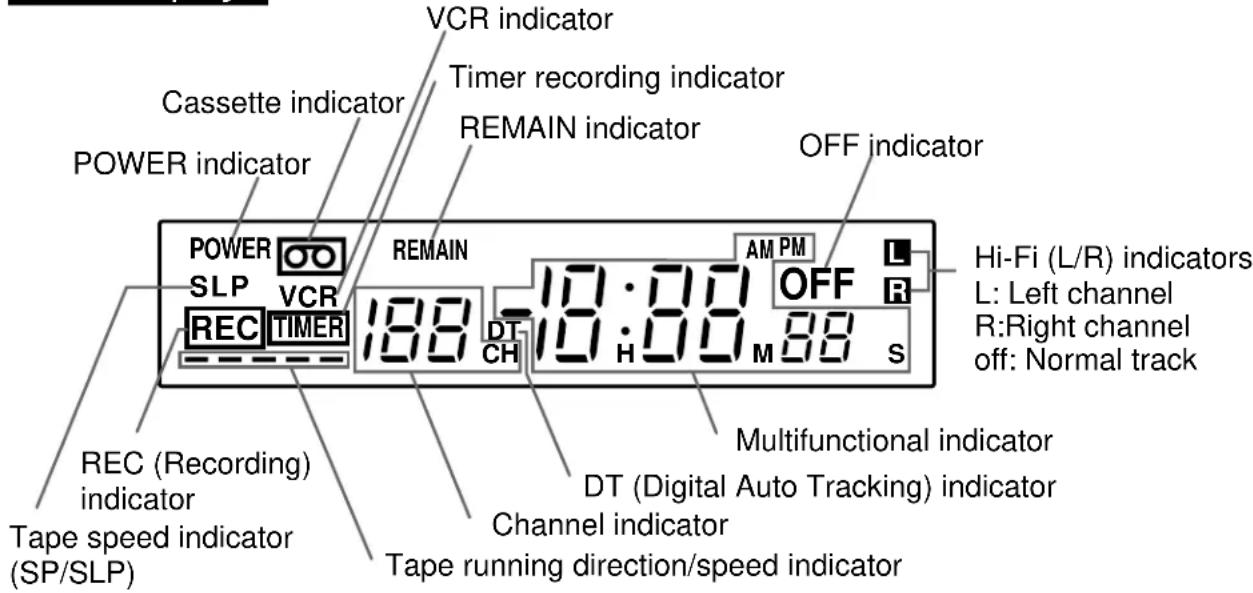
- VCR Display
- Rear Panel
PREPARATION
Explains what you need to do before operating the VCR.
How to Use the Remote Control ..... 10
Connections 11
Auto Set Up 14
Initial Settings Using On-screen
Display 15
- Setting the Language
- Optional settings on the SET UP screen
- Setting the Clock
Storing Channels on the VCR ..... 17
Video Cassette Use 20
PLAYBACK
Explains variable functions concerning playback.
Playback 21
• 19 ∝ HEAD
• DNR
Variable Speed Playback 22
- Picture Search
- Still Picture
- Slow-motion Picture
- Frame Advance
- Double Speed Playback
- Shuttle Dial Operation
Useful Functions in Tape
Operation.... 24
- Counter Function
- Tape Remaining Time
- Index Search Function
RECORDING
Explains recording functions.
Recording a TV Program 26
- Watching a TV program while recording another
• Recording off time setting
Timer Program Recording 27
VCR Plus+® system Set-up ...... 30
VCR Plus+® system Recording...... 32
MTS Broadcast Compatibility ..... 34
Simulcast Recording 35
ADDITIONAL INFORMATION
Multi Brand Remote Control ...... 36
Before Calling Service Personnel ... 38
Specifications 40
Accessories...... 40
LIMITED WARRANTY 41
INTRODUCTION
Identification of Controls
See the page in for details.
This manual shows the names of buttons in italics.
Front Panel
Remote Control
VCR Display
Rear Panel
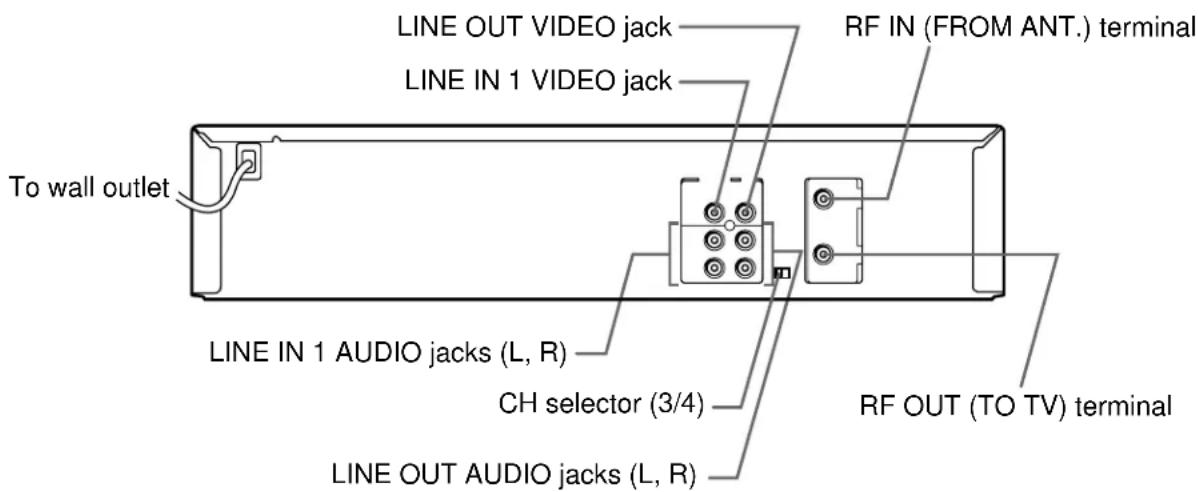
LINE IN 1 AUDIO (Rear), 2 (Front) jacks
If the connected equipment is monaural (has one audio output jack), connect the L (MONO) side, the same sound is recorded on both L and R on the Hi-Fi track.
How to Use the Remote Control
This section explains how to get ready for remote control operation.
Setting up the Remote Control
1 Open the battery compartment lid on the rear panel.
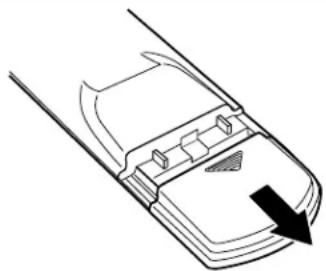
natural_image
Line drawing of a car interior panel with a black arrow pointing to the bottom panel (no text or symbols)2 Install 2 batteries (“AAA” size) following the polarity diagrams.
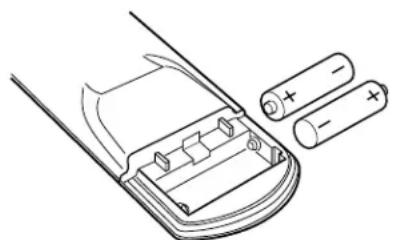
natural_image
Diagram of a battery pack with two batteries and one open lid, showing internal components (no text or symbols)3 Close the battery compartment lid.
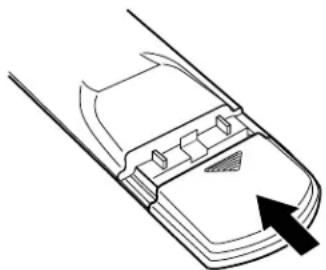
natural_image
Line drawing of a mobile phone interface with an arrow pointing to the screen (no text or symbols)4 Point the remote control at the VCR and press the buttons within the operating range. Distance: within about 7 m from the front of the remote sensor Angles: within about 30° in every direction
Notes on batteries
- The life of the batteries is about 1 year depending on the conditions of use.
- If the remote control does not operate correctly, replace all batteries with new ones.
- If the remote control is not to be used for a long period of time, remove the batteries to avoid possible damage from battery corrosion.
Caring for the remote control
- Do not expose the remote sensor of the VCR to a strong light source such as direct sunlight or illumination (especially high-frequency lighting) when using the remote control.
- Be careful not to spill water on the remote control or to place it on anything wet, and avoid sharp impacts.
Connections
Before you use this VCR, it is necessary to connect it to your TV. Several ways of connecting are available depending on your use of TV or cable box. Select one which is applicable to your equipment.
Antenna/VCR/TV Connection
1 Disconnect the antenna cable from your TV and connect it to the RF IN terminal on the VCR.
2 Connect the RF OUT terminal to the TV.
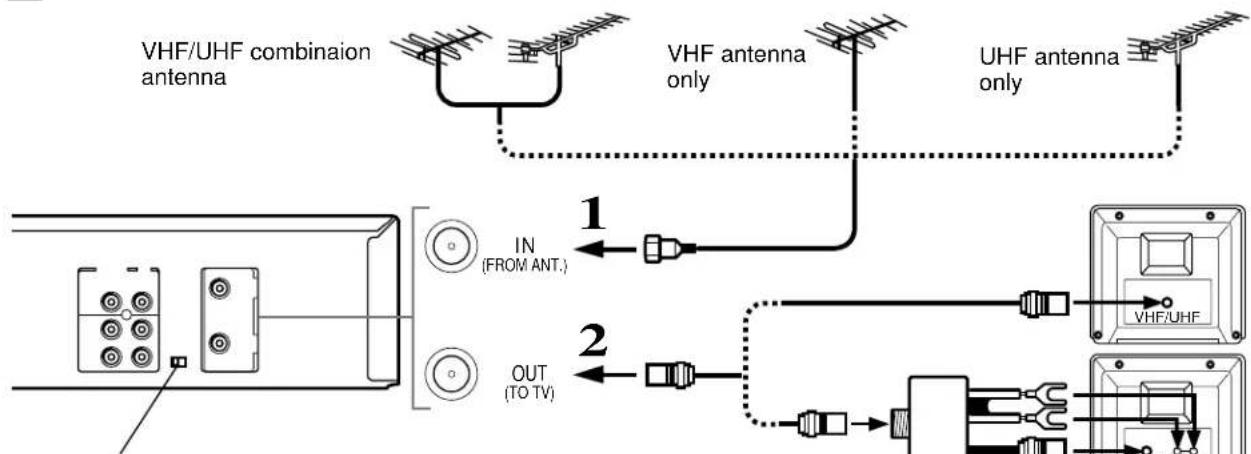
flowchart
graph TD
    A["VHF/UHF combination antenna"] --> B["VHF antenna only"]
    A --> C["UHF antenna only"]
    B --> D["IN (FROM ANT.)"]
    C --> E["OUT (TO TV)"]
    D --> F["VHF/UHF"]
    E --> G["Output"]
Setting the VCR Output Channel
When the VCR is connected in this way, the VCR sends the output signals to channel 3 or 4 on your TV. Set the output channel selector (CH selector) of the VCR to "3" or "4", whichever is vacant in your area.
Antenna splitter (not supplied)
AUDIO/VIDEO Connections
The AUDIO/VIDEO jacks are also available to connect your TV.
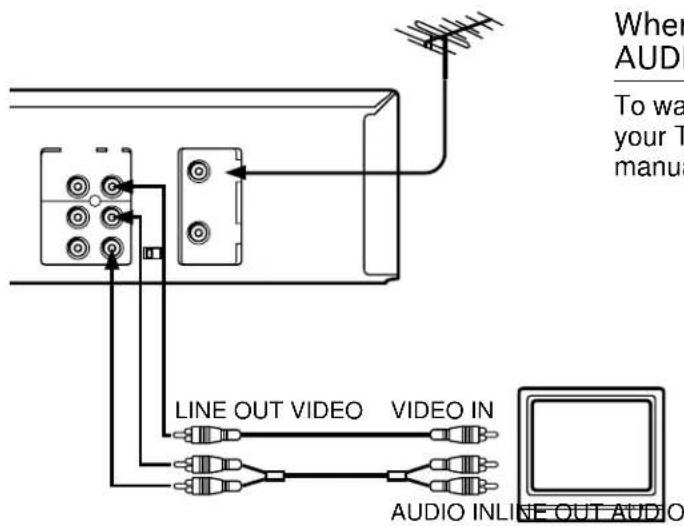
When connected your TV using the AUDIO/VIDEO OUT jacks
To watch video pictures, set the video input mode on your TV. For the video input mode, refer to the manual of your TV.
Connections (continued)
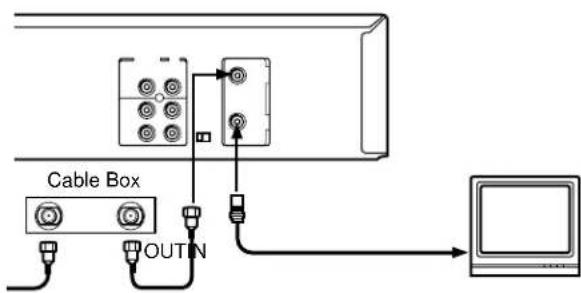
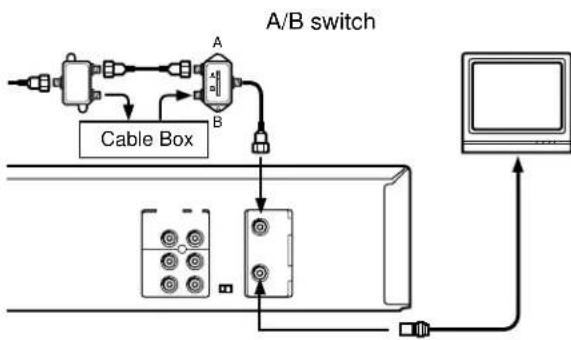
Cable Connection
Choose one of the below according to your usage of the cable box.
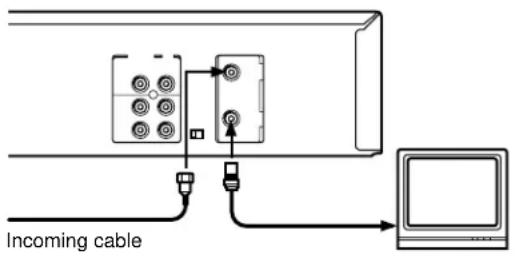
This set-up will enable you to:
– record an unscrambled channel.
– watch an unscrambled channel while recording it.
– record an unscrambled channel while watching another (only when you connect a cable-compatible TV).
You will need to:
- select TV channel 3 or 4 to receive video signals. (See page 11.)
- to record a channel while watching another, press TV/VCR on the remote control to turn off the "VCR" indicator in the VCR display and select a desired channel on the TV (only when you connect a cable-compatible TV).
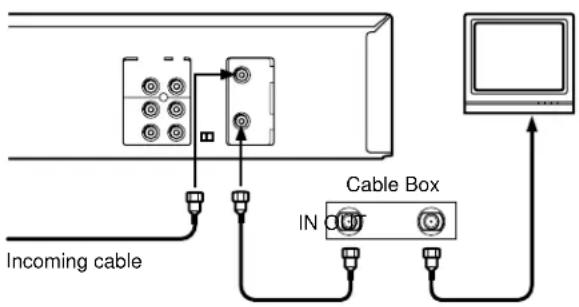
This set-up will enable you to:
– record an unscrambled channel.
– watch an unscrambled channel while recording it.
– record an unscrambled channel while watching another (scrambled or unscrambled).
You will need to:
- set TV channel to the output channel of the cable box.
- turn on the cable box and select cable channel 3 or 4 according to the output channel of the VCR.
- to record a channel while watching another, press TV/VCR on the remote control to turn off the "VCR" indicator in the VCR display and select a desired cable channel on the cable box.
flowchart
graph TD
    A["A"] --> B["B"]
    B --> C["Cable Box"]
    C --> D["TV"]
    D --> E["Computer"]
    style A fill:#f9f,stroke:#333
    style B fill:#ccf,stroke:#333
    style C fill:#cfc,stroke:#333
    style D fill:#fcc,stroke:#333
    style E fill:#ffc,stroke:#333
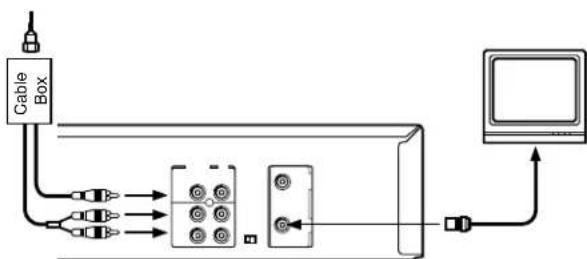
flowchart
graph TD
    A["Cable Box"] --> B["Connector"]
    B --> C["Switch"]
    B --> D["Switch"]
    B --> E["Switch"]
    B --> F["Switch"]
    B --> G["Switch"]
    B --> H["Switch"]
    B --> I["Switch"]
    B --> J["Switch"]
    B --> K["Switch"]
    B --> L["Switch"]
    B --> M["Switch"]
    B --> N["Switch"]
    B --> O["Switch"]
    B --> P["Switch"]
    B --> Q["Switch"]
    B --> R["Switch"]
    B --> S["Switch"]
    B --> T["Switch"]
    B --> U["Switch"]
    B --> V["Switch"]
    B --> W["Switch"]
    B --> X["Switch"]
    B --> Y["Switch"]
    B --> Z["Switch"]
    B --> AA["Switch"]
    B --> AB["Switch"]
    B --> AC["Switch"]
    B --> AD["Switch"]
    B --> AE["Switch"]
    B --> AF["Switch"]
    B --> AG["Switch"]
    B --> AH["Switch"]
    B --> AI["Switch"]
    B --> AJ["Switch"]
    B --> AK["Switch"]
    B --> AL["Switch"]
    B --> AM["Switch"]
    B --> AN["Switch"]
    B --> AO["Switch"]
    B --> AP["Switch"]
    B --> AQ["Switch"]
    B --> AR["Switch"]
    B --> AS["Switch"]
    B --> AT["Switch"]
    B --> AU["Switch"]
    B --> AV["Switch"]
    B --> AW["Switch"]
    B --> AX["Switch"]
    B --> AY["Switch"]
    B --> AZ["Switch"]
    B --> BA["Switch"]
This set-up will enable you to:
– watch an unscrambled or scrambled channel while recording it.
- record any channels through the cable box.
You will need to:
- set TV channel 3 or 4 to receive video signals. (See page 11.)
- set VCR channel to the output channel of the cable box, and select a desired cable channel on the cable box.
- while the VCR is turned off or the "VCR" indicator is not lit in the VCR display, set TV channel to the output channel of the cable box.
This set-up will enable you to:
– watch an unscrambled or scrambled channel while recording it.
- record an unscrambled channel while watching another unscrambled channel (only when you connect a cable-compatible TV).
- A/B switch "A": record and watch an unscrambled channel which comes bypassing the cable box.
- A/B switch "B": record and watch a scrambled or unscrambled channel coming through the cable box.
This set-up will enable you to:
- watch or record a channel through the cable box via the LINE IN 1 (AUDIO/VIDEO) jacks.
You will need to:
- press I.SELECT so that the VCR display shows "L1".
PREPARATION
Auto Set Up
The Auto Set Up function automatically sets the tuner channels and clock when power is first connected to the VCR.
Preparation
- Turn on the TV, and select the video channel (3 or 4), or the video input mode if you made the Audio/Video connection (page 11).
- Press I. SELECT so that the channel number will appear if "L1" or "L2" is displayed in the VCR display.
- Press VCR to set the remote control operating the VCR.
Auto Set Up
1 Connect the antenna cable to the VCR (see page 11). Then connect the VCR's power plug to an AC outlet.
"Auto" flashes in the VCR display as the VCR automatically tunes in all active stations. When Auto Set Up is completed successfully, the current time will be displayed.
VCR display
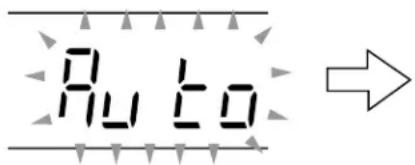
Tuning in progress.
VCR display
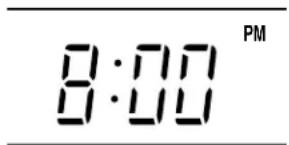
Auto Set Up completed.
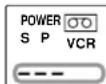
- If the VCR fails to set the clock, “— : — —” will be displayed. Set the clock manually. (Refer to “Setting the clock” on page 16.)
Notes
- If you press the CANCEL button, the Auto Set Up is cancelled.
- If Auto Set Up is not perform successfully, perform the clock and Tuner Channel procedures manually (page 16 to 18).
- If, however, you want to add or delete channels, refer to "Adding or erasing channels" on page 18.
Initial Settings Using On-screen Display
Language selection must be set first when the VCR is first plugged in, or after it encounters a power failure. You can also easily make necessary settings using the on-screen displays.
Preparation
- Turn on the TV, and select the video channel (3 or 4), or the video input mode if you made the Audio/Video connection (page 11).
- Press VCR to set the remote control operating the VCR.
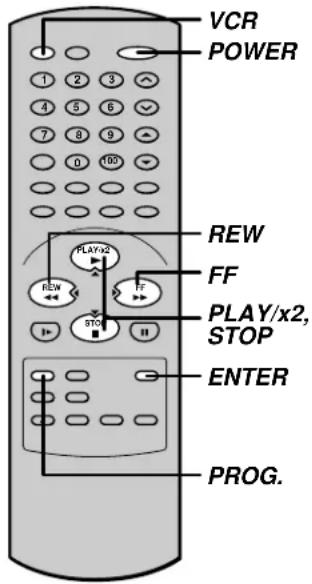
Setting the Language
1 Press POWER to turn on the VCR.
2 Press PROG..
The following screen appears on the TV.
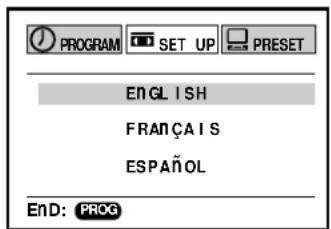
3 Select the language using PLAY/x2 (CURSOR ▲ or STOP (CURSOR ▼), and press PROG.. The screen turns to the MENU screen.
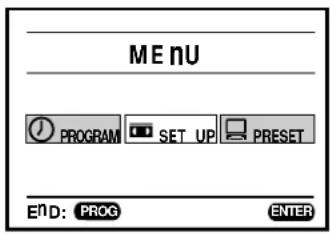
4 Press PROG. to return to the normal TV screen.
Optional settings on the SET UP screen
Other optional settings can be made. Press ENTER while "SET UP" is selected on the MENU screen. The screen turns to the SET UP screen.
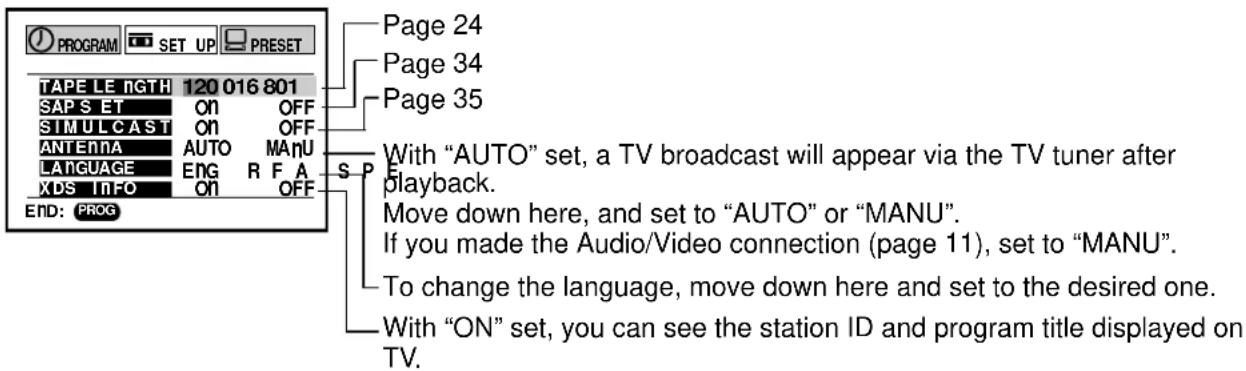
To exit, press PROG.
(Continued)
Initial Settings Using On-Screen Display (continued)
Setting the Clock
Example: To set the clock to 2:30 p.m. on August 25 (summer time) 2000.
1 Press PROG..
The MENU screen appears on the TV.
2 Select "PRESET" using FF or REW, and press ENTER.
Note
"GUIDE CH" is for W-708 only.
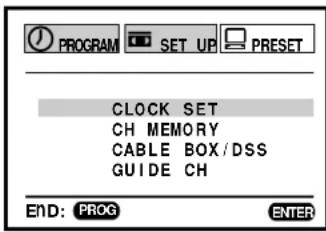
3 Press ENTER to select "CLOCK SET".
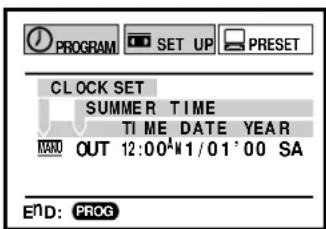
4 Select "AUTO" or "MANU" using PLAY/x2 or STOP.
AUTO: The VCR automatically sets or adjusts the clock.
If you select "AUTO" mode, proceed to step 8.
MANU: You can set the clock manually. If you select “MANU” mode, select “SUMMER TIME” using FF. Set to “IN” or “OUT” for the summer (daylight saving) time using PLAY/x2 or STOP. (For “IN” and “OUT” selections, see the description in step 9.)
5 Move to the next using FF.
(To move back, press REW.)
6 Vary the digits to set the hour.
PLAY/x2: To increase.
STOP: To decrease.
7 Repeat steps 5 and 6 to set the minutes, month, day, and the year (by the last two digits).
Proceed to step 10 to start the clock.
8 Press ENTER to start the "AUTO" clock set feature.
After a while, the VCR automatically updates the clock using the data broadcast by the local TV stations.
The following screen will appear on TV depending on the broadcast at your location.
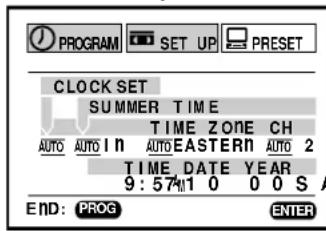
9 Select the options using FF or REW. Change the data using PLAY/x2 or STOP.
1) Set "SUMMER TIME (Daylight-Saving Time)".
IN, daylight-saving time begins on the first Sunday in April. Because the clock automatically changes from 2:00 AM to 3:00 AM (forward one hour), remember that any part of a scheduled Timer Recording that falls between these two times will not be recorded.
OUT, daylight-saving time ends on the last Sunday in October. The VCR clock automatically changes from 2:00 AM to 1:00 AM (back one hour). Therefore, it can affect your recording length if one is set for this time.
2) Set "Time Zone".
If you select "AUTO" for your time zone, the VCR sets the clock using the first Coordinated Universal Time information it finds. If the time is not correct, select another time zone or use the "MANU" option.
3) Set "CH".
If you don't know the clock data channel, select "AUTO". The VCR will scan automatically to tune the channel carrying the clock data.
If AUTO CLOCK SET is unsuccessful, set the time and date through the "MANU" clock set menu selection.
10 Press PROG..
Now the clock starts.
11 Press PROG. to exit.
Storing Channels on the VCR
This section is required if you receive only normal TV or unscrambled cable channels, or use a cable box between your TV and the VCR.
Incoming Antenna/Cable (CATV) Signals
The VCR scans through all receivable TV and CATV channels and stores only the active ones in your area into the memory. Once the storing is finished, you can select a desired channel using CH/TRK.
Preparation
- Turn on the TV, and select the video channel (3 or 4), or the video input mode if you made the Audio/Video connection (page 11).
- Press I. SELECT so that the channel number will appear if "L1" or "L2" is displayed in the VCR display.
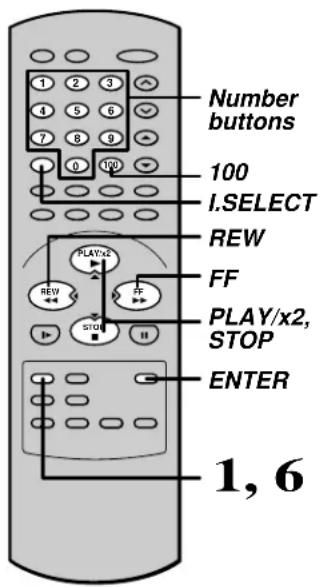
Incoming Antenna/Cable (CATV) Signals
1 Press PROG. to display the MENU screen.
2 Select "PRESET" using FF or REW, and press ENTER.
Note "GUIDE CH" is for W-708 only.
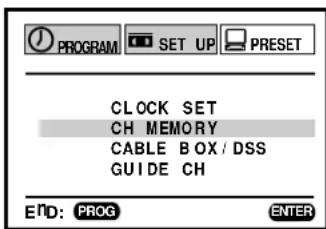
3 Select "CH MEMORY" using PLAY/x2 or STOP, and press ENTER.
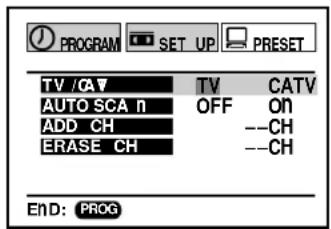
4 Set "TV/CATV" to "TV" or "CATV" using FF or REW.
TV: To store channels received via the antenna.
CATV: To store channels received via the incoming cable.
5 Select "AUTO SCAN" using PLAY/x2 or STOP, and press FF to set to "ON".
The VCR starts scanning and the channels are stored in the VCR in ascending order. When the scanning is finished, the screen automatically returns.
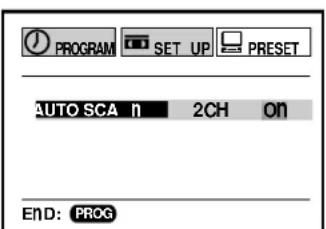
6 Press PROG. to exit.
Storing Channels on the VCR (continued)
Adding or erasing channels
Adding channels
If a desired channel cannot be scanned automatically because of a weak signal, it can be added to the memory.
Erasing channels
You can erase a stored channel from the memory if it is unnecessary.
1) Follow steps 1 to 3 of "Incoming Antenna/CATV Signals".
2) Select "ADD CH" or "ERASE CH" using PLAY/X2 or STOP.
To add channels
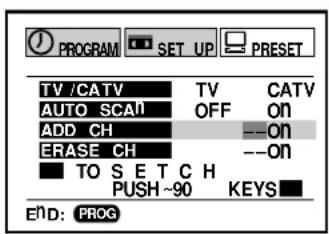
To erase channels
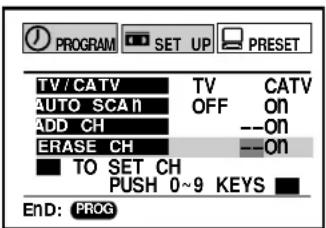
3) Enter a channel number of 1 to 125 using number buttons.
For more than 100 number, first press 100.
For CATV channels, refer to the chart below. (For other orders, check with your cable company.)
4) Repeat steps 2) and 3) to add or erase channels as necessary.
5) Press PROG. to exit.
Selecting stored channels
Once the active channels have been stored, you can select the channels in two ways below.
Number buttons
To enter digits of the channel number.
- For one-digit number, enter 0 before.
- For more than 100 number, first press 100.
• Each number button needs to be pressed within 2 seconds.
CH/TRK
To shift up or down the stored channel numbers.
Cable Box/DSS Output Channel Setting
To set the Cable Box/DSS output Channel on the VCR.
1) Press PROG. to display the MENU screen.
2) Select "PRESET" using FF or REW, and press ENTER.
3) Select "CABLE BOX/DSS" using PLAY/X2 or STOP, and press ENTER.
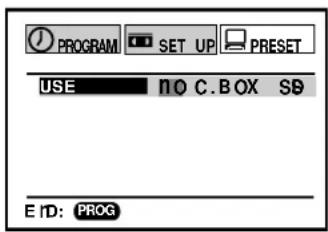
4) Select "NO", "C.BOX" or "DSS" using FF or REW according to your connection type.
5) If set to "C.BOX" or "DSS", select "OUTPUT CH" using PLAY/X2 or STOP. Then enter the output channel number of your cable box (Usually 3 or 4, check the rear of the cable box.) or line input mode "L1" using the I.SELECT button according to your connection.
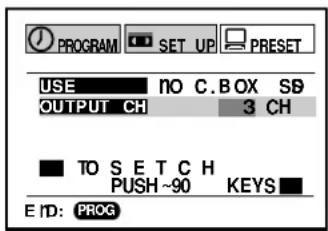
6) Press PROG. to exit.
Channel reference chart
| Number on the VCR | 1 | 2 | 3 | 4 | 5 | 6 | 7 | 8 | 9 | |||||||||||
| Corresponding channel number | TV | - | 2 | 3 | 4 | 5 | 6 | 7 | 8 | 9 | ||||||||||
| CATV STD (HRC/IRC) | 1(A-8) | 2 | 3 | 4 | 5(A-7) | 6(A-6) | 7 | 8 | 9 | |||||||||||
| 10 11 12 13 14 15 16 17 18 19 20 21 22 23 24 25 26 27 28 29 30 | ||||||||||||||||||||
| 10 11 12 13 14 15 16 17 18 19 20 21 22 23 24 25 26 27 28 29 30 | ||||||||||||||||||||
| 10 11 12 13 A B C D E F G H I J K L M N O P Q | ||||||||||||||||||||
| 31 32 33 34 35 36 37 38 39 40 41 42 43 44 45 46 47 48 49 50 51 | ||||||||||||||||||||
| 31 32 33 34 35 36 37 38 39 40 41 42 43 44 45 46 47 48 49 50 51 | ||||||||||||||||||||
| R | S | T | U | V | W | AA | BB | CC | DD | EE | FF | GG | HH | II | JJ | KK | LL | MM | NN | OO |
| 52 53 54 55 56 57 58 59 60 61 62 63 64 65 66 67 68 69 70 71 | ... | |||||||||||||||||||
| 52 53 54 55 56 57 58 59 60 61 62 63 64 65 66 67 68 69 -- | ... | |||||||||||||||||||
| PP | RR | SS | TT | UU | VV | WW | XX | YY | ZZ | AAA | BBB | 65 | 66 | 67 | 68 | 69 | 70 | 71 | ... | |
| 93 94 95 96 97 98 99 100 101 102 103 | ... | 121 | 122 | 123 | 124 | 125 | ||||||||||||||
| - | - | - | - | - | - | - | - | - | - | - | ... | - | - | - | - | - | ||||
| 93 | 94 | A-5 | A-4 | A-3 | A-2 | A-1 | 100 | 101 | 102 | 103 | ... | 121 | 122 | 123 | 124 | 125 | ||||
CATV signals
• STD (standard) cable TV signals
• HRC (Harmonic Related Carriers) cable TV signals
- IRC (Incremental Related Carriers) cable TV signals
- IRC is also called ICC (Incremental Coherent Carrier
PREPARATION
Video Cassette Use
Video Cassette Use
Loading a cassette
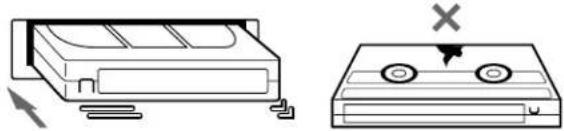
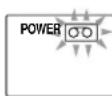
Push the cassette into the cassette compartment with the window side facing up and the label side towards the front. The VCR is automatically turned on. The ○○ indicator will appear in the VCR display.
natural_image
Diagram showing two electronic devices with a warning symbol (no text or labels present)Ejecting a cassette
Press EJECT. The cassette is ejected from the cassette compartment.
Warning
Do not insert your hands or any foreign objects into the compartment. This may result in injury or damage. Take special care with children to avoid accidents.
Precautions when using video cassettes
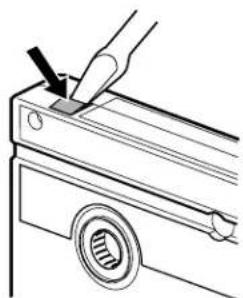
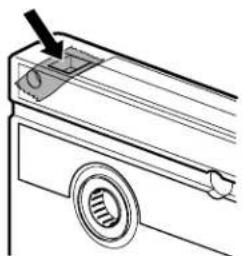
Video cassettes have a safety tab to prevent accidental erasure. If the tab has already been removed, recording cannot be performed.
To prevent accidental erasure
Remove this safety tab with a screwdriver.
natural_image
Technical line drawing of a mechanical assembly with a hand holding a tool and a bearing (no text or symbols)To record again
Cover the tab hole with adhesive tape.
natural_image
Technical line drawing of a mechanical component with a knob and handle (no text or symbols)- Avoid exposing cassettes to direct sunlight. Keep them away from heaters.
Avoid extreme humidity, vibrations or shock, strong magnetic fields (near a motor, transformer or magnet) and dusty place.
Playback
This section explains the basic playback operation.
Preparation
- Select the video channel (3 or 4) or video input mode on the TV.
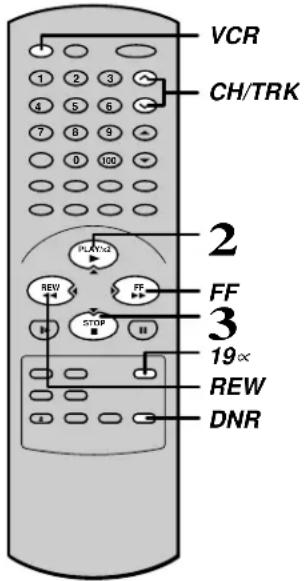
- Press VCR to set the remote control operating the VCR.
Basic Playback
1 Load a recorded cassette. Power is turned on. If the cassette has no safety tab, playback starts automatically.
2 Press PLAY/x2 to start playback.
3 To stop playback, press STOP.
Rewinding / Fast-forwarding Press REW or FF in the stop mode.
Adjusting the tracking
When playback starts, the VCR automatically adjusts the tracking for clear pictures and sound (Digital Auto Tracking).
The "DT" indicator blinks during the adjusting. If the VCR cannot locate the best possible tracking point, hold down one of CH/TRK to adjust the tracking manually.
- To resume the digital auto tracking, hold down both CHANNEL on the VCR simultaneously for about 2 seconds.
Notes
- During the adjusting, the playback picture and sound may be distorted.
- The digital auto tracking is activated only in the playback mode.
- To reset the manual tracking point to the center, press both CHANNEL on the VCR simultaneously for not longer than 1 second.
- The noise on the screen may not be completely eliminated depending on the tape used, especially when the tape was recorded on another VCR.
19∞ HEAD
You can view high quality pictures while playing back a tape recorded in the SLP tape speed. By pressing 19× repeatedly, the 19× HEAD mode is displayed on the TV screen as follows:
19U HEAD AUTO: Usually set to "AUTO". As the playback starts, the VCR automatically activates the 19∞ head and reproduces high quality pictures.
19U HEAD OFF: Set to "OFF" if the pictures are marred by dots.
Note
During playback with the 19∞ head, momentary noises or shakes may be produced when you change the mode to the picture search or variable speed playback.
DNR (Digital Noise Reduction) (For W-708 only)
The noise reduction function of this VCR is based on a digital signal system utilizing memory, and is effective in the playback of noisy tapes.
Furthermore the CSE (Color Signal Enhancement) circuit, which is included in the system, compensates for color signal weakness and gives the best possible color. Thanks to this circuit color distortion is reduced and a sharp picture is played back.
Press DNR repeatedly to select the following:
DNR On: Usually set to "O n".
The "DNR ON" will appear on the TV screen and you can view the picture with less noise.
DNR OFF: This function will not work.
Notes
- The DNR playback is available only in the playback mode.
- Depending on the recorded picture, for example too vivid or too noisy, you may not notice a reduction in the noise.
- The noise reduction may not work on pictures recorded from special equipment such as TV game machines or computers.
Variable Speed Playback
You can play back a tape at various tape speeds.
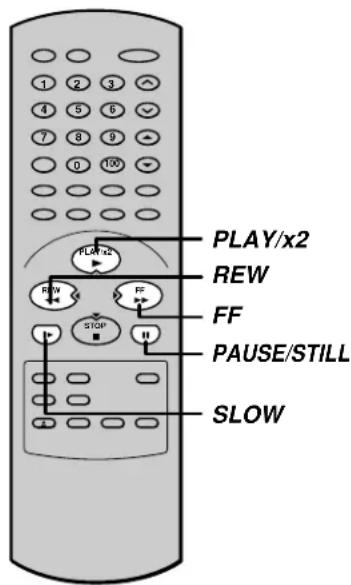
Picture Search
A tape runs at 5 times or 7 times the normal playback speed so that you can quickly locate a particular scene.
1 Press FF or REW during playback.
The tape runs at 5 times the normal playback speed.
2 To change the tape speed to 7 times the normal playback speed, press and hold FF or REW.
If you release it, the tape speed returns to 5 times.
Note
If you press FF or REW during picture search, the mode changes to fast-forwarding or rewinding.
To resume normal playback
Press PLAY/x2.
Still Picture
A picture freezes so that you can watch closer.
1 Press PAUSE/ STILL during playback. The picture freezes.
To resume normal playback Press PAUSE/ STILL.
Notes
- The still mode is automatically cancelled after about 5 minutes and returns to normal playback.
- The still picture may shake if a picture of a fast-moving object or scene is frozen. This is not a defect in the unit.
Adjusting Still Picture Stability
If the still picture is distorted or flickers, hold down one of CH/TRK until the picture becomes stable.
Note
The distortion of the still picture may not be eliminated completely.
Slow-motion Picture
The tape runs at 1/7th or 1/15th the normal playback speed.
1 Press SLOW during playback. The tape runs at about 1/7th the normal playback speed. Each time you press SLOW, the speed alternates between 1/7th and 1/15th.
To resume normal playback Press PLAY/x2.
Notes
- The slow-motion picture mode is automatically cancelled after about 5 minutes and returns to normal playback.
- The slow-motion picture may flicker up and down. This is not a defect in the unit.
Adjusting the Tracking Manually
If the slow-motion picture is noisy, hold down one of CH/TRK until the best picture is obtained.
Note
The noise in the slow-motion picture may not be eliminated completely.
Note
When playing back a tape which is recorded in S-VHS format, distortion may occur during the variable speed playback.
Frame Advance
A picture advances frame by frame.
1 Press PLAY/x2 during still playback. Each time you press PLAY/x2, the picture advances one frame. If you press and hold PLAY/x2, the tape runs at 1/30th the normal playback speed.
To resume normal playback Press PAUSE/ STILL.
Double Speed Playback
A tape runs at twice the normal speed.
1 Press PLAY/x2 during playback. The picture runs at twice the normal playback speed.
To resume normal playback Press PLAY/x2
Shuttle Dial Operation
You can also activate the picture search and slow playback at various speeds by turning the shuttle dial on the VCR.
1 Turn the shuttle dial on the VCR.
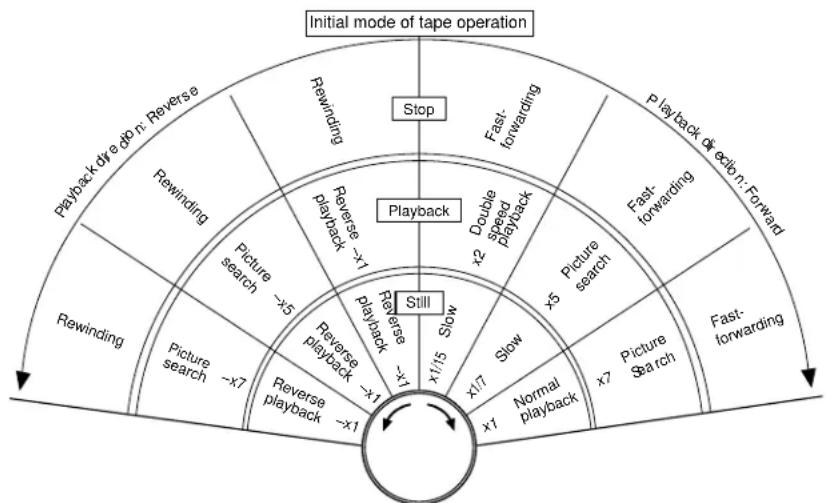
flowchart
graph TD
    A["Initial mode of tape operation"] --> B["Playback direction: Reverse"]
    B --> C["Rewinding"]
    C --> D["Playback"]
    D --> E["Reverses playback: -x1"]
    E --> F["Slow"]
    F --> G["Picture search"]
    G --> H["Double speed playback: x2"]
    H --> I["Playback direction: Forward"]
    I --> J["Stop"]
    J --> K["Playback direction: Forward"]
    K --> L["Rewinding"]
    L --> M["Picture search"]
    M --> N["Reverses playback: -x5"]
    N --> O["Slow"]
    O --> P["Picture search"]
    P --> Q["Double speed playback: x5"]
    Q --> R["Playback direction: Forward"]
    R --> S["Restim"]
    S --> T["Playback direction: Forward"]
    T --> U["Reverses playback: -x1"]
    U --> V["Slow"]
    V --> W["Playback direction: Forward"]
    W --> X["Reverses playback: -x7"]
    X --> Y["Slow"]
    Y --> Z["Playback direction: Forward"]
The playback speeds differ depending on the recording tape speed of the tape as follows.
Picture search Reverse playback
SP: x5 x7 -x1
SLP: x15 x21 -x3
Notes
- The still picture mode will be released automatically after about 5 minutes and forward playback will start.
- Fast-forwarding or rewinding started from the stop mode continues even if the shuttle dial is released. To stop, press STOP.
- The reverse playback mode will be released automatically after about 25 seconds and forward playback will start.
- Noise bar may appear in reverse playback.
Note
If you playback a tape recorded in the SLP tape speed or a tape recorded on another VCR in various speed mode, the picture may be noisy or monochrome.
Useful Functions in Tape Operation
These functions will help your playback.
S-VHS Quasi Playback (SQPB)
- This VCR can also play back a tape which is recorded in S-VHS format. But the playback picture does not have the same quality and resolution as the original S-VHS playback picture.
- This VCR cannot record in S-VHS format.
* SQPB is an abbreviation for S-VHS Quasi Playback.
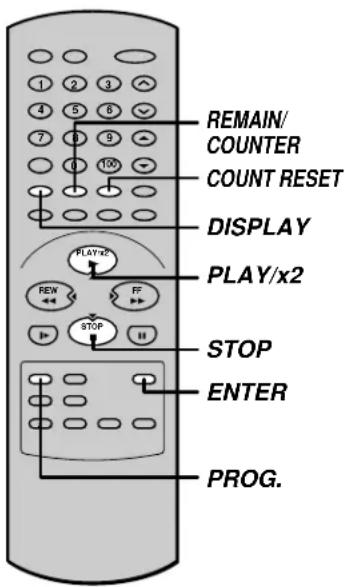
Counter Function
You can view the clock, linear time counter or tape remaining time in the VCR display or on the TV screen.
1 Each time you press REMAIN/COUNTER, the VCR display changes in sequence as follows:
→ Linear time counter (HMS) → Tape remaining time (REMAIN/RT) → Clock
The indication above will also appear on the TV screen by pressing DISPLAY. They are switchable with REMAIN/COUNTER.
To reset the linear time counter to "OH00M00S"
The counter is automatically reset to "0H00M00S" when a cassette is ejected. If you want to reset at another point, such as the beginning of a new recording, just press COUNT RESET.
Notes
- The linear time counter does not work on non-recorded portions on the tape.
- When the tape is ejected or the VCR is turned off, the display changes to clock.
- If the tape rewinds back over "0H00M00S", "-" appears in the VCR display.
- The displayed time of the linear time counter is only an approximation.
Tape Remaining Time
To view the tape remaining time in the VCR display, select the tape length beforehand.
1 Turn on the VCR and load a cassette.
2 Press PROG. to display the MENU screen.
3 Select "SET UP" using FF or REW, and press ENTER.
4 Select the length of the tape.
T120: for a T-120 tape or shorter T160: for a T-140 or T-160 tape T180: for a T-180 tape
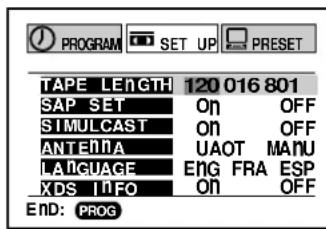
5 Press PROG. to exit.
6 Press REMAIN/COUNTER.
The remaining time ("RT - : - -") appears in the VCR display.
Notes
- The displayed remaining time is an approximation.
- The remaining time is calculated according to the tape speed (SP or SLP) and the cassette type.
Index Search Function
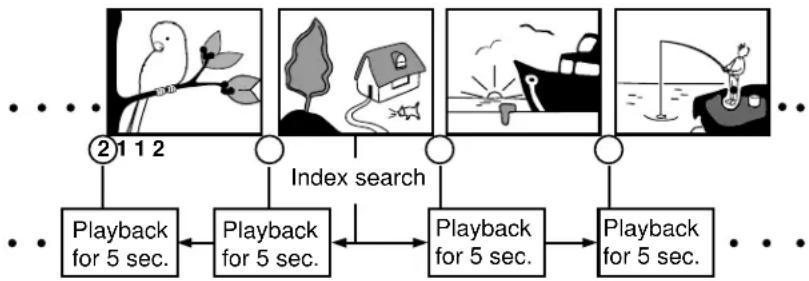
The VCR can find a point where a registered index signal is on a tape and play back for about 5 seconds. You can easily locate the desired program by inputting the index signal.
flowchart
graph TD
    A["1"] --> B["Playback for 5 sec."]
    C["2"] --> D["Index search"]
    E["3"] --> F["Playback for 5 sec."]
    G["4"] --> H["Playback for 5 sec."]
    I["5"] --> J["Playback for 5 sec."]
    B <--> K["Playback for 5 sec."]
    D <--> L["Playback for 5 sec."]
    F <--> M["Playback for 5 sec."]
    H <--> N["Playback for 5 sec."]
    J <--> O["Playback for 5 sec."]
Registering index signals
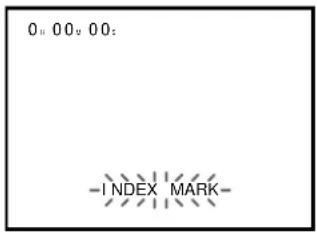
Each time a recording starts, an index signal is automatically registered. To register it somewhere else, press INDEX f during recording.
Note
A certain interval is required between the index signals: more than 1 minute in the SP tape speed and more than 3 minutes in the SLP tape speed.
Index search
1 Load a cassette with the index signals registered.
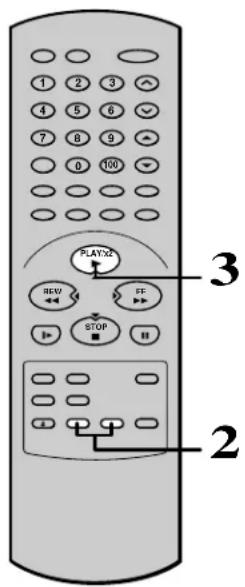
2 Press INDEX in the stop or playback mode.
g INDEX: To search in the reverse direction.
INDEX f: To search in the forward direction.
The VCR fast-forwards or rewinds the tape. When an index signal is found, the VCR plays back the tape for about 5 seconds, and then resumes fast-forwarding or rewinding. This is repeated each time at an index signal.
3 Press PLAY/x2 when the desired program is found.
Normal playback starts.
Notes
- At the very beginning of the tape, the index search may not work properly.
- If you registered the index signals on a tape recorded on another VCR, the recording may be blurred at the index point and the index search may not work properly.
Recording a TV Program
This section explains the basic recording operation.
Preparation
Select the video channel (3 or 4) or video input mode on the TV.
To record from other connected equipment
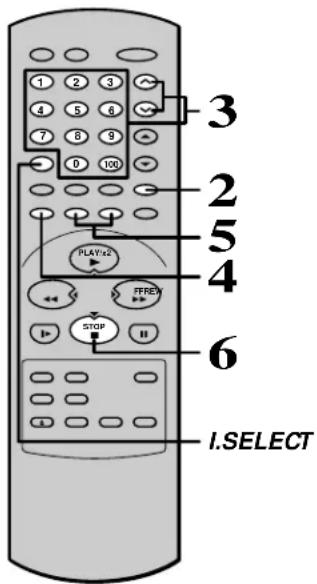
In step 3, press I. SELECT to switch the display as follows: LI: To record via the LINE IN 1 jacks on the rear panel. L2: To record via the LINE IN 2 jacks on the front panel.
Basic Recording
1 Load a cassette with the safety tab attached.
2 Press TV/VCR so that the "VCR" indicator appears in the VCR display.
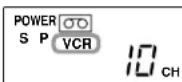
3 Select a channel to record with CHANNEL on the VCR, or CH/TRK or number buttons on the remote control.
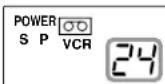
If you see "L1" or "L2" in the VCR display, press I. SELECT so that the channel number appears.
- If you record cable channels via the cable box, make the output channel number of the cable box or "L1" appear, depending on your connection. (See pages 11 – 13.)
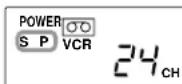
4 Press SP/SLP to select the recording tape speed.
SP: Suitable for general recording with better picture and sound quality.
SLP: Suitable for tripling recording time, but with less picture and sound quality than using the SP tape speed.
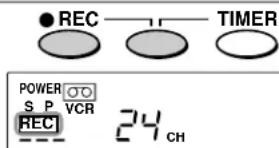
5 Press REC on the VCR, or simultaneously press both REC on the remote control.
Recording starts.
6 Press STOP to stop recording.
Watching a TV program while recording another
1) While recording, press TV/VCR to turn off "VCR" indicator.
2) Choose another channel using the channel selector on the TV.
Skipping unnecessary scenes while recording
Press PAUSE/ STILL to stop recording momentarily. To resume recording, press PAUSE/ STILL again.
Note
The VCR automatically shifts to the stop mode if the recording pause mode continues for 10 minutes.
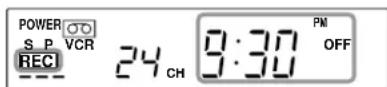
Recording off time setting
By setting the recording off time, the recording stops and the VCR is turned off automatically. While recording, press REC on the VCR repeatedly to set the desired off time.
Each time you press REC, each half-hour up to about 4 hours later and “- : - -” appear cyclically.
Notes
- To cancel the recording in progress, press STOP.
- If the VCR clock is not set, this function will not activate.
Timer Program Recording
The programmable timer allows you to record up to 6 different programs over one month.
Preparation
- Select the video channel (3 or 4) or video input mode on the TV.
- Make sure that the clock is set correctly (page 16).
- Store the channels on the VCR (pages 18 and 19).
- If you record cable channels via the cable box, keep the cable box turned on and select a channel to record on the cable box.
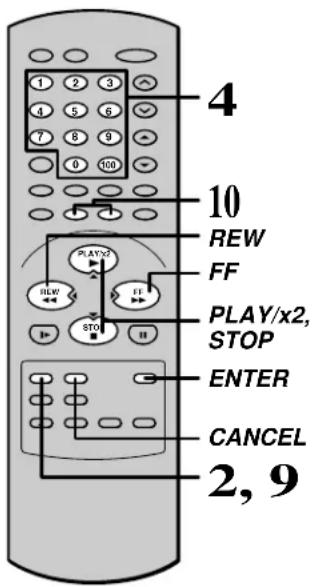
Timer Programming Procedure
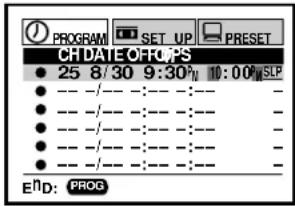
Example: To record cable channel 25 in the SP tape speed from 9:30 p.m. until 10:00 p.m. on August 30. Today is August 25.
1 Load a cassette with the safety tab attached.
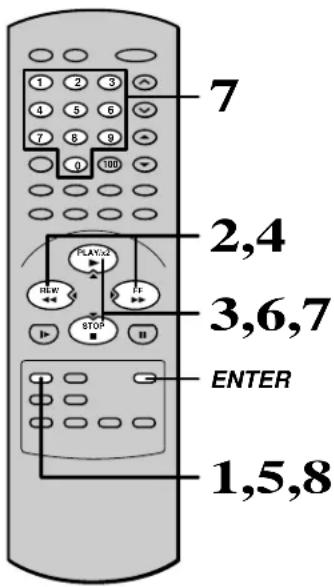
2 Press PROG. to display the MENU screen.
3 Select "PROGRAM" using FF or REW, and press ENTER.
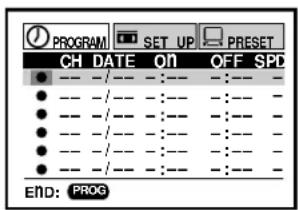
4 Move to the next using FF, and enter the channel number 25 by using PLAY/x2, STOP or number buttons.
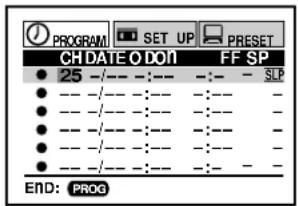
If you use the cable box, enter the output channel number of the cable box with number buttons or make "L1" appear by pressing I.SELECT, depending on your connection. (See page 13.)
To make corrections:
Press REW to move back to the item, or FF to forward.
5 Move to the next using FF, and set the recording date using PLAY/x2 or STOP.
The date changes as follows:

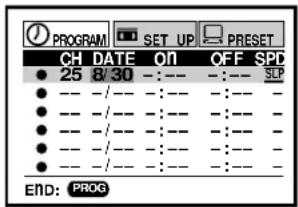
[WKLYSU]…[WKLYSA]: You can record TV programs on the same channel on the day and time every week.
[MO\~FR]: You can record TV programs on the same channel on the day and time Monday through Friday.
(Continued)
Timer Program Recording (continued)
6 Move to the next using FF, and set the hour and minutes of the recording start time.
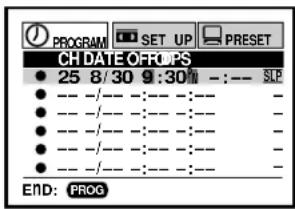
7 Move to the next, and set the recording off time.
8 Move to the next, and select the tape speed (SP) using PLAY/x2 or STOP. For the tape speed "AUTO (Auto Speed Select)", see below. To set another program, press FF, and select the next line pressing STOP. Repeat steps 4 to 8.
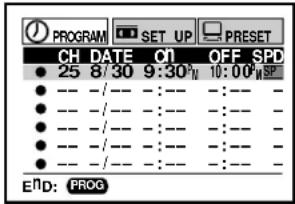
9 Press PROG.. Now programming is completed.
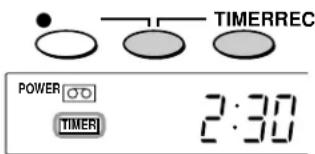
10 Press both TIMER simultaneously. The power turns off and the VCR enters the timer standby mode.
Auto Speed Select
If you are not sure the tape is long enough for timer program recording in the SP tape speed, set the recording tape speed to "AUTO". Recording starts in the SP tape speed and the VCR automatically selects the tape speed to record the program to the end. If the tape length is not long enough, the tape speed automatically changes from SP to SLP.
Notes
- Make sure that the tape length is selected correctly according to the tape used on the SET UP screen (page 24).
- When the SLP tape speed is selected and the tape length is not sufficient to record the program to the end, the program cannot be recorded to the end.
- The picture will be distorted when playing the part where the recording tape speed is switched from SP to SLP with the Auto Speed Select feature.
Confirming the timer programs (in the timer standby mode)
Press PROG..
The screen for confirming will appear.
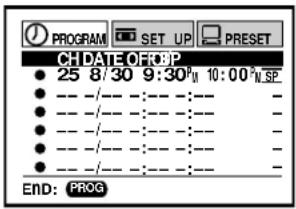
After about 30 seconds, the screen disappears.
Changing/cancelling the timer programs
1) If the TIMER indicator is lit, press both TIMER to turn it off, and then turn the VCR on by pressing POWER.
2) With steps 2 to 9, change the items.
To cancel a program, select the program you want to cancel in step 4, and press CANCEL. The line is then cleared.
3) Press both TIMER to return to the timer standby mode.
Recording or playback in the timer standby mode
First press both TIMER to release the timer standby mode, and then press POWER to turn on the VCR. The VCR will be available for use.
- Be sure to press both TIMER again to return the VCR to the timer standby mode after you are finished.
Error indication
The "E" (Error) indicator appears in the VCR display if you press both TIMER when:
— a cassette is not loaded.
— the loaded cassette has no safety tab.
— no timer program is set.
In these cases, a recording can not be made.
If a power failure occurs during the timer program recording (including VCR Plus+® system recording (page 32))
- When a power failure has occurred, “--:-” appears in the VCR display. Since the programmed contents have been cleared, reset the clock and timer programming.
- When power has failed for a short time, the colon of the current time display blinks. The programmed contents are not affected. Reset the clock.
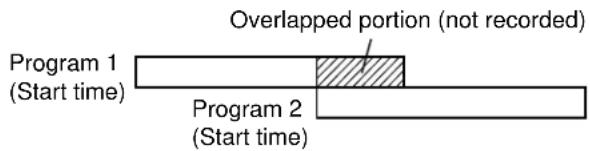
Overlaps of the programs
If two timer programs overlap, the recording start time of program 2 has priority over the recording off time of program 1.
VCR Plus+® system Set-up (For W-708 only)
VCR Plus+® system is a timer recording system for an easier programming that requires you only to enter a PlusCode® programming number assigned to a desired program. This section explains the necessary set-up to make VCR Plus+® system recordings.
The flow chart below will give you an idea as to what must be done to use the VCR Plus+® system feature.
Setting the Clock (page 16)
Storing Channels on the VCR (page 18)
VCR Plus+® system Set-up
VCR Plus+® system Recording (page 32)
* VCR Plus+ and PlusCode are registered trademarks of Gemstar Development Corporation. The VCR Plus+ system is manufactured under license from Gemstar Development Corporation.
You must give the VCR the special numbers for guide channels (also called VCR Plus+® system channel numbers) assigned to each channel that you receive in your home. The VCR identifies the channel to be recorded by the guide channel number you enter.
The guide channel numbers are published in TV guide magazine, selected local TV publications, or the channel guide from cable company. If you cannot find the numbers, call Gemstar's customer service department at 1-800-4321-VCR.
Sample of a Guide channel chart from a local TV listing
VCR Plus+® SYSTEM CHANNEL NUMBERS
| Broadcast channels | Assigned channels | Cable channels | Assigned channels | |
| 3 | KCRA (NBC).... | 3 | A & E.... | 39 |
| 6 | KVIE (PBS).... | 6 | AMC.... | 35 |
| 10 | KXTV (CBS).... | 10 | BET.... | 57 |
| 13 | KOVR (ABC).... | 13 | BRAV.... | 54 |
| 19 | KCSO (SPAN).... | 19 | CMTV.... | 14 |
| 31 | KRBK (IND).... | 31 | CNBC.... | 23 |
| 40 | KTXL (FOX).... | 40 | CNN.... | 42 |
| 58 | KSCH (IND).... | 25 | C-SPAN.... | 28 |
| 44 | KBHK (IND).... | 15 | CUNY.... | 29 |
| 24 | KCPM (NBC).... | 24 | DIS.... | 53 |
| 4 | KRNV (NBC).... | 28 | ESPN.... | 34 |
| 42 | KFCB (IND).... | 27 | FAM.... | 47 |
| 7 | KGO (ABC).... | 28 | HBO.... | 33 |
Sample of a Channel line-up chart from a cable-TV company
CHANNEL LINE-UP CHART
| Channel 2 | ME/U |
| Channel 3 | 8 WISH |
| Channel 4 | 4 WTTV |
| Channel 5 | 6 WRTV |
| Channel 6 | VCA/Local origination |
| Channel 7 | HOME BOX OFFICE |
| Channel 8 | A.P News Plus |
| Channel 9 | 9 WGN. |
Preparation
- Select the video channel (3 or 4) or video input mode on the TV.
• Prepare the list like below.
Example
| Station | Guide channel number (on the TV Guide, local TV listings etc.) | Your home channel number (on the channel line-up chart supplied by cable companies) |
| HBO 33 7 | ||
| ESPN 34 | ||
| AMC 35 | ||
Guide Channel Setting
1 Press PROG..
2 Select "PRESET" using FF or REW, and press ENTER.
3 Select "CH MEMORY" using PLAY/x2 or STOP, and press ENTER.
4 Set "TV/CATV" to "TV" or "CATV" using FF or REW.
5 Press PROG. to return to the PRESET screen.
6 Select "GUIDE CH" using PLAY/x2 or STOP, and press ENTER.
(the case of CATV mode)
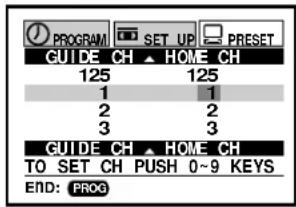
7 Enter channel numbers on the right of the guide channel numbers.
Find a guide number you marked on the list using PLAY/x2 or STOP, and enter the corresponding home channel number if necessary by using number buttons.
Example: To enter home channel number 7 (HBO) with guide channel number 33 assigned.
In some areas, one channel may be assigned more than one guide channel number. In this case, enter the home channel number to each of the guide channel numbers.
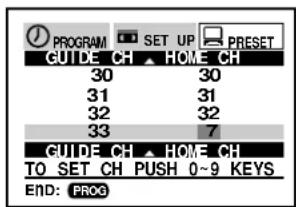
8 Press PROG. to exit.
The set-up is all over and your VCR Plus+® system recording is now available.
RECORDING
VCR Plus+® system Recording (For W-708 only)
After performing the VCR Plus+® system set-up, you can easily program a recording simply by entering the PlusCode® programming number. The numbers are published in the TV listings of newspapers, TV guide magazine, etc.
Preparation
- Make sure that the clock is set correctly (page 16).
- Load a cassette with a safety tab.
Sample of TV program listing in a TV guide magazine
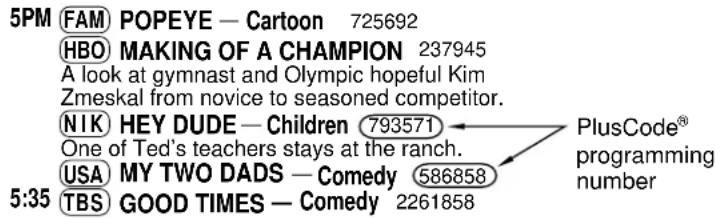
VCR Plus+® system Programming
1 Press VCR Plus+.
The VCR Plus+ screen appears.
2 Enter a PlusCode® programming number.
Example: To record a program with the PlusCode® programming number 36295 (fictitious code).
Press number button 3, 6, 2, 9 and 5.
Confirm that the number is entered correctly.
To correct a mistake, press CANCEL and enter the correct number.
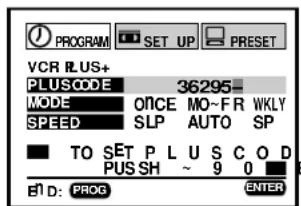
3 Select "MODE" using PLAY/x2 or STOP, and set the recording frequency.
ONCE: To record once.
DAILY(MO\~FR): To record programs on the same channel at the same time Monday through Friday.
WEEKLY: To record programs on the same channel at the same time on the same day every week.
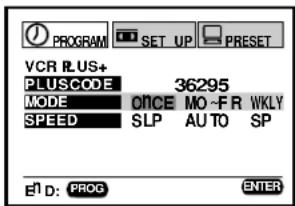
4 Select "SPEED" using PLAY/x2 or STOP, and set the recording tape speed.
For AUTO speed, see page 28.
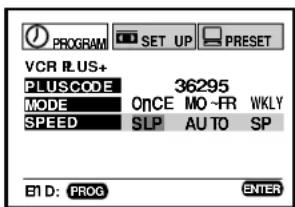
5
Press ENTER.
The program setting is now memorized.
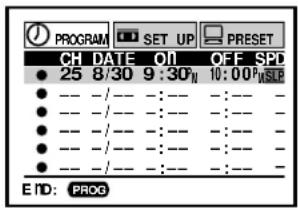
6
To set another program, repeat steps 1 to 5.
7
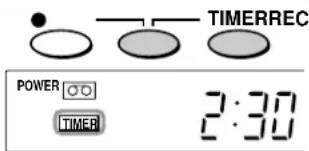
To finish press the two TIMER buttons simultaneously.
The VCR enters the timer standby mode.
Confirming the VCR Plus+® system timer programs
Before the VCR enters the timer standby mode (TIMER indicator not lit)
1) Press PROG. to display the MENU screen.
2) Press ENTER to select "PROGRAM". Check the programmed data.
3) Press PROG. to exit.
During the timer standby mode (TIMER indicator lit)
Press PROG..
The screen for confirming appears.
After about 30 seconds, the screen disappears.
Canceling the VCR Plus+® system timer programs
1) If the TIMER indicator is lit, press both TIMER to turn it off, and turn on the VCR by pressing POWER.
2) Press PROG. to display the MENU screen.
3) Press ENTER to select "PROGRAM".
4) Select a program which you want to cancel.
5) Press CANCEL.
The line is cleared out.
6) Press PROG. to exit.
Recording or playback in the timer standby mode
First press both TIMER to release the timer standby mode, and then press POWER to turn on the VCR. The VCR will be available for use.
- Be sure to press both TIMER again to return the VCR to the timer standby mode after you have finished.
Error indications
If "FULL / CANCEL PROG?" message appears on the TV during programming, no more programs can be entered. If you want to add another, delete one existing program on the screen by using PLAY/x2or STOP.
If an incorrect PlusCode® programming number is entered, "ERROR CODE ENTERED" appears on the screen. Press CANCEL to clear the number and enter correct one.
If “CLASH” message appears on the TV during programming, it tells you that two programs with the same recording start time have been entered. Correct either of the two programs as follows:
1) Select the number of the program to correct by using PLAY/x2or STOP.
2) Correct the data, or clear out the line by pressing CANCEL and then press VCR Plus+ to enter a PlusCode® programming number.
RECORDING
MTS Broadcast Compatibility
This VCR can receive or record MTS (Multichannel TV Sound) broadcasts. By connecting the VCR to your stereo system or stereo TV, you will experience the SAP or stereo sound.
Preparation
Connect a stereo TV or stereo system to the AUDIO OUT jacks of the VCR.
Recording the SAP/Stereo Broadcast
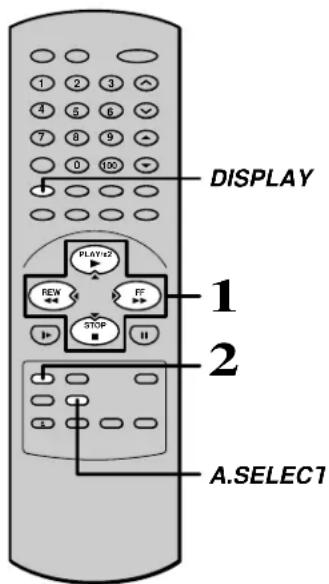
1 On the SET UP screen (page 15), select "SAP SET" using PLAY/x2 or STOP, and set to "ON" using REW or FF.
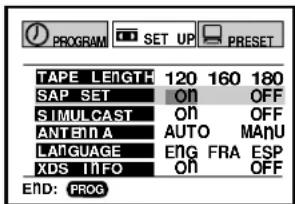
2 Press PROG. to exit.
3 Perform a recording.
SAP (Second Audio Program broadcast):
A separate audio program, usually broadcast in a second language with the main language.
Selecting a sound
Sounds recorded on the tape
According to your setting of "SAP SET" on the SET UP screen, the sound is recorded onto different tracks of the tape as below. Set "SAP SET" to "ON" or "OFF" appropriately.
| Type of receiving broadcast | Setting of “SAP SET” on the SET UP screen | On-Screen Display (Press DISPLAY.) | Contents of recorded sound | |||
| Normal sound track (Mono) | Hi-Fi sound track | |||||
| L | R“SAP | |||||
| Regular (monaural audio) | “ON” or “OFF” not | lit not lit MONO | MONO MONO | |||
| Stereo | “ON” or “OFF” not | lit lit MONO (MIXED) | STEREO | |||
| Regular+SAP | “ON” lit not lit | MONO MONO | SAP | |||
| “OFF” lit not lit | MONO MONO | MONO | ||||
| Stereo+SAP | “ON” lit lit | MONO | MONO SAP | |||
| “OFF” lit lit MONO (MIXED) | STEREO | |||||
"STEREO"
Sounds in playback
You can play SAP and/or stereo broadcasts with this VCR. Press A. SELECT to select a desired sound.
| Desired sound | L, R indicators in the VCR display | Sound output |
| SAP sound | R (right) is on. | SAP |
| Stereo sound | Both R (right) and L (left) are on. | Stereo |
Note
When the TV is connected to the RF OUT terminal of the VCR, the output sound is monaural.
RECORDING
Simulcast Recording
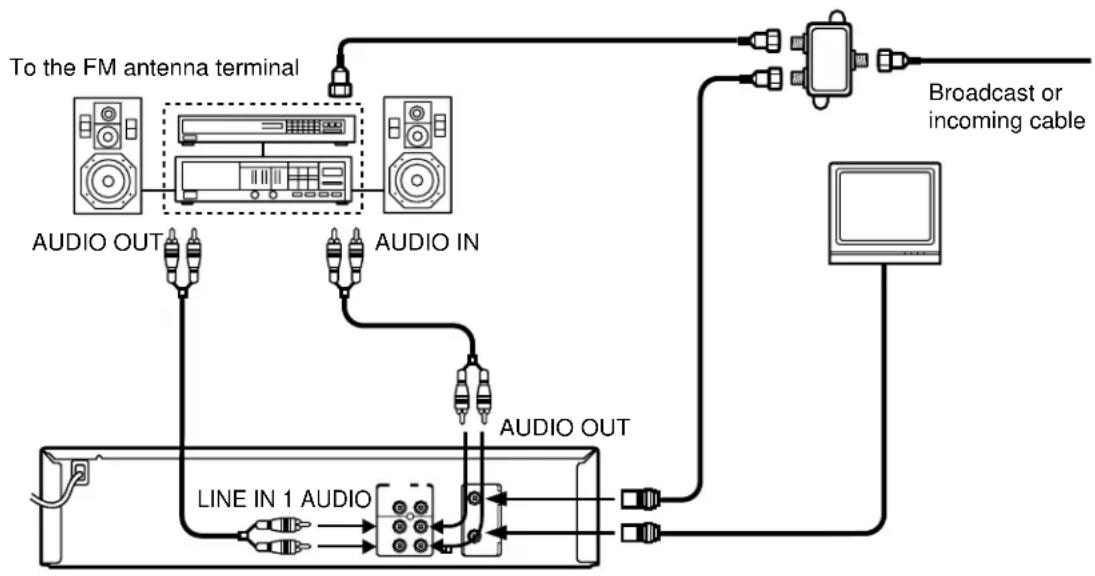
When TV program such as MTV, HBO or MAX is being simulcast in FM stereo in your area, the VCR can also record the simulcast sound from an FM stereo tuner or receiver onto the Hi-Fi track and normal track.
Preparation
- Connect the TV and stereo system to the VCR as below.
- Turn on the connected FM tuner and tune to the station for the simulcast program.
flowchart
graph TD
    A["FM antenna terminal"] --> B["To the FM antenna terminal"]
    A --> C["AUDIO OUT"]
    A --> D["AUDIO IN"]
    A --> E["AUDIO OUT"]
    E --> F["Line IN 1 AUDIO"]
    F --> G["Output Line"]
    H["Broadcast or incoming cable"] --> I["Output Line"]
    I --> J["Output Line"]
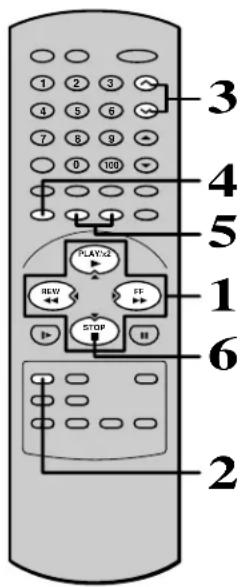
Simulcast Recording
1 On the SET UP screen (page 15), select "SIMULCAST" using PLAY/x2 or STOP, and set to "ON" using REW or FF.
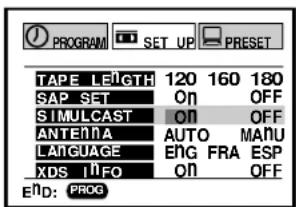
2 Press PROG. to exit.
3 Select the desired channel using CHANNEL on the VCR or CH/TRK on the remote control.
If you use a cable box, select a desired channel on the box.
4 Select the recording tape speed using SP/SLP.
5 Press REC to start recording.
6 Press STOP to stop recording.
Multi Brand Remote Control
The remote control can be compatible with various brands of TV by setting their control codes. The TOSHIBA code has initially been set to control TOSHIBA TVs.
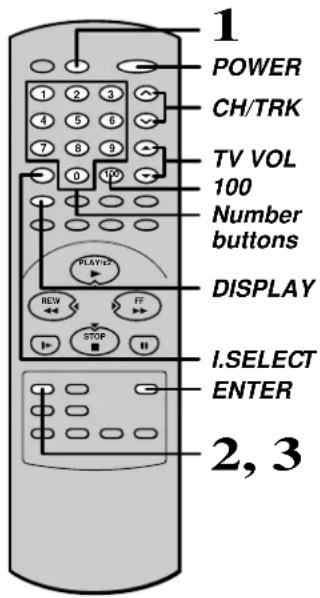
Setting Control Codes
1 Press TV to set the remote control operating your TV.
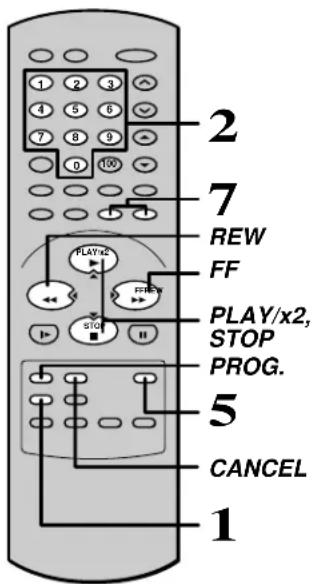
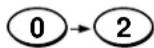
2 While holding down PROG., enter the two digits of your TV's brand code (listed right) using number buttons.
Hold down.
Example
3 Release PROG..
4 Point the remote control at your TV and use each button listed below to make sure that your TV is operated correctly.
POWER To turn the TV on or off.
CH/TRK To select TV channels in the upper or lower direction.
TV VOL To adjust the sound level.
I. SELECT To select an external source such as a VCR.
Number buttons To select TV channels. When selecting channels 1 to 9, first enter 0 and then the desired number.
100 To substitute for 100 channel key.
DISPLAY To turn on or off TV's screen display.
ENTER To use for the TV's ENTER key.

Important
Some TVs may not respond to all the operations above, or may not be operated at all with this remote control. In this case, operate your TV with its own remote control.
Notes
- For some brands, several control codes (brand codes) are allocated. Try each of them until the buttons work on your TV.
- If you replace the remote control's batteries, set the brand code again.
Table of Brand Codes
| Brand name of your TV | Brand Code |
| Toshiba 01 | |
| Bell & Howell 09 | |
| Carver 10 | |
| Celebrity 03 | |
| Citizen 12 | |
| Curtis Mathes 09, 12 | |
| Dumont 14 | |
| Electro band 03 | |
| Emerson 09, 11 | |
| Fisher 09 | |
| GE 02, 07, 11 | |
| Gibraltar 14 | |
| Goldstar 11 | |
| Hallmark 11 | |
| Hitachi 06 | |
| Infinity 10 | |
| JBL 10 | |
| JCB | 03 |
| JVC | 05 |
| LXI | 01, 02, 09, 10, 11 |
| Magnavox | 10 |
| Marantz | 10 |
| Megatron | 06, 11 |
| Memorex | 04, 09, 11 |
| MGA | 04, 11 |
| Midland 02, 07, 14 | |
| Mitsubishi | 04, 11 |
| Motorola | 08 |
| MTC | 12 |
| NAD | 01, 11 |
| Nikko | 11 |
| Optimus | 09 |
| Optionica 08 | |
| Panasonic | 07, 10, 15 |
| Penney | 01, 02, 07, 11, 12 |
| Philco | 10 |
| Philips | 10 |
| Pioneer | 16 (For W-708 only) |
| Princeclub | 12 |
| Prism | 07 |
| Proscan | 02 |
| Brand name of your TV | Brand Code |
| Proton | 11 |
| Pulser | 14 |
| Quasar | 07, 15 |
| Radio Shack | 13 |
| RCA | 02 |
| Realistic 09, 11, 13 | |
| Runco (NEC) | 14 |
| Samsung | 11, 12 |
| Sanyo | 09 |
| Scotch 11 | |
| Scott | 11 |
| Sears | 01, 02, 09, 10, 11 |
| Sharp | 08, 13 |
| Sony | 03 |
| Soundesign | 11 |
| Supreme | 03 |
| Sylvania 10 | |
| Tandy 08 | |
| Technics 07, 15 | |
| Techwood | 07 |
| Teknika 04, 10, 12 | |
| TMK | 11 |
| Victor | 05 |
| Vidikron | 10 |
| Vidtech | 11 |
| Wards 10, 11, 13 | |
| Zenith 14 |
Before Calling Service Personnel
Check the following symptoms before requesting servicing.
No power.
- The power cord is not plugged in.
– Plug the power cord into the outlet firmly.
Although the power is on, the VCR will not work.
- There is no cassette.
- Load a cassette. (page 20)
The clock does not work.
• There has been a power failure.
- Reset the clock. (page 16)
The timer does not work properly.
- The time is incorrect.
- Set the clock correctly. (page 16)
The picture does not appear on the TV screen.
- The video channel or video input mode is not set correctly.
- Set the TV channel to the video channel (3 or 4) or set the video input mode on the TV. (page 11)
• The TV signal is weak. - Adjust the antenna direction or use an optional antenna booster.
- The power cord is not plugged in.
– Plug the power cord into the outlet firmly.
The picture does not appear on the TV screen during recording and playback.
- The video channel or VCR mode is not set correctly.
- Press TV/VCR to select the VCR mode and set the TV channel to 3 or 4. (pages 11, 26)
The VCR does not record.
• The loaded cassette has no safety tab.
- Use a cassette with a safety tab or cover the hole with adhesive tape. (page 20)
The playback picture is poor.
- Tracking is not set appropriately.
- Adjust the tracking manually. (page 21)
• The video heads are dirty.
– Clean the video heads with a commercially available cleaning tape.
The desired sound is not heard, such as SAP, stereo, or regular sound.
- Setting of sounds is not correct.
- Select a desired sound using A.SELECT. (page 34)
Noise is present in the Hi-Fi sound being played.
- Tracking is not set appropriately.
- Adjust the tracking manually. (page 21)
The timer recording function does not work.
- There is an error in programming.
- Reset the timer recording program. (page 27)
• There is no cassette in the VCR. - Load a cassette with the safety tab attached. (page 20)
- The cassette does not have the safety tab.
- Use another cassette with a safety tab or cover the hole with adhesive tape. (page 20)
- The timer indicator is not displayed.
- Press both TIMER simultaneously. (page 28)
• There has been a power failure. - Reset the clock. (page 16)
- The cable box is not turned on.
- Turn on the cable box.
The VCR Plus+® system recording cannot be done.
- The guide channel numbers are not set up correctly.
- Make the guide channel number setting. (page 30)
- The cable box is not turned on when the channel comes in the VCR via the cable box.
- Turn on the cable box.
- The timer indicator is not displayed.
- Press both TIMER simultaneously. (page 33)
The remote control does not work properly.
• The batteries are exhausted.
- Replace all batteries. (page 10)
- The remote control is operated beyond the operating range.
- Make sure the remote control is within 30^ of the remote sensor on the VCR. (page 10)
- Too far from the VCR.
- Use the remote control within 7 m from the front of the VCR. (page 10)
- An obstacle may be in the way of the operation.
- Remove the obstacle.
- The operating mode of the remote control is not set correctly.
- Press VCR or TV depending on the equipment you want to operate. (pages 14, 36)
The cassette is ejected immediately after it is loaded.
- The cassette was inserted with the label side not paralleling the compartment.
- Reload it carefully. (page 20)
The cassette does not go into the cassette compartment.
- There is already a cassette in the VCR.
– Eject the cassette and reload the new one. (page 20)
Specifications
Power supply: 120 V AC, 60 Hz
Power consumption: 20 W (For W-708 only)
19 W (For W-701 only)
External dimensions:
430 · 96.5 · 281 mm (W.H.D.)
Mass: 3.9 kg (For W-708 only)
3.8 kg (For W-701 only)
Channels received: VHF: Channels 2–13
UHF: Channels 14–69
CATV: Channels 1–125
Antenna input/output terminals:
UHF/VHF: 75 Ω F type connector
Signal system: Standard NTSC
Recording/Playback system: Recording: VHS format (SP, SLP)
Playback: VHS format (SP, LP, SLP)
Cassette: Video cassette with
VHS mark
Tape speed: SLP: 11.1 mm/s, SP: 33.4 mm/s
Video recording/playback time: SLP: 480 minutes, SP: 160 minutes (When T-160
video cassette is used.)
Fast forward time: Within approx. 80 s (When T-120 video cassette is
used.)
High speed rewind time: Within approx. 54 s (when T-120 video cassette is
used.)
Video input: 1 V (p-p), 75 Ω, unbalanced, negative sync., pin
jack
Video output: 1 V (p-p), 75 Ω, unbalanced, negative sync., pin
jack
Audio input: Line input: 308 mV (rms), more than 47 kΩ, pin
jack
Audio output: Line output: 308 mV (rms), less than 4.7 kΩ, pin
jack
Audio frequency range (Hi-Fi): 20 Hz – 20 kHz
90 dB
Audio dynamic range (Hi-Fi): 90 dB
Utilization conditions: Temperature: 5°C to 40°C
Humidity: less than RH 80%
Accessories
Antenna cable 1
Remote control 1
Batteries (AAA) 2
Designs and specifications are subject to change without notice.
Toshiba America Consumer Products, Inc. (“TACP”) and Toshiba Hawaii Inc. (“THI”) make the following limited warranties. These limited warranties extend to the original consumer purchaser or any person receiving this set as a gift from the original consumer purchaser and to no other purchaser or transferee.
Limited Ninety (90) Day Warranty
TACP/THI warrant this product against defects in materials or workmanship for a period of ninety days after the date of original retail purchase. During this period, TACP/THI will repair a defective product or part, without charge to you. You must deliver the entire product to a TACP/THI Authorized Service Station. You are responsible for all transportation and insurance charges for the set to and from the Authorized Service Station.
Limited One (1) Year Warranty
TACP/THI further warrant the parts in this product against defects in materials or workmanship for a period of one (1) year after the date of original retail purchase. During this period, TACP/THI will replace a defective part without charge to you, except that if a defective part is replaced after ninety (90) days from the date of the original retail purchase, you pay labor charges involved in the replacement. You must also deliver the entire product to a TACP/THI Authorized Service Station. You are responsible for all transportation and insurance charges for the set to and from the Authorized Service Station.
Rental Units
The warranty for rental units begin with the first rental or thirty (30) days from the date of shipment to the rental firm, whichever comes first.
Commercial Units
Products sold and used for commercial use have a limited ninety (90) day warranty for all parts and labor.
Owner's Manual and Demographic Card
You should read the owner's manual thoroughly before operating this product. You should complete and mail the enclosed Demographic card within ten (10) days after you, or the person who has given you this product as a gift, purchased this product. This is one way to enable TACP/THI to provide you with better customer service and improved products. Failure to return the card will not affect your rights under this warranty.
Your Responsibility
The above warranties are subject to the following conditions:
(1) You must retain your bill of sale or provide other proof of purchase.
(2) You must notify an Authorized TACP/THI Service Station within thirty (30) days after you discover a defective product or part.
(3) All warranty servicing of this product must be made by an Authorized TACP/THI Service Station.
(4) These warranties are effective only if the product is purchased and operated in the U.S.A or Puerto Rico.
(5) Labor service charges for set installation. Set up, adjustment of customer controls and installation of repair or antenna systems are not covered by this warranty. Reception problems caused by inadequate antenna systems are your responsibility.
(6) Warranties extend only to defects in materials or workmanship as limited above and do not extend to any product or parts which have been lost or discarded by you or to damage to products or parts caused by misuse, accident, damage caused by Acts of God, such as lightning or fluctuations in electric power, improper installation, improper maintenance or use in violation of instructions furnished by us; or to units which have been altered or modified without authorization of TACP/THI or to damage to products or parts there of which have had the serial number removed, altered, defaced or rendered illegible.
(7) At you option, after the warranty period has expired in the U.S.A. Call (800)-631-3811 to receive information concerning an exchange price. Payment must be enclosed with the product in the form of a certified check or money order and forward your product to: Toshiba America Consumer Products Inc. Returns Center 1420C Toshiba Dr. Lebanon, TN 37087
(8) Upon receipt we will, at our option, replace your unit with a new or refurbished unit of equal value. Features may not be identical to your original product.
(9) Physically damaged units are not acceptable for repair or exchange in or out of warranty and will be returned as received.
LIMITED WARRANTY (continued)
How to Obtain Warranty Service
(1)Refer to the troubleshooting guide in your owner's manual. This check list may solve your problem.
(2)Call the TACP toll free number 800-631-3811 within (30) days after you find a defective product or part.
(3) Arrange for the delivery of the product to the Authorized TACP/THI Service Station. Products shipped to the Service Station must be insured and safely and securely packed, preferably in the original shipping carton, and a letter explaining the defect and also a copy of the bill of sale or other proof of purchase must be enclosed.
In the Continental United States contact: In Hawaii contact
Toshiba Hawaii
327 Kamakee Street,
Honolulu, HA 96814
(808)-591-8377
All warranties implied by state law, including the implied warranties of merchantability and fitness for a particular purpose, are expressly limited to the duration of the limited warranties set forth above. With the exception of any warranties implied by state law as hereby limited, the foregoing warranty is exclusive and in lieu of all other warranties, guarantees, agreements and similar obligations of manufacturer or seller with respect to the repair or replacement of any parts. In no event shall TACP/THI be liable for consequential or incidental damages.
No person, agent, distributor, dealer or company is authorized to change, modify or extend the terms of these warranties in any manner whatsoever. The time within action must be commenced to enforce any obligation of TACP/THI arising under the warranty or under any statute, or law of the United States or any state thereof, is hereby limited to ninety (90) days from the date you discover or should have discovered the defect. This limitation does not apply to implied warranties arising under state law. This warranty gives you specific legal rights and you may also have other rights which may vary from state to state. Some states do not allow limitation on how long an implied warranty lasts, when an action may be brought or the exclusion or limitation of incidental or consequential damages, so the above provisions may not apply to you.
ATTENTION CANADIAN CONSUMERS:
Canadian consumers are requested to complete the special Canadian “Warranty Registration Form” enclosed and forward this completed form with a copy of bill of sale to TOSHIBA OF CANADA to “Register and Validate” their warranty. Product must be purchased from an Authorized Canadian Dealer.
Products purchased in the U.S.A and used in Canada are not covered by these warranties.
IMPORTANT: PACKING AND SHIPPING INSTRUCTION
When you send the product to a Service Station, you should use the original carton box and packing material, then insert the original carton box containing the unite into another carton, using more packing material.
TOSHIBA AMERICA CONSUMER PRODUCTS, INC.
Printed in China

- SAFETY PRECAUTIONS
- Note to CATV system installer:
- IMPORTANT PRECAUTIONS
- Save Original Packing Materials
- Avoid Volatile Liquid
- Moisture Condensation
- Compatibility
- Copyright
- IMPORTANT SAFETY INSTRUCTIONS
- Water and Moisture
- Cleaning
- Power-Cord Protection
- Overloading
- Outdoor Antenna Grounding
- Power Lines
- Lightning
- Object and Liquid Entry
- Attachments
- Accessories
- Damage Requiring Service
- Servicing
- Replacement Parts
- Safety Check
- Contents
- INTRODUCTION
- SAFETY PRECAUTIONS ...... 2
- IMPORTANT PRECAUTIONS...... 3
- IMPORTANT SAFETY
- INSTRUCTIONS 4
- Contents 7
- Identification of Controls 8
- PREPARATION
- How to Use the Remote Control ..... 10
- Connections 11
- Auto Set Up 14
- Initial Settings Using On-screen
- Display 15
- Storing Channels on the VCR ..... 17
- Video Cassette Use 20
- PLAYBACK
- Playback 21
- Variable Speed Playback 22
- Useful Functions in Tape
- Operation.... 24
- RECORDING
- Recording a TV Program 26
- Timer Program Recording 27
- VCR Plus+® system Set-up ...... 30
- VCR Plus+® system Recording...... 32
- MTS Broadcast Compatibility ..... 34
- Simulcast Recording 35
- ADDITIONAL INFORMATION
- Multi Brand Remote Control ...... 36
- Before Calling Service Personnel ... 38
- Specifications 40
- Accessories...... 40
- LIMITED WARRANTY 41
- Identification of Controls
- LINE IN 1 AUDIO (Rear), 2 (Front) jacks
- How to Use the Remote Control
- Setting up the Remote Control
- Notes on batteries
- Caring for the remote control
- Connections
- Antenna/VCR/TV Connection
- Setting the VCR Output Channel
- AUDIO/VIDEO Connections
- Connections (continued)
- Cable Connection
- Auto Set Up
- Notes
- Initial Settings Using On-screen Display
- Setting the Language
- Optional settings on the SET UP screen
- Initial Settings Using On-Screen Display (continued)
- Setting the Clock
- Storing Channels on the VCR
- Incoming Antenna/Cable (CATV) Signals
- Storing Channels on the VCR (continued)
- Adding or erasing channels
- Adding channels
- Erasing channels
- Selecting stored channels
- Number buttons
- CH/TRK
- Cable Box/DSS Output Channel Setting
- CATV signals
- Video Cassette Use
- Loading a cassette
- Ejecting a cassette
- Warning
- Precautions when using video cassettes
- To prevent accidental erasure
- To record again
- Basic Playback
- Adjusting the tracking
- 19∞ HEAD
- Note
- DNR (Digital Noise Reduction) (For W-708 only)
- Variable Speed Playback
- Picture Search
- Still Picture
- Slow-motion Picture
- Frame Advance
- Double Speed Playback
- Shuttle Dial Operation
- Useful Functions in Tape Operation
- S-VHS Quasi Playback (SQPB)
- Counter Function
- Tape Remaining Time
- Index Search Function
- Index search
- Recording a TV Program
- To record from other connected equipment
- Basic Recording
- Recording off time setting
- Timer Program Recording
- Timer Programming Procedure
- Timer Program Recording (continued)
- Auto Speed Select
- Changing/cancelling the timer programs
- Recording or playback in the timer standby mode
- Error indication
- Overlaps of the programs
- VCR Plus+® system Set-up (For W-708 only)
- Guide Channel Setting
- VCR Plus+® system Recording (For W-708 only)
- VCR Plus+® system Programming
- 5
- Press ENTER.
- 6
- 7
- Before the VCR enters the timer standby mode (TIMER indicator not lit)
- During the timer standby mode (TIMER indicator lit)
- Canceling the VCR Plus+® system timer programs
- Error indications
- MTS Broadcast Compatibility
- Recording the SAP/Stereo Broadcast
- SAP (Second Audio Program broadcast):
- Selecting a sound
- Sounds recorded on the tape
- Sounds in playback
- Simulcast Recording
- Multi Brand Remote Control
- Setting Control Codes
- Important
- Before Calling Service Personnel
- No power.
- Specifications
- Accessories
- Limited Ninety (90) Day Warranty
- Limited One (1) Year Warranty
- Rental Units
- Commercial Units
- Owner's Manual and Demographic Card
- Your Responsibility
- LIMITED WARRANTY (continued)
- How to Obtain Warranty Service
- ATTENTION CANADIAN CONSUMERS:
- IMPORTANT: PACKING AND SHIPPING INSTRUCTION
- TOSHIBA AMERICA CONSUMER PRODUCTS, INC.
Brand : TOSHIBA
Model : W 701
Category : VCR