
XA-A55CL - Mp3 player JVC - Free user manual and instructions
Find the device manual for free XA-A55CL JVC in PDF.


| Product Type | Portable MP3 Player |
| Model | XA-A55CL |
| Brand | JVC |
| Dimensions | Approximately 50 x 30 x 10 mm |
| Weight | Approximately 30 g |
| Power Supply | Rechargeable Lithium-ion battery |
| Battery Life | Up to 12 hours of continuous playback |
| Storage Capacity | 4 GB internal memory |
| Supported Audio Formats | MP3, WMA |
| Connectivity | USB 2.0 for file transfer and charging |
| Display | OLED display with backlight |
| Playback Modes | Normal, Repeat, Shuffle, Intro |
| Equalizer Presets | Rock, Pop, Jazz, Classic, Normal |
| FM Radio | Built-in FM tuner with presets |
| Recording | Voice recording via built-in microphone |
| Audio Output | 3.5mm headphone jack |
| Supported OS | Windows, Mac OS |
| Body Material | Plastic with metallic finish |
| Color | Black |
| Accessories Included | Earphones, USB cable, Quick start guide |
| Safety Features | Overcharge protection, auto power-off |
| Maintenance | Clean with soft dry cloth; avoid moisture |
| Spare Parts/Accessories | Replacement battery, USB cable, earphones available separately |
| Reparability | User-replaceable battery; no other user-serviceable parts |
Frequently Asked Questions - XA-A55CL JVC
User questions about XA-A55CL JVC
0 question about this device. Answer the ones you know or ask your own.
Ask a new question about this device
Download the instructions for your Mp3 player in PDF format for free! Find your manual XA-A55CL - JVC and take your electronic device back in hand. On this page are published all the documents necessary for the use of your device. XA-A55CL by JVC.
USER MANUAL XA-A55CL JVC
DIGITAL AUDIO PLAYER
XA-A55CL
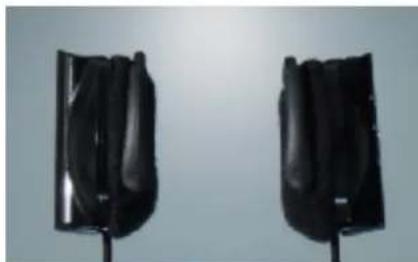
INSTRUCTIONS
LNT0045-001A
Safety and Cautions
NOTE:
Some cautions in this "Safety and Cautions" are for users in particular countries and regions. Such cautions are described in their local language only.

"SOME DO'S AND DON'TS ON THE SAFE USE OF EQUIPMENT"
This equipment has been designed and manufactured to meet international safety standards but, like any electrical equipment, care must be taken if you are to obtain the best results and safety is to be assured.
Do
read the operating instructions before you attempt to use the equipment.
Do
ensure that all electrical connections (including the mains plug, extension leads and inter-connections between pieces of equipment) are properly made and in accordance with the manufacturer's instructions. Switch off and withdraw the mains plug when making or changing connections.
Do
consult your dealer if you are ever in doubt about the installation, or operation or safety of your equipment.
Do
be careful with glass panels or doors on equipment.
DON'T
continue to operate the equipment if you are in any doubt about it working normally, or if it is damaged in any way-switch off-withdraw the mains plug and consult your dealer.
DON'T
remove any fixed cover as this may expose dangerous voltages.
DON'T
leave equipment switched on when it is unattended unless it is specifically stated that it is designed for unattended operation or has a standby mode.
Switch off using the switch on the equipment and make sure that your family know how to do this.
Special arrangements may need to be made for infirm or handicapped people.
DON'T
use equipment such as personal stereos or radios so that you are distracted from the requirements of road safety. It is illegal to watch television when driving.
DON'T
listen to Digital Audio Player at high volume as such use can permanently damage your hearing.
DON'T
obstruct the ventilation of the equipment, for example with curtains or on soft furnishings. Overheating will cause damage and shorten the life of the equipment.
DON'T
use makeshift stands and NEVER fix legs with wood screws. To ensure complete safety always fit the manufacturer's approved stand or legs with the fixing screws supplied according to the instructions.
DON'T
allow electrical equipment to be exposed to rain or moisture.
ABOVE ALL
NEVER let anyone especially children push anything into holes, slots or any other opening in the case. This could result in a fatal electrical shock.

About FCC information
FCC INFORMATION
This device complies with Part 15 of the FCC Rules. Operation is subject to the following two conditions:
- This device may not cause harmful interference.
- This device must accept any interference received, including interference that may cause undesired operation.
NOTE:
This equipment has been tested and found to comply with the limits for a Class B digital device, pursuant to Part 15 of the FCC rules. These limits are designed to provide reasonable protection against harmful interference in a residential installation. This equipment generates, uses and can radiate radio frequency energy and, if not installed and used in accordance with the instructions, it may cause harmful interference to radio communications. However, there is no guarantee that interference will not occur in a particular installation. If this equipment does cause harmful interference to radio or television reception, which can be determined by turning the equipment off and on, the user is encouraged to try to correct the interference by one or more of the following measures:
- Reorient or relocate the receiving antenna.
- Increase the separation between the equipment and receiver.
- Connect the equipment into an outlet on a circuit different from that to which the receiver is connected.
- Consult the dealer or an experienced radio/TV technician for help.
CAUTION:
Changes or modifications not approved by JVC could void user's authority to operate the equipment.
Contact
Address: JVC AMERICAS CORP.,
1700 Valley Road, Wayne, New Jersey 07470
Telephone: (973) 317-5000
INFORMATION (for CANADA)
This Class B digital apparatus complies with Canadian ICES-003.
RENSEIGNEMENT (Pour le CANADA)
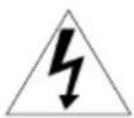

The lightning flash with arrowhead symbol, within an equilateral triangle is intended to alert the user to the presence of uninsulated "dangerous voltage" within the product's enclosure that may be of sufficient magnitude to constitute a risk of electric shock to persons.
The exclamation point within an equilateral triangle is intended to alert the user to the presence of important operating and maintenance (servicing) instructions in the literature accompanying the appliance.
Attention:
- This symbol is only valid in the European Union.
- Please do not dispose as general household waste for the accessories as well that are packed with the product.
Information for Users on Disposal of Old Equipment [European Union]
This symbol indicates that the product with this symbol should not be disposed as general household waste at its end-of-life. Instead, the product should be handed over to the applicable collection point for the recycling of electrical and electronic equipment for proper treatment in accordance with your national legislation and the Directive 2002/96/EC.
By disposing of this product correctly, you will help to conserve natural resources and will help prevent potential negative effects on the environment and human health which could otherwise be caused by inappropriate waste handling of this product. For more information about collection point and recycling of this product, please contact your local municipal office, your household waste disposal service or the shop where you purchased the product.
If your used product contains batteries or accumulators, please dispose separately beforehand according to local requirements.
(Business users)
If you wish to dispose of this product, please visit our web page www.jvc-europe.com to obtain information about the take-back of the product.
[Other Countries outside the European Union]
If you wish to dispose of this product, please do so in accordance with applicable national legislation or other rules in your country for the treatment of old electrical and electronic equipment.
1. For your safety
TO REDUCE THE RISK OF FIRE OR ELECTRIAL SHOCK, DO NOT EXPOSE THIS APPLIANCE TO RAIN OR MOISTURE.
Never use the Digital Audio Player when driving a car, motorcycle, or bicycle. This could result in an accident.
Do not disassemble or modify the Digital Audio Player.
Do not allow inflammables, water or metallic objects to enter the Digital Audio Player.
A little electric shock to your ears may be caused with static electricity when wearing the unit in dry environments.
Hearing comfort and well-Being
Do not play your headphone stereo at a high volume.
Hearing experts advise against continuous extended play.
If you experience a ringing in your ears, reduce volume or stop to use the Digital Audio Player.
Traffic safety
Do not use while operating a motorized vehicle.
It may create a traffic hazard and is illegal in many areas.
You should use extreme caution or temporarily discontinue use in potentially hazardous situations.
Even though your headphones are of the open-air type designed to let you hear outside sounds, do not turn up the volume so high that you cannot hear what is around you.
2. Avoid using the Digital Audio Player
in places subject to excessive humidity or dust
in places subject to extremely high (over 40°C or 104°F) or low (under 0°C or 32°F) temperatures
3. DO NOT leave the Digital Audio Player
in direct sunlight
near a heater
4. To protect the Digital Audio Player, DO NOT
allow them to get wet. If this occur, DO NOT use the Digital Audio Player to avoid the electrical shock and damage.
drop them or shake them against hard objects.
connect any USB cable to the Digital Audio Player except the one supplied.
disconnect the USB cable when transferring the files.
5. About ear pads
The ear pad will wear out earlier than the other parts even in normal use or in normal keeping due to the material characteristics.
For replacement of the ear pads, please consult with the dealer where you purchased the headphones.
About ALKALINE BATTERIES
(1) For safe use, DO NOT
attempt to charge the alkaline batteries.
reverse the polarities of the batteries.
carry or store a battery together with objects such as metal pens, necklaces, coins or hairpins. This could short-circuit the positive and negative poles of the battery.
heat or attempt to disassemble a battery.
expose the battery to water or fire.
subject a battery to strong impacts, such as hitting it with a hammer, stepping on it or dropping it.
forget to remove the batteries from the unit if the Digital Audio Player is not to be used for an extended period of time, so as to prevent leakage.
Any of these may cause the battery to split or leak, causing fire or injury.
(2) Use only the specified batteries with this Digital Audio Player. The use of other power sources may cause a fire.
(3) When discarding batteries, environmental problems must be considered and the local rules or laws governing the disposal of these batteries must be followed strictly.
HOW TO HANDLE A CD-ROM
Take care not to soil or scratch the mirror surface (opposite to the printed surface). Do not write anything or put a sticker on either the front or back surface. If the CD-ROM gets dirty, gently wipe it with a soft cloth outward from the center hole using a circular motion.
Do not use conventional disc cleaners or cleaning spray.
Do not bend the CD-ROM or touch its mirror surface.
Do not store your CD-ROM in a dusty, hot or humid environment. Keep it away from direct sunlight.

Introduction
Thank you for purchasing the JVC product. Before you begin operating this unit, please read this operating instructions carefully to be sure you get the best possible performance. If you have any questions, consult your JVC dealer.
CAUTION:
For copyright protection, the Digital Audio Player has a limitation on music file operations. Once stored, the MP3, WMA, and WMA-DRM files in this unit cannot be copied or moved to any other place such as PCs or HDDs. Attempting to overwrite will delete the files which have same names from PCs or HDDs.
You cannot play back the music files on the Digital Audio Player from your PC.

Accessories
Check the supplied accessories after unpacking.
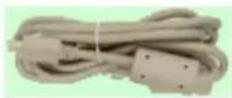
| CD-ROM USB cable | Cable clip | Carrying pouch | |
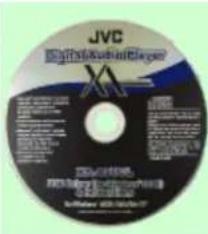 |  |  | 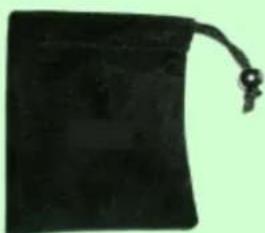 |
| [Instructions (this file), Voice guidance files for nine languages, USB driver for Windows 98SE] |


Features
What is Digital Audio Player XA-A55CL?
- XA-A55CL is an Ear-Clip headphone type Digital Audio Player, which creates a high quality sound reproduced by the 30 mm diameter Neodymium driver unit in an innovative design shell.
- You can store the music files-MP3 or WMA / WMA-DRM-in the built-in 256 MB memory, and enjoy playback continuously for 20 hours using a single AAA alkaline battery. (Playback of MP3 files created at 64 kbps/22 kHz with LED setting set to off and 0.1 mW + 0.1 mW output.)
- You can also store data other than music files and use XA-A55CL as a handy storage device. Take care that MP3, WMA, and WMA-DRM files in this unit cannot be copied or moved to any other place after storing.
- You can directly transfer the music files from your PC to the Digital Audio Player over the Full-speed USB port.
- Voice guidance helps you to operate and set up the Digital Audio Player even if you are listening to the music.
System requirements
To access the Digital Audio Player, your PC need to satisfy the following conditions:
| Operating system | Windows 98SE/Windows Me/Windows 2000/Windows XP |
| Disk drive | CD-ROM (to see this manual, to exchange the Voice guide, and to install the USB driver for Windows 98SE) |
| Port | USB port (USB 1.1 or later) |
| Multimedia player | Windows Media Player 8.0 or later |
| Browser | Internet Explorer 6.0 or later (to see this manual) |
NOTE:
Some PC may not work correctly even if they satisfy the conditions above.
When connecting the Digital Audio Player to PC with a USB hub or a USB extension cable, the unit may not work properly.
The Digital Audio Player is not available for the PC with 64 bit OS.
Music file requirements
Bit rate and sampling frequency
The Digital Audio Player supports MP3, WMA, and WMA-DRM files recorded with the following:
| Bit rate | 32 to 192 kbps (not supported the Windows Media Audio Lossless format) |
| Sampling frequency | 16 kHz, 22.05 kHz, 32 kHz, 44.1 kHz, 48 kHz |
According to the recording application, MP3, WMA, and WMA-DRM files are not suitable for playback or cannot be played back.
Extension
The Digital Audio Player can only recognize and play files with one of the following extensions, which can be in any combination of upper and lower case:
| MP3 | ".MP3", ".mp3" |
| WMA and WMA-DRM | ".WMA", ".wma" |
NOTE:
Some files may not be played normally because of their characteristics or recording conditions. In this case, record a music file at a different bit rate.
Copyright protection
For copyright protection, the Digital Audio Player has a limitation on music file operations. Once stored, the MP3, WMA, and WMA-DRM files in this unit cannot be copied or moved to any other place such as PCs or HDDs. Attempting to overwrite will delete the files which have same names from PCs or HDDs.
You cannot play back the music files on the Digital Audio Player from your PC.
License
Microsoft®, Windows®, Windows® XP, Windows® 2000, Windows® Me, Windows® 98SE, Windows Media® are either registered trademarks or trademarks of Microsoft Corporation in the United States and/or other countries.
"MPEG Layer-3 audio coding technology licensed from Fraunhofer IIS and Thomson."
WOW, SRS and symbol are trademarks of SRS Labs, Inc.
WOW technology is incorporated under license from SRS Labs, Inc.

About this instruction
Configuration of this instruction
This instruction is configured with the following 4 sections:
| Introduction | Basic information about Digital Audio Player such as its outline and installation. |
| Basic Operation | Basic operations to play back the music files with the Digital Audio Player. |
| Advanced Operation: | Advanced operations to play back and to change the settings. |
| Information | Troubleshooting and specification |
The screens used in this instruction are from Windows XP (except for "Driver installation (For Windows 98SE user ONLY)").
The screens and procedures explained may differ depending on your PC. Also, software images for explanation may differ from the actual look.

Parts Identification
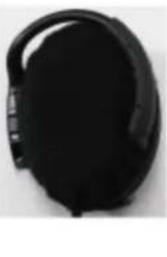
| Left headphone Right headphone | |||
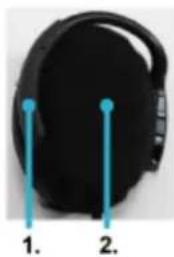 | 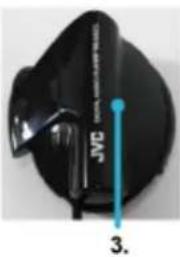 | 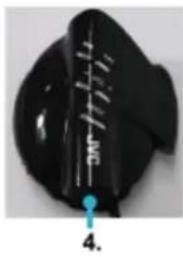 |  |
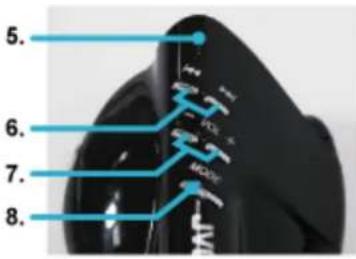
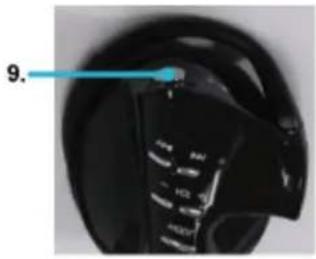
| Buttons on the right headphone | |||
 |  | ||
| 1. | Ear hook |
| 2. | Ear pad |
| 3. | Battery cover |
| 4. | USB port cover |
| 5. | LED lampLights: When setting up the unitFlashes 2 times every 5 seconds: During playbackFlashes every 2 seconds: During stop |
| 6. | ◀◀/▶▶(Skip) buttons |
| 7. | VOL +/- (Volume) buttons |
| 8. | MODE button |
| 9. | ▶/■ (Stop/Play/Power) button |
About Voice Guidance
The Digital Audio Player has Voice Guidance system, which informs you the operational information of the Digital Audio Player.
For example, when you press ▶▶(skip) button while listening to the music, you will hear "Next" through the Digital Audio Player to confirm the operation.
You can change the voice of Voice Guidance system for your preference or other languages.
You can also turn off the Voice Guidance system except for the voice for the setting. See "Voice guide setting".

Preparation
Driver installation (For Windows 98SE user ONLY)
When connecting the Digital Audio Player to PC with Windows 98SE for the first time, you need to install the USB driver.
The English screens are used in this procedure.
1. Connect the Digital Audio Player to your PC using the supplied USB cable.
The "Add New Hardware Wizard" screen appears.
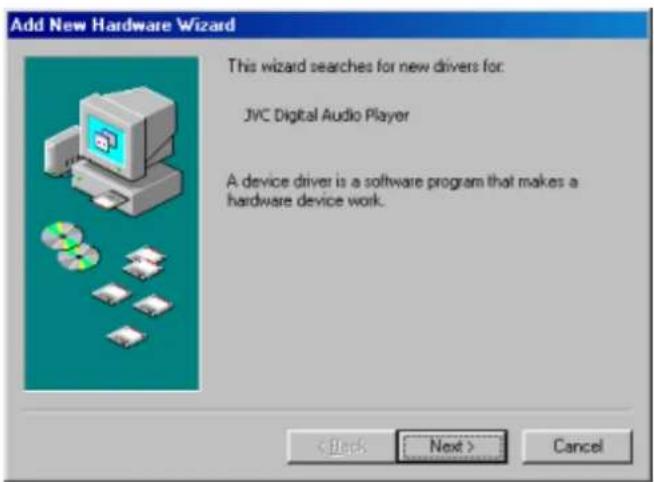
2. Click "Next".
The next screen appears.
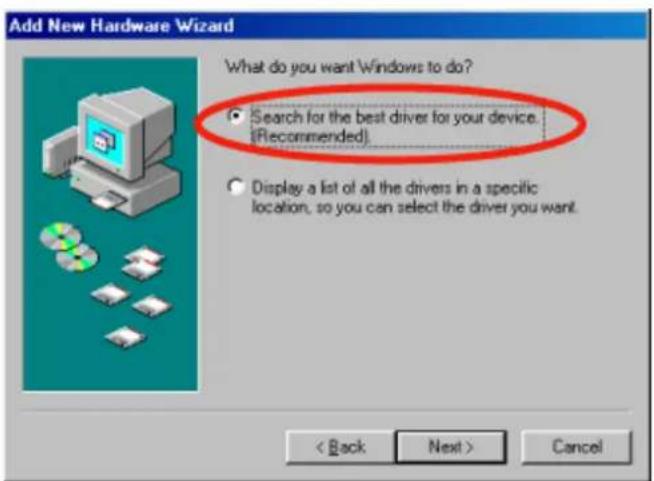
3. Check "Search for the best driver for your device. (Recommended)" and click "Next".
The next screen appears.
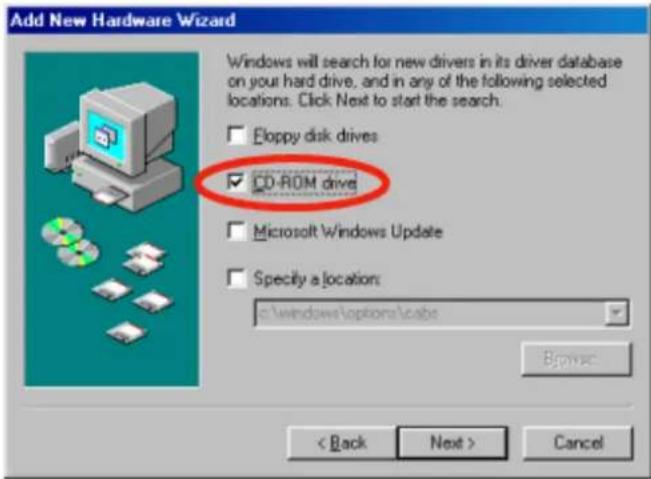
- Check "CD-ROM drive" for the driver selection on the screen.
- Load the supplied CD-ROM on your PC, then click "Next".
- Install the driver by following the messages.

Selecting the language for the Voice Guidance
You can change the language of the guide voice by selecting the guide voice files stored in the supplied CD-ROM. The initial language is set to English.
- Connect the Digital Audio Player to your PC using the supplied USB cable.
- Load the supplied CD-ROM on your PC.
The language selection screen appears.
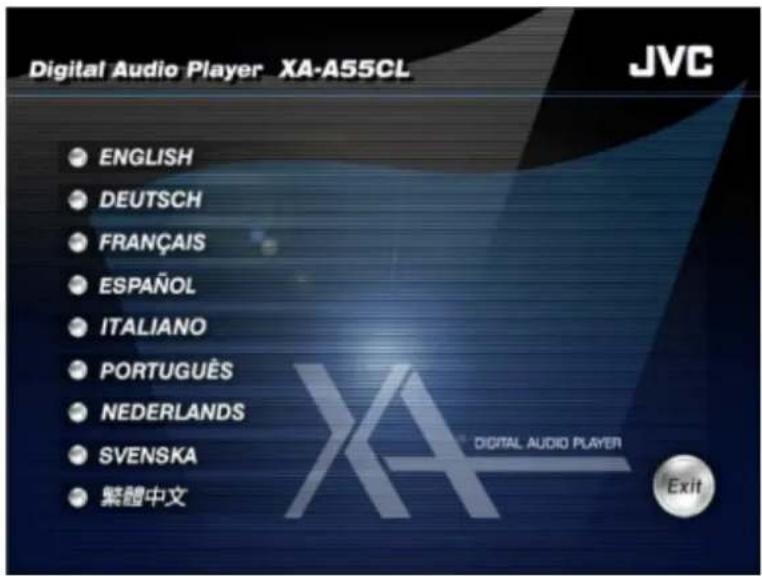
- Click the desired language.
Ex.: When selecting "English".
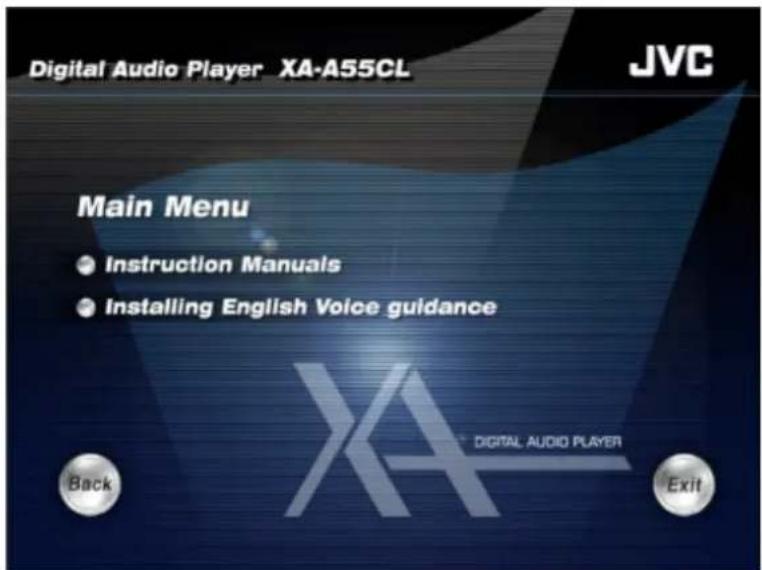
- Click "Installing English Voice guidance".
Installation starts. The file import takes a few minutes.
NOTES:
The voice guide files are stored in "voice" folder. Take care not to delete "voice" folder.
If "voice" folder is accidentally deleted, install the voice guide file again following the steps shown above.

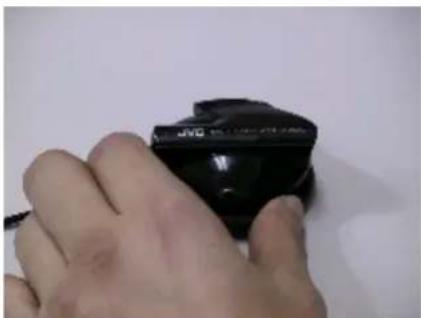
Putting the battery
-
Slide open the battery cover.
-
Insert the alkaline battery, matching the and .
Press in on end first and down on end.
- Close the battery cover.
About changing the battery
The battery should be changed or the LED setting should be set to "LED off" when the LED lamp fades or does not turn on, or playback/operation suddenly stops and the player turns off. Change the battery or set the LED setting to "LED off" as necessary to maintain the proper performance of the Digital Audio Player or when "Please change the battery" is heard.
NOTES:
It is recommended to use an alkaline battery. Using an manganese battery or any rechargeable battery may cause extremely shortening of battery life and/or malfunctions.
When the remaining battery power is low, the Digital Audio Player automatically changes the LED setting to "LED off" to save the battery life. In this case, "Please change the battery" is heard.
IMPORTANT:
Misuse of battery could result in leakage. This could cause a fire or explosion. To prevent this, pay special attention to the following points:
- Remove the battery from the Digital Audio Player for not using an extended period of time.
- Be sure to insert the battery with correct positive and negative polarities.
- Do not heat, disassemble or short-circuit batteries and never dispose of batteries by throwing them in a fire.
- Do not charge the battery.
- Read the caution displayed on the battery when in use.
Basic Operation
Transferring the music files into the Digital Audio Player
In this instruction, the file-transferring procedure is explained using the Windows Media Player 9.
CAUTION:
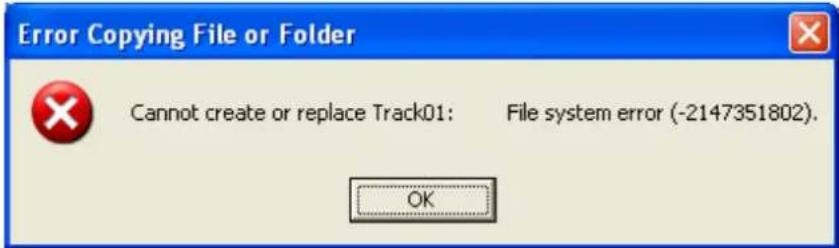
For copyright protection, the Digital Audio Player has a limitation on music file operations. Once stored, the MP3, WMA, and WMA-DRM files in this unit cannot be copied or moved to any other place such as PCs or HDDs. Attempting to overwrite will delete the files which have same names from PCs or HDDs. When trying to copy or move the files, the error message such as below appears.
Ex: When trying to copy or move the file named "Track01" to PC.
The message below appears on Windows XP. The error message may differ on other Windows OSs.
You cannot play back the music files on the Digital Audio Player from your PC.
NOTE:
For Windows 98SE user ONLY: You need to install the USB driver before connecting the Digital Audio Player to your PC for the first time. See "Driver installation (For Windows 98SE user ONLY)".
To connect to your PC
1. Connect the Digital Audio Player to your PC using the supplied USB cable.
The LED lamp of the Digital Audio Player starts flashing, and the connection is completed after a while.
The Removable Disk ("JVC_XA_A" on Windows XP) appears in "My Computer".
NOTE:
We cannot bear any responsibility for any loss or alteration to the files stored in the internal memory of the Digital Audio Player.
To transfer the music files
- Start Windows Media Player and click "Copy to CD or Device".
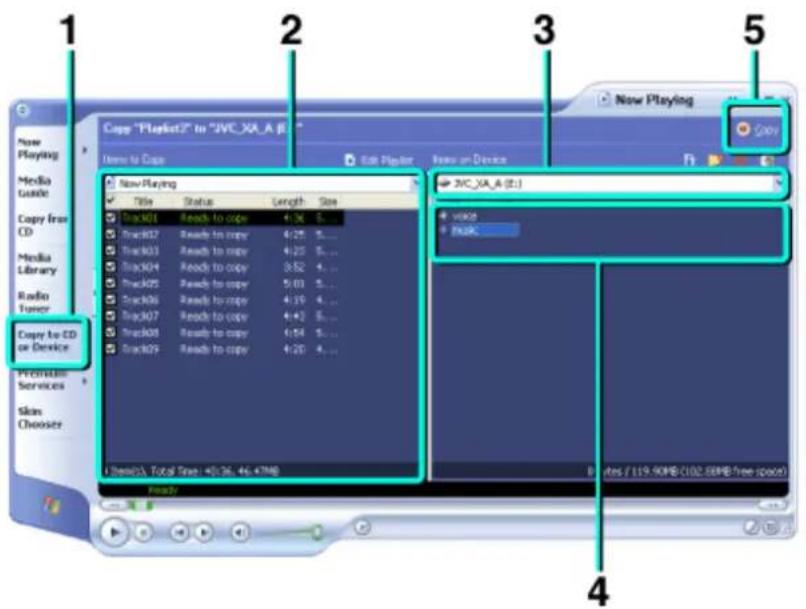
- Select the desired music files on the left column of Windows Media Player.
- Select the Digital Audio Player as the device on the right column of Windows Media Player.
Windows Media Player detects the Digital Audio Player as "Removable Disk ("JVC_XA_A" on Windows XP)".
Windows Media Player does not detect the Digital Audio Player when it was started before connection in some cases. In such case, quit Windows Media Player, and restart it.
- Select "music" folder on the Digital Player as the transferring destination of the music files.
You can transfer the music files to any other folder in "music" folder. This unit can read the music files in the folders up to the 4th layer.
![graph TD A["JVC_XA_A"] --> B["MUSIC"] A --> C["voice"] B --> D["1"] B --> E["2"] D --> F["3"] E --> G["4"] C --> H["5"] style A fill:#f9f,stroke:#333 style B fill:#ccf,stroke:#333 style C fill:#ccf,stroke:#333 style D fill:#cfc,stroke:#333 style E fill:#cfc,stroke:#333 style F fill:#fcc,stroke:#333…](/content/2026/05/817291/images/f74ea22753c83b1d699f5164136f7374f01f08666c85468f55dba0bb94193d5c.jpg)
- Click "Copy" ("Sync" on Windows Media Player 10) to start to import the music files from your PC to the Digital Audio Player.
The LED lamp of the Digital Audio Player is sometimes flashing while the files are transferred.
- When the transferring is completed, disconnect the Digital Audio Player
from the PC by using "Safety Remove Hardware". (When using Windows 98SE, confirm the transfer completion, then disconnect the Digital Audio Player.)
CAUTIONS:
Once stored, the MP3, WMA, and WMA-DRM files in this unit cannot be copied or moved to any other place such as PCs or HDDs. Attempting to overwrite will delete the files which have same names from PCs or HDDs.
DO NOT check property of an music file in this unit when using Windows 98SE. Otherwise, Windows Explorer is forcedly shut down.
NOTES:
You cannot use the playlist made with Windows Media Player.
When the utility applications such as an anti-virus software or an application related to handling music files are installed on your PC, you may not be able to copy, move, and delete the files to/from the Digital Audio Player. In these cases, pause or quit the applications.
You can transfer files other than WMA-DRM to the Digital Audio Player by dragging-and-dropping. Copy music files into "music" folder. Though music files outside "music" folder can be played back, they cannot be playback with playlist.
When dragging-and-dropping the music files to the Digital Audio Player, use "Copy" command to select the files. When you do this operation using "Cut" command, the music files and folders may be lost on your PC.
When using Windows Media Player 10, music files are transferred outside of "music" folder. Move the files into "music" folder after the file transfer using Windows Explorer or other ways.
You can transfer music files directly into "music" folder by activating the "Create folder hierarchy on device" setting of Windows Media Player 10. Refer to Windows Media Player 10 Help for details.
Once the PC enters the power-saving mode (sleep mode) during connection, the Digital Audio Player may not be detected by the PC after resuming. In this case, disconnect the Digital Audio Player from the PC and put it back in.

Putting on the headphones
-
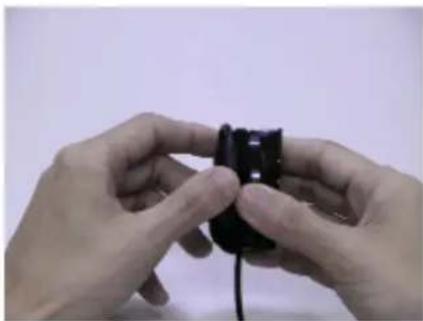
Open the Ear Hook outward slightly.
-
Put the Ear Hook on your ear and adjust the Ear Hook position to fit your ear.
-
Close the Ear Hook.
NOTE:
Stretching the ear hook on the headphone too wide from its original position may result in damage to the ear hook.
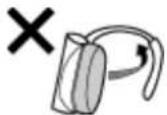
To avoid dropping the headphones unexpectedly, you can attach the supplied cable clip to the cable of the headphones, and clip to the clothes.

Turning on the power
The Digital Audio Player has a function to avoid to turn on the power by the unexpected touch of the objects to the Digital Audio Player.
1. Press and hold ▶/■ until the beep sound is heard (about 2 to 5 seconds) to turn on the Digital Audio Player.
The LED lamp lights up and the Digital Audio Player is turned on, then the playback starts.
When the playback position is memorized, playback starts from the memorized position. (See "To stop playback".)
NOTE:
When the Digital Audio Player has no playable music files, it automatically turns off immediately after turning on.
It may take a longer time to read out playlists before playback each time you connect the Digital Audio Player to PC.
You may hear a little sound distortion and/or noise depending on the music type and the bitrate of the file. In this case, change the format of the music file into MP3 or make a music file with low bitrate again.
The playback order of the music files may be different from the order on the PC. To play back the music files in the desired order, see "Playing back with playlist".

Adjusting volume
1. Viorese-
VOL +: Increases the volume.
VOL -: Decreases the volume.
When pressing and holding the button, the volume is changed continuously.
NOTES:
The Guide voice cannot be heard during the volume adjustment.
The volume of Guide voice automatically increases/decreases according to the volume of playback sound.
When one of the "Various effects and setting" mode is selected, the Vbuttons do not work for the volume adjustment. In this case, adjust the volume level after completing the setting.

Basic playback
To stop playback
1. Press
The playback is stopped, then the Digital Audio Player is turned off with the current position of the playback memorized 10 seconds later.
When pressing and holding ▶ 2 seconds, the Digital Audio Player turns off without the memory of the current position.
To skip to the desired track
1. |Press|
▶: Skips to the beginning of the next tracks.
◀◀: Skips to the beginning of the current track. You can select the previous track by pressing the button twice briefly.
NOTE:
When reaching to the beginning of the last (first) track, "Last (First) track" is heard. Then, pressing one more time (twice) goes to the beginning of the first (last) track.
To locate a desired portion
1. Press and hold ◀◀/▶▶
▶▶: Fast-forwards the tracks.
Fast-reverses the tracks.
Keeping ▶pressed and held make searching speed faster gradually.
NOTE:
When reaching to the beginning of the last track (the end of the first track), "Last (First) track" is heard.
CAUTION:
When operating, do not press more than two buttons at a time; otherwise, malfunction may occur.
If you cannot operate, take out the battery from the Digital Audio Player, then put it back in.
Advanced Operation
Playing back with playlist
You can make up to three playlists to customize the playback files you want to. Using a playlist, you can edit the playback files and their order.
NOTE:
When a music file listed on the playlist does not exist on the Digital Audio Player, the listed music is skipped.
To make a playlist
You can make a playlist file using WordPad application included in Windows.
The English screens are used in this procedure.
- Select "WordPad" in "Accessories" under "Program" from "start" menu.
- Make or edit a playlist as follows:
"\music\the folder name(s)\the target file name including the extension (.mp3/.wma)"
Without the extensions, the unit cannot play back the target files.
Ex.:
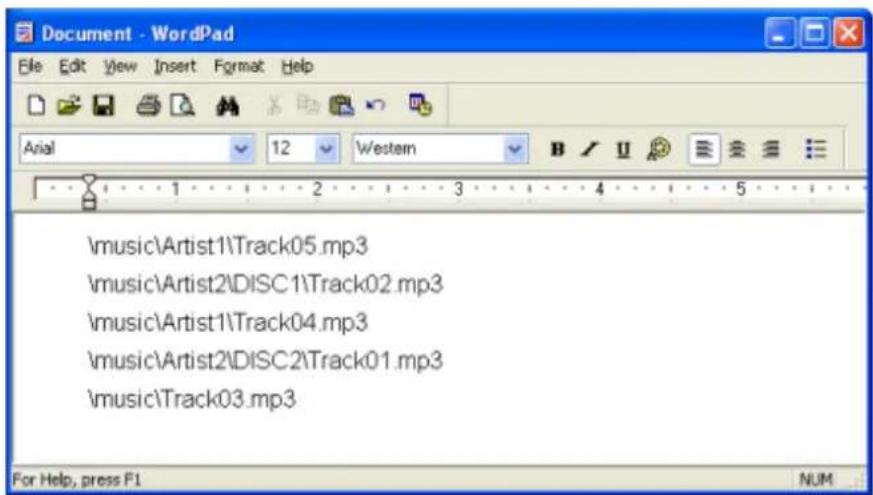
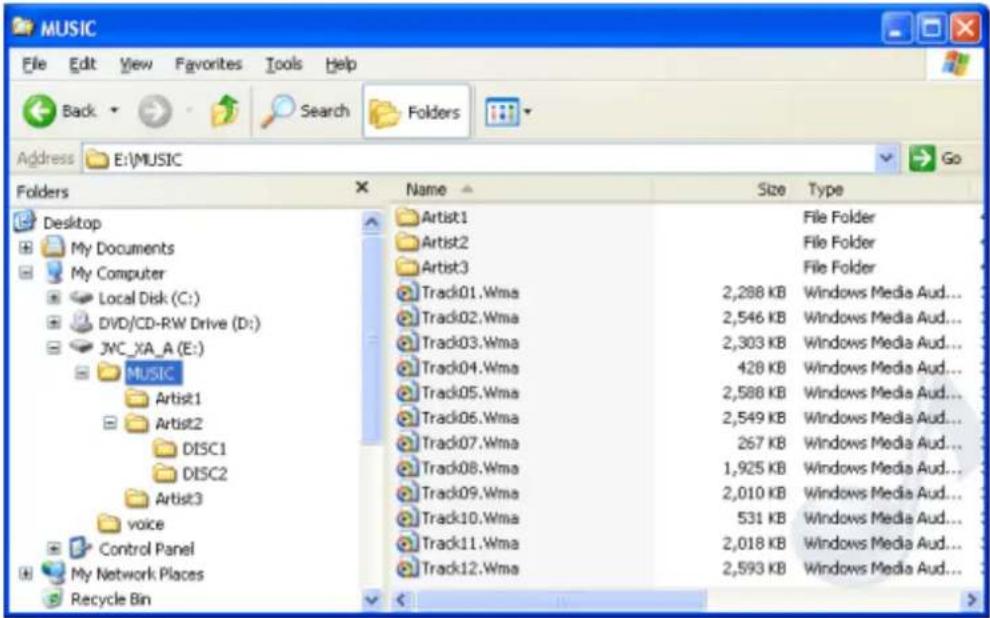
3. Save the file as Unicode format.
Select "Unicode Text Document" for "Save as type" in the "Save As" dialog of WordPad.
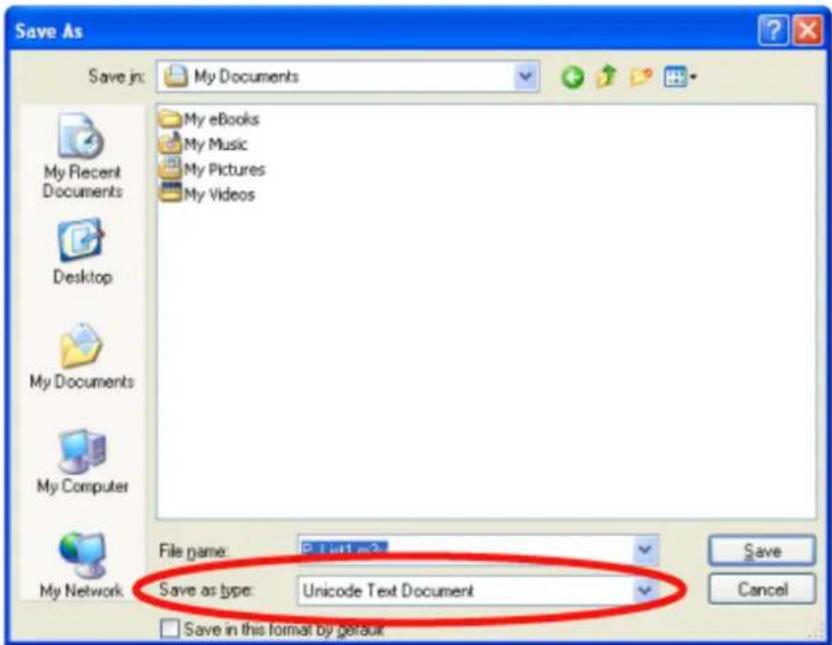
A playlist need to be a text file whose name is "P_List1.m3u", "P_List2.m3u", or "P_List3.m3u". The Digital Audio Player recognizes the files as "Playlist 1", "Playlist 2", and "Playlist 3" respectively and does not recognize other files as playlist.
The icon of Windows Media Player or your music application is used for that of the saved files.
To import the playlist file
- Connect the Digital Audio Player to your PC.
- Open the Removable Disk (the Digital Audio Player) in "My Computer" on the "start" menu or on Desktop.
- Copy the playlist files you made to "music" folder on the Digital Audio Player, which is detected as the Removable Disk ("JVC_XA_A" on Windows XP) in the "My Computer" window.
To play back with a playlist
- During playback, press and hold MODE the playlist name you want to play ("Playlist 1" "Playlist 2", or "Playlist 3") is heard.
NOTE:
When selecting playlist, the voice for non-existing playlist is skipped. For example, when "P_LIST1.m3u" (Playlist 1) is not exist in the player, only "Playlist 2" and "Playlist 3" are heard.
When no playlist is imported, "No playlist" is heard.
When you turn off by pressing and holding ▶during playback with playlist, playback starts from the beginning of the first track on the selected playlist next time you turn on. When you turn off playing back without playlist, the first track of the Digital Audio Player will be played.
To switch a playlist
- During playback, press and hold MODEtately until the playlist name you want to play ("Playlist 1" "Playlist 2", or "Playlist 3") is heard.
To turn off the playback with a playlist, press and hold repeatedly until "Playlist off" is heard.

Various effects and setting
You can add various effects to the music sound and changing the basic setting using the MODE button.
To change the mode
1. Press MODEtedly to select the desired item.
Each time you press the button, the item changes as follows:
| Mode item (Guide voice) | Function |
| Play mode setting | Changes the playback mode such as Repeat, Random, and etc. |
| Sound setting | Selects the sound mode such as equalizer, surround, and etc. |
| Voice guide setting | Activates/deactivates the voice guidance function. |
| LED setting | Turns on/off the LED lamp. |
| Format setting | Deletes all the data and formats the built-in memory. |
| Playback Starts normal playback | |
2. Press VQL+Vedly to select the setting.
3. Press
Pressing mostead of goes to the next item without the current item set.
Without pressing the button for 10 seconds, the setting is finished ("Complete" is heard.) and playback starts.
When selecting the format setting, none of setting cannot be finished unless all the procedure is completed.
CAUTION:
When operating, do not press more than two buttons at a time; otherwise, malfunction may occur.
NOTE:
There is a time limit in doing the following procedures. If you do not press any button about 10 seconds, the mode setting is canceled after setting the current item and playback resumes.
Configuration of the mode setting
![graph TD A["MODE"] --> B["Playback"] B --> C["Play mode setting"] C --> D["Sound setting"] D --> E["Voice guide setting"] E --> F["LED setting"] F --> G["Format setting"] H["Off"] --> I["All repeat"] I --> J["Random"] K["Repeat"] --> L["Random repeat"] M["CLASSIC"] --> N["LIVE"] O["SRS TruBass"] -->…](/content/2026/05/817291/images/4ca78d74f45ce815021af6ba096c4f45c0282aa48d941e49ad552749a7d216ee.jpg)
Play mode setting
| Setting item (Guide voice) | Function |
| All repeat Repeats all the music files. | |
| Random Plays back all the music files in random order. | |
| Random repeat Repeats all the music files in random order. | |
| Repeat Repeats the current music file. | |
Sound setting
| Setting item (Guide voice) | Function |
| CLASSIC Selects the setting suitable for classical music. | |
| LIVE Selects the setting suitable for live-recording music. | |
| POP Selects the setting suitable for pop music. | |
| ROCK Selects the setting suitable for rock music. | |
| WOW MODE1 | Selects for the minimum effect for SRS WOW*1. |
| WOW MODE2 | Selects for the medium effect for SRS WOW*1. |
| WOW MODE3 | Selects for the maximum effect for SRS WOW*1. |
| SRS TruBass*2 | Selects for SRS TruBass mode. |
| Off Cancels sound mode. | |
*1SRS WOW: surround effect to enlarge the sound field with digital processing
*2SRS TruBass: reproduces the dynamic bass sound
NOTE:
When using SRS TruBass/WOW MODE 1-3, the sound may be distorted. In this case, select the other sound settings.
Voice guide setting
| Setting item (Guide voice) | Function |
| Voice guide on | Activates the voice guidance function. |
| Voice guide off | Activates beep sound instead of the voice guidance for playback.The voice for the mode setting can be always heard though the voice guide is set to off. |
LED setting
| Setting item (Guide voice) | Function |
| LED on Turn on the LED lamp. | |
| LED off Turns off the LED lamp. You can lengthen the battery life. | |
When the remaining battery power is low, the Digital Audio Player automatically changes the LED setting to "LED off" to save the battery life. In this case, "Please change the battery" is heard.
When playback suddenly stops and the player turns off, change the LED setting into "LED off".
Format setting
Once you starts formatting, not only music files but all other files (except for the Voice guide files, "music" and "voice" folders) are deleted.
DO NOT remove the battery until the Digital Audio Player is automatically turned off. Otherwise, the
built-in memory may be broken.
After "Format setting" is heard by pressing MODEatedly...
- Press so that "Format" is heard, then press.

| Setting item (Guide voice) | Function |
| Format Enters into the format mode. | |
| Cancel format Cancels format. | |
"Please select Start format or Cancel format" is heard.
When you do not press V04 more than 10 seconds, the format setting is canceled and playback starts.
- Press VOL that "Start format" is heard, then press .

| Setting item (Guide voice) | Function |
| Start format Eners into the format mode. | |
| Cancel format Cancels format. | |
The format process starts.
After finishing the format process, the Digital Audio Player automatically turns off.
When you do not press v, the format setting is canceled and playback starts.
NOTE:
The following setting is not cleared by the format process:
• Volume, Play mode setting, Sound setting, Voice guide setting, LED setting
The following setting is cleared:
- The memory of the playback position, Playlist selection, the order of the Random play

Information
Troubleshooting
Connection
| Symptom Cause | Action | |
| The PC cannot detect the Digital Audio Player. | Your PC may work incorrectly. | Restart your PC, then connect the Digital Audio Player again. |
| For Windows 98SE users: The USB driver is not installed. | Install the USB driver. | |
| A USB hub or a USB extension cable is used. | Connect directly using the supplied USB cable. | |
| The device name of the unit is set to other than "JVC_XA_A". | Rename the device name of the unit as "JVC_XA_A" manually. |
Transfer/Deletion
| Symptom Cause | Action | |
| Some transferred files are missing. | The transfer error occurs. Check the connection. | |
| The built-in memory may be full. | Check the remaining memory size, and delete the unwanted files if necessary. | |
| The PC cannot detect this Digital Audio Player. | The device name of the unit is set to other than "JVC_XA_A". | Rename the device name of the unit as "JVC_XA_A" manually. |
| Deletion of the files on the Digital Audio Player is not possible. | Some utility/music software on your PC may keep from deleting. | Pause or quit the utility/music software. |
Playback
| Symptom Cause | Action | |
| A WMA file is not played back. | WMA-DRM files are transferred by dragging and dropping. | Transfer WMA-DRM files using Windows Media Player. |
| LED lamp does not turn on. | The LED setting may be set to "LED off". | Change the LED setting. |
| The battery is low. Change the battery. | ||
| Guide voice cannot be heard during playback operation. | The Voice guide setting may be set to "Off". | Change the Voice guide setting. |
| The guide voice files are missing. | Import the Guide voice files from the supplied CD-ROM into the "voice" folder on the Digital Audio Player. | |
| The music files in the playlist cannot be played back. | The target music files do not exist on the built-in memory of the Digital Audio Player. | Change the playlist or import the music files. |
| Playlist is not saved in unicode |

Specification
| Memory type: | 256 MB Flash memory |
| Playable files: | MP3, WMA, WMA-DRM (copyright-protected) |
| Headphones driver unit: | 30 mm diameter Neodymium |
| Power supply: | AAA alkaline battery (DC 1.5 V) x 1 |
| Battery life: | approx. 20 hours (Playback of MP3 files created at 64 kbps/22 kHz with LED setting set to off and 0.1 mW + 0.1 mW output.) |
| Cord length: | 0.5 m (19-11/16 inch) |
| Mass: | 57 g (2.01 oz) (incl. an alkaline battery) |
Design and specifications subject to change without notice.

- XA-A55CL
- SAFETY AND CAUTIONS
- NOTE
- SOME DO'S AND DON'TS ON THE SAFE USE OF EQUIPMENT
- DO
- DON'T
- ABOVE ALL
- ABOUT FCC INFORMATION
- FCC INFORMATION
- CAUTION
- CONTACT
- INFORMATION (FOR CANADA)
- RENSEIGNEMENT (POUR LE CANADA)
- ATTENTION
- INFORMATION FOR USERS ON DISPOSAL OF OLD EQUIPMENT [EUROPEAN UNION]
- (BUSINESS USERS)
- [OTHER COUNTRIES OUTSIDE THE EUROPEAN UNION]
- FOR YOUR SAFETY
- AVOID USING THE DIGITAL AUDIO PLAYER
- DO NOT LEAVE THE DIGITAL AUDIO PLAYER
- TO PROTECT THE DIGITAL AUDIO PLAYER, DO NOT
- ABOUT EAR PADS
- ABOUT ALKALINE BATTERIES
- FOR SAFE USE, DO NOT
- HOW TO HANDLE A CD-ROM
- INTRODUCTION
- ACCESSORIES
- FEATURES
- WHAT IS DIGITAL AUDIO PLAYER XA-A55CL
- SYSTEM REQUIREMENTS
- MUSIC FILE REQUIREMENTS
- BIT RATE AND SAMPLING FREQUENCY
- EXTENSION
- COPYRIGHT PROTECTION
- LICENSE
- ABOUT THIS INSTRUCTION
- CONFIGURATION OF THIS INSTRUCTION
- PARTS IDENTIFICATION
- ABOUT VOICE GUIDANCE
- PREPARATION
- DRIVER INSTALLATION (FOR WINDOWS 98SE USER ONLY)
- CONNECT THE DIGITAL AUDIO PLAYER TO YOUR PC USING THE SUPPLIED USB CABLE
- CLICK "NEXT
- CHECK "SEARCH FOR THE BEST DRIVER FOR YOUR DEVICE. (RECOMMENDED)" AND CLICK "NEXT
- SELECTING THE LANGUAGE FOR THE VOICE GUIDANCE
- NOTES
- PUTTING THE BATTERY
- ABOUT CHANGING THE BATTERY
- IMPORTANT
- BASIC OPERATION
- TRANSFERRING THE MUSIC FILES INTO THE DIGITAL AUDIO PLAYER
- TO CONNECT TO YOUR PC
- TO TRANSFER THE MUSIC FILES
- CAUTIONS
- PUTTING ON THE HEADPHONES
- TURNING ON THE POWER
- PRESS AND HOLD ▶/■ UNTIL THE BEEP SOUND IS HEARD (ABOUT 2 TO 5 SECONDS) TO TURN ON THE DIGITAL AUDIO PLAYER
- ADJUSTING VOLUME
- VIORESE
- BASIC PLAYBACK
- TO STOP PLAYBACK
- PRESS
- TO SKIP TO THE DESIRED TRACK
- TO LOCATE A DESIRED PORTION
- PRESS AND HOLD ◀◀
- ADVANCED OPERATION
- PLAYING BACK WITH PLAYLIST
- TO MAKE A PLAYLIST
- SAVE THE FILE AS UNICODE FORMAT
- TO IMPORT THE PLAYLIST FILE
- TO PLAY BACK WITH A PLAYLIST
- TO SWITCH A PLAYLIST
- VARIOUS EFFECTS AND SETTING
- TO CHANGE THE MODE
- PRESS MODETEDLY TO SELECT THE DESIRED ITEM
- PRESS VQL+VEDLY TO SELECT THE SETTING
- CONFIGURATION OF THE MODE SETTING
- FORMAT SETTING
- INFORMATION
- TROUBLESHOOTING
Brand : JVC
Model : XA-A55CL
Category : Mp3 player